Rockhopper II - Printer Mutoh - Free user manual and instructions
Find the device manual for free Rockhopper II Mutoh in PDF.


User questions about Rockhopper II Mutoh
0 question about this device. Answer the ones you know or ask your own.
Ask a new question about this device
Download the instructions for your Printer in PDF format for free! Find your manual Rockhopper II - Mutoh and take your electronic device back in hand. On this page are published all the documents necessary for the use of your device. Rockhopper II by Mutoh.
USER MANUAL Rockhopper II Mutoh
Rockhopper II series printer User's Guide
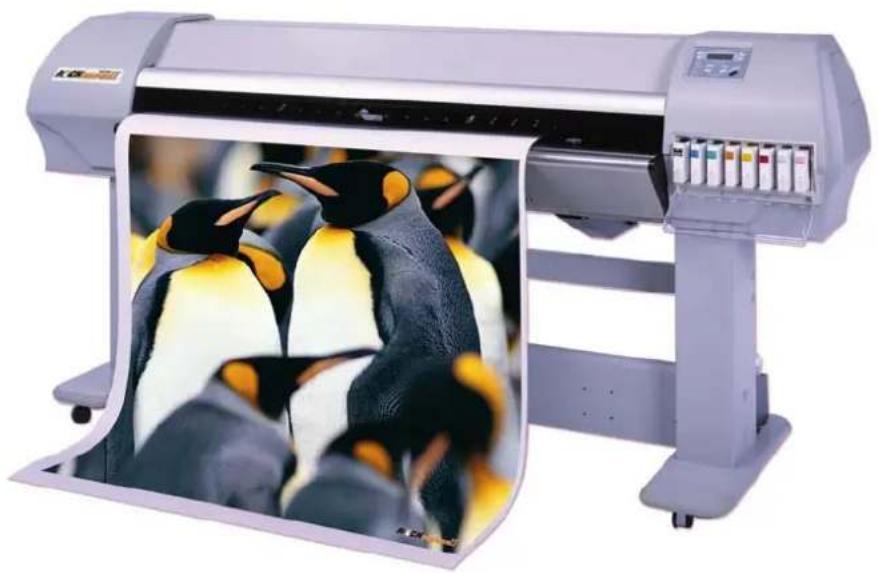
natural_image
Large industrial printer with a photo of penguins in the foreground (no visible text or symbols)COPYRIGHT NOTICE
COPYRIGHT © 2003 Mutoh Europe N.V. All rights reserved.
This document may not be reproduced by any means, in whole or in part, without written permission of the copyright owner.
This document is furnished to support the Mutoh Rockhopper II Series Printer. In consideration of the furnishing of the information contained in this document, the party to whom it is given, assumes its custody and control and agrees to the following:
The information herein contained is given in confidence, and any part thereof shall not be copied or reproduced without written consent of Mutoh Europe N.V.
This document or the contents herein under no circumstances, shall be used in the manufacture or reproduction of the article shown and the delivery of this document shall not constitute any right or license to do so.
October 2003
Published: Mutoh Europe N.V., Archimedesstraat 13, B-8400 Oostende, BELGIUM

text_image
ROCKHOPPERII MLTOHDear Customer,
The Rockhopper II Eco-Solvent – Eco-Solvent Plus™ printer series are offered in three different models, i.e. 50.11" (1273 mm), 65.07" (1653 mm) and 88.18" (2240 mm). Printing widths are respectively 1263 mm, 1643 mm and 2230 mm.
Equipped with a new set of 360 nozzles/colour piezo-electric drop-on-demand inkjet heads, the Rockhopper II combines high speed and high quality printing, with top production speeds of more than 30 m² per hour. Print resolutions offered are 360 x 360 dpi, 720 x 360 dpi, 720 x 720 dpi, 1440 x 720 dpi and 1440 x 1440 dpi.
Incorporating 8 colour channels, the Rockhopper II series printers can be set up for both 6 and 4 colour printing. For photo tone output printing, Mutoh offers a as standard 6-colour (CMYK, light cyan & light magenta) Eco-Solvent or Eco-Solvent Plus™ ink set. For high speed, the user can load 2 x 4 CMYK ink sets, offering 440 ml ink autonomy per colour and the possibility to double the machine's speed. Ink comes in 220 ml smart-chip ink cassettes.
Rockhopper II application possibilities encompass outdoor poster printing, banners, long-term backlit signage, building and construction announcements, vehicle graphics, durable indoor graphics, POS displays, ... Apart from outdoor applications, Rockhopper II printers are also an excellent choice for durable photo-realistic prints for indoors.
The Rockhopper II is an easy to use printer for your outdoor and indoor print jobs.
Happy printing!
Mutoh Europe N.V.
TABLE OF CONTENTS
- Safety Instructions....13
1.1. Introduction....13
1.2. Warnings, Cautions and Notes....13
1.3. Important safety instructions.... 13
1.4. Warning labels ...... 17
1.5. Operation procedure labels ...... 20
- Product Overview ...... 21
2.1. Introduction....21
2.2. Features 21
2.3. Part names and functions ...... 22
2.3.1. Front....22
2.3.2. Back 23
2.3.3. Position and function of the heating elements 24
2.3.4. Operation panel....26
2.4. Printer status....28
2.4.1.Normal 28
2.4.2. Setting menu display....28
2.4.3. Changing the printer status 29
- Setting up the unit .... 31
3.1. Unpacking 31
3.1.1. Unpacking packaging box of the main unit ....31
3.1.2. Unpacking stand packaging box 32
3.2. Verification of packaged items 33
3.2.1. Packaging box of the main unit 33
3.2.2. Accessories box 34
3.2.3. Stand packaging box 35
3.3. Assembly....36
3.3.1. Assembling the stand 36
3.3.2. Installing the stand 37
3.3.3. Fixing the printer body onto the stand 38
3.3.4. Removal of protective packaging material 39
3.3.5. Installing accessories....41
3.4. Installation....42
3.4.1. Choosing a place for the printer....42
3.4.2. Installing the printer....44
- Preparing for a job 45
4.1. Introduction......45
4.2. Connecting the power cable....45
4.3. Connecting the foot switch 48
4.4. Turning the power ON/OFF....50
4.4.1. Turning the power ON 50
4.4.2. Turning the power OFF....51
4.5. Installing Eco-Solvent ink or Eco-Solvent Plus ink cartridges....53
4.6. Media handling ....57
4.6.1. Loading sheet media 57
4.6.2. Loading roll media....61
4.6.3. Setting media type....61
4.7. Testprinting....63
4.7.1. Setup List 64
4.7.2. NozzleCheck 65
4.7.3. Alignment 65
4.7.4. Colour palette....66
4.7.5. Maintenance record....67
4.8.1. System requirements....68
4.8.2. Selecting cables....68
4.8.3. Connecting the Centronics interface....68
4.8.4. Connecting the network interface 69
- Handling the printer 71
5.1. Introduction....71
5.2. Drawing flow 71
5.3. Using media 72
5.3.1. Media type....72
5.3.2. Cautions on handling media....72
5.3.3. Precaution on storing media....73
5.3.4. The printing area....73
5.3.5. Media feed compensation 74
5.3.6. Details about Rockhopper II media 76
5.4. Menu setup on the operation panel 77
5.4.1. Setup menu....78
5.4.2. Ink status menu 80
5.4.3. Origin setup menu....80
5.4.4. Test print menu 82
5.4.5. Media setup menu....82
5.4.6. Media type menu....83
5.4.7.User media menu 83
5.4.8. Ink amount menu 86
5.4.9. InkDry menu 86
5.4.10. Head Height menu 87
5.4.11. Stiff menu....87
5.4.12. Thickness menu....88
5.4.13.Heater menu 88
5.4.14. Drier menu 88
5.4.15. Fixer menu 89
5.4.16. Post Fixer menu 89
5.4.17. HStatus menu Rockhopper II....90
5.4.18. HStatus menu Rockhopper II 4H....90
5.4.19. Media feed compensation menu 91
5.4.20. Change media feed compensation value menu....92
5.4.21. Printing by Media feed compensation menu....92
5.4.22. Cut size menu....92
5.4.23. Top feed menu 93
5.4.24. Media cut menu....93
5.4.25. Shortest cut menu....94
5.4.26. Printing mode menu....95
5.4.27. Printing mode setup menu....95
5.4.28. Colour mode menu....95
5.4.29. Printing quality menu....96
5.4.30. InterLace Setup menu 97
5.4.31. Printing direction menu....97
5.4.32. Repeat printing menu....97
5.4.33. Repeat times menu....98
5.4.34. Interval time menu ..... 98
5.4.35. Command setup menu....99
5.4.36. Command select menu....100
5.4.37. Print step menu....100
5.4.38. Print position menu 100
5.4.39. Terminator menu....101
5.4.40. Image resolution menu....101
5.4.41. Online time out menu.... 102
5.4.42. Overwrite menu....102
5.4.43. Halftone menu....102
5.4.44. Layout setup menu....103
5.4.45. Layout method menu 103
5.4.46. Joint printing menu 104
5.4.47. Cutting position Menu 104
5.4.48. Function setup menu....105
5.4.49. CMY → K menu....105
5.4.50. Scale menu....105
5.4.51. Mirror menu....106
5.4.52. Roll Media setup menu 106
5.4.53. Roll media length menu 107
5.4.54. Centronics menu 107
5.4.55. Network setting menu....108
5.4.56. IP address menu 109
5.4.57.Subnet mask menu....109
5.4.58. Gateway menu 110
5.4.59. DHCP menu....110
5.4.60. MAC address menu....110
5.4.61.Version menu....111
5.4.62. Utility menu 111
5.4.63. ErrorDisplay menu....112
5.4.64. Media detection menu....112
5.4.65. Power on cleaning menu....113
5.4.66. Media width menu 113
5.4.67. File management setup menu....114
5.4.68. Write mode menu....115
5.4.69. Re-plot menu....115
5.4.70. File delete menu....116
5.4.71. Re-name menu 117
5.4.72. Format menu....118
5.4.73. Initialize setup menu....119
5.4.74. All Initialize menu 120
5.4.75. Media setup Initialize menu....120
5.4.76. Printing mode initialize menu....121
5.4.77. Command setup Initialize menu 121
5.4.78. Layout Setup Initialize menu 121
5.4.79. Function setup Initialize menu....122
5.4.80. Roll media setup Initialize menu 122
5.4.81. Centronics Initialize menu 122
5.4.82. Network Initialize menu....123
5.4.83. Utility Initialize menu 123
5.4.84. File management Initialize menu....123
5.4.85. WEB password initialize menu....124
5.4.86. Data dump menu 124
5.4.87. Ink Manager menu 125
5.4.88. Head Wash menu 125
5.4.89. Ink Load menu 126
5.4.90. Ink Change menu 126
5.4.91. Cutter change menu 127
5.4.92. Wiper clean menu 128
5.4.93. Tank change menu 128
5.4.94.Version Check menu....129
5.5. Operating from the operation panel 130
5.5.1. Controlling the heater elements on the Rockhopper II printer....130
5.5.2. Controlling the heater elements on the Rockhopper II 4H printer....133
5.5.3. Feeding media....136
5.5.4. Operating the pressure rollers 136
5.5.5. Print mode check....137
5.6. Operations after printing 138
5.6.1. Cutting media....138
5.6.2. Media cutting procedure 139
- Troubleshooting....141
6.1. Introduction....141
6.2. Failures and malfunctions of the printer 141
6.3. Error messages....148
6.3.1. Status messages....148
6.3.2. Message type error display and solutions 149
6.3.3. Data error display and solutions....150
6.3.4. Command error display and solutions 151
6.3.5. Error requiring a restart....151
6.4. When media jams occur....153
6.4.1.How to remove a piece of media (cut media)....153
6.4.2.How to remove a piece of media (roll media)....154
- Daily Maintenance....155
7.1. Introduction....155
7.2. Replacing consumables....155
7.3. Cleaning 165
7.4. Changing Ink Types....172
7.5. Transfer and transportation 174
7.6. Periodical Services....177
7.6.1. Service by end-user....177
8.3.2. Service by authorised Mutoh technician....177
- Appendix....179
8.1. Introduction....179
8.2. 2 or 4 heater....179
8.3. Product Specifications....180
8.4. Interface Specifications....182
8.5. Installation of other parts 184
1. SAFETY INSTRUCTIONS
1.1. INTRODUCTION
This chapter explains the meaning of safety terms for personnel who operate this equipment, important safety instructions, and the positions of the warning labels.

Important :
- Be sure to follow all instructions and warnings on this manual when using the equipment.
1.2. WARNINGS, CAUTIONS AND NOTES
Safety terms in this manual and the contents of warning labels attached to the printer are categorized into the following three types depending on the degree of risk (or the scale of accident).
Read the following explanations carefully and follow the instructions in this manual.
Safety terms Details
Important Must be followed carefully to avoid death or serious bodily injury
Caution Must be observed to avoid bodily injury (moderately or lightly) or damage to your equipment
Notes Contains important information and useful tips on the operation of your printer
1.3. IMPORTANT SAFETY INSTRUCTIONS
General safety instructions that must be observed to use the equipment safely are explained below.
Do not place the printer in the following areas. Doing so may result in the printer tipping or falling over and causing injury.
- Unstable surfaces
- Angled place
- Areas subject to vibration by other equipment
Do not stand on or place heavy objects on your printer. Doing so may result in the printer tipping or falling over and causing injury.
Do not cover the ventilation hole of your printer with cloth, such as a blanket or table cloth. Doing so could obstruct ventilation and cause fire.
Do not place the printer in humid and dusty areas. Doing so may result in electrical shock or fire.
➢ Do not use a damaged power cable. Doing so may result in electrical shock.
Do not attempt to plug in electrical plugs with wet hands. Doing so may result in electrical shock.
Do not connect earth cables in the following areas.
• Gas pipes → Doing so may cause fire or an explosion.
- Earth terminals for telephone line or lightening rod → Doing so may cause a large flow of voltage if lightening occurs.
• Water pipes or faucets → If there is a plastic part in the pipe, the earth will not work properly.
Do not insert or drop metal or inflammable objects into openings, such as ventilation outlets. Doing so may result in electrical shock and fire.
➢ Stop using your printer if a liquid is spilled into it. This may cause electrical shock or fire. Turn the printer off as soon as possible, unplug the power cord, contact your local MUTOH dealer.
➢ Be sure to use the attached cable. Otherwise, electrical shock or fire may occur.
➢ Be sure to use the specified voltage (AC 100 V to 120V, or AC 220V to 240V). Otherwise, electrical shock or fire may occur.
Use electricity directly from a power outlet (AC 100 V to 120V, or AC 220V to 240V). Do not put many loads on one electrical output. Otherwise, heat may be generated and cause fire.
➢ Be sure to use an outlet with an earth terminal and use the terminal correctly. Otherwise, electrical shock or fire may occur.
➢ Follow the instructions below when handling the power cable.
- Do not modify the cable.
- Do not put heavy objects on the cable.
- Do not bend, twist or pull the cable.
- Do not wire the cable near equipment that generates heat.
➢ Follow the instructions below when handling the power plug. Otherwise, fire may occur.
- Wipe away dust and any other residue before inserting the plug.
- Ensure that the plug is firmly inserted as far as it will go.
When handling the foot switch, be aware of the following:
- Do not place anything heavy on the foot switch.
- Do not bend the cable of the foot switch with force and do not pull.
- Do not place the foot switch near thermal devices.
When handling ink cartridges, be careful that ink does not get in your eyes or on your skin. However, if this happens, flush immediately with water. Otherwise, your eyes may become congested or inflamed slightly. If you feel discomfort, consult a doctor immediately.
Do not disassemble ink cartridges. Otherwise, ink may get in your eyes or on your skin.
➢ Be careful not to pinch your fingers when opening and closing the cover of the ink compartment.
➢ Be careful not to pinch your fingers when opening and closing the front cover.
➢ Follow the instructions below when connecting the network interface cable. Otherwise, electrical shock or fire may occur.
- Do not touch the connector.
Do not connect the network cable connector that is not the same specification to the interface board.
When cutting the roll media, be careful of the following. Incorrect handling can result in injury to the hands and fingers from the razor blade.
- When holding the media, do not place fingers over the media cut groove.
- Move the razor blade slowly along the media cutting groove.
Do not use thinner, benzene, alcohol or other active agents. Doing so may result in damage or paint peeling from the casing.
➢ Be careful not to spill water inside the printer. Doing so may result in a short circuit.
➢ Be careful not to touch the heaters during or after operation. Doing so may result in burns.
Only use Eco-Solvent ink, Eco-Solvent Plus ink and appropriate cleaning liquid. Using other ink (e.g. dye or pigment) will cause permanent damage to the printer.
Do not use Eco-Solvent ink in combination with Eco-Solvent Plus™ ink. Doing so will cause permanent damage to the printer.
➢ Never open the covers fixed with screws. Doing so may result in electrical shock or a malfunctioning in the printer.
Do not touch the cutter blade. Doing so may result in bodily injury.
Do not cut hard objects or drop the cutter. Doing so may damage or chip the cutter blade.
Do not bend or pull the waste fluid tube. Doing so may cause that the waste fluid will leak out and malfunction in the product.
Do not touch the cleaning wiper or the head cap unit while cleaning the cleaning wiper. Doing so may result in poor head cleaning because of oil on your hands.
Do not tilt the printer, stand it against a wall or turn it upside down. Doing so may cause ink to leak inside the printer. Movement after transport is also not covered by the warranty.
When installing options, do not touch the elements on the circuit board. The elements on the boards can be very hot and can cause burns.
Have four or more people unpack and assemble the printer.
When lifting the printer out of the packing box, be sure to remove the vinyl cover first, then grab the holding grips on the sides of the printer. Lifting the printer with the vinyl cover on may cause your hands to slip and drop or damage the printer.
Have two or more people transport the printer.
➢ Ensure that the plug has been disconnected from the power socket when it is not to be used for a long time.
Earth wires must be connected to wires or terminals that fulfill the conditions below.
- Earth terminals of power sockets
- Earth wires with copper morsel that is at least 650 mm under the ground
Earth wires must be connected to wires or terminals that fulfill the conditions below.
When setting roll media, place it on top of a desk or other flat surface. Setting roll media with the scroller standing up may damage them.
- Keep the printer horizontal during transportation.
➢ Be sure to do the following before attaching options.
- Turn the printer off.
- Unplug the power cord from the socket.
- Unplug cables connected to the printer. Otherwise, damage to the printer or your computer may occur.
- Remove electrostatic charge from your clothes and body by touching the metal parts of the printer.
Electronic components such as the memory may malfunction if exposed to an electrostatic charge.
1.4. WARNING LABELS
The handling, attachment locations, and types of warning labels are explained below.
Warning labels are attached on areas which require attention. Read and understand the positions and contents thoroughly before performing your work.
1.4.1. Handling the warning labels
Be sure to note the following when handling the labels.

Notes :
• Make sure that all labels can be recognized. If text or illustrations cannot be seen clearly, either clean or replace the label.
- When cleaning labels, use a cloth with water or neutral detergent. Do not use a solvent or gasoline.
- If a warning label is damaged, lost or cannot be recognized, replace the label. When replacing warning labels, contact your local MUTOH dealer.
1.4.2. Locations and types of warning labels
The locations of warning labels are shown below.
1.4.2.1. Location and types of warning labels on front part.

text_image
Technical diagram of a car air conditioner unit with labeled parts A and 2, showing internal airflow pathNo. Type
1
CAUTION
VORSICHT
ATTENTION
text_image
Steel beltA Only onto the Rockhopper II 4H printer

text_image
HEATER SYSTEM MEDIA DIRECTION REAR A B C D FRONT A: max.50°C B: max.70°C C: max.70°C D: max.50°C1.4.2.2. Location and types of warning labels on back part.

natural_image
Technical line drawing of a rectangular printer with control panel and base mount (no text or symbols)No. Type
3
CAUTION
THIS UNIT HAS TWO POWER SUPPLY CORDS, WHEN WINDING UNIT IS PROVIDED. TO REDUCE THE RISK OF ELECTRICAL SHOCK, DISCONNECT ALL POWER SUPPLY CORDS BEFORE SERVICING.
The handling, attachment locations and types of operation procedure labels are explained below. Your printer has labels, which explain the operations that require particular care. Read and understand the locations and contents of these labels thoroughly before performing your work.
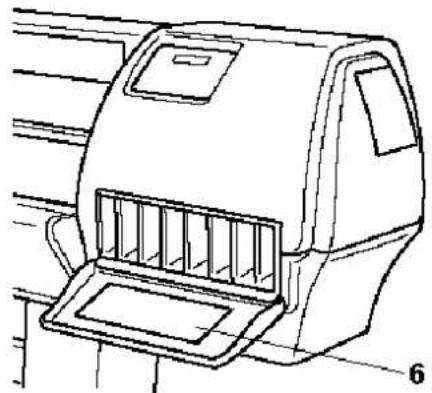
natural_image
Technical line drawing of a car air vent or hood assembly (no text or symbols)| No. | Type Refer to | |||||||||
| 6 | ||||||||||
| Number of the Colours | Ink Type | Slot Number of Ink Cartridge | ||||||||
| 1 | 2 | 3 | 4 | 5 | 6 | 7 | 8 | |||
| 4 | 2x4 colours | Black | Yellow | Cyan | Magenta | Magenta | Cyan | Yellow | Black | |
| 6 | 1x6 colours | Black | Cyan | Transition Liquid | Transition Liquid | Yellow | Magenta | Light Cyan | Light Magenta | |
| 6 | ||||||||||
| Number of the Colours | Ink Type | Slot Number of Ink Cartridge | ||||||||
| 1 | 2 | 3 | 4 | 5 | 6 | 7 | 8 | |||
| 4 | Eco Solvent 2x4 colours | Black | Cyan | Magenta | Yellow | Black | Cyan | Magenta | Yellow | |
| 6 | Eco Solvent 1x6 colours | Black | Cyan | Transition Liquid | Transition Liquid | Yellow | Magenta | Light Cyan | Light Magenta | |
| Number of the Colours | Ink Type | Slot Number of Ink Cartridge | |||||||
| 1 | 2 | 3 | 4 | 5 | 6 | 7 | 8 | ||
| 4 | 2x4 colours | Black | Yellow | Cyan | Magenta | Magenta | Cyan | Yellow | Black |
| 6 | 1x6 colours | Black | Cyan | Transition Liquid | Transition Liquid | Yellow | Magenta | Light Cyan | Light Magenta |
| Colours\Number of Ink Type | Slot Number of Ink Cartridge | ||||||||
| 1 | 2 | 3 | 4 | 5 | 6 | 7 | 8 | ||
| 4 | Eco Solvent 12x4 colours | Black | Cyan | Magenta | Yellow | Black | Cyan | Magenta | Yellow |
| 6 | Eco Solventi1x6 colours | Black | Cyan | TransitionLiquid | TransitionLiquid | Yellow | Magenta | LightCyan | LightMagenta |
2. PRODUCT OVERVIEW
2.1. INTRODUCTION
This chapter explains the features, part names, and functions of the printer.
2.2. FEATURES
The features of the printer are explained below.
(1) High speed output
3 models feature new print heads and achieve high speed printing. They also offer printing widths up to 1263 mm in Rockhopper II-50 (50 inch), 1643 mm in Rockhopper II-64 (64 inch) and 2230 mm in Rockhopper II-87 (87 inch).
(2) Wide variety of compatible media
Adjustable head height can be adapted to various media thickness from 0.08 up to 1.1 mm.
(3) Vibrant Colour Reproduction
To reproduce sharp and vivid colour, 4 or 6 ink colours are used for printing. 220ml of large capacity Eco-Solvent ink or Eco-Solvent Plus™ cartridge is equipped with an IC chip, which can automatically detect the ink quantity, significantly improving productivity.
(4) Effective usage of media
A JOG feature is provided allowing the user to set the printing position. Because printing can be performed on media on which there has already been printed, excess space can be used effectively.
(5) RIP
Software Starter Pack included in-the-box. (To be defined with the order.)
2.3. PART NAMES AND FUNCTIONS
Part names and functions are explained below.
2.3.1. Front

text_image
Technical diagram of a printer with numbered parts labeled for identification| No. | Name Function | |
| 1 | Operation panel This panel is used | to set operational conditions, the status of the printer, and other functions. |
| 2 | Ink compartment This is the place for installing ink cartridges. | |
| 3 | Front cover This cover keeps the operator safe from the drive parts of the printer while it is operating. Only open and/or close the cover to perform following operations:➢ Media setting and replacement➢ Cutter blade replacement➢ Cleaning the cleaning wiper➢ In case of media jam. | |
| 4 | Pressure rollers This roller is used to press the media from above and keep it flat when printing. | |
| 5 | Maintenance cover This protects users from electric shocks caused by touching the internal electrical parts. The cover is opened when expansion memory (optional) has to be installed, and is closed for normal use. | |
| 6 | Stand This stand is used to install the printer on a surface flat floor. The following options are available for installation.➢ Motorized roll-up/roll-off system➢ Take-up system + scroller receiver | |
| 7 Media cut groove Only onto the Rockhopper II 4H printer !Used to cut the media straight when it is cut manually. | ||
| 8 | Cartridge cover | Only onto the Rockhopper II printer !This is a cover to protect the user from the internal components of the unit. This is opened during following operation :➢ When cleaning the cleaning wiper |
| 9 Foot switch This switch is used to raise and lower the pressure rollers. | ||
| 10 Paper Guide Support the media during printingIn the Rockhopper II it houses post-heater (dryer).In the Rockhopper II 4H it houses the fixer, post-fixer and dryer. | ||
2.3.2. Back
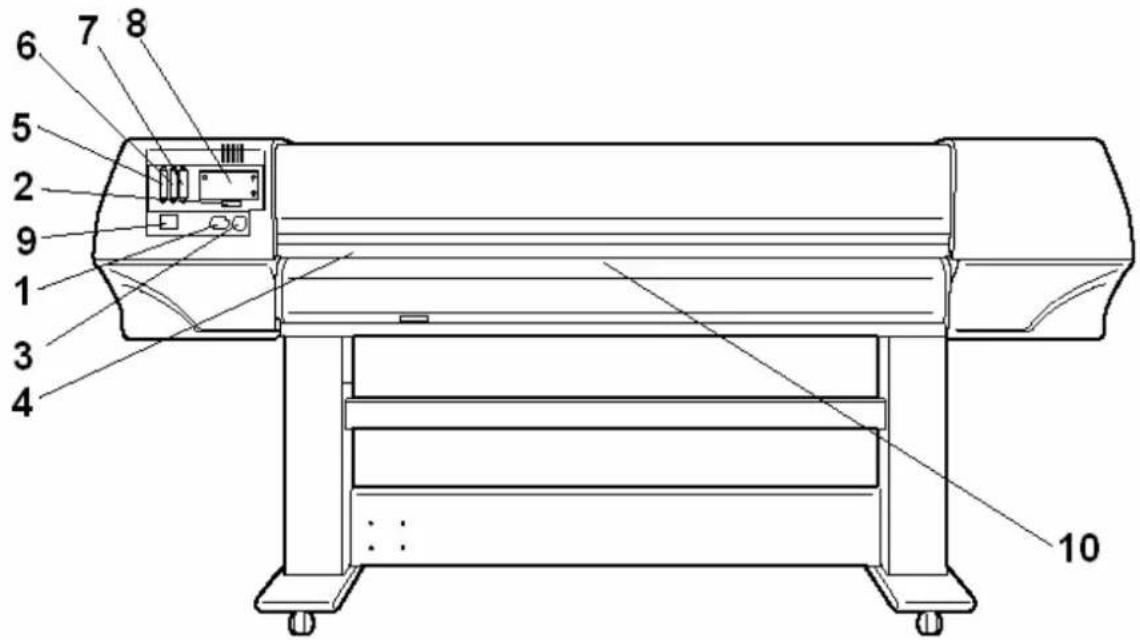
text_image
6 7 8 5 2 9 1 3 4 10| No. | Name Function | |
| 1 | AC inlet | This is the inlet interface to which the power plug is connected. |
| 2 | Interface connector | This is the connector to which the interface cable is connected. |
| 3 | Foot switch connector | This is the connector to which the foot switch cable is attached. |
| 4 | Insertion slot | This is the slot for inserting media when loading it. |
| 5 | Interface slot 1 | The network interface board attaches here. |
| 6 | Interface slot 2 | This is not used for this printer. Close it with the cover. |
| 7 | Interface slot 3 | |
| 8 | Hard disk slot | The hard disk attaches here. When not using a hard disk, keep the cover closed. |
| 9 | Nameplate rating | The type, name, serial number, rating and other details of the printer are labelled here. |
| 10 | Rear Heater | Supports the media during printing and houses the pre-heaters. |
2.3.3. Position and function of the heating elements

Notes :
- To verify if your printer is equipped with 2 or 4 heaters, please refer to the chapter "Appendix".
2.3.3.1. Rockhopper II 2 heater printers
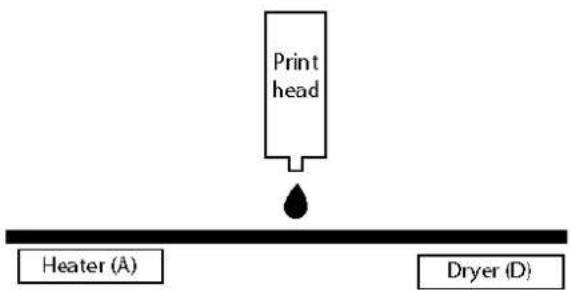
text_image
Print head Heater (Å) Dryer (D)| Heater element Temperature Function | |
| Pre-heater (Heater A) 20 – 50°C | → Open the pores to make the media more receptive for eco-solvent or eco-solvent plusTM ink. |
| Dryer (Heater D) 20 – 50°C | → Applying heating immediately after printing improves ink/media anchorage.→ The dryer helps to make the media touch-dry before it reaches the automatic take-up system. |
2.3.3.2. Rockhopper II 4 heater printers

text_image
Print head Heater (A) Fixer (B) Dryer (D) Post Fixer (C)| Heater element Temperature Function | |
| Pre-heater (Heater A) 20 – 50°C | → Open the pores to make the media more receptive for eco-solvent or eco-solvent plusTM ink. |
| Fixer (Heater B) 20 – 70°C | → To establish optimum fixation onto the media (coated and uncoated).→ Optimizes the dot gain control. |
| Post-Fixer (Heater C) 20 – 70°C | → The post-fixer finalizes the fixation process and helps to make the prints touch-dry. |
| Dryer (Heater D) 20 – 50°C | → The dryer completes the drying for compatibility with the take-up in combination with higher output speeds.→ Stickiness of printed banner materials is improved. |
2.3.4. Operation panel
The operation panel is used to set operational conditions, display the status of the printer, and set other functions.
The names and functions of the operation keys and status lamps are explained below.
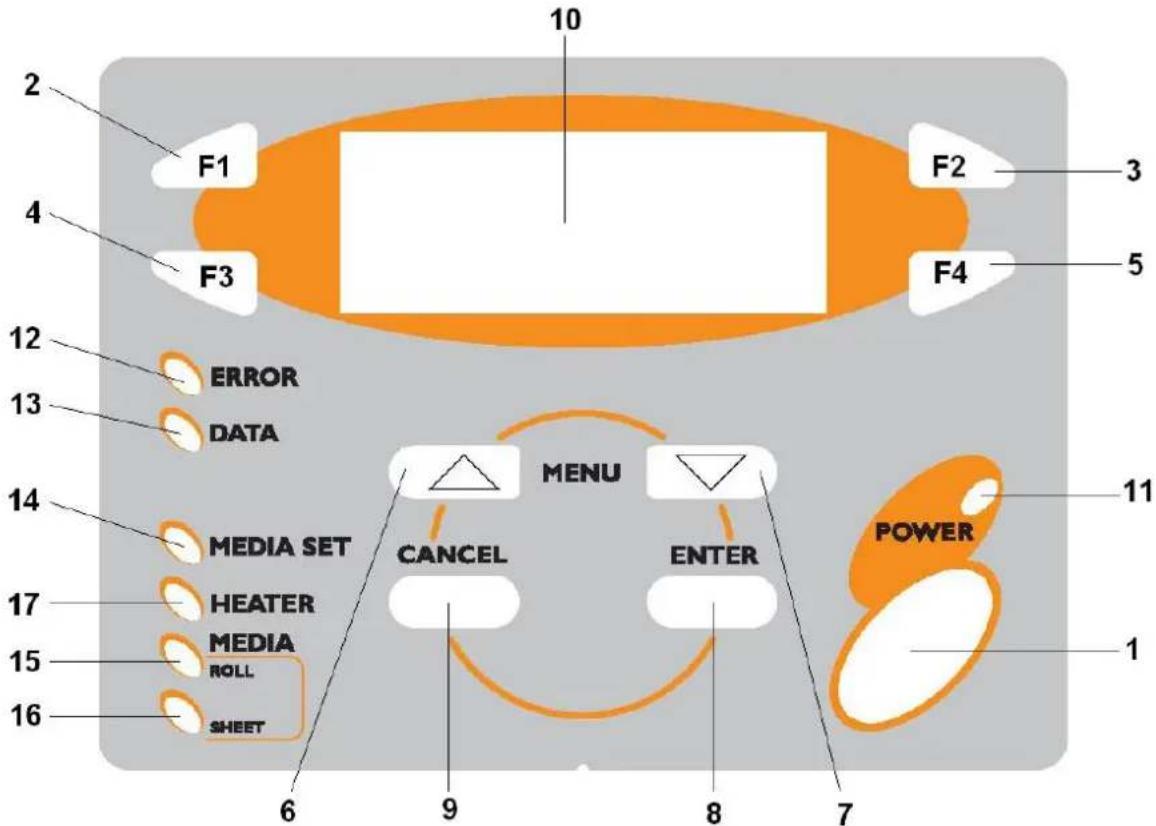
text_image
10 2 F1 F2 3 4 F3 F4 5 12 ERROR DATA 13 14 MEDIA SET HEATER MEDIA ROLL SHEET 6 9 8 7 MENU CANCEL ENTER POWER 11 1(1) Operation keys
| No. | Name Normal Setup menu display | ||
| 1 | [POWER] key Turns the printer on and off. Turns the printer on and off. | ||
| 2 | [F1] key Executes the function assigned to F1. Executes the function assigned to F1. | ||
| 3 | [F2] key executes the function assigned to F2. Executes the function assigned to F2. | ||
| 4 | [F3] key executes the function assigned to F3. Executes the function assigned to F3. | ||
| 5 | [F4] key executes the function assigned to F4. Executes the function assigned to F4. | ||
| 6 | [MENU ↑] key | Changes the LCD monitor display to the setup menu status. | Changes the menu in reverse order. |
| 7 | [MENU ↓] key | Changes the LCD monitor display to setup menu status. | Changes the menu in forward order. |
| 8 [ENTER] key Displays the print mode currently set. Determines the new parameter value and changes the LCD monitor display to the next menu. Sets the parameter value and changes the LCD monitor display to the next menu. | |
| 9 [CANCEL] key - Cancels the new parameter value and changes the LCD monitor display to the next menu. Clears the parameter value and changes the LCD monitor display to the next menu. |
(1) LCD monitor and status lamps
| No. | Name Colour Status Function | |||
| 10 | LCD monitor - - | The monitor displays the operation status and error messages of the printer. | ||
| 11 | POWER lamp | Green | ON | The printer is on. |
| OFF | The printer is off. | |||
| 12 | ERROR lamp | Red | Flashing An error has occurred. The contents will be displayed on the LCD monitor. | |
| OFF | Either there is no error or the power is off. | |||
| 13 | DATA lamp | Orange | ON | The printer is receiving print data. |
| Flashing The printer is analysing received data. | ||||
| OFF | The printer is waiting to receive print data. | |||
| 14 | MEDIA SET lamp | Orange | ON | ➢ The pressure roller is in the release position.➢ Media has not been loaded. |
| OFF | ➢ The pressure roller is in the secured position.➢ The media has not been loaded. | |||
| 15 | ROLL lamp | Orange | ON | The media type is set to roll media. |
| OFF | The media type is set to sheet media. | |||
| 16 | SHEET lamp | Orange | ON | The media type is set to sheet media. |
| OFF | The media type is set to roll media. | |||
| 17 | HEATER lamp | Orange | ON | The temperature of the heating elements is the requested temperature.The real temperature is the same as the requested temperature. |
| Flashing The heating elements are warming up.The real temperature is different as the requested temperature. | ||||
| OFF | The heating elements are powered OFF. | |||
2.4. PRINTER STATUS
The status of the printer is explained below.
2.4.1. Normal
Indicates that the printer can draw print data when media is loaded.
You can also make settings concerning printing using the operation panel.
The contents displayed on the LCD monitor of the operation panel is as follows.
| 1 → | Plot OK | ||
| 2 → | Heaters | Cleaning | ← 3 |
| 4 → | Cut&Feed | Lever | ← 5 Up |
| 6 → | User 1 xxxm | ← 7 |
| No. | Position Description | |
| 1 | 1st line Displays the current status of the printer. Depending on the status, the contents may be displayed in 2 to 4 lines. | |
| 2 | Left of 2nd line Displays the function assigned to [F1] key. | |
| 3 | Right of 2nd line Displays the function assigned to [F2] key. | |
| 4 | Left of 3rd line Displays the function assigned to [F3] key. | |
| 5 | Right of 3rd line Displays the function assigned to [F4] key. | |
| 6 | Left of 4th line Displays the currently set media type. | |
| 7 | Right of 4th line Displays the approximate amount of remaining media that is currently set. (Units: m)However, the amount is displayed only when either "Roll media 1", "Roll media 2", or "Roll media 3" is selected in the Roll media setting menu. | |
2.4.2. Setting menu display
Indicates that you can make settings concerning printing using the operation panel.
Operation regarding printing is possible via the operation panel.
The contents displayed on the LCD monitor of the operation panel is as follows.
| 1 → | * SetupMenu * | |
| 2 → | InkStatus | OriginSet ← 3 |
| 4 → | TestPrint | MediaSet ← 5 |
| (1/7) ← 6 |
| No. | Position Description | |
| 1 | 1st line Displays the setting menu name currently set. | |
| 2 | Left of 2nd line Displays the function assigned to [F1] key. | |
| 3 | Right of 2nd line Displays the function assigned to [F2] key. | |
| 4 | Left of 3rd line Displays the function assigned to [F3] key. | |
| 5 | Right of 3rd line Displays the function assigned to [F4] key. | |
| 6 | 4th line Displays the currently available functions of the [F1] key to the [F4] key.Displays the page status if there are multiple pages for the currently displayed setting menu. | |
2.4.3. Changing the printer status
To change the printer status, follow the steps below.
(1) Changing the status from normal to the setting menu display
Press either [MENU ↑] or [MENU ↓] on the operation panel when the printer is in normal status.
The display of the operation panel changes to the Setting menu display.

Notes :
- Refer to "Setup menu" for details of the setting menu.
(2) Changing the status from the setting menu display to normal
Take one of the following actions when the printer is in the setting menu display to change the operation panel display to normal one.
➢ Press the [CANCEL] key on the operation panel.
Leave the printer as it is for 3 minutes when the status is in the setting menu display.
Ready to plot
Heaters Cleaning
Cut&Feed Lever Up
User 1 xxxm
[MENU ↑] or [MENU ↓]


[CANCEL] or leave the printer as it is
for 3 minutes
| * | Setup | Menu |
| InkStatus | OriginSet | |
| TestPrint | MediaSet | |
| (1/7) |

Notes :
• Refer to 'Status messages" for details of displaying the printer status.
3. SETTING UP THE UNIT
3.1. UNPACKING
The unpacking procedure is described below.
The product is sent to the user in 2 boxes, 1 for the main unit and the other for the stand.

Caution :
- When unpacking this product, always work with at least 4 people.
- When removing this product from the packaging box, always remove the vinyl plastic, and hold on the side of the product. Holding the unit over the vinyl plastic wrapping can result in slippage and dropping the unit, resulting in damage.
3.1.1. Unpacking packaging box of the main unit
Unpack the package of the main unit according to the following procedure.
Step 1 : Move the packaging of the main unit to the location to unpack.
Step 2 : Remove the restraining bands.
Step 3: Remove the top board and take out the packaging material (right upper side and left upper side).

text_image
Technical diagram of a mechanical assembly with labeled components and directional arrows indicating assembly steps.| 1. Top board 2. Packaging material (right upper side) | |
| 3. Packaging material (left upper side) |
Step 4: Remove the outer boards and take out the accessory box and the packaging box of the waste fluid tank.
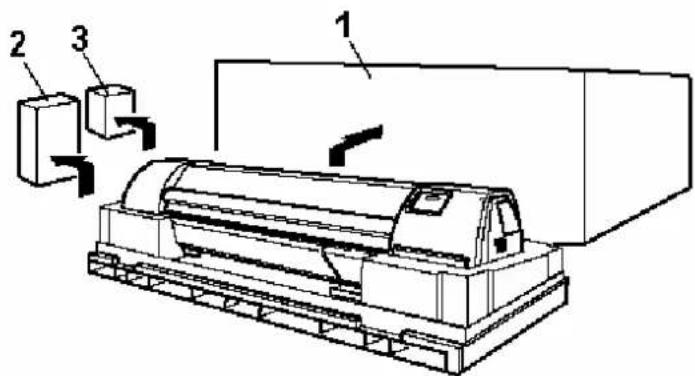
text_image
Technical diagram of a machine with labeled components 1, 2, and 3, showing internal structure and assembly.| 1. Outer board 2. Accessory box | |
| 3. Packaging box of the waste fluid tank |
3.1.2. Unpacking stand packaging box
Unpack the package of the stand according to the following procedure.
Step 1: Move the packaging of the stand to the location to unpack.
Step 2: Open the package and take out the foot, stay and the four packaging materials.

text_image
Technical diagram of a mechanical assembly with labeled components 1, 2, and 3, showing directional arrows indicating movement or flow.| 1. Stay 2. Foot | |
| 3. Packaging material |
3.2. VERIFICATION OF PACKAGED ITEMS
After unpacking the packaging box, inspect if the unit is not damaged and that all necessary parts are present.

Notes :
- The contents of the packages may be different depending on the market where they are used. Contact your local MUTOH dealer for details.
- If any part is missing or broken, contact either of the following:
- The shop where you bought your MUTOH printer.
- Your local MUTOH dealer.
3.2.1. Packaging box of the main unit
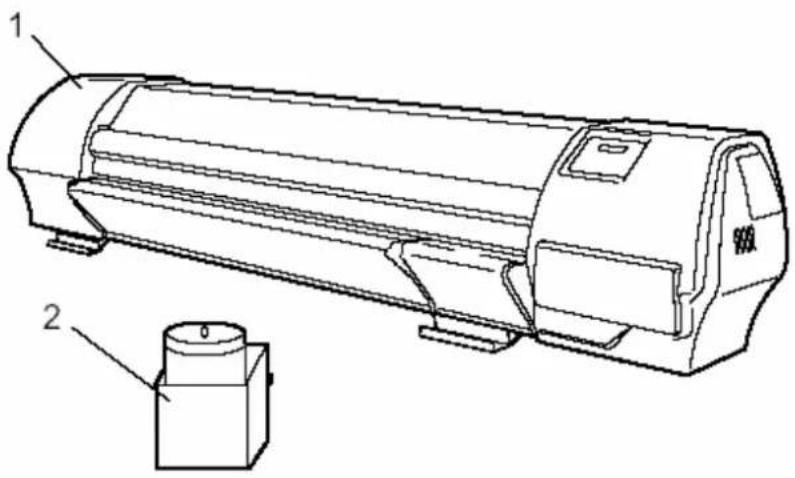
text_image
Technical line drawing of a cylindrical industrial machine with labeled components 1 and 2| 1 Main unit 1 set 3 Accessory box 1 set | ||||
| 2 Waste fluid tank 1 set |
3.2.2. Accessories box

| 1 | Power cable 1 | 7 | Cable clamp 3 | |
| 2 | Tube clamp 2 | 8 | Screw driver 1 | |
| 3 Foot switch 1 9 User's Guide 1 | ||||
| 4 Hexagon socket head cap screw (M6 x 30) | 8 10 Quick Start Manual 1 | |||
| 5 Hexagon socket head cap screw (M6 x 16) | 8 | 11 Installation sheets | ||
| 6 Assembly tool (Hexagon wrench: diagonal diameter 5mm) | 1 | |||
3.2.3. Stand packaging box

natural_image
Technical line drawing of a metal bracket assembly with two labeled parts (1 and 2), showing structural details without any text or symbols.| 1 | Stay | 1 | set | 2 | Ffoot | 2 |
3.3. ASSEMBLY
The assembly of this product is described below.

Caution :
When assembling this product, always work with at least 4 people or more.
3.3.1. Assembling the stand
Assemble the stand according to the following procedure.
Step 1 : Place the stand upside down as shown in the figure.
Step 2: 2. Install the foot to the stay according to the following procedure.
A): Attach two feet on the bottom of the stay as shown.
B): Attach the hexagon socket head cap screws (M6 x 30: each 4) to each foot.
C): Using the assembly tool, tighten the hexagon socket head cap screws to install the feet.
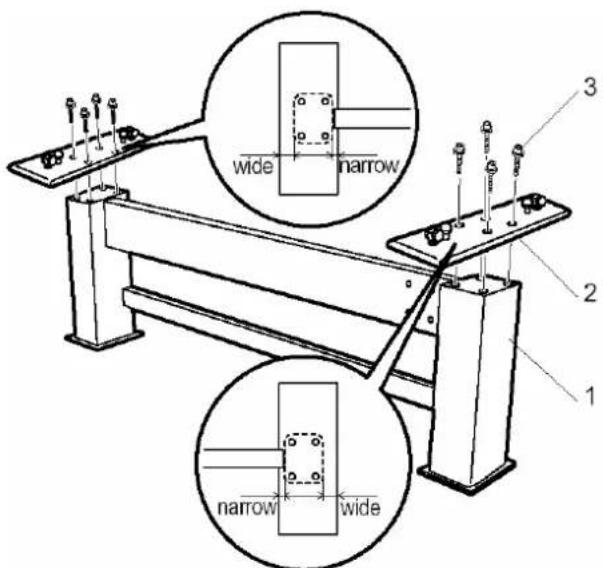
text_image
wide narrow 3 2 1 narrow wide- Stay 2. Foot
- Hexagon socket head cap screw (M6 x 30)
Step 3 : Assembling the stand has been completed.
3.3.2. Installing the stand
Install the stand to the main unit according to the following procedure.
Step 1: Place the stand with its feet on the floor.
Step 2: Lift up the main unit with at least four persons by holding it by the handles.
Step 3 : Place the main unit on the stand.

text_image
Technical diagram of a machine with labeled parts, showing hands operating the blade and base components.| 1. Stand 2. Main unit | |
| 3. Handle |
Step 4 : Attach the hexagon socket head cap screws (M6 x 16: 8) to the stand.
Step 5: Tighten the hexagon socket head cap screws to install the stand using the assembly tool.
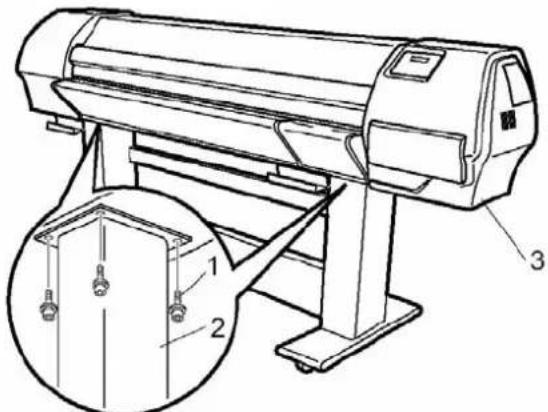
text_image
Technical diagram of a printer with labeled parts, showing front and side views| 1. Hexagon socket head cap screw (M6 x 16) 2. Stand | |
| 3. Main unit |
Step 6 : Installing the stand has been completed.
3.3.3. Fixing the printer body onto the stand
After installation of the unit onto the stand, please check if there is no gap between the printer body and the stand.
When you notice that there is a gap between the printer body and the stand, please follow the instructions mentioned below to minimize this gap.

Notes :
Please find enclosed three types of spacers.
- 5 pieces : 0.3 mm spacer
- 5 pieces : 0.5 mm spacer
- 5 pieces : 1.0 mm spacer

natural_image
Three black plastic clips arranged horizontally on a gray background (no text or symbols)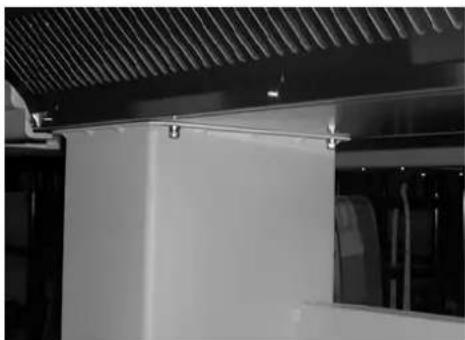
natural_image
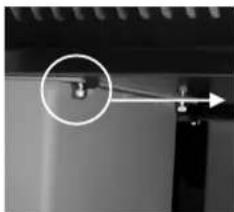
Interior view of a vehicle showing a white rectangular panel mounted on a vehicle, with no visible text or symbols.Step 1: In case there is a gap between the stand and the printer body, loosen the screw fixing the stand to the unit.
Step 2: Insert a spacer in-between the stand and the printer body.
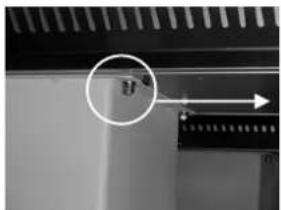
natural_image
Close-up of a mechanical component with a magnified circular detail and an arrow indicating direction (no visible text or symbols)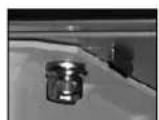
natural_image
Close-up of a mechanical component with a circular annotation and an arrow pointing to a small feature (no visible text or symbols)
Step 3: Fully insert the spacer between the stand and the printer body.
Step 4: Tighten the screw.
3.3.4. Removal of protective packaging material
Protective packaging material is attached on following locations of this product. Remove all protective packaging material according to the following procedure.
Step 1: Remove tape from all parts of the product.
Step 2: Remove the two anti-rubbing materials on the top of the main unit.
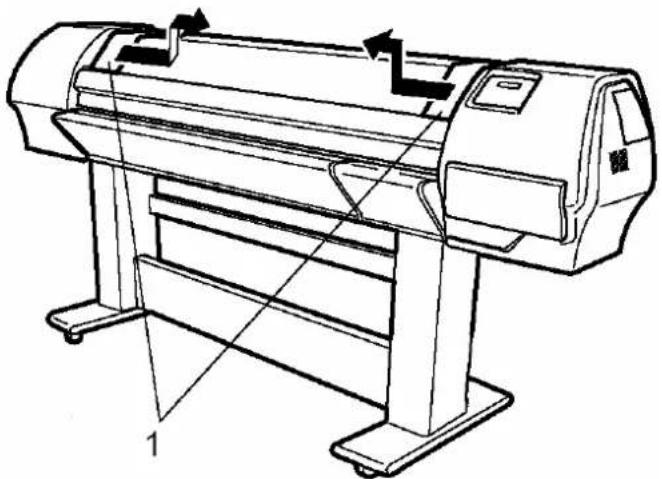
natural_image
Line drawing of a printer with directional arrows indicating motion or flow (no text or symbols)1. Anti-rubbing material
Step 3: Remove the head unit fixture material from inside the front cover according to the following procedure.
A): Open the front cover.

Caution :
Be careful not to pinch your fingers when opening and closing the front cover.
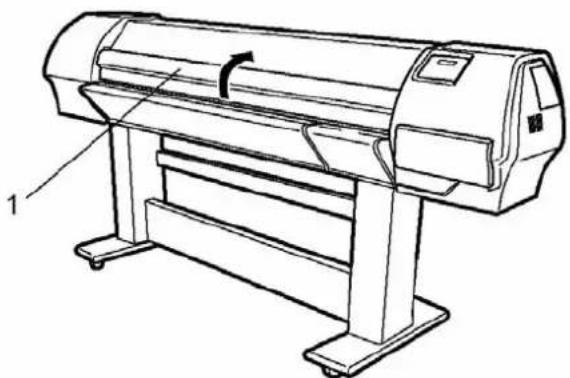
natural_image
Line drawing of a generic printer with a paper roll and control panel (no text or symbols)1. Front cover
B): Remove the two wing bolts.
C): Remove the head unit fixture material.
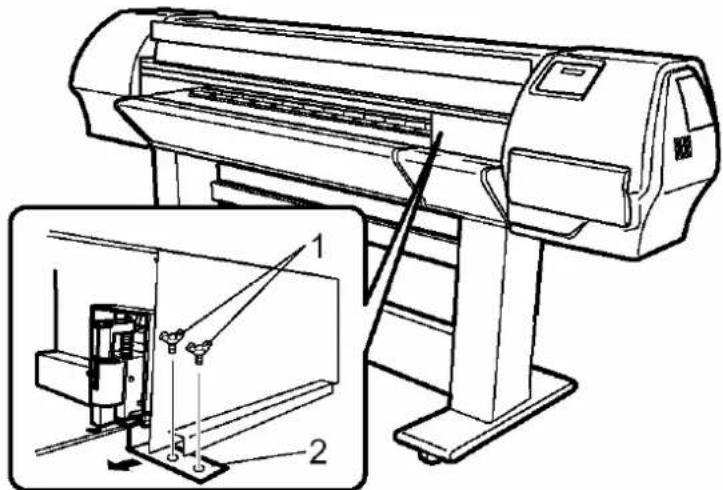
text_image
Technical diagram of a printer with labeled parts, showing front and side views of the device.- Wing bolt 2. Head unit fixture material
D): Close the front cover.

natural_image
Line drawing of a generic printer with a paper roll, showing no text or symbols on the device itself.- Front cover
Step 4: Removal of protective packaging material is completed.
3.3.5. Installing accessories
To install accessories, such scroller receivers, take-up system, roll-off/roll-up system and waste fluid tank, please refer to the User's Guide "Handling roll media on a Falcon II series printer and Rockhopper II series printer".

Caution :
• Before powering ON the unit, make sure the waste bottle is installed.
3.4. INSTALLATION
Product installation is explained below.
3.4.1. Choosing a place for the printer
Install the unit on a proper location referring to the following.

Important :
- Do not place the printer on a location under the following conditions. Doing so may cause the product to fall, become damaged, or cause injury.
- Unstable surfaces
- Slanted surfaces
- Locations that are subject to vibration from other product
- Do not stand on the printer or place any heavy objects on it. Doing so may cause it to fall over, become damaged, or cause injury.
- Do not cover the ventilation hole of the printer with cloth, such as a blanket or table cloth. Doing so could prevent the printer from ventilating and cause fire.
- Keep the printer away from humid and dusty areas. Humidity may result in electrical shock or fire.
3.4.1.1. Installation environment Requirements
Choose a place for printer installation following the requirements in the table below.
| Area | 50" model 11.7m2 (133ft2) or larger. Frontage of 4.3m (14.3ft) or greater. | |
| 64" model 12.7m2 (144ft2) or larger. Frontage of 4.7m (15.7ft) or greater. | ||
| 87" model 14.3m2 (162ft2) or larger. Frontage of 5.3m (17.7ft) or greater. | ||
| Floor loading capability 2490Pa (300kg/m2) or over | ||
| Electrical | Voltage AC100V - 120V | or AC220V – 240V |
| Frequency | 50/60Hz ± 1Hz | |
| Capacity AC100V - 120V | : 3A or moreAC220V - 240V: 1.5A or more | |
| Environmental | Recommended working environment | Temperature: 25°CHumidity: 40% to 60%, without condensation |
| Operational conditions | Temperature: 18°C to 35°CHumidity: 40% to 60%, without condensation | |
| Rate of change | Temperature: No more than 2°C per hourHumidity: No more than 5% per hour | |
| Storage environment | Temperature: -20°C to 60°CHumidity: 5% to 85%, without condensation (When ink has been discharged.) | |

Notes :
- Avoid the following temperature and humidity conditions. Otherwise, printed images may appear differently from what you expect:
- Places where sudden changes in temperature and humidity are expected, even though the condition is within the range written above.
- Places where direct sunlight or excessive lighting are expected.
- Places where air conditioners blow directly.
- MUTOH recommends that the printer should be installed where air conditioning can be adjusted easily.
3.4.1.2. Required space
Install the product on a flat surface that fulfills the following conditions.

Notes :
• Refer to "Product Specifications" of the User's Guide for the information of the product.
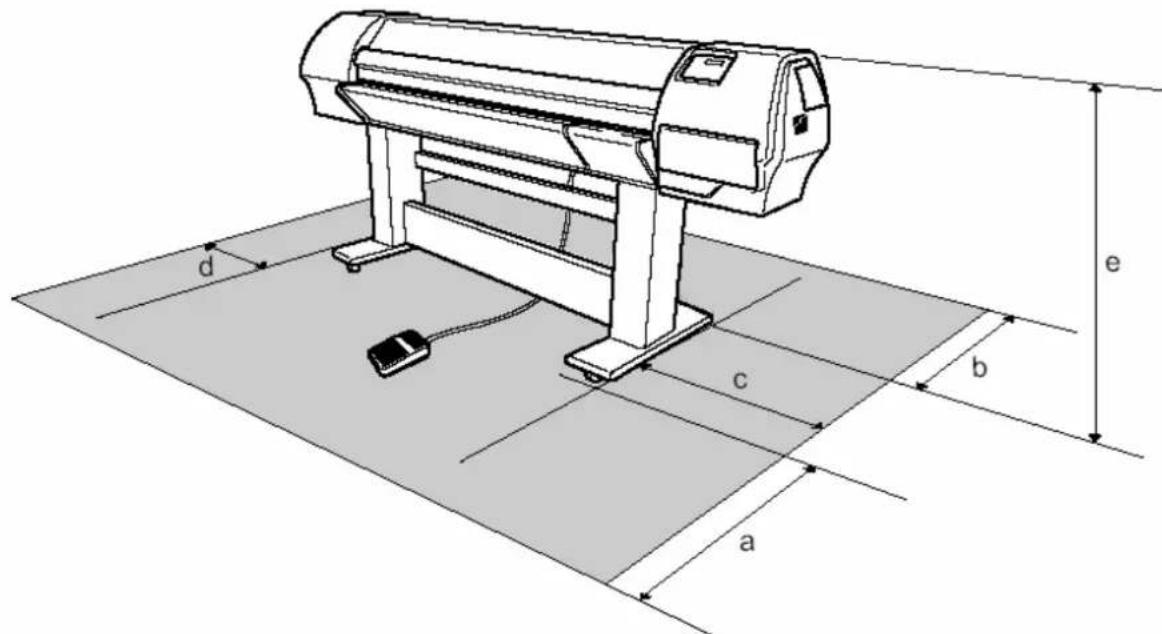
text_image
d c b e aa=1000mm b=1000mm c=2500mm d=600mm e=1250mm
3.4.2. Installing the printer
To install the product, follow the steps below.
Step 1 : Move the product to where it will be installed.
Step 2: Lock the casters.
Step 3: Rotate the four adjusters in the direction shown in the figure to make the printer stable.
Step 4: Jiggle the printer to make sure that it stable.

text_image
Technical diagram of a printer with labeled parts and two circular insets showing mechanical components.- Adjuster 2. Caster
4. PREPARING FOR A JOB
4.1. INTRODUCTION
The procedures needed before using the printer are explained below.
The connection procedure for the power cable is explained below.

Important :
- Make sure that the distributed power cable is used. Use of a different cable may result in electric shock or fire.
- Do not use a damaged power cable. Doing so may result in electric shock or fire.
• The disconnect device is the plug on the power supply cord.

Caution :
- Be careful of the following when handling the power cable.
- Do not make any modifications to the power cable.
- Do not place anything heavy on the power cable.
- Do not bend, twist, or pull the cable.
- Do not wire the cable near equipment that generates heat.

Notes :
- If the power cable is damaged, contact one of the following :
- The shop where you bought your MUTOH printer.
- Your local MUTOH dealer.
To connect the power cable, follow the steps below.
Step 1: Make sure the printer is off.
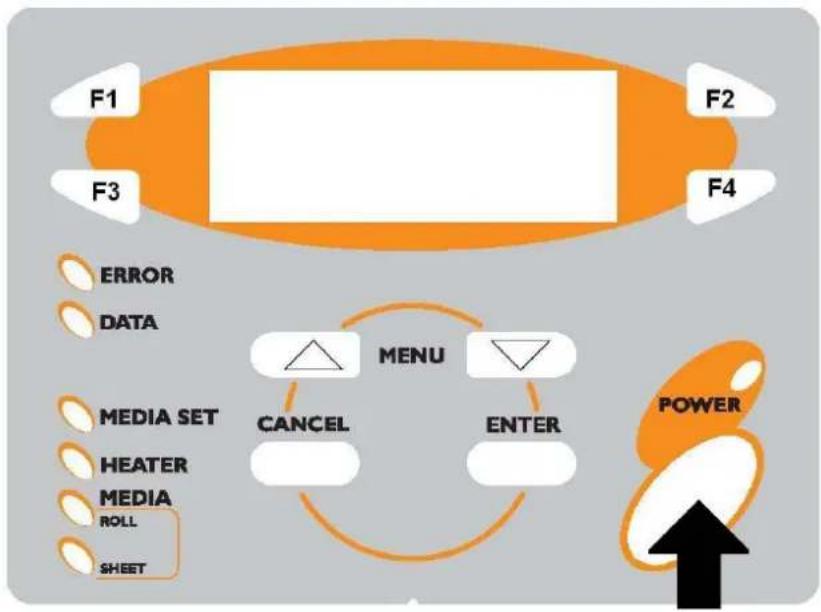
flowchart
graph TD
    A["F1"] --> B["Menu"]
    C["F2"] --> B
    D["F3"] --> B
    E["F4"] --> B
    F["CANCEL"] --> B
    G["ENTER"] --> B
    H["DATA"] --> B
    I["ERROR"] --> B
    J["MEDIA SET"] --> K["HEATER"]
    L["MEDIA ROLL"] --> M["SHEET"]
    N["POWER"] --> O["↑"]

Notes :
- When the operation panel is in the following condition, the power is ON. Press the key again to turn the power OFF. - The POWER lamp is lit (green).
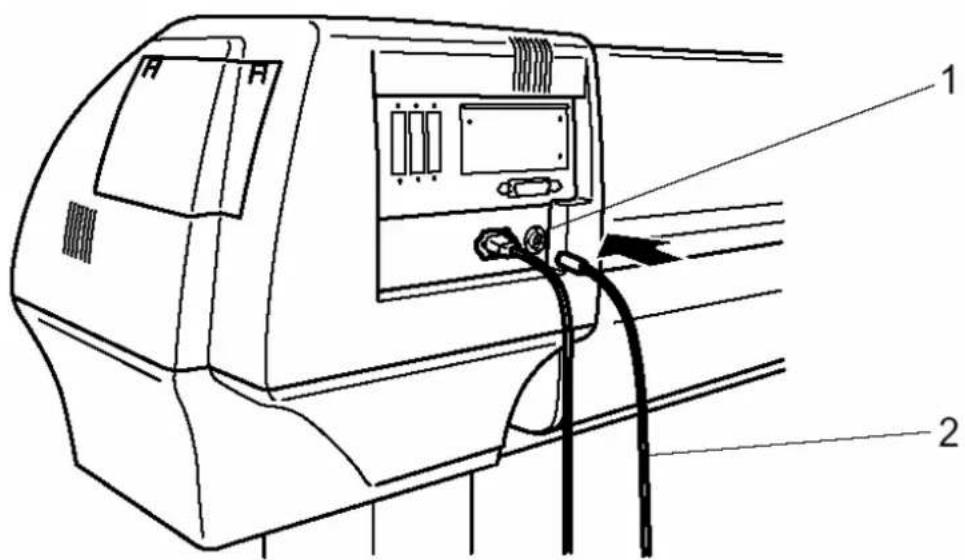
Step 2: Plug the power cable to the AC inlet on the back of the printer.

text_image
Technical diagram of a vehicle rear panel with labeled components and cable connection- AC inlet 2. Power cable
Step 3 : Plug the cable correctly to the outlet.

Important :
- Do not attempt to plug in electrical plugs with wet hands. Doing so may result in electrical shock.
- Be sure to use the specified voltage (AC 100V-120V/220V-240V). Otherwise, electrical shock or fire may occur.
- Use electricity directly from a power outlet (AC 100V-120V/220V-240V). Do not put many loads on one electrical output. Otherwise, heat may be generated and cause fire.
- Be sure to use an outlet with an earth terminal, and use the terminal correctly. Otherwise, electrical shock or fire may occur.
- Do not connect earth cables in the following areas :
- Gas pipes. Doing so may cause fire or an explosion.
- Earth terminals for telephone lines or lightening rods. Doing so may cause a large flow of voltage if lightening occurs.
Water pipes or faucets. If there is a plastic part in the pipe, the earth will not work correctly.

Caution :
- Follow the instructions below when handling the power plug. Otherwise, fire may occur.
- Wipe away dust and any other residue before inserting the plug.
- Ensure that the plug is firmly inserted as far as it will go.
- Ensure that the plug has been disconnected from the power socket when it is not used for a long time.
• Earth wires must be connected to wires or terminals that fulfill the conditions :
o Earth terminals of power socket - Earth wires with copper morsel that is at least 650 mm under ground

Notes :
- If you cannot use earth terminals or find any of them, contact the shop where you bought your printer.
- Do not unplug the power cable when the printer is on. If the power cable has been unplugged, leave the printer for at least 1 minute before plugging the cable in again.

text_image
AC100~120V or AC220~240V1. Power cable
4.3. CONNECTING THE FOOT SWITCH
The connection procedure for the foot switch is described below.
If the pressure roller needs to be raised or lowered, it is possible to control this motion from the foot switch, instead of doing so at the operation panel.

Caution :
- When handling the foot switch, be aware of the following:
- Do not place anything heavy on the foot switch.
- Do not bend the cable of the foot switch with force and do not pull.
- Do not place the foot switch near thermal devices.
Install the foot switch according to following procedure.
Step 1: Make sure that the power of the unit is OFF.

Notes :
- When the operation panel is in the following condition, the power is ON. Press the key again to turn the power OFF.
- The POWER lamp is lit (green).
Step 2: Connect the foot switch cable connector to the foot switch connector at the rear of the unit and fix into place with a screw.
text_image
Technical diagram of a vehicle electrical panel with labeled components and cable connection- Foot switch connector 2. Foot switch cable
Step 3: Place the foot switch on the floor under the stand.
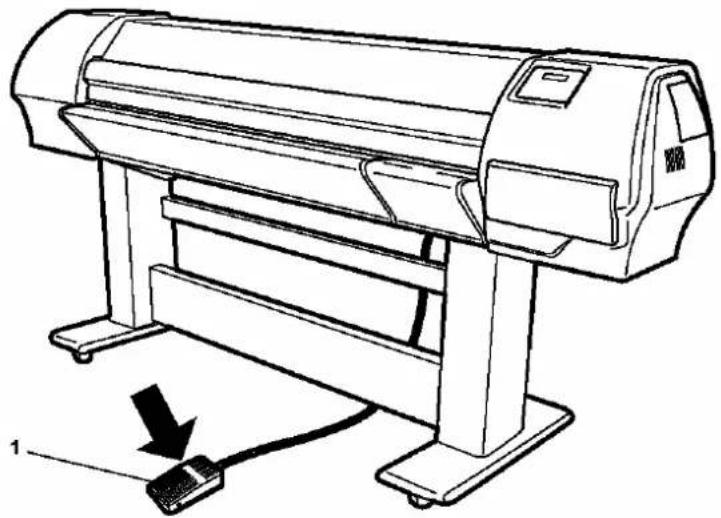
natural_image
Line drawing of a printer with a cable and a connector, no text or symbols present- Foot switch
The method to turn the power ON or OFF is described below.

Caution :
• Before powering ON the unit, make sure the waste bottle is installed.
4.4.1. Turning the power ON
Turn the power of the unit ON according to following procedure.
Step 1: Press the [POWER] key of the operation panel, to turn the unit ON.
The POWER lamp of the operation panel will light (green).

flowchart
graph TD
    A["F1"] --> B["Media Set"]
    C["F2"] --> B
    D["F3"] --> B
    E["F4"] --> B
    B --> F["CANCEL"]
    B --> G["ENTER"]
    F --> H["MENU"]
    G --> H
    H --> I["POWER"]
    style A fill:#ff0000,stroke:#333
    style C fill:#ff0000,stroke:#333
    style D fill:#ff0000,stroke:#333
    style E fill:#ff0000,stroke:#333
    style F fill:#ccffcc,stroke:#333
    style G fill:#ccffcc,stroke:#333
    style H fill:#ccffff,stroke:#333
    subgraph Media_Set
        I
        J
        K
        L
        M
        N
        O
        P
        Q
        R
        S
        T
    end
    subgraph Power_Set
        U
        V
        W
        X
        Y
        Z
        AA
        AB
        AC
        AD
        AE
        AF
        AG
        AH
    end
Step 2: The unit will initial startup operations.
Step 3: After finishing initial startup operations, the unit will enter the normal operating condition.

Notes :
- If there are any problems during the initial startup operation, the unit will display a message on the operation panel, and the operation may stop. If the operation stops, refer to "Troubleshooting", and take the appropriate actions.
4.4.2. Turning the power OFF
Turn the power of the unit OFF according to the following procedure.
Step 1 : Verify the following regarding the operational condition of the unit.
There is no printing operation being performed.
The operation panel is in a normal status.
Step 2 : Press the [POWER] key of the operation panel to turn the unit OFF.

Notes :
- When the operation panel is in the following condition, the power is ON. Press the key again to turn the power OFF. - The POWER lamp is lit (green).

flowchart
graph TD
    A["F1"] --> B["Menu"]
    C["F2"] --> B
    D["F3"] --> B
    E["F4"] --> B
    B --> F["CANCEL"]
    B --> G["ENTER"]
    F --> H["Power"]
    G --> H
    I["ERROR"] --> J["DATA"]
    K["MEDIA SET"] --> L["HEATER"]
    M["MEDIA"] --> N["ROLL"]
    O["SHEET"] --> P["Power Supply"]
Step 3 : Following message is displayed for 3 seconds on the operation panel.

Notes :
- If pressing the [POWER] key on the operation panel by mistake, press the [POWER] key again while the following message is displayed.
Power OFF
Step 4: The product will perform the power OFF operation.
➢ Following message is displayed on the operation panel.
Power OFF
Please Wait
All lamps and the LCD of the operation panel will turn OFF.
The product will automatically turn the power OFF.

Notes :
- If there are problems during the power OFF operation, the unit will display a message on the operation panel, and the operation may stop. If the operation stops, refer to "Troubleshooting" and take the appropriate actions.
4.5. INSTALLING ECO-SOLVENT INK OR ECO-SOLVENT PLUS INK CARTRIDGES
The installation of Eco-Solvent ink or Eco-Solvent Plus ink cartridges for the first time into the unit is explained below.

Caution :
• Before powering ON the unit, make sure the waste bottle is installed.

Caution :
When handling Eco-Solvent ink or Eco-Solvent Plus ink cartridges, be careful that ink does not get in your eyes or on your skin. However, if this happens, flush immediately with water. Otherwise, your eyes may become congested or inflamed slightly. If you feel discomfort, consult a doctor immediately.
Do not disassemble ink cartridges. Otherwise, ink may get in your eyes or on your skin.
Only use Eco-Solvent ink, Eco-Solvent Plus ink and appropriate cleaning liquid. Using other ink (e.g. dye or pigment) could cause permanent damage to the printer.

Notes :
This product has been tuned for the use of Eco-Solvent ink or Eco-Solvent Plus ink cartridges. If other manufacturer's products are used,
- drawing results become faint or ink ends are not properly detected, and
o the warranty will not cover (repairs will require a fee) any resultant breakdown.
- Refer to the price list for the different types and details of ink cartridges.
- Do not shake ink cartridges strongly. Otherwise, ink may leak.
- Do not disassemble ink cartridges. You cannot use disassembled cartridges.

Caution :
Do NOT use a combination of cassettes with Eco-Solvent and cassettes with Eco-Solvent Plus in the same machine.
Do NOT use a combination of cassettes with Eco-Solvent smart chips and cassettes with Eco-Solvent Plus smart chips in the same machine.
To install ink cartridges, follow the steps below.
Step 1: Before powering ON the unit for the first time, please be sure to have :
➢ 8 cleaning cartridges (related to the requested ink configuration)
➢ 8 cartridges of the requested ink configuration

Caution :
- When powering ON the unit for the first time, a cleaning cycle should be done. Please follow the instructions mentioned on the display.
Step 2: Check if the Waste Bottle is empty.
Step 3 : Power ON the unit. The display will request to insert the Cleaning Cartridges.
➢ Install the 8 NEW Cleaning Cartridges (related to the requested ink configuration).
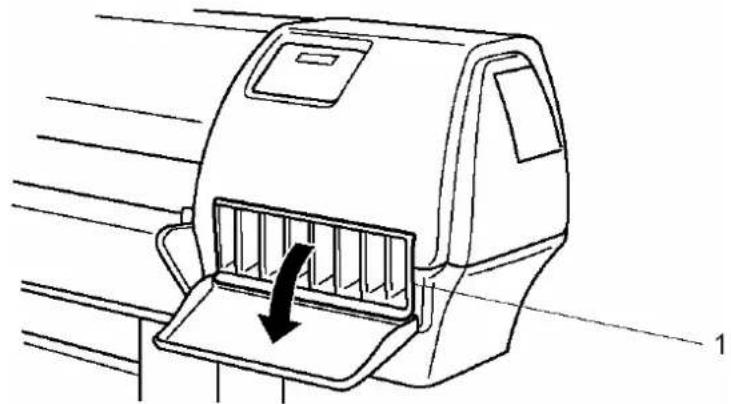
natural_image
Line drawing of a car door with an arrow indicating a cut or direction (no text or symbols present)- Ink compartment

text_image
Technical diagram of a printer with labeled parts and an inset showing a 3D object being inserted into the base.- Ink cartridge slot 2. Cleaning cartridge
The display will show the following message.
Ink refill rest 8 min
Please note that you have to wait 1 minute if the display mention 0 minutes.
Ink refill rest 0 min
Step 4: The display will show the following message. Empty the waste Bottle.
Please empty Waste ink tank
Step 5: After emptying the Waste Bottle following message will be shown. Remove all the Cleaning Cartridges.
Please remove cartridges
Step 6: After removing the Cleaning Cartridges, following messages will appear on the display.
Please insert New ink [ALL]
Step 7: Insert the requested configuration of Eco-Solvent ink cassettes or Eco-Solvent Plus™ ink cassettes.
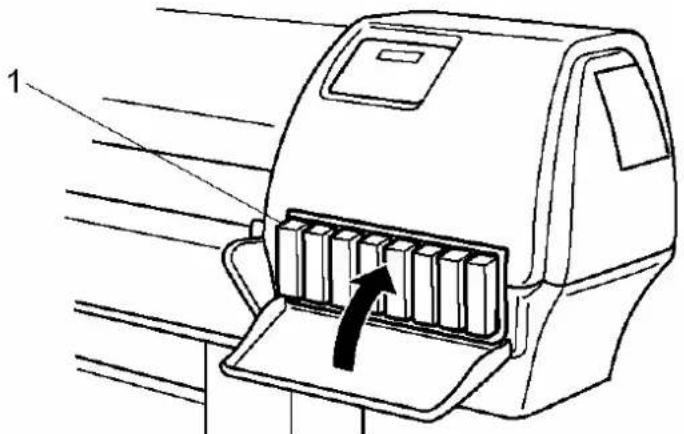
text_image
1- Ink compartment

Caution :
Do NOT use a combination of cassettes with Eco-Solvent and cassettes with Eco-Solvent Plus in the same machine.
Do NOT use a combination of cassettes with Eco-Solvent smart chips and cassettes with Eco-Solvent Plus smart chips in the same machine.
Step 8: After inserting the ink cassettes, following message will be shown.
Ink refill rest 8 min
Please note that you have to wait 1 minute if the display mention 0 minutes.
Ink refill rest 0 min
Step 9 : If the display shows following message, please empty the Waste ink bottle.
Please empty Waste ink tank
Step 10: The installation of Eco-Solvent ink cartridges / Eco-Solvent Plus™ ink cartridges has been finished.

Notes :
- During ink installation, note the following.
- Do not power off the printer.
- Do not unplug the power cable.
- Do not open the front cover.
4.6. MEDIA HANDLING
Media handling, attaching media, and setting media type are explained below.
4.6.1. Loading sheet media
The procedure for loading sheet media is explained below.
You can use the following sheet media with your printer.
| 50" | model | 64" | |
| Width A4 to 1273 mm max. | A4 to 1651 mm max. A4 to | 2240 mm max. | |
| Length | 1300 | ||
To load sheet media, follow the steps below.

Notes :
- If roll media is attached to the printer, wind the media up and then load the sheet media.
Step 1 : Turn the printer on.
Step 2: The printer starts the initialize operation.
The following message is displayed on the operation panel.
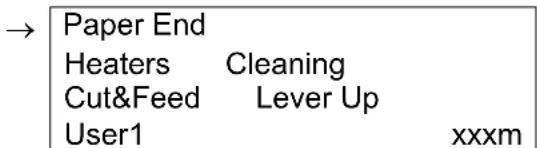
text_image
→ Paper End Heaters Cleaning Cut&Feed Lever Up User1 xxxm
Notes :
- If you do not want to use the media detection at the media initialization: Set to "OFF" in the media detection setup item.
Step 3 : Verify if the sheet lamp on the operation panel is unlit.
Step 4: Press the [F4] key on the operation panel to lower the pressure rollers.
The MEDIA SET lamp will light (orange).
The following message is displayed on the operation panel.
→ Please Set Paper Heaters Cleaning Cut&Feed Lever Up User1 xxxm

Notes:
- When raising or lowering the pressurize rollers, you can use the foot switch instead of the operation panel.
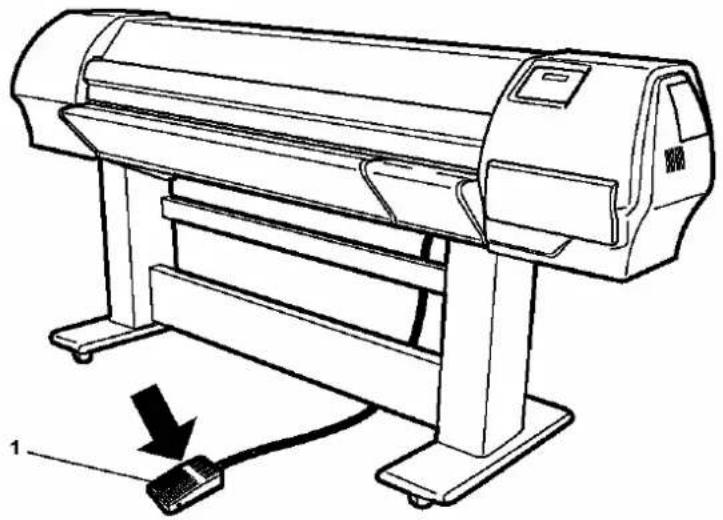
natural_image
Line drawing of a printer with a cable and arrow indicating compression or disassembly (no text or symbols present)1. Foot switch
Step 5 : Open the front cover.

Caution :
- Be careful not to pinch your fingers when opening and closing the front cover.
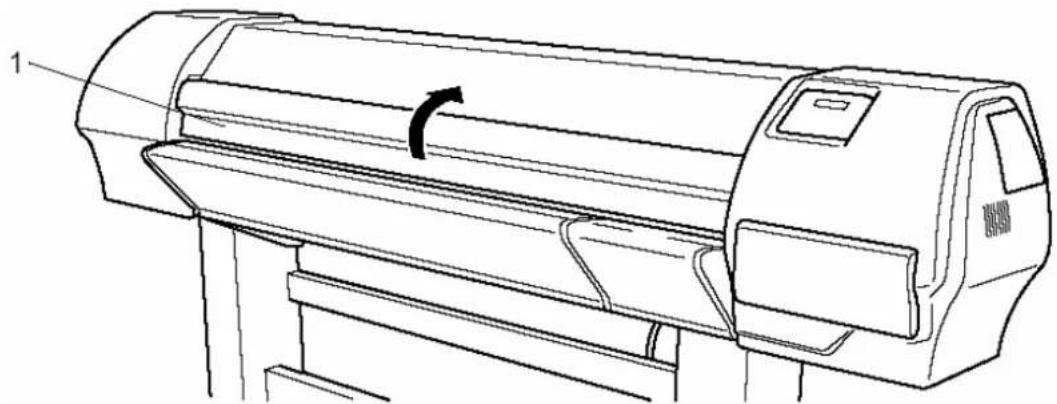
natural_image
Line drawing of a printer with a scroll wheel and label '1' (no text or symbols on the diagram itself)- Front cover
Step 6 : Load the sheet media into the insertion slot at the front of the printer.

text_image
Technical line drawing of a printer with labeled parts 1 and 2, showing internal structure and motion indicator.- Sheet media 2. Insertion slot
Step 7: Set the right edge of the media so that it is parallel with the media setting position.

Notes :
- The media set position is a guideline for setting up the media.
- If the right edge of the sheet media is 5 mm or more from the media setting position, a media set error may occur if the media is not detected. Make sure to set the right edge of the sheet media within 5 mm of the media setting position.
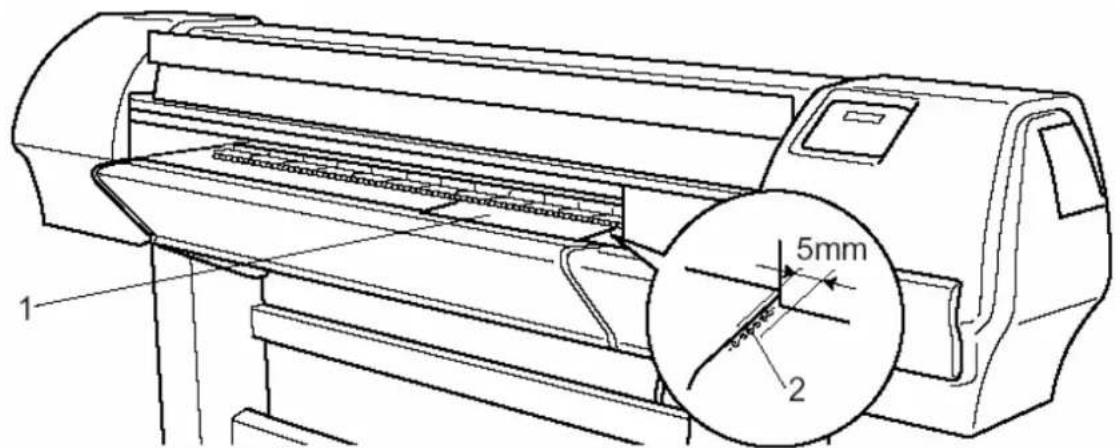
text_image
1 2 5mm- Sheet media 2. Media loading position
Step 8 : Press the [F4] key on the operation panel to lower the pressure rollers.
The MEDIA SET lamp will turn off.
Step 9 : Close the front cover.

Notes :
- Be careful not to pinch your fingers when opening and closing the front cover.
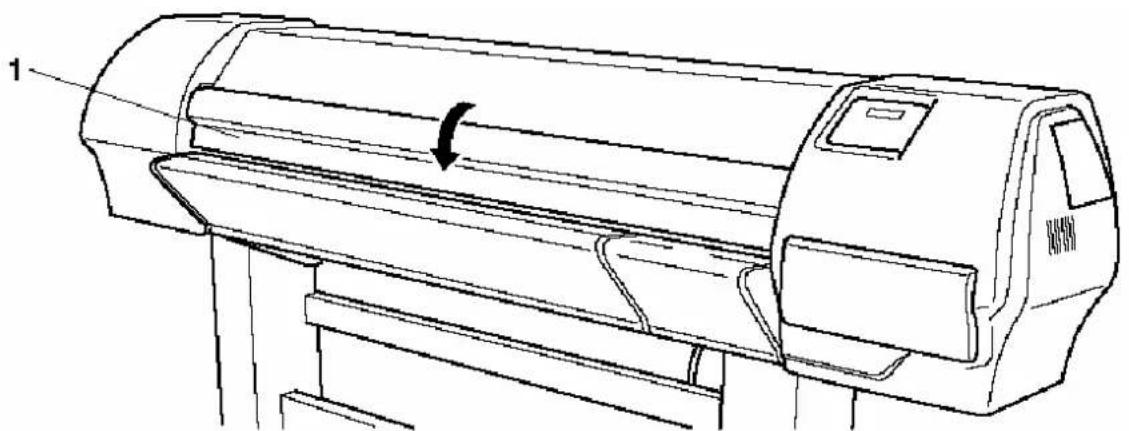
natural_image
Line drawing of a printer with a paper roll and label '1' (no text or symbols on the device itself)- Front cover
Step 10 : The media initial menu is displayed on the operation panel.

Notes :
- To change the media type, follow the directions in "Setting media type".

text_image
* PaperInitialMenu * Roll F3 → LeverUp User1 ← F2 F2, F4 → ENTER or F3 ← F44.6.2. Loading roll media
To load roll media, please follow the instructions in the User's Guide "Handling roll media on a Falcon II series printer and Rockhopper II series printer".

Notes :
• Depending on the kind of system installed on your printer, loading media is different.
4.6.3. Setting media type
The procedure for setting media type is explained below. To set the media type, follow the steps below.
Step 1 : Turn the printer on and load the media.
Once the media has been set, the media initial menu will be displayed.

Notes :
- Refer to following sections to load media: - Loading media
Step 2 : Press one of the following keys on the operation panel, and select the current media type.
When alternating roll/sheet media selection: [F2]
When changing from media loading: [F3]
When changing media type: [F4]

text_image
* PaperInitialMenu * Roll F3 → LeverUp User1 ← F2 F2, F4 → ENTER or F3 ← F4| Setup items | Key Parameters Description | ||
| Roll media Media type | Alternates the roll media type.Roll media : Set when loading roll media.Sheet media : Set when loading sheet media. | ||
| Sheet media | |||
| Lever up Lever Down | Switches between up and down motion of the pressurizing lever.Use this when starting over from the media setup. | ||
| Lever down | |||
| Media Type | F4 | User 1 | Set media type for printing.For setup values of printing operation, eight settings of "user 1-8" can be set.Refer to 'Menu setup on the operation panel' |
| User 2 | |||
| User 3 | |||
| User 4 | |||
| User 5 | |||
| User 6 | |||
| User 7 | |||
| User 8 | |||
Step 3 : Press the [Enter] key on the operation panel.
The media type has been set.
"Media Initial" is displayed on the LCD, and the printer starts the media initial operation.

Notes :
• The printer starts the media initial operation if you :
- Press the [CANCEL] key on the operation panel
- Leave the printer for 10 seconds without doing anything
Paper Initial
User 1
Step 4: When the media initial operation finishes, the printer moves to normal status.
The setting media loading procedure has been completed.
| Plot OK | |
| Heaters | Cleaning |
| Cut&Feed | Lever Up |
| User1 | xxxm |
4.7. TESTPRINTING
Follow the steps below to do a testprint and confirm if your printer operates correctly.
Step 1 : Turn the power of the unit ON, and load the media.
Step 2 : Make sure that your printer is in normal status.
Step 3 : Press either the [MENU ↑] key or [MENU ↓] key on the operation panel.
The setup menu is displayed.

flowchart
graph LR
    A["F3 →"] --> B["* SetupMenu *"]
    B --> C["InkStatus OriginSet"]
    C --> D["TestPrint MediaSet"]
    D --> E["(1/6)"]
Step 4 : Press the [F3] key on the operation panel.
"TestPrint: SetupPrint" is displayed on the LCD.

text_image
* TestPrint * F1 → Setup NozzleCheck ← F2 F3 → Adj. Uni-D Adj. Bi-D ← F4 (1/2)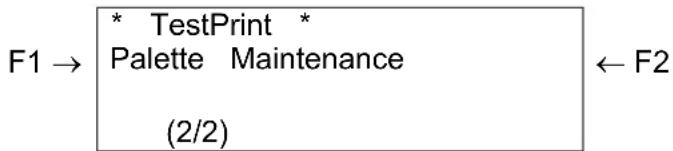
flowchart
graph LR
    F1 --> A["TestPrint"]
    A --> B["Palette Maintenance"]
    B --> C["(2/2)"]
    C --> D["F2"]
Step 5 : Select an item and press the appropriate key.
| Setup items | Key name | Parameters | Descriptions |
| Test Print (1/2) | F1 | Setup | Perform Setup List.Refer to ‘Setup List’ |
| F2 | Nozzle Check | Perform Nozzle check.Refer to ‘Nozzle Check’ | |
| F3 | Adj. Uni-D | Perform Alignment for the uni-direction printing.Refer to ‘Alignment’ | |
| F4 | Adj. Bi-D | Perform Alignment for the bi-direction printing.Refer to ‘Alignment’ | |
| Test Print (2/2) | F1 | Palette | Perform Colour Palette.Refer to ‘Colour Palette’ |
| F2 | Maintenance | Perform Maintenance record.Refer to ‘Maintenance record’ |
Step 6 : Print the information on the selected item.
Step 7: After printing, the printer returns to the normal status.
Plot OK
Heaters Cleaning
Cut&Feed Lever Up
User1 xxxm
4.7.1. Setup List
Use this function to check the current status of the printer.

Notes :
- Please attach the SetupPrint data on this page.

Notes :
- For printing, refer to the following. - Refer to 'Testprinting'
| Panel Roll/Cut = Roll | InkStatus K: 97% C: 90% W:X 0% W:X 0% Y: 90% M: 7% G: 91% m: 92% | Information SerialNo. = RPSE130802 Temp 297 Type = RJ8000-87 !Error! PROM = V rh 2.00 mA 0:None [ ] 3:None [ ] NVRAM = V 1,00 1:None [ ] 4:None [ ] Opt. Memory = 128MB 2:None [ ] 5:None [ ] | |
| Paper Setup Media = USER1 Dist.Adj = 100.00% ThinOut 1:100% 2:100% HeadHeight = low 3:100% 4:100% Stift = Normal 5:100% 6:100% Cut Size = Auto 7:100% 8:100% Tdp Feed = 0mm IntDryTime = 0sec MediaCut = Off Thick = 100um | Plot Mode PlotModel ColorMode = 4Col.Dye ColorMode = 4Col.Dye Quality = 360x360 Quality = 360x360 InterLace = Ipass InterLace = Ipass Direction = BIDir Direction = BIDir RepeatPro Count = 1 Count = 1 Int.Time = 0.0sec Int.Time = 0.0sec PlotMode3 PlotMode4 ColorMode = 4Col.Dye ColorMode = 4Col.Dye Quality = 360x360 Quality = 360x360 InterLace = Ipass InterLace = Ipass Direction = BIDir Direction = BIDir RepeatPro Count = 1 Count = 1 Int.Time = 0.0sec Int.Time = 0.0sec | ||
| Command Setup Command = RTL Pass Overwrite = Last Step = 0.025mm Haliftone = Speed Position = PI (Origin = Center) Terminate = Special (PositionOffsetX= Dmm) Resolution = 360dpi (PositionOffsetY= Dmm) OnlineTimer = 0sec | Centro Mode = BI Centro Roll1 Length = 40m | ||
| Layout Setup Direct = Command (PageSize = Auto ) Joint = Off (Margin = Normal) CutPos. = Date (Biant Pos = Normal) | Utility ErrorDisplay = Off Detection = TakeUpRoll PowerOnCleaning=Off Width = 1651mm Network IP Add = 172.018.199.059 Subnel = 255.255.000.000 Gateway = QOO.000.000.000 DHCP = Off | ||
| Function CMY->BLACK = Yes Scale = 100.0% Mlrror = Off | |||
4.7.2. NozzleCheck
Use this function to check if there is any clogging of nozzles, missing dots or faint printing.

Notes :
- If printing quality declines, or if missing dots are evident after the NozzleCheck, the print heads need to be cleaned. Refer to "Head cleaning" to perform head cleaning. After finishing the head cleaning, perform the NozzleCheck again.

Notes :
- For printing, refer to the following. - Refer to 'Testprinting'


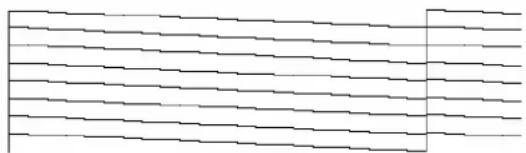
natural_image
Pure horizontal line pattern without any text, numbers, or symbols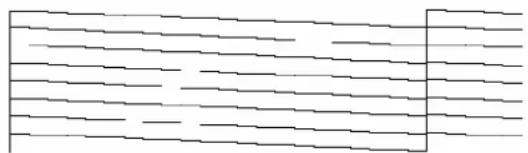
natural_image
Pure electrical circuit lines without any symbols4.7.3. Alignment
Use this function to adjust the print quality for best results.

Notes :
- The print quality of your printer is pre-adjusted when it is shipped. When the installation environment of the printer or media type have been changed and print quality declines, use this alignment function.
To do the Alignment, follow the steps below.
Step 1 : Turn the power of the unit ON, and set the media.
Step 2 : Perform an accuracy adjustment printing for alignment according to "Testprinting".
When performing uni-directional printing: Alignment (for the uni-direction printing)
When performing bi-directional printing: Alignment (for the bi-direction printing)
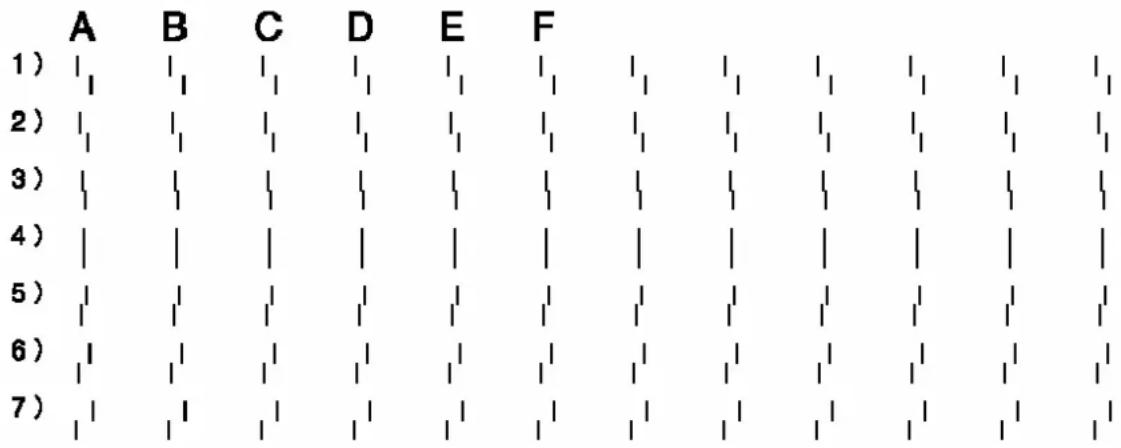
Step 3 : From the "Head A" in the printing sample, select a number in which the straight line appears with the least blur.
Alignment Uni-D
text_image
A B C D E F 1) | | | | | | | | | | | | | | | | | 2) | | | | | | | | | | | | | | | | | | 3) | | | | | | | | | | | | | | | | | | 4) | | | | | | | | | | | | | | | | | 5) | | | | | | | | | | | | | | | | | 6) | | | | | | | | | | | | | | | | | 7) | | | | | | | | | | | | | | | |Step 4 : Press either the [F2] key or [F4] key to select the number of the line you choose in the previous step.
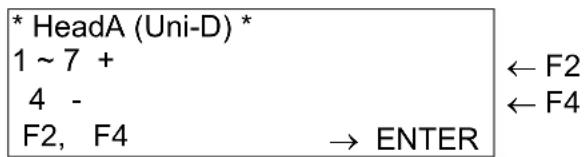
text_image
* HeadA (Uni-D) * 1 ~ 7 + 4 - F2, F4 → ENTER ← F2 ← F4Step 5: Press the [Enter] key on the operation panel to register the setting value of the "Head A".
Step 6 : Repeat the steps from 3 to 5 to register all settings followed the "Head A".
4.7.4. Colour palette
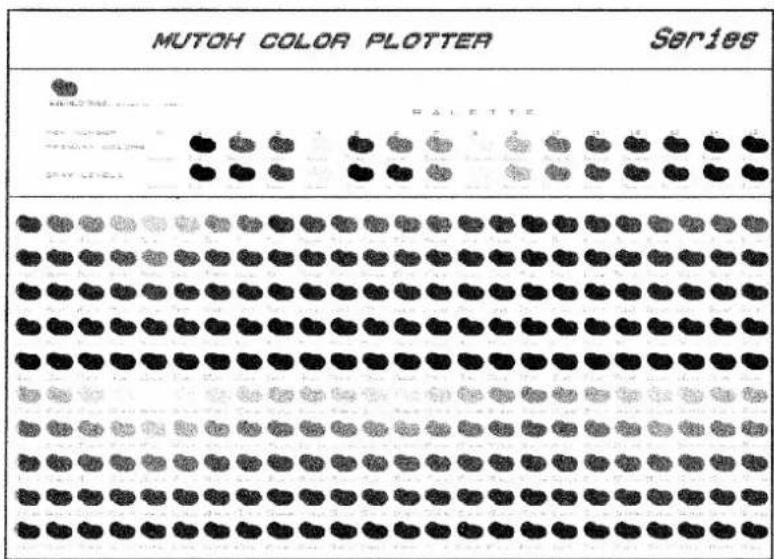
Use this function to compare the pen colour settings of the computer with the print colour of the printer.

Notes :
- For printing, refer to the following. - Refer to 'Testprinting'
text_image
MUTOH COLOR PLOTTER Series MUTOH COLOR PLOTTER R A L E T T E 100% 100% 25% 25% 30% 30% 40% 40% 50% 50% 60% 60% 70% 70% 80% 80% 90% 90% 100% 100%4.7.5. Maintenance record
Use this function to check the life cycles of the printer parts.

Notes :
- A part's life cycle is shown by the amount of the * mark. When a part's life cycle comes to an end, the * mark reduces.
- For printing, refer to the following. 'Testprinting'
| Maintenance Record | |
| Version | : 1.00 |
| Ink Cart. 1 | : E*****F |
| Ink Cart. 2 | : E*****F |
| Ink Cart. 3 | : E*****F |
| Ink Cart. 4 | : E*****F |
| Ink Cart. 5 | : E*****F |
| Ink Cart. 6 | : E*****F |
| Ink Cart. 7 | : E*****F |
| Ink Cart. 8 | : E*****F |
| Cutter Life | : E*****F |
| Page Count | : 1785 |
| Waste Tank | : E*****F |
| CR Motor Life | : E*****F |
| PF Motor Life | : E*****F |
| Wiper Life | : E*** F |
4.8. CONNECTING THE PRINTER TO YOUR PC
How to connect the printer to your PC.
4.8.1. System requirements
To use your printer with the driver, you need a PC that fulfills the following system requirements.
| System OS Windows 2000 Professional | |
| CPU Pentium III 1 GHz or higher | |
| Memory (RAM) 512 MB or more | |
| Hard disk space 10 GB or more |

Notes :
- The memory requirements may vary depending on the type of applications you are using and the complexity of the document you want to print.
- MUTOH recommends you to use a hard disk and bulk memory as large as possible.
4.8.2. Selecting cables
This printer is compatible with following interfaces :
Centronics interface
▶ Network interface
The following cables are necessary to connect your printer to the computer. Prepare appropriate cables according to the computer to be connected.
Centronics interface: Centronics interface cable
➢ Network interface: 10BASE-T/100BASE-TX Ethernet cable that is compatible with both. (Category 5)

Notes :
• See below for the connection procedure.
- Refer to 'Connecting the Centronics interface'
- Refer to ‘Connecting the network interface’
- Refer to "Interface Specifications" for the connection procedure.
4.8.3. Connecting the Centronics interface
The procedure for connecting the Centronics interface is explained below. To connect the printer to your computer, follow the steps below.
Step 1 : Turn off the printer and your computer.
Step 2 : Plug the cable connector of the interface cable into the interface connector at the back of the printer. Squeeze the wire clips together until they lock into place.

text_image
Technical diagram of an electrical device with labeled components and a magnified inset showing cable connections.- Centronics interface connector 2. Interface cable
Step 3: Plug the other end of the cable into the computer's port.

Notes :
- Refer to your computer's manual for the procedure to connect to your computer.
4.8.4. Connecting the network interface
The procedure for connecting the network interface is explained below. To connect the printer to the network environment, follow the steps below.

Caution :
- Follow the instructions below when connecting the network interface cable. Otherwise, electrical shock or fire may occur.
- Do not touch the connector.
- Do not connect the network cable connector to the interface board having different specifications.
Step 1: Turn off the printer.
Step 2 : Plug the connector of the Ethernet cable into the connector of the network interface board at the back of the printer.

text_image
1 2- Network interface connector 2. Interface cable
Step 3 : Connect the other end of the Ethernet cable to the network.

Notes :
- Refer to "Network interface board operation manual" to use the network interface board.
5. HANDLING THE PRINTER
5.1. INTRODUCTION
This chapter explains how to handle your printer.
5.2. DRAWING FLOW
The following flow chart illustrates the procedure for drawing with the printer. Refer to each item as necessary.
- Make the printing data.
Make the printing data using an application software -
Turn on the printer and load media into the printer.
→ Refer to 'Media handling'
→ Refer to 'Using Media' -
Make the preference setting for drawing with the printer.
→ Refer to 'Menu setup on the operation panel' -
Start printing.
→ Refer to 'Operating from the operation panel'
→ Refer to 'Operations after printing'

Notes :
- Do not open the front cover during printing. Doing so may stop the printer to draw. Though the printer resumes printing after you close the front cover, the print quality cannot be guaranteed.
5.3. USING MEDIA
This section describes details on available media for the printer.
5.3.1. Media type
The type and quality of the media effect the results of drawing enormously. Refer to the description below and use the appropriate media for your purpose.
The following are the recommended media for the printer. Select the appropriate media for your purpose.

Notes :
- For more information about the recommended media, contact your local MUTOH dealer.
- Problems that occur due to use of media other than those recommended are not guaranteed.

Notes :
- When using recommended media, the setting values for the printing quality is set for each media type.
- When printing on media other than those specified, information regarding proper settings for the media type and settings for the product should be found on the instructions for the media. If not contact the supplier of the media.
5.3.2. Cautions on handling media
When you handle media, please pay attention to the following.

Notes :
- Use recommended media in an appropriate environment. Following are the appropriate temperature and humidity ranges for printing.
Temperature
Recommended working environment 25°C 40% to 60%
Rate of change Within 2°C per hour Within 5% per hour
- Do not use creased, damaged, torn, curled, or wrapped media.
- The size of the recommended sheets can change at a fixed ratio according to the temperature changes of the working environment. Before using sheet media, place the sheet in the working environment for at least 30 minutes, to have it match to the temperature of the working area.
-
Printing before the media could accommodate to the printing environment may cause media jams due to slippage or creases. This also adversely effects the quality of printing.
-
Media has a printable side and a non-printable side. If you print on a not printable side, blurring or slight touching may occur.
- Do not touch the printable side of media. Moisture or oil from hands effects the printing quality.
- Do not leave the printer for a long time with media loaded. The media may curl resulting in misalignment, media jams, or decreased printing quality. In particular, avoid this in winter, dry seasons, or during final printing.
- Do not lose the box or rapping bag for storing media.
5.3.3. Precaution on storing media
When storing media, pay attention to the following.

Notes :
- Do not store media in high temperature, high humidity, or direct sunlight.
- Store sheet media in the original bag after unpacking.
- Unused roll media must be removed from the scroller, rewound tightly, and stored in the original wrapping bag and the box.
- Do not wet media.
5.3.4. The printing area
The printing area is shown below.
(1) Roll media
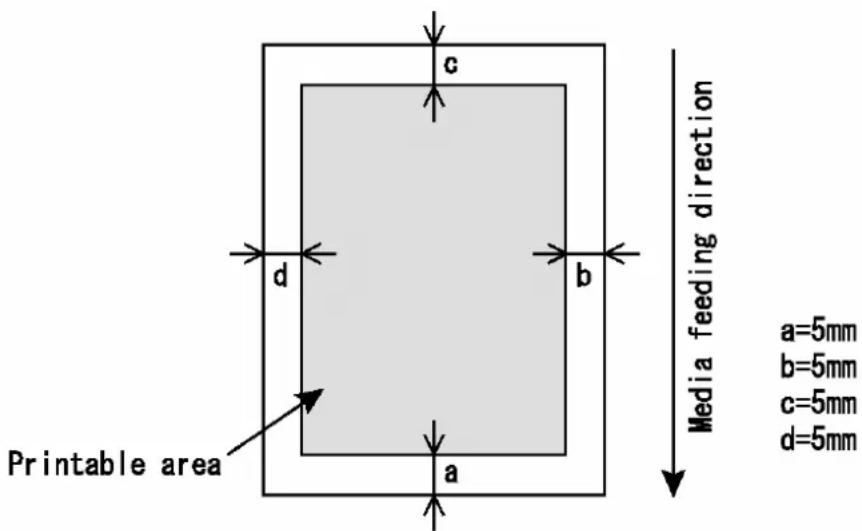
text_image
c d b Printable area a=5mm b=5mm c=5mm d=5mm Media feeding direction(2) Sheet media
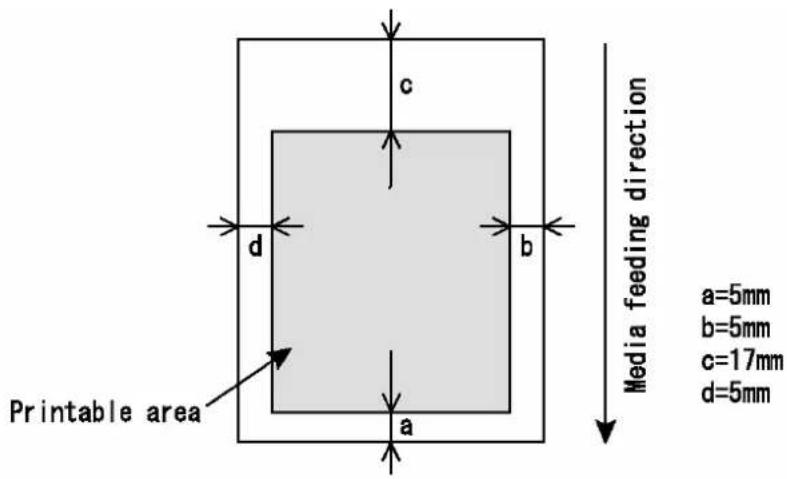
text_image
c d b Printable area a Media feeding direction a=5mm b=5mm c=17mm d=5mm5.3.5. Media feed compensation
Depending on the thickness of media, the media feed amount will change. Printing results may show following symptoms:
▶ Overlapped printing images
▶ White lines on printing image, etc
For above cases, adjust media feed compensation value with following procedures.
Step 1 : Display Media feed compensation menu on the operation panel by following "Menu setup on the operation panel".
The following messages are displayed on the operation panel.
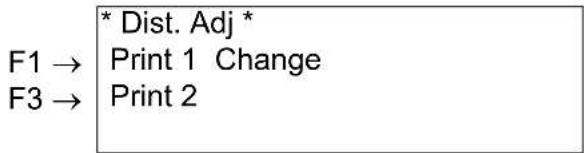
text_image
* Dist. Adj * F1 → Print 1 Change F3 → Print 2Step 2 : Select an item and press the [F1] or [F3] Key.
| Setup items | Key Parameters Description | ||
| Dist. Adj. | F1 Print 1 | Perform printing by media feed compensation at ±0.10% intervals of setup value from the current parameter. | |
| F3 Print 2 | Perform printing by media feed compensation at ±0.20% intervals of setup value from the current parameter (for fine adjustment). | ||
The following messages are displayed on the operation panel.
➢ Print the information on the selected menu.

text_image
* Dist Adj * Printing → CANCEL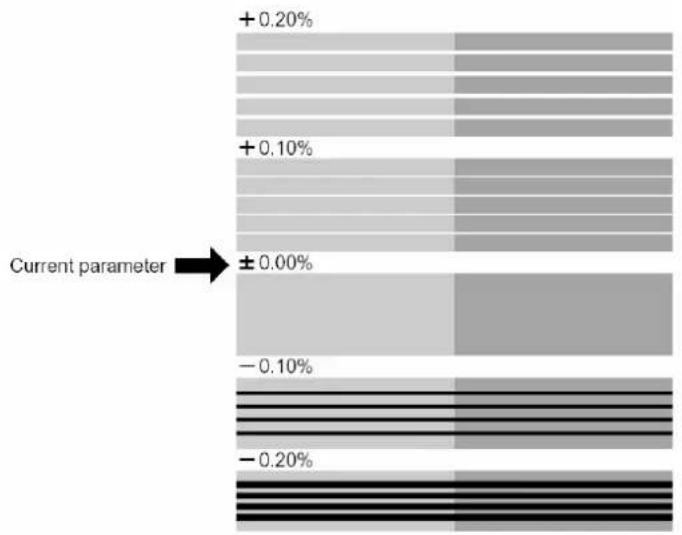
bar
| Current parameter | Value (%) | | :--- | :--- | | + 0.20 | +0.20 | | + 0.10 | +0.10 | | ± 0.00 | ±0.00 | | - 0.10 | -0.10 | | - 0.20 | -0.20 |Step 3 : Confirm printing result by referring to the following figure.
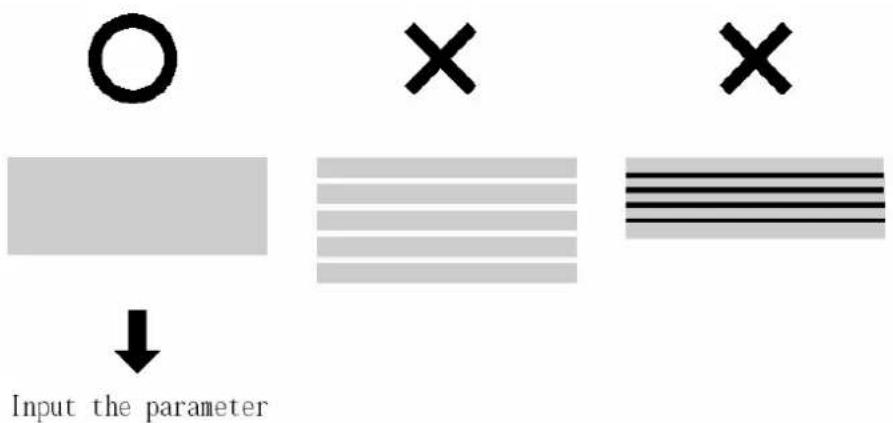
text_image
Input the parameterStep 4: When printing by media feed compensation has been finished, press the [CANCEL] key on the operation panel.
The following messages are displayed on the operation panel.
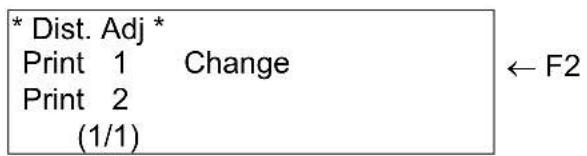
text_image
* Dist. Adj * Print 1 Change Print 2 (1/1) ← F2Step 5 : Press the [F2] key on the operation panel.
The following messages are displayed on the operation panel.
* Change *
90.00 % - 110.00 % +
110.00% -
F2, F4 → ENTER
Step 6 : Press the [F2] or [F4] key on the operation panel to set the media feed compensation value based on the printing result in Step 3.
Step 7 : Press the [ENTER] key on the operation panel to confirm the setup value.
The operation panel shifts to the menu of the previous hierarchy.
Step 8 : Repeat step 2-7 until good printing result has been obtained.

Important :
- Some RIP software by default use USER 8 media type. In this case, changing the step adjust value might seem not to have any effect. You can overcome this problem by first selecting USER 8 and then changing the step adjust for USER 8.
5.3.6. Details about Rockhopper II media
Eco-Solvent & Eco-Solvent Plus™ Media List
Mutoh offers media specially targeted for outdoor applications, media aimed for indoor applications where long-term indoor lifetime of the output is required and media specially engineered for making colourful banners.
Together with your Rockhopper II series printer, you will receive a sample roll of one of the Mutoh Eco-Solvent or Eco-Solvent Plus™ media and a CD-ROM containing pre-ripped data, allowing you to test the Eco-Solvent and Eco-Solvent Plus™ media.
On the CD-rom you will find more information on how to correctly use the Eco-Solvent media or Eco-Solvent Plus™ media.
More media information, media specification sheets and free of charge media profiles for Mutoh's in-the-box software are at all times
accessible via Mutoh's website under http://www.mutoh.be
For pricing and availability details, please contact your Mutoh reseller.
This section describes how to make the Menu settings on the operation panel, and setup items. Follow the steps below to make the Menu settings.
Step 1 : Make sure that the operation panel is normal.
Plot OK
Heaters Cleaning
Cut&Feed Lever Up
User1 xxxm
Step 2 : Press the [MENU ↑] or [MENU ↓] key.
The screen shows following Menu.
Current Setup Menu →    *SetupMenu *
F1 →    Ink Status OriginSet    ← F2
F3 →    TestPrint MediaSet ← F4
(1/7)
Step 3 : Set the setup menu as follows :
➢ Refer to ‘Setup menu’ – ‘Tank change menu’

Notes :
- For functions of the operation panel with the setup menu displayed, refer to the following :
- Operation panel
○ Setting menu display
• For the structure of the setup menu, refer to the following : - Setup menu structure
- When page numbers of the setup menu are displayed on the operation panel, you can change the sequence by pressing the [MENU ↑] or [MENU ↓] key.
• Each table shows the factory default settings.
5.4.1. Setup menu
This section describes each setup menu of the printer.

flowchart
graph TD
    A["F1 → F3 →"] --> B["* SetupMenu * Ink Status OriginSet"]
    B --> C["TestPrint (1/7)"]
    C --> D["MediaSet ← F2"]
    E["F1 → F3 →"] --> F["* SetupMenu * PrintMode"]
    F --> G["Layout (2/7)"]
    G --> H["Command ← F2"]
    I["F1 → F3 →"] --> J["* SetupMenu * RollSetup"]
    J --> K["Network (3/7)"]
    K --> L["Centro. ← F2"]
    M["F1 → F3 →"] --> N["* SetupMenu * Utility"]
    N --> O["Initial (4/7)"]
    O --> P["FileMng. ← F2"]
    Q["F1 → F3 →"] --> R["* SetupMenu * DataDump"]
    R --> S["InkManager ← F2"]
    T["F1 → F3 →"] --> U["* SetupMenu * CutterChg. TankChg. (6/7)"]
    U --> V["WiperClean ← F2"]
    W["F1 →"] --> X["* SetupMenu * VersionCheck (7/7)"]

Notes :
- The Network Settings menu is displayed if the network interface board has been installed on the product.
- The items on the File Management menu are displayed if a hard disk has been installed in the product.
| Setup items | Parameters Description | |
| Setup menu (1/7) | Ink status Displays the information | (ink status) for each ink cartridge installed in the ink cartridge slot.Refer to 'Ink status menu' |
| Origin setting Sets the printing start | position (origin) for printing data.Refer to 'Origin setup menu' | |
| Test print Performs test printing. | Refer to 'Test print menu' | |
| Media setting Makes various media settings.Refer to 'Media setup menu' | ||
| Setup menu (2/7) | Print mode setting Makes various | print mode settings.Refer to 'Printing mode menu' |
| Command setting Makes various | printer commands settings.Refer to 'Command setup menu' | |
| Layout setting Makes various layout | function settings.Refer to 'Layout setup menu' | |
| Function setting Makes various processing printing data settings.Refer to 'Function setup menu' | ||
| Setup menu (3/7) | Roll media setting Makes various roll media settings.Refer to 'Roll Media setup menu' | |
| Centronics setting Sets Centronics | Interface communication mode.Refer to 'Centronics menu' | |
| Network setting Makes the settings for the network interface.Refer to 'Network setting menu' | ||
| Setup menu (4/7) | Utility setting Makes various advanced function settings.Refer to 'Utility menu' | |
| File management setting | Makes various settings for the processing method of the printing data sent from computer to the installed hard disk in the printer.Refer to 'File management setup menu' | |
| Initialize setting | Returns the parameters to factory default value.Refer to 'Initialize setup menu' | |
| Setup menu (5/7) | Data dump | The dump printing for the online feature check will be performed.Refer to 'Data dump menu' |
| Ink Manager | Perform 'HeadWash', 'InkChange' or 'InkLoad'.Refer to 'Ink Manager menu' | |
| Setup menu (6/7) | Cutting blade replacement | The cutting blade is replaced.Refer to 'Cutter change menu' |
| Wiper cleaning | Clean the wiper.Refer to 'Wiper clean menu' | |
| Tank replacement | Tank is replaced.Refer to 'Tank change menu' | |
| Setup menu (7/7) | Version Check | Ability to view the installed firmware version.Refer to 'Version Check' |
| Setup menu (1/7-7/7) | - | [CANCEL] key: Cancel the setup menu, and shift to the normal condition. |

Notes :
- By using the software server RIP (option), some setups for printing can be set by the RIP. For details, refer to the operation manual of the products.
5.4.2. Ink status menu
Displays the information (ink status) for each ink cartridge installed in the ink cartridge slot.
- To display the Ink Status menu, be sure to use the recommended ink cartridges. If any other ink cartridge is used, the ink status will not be correctly displayed.
5.4.3. Origin setup menu
Sets the printing start position (origin) for printing data.
Set this when you want to re-print to blank area of the printed media by changing the layout of the printing data.
| * Origin * | ||
| F1 → | Forward | Left ← F2 |
| F3 → | Back | Right ← F4 |
| Parameter → | L : 00500.0 W : 01000.0 | |
| Setup items | Parameters Description | |
| Origin setting | L: Media feed valueW: Print head movement value(Unit: mm) | Changes the print head position and media feed amount by operating the following keys.[F1] key: Feeds media forward.[F2] key: Moves the print head to the left.[F3] key: Feeds media backward.[F4] key: Moves the print head to the right.[ENTER] key: Determines the setup values then returns to the previous hierarchical menu. Refer to ‘Setup menu’ |
| - [CANCEL] key: shifts to the previous hierarchy menu.Refer to ‘Setup menu’ | ||

Notes :
- When printing from the data on the hard disk, the printing will start from the same start position as when the printing data was written, regardless of the home position setting value.

Notes :
- The origin setup menu automatically ends without pressing any key for a certain period, to avoid drying the print head.
5.4.4. Test print menu
Perform Test print.
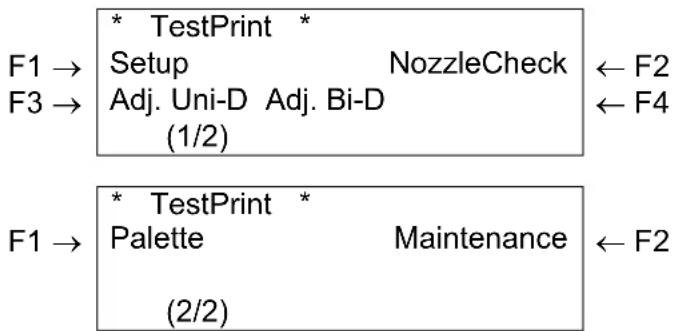
flowchart
graph TD
    A["* TestPrint Setup"] --> B["NozzleCheck"]
    C["F1 → F3 → (1/2)"] --> D["Adj. Uni-D Adj. Bi-D"]
    E["* TestPrint Palette"] --> F["Maintenance"]
    G["F1 → (2/2)"] --> H["Maintenance"]
    I["← F2"] --> J["← F4"]
| Setup items | Parameters Description | |
| Test print (1/2) | SetupPrint | Performs setupRefer to ‘Setup List’ |
| NozzleCheck Performs nozzle check printing. | Refer to ‘NozzleCheck’ | |
| Alignment (UniDir) Performs accuracy adjustment printing in one direction. Refer to ‘Alignment’ | ||
| Alignment (BiDir) Performs accuracy adjustment printing in two directions. Refer to ‘Alignment’ | ||
| Test print (2/2) | Pallet printing Performs pallet printing. | Refer to ‘Colour palette’ |
| Maintenance status Maintenance status printing is performed. Refer to ‘Maintenance record’ | ||
| Test print (1/2-2/2) | - | [CANCEL] key: shift to the previous hierarchy menu. Refer to ‘Setup menu’ |
5.4.5. Media setup menu
Perform various settings for media.
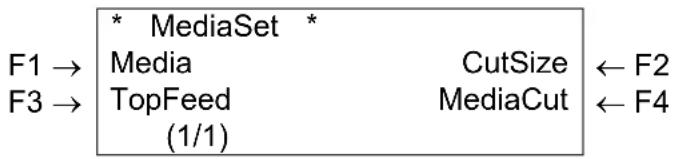
flowchart
graph TD
    A["* MediaSet *"] --> B["Media"]
    A --> C["CutSize ← F2"]
    D["F1 →"] --> E["TopFeed"]
    F["F3 →"] --> G["(1/1)"]
    H["MediaCut ← F4"]
| Setup items | Parameters Description | |
| Media setting | Type Sets the media type used for test printing.Refer to ‘Media type menu’ | |
| Cut size To set the method for detecting the size of the media when sheet media has been loaded.Refer to ‘Cut size menu’ | ||
| Top feed Sets the amount of media to be feed when printing begins. Make this setting when using roll media.Refer to ‘Top feed menu’ | ||
| Media cutting The method of cutting the media after printing is set here.Refer to ‘Media cut menu’ | ||
| - [CANCEL] key: to shift to the previous hierarchy menu.Refer to ‘Setup menu’ | ||
5.4.6. Media type menu
Set media type for printing.

text_image
F1 → F3 → * SetupMenu * User 1 User 2 ← F2 User 3 User 4 ← F4 (1/2)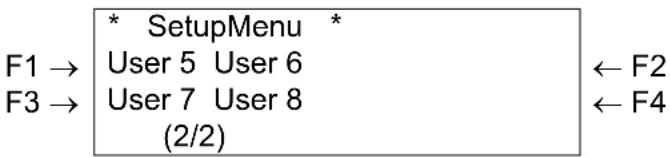
text_image
F1 → F3 → SetupMenu * User 5 User 6 User 7 User 8 (2/2) ← F2 ← F4| Setup items | Parameters Description | |
| Types (1/2) | User media 1 | To set the type of media used for printing.For setup values of printing operation, eight settings of "user media 1-8" can be set.Refer to 'User media menu' |
| User media 2 | ||
| User media 3 | ||
| User media 4 | ||
| Types (2/2) | User media 5 | |
| User media 6 | ||
| User media 7 | ||
| User media 8 | ||
| Type (1/2-2/2) - [CANCEL] key: to shift to the previous hierarchy menu.Refer to 'Media setup menu' | ||
5.4.7. User media menu
Makes various settings on user defined media.
In the User media menu, for each setup value of following printing operation, eight settings of "user media 1-8" can be set.

Notes :
When media other than the recommended media are used (user media), the following problems may occur :
▶ Media detection error
Oblique, torn, and creased media
Media jams
➢ Decrease in print quality due to blurring, missing, or smudging of ink
➢ End detection error of roll media
Problems caused by using media other than the recommended will void the warranty.
For more information, contact your local MUTOH dealer.
5.4.7.1. User media menu Rockhopper II

flowchart
graph LR
    A["* User 1 *"] --> B["ThinOut"]
    B --> C["HeadHeight (1/3)"]
    D["InkDryTime"] <--_E["F2"]
    F["Stiff"] <--_G["F4"]
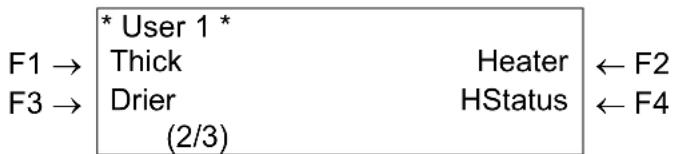
text_image
* User 1 * Thick Heater ← F2 Drier HStatus ← F4 (2/3)
text_image
F1 → * User 1 * Dist. Adj (3/3)| Setup items | Parameters Description | |
| User media 1-8 (1/3) | Amount of ink Sets the amount of ink discharged while printing according to the media type. → Refer to ‘Ink amount menu’ | |
| InkDryTime In order to let the ink for the printing dry, the time between the end of the print and the beginning of the next print is set. → Refer to ‘InkDry menu’ | ||
| HeadHeight Sets the distance (head height) between the print head and the media. → Refer to ‘Head Height menu’ | ||
| Stiff Makes the setting for the absorbing power of the media to the printing board depending on the hardness of the media. → Refer to ‘Stiff menu’ | ||
| User media 1-8 (2/3) | Thickness | Makes the setting on the width of the media to be used. → Refer to ‘Thickness menu’ |
| Heater | Sets the temperature of the Heater. → Refer to ‘Heater Menu’ | |
| Drier | Sets the temperature of the Drier. → Refer to ‘Drier Menu’ | |
| HStatus | Checks the temperature of Heater and Drier. → Refer to ‘HStatus Menu’ | |
| User media 1-8 (3/3) | Dist.Adj | Performs various settings for media feed compensation. → Refer to ‘Media feed compensation menu’ |
5.4.7.2. User media menu Rockhopper II 4H

flowchart
graph LR
    A["* User 1 *"] --> B["ThinOut"]
    A --> C["InkDryTime"]
    D["F1 →"] --> E["HeadHeight"]
    F["F3 →"] --> G["(1/3)"]
    H["Stiff"] --> I["← F2"]
    J["← F4"] --> K["← F4"]
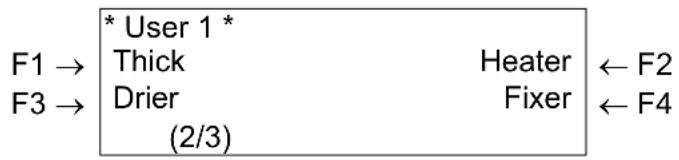
text_image
* User 1 * Thick Heater ← F2 Drier Fixer ← F4 (2/3)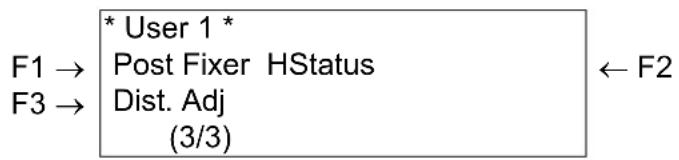
text_image
* User 1 * F1 → Post Fixer HStatus ← F2 F3 → Dist. Adj (3/3)| Setup items | Parameters Description | |
| User media 1-8 (1/3) | Amount of ink Sets the amount of ink discharged while printing according to the media type. → Refer to ‘Ink amount menu’ | |
| InkDryTime In order to let the ink for the printing dry, the time between the end of the print and the beginning of the next print is set. → Refer to ‘InkDry menu’ | ||
| HeadHeight Sets the distance (head height) between the print head and the media. → Refer to ‘Head Height menu’ | ||
| Stiff Makes the setting for the absorbing power of the media to the printing board depending on the hardness of the media. → Refer to ‘Stiff menu’ | ||
| User media 1-8 (2/3) | Thickness | Makes the setting on the width of the media to be used. → Refer to ‘Thickness menu’ |
| Heater | Sets the temperature of the Heater. → Refer to ‘Heater Menu’ | |
| Drier | Sets the temperature of the Drier. → Refer to ‘Drier Menu’ | |
| Fixer | Sets the temperature of the Drier. → Refer to ‘Fixer Menu’ | |
| User media 1-8 (3/3) | Post Fixer | Sets the temperature of the Drier. → Refer to ‘Post Fixer Menu’ |
| HStatus | Checks the temperature of heating elements. → Refer to ‘HStatus Menu’ | |
| Dist.Adj | Performs various settings for media feed compensation. → Refer to ‘Media feed compensation menu’ | |
5.4.8. Ink amount menu
Sets the amount of ink discharged while printing, according to the media type.
| * ThinOut * | |||
| 50% | - | 100% | + |
| 100% | - | ||
| F2, F4 | → ENTER | ||
| Setup items | Parameters Description | |
| Amount of ink 50%- | <100%> Use the following keys to | change the amount of ink.[F2] key : Increases the setting value.[F4] key : Reduces the setting value.[ENTER] key : Sets the setting value, and moves the screen to the menu of the previous hierarchy.[CANCEL] key : Cancels the setting value, and moves the screen to the menu of the previous hierarchy.Refer to ‘User media menu’ |
5.4.9. InkDry menu
Sets the waiting period between the end of operation and the start of next printing in order to let the printed media dry.
| * InkDryTime *0 sec - 60 min +30 sec -F2, F4 | ← F2← F4→ ENTER |
| Setup items | Parameters Description | |
| InkDryTime 0 to <30 | sec. > to 270 sec. to 60 min. | To change the InkDryTime by operating the following keys.[F2] key: Increases the setup value.[F4] key: Decreases the setup value.[ENTER] key: Confirms the setup value, shifts to the previous hierarchy menu.[CANCEL] key: Cancels the setup value, shifts to the previous hierarchy menu.Refer to ‘User media menu’ |
5.4.10. Head Height menu
Sets the distance (head height) between the print head and the media.
Head height can be changed to three levels according to media thickness.
| * HeadHeight * | ||
| F1 → | Low | Middle ← F2 |
| F3 → | High | |
| Current parameter → | - low - (1/1) | |
| Setup items | Parameters Description | |
| HeadHeight | Low Make this setting when using | media with a thickness of 80μm (0.08mm) to 300μm (0.3mm). |
| Middle Make this setting when using | media with a thickness of 300μm (0.3mm) to 700μm (0.7mm). | |
| High Make this setting when using | media with a thickness of 700μm (0.7mm) to 1000μm (1.0mm). | |
| - Refer to ‘User media menu’ |

Notes :
- Set the height of the head in relation to the thickness of the media.
If the setting is set to "High" and the print is created on thin media, good quality print results will not be achieved.
If the setting is set to "Low" and thick media is used, the media and print head will come into contact and may result in damage to the product.
5.4.11. Stiff menu
Sets the media sticking force (media stiffness) to the media guide.
| F1 → | * Stiff * | |
| Soft | Normal ← F2 | |
| Current parameter → | - Normal - | (1/1) |
| Setup items | Parameters Description | |
| Stiff | Setting for normal media | |
| Soft | Setting for soft media where media feeding errors and media jams occur | |
| - After setting, shift to the previous | hierarchy menu.Refer to ‘User media menu’ |
5.4.12. Thickness menu
Sets the media thickness.
| * Thick * | |
| 50 μm – 1500 μm | + ← F2 |
| 100 μm - ← F4 | |
| F2, F4 → ENTER | |
| Setup items | Parameters Description | |
| Thickness 50μm-<100μm>-1500μm Change media thickness by operating the following keys.·[F2] key: to increase the setup value.·[F4] key: to decrease the setup value.·[ENTER] key: to confirm the setup value and to shift to the previous hierarchy menu.·[CANCEL] key: to cancel the setup value and to shift to the previous hierarchy menu.Refer to ‘User media menu’ | ||
5.4.13. Heater menu
Sets the temperature of the Heater.
| * Heater (A) * | ||
| OFF - 50°C + | ||
| 50°C - | ||
| F2, F4 | → ENTER | |
Use the [F2] or [F4] key to select the requested temperature for the Heater.
5.4.14. Drier menu
Set the temperature of the Drier.
| * Drier (D) * | |
| OFF - 50°C +50°C -F2, F4 | ← F2← F4→ ENTER |
Use the [F2] or [F4] key to select the requested temperature for the Drier.
5.4.15. Fixer menu
Set the temperature of the Fixer.

Notes :
Please note that this heating element is only available onto the Rockhopper II 4H series printer.
$$ \begin{array}{c c}\hline * \text { Fixer (B) } ^ {*}\\text { OFF - 70°C + }&\leftarrow \text { F2 }\7 0 ^ {\circ} \text {C - }&\leftarrow \text { F4 }\\text { F2, F4 }&\rightarrow \text { ENTER }\\hline\end{array} $$
Use the [F2] or [F4] key to select the requested temperature for the Fixer.
5.4.16. Post Fixer menu
Set the temperature of the Post Fixer.

Notes :
Please note that this heating element is only available onto the Rockhopper II 4H series printer.
$$ \begin{array}{c c}\hline * \text {Post Fixer (C)} ^ {*}\\text {OFF - 70°C +}\\text {70°C -}\\text {F2, F4}&\rightarrow \text {ENTER}\\hline\end{array}\leftarrow \text {F2}\\leftarrow \text {F4} $$
Use the [F2] or [F4] key to select the requested temperature for the Post Fixer.
5.4.17. HStatus menu Rockhopper II
Check the temperature of the heating elements.

Notes :
Please note that this heating element is only available onto the Rockhopper II series printer.
* HStatus *
A: 27 D: 29
Heating NOT Ready

Notes :
A stands for the Heater. D stands for the Dryer.
Press the [CANCEL] key to go to the previous menu.
5.4.18. HStatus menu Rockhopper II 4H
Check the temperature of the heating elements.

Notes :
Please note that this heating element is only available onto the Rockhopper II 4H series printer.
* HStatus *
A: 49 B: 26 C: 27 D: 49
Heating NOT Ready

Notes :
A stands for the Heater.
B stands for the Fixer.
C stands for the Post Fixer.
D stands for the Dryer.
Press the [CANCEL] key to go to the previous menu.
5.4.19. Media feed compensation menu
To perform various settings for media feed compensation

Notes :
- For details of the media feed compensation, refer to "Media feed compensation".

text_image
F1 → F3 → * Dist. Adj * Print 1 Change Print 2 (1/1) ← F2| Setup items | Parameters Description | |
| Dist.Adj | Print1 Performs printing by media | feed compensation.A correction pattern with a width of ± 0.10% is printed around the center of the correction value currently set.Refer to ‘Printing by Media feed compensation menu’ |
| Change Changes the media feed | compensation value.The menu changes to the Change Media Feed Correction Value menu.Refer to ‘Change media feed compensation value menu’ | |
| Print2 Performs printing by media | feed compensation (for fine adjustment).A correction pattern with a width of ± 0.02% is printed around the center of the correction value currently set.Refer to ‘Printing by Media feed compensation menu’ | |
| - [CANCEL] key: Shifts to the previous hierarchy menu.Refer to ‘User media menu’ | ||
5.4.20. Change media feed compensation value menu
Changes the media feed compensation value.
| * Change *90.00% - 110.00% +110.00% -F2, F4 | ← F2← F4→ ENTER |
| Setup items | Parameters Description | |
| Change 90.00%-<100.00%>-110.00% Changes the media feed compensation value by operating the following keys.[F2] key: to increase the setup value.[F4] key: to decrease setup value.[ENTER] key: Confirm setup value, shift to the previous hierarchy menu.[CANCEL] key: Cancel setup value, shift to the previous hierarchy menu.Refer to ‘Media feed compensation menu’ | ||
5.4.21. Printing by Media feed compensation menu
Performs printing by media feed compensation.
| * Dist. Adj *Printing→ CANCEL |
| Setup items | Parameters Description | |
| Dist.Adj | Data printing | Now printing by media feed compensation. Wait for a while until printing has been finished. |
| - | • [CANCEL] key: to perform following operations :• Media feed correction printing has been finished.• to eject media.• to shift to the previous hierarchy menu.Refer to ‘Media feed compensation menu’ |
5.4.22. Cut size menu
When setting sheet media in the tray, set the method for detecting the size of the media.
| * CutSize * | ||
| F1 → | Auto | Length ← F2 |
| F3 → | Width | |
| Current parameter → | - Length - | (1/1) |
| Setup items | Parameters Description | |
| Cut Size | the sheet media is automatically detected. | |
| Length Make this setting when placing normal size sheet media vertically on the tray. | ||
| Width Make this setting when placing normal size sheet media horizontally on the tray. | ||
| - After setting, shift to the previous hierarchy menu.Refer to ‘Media setup menu’ | ||

Notes :
- When using sheet media other than recommended media, set to "blank form vertical" or "blank form horizontal".
- The following size of sheet media can be set.
○ ISO series (A0, A1, A2, A3, A4)
○ JIS series (B1, B2, B3, B4)
○ ARCH series (A, B, C, D)
5.4.23. Top feed menu
Sets the amount of media to be fed when printing begins. Make this setting when using roll media.
$$ \begin{array}{c c}\hline * \text {TopFeed} *\0 \mathrm{mm-400mm+}\&0 \mathrm{mm-}\\text {F2, F4}&\rightarrow \text {ENTER}\end{array}\leftarrow \text {F2} \leftarrow \text {F4} $$
| Setup items | Parameters Description | |
| Top feed | <0mm>-400mm | To feed media at the start of printing. Set when printing on roll media."F2" key: Increases the setting value."F4" key: Reduces the setting value."ENTER" key: Sets the setting value, and moves the screen to the menu of the previous hierarchy.[CANCEL] key: Cancels the setup value and shifts to the previous hierarchy menu.Refer to ‘Media setup menu’ |
5.4.24. Media cut menu
Set media cut method after printing.
$$ \begin{array}{c c c}&\boxed {} \text {MediaCut} ^ {}\F 1 \rightarrow&\text {Off}&\text {Auto}\F 3 \rightarrow&\text {Manual}\\text {Current Parameter} \rightarrow&- \text {Auto} -&(1 / 1)\end{array}\leftarrow F 2 $$
| Setup items | Parameters Description | |
| Media cutting | Auto After printing has been completed, the media is sent to the media cut position and is automatically cut. Refer to ‘Cutting media’ | |
| Manual Feed media to the media cut position after printing.Use regular cutting blades available from hardware stores.Refer to ‘Media cutting procedure’ | ||
| Off No media feed after printing. | ||
| - When "ALL" is selected, proceed to the Shortest CutLength menu.Refer to ‘Shortest cut menu’• If "Manual" or "Off" has been selected, the screen changes to the menu of the previous hierarchy.Refer to ‘Media setup menu’ | ||

Notes :
- For the situations shown below, the media cut settings are always changed to "Off" regardless the previous settings.
- When "Take-up system" or "Roll-up/roll off system" is set for the media detection settings (Media detection menu)
- When using the media shown below, set the media cut setting to "Manual". If set to "Auto", the following errors may occur :
○ Cloth material: The cloth fiber is not completely cut.
Media with glue: Glue will adhere to the cutting blade and decrease cutting performance.
5.4.25. Shortest cut menu
To set the minimum page length for cutting media.
| * ShorttestCutPaper *100 mm - 700 mm +100 mm -F2, F4 | ← F2← F4→ ENTER |
| Setup items | Parameters Description | |
| Shortest Cut Paper | <100mm>-700mm To set the shortest length of the media when cutting• [F2] key : Increases the setting value.• [F4] key : Reduces the setting value.• [ENTER] key : Sets the setting value, and moves the screen to the menu of the previous hierarchy.• [CANCEL] key: Cancels the setup value, shift to the previous hierarchy menu.Refer to ‘Media setup menu’ | |
5.4.26. Printing mode menu
To perform various settings for Printing mode.
| * PrintMode * | ||
| F1 → | PrnMode1 | PrnMode2 ← F2 |
| F3 → | PrnMode3 (1/1) | PrnMode4 ← F4 |
| Setup items | Parameters Description | |
| Print mode setup | Print mode 1 | For each setup value of Printing mode, four settings of "Printing mode 1" - "Printing mode 4" can be set.Refer to ‘Printing mode setup menu’ |
| Print mode 2 | ||
| Print mode 3 | ||
| Print mode 4 | ||
| - [CANCEL] key: to shift to the previous hierarchy menu.Refer to ‘Setup menu’ | ||
5.4.27. Printing mode setup menu
To perform various settings for Printing mode.
For each setup value of Printing mode, four settings of "Printing mode 1" - "Printing mode 4" can be set.
| * PrnMode1 *ColorMode Quality ← F2F3 → Direction RepeatPrn. ← F4(1/1) | ||
| Setup items | Parameters Description | |
| Printing mode 1-4 | Colour mode To set the number of colours used for printing.Refer to ‘Colour mode menu’ | |
| Printing quality To set printing quality.Refer to ‘Printing quality menu’ | ||
| Printing direction To set print head moving direction for printing.Refer to ‘Printing direction menu’ | ||
| Repeat printing To make settings for the repeat print.Refer to ‘Repeat printing menu’ | ||
| - [CANCEL] key: To shift to the previous hierarchy menu.Refer to ‘Setup menu’ | ||
5.4.28. Colour mode menu
To check the current ink cartridge colour mode.
[CANCEL] key: to shift to the previous hierarchy menu.
Please find below an example.
* ColorMode *
6 Col. LcLm
- 6 Col. LcLm - (1/1)
5.4.29. Printing quality menu
To set printing quality.
Select printing quality with consideration to applications of printing data and printing speed.
* Quality *
F1 → 360 x 360 720 x 360 ← F2
F3 → 360 x 720 Diag720 ← F4
Current parameter → - 360 x 360 - (1/4)
* Quality *
F1 → 720 x 720 1080 x 1080 ← F2
F3 → 1440 x 720 720 x 1440 ← F4
Current parameter → - 360 x 360 - (2/4)
* Quality *
F1 → Diag1440 1440 x 1440 ← F2
F3 → 2160 x 1080 1080 x 2160 ← F4
Current parameter → - 360 x 360 - (3/4)
* Quality *
F1 → Diag2160 2880 x 1440 ← F2
F3 → 1440 x 2880 Diag2880 ← F4
Current parameter → - 360 x 360 - (4/4)
| Setup items | Parameters | Description |
| Quality (1/4) | <360 × 360dpi> | The display changes to interlace setup items after the print quality items settings have been finished.Refer to ‘InterLace Setup menu’ |
| 720 × 360dpi | ||
| 360 × 720dpi | ||
| Diagonal 720dpi | ||
| Quality (2/4) | 720 × 720dpi | |
| 1080 × 1080dpi | ||
| 1440 × 720dpi | ||
| 720 × 1440dpi | ||
| Quality (3/4) | Diagonal 1440dpi | |
| 1440 × 1440dpi | ||
| 2160 × 1080dpi | ||
| 1080 × 2160dpi | ||
| Quality (4/4) | Diagonal 2160dpi | |
| 2880 × 1440dpi | ||
| 1440 × 2880dpi | ||
| Diagonal 2880dpi | ||
| Quality (1/4 – 4/4) - | [CANCEL] key: To shift to the previous hierarchy menu.Refer to ‘Printing mode setup menu’ | |
5.4.30. InterLace Setup menu
To set the over printing method (interlace method) for printing.
| * Interlace * | |||
| F1 → | 1pass | 1passFew | ← F2 |
| F3 → | 2pass | 4pass | ← F4 |
| Current parameter → | - 1pass - (1/1) | ||
| Setup items | Parameters Description | |
| Interlace method | 1 pass Over printing is not performed. | |
| 1 pass Few Only gaps between lines are overwritten. | ||
| 2 pass Over-printing is performed twice per 1 line. | ||
| 4 pass Over-printing is performed four times per 1 line. | ||
| - [CANCEL] key: To shift to the previous hierarchy menu.Refer to ‘Setup menu’ | ||
5.4.31. Printing direction menu
To set print head moving direction for printing.
| F1 → | * Direction *UniDir. | BiDir. | ← F2 |
| Current parameter → | - BiDir. - | (1/1) |
| Setup items | Parameters Description | |
| Direction | UniDir | Prints in one direction. |
| BiDir | Prints bi-directionally. | |
| - [CANCEL] key: To shift to the previous hierarchy menu.Refer to ‘Setup menu’ | ||
5.4.32. Repeat printing menu
To make settings for the repeat print.
| F1 → | * RepeatPrn * Count IntervalTime ← F2(1/1) | |
| Setup items | Parameters Description | |
| Repeat | Times To set the number of repeats per line of printing.Refer to ‘Repeat times menu’ | |
| Interval To set interval time for the repeat print.Refer to ‘Interval time menu’ | ||
| - [CANCEL] key: To shift to the previous hierarchy menu.Refer to ‘Setup menu’ | ||
5.4.33. Repeat times menu
To set the number of repeats per line of printing.
| * Count * | |
| 1 cnt - 99 cnt + | ← F2 |
| 1 cnt - | ← F4 |
| F2, F4 → ENTER | |
| Setup items | Parameters Description | |
| Timesto 99 times To change repeat times by operating the following keys:[F2] key: Increases the setup value.[F4] key: Decreases the setup value.[ENTER] key: To confirm the setup value, to shift to the previous hierarchy menu.[CANCEL] key: To cancel setup value, to shift to the previous hierarchy menu.Refer to ‘Repeat printing menu’ | ||
5.4.34. Interval time menu
To set interval time for the repeat print.
| * IntervalTime * | |
| 0.0 sec - 5.0 sec | + ← F2 |
| 0.0 sec - ← F4 | |
| F2, F4 → ENTER | |
| Setup items | Parameters Description | |
| Interval | <0.0 sec.> to 0.1 to 5.0 sec. | To change interval time by operating the following keys.[F2] key: Increases the setup value.[F4] key: Decreases the setup value.[ENTER] key: Confirms the setup value, shift to the previous hierarchy menu.[CANCEL] key: Cancels the setup value, shifts to the previous hierarchy menu.Refer to ‘To repeat the printing menu’ |
5.4.35. Command setup menu
To perform various settings for printer commands.
| * Command * | ||
| F1 → | Command | Step ← F2 |
| F3 → | Position | Terminator ← F4(1/2) |
| * Command * | ||
| F1 → | Resolu. | OnlineTimer ← F2 |
| F3 → | Overwrite (2/2) | Halftone ← F4 |
| Setup items | Parameters Description | |
| Command setup (1/2) | Command To make the settings for the conditions of printer commands sent from the computer to the product. Refer to ‘Command select menu’ | |
| Step To set the units for amount of movement for printing. Refer to ‘Print step menu’ | ||
| Position To set the initial writing position for printing. Refer to ‘Print position menu’ | ||
| Terminator To set the functions for when printing has been completed for printer commands included in printing data. Refer to ‘Terminator menu’ | ||
| Command setup (2/2) | ImageResolu Makes settings for image resolution while printing with image data. Refer to ‘Image resolution menu’ | |
| OnlineTimer Makes settings for the time between the end of receiving printing data from a computer and recognizing the end of printing data. Refer to ‘Online time out menu’ | ||
| Overwrite Sets the printing method for areas where figures overlap on the printing data. Refer to ‘Overwrite menu’ | ||
| Halftone When creating prints of MH-GL/GL2 (vector) data and RTLPASS (raster) data that have not been converted into binary, set the gradation sequence representation method. Refer to ‘Halftone menu’ | ||
| Command setup (1/2-2/2) | - | [CANCEL] key: to shift to the previous hierarchy menu. Refer to ‘Setup menu’ |
5.4.36. Command select menu
To make the settings for the conditions of printer commands sent from the computer to the printer.
| * Command * | |
| F1 → | ML - GL. GL2 ML - GL2 |
| F3 → | RTL - PASS |
| Current parameter → | - RTL -PASS - (1/1) |
| Setup items | Parameters Description | |
| Command | MH-GL, GL2 To set to MH-GL, GL2. | |
| MH-GL2 To set to MH- GL2. | ||
| To set to RTL-PASS. | ||
| - To shift to the previous hierarchy menu. Refer to ‘Command setup menu’ | ||
5.4.37. Print step menu
To set the units for amount of movement for printing.
| * Step * | ||
| F1 → | 0.010 mm | 0.025 mm ← F2 |
| Current parameter → | - 0.010 mm - | (1/1) |
| Setup items | Parameters Description | |
| Print step | <0.010mm> | To set the printing units to 0.010mm. |
| <0.025mm> | To set the printing units to 0.025mm. | |
| - To shift to the previous hierarchy menu.Refer to ‘Command setup menu’ | ||
5.4.38. Print position menu
To set the initial writing position for printing.
| * Position * | ||
| F1 → | P1 | LL ← F2 |
| F3 → | Full | |
| Current parameter → | - P1 - | (1/1) |
| Setup items | Parameters Description | |
| Print position | To set the initial location of the scaling point. | |
| LL | To set the lower left position of the hard clip. | |
| Full | To set the lower left position of the media. | |
| - To shift to the previous hierarchy menu.Refer to ‘setup menu’ | ||
5.4.39. Terminator menu
To set the functions for when printing is complete for printer commands included in printing data.
| F1 → | * Terminator *Normal | Special ← F2 |
| Current parameter → | - Normal - (1/1) |
| Setup items | Parameters Description | |
| Terminator | Normal This is used only for printer command functions. | |
| The SP0;(SP;) command is recognized as the end of the data. | ||
| - To shift to the previous hierarchy menu.Refer to ‘Command setup menu’ | ||
5.4.40. Image resolution menu
To set resolution for image data for printing.
| * Resolu. * | ||
| F1 → | 360dpi | 600dpi ← F2 |
| F3 → | 720dpi | 1080dpi ← F4 |
| Current parameter → | - 360dpi - (1/2) | |
| * Resolu. * | |||
| F1 → | 1200dpi | 1440dpi | ← F2 |
| F3 → | 2160dpi | 2880dpi | ← F4 |
| Current parameter → | - 360dpi - (2/2) | ||
| Setup items | Parameters Description | |
| Image resolution (1/2) | <360dpi> | Makes settings for image resolution while printing with image data. |
| 600dpi | ||
| 720dpi | ||
| 1080dpi | ||
| Image resolution (2/2) | 1200dpi | |
| 1440dpi | ||
| 2160dpi | ||
| 2880dpi | ||
| Image resolution (1/2-2/2) | - To shift to the previous hierarchy menu. Refer to ‘Command setup menu’ | |
5.4.41. Online time out menu
To set time from the moment of receiving termination of printing data sent by computer to the recognition of end of printing data.
| * OnlineTimer *OFF - 800sec +30sec -F2, F4 | ← F2← F4→ ENTER |
| Setup items | Parameters Description | |
| OnlineTimer OFF/2sec. - <30sec.> -800sec. To change the Online time out time by operating the following keys.[F2] key: Increases the setup value.[F4] key: Decreases the setup value.[ENTER] key: Confirms the setup value, shifts to the previous hierarchy menu.[CANCEL] key: Cancels the setup value, shifts to the previous hierarchy menu.Refer to ‘Command setup menu’ | ||
5.4.42. Overwrite menu
To set the printing method for areas where figures overlap on the printing data.
| F1 → | * Overwrite * | |
| Last | Mix ← F2 | |
| Current parameter → | - Last - | (1/1) |
| Setup items | Parameters Description | |
| Overwrite | The colour of the print created afterward is given priority. | |
| Mix | The colours of overlapping areas are mixed and printed. | |
| - | To shift to the previous hierarchy menu.Refer to ‘Command setup menu’ |
5.4.43. Halftone menu
When creating prints of MH-GL/GL2 (vector) data and RTL-PASS (raster) data that has not been converted into binary, to set the gradation sequence representation method.
| * Halftone. * | ||
| F1 → | Speed | Quality ← F2 |
| F3 → | Thin | |
| Current parameter → | - Speed - | (1/1) |
| Setup items | Parameters Description | |
| Halftone | matrix to perform rapid gradation representation. | |
| Quality Gradation representation is performed at high quality according to the method of minimal average error. | ||
| Thin When printing data created for a competitor's printer, make this setting if the "Speed" setting could result in dark prints. | ||
| - To shift to the previous hierarchy menu.Refer to ‘Command setup menu’ | ||
5.4.44. Layout setup menu
Makes various settings on layout function.

Notes :
- The layout function automatically determines the size of printing data sent from the computer, and then determines the amount of roll media required without wasting media.
- If sheet media has been loaded, the layout function is disabled.
$$ \begin{array}{c c} \boxed {*} \text {Layout.} & * \ \text {Direct.} & \text {Joint} \ \text {F3} \to & \text {CtPos.} \ & (1 / 1) \end{array} \leftarrow \text {F2} $$
| Setup items | Parameters Description | |
| Layout | Direct To set the layout method for printing data. Refer to ‘Layout method menu’ | |
| Joint Makes settings for stitching print. Refer to ‘Joint printing menu’ | ||
| CtPos | To set the media cutting position after printing has been completed. Refer to ‘Cutting position Menu’ | |
| - [CANCEL] key: To shift to the previous hierarchy menu. Refer to ‘Setup menu’ | ||
5.4.45. Layout method menu
To set the layout method for printing data.
$$ \begin{array}{c c c}&\text {Direct..} ^ {*}\F 1 \rightarrow&\text {Command}&\text {MAX - MIN}\&\text {- Command -}&(1 / 1)\\text {Current parameter} \rightarrow&\end{array}\leftarrow F 2 $$
| Setup items | Parameters Description | |
| Layout method | If there is a page size specification command for the printing data, the media size is determined from the region specified by the page size specification command to position the data. | |
| MAX-MIN Regardless origin and page size specification commands, the media size on which data is collected is determined by the maximum and minimum values of the actual data, and the data is located so that the center of the region is the same as the center of the media. | ||
| - To shift to the previous hierarchy menu.Refer to ‘Layout setup menu’ | ||
5.4.46. Joint printing menu
To set joint printing.
$$ \begin{array}{c c}&\text { * Joint } ^ {*}\F 1 \rightarrow&\text { ON }\&\text { OFF }\\text { Current parameter } \rightarrow&\text { - OFF - (1 / 1) }\end{array}\leftarrow F 2 $$
| Setup items | Parameters Description | |
| Joint | print. | |
| On | Performs stitching | |
| - - Shifts to the previous hierarchy | menu.Refer to ‘Layout setup menu’ |
5.4.47. Cutting position Menu
To set the media cutting position after printing has been finished.
$$ \begin{array}{c c c}&^ {} \text {CutPos.} ^ {}\F 1 \rightarrow&\text {Standard}&\text {Data}\\text {Current parameter} \rightarrow&- \text {Data -}&(1 / 1)\end{array}\leftarrow F 2 $$
| Setup items | Parameters Description | |
| Cutting position | Standard | To cut the media to fit the media width, so that it meets the regulated size. |
| To cut the media according to the size of the printing data. | ||
| - - Shifts to the previous hierarchy | menu.Refer to ‘Layout setup menu’ |
5.4.48. Function setup menu
To perform various settings for processing of printing data.
| * Function * | ||
| F1 → | CMY→K | Scale ← F2 |
| F3 → | Mirror(1/1) | |
| Setup items | Parameters Description | |
| Function setup | CMY→K Makes settings for printing method to present black.Refer to ‘CMY→K menu’ | |
| Scale Sets the enlargement and reduction ratios for printing data.Refer to ‘Scale menu’ | ||
| Mirror To draw reversed printing data.Refer to ‘Mirror menu’ | ||
| - • [CANCEL] key: Shifts to the previous hierarchy menu.Refer to ‘Setup menu’ | ||
5.4.49. CMY → K menu
To set how to draw black.
| F1 → | * CMY→K *No | Yes | ← F2 |
| Current parameter → | - Yes - (1/1) |
| Setup items | Parameters Description | |
| CMY→K | • If MH-GL, GL2 are set on the Command Settings menu, be sure to use CMY (mixed colours) ink.• If RTL-PASS is set, use both CMY (mixed colours) ink and K (black) ink. | |
| Yes | Always use K (black) ink. | |
| - To shift to the previous hierarchy menu.Refer to ‘Function setup menu’ | ||
5.4.50. Scale menu
To set the enlargement and reduction ratios for printing data.
| * Scale * | ||
| 25% - 400% | ||
| 100% - | ||
| F2, F4 | → ENTER | |
| Setup items | Parameters Description | |
| Scale 25% - <100% | > - 400% Use the following keys to | change enlargement and reduction ratios.·[F2] key: Increases the setting value.·[F4] key: Reduces the setting value.·[ENTER] key: Sets the setting value and moves the screen to the menu of the previous hierarchy.·[CANCEL] key: Cancels the setup value, shift to the previous hierarchy menu.Refer to ‘Function setup menu’ |
5.4.51. Mirror menu
To set this to print reversed printing data.

flowchart
graph TD
    A["F1 →"] --> B["* Mirror *"]
    B --> C["OFF"]
    C --> D["Y"]
    D --> E["← F2"]
    F["Current parameter →"] --> G["- OFF - (1/1)"]
    G --> H["ON"]
| Setup items | Parameters Description | |
| Mirror | <Off> No reversal of printing data. | |
| Y-axis ON For printing when data is reversed to Y-axis. |  | |
| - To shift to the previous hierarchy menu.Refer to ‘Function setup menu’ | ||
5.4.52. Roll Media setup menu
To perform various settings for roll media.
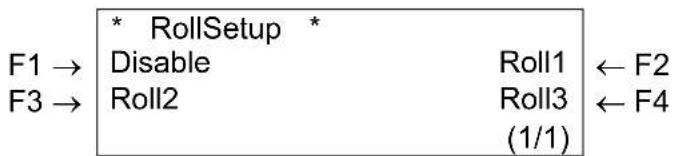
flowchart
graph LR
    A["* RollSetup *"] --> B["Disable"]
    A --> C["Roll1"]
    D["F1 →"] --> E["Disable"]
    F["F3 →"] --> G["Roll2"]
    H["Roll1 ← F2"] --> I["Roll3 ← F4"]
    J["(1/1)"] --> K["Roll2"]
| Setup items | Parameters Description | |
| Roll media setup | Disable Set this when roll media setup is not used. | |
| Roll media 1 | For each setup value of roll media, 3 settings of "Roll media 1" - "Roll media 3" can be set.Refer to 'Roll media length menu' | |
| Roll media 2 | ||
| Roll media 3 | ||
| - • [CANCEL] key: To shift to the previous hierarchy menu.Refer to 'Setup menu' | ||
5.4.53. Roll media length menu
To set roll media length.
| * Roll1 * | ||
| 1 m - 99 m +30m - | ← F2 | |
| ← F4 | ||
| F2, F4 | → ENTER | |
| Setup items | Parameters Description | |
| Roll media 1-4 1 m | to <30 m>to 99 m To change roll m | media length by operating the following keys.·[F2] key: Increases the setup value.·[F4] key: Decreases the setup value.·[ENTER] key: Confirms the setup value, shifts to the previous hierarchy menu.·[CANCEL] key: Cancels the setup value, shifts to the previous hierarchy menu.Refer to ‘Roll Media setup menu’ |
5.4.54. Centronics menu
To set communication mode to Centronics interface.
| F1 → | * Centro. *Centro. | BiCentro. | ← F2 |
| Current parameter → | - BiCentro. - | (1/1) |
| Setup items | Parameters Description | |
| Centronics | Centronics | To set communication mode to Centronics mode. |
| To set communication mode to Bi-Centronics mode. | ||
| - To shift to the previous hierarchy menu.Refer to ‘Setup menu’ | ||
5.4.55. Network setting menu
To make the settings for the network interface.

Notes :
- The Network Settings menu is displayed if the network interface board has been installed.
- Be sure to consult the network administrator before making the settings in the Network Settings menu.

flowchart
graph LR
    F1 -->|F1 →| **Network** *IPaddress
    F3 -->|F3 →| **Gateway(1/2)**
    **Network** *SubnetMask
    Gateway --> DHCP
    SubnetMask <--> F2
    DHCP <--> F4

flowchart
graph TD
    A["F1 →"] --> B["Network MACaddress"]
    B --> C["Version"]
    C --> D["F2"]
| Setup items | Parameters Description | |
| Network (1/2) | IP address To set the IP address | of the product.Refer to ‘IP address menu’ |
| Subnet mask To set the subnet mask of the product. | Refer to ‘Subnet mask menu’ | |
| Gateway To set the IP address of the connected gateway. | Refer to ‘Gateway menu’ | |
| DHCP To make the settings for the DHCP function of the network server. | Refer to ‘DHCP menu’ | |
| Network (2/2) | MAC address The MAC address of the network interface board can be checked. | Refer to ‘MAC address menu’ |
| Version The following software versions of the network interface board can be checked. | Refer to ‘Version menu’ | |
| Network (1/2 - 2/2) | - | •[CANCEL] key: To shift to the previous hierarchy menu.Refer to ‘Setup menu’ |
5.4.56. IP address menu
To set the IP address of the product.
$$ \begin{array}{c c c}\boxed {}&\text {IPAddress}&\F 1 \rightarrow&\leftarrow&0 0 0. 0 0 0. 0 0 0. 0 0 0 \qquad +\F 3 \rightarrow&\rightarrow&-\&(1 / 1)\end{array}\leftarrow F 2 \leftarrow F 4 $$
| Setup items | Parameters Description | |
| IP address <000.000.000.000>-223.255.255.254 | Use the following keys to change the IP address.[F1] key : Moves one digit to the left on the setting value to be changed.[F2] key : Increases the setting value.[F3] key : Moves to the right on the setting value.[F4] key : Reduces the setting value.[ENTER] key : Sets the setting value, and moves the screen to the menu of the previous hierarchy.[CANCEL] key : Cancels the setting value, and moves the screen to the menu of the previous hierarchy.Refer to ‘Network setting menu’ | |
5.4.57. Subnet mask menu
Set the subnet mask of the product.
$$ \begin{array}{c c c}\hline * \text {SubnetMask} ^ {*}\F 1 \to&\leftarrow&2 5 5. 2 5 5. 2 5 5. 2 5 5 +\F 3 \to&\rightarrow&-\&(1 / 1)&\end{array}\leftarrow F 2 $$
| Setup items | Parameters Description | |
| Subnet mask 000.000.000.000.000.000.000.000.000.000.000.000.000.000.000.000.000.000.000.000.000.000.000.000.000.000 | <255.255.255.000> -255.255.255.255 | Use the following keys to change the Subnet Mask.[F1] key : Moves one digit to the left on the setting value to be changed.[F2] key : Increases the setting value.[F3] key : Moves to the right on the setting value.[F4] key : Reduces the setting value.[ENTER] key : Sets the setting value, and moves the screen to the menu of the previous hierarchy.[CANCEL] key : Cancels the setting value, and moves the screen to the menu of the previous hierarchy.Refer to ‘Network setting menu’ |
5.4.58. Gateway menu
The product sets the IP address of the connected gateway.
$$ \begin{array}{c c c c}&&\text {Gateway}&\F 1 \rightarrow&\leftarrow&0 0 0. 0 0 0. 0 0 0. 0 0 0&+\F 3 \rightarrow&\rightarrow&&-\&&(1 / 1)\end{array}\leftarrow F 2 $$
| Setup items | Parameters Description | |
| Gateway | <000.000.000.000>223.255.255.254 | Use the following keys to change the IP address.[F1] key: Moves one digit to the left on the setting value.[F2] key: Increases the setting value.[F3] key: Moves one digit to the right on the setting value.[F4] key: Reduces the setting value.[ENTER] key: Sets the setting value, and moves the screen to the menu of the previous hierarchy.[CANCEL] key: Cancels the setting value, and moves the screen to the menu of the previous hierarchy.Refer to ‘Network setting menu’ |
5.4.59. DHCP menu
To make the settings for the DHCP function of the network server.
$$ \begin{array}{c c}&\text { DHCP }\F 1 \rightarrow&\text { Off }\&\text { On }\\text { Current parameter } \rightarrow&- \text { Off } - (1 / 1)\&\text { ←F2 }\end{array} $$
| Setup items | Parameters Description | |
| DHCP | Set when DHCP function is unavailable. | |
| On | Set when DHCP function is available. IP address of the product is automatically allocated by the network server. | |
| - | To shift to the previous hierarchy menu.Refer to ‘Network setting menu’ |
5.4.60. MAC address menu
The MAC address of the network interface board can be checked.
$$ \text { Current parameter } \rightarrow\begin{array}{l} \text { MACaddress } ^ {}\0 0. 0 0. 0 0. 0 0. 0 0. 0 0\end{array} $$
| Setup items | Parameters Description | |
| • MAC address Display MAC address of the network interface board. MAC address | ||
| - To shift to the previous hierarchy menu. Refer to ‘Network setting menu’ | ||
5.4.61. Version menu
The following software versions of the network interface board can be checked.
- Main version: software version (Main version)
- Sub version: boot version
Current parameter→ Current parameter → * Version * Main Ver. 1.00 a Sub Ver. 1.00a
| Setup items | Parameters Description | |
| Version | Main versionSub version | The software version of the network interface board is displayed. |
| -- To shift to the previous hierarchy menu.Refer to ‘Network setting menu’ | ||
5.4.62. Utility menu
To perform various settings for application functions of products.
| * Utility * | |||
| F1 → | ErrorDisp. | Detection | ← F2 |
| F3 → | OnCleaning(1/1) | Width | ← F4 |
| Setup items | Parameters Description | |
| Utility | ErrorDisplay To set display method | to the operation panel when minor error occurred.Refer to ‘ErrorDisplay menu’ |
| Media detection | When media has been initialized, to perform detection of width and edge of the media.Refer to ‘Media detection menu’ | |
| Power on cleaning | When cleaning should be performed automatically with the power is turned on.Refer to ‘Power on cleaning menu’ | |
| Media width | If media detection is not performed for initial media, to set the width of the media in the tray.Refer to ‘Media width menu’ | |
| - • [CANCEL] key: To shift to the previous hierarchy menu.Refer to ‘Setup menu’ | ||
5.4.63. ErrorDisplay menu
To set display method to the operation panel when minor error occurred.

flowchart
graph LR
    A["F1 →"] --> B["* ErrorDisp. * OFF"]
    B --> C["ON ← F2"]
    D["Current parameter →"] --> E["- OFF - (1/1)"]
| Setup items | Parameters Description | |
| ErrorDisplay | No ErrorDisplay. | |
| On To perform ErrorDisplay. | ||
| - To shift to the previous hierarchy menu.Refer to ‘Utility menu’ | ||
5.4.64. Media detection menu
When media has been initialized, to perform detection of width and edge of the media.

text_image
* Detection * F1 → Normal F3 → TakeupRoll Current parameter → - Normal - Off RollFeed (1/1) ← F2 ← F4| Setup items | Parameters Description | |
| media detect | To perform media detection automatically. | |
| OFF | No media detection. | |
| Take-up mechanism | Make this setting when using the optional take-up system. | |
| RollFeed | Make this setting when using the optional roll-off/roll-up system. | |
| - •[CANCEL] key: to shift to the previous hierarchy menu.Refer to ‘Utility menu’ | ||

Notes :
- When setting "Take-up Mechanism" on the Media Detection menu, the following limits are applied to the operation of the product.
- For initial media, only the media width is detected.
• Under normal conditions, media cannot be sent backward. - The media cannot be moved forward or backward from the Origin Setting menu.
- The settings in the Media Cut menu are disabled, and the settings are changed to "Off". (Refer to 'Media cut menu')
5.4.65. Power on cleaning menu
When cleaning should be performed automatically with the power is turned on.

flowchart
graph LR
    A["F1 →"] --> B["* OnCleaning"]
    B --> C["OFF"]
    B --> D["ON"]
    E["Current parameter →"] --> F["- OFF - (1/1)"]
    G["← F2"] --> H
| Setup items | Parameters Description | |
| Power on cleaning | ||
| On Power on cleaning is performed. | ||
| - To shift to the previous hierarchy menu.Refer to ‘Utility menu’ | ||
5.4.66. Media width menu
If media detection has not been performed during initialization, the width of the media is set here.
It can be set in the following ranges:
- 50" model: 210mm-1273mm
- 64" model: 210mm-1651mm
- 87" model: 210mm-2240mm

natural_image
Black and white icon of a fountain pen nib inside a rounded square frame (no text or symbols)Notes :
On the media width menu,
- If a value larger than the width of the media has been set, media or the product may be contaminated by the ink during printing.
- If a value smaller than the width of the set media has been set, media may not be cut correctly.
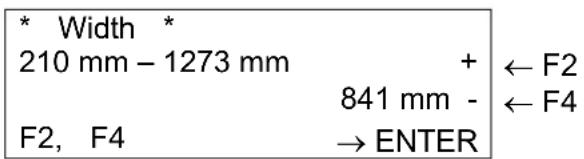
text_image
* Width * 210 mm - 1273 mm F2, F4 + ← F2 841 mm - → ENTER ← F4| Setup items | Parameters Description | |
| media width | 50” model: 210mm - <841mm>- 1273mm | To change media width by operating the following keys.[F2] key: Increases the setup value.[F4] key: Decreases the setup value.[ENTER] key: Confirms the setup value, shift to the previous hierarchy menu.[CANCEL] key: Cancels the setup value, shift to the previous hierarchy menu.Refer to ‘Utility menu’ |
| 64” model: 210mm - <841mm>- 1651mm | ||
| 87” model: 210mm - <841mm>- 2240mm |
5.4.67. File management setup menu
Makes various settings for the processing method of the printing data sent from computer to the installed hard disk in the printer.

Notes :
- The items on the File Management menu are displayed if a hard disk has been installed.
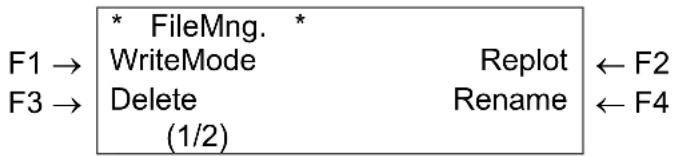
flowchart
graph LR
    A["* FileMng. *"] --> B["WriteMode"]
    B --> C["Delete (1/2)"]
    D["Replot"] <--_E["F2"]
    F["Rename"] <--_G["F4"]
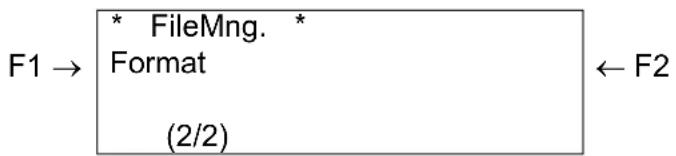
flowchart
graph LR
    F1 -->|F1 → * FileMng. * Format (2/2)| F2
| Setup items | Parameters Description | |
| File management (1/2) | Write mode To set writing method | of printing data to the hard disk and printing method.Refer to ‘Write mode menu’ |
| Re-plot Set this when you want to | draw the printing data saved on the hard disk.Refer to ‘Re-plot menu’ | |
| Delete Set this when deleting the | printing data saved on the hard disk.Refer to ‘File delete menu’ | |
| Re-name To change file name of | the printing data saved on the hard disk.Refer to ‘Re-name menu’ | |
| File management (2/2) | Format To perform formatting of hard disk. | Refer to ‘Format menu’ |
| File management (1/2-2/2) | - | • [CANCEL] key: To shift to the previous hierarchy menu.Refer to ‘Setup menu’ |
5.4.68. Write mode menu
To set writing method of printing data to the hard disk and printing method.

Notes :
• Write mode menu has been displayed if a hard disk has been installed on the product.
- When writing printing data to the hard disk, be sure to set media in the tray.
The printing data is sized to fit the media.
If there is no media in the tray, the printing data cannot be written.
| * WriteMode * | |||
| F1 → | OFF | Write.Prn | ← F2 |
| F3 → | Write>Prn | WriteOnly | ← F4 |
| Current parameter → | - OFF - (1/1) |
| Setup items | Parameters Description | |
| Writing | <Off> No writing to the hard disk. | Performs printing immediately. |
| Writing/Printing Prints while writing the data to the hard disk. | ||
| Printing after writing Prints after writing the data to the hard disk. | ||
| Writing only | Writes the data to the hard disk without printing. Note:Printing method can be set for printing data saved in the hard disk by Re-plot menu.Refer to ‘Re-plot menu’ Note:Printing method can be set for printing data saved in the hard disk by Re-plot menu.Refer to ‘Re-plot menu’ | |
| - To shift to the previous hierarchy menu.Refer to ‘File management setup menu’ | ||
5.4.69. Re-plot menu
Set following items when you want to draw printing data saved in the hard disk.
- File name
- Printing media number

Notes :
- Re-plot menu is displayed if a hard disk has been installed on the product.
- When replotting the printing data,
- Use media of the same size as the printing data.
The size of the printing data will be the same as the initial paper size, even if paper of a different size has been set, the printing will start from the same printing start position.
- Use a cartridge with the same colour and type of ink that will be used during the printing data write.
If an ink cartridge with differing colours or type is used, it will not print correctly.
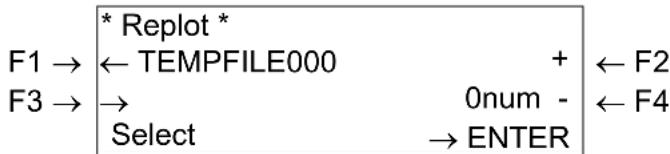
text_image
* Replot * F1 → ←TEMPFILE000 + ←F2 F3 → → 0num - ←F4 Select → ENTER| Setup items | Parameters Description | |
| Re-plot | File name To select file name to be printed by operating the following keys.·[F1] key: to select file name with back feed way.·[F3] key: to select file name with forward feed way. | |
| Number: 0 to 99 To change printing media number by operating the following keys.·[F2] key: Increases the setup value.·[F4] key: Decreases the setup value. | ||
| - | [ENTER] key:·To confirm setup value.·Product starts printing. | |
| Ready to PrintHeaters CleaningCut&Feed LeverUpUser1 xxxm | ||
| ·After printing, shift to normal condition.[CANCEL]key: Cancels the setup value, shifts to the previous hierarchy menu.Refer to ‘File management setup menu’ | ||
5.4.70. File delete menu
Set this when you delete printing data saved on the hard disk.

Notes :
- File delete menu is displayed if a hard disk has been installed.
- If you delete a file by the File delete menu, you cannot retrieve that file again. If you want to use the deleted file again, send the printing data to the hard disk again. Re-plot menu is displayed if a hard disk has been installed.

text_image
* Delete * F1 → ← TEMPFILE00 F3 → → SELECT → ENTER| Setup items | Parameters Description | |
| Delete File name To select to-be-deleted file name by operating the following keys.·[F1] key: To select file name with back feed way.·[F3] key: To select file name with forward feed way.·[ENTER] key: Deletes selected file, shifts to the previous hierarchy menu.·[CANCEL] key: Cancels setup value, shifts to the previous hierarchy menu.Refer to ‘File management setup menu’ | ||
5.4.71. Re-name menu
To change file name for printing data saved in the hard disk.

Notes :
- Re-name menu is displayed if a hard disk has been installed.
- The file name of printing data sent from the computer is always set to "TEMPFILE000". To save transmitted image data, change the file name to a name of your choice in the Rename folder before transmitting the next printing data.
$$ \begin{array}{c c c}&^ {} \text {Rename} ^ {}\F 1 \rightarrow&\leftarrow \text {TEMPFILE000}\F 3 \rightarrow&\rightarrow\&\text {SELECT}&\rightarrow \text {ENTER}\end{array} $$
| Setup items | Parameters Description | |
| Rename File name | To select to-be-changed file name | by operating the following keys.[F1] key: Selects file name with back feed way.[F3] key: Selects file name with forward feed way.[ENTER] key: Confirms setup value. The following messages are displayed on the operation panel.[CANCEL] key: Cancels setup value, shifts to the previous hierarchy menu.Refer to ‘File management setup menu’ |
$$ \begin{array}{c c c}\boxed {}&\text {TEMPFILE000}&\F 1 \rightarrow&\leftarrow \text {TEMPFILE000}&\rightarrow\F 3 \rightarrow&\rightarrow&[ T ]\&J K L M N O P Q R S + U V W X Y Z 0 1 2 3 4\end{array}\quad\begin{array}{c c c}\leftarrow F 2\\leftarrow F 4\end{array} $$
| Setup items | Parameters Description | |
| To-be-changed file name | Characters you want to change To | To select characters you want to change by operating the following keys.[F1] key: To select characters you want to change with back feed way.[F3] key: To select characters you want to change with forward feed way. |
| Characters you can use are : A-Z or 0-9 | To select to-be-changed characters by operating following keys.[F2] key: Selects to-be-changed characters with back feed way.[F4] key: Selects to-be-changed characters with forward feed way. | |
| - | [ENTER] key: Confirms setup value, shifts to the previous hierarchy menu.[CANCEL] key: Cancels setup value, shifts to the previous hierarchy menu.Refer to ‘File management setup menu’ |
5.4.72. Format menu
To perform formatting of the hard disk.

Notes :
- Format menu is displayed if a hard disk has been installed.
- If formatting of the hard disk is performed, all data saved on the hard disk will be deleted.

flowchart
graph TD
    A["F1 →"] --> B["* Format *"]
    A --> C["No"]
    D["Current parameter →"] --> E["- No - (1/1)"]
    F["OK"] <--_G["F2"]
| Setup items | Parameters Description | |
| Format | No | Format is |
| - | • [CANCEL] key: Cancels setup value, shifts to the previous hierarchy menu.Refer to ‘File management setup menu’ | |
| Yes | To perform formatting. |
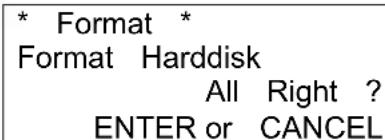
text_image
* Format * Format Harddisk All Right ? ENTER or CANCEL| Setup items | Parameters Description | |
| Format | Format will OK? | •[EN#ER] key: performed.• Product starts formatting.• The following messages are displayed on the operation panel.* Format *Format HardDisk ....• After formatting, to shift to the previous hierarchy menu.Refer to ‘File management setup menu’ |
| • [CANCEL] key• Formatting will not be performed.• To shift to the previous hierarchy menu.Refer to ‘File management setup menu’ |
5.4.73. Initialize setup menu
Returns parameters to the factory settings.
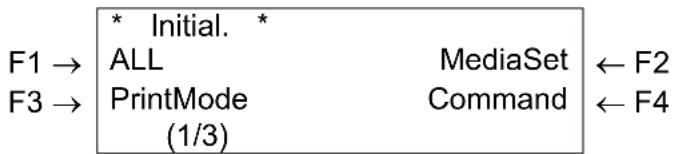
flowchart
graph LR
    F1 -->|F1 →| A["* Initial. *"]
    F3 -->|F3 →| B["ALL"]
    B --> C["PrintMode (1/3)"]
    C --> D["MediaSet"]
    D --> E["Command"]
    E --> F2
    E --> F4
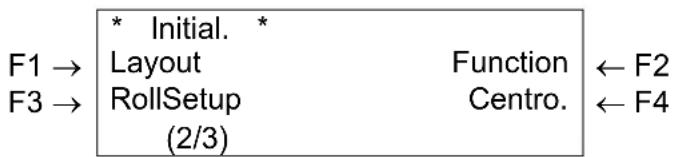
flowchart
graph TD
    A["F1 →"] --> B["* Initial. * Layout"]
    C["F3 →"] --> D["RollSetup (2/3)"]
    B --> E["Function ← F2"]
    D --> F["Centro. ← F4"]
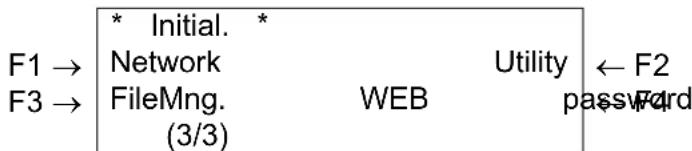
text_image
F1 → F3 → * Initial. * Network FileMng. (3/3) WEB Utility ← F2 password| Setup items | Parameters Description | |
| Initialize (1/3) | All Returns all parameters to the factory setting.Refer to ‘All Initialize menu’ | |
| MediaSet Returns parameters in the media setup menu to thefactory setting.Refer to ‘Media setup Initialize menu’ | ||
| PrintMode Returns parameters in the print mode menu to thefactory setting.Refer to ‘Printing mode initialize menu’ | ||
| Command | Returns parameters in the command setup menu to thefactory setting.Refer to ‘Command setup Initialize menu’ | |
| Initialize (2/3) | Layout Returns parameters in the | layout setup menu to thefactory setting.Refer to ‘Layout Setup Initialize menu’ |
| Func. Returns parameters in the | function setup menu to thefactory setting.Refer to ‘Function setup Initialize menu’ | |
| Roll media Returns parameters in | the roll media setup menu to thefactory setting.Refer to ‘Roll media setup Initialize menu’ | |
| Interface Returns parameters in | the Centronics setup menu tothe factory setting.Refer to ‘Centronics Initialize menu’ | |
| Initialize (3/3) | Network Returns parameters in the | the network setup menu to thefactory setting.Refer to ‘Network Initialize menu’ |
| Utility Returns parameters in the | utility setup menu to thefactory setting.Refer to ‘Utility Initialize menu’ | |
| File management The file manag | ement setup menu values are reset tofactory default settings.Refer to ‘File management Initialize menu’ | |
| WEB password To return the WEB | password setting value to the initialvalue at the time of shipment from the factory.Refer to ‘WEB password initialize menu’ | |
| Initialize (1/3-3/3) | - • [CANCEL] key: Shifts to the pre | previous hierarchy menu.Refer to ‘Setup menu’ |
5.4.74. All Initialize menu
All setup values are set to the factory default settings.
$$ \begin{array}{c c c}&\boxed { \text { All } }\F 1 \rightarrow&\text { No }&\text { OK }\\text { Current parameter } \rightarrow&- \text { No } -&(1 / 1)\end{array}\leftarrow F 2 $$
| Setup items | Parameters | Description |
| All Initialize | No initialization. | |
| Yes | To perform initialization. | |
| - After setting, to shift to the previous hierarchy menu.Refer to ‘Initialize setup menu’ | ||
5.4.75. Media setup Initialize menu
Setup values of Media setup menu are set to the factory default settings.
$$ \begin{array}{c c c}&\text { * MediaSet } ^ {*}\F 1 \rightarrow&\text { No }&\text { OK } \leftarrow F 2\\text { Current parameter } \rightarrow&- \text { No } -&(1 / 1)\end{array} $$
| Setup items | Parameters Description | |
| Media setup Initialize | No initialization. | |
| Yes To perform initialization. | ||
| - After setting, to shift to the previous hierarchy menu.Refer to ‘Initialize setup menu’ | ||
5.4.76. Printing mode initialize menu
Setup values of Printing mode menu are set to the factory default settings.

flowchart
graph LR
    A["F1 →"] --> B["* PrintMode *"]
    B --> C["No"]
    C --> D["OK ← F2"]
    E["Current parameter →"] --> F["- No - (1/1)"]
| Setup items | Parameters Description | |
| Printing mode initialize | No initialization. | |
| Yes To perform initialization. | ||
| - After setting, to shift to the previous hierarchy menu.Refer to ‘Initialize setup menu’ | ||
5.4.77. Command setup Initialize menu
Setup values of CommandSetup menu are set to the factory default settings.

flowchart
graph LR
    A["F1 →"] --> B["* Command *"]
    A --> C["No"]
    A --> D["OK ← F2"]
    E["Current parameter →"] --> F["- No - (1/1)"]
| Setup items | Parameters Description | |
| Command setup Initialize | No initialization. | |
| Yes To perform initialization. | ||
| - After setting, to shift to the previous hierarchy menu.Refer to ‘Initialize setup menu’ | ||
5.4.78. Layout Setup Initialize menu
Setup values of Layout Setup menu are set to the factory default settings.

flowchart
graph LR
    A["F1 →"] --> B["* Layout *"]
    B --> C["No"]
    B --> D["OK ← F2"]
    E["Current parameter →"] --> F["- No - (1/1)"]
| Setup items | Parameters Description | |
| Layout Setup Initialize | No initialization. | |
| Yes To perform initialization. | ||
| - After setting, to shift to the previous hierarchy menu.Refer to ‘Initialize setup menu’ | ||
5.4.79. Function setup Initialize menu
Setup values of Function setup menu are set to the factory default settings.

flowchart
graph LR
    A["F1 →"] --> B["* Function *"]
    B --> C["No"]
    C --> D["OK ← F2"]
    E["Current parameter →"] --> F["- No - (1/1)"]
| Setup items | Parameters Description | |
| Function setup Initialize | No initialization. | |
| Yes To perform initialization. | ||
| - After setting, to shift to the previous hierarchy menu.Refer to ‘Initialize setup menu’ | ||
5.4.80. Roll media setup Initialize menu
Setup values of Roll Media setup menu are set to the factory default settings.

flowchart
graph TD
    A["F1 →"] --> B["* RollSetup *"]
    B --> C["No"]
    B --> D["OK ← F2"]
    E["Current parameter →"] --> F["- No - (1/1)"]
| Setup items | Parameters Description | |
| Roll media setup Initialize | No initialization. | |
| Yes To perform initialization. | ||
| - After setting, to shift to the previous hierarchy menu.Refer to ‘Initialize setup menu’ | ||
5.4.81. Centronics Initialize menu
Setup values of Centronics menu are set to the factory default settings.

flowchart
graph TD
    A["F1 →"] --> B["* Centro. *"]
    A --> C["No"]
    A --> D["OK ← F2"]
    E["Current parameter →"] --> F["- No - (1/1)"]
| Setup items | Parameters Description | |
| Centronics Initialize | No initialization. | |
| Yes To perform initialization. | ||
| - After setting, to shift to the previous hierarchy menu.Refer to ‘Initialize setup menu’ | ||
5.4.82. Network Initialize menu
Setup values of Network menu are set to the factory default settings.

flowchart
graph TD
    A["F1 →"] --> B["* Network *"]
    A --> C["No"]
    B --> D["OK ← F2"]
    E["Current parameter →"] --> F["- No - (1/1)"]
| Setup items | Parameters Description | |
| Network initialize | No initialization. | |
| Yes To perform initialization. | ||
| - After setting, to shift to the previous hierarchy menu.Refer to ‘Initialize setup menu’ | ||
5.4.83. Utility Initialize menu
Setup values of Utility menu are set to the factory default settings.

flowchart
graph LR
    A["F1 →"] --> B["* Utility *"]
    A --> C["No"]
    A --> D["OK ← F2"]
    E["Current parameter →"] --> F["- No - (1/1)"]
| Setup items | Parameters Description | |
| Utility initialize | No initialization. | |
| Yes To perform initialization. | ||
| - After setting, to shift to the previous hierarchy menu.Refer to ‘Initialize setup menu’ | ||
5.4.84. File management Initialize menu
Setup values of File management menu are set to the factory default settings.

flowchart
graph LR
    F1 -->|F1 → * FileMng. * No| OK
    Current parameter -->|- No - (1/1)| OK
    F2 <-- F2
| Setup items | Parameters Description | |
| File management initialize | No initialization. | |
| Yes To perform initialization. | ||
| - After setting, to shift to the previous hierarchy menu.Refer to ‘Initialize setup menu’ | ||
5.4.85. WEB password initialize menu
Return the WEB password setting value to the factory default settings.

text_image
F1 → * WEBpassword * No Yes ← F2 Current parameter → - No - (1/1)| Setup items | Parameters Description | |
| WEB password initialize | Initializing is | |
| Yes | Initializing is | |
| - After setting, to shift to the previous hierarchy menu.Refer to ‘Initialize setup menu’ | ||
5.4.86. Data dump menu
To perform dump printing for online function check.
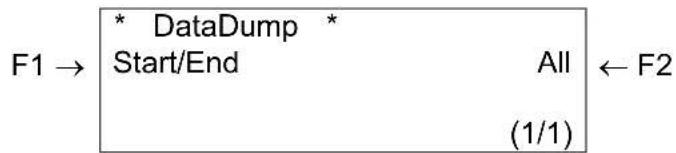
flowchart
graph LR
    A["Start/End"] --> B["DataDump"]
    B --> C["All"]
    C --> D["F2"]
    style A fill:#f9f,stroke:#333
    style D fill:#ccf,stroke:#333
| Setup items | Parameters | Description |
| Data Dump | Start/End | Notes:Dump printing is used by service persons to check the functions of the printer. Do not use this function for normal printing. |
| All | ||
| - | •[CANCEL] key:• to exit Dump Mode.• to shift to the previous hierarchy menu.Refer to ‘Setup menu’ |
5.4.87. Ink Manager menu
To perform a 'Head Wash', "Ink load" or 'Ink Change'.
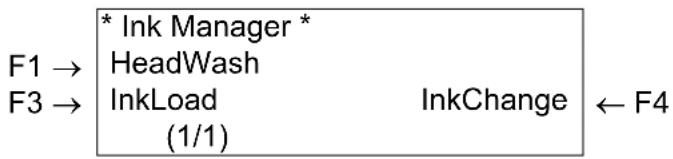
flowchart
graph LR
    A["F1 →"] --> B["* Ink Manager *"]
    C["F3 →"] --> D["HeadWash"]
    C --> E["InkLoad (1/1)"]
    B --> F["InkChange"]
    E --> F
    F --> G["← F4"]
| Setup items | Parameters Description | |
| Ink Manager | Head Wash To perform a head cleaning. | |
| Ink Load To load ink. | ||
| Ink Change To change ink type. | ||
| - •[CANCEL] key: shift to the previous hierarchy menu.Refer to ‘Setup menus’ | ||
5.4.88. Head Wash menu
To perform a head wash to remove all ink of the ink supplying system.
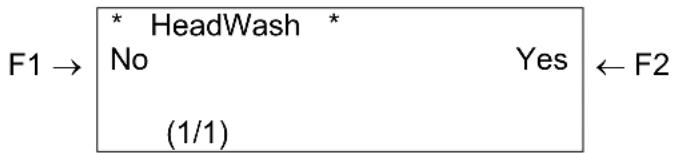
text_image
F1 → * HeadWash * No Yes ← F2 (1/1)| Setup items | Parameters Description | |
| Head clean | No | Do not wash the ink supplying system. |
| Yes | To wash the ink supplying system. | |
| - •[CANCEL] key: shift to the previous hierarchy menu.Refer to ‘Setup menus’ | ||

Notes :
- Only after two head wash cycles it is possible to change ink types. Use the 'Ink Load' to load ink.
The process consists of several cleaning loadings, several air loadings and one ink loading. On the display of the operation panel a time indication is mentioned on the fourth line.
| Message Time 50” Time 64” Time 87” | |||
| Please remove cart. | |||
| Ink Discharge | 6 | 6 | |
| insert Cleaning cart | |||
| During washing wait for a while | 20 | 22 | 29 |
| Remove cartridges | |||
| During washing wait for a while | 6 | 6 | 7 |
| The end | |||
5.4.89. Ink Load menu
To load ink.

flowchart
graph LR
    A["* InkLoad *"] --> B["Start"]
    B --> C["Stop"]
    C --> D["(1/1)"]
    D --> E["F2"]
| Setup items | Parameters | Description |
| Ink Load | Start | Starts the ink load process of 8 minutes. |
| Stop | Stops the ink load process. | |
| - | •[CANCEL] key: shift to the previous hierarchy menu.Refer to ‘Setup menus’ |
5.4.90. Ink Change menu
To perform an ink change.
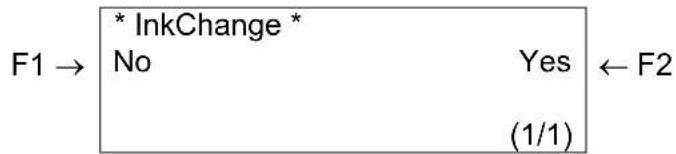
flowchart
graph LR
    A["F1 →"] --> B["* InkChange *"]
    B --> C["No"]
    B --> D["Yes"]
    D --> E["(1/1)"]
    E --> F["F2"]
| Setup items | Parameters | Description |
| Ink Change | No | Do not perform an ink change. |
| Yes | To start the ink change cycle. | |
| - | •[CANCEL] key: shift to the previous hierarchy menu.Refer to ‘Setup menus’ |

Notes :
- To reduce the consumption of ink and cleaning liquid it is recommended to change ink types by using the 'Ink Change' cycle.
The process consists of several cleaning loadings, several air loadings and one ink loading. On the display of the operation panel a time indication is mentioned on the fourth line.
| Message Time 50” Time 64” Time 87” | ||||
| Please remove cart. | (*) | |||
| Ink Discharge (*) 1 1 1 | ||||
| Please insert Cleaning cart (*) | ||||
| During washing wait for a while (*) 5 5 10 | ||||
| Remove cartridges | ||||
| During washing wait for a while 6 6 7 | ||||
| Please insert ink cart. | ||||
| Ink refill | 8 | 8 | 8 | |
| The end | ||||
(*) = This will be asked 7 times.
5.4.91. Cutter change menu
The cutting blade has been replaced.
Makes the setting to replace the cutting blade.

Notes:
- Refer to "Replacing the cutting blade" for details regarding the procedure for manually changing the cutting blade
$$ \begin{array}{l}\text { F1 } \rightarrow \boxed {\text { * CutterChg. } ^ {*}}\\text { Current parameter } \rightarrow \boxed {- \text { No } -}\end{array}\quad\begin{array}{l}\text { Yes } \leftarrow \text { F2 }\(1 / 1)\end{array} $$
| Setup items | Parameters | Description |
| Cutter change | No | Do not change the cutting blade.To shift to the previous hierarchy menu.Refer to ‘Setup menu’ |
| Yes | To change the cutting blade. | |
| - | •[CANCEL] key: shifts to the previous hierarchy menu.Refer to ‘Setup menu’ |
5.4.92. Wiper clean menu
To clean the cleaning wiper.
Make the setting for cleaning the cleaning wiper.

Notes :
- Refer to "Cleaning the cleaning wiper" for details regarding the procedure for cleaning the cleaning wiper.

flowchart
graph LR
    A["F1 →"] --> B["* WiperClean *"]
    A --> C["No"]
    D["Current parameter →"] --> E["- No - (1/1)"]
    B --> F["Yes"]
    E --> F
    F --> G["← F2"]
| Setup items | Parameters Description | |
| Wiper clean | No Do not clean the cleaning wiper. | To shift to the previous hierarchy menu.Refer to ‘Setup menu’ |
| Yes To clean the cleaning wiper. | ||
| - •[CANCEL] key: shifts to the previous hierarchy menu.Refer to ‘Setup menu’ | ||
5.4.93. Tank change menu
To change the waste fluid tank.
Set when changing the waste fluid tank.

Notes :
- Refer to "Replacing the waste liquid tank" for details regarding the procedure for changing the waste fluid tank.

text_image
F1 → * TankChg. * No Yes ← F2 Current parameter → - No - (1/1)| Setup items | Parameters Description | |
| Tank change | No Do not change the tank. | To shift to the previous hierarchy menu.Refer to ‘Setup menu’ |
| Yes To change the tank. | ||
| - •[CANCEL] key: shifts to the previous hierarchy menu.Refer to ‘Setup menu’ | ||
5.4.94. Version Check menu
To check the installed firmware version.
* VersionCheck *
RJ : rh x.xx
Heat Sys : y.yy
| Setup items | Parameters Description | |
| Version Check - •[CANCEL] key: shift to the previous hierarchy menu.Refer to ‘Setup menus’ | ||
x.xx = firmware version of the RJ mainboard.
y.yy = firmware version of the heating board.
This section describes functions operated on the operational panel when the printer is in the normal status.

Notes :
- For information of the name and function of each key, refer to "Operation panel".
5.5.1. Controlling the heater elements on the Rockhopper II printer
If you want to change or check the heater elements, follow the steps below.
Step 1 : Press the [F1] key on the operation panel.
The printer works as follows.
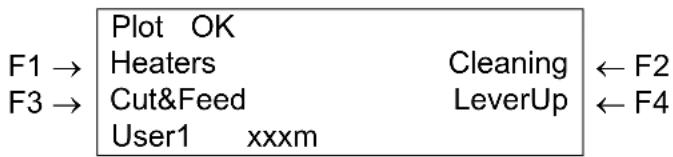
text_image
Plot OK Heaters Cleaning ← F2 Cut&Feed LeverUp ← F4 User1 xxxmBy pressing the [F1] key, you will have direct access to control or change the heaters temperatures.
After pressing the [F1] key in the normal status, the operation panel will mention the following :
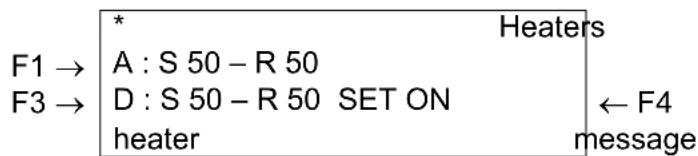
text_image
* Heaters F1 → A : S 50 - R 50 F3 → D : S 50 - R 50 SET ON ← F4 heater messageThe 'heater message' can be one of the following :
Heater standby
Heater warming up
Heater ready

Notes :
- Previous firmware mention: 'Heater standby', 'Heater ON', 'Heater OFF', 'Heater ON (A)' and 'Heater ON (D)'.
'A' stands for the rear heaters.
‘D’ stands for the dryers.
'S' stands for the Set-temperature (requested temperature).
‘R’ stands for the Real-temperature (actual temperature).
5.5.1.1. Change the rear heater temperature
To change the temperature of the rear heaters, press the [F1] key on the operation panel. The display will mention the following :
* Heater (A) *
OFF - 50°C +
50°C -
F2, F4
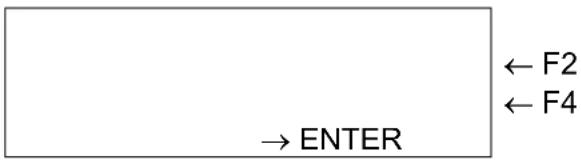
flowchart
graph TD
    A["ENTER"] --> B["← F2"]
    A --> C["← F4"]
Press the [F2] key to decrease the temperature.
Press the [F4] key to increase the temperature.
Press the [ENTER] key to confirm the requested temperature change.
Press the [CANCEL] key to leave the menu without changing the rear heater settings.
5.5.1.2. Change the dryer temperature
To change the temperature of the dryers, press the [F3] key on the operation panel. The display will mention the following :

text_image
OFF - 50°C + 50°C - F2, F4 * Drier ← F2 ← F4 → ENTER (D)Press the [F2] key to decrease the temperature.
Press the [F4] key to increase the temperature.
Press the [ENTER] key to confirm the requested temperature change.
Press the [CANCEL] key to leave the menu without changing the rear heater settings.
5.5.1.3. Activate/ disactivate heaters.
By pressing the [F4] key you can activate or disactivate all heating elements.
In case the heating elements are activated, the display will mention "SET OFF". By pressing the [F4] key you can disactivate the heating elements. The display will mention "SET ON".
In case the heating elements are deactivated, the display will mention "SET ON". By pressing the [F4] key you can activate the heating elements. The display will mention "SET OFF".
Please note that after finishing a printing job (and no other print job is sent to the printer the heating elements will keep their temperature for approximately 6 minutes. After 6 minutes the heating elements are powered OFF.
5.5.2. Controlling the heater elements on the Rockhopper II 4H printer
If you want to change or check the heater elements, follow the steps below.
Step 1 : Press the [F1] key on the operation panel.
The printer works as follows.

text_image
F1 → Ready to Print Heaters Cleaning ← F2 F3 → Cut&Feed LeverUp ← F4 User1 xxxmBy pressing the [F1] key, you will have direct access to control or change the heaters temperatures.
After pressing the [F1] key in the normal status, the operation panel will mention the following :
* Heaters * (1/2)
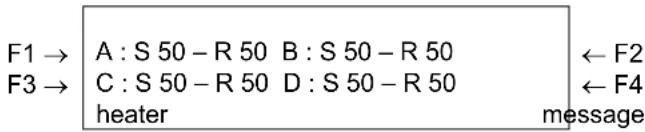
text_image
F1 → A : S 50 - R 50 B : S 50 - R 50 ← F2 F3 → C : S 50 - R 50 D : S 50 - R 50 ← F4 heater message* Heaters * (2/2)
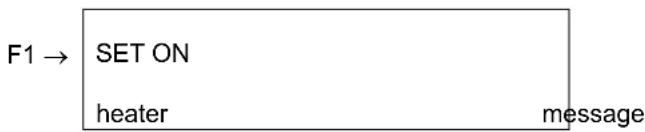
flowchart
graph TD
    A["F1 →"] --> B["SET ON"]
    B --> C["heater"]
    C --> D["message"]
The 'heater message' can be one of the following :
Heater standby
Heater warming up
Heater ready

Notes :
Previous firmware mention : 'Heater standby', 'Heater ON', 'Heater OFF', 'Heater ON (A)', 'Heater ON (D)', 'Heater ON (B)', 'Heater ON (C)', 'Heater ON (A, B)', 'Heater ON (A, C)', 'Heater ON (A, D)', 'Heater ON (A, B, C)', 'Heater ON (A, B, D)', 'Heater ON (A, C, D)', 'Heater ON (B, C)', 'Heater ON (B, D)' and 'Heater ON (C, D)'
'A' stands for the heater.
'B' stands for the fixer.
'C' stands for the post fixer.
‘D’ stands for the dryer.
'S' stands for the Set-temperature (requested temperature).
'R' stands for the Real-temperature (actual temperature).
5.5.2.1. Change the heater temperature
To change the temperature of the heater, press the [F1] key on the operation panel. The display will mention the following :
* Heater (A) *
OFF - 50°C +
50^ C -
F2, F4
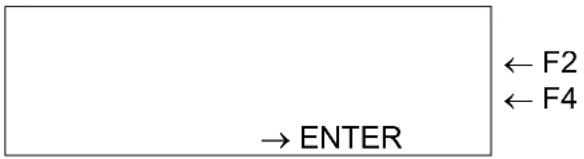
flowchart
graph TD
    A["ENTER"] --> B["← F2"]
    A --> C["← F4"]
Press the [F2] key to decrease the temperature.
Press the [F4] key to increase the temperature.
Press the [ENTER] key to confirm the requested temperature change.
Press the [CANCEL] key to leave the menu without changing the heater settings.
5.5.2.2. Change the fixer temperature
To change the temperature of the fixer, press the [F2] key on the operation panel. The display will mention the following :
* Fixer (B) *
OFF - 70°C +
50^ -
F2, F4
flowchart
graph TD
    A["ENTER"] --> B["← F2"]
    A --> C["← F4"]
Press the [F2] key to decrease the temperature.
Press the [F4] key to increase the temperature.
Press the [ENTER] key to confirm the requested temperature change.
Press the [CANCEL] key to leave the menu without changing the heater settings.
5.5.2.3. Change the post fixer temperature
To change the temperature of the post fixer, press the [F3] key on the operation panel. The display will mention the following :
* Post Fixer (C) *
OFF - 70°C +
50^ -
F2, F4
flowchart
graph TD
    A["ENTER"] --> B["← F2"]
    A --> C["← F4"]
Press the [F2] key to decrease the temperature.
Press the [F4] key to increase the temperature.
Press the [ENTER] key to confirm the requested temperature change.
Press the [CANCEL] key to leave the menu without changing the heater settings.
5.5.2.4. Change the dryer temperature
To change the temperature of the dryers, press the [F4] key on the operation panel. The display will mention the following :

text_image
OFF - 50°C + 50°C - F2, F4 * Drier ← F2 ← F4 → ENTER (D)Press the [F2] key to decrease the temperature.
Press the [F4] key to increase the temperature.
Press the [ENTER] key to confirm the requested temperature change.
Press the [CANCEL] key to leave the menu without changing the rear heater settings.
5.5.2.5. Activate/ disactivate heaters.
In the second menu, press the [F1] key to activate or disactivate all heating elements.
In case the heating elements are activated, the display will mention "SET OFF". By pressing the [F4] key you can disactivate the heating elements. The display will mention "SET ON".
In case the heating elements are deactivated, the display will mention "SET ON". By pressing the [F4] key you can activate the heating elements. The display will mention "SET OFF".
Please note that after finishing a printing job (and no other print job is sent to the printer the heating elements will keep their temperature for approximately 6 minutes. After 6 minutes the heating elements are powered OFF.
5.5.3. Feeding media
When you want to feed media forward or backward, follow the steps below:
Step 1 : Verify the following regarding the condition of the printer.
It is not currently printing

flowchart
graph LR
    F3 --> Plot OK
    F3 --> Heaters Cleaning
    F3 --> Cut&Feed
    F3 --> LeverUp
    F3 --> User1 xxxm
Step 2 : Press the [F3] key of the operation panel.
To shift to the feed & reel menu.
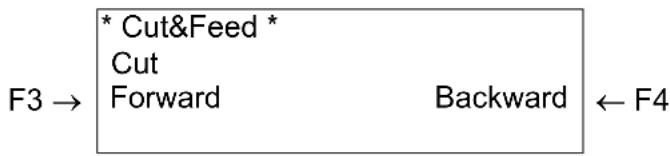
flowchart
graph LR
    A["* Cut&Feed *"] --> B["Cut"]
    B --> C["Forward"]
    C --> D["Backward"]
    D --> E["F3 →"]
    E --> F["F4 ←"]
Step 3 : Press the [F3] key or the [F4] key on the operation panel.
The product will perform following operations:
| Setup items Key name | Parameters | Description | |
| Cut & Feed | F3 | Forward | Feeds media forward. |
| F4 | Backward | Feeds media backward. | |

Notes :
- If "Take-Up Roll" is set in the media detection setup menu, the product will not operate even if the [F4] key has been pressed. Refer to 'Media detection menu'
5.5.4. Operating the pressure rollers
When you want to switch the up and down movement of the pressure rollers follow the steps below.
Step 1 : Press the [F4] key on the operation panel.
The printer works as follows.

text_image
Plot OK Heaters Cleaning Cut&Feed LeverUp ← F4 User1 xxxm| Status of the printer Operation after the [F4] key has been pressed | |
| The pressure rollers have been loweredThe MEDIA SET lamp turns off. | The pressure rollers are liftedThe MEDIA SET lamp will turn on (orange). |
| The pressure rollers have been raised.The MEDIA SET lamp turns on (orange). | The pressure rollers are lowered.The MEDIA SET lamp will turn off. |

Notes :
- You can also switch the up and down movement of the pressure rollers using the foot switch instead of the operation panel.
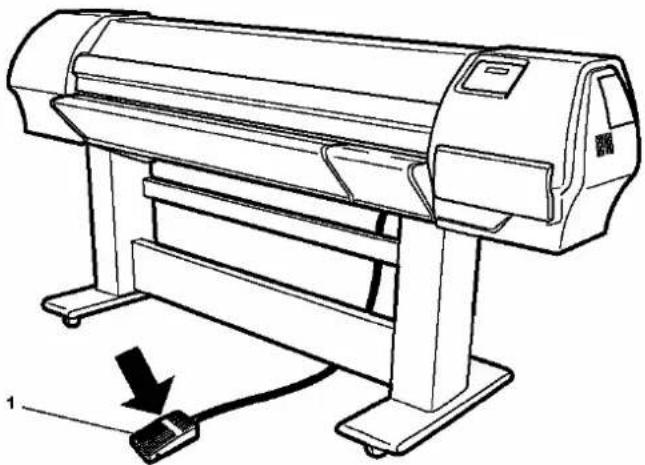
natural_image
Line drawing of a printer with a cable and connector, no text or symbols present1. Foot switch
5.5.5. Print mode check
Use the following procedure to check the print mode currently set.
Step 1: Press the [ENTER] key on the operation panel.
The following information is displayed on the operation panel for three seconds.
| * Printmode * | ||
| 1 → | Quality | 360x360 |
| 2 → | Interlace | 1pass |
| 3 → | Direction | UniDir |
| No. | Position Description Reference | ||
| 1 | Line 2 | The printing quality is displayed. | Refer to ‘Printing quality menu’ |
| 2 | Line 3 | The interlace method is displayed. | Refer to ‘InterLace Setup menu’ |
| 3 | Line 4 | The printing direction is displayed. | Refer to ‘Printing direction menu’ |
Step 2: When the printing mode display closes, the product changes to its normal status.
5.6. OPERATIONS AFTER PRINTING
The operations performed after printing, are described here.
5.6.1. Cutting media
The media cutting procedure is described below.
Roll media is automatically cut after printing when "Auto" is set on the cut media menu and roll media has been set.
When the operation panel is in the normal status, and the product is in the following conditions, the media can be cut on the desired position:
- When roll media has been set:
- If "OFF" is set on the cut media menu
- If "Take Up Roll" has been set in the media detection setup menu
- When sheet media has been set
Follow the steps below to cut the media.
Step 1 : Make sure that the MEDIA SET lamp on the operation panel is off.
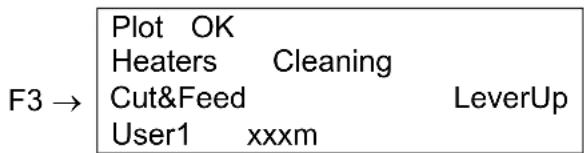
text_image
Plot OK Heaters Cleaning Cut&Feed LeverUp User1 xxxmStep 2 : Press the [F3] key on the operation panel.
➢ Shift to the cut and feed menu.
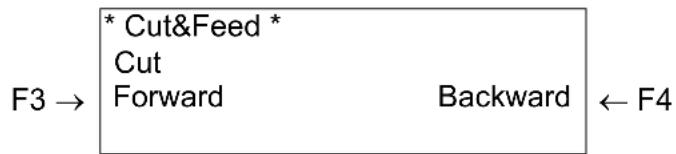
flowchart
graph LR
    A["* Cut&Feed *"] --> B["Cut"]
    B --> C["Forward"]
    C --> D["Backward"]
    D --> E["F3 →"]
    E --> F["F4 ←"]
Step 3: Feed media to the desired position according to the procedure in "Feeding media".

flowchart
graph LR
    A["* Cut&Feed *"] --> B["Cut"]
    B --> C["Forward Backward"]
    C --> D["← F4"]
Step 4 : Press the [F1] key on the operation panel.
The media is cut at its position when the [F1] key has been pressed.

Notes :
- If the front edge of the roll media is not straight when you load new roll media, you should cut its edge.
- Cutting blades are consumable. Replace them at regular intervals following "Replacing the cutting blade".
5.6.2. Media cutting procedure
This section explains how to cut the media manually.
When "Manual" is set in the media cut menu, the media can be cut manually.
Cut the media according to the following procedure.
Step 1: Make sure that the MEDIA SET lamp on the operation panel is off.

Notes :
- After printing, the media is automatically transferred to the media cutting position.
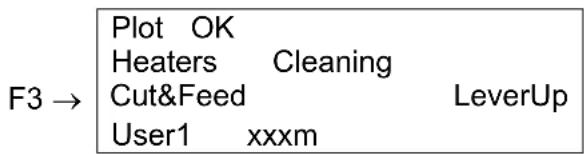
text_image
Plot OK Heaters Cleaning Cut&Feed LeverUp User1 xxxmStep 2 : Press the [F3] key on the operation panel.
➢ Shift to the cut and feed menu.
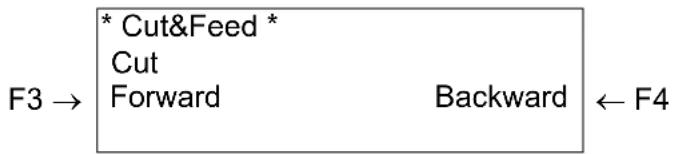
flowchart
graph LR
    A["* Cut&Feed *"] --> B["Cut"]
    B --> C["Forward"]
    C --> D["Backward"]
    D --> E["F4"]
Step 3: Feed media to the desired position according to the procedure in "Feeding media".
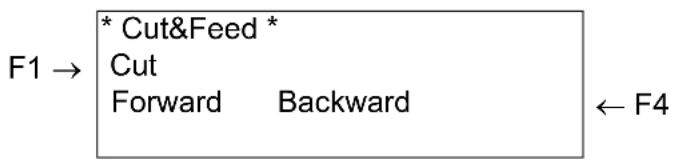
text_image
F1 → * Cut&Feed * Cut Forward Backward ← F4Step 4 : Press the [F1] key on the operation panel.
The following messages are displayed on the operation panel.
* ManualCutPaper * Cut Paper And Push ENTER
Step 5 : Cut the roll media.

Caution :
- When cutting roll media, be careful of the following. Incorrect handling can result in injury to the hands and fingers from the razor blade.
- Use the cut groove of the Rockhopper II 4H at the front of the media guide.
- Please note that there is NO cutter groove on the Rockhopper II printer.
Step 6 : Press the [ENTER] key of the operation panel.
The unit enters the normal status.
Plot OK Heaters Cleaning Cut&Feed LeverUp User1 xxxm
6. TROUBLESHOOTING
6.1. INTRODUCTION
This chapter explains troubles that may occur when using the printer and how to solve them.
If you encounter an error not described in this chapter, refer to "Error messages" and contact your local MUTOH dealer.

Notes :
To receive our customer support service, please present your warranty. If you do not present it, you may be changed for the service even if it is within the term of warranty. If you have a maintenance service contract, please show the agreement or other documents.
6.2. FAILURES AND MALFUNCTIONS OF THE PRINTER
This section describes the failures and malfunctions of the printer not displayed as errors, causes and solutions.
(1) The printer does not work after the power has been turned on.
| No. | Possible cause | Solutions | Reference |
| 1 You did not plug the power cable in. Plug in the power cable. Refer to ‘Connecting the power cable’ | |||
| 2 The AC power does not match the specified voltage. | Use the printer at the specified voltage | Refer to ‘Connecting the power cable’ | |
| 3 The front cover is open. Close the front cover. Refer to ‘Media handling’ | |||
(2) The printer does not work after media has been loaded.
| No. | Possible cause | Solutions | References |
| 1 The front cover is open. Close the front cover Refer to ‘Media handling’ | |||
| 2 The pressure rollers have been raised. | Lower the pressure rollers lever. | Refer to ‘Media handling’ | |
| 3 You did not load the media straight into the printer. | Load the media straight into the printer. | Refer to ‘Media handling’ | |
| 4 One or more ink cartridges are not installed. | Install (an) ink cartridge(s). | Refer to ‘Installing ink cartridges’ | |
| 5 You did not use recommended media. | Use recommended media. | Refer to ‘Media type’ | |
| 6 You used the printer in direct sunlight or other locations not appropriate for the specified environment. | Use the printer in the specified environment. | Refer to ‘Product Specifications’ | |
(3) The printer does not work after data has been sent from a computer.
| No. | Possible cause | Solutions | Reference |
| 1 You did not connect the interface cable. | Connect the interface cables. | Refer to ‘Connecting the centronics interface’Refer to ‘Connecting the network interface’ | |
| 2 One or more ink cartridges have not been installed. | Install (an) ink cartridge(s). | Refer to ‘Installing ink cartridges’ | |
| 3 Ink cartridge is empty. Replace the ink cartridge. Refer to ‘Replacing ink cartridges’ | |||
(4) The printer does not print and an error is generated after data has been sent from a computer.
| No. | Possible cause | Solutions | References |
| 1 The model setting of the computer is not correct. | Make sure that the model settings on computer and printer are the same. | Refer to ‘Connecting the printer to your PC’ | |
| 2 The interface setting or command mode on computer and printer do not match. | |||
(5) Printouts are partially blurred or missing.

Notes :
You may not obtain reasonable quality with media other than recommended media.
| No. | Possible cause | Solutions | References |
| 1 The media is damped. | Replace with new media. Refer to ‘Replacing media’ | ||
| 2 You used folded, creased or curled media. | |||
| 3 Check the media for curling or lift off. Use | the recommended media.When using media other than recommended media,set the following items in the media setting menu.• Media• HeadHeight• Stiff | Refer to ‘Media type’Refer to ‘Menu setup on the operation panel’ | |
(6) Printing position is not correct (some positions are not printed.)
| No. | Possible cause | Solutions | References |
| 1 The loading position of the media is not correct. | Load the media correctly. Refer to ‘Loading media’ | ||
| 2 You used the scale or mirror setting. Turn | off the scale or mirror setting, or make the setting again. | Refer to ‘Menu setup on the operation panel’ | |
| 3 You set the origin or starting position. | Turn off the origin or starting position setting, or make the setting again. | Refer to ‘Menu setup on the operation panel’ | |
(7) Media jams occur frequently.

Notes :
We cannot ensure correct media feeding with media other than recommended media.
| No. | Possible cause | Solutions | References |
| 1 You did not use recommended media. | Use recommended media. | Refer to ‘Media type’ | |
| 2 You used the printer in an environment other than the specified environment. | Use the printer in the specified environment. | Refer to ‘Cautions on handling media’ | |
| 3 You used old media. | Replace with new media. | Refer to ‘Replacing media’ | |
| 4 You used folded, creased, or curled media. | |||
| 5 Check the media for curling or liftoff. Use the recommended media.When using media other than recommended media, set the following items in the media setting menu.• Media• HeadHeight• Stiff | Refer to ‘Media type’Refer to ‘Menu setup on the operation panel’ | ||
(8) Roll media cannot be cut correctly.
| No. | Possible cause | Solutions | References |
| 1 The edge of the cutting blade is not sharp. | Replace the cutting blade. Refer to ‘Replacing the cutting blade’ | ||
| 2 The roll media has static electricity. Remove the static electricity on the roll media. | - | ||
| 3 Media is to heavy to cut automatically. | Cut the media manually. | ||
(9) You cannot perform initial ink charging.
| No. | Possible cause | Solutions | References |
| 1 The front cover is open or the hold lever is up. | Close the front cover and lower the hold lever. | Refer to ‘Media handling’ | |
| 2 Some of the 8 ink cartridges are not loaded properly. | Load all of the 8 cartridges properly. | Refer to ‘Installing ink cartridges’ | |
(10) Ink is not used though you performed initial ink charge.
| No. | Possible cause | Solutions | References |
| 1 The ink cartridge is cold or frozen. Leave the ink cartridge in normal temperature for three hours at least, and perform cleaning a few times. | Refer to ‘Head cleaning’ | ||
| 2 You turned off the printer during the initial ink charging. | Turn on the printer to continue the initial ink charging. | Refer to ‘Installing ink cartridges’ | |
| 3 The printer rarely prints correctly only after initial ink charging. | Perform cleaning a few times and check again. | Refer to ‘Head cleaning’ | |
(11) The media is off or damaged when loading it.

Notes :
Remove the jammed or damaged media, referring to "When media jams occur".
| No. | Possible cause | Solutions | References |
| 1 You did not use recommended media. | Use recommended media. | Refer to ‘Media type’ | |
| 2 The loading position of the media is not correct. | Load the media correctly. | Refer to ‘Loading media’ | |
| 3 Foreign material, such a piece of media, is attached to the pressure rollers. | Clean the pressure rollers. | Refer to ‘Cleaning the inside of the printer’ | |
| 4 You used the printer in direct sunlight or other locations not appropriate for the specified environment. | Use the printer in the specified environment. | Refer to ‘Product Specifications’ | |
| 5 You loaded sheet media into the printer. | Set the CutSize setting to Length or Width. | Refer to ‘Menu setup on the operation panel’ | |
| 6 You used folded, creased, or curled media. | Replace with new media. | Refer to ‘Cautions on handling media’ | |
| 7 Check the media for curling or liftoff. Use the recommended media.When using media other than recommended media, set the following items in the media setting menu.• Media• HeadHeight• Stiff | Refer to ‘Media type’Refer to ‘Menu setup on the operation panel’ |
(12) Media is damaged during media Initial.

Notes :
Remove the jammed or damaged media.
| No. | Possible cause | Solutions | References |
| 1 You did not use recommended media. | Use recommended media. | Refer to ‘Media type’ | |
| 2 The loading position of the media is not correct. | Load the media correctly. | Refer to ‘Loading media’ | |
| 3 You did not load the media straight into the printer. | Load the media straight into the printer. | Refer to ‘Loading media’ | |
| 4 Foreign material, such a piece of media, is attached to the pressure rollers. | Clean the pressure rollers. | Refer to ‘Cleaning inside the printer’ | |
| 5 You used the printer in a location with air conditioner or other location not appropriate for the specified environment. | Use the printer in the specified environment. | Refer to ‘Product Specifications’ | |
| 6 You loaded sheet media into the printer. | Set the CutSize setting to Length or Width. | Refer to ‘Menu setup on the operation panel’ | |
| 7 You used media folded, creased, damaged, tore, curled. | Replace the media. Refer to ‘Cautions on handling media’ | ||
(13) Tracing media or other thin media cannot be detected.
| No. | Possible cause | Solutions | References |
| 1 You did not use recommended media. | Use recommended media. | Refer to ‘Media type’ | |
| 2 You used the printer in direct sunlight or other locations not appropriate for the specified environment. | Use the printer in the specified environment. | Refer to ‘Product Specifications’ | |
(14) Media size is wrong during media Initial.
| No. | Possible cause | Solutions | References |
| 1 You did not use recommended media. | Use recommended media. | Refer to ‘Media type’ | |
| 2 You did not load the media straight into the printer. | Load the media straight into the printer. | Refer to ‘Media handling’ | |
| 3 The curled surface of media is up when loading. | Remove the curl in the media, or replace with new media. | Refer to ‘Media handling’ | |
| 4 You used the printer in a location with air conditioner or other location not appropriate for the specified environment | Use the printer in the specified environment. | Refer to ‘Product Specifications’ | |
| 5 You reused printed media. Use new, not printed media. | Refer to ‘Media type’ | ||
(15) Media is crooked while printing.
| No. | Possible cause | Solutions | References |
| 1 You did not use recommended media. | Use recommended media. Refer to ‘Media type’ | ||
| 2 The loading position of the media is not correct. | Load the media correctly. Refer to ‘Loading media’ | ||
(16) The printer is not connected to a computer using the Centronics interface.
| No. | Possible cause | Solutions | References |
| 1 You did not connect the Centronics interface cable correctly. | Connect the Centronics interface cable correctly. | Refer to ‘Connecting the centronics interface’ | |
| 2 When the printing data is transferred from the computer, the DATA lamp on the operation panel is not lit. | If the DATA lamp is not lit, contact the computer maker. | - | |
| 3 The Centronics setting on the printer does not match the setting on the computer. | Make the Centronics setting on the printer so that it matches the setting on the computer. | Refer to ‘System requirements’ | |
| 4 The type of command that is currently set, does not match the command of a computer or a driver. | Match the command setting of the printer to the environment of a computer or a driver. | Refer to ‘Menu setup on the operation panel’ | |
(17) The printed lines are blurred.
| No. | Possible cause | Solutions | References |
| 1 You did not use recommended media. | Use recommended media. Refer to ‘Media type’ | ||
| 2 You used too thick or too thin media. Use recommended media Refer to ‘Media type’ | |||
| 3 You used bond media. Use recommended media. Refer to ‘Media type’ | |||
| 4 The printed surface is not the printable side. | Pay attention to the printable side to load media correctly. | Refer to ‘Media handling’ | |
| 5 Did you try head cleaning? | Perform head cleaning.Perform strong cleaning.Clean the surface of the print head.Perform long save cleaning. | Refer to ‘Head cleaning’Refer to ‘Cleaning the cleaning wiper’ | |
(18) White or black lines on printouts.
| No. | Possible cause | Solutions | References |
| 1 You did not use recommended media. | Use recommended media. Refer to ‘Media type’ | ||
(19) Lines are missing.
| No. | Possible cause | Solutions | References |
| 1 The validity date of the ink cartridge has been expired. | Use a new ink cartridge. Refer to ‘Replacing ink cartridges’ | ||
| 2 You did not use recommended media. | Use recommended media. Refer to ‘Media type’ | ||
| 3 Did you try minor adjustments for image quality? | Try minor adjustments for image quality. | Refer to ‘Alignment’ | |
(20) "Bubbles" near the Heaters.
| No. | Possible cause | Solutions | References |
| 1 You did not use recommended media. | Use recommended media. Refer to ‘Media type’ | ||
| 2 You did not set the correct heater | Lower the temperature or turn off the Heater | Refer to ‘controlling the heater elements’ | |
(21) Top Feed problem.
| No. | Possible cause | Solutions | References |
| 1 Media jam occurred due to a need for Top feed. | Insert a minimum Top Feed | Refer to ‘Top Feed menu’ | |
6.3. ERROR MESSAGES
This chapter explains the messages displayed on the operation panel both when the printer works normally and when an error occurs, and possible solutions.
6.3.1. Status messages
The following are the status messages while the printer works normally.
(1) Displays the operational status (1)
The following operational status is displayed on the first line of the operation panel.
| Plot OK | |
| Heaters | Cleaning |
| Cut&Feed | LeverUp |
| User1 | xxxm |
| No. | Display | Solutions | References | |
| 1 Plot OK Waiting for the next operation. (media has been loaded.) | - | |||
| 2 Media End The printer is waiting for the next operation.(No media has been loaded into the printer.) | Refer to ‘Media handling’ | |||
| 3 Receiving The printer is receiving data. - | ||||
| 4 Converting The printer is converting data. - | ||||
| 5 Plotting The printer is printing. - | ||||
| 6 Warning Waste Ink Tank | Replace the waste liquid tank. | Refer to ‘Replacing the waste liquid tank’ | ||
| 7 Warning Ink Tube Life Contact the dealer where you bought the printer or MUTOH's technical support center. | - | |||
(2) Displays of the operational status (2)
The following operational status is displayed between the first and the third line of the operation panel.
Ink Refill Wait for a while
| No. | Display | Solutions | References |
| 1 | Ink Refil **min | The printer performs ink charging. Wait for a while. | Refer to ‘Installing ink cartridges’ |
| 2 | During cleaning **min | The printer performs head cleaning. Wait for a while. | Refer to ‘Head cleaning’ |
| 3 Media Initial ***** | The printer performs initial setting of media.Wait for a while. indicates the media type setting made. | Wait for a while. indicates the media type setting made. | Refer to ‘Setting media type’ |
| 4 | During dischargeWait for a while | The printer performs head cleaning and ink discharging. Wait for a while. | Refer to ‘Changing Ink Types’ |
| 5 | During washingWait for a while | The printer performs a head cleaning.Wait for a while. | Refer to ‘Changing Ink Types’ |
6.3.2. Message type error display and solutions
The following are the message type error display and solutions.
The following message type errors are displayed when an error occurs while operating the printer. When one of the following message type error displays appear, the printer may stop operation. If the printer stops operation, solve the problem to delete the error message and restart the printer
(1) Error messages regarding media feeding
The following error message is displayed on the first line of the operation panel.
| → | Undefined PaperHeaters CleaningCut&Feed LeverUpUser1 xxxm |
| No. | Display | Descriptions | Solutions | References |
| 1 | Undefined media The printer failed to detect the media.(The printer stops.) | Reload the media. | Refer to ‘Loading media’ | |
| 2 | Media Slant The media was fed at an angle into the printer.(The printer stops.) | Reload the media. | Refer to ‘Loading media’ | |
| 3 | End Of Roll Roll media runs out.(The printer stops.) | Load new roll media. | Refer to ‘Replacing media’ | |
| 4 | Cover Open The front cover is open. (The printer stops.) | Close the front cover. | - | |
| 5 | Please Set Media The pressure roller has been raised.There is no media. | Set the media and lower the pressure roller. | - | |
| 6 | Media JAM Error The media jammed.(The printer stops.) | Remove the jammed media and reset a media. | Refer to ‘When media jams occur’ | |
(2) Error messages regarding warnings of the remaining ink
The following error message is displayed on the forth line on the operation panel.
| Ready to Print | |
| Heaters | Cleaning |
| Cut&Feed | LeverUp |
| NearEnd | [1] |
| No. | Display | Descriptions | Solutions | References |
| 1 Near End [*] | The ink is running short in the ink cartridge.(The printer continues to perform.) | Prepare a new ink cartridge. | Refer to ‘Replacing ink cartridges’ | |

Notes :
- The [*] shows the colour of the ink causing the error according to the following codes:
- 1-8 : ink cartridge slot number (Refer to 'Installing ink cartridges')
- All : All ink cartridges
(3) Other error messages
The following error message is displayed on the forth line of the operation panel
| No. | Display | Descriptions | Solutions | References |
| 1 | Ink Status Cartridge [*] | Ink cartridge(s) is (are) empty. (The printer stops.) | Replace the ink cartridge(s) | Refer to ‘Replacing ink cartridges’ |
| 2 | Ink Status No Filled [*] | Initial filling has not been performed. | Perform initial filling of the ink. | Refer to ‘Installing ink cartridges’ |
| 3 | No original ink | You did not load MUTOH's recommended ink cartridge. (The printer stops.) | Load MUTOH's recommended ink cartridge. | Refer to ‘Replacing ink cartridges’ |
| 4 | 4 Memory Status NoMemory DIMM 64 MB | Short of memory while converting or printing data. | Consider increasing the memory capacity. | - |

Notes :
- The [*] shows the colour of the ink causing the error according to the following codes:
• 1-8 : ink cartridge slot number - All : All ink cartridges
6.3.3. Data error display and solutions
Following are data errors and possible solutions during printer operations.
Data errors are displayed when a communication error occurs between computer and printer.
If data error occurs, the following error messages are displayed and the printer stops.
Solve the problem to delete the error message and restart the printer.
Online Status I * * * * Err. [ ]
| No. | Message | Descriptions | Solution | Reference |
| 1 | Online status I** Error [ ] | An error has occurred while receiving data. | Confirm the communication condition between computer and printer. | Refer to 'Menu setup on the operation panel' |

Notes :
- *** in error messages are code numbers indicating what kind of error occurred.
6.3.4. Command error display and solutions
Following are command error descriptions and possible solutions during printer operations.
Command errors are displayed when an error has occurred while converting the command data sent from computer to printer.
If a command error occurs, the following error messages are displayed and the printer stops.
Solve the problem to delete the error message and restart the printer.
Command Status
MH * * * * Err. [ ]
| No. | Message | Descriptions | Solution | Reference |
| 1 | command status MH** Error [ ] | Invalid command data is sent from computer. | Make sure that the settings of the computer and the printer match. | Refer to ‘Menu setup on the operation panel’ |

Notes :
- *** in error messages are code numbers indicating what kind of error occurred.
• [ ] may indicate the command code of the error. - For the settings on a computer, refer to the computer's operation manual.
6.3.5. Error requiring a restart
Following are descriptions and solutions requiring a restart.
Errors requiring a restart are displayed when the following fatal error has occurred during printer operation.
- Foreign material disturbing the printer operation is involved in the printer.
- An electrical circuit (such as board, motor, or sensor) failure has occurred.
- An error on the control program has occurred.
If error requiring a restart has occurred, the printer prints and then stops (see below).
(1) Power relating to the driving system is shut off automatically.
(2) All indicator lights on the operation panel are turned on and beeps sound continuously.
(3) An error message is displayed on the operation panel.
Press any key on the operation panel to stop the beep sounds.
If an error requiring a restart has occurred, solve the problems to restart the printer and delete the error. If the same error message is displayed again, contact your local MUTOH dealer. Be sure to inquire the code numbers of the error messages.
System Err E *** 00000000 [ ]
| No. | Message Descriptions Solutions | References | ||
| 1 | E System error○○○○○○○○○[ ] | If error which cannot be solved promptly has occurred. | 1.If foreign material such as a piece of media or media dust are involved in the driving system, remove them.2.Make sure that the replaced parts are correctly installed.3.Power OFF the printer. After 10 seconds or more, power it back ON. | Refer to ‘When media jams occur‘ Refer to ‘Replacing consumables’ |

Notes :
- *** in error messages are code numbers indicating what kind of error occurred.
• [ ] may indicate the command code of the error. - For the computer settings, refer to the computer's operation manual.
6.4. WHEN MEDIA JAMS OCCUR
If the loaded media gets jammed in the printer, follow the steps below to remove the media.
6.4.1. How to remove a piece of media (cut media)
Step 1: Press [F4] to raise the pressure rollers.
• The MEDIA SET lamp will turn on (orange).
- The following message is displayed on the operation panel.

text_image
Please Set Paper Heaters Cleaning Cut&Feed LeverUp User1 xxxm
Notes :
- When raising or lowering the pressure rollers, so you can use the foot switch instead of the operation panel.

natural_image
Line drawing of a printer with a cable and connector, no text or symbols present1. Foot Switch
Step 2: If a piece of media or media dust are stocked in the printer, open the front cover and remove the piece of media or media dust.

Caution :
- Be sure not to pinch your fingers while opening and closing media cover.
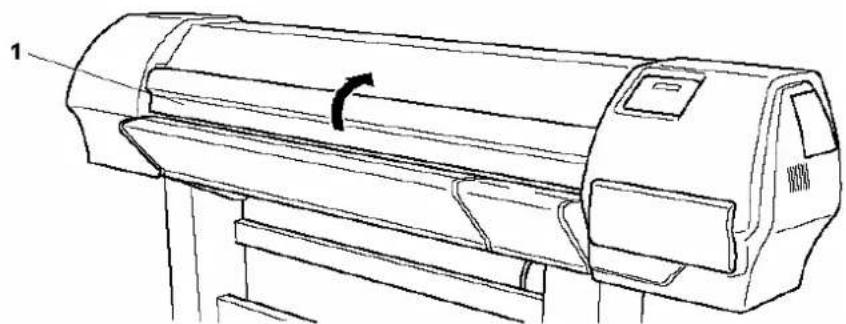
natural_image
Line drawing of a printer with a paper roll and control panel (no text or symbols)1. Front Cover
Step 3: If there is an error requiring a restart, power the printer OFF and ON again.
6.4.2. How to remove a piece of media (roll media)
To remove a piece of roll media, please refer to the User's Guide "Handling roll media on a Falcon II series printer and Rockhopper II series printer".
7. DAILY MAINTENANCE
7.1. INTRODUCTION
This chapter explains daily maintenance of the printer.
7.2. REPLACING CONSUMABLES
This section explains when to replace ink cartridges, roll media, or the cutting blade and the procedures for replacement.
7.2.1. Replacing ink cartridges
Read the following for information on when and how to replace ink cartridges.
(1) Replacement time
Replace ink cartridges under the following conditions.
a. The ink remaining in the ink cartridge is low.
- The following message is displayed on the operation panel.
- Printing operation is continued.
- Prepare new ink cartridges before they are totally empty.
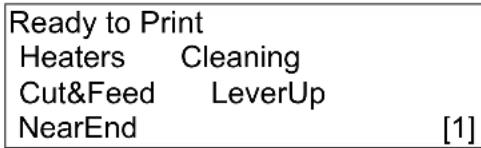
text_image
Ready to Print Heaters Cleaning Cut&Feed LeverUp NearEnd [1]b. The ink cartridge becomes empty.
- The following message is displayed on the operation panel.
- Printing operation stops.
- Replace with a new ink cartridge as soon as possible.
InkStatus
No
Ink
[123]

Notes :
- When the ink runs out or is low, the ink colour is indicated as follows:
• 1-8: The number of the ink cartridge slot (Refer to 'Installing ink cartridges') - All: All inks
(2) Types

Notes :
- For detailed information on ink cartridges, refer to the following. Price List
- The printer is designed for use with Eco-Solvent ink and Eco-Solvent Plus™ ink cartridges. If you do not genuine products, printouts may become faint and the printer will not be able to detect the end of ink.
- The warranty will not cover (repairs will require a fee) a breakdown.
(3) Replacement procedure
Follow the steps below to replace ink cartridges.

Caution :
- When handling ink cartridges, be careful that ink does not get in your eyes or on your skin. However, if this happens, flush immediately with water. Otherwise, your eyes may become congested or slightly inflamed. If you feel discomfort, consult a doctor immediately.
- Do not disassemble ink cartridges. Otherwise, ink may get in your eyes or on your skin.
- Only use Eco-Solvent ink, Eco-Solvent Plus™ ink and appropriate cleaning liquid. Using other ink (e.g. dye or pigment) could cause permanent damage to the printer.

Caution :
- Do not use Eco-Solvent ink in combination with Eco-Solvent Plus™ ink. Doing so will cause permanent damage to the printer

Notes :
- Do not shake ink cartridges. Doing so may cause ink to leak out.
- Do not disassemble ink cartridges. Disassembled ink cartridge cannot be used.
Step 1: If the printer is turned on, make sure of the following
- Printing or other operations are not performed.
- Make sure that the display on the operation panel shows the normal state.
- The MEDIA SET light on the operation panel goes off.
Step 2 : Open the ink compartment cover.

Caution :
- Be sure not to pinch your fingers while opening and closing the ink compartment cover.
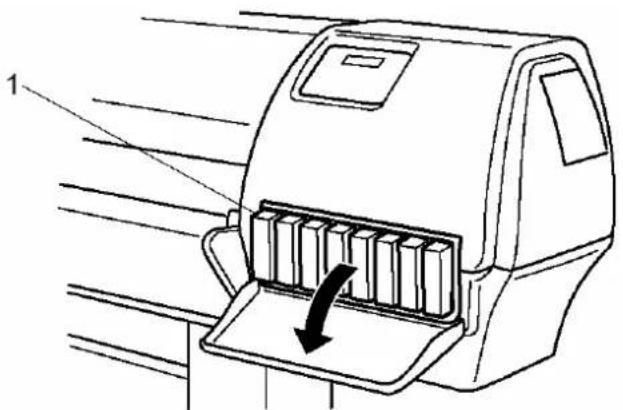
text_image
Diagram of a printer with labeled parts and directional arrow indicating process flow- Ink Compartment
Step 3 : Remove the ink cartridge from the ink cartridge slot.

Notes :
- Dispose the used ink cartridge by putting it in a plastic bag in accordance with local regulations or laws.

text_image
Technical diagram of a printer with labeled parts and an inset showing a 3D object being inserted into the base.- Ink cartridge slot 2. Ink cartridge
Step 4: Take the new ink cartridge from its package.

Notes :
Unpack the ink cartridge just before installing it into the ink cartridge slot. If you leave the cartridge unpacked for a long time, the printer may not be able to print correctly.
Use up ink cartridges within two years from the date printed on the cartridge packages.
Replace ink cartridges if after six months since installation.
Step 5: Install the ink cartridge following the steps in "Installing ink cartridges".
Step 6 : Close the cover of the ink compartment.
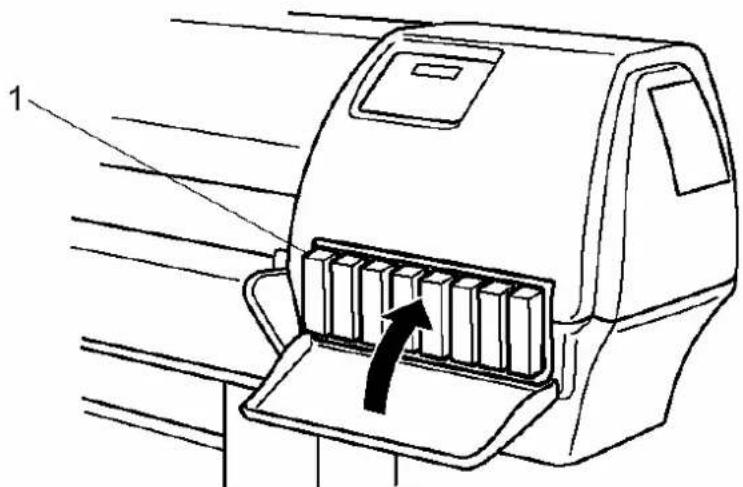
text_image
Diagram of a printer's internal structure with labeled parts and an arrow indicating insertion or movement1. Ink Compartment
Step 7 : Make sure that the display on the operation panel returns to normal status.

Notes :
- If you replace ink cartridges while printing, the printer resumes printing.
7.2.2. Replacing the cutting blade
Read following information on when and how to replace the cutting blade.
(1) Replacement time
Replace the cutting blade under the following conditions.
a. Media cannot be cut cleanly
The message "media Cut Error" appears on the operation panel if a media cutting error occurs.

text_image
→ Paper Cut Error Heaters Cleaning Cut&Feed LeverUp User1 xxxmb. When the cut edge has scuffing
(2) Replacement procedure
Follow the steps below to replace the cutting blade.
Step 1: If the printer is turned on, make sure of the following
➢ Printing or other operations are not performed.
Make sure that the display on the operation panel shows the normal status.
The MEDIA SET light on the operation panel goes off.
Step 2 : Follow "Menu setup on the operation panel" and display the cutting blade replacement menu on the operation panel.(Refer to 'Cutter change menu')
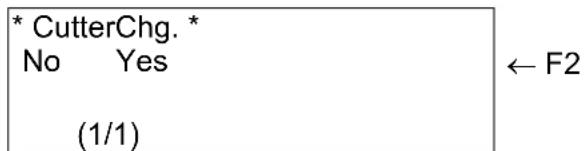
text_image
* CutterChg. * No Yes (1/1) ← F2Step 3 : Select "Yes" and press the [F2] key on the operation panel.
The printer prepares for cutting blade replacement.
The carriage moves to the cutting blade replacement position.
The following message is displayed on the operation panel.

Notes :
- If you did one of the things mentioned in step 3, the printer does not replace the cutting blade and returns to the setup menu.
- Press the [CANCEL] key on the operation panel.
- Select "NO" then press the [F1] key on the operation panel.
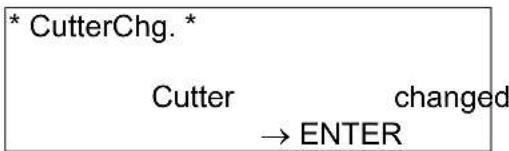
text_image
* CutterChg. * Cutter changed → ENTER?
Step 4 : Open the front cover.

natural_image
Line drawing of a printer with a paper roll and control panel (no text or symbols)- Front cover

Notes :
- Replace the cutting blade in as quickly as possible. If you leave the carriage at the cutting blade replacement position, the head may be clogged with ink.
Step 5: While pressing the cutting blade holder tab, rotate the cutting blade holder lever in the direction shown in the diagram.

Notes :
- Do not push the cutting blade holder tab strongly or release it suddenly. Doing so may cause the spring incorporated in the cutting blade holder to fly off.
- Do not push in the cutting blade holder. Doing so may cause the cutting blade to damage the inside of the printer.
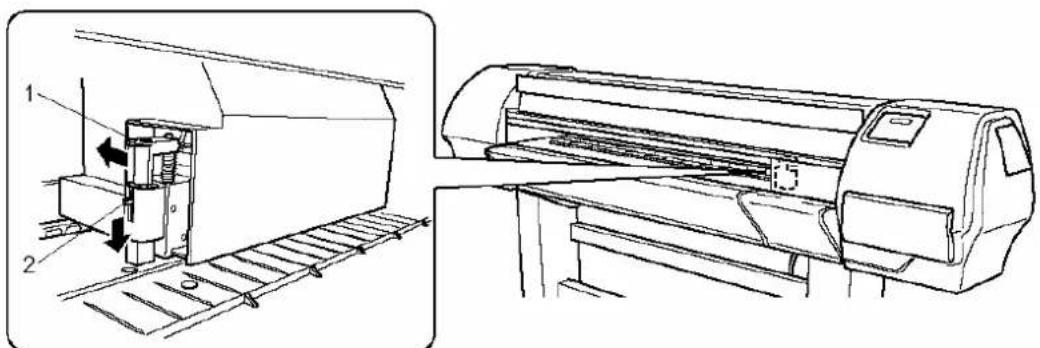
natural_image
Technical line drawing of a printer with two views: front view shows internal components, and side view shows the same printer's exterior (no text or symbols present)- Cutting blade holder lever 2. Cutting blade holder
Step 6: Take out the cutting blade.

Caution :
- Do not touch the edge of the cutting blade to avoid injury.
- Do not drop the cutting blade or apply it on hard material. Doing so may damage or break the cutting blade.

Notes :
- Dispose the used cutting blade, put it in a plastic bag in accordance with local regulations or laws.

natural_image
Technical line drawing of a mechanical assembly with no visible text or symbols- Cutting blade
Step 7: Insert the new cutter into the media cutting blade holder as shown below.

Notes :
- Be sure not to let the spring incorporated in the cutter holder fly out.
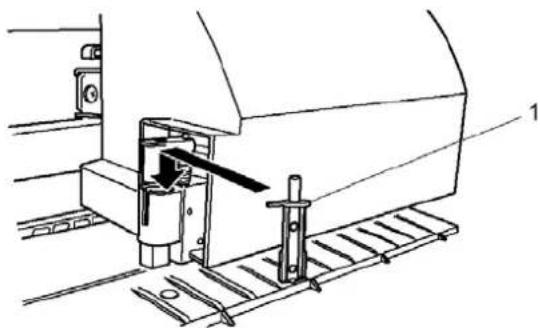
natural_image
Technical line drawing of a mechanical assembly with a tool and base plate (no text or symbols)- Cutting blade
Step 8: While slightly pressing the cutting blade holder tab, return the cutting blade lever to its original position.

Notes :
- Do not push the cutting blade holder tab strongly or release it suddenly. Doing so may cause the spring incorporated in the cutting blade holder to fly off.
- Do not push in the cutting blade holder. Doing so may cause the cutting blade to damage the inside of the printer.
- Attach the cutting blade holder lever correctly, referring to the diagram below. If it is not attached correctly, errors may occur. If an error occurs, make sure that the cutting blade holder lever is attached correctly.

text_image
Technical diagram showing two views of a printer with labeled parts, including a zoomed-in view and assembly line.- Cutting blade holder lever 2. Cutting blade holder
Step 9 : Close the front cover.

natural_image
Line drawing of a printer with a paperclip and directional arrow indicating rotation (no text or symbols)- Front cover
Step 10 : Press the [ENTER] key on the operation panel.
The carriage returns to its original position.
The printer returns to the normal status.
| Ready to Print | |
| Heaters | Cleaning |
| Cut&Feed | LeverUp |
| User1 | xxm |
Step 11 : Cutting blade replacement has been finished.
7.2.3. Replacing the waste liquid tank
Read following information on when and how to replace the waste liquid tank.
(1) Replacement Time
Replace the waste liquid tank under the following conditions.
a. When the waste liquid tank is nearly full.
- Following message is displayed on the operation panel.
- Printing continues.
- Prepare a new waste liquid tank before the waste liquid tank becomes full.
| → | Warning WastInkTankHeaters CleaningCut&Feed LeverUpUser1 Om |
(2) Replacement Procedures
Follow the steps below to replace the waste liquid tank.
Step 1 : Check the following if the power of the printer is ON.
▶ Printer is not printing.
➢ Operation panel is in normal status.
➢ Media setting light on the operation panel is off.
Step 2 : Follow "Menu setup on the operation panel" and display the tank replacement menu on the operation panel. (Refer to 'Tank change menu')
| * TankChg. * | |
| No | Yes ← F2 |
| (1/1) | |
Step 3 : Select "YES" and press the [F2] key on the operation panel.
The printer starts tank replacement.
The following message is displayed on the operation panel.

Notes :
- If you did one of the things mentioned in step 3, the printer does not replace the tank and returns to the setup menu.
- Press the [CANCEL] key on the operation panel.
- Select "NO" and press the [F1] key on the operation panel.
* TankChg. *
Tank Changed ?
→ ENTER
Step 5 : Open the cap of the waste liquid tank.

Caution :
- Do not bend or pull the waste fluid tube. Doing so may cause that the waste fluid will leak out and malfunction in the product.
Step 5 : Remove the waste liquid tank from the tank tray of the stand.

Notes :
- Put the used waste liquid tank in a plastic bag and follow the local regulations when disposing.
Step 6 : Open the cap of a new waste liquid tank and put the tank to the printer.
Step 7 : Press the [ENTER] key on the operation panel.
- The printer returns to the normal status.
Ready to Print
Heaters Cleaning
Cut&Feed LeverUp
User1 xxxm
Step 8 : The replacement of the waste liquid tank has been completed.
7.3. CLEANING
You need to clean the printer periodically to keep it in best working condition.

Warning:
- Do not insert or drop metal or inflammable objects into openings, such as ventilation outlets. Doing so may result in electrical shock and fire.
- Stop using your printer if a liquid is spilled into it. This may cause electrical shock or fire. Power the printer OFF as soon as possible, unplug the power cord and then contact your local MUTOH dealer.

Caution:
- Be sure to power OFF the printer and unplug the power cable from the outlet before cleaning the printer.
- Do not use thinner, benzene, alcohol or other active agents. Doing so may result in damage or paint peeling from the casing.
- Be careful not to spill water inside the printer. Doing so may result in a short circuit.
- Never open the covers fixed with screws. Doing so may result in electrical shock or malfunctioning of the printer.
Following are instructions for cleaning the printer.
7.3.1. Cleaning the outer case
(1) Cleaning frequency
Clean once a month.
(2) Cleaning procedure
Remove dust or smudges on the outer case with a soft cloth.
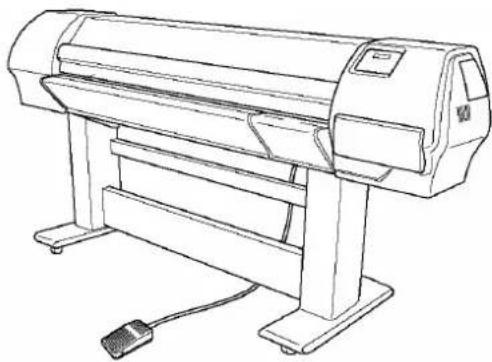
natural_image
Line drawing of a generic paper printer with a control panel and base mount (no text or symbols)7.3.2. Cleaning the inside of the printer
(1) Cleaning frequency
Clean once a month.
(2) Cleaning procedure
The following are instructions for cleaning the inside of the printer. Follow the steps below.
Step 1: Open the front cover.
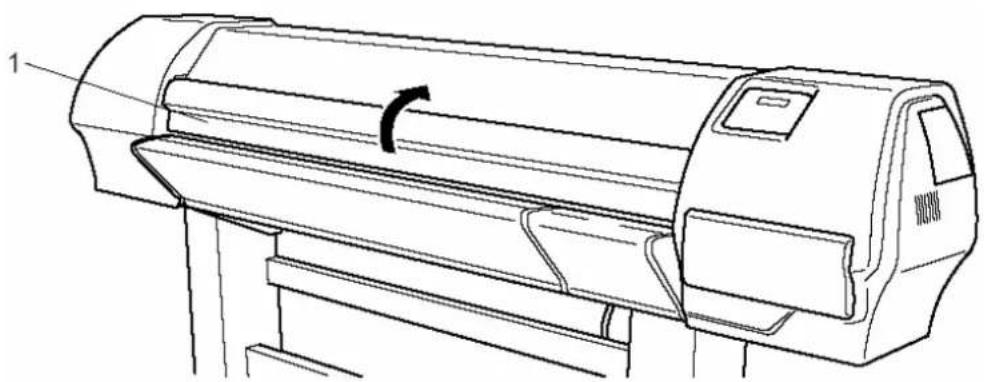
natural_image
Line drawing of a printer with a circular arrow indicating rotation (no text or symbols)1. Front cover
Step 2: Use a soft brush to carefully clean away any dust or dirt on the pressure rollers.

Notes :
- Do not blow off media dust inside the printer using an air dusting machine. Doing so may cause noise to occur from inside the printer.

natural_image
Line drawing of a printer with an inset showing internal components (no text or symbols)1. Pressure rollers
Step 3: Use a cloth soaked in cleaning liquid and squeeze it well, wipe off media dust and ink from the platen.

natural_image
Technical line drawing of a printer with internal components, shown in two views: one close-up and one magnified (no text or symbols)1. Platen
7.3.3. Head cleaning
If printouts become faint or partially missed, perform head cleaning to clean the surface of the head and the nozzles.
Follow the steps below to perform head cleaning.

Notes :
- Remove media before performing head cleaning. If you perform head cleaning with media installed, the head may contact the media.
Step 1: Make sure that the state of the product is normal.

Caution :
- Be sure not to pinch your fingers while opening and closing the front cover.
Step 2 : Refer to "Testprinting" to perform nozzle check printing.
Step 3 : Check if the print head, referring to the diagram below.
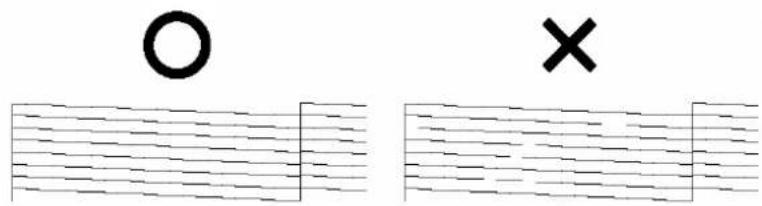
text_image
Diagram showing two labeled symbols: a circle above parallel lines and a cross above parallel lines, likely representing a geometric or physical concept.Step 4: Check the printer is in the normal status.

text_image
Ready to Print Heaters Cleaning Cut&Feed LeverUp User1 xxxm ← F2Step 5: Press the [F2] key on the operation panel.
The printer enters the cleaning menu.

flowchart
graph TD
    A["* Cleaning * Normal"] --> B["← F2"]
    C["F2"] --> D["→ ENTER"]
Step 6 : Press the [F2] key on the operation panel to change the parameters.
| Key Parameter Description | ||
| F2 | Small | Small cleaning is performed. |
| Normal | Normal cleaning is performed. | |
| Strong | Strong cleaning is performed. | |
Step 7 : Press the [ENTER] key on the operation panel to start the head cleaning.

Notes :
- If the [Cancel] key has been pressed instead of the [ENTER] key after changing the parameters, the printer returns to the normal status without performing a head cleaning.
Cleaning
Rest ** min
Step 8: When the head cleaning has been completed, the printer returns to the normal status.
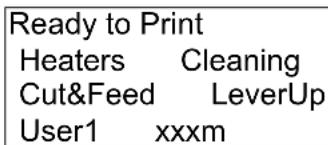
text_image
Ready to Print Heaters Cleaning Cut&Feed LeverUp User1 xxxmStep 9 : Perform a nozzle check again and check the print head.
7.3.4. Cleaning the cleaning wiper
Following are instructions for cleaning the cleaning wiper.
Follow the steps below to clean the cleaning wiper.
Step 1 : Replace an ink cartridge.

Notes :
- For instructions on replacing an ink cartridge, refer to "Replacing ink cartridges".
Step 2: If the printer is turned on, make sure of the following
➢ Printing or other operations are not performed.
Make sure that the display on the operation panel shows the normal status.
The MEDIA SET light on the operation panel goes off.
Step 3 : Follow "Menu setup on the operation panel" and display the cleaning wiper menu on the operation panel.(Refer to 'Wiper clean menu')
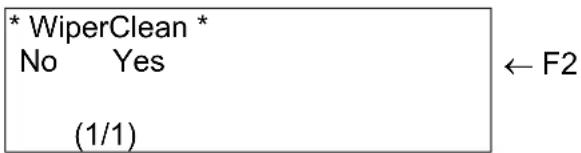
text_image
* WiperClean * No Yes (1/1) ← F2Step 4 : Select "Yes" and press the [F2] key on the operation panel.
The printer enters the cleaning wiper mode.
The carriage moves to the waiting position for cleaning the wiper.
The following message is displayed on the operation panel.

Notes :
- If you did one of the things mentioned in step 5, the printer does not clean the cleaning wiper and returns to the setup menu.
- Press the [CANCEL] key on the operation panel.
- Select "No" and pressed the [F1] key on the operation panel.
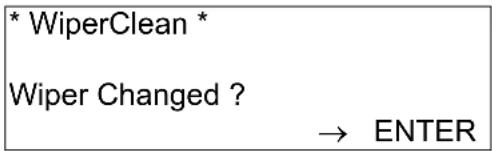
text_image
* WiperClean * Wiper Changed ? → ENTERStep 5: Remove two screws on the carriage cover.

text_image
Technical line drawing of a printer with labeled parts 1 and 2- Carriage cover 2. Screw
Step 6 : Open the front cover.

Caution :
- Be sure not to pinch your fingers while opening and closing the front cover.
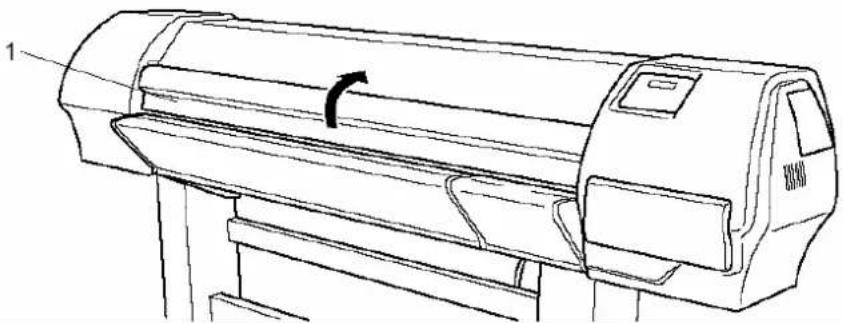
natural_image
Line drawing of a printer with a scroll wheel and label '1' (no text or symbols on the device itself)- Front cover
Step 7: Remove two screws underneath the carriage cover.
Step 8: Remove the carriage cover.
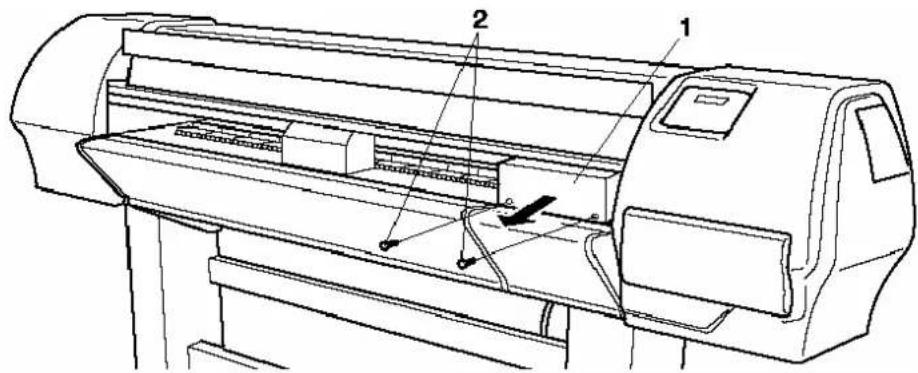
text_image
Technical line drawing of a printer with labeled parts 1, 2, and internal components- Carriage cover 2. Screw

Caution :
- Do not touch the cleaning wiper or the head cap unit while cleaning the cleaning wiper. Doing so may result in poor head cleaning because of oil on your hands.
Step 9 : Use the cloth dampened with cleaning liquid to wipe off ink on the cleaning wiper.

text_image
Technical diagram of a printer with labeled parts, showing hand operating a component and magnified view of the paper's edge.| 1. Cleaning wiper 2. Cleaning cloth | |
| 3. Head cap unit |
Step 10 : Reinstall the carriage cover following steps 5 to 8 in reverse order.

Notes :
- When using this product, the carriage cover must be installed.
Step 11 : Press the [ENTER] key on the operation panel.
The carriage moves to the cap position.
The printer returns to the normal status.
Ready to Print
Heaters Cleaning
Cut&Feed LeverUp
User1 xxxm
Step 12: Cleaning the wiper has been finished.
7.4. CHANGING INK TYPES
This chapter explains the procedures to change ink types.
Follow the procedures below to change the ink types for printing.

Caution :
- Insure that the ink does not get in your eyes or touches your skin when handling the ink cartridge. If the ink gets in your eyes or touches your skin, wash it in running water. Otherwise, it may cause a bloodshot eye or minor inflammation. If any of those symptoms are seen, consult a doctor immediately.
- Do not disassemble the ink cartridge. This may cause the ink to get in the eyes or touch the skin.
- Only use Eco-Solvent ink, Eco-Solvent Plus ink and appropriate cleaning liquid. Using other ink (e.g. dye or pigment) could cause permanent damage to the printer.

Notes :
- Do not hardly shake the ink cartridge. The ink may leak from the cartridge.
- Do not disassemble the ink cartridge. The disassembled ink cartridge is no longer usable.
- Refer to the price list for the ink type and other details of the ink cartridge. Price List
- Use only Mutoh recommended ink cartridges. This printer is adjusted under the condition of using only the recommended Mutoh ink cartridges. Using other types of ink cartridge may cause:
- Faint printing or the ink cannot be properly detected.
- The warranty will not cover (repairs will require a fee) a breakdown.

Notes :
- Refer to "Operating from the operation panel" for the key operation for the setting menu.
- Refer to "Replacing ink cartridges" for the procedures to load and unload the ink cartridge.
Step 1 : Check the following when the power of the printer is ON.
The printer is not printing.
The operation panel is in normal status.
The media setting light on the operation panel is OFF.
Step 2 : Follow "Menu setup on the operation panel" and display the Ink Manager menu.
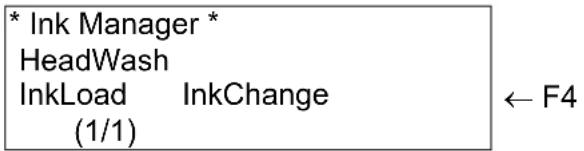
text_image
* Ink Manager * HeadWash InkLoad InkChange (1/1) ← F4Step 3 : Press the [F4] key to select 'Ink Change'.

flowchart
graph LR
    F1 --> A["No"]
    A --> B["(1/1)"]
    B --> C["Yes"]
    C --> D["F2"]
    style A fill:#f9f,stroke:#333
    style C fill:#ccf,stroke:#333
Step 4 : Select "YES" and press the [F2] key on the operation panel.
➢ Head Cleaning starts.
The following information is displayed on the operation panel.

natural_image
Black and white icon of a fountain pen nib inside a rounded square frame (no text or symbols)Notes :
- To not perform an ink change.
- Press the [CANCEL] key on the operation panel.
- Select "NO" and press the [F1] key on the operation panel.
The process consists of several cleaning loadings, several air loadings and one ink loading. On the display of the operation panel a time indication is mentioned on the fourth line.
| Message | Time 50” | Time 64” | Time 87” |
| Please remove cart. (*) | |||
| Ink Discharge (*) | 1 | 1 | 1 |
| Please insert Cleaning cart (*) | |||
| During washing wait for a while (*) | 5 | 5 | 10 |
| Remove cartridges | |||
| During washing wait for a while | 6 | 6 | 7 |
| Please insert ink cart. | |||
| Ink refill | 8 | 8 | 8 |
| The end |
(*) = This will be asked 7 times.
Step 5: The change of ink types has been completed.
7.5. TRANSFER AND TRANSPORTATION
This section explains transferring and transporting the printer.
7.5.1. Transferring the printer
Following are instructions for transferring the printer.

Caution :
- Keep the printer horizontally during transfer.
- Do not tilt the printer, stand it against a wall, or turn it upside down. Doing so may cause ink to leak inside the printer. Also, movement after transport is not covered by the warranty.
- Have two or more people to transport the printer.
(1) Before the transfer
If you are using the stand, follow the steps below to transfer the printer.
Step 1: Make sure the printer is turned off.
Step 2 : Make sure the head is in the right edge position (capping position).
Step 3 : Disconnect the power cable and all other cables.
Step 4 : Release the locks on the casters.
Step 5: The four adjusters are turned in the direction shown on the diagram.
Step 6 : Transfer the printer.

Notes :
- The caster attached to the stand has been designed for transferring the printer during short distances.

text_image
Technical diagram of a printer with labeled parts and two circular insets showing the base and adjustment mechanism.- Adjuster 2. Caster
(2) After the transfer
Follow the steps below to prepare the printer to be used after the transfer.
Step 1: Make sure that you place the printer on an adequate place.
Step 2: Lock the casters after transferring the printer.

Notes :
- For connecting cables, refer to the following.
→ Connecting the power cable
→ Connecting the printer to your PC
Step 3: Connect the power cable and other cables.

Notes :
- For connecting cables, refer to the following.
→ Connecting the power cable
→ Connecting the printer to your PC
Step 4: Perform a nozzle check to check if the printer head has clogged.

Notes :
- To perform the nozzle check, refer to "NozzleCheck".
Step 5: Perform a fine adjustment of image quality.

Notes :
- To perform an adjustment of image quality, refer to "Alignment".
7.5.2. Transporting the printer
When you transport the printer, the printer should be repacked in the original box and packing materials, to protect it from vibration or impact.

Notes :
- When you transport the printer, contact your local MUTOH dealer for assistance.
7.6. PERIODICAL SERVICES
This section describes the periodical services required for this machine.
The periodical services ensure stable printout quality of the machine.
In the periodical services, some service parts may be checked, cleaned, or replaced.

Caution :
There are to parts of periodical service, namely the parts that can be replaced by the end-user and the parts that needs to be done by authorized Mutoh technicians.
7.6.1. Service by end-user
Perform periodical inspections according to the table below.
| N° | Part number | Quantity | Action | ||
| 1 | DF-43637 | + DF-43643 | 4+1 | Replace the wipers and sponge. | |
| 2 | DF-43694 + DF-35399 2+1 Replace the sponge at the back of the capping station. | ||||
| 3 / | / Clean the wipers. | ||||
| 4 / | / Clean caps in the maintenance station. | ||||
| 5 / | / Clean around the bottom of the heads. | (NOT the nozzle plate) | |||
| N° | Month | |||||||||||||||
| 1 | 2 | 3 | 4 | 5 | 6 | 7 | 8 | 9 | 10 | 11 | 12 | |||||
| 1 | X | X | ||||||||||||||
| 2 | X | X | X | X | ||||||||||||
| 3 | WEEKLY | |||||||||||||||
| 4 | WEEKLY | |||||||||||||||
| 5 | WEEKLY | |||||||||||||||
8.3.2. Service by authorised Mutoh technician
Perform periodical inspections according to the table below.
| N° | Part number | Quantity | Action |
| 1 | MY-42110 | 4 Replace the dampers. | |
| 2 | MY-41405 | 2 Replace the pumps. | |
| 3 | MY-35380 + DF-43637 | 1+4 Replace wiper arm and wipers. | |
| 4 | ME-18280 | 4 x 0.8 m | Replace the tubing from the pumps to the waste bottle |
| 5 | MY-35085 + ME-80385 + ME-60014 | 1+ 1 m +1 | Replace the right spitting box + tube + L connection |
| 6 | MY-80627 | 1 Replace the capping station. | |
| 7 / | / Apply grease on head up-down cams. | ||
| 8 / | / Apply grease on Y-motor belt. | ||
| 9 / | / Apply grease on roller path carriage. | ||
| 10 / | / Apply grease on capping station camm + gears. | ||
| 11 / | / Clean the maintenance station area. | ||
| 12 / | / Remove dust in fan area underneath print platform. | ||
| N° | Month | |||||||||||
| 1 | 2 | 3 | 4 | 5 | 6 | 7 | 8 | 9 | 10 | 11 | 12 | |
| 1 | ||||||||||||
| 2 | X | |||||||||||
| 3 | X | |||||||||||
| 4 | ||||||||||||
| 5 | X | |||||||||||
| 6 | ||||||||||||
| 7 | X | |||||||||||
| 8 | X | |||||||||||
| 9 | X | |||||||||||
| 10 | X | |||||||||||
| 11 | X | |||||||||||
| 12 | X | |||||||||||
8. APPENDIX
8.1. INTRODUCTION
This section explains the specifications and installation procedures for optional parts.
8.2. 2 OR 4 HEATER
To verify if your printer is equipped with 2 or 4 heaters, please refer to the photo's mentioned below.
Rockhopper II 2 heater printer

natural_image
Industrial printer with a magnified inset showing internal components (no visible text or symbols)Rockhopper II 4 heater printer

natural_image
Industrial printing machine with a rolled roller and a magnified inset showing the blade detail (no visible text or symbols)8.3. PRODUCT SPECIFICATIONS
| Printers | 50"- model | 64"- model | 87"- model | ||||
| Technology Drop-on-demand Micro Piezo | Inkjet Technology.Variable drop mass output between 5.4 ng and 41.5 ng | ||||||
| Media Thickness Compensation Automatic media thickness compensation.Variable - RIP controlled - Head Height | |||||||
| Maximum Media Widths 1273 mm 1651 mm 2240 mm | |||||||
| Maximum Print Widths 1263 mm 1641 mm 2230 mm | |||||||
| Media | ThicknessDiameter / CoreWeight | Range: 0.08 mm - 1.1 mmMaximum: 150 mm / 2" or 3"Maximum: 50 kg | |||||
| Colour Channels 8 colour channels - 4 or 6 process colour output | |||||||
| Inks | Eco-Solvent (Plus) 2xCMYK speed set-upEco-Solvent (Plus) CMYKLcLm photo tone rendering set-up | ||||||
| Ink Cassette Capacity / Type 220 ml / smart chip ink type & order sensing | |||||||
| Print Modes & Panel Control Options Uni & Bi-directional output, Interweaving, Mirror Output, Multi Copy, Ink Status, Origin Control | |||||||
| Speed Overview Table ( )914mm (36") wide output | 50 & 64 87 | ||||||
| Ink Set-Up | 2 x 4 Colours | 6 Colours | 2 x 4 Colours | 6 Colours | |||
| 360 x 360○○○ ○ | 5.7 - 37.7 | 2.9 - 19.6 | 5.7 - 37.7 | 3.9 - 27.7 | |||
| 720 x 360○ | 5.8 - 22.8 | 2.9 - 11.5 | 5.9 - 23.1 | 5.3 - 20.6 | |||
| 720 x 720○○○ ○ | 2.9 - 11.4 | 1.4 - 5.6 | 2.9 - 11.5 2.6 - 10.2 | ||||
| 1440 x 720○ | 2.9 - 5.9 | 1.4 - 2.8 | 3.0 - 6.0 | 2.6 - 5.2 | |||
| 1440 x 1440○ | 1.4 - 2.9 | 0.7 - 1.5 | 1.5 - 3.0 | 1.3 - 2.6 | |||
| Output speeds are given for 914 mm (36") output.50" output is 7 % faster, 64" output is 12 % faster and 87" output is 18 % faster.For each mode, the minimum (Super High Quality) and maximum speed (Super Draft) are given.Mode dependent, there are between 2 and 6 speed levels per mode, accessible via print direction selection and interweave control from the RIP software.Top speeds indicated are super draft modes and do not guarantee production output quality on all media types.○○○ Variable Drop Compatible ○ Fixed Drop Compatible | |||||||
| LCD Display | Backlight LED - 4 lines x 20 characters | ||||||
| Take-up System (standard) | Automated | ||||||
| Roll Media Core | 2" & 3" | ||||||
| Interface | Centronics, IEEE 1284 compatible / Network, High Speed Interface (standard high-speed interface card - 4 Mb/s). | ||||||
| Graphics Command Language | RTL-PASS, MH-GL, MH-GL/2 | ||||||
| Printers | 50"- model | 64"- model | 87"- model |
| Power Consumption 1100 VA | 80 VA in stand-by mode | 1300 VA80 VA in stand-by mode | 1400 VA100 VA in stand-by mode |
| External Dimensions in mm (W x D x H) | 2700 x 750 x 1250 | 3100 x 750 x 1250 | 3700 x 750 x 1250 |
| Weight | 170 kg | 195 kg | 215 kg |
| Power Supply AC 100 – 120 V / AC 220 – | 240 V auto-switching | ||
| Working Environment Temperature: 10 – 35 °CHumidity: 20 – 80 % (no condensation) | |||
| Noise Level Operating: 54 dB or less | |||
| Standard VCCI (Class A), FCC (Class A), | UL, CE, CCIB | ||
| Standard Items Hard Disk: 20.3 GB – Stores | 16 jobs – Up to 99 copies/job – PostScript RIP included | ||
| Optional Item Extra Scroller Bars – Take-up | System – Roll-off / roll-up system | ||
Specifications are liable to changes without prior notice. All trademarks mentioned are property of their respective owners.
8.4. INTERFACE SPECIFICATIONS
This section explains the specifications for the interfaces supported by this product.
8.4.1 Centronics Bidirection Parallel Interface: IEEE1284 Specifications
(1) Interface Specifications
| Item | Specifications |
| Transmission modes Compatible, Nibble, ECP Mode | |
| Data length 8 bits | |
| Transmission direction Unidirectional (receiving only), Bidirectional | |
| Connector pin number | 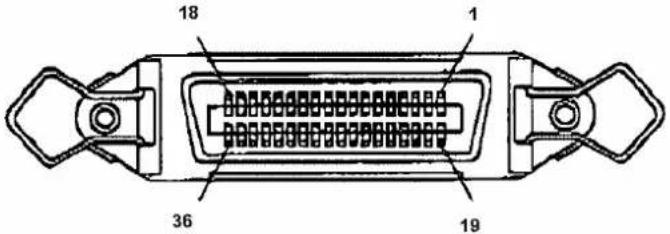 |
(2) Table of parallel interface pin numbers and signals
| Pin number | Connection signal | Signal direction Pin | number | Connection signal $signal direction | |
| 1 | STROBE | To printer | ← | 19 | SG |
| 2 | DATA1 | To and from printer ← → | 20 | SG | |
| 3 | DATA2 | To and from printer ← → | 21 | SG | |
| 4 | DATA3 | To and from printer ← → | 22 | SG | |
| 5 | DATA4 | To and from printer ← → | 23 | SG | |
| 6 | DATA5 | To and from printer ← → | 24 | SG | |
| 7 | DATA6 | To and from printer ← → | 25 | SG | |
| 8 | DATA7 | To and from printer ← → | 26 | SG | |
| 9 | DATA8 | To and from printer ← → | 27 | SG | |
| 10 | ACK | From printer → | 28 | SG | |
| 11 | BUSY | From printer → | 29 | SG | |
| 12 | P ERROR | From printer → | 30 | SG | |
| 13 | SELECTED | From printer → | 31 | INIT | To printer ← |
| 14 | AUTOFD | To printer ← | 32 | FAULT | From printer → |
| 15 | Not connected | 33 | Not connected | ||
| 16 | SG | 34 | Not connected | ||
| 17 | FG | 35 | Not connected | ||
| 18 | +5V | 36 | SELECTIN | To printer ← | |
(3) Recommended centronics cable specifications
| Item | Specifications | ||
| Interface Dual-direction Parallel | Interface:IEEE1284 | ||
| Structure | AWG28×18 | (twisted | pair |
| Shield construction Metallic tape + weaving (double shielded cable) | |||
| Characteristic impedance | 62 Ω | ||
8.4.2. Network Interface Specifications
| Item | Specifications |
| NetWork Type Ethernet IEEE802.3 | |
| NetWork I/F 10 Base-T,100 Base-TX(automativ switching)(RJ-45 connector, twisted pair cable, ycategory 5) | |
| Protocol | TCP/IP |
| Mode | ftpIprsocket |
| Functions | Automatic protocol recognitionTransmission speed up to 4 MB/sNetwork environment setting by Web. |
8.5. INSTALLATION OF OTHER PARTS
When installing parts purchased with your printer, refer to the procedures below.

Caution :
- Before installation, always perform the following.
• Power OFF the power source. - Remove the power source plug from the outlet.
- Remove all cables connected to the printer.
Failure to do so could result in damaging the printer or your computer. - Touch a metallic section of the product, to remove any static electricity in your body. The electronic components can be damaged from static electricity.
- When installing, do not touch the elements on the circuit board. The elements on the boards can be very hot, and can cause burns.
8.5.1. Installing expansion memory
This product has the following memory installed as standard, but it can be expanded optionally up to 256MB (memory sold separately).
- 50" model :128MB
- 64" model :128MB
Name Model
Expansion memory (256 MB) DIMM 256M

Notes :
- 87" model has been loaded with the standard 256MB memory. Memory expansion exceeding this is not possible.
Use the following procedure to install the expansion memory.
Step 1: Remove the maintenance cover on the side of the printer.
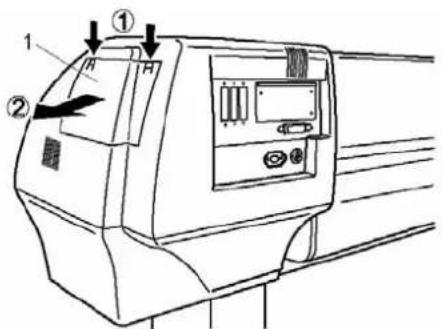
text_image
Technical diagram of a vehicle air conditioner unit with labeled components and directional arrows- Maintenance cover
Step 2: Loosen the 8 screws inside the maintenance cover. Remove the expansion memory cover.
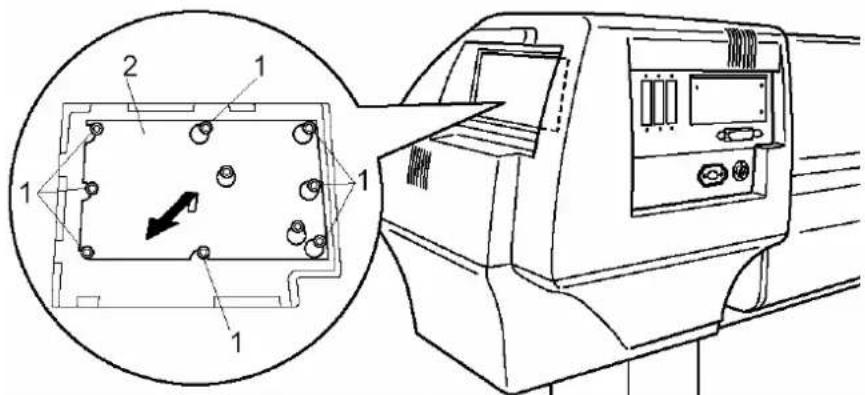
text_image
Technical diagram showing a device with labeled components and an inset view of a component with a directional arrow.- Screws 2. Expansion memory cover
Step 3: Push the tab on the right side of the memory expansion slot on the board to remove the memory from the board.

text_image
Technical diagram showing a vehicle's front panel with labeled components and a magnified inset view of the panel.- Memory 2. Expansion slot
Step 4 : Insert the memory card into the expansion slot, as shown on the figure below. ➢ Align the notched side of the memory card with the slot.

Notes :
- The expansion slot has a feature to prevent improper insertions. If the expansion slot does not go in, do not force it. This can damage the expansion slot.

text_image
Technical diagram showing a device with labeled components and an inset view of a grid-like structure.1. Expansion slot 2. Expansion memory
Step 5: Reinstall the maintenance cover.
Step 6: Connect the disconnected cables.

Notes :
- Refer to "Connecting the power cable" for details on how to install the power source cable.
8.5.2. Installation of the hard disk
Installing a hard disk in this unit will allow to effectively processing large data effectively.

Notes :
- When re-installing the exchanged hard disk, always install it into the original printer. Problems that occur due to hard disks are not guaranteed.
Step 1: Remove the hard disk slot on the back face of the unit.
▶ Hard disk slot cover

text_image
Technical diagram of a vehicle rearview system with labeled components and directional arrows1. Hard disk slot cover
Step 2: Insert the hard disk into the hard disk expansion slot.
Match the cut out section of the hard disk to the slot.

Notes :
- The hard disk slot has a feature to prevent improper insertions. If the hard disk does not go in, do not force it. This can damage the hard disk
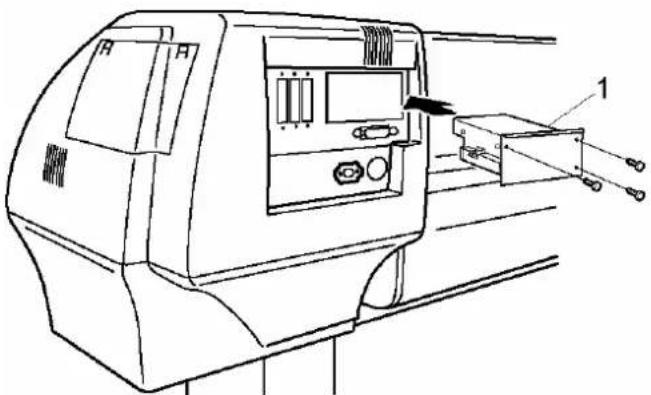
natural_image
Technical line drawing of a mechanical device with labeled components (no text or symbols present)1. Hard disk
Step 3: Connect the disconnected cables.

Notes :
- Refer to "Connecting the power cable" for details on how to install the power source cable.