
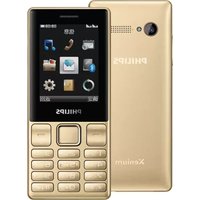
W3500 - Smartphone PHILIPS - Free user manual and instructions
Find the device manual for free W3500 PHILIPS in PDF.


| Product Type | Smartphone |
| Brand | Philips |
| Model | W3500 |
| Network | GSM / WCDMA |
| Operating System | Android |
| Display | Touchscreen |
| Camera | Yes (with flash, smile shot, panorama, etc.) |
| Connectivity | Wi-Fi 802.11 b/g/n, Bluetooth, USB 2.0 |
| Memory Card Slot | microSD, up to 32 GB |
| SIM | Dual SIM (Mini-SIM) |
| Battery | Rechargeable Li-ion, removable |
| Charger | 5V DC (estimated) |
| FM Radio | Yes (requires headset as antenna) |
| Sensors | Motion sensor (auto-rotate), accelerometer (implied) |
| Security | Screen lock (pattern, PIN, password, voice), SIM lock |
| Maintenance | Wipe with a soft cloth; avoid liquids |
| Accessories | Use only Philips authentic accessories |
| SAR Value (Head) | 0.475 W/kg (ICNIRP) |
Frequently Asked Questions - W3500 PHILIPS
User questions about W3500 PHILIPS
0 question about this device. Answer the ones you know or ask your own.
Ask a new question about this device
Download the instructions for your Smartphone in PDF format for free! Find your manual W3500 - PHILIPS and take your electronic device back in hand. On this page are published all the documents necessary for the use of your device. W3500 by PHILIPS.
USER MANUAL W3500 PHILIPS
Philips continuously strives to improve its products. Due to software upgrading, some contents in this user guide may be different from your product.Philips reserves the rights to revise this user guide or withdraw it at any time without prior notice. Please take your product as standard.
Turn your phone on and off
Press and hold power key to turn on your phone.
2 To turn off your phone, press and hold power key and then select Power off.
Note:
- If you are turning on your phone for the first time, follow the on-screen instructions to set up your device.
Lock/unlock the touch screen
You can lock the touch screen and keys to prevent any unwanted device operations.
To lock, press power key.
2 To unlock, press the icon Ⓞ and then flick your finger in any direction.
Keys
Learn about the main keys.
Key Definition Function
| Power - Press and hold to power on/off. | ||
| - Press to turn on/off the screen display. | ||
| - Hold to access the Phone options, choose Silent or Airplane mode. | ||
| Home key | - Return to the home screen. | |
| - Hold to open the list of recent applications. | ||
| Menu key | - Open a list of options available on the current screen. | |
| - On the home screen, open the Wallpaper, Manage applications and System settings. | ||
| Back key | - Return to the previous screen or exit. | |
| - Hide the onscreen keyboard when it is opened. | ||
| Side volume key | -Adjust the ringer volume while in standby mode or adjust the voice volume during a call. | |
| -When receiving an incoming call, briefly press down either volume key to mute the ringtone. | ||
Use the touch screen
Learn basic actions to use the touch screen.
Function Operation
| Tap | Touch once to select or launch a menu, option, or application. |
| Tap and hold | Tap an item and hold it for more than 2 seconds. |
| Drag | Tap an item and move it to a new location. |
| Double-tap | Tap an item twice quickly. |
| Flick | Briskly scroll up, down, left, or right to move through lists or screens. |
| Pinch | Place two of your fingers far apart, and then pinch them together. In some apps, like web browser, you can pinch the screen using two fingers(for example, thumb and index finger) to zoom in or zoom out when viewing a picture or a web pages. |
Customize home screen
You can customize the home screen to match your preferences.
Function Operation
| Add items | Tap enter into menu screen or widgets, tap and hold an item, and then drag it to home screen. |
| Move items | Tap and hold an item, and then drag it to a new location. |
| Remove items | Tap and hold an item, the trash bin appears at the bottom of the home screen. Drag the item to the trash bin.When the item turns red, release the item. |
| Select a wallpaper | In home screen, press >Wallpaper or tap and hold the blank area in home screen, select an image from options. |
Home screen
From the Home screen, you can view your device's status and access applications.
The Home screen has multiple panels. Scroll left or right to view the panels on the Home screen. There are 5 extended home screen, slide your finger horizontally to the left and right to check each one. Tap 🔒 to return to the center home screen.
You can add your favorite applications, shortcuts and widgets so they're always just a tap away.
Your phone's home screen consists of the following areas:
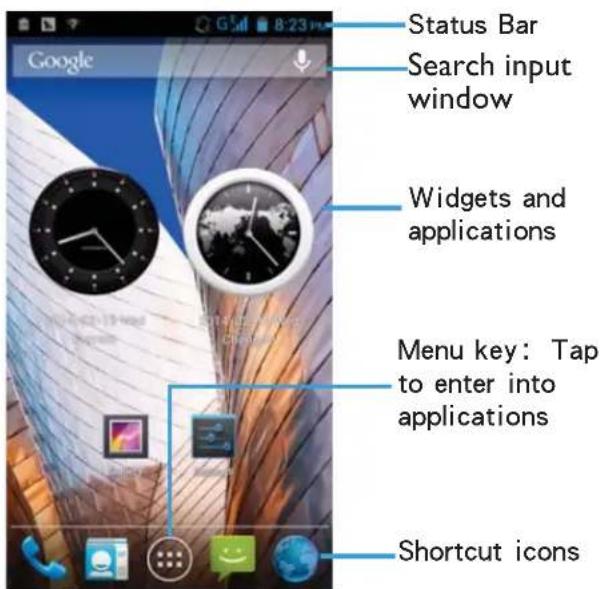
Notifications panel
When you get a new notification, you can open the Notifications panel to see what event notification or new information you have received.
- To open the Notifications panel, press and hold the status bar, then slide one finger downward. If you have several notifications, you can scroll down the screen to see them all.
- To hide the panel, drag the bottom of the panel upwards.
From the notifications panel, you can also view your phone's current status and use the each options.
- Open the notifications panel and then tap 📁 to open the phone's status panel.
- Place two fingers on the status bar, then slide your fingers downward.
Icons and symbols
Learn about the icons and symbols on the screen.
IconsFunction

Your phone will not ring when receiving a call.

Your phone will vibrate when receiving a call.

The bars indicate the battery level.

(Blue bars) normal charging.

(Blue bars) normal charging when the phone is turned off.

WLAN activated.

Your phone is connected to a GSM network. The more bars are shown the better the reception is.

Your phone is connected to network.


Downloading data.

Uploading data.

Call in progress.

You have a missed call.

New SMS.

Connected to PC.

USB debugging connected.

Bluetooth is activated.

The headset is plugged into the phone.

The alarm clock is activated.

FM radio turned on in the background.

Music is playing in the background.

Error occurred or caution required.
Getting started
Congratulations on your purchase and welcome to Philips!
To get the most of your product and enjoy all Philips has to offer, register your product at:
www.philips.com/mobilephones
More details about your product, please access:
www.philips.com/support

Note:
Please read the safety instructions in the "Safety & Precaution" section before use.
Assembling and Charge
Learn about installing USIM or SIM card and charging the battery for the first use.
Insert SIM card
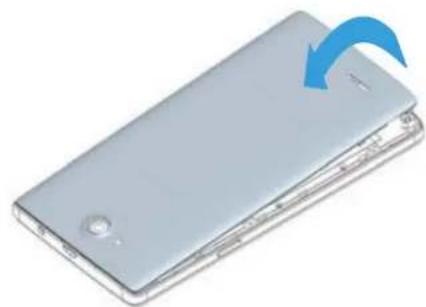
Follow the steps below to insert your USIM or SIM card. Remember to turn off your mobile phone before removing the back cover.
Remove the back cover.
natural_image
3D illustration of a smartphone with a blue arrow indicating rotation (no text or symbols)2 Take out the battery.

natural_image
3D diagram of a smartphone showing the front panel and internal components, with a blue arrow indicating the portion of the screen (no text or symbols present)3 Insert the SIM card.

natural_image
Exploded view of a smartphone showing internal components and a highlighted portion with blue arrows (no text or symbols)4 Install the battery.

5 Replace the back cover.

natural_image
Side view of a smartphone with a blue downward arrow indicating download or compression (no text or symbols present)Charge the battery
The battery icon in the upper-right corner shows the battery level of charging status.

natural_image
Line drawing of a smartphone showing the front panel and internal components, with a blue arrow indicating a specific location (no text or symbols present)
Tips:
• You can use the phone while it is charging.
- Keeping the charger plugged to the mobile phone when the battery is fully charged will not damage the battery.
- If you do not intend to use your phone for several days, we recommend that you remove the battery.
• If a fully charged battery left unused, it will lost its charge over time.
- If a battery is being used for the first time or the battery has not been used for a prolonged period, it may take longer time to recharge.
Insert a Micro SD card (Memory card)
Insert a memory card
You can expand the memory of your phone and store more additional multimedia files by adding a micro-SD card.
Your device accepts memory cards with maximum capacities of 32 GB.
1 Unlock the memory card cover.
2 Align your micro-SD card with the slot. Put it in place.

natural_image
Exploded view of a smartphone showing internal components and a highlighted area (no text or symbols)Remove the memory card
Ensure that the phone is not currently accessing the memory card. Before removing a memory card, first unmount it for safe removal.
In Idle screen, select □ > System settings> Storage >Unmount SD card.
2 Push the memory card gently until it disengages from the phone.
3 Remove the memory card.

Note:
- Do not remove a memory card while the device is transferring or accessing information to prevent corrupting or damaging the files in the memory card.
Format the memory card
Formatting your memory card on a PC may cause incompatibilities with your device. Format the memory card only on the device.
In Idle screen, select □ > System settings> Storage >Erase SD card.

Note:
- Before formatting the memory card, remember to make backup copies of all important data stored on your device.
Personalize your phone
Time and Date
In idle screen, tap☐ > System settings> Date&time to control how time and date appears on your device.
- Automatic date & time: Set to receive time information from the network and update the time and date automatically.
- Automatic time zone: Set to receive time zone information from the network when you move across time zones.
- Set date: Set the current date manually.
- Set time: Set the current time manually.
- Select time zone: Select a time zone.
- Use 24-hour format: Set to show the time in 24-hour format or 12-hour format.
- Choose date format: Select a date format.

Tips:
• If the battery remains fully discharged, the time and date will be reset.
Set a screen lock
You can lock your device by activating the screen lock feature.
In idle screen, tap □>System settings> Security>Screen lock.
• None: Disable the screen lock.
- Slide: Choose slide to unlock the screen.
• Voice Unlock:Set a voice recognition unlock.
• Pattern: Draw a pattern to unlock the screen.
• PIN: Unlock the screen by enter the PIN code.
- Password: Create your private password to unlock the screen.
Lock your SIM card
You can lock your phone with the PIN that is supplied with your SIM card.
In idle screen, tap □ > System settings> Security> Set up SIM card lock> Lock SIM card.
2 Select the SIM card, enter your PIN and select OK.
Note:
- If you enter an incorrect PIN too many times, your SIM card will be blocked. You must enter a PIN unlock key (PUK) to unblock the SIM card.
- If you block your SIM card by entering an incorrect PUK, take the SIM card to your service provider to unblock it.
Access applications
- Scroll left or right to another screen, select an application.
- On the Home screen, tap to access the application list.
- Press 📋 to return to the previous screen, press 🔒 to return to the Home screen.
- Access recently-used applications: Press and hold 📋 to view the applications you have accessed recently.
Tips:
- Your device has a built-in motion sensor that detects its orientation. If you rotate the device while using some features, the interface will automatically switch to landscape view. To set the interface to keep the orientation when you rotate the device, select Settings>Display>Auto-rotate screen.
Manage applications
learn about how to view the running apps, and
• In idle screen, tap □>Manage apps.
- Tap Running, you can view all the running apps, tap this app to enter it, you can tap Stop to choose stop running.
- Tap Downloaded, you can view all the downloaded apps, tap this app to enter it, you can check the detailed information of this app, tap Uninstall to choose unloading it.
Basic function
Calls
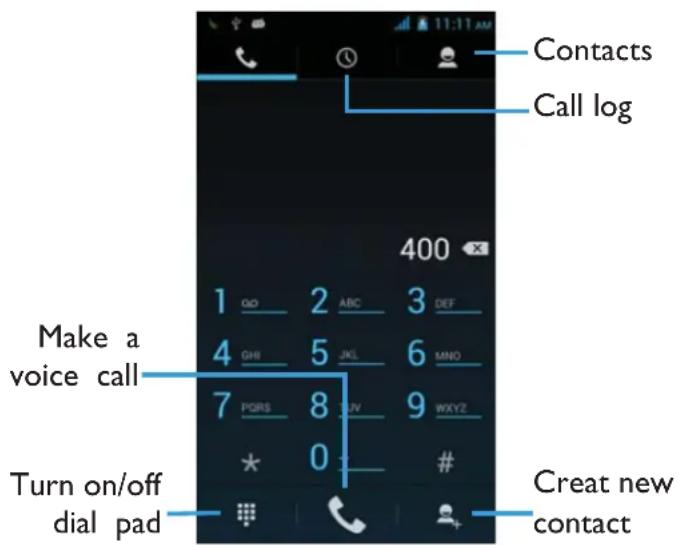
Make a call
In the application list, tap .
2 Dial the number directly or choose one number from the filtered list that have matching digits.
3 Make a voice call or a video call.
4 Tap to end the call.
Tips:
- The phone dialer's Smart dial features makes it quick and easy for you to make a call. Simply enter the phone number or first few letters of the person's name you want to call. Smart dial automatically searches and filters your stored contacts and the phone numbers from the call history.
Note:
- For international calls, long press 0 to enter the “+” sign for the international prefix.
- It is illegal in many areas to record a call without permission. Always ask the other party for permission before recording a call.
Answer/Reject a call
During an incoming call, press and hold 📋 and then drag your finger right to answer the call, drag left to reject the call.(Press the side volume key to adjust the volume).
2 Tap to hang up.
Make a conference call
If network applicable, you can handle two or more calls, or make a conference call.
During a call, tap to enter a phone number, and then tap dial the number. The second number is dialled.
2 The first call is put on hold at this time.
3 Tap to switch the phone, tap to start conference.
4 To end the call, tap 🔍 to hang up.

Make an emergency call
Without a SIM card in phone, you can make the emergency call.
In Europe, the standard emergency number is 112; in the UK, it is 999.

Tips:
- If you've enabled but forgot your lock password or lock pattern, you can still make emergency calls by tapping Emergency call on the screen.
Messages
Send a message
In the application list, tap
2 Tap New message
3 Enter the number or tap to select the number from phonebook.
4 Select the text field and enter your message text.
5 Press □ > Add subject and add a subject for the message.
6 Tap and attach a file. (Pictures, Videos, Audio or Slideshow)
7 Tap to send the message.


Note:
• Copyright protected pictures and sound cannot be sent by MMS.
Set up an email account
On the home screen, tap
2 Enter your email address and password.
3 Select Manual setup and choose POP3/IMAP/Exchange and then tap Next.

4 If the account type you want to set up is not in the phone database, you'll be asked to enter more details.
5 Follow the on-screen instructions.

Note:
- When you are finished setting up the email account, the email messages are downloaded to your device.
- Select an account name at the top of the screen, and then select the account from which you want to retrieve messages.
- Consult your mail service provider for the mail server configuration.
Manage your phonebook
Add a new contact
Tap to enter the Contacts.
2 Tap and select a memory location.
3 Add phone number and details as desired.
4 Tap Done to finish saving.

Tips:
- You can create contacts from the dialling screen by selecting Add to contacts.
- For contacts on the smart phonebook, you can add detailed information, like home number, office number, contact pictures and ringtones.
Create your namecard
In the application list, tap
2 Select Set up my profile at the top of the contact list.
3 Enter your personal details.
4 TapDone.


You can send your namecard to others or share it by pressing □ and selecting Share.
Create a group of contacts
By creating groups of contacts, you can manage multiple contacts and send a message to an entire group.
In the application list, tap
2 Tap and select a memory location.
3 Enter a name and customize the settings for the group.


4 Add members to the group.
5 TapDone.
MultiMedia
Music
Play music
1 Tap to open the music screen.
2 Select a music category.
3 Using the following keys to control playback.
| Function Definition | |
| Play and resume playback. | |
| Pause the playback. | |
| Select previous track. | |
| Select next track. | |
| Select the play mode:Repeat once (play current file repeatedly)Repeat all (play all the files in the folder repeatedly) | |
| Activate Shuffle mode, play current file randomly. | |
| Select to enter into playlist. | |
| Return to the home screen. | |
Music settings
Press ☐ to enter into Settings:
• Party shuffle: Play all the files in the folder randomly.
- Add to playlist: Add new music to your playlist.
• Use as SIM1/SIM2 ringtone: Choose music as ringtone.
• Delete: Delete the music from playlist.
• Sound effects: Select a sound effect.
• Library: Return to music category.

Note:
- When listening to music, adjust the volume to a moderate level. Continuous exposure to high volume may impair your hearing.
Camera
Take a photo/video
In the application list, select
2 Tap to switch to the camcorder.
3 Aim the camera lens at the subject and make any necessary adjustments.
4 To zoom in, place two fingers on the screen and slowly spread them apart. To zoom out, pinch them together.
5 Select 📄 to take a photo/video. The photo/video is saved automatically.

Camera shortcuts
| Icon Option Function | |
| Switch Switch to the front camera to take a photo of yourself. | |
| Flash setting You can turn on or off the flash manually, or set the camera to use the flash when needed. | |
| Normal mode Take photo in normal mode. | |
| Smile shot Set the device to recognise people's faces and help you take photos of them when they smile. | |
| Settings Camera settings. | |
Camera settings
| Option Function | |
| GPS location info | Set the camera to include location information for your photos. |
| Exposure | Adjust the exposure value to change the brightness. |
| Color effect | Apply a special effect, such as sepia or black and white tones. |
| Scene mode | Change the scene mode. |
| White balance | White balance enables the camera to capture colors more accurately by adjusting to your current lighting environment. |
| Image Properties | Select a quality level for your photos. |
| Anti-flicker | Reduce blur caused by the device's vibration or movement. |
| Restore defaults | Restore to default settings. |
| Zero shutter delay | Turn on zero shutter delay, which will help capture the picture. |
| Voice capture | Capture the voice. |
| Face Detection | Set the device to recognise people's faces and help you take photos of them. |
| Self timer | Select the length of the delay before the camera takes a photo. |
| Continuous shot | Continuous shooting function. |
| Picture size | Select the size of picture. |
| Preview size | Adjust the preview size. |
| IOS | Adjust the sensitivity of the imaging sensor. |
| Face beauty | Hide facial imperfections. |
| EIS | Adjust the EIS level. |
| Microphone | Turn on/off microphone. |
| Audio mode | Activate the meeting mode to improve the quality of recording. |
| Timer lapse interval | Select the length of the delay before the camcorder starts recording a video. |
| Effects | Apply a special effect. |
| Video quality | Select a quality level for your photos. |
View photos
After taking photos, select the image viewer icon to view the taken photos or tap 📋 to view photos.
• To view more photos, scroll left or right.
- To zoom in or out, place two fingers on the screen and slowly spread them apart or pinch them together. To return to the original size, double-tap the screen.
• To send a photo to others, tap
- Press the Option key ☐ to access the following options:
- Delete: delete the photo.
- Slideshow: To start a slide show.
- Edit: To edit the photo with the image editor.
- Crop: To add the photo to the clipboard.
- Set picture as: To set the photo as your wallpaper or a contact image.
- Details: To view the detailed information of this photo.
Sound Recorder
Learn to operate your device's voice recorder.
Record a voice memo
Open the application list and tap
2 Tap to start recording.
3 Tap ■ to finish recording and choose to save/discard it. (Tap listen to the voice memo before saving or discarding)


Play a voice memo
Tap >Playlists>My recordings to access the voice memo list.
2 Select a voice memo to listen.
FM radio
To listen to the FM radio, you must connect a headset, which serves as the radio antenna.
Listen to the FM radio
Plug a headset into your phone.
2 Tap to enter into FM radio.
3 Tap◀/▶ The FM radio scans and saves available stations automatically. Tap< / > to tune the radio frequency by +/-0.1 MHz.
4 Tap do set the radio.
Radio settings
Tap to access the following options:
- Search: scan the radio channels and saves available stations automatically. Tap ≡ to view the playlist.
• Speaker: turn on the Speaker. - Record FM: record the FM voice you want to record, Tap ● to start recording, tap ■ to stop recording. Tap 📷> Playlists>FM recordings to access the voice memo list.
Alarm
Set an alarm
In application list, tap
2 Tap Ⓤ >On and set the details of the alarm, or turn on the existing alarm.
Stop an alarm
When the alarm rings,
- Select ⚙ : The alarm stops.
- Select z^z^* : The alarm will sound again after 10 minutes.
Use the stopwatch
Tap ⚙ >Start to begin the stopwatch.When you are finished, select Stop.
Use the countdown timer
Tap
2 Set the length of time to count down.
3 Select Start to begin the countdown.
4 When the timer expires, select Stop to stop the alarm. Tap 📄 to clear time data.
Calculator
Learn to perform calculations with your phone.
- Use the keys on the screen to perform basic calculations. (Scroll the screen to view the scientific calculator).
- Press □>Clear history to clear the calculation history.
Bluetooth
Your phone can connect to a compatible Bluetooth device for exchanging data.
Turn on/off Bluetooth
From the Home screen, tap Bluetooth.
2 Select to turn on/off the Bluetooth.
3 Tap the Bluetooth to enter into it for other bluetooth settings.
Note:
- Turn off Bluetooth when not in use to save battery power, or in places where using a wireless device is prohibited, such as on board an aircraft and in hospitals.
Receive data via Bluetooth
Turn on the Bluetooth firstly, then tap 📋> Bluetooth to make device visible.
2 Then select Search for devices.
3 Select a device, Enter a pair password and select Accept to pair with the other device.
4 On the receiving device, accept the file.

Note:
- Some devices, especially headsets or hands-free car kits, may have a fixed Bluetooth PIN, such as 0000. If the other device has a PIN, you must enter it.
Send data via Bluetooth
Select a file or item, such as a contact, calendar event, memo, or media file, from an appropriate application or My files.
2 Select an option for sending data via Bluetooth.
3 Search for and pair with a Bluetooth-enabled device.
Wi-Fi
You can connect to the Internet or other network devices anywhere an access point or wireless hotspot is available.
Turn on Wi-Fi and connect to a Wi-Fi
From the Home screen, tap >Wireless & networks> Wi-Fi.
2 Drag the Wi-Fi switch to the right, turn Wi-Fi on.
3 Your device searches for available Wi-Fi APs automatically.
4 Select an AP.
5 If you selected a secured network, you'll be asked to enter the network key or password.
6 Select Connect.
VPN
Learn to create virtual private networks (VPNs) and connect
Set up a VPN profile
In the application list, tap >Wireless & networks>More>VPN
2 Tap + to enter a name for the VPN server and select a VPN type.
3 Change the options as required.
4 When you are finished, select Save.

Tips:
• The options available may vary depending on the VPN type.
- Your device should already be configured with Internet access. If you have trouble accessing the Internet, you must edit the connections. If you are not sure what information to enter, ask your VPN administrator.
• To use this feature, you must activate the screen lock feature.
Connect to a VPN
In the application list, tap >Wireless & networks>VPN.
2 Select a private network.
3 Enter the user name and password, and then select Connect.
Mobile network sharing
Learn to set your device as a wireless modem or wireless access point for PCs or other devices, and share your device's mobile network connection.
Share mobile network via USB
Using a USB cable, connect the multifunction jack on your device to a PC.
2 In the application list, select Settings>Wireless and network>More>Tethering & portable hotspot.
3 Select USB tethering to activate the USB tethering feature. Your device shares the mobile network connection on your PC.
4 To stop sharing the network connection, tap to turn off USB tethering.
PC connections
Learn to connect your phone to a PC with a USB cable in USB connection modes.
Connect your phone to a computer with a USB cable.
2 When connected, select Turn on USB storage.
3 You phone act as a removable disk. If you insert a memory card in the device, you can also access the file directory of the memory card by using the device as a memory card reader.
4 Copy files from the PC to the memory card.
5 When you are finished, select Turn off USB storage.
Settings
Wireless&Networks
| Function | Definition . |
| SIM management | Set the dual SIM card information/set the SIM card for data connection, call, message. |
| Wi-Fi | Activate the Wi-Fi feature to connect to a Wi-Fi AP and access the Internet or other network devices. |
| Bluetooth | Activate the Bluetooth feature to exchange information over short distances. |
| Data usage | Keep track of your data usage amount, and customise the settings for the limitation. |
| Airplane mode | Activate Flight mode to disable all wireless functions on your device. You can use only non-network features. |
| VPN | Set up and manage virtual private networks (VPNs). |
| Tethering& portable hotspot | •Set to use your device as a wireless modem by making a USB connection with a computer.•Set to use your device as a wireless access point for other devices.•Activate the Bluetooth tethering feature to share your mobile network with computers via Bluetooth. |
| Mobile networks | •Set to use data connections on any mobile network.•Set to use data connections when you are roaming. |
| USB Internet | Sharing Windows PC internet via USB cable |
Device
| Function | Definition . |
| Audio profiles | •Select the profiles of the phone.•Set the volume and type for ringtong, alarm and notification. |
| Display | Change the settings to control the display and backlight on your device. |
| Storage | View memory information for your device and memory card.You can also format the memory card. |
| Battery | View the amount of battery power consumed by your device. |
| Apps | Manage running applications, move applications to or from the storage card, and install or uninstall programs. |
Personal
| Function | Definition . |
| Location access | Select the sources to use when determining your location. |
| Security | Set a screen lock or manage the credential storage. |
| Language&input | Set the operating system language and region. You can also set onscreen keyboard options. |
| Reset | Reset your settings to the factory defaults and delete all your data. |
Account
Add your email accounts, see "Email" on page 13.
System
| Function | Definition . |
| Date&time | •Set the date and time, time zone, and date or time format.•Choose the time and date formats that suit you. |
| Scheduled power on&off | Set the time to power on/off automatically. |
| Accessibility | Use these settings when you’ve downloaded and installed an accessibility tool, such as a screen reader that provides voice feedback. You can turn accessibility functions or services on or off. |
| Developer options | Tap About phone>Build number for seven times, you can open the Developer Options.Activate and change the settings for application development.. |
| About phone | View different information about the phone, such as the battery, legal information, model number, software version, base band version and build number.If the network is available, tap System updates to update the system to latest version. |
Safety & Precaution
Precaution
Keep your phone away from small children

Keep your phone and all accessories out of the reach of small children. Small parts may cause choking or serious injury if swallowed.
Radio Waves

Your phone transmits/receives radio waves in the GSM frequency and WCDMA.

Check with the vehicle manufacturer that electronic equipment used in your vehicle will not be affected by radio energy.
Switch off your phone...

Turn off the phone when in an aircraft. The use of mobile phones in an aircraft may be dangerous for the operation of the aircraft, disrupt the mobile phones network and may be illegal.

In hospitals, clinics, other health care centers and anywhere else where you may be in the close vicinity of medical equipment.

In areas with a potentially explosive atmosphere (e.g. petrol stations and also areas where the air contains dust particles, such as metal powders). In a vehicle transporting flammable products vehicle powered by liquefied petroleum gas (LPG). In quarries or other areas where blasting ations are in progress.
Your mobile phone and your car

Avoid using your phone while driving and obey all regulations that restrict the use of mobile phones while driving. Use hands free accessories to increase your safety when possible.
Handle your phone carefully and sensibly

For the optimal and satisfactory operation of the phone you are recommended to use the phone in the normal operating position.
- Do not expose your phone to extreme temperatures.
- Do not immerse the phone in any liquid; if your phone is damp, switch it off, remove the battery and let them dry for 24hrs before using them again.
• To clean the phone, wipe it with a soft cloth. - In hot weather or after prolonged exposure to the sun (e.g., behind a window or a windscreen), the temperature of your phone's casing might increase. Be very careful in this case when picking up your phone and also avoid using it with an ambient temperature over 40^ C.
Protect batteries from damage

You should only use Philips Authentic Accessories, as the use of any other accessories may damage your phone and may be dangerous, and will make all guarantees for your Philips phone end void. The use of an unspecified type of battery may also cause an explosion.
Make sure damaged parts are replaced immediately by a qualified technician and that they are replaced with genuine Philips replacement parts.
- Your phone is powered by a rechargeable battery.
• Use specified charger only.
Do not incinerate. - Do not deform or open the battery.
- Do not allow metal objects (such as keys in your pocket) to short circuit the battery contacts.
- Avoid exposure to excessive heat ( >60^ C or 140^ F), moisture or caustic environments.
Environmental care

Remember to observe the local regulations regarding the disposal of the packaging materials, exhausted batteries and old phone and please promote their recycling. Philips has marked the safety and packaging with standard symbols designed to promote the recycling and appropriate disposal of your eventual waste.

:The labeled packaging material is recyclable.
●: A financial contribution has been made to the associated national packaging recovery and recycling system.
△: The plastic material is recyclable (also identifies the type of plastic).
Hearing Protection

When listening to music, adjust the volume to a moderate level.
Continuous exposure to high volume may impair your hearing.
WEEE Marking in the DFU: "Information to the Consumer"
Disposal of your old product
Your product is designed and manufactured with high quality materials and components, which can be recycled and reused.
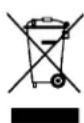
When this crossed-out wheeled bin symbol is attached to a product it means the product is covered by the European Directive 2002/96/EC
Please inform yourself about the local separate collection system for electrical and electronic products.
Please act according to your local rules and do not dispose of your old products with your normal household waste. The correct disposal of your old product will help prevent potential negative consequences for the environment and human health.
This device may contain commodities, technology or software subject to export laws and regulations from the US and other countries. Diversion contrary to law is prohibited.
Tips
Pacemakers
If you have a pacemaker:
• Always keep the phone more than 15 cm from your pacemaker when the phone is switched on, in order to avoid potential interference.
- Do not carry the phone in a breast pocket.
- Use the ear opposite to the pacemaker to minimize the potential interference.
- Switch off your phone if you suspect that interference is taking place.
Hearing aids
If you are a user of a hearing aid, consult your physician and hearing aid manufacturer to learn whether your particular device is susceptible to cellular phone interference.
How to prolong the battery life of your phone
To have your mobile phone function properly, sufficient battery power is important. For the power-saving purpose, do the following, if applicable:
• Turn off the Bluetooth function of your phone.
- Set the backlight level and duration of your phone to a low value.
- Establish GPRS connection when needed. Otherwise, your phone will keep searching for GPRS connection, and drain your battery power.
- Turn off your phone if there is no coverage. Otherwise, the phone will keep searching for network, and drain your battery power.
Troubleshooting
The phone does not switch on
Remove/reinstall the battery. Then charge the phone until the battery icon stops scrolling. Unplug the charger and try to switch the mobile on.
The display shows BLOCKED when you switch on the phone
Somebody tried to use your phone but didn't know the PIN code nor the unblocking code (PUK).
Contact your service provider.
The display shows IMSI failure
This problem is related to your subscription. Contact your operator.
Your phone doesn't return to idle screen
Long press the hang-up key or switch off the phone, check that the SIM card and the battery are installed correctly and switch it on again.
The network symbol is not displayed
The network connection is lost. Either you are in a radio shadow (in a tunnel or between tall buildings) or you are outside the network coverage area. Try from another place, try to reconnect to the network (especially when abroad), check that the antenna is in place if your mobile has an external antenna, or contact your network operator for assistance/information.
The display doesn't respond (or the display responds slowly) to key presses
The display responds more slowly at very low temperatures. This is normal and does not affect the operation of the phone. Take the phone to a warmer place and try again. In other cases please contact your phone supplier.
Your battery seems to over heat
You might be using a charger that was not intended for use with your phone. Make sure you always use the Philips authentic accessory shipped with your phone.
Your phone doesn't display the phone numbers of incoming calls
This feature is network and subscription dependent. If the network doesn't send the caller's number, the phone will display Call I or Withheld instead. Contact your operator for detailed information on this subject.
You can't send text messages
Some networks don't allow message exchanges with other networks. First check that you have entered the number of your SMS centre, or contact your operator for detailed information on this subject.
You can't receive and/or store JPEG pictures
A picture may not be accepted by your mobile phone if it is too large, if its name is too long, or if it doesn't have the correct file format.
You feel that you have missed some calls
Check your call divert options.
When charging, the battery icon shows no bar and the outline is flashing
Only charge the battery in an environment where the temperature does not go below 0^ C ( 32^ F) or above 50^ C ( 113^ F).
In other cases please contact your phone supplier.
The display shows SIM failure
Check that the SIM card has been inserted correctly. If the problem persists, your SIM card may be damaged. Contact your operator.
When attempting to use a feature in the menu, the display shows NOT ALLOWED
Some features are network dependent. They are only available, therefore, if the network or your subscription supports them. Contact your operator for detailed information on this subject.
Your phone doesn't work well in your car
A car contains many metallic parts that absorb electromagnetic waves which can affect the phone's performance..

Note:
- Check with the local authorities whether or not you are allowed to use the phone while driving.
Your phone is not charging
If the battery is completely flat, it might take several minutes of pre-charge (up to 5 minutes in some cases) before the charging icon is displayed on the screen.
The picture captured with the phone camera is not clear
Make sure that the camera lens on both sides is clean.
Trademark Declaration
Android Android is a trademark of Google, Inc.
Bluetooth ^™ Bluetooth ^™ is a trade-mark owned by telefonaktiebolaget L M Ericsson, Sweden and licensed to Philips.
Philips PHILIPS and PHILIPS' Shield Emblem are registered trademarks of Koninklijke Philips N.V. manufactured by Shenzhen Sang Fei Consumer Communications Co., Ltd. Under license from Koninklijke Philips N.V..
Specific Absorption Rate Information
International standards
THIS MOBILE PHONE MEETS THE INTERNATIONAL RECOMMENDATIONS FOR EXPOSURE TO RADIO WAVES
Your mobile phone is a radio transmitter and receiver. It is designed and manufactured not to exceed the limits for exposure to radio frequency (RF) energy defined by the international standards. These recommendations have been established by the International Commission on Non-Ionizing Radiation Protection (ICNIRP) and, the Institute of Electrical and Electronics Engineers (IEEE) that forecast a substantial safety margin for assuring the protection of all persons, regardless of age and health.
The exposure recommendations for mobile phones use a measurement unit known as the Specific Absorption Rate (SAR). The SAR limit recommended by the ICNIRP for the mobile phones used by the general public is 2.0W/kg averaged over ten grams of tissue and, is 1.6W/kg averaged over one gram of tissue by IEEE Std 1528 for the head.
Tests for SAR have been conducted using recommended operating positions with the mobile phone transmitting at its highest certified power level in all tested frequency bands. Although the SAR is determined at the highest certified power level, the actual SAR levels of the mobile phone while operating are generally below the maximum SAR value. This is because the phone is designed to
operate at multiple power levels so as to use only the power required to reach the network. In general, the closer you are to a base station antenna, the lower the power output.
While there may be differences between the SAR levels of various phones and at various positions, they all meet the international protection standards for exposure to radio waves.
The highest SAR value for this W3500 model phone when tested for use at ear was 0.475 W/kg and when worn on the body was 0.413W/kg for ICNIRP recommendation.
For limiting the radio waves exposure, it is recommended to reduce the mobile phone call duration or to use a headset. The purpose of those precautions is to take the mobile phone away from the head and the body.
Declaration of Conformity
We,
Shenzhen Sang Fei Consumer
Communications Co., Ltd.
II Science and Technology Road,
Shenzhen Hi-tech Industrial Park,
Nanshan District, Shenzhen 518057
China
declare under our sole responsibility that the product
Philips W3500
Philips GSM/WCDMA
TAC number: 86281302
to which this declaration relates, is in conformity with the following Standards:
SAFETY : EN 60950-1:2006/A12:2011
HEALTH : EN 62209-1:2006, EN 62209-2:2010
EN 50360:2001
EN 62479:2010 EN 50566:2013
EMC: EN 301 489-1 v1.9.2, EN 301 489-3 V1.6.1
EN 301 489-7 v1.3.1, EN 301 489-17 v2.2.1
EN 301 489-24 v1.5.1, EN 55013:2001/A2:2006
EN 55020:2007/A11:2011, EN 55022:2010, EN 55024:2010
Radio: EN 300 328 VI.7.I, EN300 440-2 VI.4.I, EN 301 511 V9.0.2
EN 301 908-1 V5.2.1, EN 301 908-2 V5.2.1
We hereby declare that (all essential radio test suites have been carried out and that) the above named product is in conformity to all the essential requirements of Directive 1999/5/EC.
The Conformity assessment procedure referred to in Article 10 and detailed in Annex III or IV of Directive 1999/5/EC has been followed with the involvement of the following Notified Body(ies):
TÜV SÜD BABT Octagon House, Concorde Way, Segensworth North, Fareham, Hampshire, PO155RL
Identification mark: CE0168
December 6, 2013
Quality Manager



- Turn your phone on and off
- Note:
- Lock/unlock the touch screen
- Keys
- Use the touch screen
- Customize home screen
- Home screen
- Notifications panel
- Icons and symbols
- IconsFunction
- Getting started
- Assembling and Charge
- Insert SIM card
- Charge the battery
- Tips:
- Insert a Micro SD card (Memory card)
- Insert a memory card
- Remove the memory card
- Format the memory card
- Personalize your phone
- Time and Date
- Set a screen lock
- Lock your SIM card
- Access applications
- Manage applications
- Basic function
- Calls
- Make a call
- Answer/Reject a call
- Make a conference call
- Make an emergency call
- Messages
- Send a message
- Set up an email account
- Manage your phonebook
- Add a new contact
- Create your namecard
- Create a group of contacts
- MultiMedia
- Music
- Play music
- Music settings
- Camera
- Take a photo/video
- Camera shortcuts
- Camera settings
- View photos
- Sound Recorder
- Record a voice memo
- Play a voice memo
- FM radio
- Listen to the FM radio
- Radio settings
- Alarm
- Set an alarm
- Stop an alarm
- Use the stopwatch
- Use the countdown timer
- Calculator
- Bluetooth
- Turn on/off Bluetooth
- Receive data via Bluetooth
- Send data via Bluetooth
- Wi-Fi
- Turn on Wi-Fi and connect to a Wi-Fi
- VPN
- Set up a VPN profile
- Connect to a VPN
- Mobile network sharing
- Share mobile network via USB
- PC connections
- Settings
- Account
- Safety & Precaution
- Precaution
- Keep your phone away from small children
- Radio Waves
- Switch off your phone...
- Your mobile phone and your car
- Handle your phone carefully and sensibly
- Protect batteries from damage
- Environmental care
- Hearing Protection
- WEEE Marking in the DFU: "Information to the Consumer"
- Disposal of your old product
- Tips
- Pacemakers
- Hearing aids
- How to prolong the battery life of your phone
- Troubleshooting
- The phone does not switch on
- The display shows BLOCKED when you switch on the phone
- The display shows IMSI failure
- Your phone doesn't return to idle screen
- The network symbol is not displayed
- The display doesn't respond (or the display responds slowly) to key presses
- Your battery seems to over heat
- Your phone doesn't display the phone numbers of incoming calls
- You can't send text messages
- You can't receive and/or store JPEG pictures
- You feel that you have missed some calls
- The display shows SIM failure
- When attempting to use a feature in the menu, the display shows NOT ALLOWED
- Your phone doesn't work well in your car
- Your phone is not charging
- The picture captured with the phone camera is not clear
- Trademark Declaration
- Specific Absorption Rate Information
- International standards
- The highest SAR value for this W3500 model phone when tested for use at ear was 0.475 W/kg and when worn on the body was 0.413W/kg for ICNIRP recommendation.
- Declaration of Conformity
Brand : PHILIPS
Model : W3500
Category : Smartphone