
IPCAMHD85 - Camera SereneLife - Free user manual and instructions
Find the device manual for free IPCAMHD85 SereneLife in PDF.


| Product Type | IP Camera |
| Model | IPCAMHD85 |
| Brand | SereneLife |
| Resolution | 1920x1080 (Full HD) |
| Lens | Fixed focal length, 3.6mm |
| Night Vision | Up to 30m IR LEDs |
| Field of View | 70° horizontal |
| Audio | Two-way audio with built-in microphone and speaker |
| Connectivity | Wi-Fi 802.11 b/g/n, Ethernet port |
| Power Supply | DC 12V, 1A (adapter included) |
| Power Consumption | 6W max |
| Dimensions | 110 x 90 x 140 mm (with bracket) |
| Weight | 350 g |
| Material | Plastic housing |
| Waterproof Rating | IP65 (indoor and outdoor use) |
| Storage | MicroSD card up to 128GB, cloud storage supported |
| Main Functions | Motion detection, sound detection, email alerts, recording schedule |
| Software | Compatible with iOS and Android app |
| Cleaning | Gently wipe with a dry cloth; avoid liquids |
| Safety | Keep away from heat sources; use only provided adapter |
| Spare Parts | Contact SereneLife support for replacement parts |
| Repairability | Refer to authorized service center; no user-serviceable parts |
Frequently Asked Questions - IPCAMHD85 SereneLife
User questions about IPCAMHD85 SereneLife
0 question about this device. Answer the ones you know or ask your own.
Ask a new question about this device
Download the instructions for your Camera in PDF format for free! Find your manual IPCAMHD85 - SereneLife and take your electronic device back in hand. On this page are published all the documents necessary for the use of your device. IPCAMHD85 by SereneLife.
USER MANUAL IPCAMHD85 SereneLife
IPCAMHD45 IPCAMHD50


IPCAMHD80 IPCAMHD85

IPCAMHD45 - IPCAMHD50 - IPCAMHD80 - IPCAMHD85
IP Camera WiFi Cam
HD Network Camera with Remote App Control, 720p
TABLE OF CONTENTS:
PRODUCT STRUCTURE DIAGRAM 1
SETUP AN ACCOUNT USERNAME 2
ADD CAMERA TO APP 3
CONNECT TO YOUR NETWORK 4
WEB ACCESS 5
PASSWORDS 5
MOBILE APP LAYOUT 5
CAMERA VIEW PAGE 7
CAMERA RECORDINGS 8
DEVICE SETTINGS 9
RECORDING YOUR CAMERA 10
MOTION DETECTION
AND NOTIFICATION SETTINGS EXPLAINED 11
HOW TO IMPROVE PLAYBACK PERFORMANCE 12
Don't forget to register your camera with us online to get a free 1 year manufacturer's warranty!
Just go to www.SereneLifeHome.com
'SereneViewer' APP Installation
A. Scan 'SereneViewer' APP QR code or search to download the app.

iOS Andriod

Setup an Account Username

Click "Sign Up"

Create your camera username - 6 characters min - Do not use email address
Note:
This user name will be used to access all of your cameras from the app or PC.
Create an account password - Click "Sign Up"
Note: This will be used to log in to all of the cameras on your account and can be separate from the camera password

Add Camera to APP
- Enter 'Device List' and click '+' icon at the top of left corner. Then scan the device ID QR code.
![graph LR A["Hand icon"] --> B["QR code"] B --> C["Wi-Fi interface with Wi-Fi symbol"]](/content/2026/05/1077363/images/ef07039fd774aab83d8598d71f41d93911b8815d01484f2f78671c4ec52ccbc5.jpg)
Connect to Your Network
Choose method 1 or 2 for setup
Method 1: Wired Setup
-Connect power, Ethernet cable as above.
- Wait 50 seconds for ( 2 ) indicator on the camera to flash green
-After scanning QR code - select the "Ethernet Connection" option

Method 2: Wi-Fi Connection
• Make sure you are in the same room as your wireless router and plug camera into power.
QR Code Method:
- Wait 1-2 min for camera boot up, scanning QR Code, watch for the WiFi indicator on the front of the camera to flash red and green alternating. Click the Wi-Fi connection icon, operate it under the APP instructions.
![graph LR A["Smartphone with Wi-Fi icon"] --> B["Robot"] C["Power"] --> B D["Router"] --> E["Phone"]](/content/2026/05/1077363/images/9c2295d6a026b2a46bec3af26c2d4d6868cbd26cdb77d742cb98a25e6312f572.jpg)
Web Access:
After setting up your camera on the mobile phone - you can use your account username and password to access the cameras from any device with an internet browser
Log on to the website:
http://cloud.serenelifehome.com/
Passwords
Should you happen to forget a camera's individual password you can reset it by performing a hardware reset. Just use a pin to press and hold the reset switch for 12 - 15 seconds. The camera will reboot and run through pan and tilt.
If you forget your account password you will need to register a new account and pair the cameras again.
Accounts are never associated with an email address for password recovery
Mobile App Layout
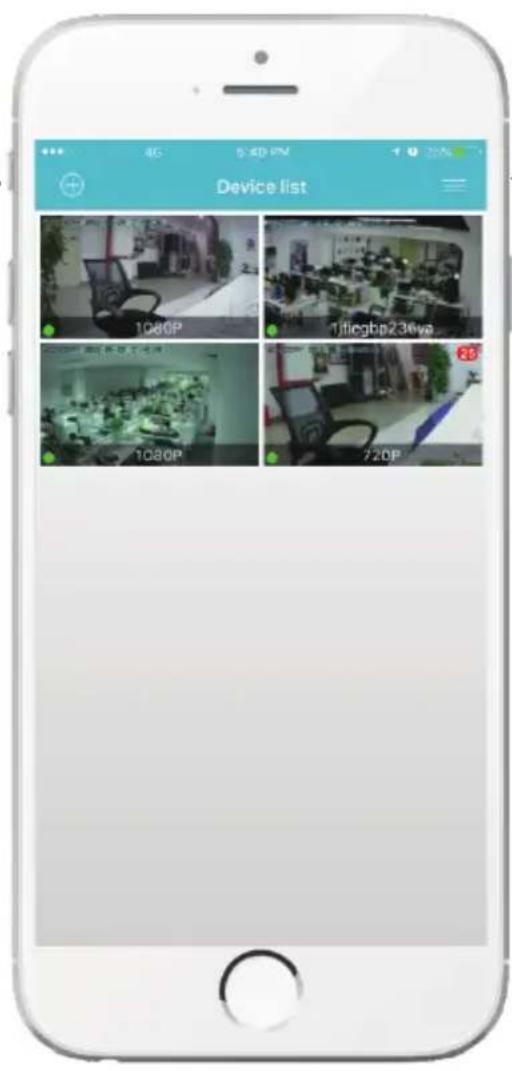
The main screen is your device list. You will see a thumbnail preview for all cameras added to your account.
Use this menu to
- Switch between different cameras
- Add new devices
- Access and change app global settings
App Settings
You can change your user admin and guest password and check the app software version.
Alarm Messages
Shows which cameras have detected motion.
Camera View Page
This page give you access to all camera specific actions and settings
- Hold the phone vertically or horizontally to switch between full screen mode
- Swipe left and right on the video to reposition the camera
- Spread two fingers apart to zoom in
Sound
Activate to hear your cameras surroundings
Microphone
Activate to talk through your camera's speaker.
Snap Photo
Saves a photo to your phone's local memory
View the Video Records and alarm messages
Click the icon to view the video recording and alarm message.

Image Settings
Set color, contrast, image res and more.
Local Video
Records the live video direct to phone memory. This feature only works while app is open. See "SD recording" for background recording options.
Camera Recordings
Enter into the interface of "information and video viewing" can see the alarm information and video of storage device (Micro SD or cloud box), users can quickly search the information and video by choose the time or category.

Device Settings
This screen allows you to check and set camera specific settings. If you see the red dot icon - a firmware update is available. Install available firmware updates to ensure the camera features are working as intended.

Recording Your Camera
You can choose 3 options for storing recordings for your camera
1) Local storage
This is the most simple method - just point and shoot. This only works while The phone app is open and running and will take up memory on your phone.
2) SD storage
Install an SD card and open up a world of possibilities!
Choose between scheduled recording, motion detection triggered recording or just let it run! The oldest videos will be overwritten to make room for the newest. You can download and save the videos from the mobile or website.
3) CloudBox storage
Sometimes SD storage just doesn't cut it. With a limit of 32g and the fact that the videos are stored directly in the camera - many people prefer the peace of mind the CloudBox can bring. Purchase the cloud box and back up 2TB of video storage from any device on a single network and check the videos from the same login. Find the CloudBox for sale on Amazon now!
Search "SereneLife CloudBox"
Motion Detection and Notification Settings Explained
You can set notification settings separately for any camera in your account. To access the notification settings, select your camera, and go to the settings tap - then scroll down to "motion detection"

Slide the slider to enable motion detection
You can then choose what actions you would like to occur when your camera detections motion. Recordwill record video to the SD card while the camera detects motion.
You can also turn push notifications on and off by selecting "turn alert on" or "turn alert off".
If you are finding your camera is alerting you needlessly or failing to alert you if someone is moving, you can adjust the sensitivity for motion detection for the camera.
Go to "settings" > "Motion Sensitivity" and adjust the sliders for day and night separately
How to Improve Playback Performance
Choppy video?
Try the following to ease up the demands for data on your camera...
Decrease the Video Stream Quality
You can drop the resolution setting for the camera to make it easier on your home network's bandwidth.
Just open up the setting here and adjust until you get the desired performance level.

Plug your camera into a wired data connection
Do some tests before throwing in the towel for using the camera wirelessly
But the facts remain - wires are still quicker...
How to evaluate your home wireless network
Evaluate your wireless network
Cameras having trouble with wireless? You may want to consider upgrading your wireless network.
Lets do a basic evaluation of your home wireless network.
First, we recommend comparing your network speed with your wireless speed.
-
Run a speedtest from a laptop of desktop connected to your router with a wired connection. http://www.speedtest.net/
-
Compare this value to your wireless network apps like "Speed Test" to see if you have enough available data in the area you would like to set the camera.
-
Test your network range
• What is your download speed in the same room as your wireless router?
- What is the download speed in the location you are trying to install the camera?
• Is there a significant drop?
What to upgrade?
- If your wired connection is too slow to reach the bandwidth requirements of the camera you may need to consider upgrading your internet service.
- If you have a significant drop in data when testing a wireless connection in the same room as your router, you may want to consider upgrading to a router that can provide higher data transmission speeds
- If you see a significant drop in data when testing in the area you want to install your camera you can either look for an upgraded router that will offer additional range or you can expand your router range with a signal booster.
How to check and install firmware updates
Firmware updates ensure our new features will work 100% for your camera. It is a good idea to install them when you see they are available.
It is recommended that you install updates while on a wired connection to your router.
This will ensure loss of bandwidth is not an issue during updates
To check and install firmware updates
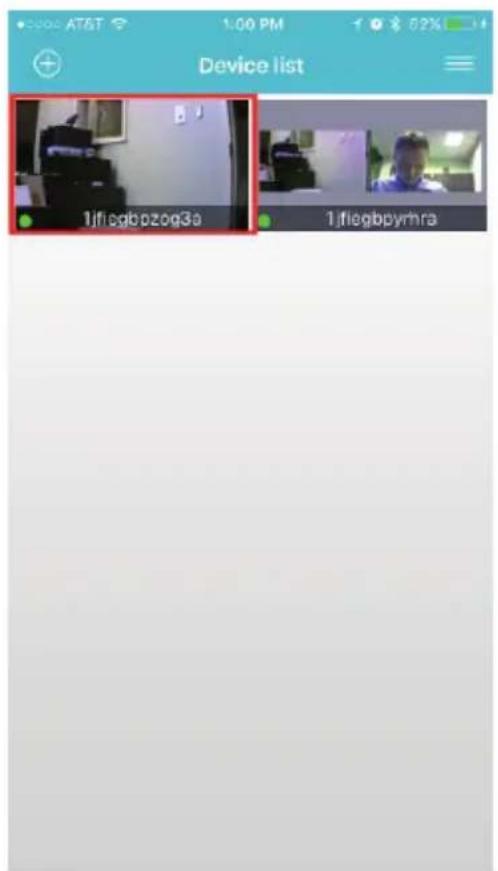
- Tap the device preview image

- Look for red dot indicating firmware update available - then enter settings
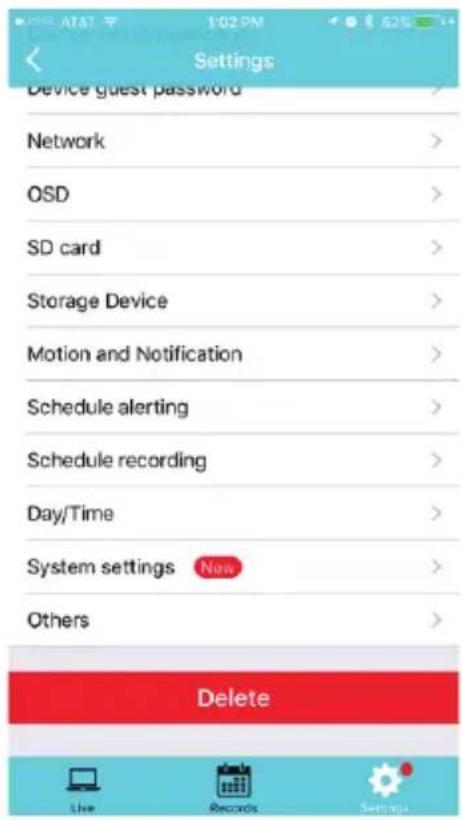

- Scroll down to "System Settings" 4. Select Upgrade - then confirm

- Now wait for the upgrade to proceed
• It can take 5 - 10 minutes
- Do not quit the app or modify the camera hardware
- Once complete - the app will tell you to restart the camera
• However it should automatically restart itself
- Wait 2-3 minutes for the camera to restart before checking the camera feed or settings
- Check if any additional updates are available
- Sometimes there will be multiple updates available in a row. Repeat the process until no new updates are available
Desktop access link: http://cloud.serenelifehome.com/
Other issues? Check our FAQ resources and contact support online!
www.SereneLifeHome.com
Compatible Products:
You can add any number of SereneLife cameras to your account with us to monitor multiple locations!

IPCAMHD82IPCAMHD61I
Troubleshooting
Can't connect to WiFi
- Connect the ethernet cable and check connection is working
- Go to "camera settings" > "network" Check the WiFi status is enabled and "List" displays your home network - doublecheck the password.
- In the Ethernet tab - disable the ethernet connection to force the camera to look for available WiFi network
Still having trouble?
- Try deleting the camera entry from your account
- Hardware rest the camera
- Add the camera as a new device
SD Card is not recognized by the camera
- Check the card is class 10 - 32g or less
- Insert the card while the camera is powered down then power up
- Try reformatting the card using your computer using "FAT32"
• Test multiple SD cards
App is crashing - a feature is not working
- Check for app updates
- Check for camera firmware updates
- Contact support with app version, mobile device model and OS version so we can update the app and fix the issue
Features:
• Wi-Fi IP Network Camera
• Hi-Res HD Display Video Output
- Scan the QR Code & Get Connected
- Easy Setup via P2P Technology: Plug-and-Play
- Hard-Wire Connection Ability, Ethernet Cable
- Connect & Control via the Downloadable 'Serene Viewer' App
• Built-in Microphone & Speaker for 2-Way Audio Communication
• PTZ (Pan Tilt Zoom) Controlled Remotely
- Micro SD Memory Card Slot
• Cloud Box Storage Support
- Motion Detector Function Mode
• Real-Time App Push Notification Alerts
• Night Vision & Low-Light Video Pickup
• LED Indicator Lights
• Image Configuration: Brightness, Contrast, Saturation, Sharpness
• Perfect for Home, Office or Business Use
The "SereneViewer" App:
• Free to Download & Easy-to-Use
• Gives you Remote Access to Live or Recorded Video
- Works with All of Today's Latest Smartphones & Tablets
• Camera Management: Control, View & Add Additional Cameras
- Scheduled Recording: Set the Timer for Automatic Start Times
- Configurable Picture Adjustment Settings
- Android & iOS Support
Technical Specs:
• Imaging Sensor: 1/3" Color CMOS
• Video Resolution: Up to 1536P (2048*1536Pixels) 30FPS
• Video File Format MJPEG (H.264 Compression)
• Night Vision Distance 32" + ft. (0.01 LUX)
• Wi-Fi Wireless Network: 2.4G WiFi -- IEEE802.11b/g/n
- Protocols: TCP/IP, UDP/IP, HTTP, DHCP, RTMP, MUTP
- Ethernet Network: 10/100Mbps, RJ-45 Interface
• P2P Technology Plug and Play
• Dynamic Code Rate Filtering Jitter Buffer
• Maximum Micro SD Card Support Size: 128 GB
• Lighting Frequency: 50/60Hz
• Audio Compression: AAC (Advance Audio Coding)
• Video Compression: Smart H.264
• Power Supply: DC 5V
- Dimensions (L x W x H): 4.7" x 3.3" x 3.3"
SereneLife
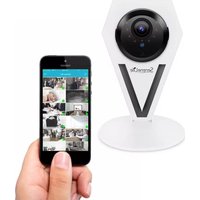
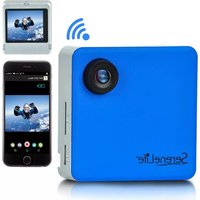
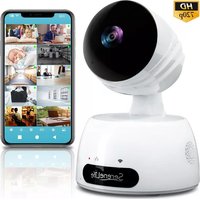
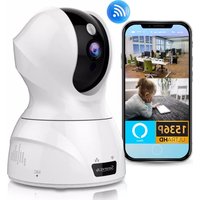
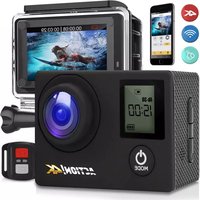
- IPCAMHD45 - IPCAMHD50 - IPCAMHD80 - IPCAMHD85
- IP CAMERA WIFI CAM
- TABLE OF CONTENTS
- SERENEVIEWER' APP INSTALLATION
- NOTE
- ADD CAMERA TO APP
- CONNECT TO YOUR NETWORK
- METHOD 1: WIRED SETUP
- METHOD 2: WI-FI CONNECTION
- QR CODE METHOD
- WEB ACCESS
- LOG ON TO THE WEBSITE
- PASSWORDS
- MOBILE APP LAYOUT
- USE THIS MENU TO
- APP SETTINGS
- ALARM MESSAGES
- CAMERA VIEW PAGE
- SOUND
- MICROPHONE
- SNAP PHOTO
- VIEW THE VIDEO RECORDS AND ALARM MESSAGES
- IMAGE SETTINGS
- LOCAL VIDEO
- CAMERA RECORDINGS
- DEVICE SETTINGS
- RECORDING YOUR CAMERA
- LOCAL STORAGE
- SD STORAGE
- CLOUDBOX STORAGE
- MOTION DETECTION AND NOTIFICATION SETTINGS EXPLAINED
- HOW TO IMPROVE PLAYBACK PERFORMANCE
- DECREASE THE VIDEO STREAM QUALITY
- HOW TO EVALUATE YOUR HOME WIRELESS NETWORK
- EVALUATE YOUR WIRELESS NETWORK
- WHAT TO UPGRADE
- HOW TO CHECK AND INSTALL FIRMWARE UPDATES
- TO CHECK AND INSTALL FIRMWARE UPDATES
- COMPATIBLE PRODUCTS
- TROUBLESHOOTING
- CAN'T CONNECT TO WIFI
- STILL HAVING TROUBLE
- SD CARD IS NOT RECOGNIZED BY THE CAMERA
- APP IS CRASHING - A FEATURE IS NOT WORKING
- FEATURES
- THE "SERENEVIEWER" APP
- TECHNICAL SPECS
- SERENELIFE
Brand : SereneLife
Model : IPCAMHD85
Category : Camera