
TLINK 18 - Cellphone THOMSON - Free user manual and instructions
Find the device manual for free TLINK 18 THOMSON in PDF.



| Product Type | Rugged mobile phone |
| Brand | THOMSON |
| Model | TLINK 18 |
| Water resistance | IP55 certification: resistant to water jets and dust (do not immerse) |
| Screen | 1.77 inches, 128x160 pixels, 65K colors |
| Network | Quad-band GSM 850/900/1800/1900 MHz |
| Dual SIM | Yes, two SIM slots |
| Camera | VGA (0.3 MP) |
| Bluetooth | Yes |
| MP3 player | Yes, requires a microSD card (files in "My Music" folder) |
| Battery | Rechargeable lithium-ion, 800 mAh (typical) |
| Charger | Wall charger, 5V / 500mA (included) |
| Package contents | Phone, battery, hands-free kit, USB cable, wall charger |
| Weight | Approximately 100 g (with battery) |
| Dimensions (approx.) | 130 x 55 x 15 mm |
| Power supply | Li-ion battery 3.7V, charging via proprietary USB connector |
| Main functions | Phone calls, SMS/MMS, flashlight, alarm, FM radio, Bluetooth, camera, MP3 player |
| Care and cleaning | Wipe with a soft, dry cloth. Do not use abrasive products. |
| Safety | Max SAR 0.798 W/kg (at the ear). Avoid prolonged exposure at high volume. Keep 15 cm distance from pacemakers. |
| Spare parts and repairability | Removable battery. Other parts are not provided. Contact customer service. |
| General information | Manufactured under license THOMSON by ADMEA – 12 Rue Jules Ferry, 93110 Rosny-sous-Bois, France. |
Frequently Asked Questions - TLINK 18 THOMSON
User questions about TLINK 18 THOMSON
0 question about this device. Answer the ones you know or ask your own.
Ask a new question about this device
Download the instructions for your Cellphone in PDF format for free! Find your manual TLINK 18 - THOMSON and take your electronic device back in hand. On this page are published all the documents necessary for the use of your device. TLINK 18 by THOMSON.
USER MANUAL TLINK 18 THOMSON
Important safety information....26
Package Contents....33
Get Started....34
Your Phone....39
Powering on your device....40
How to select your mobile operator....41
Dual SIM management....43
MP3 player....43
Camera....44
Español
Contenido
natural_image
Symbol of a trash bin crossed with a diagonal line, no text or labels presentCE0700
natural_image
Technical line drawing of a device casing with internal components and a red arrow indicating a specific part (no text or symbols present)natural_image
Line drawing of a car interior with a red arrow indicating a component (no text or symbols)natural_image
Technical line drawing of a smartphone internal component with highlighted areas and arrows indicating flow or movement (no text or symbols)natural_image
Technical line drawing of a device casing with internal compartments and highlighted red arrows indicating features (no text or symbols present)natural_image
Technical line drawing of a mechanical device with a red arrow indicating a component (no text or symbols present)natural_image
Technical line drawing of a smartphone rear panel showing internal components and mounting points (no text or symbols)Do not become distracted by the device while driving, and always be fully aware of all driving conditions.
- Always operate the vehicle in a safe manner.
- Follow local regulations regarding the use of mobile phones.
- Switch off the device and remove the battery from time to time for optimum performance.
- The cable of the charger cannot be replaced. If this cable is destroyed, the adaptor should be destroyed.
- Excessive sound pressure from earphones and headphone can cause hearing loss.
- The mains plug of the device should be easily accessed during use.
Battery Warning
Do not expose the device to heat or leave it in a vehicle in the sun.
Use of the Supplied Li-Ion Battery
This product uses a Li-Ion battery. Caution: Risk of fire and burns if the battery pack is handled improperly.

Warning: Danger of explosion if battery is incorrectly replaced. To reduce risk of fire or burns, do not attempt to open or service battery back. Do not disassemble, crush, puncture, short external contacts or circuits, dispose of in fire or water, or expose a battery pack to temperature higher than 60°C.
- Use only recommended batteries. Please recycle and dispose of used batteries according to local regulations or the instructions supplied with the product.
- Do not use a sharp object to remove the battery.
- Keep the battery away from children.
- Only use authorized charger and accessories.
- Only replace the battery with the correct replacement battery. Using other battery presents a risk of fire or explosion.
Pacemakers and Other Medical Devices
Studies have shown that there may be a potential interaction between mobile phones and normal pacemaker operation. The pacemaker industry recommends that people with pacemakers follow these guidelines to minimize any risk of interference with pacemaker operation:
Always maintain a distance of 15 cm (6 inches) between the pacemaker and any mobile phone that is turned on.
- If you think that interference may be occurring, turn off the phone immediately.
- For other medical devices, consult with your physician or the manufacturer to determine if your mobile phone may interfere with the device, and to determine any precautions that you can take to avoid interference.
Emergency Calls
Important: This device operates using radio signals, wireless networks, landline networks, and
user-programmed functions. Connections in all conditions cannot be guaranteed.
You should never rely solely on any wireless device for essential communications like medical emergencies.
When making an emergency call, give all the necessary information as accurately as possible. Your wireless device may be the only means of communication at the scene of an accident. Do not end the call until given permission to do so.
Avoid Repetitive Motion
You may experience occasional discomfort in your hands, arms, shoulders, neck, or other parts of your body if you perform repetitive activities, such as typing or playing games, on the device.
Take frequent breaks. If you have discomfort while or after using the device, stop using and see a physician.
Always prefer to use a handsfree earset when talking. You are reminded that the use of your mobile device is forbidden when driving your car.
SAR Certification Information
This mobile phone model meets the guidelines for exposure to radio waves.
Your mobile phone is a radio transmitter and receiver. It is designed not to exceed the limits for exposure to radio waves recommended by international guidelines. These guidelines were developed by the independent scientific organization ICNIRP and include safety margins designed to assure the protection of all persons, regardless of age and health. The exposure guidelines for mobile devices employ a unit of measurement known as the Specific Absorption Rate or SAR. The SAR limit stated in the ICNIRP guidelines is 2.0 watts/kilogram (W/kg) averaged over 10 grams of tissue.
Tests for SAR are conducted using standard operating positions with the device transmitting at its highest certified power level in all tested
frequency bands. The actual SAR level of an operating device can be below the maximum value because the device is designed to use only the power required to reach the network. That amount changes depending on a number of factors such as how close you are to a network base station.
The highest SAR value under the ICNIRP guidelines for use of this device at the ear is 0.798W/Kg.

When using the earphone, reduce the volume to protect your ears.
Declaration of Conformity
Hereby, Admea declare that this GSM Phone is in compliance with the essential requirements and other relevant provisions of Directive 1999/5/EC.
The declaration of conformity is available on web site: http://www.thomsonphones.eu

natural_image
Symbol of a trash bin crossed with a diagonal line, no text or labels presentCE0700
The European directive 2012/19/EC on Waste Electrical and Electronic Equipment (WEEE) requires that old household electrical appliances must not be disposed in the normal unsorted municipal waste stream. Old appliances must be collected separately in order to optimize the recovery and recycling of the materials they contain and reduce the impact on human health and the environment.
The crossed out “wheeled bin” symbol on the product reminds you of your obligation, that when you dispose of the appliance it must be separately collected.
Contact your local authority or retailer for information concerning the correct disposal of old appliance.
Welcome
Thank you for purchasing this Thomson mobile phone. Its main features are as follows:
- 1.77" Screen with 128x160 65K colours
- Shock-resistant, protected against dust and water jets (IP55)
- Quad-Band Compatibility: (850/900/1800/1900 MHz) for use anywhere in the world
- Dual SIM for both professional and personal use on a single phone
- VGA Camera
- Bluetooth
- MP3 player
Package Contents
- 1 mobile phone
- 1 battery
- 1 hands-free headset
- 1 USB cable
- 1 mains charger
Getting started
Follow the instructions carefully, to avoid damaging the back cover. Always switch the device off and disconnect the charger before removing the battery.
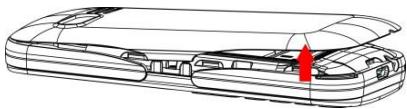
- Make sure the phone is switched off and the charger is not connected to the mains. Lift the rear cover from the notch as shown below. The cover can be opened easily. Do not attempt to force it open or pull it to either side; otherwise the cover can be damaged or broken.
natural_image
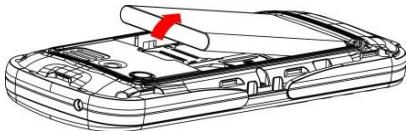
Technical line drawing of a mechanical component with no visible text or symbols- If the battery is inserted, lift the battery in the direction of the arrow to remove it.
natural_image
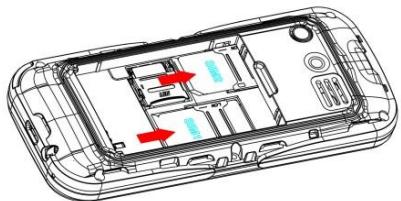
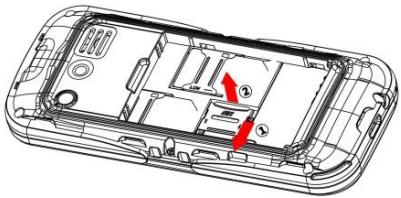
Technical line drawing of a car's front panel with a red arrow indicating a component (no text or symbols present)- This phone has two SIM card slots. You can use it for both personal and professional use with two different SIM cards. Be sure to insert your SIM card into the correct position by orienting the beveled corner of the card outwards and the metal parts of the card downwards.
natural_image
Technical line drawing of a smartphone internal panel with highlighted ports and red arrows indicating flow or movement (no text or symbols)- Insert the Micro SD card as shown below (micro SD card is not provided).
natural_image
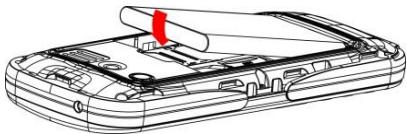
Technical line drawing of a device casing with internal components and red directional arrows indicating movement (no text or symbols)- Install the battery.
natural_image
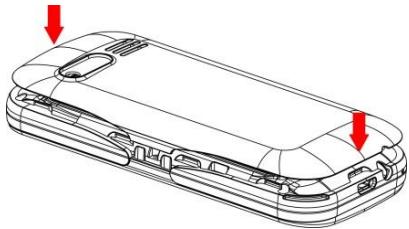
Technical line drawing of a car interior with handle and panel (no text or symbols)6. Replace the back cover.
natural_image
Technical line drawing of a smartphone rear panel showing internal components and red arrows indicating features (no text or symbols present)Battery Charging
The new battery is not fully charged. You need to install and charge the battery before using the device. In general conditions, the new battery will work under best condition after several times of charge and discharge.
- Connect the plug of the charger to the charger connector of the device.
- Connect the other plug of the charger to the proper power supply socket.
- When the battery icon is full and stop scrolling, which means the battery charging is completed, please pull out the plug.

To ensure normal operation of the phone, use only the charger supplied in this package.
Your Phone

- Camera key
-
Left selection key: Each of these keys performs the function indicated by the text shown on the displayed immediately above it, e.g. Select or OK.
-
Call key: Dials a phone number and answer a call. When in standby mode: shows the most recently dialed number.
- 0 - 9 enter numbers and characters.
- Flashlight
- Right function key: Each of these keys performs the function indicated by the text shown on the displayed immediately above it, e.g. Select or OK.
- End Call key: Power on or off. Ends or rejects a call. Also exit from any function at any time.
- Camera
- Headset connector
- USB connector
- Navi key: Uses this key to scroll through names, phone numbers, menus and setting options.
Powering on your device
Press for a few seconds the red colour key (end call) to power on your device.
How to lock / unlock your device
Press for a few seconds the right selection key in order to lock your device. To unlock, press one time the left selection key then the right selection key. To change the auto lock time setting, go to Menu > Settings > Display then select Auto keypad Lock.
How to change the ringtones
Go to Menu > Profiles, press Options and select Settings, press OK then go to Ring settings. Press OK and scroll up/down to change the ringtones for call or message.
How to select your mobile operator
In case your mobile phone operator is not selected automatically, go to Menu > Settings > Connection > Network selection > SIM1/SIM2 > Manual select and press OK to select a network compatible with your SIM card.

If the "R" symbol appears on top of the home screen, it means that you are currently in roaming mode. In roaming mode, your operator may surcharge. In any case, always verify that the
selected operator is correct. After that press Save and power off the phone, then power on again to take the change into account.
Select your operator for MMS
The first time you are using this mobile phone, or if you change to another operator, you will need to select your operator manually in order to activate MMS (Multimedia Messages).
How to select operator for MMS
Go to Menu > Messages > Options > Settings then click once on the right navigation key so that "MMS" appears on the top screen. Then press OK so as to select the MMS account corresponding to your operator. In case your operator is not listed: from the account list, choose Options, then New account. Then type-in the MMS connection parameters provided by your operator. After that press Save and power off the phone, then power on again to take the change into account.
Dual SIM management
If you are using 2 SIM cards simultaneously, you can choose which SIM card to use by default for call, SMS/MMS. Go to Settings > Dual-SIM, then choose which SIM card to use by default, or otherwise select the option “Always ask”. Remark: This menu is only available when two SIM cards have been inserted.
MP3 player
In order to use the MP3 player:
- Insert a Micro SD card (not provided),
- Copy your MP3 files into the "My Music" folder.
Files must be in MP3 format without anti-copy protection (DRM). Other file formats will not be played back.
All MP3 must be stored onto the "My Music" folder otherwise they will be ignored by the player. If this folder does not exist, create the new folder with your computer with exactly the same name as above. This device does not support video files.
Camera
In order to use the camera, you must first install a Micro SD card. Micro SD cards up to 32Gb are compatible with this device. In case of compatibility issue, please use a smaller capacity Micro SD card (such as a 8Gb card).
Torch lamp
From the home screen, long-press the key to switch on the torch light. Do the same again to turn it off.

Input mode and special characters
When typing an SMS, long-press the * key to display special characters. To change input mode, long-press the # key.
Default password
Some options of the device (such as phone reset) requires a password. The default password is 0000.
About the Waterproofness of this Phone
This Thomson mobile phone has been tested to comply with the IP55 certification standards. This
means that your phone is dust-proof and resistant to water jets. It must never be immersed in water. Exposure of the product to some environments, such as salt and sea water, can damage the finish of the product.
Full instruction manual online
Visit the following internet website to access this device's instruction manual.
http://www.thomsonphones.eu
Imported by ADMEA, 12 Rue Jules Ferry, 93110
THOMSON is a trademark of Technicolor SA used under license by ADMEA.
natural_image
Simple line drawing of a trash bin with crossed lines indicating no waste or restriction (no text or symbols)CE 0700
natural_image
Technical line drawing of a device casing with internal components and a red arrow indicating a specific part (no text or symbols present)natural_image
Line drawing of a device with a red arrow indicating a component, no text or symbols presentnatural_image
Technical line drawing of a smartphone internal panel with highlighted ports and arrows indicating flow or movement (no text or symbols)natural_image
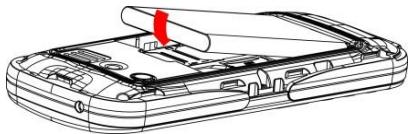
Technical line drawing of a device casing with internal components and red directional arrows indicating movement (no text or symbols)- Instale la batería.
natural_image
Technical line drawing of a device casing with a red arrow indicating a component (no text or symbols present)natural_image
Line drawing of a smartphone rear panel showing internal components and two red arrows indicating features (no text or symbols present)Carga de la Batería
- Español
- Contenido
- CE0700
- Battery Warning
- Use of the Supplied Li-Ion Battery
- Pacemakers and Other Medical Devices
- Emergency Calls
- Avoid Repetitive Motion
- SAR Certification Information
- Declaration of Conformity
- Welcome
- Package Contents
- Getting started
- Replace the back cover.
- Battery Charging
- Your Phone
- Powering on your device
- How to lock / unlock your device
- How to change the ringtones
- How to select your mobile operator
- Select your operator for MMS
- How to select operator for MMS
- Dual SIM management
- MP3 player
- Camera
- Torch lamp
- Input mode and special characters
- Default password
- About the Waterproofness of this Phone
- Full instruction manual online
- CE 0700
- Carga de la Batería
Brand : THOMSON
Model : TLINK 18
Category : Cellphone