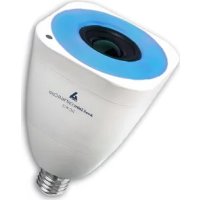
SL-W10 - Lighting AwoX Striim - Free user manual and instructions
Find the device manual for free SL-W10 AwoX Striim in PDF.


| Product Type | LED Strip Light |
| Brand | AwoX Striim |
| Model | SL-W10 |
| Color | RGB + White (Tunable White) |
| Length | 2 meters (standard) |
| Beam Angle | 120° |
| Power Consumption | 24W (max) |
| Input Voltage | 12V DC (adapter included) |
| Connectivity | Wi-Fi 2.4GHz, Bluetooth |
| Control | Smartphone app (AwoX Home), voice assistant compatible (Alexa, Google Assistant) |
| Lifespan | 25,000 hours |
| IP Rating | IP20 (indoor use only) |
| Material | Flexible PCB with silicone coating |
| Mounting | Self-adhesive back, clips included |
| Dimming | Yes, via app |
| Color Temperature | 2700K - 6500K |
| Music Sync | Yes |
| Timer/Schedule | Yes, via app |
| Certification | CE, RoHS |
Frequently Asked Questions - SL-W10 AwoX Striim
User questions about SL-W10 AwoX Striim
0 question about this device. Answer the ones you know or ask your own.
Ask a new question about this device
Download the instructions for your Lighting in PDF format for free! Find your manual SL-W10 - AwoX Striim and take your electronic device back in hand. On this page are published all the documents necessary for the use of your device. SL-W10 by AwoX Striim.
USER MANUAL SL-W10 AwoX Striim
natural_image
Abstract black logo design with stylized letter 'A' and partial text 'Jox' below (no readable text or symbols)AwoX StriimLIGHT™ Wi-Fi
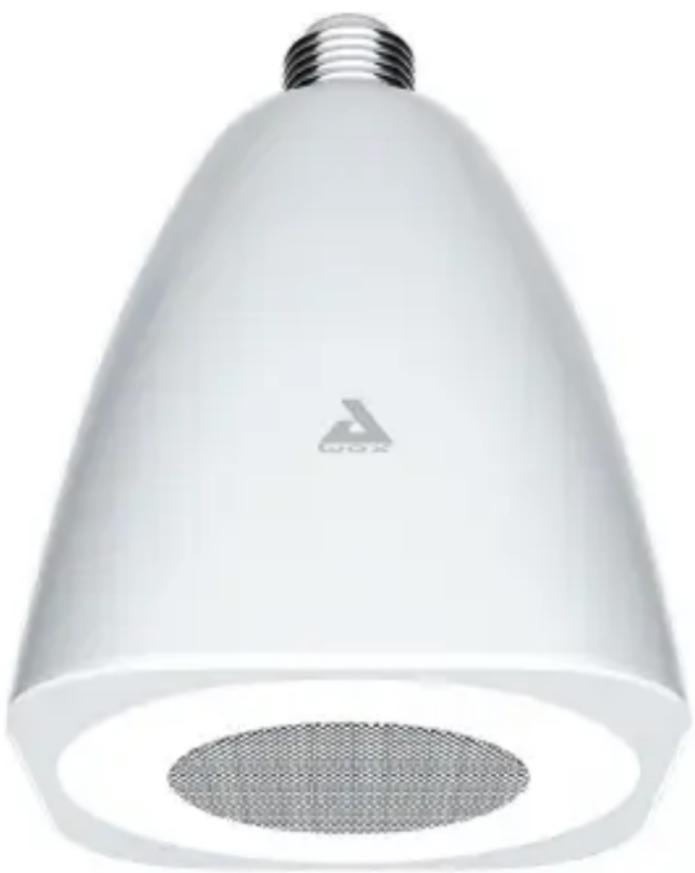
LED light with Wi-Fi speaker
SL-W10
natural_image
White LED light bulb with conical top and perforated base, no visible text or symbolsUser Guide
Contents
Geng started with AwoX StriimLIGHT Wi-Fi 3
Before you begin 4
Starng your product.... 6
AwoX Striim CONTROL setup 7
Using AwoX Striim CONTROL 9
Using AwoX StriimSERVER 14
Overview of the Play tab 18
Playlists and queues.... 19
Controlling light brightness.... 22
Using music zones.... 23
Other conguraon opons 27
Updang AwoX Striim CONTROL 29
Technical specicaons 30
Troubleshoong 31
© 2013 AwoX. All rights reserved. StriimLIGHT Wi-Fi, AwoX, the AwoX logo and other AwoX marks are owned by AwoX. iPhone, iPad, and iPod are trademarks of Apple, Inc., registered in the U.S and other countries. Android is a trademark of Google Inc. DLNA and DLNA CERTIFIED are trademarks and/or service marks of Digital Living Network Alliance. All other trademarks are the property of their respective owners. Smartphone or tablet device sold separately. Product images and photos are non-contractual. Read provided safety informaon before using this product. Rev 01.
Getting started with AwoX StriimLIGHT Wi-Fi
Welcome
Congratulaons and thank you for choosing the AwoX StriimLIGHT Wi-Fi speaker light. StriimLIGHT contains both a LED light bulb and an audio speaker, giving you a great way to play music from your smartphone or tablet anywhere you can plug in a light bulb! You can even use several speakers to create zones. in full stereo.
- A fun and easy way to play music from many sources, including your Apple iOS™ or Google Android™ smartphone or tablet, PC or Mac ^(1) , and the Internet
- Access to hundreds of Internet radio staons (2)
- AwoX media player soware for your iPhone ^ , iPad ^ , iPod touch ^ , or Android smartphone. ^(3)
What's in the box
- StriimLIGHT light bulb with speaker
- Remote control (with baery) to control light on/o, dimming, and music volume.
- Mini CD-ROM with complete user guide and AwoX StriimSERVER soware for PC and MAC.
- This guide
- Safety and warranty leaet
What else you need
- Internet access with a Wi-Fi conncon
Before you begin
- Start by downloading the free AwoX media app for your device:
Apple iPhone, iPad, iPod touch
Download and install AwoX Striim CONTROL™ soware from the App Store.
Google Android devices
Download and install AwoX Striim CONTROL™ soware from the Google Play Store.
- On your Apple or Android device, make sure Wi-Fi is turned on and use the device's sengs to connect to your home network.
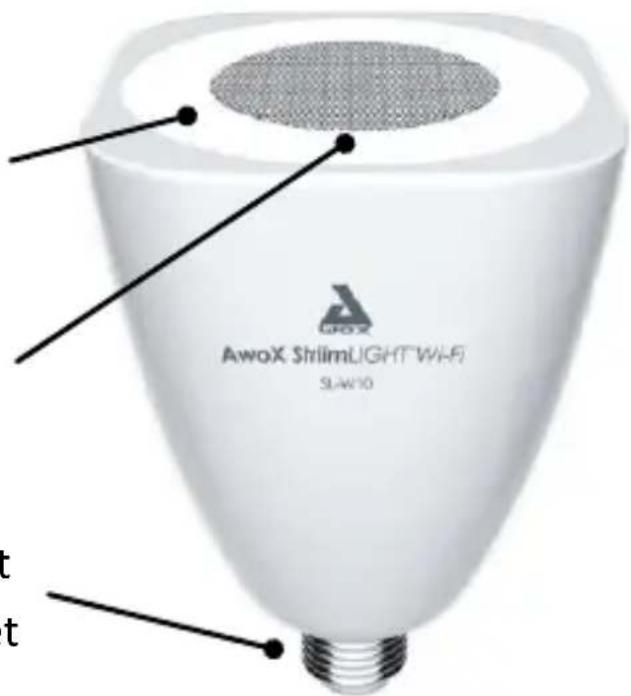
StriimLIGHT Wi-Fi overview
Blue indicator:
Blinking: starng
Solid: ready
WPS auto-conguraon buon (short press); reset (long press)
Fits standard light bulb socket
StriimLIGHT Wi-Fi remote control
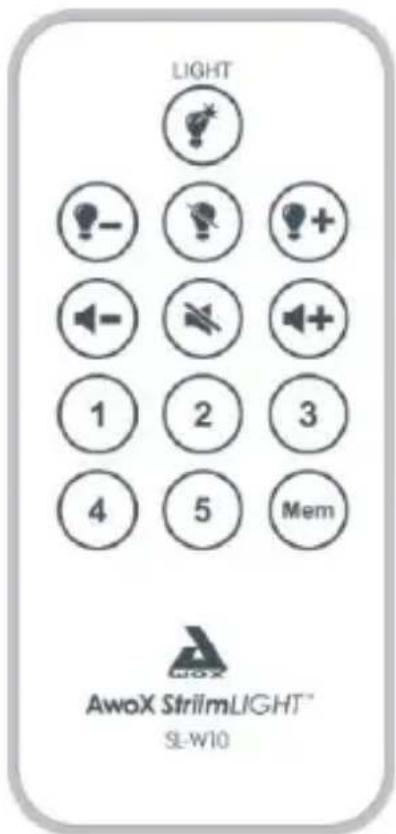
Light controls:
Light on (○), dim (-), light o (), bright (+)
Volume controls:
Mem and one preset buon within 2 seconds to assign a preset. Press a preset buon to launch playback.
Note: Do not use any kind of dimmer switch other than the provided remote control unit.
Changing the remote control baery
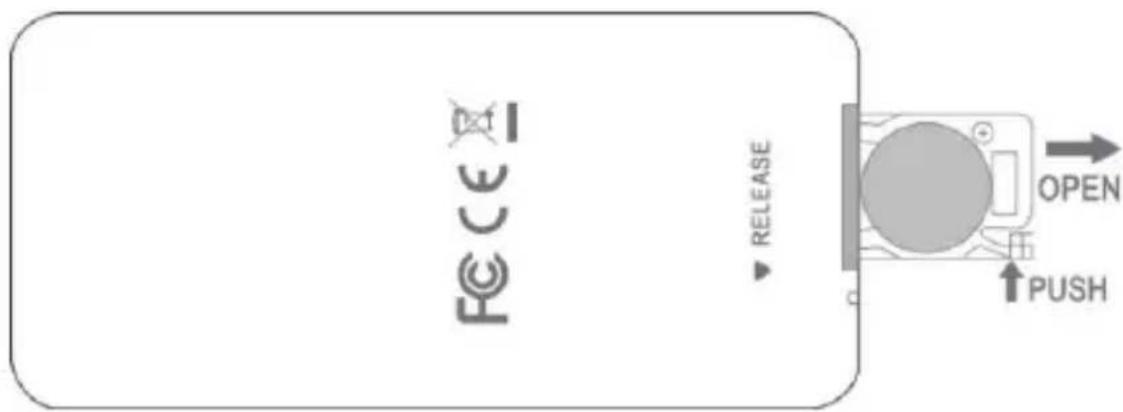
Starting your product
Screw your StriimLIGHT Wi-Fi device into a light socket and turn on the power. Wait a few moments for the device to startup. At rst, a blue light will blink slowly. Aer starng, this light remains blue connuously.
If your Internet router supports WPS
WPS is a feature that enables you to add new Wi-Fi devices to your network at the touch of a buon. If your Internet router supports WPS, simply press the WPS buon on the router and then press the WPS buon on your StriimLIGHT Wi-Fi device. The two devices will recognize each other automacally and you may begin using the AwoX Striim CONTROL applicaon right away. Otherwise, the installaon wizard runs as described in the next secon.
AwoX Striim CONTROL setup
-
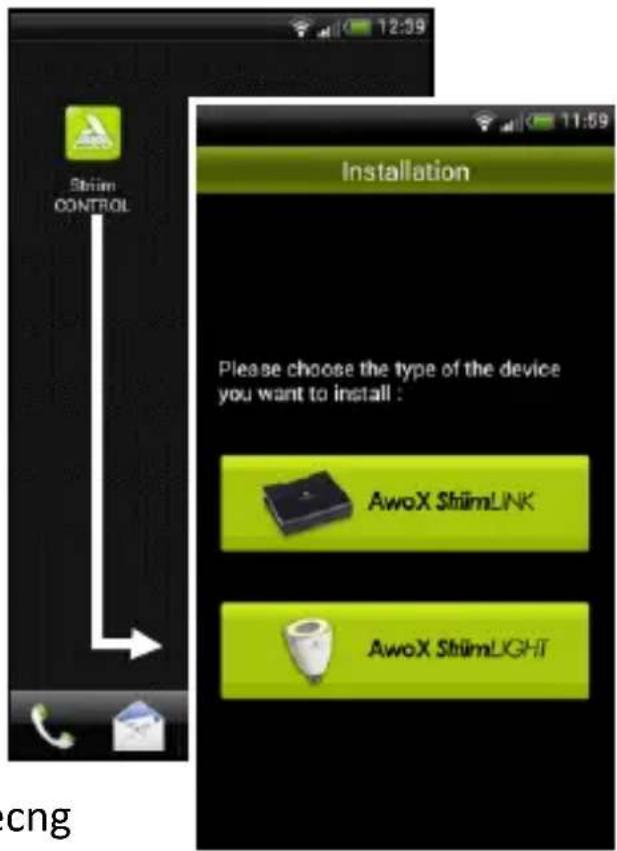
Aer downloading the applicaon, tap on the launcher icon to run AwoX Striim CONTROL.
-
If StriimCONTROL does not detect a StriimLIGHT device in your network, the setup wizard starts the rst me you launch the applicaon.
-
Choose to install AwoX StriimLIGHT Wi-Fi.
-
The wizard guides you through all the steps for connecng your AwoX StriimLIGHT Wi-Fi device to your local network to begin playing your music.
Sample usage
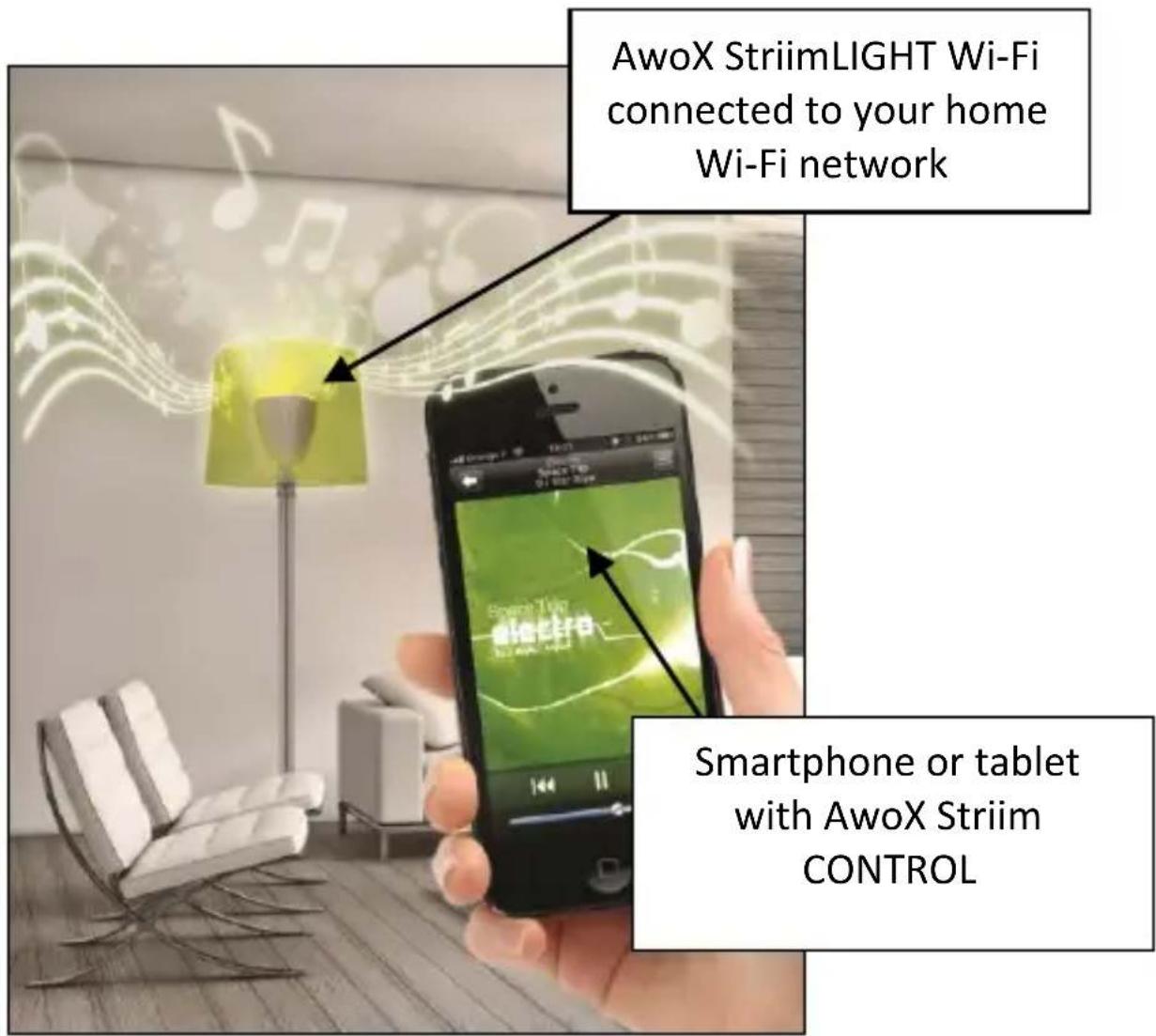
Connect StriimLIGHT Wi-Fi to your home network and stream music from:
- Your Apple iOS or Google Android device
- Internet radio
- Your home computer
Using AwoX Striim CONTROL
Note: the instrucons provided here are identical for devices running Apple iOS and Google Android operang systems.
Applicaon overview
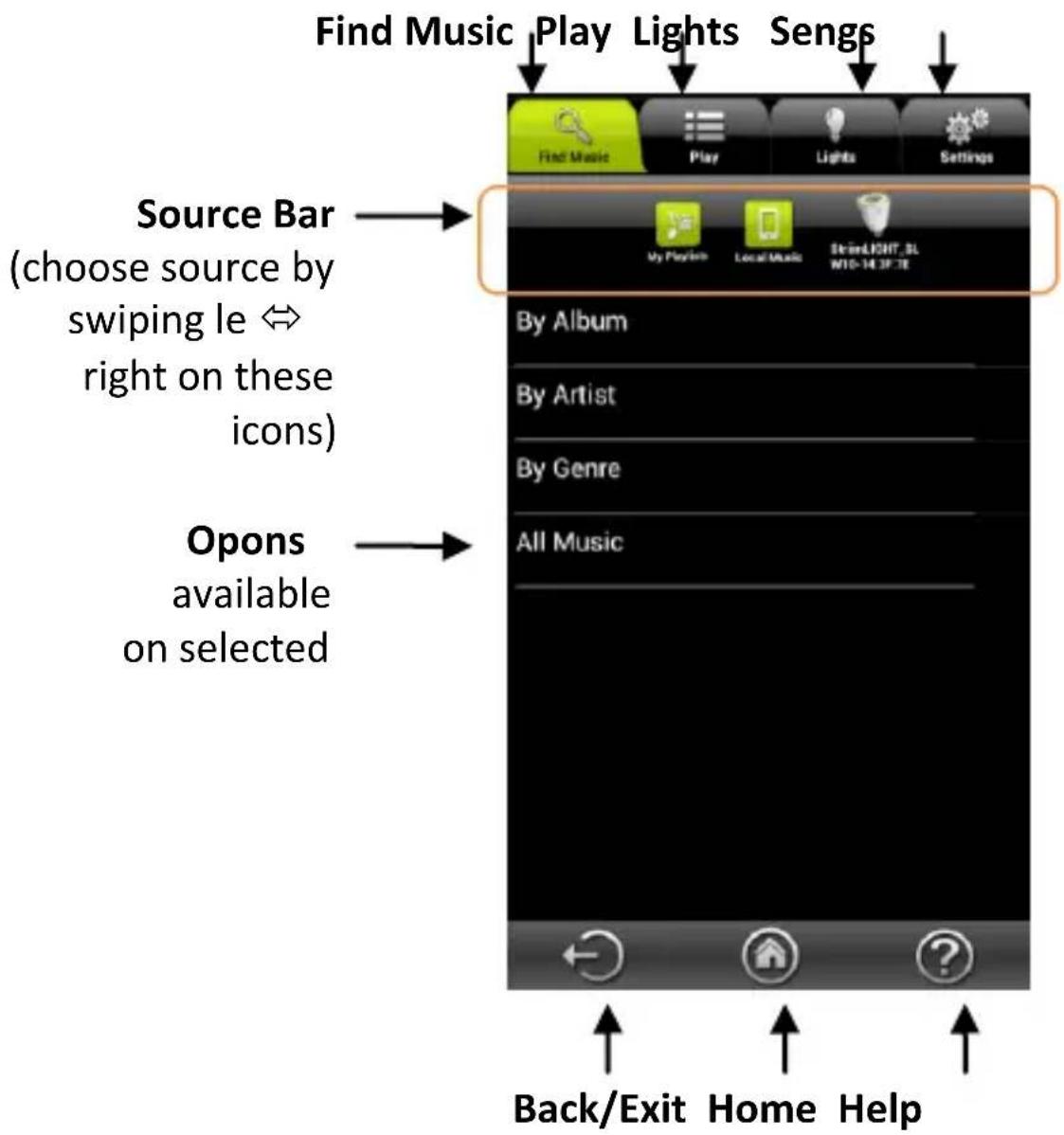
AwoX Striim CONTROL nds and plays music from your various media sources. Here is an overview of the applicaon layout:
Choosing your music

Tap on the Find Music tab to see available music sources. The source bar contains Playlists, Local, StriimLIGHT, and any other media sources you may have available on your network. The contents available for play vary with each source.
Playing Internet radio using your StriimLIGHT Wi-Fi
- Tap to select StriimLIGHT in the source bar.
- Select Internet Radio.
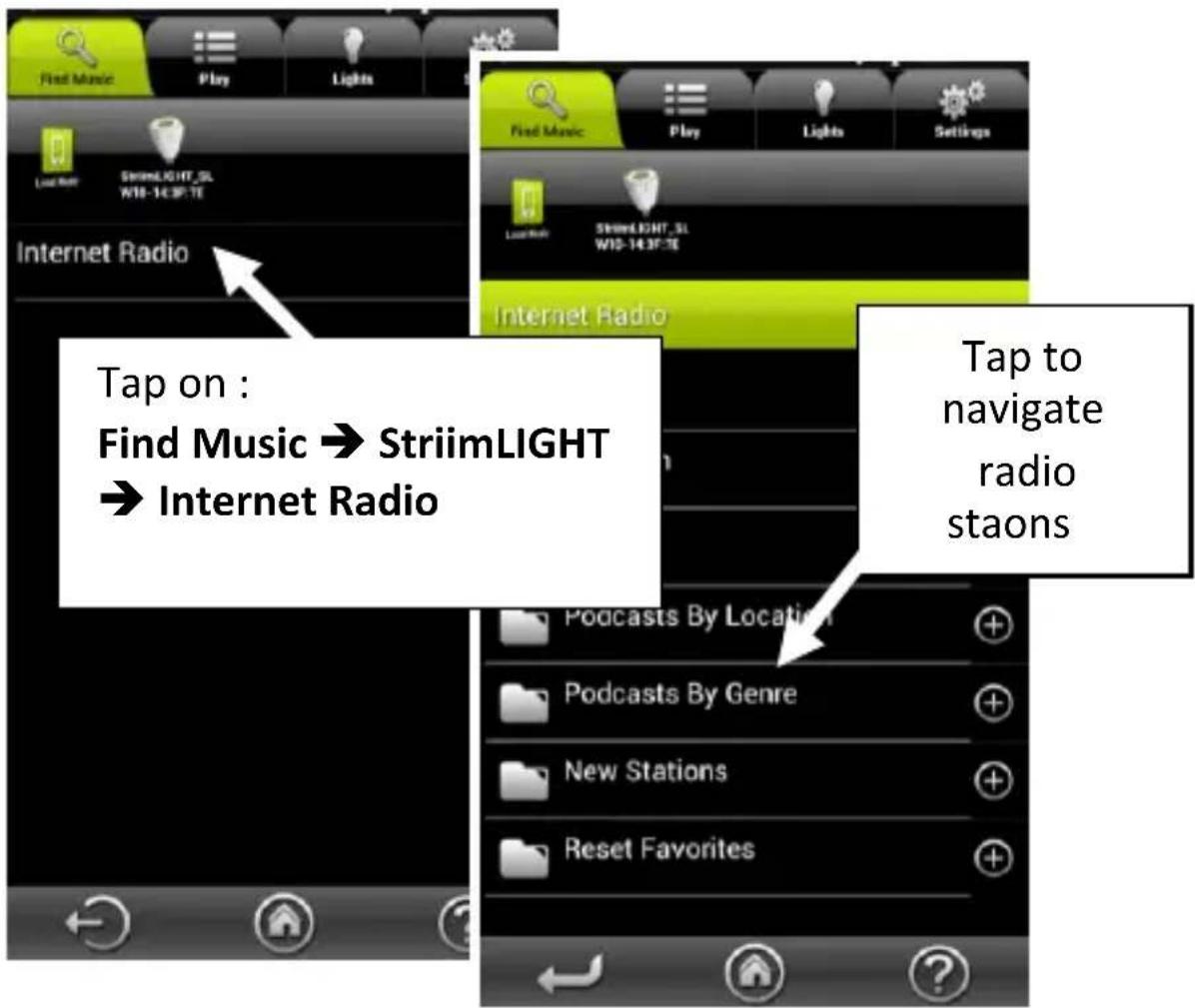
3. Tap to play Internet Radio:
- Navigate through countries, favorites, and other opons to choose the music you want to hear.
- When you tap directly on a staon, the applicaon switches to the Play tab and your selecon begins to play.
- Tap on for other opons (see Playlists and queues).
Playing local media from your iOS or Android device
-
Tap to select Local Music in the source bar
-
Tap the available opons to choose your music.
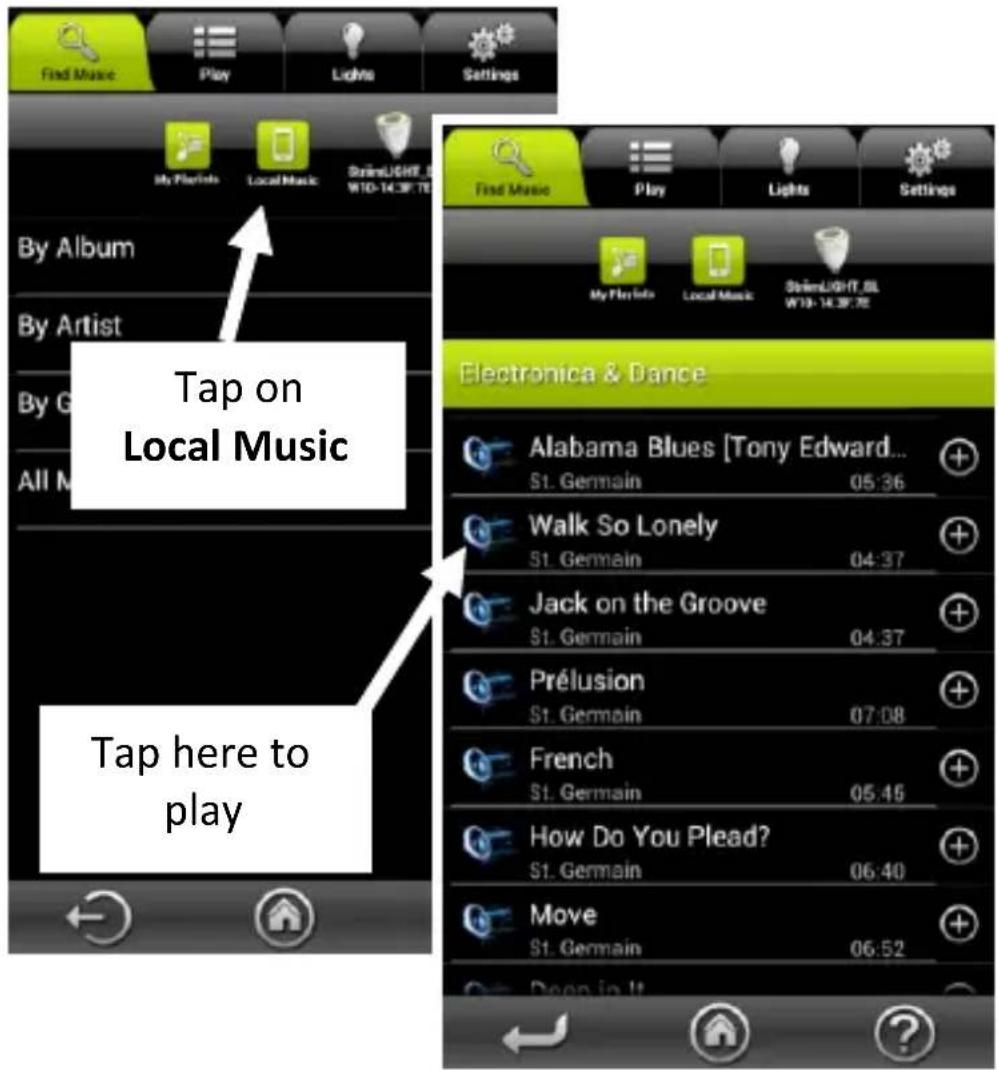
- When you tap directly on an item in the list, the window switches to the Play tab and your selecon begins to play, replacing the current song queue.
12 | AwoX StriimLIGHT Wi-Fi - User Guide
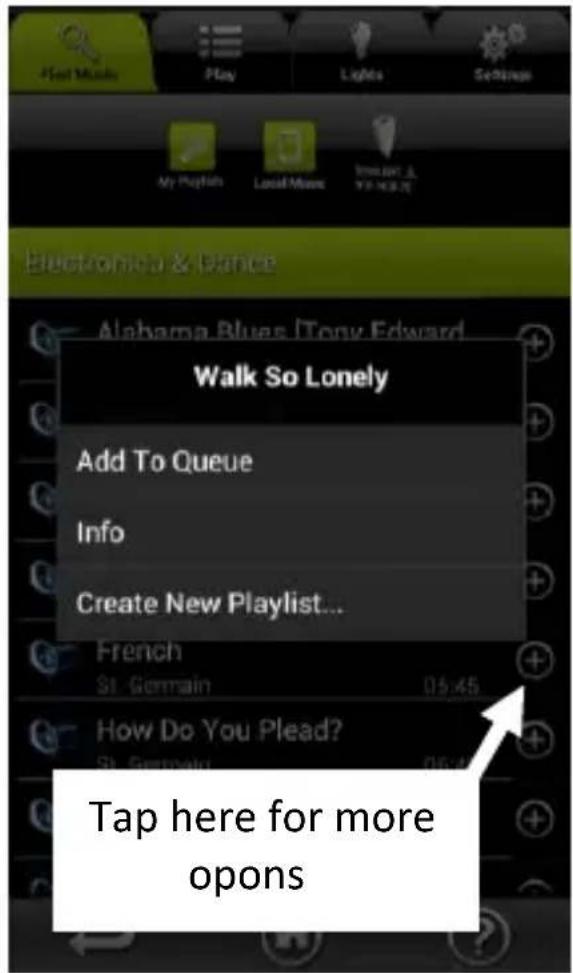
- Tap on for more opons:
Add to queue: Adds the song to be played aer other songs in the queue.
Info: Song details.
Create new... Creates a new playlist.
Playing songs from your PC/Mac ^(1) or other DLNA audio server
- Swipe the Source Bar to choose the desired server or device.
- Navigate in the list of songs to choose the music you want to hear.
- When you tap directly on an item, the applicaon switches to the Now Playing tab and your selecon begins to play.
- Tap on + for other opons (see Playlists and queues).
Using AwoX StriimSERVER
With versions for Mac and Windows, AwoX StriimSERVER makes your home audio library available as a source to Striim devices in your network. StriimSERVER works exclusively with AwoX Striim products. Follow these steps to get AwoX StriimSERVER up and running on your computer:
-
You will nd the StriimSERVER setup applicaon on the CD-ROM provided with your product. You may also choose to download it from here:
http://www.awox.com/mediaservers. -
Navigate to CD-ROM or download folder on your computer and double-Tap on the StriimSERVER installer for Mac or Windows, depending on your operang system, and follow the instrucons on your screen.
-
Launch StriimSERVER by clicking on the StriimSERVER icon installed on your computer's desktop ( ). Allow access to your private networks if prompted by the applicaon.
-
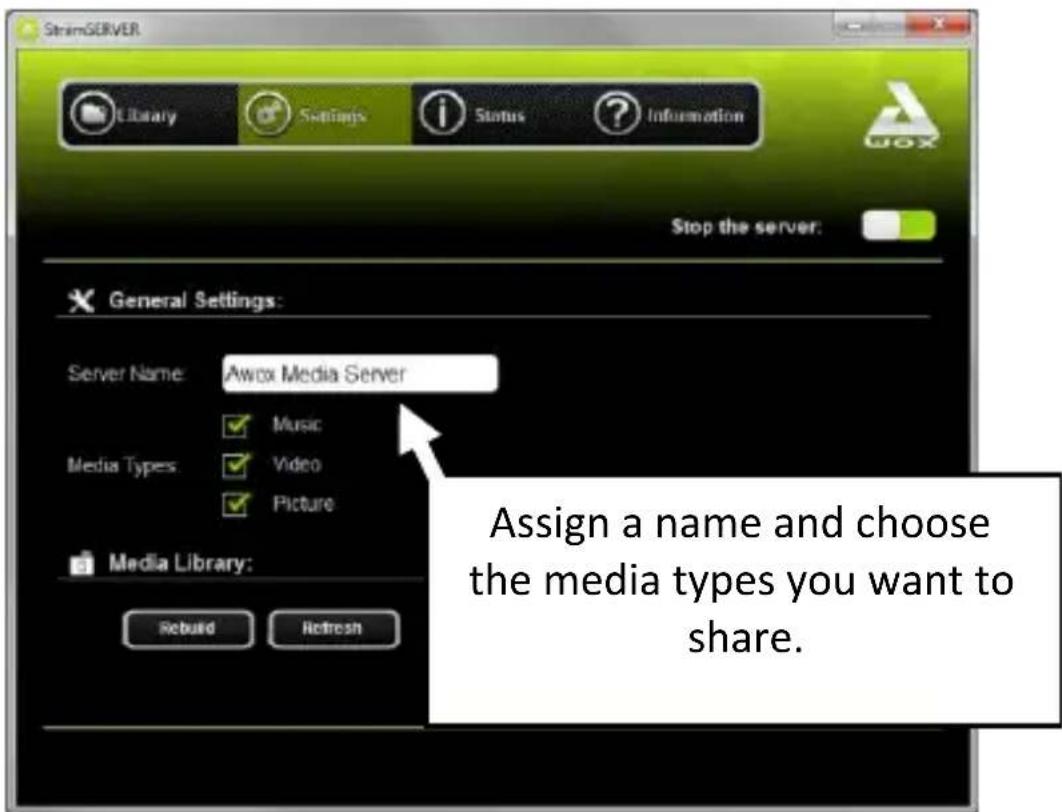
The applicaon opens to the Sengs window:
-
Make sure the server is on (when the Stop the server buon is displayed, which is the default seng).
-
Tap on Sengs:
- Use the Server Name eld to change the name of your server as it will be seen in your network.
- Select the Media Types that you would like to be able to share (make sure to select Music for use with StriimLIGHT Wi-Fi).
-
Tap on Apply when to save your changes.
-
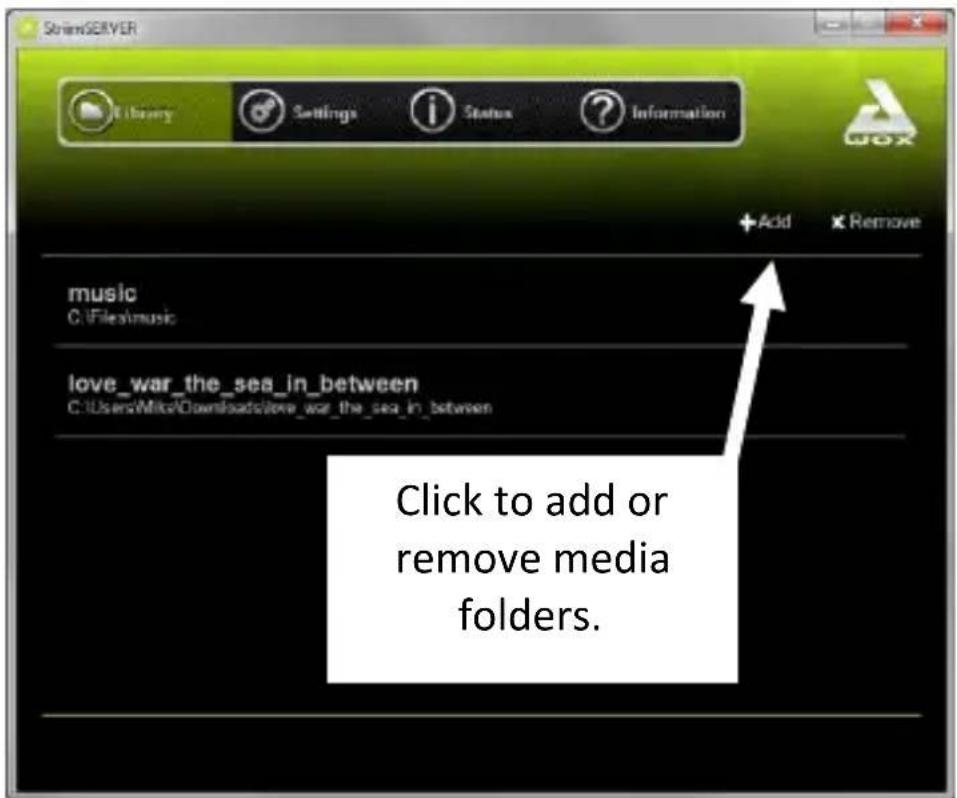
Tap on Library → Add to add media folders to your library.
-
Browse your hard drive to choose a folder, then Tap on Select Folder to include the folder in the library published by StriimSERVER.
-
If you make changes to a media library on your computer, Tap on Sengs → Refresh. If you encounter any problems with the le list display, Tap on Rebuild.
-
Your StriimSERVER media library is now appears as a source in the Striim CONTROL source bar.
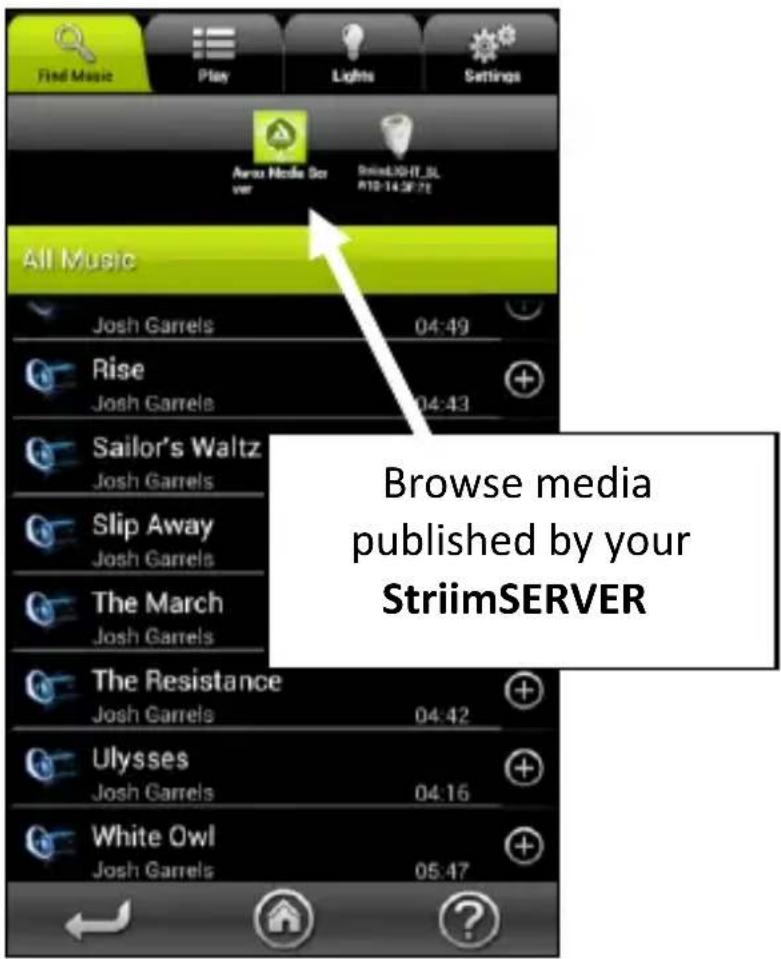
- You may turn the server o by clicking on Sengs → Stop the server. To restart the server, simply click this same buon.
Overview of the Play tab
The Play tab show the music that you have selected to play, and provides standard player controls.
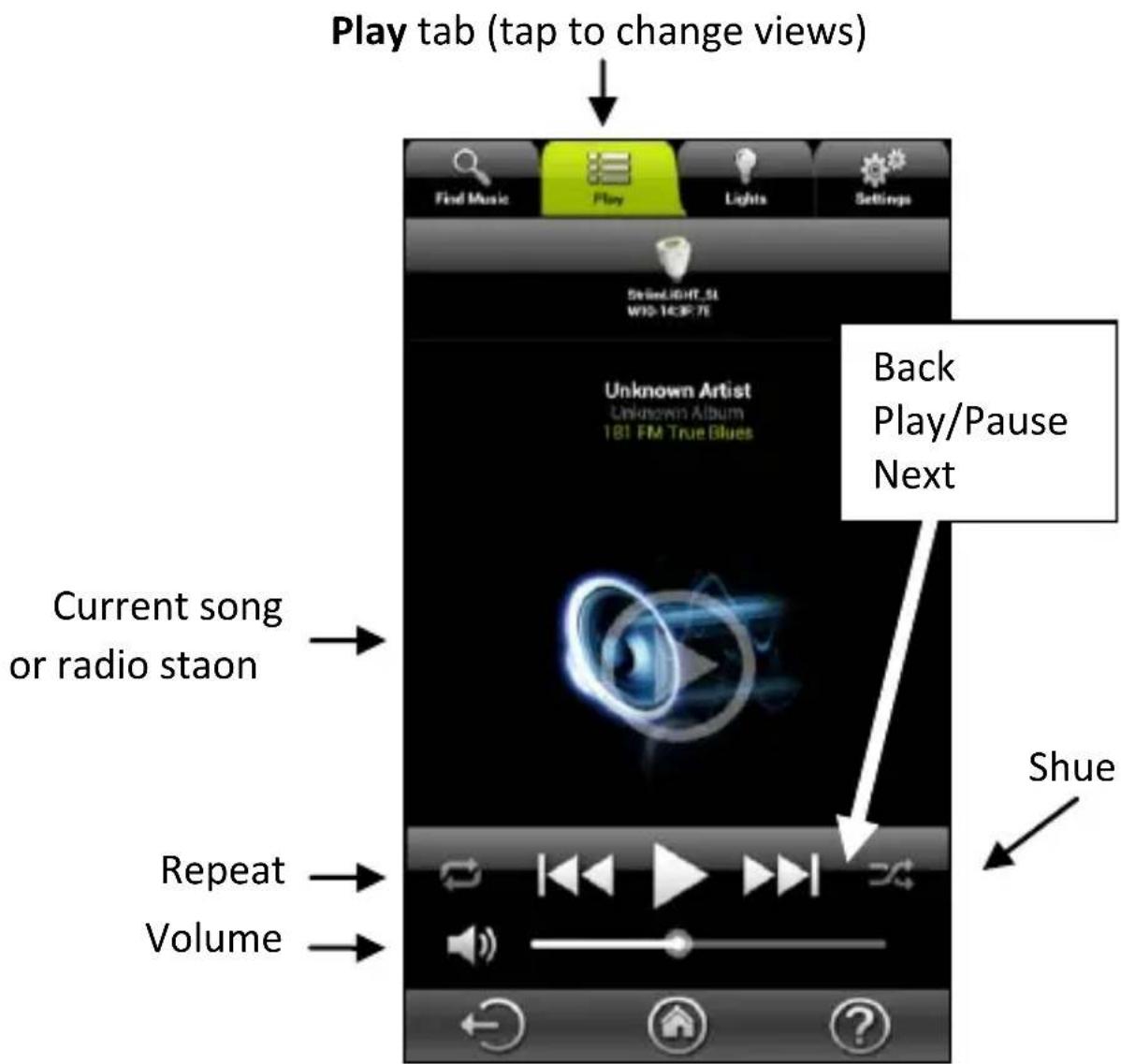
Control music playback using the icons at the boom of the screen.
Playlists and queues
Creang a playlist
You may create playlists of songs located on any available audio sources. A single playlist may contain songs from several dierent sources.
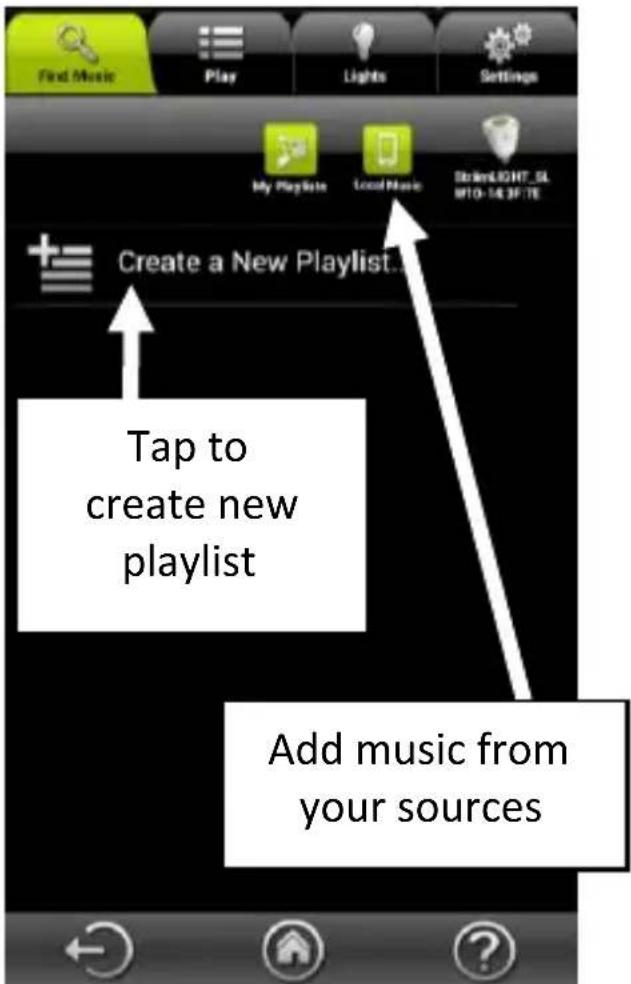
Start by creang a new (empty) playlist
- Tap on the Find Music tab
- Tap on My playlists
- Tap to Create New Playlist and enter a name for the playlist.
Adding songs to your playlist
- Swipe the Source Bar to select the source.
- Locate the music you want and then tap on Ⓕ, select Add to [your playlist name].
- Add as many songs as you want in this manner.
Managing songs in playlists
- Swipe the media selecon bar and select My Playlists.
- Tap the playlist name to view the music it contains.
- To reorder a playlist, tap and hold the track name, then drag and drop it to a new posion.
- To delete a track from the playlist, tap on ⚠️, select Delete. This only removes the song from the playlist without deleng the le from the source.
Managing playlists
On the My Playlists screen, tap on 📄 for other playlist opons:
Rename Allows you to rename the playlist (not available for songs).
Delete Allows you to delete the playlist or a song.
Adding tracks to queues
Instead of creang a playlist, you may simply select songs from one or more sources and queue them up to be played sequentially one aer the other. To do this:
- Tap on the Find Music tab ( ) and select a song that you would like to play, such as from your smartphone or home audio server.
- Tap on + and select Add to queue. If this is the rst song in the queue, it begins to play right away.
- Add as many other songs as you want to the queue in the same manner. Songs are played in the order in which they are added.
Controlling light brightness
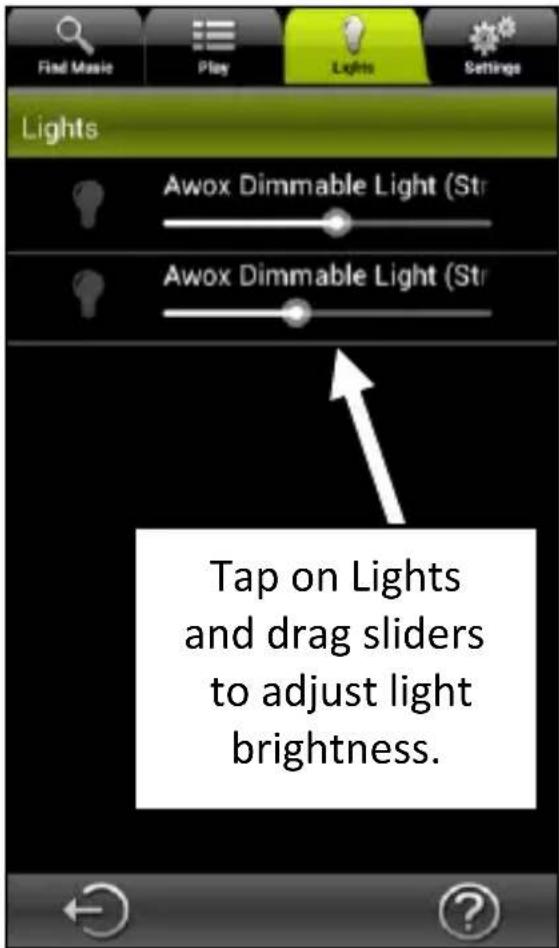
To adjust the brightness of the LED bulb in your StriimLIGHT, tap on the Lights tab. Dimmer sliders enable you to adjust each StriimLIGHT in your system individually.
Using music zones
Creang a new zone
You may combine mulple AwoX StriimLIGHT devices into zones to get a richer stereo sound. For example, here is how you can setup right and le channels with two StriimLIGHT speakers:
- Tap on Sengs → Zone Conguraon → Create New Zone
- Type in a name for the zone.
- Select an icon to display for the zone.
- Tap on OK to save your changes or on Cancel to close this window without saving.
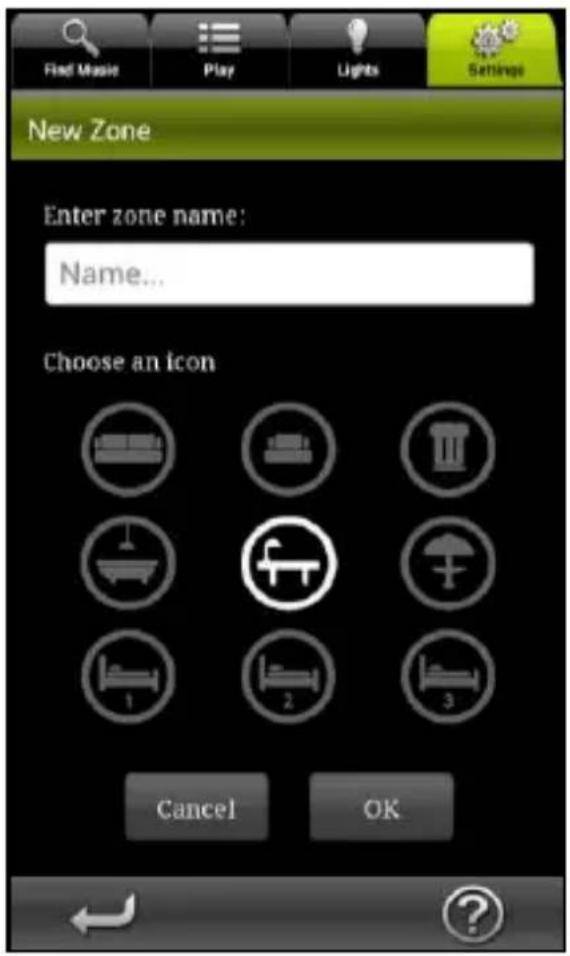
-
StriimLIGHT speakers that are not yet assigned to a zone are listed under Ungrouped Devices.
-
Tap to select a StriimLIGHT device, then drag it into a zone.
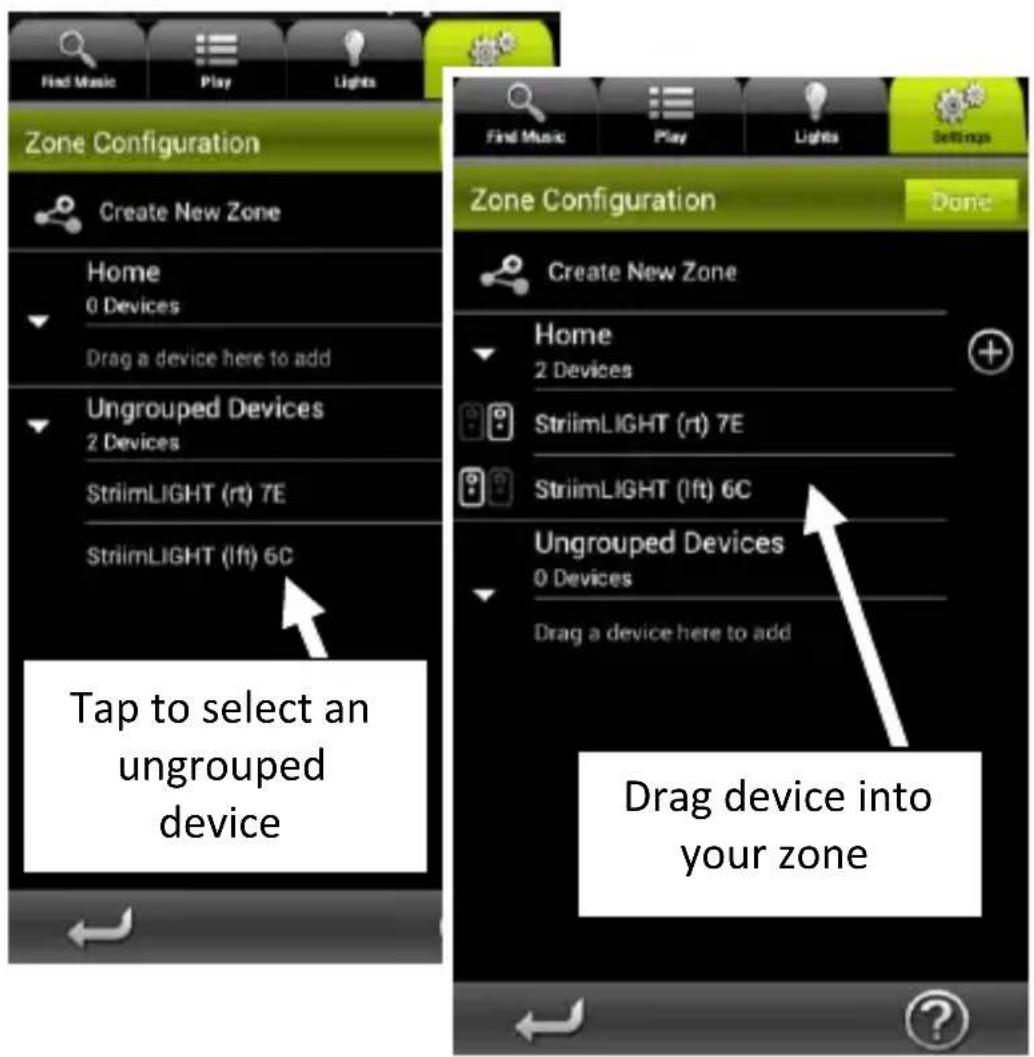
-
Add other devices to the zone in the same manner.
-
Assign le and right channels by clicking on these icons to the le of each device:
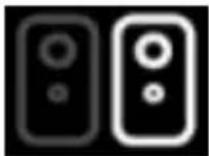
Right channel
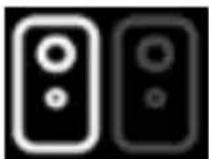
Le channel

Mixed stereo (both channels on one speaker)
- Tap Done and wait a moment while the display refreshes.
Eding an exisng zone
To make changes to an exisng zone:
- Tap on Sengs → Zone Conguraon → Edit
- Tap on ☐ to Modify the name of the zone or change the icon, on or on Delete the zone.
- Tap on Done when nished.
Playing music to a zone (mulple speakers)
Once you have created a zone, simply play your music to the zone just as if it were a single device. You may set the zone as the
default player under Sengs → Audio devices →

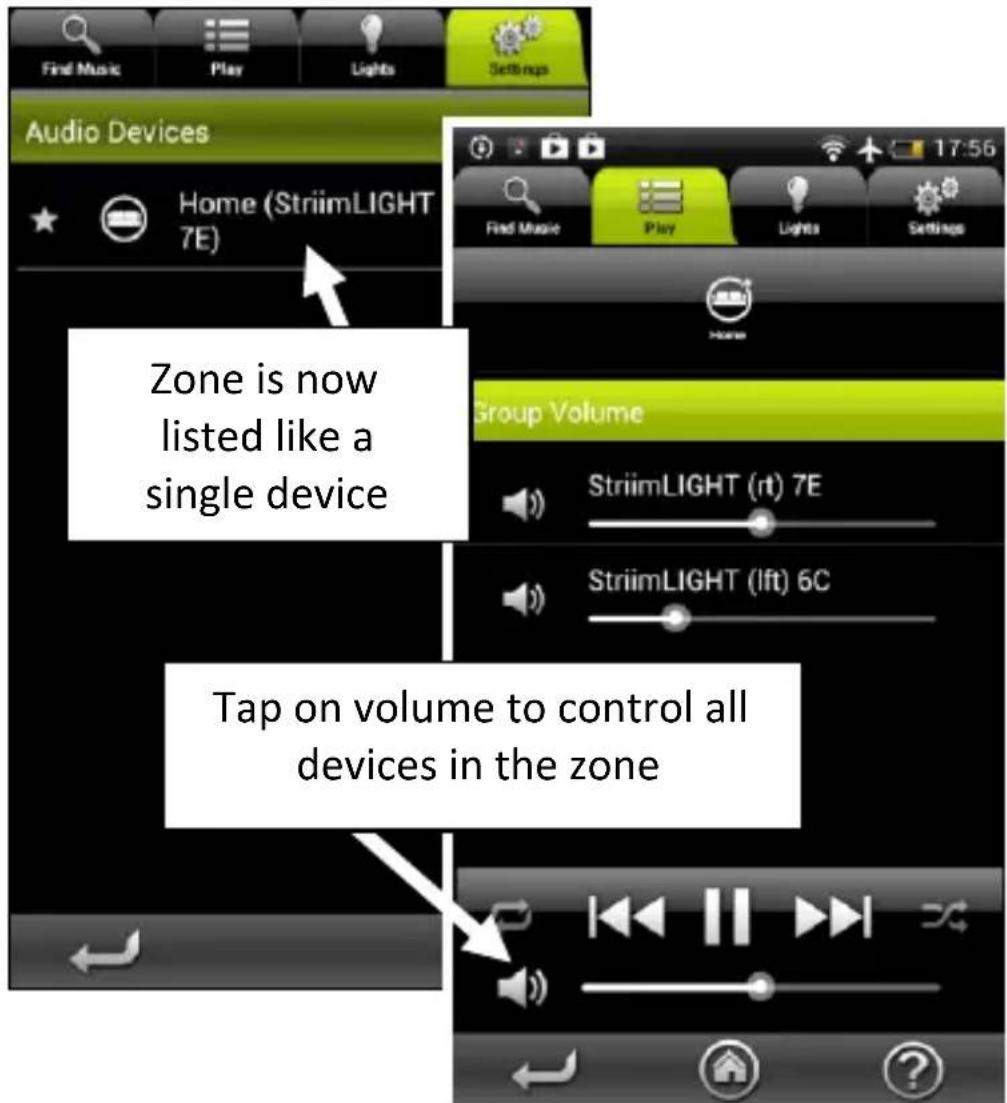
When you adjust the volume for a zone in the Play tab, additional volume sliders enable you to adjust the volume for each StriimLIGHT in your system.
Other configuration options
Several additional conguraon opons are provided on the Sengs tab.
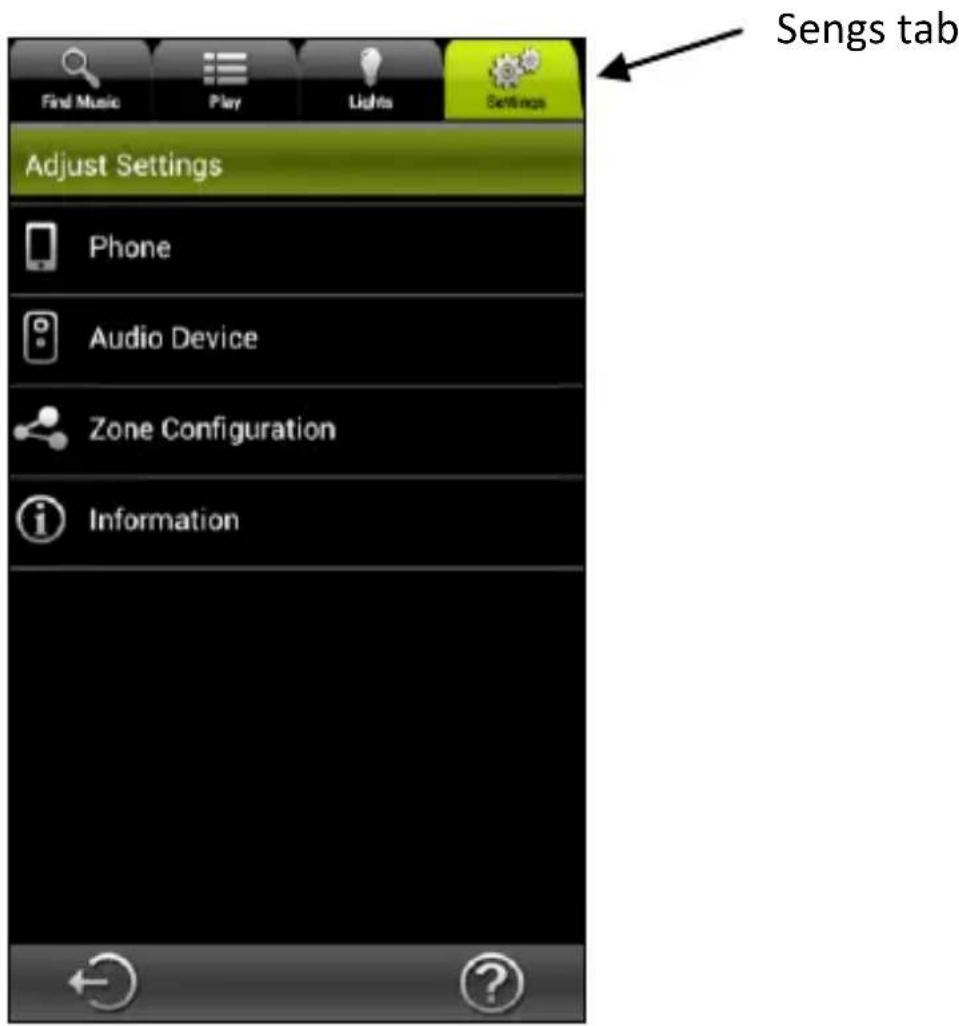
- Tap on the Sengs tab Phone. Here you may set the following opons:
Incoming call Determines what the app should do if you receive a phone call (No acon, Mute phone volume, or Pause playback).
Rescan devices in the network
Updates list of available StriimLIGHT Wi-Fi modules, DLNA servers and media sources.
Congure a new audio device
Runs the device installaon Wizard so you can congure another AwoX Striim product.
Reset applicaon sengs
Removes current sengs and restores factory conguraon.
-
Also on the sengs tab, you may tap on Audio devices to:
-
Set the device to use as the default audio device.
- View technical informaon about your StriimLIGHT Wi-Fi module.
- Change the network name of your StriimLIGHT Wi-Fi module.
Updating AwoX Striim CONTROL
To check on-line for updates to the AwoX Striim CONTROL applicaon:
- In the Sengs tab, tap on Informaon (

- If a more recent version of the soware is available, tap on Update now to update your device.
Technical specifications
| Hardware | |
| Supported media | MP3 (up to 48 kHz, CBR & VBR)AAC (up to 48 kHz, 8-320 kbps)WMA (up to 48 kHz, CBR & VBR)including losslessLPCM, WAV (up to 48 kHz, up to 1.44 Mb/s |
| Network | Wi-Fi b/g/n (WEP/WPA, WPS) |
| Speaker | 2 inch, 8 Ohm, 10W |
| Dimensions | 95 mm x 147 mm x 95 mm |
| Weight | 550 g |
Environmental
| Operang condions | 0° to +35°C10% to 85% RH (no condensaon) |
| Storage condions | -10° to +60°C5% to 90% RH (no condensaon) |
| Input power | 100-240V, E27 socket |
| Consumpon | 25 W max |
Troubleshooting
AwoX StriimLIGHT Wi-Fi is not listed as an available source or the device is grayed-out in the Zones list.
- Press the reset buon for ve seconds to erase any previous conguraon sengs and re-run the setup Wizard.
I can connect to my StriimLIGHT, but Internet Radio doesn't list any available staons.
- Check to make sure that your home Internet conncon is working properly.
I created a zone with two StriimLIGHT devices, but sometimes the sound is not synchronized between them.
- When rst geng started, or if the Striim CONTROL applicaon is refreshing sengs, the speakers may become temporarily unsynchronized. They will automacally get back in sync aer a few moments.

AwoX StriimLIGHT™ Wi-Fi
LED light with Wi-Fi speaker
SL-W10