DVD-PA65 - Portable DVD Player PANASONIC - Free user manual and instructions
Find the device manual for free DVD-PA65 PANASONIC in PDF.


User questions about DVD-PA65 PANASONIC
0 question about this device. Answer the ones you know or ask your own.
Ask a new question about this device
Download the instructions for your Portable DVD Player in PDF format for free! Find your manual DVD-PA65 - PANASONIC and take your electronic device back in hand. On this page are published all the documents necessary for the use of your device. DVD-PA65 by PANASONIC.
USER MANUAL DVD-PA65 PANASONIC
natural_image
Two abstract geometric shapes with textured surfaces, no text or symbols presentPanasonic
Portable DVD Audio/Video Player
Operating Instructions
Model No. DVD-PA65
natural_image
Abstract geometric pattern composed of shaded squares and grids, no text or symbols present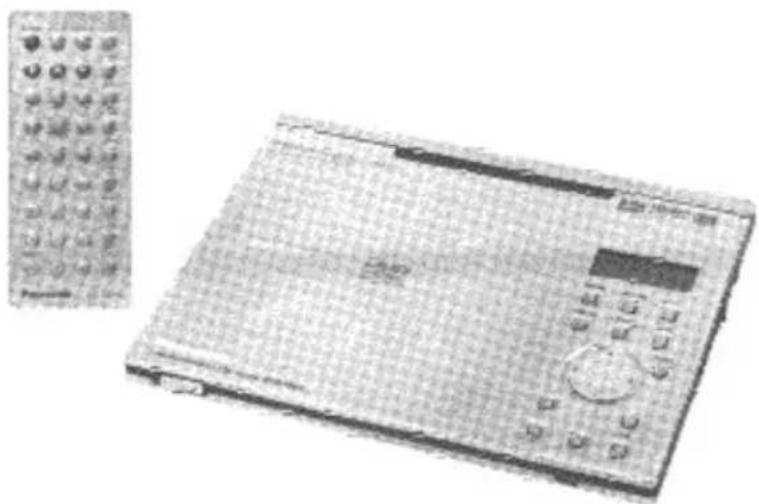
natural_image
Illustration of a vintage remote control device with a grid-patterned front panel and control buttons (no visible text or symbols)
PRINTED WITH
SOYINK
!M
This manual was printed with soy based ink.
AUDIO/VIDEO

DIGITAL VIDEO
Dear customer
Thank you for purchasing this product.
For optimum performance and safety, please read these instructions carefully.
Before connecting, operating or adjusting this product, please read these instructions completely. Please keep this manual for future reference.
CAUTION!
THIS PRODUCT UTILIZES A LASER. USE OF CONTROLS OR ADJUSTMENTS OR PERFORMANCE OF PROCEDURES OTHER THAN THOSE SPECIFIED HEREIN MAY RESULT IN HAZARDOUS RADIATION EXPOSURE.
DO NOT OPEN COVERS AND DO NOT REPAIR YOURSELF. REFER SERVICING TO QUALIFIED PERSONNEL.
WARNING:
TO REDUCE THE RISK OF FIRE, ELECTRIC SHOCK OR PRODUCT DAMAGE, DO NOT EXPOSE THIS APPLIANCE TO RAIN, SPLASHING, DRIPPING OR MOISTURE.
CAUTION:
TO PREVENT ELECTRIC SHOCK MATCH WIDE BLADE OF PLUG TO WIDE SLOT, FULLY INSERT.
The following mark and symbols are located on the bottom of the unit.


CAUTION: TO REDUCE THE RISK OF ELECTRIC SHOCK, DO NOT REMOVE SCREWS. NO USER-SERVICEABLE PARTS INSIDE. REFER SERVICING TO QUALIFIED SERVICE PERSONNEL.
The lightning flash with arrowhead symbol, within an equilateral triangle, is intended to alert the user to the presence of uninsulated "dangerous voltage" within the product's enclosure that may be of sufficient magnitude to constitute a risk of electric shock to persons.

The exclamation point within an equilateral triangle is intended to alert the user to the presence of important operating and maintenance (servicing) instructions in the literature accompanying the appliance.
CAUTION -VISIBLE AND INVISIBLE LASER ATTENTION -RAYONNEMENT LASER VISIBLE ET RADIATION WHEN OPEN. INVISIBLE EN CAS D'OUVERTURE. DO NOT STARE INTO BEAM. NE PAS REGARDER DANS LE FAISCEAU.
(Bottom of the unit)
THE FOLLOWING APPLIES ONLY IN THE U.S.A.
CAUTION:
This equipment has been tested and found to comply with the limits for a Class B digital device, pursuant to Part 15 of the FCC Rules. These limits are designed to provide reasonable protection against harmful interference in a residential installation. This equipment generates, uses and can radiate radio frequency energy and, if not installed and used in accordance with the instructions, may cause harmful interference to radio communications. However, there is no guarantee that interference will not occur in a particular installation. If this equipment does cause harmful interference to radio or television reception, which can be determined by turning the equipment off and on, the user is encouraged to try to correct the interference by one or more of the following measures:
●Reorient or relocate the receiving antenna.
- Increase the separation between the equipment and receiver.
- Connect the equipment into an outlet on a circuit different from that to which the receiver is connected.
- Consult the dealer or an experienced radio/TV technician for help.
Any unauthorized changes or modifications to this equipment would void the user's authority to operate this device.
This device complies with Part 15 of the FCC Rules. Operation is subject to the following two conditions: (1) This device may not cause harmful interference, and (2) this device must accept any interference received, including interference that may cause undesired operation.
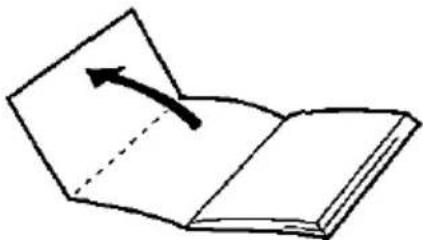
Open this page while reading the instructions so you can see where the controls are.
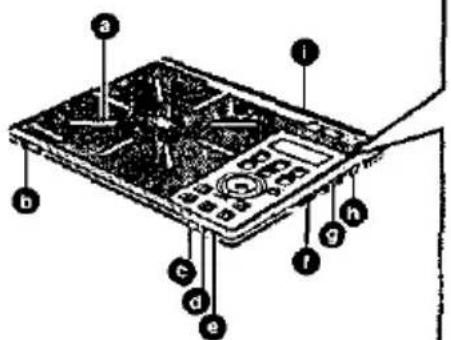
Main Unit
a Disc lid
b Lock release
Remote control signal sensor
Charge [CHG] indicator
Standby [💡] indicator
Volume [ ∽ VOL] dial
③ [ON/OFF, ROLD] select switch
n Headphone [Ω] jack
AOP[AOP]button
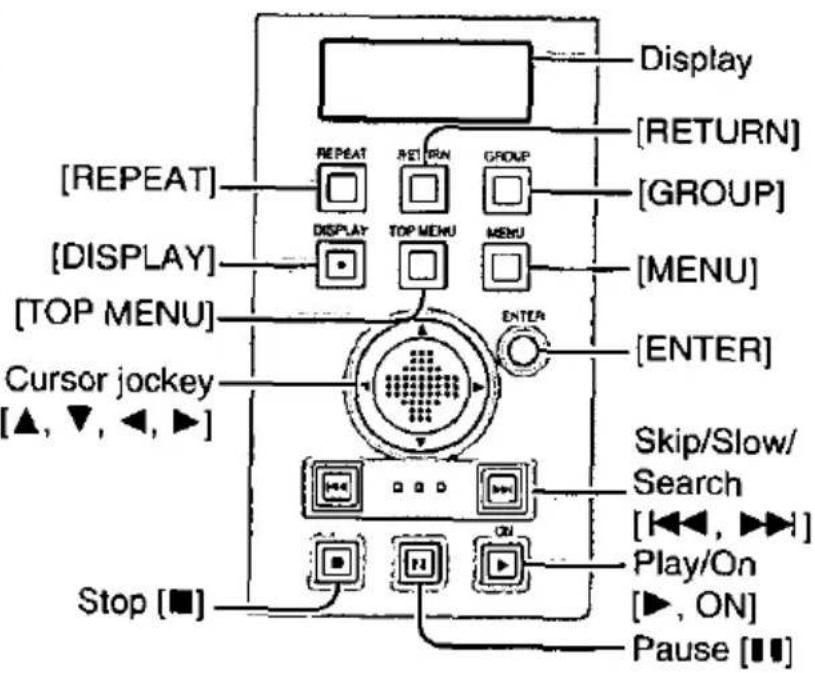
flowchart
graph TD
    A["Display"] --> B["RETURN"]
    B --> C["GROUP"]
    C --> D["MENU"]
    D --> E["ENTER"]
    E --> F["Skip/Slow/Search"]
    F --> G["Play/On"]
    G --> H["ON"]
    H --> I["Pause"]
    I --> J["Stop"]
    K["REPEAT"] --> L["DISPLAY"]
    M["DISPLAY"] --> N["TOP MENU"]
    O["Cursor jockey"] --> P["▲, ▼, ◀, ▶"]
    Q["ENTER"] --> R["Multi-panel button"]
    S["STOP"] --> T["Control buttons"]
Remote Control
![[ACTION] [∅, POWER] Pause [11] Stop [■] Slow/Search [◀◀, ▶▶] Cursor jockey buttons [▲, ▼, ◀, ▶]/[ENTER] Skip [◀◀, ▶▶] Numeric buttons [GROUP] [PLAY MODE] [DISPLAY] Play [▶] [TOP MENU] [MENU] [RETURN] [SUBTITLE] [AUDIO] [ANGLE] [CANCEL] [V.S.S.] Panasonic DVD PLAYER](/content/2026/05/1070175/images/d95fbd74f415370e53dbdbe8d9974cccfbe4958510cf8170a189057521a5b1d9.jpg)
■ Using the cursor
On the main unit: Slide the cursor jockey in the direction you want to move the cursor. [▲] up, [▼] down, [◀] left, [▶] right.
On the remote control: Press the cursor button corresponding to the direction you want to move the cursor.
[▲] up, [▼] down, [◀] left, [▶] right.
Accessories
Please check and identify the supplied accessories.
(For U.S.A.)
To order accessories contact 1-800-332-5368 or web site (http://www.panasonic.com).
(For Canada)
To order accessories, call the dealer from whom you have made your purchase.
□ Remote control .... 1
(VEQ2382)
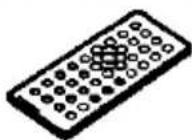
□ Button-type battery ..... 1
for remote control
(for replacement, see below)

□ Audio/video cable....1
(RJL3X001X15)

□ AC adaptor .... 1
(VSK0578)
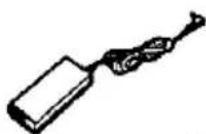
□ AC power supply cord....1
(RJA0065-A)
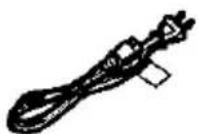
Optional accessories:
Battery pack
(For U.S.A.: CGP-H501A/1B)
(For Canada: CGP-H501C/1B)
Button-type battery(CR2025)
Mini optical digital audio cable (RP-CA2110)
Available only in U.S.A.
Carrying case (DY-CC20)
Headphones (RP-HC100 or RP-HS900)
Use numbers indicated in parentheses when asking for replacement parts.
Note
The included AC power supply cord and AC adaptor are for use with this unit only. Do not use them with other equipment.
Table of contents
Getting Started:
PRECAUTIONS.... 6
Listening caution.... 7
Disc information 8
Disc and unit handling precautions.... 9
Basic Operations:
Basic play....14
- Stopping play.... 15
●Pausing play 16
●Skipping chapters and tracks ..... 16
- Slow motion.... 16
Advanced Operations:
Other play modes
●All group play....19
●Program play....19
●Random play 19
Repeat play....20
For Your Reference:
How images appear on your TV.....26
Changing initial settings
- Common procedures....27
•1 Disc Languages .....28
●2 Ratings 29
-3 Menu Language 29
-4 On-Screen Messages....30
●9 Other Settings 30
Maintenance.... 9
Preparing the remote control ..... 10
Power supply
●Using the AC adaptor ..... 10
●Using the battery pack....11
Easy setup—Television connections and settings 12
- Fast forward and rewind— SEARCH....16
●Frame-by-frame viewing ..... 16
- Selecting groups to play ..... 17
- Starting play from a selected title or track. 17
- Playing only the audio ..... 17
- Returning to a menu 18
Switching vocals ON or OFF for karaoke discs....20
Using On-Screen Menu Icons
●Basic operation 21
●Shuttle screen....21
-Icons for disc information ..... 22
- Icons for unit information....23
Changing soundtracks, subtitle languages and angles ..... 24
Enjoying virtual surround effects with 2 speakers or headphones ..... 25
Glossary 32
Connecting other equipment ..... 33
Enjoying more powerful sound
●Enjoying surround sound with 3 or more speakers....34
Enjoying better stereo sound
●Listening through 2 speakers ..... 36
Recording to MDs and cassette tapes .... 37
Using headphones....37
Speaker settings 38
Digital settings....40
Troubleshooting guide ..... 42
Specifications 45
Servicenter List (US) 46
Product service 47
Open the facing page when using the operating instructions.
natural_image
Simple line drawing of an open book with a dashed line indicating a page, no text or symbols present.Before using this unit, be sure to read the applicable items of the operating instructions and these safety suggestions carefully.
Afterwards keep them handy for future reference. Take special care to follow the warnings indicated on the unit itself as well as in the operating instructions.
Power source
- Power Source—The unit should be connected to a power supply only of the type described in the operating instructions or as marked on the unit. If you are not sure of the type of power supply to your home, consult your appliance dealer or local power company.
Do not use a car cigarette lighter socket to power the unit.
-
Polarization—If the unit is equipped with a polarized AC power plug (a plug having one blade wider than the other), that plug will fit into the AC outlet only one way. This is a safety feature. If you are unable to insert the plug fully into the outlet, try reversing the plug. If the plug should still fail to fit, contact your electrician to replace your obsolete outlet. Do not defeat the safety purpose of the polarized plug.
-
Power Cord Protection—AC power supply cords should be routed so that they are not likely to be walked on or pinched by items placed upon or against them. Never take hold of the plug or cord if your hand is wet, and always grasp the plug body when connecting or disconnecting it.
-
Overloading—Do not overload wall outlets and extension cords as this can result in a risk of fire or electric shock.
-
Nonuse Periods—If the set is not being used for a long time, be sure to disconnect the AC power supply cord from the AC power outlet and detach the battery pack to prevent potential damage caused by battery leakage.
-
Attachments—Do not use attachments not recommended by the unit manufacturer as they may cause hazards.
Maintenance
Disconnect this unit from the AC outlet before cleaning.
Clean the cabinet, panel and controls with a soft cloth lightly moistened with a mild detergent solution.
Do not use any type of abrasive pad, scouring powder or solvent such as alcohol or benzine.
AC adaptor
This AC adaptor operates on AC between 100 V and 240 V.
But
- In the U.S.A. and Canada, the AC power supply cord must be connected to a 120 V AC power supply only.
- When connecting to an AC supply outside of the U.S.A. or Canada, use a plug adaptor to suit the AC outlet configuration.
- When connecting to a supply of greater than AC 125 V, ensure the cord you use is suited to the voltage of the AC supply and the rated current of the AC adaptor.
- Contact an electrical parts distributor for assistance in selecting a suitable AC plug adaptor or AC cord set.
Batteries
1. Battery pack
(Lithium ion battery pack) (not included)
- Use this unit to recharge the battery pack.
- Do not use the battery pack with equipment other than the specified player.
- Do not use, charge or leave the battery pack in locations where there is static electricity.
- Do not use the player outside if it is snowing or raining. (The battery pack is not waterproof.)
- Do not get dirt, sand, liquids, or other foreign matter on the terminals.
- Do not touch the plug terminals (+ and -) with metal objects.
- Do not disassemble, remodel, heat or throw into fire.
2. Button-type battery (Lithium battery)
- Insert with poles aligned.
- Do not touch the terminals (+ and -) with metal objects.
- Do not disassemble, remodel, heat or throw into fire.
- Keep out of reach of children.
If any electrolyte should come into contact with your hands or clothes, wash it off thoroughly with water.
If any electrolyte should come into contact with your eyes, never rub the eyes.
Rinse eyes thoroughly with water, and then consult a doctor.
3. Disposing of the batteries
Check and follow your local regulations before disposal.
Installation
- Water and Moisture—Do not use this unit near water—for example, near a bathtub,
Listening caution
washbowl, swimming pool, or the like. Damp basements should also be avoided.
-
Condensation—Moisture may form on the lens in the following conditions...
-
immediately after a heater has been turned on.
• in a steamy or very humid room. -
when the unit is suddenly moved from a cold environment to a warm one. If moisture forms inside this unit, it may not operate properly. To correct this problem wait about one hour for the moisture to evaporate.
-
Heat—Never use or place this unit or battery near a heat source. Do not leave it in an automobile exposed to direct sunlight for a long time with the doors and windows closed as this may deform the cabinet.
-
Foreign Material—Care should be taken so that objects do not fall into and liquids are not spilled into the unit. Do not subject this unit to excessive smoke, dust, mechanical vibration, or shock.
Service
- Damage Requiring Service—The unit should be serviced by qualified service personnel when:
(a) The AC power supply cord or AC adaptor is damaged; or
(b) Objects have fallen or liquid has spilled into the unit; or
(c) The unit has been exposed to water; or
(d) The unit does not appear to operate normally or exhibits a marked change in performance; or
(e) The unit has been dropped, or the enclosure damaged.
- Servicing—The user should not attempt to service the unit beyond that described in the operating instructions. All other servicing should be referred to authorized service personnel.
For the address of an authorized servicenter:
In the U.S.A., call 1-800-211-7262, e-mail consumerproducts@panasonic.com, or visit www.panasonic.com
In Canada, call 1-800-561-5505 or visit www.panasonic.ca
- Replacement parts—When parts need replacing, ensure the servicer uses parts specified by the manufacturer or parts that have the same characteristics as the original parts. Unauthorized substitutes may result in fire, electric shock, or other hazards.
- Safety check—After repairs or service, ask the servicer to perform safety checks to confirm that the unit is in proper working condition.

Do not play your headphones or earphones at a high volume. Hearing experts advise against continuous extended play.
If you experience a ringing in your ears, reduce volume or discontinue use.
Do not use while operating a motorized vehicle. It may create a traffic hazard and is illegal in many areas.
You should use extreme caution or temporarily discontinue use in potentially hazardous situations.
Even if your headphones or earphones are the open-air type designed to let you hear outside sounds, don't turn up the volume so high that you can't hear what's around you.
Sound can be deceiving. Over time your hearing "comfort level" adapts to higher volumes of sound. So what sounds "normal" can actually be loud and harmful to your hearing.
Guard against this by setting your equipment at a safe level BEFORE your hearing adapts.
To establish a safe level:
- Start your volume control at a low setting.
- Slowly increase the sound until you can hear it comfortably and clearly, and without distortion.
Once you have established a comfortable sound level:
- Set the dial and leave it there.
CAUTION:
The batteries used in this device may present a risk of fire or chemical burn if mistreated. Do not disassemble or incinerate the batteries. Do not heat the batteries above the following temperatures.
Button-type battery .....100 °C (212 °F)
Battery pack ....60 °C (140 °F)
Do not recharge the button-type battery.
Replace only with Panasonic part number indicated below:
Button-type battery (Lithium battery)
(for remote control) CR2025
Battery pack (Lithium ion battery pack)
For U.S.A.: CGP-H501A/1B
For Canada: CGP-H501C/1B
Use of other batteries may present a risk of fire or explosion.
| Discs supported by this unit | Discs not supported by this unit | ||
DVD-Audio | •DVD-Video with a region number other than “1” or “ALL” (See below.) | ||
| •Photo CD | •CD-R | ||
| •PAL system DVD-Video* and Video CDs. | |||
| •CD-RW | •DVD-ROM | ||
| •DVD-RW | •DVD-R | ||
| •DVD+RW | •DVD-RAM | ||
| •CVD | •CD-ROM | ||
| •Divx Video Disc | •VSD | ||
| •CDV | •SVCD | ||
| •CD-G | •SACD | ||
Video CD | Audio CD | etc.Do not try to play Photo CD or CD-R.Data on the disc may be damaged. | |
*When playing DVD-Audio, video output is cut off and only the audio is played. "AOP" (Audio Only Play) lights on the unit's display to indicate this mode is on.
■ Region number supported by this unit (DVD-Video only)
Region numbers are allocated to DVD players and DVD-Video according to where they are sold.
- The region number of this unit is "1".
- This unit will play DVD-Video marked with labels containing the region number "1" or "ALL".
Example:



Read the disc's instructions carefully.
■ Playing DVDs and Video CDs
The producer of the material can control how these discs are played. This means that you may not be able to control play of a disc with some operations described in these operating instructions. Read the disc's instructions carefully.
■ How the picture appears on your television
It depends on the aspect ratio of your television, and the television's screen mode and the aspect ratio recorded on the disc (→ page 26).
■ The functions depend on the disc being played. These marks indicate the functions available.
Concerning discs
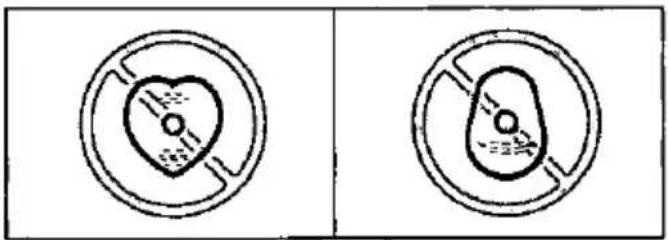
Do not use irregularly shaped discs, such as heart-shaped. (These discs can damage the unit.)
natural_image
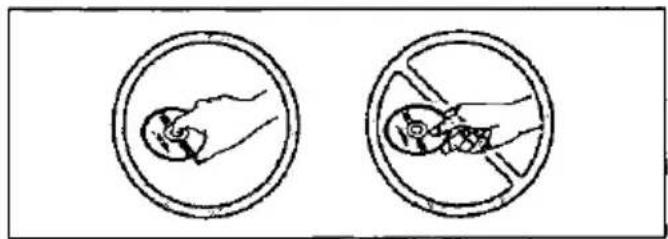
Two identical diagrams of a heart-shaped object with internal lines, shown side by side (no text or symbols)■ How to hold a disc
Do not touch the recorded shiny surface.
natural_image
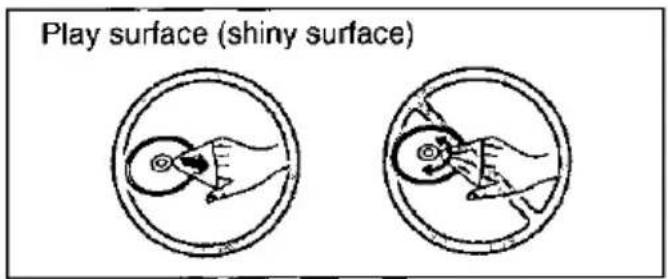
Two circular diagrams showing a hand holding a small object inside and a hand holding a large object inside, both without any text or symbols.■ If the surface is dirty
Wipe it with a damp cloth and then wipe dry. Wipe from the center toward the circumference.
■ If the disc is brought from a cold to a warm environment, moisture may form on the disc
Wipe with a soft, dry, lint-free cloth before using the disc.
Maintenance
■ To clean this unit, wipe with a soft, dry cloth.
If the surfaces are extremely dirty, use a soft cloth dipped in a soap-and-water solution or a weak detergent solution.
- Never use alcohol, paint thinner or benzine to clean this unit.
- Before using chemically treated cloth, read the instructions that came with the cloth carefully.
■ Handling precautions
- Do not write on the label side with a ball-point pen or other writing instrument.
- Do not use record cleaning sprays, benzine, thinner, static electricity prevention liquids or any other solvent.
- Do not use scratch-proof protectors or covers other than those specified for use with this unit.
- Do not attach labels or stickers to discs.
- Do not use discs with exposed adhesive from tape or left over peeled off stickers.
- Do not use discs printed with label printers available on the market.
■ Do not place or store discs in the following places
- Locations exposed to direct sunlight
● Humid or dusty locations - Locations directly exposed to the heat from a heating appliance
To prevent damage
Avoid the following;
- Spraying flammable insecticides near the unit,
- Touching the lens and other parts of the laser pickup.
Do not use the unit in the following places:
● Sandy places such as beaches,
- On top of cushions, sofas, or hot equipment such as amplifiers.
Do not rest the unit on your lap for a long time while using it. The unit can become hot and cause burns.
■ Maintenance of the lens
- If dust is attached to the lens, remove dust carefully with an air blower for camera lenses (optional).
- Be careful not to touch the lens with your fingers.
Preparing the remote control
Insert the battery (Lithium battery)
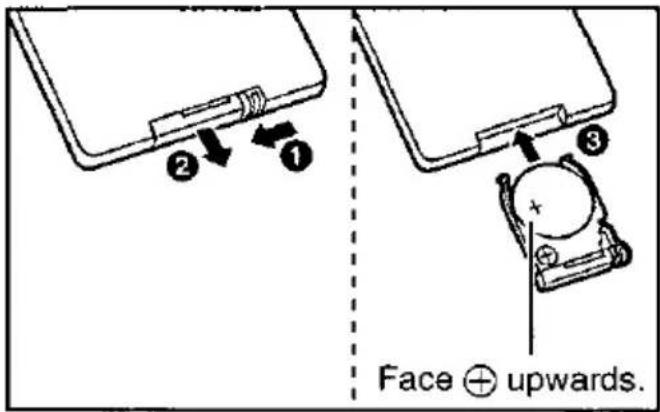
■ Replacing the button-type battery
The battery normally lasts for about a year. Replace if the remote control fails to operate the unit when used within the operation range.
Note
Refer to "PRECAUTIONS" on pages 6 and 7.
Operation range
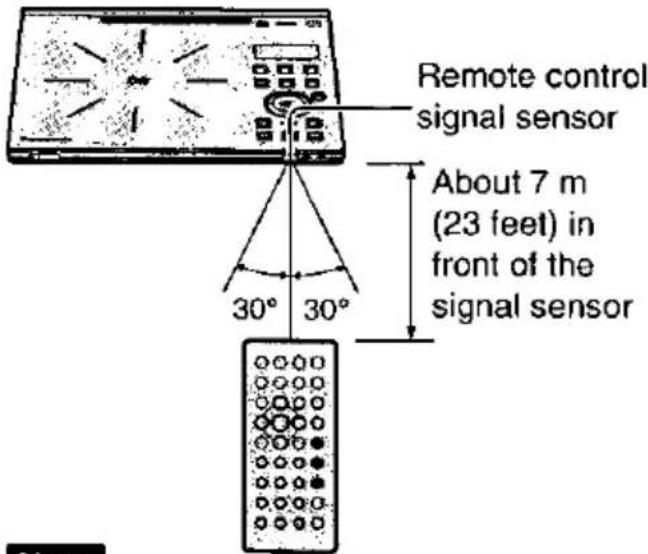
Note
- Do not expose the remote control signal sensor to bright light.
- Do not place obstacles between the remote control signal sensor and the remote control.
- Do not use another unit's remote control at the same time.
Power supply
Using the AC adaptor
![Back of the unit 1 Household AC outlet (AC 120 V, 60 Hz) 2 3 The [◎] indicator lights. Front of this unit](/content/2026/05/1070175/images/db5777960813b13525ded87ee8bda932323fba5be921ca8765f457ab0bbc92ea.jpg)
Note
Refer to "PRECAUTIONS" on page 6.
The unit is in the standby condition (the [☐] indicator lights) when the AC power supply cord is connected. The primary circuit is always "live" as long as the AC adaptor is connected to an electrical outlet.
■ When the unit is not going to be used for a long time
The unit consumes 2 W when in standby mode.
To conserve power, disconnect the AC power supply cord from the AC outlet.
Using the battery pack (Lithium ion battery pack) (not included)
- Use the following battery pack.
For U.S.A.: CGP-H501A/1B
For Canada: CGP-H501C/1B
- Read the battery pack's instructions before use.
- Charge the battery pack before using it for the first time.
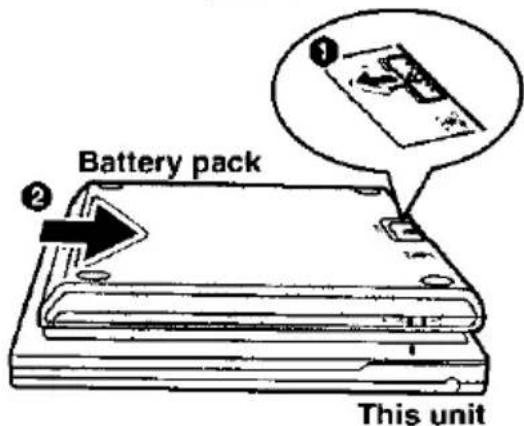
■ To attach the battery pack
Confirm that the marks on the left side of the unit and battery match.
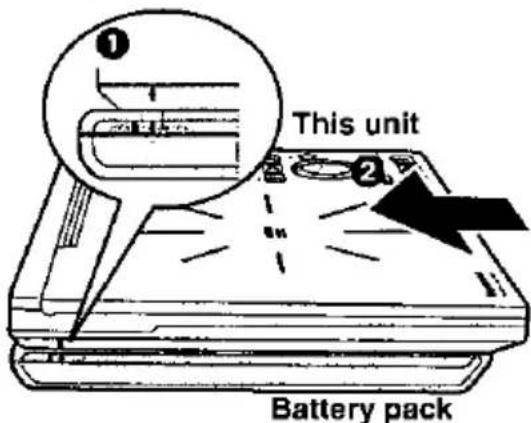
Fit the battery pack firmly so it clicks into place. Ensure the mark on the unit matches the LOCK mark on the battery pack.
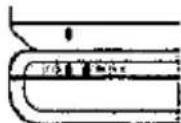
■ To recharge the battery pack
Connect to the household AC outlet while the battery pack is attached (→ page 10).
- The battery pack can only be recharged when the unit is off (→ page 15, "To turn the unit off").
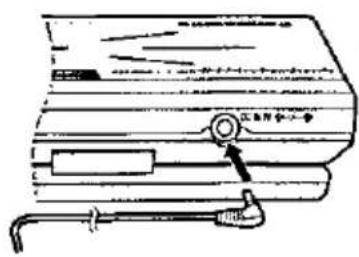
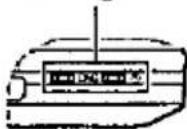
Front of this unit
The [CHG] and [⏻] indicators light.
Note
Refer to "PRECAUTIONS" on pages 6 and 7.
Recharging is complete when [CHG] goes out
Disconnect the AC power supply cord and AC adaptor.
■ To detach
① Slide and hold in position.
■ Recharging and play time
| Recharging time | Play time |
| Approx.4 hours 30 min.[at 20 °C (68 °F)] | Approx. 7 hours |
- Times shown above depend on operating conditions.
- The charge is shown on the unit's display during charging. Use this indicator as a guide.
Flashes → Flashes → Charging Low complete
■ Confirm the battery charge on the unit's display
Full → = → Low → Flashes Recharge
■ If play time dramatically reduces after recharging
The battery pack has reached the end of its service life (it can be recharged about 300 times).
■ If the unit is not to be used for a long time
- Detach the battery pack. (Even if the unit is off, it still uses some power. This can lead to over discharging of the battery and malfunction.)
● Recharge the battery pack when you are ready to use it again.
Easy setup–Television connections and settings
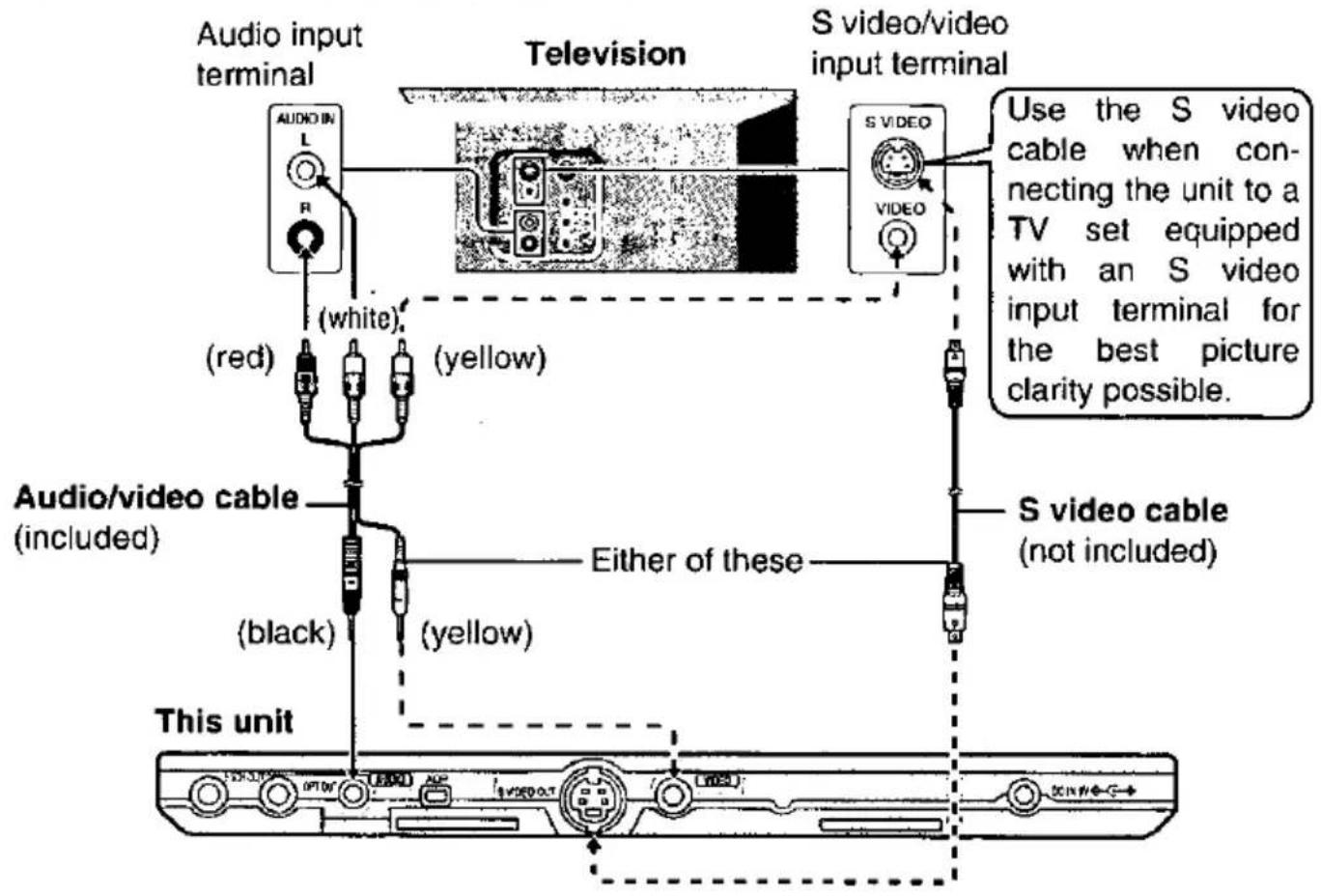
Connecting to a television
This explains connections that allow you to enjoy sound through the television's speakers. There are details on how to connect other equipment, to enjoy a more powerful sound, starting on page 34.
Preparations
- Turn off your television and the unit (→ page 15, "To turn the unit off").
- Read the television's operating instructions.
Note
During DVD play, TV volume may be lower than during TV broadcasts. If you turn the volume up while playing DVD, ensure that you reduce the volume again before playing other sources so that a sudden increase in output does not occur.
Connect Your Portable DVD Audio/Video Player Directly To Your Television
If the unit is connected to the television through a video cassette recorder, the picture may not be played back correctly due to the copy guard. So we strongly recommend you do not connect the unit to your video cassette recorder when setting up your home entertainment system.
Selecting TV screen type
These settings are not necessary when using a conventional television (4:3).
Preparations
- Turn on your television and the unit (→ page 15, "To turn the unit on").
- Switch the video input mode on the television to suit the type of connection you have made.
1 While stopped
Press [ACTION] or [MENU] to display the initial settings screen.
2 Use the cursor jockey [▲, ▼] to select "5 TV Aspect" and press [ENTER].
3 Use the cursor jockey [▲, ▼] to select the TV aspect and press [ENTER].
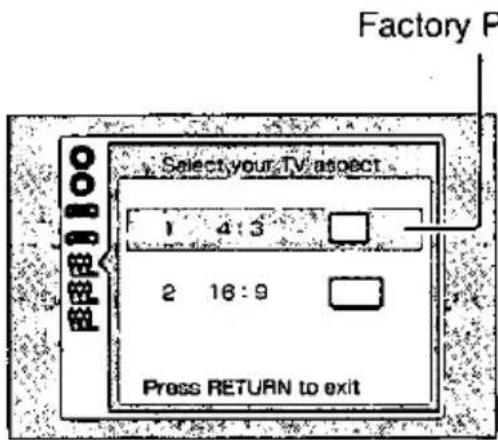
4:3
Select when a conventional television is connected.
•16:9
Select when a wide-screen television is connected.
4 Press [RETURN] to finish the setting.
■ To return to the previous menu
Press [RETURN].
Note
Ensure "7 Speaker Setting" is set to "2-channel" (→ page 38).
Before enjoying DVD/Video CD/CD
The On-Screen menu language of your player has been factory preset to English. You can change the menu language to French or Spanish. Refer to "3 Menu Language" on page 29. In these instructions, it is assumed that English has been selected as the menu language.
Preparations
●Prepare the power supply (→ pages 10 and 11).
- Connect the television and adjust the necessary settings (→ pages 12 and 13).
1
natural_image
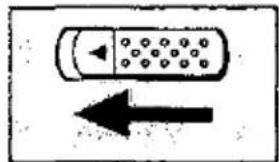
Simple diagram of a mobile phone with an arrow pointing left (no text or symbols)Slide the lock release and open the disc lid.
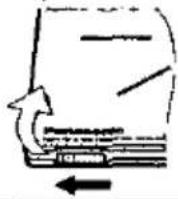
2
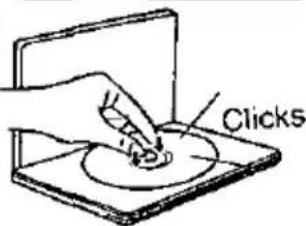
Insert a disc.
Close the disc lid by hand.
●Face the label of the side to be played up.
3
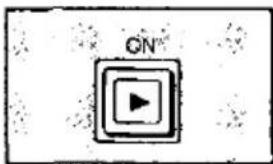
Press and hold [▶, ON] to start play.
The unit comes on automatically. See below if a menu appears.
Using menus: Basic operations
Example:
| 1. EAST ASIA |
| 2. SOUTH ASIA |
| 3. MIDDLE EAST |
| 4. AFRICA |
| 5. EUROPE |
Press the remote control's numeric buttons to select an item.
- With DVDs, you can also select items with the cursor jockey [▲, ▼, ◀, ▶] and press [ENTER] to confirm.
- With DVD-Audio, you can play back the audio without having to use menus (→ page 17).
- Selecting an item numbered 10 and over with the remote control's numeric buttons
e.g. 10: [≥10]→[1]→[0]
e.g. 25: [≥10]→[2]→[5]
■ Other menu operations
Operation of menus differs from disc to disc, so read the disc's instructions for details.
[▶▶!]
: To move to the next menu
[↓]
: To return to the previous menu
[TOP MENU]: To return to the first menu
[MENU]
: To show menus
[RETURN]
: To show menus
■ “⊗” appears on the television
This indicates that an operation is not allowed by the unit or disc at that time.
■ When the disc ends
If you have finished using the unit, turn it off to conserve power (→ page 15, "To turn the unit off").
Note
●The surface of the unit may become warm if it is used for a long time, but this is normal and not an indication of malfunction.
- The disc is still spinning while a menu is on the television. Press [■] if you have finished viewing.
■ To turn the unit on
The unit can be turned on as follows.
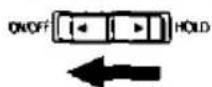
Slide [ON/OFF, HOLD] to "ON/OFF" until the display is turned on.

Press [⏻, POWER].
■ To turn the unit off
The unit can be turned off as follows. The [O] indicator lights when you are using the AC adaptor.
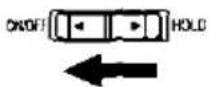
Slide [ON/OFF, HOLD] to "ON/OFF" until the display is turned off.

Press [∅, POWER].
Note
- You cannot use the remote control to turn the unit on when it is being powered by the battery pack.
- The unit automatically turns off after being stopped for 15 minutes (5 minutes when the battery pack is being used) to save power.
(Auto power-off function)
■ To prevent accidental operation
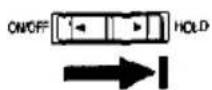
Slide [ON/OFF, HOLD] to "HOLD".
In the hold mode, the unit does not respond when you press the buttons. If you press a button in the hold mode, "H0 Id" appears on the unit's display and the [O] indicator flashes.
To release:
Slide [ON/OFF, HOLD] to "ON/OFF".
Stopping play
During play
Press [■].
The position you stopped play at is recorded by the unit when "▶" is flashing on the unit's display.
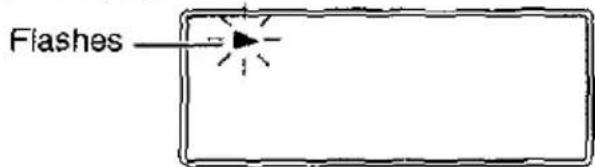
While "▶" is flashing on the unit's display, press [▶] to start play from where you stopped it (Resume function).
If you are playing DVD-Video, the following display also appears.
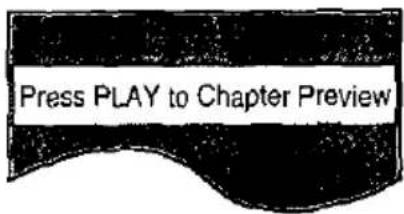
Pressing [▶] while this is displayed activates the Chapter Preview feature.
If you do not press [▶], the message disappears and play starts from where you stopped it.
Chapter Preview:
The beginning portions of each chapter up to the current one are played. Full play resumes from the point where you stopped play. (Chapter Preview feature works only within a title.)
■ To cancel Resume function
Press [■].
●The DVD-Audio group is stored.
Note
- The resume function does not work if the disc's play time is not displayed.
- The resume position remains in memory even if the unit is off.
- It is cleared if you open the disc lid.
Pausing play
DVD-A
DVD-V
VCD
CD
During play
Press [II].
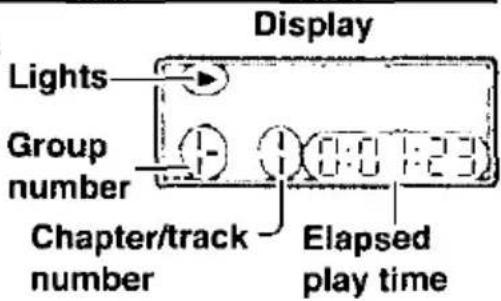
Lights
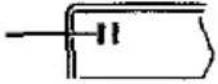
- Press [▶] to resume play.
Skipping chapters and tracks
DVD-A
DVD-V
VCD
CD
While playing or paused
Press [◀◀] (backward) or [▶▶] (forward).
Each press increases the number of skips.
Position being played
![Twice Once Once Twice Chapter/Track Chapter/Track Chapter/Track [◀◀] → ← [▶▶] →](/content/2026/05/1070175/images/2e6dc781b6cde3495d2269e7e50ba815363780c2cb0525d9f36df4a4de73db93.jpg)
Slow motion
DVD-A
DVD-V
VCD
While paused
Press and hold [◀◀] (backward: DVD only) or [▶▶] (forward).
The slow motion speed increases in 5 steps if you continue to hold the button down.
While paused
Press [◀◀] (backward: DVD only) or [▶▶] (forward).
Each press increases the speed of the slow motion in 5 steps.
- Press [▶] to resume play.
- Only the motion picture parts of DVD-Audio are affected.
Fast forward and rewind— SEARCH
DVD-A
DVD-V
VCD
CD
During play
Press and hold [◀◀] (backward) or [▶▶] (forward).
The search speed increases in 5 steps if you continue to hold the button down.
During play
Press [◀◀] (backward) or [▶▶] (forward).
Each press increases the speed of the search in 5 steps.
- Press [▶] to resume play.
- Audio will be heard during fast-forward and rewind. (Some discs do not output audio.) You can turn this audio off if you want to (DVD-Video and Video CDs only, page 30, "9 Other Settings").
Frame-by-frame viewing
DVD-A
DVD-V
VCD
While paused
Use the cursor jockey [◀] (backward: DVD only) or [▶] (forward).
- Press and hold to move the frames in succession.
- Press [▶] to resume play.
- You can also move forward frame-by-frame if you press [11].
- Only the motion picture parts of DVD-Audio are affected.
Note
If you press [◀◀, ▶▶] or [◀◀, ▶▶] during menu play of video CDs with playback control (→ page 32), the unit may not perform properly.
Selecting groups to play
DVD-A
Groups
The tracks on DVD-Audio are divided into groups. Some discs contain bonus groups that you can play by entering a password.
1 While stopped or playing Press [GROUP].
The group changes each time you press the button.
- You can also select groups with the remote control's numeric buttons.
2 Press [▶].
Play starts from the first track in the group you selected.
You can only select bonus groups while stopped. Perform the following steps if you selected a bonus group.
■ Playing bonus groups
- Enter the 4-digit password with the remote control's numeric buttons. (Erase a number you entered in error by pressing [CANCEL] on the remote control.)
- See the disc's jacket for the password.
- Press [ENTER].
Now you can select the track.
- You can use the cursor jockey [▲, ▼] to select a track to play.
- Press [▶] or [ENTER].
- If you enter the wrong password, the previous screen will be displayed. Start again from the beginning.
- Once you have entered the password, you can play the bonus group as many times as you like until the disc is removed from the unit.
Use the "All group play" feature to play all the tracks on the disc (→ page 18).
Starting play from a selected title or track Remote control only
DVD-A DVD-V VCD CD
While stopped or playing
Press the numeric buttons.
Play starts from the selected title/track.
(See below if the disc has playback control.)
- With DVD-Video, this only works while stopped unless it is a karaoke disc.
- When playing DVD-Audio and you want to start play from a track in a different group, select the group first (See left).
- Depending on the disc, and how it is being played, this may not work.
■ \*When playing Video CDs with play-back control
Cancel menu play before performing the above operation.
-
Press [■] during play so "P bC" on the unit's display goes out.
-
Press the numeric buttons (See above).
To restore menu play
While stopped
-
Press [■] to clear "▶" on the unit's display.
-
Press [▶].
The "P bC" indicator on the unit's display comes on.
Playing only the audio
DVD-A
You can play the audio on DVD-Audio without having to use menus when you haven't connected a television.
1 Press [AOP] (located on the rear panel).
The disc stops if it was playing or showing a menu. The resume function is not activated.
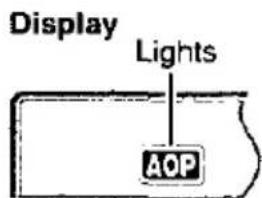
2 Press [▶].
You may not be able to play parts that include moving pictures.
Returning to a menu
DVD-A
DVD-V
VCD
The actual contents of menus differ from disc to disc, so here we explain only the basic operations.
During play
Press [TOP MENU]. (DVD-Audio)
Press [MENU]. (DVD-Video*)
Press [RETURN]. (Video CD)
■ *When you are playing a DVD-Video with multiple menus
You can also return to a menu by pressing [TOP MENU].
●The menus displayed when you press [MENU] and [TOP MENU] may differ.

Example
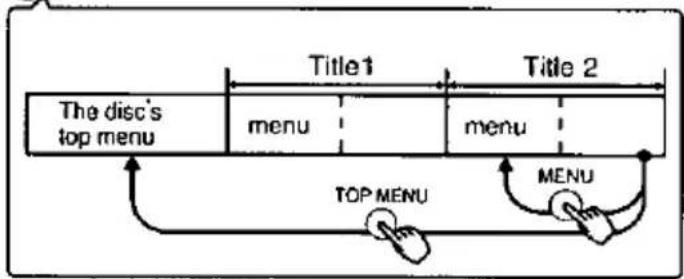
flowchart
graph LR
    A["The disc's top menu"] --> B["menu"]
    B --> C["Title 1"]
    C --> D["menu"]
    D --> E["Title 2"]
    E --> F["TOP MENU"]
    F --> G["MENU"]
    G --> H["Menu"]
Note
This does not work if you are playing only the audio on DVD-Audio ("AOP" lights on the unit's display).
Other play modes
While stopped
Press [PLAY MODE] on the remote control to select the play mode.
The mode changes each time you press the button.
If "⊗" appears on the television, press [■] to clear "▶" on the unit's display, then press [PLAY MODE].
Example: DVD-Audio
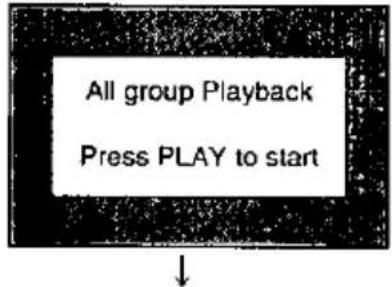
A To play all the groups in succession (All group play)
B To play a maximum of 32 tracks in a programmed order (Program play)
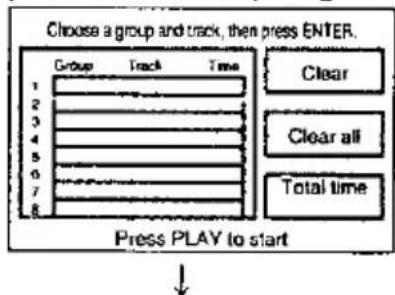
flowchart
graph TD
    A["Choose a group and track, then press ENTER."] --> B["Group"]
    A --> C["Track"]
    A --> D["Time"]
    B --> E["1"]
    B --> F["2"]
    B --> G["3"]
    B --> H["4"]
    B --> I["5"]
    B --> J["6"]
    B --> K["7"]
    B --> L["8"]
    C --> M["Clear"]
    D --> N["Clear all"]
    D --> O["Total time"]
    P["Press PLAY to start"] --> Q
C To play tracks randomly (Random play)
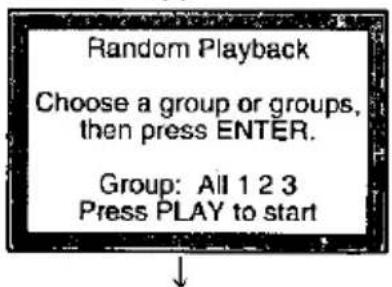
Normal play mode
Select the screen for the mode then follow the procedures in the next column to start play.
To restore normal play
While stopped
- Press [■] to clear "▶" on the unit's display.
- Press [PLAY MODE] on the remote control to select normal play.
- Press [▶].
■ When play finishes
The disc stops and the screen corresponding to the play mode reappears.
A | All group play
DVD-A
Press [▶].
B | Program play
DVD-A
VCD
CD
1 Press [ENTER].
(DVD-Audio only)
2 Use the cursor jockey [▲, ▼] to select a group and press [ENTER].
3 Use the cursor jockey [▲, ▼] to select a track and press [ENTER].
Each time you use the cursor jockey [▲, ▼],
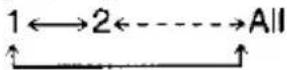
Repeat steps 1,2 and 3 to program other tracks.
- Instead of performing steps 1,2 and 3 above, you can also use the remote control's numeric buttons to select a group or track.
- "Total time" tells you the total time of the programmed tracks.
- All the tracks on a disc are selected when you select "All" (all the tracks in the selected group with DVD-Audio).
4 Press [▶].
To change the program
While stopped
Press [■] to return to the program screen.
Now perform the following operations.
•To change program items
- Use the cursor jockey [▲, ▼] to highlight the group or track.
- Repeat steps 1, 2, and 3 on page 19.
•To clear items from the program
- Use the cursor jockey [▲, ▼] to highlight the track.
- Press [CANCEL] on the remote control.
- Alternatively you can select "Clear" and press [ENTER].
•To erase the whole program
Use the cursor jockey [▲, ▼, ◀, ▶] to highlight "Clear all" and press [ENTER].
c | Random play
DVD-A
VCD
CD
(DVD-Audio only)
Use the cursor jockey [◀, ▶] to select a group and press [ENTER].
- You can select more than one group.
- You can also select groups with the remote control's numeric buttons.
2 Press [▶].
■ To clear a group
- Use the cursor jockey [◀, ▶] to select the group you want to clear.
- Press [CANCEL] on the remote control or [ENTER].
- Groups can also be erased by entering the group number with the remote control's numeric buttons.
Note
- The contents of the program are saved in memory until the unit is turned off or the disc lid is opened.
- If you select bonus groups on DVD-Audio during program or random play, you will have to enter. a 4-digit password(→page17).
Repeat play
DVD-A DVD-V VCD CD
During play
Press [REPEAT] to select the repeat play mode.
Each time you press the button;
(DVD-Audio) (Video CD) (CD)
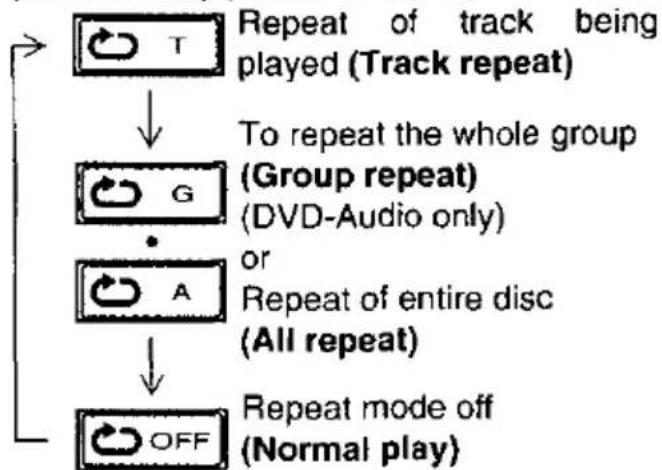
flowchart
graph TD
    A["Repeat of track being played (Track repeat)"] --> B["To repeat the whole group (Group repeat) (DVD-Audio only)"]
    B --> C["Repeat of entire disc (All repeat)"]
    C --> D["Repeat mode off (Normal play)"]
When playing DVD-Audio in All group, Program, or Random play modes, "A" is displayed instead of "G".
(DVD-Video)
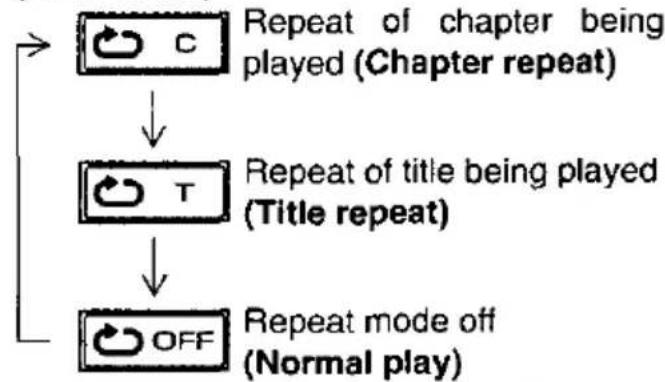
flowchart
graph TD
    A["Repeat of chapter being played (Chapter repeat)"] --> B["Repeat of title being played (Title repeat)"]
    B --> C["Repeat mode off (Normal play)"]
■ *When playing Video CDs with playback control Cancel menu play first.
- Press [■] during play to clear "P bC" from the display.
- Press a remote control's numeric button to select and play a track.
- Press [REPEAT] (See above).
Note
- Repeat mode does not work with some discs.
- Repeat mode does not work if play time is not displayed on the unit's display.
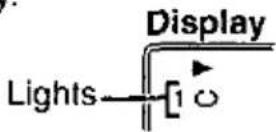
- "1" lights on the unit's display during Track/Chapter repeat play.
•“☐” lights on the unit's display during All/Group/Title repeat play.
Switching vocals ON or OFF for karaoke discs Remote control only
DVD-V VCD (Karaoke discs)
Preparation
Connect the unit to an amplifier that has a microphone jack (→ pages 34-36).
1 During play Press [AUDIO].
(DVD-Video)
(Video CD)
![PANASONIC DVD-PA65 - During play Press [AUDIO]. - 1](/content/2026/05/1070175/images/2254ab21795bdf2f11a945c6c609b6c3e177355a448283d4a62e246360d4c49d.jpg)
![PANASONIC DVD-PA65 - During play Press [AUDIO]. - 2](/content/2026/05/1070175/images/c19c849d0b46af2ea75699fed38abf3340c586372af76bf64a2b2841b0f419a2.jpg)
2 Use the cursor jockey [◀, ▶] (DVD-Video)/[▲, ▼] (Video CD), or press [AUDIO] (Video CD only) to change the audio mode.
DVD-Video karaoke disc (Solo)
[---] : Vocal OFF (for karaoke)
[ON] : Vocal ON
DVD-Video karaoke disc (Duet)
[---] : Vocal OFF (for karaoke)
[1+2]: Vocal 1 and 2 ON
[V1] : Vocal 1 only ON (for duet)
[V2] : Vocal 2 only ON (for duet)
VCD karaoke disc
[LR] : Vocals (Vocals seem to come from the right)
[L] : No Vocals (for karaoke)
[R] : Vocals (Vocals seem to come from both left and right)
■ To clear the on-screen display
Press [ENTER].
The on-screen icons will disappear automatically if nothing is selected.
On-Screen Menu Icons are long thin menus that contain information about the disc or unit. These menus allow you to perform operations by changing this information.
■ Operations available only with On-Screen Menu Icons
Elapsed play time, Time display mode, Still picture page number, A-B repeat play, Dialogue Enhancer, Marker, V.S.S. mode (For details, → pages 22 and 23)
Basic operation
1 While stopped or playing Press [DISPLAY] to select the On-Screen Menu Icons.
The screen changes each time you press the button.
Example: DVD-Video
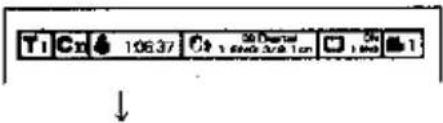
Icons for disc information:
(→ page 22)
You can change groups, chapters, titles and tracks, or select different angles or sound-track and subtitle languages.
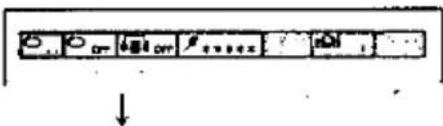
Icons for unit information:
(→ page 23)
You can start repeat play or mark parts you want to play again.
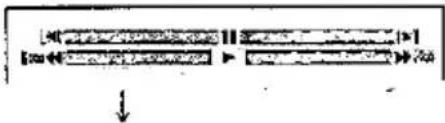
Shuttle screen:
(See right)
You can fast forward, rewind, or start slow motion play.
On-Screen Menu Icons cleared
2 Use the cursor jockey [▲, ▼, ◀, ▶] to select the item.
The item is highlighted in yellow.
3 Use the cursor jockey [▲, ▼] to change the setting.
- Step 3 is not necessary when using the shuttle screen.
- You can change some items with the remote control's numeric buttons.
- If the change doesn't take effect, press [ENTER] or [▶].
■ To clear the on-screen display
Press [RETURN] or [CANCEL] on the remote control.
Note
- If part of the On-Screen Menu Icons is cut off or fails to appear, go to the initial settings menu to change the position of On-Screen Messages. The color of the On-Screen Menu Icons can also be changed (→ page 30, "4 On-Screen Messages").
- Items displayed depend on how the disc is being played and the type of disc.
- Functions that can be operated depend on how the disc is being played and the type of disc.
- “△, ∇” around the on-screen icon means that the item can be changed using the cursor jockey [▲, ▼].
Shuttle screen
Example: DVD-Video
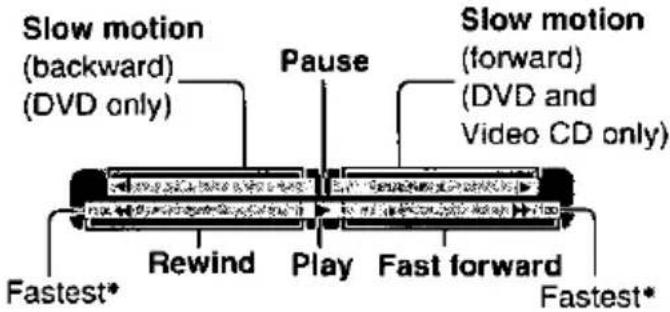
•The numbers indicate the maximum speed and do not change when the search speed is changed.
- There are 5 speeds of fast forward, rewind, and slow motion. The speed increases if you hold the cursor jockey [◀, ▶] in position or repeat the operation.
- You can advance frame by frame if you press [▲] while the picture is paused.
(DVD and Video CD)
- Slow motion play and frame advance only work with DVD-Audio if a motion picture is playing.
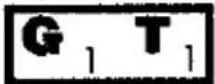 | Group/Track number (DVD-Audio)Select a number to start play of the group/track. |
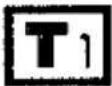 | Track number (Video CD/CD)Title number (DVD-Video)Select a number to start play from the track/title. |
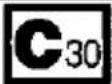 | Chapter number (DVD-Video)Select a number to start play from the chapter. |
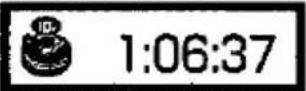 | Elapsed play time (DVD)Play starts from a time you specify with the remote control's numeric buttons.For example: To start play from 1 hour 6 minutes and 37 seconds into the disc,[1]→[0]→[6]→[3]→[7]→[ENTER] |
 | Time display mode (DVD-Audio/Video CD/CD)Each time you use the cursor jockey [▲,▼]:Elapsed time of current track←→Remaining time of current track↑----→Remaining time on group/disc←→ |
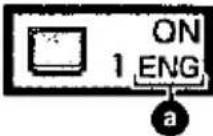
Example: DVD-Video 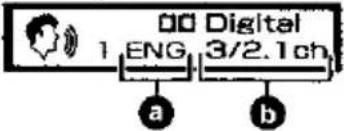 | Audio number (DVD): Specify an audio track number.a Soundtrack language: For details, see below (a).b Signal: For details, see below (b). |
 | Audio mode (Video CD): Specify an audio channel.LR←→L←→R↑ |
 | Still picture page number (DVD-Audio)Select a number to show the still picture.You will usually return to a menu if "Return" appears and you select it. |
 | Subtitles (DVD-Video)Specify a subtitle number or turn the subtitles on and off.a Subtitle language: For details, see below (a). |
 | Angle number (DVD-Video)Specify an angle number. |
 | Menu play (Video CDs with playback control) (Cannot be changed here.)Indicates whether menu play (PBC) is on or off. |
a Audio/Subtitle language
ENG : English POR : Portuguese
FRA : French RUS : Russian
DEU : German JPN : Japanese
ITA : Italian CHI : Chinese
ESP : Spanish KOR : Korean
NLD : Dutch MAL : Malay
SVE : Swedish VIE : Vietnamese
NOR : Norwegian THA : Thai
DAN : Danish * : Others
b Signal type/data
PPCM/LPCM/□□ Digital/DTS: Signal type
k : Sampling frequency (kHz)
b : Number of bits (bit)
ch : Number of channels
Vocal : Vocals indication for karaoke discs
- You can switch vocals ON or OFF with the cursor jockey [▲, ▼].
---/ON : Solo karaoke
---N1+V2/V1/V2: Duet karaoke
Icons for unit information
 | A-B repeat playPlay repeats between 2 specified points.During playEach time you press [ENTER]; ●This feature works only within a track/title.●The unit automatically determines the end of a track/title as point B when the end of the track/title is reached.●“A ➕ B” lights on the unit’s display during A-B repeat play. ●This feature works only within a track/title.●The unit automatically determines the end of a track/title as point B when the end of the track/title is reached.●“A ➕ B” lights on the unit’s display during A-B repeat play. |
 | Repeat playRepeat play starts after you select a type of play.(DVD-Audio/Video CD/CD) (DVD-Video)T (Track)←→G(Group) ←→OFF C (Chapter)←→T (Title)←→OFFA(All)* ↑ ↑ *When playing DVD-Audio in All group, Program, or Random play modes, “A” is displayed.●“1 ➕ ” lights on the unit’s display during Track/Chapter repeat play.●“ ➕ ” lights on the unit’s display during All/Group/Title repeat play. |
 | Play modes (DVD-Audio/Video CD/CD) (Cannot be changed here.)ALL (All group)/PRG (Program)/RND (Random)/--- (Normal) |
 | Dialogue Enhancer (Only with DVDs recorded with Dolby Digital/DTS, 3 or more channels)●Dialogue Enhancer raises dialogue from the center channel. |
 | Marker: You can mark up to 5 positions that you want to play againPress [ENTER] once, then press [ENTER] again at the point you want to mark.●To select another marker, first select another marker with the cursor jockey [▶].●All the markers are cleared when the unit is turned off or the disc lid is opened.■ To recall a position ■ To clear a markerSelect the marker no. with the cursor jockey [◀, ▶] and press [ENTER]. cursor jockey [◀, ▶] and press [CANCEL] on the remote control. |
 | V.S.S. mode/V.S.S. level (→ page 25)(DVD-Video recorded with Dolby Digital, 2 or more channels)●Select the V.S.S. mode.(V.S.S.) (Headphone V.S.S.)●Select the V.S.S. level.1 (Natural effect)←→2 (Emphasized effect)←→OFF (Cancel)↑ ↑ |
Changing soundtracks, subtitle languages
and angles Remote control only
Changing soundtracks
DVD-A DVD-V
During play
Press [AUDIO].
The audio number changes each time you press the button.
Audio playing
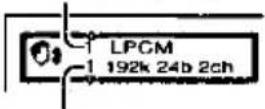
Audio selected
(There will usually be a number "2" even if there is only one soundtrack recorded on the disc.)
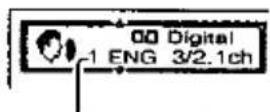
Audio number
("—*” is displayed if sound is not recorded on the disc.)
Changing subtitle languages
DVD-V
During play
Press [SUBTITLE].
The subtitle number changes each time you press the button. ("--*" is displayed if subtitles are not recorded on the disc.)
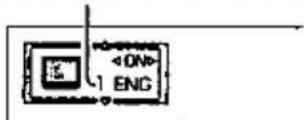
■ To turn the subtitles on and off Use the cursor jockey [◀, ▶].
Switching angles
DVD-V
During play
Press [ANGLE].
The angle number changes each time you press the button.
■ “⊗” is displayed
If you try to select a soundtrack, subtitle, or angle number that is not recorded on the disc.
■ To clear the on-screen display
Press [ENTER].
The on-screen icons will disappear automatically if nothing is selected.
Note
- You can also use the cursor jockey [▲, ▼], or numeric buttons to change the number to another soundtrack/subtitle language/angle.
- The “△, ∇” mark around the on-screen icon is not displayed if only one soundtrack/subtitle language/angle number is recorded on DVD-Video.
●There may be a slight delay before subtitles are shown. - You can also adjust language settings before play with the soundtrack/subtitle language settings (→ page 28, "1 Disc Languages"). These settings receive priority whenever the unit is turned on or the disc is changed.
- Some discs allow changes to soundtracks/subtitle languages/angles only by using the disc's menus.
- You can only switch angles in scenes that have multiple angles recorded. Some discs allow you to set angles before multi-angle scenes are played. Read the instructions that come with the DVD-Video.
Enjoying virtual surround effects with
2 speakers or headphones
DVD-V
(Dolby Digital, 2 or more channels)
Preparations
- Connect headphones or 2 external speakers (→ pages 36 and 37).
●Turn off the surround effects on the equipment you have connected.
Virtual Surround Sound (V.S.S.)
V.S.S. adds breadth to sound, allowing you to enjoy a surround-like effect even if you are using only 2 front speakers or headphones.
There are 2 V.S.S. modes
V.S.S. :for 2 external
(factory preset) speakers
Headphone V.S.S.: for headphones
If the disc has surround signals recorded on it
As well as sound having more breadth, surround sound will also seem to come from non-existent speakers to the side of the listener.
To get the most from V.S.S.
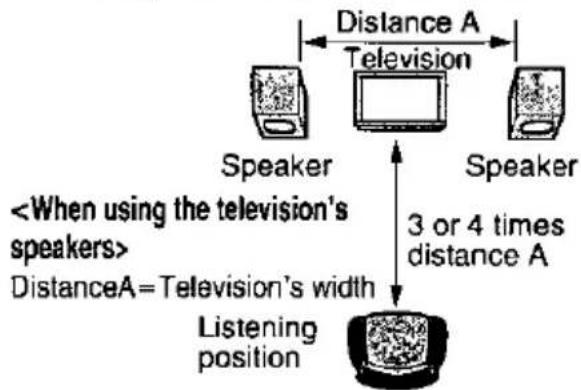
flowchart
graph TD
    A["Speaker"] --> B["Television"]
    C["Speaker"] --> B
    B --> D["Listening position"]
    style A fill:#f9f,stroke:#333
    style C fill:#f9f,stroke:#333
    style D fill:#ccf,stroke:#333
    note1["<When using the television's speakers>"]
    note2["DistanceA=Television's width"]
    note3["3 or 4 times distance A"]
    note1 <--> note2
    note2 <--> note3
During play
Press [V.S.S.] on the remote control to select the V.S.S. level.
The level changes each time you press the button. The level is shown on the unit's display.
![PANASONIC DVD-PA65 - Press [V.S.S.] on the remote control to select the V.S.S. level. - 1](/content/2026/05/1070175/images/5fb348d84262a0f43032fbbc069ba7bf1946f36a120eedf4bf1a8b6e892318c6.jpg)
flowchart
graph TD
    A["1 (Natural effect) → 2 (Emphasized effect)"] --> B["OFF (Cancel)"]
    B --> A
- You can also use the On-Screen Menu Icons to perform this operation.
(→ page 23, "V.S.S. mode/V.S.S. level")
■ To change the V.S.S. mode
1. During play
Press [DISPLAY] to show the On-Screen Menu Icons (→ page 23) on the television and highlight the V.S.S. icon with the cursor jockey [◀, ▶].
- Select the V.S.S. mode with the cursor jockey [▲, ▼].
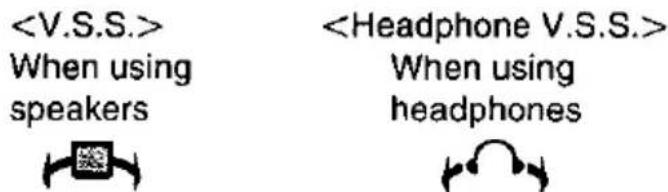
Use the appropriate setting for the connections you have made.
Note
●V.S.S. will not work or will have less effect with some discs.
- On the unit's display, "SP" is displayed when using V.S.S. and "HP" is displayed when using Headphone V.S.S.
Flashes, then lights
●V.S.S. may cause distortion with some discs. Turn V.S.S. off if this occurs.
How images appear on your TV (aspect ratios of the screen)
The images on the TV screen depend on the type of software and the television.
| TV (Screen mode) Software | 4:3 | 16:9(“FULL” mode) | 16:9(“ZOOM” mode) | 16:9(“AUTO” mode) |
Wide-screen (pan and scan format)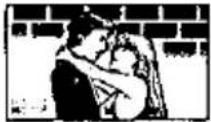 | Right and left edges are cut off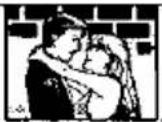 | Full screen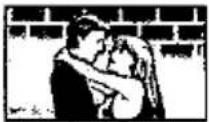 | Top and bottom edges are cut off | Full screen |
Wide-screen (Letterbox format) | Letterbox(with black bands at top and bottom) | |||
Regular (4:3)-screen | Full screen | Screen horizontally enlarged | Top and bottom edges are cut off | Full screen(with black bands at right and left) |
Regular (4:3)-screen (Letterbox) | Letterbox(with black bands at top and bottom) | Screen horizontally enlarged(with black bands at top and bottom) | Full screen | Screen in which the picture at the far left and far right ends only is extended horizontally(with black bands at top and bottom) |
Note
The images which appear on the TV screen, and what each screen mode is called, depend on the manufacturer of the television and the type of television. Consult the instruction manual provided with your television.
Change the initial settings to suit your preference and to suit the unit to the circumstances in which it is being used.
With the exception of "DVD-Video Mode" (→ page 31), these settings are retained in memory until they are changed, even if the unit is turned off.
Common procedures
1 While stopped Press [ACTION] or [MENU] to display the initial settings screen.
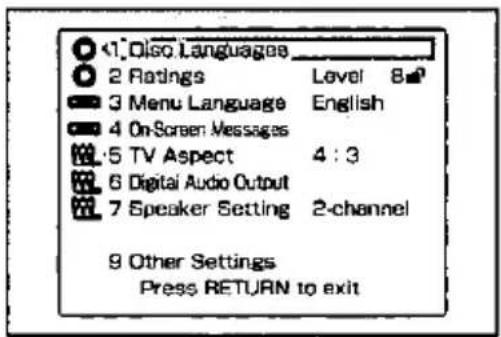
2 Use the cursor jockey [▲, ▼] to highlight the item/setting and press [ENTER].
The menu for the selected item is displayed.
- Some items require additional steps.
■ Items for initial settings
1 Disc Languages (→ page 28)
Change the audio soundtrack language, subtitle language and the language used for disc menus.
2 Ratings (→ page 29)
Change the ratings level to prevent play of discs, skip violent scenes, or replace scenes with others.
3 Menu Language (→ page 29)
Change the language used for the on-screen displays and initial settings menus.
4 On-Screen Messages (→ page 30)
Choose whether "Play", "Still" and other displays will be displayed or not, and the color and position of these displays as well as On-Screen Menu Icons.
5 TV Aspect (→ page 13)
Change the settings to suit the type of television you have connected.
6 Digital Audio Output (→ page 40)
Change the settings to suit the type of digital equipment you have connected.
7 Speaker Setting (→ page 38)
Change the settings to suit the type of speakers you have connected.
9 Other Settings (→ page 30)
Choose the kind of picture mode shown when play is paused, and various other settings to enhance your viewing experience.
■ To return to the previous menu
Press [RETURN].
■ When you are finished
Press [RETURN] as many times as necessary to clear the initial settings screen.
1 Disc Languages (→ page 27 for operation)
These settings allow you to choose the languages used when a DVD is played.
If the language selected is not available on the disc, the language designated by each disc will be selected. There are cases where the selected language is recorded but the disc designates another language.
Factory Preset
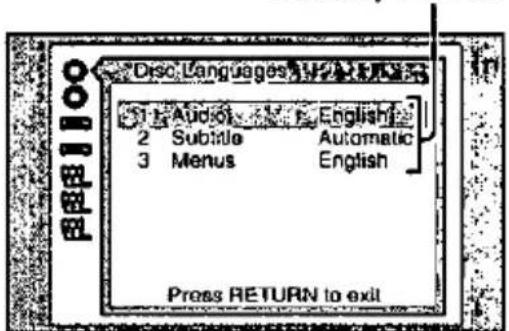
1 Audio (DVD-Video only)
1 English 2 French 3 Spanish 4 Original*1
5 Other ******3
2 Subtitle (DVD-Video only)
1 Automatic ^2 2 English 3 French 4 Spanish
5 Other ******3
3 Menus
1 English 2 French 3 Spanish
4 Other ******3
*1 The original language of each disc will be selected.
*2 If the language selected in "Audio" is actually used during play, the subtitles will not appear.
*3 Enter the language code with the remote control's numeric buttons and press [ENTER] if you select "Other". (See the language code list below.)
Press [CANCEL] on the remote control to erase a number you entered in error.
Language code list
| Abkhazian: | 6566 | Fiji: | 7074 | Lingala: | 7678 | Singhalese: | 8373 |
| Afar: | 6565 | Finnish: | 7073 | Lithuanian: | 7684 | Slovak: | 8375 |
| Afrikaans: | 6570 | French: | 7082 | Macedonian: | 7775 | Slovenian: | 8376 |
| Albanian: | 8381 | Frisian: | 7089 | Malagasy: | 7771 | Somali: | 8379 |
| Ameharic: | 6577 | Galician: | 7176 | Malay: | 7783 | Spanish: | 6983 |
| Arabic: | 6582 | Georgian: | 7565 | Malayalam: | 7776 | Sundanese: | 8385 |
| Armenian: | 7289 | German: | 6869 | Maltese: | 7784 | Swahili: | 8387 |
| Assamese: | 6583 | Greek: | 6976 | Maori: | 7773 | Swedish: | 8386 |
| Aymara: | 6588 | Greenlandic: | 7576 | Marathi: | 7782 | Tagalog: | 8476 |
| Azerbaijani: | 6590 | Guarani: | 7178 | Moldavian: | 7779 | Tajik: | 8471 |
| Bashkir: | 6665 | Gujarati: | 7185 | Mongolian: | 7778 | Tamil: | 8465 |
| Basque: | 6985 | Hausa: | 7265 | Nauru: | 7865 | Tatar: | 8484 |
| Bengali; Bangla: | 6678 | Hebrew: | 7387 | Nepali: | 7869 | Telugu: | 8469 |
| Bhutani: | 6890 | Hindi: | 7273 | Norwegian: | 7879 | Thai: | 8472 |
| Bihari: | 6672 | Hungarian: | 7285 | Oriya: | 7982 | Tibetan: | 6679 |
| Breton: | 6682 | Icelandic: | 7383 | Pashto, Pushto: | 8083 | Tigrinya: | 8473 |
| Bulgarian: | 6671 | Indonesian: | 7378 | Persian: | 7065 | Tonga: | 8479 |
| Burmese: | 7789 | Interlingua: | 7365 | Polish: | 8076 | Turkish: | 8482 |
| Byelorussian: | 8669 | Irish: | 7165 | Portuguese: | 8084 | Turkmen: | 8475 |
| Cambodian: | 7577 | Italian: | 7384 | Punjabi: | 8065 | Twi: | 8487 |
| Catalan: | 6765 | Japanese: | 7465 | Quechua: | 8185 | Ukrainian: | 8575 |
| Chinese: | 9072 | Javanese: | 7487 | Rhaeto-Romance: | 8277 | Urdu: | 8582 |
| Corsican: | 6779 | Kannada: | 7578 | Romanian: | 8279 | Uzbek: | 8590 |
| Croatian: | 7282 | Kashmiri: | 7583 | Russian: | 8285 | Vietnamese: | 8673 |
| Czech: | 6783 | Kazakh: | 7575 | Samoan: | 8377 | Volapuk: | 8679 |
| Danish: | 6865 | Kirghiz: | 7589 | Sanskrit: | 8365 | Welsh: | 6789 |
| Dutch: | 7876 | Korean: | 7579 | Scots Gaelic: | 7168 | Wolof: | 8779 |
| English: | 6978 | Kurdish: | 7585 | Serbian: | 8382 | Xhosa: | 8872 |
| Esperanto: | 6979 | Laotian: | 7679 | Serbo-Croatian: | 8372 | Yiddish: | 7473 |
| Estonian: | 6984 | Latin: | 7665 | Shona: | 8378 | Yoruba: | 8979 |
| Faroese: | 7079 | Latvian, Lettish: | 7686 | Sindhi: | 8368 | Zulu: | 9085 |
2 Ratings (→ page 27 for operation)
You can limit play of DVD-Video which are unsuitable for some audiences, for example, children.
Play and changes to the settings are not possible unless a password is entered.
Factory Preset
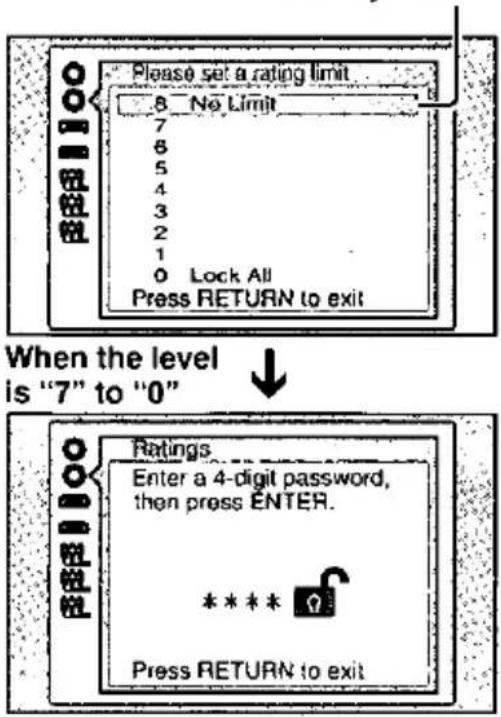
Level 8 : All DVD-Video can be played.
Level 7 to 1 : Prevents play of DVD-Video with ratings recorded on them (those that contain adult or violent scenes).
Level 0 : Play of all DVD-Video is prohibited.
- Enter your 4-digit password with the remote control's numeric buttons and press [ENTER] if you select level 7 or below. (This locks the unit.)
Press [CANCEL] on the remote control to erase a number you entered in error.
Note
- When the rating is locked, the settings cannot be changed unless the correct password is entered. Therefore, do not forget your password.
- Select "0" to prevent play of discs that do not have ratings recorded on them.
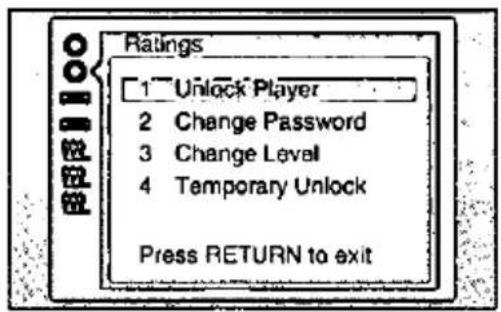
■ Changing ratings (When the level is "7" to "0")
First enter your 4-digit password with the remote control's numeric buttons and press [ENTER].
1 Unlock Player : To unlock the unit (the rating level returns to "8")
2 Change Password: To change the password
3 Change Level : To change the rating level
4 Temporary Unlock: To unlock the unit temporarily
- If you select "4 Temporary Unlock", the rating is unlocked temporarily only for the current disc. The unit is locked again when the disc lid is opened or the unit is turned off.
3 Menu Language (→ page 27 for operation)
You can change the language used for on-screen messages ("Play", etc.) and these menus.
Factory Preset
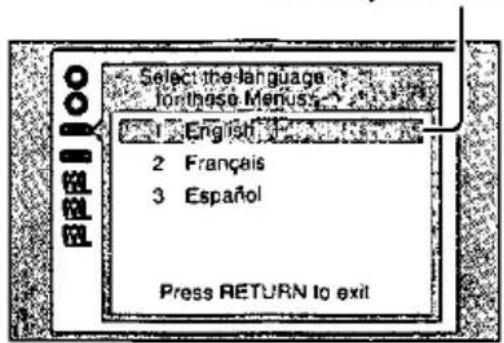
1 English
2 Français
3 Español
4 On-Screen Messages (→ page 27 for operation)
You can choose to display on-screen messages or not, and you can choose their color and position.
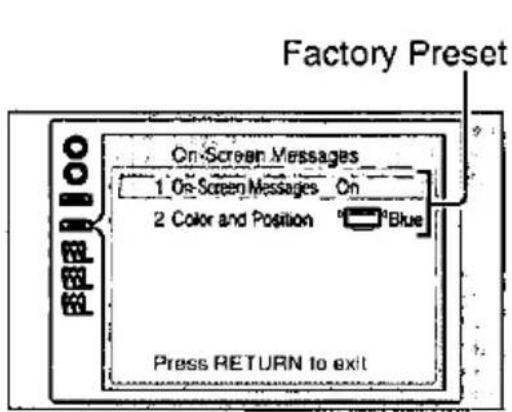
1 On-Screen Messages
On/Off
2 Color and Position
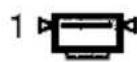
Blue
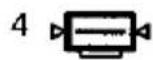
Blue*
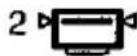
Violet
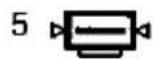
Violet*
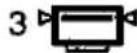
Green
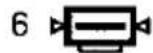
Green ^®
*Select if the top of the screen is cut off.
9 Other Settings (→ page 27 for operation)
The following special settings can be made.
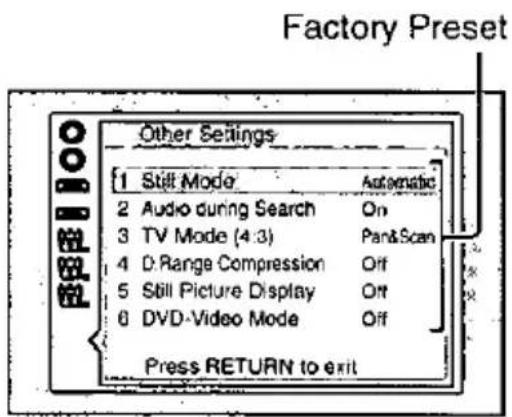
1 Still Mode (→ page 31)
You can select either "Field still" or "Frame still" in the still picture mode (= page 32 for the difference between "Field still" and "Frame still").
2 Audio during Search (→ page 31)
You can choose whether audio is heard during search (forward) at the initial scan speed or not. (DVD-Video and Video CD)
3 TV Mode (4:3) (→ page 31)
You can choose how software made for a wide-screen television (16:9) is displayed on a conventional TV (4:3).
4 D. (Dynamic) Range Compression (→ page 31)
You can compress the dynamic range (the difference between the loudest sound and the softest sound). (Dolby Digital DVD-Video only)
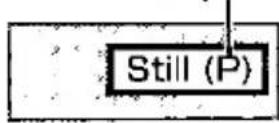
5 Still Picture Display (→ page 31)
You can display the picture type I, P or B in the still picture mode. (DVD-Video only)
6 DVD-Video Mode (→ page 31)
You can select whether to play DVD-Audio in a similar fashion to DVD-Video or not.
1 Automatic: The unit automatically selects field still or frame still.
2 Field: The unit shows field stills.
Select this setting when jittering occurs when "1 Automatic" is selected.
3 Frame: The unit shows frame stills.
Select if small text or fine patterns cannot be seen clearly when "1 Automatic" is selected.
1 On
2 Off:
Select if you do not want audio during search.
Note
●Audio is heard at any scanning speed (forward/backward) when playing DVD-Audio and CDs, regardless of the setting.
●Audio is not heard at any scanning speed (forward/backward) when playing DTS CDs, regardless of the setting.
1 Pan & Scan:
The picture is shown with either one or both sides cut off.

2 Letterbox:
Black bands appear at the top and bottom of the screen.
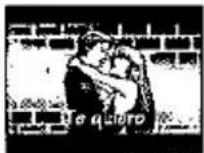
Note
The "Pan & Scan" or "Letterbox" specifications on discs have priority.
(→ page 32)
1 Off
2 On:
- Select when viewing discs at low volume, such as late at night.
The picture type will be displayed as "I", "P" or "B" (→ page 32).
1 Off
2 On:
Indicates the picture type in the still picture mode.
Example: P-picture
1 Off:
DVD-Audio discs are played as DVD-Audio discs.
2 On:
DVD-Audio discs are played in a similar fashion to DVD-Video.
Note
The setting reverts to "Off" if you open the disc lid or turn the unit off.
Bitstream
This is the digital form of multiple channel audio data (e.g., 5.1 channel) before it is decoded into its various channels.
Chapter
This is the smallest division on DVD-Video and is roughly equivalent to a track.
Dolby Digital
This is a method of coding digital signals developed by Dolby Laboratories. Apart from stereo (2-channel) audio, these signals can also be 5.1-channel audio. A large amount of audio information can be recorded on one disc using this method.
Dolby Pro Logic
A surround system where a 4-channel audio track is recorded as 2 channels and then is restored to 4 channels for play. The surround channel is monaural and can reproduce up to 7 kHz.
DTS (Digital Theater Systems)
This surround system is used in many movie theaters around the world. There is good separation between the channels, so realistic sound effects are possible.
Dynamic range
Dynamic range is the difference between the lowest level of sound that can be heard above the noise of the equipment and the highest level of sound before distortion occurs.
Field
One frame is made up of 2 fields.
A regular television shows these fields one after the other to create frames.
Frame
Frames are the still pictures that go together to make a moving picture.
There are about 30 frames shown each second.
Frame still and field still
A still is shown when you pause a moving picture. A frame still is made up of 2 alternating fields, so the picture may appear blurred, but overall quality is high.
A field still is not blurred, but it has only half the information of a frame still so picture quality is lower.
Group
This is a set of tracks on DVD-Audio.
I/P/B
MPEG 2, the video compression standard adopted for use with DVD-Video, codes frames using these 3 picture types.
I: Intra coded picture (I-picture)
This is the standard picture and is a complete picture in itself. This means it has the best picture quality and is the best to use when adjusting the picture.
P: Predictive coded picture (P-picture)
This picture is calculated based on past I or P-pictures.
B: Bidirectionally-predictive coded picture (B-picture)
This picture is calculated by comparing past and future I and P-pictures so it has the lowest volume of information.
Linear PCM (pulse code modulation)
PCM is the usual digital method used for music CDs. DVDs have a greater volume so they use linear PCM, which has a higher sampling rate. Compressed PCM signals are called packed PCM (PPCM).
Playback control (PBC)
This method of controlling disc play is included on version 2.0 Video CDs. You are able to interact with the disc through menus. Using these menus to play Video CDs is called "menu play" in these operating instructions.
Title
This is the largest division on DVD-Video.
Track
This is the smallest division on DVD-Audio, Video CDs, and CDs and usually equates to a single song.
Connecting other equipment
Refer to the relevant pages for connection. Initial settings that need to be changed are indicated in inverted commas ("").
| What you want to do | How to accomplish it | Initial settings | Reference page |
| Enjoy Dolby Digital and DTS surround sound with 3 or more speakers | Analogue connectionUse the unit's built-in decoders and connect to an amplifier with 5.1-channel inputs. | "7 Speaker Setting" | 34, 38 |
| Digital connectionConnect digitally and use the decoder in another piece of equipment. | "6 Digital Audio Output" | 35, 40 | |
| Connect 2 speakers to enjoy stereo sound | Analogue connectionConnect to a mini-system or amplifier (including Dolby Pro Logic amplifiers). | "7 Speaker Setting" | 36, 38 |
| Digital connectionConnect digitally to a mini-system or amplifier. | "6 Digital Audio Output" | 36, 40 | |
| Record to a cassette or MD deck | Analogue recording | "7 Speaker Setting" | 37, 38 |
| Digital recording | "6 Digital Audio Output" | 37, 40 | |
| Use headphones | 37 |
Peripheral equipment and cables shown on pages 34 to 37 sold separately unless otherwise indicated.
Note
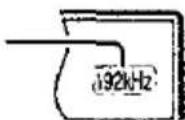
If digital connection is used, DVD-Audio linear PCM signals are converted to 48 kHz for output. Use analogue connection to enjoy high quality 192 kHz and 96 kHz audio.
"192 kHz" lights on the unit's display to indicate 192 kHz software is being played.
Preparations
- Disconnect all units from the AC power supply before commencing connection.
- Read through the instructions before connecting other equipment.
Enjoying surround sound with 3 or more speakers
Analogue connection
This unit has a built-in Dolby Digital/DTS decoder, so you can enjoy powerful surround sound with the following connections.
1 Connect an amplifier with 5.1-channel input terminals.
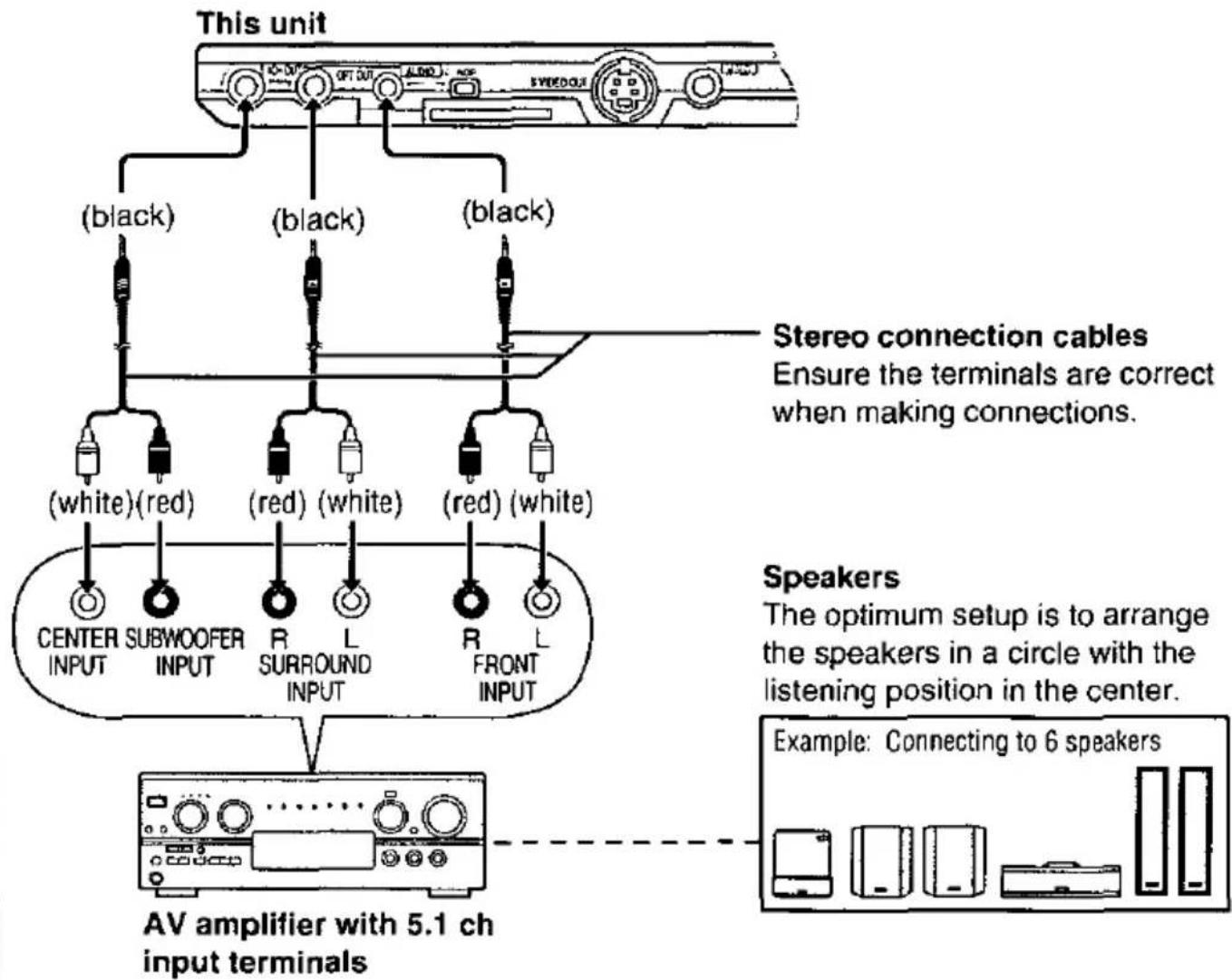
flowchart
graph TD
    A["This unit"] --> B["(black)"]
    A --> C["(black)"]
    A --> D["(black)"]
    B --> E["(white)(red)"]
    C --> F["(red) (white)"]
    D --> G["(red) (white)"]
    E --> H["AV amplifier with 5.1 ch input terminals"]
    F --> H
    G --> H
    H --> I["Speaker: The optimum setup is to arrange the speakers in a circle with the listening position in the center. Example: Connecting to 6 speakers"]
- If you have not connected a subwoofer, you should connect front speakers that are capable of producing bass under 100 Hz if possible.
2 Adjust the settings to suit the speakers you have connected (→ page 38, "Speaker settings").
Note
Turn V.S.S. off. Sound will come from only the front speakers if V.S.S. is on (→ page 25).
Digital connection
1 Connect an amplifier that has the necessary decoders built-in (or an amplifier-decoder combination).
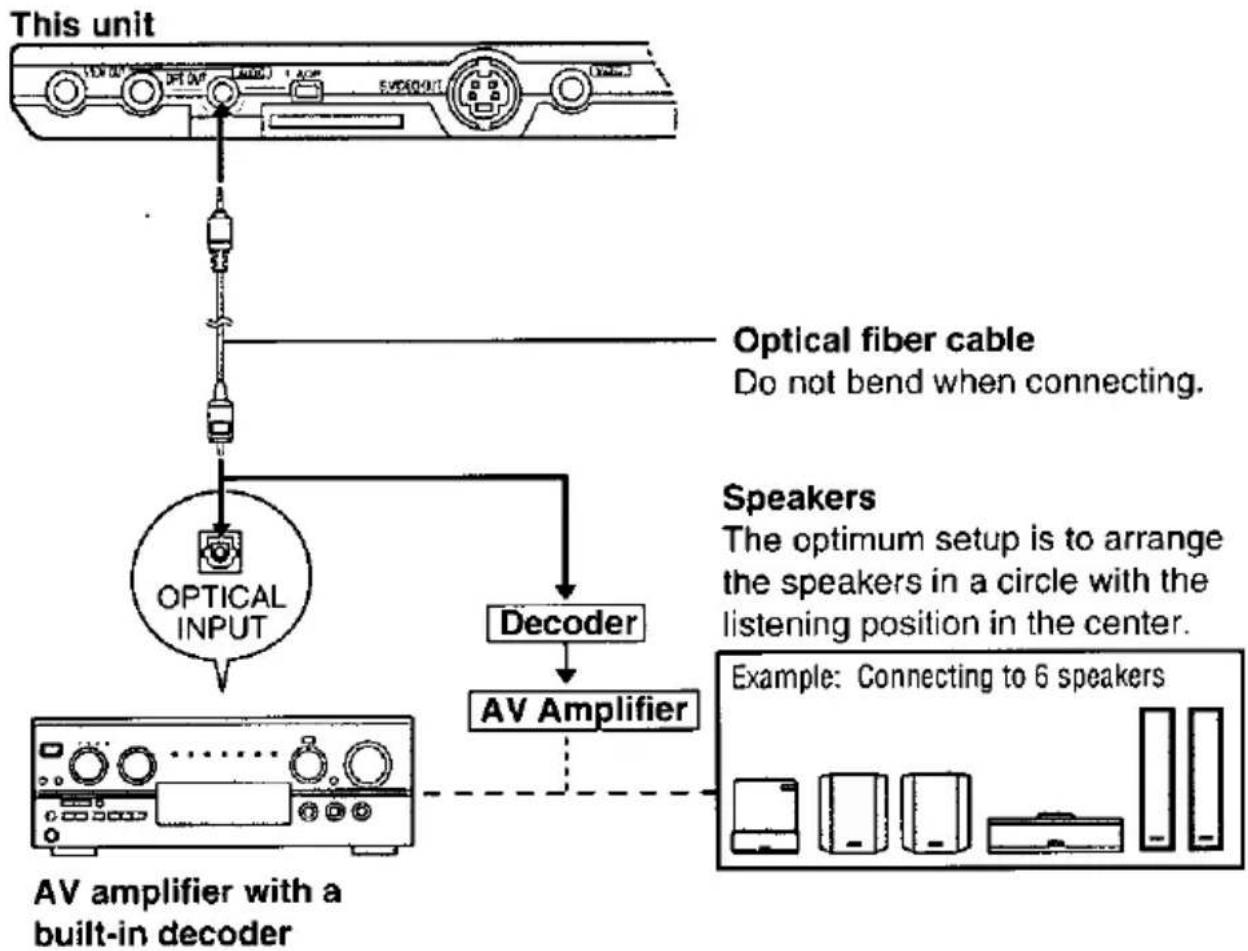
flowchart
graph TD
    A["This unit"] --> B["Optical fiber cable"]
    B --> C["Do not bend when connecting."]
    C --> D["Optical INPUT"]
    D --> E["Decoder"]
    E --> F["AV Amplifier"]
    F --> G["Speaker: The optimum setup is to arrange the speakers in a circle with the listening position in the center."]
    G --> H["Example: Connecting to 6 speakers"]
    D --> I["AV amplifier with a built-in decoder"]
2 Adjust the settings to suit the equipment you have connected (→ page 40, "Digital settings").
Note
You cannot use a DTS decoder that cannot handle signals from DVD-Video.
Listening through 2 speakers
Analogue connection
1 Connect a 2-channel analogue amplifier or mini-system.
Audio input terminal
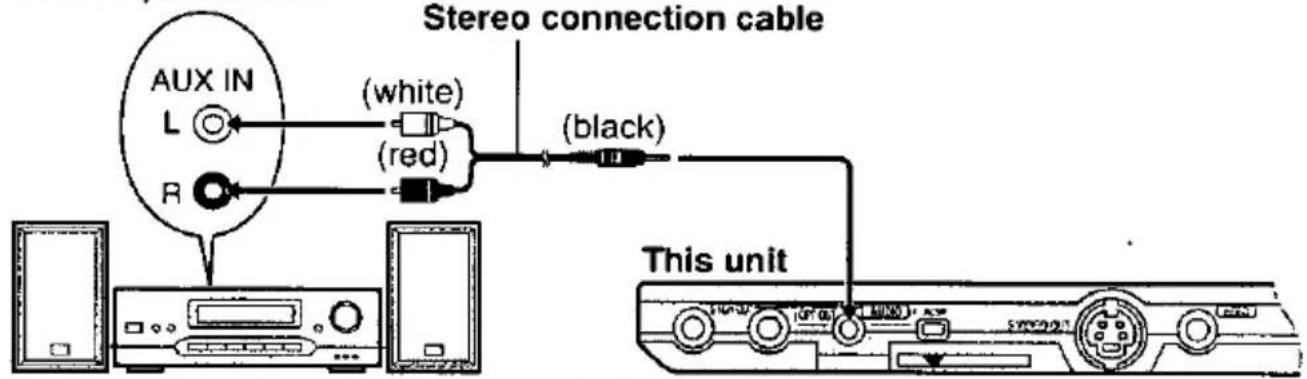
2-channel analogue amplifier or mini-system
(Including amplifier with Dolby Pro Logic)
2 Select "2-channel" in "7 Speaker Setting" (→ page 38).
■ To enjoy Dolby Pro Logic (→ page 32)
As well as the connections shown above, you will need to connect center and surround speakers. See the operating instructions for the other equipment for connection procedures.
- Turn V.S.S. off. Surround effects will not work correctly if V.S.S. is on (→ page 25).
Digital connection
1 Connect a 2-channel digital amplifier or mini-system.
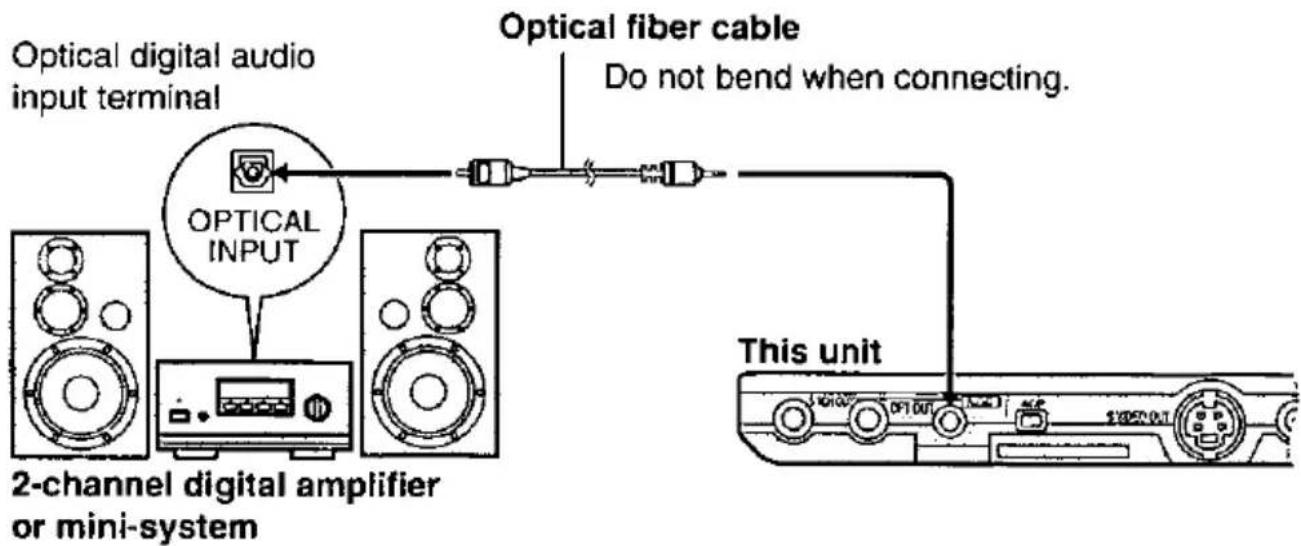
2 Adjust the settings to suit the equipment you have connected (→ page 40, "Digital settings").
Recording to MDs and cassette tapes
Analogue recording
You can record to an MD or cassette deck without sound being affected by copy guards if you use analogue connection.
Digital recording
You can record the digital signal directly onto an MD. All signals will be converted to 48 kHz linear PCM.
Ensure the following conditions are met.
- There is no copy guard recorded on the disc.
- The recording equipment can handle a sampling frequency of 48 kHz/16 bit.
To make an analogue recording
- Connect the recording equipment with a stereo connection cable (→ pages 34 and 36).
- When connecting directly, use the same method used for connecting a 2-channel amplifier or mini-system (→ page 36).
- Set "7 Speaker Setting" to "2-channel" (→ page 38).
- If this is set to "Multi-channel", only the audio for the front 2 speakers will be recorded.
■ To make a digital recording
- Connect the recording equipment with an optical fiber cable (→ pages 35 and 36).
- When connecting directly, use the same method used for connecting a 2-channel digital amplifier or mini-system (→ page 36).
- Change the digital audio output settings (→ page 40).
Change the settings as follows.
PCM Down Conversion: Yes
Dolby Digital/DTS Digital Surround: PCM
Using headphones
Preparations
●Turn down the volume before connection, and then adjust the level.
- Headphones with a 3.5 mm (1/8") stereo plug can be connected.
![This unit VOL 4 VOLT HOLD VOL [ - VOL ] (volume) dial Headphones](/content/2026/05/1070175/images/8d88799f9081cab08f8318facabbd4ffca486bb1e24522e1d89ed16e81b0a1b5.jpg)
Preparation
Turn on this unit and the equipment you have connected.
1 While stopped
Press [ACTION] or [MENU] to show the initial settings screen.
2 Use the cursor jockey [▲, ▼] to select "7 Speaker Setting" and press [ENTER].
3 Use the cursor jockey [▲, ▼] to select an item and press [ENTER].
Factory Preset
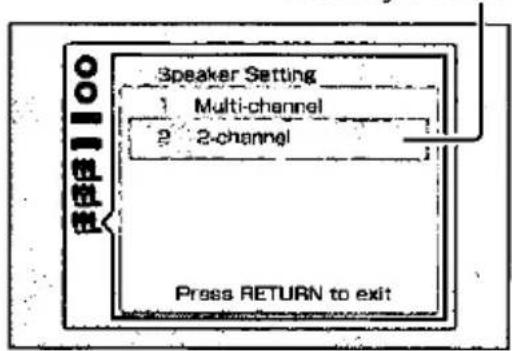
flowchart
graph TD
    A["Speaker Setting"] --> B["Multi-channel"]
    A --> C["2-channel"]
    B --> D["Press RETURN to exit"]
    C --> D
- Multi-channel
When you have connected 3 or more speakers.
- 2-channel
When you have connected 2 speakers or a Dolby Pro Logic amplifier.
The initial settings screen is restored if you select "2-channel".
4 When you select "Multi-channel"
The screen shown on page 39 appears.
Use the following procedure to adjust the settings for a, b and c.
-
Use the cursor jockey [▲, ▼, ◀, ▶] to select the item and press [ENTER].
-
Use the cursor jockey [▲, ▼] to change the setting and press [ENTER].
When you have finished changing the settings select "Exit" and press [ENTER].
5 Press [RETURN] to complete the settings.
■ To return to the previous menu
Press [RETURN].
Note
- If you have used an optical fiber cable to connect this unit digitally to another unit, make the settings on the other unit.
- The setting is shown on the unit's display when a multi-channel disc is being played.
When set to "Multi-channel"
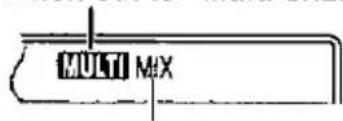
When set to "2-channel"
"MULTI" flashes on the unit's display when the audio output format is determined by soft-wear or unit restrictions and as a result sound may not be output according to the speaker settings you have made.
Speaker settings screen for Multi-channel
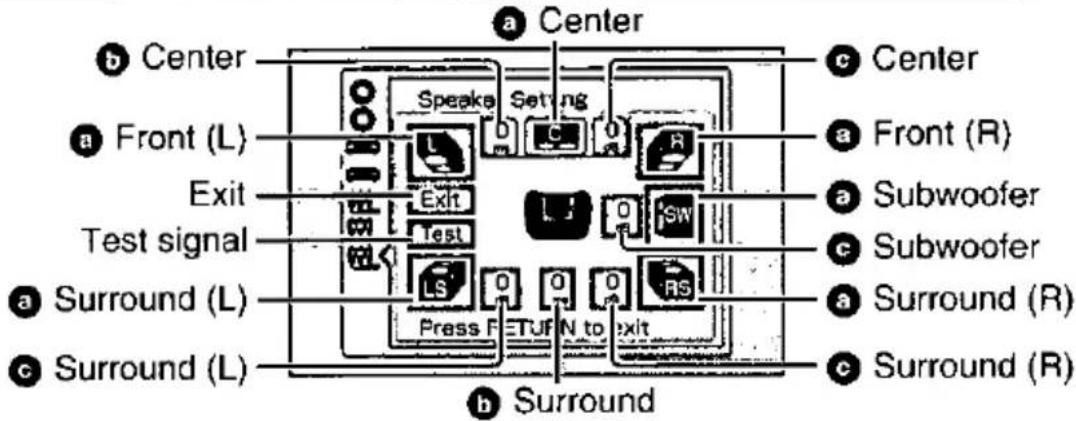
Type of speakers to be connected
- Front (L/R) : Large/Small
●Center : Large/Small/No - Subwoofer : Yes/No
●Surround (L/R): Large/Small/No
Example: surround speaker (L)
Large

Small

No
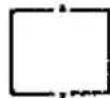
"Large" speakers are capable of reproducing sounds under 100 Hz. "Small" speakers are any other type.
Delay time (Dolby Digital DVD-Video, center/surround channel only)
The optimum position for speakers is to arrange them in a circle as shown. If you cannot do this, changing the delay time can make up for differences in distance.
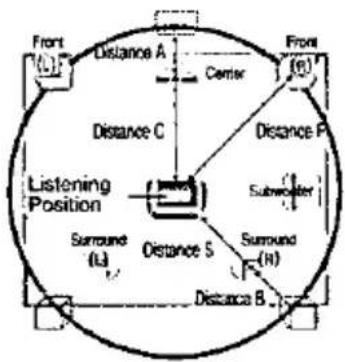
Center
Distance A=Distance F-Distance C
| Distance A | Delay time |
| Approx. 50 cm ( 112 feet) | 1.3 ms |
| Approx. 100 cm (3 feet) | 2.6 ms |
| Approx. 150 cm (5 feet) | 3.9 ms |
| Approx. 200 cm (6 feet) | 5.3 ms |
Surround
Distance B=Distance F-Distance S
| Distance B | Delay time |
| Approx. 200 cm (6 feet) | 5.3 ms |
| Approx. 400 cm (12 feet) | 10.6 ms |
| Approx. 600 cm (18 feet) | 15.9 ms |
© Output balance
1 Select "Test" and press [ENTER].
A test signal is output from one speaker at a time, starting with the front left speaker and proceeding clockwise.
Use the cursor jockey [▲, ▼] to adjust the volume of the center and surround speakers so they are the same apparent volume as the front speakers.
2 Press [ENTER].
The test signal stops.
- There is no test signal output for the subwoofer. Play a source to check the level, then return to this screen to adjust the volume if necessary.
Preparation
Turn on this unit and the equipment you have connected.
1 While stopped
Press [ACTION] or [MENU] to show the initial settings screen.
2 Use the cursor jockey [▲, ▼] to select "6 Digital Audio Output" and press [ENTER].
3 Use the cursor jockey [▲, ▼] to select an item and press [ENTER].
(For details, see page 41)
Factory Preset
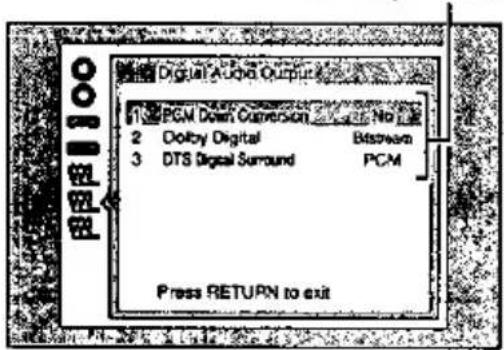
4 Press [RETURN] to complete the settings.
■ To return to the previous menu Press [RETURN].
Settings
■ PCM Down Conversion (DVD-Video only): Output during play of DVD-Video recorded in 96 kHz linear PCM.
No : When you have connected an amplifier with stereo connection cables.
Yes: When you have connected an amplifier with an optical fiber cable.
Copyright protection limits digital output to 48 kHz/16 bit.
When playing DVD-Video recorded in 96 kHz
Sound is output as follows in accordance with the connections and settings you have made.
| Setting\Connection | Analogue | Digital |
| No | Output as 96 kHz | No output (Audio will be output at 96 kHz if the DVD-Video has not had copyright protection recorded on it.*) |
| Yes | Converted and output as 48 kHz | Converted and output as 48 kHz/16 bit |
※The connected equipment must be able to handle 96 kHz LPCM in order to take advantage of high quality audio found on these discs.
■ Dolby Digital*: Output during play of DVDs recorded with Dolby Digital.
Bitstream: When you have connected a unit with a built-in Dolby Digital decoder
PCM : When you have connected a unit that doesn't have a built-in Dolby Digital decoder
■ DTS Digital Surround*: Output during play of DVDs recorded with DTS Digital Surround.
PCM : When you have connected a unit that doesn't have a built-in DTS decoder
Bitstream: When you have connected a unit with a built-in DTS decoder
*Only the motion picture parts of DVD-Audio are affected.
Note
Ensure "Dolby Digital" and "DTS Digital Surround" are set to "PCM" if you connect this unit to a digital amplifier without a decoder. If the signals are output as bitstream, "noise" will be output which can cause harm to your ears and speakers and the signal will not be correctly recorded onto MDs.
Before requesting service for this unit, check the chart below for a possible cause of the problem you are experiencing. Some simple checks or a minor adjustment on your part may eliminate the problem and restore proper operation.
If you are in doubt about some of the check points, or if the remedies indicated in the chart do not solve the problem, refer to the directory of Authorized Service Centers (enclosed with this unit) to locate a convenient service center, or consult your dealer for instructions.
For detailed instructions, contact an authorized servicenter in the U.S.A. and Panasonic Canada Inc. Customer Care Centre in Canada.
In the U.S.A., call 1-800-211-7262, e-mail consumerproducts@panasonic.com, or visit www.panasonic.com
In Canada, call 1-800-561-5505 or visit www.panasonic.ca
| Problem | Solution | Page |
| No power. | Check connections to the AC adaptor or battery pack. | 10, 11 |
| Release the hold mode. | 15 | |
| Confirm the battery charge on the unit's display. | 11 | |
| You cannot turn on the unit with the remote control if the unit is powered by the battery pack. | 15 | |
| Unit turns off automatically. | The unit turns off after it has been stopped for about 15 minutes (5 minutes when using the battery pack) to conserve power. Turn the unit on again. | 15 |
| Cannot charge battery pack or the [CHG] indicator fails to light. | The battery pack can only be recharged when the unit is off. | 11, 15 |
| The charging time increases if the battery pack is warm and charging may not be possible under some circumstances. Wait for the battery pack to cool off. | — | |
| Check connection to the AC adaptor. | 10 | |
| Unit doesn't work when powered by the battery pack. | The battery pack has protection circuitry that activates if the pack becomes too hot or too cold. The battery pack will not work if this occurs. Use the unit between 5 °C (41 °F) and 35 °C (95 °F). | — |
| No response when buttons are pressed. | Some discs prohibit certain operations. | 8, 14 |
| Release the hold mode. | 15 | |
| If there is no response at all, the unit may have been affected by lightning or static electricity. Try turning the unit off and on again. Alternatively, turn the unit off, disconnect the power source (AC or battery pack) reconnect the power and turn the unit on again. | — | |
| Play fails to start or stops soon after starting. | Condensation may have formed in the unit. Wait an hour for it to clear. | — |
| This unit cannot play discs other than those specified. | 8 | |
| Wipe the disc clean. | 9 | |
| Ensure the disc is inserted correctly. | 14 | |
| Check the ratings setting. | 29 | |
| No operation with remote control. | Check the battery is inserted correctly. | 10 |
| Replace the battery if it is drained. | 10 | |
| Aim the remote control at the remote control signal sensor. | 10 | |
| There are no vocals while playing Karaoke DVD. | When you have connected this unit to other equipment with an optical fiber cable, go to "6 Digital Audio Output" in the initial settings and change the setting for "2 Dolby Digital" to "PCM". | 40 |
| A menu is shown after playing each song on a Karaoke disc. | Most Karaoke discs are designed to do this. Some discs have an item in the menu that allows you to play all the songs. | — |
| The audio soundtrack or subtitle language cannot be changed. | Languages can only be selected if they are recorded on the DVD. | — |
| Some DVDs require you to change the languages through menus. | — | |
| Subtitles not shown. | Subtitles appear only if they are recorded on the DVD-Video. | — |
| Turn the subtitles on. | 24 | |
| Subtitles may fail to appear around the A and B points in A-B repeat, and around the points you marked to play again. | — | |
| Angles cannot be changed. | Angles can only be selected if they are recorded on the DVD-Video. There may be parts of multi-angle DVD-Video where different angles are not recorded. | — |
| You have forgotten your ratings password. | Do the following to reset the unit to its original factory settings. While the unit is stopped, press and hold [11], [1◄◄] (backward), and [►, ON] on the main unit for about 3 seconds until the message "Initialized" disappears from the television, then turn the unit off. | — |
| You want to reset the unit to the factory settings. | ||
| There is a lot of noise. | Separate the unit from mobile phones if they are being used close to each other. | — |
| No sound from other speakers. | Turn up the volume. | 37 |
| Check all connections and settings. | 34-41 | |
| Check input mode of the other equipment. | — | |
| Audio is not output for some tracks. | The disc may not be standard. | — |
| Some parts of the soundtrack are missing. | Ensure the settings are appropriate to the speakers you have connected. | 38 |
| Turn V.S.S. off if you have connected this unit to other equipment with a stereo connection cable and are using 3 or more speakers. | 25 | |
| Due to limitations set by the producer of the software or unit restrictions, DVD-Audio may not be played correctly if output is not 5.1 channels. If these kinds of discs are played through fewer than 6 speakers, you will not hear the parts of the soundtrack intended for the speakers you have not connected. If you play these discs using only headphones, only the sound for the front speakers will be heard. | — | |
| The picture is disrupted during fast forward and rewind. | Some disruption is normal. | — |
Troubleshooting guide
| Problem | Solution | Page |
| No picture on the television (or the size of the picture seems wrong). | Check connections. | 12 |
| Check that the television is on. | — | |
| Check that the input mode on the television is correct. | — | |
| Check the settings in “5 TV Aspect”. | 13 | |
| Try changing the screen mode on the television. | 26 |
Displays
| "NO PLAY" | The unit cannot play this disc. | 8 |
| "☐-☐ Err" appears on the unit's display.☐ stands for a number. | You are playing a nonstandard disc. For example, "9-3 Err" means track 3 in group 9 is nonstandard. | — |
| "bAt Err" and a number appear on the unit's display. | "bAt Err 1": A problem has occurred with the battery pack. Consult your dealer."bAt Err 2": The pack has been recharging for 12 hours but has failed to recharge for some reason. Recharge again."bAt Err 3": The battery pack has overheated during recharging. Allow the pack to cool down before recharging again. | —— |
| Messages do not appear on the television. | Go to the initial settings menu and turn the On-Screen Messages on. | 30 |
| On-Screen Menu Icons are cut off or are not displayed at all. | Go to the initial settings menu and change the position of the On-Screen Menu Icons. | 30 |
| U I I | Wipe the disc clean. | 9 |
| X ☐☐☐☐ stands for a number. | Trouble has occurred. The number appearing after H depends on the problem. Turn the unit off and on again. Alternatively, turn the unit off, disconnect the power source (AC or battery pack) reconnect the power and turn the unit on again.If the service numbers fail to clear, note the service number and contact a qualified service person. | — |
[⏻] and [CHG] indicators
| The [⏻] indicator flashes when you press a button. | You pressed a button while the unit was in hold mode. Release hold mode. | — |
| The [CHG] indicator flashes. | A problem occurred with the battery pack. Confirm the unit's display (See above). | — |
| The [CHG] indicator flashes slowly. | Battery pack charge is low. The unit will turn off automatically after a few minutes. | — |
Note
The following do not indicate malfunction.
●A sound is heard from the AC adaptor during recharging.
●The battery pack warms up after recharging or during use.
Specifications
| Power supply: | DC 9 V (AC adaptor terminal)/DC 7.2 V (Exclusive battery terminal) |
| Power consumption: | 10 W (6 W: Unit only) |
| AC adaptor | |
| Power supply: | AC 100–240 V, 50/60 Hz |
| Power consumption: | 30 W |
| DC output: | 9 V, 2 A |
Dimensions:
| 185 (W)×140 (D)×15.5 (H) mm[79/32" (W)×51⁄2" (D)×5/8" (H)](excluding protrusions) | |
| Mass: | 320 g (11.3 oz.) |
Operating temperature
| range: | 5-35 °C(41-95 °F) |
| Operating humidity | |
| range: | 5-90 % RH(no condensation) |
| Signal system: | NTSC |
Discs played:
| (1) DVD disc |
| 12 cm (5") single-sided, single-layer |
| 12 cm (5") single-sided, dual-layer |
| 12 cm (5") double-sided, single-layer |
| 8 cm (3") single-sided, single-layer |
| 8 cm (3") single-sided, dual-layer |
| 8 cm (3") double-sided, single-layer |
| (2) Compact disc (CD-DA, Video CD) |
| 12 cm (5") disc |
| 8 cm (3") disc |
S video output:
| Y output level: | 1 Vp-p (75 Ω) |
| C output level: | 0.286 Vp-p (75 Ω) |
| Output terminal: | S terminal (1 system) |
| deo output: | |
| Output level: | 1 Vp-p (75 Ω) |
| Output terminal: | Mini-jack (1 system) |
Power consumption in standby mode: 2 W (when using the included AC adaptor)
Audio output:
| Output level: | 1.5 Vrms(1 kHz, 0 dB) |
Output ternimal:
| 2 ch (MIX) Output (L/R)/ |
| 5.1 ch Output (Front L/R): |
| Stereo mini-jack(1 system) |
| (Also used for digital audio output) |
| 5.1 ch Output (Surround L/R):Stereo mini-jack(1 system) |
| 5.1 ch Output (Center/Subwoofer):Stereo mini-jack(1 system) |
Audio signal output characteristics:
| (1) Frequency response: | |
| •DVD (linear audio): | 2 Hz-22 kHz(48 kHz sampling) |
| 2 Hz-44 kHz(96 kHz sampling) | |
| 2 Hz-88 kHz(192 kHz sampling) | |
| •CD audio: | 2 Hz-20 kHz |
(2) S/N ratio:
| ●CD audio: | 115 dB |
(3) Dynamic range:
| •CD audio: | 97 dB |
Digital audio output:
| Optical digital output: | Mini optical terminal(Also used for audio output) |
Pickup:
| Wave length: | 660 nm/780 nm |
| Laser power: | CLASS II/CLASS I |
Note
Specifications are subject to change without notice. Mass and dimensions are approximate.
Panasonic Technics Quasar.
For Product Information, Operating Assistance, Literature Request, Dealer Locations, and all Customer Service inquiries please contact:
1-800-211-PANA (7262), Monday–Friday 9 am–9 pm; Saturday–Sunday 9 am–7 pm, EST.
Web Site: http://www.panasonic.com
You can purchase parts, accessories or locate your nearest servicenter by visiting our Web Site.
Accessory Purchases:
1-800-332-5368 (Customer Orders Only)
Panasonic Services Company 20421 84th Avenue South, Kent, WA 98032
(6 am to 5 pm Monday–Friday; 6 am to 10:30 am Saturday; PST)
(Visa, MasterCard, Discover Card, American Express, Check)
Factory Servicenters Locations
CALIFORNIA
6550 Katella Avenue
Cypress, CA 90630
800 Dubuque Avenue
S. San Francisco
CA 94080
20201 Sherman Way
Suite 102
Canoga Park,
CA 91306
3878 Ruffin Road
Suite A
San Diego, CA 92123
COLORADO
1640 South Abilene
Street
Suite D
Aurora, CO 80012
FLORIDA
3700 North 29th
Avenue
Suite 102
Hollywood, FL 33020
GEORGIA
8655 Roswell Road
Suite 100
Atlanta, GA 30350
ILLINOIS
9060 Golf Road
Niles, IL 60714
1703 North Randall
Road
Elgin, IL 60123
(Pick-up/Drop-off
only)
MARYLAND
62 Mountain Road
Glen Burnie,
MD 21061
MASSACHUSETTS
60 Glacier Drive
Suite G
Westwood.
MA 02090
MICHIGAN
37048 Van Dyke
Avenue
Sterling Heights,
M148312
MINNESOTA
7850-12 ^th Avenue
South
Airport Business
Center
Bloomington,
MN 55425
OHIO
2236 Waycross Road
Civic Center Plaza
Forest Park,
OH 45240
PENNSYLVANIA
2221 Cabot Blvd.
West
Suite B
Langhorne, PA 19047
TEXAS
13615 Welch Road
Suite 101
Farmers Branch
TX 75244
WASHINGTON
20425-84 ^th Avenue
South
Kent, WA 98032
HAWAII
99-859 Iwaiwa Street
Aiea, Hawaii 96701
Phone (808) 488-1996
Fax (808) 486-4369
Product service
Do not attempt to remove the cover(s) or repair the unit yourself. Refer servicing to qualified personnel only.
Product information
For product service, product information or assistance with product operation, refer to the servicenter directory.
The model number and serial number of this product can be found on either the back or the bottom of the unit. Please note them in the space provided below and keep for future reference.
MODEL NUMBER ____
SERIAL NUMBER ____
User memo:
DATE OF PURCHASE ____ DEALER NAME ____ DEALER ADDRESS ____ TELEPHONE NUMBER ____
Apparatus Claims of U.S. Patent Nos. 4,631,603, 4,577,216, and 4,819,098, licensed for limited viewing uses only.
This product incorporates copyright protection technology that is protected by method claims of certain U.S. patents and other intellectual property rights owned by Macrovision Corporation and other rights owners. Use of this copyright protection technology must be authorized by Macrovision Corporation, and is intended for home and other limited viewing uses only unless otherwise authorized by Macrovision Corporation. Reverse engineering or disassembly is prohibited.
Manufactured under license from Dolby Laboratories.
"Dolby", "Pro Logic" and the double-D symbol are trademarks of Dolby Laboratories. Confidential unpublished works. © 1992-1999 Dolby Laboratories. All rights reserved.
Manufactured under license from Digital Theater Systems, Inc. US Pat. No. 5,451,942 and other world-wide patents issues and pending. "DTS" and "DTS Digital Surround" are trademarks of Digital Theater Systems, Inc. © 1996 Digital Theater Systems, Inc. All rights reserved.
Panasonic Consumer Electronics Company, Division of Matsushita Electric Corporation of America
One Panasonic Way Secaucus, New Jersey 07094
http://www.panasonic.com
Panasonic Sales Company, Division of Matsushita Electric of Puerto Rico, Inc. ("PSC")
Ave. 65 de Infantería, Km. 9.5 San Gabriel Industrial Park, Carolina, Puerto Rico 00985
Panasonic Canada Inc.
5770 Ambler Drive, Mississauga, Ontario L4W 2T3
www.panasonic.ca
© 2000 Matsushita Electric Industrial Co., Ltd.
En
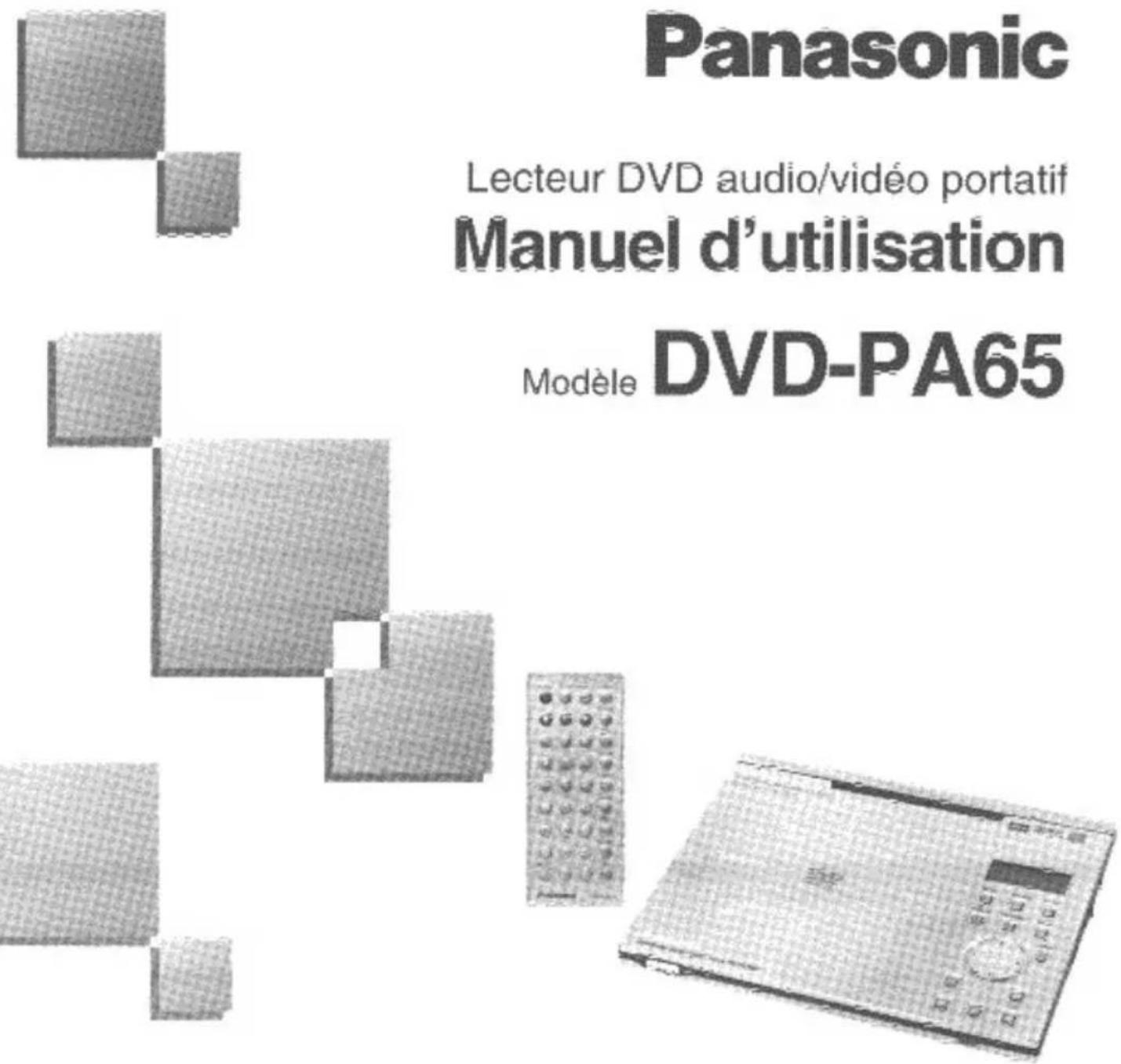
Panasonic
CAUTION -VISIBLE AND INVISIBLE LASER RADIATION WHEN OPEN. DO NOT STARE INTO BEAM.
ATTENTION
-RAYONNEMENT LASER VISIBLE ET INVISIBLE EN CAS D'OUVERTURE. NE PAS REGARDER DANS LE FAISCEAU.
Appareil principal
natural_image
Simple line drawing of an open book with a dashed arrow indicating rotation (no text or symbols)natural_image
Simple line drawing of a heart inside a circle with diagonal lines (no text or symbols)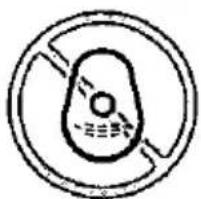
natural_image
Simple circular diagram with a central oval and two curved lines, no text or symbols present.Manipulation
natural_image
Simple line drawing of a hand holding a small object inside a circular frame (no text or symbols)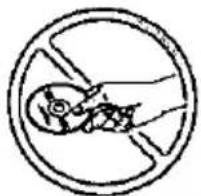
natural_image
Simple line drawing of a hand holding a fish inside a circle (no text or symbols)Nettoyage
natural_image
Simple line drawing of a hand holding a fish within a circular frame (no text or symbols)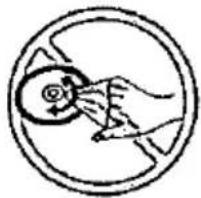
natural_image
Simple line drawing of a hand holding a magnifying glass over a circular frame (no text or symbols)natural_image
Simple diagram of a device with an arrow pointing left (no text or symbols)2 Appuyer sur [▶].
•Avant [L (G)/R (D)]
•Canal centre
• Extrêmes-graves
• Ambiophonique [L (G)/R (D)]: