XZPADCVKIT - Keyboard Hamlet - Free user manual and instructions
Find the device manual for free XZPADCVKIT Hamlet in PDF.


| Product Type | Keyboard |
| Brand | Hamlet |
| Model | XZPADCVKIT |
| Connectivity | Wired USB 2.0 |
| Interface | USB Type-A |
| Key Type | Membrane |
| Layout | QWERTY (US International) |
| Number of Keys | 104 (including numeric keypad) |
| Multimedia Keys | Yes (play, pause, volume, mute) |
| Dimensions (L x W x H) | 445 x 150 x 25 mm |
| Weight | 680 g |
| Cable Length | 1.5 m |
| Compatibility | Windows, macOS, Linux |
| Color | Black |
| Material | ABS plastic |
| Power Source | USB bus-powered |
| Cleaning Instructions | Wipe with a soft damp cloth; do not use harsh chemicals |
| Maintenance | Keep away from liquids and excessive dust |
| Safety | Avoid bending the cable; unplug during cleaning |
| Spare Parts Availability | Replacement keycaps and cables available |
| Repairability | User-replaceable keycaps; internal repair by qualified service |
| General Information | 2-year limited warranty; RoHS compliant |
Frequently Asked Questions - XZPADCVKIT Hamlet
User questions about XZPADCVKIT Hamlet
0 question about this device. Answer the ones you know or ask your own.
Ask a new question about this device
Download the instructions for your Keyboard in PDF format for free! Find your manual XZPADCVKIT - Hamlet and take your electronic device back in hand. On this page are published all the documents necessary for the use of your device. XZPADCVKIT by Hamlet.
USER MANUAL XZPADCVKIT Hamlet
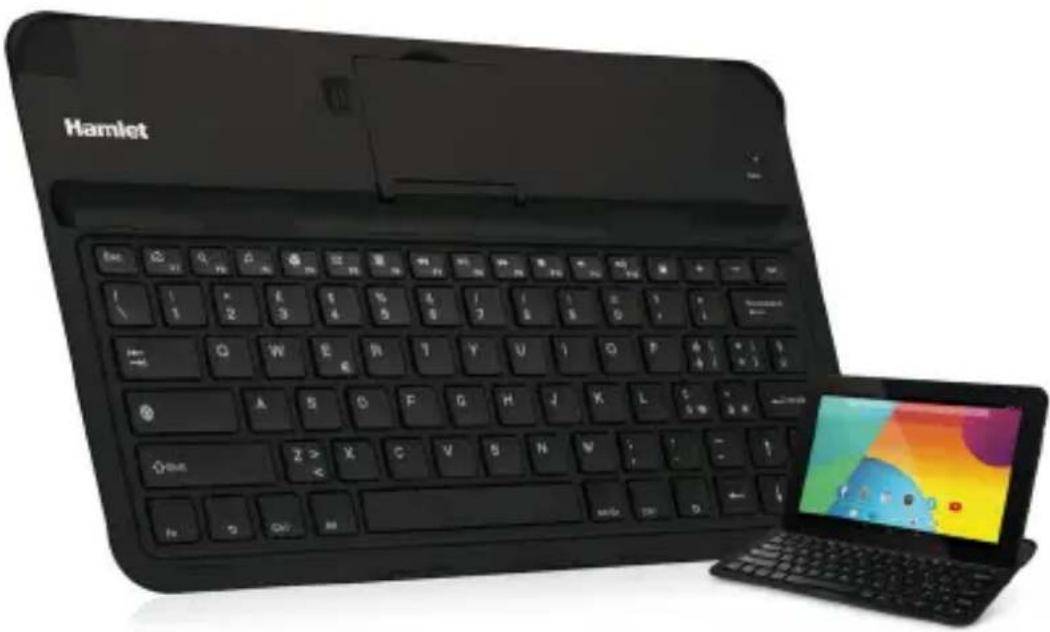
Aluminum Cover with Built-in Bluetooth Keyboard and Tablet Stand
natural_image
Black Hamlet keyboard and tablet displaying a colorful thermal map (no text or symbols on main objects)USER MANUAL
XZPADCVKIT
www.hamletcom.com
Dear Customer,
thanks for choosing an Hamlet product. Please carefully follow the instructions for its use and maintenance and, once this item has run its life span, we kindly ask You to dispose of it in an environmentally friendly way, by putting it in the separate bins for electrical/electronic waste, or to bring it back to your retailer who will collect it for free.
We inform You this product is manufactured with materials and components in compliance with RoHS directive: 2011/65/EU; with RAEE Directives: 2002/96/EC, 2003/108/EC Italian Legislative Decree 2005/151 and Directives EMC 2004/108/EC, R&TTE 1999/5/EC, LVD 2006/95/EC for the following standards:
EN 55022: 2010, EN 55024: 2010,
EN 61000-3-2: 2006 + A1: 2009 + A2: 2009,
EN 61000-3-3: 2008, EN 62479: 2010,
EN 300 328 V1.7.1 (2006-10),
EN 301 489-1 V1.9.2 (2011-09), EN 301 489-17 V2.2.1 (2012-09),
EN 60950-1: 2006 + A11: 2009 + A1: 2010 + A12: 2011
CE Mark Warning
This is a Class B product. In a domestic environment, this product may cause radio interference, in which case the user may be required to take adequate measures.

The complete CE declaration of conformity of the product can be obtained by contacting Hamlet at info@hamletcom.com.
The information on the importer for your country are available in the “About Us” section of the Hamlet website at www.hamletcom.com
Introduction
Hamlet Metal Cover + Bluetooth Keyboard combines in one product a Bluetooth keyboard and a solid aluminum cover compatible with all 10.1" Tablet PC with dimensions of 261 x 174 mm. The Tablet with these specifications will perfectly accommodated in the cover/keyboard protecting the tablet's screen during transport. The keyboard integrates a tilt stand for maximum comfort of use when typing and the rechargeable lithium-polymer battery ensures prolonged use with only one charge.
Features
• Aluminum cover with built-in stand for 10.1" Tablet PC
• Integrated Bluetooth keyboard with rechargeable lithium battery
- Bluetooth interface version 4.0
- Bluetooth range up to 10 meters
- Italian QWERTY layout 82 keys
• Micro USB port (for recharge)
- Status LED indicators
• Standby: about 40 days
• Recharging time: 3-4 hours
• ON/OFF power switch
• Dimensions: 265 x 177 x 11.3 mm
- Weight: 275 g
Package content
- Bluetooth Cover/Keyboard
- USB recharging cable
- User's manual
System requirements
- Tablet PC with Bluetooth function
- Tablet PC with Android or iOS operating system
Keyboard layout
The integrated Bluetooth keyboard has a 82 keys QWERTY layout based on Italian language.
In the case of using a system with a different language, you must set the system language to Italian so that special characters typed on the keyboard appear correctly on the screen.
Important Note
The multimedia keys such as the monitor's brightness, volume and playback may work on some devices only.
Product overview
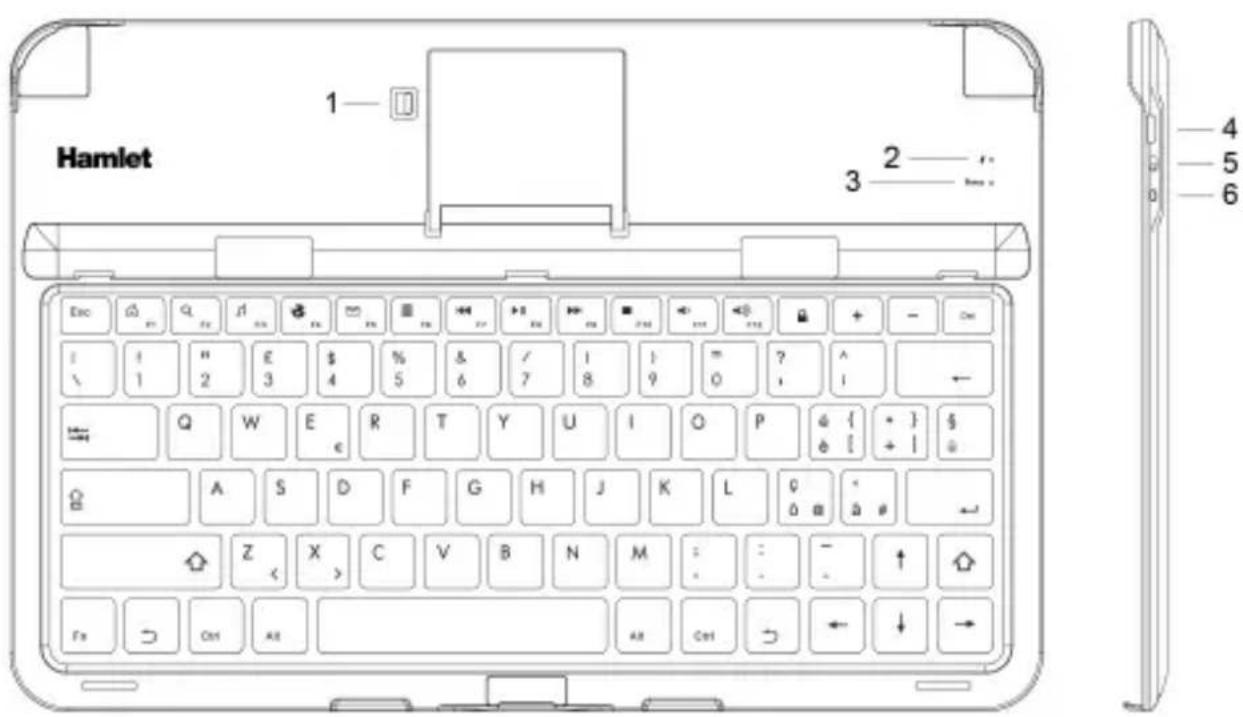
- Release lever for tablet stand
- Power/Charging indicator (Yellow/Green)
- Bluetooth status indicator (Blue)
- Micro USB port (power/charge)
- ON/OFF power switch
- Bluetooth pairing button
Installation and use
The following steps refer to tablets with Android system. For other types of tablet, please refer to the instructions for the Bluetooth connection provided with the product documentation.
Note: It is recommended that you fully charge the battery the first time you use the keyboard.
Connecting the keyboard to the tablet (Android)
- Turn on the keyboard by using the switch on the right side.
- Enable the Bluetooth function of the tablet you wish to connect by opening the Settings menu and selecting Bluetooth in the Wireless & Networks section.
- Press the Bluetooth pairing button on the side of the keyboard. The led Status indicator will begin to flash.
- When the tablet detects the keyboard, select it from the list of Bluetooth devices.
- The system will show a random PIN number. Type in the PIN number on the keyboard and press Enter to complete the pairing.
- The keyboard is now successfully connected to the tablet.
Note: If there is no signal for 10 minutes or the connected device is turned off, the keyboard will go into Standby. Press any key to wake up the keyboard.
Charging the keyboard
When the battery charge is low, the power indicator flashes yellow.
- Plug the small end (micro USB) of the charging cable into the micro USB port on the keyboard.
- Plug the other end of the cable into a USB port on your computer. The LED charging indicator will light up.
- The keyboard is fully charged when the led indicator turns green.
Troubleshooting
In case it is impossible to connect the keyboard to your tablet, try these steps to resolve the problem.
- Make sure you have the Bluetooth function installed and set up properly on your tablet. Refer to your tablet's documentation for details.
- Make sure the keyboard is in a range of 10 meters from the tablet.
- If the tablet is connected to other Bluetooth devices, you may need to disconnect some before connecting the keyboard.
- If you have changed some Bluetooth settings on the tablet, try to reconnect the keyboard to the tablet.
- Make sure both batteries of tablet and keyboard are enough charged.
If you are unable to resolve the problem, contact technical support through the Hamlet website at hamletcom.com.
Trademarks and changes
All trademarks and company names mentioned in this manual are used for description purpose only and remain property of their respective owners.
The material in this document is for information only and subject to change without notice. Specifications and appearance are subject to change without prior notice.