
AUE0201F - Cables for Computers and Peripherals Aluratek - Free user manual and instructions
Find the device manual for free AUE0201F Aluratek in PDF.


| Product Type | USB Cable |
| Brand | Aluratek |
| Model | AUE0201F |
| Connectivity | USB-A to USB-C |
| Cable Length | 1 meter (3.3 feet) |
| Data Transfer Rate | Up to 5 Gbps (USB 3.0) |
| Charging Current | Up to 3A |
| Material | PVC jacket, tinned copper conductors |
| Compatibility | Computers, laptops, tablets, smartphones with USB-C port |
| Color | Black |
| Weight | 30 grams |
| Operating Temperature | 0°C to 45°C |
| Warranty | 1 year limited |
| Features | Durable, flexible, gold-plated connectors |
| Cleaning | Wipe with a soft, dry cloth |
| Safety | Do not expose to moisture or extreme heat; avoid sharp bends |
| Plug and Play | Yes |
| Package Content | 1 cable |
Frequently Asked Questions - AUE0201F Aluratek
User questions about AUE0201F Aluratek
0 question about this device. Answer the ones you know or ask your own.
Ask a new question about this device
Download the instructions for your Cables for Computers and Peripherals in PDF format for free! Find your manual AUE0201F - Aluratek and take your electronic device back in hand. On this page are published all the documents necessary for the use of your device. AUE0201F by Aluratek.
USER MANUAL AUE0201F Aluratek
USB 2.0 Ethernet Adapter Quick Start Guide
Aluratek
aluratek.com
AUE0201F
qsg Q10245 Copyright © 2012 Aluratek, Inc. All Rights Reserved.
Package Contents
Your order has been carefully packaged and inspected. The following should be included in your package. Please inspect the contents of the package to ensure that you have received all items and that nothing has been damaged. If you discover a problem, please contact us immediately for assistance.
Software Installation (PC)
IMPORTANT! Please install software before connecting hardware.
Step 1: Insert the Aluratek USB 2.0 to Ethernet Driver CD into your disk drive. The auto-start should start the installation, If auto-start is disabled, please find and double click the disk drive in "My Computer" to start the installation.
Step 2: Click "Next" to continue the installation
Step 3: Click "Install" to start the installation
Step 4:
When the installation is completed, click "Finish", you may need to restart your computer as prompted
Step 5:
Connect AUE0201F to your computer via the USB port. You will see a pop-up message in the notification area when the installation is completed
Step 6
Please connect an active ethernet cable to AUE0201F to complete the installation

Software Installation (MAC)
Step 1
Insert the Aluratek USB 2.0 to Ethernet Driver CD into your disk drive. Double click the CD icon and navigate to the directory of MACAX88772

IMPORTANT! Please install software before connecting hardware.


Step 2:
In the directory of AX88772, double click "AX88772_3.4.0" to execute the installer
Step 3:
Click Continue to go to the next step
Step 4
Select a destination volume to install the drive and click "Continue"
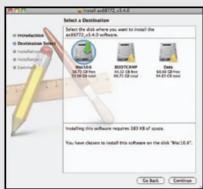
Step 5
Click "Install" to continue the installation
Step 6: Enter the password if you set a protection for the operating system

Step 7
Make sure all other programs are closed as the computer will need to restart once the
installation is completed. Click "Continue Installation" to continue the installation.
Step 8
Click "Restart" to activate the new settings
Step 9
Connect AUE0201F to your computer via the USB port. You will see a pop-up message in the notification area when the installation is completed
Step 10:
Please connect an active ethernet cable to AUE0201F to complete the installation
Technical Support
If you need further assistance, please contact the Aluratek support department for troubleshooting prior to returning this device.
E-mail: support@aluratek.com
Web: www.aluratek.com/support
Local (Tustin, CA): 714-586-8730 Toll free: 1-866-580-1978
Radio and TV Interference Statement
WARNING!!! This equipment has been tested and found to comply with the limits of a Class B digital device, pursuant to part 15 of the FCC rules. These limits are designed to provide reasonable protection against harmful interference in a residential installation.
This equipment generates, uses and can radiate radio frequency energy and, if not installed and used in accordance with the instruction, may cause harmful interference to radio communications. However, there is no guarantee that interference will not occur in a particular installation. If this equipment does cause harmful interference to radio or television reception, which can be determined by turning the equipment off and on, the user is encouraged to try to correct the interference by whatever measures may be required to correct the interference.
Warranty
Aluratek warrants this product against defect in material or workmanship for 1 Year
from the date of purchase.
This warranty becomes invalid if the factory-supplied serial number or "warranty void" sticker has been removed or altered on the product.
This warranty does not cover:
A) Cosmetic damage or damage due to acts of God
B) Accident, misuse, abuse, negligence or modification of any part of the product.
C) Damage due to improper operation or maintenance, connection to improper equipment, or attempted repair by anyone other than Aluratek.
D) Products sold AS IS or WITH FAULTS.
IN NO EVENT SHALL ALURATEK'S LIABILITY EXCEED THE PRICE PAID FOR THE PRODUCT FROM DIRECT, INDIRECT, SPECIAL, INCIDENTAL, OR CONSEQUENTIAL DAMAGES RESULTING FROM THE USE OF THE PRODUCT, IT'S ACCOMPANYING SOFTWARE, OR IT'S DOCUMENTATION.
Aluratek makes no warranty or representation, expressed, implied, or statutory, with respect to it's products, contents or use of this documentation and all accompanying software, and specifically disclaims it's quality, performance, merchantability, or fitness for any particular purpose. Aluratek reserves the right to revise or update it's product, software or documentation without obligation to notify any individual or entity.
Brand : Aluratek
Model : AUE0201F
Category : Cables for Computers and Peripherals