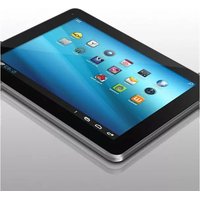
Cinepad AT110F - Tablet Aluratek - Free user manual and instructions
Find the device manual for free Cinepad AT110F Aluratek in PDF.


Pick your language and provide your email: we'll send you a specifically translated version.
| Product Type | Tablet |
| Brand | Aluratek |
| Model | Cinepad AT110F |
| Display Size | 10.1 inches |
| Display Resolution | 1280 x 800 pixels |
| Processor | Dual-core 1.5 GHz |
| Operating System | Android 4.0 (Ice Cream Sandwich) |
| RAM | 1 GB |
| Internal Storage | 16 GB |
| Expandable Storage | microSD card slot (up to 32 GB) |
| Rear Camera | 2 MP |
| Front Camera | 0.3 MP |
| Battery Capacity | Li-Polymer 5000 mAh |
| Connectivity | Wi-Fi 802.11 b/g/n, Bluetooth 2.1 |
| Ports | Micro-USB 2.0, Mini-HDMI, 3.5mm headphone jack |
| Dimensions | 10.2 x 6.9 x 0.4 inches (259 x 175 x 10 mm) |
| Weight | 1.3 lbs (590 g) |
| Power Requirements | 5V DC, 2A via AC adapter |
| Maintenance and Cleaning | Wipe with a soft, dry cloth; avoid solvents and abrasive cleaners |
| Safety | Do not expose to moisture or direct sunlight; keep away from heat sources |
| Spare Parts and Repairability | Battery and screen are not user-replaceable; contact Aluratek support for service |
Frequently Asked Questions - Cinepad AT110F Aluratek
How do I turn on the Cinepad AT110F for the first time?
Press and hold the Power button located on the side of the device for about 3 seconds until the screen lights up. Follow the on-screen setup wizard to select language, connect to Wi-Fi, and sign in to your Google account.
How can I charge the tablet and how long does it take?
Connect the included AC adapter to the micro-USB port and a power outlet. A full charge takes approximately 4 to 5 hours. The battery indicator shows when the charging is complete.
How do I connect to a Wi-Fi network?
Go to Settings > Wi-Fi, toggle Wi-Fi on, then select your network from the list. Enter the password if required and confirm the connection.
Can I expand the storage on the AT110F?
Yes, the tablet has a microSD card slot. Insert a microSD card up to 32 GB into the slot (often located under the back cover or on the side) to expand storage for photos, videos, and apps.
How do I perform a factory reset?
Back up your data first. Go to Settings > Backup & reset > Factory data reset, then tap 'Reset device' and confirm. The tablet will erase all personal data and restore to original factory settings.
Why is the screen brightness changing automatically?
The tablet has an auto-brightness sensor that adjusts screen brightness based on ambient light. To disable it, go to Settings > Display > Brightness and uncheck 'Auto-adjust brightness'.
How can I transfer files between the tablet and a computer?
Connect the tablet to your computer using a USB cable. On the tablet, pull down the notification bar and select 'USB connection' > 'Media device (MTP)'. Then you can browse the internal storage from your computer.
What can I do if the tablet freezes or becomes unresponsive?
Press and hold the Power button for at least 10 seconds to force a restart. If the issue persists, perform a factory reset as described in the manual, or contact Aluratek support.
How do I update the operating system?
Go to Settings > About tablet > System updates and tap 'Check for updates'. If an update is available, follow the prompts to download and install it. Ensure you have a stable Wi-Fi connection and sufficient battery.
Can I use the tablet with a keyboard and mouse?
Yes, the AT110F supports USB keyboard and mouse via an OTG (On-The-Go) adapter. You can also pair a Bluetooth keyboard or mouse through Settings > Bluetooth.
User questions about Cinepad AT110F Aluratek
0 question about this device. Answer the ones you know or ask your own.
Ask a new question about this device
No questions yet. Be the first to ask one.
Download the instructions for your Tablet in PDF format for free! Find your manual Cinepad AT110F - Aluratek and take your electronic device back in hand. On this page are published all the documents necessary for the use of your device. Cinepad AT110F by Aluratek.
USER MANUAL Cinepad AT110F Aluratek


Manual assistant
Powered by Anthropic
Waiting for your message
Product information
Brand : Aluratek
Model : Cinepad AT110F
Category : Tablet