HT-2223BK - Network card / adapter HornetTek - Free user manual and instructions
Find the device manual for free HT-2223BK HornetTek in PDF.


User questions about HT-2223BK HornetTek
0 question about this device. Answer the ones you know or ask your own.
Ask a new question about this device
Download the instructions for your Network card / adapter in PDF format for free! Find your manual HT-2223BK - HornetTek and take your electronic device back in hand. On this page are published all the documents necessary for the use of your device. HT-2223BK by HornetTek.
USER MANUAL HT-2223BK HornetTek
natural_image
Stylized black-and-yellow graphic of a stylized insect head with a yellow letter 'H' beside it (no text or symbols)HORNETTEK®
HT-2333BK
User Manual
Before you proceed with the installation, please notice the following descriptions.
Note 1: The following installation was operated under Windows XP. (Procedures are similar for Windows 98SE/Me/2000.)
Note 2: If you have installed the WLAN USB driver & utility before, please uninstall the old version first.
Note 3: Double Click the RTL8187B CD-ROM and click setup.exe setup.exe to begin

Setup.exe

3.5 軟碟機 (A:)

本機磁碟(D:)

共用文件

本機磁碟(C:)

RTL8187B (E)

XP-basic 的文件
installation
1. Installation
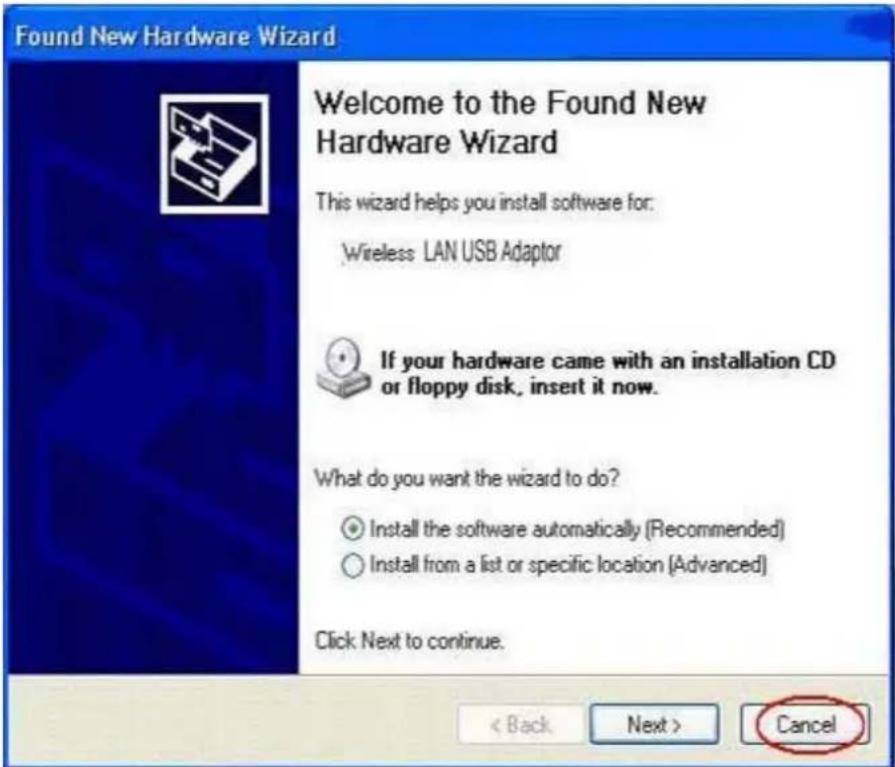
- If you insert the Wireless LAN USB Adaptor into your computer USB port after ``installing the software program from the CD, then the following window pops up.
- Click Cancel.
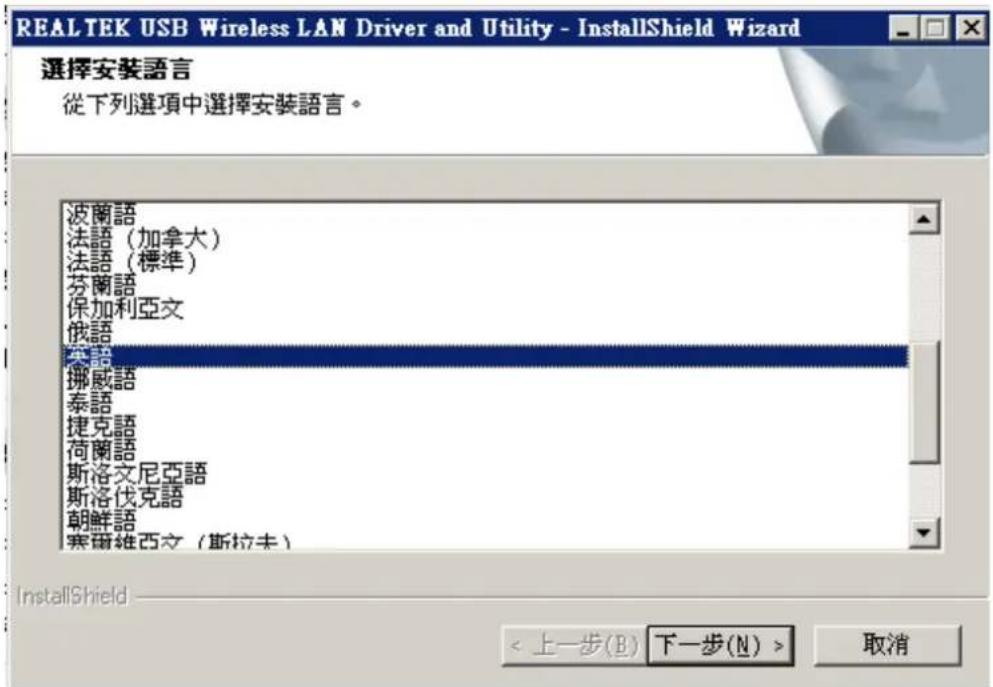
- Choose a set up language.
- Click Next to process the installation.
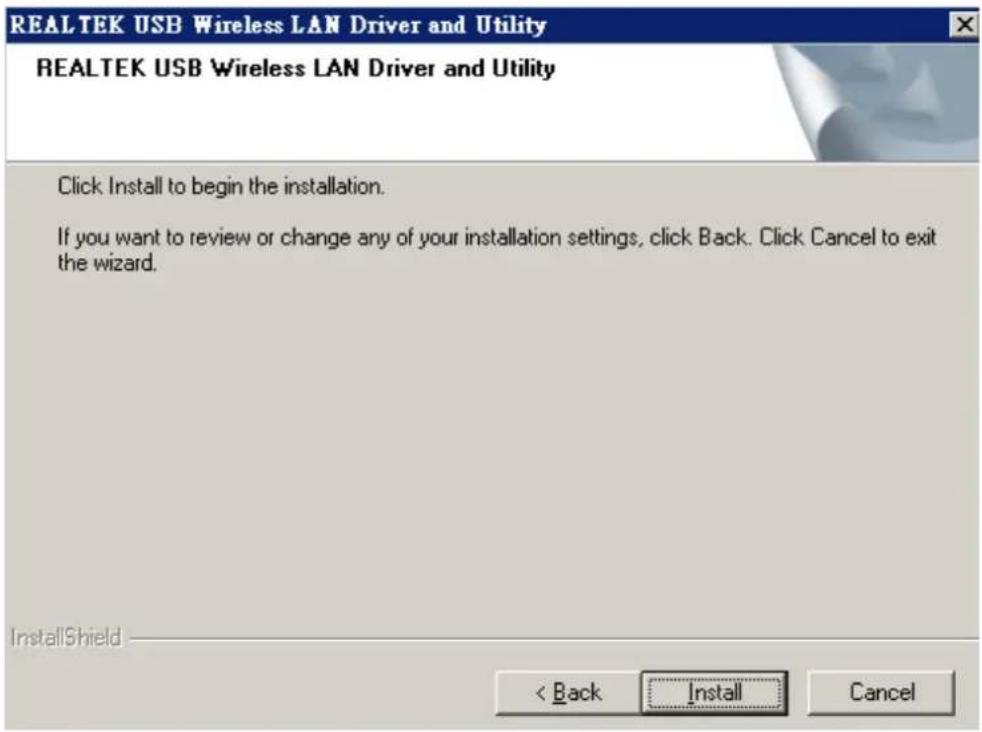
- Click install to WLAN USB adaptor installation.
- On Windows Logo Software Installation screen, click Continue Anyway to continue.
Note: Not all the drivers will have this message box.
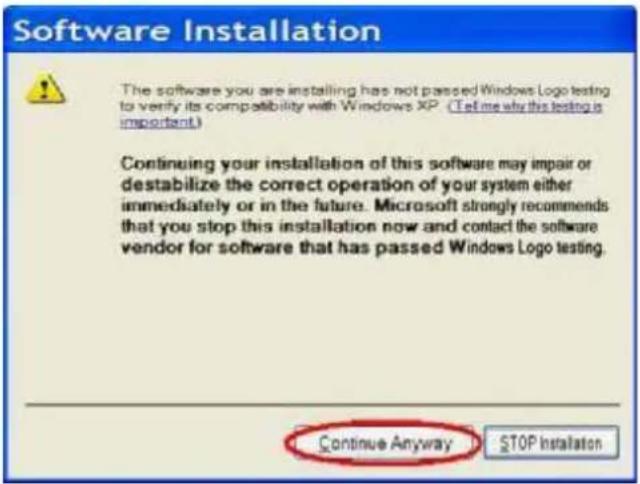
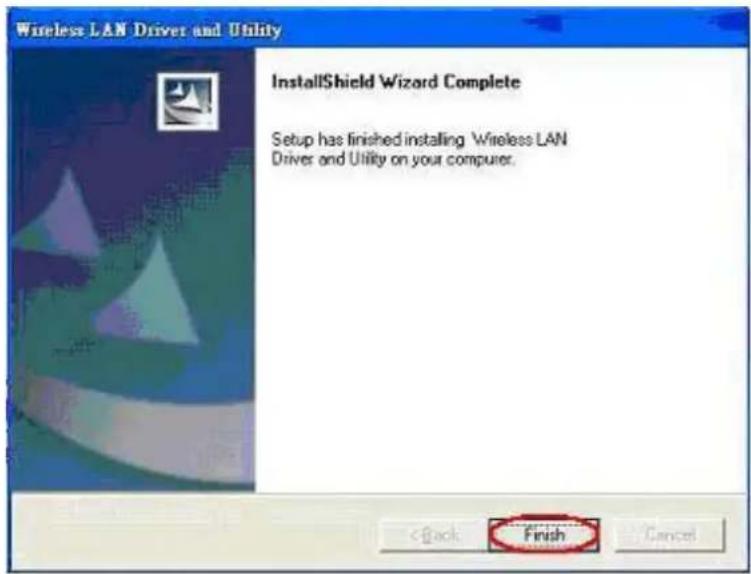
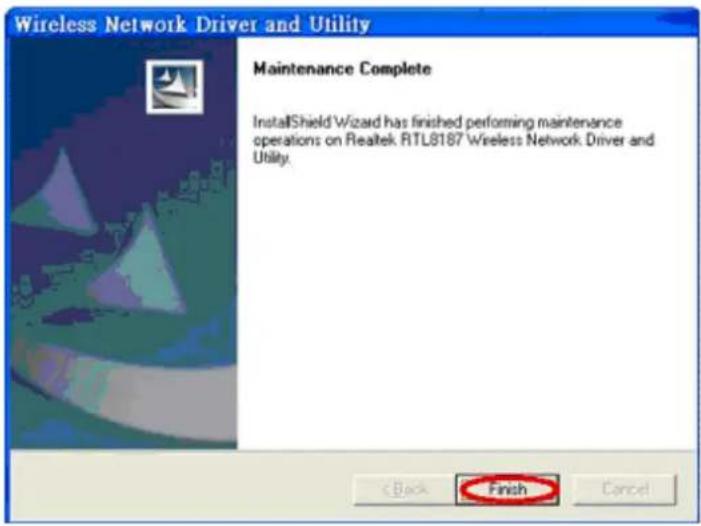
- Click Finish to complete the installation.
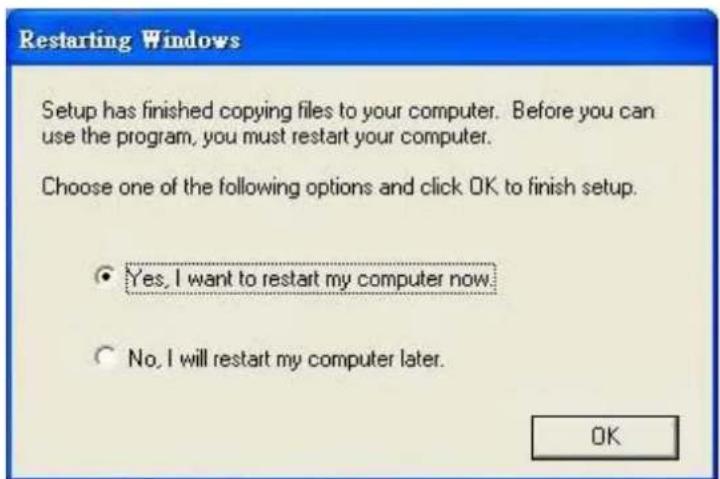
- After setup, restart your computer
2. Uninstallation
A. Uninstall the WLAN USB Adaptor Driver from “Wireless Network Driver and Utility” or “Control Panel”. Click “Uninstall” (or “Change/Remove”) to remove Wireless LAN USB Adaptor driver.
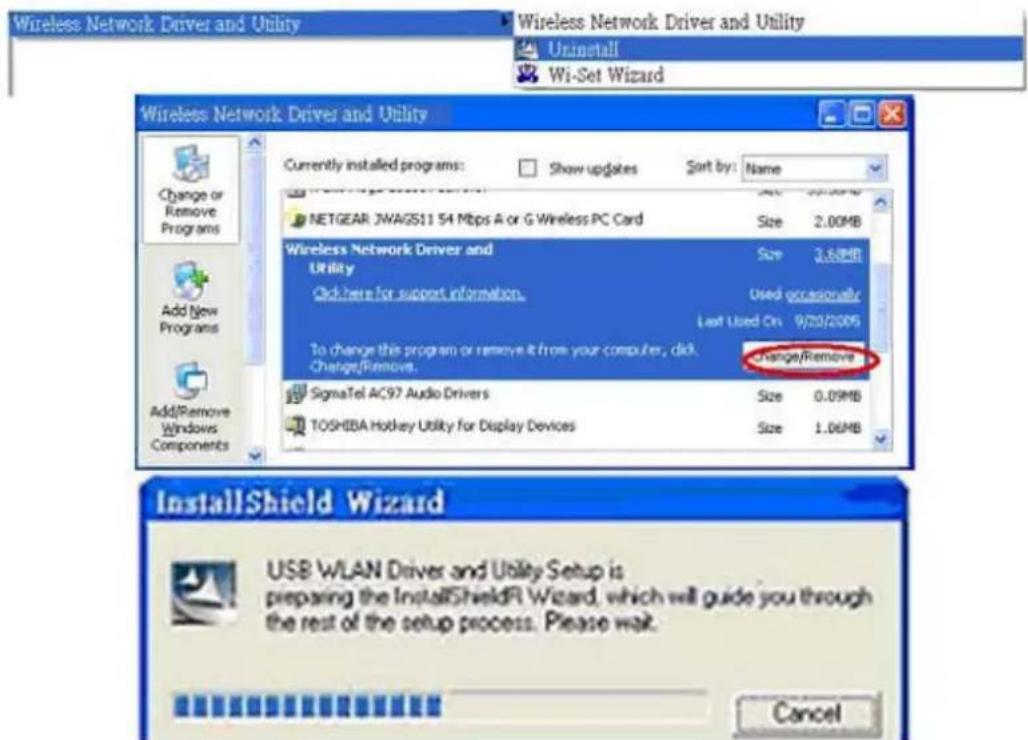
B. Click "OK" if you want to remove Wireless LAN USB Adaptor Driver.
C. Click "Finish" to complete the uninstallation.
Making a Basic Network Connection
In the following instruction for making a network connection, we use the utility we provided to configure your wireless network settings.
Note: For Windows XP users that want to configure your wireless network using this Utility, please perform the following procedures to disable your native Windows XP wireless support (Wireless Zero Configuration Service)
- Double click the task bar.

icon on your desktop to start the utility or

in the
Ad-Hoc Mode
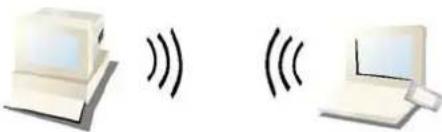
An Ad-Hoc mode wireless network connects two computers directly without the use of a router or AP. It is also known as a peer-to-peer network. For example, we can install this wireless adapter to two computers respectively. The communication between the two computers is an Ad-Hoc mode network.
natural_image
Two computer devices with sound waves, no text or symbols presentAd-Hoc Mode
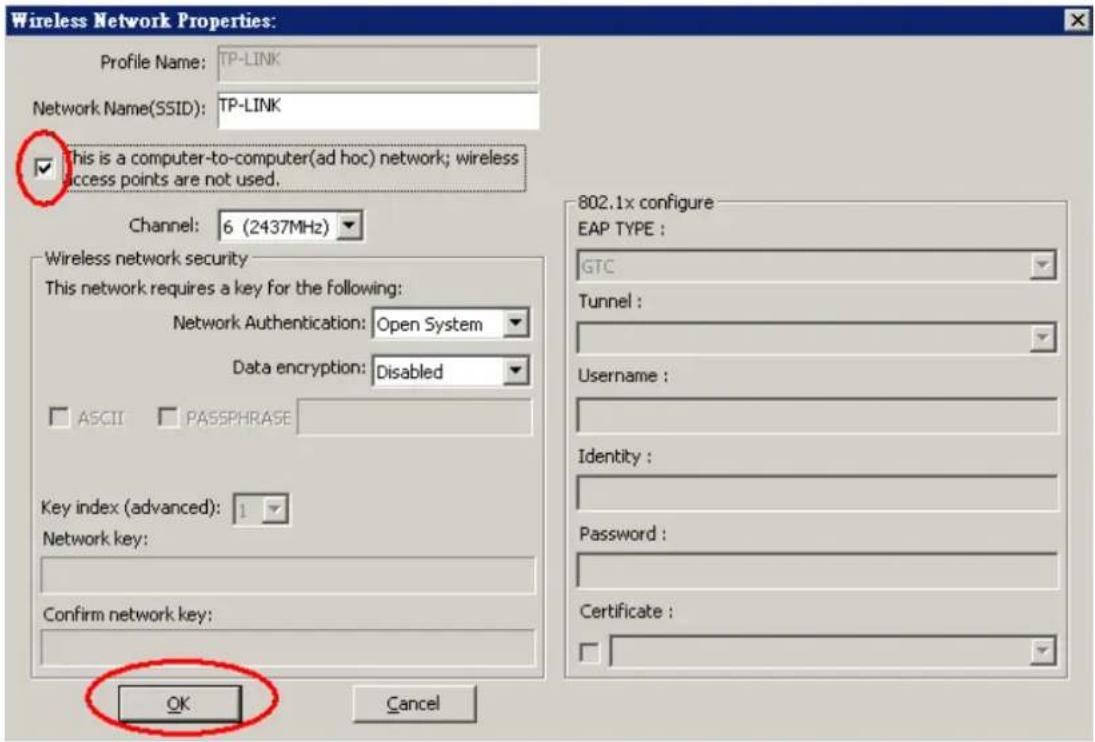
To use this adapter in Ad-Hoc Mode
- Double click the task bar.
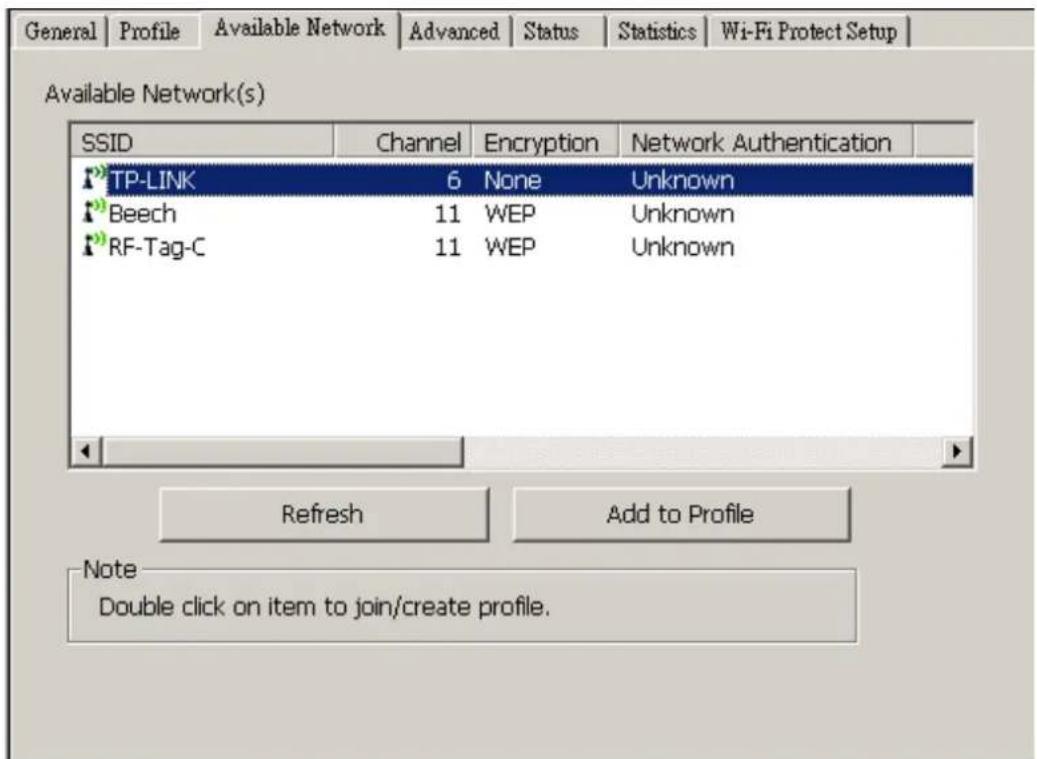
icon on your desktop to start the utility or 📄 in the - Click the "Available Network" button to scan available wireless network adapters. Double click on the network adapter that you are going to connect to.

- Click the OK button to confirm that you are connecting to an open wireless network.
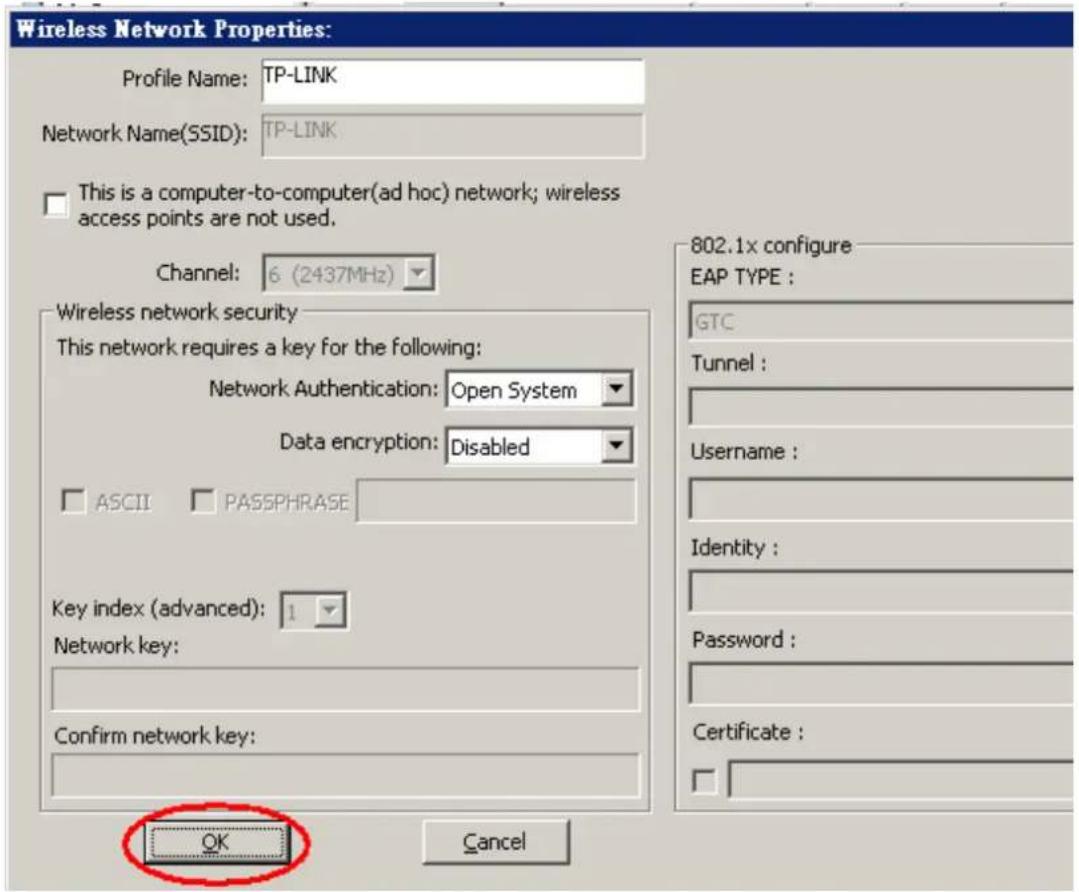
- Click OK to add this network into the profile list.
Note: This example is an open wireless network. If you are going to connect to a Wireless adapter with security protection, you will have to configure the encryption settings in this profile to be corresponding to the other wireless adapter. Please click on the “Network Authentication” drop list to select an authentication method, and then select a “Data encryption” type. Fill in each required blanks and click “OK”.
Infrastructure mode
An Infrastructure Mode network contains at least one wireless client and one wireless AP or router. This client connects to Internet or intranet by communicating with this wireless AP.
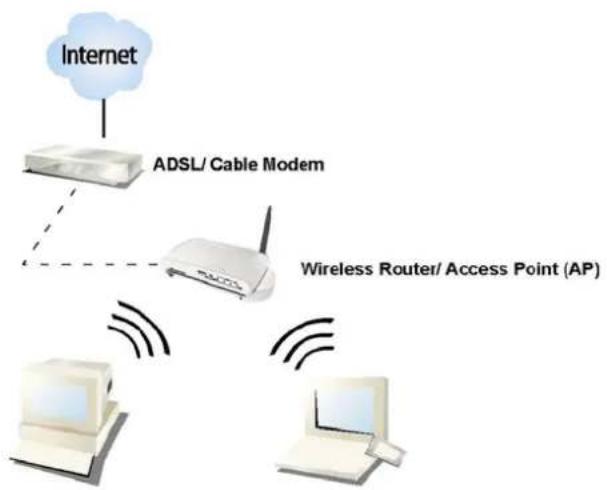
flowchart
graph TD
    A["Internet"] --> B["ADSL/ Cable Modem"]
    B --> C["Wireless Router/ Access Point (AP)"]
    C --> D["Desktop"]
    C --> E["Computer"]
Infrastructure Mode
To use this adapter in Infrastructure Mode:
- Double click the task bar.

icon on your desktop to start the utility or 📄 in the
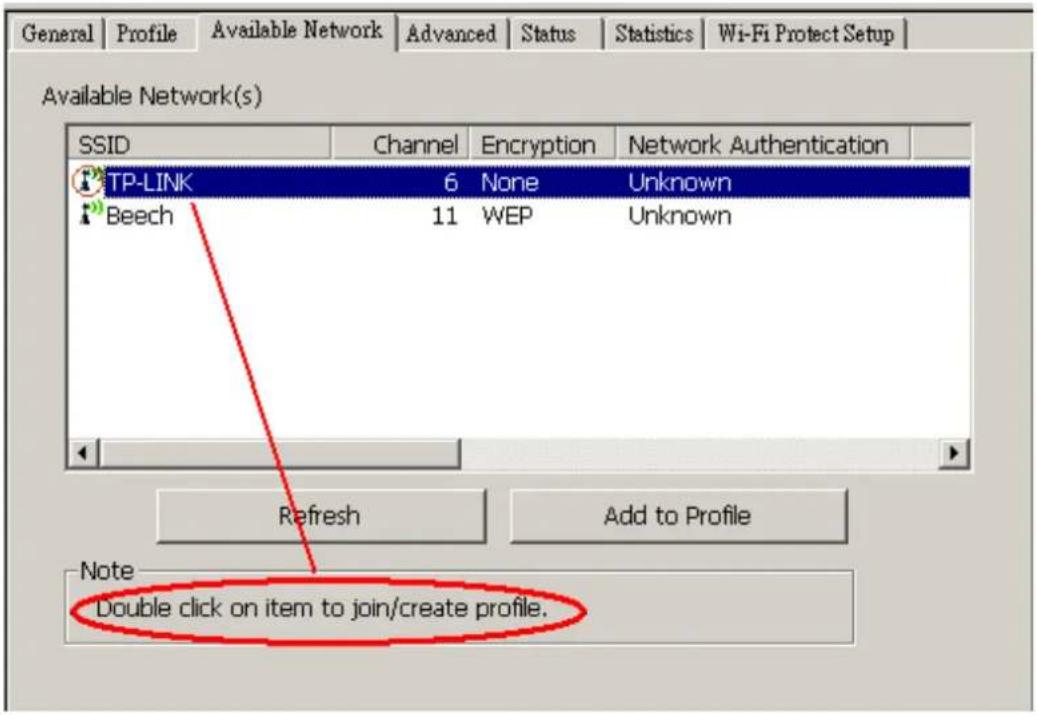
- Click the "Available Network" button to scan available access points. Double click on the AP that you are going to connect to.
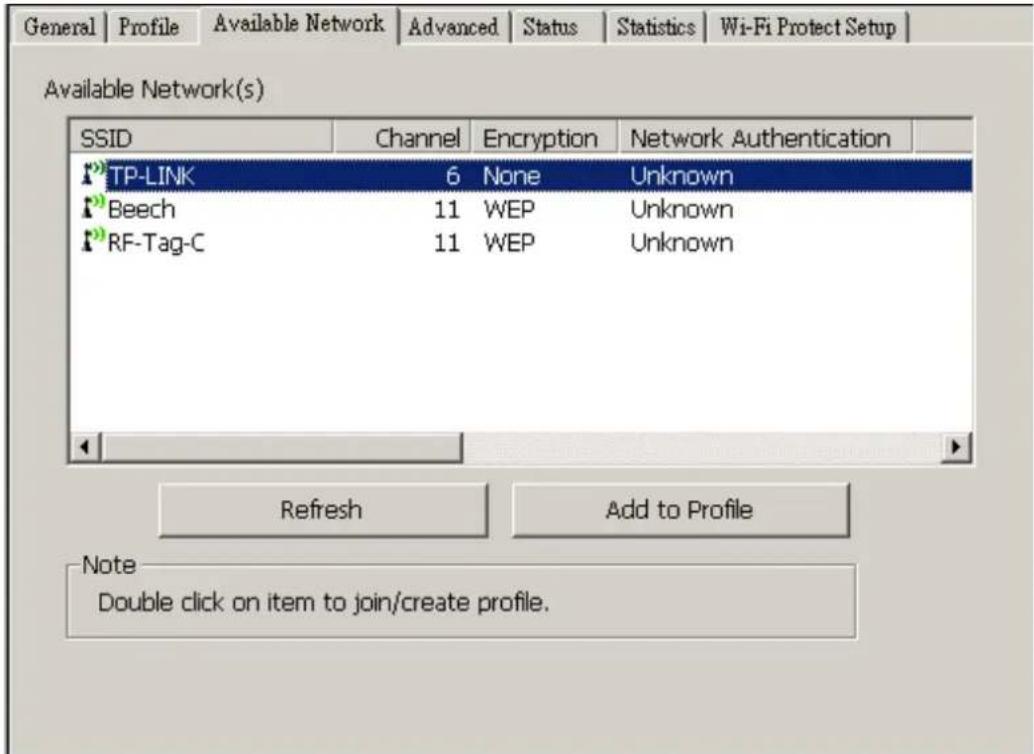
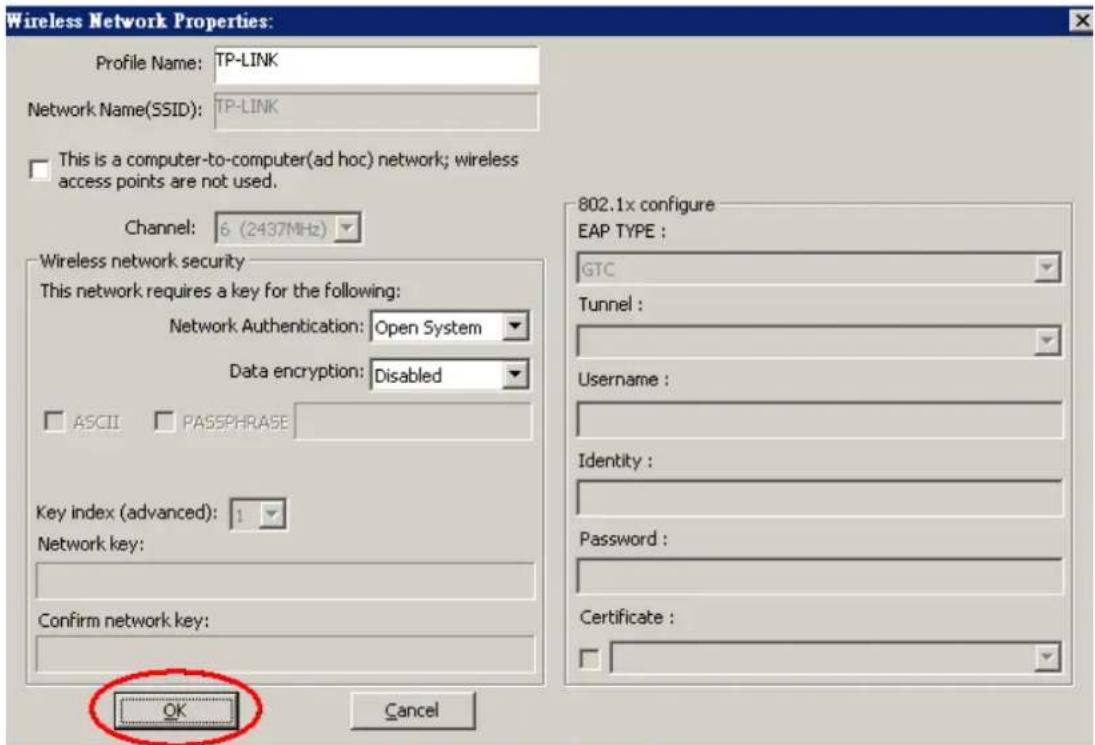
- Double click to create profile that you are connecting to an open wireless network.
- Click OK to add this network into the profile list.
Note:
This example is an open wireless network. If you are going to connect to an AP with security protection, you will have to configure the encryption settings in this profile to be corresponding to your AP. Please click on the “Network Authentication” drop list to select an authentication method, and then select a “Data encryption” type. Fill in each required blanks and click “OK”.
Tip: Windows XP and Windows 2000 users is also allowed to connect to your wireless network with the "RT-Set" setup wizard. Please refer to "Appendix" for more information.
Introduction to the Wireless LAN Utility
Note: This management instruction uses Windows XP as the presumed operation system. Some functions are not supported in Windows 98se or Windows ME.
Starting the Wireless LAN Utility

You may click on the tabs above to configure this adapter. The checkboxes below provide the following functions:
| Show Tray Icon | Check this checkbox to show the utility icon on your system tray, which is in the notification area at the lower-right corner of the windows desktop. You may also uncheck it to remove the utility icon from system tray. |
| Radio Off | Check this checkbox to prevent this adapter form transmitting or receiving signals. Uncheck it to communicate. |
| Disable Adapter | Check this checkbox to disable this wireless adapter. Uncheck it to enable this adapter again. |
General
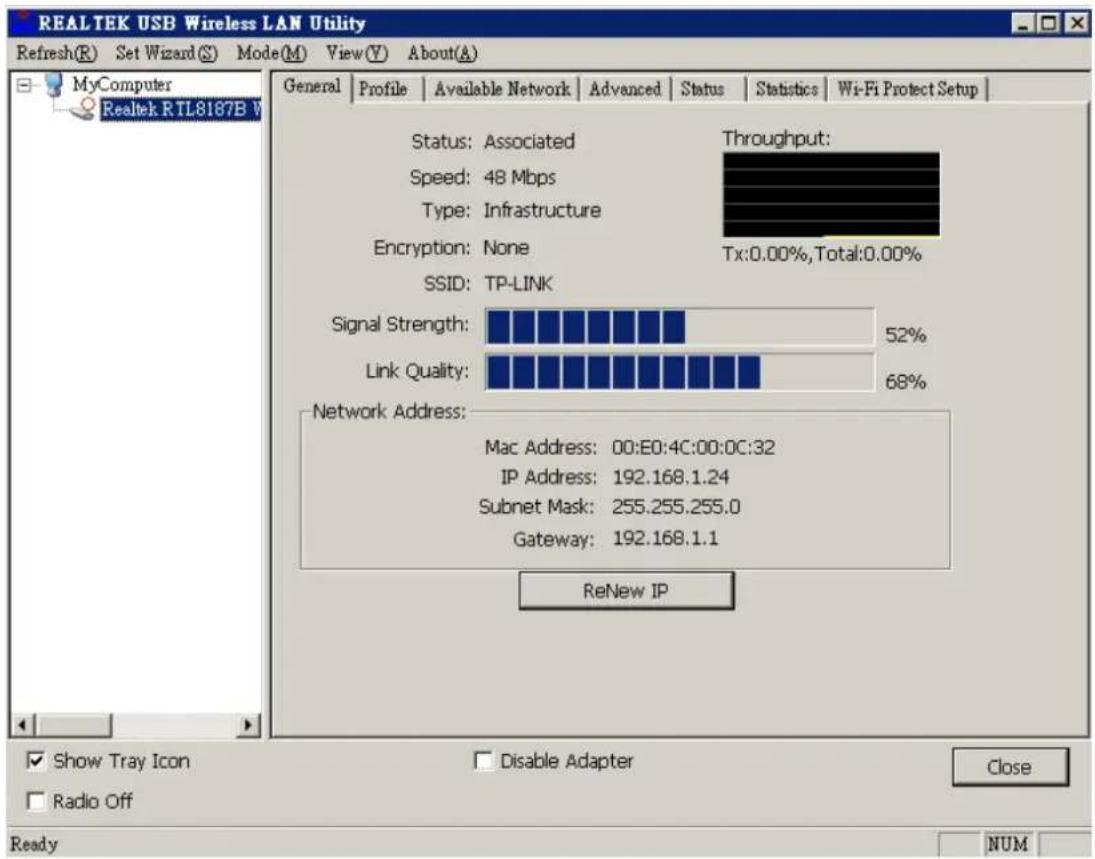
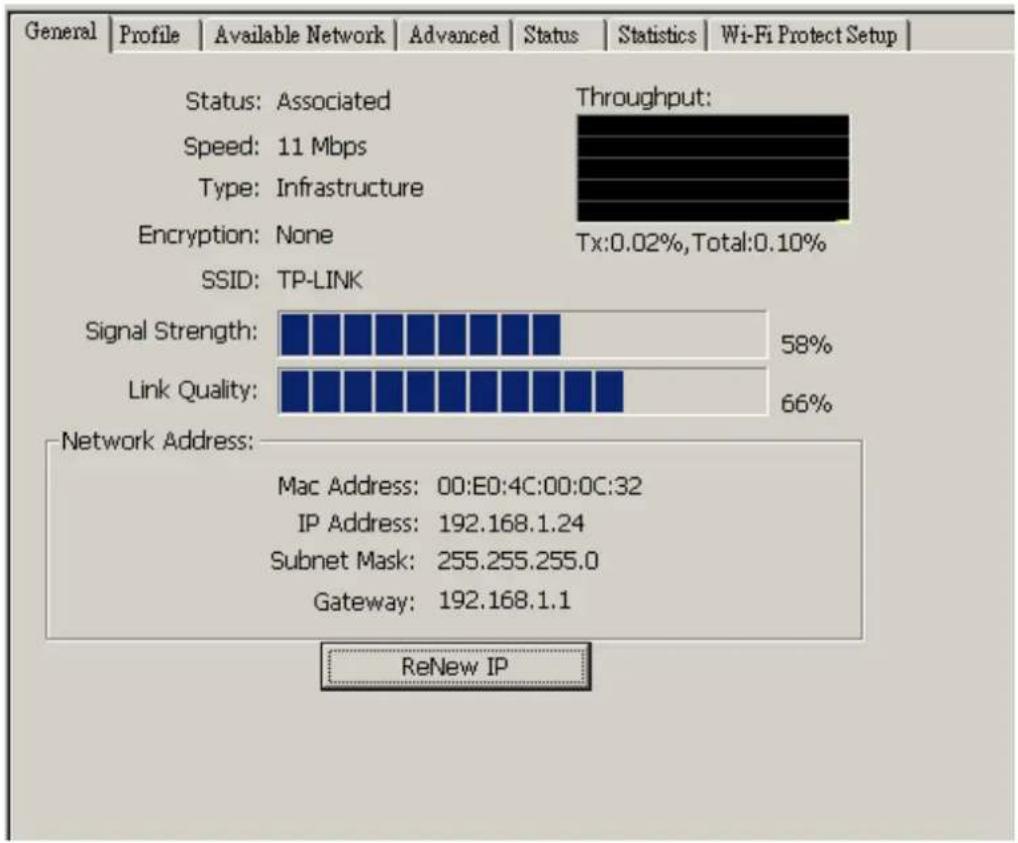
After starting the utility, the general page pops up This General tab provides the information of your current wireless network connection. You may click the Renew IP button to refresh those listed information.
bar
| Metric | Value (%) | | :--- | :--- | | Throughput: | | | Signal Strength: | 58 | | Link Quality: | 66 | | Network Address: | Mac Address: 00:E0:4C:00:0C:32 IP Address: 192.168.1.24 Subnet Mask: 255.255.255.0 Gateway: 192.168.1.1 |Status: Check if the device associated to target network.
Speed: The current connection speed
Type: Infrastructure mode or Ad-Hoc mode.
Encryption: The performing encryption mode for connecting to current network profile.
SSID: The SSID (network name) of the connected wireless network.
Signal Strength: Indicates the signal strength detected by this adapter.
Link Quality Indicates the link quality of this wireless connection.
Network Address: Shows the current IP addresses settings for this adapter.
Profile
The Profile tab lists the preferred connections. You can click the buttons beside to do configure each connection.
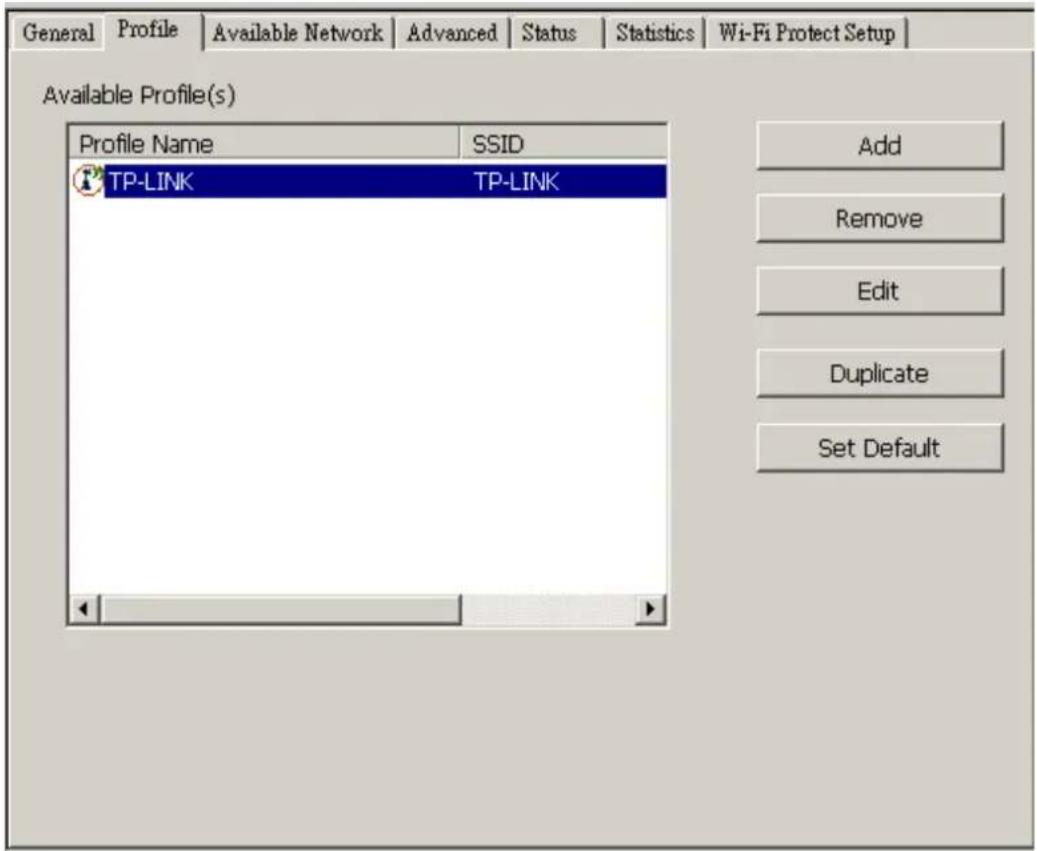
| Add | Click this button to add a connection profile for this adapter. |
| Remove | To remove a connection profile, click this profile on the profile list and click this button to delete it. |
| Edit | To modify the configurations for a profile, click this profile on the profile list and click this button to edit. |
| Duplicate | To make a copy of a profile, click the profile that going to be copied, and click this button to copy it. |
| Set Default | To select a profile as your default wireless connection, click this profile on the list and click this button. You may also double click on each profile to select it as your default wireless connection. |
Available Network
This available tab lists the reachable wireless network of this adapter.
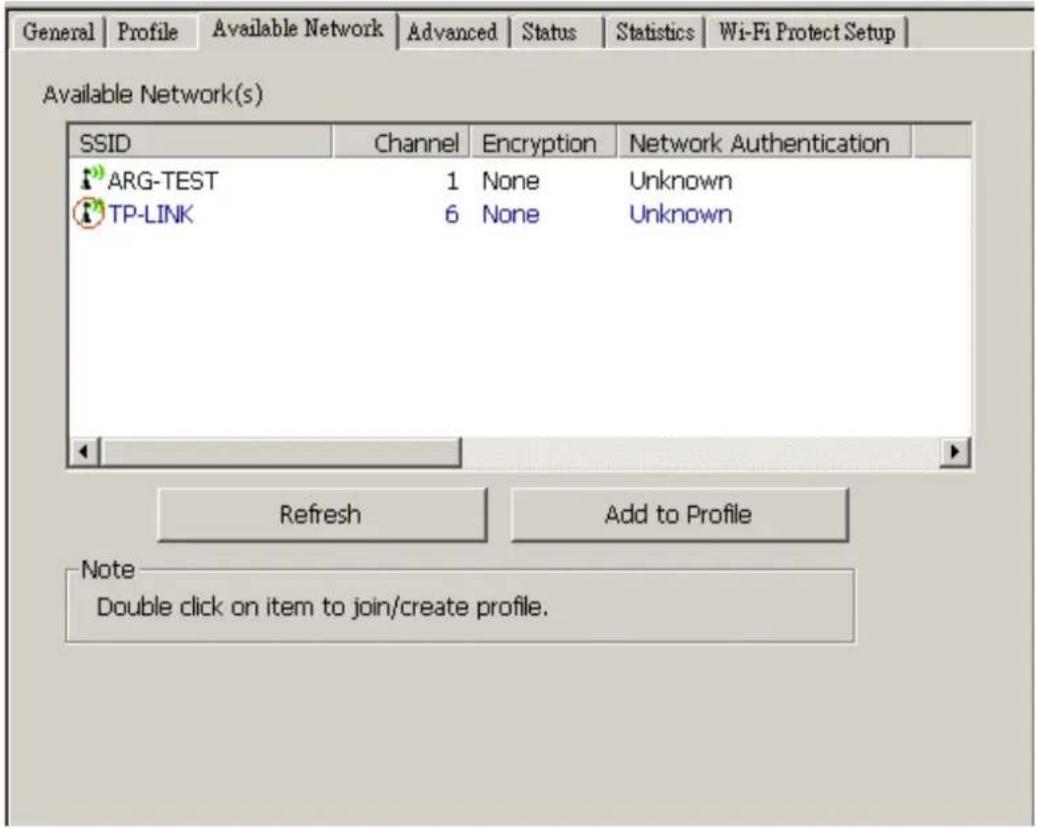
Refresh
Click this button to rescan available networks around the adapter.
Add to Profile
To add an available Network to your profile list, select an available network and click this button to add.
Advanced
This Advanced tab provides advanced configurations to this adapter. Every modification in this tab will be performed after clicking the Apply button.
To restore the default settings of the advanced tab, click the Set defaults button to perform restoring.
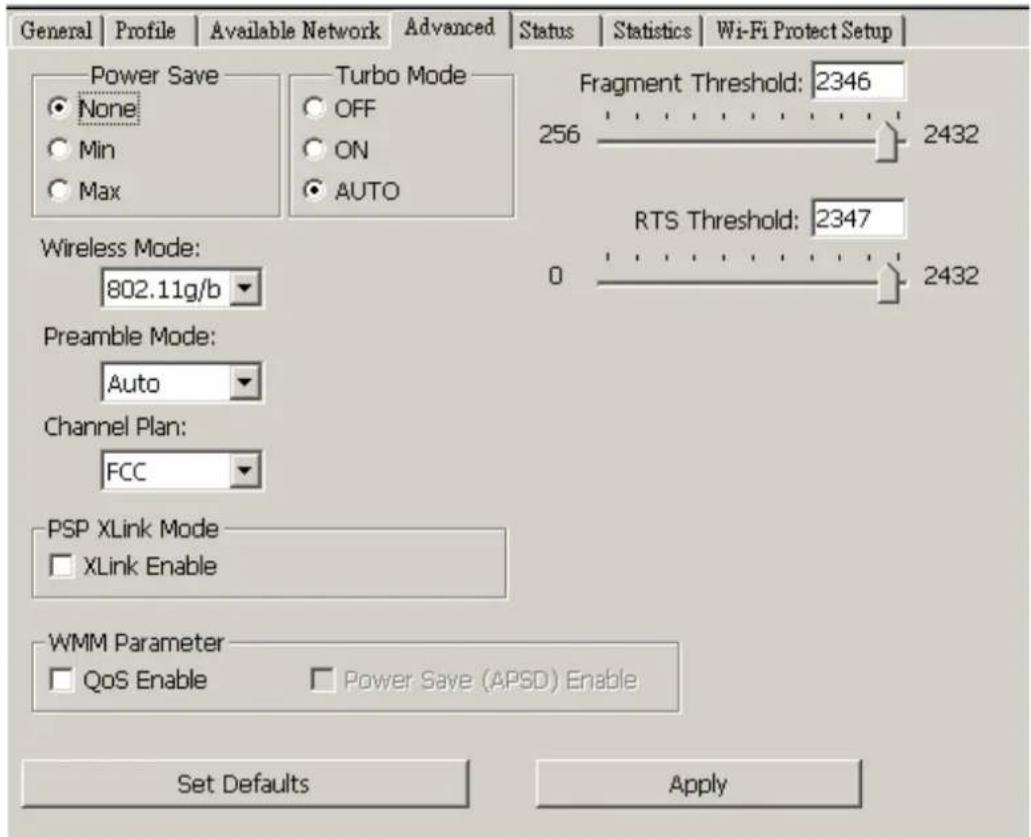
| Power Save | |
| None | Disable Power saving function. |
| Min | Minimum power consumption |
| Max | Maximum power consumption |
| Turbo Mode | |
| OFF | Disable turbo mode |
| ON | Enable turbo mode |
| AUTO En | able or disable turbo automatically according to the detected environment |
| Fragment Threshold | |
| The maximum size of a packet that is going to be segmented and transmitted. Select the size from 256 to 2432(default) bytes. | |
| RTS Threshold | |
| Select the RTS Threshold form 0 to 2432(default) | |
| Wireless Mode | |
| 802.11g/ b | Connect to a 802.11b/g network (2.4GHz/54Mbps) |
| 802.11b | Connect to a 802.11b network (2.4GHz/11Mbps) |
| 802.11b Preamble Mode |
| Select the preamble mode to be long, short or auto detection mode. |
| Channel Plan |
| Select your region from the drop list. Please note that it is necessary for you to select a correct region. Selecting an incorrect region may again the applicable law. |
| PSP XLink Mode |
| If you are using the PS2 or X-box for wireless connection |
| WMM Parameter |
| Quality of Service for better streaming bandwidth control |
Status
This tab shows the current connection status of this adapter.
| General | Profile | Available Network | Advanced | Status | Statistics | Wi-Fi Protect Setup |
| Manufacturer | = Realtek | |||||
| NDIS Driver Version | = 5.1097.718.2007 | |||||
| Short Radio Header | = Yes | |||||
| Encryption | = Disabled | |||||
| Authenticate | = Open | |||||
| Channel Set | = FCC | |||||
| MAC Address | = 00:E0:4C:00:0C:32 | |||||
| Data Rate (AUTO) | = 11 Mbps | |||||
| Channel (Frequency) | = 6 (2437 MHz) | |||||
| Status | = Associated | |||||
| SSID | = TP-LINK | |||||
| Network Type | = Infrastructure | |||||
| Power Save Mode | = None | |||||
| Associated AP MAC | = 00:19:E0:A5:A2:DC | |||||
| Up Time (hh:mm:ss) | = 0:00:16 | |||||
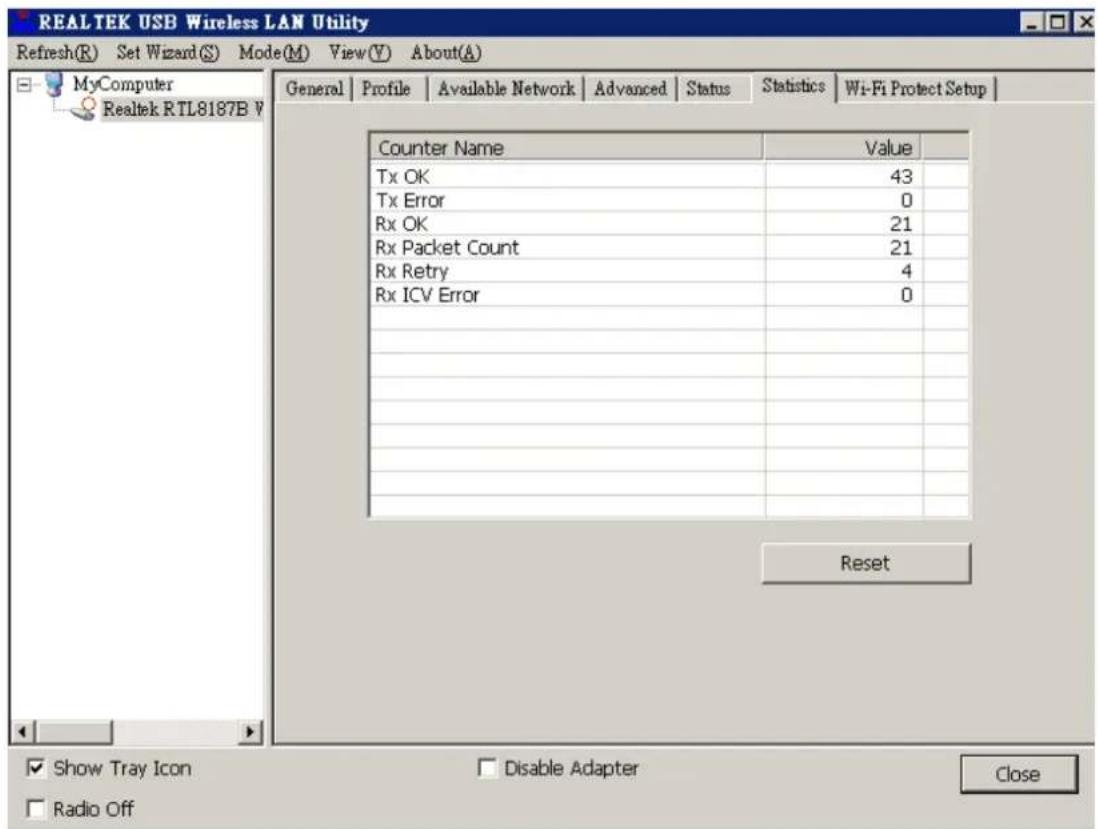
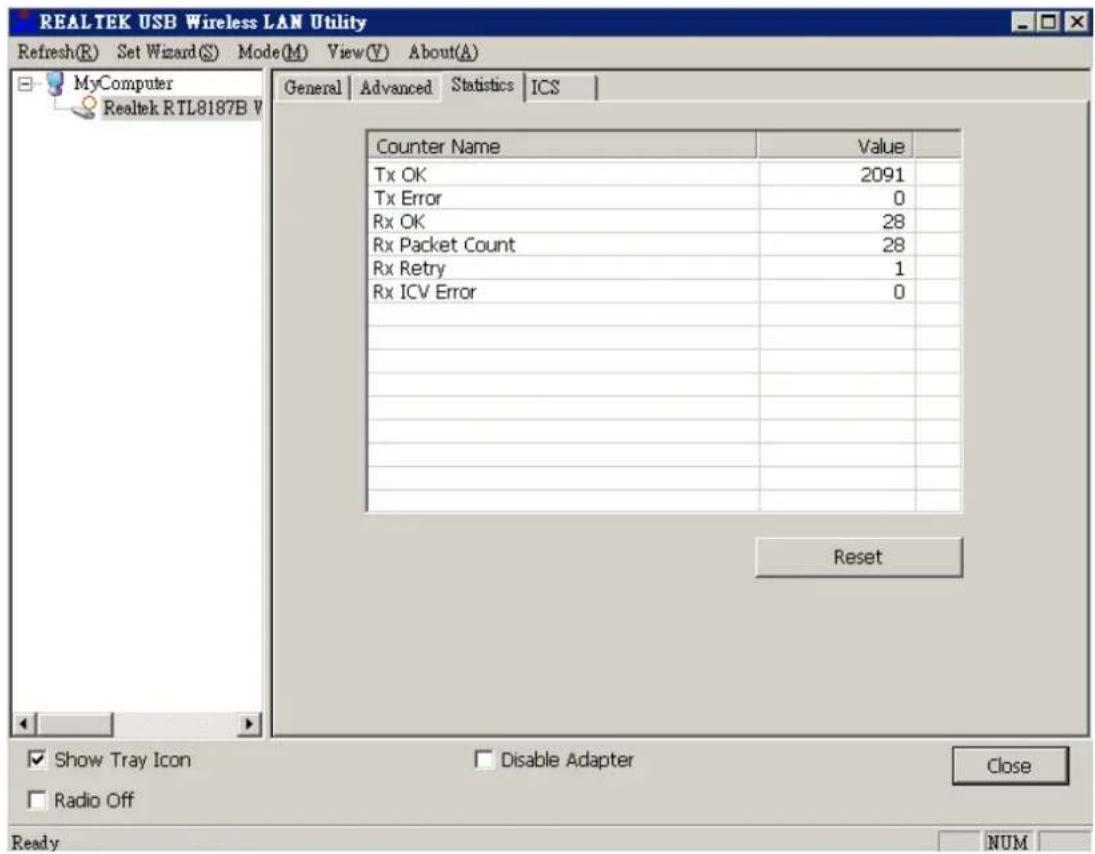
Statistics
See this tab to show the transmission activity record. Clicking the "Reset" button recounts the values from zero.
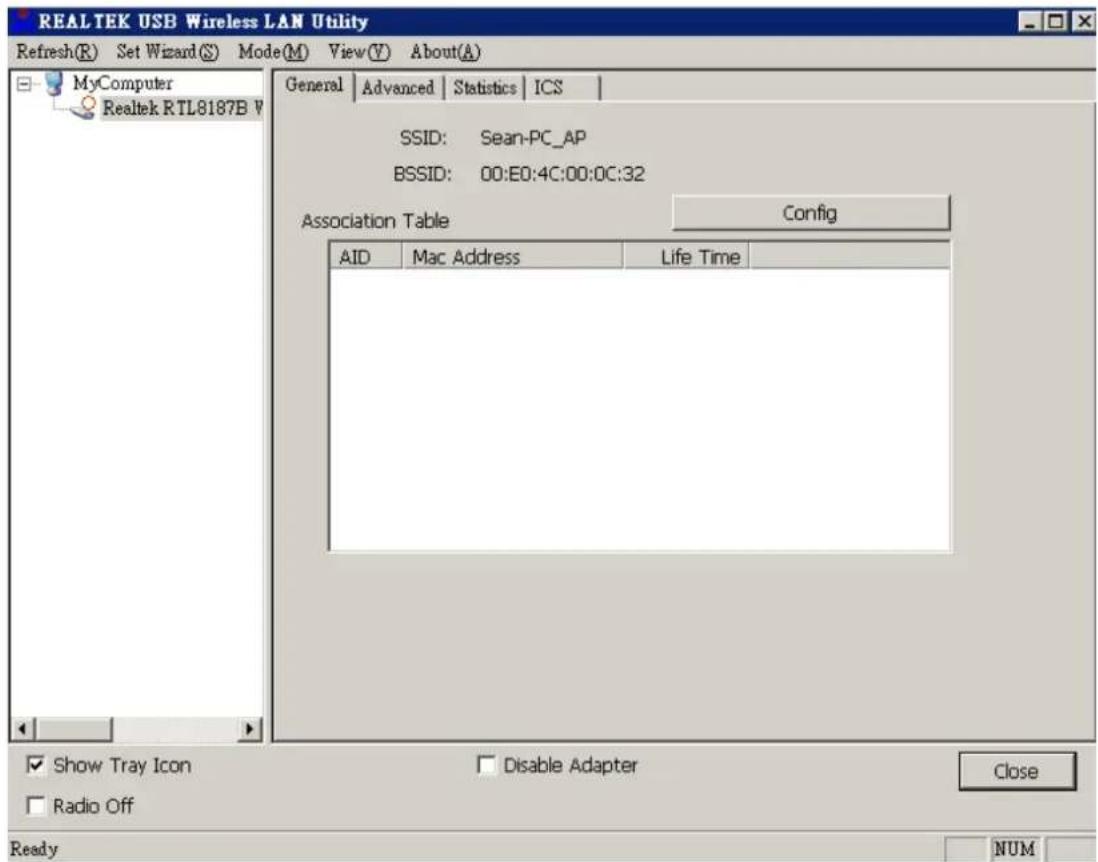
General
After configuring the adapter in AP mode, this "General" page shows up, which shows the general information of this AP.
SSID:
The SSID (network name) of the wireless network constructed by this AP.
BSSI D:
The MAC address of this AP
Config:
Click this button to change configurations to this AP
Association Table:
Shows the information of those devices that associated with this AP including their MAC addresses and the time that they connected with this device.
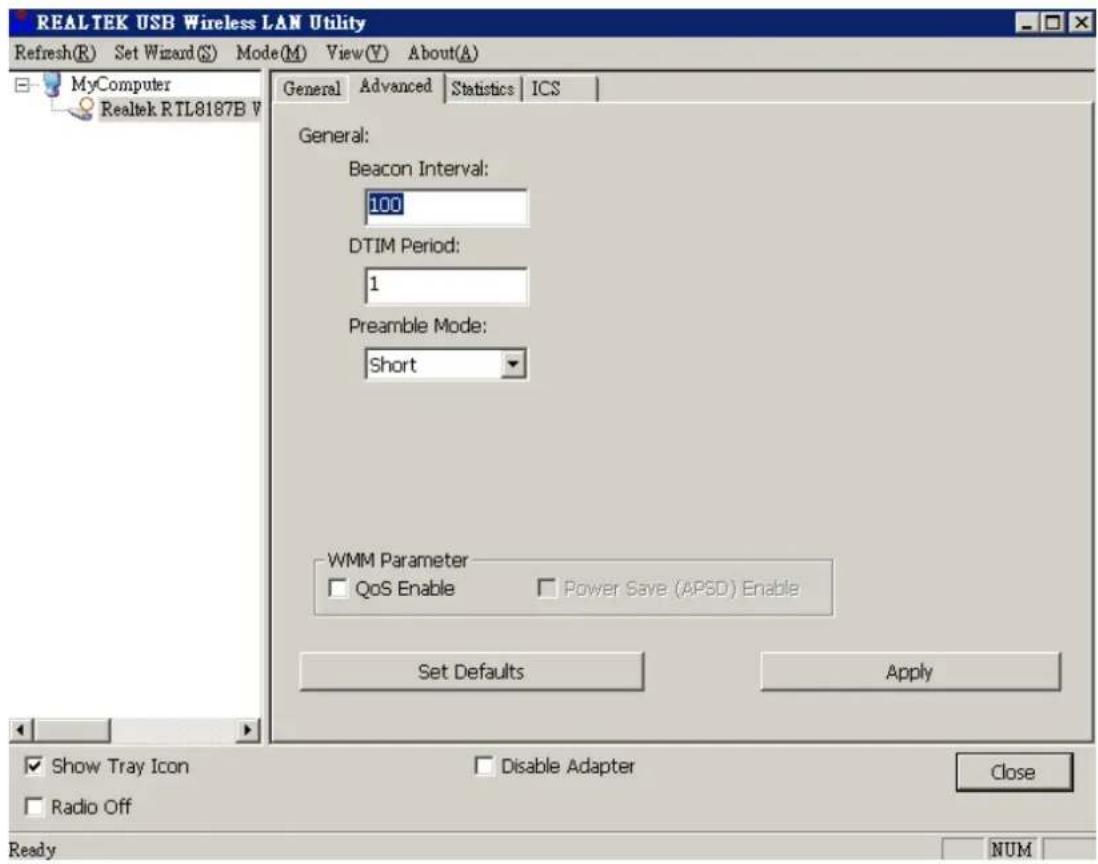
Advanced
Beacon Interval: Define the interval between beacons from 20\~1000
DTIM Period: Set the DTIM period between 1\~255
Preamble Mode: Click the drop list to select the preamble to be long, short or auto
Set Defaults: Click this button to restore the settings above to default
Apply: Click this button to execute changes.
Statistics
See this tab to show the transmission activity record. Clicking the "Reset" button recounts the values from zero.
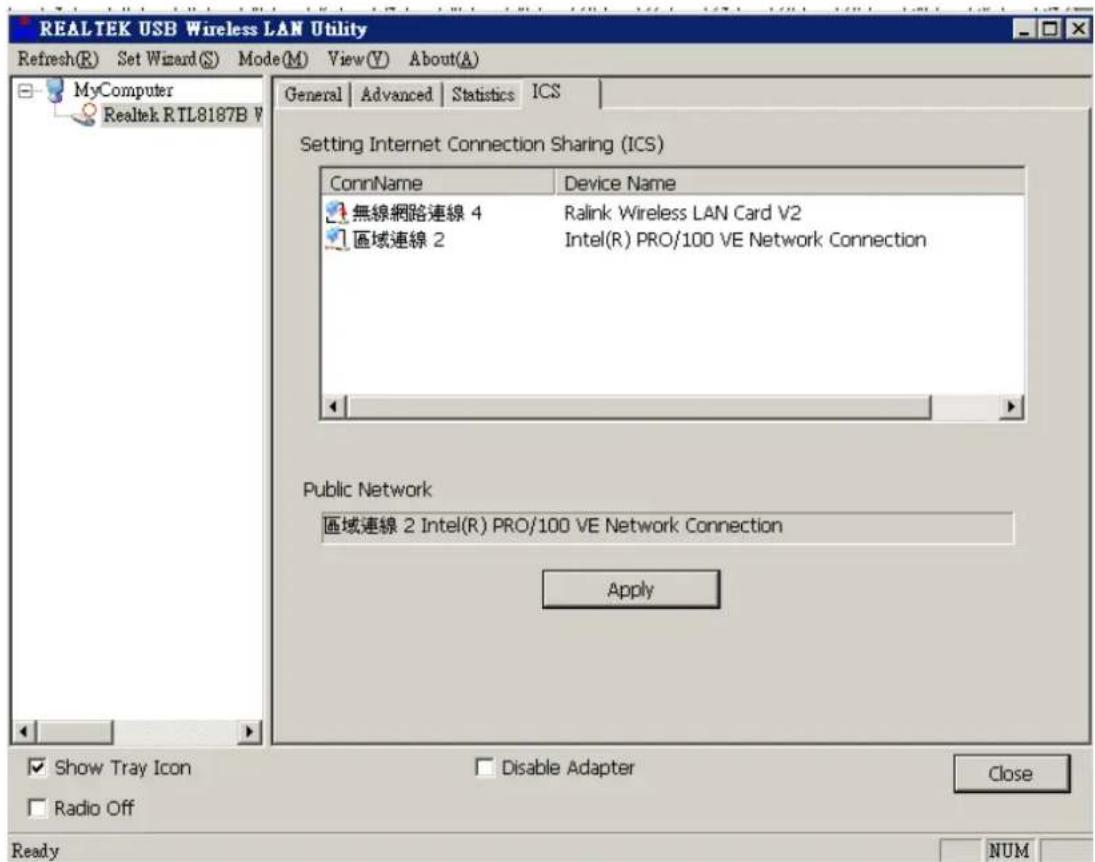
Internet Connection Sharing (ICS)
This page allows users to select the adapter for connect to public network.
Please click on the device that are used for connecting to public network and click the "Select" button, and then click the "Apply" button to execute.