Showcase - Media player HornetTek - Free user manual and instructions
Find the device manual for free Showcase HornetTek in PDF.


User questions about Showcase HornetTek
0 question about this device. Answer the ones you know or ask your own.
Ask a new question about this device
Download the instructions for your Media player in PDF format for free! Find your manual Showcase - HornetTek and take your electronic device back in hand. On this page are published all the documents necessary for the use of your device. Showcase by HornetTek.
USER MANUAL Showcase HornetTek
SHOW CASE
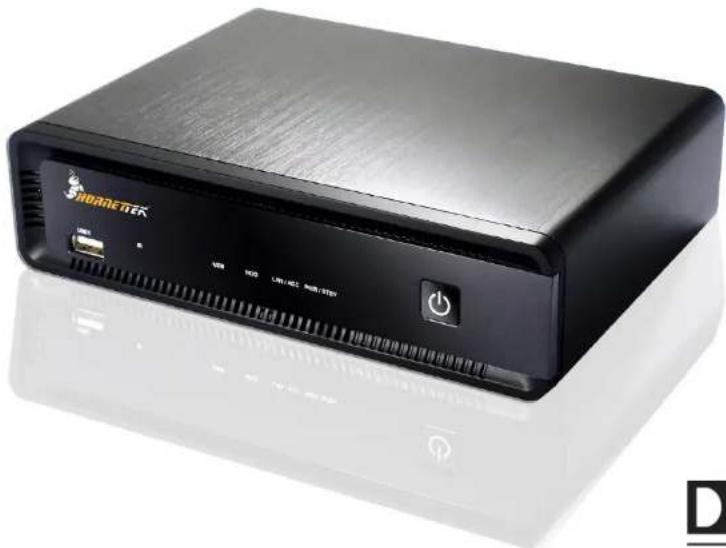
2.5" / 3.5" Hard Drive Media Player
- USER MANUAL -
natural_image
Black hard drive device with USB port and control buttons (no visible text or symbols on body)

Supported up to 1920 x 1060P
DOLBY
DIGITAL
High Definition Media Player User Manual
Table of Contents
- Before you get started ____ 3
2 Easy Installation Guide 7
3 Using Media Player 13 - Transcoding Software 29
1. Before You Get Started
1.1 Safety Instruction
- Always unplug the power cable before inserting the Hard Drive.
- A power supply with a different voltage will damage and void this product's warranty.
- Keep this equipment away from humidity or any type of moisture.
- DO NOT drop or shake the device.
- DO NOT press or put any weight on the device.
- DO NOT clean the device with alcohol, thinner, or benzene.
1.2 COPYRIGHT AND TRADEMARK NOTICES

Manufactured under license from Dolby Laboratories, Dolby and the double-D symbol are trademarks of Dolby Laboratories.

dts ^TM 2.0+Digital Out
Manufactured under license under U.S. Patent #'s: 5,451,942; 5,956,674; 5,974,380; 5,978,762; 6,487,535 & other U.S. and worldwide patents issued & pending. DTS and the Symbol are registered trademarks & the DTS logos are trademarks of DTS, Inc. © DTS, Inc.
All Rights Reserved.
Specification
■ Hardware Spec.
| Exterior Interfaces | Video Output | Composite Out X 1 | |
| HDMI 1.3 Out X 1 | |||
| YPbPr Out X 1 | |||
| Audio Output | Audio Out L/R X 1 | ||
| SPDIF(Optical) X 1 | |||
| File transfer port | USB 2.0 Host port | 2 Ports (USB 1 / USB 2) | |
| Data transfer with PC | USB 2.0 mini port X 1 | ||
| Ethernet 10/100Mbps RJ-45 | X 1 | ||
■ Wireless Dongle: (Optional)
| Wireless USB Dongle Optional |
Note: Please DO NOT buy any of wireless dongle in store. Only certain USB dongle works with this device.
■ Software Spec.
| Multi-Media Support | Movie Decoding (Video) | MPEG-1MPEG-2MPEG-4DivX 3/4/5/6,XvidH.264, AVCWMV 9FLVReal Video8/9/10 | MPG/MPEG/DAT support up to 1080pMPG/MPEG/VOB/ISO/IFO/TS/TP/M2TS support up to 1080pMP4/AVI/MOV support up to 1080pAVI/MKV/ support up to 1080pTS/AVI/MKV/MOV/M2TS support up to 1080pWMV support up to 1080pFLV support up to 352x288RM/RMVB support up to 720p |
| Movie Decoding (Audio) | Dolby Digital , DTS( not Pass Through)MPEG-I Layer 1/2/3MPEG-II Layer 1/2MPEG4 HE AACv2Real Audio, AAC, LPCMHDMI RAW/SPDIF RAW | ||
| Audio Decoding (Music) | WMA, MP3, Real Audio (RA), WAV, OGG, AAC, FLAC, asf, M3U, MKA, MP4 | ||
| Picture Format | JPG, JPEG, BMP, PNG, GIF, TIFF | ||
Note: The specifications and design is subject to change without notice.
1.3 Package Contents
■ Media Player x 1
■ Remote Control x 1
■ AAA Battery x 2
■ DC Adaptor (12V3A) x 1
■ Composite Video/Stereo Audio Cable x 1
■ USB Cable x 1
■ Quick Start Guide x 1
■ User CD Disc x 1
■ Screw pack x 1
2 Installation Guide
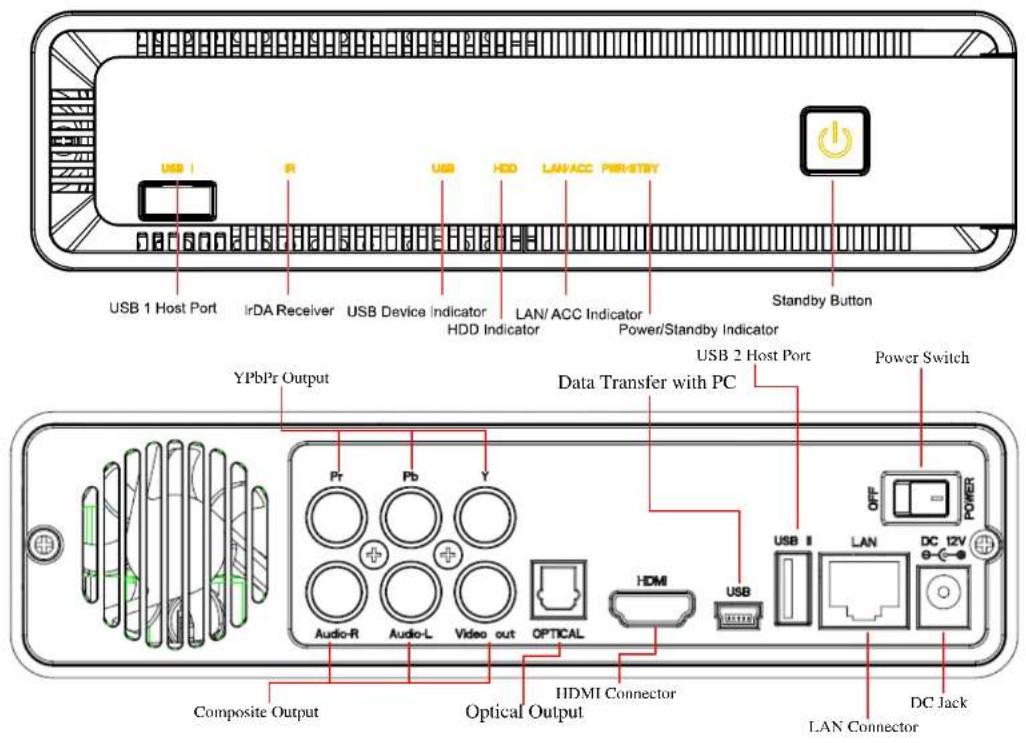
2.1 Front / Back Panel
2.2 Hard Drive Installation Introduce
NOTE: Installing a 2.5/3.5 Inch Hard Drive is not necessary if you only want to playback via an external USB device.
3.5" Hard Disk Drive Step by Step Installation
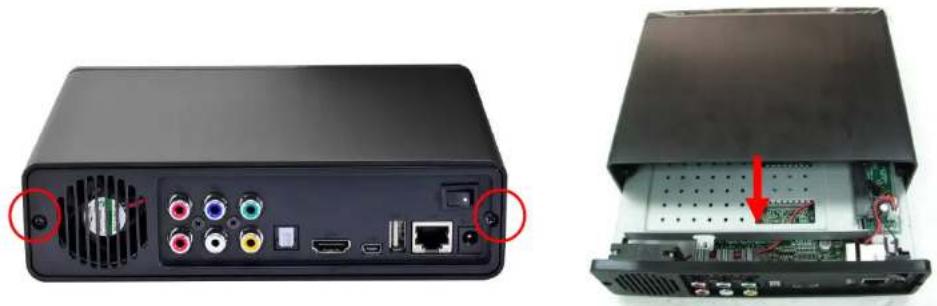
Step 1: Please loosen the two screws completely from the back panel and slide the tray outward.
natural_image
Two views of a black electronic device showing internal components and a close-up of the interior panel (no text or symbols visible)Step 2: Install the 3.5" SATA Hard Drive into the SATA connector.
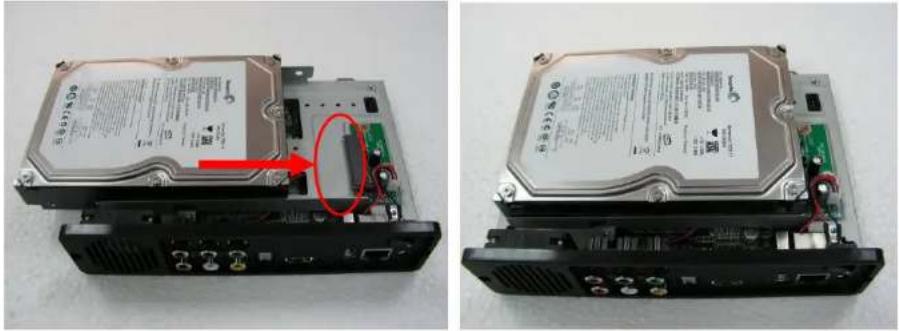
natural_image
Two views of an internal hard disk drive showing internal components and a close-up of the rear panel (no visible text or labels)High Definition Media Player User Manual
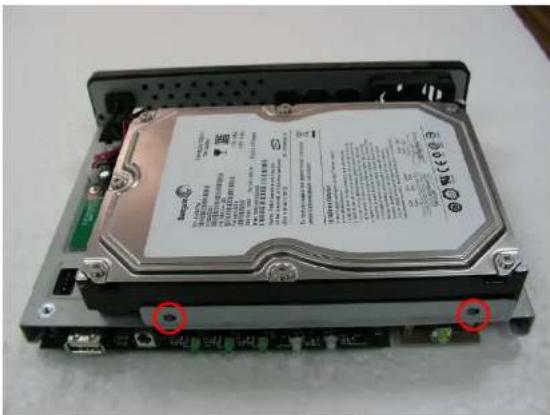
Step 3: Insert the Hard Drive Screws and tighten.
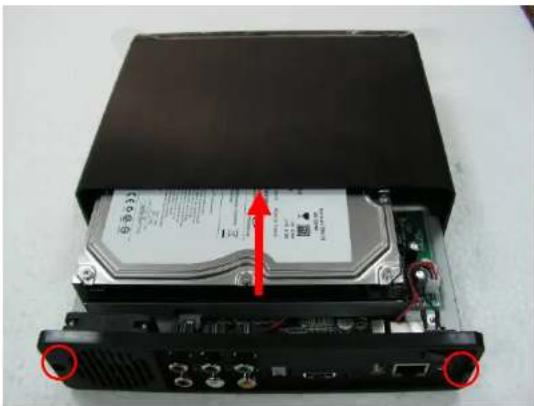
Step 4: Slide the tray back into the aluminum case and tighten both screws on the back panel.
natural_image
Interior view of an open hard disk drive showing internal components and a red arrow pointing to a component (no visible text or symbols)9
2.5" Hard Disk Drive Step by Step Installation
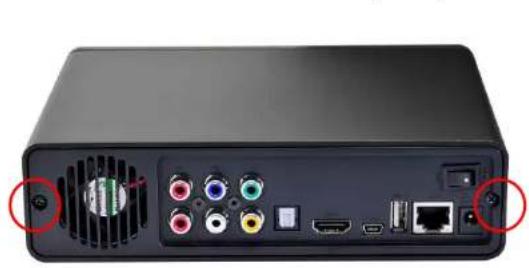
Step 1: Please loosen the two screws completely from the back panel and slide the tray outward.
natural_image
Back view of a black electronic device showing ports, cables, and connectors (no visible text or symbols)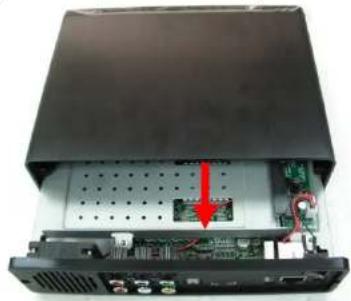
natural_image
Interior view of a computer drive showing internal components and a red arrow indicating a component (no text or symbols visible)Step 2: Insert the 2.5" Hard Drive screw to connect the metal clip onto the 2.5" Hard Drive.
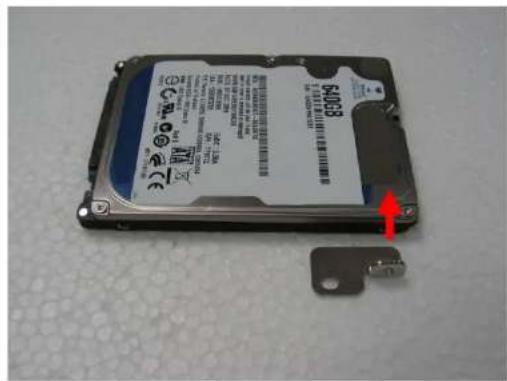
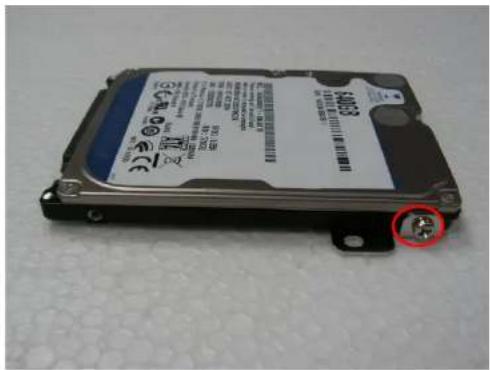
High Definition Media Player User Manual
Step 3: Install the 2.5" SATA Hard Drive into the SATA connector.
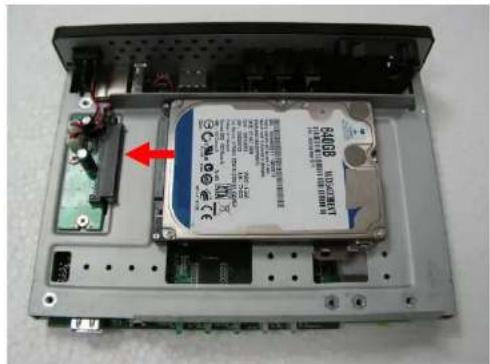
natural_image
Interior view of a computer case showing an open hard drive with a red arrow pointing to the component (no visible text or symbols)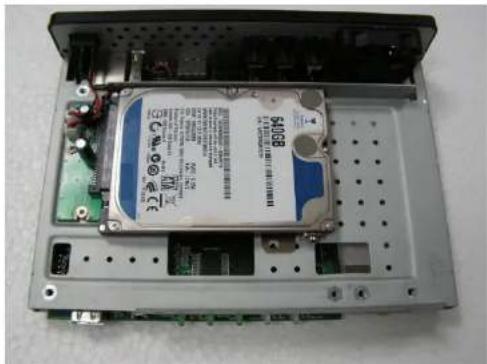
natural_image
Interior view of an electronic device showing a hard disk drive with circuit board and ports (no visible text or symbols)Step 4: Insert the Hard Drive Screw to the metal clip and tighten.
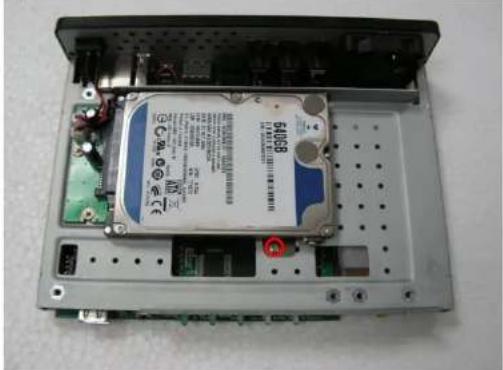
natural_image
Interior view of an open electronic device showing a hard disk drive with visible circuitry and ports (no readable text or symbols)High Definition Media Player User Manual
Step 5: Slide the tray back into the aluminum case and tighten both screws from the back panel.
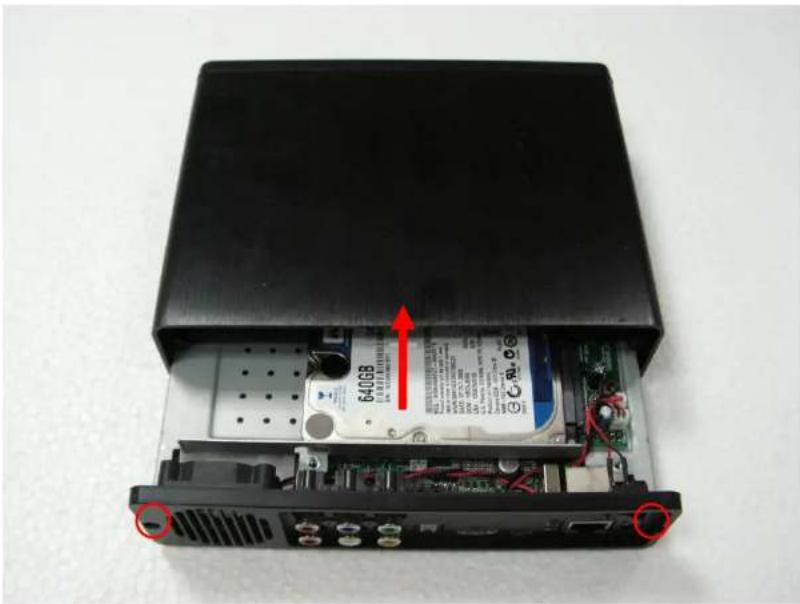
natural_image
Interior view of an electronic device showing a circuit board with a CD40GB label and red arrows indicating ports (no readable text beyond labels)3 Using The Media Player
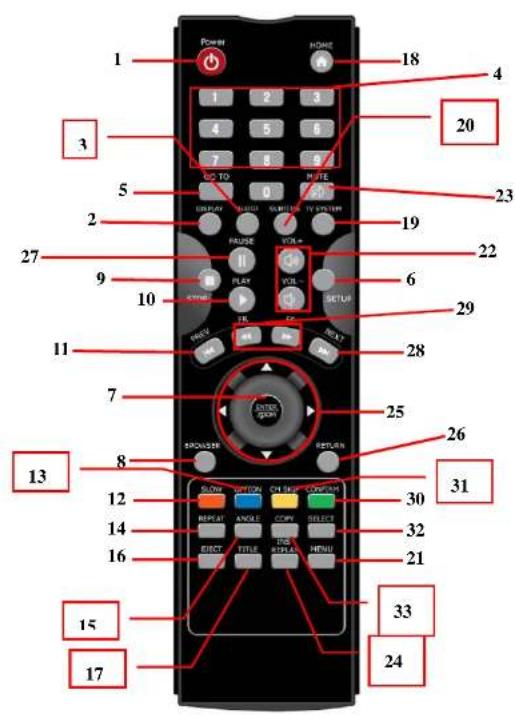
3.1 Remote Control Introduction
-
POWER 16. EJECT 31. CM SKIP
-
Display 17. TITLE 32. SELECT
-
Audio 18. HOME 33. COPY
4 Number Buttons 19. TV SYSTEM
-
GOTO 20. SUBTITLE
-
Setup 21.MENU
-
Enter/ZOOM 22. VOL + / -
-
Browser 23. MUTE
-
STOP 24. REPLAY
-
PLAY 25. Navigation
-
PREV 26. RETURN
-
SLOW 27. PAUSE
-
Option 28. NEXT
-
REPEAT 29. FR/FF
-
ANGLE 30. CONFIRM
3.2 Getting Started
Please make sure that you've installed the AAA battery into the remote control.
3.2.1 Connect the Media Player to your TV
Connect either the HDMI or Composite Cable from Media Player to your TV.
■ When connecting the HDMI cable to the TV. The Media Player will automatically detect the highest resolution your television will support.
■ When connecting the Composite cable (CVBS) to the TV. Make sure your TV system is either PAL or NTSC.
3.2.2 Media Player Setup
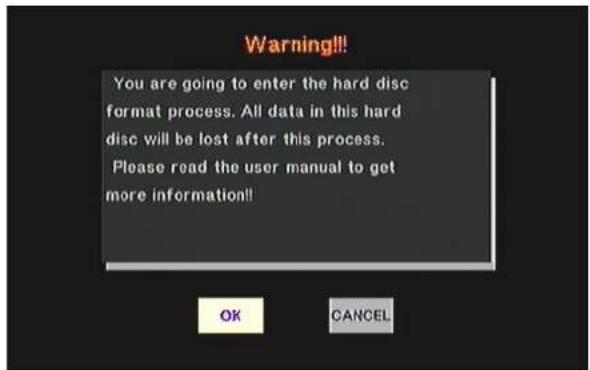
When using the media player for the first time, you will be required to format the Hard Drive if you installed a 2.5" SATA or 3.5" SATA Hard Drive. Installing a Hard Drive is not necessary if you only want to playback via an external USB device.
3.2.3 Setup
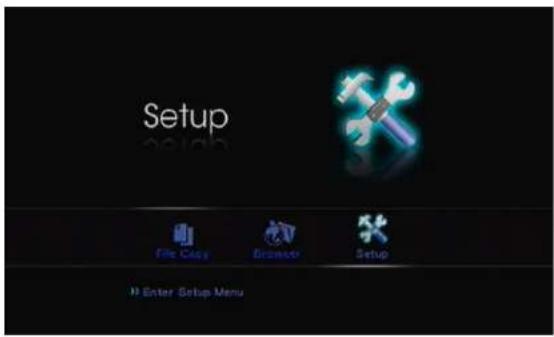
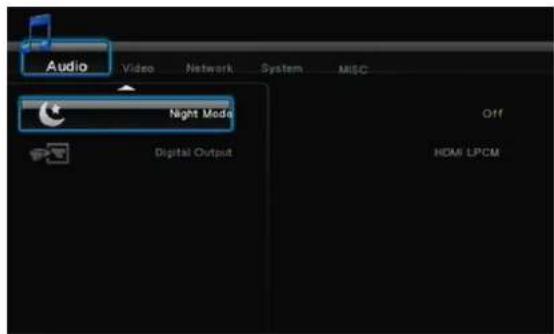
On the main menu screen, you will be able to enter the "Setup" menu for the Audio, Video, Network, System, and MISC. You may press ENTER (Key 7) to manually input each setting.
3.2.3.1 Audio
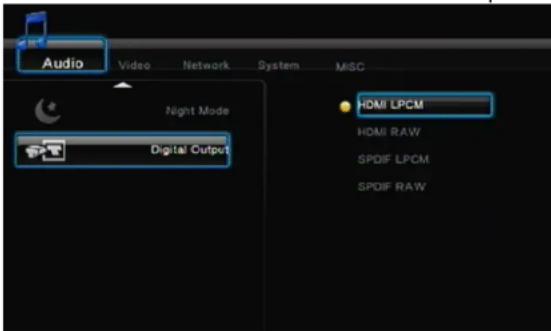
This setting is focused on the Audio outputs. There are 4 digital outputs (HDMI LPCM, HDMI RAW, SPDIF LPCM and SPDIF RAW).
■ HDMI LPCM (2CH): The player will decode the audio data to only two channels (STEREO: Left/Right) while the Media Player is connected to the television via HDMI.
■ HDMI LPCM Multiple Channel: When Media Player audio output is connected to a TV via HDMI. The player will decode the audio data to only two channels (Stereo)
■ HDMI RAW: If the Media Player is connected to an amplifier via HDMI. RAW audio data will be sent to the amplifier. The amplifier will then decode the RAW audio data into multiple audio channels such as 5.1 or 7.1.
■ SPDIF LPCM (2CH): If the Media Player is connected to an amplifier via SPDIF. The amplifier will only output audio to only two channels (Stereo: Left/Right).
■ SPDIF RAW: If the Media Player is connected to an amplifier via SPDIF. RAW audio data will be sent to the amplifier. The amplifier will then decode the RAW audio data into multiple audio channels such as 5.1 or 7.1.
TIPS:
If you only have a HDMI TV, please select HDMI LPCM(Stereo)
If you have a HDMI TV with a HDMI amplifier, please select HDMI RAW or HDMI LPCM(Stereo)
If you have a HDMI TV with a SPDIF amplifier, please select SPDIF RAW or SPDIF LPCM(Stereo)
3.2.3.2 Video
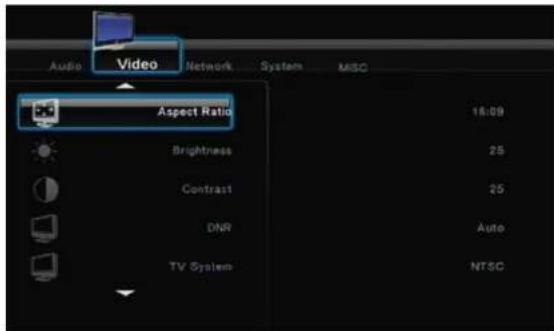
■ Aspect Ratio: Choose one that is suitable for your TV system. Pan Scan 4:3, Letter Box 4:3, or 16:9.
Pan Scan 4:3 : Keeps the height of wide screen and cuts off the right/left screen to fit the 4:3 TV system.
Letter Box 4:3 : Keeps the wide screen and blackens the border on the top and bottom of screen to fit the 4:3 TV.
16:9 : Choose 16:9 for a TV which supports 16:9.
■ TV System: Choose the right resolution output supported by the TV.
| TV System and Resolution | Standard Resolution(SD) | High Definition Resolution(HD) |
| NTSC NTSC, 480p 720p | @60Hz, 1080i@60Hz, 1080p@60Hz | |
| PAL PAL, 576p 720p@50Hz, 1080i@50Hz, 1080p@50Hz | ||
NOTES:
Only HDMI supports High Definition Resolutions.
The TV will automatically notify the Media Player what resolutions are supported if the Media Player is connected to the TV via HDMI. If the TV doesn't support one of the resolutions, it will be un-selectable.
In the case you select the wrong resolution and your TV screen turns black. Please connect the Media Player to the TV via CVBS (Composite) to select the right resolution to TV.
3.2.3.3 Network
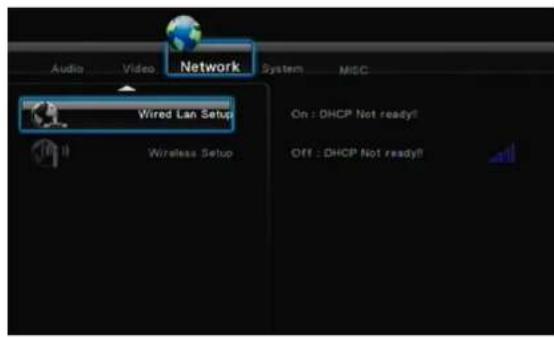
■ Wired LAN Setup: Select the network settings between DHCP (AUTO) and DHCP (Manual). If you have a network device such as Router and it automatically assigns an IP. Please select DHCP (Auto). Otherwise, please manually enter the IP address, subnet mask, and default gateway.
■ Wireless Setup (Optional): Select the wireless network setting. When a USB WI-FI dongle is installed, the Media Player will detect the dongle automatically.
Note 1: Please do not to buy any wireless USB dongle besides HornetTek's wireless dongles due to incompatibility issues.
Note 2: The Media Player with a WIFI dongle installed will only be able to recognize the WEP encryption with an Open system and only the Key 1 will be recognized. Also, only WPA-Personal, WPA2-Personal, and WPA-AUTO Personal are recognized by the player.
3.2.3.4 System
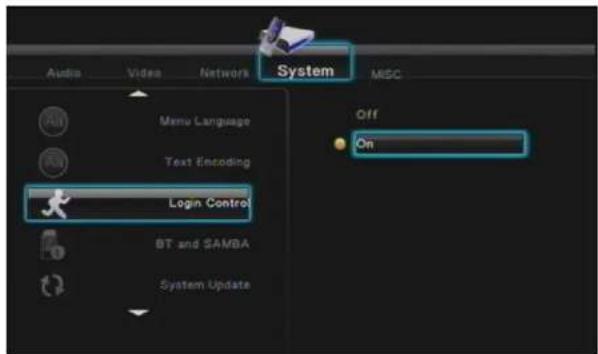
■ Menu Language: The languages available for selection includes English, Traditional Chinese, Spanish, French, Germany, Italian, Dutch, Polish, Czech and Simplified Chinese.
■ Text Encoding: This setting is to display the subtitle, file name, and folder name in your language. Most of the time, Unicode UTF-8 can support most languages. However if your language is not supported, select the most suitable one from the menu. If the wrong language is selected, unrecognizable characters may be seen.
■ Login Control: Select "ON" to enable the BT web management access control.
■ BT and SAMBA: To enable File Sharing and BT services..
- Hard Drive Format: When you install a 2.5" or 3.5" SATA Hard Drive, you will need to format the Hard Drive. Press OK to format the Hard Drive.
■ Restore to Default: This changes all settings to their default settings.
3.2.3.5 MISC
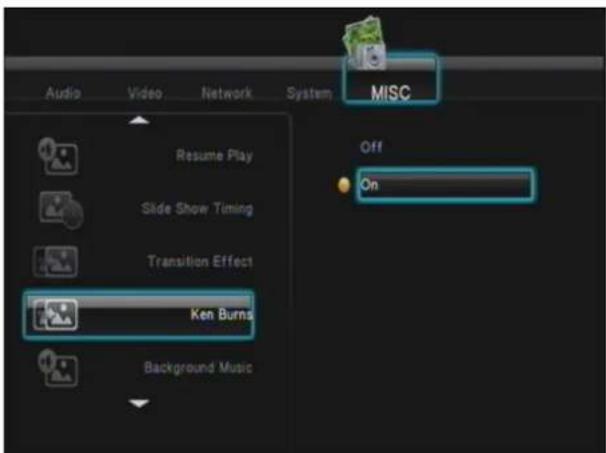
- Resume Play: Select ON or OFF to resume the video's last scene once you have STOPPED the movie.
■ Slide Show Timing: This function is to set the timing of slide shows on the TV. The options are OFF, 2 Sec, 5 Sec, 10 Sec, 30 Sec, 1 Min, or 2 Min.
■ Transition Effect: Select effect for slide show.
■ Ken Burns: Default active play mode.
■ Background Music: Plays background music during a slide show.
■ Screen Saver: Screen saver will activate if there are no activities for 5 minutes.
■ Movie Preview: Turns the movie preview On or OFF.
■ Seamless Playback: Select On or Off to make the movie file (.ts) play smoothly.
The Media Player can play Music, Photos, and Movies by plugging-in an external USB device. Enter the Browser menu to view all media files stored on the 2.5"/3.5" SATA Hard Disk or an external USB device.
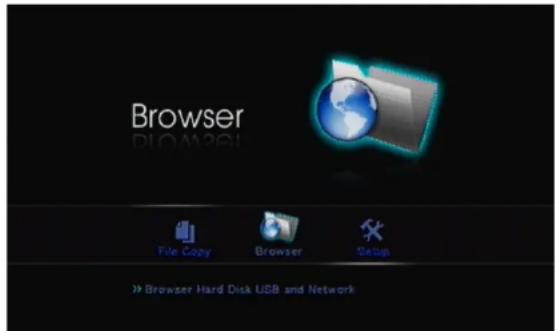
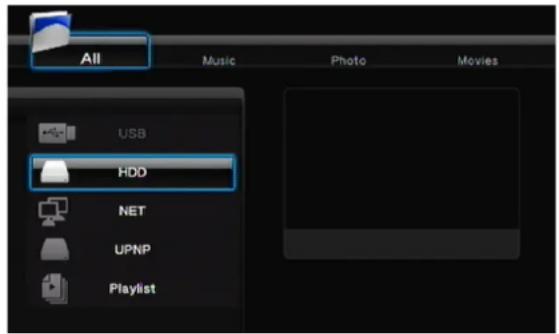
■ When plugging in an external USB device to the Media Player. Wait few seconds for the USB LED indicator to light up. You can now proceed to browse the media files on the external USB device. Once you remove the external USB device from player, the USB LED indicator will turn off.
■ Press the Navigation Right/Left (Key 25) buttons on remote control to select whether you would like to browse by Music only, Photo Only, Movie only, or Browse All. You may press RETURN (Key 26) anytime to return to the previous menu.
■ Press the Navigation Up/Down (Key 25) buttons on remote control to select whether you would like to browse the USB, HDD, NET, UPNP, or Playlist. You may press RETURN (Key 26) anytime to return to the previous menu.
3.2.4.1 Play Movies
Select the "Movies tab" or "All tab" to browse movie files. Use the Up/Down (Key 25) buttons to select a file or folder and press Enter (Key 7) to play the file or open the folder. You may press RETURN (Key 26) to return to the previous menu. Highlight a movie to view the movie preview on the right display.
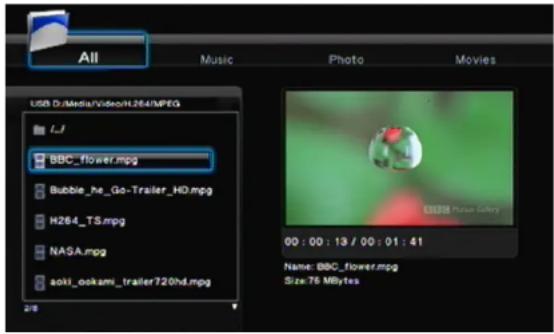
■ Press PLAY (Key 10) on the remote control to play the movie.
■ Press STOP (Key 9) on the remote control to stop the movie.
■ Press PAUSE (Key 27) on the remote control to pause.
■ Press FF/FR (Key 29) on the remote control to Fast Forward or Reverse.
■ Press NEXT (Key 28) / PREV (key 11) on the remote control to go to the next or previous chapter if applicable.
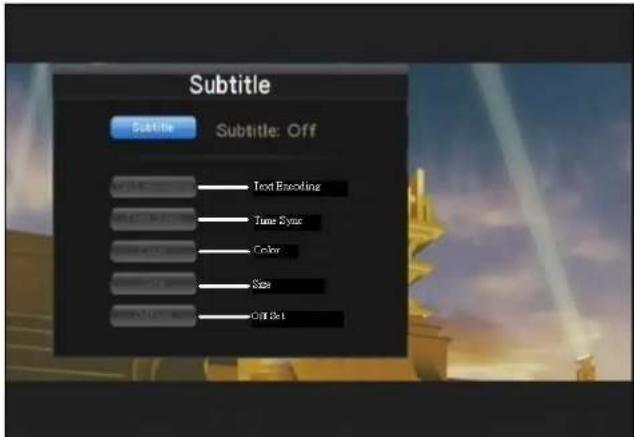
■ Press SUBTITLE (Key 20) on the remote control to enable or switch subtitles. This player supports srt, sub, smi, idx+sub, ssa, and ass. Please rename the subtitle file name to be the same as movie file name. Multi-Subtitle can be the same file name; the Media player will show the option for you to choose.
- Text Encoding: This setting is to display the subtitle, file name and folder name in your language. Please select Unicode (UTF8), Simplified Chinese, Traditional Chinese, Western, Turkish, Central European, Greek, Cyrillic, Hebrew, or SE Europe. Selecting the wrong language causes unrecognizable characters to
High Definition Media Player User Manual
be displayed.
- Time Sync: Adjust the time of the subtitle.
- Color: Adjust the color of the subtitle.
- Size: Adjust the size of the subtitle.
- Off set: Adjust the position of the subtitle.
Adjust the navigation key in playing mode:
Horizontal: Adjust the size of subtitle.
Vertical: Adjust the position of subtitle.
■ Press AUDIO (Key 3) on the remote control to switch different audio outputs.
■ Press VOL +/- (Key 22) on the remote control to increase or decrease the volume.
■ Press MUTE (Key 23) on the remote control to mute the audio; press again to resume.
■ Press SELECT (Key 32) on the remote control to add the movies to the PLAYLIST. Press CONFIRM (Key 30) to confirm.
3.2.4.2 Play Music
Select the "Music tab" or "All tab" to browse music files. Use the Up/Down (Key 25) buttons to select a file or a folder and press Enter (Key 7) to play the file or open the folder. You may press RETURN (Key 26) to return to the previous menu. Highlight a song to view the track information on the right.
![All Music Photo Movies USB Dr/Media/MediaPlayerTestFile/Music ./J [MP3]Track No08.mp3 [MP3]Track No09.mp3 [MP3]Track No10.mp3 track: 9 Name: [MP3]Track No09.mp3 Size: 9 Mbytes 2/4](/content/2026/05/1027027/images/b783464bb76525ecbe1c923c569a4c256365a8be406be77385a4a101aaee7525.jpg)
■ Press PLAY (Key 10) on the remote control to play the music.
■ Press STOP (Key 9) on the remote control to stop the music.
■ Press PAUSE (Key 27) on the remote control to pause.
■ Press FF/FR (Key 29) on the remote control to Fast Forward or Reverse.
■ Press REPEAT (Key 14) on the remote control to repeat the same song; press again to repeat all songs.
■ Press VOL +/- (Key 22) on the remote control to increase or decrease the volume.
■ Press MUTE (Key 23) on the remote control to mute the audio; press again to resume.
■ Press SELECT (Key 32) on the remote control to add the songs to the PLAYLIST. Press CONFIRM (Key 30) to confirm.
3.2.4.3 Show Photo
Select the "Photo tab" or "All tab" to browse photo files. Use the Up/Down (Key 25) buttons to select a file or a folder and press Enter (Key 7) to play the file or open the folder. You may press RETURN (Key 26) to return to the previous menu. Highlight a photo to view a preview of the photo on the right.
![All Music Photo Movies USB O-/Media/MedalPlayerTestFile/Photo I/J [GF]GIFTEST.GIF [GF]windows.GIF Name: [GF]GIFTEST.gif Size:19 KB/Bytes](/content/2026/05/1027027/images/7b027c9c2071fe8d70cb378c8ed4e685524b113f199a92eeb95eb150eca47814.jpg)
■ Press PLAY (Key 10) on the remote control to play the photo.
■ Press STOP (Key 9) on the remote control to stop the photo.
■ Press PAUSE (Key 27) on the remote control to pause.
■ Press VOL +/- (Key 22) on the remote control to increase or decrease the volume.
■ Press SELECT (Key 32) on the remote control to add photos to the PLAYLIST. Press CONFIRM (Key 30) to confirm.
3.2.4.4 Adding contents to the PLAYLIST
A playlist creates a shortcut to allow you to quickly access media files. You can play all selected files together regardless of the different folders they are stored in.
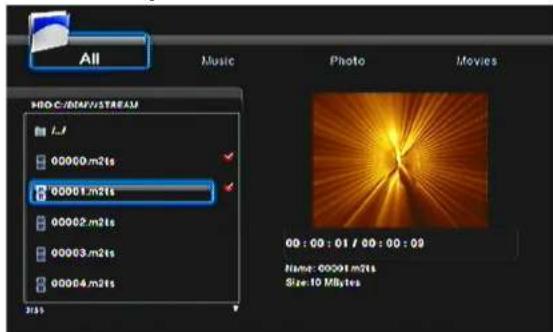
■ Go to Browser and then the media files you would like to place in the PLAYLIST
■ Press SELECT (Key 32) to select the file(s) you want to add to the PLAYLIST
■ Press CONFIRM (Key 30) to add the file(s) to the PLAYLIST
■ You will now see the file(s) in PLAYLIST.
TIPS:
The PLAYLIST feature is only available if you installed a 2.5" or 3.5" SATA Hard Disk into the player. The feature is not available for any external USB device.
You can only select files and not folders.
3.2.4.5 Slide Show
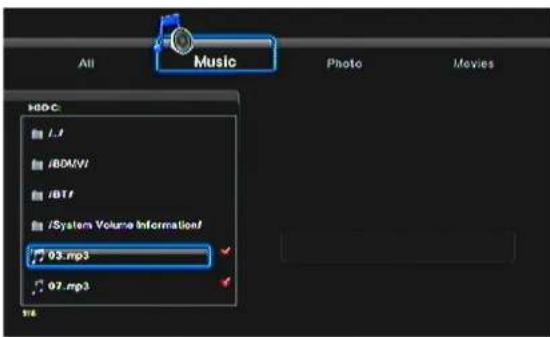
■ Go to Setup → MISC → Slide Show Timing and set the timing for the slide show.
- Press Right/Left buttons to choose the Photo tab and select photos that you'd like to play in the slide show.
■ Press PLAY (Key 10) or ENTER (Key 7) to play the slide show.
Background Music
■ You may run the slide show feature to view your photos on the TV while listening to music.
■ You can go to the Background Music and set the source of music files from a Folder or PLAYLIST.
■ Go back to Browser and press the Right/Left buttons on the remote control to select the Music tab.
■ Press SELECT (Key 32) to select and press Confirm (Key 30) to confirm the music files you would like to add to the PLAYLIST
TIPS:
If you set the Background Music source as a Folder, you have to put the photo and music files in same folder in order to play a Slideshow with the background music.
3.2.4.6 File Copy
This function allows you to copy files between an external USB device and NET. You can also delete files by moving them into the Trash Can. Please press COPY on the remote control (Key 33) to go to the File Copy menu at anytime.
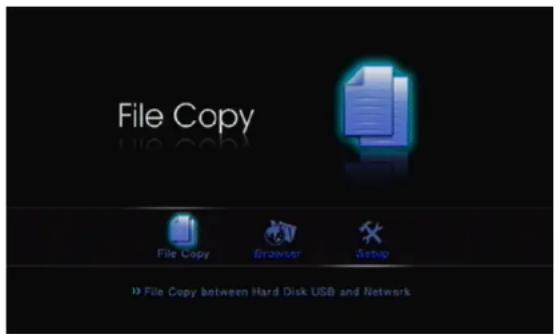
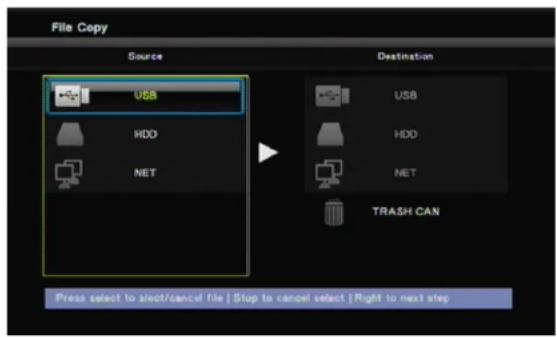
■ Use the Up/Down (Key 25) buttons to move the scroll bar to select the source and destination. Press ENTER (Key 7) to proceed.
■ Press the ENTER (Key 7) button to go into folders for both the Source and Destination.
■ Press the SELECT (Key 32) button to select the source file that you want to copy. Press again to cancel the selection.
■ Press the RIGHT (Key 25) button to COPY the file to the chosen destination. Then select Copy (Copies the file), Move (Moves the file), or Cancel (Does not move or copy the file).
■ If you choose Destination as TRASH CAN, the file(s) will be deleted.
4. Transcode Software
After installing the Transcode Server you will be able to run the BitTorrent download and File Sharing manager on media player.
4.1 Installing and running the Transcode Server
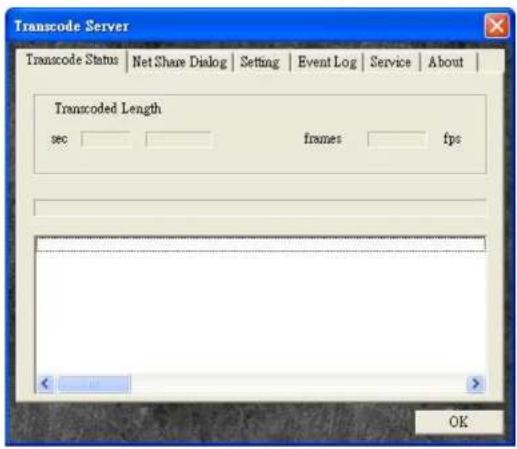
Please find the Transcode Server software on the CD and install the - to your PC. After the installation is completed, proceed to run the Transcode Server. Below is an image of what you should see:
4.2 Adding Share Folders on a PC
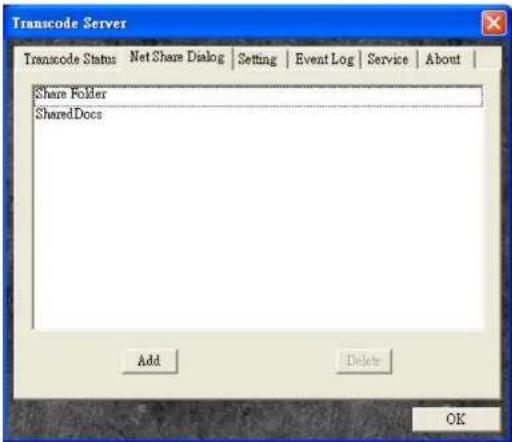
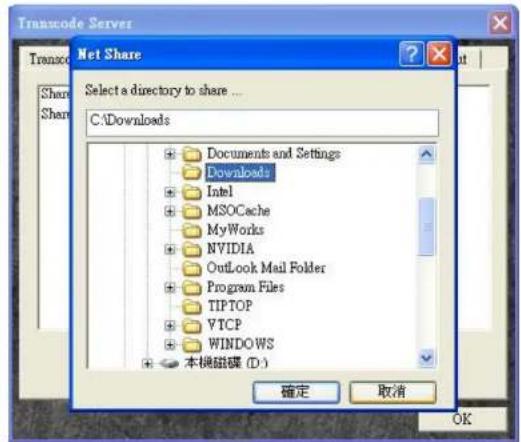
Adding shared folders to the NetShare Dialog will help your Media Player recognize the folders over the intranet. Keep the Transcode Server software running on the PC once you have selected the folders to be shared on the network. Your PC and folders will be seen in My Neighbors under BROWSER and FILE COPY of the Media Player main screen.
TIPS:
- By selecting a folder and then clicking on OK. The folder will be added to the NetShare Dialog as an Open Shared Folder on intranet.
High Definition Media Player User Manual
4.3. Ways to connect to the File Sharing folders and BitTorrent download Management
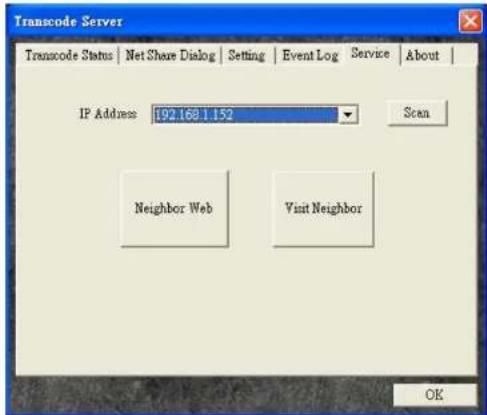
Make sure your Media Player is connected to your home network and assigned an IP Address (Either assign from DHCP server or fixed IP). Once the Media Player has obtained an IP Address either manually or from a DHCP server, the IP Address will be displayed in the drop down menu after you click on Service tab→ Scan.
Note: Before you set up the File Sharing and BitTorrent download management, please install a 3.5" SATA Hard Drive into the Media Player and format it using the built in formatting tool. Otherwise these functions will be disabled.
4.3.1 Setting up the Media Player
Before you access the File Sharing folder or BitTorrent download management. Please go to the main menu of the Media Player and enter the following menus using the remote control: Setup → System → BT and SAMBA.
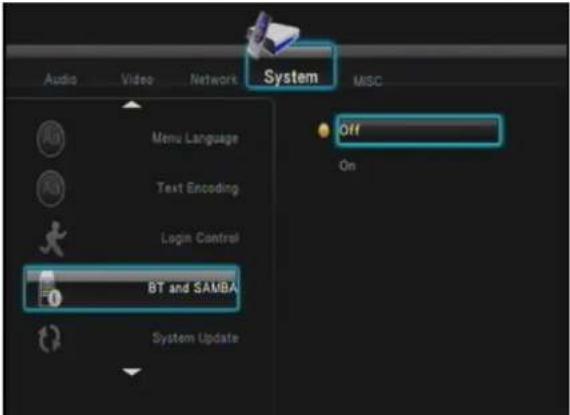
Move the scroll bar down to BT and SAMBA and then press OK on remote control. The system will show two options (On/Off). Move the scroll bar down to On and press OK to enable the BT and SAMBA function.
4.3.2 Connecting to the File Sharing Folder
Click on "Visit Neighbor" from the Transcode Server to access the File Sharing folders. This will allow you to browse all the files that you have stored on the 3.5" SATA Hard Drive installed in the Media Player.
4.3.3 Connecting to the BitTorrent Download Management
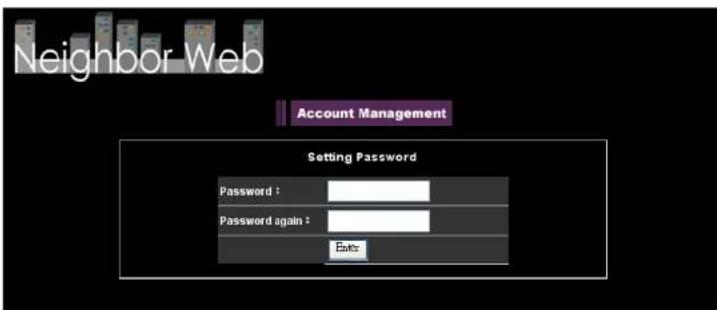
Click on "Neighbor Web" from the Transcode Server to access the P2P download web user interface. You will be able to add/delete BitTorrent seeds under internet browser page. If you set the Login Control as ON, the login account name and password are required. The default account name and password are same as 4.3.4.
High Definition Media Player User Manual
4.3.3.1 Setting
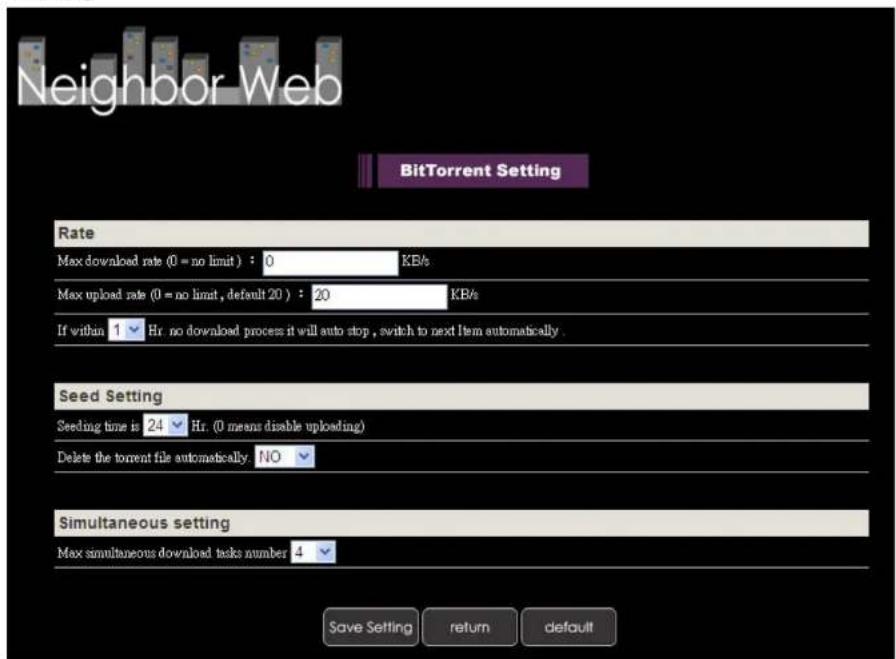
You will need to set up the settings before you use P2P download. Please click on BitTorrent Download on the top of the page and then click the "Setting" tab.
Max Download Rate: Sets the maximum download speed. Set it to "0" for no limit.
Max Upload Rate: Sets the maximum upload speed. Set it to "0" for no limit. Default setting is 20KB/s.
Seeding time: Set of how long you would like to keep seeding once the download is finished. Set it to "0" to stop seeding after the download is completed. Default is 24 hours.
High Definition Media Player User Manual
Delete the torrent file: When finished, the system will delete the torrent task automatically. Default setting is NO.
Max simultaneous download task number: Setting of how many tasks you would like to run at the same time.
Default setting is 4 tasks. Maximum is 10 tasks.
When finish the setting, please click on the "Save Setting" to save all settings.
NOTE: Please be aware that overloading BT tasks would impact the performance of the media player. It is recommended to leave the device idle when performing BT download.
4.3.3.2 Adding seeds
- Click on "+Add new torrent" to add a new download task.
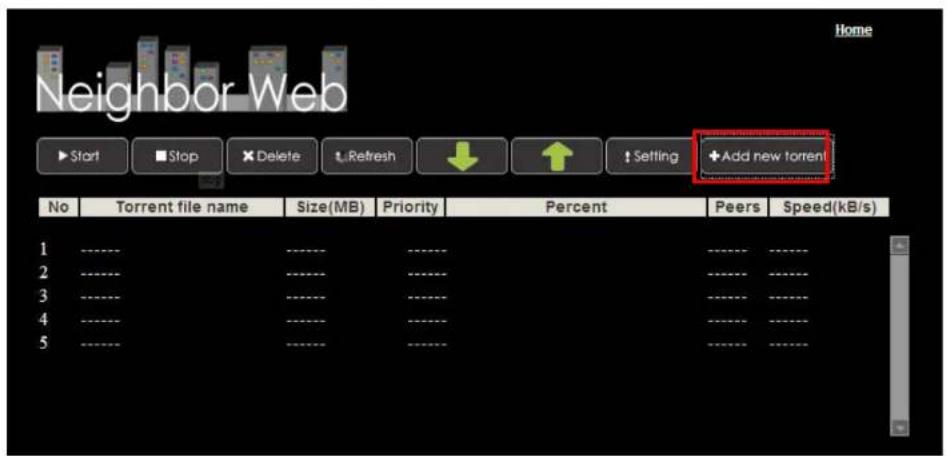
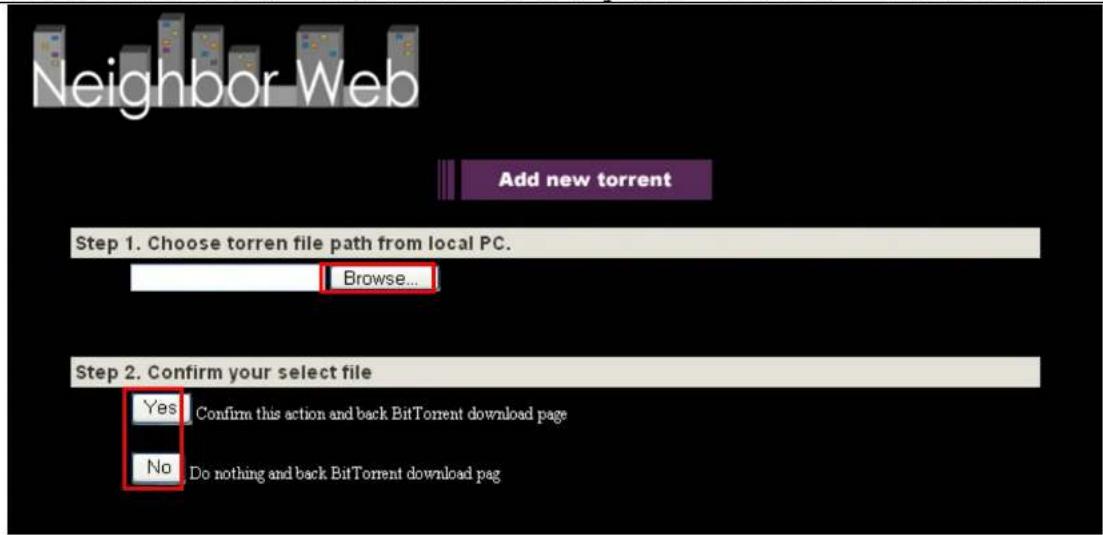
- Click on "Browse" to select where you stored the seed file.
- Click on "Yes" to confirm the task or click "No" to stop the task.
High Definition Media Player User Manual
4.3.3.3 Deleting a Task
- Click on "Check box" to select the task in which you would like to delete.
- Click on "Delete" tab on the top to delete the task.
4.3.4 Account Management
Please enable "Login Control" under the "System" tab of the Media Player before you click on Account Management.
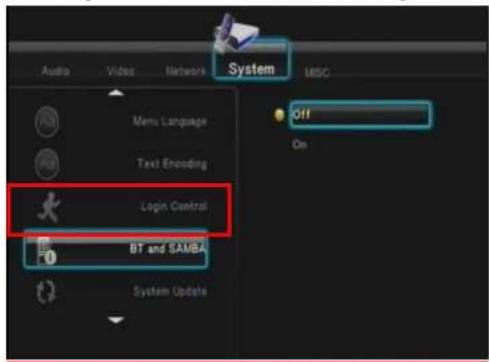
After the Login Control is set the system will require you to login.
Account name: admin
Password: 123
To modify your password, enter the Account Management from Neighbor Web and select modify password.