HT-H5DN - Network card / adapter HornetTek - Free user manual and instructions
Find the device manual for free HT-H5DN HornetTek in PDF.


| Product Type | Network Adapter |
| Model | HT-H5DN |
| Brand | HornetTek |
| Interface | USB 3.0 |
| Supported Standards | IEEE 802.3, 802.3u, 802.3ab |
| Data Transfer Rate | 10/100/1000 Mbps (Gigabit Ethernet) |
| Connector Type | RJ-45 Female |
| Cable Length | N/A (adapter only) |
| LED Indicators | Link/Activity |
| Power Source | USB Bus Powered (5V DC, 500mA max) |
| Dimensions (L x W x H) | 7.0 cm x 3.0 cm x 1.5 cm |
| Weight | 30 g |
| Operating Temperature | 0°C to 40°C |
| Storage Temperature | -20°C to 60°C |
| Humidity | 10% to 90% (non-condensing) |
| OS Compatibility | Windows 7/8/10/11, macOS 10.6+, Linux |
| Plug and Play | Yes |
| Standards Compliance | RoHS, CE, FCC |
| Package Contents | Adapter, Quick Start Guide |
| Maintenance | Clean with dry cloth; avoid liquids |
| Safety | Do not expose to water or extreme heat |
| Spare Parts | Not available separately |
| Repairability | Non-repairable; replace unit if faulty |
Frequently Asked Questions - HT-H5DN HornetTek
User questions about HT-H5DN HornetTek
0 question about this device. Answer the ones you know or ask your own.
Ask a new question about this device
Download the instructions for your Network card / adapter in PDF format for free! Find your manual HT-H5DN - HornetTek and take your electronic device back in hand. On this page are published all the documents necessary for the use of your device. HT-H5DN by HornetTek.
USER MANUAL HT-H5DN HornetTek
Hornettek 300Mbps 802.11b/g/n High Power USB Adapter

Model:HT-H5DN
TABLE OF CONTENTS
OVERVIEW 2
UNPACKING INFORMATION......2
INTRODUCTION TO THE IEEE 802.11 BGN WIRELESS USB ADAPTER....2
KEY FEATURES 2
INSTALLATION GUIDE ......3
SOFTWARE INSTALLATION 3
MANAGEMENT GUIDE ......6
MAKING A BASIC NETWORK CONNECTION....6
Select a configuration tool....6
To connect with Microsoft Zero Configuration tool 6
To connect with 802.11 bgn Wireless LAN Utility....8
INTRODUCTION TO THE 802.11BGN WIRELESS LAN UTILITY....9
Interfaces 9
Information 10
Profile 11
Network 16
Advanced 17
Statistics 18
WMM....19
WPS....19
Radio On/Off 21
APPENDIX 22
INTRODUCTION TO THE CONFIGURATION UTILITY FOR VISTA USERS .... 22
Profile 22
Link Status....24
Site Survey 25
Statistics 26
WPS Configuration....27
AP MODE MANAGEMENT GUIDE FOR WINDOWS 2000/XP/VISTA 33
Config 33
Security Setting 35
Access Control....36
MAC Table 37
Event Log....38
Statistics 39
Overview
Thank you for purchasing this product. Read this chapter to know about your IEEE 802.11bgn Wireless USB Adapter.
Unpacking Information
Before getting started, please verify that your package includes the following items:
- IEEE 802.11bgn Wireless USB Adapter
- One Utility/ Manual CD
- 5dBi dipole Antenna
Introduction to the IEEE 802.11bgn Wireless USB Adapter
The IEEE 802.11bgn Wireless USB adapter provides users to launch IEEE 802.11bgn wireless network at 150/300 Mbps in the 2.4GHz band, which is also compatible with IEEE 802.11/b/g wireless devices at 11/54 Mbps. You can configure this adapter with Ad-hoc mode to connect to other 2.4GHz wireless computers, or with Infrastructure mode to connect to a wireless AP or router for accessing to Internet. This adapter includes a convenient Utility for scanning available networks and saving preferred networks that users usually connected with. Security encryption can also be configured by this utility.
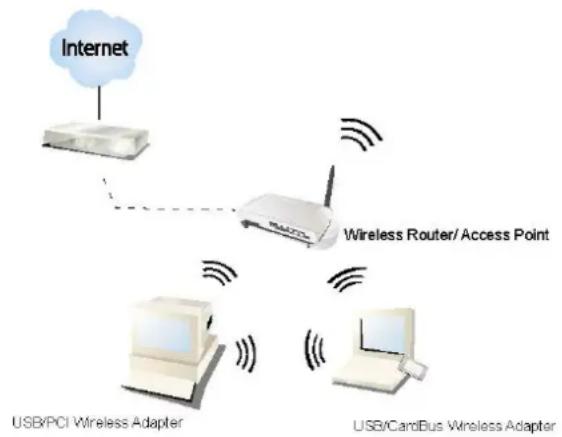
flowchart
graph TD
    A["Internet"] --> B["Wireless Router/Access Point"]
    B --> C["USB/PCI Wireless Adapter"]
    B --> D["USB/CardBus Wireless Adapter"]
Key Features
- Complies with IEEE 802.11 bgn wireless standard
• 2.4GHz Frequency band, MIMO 1T2R - Complies with Universal Serial Bus Rev. 1.1 and 2.0 specifications
• High speed transfer TX rate up to 150 Mbps
• High speed transfer RX rate up to 300 Mbps
• Supports auto-installation
• Supports wireless data encryption with 64/128-bit WEP, WPA, WPA2
• Supports QoS: WMM, WMM-PS
• Supports Multiple BSSID
- Supports driver for Windows 2000, XP 32/64, Vista 32/64, Linux (2.4.x/2.6.x), and Mac (10.3.x/10.4.x)
Installation Guide
Software Installation
Note:
- For Linux or Mac driver installation guide, please refer to the instruction in /Driver/ Linux/ README or /Driver/ Mac/ README in the CD-Rom.
-
The following driver installation guide uses Windows XP as the presumed operation system. The procedures and screens in Windows 2000 and Vista are familiar with Windows XP.
-
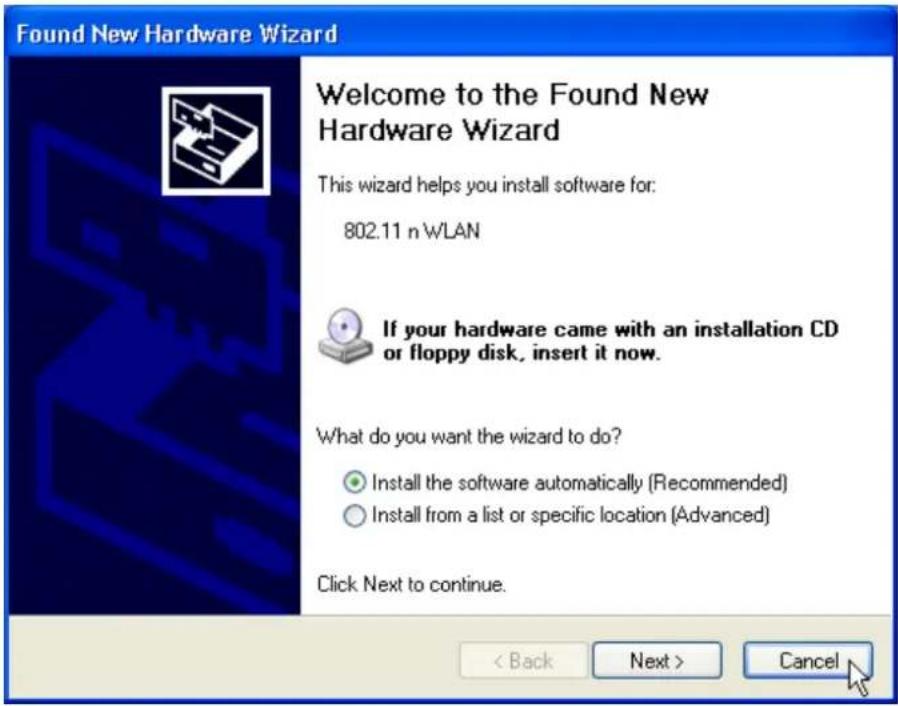
Insert this product to your computer. The system finds the newly installed device automatically. Click Cancel to close this window.
- Insert the CD-Rom that came with this product to your CD-Rom drive. The menu window pops up automatically. Please click the Driver button of this product.
Note: If the CD-Rom fails to auto-run, please click on My Computer > your CD-Rom drive > (folder of this product) > Driver then double-click the Setup icon to start this menu.
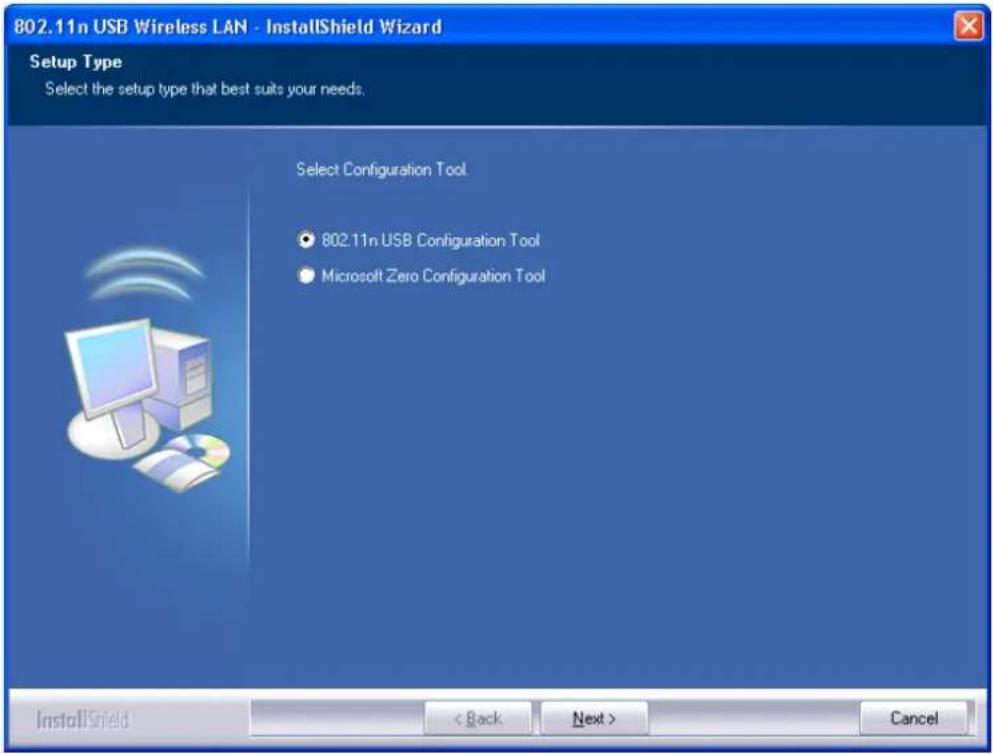
- Select if you are going to configure your wireless network with this device or with Microsoft Zero Configuration tool.
Note: This can be changed after installing this software.
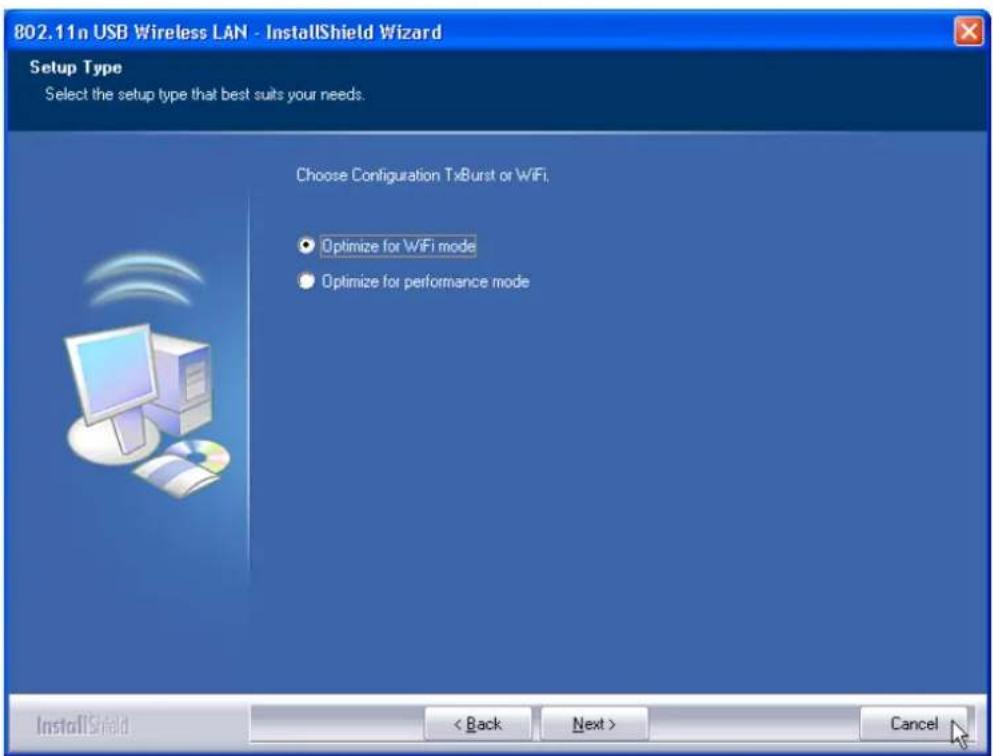
- Select to optimize this adapter in WiFi mode or performance mode.
Note: The performance mode is only available while connecting to a TX Burst supported AP. Users that uses the AP without TX Burst please select WiFi mode (standard mode).
- Click the Install button to start installing.
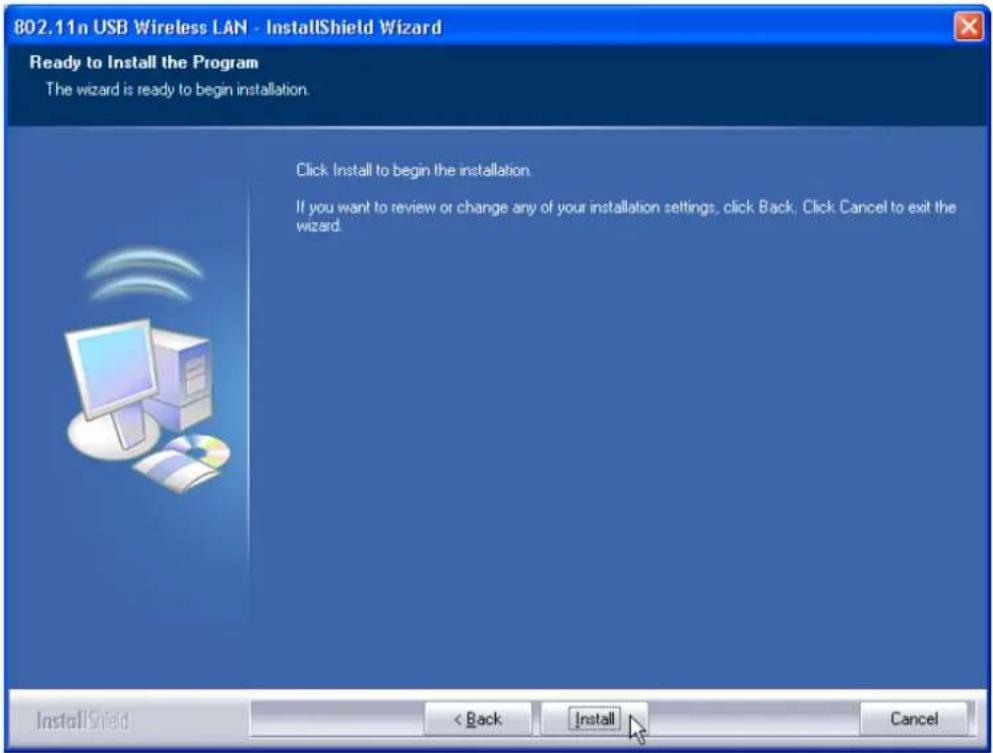
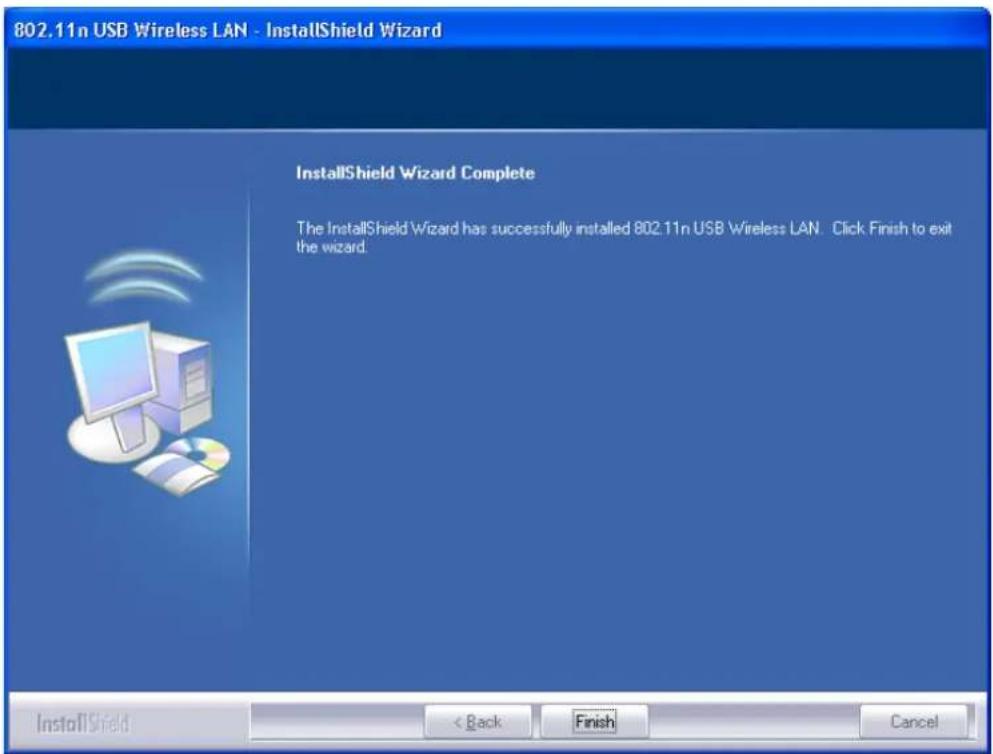
- Click the Finish button to complete installation.
Management Guide
Read this chapter to understand the management interface of the device and how to manage the device.
Making a Basic Network Connection
Select a configuration tool
In the following instruction for making a network connection, we use the Utility we provide to configure your wireless network settings.
Note: You could use either the software we provide or Microsoft Zero Configuration tool to configure this adapter. To switch between the two configuration tools, please right click on the icon on system tray to select.
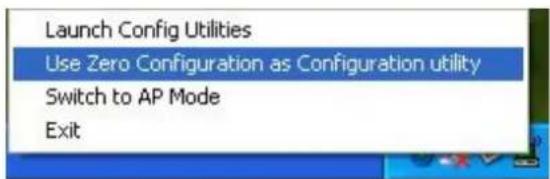
To connect with Microsoft Zero Configuration tool
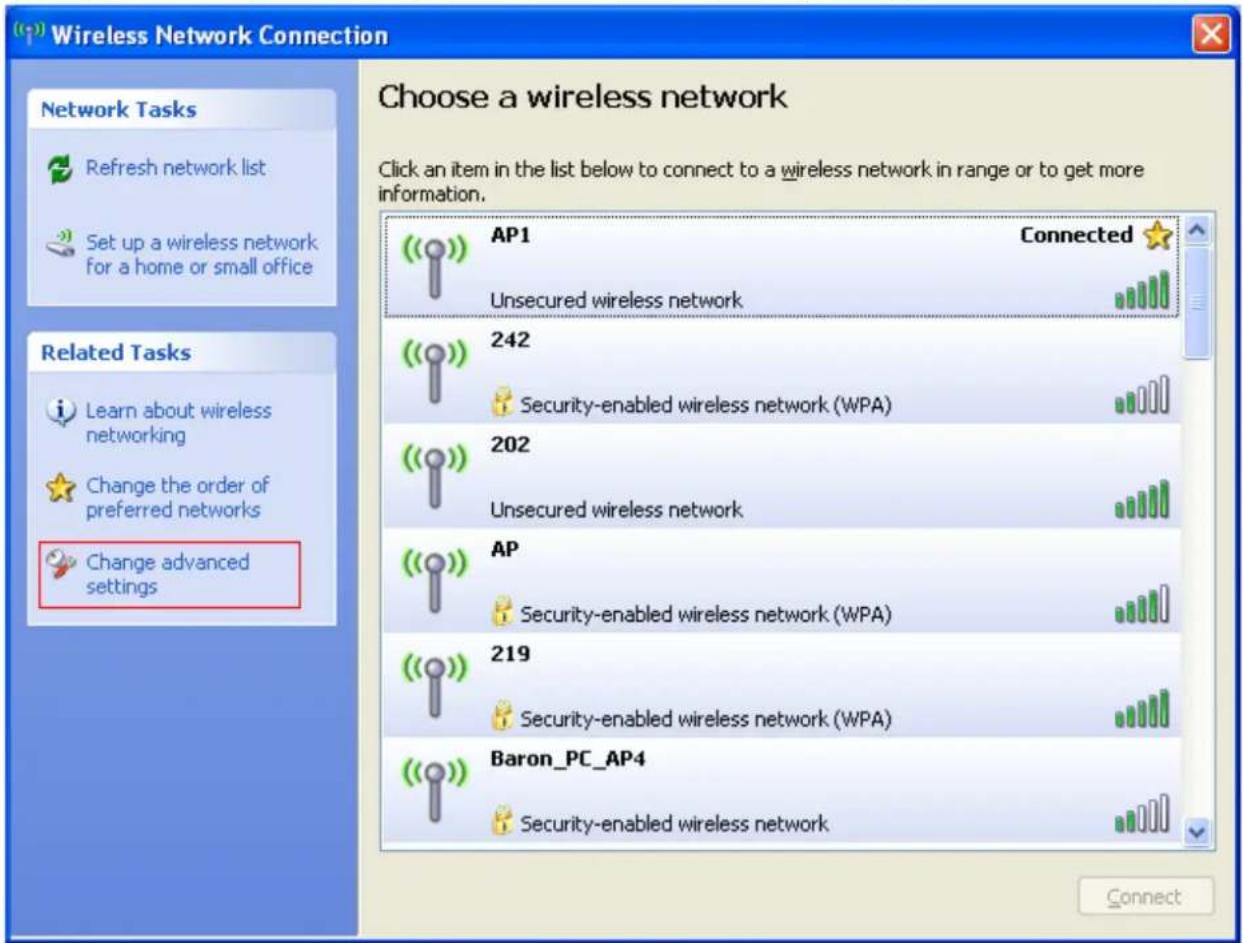
After specifying the Microsoft Zero Configuration tool to configure your wireless network, right click on the icon on system tray. Select View Available Wireless Networks to specify your wireless network.
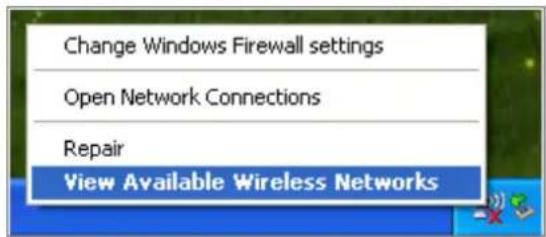
The tool shows the available wireless networks. Select your demanding network to connect with. To connect to a wireless network with more security settings, please click Change advanced settings to be compatible with your wireless network security settings.
To connect with 802.11 bgn Wireless LAN Utility
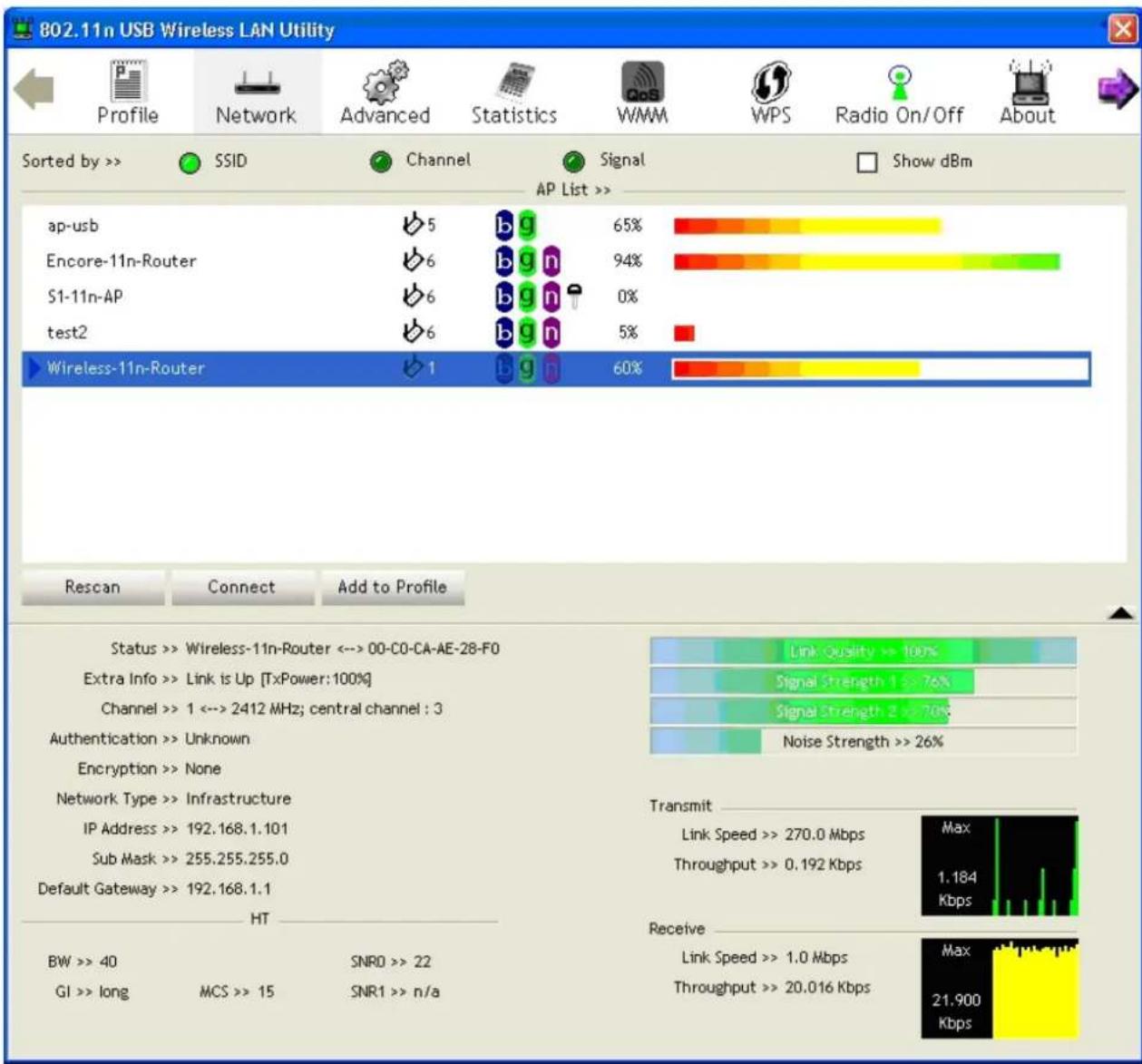
We provide this Utility for users to connect to a wireless network easily. It provides more information and configuration for this adapter. As default, the Utility is started automatically upon starting your computer and connects to a connectable wireless network with best signal strength. Right click on the 📁 icon and select Launch Config utilities if the Utility does not start.
Please refer to the following chapters to get information regarding to the functions of this Utility.
bar
802.11n USB Wireless LAN Utility | Category | AP List (%) | AP List Count | AP List Value | | :--- | :--- | :--- | :--- | | ap-usb | 65 | 5 | b | | Encore-11n-Router | 94 | 6 | b | | S1-11n-AP | 0 | 6 | b | | test2 | 5 | 6 | b | | Wireless-11n-Router | 60 | 1 | b | | Rescan Connect Add to Profile Status >> Wireless-11n-Router <-> 00-CO-CA-AE-28-F0 Extra Info >> Link is Up [TxPower:100%] Channel >> 1 <-> 2412 MHz; central channel : 3 Authentication >> Unknown Encryption >> None Network Type >> Infrastructure IP Address >> 192.168.1.101 Sub Mask >> 255.255.255.0 Default Gateway >> 192.168.1.1 HT BW >> 40 SNRO >> 22 GI >> long MCS >> 15 SNR1 >> n/a Link Quality >> 100% Signal Strength 1 >> 76% Signal Strength 2 >> 70% Noise Strength >> 26% Transmit Link Speed >> 270.0 Mbps Throughput >> 0.192 Kbps Receive Link Speed >> 1.0 Mbps Throughput >> 20.016 Kbps Max 1.184 Kbps Max 21.900 KbpsNote: The Utility in Windows Vista, Linux and Mac are different from the following.
- For instructions on using the Utility included in Windows Vista please refer to the instruction in Appendix.
- For instructions on using the Utility included in Linux please refer to the instruction in /Driver/Linux/README in the CD-Rom.
- For instructions on using the Utility included in Mac please refer to the instruction in /Driver/ Mac/ README in the CD-Rom.
Interfaces
This Utility is basically consisted of three parts:
- Functional buttons: on top of the window. You can click each button to access each configuration window.
Note: Click

to enable/disable wireless connection status.

- Configuration column: center of the Utility window. Make your changes for each function in this part.
- Status information: bottom of the utility window. Shows the connection status and system information.
Information
Status >> Wireless-11n-AP <-> 00-CO-CA-AD-D6-40
Extra Info >> Link is Up [TxPower:100%]
Channel >> 1 <-> 2412 MHz; central channel : 3
Authentication >> Unknown
Encryption >> None
Network Type >> Infrastructure
IP Address >> 192.168.1.101
Sub Mask >> 255.255.255.0
Default Gateway >> 192.168.1.1
HT
BW >> 40
SNRO >> 16
GI >> short
MCS >> 7
SNR1 >> 20104172(
Transmit
Link Speed >> 150.0 Mbps
Throughput >> 0.000 Kbps
Receive
Link Speed >> 270.0 Mbps
Throughput >> 22,336 Kbps
| Items Information | |
| Status | Shows the connecting status. Also shows the SSID while connecting to a valid network. |
| Extra Info Display link status in use. | |
| Channel Display current channel in use. | |
| Authentication Authentication mode in use. | |
| Encryption Encryption type in use. | |
| Network Type Network type in use. | |
| IP Address IP address of current connection. | |
| Sub Mask Subnet mask of current connection. | |
| Default Gateway Default gateway of current connection. | |
| Link Speed Show current transmit rate and receive rate. | |
| Throughput Display transmit and receive throughput in Mbps. | |
| Link Quality | Display connection quality based on signal strength and TX/RX packet error rate. |
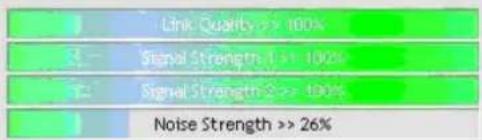
| Signal Strength 1 | Receive signal strength 1, user can choose to display as percentage or dBm format. |
| Signal Strength 2 | Receive signal strength 2, user can choose to display as percentage or dBm format. |
| Signal Strength 3 | Receive signal strength 3, user can choose to display as percentage or dBm format. |
| Noise Strength | Display noise signal strength. |
| HT | Display current HT status in use, containing BW, GI, MCS, SNR0, and SNR1 value. |
Profile
This profile page allows users to save different wireless settings, which helps users to get access to wireless networks at home, office or other wireless network environments quickly.
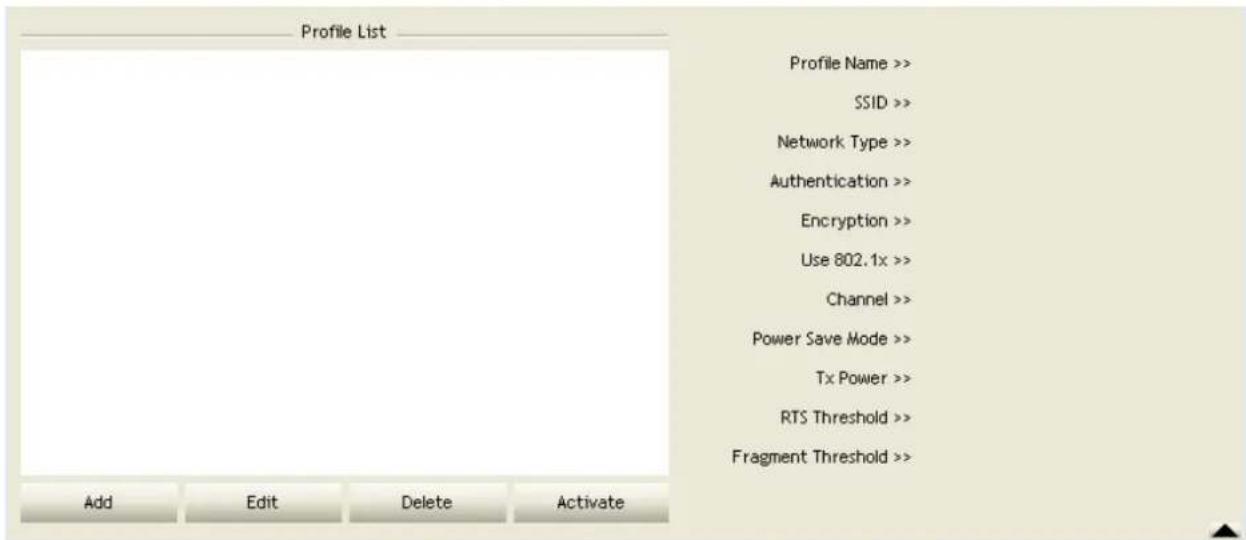
| Items Information | |
| Profile Name Choose | e a name for this profile, or use default name defined by system. |
| SSID Fill in the intended | ded SSID name or use the drop list to select from available Aps. |
| Network Type | There are two types, infrastructure and 802.11 Ad-hoc modes. Under Ad-hoc mode, you could also choose the preamble type; the available preamble type includes auto and long. In addition to that, the channel field will be available for setup in Ad-hoc mode. |
| Authentication Authentication mode. | |
| Encryption Encryption mode. | |
| Use 802.1x Whether or not use 802.1x feature. | |
| Channel Channel in use for Ad-Hoc mode. | |
| Power Save Mode | Choose from CAM (Constantly Awake Mode) or PSM (Power Saving Mode). |
| Tx Power Transmit power, the amount of power used by a radio transceiver to send the signal out. | |
| RTS Threshold | For adjusting the RTS threshold number by sliding the bar or key in the value directly. The default value is 2347. |
| Fragment Threshold | Adjust the Fragment threshold number by sliding the bar or key in the value directly. The default value is 2346. |
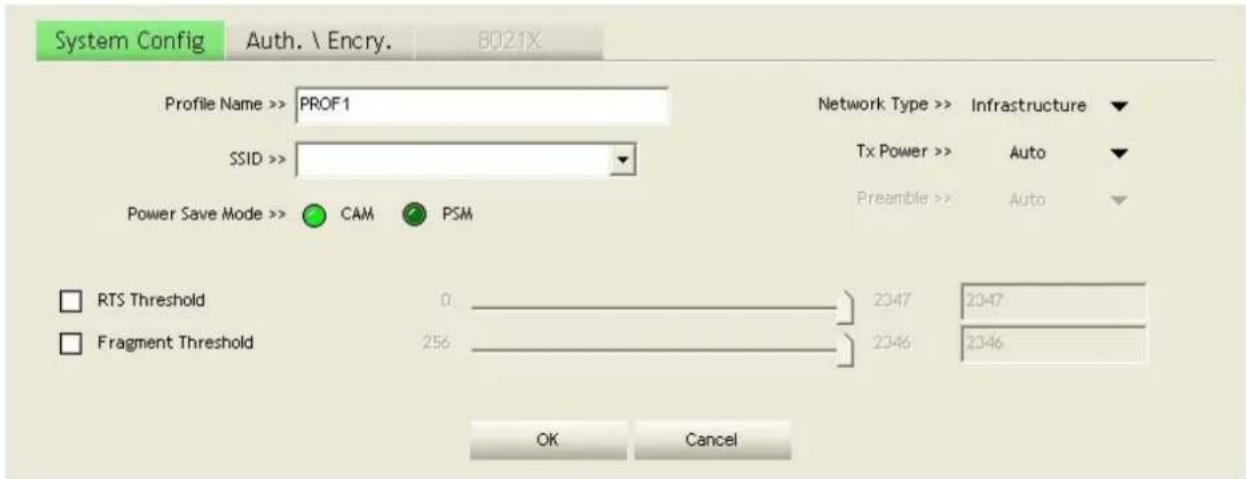
To add a new profile:
- Click the Add button. The add profile window pops up.
Note: you could also add a new profile quickly by selecting an available network in the Network function then click the Add to Profile button.
- Fill in information for this profile in the system config section:
- Select an encryption type and fill in the corresponding wireless network information:
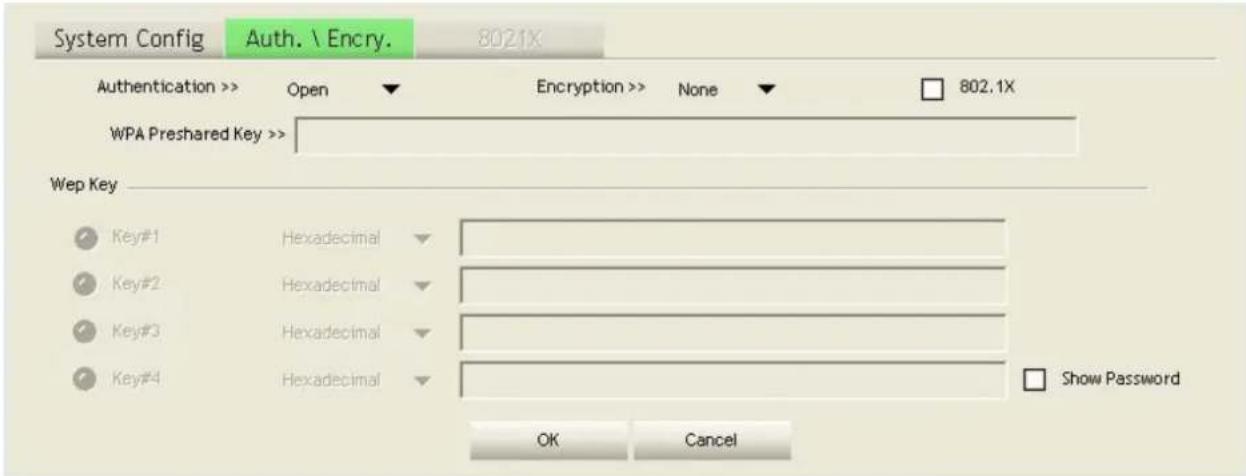
| Items Information | |
| Authentication Type | There are 7 types of authentication modes supported by Utility including open, Shared, LEAP, WPA and WPA-PSK, WPA2 and WPA2-PSK. |
| Encryption Type | For open and shared authentication mode, the selection of encryption type are None and WEP. For WPA, WPA2, WPA-PSK and WPA2-PSK authentication mode, the encryption type supports both TKIP and AES. |
| 802.1x | Use 802.1x to make WPA and WPA2 certification. This function only works when connecting to a WPA and WPA2 supported device. |
| WPA Pre-shared Key | This is the shared secret between AP and STA. For WPA-PSK and WPA2-PSK authentication mode, this field must be filled with character longer than 8 and less than 32 lengths. |
| WEP Key Only valid | when using WEP encryption algorithm. The key must match AP's key. |
- Specify the 802.1x information if you are using the 802.1X certification method.
Users that do not use this function or connecting to an open-wireless network please skip this part.
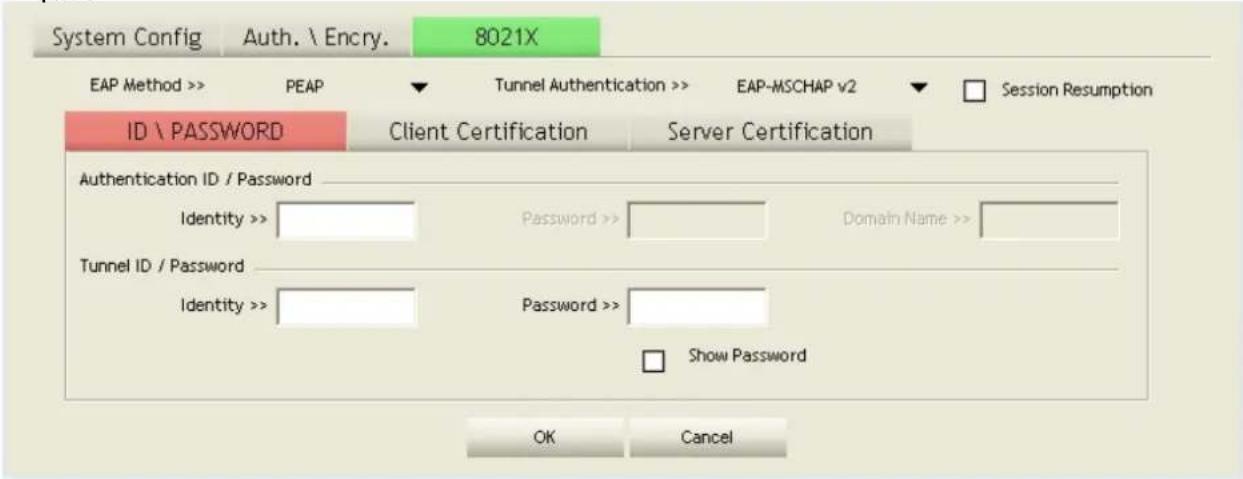
| Items Information | |
| EAP method To select an EAP method. | |
| Tunnel Authentication Select a Tunnel authentication mode. | |
| Session Resumption Select to enable this function or unmark it to disable. | |
ID \ PASSWORD
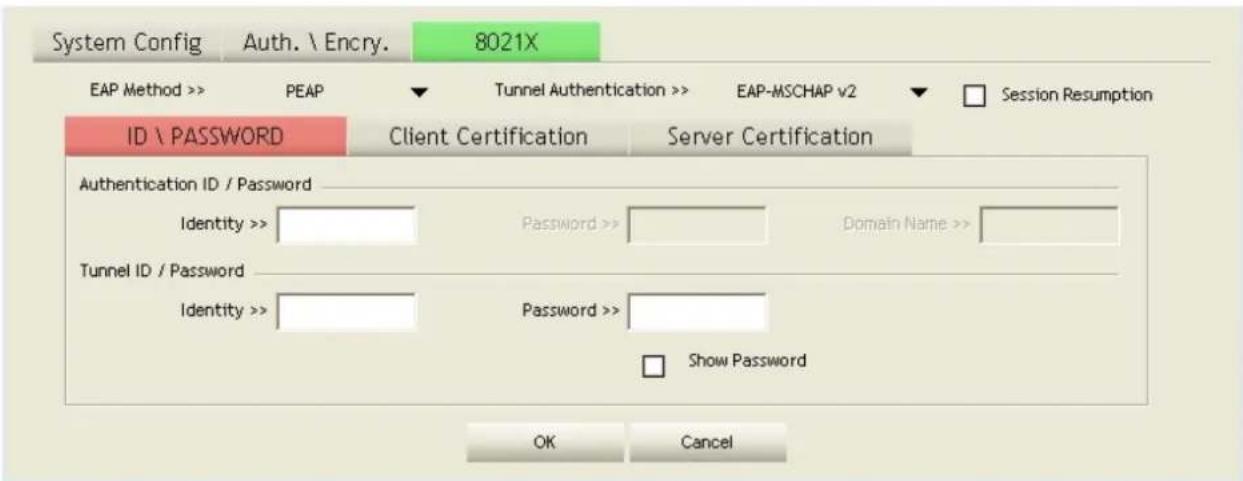
| Items Information | |
| Authentication ID / Password | The identity, password and domain name for server. Only "EAP-FAST" and "LEAP" authentication can be key in domain name. Blank space can be key in domain name. |
| TunnelID / Password | Identity and Password for server. |
Client Certification

| Items Information | |
| Use Client certificate | Client certificate for server authentication. |
Server Certification
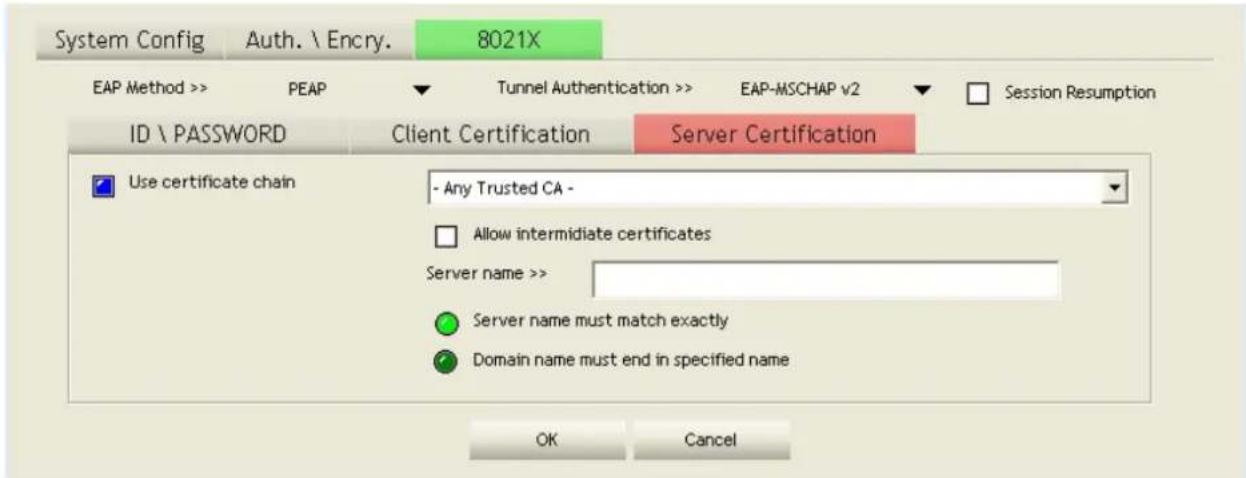
| Items Information | |
| Use Certificate chain Mark the | checkbox to enable using certification chain. |
| Allow intimidate certificates | Mark to allow intimidates certification. |
| Server name Enter an authentication sever root. | |
EAP Fast
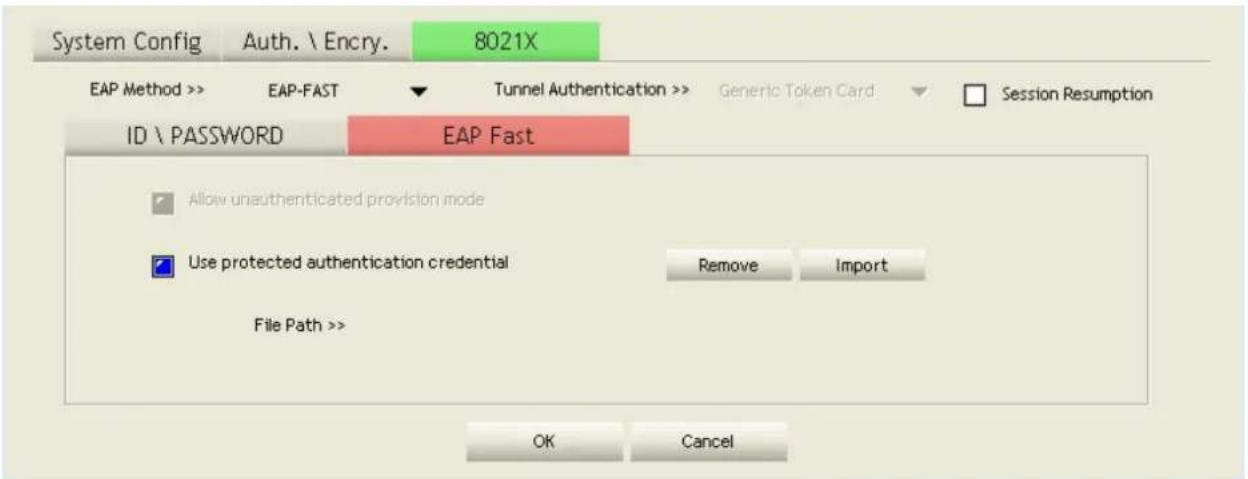
| Items Information | |
| Allow unauthenticated provision mode | Mark to enable unauthenticated provision mode. |
| Use protected authentication credential | Mark to use protected authentication credential. |
Network
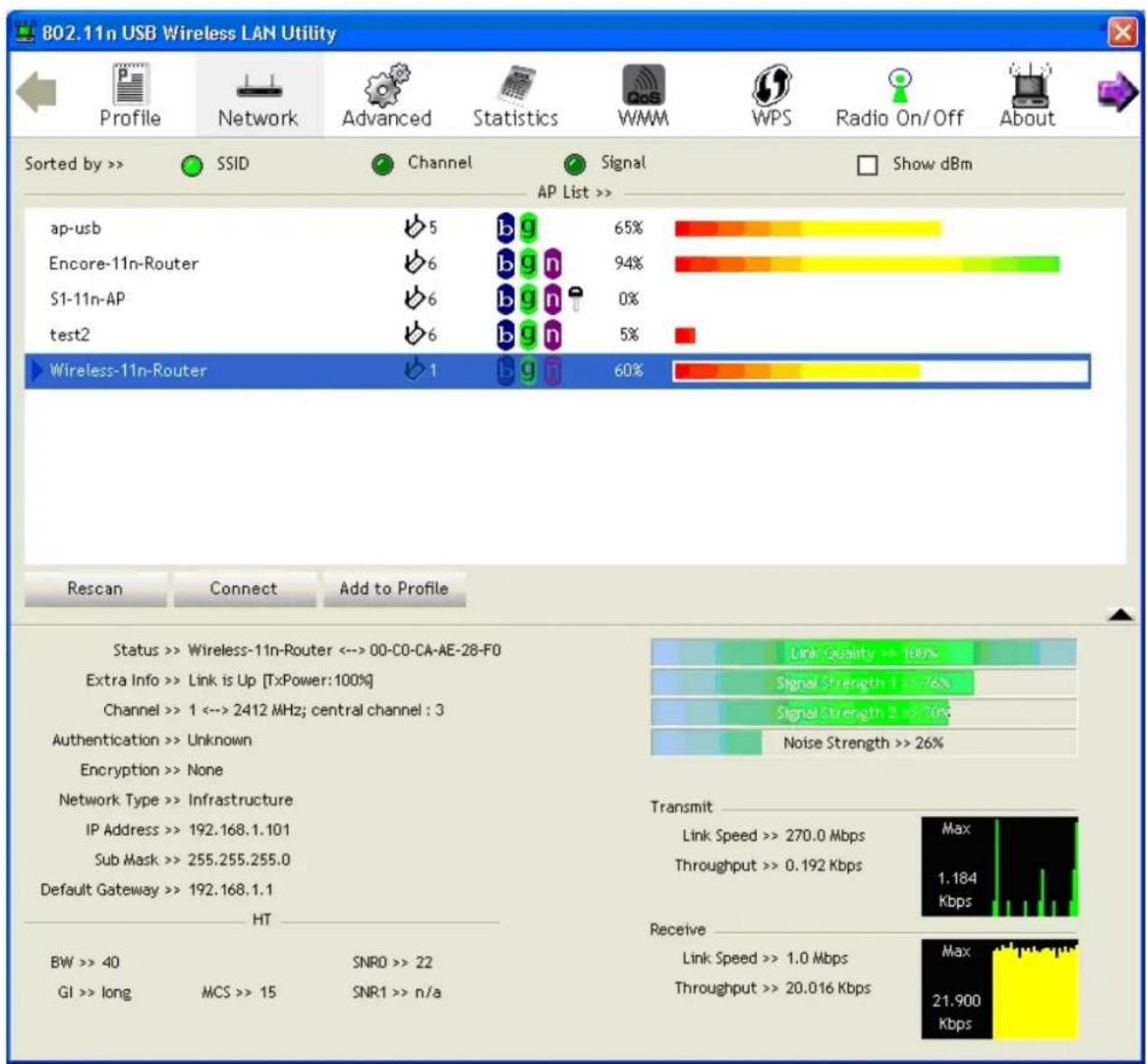
This network lists the available wireless networks. The Utility connects to a wireless network with best signal strength automatically. You can change the connecting network by clicking on the network name and click the Connect button. To see detail information of each network, please double click on each item to pop up the information window.
bar
802.11n USB Wireless LAN Utility | Category | Value | | :--- | :--- | | ap-usb | 5 | | Encore-11n-Router | 6 | | S1-11n-AP | 6 | | test2 | 6 | | Wireless-11n-Router | 1 | | Metric | Value | | :--- | :--- | | :--- | :--- | | Link Quality >> 100% | 100 | | Signal Strength 1 >> 76% | 76 | | Signal Strength 2 >> 70% | 70% | | Noise Strength >> 26% | 26 | | Metric | Value | | :--- | :--- | | Transmission | Max | | Link Speed >> 270.0 Mbps | 270.0 Mbps | | Throughput >> 0.192 Kbps | 0.192 Kbps | | Receive | Max | | Link Speed >> 1.0 Mbps | 1.0 Mbps | | Throughput >> 20.016 Kbps | 20.016 Kbps | | BW >> 40 | 40 | | GI >> long | long | | MCS >> 15 | 15 | | SNRO >> 22 | 22 | | SNR1 >> n/a | n/a | | AP List >> | Percentage (%) | | :--- | :--- | | ap-usb | 65 | | Encore-11n-Router | 94 | | S1-11n-AP | 0 | | test2 | 5 | | Status >> Wireless-11n-Router <-> 00-CO-CA-AE-28-F0 | Link Quality >> 100% | | :--- | :--- | | Extra Info >> Link is Up [TxPower:100%] | Signal Strength 1 >> 76% | | Channel >> 1 <-> 2412 MHz; central channel : 3 | Signal Strength 2 >> 70% | | Authentication >> Unknown | Noise Strength >> 26% | | Encryption >> None | Reference (Kbps) | | :--- | :--- | | Network Type >> Infrastructure | | | IP Address >> 192.168.1.101 | | | Sub Mask >> 255.255.255.0 | | | Default Gateway >> 192.168.1.1 | | | HT | | | Transmit | Value | | :--- | :--- | | :--- | :--- | | Link Speed >> 270.0 Mbps | Max | | Throughput >> 0.192 Kbps | 1.184 Kbps | | Max | | | Link Speed >> 1.0 Mbps | Max | | Throughput >> 20.016 Kbps | 21.900 Kbps || Items Information | |
| SSID, Channel and Signal buttons | Click each button to sort the listing networks by SSID, channel and Signal strength. |
| Show dBm | Mark the checkbox to show the signal strength in dBm. |
| Rescan To rescan available wireless networks. | |
| Connect Click this button to connect to a designated network. | |
| Add to Profile Click this button to | add a network to profile after selecting a network. |
Advanced
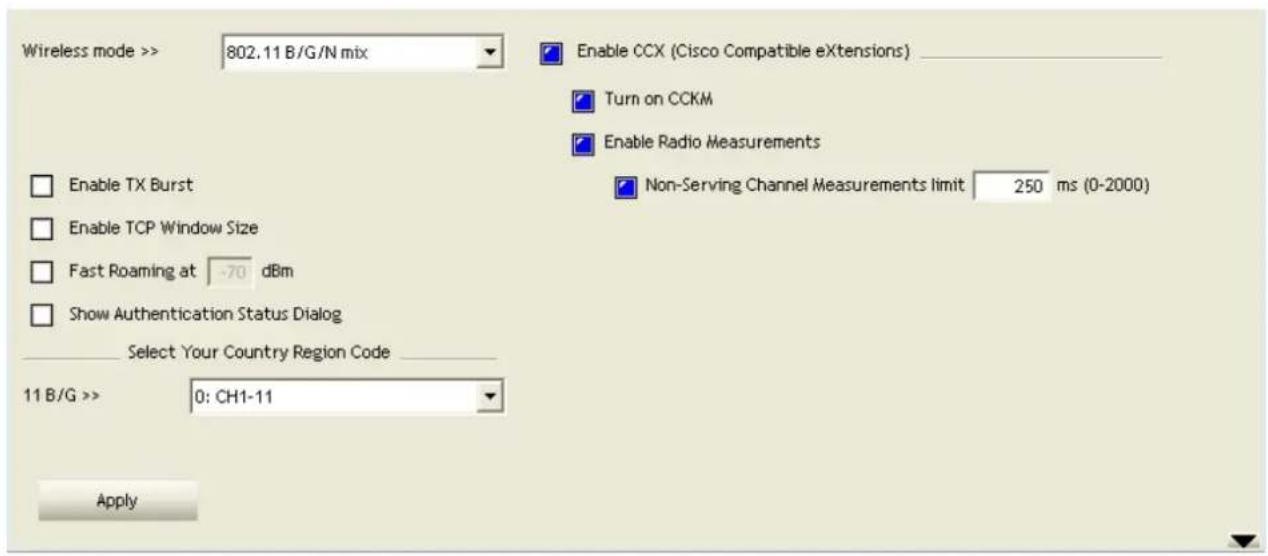
This page provides advanced configurations to this adapter. Please refer to the following chart for definitions of each item.
| Items Information | |
| Wireless mode Click the drop list to select a wireless mode. | |
| Enable TX Burst | Select to enable connecting to a TX Burst supported device. |
| Enable TCP Window Size | Mark the checkbox to enable TCP window size, which help enhance throughput. |
| Fast Roaming at __ dBm | Mark the checkbox to enable fast roaming. Specify the transmit power for fast roaming. |
| Show Authentication Status Dialog | Mark the checkbox to show “Authentication Status Dialog” while connecting to an AP with authentication. Authentication Status Dialog displays the process about 802.1 x authentications. |
| Enable CCX (Cisco Compatible extensions) | Select to enable CCX. This function can only be applied when connecting to a Cisco compatible device. |
| Turn on CCKM Mark to enable CCKM. | |
| Enable Radio Measurements | Mark to enable channel measurement every 0~2000 milliseconds. |
| Select Your Country Region Code | Eight countries to choose. Channel list:Classification Range0: FCC (Canada) CH1 ~ CH111: ETSI CH1 ~ CH132: SPAIN CH10 ~ CH113: FRANCE CH10 ~ CH134: MKK CH14 ~ CH145: MKKI (TELEC) CH1 ~ CH146: ISRAEL CH3 ~ CH97: ISRAEL CH5 ~ CH13 |
Statistics
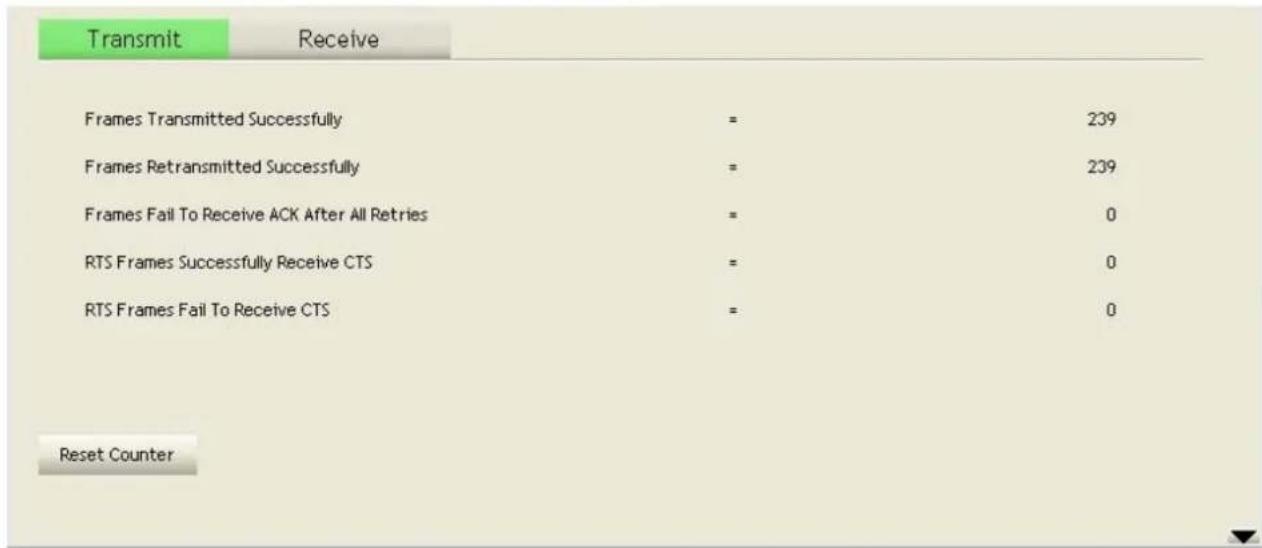
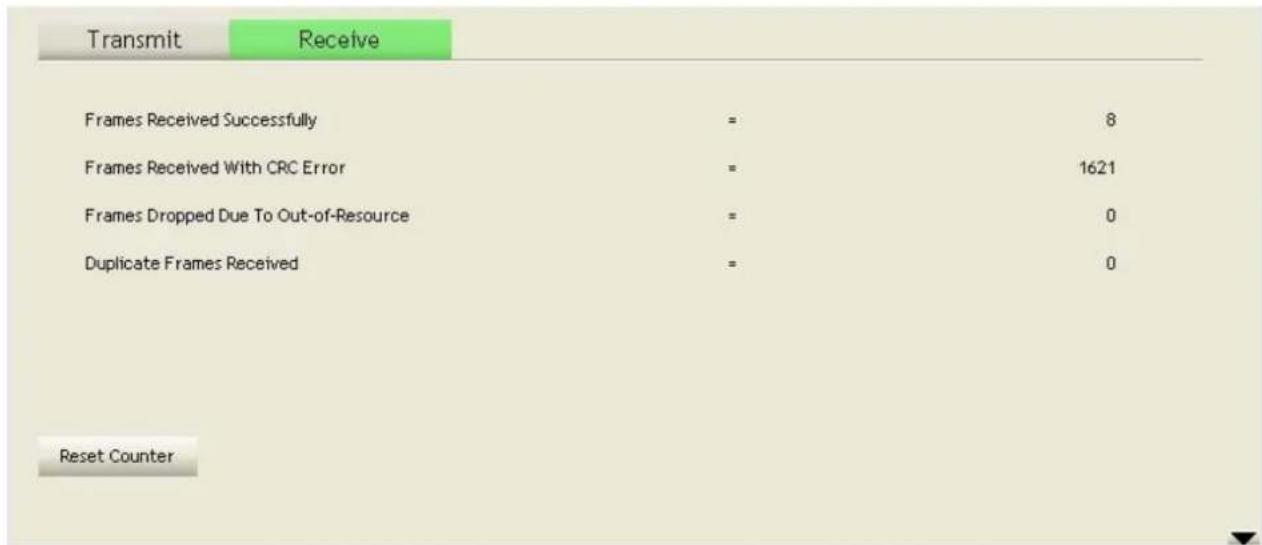
Statistics page displays the detail counter information based on 802.11 MIB counters. This page translates the MIB counters into a format easier for user to understand.
| Items Information | |
| Frames Transmitted Successfully | Frames successfully sent. |
| Frames Retransmitted Successfully | Successfully retransmitted frames numbers. |
| Frames Fail To Receive ACK After All Retries | Frames failed transmit after hitting retry limit. |
| RTS Frames Successfully Receive CTS | Successfully receive CTS after sending RTS frame. |
| RTS Frames Fail To Receive CTS Failed to receive CTS after sending RTS. | |
| Reset Counter Reset counters to zero. | |
| Items Information | |
| Frames Received Successfully Frames received successfully. | |
| Frames Received With CRC Error Frames received with CRC error. | |
| Frames Dropped Due To Out-of-Resource | Frames dropped due to resource issue. |
| Duplicate Frames Received Duplicate received frames. | |
| Reset Counter Reset counters to zero. | |
WMM
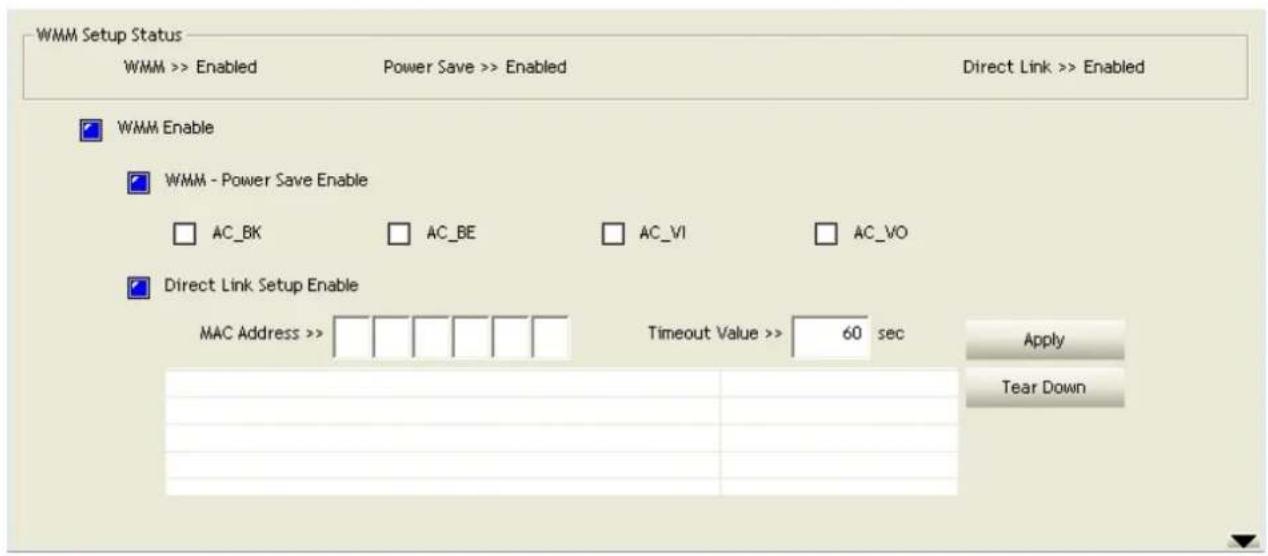
This page allows users to activate the WMM function for this device. Please note that this function only works while connecting to a WMM compatible device.
| Items Information | |
| WMM Enable Enable Wi-Fi Multi-Media. | |
| WMM - Power Save Enable Enable | WMM Power Save. Please enable WMM before configuring this function. |
| Direct Link Setup Enable | Enable DLS (Direct Link Setup). Please enable WMM before configuring this function. |
| MAC Address Fill in the blanks of | Direct Link with MAC Address of STA. |
| Timeout Value Time of | automatically disconnect after some seconds. The value is integer. The integer must be between 0~65535. It represents that it always connects if the value is zero. Default value of Timeout Value is 60 seconds. |
| Apply / Tear Down | After fill in the "MAC Address" and "Timeout Value", click "Apply" button to save your configuration. The result will appear in the blanks. To remove the configuration, please select the configuration in the blanks and then click "Tear Down" button. |
WPS
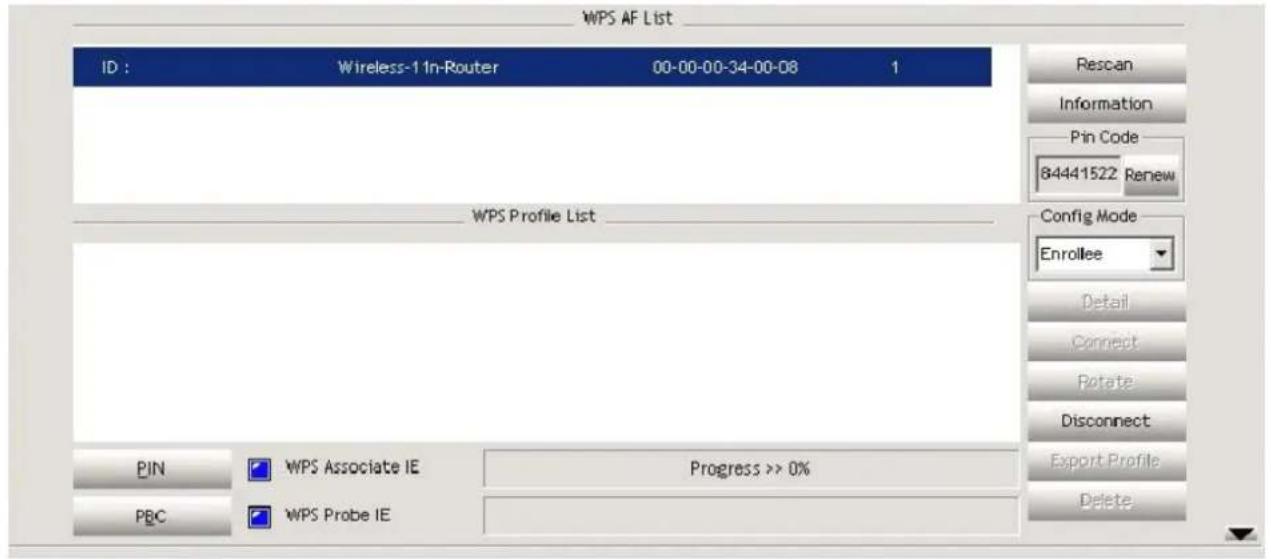
WPS Configuration: The primary goal of Wi-Fi Protected Setup (Wi-Fi Simple Configuration) is to simplify the security setup and management of Wi-Fi networks. This adapter supports the configuration setup using PIN configuration method or PBC configuration method through an internal or external Registrar.
| Items Information | |
| WPS AP List Display | the information of surrounding APs with WPS IE from last scan result. List information includes SSID, BSSID, Channel, ID (Device Password ID), and Security-Enabled. |
| Rescan Click to rescan | n the wireless networks. |
| Information Display | the information about WPS IE on the selected network. List information includes Authentication Type, Encryption Type, Config Methods, Device Password ID, Selected Registrar, State, Version, AP Setup Locked, UUID-E and RF Bands. |
| Pin Code 8-digit num | bers. It is required to enter PIN Code into Registrar using PIN method. Each Network card has only one PIN Code of Enrollee. Click on the Renew button to renew the PIN code. |
| Config Mode Enrollee | or an external Registrar. |
| WPS Profile List | Display all of credentials got from the Registrar. List information includes SSID, MAC Address, Authentication and Encryption Type. If STA Enrollee, credentials are created as soon as each WPS success. If STA Registrar, Utility creates a new credential with WPA2-PSK/AES/64Hex-Key and doesn't change until next switching to STA Registrar. |
| Detail | Information about Security and Key in the credential. |
| Connect | Command to connect to the selected network inside credentials. |
| Rotate | Command to connect to the next network inside credentials. |
| Disconnect Stop WPS | action and disconnect this active link. And then select the last profile at the Profile Page of Utility if exists. If there is an empty profile page, the driver will select any non-security AP. |
| Delete | Delete an existing credential. And then select the next credential if exist. If there is an empty credential, the driver will select any non-security AP. |
| PIN | Start to add to Registrar using PIN configuration method. |
| PBC | Start to add to AP using PBC configuration method. |
| WPS associate IE | Send the association request with WPS IE during WPS setup. It is optional for STA. |
| WPS probe IE | Send the probe request with WPS IE during WPS setup. It is optional for STA. |
| Progress Bar | Display rate of progress from Start to Connected status. |
| Status Bar | Display currently WPS Status. |
Note: When you click PIN or PBC, please don't do any rescan within two-minute connection. If you want to abort this setup within the interval, restart PIN/PBC or click Disconnect to stop WPS action.
Radio On/Off
Click on the button to enable/disable wireless connection status.


Appendix
Introduction to the configuration utility for Vista Users
This utility helps Vista users to configure the wireless network. Please refer to the following sections for introduction.
Profile
This profile page allows users to save different wireless settings, which helps users to get access to wireless networks at home, office or other wireless network environment quickly.
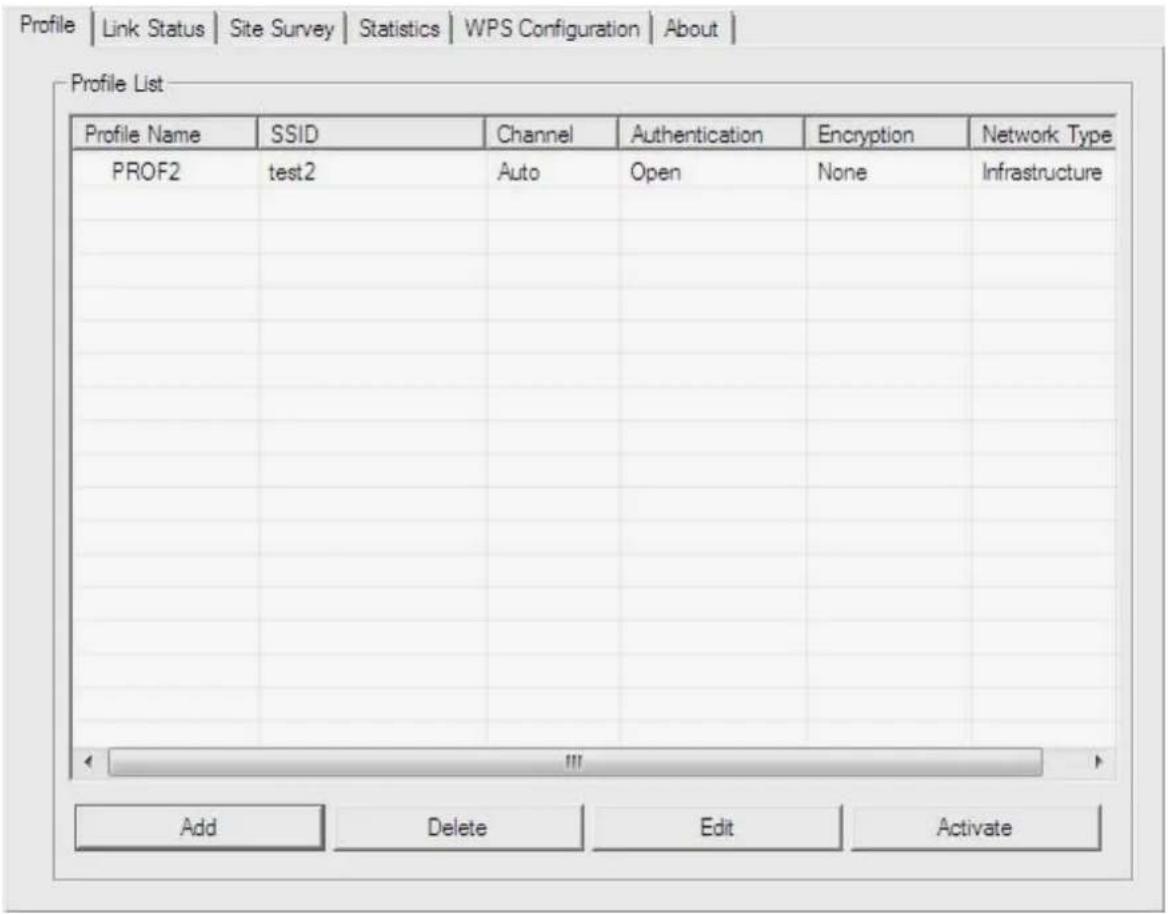
To add a new profile:
- Click the Add button. The add profile window pops up.
Note: you could also add a new profile quickly by selecting an available network in the Site Survey function then click the Add to Profile button.
- Fill in the information of this wireless network and its relative security settings. Please note that the information should be corresponding to the wireless network you are connecting to.
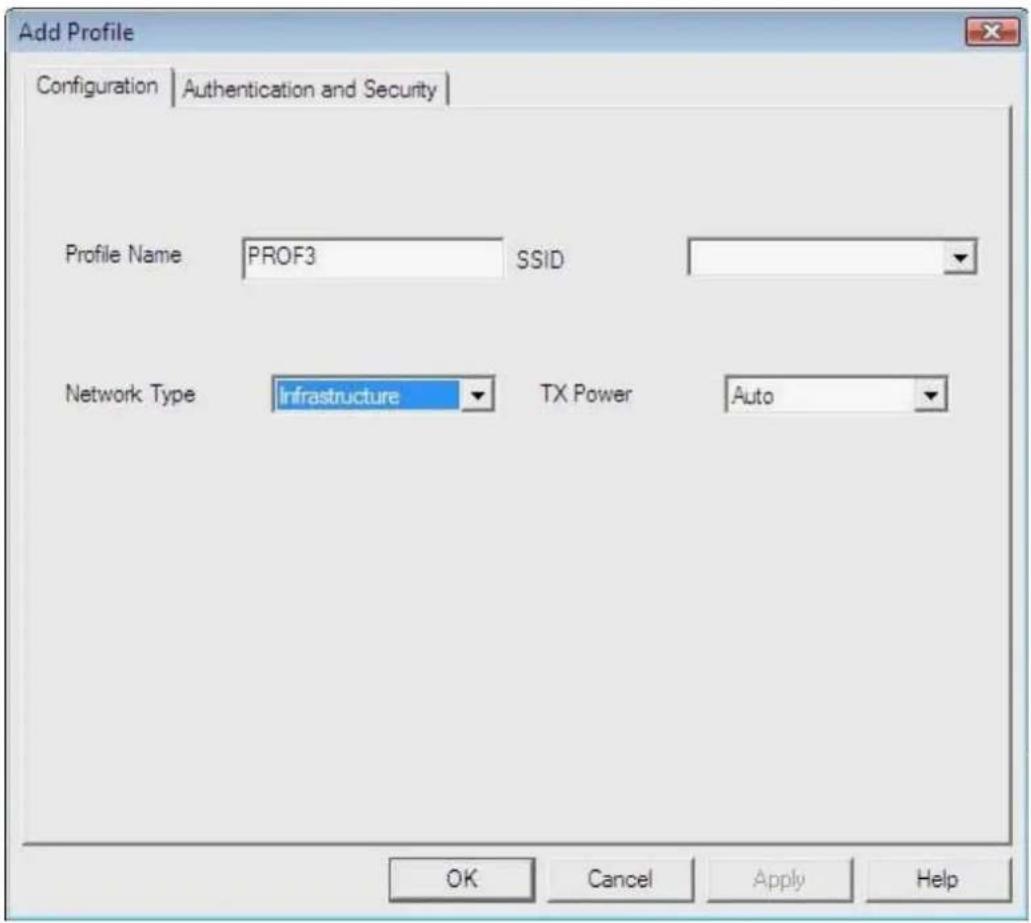
To delete profile: Click the Delete button to delete the selected profile.
To edit profile: Click the Edit button to pop up the profile-setting page for users to edit the existing profile.
To active profile: Click the Activate button to activate the selected profile.
Link Status
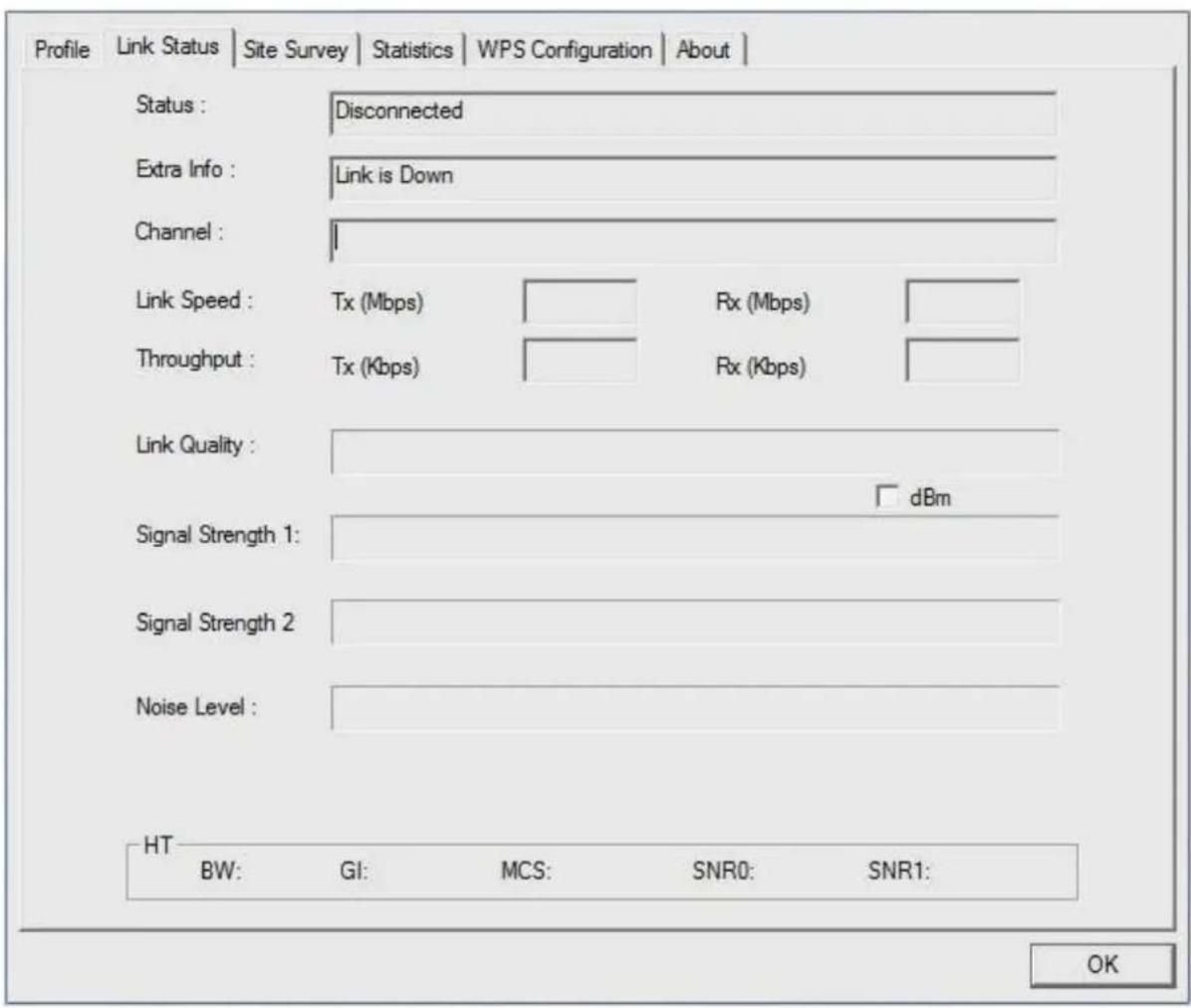
This Link status shows the information about the connecting. Please refer to the following chart for definition.
| Items Information | |
| Status Display current connection status. | |
| Extra Info Display link status and current channel in use. | |
| Link Speed Display current transmitting and receiving rates. | |
| Throughput Display transmitting and receiving throughputs. | |
| Link Quality | Display connecting quality based on signal strength and TX/RX packet error rate. |
| Signal Strength Display receiving signal strength either in percentage or dBm format. | |
| Noise Level Display noise signal strength. | |
Site Survey
This page shows the available wireless networks within the coverage of this network adapter. You could check the status of wireless network around your computer or add a network into your profile.
Profile | Link Status Site Survey | Statistics | WPS Configuration | About |
| SSID | BSSID | Phy | Signal | ▲ C... | Encryption | Authentic... | Network Ty. |
| test2 S1-11n-AP | 00-00-0A-AE-36-88 00-00-0A-AD-D6-40 | N N | 100% 94% | 6 6 | None WEP | Unknown Unknown | Infrastructure Infrastructure |
| # |
| Items Information | |
| SSID Name of the network. | |
| BSSID | AP MAC address or random numbers generated for IBSS. |
| Phy Type Phy Type | of the network. |
| Signal Signal strength of the network. | |
| Channel The channel in use. | |
| Encryption | Encryption algorithm. The supported algorithms are WEP, TKIP, AES, and Not Use. |
| Authentication Authentication mode. The supported modes are Unknown, WPA-PSK, WPA2-PSK, WPA and WPA2. | |
| Network Type Infrastructure | astructure or Ad-Hoc. |
| Rescan Click the re | scan button to perform re-scanning. |
| Add to profile Select | ct a network then click the Add to Profile button to bring up the profile-setting to add a wireless network profile. |
Statistics
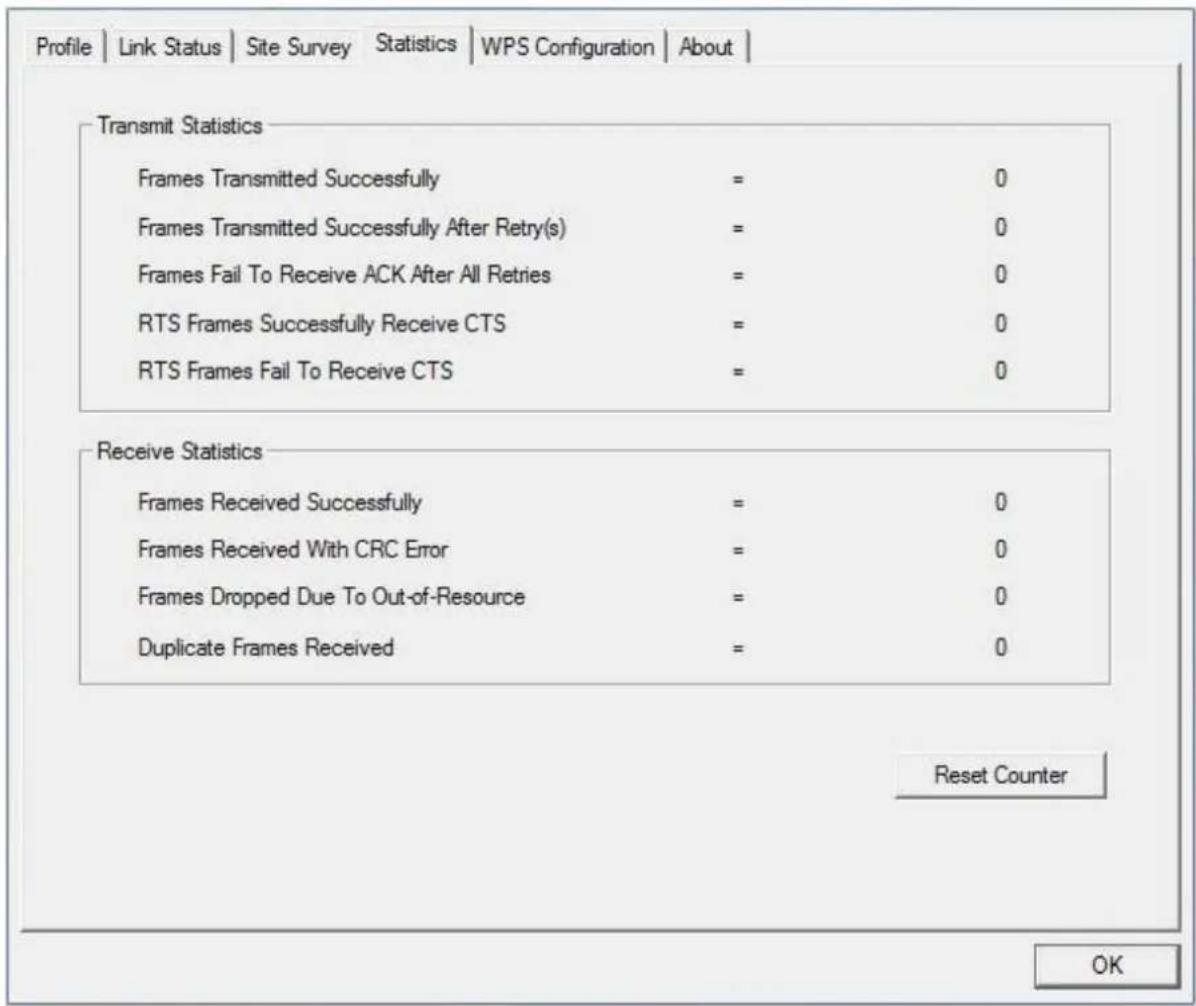
This page provides the statistics about the connection of this adapter.
Transmit Statistics
| Items Information | |
| Frames Transmitted Successfully | Frames sent successfully. |
| Frames Transmitted Successfully After Retry | Frames sent successfully with retry. |
| Frames Fail To Receive ACK After All Retries | Frames transmitted failed after hitting the retrying limit. |
| RTS Frames Successfully Receive CTS | CTS frames received successfully after sending RTS frames. |
| RTS Frames Fail To Receive CTS | The missing CTS frames after sending RTS frames. |
Receive Statistics
| Items Information | |
| Frames Received Successfully Frames received successfully. | |
| Frames Received With CRC Error | Frames received with CRC error. |
| Frames Dropped Due To Out-of-Resource | Frames dropped due to insufficient resource. |
| Duplicate Frames Received Duplicate frames received. | |
Reset Counter: Reset counters to zero.
WPS Configuration
This page provides users to connect this adapter to a WPS (Wi-Fi Protected Setup) AP. Those available WPS supported AP are listed on the upper column. Select the AP that you want to connect to and click the Connect button to activate.
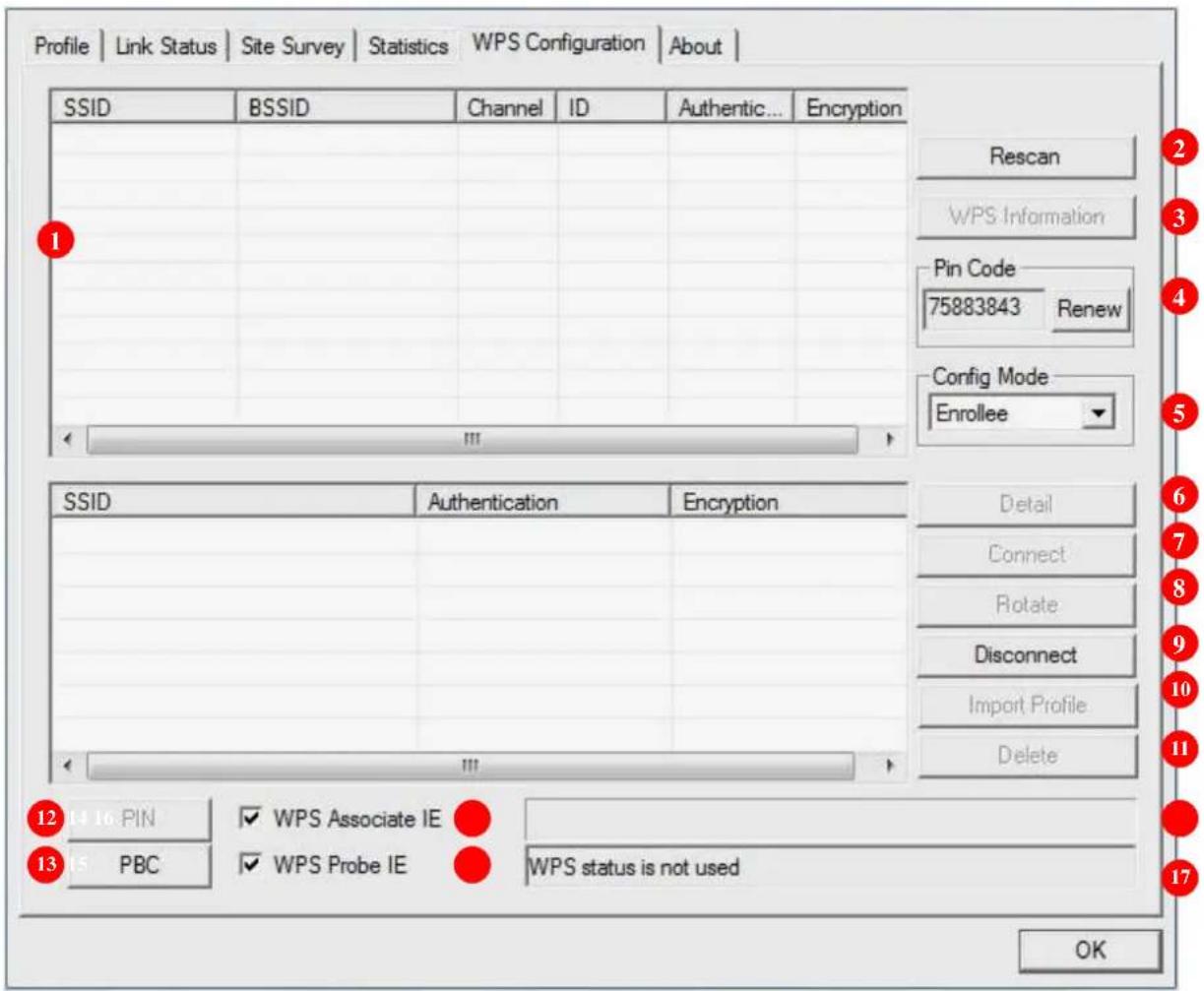
- WPS AP List: Display the information of surrounding APs with WPS IE from last scan result. List information includes SSID, BSSID, Channel, ID (Device Password ID), and Security-Enabled.
- Rescan: Click the Rescan button to perform the re-scanning.
- WPS AP Information: Click the WPS Information button to bring up the WPS capable AP information dialog window.
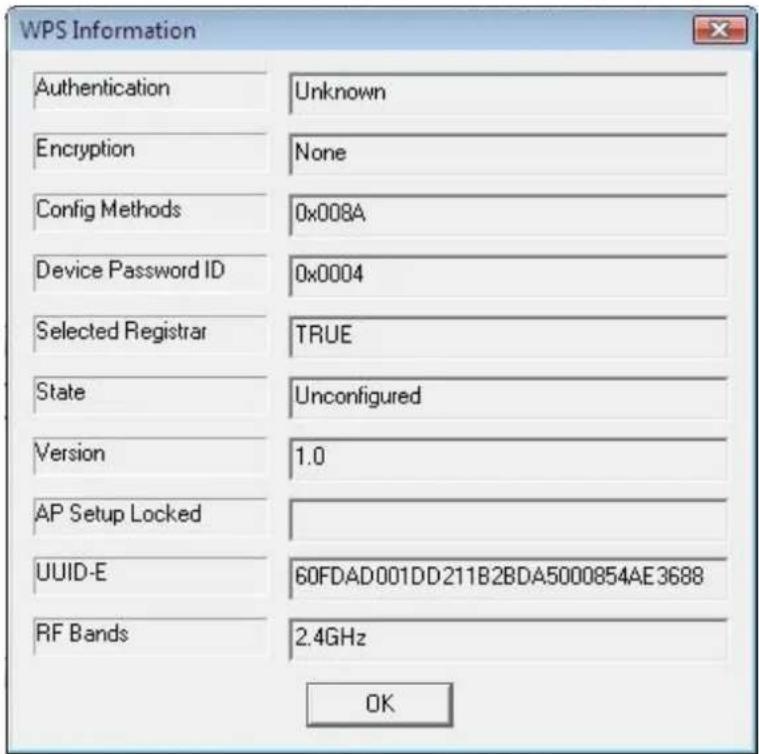
The window shows the information including:
| Items Information | |
| Authentication Type | There are three types of supported authentication modes including Open, Shared, WPA-PSK and WPA modes. |
| Encryption Type | For Open and Shared authentication modes, the available encryption types are None and WEP. For WPA, WPA2, WPA-PSK and WPA2-PSK authentication modes, the available encryption types are TKIP and AES. |
| Config Methods | This attribute contains the config methods supported and enabled by the selected Registrar. |
| Device Password ID | Device Password ID indicates the method or identifies the specific password that the selected Registrar intends to use. |
| Selected Registrar | Selected Registrar indicates if the user has recently activated a Registrar to add an Enrollee. |
| State | This attribute is used to indicate the current configuration state. This attribute is either "Un-configured" or "Configured". |
| Version This attribute | is the specified WPS version. |
| AP Setup Locked | AP Setup Locked indicates if AP has entered a setup locked state. |
| UUID-E UUID-E is un | iversally unique identifier (UUID) generated by the Enrollee. |
| RF Bands RF Bands ind | indicate the available RF bands. |
- Pin Code: 8-digit numbers. It is required to enter PIN Code into Registrar using PIN method. Each Network card has only one PIN Code of Enrollee. Click on the Renew button to renew the PIN code.
- Config Mode: Enrollee or an external Registrar.
- Detail: Information about Security and Key in the credential.
- Connect: Command to connect to the selected network inside credentials.
-
Rotate: Command to connect to the next network inside credentials.
-
Disconnect: Stop WPS action and disconnect this active link. And then select the last profile at the Profile Page of Utility if exists. If there is an empty profile page, the driver will select any non-security AP.
- Import Profile: Click the "Import Profile" button will import the WPS profile.
- Delete: Delete an existing credential. And then select the next credential if exist. If there is an empty credential, the driver will select any non-security AP.
12.PIN: Start to add to Registrar using PIN configuration method.
13.PBC: Start to add to AP using PBC configuration method.
14.WPS associate IE: If the "WPS Associate IE" option is checked, station sends a association request with WPS IE during WPS setup.
15.WPS probe IE: If the "WPS Probe IE" option is checked, station probes a request with WPS IE during WPS setup. - Progress Bar: Display rate of progress from Start to Connected status.
- Status Bar: Display currently WPS Status.
Configure WPS profiles
The user can configure WPS profiles with either PIN method or PBC method.
PIN Method:
Step 1: The Registrar enters the pin code generated by station.
Step 2: Push the PIN button.
PBC Method: Push the PBC button within 2 second while the Registrar pushes the button.
Apply WPS configuration
The user can either acts as an enrollee to receive WPS profiles or a registrar to configure AP.
Act as an enrollee
A WPS enrollee can get profiles from AP by PIN method or PBC method. The received WPS profiles are listed in the lower frame, and the listed WPS profile attributes are SSID, authentication type, and encryption type.
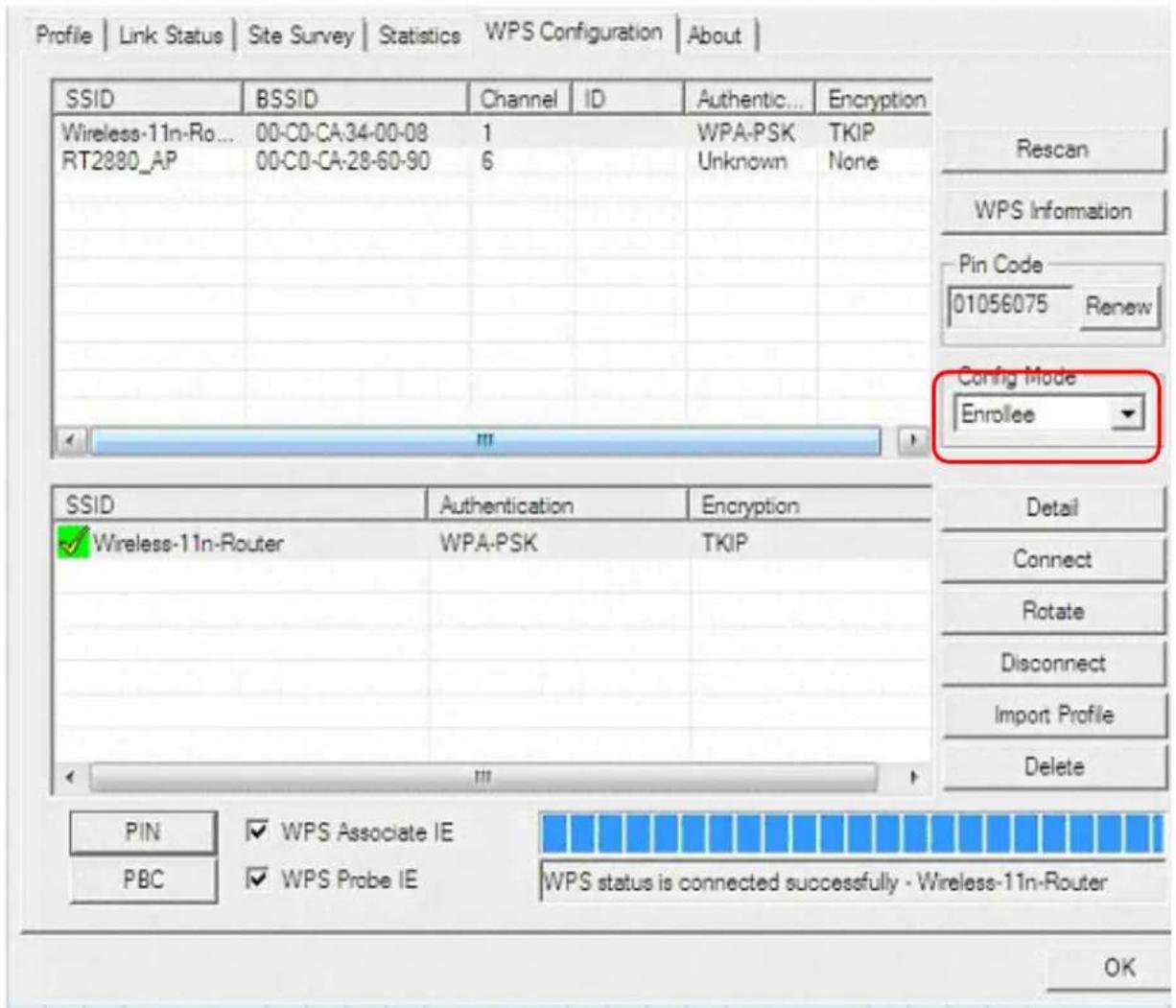
• Procedure to use PIN / PBC method:
a. PIN Method:
Step 1: Choose "Config mode" as enrollee
Step 2: The registrar enters the pin code generated by station.
Step 3: Both the enrollee and registrar push the "PIN" button.
b. PBC Method (AP should support PBC):
Step 1: Choose "Config mode" as enrollee
Step 2: Both the enrollee and registrar push the "PBC" button within 2 second.
- Manage WPS profiles:
a. WPS profile detail information:
Selecting a profile then clicking the "Detail" button brings up the WPS profile detail information dialog.
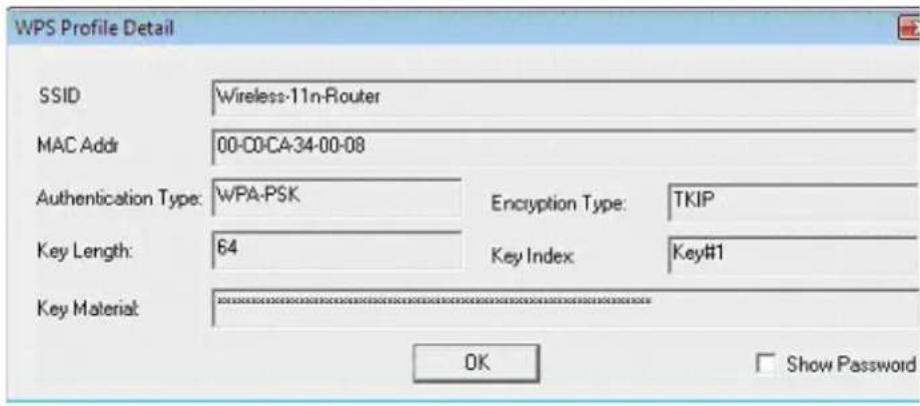
b. Connect with WPS profile:
Clicking the "Connect" button to connect to AP with the selected WPS profile.
c. Rotate WPS profiles:
If there are more than two WPS profiles, clicking the "Rotate" button will rotate to next profile and connect to AP with this profile. If the connection can't be made successfully, station will perform the WPS profile rotation repeatedly.
d. Disconnect from WPS AP:
Clicking the "Disconnect" button will stop the WPS connection.
e. Import profile:
Clicking the "Import Profile" button will import the WPS profiles.
f. Delete WPS profile:
Clicking the "Delete" button will delete the selected WPS profile.
Act as a registrar
A WPS registrar can configure AP by PIN method or PBC method. The profile which the user uses to configure AP is listed in the lower frame.
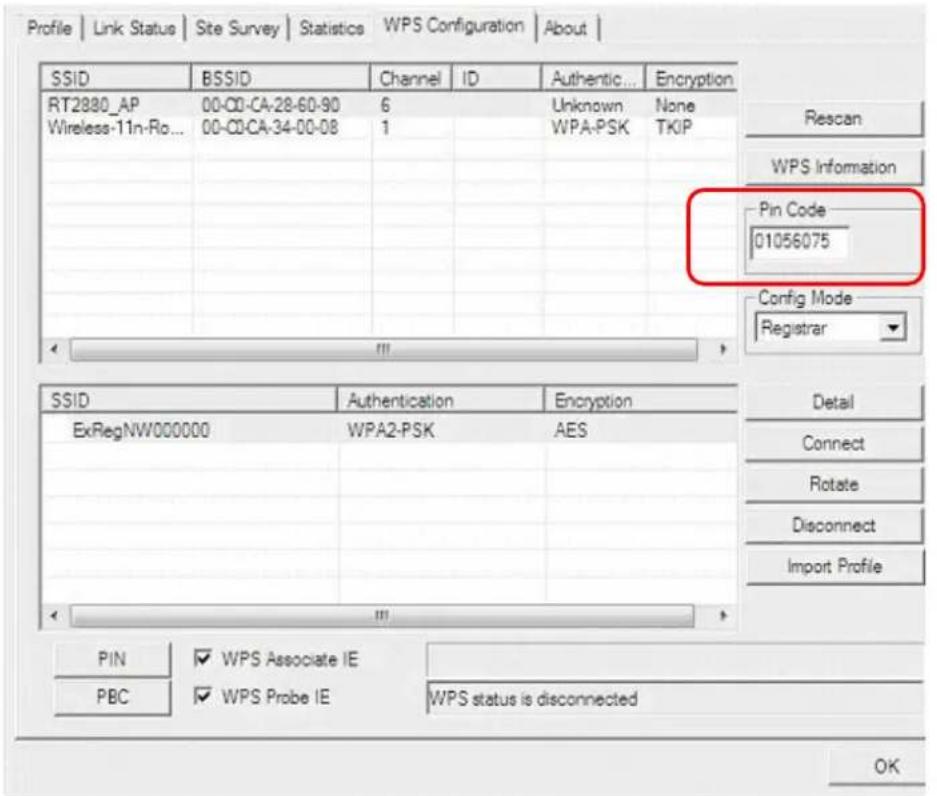
• Procedure to use PIN / PBC method:
a. PIN Method:
Step 1: Choose "Config mode" as registrar.
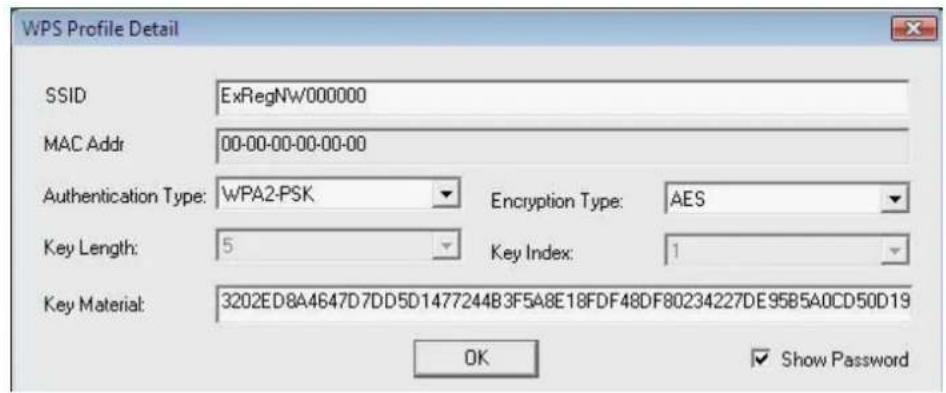
Step 2: Click "Detail" button to bring up WPS profile setting dialog and edit the profile.
Step 3: Enter the pin code which is generated by enrollee.
Step 4: Select the AP which is going to be configured in the upper frame.
Step 5: Both the enrollee and registrar click the "PIN" button.
b. PBC Method (AP should support PBC):
Step 1: Choose "Config mode" as registrar.
Step 2: Click "Detail" button to bring up WPS profile setting dialog and edit the profile.
Step 3: Select the AP which is going to be configured in the upper frame.
Step 4: Both the enrollee and registrar click the "PBC" button within 2 second.
AP mode management guide for Windows 2000/XP/Vista
This adapter can be configured as AP mode. To use this adapter as an AP, please right click the icon 📄 on system tray and select Switch to AP mode. Please refer to the following introduction and information about this AP-mode utility.
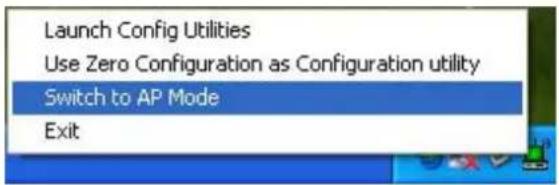
Note: In windows XP, it provides WPA support at hotfix Q815485. However; you have to make sure that hotfix Q815485 (require XP SP1 installed) has been installed in your system before you can start using WPA features. You can check the installation of hotfix in add/remove software page under control panel.
Config
This page provides overall configuration to this adapter. Please find the following items for identification to each field.
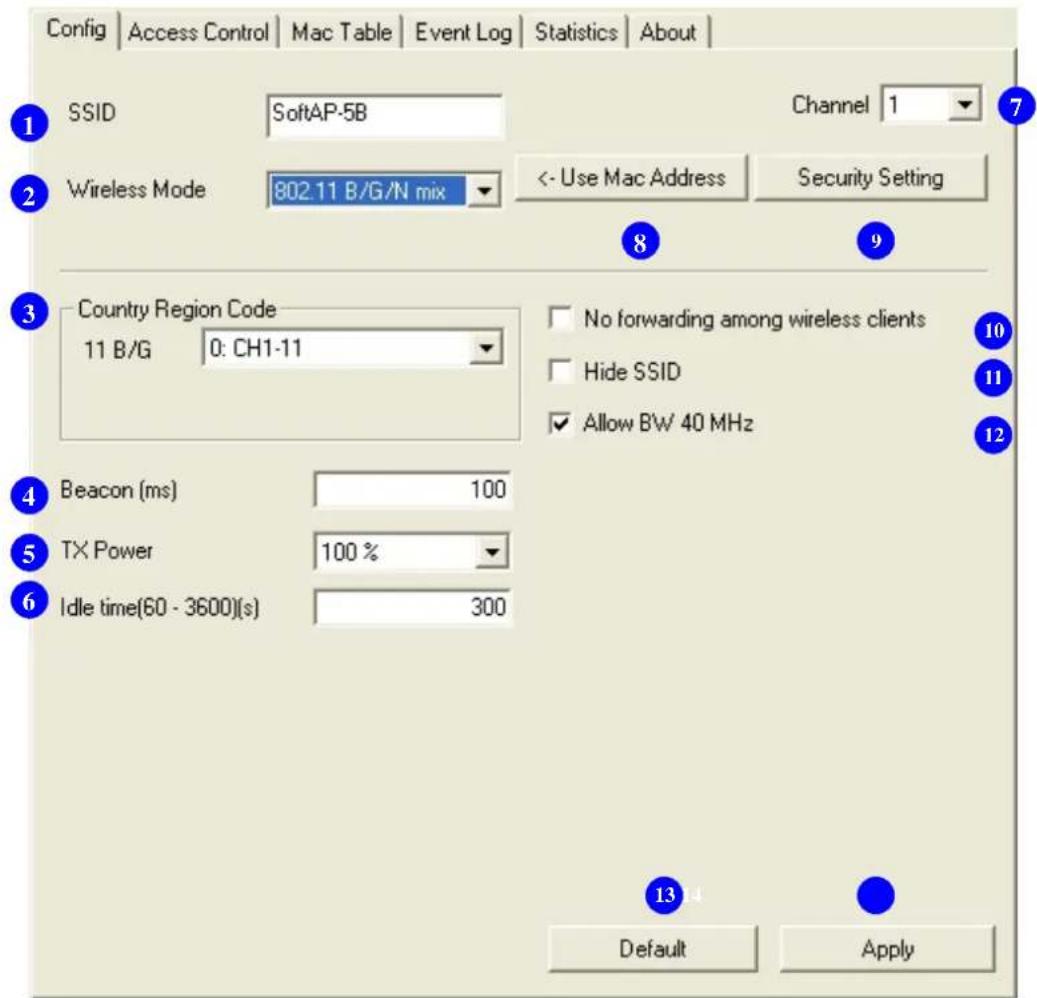
- SSI D: AP name of user type. User also can select [Use Mac Address] to display it.
- Wireless Mode: Select wireless mode. 802.11B only, 802.11G only and 802.11 B/G/N mix mode are supported.
Note: Wireless mode is not support for Vista. - Country Region Code: eight countries to choose. Country channel list:
Note: Country Region code is not support for Vista. - Beacon (ms): The time between two beacons. System default is 100 ms.
- TX Power: Manually force the AP transmits power. System default is 100%.
- Idle Time: Manually force the Idle Time using selected value. Default is 300.
- Channel: Manually force the AP using the channel. System default is channel 1.
- Use Mac Address: Use MAC address of used wireless card to be AP name. System default is APX (X is last number of Mac Address).
- Security Setting: Authentication mode and encryption algorithm used within the AP. System default is no authentication and encryption.
- No forwarding among wireless clients: No beacon among wireless client, clients can share information each other. System default is no forwarding.
- Hide SSID: Prevent this AP from recognized in wireless network. This is disabled as default.
- Allow BW40 MHz: Allow BW40 MHz capability.
- Default: Use system default value.
- Apply: Apply the above changes.
Security Setting
This page pops up after clicking the Security Setting button. Please follow the instructions below:
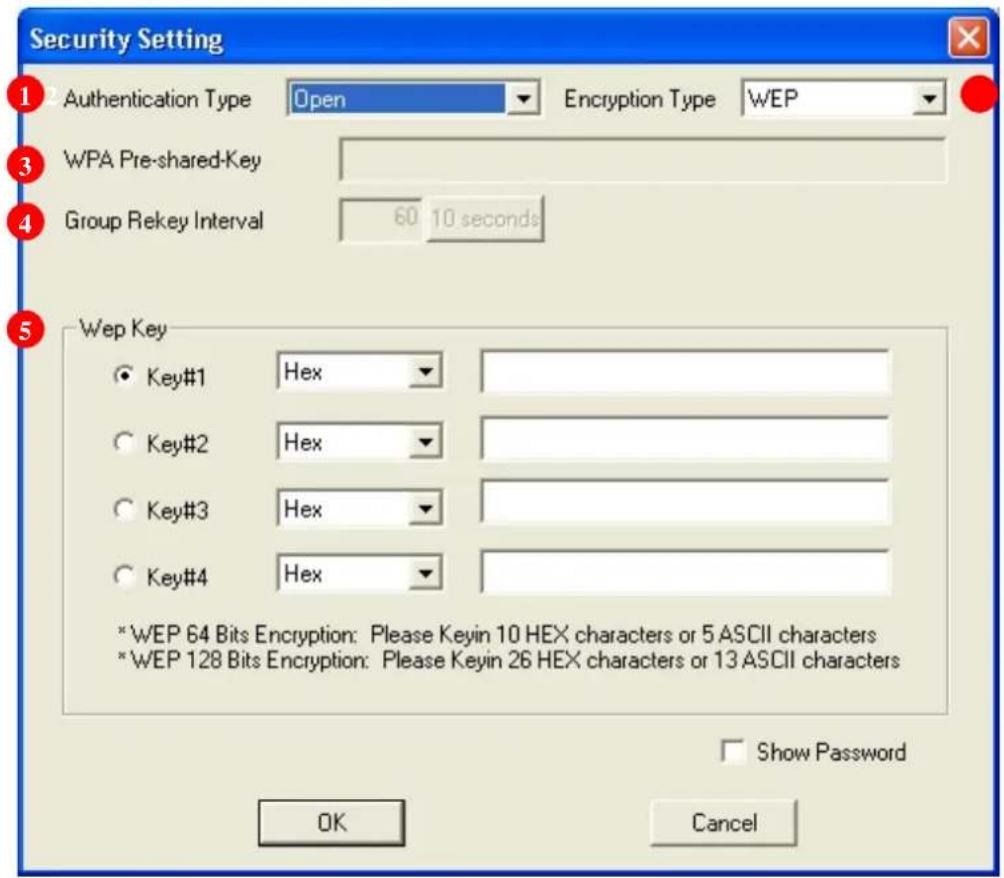
- Authentication Type: Select to be open or WPA-PSK system.
- Encryption Type: Select an encryption type from the drop list.
- WPA Pre-shared Key: A shared string between AP and STA. For WPA-PSK authentication mode, this field must be filled with character longer than 8 and less than 32 lengths.
- Group Rekey Interval: Only valid when using WPA-PSK encryption algorithm. The key will change compliance with seconds or beacon that user set.
- WEP Key: Only valid when using WEP encryption algorithm. The key must match the key on AP. There are several formats to enter the keys.
a. Hexadecimal (40bits): 10 Hex characters.
b. Hexadecimal (128bits): 32Hex characters.
c. ASCII (40bits): 5 ASCII characters.
d. ASCII (128bits): 13 ASCII characters.
Access Control
This function filters users to use this device by designating MAC address. Please refer to the following chart for introduction.
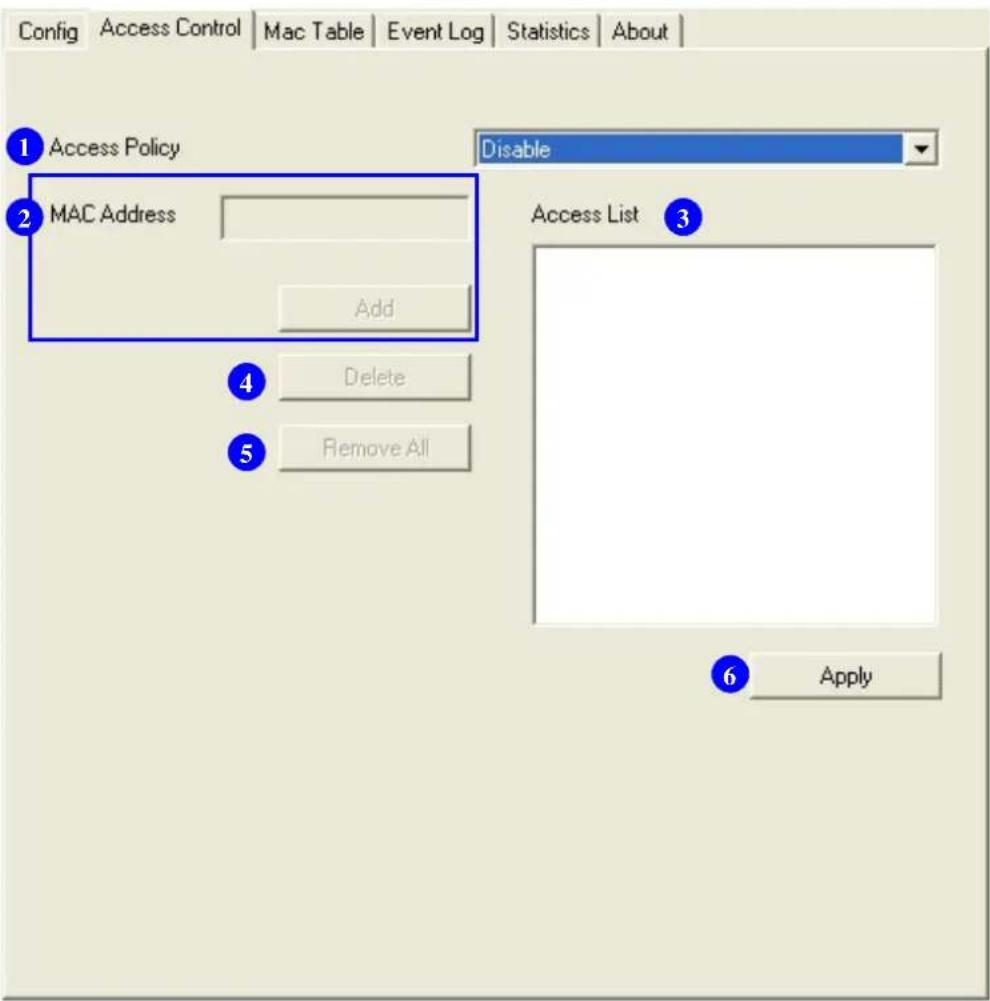
- Access Policy: Choose a method to process access control from the drop list to determine the MAC addresses that you designated are allowed to access the AP or not.
- MAC Address: Add allowed (or denied) MAC addresses to the MAC address list.
- Access List: Display all Mac Addresses that you designated.
- Delete: Delete Mac addresses that you selected.
- Remove All: Remove all Mac address in [Access List].
- Apply: Apply changes.
MAC Table
This page displays the station detail information of current connection.
Config | Access Control Mac Table | Event Log | Statistics | About
| MAC Address | AID | Power Saving Mode | Status |
| Items Information | |
| MAC Address | The station MAC address of current connection. |
| AID Raise value by | current connection. |
| Power Saving Mode | Check if the connected station supports power saving. |
| Status The connection status. | |
Event Log
Record Soft AP all event time and message.
Config | Access Control | Mac Table Event Log | Statistics | About
| Event Time (yy/mm/dd- hh:mm:ss) | Message |
| 2007 / 11 / 22 - 14 : 34 : 32 | Restart Access Point |
| 2007 / 11 / 22 - 14 : 34 : 33 | Restart Access Point |
| 2007 / 11 / 22 - 14 : 35 : 14 | Restart Access Point |
Clear
| Items Information | |
| Event Time (yy/ mm/ dd-hh:mm:ss) | Record event time. |
| Message All event messages. |
Statistics
Statistics page displays the detail counter information based on 802.11 MIB counters.
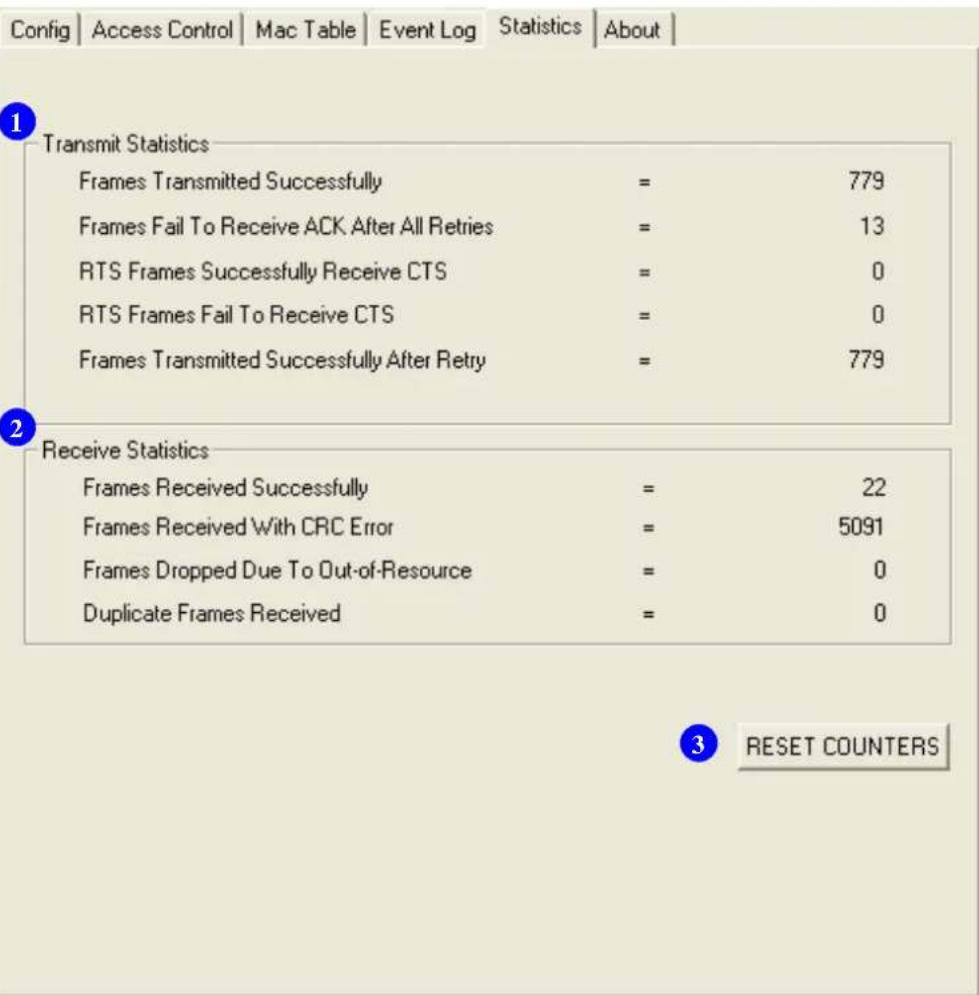
Transmit Statistics
| Items Information | |
| Frames Transmitted Successfully | Frames that successfully sent. |
| Frames Fail To Receive ACK After All Retries | Frames that failed to transmit after hitting retry limit. |
| RTS Frames Successfully Receive CTS | Counts of CTS that successfully received after sending RTS frame. |
| RTS Frames Fail To Receive CTS | Counts of CTS that fail to be received after sending RTS frame. |
| Frames Retransmitted Successfully | Successfully retransmitted frames numbers. |
- Receive Statistics
| Items Information | |
| Frames Received Successfully Frames received successfully. | |
| Frames Received With CRC Error | Frames received with CRC error. |
| Frames Dropped Due To Out-of-Resource | Frames dropped due to resource issue. |
| Duplicate Frames Received Duplicate received frames. | |
- Reset Counters: Reset counters to zero.