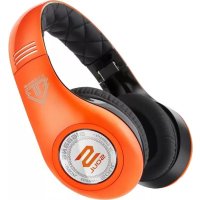
Run Free - Headphones Soul - Free user manual and instructions
Find the device manual for free Run Free Soul in PDF.


| Product Type | Wireless Bluetooth Headphones |
| Model | Run Free |
| Brand | Soul |
| Color Options | Black, White, Blue |
| Driver Size | 40 mm |
| Frequency Response | 20 Hz - 20 kHz |
| Impedance | 32 Ω |
| Bluetooth Version | 5.0 |
| Wireless Range | Up to 10 m (33 ft) |
| Battery Type | Lithium-ion rechargeable |
| Battery Life | Up to 10 hours |
| Charging Time | Approximately 2 hours |
| Charging Port | Micro USB |
| Weight | 200 g (7 oz) |
| Dimensions | 15 x 10 x 5 cm (6 x 4 x 2 in) |
| Water Resistance | IPX4 (sweat and splash-proof) |
| Control Type | On-ear buttons (volume, track, call) |
| Microphone | Built-in with noise reduction |
| Carrying Case | Included |
| Compatibility | iOS, Android, Windows, Mac |
| Cleaning Instructions | Wipe with a soft dry cloth; do not use liquid cleaners |
| Safety Notes | Do not disassemble; avoid extreme temperatures; keep away from children |
| Spare Parts Available | Ear cushions, charging cable |
| Warranty | 1 year limited |
Frequently Asked Questions - Run Free Soul
User questions about Run Free Soul
0 question about this device. Answer the ones you know or ask your own.
Ask a new question about this device
Download the instructions for your Headphones in PDF format for free! Find your manual Run Free - Soul and take your electronic device back in hand. On this page are published all the documents necessary for the use of your device. Run Free by Soul.
USER MANUAL Run Free Soul
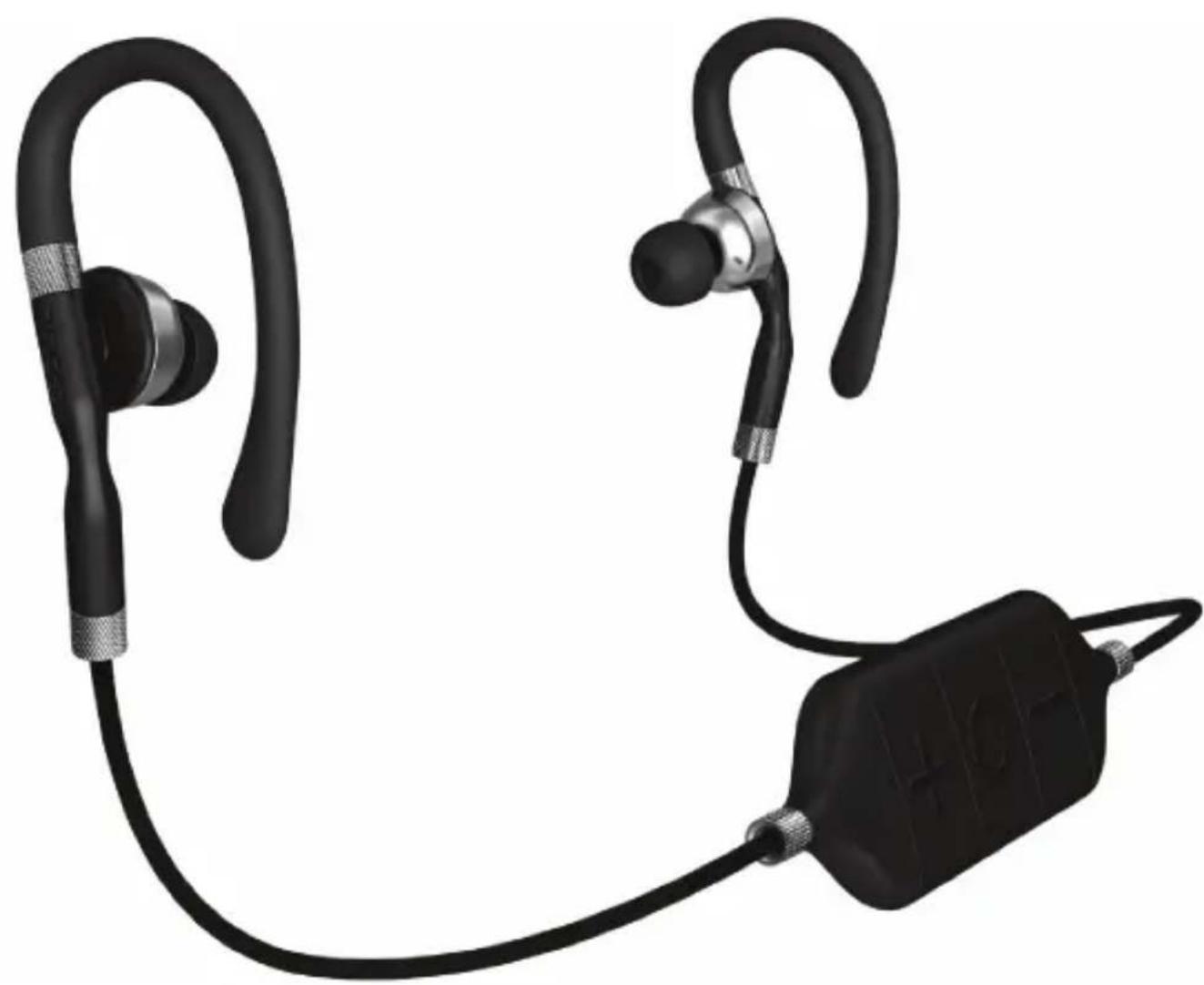
Bluetooth® Headphones
natural_image
Black and white photo of a pair of earbuds with earphones and a black HGT-branded charging device (no text or symbols visible)Compliance with FCC rules (U.S.A., only)
This device complies with Part 15 of the FCC rules. Operation is subject to the following two conditions: (1) This device may not cause harmful interference, and (2) this device must accept any interference received, including interference that may cause undesired operation.
NOTICE
This equipment has been tested and found to comply with the limits for a Class B digital device, pursuant to Part 15 of the FCC rules. These limits are designed to provide reasonable protection against harmful interference in a residential installation. This equipment generates, uses, and can radiate radio frequency energy and, if not installed and used in accordance with the instructions, may cause harmful interference to radio communications. However, this is no guarantee that interference will not occur in a particular installation. If this equipment does cause harmful interference to radio or television reception, which can be determined by turning the equipment off and on, you are encouraged to try to correct the interference by one or more of the following measures:
- Reorient or relocate the receiving antenna.
- Increase the separation between the equipment and receiver.
- Consult the dealer or an experienced radio/TV technician for help.
- Connect the equipment to an outlet on a different circuit than the one to which the receiver is connected.
FCC WARNING
- Changes or modifications not expressly approved by the party responsible for compliance could void the user's authority to operate this equipment.
- Proper connections must be used for connection to a host computer and/or peripherals in order to meet FCC emission limits.

products with CE marking comply with the EMC Directive (1999/5/EC). The complete Declaration of Conformity can be found at www.soulelectronics.com.
Safety Information
Please read this owner's and product guide
Reading this guide will ensure proper and safe use of your Soul® headphones. Follow all operation guidelines and adhere to all safety warnings and cautions.
Warning
Use your headphones responsibly. Exposure to excessively loud noise can cause Noise Induced Hearing Loss (NIHL). “The loudness of sound is measured in units called decibels. For example, the humming of a refrigerator is 40 decibels, normal conversation is approximately 60 decibels, and city traffic noise can be 85 decibels. Sources of noise that can cause NIHL include motorcycles, firecrackers, and small firearms, all emitting sounds from 120 to 150 decibels. Long or repeated exposure to sounds at or above 85 decibels can cause hearing loss. The louder the sound, the shorter the time period before NIHL can occur. Sounds of less than 75 decibels, even after long exposure, are unlikely to cause hearing loss.”
Source: http://www.drf.org. Additional information about preventing hearing damage may be found from The Consumer Electronics Association http://www.ce.org. World Health Organization http://www.who.int, Environmental Protection Agency http://epa.gov
Before plugging your Soul® headphones into your phone or multimedia device, make sure that the volume has been set to zero (0) and the power is off. Once you have turned on the device, increase the volume to a safe and comfortable level. Putting on your headphones and turning on at full volume may cause damage to your hearing.
Keep headphones out of reach of small children. These headphones are not a toy and could be harmful to small children.
Below is a chart to help you better understand the causes and effects of different sound levels. The noise levels are rated in dB (decibels)
| Environmental Noise | Noise Level dB | Possible Effects of Exposure |
| Quiet Library 30 dB No Effect - Normal | ||
| Normal Conversation | 60 dB Comfortable Hearing | |
| City Traffic (inside car) damage begins. OSHA recommends no more than 8 hours of exposure to sound levels of 90 dB daily. | 85 dB Maximum Level before hearing | |
| Power Saw at 3' to prolonged unprotected exposure. | 110 dB Permanent Hearing Loss likely due | |
| Jet Engine at 100' 120 to 140 dB At experience pain that can lead to permanent hearing loss even during short unprotected periods. | 125 dB the human ear begins to | |
Sources: http://www.drf.org, The Consumer Electronics Association http://www.ce.org. World Health Organization http://www.who.int, Environmental Protection Agency http://epa.gov, and the Occupational Safety & Health Organization http://OSHA.gov
Caution
DO NOT operate any motor vehicle or heavy machinery while listening to or wearing your headphones. Doing so is not only dangerous to you or others but illegal in many states. Listening or wearing headphones reduces your ability to hear sounds around you such as emergency vehicle sirens or the horn from another motorist.
It is not recommended to use headphones when cycling, running or walking in heavy traffic areas where your full attention is necessary for your safety. Always use your headphones responsibly in every situation.
Safety Instructions
Read all instructions before using your headphones.
Always keep the instructions for future reference.
Adhere to all warnings, cautions and suggestions in this owner's and product guide. Keep your headphones dry and prevent exposure to moisture or water.
Headphone Overview with Bluetooth® Dongle
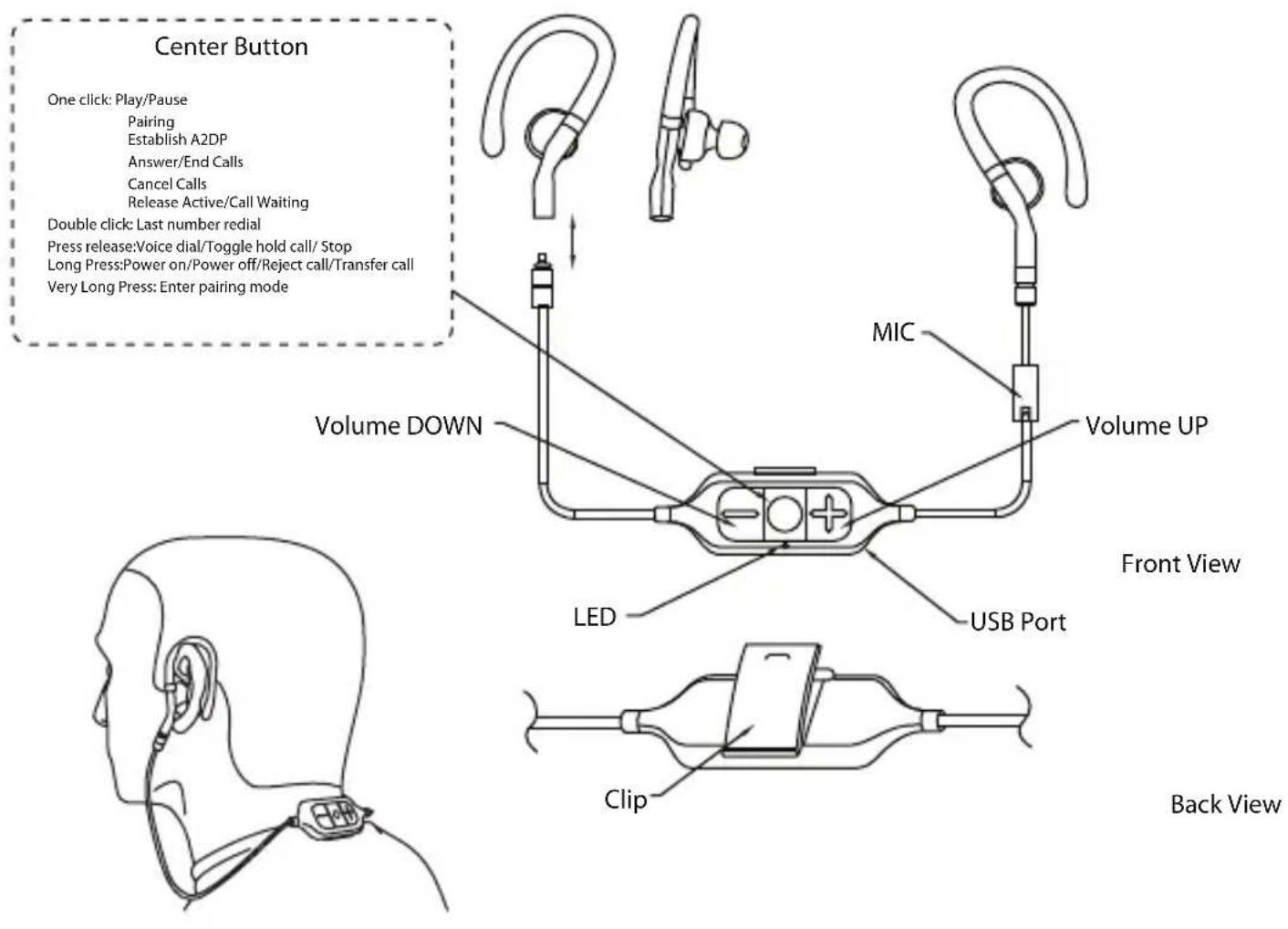
(Figure 1)
Headphone Overview with Detachable Audio Cable and Apple® In-Line Controller
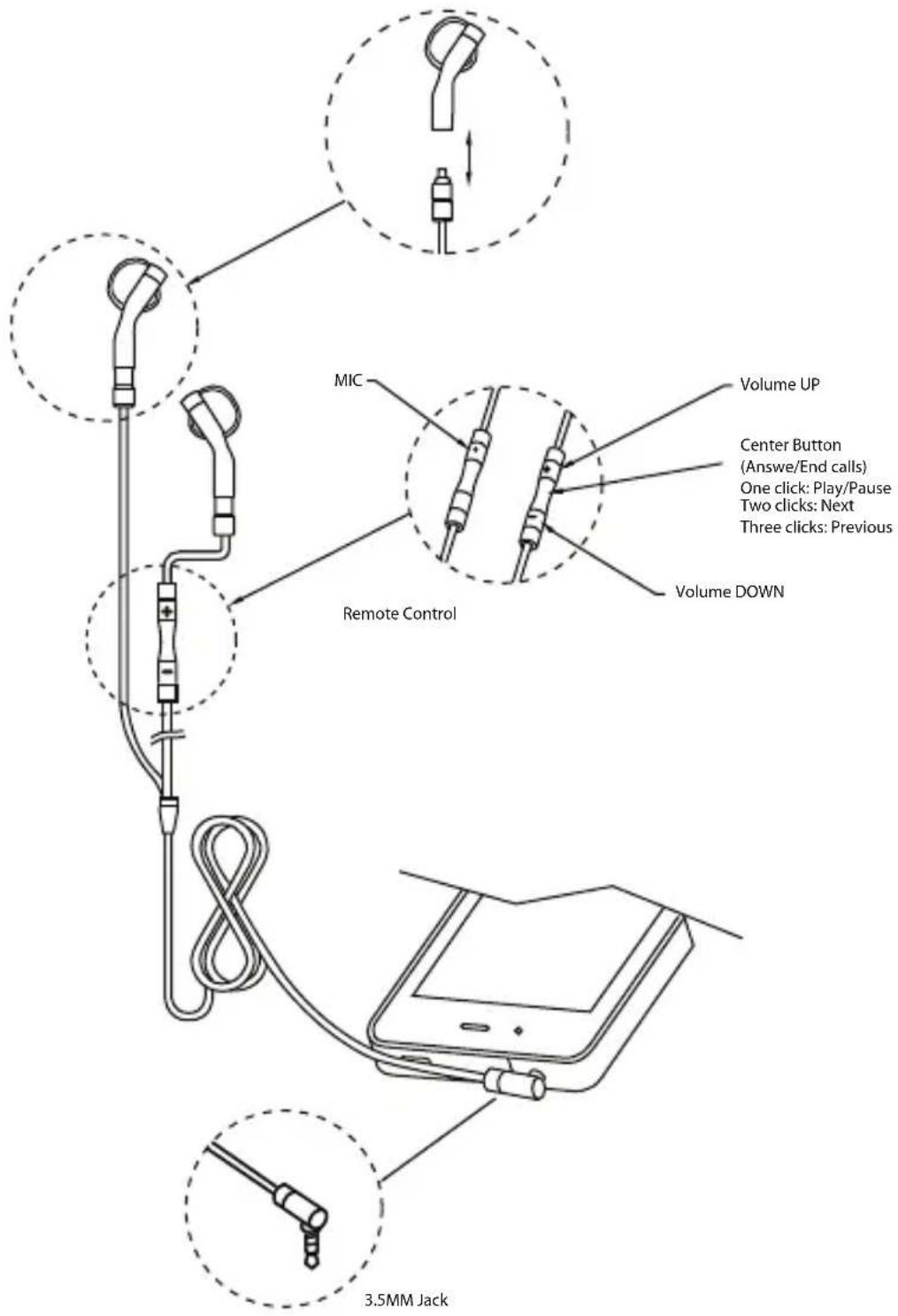
(Figure 2)
Package Contents and Accessories
- Detachable Bluetooth® Dongle
- Detachable Audio Cable with Apple® In-Line Controller
- USB Charging Cable
- Ear Tips (Small, Medium and Large)
- Ear Hooks
- Carry Case
Using Your Soul® "Run Free" Bluetooth® Headphones
Carefully remove your Soul ^® headphones and accessories from the protective packaging. Make sure that all parts listed under Package Contents are inside the box. If you are missing any parts please contact our customer support help line (800) 566-7685.
Proper Ear tip Selection
Your Soul® headphones include three pairs of ear tips. One pair is already installed on your headphones and there are two additional pairs inside the packaging. Proper fit of headphones in your ears is essential for the best possible sound performance and comfort. Improper fit will not allow you to take full advantage of the sound quality. By selecting the correct set of ear tips you will create a proper seal for sound isolation from external noise. You will also be able to fully benefit from increased bass response and overall better sound
Ear tip Replacement
Try the fit of the headphones with the tips already installed. If the headphones feel too loose, then replace the tips with the slightly larger tips provided. If they feel too tight replace with the smaller tips provided.
- Firmly grip the portion of the right headphone with one hand.
- Gently pull the ear tip from the right headphone. You may need to rotate back and forth for easy removal and to prevent damage to the existing tips. Repeat procedure for left headphone.
- While holding the right headphone, gently insert the new ear tip onto the ear tip tube until it is firmly secured to the headphone. Repeat procedure for left headphone. Once again you may need to use a rotating back and forth motion to insert the ear tips on the headphone ear tip tube.
Ear tip Maintenance
It is recommended that you clean your ear tips on a regular basis. This will maintain the sound quality of your headphones so you can continue to enjoy your music and benefit from the full sound range. It is also important to clean your ear tips to maintain safe use. Gently remove the ear tips from the headphones. Wash with warm water and mild soap. Remove all dirt and earwax buildup. Rinse thoroughly with warm water. Dry using a soft cloth and let dry fully before placing back on your headphones.
Caution
Never use any harsh cleaning agents.
Never clean ear tips while still on headphones. Water may damage the circuitry inside your headphones causing permanent damage.
Do not place the headphones in your ear if they are still wet.
Selecting Method for Using Your Soul® Headphones
Now that you have selected the proper ear tips it is time to plug in your headphones and begin enjoying your music the Soul® way. There are two ways to use your new "Run Free" headphones. The first is with the detachable wireless Bluetooth® Dongle and the second is with the straight audio cable with the Apple® in-line controller.
Using the Wireless Bluetooth® Dongle
Connect the ear buds (Figure 1) to the Bluetooth ^® dongle. Make sure that the connections have snapped in firmly. Next connect the ear hooks onto top portion of the ear buds. Note: The ear hooks are flexible and may be molded for custom fit of your ears.
Charging the Battery
Before using your wireless Bluetooth® device for the first time, you must charge the built in Lithium Ion rechargeable battery. It takes approximately 2 hours for a full charge. A fully charged battery should last approximately 6 hours of continuous use at moderate listening levels and up to 120 hours in standby mode.
- Lift up the USB protective rubber flap on your Bluetooth® dongle.
- Plug in the small end of USB cable into the port located on the Bluetooth® dongle (Figure 3). Plug in the opposite end of the USB cable into your computer. You may also use an optional USB travel AC adapter to charge your Bluetooth® device.
- During the charging process the LED indicator on your Bluetooth® device will light red continuously. When the charge is completed it will blink red intermittently indicating that it is now on a trickle charge. Note: When the battery is low it will also blink red intermittently.
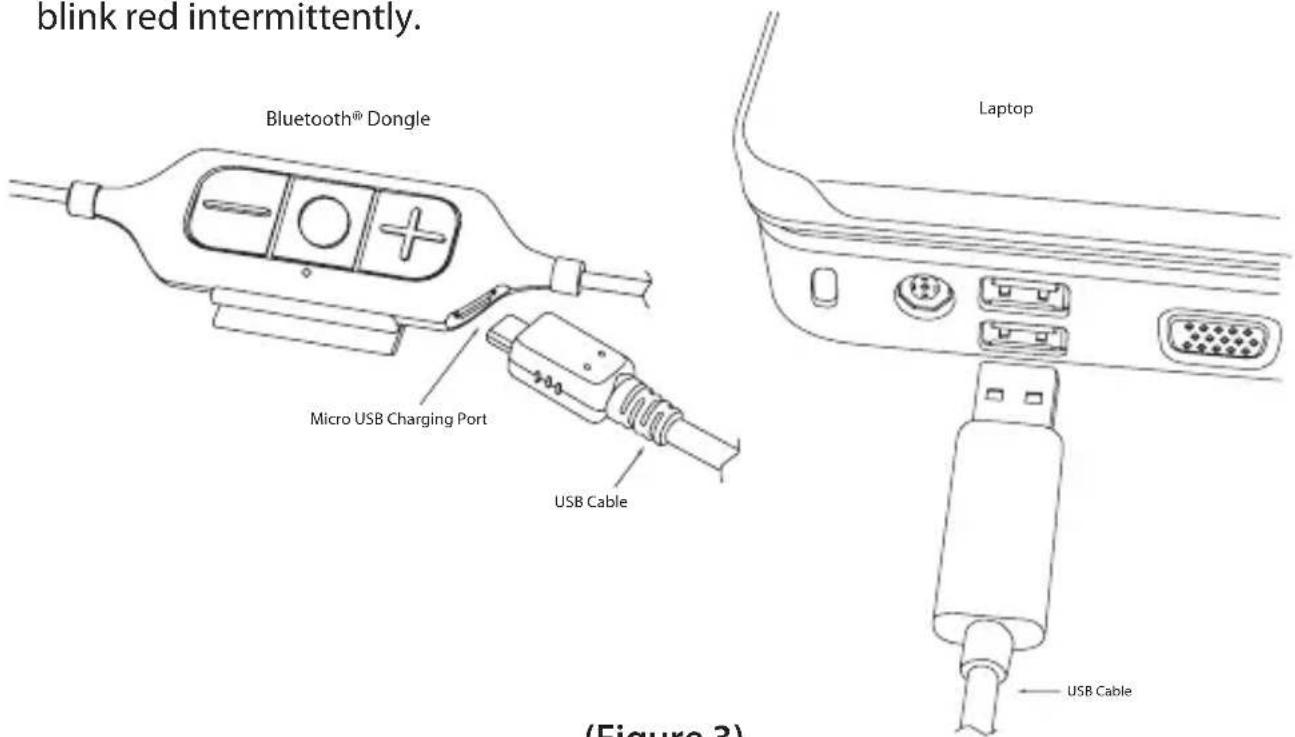
(Figure 3)
Pairing Your Bluetooth® Headphone with Phone or Media Player
Note: In order to listen to music or receive and make calls using the wireless Bluetooth® feature of your Soul® headphones, you will need to follow the steps below to pair (link) the two devices. Your Phone or media player must be Bluetooth® capable in order to link wirelessly to the "Run Free" Bluetooth® feature.
- First make sure that your Soul® headphones are off and turn off any Bluetooth® devices that may have been previously paired with your headphones.
- Turn on the Bluetooth® feature on your phone or media device.
- Press and hold the Power/Pairing button "O" on your Bluetooth® dongle until the LED light indicator flashes white and red. This will take approximately 4 to 6 seconds.
- Place your phone or media player in Bluetooth® search or scan mode.
- Select "Run Free" from the list of devices. After selection your phone or media device will pair with your headphones. Once a connection has been achieved the LED light indicator will flash white once every 2 seconds confirming the connection between the two devices. You will also hear two tones during the pairing process.
- If prompted for a "passcode" or "passkey" enter "0000".
Note: Your "Run Free" Bluetooth® headphones have an approximate operational range of 33 Feet (10 Meters) from your music or phone device.
You are now ready to listen to music on your media player or phone as well as make and answer calls on your phone. Below is a list of functions associated with the three buttons on your Bluetooth® dongle.
"Run Free" Bluetooth® Phone Control Functions
| Function | Button | Action in Seconds | LED Indicator Light | Tone |
| Power On O you hear a long tone | Press for 4 seconds | inds or until then repeats | twice | Single long tone |
| Power Off O you hear a long tone | Press for 4 seconds | inds or until Flashes white | then off | Single long tone |
| Answer Incoming Call O red once connected when connected | Press when call is - short | for 1 second or less during ring | Twilight sound | |
| Reject Incoming Call O | Press | for 3 to 5 seconds | Single long tone | |
| End Active Call | O | Press for 1 second or less | Flashes red once | Single short tone |
| Cancel Outgoing Call | O | Press for 1 second or less | Flashes red once | Single short tone |
| Last Number Redial O | Press | twice for 1 second ea. | Flashes white twice | Single Long Tone |
| Call Waiting* O and release | Press for 2 to 3 seconds | None | None | |
| Mute On/Off same time for 2 seconds mute and un-mute | + and - | Press both + and – at the to every 2 seconds | Flashes red once | Dual long tones |
| Placing Caller on Hold On/Off and release | O release | Press for 2 to 3 seconds | None | None |
| Voice Dialing** and release | O | Press for 2 to 3 seconds | None | Single short tone |
| Volume Up volume increase | + | Press for 1 second per | None | None |
| Volume Down volume decrease | - | Press for 1 second per | None | None |
*When answering an incoming call during an active call press the "O" button for 2 to 3 seconds and release. The first caller will be placed on hold and the new caller will become the active call. To switch back and forth between callers, press the "O" button for 2 to 3 seconds. To end the call with either caller press the "O" button for 1 second or less.
** Voice dialing may not be supported by all phone devices. This may vary depending on the Bluetooth® mobile phone
"Run Free" Bluetooth® Media Player Control Functions
| Function | Button | Action in Seconds | LED Indicator | Light | Tone | |
| Power On you hear a long tone | O | Press for 4 seconds or until | Flashes white twice then repeats | Single long tone | ||
| Power Off you hear a long tone | O | Press for 4 seconds or until | Flashes white then off | Single long tone | ||
| Play | O | Press for 1 second or less | Flashes white slowly | None | ||
| Pause O | Press for 1 second or less | Flashes white every 2 seconds | None | |||
| Stop | O | Press for 1 to 3 seconds | Flashes white slowly | None | ||
| Next Track | + | Press for 3 to 5 seconds | None | None | ||
| Previous Track | - | Press for 3 to 5 seconds | None | None | ||
| Volume Up volume increase | + | Press for 1 second per | None | None | ||
| Volume Down volume decrease | - | Press for 1 second per | None | None | ||
Note: If you receive a call while listening to music the song will pause. Once you have completed your call the music will resume automatically.
Using the Straight Audio Cable with Apple® In-Line Controller
Connect the ear buds (Figure 2) to the audio cables. Make sure that the connections have snapped in firmly. Next connect the ear hooks onto top portion of the ear buds.
- Place headphones in your ears. Note: the headphones have an "L" for Left and "R" for Right indicators on the inside bottom portion of your headphones closest to the audio cable. It is very important to insert the headphones correctly to get full sound benefit and enjoy your listening experience.
- Make sure that the volume is all the way down to zero.
- Turn your device off.
- Plug the 1/8" (3.5mm) plug into the headphone jack of your phone or media player.
- Power Up your device.
- Select the music or movie you wish to hear or view.
- Slowly increase the volume level until you find the safe and appropriate listening level for you.
- Adjust the cord manager up and down until desired fit.
Caution
Use your headphones responsibly. Exposure to excessively loud noise can cause Noise Induced Hearing Loss (NIHL).
Never put headphones on when unit is at full volume as it may cause permanent damage.
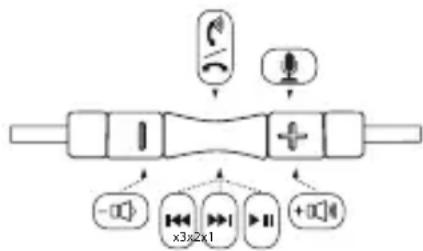
Apple® In-Line Controller Function and Diagram
flowchart
graph TD
    A["Input Signal"] --> B["Audio Receiver"]
    C["Output Signal"] --> D["Speaker Output"]
    E["Speaker Signal"] --> F["+"]
    G["Speaker Signal"] --> H["-"]
    I["Speaker Signal"] --> J["x3x2x1"]
    K["Speaker Signal"] --> L["+"]
Controlling Phone Functions
- Answer/Hang Up – During an incoming call press and release the center button to answer the call. Once you have completed your call press and release the center but again to hang up the phone.
- Call Rejection – If you do not want to answer an incoming call you can hold the center button for approximately two seconds. You will hear two beeps once you release the button that indicates the call was rejected.
- Call Waiting – During a call in progress you may answer another incoming call by pressing the center button. This will place the existing call on hold while you answer the incoming call. If you want to switch to the original call press the center button again. That will place the second caller on hold while you go back to your original call. You may repeat again to go back to second caller.
- Volume Control - When you want to increase the volume of your iPhone® press the plus button (+) on you Apple® controller. Note: Make sure to increase volume slowly to prevent damage to your hearing. When you want to decrease the volume on your iPhone press the minus button (-) on your controller.
Controlling Music or Movie Functions
-
Volume Control – When you want to increase the volume of your iPhone ^® , iPod ^® or iPad ^® press plus button (+) on you Apple ^® controller. Note: Make sure to increase volume slowly to prevent damage to your hearing. When you want to decrease the volume press the minus button (-) on your controller.
-
Play or Pause – To play a song or video press and release the center button. To pause press and release the center button during song or movie. To resume again press and release center button.
-
Skip – To skip forward to the next song or chapter in a movie quickly press and release the center button twice. To return to the previous song or chapter in a movie quickly press and release the center button three times.
-
Scan – To scan forward during a song or movie press and release the center button then immediately press and hold the center button again. This will scan forward. Release the button once you have reached the point in the song or movie you are looking for. To scan backwards during a song or movie press and release the center button twice then immediately press and hold the center button again. Release the button once you have returned to the portion of the song or movie you are looking for.
Note: Not all functions may work on all models. Functionality will be determined by Apple® model.
Apple® Controller Compatibility Guide
The following Apple® models should have full functionality of the controller. iPhone 4S, iPhone 4, and iPhone 3Gs, iPad Wi-Fi and iPad 3G, iPod Touch 5th Generation, iPod Touch 4th Generation, iPod Touch 3rd Generation and iPod Touch 2nd Generation, iPod Nano 5th Generation and iPod Nano 4th Generation. For none Apple® Android® or Blackberry® based models the controller functions may not fully work.
Disconnecting Your Soul® Headphones
Once you have finished using your Soul® headphones disconnect from your device. Firmly hold your media or phone device. Pull the plug from the device by holding the plug. Store your headphones in the protective case to keep safe and clean. Always store the headphones in the case to prevent damage when not in use.
Trouble Shooting Guide during Bluetooth® Operation or Straight Audio Cable
Problem Solution
No Sound Check plugs; make sure they are plugged in all the way.
Check volume level, increase volume if necessary.
Check power, make sure device is on.
Check Apple ^® in-line controller or Bluetooth ^® dongle.
Press center button to insure it is not on pause.
Check pairing connection with your phone or media player.
Low Volume Level Make sure that the earphones create a proper seal. If
necessary replace the ear tips for another size until a proper seal has been created.
Increase the volume level on your device.
Only One Side Has Volume Make sure that the plug has been inserted all the way into your device headphone jack.
Distorted Sound Your Bluetooth® headphones operate on a 2.4 GHz
frequency band. Other devices such as a wireless LAN,
cordless phones, microwaves or other devices that operate
within the same frequency could be causing interference.
Move to an area further away from any of those devices.
Make sure that you are within range (33 feet/10 meters)
of the Bluetooth ^® device you are using.
Cannot Control the Music
Functions from my Run Free Not all Bluetooth® phones or media players support AVRCP
Controller Ensure that the Bluetooth ^® device paired with the "Run Free"
headphone supports AVRCP. If your device does
not you can control the functions directly from your
phone or media player.
Red LED Indicator Light
on Bluetooth
Dongle is Flashing Red If the LED indicator is flashing red during operation it means
Intermittently that the built in battery is weak and requires charging.
Customer Service Number: 1-800-566-7685 (USA Only)
Product Registration Website: http://www.soulelectronics.com
Note: You must register your product for warranty
1 YEAR LIMITED WARRANTY
SIGNEO USA, LLC ("Company") warrants to the original retail purchaser of this product that should the product or any part thereof is proven defective in material or workmanship within 1 Year from the date of original purchase, such defect will be repaired or replaced, at the Company's option, without charge for parts or labor.
To obtain replacement within the terms of this warranty, the product should be delivered, transportation prepaid, to the Dealer where purchased or to the Company, along with proof of date of purchase. Call 1-800-566-7685 to obtain information regarding the procedure for proper return of your product, if your Dealer does not honor the warranty. This warranty is valid in the USA only.
THIS WARRANTY DOES NOT APPLY TO ANY PRODUCT OR PART THEREOF WHICH HAS BEEN DAMAGED THROUGH ALTERATION, CLEANING, MAINTENANCE, MISHANDLING, MISUSE, NEGLECT, ACCIDENT, EXTERNAL CAUSES, IMPROPER INSTALLATION OR UNAUTHORIZED REPAIR. THIS WARRANTY ONLY APPLIES TO NONCOMMERCIAL USE OF THIS PRODUCT AND IS NOT TRANSFERABLE OR ASSIGNABLE.
THIS WARRANTY IS LIMITED, EXCLUSIVE AND IN LIEU OF ANY AND ALL OTHER WARRANTIES, EXPRESSED OR IMPLIED, INCLUDING WITHOUT LIMITATION THE IMPLIED WARRANTIES OF MERCHANTABILITY AND FITNESS FOR A PARTICULAR PURPOSE AND ANY OBLIGATION, LIABILITY, RIGHT, CLAIM OR REMEDY IN CONTRACT OR TORT, WHETHER OR NOT ARISING FROM THE COMPANY'S NEGLIGENCE, ACTUAL OR IMPUTED. NO PERSON OR REPRESENTATIVE IS AUTHORIZED TO ASSUME FOR THE COMPANY ANY OTHER LIABILITY IN CONNECTION WITH THE SALE OF THIS PRODUCT. IN NO EVENT SHALL COMPANY BE LIABLE FOR INDIRECT, INCIDENTAL, PUNITIVE OR CONSEQUENTIAL DAMAGES. THIS WARRANTY IS LIMITED TO THE REPAIR OR REPLACEMENT OF THE PRODUCT. IN NO EVENT SHALL THE COMPANY BE LIABLE FOR MORE THAN THE PURCHASE PRICE OF THE PRODUCT.
This warranty gives you specific legal rights and you may also have other rights which vary from state to state, so some of the above limitations or exclusions may not apply to you.
©Soul® Electronics

natural_image
Abstract black geometric logo design with stylized 'S' shape (no text or symbols)
©2012 Soul® Electronics
1025 Greenwood Blvd, Lake Mary, FL 32746
All trademarks are the property of their respective owners.
iPhone, iPod classic, iPod nano, and iPod touch are trademarks of Apple Inc., registered in the U.S. and other countries. iPad is a trademark of Apple Inc.
The Bluetooth word mark and logos are owned and registered trademarks of Bluetooth SIG, Inc. and any use of such marks by Soul Electronics is under license.
MADE IN CHINA
LITRUNFREE-1
VER.4/2012