
8FF2FPB - Digital photo frame PHILIPS - Free user manual and instructions
Find the device manual for free 8FF2FPB PHILIPS in PDF.


| Product Type | Digital Photo Frame |
| Brand | Philips |
| Model | 8FF2FPB |
| Screen Size | 8 inches |
| Resolution | 800 x 600 pixels |
| Display Type | LCD |
| Aspect Ratio | 4:3 |
| Brightness | 250 cd/m² |
| Contrast Ratio | 500:1 |
| Viewing Angle | 120° horizontal, 100° vertical |
| Internal Memory | 128 MB |
| Memory Card Support | SD, SDHC, MMC, Memory Stick |
| USB Port | USB 2.0 (for PC connection) |
| Built-in Clock | Yes, with calendar |
| Supported Image Formats | JPEG, BMP, PNG, GIF |
| Slide Show Modes | Single, multi, random, with transition effects |
| Power Source | AC 100-240V, 50/60Hz via adapter |
| Power Consumption | 5 W (typical), <1 W standby |
| Dimensions (WxHxD) | 224 x 182 x 35 mm |
| Weight | 550 g |
| Color | Black (front) / Dark gray (back) |
| Material | Plastic, glass screen |
| Cleaning Instructions | Wipe with a soft dry cloth; avoid liquids and abrasives. |
| Safety Warnings | Keep away from moisture, heat sources; use only supplied adapter. |
| Spare Parts Availability | Adapter and remote control available via Philips service. |
| Repairability | Repairs should be done by qualified personnel. |
| Warranty | 1 year limited warranty |
Frequently Asked Questions - 8FF2FPB PHILIPS
User questions about 8FF2FPB PHILIPS
0 question about this device. Answer the ones you know or ask your own.
Ask a new question about this device
Download the instructions for your Digital photo frame in PDF format for free! Find your manual 8FF2FPB - PHILIPS and take your electronic device back in hand. On this page are published all the documents necessary for the use of your device. 8FF2FPB by PHILIPS.
USER MANUAL 8FF2FPB PHILIPS
natural_image
White-framed digital display showing a smiling child holding an orange leaf, set against a blurred autumn background (no text or symbols visible)ENUser manuals 1
Content
Introduction
1. Important Information 3
1.1 Safety precautions and maintenance 3
1.2 Care of the PhotoFrame 3
1.3 Recycling 4
2. Your PhotoFrame 5
2.1 What's in the Box 5
2.2 Control Buttons and Menu Navigation 6
2.3 Connections 6
2.4 Product Highlights 7
3. Getting started 8
3.1 Placing the Product 8
3.2 Connecting to the Mains 8
3.3 Turning on your PhotoFrame 8
3.4 Initial Setup 8
4. Using your PhotoFrame 11
4.1 View Photos 11
4.2 Find a Photo 11
4.3 Copy Photos 12
4.4 Delete Photos using the PhotoFrame 13
5. Use More of your PhotoFrame 14
5.1 Menu Navigation 14
5.2 Photo Menu 14
6. Settings 18
6.1 Slideshow Sequence 18
6.2 Transition Effects 18
6.3 Frequency 19
6.4 Collage 20
6.5 Background Color 20
6.6 Brightness 21
6.7 Language 21
6.8 Memory Card 22
6.9 Timer Function (Auto On/Off) 22
6.10 Check the Status of your Photoframe 24
6.11 Rotate Function (Auto Tilt) 25
6.12 Beep On/Off 25
6.13 Key Help 26
7. Technical data 27
8. Frequently asked questions 28
9. Service and Warranty 29
Introduction
Philips digital PhotoFrame can be placed either vertically or horizontally to fit the photos on display. You can place it somewhere in a room for a continuous display by connecting it to the mains power supply.
1. Important
1.1 Safety precautions and maintenance
Read and follow these instructions when connecting and using your PhotoFrame:
- To protect your display from possible damage, do not put excessive pressure on the LCD panel. When moving your PhotoFrame, grasp the frame to lift; do not lift the it by placing your hand or fingers on the LCD panel.
- Unplug the PhotoFrame if you are not going to use it for an extensive period of time.
- Unplug the PhotoFrame if you need to clean it with a slightly damp cloth. The screen may be wiped with a dry cloth when the power is off. However, never use alcohol, solvents or ammonia-based liquids.
- Consult a service technician if the PhotoFrame does not operate normally when you have followed the instructions in this manual.
- The casing cover should be opened only by qualified service personnel.
- Keep the PhotoFrame out of direct sunlight and away from stoves or any other heat source.
-
Keep the PhotoFrame dry. To avoid electric shock, do not expose it to rain or excessive moisture.
-
When positioning the PhotoFrame, make sure the power plug and outlet are easily accessible.
- To avoid the risk of shock or permanent damage to the set, do not expose the PhotoFrame to rain or excessive moisture.
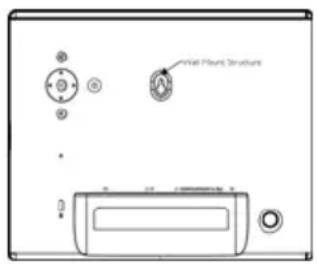
- For wall mounting, please use a 7.0*25*3.0mm screw and for best result, please screw over seven turns.
1.2 Care of the PhotoFrame
1 Do not drop
PhotoFrame is a complicated electronic device and cannot withstand shock from being dropped.
2 Do not expose to moisture
PhotoFrame is neither moisture proof nor moisture resistant. Exposing it to moisture or liquid of any kind will very likely damage your PhotoFrame.
3 Do not hit or scratch
The LCD panel of PhotoFrame is made of glass and is therefore sensitive to abnormal force and sharp edges.
4 Screen cleaning
Use only a dry soft cloth to clean your screen.
5 Keep the stand clear from cables
Make sure the stand of your PhotoFrame is clear from cables as cables could pull the stand out of PhotoFrame to the floor.
6 Temperature and humidity limitations
Operating temperature:
0^ 40^ (Celsius) / 32^ 104^ (Fahrenheit)
Humidity: 20% \~ 80%
1.3 Recycling
- The PhotoFrame uses materials that can be recycled. To minimize the amount of waste in the environment, check your area for companies that will recover used televisions for dismantling and collection of reusable materials, or contact your dealer for recycling tips.
- Please dispose of the carton and packing material through the proper waste disposal management in your area.
2. Your PhotoFrame
2. I What's in the box
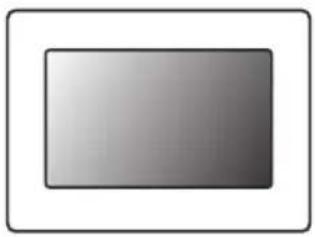
natural_image
Simple grayscale gradient rectangle inside a white square frame (no text or symbols)Digital PhotoFrame

natural_image
Simple line drawing of a handheld electrical plug with wires (no text or symbols)Power adaptor
User manual
What else you'll need
Power outlet

Digital Photos on memory card or PC

2.2 Control Buttons and Menu Navigation
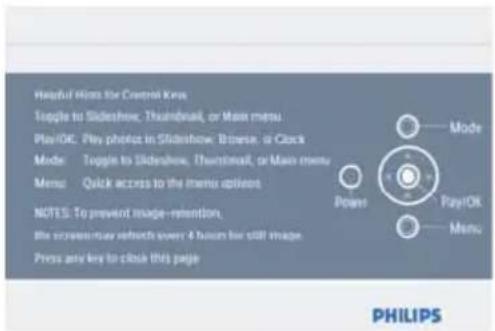
- Use your PhotoFrame by pressing the control buttons in the back.
- The control buttons and instructions are shown at the bottom of the menu screen.
Use the navigation controller to move between the menus. Move it left and right to cycle through the menu tree.
2.3 Connections
2.3.1 Memory Card
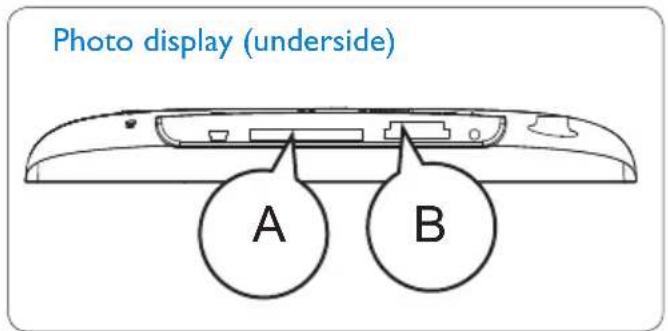
A.CF Card(Type I)
B. SD/MMC/MS/xD Card
Inserting a memory card:
- Insert the memory card into the slot in the frame.
- For xD, SD, MMC, MMC+, or Memory Stick cards slide the card until it locks in place.
• After a few seconds, photos on the memory card will display and a slideshow will start.
DO NOT remove the memory card immediately after inserting it in to the PhotoFrame or when PhotoFrame is counting the Photos.Wait until the screen is stable
Removing a memory card:
• To remove the xD, SD, MMC, MM Memory Stick card, pull out the card.

Note :
To be able to delete photos from the memory card it must NOT be locked. To unlock the card follow the manufacturer's instructions.
2.3.2 USB Connections
For Windows PC (XP & Vista):
- Connect PhotoFrame to a PC via a USB cable (not supplied) where it will be recognized as a mass storage device.
- For installation and more details about his application, follow instructions in user manual.
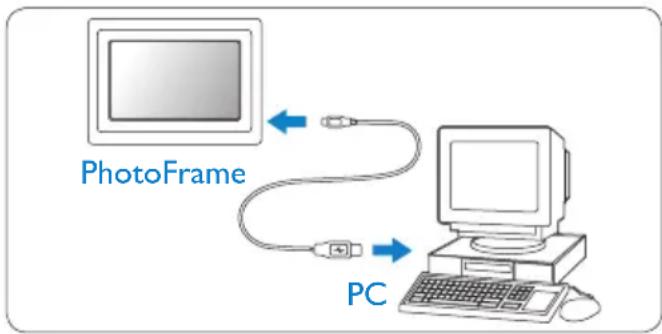
flowchart
graph TD
    A["PhotoFrame"] <--> B["USB cable"]
    B --> C["PC"]
For Mac System: (OS X):
- Connect PhotoFrame to the Mac via a USB cable (not supplied) where it will be recognized as a mass storage device.
- Select the photos to be transferred and copy them directly under the root directory of the storage card. (Only JPEG formatted images supported).
- Disconnect the USB cable(not supplied).

Note:
Do not disconnect PhotoFrame when copying or transferring Photo between PC and PhotoFrame.
2.4 Product highlights
The PhotoFrame is designed to be flexible and convenient to use and it provides the following features:
- High pixel density for sharp and crisp photo display.
- View photos directly from memory cards – no PC needed.
- Auto-Tilt function so portrait and landscape photos are displayed in the best possible way.
- Rotating stand for best possible way of viewing photos.
- Clock and alarm.
3. Getting started
3.1 Placing the Product
The PhotoFrame should be placed on a flat surface and close to a power socket. Keep it away from high temperatures and high levels of moisture
3.2 Connecting to the mains
Connect the supplied power cable from PhotoFrame to a power outlet.
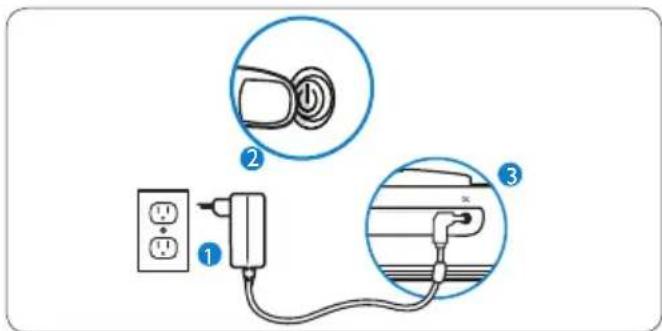

Note:
For safety reasons and best stability Philips recommend to adjust the stand with the angle defined by the two click positions. Using other positions may cause the PhotoFrame to fall and it is the responsibility of the user.
3.3 Turning on your PhotoFrame
Press the power button.

3.4 Initial Setup
3.4.1 Setup the Language
Press the Mode button to toggle to the Main Menu, select the Setup and press Play/OK to Language.
1 Navigate Up and Down to select your preferred language (select between English, French, Spanish, Italian, German, Russian, Dutch, Danish, Simplified Chinese and Japanese)
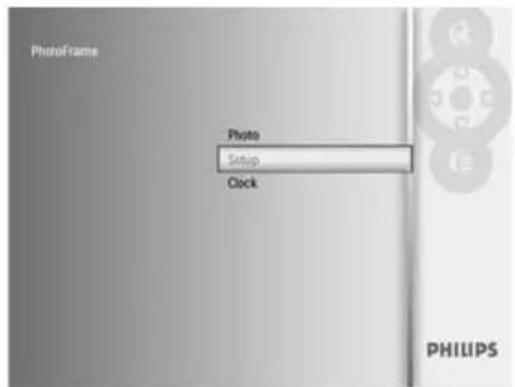
2 Press the Play/OK button to confirm your selection. The new setting will be effective immediately.
Press the Mode button to leave this menu and play the slideshow.
3.4.2 Access Menus
There are two ways to access the menu. To quick access the menu while you are viewing photos, press the Menu button to see the menu options for photo editing or slideshow settings. To access the menu options starting from the main menu:
1 Press the Mode button.
2 Navigate Down to highlight the required menu (Clock, Photos and Setup).
3 Press Play/OK to access the menu. To exit from the menus press the Mode button again to return to the slideshow.
Set Time, Date and Alarm
Use this function to set the time and date of the PhotoFrame
1 • Press the Mode button to access the Main Menu.
- Navigate Down to highlight Clock and press Play/OK.
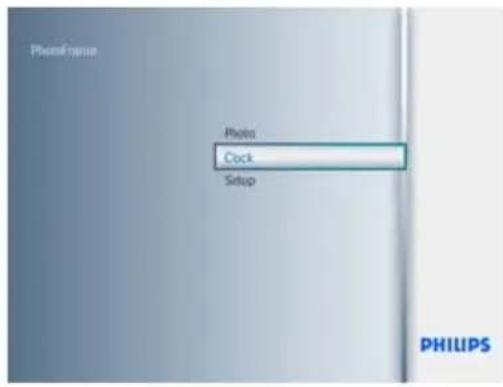
2 • From the Clock screen, press Play/OK.
- Navigate Down to Time and Date.
- Navigate Right to Time/Date/12/24 hr/ Slideshow Clock and press the Play/OK button.
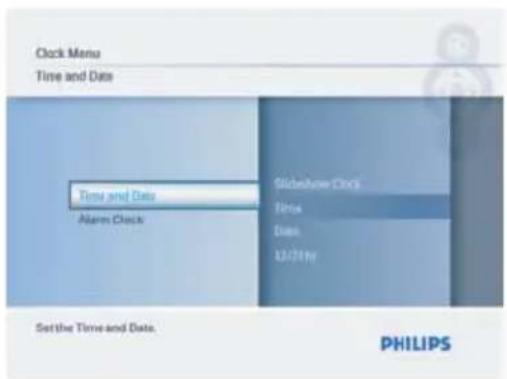
3 Time:
- Navigate Up and Down to select the time.
- Navigate Left and Right to move between hours and minutes.
- Press the Play/OK button to confirm.
Time Mode:
Navigate Up and Down to select 12/24 hr.
Date:
- Navigate Up and Down to select the date.
- Navigate Left and Right to move between days, months and years.
- Press the Play/OK button to confirm.
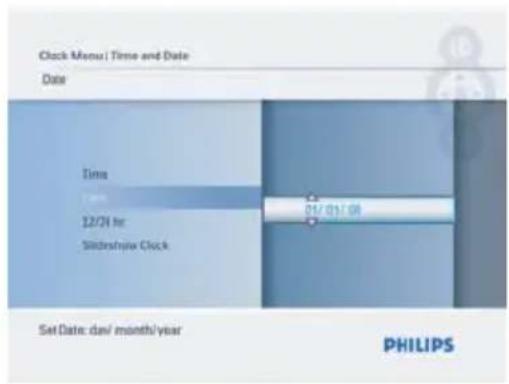
Press the Mode button to leave this menu and play the slideshow.

Note:
The time and date must be set before the Alarm Clock can be set.
4 • From the Clock screen, press Play/OK.
- Navigate Up to Alarm Clock.
- Navigate Right to Time/Day/On/Off and press the Play/OK button.
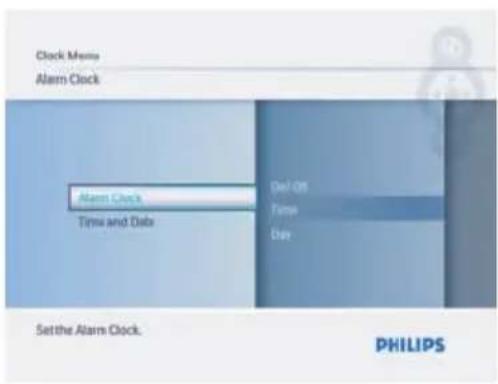
5 Time:
- Navigate Up and Down to select the time.
- Navigate Left and Right to move between hours and minutes.
- Press the Play/OK button to confirm.
Day:
- Navigate Up and Down to select Everyday, Weekday, or Weekend.
- Press the Play/OK button to confirm. On/Off :
- Navigate up or down to select Off or On.
- Press the Play/OK button to confirm.
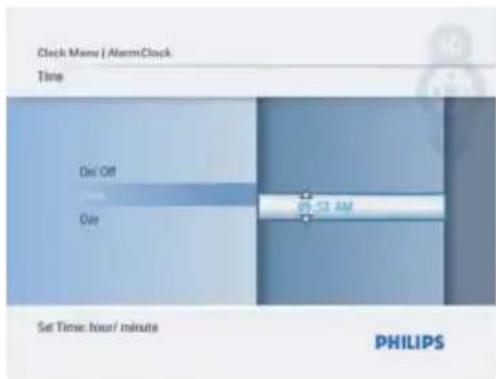
Press the Mode button to leave this menu and play the slideshow.
3.4.3 Choosing Clock Mode
The clock can either be viewed in the Full screen or Slideshow :
Full Screen – displays the clock in top left of the screen and a pre-selected photo will be displayed.
Slideshow - displays the clock in the bottom right of the screen.
There are two ways to display photo in the clock mode:
- To quick access the clock when in slideshow, press Play/OK twice.
- To access the clock from the Main menu:
1 • Press the Mode button to access the Main Menu.
- Navigate Up to highlight Clock and press Play/OK.
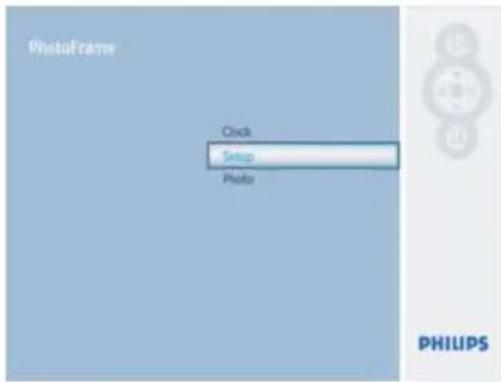
2 • From the Clock Menu screen:
- Navigate Down to Time and Date.
- Navigate Right to Time/Date/12/24 hr /Slideshow Clock and press e Play/OK button.
3 • Navigate Up and Down to select Slideshow Clock and press Play/OK. - Navigate Up and Down to select No or Yes.
- Press the Play/OK button to confirm selection.
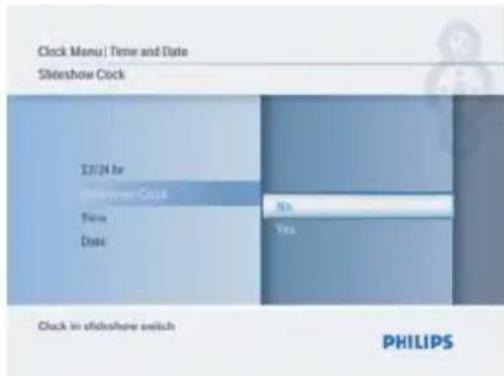
Press the Mode button to leave this menu and play the slideshow, browse or clock mode.
4. Using your PhotoFrame
4.1 View Photos
View pre-stored photos
1 Press the Mode button to go to the Main Menu.
2 In the Main Menu select photos, select the source as the type of memory card installed (SD/MMC, CF Card, Memory Stick, xD Cards).
3 Press Play/OK, to play the photos in slidehow mode.
4.2 Find a Photo
4.2.1 Browse Mode
1 When displaying photos in the slideshow, move through the photos, navigating Left and Right to find and select a photo.
2 Press Play/OK to toggle between the Slideshow, Clock and Browse modes.
4.2.2 Slideshow Mode
Slideshow mode is entered once you turn on the PhotoFrame. Navigate Left and Right to move quickly through the photos.

Note 1:
The frequency of the slideshow can be adjusted. To do so please read "6.3 Frequency" section.
Note 2:
Photos are easily editable from slideshow mode by pressing the Menu button. To go directly to thumbnail mode form read the section of "5.2 Photo Menu".
4.2.3 Browse Mode
To display photos in Cluckle.
1 In slideshow mode, use the Left and Right to move quickly through the photos.
2 Press Play/OK to the access Browse Mode, press again to go to the clock mode.
4.2.4 Thumbnail Access and Navigation
A large number of Photos can be viewed quickly using thumbnail mode
1 • Press the Mode button to access the Main Menu.
- Navigate Up to Photo and press the Play/OK button.
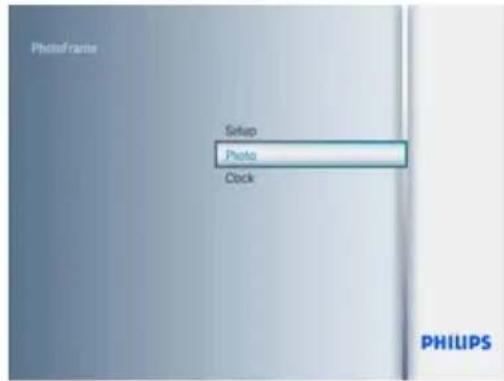
2 - Navigate Down to select the photo source to browse.
- Press Play/OK to access the source.
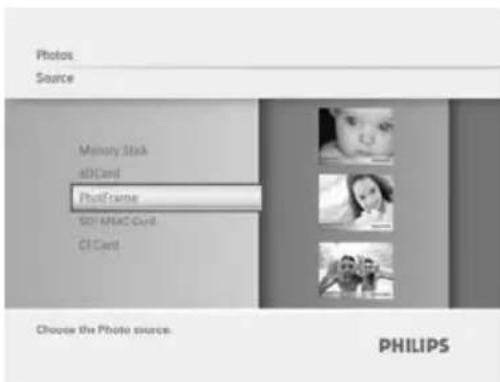
3 • Navigate Left, Right, Up and Down to move between photos and see a larger version of the image.
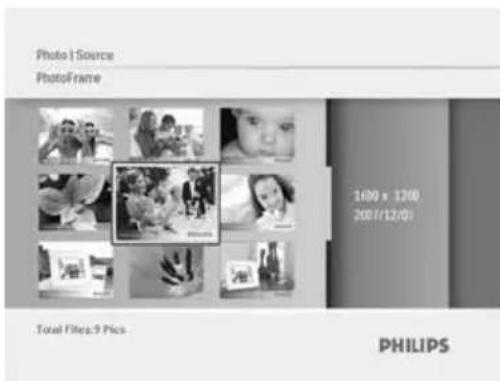
Press the Mode button to leave this menu and press again to start playing the slideshow.
4.3 Copy Photos
When connected to a PC the PhotoFrame is treated as a mass storage device. From the computer, JPEG images can be copied to a memory card inserted into the PhotoFrame.
4.3.1 Copy from a Memory Card to your PhotoFrame
1 Insert a memory card into the Photoframe
2 Press Mode to go to the Main Menu.
3 Select the Photo when go to the photo source.
4 Go to thumbnail mode to select a photo.
5 Press Menu to access the menu options for photo editing.
6 Select Copy to
7 Select PhotoFrame
8 Press Play/OK
Note:
PhotoFrame has very limited storage space available. It only stores 1-3 photos
4.4 Delete Photos using the PhotoFrame
If you need to free up space on a memory card you can delete photos.
1 • Press the Mode button to access the Main Menu.
- Navigate Up to Photo and press the Play/OK button.
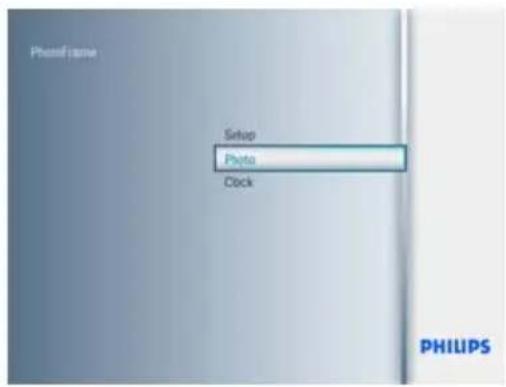
2 • Navigate Down to select the media to browse and press Play/OK.
- Press the Up, Down, Left or Right keys to find the image you want to delete.
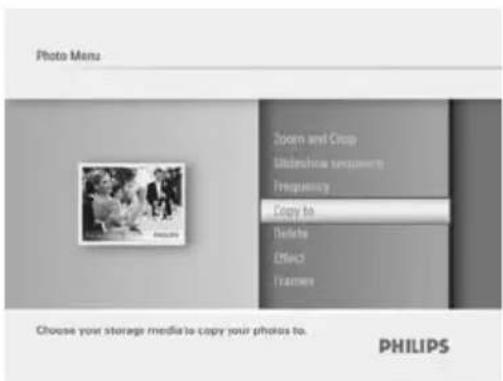
3 • Press the Menu button and navigate Down to Delete.
- Press Play/OK
- Navigate Up or Down to Yes or No. Press Play/OK.
- Navigate Right to Yes to confirm the deletion and press Play/OK.
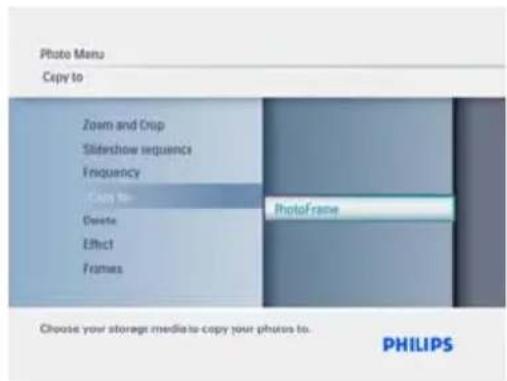
Press the Mode button to leave this menu and play the slideshow.
The delete function is disabled when you first use your Photoframe. To enable the delete function:
1 Press Mode to go to Main Menu.
2 Press Down to Setup.
3 Navigate Up to Select To Delete.
4 Press Play/OK to go to the option list.
5 Select Play/OK.
5. Use more of your PhotoFrame
5.1 Menu Navigation
The menu is navigated using the navigation controller and the menu buttons. When in a menu follow the onscreen instructions in the bottom right of the screen for details on how to navigate.
- Navigate the controller Left and Right to cycle through the menus.
- Navigate Down and Up to select options.
- Press the Menu button to go to the main menu.
- Press the Play/OK button to make a selection.
- Press the Mode button to exit the current menu and play a slideshow.
5.2 Photo Menu
5.2.1 Rotate, Zoom and Crop
PhotoFrame can change the orientation of photos and change the framing of photos.

Note:
The crop function only applies to original photos stored on external memory card.
Rotating
1 • Press the Mode button to access the Main Menu.
- Navigate Up to Photo and press the Play/OK button.
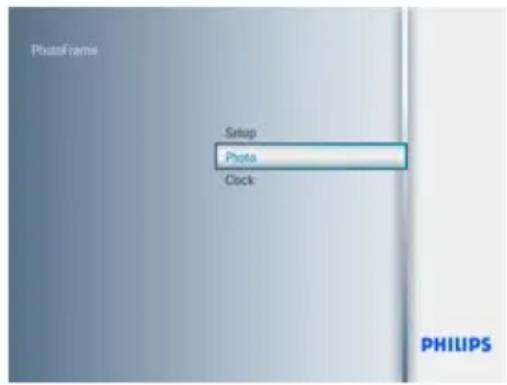
2 - Navigate Down to select the media to browse and press Play/OK.
- Press the Up, Down, Left or Right keys to find the image you want to rotate.
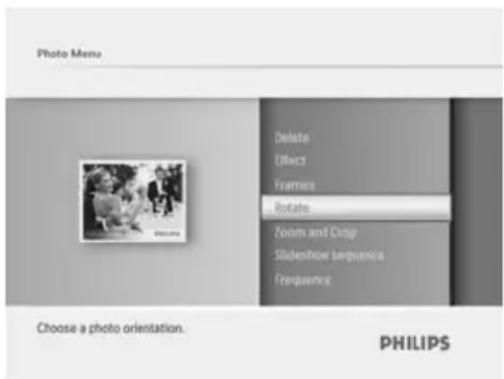
3 • Press the Menu button and navigate Up to Rotate.
- Press Play/OK or navigate Right.
- Navigate Up or Down to the rotation required. Press Play/ OK.
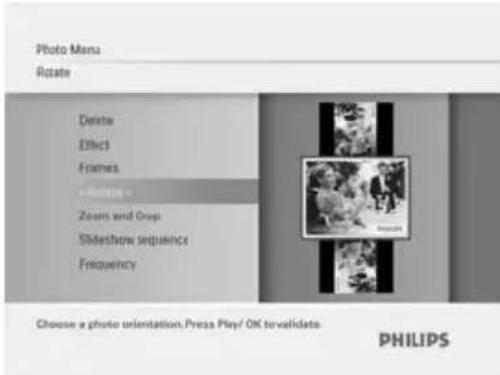
Press the Mode button to leave this menu and play the slideshow.
Zoom and Crop
Note 1:
To retain image quality it is recommended that zooming and cropping is carried out before the image is stored in the PhotoFrame.
Note 2:
All photos processed and copied by the PhotoFrame will be resized for optimal display on PhotoFrame and to save storage space.
1 • Press the Mode button to access the Main Menu.
- Navigate Up to Photo and press the Play/OK button.
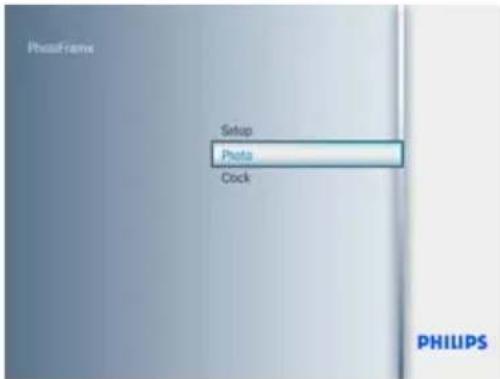
2 • Navigate Down to select the media to browse and press Play/OK.
- Press the Up, Down, Left or Right keys to find the image you want to rotate.
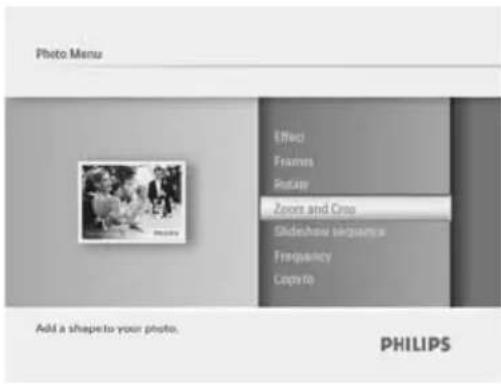
3 • Press the Menu button and navigate Up to Zoom and Crop.
- Press Play/OK or navigate Right.
- Navigate Up or Down to the zoom in and out as required. Press Play/OK.
- Navigate Up, Down, Left and Right to pan around the image. Press Play/OK to apply.
- Navigate Right to Yes to confirm the crop and return to the thumbnail images.
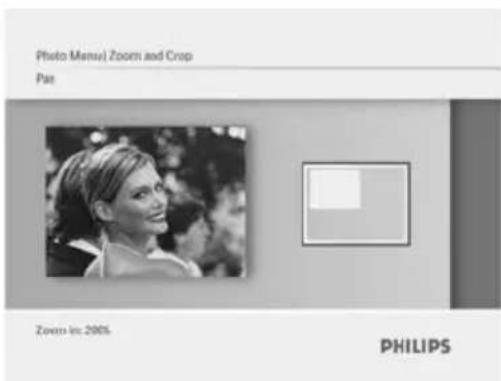
Press the Mode button to leave this menu and play the slideshow.
5.2.2 Photo Effects
This section describes how to apply the Sepia photo effect to your photos.
1 • Press the Mode button to access the Main Menu.
- Navigate Up to Photo and press the Play/OK button.
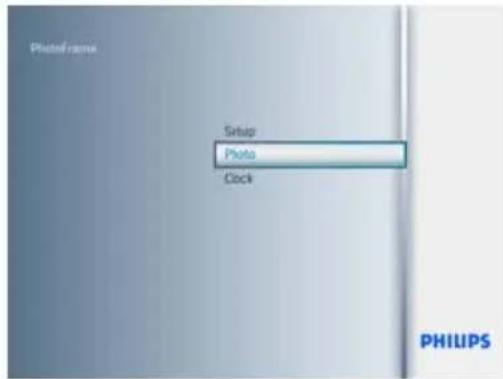
2 • Navigate Down to select the media to browse and press Play/OK.
- Press the Up, Down, Left or Right keys to find the image you want to apply an effect to.
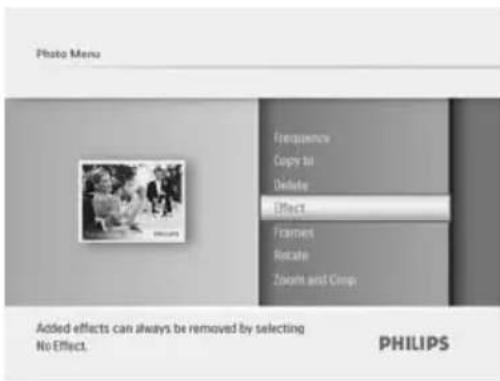
3 • Press the Menu button and navigate Up to Photo Effects.
- Press Play/OK or navigate Right.
- Navigate Up or Down to the required effect. Press Play/OK to confirm and return to the thumbnail images.
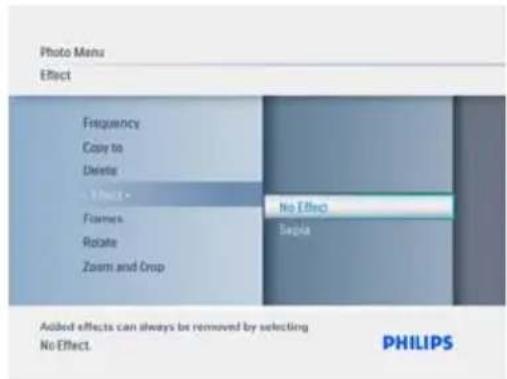
Press the Mode button to leave this menu and play the slideshow.
Note:
Effects can be removed by selecting "No effect".
5.2.3 Frames
1 • Press the Mode button to access the Main Menu.
- Navigate Up to Photo and press the Play/OK button.
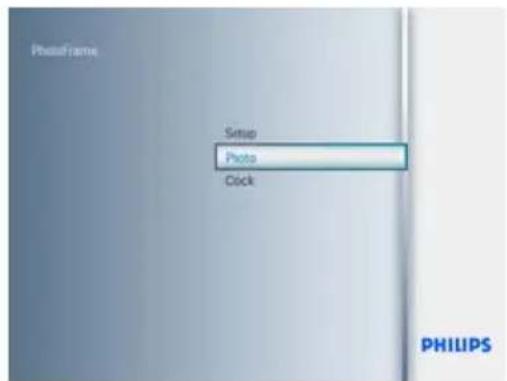
2 • Navigate Down to select the media to browse and press Play/OK.
- Press the Up, Down, Left or Right keys to find the image you want to add the frame to.
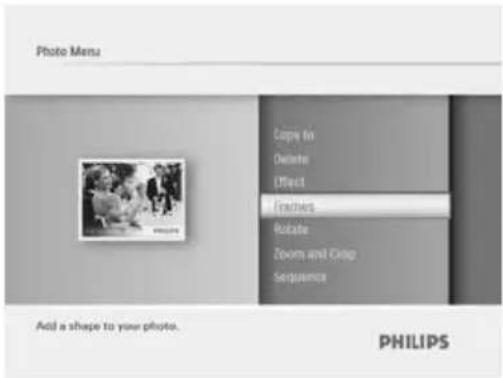
3 • Press the Menu button and navigate Up to Frames.
- Press Play/OK or navigate Right.
- Navigate Up or Down to the required frame. Press Play/OK to confirm and return to the thumbnail images.
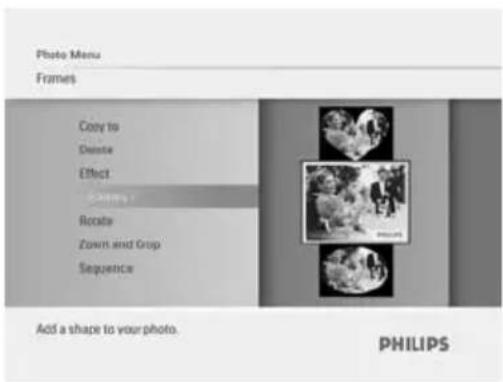
Press the Mode button to leave this menu and play the slideshow.
Note:
Frames can be removed by selecting no frame.
6. Settings
Use this section to setup the PhotoFrame slideshow sequences, transition effects, frequency of the change of image, collage effects, background color, brightness levels, display language, enable the delete function on your memory card, automatically turn on and off, check the PhotoFrame status, tilt functions, turning off the beep sound and turning on and off the key help screen when first starting the PhotoFrame
6.1 Slideshow Sequence
Slideshows can be played in one of two ways randomly or sequentially.
1 • Press the Mode button to access the Main Menu.
- Navigate Up to Setup and press the Play/OK button.
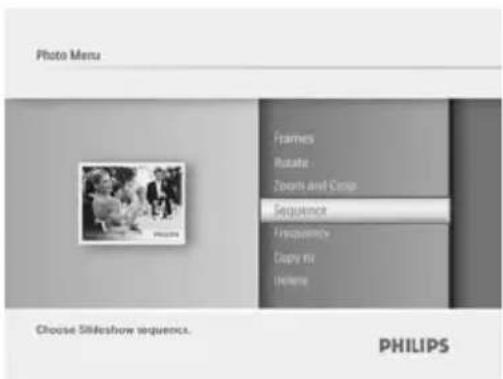
2 • Navigate Down to access Sequence and navigate Right.
- Navigate Up and Down to select either Sequential or Random.
- Press Play/OK to confirm.
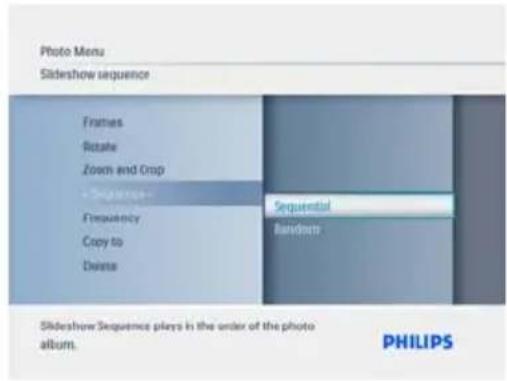
Press the Mode button to leave this menu and play the slideshow.
6.2 Transition Effects
The photos can appear on the screen using special transitions.
1 • Press the Mode button to access the Main Menu.
- Navigate Up to Setuppress the Play/OK button.
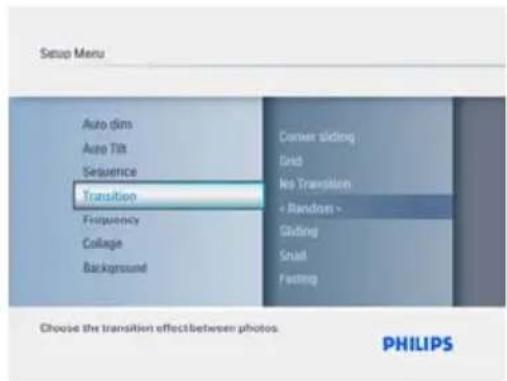
2 - Navigate Down to access Transition and navigate Right.
- Navigate Up and Down to select from the list as follows: No Transition, Random, Sliding, Snail, Fading, Translation, Corner Sliding, or Grid.
- Press Play/OK to confirm.
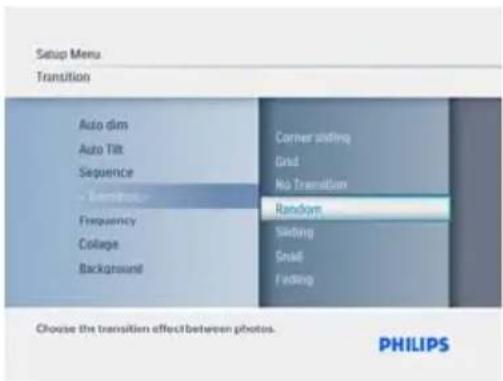
Press Mode button to leave this menu and play the slideshow.
Note 1:
This function applies to all the slideshows stored on all media.
Note 2:
Random plays different effects out of sequence during the slideshow transition.
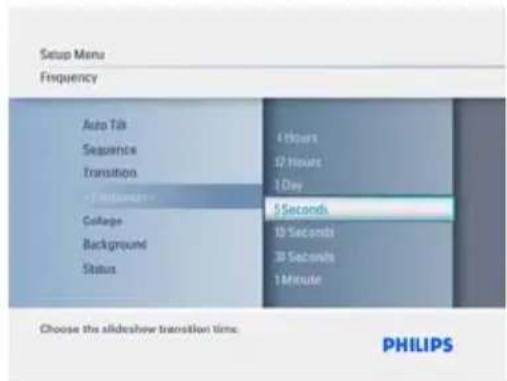
6.3 Frequency
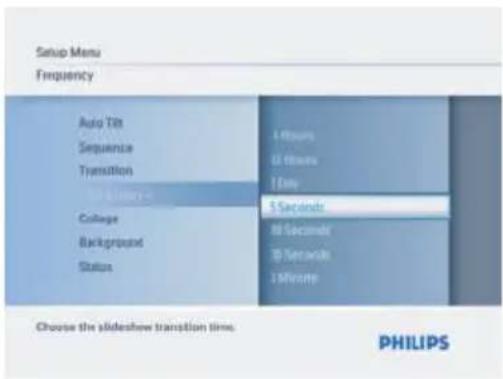
Use this function to select how long each photo is displayed during the slide show.
1 • Press the Mode button to access the Main Menu.
- Navigate Up to Setup and press the Play/OK button.
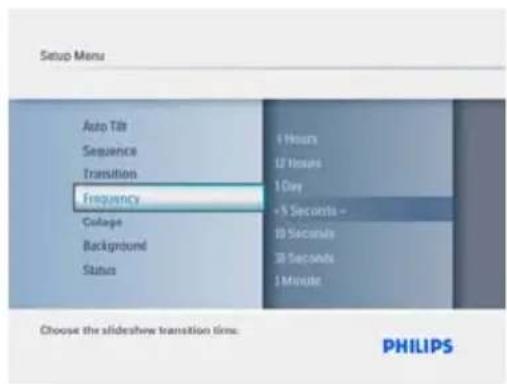
2 - Navigate Down to access Frequency and navigate Right.
- Navigate Up and Down to select 1 Day, 5 seconds, 10 Seconds, 30 Seconds, 1 Minute, 5 Minutes, 30 Minutes, 1 Hour, 4 Hours or 12 Hours.
- Press Play/OK to confirm.
Press the Mode button to leave this menu and play the slideshow.
Note:
This function applies to all the slideshows stored on all media.
6.4 Collage
To show multiple photos arranged on the screen at the same time select collage.
1 • Press the Mode button to access the Main Menu.
- Navigate Up to Setup and press the Play/OK button.
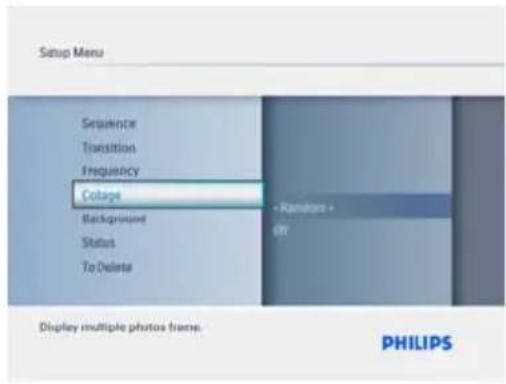
2 - Navigate Down to access Collage and navigate Right.
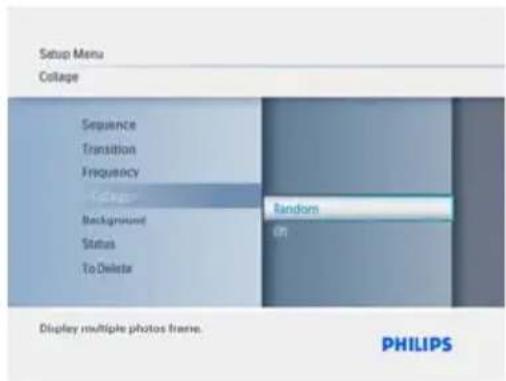
- Navigate Up and Down to select Off or Random.
- Press Play/OK to confirm.
Press the Mode button to leave this menu and play the slideshow.
Note:
If you select random the PhotoFrame will randomly use different collage layouts.
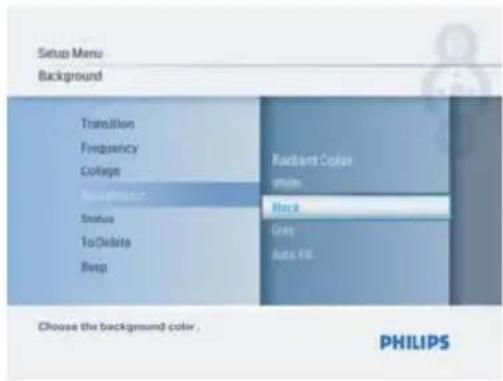
6.5 Background Color
Use this function to select the background border color for photos that are smaller than the PhotoFrame display (these photos appear with black borders).
1 • Press the Mode button to access the Main Menu.
- Navigate Up to Setup and press the Play/OK button.
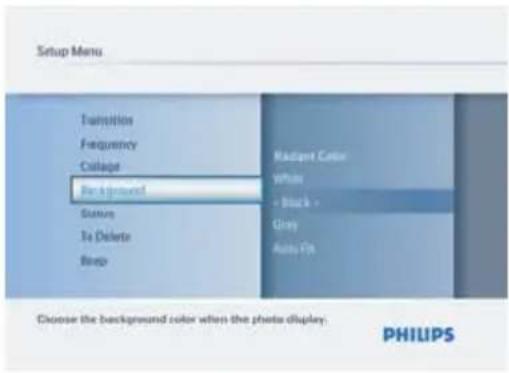
2 • Navigate Down to access Background and navigate Right.
- Navigate Up and Down to select White, Black, Gray, AutoFit or Radiant Color.
- Press Play/OK to confirm.
Press the Mode button to leave this menu and play the slideshow.
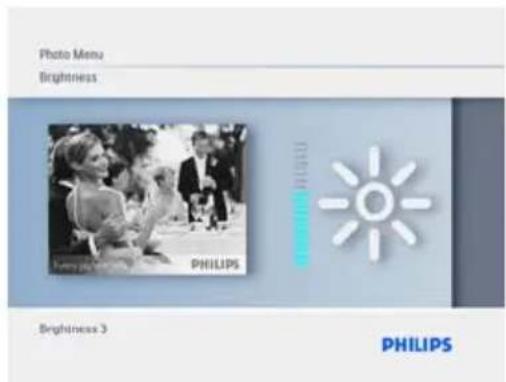
6.6 Brightness
Change the brightness settings of the PhotoFrame to achieve the best visibility depending on the light conditions.
1 • Press the Mode button to access the Main Menu.
- Navigate Up to Setup and press the Play/OK button.
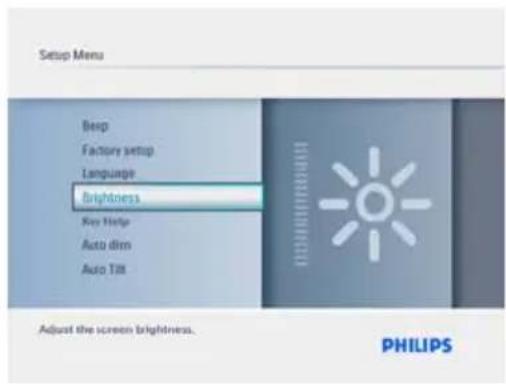
2 • Navigate Down to access Brightness and navigate Right.
- Navigate Up and Down to select the brightness of the screen from 1 \~ 5
- Press Play/OK to confirm.
Press the Mode button to leave this menu and play the slideshow.
6.7 Language
Use this section to choose the menu language of the PhotoFrame.
1 • Press the Mode button to access the Main Menu.
- Navigate Up to Setup press the Play/OK button.
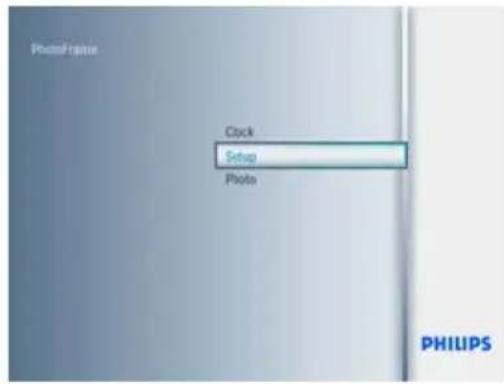
2 Navigate Down to go to Language.
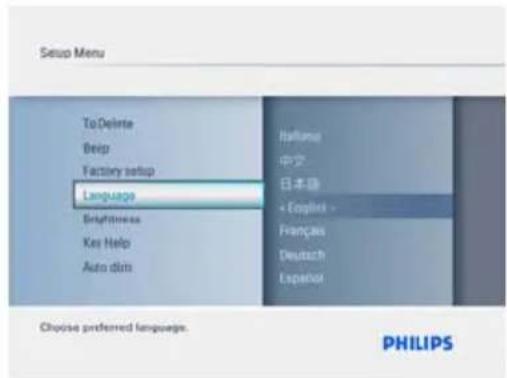
3 - Navigate Right to enter the Language menu.
- Navigate Up and Down to select your preferred language (select between English, French, German, Italian, Japanese, Russian, Simplified Chinese, Spanish, Dutch, and Danish).
- Press the PlayOK confirm your selection. The new setting will be effective immediately.
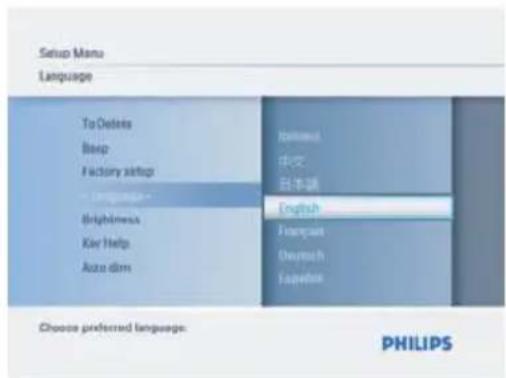
Press the Mode button to leave this menu and play the slideshow.
6.8 Memory Card
Use this feature to allow the delete function on the inserted memory card
Delete Permission
- Press the Mode button to access the Main Menu.
- Navigate Upto Setup and press the Play/OK button.
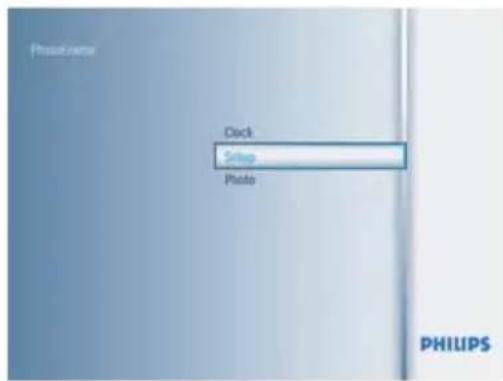
2 Navigate Down to To Delete.
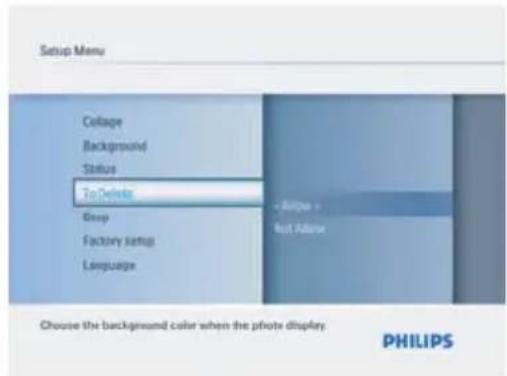
3 • Navigate Right and select Not Allow or Allow.
- Press Play/OK to confirm choice.
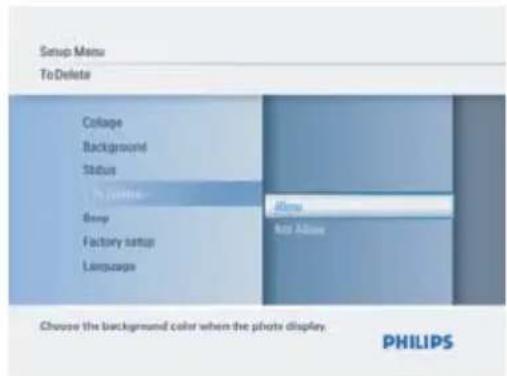
Press the Mode button to leave this menu and play the slideshow.
6.9 Timer Function (Auto dim)
Depending on your lifestyle and schedule, you may want to have the PhotoFrame to automatically turn ON and OFF for you.
Note:
Local time must be set correctly before setting up this feature (see time and date section in the setup menu).
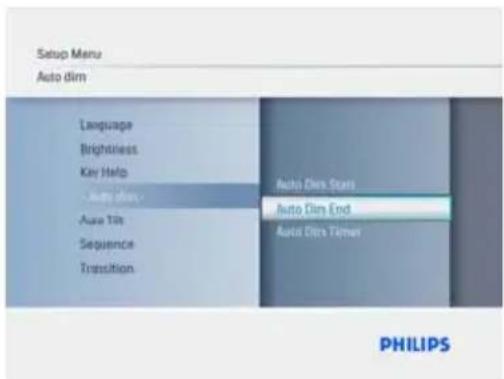
Setting the ON and OFF times
1 • Press the Mode button to access the Main Menu.
- Navigate Up to Setup and press the Play/OK button.
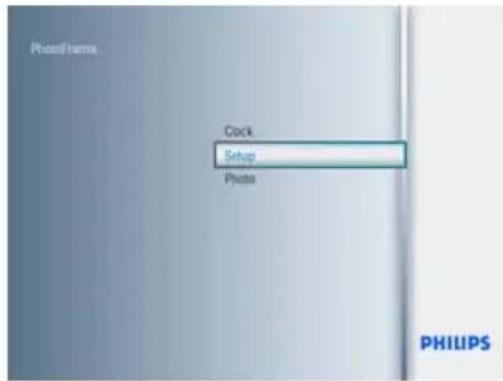
2 Navigate Down to Auto Dim.
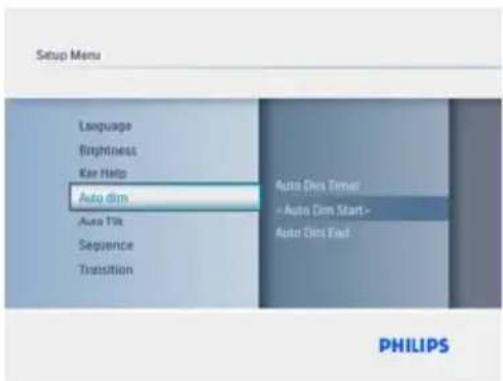
3 • Navigate Right to select Time period.
- Navigate Up or Down to select either Auto Dim Start or Auto Dim End.
- Navigate Right or Press Play/OK.
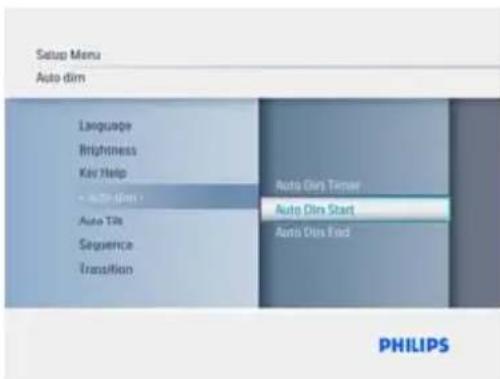
4 • Navigate Up and Down to adjust the hours.
- Navigate Right to move to minutes.
- Navigate Up and Down to adjust the minutes.
- Press Play/OK to apply the settings and return to the previous screen.
Turning the Automatic start and finish On and Off
1 • Press the Mode button to access the Main Menu.
- Navigate Up to Setup and press the Play/OK button.
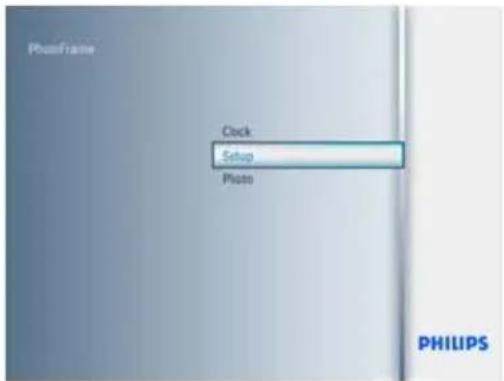
2 Navigate Down to Auto Dim
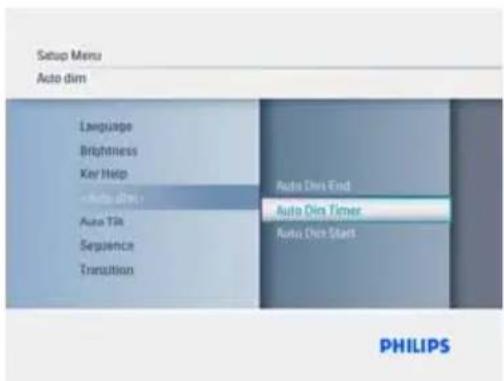
3 • Navigate Right to select AutoDim Timer.
- Navigate Up or Down to select either On or Off.
- Press Play/OK to apply the settings.
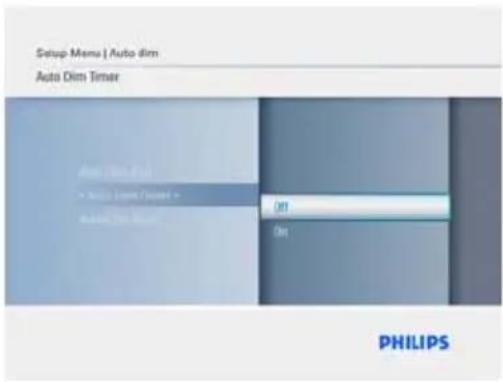
Press the Mode button to leave this menu and play the slideshow.
Press the Play/OK to go to Slideshow, Browse or Clock mode.
Note 1:
Digital PhotoFrame will automatically turn off its display exactly at the Auto-Dim-Start time; if the time has already passed it will go into Auto-Dim-End status at the next set time.
Note 2:
If you want to turn ON the PhotoFrame during an auto OFF period, just press any key, the PhotoFrame will wake up until the next auto OFF period.
6.10 Check the Status of your Photoframe
You may check the status of your PhotoFrame-how many more photos can be stored, which media are currently connected, and the PhotoFrame software version.
1 • Press the Mode button to access the Main Menu.
- Navigate Down to highlight Setup and press Play/OK.
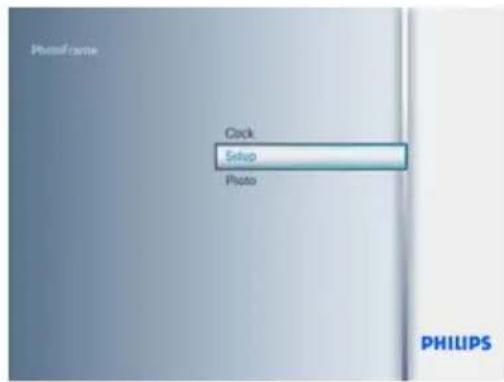
2 • Navigate Down to go toStatus.
- The status of the PhotoFrame is shown in the right window.
- If you have a memory card in the PhotoFrame it will give you the status of the card (card type and free memory left).
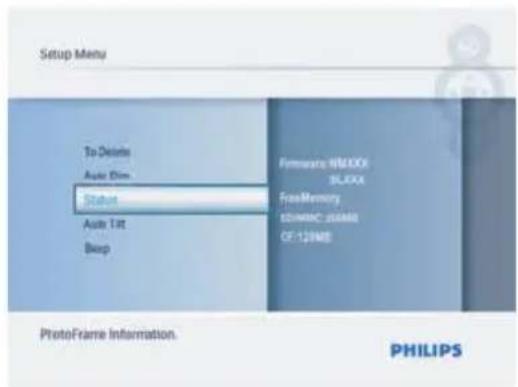
Firmware: (PhotoFrame software version)
Connected media: (Lists all memory cards connected to PhotoFrame)
Connected media free space: (remaining free memory in MB)
6.11 Rotate Function (Auto Tilt)
With this function your photos will automatically be properly positioned no matter whether you have the PhotoFrame positioned horizontally or vertically.
1 • Press the Mode button to access the Main Menu.
- Navigate Down to highlight Setup and press Play/OK.
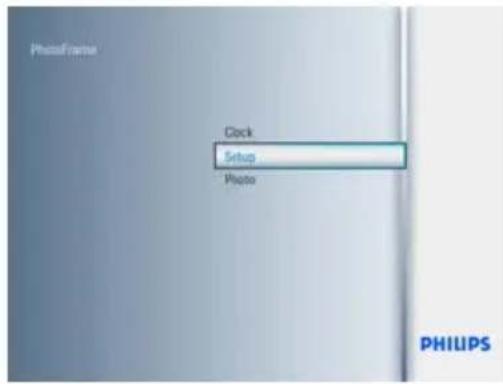
2 • Navigate Down to go to Auto tilt.
- Navigate Right to go to On or Off.
- Press Play/OK to confirm selection.
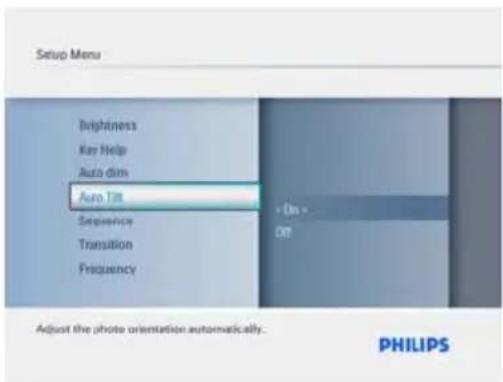
Press the Mode button to leave this menu and play the slideshow.
6.12 Beep On/Off
Turning the button sounds ON or OFF
1 • Press the Mode button to access the Main Menu.
- Navigate Down to highlight Setup and press Play/OK.
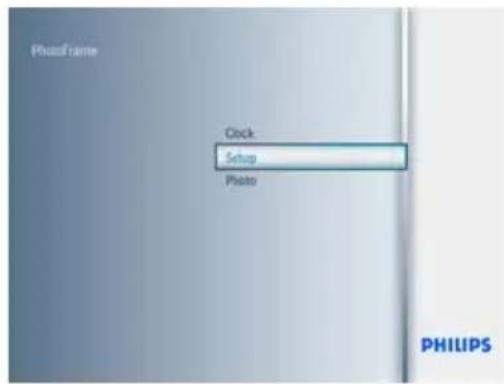
2 • Navigate Down to go to Beep.
- Navigate Right to go to On or Off.
- Navigate Down and press Play/OK to confirm the selection.
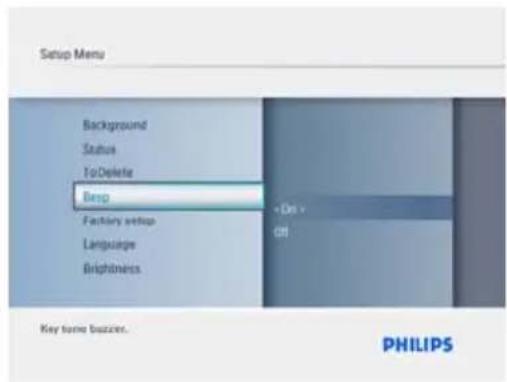
Press the Mode button to leave this menu and play the slideshow.
6.13 Key Help
When the PhotoFrame first starts a description of the control buttons is displayed for 15 seconds or until the press of any of the buttons. If you would like to turn this function off follow the instructions below.
1 • Press the Mode button to access the Main Menu.
- Navigate Down to highlight Setup and press Play/OK.
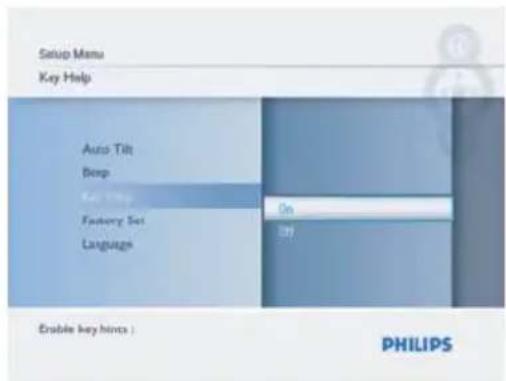
2 • Navigate Down to go to Key Help.
- Navigate Right to go to On or Off.
- Navigate Down and press Play/OK to confirm the selection.
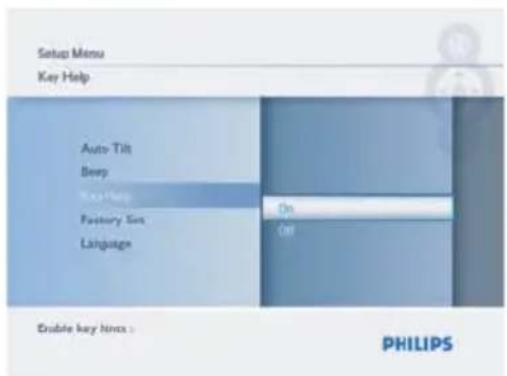
Press the Mode button to leave this menu and play the slideshow.
7. Technicaldata
Picture Display
• Effective viewing area: 162 x 121.5 mm
• Resolution: 800 x 3(RGB) x 600 pixels
• Viewing angle: CR>&=10 130°RL, 110° UD
• Lifetime, to 50% brightness: 20,000hr
• Brightness: 250 cd/m ^4 (typical)
- Aspect ratio: 4:3
• Panel resolution: 800x600
• Pixel density: 0.0675(W) × 0.2025(H) mm
Storage Media
• Memory Card Types: SD/MMC/MMC+/xD/MS/CF type I
Dimensions
- Set dimensions with stand (W x H x D): 244.6 x 167.4 x 121.1 mm
• Weight: 0.633kg(with stand)
• Temperature range (operation): 0 °C to 40 °C/32°F to 104°F
• Temperature range (storage): -20 °C to 70 °C/-4°F to 158°F
Power
• Power consumption: 6.3W
- Photo format supported: JPEG photo (in DCF structure), Up to 16 Megapixels
- Placement supported: Landscape, Portrait, Photo auto orientation
-
Buttons and controls: 6 control key buttons. I playback key to play in Slideshow mode, in Browse mode or in Clock mode. I key each to go Up, Down, Right, or Left. I Hotkey to toggle to Slideshow mode, Thumbnail mode, or Main menu. I Menu key to go to edit menu/, setup menu, or to exit.
-
Playback mode: Full screen browse, Slideshow, Thumbnail browse
- Album management: Create, Delete, Edit, Rename
- Photo edit: Copy, Delete, Rotate, Zoom and Crop, Move
• Photo effects: Frames, Sepia - Slideshow setting: Collage, Random, Sequential, Transition effects
• Screen background color: Black, White, Gray - Clock function: Set time and date, Clock and Alarm, Auto dim on weekday/weekend
- Setup function: Brightness adjustment, Language, Status, Auto on/off, Beep on/off, Set time and date, Clock display enable/disable, Factory setting and Photo source
- System status: Firmware version, Power source, Free memory
- Connected media status: Connected media, Free memory
- OSD Languages: English, French, German, Italian, Japanese, Russian, Simplified Chinese, Spanish, Dutch, Danish
- Plug & Play Compatibility: Windows XP and Vista and Mac OS X
• Regulatory Approvals:FCC,UL, - Other convenience: Kensington lock compatible
8. Frequently asked questions
Is the LCD screen touch-enabled?
The LCD screen is not touch-enabled. Use the buttons on the back to control Digital PhotoFrame.
Can I switch between different slideshows photos by using different memory cards?
Yes. When a memory card is connected to the Digital PhotoFrame, it'll slideshow photos stored on that specific card.
Will the LCD screen be damaged if I keep showing the same photo for a long time?
No. Digital PhotoFrame can display the same photo continuously for 72 hours without any damage to the LCD screen.
Can I use Digital PhotoFrame to delete photos on memory card?
Yes, it supports operations to delete photos on external devices such as a memory cards.
Can I print photos from Digital PhotoFrame?
No, it does not support direct photo printing.
How does the Digital PhotoFrame show high-resolution 4:3 digital photos on its 3:2 screen?
To ensure high picture integrity, Digital PhotoFrame shrinks the photos at original aspect ratio and trims excessive portions before displaying these photos.
Can I use Digital PhotoFrame during its Auto-off periods?
Yes. Press any control button to bring the system back to ON status.
Why doesn't my Digital PhotoFrame show some of my photos?
Digital cameras take photos and store them
in JPEG format according to camera industry standards. Digital PhotoFrame is designed to show photos following the same industry standards. Some images, such as web images, scanned images, or photos in RAW format from professional cameras, are not stored according to camera industry standards and therefore cannot be correctly displayed on Digital PhotoFrame. Use PC applications to convert such images into standard JPEG format for Digital PhotoFrame.
Why doesn't my Digital PhotoFrame go into Auto-off status after I set it?
First, make sure you set Current Time, Auto-off at, and Auto-on at correctly. Digital PhotoFrame will automatically turn off its display exactly at the Auto-off time. If the time has already passed for the day, it will start entering Auto-off status at the specified time from the next day.
I'm trying to upload pictures from my PC to a memory card, which I'm then inserting into the DPF. However, the DPF doesn't show the photos. What can I do?
Load all the photos you want to upload to DPD in the root directory of your memory card. Power off your DPD, insert the memory card, and then restart DPF. After a few seconds, all photos in the root directory of the memory card will be automatically added to PhotoFrame. The root directory on memory card will NOT be emptied after this operation. Note that this operation does not apply to photos in sub-directories.
Do Philips PhotoFrame support progressive JPEG?
PhotoFrame supports progressive JPEG formatted picture, but the slideshow display might be very slow.
9. Service and Warranty
One Year Limited Warranty (for US and Canada only)
Philips warrants that this product shall be free from defects in material, workmanship and assembly, under normal use, in accordance with the specifications and warnings, for a period of one year from the date of purchase. This warranty extends only to the original purchaser of the product, and is not transferable. To exercise your rights under this warranty, you must provide proof of purchase in the form of an original sales receipt that shows the product name and the date of purchase. For customer support or to obtain warranty service, please visit our website www.philips.com/welcome or Contact Philips Customer Care Center at: I-888-PHILIPS (I-888-744-5477) IN U.S.A., Puerto Rico, or U.S. virgin islands. I-800-661-6162 (French speaking), I-888-PHILIPS (I-888-744-5477) (English or Spanish speaking) in Canada. THERE ARE NO OTHER EXPRESS OR IMPLIED WARRANTIES. Philips liability is limited to repair or, at its sole option, replacement of the product. Incidental, special and consequential damages are disclaimed where permitted by law. This warranty gives you specific legal rights. You may also have other rights that vary from state to state.
Recycling Information for Customers
Philips establishes technically and economically viable objectives to optimize the environmental performance of the organization's product, service and activities.
From the planning, design and production stages, Philips emphasizes the important of making products that can easily be recycled. At Philips, end-of-life management primarily entails participation in national take-back initiatives and recycling programs whenever possible, preferably in cooperation with competitors.
There is currently a system of recycling up and running in the European countries, such as The Netherlands, Belgium, Norway, Sweden and Denmark.
In U.S.A., Philips Consumer Electronics North America has contributed funds for the Electronic Industries Alliance (EIA) Electronics Recycling Project and state recycling initiatives for end-of-life electronics products from household sources. In addition, the Northeast Recycling Council (NERC) - a multi-state non-profit organization focused on promoting recycling market development - plans to implement a recycling program.
Visit
www.philips.com/support
Banned Substance Declaration
This product comply with RoHs and Philips BSD (AR17-G04-5010-010) requirements
Federal Communications Commission (FCC) Notice (U.S.Only)

Note:
This equipment has been tested and found to comply with the limits for a Class B digital device, pursuant to Part 15 of the FCC Rules. These limits are designed to provide reasonable protection against harmful interference in a residential installation. This equipment generates, uses and can radiate radio frequency energy and, if not installed and used in accordance with the instructions, may cause harmful interference to radio communications. However, there is no guarantee that interference will not occur in a particular installation. If this equipment does cause harmful interference to radio or television reception, which can be determined by turning the equipment off and on, the user is encouraged to try to correct the interference by one or more of the following measures:
- Reorient or relocate the receiving antenna.
- Increase the separation between the equipment and receiver.
- Connect the equipment into an outlet on a circuit different from that to which the receiver is connected.
- Consult the dealer or an experienced radio/DPF technician for help.

Caution:
Changes or modifications not expressly approved by the party responsible for compliance could void the user's authority to operate the equipment.
Connections to this device must be made with shielded cables with metallic RFI/EMI connector hoods to maintain compliance with FCC Rules and Regulations.
To prevent damage which may result in fire or shock hazard, do not expose this appliance to rain or excessive moisture.
THIS CLASS B DIGITAL APPARATUS MEETS ALL REQUIREMENTS OF THE CANADIAN INTERFERENCE-CAUSING EQUIPMENT REGULATIONS.
FCC Declaration of Conformity
Model Number: 8FF2FPW 8FF2FPB
Trade Name: Philips
Responsible Party: Philips Accessories and
Computer Peripherals
1881 Route 46 West
Ledgewood, NJ 07852
Declaration of Conformity for Products Marked with FCC Logo, United States Only
"PHILIPS"
8FF2FPW 8FF2FPB

Tested To Comply
With FCC Standards
FOR HOME OR OFFICE USE
This device complies with Part 15 of the FCC Rules. Operation is subject to the following two conditions: (1) this device may not cause harmful interference, and (2) this device must accept any interference received, including interference that may cause undesired operation.
Commission Federale de la Communication (FCC Declaration)

Note:
End-of-Life Disposal
- Your new product contains materials that can be recycled and reused. Specialized companies can recycle your product to increase the amount of reusable materials and to minimize the amount to be disposed of.
- Please find out about the local regulations on how to dispose of your old monitor from your local Philips dealer.
- (For customers in Canada and U.S.A.) Dispose of in accordance to local-state and federal regulations.
For additional information on recycling contact www.eia.org (Consumer Education Initiative)
End of life directives-Recycling
Your new DPF contains several materials that can be recycled for new uses.
All rights reserved.
Specifications are subject to change without notice.
Trademarks are the property of Koninklijke Philips
Electronics N.V. or their respective owners.
- Content
- Introduction
- Important Information 3
- Your PhotoFrame 5
- Getting started 8
- Using your PhotoFrame 11
- Use More of your PhotoFrame 14
- Settings 18
- Technical data 27
- Frequently asked questions 28
- Service and Warranty 29
- Important
- Safety precautions and maintenance
- Care of the PhotoFrame
- Do not drop
- Do not expose to moisture
- Do not hit or scratch
- Screen cleaning
- Keep the stand clear from cables
- Temperature and humidity limitations
- Recycling
- Your PhotoFrame
- I What's in the box
- Control Buttons and Menu Navigation
- Connections
- Memory Card
- Note :
- USB Connections
- Note:
- Product highlights
- Getting started
- Placing the Product
- Connecting to the mains
- Turning on your PhotoFrame
- Initial Setup
- Setup the Language
- Access Menus
- Set Time, Date and Alarm
- Time:
- Time Mode:
- Date:
- Time:
- Day:
- Choosing Clock Mode
- Using your PhotoFrame
- View Photos
- View pre-stored photos
- Find a Photo
- Browse Mode
- Slideshow Mode
- Note 2:
- Browse Mode
- Thumbnail Access and Navigation
- Copy Photos
- Copy from a Memory Card to your PhotoFrame
- Delete Photos using the PhotoFrame
- Use more of your PhotoFrame
- Menu Navigation
- Photo Menu
- Rotate, Zoom and Crop
- Rotating
- Zoom and Crop
- Photo Effects
- Frames
- Settings
- Slideshow Sequence
- Transition Effects
- Frequency
- Collage
- Background Color
- Brightness
- Language
- Memory Card
- Delete Permission
- Navigate Down to To Delete.
- Timer Function (Auto dim)
- Setting the ON and OFF times
- Turning the Automatic start and finish On and Off
- Check the Status of your Photoframe
- Rotate Function (Auto Tilt)
- Beep On/Off
- Key Help
- Technicaldata
- Picture Display
- Storage Media
- Dimensions
- Power
- Frequently asked questions
- Is the LCD screen touch-enabled?
- Can I switch between different slideshows photos by using different memory cards?
- Will the LCD screen be damaged if I keep showing the same photo for a long time?
- Can I use Digital PhotoFrame to delete photos on memory card?
- Can I print photos from Digital PhotoFrame?
- How does the Digital PhotoFrame show high-resolution 4:3 digital photos on its 3:2 screen?
- Can I use Digital PhotoFrame during its Auto-off periods?
- Why doesn't my Digital PhotoFrame show some of my photos?
- Why doesn't my Digital PhotoFrame go into Auto-off status after I set it?
- I'm trying to upload pictures from my PC to a memory card, which I'm then inserting into the DPF. However, the DPF doesn't show the photos. What can I do?
- Do Philips PhotoFrame support progressive JPEG?
- Service and Warranty
- One Year Limited Warranty (for US and Canada only)
- Recycling Information for Customers
- Banned Substance Declaration
- Federal Communications Commission (FCC) Notice (U.S.Only)
- Caution:
- FCC Declaration of Conformity
- Commission Federale de la Communication (FCC Declaration)
- End-of-Life Disposal
- End of life directives-Recycling
Brand : PHILIPS
Model : 8FF2FPB
Category : Digital photo frame