
DGIPOD-360 - Docking Station DREAMGEAR - Free user manual and instructions
Find the device manual for free DGIPOD-360 DREAMGEAR in PDF.


| Brand | dreamGEAR |
| Model | DGIPOD-360 |
| Product Type | Docking Station |
| Compatibility | Apple iPod (30-pin connector models) |
| Dimensions (W x D x H) | 6.0 x 4.0 x 2.0 inches |
| Weight | 0.5 lbs |
| Power Supply | USB or AC adapter (5V, 500mA) |
| Audio Output | 3.5mm auxiliary jack, built-in speakers |
| Charging Function | Charges iPod while docked |
| Sync Function | USB sync with computer |
| Remote Control | Not included |
| Audio Playback | Stereo sound |
| Power Indicator | LED light when powered |
| Material | Plastic |
| Color | Black/White (varies) |
| Package Contents | Docking station, USB cable, user manual |
| Connector Type | 30-pin Apple dock connector |
| Operating Temperature | 32°F to 95°F (0°C to 35°C) |
| Storage Temperature | -4°F to 140°F (-20°C to 60°C) |
| Certification | CE, FCC |
| Maintenance | Wipe with dry cloth; avoid liquids |
| Safety | Do not expose to moisture or extreme temperatures |
| Spare Parts / Repairability | Contact dreamGEAR customer service |
Frequently Asked Questions - DGIPOD-360 DREAMGEAR
User questions about DGIPOD-360 DREAMGEAR
0 question about this device. Answer the ones you know or ask your own.
Ask a new question about this device
Download the instructions for your Docking Station in PDF format for free! Find your manual DGIPOD-360 - DREAMGEAR and take your electronic device back in hand. On this page are published all the documents necessary for the use of your device. DGIPOD-360 by DREAMGEAR.
USER MANUAL DGIPOD-360 DREAMGEAR

natural_image
Black rectangular electronic device with a small illuminated screen on top (no visible text or symbols)www.isound.net
Speaker Set-Up
- Open the battery compartment located on the bottom of the unit.
- Insert 4 "AA" batteries, and make sure that the polarity +/- ends of the batteries match the engraving inside the battery compartment. DO NOT mix different types of batteries together. DO NO mix new and used batteries together. NOTE: The Audio Station WILL NOT charge your iPod when only batteries are used.
Using AC adapter
- Plug the AC adapter into the "DC IN" jack located on the back of the unit.
- The AC adapter powers the speaker and also charges your 2nd generation iPod shuffle.
dreamGEAR®
P.O. BOX 478
Torrance, CA 90508
FOR TECHNICAL SUPPORT
PLEASE CONTACT: 1-877-999-DREAM
or visit us on the web @ www.isound.net
Power "ON" the speaker
- Press the ON/OFF button to power the speaker "ON" and "OFF".
Using your AudioStation:
- Press the iPod shuffles play button to begin listening to music. Note: The iPod shuffle will dock on the AudioStation upside down. This is normal and is caused by the location of the shuffles audio jack.
Charging iPod Shuffle 2nd generation
- Connect the AC adapter.
- Turn the iPod shuffle's power off.
- Power "OFF" the AudioStation.
- Dock the shuffle on to the AudioStation.
- The LED indicator on the shuffle turns orange when charging.
- The LED indicator on the shuffle turns green when fully charged.
Connecting non-iPod models
- Connect a 3.5mm audio cable to your audio device, and the other end to the AUX IN located on the back of the AudioStation.
- Your audio device is used to make selections.
Note: The AudioStation can ONLY charge iPod shuffle second generation models.
PAGE | PAGE www.isound.net www.isound.net
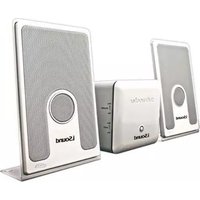


Brand : DREAMGEAR
Model : DGIPOD-360
Category : Docking Station