
SRP5107WM - Remote control PHILIPS - Free user manual and instructions
Find the device manual for free SRP5107WM PHILIPS in PDF.


| Product Type | Universal Remote Control |
| Brand | Philips |
| Model | SRP5107WM |
| Compatibility | TV, set-top box, DVD, Blu-ray, soundbar, and more |
| Device Control | Infrared (IR) |
| Number of Devices Supported | Up to 4 devices |
| Programming Method | Auto-search, direct code entry, or learning |
| Power Source | 2 x AAA batteries (not included) |
| Battery Type | Alkaline recommended |
| Battery Life | Approximately 12 months under normal use |
| Dimensions (L x W x H) | Approx. 21 x 5 x 2.5 cm |
| Weight | Approx. 110 g (including batteries) |
| Material | Plastic |
| Color | Black (typical) |
| Display Screen | None (button-based) |
| Backlight | Yes, keypad backlight (if applicable) |
| Learning Function | Yes, can learn IR commands from original remote |
| Macro Function | Yes, programmable multi-step commands |
| Volume Punch-Through | Yes, allows volume control on different device |
| Cleaning Instructions | Wipe with a soft dry cloth; avoid liquids |
| Operating Temperature | 0°C to 45°C |
| Storage Temperature | -20°C to 60°C |
| Battery Safety | Do not mix old/new batteries; dispose properly |
| Warranty | 1 year (check local regulations) |
Frequently Asked Questions - SRP5107WM PHILIPS
User questions about SRP5107WM PHILIPS
0 question about this device. Answer the ones you know or ask your own.
Ask a new question about this device
Download the instructions for your Remote control in PDF format for free! Find your manual SRP5107WM - PHILIPS and take your electronic device back in hand. On this page are published all the documents necessary for the use of your device. SRP5107WM by PHILIPS.
USER MANUAL SRP5107WM PHILIPS
Register your product
and get support at
www.philips.com/welcome
SRP5107WM/17
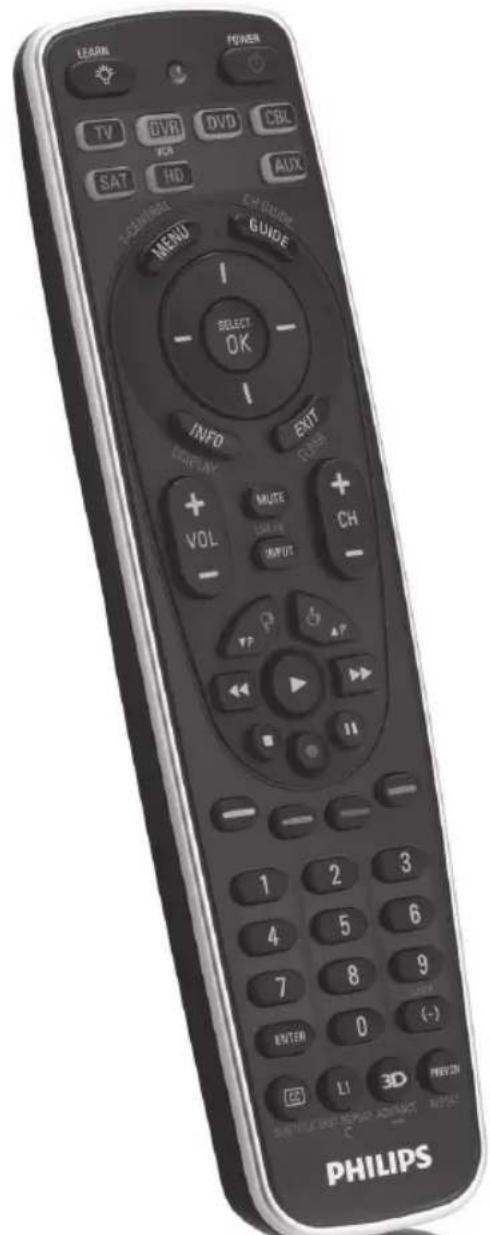
EN User Manual
PHILIPS

Table of contents
1 Your SRP5107WM 3
2 Getting started 4-
2.1 Inserting the batteries ....4
2.2 Testing the universal remote control 4-5
2.3 Setting up the universal remote control ....5-9
3 Using the universal remote control .....9-15
3.1 Buttons and functions 9-12
3.2 Controlling combo devices 12-13
3.3 Learning button functions 13-14
3.4 Resetting a button to its original function .....14
3.5 Resetting the original functions of the remote control (Factory Reset) 15
4 Service and support 15-18
4.1 Frequently asked questions 15-17
4.2 Need help? 17
FCC Compliancy 18
Notice for Canada 18
Helpline 19
Brand list 20-31
1 Your SRP5107WM
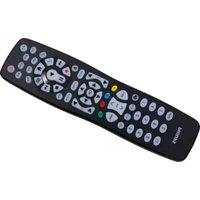
Congratulations on your purchase of the Philips SRP5107WM universal remote control.
After setting up the remote control you can operate up to 7 different devices with it.
Simple Setup
The universal remote control comes with the innovative Simple Setup technology.
After setup, the SRP5107WM can operate TV, DVD player/ recorder (including Blu-ray player), VCR, DVR, HD, auxiliary equipment and all common Cable, Satellite, DTV and other set top boxes, such as DirecTV, Comcast, AT&T, Verizon, Time Warner, Scientific Atlanta, TiVo and many more.
Simply follow the instructions in chapter 2.3 to set up the remote control for your devices.
We focused on making this remote control consumer friendly. We have highlighted the DVR (TiVo/Replay) buttons in blue for easy referencing on the keypad.
The remote control is equipped with the most common functions for operating your devices. However, if you miss certain functions, this remote control can 'learn' these functions from the original remote control.
To fully benefit from the support that Philips offers, register your product at: www.philips.com/welcome.
2 Getting started
2.1 Inserting the batteries
- Insert 2 AA type batteries, noting the + and - configuration in the battery compartment.


Note
When replacing the batteries, all user settings will be retained in the remote control memory for an unlimited period of time.
2.2 Testing the universal remote control
It is advised to test whether your device(s) already respond(s) to the SRP5107WM before setting it up (see chapter 2.3). The example below instructs you how to do this for your TV. You can repeat the same steps for other devices (DVR, DVD player/recorder, Cable/Satellite box, DTV, VCR, HD and auxiliary equipment) which you want to operate using the SRP5107WM.
Example: testing the universal remote control on your TV:
1 Switch ON your TV manually or use the original remote control for this. Tune to channel 1.
2 Press the TV device selection button to select TV.
- The red Setup light ◎ blinks. If the Setup light ◎ did not blink, check whether the batteries are properly inserted (see chapter 2.1).
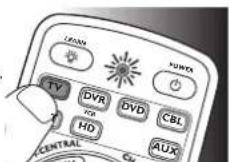
3 Check whether the buttons that you need for operating your TV are working. For an overview of the buttons and their functions see chapter 3.1.
- If the TV responds as it should to all of the button commands, the SRP5107WM is ready for use. If the device does not respond at all or not to all of the button commands, follow the instructions in chapter 2.3.

2.3 Setting up the universal remote control
The example below instructs you how to set up your universal remote control for your TV. You can repeat the same steps for other devices (DVR, DVD player/recorder, Cable/Satellite box, DTV, VCR, HD and auxiliary equipment) which you want to operate, using the universal remote control.
The remote control can be set up to operate any 7 of the following devices:
| Device name | Description |
| TV | Traditional TV, LCD/Plasma TV, flat panel TV, projection TV and 3D TV, TV part of TV/VCR, TV/VCR/DVD and TV/DVD combos |
| DVR | Digital/Personal Video Recorder (DVR/PVR), TiVo, DVR part of DVR/SAT, DVR/Cable and DVR/DVD combos |
| DVD | DVD player/recorder (DVDR/DVD-RW), DVD/Hard Disk Drive combination (DVDR-HDD), Blu-Ray player, High Definition DVD player (HD-DVD), DVD part of TV/DVD, TV/VCR/DVDDVR/DVD and VCR/DVD combos |
| CBL/SAT | Cable box, satellite receiver, Internet Protocol TV (IPTV), Free To Air TV, High Definition Television decoder (HDTV), Digital Television (DTV), TiVo&AT/Digital TV (DTV)/WebTV, DTV/Advanced Television Systems (ATSC) - Digital To Analog Converter, CBL part of DVR/Cable combos and SAT part of DVR/SAT combos |
| VCR | Video cassette player/recorder, VCR part of TV/VCR, TV/VCR/DVD and VCR/DVD combos |
AUX Auxiliary equipment:
CD, Audio System, Laser Disc, Digital Picture Frame, Media Center PC, Home Automation, Home Theater in a Box (HTIB)
HD Any of the above listed devices
Example: setting up the universal remote control to operate your TV:
1 Switch ON the TV manually or use the original remote control for this. Tune to channel 1.
2 Press and hold the TV device selection button for 5 seconds until the red Setup light ◦ blinks.
• The remote control is now in setup mode.
3 Look up the 4-digit code for your brand in the brand list at the back of this user manual. A 4-digit code is shown for each brand.
Use the digit buttons to enter the code for your brand (e.g. Philips, 2 1 9 5).
- If the red Setup light turns off, an invalid code was entered. In this case, try again.
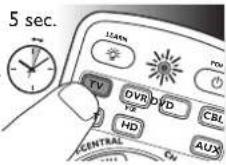
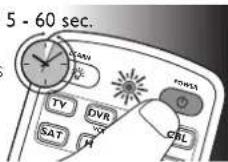
4 Aim the remote control at the TV. Press and hold the button. Release it immediately as soon as the TV switches off.
• This step normally takes between 5 and 60 seconds. In extreme circumstances the minutes.
5 Switch ON the TV. Try out the buttons that you need for operating it. Try, for example, if the -CH + and digit buttons function properly.
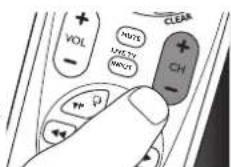
- If a button does not work as expected, press and hold that button. Release it immediately as soon as it works. For more information, see chapter 2.3.3.
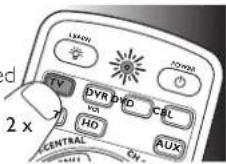
6 Press the device selection button twice to finish setup.
- When no button is pressed for 5 minutes or more, the remote control will exit setup mode, automatically saving all your settings.

Important
If you made a mistake:
- Press the device selection button twice to exit setup.
The red Setup light ⓞ turns off. -
Restart from the beginning.
-
If the device does not respond at all or not to all of the button commands or if you cannot find the code for your brand, enter '9, 9, 9, 9' in step 3 and continue with step 4. The remote control will now search its full database for a code that works with your TV. Full database search may take up to 15 minutes.
• Alternatively you can set up the universal remote control with the learn feature as described in chapter 3.3.
2.3.1 Setting up the remote control for other devices (DVR, DVD player/recorder, Cable/Satellite box, DTV, VCR, HD andauxiliary equipment)
1 Make sure the device is switched on and operational. E.g. insert a disc in the DVD player/recorder or a video cassette in the VCR.
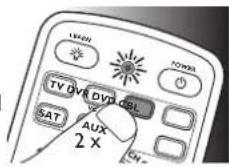
2 Then follow steps 2 to 6 offsetting up the universal remote control to operate your TV. Make sure to use the correct device selection button: DVR, VD, CBL, SAT, HD or UX
2.3.2 Setting up the remote control for combo devices In most cases you will have to set up the remote control for each part of the combo device.
Only in some cases a single code-set will operate all parts of the combo.
For example: for a TV/DVD combo you will first have to set up the remote control for TV (with the TV button) and then for DVD (with the button or any other device selection button) in order to operate both parts of the combo.
For this refer to chapter 2.3.
2.3.3 Improving buttons
When correctly set up, the remote control should be able to operate all your devices. However, when using the remote control for the first time it might occur that some buttons do not yet function as expected. In this case you can have the remote control search for alternatives.

Note
Improving buttons is not possible when the code was found during full database search (with code '9, 9, 9, 9').
During initial setup
1 Make sure the receiving device is able to respond. E.g. when you try to repair the Play button for your DVD player, make sure to insert a DVD into the DVD player otherwise the Play button is not able to function.
2 Press the button that does not function, keep it pressed and immediately release it when the device responds. Repeat this for every button that does not function.
• If the button still does not function as expected, try pressing it again for a longer period of time.
After initial setup
1 Make sure the receiving device is able to respond. E.g. when you try to repair the Play button for your DVD player, make sure to insert a DVD into the DVD player otherwise the Play button is not able to function.
2 Select the device that you wish to operate (e.g. DVD).
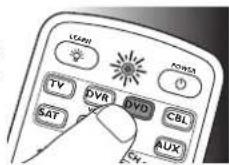
Press the DVD device selection button to select DVD.
3 Keep buttons 1 and 4 pressed simultaneously for 5 seconds.
- The red Setup light lights up. The remote control is now in setup mode.

4 Press and hold the button that does not function and immediately release it when the device responds.
• If the button still does not function as expected, try pressing it again for a longer period of time.
5 Press the device selection button twice to save your settings and exit setup mode.
- When no button is pressed for 5 minutes or more, the remote control will exit setup mode, automatically sa
3 Using the universal remote control
3.1 Buttons and functions
The illustration on page 2 gives an overview of all buttons on the remote control. Try out the buttons you need for operating your devices.

Notes
- Buttons having the same functions as the buttons on your original remote control may have different namings on the SRP5107WM (e.g. Info/Display).
- Only functions that are available on your original remote control can be used for operating your devices with the SRP5107WM.
1

LEARN....used to setup learning functions.
BACKLIGHT (💡).....turns the backlighting on/off.
SETUP light....lights up when a remote control command is being sent, when you select a device and when the remote control is in setup or learn mode.
POWER (D).....switches the selected device on/off.
2

.....device selection buttons. Select the device to be operated.
3
![graph TD A["T-CENTRAL"] --> B["CH-GUIDE"] B --> C["GUIDE"] C --> D["INFO"] D --> E["EXIT"] E --> F["CLEAR"] F --> G["SELECT OK"]](/content/2026/05/1066820/images/142e7d5823ff28fabac28487a4a7c7bd8862ab3969f9320d16835fc63223a2fa.jpg)
MENU......menu on/off.
GUIDE......electronic program guide.
INFO......on-screen channel information.
EXIT......exits/clears on-screen menu displays.
4
![graph TD A["TCENTRAL"] --> B["CH GUIDE"] B --> C["CHANGE"] C --> D["INFO DISPLAY"] D --> E["CLEAR"] E --> F["EXIT CLEAR"] F --> G["SELECT OK"] G --> H["OK"]](/content/2026/05/1066820/images/1585fe05aed9b9f3449386e1343255397dee9deb7b2e655ab609ee7fb47d2037.jpg)
SELECT......selects menu items for the device you are controlling.
OK ...... confirms your selection.
(I) UP/DOWN,
(-) LEFT/RIGHT......cursor up, down, left, right in a menu.
5
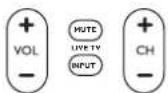
+VOL -......increases/decreases the volume
level of the device, normally TV.
turns the sound of the device (normally TV) off/on while the picture remains.
RPUT ....selects available source inputs (Antenna, Cable, etc.).
+ CH -......next / previous channel.
6
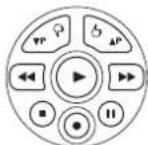
▼P ▲P......previous (▼P) / next (▲P) page/track in various modes.
◀......rewind.
play.
fast forward.
stop.
10
EN 11EN
record.
II....pause.
7
- - - - - ...... context sensitive buttons, ordered following the requirements for cable boxes. A - Yellow, B - Blue, C - Red, D - Green.
8

Digit buttons......for direct channel / track selection.
ENTER....used after direct channel selection. Some devices require ENTER to be pressed after channel selection.
(-)......selects between one and two-figure channel numbers.
9
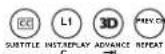
TV Closed Caption (if your TV has this feature).
① stores learned button commands.
3D changes TV / DVD mode to 3D.
1 2 3 4 5 6 7 8 9 10 11 12 13 14 15 16 17 18 19 20 21 22 23 24 25 26 27 28 29 30 31 32 33 34 35 36 37 38 39 40 41 42 43 44 45 46 47 48 49 50

Note
For some TV brands/types, the 📋 button will only turn off the TV. You will have to press a digit button (direct channel selection) to turn on the TV again.
3.1.1 Dedicated DVR functions - labeled in blue (*TiVo/Replay)
When you select DVR mode by pressing the DVR button, all blue DVR function buttons will become active.
3 T.CENTRAL......TiVo button for TiVo Central.
CH GUIDE......TiVo Live Guide - the TiVo Program Guide.
DISPLAY......brings up the Channel Banner: CLEAR......exits/clears on-screen menu displays.
5
LIVE TV INPUT....goes to Live TV broadcast.

* TiVo and Replay are registered trade marks of their respective owners.
3.2 Controlling combo devices
Some combo devices (e.g. TV/DVR, TV/DVD, DVD/DVR, etc.) have separate buttons on the original remote control to select the part of the combo device to be controlled. For example, if your combo device is a DVD/DVR then its original remote control might have separate DVD and DVR buttons for selection of the combo part you wish to operate. The equivalent button functions can be found on your Philips remote control by using the device selection buttons.
Example for a DVD/DVR combo:
1 Set up the remote control for each part of the combo as described in chapters 2.3 and 2.3.2. In this example for both DVD and DVR.
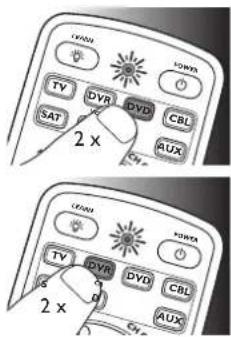
2 Press the DVD device selection button twice to select the DVD part of the combo.
Press the device selection button twice to select the DVR part of the combo.

Notes
- This method can be applied similarly to all combo devices (TV/DVR, TV/VCR, TV/DVD, etc.) and is available for all device modes.
• Note that this feature is not supported by all codes.
3.3 Learning button functions
If you miss certain functions from your original remote control on the SRP5107WM, the SRP5107WM can learn these functions. You can store a function under any of the available buttons, except under the 🎨 button. Any function already stored under a button will be deleted. The SRP5107WM is equipped with one dedicated button for learning additional functions: Li.
1 Make sure that you have the original remote control at hand.
2 Select the desired device (e.g. DVD). Press the DVD device selection button to select DVD.
3 Place both remote controls on a flat surface (like a table) and aim them head-to-head with about 5 - 10 cm in between.
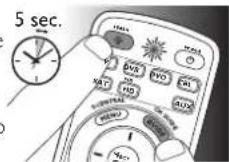
4 Keep the button and the button you wish to learn on the SRP5107WM (e.g. the GUIDE button) pressed simultaneously for 5 seconds, until the red Setup light lights up.
• The remote control is now in learn mode.
5 Press and hold the button that you wish to learn on the original remote control until the red Setup light ◦ blinks twice and then goes out to confirm that learning was successful.
- The remote control has now learned the new function.


Note
- It may occur that learning a button function fails the first time. The red Setup light ⓞ will then give 4 short blinks and go out. In this case, please try again.
- If you keep having trouble learning button functions, check the batteries in both SRP5107WM and original remote control and replace if necessary.
- It may also be that the remote control learn memory is full (a total of about 60 buttons can be learned). In this case you can reset one or more buttons to their original functions in order to create memory space. For this, see chapter 3.4.
3.4 Resetting a button to its original function
If an improved button (see chapter 2.3.3) still does not function as expected, you can always reset the button to its original function.
When resetting a button to its original function, any learned function stored under the button will be deleted.
1 In the current device mode, keep digit buttons
① and ⑥ pressed simultaneously for 5 seconds, until the red Setup light Ⓞ lights up.
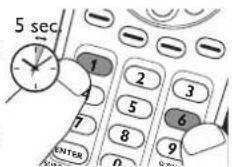
• The remote control is now in setup mode.
2 Press digit buttons 9 9 and 6, in that order.
• After each button press the red Setup light ◎ blinks once.
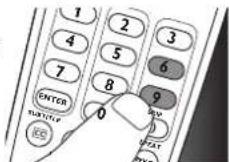
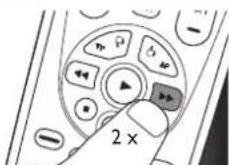
3 Press the button that you wish to reset twice.
E.g. the ▶▶ button.
• After each button press the red Setup light ◎ blinks once.
- The red Setup light Ⓞ will blink one more time to confirm that the button was successfully reset to its original function.
- The button can now also learn a new function, if desired.
3.5 Resetting the original functions of the remote control (Factory Reset)
In some cases it may be useful to reset the original functions of the remote control.
E.g. if the remote control memory is full while you wish to set it up for a specific device or learn an extra function to it. The remote control will then be reset to the default factory settings and all user settings will be deleted.
1 In the current device mode, keep digit buttons ① and ⑥ pressed simultaneously for 5 seconds, until the red Setup light lights up.
• The remote control is now in setup mode.

2 Press digit buttons
9, 8 and 1, in that order.
• After each button press the red Setup light ◎ blinks once.
- The red Setup light will blink one more time to confirm that the original functions of the remote control were successfully reset. Any extra functions have been deleted.

4 Service and support
4.1 Frequently asked questions
In this chapter you will find answers to the most frequently asked questions about your universal remote control.
Setup
I cannot enter setup mode.
Battery level too low or battery lifetime came to an end.
• Replace the batteries. See chapter 2.1.
The brand code for my device is missing in the 'Shortlist of brands' in the Quick Start Guide.
The 'Shortlist of brands' only mentions the most common brands of TV, DVR, DVD player/recorder, Cable/Satellite box, DTV, VCR, HD and auxiliary equipment.
- You will find a complete brand list on page20-31 of this user manual.
- Use '9999' as 4-digit code in case you cannot find your brand in the complete brand list. Note that using '9999' may result in a long setup (up to 15 minutes).
My TV switches OFF in step 4 but does not switch ON again in step 5.
TVs of some brands (e.g. Panasonic) only switch ON after a long press on one of the digit buttons. After a long button press in setup mode the remote control will start trying to improve the button (see chapter 2.3.3) instead of switching ON the TV.
- In this case, switch ON the TV manually or use the original remote control for this. Continue with step 6. After successfully completing setup, the remote control will switch ON the TV with a long button press on one of the digit buttons, just as your original remote control.
After setup, not all buttons work as expected.
• Try improving the button(s). See chapter 2.3.3.
How do I set up the remote control for combo devices (TV/VCR, TV/DVD, DVD/VCR, etc)?
Some combo devices require you to set up two different device selection buttons to control both parts of the combo device. For example, if you have a TV/DVD combo, you might need to set up the remote control for both TV and DVD to operate your TV/DVD combo.
Operation
The remote control does not wake up anymore.
Battery level too low or battery lifetime came to an end.
• Replace the batteries. See chapter 2.1.
The device I want to operate does not respond at all/does not respond to all of the button commands.
- Check if the buttons you press are available on the original remote control of the device.
• Try improving buttons. See chapter 2.3.3. - Try learning button functions from the original remote control. See chapter 3.3.
Wrong code selected during setup.
- Set up the remote control again for the device. Always test if the device responds, before leaving setup mode.
It may be that the buttons that you are trying to use have a different naming on the original remote control.
• Try out all buttons to find the one(s) you need.
Batteries
Will my settings be deleted when I replace the batteries?
No. All user settings will be retained in the remote control memory during battery replacement.

Warning
The (included) batteries should not be exposed to excessive heat such as sunshine, fire or the like.
4.2 Need help?
We advise you to first read this user manual carefully. It is provided to help you set up and use the remote control.
If, however, you require extra information or have additional questions about setup, usage, spare parts, warranty, etc. of the SRP5107WM, you can always contact us.
When calling our helpline, make sure to have the SRP5107WM at hand when you call, so that our operators can help you determine whether the SRP5107WM is working properly.
You will find our contact details at the end of this user manual.
The model number of your Philips universal remote control is SRP5107WM/17.
Date of purchase:
...../ ...../ .....
(day/month/year)
For online support go to:
www.philips.com/welcome
- Click 'Support' and follow the on-screen instructions.
FCC Compliancy
This device complies with Part 15 of the FCC Rules.
Operation is subject to the following two conditions:
• This device may not cause harmful interference.
- This device must accept any interference received, including interference that may cause undesired operation.

Note
This equipment has been tested and found to comply with the limits for a Class B digital device, pursuant to part 15 of the FCC Rules.
These limits are designed to provide reasonable protection against harmful interference in a residential installation.
This equipment generates, uses and can radiate radio frequency energy and, if not installed and used in accordance with the instructions, may cause harmful interference to radio communications.
However, there is no guarantee that interference will not occur in a particular installation.
If this equipment does cause harmful interference to radio or television reception, which can be determined by turning the equipment off and on, the user is encouraged to try to correct the interference by one or more of the following measures:
• Reorient or relocate the receiving antenna.
- Increase the separation between the equipment and receiver.
- Connect the equipment into an outlet on a circuit different from that to which the receiver is connected.
- Consult the dealer or an experienced radio/TV technician for help.

Caution
User changes or modifications not expressly approved by the party responsible for compliance could void the user's authority to operate the equipment.
Notice for Canada
This class B digital apparatus complies with Canadian ICES-003.

Helpline
Country Phone number
United States of America / Canada 001-888-744-5477
A
A mark 4544 (DB1)
A.R. Systems ....0012 (DB2)
ABC 0013
Abex 0014
ABS 0016
Accele Vision .....4194 (DB1)
ACCESS HD......3554
Acer 0028
ACESONIC 4370
Acura 0036 (DB2)
ADC 00(PB2)
ADCOM 0041
ADELPHIA 4195
Admiral 0046
ADTH 4371
Advent 0054
Adventura 0055
Adyson 0058 (DB2)
Afreey 0062
Agashi 0063 (DB2)
Aiko 0069
Aim 0070 (DB2)
Aiwa 0072
Akai 0074
Akiba 0078 DB2)
Akito....0082 (DB2)
Akura 0083 (DB2)
Alaron 0085
Alba 0086 DB2
Albatron 0087
Alco 0092 (DB2)
Alienware 0099
ALLEGRO 0103
Allorgan 0105 (DB2)
Allstar 0108 (DB2)
ALPHA DIGITAL ... 4014
AMC....0121 (DB2)
America Action .....0123
AMERICAN HIGH 0125 (DB1)
AMERICAST .....0127
AMES 4372
Amphion Media Works 0135 (DB2)
AMPLICA 0136
Amplivision 0158 12B2
Ampro 0139
Amstrad 0140 (DB2)
AMTC 4015
Amtron 0141
AMW0143
ANABA 0145 (DB1)
Anam 0146
Anam National .....0147
Anglo 0151 (DB2)
Anitech 0154 DB2
Ansonic 0156 (DB2)
ANTRONIX .....0159
AOC 0165
Aomni....3555
Apex 3691
Apex Digital 0170
Apple 0172
Arcam 0179 2
Archer 0180
Ardem 0184 (DB2)
Aristona 0192 (DB2)
Armstrong.... 0195 (DB1)
Arris 4931 DB1
ARTEC 4016
Asberg 0205 (DB2)
ASHA 0209 (DB1)
Aspect 4374
ASPIRE 4233
Astar 0218
Asuka 0227 (DB2)
AT&T 3453
Atlantic 0233 (DB2)
Atori 0237 4
A-TREND 0011
Audio Authority.....0245
AUDIO DYNAMICS
0248
AUDIO TECHNICA
4780
Audiosonic 0264 (DB2)
Audioton 0266 (DB2)
Audiotronic 0267 (DB2)
Audiovox ....0268 (DB2)
Autovox 0280
Aventura 0287
Awa 0296 (DB2)
Axion 0299
B
B & K 0304
Baird 0311 (DB2)
Bang & Olufsen ..... 0314
Basic Line 0325 (DB2) 0467 (DB1)
Bastide 0327 1DB2 CALIX 0468 (DB1)
Baur 0331 (DB2) Candle 0480
Bazin 0335 (DB2) CANON 0481 (DB1)
BEAUMARK 0340(DB1) Capehart 0484
Beko 0346 (DB2) CAPETRONIC 0485
Belcor 0348 Carad 0488 (DB2)
BELL 4376 Carena 0489 (DB2)
Bell & Howell 0350 Carnivale 0491
BELL EXPRESSVU. 0352 Carrefour ....0492 (DB2)
BELL SOUTH .....0353 Carver .....0494
BenQ 0359 Cascade 0496 (DB2)
Beon 0381 (DB2) Casio 0499
Best 0364 (DB2) Catha 4094 (DB2)
Bestar 0368 (DB2) Cathay 0501 (DB2)
BGH 3507 CAVS 0503
Binatone 0378 TDB2 CCE 0504
BLAUPUNKT 0390 Celebrity 0509
BLUE RIDGE Celera 0510
COMMUNICATIONS Centrios 0517
4982 (DB1) Centurion 0520
Blue Sky 0395 CENTURY 0521
BLU-RAY 4377 Cetronic 4380
Bodysonic 4378 Changhong 0530
Boots 0405 (DB2) CHANNEL
Bose 0407 MASTER 0531
BOSS 4197 Chaparral 0533 (DB1)
BOSTON ACOUSTICS CHARTER......4239
0411 (DB1) CHEYENNE 4381
BPL 0413 (DB2) Cimline 0552 (DB2)
Bradford 0414 Cineral 0559
BRIGHT HOUSE ...4236 (DB1) CINEVISION .....0562
Brillian 0422 CITECH 4382
Brinkmann ....0423 (DB2) Citizen ....0567
Brionvega 0424 (DB2) City 0569 (DB2)
Britannia ....0425 (DB1) Clairtone ....0573
Brockwood 0430 Clarion 0575
Broksonic .....0432 Clarivox .....0576 (DB2)
Buffalo....0442 Classic ....0580
Bush 0445 Clatronic 0581 (DB2)
Byd:sign 0448 CLEARMAX 0584
C
CABLE ONE 4237 (DB1) CMS 0590 (DB2)
CABLETENNA .....0456 CMS Hightec .....0591 (DB2)
CABLEVIEW 0458 Coby 0597
CABLEVISION .....4238 COGECO .....4385
CADENCE 4379 Colortyme 0601
California Audio Labs Colour Voice ....0602 (DB1)
COLT 0603(DB1)
COMCAST 3456
Commercial Solutions 0615
COMTRONICS .....0623
CONCEPT 0624
Concerto 0625
Concierge 4386
Concorde 0626 (DB2)
Condor 0627 (DB2)
Conia 0628
Contec 0635
CONTEL 0636
COOLSAT 0643
Cornea 4387
COSHIP 0646
Cosmel....0647 (DB2)
COX 4200
Craig 0650
CRITERION 0654
Crosley 0655
Crown 0658
CS Electronics .....0663 (DB2)
CTX 0665
Curtis 0666
Curtis Mathes .....0667
CXC 0670
CyberHome 0672
CYBERNEX 0673 (DB1)
CyberPower 0674
Cybervision .....4388
Cytron 0680
Danichi 3914 (DB2)
Dansai 0699 (DB2)
Dawa 0707(DB2)
Daytron 0710
DBX 0712 (DB1)
Decca....0718 (DB2)
Deitron 0722 (DB2)
Dell 0725
DELPHI 0726
Denon 0731
Denver 0733 (DB2)
DENZEL 0734
DESAY 0737
Desmet 0738 (DB2)
Diamant 0746(DB2)
EASTERN 0859
ECHOSPHERE .....4396
ECHOSTAR 0866
Eclipse 0867 (DB2)
EIGERVISION .....4397
D
E
Elbe 0880 (DB2)
Electroband 0888
Electrograph .....0889
Electrohome 0890
ELECTROPHONIC
0893 (DB1)
Elektra 0896
Element 3477
ELG 0900(DB2)
Elin 0902 (DB2)
Elite 0903 (DB2)
Elite Video 4398
Elta 0910
Emerson 0917
Emprex 0922
EMTEC....4363
Envision 0933
Epson 0937
Erres 0942 (DB2)
ESA 0943
ESC 0945 (DB2)
ESCIENT 0946
Etron 0949 (DB2)
Eurofeel 0954 (DB2)
Euroman....0956 (DB2)
Europa 0957 (DB2)
Europhon 0959(DB2)
EVERQUEST ....0971
EXPRESSVU 0977
Exquisit 0978(DB2)
F
Fagor Life 4102 (DB2)
FARENHEIT .....0986 (DB1)
Fenmenti 4103 (DB2)
Fenner 0994 (DB2)
Ferguson 0996 (DB2)
Fidelity 0998 (DB2)
Filsai 1000 (DB2)
Finlux 1004(DB2)
Firstline 1008 (DB2)
Fisher 1009
Flint 1014 (DB2)
Fluid 4399
Formenti 1023 (DB2)
Formenti-Phoenix ...1024 (DB2)
FORTEC STAR .....1026
Fraba 1030 (DB2)
Friac 1040 (DB2)
Frontech 1042 (DB2)
FUII 1047(DB1)
Fujitsu 1052
Fujitsu General .....1053 (DB2)
Funai 1056
Futuretech 1064
G
G Vision 4400
Galaxi 1068 (DB2)
Galaxis 1069 (DB2)
GARRARD 1075
Gateway 1076
GBC 1078(DB2)
GC ELECTRONICS
1080
GE 1081
GE HOMEMINDER
4401
GEC 1083(DB2)
Geloso 1087(DB2)
GEMINI 1089
GENERAL
COMMUNICATIONS
4983 (DB1)
GENERAL
INSTRUMENT .....1093 (DB1)
General Technic .....1095(DB2)
Genexxa 1097
GFM 3820
Giant....1113 (DB2)
Gibraltar 1114
GLOBECAST .....4402
Go Video....1126
GoldHand 1136 (DB2)
Goldline 1138 (DB2)
GoldStar 1140
Goodmans ....1142 (DB2)
GPM 1149 (DB2)
GPX 1150
Gradiente .....1151
Graetz 1152 (DB2)
Granada 1154(DB2)
Grandin....1156 (DB2)
GREENHILL 1157
GRIDLINK 3824
Gronic 1160 (DB2)
Grundig 1162
Grundy 1163
Grunpy ....1165 Hyper ....1309 (DB2)
Guestvision .....4403 Hypson .....1312 (DB2)
H
HAAZ 1172
Haier 1175
Halifax 1179 (DB2)
Hallmark 1180
HAMLIN 1182
Hampton 1183 (DB2)
Hanns.G 3478
Hannspree .....1189
Hanseatic 1190 (DB2)
Hantarex 1192 (DB2)
Hantor 1193 (DB2)
Harley Davidson .....1197
Harman/Kardon .....1198
Harvard 1202
Harwood 1204
Hauppauge ....1206
Havermy....1208
HCM 1210 (DB2)
HD-DVD 4404
HEADQUARTER ...1214
Helios 1219
Hello Kitty 1221
Hema 1222 (DB2)
Hewlett Packard .....1229
Higashi 1234 (DB2)
Highline 1236 (DB2)
Hikona 1237
HiLine 3533 (DB2)
Hinari 1243 (DB2)
HI-Q 1231
Hisense 1249
Hitachi 1251
Hiteker 1255
Hitsu 1257 (DB2)
Homyphon .....1277 (DB2)
Howard Computers
1281
HP 1283
Huanyu 1292 (DB2)
HUGHES 4205
HUGHES NETWORK
SYSTEMS 1296 (DB1)
Humax 1298
Hush 1304
Hygashi 1308 (DB2)
|
Iberia 1320 (DB2)
iBUYPOWER .....1322
ICE 1324 (DB2)
ICeS 1325 (DB2)
iHome 3480 (DB2)
I-Inc 3462
iLive 1339 (DB2)
ILLICO 4206
iLo 1341
Ima 1342
Imperial 1346 (DB2)
Indiana 1350 (DB2)
Infinity 1352
InFocus 1353
Ingersol 1355 (DB2)
Initial 1356
INKEL 1357
Inno Hit 1358 (DB2)
INSIGHT 1367(DB1)
Insignia 1368
INSTANT REPLAY
3580
Integra 1370
Inteq 1373
Interbuy 1376 (DB2)
Interfunk 1377 (DB2)
Internal 1379 (DB2)
International .....1380 (DB2)
Intervision....1386 (DB2)
iPOD 4405
IR 4110 (DB2)
Irradio 1396 (DB2)
Isukai 1402 (DB2)
iSymphony 3755 (DB2)
ITC 1404 (DB2)
ITS 1405 (DB2)
ITV 1408 (DB2)
J
Janeil 1414
JASCO 1415
JBL 1420
JC Penney 4208
JCB....1421
JCL 4209 Leyco 1627 (DB2)
Jensen 1429 LG 1628
JERROLD .....1431 Liesenk & Tter .....1630 (DB2)
JVC ....1464 Liesenkotter ....1631 (DB2)
jWin 1465 Lifetec 1633
Linksys 1640
K LINN 1641
Kaisui 1471 (DB2) Liquid Video 1644
Kamp 1475 (DB2) LITEON 1645
Karcher....1484 (DB2) Lloyd's ....1648
Kawasaki 1488 Lodgenet 1658
Kawasho 1489 Loewe 1660
Kaypani 1490 Loewe Opta 3540 (DB2)
KDS 1494 Logik 1661
KEC 1496 Luce 1672
Kendo 1500 (DB2) Luma 1674 (DB2)
Kenwood .....1507 Lumatron .....1676 (DB2)
KIC....1512 (DB2) LUTRON....1679
KINGBOX 4406 Lux May 1680 (DB2)
Kingsley 1520 (DB2) Luxman 1682
KISS 1524 Luxor 1683 (DB2)
Kiton 1525 (DB2) LXI 1686
KLH 1529
Kloss 1532
Kloss Novabeam .....4210
Kneissel ....1535 (DB2) Madison ....1698 (DB2)
KNOLOGY ....4326 (DB1) MAG ....1701
KODA ....1539 Magnafon ....1703 (DB2)
KODAK 1540 Magnasonic 1704
Kogi 4407 Magnavox 1706
Kolster 1543 (DB2) Magnin 1708
Konka ....1548 Magnum ....1709 (DB2)
Korpel ....1552 (DB2) Majestic ....1713
Kosmos ....1557 (DB2) Manesth ....1718 (DB2)
KOSS 1558 Manhattan 1719 (DB2)
KRELL 1569 Marantz 1724
KTV 1572 Mark 1731 (DB2)
Kurazai 4408 MARTA 1735
KXD 1581 Masuda 1744 (DB2)
Kyoto ....1585 (DB2) Matsui ....1750 (DB2)
Matsushita 1751
L Maxent 1757
Lasonic 1600 MCE 1766
Layco ....4117 (DB2) McIntosh ....1767 (DB2)
Lecson 1606 (DB2) MCS 1770
Legend ....1609 Media Center PC ....1777
Lenco 1615 (DB2) MEDIACOM 1780 (DB1)
Lenoir 1617 (DB2) Mediator 1784 (DB2)
Lenoxx 1618 Medion 1787
Medison 1788 (DB2)
Megapower .....1791
Megatron 1795
MEI 1796
Melectronic 3654 (DB2)
Memorex 1800
Memphis 1802 (DB2)
Mercury 1804 (DB2)
MERIDIAN ....1805
METROCAST.....4984 (DB1)
Metz 1810 (DB2)
MGA 1811
MGN TECHNOLOGY
.1812
MICROGEM 4024 (DB1)
Micromaxx 1822 (DB2)
Micromega 1824 (DB2)
Microsoft 1826
MICROVISION .....4409
Microval 4410(DB1)
Midcontinent .....4596 (DB1)
Midland 1831
Minato 1835 (DB2)
Mind 1837
Minoka 1840 (DB2)
MINOLTA 1841
Mintek 1845
Minutz 1847
Misakai 4411
MISSION 1852
Mitsubishi 1855
Mivar 1857 (DB2)
Monivision .....1872
Montgomery Ward
4212
Morgans 3970 (DB2)
Moteva 4412
Motorola 1878
MOVIE TIME ....1880
MOXI 4581(DB1)
MTC 1889
Multitec 1906 (DB2)
Multitech 1907
MultiVision .....1909 (DB1)
Murphy 1911 (DB2)
MUSTEK....1916
Myron & Davis .....4413
Myryad 1922 (DB2)
N
NAD 1926
Naiko 1930 (DB2)
NAKAMICHI .....1932
Nakimura 1933 (DB2)
National Panasonic 4661 (DB2)
NEC 1950
Neckermann .....1951 (DB2)
NEI 1952 (DB2)
NELSON ....4414 (DB2)
NEO 3947
NEOSAT 4415
NESA 1959
NET 1961
Netgear 1964
Netsat 1966 (DB2)
NetTV 1967 (DB1)
Neufunk 1970 (DB2)
New Tech 1979(DB2)
Nexus Electronics ...3948
NEXXTECH .....1990
Nicamagic 1994 (DB2)
Nikkai 1998 (DB2)
Nikkei 1999(DB1)
Nikko 2000
Niko 2002
Niles 2004 (DB2)
Niveus Media ......2012
Noblex 2013
Nobliko 2014(DB2)
Norcent 2020
Nordic 2021 (DB2)
Nordmende ......2022 (DB2)
Normerel 2024 (DB2)
Norsat 2025 (DB1)
Northgate 2027
Norwood Micro .....2029
NOVAPLEX 2034
Novatronic 2035 (DB2)
Now TV 2039 (DB1)
NSC 2042
NSM 2043
NTC 2045
NuVision 2053
Nyko 3759
0
OAK 2059
Okana 4122 (DB2)
Okano 2065 (DB2)
Olevia 2067
On Command .....2077
Onking 2084
ONKYO 2085
Onwa 2087
Opera 2090 (DB2)
Oppo 2092
Optimus 2095
Optoma 2097
Optonica 2099
Orbit 2103 (DB2)
Orion 2111
ORITRON 2112
Online 2113 (DB2)
Osaki 2118 (DB2)
Osio 2121 (DB2)
Osume 2123 (DB2)
Otic 2125
Otto Versand ......2126(DB2)
P
PACE 2134
Pacific 2135
Pael 2140(DB2)
Palladium 2145 (DB2)
Palsonic 2147 (DB2)
Panama 2149 (DB2)
Panasonic 2153
Panavision 2154(DB2)
PANDIGITAL .....3868
PANSAT 2158
PARAGON .....2161
PARK 3951
Pathe Cinema .....2168 (DB2)
Pausa 2171 (DB2)
Penney 2182
PENTAX 2183
Perdio 2185 (DB2)
Perfekt 2186 (DB2)
Petters 2189
Philco 2192
Philharmonic .....2194 (DB2)
Philips 2195
PHILIPS MAGNAVOX 3715 (DB1)
Phoenix 2199 (DB2)
Phonola....2201 (DB2)
Phonotrend ......2202 (DB2)
PHOTOSHARE .....4416
Pilot 2207
Pinnacle Systems .....2210 (DB1)
Pioneer 2212
Pionier 2213 (DB2)
Piva 4417
Planar 2217
Plantron 2219 (DB2)
Playsonic 2224(DB2)
Polaroid....2230
POLK AUDIO.....2232
Poppy 2236 (DB2)
Portland 2238
POWER ACOUSTIK
4418
Powerpoint .....2241 (DB2)
Precision 2244
Priceclub 2252 (DB1)
Prima 2253
PRIMESTAR 2257
Princeton 2258
Prism 2261
Profekt 4126 (DB2)
Profex 2269 (DB2)
Profitronic 2273 (DB2)
Proline 2274
PROSAT 2278
Proscan 2279
Prosonic 2282
PROTEC 2283
Protech 2284 (DB2)
Proton 2288
Protron 2289
Proview 2290
ProVision 2291 (DB2)
Pulsar....2296
Pye 2302(DB2)
PYLE 2303
Pymi 2304 (DB2)
Q
QUARTER 2318
QUARTZ......2319
Quasar 2320
Quelle 2322 (DB2)
R
Radialva 2329 (DB2)
Radio Shack ......3547
Radiola 2330 (DB2)
Radiomarelli .....2331 (DB2)
RadioShack ......2333 (DB2)
Radiotone 2334 (DB2)
RADIX 2335
RANDEX 2343
RCA 2351
RCN 4419
Realistic 2354
Recor 2359 (DB2)
Rectiligne .....2362 (DB2)
Redstar 2366 (DB2)
Reflex 2368 (DB2)
REGAL 2370 (DB1)
REGENCY ......2371
REGENT 2372
REMBRANDT .....2375
REOC 2379
REPLAYTV 2380
RevolutionHD......3503
Revox 2383(DB2)
RFT 2386 (DB2)
Rhapsody 2387
Ricavision 2388
RICOH 2390
RIO 2393
RITech 2395(DB1)
R-Line 2327 (DB2)
Roadstar 2398 (DB2)
ROGERS 4215
Roku 2407
ROSEN 2413
Rotel 2414
Rowa 2416 (DB2)
Royal 2419(DB1)
Runco 2423
s
SABA 2429 (DB1)
SAE 2433
Saisho 2437(DB2)
Saivod 2439 (DB2)
Sampo 2446
Samsonic 2447
Samsung 2448
Samsux 2449
Samtron 2450
Sandra 2454 (DB2)
Sangean 3490 (DB2)
SANKY 2456
SANSONIC ....3881
Sansui 2458
Santeca....4420
Sanyo 2462
SBR 2492 (DB2)
Sceptre 2498
Schneider 2501 (DB2)
SCIENTIFIC ATLANTA
2503
Scimitsu 2505
Scotch 2506
Scott 2508
Sears 2514
SEG 2522
SEI 2524 (DB2)
Sei-Sinudyne .....2525 (DB2)
Selectron 4421
Semp 2530
Sencora....2531 (DB2)
SENSORY SCIENCE
2533
Sentra 2534 (DB2)
Serino 2539 (DB2)
SERVICE ELECTRIC 4583 (DB1)
Sharp 2550
SHAW 4327
Sheng Chia 2554
Sherwood 2557
Sherwood Newcastle
3766
SHINCO 2560
SHINSONIC .....2562
SHINTOM 2563
Shintoshi 2564 (DB2)
Shivaki 2567 (DB2)
Shogun 2568
SHURE 2571
Siam 2572 (DB2)
Siarem 2573 (DB2)
Siemens 2574 (DB2)
Siera 2576 (DB2)
Sierra 3549 (DB1)
SIGNAL 2581
Signature 2582
Silva 2591 (DB2)
Silva Schneider .....2592 (DB2)
Silver 2594 (DB2)
Simpson 2598
Sindyne 4510 (DB2)
Singer 2599
SIRIUS 2602
SKARDIN 2607
SKY 2610 (DB2)
SKY NETWORK .....4422
SKYFI 4423 (DB2)
Skyworth 2631
SL MARX 2633
SMARTPARTS .....4424
Solavox....2654 (DB2)
Sole 2655
Sonic 2666
SONIC BLUE .....2667
Soniko 2669 (DB2)
Sonitron 2671 (DB2)
Sonneclair 2673 (DB2)
Sonoko 2675 (DB2)
Sontec 2677 (DB2)
Sony 2679
Soundesign 2684
SOUNDSTORM .....4425
Soundwave ......2689 (DB2)
Sova 2690
Soyo 2693
Spectra 2697
SpectraVision .....2699 (DB1)
Spectroniq 2701
SPRUCER 2702
Squareview 2703
Srypton 4138 (DB2)
SSS 2708
Stack 9 2710
Standard 2713
Star Choice....2716 (DB1)
STAR TRAK 2720
STARCOM 2722
STARGATE 2723
Starlite 2728
Starsight 2734 (DB1)
Stereophonics .....2740 (DB2)
Strato 2745 (DB2)
STS 2749
Studio Experience ..2750
Stylandia 2752 (DB2)
SUDDENLINK .....4241 (DB1)
SunBrite 2759
Sunfire 2760 (DB2)
Sungale 2761
Sunkai 2762 (DB2)
SUNKEY......4426
Sunstar 2768 (DB2)
Sunwood 2772 (DB2)
Superguide 2780 (DB1)
Superla 2782 (DB2)
Superscan 2786
Supersonic ......2787
SuperTech ....2789 (DB2)
Supra 2792
Supre-Macy ......2794
Supreme 2795
Sutron 2798 (DB2)
SV2000 2799
SVA 2800
Sydney 2808 (DB2)
Sylvania 2809
Symphonic 2810
Syntax 2814
Sysline 2815 (DB2)
Systemax 2817
Sytong 2820(DB2)
T
Tagar Systems......2831
TANDY 2843
TAO 4427
Tascam....2848
Tashiko 2850 (DB1)
Tatung 2852
TCL 2856
Teac 2860
Tec 2861 (DB2)
Tech Line 2863(DB2)
Technics 2869
Technika....2870
Technol Ace 2875
Techview 2883
Techwood 2884
Tedelex 2889 (DB2)
Teknika 2895
Telecor 2910 (DB2)
Telefunken 2914
Telefusion....2915 (DB2)
Telegazi 2917 (DB2)
Telemeister .....2924 (DB2)
Telerent 2927
Telesonic 2930 (DB2)
Telestar....2931 (DB2)
Teletech 2934 (DB2)
Teleton 2935 (DB2)
Televideon 2938 (DB2)
Teleview 2939
TELSAT 4428
Tennessee 2952 (DB2)
Tensai 2954 (DB2)
Tera 2957
TERAPIN 2958
Tevion 2962
Texet 2963 (DB2)
TEXSCAN 2965
Theta Digital .....2970
Thomas 2971
Thomson 2972
Thorens 2973 (DB2)
Thom 2974 (DB2)
TIME WARNER .....3518
TIVAX 3956
TiVo 2991
TMK 2994
TNCi 2996
TOCOM 3000
Tokai 3001 (DB2)
Tokyo 3004(DB2)
Toshiba 3021
Totevision 3024
Touch 3025
Towada 3028 (DB2)
Trakton 3036 (DB2)
Trans Continens .....3037 (DB2)
Transfec 4143 (DB2)
Transonic 3041 (DB2)
Transtec 3042 (DB2)
TREDEX 3045
Trident 3054(DB2)
Triumph 3058 (DB2)
TruTech 3467
TV86 3076
TVA....4225
TVS 3081
U
Uher 3089 (DB2)
UltimateTV 3091 (DB1)
Ultra 3093
Ultravox....3095 (DB2)
Unic Line ....3100 (DB2)
UNIDEN 3101
UNIKA 3102
UNITECH 3105
United 3106
UNITED CABLE .....3108
Universal 3113
Universum ....3115 (DB2)
Univox 3116 (DB2)
US Logic 3124
V
Vector Research .....3137
VENTURER 3143
VEOS 3144
VERIZON 3146
Vestel 3148 (DB2)
Vexa 3149 (DB2)
Victor 3155
Video Cipher II Plus 3156 (DB1)
VIDEO CONCEPTS
3157
VIDEO TECH .....4429
Videocon 3163
Videologic....3165 (DB2)
Videologique....3166 (DB2)
VIDEOSONIC .....3171
VideoSystem ....3172 (DB2)
Videotechnic ....3173 (DB2)
VIDEOTRON .....3175
VIDEOWAY 3176
Vidikron 3178
Vidtech 3179
VIEWSAT 3185
Viewsonic 3186
VIEWSTAR 3187
Viking 3188
Viore 3192
Visiola....3197 (DB2)
Vision 3198 (DB2)
VISIONETICS .....3199
VISIONTEC 4052
VISTA 4430
Vizio 3211
Voodoo 3215
Vortec 3217 (DB2)
Voxson 3220 (DB2)
V-TECH 3728
w
Waltham 3230 (DB2)
Wards 3231
Watson 3233 (DB2)
Watt Radio 3234 (DB2)
Waycon 3237
WEB TV 4431
Wega 3238 (DB2)
Wegavox 3239 (DB2)
Weltblick ....3245 (DB2)
Western Digital .....4260
Westinghouse .....3249
Wharfedale 3255
White Westinghouse 3258
WideOpenWest ....4555 (DB2)
WINEGARD ......3268
WONDER 4432 (DB2)
WoW! 4985 (DB1)
Wyse 3288
x
X10 HOME
AUTOMATION .....4433
xbox 3295 (DB1)
XENIUS 3297
XM 3311 (DB1)
XR-1000 3316
Xrypton 3317 (DB2)
Y
YAMAHA 3326
YAMAKAWA ....3327
Yamishi 3328 (DB2)
Yokan 3335(DB2)
Yoko 3336 (DB2)
Z
Zanussi 3349 (DB2)
Zenith 3356
Zentech 4031 (DB1)
ZINWELL....3365
ZT Group 3370
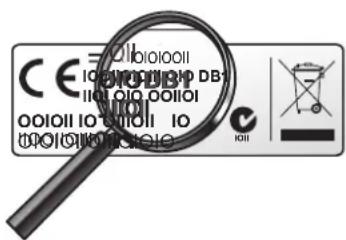
(DB1) Brands only available from version DB1 onwards. You can find the DB version on the sticker inside the battery compartment.
(DB2) Brands only available from version DB2 onwards. You can find the DB version on the sticker inside the battery compartment. DB2 products also include previous database (DB) updates (DB1).

All rights reserved. Reproduction in whole or in part is prohibited without the prior written consent of the copyright owner.
The information presented in this document does not form part of any quotation or contract, is believed to be accurate and reliable and may be changed without notice. No liability will be accepted by the publisher for any consequence of its use. Publication there of does not convey nor imply any license under patent- or other industrial or intellectual property rights.
Document order number: 3139 235 5302 3
November 2011
www.philips.com
RTP/4811

- TABLE OF CONTENTS
- 1 YOUR SRP5107WM
- SIMPLE SETUP
- 2 GETTING STARTED
- 2.1 INSERTING THE BATTERIES
- NOTE
- 2.2 TESTING THE UNIVERSAL REMOTE CONTROL
- EXAMPLE: TESTING THE UNIVERSAL REMOTE CONTROL ON YOUR TV
- 2.3 SETTING UP THE UNIVERSAL REMOTE CONTROL
- EXAMPLE: SETTING UP THE UNIVERSAL REMOTE CONTROL TO OPERATE YOUR TV
- IMPORTANT
- 2.3.3 IMPROVING BUTTONS
- DURING INITIAL SETUP
- AFTER INITIAL SETUP
- 3 USING THE UNIVERSAL REMOTE CONTROL
- 3.1 BUTTONS AND FUNCTIONS
- NOTES
- 3.1.1 DEDICATED DVR FUNCTIONS - LABELED IN BLUE (*TIVO/REPLAY)
- 3.2 CONTROLLING COMBO DEVICES
- EXAMPLE FOR A DVD/DVR COMBO
- 3.3 LEARNING BUTTON FUNCTIONS
- 3.4 RESETTING A BUTTON TO ITS ORIGINAL FUNCTION
- 3.5 RESETTING THE ORIGINAL FUNCTIONS OF THE REMOTE CONTROL (FACTORY RESET)
- 4 SERVICE AND SUPPORT
- 4.1 FREQUENTLY ASKED QUESTIONS
- SETUP
- MY TV SWITCHES OFF IN STEP 4 BUT DOES NOT SWITCH ON AGAIN IN STEP 5
- AFTER SETUP, NOT ALL BUTTONS WORK AS EXPECTED
- HOW DO I SET UP THE REMOTE CONTROL FOR COMBO DEVICES (TV/VCR, TV/DVD, DVD/VCR, ETC)
- OPERATION
- THE REMOTE CONTROL DOES NOT WAKE UP ANYMORE
- THE DEVICE I WANT TO OPERATE DOES NOT RESPOND AT ALL/DOES NOT RESPOND TO ALL OF THE BUTTON COMMANDS
- WRONG CODE SELECTED DURING SETUP
- BATTERIES
- WILL MY SETTINGS BE DELETED WHEN I REPLACE THE BATTERIES
- WARNING
- 4.2 NEED HELP
- FCC COMPLIANCY
- CAUTION
- NOTICE FOR CANADA
- HELPLINE
- A
- B
- C
- D
- E
- F
- G
- H
- J
- N
- 0
- P
- Q
- R
- S
- T
- U
- V
- W
- X
- Y
- Z
Brand : PHILIPS
Model : SRP5107WM
Category : Remote control