TA890GXE - Motherboard BIOSTAR - Free user manual and instructions
Find the device manual for free TA890GXE BIOSTAR in PDF.


User questions about TA890GXE BIOSTAR
0 question about this device. Answer the ones you know or ask your own.
Ask a new question about this device
Download the instructions for your Motherboard in PDF format for free! Find your manual TA890GXE - BIOSTAR and take your electronic device back in hand. On this page are published all the documents necessary for the use of your device. TA890GXE by BIOSTAR.
USER MANUAL TA890GXE BIOSTAR
FCC Information and Copyright
This equipment has been tested and found to comply with the limits of a Class B digital device, pursuant to Part 15 of the FCC Rules. These limits are designed to provide reasonable protection against harmful interference in a residential installation. This equipment generates, uses, and can radiate radio frequency energy and, if not installed and used in accordance with the instructions, may cause harmful interference to radio communications. There is no guarantee that interference will not occur in a particular installation.
The vendor makes no representations or warranties with respect to the contents here and specially disclaims any implied warranties of merchantability or fitness for any purpose. Further the vendor reserves the right to revise this publication and to make changes to the contents here without obligation to notify any party beforehand.
Duplication of this publication, in part or in whole, is not allowed without first obtaining the vendor's approval in writing.
The content of this user's manual is subject to be changed without notice and we will not be responsible for any mistakes found in this user's manual. All the brand and product names are trademarks of their respective companies.
Table of Contents
Chapter 1: Introduction ...... 1
1.1 Before You Start 1
1.2 Package Checklist....1
1.3 Motherboard Features....2
1.4 Rear Panel Connectors 3
1.5 Motherboard Layout....4
Chapter 2: Hardware Installation .... 5
2.1 Installing Central Processing Unit (CPU) 5
2.2 FAN Headers....7
2.3 Installing System Memory 8
2.4 Connectors and Slots 10
Chapter 3: Headers & Jumpers Setup ...... 13
3.1 How to Setup Jumpers 13
3.2 Detail Settings 13
Chapter 4: Hybrid CrossFireX Function ..... 19
4.1 Hybrid CrossFireX Requirements....19
4.2 Hybrid CrossFireX Installation....19
Chapter 5: RAID Functions ...... 20
5.1 Operating System....20
5.2 Raid Arrays 20
5.3 How RAID Works....20
Chapter 6: T-Series BIOS & Software.... 24
6.1 T-Series BIOS 24
6.2 T-Series Software 32
Chapter 7: Useful Help 42
7.1 Driver Installation Note 42
7.2 Extra Information....43
7.3 AMI BIOS Beep Code 44
7.4 Troubleshooting 45
Appendix: SPEC In Other Languages 46
German....46
French 48
Italian....50
Spanish 52
Portuguese 54
Polish 56
Russian 58
Arabic....60
Japanese 62
CHAPTER 1: INTRODUCTION
1.1 B EFORE YOU START
Thank you for choosing our product. Before you start installing the motherboard, please make sure you follow the instructions below:
■ Prepare a dry and stable working environment with sufficient lighting.
■ Always disconnect the computer from power outlet before operation.
■ Before you take the motherboard out from anti-static bag, ground yourself properly by touching any safely grounded appliance, or use grounded wrist strap to remove the static charge.
■ Avoid touching the components on motherboard or the rear side of the board unless necessary. Hold the board on the edge, do not try to bend or flex the board.
■ Do not leave any unfastened small parts inside the case after installation. Loose parts will cause short circuits which may damage the equipment.
- Keep the computer from dangerous area, such as heat source, humid air and water
■ The operating temperatures of the computer should be 0 to 45 degrees Celsius.
1.2 PACKAGE CHECKLIST
IDE Cable X 1 (optional)
Serial ATA Cable X 3
Serial ATA Power Cable X 1
Rear I/O Panel for ATX Case X 1
User's Manual X 1
4 Fully Setup Driver CD X 1
FDD Cable X 1 (optional)
USB 2.0 Cable X1 (optional)
S/PDIF out Cable X 1 (optional)
DVI to HDMI Dongle X 1 (optional)
Note: The package contents may be different due to area or your motherboard version.
1.3 MOTHERBOARD FEATURES
| TA890GXE TA880GXE | ||
| CPU | Socket AM3AMD Phenom II / Athlon II / Sempron processorAMD 64 Architecture enables 32 and 64 bit computingSupports Hyper Transport 3.0 and Cool-n=Quiet(Max imum Watt: 140W) | Socket AM3AMD Phenom II / Athlon II / Sempron processorAMD 64 Architecture enables 32 and 64 bit computingSupports Hyper Transport 3.0 and Cool-n=Quiet(Max imum Watt: 140W) |
| FSB | Support HyperTransport 3.0Supports up to 5.2 GT/s (OC) Bandwidth | Support HyperTransport 3.0Supports up to 5.2 GT/s (OC) Bandwidth |
| Chipset | AMD 890GXAMD SB850 | AMD 880GAMD SB850 |
| Super I/O | ITE 8721Provides the most commonly used legacy Super I/O functionalityLow Pin Count InterfaceEnvironment Control in it iativesH/W MonitorITE's "Smart Guard ian" function | ITE 8721Provides the most commonly used legacy Super I/O functionalityLow Pin Count InterfaceEnvironment Control in it iativesH/W MonitorITE's "Smart Guard ian" function |
| Main Memory | DDR3 DIMM Slots x 4Max Memory Capacity 16GBEach DIMM supports 512MB/1GB/2GB/4GB DDR3Dual Channel Mode DDR3 memory modu leSupports DDR3 800 / 1066 / 1333Supports DDR3 1600 (OC)Registered DIMM and ECC D IMM is not supported | DDR3 DIMM Slots x 4Max Memory Capacity 16GBEach DIMM supports 512MB/1GB/2GB/4GB DDR3Dual Channel Mode DDR3 memory modu leSupports DDR3 800 / 1066 / 1333Supports DDR3 1600 (OC)Registered DIMM and ECC D IMM is not supported |
| Graphics | Integrated in AMD 890GX Chipset (HD4290)Max Shared Vid eo Memory is 512 MBDX10.1 / UVD 2.0 / HYBRID CFX support | Integrated in AMD 880G Chipset (HD4250)Max Shared Vid eo Memory is 512 MBDX10.1 / UVD 2.0 / HYBRID CFX support |
| IDE | VIA VT6330Ultra DMA 33 / 66 / 100 / 133 Bus Master Mode supports PIO Mode 0~4, | VIA VT6330Ultra DMA 33 / 66 / 100 / 133 Bus Master Mode supports PIO Mode 0~4, |
| SATA III | Integrated Serial ATA ControllerData transfer rates up to 6 Gb/sSATA Version 3.0 specification comp liant | Integrated Serial ATA ControllerData transfer rates up to 6 Gb/sSATA Version 3.0 specification comp liant |
| LAN | Realtek RTL 8111DL10 / 100 /1000 Mb/s auto negotiationHalf / Full duplex capability | Realtek RTL 8111DL10 / 100 /1000 Mb/s auto negotiationHalf / Full duplex capability |
| Sound | ALC8927.1 channels audio outHigh Definition Audio | ALC8927.1 channels audio outHigh Definition Audio |
| IEEE 1394 | VIA VT6330 VIA VT6330 | |
| Slots | PCI Express Gen2 x16 slot x1PCI Express Gen2 x 1 slot x1PCI slot x2 PCI slot x2 | PCI Express Gen2 x16 slot x1PCI Express Gen2 x 1 slot x1 |
| On Board Connector | IDE Connector x1 IDE Connector x1SATA Connector x5 SATA Connector x5Front Panel Connector x1 Front Panel Connector x1Front Audio Connector x1 Front Audio Connector x1S/PDIF Out Connector x1CPU Fan Header x1 | S/PDIF Out Connector x1CPU Fan Header x1 |
| TA890GXE TA880GXE | |||
| System Fan Header x2 System Fan Header x2CMOS clear Header x1 CMOS clear Header x1USB Connector x3 USB Connector x3IEEE 1394 Connector x1 IEEE 1394 Connector x1Consumer IR Connector x1 Consumer IR Connector x1Power Connector (24pin) x1 Power Connector (24pin) x1Power Connector (4pin) x1 Power Connector (4pin) x1Serial Port Connector x1 Serial Port Connector x1 | |||
| Back Panel I/O | PS/2 Keyboard x1PS/2 Mouse x1S/PDIF Out x1HDMI Port x1VGA Port x1DVI-D Port x11394 Port x1eSATA2 Port x1LAN port x1USB Port x4Audio Jack x6 | x1x1x1x1x1x1x1x1x1x1x1x4x6 | PS/2 Keyboard x1PS/2 Mouse x1S/PDIF Out x1HDMI Port x1VGA Port x1DVI-D Port x11394 Port x1eSATA2 Port x1LAN port x1USB Port x4Audio Jack x6 |
| Board Size | 244 mm(W) x 244 mm(L) | 244 mm(W) x 244 mm(L) | |
| Special Features | RAID 0 / 1 / 5 / 10 support | RAID 0 / 1 / 5 / 10 support | |
| OS Support | Windows XP / Vista / 7Biostar reserves the right to add or remove support for any OS With or without notice. | Windows XP / Vista / 7Biostar reserves the right to add or remove support for any OS With or without notice. | |
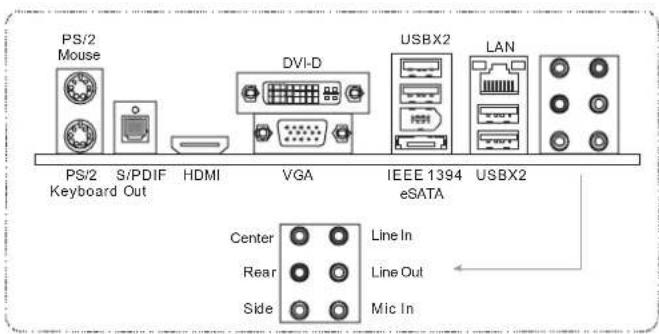
1.4 REAR PANEL CONNECTORS
text_image
PS/2 Mouse PS/2 Keyboard Out S/PDIF HDMI DVI-D VGA IEEE 1394 eSATA USBX2 LAN Center Line In Rear Line Out Side Mic InNOTE: Dual Screen:
| Display Devices | VGA + HDMI | VGA + DVI-D | HDMI + DVI-D |
| Enabled | O | O | X |
NOTE: For eSATA, Hot Plug is available only under AHCI mode.
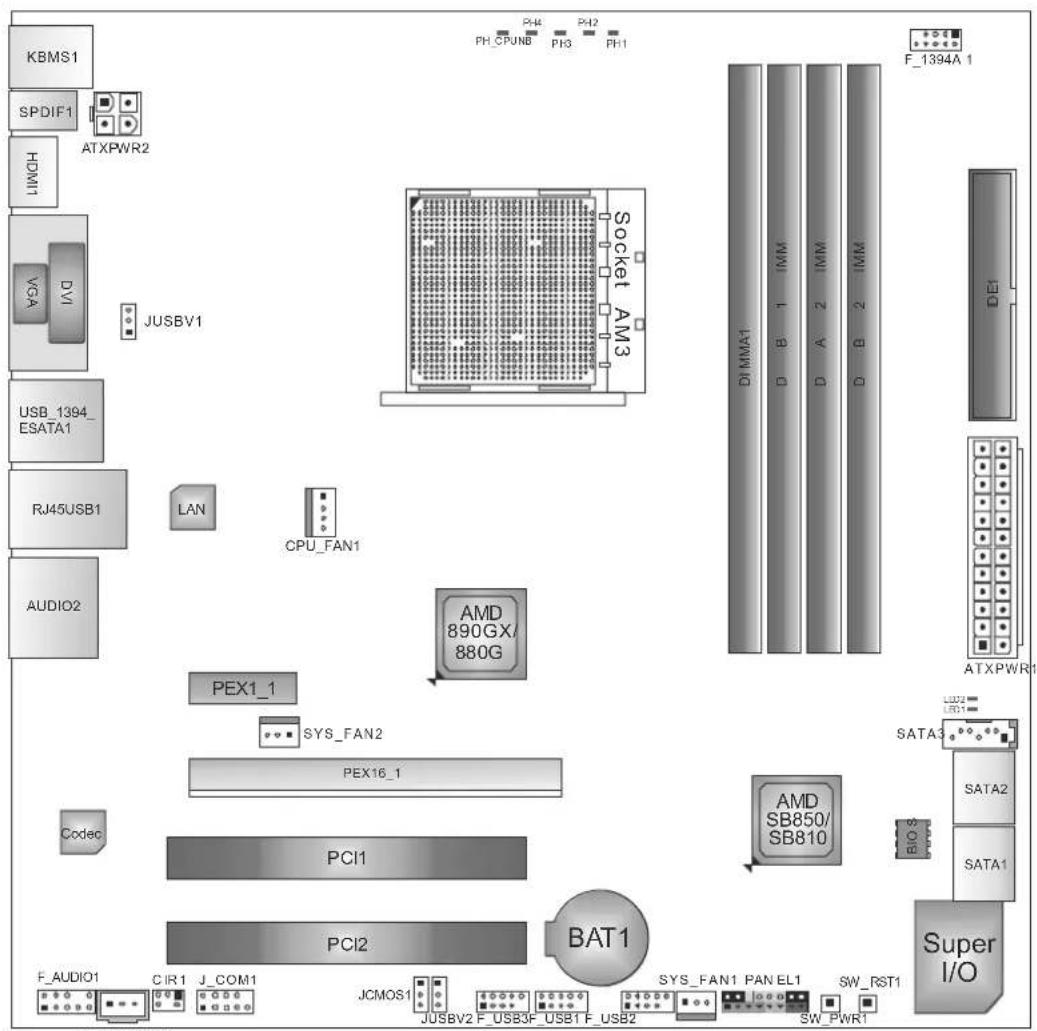
1.5 MOTHERBOARD LAYOUT
text_image
KBMS1 SPDIF1 HDMI1 ATXPWR2 VGA DV1 JUSBV1 USB_1394_ESATA1 RJ45USB1 AUDIO2 LAN CPU_FAN1 AMD 890GX/ 880G PEX1_1 SYS_FAN2 PEX16_1 Codec PCI1 PCI2 BAT1 F_AUDIO1 CIR1 J_COM1 JCMOS1 JUSBV2 F_USB3F_USB1 F_USB2 PH_CPUNB PH3 PH1 LVMW1G LVMW1 I B A D B D SATAA SB850/SB810 SATAA BIO S Super I/O F_1394A 1 DEI ATXPWR1Note: represents the 1 ■ pin.
CHAPTER 2: HARDWARE INSTALLATION
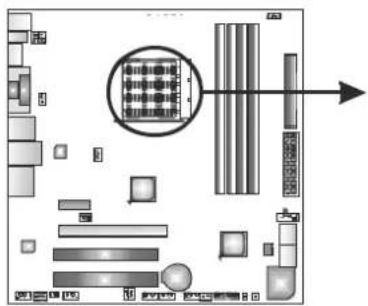
2.1 INSTALLING CENTRAL PROCESSING UNIT (CPU)
natural_image
Floor plan layout with room layouts and a central circular diagram (no text or labels)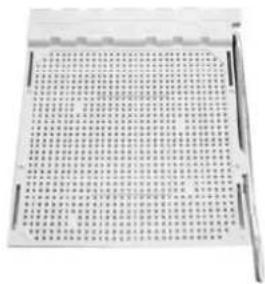
natural_image
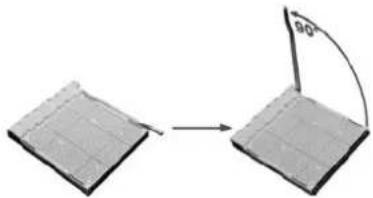
Close-up of a grid-patterned metal plate with no visible text or symbolsStep 1: Pull the lever toward direction A from the socket and then raise the lever up to a 90-degree angle.
natural_image
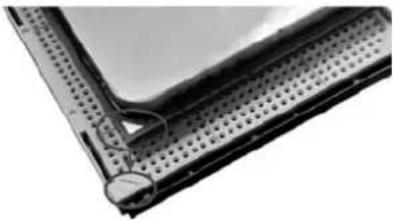
Diagram showing two rectangular blocks with a curved arrow labeled 90°, no text or symbols presentStep 2: Look for the white triangle on socket, and the gold triangle on CPU should point towards this white triangle. The CPU will fit only in the correct orientation.
natural_image
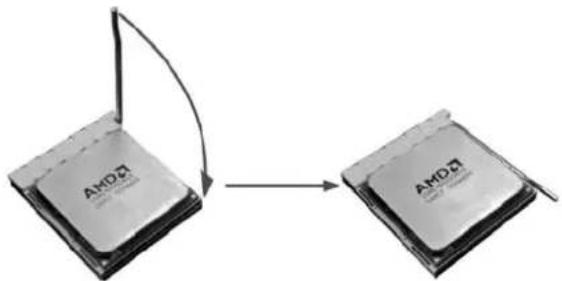
Close-up of a perforated metal panel with a small circular component inserted (no visible text or symbols)Step 3: Hold the CPU down firmly, and then close the lever toward direct B to complete the installation.
flowchart
graph TD
    A["CPU 1"] -->|Data Flow Arrow| B["CPU 2"]
Step 4: Put the CPU Fan on the CPU and buckle it. Connect the CPU FAN power cable to CPU_FAN1 to complete the installation.
2.2 FAN HEADERS
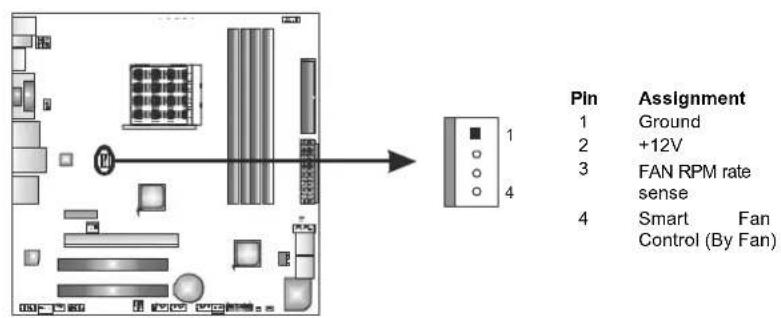
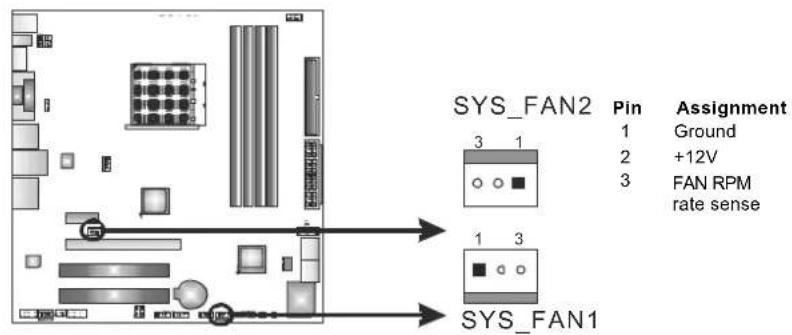
These fan headers support cooling-fans built in the computer. The fan cable and connector may be different according to the fan manufacturer. Connect the fan cable to the connector while matching the black wire to pin#1.
CPU FAN1: CPU Fan Header
flowchart
graph TD
    A["Pin 1"] --> B["Ground"]
    C["Pin 2"] --> D["+12V"]
    E["Pin 3"] --> F["FAN RPM rate sense"]
    G["Pin 4"] --> H["Smart Fan Control (By Fan)"]
SYS\_FAN1: NorthBridge Fan Header
SYS_FAN2: System Fan Header
text_image
SYS_FAN2 Pin Assignment 1 Ground 2 +12V 3 FAN RPM rate sense SYS_FAN1Note:
CPU_FAN1, SYS_FAN1/2 support 4-pin and 3-pin head connectors. When connecting with wires onto connectors, please note that the red wire is the positive and should be connected to pin#2, and the black wire is Ground and should be connected to GND.
2.3 INSTALLING SYSTEM MEMORY
A. DDR3 Modules
text_image
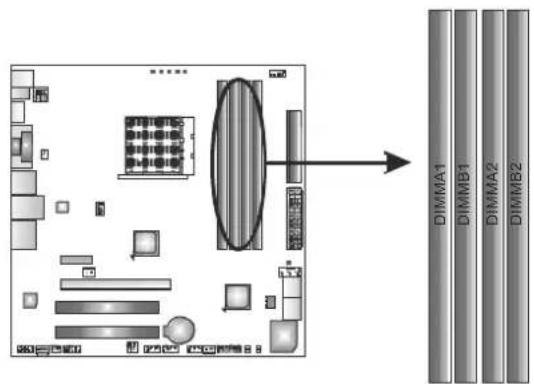
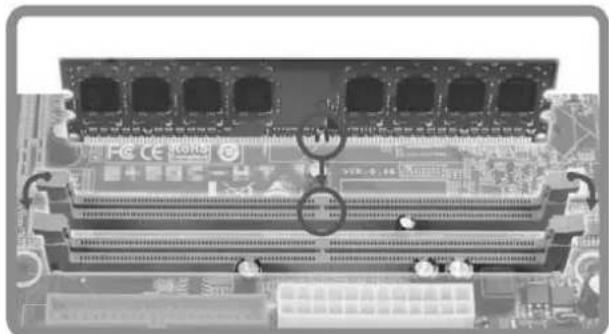
Diagram showing a layout with labeled components and an arrow pointing to a vertical stack of four DIMM blocks (DIMMA1, DIMMB1, DIMMA2, DIMMB2).- Unlock a DIMM slot by pressing the retaining clips outward. Align a DIMM on the slot such that the notch on the DIMM matches the break on the Slot.
natural_image
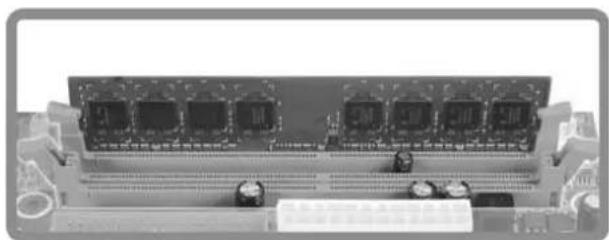
Close-up of a computer RAM module with multiple slots and circuit board (no visible text or symbols)- Insert the DIMM vertically and firmly into the slot until the retaining chip snap back in place and the DIMM is properly seated.
natural_image
Front view of a computer RAM module with multiple drive bays and connectors (no visible text or labels)B. Memory Capacity
| DIMM Socket Location | DDR3 Module | Total Memory Size |
| DIMMA1 | 512MB/1GB/2GB/4GB | Max is 16GB. |
| DIMMB1 | 512MB/1GB/2GB/4GB | |
| DIMMA2 | 512MB/1GB/2GB/4GB | |
| DIMMB2 | 512MB/1GB/2GB/4GB |
C. Dual Channel Memory installation
Please refer to the following requirements to activate Dual Channel function:
Install memory module of the same density in pairs, shown in the table.
| Dual Channel Status | DIMMA1 | DIMMB1 | DIMMA2 | DIMMB2 |
| Enabled | O | O | X | |
| Enabled | X | X | O | |
| Enabled | O | O | O |
(O means memory installed, X means memory not installed.)
The DRAM bus width of the memory module must be the same (x8 or x16)
CONNECTORS AND SLOTS
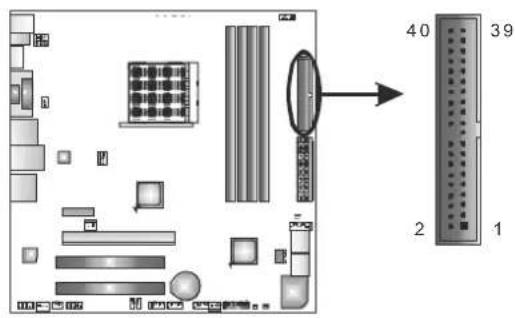
IDE1: IDE/ATAPI Connector
The motherboard has a 32-bit Enhanced IDE Controller that provides PIO Mode 0\~4, Bus Master, and Ultra DMA 33/66/100/133 functionality.
text_image
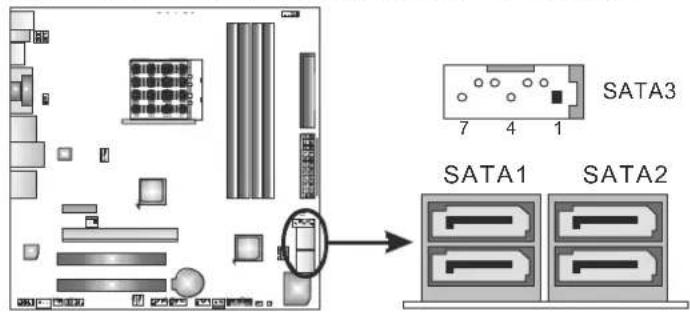
Diagram of a computer motherboard layout with labeled components and numbered partsSATA1\~SATA3: Serial ATA Connectors
The motherboard has a PCI to SATA Controller with 5 channels SATA interface, it satisfies the SATA 3.0 spec and with transfer rate of 6.0Gb/s.
text_image
SATA3 7 4 1 SATA1 SATA2Pin Assignment
1 Ground
2 TX+
3 TX-
4 Ground
5 RX-
6 RX+
7 Ground
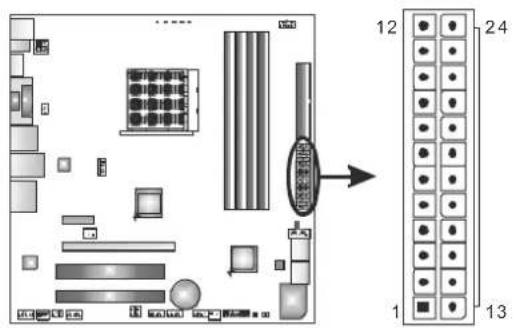
ATXPWR1: ATX Power Source Connector
This connector allows user to connect 24-pin power connector on the ATX power supply.
text_image
Diagram of a computer motherboard layout with labeled components and numbered parts| Pin | Assignment | Pin | Assignment | |
| 13 | +3.3V | 1 | +3.3V | |
| 14 | -12V | 2 | +3.3V | |
| 15 | Ground | 3 | Ground | |
| 16 | PS_ON | 4 | +5V | |
| 17 | Ground | 5 | Ground | |
| 18 | Ground | 6 | +5V | |
| 19 | Ground | 7 | Ground | |
| 20 | NC | 8 | PW_OK | |
| 21 | +5V | 9 | Standby | Voltage+5V |
| 22 | +5V | 10 | +12V | |
| 23 | +5V | 11 | +12V | |
| 24 | Ground | 12 | +3.3V |
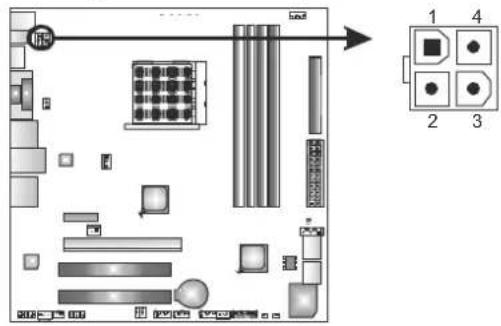
ATXPWR2: ATX Power Source Connector
Connecting this connector will provide +12V to CPU power circuit.
text_image
Floor plan diagram with labeled rooms and a numbered layout panel showing four square icons| Pin | Assignment |
| 1 | +12V |
| 2 | +12V |
| 3 | Ground |
| 4 | Ground |
Note:
Before power on the system, please make sure that both ATXPWR1 and ATXPWR2 connectors have been plugged-in.
PEX16\_1: PCI-Express Gen2 x16 Slot
- PCI-Express 2.0 compliant.
- Maximum theoretical realized bandwidth of 8GB/s simultaneously per direction, for an aggregate of 16GB/s totally.
- PCI-Express Gen2 supports a raw bit-rate of 5.0Gb/s on the data pins.
- 2X bandwidth over the PCI-Express 1.1 architecture.
PEX1\_1: PCI-Express Gen 2 x1 Slot
- PCI-Express 2.0 compliant.
- Data transfer bandwidth up to 250MB/s per direction; 500MB/s in total.
- PCI-Express Gen2 supports a raw bit-rate of 2.5Gb/s on the data pins.
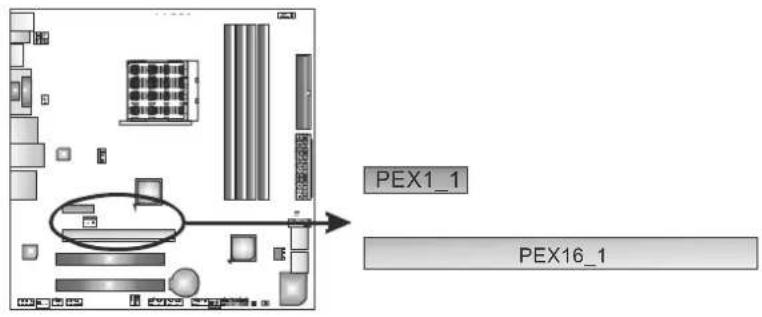
text_image
PEX1_1 PEX16_1PCI1/PCI2: Peripheral Component Interconnect Slots
This motherboard is equipped with 2 standard PCI slots. PCI stands for Peripheral Component Interconnect, and it is a bus standard for expansion cards. This PCI slot is designated as 32 bits.
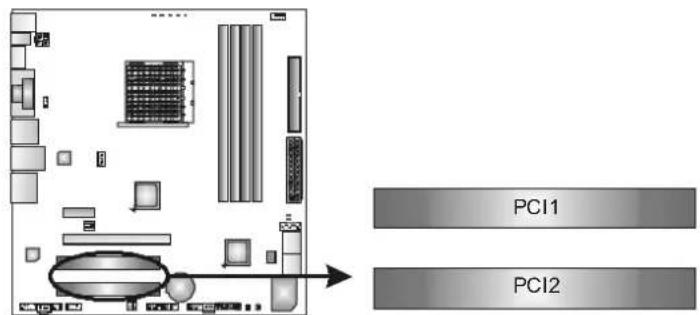
text_image
PCI1 PCI2CHAPTER 3: HEADERS & JUMPERS SETUP
3.1 HOW TO SETUP JUMPERS
The illustration shows how to set up jumpers. When the jumper cap is placed on pins, the jumper is "close", if not, that means the jumper is "open".
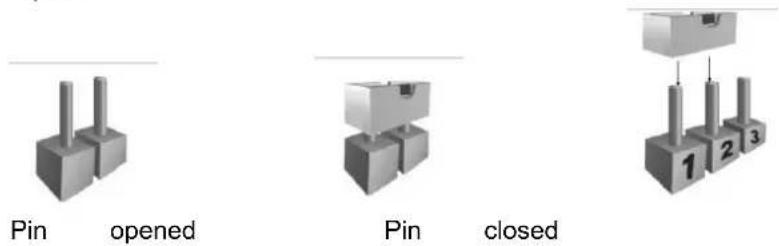
Pin1-2
closed
3.2 DETAIL SETTINGS
PANEL1: Front Panel Header
This 16-pin connector includes Power-on, Reset, HDD LED, Power LED, and speaker connection. It allows user to connect the PC case's front panel switch functions.
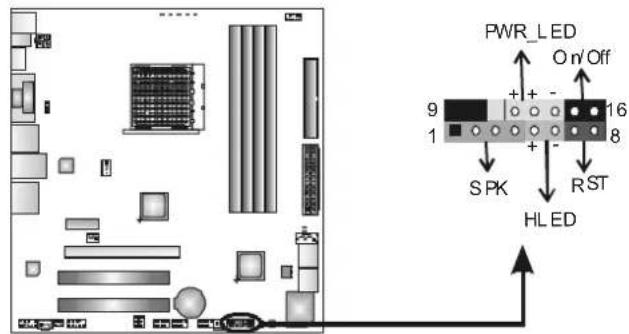
text_image
PWR_LED On'Off 9 16 8 SPK RST HL ED| Pin | Assignment | Function | Pin | Assignment | Function |
| 1 | +5V | Speaker Connector | 9 | N/A | N/A |
| 2 | N/A | 10 | N/A | ||
| 3 | N/A | 11 | N/A | N/A | |
| 4 | Speaker | 12 | Power LED (+) | Power LED | |
| 5 | HDD LED (+) | Hard drive LED | 13 | Power LED (+) | |
| 6 | HDD LED (-) | 14 | Power LED (-) | ||
| 7 | Ground | Reset button | 15 | Power button | Power-on button |
| 8 | Reset control | 16 | Ground |
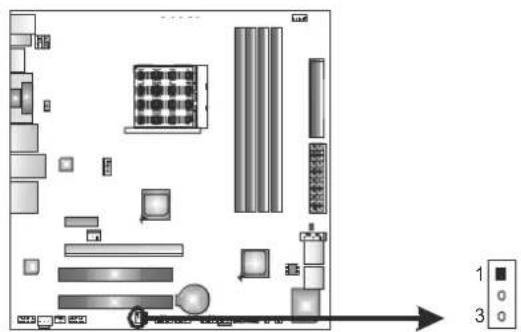
JCMOS1: Clear CMOS Header
Placing the jumper on pin2-3 allows user to restore the BIOS safe setting and the CMOS data. Please carefully follow the procedures to avoid damaging the motherboard.
text_image
Floor plan diagram with labeled rooms and directional arrow, showing room numbers 1 and 3
Pin 1-2 Close: Normal Operation (default).

Pin 2-3 Close: Clear CMOS data.
- Remove AC power line.
- Set the jumper to "Pin 2-3 close".
- Wait for five seconds.
- Set the jumper to "Pin 1-2 close".
- Power on the AC.
- Reset your desired password or clear the CMOS data.
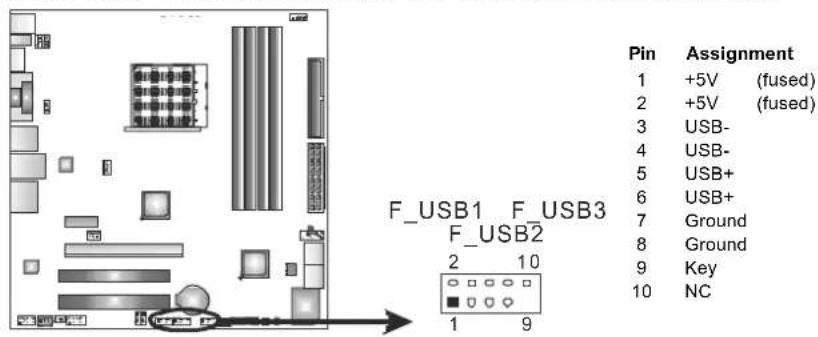
F USB1/F USB2/F USB3: Headers for USB 2.0 Ports at Front Panel
These headers allow user to connect additional USB cable on the PC front panel, and also can be connected with internal USB devices, like USB card reader.
text_image
Pin Assignment 1 +5V (fused) 2 +5V (fused) 3 USB- 4 USB- 5 USB+ 6 USB+ 7 Ground 8 Ground 9 Key 10 NC F_USB1 F_USB3 F_USB2 2 10 1 9JUSBV1/JUSBV2: Power Source Headers for USB Ports
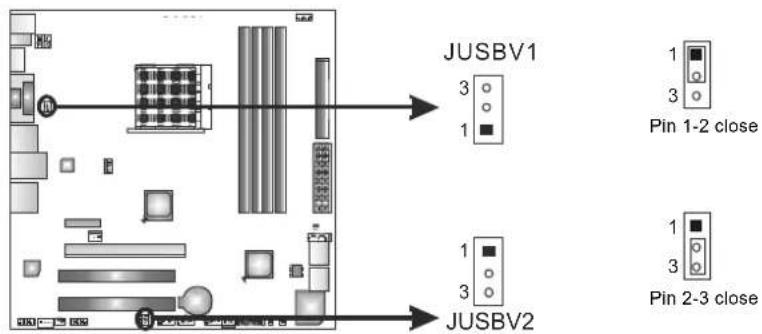
Pin 1-2 Close:
JUSBV1: +5V for USB ports at USB_1394_ESATA1/RJ45USB1.
JUSBV2: +5V for USB ports at F_USB1/F_USB2/F_USB3.
Pin 2-3 Close:
JUSBV1: +5V STB for USB ports at USB_1394_ESATA1/RJ45USB1.
JUSBV2: +5V STB for USB ports at F_USB1/F_USB2/F_USB3.
flowchart
graph TD
    A["Device 1"] --> B["JUSBV1"]
    C["Device 2"] --> D["JUSBV2"]
    B --> E["Pin 1-2 close"]
    D --> F["Pin 2-3 close"]
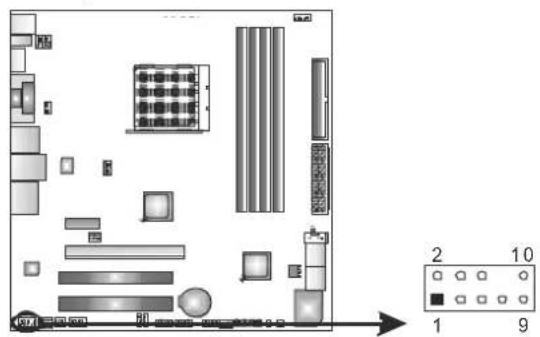
F AUDIO1: Front Panel Audio Header
This header allows user to connect the front audio output cable with the PC front panel. This header allows only HD audio front panel connector; AC'97 connector is not acceptable.
text_image
Floor plan diagram with labeled rooms and a numbered indicator box showing values 2, 10, 9Pin Assignment
1 Mic Left in
2 Ground
3 Mic Right in
4 GPIO
5 Right line in
6 Jack Sense
7 Front Sense
8 Key
9 Left line in
10 Jack Sense
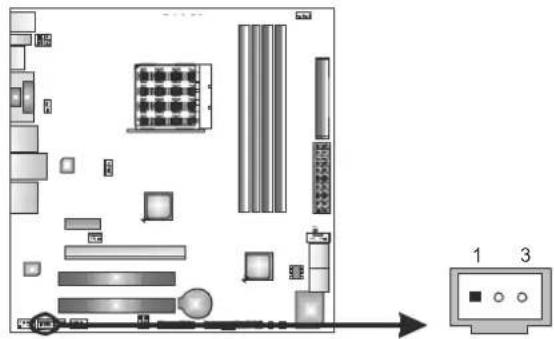
JSPDIFOUT1: Digital Audio-out Connector
This connector allows user to connect the PCI bracket SPDIF output header.
text_image
Diagram of a computer motherboard layout with labeled components and an input box showing three numbered slotsPin Assignment
1 +5V
2 SPDIF_OUT
3 Ground
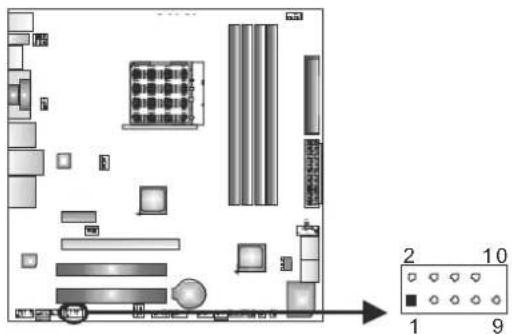
J COM1: Serial Port Connector
The motherboard has a Serial Port Connector for connecting RS-232 Port.
text_image
Floor plan diagram with labeled rooms and a numbered scale from 1 to 10Pin Assignment
1 Carrier detect
2 Received data
3 Transmitted data
4 Data terminal ready
5 Signal ground
6 Data set ready
7 Request to send
8 Clear to send
9 Ring indicator
10 NC
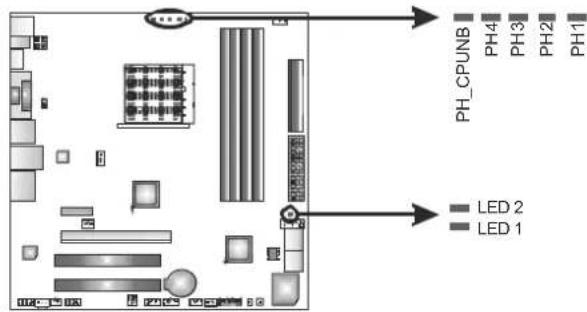
On-Board LED Indicators
There are 7 LED indicators showing system status.
text_image
PH_CPUNB PH4 PH3 PH2 PH1 LED 2 LED 1LED1 & LED2: Debug Indicators
PH_CPUNB/ PH1 \~ PH4: Power Status Indicators Please refer to the tables below for specific messages:
| LED1 | LED2 | Message |
| ON | ON | Normal |
| ON | OFF | Memory Error |
| OFF | ON | VGA Error |
| OFF OFF Abnormal: CPU / Chipset error. | ||
| PH_CPUNB/PH1~PH4 | Phase Indicator |
| ON | Phase Active |
| OFF | Phase Disable |
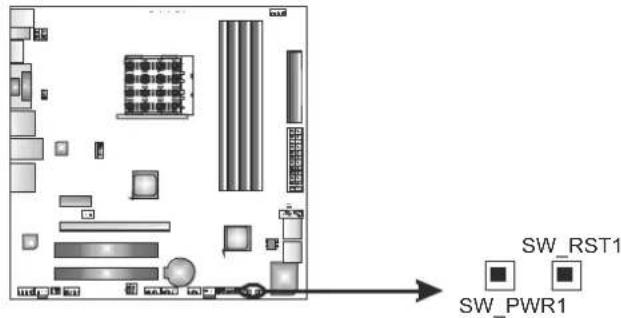
On-Board Buttons
There are 2 on-board buttons.
text_image
SW_RST1 SW_PWR1SW_RST1: Reset button. SW_PWR1: Power Switch button.
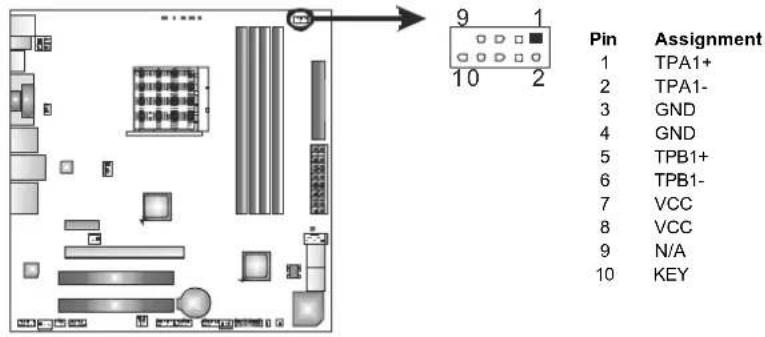
F\_1394A1: IEEE 1394 Header
This header allows user to connect IEEE 1394 device.
text_image
Pin Assignment 1 TPA1+ 2 TPA1- 3 GND 4 GND 5 TPB1+ 6 TPB1- 7 VCC 8 VCC 9 N/A 10 KEYCIR1: Consumer IR Connector
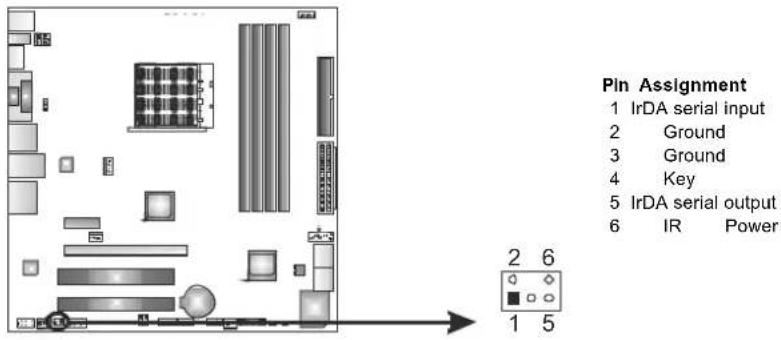
This header is for infrared remote control and communication. This function is available only in Windows 7, Windows Vista, and Windows MCE.
text_image
Pin Assignment 1 IrDA serial input 2 Ground 3 Ground 4 Key 5 IrDA serial output 6 IR Power 2 6 1 5CHAPTER 4: HYBRID CROSSFIREX FUNCTION
4.1 HYBRID CROSSFIREX REQUIREMENTS
A graphics card with Radeon HD5450 GPU.
The graphics card driver should support Hybrid CrossFireX technology.
The power supply unit must provide at least the minimum power required by the system, or the system will be unstable. A power supply above 450W is recommended under Hybrid CrossFireX mode.
4.2 HYBRID CROSSFIREX INSTALLATION
Step 1: Insert the Hybrid CrossFireX-Ready graphics card into PEX16_1.
Radeon HD5450
PEX16_1
Notice: Make sure the graphics card is seated into slot completely.
Step 2: In the graphics card configuration program, choose "Hybrid CrossFireX" function. Installation completes.
NOTE
For more detail information of Hybrid CrossFireX function, please visit following web-sites:
http://game.amd.com/us-en/crossfirex_hybrid.aspx http://ati.amd.com/technology/hybridgraphics/index.html
CHAPTER 5: RAID FUNCTIONS
Supports Windows Vista and Windows 7.
5.2 RAID ARRAYS
RAID supports the following types of RAID arrays:
RAID 0: RAID 0 defines a disk striping scheme that improves disk read and write times for many applications.
RAID 1: RAID 1 defines techniques for mirroring data.
RAID 10: RAID 10 combines the techniques used in RAID 0 and RAID 1.
RAID 5: RAID 5 provides fault tolerance and better utilization of disk capacity.
5.3 How RAID WORKS
RAID 0:
The controller “stripes” data across multiple drives in a RAID 0 array system. It breaks up a large file into smaller blocks and performs disk reads and writes across multip le drives in parallel. The size of each block is determined by the stripe size parameter, which you set during the creation of the RAID set based on the system environment. This technique reduces overall disk access time and offers high bandwidth.
Features and Benefits
- Drives: Minimum 2, and maximum is up to 6 or 8. Depending on the platform.
- Uses: Intended for non-critical data requiring high data throughput, or any environment that does not require fault tolerance.
- Benefits: provides increased data throughput, especially for large files. No capacity loss penalty for parity.
- Drawbacks: Does not deliver any fault tolerance. If any drive in the array fails, all data is lost.
- Fault Tolerance: No.
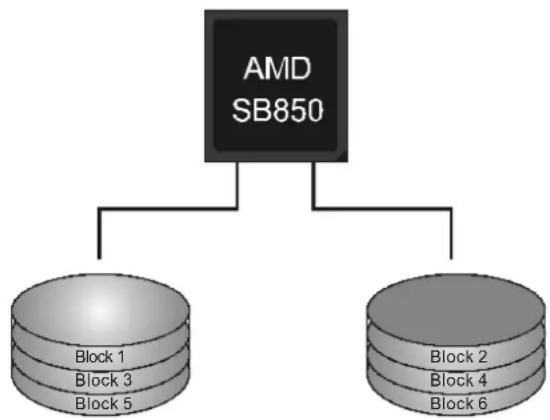
flowchart
graph TD
    A["AMD SB850"] --> B["Block 1"]
    A --> C["Block 2"]
    A --> D["Block 3"]
    A --> E["Block 4"]
    A --> F["Block 5"]
RAID 1:
Every read and write is actually carried out in parallel across 2 disk drives in a RAID 1 array system. The mirrored (backup) copy of the data can reside on the same disk or on a second redundant drive in the array. RAID 1 provides a hot-standby copy of data if the active volume or drive is corrupted or becomes unavailable because of a hardware failure.
RAID techniques can be applied for high-availability solutions, or as a form of automatic backup that eliminates tedious manual backups to more expensive and less reliable media.
Features and Benefits
- Drives: Minimum 2, and maximum is 2.
- Uses: RAID 1 is ideal for small databases or any other application that requires fault tolerance and minimal capacity.
- Benefits: Provides 100% data redundancy. Should one drive fail, the controller switches to the other drive.
- Drawbacks: Requires 2 drives for the storage space of one drive. Performance is impaired during drive rebuilds.
- Fault Tolerance: Yes.
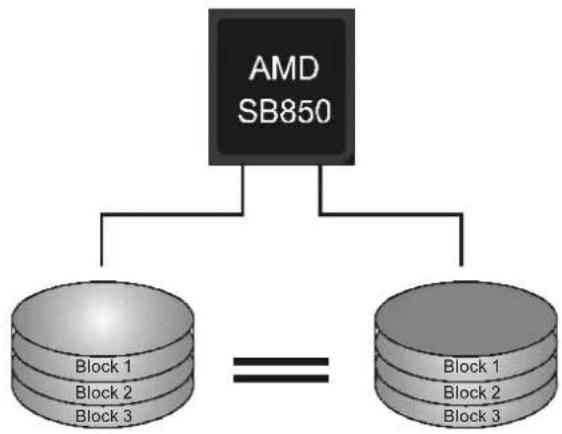
flowchart
graph TD
    A["AMD SB850"] --> B["Block 1"]
    A --> C["Block 2"]
    A --> D["Block 3"]
    B --> E["=="]
    C --> E
    D --> E
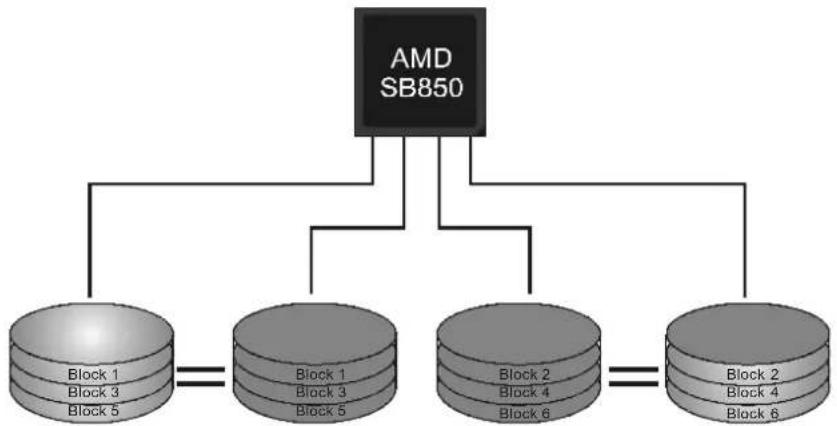
RAID 10:
RAID 1 drives can be stripped using RAID 0 techniques. Resulting in a RAID 10 solution for improved resiliency, performance and rebuild performance.
Features and Benefits
- Drives: Minimum 4, and maximum is 6 or 8, depending on the platform.
- Benefits: Optimizes for both fault tolerance and performance, allowing for automatic redundancy. May be simultaneously used with other RAID levels in an array, and allows for spare disks.
- Drawbacks: Requires twice the available disk space for data redundancy, the same as RAID level 1.
- Fault Tolerance: Yes.
flowchart
graph TD
    A["AMD SB850"] --> B["Block 1\nBlock 3\nBlock 5"]
    A --> C["Block 1\nBlock 3\nBlock 5"]
    A --> D["Block 2\nBlock 4\nBlock 6"]
    A --> E["Block 2\nBlock 4\nBlock 6"]
RAID 5:
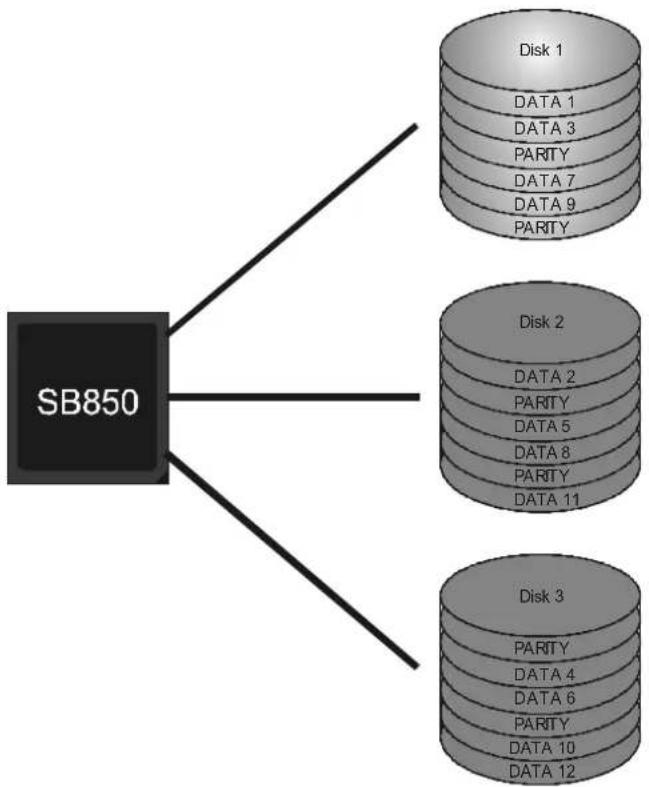
RAID 5 stripes both data and parity information across three or more drives. It writes data and parity blocks across all the drives in the array. Fault tolerance is maintained by ensuring that the parity information for any given block of data is placed on a different drive from those used to store the data itself.
Features and Benefits
- Drives: Mini mu m 3.
- Uses: RAID 5 is recommended for transaction processing and general purpose service.
- Benefits: An ideal combination of good performance, good fault tolerance, and high capacity and storage efficiency.
- Drawbacks: Individual block data transfer rate same as a single disk. Write performance can be CPU intensive.
- Fault Tolerance: Yes.
flowchart
graph TD
    A["SB850"] --> B["Disk 1"]
    A --> C["Disk 2"]
    A --> D["Disk 3"]
    B --> E["DATA 1"]
    B --> F["DATA 3"]
    B --> G["PARITY"]
    B --> H["DATA 7"]
    B --> I["DATA 9"]
    B --> J["PARITY"]
    C --> K["DATA 2"]
    C --> L["PARITY"]
    C --> M["DATA 5"]
    C --> N["DATA 8"]
    C --> O["PARITY"]
    C --> P["DATA 11"]
    D --> Q["PARITY"]
    D --> R["DATA 4"]
    D --> S["DATA 6"]
    D --> T["PARITY"]
    D --> U["DATA 10"]
    D --> V["DATA 12"]
CHAPTER 6: T-SERIES BIOS & SOFTWARE
6.1 T-SERIES BIOS
T-Series BIOS Features
■ Overclocking Navigator Engine (O.N.E.)
■ Memory Integration Test (M.I.T., under Overclock Navigator Engine)
BIO-Flasher: Update BIOS file from USB Flash Drive or FDD
■ Self Recovery System (S.R.S)
Smart Fan Function
■ CMOS Reloading Program
!! WARNING !!
For better system performance, the BIOS firmware is being continuously updated. The BIOS information described below in this manual is for your reference only and the actual BIOS information and settings on board may be different from this manual. For further information of setting up the BIOS, please refer to the BIOS Manual in the Sectu CD.
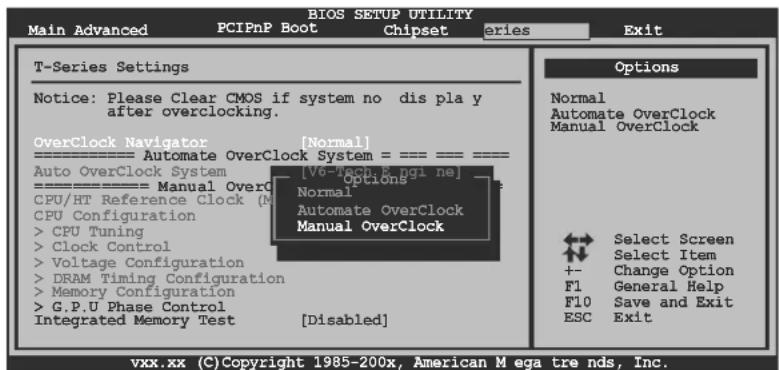
A. Overclocking Navigator Engine (O.N.E.)
ONE provides two powerful overclocking engines: MOS and AOS for both Elite and Casual overclockers.
| Main Advanced PCIPnP Boot Chipset Series Exit | |
| T-Series Settings Notice: Please Clear CMOS if system no display after overclocking. OverClock Navigator [Normal] ================equal Automation OverClock System =================== Auto OverClock System [V6-Tech Engine] ================equal Manual OverClock System =================== CPU/HT Reference Clock (MHz) [200] CPU Configuration [Auto] > CPU Tuning > Clock Control > Voltage Configuration > DRAM Timing Configuration > Memory Configuration > G.P.U Phase Control Integrated Memory Test [Disabled] | Options Normal Automate OverClock Manual OverClock Select Screen Select Item +- Change Option F1 General Help F10 Save and Exit ESC Exit |
Manual Overclock System (M.O.S.)
MOS is designed for experienced overclock users.
It allows users to customize personal overclock settings.
text_image
BIO5 SETUP UTILITY Main Advanced PCIPnP Boot Chipset series Exit T-Series Settings Notice: Please Clear CMOS if system no dis pla y after overclocking. OverClock Navigator [Normal] Automate OverClock System = === === === Auto OverClock System [V6-Wach E-ngi ne] Options --- Manual Over CPU/HT Reference Clock (M) CPU Configuration Normal > CPU Tuning Automate OverClock > Clock Control Manual OverClock > Voltage Configuration > DRAM Timing Configuration > Memory Configuration > G.P.U Phase Control Manual OverClock Integrated Memory Test [Disabled] Options Normal Automate OverClock Manual OverClock Select Screen Select Item + - Change Option F1 General Help F10 Save and Exit ESC Exit vxx.xx (C)Copyright 1985-200x, American Mega trends, Inc.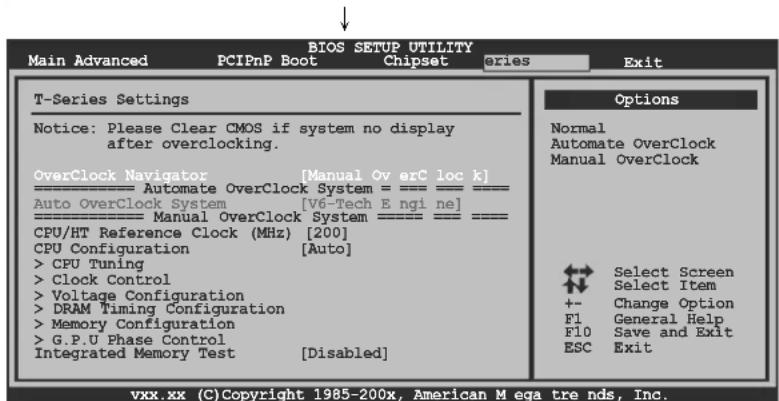
text_image
BIOSE SETUP UTILITY Main Advanced PCIPnP Boot Chipset Ories Exit T-Series Settings Notice: Please Clear CMOS if system no display after overclocking. OverClock Navigator [Manual OverC loc k] Automate OverClock System = Manual OverClock System Auto OverClock System [V6-Tech Engi ne] CPU/HT Reference Clock (MHz) [200] CPU Configuration [Auto] > CPU Tuning > Clock Control > Voltage Configuration > DRAM Timing Configuration > Memory Configuration > G.P.U Phase Control Integrated Memory Test [Disabled] Options Normal Automate OverClock Manual OverClock Select Screen Select Item +- Change Option F1 General Help F10 Save and Exit ESC Exit vxx.xx (C)Copyright 1985-200x, American Mega trends, Inc.CPU/HT Reference Clock (MHz)
CPU Frequency is directly in proportion to system performance. To maintain the system stability, CPU voltage needs to be increased also when raising CPU frequency.
CPU Configuration
This item provides several fixed modes of CPU configuration.
CPU Tuning
Enter this function for more advanced CPU settings.
Clock Control
Enter this function for more clock settings.
Voltage Configuration
Enter this function for more advanced voltage settings.
DRAM Timing Configuration
Enter this function for more advanced DRAM clock settings.
Memory Co nfiguration
Enter this function for more advanced memory settings.
NOTE
Overclock is an optional process, but not a “must-do” process; it is not recommended for inexperienced users. Therefore, we will not be responsible for any hardware damage which may be caused by overclocking. We also would not guarantee any overclocking performance.
Automatic Overclock System (A.O.S.)
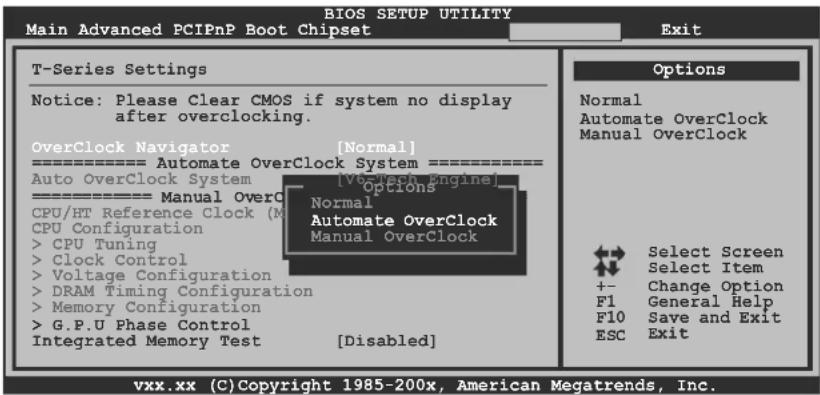
For beginners in overclock field, BET had developed an easy, fast, and powerful feature to increase the system performance, named A.O.S.
Based on many tests and experiments, A.O.S. provides 3 ideal overclock configurations that are able to raise the system performance in a single step.
text_image
BIOS SETUP UTILITY Main Advanced PCIPnP Boot Chipset Exit T-Series Settings Notice: Please Clear CMOS if system no display after overclocking. OverClock Navigator [Normal] ==================== Automate OverClock System ==================== Auto OverClock System [VccTech Engine] ==================== Manual OverO CPU/HT Reference Clock (M CPU Configuration > CPU Tuning > Clock Control > Voltage Configuration > DRAM Timing Configuration > Memory Configuration > G.P.U Phase Control Integrated Memory Test [Disabled] Options Normal Automate OverClock Manual OverClock Select Screen Select Item +- Change Option F1 General Help F10 Save and Exit ESC Exit vxx.xx (C)Copyright 1985-200x, American Megatrends, Inc.V6 Tech Engine
This engine will make a good over-clock performance.
| Main Advanced PCIPnP Boot Chipset series Exit | |
| T-Series Settings Notice: Please Clear CMOS if system no display after overclocking. OverClock Navigator [Automate OverClock] ==================== Automate OverClock System ===================== = Auto OverClock System [V6-Tech Engine] ==================== Manual OverClock System ===================== CPU/HT Reference Clock (MHz) [200] CPU Configuration [Auto] > CPU Tuning > Clock Control > Voltage Configuration > DRAM Timing Configuration > Memory Configuration > G.P.U Phase Control Integrated Memory Test [Disabled] | Options V6-Tech Engine V8-Tech Engine V12-Tech Engine Select Screen Select Item +- Change Option F1 General Help F10 Save and Exit ESC Exit |
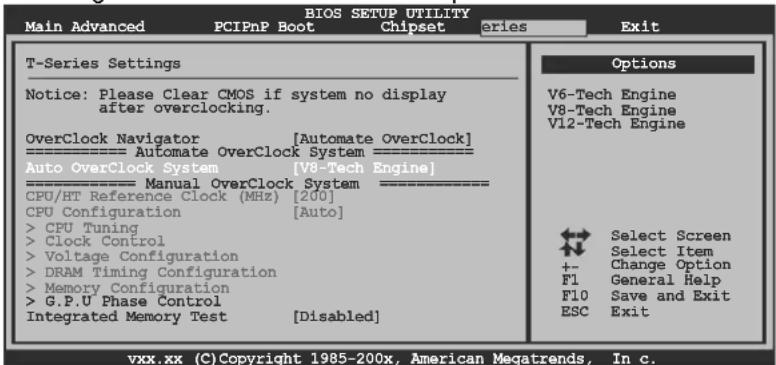
V8 Tech Engine
This engine will make a better over-clock performance.
text_image
BIOS SETUP UTILITY Main Advanced PCIPnP Boot Chipset eries Exit T-Series Settings Notice: Please Clear CMOS if system no display after overclocking. OverClock Navigator [Automate OverClock] ================[Automate OverClock System ==================] Auto OverClock System [V8-Tech Engine] ================[Manual OverClock System ==================] CPU/HT Reference Clock (MHz) [200] CPU Configuration [Auto] > CPU Tuning > Clock Control > Voltage Configuration > DRAM Timing Configuration > Memory Configuration > G.P.U Phase Control Integrated Memory Test [Disabled] Options V6-Tech Engine V8-Tech Engine V12-Tech Engine Select Screen Select Item +- Change Option F1 General Help F10 Save and Exit ESC Exit vxx.xx (C)Copyright 1985-200x, American Megatrends, In c.V12 Tech Engine
This engine will make a best over-clock performance.
| Main Advanced PCIPnP Boot Chipset eries Exit | |
| T-Series Settings Notice: Please Clear CMOS if system no display after overclocking. OverClock Navigator [Automate OverClock] -Automate OverClock System = Auto OverClock System [V12-Tech Engine] -Manual OverClock System CPU/HT Reference Clock (MHz) [200] CPU Configuration [Auto] > CPU Tuning > Clock Control > Voltage Configuration > DRAM Timing Configuration > Memory Configuration > G.P.U Phase Control Integrated Memory Test [Disabled] | Options V6-Tech Engine V8-Tech Engine V12-Tech Engine Select Screen Select Item +- Change Option F1 General Help F10 Save and Exit ESC Exit |
| vxx.xx (C) Copyright 1985-200x, American Megatrends, In c. | |
Notices:
Not all types of AMD CPU perform above overclock setting ideally; the difference will be based on the selected CPU model.
B. Memory Integration Test (M.I.T.)
This function is under "Overclocking Navigator Engine" item.
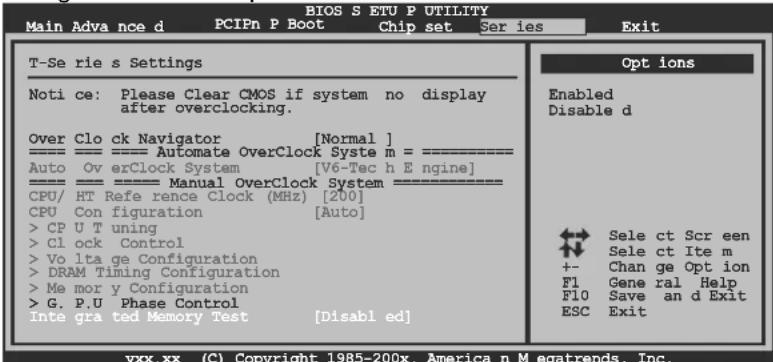
MIT allows users to test memory compatibilities, and no extra devices or software are needed.
Step 1
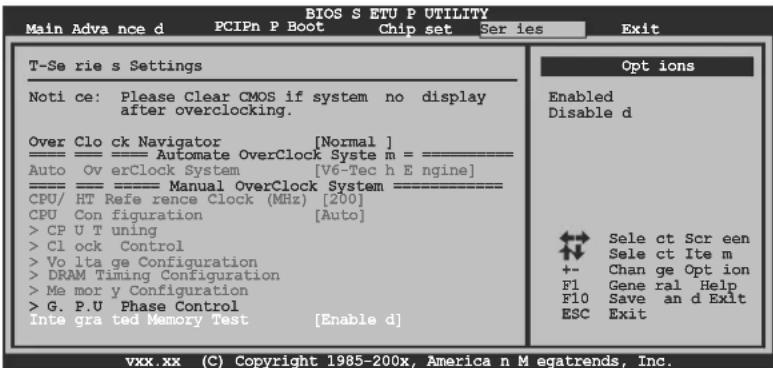
The default setting under this item is "Disabled"; the condition parameter should be changed to "Enable" to proceed this test.
text_image
BIOS S ETU P UTILITY Main Advance d PCIPn P Boot Chip set Ser ies Exit T-Se rie s Settings Noti ce: Please Clear CMOS if system no display after overclocking. Over Clo ck Navigator [Normal ] --------Automate OverClock Syste m = ------ Auto Ov erClock System [V6-Tec h E nngine] --------Manual OverClock System ------ CPU/ HT Refe rence clock (MHz) [200] CPU Con figuration [Auto] > CP U T uning > Cl ock Control > Vo lta ge Configuration > DRAM Timing Configuration > Me mor y Configuration > G. P.U Phase Control Inte gra ted Memory Test [Disabl ed] Opt ions Enabled Disable d Sele ct Scr een Sele ct Ite m +- Chan ge Opt ion F1 Gene ral Help F10 Save an d Exit ESC Exit vxx.xx (C) Copyright 1985-200x, America n M egatrends, Inc.
text_image
BIOS S ETU P UTILITY Main Advance d PCIPn P Boot Chip set Series Exit T-Se rie s Settings Noti ce: Please Clear CMOS if system no display after overclocking. Over Clo ck Navigator [Normal] Auto Ov erClock System [V6-Tec h E ngine] --- Manual OverClock System --- CPU/ HT Refe rence clock (MHz) [200] CPU Con figuration [Auto] > CP U T uning > Cl ock Control > Vo lta ge Configuration > DRAM Timing Configuration > Me mor y Configuration > G. P.U Phase Control Inte gra ted Memory Test [Enable d] Opt ions Enabled Disable d Sele ct Scr een Sele ct Ite m +- Chan ge Opt ion F1 Gene ral Help F10 Save an d Exit ESC Exit vxx.xx (C) Copyright 1985-200x, America n Megatrends, Inc.Step 2
Save and Exit from CMOS setup and reboot the system to activate this test. Run this test for 5 minutes (minimum) to ensure the memory stability.
Step 3
When the process is done, change the setting back from "Enable" to "Disable" to complete the test.
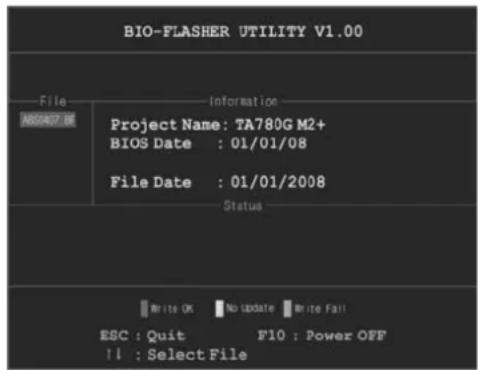
C. BIO-Flasher
BIO-Flasher is a BIOS flashing utility providing you an easy and simple way to update your BIOS via USB pen drive or floppy disk.
The BIO-Flasher is built in the BIOS chip. To enter the utility press
Updating BIOS with BIO-Flasher
- Go to the website to download the latest BIOS file for the motherboard.
- Then, save the BIOS file into a USB pen drive or a floppy disk.
- Insert the USB pen drive or the floppy disk that contains the BIOS file to the USB port or the floppy disk drive.
- Power on or reset the computer and then press
during the POST process. A select dialog as the picture on the right appears. Select the device contains the BIOS file and press to enter the utility.
text_image
BIO-FLASHER UTILITY V1.00 File Information ASSIGNATE Project Name: TA780G M2+ BIOS Date : 01/01/08 File Date : 01/01/2008 Status Write OK No Update Write Fail ESC : Quit F10 : Power OFF !! : Select File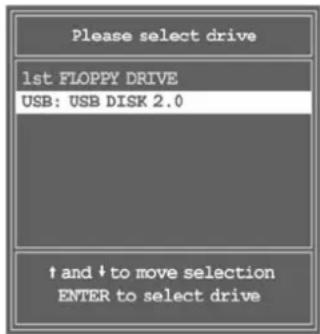
text_image
Please select drive 1st FLOPPY DRIVE USB: USB DISK 2.0 ↑ and ↓ to move selection ENTER to select drive-
The utility will show the BIOS files and their respective information. Select the proper BIOS file and press
then to perform the BIOS update process. -
After the update process, the utility will ask you to reboot the system. Press
to proceed. BIOS update completes.

- This utility only allows storage device with FAT32/16 format and single partition.
- Shutting down or resetting the system while updating the BIOS will lead to system boot failure.
Motherboard Manual
D. Self Recovery System (S.R.S.)
This function can't be seen under BIOS setup; and is always on whenever the system starts up.
However, it can prevent system hang-up due to inappropriate overclock actions.
When the system hangs up, S.R.S. will automatically log in the default BIOS setting, and all overclock settings will be re-configured.
E. Smart Fan Function
Smart Fan Function is under "Smart Fan Configuration" in "Advanced Menu". This is a brilliant feature to control CPU/System Temperature vs. Fan speed. When enabling Smart Fan function, Fan speed is controlled automatically by CPU/System temperature.
This function will protect CPU/System from overheat problem and maintain the system temperature at a safe level.
| Main vanced PCIPnP Boot Chipset T-Series Exit | |
| Advanced Settings WARNING: Setting wrong values in below sections may cause system to malfunction. >CPU Configuration >SuperIO Configuration >Smart Fan Configuration >Hardware Health Configuration >Power Configuration >USB Configuration | Select Screen Select Item EnterGo to Sub Screen F1 General Help F10 Save and Exit ESC Exit |
| BIOS SETUP UTILITY Advanced | |
| Smart Fan Configuration CPU Smart Fan [Disabled] Smart Fan Calibration Control Mode Fan Ctrl OFF(℃) Fan Ctrl On(℃) Fan Ctrl Start value Fan Ctrl Sensitive | When you choice [Auto], [3Pin] or [4Pin], please run the calibration to define the Fan parameters for Smart Fan control Select Screen Select Item +- Change Option F1 General Help F10 Save and Exit ESC Exit |
| vxx.xx (C)Copyright 1985-200x, American Megatrends, Inc. | |
Smart Fan Calibration
Choose this item and then the BIOS will automatically test and detect the CPU/System fan functions and show CPU/System fan speed.
Control Mode
This item provides several operation modes of the fan.
Fan Ctrl OFF(°C)
If the CPU/System temperature is lower than the set value, the CPU/System fan will turn off. The range is from 0\~127, with an interval of 1.
Fan Ctrl On(°C)
The CPU/System fan starts to work when CPU/System temperature arrives to this set value. The range is from 0\~127, with an interval of 1.
Fan Ctrl Start Value
When CPU/System temperature arrives to the set value, the CPU/System fan will work under Smart Fan Function mode. The range is from 0\~127, with an interval of 1.
Fan Ctrl Sensitive
Increasing the value of slope PWM will raise the speed of CPU/System fan. The range is from 1\~127, with an interval of 1.
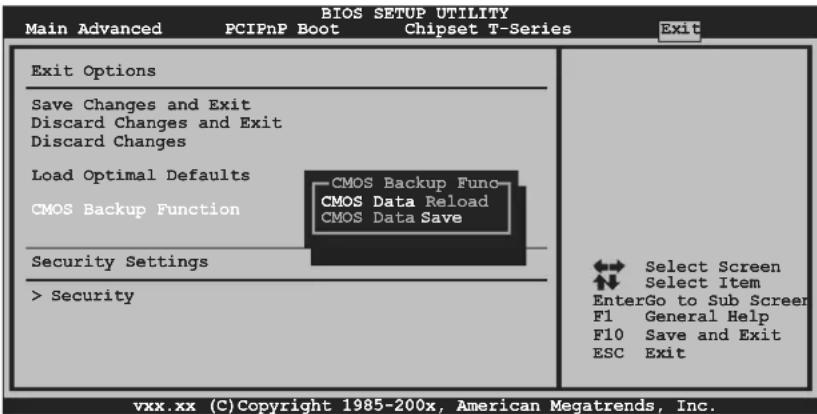
F. CMOS Reloading Program
It allows users to save different CMOS settings into BIOS-ROM.
Users are able to reload any saved CMOS setting for customizing system configurations. Moreover, users are able to save an ideal overclock setting during overclock operation.
There are 10 sets of record addresses in total, and users are able to name the CMOS data according to personal preference.
text_image
Main Advanced PCIPnP Boot Chipset T-Series Exit BIOS SETUP UTILITY Exit Options Save Changes and Exit Discard Changes and Exit Discard Changes Load Optimal Defaults CMOS Backup Func CMOS Backup Function CMOS Data Reload CMOS Data Save Security Settings > Security Select Screen Select Item EnterGo to Sub Screer F1 General Help F10 Save and Exit ESC Exit vxx.xx (C)Copyright 1985-200x, American Megatrends, Inc.6.2 T-SERIES SOFTWARE
Installing T-Series Software
- Insert the Setup CD to the optical drive. The drivers installation program would appear if the Auto-run function has been enabled.
- Select Software Installation, and then click on the respective software title.
- Follow the on-screen instructions to complete the installation.
Launching T-Series Software
After the installation process is completed, you will see the software icon showing on the desktop. Double-click the icon to launch it.
TOverclocker
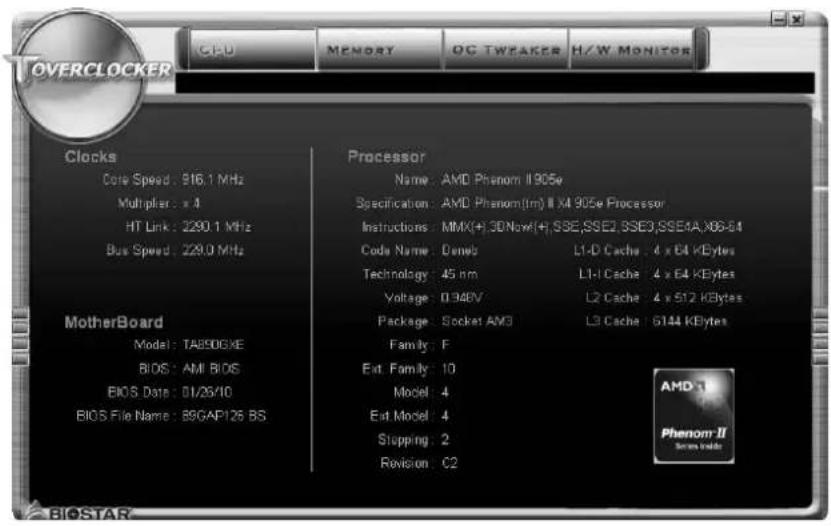
TOverclocker presents a simple Windows-based system performance enhancement and manageability utility. It features several powerful and easy to use tools such as Overclocking for enhancing system performance, also for special enhancement on CPU and Memory. Smart-Fan management and PC health are for monitoring system status. This utility also allows you to make overclocking profiles saving unlimitedly, and pre-set OC modes are for easy OC. (The illustration below is for reference only)
text_image
CPU MEMORY OC TWEAKER H/W MONITOR OVERCLOCKER Clocks Clock Speed: 916.1 MHz Multiplier: x 4 HT Link: 2290.1 MHz Bus Speed: 229.0 MHz MotherBoard Model: TA890GKE BIOS: AMI BIOS BIOS Data: 01/26/10 BIOS File Name: B9GAP126 BS Processor Name: AMD Phenom II 905e Specification: AMD Phenom(1m) II MI 905e Processor Instructions: MMX(+),3DNow(+),SSE,SSE2,5SE3,SSE4A,X6B-64 Code Name: Denseb L1-D Cache: 4 x 64 KBytes Technology: 45 nm L1-I Cache: 4 x 64 KBytes Voltage: 0.346V L2 Cache: 4 x 512 KBytes Package: Socket AM3 L3 Cache: 5144 KBytes Family: F Ext. Family: 10 Model: 4 Ext Model: 4 Stopping: 2 Revision: C2
The CPU tab provides information on the CPU and motherboard.

The Memory tab provides information on the memory module(s).
You can select memory module on a specific slot to see its information.

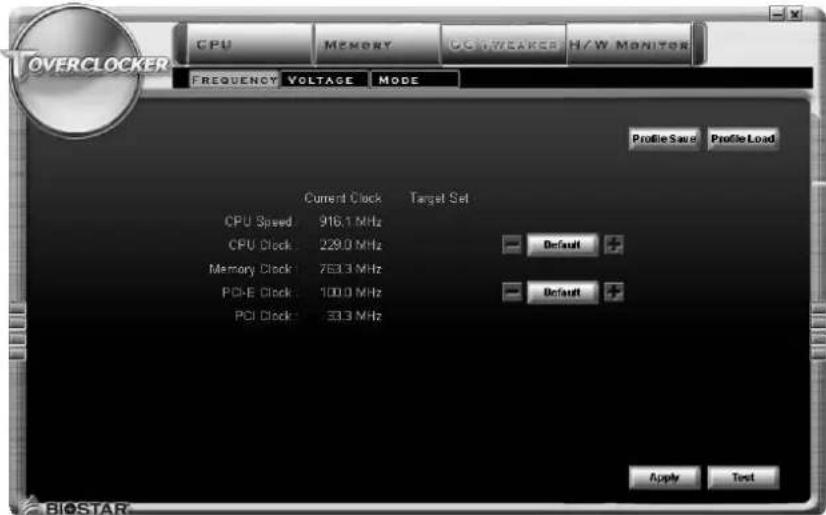
The OC Tweaker tab allows you to change system clock settings and voltages settings. It also provides six pre-set modes for you:
text_image
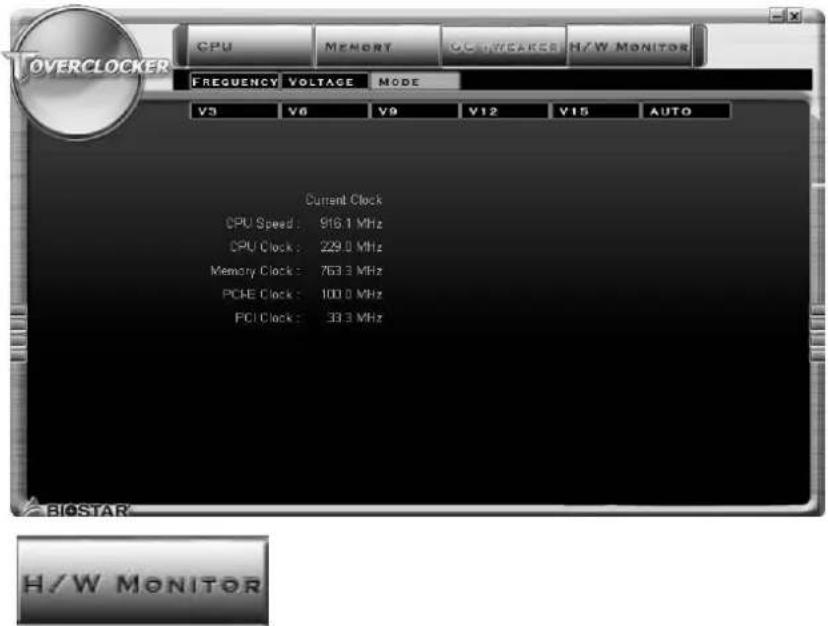
OVERCLOCKER CPU MEMORY OGWEAKER H/W MONITOR FREQUENCY VOLTAGE MODE Profile Save Profile Load Current Clock Target Set CPU Speed 916.1 MHz CPU Clock 229.0 MHz Default + Memory Clock 7E3.3 MHz PCI-E Clock 100.0 MHz Default + PCI Clock 33.3 MHz Apply Test BIOSTARSix Pre-set Modes: V3, V6, V9, V12, V15, AUTO for different overclocking experience.
text_image
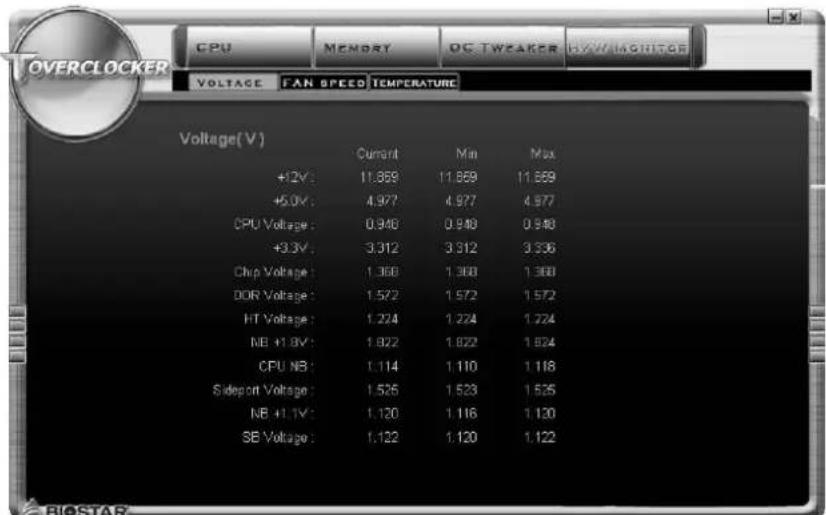
OVERCLOCKER CPU MEMORY GC/TWEAKES H/W MONITOR FREQUENCY VOLTAGE MODE V3 V6 V9 V12 V15 AUTO Current Clock CPU Speed: 916.1 MHz CPU Clock: 229.0 MHz Memory Clock: 763.3 MHz PCHE Clock: 100.0 MHz PCI Clock: 33.3 MHz H/W MONITORThe HW Monitor tab allows you to monitor hardware voltage, fan speed, and temperature. Besides, you also can set related values for CPU Smart Fan.
text_image
CPU MEMORY DC-TWEAKER R/W/MONITOR VOLTAGE FAN SPEED TEMPERATURE Voltage(V) Current Min Max +12V: 11.869 11.869 11.869 +5.0V: 4.977 4.977 4.977 CPU Voltage: 0.940 0.940 0.940 +9.3V: 3.312 3.312 3.336 Chip Voltage: 1.368 1.368 1.368 DDR Voltage: 1.572 1.572 1.572 HT Voltage: 1.224 1.224 1.224 MB +1.8V: 1.922 1.922 1.924 CPU NB: 1.114 1.110 1.118 Sideport Voltage: 1.526 1.523 1.525 NB +1.1V: 1.120 1.116 1.120 SB Voltage: 1.122 1.120 1.122OVERCLOCKER
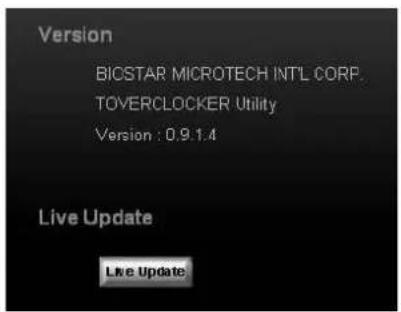
Pressing TOVERCLOCKER logo will display information about manufacturer and software version. You can update cumet version by clicking the button "Live Update."
text_image
Version BICSTAR MICROTECH INT'L CORP. TOVERCLOCKER Utility Version : 0.9.1.4 Live Update Live UpdateGreen Power II Utility
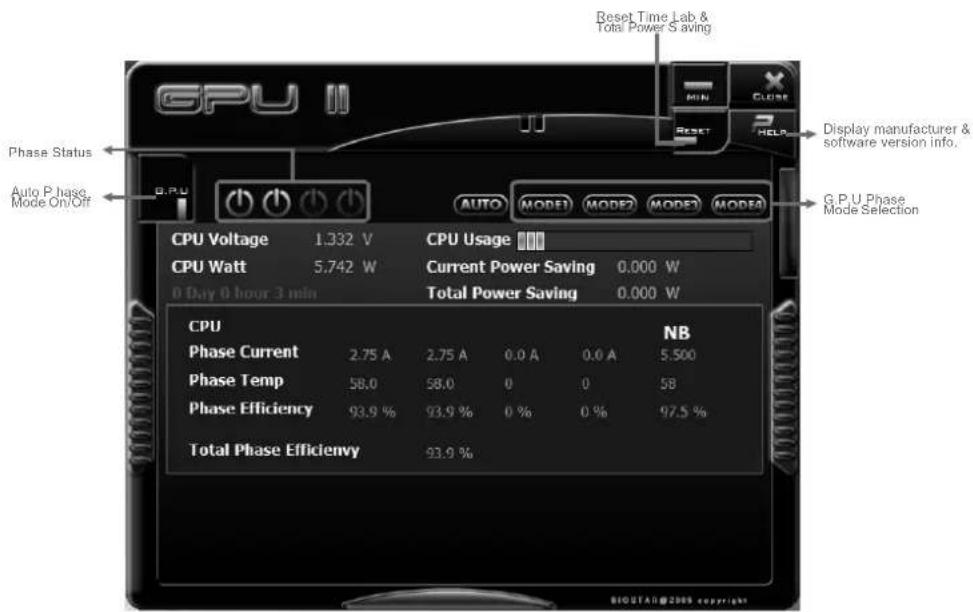
BIOSTAR G.P.U II (Green Power Utility) is a new function. The utility enhances energy efficiency by disabling extra phases while CPU is on light loading; it features 4+1 power phases, current power saving, and toal power saving. This tool integrates a friendly GUI to monitor your CPU Usage, CPU Watt, and CPU Temperature. Moreover, it optimizes power saving and best power efficiency on your system. (The illustration below is for reference only)
text_image
Reset Time Lab & Total Power Saving GPU III Phase Status Auto P hase Mode On/Off B.P.U AUTO MODE1 MODE2 MODE3 MODE4 CPU Voltage 1.332 V CPU Usage CPU Watt 5.742 W Current Power Saving 0.000 W 0 Day 0 hour 3 min Total Power Saving 0.000 W CPU Phase Current NB Phase Temp 2.75 A 2.75 A 0.0 A 0.0 A 5.500 Phase Temp 58.0 58.0 0 0 58 Phase Efficiency 93.9 % 93.9 % 0 % 0 % 97.5 % Total Phase Efficiency 93.9 % DISPLAY MANUFACTURER & software version info. G.P.U Phase Mode Selection MIN CLOSE RESET HELP BIOTAI@2006 copyrightG.P.U Mode Setting
This utility provides five modes to improve system performance or to save power consumption upon your requirement.
Note: Even if the modes which save more power consumption are chosen, the system still can keep excellent performance.
■ Auto Phase Mode
System switches mode1 to mode 4 automatically according to current system loading condition.
■ MODE 1: Max-Energy Mode
This is the best system performance mode.
■ MODE 2: Medium Mode
This is the standard system power saving mode.
■ MODE 3: Typical Mode
Compared with that in Performance Mode, energy consumption in this mode is a little bit more.
■ MODE 4: Performance Mode
This is the mode saving power consumption most. Least energy will be used in the system.
eHot-Line (Optional)
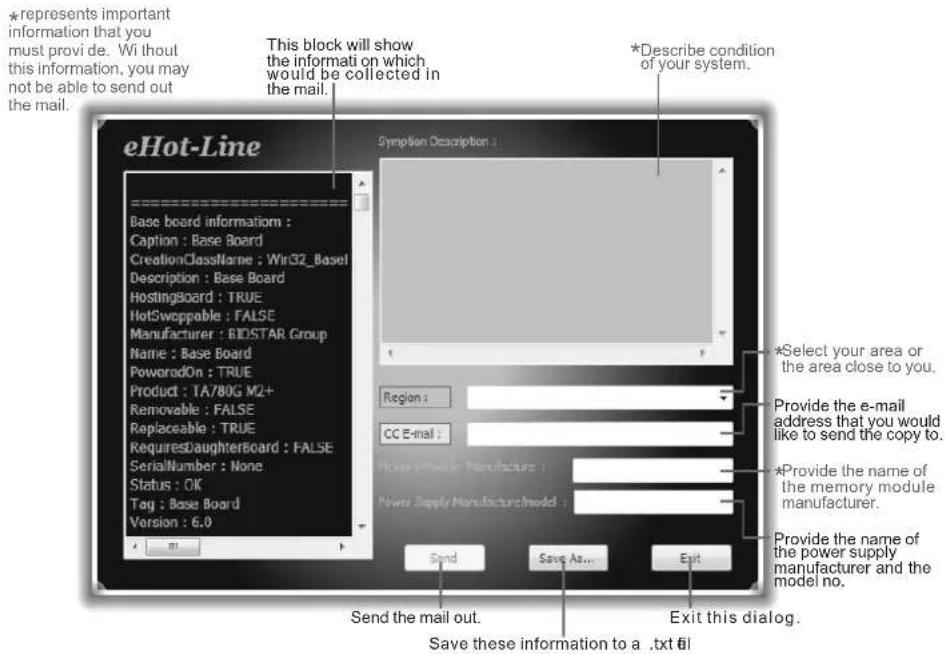
eHot-Line is a convenient utility that helps you to contact with our Tech-Support system. This utility will collect system information which is useful for analyzing the problem you may have encountered, and then send the information to our tech-support department to help you solve the problem.

Before you use this utility, please set Outlook Express as your default e-mail client application program.
text_image
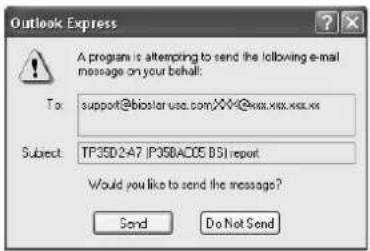
*represents important information that you must provi de. Wi thou this information, you may not be able to send out the mail. This block will show the informati on which would be collected in the mail. *Describe condition of your system. eHot-Line Symptom Description : Base board information : Caption : Base Board CreationClassName : Win32_Basel Description : Base Board HostingBoard : TRUE HotSweppable : FALSE Manufacturer : BIDSTAR Group Name : Base Board PoweredOn : TRUE Product : TA780G M2+ Removable : FALSE Replaceable : TRUE RequiresDaughterBoard : FALSE SerialNumber : None Status : OK Tag : Base Board Version : 6.0 Region : CC E-mail : *Select your area or the area close to you. Provide the e-mail address that you would like to send the copy to. *Provide the name of the memory module manufacturer. Power Supply Manufacture model : Send Save As... Exit Send the mail out. Save these information to a .txt 61 Exit this dialog.After filling up this information, click "Send" to send the mail out. A warning dialog would appear asking for your confirmation; click "Send" to confirm or "Do Not Send" to cancel.
text_image
Outlook Express A program is attempting to send the following e-mail message on your behalf: To: support@biostar.usa.com,XXX@xxx.xxx.xxx.xxx Subject: TP35D2A7 (P35DAC05 BSI) report Would you like to send the message? Send Do Not SendIf you want to save this information to a .txt file, click "Save As..." and then you will see a saving dialog appears asking you to enter file name.
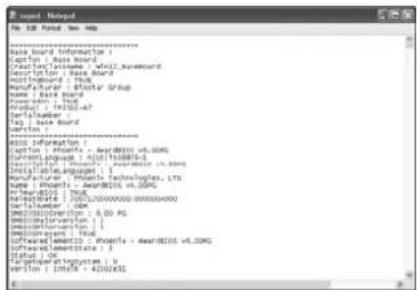
Enter the file name and then click "Save". Your system information will be saved to a .txt file.
text_image
base sound information Caption : Base Sound Creation: TamaName, wnl2_Ravebound Description : Base Award Moodboard : 3rd Manufacturer : Blotar/Grub Name : Base Board Copyright : 3rd Product : 19352-47 Cartelaware : 1 Tag : Base Sound Version : 1 RSDS Information Caption : Phoenix - air@100.com Subramlingue : 1935188883- Systematic / 3rd / 19352_Ravebound Initiate languages : 1 Manufacturer : Phoenix Technologies, LTD Name : Phoenix - air@100.com Refineport : 200525000000.000000000 Refineport : 200525000000.000000000 Refineport : 20052500000.000000000 SMEDITION: 6.00 AG SoftwareProvision : 1 SoftwareProvision : 1 SoftwareProvision : 1 SoftwareProvision : 1 SoftwareProvision : 1 SoftwareProvision : 1 SoftwareProvision : 1 Status : OK Computer Systems : 1 Version : InteA - 42326331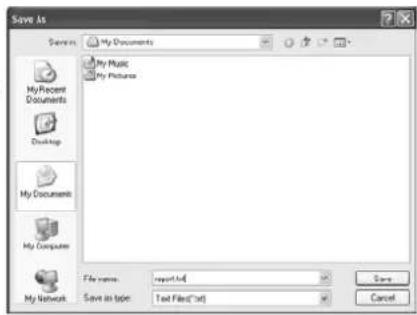
text_image
Save As My Documents My Music My Pictures My Recent Documents Desktop My Documents My Computer My Network File name: report.txt Save as type: Text Files(*.txt) Save CancelOpen the saved .txt file, you will see your system information including motherboard/BIOS/CPU/video/device/OS information. This information is also concluded in the sent mail.

We will not share customer's data with any other third parties, so please feel free to provide your system information while using eHot-Line service.

If you are not using Outlook Express as your default e-mail client application, you may need to save the system information to a .txt file and send the file to our tech support with other e-mail application. Go to the following web http://www.biostar.com.tw/app/en-us/about/contact.php for getting our contact information.
BIOS Update
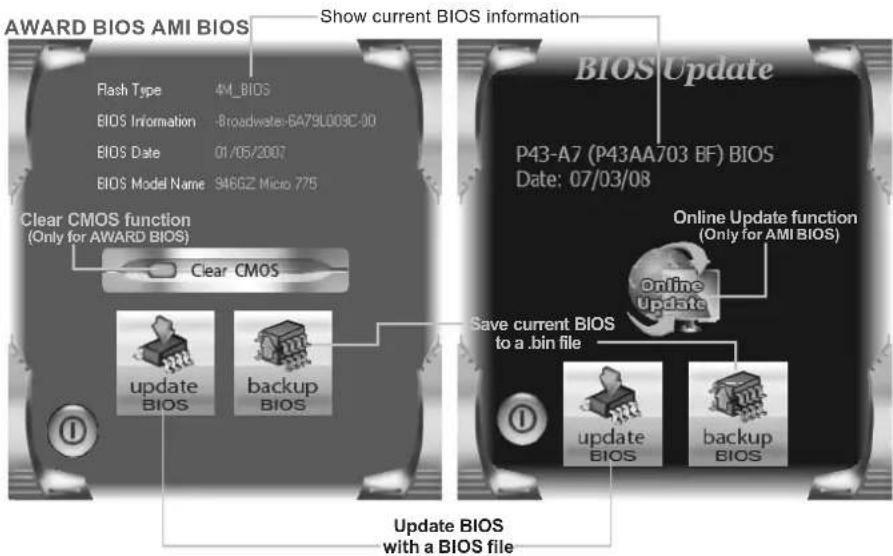
BIOS Update is a convenient utility which allows you to update your motherboard BIOS under Windows system.
text_image
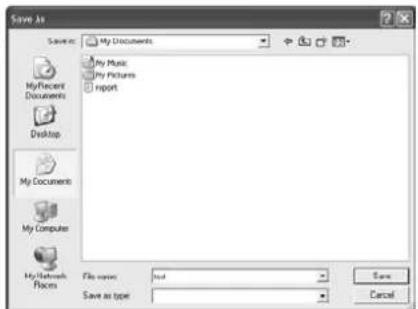
AWARD BIOS AMI BIOS Show current BIOS information Rash Type 4M_BIOS BIOS Information 8Broadwater-6A79LD08C-90 BIOS Date 01/05/2007 BIOS Model Name 946GZ Micro 775 Clear CMOS function (Only for AWARD BIOS) Clear CMOS P43-A7 (P43AA703 BF) BIOS Date: 07/03/08 Online Update function (Only for AMI BIOS) online Update save current BIOS to a .bin file Update BIOS with a BIOS fileOnce click on this button, the saving dialog will show. Choose the position to save file and enter file name. (We recommend that the file name should be English/number and no longer than 7 characters.) Then click Save.
text_image
Save As Source: My Documents My Music My Pictures Import My Recent Documents Desktop My Documents My Computer My Network Places File name: unt Save as type Save CancelBefore doing this, please download the proper BIOS file from the website.
For AWARD BIOS, update BIOS procedure should be run with Clear CMOS function, so please check on Clear CMOS first.

text_image
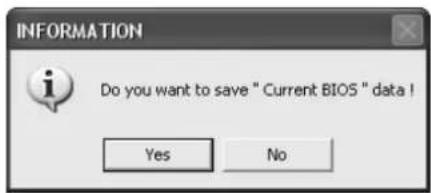
INFORMATION Do you want to save " Current BIOS " data ! Yes NoThen click Update BIOS button, a dialog will show for asking you backup current BIOS. ClickYes for BIOS backup and refer to the Backup BIOS procedure; or click No to skip this procedure.
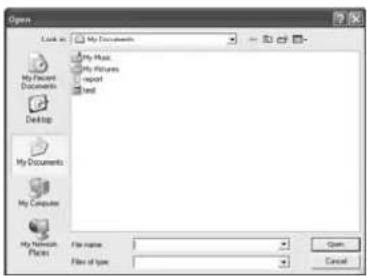
After the BIOS Backup procedure, the open dialog will show for requesting the BIOS file which is going to be updated. Please choose the proper BIOS file for updating, then click on Open.
text_image
Open Look in: My Documents My Music My Pictures Import Text My Documents My Computer My Network Files File name: File of type: Open Cancel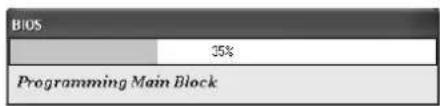
text_image
BIOS 35% Programming Main BlockThe utility will update BIOS with the proper BIOS file, and this process may take minutes. Please do not open any other applications during this process.
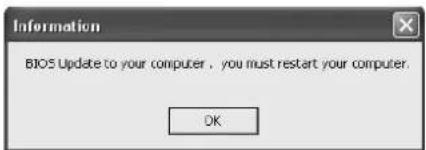
After the BIOS Update process, click on OK to restart the system.
text_image
Information BIOS Update to your computer, you must restart your computer. OKWhile the system boots up and the full screen logo shows, press
In the BIOS setup, use the Load Optimized Defaults function and then Save and Exit Setup to exit BIOS setup. BIOS Update is completed.
Automatically download and update the latest BIOS via internet; make sure that the computer is connected to the internet before using this function.
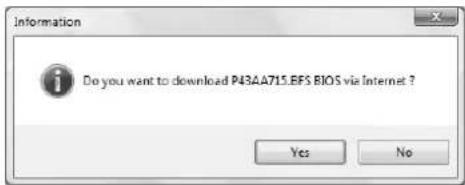
After clicking on the Onlinr Update button, the utility will search for the latest BIOS from internet. If there is a new BIOS version, the utility will ask you to download it. Click Yes to proceed.
text_image
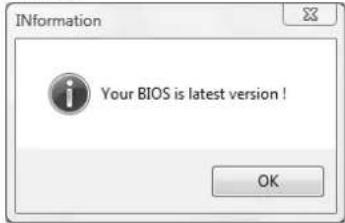
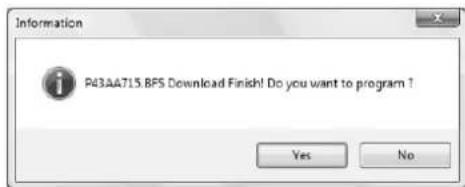
Information Your BIOS is latest version ! OKDownload completes; the utility will ask you to program (update) the BIOS. Click Yes to proceed.
text_image
Information Do you want to download P43AA715.EFS BIOS via Internet ? Yes NoIf there is no other newer BIOS version, the utility will also tell you that your BIOS has been the latest version.
text_image
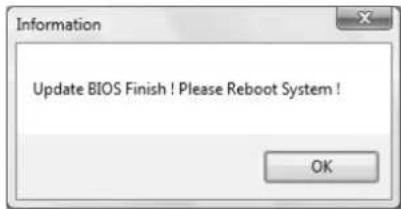
Information P43AA715.BFS Download Finish! Do you want to program ? Yes NoThe programing procedure may take minutes, please do not make any operation during the programing process.
text_image
Information Update BIOS Finish ! Please Reboot System ! OKAfter the updating process, the utility will ask you to reboot the system. Click OK to reboot.
While the system boots up and the full screen logo shows, press key to enter BIOS setup.
In the BIOS setup, use the Load Optimized Defaults function and then Save and Exit Setup to exit BIOS setup. Online Update is completed.

All the information and content above about the T-Series software are subject to be changed without notice. For better performance, the software is being continuously updated. The information and pictures described above are for your reference only. The actual information and settings on board may be slightly different from this manual.
CHAPTER 7: USEFUL HELP
7.1 DRIVER INSTALLATION NOTE
After you installed your operating system, please insert the Fully Setup Driver CD into your optical drive and install the driver for better system performance.
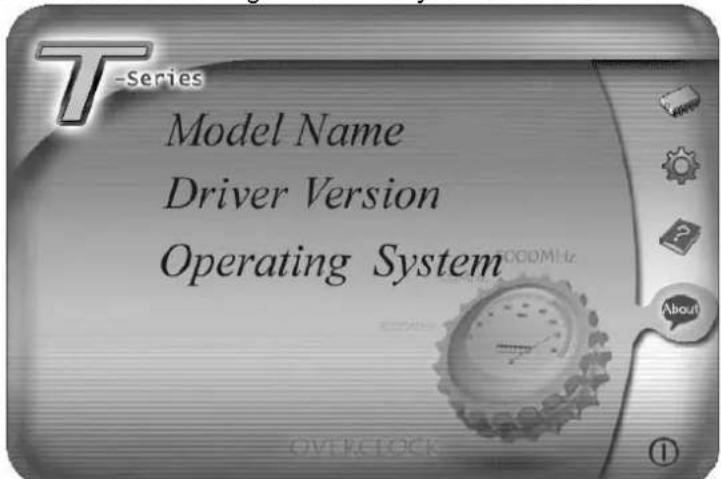
You will see the following window after you insert the CD
text_image
T-Series Model Name Driver Version Operating SystemThe setup guide will auto detect your motherboard and operating system.
Note:
If this window didn't show up after you insert the Driver CD, please use file browser to locate and execute the file SETUP.EXE under your optical drive.
A. Driver Installation
To install the driver, please click on the Driver icon. The setup guide will list the compatible driver for your motherboard and operating system. Click on each device driver to launch the installation program.
B. Software Installation
To install the software, please click on the Software icon. The setup guide will list the software available for your system, click on each software title to launch the installation program.
C. Manual
Aside from the paperback manual, we also provide manual in the Driver CD. Click on the Manual icon to browse for available manual.
Note:
You will need Acrobat Reader to open the manual file. Please download the latest version of Acrobat Reader software from http://www.adobe.com/products/acrobat/readstep2.html
7.2 EXTRA INFORMATION
CPU Overheated
If the system shutdown automatically after power on system for seconds, that means the CPU protection function has been activated.
When the CPU is over heated, the motherboard will shutdown automatically to avoid a damage of the CPU, and the system may not power on again.
In this case, please double check:
- The CPU cooler surface is placed evenly with the CPU surface.
- CPU fan is rotated normally.
- CPU fan speed is fulfilling with the CPU speed.
After confirmed, please follow steps below to relief the CPU protection function.
- Remove the power cord from power supply for seconds.
- Wait for seconds.
- Plug in the power cord and boot up the system.
Or you can:
- Clear the CMOS data.
(See "Close CMOS Header: JCMOS1" section) - Wait for seconds.
- Power on the system again.
7.3 AMI BIOS BEEP CODE
Boot Block Beep Codes
| Number of Beeps | Description |
| 1 No media present. (Insert diskette in floppy drive A:) | |
| 2 | “AMIBOOT.ROM” file not found in root directory of diskette in A: |
| 3 Insert next diskette if multiple diskettes are used for recovery | |
| 4 Flash Programming successful | |
| 5 File read error | |
| 7 No Flash EPROM detected | |
| 10 Flash Erase error | |
| 11 Flash Program error | |
| 12 “AMIBOOT.ROM” file size error | |
| 13 | BIOS ROM image mismatch (file layout does not match image present in flash device) |
POST BIOS Beep Codes
| Number of Beeps | Description |
| 1 Memory refresh timer error | |
| 3 Base memory read/write test error | |
| 6 Keyboard controller BAT command failed | |
| 7 General exception error (processor exception interrupt error) | |
| 8 Display memory error (system video adapter) | |
Troubleshooting POST BIOS Beep Codes
| Number of Beeps | Troubleshooting Action |
| 1, 3 Reseat | the memory, or replace with known good modules. |
| 6, 7 | Fatal error indicating a serious problem with the system. Consult your system manufacturer. Before declaring the motherboard beyond all hope, eliminate the possibility of interference by a malfunctioning add-in card. Remove all expansion cards except the video adapter.If beep codes are generated when all other expansion cards are absent, consult your system manufacturer's technical support.If beep codes are not generated when all other expansion cards are absent, one of the add-in cards is causing the malfunction. Insert the cards back into the system one at a time until the problem happens again. This will reveal the malfunctioning card. |
| 8 | If the system video adapter is an add-in card, replace or reseat the video adapter. If the video adapter is an integrated part of the system board, the board may be faulty. |
7.4 TROUBLESHOOTING
| Probable | Solution |
| 1. There is no power in the system.Power LED does not shine; the fan of the power supply does not work2. Indicator light on keyboard does not shine. | 1. Make sure power cable is securely plugged in.2. Replace cable.3. Contact technical support. |
| System is inoperative. Keyboard lights are on, power indicator lights are lit, and hard drives are running. | Using even pressure on both ends of the DIMM, press down firmly until the module snaps into place. |
| System does not boot from a hard disk drive, but can be booted from optical drive. | 1. Check cable running from disk to disk controller board. Make sure both ends are securely plugged in; check the drive type in the standard CMOS setup.2. Backing up the hard drive is extremely important. All hard disks are capable of breaking down at any time. |
| System only boots from an optical drive. Hard disks can be read, applications can be used, but system fails to boot from a hard disk. | 1. Back up data and applications files.2. Reformat the hard drive.Re-install applications and data using backup disks. |
| Screen message shows “Invalid Configuration” or “CMOS Failure.” | Review system’s equipment. Make sure correct information is in setup. |
| System cannot boot after user installs a second hard drive. | 1. Set master/slave jumpers correctly.2. Run SETUP program and select correct drive types. Call the drive manufacturers for compatibility with other drives. |
APPENDIX: SPEC IN OTHER LANGUAGES
GERMAN