Zio M6000 - Smartphone KYOCERA - Free user manual and instructions
Find the device manual for free Zio M6000 KYOCERA in PDF.


| Product Type | Smartphone |
| Brand | Kyocera |
| Model | Zio M6000 |
| Dimensions | 113 x 57 x 12.8 mm (4.45 x 2.24 x 0.50 in) |
| Weight | 120 g (4.23 oz) |
| Display Size | 3.5 inches, 36.5 cm² (~56.6% screen-to-body ratio) |
| Display Resolution | 320 x 480 pixels, 3:2 ratio (~165 ppi density) |
| Operating System | Android 2.2 (Froyo) |
| CPU | 600 MHz ARM 11 |
| Memory | 256 MB RAM, 512 MB ROM |
| Card Slot | microSD, up to 32 GB (dedicated slot) |
| Main Camera | 3.2 MP, fixed focus, no flash, QVGA video |
| Battery | Removable Li-Ion 1300 mAh |
| Stand-by Time | Up to 350 h (2G) / Up to 250 h (3G) |
| Talk Time | Up to 5 h (2G) / Up to 4 h (3G) |
| Connectivity | Wi-Fi 802.11 b/g, Bluetooth 2.1, GPS, microUSB 2.0, 3.5mm jack |
| Network Bands | GSM 850/900/1800/1900, CDMA 800/1900 (depending on carrier) |
| Sensors | Accelerometer, proximity |
| SIM Type | Mini-SIM |
| Care and Cleaning | Wipe with a soft dry cloth; avoid liquids and abrasive cleaners. |
| Safety | Use only approved chargers and batteries; avoid extreme temperatures; do not disassemble. |
| Spare Parts and Repairability | Battery replaceable; screen and other components serviceable by qualified technicians. |
Frequently Asked Questions - Zio M6000 KYOCERA
User questions about Zio M6000 KYOCERA
0 question about this device. Answer the ones you know or ask your own.
Ask a new question about this device
Download the instructions for your Smartphone in PDF format for free! Find your manual Zio M6000 - KYOCERA and take your electronic device back in hand. On this page are published all the documents necessary for the use of your device. Zio M6000 by KYOCERA.
USER MANUAL Zio M6000 KYOCERA
user guide
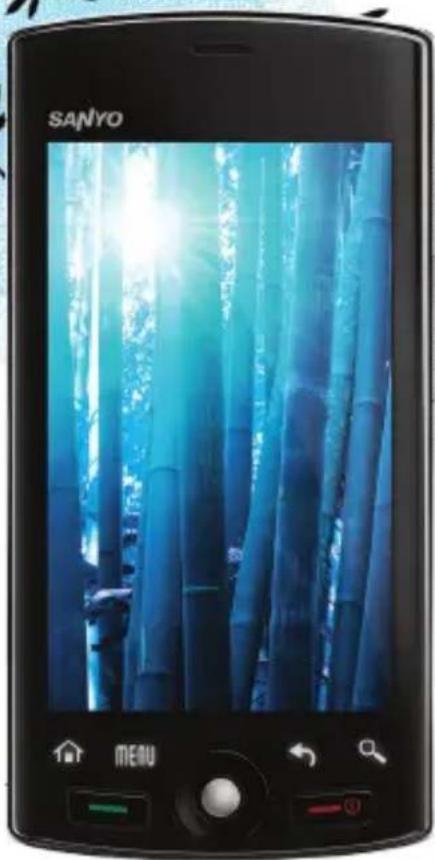
natural_image
Smartphone displaying a bamboo forest scene with glowing sunlight, no visible text or symbols on the image itself.SANYO ZIO™
by

KYOCERA
This manual is based on the production version of the Kyocera Zio™ M6000 phone. Software changes may have occurred after this printing. Kyocera reserves the right to make changes in technical and product specifications without prior notice.
The Kyocera Communications Inc. ("KCI") products described in this manual may include copyrighted KCI and third party software stored in semiconductor memories or other media. Laws in the United States and other countries preserve for KCI and third party software providers certain exclusive rights for copyrighted software, such as the exclusive rights to distribute or reproduce the copyrighted software. Accordingly, any copyrighted software contained in the KCI products may not be modified, reverse engineered, distributed or reproduced in any manner not permitted by law.
Furthermore, the purchase of the KCI products shall not be deemed to grant—either directly or by implication, estoppel, or otherwise—any license under the copyrights, patents, or patent applications of KCI or any third party software provider, except for the normal, non-exclusive royalty-free license to use that arises by operation of law in the sale of a product.
Kyocera is a registered trademark of Kyocera Corporation.
"SANYO" is a registered trademark of SANYO Electric Co., Ltd. and is used under license.
Kyocera manufactures and markets the SANYO wireless line of products.
Bluetooth trademarks are owned by Bluetooth SIG, Inc. and used by Kyocera Corporation under license.

microSDHC Logo is a trademark.
iWnnlME © OMRON SOFTWARE Co., Ltd. 2009-2010 All Rights Reserved.
Android, Android Market, Google Maps, Gmail, Google Talk are trademarks of Google, Inc.

The Wi-Fi CERTIFIED Logo is a certification mark of the Wi-Fi Alliance.

The Wi-Fi Alliance Member Logo is a logo of the Wi-Fi Alliance.
All other trademarks are the property of their respective owners.
Copyright © 2010 Kyocera Corporation. All rights reserved. Ringer Tones Copyright © 2000-2010 Kyocera Corporation.
FCC Notice
This device complies with part 15 of the FCC rules. Operation is subject to the following two conditions: (1) This device may not cause harmful interference, and (2) This device must accept any interference received, including interference that may cause undesired operation. To maintain compliance with FCC RF exposure guidelines, if you wear a handset on your body, use the Kyocera Communications Inc. (KCI) supplied and approved accessory designed for this product. Using accessories that are not supplied or approved by KCI may violate FCC RF exposure guidelines.
Other accessories used with this device for body-worn operations must not contain any metallic components and must provide at least 22 mm separation distance including the antenna and the user's body.
THIS MODEL PHONE MEETS THE GOVERNMENT'S REQUIREMENTS FOR EXPOSURE TO RADIO WAVES.
Your wireless phone is a radio transmitter and receiver. It is designed and manufactured not to exceed the emission limits for exposure to radio frequency (RF) energy set by the Federal Communications Commission of the U.S. Government. These limits are part of comprehensive guidelines and establish permitted levels of RF energy for the general population. The guidelines are based on standards that were developed by independent scientific organizations through periodic and thorough evaluation of scientific studies. The standards include a substantial safety margin designed to assure the safety of all persons, regardless of age and health.
The exposure standard for wireless mobile phones employs a unit of measurement known as the Specific Absorption Rate, or SAR. The SAR limit set by the FCC is 1.6 W/kg.*
Tests for SAR are conducted using standard operating positions specified by the FCC with the phone transmitting at its highest certified power level in all tested frequency bands.
Although the SAR is determined at the highest certified power level, the actual SAR level of the phone while operating can be well below the maximum value. This is because the phone is designed to operate at multiple power levels so as to use only the power required to reach the network. In general, the closer you are to a wireless base station antenna, the lower the power output.
Before a phone model is available for sale to the public, it must be tested and certified by the FCC that it does not exceed the limit established by the government-adopted requirement for safe exposure. The tests are performed in positions and locations (e.g., at the ear and worn on the body) as required by the FCC for each model.
Body-worn measurements differ among phone models, depending upon availability of accessories and FCC requirements. While there may be differences between the SAR levels of various phones and at various positions, they all meet the government requirement for safe exposure.
The FCC has granted an Equipment Authorization for this model phone with all reported SAR levels evaluated as in compliance with the FCC RF emission guidelines. SAR information on this model phone is on file with the FCC and can be found under the Display Grant section www.fcc.gov/oet/ea after searching on the FCC ID: V65M6000.
Additional information on SAR can be found on the Cellular Telecommunications and Internet Association (CTIA) web-site at www.ctia.org.
* In the United States and Canada, the SAR limit for mobile phones used by the public is 1.6 watts/kg (W/kg) averaged over one gram of tissue. The standard incorporates a substantial margin of safety to give additional protection for the public and to account for any variations in measurements.
Bluetooth® Certification
For information about Zio™ M6000 Bluetooth Certification, visit the Bluetooth Qualification Program Web site at
www.bluetooth.org/tpg/listings.cfm
Caution
The user is cautioned that changes or modifications not expressly approved by the party responsible for compliance could void the warranty and user's authority to operate the equipment.
Optimize your Phone's Performance
Use the instructions in this guide to learn how to optimize the performance and life of your phone and battery.
Air Bags
If you have an air bag, DO NOT place installed or portable phone equipment or other objects over the air bag or in the air bag deployment area. If equipment is not properly installed, you and your passengers risk serious injury.
Medical devices
Pacemakers—Warning to pacemaker wearers: Wireless phones, when in the ‘on’ position, have been shown to interfere with pacemakers. The phone should be kept at least six (6) inches away from the pacemaker to reduce risk.
The Health Industry Manufacturers Association and the wireless technology research community recommend that you follow these guidelines to minimize the potential for interference.
• Always keep the phone at least six inches (15 centimeters) away from your pacemaker when the phone is turned on.
- Do not carry your phone near your heart.
- Use the ear opposite the pacemaker.
- If you have any reason to suspect that interference is taking place, turn off your phone immediately.
Hearing aids—Some digital wireless phones may interfere with hearing aids. In the event of such interference, you may want to consult your service provider or call the customer service line to discuss alternatives.
Other medical devices—If you use any other personal medical device, consult the manufacturer of the device to determine if it is adequately shielded from external RF energy. Your physician may be able to help you obtain this information.
In health care facilities—Turn your phone off in health care facilities when instructed. Hospitals and health care facilities may be using equipment that is sensitive to external RF energy.
Potentially unsafe areas
Posted facilities—Turn your phone off in any facility when posted notices require you to do so.
Aircraft—FCC regulations prohibit using your phone on a plane that is in the air. Turn your phone off or switch it to Airplane Mode before boarding aircraft.
Vehicles —RF signals may affect improperly installed or inadequately shielded electronic systems in motor vehicles. Check with the manufacturer of the device to determine if it is adequately shielded from external RF energy.
Blasting areas—Turn off your phone where blasting is in progress. Observe restrictions, and follow any regulations or rules.
Potentially explosive atmospheres—Turn off your phone when you are in any area with a potentially explosive atmosphere. Obey all signs and instructions. Sparks in such areas could cause an explosion or fire, resulting in bodily injury or death. Areas with a potentially explosive atmosphere are often, but not always, clearly marked.
They include:
- fueling areas such as gas stations
- below deck on boats
- transfer or storage facilities for fuel or chemicals
- vehicles using liquefied petroleum gas, such as propane or butane
- areas where the air contains chemicals or particles such as grain, dust, or metal powders
- any other area where you would normally be advised to turn off your vehicle engine
Use with care
Use only in normal position (to ear). Avoid dropping, hitting, bending, or sitting on the phone.
Avoid magnetic environments
Keep the phone away from magnets which can cause improper functioning of the phone.
Keep your phone dry
Keep the phone dry. Damage can result if the phone gets wet. Water damage is not covered under warranty.
Resetting the phone
If the screen seems frozen and the keypad does not respond to key presses, reset the phone by completing the following steps:
- Remove the battery cover.
- Remove and replace the battery.
If the problem persists, return the phone to the dealer for service.
Accessories
Use only Kyocera-approved accessories with Kyocera phones. Use of any unauthorized accessories may be dangerous and will void the phone warranty if said accessories cause damage or a defect to the phone.
Radio Frequency (RF) energy
Your telephone is a radio transmitter and receiver. When it is on, it receives and sends out RF energy. Your service provider's network controls the power of the RF signal. This power level can range from 0.006 to 0.6 watts.
In August 1996, the U.S. Federal Communications Commission (FCC) adopted RF exposure guidelines with safety levels for hand-held wireless phones. These guidelines are consistent with the safety standards previously set by both U.S. and international standards bodies in the following reports:
• ANSI C95.1 (American National Standards Institute, 1992)
• NCRP Report 86 (National Council on Radiation Protection and Measurements, 1986)
• ICNIRP (International Commission on Non-Ionizing Radiation Protection, 1996)
Your phone complies with the standards set by these reports and the FCC guidelines.
E911 mandates
Where service is available, this handset complies with the Phase I and Phase II E911 Mandates issued by the FCC.
Hearing Aid Compatibility (HAC) with Mobile Phones
Some mobile phones and hearing devices (hearing aids and cochlear implants), when used together, result in buzzing, humming, or whining noises detected by the user.
Some hearing devices are more immune than others to this interference noise, and phones also vary in the amount of interference they generate.
The wireless telephone industry has developed ratings for some of their mobile phones, to assist hearing device users in finding phones that may be compatible with their hearing devices. Not all phones have been rated.
Phones that are rated have the rating on their box or a label on the box. The ratings are not guarantees and results will vary depending on the user's hearing device and hearing loss. If your hearing device happens to be vulnerable to interference, you may not be able to use a rated phone successfully. Trying out the phone with your hearing device is the best way to evaluate it for your personal needs.
M-Ratings—Phones rated M3 or M4 meet FCC requirements and are likely to generate less interference to hearing devices than phones that are not labeled. M4 is the better/higher of the two ratings.
T-Ratings —Phones rated T3 or T4 meet FCC requirements and are likely to be more usable with a hearing device's telecoil ("T Switch" or "Telephone Switch") than unrated phones. T4 is the better/higher of the two ratings. (Note that not all hearing devices have telecoils in them.)
Hearing devices may also be measured for immunity to this type of interference. Your hearing device manufacturer or hearing health professional may help you choose the proper rating for your mobile phone. The more immune your hearing aid is, the less likely you are to experience interference noise from mobile phones.
For more information about hearing aid compatibility, visit the FCC's Consumer & Governmental Affairs Bureau Web site at www.fcc.gov/cgb/dro
Kyocera Communications Inc.
www.kyocera-wireless.com
To purchase accessories, visit
http://www.kyocera.superiorcommunications.com
Table of Contents
1 Get Started 8
Phone Overview 8
Phone Battery 10
Storage Card 12
Turn the Device ON or OFF..... 13
Lock or Unlock the Device ..... 13
Navigate Your Device 14
Adjust the Volume...... 15
2 The Basics ...... 16
Home Screen 16
Status Bar 20
Notifications Panel 21
Applications.... 22
LED Indicator.... 23
Text Entry.... 24
Adjust Keyboard Settings...... 27
3 Call Features 28
Make Phone Calls.... 28
Answer Phone Calls 30
Call Options.... 30
End Phone Calls 31
Use Call Log.... 31
4 Contacts .... 32
Contacts Menu.... 32
Add Contacts 33
View Contacts 33
Use Contacts.... 33
Customize Contacts 34
Use Favorites 35
5 Messaging 36
Send Text and Multimedia
Messages.... 36
Use Email 43
Use Gmail.... 45
Use Google Talk.... 49
6 Make Connections ...... 53
Connect to the Internet 53
Use Bluetooth 58
Connect to a Computer...... 60
7 Camera and Multimedia
Applications 62
Camera and Camcorder 62
Use Gallery.... 66
Use YouTube.... 71
Use Music.... 72
8 Use Google Maps ...... 75
Enable Location Setting 75
Open Google Maps.... 75
Find Your Current Location ..... 76
Search Places 76
Get Directions.... 76
9 Use Android Market 77
Open Android Market 77
Find Applications 77
Install Applications 78
Uninstall Applications .... 78
10 Tools ....79
Alarm Clock.... 79
Calculator.... 80
Calendar 80
File Browser.... 82
Voice Commands.... 84
11 Settings ....88
Settings Menu 88
Wireless Controls.... 89
Call Settings 89
Sound and Display 90
Data Synchronization.... 93
Security & Location 93
Applications 94
SD Card, USB Mass Storage & Phone Storage ....95
Date & Time 95
Locale & text 95
Search Settings...... 96
Text to Speech 96
About Phone 96
12 Get Help ......97
User Guide 97
Customer Support 97
Qualified Service 97
Phone Accessories 97
13 Index 98
1 Get Started
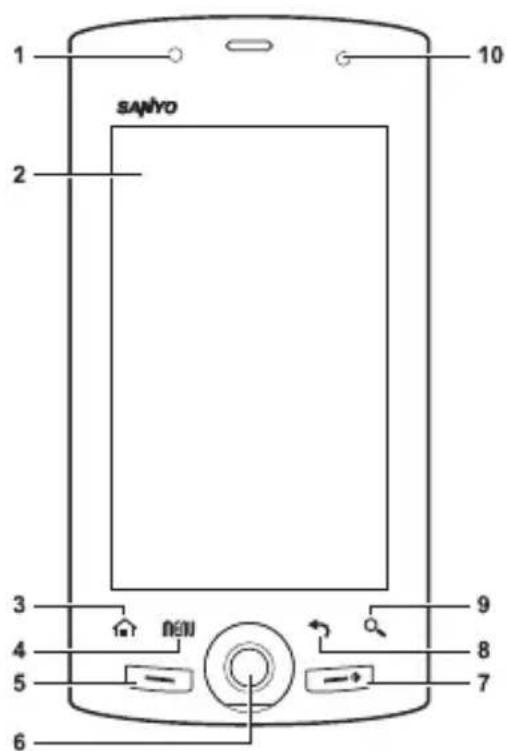
Phone Overview
Front Panel
- Light sensor
- Touch screen
- Home
- Touch to return to the Home screen.
- Touch and hold to show the recently-used applications.
- Menu : Touch to open the menu of the current screen or application.
-
Send
-
Press to make or answer a call.
- Press to display the call log screen.
- Press and hold to launch the voice recognition application.
-
Press to turn on the screen backlight while turned off.
-
Trackball
-
Roll to highlight items on screen.
-
Press to select an item.
-
End
-
Press and hold to turn the device on.
- Press and hold, then select Power off to turn the device off.
-
Press to turn on/off the screen backlight.
– During a call, press to end the call.
– During an incoming call, press to reject a call. -
Back
- Touch to return to the previous screen or close the dialog box.
-
Search : Touch to activate Search. See "Use the Search key" on page 14.
-
LED Indicator: See "LED Indicator" on page 23.
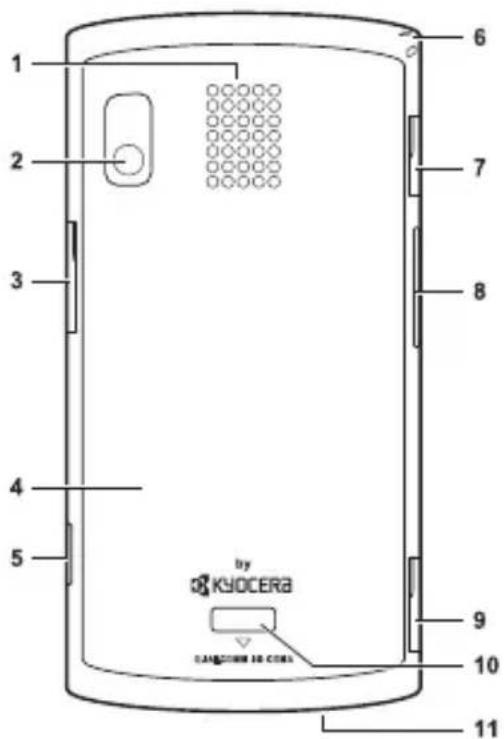
Back and Side Panels
- Speaker
- Camera lens
- Memory card slot : Insert a storage card into the slot to increase device memory. See “Storage Card” on page 12.
- Back cover
- Camera button
- Press and hold to activate camera mode.
- In camera mode, press to capture photos or videos. See “Camera and Camcorder” on page 62.
- Strap holder
- Earphone jack (3.5mm)
- Volume button: Press up to raise or press down to lower sound volume during operation. See “Adjust the Volume” on page 15.
-
USB connector
-
Connect the Wall/USB Charger to charge the battery.
-
Connect the USB cable to transfer files to and from a computer.
-
Back cover latch: Press to release latch and remove the back cover.
-
Microphone
Warning: Inserting an accessory into the incorrect jack will damage the phone.
Phone Battery
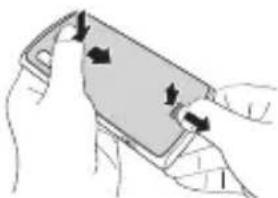
Install the Battery
-
Hold the phone face down.
-
Using your thumbnail, press and hold the latch to release lock.
-
Keep pressing the latch and press the upper part of the back cover with your other thumb then slide the cover down to remove.
-
Insert the battery with the metal contacts facing those on the device.
-
To replace the back cover, align then press the latch area and upper part of the cover with your thumbs to slide the cover until it snaps into place.
natural_image
Illustration of hands holding a smartphone with arrows indicating motion (no text or symbols)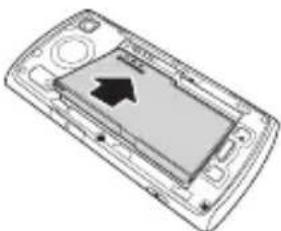
natural_image
Diagram of a mobile phone showing the screen and keypad with an arrow indicating direction (no text or symbols present)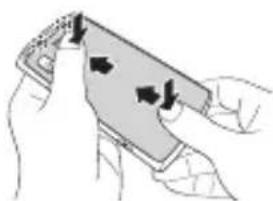
natural_image
Illustration of hands holding a smartphone with directional arrows indicating movement (no text or symbols)Remove the Battery
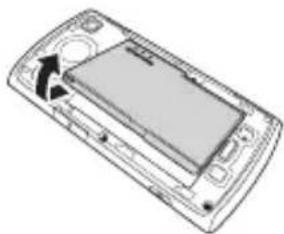
-
Make sure the device is turned off.
-
Remove the back cover.
-
Place your fingernail on the grip then lift to remove the battery.
natural_image
Diagram of a smartphone showing the screen and keypad with an arrow indicating rotation (no text or symbols present)Charge the Battery
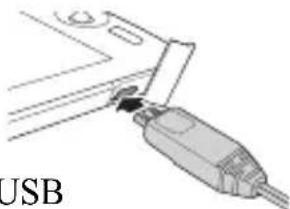
- Connect the USB cable to the Wall/USB
Charger, and then connect the mini-USB side of the cable to the USB connector on the left side of the device.
natural_image
Diagram of a USB connector with a cable, showing internal components (no text or symbols)- Plug the Wall/USB Charger into a wall outlet.
Note: You can also charge your phone by plugging the USB cable into your PC and the mini-USB side into the device.
The LED indicator and the battery icon in the upper-right corner of the screen indicate the battery status:
| LED Indicator | Battery icon | Battery status |
Solid RED Battery i  | ||
| Flashing RED |  | Battery is low. |
| Solid GREEN |  | Battery is fully charged. |
You must have at least a partial charge in the battery to make or receive calls. You can safely recharge the battery at any time, even if it has a partial charge.
Note: Before removing the battery, make sure the phone is powered off.
Warning:
- Do not remove the battery while it is charging.
- Always remove the Wall/USB Charger from the wall outlet first before removing the USB cable from the device.
Battery Safety Guidelines
- Do not disassemble or open the battery.
- Do not crush, bend, deform, puncture, or shred the battery.
-
Do not attempt to insert foreign objects into the battery.
-
Do not immerse the battery or expose it to water or other liquids. Even if a battery appears to dry out and operate normally, internal parts can slowly corrode and pose a safety hazard.
- Always keep the battery between 15^ and 25^ (59°F and 77°F). Do not expose the battery to extremes of temperature (heat or cold), fire, or other hazards such as a cooking surface, iron, or radiator.
- Never use any damaged battery.
- Only use the battery for its intended phone.
- Only use the battery with a qualified charger. Use of an unqualified battery charger may present a risk of fire, explosion, leakage, or other hazard. If you are unsure about whether a charger is qualified, contact customer support.
- Do not short-circuit the battery or allow metallic conductive objects—such as keys, coins, or jewelry—to contact the battery’s terminals.
- Replace the battery only with another qualified battery. Use of an unqualified battery may present a risk of fire, explosion, leakage, or other hazard. If you are unsure about whether a replacement battery is compatible, contact customer support.
-
Promptly dispose of used batteries in accordance with local regulations and recycle if possible. Do not dispose as household waste.
-
Supervise all battery usage by children.
- Avoid dropping the phone or battery. If the phone or battery is dropped, especially on a hard surface, an internal short-circuit can occur and pose a safety hazard. If you suspect battery damage, take it to a service center for inspection.
- Improper battery use may result in a fire, explosion, or other hazard.
Battery Life Management
Because your phone provides an abundance of information and apps at 3G speeds, it requires a lot of power. To get the most out of your battery, consider turning off options that require a data connection for notifications tasks like Bluetooth, GPS, and Wi-Fi. You can also decrease the screen brightness, screen timeout time and listen to music directly from the microSD card rather than stream over the network or via Wi-Fi.
The following could reduce battery life between charges:
- Playing games or using the Web.
- Keeping backlighting on.
- Operating when far away from a base station or cell site.
- Using data cables or accessories.
- Operating when no service is available, or service is available intermittently.
• High earpiece and ringer volume settings. - Repeating sound, vibration, or lighted alerts.
Storage Card
You can use a compatible microSD ^TM card for more storage space to save your photos, videos, and other files.
Note: You cannot download application files to the microSD ^TM card.
Install the Storage Card
- Open the memory card slot cover.
- Insert the microSD ^TM card into the slot with the metal contacts facing the back of the device.
- Push the microSD ^TM card until it snaps into place.
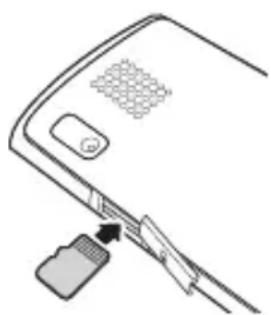
natural_image
Diagram of a device's cable connector with a USB flash drive (no text or symbols)Remove the Storage Card
- Open the memory card slot cover.
- Push the microSD ^TM card into the slot to eject card.
Note: Do not remove the card while downloading/saving files to the card.
Turn the Device ON or OFF
Turn the Device ON
To turn the device on, press and hold the End key.
Note: When you turn on your phone for the first time, you are prompted to make a Google account. Follow the instructions on the screen to setup your account.
Turn the Device OFF
- Press and hold the End key. The phone options window appears.
- Touch Power off > OK to turn the device off.
Set Device to Silent Mode
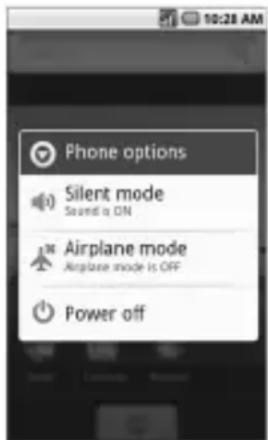
- Press and hold the End key. The phone options window appears.
- Touch Silent mode. The silent mode icon appears on the status bar.
To undo silent mode, repeat the above steps.
Set Device to Airplane Mode
-
Press and hold the End key. The phone options window appears.
-
Touch Airplane mode. The airplane mode icon 🙏 appears on the status bar.
To undo airplane mode, repeat the above steps.
Lock or Unlock the Device
To avoid the screen from accidentally being touched, lock the touch screen.
A length of time to elapse before the touch screen is automatically locked follows the setting of Screen timeout. See “Set Screen Timeout” on page 92.
Manually Lock the Touch Screen
Press the End key to lock the touch screen. The backlight turns off.
Unlock the Touch Screen
Press the End key, then slide the key icon to the right to unlock the touch screen.
Navigate Your Device
Use the Touch Panel
- Touch: Touch the screen panel with your finger to highlight or select an item on screen.
- Touch and Hold: Touch and hold an item (except an application icon) to open its options windows.
- Drag: Touch and hold an item then drag your finger to move the item.
- Slide or swipe: Touch and drag your finger across the screen to scroll or view more items.
- Change Orientation: By default, the screen orientation, from portrait to landscape, is automatically changed by rotating the phone 90° to the left. See “Enable Orientation” on page 92.
Use the Trackball
- Roll the trackball up, down, left, or right to highlight items on screen.
- Press the trackball to confirm a selection or open more windows.
Use the Search key
Use the Search function to search information, such as Contacts or others on your device or on the Internet.
- Touch Search. The Quick Search Box is highlighted.

-
Enter the information you want to search. As you type, matching information from your device is displayed on screen.
-
To select a matched item, touch the item. To browse the Internet using Google™ search, touch 🔒.
Note: You can use Voice Search feature. Touch 📂 and say the information you want to search.
Adjust the Volume
Your device has 4 adjustable volumes:
- Ringer volume: Volume level of phone ring and notification sounds.
- Touch Home > Menu > Settings > Sound & display > Ringer volume.
- Touch the slide bar to select the volume level.
- Touch OK.
Note: If you uncheck “Use Incoming call volume for notifications”, you can select the notification volume separately.
You can also select the ringer and notification volume on the screen to select a ringtone type. See page 91.
• Media volume: Volume level when playing media files.
-
Touch Home > Menu > Settings > Sound & display > Media volume.
-
Touch the slide bar to select the volume level.
-
Touch OK.
- In-call volume Volume level of phone conversation. Press the Volume button up or down during a call.
- Alarm volume See “Alarm Clock” on page 79.
2 The Basics
Home Screen
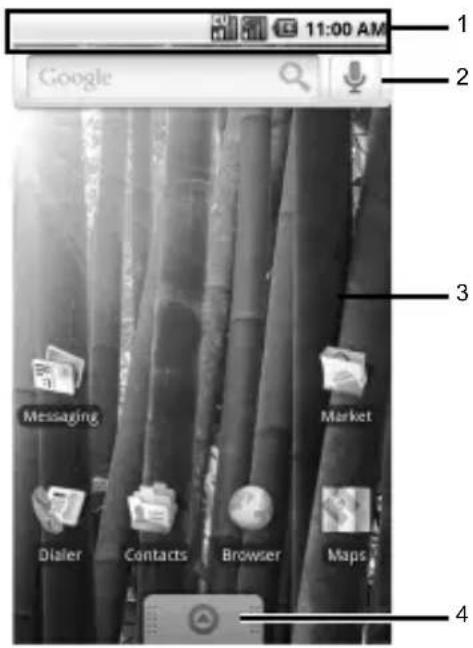
The Home screen is the starting point for all applications. You can access applications, view call notifications and battery or connection status.
1. Status Bar
- Displays notification and phone status icons.
- Touch and hold to display the device date.
-
Slide down to display the notifications panel.
-
Quick Search Bar: Allows users to enter text or speak a word for a quick search in the device or browse in the Internet.
3. Main Home Screen
- Displays shortcut icons.
-
Touch an icon to open the application.
-
Applications Tab: Slide upwards to display a list of applications installed in the device.
Note: From any application screen, touch Home to go back to the Home screen.
Extended Home Screen
From the Home screen, slide your finger horizontally across the screen to view the left or right extended Home screen.
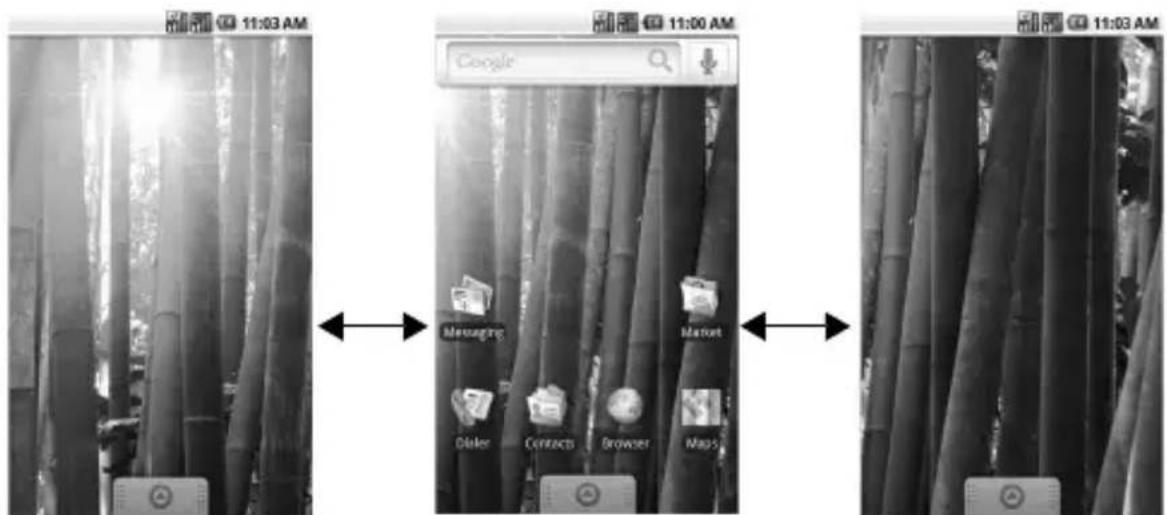
Main Home ScreenLeft Extended Home Screen Right Extended Home Scree
Customize the Home Screen
Use Menu to Customize the Home Screen
-
Touch Home > Menu.
-
Touch one of the following:
-
Add: Select to add items to the Home screen. See "Add an Item" on page 18.
- Wallpaper: Select to change the wallpaper. See “Change the Wallpaper” on page 18.
- Search: Select to search for contacts and other information on your device or on the web.
- Notifications: Select to display the notifications panel. See “Notifications Panel” on page 21.
- Settings: Select to open the Settings screen. See “Settings Menu” on page 88.
Reposition an Item
- Touch and hold the item that you want to reposition. The item becomes moveable.
- Drag the item to the desired location.
- Release your finger to finalize repositioning.
Note: To reposition the item to the extended Home screen, drag the item to the edge of the screen until the Home screen extends. Then release your finger to reposition the item to your desired location.
Add an Item
-
Touch and hold an empty spot on the Home screen or touch Home > Menu, then touch Add. The Add to Home screen appears.
-
Select the type of item you want to add:
-
Shortcuts: Select to add a shortcut to an application, a bookmarked web page, or a contact.
- Widgets : Select to add a tool such as the clock, calendar, or the music bar.
- Folders: Select to add a folder to organize your home screen items. See “Create a Folder” on this page.
- Wallpapers: Select to change the wallpaper of the Home screen. See “Change the Wallpaper” on this page.
Remove an Item
- Touch and hold the item that you want to remove. The item becomes moveable and the applications tab icon changes into
- Drag the item to
- When the item and the icon turn red, release your finger.
Change the Wallpaper
-
Touch Home > Menu, then touch Wallpaper:
-
Touch either of the following:
• Graphics: Select to use downloaded pictures on your device.
- Pictures: Select to use saved or captured pictures on your device. You can crop the picture before setting it as wallpaper. See “Crop Pictures” on page 67.
- Wallpaper gallery: Select to use preset wallpapers that came with your device.
- Touch Save or Set wallpaper.
Create a Folder
-
Touch Home > Menu, then touch Add > Folders.
-
On the Select folder screen, touch:
-
New folder: Select to create a new folder with no items inside.
- All contacts: Select to create a Contacts folder.
- Contacts with phone numbers: Select to create a folder of Contacts that have phone numbers.
- Starred contacts: Select to create a folder of Favorite Contacts.
Rename the folder
- Touch the folder to open it.
- Touch and hold the title bar of the folder. The Rename folder screen appears.
- Enter the desired folder name.
- Touch OK when done.
Add shortcuts on the Home screen to the folder
- Touch and hold the item. The item becomes moveable.
- Drag the item to the folder.
Access items inside the folder
- Touch the folder to open it.
- Touch the icon of the application you want to access.
Remove an item or the folder
Follow the same procedures in “Remove an Item” on page 18.
Status Bar
The status bar, which appears on top of the screen, displays information such as time, notifications, and device status.
Notification and Status Icons
These icons may appear on the status bar of your device.
| Alarm clock is set. | |
| Microphone is muted. See page 31. | |
| Chat is ongoing. | |
| Memory is full. | |
| Error notification. | |
| Missed call notification. | |
| Synchronization is active. | |
| Wi-Fi network is available. | |
| Wi-Fi signal level. | |
| Battery is empty. | |
| Battery is low. | |
| Battery is full. | |
| Battery is charging. | |
| Bluetooth is enabled. | |
| Bluetooth data connection is active. | |
| 1x digital mode connected. The arrow animation indicates data connection activity. |
| 1x digital mode connection is dormant. | |
| EVDO(3G) is connected. The arrow animation indicates data connection activity. | |
| EVDO(3G) connection is dormant. | |
| EVDO(3G) signal level. Fewer bars indicate a weaker signal. | |
| No signal. | |
| Your phone is roaming in home network. | |
| USB is connected. | |
| Download in progress. | |
| Upload in progress. | |
| GPS is active. The green bars indicate GPS signal level. | |
| Headset is connected. | |
| Call is ongoing. | |
| Silent mode is active. | |
| Silent mode and Vibrate mode are active. | |
| Airplane mode is active. | |
| Speakerphone is on. | |
| Voicemail notification. | |
| New message notification. | |
| New Gmail message notification. | |
| Touch to display more status bar icons. | |
| TTY | TTY mode is enabled. |
| ↓! | New software upgrade notification. |
Notifications Panel
Notification icons indicate the arrival of new messages or calls, the establishment of a USB connection, reminders of calendar events, alarms, and other information. Open the notifications panel to read the detail of the notification and open the related applications.
Open the notifications panel
Touch and hold the status bar, then slide downwards to open the notifications panel.
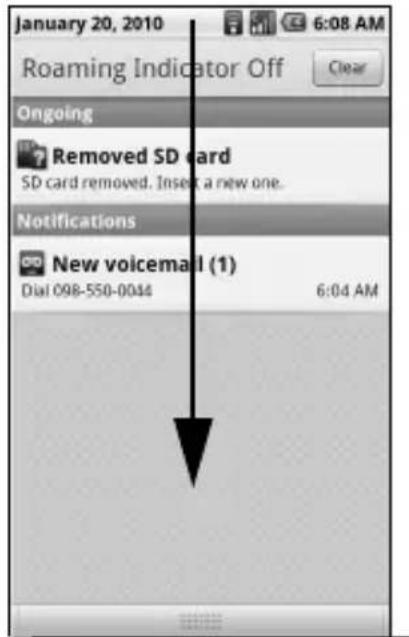
- Touch the notification to open the related application.
• T o Clear to klear all notifications
Close the notifications panel
Touch and hold the bottom bar of the notifications panel, then slide upwards to close it.
Applications
The applications tab contains pre-installed and downloaded applications. The following table shows the applications that come with your device.
| Applications Description | |
| Alarm Clock | Allows you to set multiple alarms. |
| Bluetooth FTP | Allows you to send and receive files via Bluetooth. |
| Browser | Allows you to browse the Internet. |
| Calculator | Allows you to perform basic mathematical functions. |
| Calendar | Allows you to schedule appointments and set reminders. |
| Camcorder | Allows you to record videos. |
| Camera | Allows you to take photos. |
| Contacts | Allows you to create and store Contact information on your device. |
| Dialer | Used to make calls. |
| Allows you to access your POP3 or IMAP based email accounts on your device. | |
| File Browser | Manages files and folders stored in the device memory and the storage card. |
| Gallery | Organizes media files and allows you to view pictures and playback videos stored in the storage card. |
| Gmail | Allows you to send and receive Gmail. |
| Google Talk | Allows you to send and receive Google instant messages. |
| Maps | Allows you to see Google Maps. |
| Market | Allows you to download games or applications. |
| Messaging | Allows you to send and receive text and multimedia messages. |
| Music | Allows you to play music files by artists, albums or playlists. |
| Settings | Allows you to show the Settings menu. |
| Voice Control | Allows you to open the automatic voice recognition program. |
| Voice Search | Allows you to search on Google using voice commands. |
| YouTube | Allows you to view YouTube videos. |
Note: The menu items on your phone can change depending on the options provided by your service provider. Check with your service provider.
Applications Tab
Open the Applications Tab
- Touch Home.
- Slide the applications tab upwards to open.
Close the Applications Tab
Slide the applications tab downwards to close the tab.
Recently-Used Applications
- Touch and hold
Home to open the recently-used applications window.
The last 6 used applications are displayed.
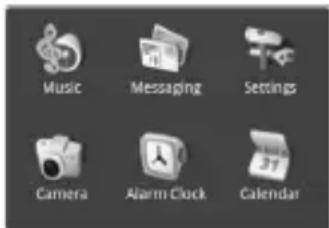
- Touch an application icon to open it.
LED Indicator
The LED indicator provides various status information.
| LED State DeviceState | Indication |
| Flashing Green(Quick) | Power ON Incoming call. |
| Flashing Green (Slow) | Power ON Pending notification, such as:Unread messageUnread voicemail messageMissed callUnread Email/GmailCalendar Event |
| Solid Green Power ON / OFF | Battery is fully charged. |
| Solid Red Power ON / OFF | Battery is charging. / USB connected. |
| Flashing Red (Slow) | Power ON Battery is low. |
Text Entry
When you open an application that requires text or numeric entry, you can enter information using the on-screen keyboard.
Your device has the following on-screen keyboards: QWERTY, Numeric & Symbol, and Phone Keypad. The keyboard that is displayed depends on the type of information required.
QWERTY Keyboard
The QWERTY keyboard is activated whenever an alphanumeric entry is required. The keyboard layout looks similar to a computer keyboard.
Note: Key appearance may vary depending on the selected application.
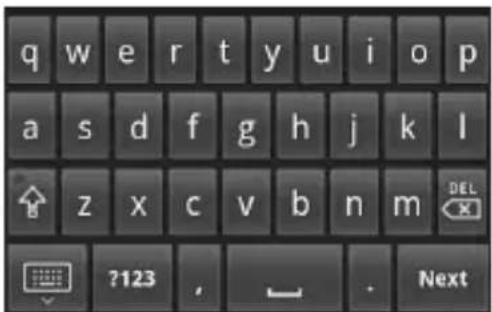
Use the QWERTY Keyboard
-
Touch the text entry field to display the keyboard.
-
Touch the keys to type letters.
Other keyboard functions:
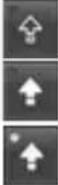 | Touch to toggle lower case, upper case, and Caps lock. |
 | Indicates Caps lock is turned on. Touch once to turn off Caps lock. |
 | Indicates the first letter will be entered as upper case, but the succeeding characters will be entered as lower case. |
 | Touch to switch to the numeric and symbols keyboard. |
 | Touch to delete a character. Touch and hold to delete entire characters. |
 | Touch to hide the keyboard. Touch the text entry field to display the keyboard again. |
The following keys may appear on the QWERTY keyboard depending on the selected application.
| Next | Touch to go to the next text entry field. |
 | Touch to insert smiley.Touch and hold to view and select other smiley. |
 | Indicates that there is no more required text field. Touch to complete entry and hide the keyboard. |
 | Touch to insert the text “.com”. |
 | Touch to go to the web address. |
Numbers & Symbols Keyboard
Use the Numbers & Symbols keyboard to enter numbers and symbols.
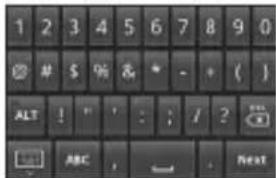
Use the Numbers & Symbols Keyboard
- Touch the text entry field to display the QWERTY keyboard.
- Touch 7123 to change keyboard to Numbers & Symbols.
- Touch the keys to type numbers and symbols.
Other keyboard functions:
 | Touch to display the full set of symbols keyboard. Touch again to toggle back to Numbers & Symbols keyboard. |
 | Touch to delete a character. Touch and hold to delete entire characters. |
 | Touch to switch back to alphabet mode keyboard. |
 | Touch to hide the keyboard. Touch the text entry field to display the keyboard again. |
The following keys may appear on the QWERTY keyboard depending on the selected application.
 | Touch to go to the next text entry field. |
 | Touch to insert smiley.Touch and hold to view and select other smiley. |
Phone Keypad
The Phone keypad is automatically activated when a numeric entry, such as a phone number, is required.
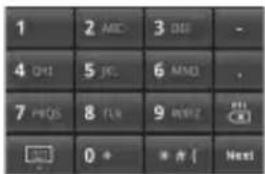
Use the Phone Keypad
- Touch the text entry field to display the Phone keypad.
- Touch the keys to enter numbers. Other keyboard functions:
| Next | Touch to go to the next text entry field. |
 | Touch to delete a character.Touch and hold to continuously delete characters. |
 | Touch to hide the keypad. Touch the text entry field to display the keypad again. |
Use Landscape Keyboard
For added convenience, you can switch to a landscape keyboard by rotating the phone 90° to the left. This brings out a wider keyboard and allows you to type by using two thumbs.
Note: To use this feature, ensure that the Orientation box is checked in Home > Menu > Settings > Sound & display.
Input Method
From applications that require text entry, such as Messaging, use the copy and paste functions to copy and paste text from one application to another.
-
Open the application or received message that you want to copy text from.
-
Touch and hold the text body to display the options menu.
- Touch Copy message text or Copy all to copy the text.
- Open the application that you want to paste the text to.
- Touch and hold the text box where you want to paste the text.
- Touch Paste.
Copy Text from Web Page
- When viewing a web page, touch Menu > More > Select text.
- Touch and drag your finger to highlight the text that you want to copy.
- Lift your finger to copy the highlighted text to the clipboard.
- Open the application that you want to paste the selected text to.
- Touch and hold the text box where you want to paste the text.
- Touch Paste.
Copy a URL
- To copy a URL, touch and hold the URL to display the options menu.
- Touch Copy link URL.
- Open the application that you want to paste the URL to.
- Touch and hold the text box where you want to paste the URL.
- Touch Paste.
Adjust Keyboard Settings
To adjust the keyboard settings, touch Home >
Menu > Settings > Locale & text.
Locale and text
Select locale: Select to change the language.
Text Settings
Android Keyboard
Android keyboard settings
- Vibrate on keypress: Check to activate vibration when a key is touched.
- Sound on keypress: Check to activate clicking sound when a key is touched.
Note: To use this feature, ensure that the Audible selection box is checked. See “Enable Screen Selection Sound” on page 91.
• Auto-capitalization: Check to automatically set the first letter of a sentence in upper case.
Word Suggestion Settings
- Quick fixes: Check to add a period when the user presses the space key twice to indicate sentence completion.
• Show suggestions: Check to display suggested words as you type. Available only when Quick fixes is checked. - Auto-complete: Check to enter a highlighted word automatically if a space or punctuation is typed. Available only
when Quick fixes and Show suggestions are checked.
User Dictionary
Select to add user preset words to the dictionary.
Add Words in the Dictionary
- From the Locale & text screen, touch User dictionary >Menu >Add.
- Type the word you want to add, then touch OK.
Customize Words in the Dictionary
- From the Locale & text screen, touch User dictionary.
- Touch the word you want to customize, and a pop up window appears.
- Do one of the following:
• To edit the word, touchEdit. - To delete the word from the dictionary, touch Delete.
3 Call Features
Make Phone Calls
Use the Dialer to make phone calls.
Use the Dialer
To open the Dialer, do one of the following:
- P r e Sendskeyt then touch the Dialer tab.
• T o Home, open the Applications tab, then touch Dialer.
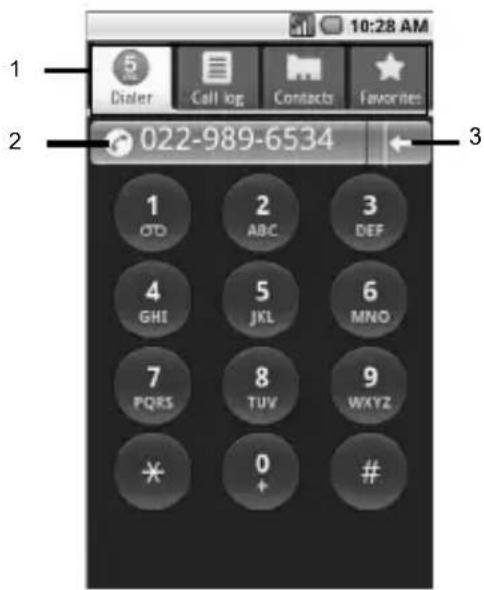
The Dialer screen is shown on the right:
- Page tabs
- Call tab: Touch to make a phone call.
- Backspace: Touch to delete a number.
Call Using a Number
- On the Dialer screen, touch the keypad to enter number.
- Press the Send key or touch the Call tab.
Note: To save the dialed number to Contacts, touch Menu > Add to contacts.
Call a Number from Call Log
- On the Dialer screen, touch the Call log tab.
- Touch the phone icon of the name or number you want to call.
Call a Contact
- On the Dialer screen, touch the Contacts tab.
- Touch desired contact.
- Press the Send key or touch Call [label].
Call a Favorite Contact
- On the Dialer screen, touch the Favorites tab.
- Touch desired favorite contact.
- Press the Send key or touch Call [label]. To save a Favorite contact, see "Add Contacts to Favorites" on page 35.
Call a Number with Pause
Use the Pause function to send DTMF tones from your phone. Your phone supports two types of pauses:
- Hard Pause: Add a hard pause to indicate that the succeeding numbers are DTMF tones. For every hard pause, a message appears to confirm whether to send the tones.
-
2-sec Pause: This is a 2-second interval in sending DTMF tones. To increase the interval, add a succession of 2-sec pause. For example, to have an interval of 4 seconds, add two 2-sec pause.
-
On the Dialer screen, touch the keypad to enter number to call.
-
To add a hard pause, touch Menu > Hard Pause. The letter P appears to indicate the hard pause location. To add a 2-sec pause, touch Menu > 2-sec Pause. The letter T appears to indicate the 2-sec pause location.
-
Touch the keypad again to enter number of the DTMF tone.
Note: Repeat the above procedures to add more pauses.
- Press the Send key or touch the Call tab. Your phone dials the number before the hard pause then sends the DTMF tones upon confirmation. For 2-sec pause, your phone will send the DTMF tones automatically after 2 seconds.
Call a Number with Prepend
Prepend is used to add prefix numbers in front of a phone number. For example, if your contact entry is saved without an area code and you are out of town, use the prepend function to add the area code before calling the number.
- On the Dialer screen, touch the Contacts or Call log tab.
- Touch and hold a name or number from the list.
- Touch Prepend.
- Touch the keypad to enter the number you want to add before the phone number.
- Press the Send key or touch the Call tab. The following numbers can also be added to use their function:
- To call the voicemail of the person you are calling directly, dial 11 + phone number:
- To hide your phone number from the person you are calling to, dial *67 + phone number.
Answer Phone Calls
When a call comes in, the phone rings or vibrates and a message is displayed on screen. The phone number of the caller appears. If the caller is listed in your Contacts, the contact's name appears.
Answer a Phone Call
Press the Send key.
Reject a Phone Call
Press the End key.
Voice Ringer
Your phone will speak the information of an incoming caller.
- Touch Menu > Settings > Text to speech.
- Touch Speak incoming caller ID to check it.
- If the number is saved in Contacts, the Contacts name will be read.
- If the caller ID is saved, it will be read.
- If the number is only available, it will be read.
- If music is assigned as a ringtone, it will be played.
Mute the Ringtone
Press the side volume button.
Call Options
Other options are available during a phone call.
Unlock the Screen
The screen of your phone is locked automatically during a call to avoid accidentally touching the screen.
To unlock the screen
Touch and slide the arrow to the right.
You can disable this feature or select your phone's behavior after unlocking the screen.
See “In-Call Touch Lock” on page 90.
Add Another Call
Touch Menu > Add call to call another number.
Another Incoming Call
When a new call is incoming during an ongoing call, press the Send key to receive the new call and put the current call on hold.
Swap Calls
When another call is on hold, touch Menu > Swap calls to swap between calls.
Merge Calls
Touch Menu > Merge calls to merge all ongoing calls.
Mute the Microphone
Touch Menu > Mute to toggle between turning the microphone on or off.
Use the Speakerphone
Touch Menu > Speaker to toggle between turning the speaker on or off.
Show Dialpad
Touch Menu > Show dialpad to display the dialpad during a call.
Use Bluetooth
Touch Menu > Bluetooth to toggle between using the phone's speaker and the Bluetooth device speaker.
Select the Earpiece Volume
Press the side volume button up or down to select the earpiece volume.
End Phone Calls
To end a call, press the End key.
Use Call Log
The Call log tab lists all the dialed numbers, missed, and received calls.
From the Call log tab, you can call a name or number on the list, view the contact information, edit the number, or send a text message.
- Press the Send key.
-
Do one of the following:
-
Touch a name or number on the list to call.
-
Touch and hold a name or number to display the options menu:
-
Call [number]: Touch to return the phone call.
- Edit number before call Touch to edit the number then call the number.
- Send SMS message: Touch to send a text message to the name or number.
- View contact/Add to contacts: Touch to view the contact information or save the number to Contacts.
- Prepend: Touch to add prefix numbers in front of a phone number.
- Remove from call log: Touch to delete the call information from call log.
- Touch Menu > Clear call log to delete all Call log.
4 C o n t a c t s
Use Contacts to store names, phone numbers, email addresses, and other information.
To access Contacts:
- T o Home, open the applications tab, touch Contacts.
- Pre Sendkey then touch Contacts tab.
Contacts Menu
My Name Card
Select this option to view or edit your personal contact information, or send your name card via Bluetooth.
- From the Contacts screen, touch Menu > My Name Card
- Do one of the following:
- To edit your personal information, touch Menu > Edit.
- To send your name card via Bluetooth, touch Menu > Send Name Card over BT.
Note: Turn on Bluetooth function before using this feature.
Search
Select this option to search for names in your Contacts.
- From the Contacts screen, touch Menu > Search.
- Type the name of the contact to search. As you type, the screen displays matching contacts based on the characters you are typing.
- Touch to search.
Display Group
Select this option to change the way Contacts are filtered and displayed on screen.
-
From the Contacts screen, touch Menu > Display group.
-
Touch one of the following options:
-
All contacts: Select to display all contacts including contacts of Gmail (if synchronized).
- Contacts with phone numbers: Select to display only the contacts with phone numbers.
- My Contacts: Select to display contacts created on your phone and “My Contacts” of Gmail (if synchronized).
- Starred in Android : Select to display only the contacts added in Favorites.
Add Contacts
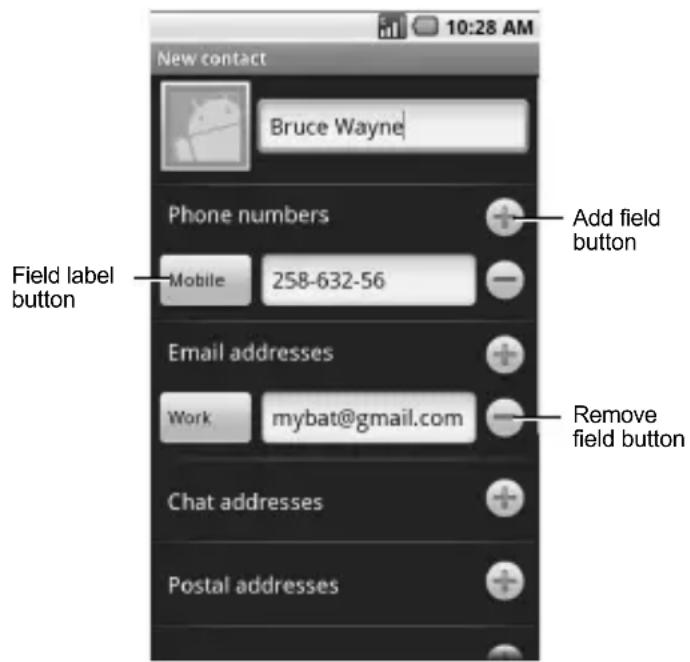
- From the Contacts screen, touch Menu > New contact.
-
Enter the name, phone number, email and other contact details.
-
To add more fields, touch the Add field button. To remove field, touch the Remove field button.
- To change the field label, touch the Field label button.
-
Scroll up or down to move through the contact fields.
-
To save contact, do either of the following:
-
Scroll down to the bottom of the page, then touch Done to save.
- Touch Menu > Done.
View Contacts
From the Contacts screen, touch the name of the contact to view contact details.
From the View Contact screen, touch Menu and one of the following:
- Edit contact: Select to edit contact. See “Edit Contacts” on page 34.
- Delete contact: Select to delete contact. See “Delete Contacts” on page 34.
Use Contacts
Call Contacts
- From the Contacts screen, touch and hold the contact name to open the options menu.
- Touch Call [field label].
Send Messages to Contacts
- From the Contacts screen, touch and hold the contact name to open the options menu.
- Touch Send SMS/MMS.
- Compose your message.
- To attach pictures, video, or audio, touch Menu > Attach, touch the type of file, then the file to attach.
- Touch Send.
Customize Contacts
Edit Contacts
- From the Contacts screen, touch and hold the contact name to open the options menu.
- Touch Edit contact.
- Edit the contact information.
- When done, touch Done.
Delete Contacts
- From the Contacts screen, touch and hold the contact name to open the options menu.
- Touch Delete contact.
- A warning message appears, touch OK.
Assign Ringtone to Contacts
- From the Contacts screen, touch and hold the contact name to open the options menu.
- Touch Edit contact.
- Scroll down and touch Ringtone.
- Touch either Preloaded ringtones or User added ringtones.
- Touch to playback ringtone.
- Touch OK to assign the selected ringtone.
- Touch Done.
Divert Contacts Call to Voicemail
Incoming calls from a contact can be automatically diverted to voicemail.
- From the Contacts screen, touch and hold the contact name to open the options menu.
- Touch Edit contact.
- Scroll down and touch Incoming calls to check it.
- Touch Done.
Send Contacts
Send Contacts via Bluetooth
- From the Contacts screen, touch and hold a contacts name.
-
Touch Send using Bluetooth. -or-
-
From the Contacts screen, touch Menu > Send Contact Over BT.
-
Select one of the following options:
-
To select all contacts information, touch All Contacts.
-
To select multiple contacts information, touch Selected Contacts.
-
Select the contacts, and touch OK
Synchronize Contacts With Gmail
-
From the Contacts screen, touch Menu > Edit sync groups.
-
Select the check box of the following options to enable synchronization:
-
Sync all contacts: Touch to synchronize contacts on your phone and Gmail.
- My Contacts: Touch to synchronize with My Contacts on your phone and Gmail.
- Starred in Android : Touch to synchronize Starred on Gmail and Favorites on your phone.
Note: See “Data Synchronization” on page 93 to synchronize your data.
Use Favorites
You can set frequently-called contacts as Favorites.
View Favorites
To view Favorites, press the Send key, then touch Favorites tab.
Add Contacts to Favorites
- From the Contacts screen, touch and hold the contact name to open the options menu.
- Touch Add to favorites.
-or-
- From the Contacts screen, touch the contact name to display the detail screen.
- Touch a star mark at the right of the name. If the star turns orange, the contact is added to Favorites.
Call Favorites Contacts
- From the Favorites screen, touch and hold the contact name to open the options menu.
- Touch Call.
Send Message to Contacts
- From the Favorites screen, touch and hold the contact name to open the options menu.
- Touch Send SMS/MMS.
- Compose your message.
- To attach pictures, video, or audio, touch Menu > Attach, touch the type of file, then the file to attach.
- Touch Send.
Remove From Favorites
- From the Favorites screen, touch and hold the contact name to open the options menu.
- Touch Remove from favorites.
5 Messaging
Use Messaging to send and receive text or multimedia messages.
To access Messaging, touch Home, open the applications tab, touch Messaging.
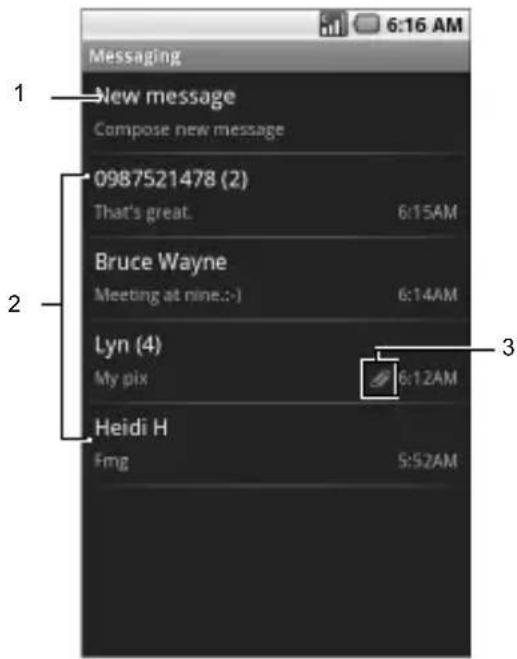
- New Message: Touch to compose a new message
- MessageThreads
- Attachment icon: Indicates that the message has an attachment.
Send Text and Multimedia Messages
Create a Text Message
A text message can contain numbers, text and symbols.
- From the Messaging screen, touch New message.
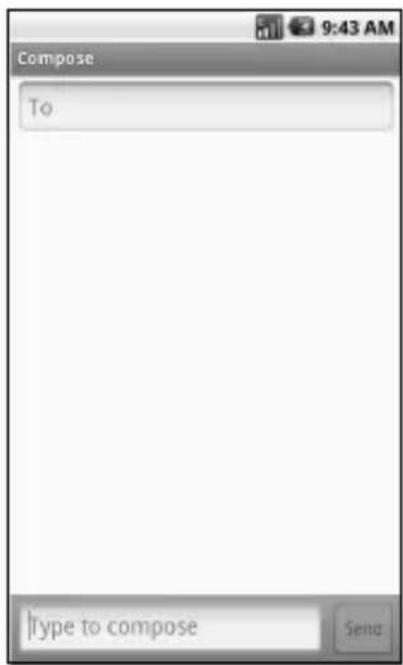
- Touch the To field, then type the recipient's number or email address. Or touch and hold the To field, and then touch Select Contacts.
The Contacts list is displayed:
-
To use the desired Contact, touch the Contact.
• To add more recipients, repeat step 2. -
Touch the Type to compose field to activate the keyboard.
- Type your message.
- To access more features, touch Menu then the option:
Note: Some menu may require touching Menu > More.
- Call: Touch to call the recipient.
- View contact/Add to Contacts: Touch to view the recipient's contact information or add a recipient to Contact.
- Insert smiley: Touch to open the Insert smiley window and touch the image to insert.
- Discard: Touch to discard the message.
- Select Contacts: Touch to add another contacts as a recipient.
-
All threads: Touch to save message as draft and close the compose message screen.
-
When done, touch Send.
Create a Multimedia Message
A multimedia message can contain text, numbers, symbols, subject, pictures, videos, and audio files. You can only send a multimedia message to recipients with devices capable of multimedia message service or to email addresses.
- From the Messaging screen, touch New message.
- Touch the To field, then type the recipient's number or email address. Or touch and hold the To field, and then touch Select Contacts. The Contacts list is displayed:
- To use the desired Contact, touch the Contact
• To add more recipients, repeat step 2.
- Touch the Type to compose field to activate the keyboard.
- Type your message.
- To attach a file, touch Menu > Attach, then select one of the following:
- Pictures : Touch to attach a picture.
- Capture picture: Touch to capture an image to attach using the device camera.
- Videos : Touch to attach a video.
- Capture video: Touch to record a video to attach using the device camcorder.
• Audio : Touch to attach an audio file.
- Record audio : Touch to record audio to attach.
- Slideshow: Touch to attach a slide.
Note: See “Attach Files to Messages” on page 38 for more details.
- To add a subject, touch Menu > Add subject. Touch the Subject field, and type the subject.
- To access more features, touch Menu then the option:
Note: Some menu may require touching Menu > More.
- Call: Touch to call the recipient.
- View contact/Add to Contacts: Touch to view the recipient's contact information or add a recipient to Contact.
- Insert smiley: Touch to open the Insert smiley window and touch the image to insert.
- Discard: Touch to discard the message.
- Select Contacts: Touch to add another contacts as a recipient.
-
All threads: Touch to save message as draft and close the compose message screen.
-
When done, touch Send.
Attach Files to Messages
You can attach files such as pictures, videos, and audio to your messages. When files are attached to a text message, the device automatically converts the message into a multimedia message.
Attach Pictures
- From the compose message screen, touch Menu > Attach.
- Touch Pictures.
- Touch the thumbnail of desired picture to attach.
-
Do one of the following if necessary: • To view the attached picture, touch View
-
To replace the attached picture, touch Replace.
- To remove the attached picture, touch Remove.
Capture Pictures to Attach
- From the compose message screen, touch Menu > Attach.
- Touch Capture picture to activate the camera.
- Press the Camera button to capture picture.
- Do one of the following if necessary:
• To capture again, touch RETAKE.
• To cancel, touch CANCEL. - Touch OK to attach the captured picture.
- On the compose message screen, do one of the following if necessary:
- To view the attached picture, touch View.
- To replace the attached picture, touch Replace.
- To remove the attached picture, touch Remove.
Attach Videos
- From the compose message screen, touch Menu > Attach.
- Touch Videos.
- Touch the thumbnail of desired video to attach.
- On the compose message screen, do one of the following if necessary:
-
To play the attached video, touch View.
-
To replace the attached video, touch Replace.
- To remove the attached video, touch Remove
Record Videos to Attach
- From the compose message screen, touch Menu > Attach.
- Touch Capture video to activate the camcorder.
- Press the Camera button to start recording.
- Press the Camera button again to stop recording.
-
Do one of the following if necessary:
• To record again, touch RETAKE.
• To play recorded video, touch PLAY.
• To cancel, touch CANCEL. -
Touch OK to attach the captured video.
-
On the compose message screen, do one of the following if necessary:
-
To play the attached video, touch View.
- To replace the attached video, touch Replace.
- To remove the attached video, touch Remove
Attach Audio
- From the compose message screen, touch Menu > Attach.
- Touch Audio.
-
Touch the filename of the desired audio to play.
-
Touch OK to attach audio.
-
On the compose message screen, do one of the following if necessary:
• To play the attached audio, touch Play.
- To replace the attached audio, touch Replace.
- To remove the attached audio, touch Remove.
Record Audio to Attach
- From the compose message screen, touch Menu > Attach.
- Touch Record audio to open the recording screen.
- Touch to start recording.
- Touch to stop recording.
- Touch ▶ to play recording.
- Touch Use this recording to attach recorded audio.
- On the compose message screen, do one of the following if necessary:
• To play the attached audio, touch Play. - To replace the attached audio, touch Replace.
- To remove the attached audio, touch Remove.
Attach Slideshow
- From the compose message screen, touch Menu > Attach.
- Touch Slideshow
- Touch Slide 1 to create a slide.
- Touch the Add picture button.
- Touch the thumbnail of the desired picture to add to slideshow.
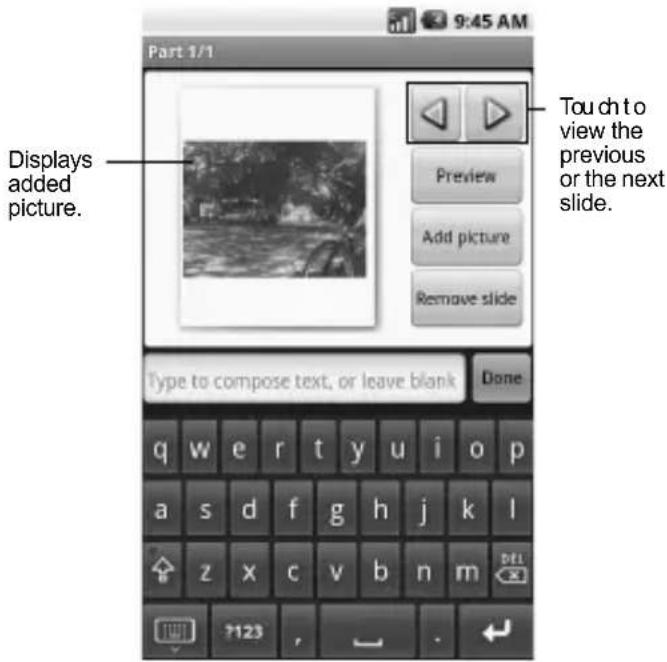
- Do one of the following if necessary:
• To add text, touch the text field and type to compose text.
• To preview slideshow, touch Preview.
• To replace a picture, touch Replace picture.
• To remove a picture, touch Remove slide.
- To add more slides, touch Menu > Add slide, then repeat step 4 to 5.
- To add background music, touch Menu > Add music.
- To set the duration of slideshow, touch Menu > Duration (**sec), then select an option.
- To change text layout, touch Menu > Layout (top or bottom), then select Text on top or Text on bottom.
Note: Some menu may require touching Menu > More.
- Touch Done to complete slideshow.
Handle Received Messages
When messages are received, a message is displayed briefly and a new message icon appears on the status bar.
Open and View Text Messages
Do one of the following to open a message:
- T o Home, then touch and slide the status bar to open the Notifications panel. Touch the new message to open and read it.
• T o Home, open the applications tab, then touch Messaging. On the message list, touch the message thread to open and read it.
Reply to Text Messages
- On the Messaging screen, touch the text message or message thread to open it.
- Touch the text box at the bottom of the screen.
- Type your message, then touch Send.
Reply to Text Messages with Multimedia Messages
- On the Messaging screen, touch the text message or message thread to open it.
- Touch Menu > Add subject or Attach. The text message automatically converts into a multimedia message.
- Touch the text box at the bottom of the screen.
- Type your message, then touch Send.
Open and View Multimedia Messages
Note: The attachment icon indicates that the message is a multimedia message.
Auto Retrieve Enabled
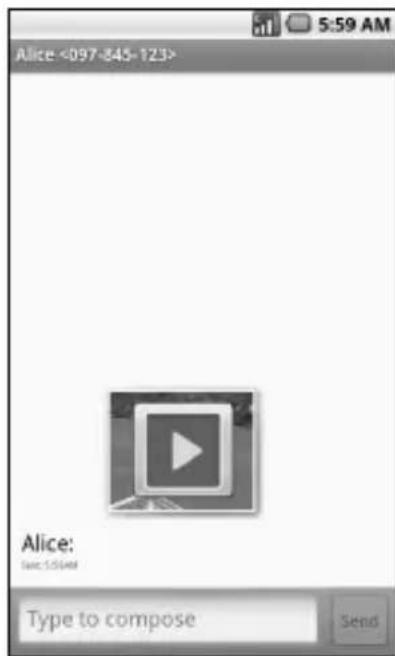
- On the Messaging screen, touch the multimedia message to open it.
- Touch ▶ to play the file.
Auto Retrieve Disabled
- On the Messaging screen, touch the multimedia message to open it.
- Touch Download to download the entire message.
Reply to Multimedia Messages
-
On the Messaging screen, touch the multimedia message to open it.
-
To reply, touch the text box at the bottom of the screen.
- Type your message, then touch Send.
Forward Messages
- When viewing the received message, touch and hold on the message thread that you want to forward.
- On the options menu, touch Forward.
- On the To field, enter the recipient's name or number.
- Touch Send to forward the message.
Reply with a Copy of the Message
- When viewing the received message, touch and hold on the message that you want to copy.
- On the options menu, touch Copy message text.
- Touch and hold the text box to open the Edit text window.
- Touch Paste.
- Complete your message, then touch Send.
Call Sender
When viewing the received message, touch Menu > Call to call the sender.
View Message Information
- When viewing the received message, touch and hold the message.
- On the options menu, touch View message details to view the message type, sender and sent date and time.
- Touch OK to close message details window.
Delete Messages
Delete a message in a thread
- When viewing the received message, touch and hold the message.
- On the options menu, touch Delete message.
- Touch OK to confirm delete.
Delete a thread
- On the Messaging screen, touch and hold the message thread.
- On the options menu, touch Delete thread.
- Touch OK to confirm delete.
Handle Attached Files
Play Attached Files
- When viewing a received message with files attached, touch the play button to play the file.
- During playback, use the playback controls to rewind, pause/play, or forward the file.
Save Attached Files
You can save the file attachment on the multimedia message to the SD card.
- When viewing a received message with files attached, touch and hold the file.
- On the options menu, touch Copy attached to SD card.
Message Settings
To adjust message settings, from the
Messaging screen, touch Menu > Settings.
Auto-retrieve
Touch to enable or disable this option if you want to automatically retrieve multimedia messages completely. When selected, the multimedia message header, body, and attachments are automatically downloaded to your device. If this option is disabled, only the message header is retrieved.
Notification Settings
Notifications
Touch to enable or disable this option if you want to receive a notification on the status bar when a new message is received.
Select Ringtone
This option allows you to set the ringtone when a new message is received.
- Touch this option to open the Ringtones window.
- Touch a ringtone to play it briefly.
- Touch OK to select ringtone.
Vibrate
Touch to enable or disable this option if you want the device to vibrate when a new message is received.
Use Email
Email allows you to add external POP3 or IMAP email accounts from web-based email service providers such as Yahoo!™ Mail, AOL, or Hotmail.
To access Email, touch Home, open the applications tab, touch Email.
Add Email Accounts
- Touch Home, open the applications tab, then touch Email.
- Follow the on-screen instructions, touch Next.
- Touch the Email address box, then type your email address.
-
Touch Next on the keyboard.
-
On the Password box, type your password.
- Touch Done on the keyboard.
- Touch Next to continue. The device automatically retrieves the email settings.
- Touch Done.
Create Another Email Account
- On the Accounts list screen, touch Menu > Add account.
- Touch the Email address box, then type your email address.
- Touch Next on the keyboard.
- On the Password box, type your password.
- Touch Done on the keyboard.
- Touch Next to continue. The device automatically retrieves the email settings.
- Touch Done.
Compose and Send Emails
- Touch Home, open the applications tab, then touch Email.
- On the email account inbox, touch Menu > Compose.
- On the To field, enter the recipient's email address. As you type, matching contacts appear on screen. Touch the contact or continue typing the email address.
- To add a carbon copy (Cc) or a blind carbon copy (Bcc), touch Menu > Add Cc/Bcc.
Note: To send to multiple recipients, separate the email addresses with a comma.
-
Enter the subject and complete your message.
-
Touch Send.
Delete Messages
- On the email account inbox, touch and hold the email you want to delete.
- On the options menu, touch Delete.
Delete Email Accounts
- Touch Home, open the applications tab, then touch Email.
- Touch and hold the email account you want to delete.
- On the options menu, touch Remove account.
- Touch OK to confirm.
Email Account Settings
- Touch Home, open the applications tab, then touch Email.
- Touch and hold the email account you want to edit.
- On the options menu, touch Account Settings.
- Touch General settings to change the "Account name", "Your name", "Email check frequency", and "Default account".
- Touch Back to save your changes.
Use Gmail
Gmail is the web-based email service provided by Google. Gmail comes preconfigured on your device. You can synchronize your Gmail account on your device with your Gmail account on the web.
To access Gmail, touch Home, open the applications tab, then touch Gmail.
Setup Gmail
-
Touch Home > Gmail.
-
Follow the instructions on the screen to setup Gmail.
Refresh Gmail
The Inbox displays all received email messages on your Gmail account.
Touch Menu > Refresh to send or receive new emails and synchronize your emails with your Gmail web account.
Create and Send Emails
- From the Inbox, touch Menu > Compose.
- On the To field, enter the recipient's email address. To send to multiple recipients, separate the email addresses with a comma and add as many recipients as you want.
-
To add a carbon copy (Cc) or blind carbon copy (Bcc), touch Menu > Add Cc/Bcc.
-
Enter the subject and compose your email.
- Touch Send.
Attach Picture File to Email
- On the compose email screen, touch Menu > Attach.
- Select the picture you want to attach.
- Complete your email.
- Touch Send.
Remove Attached File
To remove the attachment, touch the x button next to the filename.
Add Signature to Email
- From the Inbox, touch Menu > Settings > Signature.
- On the text box, type your signature.
- Touch OK.
View Sent Messages
From the Inbox, touch Menu > View labels > Sent.
Save Email as Draft
On the compose email screen, touch the Save as draft button to save the email as a draft.
View Draft Email
From the Inbox, touch Menu > View labels > Drafts to display your draft email message.
Receive and Read Emails
When new email messages are received, a message is displayed briefly and a new email message icon appears on the status bar.
Email messages you send to and receive from the same recipient are grouped as message threads or conversation.
Open and Read Received Email
To view emails, do one of the following:
- T o Home, then slide down the status bar to open the notifications panel. Touch the new email to open and read it.
- From the Inbox, touch the email message to open and read it.
Note: Unread messages are bolded.
Reply to Sender
- From the Inbox, touch to open and view the email message.
- Scroll down to the end of the message thread, then touch Reply.
- Type your reply message.
- Scroll down to the end of the message, then touch Send.
Reply to All Recipients
- From the Inbox, touch to open and view the email message.
- Scroll down to the end of the message thread, then touch Reply to all.
- Type your reply message.
- Scroll down to the end of the message, then touch Send.
Forward Email
- From the Inbox, touch to open and view the email message.
- Scroll down to the end of the message thread, then touch Forward.
- On the To field, enter the recipient's email address. To send to multiple recipients, separate the email addresses with a comma and add as many recipients as you want.
- Scroll down to the end of the message, then touch Send.
Handle Emails
Search for Email
You can search email by sender, subject or label.
- From the Inbox, touch Menu > Search.
- Touch the search box, then type the words to search.
- Touch Search.
Archive Email Messages
- In the message thread, touch the email header or message.
- Touch Menu > Archive.
Display Archived Email
From the Inbox, touch Menu > View labels > All Mail.
Add or Remove Star on Email
- In the message thread, touch the email header or message.
- Touch Menu > Add star or Remove star to add or remove star.
Change Labels
- In the message thread, touch the email header or message.
- Touch Menu > Change labels to add or change the label of the conversation.
Note: You cannot use the device to create labels. This can only be done on Gmail's web site.
Delete Email
- In the message thread, touch the email header or message.
- Touch Menu > Delete to delete the email message.
Mute Email
- In the message thread, touch the email header or message.
- Touch Menu > More > Mute to keep all future additions to the message thread out of your Inbox.
Report Spam Email
- In the message thread, touch the email header or message.
- Touch Menu > More > Report spam to report the email message as spam.
Handle Email Message Threads Open and Read Message Threads
- From the Inbox, touch and hold the message thread.
- Touch Read.
Archive Message Threads
- From the Inbox, touch and hold the message thread.
- On the options menu, touch Archive.
Display Archived Message Threads From the Inbox, touch Menu > View labels > All Mail.
Mute Message Threads
- From the Inbox, touch and hold the message thread.
- On the options menu, touch Mute to keep all future additions to the message thread out of your Inbox.
Mark Email Read or Unread
- From the Inbox, touch and hold the message thread.
- On the options menu, touch Mark read or Mark unread. Unread messages appear in bold in the Inbox.
Delete Message Threads
- From the Inbox, touch and hold the message thread.
- On the options menu, touch Delete.
Add or Remove Star on Message Threads
- From the Inbox, touch and hold the message thread.
- On the options menu, touch Add star or Remove star to add or remove star on the message thread.
Change Labels
- From the Inbox, touch and hold the message thread.
- On the options menu, touch Change labels to add or change the label of the message thread.
Note: You cannot use the device to create labels. This can only be done on Gmail's web site.
Report Spam Message Threads
- From the Inbox, touch and hold the message thread.
- On the options menu, touch Report spam to report the message threads as spam.
Gmail Account Settings
-
From the Inbox, touch Menu > Settings.
-
Touch one of the following to change the settings:
-
Signature: Select to enter a signature that is added at the end of the emails.
- Confirm delete: Select to show a confirmation box when you delete a message thread.
- Batch operations: Select to show the batch operations features, such as: archive, delete, or apply a label to multiple emails at once.
-
Labels: Select to set which Gmail labels to synchronize.
-
Email notifications: Select to show a notification icon on the status bar when you receive a new email.
- Select ringtone: Select if you want the device to ring when a new email is received. On the ringtone menu, touch a ringtone to play the tone briefly, then touch OK to confirm selection. Select Silent if you do not want the device to ring when a new email is received.
- Vibrate : Select if you want the device to vibrate when a new email is received.
3. Touch Backto save your changes.
Use Google Talk
Google Talk is the instant messaging program provided by Google. Google Talk lets you chat with other people that also have a Google account. Your Google Talk account is based on the Google account set on your device.
Sign In and Chat
Touch Home, open the applications tab, then touch Google Talk to open Google Talk.
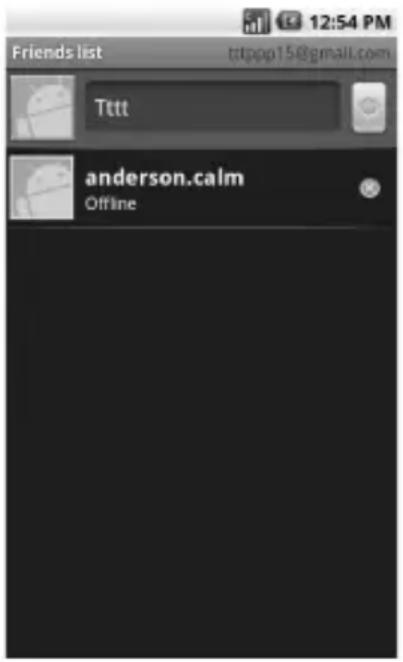
Add New Friends
You can only add people who have a Google account.
- On the Friends list screen, touch Menu > Add friend.
- Enter the Google Talk ID or the Gmail email address of the person you want to add.
- Touch Send invitation.
View Your Invitations
On the Friends list screen, touch Menu > Invites. The pending invitations screen lists all chat invitations that you have sent.
Note: When a person accepts your invitation, that invitation disappears from the list.
Accept and Cancel Invitations
On the Friends list screen, if you see an invitation pop-up window, touch Accept or Cancel.
Change Online Status and Message
- On the Friends list screen, touch the online status icon that appears beside your email address.
- Touch the status that you want from the menu.
- Touch the text box on the left of your online status icon, then type your desired status message.
- Touch Done on the on-screen keyboard.
Start a Chat
- Touch a friend on the Friends list.
- Touch the text box, then type your message.
- Touch Send.
Switch Between Active Chats
You can conduct multiple chats at the same time and switch between active chats.
- Either on the Friends list screen or a chat screen, touch Menu > Switch chats.
- On the panel, touch the friend you want to chat with.
Close a Chat
Do one of the following:
- On the Friends list screen, touch and hold a friend. On the options menu, touch End chat.
- On a chat screen, touch Menu > End chat.
Manage Your Friends
Friends on the friends list screen are sorted according to their online status and are listed alphabetically.
View Friends List
By default, only the friends that you frequently chat with are displayed on the friends list screen.
To list all your friends, touch Menu > All friends.
To display only the friends that you frequently chat with, touch Menu > Most popular.
Block Friends
You can block friends from sending you messages. Blocked friends are removed from your friends list.
- On the Friends list screen, touch and hold the name of the friend you want to block.
- On the options menu, touch Block friend. That friend is removed from your friends list and is added to the blocked friends list.
Unblock Friends
- On the Friends list screen, touch Menu > Blocked.
- On the Blocked Friends list, touch the name of the friend you want to unblock.
- Touch OK to confirm.
Pin Friends
Pin friends to ensure that they always appear on the your Most Popular friends list.
- On the Friends list screen, touch and hold the name of the friend you want to pin.
- On the options menu, touch Pin friend.
Unpin Friends
- On the Friends list screen, touch and hold the name of the friend you want to unpin.
- On the options menu, touch Unpin friend.
Mobile Indicators
Check Friends' Device
You can check what device your friends use to chat in Google Talk.
- If an Android icon appears on the right of your friend's name, it indicates that your friend is using an Android phone.
- If no icon is displayed, it indicates that your friend is using a computer.
Display Mobile Indicator
You can choose to show a mobile indicator along with your name to let your friends know the type of mobile device you are using.
-
On the Friends list screen, touch Menu > More > Settings.
-
Touch Mobile indicator, then touch Back.
Sign Out
On the Friends list screen, touch Menu > More > Sign out to sign out from Google Talk.
Google Talk Settings
-
On the Friends list screen, touch Menu > More > Settings.
-
Touch one of the following to change the settings:
- IM notifications: Select to receive a notification on the status bar when a new instant message is received.
- Select ringtone: Select if you want the device to ring when a new instant message is received. On the ringtone menu, touch a ringtone to play the tone briefly, then touch OK to confirm selection. Select Silent if you do not want the device to ring when a new instant message is received.
- Vibrate : Select if you want the device to vibrate when a new instant message is received.
• Automatically sign in: Select to automatically sign in to Google Talk every time you turn on your device.
6 Make Connections
Connect to the Internet
Your device can connect to the Internet using Wi-Fi connections.
Connect via Wi-Fi
Wi-Fi provides wireless Internet connection when connected to a wireless access point within a 328-feet (100-meter) distance.
Note: The availability and range of Wi-Fi varies depending on environmental obstructions through which the signal passes.
Turn On Wi-Fi
-
Touch Home > Menu > Settings > Wireless controls.
-
Touch the Wi-Fi check box to turn on Wi-Fi. The device scans for available wireless networks.
Connect to a Wireless Network
-
Touch Home > Menu > Settings > Wireless controls.
-
Touch Wi-Fi settings to view the network name and security settings of available wireless networks under the Wi-Fi networks list.
-
Touch a Wi-Fi network to connect to.
-
If you select an open network, your device will automatically be connected.
- If you select a network that is secured with WPA or WEP, enter the WPA or WEP key, then touch Connect.
Note: The next time your device connects to a previously accessed secured network, you will not be prompted for the security key again.
Connect to Another Wi-Fi Network
-
Touch Home > Menu > Settings > Wireless controls > Wi-Fi settings.
-
Under Wi-Fi networks, do one of the following:
-
Touch an available Wi-Fi network to connect to.
- Touch Add Wi-Fi network if the network you want to connect to is not on the list. Enter the Network SSID and select the security level, then touch Save.
- Touch Menu > Scan to manually scan for available Wi-Fi networks.
Network Notification
Touch the Network notification checkbox to notify you when an open network is available.
Use WPS (Wi-Fi Protected Setup) Connect another device using WPS (Wi-Fi Protected Setup)
- Touch Home > Menu > Settings > Wireless controls > Wi-Fi settings > Add WPS network.
- Select Pin Number or Push Button in WPS Method.
- If you select Pin Number, enter the PIN number.
- Touch WPS start.
Check the Wireless Network Status Do one of the following to check the connection status of a wireless network:
- Check if the Wi-Fi icon appears on the status bar. The lighted bars indicate the signal strength.
- T o Home >Menu >Settings >Wireless controls >Wi-Fi settings, and the wireless network that the device is currently connected to. The Wi-Fi network name, status, speed, signal strength, security, and IP address are displayed.
Use Browser
Use Browser to surf the Internet on your device.
Launch Browser
Do one of the following:
- T o Home, open the applications tab, touch Browser:
- Touch a web link in an email message or a text message.
Open Web Pages
- Launch Browser.
- Touch Menu > Go.
-
Type the web page address. As you type, matching web page addresses are displayed on screen. Touch an address to go directly to the web page or continue typing the web page address.
-
Touch Go.
Set Your Home Page
- Launch Browser.
- Touch Menu > More > Settings > Set home page.
- Enter the web page address that you want to set as your home page.
- Touch OK.
Bookmark a Page
- Launch Browser.
- Go to the web page that you want to bookmark.
- Touch Menu > Bookmarks.
- On the Bookmarks tab, touch Add bookmark.
- Edit the bookmark Name if necessary, then touch OK.
Open a Bookmark
- Launch Browser.
- Touch Menu > Bookmarks.
- On the Bookmarks tab, do one of the following:
- Touch the bookmark you want to open.
- Touch and hold a bookmark name. On the options menu, touch Open or Open in new window.
Edit a Bookmark
- Launch Browser.
- Touch Menu > Bookmarks.
- On the Bookmarks tab, touch and hold a bookmark name.
- On the options menu, touch Edit bookmark.
- Enter the changes and touch OK.
Navigate on Web Pages
Use the Trackball or slide your finger on the screen to navigate the areas of a web page.
Zoom In or Out on Web Pages
- Slide your finger on the screen to display the zoom buttons.
- Touch the + button to zoom in or the - button to zoom out on the web page.
Open a New Window
You can open a new browser window to easily view and switch between multiple web sites.
- Launch Browser.
- Touch Menu > New window.
- Touch Menu > Go to enter a web page address or open a bookmark page.
Switch Between Windows
- On a browser window, touch Menu > Windows.
- Touch the browser window you want to view.
Note: To close a browser window, touch the x button on the browser window you want to close.
Find Text on Web Pages
Your device supports searching for text within web page.
-
On the browser window, touch Menu > More > Find on page.
-
Type the text you want to find. As you type, matching characters are highlighted in green.
-
Touch Done on the on-screen keyboard.
-
Touch the left or right arrows to go to the previous or next matching item.
-
Touch the x button to close the search bar.
Copy Text From Web Pages
You can highlight items on the web page and copy them to the clipboard.
- On the browser window, touch Menu > More > Select text.
- Touch and drag your finger to highlight the text that you want to copy. When you lift your finger, the highlighted text are automatically copied to the clipboard.
View Web Page Information
- On the browser window, touch Menu > More > Page info.
- The web page information is displayed. Touch OK to close the information window.
Share Web Page
- On the browser window, touch Menu > More > Share page.
- Select Email, Gmail, or Messaging.
- The compose message screen appears. On the To box, enter the recipient's name, number or email address. As you type, matching Contacts appear on the screen. Touch a contact or continue typing.
- Touch Send to send the web page address.
View Downloads
On the browser window, touch Menu > More > Downloads to display the download history list.
- T o Menu > Clear list, to delete download history list.
- T o Menu > Cancel all downloads to cancel current download process.
Block Pop-up Windows
On the browser window, touch Menu > More > Settings > Block pop-up windows.
Load Images
On the browser window, touch Menu > More > Settings > Load images to display images on web pages.
Auto-fit Pages
On the browser window, touch Menu > More > Settings > Auto-fit pages to format web pages to fit the screen.
Enable JavaScript
On the browser window, touch Menu > More > Settings > Enable JavaScript.
Open In Background
On the browser window, touch Menu > More > Settings > Open in background to open new windows behind the current one.
Clear Cache
- On the browser window, touch Menu > More > Settings > Clear cache.
- Touch OK to delete all cache.
Clear History
- On the browser window, touch Menu > More > Settings > Clear history.
- Touch OK to delete the browser navigation history.
Accept Cookies
On the browser window, touch Menu > More > Settings > Accept cookies to allow sites to save and read cookies.
Clear All Cookie Data
- On the browser window, touch Menu > More > Settings > Clear all cookie data.
- Touch OK to delete all cookies.
Remember Form Data
On the browser window, touch Menu > More > Settings > Remember form data to remember data in forms for later use.
Clear Form Data
- On the browser window, touch Menu > More > Settings > Clear form data.
- Touch OK to delete all form data.
Remember Passwords
On the browser window, touch Menu > More > Settings > Remember passwords to save usernames and passwords of web sites.
Clear Passwords
- On the browser window, touch Menu > More > Settings > Clear passwords.
- Touch OK to clear all saved passwords.
Show Security Warnings
On the browser window, touch Menu > More > Settings > Show security warnings to show warnings if there is a problem with a site's security.
Enables Gears
On the browser window, touch Menu > More > Settings > Enable Gears to accelerate the speed to load a specific Web site data. Also enable this on the Web site.
Gears Settings
On the browser window, touch Menu > More > Settings > Gears settings. The list of the Web site on which “Gears” are enabled. Touch and hold the name of the site and manage its setting.
Reset to Default
- On the browser window, touch Menu > More > Settings > Reset to default.
- Touch OK to clear all browser data and reset to default values.
Use Bluetooth
Bluetooth technology allows devices to wirelessly exchange information over a short distance of up to 32 feet (9.8 meters).
Bluetooth operates in three modes:
- On: Bluetooth is turned on. Your device can detect other Bluetooth devices but other devices cannot detect your device.
- Discoverable: Bluetooth is turned on. Your device can detect other Bluetooth devices and other devices can also detect your device for 120 seconds.
- Off. Bluetooth is turned off. Information cannot be sent or received when Bluetooth is turned off.
Turn On Bluetooth
- Touch Home > Menu > Settings > Wireless controls.
- Touch the Bluetooth check box to turn on Bluetooth.
- To make your device discoverable, touch Bluetooth settings, then select Discoverable check box to enable other Bluetooth devices to detect your device for 120 seconds.
Change Device Name
The device name is the name used to identify your device in a Bluetooth network.
- Turn on Bluetooth.
-
On the Wireless controls screen, touch Bluetooth settings > Device name.
-
Type the name of your device.
-
Touch OK
Pair and Connect to Bluetooth Devices Before you can connect to other Bluetooth devices, you must pair the devices first.
- Turn on Bluetooth.
- On the Wireless controls screen, touch Bluetooth settings > Scan for devices.
Your device starts scanning for Bluetooth devices. All detected devices are displayed under Bluetooth devices.
Note: Make sure the device that you want to pair with has Bluetooth turned on and is discoverable.
-
To start pairing, touch the device name that you want to pair with.
-
If prompted, enter a passcode to start pairing. The same passcode must also be entered on the Bluetooth device.
Note: For car kits, enter “0000” or “1234”. If it does not work, consult the Bluetooth devices documentation.
- After pairing, touch and hold the paired device.
- On the options menu, touch Options... > Connect.
- The pairing and connection status appears below the Bluetooth device name. When Bluetooth hands-free headsets or car kits are connected to your device, the Bluetooth connection icon appears on the status bar. Note: When a second headset is paired, the first headset is automatically disconnected. Once a Bluetooth device has been paired, the devices will not prompt for passcode entry again.
Disconnect Bluetooth Devices
- Touch Home > Menu > Settings > Wireless controls > Bluetooth settings.
- Under the Bluetooth devices section, touch and hold the connected device.
- On the options menu, touch Disconnect.
Unpair Bluetooth Devices
- Touch Home > Menu > Settings > Wireless controls > Bluetooth settings.
- Under the Bluetooth devices section, touch and hold the paired device.
- On the options menu, touch Unpair or Disconnect & unpair (when connected).
Send Contacts via Bluetooth
- Touch Home > Contacts.
- Touch and hold a contact and touch Send using Bluetooth.
- Select a device.
Note: Turn on Bluetooth function before using this feature.
Use Bluetooth FTP
Downloading a File from Other Device
- Touch Home, open the applications tab, then touch Bluetooth FTP.
- Touch Choose a device.
- Touch a device name.
- If prompted, enter a passcode to start pairing. The same passcode must also be entered on the device.
- Touch a file you want to download from the list.
Uploading a File to Other Device
- Touch Home, open the applications tab, then touch Bluetooth FTP.
- Follow steps 2-4 of Downloading a File from Other Device.
- Touch Local tab.
-
Touch and hold a file you want to upload and touch Send to [other device name].
-
If prompted, enter a passcode to start pairing. The same passcode must also be entered on the device.
Connect to a Computer
You can connect your device to a computer to transfer pictures, videos, and music files. To do this, you must set the device's storage card as a USB drive.
Use the Storage Card as a USB Drive
- Connect the device to the computer using the supplied USB cable. A notification icon appears on the status bar.
- Touch the status bar and slide it downwards to open the notifications panel.
- On the notifications panel, touch USB connected, then touch Mount.
- Transfer files from your computer to your device or vice versa using copy and paste functions.
Note: When the storage device is mounted to the computer, your device will not recognize the storage card and you will not be able to use some of the applications such as Camera.
Turn Off USB Storage
- Touch the status bar and slide it downwards to open the notifications panel.
- Touch Turn off USB storage.
- Touch Turn Off .
Remove the Storage Card
When you need to remove the storage card while the device is turned on, you must unmount the storage card first to avoid damaging the card or corrupting stored data.
- Touch Home > Menu > Settings > SD card, USB Mass Storage & phone storage.
- Touch Unmount SD card.
- Remove the storage card. See “Remove the Storage Card” on page 12.
7 Camera and Multimedia Applications
Camera and Camcorder
Your device has a camera which allows you to take pictures and videos.
• To take pictures, activate the
Camera.
• To record videos, activate the
Camcorder.
Camera Tips
Before using your device's camera, here are some tips:
- You must have a microSD™ card installed before taking pictures or videos.
- You cannot use your camera while your device is connected to a PC and the storage card is recognized as a USB drive of the PC.
- If you get a low memory error, check the resolution and quality compression settings.
- Camera menu settings can only be accessed when the camera is active.
Activate the Camera
Do one of the following to activate the camera.
- T o Home, open the applications tab, touch Camera.
- Press and hold the Camera button.
The screen automatically switches to landscape orientation.
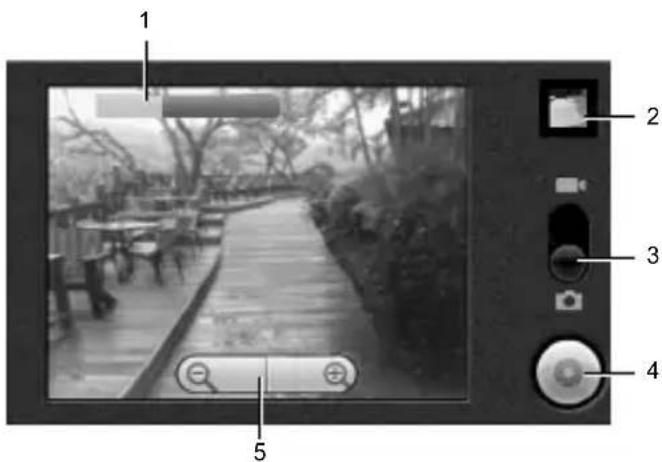
- The bar indicates the brightness level.
- Review button
- Slide to select capture mode.
- Camera button
- Zoom control
Take Pictures
- Activate the camera.
- Frame your subject on the screen.
- Scroll the trackball to adjust the brightness level.
- Do one of the following to take the picture:
- Press the Camera button.
- Touch the Camera button on the screen.
Zoom Images
• To zoom in, touch the + button.
- To zoom out, touch the - button.
Preview Pictures
Touch the Review button to review the just captured or saved picture in the card.
To see saved pictures, touch the screen and touch the left and right scroll arrow to see the previous or next picture.
The Review screen allows you to delete, share, or assign the picture.
Touch one of the following buttons:
- Delete: Select to delete the captured picture from the storage card. Touch OK to confirm.
- Share: Select to send the captured image via multimedia message, Email, Gmail, Picasa, or Bluetooth.
- Set as: Select to set the picture as a contact icon or wallpaper.
- To set as a contact icon, touch Contact icon on the options menu. Touch a contact name to assign picture to. If necessary, crop the picture. TouchSave when done.
- To set as the wallpaper, touch Wallpaper on the options menu. If necessary, crop the picture. TouchSave when done.
• Done: Select to go back to the finder screen.
Activate the Camcorder
Do one of the following to activate the camcorder.
• T o Home, open the applications tab, touch Camcorder.
- Press and hold the Camera button, then slide the slider to the Video icon.
The screen automatically switches to landscape orientation.
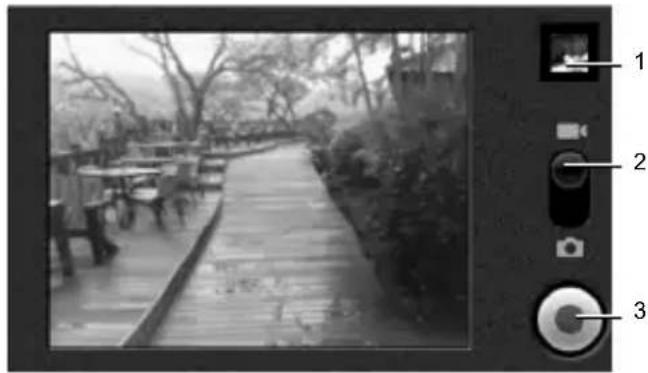
natural_image
Black-and-white photo of a wooden boardwalk in a park with trees and benches, no visible text or symbols- Review button
- Slide to select capture mode
- Record/Stop button
Record Videos
- Activate the camcorder.
- To start recording, press the Camera button or touch the Record button on the screen.
- To stop recording, press the Camera button again or touch the Stop button on the screen.
Preview Videos
Touch the Play button to review the just recorded video.
To see saved videos, touch the screen and touch the left and right scroll arrow to see the previous or next video.
The Review screen allows you to delete, share, or playback the recorded video.
Touch one of the following buttons:
- Delete: Select to delete the recorded video from the storage card. Touch OK to confirm.
- Share: Select to send the recorded video via multimedia message, Email, Gmail, YouTube, or Bluetooth.
- Play: Select to playback video. Touch the playback buttons to rewind, pause, or forward playback.
- Done: Select to go back to the finder screen.
Capture Settings
You can access the capture settings both in Camera or Camcordermode.
General Settings
Set Record Location
From Camera or Camcorder mode, touch Menu > Settings > Store location in pictures to record location in picture data.
Set Jpeg Quality
- From Camera or Camcorder mode, touch Menu > Settings > Jpeg Quality.
- On the options menu, touch the Jpeg quality you prefer from Jpeg 55% to 100%.
Set Picture Size
- From Camera or Camcorder mode, touch Menu > Settings > Picture Size.
- On the options menu, touch one of the following options: QXGA (2048x1536), UXGA (1600x1200), XGA (1024x768), VGA (640x480).
Set Recording Format
- From Camera or Camcorder mode, touch Menu > Settings.
- Select Video Recording in MPEG4 Format check box to record videos in MPEG4 format. Uncheck to record videos in H263 format.
Set Video Quality
When you select a higher quality, the resulting size of the file is bigger.
- From Camera or Camcorder mode, touch Menu > Settings > Select video quality.
- On the options menu, touch one of the following options: WVGA (800*480), VGA (640*480), CIF (352*288), QVGA (320*240), QCIF (176*144).
Set Video Duration
You can set the maximum duration in recording a video. When the set video duration is reached, recording is automatically stopped.
-
From Camera or Camcorder mode, touch Menu > Settings > Select video duration.
-
On the options menu, touch one of the following options:
- 1 minute (for sharing): Select this option if you intend to share the video via multimedia message, Bluetooth, YouTube, Gmail, or Email.
• 10 minutes
• 30 minutes
- 60 minutes
Add Effects
-
From Camera or Camcorder mode, touch Menu > Settings > Select effect.
-
On the options menu, touch desired effect: Off, Mono, Negative, Sepia, or Aqua.
Set White Balance
-
From Camera or Camcorder mode, touch Menu > Settings > White Balance/Lighting
-
On the options menu, touch desired white balance setting: Auto, Incandescent, Fluorescent, Daylight, or Cloudy.
Enable or Disable Auto Focus
-
From Camera or Camcorder mode, touch Menu > Settings > Select focus mode.
-
On the options menu, touch AutoFocus On or AutoFocus Off.
Set Auto Focus
-
From Camera or Camcorder mode, touch Menu > Settings > Auto Focus
-
On the options menu, touch Normal, Macro, or Auto.
Set Exposure Mode
-
From Camera or Camcorder mode, touch Menu > Settings > Select Auto Exposure Mode.
-
On the options menu, touch Frame Average, Center Weighted, or Spot Metering.
Enable or Disable Lens Shading
-
From Camera or Camcorder mode, touch Menu > Settings > Lens Shading.
-
On the options menu, touch Enable or Disable.
Set Night Mode
-
From Camera or Camcorder mode, touch Menu > Settings > Night Mode.
-
On the options menu, touch Enable or Disable.
Use Gallery
Use the Gallery to retrieve and playback captured pictures, videos, and media files stored on the storage card and other downloads.
Open Gallery
- T o Home, open the applications tab, then touch Gallery.
If files in the storage card are saved in folders, Gallery displays these folders as separate albums. “No media found.” is displayed when no storage card is inserted or no media files in the folders.
Gallery may have the following albums:
- Camera pictures: Pictures captured using the device camera are displayed in this album. To open this album from Camera mode, touchMenu > Gallery.
- Camera videos: Videos recorded using the device camera are displayed in this album. To open this album from Camcorder mode, touchMenu > Gallery.
- Camera media: All media files captured using the device camera are displayed in this album.
-
All pictures: All pictures captured by the device camera or copied to the storage card are displayed in this album.
-
All videos: All videos recorded by the device camera or copied to the storage card are displayed in this album.
- download: Downloaded media files are displayed in this album.
• [SD card label]: Media files stored in the storage card are displayed in this album.
Pictures
View Pictures
- On the Gallery screen, touch the album to view pictures inside the album.
- To view a picture in full screen, touch the thumbnail or touch and hold the thumbnail and touch View.
Browse Through Pictures
- While viewing pictures in full screen, touch the screen to display the scroll arrows.
- Touch the left or right scroll arrows to view the previous or next picture.
Zoom Pictures
- While viewing pictures in full screen, touch the screen to display the zoom controls.
- Touch the - button to zoom out or touch the + button to zoom in.
Rotate Pictures
Pictures can be rotated 90 degrees each time a rotate function is executed.
-
On the Gallery screen, touch and hold a thumbnail or while viewing pictures in full screen, touch Menu.
-
Touch Rotate, then touch either Rotate left or Rotate right.
Crop Pictures
-
On the Gallery screen, touch and hold a thumbnail or while viewing pictures in full screen, touch Menu.
-
Touch Crop to display the crop tool.
-
Do one of the following:
-
To adjust the crop size, touch and hold the edge of the cropper tool to display the cropper arrows. Drag your finger to resize it.
- To adjust the crop size while keeping the aspect ratio, touch and hold one of the four corners of the cropper tool then drag inwards or outwards from the center.
-
To move the cropper tool to another area on the picture, touch and hold inside the cropper tool, then drag your finger to the desired area.
-
Touch Save to save cropped picture as a new file. The original picture is unchanged.
Send Pictures Using Email/Gmail
- On the Gallery screen, touch and hold a thumbnail or while viewing pictures in full screen, touch Menu.
- Touch Share to display the options menu.
- Touch Gmail or Email.
- The picture is automatically attached to your email. Enter the recipient and compose your email message.
- Touch Send.
Send Pictures via Multimedia Message
- On the Gallery screen, touch and hold a thumbnail or while viewing pictures in full screen, touch Menu.
- Touch Share to display the options menu.
- Touch Messaging.
- The picture is automatically attached to your multimedia message. Enter the recipient and compose your message.
- Touch Send.
Upload Pictures to Picasa
Picasa is a photo organizing service provided by Google. You must have a Google account in order to use this service.
- On the Gallery screen, touch and hold a thumbnail or while viewing pictures in full screen, touch Menu.
-
Touch Share to display the options menu.
-
Touch Picasa.
- Enter the Caption for the picture and select the Album where you want to upload the picture.
- Touch Upload. Pictures are uploaded to http://picasaweb.google.com.
Send Pictures via Bluetooth
To send pictures via Bluetooth, you must turn on Bluetooth first, make your device discoverable and pair devices. See “Use Bluetooth” on page 58.
- On the Gallery screen, touch and hold a thumbnail or while viewing pictures in full screen, touch Menu.
- Touch Share to display the options menu.
- Touch Select a Device.
- Touch the device name of the Bluetooth device that you want to send the picture to.
Delete Pictures
- On the Gallery screen, touch and hold a thumbnail or while viewing pictures in full screen, touch Menu.
- Touch Delete.
- When prompted, touch OK to confirm.
Set Pictures as Contact Icons
- On the Gallery screen, touch and hold a thumbnail or while viewing pictures in full screen, touch Menu > More.
- Touch Set as to open the options menu.
- Touch Contact icon.
- Touch a contact name that you want to assign the picture to. If necessary, crop the picture.
- Touch Save.
Set Pictures as Wallpaper
- On the Gallery screen, touch and hold a thumbnail or while viewing pictures in full screen, touch Menu > More.
- Touch Set as to open the options menu.
- Touch Wallpaper.
- Touch the crop tool to adjust the picture size.
- Touch Save.
View Picture Details
- On the Gallery screen, touch and hold a thumbnail or while viewing pictures in full screen, touch Menu > More.
- Touch Details to display file information such as size, resolution, and date when the picture was taken.
- Touch OK to close the detail window.
Show Pictures on Google Maps
- On the Gallery screen, touch and hold a thumbnail or while viewing pictures in full screen, touch Menu > More.
- Touch Show on Maps.
- Select Browser or Maps to show the position on the map.
Note: “No Location information contain in this image” will be displayed if no location information is in the picture.
Play and Stop Slideshow
- To start slideshow, do one of the following:
- On the Gallery screen, touch and hold an album or thumbnail.
-
While viewing pictures in full screen, touch Menu.
-
Touch Slideshow to start slideshow.
-
To stop slideshow, touch the screen.
Videos
Play Videos
-
On the Gallery screen, touch the album to view the video thumbnails inside.
-
To play video, touch the thumbnail or touch and hold the thumbnail and touch Play.
Send Videos Using Email/Gmail
- On the Gallery screen, touch and hold the video thumbnail that you want to send.
- On the options menu, touch Share > Gmail or Email.
- The video is automatically attached to your email. Enter the recipient and compose your email message.
- Touch Send.
Send Videos via Multimedia Message
- On the Gallery screen, touch and hold the video thumbnail that you want to send.
- On the options menu, touch Share > Messaging.
- The video is automatically attached to your multimedia message. Enter the recipient and compose your message.
- Touch Send.
Upload Videos to YouTube
You can upload your video to YouTube. A YouTube account and Wi-Fi connection is required to use this function.
- On the Gallery screen, touch and hold the thumbnail that you want to upload.
- Touch Share to display the options menu.
- Touch YouTube
- Enter the Title, Description, and Tags for your video. Select the Public check box if you want to share the video with everyone.
- Touch Upload.
Send Videos via Bluetooth
To send videos via Bluetooth, you must turn on Bluetooth first, make your device discoverable and pair devices. See “Use Bluetooth” on page 58.
- On the Gallery screen, touch and hold the thumbnail that you want to send.
- Touch Share to display the options menu.
- Touch Select a Device.
- Touch the device name of the Bluetooth device that you want to send the video to.
Delete Videos
- On the Gallery screen, touch and hold the video thumbnail that you want to delete.
- On the options menu, touch Delete.
- When prompted, touch OK to confirm.
View Video Details
- On the Gallery screen, touch and hold the video thumbnail that you want to view.
- On the options menu, touch Details.
- Touch OK to close the detail window.
Gallery Settings
General Settings
Set Display Size
- On the Gallery screen, touch Menu > Settings > Display size.
- On the options menu, touch Large or Small.
Set Sort Order
You can set the order in which pictures and videos are displayed.
-
On the Gallery screen, touch Menu > Settings > Sort order.
-
On the options menu, touch Newest first or Newest last.
Confirm Deletions
-
On the Gallery screen, touch Menu > Settings.
-
Touch the Confirm deletions check box to show confirmations first before deleting pictures or videos.
Slideshow Settings
Set Slideshow Interval
- On the Gallery screen, touch Menu > Settings > Slideshow interval.
- On the options menu, touch 2 seconds, 3 seconds, or 4 seconds.
Repeat Slideshow
- On the Gallery screen, touch Menu > Settings.
- Touch the Repeat slideshow check box to continuously play the slideshow until you touch the screen to stop it.
Set Slideshow Transition
You can select the effect to use when moving from one slide to another.
- On the Gallery screen, touch Menu > Settings > Slideshow transition.
- On the options menu, touch one of the options: Fade in & out, Slide left-right, Slide up-down, Random selection.
Shuffle Slides
- On the Gallery screen, touch Menu > Settings.
- Touch the Shuffle slides check box to show pictures in random order.
Use YouTube
YouTube is an online video streaming service that allows you to view videos uploaded by YouTube members.
Open YouTube
Touch Home, open the applications tab, touch YouTube
Watch YouTube Videos
- On the YouTube screen, touch a video category.
- Touch a video to watch it.
- Touch the screen to display the playback controls. Use the playback controls to rewind, pause/play, or forward the video.
- Touch Back to stop playback.
Search for Videos
- On the YouTube screen, touch at the upper right of the screen to open the search box.
- Enter the keyword to search, and then touch
- Search results appear below the status bar. Scroll through the results and touch a video to watch it.
Share Videos
- While viewing videos in a list, touch and hold the video, or watching the video, touch Menu
- Touch Share
- Select the email account that you want to use to send the video link.
- The video link is automatically added to your email message.
- Enter the recipient and complete your email message, then touch Send.
Use Music
Music plays digital audio files saved on the storage card.
To play audio files which are not saved in the storage card, copy the files to the storage card first. See “Use the Storage Card as a USB Drive” on page 60 for more details on copying files.
Open Music
Touch Home, open the applications tab, then touch Music. The Music library screen appears.
Browse for Music
- On the Music library screen, touch a category to view the contents under that category. Options are: Artists, Albums, Songs, and Playlists.
- Keep touching to browse through folders until you reach the music you want to play.
Play Music
-
Open Music and browse for the music you want to play.
-
Touch the music name to play it. The playback screen opens.
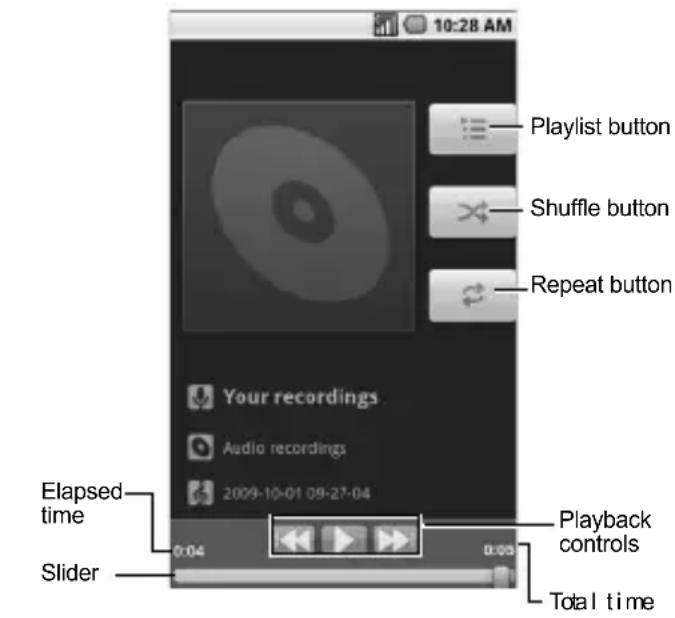
-
Do one of the following:
-
Touch the playback controls to rewind, pause/play, forward playback.
- Touch the rewind button twice to play the previous music.
- Touch the Playlist button to view the current playlist.
- Touch the Shuffle button to toggle shuffle on or off.
- Touch the Repeat button to cycle through the repeat modes: Repeating all songs, Repeating current song, or Repeat is off.
Use Playlist
Create a playlist to organize your music.
Create Playlists
- Open Music library and browse for the music that you want to add to the playlist.
- Touch and hold the music to open the options menu.
- Touch Add to playlist.
- On the Add to playlist window, touch New.
- Type the name of your new playlist.
- Touch Save.
Add Music to Existing Playlists
- Open Music library and browse for the music that you want to add to the playlist.
- Touch and hold the music to open the options menu.
- Touch Add to playlist.
- On the Add to playlist window, touch the name of the playlist that you want to add the music to.
Remove Music From Playlists
- Open Music library and browse for the music that you want to remove from the playlist.
- Touch and hold the music to open the options menu.
- Touch Remove from playlist.
Rename Playlists
- Open Music library and browse for the playlist that you want to rename.
- Touch and hold the playlist.
- On the options menu, touch Rename.
- Type the new name of the playlist.
- Touch Save.
Play Music in Playlists
- Open Music library and browse for the playlist that you want to play.
- Touch and hold the playlist.
- On the options menu, touch Play.
Delete Playlists
- Open Music library and browse for the playlist that you want to delete.
- Touch and hold the playlist.
- On the options menu, touch Delete.
Set Music As Ringtone
- Open Music and browse for the music that you want to set as ringtone.
- Touch and hold the music, then touch Use as phone ringtone.
Delete Music
You can delete music files from the storage card.
- Open Music and browse for the music that you want to delete.
- Touch and hold the music, then touch Delete.
- Touch OK to confirm.
8 Use Google Maps
Google Maps allows you to keep track of your location, find places of interest, view traffic situations, and view detailed directions to your destination.
Before you start using Google Maps, set your location first.
Enable Location Setting
- Touch Home > Menu > Settings > Security & location.
- Touch the Use wireless networks, Enable GPS satellites, or Share with Google. You can select multiple options.
Open Google Maps
Touch Home, open the applications tab, then touch Maps.
Zoom Map
Touch the - button to zoom out on the map or touch the+ button zoom in on the map.
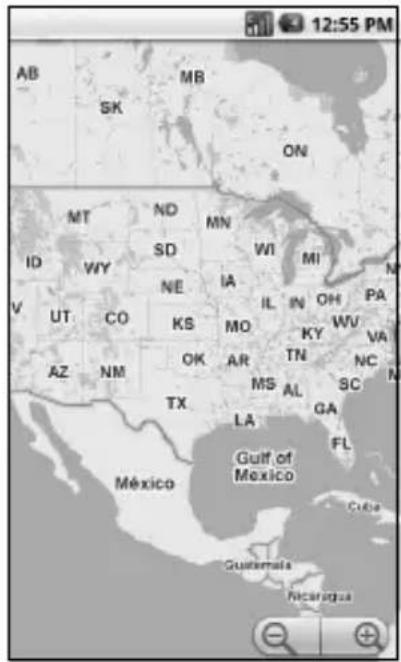
Navigate the Map
To navigate on the map, slide your finger on the screen towards the direction of the area you want to view.
Add Map Layer
Layers allow you to view locations and additional info overlaid on the map.
On the Google Maps menu, touch Menu > Layers, then touch one or multiple layers of the following options:
- Traffic: Add this layer to view real-time traffic conditions with roads marked in color-coded lines that indicate the traffic condition. This mode is available in selected areas only.
- Buzz: Add this layer to read the comments posted from the location shown on the Google Maps.
- Satellite: Add this layer to use the same satellite data as Google Earth. The images are not real-time and are approximately one to three years old.
- Latitude: Add this layer to see your friends' locations and share yours with them. You may sign in with your Google Account to use this feature.
- To More layers to add other layers including My Maps, Wikipedia, Transit Lines, and Favorite Places.
Find Your Current Location
On the Google Maps screen, touch Menu > My Location. A blinking blue dot indicates your current location on the map.
Search Places
-
On the Google Maps screen, touch Menu > Search.
-
On the search box, type the place that you want to search. You can enter an address, a city or type of establishments.
- Touch Search.
- Touch a place in the list. A callout appears on the map to indicate the location.
- Touch the callout to open the location details.
Get Directions
- On the Google Maps screen, touch Menu > Directions.
- Do one of the following:
- In the first text box, type your starting point place, then type the destination in the second text box.
- Touch the location source buttons to open the location source menu and select a starting point and destination.
- Touch Go. The directions to your destination appears in a list.
View Directions on Map
On the Directions list screen, touch Show on map to view the directions on a map.
Clear the Map
When you have reached your destination, touch Menu > More > Clear map to reset the map.
9 Use Android Market
Android Market allows you to access, download and install applications and fun games on your phone.
Note: Some applications may require purchase via credit card.
Open Android Market
-
Touch Home, open the applications tab, then touch Market.
-
When Android Market is opened for the first time, the Terms of Service window appears. Touch Accept to continue.
-
On the Android Market screen, do one of the following:
-
Touch Search to search Android Market.
- Touch a category to open a sub-category and view more applications.
- Touch Downloads to view your downloads.
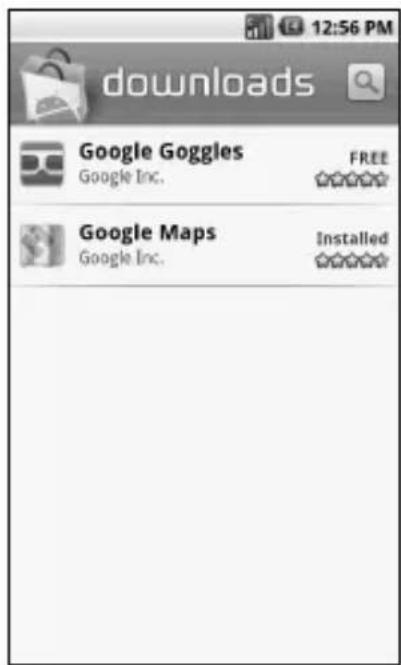
Get Help About Android Market On the Android Market screen, touch Menu > Help to go to the Android Market web site.
Find Applications
You can select an application through one of the following means:
- Select an icon in Featured applications.
- Select a category to browse its content, then select a subcategory.
Install Applications
- Select the item that you want to download.
- On the item details screen, view ratings of the application, comments by users and developer information.
- Touch Install to start installation.
Note: To check the status of download, open the Notifications panel. To stop the download, touch Cancel download. - When installation is complete, the content download icon will appear on the status bar.
- On the Android Market screen, touch Downloads.
- Touch the application, then touch Open.
Uninstall Applications
- On the Android Market screen, touch Downloads to view downloaded applications.
- Touch the application that you want to remove.
- Touch Uninstall.
- Touch OK to confirm.
- Select the reason for removing the application, then touch OK.
10 Tools
Alarm Clock
Use Alarm Clock to set a maximum of 12 alarms.
Open Alarm Clock
Touch Home, open the applications tab, then touch Alarm Clock.
Set an Alarm
By default, three alarms are already set up.
- Touch an alarm that you want to customize.
- On the Set alarm screen, touch the Turn on alarm check box to activate alarm.
- Touch Time.
- Touch the +or -buttons to adjust the time.
- Touch to select AM or PM.
- Touch Set to set the alarm time.
- Touch Ringtone to set the alarm ringtone. Touch a tone to play it briefly, then touch OK. Press the Volume button up or down to select the volume level.
- Touch the Vibrate check box to set the device to vibrate when the alarm sounds.
-
Touch Repeat Select the days that you want the alarm to sound, then touch OK.
-
Touch Label to set the alarm name. Type the name on the text box, then touch OK.
- Touch Back to return to the Alarm Clock screen.
Add More Alarms
On the Alarm Clock screen, touch Menu > Add alarm, then set the alarm.
Enable or Disable Alarm
On the Alarm Clock screen, touch an alarm check box to enable alarm, uncheck to disable alarm.
Delete Alarms
- On the Alarm Clock screen, touch and hold the alarm that you want to delete.
- Touch Delete alarm.
- Touch OK to confirm.
Set Alarm in Silent Mode
- On the Alarm Clock screen, touch Menu > Settings.
- Touch the Alarm in silent mode check box to set the alarm to sound even when the device is in silent mode.
Customize Alarm Clock
You can change the appearance or hide the clock displayed on the Alarm Clock screen.
Change Clock Display
- Touch and hold the clock.
- The clock selection appears on the bottom of the screen. Scroll left or right to view the clock selection.
- Touch the clock display that you want.
Hide Clock
On the Alarm Clock screen, touch Menu > Hide clock to hide the clock. To show clock, touch Show clock.
Calculator
Use Calculator to perform basic and advanced mathematical operations.
Open Calculator
Touch Home, open the applications tab, then touch Calculator.
Use Calculator
- Open Calculator.
- Touch the keys to enter numbers and symbols to perform mathematical operations.
- Touch CLEAR to delete entries.
- Touch Menu > Advanced panel to change the panel to advanced operations panel. Touch a symbol to perform the operation.
- Touch Back to close Calculator.
Calendar
Use Calendar to view and schedule events and set reminder alerts.
Open Calendar
Touch Home, open the applications tab, touch Calendar.
Create Events
- On any Calendar screen, touch Menu > New event.
- On the What box, type the event name.
- Do one of the following to set the date and time.
- To set the date and time, touch the From and To date and time boxes. Touch the + or - buttons to adjust the date and time, then touch Set
-
If the event is an all day affair, such as a birthday, touch the All day check box. Touch the From and To date boxes, touch the + or - buttons to adjust the date, then touch Set.
-
Enter the event location and description.
-
Touch the Repetition box, then touch a repeat mode option.
- Touch the Reminders box, then touch a reminder option.
- To add more reminders, touch the + button. You can add up to five reminders.
- Scroll down to the bottom of the page, then touch Done.
View Events
You can view the Calendar in a list, by day, by week, or by month.
View Events by List
On any Calendar screen, select Menu > Agenda.
View Events by Day
On any Calendar screen, select Menu > Day.
- Scroll left to go to the next day's calendar.
- Scroll right to go to the previous day's calendar.
View Events by Week
On any Calendar screen, select Menu > Week.
- Scroll left to go to the next week's calendar.
- Scroll right to go to the previous week's calendar.
View Events by Month
On any Calendar screen, select Menu > Month.
- Scroll up to view the next month's calendar.
- Scroll down to view the previous month's calendar.
- Touch a date to view the event details.
Modify Events
- On any Calendar screen, touch the date or time to open the Event screen.
- Touch Menu > Edit event.
- Modify the event, then touch Done.
Delete Events
- On any Calendar screen, touch the date or time to open the Event screen.
- Touch Menu > Delete event.
- Touch OK to confirm.
Handle Reminders
When you have an upcoming event, the calendar icon appears on the status bar. Touch and hold the status bar then slide downwards to open the notifications panel.
-
Touch the event on the notification panel.
-
Touch either of the following:
-
Snooze all: Select to snooze all event reminders for 5 minutes.
- Dismiss all: Select to dismiss all event reminders.
- Touch Back to close the event detail screen.
Calendar Settings
Hide Declined Events
- On any Calendar screen, touch Menu > Settings.
- Touch the Hide declined events check box to hide all declined events.
Set Alerts and Notifications
- On any Calendar screen, touch Menu > Settings > Set alerts & notifications.
- On the options menu, touch an alert and notification option:
- Alert: Select to sound an alarm and display calendar notification to remind the event.
- Status bar notification: Select to sound an alarm and display notification icon on the status bar.
- Off: Select to disable alert and notifications.
Set Alert Ringtone
- On any Calendar screen, touch Menu > Settings > Select ringtone.
- On the options menu, touch a ringtone to play the tone briefly, then touch OK.
Set Vibrate Mode
- On any Calendar screen, touch Menu > Settings.
- Touch the Vibrate check box to enable the device to vibrate when an event reminder occurs.
Set Default Reminder Time
-
On any Calendar screen, touch Menu > Settings > Set default reminder.
-
On the options menu, touch a reminder time.
File Browser
Use File Browser to view the contents of your device.
Open File Browser
Touch Home, open the applications tab, then touch File Browser.
Browse Files and Folders
- Touch a folder to view its contents. A button with the folder name appears on the bottom of the screen.
- Touch on the bottom of the screen to return to the previous folder.
- Touch on the bottom of the screen to show the root folder of your SD card.
Refresh File Browser
On the File Browser screen, touch Menu > Refresh to refresh the list. The list shows the latest updated file or folder from top.
Create Folders
- On the File Browser screen, touch Menu > New Folder.
- Type the folder name in the text box, then touch OK
Copy Files or Folders
- On the File Browser screen, browse for the file or folder that you want to copy.
- Touch and hold the file or folder.
- On the options menu, touch Copy.
- Select the destination location.
- Touch the Paste here button on the bottom of the screen to paste the copied item.
Move Files or Folders
- On the File Browser screen, browse for the file or folder that you want to move.
- Touch and hold the file or folder.
- On the options menu, touch Move.
- Select the destination location.
- Touch the Move here button on the bottom of the screen to move the item.
Delete Files or Folders
- On the File Browser screen, browse for the file or folder that you want to delete.
- Touch and hold the file or folder.
- On the options menu, touch Delete.
- Touch OK to confirm.
Rename Files or Folders
- On the File Browser screen, browse for the file or folder that you want to rename.
- Touch and hold the file or folder.
- On the options menu, touch Rename.
- Type the new name in the text box, then touch OK.
Send Files
- On the File Browser screen, browse for the file that you want to send.
- Touch and hold the file.
- On the options menu, touch Send.
-
Touch an application for sharing:
-
Email: Send file via email.
- Gmail: Send file via Gmail.
- Messaging: Send file via multimedia message.
- Select a Device: Send file via bluetooth.
- Picasa: Upload the picture to Picasa. See “Upload Pictures to Picasa” on page 67.
- YouTube Upload the video to YouTube. See “Upload Videos to YouTube” on page 70.
Note: The available applications for sharing may vary depending on the type of file.
View File Information
- On the File Browser screen, browse for the file that you want to view.
- Touch and hold the file.
- On the options menu, touch Info.
- Touch OK to close the information window.
Assign Files
- On the File Browser screen, browse for the file that you want to assign as a wallpaper, a ringtone, etc.
- Touch and hold the file.
- On the options menu, touch Set As Wallpaper or Set As Ringtone.
Close File Browser
Touch Home to close the File Browser screen.
Voice Commands
Use Voice Control voice command application to say commands for the phone to execute.
Start Voice Control
Do one of the following to start Voice Control
- Press and hold the Send key.
- T o Home, open the applications tab, then touch Voice Control
Use Voice Control
- Start Voice Control
- When prompted to speak, say a command from the displayed list on screen. When the application recognizes the command, it executes the command right away.
Call a Number By Voice Command
- Start Voice Control
- When prompted to speak, say Call [contact name or number]. For example, to call John Smith's mobile phone, say "Call John Smith Mobile". Your phone will automatically call the said contact.
Note: If the application cannot recognize the number or name, it displays several possible matches. Say or touch Yes or No.
Send Text Message By Voice Command
- Start Voice Control
- When prompted to speak, say Send Text [contact name or number]. For example, to send a text message to Joe, say “Send Text Joe”.
Note: If the application cannot recognize the number or name, it displays several possible matches. Say or touch Yes or No.
- The compose message screen appears. The contact name or number that you said is displayed on the To box. Complete your message.
- Touch Send to send the text message.
Send Multimedia Message By Voice Command
-
Start Voice Control
-
When prompted to speak, say Send MMS [contact name or number]. For example, to send a multimedia message to Joe, say "Send MMS Joe".
Note: If the application cannot recognize the number or name, it displays several possible matches. Say or touch Yes or No.
- The compose message screen appears. The contact name or number that you said is displayed on the To box. Complete your message.
- Touch Send to send a multimedia message.
Send Email/Gmail By Voice Command
- Start Voice Control
- When prompted to speak, say Send E-mail [contact name]. For example, to send an email to Sean, say "Send E-mail Sean".
- If this is the first time, or you have not set a default mail application and you have your account for both Email and Gmail, and same contact or email address is saved in both Email and Gmail, you must select Email or Gmail to send using the voice command. Touch Compose to use Gmail, and Email to use Email.
- The compose message screen appears. The email address of the contact name you said is displayed on the To box. Complete your message.
- Touch Send to send your email.
Search Contact Details By Voice Command
- Start Voice Control
- When prompted to speak, say Lookup [contact name]. For example, to search for Jessica's contact details, say "Lookup Jessica". The contact details screen is displayed.
Open an Application By Voice Command
- Start Voice Control
- When prompted to speak, say Go To [application name]. For example, to open Calculator, say “Go To Calculator”. The application screen is displayed.
Note: If you do not specify an application after the command Go To, the screen displays a list of applications, then waits for you to say an application name.
Play Media Files By Voice Command
- Start Voice Control
- When prompted to speak, say Play [playlist name]. For example, to play My Playlist, say “Play My Playlist”.
- The media player is opened and automatically plays the playlist that you said.
Check Other Details By Voice Command
- Start Voice Control
- When prompted to speak, say Check [item]. For example, to check the signal strength status, say “Check Signal Strength” to display information on screen.
Note: If you do not specify an item after the command Check, the screen displays a list of available items, then waits for you to say an item.
Available checkable items are as follows: Status, Voicemail Messages, Missed Calls, Time, Signal Strength, Network, Battery, My Phone Number, and Volume.
View Voice Control Tutorial
- Start Voice Control
- Touch Menu > Tutorial .
Configure Voice Control Settings
- Start Voice Control
- Touch Menu > Settings.
-
Touch to configure one of the following settings:
-
Confirmation: Select to control when the system asks you to confirm a name or number.
- Adaptation: Select to improve the accuracy of the application's speech recognition.
- Audio Modes: Select to set the level of audio assistance.
- Shortcuts: Select what application is activated with the Go To command.
- About: Select to view the software version.
11 Settings
To open Settings, do either of the following:
• T o Home >Menu >Settings.
- T o Home, open the applications tab, then touch Settings.
Settings Menu
| Wireless controls Manage | Wi-Fi, Bluetooth, Airplane mode, and mobile networks. |
| Call settings Set up voicemail, TTY setting, In-call touch lock setting, etc. | |
| Sound & display | Set ringtones, vibration, sound volume, notifications, and screen settings. |
| Data synchronization Select | which applications are synchronized. |
| Security & location | Set My Location and manage screen, and storage lock security settings. |
| Applications Manage applications. | |
| SD card, USB Mass Storage & phone storage | Unmount or format the SD card, or view storage space. |
| Date & time Set the system | date and time. |
| Locale & text Set the language and text input settings. | |
| Search Manage search settings. | |
| Text to speech Set voice ringer and voice command settings. | |
| About phone | View device information such as phone and battery status, legal information, model number and firmware version. |
Wireless Controls
Wi-Fi
See "Connect via Wi-Fi" on page 53.
Bluetooth
See "Use Bluetooth" on page 58.
Mobile Network
Enable Data Connection
-
From Wireless controls, touch Mobile networks.
-
Touch the Data connection check box to connect to data services.
Set Network Mode
-
From Wireless controls, touch Mobile networks > Network Mode.
-
On the options menu, touch your preferred network mode:
-
EvDo only: Access EvDo (3G) network only.
- CDMA w/o EvDo: Access CDMA network only.
- CDMA/EvDo auto: Access both EvDo (3G) and CDMA network.
Set System
- From Wireless controls, touch Mobile networks > System select.
- On the options menu, touch either Home only or Automatic.
Set Airplane Mode
From Wireless controls, touch the Airplane mode check box to activate airplane mode and disable all wireless communications.
Call Settings
Set Voicemail
- From Call settings, touch Voicemail.
- Do one of the following:
- Type the voicemail number on the text box.
- Touch the Contacts icon then select a Contact name or number to set as voicemail number.
- Touch OK.
Set TTY Mode
You can connect the phone to a teletype (TTY) device for the hearing impaired.
- From Call settings, touch TTY mode.
-
Touch an option:
-
TTY Off: Disables TTY.
- TTY HCO: Enables TTY devices but you can hear.
- TTY VCO: Enables TTY devices but you can talk.
- TTY Full: Enables TTY devices.
In-Call Touch Lock
The touch screen is locked during a call to avoid accidentally touching it.
- From Call settings, touch In-call touch lock check box to enable in-call touch lock.
-
Touch In-call touch lock settings, and select one of the following:
-
Manual lock: To lock the screen manually by sliding the arrow during a call.
- With auto lock on: To lock the screen automatically after 5 seconds without operation during a call.
Note: This setting is effective per one call. The touch screen will be locked every time you make or receive a call.
Sound and Display
Set Silent Mode
From Sound & display, touch the Silent mode check box to silence all sounds except media and alarm sounds.
Set Ringer Volume
- From Sound & display, touch Ringer volume.
- Drag the slider or touch a position of the slider to adjust the incoming call volume. To use the same volume level for notifications, touch the Use incoming call volume for notifications check box.
- Touch OK
Set Media Volume
- From Sound & display, touch Media volume.
- Drag the slider or touch a position of the slider to adjust the volume for media playback.
- Touch OK.
Set Ringtone
Set the incoming call ringtone.
-
From Sound & display, touch Phone ringtone.
-
Touch either of the following:
-
Preloaded ringtones: Select to choose from the ringtones that are preloaded on your device.
-
User added ringtones: Select to choose from the ringtones that are copied to or recorded on your SD card.
-
Touch a ringtone to play the tone briefly.
- Press the volume button up or down to select the volume level.
- Touch OK
Enable Vibrate Mode
Enable the device to vibrate when there is an incoming call.
From Sound & display, touch the Phone vibrate check box to enable.
Set Notification Ringtone
- From Sound & display, touch Notification ringtone.
- Touch a ringtone to play the tone briefly.
- Press the volume button up or down to select the volume level.
- Touch OK.
Enable Touch Tone
Play sound when keys are touched on the dial pad.
From Sound & display, touch the Audible touch tones.
Enable Screen Selection Sound
Play sound when a screen is selected.
From Sound & display, touch the Audible selection.
Enable SD Card Notifications
From Sound & display, touch the SD card notifications check box to play sound when an SD card is inserted or removed.
Enable T-Coil Hearing Aid
From Sound & display, touch the Hearing Aid check box to use hearing aid devices.
Your phone has an M-4 and T4 rating.
Set Emergency Tone
Set the behavior when an emergency call is placed.
- From Sound & display, touch Emergency tone.
- Touch one of the following options:
- Off: No sound.
- Alert: Sound an alert.
• Vibrate: Phone will vibrate.
Enable Orientation
From Sound & display, touch the Orientation check box to automatically switch orientation when the phone is rotated 90° to the left.
Enable Animation
From Sound & display, touch the Animation check box to show animations when opening or closing windows.
Set Brightness
- From Sound & display, touchBrightness.
- Drag the slider to adjust brightness.
- Touch OK.
Enable Auto Backlight
From Sound & display, touch the Auto backlight check box to automatically adjust the backlight of the screen with the light sensor.
Set Key Backlight Setting
From Sound & display, touch Key Backlight.
- Checked: Key backlight will turn off following the setting of Screen timeout below.
- Unchecked: Key backlight will turn off after 8 seconds.
Set Screen Timeout
Set the idle time before the screen automatically turns off.
- From Sound & display, touch Screen timeout.
- Touch a screen timeout option.
Enable Compatibility Mode
From Sound & display, touch the Compatibility Mode check box to enable old applications to run on this device.
Data Synchronization
Select the applications that you want to synchronize with your device.
Note: Setup your Google account before using this feature.
- From the Settings screen, touch Data synchronization.
- Select synchronization settings. Touch the check box of the following:
- Background data: Synchronize background.
- Auto-sync: Automatically synchronize applications. Select applications on step 3.
-
Touch any or all of the following options:
-
Gmail: Synchronize Gmail.
- Calendar: Synchronize Calendar.
- Contacts: Synchronize Contacts.
Note: You can synchronize applications manually if auto-sync is unchecked.
Security & Location
Set My Location
See “Enable Location Setting” on page 75.
Set Unlock Pattern
Create an unlock pattern to further protect your device from unauthorized use.
- From Security & location, touch Set unlock pattern.
- Read the information on the screen, then touch Next.
- Study the example pattern on the screen, then touch Next.
- Draw the screen unlock pattern by connecting at least four dots in a vertical, horizontal and/or diagonal direction. Lift your finger from the screen when finished.
- The phone records the pattern. Touch Continue.
- When prompted, draw the screen unlock pattern again.
- Touch Confirm.
- To confirm pattern visibly, touch Use visible pattern. To confirm touch with vibration, touch Use tactile feedback.
Disable Lock Pattern
- From Security & location, touch Require pattern to uncheck it.
- Draw the current screen unlock pattern.
Change Unlock Pattern
- From Security & location, touch Change unlock pattern.
- Draw the current screen unlock pattern.
- Draw the new screen unlock pattern and touch Continue.
- Draw the screen unlock pattern again and touch Confirm.
Visible Password
Show your password as you type it. From Security & location, touch Visible passwords.
Security Storage
Allow applications to access secure certificates.
- From Security & location, touch Set password below Credential storage.
- Set your password.
- Confirm Use secure credentials is checked.
- To cancel it, touch Clear storage > OK.
Applications
From the Settings screen, touch Applications to manage the applications installed on your device.
Unknown Sources
Touch the Unknown sources check box to allow installation of non-market applications. Read the message and touch OK to confirm it.
Development
Set options for application development.
-
From Application settings, touch Development.
-
Touch one of the following options:
-
USB debugging: Select to copy data between other devices and install applications without notification when USB is connected.
- Stay awake: Select to keep the screen awake while charging.
SD Card, USB Mass Storage & Phone Storage
From the Settings screen, touch the SD card, USB Mass Storage & phone storage.
You can check the available space on your SD card.
SD Card
Format SD card
-
From SD card, USB Mass Storage & phone storage, touch Unmount SD card, then Format SD card.
-
Read the message and touch Format SD card > Erase everything.
See also “Use the Storage Card as a USB Drive” on page 60.
Factory Data Reset
To delete all data from your phone, touch Factory data reset > Reset phone.
Date & Time
Automatically Set Date & Time
From Date & time settings, touch the Automatic check box to use the date and time provided by the network.
Manually Set Date & Time
- From Date & time settings, uncheck the Automatic check box.
- Touch Set date. Touch the + or - buttons to adjust the date, then touch Set
- Touch Select time zone, then touch a time zone.
- Touch Set time. Touch the + or - buttons to adjust the time. Touch the AM or PM button, then touch Set.
- Touch the Use 24-hour format check box if you want to display time in a 24-hour format.
- Touch Select date format, then touch a date format.
Locale & text
See “Locale and text” on page 27.
Search Settings
Set Search Engine Setting
- From Search settings, touch Google search settings.
- Touch the Show web suggestions check box to show suggestions from the Google search as you type on the search bar.
Set Search History
- From Search settings, touch Google search settings.
- Touch the Search history check box to import your search into suggestions.
Manage Search History
- From Search settings, touch Google search settings.
- Touch the Manage search history to manage your search history on the Web.
Set Searchable Items
- From Search settings, touch Searchable items.
- Touch any or all of the check boxes to search items from that application.
Clear Search Shortcuts
- From Search settings, touch Clear search shortcuts.
- Touch OK to confirm.
Text to Speech
Speak Incoming Caller ID
See "Voice Ringer" on page 30.
Voice Control Settings
See “Configure Voice Control Settings” on page 87.
About Phone
From the Settings screen, touch About phone to view device information such as model number, phone and battery status, legal information, and firmware version.
12 Get Help
User Guide
You can also find the user guide at www.ziobykyocera.com/downloads.
Customer Support
Your service provider's customer support department may be accessible directly from your phone when you dial a number, such as *611 (check with your service provider). They can answer questions about your phone, phone bill, call coverage area, and specific features available to you, such as call forwarding or voicemail. For questions about the phone features, refer to the materials provided with your phone, or visit
www.kyocera-wireless.com.
To register your computer for software updates, go to www.ziobykyocera.com/registration.
For additional questions, you may contact the Kyocera Communications Inc. Customer Care Center in any of the following ways:
- Web site: www.kyocera-wireless.com.
- Email: phone-help@kyocera-wireless.com.
• Phone: 800-349-4478
When you contact the Customer Care Center, call from another phone instead of your Kyocera phone since you'll need to access information from your Kyocera phone during
the support call. Be ready to provide the following information:
• The name of your service provider.
- The actual error message or problem you are experiencing.
- The steps you took to reproduce the problem.
- The phone's mobile equipment identifier (MEID).
Note: From About phone, select Status. Scroll down to MEID. The 18-digit number is the MEID number. If your phone uses an electronic service number (ESN), see ESN.
Qualified Service
If the problem with your phone persists, return the phone with all accessories and packaging to the dealer for qualified service.
Phone Accessories
To shop for phone accessories, visit www.kyocera.superiorcommunications.com.
13 Index
A
airplane mode 13
alarm
customize 80
deleting 79
enabling 79
setting 79
silent mode 79
Android Market 77
applications
installing 78
recently-used 23
uninstalling 78
applications tab 23
attached files
playing 42
saving 43
B
battery
charging 10
drain 12
installing 10
recharging 11
safety guidelines 11
Bluetooth
activating 58
connecting 59
pairing devices 59
renaming device 59
browser
bookmarks 55
copying text 56
finding text 56
home page 54
launching 54
navigating 55
sharing 56
zooming 55
C
calculator 80
calendar
alert ringtone 82
alerts and notifications 82
creating events 80
deleting events 81
modifying events 81
reminder time 82
settings 82
viewing events 81
calls
answering 30
call log 28
contact 28
divert to voicemail 34
ending 31
favorite contact 28
making 28
muting microphone 31
options 30
rejecting 30
camcorder
recording duration 65
recording videos 63
video format 64
video quality 64
camera
effects 65
exposure mode 65
Jpeg quality 64
night mode 65
picture size 64
taking pictures 62
white balance 65
connect
computer 60
Wi-Fi 53
contacts
adding 33
adding to favorites 35
assigning ringtones 34
deleting 34
editing 34
group 32
menu 32
searching 32
sending messages 33
viewing 33
D
dialer 28
dictionary 27
E
account settings 44
adding accounts 43
composing 44
deleting 44
F
favorites
calling 35
removing 35
sending messages 35
viewing 35
files
browsing 83
copying 83
creating folders 83
deleting 83
information 84
moving 83
renaming 83
sending 84
G
gallery
settings 70
using 66
Gmail
account settings 48
adding signature 45
adding star 47
archiving Emails 47
attaching files 45
composing Emails 45
deleting Emails 47
forwarding Emails 46
muting Emails 47
receiving Emails 46
refreshing 45
save as draft 45
searching Emails 46
spam 47
using 45
Google Maps
enable location setting 75
zooming 75
Google Talk
accepting invitations 50
adding friends 49 closing chat 50 managing friends 50 online status 50 settings 52 starting a chat 50 switching chats 50 viewing invitations 50
Google™ search 14
H
home screen
customize 17
extended 17
|
in-call volume 15
K
keyboard
landscape 26
numbers & symbols 25
QWERTY 24
settings 27
L
LED 8, 11, 23
light sensor 8
locale and text 27
lock device 13
M
media volume 15
message threads 47
messages
attach files 38
attaching audio 39
attaching pictures 38
attaching slideshow 40
attaching videos 38
auto retrieve 41
calling sender 42
creating 36
deleting 42
forward 42
replying 41
replying with copy 42
replying with multimedia message 41
ringtone 43
settings 43
vibrate mode 43
viewing 40
multimedia message
creating 37
replying 41
viewing 41
music
browsing 72
creating playlists 73
deleting 74
playing 72
setting as ringtone 74
N
name card 32
navigate device 14
notification
icons 20
panel 21
P
phone keypad 25
pictures
cropping 67
deleting 68
rotating 67
sending through Email/Gmail 67
sending via Bluetooth 68
sending via multimedia message 67
setting as contact icons 68
slideshow 69
uploading to Picasa 67
viewing 66
viewing on Google Maps 69
zooming 66
R
reminders 81
ringer volume 15
S
search 8, 14
settings
applications 94
calls 89
data synchronization 93
date & time 95
menu 88
SD card, USB, phone storage 95
search 96
sound and display 90
silent mode 13
status bar 20
storage card 12
T
text entry 24
text messages 36
touch panel 14
trackball 8, 14
turn on device 13
U
unlock device 13
USB
connection 60
connector 9
V
videos
playing 69
sending via Bluetooth 70
sending via Email/Gmail 69
sending via multimedia message 69
uploading to YouTube 70
Voice Control 84
Voice Dial 85
volume
adjust 15
button 9
W
wallpaper 18
Wi-Fi
activating 53
wireless controls 89
Y
YouTube 71
Kyocera Communications Inc.
www.kyocera-wireless.com M6000_CR-EN1007--