DMC-1002 - Uncategorized D-LINK - Free user manual and instructions
Find the device manual for free DMC-1002 D-LINK in PDF.


| Product Type | Media Converter |
| Brand | D-Link |
| Model | DMC-1002 |
| Conversion | 100Base-TX to 100Base-FX |
| Copper Port | 1 x RJ-45 (10/100 Mbps, auto-negotiation) |
| Fiber Port | 1 x SC (multimode, 100Base-FX) |
| Fiber Type | Multimode (62.5/125 µm or 50/125 µm) |
| Max Fiber Distance | Up to 2 km (full duplex) |
| Data Rate (Copper) | 10/100 Mbps |
| Data Rate (Fiber) | 100 Mbps (full duplex) |
| Power Supply | External 5V DC, 1A |
| Power Consumption | < 2.5W |
| Dimensions (W x D x H) | 120 x 50 x 30 mm |
| Weight | 200 g |
| Operating Temperature | 0°C to 40°C |
| Humidity | 5% to 90% (non-condensing) |
| LED Indicators | Power, Link/Act (Copper), Link/Act (Fiber) |
| Installation | Plug-and-Play, no drivers needed |
| Enclosure | Metal, desktop or wall-mountable |
| Standards | IEEE 802.3u, IEEE 802.3 |
| Certifications | FCC, CE |
| Warranty | 3 years |
Frequently Asked Questions - DMC-1002 D-LINK
User questions about DMC-1002 D-LINK
0 question about this device. Answer the ones you know or ask your own.
Ask a new question about this device
Download the instructions for your Uncategorized in PDF format for free! Find your manual DMC-1002 - D-LINK and take your electronic device back in hand. On this page are published all the documents necessary for the use of your device. DMC-1002 by D-LINK.
USER MANUAL DMC-1002 D-LINK
ABOUT THIS GUIDE ...... 2
FEATURES....2
UNPACKING....2
CONFIGURING THE SYSTEM 3
THE MEDIA CONVERTER CHASSIS SYSTEM ....3
INSTALLING THE MANAGEMENT MODULE ....3
CONFIGURE THROUGH WEB BROWSER 4
CONFIGURATION VIA SERIAL PORT 4
SUPPORT SNMP MANAGEMENT....5
LED INDICATORS 5
MANAGEMENT SETTING THROUGH WEB BROWSER....6
MANAGEMENT SETTING THROUGH TERMINAL EMULATOR....13
WHEN FORGOT THE PASSWORD ....19
TECHNICAL SPECIFICATIONS....20
ABOUT THIS GUIDE
This manual shows you how to configuring your DMC-1002 SNMP Module for Chassis-Based Media Converter.
Features
√ Compliant with IEEE802.3u 100BASE-TX standards
√ Enable to monitor the module through terminal emulation program and Web browser
√ The network administrator can access management software by connecting the management module either to a terminal emulation program (through the RS232 interface) or to a remote network management station (through the RJ45 interface and a hub)
√ Status indication include:
- Identification of: Media Converter type; Slot number occupied
- Status Indication of Chassis: Redundant Power status; Power Fail status; Fan Fail status
- Status Indication of Modules: Unit Power; Link/Activity; Transmit; Receive
√ LED Indication: Power/Power Fail/Fan Fail/MGM/Console/Link/ACT
√ Support Hot-swappable
√ Auto-negotiation for half-duplex/full-duplex on TX ports
√ Equipped with a 19" system chassis 16-converter with Redundant Power supply for optional Expansion use.
Unpacking
Open the shipping carton of the SNMP Module and carefully unpack its contents. The carton should contain the following items:
One DMC-1002 SNMP Module for Chassis-Based Media Converter
One RS232 cable
This Manual
If any item is found missing or damaged, please contact your local reseller for replacement.
CONFIGURING THE SYSTEM
This chapter provides network managers and system administrators with information about how to configure the Media Converter Chassis system.
The reader of this document should be knowledgeable about network devices, device configuration, network management, and Internet browsers. The user is assumed to be a network administrator or manager with an understanding of network operations.
The Media Converter Chassis system
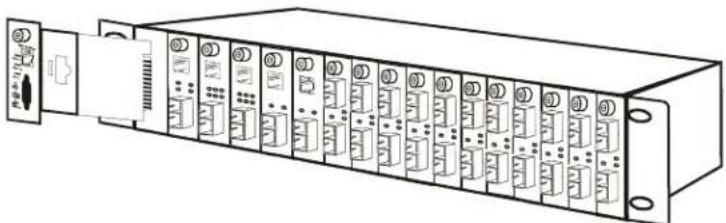
The chassis's first slot is for the management module as illustration on figure 1.
natural_image
Line drawing of a multi-chamber network device with ports and connectors (no text or symbols)Figure 1. Slide in the management module in the first slot of the chassis system.
Installing the Management Module
Before Configure the chassis system, you must do the following:
● Install the management module into the chassis. (Figure 1)
- Connect the module to the network.
- Boot up for SNMP management on Web browser or emulation terminal program.
Configure through Web browser
The Media Converter chassis system is accessible using a Web browser (IE explorer, Netscape Communications, etc.) to open up the chassis monitoring system. The default IP Address for the chassis system is “192.168.1.1”, and the default Login name and password is both “root”.
Configuration via Serial Port
The Media Converter chassis system can be accessible using a terminal or terminal emulator attached to the RS232 serial port on the Switch too.
NOTE: (1) The serial port cable is attached directly with the device.
(2) It needs to upgrade the Terminal Emulator due to key malfunction.
- Locate correct DB9 serial port cable with female DB9 connector.
- Attach the DB9 serial port female cable connector to the male DB9 serial port connector on the chassis system.
- Attach the other end of the DB9 serial port cable to a remote workstation.
- By default, the Switch uses the following serial port parameter values:
Bits per second 57600
Stop bits 1
Data bits 8
Parity
NONE
Flow Control NONE
- The default Login name and password is both "root".
Support SNMP Management
The Media Converter Management Module support SNMP management.
LED Indicators
The LED indicators of the Switch include Power, ALERT, HTTP, ICQ, SMTP, SPEED, LINK/ACT and FDX/COL. The following shows the LED indicators for the Switch along with an explanation of each indicator.
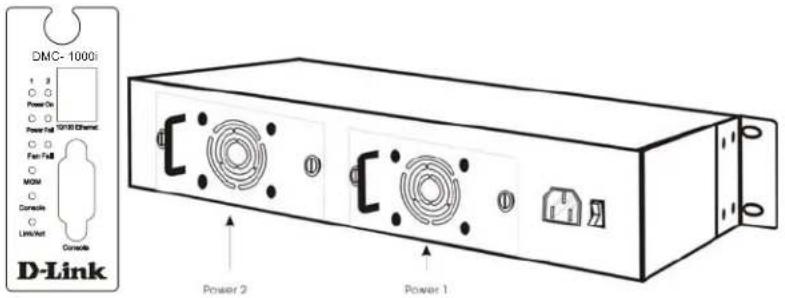
Power On: Lights green when the power is inserted.
Power Fail: Lights Amber when the power is inserted and it is fail.
Fan Fail: Lights Amber when the fan is fail.
MGM: Blinks green when the device CPU is working and lights amber when the CPU works fail.
Console: Blinks green when the data is transmitting through console port and blinks amber when transmitting the wrong data.
Link/Act: Lights green when link to networking Ethernet and blinks green for activity.
MANAGEMENT SETTING THROUGH WEB BROWSER
1 Main Menu
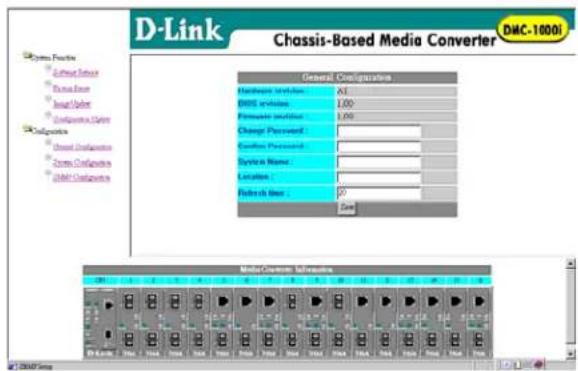
Figure (1) Main Menu
1-1 System Function
There are four items in System Function menu, "Software Reboot, Factory Reset, Image Update and Configuration Update. (Figure 2)
1-2 Configuration
There are three items in Configuration menu, "General Configuration, System Configuration and SNMP Configuration. (Figure 2)
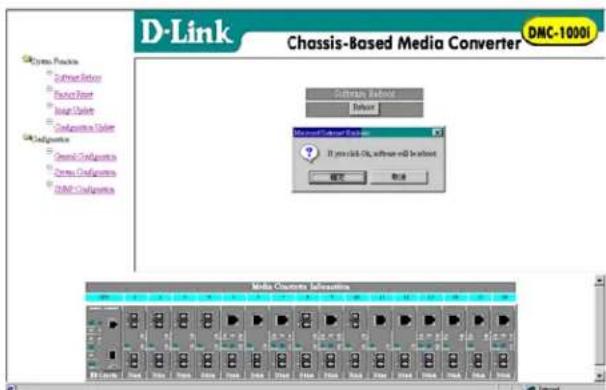
Figure (2) Configuration
1-1-1 Software Reboot
To reboot for the software setting.
1-1-2 CPU Factory Reset
This function is to set the CPU (DMC-1002) back to the default setting in case of the messy setting.
1-1-3 Factory Reset
This function is to set both CPU (DMC-1002) and all system (all smart device installed in chassis) back to the default setting in case of the messy setting.
1-1-4 Image Update
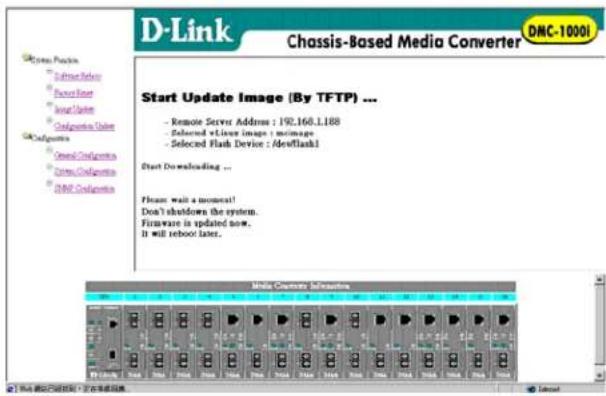
The section is to set the TFTP Server IP Address first, and the default address was set to "192.168.1.2". The Image File can be updated by uploading the image file from the TFTP server. (Figure 3.1)
Note: The content of the image file will write the whole firmware of the management module, please be sure that the image file is correct.
While the file is uploading to the system, it will appear a warning sign. (Figure 3.2)
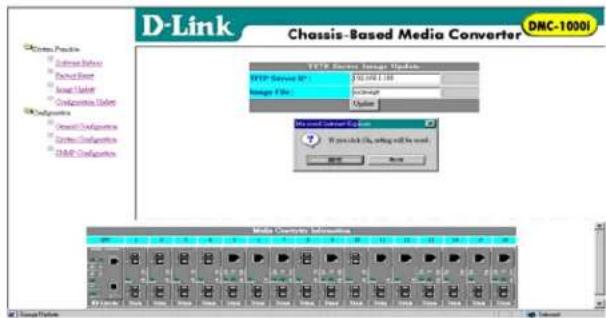
Figure (3.1)
1-2-1 General Configuration
 Figure (5) Hardware revision: noted the version of the hardware. BIOS revision: noted the version of the BIOS. Firmware revision: noted the version of the firmware. Change Password: the changing of the admit password. Confirm Password: to confirm the setting of admit password. System Name: to authorize the device system name. Location: to show the device where it is located. Refresh time: to set the refreshing time of the device through the web. 1-2-2 General Configuration  Figure (6) MAC Address: will show out the MAC address of the device. IP Address: to allocate an IP address for the device, the default IP is "192.168.1.1". Subnet Mask: to set the Subnet Mask, the default is "255.255.255.0". Default Gateway: to set the gateway address, the default is "192.168.1.254". NOTE: After configuring the system device, need to press the save button to save the setting.1-2-3 SNMP Configuration
 Figure (7) Get Community Name: to get the device community name (default = public). Set Community Name: to set the device community name (default = private). Trap Community Name: to authorize the device trap community name (default = public). Trap Host IP Address: to set the trap host IP address (same as monitoring station IP address). Cold Start trap: to set the trap for rebooting the device (default = enable). Authentication Fail Trap: to set the warning trap when the community name of the device and workstation are different (default = enable). Power Fail Trap: to set the Power Fail Trap (default = enable). Fan Fail Trap: to set the fan fail trap (default = enable). MC Plug-in Trap: to set the trap of the Media Converter module if it is plugged in (default = enable). MC Pullout Trap: to set the trap of the Media Converter module if it is pulled out (default = enable).MANAGEMENT SETTING THROUGH TERMINAL EMULATOR
2 Main Menu  Figure (8)2-1 System Function
There are three items in System Function menu, "Software Reboot, Factory Reset, Image Update. (Figure 9)  Figure (9) 2-1-1 Software Reboot To reboot for the software setting. 2-1-2 Factory Reset This function is to set the device back to the default setting in case of the messy setting.2-1-3 Image Update
 Figure (10) The section is to set the TFTP Server IP Address first, and the default address was set to "192.168.1.2". The Image File can be updated by uploading the image file from the TFTP server. (Figure 10) Note: The content of the image file will write the whole firmware of the management module, please be sure that the image file is correct.2-2 Configuration
 Figure (11) There are four items in the Configuration menu, "General Configuration, System Configuration, Media Converter Chassis, Media Converters Status and Media Converters Setting. (Figure 11)2-2-1 General Configuration
 Figure (12) Hardware revision: noted the version of the hardware. BIOS revision: noted the version of the BIOS. Firmware revision: noted the version of the firmware. Change Password: the changing of the admit password. Confirm Password: to confirm the setting of admit password. System Name: to authorize the device system name. Location: to show the device where it is located. Refresh time: to set the refreshing time of the device through the web.2-2-2 System Configuration
 Figure (13) MAC Address: will show out the MAC address of the device. IP Address: to allocate an IP address for the device, the default IP is "192.168.1.1". Subnet Mask: to set the Subnet Mask, the default is "255.255.255.0". Default GW: to set the gateway address, the default is "192.168.1.254". NOTE: After configuring the system device, need to press the save button to save the setting. 2-2-3 Media Converter Chassis  Figure (14) The screen will show out the power status of the chassis system. V stands for “yes” and X stands for “No”. Plug in: indicates if Power 1 or 2 was plugged in or not. Power Fail: indicates if the Power 1 or 2 is fail or not. Fan Fail: indicates if the Fan 1 or 2 is fail or not.2-2-4 Media Converters Status
| D-link DM-10001 v1.03 | |||||||
| /Configuration/Media Converters Status | |||||||
| Media 1 | Media 2 | ||||||
| clot | Plugin | Link | Duplex | speed | Link | Duplex | speed |
| 01: | 100FX-100FX | X | X | X | X | X | |
| 02: | 100FX-100FX | X | X | X | X | X | |
| 03: | 100FX-100FX | X | X | X | X | X | |
| 04: | 100MX-10001X | X | X | X | X | X | |
| 05: | 10/100TX-100FXS | V | F | 100M | V | F | 100M |
| 06: | 100T-1000SX | X | X | X | X | X | |
| 07: | 10/108TX-100FXN | X | X | X | X | X | |
| 08: | 1008SX-10001X | X | X | X | X | X | |
| 09: | 10/108TX-100FXN | V | F | 100M | X | X | |
| 10: | 1008SX-10001X | X | X | X | X | X | |
| 11: | 100DT-10001X | X | X | X | X | X | |
| 12: | 100DT-1000SX | X | X | X | X | X | |
| 13: | unsupported | * | * | * | * | * | |
| 14: | 100TX-100FXS | X | X | X | V | F | 100M |
| 15: | 100TX-100FXN | X | X | X | X | X | |
| 16: | 10/100TX-100FXN | X | X | X | X | X | |
2-2-4 Media Converters Status
 Figure (15.2) To control the linkage of each media converter.2-3 SNMP Configuration
 Figure (16) Get Community Name: to get the device community name (default = public). Set Community Name: to set the device community name (default = private). Trap Community Name: to authorize the device trap community name (default = public). Trap Host IP Address: to set the trap host IP address (same as monitoring station IP address). Cold Start trap: to set the trap for rebooting the device (default = enable). Authentication Fail Trap: to set the warning trap when the community name of the device and workstation are different (default = enable). Power Fail Trap: to set the Power Fail Trap (default = enable). Fan Fail Trap: to set the fan fail trap (default = enable). MC Plug-in Trap: to set the trap of the Media Converter module if it is plugged in (default = enable). MC Pullout Trap: to set the trap of the Media Converter module if it is pulled out (default = enable). Appendix AWhen forgot the password
Boot up the chassis system and press the escape button repetitious three to four times, then press "root" for login the BIOS setting, some command key as follow: help, ls(list), sysconf (system configuration), flash, boot Help: to check the usage of the command list. Ls: to list out the command key. Sysconf: to configure or view the system parameter to IIC EEPROM. Flash: to flash the image file from TFTP server. Boot: to boot up the system. The usage will indicate out on the screen when the command key input error.| General | |
| Standards | IEEE 802.3 10BASE-T; IEEE 802.3u 100BASE-TX |
| Protocol | CSMA/CD |
| Data Transfer Rate | 100Mbps (Half-duplex)200Mbps (Full-duplex) |
| Topology | Star |
| Network Cables 10 | BASE-T-2-pair UTP Cat. 3,4,5, up to 100 m (328 ft)100BASE-TX--2-pair UTP Cat. 5, up to 100 m (328 ft) |
| LED Indicator | Power (1 and 2)Power Fail (1 and 2)Fan Fail (1 and 2)MGM (Green: CPU working; Blinking Amber: CPU Fail)Console (Blinking green: Data transfer; Blinking amber: Error Data) |
| Physical and Environmental | |
| Temperature | Operating: 0° ~ 50°C, Storage: -10° ~ 70°C |
| Humidity Operating | 10% ~ 90%, Storage: 5% ~ 90% |
| Dimensions | 130 x 35 x 88 mm |
| EMI: FCC Class B | CE Mark B, VCCI-B |
