
DGE-660TD - Uncategorized D-LINK - Free user manual and instructions
Find the device manual for free DGE-660TD D-LINK in PDF.


| Product Type | Gigabit Cardbus PC Card for notebook PCs |
| Standards Compliance | IEEE 802.3 10BASE-T, IEEE 802.3u 100BASE-TX, IEEE 802.3ab 1000BASE-T, ANSI/IEEE 802.3 Auto-Negotiation |
| Host Interface | 32-bit CardBus (Type II slot) |
| Network Port | RJ-45 |
| Data Transfer Rate (Gigabit) | 2000 Mbps (Full-duplex) |
| Data Transfer Rate (Fast Ethernet) | 100/200 Mbps (Half/Full-duplex) |
| Data Transfer Rate (Ethernet) | 10/20 Mbps (Half/Full-duplex) |
| LED Indicators | Link/Activity (green), Speed (green=1000M, amber=100M, off=10M) |
| Auto-Negotiation | Supported (ANSI/IEEE 802.3 NWay) |
| Crossover Detection & Auto-Correction | Supported |
| Buffer Memory | Built-in FIFO (8K/64K transmit/receive) |
| Driver Support | Windows Vista, Windows XP, Windows 2000, DOS NDIS 2, NetWare ODI |
| Operating System Compatibility | Windows Vista, XP, 2000 |
| Minimum System Requirements | Pentium 150MHz, 64MB RAM, 32MB free HDD space, CardBus slot, CD-ROM drive |
| Power Consumption | Low power consumption (exact values not specified) |
| Operating Temperature | -10 to 50 °C (14 to 122 °F) |
| Storage Temperature | -10 to 70 °C (14 to 158 °F) |
| Operating Humidity | 10% to 90% RH (non-condensing) |
| Storage Humidity | 5% to 90% RH (non-condensing) |
| Emissions Certifications | FCC Class B, CE Class B, VCCI-B |
| Package Contents | DGE-660TD adapter, CD-ROM with drivers and manual |
| Warranty | 1 year (hardware) |
Frequently Asked Questions - DGE-660TD D-LINK
User questions about DGE-660TD D-LINK
0 question about this device. Answer the ones you know or ask your own.
Ask a new question about this device
Download the instructions for your Uncategorized in PDF format for free! Find your manual DGE-660TD - D-LINK and take your electronic device back in hand. On this page are published all the documents necessary for the use of your device. DGE-660TD by D-LINK.
USER MANUAL DGE-660TD D-LINK
D-Link reserves the right to revise this publication and to make changes in the content hereof without obligation to notify any person or organization of such revisions or changes.
Manual Revisions
| Revision Date Description | ||
| 1.0 May | 1, 2006 DGE-660TD | Revision A1/A2 |
| 1.1 August | st 14, 2007 Added W | windows Vista ^TM support |
Trademarks
D-Link and the D-Link logo are trademarks or registered trademarks of D-Link Corporation or its subsidiaries in the United States or other countries. All other company or product names mentioned herein are trademarks or registered trademarks of their respective companies.
Copyright © 2007 by D-Link Systems, Inc.
All rights reserved. This publication may not be reproduced, in whole or in part, without prior expressed written permission from D-Link Systems, Inc.
Table of Contents
Preface ......ii
Manual Revisions ...... ii
Trademarks ...... ii
Product Overview ....1
Package Contents....2
System Requirements ......2
Features ....3
Hardware Overview 4
Connections and LEDs 4
Installation ....5
Install the Drivers 5
Insert the Adapter 6
Finishing the Installation 7
Windows Vista™ Users 7
Windows ^® XP Users ....7
Windows® 2000 Users .... 7
Verify Installation 8
Configuration 9
Configure your Adapter 9
Troubleshooting 12
Networking Basics 15
About Gigabit Ethernet ....15
About Auto-negotiation 15
Technical Specifications ....17
Technical Support 18
Warranty 19
Registration 25
Product Overview
Thank you for choosing the D-Link DGE-660TD, the value leader among Fast Ethernet/Gigabit Ethernet adapters for notebook PCs. This chapter provides a general description of DGE-660TD features, with a summary of features at the end of the chapter. Installation instructions are provided in sections 2 and 3.
The D-Link DGE-660TD Gigabit Cardbus PC Card for notebook PCs is a credit-card sized Gigabit adapter for connecting a notebook PC to an Ethernet, Fast Ethernet, or Gigabit network. The notebook PC must be equipped with a Type II Cardbus compliant slot.
NOTE: The terms “PC Card” is used throughout this manual to refer to those objects as defined in the PCMCIA / PC Card standards published by Personal Computer Memory Card Industry Association (PCMCIA). The term “slot,” as used in this manual, is synonymous with “socket” where the standards use the latter term in reference to the physical receptacles of a host notebook computer, for insertion/connection of PC Cards. More information on the standards is available from PCMCIA’s www server at http://www.pc-card.com.
The D-Link DGE-660TD automatically detects the parameters of its Ethernet environment, and automatically negotiates and determines its own speed and duplex settings as required for maximum performance within the environment. (The auto-negotiation function is effective only when the DGE-660TD is connected to the network by a device (switch or hub) that also has autonegotiation functionality.)
Inside its compact case, the D-Link DGE-660TD holds an Ethernet controller, network processing interface, a 68-pin PC Card Standard front-end plug, which connects to the notebook PC, and a direct port for connecting a RJ-45 network cable. The DGE-660TD requires no pre-installation setup -- simply insert its front end into the notebook PC's PC-Card slot.
The DGE-660TD is supplied with an RJ-45 receptacle, which receives the network cable. The direct port features full LED display for linkage and activity states, speed, transmitting and receiving data, and carrier detection.
Package Contents
| D-Link.DGE-660TD.Gigabit. .Cardbus.Adapter | 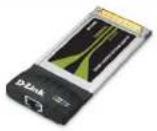 |
| CD-ROM |  |
System Requirements
| Minimum.System.Requirements | ..Notebook.Computer.with.the.following:Windows® 2000/XP/VistaTM operating systemPentium 150MHz or Faster64MB RAM32MB Free Hard Drive SpaceOne Available CardBus SlotCD-ROM Drive |
Features
Features.of.the.DGE-660TD.Gigabit.Cardbus.PC.Card:
- Complies with IEEE 802.3 10BASE-T Ethernet standard
- Complies with IEEE 802.3u 100BASE-TX Fast Ethernet standard
- Complies with IEEE 802.3ab 1000BASE-T Gigabit Ethernet standard
- Complies with ANSI / IEEE 802.3 Auto-Negitiation standard
- Complies with 32-bit CardBus Standard
• Supports Crossover Detection & Auto-Correction
• Built-in Transmit/Receive FIFO data buffer (8K/64K) - No manual setup switches -- automatically configured by software
- Low power consumption
Supported.driver.list:
• Microsoft Windows Vista™
- Microsoft Windows ^ XP
• Microsoft Windows ^® 2000
• Microsoft Network Client for DOS (NDIS 2 driver)
• NetWare Client for DOS (ODI driver)
Hardware Overview Connections and LEDs
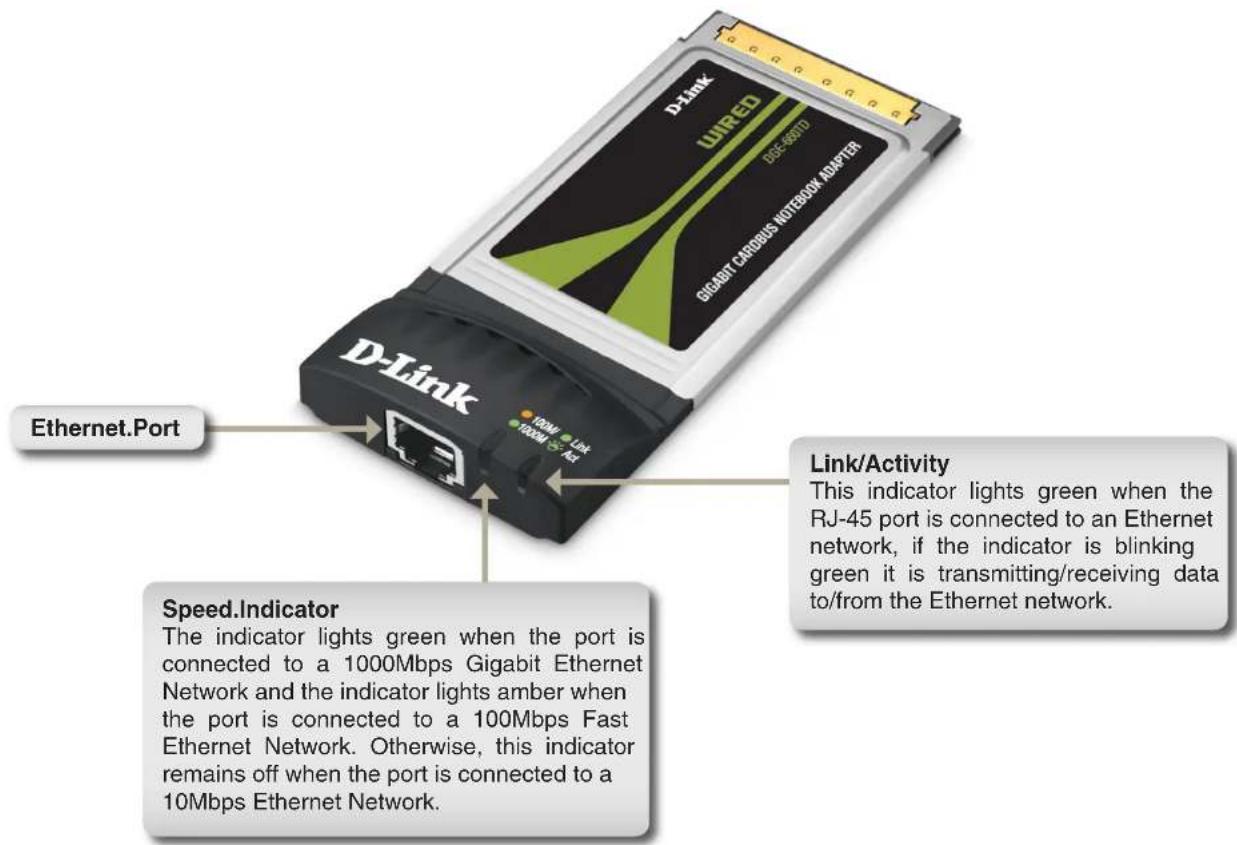
Install the Drivers
- With your computer ON, insert the Driver CD of the DGE-660TD into your CD-ROM Drive.
• The Autorun Screen will appear as shown here. - Select "Install.Drivers" to install the drivers onto your computer.
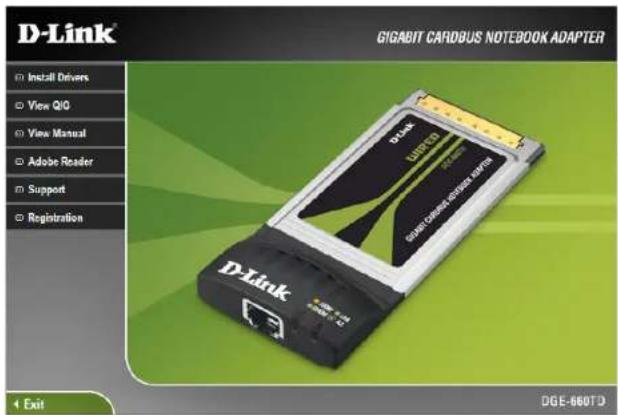
- After a few moments, the "Install.Finish" screen will appear. Click "OK".
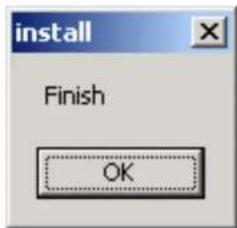
- Select "Yes," if you are prompted to restart your computer. Restart the computer manually if the prompt does not occur. (Go to Start > Shut.down > Restart.)
Insert the Adapter
This section refers to all users, regardless of which operating system you use.
NOTE: You must first install the drivers as explained in Section 1. If you have not done this and you have inserted the DGE-660TD into the Cardbus slot, you will need to cancel the New Hardware Wizard, and start over at the beginning of this installation guide.
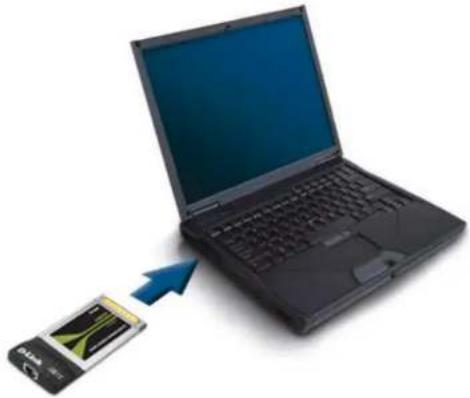
- Insert the DGE-660TD into the Cardbus slot of your laptop.
natural_image
Laptop with a CD drive and an arrow pointing to it, no visible text or symbols on the device or background.- Gently insert the front end of the DGE-660TD into the Cardbus slot on your laptop until it is firmly seated. Make sure that the card is face-up, as shown. Do not force the insertion.
- Connect an Ethernet Cable (CAT5) from a switch or hub to the DGE-660TD.
Finishing the Installation
To complete the installation of the DGE-660TD:
• Make sure that the DGE-660TD CD-ROM is inserted in the CD-ROM drive
• The DGE-660TD is inserted into your laptop
• The laptop is turned ON
• See the section below that corresponds to your Operating System to complete the installation:
Windows Vista™ Users
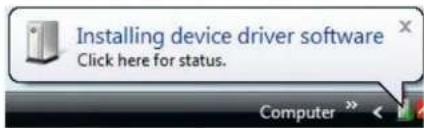
Windows Vista™ completes the installation of the DGE-660TD automatically. A "Installing device driver software" will appear in the task bar to indicate that the installation is in progress.
Windows® XP Users
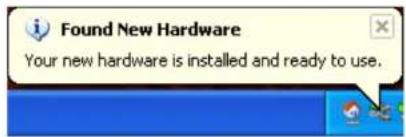
Windows® XP completes the installation of the DGE-660TD automatically. A "Found New Hardware" message will appear in the task bar to indicate that the installation is complete.
Windows® 2000 Users
Windows® 2000 completes the installation of the DGE-660TD automatically. When the "hour glass" disappears, the installation is complete.
Verify Installation
Step.1:
Windows® 2000: Click on Start > Settings > Control.Panel
Windows® XP: Click on Start > Control.Panel
Windows Vista™: Click on Start > Control.Panel
Step.2:
Windows® 2000 and XP: Click on the System icon. Click the Hardware tab and then click Device.Manager.
Windows Vista™: Click on System.and.Maintenance and then click on Device.Manager.
Step.3:
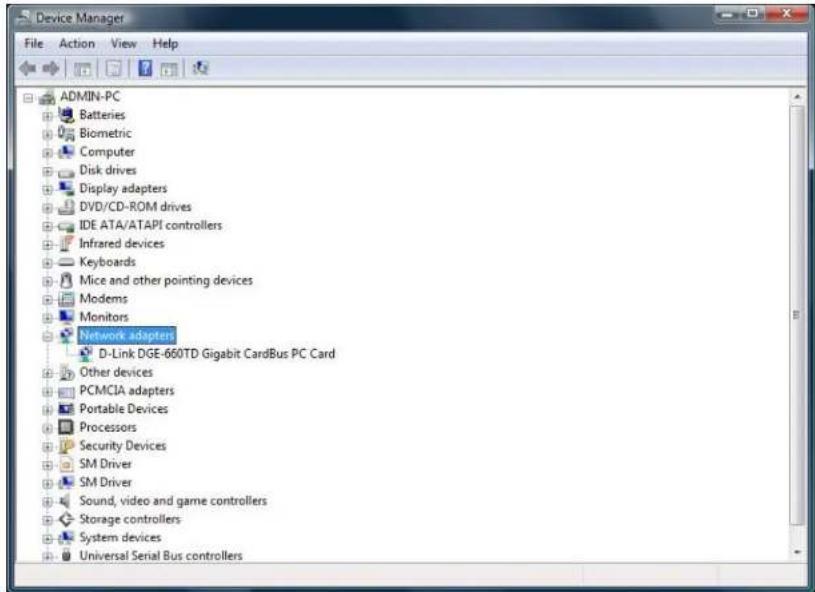
Scroll down and click the plus (+) sign next to Network Adapters. The D-Link.DGE-660TD.Gigabit.CardBus.PC.Card will be listed.
Configure your Adapter
After you install your new D-Link adapter, by default, the TCP/IP settings should be set to obtain an IP address from a DHCP server (i.e. router) automatically. To verify your IP address, please see follow the steps below:
Windows® 2000/XP: Click on Start > Run. In the run box type cmd and click OK.
Windows Vista™: Click on Start > All.Programs > Accessories > Command.Prompt.
At the prompt, type ipconfig and press Enter.
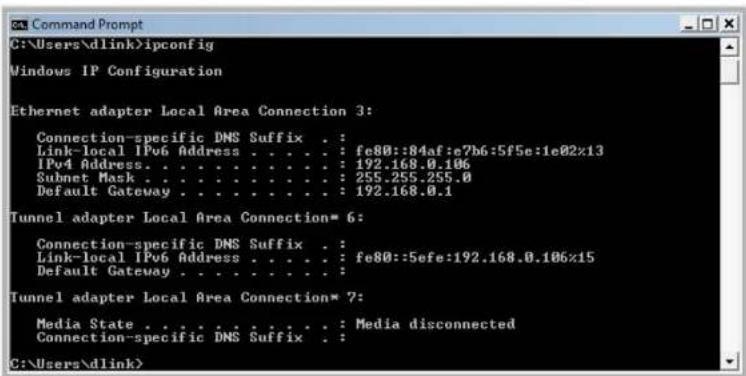
This will display the IP address, subnet mask, and the default gateway of your adapter.
If the address is 0.0.0.0, check your adapter installation, security settings, and the settings on your router. Some firewall software programs may block a DHCP request on newly installed adapters.
If you are not using a DHCP capable gateway/router, or you need to assign a static IP address, please follow the steps below.
Step 1
Windows® 2000: Click on Start > Settings > Control Panel > Network Connections.
Windows ^® XP : Click on Start > Control Panel > Network Connections.
Windows Vista™ : Click on Start > Control Panel > Network and Internet > Network and Sharing Center > Manage network connections.
Step 2
Right-click on Local Area Connection which represents your D-Link network adapter and select Properties.
Step 3
Highlight Internet Protocol (TCP/IP) and click Properties.
Step 4
Click Use the following IP address and enter an IP address that is on the same subnet as your network or the LAN IP address on your router.
Example: If the router's LAN IP address is 192.168.0.1, make your IP address 192.168.0.X where X is a number between 2 and 99. Make sure that the number you choose is not in use on the network. Set Default Gateway the same as the LAN IP address of your router (192.168.0.1).
Set Primary DNS the same as the LAN IP address of your router (192.168.0.1). The Secondary DNS is not needed or you may enter a DNS server from your ISP.
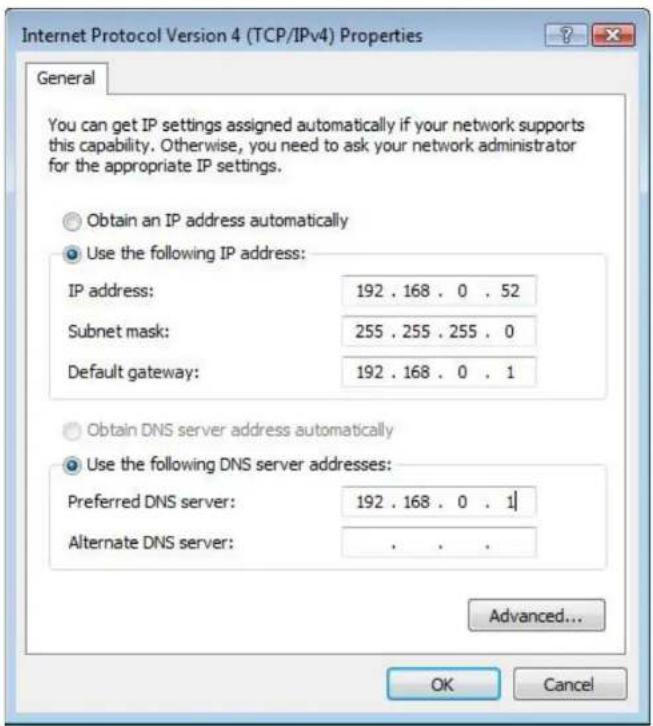
Step.5 Click OK twice to save your settings.
Troubleshooting
Confirming.the.Connection.(LED.Indicator)
When the notebook computer is powered "ON," and the DGE-660TD is inserted into an open slot connector, please check the following items if your LED light is not "ON." When all items are working, your DGE-660TD's direct port LED light should light up green ("linkage" state.)
- Make sure that your Ethernet Cat5 cable is in good working order.
- Make sure that your hub or switch is powered "ON" and is functioning properly.
- If the LED remains dark without any apparent cause, check the "Device Manager." If there is an exclamation point next to the DGE-660TD, then double-click to open. A message indicating the error will appear.
- After verifying that the DGE-660TD has been installed correctly, check steps 1 and 2 again. If you continue to encounter a problem, please call D-Link Technical Support for assistance.
Troubleshooting.the.Hardware.Installation
If you experience any problems with the hardware installation, first ascertain that all network cable connections are firm, that the proper grade of cable is used for the network connection, and that the cable makeup is correct (straight without un-needed crossovers in the connector wiring). Check that the supporting hub is powered-on and operating normally, and that the hub is properly qualified (under 100Base-TX and/or 1000Base-T standards).
Verify.Each.Computers.Identification
If more than one computer on your network has the same “Computer name,” communications may be negatively affected. Also, each computer must have the same “Workgroup” name to communicate properly.
Verify.Network.Adapter.Installation
If your Network Adapter is not installed, including the Network System Software or Device drivers, your network will not function properly. Use these steps to verify that your Network Adapter is properly installed.
- Double-Click the "System" icon in the Control Panel.
- Click the "Device Manager" tab on top of the "System Properties" dialog box.
- Double-Click "Network Adapters" if you do not see any items branching out. You should see "D-Link DGE-660TD Cardbus PC Card" branching out after double-clicking "Network Adapters."
If you do not see any items branching out after double-clicking "Network Adapters," your Network Adapter has not been properly installed. Start at the beginning of the "Quick Install Guide."
If you see symbols such as yellow exclamation point or red "X" over the icon adjacent to "D-Link DGE-660TD Cardbus PC Card," your card is not installed properly or may have a problem. Double-click the "D-Link DGE-660TD Cardbus PC Card" and read the explanation of the problem. This information will be helpful if you require technical support from D-Link.
Verify.Cable.Connections
Check to see that the computer you are troubleshooting is properly connected. Each computer must be connected from its DGE-660TD with Category 5 cables.
Examine the network cables and ensure that none have been walked-on, rolled over by chairs, caught in doors, or damaged. Additionally, make note of and alleviate any possible electromagnetic interference that may be affecting your network.
Your network cables can be plugged into any port on your hub except the "Uplink" port. The "Uplink" port is only used when connecting your hub to another hub or switch.
Pinging.your.DGE-660TD.Card
Follow these steps to Ping a device:
Ping is the acronym for Packet Internet Groper (PING), a utility to determine if a specific IP address is accessible. It works by sending a packet to the specified address and waiting for a reply. Ping is primarily used to troubleshoot Internet connections. By sending out a ping, you are verifying that a specific computer is available. Since all computers on the network must have a unique IP address, getting a reply means that a computer is on the network and it can communicate.
If you cannot ping another computer, then there is probably a problem with the hardware. Check the cabling and adapter installation. If you are unable to network, even when you receive a reply to your ping, it is probably a software configuration issue. Verify that all the settings are correct.
Start MS-DOS Prompt.
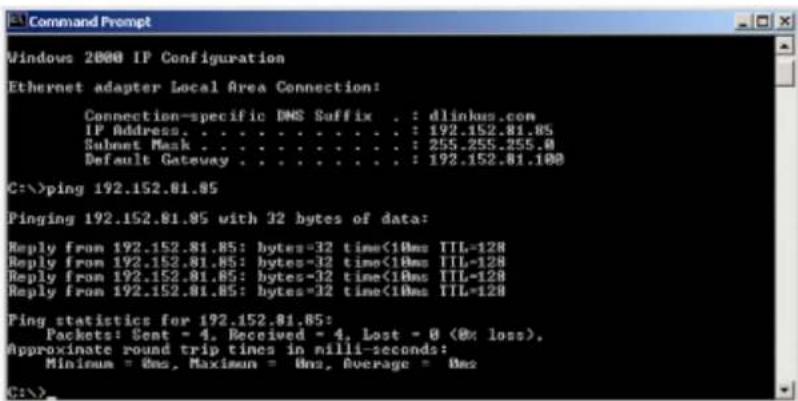
Type in following: ping:xxx.xxx.xx.xx, where xxx.xxx.xx.xx is the IP address to be pinged (i.e. 192.152.81.85). In this case, computer A is pinging its own IP address. A successful ping will show four replies.
Networking Basics
About Gigabit Ethernet
Gigabit Ethernet is a network technology specified by IEEE Standard 802.3ab. It extends the traditional 100Mbps (100 megabit/sec) Fast Ethernet technology to achieve 1000Mbps (1000 megabit/sec) transmission and reception. Because Gigabit Ethernet retains the traditional Ethernet CSMA/CD (Carrier Sense, Multiple Access, and Collision Detect) protocol, it remains wholly compatible with 100Mbps Ethernet while providing a tenfold increase in network capacity.
The DGE-660TD provides full-duplex 1000Base-T operation (in Category 5 twisted-pair cable environments utilizing all 4 pair). To provide for traditional 10 or 100Mbps Ethernet operation in twisted-pair cable environments, the DGE-660TD also offers 10 or 100Mbps Ethernet operation, in full-duplex and half-duplex modes. The DGE-660TD's auto-negotiation capability provides for automatic selection of the best operation mode.
About Auto-negotiation
The basic idea of auto-negotiation can be understood by reflecting for a moment on the familiar process of making a dialup connection between two modems. You have probably heard some exchanges between your local modem and a modem at the other end of a telephone line. (These exchanges are ordinarily played out through a speaker in your local modem). As irritating as those few seconds of noise may be, they do let you know that your modem and the remote modem are on the job, preparing for your intended communication with the remote computer.
The preparatory work of the two modems during those few seconds before you see the “connect” message is to negotiate the best data communication scheme that is supported by both modems, and to decide which is suitable for the quality of the telephone-line connection between them. The parameters to be settled between the two modems include best baud rate, compression method, and error correction method. When the two modems have tested the phone-line quality and have switched to the combination of parameters, which will provide the best data communication, then you are given the “connect” message which signals the end of the inter-modem negotiation and the beginning of your intended communication with the remote computer.
Auto-negotiation between devices within an Ethernet LAN is similar in concept, but much briefer. The two devices involved in the auto-negotiation will be your DGE-660TD and the switch or hub through which it is connected into the LAN. (Switches ordinarily provide for auto-negotiation; traditional hubs do not.) The parameters to be negotiated between the DGE-660TD and its supporting switch or hub include speed (1000Mbps = Gigabit Ethernet, or 100Mbps = Fast Ethernet) and duplex mode (half-duplex or full-duplex).
Startup communication between the two devices occurs when both devices are operating, the cable connection between them is good, and the connected notebook PC's network software is loaded. As soon as those conditions are satisfied, the preparatory process of auto-negotiation between the DGE-660TD and its supporting device begins and proceeds automatically.
If the supporting switch or hub has auto-negotiation functionality, then it and the DGE-660TD exchange a series of messages in which each device signals its capabilities and listens for corresponding information about the other. The auto-negotiation process requires only a few milliseconds, and the two devices select the best communication parameters supported by both devices.
If the supporting device does not have auto-negotiation functionality, then its monotone (single capability) message will be recognized by the DGE-660TD's auto-negotiation facility, and the DGE-660TD will simply switch to the one of its own capabilities that matches that of the supporting device.
Once the auto-negotiation is completed, the line is ready, and it will provide an optimal data channel between the DGE-660TD and the supporting device. The line will remain ready without further auto-negotiation action until the link is broken. Auto-negotiation then reoccurs at any time that the link is restored, again making the line ready for optimal data communications.
Technical Specifications
Standards:
• IEEE 802.3 10Base-T Ethernet
• IEEE 802.3u 100Base-TX Fast Ethernet
• IEEE 802.3ab 1000Base-T Gigabit Ethernet
• ANSI/IEEE 802.3 NWay Auto-Negotiation
- PCMCIA 2.x
• 32-bit Cardbus
Network.Media:
- Ethernet: UTP Cat3, 4, 5 EIA/TIA-568 100-ohm
• Fast Ethernet: UTP Cat5, EIA/TIA-568 100-ohm
Protocol:
• CSMA/CD
Host.Interface:
- 32-bit Cardbus
Diagnostic.LEDs:
- Link/Activity
- Speed (Green: 1000M; Amber : 100M; Off : 10M)
Network.Data.Transfer.Rate:
- Ethernet: 10Mbps (Half-duplex)
- Ethernet: 20 Mbps (Full-duplex)
- Fast Ethernet: 100Mbps (Half-duplex)
- Fast Ethernet: 200Mbps (Full-duplex)
• Gigabit Ethernet: 2000Mbps (Full-duplex)
Temperature:
- Operating: -10\~50 °C (14\~122°F)
• Storage: -10\~70 °C (14\~158°F)
Humidity:
• Operating: 10%\~90% RH
• Storage: 5%\~90% RG
Driver.Support:
• Microsoft Windows Vista™
- Microsoft Windows® XP
• Microsoft Windows® 2000
Emission:
- FCC Class B
- CE mark Class B
• VCCI-B
Visit http://support.dlink.com for newest releases of drivers.
Technical Support
U.S. and Canadian customers can contact D-Link technical support through our web site or by phone.
Before you contact technical support, please have the following ready:
- Model number of the product (e.g. DGE-660TD)
- Hardware Revision (located on the label on the adapter (e.g. rev A2))
- Serial Number (s/n number located on the label on the adapter).
You can find software updates and user documentation on the D-Link website as well as frequently asked questions and answers to technical issues.
For.customers.within.the.United.States:
Phone.Support:
(877) 453-5465
Internet.Support:
http://support.dlink.com
For.customers.within.Canada:
Phone.Support:
(800) 361-5265
Internet.Support:
http://support.dlink.com
Warranty
Subject to the terms and conditions set forth herein, D-Link Systems, Inc. ("D-Link") provides this Limited Warranty:
- Only to the person or entity that originally purchased the product from D-Link or its authorized reseller or distributor, and
- Only for products purchased and delivered within the fifty states of the United States, the District of Columbia, U.S. Possessions or Protectorates, U.S. Military Installations, or addresses with an APO or FPO.
Limited.Warranty:
D-Link warrants that the hardware portion of the D-Link product described below (“Hardware”) will be free from material defects in workmanship and materials under normal use from the date of original retail purchase of the product, for the period set forth below (“Warranty Period”), except as otherwise stated herein.
- Hardware (excluding power supplies and fans): One (1) year
• Power supplies and fans: One (1) year - Spare parts and spare kits: Ninety (90) days
The customer's sole and exclusive remedy and the entire liability of D-Link and its suppliers under this Limited Warranty will be, at D-Link's option, to repair or replace the defective Hardware during the Warranty Period at no charge to the original owner or to refund the actual purchase price paid. Any repair or replacement will be rendered by D-Link at an Authorized D-Link Service Office. The replacement hardware need not be new or have an identical make, model or part. D-Link may, at its option, replace the defective Hardware or any part thereof with any reconditioned product that D-Link reasonably determines is substantially equivalent (or superior) in all material respects to the defective Hardware. Repaired or replacement hardware will be warranted for the remainder of the original Warranty Period or ninety (90) days, whichever is longer, and is subject to the same limitations and exclusions. If a material defect is incapable of correction, or if D-Link determines that it is not practical to repair or replace the defective Hardware, the actual price paid by the original purchaser for the defective Hardware will be refunded by D-Link upon return to D-Link of the defective Hardware. All Hardware or part thereof that is replaced by D-Link, or for which the purchase price is refunded, shall become the property of D-Link upon replacement or refund.
Limited.Software.Warranty:
D-Link warrants that the software portion of the product ("Software") will substantially conform to D-Link's then current functional specifications for the Software, as set forth in the applicable documentation, from the date of original retail purchase of the Software for a period of ninety (90) days ("Software Warranty Period"), provided that the Software is properly installed on approved hardware and operated as contemplated in its documentation. D-Link further warrants that, during the Software Warranty Period, the magnetic media on which D-Link delivers the Software will be free of physical defects. The customer's sole and exclusive remedy and the entire liability of D-Link and its suppliers under this Limited Warranty will be, at D-Link's option, to replace the non-conforming Software (or defective media) with software that substantially conforms to D-Link's functional specifications for the Software or to refund the portion of the actual purchase price paid that is attributable to the Software. Except as otherwise agreed by D-Link in writing, the replacement Software is provided only to the original licensee, and is subject to the terms and conditions of the license granted by D-Link for the Software. Replacement Software will be warranted for the remainder of the original Warranty Period and is subject to the same limitations and exclusions. If a material non-conformance is incapable of correction, or if D-Link determines in its sole discretion that it is not practical to replace the non-conforming Software, the price paid by the original licensee for the non-conforming Software will be refunded by D-Link; provided that the non-conforming Software (and all copies thereof) is first returned to D-Link. The license granted respecting any Software for which a refund is given automatically terminates.
Non-Applicability.of.Warranty:
The Limited Warranty provided hereunder for Hardware and Software portions of D-Link's products will not be applied to and does not cover any refurbished product and any product purchased through the inventory clearance or liquidation sale or other sales in which D-Link, the sellers, or the liquidators expressly disclaim their warranty obligation pertaining to the product and in that case, the product is being sold "As-Is" without any warranty whatsoever including, without limitation, the Limited Warranty as described herein, notwithstanding anything stated herein to the contrary.
Submitting.A.Claim:
The customer shall return the product to the original purchase point based on its return policy. In case the return policy period has expired and the product is within warranty, the customer shall submit a claim to D-Link as outlined below:
- The customer must submit with the product as part of the claim a written description of the Hardware defect or Software nonconformance in sufficient detail to allow DLink to confirm the same, along with proof of purchase of the product (such as a copy of the dated purchase invoice for the product) if the product is not registered.
- The customer must obtain a Case ID Number from D-Link Technical Support at 1-877-453-5465, who will attempt to assist the customer in resolving any suspected defects with the product. If the product is considered defective, the customer must obtain a Return Material Authorization ("RMA") number by completing the RMA form and entering the assigned Case ID Number at https://rma.dlink.com/.
- After an RMA number is issued, the defective product must be packaged securely in the original or other suitable shipping package to ensure that it will not be damaged in transit, and the RMA number must be prominently marked on the outside of the package. Do not include any manuals or accessories in the shipping package. DLink will only replace the defective portion of the product and will not ship back any accessories.
- The customer is responsible for all in-bound shipping charges to D-Link. No Cash on Delivery ("COD") is allowed. Products sent COD will either be rejected by D-Link or become the property of D-Link. Products shall be fully insured by the customer and shipped to D-Link Systems, Inc., 17595 Mt. Herrmann, Fountain Valley, CA 92708. D-Link will not be held responsible for any packages that are lost in transit to D-Link. The repaired or replaced packages will be shipped to the customer via UPS Ground or any common carrier selected by D-Link. Return shipping charges shall be prepaid by D-Link if you use an address in the United States, otherwise we will ship the product to you freight collect. Expedited shipping is available upon request and provided shipping charges are prepaid by the customer. D-Link may reject or return any product that is not packaged and shipped in strict compliance with the foregoing requirements, or for which an RMA number is not visible from the outside of the package. The product owner agrees to pay D-Link's reasonable handling and return shipping charges for any product that is not packaged and shipped in accordance with the foregoing requirements, or that is determined by D-Link not to be defective or non-conforming.
What.Is.Not.Covered:
The Limited Warranty provided herein by D-Link does not cover:
Products that, in D-Link's judgment, have been subjected to abuse, accident, alteration, modification, tampering, negligence, misuse, faulty installation, lack of reasonable care, repair or service in any way that is not contemplated in the documentation for the product, or if the model or serial number has been altered, tampered with, defaced or removed; Initial installation, installation and removal of the product for repair, and shipping costs; Operational adjustments covered in the operating manual for the product, and normal maintenance; Damage that occurs in shipment, due to act of God, failures due to power surge, and cosmetic damage; Any hardware, software, firmware or other products or services provided by anyone other than D-Link; and Products that have been purchased from inventory clearance or liquidation sales or other sales in which D-Link, the sellers, or the liquidators expressly disclaim their warranty obligation pertaining to the product.
While necessary maintenance or repairs on your Product can be performed by any company, we recommend that you use only an Authorized D-Link Service Office. Improper or incorrectly performed maintenance or repair voids this Limited Warranty.
Disclaimer.of.Other.Warranties:
EXCEPT FOR THE LIMITED WARRANTY SPECIFIED HEREIN, THE PRODUCT IS PROVIDED "AS-IS" WITHOUT ANY WARRANTY OF ANY KIND WHATSOEVER INCLUDING, WITHOUT LIMITATION, ANY WARRANTY OF MERCHANTABILITY, FITNESS FOR A PARTICULAR PURPOSE AND NONINFRINGEMENT.
IF ANY IMPLIED WARRANTY CANNOT BE DISCLAIMED IN ANY TERRITORY WHERE A PRODUCT IS SOLD, THE DURATION OF SUCH IMPLIED WARRANTY SHALL BE LIMITED TO THE DURATION OF THE APPLICABLE WARRANTY PERIOD SET FORTH ABOVE. EXCEPT AS EXPRESSLY COVERED UNDER THE LIMITED WARRANTY PROVIDED HEREIN, THE ENTIRE RISK AS TO THE QUALITY, SELECTION AND PERFORMANCE OF THE PRODUCT IS WITH THE PURCHASER OF THE PRODUCT.
Limitation.of.Liability:
TO THE MAXIMUM EXTENT PERMITTED BY LAW, D-LINK IS NOT LIABLE UNDER ANY CONTRACT, NEGLIGENCE, STRICT LIABILITY OR OTHER LEGAL OR EQUITABLE THEORY FOR ANY LOSS OF USE OF THE PRODUCT, INCONVENIENCE OR DAMAGES OF ANY CHARACTER, WHETHER DIRECT, SPECIAL, INCIDENTAL OR CONSEQUENTIAL (INCLUDING, BUT NOT LIMITED TO, DAMAGES FOR LOSS OF GOODWILL, LOSS OF REVENUE OR PROFIT, WORK STOPPAGE, COMPUTER FAILURE OR MALFUNCTION, FAILURE OF OTHER EQUIPMENT OR COMPUTER PROGRAMS TO WHICH D-LINK'S PRODUCT IS CONNECTED WITH, LOSS OF INFORMATION OR DATA CONTAINED IN, STORED ON, OR INTEGRATED WITH ANY PRODUCT RETURNED TO D-LINK FOR WARRANTY SERVICE) RESULTING FROM THE USE OF THE PRODUCT, RELATING TO WARRANTY SERVICE, OR ARISING OUT OF ANY BREACH OF THIS LIMITED WARRANTY, EVEN IF D-LINK HAS BEEN ADVISED OF THE POSSIBILITY OF SUCH DAMAGES. THE SOLE REMEDY FOR A BREACH OF THE FOREGOING LIMITED WARRANTY IS REPAIR, REPLACEMENT OR REFUND OF THE DEFECTIVE OR NONCONFORMING PRODUCT. THE MAXIMUM LIABILITY OF D-LINK UNDER THIS WARRANTY IS LIMITED TO THE PURCHASE PRICE OF THE PRODUCT COVERED BY THE WARRANTY. THE FOREGOING EXPRESS WRITTEN WARRANTIES AND REMEDIES ARE EXCLUSIVE AND ARE IN LIEU OF ANY OTHER WARRANTIES OR REMEDIES, EXPRESS, IMPLIED OR STATUTORY.
Governing.Law:
This Limited Warranty shall be governed by the laws of the State of California. Some states do not allow exclusion or limitation of incidental or consequential damages, or limitations on how long an implied warranty lasts, so the foregoing limitations and exclusions may not apply. This Limited Warranty provides specific legal rights and you may also have other rights which vary from state to state.
Trademarks:
D-Link is a registered trademark of D-Link Corporation/D-Link Systems, Inc. Other trademarks or registered trademarks are the property of their respective owners. Patent Pending.
Copyright.Statement:
No part of this publication or documentation accompanying this product may be reproduced in any form or by any means or used to make any derivative such as translation, transformation, or adaptation without permission from D-Link Corporation/D-Link Systems, Inc., as stipulated by the United States Copyright Act of 1976 and any amendments thereto. Contents are subject to change without prior notice.
Copyright ©2007 by D-Link Corporation/D-Link Systems, Inc. All rights reserved.
FCC.Statement:
This equipment has been tested and found to comply with the limits for a Class B digital device, pursuant to part 15 of the FCC Rules. These limits are designed to provide reasonable protection against harmful interference in a residential installation. This equipment generates, uses, and can radiate radio frequency energy and, if not installed and used in accordance with the instructions, may cause harmful interference to radio communication. However, there is no guarantee that interference will not occur in a particular installation. If this equipment does cause harmful interference to radio or television reception, which can be determined by turning the equipment off and on, the user is encouraged to try to correct the interference by one or more of the following measures:
- Reorient or relocate the receiving antenna.
- Increase the separation between the equipment and receiver.
- Connect the equipment into an outlet on a circuit different from that to which the receiver is connected.
- Consult the dealer or an experienced radio/TV technician for help.
FCC.Caution:.
Any changes or modifications not expressly approved by the party responsible for compliance could void the user's authority to operate this equipment.
This device complies with Part 15 of the FCC Rules. Operation is subject to the following two conditions:
(1) This device may not cause harmful interference, and (2) this device must accept any interference received, including interference that may cause undesired operation.
IMPORTANT.NOTICE:
FCC.Radiation.Exposure.Statement:
This equipment complies with FCC radiation exposure limits set forth for an uncontrolled environment. This equipment should be installed and operated with minimum distance 20cm between the radiator & your body. This transmitter must not be co-located or operating in conjunction with any other antenna or transmitter.
The availability of some specific channels and/or operational frequency bands are country dependent and are firmware programmed at the factory to match the intended destination. The firmware setting is not accessible by the end user.
For detailed warranty information applicable to products purchased outside the United States, please contact the corresponding local D-Link office.
Industry.Canada.Notice:
This device complies with RSS-210 of the Industry Canada Rules. Operation is subject to the following two conditions:
(1) This device may not cause harmful interference, and (2) this device must accept any interference received, including interference that may cause undesired operation.
IMPORTANT.NOTE:
Radiation.Exposure.Statement:
This equipment complies with IC radiation exposure limits set forth for an uncontrolled environment. This equipment should be installed and operated with minimum distance 20cm between the radiator & your body.
This device has been designed to operate with an antenna having a maximum gain of 2 dB. Antenna having a higher gain is strictly prohibited per regulations of Industry Canada. The required antenna impedance is 50 ohms.
Registration

Product registration is entirely voluntary and failure to complete or return this form will not diminish your warranty rights.
Version 1.1
August 14, 2007
- Manual Revisions
- Trademarks
- Table of Contents
- Preface ......ii
- Product Overview ....1
- Installation ....5
- Configuration 9
- Troubleshooting 12
- Networking Basics 15
- Technical Specifications ....17
- Technical Support 18
- Warranty 19
- Registration 25
- Product Overview
- Package Contents
- System Requirements
- Features
- Features.of.the.DGE-660TD.Gigabit.Cardbus.PC.Card:
- Supported.driver.list:
- Hardware Overview Connections and LEDs
- Install the Drivers
- Insert the Adapter
- Finishing the Installation
- Windows Vista™ Users
- Windows® XP Users
- Windows® 2000 Users
- Verify Installation
- Step.1:
- Step.2:
- Step.3:
- Configure your Adapter
- Step 1
- Step 2
- Step 3
- Step 4
- Troubleshooting
- Confirming.the.Connection.(LED.Indicator)
- Troubleshooting.the.Hardware.Installation
- Verify.Each.Computers.Identification
- Verify.Network.Adapter.Installation
- Verify.Cable.Connections
- Pinging.your.DGE-660TD.Card
- Networking Basics
- About Gigabit Ethernet
- About Auto-negotiation
- Technical Specifications
- Standards:
- Network.Media:
- Protocol:
- Host.Interface:
- Diagnostic.LEDs:
- Network.Data.Transfer.Rate:
- Temperature:
- Humidity:
- Driver.Support:
- Emission:
- Technical Support
- Warranty
- Limited.Warranty:
- Limited.Software.Warranty:
- Non-Applicability.of.Warranty:
- Submitting.A.Claim:
- What.Is.Not.Covered:
- Disclaimer.of.Other.Warranties:
- Limitation.of.Liability:
- Governing.Law:
- Trademarks:
- Copyright.Statement:
- FCC.Statement:
- FCC.Caution:.
- IMPORTANT.NOTICE:
- FCC.Radiation.Exposure.Statement:
- Industry.Canada.Notice:
- IMPORTANT.NOTE:
- Radiation.Exposure.Statement:
- Registration
Brand : D-LINK
Model : DGE-660TD
Category : Uncategorized