TIF-2000A - Uncategorized RTS - Free user manual and instructions
Find the device manual for free TIF-2000A RTS in PDF.


| Product Type | Digital Multimeter / Tester |
| Dimensions | 150 x 80 x 35 mm |
| Weight | 200 g |
| Power Supply | 9V battery (6F22) |
| Display | LCD, 3.5 digits |
| Main Functions | AC/DC voltage, current, resistance, continuity test, diode test |
| Measurement Ranges | Voltage: 200mV-1000V DC, 200mV-750V AC; Current: 200μA-10A; Resistance: 200Ω-200MΩ |
| Accuracy | ±0.5% for DC voltage |
| Overload Protection | Yes |
| Safety Rating | CAT II 1000V, CAT III 600V |
| Operating Temperature | 0°C to 40°C |
| Storage Temperature | -10°C to 50°C |
| Maintenance | Clean with dry cloth; replace battery when low battery indicator appears |
| Safety Precautions | Do not use above rated voltage; remove leads before changing function |
| Spare Parts | Test leads, battery, fuse |
| Repairability | Fuse replacement accessible; other repairs by qualified technician |
| General Information | Includes carrying case, manual, test leads |
Frequently Asked Questions - TIF-2000A RTS
User questions about TIF-2000A RTS
0 question about this device. Answer the ones you know or ask your own.
Ask a new question about this device
Download the instructions for your Uncategorized in PDF format for free! Find your manual TIF-2000A - RTS and take your electronic device back in hand. On this page are published all the documents necessary for the use of your device. TIF-2000A by RTS.
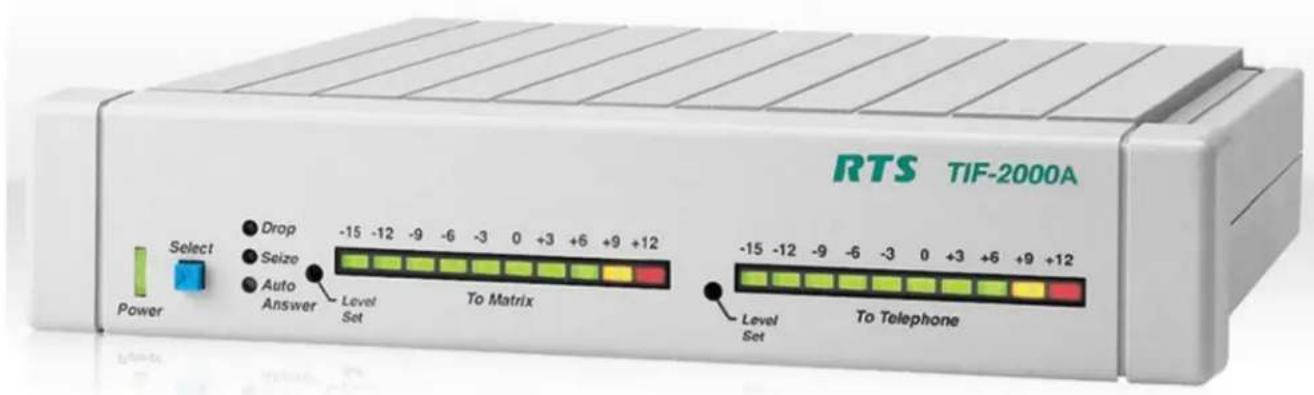
USER MANUAL TIF-2000A RTS
Digital Hybrid Telephone Line Interface
PROPRIETARY NOTICE
The product information and design disclosed herein were originated by and are the property of Bosch Security Systems, Inc. Bosch reserves all patent, proprietary design, manufacturing, reproduction, use and sales rights thereto, and to any article disclosed therein, except to the extent rights are expressly granted to others.
COPYRIGHT NOTICE
Copyright 2019 by Bosch Security Systems, Inc. All rights reserved. Reproduction, in whole or in part, without prior written permission from Bosch is prohibited.
*All other trademarks are property of their respective owners.
WARRANTY AND SERVICE INFORMATION
For warranty and service information, refer to the appropriate web site below:
RTS Intercoms ...... www.rtsintercoms.com/warranty
RTS Digital
RTSTW
AudioCom
RadioCom
Intercom Headsets
CUSTOMER SUPPORT
Technical questions should be directed to:
Customer Service Department
Bosch Security Systems, Inc.
http://www.rtsintercoms.com/support
DISCLAIMER
The manufacturer of the equipment described herein makes no expressed or implied warranty with respect to anything contained in this manual and shall not be held liable for any implied warranties of fitness for a particular application or for any indirect, special, or consequential damages. The information contained herein is subject to change without prior notice and shall not be construed as an expressed or implied commitment on the part of the manufacturer.
| CAUTIONRISK OF ELECTRIC SHOCKDO NOT OPEN | ||
| THE LIGITNINGFLASH ANDARROWHEADWITHIN THETRIANGLE IS AWARNING SIGNALERTING YOU OF“DANGEROUSVOLTAGE” INSIDE THE PRODUCT. | CAUTION: TO REDUCETHE RISK OF ELECTRICSHOCK, DO NOT REMOVECOVER. NO USER-SERVICEABLE PARTSINSIDE. REFERSERVICING TOQUALIFIED SERVICEPERSONNEL. | THE EXCLAMATIONPOINT WITHIN THETRIANGLE IS AWARNING SIGNALERTING YOU OFIMPORTANTINSTRUCTIONSACCOMPANYINGTHE PRODUCT. |
| SEE MARKING ON BOTTOM/BACK OF PRODUCT. | ||
WARNING: APPARATUS SHALL NOT BE EXPOSED TO DRIPPING OR SPLASHING AND NO OBJECTS FILLED WITH LIQUIDS, SUCH AS VASES, SHALL BE PLACED ON THE APPARATUS.
WARNING: THE MAIN POWER PLUG MUST REMAIN READILY OPERABLE.
CAUTION: TO REDUCE THE RISK OF ELECTRIC SHOCK, GROUNDING OF THE CENTER PIN OF THIS PLUG MUST BE MAINTAINED.
WARNING: TO REDUCE THE RISK OF FIRE OR ELECTRIC SHOCK, DO NOT EXPOSE THIS APPARATUS TO RAIN OR MOISTURE.
WARNING: TO PREVENT INJURY, THIS APPARATUS MUST BE SECURELY ATTACHED TO THE FLOOR/WALL/RACK IN ACCORDANCE WITH THE INSTALLATION INSTRUCTIONS.
| ~ | This product is AC only. |
| CE | |
WARNING: THIS IS A CLASS A PRODUCT. IN A DOMESTIC ENVIRONMENT THIS PRODUCT MAY CAUSE RADIO INTERFERENCE, IN WHICH CASE THE USER MAY BE REQUIRED TO TAKE ADEQUATE MEASURES.
Important Safety Instructions
- Read these instructions.
- Keep these instructions.
- Heed all warnings.
-
Follow all instructions.
-
Do not use this apparat us near water.
-
Clean only with dry cloth.
-
Do not block any ventilation openings. Install in accordance with the manufacturer's instructions.
-
Do not install near any heat sources such as radiators, heat registers, stoves, or other apparatus (including amplifiers) that produce heat.
-
Do not defeat the safety purpose of the polarized or grounding-type plug. A polarized plug has two blades with one wider than the other. A grounding type plug has two blades and a third grounding prong. The wide blade or the third prong are provided for your safety. If the provided plug does not fit into your outlet, consult an electrician for replacement of the obsolete outlet.
-
Protect the power cord from being walked on or pinched particularly at plugs, convenience receptacles, and the point where they exit from the apparatus.
-
Only use attachments/accessories specified by the manufacturer .
-
Use only with the cart, stand, tripod, bracket, or table speci fied by the manufacturer, or sold with the apparatus. When a cart is used, use caution when moving the cart/apparatus combination to avoid injury from tip-over.
-
Unplug this apparatus during lightning storms or when unused for 1 long periods of time.
-
Refer all servicing to qualified service personnel. Servicing is required when the apparatus has been damaged in any way, such as power-supply cord or plug is damaged, liquid has been spilled or objects have fallen into the apparatus, the apparatus has been exposed to rain or moisture, does not operate normally, or has been dropped.
Table
of
Contents
INTRODUCTION AND DESCRIPTION 7
Description 7
Front and Rear Panel Features 8
Specifications 9
Cabling 10
TIF to Phone 10
INSTALLATION AND OPERATION 11
Installation 11
Rear Panel DIP Switch (S201) 11
Auto-Answer 11
Generate Ring Signal 11
Password Required 12
Intercom Port Address 12
Full Duplex Mode 12
Internal DIP Switch (S202) 14
Ring Count 14
DTMF or Pulse Dial Selection ....14
Point-to-Point Seize 15
One Touch Dial 15
Fast Seize 16
DSP Full or Half Duplex Selection 16
Audio Ducking 16
Internal DIP Switch (S203) 16
Rack Mounting 17
Connections 18
Intercom 18
Power Supply 18
Setting Audio Levels 19
Setting Audio Levels To Intercom Matrix 19
Setting Audio Levels to Telephone Lines 20
Configuring for Country's Telephone System 20
Operation 21
Operation From a Keypanel 21
Programming a Key to Use the TIF-2000A 21
Dialing a Call 22
Hanging Up 22
Re-dialing the Last Number 23
Dialing a Speed Dial Number 23
Storing a Speed Dial Number 23
Answering a Call 23
TIF-2000A System Setup To Receive Calls 24
6 TIF-2000A
Auto-Answer Mode 24
Manual Answer Mode 24
Using the TIF-2000A From the Telephone 25
DTMF Codes 26
Telephone Interface Requirements Form October 2012 ...... 27
This manual describes the installation, programming, and operating procedures for the RTS Model TIF2000A Digital Hybrid Telephone Line Interface. Since TIF2000A functions as a keypanel, the user may also need to refer to the manuals and/or the AZedit online help files for information on configuring certain features.
NOTE: Be sure to review any recently added supplemental information before proceeding. Supplements are placed at the back of the manual.
Description
The TIF2000A is a single line digital hybrid telephone line interface designed to be compatible with ADAM Series, Zeus Series Intercom systems and Cronus Intercom systems. It provides bi-directional communication between the intercom matrix and a standard DTMF capable telephone line. It allows the phone to access all crosspoints of the matrix, as well as dynamic party lines, IFB circuits, and other forms of communications. The 1RU high by 1/2 wide rack-mountable (via an optional kit) TIF2000A provides a transparent line to the telephone system enabling full dial-out capability from any designated keypanel with keypad. The TIF2000A has full dial-in capability giving the caller a keypanel on the system via commands from the DTMF pad on their telephone. Since the TIF2000A appears to the matrix as any other keypanel would, the only limitation on the number of units in the system is the same as for other keypanels.
Front and Rear Panel Features
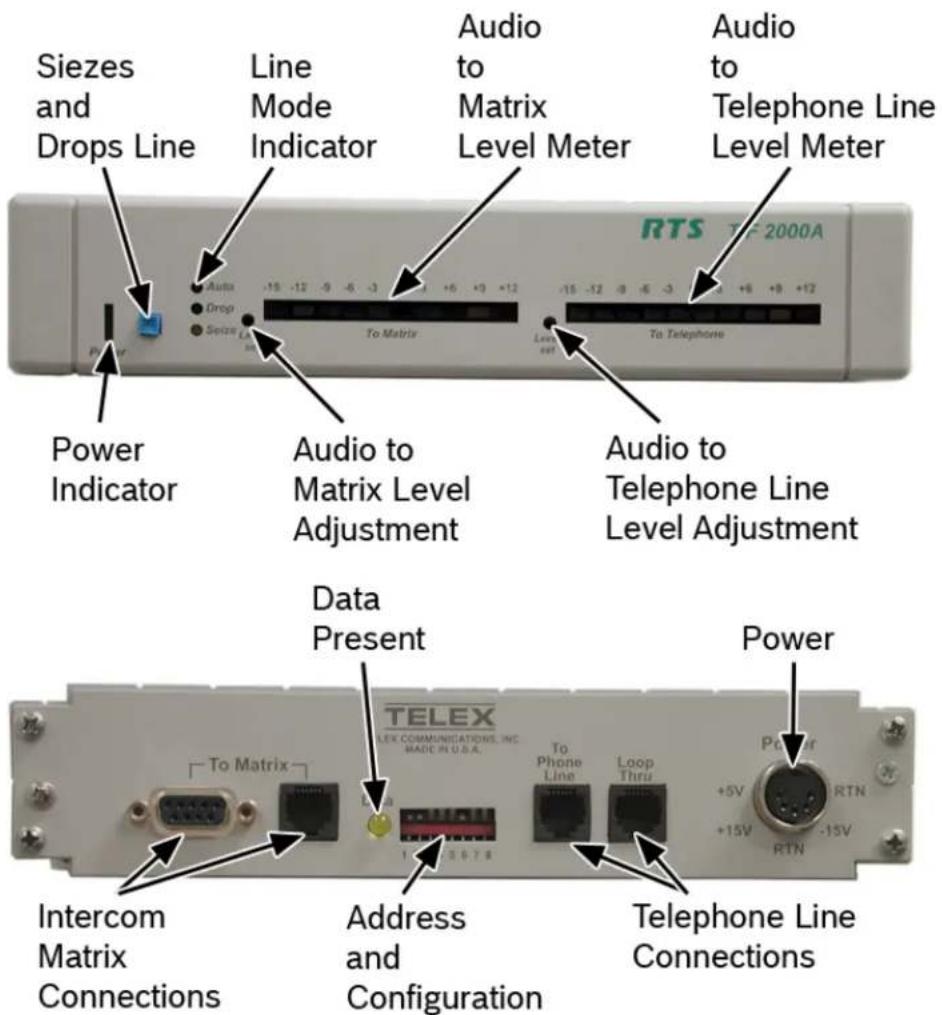
FIGURE 1. TIF2000A Reference View
Specifications
Matrix Input/Output:
0dBu to ±20dBu
Telephone Input/Output:
-30dBu to +6dBu
Noise (200 Hz to 3.8 kHz):
-40dBu or less
Harmonic Distortion (300Hz to 3.8kHz):
Intercom Side: -30dBu or less
Telephone Side: -25dBu or less
Frequency Response:
300Hz to 3.8kHz +0dB, -6dB
Matrix Connectors:
DE-9S Female
RJ-12 Female
Telephone Line Connector:
RJ11 Female
Telephone Loop-Thru Connector:
RJ11 Female
Power Requirements:
100-240VAC, 50/60Hz, 1A
Environmental:
Operating Temperature -0°C to 50°C
Storage Temperature - -20°C to 75°C
Humidity (Operating and Storage) - 0-95%, non-condensing
Dimensions:
1.72" (44mm) H x 8.19" (208mm) W x 8" (203mm) D
Finish:
Thermoplastic front panel, aluminum case and rear panel, light gray finish
Agency Compliance:
Emissions (Class A):
KN 32 NRRA Notice 2017-19 (2017.12.28)
EN 55032: 2012/AC:2013
AS/NZS CISPR 32: 2015
VCCI 32-1
ICES-003: 2016
FCC Part 15 subpart B
CNS 13438: 2006
Immunity:
EN 55024: 2010+A1:2015
EN 55035 2017
KN 35
Safety:
UL 60950-1, 2nd Edition, 2014-10-14
CAN/CSA C22.2 No. 60950-1-07, 2nd
Edition, 2014-10
EN 60950-1:2006/A11:2009/A1:2010/
A12:2011/A2:2013
IEC 60950-1:2005 2nd Ed, Am1:2009/
Am2:2013
UL 62368-1, 2nd Ed, 2014-12-01
CAN/CSA C22.2 No. 62368-1-14,2nd Ed
EN 62368-1:2014+A11:2017
IEC 62368-1:2014 2nd Ed.
Telephone Network:
TIA/EIA/IS-968 (2002)
FCC CFR 47, Part 68
TBR-21 (14 April 2009)
Specifications subject to change without notice!
Cabling
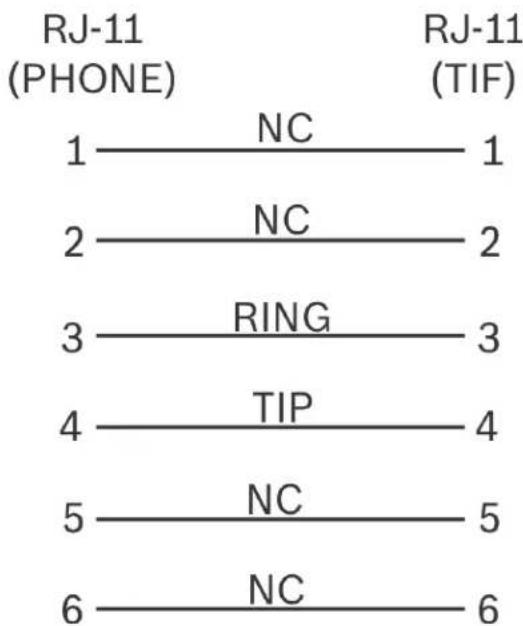
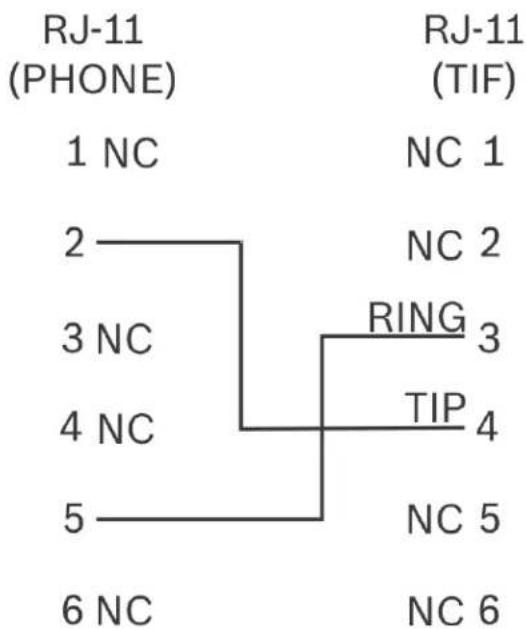
TIF to Phone
flowchart
graph LR
    A["RJ-11 (PHONE)"] --> B["1"]
    B --> C["NC"]
    C --> D["1"]
    E["RJ-11 (TIF)"] --> F["2"]
    F --> G["NC"]
    G --> H["2"]
    I["RING"] --> J["3"]
    J --> K["3"]
    L["TIP"] --> M["4"]
    M --> N["4"]
    O["NC"] --> P["5"]
    Q["NC"] --> R["6"]
FIGURE 2. Phone to TIF-2000A Cable (US)
flowchart
graph TD
    A["RJ-11 (PHONE)"] -->|1 NC| B["2"]
    A -->|3 NC| C["4 NC"]
    A -->|5 NC| D["6 NC"]
    E["RJ-11 (TIF)"] -->|NC 1| F["RING"]
    E -->|NC 2| F
    E -->|TIP 4| F
    E -->|NC 5| F
    E -->|NC 6| F
FIGURE 3. Phone to TIF-2000A Cable (UK)
Installation
Rear Panel DIP Switch (S201)
The rear panel DIP switch contains switches to configure the most often change options. These include:
- auto-answer on/off
- ring signal on/off
- password on/off
- intercom port address
- full-duplex mode
Auto-Answer
Turning on the auto-answer option sets the unit to answer the phone automatically when it rings. The number of rings required before it answers is determined by the setting of internal DIP switch S202. If auto-answer is turned off, the line rings until someone at a keypanel answers the call or until the Select button on the TIF2000A's front panel is pressed.
To turn on auto-answer, do the following:
Place switch 1 in the down position.
To turn off auto-answer, do the following:
Place switch 1 in the up position.
Generate Ring Signal
Turning on the generate ring signal option sets the unit so that when the phone line is ringing, keypanels that are configured to receive ring signals produces an audible ring.
To turn on the ring signal, do the following:
Place switch 2 in the down position.
To turn off the ring signal, do the following:
Place switch 2 in the up position.
Password Required
Turning on the password required option sets the unit so that when a call is automatically answered, the user must enter a password via DTMF before the unit allows communications. The password numeric sequence and length are determined by the settings of intercom DIP switch S203.
To turn on the password required option, do the following:
Place switch 3 in the down position.
To turn off the password required options, do the following:
Place switch 3 in the up position.
Intercom Port Address
Switches 4 to 7 determine the address of the unit. The port address is expressed in binary with switch 4 being the LSB (Least Significant Bit) and switch 7 being the MSB (Most Significant Bit). To turn on (set bit to 1), place the desired switch in the down position. To turn off (set bit to 0), place the desired switch in the up position. ADAM and Zeus systems use a 1-8 address scheme for their ports (e.g., ports 1-8 have addresses 1-8, ports 9-16 have addresses 1-8, etc.).
To set the address for ADAM or Zeus systems, do the following:
- Determine the port number used for the TIF2000A.
- Locate the port number and its corresponding address in Table 1 on page 13.
- Determine the DIP switch settings by looking up the address determined in the previous step in Table 2 on page 13.
- Set the DIP switches on the back of the unit.
Full Duplex Mode
Switch 8 (S201) controls the method by which full-duplex operation is implemented in the unit. This switch only works if full-duplex mode is set via internal DIP switch S202, switch 7. (Factory default setting for switch 7 is off, Full-Duplex Mode.) If switch 8 is in the up position, then the unit is forced into full-duplex mode all the time. If switch 8 is in the down position, then the unit is forced into full-duplex mode only when audio is present.
When using full-duplex mode, users may hear an increased amount of echo on the line. This may be more pronounced when the TIF2000A is forced into full-duplex mode all of the time (switch 8 up) rather than only when audio is present (switch 8 down).
TABLE 1. Correspondence between address numbers and intercom port numbers for ADAM and Zeus systems
| Address | Card Numbers (bold headings) and Port Numbers | |||||||||||||||||||||||||||||||||||||||||
| Cards 1 - 25 | ||||||||||||||||||||||||||||||||||||||||||
| 1 | 2 | 3 | 4 | 5 | 6 | 7 | 8 | 9 | 10 | 11 | 12 | 13 | 14 | 15 | 16 | 17 | 18 | 19 | 20 | 21 | 22 | 23 | 24 | 25 | ||||||||||||||||||
| 1 | 1 | 9 | 17 | 25 | 33 | 41 | 49 | 57 | 65 | 73 | 81 | 89 | 97 | 105 | 113 | 121 | 129 | 137 | 145 | 153 | ||||||||||||||||||||||
| 2 | 2 | 10 | 18 | 26 | 34 | 42 | 50 | 58 | 66 | 74 | 82 | 90 | 98 | 106 | 114 | 122 | 130 | 138 | 146 | 154 | ||||||||||||||||||||||
| 3 | 3 | 11 | 19 | 27 | 35 | 43 | 51 | 59 | 67 | 75 | 83 | 91 | 99 | 107 | 115 | 123 | 131 | 139 | 147 | 155 | 163 | |||||||||||||||||||||
| 4 | 4 | 12 | 20 | 28 | 36 | 44 | 52 | 60 | 68 | 76 | 84 | 92 | 100 | 108 | 116 | 124 | 132 | 140 | 148 | 156 | 164 | |||||||||||||||||||||
| 5 | 5 | 13 | 21 | 29 | 37 | 45 | 53 | 61 | 69 | 77 | 85 | 93 | 101 | 109 | 117 | 125 | 133 | 141 | 149 | 157 | 165 | |||||||||||||||||||||
| 6 | 6 | 14 | 22 | 30 | 38 | 46 | 54 | 62 | 70 | 78 | 86 | 94 | 102 | 110 | 118 | 126 | 134 | 142 | 150 | 158 | 166 | |||||||||||||||||||||
| 7 | 7 | 15 | 23 | 31 | 39 | 47 | 55 | 63 | 71 | 79 | 87 | 95 | 103 | 111 | 119 | 127 | 135 | 143 | 151 | 159 | 167 | |||||||||||||||||||||
| 8 | 8 | 16 | 24 | 32 | 40 | 48 | 56 | 64 | 72 | 80 | 88 | 96 | 104 | 112 | 120 | 128 | 136 | 144 | 152 | 160 | 168 | |||||||||||||||||||||
| Cards 26 - 50 | ||||||||||||||||||||||||||||||||||||||||||
| 26 | 27 | 28 | 29 | 30 | 31 | 32 | 33 | 34 | 35 | 36 | 37 | 38 | 39 | 40 | 41 | 42 | 43 | 44 | 45 | 46 | ||||||||||||||||||||||
| 1 201 209 | 217 | 225 | 233 | 241 | 249 | 257 | 265 | 273 | 281 | 289 | 297 | 305 | 313 | 321 | 329 | 337 | 345 | 353 | 361 | 369 | ||||||||||||||||||||||
| 2 | 202 | 210 | 218 | 226 | 234 | 242 | 250 | 258 | 266 | 274 | 282 | 290 | 298 | 306 | 314 | 322 | 330 | 338 | 346 | 354 | 362 | |||||||||||||||||||||
| 3 | 203 | 211 | 219 | 227 | 235 | 243 | 251 | 259 | 267 | 275 | 283 | 291 | 299 | 307 | 315 | 323 | 331 | 339 | 347 | 355 | 363 | |||||||||||||||||||||
| 4 | 204 | 212 | 220 | 228 | 236 | 244 | 252 | 260 | 268 | 276 | 284 | 292 | 300 | 308 | 316 | 324 | 332 | 340 | 348 | 356 | 364 | |||||||||||||||||||||
| 5 | 205 | 213 | 221 | 229 | 237 | 245 | 253 | 261 | 269 | 277 | 285 | 293 | 301 | 309 | 317 | 325 | 333 | 341 | 349 | 357 | 365 | |||||||||||||||||||||
| 6 206 214 | 222 | 230 | 238 | 246 | 254 | 262 | 270 | 278 | 286 | 294 | 302 | 310 | 318 | 326 | 334 | 342 | 350 | 358 | 366 | 374 | 382 | 390 | 398 | |||||||||||||||||||
| 7 | 207 | 215 | 223 | 231 | 239 | 247 | 255 | 263 | 271 | 279 | 287 | 295 | 303 | 311 | 319 | 327 | 335 | 343 | 351 | 359 | 367 | |||||||||||||||||||||
| 8 | 208 | 216 | 224 | 232 | 240 | 248 | 256 | 264 | 272 | 280 | 288 | 296 | 304 | 312 | 320 | 328 | 336 | 344 | 352 | 360 | 368 | |||||||||||||||||||||
| Cards 51 - 75 | ||||||||||||||||||||||||||||||||||||||||||
| 51 | 52 | 53 | 54 | 55 | 56 | 57 | 58 | 59 | 60 | 61 | 62 | 63 | 64 | 65 | 66 | 67 | 68 | 69 | 70 | 71 | ||||||||||||||||||||||
| 1 | 401 | 409 | 417 | 425 | 433 | 441 | 449 | 457 | 465 | 473 | 481 | 489 | 497 | 505 | 513 | 521 | 529 | 537 | 545 | 553 | 561 | |||||||||||||||||||||
| 2 402 410 | 418 | 426 | 434 | 444 | 450 | 458 | 466 | 474 | 482 | 490 | 498 | 506 | 514 | 522 | 530 | 538 | 546 | 554 | 562 | 570 | 578 | 586 | 594 | |||||||||||||||||||
| 3 | 403 | 411 | 419 | 427 | 435 | 443 | 451 | 459 | 467 | 475 | 483 | 491 | 499 | 507 | 515 | 523 | 531 | 539 | 547 | 555 | 563 | |||||||||||||||||||||
| 4 | 404 | 412 | 420 | 428 | 436 | 444 | 452 | 460 | 468 | 476 | 484 | 492 | 500 | 508 | 516 | 524 | 532 | 540 | 548 | 556 | 564 | |||||||||||||||||||||
| 5 | 405 | 413 | 421 | 429 | 437 | 445 | 453 | 461 | 469 | 477 | 485 | 493 | 501 | 509 | 517 | 525 | 533 | 541 | 549 | 557 | 565 | |||||||||||||||||||||
| 6 | 406 | 414 | 422 | 430 | 438 | 446 | 454 | 462 | 470 | 478 | 486 | 494 | 502 | 510 | 518 | 526 | 534 | 542 | 550 | 558 | 566 | |||||||||||||||||||||
| 7 407 415 | 423 | 431 | 439 | 444 | 455 | 463 | 471 | 479 | 487 | 495 | 503 | 511 | 519 | 527 | 535 | 543 | 551 | 559 | 567 | 575 | 583 | 587 | ||||||||||||||||||||
| 8 | 408 | 416 | 424 | 432 | 440 | 448 | 456 | 464 | 472 | 480 | 488 | 496 | 504 | 512 | 520 | 528 | 536 | 544 | 552 | 560 | 568 | 576 | ||||||||||||||||||||
| Cards 76 - 100 | ||||||||||||||||||||||||||||||||||||||||||
| 76 | 77 | 78 | 79 | 80 | 81 | 82 | 83 | 84 | 85 | 86 | 87 | 88 | 89 | 90 | 91 | 92 | 93 | 94 | 95 | 96 | ||||||||||||||||||||||
| 1 | 601 | 609 | 617 | 625 | 633 | 641 | 649 | 657 | 665 | 673 | 681 | 689 | 697 | 705 | 713 | 721 | 729 | 737 | 745 | 753 | 761 | |||||||||||||||||||||
| 2 | 602 | 610 | 618 | 626 | 634 | 642 | 650 | 658 | 666 | 674 | 682 | 690 | 698 | 706 | 714 | 722 | 730 | 738 | 746 | 754 | 762 | |||||||||||||||||||||
| 3 | 603 | 611 | 619 | 627 | 635 | 643 | 651 | 659 | 667 | 675 | 683 | 691 | 699 | 707 | 715 | 723 | 731 | 739 | 747 | 755 | 763 | |||||||||||||||||||||
| 4 | 604 | 612 | 620 | 628 | 636 | 644 | 652 | 660 | 668 | 676 | 684 | 692 | 700 | 708 | 716 | 724 | 732 | 740 | 748 | 756 | 764 | |||||||||||||||||||||
| 5 | 605 | 613 | 621 | 629 | 637 | 645 | 653 | 661 | 669 | 677 | 685 | 693 | 701 | 709 | 717 | 725 | 733 | 741 | 749 | 757 | 765 | |||||||||||||||||||||
| 6 | 606 | 614 | 622 | 630 | 638 | 646 | 654 | 662 | 670 | 678 | 686 | 694 | 702 | 710 | 718 | 726 | 734 | 742 | 750 | 758 | 766 | |||||||||||||||||||||
| 7 | 607 | 615 | 623 | 631 | 639 | 647 | 655 | 663 | 671 | 679 | 687 | 695 | 703 | 711 | 719 | 727 | 735 | 743 | 751 | 759 | 767 | |||||||||||||||||||||
| 8 | 608 | 616 | 624 | 632 | 640 | 648 | 656 | 664 | 672 | 680 | 688 | 696 | 704 | 712 | 720 | 728 | 736 | 744 | 752 | 760 | 768 | |||||||||||||||||||||
TABLE 2. Address DIP Switch Settings
| Logical Keypanel Number | DIP Switch Settings | |||
| SW4 SW5 SW6 SW7 | ||||
| 1 down | up | up | up | |
| 2 | up | down | up | up |
| 3 | down | down | up | up |
| 4 | up | up | down | up |
TABLE 2. Address DIP Switch Settings
| Logical Keypanel Number | DIP Switch Settings | |||
| SW4 SW5 SW6 SW7 | ||||
| 5 down up down up | ||||
| 6 up down down up | ||||
| 7 down down down up | ||||
| 8 up up up | down | |||
| 9 down up up down | ||||
| 10 up down up down | ||||
| NOTE: Shaded area is for CS9xxx system address only. | ||||
Internal DIP Switch (S202)
Internal DIP switch (see Figure 3 on page 8) is accessed by removing the top cover. To remove the top cover, remove and loosen the screws, as indicated in Figure 4. Remove the cover by lifting up on the back portion of the cover. To reinstall the cover, place the front portion into the grooves on the bottom cover and slid the cover toward the front of the unit while lowering the back of the cover. Replace and tighten the screws that were removed or loosened as indicated in Figure 4 on page 14.
Ring Count
Switches 1 and 2 determine the number of rings before the unit answers. Not, the ring count is approximate. These switches have no effect unless switch 1 on the rear panel DIP switch bank is in the down position. To set the ring count, see Table 3 on page 15.
DTMF or Pulse Dial Selection
Switch 3 sets the dialing mode to either DTMF (Dual Tone Multi-Frequency) or pulse. When the switch is in the off position, DTMF dialing is selected. When the switch is in the on position, pulse dialing is selected.
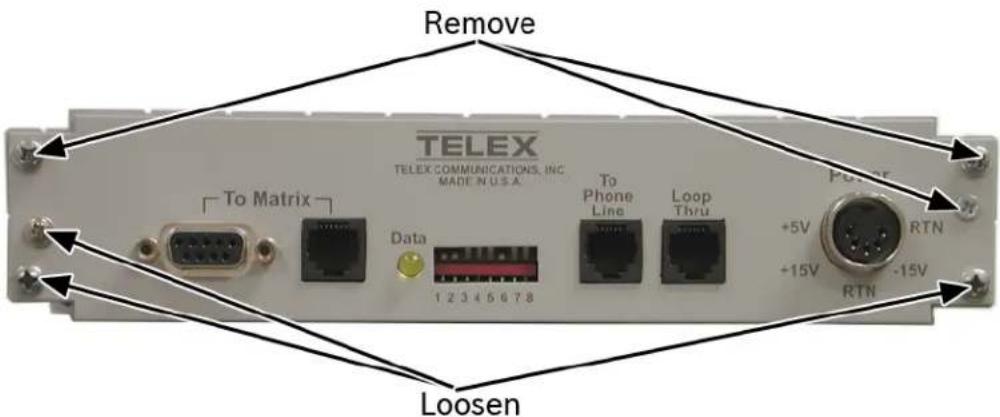
FIGURE 4. Screw Placement On The Back Panel
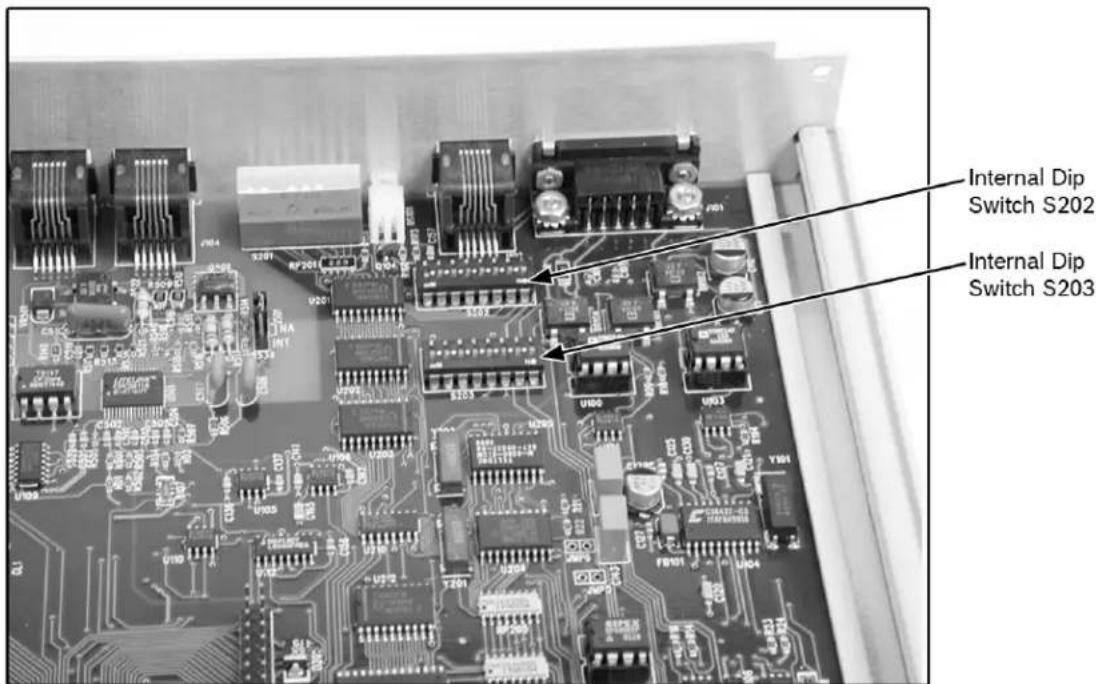
FIGURE 5. Internal DIP Switch Locations
TABLE 3. Ring Count Settings
| # of Rings SW1 SW2 | ||
| 1 off off | ||
| 2 on off | ||
| 4 off on | ||
| 8 on on |
Point-to-Point Seize
Switch 4 turns on and off the point-to-point feature. When the switch is in the off position, normal line seize operation (via a keypanel) is selected. When the switch is in the on position, a line is seized immediately upon the designated TIF2000A's talk key being pressed via the keypanel.
One Touch Dial
Switch 5 enables/disables the One Touch Dialing feature. When the switch is in the off position, one touch dialing is disabled. When the switch is in the on position, one touch dialing is enabled.
One touch dialing works as follows - If a number is stored in auto-dial memory 1 on the TIF2000A, and the line is on hook, the TIF2000A auto-dials the number stored in the auto-dial memory1 whenever any keypanel closes a point-to-point talk key to the TIF-2000A.
Fast Seize
Switch 6 enables/disables the Fast Seize feature. If the switch is in the off position, Fast Seize is disabled. If the switch is in the on position, Fast Seize is enabled. If Fast Seize is enabled and the unit is set to auto-answer, then the TIF2000A answers or seize the line at the start of the first ring. It is important to note a ring is not heard on any of the keypanels.
DSP Full or Half Duplex Selection
Switch 7 determines either full-duplex or half-duplex operation. If the switch is set to the off (factory default) position, the DSP is forced into full-duplex mode as determined by the setting of switch 8 on the DIP switch bank located on the rear panel of the TIF2000A. If the switch is set to the on position, the DSP is never forced into full-duplex mode.
Audio Ducking
Switch 8 enables/disables the Audio Ducking feature. If the switch is set to the off position, audio ducking is disabled. If the switch is set to the on position, audio ducking is enabled. The audio ducking feature helps to eliminate feedback between the intercom system and the telephone.
Internal DIP Switch (S203)
Internal DIP Switch (S203) selects the password and call progress IC type. Switch 6 must be set to match the type of Call Progress IC installed in the unit at location U204. The switch is preset at the factory in the Open position if the IC installed at location U204 is a M-985-01 or in the Closed position, if an M-982-02 is installed at location U204. Switch 6 is also part of the password, if a password is required. When password required is enabled, the password must be entered via DTMF by the caller before they may communicate. This is to prevent unauthorized use of the intercom by callers. See Table 4 on page 16 and Table 5 on page 18.
Switches 7 and 8 select the length of the password, from 1 to 4 digits long. If set for 1 digit, only the first digit of the password is used, if set for 2 digits, then the first 2 digits are used, etc.
TABLE 4. Password Configuration
| PW Length SW7 SW8 | |
| 4 off off | |
| 3 on off | |
| 2 off on | |
| 1 on on |
Rack Mounting
There are two (2) options for rack mounting the TIF2000A. If a single unit is to be rack mounted, attach an MCP-2 rack mount kit. If two (2) units are to be mounted side-by-side, attach an MCP-1 rack mount kit. See Figure 6 for a depiction of the two (2) rack mount kits.
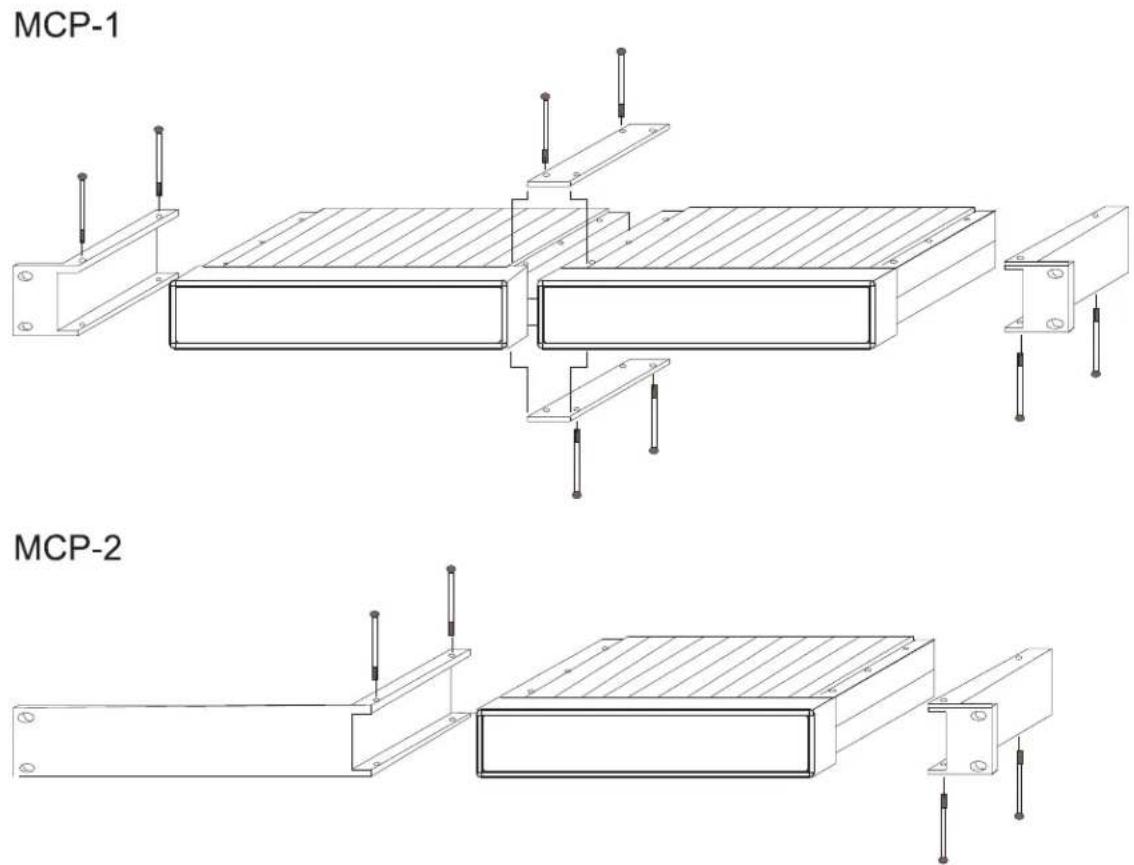
FIGURE 6. Rack Mount Kits
Connections
Intercom
Use either of the To Matrix connectors (but not both) to connect to an intercom port. The intercom port you connect to determines the address of the unit (see “Intercom Port Address” on page 12). Cable wiring diagrams are shown in Figure 7 and Figure 8. An LED labeled DATA is located next to the Matrix connectors and serves as a basic indicator of data flow.
There are two telephone connections provided on the rear of the TIF2000A. Plug the telephone line into the jack labeled To Matrix Phone Line. You may also plug a standard telephone into the jack labeled Loop Thru.
NOTE: The standard telephone plugged into the Loop Thru jack is disconnected when the TIF2000A switches the telephone line.
Power Supply
To connect the power supply, do the following:
- Insert the round connector from the brick type power supply into the power connector on the rear of the TIF2000A.
- Turn the locking ring on the connector to secure the connection.
- Plug the female end of the IEC type power cord into the power supply.
- Plug the other end into an appropriate power outlet.
TABLE 5. Password Settings
| Password | SW1 | SW2 | SW3 | SW4 | SW5 | SW6 |
| 4,7,8,8 off | off off | off off off | ||||
| 7,7,7,7 on | off off | off off off | ||||
| 4,6,8,7 off | on off | off off off | ||||
| 1,0,5,8 on | on off | off off off | ||||
| 1,4,8,4 off | off on | off off off | ||||
| 7,0,3,3 on | off on | off off off | ||||
| 5,9,0,7 off | on on | off off off | ||||
| 0,9,3,5 on | on on | off off off | ||||
| 3,7,8,0 off | off off | on off off | ||||
| 1,4,5,0 on | off off | on off off | ||||
| 6,9,2,7 off | on off | on off off | ||||
| 8,3,0,3 on | on off | on off off | ||||
| 8,3,3,6 off | off on | on off off | ||||
| 6,0,8,0 on | off on | on off off | ||||
| 2,9,5,7 off | on on | on off off | ||||
| 5,8,5,1 on | on on | on off off | ||||
| 9,5,9,9 off | off off | off on off | ||||
| 8,2,0,6 on | off off | off on off | ||||
| 4,7,4,0 off | on off | off on off | ||||
| 4,5,7,3 on | on off | off on off | ||||
| 8,8,3,0 off | off on | off on off |
TABLE 5. Password Settings
| Password | SW1 | SW2 | SW3 | SW4 | SW5 | SW6 | ||
| 0,6,2,0 | on | off | on | off | on | off | ||
| 3,3,3,9 | off | on | on | off | on | off | ||
| 9,8,5,0 | on | on | on | off | on | off | ||
| 7,3,5,6 | off | off | off | on | on | off | ||
| 9,1,4,6 | on | off | off | on | on | off | ||
| 9,9,9,1 | off | on | off | on | on | off | ||
| 3,8,8,1 | on | on | off | on | on | off | ||
| 4,2,4,0 | off | off | on | on | on | off | ||
| 1,0,6,3 | on | off | on | on | on | off | ||
| 8,6,3,2 | off | on | on | on | on | off | ||
| 4,2,3,4 | on | on | on | on | on | off | ||
| 0,8,5,1 | off | off | off | off | off | off | ||
| 0,6,7,4 | on | off | off | off | off | off | ||
| 0,0,1,5 | off | on | off | off | off | off | ||
| 6,2,9,4 | on | on | off | off | off | off | ||
| 9,9,5,4 | off | off | on | off | off | off | ||
| 1,0,7,9 | on | off | on | off | off | off | ||
| 9,0,3,0 | off | on | on | off | off | off | ||
| 0,1,6,6 | on | on | on | off | off | off | ||
| 9,5,5,6 | off | off | off | on | off | off | ||
| 8,0,5,4 | on | off | off | on | off | off | ||
| 6,2,9,3 | off | on | off | on | off | off | ||
| 6,6,1,1 | on | on | off | on | off | off | ||
| 6,3,6,7 | off | off | on | on | off | off | ||
| 1,5,2,9 | on | off | on | on | off | off | ||
| 2,7,5,6 | off | on | on | on | off | off | ||
| 8,3,1,3 | on | on | on | on | off | off | ||
| 1,6,5,6 | off | off | off | off | off | off | ||
| 7,6,4,2 | on | off | off | off | off | off | ||
| 1,6,5,3 | off | on | off | off | off | off | ||
| 1,6,0,3 | on | on | off | off | off | off | ||
| 4,3,7,3 | off | off | off | off | off | off | ||
| 3,5,7,4 | on | off | on | off | on | off | ||
| 4,7,6,4 | off | on | on | off | on | off | ||
| 3,8,6,8 | on | on | on | off | on | off | ||
| 5,7,1,9 | off | off | off | on | on | off | ||
| 3,9,2,7 | on | off | off | off | ||||
| 6,8,5,7 | off | on | off | on | on | off | ||
| 5,4,8,7 | on | on | off | on | on | off | ||
| 3,2,5,2 | off | off | on | on | on | off | ||
| 0,4,0,1 | on | off | on | on | on | off | ||
| 6,4,0,9 | off | on | on | on | on | off | ||
| 4,3,4,3 | on | on | on | on | on | off |
Setting Audio Levels
Audio levels to the intercom matrix and to the telephone line can be adjusted via the trim pots located on the front panel.
Setting Audio Levels To Intercom Matrix
Adjustment may be made via the front panel control (see Figure 1). To adjust the control use a small flat blade screw driver or trim pot adjustment tool. Initially, set the front panel level control for mid-range. Have the caller talk at their normal level and adjust the control for the best audio quality while avoiding going into the red section of the audio meter (to Matrix) located on the front panel.
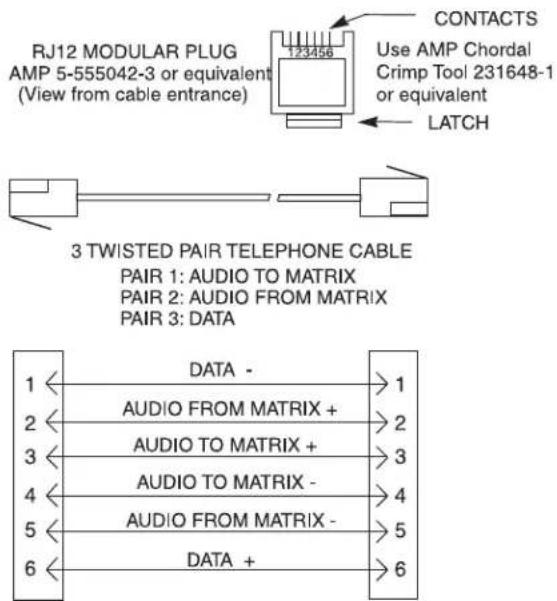
FIGURE 7. RJ-12 Intercom Cable
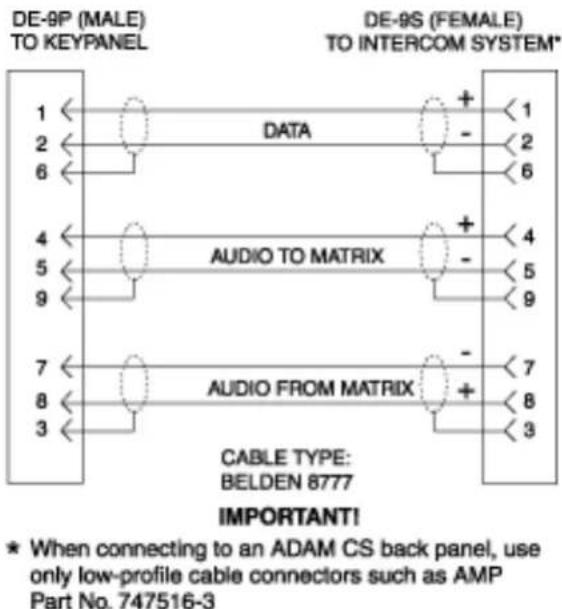
FIGURE 8. DE9 Intercom Cable
Setting Audio Levels to Telephone Lines
Adjustment may be made via the front panel control (see Figure 1). To adjust the control use a small flat blade screw driver or trim pot adjustment tool. Initially set the front panel level control for mid-range. Talk at your normal level and adjust the control for the best audio quality while avoiding going into the red section of the audio meter (to Telephone) located on the front panel.
Configuring for Country's Telephone System
The TIF2000A should be configured to work with the telephone system to which it is connected. Each country or area of the world has unique signalling differences that could cause erratic operation of the TIF2000A if it is not properly configured. If the system you intend to connect is not currently supported, you may request a configuration using the form located in the back of this manual.
To configure the unit for use with a specific country's telephone system, do the following:
NOTE: A Zedit must be configured to allow firmware downloads.
- Connect the TIF-2000A to the intercom system.
- Run AZedit and go to the Keypanel Software Versions window (Status|Software Versions|Keypanels).
- Click the entry for the TIF-2000A you wish to configure.
NOTE: Configurations are in a self-extracting archive on AZedit software cd.
-
Extract and copy these files to a known location on the computer connected to the intercom matrix.
-
Press Ctrl+Shift+D to start the software download process. A download screen appears.
-
Select the location you copied the files to in step 4 and select the file corresponding to the country needed.
-
Click OK. Once the software versions window appears, the process is complete.
The status reported for the TIF-2000A contains a number corresponding to the country configuration. This is reported as LOCALE=XX, where XX is a specific number for each country. The possible configurations are:
TABLE 6. Country Codes
| LOCALE # Country or Countries | |
| 0 North America, Korea, Taiwan | |
| 1 Belgium | |
| 2 France | |
| 3 Germany | |
| 4 United Kingdom (UK) | |
| 5 Italy | |
| 6 Japan | |
| 7 Netherlands | |
| 8 Norway | |
| 9 Not Used | |
| 10 Singapore | |
| 11 Brazil, Sweden | |
| 12 Ireland | |
| CUST Custom Configuration | |
Operation
Operation From a Keypanel
The TIF-2000A is operated from the intercom keypanels, and from the dial pad on the telephone at the remote end of the line. Any keypanel with a keypad may use a TIF-2000A. All that is necessary is to program a key to talk to the TIF-2000A, as if it were a keypanel. The alpha numeric display or tally LED for that key then provides information about the phone line. A solid display or non-illuminated LED indicates a line which is not in use. A slow flash indicates a line which is in use (off-hook). A rapidly flashing display or LED indicates a line which is ringing. In addition, the alpha numeric display shows digits as they are dialed, and the LED flashes for each digit.
NOTE: Displayed tallies are different if the Don't Generate Tallies for TIF For Trunk Use option has been selected in Options|Intercom Configuration|Options.
Programming a Key to Use the TIF-2000A
To use the TIF-2000A, either to answer a call, or to call out, you first need to program a key to talk to the TIF-2000A. This is accomplished in the same manner as programming a key to talk to a keypanel. To program a key by port number, enter NUM-nnn_PGM-t, where NUM is the number 1 key, nnn is the port number of the TIF-2000A you want to use, and t is any talk key. You also need to use the listen key, so it should be assigned as either AF (auto-follow) or AL (auto-listen).
NOTE: The TIF-2000A only responds to commands which are sent via a point-to-point key assignment. If you wish to use the TIF-2000A primarily on a PL, you must add a point-to-point assignment as the L2 talk assignment on the talk key for any panels which are going to either answer the line, or dial out on the line.
Dialing a Call
To dial a call on the TIF-2000A using a KP-32, do the following:
- Press the listen key for the line you wish to dial on. This allows you to hear dial tone, and your DTMF dialing tones.
-
Enter dial mode by entering PHONE-PGM-T. PHONE is the 4 button on the keypad. PGM is on the keypad, and T is the talk key which is programmed to talk to the TIF-2000A you are dialing on. Leave the talk key in the latched position as you dial the number.
-
Dial the number. As you enter each digit, it appears in the alpha display above the key you are dialing on. If the listen key is latched, you hear each DTMF tone as it is generated.
-
When you have completed dialing, momentarily turn off the talk key to exit dial mode. The alpha numeric display reverts to normal, and you may use the key and keypad in the normal manner.
NOTE: Digits 0-9 generate the DTMF digits 0-9. PGM generates the #, and CLR generate * (# and * are displayed for these keys). It is necessary to press CLR twice if you wish to generate an *, as a single CLR is used to trigger the speed dial and redial features.
To dial a call on the TIF-2000A using a KP-12 or KP-32, do the following:
- Tap the phone key to begin your call. This places the keypanel in dial mode: the CALL indicator turns on, and the MAN DIAL (manual dial) displays in the call waiting window. You should also hear the dial tone.
NOTE: You can hang up the phone line at this time by simply tapping the phone key again.
-
Tap SEL (select) to select MAN DIAL. The twelve intercom keys can now be used to dial a telephone number. Each key corresponds to the number printed next to it on the front of the panel. If the keypanel has alphanumeric displays, the key numbers are displayed above each key.
-
Begin dialing the number by tapping the appropriate keys. After you dial the first digit, END DIAL appears in the call waiting window.
-
When you have completed the dialing, tap SEL to select END DIAL. This returns the keypanel to normal operating mode. If the called party answers, proceed with your conversation.
Hanging Up
The TIF-2000A detects if the call at the far end has hung up under most circumstances. It detects the hang up by either loop interrupt, battery reversal, or the presence of a dial tone or busy signal. Some telephone systems do not provide any of the above, so it is necessary to force a hang up. In addition, if the call was placed to an auto-answer device, it is necessary to force a hang up when the call is complete.
Enter PHONE-CLR-T, where PHONE is the 4 on the keypad, CLR is the CLR button, and T is the talk key which is programmed to talk to the TIF-2000A which you want to hang up. This disconnects the line for which you struck the talk key.
NOTE: If talk is in the on position, you must turn off the key, then momentarily turn it on again to indicate which line you wish to disconnect. If the line is in dialing mode, then you must first exit dialing mode by turning off the key, then use PHONE-CLR-T to hang up.
Re-dialing the Last Number
The TIF-2000A remembers the last number which it has dialed.
To redial the last number, do the following:
- Enter dialing mode by following instructions for dialing a call.
-
Enter CLR-0-0.
The TIF-2000A automatically redials the last number it dialed. -
Momentarily release the talk key to exit dialing mode.
EXAMPLE: If you have a call to 818.556.6700 and you are disconnected, issuing the redial command reestablishes the call. The redial command may be issued from any keypanel in the intercom, not just the keypanel that originally dialed the call.
Dialing a Speed Dial Number
The TIF-2000A has 24 internal memories for storing frequently used phone numbers.
To dial one of these numbers, do the following:
- Enter Dial mode.
- Enter CLR-nn, where CLR is the clear button on the keypad, and nn is two (2) digits, which are the speed dial code.
- Momentarily release the talk key to exit the dialing mode.
Storing a Speed Dial Number
- After making a call manually, but before exiting dial mode, enter the CLR-PGM-nn before you release the talk key to exit dialing mode.
- Momentarily release the talk key to exit dialing mode.
NOTE: To generate a pause during auto dial, enter *99. This is used, for example, if you need to enter a digit to get an outside line, and your phone system requires a pause before continuing to dial. Each number may contain up to 25 digits.
A TIF-2000A can have different numbers stored in it. The TIF-2000A stores the numbers in non-volatile memory and therefore does not require a UPS to maintain stored speed dial numbers.
Answering a Call
When a line is ringing, the alpha-numeric display or LED above the talk key which is programmed for that line flashes rapidly.
To answer a call, do the following:
- Turn the listen key on.
- Press the talk key and speak into the microphone or headset.
NOTE: If the keypanel is programmed as a default station, your panel rings whenever one of the lines ring. If you do not have a key already programmed, the ringing line appears in the CWW window. To answer, press the incoming call key and answer. You should copy the key to a main key position, either just before or just after you answer, so you can turn on the listen key to hear the caller's audio.
TIF-2000A System Setup To Receive Calls
To the intercom system, the TIF-2000A is similar to a keypanel. If the phone lines are to be used for outgoing calls only, then no programming in AZedit is necessary. If users are going to phone into the intercom system from the outside, then the TIF4000 needs to be configured to allow them to use the phone line in much the same way a local user uses the keypanel.
Programming the information for the phone line is entered into AZedit just as if the TIF-2000A where an ordinary keypanel, by selecting keys from the main menu, then selecting TIF-2000A from the drop down menu of keypanels. The TIF-2000A operates much the same way as a keypanel, except the keys are really the DTMF buttons on the user's telephone.
Auto-Answer Mode
To use the TIF-2000A in auto-answer mode, you must first enable auto-answer mode on the DIP switch bank, switch 1. You may also wish to enable Password Required, switch 3. In addition, you may select the number of rings before the unit answers (internal DIP switch #2), and the actual password (internal DIP switch #3).
When the caller dials into the TIF-2000A, they hear the line ring, then the unit answers and beeps to request the password (if password required is enabled). The user must enter the password. The unit beeps once to confirm a proper password. If the password is not correct, the unit beeps twice to allow another try. The user is allowed three (3) attempts to enter the correct password, after which the TIF-2000A disconnects.
Once the password has been entered, the TIF-2000A establishes communications on key #1 automatically. From AZedit, these are talk and listen key #1. If, for example, the user is a camera operator, it may be desirable to program the camera PL as talk and listen on talk and listen keys #1. If the caller were a reporter, you might want to program an IFB on listen key #1 but no talk key #1.
Keys 2 and 7 may also be programmed. To use the other keys from the phone, just press the DTMF button for the key you wish to use. For example, if key #1 was the camera PL, and you have finished with the shot, you may press #1, which toggles off key 1. If master control were programmed on key #2, you may then press 2 and call master control. Likewise, you might have an IFB programmed on listen 3, with no talk. If you press 3, you hear the IFB. #4 could have an IFB talk on it, to allow a caller to speak on an IFB circuit.
Each DTMF button acts as if it were on a push on/push off switch. When programming in AZedit, program the same key number as the number the user is going to press on the telephone to speak.
Talk keys 8 to 15 have a special purpose. If you are not using auto-answer mode, but have setup the TIF-2000A to be manually answered, talk keys 8 to 15 are programmed for the keypanels which are to receive the ring signal. They may also be toggled On and Off from the phone by DTMF 8, so they may be used in auto-answer mode as well. You may program only key 8, in which case it behaves the same as keys 1-7. You may also program additional keypanels, PLs, IFBs, etc. on keys 9-15, and they are activated simultaneously by the 8 button on the phone.
Manual Answer Mode
In manual answer mode, the line rings until it is answered from a keypanel. In general, you must designate panels which are to receive the ring, so they can answer the line. When a line is manually answered, the caller does not have to enter a password, even if the password required switch is turned On. You may mix modes by enabling auto-answer, but setting the ring count for 8 rings. If no user has answered the call by 8 rings, the TIF-2000A automatically answers the call, and if the password required is enabled, the call is screened by requiring a password.
To use manual answer mode, you may choose to program keys 1 to 7 as above, if you want. When the phone is manually answered, key 1 is not automatically activated, but the caller may activate any of the keys if he wishes.
You must also designate the panels which are going to ring when the line rings. Program these panels on keys 8 to 15, using both L1 and L2 if you have more than 8. It is generally not necessary to program the listen keys on these positions. When the line rings, the TIF-2000A calls these panels when the line is ringing. The TIF-2000A generates a ringing noise which is then transmitted to these panels. The panels display the TIF-2000A's alphanumeric in the incoming call window (CWW), and if a talk key has already been programmed on the panel, its alphanumeric flashes rapidly.
Using the TIF-2000A From the Telephone
The TIF-2000A behaves differently depending on how it is programmed. It is up to the operator who programs the TIF-2000A to convey to the user what to expect. If the user is not familiar with the operation of the TIF-2000A, it is best to keep the operation as simple as possible. For this reason, it is suggested that you not use password required unless you have had problems with nuisance calls in the past. If the TIF-2000A field user only requires one service, it is best to program that service on key 1, enable auto-answer, and disable password required. As they become more familiar with its operation, you can then begin to offer more options to the users, or begin to require a password.
When calling in, if the unit is in auto-answer mode, it will answer the call after the number of rings which have been selected. If password required is not enabled, the unit will indicate it is ready with a single beep. If password required is enable, the TIF-2000A will prompt for a password with 2 beeps. The user will enter the password, and the unit will either beep once if the password is correct, or twice if it is wrong. The user is allowed three (3) attempts to enter the password, after which the TIF-2000A will disconnect. In the event a user calls the TIF-2000A when the intercom system is either turned Off or absent, the TIF-2000A will answer and prompt with three (3) beeps.
Once the password is entered, the TIF-2000A will enable talk and listen on key 1. This should be programmed ahead of time to whatever communications the caller generally needs first. If it is not desirable for the caller to be able to talk at this point, then only the listen key for key 1 should be programmed.
The caller may then either continue to use key 1 or select other keys with their DTMF pad. They may turn off key 1 by pressing DTMF 1, or may continue to add other keys. At any time, the caller may turn off all keys without hanging up by press 0. When the call is complete, the caller should enter *#, which will cause the TIF-2000A to disconnect. This is more reliable than waiting for the phone system to pass the disconnect information to the TIF-2000A.
DTMF Codes
Once programmed, the TIF-2000A may be operated via the DTMF keypad on the telephone. The DTMF keys have the following functions:
Normal Mode
| 1 thru 7 Toggle On and Off talk and listen #1 to #7. |
| NOTE: In initially #1 will be enabled if the unit auto-answered the line. | |
| 8 | Toggle On and Off talk and listen to the panels which ring when the line is ringing. This allows the caller to recall the panels without having to hang up and redial. Toggling this On will allow the callers voice to be hear from all the panels which normally ring. |
| 9 | Enters programming mode, to reassign keys. Turn Off all talk and listen keys. Since 1-8 are toggles, it is possible to forget which keys are On and which are Off. In this case just press 0 to turn them all Off and start over. Toggle On and Off listen 1-7. By pressing * before the key, you only effect the listen. This allows you to listen to a circuit without talking to it, or to talk to a circuit without listening to it. |
| 0 | |
| *1 thru *7 |
*1 thru *7
| NOTE: Y | ou will automatically listen and talk to #1 if the TIF-2000A auto-answered the line. |
*8 Toggle On and Off listen for 8-15.
| Disconnect. This will cause the TIF-2000A to hang up. It is a good idea to do this before you hang up, as many phone systems take a long time to signal that the far end has hung up. |
Programming Mode
You may reprogram the talk and listen assignments on 1-7, just as you can on a keypanel (if they are not restricted via AZedit). Note, the sequences are the same as the sequence you would use from a keypanel, except that you must first enter programming mode by pressing 9.
NOTE: The use of programming mode is discouraged due to a lack of feedback to the user to verify a programming sequence.
I nn # K Program a talk key to a point-to-point.
2 nn # K Program a talk key to a PL.
01 nn # K Program a talk key to a special list.
02 nn # K Program a talk key to an IFB
03 nn #K Program a talk ISO.
04 nn # K Program a talk key relay.
3 5 # K Program a talk key to all call (turn on the lower numbered talk keys.
1 nnn # *K Program a listen key to point-to-point key.
2 nn # *K Program a listen key to a PL.
3 2 # *K Program a listen key to auto follow.
3 3 # *K Program a listen key to auto mute.
01 nn # *K Program a listen key to a special list.
02 nn # *K Program a listen key to an IFB.
03 nn # *K Program a listen ISO.
04 nn # *K Program a listen key to a relay.
*9 Exit programming mode.
*θ Exit programming mode and turn Off all talk and listen keys.
*# Disconnect
NOTE:
- 0-9 are the number keys, * and # are the star and pound keys.
- nnn is the three digit panel number.
- nn is the two digit number for IFB, PL Relay, Special List, or ISO.
- K is a key which you are programming, just press the digit (1-7). This is used to represent the listen key.
Telephone Interface Requirements Form October 2012
The TIF-2000A Digital Hybrid Telephone Line Interface has been designed to respond to ringing for auto-answer and to respond to a number of conditions to detect hang-up. These conditions are (in the standard product) based upon the telephone systems of the US and other select countries. PBX (Private Branch Exchange) systems in the US and other countries may have ringing and hang-up characteristics which differ from the design parameters used in the TIF-2000A. Public telephone systems in countries other than those currently supported by Bosch Security Systems, Inc. may have ringing and hang up characteristics which differ from the design parameters used in the TIF-2000A. Additionally, some countries require governmental approval for connection of the TIF-2000A to the public telephone system. Bosch Security Systems, Inc. handles these requirement on a case by case basis and may require a one-time engineering fee to adapt the TIF-2000A for a specific telephone system or to obtain governmental approval. Additionally, Bosch Security Systems, Inc. may require the customer to initiate the government approval process of the TIF-2000A for their particular telephone system.
Here is a form which can be used to obtain the required specific technical information.
Termination impedance matching (off-hook): ____
Termination impedance matching (on-hook): ____
Protection devices required:
Return loss: dBm
Maximum allowable transmit level: dBm
Hi-pot Tests:
Tip to ring:
Tip to ground:
Ring to ground:
Ring Signal:
Frequency____ HzCadence:____ sec.Onsec.Off____
Disconnect Signal:
Loop Drop:Y ____ N ____
Loop Reversal: Y ____ N ____
Audio Signal: Y ____ N ____
If Y, frequency of tone (s): ____
Cadence: ____ sec. On sec. Off ____
DTMF dialing: frequencies
duration: ____ msec.interdigit pause: ____ msec.
Pulse Dialing: pulse rate: ____ Hz break-to-make ratio: ____ : ____
Hook Flash Break Duration: ____ msec. min. ____ msec. max
Bosch Security Systems, Inc.
12000 Portland Avenue South
Burnsville, MN 55337 U.S.A.
www.boschcommunications.com
- Digital Hybrid Telephone Line Interface
- PROPRIETARY NOTICE
- COPYRIGHT NOTICE
- WARRANTY AND SERVICE INFORMATION
- CUSTOMER SUPPORT
- DISCLAIMER
- Important Safety Instructions
- Table
- of
- Contents
- INTRODUCTION AND DESCRIPTION 7
- INSTALLATION AND OPERATION 11
- TIF-2000A
- Description
- Front and Rear Panel Features
- Specifications
- Cabling
- TIF to Phone
- Installation
- Rear Panel DIP Switch (S201)
- Auto-Answer
- Generate Ring Signal
- Password Required
- Intercom Port Address
- Full Duplex Mode
- Internal DIP Switch (S202)
- Ring Count
- DTMF or Pulse Dial Selection
- Point-to-Point Seize
- One Touch Dial
- Fast Seize
- DSP Full or Half Duplex Selection
- Audio Ducking
- Internal DIP Switch (S203)
- Rack Mounting
- Connections
- Intercom
- Power Supply
- Setting Audio Levels
- Setting Audio Levels To Intercom Matrix
- Setting Audio Levels to Telephone Lines
- Configuring for Country's Telephone System
- Operation
- Operation From a Keypanel
- Programming a Key to Use the TIF-2000A
- Dialing a Call
- Hanging Up
- Re-dialing the Last Number
- Dialing a Speed Dial Number
- Storing a Speed Dial Number
- Answering a Call
- TIF-2000A System Setup To Receive Calls
- Auto-Answer Mode
- Manual Answer Mode
- Using the TIF-2000A From the Telephone
- DTMF Codes
- Programming Mode
- NOTE:
- Telephone Interface Requirements Form October 2012
- Bosch Security Systems, Inc.
Brand : RTS
Model : TIF-2000A
Category : Uncategorized