PCIE-1750U-AE - PCI card Advantech - Free user manual and instructions
Find the device manual for free PCIE-1750U-AE Advantech in PDF.


| Product Type | PCI Express Digital I/O Card |
| Model | PCIE-1750U-AE |
| Brand | Advantech |
| Form Factor | Low-profile PCI Express (x1) |
| Dimensions (PCB) | 120 mm x 70 mm (approx.) |
| Weight | 80 g (approx.) |
| Power Consumption | 3.3V @ 500 mA (typical) |
| Operating Temperature | 0°C to 60°C |
| Storage Temperature | -20°C to 85°C |
| Digital Input Channels | 32 (isolated, sink/source) |
| Digital Output Channels | 32 (isolated, sink) |
| Isolation Voltage | 2500 VDC |
| Input Voltage Range | 5-24 VDC |
| Output Voltage Range | 5-40 VDC (open collector) |
| Maximum Output Current per Channel | 200 mA |
| Installation | Plug-and-play, PCI Express slot required |
| Software Support | Advantech DAQNavi SDK, LabVIEW, MATLAB |
| Operating Systems | Windows 10/8/7, Linux |
| Maintenance | Clean with dry cloth; keep free of dust |
| Safety | ESD precautions during handling |
| Spare Parts / Repairability | Not user-serviceable; contact Advantech support |
Frequently Asked Questions - PCIE-1750U-AE Advantech
User questions about PCIE-1750U-AE Advantech
0 question about this device. Answer the ones you know or ask your own.
Ask a new question about this device
Download the instructions for your PCI card in PDF format for free! Find your manual PCIE-1750U-AE - Advantech and take your electronic device back in hand. On this page are published all the documents necessary for the use of your device. PCIE-1750U-AE by Advantech.
USER MANUAL PCIE-1750U-AE Advantech
natural_image
Illustration of a computer motherboard with two components, one showing internal circuitry and the other a rectangular electronic device (no text or symbols)PCIE-1750U/UH
32-ch Isolated Digital I/O with Digital Filter PCI Express Card
Copyright
The documentation and the software included with this product are copyrighted 2019 by Advantech Co., Ltd. All rights are reserved. Advantech Co., Ltd. reserves the right to make improvements in the products described in this manual at any time without notice. No part of this manual may be reproduced, copied, translated or transmitted in any form or by any means without the prior written permission of Advantech Co., Ltd. Information provided in this manual is intended to be accurate and reliable. However, Advantech Co., Ltd. assumes no responsibility for its use, nor for any infringements of the rights of third parties, which may result from its use.
Acknowledgements
Intel and Pentium are trademarks of Intel Corporation.
Microsoft Windows and MS-DOS are registered trademarks of Microsoft Corp.
All other product names or trademarks are properties of their respective owners.
Product Warranty (2 years)
Advantech warrants to you, the original purchaser, that each of its products will be free from defects in materials and workmanship for two years from the date of purchase.
This warranty does not apply to any products which have been repaired or altered by persons other than repair personnel authorized by Advantech, or which have been subject to misuse, abuse, accident or improper installation. Advantech assumes no liability under the terms of this warranty as a consequence of such events.
Because of Advantech's high quality-control standards and rigorous testing, most of our customers never need to use our repair service. If an Advantech product is defective, it will be repaired or replaced at no charge during the warranty period. For out-of-warranty repairs, you will be billed according to the cost of replacement materials, service time and freight. Please consult your dealer for more details.
If you think you have a defective product, follow these steps:
-
Collect all the information about the problem encountered. (For example, CPU speed, Advantech products used, other hardware and software used, etc.) Note anything abnormal and list any on screen messages you get when the problem occurs.
-
Call your dealer and describe the problem. Please have your manual, product, and any helpful information readily available.
-
If your product is diagnosed as defective, obtain an RMA (return merchandise authorization) number from your dealer. This allows us to process your return more quickly.
-
Carefully pack the defective product, a fully-completed Repair and Replacement Order Card and a photocopy proof of purchase date (such as your sales receipt) in a shippable container. A product returned without proof of the purchase date is not eligible for warranty service.
-
Write the RMA number visibly on the outside of the package and ship it prepaid to your dealer.
Part No. 2001E17500 Edition 1
Printed in Taiwan February 2019
Declaration of Conformity
CE
This product has passed the CE test for environmental specifications. Test conditions for passing included the equipment being operated within an industrial enclosure. In order to protect the product from being damaged by ESD (Electrostatic Discharge) and EMI leakage, we strongly recommend the use of CE-compliant industrial enclosure products.
FCC Class B
Note: This equipment has been tested and found to comply with the limits for a Class B digital device, pursuant to part 15 of the FCC Rules. These limits are designed to provide reasonable protection against harmful interference in a residential installation. This equipment generates, uses and can radiate radio frequency energy and, if not installed and used in accordance with the instructions, may cause harmful interference to radio communications. However, there is no guarantee that interference will not occur in a particular installation. If this equipment does cause harmful interference to radio or television reception, which can be determined by turning the equipment off and on, the user is encouraged to try to correct the interference by one or more of the following measures:
■ Reorient or relocate the receiving antenna.
■ Increase the separation between the equipment and receiver.
■ Connect the equipment into an outlet on a circuit different from that to which the receiver is connected.
Consult the dealer or an experienced radio/TV technician for help.
Technical Support and Assistance
- Visit the Advantech web site at www.advantech.com/support where you can find the latest information about the product.
- Contact your distributor, sales representative, or Advantech's customer service center for technical support if you need additional assistance. Please have the following information ready before you call:
– Product name and serial number
– Description of your peripheral attachments
– Description of your software (operating system, version, application software, etc.)
– A complete description of the problem
– The exact wording of any error messages
Warnings, Cautions and Notes
Warning! Warnings indicate conditions, which if not observed, can cause personal injury!

Caution! Cautions are included to help you avoid damaging hardware or losing data. e.g.

There is a danger of a new battery exploding if it is incorrectly installed. Do not attempt to recharge, force open, or heat the battery. Replace the battery only with the same or equivalent type recommended by the manufacturer. Discard used batteries according to the manufacturer's instructions.
Document Feedback
To assist us in making improvements to this manual, we would welcome comments and constructive criticism. Please send all such - in writing to: support@advantech.com
Safety Instructions
- Read these safety instructions carefully.
- Keep this User Manual for later reference.
- Disconnect this equipment from any AC outlet before cleaning. Use a damp cloth. Do not use liquid or spray detergents for cleaning.
- For plug-in equipment, the power outlet socket must be located near the equipment and must be easily accessible.
- Keep this equipment away from humidity.
- Put this equipment on a reliable surface during installation. Dropping it or letting it fall may cause damage.
- The openings on the enclosure are for air convection. Protect the equipment from overheating. DO NOT COVER THE OPENINGS.
- Make sure the voltage of the power source is correct before connecting the equipment to the power outlet.
- Position the power cord so that people cannot step on it. Do not place anything over the power cord.
- All cautions and warnings on the equipment should be noted.
- If the equipment is not used for a long time, disconnect it from the power source to avoid damage by transient overvoltage.
- Never pour any liquid into an opening. This may cause fire or electrical shock.
- Never open the equipment. For safety reasons, the equipment should be opened only by qualified service personnel.
- If one of the following situations arises, get the equipment checked by service personnel:
- The power cord or plug is damaged.
- Liquid has penetrated into the equipment.
- The equipment has been exposed to moisture.
- The equipment does not work well, or you cannot get it to work according to the user's manual.
- The equipment has been dropped and damaged.
- The equipment has obvious signs of breakage.
-
DO NOT LEAVE THIS EQUIPMENT IN AN ENVIRONMENT WHERE THE STORAGE TEMPERATURE MAY GO BELOW -20^ C ( -4^ F) OR ABOVE 60^ C ( 140^ F). THIS COULD DAMAGE THE EQUIPMENT. THE EQUIPMENT SHOULD BE IN A CONTROLLED ENVIRONMENT.
-
CAUTION: DANGER OF EXPLOSION IF BATTERY IS INCORRECTLY REPLACED. REPLACE ONLY WITH THE SAME OR EQUIVALENT TYPE RECOMMENDED BY THE MANUFACTURER, DISCARD USED BATTERIES ACCORDING TO THE MANUFACTURER'S INSTRUCTIONS.
-
The sound pressure level at the operator's position according to IEC 704-1:1982 is no more than 70 dB (A).
Safety Precaution - Static Electricity
DISCLAIMER: This set of instructions is given according to IEC 704-1. Advantech disclaims all responsibility for the accuracy of any statements contained herein.
Follow these simple precautions to protect yourself from harm and the products from damage.
To avoid electrical shock, always disconnect the power from your PC chassis before you work on it. Don't touch any components on the system board, the CPU, or adapter cards while the PC is on.
■ Disconnect power before making any configuration changes. Avoid electrostatic discharge. The sudden rush of power as you connect a jumper or install a card may damage sensitive electronic components.
Contents
Chapter 1 Overview......1
1.1 Introduction 2
1.2 Features 2
1.3 Applications.... 3
1.4 Installation Guide 3
1.5 Software Overview 4
1.6 Accessories....4
1.7 Ordering Information: 4
Chapter 2 Hardware Installation ....5
2.1 Installation 6
2.2 Unpacking 6
2.3 Driver Installation 7
2.4 Hardware Installation 7
Figure 2.1 Device Manager 8
Chapter 3 Signal Connections....9
3.1 Overview ...... 10
3.2 Switch and Jumper Settings.... 10
Figure 3.1 Card layout of PCIE-1750U/UH.... 10
Table 3.1: Summary of Jumper Settings (JP2).... 10
Table 3.2: Board ID setting (SW1).... 11
3.3 Signal Connections 12
Figure 3.2 Pin assignment of PCIE-1750U/UH.... 12
Figure 3.3 Isolated DI Connection 13
Figure 3.4 Sink type (NPN) connection .... 13
Figure 3.5 Source type (PNP) connection 14
Figure 3.6 Wrong connection wouldn't damage the IDO component....14
Figure 3.7 Pin definition of CN2.... 15
Appendix A Specifications .....17
A.1 Specifications 18
A.1.1 Isolated Digital Input 18
A.1.2 Isolated Digital Output.... 18
A.1.3 General 19
A.1.4 Digital Filter Time....19
Appendix B Block Diagram 21
B.1 PCIE-1750U/UH 22
Chapter 1
Overview
1.1 Introduction
The PCIE-1750U/UH is a series of 32-ch digital input/output card with PCI Express interface.
The key feature this series provides is selectable NPN/PNP direction on digital output function. Users can select the direction according to their needs, setting by software APIs.
The digital filter PCIE-1750UH provides on every single channel is ideal for acquiring digital signals in noisy environments. On the other hand, the interrupt function provided on each channel gives not only a way monitoring the DI status instead of software polling to save computing resources, but also a better real-time performance.
The following sections will describe further information about features and installation, along with some brief instruction on software and accessories for the PCIE-1750U/UH card.
1.2 Features
PCIE-1750U/UH
■ 16-ch isolated digital input
16-ch isolated digital output with software configurable both PNP (source)/ NPN (sink) type
■ High output driving capacity
■ Interrupt handling capability for all DI channels (PCIE-1750UH only)
■ Selectable digital filter time for all DI channels (PCIE-1750UH only)
■ High isolation voltage (2,500 VDC)
The Advantech PCIE-1750U/UH offers the following main features:
Robust Protection
The PCIE-1750U/UH digital input channels feature robust isolation protection for industrial, lab and machinery automation applications. It durably withstands voltage up to 2,500 V DC , preventing your host system from any incidental harm. If connected to an external input source with surge-protection, the PCIE-1750U/UH can offer up to a maximum of 2,000 V DC ESD (Electrostatic Discharge) protection. Even with an input voltage rising up to 70 V _DC , the PCIE-1750U/UH can still manage to work properly, albeit only for a short period of time.
Wide Input Range
The PCIE-1750U/UH has a wide range of input voltage from 10 to 30 V_DC , and is suitable for most industrial applications of 12 V_DC or 24 V_DC input voltage.
Plug-and-Play Function
The PCIE-1750U/UH is a Plug-and-Play device, which fully complies with PCI Express Specification Rev V1.0. During card installation, there is no need to set jumpers or DIP switches. Instead, all bus-related configurations such as base I/O address and interrupt are automatically done by the Plug-and-Play function.
Board ID
The PCIE-1750U/UH has a built-in DIP Switch that helps define each card's ID when multiple PCIE-1750U/UH cards have been installed on the same PC chassis. The board ID setting function is very useful when users build a system with multiple PCIE-1750U/UH cards. With correct Board ID settings, you can easily identify and access each card during hardware configuration and software programming.
Reset Protection
When the system has undergone a hot reset (i.e., without turning off the system power), the PCIE-1750U/UH can either retain outputs values of each channel, or return to its default configuration as open status, depending on its on-board jumper setting. This function protects the system from wrong operations during unexpected system resets.
Note! For detailed specifications of the PCIE-1750U/UH, refer to Appendix A, Specifications.

1.3 Applications
Industrial ON/OFF control
■ Switch status sensing
BCD interfacing
Digital I/O control
■ Industrial and lab automation
■ Laboratory & education
1.4 Installation Guide
Before you install your PCIE-1750U/UH card, please make sure you have the following necessary components:
■ PCIE-1750U/UH card
■ PCIE-1750U/UH user manual
■ Advantech driver DAQNavi (download from Advantech Website)
■ Wiring cable PCL-10137 (optional)
■ Wiring board ADAM-3937 (optional)
■ Personal computer or workstation with a PCI Express-bus slot
Some other optional components are also available for enhanced operation:
■ Application software: Advantech Navigator (Utility) offered by DAQnavi software.
After you get the necessary components and maybe some of the accessories for enhanced operation of your card, you can then begin the Installation procedures.
1.5 Software Overview
Advantech offers device drivers, SDKs, third-party driver support and application software to help fully exploit the functions of your PCIE-1750U/UH card. All these software packages are available on Advantech website: http://www.advantech.com/.
1.6 Accessories
Advantech offers a complete set of accessory products to support the PCIE-1750U/UH card. These accessories include:
Wiring Cable
The PCL-10137 shielded cable is specially designed for PCIE-1750U/UH cards to provide high resistance to noise. To achieve better signal quality, the signal wires are twisted into twisted-pair cables, reducing cross-talk and noise from other signal sources. Furthermore, the digital lines are separately sheathed and shielded to neutralize EMI/EMC problems.
Wiring Boards
The ADAM-3937 is a 37-pin D-type wiring terminal module for DIN-rail mounting. This terminal module can be readily connected to the Advantech PC-Lab cards and allow easy yet reliable access to individual pin connections for the PCIE-1750U/UH card.
1.7 Ordering Information:
■ ADAM-3937-BE DB37 DIN rail wiring board
■ PCL-10137-1E DB37 cable, 1 m
■ PCL-10137-2E DB37 cable, 2 m
■ PCL-10137-3E DB37 cable, 3 m
Chapter 2
Hardware Installation
2.1 Installation
This chapter gives users a package item checklist, proper instructions about unpacking and step-by-step procedures for both driver and card installation.
2.2 Unpacking
After receiving your PCIE-1750U/UH package, please inspect the contents. The package should contain the following items:
■ PCIE-1750U/UH card
The PCIE-1750U/UH card harbors certain electronic components vulnerable to electrostatic discharge (ESD). ESD could easily damage the integrated circuits and certain components if preventive measures are not carefully paid attention to.
Before removing the card from the antistatic plastic bag, you should take following precautions to ward off possible ESD damage:
■ Touch the metal part of your computer chassis with your hand to discharge static electricity accumulated on your body. Or one can also use a grounding strap.
■ Touch the anti-static bag to a metal part of your computer chassis before opening the bag.
Take hold of the card only by the metal bracket when removing it out of the bag.
After taking out the card, first you should:
Inspect the card for any possible signs of external damage (loose or damaged components, etc.). If the card is visibly damaged, please notify our service department or our local sales representative immediately. Avoid installing a damaged card into your system.
Also pay extra caution to the following aspects to ensure proper installation:
- Avoid physical contact with materials that could hold static electricity such as plastic, vinyl and styrofoam.
■ Whenever you handle the card, grasp it only by its edges. Do not touch the exposed metal pins of the connector or the electronic components.
Note! Keep the anti-static bag for future use. You might need the original bag to store the card if you have to remove the card from the PC or transport it elsewhere.
2.3 Driver Installation
We recommend you to install the driver before you install the PCIE-1750U/UH card into your system, since this will guarantee a smooth installation process.
2.4 Hardware Installation
Note! Make sure you have installed the driver first before you install the card.

After the device driver installation is completed, you can now go on to install the PCIE-1750U/UH card in any PCI Express slot on your computer. Follow the steps below to install the card on your system.
- Turn off your computer and unplug the power cord and cables. Turn off your computer before installing or removing any components on the computer.
- Remove the cover of your computer.
- Remove the slot cover on the back panel of your computer.
- Touch the metal part on the surface of your computer to neutralize the static electricity that might be on your body.
- Insert the PCIE-1750U/UH card into a PCI Express slot. Hold the card only by its edges and carefully align it with the slot. Insert the card firmly into place. Use of excessive force must be avoided, otherwise the card might be damaged.
- Fasten the bracket of the PCI Express card on the back panel of the computer.
- Connect appropriate accessories to the PCI Express card.
- Replace the cover of your computer chassis. Re-connect the cables you removed in step 1.
- Plug in the power cord and turn on the computer.
Note!
After your card has been properly installed on your system, you can now configure your device using the Advantech Navigator Program that has itself already been installed on your system during driver setup. A complete device installation procedure should include device setup, configuration and testing. The following sections will guide you through the Setup, Configuration and Testing of your device.

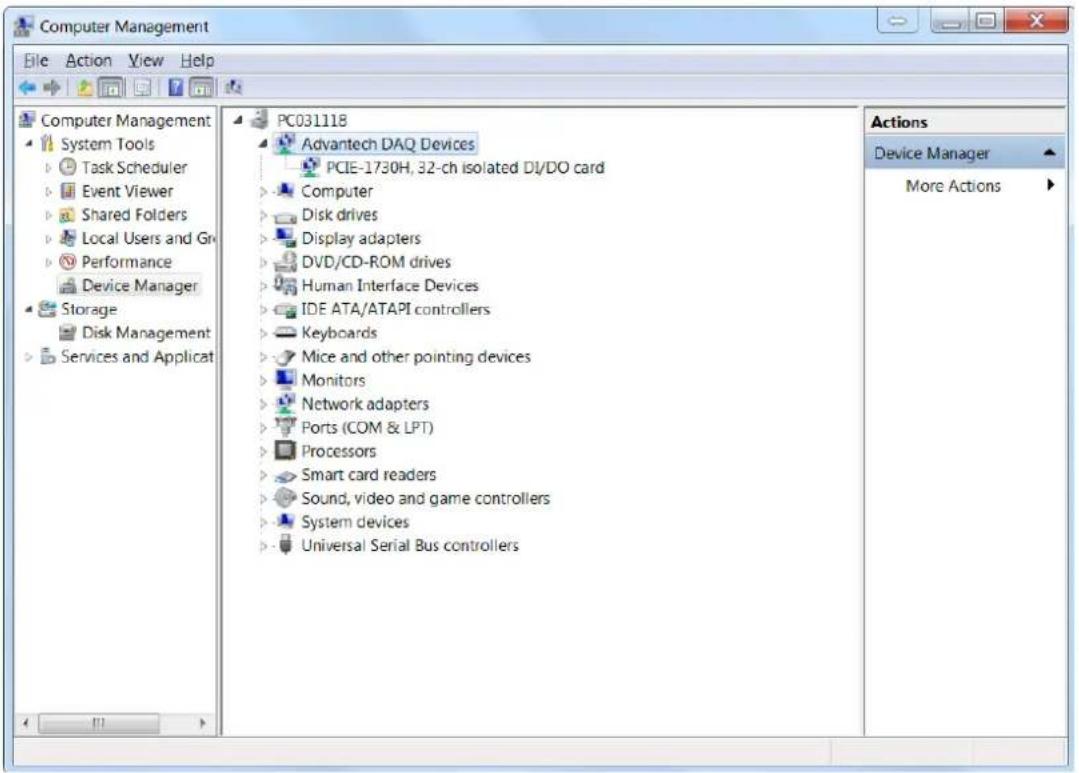
After the PCIE-1750U/UH card is installed, you can verify whether it is properly installed on your system through the Device Manager:
- Access the Device Manager through Control Panel/System/Device Manager.
- The device name of the PCIE-1750U/UH should be listed on the Device Manager tab as follows.
text_image
Computer Management File Action View Help Computer Management System Tools Task Scheduler Event Viewer Shared Folders Local Users and Gr Performance Device Manager Storage Disk Management Services and Applicat PC031118 Advantech DAQ Devices PCIE-1730H, 32-ch isolated DI/DO card Computer Disk drives Display adapters DVD/CD-ROM drives Human Interface Devices IDE ATA/ATAPI controllers Keyboards Mice and other pointing devices Monitors Network adapters Ports (COM & LPT) Processors Smart card readers Sound, video and game controllers System devices Universal Serial Bus controllers Actions Device Manager More ActionsFigure 2.1 Device Manager
Note! If your card is properly installed, you should see the device name of your card listed on the Device Manager tab. If you do see your device name listed on it but marked with an exclamation mark “!”, it means your card has not been correctly installed. In this case, remove the card device from the Device Manager by selecting its device name and press the Remove button. Then go through the driver installation process again.
After your card is properly installed on your system, you can now configure your device using the Advantech Navigator after you install DAQNavi on your computer.
Chapter 3
Signal Connections
3.1 Overview
Maintaining signal connections is one of the most important factors in ensuring that your application system is sending and receiving data correctly. A good signal connection can avoid unnecessary and costly damage to your PC and other hardware devices. This chapter provides useful information about how to connect input and output signals to the PCIE-1750U/UH via the I/O connector.
3.2 Switch and Jumper Settings

text_image
CN2 CN1 JP2 4 3 2 1 SW1Figure 3.1 Card layout of PCIE-1750U/UH
Table 3.1: Summary of Jumper Settings (JP2)
| Names of Jumpers Function description |
| JP2 (1, 2 short) Output channels will keep last status after system resets |
| JP2 (2,3 short) Output channels will set their values to LOW after system resets(Default) |
Table 3.2: Board ID setting (SW1)
| ID3 ID2 ID1 ID0 Board ID | ||||
| 1 | 1 | 1 | 1 | 0 |
| 1 | 1 | 1 | 0 | 1 |
| 1 | 1 | 0 | 1 | 2 |
| 1 | 1 | 0 | 0 | 3 |
| 1 | 0 | 1 | 1 | 4 |
| 1 | 0 | 1 | 0 | 5 |
| 1 | 0 | 0 | 1 | 6 |
| 1 | 0 | 0 | 0 | 7 |
| 0 | 1 | 1 | 1 | 8 |
| 0 | 1 | 1 | 0 | 9 |
| 0 | 1 | 0 | 1 | 1 |
| 0 | 1 | 0 | 0 | 1 |
| 0 | 0 | 1 | 1 | 1 |
| 0 | 0 | 1 | 0 | 1 |
| 0 | 0 | 0 | 1 | 1 |
| 0 | 0 | 0 | 0 | 1 |
* Default
Note!On: 1, Off: 0; Default setting: ID0.

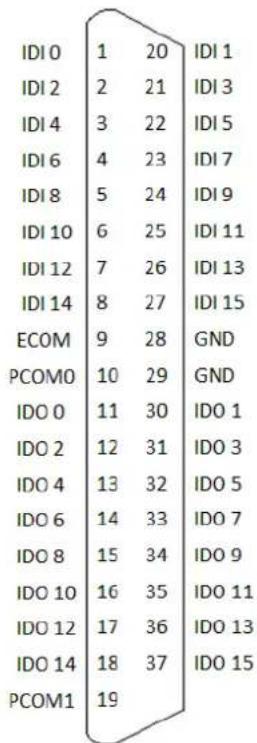
3.3 Signal Connections
text_image
IDI 0 1 20 IDI 1 IDI 2 2 21 IDI 3 IDI 4 3 22 IDI 5 IDI 6 4 23 IDI 7 IDI 8 5 24 IDI 9 IDI 10 6 25 IDI 11 IDI 12 7 26 IDI 13 IDI 14 8 27 IDI 15 ECOM 9 28 GND PCOMO 10 29 GND IDO 0 11 30 IDO 1 IDO 2 12 31 IDO 3 IDO 4 13 32 IDO 5 IDO 6 14 33 IDO 7 IDO 8 15 34 IDO 9 IDO 10 16 35 IDO 11 IDO 12 17 36 IDO 13 IDO 14 18 37 IDO 15 PCOM1 19Figure 3.2 Pin assignment of PCIE-1750U/UH
Isolated Digital Input
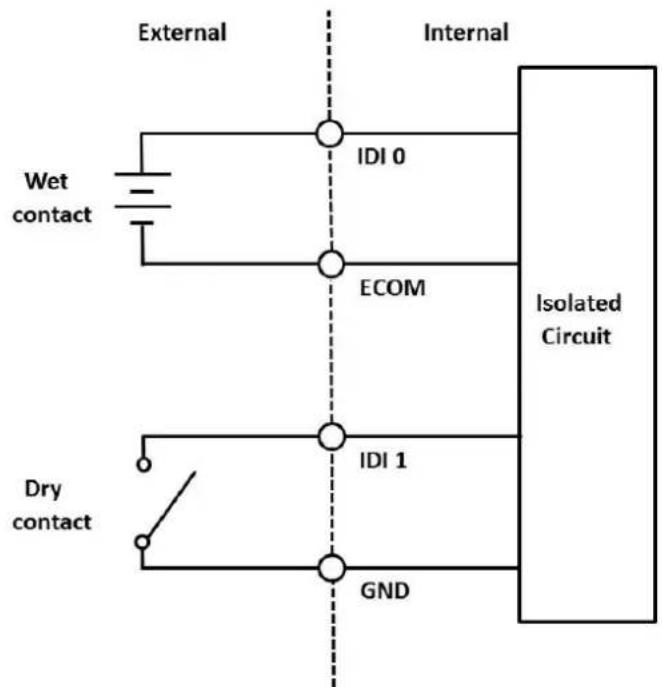
Each of the 16 isolated digital input channels accept voltages from 0 to 30 V and dry contact. Figure 3.3 shows how to connect an external input source to the card's isolated inputs.
flowchart
graph TD
    A["Wet contact"] --> B["External"]
    B --> C["IDI 0"]
    B --> D["ECOM"]
    E["Dry contact"] --> F["Internal"]
    F --> G["Isolated Circuit"]
    G --> H["IDI 1"]
    G --> I["GND"]
Figure 3.3 Isolated DI Connection
Isolated Digital Output
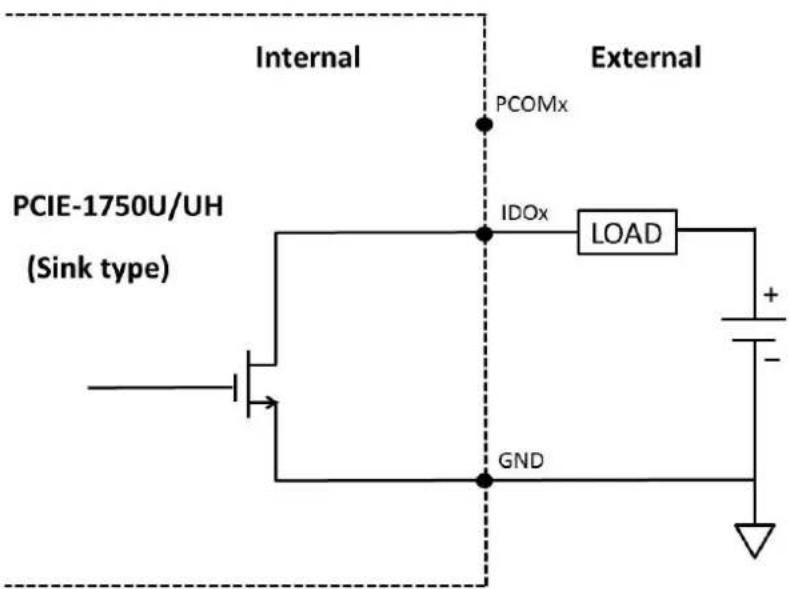
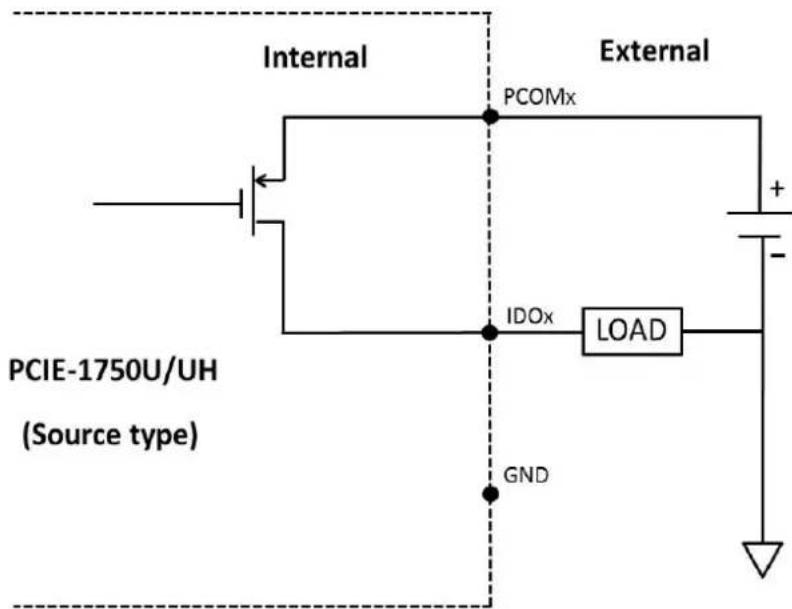
The PCIE-1750U/UH provides software configurable digital output direction that allows users to choose from NPN or PNP. Whenever the direction is set to NPN and connect the wiring like Fig 3.4, the current will sink into the IDO channel as the IDO channel is switched HIGH. The current will be coming from the IDO channel when following the connection in Fig 3.5 and switching IDO ON in PNP mode.
text_image
Internal PCOMx IDOx LOAD External PCIE-1750U/UH (Sink type) GNDFigure 3.4 Sink type (NPN) connection
text_image
Internal PCOMx External IDOx LOAD GND PCIE-1750U/UH (Source type)Figure 3.5 Source type (PNP) connection
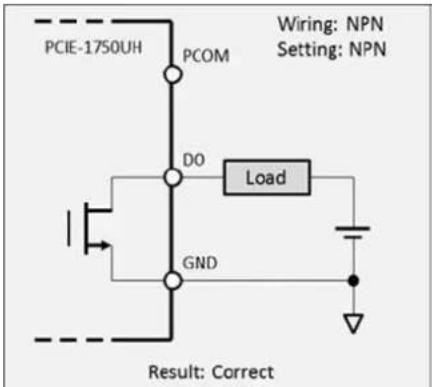
The output type mismatch between software setting and wiring wouldn't make any damage to the card itself. The only thing would happen is no reaction. Figure 3.6 describes the way mismatching makes no harm to the card itself.
text_image
PCIE-1750UH PCOM DO Load GND Result: Correct Wiring: NPN Setting: NPN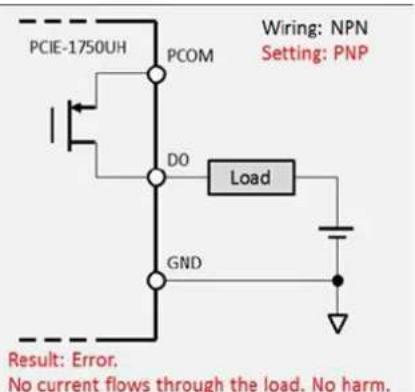
text_image
PCIE-1750UH PCOM DO Load GND Result: Error. No current flows through the load. No harm. Wiring: NPN Setting: PNP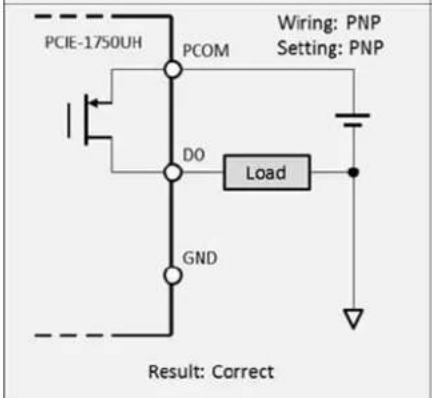
text_image
PCIE-1750UH PCOM DO GND Wiring: PNP Setting: PNP Load Result: Correct
text_image
PCIE-1750UH PCOM Wiring: PNP Setting: NPN DO Load GND Result: Error. No current flows through the load. No harm.Figure 3.6 Wrong connection wouldn't damage the IDO component
Extra Connection
CN2 provides two extra connections which are equivalent to the GND/PCOM pin on CN1. It brings extra current tolerance to PCIE-1750U/UH. The pin on CN2 should be connected whenever the total current of IDO is higher than 3.2A. The Pin assignment:
Pin 1: PCOM, used in source type (PNP) connection.
Pin 2: GND, used in sink type (NPN) connection.

text_image
1 2Figure 3.7 Pin definition of CN2
Appendix A
Specifications
A.1 Specifications
A.1.1 Isolated Digital Input
| Input Channels 16 | |
| Input Voltage | Logic 0: 3 V max. (0 V_DC min.) |
| Logic 1: 10 V min. (30 V_DC max.) | |
| Input Current | 3.4mA @12 V_DC |
| 7.13mA @24 V_DC | |
| Interrupt Capable Ch. | PCIE-1750U: 2 (Ch0, 8)PCIE-1750UH: 16 |
| Digital Filter Ch. 16 (PCIE-1750UH only) | |
| Isolation Protection | 2,500 V_DC |
| Overvoltage Protection | 70 V_DC |
| Input resistance 3.37 KΩ | |
| Opto-Isolator Response 100 μs | |
A.1.2 Isolated Digital Output
| Output Channels 16 | |
| Output Type Sink (NPN) or Source (PNP), software configurable | |
| Isolation Protection | 2,500 V_DC |
| Output Voltage | 5 ~ 40 V_DC^* |
| Sink Current 350mA max./channel | |
| Opto-isolator Response 100 μs | |
Note! When an inductance load is connected, the maximum output voltage will be 24 V_DC .

A.1.3 General
| I/O Connector Type 37-pin D-Sub female | ||
| Dimensions | 168 × 100 mm (6.6 × 3.9 in.) | |
| Power Consumption | Typical | +3.3V @ 255mA |
| +12V @ 30mA | ||
| Max. | +3.3V @ 280mA | |
| +12V @ 60mA | ||
| Temperature | Operation 0~+60°C (32~140°F) (refer to IEC 68-2-1,2) | |
| Storage -25~+85°C (-4~185°F) | ||
| Relative Humidity 5~95%RH non-condensing (refer to IEC 68-2-3) | ||
| Certification CE & FCC certified | ||
A.1.4 Digital Filter Time
Digital Filter Time[sec.] = 2^n / (8 x 10^6), n = setting data(7 - 20)
| Setting Data (n) Digital Filter Time Setting Data (n) Digital Filter Time | |||
| 7 (07h) | 16μsec | 14 (0Eh) | 2.048msec |
| 8 (08h) | 32μsec | 15 (0Fh) | 4.096msec |
| 9 (09h) | 64μsec | 16 (10h) | 8.192msec |
| 10 (0Ah) | 128μsec | 17 (11h) | 16.384msec |
| 11 (0Bh) | 256μsec | 18 (12h) | 32.768msec |
| 12 (0Ch) | 512μsec | 19 (13h) | 65.536msec |
| 13 (0Dh) | 1.024msec | 20 (14h) | 131.072msec |
Appendix B
Block Diagram
B.1 PCIE-1750U/UH

flowchart
graph TD
    A["PCIE Bus"] --> B["FPGA"]
    B --> C["Digital Input"]
    C --> D["16-ch IDI"]
    D --> E["Digital Isolator"]
    E --> F["I/O Explender"]
    F --> G["16-ch IDO"]
    G --> H["DB37"]
    H --> I["PCIe Bus"]
    B --> J["BID"]
    B --> K["Board ID"]
    B --> L["Flash"]
    D --> M["IDIO~15"]
    D --> N["ECOM"]
    E --> O["DO_ISO"]
    E --> P["DO_Type"]
    G --> Q["ID0~15"]
    G --> R["GND"]
    style A fill:#f9f,stroke:#333
    style H fill:#ccf,stroke:#333
www.advantech.com
Please verify specifications before quoting. This guide is intended for reference purposes only.
All product specifications are subject to change without notice.
No part of this publication may be reproduced in any form or by any means, electronic, photocopying, recording or otherwise, without prior written permission of the publisher.
All brand and product names are trademarks or registered trademarks of their respective companies.
© Advantech Co., Ltd. 2019