J3060NH - Motherboard BIOSTAR - Free user manual and instructions
Find the device manual for free J3060NH BIOSTAR in PDF.


| Product Type | Motherboard |
| Model | J3060NH |
| Brand | Biostar |
| Form Factor | Mini-ITX |
| Dimensions (W x D) | 170 mm x 170 mm |
| Weight | Approximately 0.5 kg |
| Processor | Intel Celeron J3060 (quad-core, 1.6 GHz, burst up to 2.48 GHz) |
| Memory Support | 2 x DDR3L SO-DIMM slots, up to 8 GB total |
| Storage Interfaces | 2 x SATA 3.0 (6 Gb/s) |
| Expansion Slots | 1 x PCIe 2.0 x1, 1 x M.2 Key E (for Wi-Fi/Bluetooth) |
| USB Ports | 4 x USB 3.0 (rear), 2 x USB 2.0 (header) |
| Video Outputs | 1 x HDMI, 1 x VGA |
| Audio | Realtek ALC662, 5.1 channel HD audio |
| LAN | Realtek RTL8111H, 1 x Gigabit Ethernet |
| Power Connector | 24-pin ATX main power, 4-pin CPU power |
| Operating Temperature | 0°C to 60°C |
| Certifications | CE, FCC |
Frequently Asked Questions - J3060NH BIOSTAR
User questions about J3060NH BIOSTAR
0 question about this device. Answer the ones you know or ask your own.
Ask a new question about this device
Download the instructions for your Motherboard in PDF format for free! Find your manual J3060NH - BIOSTAR and take your electronic device back in hand. On this page are published all the documents necessary for the use of your device. J3060NH by BIOSTAR.
USER MANUAL J3060NH BIOSTAR
FCC Information and Copyright
This equipment has been tested and found to comply with the limits of a Class B digital device, pursuant to Part 15 of the FCC Rules. These limits are designed to provide reasonable protection against harmful interference in a residential installation. This equipment generates, uses, and can radiate radio frequency energy and, if not installed and used in accordance with the instructions, may cause harmful interference to radio communications. There is no guarantee that interference will not occur in a particular installation.
The vendor makes no representations or warranties with respect to the contents here and specially disclaims any implied warranties of merchantability or fitness for any purpose. Further the vendor reserves the right to revise this publication and to make changes to the contents here without obligation to notify any party beforehand.
Duplication of this publication, in part or in whole, is not allowed without first obtaining the vendor's approval in writing.
The content of this user's manual is subject to be changed without notice and we will not be responsible for any mistakes found in this user's manual. All the brand and product names are trademarks of their respective companies.

2004/108/CE, 2006/95/CE e 1999/05/CE
Short Declaration of conformity
We declare this product is complying with the laws in force and meeting all the essential requirements as specified by the directives
2004/108/CE, 2006/95/CE and 1999/05/CE
whenever these laws may be applied
Table of Contents
Chapter 1: Introduction ...... 1
1.1 Before You Start.... 1
1.2 Package Checklist.... 1
1.3 Motherboard Specifications 2
1.4 Rear Panel Connectors 3
1.5 Central Processing Unit (CPU).... 3
1.6 Motherboard Layout 4
Chapter 2: Hardware Installation....5
2.1 Connect Cooling Fans 5
2.2 Install System Memory 5
2.3 Expansion Slots....7
2.4 Jumper Setting 8
2.5 Headers & Connectors 9
Chapter 3: UEFI BIOS & Software....13
3.1 UEFI BIOS Setup 13
3.2 BIOS Update 13
3.3 Software.... 17
Chapter 4: Useful Help ......20
4.1 Driver Installation....20
4.2 AMI BIOS Beep Code.... 21
4.3 Troubleshooting....21
Appendix: SPEC In Other Languages....23
Arabic 23
French 24
German....25
Portuguese 26
Russian....27
Spanish....28
Thai....29
CHAPTER 1: INTRODUCTION
1.1 Before You Start
Thank you for choosing our product. Before you start installing the motherboard, please make sure you follow the instructions below:
■ Prepare a dry and stable working environment with sufficient lighting.
■ Always disconnect the computer from power outlet before operation.
■ Before you take the motherboard out from anti-static bag, ground yourself properly by touching any safely grounded appliance, or use grounded wrist strap to remove the static charge.
■ Avoid touching the components on motherboard or the rear side of the board unless necessary. Hold the board on the edge, do not try to bend or flex the board.
■ Do not leave any unfastened small parts inside the case after installation. Loose parts will cause short circuits which may damage the equipment.
- Keep the computer from dangerous area, such as heat source, humid air and water.
■ The operating temperatures of the computer should be 0 to 45 degrees Celsius.
■ To avoid injury, be careful of:
Sharp pins on headers and connectors
Rough edges and sharp corners on the chassis
Damage to wires that could cause a short circuit
1.2 Package Checklist
☑ Serial ATA Cable x2
☑ Rear I/O Panel for ATX Case x1
☑ Installation Guide x1
☑ Fully Setup Driver DVD x1
Note: The package contents may be different due to the sales region or models in which it was sold. For more information about the standard package in your region, please contact your dealer or sales representative.
1.3 Motherboard Specifications
| Specifications | |
| CPU Support | J3710NH: Intel® Pentium® J3710 processorJ3160NH: Intel® Celeron® J3160 processorJ3060NH: Intel® Celeron® J3060 processor |
| Memory | Supports Dual Channel DDR3L-1600/1066 (1.35V~1.5V)2x DDR3L SO-DIMM Memory Slot, Max. Supports up to 16 GB Memory(Supports up to 8GB Memory for DDR3L-1600)Each DIMM supports non-ECC 512MB/ 1/ 2/ 4/ 8 GB DDR3L module* Please refer towww.biostar.com.twfor Memory support list. |
| Storage | 2x SATA 6Gb/s ConnectorSupports AHCI Mode |
| LAN | Realtek RTL8111H10/ 100/ 1000 Mb/s auto negotiation, Half / Full duplex capability |
| Audio Codec ALC662, 5.1 Channels, High Definition Audio | |
| USB | 6x USB 2.0 port (2 on rear I/Os and 4 via internal header)4x USB 3.0 port (2 on rear I/Os and 2 via internal header) |
| Expansion Slots | 1x PCIe 2.0 x1 Slot |
| Rear I/Os | 1x PS/2 Mouse1x PS/2 Keyboard1x VGA Port1x HDMI Port1x LAN port2x USB 3.0 Port2x USB 2.0 Port3x Audio Jack |
| Internal I/Os | 2x SATA 6.0Gb/s Connector2x USB 2.0 Header (each header supports 2 USB 2.0 ports)1x USB 3.0 Header (each header supports 2 USB 3.0 ports)1x 24-Pin Power Connector2x System Fan Connector1x Front Panel Header1x Front Audio Header1x Clear CMOS Header1x Printer Port Header1x Serial Port Header |
| Form Factor Mini-ITX Form Factor, 170 mm x 170 mm | |
| OS Support | Windows 7 (64bit)/ Windows 8.1 (64bit)/ Windows 10Biostar reserves the right to add or remove support for any OS with or without notice. |
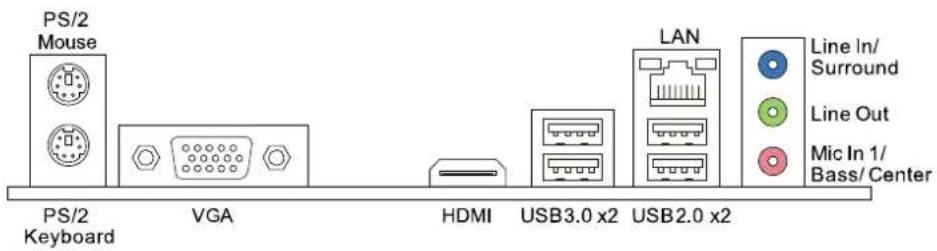
1.4 Rear Panel Connectors
text_image
PS/2 Mouse PS/2 Keyboard VGA HDMI USB3.0 x2 LAN USB2.0 x2 Line In/ Surround Line Out Mic In 1/ Bass/ CenterNote 1: Since the audio chip supports High Definition Audio Specification, the function of each audio jack can be defined by software. The input / output function of each audio jack listed above represents the default setting. However, when connecting external microphone to the audio port, please use the Line In (Blue) and Mic In (Pink) audio jack.
Note 2: Maximum resolution:
HDMI: 1920 x 1080 @60Hz
VGA: 1920 x 1200 @60Hz
1.5 Central Processing Unit (CPU)
The motherboard is equipped with an onboard Intel processor and a CPU cooler.
| Model Name: | Onboard CPU: |
| J3710NH | Intel® Pentium® J3710 processor (Quad Core, 2M Cache, up to 2.64 GHz) |
| J3160NH | Intel® Celeron® J3160 processor (Quad Core, 2M Cache, up to 2.24 GHz) |
| J3060NH Intel® Celeron® J3060 processor (Dual Core, 2M Cache, up to 2.48 GHz) | |
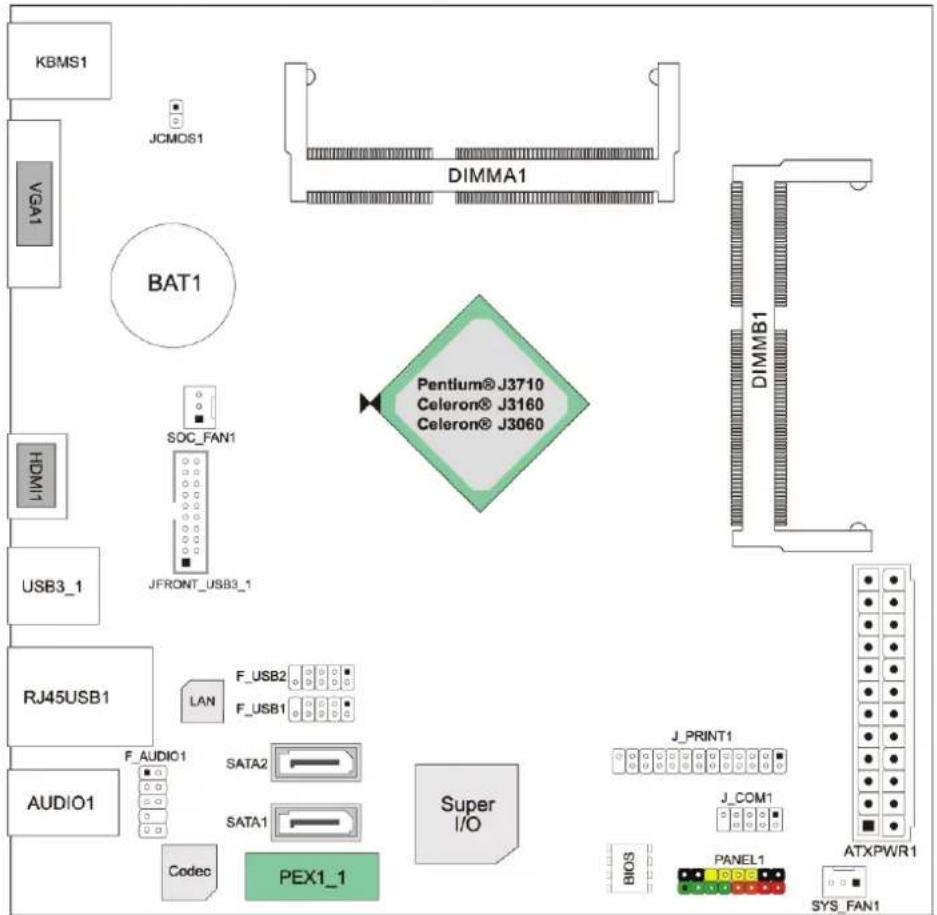
1.6 Motherboard Layout
flowchart
graph TD
    A["KBMS1"] --> B["VGA1"]
    B --> C["BAT1"]
    C --> D["SOC_FAN1"]
    D --> E["JFRONT_USB3_1"]
    E --> F["USB3_1"]
    F --> G["RJ45USB1"]
    G --> H["AUDIO1"]
    H --> I["F_AUDIO1"]
    I --> J["SATA2"]
    J --> K["SATA1"]
    K --> L["Codec"]
    L --> M["PEX1_1"]
    M --> N["Super I/O"]
    N --> O["J_PRINT1"]
    O --> P["J_COM1"]
    P --> Q["ATXPWR1"]
    Q --> R["BIOS"]
    R --> S["PANEL1"]
    S --> T["SYS_FAN1"]
    T --> U["DIMMB1"]
    U --> V["DIMMA1"]
    V --> W["Pentium® J3710"]
    W --> X["Celeron® J3160"]
    W --> Y["Celeron® J3060"]
Note: ■ represents the 1 ^st pin.
CHAPTER 2: HARDWARE INSTALLATION
2.1 Connect Cooling Fans
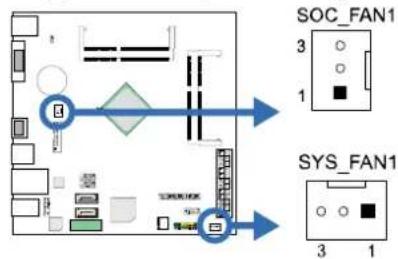
These fan headers support cooling-fans built in the computer. The fan cable and connector may be different according to the fan manufacturer. Connect the fan cable to the connector while matching the black wire to pin#1.
SOC_FAN1/SYS_FAN1: System Fan Header
flowchart
graph TD
    A["Port 3"] --> B["Switch"]
    B --> C["Node 2"]
    C --> D["Node 3"]
    D --> E["Node 4"]
    E --> F["Node 5"]
    F --> G["Node 6"]
    G --> H["Node 7"]
    H --> I["Node 8"]
    I --> J["Node 9"]
    J --> K["Node 10"]
    K --> L["Node 11"]
    L --> M["Node 12"]
    M --> N["Node 13"]
    N --> O["Node 14"]
    O --> P["Node 15"]
    P --> Q["Node 16"]
    Q --> R["Node 17"]
    R --> S["Node 18"]
    S --> T["Node 19"]
    T --> U["Node 20"]
    U --> V["Node 21"]
    V --> W["Node 22"]
    W --> X["Node 23"]
    X --> Y["Node 24"]
    Y --> Z["Node 25"]
    Z --> AA["Node 26"]
    AA --> AB["Node 27"]
    AB --> AC["Node 28"]
    AC --> AD["Node 29"]
    AD --> AE["Node 30"]
    AE --> AF["Node 31"]
    AF --> AG["Node 32"]
    AG --> AH["Node 33"]
    AH --> AI["Node 34"]
    AI --> AJ["Node 35"]
    AJ --> AK["Node 36"]
    AK --> AL["Node 37"]
    AL --> AM["Node 38"]
    AM --> AN["Node 39"]
    AN --> AO["Node 40"]
    AO --> AP["Node 41"]
    AP --> AQ["Node 42"]
    AQ --> AR["Node 43"]
    AR --> AS["Node 44"]
    AS --> AT["Node 45"]
    AT --> AU["Node 46"]
    AU --> AV["Node 47"]
    AV --> AW["Node 48"]
    AW --> AX["Node 49"]
    AX --> AY["Node 50"]
| Pin Assignment |
| 1 Ground |
| 2 +12V |
| 3 FAN RPM rate sense |
Note: When connecting with wires onto connectors, please note that the red wire is the positive and should be connected to pin#2, and the black wire is Ground and should be connected to GND.
2.2 Install System Memory
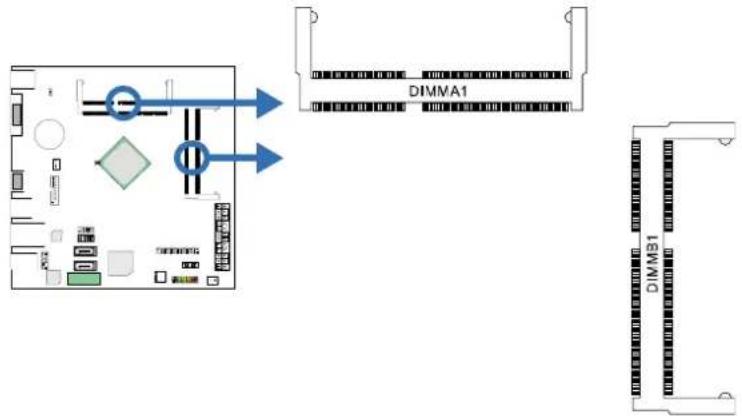
A. DDR3L SO-DIMM Module (1.35V/1.5V)
flowchart
graph TD
    A["Central Device"] --> B["Memory Unit DIMMA1"]
    A --> C["Memory Unit DIMB1"]
    style A fill:#f9f,stroke:#333
    style B fill:#ccf,stroke:#333
    style C fill:#cfc,stroke:#333
Motherboard Manual
Step 1: Align a DIMM on the slot such that the notch on the DIMM matches the break on the Slot.

natural_image
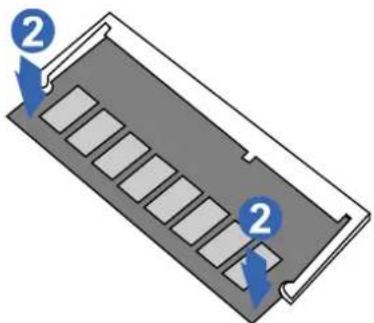
Diagram of a computer RAM slot with a blue arrow indicating direction (no text or symbols)Step 2: Insert the DIMM firmly into the slot until the retaining chip snap back in place and the DIMM is properly seated.
natural_image
Diagram of a rectangular device with internal compartments and two labeled arrows indicating positions (no text or symbols present)Note1: The DIMM must be installed to DIMMA1(DDR3_A1) slot first.
Note2: If the DIMM does not go in smoothly, do not force it. Pull it all the way out and try again.
B. Memory Capacity
| DIMM Socket Location | DDR3L Module Total Memory Size | |
| DIMMA1 | 512MB/1GB/2GB/4GB/8GB Max is 16GB | |
| DIMMB1 | 512MB/1GB/2GB/4GB/8GB | (Supports up to 8GB Memory for DDR3L-1600) |
C. Dual Channel Memory Installation
Please refer to the following requirements to activate Dual Channel function:
Install memory module of the same density in pairs, shown in the table.
| Dual Channel Status | DIMMA1 DIMMB1 | |
| Disabled | O | |
| Enabled | O |
(O means memory installed, X means memory not installed.)
Note: When installing more than one memory module, we recommend to use the same brand and capacity memory on this motherboard.
x o
2.3 Expansion Slots
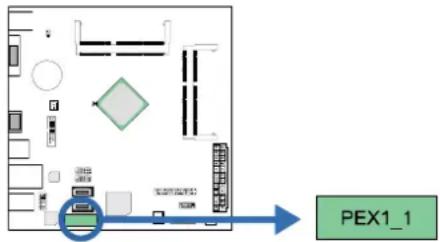
PEX1\_1: PCI-Express Gen2 x1 Slot
- PCI-Express 2.0 compliant.
- Data transfer bandwidth up to 500MB/s per direction; 1GB/s in total.
text_image
PEX1_1Install an Expansion Card
You can install your expansion card by following steps:
- Read the related expansion card's instruction document before install the expansion card into the computer.
- Remove your computer's chassis cover, screws and slot bracket from the computer.
- Place a card in the expansion slot and press down on the card until it is completely seated in the slot.
- Secure the card's metal bracket to the chassis back panel with a screw.
- Replace your computer's chassis cover.
- Power on the computer, if necessary, change BIOS settings for the expansion card.
- Install related driver for the expansion card.
2.4 Jumper Setting
The illustration shows how to set up jumpers. When the jumper cap is placed on pins, the jumper is "close", if not, that means the jumper is "open".
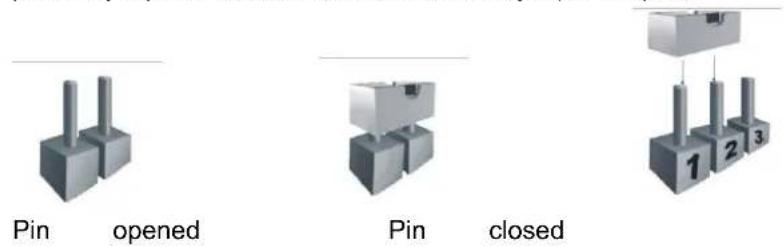
Pin1-2
closed
JCMOS1: Clear CMOS Jumper
The jumper allows users to restore the BIOS safe setting and the CMOS data. Please carefully follow the procedures to avoid damaging the motherboard.
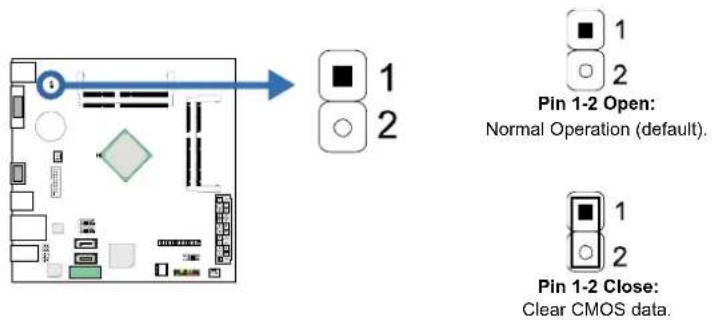
- Remove AC power line.
- Set the jumper to "Pin 1-2 close", you can use a metal object like a screwdriver to touch the two pins.
- Wait for five seconds.
- After clearing the CMOS values, be sure the jumper is "Pin 1-2 open".
- Power on the AC.
- Load Optimal Defaults and save settings in CMOS.
2.5 Headers & Connectors
ATXPWR1: ATX Power Source Connector
For better compatibility, we recommend to use a standard ATX 24-pin power supply for this connector. Make sure to find the correct orientation before plugging the connector.
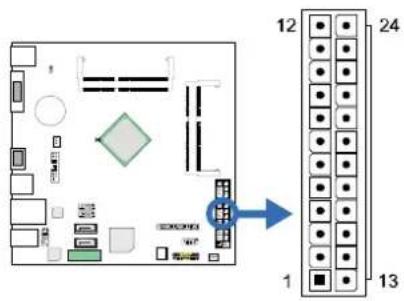
text_image
Diagram of a circuit board layout with numbered pins and component symbols, showing connections to a 24-pin connector pin.| Pin | Assignment | Pin Assignment | |
| 13 | +3.3V | 1 | +3.3V |
| 14 | -12V | 2 | |
| 15 | Ground | 3 Ground | |
| 16 | PS_ON | 4 +5V | |
| 17 | Ground | 5 Ground | |
| 18 | Ground | 6 +5V | |
| 19 | Ground | 7 Ground | |
| 20 | NC | 8 PW_OK | |
| 21 | +5V | 9 Standby Voltage+5V | |
| 22 | +5V | 10 +12V | |
| 23 | +5V | 11 +12V | |
| 24 | Ground | 12 | +3.3V |
Note1: Before you power on the system, please make sure the ATXPWR1 connector have been plugged-in.
Note2: Insufficient power supplied to the system may result in instability or the peripherals not functioning properly. Use of a PSU with a higher power output is recommended when configuring a system with more power-consuming devices.
SATA1/2: Serial ATA Connectors
These connectors connect to SATA hard disk drives via SATA cables.
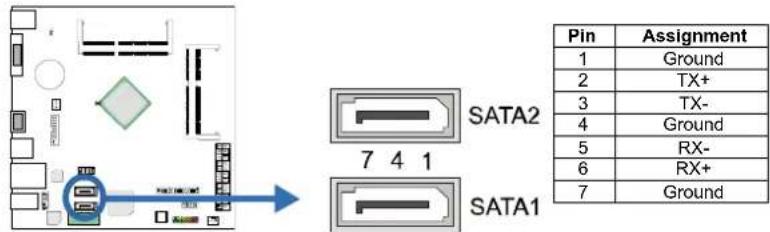
text_image
Pin Assignment 1 Ground 2 TX+ 3 TX- 4 Ground 5 RX- 6 RX+ 7 GroundPANEL1: Front Panel Header
This 16-pin connector includes Power-on, Reset, HDD LED, Power LED, and speaker connection. It allows user to connect the PC case's front panel switch functions.
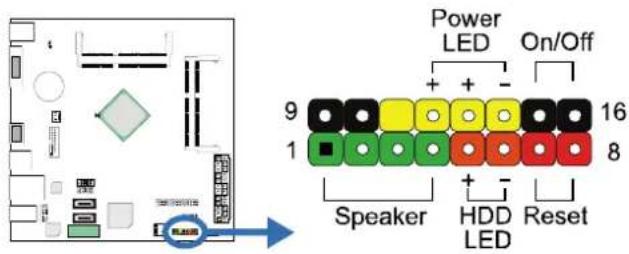
text_image
Power LED On/Off + - 9 16 1 8 Speaker HDD Reset LED| Pin | Assignment | Function | Pin | Assignment | Function |
| 1 | +5V | Speaker 10 Connector11 (+) | 9 | N/A | N/A |
| 2 | N/A | N/A | |||
| 3 | N/A | N/A | N/A | ||
| 4 | Speaker 12 Power LED | Power LED | |||
| 5 | HDD LED (+) | Hard drive LED | 13 | Power LED (+) | |
| 6 | HDD LED (-) | 14 | Power LED (-) | ||
| 7 | Ground | Reset button | 15 | Power button | Power-on button |
| 8 | Reset control | Ground | |||
F\_USB1/2: Header for USB 2.0 Ports at Front Panel
This header allows user to connect additional USB cable on the PC front panel, and also can be connected with a wide range of simultaneously accessible external Plug and Play peripherals.
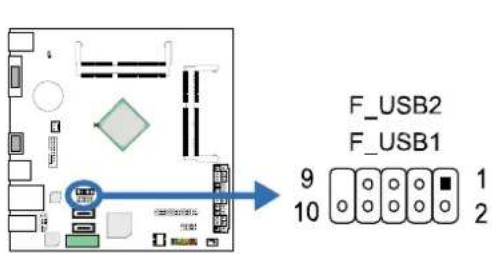
text_image
F_USB2 F_USB1 9 1 10 2| Pin | Assignment |
| 1 | +5V (fused) |
| 2 | +5V (fused) |
| 3 | USB- |
| 4 | USB- |
| 5 | USB+ |
| 6 | USB+ |
| 7 | Ground |
| 8 | Ground |
| 9 | Key |
| 10 | NC |
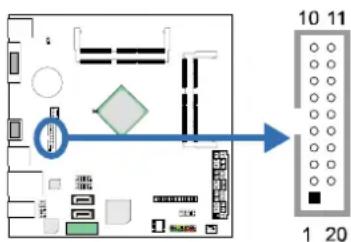
JFRONT\_USB3\_1: Header for USB 3.0 Ports at Front Panel
This header allows user to connect additional USB cable on the PC front panel, and also can be connected with a wide range of simultaneously accessible external Plug and Play peripherals.
flowchart
graph TD
    A["Input Device"] --> B["Processing Unit"]
    B --> C["Output Port 1"]
    B --> D["Output Port 20"]
    style A fill:#f9f,stroke:#333
    style B fill:#ccf,stroke:#333
    style C fill:#cfc,stroke:#333
    style D fill:#fcc,stroke:#333
| Pin | Assignment Pin | Assignment | |
| 1 | VBUS0 | 11 | D2+ |
| 2 | SSRX1- | 12 | D2- |
| 3 | SSRX1+ | 13 | Ground |
| 4 | Ground | 14 | SSTX2+ |
| 5 | SSTX1- | 15 | SSTX2- |
| 6 | SSTX1+ | 16 | Ground |
| 7 | Ground | 17 | SSRX2+ |
| 8 | D1- | 18 | SSRX2- |
| 9 | D1+ | 19 | VBUS1 |
| 10 | ID | 20 | Key |
F\_AUDIO1: Front Panel Audio Header
This header allows user to connect the front audio output cable with the PC front panel. This header supports HD and AC'97 audio front panel connector.
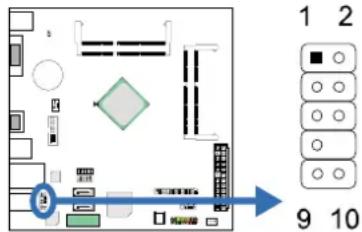
text_image
Diagram of a computer motherboard layout with labeled components and numbered indicators| HD Audio | AC'97 | ||
| Pin | Assignment Pin | Assignment | |
| 1 | Mic Left in | 1 | Mic In |
| 2 | Ground | 2 | Ground |
| 3 | Mic Right in | 3 | Mic Power |
| 4 | GPIO | 4 | Audio Power |
| 5 | Right line in | 5 RT | Line Out |
| 6 | Jack Sense | 6 RT | Line Out |
| 7 | Front Sense | 7 | Reserved |
| 8 | Key | 8 | Key |
| 9 | Left line in | 9 | LFT Line Out |
| 10 | Jack Sense 10 | 10 | LFT Line Out |
Note1: It is recommended that you connect a high-definition front panel audio module to this connector to avail of the motherboard's high definition audio capability.
Note2: Please try to disable the "Front Panel Jack Detection" if you want to use an AC'97 front audio output cable. The function can be found via O.S. Audio Utility.
J COM1: Serial Port Connector
The motherboard has a Serial Port Connector for connecting RS-232 Port.
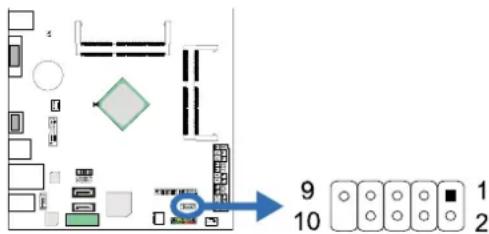
text_image
9 10 1 2| Pin Assignment | |
| 1 | Carrier detect |
| 2 | Received data |
| 3 | Transmitted data |
| 4 | Data terminal ready |
| 5 | Signal ground |
| 6 | Data set ready |
| 7 | Request to send |
| 8 | Clear to send |
| 9 | Ring indicator |
| 10 | Key |
J\_PRINT1: Printer Port Connector
This header allows you to connector printer on the PC.
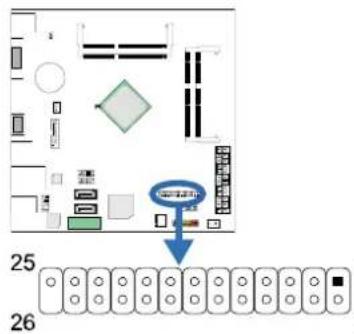
text_image
25 261
2
| Pin | Assignment | Pin | Assignment |
| 1 | -Strobe | 14 | Ground |
| 2 | -ALF | 15 | Data |
| 3 | Data | 0 | 16 Ground |
| 4 | -Error | 17 | Data |
| 5 | Data | 1 | 18 Ground |
| 6 | -Init | 19 | -ACK |
| 7 | Data | 2 | 20 Ground |
| 8 | -Scltin | 21 | Busy |
| 9 | Data | 3 | 22 Ground |
| 10 | Ground | 23 | PE |
| 11 | Data | 4 | 24 Ground |
| 12 | Ground | 25 | SCLT |
| 13 | Data | 5 | 26 Key |
CHAPTER 3: UEFI BIOS & SOFTWARE
3.1 UEFI BIOS Setup
- The BIOS Setup program can be used to view and change the BIOS settings for the computer. The BIOS Setup program is accessed by pressing the
key after the Power-On Self-Test (POST) memory test begins and before the operating system boot begins. - For further information of setting up the UEFI BIOS, please refer to the UEFI BIOS Manual in the Setup DVD.
3.2 BIOS Update
The BIOS can be updated using either of the following utilities:
- BIOSTAR BIOS Flasher: Using this utility, the BIOS can be updated from a file on a hard disk, a USB drive (a flash drive or a USB hard drive), or a CD-ROM.
- BIOSTAR BIOS Update Utility: It enables automated updating while in the Windows environment. Using this utility, the BIOS can be updated from a file on a hard disk, a USB drive (a flash drive or a USB hard drive), or a CD-ROM, or from the file location on the Web.
BIOSTAR BIOS Flasher
BIOSTAR BIOS Flasher is a BIOS flashing utility providing you an easy and simple way to update your BIOS via USB pen drive.
Note1: This utility only allows storage device with FAT32/16 format and single partition.
Note2: Shutting down or resetting the system while updating the BIOS will lead to system boot failure.
Updating BIOS with BIOSTAR BIOS Flasher
- Go to the website to download the latest BIOS file for the motherboard.
- Then, copy and save the BIOS file into a USB flash (pen) drive.
- Insert the USB pen drive that contains the BIOS file to the USB port.
-
Power on or reset the computer and then press
during the POST process. -
After entering the POST screen, the BIOS-FLASHER utility pops out. Choose [fs0] to search for the BIOS file.
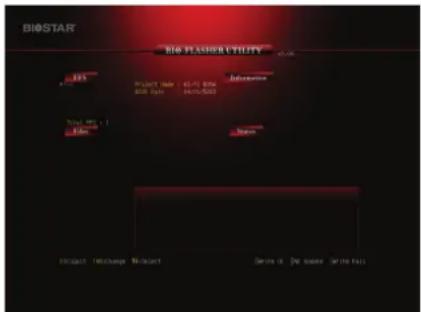
text_image
BIO STAR BIO SPASER UTILITY Project Name: 01-01 BOM SHEET DATE: 04/01/2023 Project ID: Project Number: 01-01 BOM Project Status: 1 Status: 1 Description: Project Change Project Name: Project Name Project ID: Project Name Project Status: Project Status- Select the proper BIOS file, and a message asking if you are sure to flash the BIOS file. Click Yes to start updating BIOS.
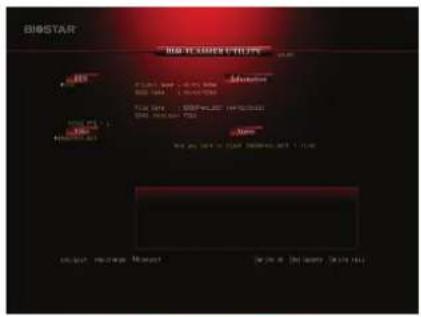
text_image
BISSTAR NEW LISTING ITEMS BISSTAR WIN CNTS WIN CNTS WIN CNTS WIN CNTS WIN CNTS WIN CNTS WIN CNTS WIN CNTS WIN CNTS WIN CNTS WIN CNTS WIN CNTS WIN CNTS WIN CNTS WIN CNTS WIN CNTS WIN CNTS WIN CNTS WIN CNTS WIN CNTS WIN CNT S WIN CNT S WIN CNT S WIN CNT S WIN CNT S WIN CNT S WIN CNT S WIN CNT S WIN CNT S WIN CNT S WIN CNT S WIN CNT S WIN CNT S WIN CNT S WIN CNT S WIN CNT S WIN CNT S WIN CNT S WIN CNT S WIN CNT S WIN CNT T WIN CNT T WIN CNT T WIN CNT T WIN CNT T WIN CNT T WIN CNT T WIN CNT T WIN CNT T WIN CNT T WIN CNT T WIN CNT T WIN CNT T WIN CNT T WIN CNT T WIN CNT T WIN CNT T WIN CNT T WIN CNT T WIN CNT T WIN CNT S WIN CNT S WIN CNT S WIN CNT S WIN CNT S WIN CNT S WIN CNT S WIN CNT S WIN CNT S WIN CNT S WIN CNT S WIN CNT S WIN CNT S WIN CNT S WIN CNT S WIN CNT S WIN CNT S WIN CNT S WIN CNT S WIN CNT A1 WIN CNT A2 WIN CNT A3 WIN CNT A4 WIN CNT A5 WIN CNT A6 WIN CNT A7 WIN CNT A8 WIN CNT A9 WIN CNT A10 WIN CNT A11 WIN CNT A12 WIN CNT A13 WIN CNT A14 WIN CNT A15 WIN CNT A16 WIN CNT A17 WIN CNT A18 WIN CNT A19 WIN CNT A20 WIN CNT A21 WIN CNT A22 WIN CNT A23 WIN CNT A24 WIN CNT A25 WIN CNT A26 WIN CNT A27 WIN CNT A28 WIN CNT A29 WIN CNT A30 WIN CNT A31 WIN CNT A32 WIN CNT A33 WIN CNT A34 WIN CNT A35 WIN CNT A36 WIN CNT A37 WIN CNT A38 WIN CNT A39 WIN CNT A40 WIN CNT A41 WIN CNT A42 WIN CNT A43 WIN CNT A44 WIN CNT A45 WIN CNT A46 WIN CNT A47 WIN CNT A48 WIN CNT A49 WIN CNT A50- A dialog pops out after BIOS flash is completed, asking you to restart the system. Press the [Y] key to restart system.
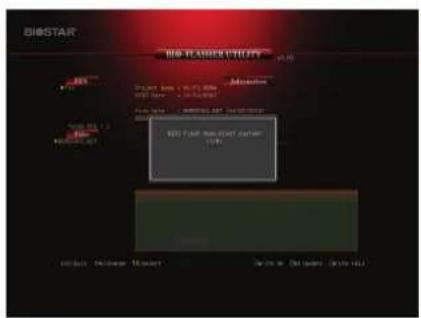
text_image
BISTAR NEW STARTER BISTAR NEW STARTER 100% BISTAR NEW STARTER 100%- While the system boots up and the full screen logo shows up, press
key to enter BIOS setup. After entering the BIOS setup, please go to the Save & Exit, using the Restore Defaults function to load Optimized Defaults, and select Save Changes and Reset to restart the computer. Then, the BIOS Update is completed.
BIOS Update Utility (through the Internet)
- Installing BIOS Update Utility from the DVD Driver.
-
Please make sure the system is connected to the internet before using this function.
-
Launch BIOS Update Utility and click the Online Update button on the main screen.
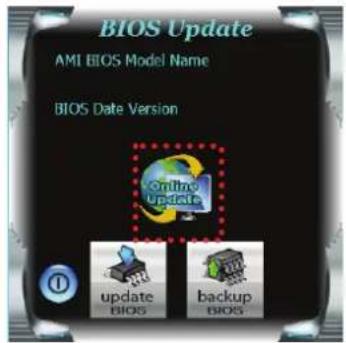
text_image
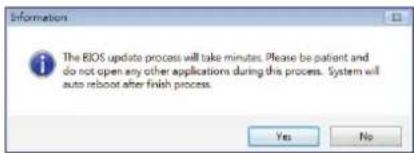
BIOS Update AMI BIOS Model Name BIOS Date Version online Update update BIOS backup BIOS- An open dialog will show up to request your agreement to start the BIOS update. Click Yes to start the online update procedure.
- If there is a new BIOS version, the utility will ask you to download it. Click Yes to proceed.
- After the download is completed, you will be asked to program (update) the BIOS or not. Click Yes to proceed.
- After the updating process is finished, you will be asked you to reboot the system. Click OK to reboot.
text_image
Information The BIOS update process will take minutes. Please be patient and do not open any other applications during this process. System will auto reboot after finish process. Yes No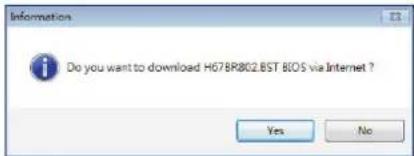
text_image
Do you want to download H678R802.BST BIOS via Internet ? Yes No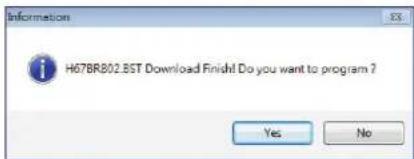
text_image
H67BR802.BST Download Finish! Do you want to program ? Yes No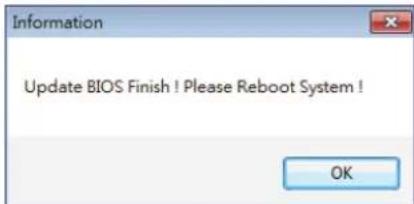
text_image
Information Update BIOS Finish ! Please Reboot System ! OK- While the system boots up and the full screen logo shows up, press
key to enter BIOS setup. After entering the BIOS setup, please go to the Save & Exit, using the Restore Defaults function to load Optimized Defaults, and select Save Changes and Reset to restart the computer. Then, the BIOS Update is completed.
BIOS Update Utility (through a BIOS file)
- Installing BIOS Update Utility from the DVD Driver.
-
Download the proper BIOS from http://www.biostar.com.tw/
-
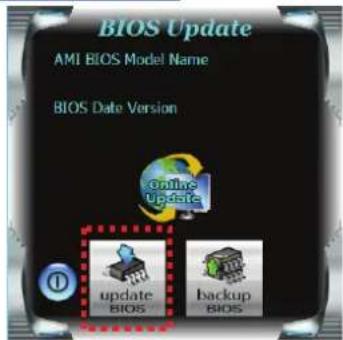
Launch BIOS Update Utility and click the Update BIOS button on the main screen.
text_image
BIOS Update AMI BIOS Model Name BIOS Date Version online updates update BIOS backup BIOSMotherboard Manual
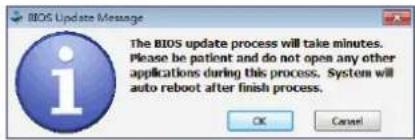
- A warning message will show up to request your agreement to start the BIOS update. Click OK to start the update procedure.
- Choose the location for your BIOS file in the system. Please select the proper BIOS file, and then click on Open. It will take several minutes, please be patient.
- After the BIOS Update process is finished, click on OK to reboot the system.
text_image
BIOS Update Message The BIOS update process will take minutes. Please be patient and do not open any other applications during this process. System will auto reboot after finish process. OK Cancel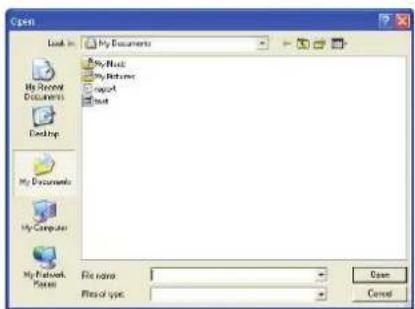
text_image
Open Look in: My Documents My Book My Return Report Next My Document My Computer My Framework... File name: Files of type: Open Cancel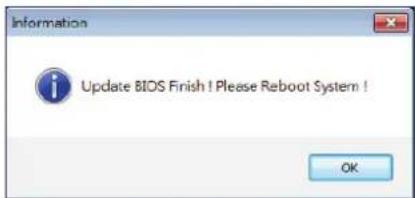
text_image
Information Update BIOS Finish ! Please Reboot System ! OK- While the system boots up and the full screen logo shows up, press
key to enter BIOS setup.
After entering the BIOS setup, please go to the Save & Exit, using the Restore Defaults function to load Optimized Defaults, and select Save Changes and Reset to restart the computer. Then, the BIOS Update is completed.
Backup BIOS
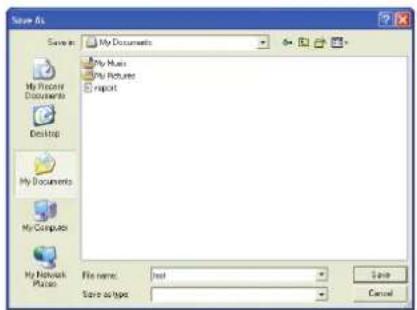
Click the Backup BIOS button on the main screen for the backup of BIOS, and select a proper location for your backup BIOS file in the system, and click Save.
text_image
Save As Save As: My Documents My Music My Pictures Report My Recent Documents Desktop My Documents My Computer My Network Plus File name: Invt Save as types Save Cancel3.3 Software
Installing Software
- Insert the Setup DVD to the optical drive. The driver installation program would appear if the Auto-run function has been enabled.
- Select Software Installation, and then click on the respective software title.
- Follow the on-screen instructions to complete the installation.
Launching Software
After the installation process is completed, you will see the software icon showing on the desktop. Double-click the icon to launch it.
Note1: All the information and content about following software are subject to be changed without notice. For better performance, the software is being continuously updated.
Note2: The information and pictures described below are for your reference only. The actual information and settings on board may be slightly different from this manual.
BIOScreen Utility
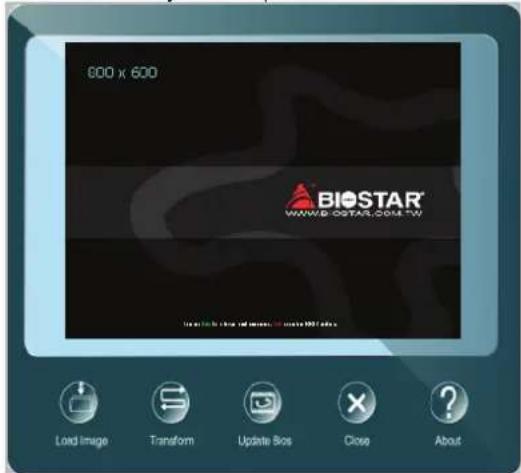
This utility allows you to personalize your boot logo easily. You can choose BMP as your boot logo so as to customize your computer.
text_image
800 x 600 BIOSTAR® WWW.BOSTAR.COM.TW Load Image Transform Update Slos Close AboutPlease follow the step-by-step instructions below to update boot logo:
- Load Image: Choose the picture as the boot logo.
● Transform : Transform the picture for BIOS and preview the result. - Update Bios : Write the picture to BIOS Memory to complete the update.
eHot-Line
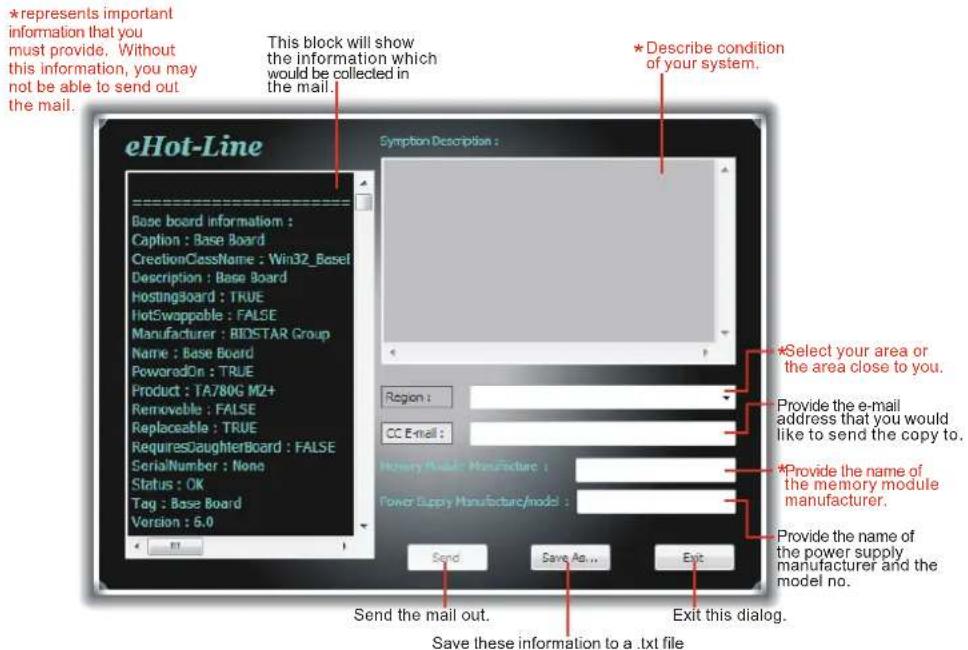
eHot-Line is a convenient utility that helps you to contact with our Tech-Support system. This utility will collect the system information which is useful for analyzing the problem you may have encountered, and then send these information to our tech-support department to help you fix the problem.
Note: Before you use this utility, please set Outlook Express as your default e-mail client application program.
text_image
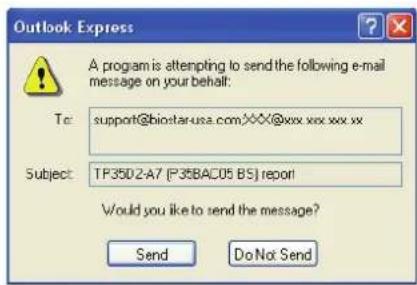
eHot-Line Base board information : Caption : Base Board CreationClassName : Win32_Basel Description : Base Board HostingBoard : TRUE HotSwappable : FALSE Manufacturer : BIDSTAR Group Name : Base Board PoweredOn : TRUE Product : TA780G M2+ Removable : FALSE Replaceable : TRUE RequiresDaughterBoard : FALSE SerialNumber : None Status : OK Tag : Base Board Version : 5.0 This block will show the information which would be collected in the mail. Symptom Description : Region : CC E-mail : Send the mail out. Save these information to a .txt file Enter this dialog. Describe condition of your system. Select your area or the area close to you. Provide the e-mail address that you would like to send the copy to. Provide the name of the memory module manufacturer. Provide the name of the power supply manufacturer and the model no. ExitAfter filling up this information, click "Send" to send the mail out. A warning dialog would appear asking for your confirmation; click "Send" to confirm or "Do Not Send" to cancel.
If you want to save this information to a .txt file, click "Save As..." and then you will see a saving dialog appears asking you to enter file name.
text_image
Outlook Express A program is attempting to send the following e-mail message on your behalf: To: support@biostar-usa.com/XXX@xxx.xxx.xxx.xx Subject: TP35D2-A7 [P35BAC05 BS] report! Would you like to send the message? Send Do Not SendJ3710NH/J3160NH/J3060NH
Enter the file name and then click "Save". Your system information will be saved to a .txt file.
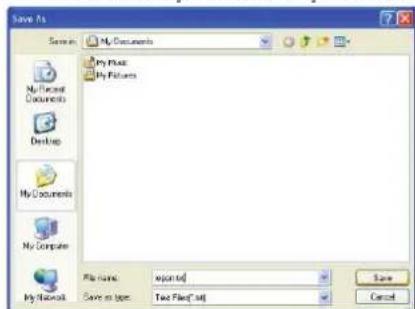
text_image
Save As Sapien: My Documents My Files My Pictures My Documents My Computer My Network File Name: exported Save as type: Two Files*.adj Save CancelOpen the saved .txt file, you will see your system information including motherboard/BIOS/CPU/video/device/OS information. This information is also concluded in the sent mail.
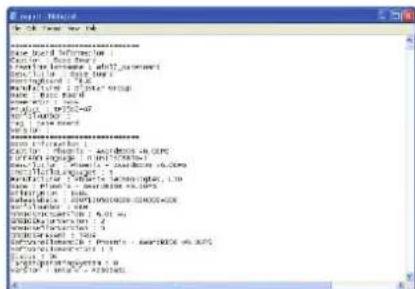
text_image
File Edit View Help Name: Excel Information Name: Excel Name Name: Microsoft Excel Name Name: Microsoft Excel Name Name: Microsoft Excel Name Name: Microsoft Excel Name Name: Microsoft Excel Name Name: Microsoft Excel Name Name: Microsoft Excel Name Name: Microsoft Excel Name Name: Microsoft Excel Name Name: Microsoft Excel Name Name: Microsoft Excel Name Name: Microsoft Excel Name Name: Microsoft Excel Name Name: Microsoft Excel Name Name: Microsoft Excel Name Name: Microsoft Excel Name Name: Microsoft Excel Name None Name: Microsoft Excel Name Name: Microsoft Excel Name Name: Microsoft Excel Name Name: Microsoft Excel Name Name: Microsoft Excel Name Name: Microsoft Excel Name Name: Microsoft Excel Name Name: Microsoft Excel Name Name: Microsoft Excel Name Name: Microsoft Excel Name Name: Microsoft Excel Name Name: Microsoft Excel Name Name: Microsoft Excel Name Name: Microsoft Excel Name Name: Microsoft Excel Name Name: Microsoft Excel Name Name: Microsoft SQL Server 1.0000000000000000000000000000000000000000000000000000000000000000000000000000000000000000000000000000 Name: Microsoft Excel Name Name: Microsoft Excel Name Name: Microsoft Excel Name Name: Microsoft Excel Name Name: Microsoft Excel Name Name: Microsoft Excel Name Name: Microsoft Excel Name Name: Microsoft Excel Name Name: Microsoft Excel Name Name: Microsoft Excel Name Name: Microsoft Excel Name Name: Microsoft Excel Name Name: Microsoft Excel Name Name: Microsoft Excel Name Name: Microsoft Excel Name Name: Microsoft Excel Name Name:Microsoft Excel Name - Microsoft SQL Server 1.0.1.1.2.3.4.5.6.7.8.9.1.1.2.3.4.5.5.6.7.8.9.1.1.2.3.4.5.6.7.8.9.1.1.2.3.4.5.6.7.8.9.1.1.2.3.4.5.6.7.8.9.1.1.2.3.4.5.6.7.8.9.1.1.2.3.4.5.6.7.8.9.1.1.2.3.5.Note1: We will not share customer's data with any other third parties, so please feel free to provide your system information while using eHot-Line service.
Note2: If you are not using Outlook Express as your default e-mail client application, you may need to save the system information to a .txt file and send the file to our tech support with other e-mail application. Go to the following website http://www.biostar.com.tw/app/en/about/contact.php for getting our contact information.
CHAPTER 4: USEFUL HELP
4.1 Driver Installation
After you installed your operating system, please insert the Fully Setup Driver DVD into your optical drive and install the driver for better system performance. You will see the following window after you insert the DVD
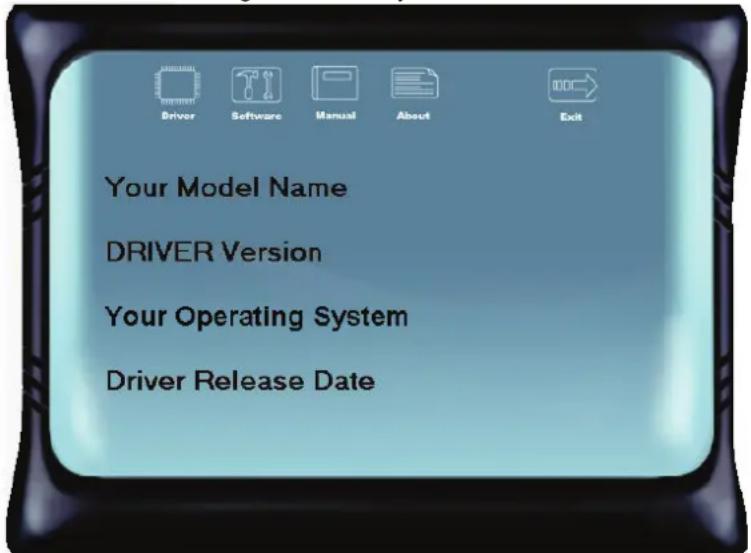
text_image
Driver Software Manual About Exit Your Model Name DRIVER Version Your Operating System Driver Release DateThe setup guide will auto detect your motherboard and operating system.
A. Driver Installation
To install the driver, please click on the Driver icon. The setup guide will list the compatible driver for your motherboard and operating system. Click on each device driver to launch the installation program.
B. Software Installation
To install the software, please click on the Software icon. The setup guide will list the software available for your system, click on each software title to launch the installation program.
C. Manual
Aside from the paperback manual, we also provide manual in the Driver DVD. Click on the Manual icon to browse for available manuals.
Note1: If this window didn't show up after you insert the Driver DVD, please use file browser to locate and execute the file SETUP.EXE under your optical drive. Note2: You will need Acrobat Reader to open the manual file. Please download the latest version of Acrobat Reader software from http://get.adobe.com/reader/
4.2 AMI BIOS Beep Code
Boot Block Beep Codes
| Number of Beeps | Description |
| Continuing | Memory sizing error or Memory module not found |
POST BIOS Beep Codes
| Number of Beeps | Description |
| 1 | Success booting. |
| 8 | Display memory error (system video adapter) |
4.3 Troubleshooting
| Probable | Solution |
| 1. There is no power in the system. Power LED does not shine; the fan of the power supply does not work2. Indicator light on keyboard does not shine. | 1. Make sure power cable is securely plugged in.2. Replace cable.3. Contact technical support. |
| System is inoperative. Keyboard lights are on, power indicator lights are lit, and hard drives are running. | Using even pressure on both ends of the DIMM, press down firmly until the module snaps into place. |
| System does not boot from a hard disk drive, but can be booted from optical drive. | 1. Check cable running from disk to disk controller board. Make sure both ends are securely plugged in; check the drive type in the standard CMOS setup.2. Backing up the hard drive is extremely important. All hard disks are capable of breaking down at any time. |
| System only boots from an optical drive. Hard disks can be read, applications can be used, but system fails to boot from a hard disk. | 1. Back up data and applications files.2. Reformat the hard drive. Re-install applications and data using backup disks. |
| Screen message shows “Invalid Configuration” or “CMOS Failure.” | Review system’s equipment. Make sure correct information is in setup. |
| System cannot boot after user installs a second hard drive. | 1. Set master/slave jumpers correctly.2. Run SETUP program and select correct drive types. Call the drive manufacturers for compatibility with other drives. |
CPU Overheated
If the system shutdown automatically after power on system for seconds, that means the CPU protection function has been activated.
When the CPU is over heated, the motherboard will shutdown automatically to avoid a damage of the CPU, and the system may not power on again.
In this case, please double check:
- The CPU cooler surface is placed evenly with the CPU surface.
- CPU fan is rotated normally.
- CPU fan speed is fulfilling with the CPU speed.
After confirmed, please follow steps below to relief the CPU protection function.
- Remove the power cord from power supply for seconds.
- Wait for seconds.
- Plug in the power cord and boot up the system.
Or you can:
- Clear the CMOS data.
- Wait for seconds.
- Power on the system again.
APPENDIX: SPEC IN OTHER LANGUAGES
Arabic