
DMX6019BT - Media player KENWOOD - Free user manual and instructions
Find the device manual for free DMX6019BT KENWOOD in PDF.


| Product Type | Media Receiver / Car Stereo |
| Model | DMX6019BT |
| Brand | Kenwood |
| Chassis Size | Double DIN (2-DIN) |
| Display Size | 6.95-inch Resistive Touchscreen |
| Display Resolution | 800 x 480 pixels |
| Power Output | 4 x 50 Watts (max) |
| Bluetooth | Built-in (Hands-free & Audio Streaming) |
| USB Port | 1 x USB (front, supports up to 64GB) |
| SD Card Slot | 1 x SD (front) |
| AUX Input | 1 x 3.5mm front |
| Radio Tuner | FM/AM (RDS) |
| Audio Formats Supported | MP3, WMA, FLAC, AAC |
| Video Formats Supported | MPEG-1/2/4, H.264 |
| Equalizer | 13-band Graphic EQ |
| Dimensions (W x H x D) | 178 x 100 x 160 mm |
| Weight | 1.6 kg |
| Power Supply Voltage | 12V DC (negative ground) |
| Display Brightness | Adjustable (up to 500 cd/m²) |
| Microphone | External (included) |
| Steering Wheel Control | Compatible (adapter required) |
| Rear Camera Input | Yes (RCA) |
| Maintenance | Clean display with soft, dry cloth; avoid liquids |
| Safety | Use only in 12V vehicles; professional installation recommended |
| Spare Parts & Repairability | Contact Kenwood service centers; some parts available online |
Frequently Asked Questions - DMX6019BT KENWOOD
User questions about DMX6019BT KENWOOD
0 question about this device. Answer the ones you know or ask your own.
Ask a new question about this device
Download the instructions for your Media player in PDF format for free! Find your manual DMX6019BT - KENWOOD and take your electronic device back in hand. On this page are published all the documents necessary for the use of your device. DMX6019BT by KENWOOD.
USER MANUAL DMX6019BT KENWOOD
This instruction manual is used to describe the models listed above. Model availability and features (functions) may differ depending on the country and sales area.
© 2019 JVCKENWOOD Corporation
B5A-2610-10 (RN)
Important Notice
To ensure proper use, please read through this manual before using this product. It is especially important that you read and observe WARNINGS and CAUTIONS in this manual. Please keep the manual in a safe and accessible place for future reference.
WARNINGS
To prevent accidents and damages
- DO NOT install any unit or wire any cable in a location where;
- it may obstruct the steering wheel and gearshift lever operations.
- it may obstruct the operation of safety devices such as air bags.
- it may obstruct visibility.
- DO NOT raise the volume level too much, as this will make driving dangerous by blocking outside sounds, and may cause hearing loss.
- DO NOT operate the unit while driving. If you need to operate the unit while driving, be sure to look around carefully.
- Stop the car before performing any complicated operations.
• The driver must not watch the monitor while driving.
CAUTIONS
To care for the unit
- If you have parked the car for a long time in hot or cold weather, wait until the temperature in the car becomes normal before operating the unit.
To care for the monitor
- The monitor built into this unit has been produced with high precision, but it may have some ineffective dots. This is inevitable and is not considered defective.
- Do not expose the monitor to direct sunlight.
- Do not operate the touch panel using a ball-point pen or similar tool with a sharp tip. Touch the keys on the touch panel with your finger directly (if you are wearing a glove, take it off).
- When the temperature is very cold or very hot...
- Chemical changes occur inside, causing malfunction.
- Pictures may not appear clearly or may move slowly. Pictures may not be synchronized with the sound or picture quality may decline in such environments.
On the volume setting
- Digital devices produce very little noise compared with other sources. Lower the volume before playing these digital sources to avoid damaging the speakers by sudden increase of the output level.
For DDX719WBTL/DDX6019BT:
The marking of products using lasers
The label is attached to the chassis/case and says that the component uses laser beams that have been classified as Class 1. It means that the unit is utilizing laser beams that are of a weaker class. There is no danger of hazardous radiation outside the unit.
Important Notice
About this manual
The displays and panels shown in this manual are examples used to provide clear explanations of the operations. For this reason, they may be different from the actual displays or panels.
Illustrations of DDX719WBTL are mainly used for explanation.
This manual mainly explains operations using the buttons on the monitor panel and keys on the touch panel. For operations using the remote controller, see page 44.
< > indicates the various screens/menus/ operations/settings that appear on the touch panel.
[ ] indicates the keys on the touch panel.
Indication language: English indications are used for the purpose of explanation. You can select the indication language from the
Contents
Component Names and Operations ....3
Basic Operations ....5
Turning on the power 5
Turning off the power/turning off the AV source .....5
Putting the unit in standby 5
Turning off the screen 5
Adjusting the volume 5
Attenuating the sound ....5
Monitor panel operations 6
Getting Started 6
Initial settings 6
Setting the security code 7
Calendar/clock settings 7
Various Screens and Operations ....8
Touch screen operations 8
Home screen 8
Source control screen 10
List/setting screen....11
Disc....12
Video....14
USB....15
iPod/iPhone....17
Mirroring....18
Radio 21
Spotify 23
Other External Components ....24
View camera 24
AV-IN 25
Watching TV 25
Bluetooth ® 26
Information 26
Preparation....26
Connection....26
Bluetooth mobile phone 29
Bluetooth audio player 31
Bluetooth mobile phone settings 33
Settings 33
Audio settings 33
AV settings 38
Display settings 38
User interface settings 40
Camera settings 41
Special system settings 42
Bluetooth settings 43
Security settings 43
Remote Controller 44
Preparation....44
Basic operation for RC-DV340 45
KENWOOD Remote APP 47
Installation and Connection ....47
Before installation 47
Installing the unit....49
Connecting external components 49
Wiring connection 50
References 53
Maintenance....53
More information 53
Troubleshooting....56
Specifications....59
Trademarks and licenses 62
Component Names and Operations
DDX719WBTL
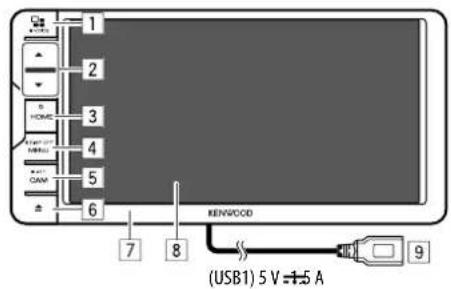
DMX719WBTL
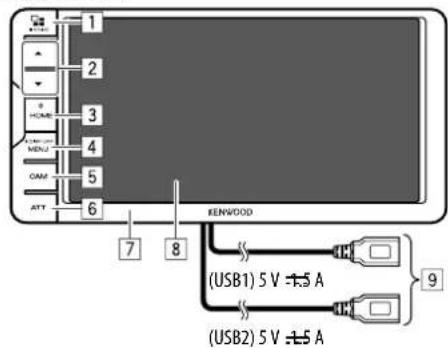
1 | AVOICE button
- Press): Displays the screen of the smartphone while listening to the other playback source.*1
• VOICE (Hold): Activates the voice dialing.
② Volume ▲ / ▼ buttons
3 HOME button
• (Press): Turns on the power.
• (Hold): Turns off the power or AV source.*2
• HOME (Press): Displays the Home screen while the power is on.
4 MENU/DISP OFF button
- MENU (Press): Pops up the short-cut menu.
• DISP OFF (Hold): Turns off the screen.
5 DDX719WBTL: CAM/ATT button
- CAM (Press): Displays the picture from the connected rear view camera.
- ATT (Hold): Attenuates the sound. DMX719WBTL: CAM button
- (Press): Displays the picture from the connected rear view camera.
6 | DDX719WBTL: ▲ button
• Displays the
DMX719WBTL: ATT button
• (Press): Attenuates the sound.
7 Monitor panel
8 | Screen (touch panel)
9 DDX719WBTL: USB1 input terminal from the rear panel
DMX719WBTL: USB input terminals (USB1 and USB2) from the rear panel*3
*1 The availability of this function is depending on the settings and connections made for mirroring. (Page 20)
*2 The function of the button when held varies depending on the
*3 To switch between the USB devices connected to the USB input terminals, see page 16.
DDX6019BT
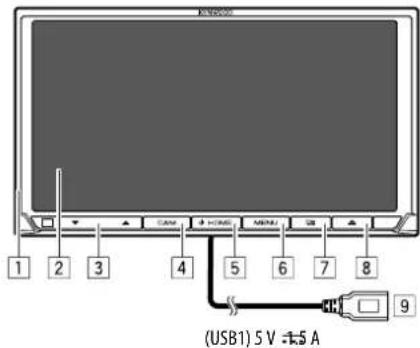
DMX6019BT
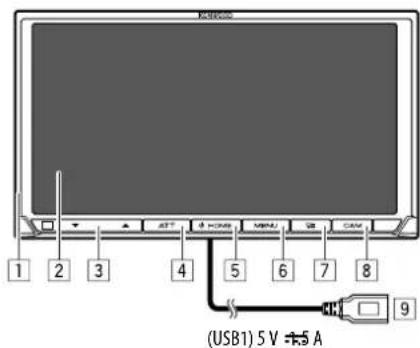
1 Monitor panel
2 Screen (touch panel)
3 Volume ▼ / ▲ buttons
Component Names and Operations
4 DDX6019BT: CAM/ATT button
- CAM (Press): Displays the picture from the connected rear view camera.
• ATT (Hold): Attenuates the sound.
DMX6019BT: ATT button
• (Press): Attenuates the sound.
|5| HOME button
• (Press): Turns on the power.
• (Hold): Turns off the power or AV source.*1
• HOME (Press): Displays the Home screen while the power is on.
|6| MENU/DISP OFF button
- MENU (Press): Pops up the short-cut menu.
• DISP OFF (Hold): Turns off the screen.
7 AVOICE button
- Press): Displays the screen of the smartphone while listening to the other playback source.*2
• VOICE (Hold): Activates the voice dialing.
|8| DDX6019BT:▲button
- (Press): Displays the
DMX6019BT: CAM button
- (Press): Displays the picture from the connected rear view camera.
9 USB1 input terminal from the rear panel
*1 The function of the button when held varies depending on the
*2 The availability of this function is depending on the settings and connections made for mirroring. (Page 20)
DMX5019BT
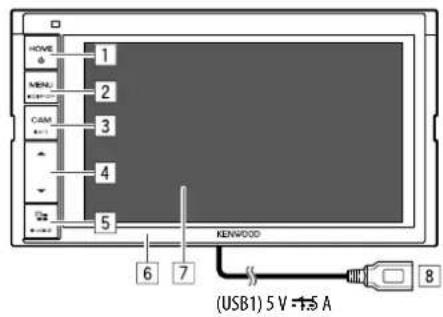
1 HOME button
- (Press): Turns on the power.
• (Hold): Turns off the power or AV source.*1 - HOME (Press): Displays the Home screen while the power is on.
2 MENU/DISP OFF button
- MENU (Press): Pops up the short-cut menu.
• DISP OFF (Hold): Turns off the screen.
3 CAM/ATT button
• CAM (Press): Displays the picture from the connected rear view camera.
- ATT (Hold): Attenuates the sound.
4 Volume ▲/▼ buttons
5 AVOICE button
- Press): Displays the screen of the smartphone while listening to the other playback source.*2
• VOICE (Hold): Activates the voice dialing.
6 Monitor panel
7 Screen (touch panel)
8 USB1 input terminal from the rear panel
*1 The function of the button when held varies depending on the
*2 The availability of this function is depending on the settings and connections made for mirroring. (Page 20)
Basic Operations
Turning on the power
DDX719WBTL DDX6019BT DMX5019BT DMX719WBTL DMX6019BT
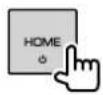
Turning off the power/turning off the AV source
- This function varies depending on the
DDX719WBTL DDX6019BT DMX5019BT DMX719WBTL DMX6019BT
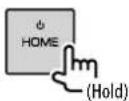
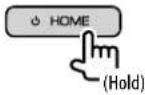
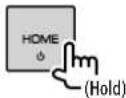
Putting the unit in standby
1 Display the source/option selection screen.
On the Home screen, touch as follows:

2 Put the unit in standby.
On the source/option selection screen, touch as follows:
Turning off the screen
DDX719WBTL DDX6019BT DMX5019BT DMX719WBTL DMX6019BT
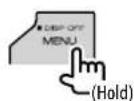
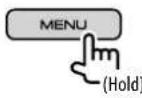
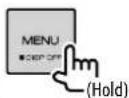
To turn on the screen: Press the same button on the monitor panel or touch the screen.
Adjusting the volume
DDX719WBTL DDX6019BT DMX5019BT DMX719WBTL DMX6019BT
You can adjust the volume (00 to 40) by pressing ▲ to increase and pressing ▼ to decrease.
- Holding ▲ increases the volume continuously to level 15.
Attenuating the sound
DDX719WBTL DDX6019BT DMX5019BT
DMX719WBTL DMX6019BT
The ATT indicator lights up.
To cancel attenuation:
- DDX719WBTL/DDX6019BT/DMX5019BT: Press and hold the same button again.
- DMX719WBTL/DMX6019BT: Press the same button again.
Monitor panel operations
(Only for DDX719WBTL/DMX719WBTL/DDX6019BT/DMX6019BT)
1Display the screen.
2 Perform the adjustment or operation.
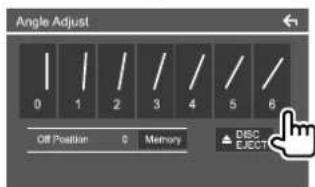
E.g. Angle adjust screen for DDX719WBTL
[0] - [6] Selects a monitor angle.
(The monitor panel will stay in this angle when you turn on the unit.)
when the ignition switch of the vehicle is turned off or when you turn off the unit.
- Select the monitor angle, then touch [Memory].
[▲ DISC EJECT] (Only for DDX719WBTL/DDX6019BT)
Ejects the disc.
To return the monitor panel to the selected angle:
Press ▲ on the monitor panel.
- To return to the previous screen, touch [←] on the setting screen.
Initialsettings
When you power on the unit for the first time, the
Perform the initial settings.
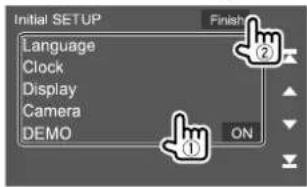
E.g. Initial settings screen
Once completed, a warning message appears. Touch [Agree] to display the Home screen.
[Language]\*1
Select the text language used for on-screen information.
Touch [Language Select], then select the language.
- American English(en) (Initial)/British English(en)/Nederlands(nl)/Français(fr)/Deutsch(de)/Italiano(it)/Español(es)/(ar) Ελληνικά(el)/Português(pt)/Čeština(cs)/Polski(pl)/Magyar(hu)/Русский(ru)/πιτηνιθ(th)/Türkçe(tr)/ιθμα中文繁體中文(zh)/(he)γ(φευβ/ Bahasa Melayu (ms)/Bahasa Indonesia(id)
Getting Started
[Clock]
Set the calendar and clock time.
Make the settings for [Clock], [Time Zone] or [Clock
Adjust].
[Display] (Page 38)
Make the settings to adjust the display.
[Camera] (Page 41)
Make the settings to display the picture from the connected view camera.
[DEMO]\*2
• ON (Initial): Activates the display demonstration.
• OFF: Deactivates the display demonstration.
*1 Only for DDX719WBTL/DDX6019BT:
"Please Power Off" appears when the setting is changed. To enable the change:
- When
- When
*2 Some features are not selectable when [ON] is selected.
Setting the security code
You can set a security code (four-digit number of your choice) to protect your receiver system against theft.
- Once you set the security code, you are required to input the security code if you have disconnected the unit from the battery.
Enter the security code you have set in step 3, then touch [Enter] when you reconnect the battery.
1 Display the Home screen.
DDX719WBTL DDX6019BT DMX5019BT DMX719WBTL DMX6019BT
2 Display the
On the Home screen, touch as follows:
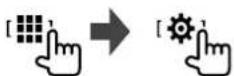
Then, on the
3 Enter a four-digit number (①), then confirm the entry (②).
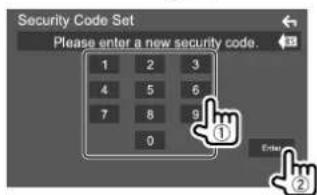
• To clear the last entry, touch [BS].
• To cancel the setting, touch [←]
4 Enter the four-digit number entered in step 3 and touch [Enter] again to confirm your security code.
To change the security code: Touch [Security Code Change] on the
To clear the security code: Touch [Security Code Cancellation] on the
Calendar/clocksettings
1 Display the Home screen.
DDX719WBTL DDX6019BT DMX5019BT DMX719WBTL DMX6019BT
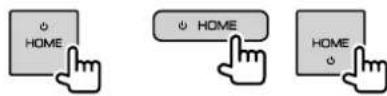
2 Display the
On the Home screen, touch as follows:
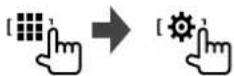
Then, on the
3 Set the date and clock.
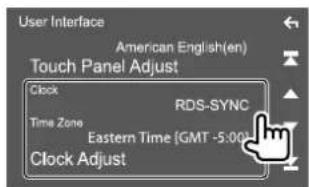
E.g. User interface settings screen
[Clock]
Select the method to set the date and clock.
- RDS-SYNC (Initial): Synchronizes the clock with the FM Radio Broadcast Data System.
- Manual: Sets the date and clock manually.
[Time Zone]\*
Select the time zone for your area.
[Clock Adjust]\*
Set the date and clock manually when [Clock] is set to [Manual].
Touch [▲]/[▼] to adjust the date (year/month/date), then clock (hour/minute). To finish setting, touch [Set].
* Selectable when [Clock] is set to [Manual].
You can display or change to other screens at any time to show information, change the AV source, change the settings, etc.
Touch screen operations
To perform operations on the screen, you need to touch, touch and hold, flick or swipe to select an item, display setting menu screen or to change the page, etc.
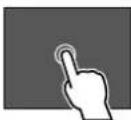
Touch
Touch the screen gently to select an item on the screen.
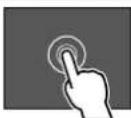
Touch and hold
Touch the screen and keep your finger in place until the display changes or a message is displayed.
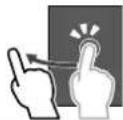
Flick
Slide your finger to the left or right on the screen to change the page.
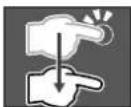
Swipe
Slide your finger up or down on the screen to scroll the screen.
Note:
You cannot perform multi-touch operation such as zoom in or zoom out on the screen of this unit.
Home screen
Press HOME on the monitor panel to display the Home screen from other screens.
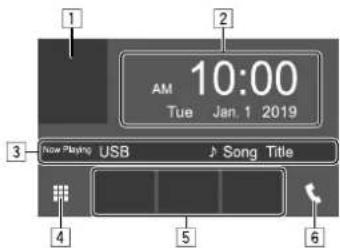
E.g. Home screen
Touching the operation keys performs the following actions:
1 Displays the current playing source control screen
2 Clock/date
3 Current source information
4 Displays all playback sources and options
5 Short-cut playback source keys
6 Displays the phone control screen
Various Screens and Operations
Available playback sources and options
Touch [the Home screen to display the source/option selection screen.
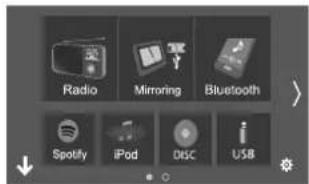
E.g. Source/option selection screen for DDX719WBTL
Touching the operation keys performs the following actions:
[Radio] Switches to the radio broadcast.
[Mirroring] Switches to the Mirroring for KENWOOD application.
[Bluetooth] Plays a Bluetooth audio player.
[Spotify] Switches to the Spotify application.
[iPod] Plays an iPod/iPhone.
[DISC]* Plays a disc.
[USB] Plays files on a USB device.
[AV-IN] Switches to an external component connected to the AV-IN input terminal.
[Audio] Displays the sound adjustment screen.
[STANDBY] Puts the unit in standby.

Displays the
* Only for DDX719WBTL/DDX6019BT.
To change the page: Touch [/[>]. Current page is shown by the page indication on the bottom of the screen.
To return to the Home screen: Touch [↓] on the source/option selection screen.
Customizing the source/option selection screen
You can arrange the items to display on the source/option selection screen.
1 Select an item to move.
Touch and hold the item you want to move until boxes appear around the icons.
2 Drag the selected item and drop to the position you want to move it to.
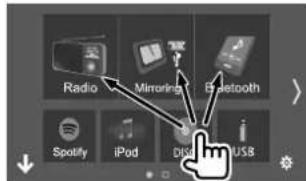
E.g. Source/option selection screen for DDX719WBTL
About short-cut playback source keys on the Home screen
The three items displayed on the top of the source/option selection screen with large icons are also shown on the Home screen as the short-cut playback source keys. You can set the source keys which you use frequently and access quickly from the Home screen.
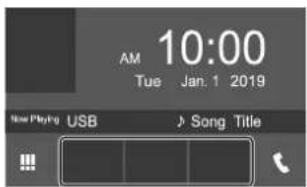
E.g. Home Screen
Various Screens and Operations
Source control screen
You can perform the playback operation from the source control screen during playback.
- The operation keys and information displayed vary depending on the selected source/file type being played.
- If the operation keys are not displayed on the screen, touch the screen to show them.
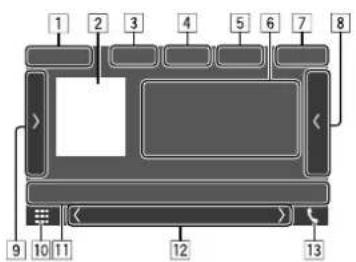
E.g. Common audio playback source screen
1 Playback source or media type
|2| Picture data/artwork (shown if the file contains artwork except for disc playback)
[3] For video: Hides the operation keys on the screen while video is played
• Touch the screen to restore the operation keys.
For audio: File format
4| Repeat/random playback mode keys*1
5 Signal strength and battery level of the connected Bluetooth device (only when the information is acquired from the device)
6 Track/file/song/video information
- Touching [k] scrolls the text if not all of the text is shown.
7 Clock display
8 Displays the track/file/station list
9 Displays/hides other available operation keys*1
10 Displays the source/option selection screen
11 Operation keys*1
12 Secondary screen
Each time you touch [<1/[]], the items shown on the secondary screen change as follows:
- Indicators: Displays the current source conditions, etc.
The followings are the common indicators:
-ATT: The sound is attenuated.
-LOUD: The loudness is activated.
-IN: A disc is inserted.*2
—MUSIC/VIDEO: Music/video file is played back.
- Short-cut keys: Changes the source from those you have located on the Home screen.
13 Displays the phone control screen
*1 See the following "Common operation keys on source control screen".
*2 Only for DDX719WBTL/DDX6019BT.
Common operation keys on source control screen
- The appearance of the operation keys may differ, however the similar operation keys have the same operations.
• Available operation keys differ depending on the selected source or connected device.
Touching the operation keys performs the following actions:
4
[∅]
Selects repeat playback mode.
• Repeat one
- Repeat folder
- ADL: Repeat all
• CAP: Repeat chapter
• TTR: Repeat title
- qay): Off
[x]\*
Selects random playback mode.
• Random folder
• XCL: Random all
• :random song
- x(gray): Off
9
[>
Displays other available operation keys besides those shown on 11.
• To hide the window, touch [〈].
[<<][
Reverses/forwards search during playback
[<|>|[|]]
Plays in slow-motion.
[□]
Stops playback.
[SETUP] Displays the setting screen of the current playback source.
Various Screens and Operations
| [MENU CTRL] Displays the video menu control screen. (Page 14) | |
| [→][→] | Selects a folder. |
| [Audio] Changes the audio output channel of VCD. | |
| 11 | |
| [→] | Displays thescreen. (Page 35) |
| [Q] | Displays the folder list/track list/audio menu/video menu. |
| [◀◀]/[▶▶] | • (Touch) Selects an item (chapter/ folder/track/audio file/video file). • (Hold) Reverses/forwards search. |
| [▶II] | Starts/pauses playback. |
* Available playback mode differs depending on the source, disc/file type, connected device, etc.
Using the pop-up short-cut menu
While displaying the source control screen, you can jump to another screen by touching the operation keys on the pop-up short-cut menu.
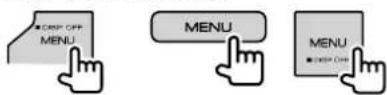
1 Display the pop-up short-cut menu.
DDX719WBTLDDX6019BTDMX5019BT DMX719WBTLDMX6019BT
2 Select an item to jump.
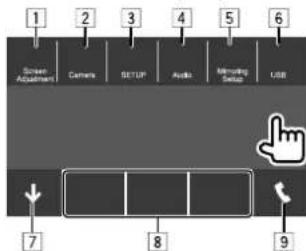
E.g. Pop-up short-cut menu screen for DDX719WBTL
① Displays the picture adjustment screen. (Page 15)
[2] DDX719WBTL/DDX6019BT/DMX5019BT: Camera: Displays the picture from the connected rear view camera. (Page 24) DMX719WBTL/DMX6019BT:
Angle: Displays the
[3] Displays the
4 Displays the
■ Using touch screen operation during playback
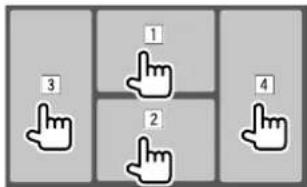
Touching the areas performs the following actions:
1 Displays the video control menu while playing a video from a disc.
2 Displays the source control screen.
3 Goes to the previous chapter/track.*
4 Goes to the next chapter/track.*
* Not available for video from an external component (AV-IN).
List/settingscreen
The followings are the common operation keys which appear on the list/setting screen.
- The appearance of the operation keys may differ, however the similar operation keys have the same operations.
• Available operation keys differ depending on the setting screens. Not all the following operation keys are shown on every screen.
Various Screens and Operations for DDX719WBTL/DDX6019BT)
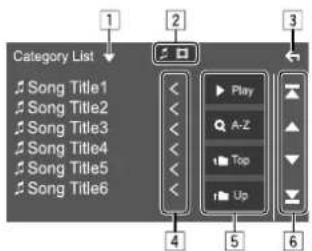
Touching the operation keys performs the following actions:
|1| Displays list type selection window.
2 Selects the file type ([♪]: audio/[□]: video).
3 Exits from the current screen or returns to the previous screen.
4 Scrolls the text if not all of the text is shown.
|5| Play/search keys
- [▶ Play]: Plays all tracks in the folder containing the current track.
- [Q-Z]: Enters alphabet search to list the items in alphabetical order. When a keypad appears, touch the first letter you want to search for.
• [t]p]: Returns to the root folder.
• [↑]p]: Returns to the upper layer.
6 Changes the page to display more items.
• [▲]/[▼]: Scrolls the page.
• [▲]/[▼]: Jumps to the top or bottom page.
- If a disc does not have a disc menu, all tracks on it will be played repeatedly until you change the source or eject the disc.
- For playable disc types, file types and other information, see pages 53 – 54.
- If "⊗" appears on the screen, the unit cannot accept the operation you have tried to do.
- In some cases, without showing “∅”, operations will not be accepted.
- When playing back a multi-channel encoded disc, the multi-channel signals are downmixed.
Inserting a disc
Then, on the
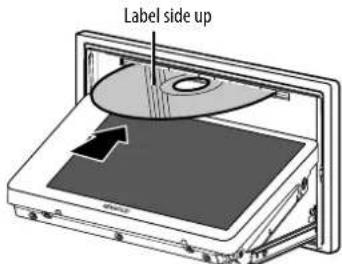
E.g. Inserting a disc for DDX719WBTL
After the disc is loaded, the monitor panel closes automatically.
The source changes to "DISC" and playback starts.
• The IN indicator lights up while a disc is inserted.
Ejecting a disc
Then, on the
- When removing a disc, pull it out horizontally.
- You can eject a disc while playing another AV source.
- If the ejected disc is not removed within 15 seconds, the disc is automatically inserted again into the loading slot to protect it from dust.
To close the monitor panel: Press ▲ button on the monitor panel after removing the disc.
Playbackoperations
Audio playback information and key operation
- For playback information, see "Source control screen" on page 10.
- For key operations on the touch panel, see "Common operation keys on source control screen" on page 10.
Selecting a folder/track on the list
1 Display the folder/track list.
On the source control screen, touch as follows:

2 Select the item in the selected folder.
- For details about the list operation, see page 11.
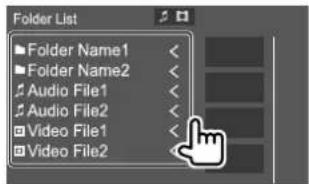
Select an item in each layer until you reach and select the desired file.
Settings for DVD playback
1 Display the screen.
On the source control screen, touch as follows:
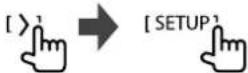
2 Make the settings.
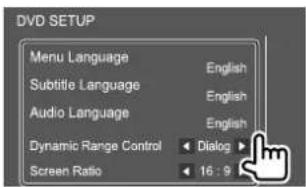
[Menu Language]
Select the initial disc menu language. (Initial: English)
[Subtitle Language]
Select the initial subtitle language or turn subtitles off (OFF). (Initial: English)
[Audio Language]
Select the initial audio language. (Initial: English)
You can change the dynamic range while playing Dolby Audio encoded discs.
- Wide: Reproduces powerful sound at a low volume level with its full dynamic range.
• Normal: Reduces the dynamic range a little.
- Dialog (Initial): Reproduces movie dialog more clearly.
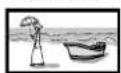
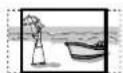
Select the monitor type to watch a wide screen picture on the external monitor.
16:9 (Initial) 4:3 LB 4:3 PS

Video
Playback operations
■ Video playback information on the source control screen
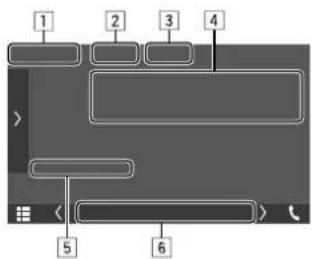
E.g. Video playback source control screen for DDX719WBTL
1 Media type
② Hides the operation keys on the screen.
- Touch the screen to restore the operation keys.
3 Repeat/random playback mode keys
4 Current playback item information/audio format
5 Playback status/playing time
6 Indicators
• IN: Lights up when a disc is inserted.*
• VIDEO: Lights up when video is played.
* Only for DDX719WBTL/DDX6019BT.
Video menu control operations
(Only for DDX719WBTL/DDX6019BT)
You can display the video menu control during video playback.
• Available operation keys differ depending on the selected disc type and file type.
1Display the video menu control screen.
On the source control screen, touch as follows:
[ MENU CTRL

2 Perform the video operations.
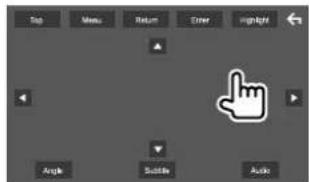
E.g. Video menu control screen for DDX719WBTL
Touching the operation keys performs the following actions:
[Top] Displays the top menu (DVD).
[Menu] Displays the disc menu (DVD).
[Return] Returns to the previous screen.
[Enter] Confirms the selection.
[Highlight] Switches to the direct disc menu selection mode. Touch the target item to select.
• The menu screen disappears when no operation is done for 5 seconds.

Returns to the playback screen.
[Angle] Selects the view angle.
[Subtitle] Selects the subtitle type.
[Audio] Selects the audio type.

[▼] [◀] [▶]
Selects an item.
Video
Adjusting the picture
1 Display the pop-up short-cut menu.
DDX719WBTL DDX6019BT DMX5019BT DMX719WBTL DMX6019BT

2Display the picture adjustment screen.
On the pop-up short-cut menu, touch as follows:
[Screen Adjustment]

3 Adjust the picture.
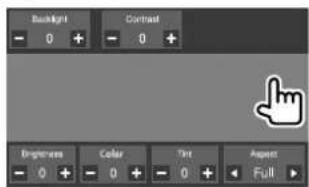
• Full: Changes the aspect ratio of video and displays fully on the screen.
- Normal: Displays the video in the aspect ratio of 4:3.
• Auto:
- For Disc: Video of 16:9 ratio is displayed in the aspect ratio of
- Adjustable items are different depending on the current source.
USB
You can connect a USB mass storage class device such as a USB memory, digital audio player, etc. to the unit.
- For playable file types and other information, see page 53 and page 55.
- You cannot connect a PC or portable HDD to the USB input terminal.
- You cannot connect a USB device via a USB hub.
Connecting a USB device
Use CA-U1EX for extending the cable if necessary. (Max 500 mA, 5 V)
DDX719WBTL/DDX6019BT/DMX6019BT/DMX5019BT:
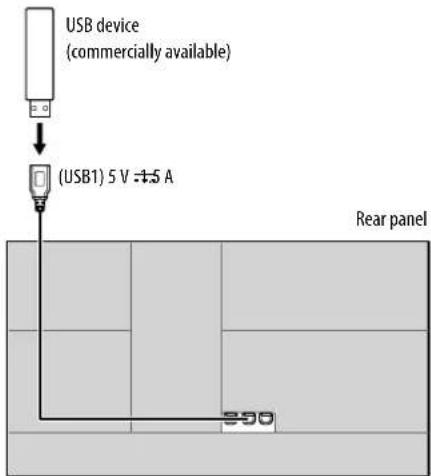
USB
DMX719WBTL:
The unit is equipped with two USB input terminals.
You can connect two USB devices.
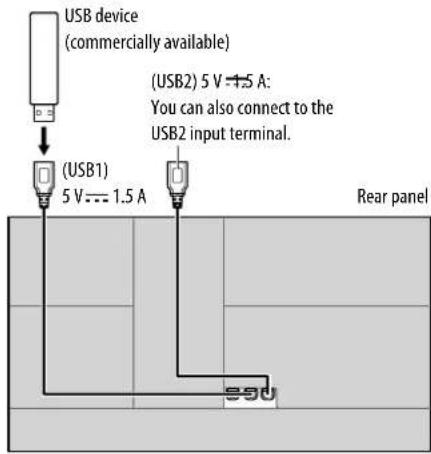
Switching the USB devices
(Only for DMX719WBTL)
You can switch between the USB devices connected to the USB input terminals from the rear panel.
On the source control screen, touch as follows:
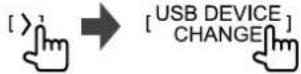
The playback control screen of the next drive appears and playback starts if there are playable files on the USB device.
Performing the above operations will also change the drive of the following devices:
- Selected internal or external memory of a smartphone (Mass Storage Class).
- Selected drive of a multiple drive device.
Playback operations
■Playback information and key operation
- For playback information, see "Source control screen" on page 10.
- For key operations on the touch panel, see "Common operation keys on source control screen" on page 10.
- All tracks in the USB device will be played repeatedly until you change the drive, change the source or disconnect the USB device.
■ Selecting a folder/track on the list
1 Display the folder/track list.
On the source control screen, touch as follows:

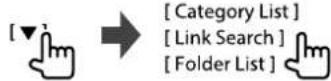
2 Select the list type.
3 Select the desired track.
- Repeat the procedure until you select the desired track.
- For details about the list operation, see page 11.
From :
① Select the file type ([ ]: audio/[ ]: video).
② Select a category, then the item in the selected category.
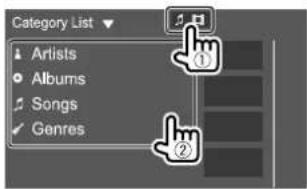
iPod/iPhone
From :
① Select the file type ([♪]: audio/[□]: video).
② Select the tag type to display a list of contents that contains the same tag as the track/file currently being played, then select the item.
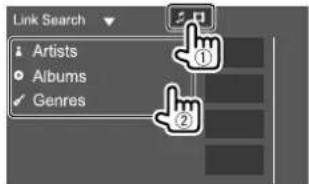
From :
Select the folder, then the item in the selected folder.
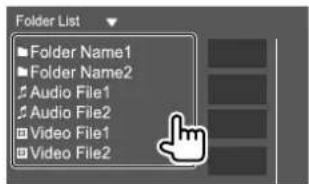
Connecting an iPod/iPhone
- For playable iPod/iPhone types and other information, see page 56.
- You cannot watch video.
Wired connection
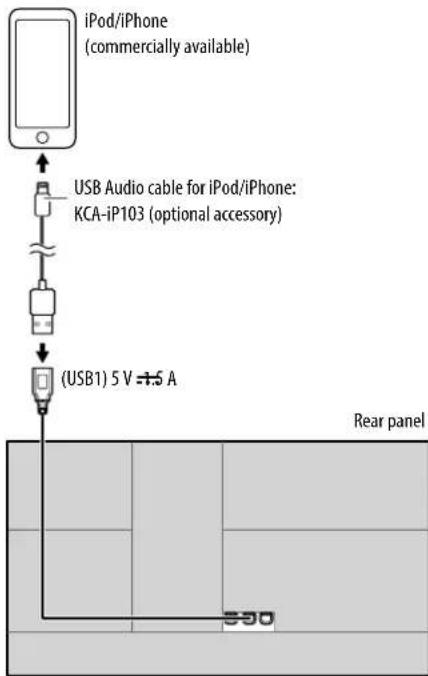
DMX719WBTL: Although this unit is equipped with two USB input terminals, but only one iPod/iPhone can be used at a time. The first detected device will be used. If you try to connect another iPod/iPhone to the other USB input terminal, the following message will pop-up:
"Only the first connected iPod can be used. Please disconnect the another iPod at first, and try reconnect this iPod again."
Bluetooth connection
Pair the iPod/iPhone with this unit via Bluetooth. (Page 26)
Playback operations

Playback information and key operation
- For playback information, see "Source control screen" on page 10.
- For key operations on the touch panel, see "Common operation keys on source control screen" on page 10.

Selecting an audio file from the menu
1 Display the list.
On the source control screen, touch as follows:

2 Select the list type.

[Category List]
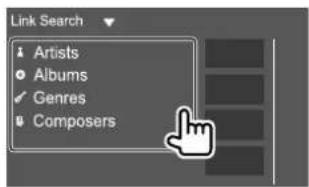
[Link Search]

iPod/iPhone
3 Select the desired track.
- Repeat the procedure until you select the desired track.
- For details about the list operation, see page 11.
From :
Select a category, then the item in the selected category.
• Available categories differ depending on the type of iPod/iPhone.
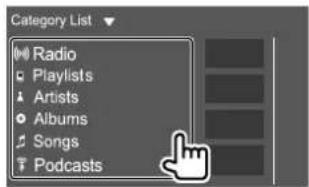
From :
Select the tag type to display a list of contents that contain the same tag as the track/file currently being played, then select the item.
Mirroring
With Mirroring for KENWOOD application installed on your smartphone, you can display the screen of your smartphone on the screen of this unit and listen to either the audio of your smartphone or current source of this unit.
Compatible device:
- Android device
-Bluetooth support
-Android version 5.0 (Lollipop) or later
-Linux Kernel version 3.5 or later
- iPhone
-Bluetooth support
-iOS version 11 or later
Preparation
Be sure to ground the PRK SW lead during installation. (Pages 50 - 52)
Installing the application
Install the latest version of the Mirroring for KENWOOD application and activate the application on your smartphone.
- For Android devices: Search for "Mirroring for KENWOOD" in Google Play to find and install the most recent version.
- For iPhone: Search for "Mirroring for KENWOOD" in Apple App Store to find and install the most recent version.
Note
- Mirroring for KENWOOD application is a free application.
- You can check "how to" tutorial in Mirroring for KENWOOD application.
Connecting the device
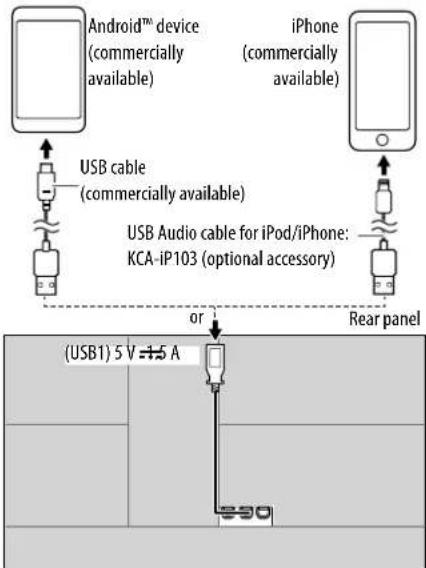
Screen is mirrored through USB1 input terminal connection while audio is shared via Bluetooth connection between this unit and your smartphone.
Connect to the USB1 input terminal
- USB2 input terminal does not support Mirroring.
Mirroring
Connect via Bluetooth connection
- Pair your smartphone with this unit via Bluetooth.
- See "Registering a new Bluetooth device" on page 26.
- Select [Mirroring] on the
- See "Connecting/disconnecting a registered Bluetooth device" on page 27.
For Android devices:
When you use Mirroring for KENWOOD application for the first time, the terms of service are displayed. It is necessary to agree to the terms of service to use this function.
For iPhone:
Launch "Settings", then touch "Control Center" and then "Customize Controls".
Touch "Screen Recording" and add to "INCLUDE" list. Launch "Control Center" of your iPhone, then touch and hold Screen Recording icon.
Touch "Mirroring for KENWOOD" and start broadcast.
Mirroringoperation
By selecting "Mirroring" as the source (page 9), a caution screen appears. Touch [Agree] after you have read the terms on the caution screen.
The screen of your smartphone is reflected on the screen of this unit. You may access your smartphone from this unit.
Switching to the smartphone screen while listening to another source
You can display your smartphone screen while listening to the other source.
Switch to the smartphone screen.
DDX719WBTLDDX6019BTDMX5019BT DMX719WBTLDMX6019BT
• Each time you press the button, the screen switches between the current source and smartphone screen.
You cannot use the following sources at the same time with Mirroring for KENWOOD application.
- Bluetooth
- iPod
• USB - Spotify
A pop-up message appears if you press ☐ button while listening to one of the above sources.
Touch [Yes] to switch to "Mirroring" source or [No] to remain at current playback source.
Note
- OSD clock is not shown on the mirroring screen of this unit regardless of the setting made for
. (Page 39) - Depending on the connected Android device, you may need to enable virtual keyboard setting on your smartphone to display software keyboard on the screen of this unit and on your smartphone.
-
Mirroring for KENWOOD application is discontinued by the following operations if you use the application with an iPhone:
-
Receiving an incoming call
-iPhone's screen recording function is stopped
-iPhone screen is turned off
To resume the mirroring operation, disconnect the iPhone from the USB Audio cable, and try connecting it again.
- The audio may be of poor quality, interrupted or skipped, depending on several conditions such as network condition, the application and etc.
- If you perform pairing with another device during mirroring, mirroring (audio and/or video) will be disturbed or paused.
- Some applications may not support audio sharing.
- Some operations may not work depending on the compatibility between this unit, Mirroring for KENWOOD application and your smartphone.
Mirroring
Disconnect mirroring
You can disconnect mirroring by disconnecting your smartphone from the USB1 input terminal from the rear panel.
You can also disconnect mirroring by performing the following:
- Deselect [Mirroring] on the
- Deselect the device on the
screen in .
Note
Once you disconnect from mirroring operations, stop broadcast on iPhone's screen recording function. Otherwise "iPod" source and "Bluetooth" source may not work correctly.
Settings for mirroring operation
1 Display the pop-up short-cut menu.
DDX719WBTLDDX6019BTDMX5019BT DMX719WBTLDMX6019BT
2 Display the screen.
On the pop-up short-cut menu, touch as follows:
3 Make the settings.
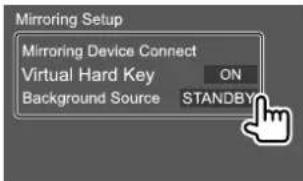
Selects the device to access via Mirroring for KENWOOD application. (Be sure the selected device is connected to the USB1 input terminal from the rear panel.)
- Touch the device name again to deselect the device for Mirroring.
\*1
• ON (Initial): Displays the virtual hard keys of the smartphone.
[←I]/[I]→Changes the virtual hard keys position shown on the screen of this unit.
[ ]: Returns to home page.
[ X]: Closes the virtual hard keys.
To display back the virtual hard keys, select
[ON] for
[☐: Shows the recent applications (Android only).
[→]: Returns to the previous page (Android only).
• OFF: Closes the virtual hard keys.
<不说 \*2
While displaying your smartphone screen on this unit using Mirroring for KENWOOD application, you can also select one of the following as the current playback source to listen to (without going to the Home screen).
• STANDBY (Initial)/Mirroring/Radio/DISC/AV-IN
Touch [Close] to confirm the selection and return to
*1 These keys differ depending on the connected device and may differ from the function operated from the device. These keys can be displayed even if there is no hard key on the connected device.
*2 If mirroring is not connected, all the available sources are listed on the background source list.
Radio
Listening to the radio
The unit switches to FM alarm scene automatically when receiving an alarm signal from FM broadcast.
Playback information on the source control screen
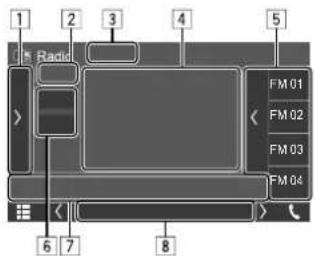
E.g. Radio source control screen
① Displays/hides other available operation keys*
2 Preset no.
3 Changes the seek mode for [I◄◄]/[►►]
• AUTO1 (Initial): Auto search
- AUTO2: Tunes in preset stations one after another
• MANUAL: Manual search
4 Text information
- Touching [<] scrolls the text if not all of the text is shown.
- Touching [icon] switches the information (e.g. frequency, PS name, Radio Text, title, artist, etc.). –The availability of the information varies depending on the reception, selected station.
5 Preset list
6 Selects the band (AM/FM)
7 Operation keys*
8 Indicators
• TI: Lights up in white when receiving the traffic information, and lights in orange when Traffic Information Reception is on standby.
• ST: Lights up when receiving a stereo broadcast.
• MONO: Lights up when receiving stations in monaural forcibly.
* See the following "Operation keys on source control screen".
Operation keys on source control screen
- The appearance of the operation keys may differ, however the similar operation keys have the same operations.
- See also "Common operation keys on source control screen" on page 10.
Touching the operation keys performs the following actions:
1
[TI]* (For FM Radio Broadcast Data System features)
Activates TI standby reception mode.
- When TI is activated, the unit is ready to switch to traffic information if available. The TI indicator lights up in white.
- If the TI indicator lights up in orange, tune into a station providing Radio Broadcast Data System signals.
- The volume adjustment for traffic information is automatically memorized. The next time the unit switches to traffic information, the volume is set to the memorized level.
• To deactivate, touch [TI] again.
[MONO]* Activates monaural mode.
- When monaural mode is activated, the unit searches for better FM reception (stereo effect will be lost). The MONO indicator lights up.
• To deactivate, touch [MONO] again.
Radio
[PTY]* (For FM Radio Broadcast Data System features)
Enters PTY search mode.
① Touch a PTY code.
② Touch [Search] to start searching.
If there is a station broadcasting a program of the same PTY code as you have selected, that station is tuned in.
[AME] Presets stations automatically.
| 7 |

Searches for a station.
- The search method differs depending on the selected seek mode. (Page 21)
* Selectable only when FM is selected.
Presetting stations in the memory
You can preset 15 stations for FM and 5 stations for AM.
Automatic presetting — AME (Auto Memory)
On the source control screen, touch as follows:


A confirmation message appears. Touch [Yes].
The local stations with the strong signals are found and stored automatically.
22
ENGLISH
Manual presetting
1 Select the band, then tune in to a station you want to store.
- See "Playback information on the source control screen" on page 21 for details.
2 Display the preset list.
On the source control screen, touch as follows:

3 Select a preset number to store into.
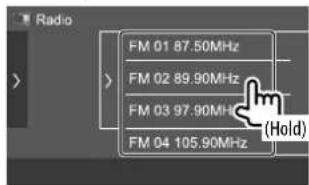
The station selected in step 1 is stored into the preset number you have selected.
To hide the preset list: Touch [>] on the preset list.
Selecting a preset station
1 Select the band, then display the preset station list.
On the source control screen, touch as follows:
[FM]/[AM]
2 Select a preset station.
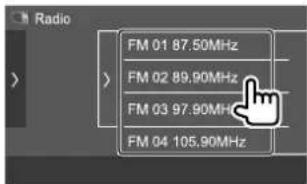
To hide the preset list: Touch [>] on the preset list.
Spotify
With Spotify, your music is everywhere. Working out, partying or relaxing, the right music is always at your fingertips. There are millions of songs on Spotify—from old favorites to the latest hits. Just choose the music you love, or let Spotify surprise you.
You can stream Spotify from iPhone/iPod touch or Android devices.
- Because Spotify is a third-party service, the specifications are subject to change without prior notice. Accordingly, compatibility may be impaired or some or all of the services may become unavailable.
- Some functions of Spotify cannot be operated from this unit.
- For issues using the application, contact Spotify at
.
Preparation
Installing the application
Your smartphone must have built in Bluetooth and the following profiles must be supported:
• SPP (Serial Port Profile)
• A2DP (Advanced Audio Distribution Profile)
Establish an Internet connection using LTE, 3G, EDGE, or Wi-Fi.
Ensure you are logged in to your smartphone application. If you do not have a Spotify account, you can create one for free from your smartphone or at
Install the latest version of the Spotify application on your smartphone.
- For Android devices: Search for "Spotify" in Google Play to find and install the most recent version.
- For iPhone/iPod touch: Search for "Spotify" in the Apple App Store to find and install the most recent version.
Connecting the device
For Android devices
Pair the Android device with this unit via Bluetooth. (Page 27)
For iPhone/iPod touch
- Wired connection: Connect the iPhone/iPod touch to the USB input terminal with USB Audio cable, KCA-iP103 (optional accessory). (Page 17)
- Bluetooth connection: Pair the iPhone/iPod touch with this unit. (Page 27)
Playback operations
■Playback information and key operation
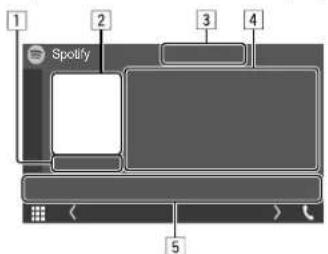
E.g. Spotify source control screen
You can also operate Spotify with remote controller, RC-DV340.
You can only control play, pause and skip with the remote controller.
1 Playing time
2 Picture data
3 Thumb up/down and repeat/shuffle playback mode keys*
4 Track information
- Touching [<] scrolls the text if not all of the text is shown.
5 Operation keys*
* See the following "Operation keys on source control screen".
Operation keys on source control screen
- The appearance of the operation keys may differ, however the similar operation keys have the same operations.
- See also "Common operation keys on source control screen" on page 10.
Touching the operation keys performs the following actions:
3
[ ] Registers the current track as a favorite.
[1] Thumbs down to the current track and skips to the next track.
[X]Activates (/deactivating)
shuffle playback mode.
[○] Selects repeat playback mode
(○●: repeat one/○ ALL: repeat all/
○: repeat off).
|5|
[三] Displays the Spotify menu screen.
[((•))] Creates a new station (Start Radio).
[◀][▶] Selects a track.
[▶][■] Starts (▶)/pauses (■) playback.
[+] Saves the current track/artist/album to
Creating your station (Start Radio)
Start Radio is to start a radio channel based on the currently played track.
Create your station.
On the source control screen, touch as follows:

Station is created and playback starts automatically.
- You can personalize your station using thumb up
([ 👍]) or thumb down ([ 👉]).
– Personalizing stations may not be available depending on the track.
Selecting a track
1 Display the Spotify menu screen.
On the source control screen, touch as follows:

2 Select the list type, then select a desired item.
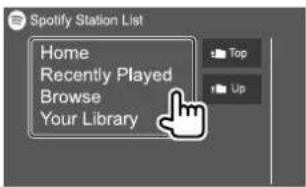
- The list types displayed differ depending on the information sent from Spotify.
Other Externa
Components
Viewcamera
Install the view camera (separately purchased) in the appropriate position according to the instructions supplied with the view camera.
- For DDX719WBTL/DMX719WBTL: You can use both rear view camera and front view camera.
- For DDX6019BT/DMX6019BT/DMX5019BT: You can use rear view camera.
Connecting a view camera
See page 49 for more information on connection terminals.
- To use the rear view camera, a reverse lead (REVERSE) connection is required. (Pages 50 - 52)
Using the view camera
- For view camera settings, see "Camera settings" on page 41.
To display the rear view camera screen
The rear view camera screen is displayed by shifting the gear to the reverse (R) position when [R-CAM Interruption] is set to [ON] on the
- A caution message appears on the screen. To remove the caution message, touch the screen.
Other External Components
To display rear view camera screen manually
You can display the picture from the rear view camera manually without shifting the gear to the reverse (R) position.
- Make sure
On the monitor panel:
DDX719WBTLDDX6019BTDMX5019BT DMX719WBTLDMX6019BT
On the pop-up short-cut menu (only for DDX719WBTL/DDX6019BT/DMX5019BT):
Operations while the view camera screen is displayed
To switch the screen between front view camera and rear view camera
- Make sure
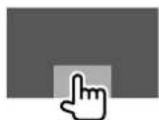
Touch the area shown below.
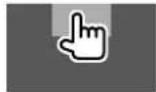
To exit the view camera screen
Press HOME on the monitor panel or touch the area shown below.
AV-IN
Connecting an external component
See page 49 for more information on connection terminals.
Starting playback
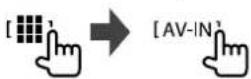
1 Select "AV-IN" as the source.
On the Home screen, touch as follows:
2 Turn on the connected component and start playing the source.
- For playback information, see "Source control screen" on page 10.
Watching TV
Connecting a TV tuner box
Connect TV tuner box to the audio/video input (AV-IN) terminal and TV tuner remote control output (REMO OUT) terminal. (Page 49)
Displaying the TV screen
- Set
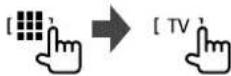
1 Select "TV" as the source.
On the Home screen, touch as follows:
2 Turn on the TV.
■ Playback information and key operation
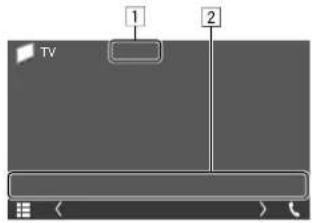
E.g. TV screen
1 Hides the operation keys on the screen while video is played.
2 Operation keys*
* See the following "Operation keys on source control screen".
Operation keys on source control screen
- The appearance of the operation keys may differ, however the similar operation keys have the same operations.
- See also "Common operation keys on source control screen" on page 10.
Additional keys operations: Touching the operation keys performs the following actions.
2
[CH▲]/[CH▼] Selects the channel.
Information
Bluetooth is a short-range wireless radio communication technology for mobile devices such as mobile phones, portable PCs and other devices. Bluetooth devices can be connected without cables and communicate with each other.
Note
- While driving, do not perform complicated operations such as dialing numbers, using the phonebook, etc. When you perform these operations, stop your car in a safe place.
- Some Bluetooth devices may not connect to this unit depending on the Bluetooth version of the device.
• This unit may not work for some Bluetooth devices. - Connecting conditions may vary depending on your environment.
- For some Bluetooth devices, the device is disconnected when the unit is turned off.
- If your mobile phone supports PBAP (Phone Book Access Profile), you can display the following items on the touch panel when the mobile phone is connected.
- Phonebook: up to 1 000 entries
– Dialed calls, received calls, and missed calls (up to 50 entries in total)
Preparation
- Connect and install the microphone beforehand. For details, see pages 50 – 52.
- Set [Bluetooth] to [ON] on the
screen. (Page 43)
Connection
When you connect a Bluetooth device to the unit for the first time:
① Register the device by pairing the unit and the device.
② Connect the device to the unit. (Page 27)
Registering a new Bluetooth device
Pairing allows Bluetooth devices to communicate with each other.
• The pairing method differs depending on the Bluetooth version of the device.
- For devices with Bluetooth 2.1 or later:
You can pair the device and the unit using SSP (Secure Simple Pairing) which only requires confirmation.
- For devices with Bluetooth 2.0:
You need to enter a PIN code both on the device and the unit for pairing.
- Up to 10 devices can be registered in total.
- Two Bluetooth devices for Bluetooth phone and one for Bluetooth audio can be connected at a time.
• To use the Bluetooth function, you need to turn on the Bluetooth function of the device.
26 ENGLISH
Bluetooth®
Autopairing
When
Registering a Bluetooth device
1 Search for the unit ("DDX7W"/ "DMX7W"/ "DDX6"/ "DMX6"/ "DMX5") from your Bluetooth device and operate the device to register.
For a Bluetooth device compatible with SSP (Bluetooth 2.1 or later):
Confirm the request both on the device and the unit.
On the device:
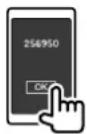
On the unit:
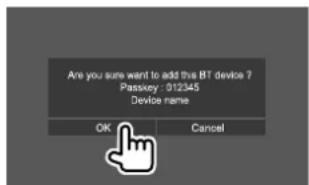
- Touch [Cancel] to reject the request.
For a Bluetooth device compatible with Bluetooth 2.0:
Select the unit ("DDX7W"/ "DMX7W"/ "DDX6"/ "DMX6"/ "DMX5") on your Bluetooth device.
- If a PIN code is required, enter the PIN code shown on the screen (initial: "0000"). To change PIN code, see page 28.
2 When your Bluetooth device is compatible with HFP: Determine usage of the connected device (①), then touch [Close] (②).*
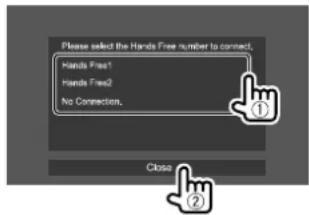
[Hands Free1]/ [Hands Free2]
Select hands free number to use as the hands free device.
[No Connection.] Select this when you do not want to use as the hands free device.
* HFP connection will establish automatically if the connection is available for newly paired device.
3 When your Bluetooth device is compatible with A2DP or SPP: Determine usage as an audio player or a device with Apps installed.**
[Yes] Select to use the device as an audio player.
[No] Select this when you do not want to use the Bluetooth device as an audio player.
** A2DP connection will establish automatically if the connection is available for newly paired device.
4 When your Bluetooth device is compatible with PBAP: Select whether to transfer the phonebook of your Bluetooth device to the unit or not.
[Yes] Select to transfer the phonebook from your Bluetooth device.
[No] Select this when you do not want to transfer the phonebook.
Connecting/disconnecting a registered Bluetooth device
1Display the
On the Home screen, touch as follows:
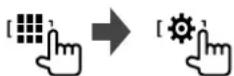
Then, on the
Bluetooth®
2 Select the device you want to connect/disconnect.
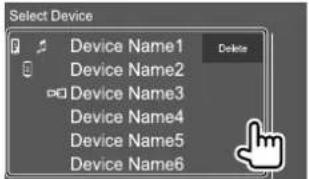
The icons beside the registered device indicate the following:
- Connected as a mobile phone.
• Connected as an audio player. - Connected for a mirroring device.
3 Select the usage of the device (①), then touch [Close] (②).
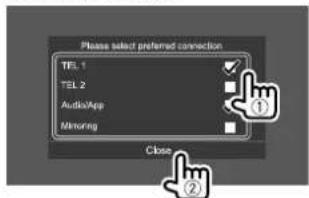
Each time you touch the selection, the usage is selected ("") appears) or deselected ("") disappears).
Select to connect and deselect to disconnect the device.
[TEL 1]/[TEL 2] Select to use as the hands free device.
[Audio/App] Select to use as the audio player or device with Apps installed.
[Mirroring]* Select to use as a mirroring device.
* For mirroring supported device only. See page 18 for details of mirroring features.
To delete the registered Bluetooth device: Touch [Delete] in step 2, select devices to delete, then touch [Delete]. A confirmation message appears. Touch [Yes].
• To select all devices, touch [√××].
- To deselect all selected devices, touch [☐All].
Changing the PIN code
1 Display the screen.
On the Home screen, touch as follows:
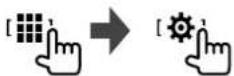
Then, on the
On the
2 Enter the PIN code (①), then confirm the entry (②).
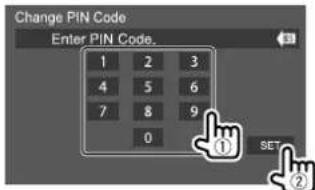
• To clear the last entry, touch [BS].
Changing the device name of the unit displayed on the paired device
1 Display the screen.
On the Home screen, touch as follows:
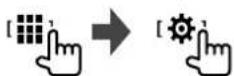
Then, on the
On the
2 Enter the device name (①), then confirm the entry (②).
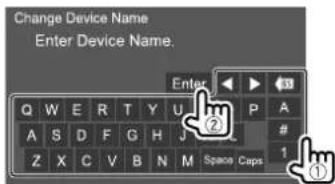
Bluetooth®
• To clear the last entry, touch [BS].
• To move the entry position, touch [◀]/[▶].
Bluetooth mobile phone
When a call comes in...
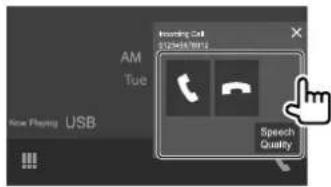
Touching the operation keys performs the following actions:
| [t] | Answers a call. |
| [¬] | Rejects a call. |
| [Speech Quality] | Displays thescreen.Microphone Level: Adjusts the microphone volume level. (-10 to 10)Echo Cancel Level: Adjusts the echo volume level. (-5 to 5)Noise Reduction Level: Adjusts the noise reduction level. (-5 to 5) |
- Call information is displayed if acquired.
- Phone operation is not available while the picture from the rear view camera is displayed.
During a call...
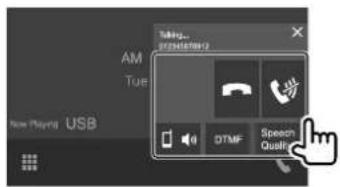
Touching the operation keys performs the following actions:
| [↑] | Ends a call. |
| [◀] | Mutes the volume of the microphone. |
| [□ ◎]/ [ □ ◎ ] | Switches between hands free mode and phone mode. |
| [DTMF] | Enters DTMF (Dual Tone Multi Frequency), then sends text using the keypad. |
| [Speech Quality] | Displays thescreen. |
Making a call
1 Display the phone control screen.
On the Home screen, touch as follows:

2 Select a method to make a call.
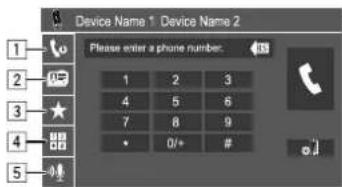
① From the call history* (missed calls/received calls/dialed calls)
2 From the phonebook*
3 From the preset list (Page 30)
4 Use direct number entry
5 Use voice dialing
* Applicable only for mobile phone compatible with PBAP (Phone Book Access Profile).
3 Select a contact to make a call.
A When item 1, 2 or 3 is selected in step 2:
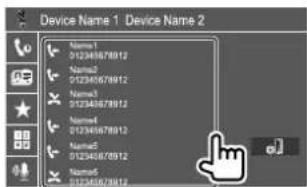
- If the selected contact has several phone numbers, the phone number list is displayed. Select a phone number to make a call.
Bluetooth®
To use alphabet search in the phonebook
① Touch [Q A-Z].
② Touch the first letter you want to search for on the keypad, then touch [X]
To search for a number, touch [1].
③ Select a contact you want to call from the list.
- You can select a first name or last name to use when sorting the list in alphabetical order on the
⑧ When item 4 is selected in step 2:
Enter the phone number (①), then make a call (②).
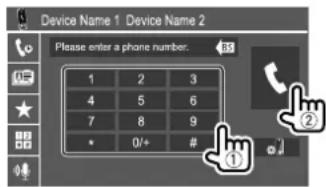
- To enter "+" touch and hold [0/+].
• To clear the last entry, touch [BS].
© When item | 5 | is selected in step 2:
Say the name of the person you want to call.
- You can also make voice dialing by pressing and holding the VOICE on the monitor panel.
• Available only when the connected mobile phone has a voice recognition system. - If the unit cannot find the target, "Speech recognition has been completed. To continue with speech recognition, please press the Restart button." appears. Touch [Restart], then say the name again.
• To cancel voice dialing, touch [Stop].
■ Switching between two connected devices
You can change the device to use when two devices are connected.
On the phone control screen:
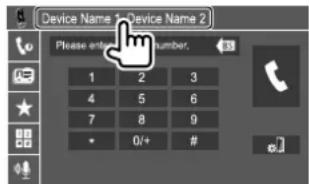
The active device is highlighted.
Presetting phone numbers
You can preset up to eight phone numbers.
1 Display the screen. On the Home screen, touch as follows:

Then, on the phone control screen, touch as follows:
[★→[Edit]
2 Select a position to store into.
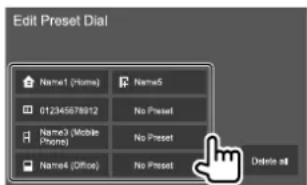
Bluetooth®
3 Select a method to add a phone number to preset list and register the number to the preset list (1), then touch [Close] (2).
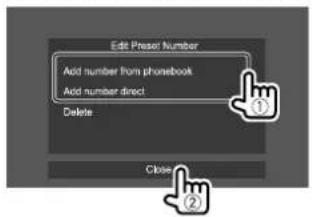
[Add number from phonebook] Select a phone number from the phonebook.
[Add number direct] Enter a phone number on the direct number entry screen, then touch [Set] to add to the preset list.
- To display the preset list, touch [★] on the phone control screen.
To delete a phone number from the preset list: Select the phone number to delete on the
To delete all phone numbers from the preset list: Touch [Delete all] on the
Editing phonebook
To transfer the phonebook
If the connected Bluetooth mobile phone is compatible with Phone Book Access Profile (PBAP), you can transfer the phonebook of the mobile phone to the unit.
1Display the phone control screen.
On the Home screen, touch as follows:

2 Start phonebook data transmission.
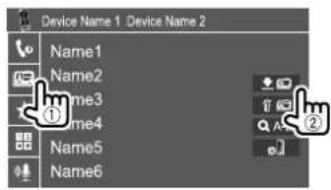
To delete contact from the phonebook: Touch [me] in step 2 (②), select devices to delete, then touch [Delete]. A confirmation message appears. Touch [OK].
• To select all devices, touch [MII].
• To deselect all selected devices, touch [☐All].
- Touch [OA-Z] to search the contact by initial.
Bluetooth audio player
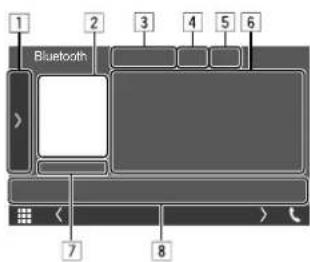
E.g. Bluetooth source control screen
1 Displays/hides other available operation keys*1
2 Artwork (Shown if the track contains artwork)
3 Connected device name
4 Repeat/random playback mode keys*1
5 Signal strength and battery level (Appears only when the information is acquired from the device.)
6 Tag data*2 (current track title/artist name/album title)
- Pressing [<] scrolls the text if not all of the text shown.
7 Playback status/playing time
8 Operation keys*1
*1 See "Common operation keys on source control screen" on page 10.
*2 Available only for devices compatible with AVRCP 1.3.
Bluetooth®
KENWOOD Music Mix
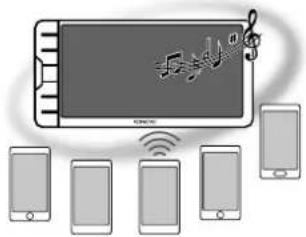
When "Bluetooth" is selected as the source, you can connect up to five Bluetooth audio devices at the same time. You can easily switch between these five devices.
- Some operations may not work depending on the setting made between this unit and your device.
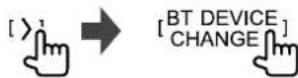
1 Display screen.
On the source control screen, touch as follows:
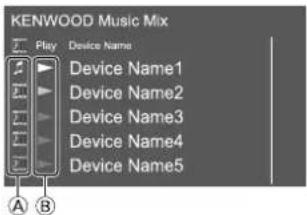
(A) Device used as usual Bluetooth audio device and at the same time, being able to used as device for KENWOOD Music Mix.
- Touch to go to
:Device used for KENWOOD Music Mix.
- (white): Not connected.
- (purple): Connected.
B Status of playback device.
- (purple): Current playback device.
- (white): Ready for playback.
- (gray): Not ready for playback.
2 Connect the device to use as a device for KENWOOD Music Mix.

Touch those icons that light up in white.
• To disconnect, touch the icon again.
3 Select the device to start playback.

Touch those icons that light up in white.
Note:
- Once another device (any other than the device connected as [ ] is selected to play music, the connection is switched to the new selected device.
- When you change to another source from "Bluetooth", the connection is restored to the device connected as [♪]
■Playback information and key operation
- For playback information, see "Source control screen" on page 10.
- For key operations on the touch panel, see "Common operation keys on source control screen" on page 10.
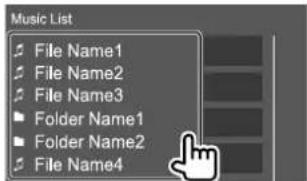
Selecting a track from the list
1 Display the music list.
On the source control screen, touch as follows:

2 Select the folder, then the item in the selected folder.
- For details about the list operation, see page 11.
Bluetooth®
Bluetooth mobile phone settings
You can change various settings for using Bluetooth mobile phones on the
1 Display the screen.
On the Home screen, touch as follows:
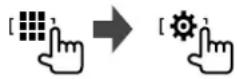
Then, on the
On the
2 Make the settings.
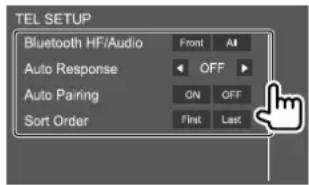
\*
Select the speakers used for Bluetooth mobile phones.
- Front: Front speakers only.
• All (Initial): All speakers.
- 1 – 30 (in 5 second steps): The unit answers the incoming calls automatically. Set the calling ring time (seconds).
When there is another incoming call, the unit will also answers the call in the selected time. The previous call will be put on hold.
- OFF (Initial): The unit does not answer the calls automatically. Answer the calls manually.
- ON (Initial): Establishes pairing automatically with the iOS device (such as iPhone) connected via USB. (Auto pairing may not work for some devices depending on the iOS version.)
- OFF: Cancels.
Select a first name or last name to use when sorting the list in alphabetical order.
- First: Sorts the list in the order of first name.
- Last (Initial): Sorts the list in the order of last name.
* Selectable only when
Settings
Audiosettings
1 Display the
On the Home screen, touch as follows:

2 Select a setting to change.
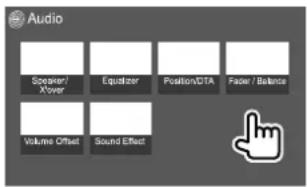
E.g. Audio settings screen
You cannot change the
- When the AV source is turned off.
- When the Bluetooth phone is used (making or receiving a call, during a call, or while voice dialing).
Settings
Preparation:
Before making the adjustment for
1 Put the unit in standby.
On the Home screen, touch as follows:

Then, on the source/option selection screen, touch [STANDBY].
2Display the screen.
On the monitor panel, press the following buttons at the same time:
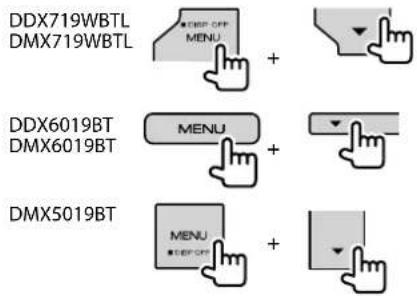
3 Select the crossover network mode.
[2way] Select this when 2-way speaker system is used (front/rear).
[3way] Select this when 3-way speaker system is used (tweeter/mid range/woofer).
A confirmation message appears. Touch [Yes].
Setting the speakers and crossover frequency
1 Select a car type (①), select a speaker (②) (front speakers, rear speakers, or subwoofer) to set, then location\* and speaker/tweeter size (③) of the selected speaker.
A selection window appears for each setting. Select an item, then touch [Close] to close the window.
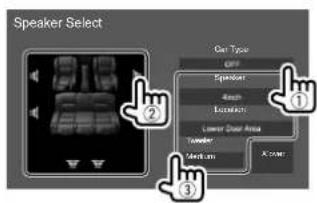
- Repeat steps ② and ③ to set all speakers.
- Adjustable items vary depending on the selected speaker type.
- When a speaker is not connected, select [None].
- When setting the front speakers, also select the speaker size for
.
* Speaker location selection is available only when
2 Touch [X'over] to display the screen.
3Select the speaker type (①), then adjust the crossover frequency (②) of the selected speaker.
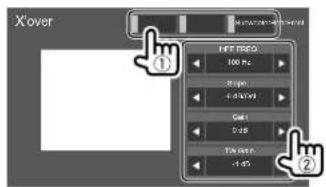
E.g. When
- Adjustable items vary depending on the selected speaker type/speaker size/crossover settings.
- Speaker types shown on the screen differ depending on the
Settings
Adjusts the crossover frequency for the front or rear speakers (high pass filter).
Adjusts the crossover frequency for the speaker (low pass filter).
Adjusts the crossover slope.
Adjusts the output volume of the selected speaker.
Adjusts the output volume of the tweeter.
Activates the phase inversion for the speaker.
• To deactivate, touch [Phase Inversion] again.
The following adjustments are memorized for each source until you adjust the sound again. If the source is a disc, the adjustments are stored for each of the following categories.
• DVD/VCD
• CD
• Audio/video files (Page 53)
You cannot adjust the sound when the unit is in standby.
Selecting a preset sound mode
1 Display the preset sound modes.
[Preset Select]

2 Select a preset sound mode.
- Pops/Easy/Top40/Jazz/Powerful/Rock/Flat (Initial)/iPod/User1/User2/User3/User4
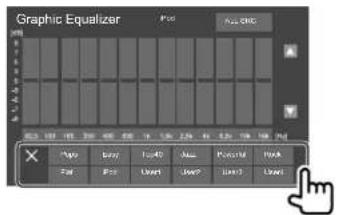
To hide the preset sound modes: Touch

Store your own sound adjustments
1 Select a preset sound mode.
2 Select a band (①) and adjust the level (②), then adjust the sound (③).
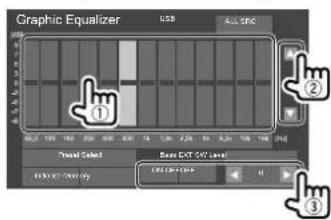
Adjust the sound as follows:
Activates/deactivates bass.
• ON/OFF (Initial)
Adjusts the subwoofer level.*
- -50 to 10 (Initial: 0)
* Not adjustable when
3 Repeat step 2 to adjust the level of other bands.
4 Touch [Memory] to store adjustment.
A user selection window appears. Select from [User1] to [User4] to store your adjustment, then touch [Close] to close the window.
- To apply the adjusted equalizer to all playback sources, touch [ALL SRC], then touch [OK] to confirm.
• To clear the adjustment, touch [Initialize].
Settings
(Position/DTA>
You can adjust the sound effects according to your listening position. You can also localize the sound image in front of the selected seat.
Setting the listening position
Touch [Listening Position] (①), then select the listening position ([Front L], [Front R], [Front All]*, or [All]) (②).
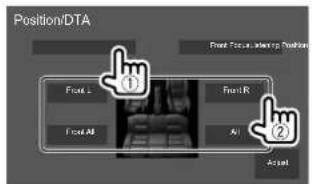
* [Front All] is selectable only when
Adjusting the Digital Time Alignment (DTA)
Make fine adjustments to the delay time of the speaker output to create a more suitable environment for your car.
- Speaker types shown on the screen differ depending on the
1 Touch [Adjust] on the
2 Touch [Delay] (①), then adjust the Digital Time Alignment (DTA) value (②) for each speaker.
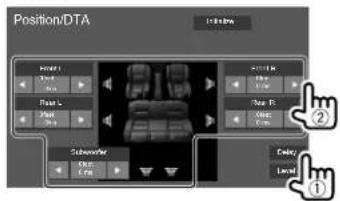
E.g. When
- To determine the adjustment value, see "Determining the value for
3 Touch [Level] (①), then adjust the output volume (②) for each speaker.
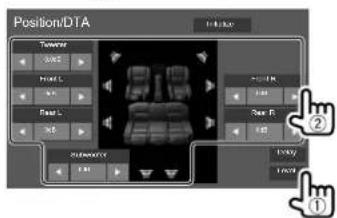
E.g. When
To initialize the setting value: Touch [Initialize].
■Localizing the sound image—Front Focus
- Speaker types shown on the screen differ depending on the
1 Touch [Front Focus] (①), select the listening position (②) to set as the front position, then touch [Adjust] (③).
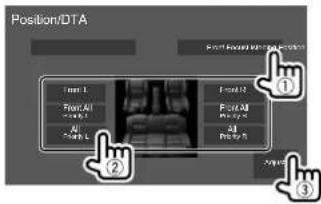
E.g. When
- When you are sitting on the [Front All] (front seats) or [All] (front and rear seats) position, select left ("Priority L") or right ("Priority R") to specify the position to localize the sound image.
2 Touch [Delay] (①), then adjust the sound image (②) precisely.
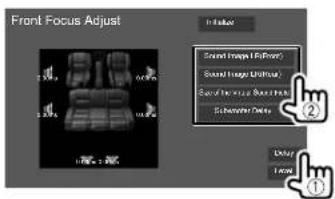
Settings
[Sound Image LR(Front)]
Adjusts the sound image to be localized set on the front position.
[Sound Image LR(Rear)]
Adjusts the sound image to be localized set on the rear position.
[Size of the Virtual Sound Field]
Adjusts the virtual sound field to the desired field size.
- If the sound image moves out of the front position, adjust [Sound Image LR(Front)]/ [Sound Image LR(Rear)].
[Subwoofer Delay]
Adjusts the delay time of the subwoofer sound.
3 Touch [Level] (①), then adjust the output volume (②) for each speaker.
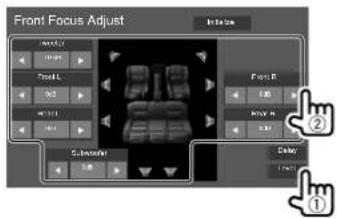
E.g. When
To initialize the setting value: Touch [Initialize].
Touch [▲]/[▼]/[◀]/[▶] or drag the Ⓞ mark to adjust.
\*
Adjusts the front and rear speaker output balance. When using a 2-way speaker system, set the fader to the center.
- Front 1 to Front 15, Center, Rear 1 to Rear 15 (Initial: Center)
* Adjustable only when
Adjusts the left and right speaker output balance.
- Left 1 to Left 15, Center, Right 1 to Right 15 (Initial: Center)
To clear the adjustment: Touch [Center].
Adjust and store the auto-adjustment volume level for each source. The volume level will automatically increase or decrease when you change the source.
If you have increased the volume first, then reduced the volume using the Volume Offset, the sound generated if you suddenly switch to another source may be extremely loud.
- -5 to +5 (Initial: 0)
To initialize the setting value: Touch [Initialize].
Adjust the sound effect.
Selects the bass boost level.
• OFF (Initial)/1/2/3
Adjusts loudness. (The LOUD indicator lights up when the loudness is adjusted.)
• OFF (Initial)/Low/High
Reduces the driving noise by raising the bandwidth.
- OFF (Initial)/ON
\*
Virtually enhances the sound space using the Digital Signal Processor (DSP) system. Select the enhance level.
• OFF (Initial)/Small/Medium/Large
* You cannot change the setting when "Radio" is selected as the source.
Restores the sound lost due to audio compression to a realistic sound.
- OFF/ON (Initial)
Settings
Virtually makes the sound more realistic using the Digital Signal Processor (DSP) system. Select the sound level.
• OFF (Initial)/1/2/3
Moves the localization of the sound image to the lower or higher point. Select the height.
• OFF (Initial)/Low/Middle/High
Determining the value for adjustment
If you specify the distance from the center of the currently set listening position to every speaker, the delay time will be automatically computed and set.
① Determine the center of the currently set listening position as the reference point.
② Measure the distances from the reference point to the speakers.
③ Calculate the differences between the distance of the furthest speaker and other speakers.
④ Set the DTA value calculated in step ③ for individual speakers.
⑤ Adjust gain for individual speakers.
E.g. When [Front All] is selected as the listening position
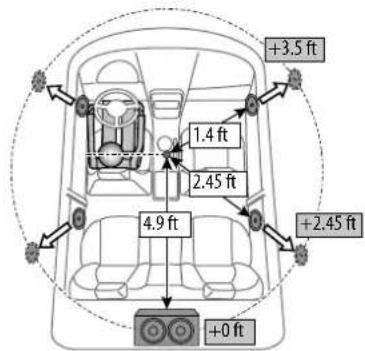
AVsettings
Display the screen.
On the Home screen, touch as follows:
Then, on the
- ON: Enables control of TV operation on "AV-IN".
- OFF (Initial): Selects this to use "AV-IN" with components other than TV Tuner.
Displaysettings
Display the screen.
On the Home screen, touch as follows:

Then, on the
• OFF: Deactivates dimmer.
• ON: Activates dimmer.
- SYNC (Initial): Dims the screen and button illumination when you turn on the headlights.
- For DDX6019BT/DMX6019BT/DMX5019BT, the ILLUMI lead connection is required. (Page 50)
Settings
- ON (Initial): Displays the clock while a video source is playing or when the display is turned off.
- OFF: Cancels.
You can change the illumination color of the buttons on the monitor panel.
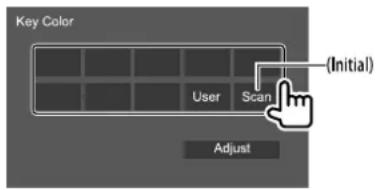
- You can also adjust the illumination color yourself. Touch [User], then touch [Adjust] to display the illumination color adjustment screen, then adjust the color. The adjustment is saved in [User].
- Selecting [Scan] changes the illumination color gradually.
You can change the background design or color.
To change the background design:
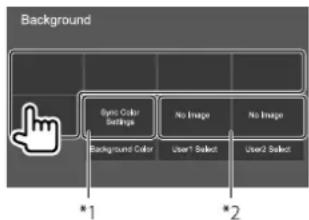
flowchart
graph TD
    A["Background"] --> B["Sym Color Settings"]
    A --> C["No Image"]
    A --> D["No Image"]
    B --> E["Background Color"]
    C --> F["User1 Select"]
    D --> G["User2 Select"]
    H["*1"] --> B
    I["*2"] --> D
To change the background color: Touch [Background Color], then select the color on the
- You can select same color selected in
as the background color by touching [Sync Color Settings]. - If [Scan] is selected in
, user cannot select [Sync Color Settings].
*1 Selects background color in advance.
*2 Selects a loaded favorite image in advance.
■ Storing your favorite image for the background
You can use your favorite image stored on the connected USB device for the background.
- Connect the USB device on which the image is stored beforehand.
- Use a JPEG/PNG/BMP file with a resolution of 800 x 480 pixels.
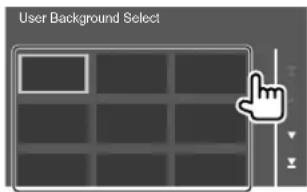
1 Touch [User1 Select] or [User2 Select] to store the image for the
2 Select the folder, then the file for the background image in the selected folder.
Settings
3 Rotate the image (①) if necessary, then confirm the selection (②).
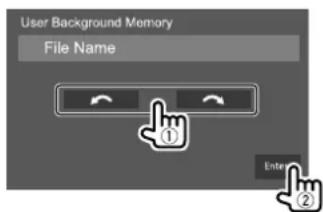
A confirmation message appears. Touch [Enter] to store the new image. (The existing image is replaced with the new one.)
Select the viewing angle in relation to the monitor to make the image on the screen easier to see.
• 0 (Initial)/-1/-2/-3
User interface settings
Display the screen.
On the Home screen, touch as follows:
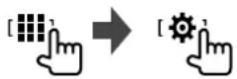
Then, on the
Assign functions to the keys on the remote controller of the steering wheel.
- This function is available only when your car is equipped with the electrical steering remote controller.
- You can only register/change the functions while you are parked.
- If your steering remote controller is not compatible, learning may not be completed and an error message may appear.
1 Press and hold a steering remote controller button for about 2 seconds to register/change when the unit is ready for learning.
2 Select a function to assign to the selected button.
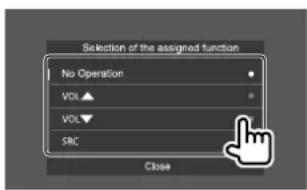
3 Repeat steps 1 and 2 to register other functions to other buttons.
4 Touch [Learning completed] to finish procedure.
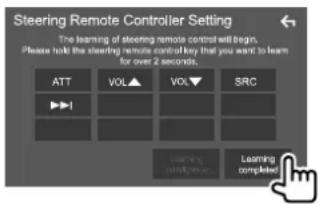
To change the previously assigned function:
① Touch the key to change on the
② Select a new function to assign from the pop-up list.
③ Touch [Change completed] to finish the procedure.
Settings
To initialize the setting:
Touch [Learning initialization].
- A confirmation message appears. Touch [Yes] – To cancel the initialization, touch [No].
Note:
- Touching [←] key without touching [Learning completed] or [Change completed] will not assign the functions selected in the previous steps. - Be sure to touch [Learning completed] or [Change completed] to assign the functions.
*
- ON (Initial): Activates the key-touch tone.
- OFF: Deactivates the key-touch tone.
* Selectable only when
(LanguageSelect>
Select the text language used for on-screen information. For details, see "Initial settings" on page 6.
Adjust the touch positions of the keys on the screen. Touch and hold the center of the marks at the lower left (①), then the upper right (②) as instructed.
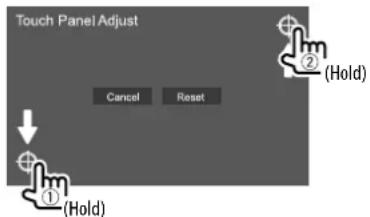
- To reset the touch position, touch [Reset]. - To cancel the current operation, touch [Cancel].
Select the method to set the date and clock. For details, see "Calendar/clock settings" on page 7.
Select the time zone for your area. For details, see "Calendar/clock settings" on page 7. * Selectable when [Clock] is set to [Manual]. (Page 7)
*
Adjust the date and clock manually. For details, see "Calendar/clock settings" on page 7. * Selectable when [Clock] is set to [Manual]. (Page 7)
Camerasettings
Display the screen.
On the Home screen, touch as follows:
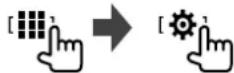
Then, on the
- ON (Initial): Displays the picture from the rear view camera when you shift the gear to the reverse (R) position. - OFF: Select this when no camera is connected.
- ON (Initial): Displays the parking guidelines. - OFF: Hides the parking guidelines.
\*
Adjust the parking guidelines according to the size of the car, parking space and so on. When adjusting the parking guidelines, make sure to use the parking brake to prevent the car from moving.
Settings
Touch one of the marks (①), then adjust the position of the selected mark (②).
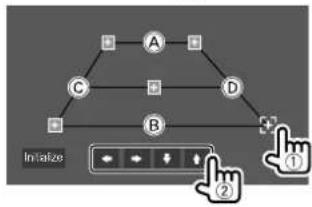
flowchart
graph TD
    A["A"] --> C["C"]
    A --> D["D"]
    C --> B["B"]
    D --> E["+"]
    B --> F["+"]
    style A fill:#f9f,stroke:#333
    style B fill:#f9f,stroke:#333
    style C fill:#ccf,stroke:#333
    style D fill:#ccf,stroke:#333
    style E fill:#ccf,stroke:#333
    note right of B Initiate: Button ②
Make sure that Ⓐ and Ⓑ are horizontally parallel, and that Ⓒ and Ⓓ are the same length.
- Touch [Initialize] to set all the marks to the initial default position. A confirmation message appears. Touch [Yes].
* Selectable only whenis set to [ON]. (Page 41)
(Only for DDX719WBTL/DMX719WBTL)
- ON: Activates the front view camera. Select this to use the front view camera.
- OFF (Initial): Select this when no camera is connected.
\*
(Only for DDX719WBTL/DMX719WBTL)
Set the duration (in seconds) to display the picture from the front view camera when you shift the gear from reverse (R) position to any other positions.
• OFF/5 sec/10 sec/15 sec (Initial)/20 sec
After the selected time, the screen return to the previous screen.
* Selectable only when
\*
(Only for DDX719WBTL/DMX719WBTL)
- ON: Displays the picture from the front view camera horizontally reversed.
- OFF (Initial): Displays the picture from the front view camera as it is.
* Selectable only whenis set to [ON].
Special system settings
Display the screen.
On the Home screen, touch as follows:

Then, on the
\*
• ON (Initial): Activates the display demonstration.
• OFF: Deactivates the display demonstration.
* Some features are not selectable when [ON] is selected.
Assign the function of the ⏻ button or HOME button on the monitor panel when pressed and held.
- AV OFF: Turns off the screen and audio.
The screen and audio restores when receiving call, inputs video signal from the rear view camera, etc. - Complete OFF (Initial): Turns off the power.
- Lock: Locks the
- The items in the
settings cannot be adjusted when [Lock] is selected. - Unlock (Initial): Unlocks the settings.
Memorizes the following audio settings:
- Fader/Balance
- Speaker/X'over
- Equalizer (Adjustment on user preset ([User1] [User4])/Subwoofer level adjustment)
- Position/DTA
- Sound Effect
A confirmation message appears. Touch [Yes].
* Selectable only when
Settings
Recall the settings memorized by
A confirmation message appears. Touch [Yes].
* Selectable only when
Clear the settings made on the
* Selectable only when
Display the information of the software (such as serial number, application version, system version, etc.). You can update the software.
Show the Open Source Licenses.
Initialize all settings made on the unit.
A confirmation message appears. Touch [Yes].
- The settings memorized on the
Bluetoothsettings
Display the
On the Home screen, touch as follows:
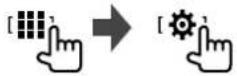
Then, on the
- ON (Initial): Activates the Bluetooth function of the unit.
- OFF: Deactivates the Bluetooth function of the unit.
Connect or disconnect the paired device. (Page 27)
Display/change the device name to be shown on the Bluetooth device. (Page 28)
Change the PIN code of the unit. (Page 28)
Display the device address of the unit.
Configure the setting for using a Bluetooth mobile phone. (Page 33)
Security settings
Display the
On the Home screen, touch as follows:
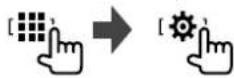
Then, on the
Register the security code for the unit. (Page 7)
Clear the security code. (Page 7)
Change the security code. (Page 7)
RemoteController
This unit can be operated using the remote controller (RC-DV340) supplied with this unit.
Point the remote controller directly at the remote sensor on the monitor panel.
DDX719WBTL/DMX719WBTL
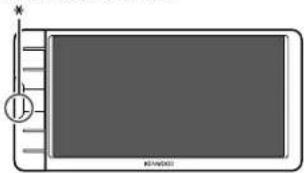
natural_image
Simple diagram of a rectangular device with a circular element and pointer, no text or symbols present.DDX6019BT/DMX6019BT
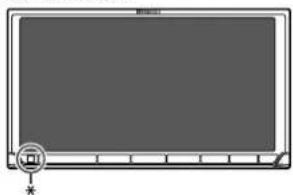
natural_image
Front view of a blank rectangular monitor with a small circular icon and asterisk at the bottom (no text or symbols on screen)DMX5019BT
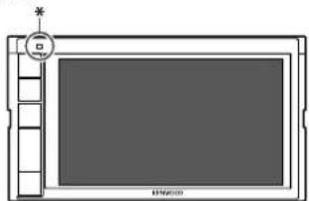
natural_image
Simple line drawing of a rectangular device with a circular button and grid lines, no text or symbols present.* Remote sensor: DO NOT expose the remote sensor to bright light (direct sunlight or artificial lighting).
CAUTION
- Put the remote controller in a place where it will not move during braking or other operations. A dangerous situation could result if the remote controller falls down and gets wedged under the pedals while driving.
- Do not leave the battery near fire or under direct sunlight. A fire, explosion or excessive heat generation may result.
- Do not recharge, short, break up or heat the battery, or place it in an open fire. Such actions may cause the battery to leak fluid. If spilled fluid comes in contact with your eyes or clothing, immediately rinse with water and consult a physician.
- Place the battery out of reach of children. In the unlikely event that a child swallows the battery, immediately consult a physician.
Preparation
Battery installation
Use two "AAA"/"R03"-size batteries.
Insert the batteries with the + and - poles aligned properly, following the illustration inside the case.
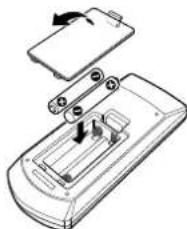
natural_image
Diagram of a device with an open lid and internal components, showing no text or symbols- Always insert batteries from – poles to avoid bending the springs.
- If the remote controller operates only over shorter distances or does not operate at all, it is possible that the batteries are depleted. In such instances, replace both batteries with new ones.
Remote Controller
Remote controller mode switch
The functions operated from the remote controller differ depending on the position of the mode switch.
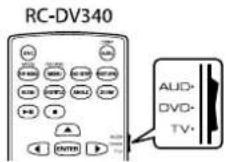
- AUD mode: Switch to this mode when controlling a selected source or tuner source, etc.
- When controlling a player that is not integrated in the unit, select "AUD" mode.
- DVD mode: Switch to this mode when playing DVDs, CDs or etc. with the player integrated in this unit.
- TV mode: Not used.
- The position of the remote control mode switch is indicated in the title of each mode, e.g., "AUD mode".
Basic operation for RC-DV340
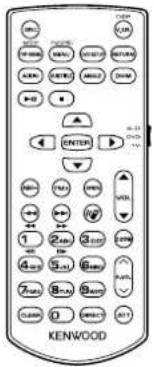
■ Common operations (AUD mode)
SRC • Selects the source.
- Hangs up the incoming/current call.
VOL ▲/▼
Adjusts the volume level.
ATT Attenuates/restores the sound.
DISP/V.SEL • Switches to the current source control screen.
• Displays the Mirroring for KENWOOD application screen from the connected smartphone.
ENTER Enters options.
(1)
Answers incoming calls.
FNC/PBC/MENU Switches to the control screen.
MODE/ Changes the aspect ratio.
TOP MENU • The aspect ratio changes each time you press this key.
OPEN Adjusts the panel angle.
• The panel angle changes each time you press this key.
DVD SETUP Not used for this unit.
RETURN Not used for this unit.
2 ZONE Not used for this unit.
R.VOL AV Not used for this unit.
DVD/VCD (DVD mode) 4
| ▲/▼/◄/► | Moves the cursor when displaying a menu. |
| ◄◄/►► | Selects a track. |
| ►/|| | Starts/pauses playback. |
| ■ | Stops and memorizes the point where the disc stops. |
0 - 9 · Specifies the number to search for in direct search.
- 1/2: Fast forwards/backwards.
-Fast forward/backward speed changes each time you press the key.
• 4/5: Slow forwards/backwards. -Slow forward/backward speed changes each time you press the key.
Remote Controller
| MODE/TOP MENU | Shows the disc top menu. |
| FNC/PBC/MENU | Shows the disc menu. |
| SUBTITLE | Changes the subtitle language. |
| ZOOM | Changes the zoom ratio.The zoom ratio changes each time you press this key. |
| ANGLE | Changes the picture angle.The picture angle changes each time you press the key. |
| AUDIO | Changes the voice language.The voice language changes each time you press this key. |
| DIRECT | Enters direct search mode. |
| CLEAR | Deletes a character while in direct search mode. |
| * Only for DDX719WBTL/DDX6019BT. | |
| ■ Music Disc/Audio file/Video file (AUD mode) | |
| AM- / FM+ | Selects a folder. |
| |◄◄/►►| | Selects a track/file. |
| ►/II | Starts/pauses playback. |
| 0 - 9 | Specifies the number to search for in direct search. |
| DIRECT | Enters direct search mode. |
Radio (AUD mode)
AM-/FM+ Selects the band.
Searches for stations.*
▶/II Changes the seek mode (AUTO1, AUTO2, MANUAL).
0 - 9 Specifies the frequency of the station to receive or to search for in direct search.
DIRECT Enters direct search mode.
* The search method differs according to the selected seek mode.
iPod (AUD mode)
Selects music/videos.
▶/II Starts/pauses playback.
USB (AUD mode)
AM-/FM+ Selects a folder.
Selects a file.
▶/II Starts/pauses playback.
Searching for an item directly
While listening to the radio or during disc playback, you can search for a station frequency/chapter/title/folder/file/track directly using the number buttons.
• To search for a track from the VCD menu, perform during PBC playback.
1 Press DIRECT to enter the search mode.
- Cash time you press DIRECT, the item to search for changes.
2 Press a number button to select a desired item (station frequency/chapter/title/folder/file/track).
• To erase a misentry, press CLEAR.
3 Confirm the selection.
- For station frequency: Press ◀◀/▶▶.
• For others: Press ENTER.
To exit the search mode: Press DIRECT.
KENWOOD Remote APP
KENWOOD Remote is an application that connects and controls compatible KENWOOD car receivers via Bluetooth® like a wireless remote control.
You can also operate this unit from a smartphone using KENWOOD Remote APP.
This application also works as a free standalone music player application, when your smartphone is not connected to this unit.
- For details, visit
⚠️ WARNINGS
- DO NOT connect the ignition wire (red) and the battery wire (yellow) to the car chassis (ground), you may cause a short circuit, that in turn may start a fire.
- DO NOT cut out the fuse from the ignition wire (red) and the battery wire (yellow). The power supply must be connected to the wires via the fuse.
- Always connect the ignition wire (red) and the battery wire (yellow) to the power source running through the fuse box.
CAUTIONS
• Install this unit in the console of your car.
- Do not touch the metal parts of this unit during and shortly after the use of the unit. Metal parts such as the heat sink and enclosure become hot.
- When parking at a low ceiling area, turn off the unit to store the antenna. As when the unit is installed in the car with the function of auto antenna; the radio antenna extends automatically when you turn on the unit with the power control wire connected. (Pages 50 – 52)
Before installation
■Precautions on installation and connection
- Mounting and wiring this product requires skills and experience. For best safety, leave the mounting and wiring work to professionals.
- Mount the unit so that the mounting angle is 30irc or less.
- Make sure to ground the unit to a negative 12 V DC power supply.
- Do not install the unit in a location exposed to direct sunlight or excessive heat or humidity. Also avoid places with too much dust or the possibility of water splashing.
- Do not use your own screws. Use only the screws provided. If you use the wrong screws, you could damage the unit.
• After the unit is installed, check whether the brake lamps, blinkers, wipers, etc. on the car are working properly. - Do not press hard on the panel surface when installing the unit to the car. Otherwise scratches, damage, or failure may result.
- If the power is not turned on ("Miswiring DC Offset Error", "Warning DC Offset Error" is displayed), the speaker wire may have a short circuit or have touched the chassis of the car and the protection function may have been activated. In this case, the speaker wire should be checked.
Installation and Connection
- Keep all cables away from heat dissipating metal parts.
- If your car's ignition does not have an ACC position, connect the ignition wires to a power source that can be turned on and off with the ignition key. If you connect the ignition wire to a power source with a constant voltage supply, such as with battery wires, the battery may be drained.
- DDX719WBTL/DMX719WBTL/DDX6019BT/DMX6019BT: If the console has a lid, make sure to install the unit so that the monitor panel will not hit the lid when closing and opening.
- If the fuse blows, first make sure the wires are not touching to cause a short circuit, then replace the old fuse with one with the same rating.
- Insulate unconnected wires with vinyl tape or other similar material. To prevent a short circuit, do not remove the caps and do not let the cable out at the ends of the unconnected wires or the terminals.
- Secure the wires with cable clamps and wrap vinyl tape around the wires that comes into contact with metal parts to protect the wires and to prevent short circuit.
- Connect the speaker wires correctly to the terminals to which they correspond. The unit may be damaged or fail to work if you share the wires or ground them to any metal part in the car.
- When only two speakers are being connected to the system, connect both connectors either to the front output terminals or to the rear output terminals (do not mix front and rear). For example, if you connect the connector of the left speaker to a front output terminal, do not connect the connector to a rear output terminal.
Parts list for installation
Note:
- This parts list does not include all the package contents.
- Items 6 and 7 are supplied only for DDX6019BT/DMX6019BT/DMX5019BT.
- Item 8 is supplied only for DDX719WBTL/DMX719WBTL.
1 Wiring harness (× 1)
2 Extension parking cable, 2 m (× 1)
3 Microphone, 3 m (× 1)
4 Steering wheel remote input cable (× 1)
5 Round head screws, M5 × 8 mm (× 6)
6 Flat head screws, M5 × 8 mm (× 6)
7 Trim plate (× 1)
8 Antenna extension cable (× 1)
Installation procedure
1 Remove the key from the ignition and disconnect the ⊖ battery.
2 Make the proper input and output wire connections for each unit.
3 Connect the speaker wires of the wiring harness.
4 Connect the wires of the wiring harness in the following order: ground, battery, ignition.
5 Connect the wiring harness to the unit.
6 Install the unit in your car.
Make sure that the unit is installed securely in place. If the unit is unstable, it may malfunction (e.g., the sound may skip).
7 Reconnect the ⊖ battery.
8 Configure
Installation and Connection
Installing the unit
Installing the unit using the mounting bracket removed from the car
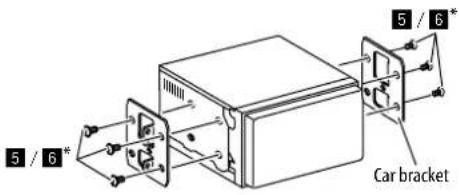
Note: Select the appropriate screws (supplied) for the mounting bracket.
* Only for DDX6019BT/DMX6019BT/DMX5019BT.
Installing the trim plate
(Only for DDX6019BT/DMX6019BT/DMX5019BT)

natural_image
Simple line drawing of a box and its lid with an arrow indicating rotation (no text or symbols)E.g. Trim plate installation for DMX5019BT
Connecting external components
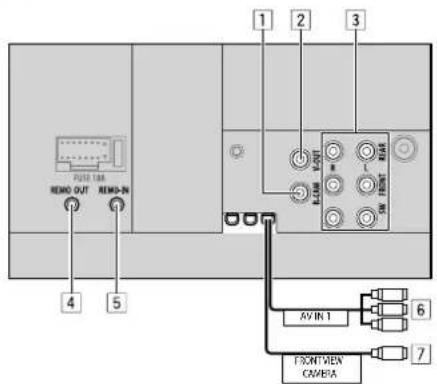
1 Rear view camera input (R-CAM)
2 Video output (V-OUT)
3 Output terminals*1
- Left output (White)
• Right output (Red)
REAR: Rear speaker preouts
FRONT: Front speaker preouts
SW: Subwoofer preouts
For 3-way crossover:
REAR: Tweeter preouts
FRONT: Mid range speaker preouts
SW: Woofer preouts
4 TV tuner remote control output (REMO OUT)
5 Steering wheel remote controller input (REMO-IN)
- Connect to the car's steering remote harness using the steering wheel remote input cable (4). Contact your KENWOOD dealer for details.
6 Audio video input (AVIN 1)
7 Front view camera input (FRONT VIEW CAMERA)*2
*1 When connecting an external amplifier, connect its ground wire to the chassis of the car; otherwise the unit may be damaged.
*2 Only for DDX719WBTL/DMX719WBTL.
Installation and Connection
Wiringconnection
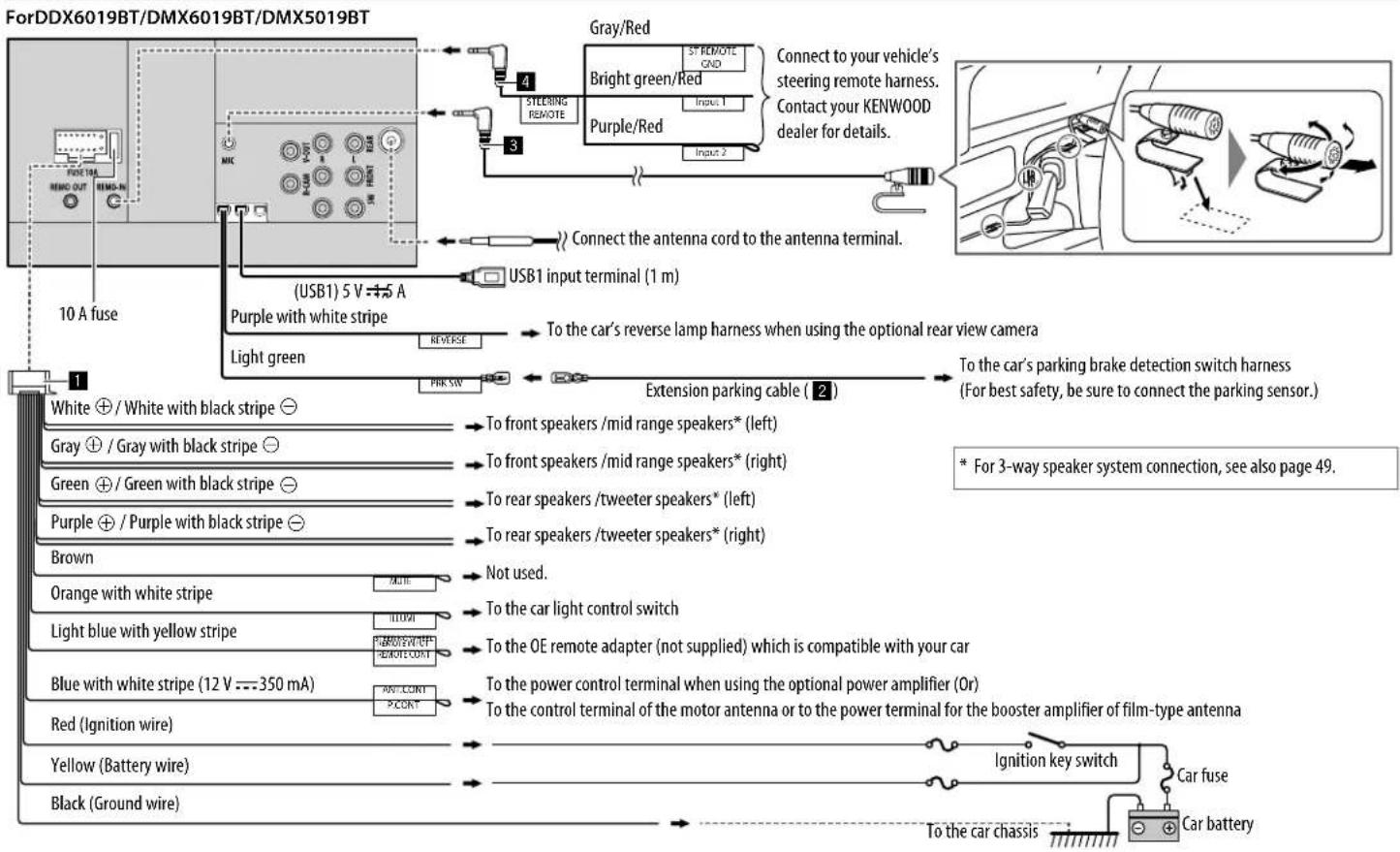
flowchart
graph TD
    A["ForDDX6019BT/DMX6019BT/DMX5019BT"] --> B["Gray/Red"]
    B --> C["Bright green/Red"]
    B --> D["Purple/Red"]
    C --> E["Connect to your vehicle's steering remote harness."]
    D --> F["Contact your KENWOOD dealer for details."]
    G["USB1 5 V + A"] --> H["(USB1) 5 V + A"]
    H --> I["USB1 input terminal (1 m)"]
    I --> J["To the car's reverse lamp harness when using the optional rear view camera"]
    J --> K["To the car's parking brake detection switch harness (For best safety, be sure to connect the parking sensor.)"]
    L["White ⊕ / White with black stripe ⊖"] --> M["To front speakers /mid range speakers* (left)"]
    N["Gray ⊕ / Gray with black stripe ⊖"] --> O["To front speakers /mid range speakers* (right)"]
    P["Green ⊕ / Green with black stripe ⊖"] --> Q["To rear speakers /tweeter speakers* (left)"]
    R["Purple ⊕ / Purple with black stripe ⊖"] --> S["To rear speakers /tweeter speakers* (right)"]
    T["Brown"] --> U["Not used."]
    V["Orange with white stripe"] --> W["To the car light control switch"]
    X["Light blue with yellow stripe"] --> Y["To the OE remote adapter (not supplied) which is compatible with your car"]
    Z["Blue with white stripe (12 V =350 mA)"] --> AA["To the power control terminal when using the optional power amplifier (Or)"]
    AB["Red (Ignition wire)"] --> AC["To the control terminal of the motor antenna or to the power terminal for the booster amplifier of film-type antenna"]
    AD["Yellow (Battery wire)"] --> AE["Ignition key switch"]
    AF["Black (Ground wire)"] --> AG["To the car chassis"]
    AH["Car battery"] --> AI["Car fuse"]
    AJ["10 A fuse"] --> AK["USB1 input terminal (1 m)"]
    AL["1"] --> AM["Reverse"]
    AN["1"] --> AO["PARK SW"]
    AP["4"] --> AQ["STEERING REMOTE"]
    AQ --> AR["Input 1"]
    AQ --> AS["Input 2"]
Installation and Connection
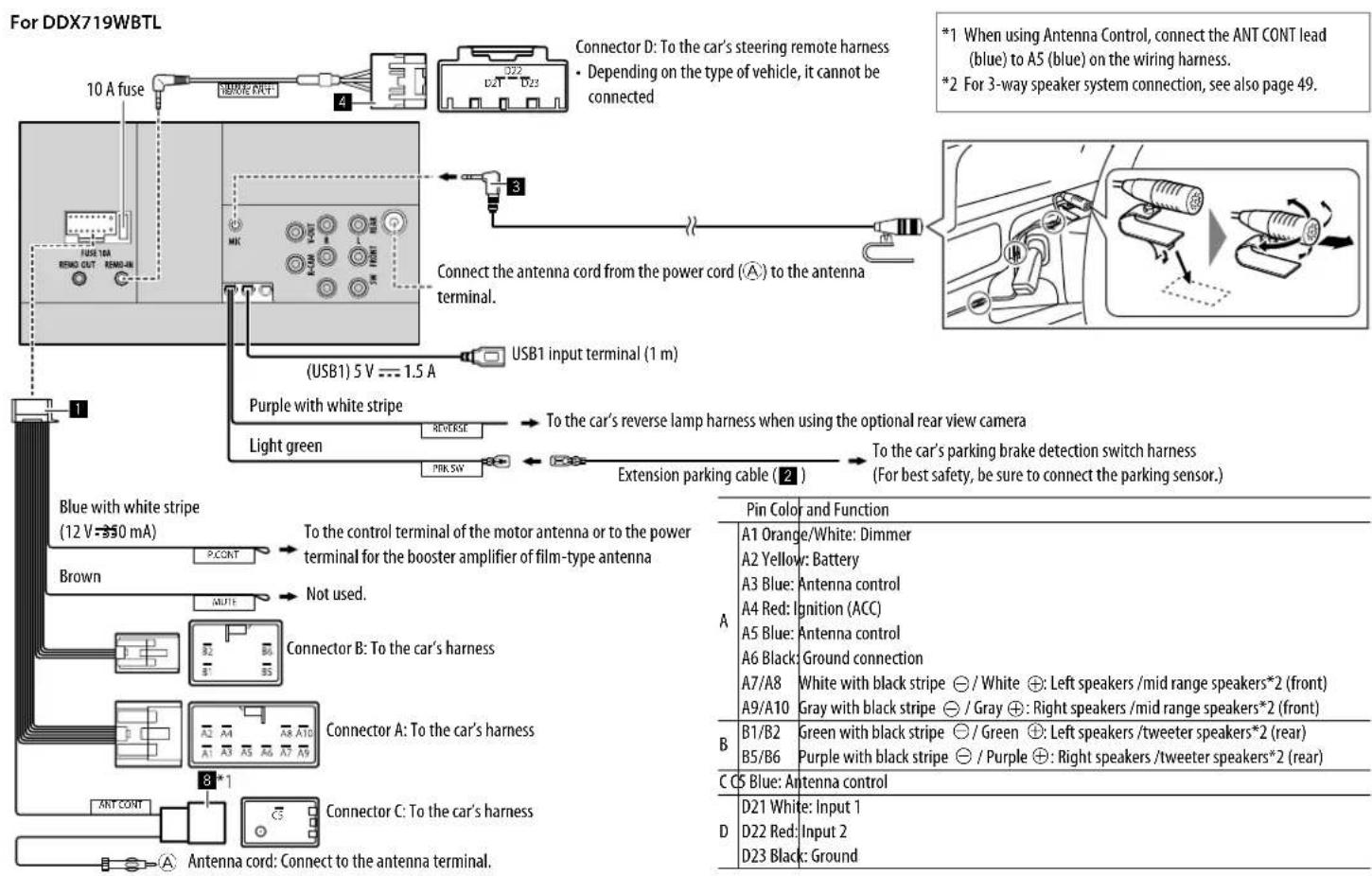
Installation and Connection
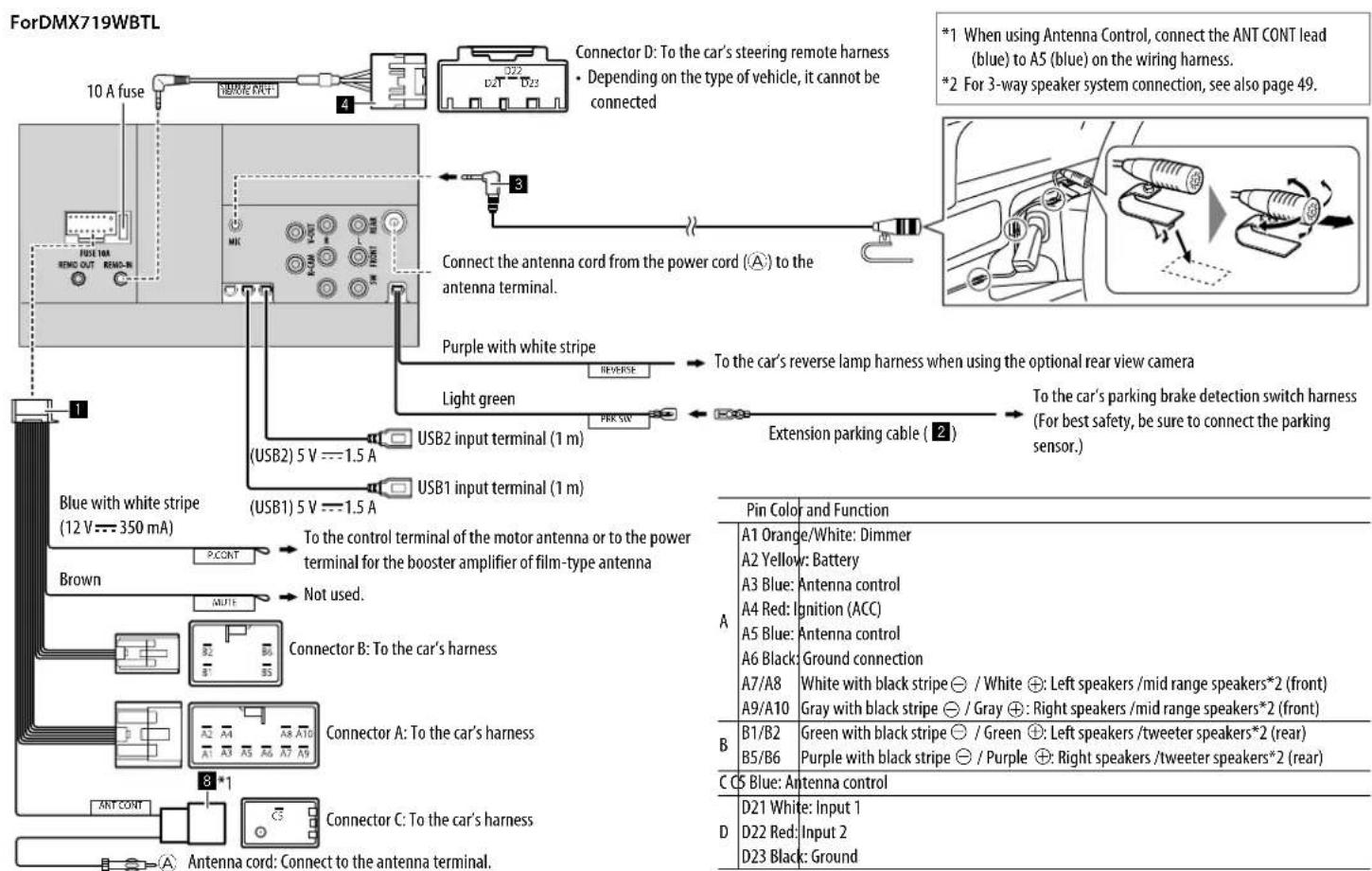
52 ENGLISH
References
Maintenance
Cleaning the unit
- Do not use any solvent (for example, thinner, benzine, etc.), detergent, or insecticide. This may damage the monitor or the unit.
• Gently wipe the panel with a soft, dry cloth.
Handling discs
- Do not touch the recording surface of the disc.
- Do not stick tape etc. on the disc, or use a disc with tape stuck on it.
- Do not use any accessories for the disc.
- Clean from the center of the disc and move outward.
- Clean the disc with a dry silicone or soft cloth. Do not use any solvents.
- When removing discs from this unit, pull them out horizontally.
- Remove burrs from the center hole and disc edge before inserting a disc.
More information
About playable files
Audiofiles
- This unit can play back the following files with following codec and extension code:
- For disc: MP3 (.mp3), WMA (.wma), WAV (.wav), AAC (.m4a)
- For USB mass storage class device: MP3 (.mp3), WMA (.wma), WAV (.wav), AAC (.m4a), FLAC (.flac)
- This unit can play back files that meet the conditions below:
- Bit Rate:
For disc:
MP3: 8 kbps - 320 kbps
WMA: 5 kbps - 320 kbps
AAC: 16 kbps - 320 kbps
For USB:
MP3/WMA/AAC: 8 kbps - 320 kbps
- Sampling Frequency:
For disc:
MP3/AAC: 32 kHz, 44.1 kHz, 48 kHz
WMA: 8 kHz, 11.025 kHz, 16 kHz,
22.05 kHz, 32 kHz, 44.1 kHz, 48 kHz
WAV: 44.1 kHz
For USB:
MP3/WMA/AAC: 16 kHz - 48 kHz
WAV/FLAC: 16 kHz - 96 kHz
- Files recorded in VBR (variable bit rate), and have a discrepancy in elapsed time indication
• This unit can show or display the following:
- Tag:
MP3: ID3 Tag (version 1.0/1.1/2.2/2.3/2.4)
WMA Tag
WAV Tag
AAC Tag
FLAC Tag
- Jacket picture:
Picture size: 32 × 32 to 1 232 × 672 resolution
Data size: less than 500 KB
File type: JPEG/PNG/BMP
• This unit cannot play back the following files:
- MP3 files encoded with MP3i and MP3 PRO format.
- MP3 files encoded with Layer 1/2.
– WMA files encoded with lossless, professional, and voice format.
- WMA files which are not based upon Windows Media® Audio.
- WMA/AAC files copy-protected with DRM.
- AAC files copy-protected with FairPlay (except those stored on an iPod/iPhone).
- Files which have data such as AIFF, ATRAC3, etc.
Videofiles
- This unit can play back the following files with following codec and extension code:
- For disc: MPEG1/MPEG2 (.mpg, .mpeg)
- For USB mass storage class device: MPEG1/MPEG2 (.mpg, .mpeg), MPEG4 (.mp4, .m4v), H.264 (.mp4, .m4v, .avi, flv, f4v), WMV (.wmv)*, MKV (.mkv)
• Streams that conform to:
- Audio: MP3 or Dolby Audio
- MPEG1/MPEG2:
Audio: MPEG1 Audio Layer-2 or Dolby Audio
Video: MPEG system/program stream
- Other playable conditions:
- MPEG1/MPEG2: File format: MP@ML (Main Profile at Main Level)/SP@ML (Simple Profile at Main Level)/MP@LL (Main Profile at Low Level) - Video output format: NTSC (by default)
- This unit can playback a file with the size less than 4 GB.
* Maximum resolution: 640 × 480
References
About disc playback
playable disc types
- CD-DA: Audio CD
• DVD Video: Region code 4 -
Dual Disc: DVD side
• VCD: Video CD (PBC compatible)
• DVD Recordable/Rewritable (DVD-R/-RW, +R/+RW) -
DVD Video: UDF bridge
- ISO 9660 level 1, level 2, Romeo, Joliet
- Other playable formats:
DVD-R recorded in multi-border format (except for dual layer discs)
Finalized +R/+RW (Video format only)
- CD Recordable/Rewritable (CD-R/-RW):
-
ISO 9660 level 1, level 2, Romeo, Joliet
• Other informations: -
While playing a DVD Video, DTS sound cannot be reproduced or emitted from this unit.
- This unit can recognize a total of 5 000 files and 250 folders (a maximum of 999 files per folder) in a recordable/rewritable disc.
- Use only "finalized" recordable/rewritable discs.
- This unit can play back multi-session recordable/rewritable discs; however, unclosed sessions will be skipped while playing.
Unplayable disc types and formats
• DVD-Audio/DVD-ROM discs
- SVCD (Super Video CD), CD Text, CD-ROM, CD-I (CD-I Ready), DTS-CD
- JPEG/PNG/BMP/MPEG4/DivX/FLAC/MKV/H.264/WMV/DVD-VR/DVD+VR/DVD-RAM recorded on DVD-R/RW or +R/+RW
- JPEG/PNG/BMP/MPEG4/DivX/FLAC/MKV/H.264/WMV recorded on CD-R/-RW
• DVD-RW dual layer discs
• +RW double layer discs
- Non-DVD side of a "DualDisc" which does not comply with the "Compact Disc Digital Audio" standard
• Discs that are not round.
• Discs with coloring on the recording surface or discs that are dirty.
- Recordable/Rewritable discs that have not been finalized.
- 3 inch discs. Attempting to insert these discs using an adapter may cause a malfunction.
- Some recordable/rewritable discs or files may not be played back due to their characteristics or recording conditions.
Language codes (for DVD language selection)
| AA Afar GD Scots Gaelic | |||
| AB Abkhazian GL Galician | |||
| AF Afrikaans GN Guarani | |||
| AM Ameharic GU Gujarati | |||
| AR Arabic HA Hausa | |||
| AS Assamese | HI | Hindi | |
| AY | Aymara | HR | Croatian |
| AZ Azerbaijani | HU | Hungarian | |
| BA Bashkir | HY | Armenian | |
| BE Byelorussian | IA | Interlingua | |
| BG Bulgarian IE Interlingue | |||
| BH Bihari | IK | Inupiak | |
| BI | Bislama | IN | Indonesian |
| BN Bengali, Bangla | IS | Icelandic | |
| BO Tibetan | IW | Hebrew | |
| BR | Breton | JA | Japanese |
| CA | Catalan | JI | Yiddish |
| CO | Corsican | JW | Javanese |
| CS | Czech | KA | Georgian |
| CY Welsh KK Kazakh | |||
| DZ | Bhutani | KL | Greenlandic |
| EL | Greek | KM | Cambodian |
| EO | Esperanto | KN | Kannada |
| ET | Estonian | KO | Korean (KOR) |
| EU | Basque | KS | Kashmiri |
| FA Persian | KU | Kurdish | |
| FI | Finnish | KY | Kirghiz |
| FJ | Fiji | LA | Latin |
| FO Faroese | LN | Lingala | |
| FY | Frisian | LO | Lapthian |
| GA Irish | LT | Lithuanian | |
References
| LV Latvian, Lettish SM Samoan | |||
| MG Malagasy SN Shona | |||
| MI Maori SO Somali | |||
| MK Macedonian SQ Albanian | |||
| ML Malayalam SR Serbian | |||
| MN Mongolian SS Siswati | |||
| MO Moldavian ST Sesotho | |||
| MR Marathi SU Sundanese | |||
| MS Malay (MAY) SW Swahili | |||
| MT Maltese TA Tamil | |||
| MY Burmese TE Telugu | |||
| NA Nauru TG Tajik | |||
| NE Nepali TH Thai | |||
| NO Norwegian TI Tigrinya | |||
| OC Occitan TK Turkmen | |||
| OM (Afan) Oromo TL Tagalog | |||
| OR Oriya TN Setswana | |||
| PA Panjabi TO Tonga | |||
| PL Polish TR Turkish | |||
| PS Pashto, Pushto TS Tsonga | |||
| QU Quechua TT Tatar | |||
| RM Rhaeto-Romance TW Twi | |||
| RN Kirundi UK Ukrainian | |||
| RO Rumanian UR Urdu | |||
| RW Kinyarwanda UZ Uzbek | |||
| SA Sanskrit VI Vietnamese | |||
| SD Sindhi VO Volapuk | |||
| SG Sangho WO Wolof | |||
| SH Serbo-Croatian XH Xhosa | |||
| SI Singhalese YO Yoruba | |||
| SK Slovak ZU Zulu | |||
| SL Slovenian |
About USB playback
Important
Make sure all important data has been backed up to avoid losing the data.
We bear no responsibility for any loss of data stored in the devices while using this unit.
playable files on a USB device
- This unit can play the following types of files stored in a USB mass storage class device.
- MPEG1/MPEG2/MPEG4/H.264/WMV/MKV/MP3/WMA/WAV/AAC (.m4a)/FLAC
• This unit can recognize: - A total of 9 999 files
- A total of 1 000 files in a folder
- 9 999 folders for audio files
- 250 folders for video and photo files
- A total of 8 folder layers (including one root folder and 7 subfolders)
- The maximum number of characters (when the characters are 1 byte):
- Folder names: 50 characters
- File names: 50 characters
Notes on using a USB device
- Avoid using the USB device if it might affect driving safety.
-
When connecting with a USB cable, use a USB 2.0 cable.
-
Electrostatic shock at connecting a USB device may cause abnormal playback of the device. In this case, try one of the following:
– disconnect the USB device, then reconnect the USB device. - turn the power off and on or turn the car's ignition off and on.
- Do not pull out and connect the USB device repeatedly while "Reading" is shown on the screen.
• Operation and power supply may not work as intended for some USB devices. - Do not leave a USB device in the car, or expose to direct sunlight or high temperatures to prevent deformation or damage to the device.
Unplayable USB device
- This unit may not play back files in a USB device properly when using a USB extension cable.
• USB devices equipped with special functions such as data security functions cannot be used with the unit. - Do not use a USB device with 2 or more partitions.
- Depending on the shape of the USB devices and connection ports, some USB devices may not be attached properly or the connection might be loose.
- This unit may not recognize a memory card inserted into a USB card reader.
References
About iPod/iPhone
Important
Make sure all important data has been backed up to avoid losing the data.
We bear no responsibility for any loss of data stored in the devices while using this unit.
Made for
iPhone 8, 8 Plus, X, XS, XS (MAX) and XR
Notes on using an iPod/iPhone
- When operating an iPod/iPhone, some operations may not be performed correctly or as intended. In this case, visit the following KENWOOD web site:
- When you turn on this unit, the iPod/iPhone is charged through the unit.
• The text information may not be displayed correctly. - For some iPod/iPhone models, the performance may be abnormal or unstable during operation. In this case, disconnect the iPod/iPhone device, then check its condition.
If the performance is not improved or slow, reset your iPod/iPhone.
Troubleshooting
What appears to be trouble is not always serious. Check the following points before calling a service center.
- For operations with external components, refer also to the instructions supplied with the adapters used for connection (as well as the instructions supplied with the external components).
General
No sound comes out of the speakers.
→ Adjust the volume to the optimum level.
→ Check the cords and connections.
No picture is displayed on the screen.
→ Turn on the screen. (Page 5)
The remote controller does not work.
→ Replace the battery.
"No Signal"/"No Video Signal" appears.
→ Start playback on the external component connected to the AV-IN input terminal.
→ Check the cords and connections.
→ Signal input is too weak.
"Miswiring DC Offset Error"/"Warning DC Offset
Error" appears.
→ A speaker cord has shorted or it has come into contact with the car chassis. Wire or insulate the speaker cord as appropriate, then turn the power off and on.
"Parking Off" appears.
→ No playback picture is shown when the parking brake is not engaged.
"Learning Process Failed." appears.
→ Your steering remote controller is not compatible, learning may not be completed. Consult your car audio dealer for details.
Discs
(Only for DDX719WBTL/DDX6019BT)
Recordable/Rewritable discs cannot be played back.
→ Insert a finalized disc.
→ Finalize the discs with the component which you used for recording.
Tracks on the Recordable/Rewritable discs cannot be skipped.
→ Insert a finalized disc.
→ Finalize the discs with the component which you used for recording.
Playback does not start.
→ The format of files is not supported by the unit.
No picture appears on the external monitor.
→ Connect the video cord correctly.
→ Select the correct input on the external monitor.
MPEG1/MPEG2/MP3/WMA/WAV/AAC discs cannot be played back.
→ Record the tracks using a compatible application on the appropriate discs. (Page 54)
→ Add appropriate extension codes to the file names.
Tracks on the recordable/rewritable discs are not played back as you have intended them to play.
→ Playback order may differ from the one played back using other players.
"Region Code Error" appears.
→ You have inserted a DVD Video disc of an incorrect region code. Insert a correct region code disc.
USB
"Reading" does not disappear from the screen.
→ Turn the power off and on again.
While playing a track, sound is sometimes interrupted.
→ The tracks are not properly copied into the USB device. Copy the tracks again, and try again.
Tracks are not played back as you have intended them to play.
→ Playback order may differ from the one played back using other players.
"USB device over current status detected." appears when you connect a USB device.
→ The USB port is drawing more power than the design limit.
→ Turn the power off and unplug the USB device. Then, turn on the power and reattach the USB device.
→ If the above does not solve the problem, turn the power off and on before replacing with another USB device.
iPod/iPhone
No sound comes out of the speakers.
→ Disconnect the iPod/iPhone, then connect it again.
→ Select another source, then reselect "iPod".
→ If you use "Mirroring" source before, verify that the iPhone's screen recording function is stopped.
The iPod/iPhone does not turn on or does not work.
→ Check the connection.
→ Update the firmware version.
→ Charge the battery.
→ Reset the iPod/iPhone.
Sound is distorted.
→ Deactivate the equalizer either on this unit or the iPod/iPhone.
A lot of noise is generated.
→ Turn off (unchecked) "VoiceOver" on the iPod/ iPhone. For details, visit http://www.apple.com.
No operations are available when playing back a track containing artwork.
→ Operate the unit after the artwork has loaded.
"Authorization Error" appears.
→ Check whether the connected iPod/iPhone is compatible with this unit. (Page 56)
Mirroring
No sound while using Mirroring for KENWOOD application.
→ Make sure the smartphone and the unit is connected via Bluetooth.
→ Raise the volume on your smartphone.
→ Try another music application. Some application does not support Mirroring for KENWOOD application playback. (Apple Music App does not support playback using Mirroring for KENWOOD application.)
No sound while using "iPod" source or "Bluetooth" source.
→ Make sure you stop broadcast on iPhone's screen recording function after you disconnect from mirroring operations.
Cannot operate Mirroring for KENWOOD application with touch panel operation.
→ Available functions may differ from the ones operated on the smartphone.
→ Depending on the connected smartphone, some functions do not work on this unit.
→ Depending on the operating system (OS) of the connected smartphone, some functions do not work on this unit.
The unit does not respond when you try to perform an operation.
→ Unplug the smartphone from the USB1 input terminal, then reattach the smartphone again.
Radio
AME automatic presetting does not work.
→ Store stations manually. (Page 22)
Static noise while listening to the radio.
→ Connect the antenna firmly.
Troubleshooting
AV-IN
No picture appears on the screen.
→ Turn on the video component if it is not on.
→ Connect the video component correctly.
Spotify
"Check App" appears.
→ The Spotify application on the connected device has not started up.
→ The Spotify application is not installed on the connected device.
→ Reconnect your smartphone.
→ Restart Spotify application.
"Please login or signup." appears.
→ You have not been signed into Spotify.
"Please check internet connection." appears.
→ Check the internet connection.
"Unable to start Spotify." appears.
→ Restart Spotify application.
→ Spotify application cannot be started or played in current condition.
"Please update the Spotify app on the phone." appears.
→ The Spotify application on the connected device is not the latest version. Update the application.
Bluetooth
Phone sound quality is poor.
→ Reduce the distance between the unit and the Bluetooth mobile phone.
→ Move the car to a place where you can get a better signal reception.
No sound comes out of the speakers.
→ If you use "Mirroring" source before, verify that the iPhone's screen recording function is stopped.
The sound is interrupted or skipped while using a Bluetooth audio player.
→ Reduce the distance between the unit and the Bluetooth audio player. Disconnect the device connected for Bluetooth phone.
→ Turn off, then turn on the unit.
(When the sound is not yet restored) connect the player again.
The connected audio player cannot be controlled.
→ Check whether the connected audio player supports AVRCP (Audio/Video Remote Control Profile).
The Bluetooth device does not detect the unit.
→ Search from the Bluetooth device again.
The unit does not pair with the Bluetooth device.
→ For devices compatible with Bluetooth 2.1 or later.
Register the device using a PIN code. (Page 26)
→ For devices compatible with Bluetooth 2.0: Enter the same PIN code for both the unit and target device. If the PIN code of the device is not indicated in its instructions, try "0000" or "1234."
→ Turn off, then turn on the Bluetooth device.
Echo or noise occurs.
→ Adjust the microphone unit position.
→ Adjust the echo volume level or noise reduction level. (Page 29)
The unit does not respond when you try to copy the phonebook to the unit.
→ You may have tried to copy the same entries (as stored) to the unit.
"Connection Error" appears.
→ The device is registered but the connection has failed. Connect the registered device. (Page 27)
"Please Wait..." appears.
→ The unit is preparing to use the Bluetooth function. If the message does not disappear, turn the power off and on, then connect the device again.
"No Voice Device" appears.
→ The connected mobile phone does not have a voice recognition system.
"No Contents" appears.
→ No phonebook data is contained in the connected Bluetooth phone.
"Initialize Error" appears.
→ The unit has failed to initialize the Bluetooth module. Try the operation again.
"Dial Error" appears.
→ Dialing has failed. Try the operation again.
"Hang up Error" appears.
→ The call has not ended yet. Park your car, and use the connected mobile phone to end the call.
"Pick up Error" appears.
→ The unit has failed to receive a call.
The Bluetooth connection between the Bluetooth device and the unit is unstable.
→ Delete the unused registered Bluetooth device from the unit. (Page 28)
Specifications
| Monitor section | Total Harmonic Distortion | 0.020% (1 kHz) | Total Harmonic Distortion | DMX719WBTL/DMX6019BT/DMX5019BT: 0.020% (1 kHz) | |
| Picture Size (W × H) | DDX719WBTL/DMX719WBTL/DDX6019BT/DDX6019BT/DMX6019BT: 6.95 inches (diagonal) wide 156.6 mm × 81.6 mm | Signal to Noise Ratio | 90 dB | Signal to Noise Ratio | DMX719WBTL/DMX6019BT/DMX5019BT: 104 dB |
| DMX5019BT: 6.2 inches (diagonal) wide 137.5 mm × 77.2 mm | Dynamic Range | 90 dB | |||
| Disc Format | DVD-Video/VIDEO-CD/CD-DA | ||||
| Sampling Frequency | 44.1 kHz/48 kHz/96 kHz | Dynamic Range | DMX719WBTL/DMX6019BT/DMX5019BT: 90 dB | ||
| Quantifying Bit Number | 16 bit/20 bit/24 bit | ||||
| Display System Transparent TN LCD panel | USB interface section | Bluetooth section | |||
| Drive System TFT active matrix system | USB Standard | USB 2.0 High Speed | Technology | Bluetooth V4.1 | |
| Number of Pixels 1 152 000(800H × 480V × RGB) | Compatible Devices Mass Storage Class | Frequency | 2.402 GHz to 2.480 GHz | ||
| Effective Pixels 99.99% | File System | FAT 16/FAT 32/NTFS | RF Output Power (E.I.R.P.) | +4 dBm (MAX), Power Class 2 | |
| Pixel Arrangement RGB striped arrangement | Maximum Power Supply Current | DC 5 V = 1.5 A | Maximum Communication Range | Line of sight approx. 10 m (32.8 ft) | |
| Back Lighting LED | D/A Converter 24 bit | Audio Codec SBC/AAC | |||
| DVD player section(Only for DDX719WBTL/DDX6019BT) | Audio Decoder MP3/WMA/AAC (.m4a)/WAV/FLAC | Profile | HFP (Hands Free Profile) 1.7A2DP (Advanced Audio Distribution Profile) 1.3AVRCP (Audio/Video Remote Control Profile) 1.6GAP (Generic Access Profile)PBAP (PhoneBook Access Profile) 1.2SDP (Service Discovery Profile)SPP (Serial Port Profile) 1.2 | ||
| D/A Converter 24 bit | Video Decoder MPEG1/MPEG2/MPEG4/WMV/H.264/MKV | ||||
| Audio Decoder Linear PCM/Dolby Audio/MP3/WMA/AAC (.m4a)/WAV | Frequency Response | DMX719WBTL/DMX6019BT/DMX5019BT:96 kHz Sampling:20 Hz to 20 000 Hz | |||
| Video Decoder MPEG1/MPEG2 | |||||
| Wow & Flutter Below Measurable Limit | |||||
| Frequency Response | 96 kHz Sampling:20 Hz to 20 000 Hz48 kHz Sampling:20 Hz to 20 000 Hz44.1 kHz Sampling:20 Hz to 20 000 Hz | Frequency Response | DMX719WBTL/DMX6019BT/DMX5019BT:96 kHz Sampling:20 Hz to 20 000 Hz48 kHz Sampling:20 Hz to 20 000 Hz44.1 kHz Sampling:20 Hz to 20 000 Hz | ||
Specifications
FM tuner section
| Frequency Range(Frequency Step) | 87.5 MHz to 108.0 MHz(50 kHz) |
| Usable Sensitivity(S/N: 30 dB,Dev. 22.5 kHz) | 7.2 dBf (0.63 μV/75 Ω) |
| Quieting Sensitivity(DIN S/N: 46 dB,Dev. 40 kHz) | 15.2 dBf (1.58 μV/75 Ω) |
| FrequencyResponse (±3.0 dB) | 30 Hz to 15 kHz |
| Signal to Noise Ratio 68 dB (MONO) | |
| Selectivity(±400 kHz) | >80 dB |
| Stereo Separation 40 dB (1 kHz) | |
AM tuner section
| Frequency Range(Frequency Step) | 530 kHz to 1 700 kHz(10 kHz) |
| Usable Sensitivity 29 dBμ | |
Video section
| Color System of External Video Input | NTSC/PAL |
| External Video Input Level (RCA jack) | 1 Vp-p/75 Ω |
| External Audio Max Input Level (RCA jack) | 2 V/25 kΩ |
| Video Input Level for Rear Camera (RCA jack) | 1 Vp-p/75 Ω |
| Video Input Level for Front Camera (RCA jack) | DDX719WBTL/DMX719WBTL: 1 Vp-p/75 Ω |
| Video Output Level (RCA jacks) | 1 Vp-p/75 Ω |
Audio section
| Maximum Power (Front & Rear) | 50 W × 4 |
| Full Bandwidth Power (Front & Rear) | 22 W × 4 (at less than 1% THD) |
| Preout Level 4 V/10 kΩ | |
| Preout Impedance ≤ 600 Ω | |
| Speaker Impedance 4 Ω to 8 Ω | |
Equalizer Band: 13 Band
| Frequency (Hz): |
| 62.5/100/160/250/400/630/ |
| 1k/1.6k/2.5k/4k/6.3k/10k/16k |
| Gain (dB): |
| -9/-8/-7/-6/-5/-4/-3/-2/ |
| -1/0/1/2/3/4/5/6/7/8/9 |
2 Way X'Over
| Tweeter: Gain (dB): |
| -8/-7/-6/-5/-4/-3/-2/-1/0 |
Front/Rear (HPF): Frequency (Hz):
| Through/30/40/50/60/70/80/90/100/120/150/180/220/250 |
| Slope (dB/Oct):-6/-12/-18/-24 |
| Gain (dB):-8/-7/-6/-5/-4/-3/-2/-1/0 |
Subwoofer (LPF): Frequency (Hz):
| 30/40/50/60/70/80/90/100/120/150/180/220/250/ThroughSlope (dB/Oct.):-6/-12/-18/-24Phase:Phase Inversion: Off/OnGain (dB):-8/-7/-6/-5/-4/-3/-2/-1/0 |
Specifications
3 Way X'Over
| Tweeter (HPF): Frequency (Hz): |
| 1k/1.6k/2.5k/4k/5k/6.3k/8k/10k/12.5k |
| Slope (dB/Oct.): -6/-12 |
| Phase: |
| Phase Inversion: Off/On |
| Gain (dB): |
| -8/-7/-6/-5/-4/-3/-2/-1/0 |
| Mid Range (HPF): Frequency (Hz): |
| Through/30/40/50/60/70/80/90/100/120/150/180/220/250 |
| Slope (dB/Oct.): -6/-12 |
| Mid Range (LPF): Frequency (Hz): |
| 1k/1.6k/2.5k/4k/5k/6.3k/8k/10k/12.5k/Through |
| Slope (dB/Oct.): -6/-12 |
| Phase: |
| Phase Inversion: Off/On |
| Gain (dB): |
| -8/-7/-6/-5/-4/-3/-2/-1/0 |
| Subwoofer (LPF): Frequency (Hz): |
| 30/40/50/60/70/80/90/100/ |
| 120/150/180/220/250/ |
| Through |
| Slope (dB/Oct.): -6/-12 |
| Phase: |
| Phase Inversion: Off/On |
| Gain (dB): |
| -8/-7/-6/-5/-4/-3/-2/-1/0 |
| Position 2 Way (Front/Rear/SubwooferDelay):0 ft to 20.01 ft (0.03 ft or0.04 ft Step)3 Way (Tweeter/Mid Range/Subwoofer Delay):0 ft to 20.01 ft (0.03 ft or0.04 ft Step)Gain: -8 dB to 0 dB |
Subwoofer Level -50 dB to +10 dB
General
Operating Voltage 12 V DC car battery
| Installation | DDX719WBTL/DMX719WBTL: |
| Dimensions(W × H × D) | 178 mm × 100 mm × 162 mm(7" × 3-15/16" × 6-3/8") |
Including the sub panel part:
206 mm × 104 mm × 162 mm
(8-1/8" × 4-1/8" × 6-3/8")
| Weight (Main Unit) DDX719WBTL: |
| 2.4 kg (5.3 lbs) |
| DMX719WBTL: |
| 2.0 kg (4.5 lbs) |
| DDX6019BT: |
| 2.4 kg (5.3 lbs)(including trim plate) |
| DMX6019BT: |
| 2.0 kg (4.5 lbs)(including trim plate) |
| DMX5019BT: |
| 1.5 kg (3.3 lbs)(including trim plate) |
Design and specifications are subject to change without notice.
Specifications
Trademarks and licenses
- Dolby, Dolby Audio and the double-D symbol are trademarks of Dolby Laboratories.
- "DVD Logo" is a trademark of DVD Format/Logo Licensing Corporation registered in the US, Japan and other countries.
• The "AAC" logo is a trademark of Dolby Laboratories. - Microsoft and Windows Media are either registered trademarks or trademarks of Microsoft Corporation in the United States and/or other countries.
- Use of the Made for Apple badge means that an accessory has been designed to connect specifically to the Apple product(s) identified in the badge and has been certified by the developer to meet Apple performance standards. Apple is not responsible for the operation of this device or its compliance with safety and regulatory standards. Please note that the use of this accessory with an Apple product may affect wireless performance.
- Apple, iPhone, iPod, and iPod touch are trademarks of Apple Inc., registered in the U.S. and other countries.
- IOS is a trademark or registered trademark of Cisco in the U.S. and other countries and is used under license.
- This item incorporates copy protection technology that is protected by U.S. patents and other intellectual property rights of Rovi Corporation. Reverse engineering and disassembly are prohibited.
• Android is a trademark of Google LLC. - The Bluetooth ® word mark and logos are registered trademarks owned by Bluetooth SIG, Inc. and any use of such marks by JVCKENWOOD Corporation is under license. Other trademarks and trade names are those
of their respective owners.
- THIS PRODUCT IS LICENSED UNDER THE AVC PATENT PORTFOLIO LICENSE FOR THE PERSONAL USE OF A CONSUMER OR OTHER USES IN WHICH IT DOES NOT RECEIVE REMUNERATION TO
(i) ENCODE VIDEO IN COMPLIANCE WITH THE AVC STANDARD ("AVC VIDEO") AND/OR (ii) DECODE AVC VIDEO THAT WAS ENCODED BY A CONSUMER ENGAGED IN A PERSONAL ACTIVITY AND/OR WAS OBTAINED FROM A VIDEO PROVIDER LICENSED TO PROVIDE AVC VIDEO. NO LICENSE IS GRANTED OR SHALL BE IMPLIED FOR ANY OTHER USE. ADDITIONAL INFORMATION MAY BE OBTAINED FROM MPEG LA, L.L.C. SEE HTTP://WWW.MPEGLA.COM
- SPOTIFY and the Spotify logo are among the registered trademarks of Spotify AB.
- libFLAC
Copyright (C) 2000-2009 Josh Coalson Copyright (C) 2011-2013 Xiph.Org Foundation Redistribution and use in source and binary forms, with or without modification, are permitted provided that the following conditions are met:
- Redistributions of source code must retain the above copyright notice, this list of conditions and the following disclaimer.
- Redistributions in binary form must reproduce the above copyright notice, this list of conditions and the following disclaimer in the documentation and/or other materials provided with the distribution.
-Neither the name of the Xiph.org Foundation nor the names of its contributors may be used to endorse or promote products derived from this software without specific prior written permission.
THIS SOFTWARE IS PROVIDED BY THE COPYRIGHT HOLDERS AND CONTRIBUTORS "AS IS" AND ANY EXPRESS OR IMPLIED WARRANTIES, INCLUDING, BUT NOT LIMITED TO, THE IMPLIED WARRANTIES OF MERCHANTABILITY AND FITNESS FOR A PARTICULAR PURPOSE ARE DISCLAIMED. IN NO EVENT SHALL THE FOUNDATION OR CONTRIBUTORS BE LIABLE FOR ANY DIRECT, INDIRECT, INCIDENTAL, SPECIAL, EXEMPLARY, OR CONSEQUENTIAL DAMAGES (INCLUDING, BUT NOT LIMITED TO, PROCUREMENT OF SUBSTITUTE GOODS OR SERVICES; LOSS OF USE, DATA, OR PROFITS; OR BUSINESS INTERRUPTION) HOWEVER CAUSED AND ON ANY THEORY OF LIABILITY, WHETHER IN CONTRACT, STRICT LIABILITY, OR TORT (INCLUDING NEGLIGENCE OR OTHERWISE) ARISING IN ANY WAY OUT OF THE USE OF THIS SOFTWARE, EVEN IF ADVISED OF THE POSSIBILITY OF SUCH DAMAGE.
For updated information (the latest Instruction Manual, system updates, new functions, etc.), please visit the following website:
DOLBY AUDIO™
Made for
iPhone | iPod

Bluetooth®

Spotify®


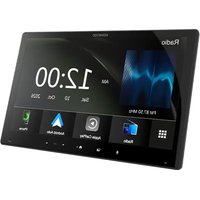
- Important Notice
- WARNINGS
- To prevent accidents and damages
- CAUTIONS
- To care for the unit
- To care for the monitor
- On the volume setting
- The marking of products using lasers
- About this manual
- Contents
- Component Names and Operations
- DDX6019BT: CAM/ATT button
- |5| HOME button
- |6| MENU/DISP OFF button
- AVOICE button
- |8| DDX6019BT:▲button
- USB1 input terminal from the rear panel
- HOME button
- MENU/DISP OFF button
- CAM/ATT button
- Volume ▲/▼ buttons
- AVOICE button
- Monitor panel
- Basic Operations
- Turning on the power
- Turning off the power/turning off the AV source
- Putting the unit in standby
- Turning off the screen
- Adjusting the volume
- Attenuating the sound
- Monitor panel operations
- 1Display the screen.
- Perform the adjustment or operation.
- Initialsettings
- Perform the initial settings.
- [Language]\*1
- Getting Started
- [Clock]
- Adjust].
- [DEMO]\*2
- Setting the security code
- Calendar/clocksettings
- Set the date and clock.
- [Time Zone]\*
- [Clock Adjust]\*
- Touch screen operations
- Touch
- Touch and hold
- Flick
- Swipe
- Note:
- Home screen
- Various Screens and Operations
- Available playback sources and options
- Customizing the source/option selection screen
- Select an item to move.
- Drag the selected item and drop to the position you want to move it to.
- About short-cut playback source keys on the Home screen
- Source control screen
- Common operation keys on source control screen
- 4
- [∅]
- [x]\*
- 9
- [>
- [<<][
- [<|>|[|]]
- [□]
- Using the pop-up short-cut menu
- Display the pop-up short-cut menu.
- Select an item to jump.
- ■ Using touch screen operation during playback
- List/settingscreen
- Various Screens and Operations for DDX719WBTL/DDX6019BT)
- Inserting a disc
- Ejecting a disc
- Playbackoperations
- Audio playback information and key operation
- Selecting a folder/track on the list
- Display the folder/track list.
- Select the item in the selected folder.
- Settings for DVD playback
- Display the screen.
- Make the settings.
- [Menu Language]
- [Subtitle Language]
- [Audio Language]
- 16:9 (Initial) 4:3 LB 4:3 PS
- Video
- Playback operations
- ■ Video playback information on the source control screen
- Video menu control operations
- 1Display the video menu control screen.
- Perform the video operations.
- Adjusting the picture
- 2Display the picture adjustment screen.
- Adjust the picture.
- USB
- Connecting a USB device
- DMX719WBTL:
- Switching the USB devices
- ■Playback information and key operation
- ■ Selecting a folder/track on the list
- Select the list type.
- Select the desired track.
- From :
- iPod/iPhone
- Connecting an iPod/iPhone
- Bluetooth connection
- Playback information and key operation
- Selecting an audio file from the menu
- Display the list.
- Mirroring
- Compatible device:
- Preparation
- Installing the application
- Note
- Connecting the device
- Connect to the USB1 input terminal
- Connect via Bluetooth connection
- Mirroringoperation
- Switching to the smartphone screen while listening to another source
- Switch to the smartphone screen.
- DDX719WBTLDDX6019BTDMX5019BT DMX719WBTLDMX6019BT
- Disconnect mirroring
- Settings for mirroring operation
- Display the screen.
- Make the settings.
- \*1
- <不说 \*2
- Radio
- Listening to the radio
- Playback information on the source control screen
- Operation keys on source control screen
- 1
- Presetting stations in the memory
- Automatic presetting — AME (Auto Memory)
- Manual presetting
- Selecting a preset station
- Spotify
- For Android devices
- For iPhone/iPod touch
- Creating your station (Start Radio)
- Create your station.
- Selecting a track
- Display the Spotify menu screen.
- Select the list type, then select a desired item.
- Other Externa
- Components
- Viewcamera
- Connecting a view camera
- Using the view camera
- To display the rear view camera screen
- Other External Components
- To display rear view camera screen manually
- Operations while the view camera screen is displayed
- To exit the view camera screen
- AV-IN
- Connecting an external component
- Starting playback
- Watching TV
- Connecting a TV tuner box
- Displaying the TV screen
- Select "TV" as the source.
- Information
- Connection
- Registering a new Bluetooth device
- Bluetooth®
- Autopairing
- Registering a Bluetooth device
- Select the device you want to connect/disconnect.
- Select the usage of the device (①), then touch [Close] (②).
- Changing the PIN code
- Enter the PIN code (①), then confirm the entry (②).
- Changing the device name of the unit displayed on the paired device
- Enter the device name (①), then confirm the entry (②).
- Bluetooth mobile phone
- When a call comes in...
- During a call...
- Making a call
- Display the phone control screen.
- Select a method to make a call.
- Select a contact to make a call.
- To use alphabet search in the phonebook
- Enter the phone number (①), then make a call (②).
- Say the name of the person you want to call.
- ■ Switching between two connected devices
- Presetting phone numbers
- Display the screen. On the Home screen, touch as follows:
- Select a position to store into.
- Select a method to add a phone number to preset list and register the number to the preset list (1), then touch [Close] (2).
- Editing phonebook
- To transfer the phonebook
- 1Display the phone control screen.
- Start phonebook data transmission.
- KENWOOD Music Mix
- Display screen.
- Connect the device to use as a device for KENWOOD Music Mix.
- Select the device to start playback.
- Selecting a track from the list
- Display the music list.
- Select the folder, then the item in the selected folder.
- Bluetooth mobile phone settings
- \*
- Settings
- Audiosettings
- Select a setting to change.
- Preparation:
- Put the unit in standby.
- 2Display the
- Select the crossover network mode.
- Setting the speakers and crossover frequency
- Select a car type (①), select a speaker (②) (front speakers, rear speakers, or subwoofer) to set, then location\* and speaker/tweeter size (③) of the selected speaker.
- Touch [X'over] to display the
- 3Select the speaker type (①), then adjust the crossover frequency (②) of the selected speaker.
- Selecting a preset sound mode
- Display the preset sound modes.
- Select a preset sound mode.
- Store your own sound adjustments
- Select a preset sound mode.
- Select a band (①) and adjust the level (②), then adjust the sound (③).
- Repeat step 2 to adjust the level of other bands.
- Touch [Memory] to store adjustment.
- (Position/DTA>
- Setting the listening position
- Adjusting the Digital Time Alignment (DTA)
- ■Localizing the sound image—Front Focus
- [Sound Image LR(Front)]
- [Sound Image LR(Rear)]
- [Size of the Virtual Sound Field]
- [Subwoofer Delay]
- Touch [Level] (①), then adjust the output volume (②) for each speaker.
- Determining the value for adjustment
- AVsettings
- Display the screen.
- Displaysettings
- ■ Storing your favorite image for the background
- Rotate the image (①) if necessary, then confirm the selection (②).
- User interface settings
- Press and hold a steering remote controller button for about 2 seconds to register/change when the unit is ready for learning.
- Select a function to assign to the selected button.
- Repeat steps 1 and 2 to register other functions to other buttons.
- Touch [Learning completed] to finish procedure.
- To change the previously assigned function:
- To initialize the setting:
- *
- (LanguageSelect>
- Camerasettings
- Special system settings
- Bluetoothsettings
- Security settings
- RemoteController
- CAUTION
- Battery installation
- Remote Controller
- Remote controller mode switch
- ■ Common operations (AUD mode)
- DVD/VCD (DVD mode) 4
- Radio (AUD mode)
- iPod (AUD mode)
- USB (AUD mode)
- Searching for an item directly
- Press DIRECT to enter the search mode.
- Press a number button to select a desired item (station frequency/chapter/title/folder/file/track).
- Confirm the selection.
- KENWOOD Remote APP
- ⚠️ WARNINGS
- Before installation
- ■Precautions on installation and connection
- Installation and Connection
- Parts list for installation
- Installation procedure
- Installing the unit
- For 3-way crossover:
- References
- Maintenance
- Cleaning the unit
- Handling discs
- More information
- About playable files
- Audiofiles
- Videofiles
- About disc playback
- playable disc types
- Unplayable disc types and formats
- About USB playback
- Important
- playable files on a USB device
- Notes on using a USB device
- Unplayable USB device
- About iPod/iPhone
- Notes on using an iPod/iPhone
- Troubleshooting
- General
- No sound comes out of the speakers.
- No picture is displayed on the screen.
- The remote controller does not work.
- "No Signal"/"No Video Signal" appears.
- "Miswiring DC Offset Error"/"Warning DC Offset
- Error" appears.
- "Parking Off" appears.
- "Learning Process Failed." appears.
- Discs
- Recordable/Rewritable discs cannot be played back.
- Tracks on the Recordable/Rewritable discs cannot be skipped.
- Playback does not start.
- No picture appears on the external monitor.
- MPEG1/MPEG2/MP3/WMA/WAV/AAC discs cannot be played back.
- Tracks on the recordable/rewritable discs are not played back as you have intended them to play.
- "Region Code Error" appears.
- "Reading" does not disappear from the screen.
- While playing a track, sound is sometimes interrupted.
- Tracks are not played back as you have intended them to play.
- "USB device over current status detected." appears when you connect a USB device.
- The iPod/iPhone does not turn on or does not work.
- Sound is distorted.
- A lot of noise is generated.
- No operations are available when playing back a track containing artwork.
- "Authorization Error" appears.
- No sound while using Mirroring for KENWOOD application.
- No sound while using "iPod" source or "Bluetooth" source.
- Cannot operate Mirroring for KENWOOD application with touch panel operation.
- The unit does not respond when you try to perform an operation.
- AME automatic presetting does not work.
- Static noise while listening to the radio.
- Bluetooth
- Specifications
- Trademarks and licenses
- DOLBY AUDIO™
Brand : KENWOOD
Model : DMX6019BT
Category : Media player