SLGT15 - Tablet Pyle - Free user manual and instructions
Find the device manual for free SLGT15 Pyle in PDF.


| Product Type | Tablet |
| Brand | Pyle |
| Model | SLGT15 |
| Display Size | 10.1 inches |
| Resolution | 1280 x 800 pixels |
| Processor | Quad-core 1.3 GHz |
| RAM | 2 GB |
| Internal Storage | 32 GB |
| Expandable Storage | MicroSD up to 128 GB |
| Operating System | Android 10 |
| Battery Capacity | 5000 mAh |
| Weight | 510 g |
| Dimensions | 240 x 170 x 9 mm |
| Connectivity | Wi-Fi 802.11 b/g/n, Bluetooth 4.0 |
| Ports | Micro USB, 3.5 mm audio jack |
| Cameras | Front: 2 MP, Rear: 5 MP |
| Speakers | Built-in stereo |
| Power Input | DC 5V, 2A via Micro USB |
| Maintenance | Clean with a dry, soft cloth. Avoid liquids. |
| Safety | Do not expose to water or extreme temperatures. |
| Spare Parts | Not available directly; contact Pyle support. |
| General Information | Designed for everyday use, entertainment, and light productivity. |
Frequently Asked Questions - SLGT15 Pyle
User questions about SLGT15 Pyle
0 question about this device. Answer the ones you know or ask your own.
Ask a new question about this device
Download the instructions for your Tablet in PDF format for free! Find your manual SLGT15 - Pyle and take your electronic device back in hand. On this page are published all the documents necessary for the use of your device. SLGT15 by Pyle.
USER MANUAL SLGT15 Pyle
natural_image
Digital tablet displaying a colorful abstract artwork on its screen, no visible text or symbols on the device itself.*☆☆☆☆☆X
X X X X X X X X X X X X X X X X X X X X X X X X X X X X X X X X X X X X X X X
Full-Laminated Technology Drawing Monitor with Buttons, Wireless Passive Pen and Pen Holder
USER GUIDE
Apple and Mac OS are either registered trademarks or trademarks of Apple Corporation in United States and/or other countries. Any additional company and product name mentioned in this User Guide may be registered trademarks or trademarks.
CONTENTS
I. General Information 3
INSTALLATION ON WINDOWS 5
INSTALLATION ON MAC 10
II. Hot Keys 13
Scroll Dial 14
Pen 15
Pen Setting 15
Calibration 16
Save & Backup 18
III. Change the Pen Tip 19
IV. Take care of your Tablet Pen Display 19
V. Settings for Graphic Applications 20
I. General Information
OVERVIEW
Discover how simple and innovative it is to control your computer using our Pen and LCD Pen Display instead of your mouse or track pad.
The Monet Pen functions very similar to an art pen, being able to draw a line very thin or thick, light or dark. This is also known as pressure sensitivity. You can write, sign, annotate documents, draw, sketch, or paint as easily as you would on normal paper. Simulate the functions of a pencil, mark pen, brush, or watercolor pen by using graphics apps and software such as Adobe® Photoshop™, Corel® Painter™, Clip Studio Paint™, Paint Tool SAI, Toon Boom, and more!
FUNCTIONS
After installing the device driver, your Graphics tablet has the following functions:
Direct Pointing: To position the screen cursor, move the pen slightly above the active area without touching the screen surface. Press the pen tip on the screen to make a selection.
Three-button Mouse Commands: Your Graphics tablet provides all the functions of a three button mouse by using its pen tip and two buttons.
QuickDial: You can scroll through documents and Web pages by pressing the middle button of the QuickDial over your Graphics tablet.
Pressure Sensitivity: This feature allows you to emulate various brushes and pencils by pressing the Pen down on the Pen Display.
CAUTION:
The U Pen and Monet Pen have sensitive electronic components inside, which can be damaged when dropped or mishandled. Store the U Pen or Monet Pen in a safe and secure place when not in use.
SYSTEM REQUIREMENTS
Mac OSX 10.8 or later
USB port and HDMI port
Windows 7/8/8.1/10
USB port and HDMI port
Driver Installation Requirements
Internet connection
VERIFYING HARDWARE
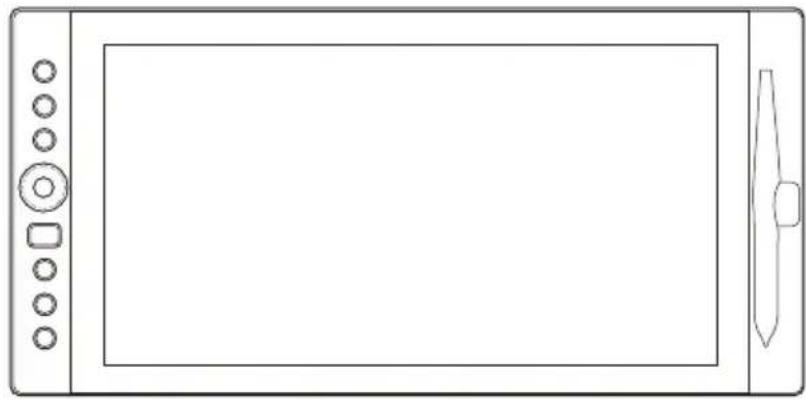
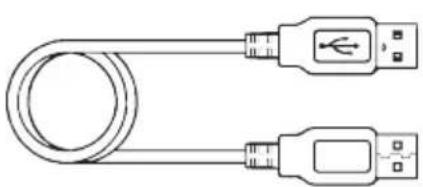
Your Graphics tablet and its packaged contents are shown below. If anything is missing, contact your dealer immediately.
natural_image
Line drawing of a blank digital tablet device with control buttons and a stylus (no text or symbols)LCD Display
*P08 Battery-free Pen
*Pen Nib Remover
*Pen Nibs (3 hard, 3 soft)

natural_image
Line drawing of two USB connectors with a coiled cable, no text or symbols presentnatural_image
Line drawing of two USB connectors with a coiled cable (no text or symbols)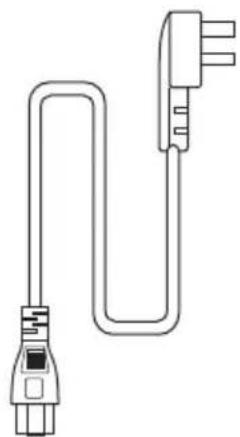
natural_image
Line drawing of a U-shaped electrical plug with terminal connectors (no text or symbols)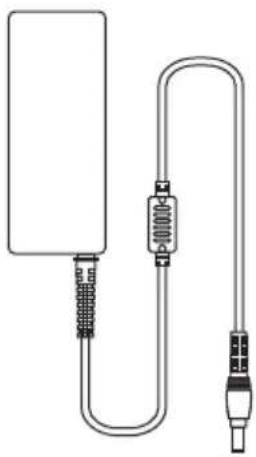
natural_image
Pure electrical circuit lines without any symbolsPower cable Power adapter
SETUP
- Find 2 cables packaged with your Graphics tablet:
a. USB (with safety lock) to PC USB
b. HDMI to PC HDMI
c. AC
natural_image
Diagram of two USB connectors with a USB symbol, no text or labels presentnatural_image
Pure diagram of two connected electrical connectors without any text or symbols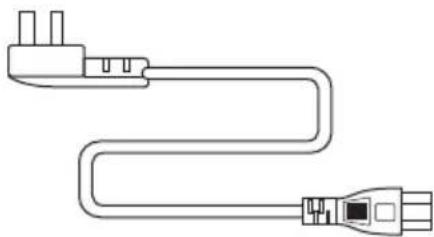
natural_image
Line drawing of a U-shaped electrical plug with terminal connectors (no text or symbols)Power cable
- Insert USB end of cable with safety lock into pen display. Insert USB end into computer.
- Insert HDMI end of cable into Graphics tablet. Insert HDMI end into computer.
- If pen display does not turn on right away, press the power button on the side of your pen display.
AC ADAPTER SETUP
- Find AC Adapter Accessories.
- Plug in red power AC end into adapter.
- Plug black male USB end into computer.
- Plug male USB end of pen display cable into female end of cable.

text_image
1. 2. 3. 4. 5. 6. USB cable HDMI cableINSTALLATION ON WINDOWS
RECOMMEND: Remove any existing tablet drivers before installing the pen driver. This includes any pen tablet driver from other manufacturers. This is to ensure your driver's performance will not be affected. Please run setup as administrator.
- Download the driver from website
-
Decompress the driver file and run SETUP.EXE.
-
When installing the driver, follow the installation instructions on your screen. Press Ok.
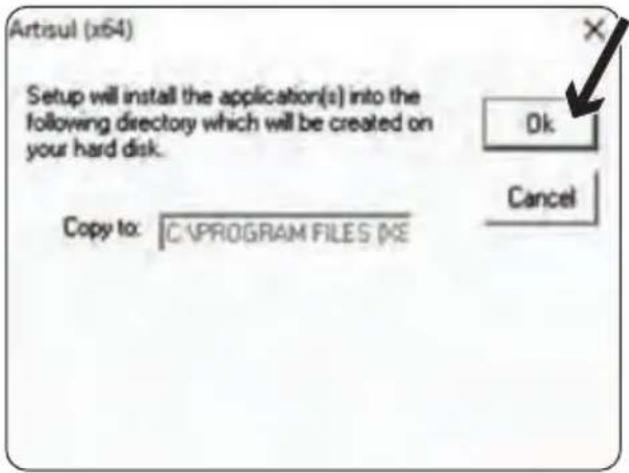
text_image
Artisul (x54) Setup will install the application(s) into the following directory which will be created on your hard disk. Copy to: C:\PROGRAM FILES\NE Ok Cancel- After the installation has completed, reboot your computer.
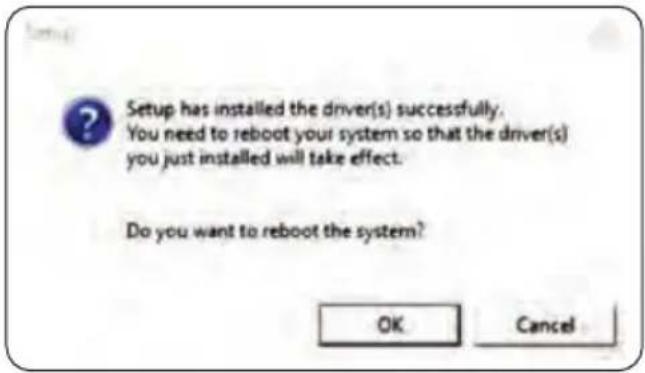
text_image
Setup has installed the driver(s) successfully. You need to reboot your system so that the driver(s) you just installed will take effect. Do you want to reboot the system? OK Cancel- After you have finished the driver installation and restarted your computer. If the device has been successfully installed, you will see a small Tablet icon appear in the system tray, which is normally located at the lower right-hand corner of the screen.

text_image
Screenshot of a mobile app interface showing a location screen with app icons and a highlighted location, dated 1/18/2017.NOTE: Please connect your Tablet Pen Display to your computer before opening graphics software or the app.
USAGE TIPS
Double Tapping
To double tap with the Monet Pen (equivalent to a double click with a mouse), quickly lift the pen tip up away from the pen display before returning for the second tap.
Scrolling Function of Digital Pen
To scroll on a page, press the first button on the Monet Pen (same function as the middle button of mouse) over the pen display. If you have customized your Monet Pen, you must reset the button to Middle Button in the pen driver Pen settings in order to use this function.
Traditional Mouse Setup
You can have both the Graphics tablet and a traditional mouse setup to your computer at the same time. However, only one device is able to actively work at a time. You cannot use the mouse and Monet Pen at the same time.
Monitor Mapping
How to Change to Extended Display
Extended Display means you work with a larger Windows desktop area spanning your computer monitor and your pen LCD Display. Applications can be moved from one display to the other, and will allow you to work in different screen resolutions.
- Right-click your desktop and select Screen Resolution.
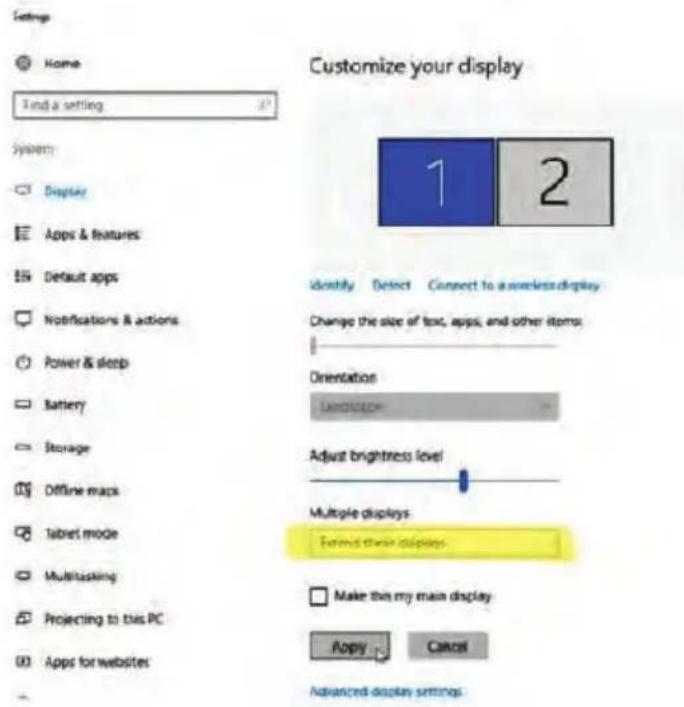
text_image
Customize your display 1 2 Home Find a setting System Display Apps & features Default apps Notifications & actions Power & sleep Battery Storage Offline maps tablet mode Multitasking Projecting to this PC Apps for websites Identify Detect Connect to a wireless display Change the size of text, apps, and other items: Orientation LAMOSLED Adjust brightness level Multiple displays Extend their displays Make this main display Apply Cancel Advanced display settings- In Multiple Displays dropdown, change to (Extend these displays).

text_image
Screenshot of a mobile app interface showing a desktop status bar with icons and time stamp at bottom-
If your computer is equipped with more than one monitor, your Graphics tablet will map to the monitors based on how they are configured in the DISPLAY PROPERTIES control panel.
-
After you have correctly configured your computer for multiple monitors, you can then adjust your Graphics tablet mapping by opening the panel and changing the appropriate options. This enables you to toggle the current mapping and screen cursor between the system desktop primary display and your other monitors.
Note:
Under the "Duplicate" display mode of the "Multiple Display" function, the display resolution of your monitor must be set to the same resolution as your pen.
Otherwise, your pen cursor will be misplaced on the screen. For pen, please make sure the other monitor resolution is set to 1920 x 1080.
Display Configuration (for Windows)
You may configure your Graphics tablet by modifying the functions of the pen tip and the two side buttons.
- Tap on the Tablet icon in the system tray, usually located at lower right-hand corner of the screen.

text_image
Screenshot of an old mobile app interface showing a location screen with app icons and a highlighted location, dated 1/18/2017.Driver Settings
The Control Panel is divided into 5 tabs:
- Devices
- Calibration
- HotKeys
- Save & Backup
- Pen
Devices
The Devices tab shows the device currently in use and the driver version being run.

text_image
Device Information: Tablet 1600 Tablet Pen Tablet Driver : 20180629 Languages EnglishNote:
If nothing is shown in Device Information, make sure your Graphics tablet is properly connected to your computer. Unplug and re-plug if problem still persists.
INSTALLATION ON MAC
- Download the driver from website
- Go to Downloads at the top right-hand corner, or your Downloads folder in Finder.
- Select the Tablet Driver package (decompress if needed) and follow the installation instructions shown on screen.
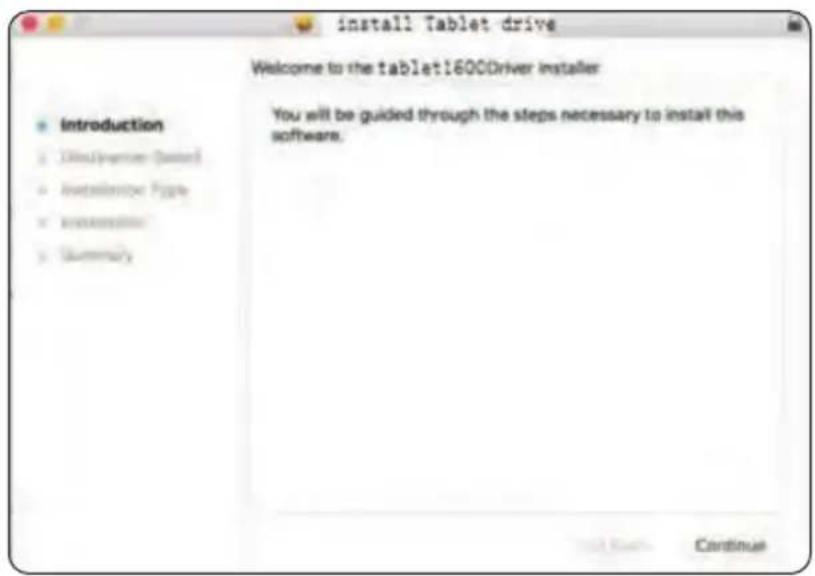
text_image
install Tablet drive Welcome to the tablet16000Driver installer Introduction 1. Introduction Wizard 2. Installation Type 3. Installation 4. Summary You will be guided through the steps necessary to install this software. Next Back Continue- After installation has completed, the Driver application will be called Tablet Setting. For quick access, keep the application in your Dock.
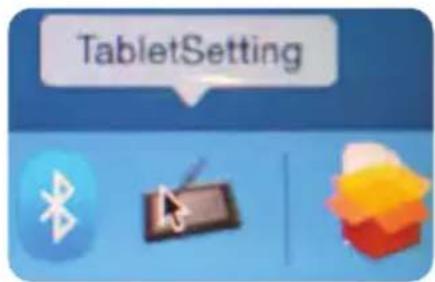
text_image
TabletSettingNOTE: If you are unable to access anything in Tablet Setting, please restart your computer and open Tablet Setting again.
USAGE TIPS
Double Tapping
To double tap with the digital pen (equivalent to a double click with a mouse), quickly lift the pen tip up away from the Graphics tablet before returning for the second tap.
Scrolling Function of Digital Pen
To scroll on a page, press the first button on the Monet Pen (same function as the mouse middle button) over the Pen display. If you have customized your Monet Pen, you must reset the button to Middle Button in the Pen driver Pen settings in order to use this function.
Traditional Mouse Setup
You can have both the Graphics tablet and a traditional mouse setup to your computer at the same time. However, only one device is able to actively work at a time. You cannot use the mouse and Monet Pen at the same time.
MONITOR MAPPING
How to Change to Extended Display
Extended Display means you work with a larger desktop area spanning your computer monitor and your LCD Display. Applications can be moved from one display to the other, and will allow you to work in different screen resolutions
- Go to System Preferences and select Displays.

text_image
System Preferences General Desktop & Screen Saver Dock Mission Control Language & Region Security & Privacy Spotlight Notifications Displays Energy-Saver Keyboard Mouse Trackpad Printers & Scanners Sound Ink Startup Disk iCloud Internet Accounts App Store Network Bluetooth Extensions Sharing Users & Groups Parental Controls Siri Date & Time Time Machine Accessibility Flash Player Waoom Tablet- With the Graphics tablet connected, in Displays go to Arrangement. Here you can rearrange how displays are mapped to each other.
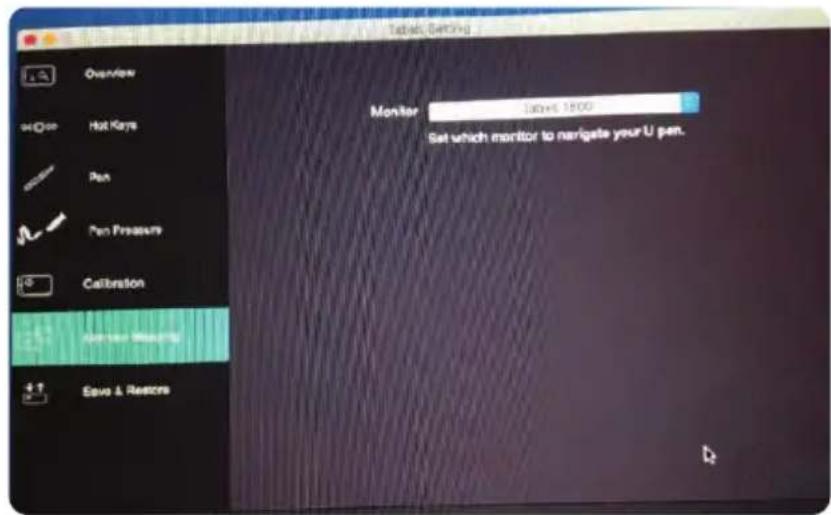
text_image
Tablet Setting Overview Hot Keys Pan Pan Presets Calibration Air filter matching Save & Restore Monitor 100x1500 Set which monitor to navigate your U pen.How to Change to Mirror Display
- In Arrangement, at the bottom left-hand of the window, select Mirror Displays if you want your main computer monitor and your Graphics tablet to show the same image.
Display Configuration (for Mac)
You may configure your Graphics tablet by modifying the functions of the pen tip, the two side buttons, and the FastAccess Buttons.
Go to the Setting Application.
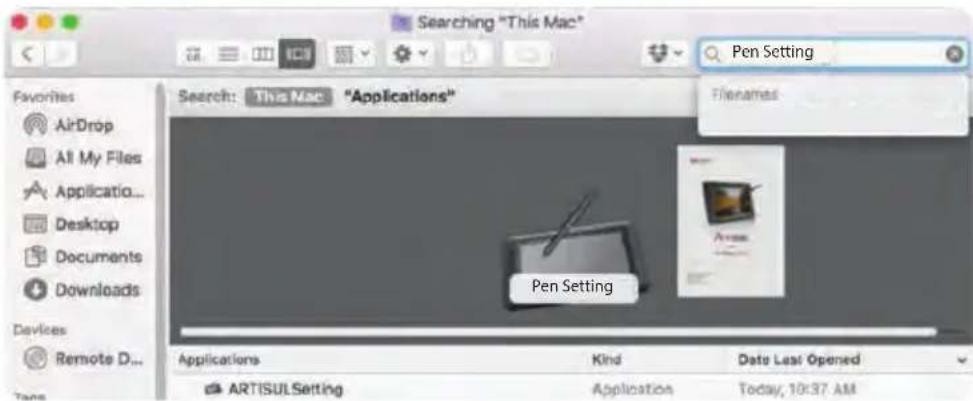
text_image
Searching "This Mac" Pen Setting Favorites AirDrop All My Files Application... Desktop Documents Downloads Devices Remote D... Search: This Mac "Applications" Filenames Pen Setting Applications Kind Data Last Opened ARTISULSetting Application Today, 10:37 AMDriver Settings
The Control Panel is divided into 7 tabs:
- Dashboard
- Pen
- Devices
- Calibration
• HotKeys • Save & Backup
Devices
The Devices tab shows the device currently in use and the driver version being run.
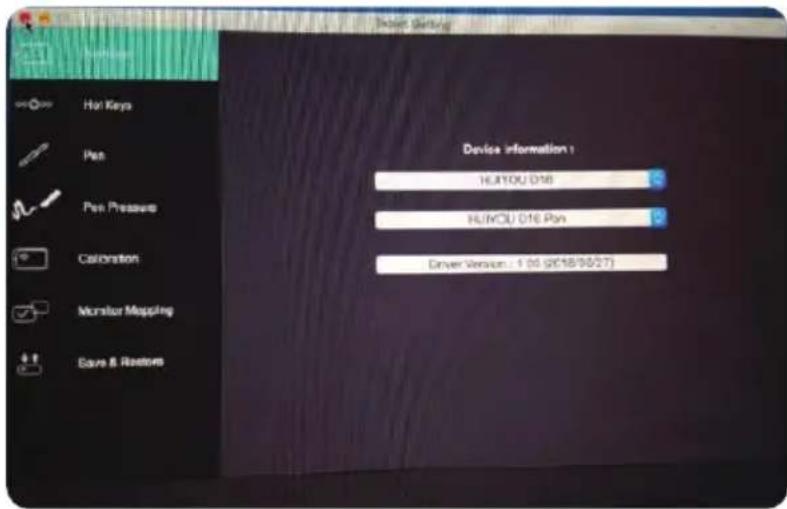
text_image
Hot Keys Pen Pen Pressure Calibration Monitor Mapping Save & Restor Device Information 1 HL/YOU 016 HL/MOU 016 Pen Driver Version : 1 (0) (2018/03/27)Note:
If nothing is shown in Device Information, make sure your Graphics tablet is properly connected to your computer. Unplug and re-plug if problem still persists. If the issue still persists, restart your computer.
II. HOTKEYS
Customize the Fast Access buttons and Quick Dial from the HotKeys tab.

text_image
Overview FastAccess Reps Undo Eraser Hand Pen Pen Pressure Test Scroll Dial Scroll Up/Scroll Down Calibration Zoombox Copy Shift Ctrl Alt Monitor Mapping Save & Backup HotKey Align LeftRedefine HotKey: Click on the title of the button. A dropdown menu will appear with a list of tool options. Choose the one you want to use.
Custom Define: At the bottom of the dropdown menu, choose Custom. This will allow you to input a custom keyboard shortcut.
Note: Software keystrokes are based on English input methods. If not already, set to English when using HotKeys on your Tablet pen display.
Note: Most creative software will not accept keystroke inputs when your Monet Pen is still in use or when your Monet Pen is still within the detectable cursor range. To avoid invalid keystroke actions, hold the pen away from the screen before pressing your FastAccess button. (Hold Monet Pen at least 1.5" away from the surface of the screen.)
Scroll Dial
You can define 5 functions to the QuickDial. Tap on Scroll Dial button to select the function you would like to use.
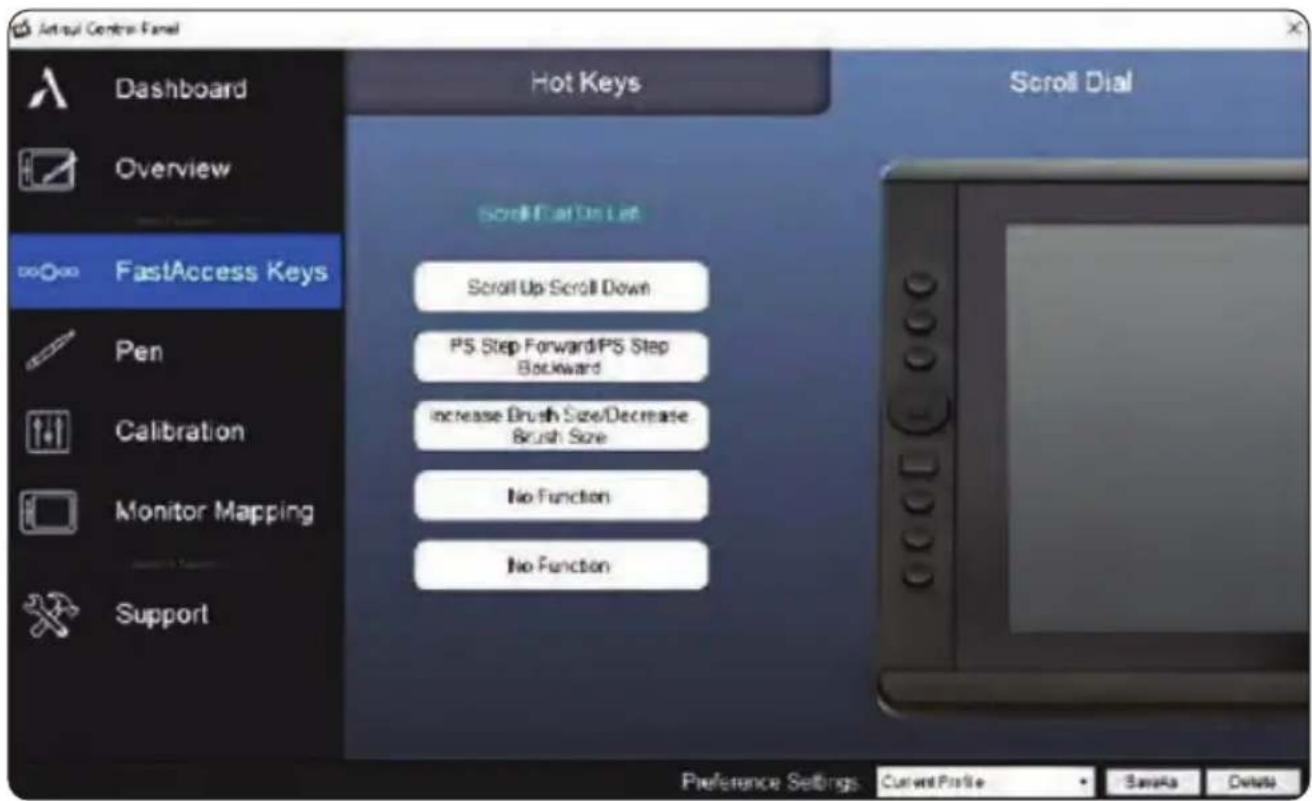
text_image
Jetoul Control Panel Dashboard Overview FastAccess Keys Pen Calibration Monitor Mapping Support Hot Keys Scroll Cut On Left Scroll Up Scroll Down PS Step Forward/PS Step Backward increase Brush Size/Decrease Brush Size No Function No Function Scroll Dial Preference Settings: Current Profile Save As DeleteTo switch between functions, press down on the edge of the QuickDial. You will see the function name briefly at the bottom of the screen when switched.
Pen
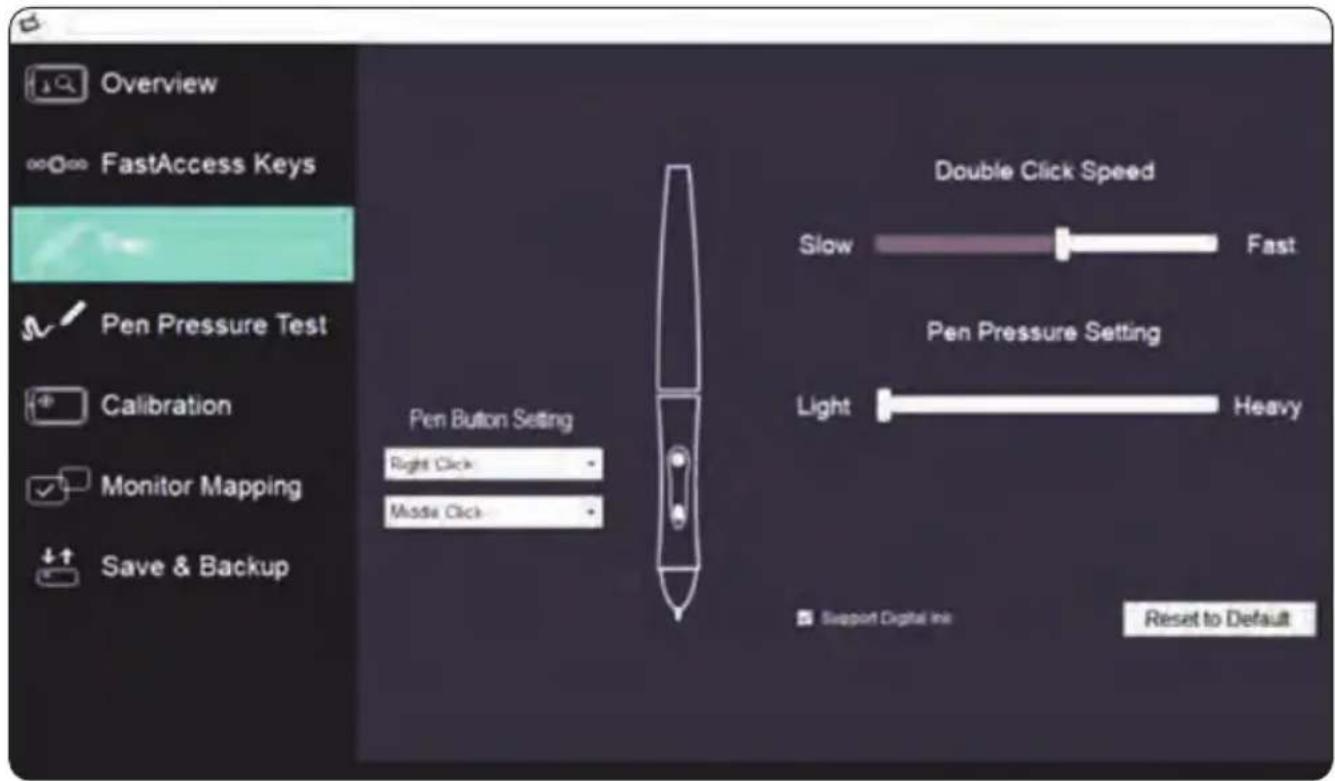
text_image
Overview FastAccess Keys Pen Pressure Test Calibration Monitor Mapping Save & Backup Double Click Speed Slow Fast Pen Pressure Setting Pen Button Setting Right Click Mode Click Light Heavy Support Digital Ink Reset to DefaultPen Button Settings: Customize the functions of the two side buttons on the Monet Pen. Click the button name and choose a function from the dropdown menu.
Double Click Speed: Move the slider toward "Slow" if you want more time in-between double tapping the pen tip. Move the slider toward "Fast" if you want less time in-between double tapping the pen tip.
Pen Pressure Setting: Move the slider in the sensitivity bar to adjust pen pressure response. Light means your Graphics tablet will recognize the slightest nuance of pressure, while heavy means it will take more pressure for the pen tip to register.
Left Hand/Right Hand: If you're left-handed, choose Left Hand. If you're right handed, choose Right Hand.
Reset to Default: Return all Pen Settings to default by tapping Reset to Default.
Support Digital Ink: Select to support the pressure of digital ink settings.
Pen Pressure: Using the Monet Pen, press down in the white rectangle.
Use different levels of pressure to test if pen pressure sensitivity is working on your computer.
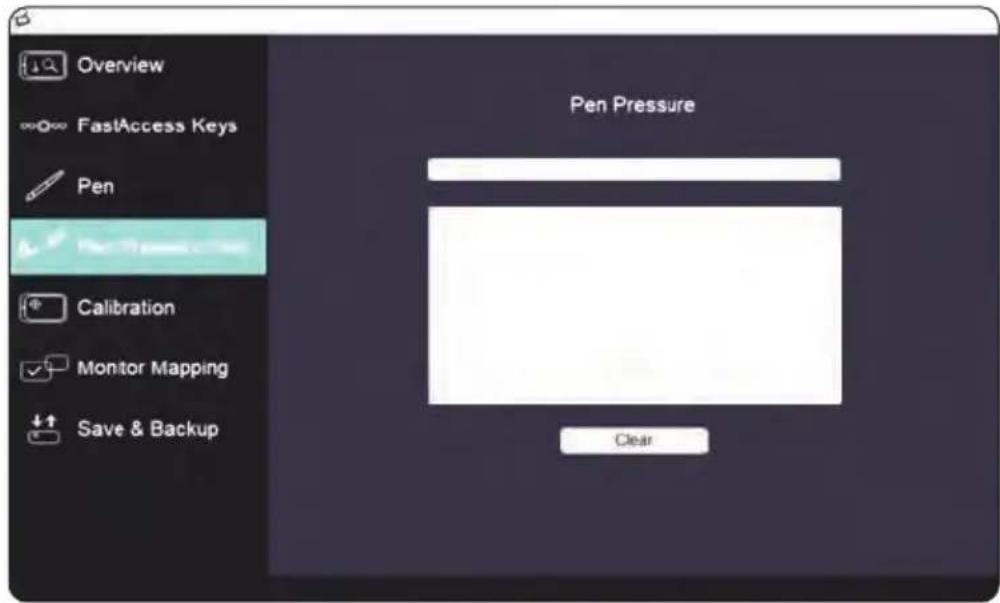
text_image
Overview FastAccess Keys Pen Pen Pressure Calibration Monitor Mapping Save & Backup ClearNote: Please close the Tablet Control Panel when finished with the Pressure test.
Monitor: If working in Extended Display, choose which monitor you want your Tablet pen display to track with. Most likely, you will want it to track with the pen display. To learn which monitor is Monitor 1 and which is Monitor 2, go to Start > Settings > Display and click Identify.
text_image
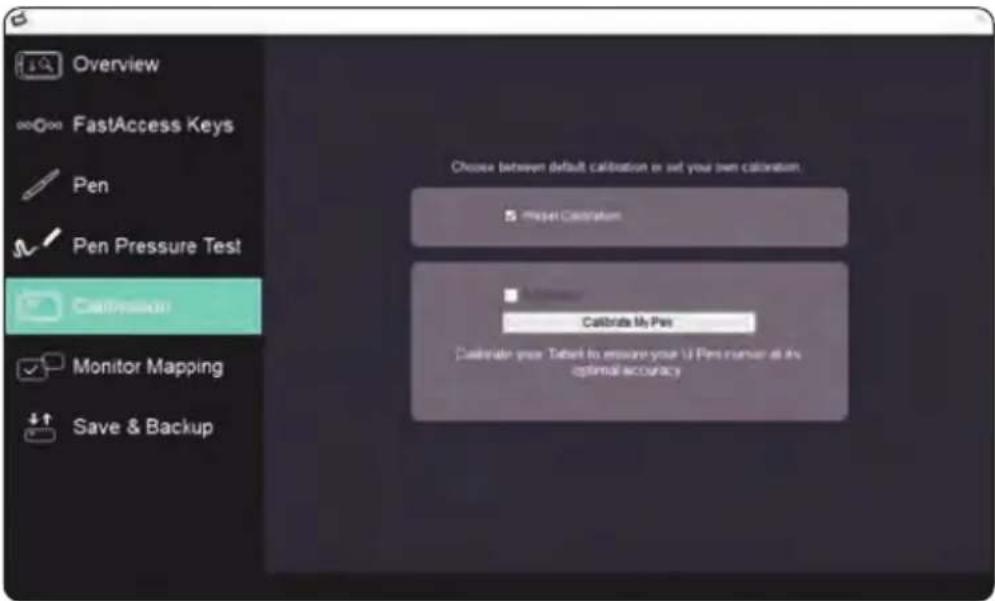
Overview FastAccess Keys Pen Pen Pressure Test Compression Monitor Mapping Save & Backup Choose between default calibration or set your own calibration. Project Calibration Calculate My Pen Calculate your Tæbit to ensure your U-Pins runnear at its optimal accuracyCalibration: Click "Calibrate my Monet pen" to activate the calibration screen. Press the crosses that appear on the screen with the Monet Pen to calibrate the screen.
Open Monitor Tuner: Monitor Tuner can help you configure the Graphics tablet display's Brightness, Contrast, and Color Temperatures. Press "Open Monitor Tuner" to open "Tablet Monitor Tuner" utility

text_image
Tablet Monitor Tuner Colibrated Display Options User Setting Color Temperatures: User 1 Red: 111 Green: 112 Blue: 121 Brightness: 50 Contrast: 70Only for Multiple displays(Extend). use Default Setting
Connected Display Only User to navigate your 11 per Monitor Tunes User Monitor Tuner User setting for your Tablet to output for different lights paper printing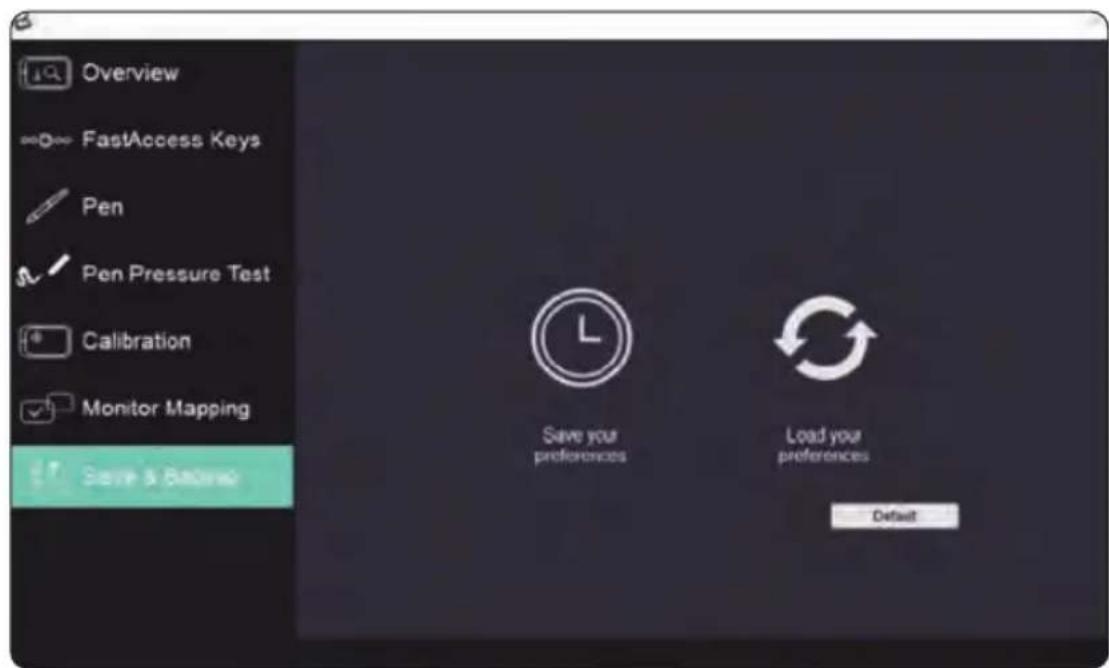
text_image
Overview FastAccess Keys Pen Pen Pressure Test Calibration Monitor Mapping Save & Backward Save your preferences Load your preferences DefaultCalibrate Display Options: These options are there to assist you with preparing your designs for CMYK printing. You may choose a different calibrated display setting depending on the type of paper you will be printing your work on, and the working light environment (this includes sunlight or the color temperature of the light bulbs or tubes).
Note:
The "Calibrated Pen Displays" are only there to assist you, to prepare your work for best accuracy before CMYK printing. Refer to guidelines set by your printing services.
Note:
When opening Pen Monitor Tuner, the system will need up to 30 seconds or more to access the necessary information for your monitor. While the system is calling up the Tuner, it is possible for the screen to flicker once or twice.
Save & Backup

text_image
Save As Local Disk (LC) - Users - wins - Documents - AUTHICE - Unknown - New Profile Search User Profile Browse → New Table Name Downloading Type Help Quick access Downloads Desktop Documents Pictures Message Mask Views Workflows Creative This PC Language File name: New Settings Save as type: Text Files (*.txt) Save Cancel Preference Settings Current Profile Save DeletePreference Settings: Save your settings. This is beneficial when using many apps & software with different hotkeys preferences.
Load your Preferences: From the Preference Settings dropdown tab, choose a previously saved HotKey settings.
III. CHANGE THE PEN TIP
- You will need the pen nib removal tool.
- Use the pen nib removal tool to pull out the pen nib.
- Push the new pen tip into tip into the Monet Pen.

IV. TAKE CARE OF YOUR TABLET PEN DISPLAY
- Keep the Monet Pen and the LCD screen surface clean.
Dust and dirt particles can stick to the pen and cause excessive wear to the screen protector.
a. Wipe the LCD screen gently with a soft cloth.
b. Stubborn stains may be removed with a screen-cleaning cloth.
- Keep cables neat and orderly.
Overly bending the cables at the ends may cause damage to the wires inside.
- Keep the Monet Pen in a safe place when not in use.
A damaged pen may have adverse effects on pressure sensitivity.
Note:
- Unplug all cables before you begin cleaning your display.
- Never spray water or detergent directly on your display. It may cause damage.
- Never use strong solvent such as a thinner or alcohol for cleaning.
- Never reverse or compress the cables and don't bend it over 90^ .
It may cause damage to the cables.
V. SETTINGS FOR GRAPHIC APPLICATIONS
Some applications need their settings changed so the Graphics tablet can act just the way you like.
A. SAI
a. Find [misc.ini] in SAI folder.
b. Right click on [misc.ini] and select "Edit."
c. Find Tablet > Mouse > Simulation = 0, then modify 0 to 1 and save the file.
d. Restart SAI.
B. SAI 2
a. Find [Sai2.ini] in SAI folder.
b. Right click on misc.ini and select "Edit."
c. Find "AlwaysUseTabletPCApi= no" then modify no to yes and save the file.
d. Restart SAI 2.
C. Corel Painter 2015
a. Please select Edit > Preferences > Tablet.
b. In Tablet options check "RTS-compatible device (Real-Time Stylus)" as shown below.
c. Multi-touch Options: Please uncheck "Enable Mult-touch."

text_image
Tablet Options: Wacom-compatible device (Wintab) RTS-compatible device (Real-time Stylus) To change tablet options, you must restart Corel Painter. Multi-touch Options: Enable Multi-touch Corel Painter Multi-touch (requires Wacom-compatible device) Windows Multi-touchD. Clip Studio Paint
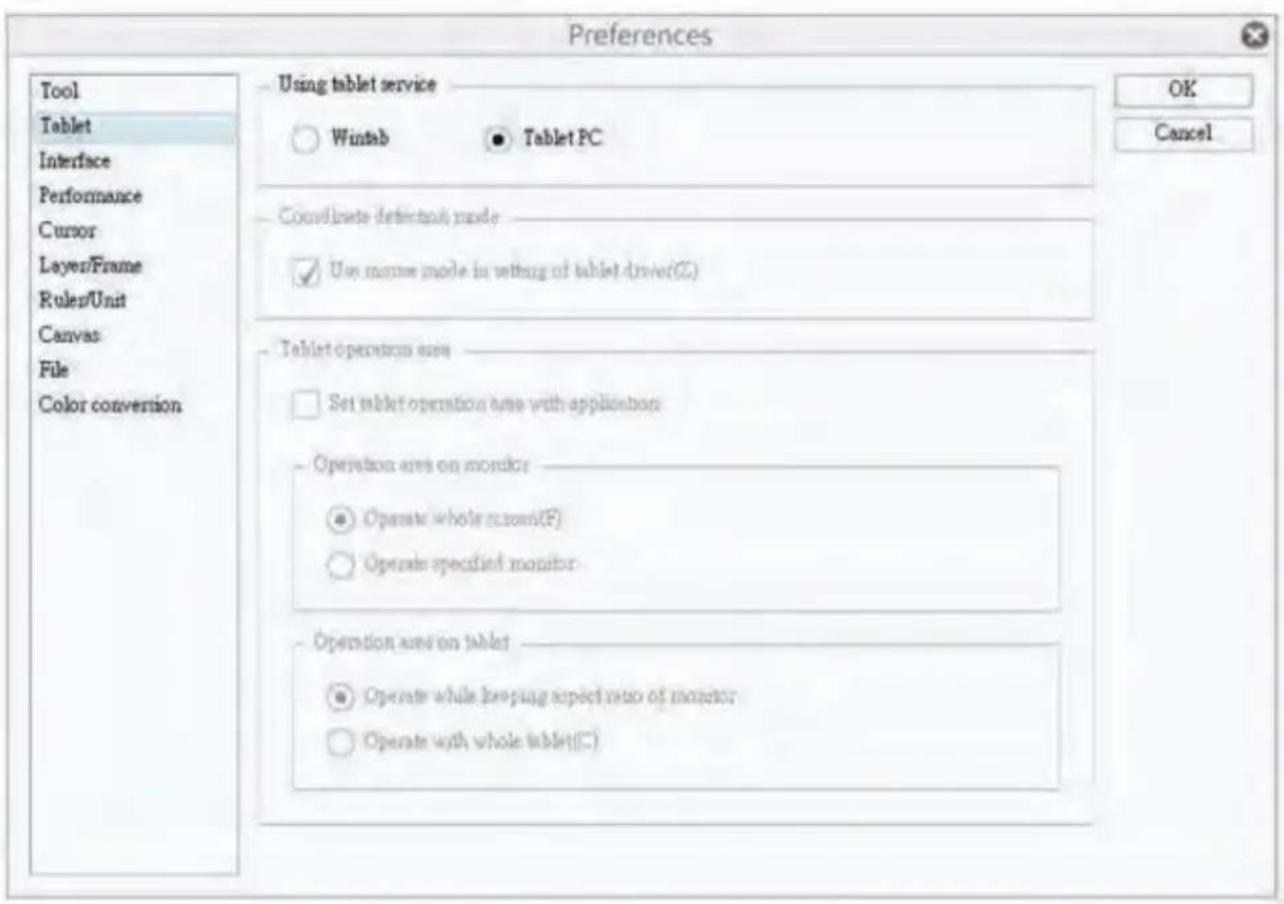
a. Run Clip Studio Paint and press Ctrl + K to open [Preferences].
b. Select "Tablet."
c. In "Using tablet services" select Tablet PC.
d. Press OK and restart Clip Studio
text_image
Preferences Tool Tablet Interface Performance Cursor Layer/Frame Rules/Unit Canvas File Color conversion Using tablet service Wintab Tablet PC Coordinate defectnut mode Use mouse mode in setting of tablet driver(G) Tablet operation area Set tablet operation area with application Operation area on monitor Operate whole screen(F) Operate specified monitor Operation area on tablet Operate while keeping aspect ratio of monitor Operate with whole tablet(C)serenelife™
Questions? Comments?
We are here to help!
Phone: (1) 718-535-1800
Email: support@pyleusa.com