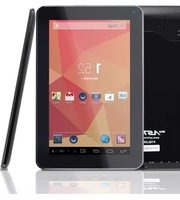
Astro PTBL73BCD - Tablet Pyle - Free user manual and instructions
Find the device manual for free Astro PTBL73BCD Pyle in PDF.


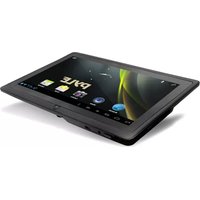
| Product Type | Tablet |
| Brand | Pyle |
| Model | Astro PTBL73BCD |
| Display Size | 7 inches |
| Resolution | 1024 x 600 pixels |
| Processor | Quad-core 1.3 GHz |
| RAM | 1 GB |
| Storage | 16 GB internal, expandable via microSD |
| Operating System | Android 10 |
| Battery | 3000 mAh Li-ion |
| Charging | Micro USB, 5V/2A |
| Connectivity | Wi-Fi 802.11 b/g/n, Bluetooth 4.2 |
| Camera (Rear) | 2 MP |
| Camera (Front) | 0.3 MP |
| Dimensions | 190 x 115 x 10 mm |
| Weight | 290 g |
| Audio | Built-in speaker, 3.5mm headphone jack |
| Sensors | G-sensor |
| Cleaning & Care | Clean with a soft, lint-free cloth. Avoid liquids. |
| Safety | Do not expose to water or extreme heat. Use only supplied charger. |
| Spare Parts & Repairability | Contact Pyle customer service for repairs or replacement parts. |
Frequently Asked Questions - Astro PTBL73BCD Pyle
User questions about Astro PTBL73BCD Pyle
0 question about this device. Answer the ones you know or ask your own.
Ask a new question about this device
Download the instructions for your Tablet in PDF format for free! Find your manual Astro PTBL73BCD - Pyle and take your electronic device back in hand. On this page are published all the documents necessary for the use of your device. Astro PTBL73BCD by Pyle.
USER MANUAL Astro PTBL73BCD Pyle
PYLE ASTRO
PTBLC
User Manual
www.PyleAudio.com
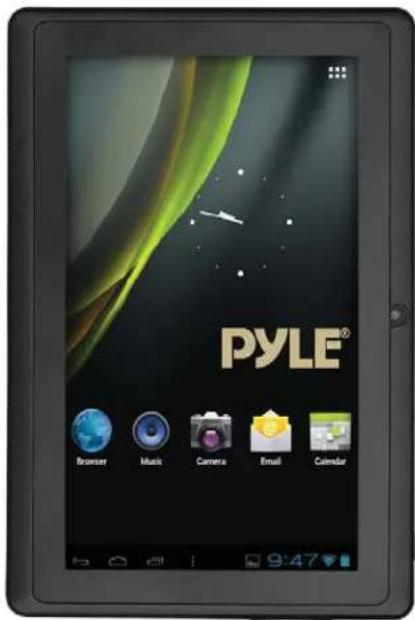
Read Me
Please read this manual before operating your tablet to learn proper and safe use of your device, and keep for future reference. The descriptions given in this manual are based on the default settings. Available features & additional services vary by device, software or service provider. Our company is not liable for performance issues caused by third-party applications, so proceed accordingly at your own risk. Images and screenshots used in this manual may differ from the actual product and serve for instructional and operational examples.
PYLE ASTRO
CONTENTS
Assembling
Unpack -3-
Charge the battery 3 - -
Install the memory card 3
Getting Started
Turn your device on and off -4-
Device layout 4
Home screen 5
Add items to the home screen -5-
Task bar 7
Notification panel 8
Auto rotation 8
Lock & unlock the screen -9-
Enter text -9-
Customize your device 9
Manage applications 10
Security 10
Reset tablet 11
Web
Email -12
Gmail 13
Browser 14
Play Store 16
Talk 16
Entertainment
Super-HD Player - 17
Music -19
Camera -20
Tools
Calendar -23
Alarm -23
File Manager -24
Sound Recorder -24
Calculator -24
Connectivity
USB Connection -25
Wi-Fi -25
Bluetooth 26
Safety Precautions -28
Care & Maintenance - 29
Assembling
Unpack
Check your product box for the following items.
- Tablet
- User manual
- Adapter
You can purchase additional accessories from your local retailer.
Charge the battery
Before using the device for the first time, you must charge the battery.
- You can charge the device with a travel adapter or by connecting the device to a PC with a USB cable.
- Battery full icon is shown when finished if your device is off.
Warning: Use only original batteries and chargers. Unapproved chargers or cables can cause batteries to explode or damage your device.
Install the memory card
To store additional multimedia files, you need insert a memory card.
- Insert a memory card with the gold contacts facing downwards.
- Push the memory card into the slot until it clicks.
Notice: Our company uses approved industry standards for memory cards, but some brands may not be fully compatible with your device.
Getting started
Turn your device on and off
To turn on your device, press and hold the power key.
To turn off your device, press and hold the power key, and then tap OK.
Device layout
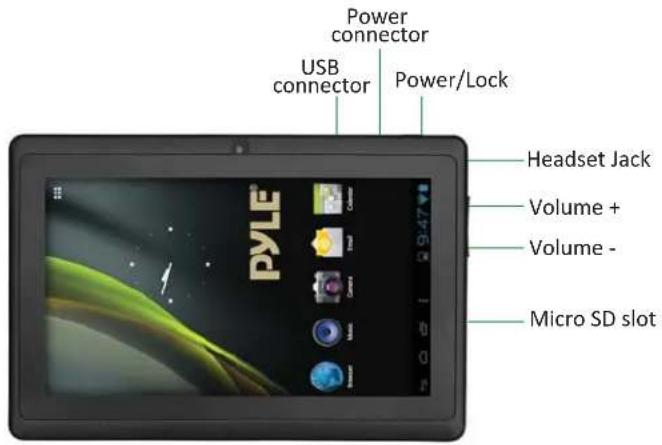
Volume keys
Power/Lock
Adjust the device volume.
Press and hold for 2 seconds to turn on or turn off the device.
Home Screen
The home screen has multiple panels. Scroll left or right to the panels on the home screen, you can view indicator icons, widgets, shortcuts to applications, and other items.
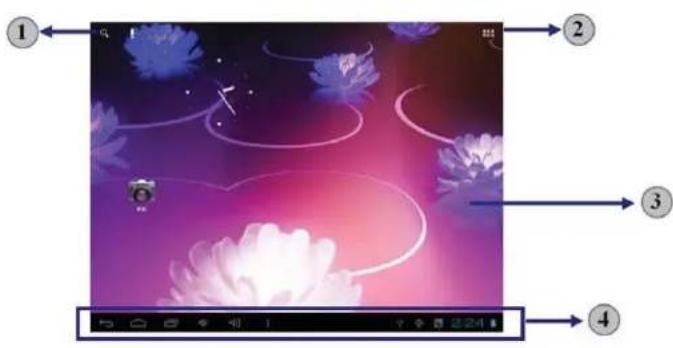
1 Open the search bar
2 Access the application list and widget screen.
3 Scroll left or right to the other panels
4 Task bar
Add items to the home screen
Tap the icon at the upper right to access the application list shown below from home screen.
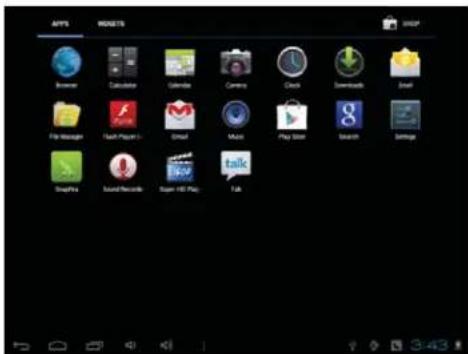
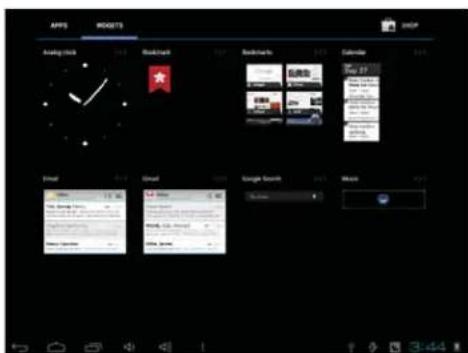
Scroll left or right to view more items.
To add items to the home screen, tap and hold an item, then drag the item to a new location.
To remove items from the home screen, tap and hold an item, then drag the item to the Remove area at the top of the home screen.

Task bar
The task bar is shown at the bottom of the screen. It displays commonly used option buttons, battery level indicator, current time and other indicator icons.

1 Return to previous screen.
2 Return to home screen.
3 View the applications you have accessed recently.
4 Adjust the device volume to low level.
5 Adjust the device volume to high level.
6 Open a list of options available on the current screen.
7 Display notification icons. Tap the notifications area to open the notification panel.
Indicator icons
| Icon | Definition | Icon | Definition |
| Open Wi-Fi available | Wi-Fi connected | ||
| Uploading data | Downloading data | ||
| Connected to PC a | Battery power level | ||
| Alarm activated | Music being played |
Notification panel
Tap the notifications area to open the notification panel shown below. You can access a list of notifications.
Tap ☐ to activate or deactivate wireless connection features and other settings.
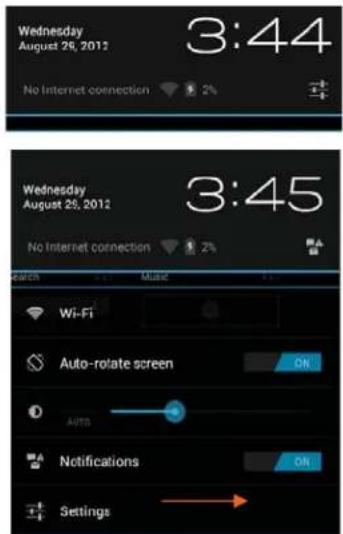
Wi-Fi : Activate or deactivate the Wi-Fi connection.
Auto-rotate screen : Activate or deactivate the auto rotation feature.
Brightness : Adjust the basic brightness level of the display to lighter or darker.
Notifications : Activate or deactivate the notification feature.
Settings : Access settings application.

Auto rotation
If you rotate the device while using some features, the interface will automatically rotate as well. To prevent the interface from rotating, open the notifications panel and select Auto-rotate screen, then scroll it to Off.
Lock & unlock the screen
To unlock the screen, tap and hold the lock icon, then drag it to the unlock area where the unlock icon is.
To lock the screen manually, press Power key.
Enter text
You can enter text by selecting characters on the virtual keyboard. Tap the text input field to display the virtual keyboard. To hide the keyboard, tap 📋 at the task bar.
To change the text input method, tap 📄 at the task bar. From a text field, you can use the copy and paste feature for fast inputting.
Customize your device
To customize your device according to your preferences, tap Settings from application list or notification panel.
Manage applications
To manage the applications installed on your device, tap
Settings→App.
- To uninstall an application, select DOWNLOADED, then select an item and tap Uninstall, tap OK to confirm.
- To stop or change the settings of an application, select RUNNING or ALL, then select an item and tap the option you need.
Security
You can protect your device and data by setting screen lock or encrypting your tablet.
◆ Set a screen lock
To set a screen lock, tap Settings→Security→Screen lock from application list.
• None : Deactivate the screen lock.
- Slide : Slide to unlock the screen.
- PIN : Enter a numeric PIN to unlock. When prompted, enter the PIN to unlock the screen.
- Pattern : Draw a pattern to unlock. Follow the instructions to draw your lock pattern. When prompted, draw the pattern to unlock the screen.
- Password : Enter a passcode to unlock. When prompted, enter the passcode to unlock the screen.
Screen time-out
Select Settings→Display→Sleep from application list, you can set the time before the screen times out and goes into lock mode. (you have not entered any characters or made other selections).
Encrypt tablet
You can encrypt your accounts, settings, downloaded apps and their data, media and other files. Once you encrypt your tablet, you must enter a numeric PIN or password to decrypt it each time you switch on your device.
Reset tablet
You can reset system and desktop settings to their original values by the following steps:
- Select Settings → Backup & reset from application list.
- Tap Factory data reset.
- If you want to erase all data on your tablet, such as music, pictures, and other data, tap Erase SD card checkbox to create a checkmark.
- Tap Reset tablet.
The device resets to the factory default settings automatically.
Warning!: Factory data reset will erase all data from your device and SD card, including your Google account, system and application data and settings, and downloaded applications.
Web
To receive and send mail, you must have a remote mailbox service. This service may be offered by a service provider. Your device is compliant with applicable internet standards for POP3/IMAP/Exchange.
Before you can send or receive mail on your device, you need to set up an email account and define the email settings correctly. You can define more than 1 mailbox.
Set up your email
- Tap Email from application list.
- You can use mailbox guide to set up your mailbox, tap Next until it's done.
- If you need to add another email account, tap the option button at the upper right→Settings→ADD ACCOUNT, then set up the email account with the mailbox guide.
When you are finished setting up the email account, the email messages are downloaded to your device. If you have created more than two accounts, you can switch between email accounts. Select an account name at the top left of the screen and select the one you want to retrieve messages from.
Delete your email account
- Open the application list and select Email.
- Tap the option button at the upper right, then select
Settings and the email account you want to delete.
- Tap Remove account.
- Tap OK to confirm.
Create and send email
- Open Email application.
2.Tap

- In To field, enter the recipient's email addresses manually and separate them with a comma. Add more recipients by tapping Cc/Bcc.
- To insert attachments, tap the option button at the upper right and select Attach file.
- Enter the subject and the text.
- Tap SEND to send the email.
Gmail
You can retrieve new email messages from the Google Mail webmail service to your inbox. Before you can send or receive mail on your device, you need to set up a Gmail account.
Create a Gmail account
If you don't have a Google Account, tap New, then follow the on-screen instructions to create a new one.
◆ Set up a Gmail account
If you want to add an existing account, tap Existing, enter your email address and password, and then select Next, when you are finished setting up the email account, the email messages are downloaded to your device.
◆ View email messages
- When you open the email account, the amount of unread email messages is displayed at the title bar and the unread email messages are displayed in bold.
- To view an email message, tap it.
- To mark an important email message, tap the star icon below the date. To cancel the mark, tap the star icon again.
◆ Create and send an email
1.Tap

- In To field, enter the recipient's email addresses manually and separate them with a comma. Add more recipients by tapping Cc/Bcc.
- To insert attachments, tap the option button at the upper right and select Attach file.
- Enter the subject and the text.
- Tap SEND to send the email.
Browser
Tap Browser from application list to access to the web.
◆ Browser webpages
- Select Browser to launch a specified homepage.
- To access a specific webpage, select the URL input field, enter the web address of the webpage, and select Go.
- To zoom in, place two fingers on the screen and spread them apart. To zoom out, move your fingers closer together. You can also double-tap the screen.
◆ Add windows
You can have multiple windows open at one time.
- To add a new window, tap + at the title bar.
- To open up a window, tap the title of the window.
- To close the window, tap ✗ at the title bar.
Set homepage
- Tap the option button at the upper right.
- Select Settings → General→ Set homepage.
- Enter the web address of the desired webpage.
◆ Add bookmarks
While navigating a website, tap 📂 to add current URL to your bookmark list and easily access it later.
◆ View bookmarks and history
Tap 📂 to open the bookmark list and the recent history. Tap a bookmark or any entry to display the webpage.
◆ Customize browser
To make adjustments in your browser settings, tap the option button at the upper right, and then select Settings.
Play Store
Play Store allows you to easily download an abundance of applications directly to your device. Before using the Play Store, you must have a Google Account.
Play Store
- From the application list, tap Play Store.
- Sign in to your Google Account.
- Search for and download applications as desired.
- Follow the on-screen instructions.
Note
All applications offered by Play Store are developed by third party. To get the information about the developers, you can read the descriptions of each application.
Our company is not liable for performance issues caused by third-party applications.
Talk
Google Talk is a free web-based application for instant text, voice and video chats. Before using the Google Talk, you must have a Google Account.
- From the application list, tap Talk.
- Set up a Google account or sign in, follow the on-screen instructions.
- Select Add friend, enter a friend's email address and select Send invitation.
- When your friend accepts the invitation, he or she is added to your friend list. You can start talking.
Entertainment
Super-HD Player
To view or organize your images and video clips, or edit and send your files to other devices, or set photos as wallpapers, select Super-HD Player from application list.
Note: It takes a few more minutes to enter this application if you store more files.
◆ Supported file formats
| Type | Format |
| Images | JPEG、GIF、BMP、PNG |
| Video | AVI、RM、RMVB、MOV、FLV、3GP、MP4 |
Note: Some files may not play properly depending on how they are encoded.
View a photo
- Select a folder.
- Select a photo to view. To view more photos, scroll left or right.
- To zoom in, place two fingers on the screen and spread them apart. To zoom out, move fingers closer together. You can also double-tap the screen.
- To start a slideshow, tap 📋 at the title bar.
View a photo continued
- To view the details of a file, tap the option button, then select Details.
- To share a photo with others via Email, Gmail or
Messaging, tap at the title bar.
- To set a photo as wallpaper, tap the option button at the upper right→select Set picture as→Wallpaper→drag the slides of the crop box to create the crop area, then tap Crop.
- To set a photo as a caller ID, tap the option button at the upper right→select Set picture as→Contact photo→Contacts→Create a new contact or select an existing contact→drag the slides of the crop box to create the crop area, then tap Crop.
◆ Edit a photo
-
To crop the image, tap the option button at the upper right, then select Crop.
-
To move the crop box, tap and hold the crop box and drag it to the desired location.
- To add or subtract from the selection border of the crop box, drag the crop box to the desired size.
-
When you are finished, tap Save.
-
To edit photos and apply various effects, tap the option button at the upper right, then select Edit.
• To adjust contrast, tap 📄.
• To apply a filter effect, tap FX.
• To apply a color effect, tap 📄.
• To crop, straighten, rotate or flip the image, tap 📄.
◆ Play a video
- Select a folder.
- Select a video to play.
- Control playback with the virtual keys.
- To watch a video saved on your device on TV, connect your device and TV with HDMI cable.
Music
With Music, you can play music files. The music player supports the following file formats: MP3, AAC, APE, WMA, OGG, WAV, M4A and so on.
Note: Some files may not play properly depending on how they are encoded.
◆ Add music files to your device
Start by transferring files to your device or memory card.
Play music
- Select a music file.
- Control playback with the virtual keys.
• The current list of songs are randomly shuffled for playback.
• Replays the current list when the list ends.
• Repeats the current playing song.
Create a playlist
- Tap and hold a music file.
- Select Add to playlist.
- Select New.
- Enter a name.
- Tap Save.
Delete a playlist
- Tap Playlists.
- Tap and hold the playlist you want to delete.
- Select Delete.
Camera
With the camera function, you can capture photos and take videos.
◆ Capture a photo
- Open the application list and select Camera.
- Before taking a picture, you need to make some adjustments.

natural_image
Two identical photos showing sunflowers in a field under a camera interface, no text or symbols visible.20
Camera Functions
| Icon | Definition |
| [1XKTZ] | Tap to switch between the front and rear camera lenses |
| Tap and drag it to zoom in or zoom out. | |
 | Tap to display other settings. |
| Change to camera mode. | |
| [3ZZCH] | Change to panorama mode to take a landscape photo. |
| Adjust the color balance. | |
 | Adjust the exposure value. |
| Go to the camera settings. |
- Aim the lens at the subject and tap to take a photo. The photo is saved automatically to the folder DCIM.
- Select the image viewer icon at the upper right to view the pictures.
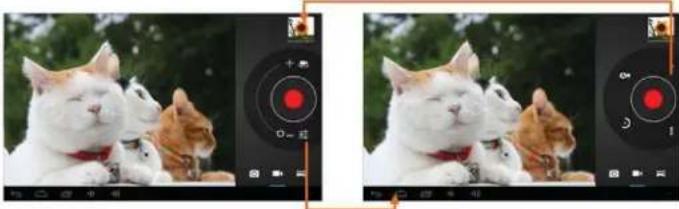
◆ Record a video
- Open the application list and select Camera. Tap to change to video mode.
- Before recording a video, you need to make some adjustments.
Video Recording Functions
natural_image
Two side-by-side photos of a white cat sleeping together, each with a camera lens and red circular target (no text or symbols visible)| Icon | Definition |
| Tap to switch between the front and rear camera lenses | |
| Tap and drag it to zoom in or zoom out. | |
| Tap to display other settings. | |
| Change to video mode. | |
| Adjust the color balance. | |
| Set the self-timer delay. | |
| Go to the camera settings to reset menus to default settings. |
- Tap ■ to start recording. The length of the video recording is restricted by the available space on your storage.
- Tap to stop recording. The video is saved automatically to the folder DCIM.
- After recording videos, select the image viewer icon at the upper right to view the recorded videos.
Tools
Calendar
With the Calendar feature, you can consult the calendar by day, week, or month, create events, and set an alarm to act as a reminder, if necessary.
To access the calendar, tap Calendar from application list.
- To create an event, tap

- Fill in the fields, and set category, date, time & an alarm.
- After you finish, select DONE.
-
You can view calendar in different views, Day, Week, Month and All.
-
To delete an entry, tap the event to open it, and then select OK.
Alarm
From application list, tap Clock, and then select Set alarm.
-
Tap Add alarm.
-
Select the tick box next to Turn alarm on to activate alarm.
-
Set alarm details, when you are finished, select OK.
-
When the alarm sounds, to stop the alarm, tap Dismiss. To repeat the alarm after a specified length of time, tap Snooze.
-
To cancel an alarm, remove the tick in the check box by tapping on it.
-
To delete an alarm, tap and hold the alarm to delete, and then select Delete alarm→OK.

File Manager
Many features of the device, such as images, videos, documents, received attachments and downloaded files or applications, use memory to store data. With File manager, you can store and browse files and folders in your device, or edit, move, copy files; you can send files to compatible devices as well.
Note:
- Some files formats are not supported depending on the software of the device.
- Some files may not play properly depending on how they are encoded.
Sound Recorder
With Recorder, you can record a voice memo. From application list, tap Recorder.
- To record a voice memo, tap
- To pause the recording, tap
- To listen to a voice recording that you just recorded, tap .

Calculator
With this feature, you can use the device as a calculator. The calculator provides the basic arithmetic functions. Tap the virtual numeric and calculation keys to perform a calculation.
Connectivity
USB Connection
You can connect your device to a PC and use it as a removable disk, which allows you access the file directory.
- If you want to transfer files from or to a memory card, insert a memory card into the device.
- With a USB cable, connect your device to a PC.
- Open the notification panel, select USB connected.
- Tap Turn on USB storage.
- Open the folder to view files.
- Copy files from the PC to the memory card.
Wi-Fi
With Wi-Fi, you can connect to the internet or other network devices anywhere an access point or wireless hotspot is available.
Activate the Wi-Fi feature
- From application list, tap Settings.
- In the field of WIRELESS & NETWORKS, turn on the Wi-Fi feature.
Find and connect to Wi-Fi
- Once the Wi-Fi feature is activated, the device automatically search for available Wi-Fi connection.
- Select a network.
- Enter a password for the network (if necessary).
- Select Connect.
Bluetooth
Bluetooth function operation

Bluetooth

ON
- Click setting application in main menu interface
- Click bluetooth and open it.
- If somebody open bluetooth in your surroundings, click search device in right above, then the tablet will automatically search the bluetooth device nearby. As picture
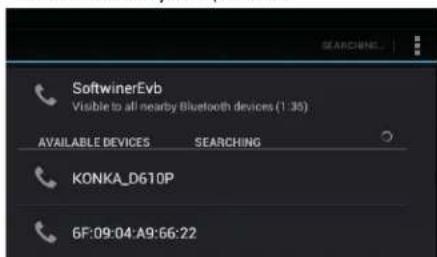
Picture 1.0
- Click the available Bluetooth device, it will popup request window, enter into related password, and match the device to connect.
- After match successfully, choose the operation you want to, click to enter into Picture

Picture 2.0
Bluetooth setting
11.. Rename tablet
Click 📄 icon in right top of Picture 1.0, as Picture2.0, select rename tablet, you can rename it as you want
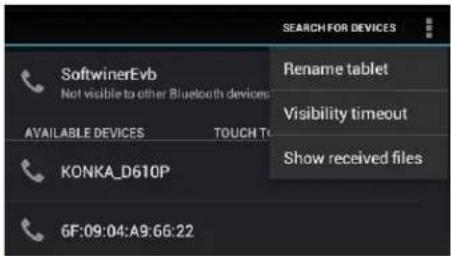
Picture 3.0
2. Check visibility timeout
Select visibility timeout setting in Picture 3.0, choose the time you want to set, as Picture 4.0(Note: check overtime setting is the time setting when Bluetooth is checked)
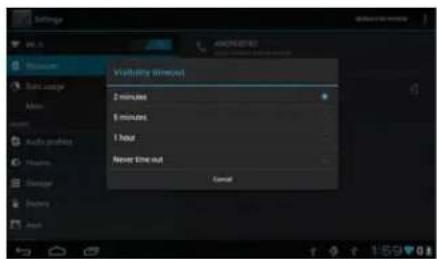
Picture 4.0
3. Display the file you received
Choose display the file you received in Picture 3.0, you can view download and upload files.
4. Bluetooth advanced setting
Choose Bluetooth advanced setting in Picture 3.0,
Safety Precautions
Read these simple guidelines before using your device. Not following them may be dangerous or illegal.
Aircraft
Switch off in aircraft and follow any restrictions. Wireless devices can cause interference in aircraft.
Vehicles
Never use your device while driving. Place it in a safe place. Position your device within easy reach. Be able to access your device without removing your eyes from the road.
Electronic devices
In some circumstances your device may cause interference with other devices.
Potentially explosive environments
Switch off your device when in any area with a potentially explosive atmosphere, and obey all signs and instructions. Sparks in such areas could cause an explosion or fire resulting in bodily injury or even death.
Pacemakers and other medical devices
Pacemaker manufacturers recommend that a minimum separation of 8 inches be maintained between a wireless device and a pacemaker to avoid potential interference with the pacemaker. Switch off your device in heath care facilities when any regulations posted in these areas instruct you to do so.
Operating environment
When connecting to other device, read its user guide for detailed safety instructions. Do not connect incompatible products.
*Do not place your device in the air bag deployment area. Use the device only in its normal operating positions as explained in the product documentation.
Always switch off your device when its use is prohibited or when it may cause interference and danger.
Areas with posted regulations
Switch off your device when any regulations posted in these areas instruct you to do so.
Care & Maintenance
- Use only manufacturer approved accessories. Use general accessories may shorten the life of your device or cause device to malfunction.
- Keep your device dry. Humidity and all types of liquids may damage device parts or electronic circuits.
- Do not use or store the device in dusty, dirty areas.
- Do not store the device in hot or cold areas.
- Do not store your device near magnetic fields.
- Do not store your device with such metal objects as coins, keys and necklace.
- Do not drop your device or cause impacts to your device.
Specificati
Pyle Astro 7" Android Touch-Screen 3D Wi-Fi Tablet with Case & Power Accessory Bundle
Android 4.2 (Jelly Bean Systeming
1.2GHz Cortex A9 Processor Chip with 3D Graphic Acceleration
(2) Built-in Cameras: .3 MP Front Facing & .3 MP Rear Facing Camera
Multi-Touch Capacitive Screen with 4-Direction Gravity Sensing
High-Speed Wireless Network: 802.11 b/g/n
External SD Card Port (Supports up to 32GB high capacity)
4GB Built-in Storage Capacity
Integrated Flash Video Interface
Multi Language Support
512MB DDR3 RAM
Pixel Resolution: 800 x 480
Compatible with the Latest Android Apps – Direct Download & Install
Up to 3-Hour Continuous Battery Life (1600mAh Battery)
Headphone Jack & Side-Button Volume Control
Comes with Protective Travel Case, USB 5 V Wall Charger, & Full Size USB 5 V
Cable to Micro USB interface
Enjoy your favorite music, videos and pictures - File Company MP4, MP4,
WMA, WAV, AVI, WMV, MOV, JPG, JPEG and more
Dimensions 7.2"H x 4.8"W x 0.4"D
Weight: 1.5Lbs.
www.PyleAudio.com
PYLE ASTRO


- PYLE ASTRO
- Read Me
- CONTENTS
- Assembling
- Getting Started
- Web
- Entertainment
- Tools
- Connectivity
- Unpack
- Charge the battery
- Install the memory card
- Turn your device on and off
- Home Screen
- Add items to the home screen
- Task bar
- Notification panel
- Auto rotation
- Lock & unlock the screen
- Enter text
- Customize your device
- Manage applications
- Settings→App.
- Security
- ◆ Set a screen lock
- Screen time-out
- Encrypt tablet
- Reset tablet
- Set up your email
- Delete your email account
- Create and send email
- Gmail
- Create a Gmail account
- ◆ View email messages
- ◆ Create and send an email
- 1.Tap
- Browser
- ◆ Browser webpages
- ◆ Add windows
- Set homepage
- ◆ Add bookmarks
- ◆ View bookmarks and history
- ◆ Customize browser
- Play Store
- Note
- Talk
- Super-HD Player
- ◆ Supported file formats
- View a photo
- View a photo continued
- ◆ Edit a photo
- ◆ Play a video
- Music
- ◆ Add music files to your device
- Play music
- Create a playlist
- Delete a playlist
- Camera
- ◆ Capture a photo
- Camera Functions
- ◆ Record a video
- Video Recording Functions
- Calendar
- Alarm
- File Manager
- Note:
- Sound Recorder
- Calculator
- USB Connection
- Wi-Fi
- Activate the Wi-Fi feature
- Find and connect to Wi-Fi
- Bluetooth
- Bluetooth setting
- Check visibility timeout
- Display the file you received
- Bluetooth advanced setting
- Safety Precautions
- Aircraft
- Vehicles
- Electronic devices
- Potentially explosive environments
- Pacemakers and other medical devices
- Operating environment
- Areas with posted regulations
- Care & Maintenance
- Specificati
- Pyle Astro 7" Android Touch-Screen 3D Wi-Fi Tablet with Case & Power Accessory Bundle
Brand : Pyle
Model : Astro PTBL73BCD
Category : Tablet