
HHEADM-UJM - Headphones Hamlet - Free user manual and instructions
Find the device manual for free HHEADM-UJM Hamlet in PDF.


| Product Type | Wired Business Headset with Microphone |
| Brand | Hamlet |
| Model | HHEADM-UJM / HHEADM-UJS |
| Connectivity | USB-A and 3.5 mm Jack |
| Remote Control Functions | On/Off, Volume +/-, Microphone Mute |
| LED Indicators | Blue LED (active/standby), Red LED (mute) |
| Microphone | Adjustable boom mic with mute function |
| Driver Unit | 40 mm (typical for business headsets) |
| Frequency Response | 20 Hz - 20 kHz (estimated) |
| Impedance | 32 Ω (estimated) |
| Power Source | USB powered (5V, no battery) |
| Cable Length | 2.0 m (typical) |
| Weight | Approx. 200 g |
| Dimensions (H x W x D) | Approx. 20 x 18 x 8 cm (folded) |
| Compatibility | Windows, macOS, Linux, mobile devices with 3.5 mm jack |
| Certification | CE, RoHS, WEEE, EMC Directive 2014/30/EU |
| Operating Temperature | 0°C to 40°C (estimated) |
| Storage Temperature | -20°C to 60°C (estimated) |
| Warranty | Standard 2 years (check local regulations) |
Frequently Asked Questions - HHEADM-UJM Hamlet
User questions about HHEADM-UJM Hamlet
0 question about this device. Answer the ones you know or ask your own.
Ask a new question about this device
Download the instructions for your Headphones in PDF format for free! Find your manual HHEADM-UJM - Hamlet and take your electronic device back in hand. On this page are published all the documents necessary for the use of your device. HHEADM-UJM by Hamlet.
USER MANUAL HHEADM-UJM Hamlet
Business Headphone & Mic Combo USB + Jack + Remote Control

natural_image
Two black Jaxair headsets with earphones and a USB connector, shown from different angles (no text or symbols visible)Manuale Utente
HHEADM-UJM
HHEADM-UJS
Gentile Cliente,
Adjust your computer's settings
View by: Category

System and Security
Review your computer's status
Save backup copies of your files with File History
Backup and Restore (Windows 7)

Network and Internet
View network status and tasks

Hardware and Sound
View devices and printers
Add a device
Adjust commonly used mobility settings

Programs
Uninstall a program

User Accounts
Change account type

Appearance and Personalization

Clock and Region
Change date, time, or number formats

Ease of Access
Let Windows suggest settings
Optimize visual display
Devices and Printers
Add a device | Advanced printer setup | Mouse | Device Manager | Change Windows To Go startup options

AutoPlay
Change default settings for media or devices | Play CDs or other media automatically

Sound
Adjust system volume | Change system sounds | Manage audio devices

Power Options
Change battery settings | Change what the power buttons do | Change when the computer sleeps Choose a power plan | Edit power plan

Windows Mobility Center
Adjust commonly used mobility settings | Adjust settings before giving a presentation

Sound

Playback Recording Sounds Communications
Select a playback device below to modify its settings:

Speakers
Realtek(R) Audio
Ready
Speakers
USB Audio Device
Default Device
Configure
Set Default

Properties
OK
Cancel
Apply
Hamlet
RENOVA HEADSET UJM/UJS
Business Headphone & Mic Combo USB + Jack + Remote Control

natural_image
Two black hardcover headsets with earphones and a USB connector, shown from different angles (no text or symbols visible)User Manual
HHEADM-UJM
HHEADM-UJS
Dear Customer,
Thanks for choosing a Hamlet product. Please carefully follow the instructions for its use and maintenance and, once this item has run its life span, we kindly ask You to dispose of it in an environmentally friendly way, by putting it in the separate bins for electrical/electronic waste, or to bring it back to your retailer who will collect it for free.

We inform You this product is manufactured with materials and components in compliance with RoHS Directives 2011/65/EU & 2015/863/EU, with WEEE Directives 2002/96/CE, 2003/108/CE Italian Legislative Decree 2005/151 and EMC Directive 2014/30/EU for the following standards:
EN 55032: 2015 + A11: 2020
EN 55035: 2017 + A11: 2020

The complete CE declaration of conformity of the product can be obtained by contacting Hamlet at info@hamletcom.com.
Visit www.hamletcom.com for complete information on all Hamlet products and to access downloads and support.
Imported by: CARECA ITALIA SPA - Scandiano (RE) . Italy.
Trademarks and changes
All trademarks and company names mentioned in this manual are used for description purpose only and remain property of their respective owners.
The material in this document is for information only. Contents, specifications and appearance of the product are indicative and may change without notice.
REMOTE CONTROL FUNCTIONS
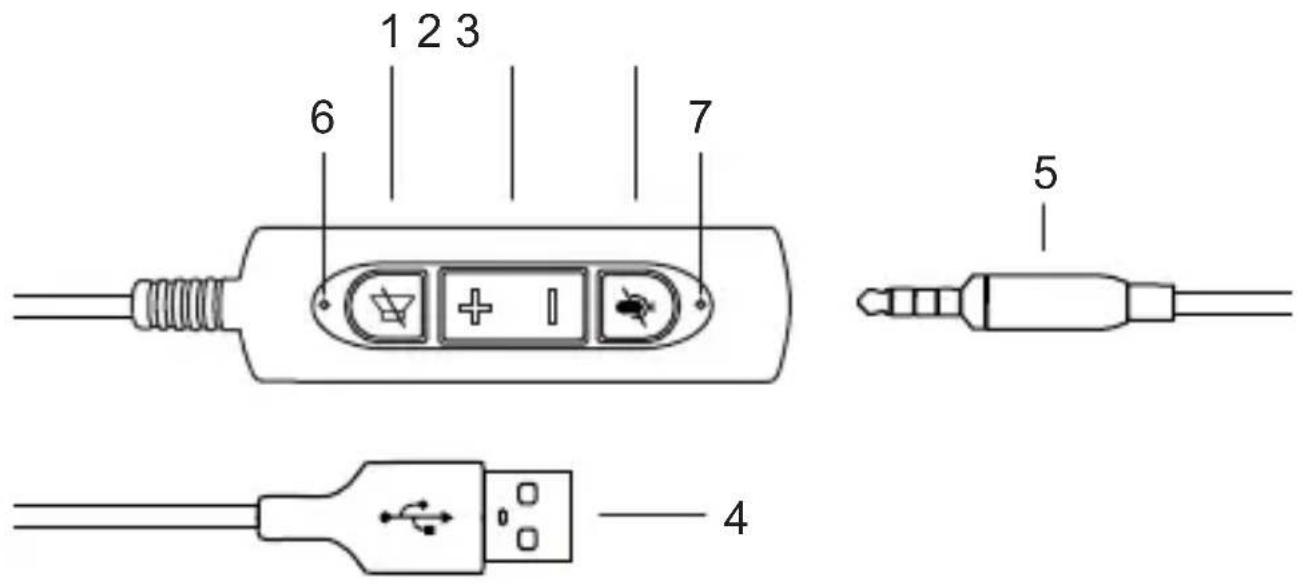
1. Headphones On/Off
Activates and deactivates the sound of the headphones.
2. Volume +/-
Press the + and – buttons to increase or decrease the volume of the headphones.
3. Microphone On/Off (Mute)
Press this button to turn the microphone on and off.
4. USB Plug
Allows you to connect headphones to a standard USB-A port on your computer.
5. 3.5 mm Jack
Standard audio connector. It can be used with computers or mobile devices with 3.5 mm audio output or for using the supplied USB cable.
6. Blue Led
Flashes when the headphones are connected and the audio output is active. Steady light indicates the headphone is off.
7. Red Led
Lights up when the microphone is muted.
CONNECTING THE HEADSET
You can connect the headset to your computer or mobile device in two ways.
1. Via 3.5 mm connector
Connect the 3.5mm plug to the 3.5 mm input (headphone) on your computer, smartphone or tablet.
2. Via USB connector
Insert the 3.5mm plug of the headset into the 3.5 mm socket of the supplied USB cable then to a USB-A port on your computer.
WINDOWS SOUND SETTINGS
- Open "Control Panel" and select "Hardware and Sound".
Adjust your computer's settings
View by: Category *

System and Security
Review your computer's status
Save backup copies of your files with File History
Backup and Restore (Windows 7)

Network and Internet
View network status and tasks

Hardware and Sound
View devices and printers
Add a device
Adjust commonly used mobility settings

Programs
Uninstall a program

User Accounts
Change account type

Appearance and Personalization

Clock and Region
Change date, time, or number formats

Ease of Access
Let Windows suggest settings
Optimize visual display
2. Click "Sound" and set "USB Audio Device" as default audio device in "Playback" and "Recording" tabs.

Devices and Printers
Add a device | Advanced printer setup | Mouse | Device Manager
Change Windows To Go startup options

AutoPlay
Change default settings for media or devices | Play CDs or other media automatically

Sound
Adjust system volume | Change system sounds | Manage audio devices

Power Options
Change battery settings | Change what the power buttons do | Change when the computer sleeps
Choose a power plan | Edit power plan

Windows Mobility Center
Adjust commonly used mobility settings | Adjust settings before giving a presentation

Sound

Playback Recording Sounds Communications
Select a playback device below to modify its settings:
Speakers
Realtek(R) Audio
Ready

Speakers
USB Audio Device
Default Device
Configure
Set Default

Properties
OK
Cancel
Apply
MAC SOUND SETTINGS
- Open "System Preferences" and click "Sound".
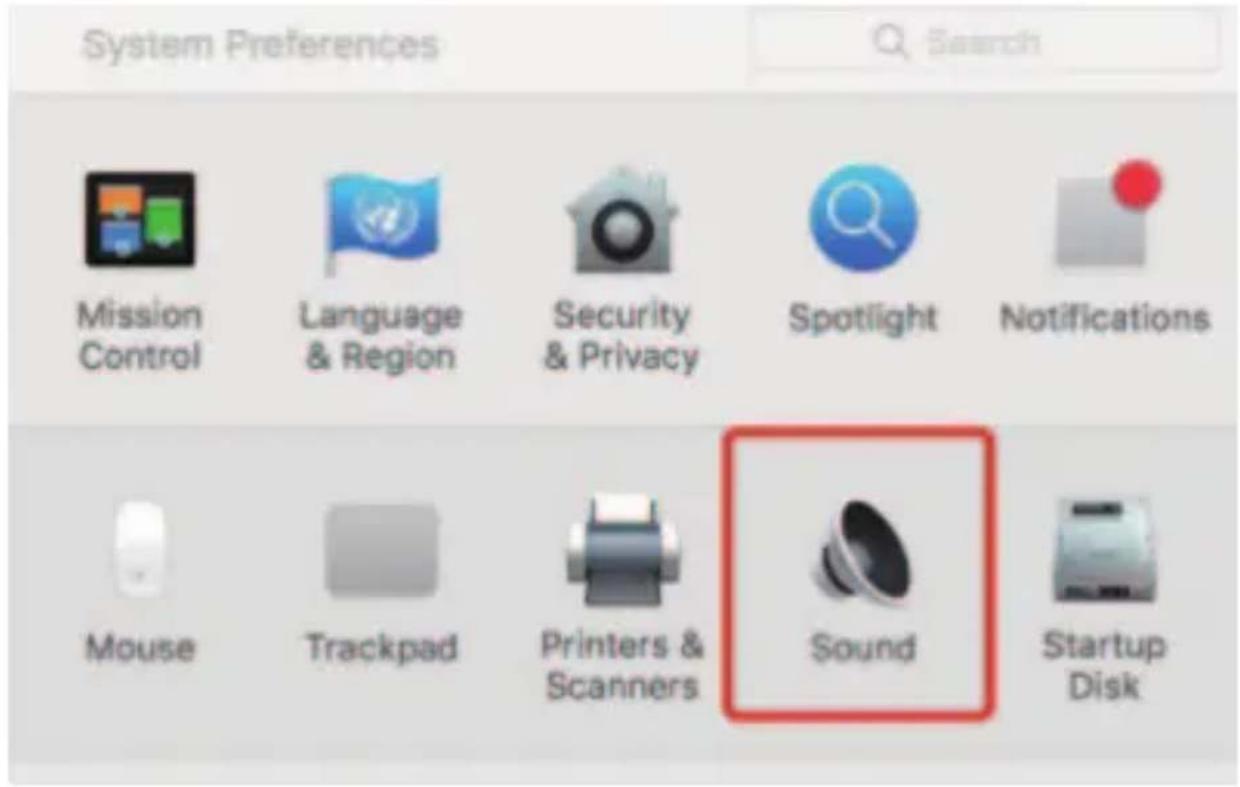
- Select "USB Audio Device" as audio device in the "Output" and "Input" tabs.
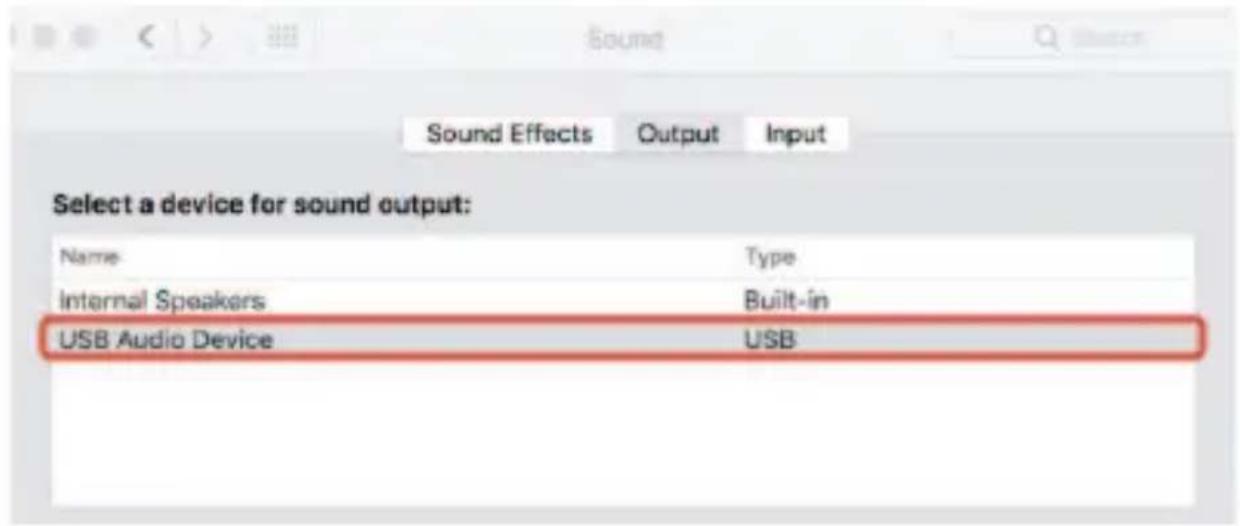
- Manuale Utente
- Gentile Cliente,
- Devices and Printers
- AutoPlay
- Sound
- Power Options
- Windows Mobility Center
- Speakers
- Hamlet
- RENOVA HEADSET UJM/UJS
- User Manual
- Trademarks and changes
- REMOTE CONTROL FUNCTIONS
- Headphones On/Off
- Volume +/-
- Microphone On/Off (Mute)
- USB Plug
- 3.5 mm Jack
- Blue Led
- Red Led
- CONNECTING THE HEADSET
- Via 3.5 mm connector
- Via USB connector
- WINDOWS SOUND SETTINGS
- Click "Sound" and set "USB Audio Device" as default audio device in "Playback" and "Recording" tabs.
- MAC SOUND SETTINGS
Brand : Hamlet
Model : HHEADM-UJM
Category : Headphones