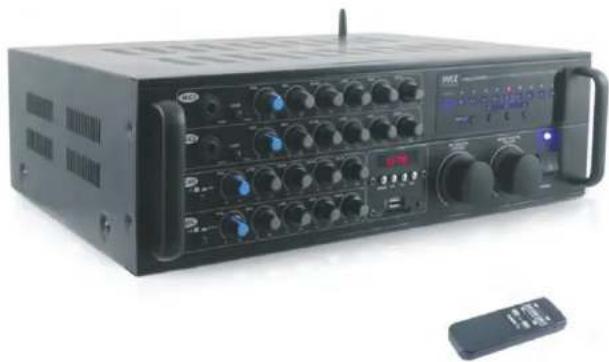
PMXAKB2000 - Receiver Pyle - Free user manual and instructions
Find the device manual for free PMXAKB2000 Pyle in PDF.


| Product Type | Receiver with Karaoke Functionality |
| Brand | Pyle |
| Model | PMXAKB2000 |
| Dimensions (W x H x D) | 17 x 4 x 12 inches |
| Weight | 10.5 lbs |
| Power Supply | AC 110-240V, 50/60Hz |
| Power Output | 200W RMS (dual channel) |
| Frequency Response | 20Hz - 20kHz |
| Inputs | 2x 1/4" Mic, RCA, USB, SD Card, Bluetooth, FM Antenna |
| Outputs | Speaker terminals (left/right), RCA line out, Headphone jack |
| Bluetooth Version | 5.0 |
| Karaoke Features | Echo control, volume control, key control, 2 microphone inputs |
| Radio Tuner | AM/FM with digital display and presets |
| Supported Media Formats | MP3, WMA, WAV (via USB/SD) |
| Remote Control | Included (IR) |
| Material | Metal chassis, plastic front panel |
| Cooling System | Built-in fan for heat dissipation |
| Maintenance | Wipe with dry cloth; avoid liquid cleaners |
| Safety | Operate in well-ventilated area; do not expose to moisture |
| Spare Parts & Repairability | Contact Pyle support for replacement parts; designed for professional servicing |
| General Information | For home use; suitable for karaoke parties, DJ setups, and audio systems |
Frequently Asked Questions - PMXAKB2000 Pyle
User questions about PMXAKB2000 Pyle
0 question about this device. Answer the ones you know or ask your own.
Ask a new question about this device
Download the instructions for your Receiver in PDF format for free! Find your manual PMXAKB2000 - Pyle and take your electronic device back in hand. On this page are published all the documents necessary for the use of your device. PMXAKB2000 by Pyle.
USER MANUAL PMXAKB2000 Pyle
Questions or Comments?
We are here to help!
Phone: 1.718.535.1800
PyleUSA.com/ContactUs

PYLE®
PyleUSA.com
natural_image
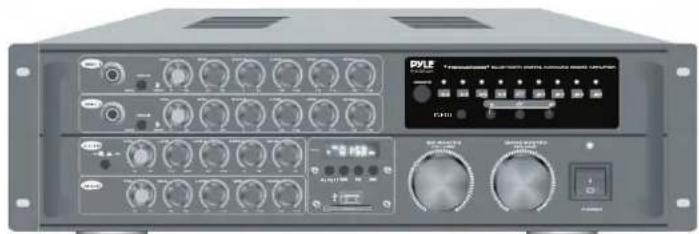
Black industrial audio workstation with multiple knobs and a remote control unit (no visible text or labels)★★★☆☆☆
◆◆◆◆ ★◆◆◆ +◆◆◆◆ □□◆◆ *◆◆◆◆ □★◆◆
☆□□□○□
* * * * * * * * *
READ ALL INSTRUCTIONS CAREFULLY BEFORE USING THIS PRODUCT. RETAIN THIS OWNER'S MANUAL FOR FUTURE REFERENCE.
TABLE OF CONTENTS
Features and Technical Specs 3
Safety Instructions 5
CAUTION 6
Getting Connected 8
CD/DVD player connection 8
TV/Display device connection 8
Wireless BT Streaming function 9
Amplifier, mixer and external sound system connections 9
External speaker connection 10
Mic(s) connection 11
Effects Loop Connections 11
Source Music (Music from a DVD or CD Player) 11
To loop vocals through an effects unit 12
Controls and Functions 12
Rear Panel 12
Front Panel 14
Remote Control 16
Basic and Advanced Operations 16-17
Troubleshooting 19
Register Product 19
Features:
• Karaoke / PA Stereo Amplifier
- Easy Audio Mixing: Mix (2) Mics with Bluetooth / RCA Input Audio
- Connects to Home Theater and External Speaker Systems
- Bluetooth Wireless Music Streaming Ability
- Microphone Talk-Over Function
• Dual Channel (A/B) Digital Amp Design
- Digital LCD Display
• USB Flash and SD Memory Card Readers
• (2) 1/4" Microphone Inputs - Front Panel
• (2) 1/4" Microphone Inputs - Back Panel
• (2) Pair (L/R) Speaker Terminal / Bind Post Connectors
• (3) Pair RCA (L/R) Audio Output Connector Jacks
• (2) Pair RCA (L/R) Audio Input Connector Jacks
• RCA Video Connector Input / Output Connectors
- Ability to Connect to Video Display, TV or Monitor
• Effects Loop (L/R) RCA Connectors
- Compatible with Outboard Effects Processors
- Input Selector and Digital Key Controls
• Front Panel Rotary Control Center
- Independent Mic Audio Configuration Controls
• Audio Master Volume and Mic Master Volume Control
• Mic Echo/Low/High/Repeat/Delay Control
• Music Low/Mid/High/Balance Control
• Built-in Ventilation Cooling Fan
- Rack Mountable System
Bluetooth Connectivity:
- Instantly Receives Wireless Music Streaming
- Works with all of Your Favorite Devices
(iPhone, Android, Smartphone, iPad, Tablet, etc.)
- Bluetooth Version: 3.0
What's in the Box:
- Rack Mount Brackets
• RCA Audio Connection Cable - Remote Control
- Power Cable
Technical Specs:
• MAX Power Output: 2000 Watt
• 1000 + 1000 @ 4 Ohm
• 750 + 750 @ 8 Ohm
- Bluetooth Version: 2.0
• S/N Ratio: 65dB
• T.H.D.: 0.5%
• Frequency Response: 20Hz - 20kHz
- Noise Level: <10mV
• Tone Balance Control: +/-12dB
• Balance Input: +/-1.5dB
- Split Level: >35dB
• Mic Sensitivity: <30mV
• Mic Frequency: 100-2.5kHz
• Digital Audio File Compatibility: MP3/WMA
• Maximum USB/SD Card Support: 8GB
- Battery Operated Remote, Requires (2) x 'AAA', Not Included
• Power: 110/220V, Switchable
- Dimensions (L x W x H) 13.5" x 16.5" x 5.5" -inches
California Prop 65 Warning
WARNING:
This product may expose you to chemicals, which is known to the state of California to cause cancer, birth defects and other reproductive harm. Do not ingest.
For more info go to: www.P65warnings.ca.gov
Safety Instructions
CAUTION: TO REDUCE THE RISK OF ELECTRIC SHOCK, DO NOT REMOVE THE COVER OF THIS UNIT. THERE ARE NO USER-SERVICEABLE PARTS INSIDE. REFER ALL SERVICING TO A QUALIFIED TECHNICIAN.

The lightning flash with an arrowhead symbol, within an equilateral triangle, is intended to alert you to the presence of dangerous voltage.

The exclamation point within an equilateral triangle is intended to alert you to the presence of important operating and servicing instructions.
- Read Instructions: All safety and operating instructions should be read before the appliance is operated.
- Retain Instructions: Keep the safety and operating instructions for future reference.
- Heed Warnings: Follow all warnings on the appliance and in the operating instructions.
- Follow Instructions: Follow all operating and use instructions.
- Attachments: Do not use attachments not recommended by the product's manufacturer, as they may cause hazards.
- Water and Moisture: Do not use this unit near water, such as near a bathtub or in a wet basement.
- Carts and Stands: Use the appliance only with a cart or stand recommended by the manufacturer. When using a cart, move the appliance with care. Quick stops, excessive force, and uneven surfaces may cause the cart to overturn.
- Ventilation: Ensure the appliance is placed in a location that allows for proper ventilation. For example, do not place the appliance on a bed, sofa, rug, or similar surface that may block ventilation slots.
- Heat: The appliance should be situated away from heat sources such as radiators, heat registers, stoves, or other appliances (including amplifiers) that produce heat.
- Power Sources: Connect the appliance to a power supply only of the type described in the operating instructions or as marked on the appliance.
- Grounding or Polarization: Ensure that the grounding or polarization of the appliance is not defeated.
-
Power-Cord Protection: Route power-supply cords so they are not likely to be walked on or pinched by items placed upon or against them. Pay particular attention to cords at plugs, convenience receptacles, and the point where they exit from the appliance.
-
Cleaning: Unplug this unit from the wall outlet before cleaning. Do not use liquid cleaners or aerosol cleaners. Use a damp cloth for cleaning.
- Power Lines: An outdoor antenna should be located away from power lines.
- Non-Use Periods: Unplug the power cord of the appliance from the outlet when left unused for a long period of time.
- Object and Liquid Entry: Take care to ensure that objects do not fall into the appliance and that liquids are not spilled into the enclosure through openings.
- Damage Requiring Service: The appliance should be serviced by qualified service personnel when:
A. The power supply cord or plug has been damaged.
B. Objects have fallen into the appliance, or the appliance has been exposed to rain.
C. The appliance does not appear to operate normally.
D. The appliance exhibits a marked change in performance.
E. The appliance has been dropped, or the enclosure has been damaged.
- Servicing: The user should not attempt to service the appliance beyond what is described in the operating instructions. All other servicing should be referred to qualified service personnel.
CAUTION
READ THIS BEFORE OPERATING YOUR UNIT
- To ensure the best performance, please read this manual carefully. Keep it in a safe place for future reference.
- Install your unit in a cool, dry, clean place, away from windows, heat sources, excessive vibration, dust, and moisture. Avoid sources of hum, such as transformers or motors. To prevent fire or electrical shock, do not expose the unit to rain or water.
- Do not operate the unit upside down.
- Never open the cabinet. If a foreign object drops into the unit, contact your dealer.
-
Place the unit in a location with adequate air circulation. Do not obstruct ventilation, as this may cause the internal temperature to rise and result in failure.
-
Do not force the switches, knobs, or cords. When moving the unit, first turn it OFF. Then gently disconnect the power plug and the cords connecting to other equipment. Never pull the cord itself.
- Do not attempt to clean the unit with chemical solvents, as this might damage the finish. Use a clean, dry cloth instead.
- Be sure to read the "Troubleshooting" section on common operating errors before concluding that your unit is faulty.
- This unit consumes a small amount of power even when the power switch is turned off. We recommend unplugging the power cord from the wall outlet if the unit will not be used for a long time. This will save electricity and help prevent fire hazards. To disconnect the cord, pull it out by grasping the plug. Never pull the cord itself.
- To prevent lightning damage, unplug the power cord and remove the antenna cable during an electrical storm.
- Digital signals from this unit may interfere with other equipment such as tuners or receivers. If interference is observed, move the system farther away from the affected equipment.
NOTE:
Please check the copyright laws in your country before recording from records, compact discs, radio, etc. Recording copyrighted material may infringe copyright laws.
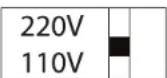
Voltage Selector (General Model Only)
Be sure to set the voltage selector to match the voltage of your local power lines before installing the unit.
CAUTION
The apparatus is not disconnected from the AC power source as long as it is connected to the wall outlet, even if the apparatus itself is turned off. To ensure the apparatus is fully disconnected from any residual power, leave the unit unplugged from the AC outlet for at least fifteen seconds.
GETTING CONNECTED
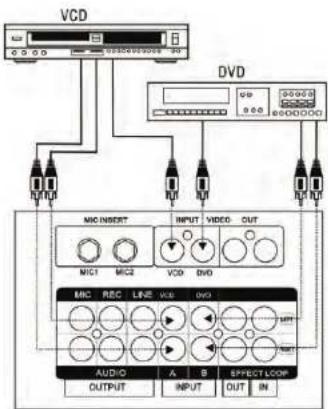
CD/DVD Player Connection You can connect up to two CD/DVD players simultaneously to the unit's switchable A/V channels. Use the remote or front panel to easily switch between Channel A and Channel B.
Audio: Connect the stereo (L/R) RCA cables from the output of your CD/DVD player to the VCD (INPUT A) or the DVD (INPUT B) L/R inputs on the rear panel of the unit.
Video: Connect the video RCA cable from the video output of your CD/DVD player to the VIDEO INPUT on the rear panel of the unit.
TV/Display Device Connection The unit has two video inputs and two video outputs.
Video inputs A and B correspond to the two input channels. The video input into VIDEO input A will only play when input channel A is active. Similarly, the video input into VIDEO input B can only be viewed when input channel B is active.
Both Video Outputs send the same picture simultaneously to two different TVs or display devices.
text_image
VCD DVD MIC INSERT INPUT VIDEO OUT MIC1 MIC2 VCD DVD MIC REC LINE VCD DVD AUDIO A B EFFECT LOOP OUTPUT INPUT OUT IN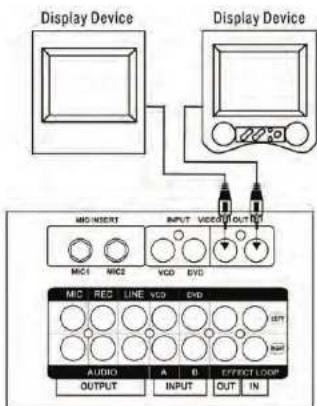
text_image
Display Device Display Device MID INSERT INPUT VIDEO OUT MIC1 MIC2 VCD EVD MIC RED LINE VCD END OUTPUT A B EFFECT LOOP INPUT OUT INConnect the video RCA cable from the VIDEO output on the unit to the video input on your TV or display device.
NOTE: Switch between Inputs A and B using the A/B buttons on the unit's remote or front panel.
WIRELESS BT FUNCTION
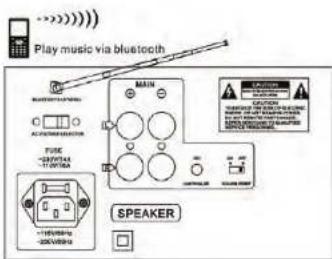
- Ensure Wireless BT is turned ON on your mobile device.
- With the mixer system powered ON, search for available Wireless BT networks from your mobile device. The mixer will appear in the Bluetooth network list as 'PYLE SPEAKER'.
- Connect and pair to 'PYLE SPEAKER'. You may be prompted to enter a password; if so, enter '0000' (four zeroes).
text_image
Play music via bluetooth MAIN SPEAKERNOTES:
- The available operational range for the Wireless BT function is 10 meters. Ensure there are no obstacles between the unit and your mobile phone, as this may affect the Wireless BT connection and cause sound disruptions.
- This operation is only available for devices with Wireless BT functionality.
- The above instructions are based on a NOKIA 6500s. Other devices may have different settings and steps for playing music via Wireless BT. Please refer to your mobile phone's manual for Wireless BT settings.
GETTING CONNECTED
Amplifier, Mixer, and External Sound System Connections
Music and Vocals
The unit's LINE OUT (RCA) jacks can be used to connect to a second power amplifier, an external sound system, or a mixing device.
Note: The unit provides optimal performance when used as an amplifier for home sound systems, smaller performance systems, and speakers.
Use L/R RCA audio cables to connect to an amplifier, mixer, or other external sound system. Connect from the L/R LINE OUTPUT on the unit to the L/R audio input on your amplifier, mixer, or sound system.
Digital Karaoke Mixing Amplifier with Key Control
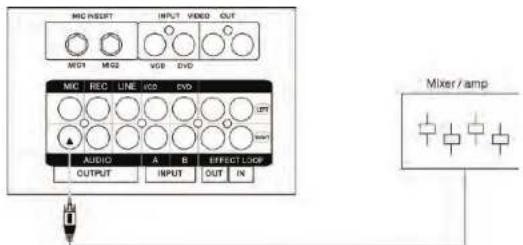
Outputting Vocals Independently
You can output vocals independently from the unit into a mixer using the L/R RCA MIC Outputs. Connect the L/R RCA cable from the MIC OUTPUT to an audio input on your mixer.
text_image
MIC INSERT INPUT VIDEO OUT MCI1 MCI2 VSB DVD MIC REC LINE I/O EVO UPI AUCIO A B EFFECT LOOP OUTPUT INPUT OUT IN Mixer /ampExternal Speaker Connection
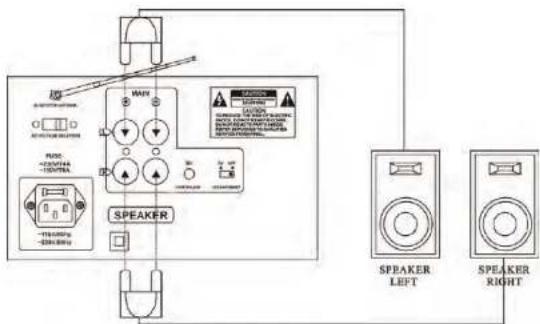
You can connect speakers directly using either MDP (banana plug) speaker cables or standard speaker wires. Be sure to match the polarities (+/-) correctly. Connect speakers rated no lower than 4 ohms to the unit.
Do not connect more than one speaker per channel, as this may exceed the amplifier's handling capacity and cause overload.
If using standard speaker wire, unscrew each plastic binding until you can see an interior hole for the speaker wire (easier to locate from a side angle). Slide the speaker wires into the slots and tighten the plastic bindings to secure them in place. Ensure there is no insulation on the speaker wire that might prevent conductivity.
text_image
MAN MINI SPEAKER SPEAKER LEFT SPEAKER RIGHTMic(s) Connection
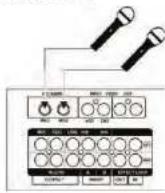
Using a mic cable with a 1/4" end, connect the mic to either of the unit's microphone inputs.
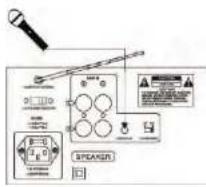
Connect the Remote Key Control cable into the KEY CONTROLLER jack on the rear panel of the unit.
Effects Loop Connections
Source Music (Music from a DVD or CD Player)
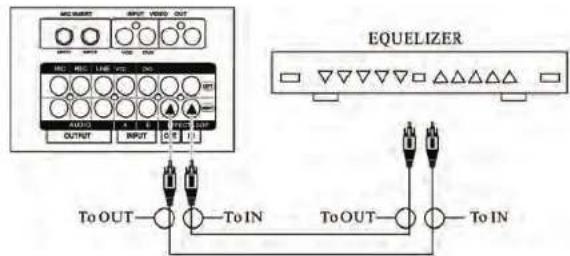
You can add effects such as a professional Digital Key Controller to the source player's music using the built-in Effects Loop, without compromising the quality of the original signal. To use the effects loop:
- Connect an RCA cable from the unit's EFFECTS LOOP L or R OUT jack to the input of the effects unit.
- Connect another RCA cable from the effects unit's output to the unit's L or R IN jack.
text_image
EQUELIZER To OUT—○—To IN To OUT—○—To IN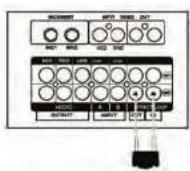
NOTE: If you are not using the Effects Loop, ensure the LOOP BARS are re-connected. Without these, there will be no sound.
text_image
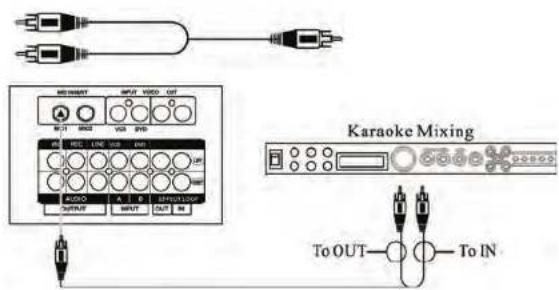
Karaoke Mixing To OUT—○—To INTo loop vocals through an effects unit:
- Use the MIC INSERT jacks on the rear panel.
- You will need a 1/4" Y adapter cable (not included) for each microphone line.
- Connect the single end of the Y cable into the MIC INSERT jack.
- Connect one side of the double end into the input of the effects device and the other side into the output of the effects device.
NOTE: There will be no sound if the Y cable is plugged into the unit but the double ends are not connected to the IN and OUT of the effects device.
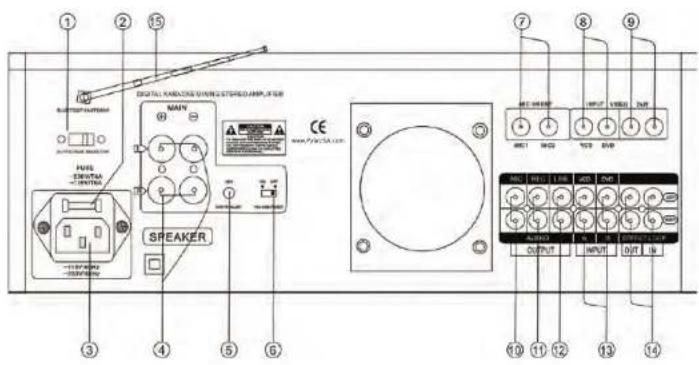
REAR PANEL DESCRIPTION
text_image
1 2 15 DIGITAL KONKING SWITCH SPEAKER MAIN 6 9 3 4 5 6 7 8 9 MENI KONKING SWITCH MAIN MENI KONKING SWITCH MAIN MENI KONKING SWITCH MAIN MENI KONKING SWITCH MAIN MENI KONKING SWITCH MAIN MENI KONKING SWITCH MAIN MENI KONKING SWITCH MAIN MENI KONKING SWITCH MAIN MENI KONKING SWITCH MAIN MENI KONKING SWITCH MAIN- VOLTAGE SELECTOR Switch: This selector toggles between 110-120V and 220-240V power settings. NOTE: Ensure this toggle is set to the correct position matching the receiving AC outlet's power supply before plugging it in and operating the unit. Failure to do so may cause severe damage to the unit and void your product warranty.
- FUSE Terminal: This terminal houses the main system fuse. NOTE: If fuse replacement is necessary, only replace it with the same type and rating of fuse.
- AC-IN Terminal: Connect the AC mains power cord from the wall outlet to this terminal.
- SPEAKER BINDING Posts (MDP): Connect appropriate speaker cables from these SPEAKER OUTPUT jacks to the INPUT jacks on your speakers. Standard speaker wire or speaker cables equipped with MDP (banana) plugs can be used with the SPEAKER BINDING posts. NOTE: To use standard speaker wire, unscrew the plastic color-coded (red-black) bindings until you can access the wire holes located on the inner sides of the bindings, and slide the wire leads into them. Secure them by re-tightening the bindings.
- REMOTE KEY CONTROL: This 1/8" jack is for connecting a remote key control cable. Remote Key Control allows you to make key changes from a distance using the Digital Key Controller on the unit.
- VOLUME RESET Switch: The master MIC and MUSIC volumes are programmed to reset back to zero every time the machine's power is turned off. The VOLUME RESET switch allows you to disable this feature. When the switch is in the ON position, the volume will reset whenever the machine is turned off. When in the OFF position, the volume will remain the same when the machine is turned off.
- MIC INSERT Jacks: These 1/4" jacks allow you to loop each microphone line through an effects unit.
NOTE: To do this, you will need a 1/4" Y cable (not included). See the "Connecting to an Effects System Using the Effects Loop" instructions in the "Getting Connected" section of this manual for further details on running vocals through an effects loop.
- VIDEO INPUT (RCA) Jacks: Connect RCA-ended video cables from these jacks to the VIDEO OUT jacks on the device connected to your VCD (Input A) or DVD (Input B) player.
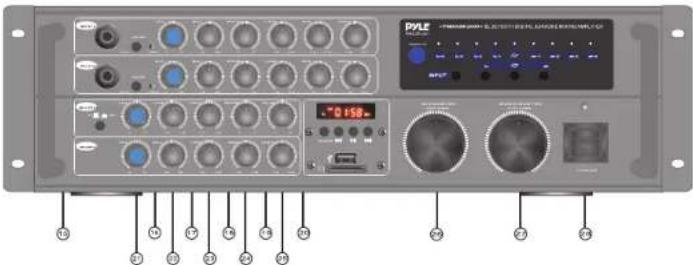
FRONT PANEL DESCRIPTION
text_image
PYLE -0.158 10 3 5 11 12 13 14 15 16 21 22 23 24 25 26 27 28 29 30-
ST/MO (Stereo/Mono): Use this button to switch between the two echo output modes, STEREO and MONO.
-
MASTER ECHO VOLUME Control: This control increases or decreases the MASTER VOLUME LEVEL of the ECHO effect available to the MIC 1-2-3 channels. Turn clockwise to increase the MASTER ECHO VOLUME and counterclockwise to decrease it.
-
ECHO LO Control: This control increases or decreases the amount of LOW frequency response applied during the ECHO effect application. Turn clockwise to increase the LOW frequency response and counterclockwise to decrease it.
-
ECHO HI Control: This control increases or decreases the amount of HIGH frequency response applied during the ECHO effect application. Turn clockwise to increase the HIGH frequency response and counterclockwise to decrease it.
-
ECHO RPT Control: REPEAT adjusts the interval repetition of the echo effect. As more REPEAT is applied to the ECHO effect, more echo intervals will occur before fading out. Turn clockwise to increase the REPEAT level and counterclockwise to decrease it.
-
ECHO DEL Control: DELAY adjusts the total beginning and ending length of each echo interval. As more DELAY is applied to the ECHO effect, each ECHO interval will become longer in time. Turn clockwise to increase the DELAY level and counterclockwise to decrease it.
-
MUSIC VOL Control: This control increases or decreases the MUSIC VOLUME levels from INPUT SOURCES that are connected to the CD/DVD channels. Turn clockwise to increase the MUSIC VOLUME and counterclockwise to decrease it.
-
MUSIC BALANCE Control: Use this control to fade the music output between the left and right channels. When the balance control is centered, equal sound comes out of both the left and right channels, giving you perfect stereo sound.
-
MUSIC LOW Control: This control increases or decreases the amount of LOW (bass) frequency response applied to the audio output of INPUT SOURCES connected to the CD/DVD channels. Turn clockwise to increase the LOW frequency response and counterclockwise to decrease it.
-
MUSIC MID Control: This control increases or decreases the amount of MID-RANGE frequency response applied to the audio output of INPUT SOURCES connected to the CD/DVD channels. Turn clockwise to increase the MID-RANGE frequency response and counterclockwise to decrease it.
-
MUSIC HIGH Control: This control increases or decreases the amount of HIGH frequency response applied to the audio output of INPUT SOURCES connected to the CD/DVD channels. Turn clockwise to increase the HIGH frequency response and counterclockwise to decrease it.
-
MIC MASTER VOLUME Control: Use this to control the overall volume of both microphone channels. Turn clockwise to increase the master microphone volume and counterclockwise to decrease it.
-
MUSIC MASTER VOLUME Control: Use this to control the overall volume of the music from the CD/DVD player that is input into the unit.
-
POWER Button: This button turns the unit ON and OFF.
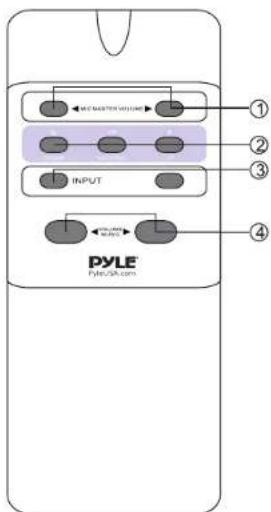
REMOTE CONTROL DESCRIPTION
1. MIC MASTER VOLUME Control:
Use this to control the overall volume of both microphone channels. Turn clockwise to increase the master microphone volume and counterclockwise to decrease it.
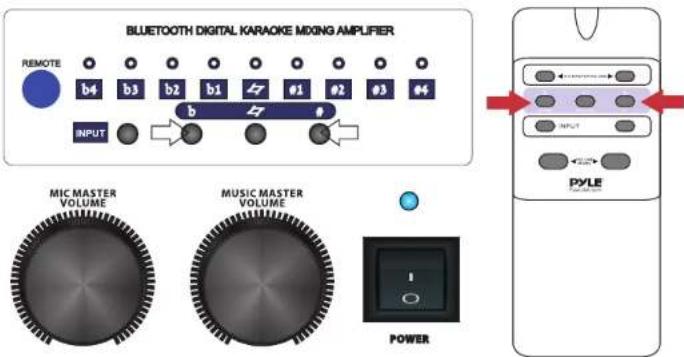
- DIGITAL KEY CONTROL: Use these buttons to raise or lower the musical key of your source music (CD/DVD player). The LEDs indicate the current key of the music.
b: Lowers the key of the music.
4: Restores the music back to its original (natural) key.
: Raises the key of the music.
- INPUT SELECTOR Buttons: Use these buttons to toggle between the three available input channels: DVD, VCD, and MP3/Bluetooth.
4. MUSIC MASTER VOLUME Control:
Use this to control the overall volume of the music from the CD/DVD player that is input into the unit.
text_image
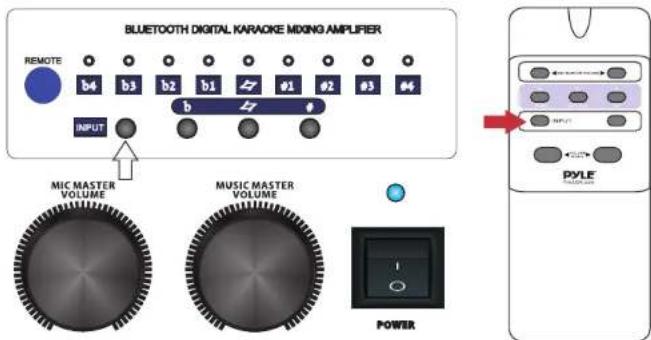
1 2 3 4 PYLE PYLE@pyle.comSwitching Between Input Channels
Use the DVD, VCD, MP3 input buttons on the unit's front panel or remote control to switch between the three input channels.
text_image
BLUETOOTH DIGITAL KARAOKE MIXING AMPLIFIER REMOTE b4 b3 b2 b1 #1 #2 #3 #4 INPUT MIC MASTER VOLUME MUSIC MASTER VOLUME POWER PYLE OUTPUTUsing Digital Key Control
Digital Key Control enables you to adjust the key of the source music (CD/DVD player) to fit the vocal range of the person who is singing. The key can be adjusted using the key control buttons on the unit's front panel, the remote control, or from a Remote Key Control microphone.
b : Lowers the key of the music.
44: Resets the key back to its original (natural) state.
# : Raises the key of the music.
text_image
BLUETOOTH DIGITAL KARAOKE MIXING AMPLIFIER REMOTE b4 b3 b2 b1 7 01 02 03 04 INPUT MIC MASTER VOLUME MUSIC MASTER VOLUME POWER PYLEADVANCED OPERATIONS
Balancing the Music with the Vocals
The unit has MASTER, HIGH, MID, and LOW controls for both the music and the microphone levels, enabling you to adjust your mix levels with precision for a professional-sounding mix. If the music is too loud, simply adjust the MUSIC VOLUME control.
Also, remember that HIGH, MID, and LOW levels affect the overall "sound" and can be adjusted to correct sound balancing problems. Excessive high (treble) frequencies can lead to feedback, so be cautious when adjusting them.
Balancing a Microphone Channel
When adjusting Mic levels, follow these steps:
- First, adjust the MIC VOLUME control to approximately 50%. (Shown on Fig. 1)
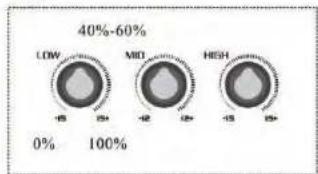
- Then, balance the LOW, MID, and HIGH controls to approximately 40-60%. (Shown on Fig. 2)
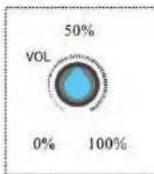
- Start background music with the MUSIC VOLUME set at approximately 50%. (Shown on Fig. 3)
- Fine-tune each MIC CHANNEL as necessary until you get a clean, balanced mix.
- Remember to compensate if the background music has significant volume changes. You can use the -20dB GAIN PAD to toggle between the current volume level and a reduced gain volume level. This control allows you to instantly switch from one volume level to another with a quick push of the button.
- Once all the settings are complete, perform a full song to ensure complete balancing success.
Fig.1
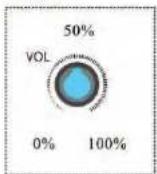
Fig.2
pie
| Category | Value (%) | |---|---| | LOW | 40%-60 | | MID | 0%-12 | | HIGH | 12-15 |Fig.3
Balancing the Music Channel
When adjusting the music levels, follow the same procedure as for Mic levels.
text_image
PXLE - 1000000000000000000000000000000000000000000000000000000000000000000000000000000000000000000000000000TROUBLESHOOTING
| PROBLEMS CAUSE SOL | UTIONS | |
| No sound coming from selected music source | Input Selector is set incorrectly | Change Input Selector to the correct current playing source |
| Music Master Volume control is set to minimum | Increase Music Master Volume to an appropriate level | |
| The Effect Loop bars are either not inserted or inserted incor rectly; or the device connected to the Effect Loop is incorrectly working. | Connect the Loop Bars horizon tally (L-OUT to L-IN and R-OUT to R-IN); or reconnect the connected device as stated in the instruction manual. | |
| Speakers and Speaker Cables are either not connected, loose or malfunctioning. | Check Speakers and Speaker Cable connections. Tighten or replace if necessary. | |
| Source player is functioning incorrectly. | Replace player and reset the unit power supply. | |
| There are no graphics on the screen. | Video cable(s) are not properly connected | Reconnect cables firmly to correct video jacks as stated in the instruction manual |
| Disc medium is not a CDG. | Insert a CDG for playback | |
| TV or monitor device is not set to the correct video setting. | Change TV or monitor settings to accept video | |
| High pitched squealing occurs when using the microphone | Microphone is pointed to or is too close to speakers. | Move microphone away from speakers. |
| Treble level(s) are too high on the microphone channel(s) | Turn down treble level(s) on microphone channel(s). | |
| No microphone output is present | The microphone is not turned on. | Turn ON the microphone |
| The microphone cable is either loose or not functioning. | Tighten or replace the microphone cable | |
| The Microphone Volume for that channel is set to a minimum. | Turn up the Microphone Volume for that channel. | |
| The microphone is not functioning correctly | Replace the microphone |
Register Product
Thank you for choosing PyleUSA. By registering your product, you ensure that you receive the full benefits of our exclusive warranty and personalized customer support. Complete the form to access expert support and to keep your PyleUSA purchase in perfect condition.

PyleUSA.com/register