Malloy XTS-621 - Docking Station Xtech - Free user manual and instructions
Find the device manual for free Malloy XTS-621 Xtech in PDF.


| Product Type | Docking Station |
| Brand | Xtech |
| Model | Malloy XTS-621 |
| Dimensions (approx.) | 30 x 10 x 3 cm |
| Weight (approx.) | 500 g |
| Power Input | DC 12V/3A or USB-C PD |
| Main Functions | Connect laptop to monitor, keyboard, mouse, Ethernet, and charge devices |
| Video Output | HDMI 2.0, DisplayPort, VGA (depending on model) |
| USB Ports | 3 x USB 3.0, 1 x USB-C |
| Ethernet Port | Gigabit RJ45 |
| Audio Jack | 3.5 mm combo |
| Charging Capability | Supports pass-through charging for laptop |
| Compatible Operating Systems | Windows, macOS, Linux |
| Material | Aluminum alloy and plastic |
| Maintenance & Cleaning | Wipe with a soft, dry cloth. Do not use liquids. |
| Safety | Avoid exposure to liquids and extreme temperatures. Unplug during storms. |
| Spare Parts & Repairability | No user-serviceable parts. Contact support for repairs. |
| Warranty | 1 year limited warranty |
Frequently Asked Questions - Malloy XTS-621 Xtech
User questions about Malloy XTS-621 Xtech
0 question about this device. Answer the ones you know or ask your own.
Ask a new question about this device
Download the instructions for your Docking Station in PDF format for free! Find your manual Malloy XTS-621 - Xtech and take your electronic device back in hand. On this page are published all the documents necessary for the use of your device. Malloy XTS-621 by Xtech.
USER MANUAL Malloy XTS-621 Xtech
natural_image
Red and black rectangular electronic device with 'X TECH' branding, connected by a gray cord (no readable text or symbols beyond branding)MALLOY
Portable speaker with Bluetooth® wireless technology
XTS-621
Quick installation guide
I. Introduction
Thank you for purchasing the Xtech XTS-621 portable speaker with Bluetooth® wireless technology. We encourage you to read this quick installation guide thoroughly to get the most of this innovative wireless portable audio device.
Package contents:
- Wireless speaker
- Micro USB charging cable
• 3.5mm auxiliary cable (also works as the FM antenna) - Quick installation guide
II. Main features
- Portable speaker with Bluetooth® V.5.0 technology and built-in microphone, for hands-free conversations
- Wirelessly streams music from up to 33 feet away from the audio source
- Plays audio files directly from a USB drive, Micro SD™ (TF) memory card, and from wired devices equipped with a 3.5mm audio jack
- Multifunctional control button allows to toggle between play or pause, answer or hang up functions
- Compact design complemented by a sturdy aluminum grille, rugged rubberized housing and a string for easy transport
• Meets the IPX6 water resistant rating
III. Product components
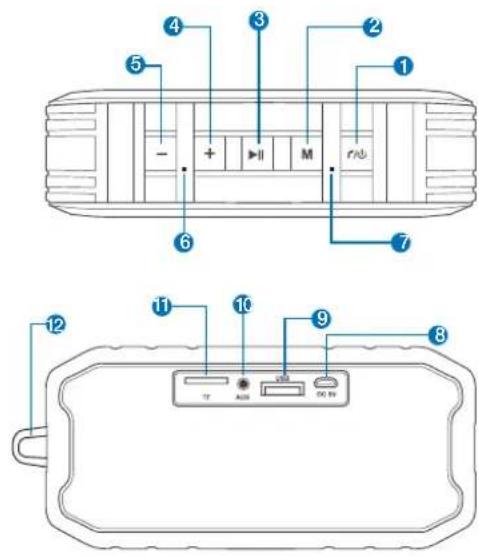
- Power/Handset button: Press and hold this button to turn the speaker On/OFF or to connect to the Bluetooth® mode. The unit will shut off after approximately ten minutes of inactivity if it is not connected to the Bluetooth® device. An audible tone will indicate when the speaker has paired with your smart device or when it has been disconnected.
In Hands-free mode:
a. When the speaker is in Bluetooth® mode press this button to answer and end a call.
b. Press and hold this button if you wish to reject an incoming call.
c. Press it twice to dial the last number called (on supported devices).
-
Mode button: Press this button to cycle through the available input modes: BT, USB, Micro SD™, Auxiliary-in or FM.
-
Play-Pause: In playback mode, press this button to play or pause your music. If the speaker was playing music before receiving a call, it will automatically resume playback after the call has ended.
- Volume +/Next track: Press this button briefly to play the next track. Press and hold this button to increase the volume level.
Note: This button is not active in Auxiliary mode.
- Volume -/Previous track: Press this button briefly to play the previous track.
Press and hold this button to decrease the volume level.
Note: This button is not active in Auxiliary mode.
- Charging LED indicator
| Status LED indicator | |
| When the battery is fully charged | The LED light turns off |
| When the battery is charging | The red LED lights up |
7. Bluetooth ^® LED light
- The LED light blinks in blue to indicate that the device has entered into the pairing mode and is ready to be detectable for the first time.
- The LED light glows solid blue to indicate that the device is successfully paired, or when the audio is paused.
-
The status LED light blinks slowly in blue while streaming music in all available modes (BT, USB, Micro SD™, Aux. in and FM).
-
DC 5V Micro USB charging port: Charges the built-in battery of the speaker.
-
USB port: Use it to play audio files stored in a USB flash drive.
-
Auxiliary input port: Allows the connection of any device equipped with an auxiliary 3.5mm audio connector (for wired playback).
Note: The 3.5mm auxiliary cable needs to be plugged in this port when using the speaker in FM mode to have a better FM signal reception. -
Micro SD ^™ (TF) memory card: Allows music playback from compatible media files stored in a Micro SD ^™ (TF) memory card.
-
Carrying string for easy transport.
IV. Charging the speaker
- Plug one end of the supplied Micro USB cable into the speaker Micro USB port and the other end to the USB port of your computer, laptop or AC adapter to charge the battery.
- Make sure that your portable speaker is fully charged before using it for the first time.
• The battery will take about 6 hours to fully charge. - While charging, the LED is solid red. When the battery has reached full capacity, the LED light will turn off.
V. Advanced operation
Note: Before using this product, please make sure it has the built-in Bluetooth® feature available.
Pairing the speaker with your phone
- Make sure the speaker is off.
- Set your Bluetooth ^® phone to "discover" the wireless speaker.
- Place both devices not more than one meter away from each other.
- Turn ON the speaker by pressing and holding the Power button. The blue LED starts blinking, accompanied by a short tone, to indicate that the device has entered into the pairing mode and is ready to be detectable for the first time.
- On your mobile phone, tap the newly discovered audio device (XTS-621) displayed in the Bluetooth® list.
- When the speaker asks if you want to pair with it, click Yes or OK to accept.
- If you have a lower Bluetooth® version, you may be prompted to enter the passkey 0000 (4 zeros).
- If pairing is successful, a tone will be heard and the LED will turn solid blue. If after 60 seconds the pairing process fails, please repeat steps 1 through 7 described above.
- We recommend turning off the device when not in use, to conserve battery power.
Using the speaker to answer and end a call
- When there is an incoming call, the speaker will generate a tone to alert you of this event.
- Briefly press the Power/Handset button to pick up. You may also press the answer button on your cellular phone to take the call using the speaker.
- To end a call, press the Power/Handset button once again. Likewise, you may also end the call directly using the command on your cell phone.
- When listening to music using your mobile phone, playback will resume automatically once the call has ended.
- By pressing the Power/Handset button twice, the phone will redial the last number called (on supported devices).
- Press and hold the Power/Handset button for about 2 second to send a call to voice mail.
VI. Auxiliary mode operation
a. First, connect one side of the supplied 3.5mm cable to the auxiliary port on the speaker and the other side of the cable to the source of choice.
b. Turn on the speaker as it was previously instructed, and adjust the volume to your desired level.
c. Press the Mode button to switch to the Auxiliary-in mode.
d. Start streaming audio files directly from the source of choice.
e. The speaker will remain in this mode until the Mode button is pressed to change to the mode of choice or until the 3.5mm cable is disconnected. Once disconnected, the speaker will switch to BT mode.
VII. Micro SD™/USB mode operation
Recommendation: Use a USB flash drive or MicroSD™ card to enable audio playback from compatible files stored in this type of devices.
a. First, connect a USB flash drive or MicroSD™ card to the corresponding port of the speaker.
b. The speaker will automatically detect the USB flash drive or MicroSD™ device and play the audio file. If the devices are not automatically detected, press the MODE button to toggle through the different modes available until the preferred mode is found.
c. Start streaming audio files directly from the source of choice.
d. As soon as the MicroSD™ / USB devices are disconnected, the speaker will automatically enter the Bluetooth® mode.
VIII. FM radio mode operation
a. Connect the supplied 3.5mm cable in the speaker auxiliary port and use it as the antenna to start receiving FM signals.
b. Press the Mode button briefly to start cycling through the available modes and select FM radio mode.
c. Press and hold the Play-Pause/ button to start searching through the different radio stations. The BT LED light will blink quickly during this process.
d. Press the Play-Pause button briefly again to stop the search at any time.
e. Press the Previous track/Volume - or Next track/Volume + buttons briefly to switch to a different radio station, backward or forward.
Note: If during the FM mode operation an external audio source is connected, the system will automatically switch to the mode corresponding to this audio source. Press the Mode button to go back to FM mode.
Technical specifications
| Device | |
| Type | 2.0 channel wireless speaker with IPX6 rating |
| Maximum power output (RMS) | 5W |
| Buttons | Power/Handset, Mode, Play/Pause, Vol. +/Next track, Vol. -/Previous track |
| Speaker | |
| Driver unit | 2.0in magnetic |
| Frequency | 100Hz-20kHz |
| Impedance | 3Ω |
| Sensitivity | 86±3dB |
| Signal to noise ratio | ≥75dB |
| Microphone | |
| Directivity | Omnidirectional |
| Frequency | 100Hz-10kHz |
| Impedance | 680Ω |
| Sensitivity | -42dB±3dB |
| Connectivity | |
| Connection type | Bluetooth® V.5.0, Micro SDTM (TF) card slot, 3.5mm auxiliary input and USB port |
| Wireless RF frequency | 2.402GHz-2.480GHz |
| Wireless range | 33ft** |
| Battery | |
| Type | 1200mAh 18650 lithium-ion rechargeable cell |
| Charging time | 6 hours |
| Run time | Up to 20 hours* |
| Standby time | 120 hours |
| Charging method | Micro USB (5V/1A) |
| Additional information | |
| Dimensions | 6.2x19.6x29.5in |
| IPX rate | IPX6 water resistant |
| Weight | 12.6oz |
| Cable length | Charging cable: 3.2ft |
| Auxiliary cable: 27.5in | |
| Warranty | One year |
* Playback time may vary depending on each individual's playlist, usage and settings.
**Range estimate is based on an area free and clear of obstacles and interference, and within the line-of-sight between both Bluetooth® V5.0 devices.
Precautions
- Do NOT drop, hit or shake the device.
- Do NOT disassemble, repair or modify the speaker yourself.
- There are no user serviceable parts inside the unit. Only qualified personnel should be allowed to perform repairs on the unit without voiding the warranty.
- Do NOT use cleaning products that contain benzene, solvents or alcohol.
- Do NOT expose the speaker to excessive heat or to direct sunlight for long periods of time.
- Do NOT place heavy objects on top of the speaker.
- Do NOT use near a microwave oven or wireless LAN products.
- Do NOT place containers with liquid on top or near the speaker.
- The device must be placed on a flat and stable surface.
FCC statement
This equipment has been tested and found to comply with the limits for a Class B digital device, pursuant to part 15 of the FCC rules. These limits are designed to provide reasonable protection against harmful interference in a residential installation. This equipment generates, uses and can radiate radio frequency energy and, if not installed and used in accordance with the instructions, may cause harmful interference to radio communications. However, there is no guarantee that interference will not occur in a particular installation. If this equipment does cause harmful interference to radio or television reception, which can be determined by turning the equipment off and on, the user is encouraged to try to correct the interference by one or more of the following measures:
- Reorient or relocate the receiving antenna.
- Increase the separation between the equipment and receiver.
- Connect the equipment into an outlet on a circuit different from that to which the receiver is connected.
- Consult the dealer or an experienced radio/TV technician for help.
- MALLOY
- Quick installation guide
- Introduction
- Package contents:
- Main features
- Product components
- In Hands-free mode:
- Bluetooth ® LED light
- Charging the speaker
- Advanced operation
- Pairing the speaker with your phone
- Using the speaker to answer and end a call
- Auxiliary mode operation
- Micro SD™/USB mode operation
- FM radio mode operation
- Precautions
- FCC statement
Brand : Xtech
Model : Malloy XTS-621
Category : Docking Station