YouCam 8 - Software CYBERLINK - Free user manual and instructions
Find the device manual for free YouCam 8 CYBERLINK in PDF.


User questions about YouCam 8 CYBERLINK
0 question about this device. Answer the ones you know or ask your own.
Ask a new question about this device
Download the instructions for your Software in PDF format for free! Find your manual YouCam 8 - CYBERLINK and take your electronic device back in hand. On this page are published all the documents necessary for the use of your device. YouCam 8 by CYBERLINK.
USER MANUAL YouCam 8 CYBERLINK
Copyright and Disclaimer
All rights reserved.
To the extent allowed by law, YouCam IS PROVIDED "AS IS", WITHOUT WARRANTY OF ANY KIND, EITHER EXPRESS OR IMPLIED, INCLUDING WITHOUT LIMITATION ANY WARRANTY FOR INFORMATION, SERVICES, OR PRODUCTS PROVIDED THROUGH OR IN CONNECTION WITH YouCam AND ANY IMPLIED WARRANTIES OF MERCHANTABILITY, FITNESS FOR A PARTICULAR PURPOSE, EXPECTATION OF PRIVACY, OR NON-INFRINGEMENT. BY USING THIS SOFTWARE, YOU AGREE THAT CYBERLINK WILL NOT BE LIABLE FOR ANY DIRECT, INDIRECT, OR CONSEQUENTIAL LOSS ARISING FROM THE USE OF THIS SOFTWARE OR MATERIALS CONTAINED EITHER IN THIS PACKAGE.
The terms and conditions here under shall be governed and construed in accordance with the laws of Taiwan.
YouCam is a registered trademark along with other company and product names mentioned in this publication, used for identification purposes and remain the exclusive property of their respective owners.
International Headquarters
Mailing Address
CyberLink Corporation
15F., No. 100, Minquan Rd., Xindian Dist.
New Taipei City 231, Taiwan (R.O.C.)
Web Site
https://www.cyberlink.com
Telephone
886-2-8667-1298
Fax
886-2-8667-1385
Copyright © 2018 CyberLink Corporation. All rights reserved.
Contents
1Welcome
Key Features....1
Setting Up YouCam for Video Calls, Meetings, and Broadcasts....2
Setting Up YouCam for U Webinar....3
Setting Up YouCam for U Meeting....3
Setting Up YouCam for Skype or Skype for Business......3
Setting Up YouCam for Google Hangouts....3
Setting Up YouCam for Live Broadcast to YouTube......4
Setting Up YouCam for Live Broadcast to Facebook......4
YouCam Versions....4
Minimum System Requirements....6
Launching YouCam......7
Display Modes....8
Stand Alone Mode....8
IM Mode 9
Split Mode....10
Full Screen Mode....10
Mirror Mode....10
YouCam Modules....11
Webcam Effects......13
Using Visual Effects....13
Visual Effects Overview....13
Adding and Applying Visual Effects......16
Using Avatars....17
Augmented Reality....21
Using the Drawing Tool....23
Capturing Media......25
Enhancing the Video Image....25
Taking Photo Snapshots....26
Taking Snapshots....26
Applying the HDR Effect to Photos....27
Using the Burst Feature....28
Capturing Video....29
Capturing a Webcam Video....29
Captured Content....30
YouCam Media Library......31
Viewing Media in the Library....31
Viewing Photos in the Photo Viewer....32
Playing Videos in the Video Player....34
Sharing Media in the Library....35
Uploading Videos to YouTube....35
E-mailing Photos and Videos....36
Editing Captured Media......38
Editing Photo Snapshots....38
Face Beautify....40
Tagging Faces in Photos....43
Editing Video Clips....44
Applying True Theater Enhancements to Video Clips......44
Trimming Video Clips....44
Panoramas......46
Creating a Panorama Image....46
Full Screen Mode......48
Presentations......50
Desktop Capture....50
Recording Video Presentations....51
Enabling Dual Webcam Videos....54
YouCam Utilities......55
Video Surveillance....55
Motion Detection Recording....55
Continuous Recording....56
Time-lapse Recording....57
Auto E-mailing Surveillance Videos....57
Face Login....58
Setting Up and Enabling Face Login....58
Editing Face Login Settings....60
Face-out....60
Setting Up and Enabling Face-out....61
YouCam Mirror Mode....62
Mirror Settings....63
YouCam Settings......64
Camera Settings....64
Capture & Snapshot Settings....65
Other Settings....66
DirectorZone Settings....67
Technical Support......68
Before Contacting Technical Support....68
Web Support....69
Help Resources....69
Chapter 1:
Welcome
Welcome to the CyberLink family of software programs. CyberLink YouCam is the complete live video studio for your webcam. It includes many useful features and add-ons that will help you get the most out of your webcam.
Note: this document is for reference and informational use only. Its content and the corresponding program are subject to change without notice. For more helpful tips on using the program, please visit our user forum, or see the video tutorials in the Learning Center: https://www.cyberlink.com/learning
Key Features
This section outlines some of the key features available in the latest version of CyberLink YouCam.
Quickly Launch Video Call Programs
- Launch U Meeting, U Webinar, Skype, Google Hangouts, and more directly from the YouCam window.
Broadcast Live to Social Media Web Sites
- Use YouCam to broadcast live video directly to YouTube or Facebook.
Face Beautify on Live Video
- Smoothen the skin of the people in the live webcam video.
Face Beautify on Captured Photos
- Beautify captured photos in the Edit window with the nine available options.
Panoramas
• Create panorama images with your webcam.
Face Tagging
- Tag the faces in your captured webcam photos.
HDR Effect
- Apply an HDR effect instantly to photos taken with your webcam.
YouCam Media Library
- Browse through a library of the photos and videos you captured with your webcam in a calendar view, or by the faces tagged in the photos.
Edit Videos
- Edit captured video clips by trimming out unwanted portions or by applying TrueTheater video enhancements.
Full Screen Capture Mode
- Use all of CyberLink YouCam's capture and effect features in a full screen mode that's optimized for touch screens.
Setting Up YouCam for Video Calls, Meetings, and Broadcasts
Once YouCam is installed on your computer, you need to set it up with the programs you use to make video calls, participate in video meetings, or use to host webinars. CyberLink YouCam can also be used to broadcast live video to social media web sites.
CyberLink YouCam can be used with U Meeting, U Webinar, Skype, Skype for Business, and Google Hangouts, or to broadcast live to YouTube or Facebook. Please see the following sections for instructions on how to set up CyberLink YouCam with these programs and social media web sites.
Note: you can also view detailed setup instructions for setting up YouCam for Skype, Google Hangouts, and broadcasting to YouTube/Facebook by selecting it in the drop-down at the bottom of the YouCam stand alone mode window, and then ? next to the Go button.
Setting Up YouCam for U Webinar
To set up YouCam for U Webinar, do this:
- In the U Webinar main window, click the 🤔 button.
- On the Webcam tab, select CyberLink YouCam 8 from the Webcam drop-down.
- Click OK.
Setting Up YouCam for U Meeting
To set up YouCam for U Meeting, do this:
-
In the U Meeting main window, click the button.
-
Click the Change My Camera option and then select CyberLink YouCam 8.
Setting Up YouCam for Skype or Skype for Business
To set up YouCam for Skype or Skype for Business, do this:
- In the Skype/Skype for Business main window, click Tools and then go to the Video Device Settings.
- Select YouCam for the Video/Video Device option. For Skype, you can open the Test Video option to watch the preview.
- The next time you start a video call, YouCam will be available.
Setting Up YouCam for Google Hangouts
To set up YouCam for Google Hangouts, do this:
- In the Google Hangouts window, click Video Call.
- Click on the button.
- On the General tab, select CyberLink YouCam 8 from the Video drop-down.
- Click Done.
Setting Up YouCam for Live Broadcast to YouTube
To set up YouCam for a live broadcast to YouTube, do this:
- On the YouTube website, click the + button and then select Go live.
- Click More Options, and then select YouCam 8 for the Video option.
- The next time you start a live broadcast, YouCam will be available.
Setting Up YouCam for Live Broadcast to Facebook
To set up YouCam for a live broadcast to Facebook, do this:
- On the Facebook website, click the Live Video tab, and then go to the Create a Live Broadcast page.
- Click the Camera tab, and then select YouCam 8 for the Video option.
- The next time you start a live broadcast, YouCam will be available.
YouCam Versions
The features that are available in CyberLink YouCam are completely dependent on the version you have installed on your computer. To determine the version of CyberLink YouCam you are using, select on the YouCam logo on the title bar, and then select About.
To view the YouCam version table, please go to our web site: https://www.cyberlink.com/products/youcam/compare_en_US.html
Updating Your Software
Software upgrades and updates (patches) are periodically available from CyberLink. CyberLink YouCam automatically prompts you when either is available.
Note: you must connect to the Internet to use this feature.
To update your software, do this:

- Select the button to open the Notification Center.
-
Check the New Updates section.
-
Select an item in this section to open your web browser, where you can purchase product upgrades or download the latest patch update.
DirectorZone
You can enhance your version of CyberLink YouCam by downloading more visual effects* from DirectorZone.
Note: * this feature is not available in some versions of CyberLink YouCam.
DirectorZone is a free web service that lets you search for, download, and import additional effects into CyberLink YouCam. You can also upload custom avatars you create to DirectorZone, or share the details of the effects you used in captured videos uploaded to YouTube.
Also, be sure to periodically select the button to check out the New Activities and view the Popular templates on DirectorZone. Just select an item in either of these sections in the Notification Center window to view the activities or download these templates. Go to DirectorZone Settings to sign in, or directly to the DirectorZone web site (www.directorzone.com) to view more information on the available features and benefits.
Minimum System Requirements
The system requirements listed below are recommended as minimums for running CyberLink YouCam.
| Minimum System Requirements | |
| Operating System | • Microsoft Windows 10/8.1/8/7. |
| Processor (CPU) | • Intel CoreTM i5 or AMD Phenom® II X4 B60. |
| Graphics Processor (GPU) | • Intel® HD Graphics. |
| Memory | • 4 GB. |
| Hard Disk Space | • 200MB for product installation. |
| Display Device | • 1024 X 768 pixels, 16-bit color. |
| Video Capturing Device | • Web camera (built-in or external USB). |
| Internet Connection | • Required for video conferencing. |
Note: to ensure you can enjoy all the features in CyberLink YouCam, make sure your computer meets or exceeds the minimum system requirements.
Chapter 2:
Launching YouCam
You can launch YouCam in the following ways.
Manually from the Start Menu, Desktop Shortcut, or in the System Tray
Double-click on YouCam's desktop shortcut, or select it in the Windows start menu, to launch the program in stand alone mode. You can also click on the YouCam system tray icon and then select Launch YouCam.
Launching YouCam manually lets you prepare for video calls by customizing or applying a look beforehand. You can also capture photos and videos that you can share later in the library.
After launching YouCam manually, you can access your camera programs to start a video call, meeting, webinar, or live broadcast by selecting it in the drop-down at the bottom of the window and then clicking Go.
Automatically When You Begin Video Calls With Supported Camera Programs
Once you have set up YouCam for video calls, the program can launch automatically when you start a video call, meeting, webinar, or live broadcast.
To auto launch YouCam for video calls, meetings, webinars, and broadcasts, do this:
- Start the video call, etc., in U or other supported program.
- YouCam will ask you if you want to show the YouCam panel during the call.
- Click Yes to launch YouCam.

Note: select the Don't show again if you want YouCam to auto open on every call without you being asked.
If you selected No and then Don't show again, you can launch YouCam later in a video call manually from the start menu, desktop shortcut, or in the system tray.
Note: you don't need to start a webcam video call to take photo snapshots, capture live webcam video, or to start a desktop capture. Just simply launch CyberLink YouCam manually in stand alone mode.
Display Modes
CyberLink YouCam has the following display modes: stand alone mode, IM mode, split mode, full screen mode*, and mirror mode. Some features are only available in certain modes.
Note: * this feature is not available in some versions of CyberLink YouCam.
Stand Alone Mode
When CyberLink YouCam is launched manually from the start menu, desktop shortcut, or the icon in the system tray, it opens in stand alone mode. In stand alone mode you can record and upload videos to YouTube, and e-mail photos. The video surveillance feature is only available in this mode.
When in the stand alone mode's Capture window, the program displays as below.
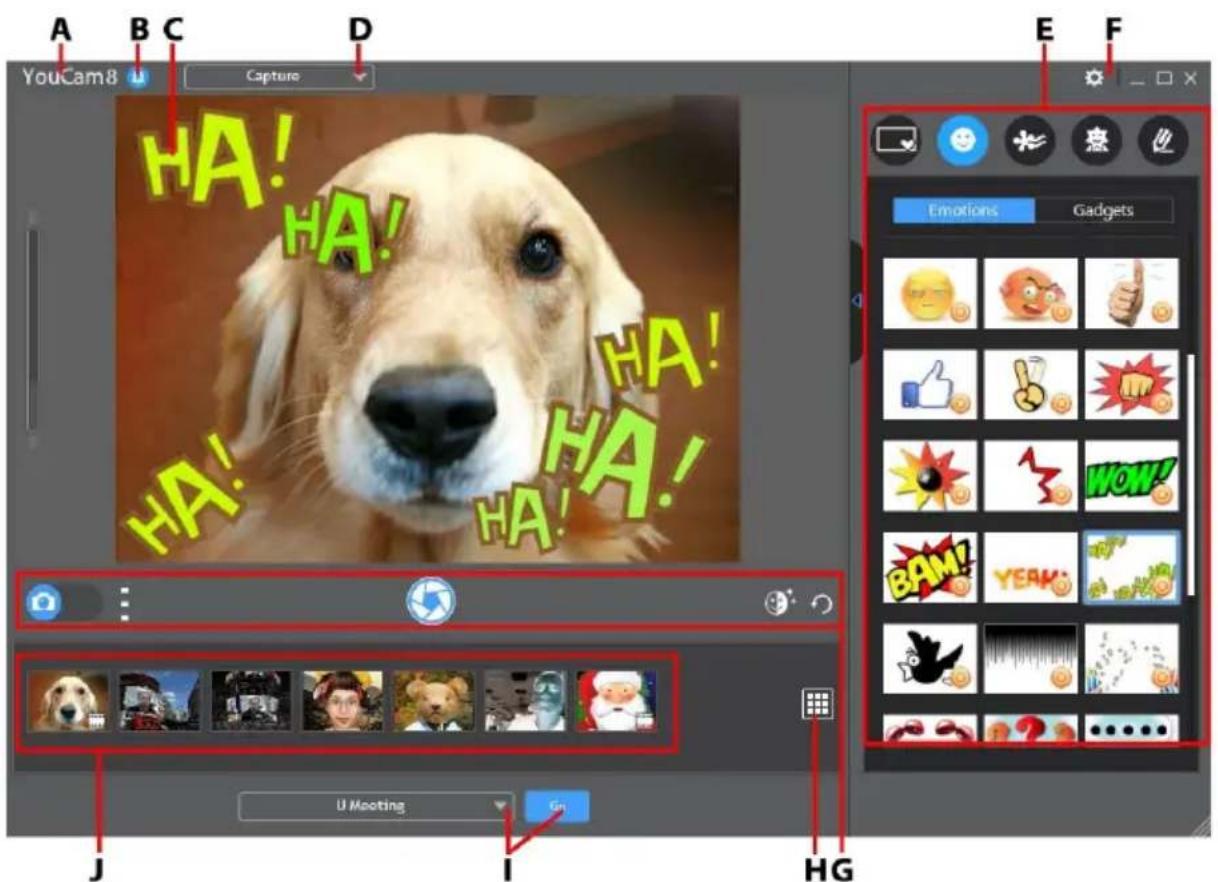
A - YouCam Menu, B - Notification Center, C - Webcam Preview Window, D - Select YouCam Module/Window, E - Effects/Features Panel, F - YouCam Settings, G - Capture Controls, H - Go to Library Window, I - Start Video Call, J - Captured Content
Stand Alone Mode Program Interface
When in the stand alone mode, you can resize the CyberLink YouCam user interface to suit your requirements.
Simply select and drag in the bottom right corner to resize any CyberLink YouCam window to fit your preference. You can also select the CyberLink YouCam title bar to drag the program to a different location on your desktop.
IM Mode
When you start a video call, meeting, webinar, or live broadcast, CyberLink YouCam launches in the smaller IM (instant messaging) mode.
IM Mode Program Interface
When in the IM mode, you can resize the CyberLink YouCam user interface to suit your requirements.
Simply select and drag in the bottom right corner to resize any CyberLink YouCam window to fit your preference. You can also select the CyberLink YouCam title bar to drag the program to a different location on your desktop.
Split Mode
You can share your webcam with more than one webcam application. To do this:
-
Launch your webcam application capture device and ensure it is using the YouCam 8 (see Setting Up YouCam for Video Calls for more information).
-
Ensure the CyberLink YouCam system tray icon is available, right-click on it, and then select your Capture Device from the list.
-
Select Launch Effects Room to open the effects room. When you use visual effects, they display in any open webcam programs that are using the CyberLink Webcam Splitter.
Full Screen Mode
Full screen mode* is a mode of CyberLink YouCam that is optimized for touch screens and tablets. See Full Screen Mode for more detailed information.
Note: * this feature is not available in some versions of CyberLink YouCam.
Mirror Mode
The mirror mode can be accessed via the start menu or the system tray icon. This mode is designed to act just like a real mirror. See YouCam Mirror Mode for more detailed information.
YouCam Modules
CyberLink YouCam is comprised of three main modules: Camera, Presentations, and Utilities. Each of these modules has different windows and many different features.
These modules can be accessed by selecting a module or window from the drop-down at the top of most YouCam windows.
Camera
The Camera module is where you can capture webcam media, access the media library, and more. The Camera module has the following windows and features:
• Capture: in the Capture window you can take photo snapshots and capture webcam video with effects. See Capturing Media for more information.
- Library: the Library window is where you can view all the photos and videos you have captured in the Capture window. See YouCam Media Library for more information.
- Full Screen*: lets you view your webcam in full screen mode. See Full Screen Mode for information on the features and functions available.
Presentations
You can capture your computer's desktop, record video presentations, and enable a second webcam in the Presentations module. The features in the module include:
- Desktop Capture*: capture a video of your mouse movements on your computer's desktop. See Desktop Capture for detailed information.
- Record Presentation*: create and record video presentations* that incorporate a PowerPoint presentation and video from your webcam. For more information, see Recording Video Presentations.
- DualVideo*: enable a second webcam to record videos and use in webcam chats in IM mode for web conferencing. Go to Enabling Dual Webcam Videos for more information.
Utilities
CyberLink YouCam includes a number of useful utilities that are sure to help you get the most out of your webcam. The Utilities module includes the following features:
- Surveillance: select from a number of video surveillance and timed recording options you can use with your webcam. Go to Video Surveillance for more information on the surveillance features available.
- Face Login*: use this feature to log in to Windows and your favorite web sites with your face. See Face Login for information on setting up this feature on your computer.
- Face-out*: protect your computer with the Face-out feature that takes action when you step away from your PC. For detailed information, see Face-out.
Note: * this feature is not available in some versions of CyberLink YouCam.
Chapter 3:
Webcam Effects
This section provides an overview of all the webcam effects in CyberLink YouCam, including scenes, gadgets, particles, avatars, augmented reality, and more. It also reviews the draw feature that lets you draw and add stamps on the webcam image.
These webcam effects are available in several different windows, modules, and modes.
Using Visual Effects
CyberLink YouCam has many different visual effects* that you can apply to your live webcam image during video chats. When applied, a user viewing your webcam instantly sees the effect. These effects can also be applied to any photo snapshots or webcam video you are capturing.
Note: * this feature is not available in some versions of CyberLink YouCam.
Visual Effects Overview
To view all the available visual effects*, go to the Capture window of stand alone mode by selecting Camera > Capture from the drop-down menu that appears at the top of most CyberLink YouCam windows.
Note: the visual effects are available in several different windows, modules, and modes. Though there presentation may differ slightly, the features outlined below remain the same.
The following types of visual effects are available in the effects/features panel of CyberLink YouCam.
Frames and Scenes
Select the tab to view the following types of effects:
- Frames: stylish and festive borders that you can add on the webcam video.
- Scenes: fun locations where your webcam image displays, such as poster boards, video walls, and movie theater screens.
Emotions and Gadgets
Select the

ab to view the following types of effects:
- Emotions: temporary effects that help you express an emotion or appreciation to the webcam viewer.
Note: select the 🎨 icon to enable emotion stamp mode* to place an effect any where you like on the webcam image. Once enabled and displayed as

you can repeatedly select different locations on the webcam image where you would like the selected effect applied.
- Gadgets: applied effects that let you add hats, masks, set your hair on fire, and more using face tracking technology.
Particles, Filters, and Distortions
Select the

- view the following types of effects:
- Particles: image particles, such as falling leaves, that pile on your head and shoulders as they fall through the webcam image.
Note: particle effects indicated by the 🎟 icon are interactive* and will settle on your head, arms, and shoulders. Move around in the image to interact with them.
- Filters: video filters that change the complete look of the webcam image.
Note: the filters include the mosaic effect that uses face tracking technology to apply the filter to just your face or head.
- Distortions: distorts the webcam video. Some distortions let you change* the focal point of the distortion on the video with the click of a mouse or the touch of a finger.
Avatars and Augmented Reality
Select the tab to view the following types of effects:
- Avatars: animated character effects that use facial feature tracking to mimic your face movement and actions. Use an avatar if you are feeling a little camera shy or if you want to record a video with different characters. See Using Avatars for more information.
Note: you can create your own custom avatars in the Avatar Creator. See Creating New Avatars for more information.
- Augmented Reality*: animated effects that appear with you in your webcam video. See Augmented Reality for detailed information on using augmented reality.
Note: * this feature is not available in some versions of CyberLink YouCam.
Rearranging Effects
You can rearrange how the visuals effects are displayed on each tab. To do this, just click or touch the visual effect, and then drag it a new location on the tab.
Downloading and Importing Effects
You can expand your visual effects library by downloading additional effects from DirectorZone. You can also download more facial features, accessories, and backgrounds when creating avatars in the Avatar Creator*.
Once downloaded and imported into CyberLink YouCam, these effects are available right away for webcam chats and when capturing photos and videos.
Note: * this feature is not available in some versions of CyberLink YouCam.
To download and import effects, do this:
- Select the type of visual effect you want to download and then the button.
Note: if the download button is not available, then the program does not support the download of that type of effect.
- The DirectorZone web site loads in your default web browser. You must first sign in to DirectorZone to download templates. If you don't have an account, click the Sign up link at the top of the page to get one for free.
- Browse to an effect on DirectorZone that you want to import and then download and install it on your computer.
- Select the YouCam tab to display all the available visual effects you can download.
- Find a visual effect you want to download, and then click the Download link underneath the template.
- Click Download again, and then save the template to your computer. Find the location on your computer where you saved the template .dzp file, and then double-click on it to import it into CyberLink YouCam.
Adding and Applying Visual Effects
To add or apply a visual effect* to your live webcam video, do this:
Note: * this feature is not available in some versions of CyberLink YouCam.
- Select the type of visual effect you want to add/apply. See Visual Effects Overview for a list of all the available effects.
- Browse through and then select the specific effect you want to add/apply to the webcam image.
Note: emotion effects are added to the webcam video and then disappear after a few seconds. Other effects (gadgets, avatars, filters, particles, etc.) remain applied until you apply another effect or select to clear the effect. You can also remove an applied effect by selecting it again in the effects panel.
Using Avatars
To use an avatar* on your live web cam video, do this:
Note: you can create your own custom avatars in the Avatar Creator. See Creating New Avatars for more information. * this feature is not available in some versions of CyberLink YouCam.
- Position your face in the center of the webcam preview window.
- Select the tab and then select Avatars.
- Select the desired avatar to turn it on.
Note: select the 📊 button underneath the webcam preview window to clear the current avatar and return to the original webcam video image.
Helpful tips
The following are some helpful tips to get the most out of the avatar visual effects in CyberLink YouCam:
- there should be adequate distance between your face and the webcam. At least 12 to 18 inches (30 - 45 cm).
- once the avatar is turned on, hold your head still for about 5 seconds so the software can properly calibrate and recognize your facial features.
- a well-lit environment is required for the avatar effect to work properly.
- for best results when using avatars, ensure the video size is between 320x240 and 640x480. See Capture resolution in Camera Settings for more information.
Creating Customs Avatars in the Avatar Creator
In the Avatar Creator* you can make your own custom avatars for use in webcam chats and when capturing photos and videos. You can then upload* your custom avatars to DirectorZone.
Note: * this feature is not available in some versions of CyberLink YouCam.
When on the avatar tab, select to open the YouCam Avatar Creator window.
The Avatar Creator window displays as follows:
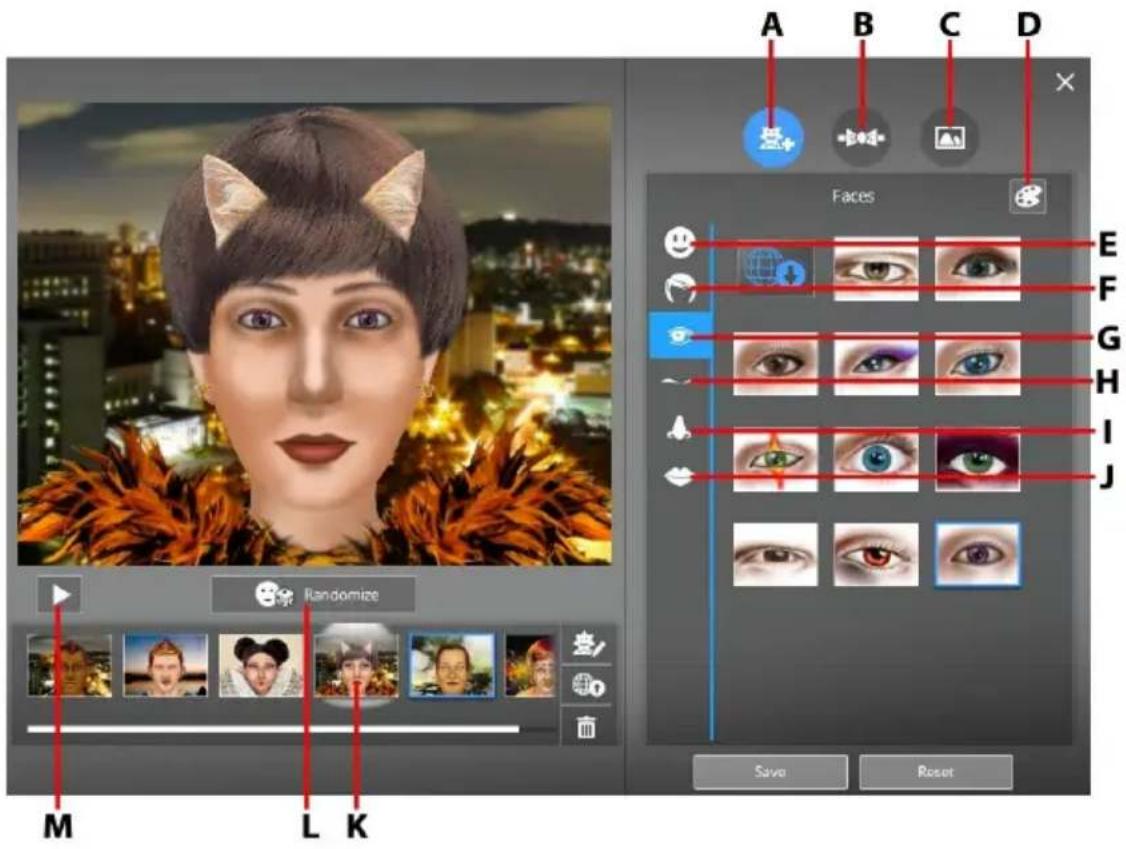
A - Set Faces, B - Add Accessories, C - Use Backgrounds, D - Pick a Color, E - Faces, F - Hair, G - Eyes, H - Eyebrows, I - Noses, J - Mouths, K - Created Avatars, L - Select Random Avatar Template, M - Preview Avatar
The avatars you create are available in the effects room, and have all the features and functions of the pre-created avatars.
Creating New Avatars
To create an avatar, do this:
- Select the tab and then select Avatars.
- Click the 🙏 + button to open the Avatar Creator.
- Select the Randomize button to choose a random avatar to use as a template.
You can also select an avatar you created previously, and then click 📄 to edit it.
Note: during the creation of your avatar, select the play button to preview your avatar. Select the pause button to return to edit mode.
- To customize your avatar's face, select the tab and then use the following features:
Note: select the button to download* more facial features, accessories, and backgrounds from DirectorZone. * this feature is not available in some versions of CyberLink YouCam.
- select the tab to change the shape of the avatar's face.
- select the tab to select a hairstyle for the avatar's face.
- select the tab to change the shape of the avatar's eyes.
- select the tab to change the eyebrows on the avatar's face.
- select the tab to change the shape of the avatar's nose.
- select the tab to change the shape of the avatar's mouth.
Note: set the color of each facial feature (except the nose) by selecting the

button and then picking a color.

-
To add accessories such as hats and earrings to your avatar, select the tab and then use the following features:
-
select the tab to add a hat or other hair accessory to your avatar.
- select the tab to put earrings on your avatar.
Note: select the accessory item with a line through it to remove the current hat or earrings from the avatar.
- To change the background for your avatar, select the tab and then a background from the list.
Note: select the button if you would like to import and use your own custom background image for the avatar. If you don't want to include a background, select the background with a line through it to remove it from the avatar.
- Select the Save button to save the avatar to the created avatars area. If you are not satisfied with how it turned out, you can also click the Reset button to restore the avatar to the original.
Note: your avatar is also saved to the avatar visual effects tab. See Using Avatars for information on using your custom avatar.
Uploading Avatars to DirectorZone
Once you are done customizing your avatar, upload* it to DirectorZone and share it with other users of CyberLink YouCam.
Note: * this feature is not available in some versions of CyberLink YouCam.
To upload an avatar to DirectorZone, do this:
- In the main CyberLink YouCam window, select the Sign in to DirectorZone link on the CyberLink YouCam title bar. Follow the steps to sign in to DirectorZone.
- Select the 🎨 tab and then the 🎨 + button to open the Avatar Creator.
- Select the avatar in the created avatars area that you want to upload, and then select
- In the Upload to DirectorZone window, enter an Avatar name and Description in the fields provided.
- Click the Upload button to finalize the upload to DirectorZone, and Finished to return to the Avatar Creator window.
Augmented Reality
Use augmented reality* to add animated effects that appear with you in your webcam video. By displaying the pattern in your video, you can add effects that will impress your friends.
Note: * this feature is not available in some versions of CyberLink YouCam.
Setting Up Augmented Reality
To use augmented reality, you must set up the feature by drawing/printing/capturing the required pattern. When you hold this pattern in
front of your webcam, CyberLink YouCam detects it and displays the selected augmented reality animation.
To set up augmented reality, do this:
- Select the

tab, and then the AR tab.
- To create the pattern, do one of the following:
- Draw on a piece of paper the exact pattern as it is displayed below:

- Select the button to print off the pattern, and then use the printing

to
options to set the size and number of patterns to print per page. Click print the pattern.
Note: CyberLink YouCam can display up to two duplicate augmented reality animations at one time if you are using more than one pattern.

- Select and then use a mobile phone's camera to take a photo of the pattern. Select Close once the photo is taken.
Using Augmented Reality
To use augmented reality, do this:
- Select the

tab, and then the AR tab.
- Select one of the available effects.
- Take the pattern you drew/printed off/took a photo of, and then hold it steady in front of your webcam to see the animation.
- If required, select another augmented reality effect from the list.
Helpful tips:
The following are some helpful tips to get the most out of the augmented reality visual effects in CyberLink YouCam:
- hold the pattern an adequate distance from the webcam. At least 12 to 18 inches (30 - 45 cm).
- once an augmented reality effect is turned on, hold your the pattern still for about 5 seconds so the software can properly detect it.
- a well-lit environment is required for the augmented reality effect to work properly.
- to see the augmented reality effect correctly, hold the pattern so the "CL" pattern is right-side-up and readable in the webcam image.
- rotate the pattern to see all sides of the augmented reality effect.
- you can include your own photos in augmented reality effects that have the
icon on their thumbnail. To add photos, click on and then select to specify the photos you want to use. - hold the magnifying glass augmented reality effect in front of your face to magnify it in the webcam image.
Using the Drawing Tool
In CyberLink YouCam you can draw on the webcam video image. You may also select from a number of stamps and color boards to apply to the video.
To use the drawing tool on your live webcam video, do this:
1. Select the ta

- In the effects/features panel, select the Brushes tab and then use any of the following:
- to draw on the webcam image, select the Marker option, choose your desired color, and then adjust the size of the drawn line. Next, use your mouse or finger to draw on the webcam image.
- to use an eraser to remove portions of your drawing, select the Eraser option, and then set eraser size. Next, use your mouse or finger to erase segments of your drawing.
-
In the effects/features panel, click on the Stamps tab and then choose the desired color and stamp pattern. Next, use the mouse to apply the stamp by selecting the webcam image. If you are using a touch-enabled device, you can use your finger to apply the selected stamps on the webcam image or drag it across the image for a swirl-like effect.
-
To remove the drawing from the webcam image, select the 📄 button underneath the webcam preview window.
Chapter 4:
Capturing Media
This section outlines the webcam media capture features in CyberLink YouCam. You can capture media in several different windows, but this section will focus on capturing media in the Capture window.
To open the Capture window, do either of the following:
- select Camera > Capture from the drop-down menu that appears at the top of most CyberLink YouCam windows.
- select the button in the Library or Edit window.
If you have two webcams connected to your computer, and CyberLink YouCam is not currently displaying the webcam video you want to capture, select the button in the preview window to switch to the other connected webcam.

Enhancing the Video Image
Before you begin capturing photo snapshots and recording webcam videos, select the button underneath the webcam preview window to enhance* the video image and if you want to smoothen your skin in the live video.
In the Video Enhancement window, the following controls are available:
- Auto lighting: select this option to have CyberLink YouCam auto adjust and correct the lighting in the webcam video image for you.
- Skin smoothener: select this option to set the amount of smoothing applied to your skin. Drag the slider right to make your skin look smoother, or left to reduce the amount of smoothening applied.
- TrueTheater enhancement*: select this option and then use the following sliders to enhance the video image using TrueTheater technology from CyberLink:
- Video sharpness: use to enhance the video image, making it sharper and artifact-free.
- Noise reduction: use to reduce the video noise or static on your webcam video image, making it clearer.
- Brightness: use the slider to manually adjust the brightness of the webcam video image.
- Contrast: use the slider to adjust the difference in proportion between lights and darks in the webcam video image.
- Exposure: use the slider to adjust the amount of light that is captured in the webcam video image. Adjusting this feature can dramatically change the overall brightness of your webcam video. Select the Auto option to have CyberLink YouCam optimize the exposure for you.
Note: * this feature is not available in some versions of CyberLink YouCam.
Select the Advanced button to adjust the specific settings for your webcam device. Consult your webcam's user manual for a detailed description of the available controls. Select the Default button to return all the settings back to their original values.
Select to close the Video Enhancement window and save the changes.
Taking Photo Snapshots
With CyberLink YouCam you can instantly take a photo snapshot of the current frame of the webcam video, or take a series of photos in quick succession using the burst feature.
Taking Snapshots
To take one photo snapshot of the current frame of video, do this:
- Ensure the photo snapshot option is selected on the capture controls.

- Select the button on the capture controls to take the photo snapshot.
Note: you can add effects to your snapshot by applying them before you select the capture button. See Using Visual Effects for more information.
- CyberLink YouCam places the photo in the captured content area, and also saves it in the capture folder specified in Capture & Snapshot Settings. The photo is also imported into the YouCam Media Library.
Note: you can right-click on a captured snapshot and then select Locate File on Disk to view its saved location on your computer.
Applying the HDR Effect to Photos
CyberLink YouCam can apply the HDR* effect to a photo after it is captured. The HDR (high dynamic range) effect adjusts the lighting range on the edges in photos, allowing you to recover any loss of detail caused by contrasting brightness during photo exposure. You can also use this effect to give photos a more dramatic tone.
To apply the HDR effect, do this:
Note: * this feature is not available in some versions of CyberLink YouCam.
- Ensure the photo snapshot option is selected on the capture controls.

-
Select the button underneath the webcam preview window, and then ensure that HDR effect is selected.
-
Select the button underneath the webcam preview window to take the photo snapshot.
Note: you can add effects to your HDR photo snapshots by applying them before you select the capture button. See Using Visual Effects for more information.
- CyberLink YouCam places the original photo**, and the photo with HDR effect applied, in the captured content area. The HDR photo is indicated by the HDR logo on its thumbnail. The photos are also imported into the YouCam Media Library.
Note: ** CyberLink YouCam will only save a copy of the original photo if the Keep original photo when HDR effect is enabled option is selected in Other Settings.
Using the Burst Feature
To take a series of photo snapshots in quick succession using the burst feature, do this:
Note: to set how many photo snapshots are taken with the burst feature, see Burst snapshots in Capture & Snapshot Settings.
- Ensure the photo snapshot option is selected on the capture controls.

- Select the button underneath the webcam preview window, and then ensure that Burst is selected.
- Select the button on the capture controls to take the photo snapshots.
Note: you can add effects to your burst snapshots by applying them before you select the capture button. See Using Visual Effects for more information.
- CyberLink YouCam places the photos in the captured content area, and also saves them in the capture folder specified in Capture & Snapshot Settings. The photos are also imported into the YouCam Media Library.
Note: you can right-click on a captured snapshot and then select Locate File on Disk to view its saved location on your computer.
Capturing Video
With CyberLink YouCam you can capture a live webcam video, complete with effects, avatars, added gadgets, frames, filters, particles, distortions, or set in an applied scene.
Note: CyberLink YouCam supports the recording of high-definition (1280×720) video if your webcam is capable of outputting at this resolution. See Capture resolution in Capture & Snapshot Settings for more information.
Capturing a Webcam Video
To capture a webcam video, do this:
- Ensure the video option is selected on the capture controls.

- When you are ready to begin capturing a video, select the 📄 button on the capture controls.
- CyberLink YouCam begins to capture the current webcam video. You can add effects to your webcam video as required. See Using Visual Effects for more information.
Note: if required, you can select 📄 to pause the capture. Select 📄 again to continue capturing from the paused position.
- To stop capturing the video, select the □ button.
- When CyberLink YouCam stops capturing the video, it is placed in the captured content area, and saved to the capture folder specified in Capture & Snapshot Settings. The video is also imported into the YouCam Media Library.
Note: you can right-click on a captured video file and then select Locate File on Disk to view its saved location on your computer.
Captured Content
All of your captured photo snapshots and recorded videos are saved in the captured content area located beneath the webcam video window.

natural_image
Row of six photos showing different subjects: a dog, a woman with a red headband, a person in a lab coat, a teddy bear, and a car (no visible text or symbols)Note: if you are using a touch enabled device, you can scroll through the media by dragging your finger across the captured content area.
You can double click on video files to play them back in the video player, or on photos to view them in the photo viewer. Select the button to view all of the captured media files in the Library window. See YouCam Media Library for more information.
Note: right click on files in the captured content area for more options including file editing, deletion, renaming, or viewing its location on your computer. You can also choose to send a media file to an installed program on your computer, a new location, or to a mail recipient using an installed e-mail program.
Chapter 5:
YouCam Media Library
The YouCam media library contains all of the captured photo snapshots and webcam videos you took with CyberLink YouCam. In the Library window you can view these media files in a calendar view by day, month, or by the faces that were tagged in the photos. You can also share the media in the library by uploading it to YouTube, or by e-mailing it directly to friends and family.
Viewing Media in the Library
The Library window contains all the photos and videos found in the capture folder specified in Capture & Snapshot Settings. In the Library window you can browse through and view all of your media files, and then decide to edit, share, or remove them from library as required.
To open the Library window, do either of the following:
- select Camera > Library from the drop-down menu that appears at the top of most CyberLink YouCam windows.
- select the button in the Capture or Edit window.
You can sort the media in the Library window by:
- Day: select this option to view all the media files by the day they were captured in CyberLink YouCam.
- Month: select to view a calendar of your media. Use the zoom slider to zoom in on a specific month, or double-click on specific day to switch back to the Day view.
- Faces*: select to browse through the captured photos by the faces tagged in them.
Note: * this feature is not available in some versions of CyberLink YouCam.
You can filter the media in the Day or Month views by:
- both photos and videos.
- photos only.
- videos only.
Double-click on a photo to view it in the photo viewer, or a video to play it in the video player.
You can also edit a photo or video file by selecting it and then the button. See Editing Captured Media for more information on viewing and editing media files.
While viewing media in the Library window, you can also:
- use the zoom slider to dynamically resize the media thumbnails or change the calendar view.
- select a media file and then click the button to share it on YouTube or via e-mail. See Sharing Media in the Library for more information.
- select a media file and then click the button to delete it from the YouCam media library. This file will also be deleted from your computer's hard drive.
Viewing Photos in the Photo Viewer
When you double-click on photo in the captured content area, or in the Library, it opens in the photo viewer window.
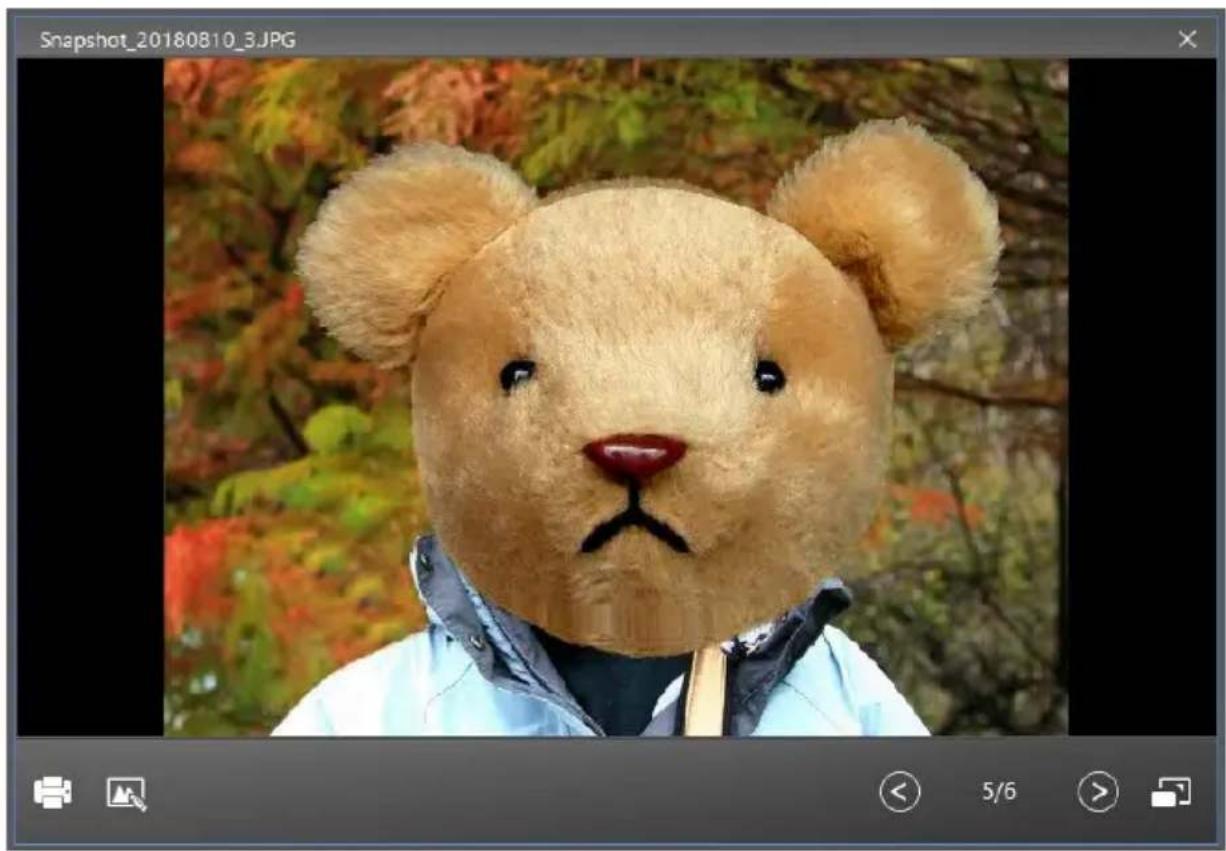
natural_image
Close-up photo of a plush bear wearing a light jacket, standing in autumn foliage with red foliage background (no text or symbols visible)Use the < and > buttons to browse through all of the media in your library. Click to view the photo at full screen. If you'd like to print out the photo on a printer, click the button. Click to perform edits on the photo.
Printing Photos
You can print out any of the photos you captured if you have a printer connected to your computer.
To print a photo, do this:
-
Open the photo viewer by double-clicking on a photo in the captured content area or Library.
-
Select the button in the photo viewer. The photo is outputted to your computer's default photo viewer for printing.
-
Proceed to use your computer's default photo viewer to print off the photo as required.
Playing Videos in the Video Player
When you double-click on video in the captured content area, or in the Library, it begins playing in the video player window.
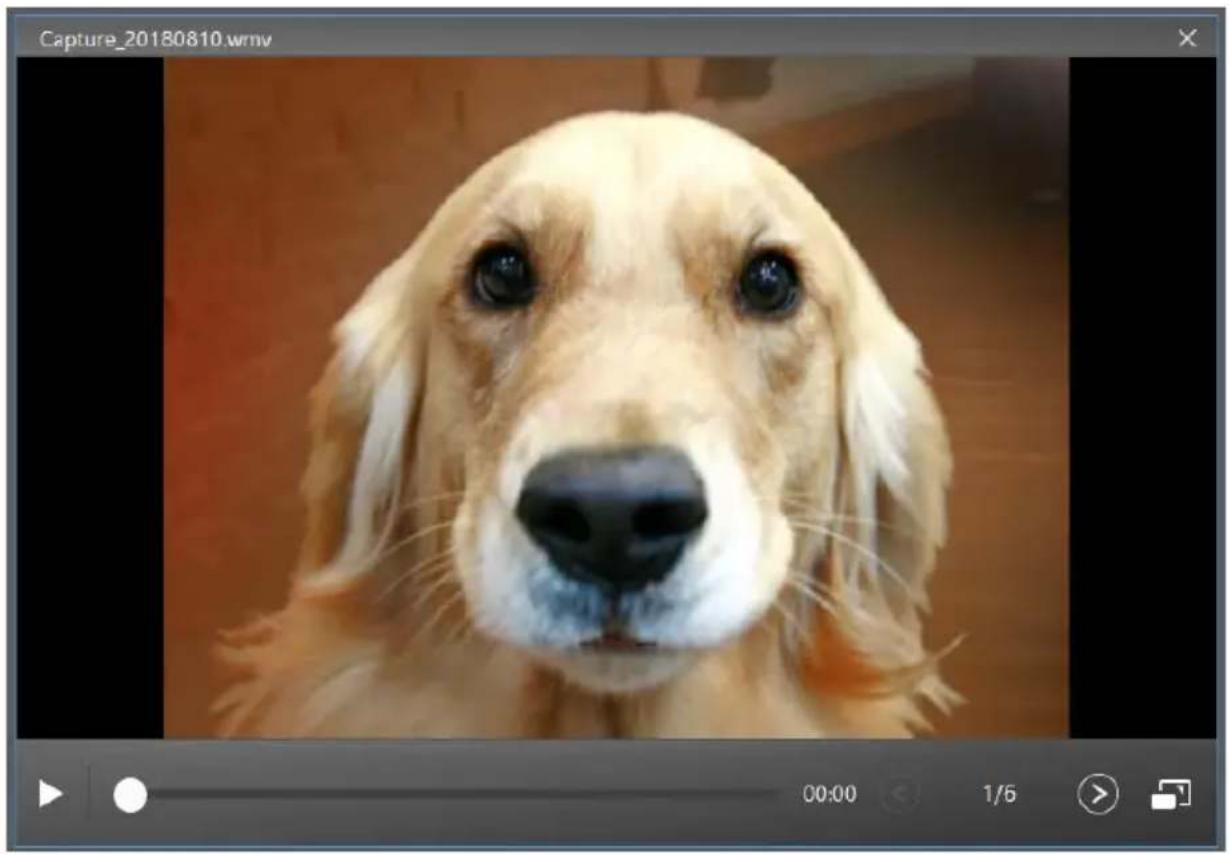
natural_image
Close-up photo of a golden retriever dog's face, looking upward with visible black eyes and white stripes (no text or symbols)Select □ to pause the playback, and □ to view the video at full screen. Select the □ button to continue playback.
When the video is paused, use the < and > buttons to browse through all of the media in your library. If you'd like to trim or enhance the captured video file, see Editing Video Clips.
Sharing Media in the Library
The media files you captured with CyberLink YouCam can be shared on YouTube, or e-mailed directly to your friends and family.
Uploading Videos to YouTube
You can upload videos in the Library window to YouTube. You can also share the effect information used in your video with other CyberLink YouCam users on DirectorZone.
To upload a captured video to YouTube, do this:
Note: you can only upload one video at a time.
- In YouCam's stand alone mode, select the button to enter the Library window.
-
Select the video file in the Library window that you want to upload to YouTube.
-
Select the button and then YouTube.
-
Follow the instructions on the page to log in to your YouTube account and authorize YouCam to upload.
-
The describe your video window displays. Enter the details about your video as follows:
• Title: enter the title of your webcam video.
• Description: enter in a short description of your webcam video.
- Tags: enter in several tags, separated by a comma, that describe your video. Tags are keywords that people can search for on YouTube.
Note: you must enter a title, description, and at least one tag before you can upload your video.
• Video category: select the relevant video category type from the available list.
- Broadcast: select whether to share your video with the world or set it as private.
Note: sign in to DirectorZone and then select Share in the DirectorZone Video Gallery if you want to share the uploaded video with the DirectorZone user community.
- Select the Next button to proceed. The copyright disclaimer window is displayed.
- Read and confirm the copyright information by selecting the corresponding check box and then select the Upload to begin uploading your webcam video to YouTube. Select the Finished button once your video is uploaded.
E-mailing Photos and Videos
You can e-mail photos and videos in the Library window to your friends and family. To e-mail photo snapshots and videos, do this:
Note: CyberLink YouCam uses your computer's default mail client to e-mail photos and videos, if available. The e-mail feature does not work if you usually send e-mails through a web browser. To change the e-mail account that CyberLink YouCam uses, please go to your e-mail application (such as Microsoft Outlook, Outlook Express, etc.) and reset/change your e-mail account settings.
- In YouCam's stand alone mode, select the button to enter the Library window.
- Select all of the media files in the Library window that you want to e-mail.
Note: the maximum allowed total file size is 20 MB. If you are trying to e-mail a single file that exceeds this size, it is recommended that you edit the file outside of YouCam or try reducing the capture quality or format in YouCam Settings before the next time you capture. Please note that your e-mail provider may also have a file size limit that is less than 20 MB.
- Select the button, and then CyberLink YouCam launches your default mail client and attaches all of the selected media files to the new e-mail message.
Note: if your computer does not have a default e-mail client configured, then the auto e-mail feature may not work. If it does not work, right-click on a media file in the Captured Content area, select Locate File on Disk, and then manually attach the media files to the e-mail message.
- Complete the sending of the e-mail in your default e-mail program as required.
Chapter 6:
Editing Captured Media
You can perform edits on the photos and videos captured in CyberLink YouCam.
Editing Photo Snapshots
In the Edit* window you can tag and edit the face tags in photos, add preset effects and frames on the image, draw on the photo, or crop out unwanted portions of the photo.
To open the Edit window, do any of the following:
- right click on a photo in the captured content area and then select Edit Photo/Video.
- when viewing a photo in the photo viewer, select the button in the photo viewer.
- select a photo in the Library window, and then the button.
In the Edit window you can perform the following edits to photos:
Note: while editing a photo, click the button at any time to undo the last edit. Select the button at the bottom of the Edit window to reset all the edits made to a photo.
- select to use Face Beautify* to touch up the your webcam photos. See Face Beautify for more information.
- select to add a stylish and festive border to the photo. Once you have selected the frame you want to use, click to set the change.

- select to add a color preset effect on the photo. Select a preset effect from the list to apply it to the photo. Once you have selected the preset effect
you want to use, click

- select to draw on the photo. See the relevant parts in Using the Drawing Tool for information on using the marker and eraser to draw on the photo.
Once you have finished drawing on the photo, click to set the change.
Note: you cannot apply stamps on photos in the Edit window.

- select to crop the current photo. Set the size of the crop area by selecting one of the fixed ratios available. Once selected, you can select in the crop area on the photo and drag it to the part of the photo you want to keep. If none of the fixed ratios fit your requirements, select the Freeform option and then select and drag the edges of the crop area. If required, use the
Straighten slider to fix a crooked photo. Select 📋 to perform the crop once you are ready.

- select the button to tag the faces in the photo, or edit the existing tagged faces. See Tagging Faces in Photos for detailed information on
tagging faces in photos. Once you are done, select the 📄 button again to set your changes.
Once you are done editing a photo, select the button to save the changes as a new photo that will be added to the library. You can also click to share the edited photo. See Sharing Media in the Library for more information.
Note: * this feature is not available in some versions of CyberLink YouCam.
Face Beautify
You can use the following Face Beautify* features to touch up the people in your captured photos. To enter the Face Beautify window, do this:
Note: * this feature is not available in some versions of CyberLink YouCam.
- Enter the Edit window by right clicking on a photo in the captured content area and then selecting Edit Photo/Video, or by selecting a photo in the
Library window, and then the

- Select to use Face Beautify.
If there is more than one person detected in a selected photo, CyberLink YouCam asks you which person you want to beautify when you enter the Face Beautify window.
Note: if you want to use Face Beautify on more than one person in a photo, you must do them one at a time.
When you enter any of these feature windows, CyberLink YouCam first displays the usage tips (the first time only) and then the face feature points on your photo for a brief moment. However, you can:
- select to show the tips to find out more about the current feature. Select anywhere on photo to hide the tips.
- select to show the feature points, which should align to the features of the face (eyes, nose, mouth, and chin). If required, move the feature points to
the proper locations on the photo. Select to hide the feature points at any time.
Note: not all the feature points are shown in each window, as they vary depending on the beautifying feature available. For Blemish Removal, there are no feature points available.
- when using any of the Face Beautify features, you can select and hold the

button to compare the changes to the original photo.
Skin Smoothener
Select the Skin Smoothener option to smoothen the person's skin. Use the Strength slider to set the amount of smoothing applied to the skin, and then select

to apply the changes.
Skin Tone
The Skin Tone feature lets you adjust the person's skin color. Select a color to use as the foundation for the new skin tone, and then use the slider to adjust the amount
of the color applied. When you are satisfied with the results, select to apply the changes.
Face Reshaper
Use the Face Reshaper to change the shape of the person's face. Use the Strength
slider to change the shape of the face as required, and then select to apply the changes.
Blemish Removal
Select the Blemish Removal option and CyberLink YouCam will auto remove all detected skin blemishes on the person's face. If some blemishes were not removed, just select each of them to remove them manually. Once you are satisfied with the
results, select to apply the changes.
Blush
The Blush feature lets you apply blush on the person's cheeks. Use the Strength slider to set the amount of blush applied to the skin, and then select to apply the changes.
Shine Removal
Select ShineRemoval to remove any shiny parts on the person's face. Use the Strength slider to set the amount of shine removal applied, and then select to apply the changes.
Eye Enlarger
The Eye Enlarger lets you increase the size of the person's eyes. Use the Strength slider to resize eyes, and then select to apply the changes.
Eye Bag Removal
Use the Eye Bag Removal feature to remove the bags under the person's eyes. Use the Strength slider to set the amount of removal applied, and then select 📋 to apply the changes.
Teeth Whitener
Select Teeth Whitener to whiten the teeth in your photos. Use the Strength slider to set the amount of whitening applied to the teeth, and then select to apply the changes.
Note: the Teeth Whitener feature is unavailable if CyberLink YouCam detects that the person's mouth in the photo is closed. If YouCam incorrectly detected a closed mouth, select the button to manually enable and then align the feature points over the mouth.
Tagging Faces in Photos
To tag* the faces in a captured photos, do this:
Note: * this feature is not available in some versions of CyberLink YouCam.
-
Enter the Edit window by right clicking on a photo in the captured content area and then selecting Edit Photo, or by selecting a photo in the Library window, and then the button.
-
Select the button to tag the faces in the photo.
-
CyberLink YouCam will add face tags to all the faces it detects. Resize each face tag square if required and then select Unknown.
-
Enter the person's name that is tagged and then select √ to add them to the YouCam media library and tag the person in the photo.
Note: the next time you capture a photo of the tagged person, CyberLink YouCam will recognize and auto tag them for you. If the face tag is incorrect, you can always select the name and enter the correct person.
-
If CyberLink YouCam did not detect a face in the captured photo, select the button. Resize and then drag the face tag square onto the face. Select Unknown, enter the person's name, and then select .
-
Once all of the faces are tagged in the photo, select [icon] to save your changes.
Editing Video Clips
In the Edit window you can apply TrueTheater video enhancements to captured videos or trim out unwanted portions at the beginning and end of a webcam video.
Once you are done editing a video clip, click the button to share it by uploading to YouTube or by e-mailing it to friends and family.
Applying TrueTheater Enhancements to Video Clips
You can apply TrueTheater video enhancements to your captured video clips. To apply the video quality enhancements, do this:
- Enter the Edit window by right clicking on a video in the captured content area and then selecting Edit Photo/Video, or by selecting a video in the Library window, and then the button.
- Select the button to open the Video Quality Enhancements panel.
- Select the TrueTheater video enhancements you want to apply:
- CyberLink TrueTheater Color: select this option to dynamically adjust the color saturation ratio in video, making it more vivid, without affecting skin tones. Use the available slider to set the amount of TrueTheater Color applied.
- CyberLink TrueTheater HD: select to up scale the original video to a higher resolution version, which is sharper and artifact-free.
- When you are done, select to apply the changes.
Trimming Video Clips
You can trim out unwanted portions from your captured video clips. To trim video clips, do this:
- Enter the Edit window by right clicking on a video in the captured content area and then selecting Edit Photo/Video, or by selecting a video in the Library
window, and then the


- Select the button to activate the trim video feature.
- Select and drag both the mark in and out points to set the part of the video you want to keep (blue part).

natural_image
Pure horizontal blue line with a yellow arrow and white base, no text or symbols present- Select the button to trim the video and save the changes as a new
video file that will be added to the media library. You can also click to share the trimmed video. See Sharing Media in the Library for more information.

Note: while trimming a video clip, click the reset all the edits made to a video clip.
button at any time to
Chapter 7:
Panoramas
In CyberLink YouCam you can create a panorama* image by taking a series of photos snapshots with your webcam or tablet's camera.
Note: * this feature is not available in some versions of CyberLink YouCam.
When you enter the Panorama window, CyberLink YouCam displays the usage tips (the first time only). Select any where on the window to hide the tips. If you'd like to view them again at any time, just select in the top left corner.
Creating a Panorama Image
To create a panorama image with your webcam, do this:
Note: if required, select the button at the top of the screen to display the grid. The grid can help you align the photo snapshots for the panorama and ensure they are straight.
-
Enter full screen mode by selecting Camera>Full Screen from the drop-down menu that appears at the top of most CyberLink YouCam windows.
-
Select the button in full screen mode and then Panorama.
-
Select the screen to hide the panorama tips.
-
Position the webcam where you want to take the first photo snapshot to use in the panorama, and then select the button.
Note: if you want to retake a photo in the panorama, click the button to remove the last photo taken.
- Move the webcam to the next position, and then select the 📄 button again. If the photo snapshot was taken, it will be added to the stitch result area.
Note: the photo snapshots for the panorama should be taken from left to right.
- Repeat step three, taking all the photo snapshots you want in the panorama image.
Note: for best results, check the edge of the last photo, which is displayed to the left of the live webcam image. Be sure to align the edge of the last photo with the next photo you capture. CyberLink YouCam will not add the photo to the stitch result area if the alignment with the previous photo is too far off.
- Once you have taken all the photo snapshots for the panorama, select the

button. CyberLink YouCam will stitch all the photo snapshots together, state the panorama image.
- Select the button to save the panorama and import it into the YouCam Media Library.
Chapter 8:
Full Screen Mode
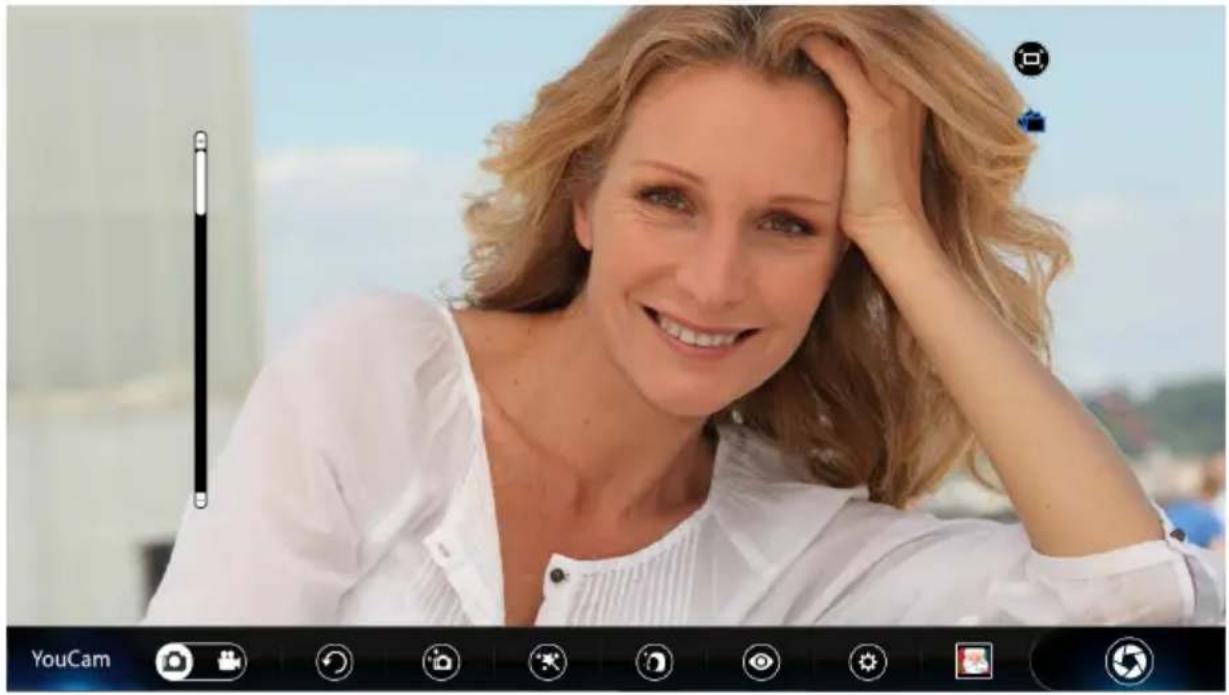
CyberLink YouCam includes a full screen mode* that is optimized for touch screens. To access the full screen mode, select Camera > Full Screen from the drop-down menu that appears at the top of most CyberLink YouCam windows.
natural_image
Portrait of a smiling woman with blonde hair, wearing a white blouse, outdoors with blurred background (no text or symbols visible)Note: * this feature is not available in some versions of CyberLink YouCam.
Once in full screen mode, you can:
Note: mouse movements and the YouCam tool bar are not displayed in photo snapshots or recorded videos captured in full screen mode.
- use the zoom slider on the left side of the window to zoom in or out on the webcam image.
- select to switch to another connected webcam.
- take photo snapshots and record webcam videos. See Capturing Media for detailed information about capturing webcam media.
Note: before capturing media in full screen mode, be sure to select to set the capture options. In the capture options you can have the HDR effect applied to photo snapshots, use the burst feature, or take a panorama with your webcam. See Panoramas for more information on creating a panorama image.
- select to apply effects and draw on the webcam image. Select to clear any applied effects if required. See Webcam Effects for more information about applying effects and drawing on the webcam image.
- select to smoothen your skin in the live video. See Skin smoothener in Enhancing the Video Image for more information.
- select to enhance the webcam's video image. See Enhancing the Video Image for more information.
- select to configure the YouCam settings. See YouCam Settings for more information.
- select the square media thumbnail button on the right of the YouCam toolbar to edit captured media in the Edit window. See Editing Captured Media for more information.
Select Express the Esc key on your keyboard to exit full screen mode.
Chapter 9:
Presentations
This section provides a complete overview of the presentations section of CyberLink YouCam. In it you can capture a video of the mouse movements on your computer's desktop, create a video presentation, and enable a second webcam for use in videos and for conferencing.
Desktop Capture
The desktop capture* feature lets you capture a video of your mouse movements on your computer's desktop. You can use this feature in both stand alone and IM** modes, allowing you to record a video or share your desktop movements in a webcam chat.
Note: * this feature is not available in some versions of CyberLink YouCam. ** in IM mode this feature is called Desktop Share, as there is no capture feature available.
To capture your desktop movements, do this:
Note: when using this feature on a desktop that extends to a secondary display device, it only captures desktop movements on the primary display device.
-
To access the desktop capture feature select Presentations > Desktop Capture from the drop-down menu that appears at the top of most CyberLink YouCam windows.
-
In the Desktop Capture dialog, select:
• Full screen to capture/share your entire desktop area.
- Mouse movement and then the size of the capture area from the drop-down. This option will capture/share an area that follows the movement of your mouse.
- Fixed area and then select and drag the displayed box to the area of your desktop that you want to capture/share.
Note: you can select the edges and corners of the box to resize the fixed area.
- Set the Capture/StopHotkey by selecting it from the drop-down. A hotkey is a key on your keyboard that you can press to start and stop the desktop capture.
- Select Capture (or press the hotkey on your keyboard specified in the previous step) to begin.
- Once you are finished recording your video, press the Capture/Stop Hotkey (F9 is the default) you specified to stop the desktop capture.
- Click Restore to return to the CyberLink YouCam main window. If you are capturing a video in stand alone mode, the recorded video is placed in the captured content area, and saved in the capture folder specified in Capture & Snapshot Settings. The video is also imported into the YouCam Media Library.
Recording Video Presentations
In CyberLink YouCam you can create and record video presentations* that incorporate a PowerPoint presentation and video from your webcam.
Note: the record presentation feature is also available in IM mode, but instead of recording the video presentation, CyberLink YouCam shares it live with the person you are chatting with on the webcam. * this feature is not available in some versions of CyberLink YouCam.
There are five presentation modes to choose from, and you can use pen mode to highlight important points in the presentation video.
Note: the Microsoft PowerPoint files can be in either the PPT or PPTX format. Files with the extension PPTX, are not supported in video presentations if Microsoft Office 2007 or above is not installed on your system. However, if you are using Microsoft Office 2002/2003, you can install a converter from Microsoft to include these files in the video presentation.
To create a presentation video, do this:
- To access the Record Presentations window select Presentations > Record Presentation from the drop-down menu that appears at the top of most CyberLink YouCam windows.
- Select the button and then the PowerPoint files (in the PPT or PPTX format) you want to use in the presentation. You can also drag and drop files onto the Record Presentations panel.
Note: once a PowerPoint is imported into Record Presentations panel, select

to change the size of the slides thumbnails if required.
-
Select one of the following video presentation modes:
-
Teacher mode: the webcam video and a larger view of the PowerPoint file are shown simultaneously.
• Full window mode: the PowerPoint file occupies the entire video webcam window. - Speaker mode: the PowerPoint file and a larger webcam video are shown simultaneously.
- Share mode-camera: only the webcam video image is displayed in the video presentation.
- Share mode - side by side: the PowerPoint file and the webcam video image are shown side by side in the video presentation.
Note: you can switch to another mode at any time during the video presentation, if required.
- Ensure the video option is selected on the capture controls:

-
Select the button to begin capturing the video presentation, starting from the first selected slide.
-
Use the < and > buttons to go through the slides in the PowerPoint file, as required. You can also use the keyboard hotkeys PAGE UP and PAGE DOWN respectively to go through the slides.
Note: if required, you can select 📄 to pause the capture. Select 🙏 again to continue capturing from the paused position.
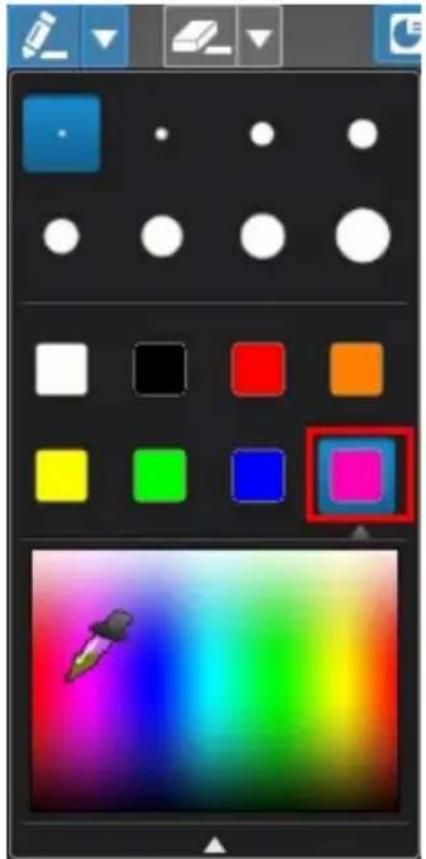
- If required, select 📄 to enable marker mode and use your mouse or finger to draw on the presentation to highlight important points. Select to set the width of the drawn line and its color by selecting one of the default colors. If you'd liked to use a custom color, select the last color option and then use the eyedropper to choose it.
natural_image
Color palette interface with gradient fill and color swatches (no text or symbols)Note: select 📄 to enable eraser mode (and ▼ to set the eraser size). Use your mouse or finger to erase any unwanted drawn lines on the presentation, if required. Select underneath the webcam preview window to clear drawn lines.
- Select the □ button to stop capturing the presentation video. The presentation video is placed in the captured content area, and saved to the capture folder specified in Capture & Snapshot Settings. The video is also imported into the YouCam Media Library.
Enabling Dual Webcam Videos
CyberLink YouCam lets you use two* webcams at once to record videos.
Note: no visual effects can be applied when using two webcams, and CyberLink YouCam sets the resolution to 640x480 for both. * this feature is not available in some versions of CyberLink YouCam.
To enable a second webcam in CyberLink YouCam, do this:
- Ensure that the second webcam is connected to your computer and turned on.
- To enable the second webcam select Presentations > Dual Video from the drop-down menu that appears at the top of most CyberLink YouCam windows.
- On the Dual Video panel, Select your second webcam from the drop-down list.
Note: video enhancements enabled in the Video Enhancement window are only applied to the primary webcam's image.
- Next, select one of the available layouts for your PiP webcam video.
- Proceed to record your video as required.
To turn off the second webcam video, just exit the Dual Video panel by selecting another feature in CyberLink YouCam or closing the program.
Chapter 10:
YouCam Utilities
This section outlines the useful utilities in CyberLink YouCam, including a feature that lets you log in to Windows and web sites when it detects your face, and another that protects your computer when your face leaves the webcam image.
Utilities also include the video surveillance features of CyberLink YouCam, and quick access to the YouCam mirror.
Video Surveillance
CyberLink YouCam allows you to set up your webcam to begin recording when it detects motion. You can also make timed (continuous) webcam recordings and time-lapse videos.
Once CyberLink YouCam finishes recording, you can have the program automatically e-mail the captured video to a specified e-mail address.
Motion Detection Recording
When motion detection recording is enabled, CyberLink YouCam begins a recording if your webcam detects motion and then stops once the movement ends.
To enable a motion detection recording, do this:
- Access the Surveillance window by selecting Utilities > Surveillance from the drop-down menu that appears at the top of most CyberLink YouCam windows.
- Select the Motion detection recording option and then enter the Recording end time in the fields provided.
- In the Define detection area, use your mouse to resize and then drag the box to the location on the video image where you CyberLink YouCam to detect motion.
-
Use the Sensitivity slider to set the level of motion sensitivity. You may need to scroll down in the settings window to find this slider.
-
Select Start. CyberLink YouCam enters stand by mode and captures video when it detects motion.
Note: CyberLink YouCam remains in stand by mode for motion recording until the specified end time or until you select the button.
- Any recorded videos are placed in the captured content area, and saved to the capture folder specified in Capture & Snapshot Settings. The video is also imported into the YouCam Media Library.
Note: you can right-click on the captured video and select Locate File on Disk to view its saved location on your computer.
Continuous Recording
The continuous recording option lets you set a recording that continues, uninterrupted, until the specified end time.
To enable a continuous recording, do this:
- To access the Surveillance window select Utilities >Surveillance from the drop-down menu that appears at the top of most CyberLink YouCam windows.
- Select the Continuous recording option and then enter the Recording end time in the fields provided.
- Select Start. CyberLink YouCam begins to record the current webcam video.
Note: CyberLink YouCam continues recording until the specified end time or when you select the button.
- The captured video is placed in the captured content area, and saved to the capture folder specified in Capture & Snapshot Settings. The video is also imported into the YouCam Media Library.
Note: you can right-click on the captured video and select Locate File on Disk to view its saved location on your computer.
Time-lapse Recording
When time-lapse recording is enabled, CyberLink YouCam takes a series of snapshots at specified intervals. These snapshots are then placed together in a video file, creating a time-lapse video.
To enable a time-lapse recording, do this:
- Access the Surveillance window by selecting Utilities >Surveillance from the drop-down menu that appears at the top of most CyberLink YouCam windows.
- Select the Time-lapse recording option and then enter the Recording end time in the fields provided.
- Enter in the amount of time between captures in the Take a snapshot every field.
- Select Start. CyberLink YouCam begins to capture snapshots of the webcam video at the specified intervals.
Note: CyberLink YouCam continues recording until the specified end time or when you select the button.
- The outputted time-lapse photography video is placed in the captured content area, and saved to the capture folder specified in Capture & Snapshot Settings. The video is also imported into the YouCam Media Library.
Note: you can right-click on the captured video and select LocateFileon Disk to view its saved location on your computer.
Auto E-mailing Surveillance Videos
Once a motion detection, continuous recording, or time-lapse recording video finishes recording, CyberLink YouCam can automatically e-mail* the captured video to a specified e-mail address.
Note: * this feature is not available in some versions of CyberLink YouCam.
To automatically e-mail a captured surveillance video, do this:
-
In Video Surveillance panel, select the Auto e-mail option to enable this feature and then select
-
Enter in the e-mail settings information as follows:
-
E-mail address: enter in the e-mail address you want CyberLink YouCam to automatically e-mail the captured videos to.
- E-mail size: select the maximum size for each e-mailed video file. If the file size exceeds the maximum selected, CyberLink YouCam splits the file into smaller video files before e-mailing.
- SMTP host: enter in the mail server CyberLink YouCam can use to e-mail the video. Please consult your ISP provider for this information.
- Username: enter the your e-mail username.
- Password: enter your e-mail password.
-
Capture folder: select the folder where you want the e-mailed videos saved. Select to change the specified folder if required.
-
Select OK to save the settings. CyberLink YouCam automatically e-mails a captured surveillance video to the specified e-mail address the next time it finishes capturing one.
Face Login
The Face Login feature of CyberLink YouCam let's you use your face to log in to Windows*.
Note: * this feature is not available in some versions of CyberLink YouCam.
Setting Up and Enabling Face Login
To set up and enable Face Login, do this:
Note: Face Login is designed as a convenient tool to help you log into Windows quickly. It should not be used to protect your computer and personal information from unwanted access.
- Access the Face Login window by selecting Utilities >Face Login from the drop-down menu that appears at the top of most CyberLink YouCam windows.
- You will be prompted to enter your current Windows password. Enter it in the field provided, and then select OK. Be sure to select the Remember my password option so that you won't be prompted to enter it again.
- Place your face in the center of the webcam image frame, and then select the

button. CyberLink YouCam will detect your face and capture an image it will use to log into Windows.
Note: if you previously enabled Face-out, CyberLink YouCam will use the same image. Click the button if you want to view all the captured images of your face. You can select and remove any of the captured images as required.
- If required, select the 📋 button again to capture additional images of your face. CyberLink YouCam can capture up to 40 different images of your face. The more images you capture, the more accurate the face detection is when using Face Login feature.
- Set the features of Face Login you want to enable as follows:
- Log in to Windows with my face: select this feature if you want CyberLink YouCam to display the Face Login pop-up window when you are logging in to Windows on your computer. Once enabled, all you'll need to do is place your face in the center of the webcam image to log in.
- Accuracy setting: use the slider to set the accuracy CyberLink YouCam requires to confirm your face. If you set the slider to High, you will have to blink your eyes to log in.
- Select OK to save the changes and enable Face Login. The next time you try to log in to Windows the Face Login pop-up window displays. Just place your face in the center of the webcam image to log in.
Editing Face Login Settings
To edit the Face Login settings, do this:
- Access the Face Login window by selecting Utilities >Face Login from the drop-down menu that appears at the top of most CyberLink YouCam windows.
- In the YouCam Face Login Settings window select the 📋 button to capture additional images of your face. CyberLink YouCam can capture up to 40 different images of your face. The more images you capture, the more accurate the face detection is when using Face Login feature.
Note: click the 📋 button if you want to view all the captured images of your face. You can select and remove any of the captured images as required.
-
In the YouCam Face Login Settings window, edit the settings as follows:
-
deselect the Log in to Windows with my face item to disable the Face Login in feature when you log in to Windows. Once disabled, the Face Login pop-up window no longer displays when logging in.
-
use the Accuracy setting slider to set the accuracy CyberLink YouCam requires to confirm your face. If you set the slider to High, you will have to blink your eyes to log in.
-
Select OK to save your changes.
Face-out
The Face-out* utility in CyberLink YouCam can auto protect your computer when your face exits the webcam image, by locking it, or by making it hibernate or sleep.
Note: * this feature is not available in some versions of CyberLink YouCam.
Setting Up and Enabling Face-out
To set up and enable Face-out, do this:
- Access the Face-out window by selecting Utilities >Face-out from the dropdown menu that appears at the top of most CyberLink YouCam windows.
- You will be prompted to enter your current Windows password. Enter it in the field provided, and then select OK. Be sure to select the Remember my password option so that you won't be prompted to enter it again.
- Place your face in the center of the webcam image frame, and then select the

button. CyberLink YouCam will detect your face and capture an image it use for Face-out.
Note: if you previously enabled Face Login, CyberLink YouCam will use the same image. Select the Show all faces link if you want to view and remove any of the captured images of your face.
- If required, select the 📋 button again to capture additional images of your face. CyberLink YouCam can capture up to 40 different images of your face. The more images you capture, the more accurate the face detection is when using the Face-out feature.
-
Set the features of Face-out you want to enable as follows:
-
Enable Face-out when I am not in front of the computer: select this feature if you want CyberLink YouCam to display a pop-up window when your face leaves your webcam's image. After the specified duration, CyberLink YouCam will perform the specified action to protect your computer.
- Do the following action: select whether you want CyberLink YouCam to lock Windows, or make your computer sleep or hibernate.
- Time before countdown: specify the length of time you want CyberLink YouCam to wait before it prompts you and starts the countdown.
- Length of countdown: specify length of time you want CyberLink YouCam to wait before it performs the specified action, i.e. lock Windows, turn the screen off, or make your computer sleep or hibernate.
-
Accuracy setting: use the slider to set the accuracy CyberLink YouCam requires to confirm your face.
-
Select OK to save your changes and enable Face-out.
Note: to disable Face-out, just reenter Face-out settings and then deselect Enable Face-out when I am not in front of the PC item.
YouCam Mirror Mode
The CyberLink YouCam Mirror is designed to act just like a mirror if ever you need one. To open the CyberLink YouCam Mirror, do one of the following:
- click on the CyberLink YouCam icon in the system tray and then select Launch YouCam Mirror.
- select CyberLink YouCam 8 Mirror from the start menu.
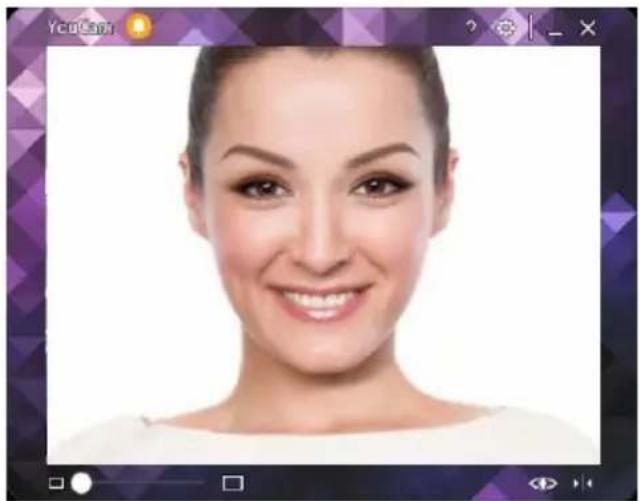
natural_image
Portrait of a smiling woman with closed eyes, wearing a white top, against a purple geometric background (no text or symbols visible)When viewing the CyberLink YouCam Mirror, the following options are available:
- use the available slider to zoom in or out on the mirror's image, as required.
-
select [O] to enhance the mirror's image. See Enhancing the Video Image for information on enhancing the image.
-
select the button to horizontally flip the mirror's image.
- select the button to access the Mirror Settings.
Mirror Settings
In the mirror settings dialog, configure the settings as follows:
- select the Resolution tab and then set the resolution you want CyberLink YouCam to use in mirror mode. The resolutions that are available depend on your webcam's supported video output.
Note: to ensure the best mirror image is available, it is recommended that you set the resolution to the maximum available. Mirror mode works best with webcams that support high-definition (1920 x 1080) output.
- select the Frames tab and choose a frame for your CyberLink YouCam Mirror. When you are done, select to close the settings dialog and set your changes.
Chapter 11:
YouCam Settings
To configure the settings in CyberLink YouCam, select the button on the top of the effects/features panel. Once you are done configuring the CyberLink YouCam settings, select OK to set your changes.
Camera Settings
Select the 🎨 button to open the Settings window, and then select the 🎨 tab. The available options are as follows:
- Capture device: select the primary webcam device you want to use with CyberLink YouCam from the drop-down list.
- Capture resolution: select the size/resolution of captured video from the dropdown list. Selecting a larger video size, results in a larger video file.
Note: CyberLink YouCam supports high-definition (1920 x 1080) video capture if your webcam supports it. If capable, the 1920 x 1080 option is available (without "Snapshot only" beside it) in the Capture resolution drop-down list.
- Audio device: select the audio device from the drop-down list that you want YouCam to use when capturing webcam videos.
- Flip horizontally: select this option to flip the webcam image horizontally.
Note: you can also select the webcam image and drag left or right to flip it horizontally. If using a touch enabled display device, you can flip it by swiping left of right on the webcam image.
- Capture with audio: select this option if you want captured webcam video to have audio.
Note: you need to have a microphone connected to your computer or webcam to capture webcam video with audio.
- Enable video zoom: select this option if you want to zoom in on the webcam video image. Once selected, the following features are enabled:
- Auto face detection: select to have CyberLink YouCam detect your face and auto zoom in slightly. Using this feature enables the program to track and follow your face as it moves around the webcam image.
- Manual zoom: use the slider to manually zoom (up to 4x) in on a specific part of the webcam video. Drag the boxed area to the area of the video you want the camera to focus on.
Capture & Snapshot Settings
Select the 🎨 button to open the Settings window, and then select the 🎨 tab. The available options are as follows:
- Capture folder: set the folder where captured photos and videos are saved. To change the capture folder, select the button and then a new folder location.
- Countdown before capture: select this option to enable a three second countdown before CyberLink YouCam begins capturing photo snapshots or videos.
- Display timestamp: select this option to display a timestamp on the webcam image. Once enabled, select the desired timestamp display format from the drop-down list.
- Capture format: select the file format for captured video from the drop-down list. If your computer supports Intel Quick Sync Video Technology, the HD H.264 (MP4) format video format is available.
- Capture quality: select the quality of the captured video from the drop-down list. The higher the quality selected, the larger the file size created.
- Snapshot format: select the photo file format of the captured snapshots from the drop-down menu.
- Shutter speed: select the rate of exposure, or the quickness the webcam takes the snapshots.
- Burst snapshots: in the field provided, specify the number (between 2 and 10) of photo snapshots you want taken when the burst capture option is enabled.
Other Settings
Select the 🎨 button to open the Settings window, and then select the 🎨 tab. The available options are as follows:
- Change UI language: select the desired language of the CyberLink YouCam user interface. Select Auto to have the UI language match your computer's operating system language, if supported.
- Effect thumbnail size: lets you set the size of the visual effect thumbnails for emotion effects, avatars, gadgets, scenes, etc.
- Show YouCam system tray icon at startup: select this option to have the CyberLink YouCam system tray icon display when you log in to Windows.
- Enable effect preview: when selected, CyberLink YouCam displays a preview of the frame, distortion, and filter effects in the visual effect thumbnail. Disable this option to save computer resources.
- Keep original photo when HDR effect is enabled: if the HDR effect is enabled when taking photo snapshots, select this option if you want to keep a copy of the original photo. CyberLink YouCam applies the HDR effect to this original photo after capture. See Applying the HDR Effect to Photos for more information.
- Check for product update information: select this option to have CyberLink YouCam periodically check for program updates. You will be informed about these updates in the Notification Center.
- I want to participate in the CyberLink Product Improvement Program: select this item if you would like to participate in the CyberLink Product Improvement Program for YouCam. Once enabled, CyberLink YouCam will collect information about the hardware and software configuration of your computer system, as well as your usage behavior and statistics related to the software. Click the Learn More link to view more detailed information about the content collected.
Note: the CyberLink Product Improvement Program for YouCam will not collect any personal information for purposes of identifying you.
DirectorZone Settings
Select the ⚙️ button to open the Settings window, and then select the dZ tab. The available options are as follows:
Sign in to DirectorZone:
- Auto sign in to DirectorZone when YouCam is launched: select this option and then enter in your e-mail address and password to automatically sign in to DirectorZone when the program is opened. If you do not have a DirectorZone account, click on the Get an Account link.
Chapter 12:
Technical Support
If you require technical support, then this chapter can help. It includes all the information you need to find the answers you are looking for. You may also find answers quickly by contacting your local distributor/dealer.
Before Contacting Technical Support
Before contacting CyberLink technical support, please take advantage of one or more of the following free support options:
- consult the user's guide or the online help installed with your program.
- refer to the Knowledge Base at the following link on the CyberLink web site: https://www.cyberlink.com/support/search-product-result.do
- check the Help Resources page in this document.
When contacting technical support by e-mail or phone, please have the following information ready:
- registered product key (your product key can be found on the software disc envelope, the box cover, or in the e-mail received after you purchased CyberLink products on the CyberLink store).
- the product name, version and build number, which generally can be found by clicking on the product name image on the user interface.
- the version of Windows installed on your system.
- list of hardware devices on your system (capture card, sound card, VGA card) and their specifications. For fastest results, please generate and attach your system info using the DxDiag.txt.
Note: here are the steps to generate the system info DxDiag.txt file: Click Windows (start) button, and then search for "dxdiag". Click Save All Information button to save the DxDiag.txt file.
- the wording of any warning messages that were displayed (you may want to write this down or take a screen capture).
- a detailed description of the problem and under what circumstances it occurred.
Web Support
Solutions to your problems are available 24 hours a day at no cost on the CyberLink web site:
Note: you must first register as a member before using CyberLink web support.
CyberLink provides a wide range of web support options, including FAQs, in the following languages:
| Language | Web Support URL |
| English | https://www.cyberlink.com/cs-help |
| Traditional Chinese | https://tw.cyberlink.com/cs-help |
| Japanese | https://jp.cyberlink.com/cs-help |
| Spanish | https://es.cyberlink.com/cs-help |
| Korean | https://kr.cyberlink.com/cs-help |
| Simplified Chinese | https://cn.cyberlink.com/cs-help |
| German | https://de.cyberlink.com/cs-help |
| French | https://fr.cyberlink.com/cs-help |
| Italian | https://it.cyberlink.com/cs-help |
Help Resources
The following is a list of help resources that may assist you when using any of CyberLink's products.
- Access CyberLink's Knowledge base and FAQ (frequently asked questions): https://www.cyberlink.com/cs-resource
• View video tutorials and more for your software in the CyberLink Learning Center: https://www.cyberlink.com/learning
- Ask questions and get answers from our users on the CyberLink Community Forum: https://forum.cyberlink.com/forum/forums/list/ENU.page
Note: CyberLink's user community forum is only available in English and German.
Index
A
Augmented reality 15, 21
setting up 21
tips for using 23
Auto
face detection 65
Avatars 15
creating 19
helpful tips 17
uploading to DirectorZone 21
using 17
B
Beautify
captured photos 40
Burst 28
settings 65
C
Capture
continuous 56
countdown 65
desktop 50
options, burst 28
options, HDR effect 27
options, panorama 46
photos 26
settings 65
timed 55
video 29
Countdown 65
Create presentations 51
Crop
photos 38
D
Denoise 26
Desktop capture 50
DirectorZone 35
downloading effects 15
settings 67
uploading avatars 21
Distortions 15
Draw 23
photos 38
Dual video 54
E
Edit
photos 38
Effects
augmented reality 15, 21
avatars 15
distortions 15
downloading 15
emotion 14
filters 14
frames 14
Effects
gadgets 14
importing 15
particles 14
scenes 14
stamp mode 14
auto 57
photos 36
surveillance 57
videos 36
Emotion effects 14
Enable
Face Login 58
Face-out 61
F
Face beautify 40
Face Login
disabling 60
enabling 58
Face tracking
avatars 15
effects 14
filters 14
gadgets 14
zoom 65
Face-out
enabling 61
Faces
library 31
tagging 43
Filters 14
Frames 14
G
Gadgets 14
Google Hangouts 2
H
H.264 format 65
Hats 14
HDR effect
applying 27
Help 69
High-definition 64
|
IM mode 9
Import
background image 20
effects 15
L
Library 31
M
Masks 14
Mirror
opening 62
settings 63
Mirror
zooming 62
Modes
full screen 10
IM 9
mirror 10
split 10
stand alone 8
Mosaic 14
Motion detection recording 55
N
Notification center 4
P
Panorama 46
Particles 14
Photos
capturing 26
cropping 38
editing 38
e-mailing 36
HDR effect 27
library 31, 34
panorama 46
printing 33
tagging faces 43
viewing 34
PiP video 54
Print 33
pattern, augment reality 21
R
Record
countdown 65
motion detection 55
timed 55
time-lapse 57
video 29
S
Scenes 14
Settings 64
capture & snapshot 65
e-mail 57
timestamp 64
webcam 26
Share
avatars 21
desktop 50, 51
via e-mail 36
videos 35
Sharpness 25
Skype 2
Snapshot
burst 28
capture 26
settings 65
Split mode 10
Stamp mode 14
Stand alone mode 8
Surveillance 55
Switch
Switch
webcam 25,48
System requirements 6
T
Tag faces 43
Technical support 68
Timed recording 55
Time-lapse recording 57
Timestamp
settings 64
TrueTheater enhancement 25
U
U Meeting 2
U Webinar 2
Upload
avatars 21
videos 35
V
Versions 4
Videos
capturing 29
creating presentation 51
e-mailing 36
enhancing 25
high-definition 64
library 31, 34
noise reduction 26
playing back 34
recording 29
sharing 35
sharpness 25
surveillance 55
uploading 35
W
Web support 69
webcam image 23
Webcams
enabling 2
hardware settings 26
multiple 54
switching 25, 48
Y
YouCam
display modes 8
enabling 2
launching 7
modules 11
settings 64
YouTube
uploading to 35
Z
Zoom
enabling 65
mirror 62