
DuraCore E4210 - Smartphone KYOCERA - Free user manual and instructions
Find the device manual for free DuraCore E4210 KYOCERA in PDF.


| Type de produit | Smartphone |
| Marque | Kyocera |
| Modèle | DuraCore E4210 |
| Dimensions | 150 x 75 x 12 mm |
| Poids | 200 g |
| Écran | 5.0 pouces IPS LCD |
| Résolution écran | 720 x 1280 pixels |
| Processeur | Qualcomm Snapdragon 215 |
| RAM | 2 Go |
| Stockage interne | 16 Go |
| Stockage extensible | microSD jusqu'à 128 Go |
| Appareil photo arrière | 8 MP avec flash LED |
| Appareil photo avant | 2 MP |
| Système d'exploitation | Android 10 |
| Batterie | Li-Ion 3000 mAh |
| Charge | USB-C, charge rapide 5V/2A |
| Protection | IP68, MIL-STD-810G |
| Connectivité | Wi-Fi 802.11 b/g/n, Bluetooth 4.2, GPS |
| Capteurs | Accéléromètre, proximité, luminosité |
| Audio | Haut-parleur, prise jack 3.5 mm |
| DAS | 1.29 W/kg (tête), 0.89 W/kg (corps) |
| Entretien et nettoyage | Nettoyer avec un chiffon doux et sec. Éviter l'eau et les solvants. |
| Sécurité | Utiliser un chargeur approuvé. Éviter une exposition prolongée à la chaleur. |
| Pièces détachées et réparabilité | Batterie, écran, port de charge remplaçables par un professionnel. |
| Informations générales | Garantie 2 ans. Compatible réseau GSM/HSPA/LTE. |
Frequently Asked Questions - DuraCore E4210 KYOCERA
User questions about DuraCore E4210 KYOCERA
0 question about this device. Answer the ones you know or ask your own.
Ask a new question about this device
Download the instructions for your Smartphone in PDF format for free! Find your manual DuraCore E4210 - KYOCERA and take your electronic device back in hand. On this page are published all the documents necessary for the use of your device. DuraCore E4210 by KYOCERA.
USER MANUAL DuraCore E4210 KYOCERA
©2011 Sprint. SPRINT and the logo are trademarks of Sprint. KYOCERA is a registered trademark of Kyocera Corporation. Other marks are the property of their respective owners.
Table of Contents
Table of Contents......i
Get Started 1
Your Phone at a Glance 1
Set Up Your Phone....2
Activate Your Phone....2
Set Up Voicemail.... 3
Sprint Account Information and Help 4
Sprint Account Passwords 4
Manage Your Account.... 4
Sprint Support Services 5
Phone Basics....6
Your Phone's Layout 7
Key Functions....7
Turn Your Phone On and Off 9
Battery and Charger 9
View the Display Screen....10
Navigate Through the Menus 12
Display Your Phone Number 13
Enter Text....13
Select a Text Input Mode 14
T9 Text Input....14
ABC Mode 15
Set Text Entry Options....15
Simple Data Exchange....16
Phone Calls & Settings ....18
Make Phone Calls 18
Call Using the Phone Keypad 18
Call With the Phone Closed 19
Call From History 19
Call From Contacts....19
Call Using the Plus (+) Code....20
Call Using a Speed Dial Number....20
Call Using Abbreviated Dialing Features....20
Call a Phone Number With Pauses....21
Call a Phone Number in a Message....21
Call Emergency Numbers 22
Receive Phone Calls 23
Answer an Incoming Call With the Phone Open....23
Answer an Incoming Call With the Phone Closed 23
Answer an Incoming Call in Speakerphone Mode 24
Answer a Roam Call With Roaming Guards Enabled....24
Mute the Ringer and Stop the Vibration 24
Send an Incoming Call to Voicemail....24
Reject an Incoming Call 24
Reject an Incoming Call and Send a Message....24
In-call Options....24
End Phone Calls....25
Missed Call Notification 25
Voicemail....25
Set Up Voicemail 25
Voicemail Notification....26
New Voicemail Message Alerts....26
Retrieve Your Voicemail Messages....27
Phone Call Options....27
Caller ID....27
Call Waiting....28
3-Way Calling 28
Call Forwarding....28
Phone Call Settings....29
Call Answer Mode....29
Auto-Answer Mode 29
Alert Notification....30
Airplane Mode....30
TTY Use With Sprint Service....30
Hearing Aid Device Compatibility ....31
Sprint Direct Connect....33
About Sprint Direct Connect....33
Before Making Your First Direct Connect Call....33
Your Direct Connect Number....34
Dial Direct Connect Numbers....34
Save a Direct Connect Number....35
Display Your Direct Connect Number....35
Make and Answer Direct Connect Calls....36
Make a Direct Connect Call by Entering a Number 36
Make a Direct Connect Call From Contacts 37
Make a Direct Connect Call From History ....37
Make a Direct Connect Call Using a Speed Dial Number....38
Make a Direct Connect Call With the Phone Closed 38
Availability Notifications....39
Answer Direct Connect Calls....39
End a Direct Connect Call....39
Direct Connect Permissions....40
Call Alerts....41
Send a Call Alert....41
Reply to a Call Alert 42
Group Connect....42
Make Group Connect Calls 42
Group Connect Call Information....44
TeamDC....44
Set Up a TeamDC Group....45
Update TeamDC Groups 45
Make a TeamDC Call....45
Remove Yourself from a TeamDC Group....46
TeamDC Call Information....46
Opt-In TeamDC....47
Invites....47
Send an Invite....47
Reply to an Invite 48
Settings....49
Display Settings....49
Change the Screen Saver 49
Change the Brightness....50
Change the Backlight Settings ....50
Set the Notification Pop-up 50
Select a Picture ID 50
Power Save Mode....51
Change the Clock/Calendar Display....51
Set a Custom Greeting....51
Change the Phone's Menu Style....51
Change the Font Size ....51
Display Language 52
Volume Settings 52
Adjust the Phone's Volume Settings 52
Silence All....52
Ringer Settings....53
Ringers 53
Set Up Voice Guide ....54
Select a Vibration Pattern 54
Messaging Settings 55
Set Clear Alerts Icon....55
Message Alerts....55
Set a Callback Number 55
Add a Customized Signature....55
Manage Preset Messages 56
Long Message Reassembly....56
Phone Setup Options 56
Navigation Key Shortcuts....57
Direct Connect Button....57
Keyguard 57
Headset Mode ....57
Roaming....58
Roaming on Other Networks....58
Roaming Settings....59
Roaming Guards....59
Security Settings 61
Lock Your Phone 61
Limit Use....62
Delete Phone Content....63
Reset Your Phone and Phone Content 64
Security Features for Data Services....64
History 66
View History 66
The History List....66
History Icons....66
History Thread 67
History Details....67
History Options....67
Make a Call From History....68
Save the Information in Your History 68
Save a Number From History....69
Save a Group From History....69
Make a New Group Entry From History....69
Delete History....69
Contacts....71
About Contacts....71
View Contacts 72
The Contacts List 72
Contacts Details....72
View History From Contacts....72
Create a New Contacts Entry 72
Create a Personal Entry....72
Create a Group Entry 73
Save a Number Using the Phone Keypad....73
Edit a Contacts Entry....74
Edit a Contacts Entry 74
Delete a Contacts Entry 74
Add a Number to a Personal Entry....75
Assign a Ringer to a Personal Entry....75
Assign a Picture to a Personal Entry....75
Add Members to a Group Entry....76
Remove Members From a Group Entry 76
Find Contacts Entries....76
Find an Entry From Contacts ....76
Find an Entry Using the Phone Keypad 77
Use Contacts Information in Other Applications....77
Assign Speed Dial Numbers....78
Secret Contacts Entries....78
Dial Sprint Services 79
Sprint Mobile Sync....79
Messaging 81
Text Messaging and Multimedia Messaging ....81
Compose Messages 81
Access Messages....82
Threaded Messaging 82
Email 84
Calendar & Tools 85
Calendar....85
Add an Event to the Calendar 85
Add a To Do List Item to the Calendar 86
Calendar Alerts....87
View Events....87
Delete Events 87
Alarm....88
Bluetooth....89
Turn Bluetooth On and Off 89
Make Your Phone Discoverable....89
Bluetooth Menu....90
Pair Bluetooth Devices....90
View the Trusted Devices List....91
Send Items via Bluetooth 91
Voice Services....92
Automatic Speech Recognition (ASR)....92
Manage Voice Memos 95
Calculator 97
World Clock....97
Countdown Timer 97
Stopwatch 98
Web and Data....99
Data Services....99
Your User Name....99
Launch a Web Connection....100
Data Connection Status and Indicators....100
Browser....100
Learn to Navigate the Web ....100
Browser Menu....102
Download Games, Ringers, and More 104
GPS Navigation 107
GPS Services....107
GPS Navigation....107
Sprint Family Locator....108
Copyrights....110
Index....111
Get Started
This section gives you all the information you need to set up your phone and Sprint service the first time.
Your Phone at a Glance
Set Up Your Phone
Activate Your Phone
Set Up Voicemail
Sprint Account Information and Help
Your Phone at a Glance
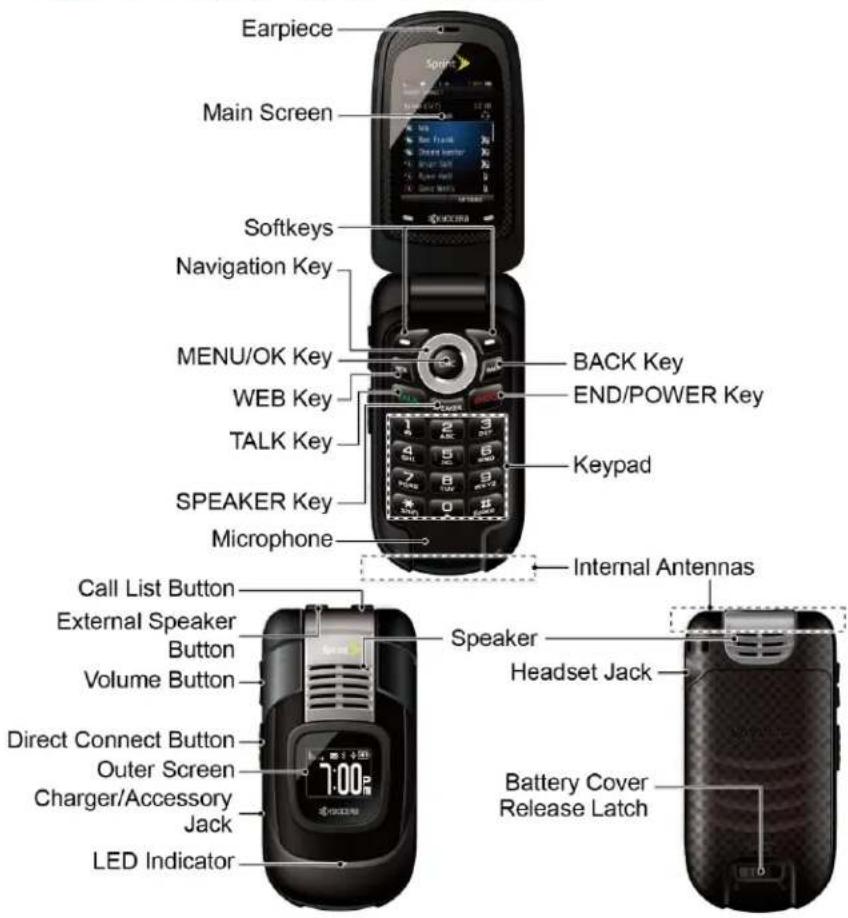
Set Up Your Phone
You must first install and charge the battery to begin setting up your phone.
-
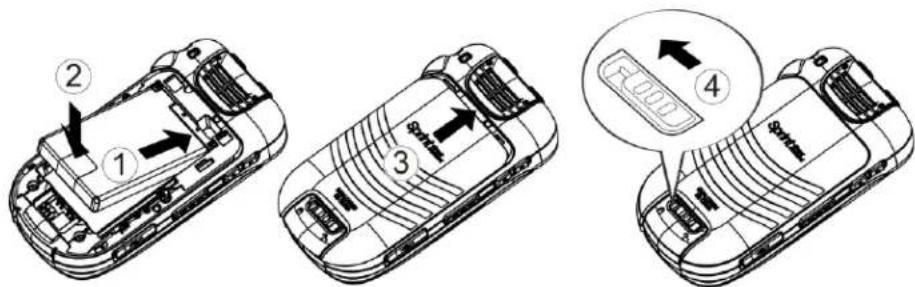
Install the battery.
-
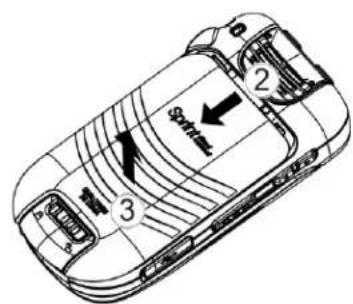
Insert the battery into the battery compartment, making sure the connectors align (1) Gently press down to secure the battery ( ). ②
- Position the back cover over the battery compartment, making sure the locking tabs align. Gently slide the cover upward with your thumbs until you hear a slight click (3)
■ Slide the battery cover release latch to the locked position ( )④
- Charge your battery.
- Plug the USB connector into the charger/accessory jack on the lower left side of your phone.
- Plug the AC adapter into an electrical outlet.
Note: Your phone's battery should have enough charge for your phone to turn on and find a signal, set up your voicemail, and make a call. You should fully charge your battery as soon as possible.
-
Press turn the phone on.
-
If your phone is activated, it will search for Sprint service and enter standby mode.
■ If your phone is not yet activated, see Activate Your Phone for more information.
Activate Your Phone
Depending on your account or how and where you purchased your phone, it may be ready to use or you may need to activate it on your Sprint account.
- If you purchased your phone at a Sprint Store, it is probably activated and ready to use.
- If you received your phone in the mail and it is for a new Sprint account or a new line of service, it is designed to activate automatically.
- If you received your phone in the mail and you are activating a new phone for an existing number on your account (you're swapping phones), you can activate on your computer online or directly on your phone.
■ Activate on your computer:
- Go to sprint.com/activate and follow the instructions to activate your phone.
■ Activate on your phone:
- Turn on your new phone. (Make sure the old one is turned off.) Your phone will automatically attempt Hands-Free Activation. Follow the onscreen prompts to complete the activation process.
- If an error occurs, press ACTIVATE (left softkey) to override auto-activation and start the manual activation wizard. Follow the onscreen prompts to complete the activation process.
- To confirm activation, make a phone call. If your phone is still not activated or you do not have access to the Internet, contact Sprint Customer Service at 1-888-211-4727 for assistance.
Tip: Do not press while the phone is being activated. Pressing cameras the activation process.
Note: If you are having any difficulty with activation, contact Sprint Customer Service by calling 1-888-211-4727 from any other phone.
Set Up Voicemail
Your phone automatically transfers all unanswered calls to your voicemail, even if your phone is in use or turned off. You should set up your Sprint Voicemail and personal greeting as soon as your phone is activated. Always use a password to protect against unauthorized access.
- Press and hold 📋 standby mode to dial your voicemail number.
- Follow the system prompts to:
■ Create your password.
- Record your name announcement.
- Record your greeting.
Note: Voicemail Password – Sprint strongly recommends that you create a password when setting up your voicemail to protect against unauthorized access. Without a password, anyone who has access to your phone is able to access your voicemail messages.
Sprint Account Information and Help
Find out about account passwords and information about managing your account and finding help.
Sprint Account Passwords
Manage Your Account
Sprint Support Services
Sprint Account Passwords
As a Sprint customer, you enjoy unlimited access to your personal account information, your voicemail account, and your data services account. To ensure that no one else has access to your information, you will need to create passwords to protect your privacy.
Account User Name and Password
If you are the account owner, you will create an account user name and password when you sign on to sprint.com. (Click Sign in/Sign up and then click Sign up now! to get started.) If you are not the account owner (if someone else receives the bill for your Sprint service), you can get a sub-account password at sprint.com.
Voicemail Password
You'll create your voicemail password when you set up your voicemail. See Set Up Voicemail for more information on your voicemail password.
Data Services Password
With your Sprint phone, you may elect to set up an optional data services password to control access and authorize Premium Service purchases.
For more information, or to change your passwords, sign on to sprint.com or call Sprint Customer Service at 1-888-211-4727.
Manage Your Account
Manage your Sprint account from your computer, your Sprint phone, or any other phone.
Online: sprint.com
- Access your account information.
- Check your minutes used (depending on your Sprint service plan).
• View and pay your bill.
- Enroll in Sprint online billing and automatic payment.
• Purchase accessories.
- Shop for the latest Sprint phones.
• View available Sprint service plans and options.
- Learn more about data services and other products like games, ringers, screen savers, and more.
From Your Sprint Phone
- Press *#to check minute usage and account balance.
- Press *shift 30% to make a payment.
- Press *#02036\$ a summary of your Sprint service plan or get answers to other questions.
From Any Other Phone
- Sprint Customer Service: 1-888-211-4727.
• Business Customer Service: 1-888-788-4727.
Sprint Support Services
Sprint 411
Sprint 411 gives you access to a variety of services and information, including residential, business, and government listings; movie listings or showtimes; driving directions, restaurant reservations, and major local event information. You can get up to three pieces of information per call, and the operator can automatically connect your call at no additional charge.
There is a per-call charge to use Sprint 411, and you will be billed for airtime.
▶ Press 4 ^a 11TALK
Sprint Operator Services
Sprint Operator Services provides assistance when you place collect calls or when you place calls billed to a local telephone calling card or third party.
▶ Press 0.+ TALK
For more information or to see the latest in products and services, visit us online at sprint.com.
Phone Basics
Your phone is packed with features that simplify your life and expand your ability to stay connected to the people and information that are important to you. The topics in this section will introduce the basic functions and features of your phone.
Tip: Phone Software Upgrades - Updates to your phone's software may become available from time to time. Sprint will automatically upload critical updates to your phone. You can also use the menu to check for and download updates. Press > Tools > Update Phone > Update Firmware to search for and download available updates.
Your Phone's Layout
Turn Your Phone On and Off
Battery and Charger
View the Display Screen
Navigate Through the Menus
Display Your Phone Number
Enter Text
Simple Data Exchange
Your Phone's Layout
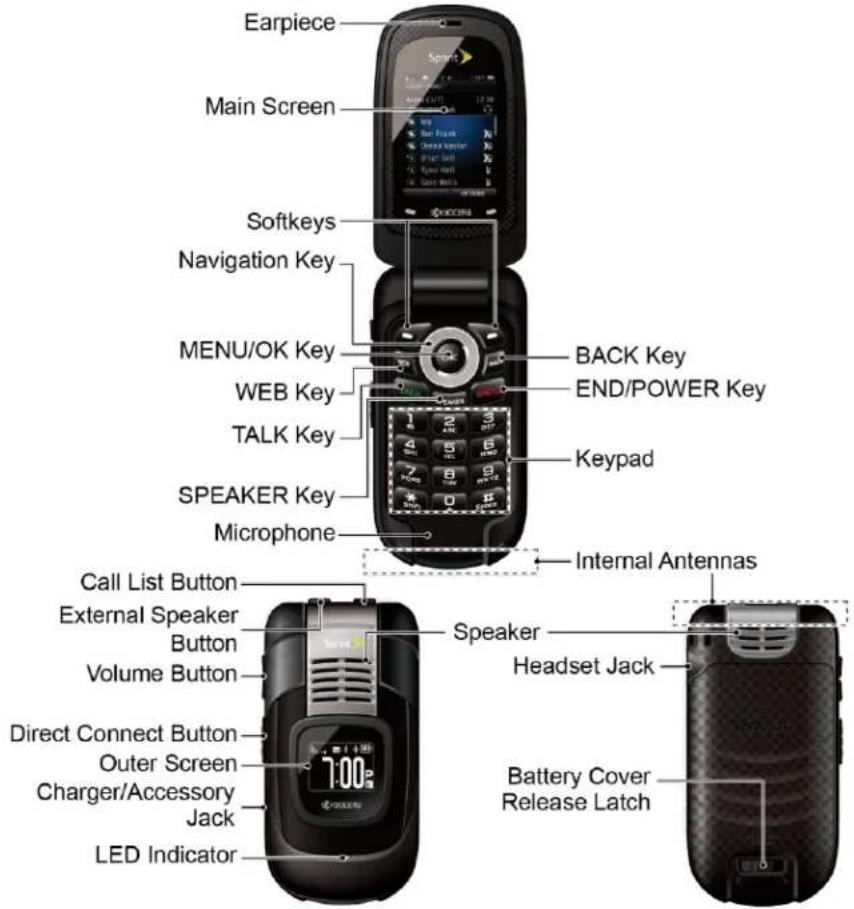
Key Functions
- Earpiece lets you hear the caller and automated prompts.
- Main Screen displays all the information needed to operate your phone, such as the call status, the Contacts list, the date and time, and the signal and battery strength.
- Softkeys let you select softkey actions or menu items corresponding to the bottom left and right lines on the main screen while the phone is open.
- Navigation Key lets you scroll through the phone's menu options.
- MENU/OK Key lets you access the phone's menus and selects the highlighted choice when navigating through a menu.
• WEB Key lets you open the browser.
- TALK Key allows you to place or receive calls, answer Call Waiting, use Three-Way Calling, or activate Automatic Speech Recognition (ASR).
- SPEAKER Key lets you place or receive calls in speakerphone mode or turn the speakerphone on and off during a call.
- Microphone allows other callers to hear you clearly when you are speaking to them.
- BACK Key deletes characters from the display in text input mode. When in a menu, pressing it returns you to the previous menu. This key also allows you to return to the previous screen in a data session.
- END/POWER Key lets you turn the phone on or off, end a call, or cancel your input and return to standby mode.
- Keypad lets you enter numbers, letters, and characters, and perform functions.
- Internal Antennas facilitate reception and transmission. To maximize performance, do not touch the bottom portion of your phone where the internal antenna is located while using the phone.
- Call List Button lets you display the recent call history or end a call.
- External Speaker Button lets you place or receive calls in speakerphone mode, turn the speakerphone on and off during a call, activate Automatic Speech Recognition (ASR), or unlock the keyguard.
- Volume Button allows you to adjust the ringer volume in standby mode or the voice volume during a call.
- Speaker lets you hear the different ringers and sounds. The speaker also lets you hear the caller's voice in speakerphone mode.
- Direct Connect Button (DC Button) allows you to make Direct Connect calls, send Call Alerts, and view Direct Connect call history. See Sprint Direct Connect.
- Outer Screen displays the information such as the call status, the date and time, and the signal and battery strength.
- Charger/Accessory Jack allows you to connect a compatible charging cable or USB data cable (not included).
CAUTION! Inserting an accessory into the incorrect jack may damage the phone.
- LED Indicator shows your phone's status at a glance.
- Headset Jack allows you to plug in an optional headset for convenient, hands-free conversations.
CAUTION! Inserting an accessory into the incorrect jack may damage the phone.
- Battery Cover Release Latch opens the battery cover to replace the battery.
Turn Your Phone On and Off
Turn Your Phone On
▶ Open the phone and press END ^
Turn Your Phone Off
▶ Open the phone and press and hold END ^0 for two seconds until you see the powering-down animation on the main screen.
Your screen remains blank while your phone is off (unless the battery is charging).
Battery and Charger
Warning: Use only Sprint-approved or Kyocera-approved batteries and chargers with your phone. The failure to use a Sprint-approved or Kyocera-approved battery and charger may increase the risk that your phone will overheat, catch fire, or explode, resulting in serious bodily injury, death, or property damage.
Sprint-approved or Kyocera-approved batteries and accessories can be found at Sprint Stores or through Kyocera; or call 1-866-866-7509 to order. They're also available at sprint.com.
Battery Capacity
Your phone is equipped with a Lithium Ion (Li-Ion) battery. It allows you to recharge your battery before it is fully drained.
For a quick check of your battery level, glance at the battery charge indicator located in the upper right corner of your phone's display screen. When there are approximately five minutes of talk time left, the battery icon (labeled with red) turns red and the phone sounds a warning tone.
After an additional five minutes or so, the phone sounds a warning tone three times and then turns off.
Note: Long backlight settings, searching for service, vibrate mode, browser use, and other variables may reduce the battery's talk and standby times.
Tip: Watch your phone's battery level indicator and charge the battery before it runs out of power.
Install the Battery
▶ See Set Up Your Phone.
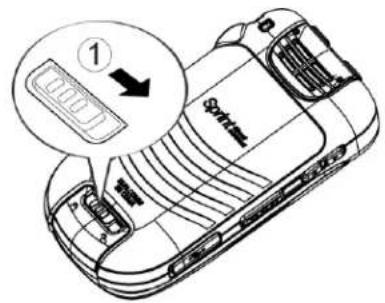
Remove the Battery
- Make sure the power is off so that you don't lose any stored numbers or messages.
- Slide the battery cover release latch to the right to unlock the cover (1).
- Slide the cover down with your thumb (②) and pop off the cover (③).
- Remove the battery and replace the cover. See Set Up Your Phone.
Warning: Do not handle a damaged or leaking Li-Ion battery as you can be burned.
View the Display Screen
The status bar at the top of your phone's display screen provides information about your phone's status and options. The following tables identify the symbols you'll see on your phone's display screen.
Tip: To view a list of your phone's icons and descriptions, from the main menu select Settings > Phone Info > Icon Glossary.
| Service Icons | Description |
 | Signal Strength - Your phone's current signal strength. (More bars = stronger signal.) |
 | No Service - Your phone cannot find a usable signal. |
| [YK80] | Roaming - Your phone is “roaming” off the Nationwide Sprint Network. |
| [TX43] | DC Unavailable - Direct Connect services are unavailable in your current location. |
 | Data Service Available - Sprint data service is available. When active, the icon is animated. |
 | Data Service Dormant - Sprint data service is currently dormant. |
 | Data Service Unavailable - Sprint data service is currently unavailable. |
| Status Icons | Description |
 | Battery - Your phone's current battery charge level. (The icon to the left shows the battery is fully charged.) The icon is animated while the battery is charging. |
 | Location On - Your phone's location feature is on and available for location-based services such as GPS Navigation. |
 | Location Off - Your phone's location feature is off. Your location is available only for 911. |
 | Silence All - Your phone's sound is turned off. |
 | Vibrate All - Your phone's sound is turned off but vibrate is turned on. |
 | Ringer Off - Your phone's ringer is turned off. |
 | 1 Beep - A beep sounds when you receive an incoming call, a message, etc. |
 | 1 Beep and Vibrate - 1 Beep and vibrate are set. |
 | Ringer and Vibrate - The volume level is set to between 1 and 8 and vibrate is turned on. |
 | DC Speaker On - The speakerphone is on for Direct Connect calls. |
 | DC Speaker Off - The speakerphone is off for Direct Connect calls. The earpiece or an optional headset must be used to hear Direct Connect calls. |
| Messaging and Alert Icons | Description |
 | New Messages - You have one or more new messages waiting. |
 | New Voicemail - You have one or more new voicemail messages waiting. |
 | Urgent Messages - You have one or more new urgent messages waiting. |
 | Multiple Alerts - You have different kinds of alerts waiting. |
 | Urgent Multiple Alerts - You have different kinds of alerts (including urgent messages) waiting. |
 | Application Alerts - You have alert messages from Java applications activated in the background. |
 | Call Alert - You have a Direct Connect Call Alert waiting. Press the DC button to reply to the alert. |
| Bluetooth Icons | Description |
 | Visible - Your phone is discoverable by (visible to) other Bluetooth devices. |
 | Connected - Your phone is connected to a Bluetooth device. |
 | Enabled - Your phone's Bluetooth feature is enabled. |
Note: The above icons will blink while your phone is communicating with a Bluetooth device.
| Voice Call Icons | Description |
 | Missed Call - You have one or more missed voice calls. |
 | Missed DC Call - You have one or more missed Direct Connect calls, or your group is updated. |
 | Bluetooth Device - A call is in progress using a Bluetooth device. |
| - | |
 | Headset - A call is in progress using an optional wired headset. |
 | Car Kit - A call is in progress using an optional car kit device. |
| Other Icons | Description |
 | TTY - Your phone is connected to a TTY device. |
 | Alarm - An alarm or countdown is set. |
 | Calendar - You have event notifications. |
 | HAC Enabled - Your phone's HAC (hearing aid compatibility) setting is enabled. |
| [xSWx] | Multitasking Virtual Machine - Java applications are running. The number next to the plus sign indicates the number of running applications. |
Navigate Through the Menus
The navigation key on your phone lets you scroll through onscreen items. To navigate through a menu, press the navigation key up or down.
Many menus feature a scroll bar on the right to help you keep track of your position in the menu.
Select Menu Items
As you navigate through the menu, menu options are highlighted. Select any option by highlighting it and pressing 📋 of the option is numbered, you can select it by pressing the corresponding number on the phone's keypad.
For example, to view the Icon Glossary screen:
- Press 📄 access the main menu.
- Select Settings by highlighting it and pressing MENU OK.
- Select Phone Info by highlighting it and pressing MENU OK.
- Select Icon Glossary by highlighting it and pressing 📋OK.
For the purposes of this guide, the above steps condense into:
▶ Press MENU OK > Settings > Phone Info > Icon Glossary.
Back Up Within a Menu
To go to the previous menu:
▶ Press BACK
To return to standby mode:
▶ Press END ^1
Display Your Phone Number
▶ Press MENU OK > Settings > Phone Info > Phone#/User ID.
Your phone number and other information about your phone and account will be displayed.
Enter Text
You can type on your phone using various input modes.
Select a Text Input Mode
T9 Text Input
ABC Mode
Set Text Entry Options
Select a Text Input Mode
Your phone provides convenient ways to enter letters, numbers, and symbols whenever you are prompted to enter text.
- From a screen where you can enter text, press OPTIONS (right softkey) to change the text mode. (If you are in the message entry screen, press OPTIONS [right softkey] > Text Mode.)
-
Select one of the following options:
-
Abc to enter characters by using the alphabet mode. See ABC Mode.
- T9Word to enter text using a predictive text system that reduces the number of key presses required while entering a word.
■ 123 to enter numeric characters. - Symbols to enter symbols.
- Smileys to enter smile icons.
- Emoticons to enter “emoticons.” (This is available, for example, when composing a message or when editing a Schedule or To Do description in Calendar.)
- Paste List to paste copied or cut text (if applicable).
- Web Shortcuts to enter Web shortcuts (for example, www., http://, or .com).
- Text Options to display the text entry options menu (if applicable). See Set Text Entry Options.
Tip: When entering text, press *sum to change the capitalization style as Abc > ABC > abc (ABC mode), or as T9Word > T9WORD > T9word (T9Word mode). The selected style is displayed in the bottom-right corner of the screen, above the right softkey label (if applicable).
T9 Text Input
T9 Text Input lets you enter text by pressing keys just once per letter. To select the T9 Word mode when entering text, see Select a Text Input Mode.
T9 Text Input uses an intuitive word database to analyze the letters you enter and create a suitable word. (The word may change as you type.)
-
Select the T9Word text input mode.
-
Press the corresponding keys once per letter to enter a word. (For example, to enter the word "Bill," press 2 ABC 4 GM 5 JKL 5 JKL.) (If you make a mistake, press BACK to erase a single character. Press and hold BAKC erase an entire word.)
If the word you want is not displayed after you have entered all the letters, press the navigation key to scroll through additional word selections. To accept a word and insert a space, press #Space
Add a Word to the T9 Database
If a word you want to enter is not displayed in a T9 word choice list when you are using T9 Input, add it to the database.
- While you are in T9Word mode, enter a letter. (A word choice list opens.)
-
Scroll down the list and select
. -
Enter a word and press SAVE (left softkey). The word will appear as an option the next time you scroll through options during T9 Text Input.
For more information about T9 Text Input, visit the Nuance website at nuance.com/t9/xt9/.
ABC Mode
In Abc mode, also known as multi-tap entry, you press keys one, two, three, or four times to enter the letters you see on the keypad.
By default, the first letter of a sentence is capitalized and the following letters are lowercased. To switch between lowercase and uppercase, press the *key. After a character is entered, the cursor automatically advances to the next space after two seconds or when you enter a character on a different key.
- Select the Abc text input mode. See Select a Text Input Mode.
- Press the corresponding key repeatedly until the correct letter appears. For example, to enter "Abc," press 2_ABC once for "a," twice for "b," and three times for "c."
Set Text Entry Options
The text entry options menu allows you to specify a suitable feature during the text entry process. Note that some of the options are applicable to T9Word mode only.
- When entering text, press OPTIONS (right softkey) > Text Options.
- or -
Press ⓄOK > Settings > Text Entry.
-
Highlight an option and press MENU OK
-
Word Complete to suggest possible words based on letters you have entered.
-
Next Word Complete to automatically display the word that may follow the current text input.
-
Phrase Complete to set the phone to predict possible phrases after one word with a space is entered.
- Word Scan to allow the predictive text input system to recognize words by searching Contacts.
- Word Choice List to select whether to display the word choice list.
- Input Language to select the language to enter (English or Spanish).
- My Words to edit or delete custom words you have added to the predictive text database.
- Add Word to store words that you frequently use.
- Select Text to select text for copying, cutting or adding (if applicable).
- Delete All to delete all text (if applicable).
- Help to view the T9 instructions.
Simple Data Exchange
This feature makes it easy to select certain information in a message and automatically save it or use it in a related application.
Simple Data Exchange works with these types of information:
- Email addresses
- Street addresses
• Phone numbers and Direct Connect numbers - Web addresses (URLs)
Email Address Options
▶ Highlight an email address, press 📋 and then select an option:
- Send Message to select Message. The messaging application will open and the email address will appear as the message's recipient.
- Share to select Message. The messaging application will open and the email address will appear in the message body.
- Save to Contacts to save the email address in Contacts.
- Contact Details to display the Contacts entry if the email address is already saved in Contacts.
Street Address Options
▶ Highlight a street address, press 📋 and select an option:
- Navigate to show directions to the address using Sprint Navigation.
- Map to show the address location on a map.
- Share to select Message. The messaging application will open and the address will appear in the message body.
- Save to Contacts to save the address in Contacts.
Phone Number Options
▶ Highlight a phone number, press 📄 and then select an option:
- Call to call the phone number.
- Direct Connect to call the Direct Connect number.
- Call Alert to send a Call Alert.
- Prepend to prepend a number to the phone number.
- Send Message to send a message to the phone number. The messaging application will open and the phone number will appear in the To: field.
- Share to select Message. The messaging application will open and the phone number will appear in the message body.
- Save to Contacts to save the phone number in Contacts.
- Contact Details to display the Contacts entry if the phone number is already saved in Contacts.
Web Address (URL) Options
▶ Highlight a Web address (URL), press 📋 and select an option:
- Browse to open the browser to the Web page.
- Share to select Message. The messaging application will open and the Web address will appear in the message body.
- Save to Contacts to save the Web address in Contacts.
Phone Calls & Settings
With the Nationwide Sprint Network, you can enjoy clear calling across the country. This section explains the features related to phone calls.
Make Phone Calls
Receive Phone Calls
End Phone Calls
Missed Call Notification
Voicemail
Phone Call Options
Phone Call Settings
Note: The calling information in this section refers to traditional wireless phone calls. For information on making and answering Direct Connect calls, Group Connect calls, and TeamDC calls, see Sprint Direct Connect.
Make Phone Calls
There are several convenient ways to place calls from your phone.
Call Using the Phone Keypad
Call With the Phone Closed
Call From History
Call From Contacts
Call Using the Plus (+) Code
Call Using a Speed Dial Number
Call Using Abbreviated Dialing Features
Call a Phone Number With Pauses
Call a Phone Number in a Message
Call Emergency Numbers
Call Using the Phone Keypad
The most “traditional” way to place a call is by using the phone’s keypad.
Phone Calls & Settings 18
- Enter a phone number from standby mode. (If you make a mistake while dialing, press BACK to erase the numbers.)
- Press TALK a the external speaker button.
- Press ☐ when you are finished.
Call With the Phone Closed
You can make a phone call using Automatic Speech Recognition (ASR) with the phone closed. It also works with the phone open. See Automatic Speech Recognition (ASR).
- Press and hold the external speaker button to unlock the keyguard if the buttons are locked. See Keyguard.
- Press and hold the external speaker button to activate ASR.
- Follow the voice prompts. Say "Call" and the name of an entry saved in your Contacts or a phone number. See Make a Voice Call Using ASR.
- The call will be made in speakerphone mode unless you have a headset connected to the phone.
- Press the call list button when you are finished.
Tip: You can redial your most recent call using the Recent History list. Press the call list button to display the list and select the entry you want to call.
Call From History
Place a call to the numbers in your History.
- Press 📋History.
- or -
Press TAL® the call list button in standby mode.
- Highlight an entry and press TALK
Tip: To redial your last outgoing call, press 📄
Note: You cannot make calls from History to entries identified as No Caller ID, Private (Restricted ID), or Unavailable ID.
Call From Contacts
Place a call to the numbers stored in your Contacts.
- From standby mode, press CONTACTS (right softkey).
-
Highlight the entry you want to call.
-
Press ☐ dial the entry's default phone number.
- or -
To dial another number from the same entry, press OK select the entry, highlight a number, and then press TALK
Call Using the Plus (+) Code
When placing international calls, use Plus Code Dialing to automatically enter the international access code for your location (for example, 011 for international calls made from the U.S.).
-
Press and hold 0+ to display “+” on your phone screen.
-
Enter the country code and phone number, and then press □The phone automatically prepends the access code for international dialing, followed by the country code and phone number.)
Call Using a Speed Dial Number
You can store up to 98 numbers in your phone's speed dial memory to make contacting friends and family easier.
You must have already assigned a speed dial number to an existing phone number. See Assign Speed Dial Numbers.
To use speed dial for locations 2-9:
▶ From standby mode, press and hold the appropriate key for approximately two seconds.
To use speed dial for locations 10-99:
▶ From standby mode, enter a two-digit speed dial number, and then press TALK.
The display confirms that the number has been dialed when it shows "Connecting..."
Call Using Abbreviated Dialing Features
Abbreviated Dialing is similar to speed dialing. You can use either of the following abbreviated dialing features.
- Contacts Match - Retrieve any number saved in your Contacts by entering four or more digits of any part of the number.
- Prepend - Prepend the first five or six digits (for example, the area code and prefix) to any four or five digits you enter.
To activate the Prepend feature:
-
Press MENU OK > Settings > Others > Call Setup > Abbrev. Dial.
-
Select Prepend > On.
- Enter a five- or six-digit number and press MENU OK
To place a call using Abbreviated Dialing:
- Enter the four or more digits of any part of a Contacts entry's phone number to use the Contacts Match feature.
- or -
Enter the last four or five digits of the number to use the Prepend feature.
Note: Contacts Match will not retrieve numbers if you enter 911 or reserved three-digit service numbers such as 411 or 711.
- Press call the displayed number. (If there are two or more matched numbers in your Contacts, a list is displayed. Highlight the name or the phone number you want to call, and then press place a call.)
Call a Phone Number With Pauses
You can dial or save phone numbers with pauses for use with automated systems, such as voicemail or credit card billing numbers.
There are two types of pauses available on your phone:
- Hard Pause sends the next set of numbers when you press SEND TONES (left softkey).
- 2-Sec. Pause automatically sends the next set of numbers after two seconds.
Note: You can have multiple pauses in a phone number and combine two-second and hard pauses.
To dial or save phone numbers with pauses:
- Enter all or part of a number.
- Press OPTIONS (right softkey) > Hard Pause or 2-Sec. Pause.
- Enter additional numbers.
- Press ☐ dial the number.
Note: When dialing a number with a hard pause, press SEND TONES (left softkey) to send the next set of numbers.
Call a Phone Number in a Message
You can place a call to a number that appears in a message.
-
In standby mode, press MESSAGING (left softkey) > Messages.
-
Select a message with the number you want to call.
- Select the number and select Call.
For more information on utilizing the information in a message, see Simple Data Exchange.
Call Emergency Numbers
You can place calls to 911 even if your phone is locked or your account is restricted.
▶ Press 9wxyz 1 1 TALK.
Note: After you have placed an emergency call, your phone automatically enters Emergency mode.
During an emergency call, press OPTIONS (right softkey) to display your options. Highlight an option and press OK
- Transfer Audio to switch the call to an external device (if applicable).
- Contacts to show the Contacts list.
- Voice Memo to record the other party's voice.
- Phone Info to display information about your phone.
Tip: Press MY PHONE# (left softkey) to display your phone number during an emergency call.
To exit emergency mode:
- Press END ^① to end a 911 call.
- Press ✦ Shift # Space.
Enhanced 911 (E911) Information
This phone features an embedded Global Positioning System (GPS) chip necessary for utilizing E911 emergency location services where available.
When you place an emergency 911 call, the GPS feature of your phone seeks information to calculate your approximate location. Depending on several variables, including availability and access to satellite signals, it may take up to 30 seconds or more to determine and report your approximate location.
Important: Always report your location to the 911 operator when placing an emergency call. Some designated emergency call takers, known as Public Safety Answering Points (PSAPs) may not be equipped to receive GPS location information from your phone.
Receive Phone Calls
Your phone notifies you of incoming calls in the following ways:
• The phone rings or vibrates.
• The LED indicator flashes.
• The backlight illuminates.
- The screen displays an incoming call message.
If the incoming call is from a number stored in your Contacts, the entry's name is displayed. The caller's phone number may also be displayed, if available.
Note: If your device is turned off, all calls automatically go to voicemail.
Answer an Incoming Call With the Phone Open
Answer an Incoming Call With the Phone Closed
Answer an Incoming Call in Speakerphone Mode
Answer a Roam Call With Roaming Guards Enabled
Mute the Ringer and Stop the Vibration
Send an Incoming Call to Voicemail
Reject an Incoming Call
Reject an Incoming Call and Send a Message
In-call Options
Answer an Incoming Call With the Phone Open
▶ Press TALK to answer an incoming call. (Depending on your settings, you may also answer incoming calls by pressing other keys. See Call Answer Mode.)
Answer an Incoming Call With the Phone Closed
▶ When your phone rings or vibrates, press the external speaker button. (The call will be answered in speakerphone mode.)
- or -
Open the phone to use the earpiece. See Call Answer Mode.
Answer an Incoming Call in Speakerphone Mode
▶ Press ☐ the external speaker button.
Answer a Roam Call With Roaming Guards Enabled
-
Press TALK
-
Read the message and press 1
See Roaming Guards for more information on Roaming Guards.
Mute the Ringer and Stop the Vibration
▶ Press Silence on the screen.
-or-
Press the DC button, or the volume button up or down.
Send an Incoming Call to Voicemail
▶ Press Send to Voicemail on the screen.
Reject an Incoming Call
▶ Press ☐ the call list button.
- or -
Press and hold BACK
Reject an Incoming Call and Send a Message
▶ Press Ignore with Text.
In-call Options
Pressing OPTIONS (right softkey) during a call displays a list of available in-call features. To select an option, highlight the option and press MENU OK
- Transfer Audio to switch the call to a Bluetooth device (if applicable).
- Save to save the current call's phone number in your Contacts.
- Contact Details to display information about the caller stored in your Contacts.
- Main Menu to display the phone's main menu.
- 3-Way Call to open a call with two other parties.
- Contacts to display your Contacts list.
- Voice Memo to record the other party’s voice.
- Phone Info to display information about your phone.
▶ Press MUTE/UNMUTE (left softkey) to mute/unmute the microphone.
▶ Press the volume button up or down to adjust the receiver volume.
▶ Press Speaker or the external speaker button to turn the speaker on. Press again to turn it off.
Warning: Because of higher volume levels, do not place the phone near your ear during speakerphone use.
End Phone Calls
▶ Press END® the call list button.
After you have finished your call, the phone will display the caller's name (if already in your Contacts), phone number (if available), and the duration of the call. Pressing OPTIONS (right softkey) will display the Recent History options. See History Options for details.
Missed Call Notification
When an incoming call is not answered, your screen displays the Missed Call log. Press dial the phone number.
To display a Missed Alerts entry from standby mode:
- Press ☐Missed Alerts.
- Highlight the entry you wish to view and press MENU OK
Voicemail
Your phone automatically transfers all unanswered calls to your voicemail, even if your phone is in use or turned off. You should set up your Sprint Voicemail and personal greeting as soon as your phone is activated. Always use a password to protect against unauthorized access.
Set Up Voicemail
Voicemail Notification
New Voicemail Message Alerts
Retrieve Your Voicemail Messages
Set Up Voicemail
-
Press and hold 📋 standby mode to dial your voicemail number.
-
Follow the system prompts to:
■ Create your password.
- Record your name announcement.
■ Record your greeting.
Important: Voicemail Password – Sprint strongly recommends that you create a password when setting up your voicemail to protect against unauthorized access. Without a password, anyone who has access to your phone is able to access your voicemail messages.
Voicemail Notification
There are several ways your phone alerts you to a new message:
- By displaying a message on the screen.
- By sounding the assigned ringer type.
- By displaying 📄 the top of the screen.
New Voicemail Message Alerts
When you receive a new voicemail message, your phone alerts you and prompts you to call your voicemail.
To call your voicemail from the notification screen:
- Press .TALK
- Enter your voicemail password if prompted.
- Follow the voice prompts to listen to and manage your voicemail messages.
Note: When you are roaming off the Nationwide Sprint Network, you may not receive notification of new voicemail messages. Sprint recommends that you periodically check your voicemail. See Check for Voicemail Messages While Roaming. Roaming rates apply when you access voicemail while roaming off the Nationwide Sprint Network.
Note: Your phone accepts messages even when it is turned off. However, your phone notifies you of new messages only when it is turned on and you are in a Sprint service area.
To set the frequency of new message alerts:
- Press MENU OK > Settings > Others > Alerts > Repeated Tone > Voicemail.
- Select Single Tone (once only) or Repeated Tone (once every minute).
Retrieve Your Voicemail Messages
You can review your messages directly from your wireless phone or from any other touch-tone phone.
Use Your Phone to Access Your Messages
- Press and hold 1
-or-
In standby mode, press MESSAGING (left softkey) > Voicemail.
- Enter your voicemail password if prompted.
- Follow the voice prompts to listen to and manage your voicemail messages.
Note: You are charged for airtime minutes when you are accessing your voicemail from your wireless phone.
Use Another Phone to Access Messages
- Dial your wireless phone number.
- When your voicemail answers, press (*).
- Enter your password.
Tip: When you call into voicemail, you first hear the header information (date, time, and sender information) for the message. To skip directly to the message, press 4ch ring the header.
Phone Call Options
Your phone application provides many useful features and options to help you make the most of your calling experience.
Caller ID
Call Waiting
3-Way Calling
Call Forwarding
Caller ID
Caller ID identifies a caller before you answer the phone by displaying the number of the incoming call. If you do not want your number displayed when you make a call, follow these steps.
- Enter ✦ Shift 6 MNO 7 PQRS
Phone Calls & Settings 27
-
Enter the number you want to call.
-
Press TALK
To permanently block your number, call Sprint Customer Service.
Call Waiting
When you're on a call, Call Waiting alerts you to incoming calls by sounding a beep. Your phone's screen informs you that another call is coming in and displays the caller's phone number (if available).
To respond to an incoming call while you're on a call:
▶ Press TALK. (This puts the first caller on hold and answers the second call.)
To switch back to the first caller:
▶ Press TACK again.
Tip: For those calls where you don't want to be interrupted, you can temporarily disable Call Waiting by pressing _shn before placing your call. Call Waiting is automatically reactivated once you end the call.
3-Way Calling
With 3-Way Calling, you can talk to two people at the same time. When using this feature, the normal airtime rates will be charged for each of the two calls.
-
Enter a number and press TALK
-
Once you have established the connection, press TALK This puts the first caller on hold.)
-
Select Contacts, Recent History, or Enter Phone#.
-
Select a number from your Contacts or Recent History, or enter a number directly, and then press TALK
-
When you're connected to the second party, press TALK again to begin your 3-way call.
If one of the people you called hangs up during your call, you and the remaining caller stay connected. If you initiated the call and are the first to hang up, all callers are disconnected.
Call Forwarding
Call Forwarding lets you forward all your incoming calls to another phone number—even when your phone is turned off. You can continue to make calls from your phone when you have activated Call Forwarding.
Note: You are charged a higher rate for calls you have forwarded.
To activate Call Forwarding:
- Enter ✦ Shift 7PQRB 2ABC
- Enter the area code and phone number to which you want your calls forwarded.
- Press 📂You will hear a tone to confirm the activation of Call Forwarding.)
To deactivate Call Forwarding:
- Enter ✦ Shift 7PGRS 2ABC 0+
- Press 📂You will hear a tone to confirm the deactivation.)
Phone Call Settings
Various call-related settings are available.
Call Answer Mode
Auto-Answer Mode
Alert Notification
Airplane Mode
TTY Use With Sprint Service
Hearing Aid Device Compatibility
Call Answer Mode
Select how to answer incoming calls on your phone.
- Press ⓋOK > Settings > Others > Call Setup > Call Answer.
- Select Talk Key, Any Key, or Flip Open.
Auto-Answer Mode
Set your phone to automatically pick up incoming calls. Remember, your phone will answer calls in auto-answer mode even if you are not present.
- Press MENU OK > Settings > Others > Call Setup > Auto-Answer.
-
Highlight an option and press MENU OK
-
Hands-free to answer calls automatically when the phone is connected to an optional headset or hands-free device.
-
Speakerphone to answer calls automatically in speakerphone mode.
-
Highlight the time you would like your phone to wait before answering and press ☐
Alert Notification
Set your phone to alert you with an audible tone when you change service areas, once a minute during a voice call, or when a call has been connected.
- Press MENU OK > Settings > Others > Alerts.
- Select Beep Each Minute, Out of Service, or Connect.
- Select On or Off.
Airplane Mode
Airplane Mode allows you to use many of your phone's features, such as games and voice memos, when you are on an airplane or in any other area where making or receiving calls or data is prohibited. When you set your phone to Airplane Mode, it cannot send or receive any calls or access online information.
- Press 📄OK > Settings > Others > Airplane Mode.
- Read the disclaimer and press MENU OK
- Select an option from the following:
- On to activate Airplane Mode. Airplane Mode will be deactivated when you turn the phone off.
- Off to deactivate Airplane Mode.
- On Power-up to activate Airplane Mode each time you turn the phone on.
While in Airplane Mode, your phone's screen will display "Phone Off."
TTY Use With Sprint Service
A TTY (also known as a TDD or Text Telephone) is a telecommunications device that allows people who are deaf, hard of hearing, or who have speech or language disabilities to communicate by telephone.
Your phone is compatible with select TTY devices. Please check with the manufacturer of your TTY device to ensure that it is compatible with digital cell phones. Your phone and TTY device will connect via a special cable that plugs into your phone's headset jack. If this cable was not provided with your TTY device, contact your TTY device manufacturer to purchase the connector cable.
To turn TTY Mode on or off:
- Press OK > Settings > Others > Accessibility > TTY. (You will see an informational message.)
Phone Calls & Settings 30
2. Press MENU OK
-
Select one of the following options:
-
TTY Off to disable TTY mode.
- TTY VCO to enable TTY mode in Voice Carry Over mode, which allows you to send voice and receive text during a call.
- TTY HCO to enable TTY mode in Hearing Carry Over mode, which allows you to send text and receive voice during a call.
- TTY Full to enable all TTY settings. You can send and receive text during a call.
To access the state Telecommunications Relay Service (TRS) for assistance with TTY calls:
▶ Dial 7PGRS 1■ 1■ TALK and press 2ABC to reach an operator.
For additional information about Sprint Relay Services and TTY compatibility, call Sprint Relay Customer Service at 800-676-3777 or visit sprintrelay.com.
Note: In TTY Mode, your phone will display the TTY icon if a TTY device or an optional headset is connected to your phone.
Note: When enabled, TTY mode may impair the audio quality of non-TTY devices connected to the headset jack.
Warning: 911 Emergency Calling
Sprint recommends that TTY users make emergency calls by other means, including Telecommunications Relay Services (TRS), analog cellular, and landline communications. Wireless TTY calls to 911 may be corrupted when received by public safety answering points (PSAPs), rendering some communications unintelligible. The problem encountered appears related to software used by PSAPs. This matter has been brought to the attention of the FCC, and the wireless industry and the PSAP community are currently working to resolve this.
Hearing Aid Device Compatibility
Your phone has been tested and rated for hearing aid device compatibility. To use this function effectively, set the hearing aid option to On.
- Press OK > Settings > Others > Accessibility > Hearing Aid.
- Read the disclaimer and press OK
- Select On or Off.
- On to use a hearing aid device with your phone.
- Off to use your phone without a hearing aid device.
Sprint Direct Connect
Sprint® Direct Connect® on your Sprint phone offers instant, two-way “walkie-talkie-style” communication between you and your family, friends, and co-workers, all at the click of a button. Perfect for get-in get-out conversations such as checking status, getting information, getting directions, or coordinating with others—fast. Call Alert sends an alert to other Direct Connect users to let them know you want to reach them.
About Sprint Direct Connect
Before Making Your First Direct Connect Call
Your Direct Connect Number
Make and Answer Direct Connect Calls
Call Alerts
Group Connect
Invites
TeamDC
About Sprint Direct Connect
The following Sprint Direct Connect services are available:
- Direct Connect ^® - Allow two-way radio communication with other Direct Connect users.
- Group Connect ^® - Create and manage groups in Contacts, “on the fly,” or online to connect instantly with up to 20 other Direct Connect users at the same time. (Currently Sprint phones do not support Group Connect calls with Nextel or PowerSource phones.)*
- TeamDC ^SM and Opt-In TeamDC - Create a group online that allows nationwide group calling with up to 199 other Direct Connect users (with Sprint phones only). With TeamDC and Opt-In TeamDC, all members can access the most up-to-date group list on their phones.
Before Making Your First Direct Connect Call
To enable Direct Connect on your phone, a Sprint Customer Service representative must add Direct Connect service to your account. Please call Sprint Customer Service at 1-888-211-4727 for more information.
Important: When the Direct Connect feature is active, your phone's data services are enabled and the Net Guard feature is disabled (Settings > Others > Data Settings > Data and Net Guard).
Your Direct Connect Number
Your Sprint phone allows you two different options for your Direct Connect number:
- Separate numbers (DC Only) - Your Direct Connect number is a unique number (not your wireless number). It is made up of three sets of digits separated by asterisks (for example, 444*5555*111).
- A single number (Mobile+DC) - Your Direct Connect number is the same as your wireless number (for example, 555-555-1234).
Dial Direct Connect Numbers
Save a Direct Connect Number
Display Your Direct Connect Number
Dial Direct Connect Numbers
- If the person you are calling has a separate number for Direct Connect, make sure you dial any asterisks (*) in the number. If you are saving the number in your Contacts, choose DC Only for the phone type.
- If the person you are calling has a single number for both voice calls and for Direct Connect, use that ten-digit phone number to make Direct Connect calls. You do not need to add any asterisks (*) to the number. If you are saving this number in your contacts, choose Mobile+DC for the phone type.
Tip: Users with a Nextel phone must always add asterisks (*) between sets of numbers to dial Direct Connect numbers. If you use a single number, make sure to tell your contacts with Nextel phones to dial the number using asterisks (*) in place of hyphens (for example, 555*555*1234).
Tip: One way to easily ensure that your contacts have your correct number is to call them so that they can save your number from their Call Log. Ask them for their contact information. Remember you will need all digits of the number to make a successful call. Also, if they have a Nextel phone or a separate number for Direct Connect, you will need to enter asterisks (*) between sets of numbers.
To tell if a number is a valid Direct Connect number:
▶ Check the icon for the highlighted number. If it has a Mobile+DC icon ( ) or a DC Only icon ( ), it is a valid Direct Connect number.
- or -
Highlight a contact and press 📄 OK. "DC capable" will appear below the valid Direct Connect number.
Save a Direct Connect Number
- Use your keypad to enter a Direct Connect number.
- The Direct Connect number may be the ten-digit wireless phone number of the contact.
- or -
- The Direct Connect number may be a unique number made up of three sets of digits separated by asterisks (for example, 444*5555*111). When saving this type of number, always include the asterisks (*).
- Press OPTIONS (right softkey) > Save.
- Select New Entry or Existing Entry.
-
Select a number type for the entry:
-
Select Mobile+DC if the wireless phone number and the Direct Connect number are the same.
- Select DC Only if the Direct Connect number is different from the wireless phone number. Make sure to include the asterisks (*) between the sections of a DC Only number.
Note: All Direct Connect users with Nextel or PowerSource phones must ALWAYS use an asterisk (*) between sets of digits, even if they are calling another user whose Direct Connect number is the same as their wireless phone number. Make sure to include the asterisks when giving your number to a Nextel or PowerSource user (for example, if your number is 555-555-1234, when giving it to a Nextel or PowerSource user, it should be 555*555*1234).
- Press DONE (left softkey) to save the entry.
Tip: You can also save a Direct Connect number from History. From a History listing, press OPTIONS (right softkey) > Save Contact, and then complete steps 3-5 in Save a Direct Connect Number. To create a new Contacts entry with a Direct Connect Number, see Create a Personal Entry.
Display Your Direct Connect Number
▶ Press ⬤> Settings > Phone Info > Phone#/User ID.
Your Direct Connect number and other information about your phone and account will be displayed.
Make and Answer Direct Connect Calls
You can make a Direct Connect call by entering a Direct Connect number manually or by selecting an entry containing a Direct Connect number in your Contacts or History. For information on saving Direct Connect numbers to Contacts, see Save a Direct Connect Number.
Note: Bluetooth devices cannot be used for Direct Connect calls.
Make a Direct Connect Call by Entering a Number
Make a Direct Connect Call From Contacts
Make a Direct Connect Call From History
Make a Direct Connect Call Using a Speed Dial Number
Make a Direct Connect Call With the Phone Closed
Availability Notifications
Answer Direct Connect Calls
End a Direct Connect Call
Direct Connect Permissions
Make a Direct Connect Call by Entering a Number
- Use your keypad to enter a Direct Connect number.
- The Direct Connect number may be the ten-digit wireless phone number of the person you are calling (Mobile+DC).
- or -
If calling a Nextel customer, the Direct Connect number may have three parts with an asterisk between each part (for example: 444*5555*111). When dialing or saving this type of number, always include the asterisks (*sun)
-
Press and release the Direct Connect button (DC button) on the side of your phone.
-
Pressing and releasing the DC button “pings” the recipient. The recipient’s phone emits an incoming tone and displays your name or number. If available, he or she can choose to respond and begin the conversation.
-
Alternatively, you can hold the button and speak after you first press and hear the tone. In this case, your voice will broadcast instantly over the recipient's speaker. Pinging the recipient's phone by pressing and releasing may avoid unintentional interruptions.
-
After the recipient accepts your call:
-
Wait for "Push to Talk" to appear onscreen.
- Press and hold the DC button.
-
Wait for a tone to sound and "Me" to appear onscreen before you begin talking.
-
Release the DC button to listen.
-
Press ☐ end the call.
Note: All Direct Connect calls end automatically if there is no activity on the call for several seconds.
Tip: To display your Direct Connect number, press OK > Settings > Phone Info > Phone#/User ID.
Make a Direct Connect Call From Contacts
- In standby mode, press CONTACTS (right softkey).
- Highlight an entry and press and release the DC button.
- Continue the Direct Connect call as described previously.
Make a Direct Connect Call From History
- Press History.
- or -
From standby mode, press the DC button to display your Direct Connect (including Call Alert) call history only.
- The following icons indicate the types of Direct Connect history entries.
| Incoming | Outgoing | Missed | |
| Direct Connect Call,Call Alert | |||
| Group Connect Call | |||
| TeamDC Call,Opt-In TeamDC Call | |||
| Group Connect Invite | |||
| Opt-In TeamDC Invite |
-
Highlight a Direct Connect entry and press and release the DC button.
-
Continue the Direct Connect call as described previously.
Tip: To redial your most recent Direct Connect call, press and hold the DC button.
Make a Direct Connect Call Using a Speed Dial Number
▶ From standby mode, enter a speed dial number and press the DC button.
To assign a Direct Connect number to a speed dial location, see Assign Speed Dial Numbers.
Make a Direct Connect Call With the Phone Closed
-
Press and hold the external speaker button to unlock the keyguard if the buttons are locked. See Keyguard.
-
Press and hold the external speaker button until you see "DC Speaker mode on" on the external display.
-
Press and release the DC button to display the History on the external display.
-
Use the volume button to scroll through the list and highlight an entry.
-
Press and hold the DC button to begin talking.
Tip: If you see the incoming caller's information on the external display, but you cannot hear the caller, the audio is being routed to the internal speaker. Press the external speaker button again to route the conversation to the external speaker.
- Press the call list button to finish the Direct Connect call.
Availability Notifications
You will receive a message when you place a Direct Connect call to a contact and that contact is on another call. You can press the DC button to try again, or you may be able to send a request to be notified when the contact becomes available.
To send a request:
▶ Select Notify when available.
Follow the onscreen instructions to respond when you receive a notification.
Answer Direct Connect Calls
When you receive a Direct Connect call, you hear an incoming tone or the phone vibrates, depending on your settings. You will see the Direct Connect number and the caller's name (if available) on your screen. You may also hear the caller's voice through the speakerphone. Default for Direct Connect calls is speakerphone on. You can turn the speakerphone off and listen to Direct Connect calls through the earpiece as you would a regular call, or you can listen through a headset.
-
Press ☐ the external speaker button to either enable or disable the Direct Connect speakerphone feature.
-
If you enable the Direct Connect speakerphone (✗), you will hear the caller's voice through the speakerphone on the front of the phone.
-
If you disable the Direct Connect speakerphone (☑), you will only hear the caller's voice through the earpiece.
-
Accept the incoming call. If available, the caller's name and Direct Connect number also appear on the display.
- When the caller has finished speaking, you will hear a tone and see "Push to Talk" on the display.
- Press and hold the DC button and wait for a tone to sound and a message ("Me") to appear onscreen. Continue the Direct Connect call as described previously.
Tip: Press the call list button to dismiss an incoming Direct Connect call.
End a Direct Connect Call
▶ Do nothing; the call will automatically end after several seconds if neither party presses the DC button.
-or-
Press or the call list button.
Convert a Direct Connect Call to a Voice Call
- While on a Direct Connect call, press OPTIONS (right softkey) > Convert Call.
- Read the message, and then select a number (if more than one number is available) or select CONVERT CALL (left softkey).
Your phone ends the Direct Connect call and dials the selected number.
Tip: Quieting incoming calls and increasing your privacy. When you are in an area where incoming Direct Connect calls may disturb others, or if you wish to increase the privacy of your calls, please set your speakerphone to "off" and your ringer to "vibrate." When the speakerphone is off, Direct Connect calls use the phone's earpiece and microphone, while still utilizing the DC button. You may also use an earbud or other hands-free device for increased convenience.
Direct Connect Permissions
You can control which numbers can reach your phone using Direct Connect.
Set Direct Connect Permissions
- Press MENU OK > Settings > DC Settings > Permissions.
- Select Accept all DC calls, except those from numbers I block or Reject all DC calls, except those from numbers I allow.
- If you selected Accept all DC calls, except those from numbers I block, select Block Another # > New Number, Contacts, or Recent DC's.
- or -
If you selected Reject all DC calls, except those from numbers I allow, select Allow Another # > New Number or Contacts.
- Follow the instructions to add or edit the BLOCKED DC #S or the ALLOWED DC #S list.
- The blocked numbers show a red circle with a bar, and the allowed numbers a tick mark in a green circle, both on the phone type icons which appear next to the numbers on the Contacts list, Contacts details, etc.
Tip: You can also allow or block numbers directly from the Contacts list or History. From the Contacts or Recent History list, press OPTIONS (right softkey) > Allow DC Calls or Block DC Calls and follow the onscreen instructions.
Change Permissions
You can change the permissions approach from specifying the blocked numbers to specifying the allowed numbers, or vice versa. All the entries on your existing Blocked DC #s or Allowed DC #s list will be deleted when this switch is made.
- Press OK > Settings > DC Settings > Permissions.
- Press OPTIONS (right softkey) > Change Approach.
- Read the message and press CHANGE (left softkey) > Block Another # or Allow Another #.
- Follow the instructions to add or edit the Blocked DC #s or the Allowed DC #s list.
Call Alerts
Call Alerts let you notify others that you want to communicate with them using Direct Connect. When a user receives a Call Alert, the phone sounds a tone and displays your name or Direct Connect number.
Send a Call Alert
Reply to a Call Alert
Send a Call Alert
Send a notification to start a Direct Connect call.
- Enter a Direct Connect number or select a number from History or Contacts.
Note: When sending a Call Alert, make sure you select the Direct Connect number for the person you are trying to reach. See To tell if a number is a valid Direct Connect number.
- Press MSG/ALERT (left softkey) > Call Alert. (You will see a prompt.)
- Press and release the DC button. (The receiving phone emits an incoming tone and displays an alert.)
Tip: If you get an error message saying that your contact “is not reachable via Direct Connect” or “this number is not DC capable,” please check to see that you have entered or highlighted a valid Direct Connect number. See To tell if a number is a valid Direct Connect number.
Preset Text Feature With Call Alert
You may attach a brief preset text message to the Call Alert.
- Enter a Direct Connect number or select a number from History or contacts.
- Press MSG/ALERT (left softkey) > Call Alert. (You will see a prompt.)
- Press the navigation key left or right to scroll through available messages.
- Display a message and press and release the DC button.
Note: Preset text messages with Call Alert can only be sent to and from Direct Connect users with Sprint phones. If you send a Call Alert with text to another Direct Connect
Sprint Direct Connect 41
subscriber without this capability (such as a Nextel user), the user will receive the Call Alert but will not receive the text message.
Note: There is no additional charge to send preset text messages with Call Alerts.
Reply to a Call Alert
Call Alerts continue to repeat for a set amount of time (default is five minutes) or until you return the call or dismiss the alert. You can adjust the default time in the Settings > DC Settings > Call Alerts > Repetition > Repeat menu.
- With the Call Alert displayed, press and hold the DC button to return the call.
- Continue with the Direct Connect call as previously detailed.
To dismiss a Call Alert:
▶ Press IGNORE (right softkey).
Group Connect
A Group Connect call is a Direct Connect call made to up to 20 Direct Connect users with Sprint phones nationwide at one time. You can make a Group Connect call in several different ways:
- By setting up a group entry in Contact on your phone.
- By using the Sprint Mobile Sync tool available at sprint.com. See Sprint Mobile Sync.
- By selecting or entering multiple numbers for a one-time call.
For information on creating groups and storing them in Contacts, see Create a Group Entry.
Important: When making a Group Connect call or creating a group list for Group Connect calls in Contacts, you must select an entry's Direct Connect-capable number. If you select a number that is not Direct Connect-capable, the name will be added to the list, but Group Connect calls will not go through to that group member.
Make Group Connect Calls
Group Connect Call Information
Make Group Connect Calls
You can make Group Connect calls by selecting saved groups from your Contacts, selecting from group calls saved in History, or by creating groups for one-time use.
Make a Group Connect Call From Contacts
-
In standby mode, press CONTACTS (right softkey).
-
Highlight a group and press the DC button to begin the Group Connect call.
- Continue the Group Connect call in the same manner as a one-to-one Direct Connect call.
Note: Only one person at a time may speak on a Group Connect Call.
- When you are finished, press 📄 end the call. (By default, when you end a Group Connect call that you initiated, all other participants are dropped from the call. To change this option, see Set Group Termination Options.)
Note: If you get an error message saying that your contact “is not reachable via Direct Connect” or “this number is not DC capable,” please check to see that you have entered or highlighted a valid Direct Connect number.
Note: Currently Sprint phones do not support Group Connect calls with Nextel and PowerSource phones. This enhancement is planned for future implementation. If your calls are not going through, please check to see whether your contact is using a Sprint phone.
Make a Group Connect Call From History
- Press OK History.
- Highlight a group entry and press the DC button.
- Continue the Group Connect call as described previously.
Make a Group Connect Call Without Saving
- In standby mode, press OK > Contacts > Add New > New Group.
- Press START (left softkey) to add Contacts entries with Direct Connect-capable numbers to the group.
- When adding a contact for the Group Connect call, make sure you highlight the entry's Direct Connect-capable number (DC Only or Mobile+DC).
- When you have finished selecting entries, press the DC button.
- Continue the Group Connect call as described previously.
Join or Rejoin a Group Connect Call
If you are not available at the beginning of a Group Connect call, or if you drop off the call temporarily, you can rejoin an in-progress Group Connect call.
- Press History.
-
Highlight the call and press the DC button.
-
Continue the Group Connect call as described previously.
Tip: You can also join or rejoin a Group Connect call from your Contacts list if you have stored the group. See Create a Group Entry. Select the group entry and press the DC button.
Note: If the Group Connect call has already ended, pressing the DC button initiates a new Group Connect call.
Note: If you do not want to participate in a Group Connect call, press END ^® or IGNORE (right softkey).
Set Group Termination Options
- Press OK > Settings > DC Settings > Group Call Options.
- Highlight an option and press OK
- End the call for everyone: terminates the call session for all connected members.
- Allow the call to continue: keeps the call active even after you hang up. The call will remain active until the last members disconnect.
Group Connect Call Information
During a Group Connect call, the following information may appear on your screen:
• The name of the group.
- The name or Direct Connect number of the person speaking.
- The number of group members who are connected to the call out of the number invited (for example, 4 out of 6).
TeamDC
TeamDC lets Direct Connect users make group calls to up to 199 other users nationwide. With TeamDC, any Direct Connect or Sprint user can create a TeamDC group online, which the system then automatically pushes to all the group members' phones. Once a user creates and distributes a TeamDC group, any member of the group can make a TeamDC call to the entire group. If the user who created the group makes any changes to the group, the system automatically sends updates to the members' phones.
Note: The TeamDC feature supports group calls only with Direct Connect users with Sprint phones. You cannot include users with Nextel phones in TeamDC groups.
Set Up a TeamDC Group
Update TeamDC Groups
Make a TeamDC Call
Sprint Direct Connect 44
Remove Yourself from a TeamDC Group
TeamDC Call Information
Opt-In TeamDC
Set Up a TeamDC Group
Any Direct Connect subscriber on a Sprint phone can create TeamDC groups online. Only the TeamDC group creator or an account administrator may modify a group member list once he or she has created it.
- Sign on to your account at sprint.com.
- From your account summary page, click My Online Tools > Sprint Mobile Sync > My Contacts > Add Group > TeamDC.
- Add TeamDC members directly (using Direct Connect numbers) or select individual members or groups from your Contacts list.
-
(Optional) Click Set Talker Priority to select a Talker Priority for each group member (default is Medium).
-
You can assign a priority of Low, Medium, or High to each member.
- During a TeamDC call, members with a higher Talker Priority can “break in” when members with a lower priority are speaking.
Note: Talker Priority: The optional TeamDC “Talker Priority” feature lets you define a priority level (Low, Medium, or High) for each member of a TeamDC group. When a TeamDC call is active, members with a higher priority may interrupt a member with a lower priority while that member is speaking. By default, the system sets all members of a TeamDC group to a “Medium” priority level.
- Click Save to save the TeamDC group and distribute it to the other group members.
Update TeamDC Groups
- In standby mode, press CONTACTS (right softkey).
- Highlight any entry in the list and press OPTIONS (right softkey) > List TeamDC Groups.
- Your phone will connect to the network and retrieve a current list of TeamDC Groups for your account.
Make a TeamDC Call
- In standby mode, press CONTACTS (right softkey).
- or -
Press MENU OK History.
- Highlight a TeamDC group and press the DC button.
- Continue the TeamDC call as any other Direct Connect or Group Connect call.
- When you are finished, press ^ID to end the call. (When you end a TeamDC call that you initiated, all other participants are dropped from the call.)
Note: Group Termination Options: By default, when the originator of a Group Connect or TeamDC call ends the call, the system disconnects all other participants as well. When available, you will be able to select a setting in Settings > DC Settings > Group Call Options to allow Group Connect and TeamDC calls you initiate to remain active after you leave the call.
Join or Rejoin a TeamDC Call
If you are not available at the beginning of a call, or if you drop off the call temporarily, you can rejoin the in-progress TeamDC call.
- Press MENU OK History.
- Highlight the TeamDC entry and press the DC button.
- Continue the TeamDC call as described previously.
Tip: You may also join or rejoin a TeamDC call from your Contacts. Select the TeamDC group and press the DC button.
Note: If the TeamDC call has already ended, pressing the DC button initiates a new TeamDC call.
Remove Yourself from a TeamDC Group
- In standby mode, press CONTACTS (right softkey).
- Highlight a TeamDC group and press OPTIONS (right softkey) > Remove Me.
- Press REMOVE (left softkey).
Note: This action also deletes the TeamDC group you belonged to from your Contacts.
Note: TeamDC group membership can either be forced or non-forced. With a forced TeamDC group, an end user on the same account cannot be removed from the group, whereas a user not on the same account can.
TeamDC Call Information
During a TeamDC call, the following information may appear on your screen:
- The name of the group.
- The name or Direct Connect number of the person speaking.
Sprint Direct Connect 46
- The number of TeamDC members who are connected to the call out of the number invited (for example, 4 out of 6).
Opt-In TeamDC
Opt-In TeamDC works like a chatroom. You can make and manage Opt-In TeamDC groups in the same way as you would for TeamDC groups on the Web. You can also send an Invite during an Opt-In TeamDC call to the group members who have not yet joined the call. (See Send an Invite during a call.)
Invites
You can send an Invite to initiate a Group Connect call. When the group members receive an Invite, their phones sound a tone and display your name (if it is in Contacts).
While on a call, you may also send an invitation message to a specific Contacts entry, or to the group members who have not joined the call yet.
Send an Invite
Reply to an Invite
Send an Invite
Send an Invite to start a call
- Select a group from History or Contacts.
- Press MSG/INVITE (left softkey) > DC Invite. (You will see a prompt.)
- Press and release the DC button.
Send an Invite during a call
To send an Invite during an Opt-In TeamDC call to the group members who have not joined the call yet:
▶ While on an Opt-In TeamDC call, press OPTIONS (right softkey) > Send Invites.
To send an Invite during a Direct Connect or Group Connect call to a personal or group Contacts entry:
- While on a Direct Connect or Group Connect call, press OPTIONS (right softkey) > Add to Call.
- Select an entry from the displayed list or select one of the following options:
- Go to Contacts to select an entry from the available Contacts list.
-
NEW # (left softkey) to enter a Direct Connect number and press NEXT (left softkey).
-
Press Send Invite or Send Invites.
Reply to an Invite
- With the DC Invite displayed, press and hold the DC button to return the call.
- Continue with the Direct Connect call as previously detailed.
To dismiss an Invite:
▶ Press IGNORE (right softkey).
This section provides an overview of items you can change using your phone's Settings menus.
Display Settings
Volume Settings
Ringer Settings
Messaging Settings
Phone Setup Options
Roaming
Security Settings
Display Settings
Adjusting your phone's display settings not only helps you see what you want, it can also help increase battery life.
Change the Screen Saver
Change the Brightness
Change the Backlight Settings
Set the Notification Pop-up
Select a Picture ID
Power Save Mode
Change the Clock/Calendar Display
Set a Custom Greeting
Change the Phone's Menu Style
Change the Font Size
Display Language
Change the Screen Saver
You can set a screen saver to display while in standby mode.
- Press 📋OK > Settings > Display > Screensaver.
Settings 49
- Select a screen saver option by pressing the navigation key up or down, and select a screen saver.
Change the Brightness
You can adjust the brightness on the main screen.
-
Press ⏚OK > Settings > Display > Brightness.
-
Highlight a brightness level and press ☑ Service.
Change the Backlight Settings
Select how long the display screen remains backlit after any keypress is made. You can also change the backlight settings for a Java application that is running in the foreground.
To change the main screen backlight setting:
- Press OK > Settings > Display > Backlight.
-
Select Backlight Dim or Backlight Off.
-
If you select Backlight Dim, select Always Bright, Always Dim, or a preset length of time to elapse before the screen backlight dims.
- If you select Backlight Off, select a preset length of time to elapse before the screen and keypad backlights turn off. (When you select Always Bright for the Backlight Dim setting in step 2, the keypad backlight will turn off after about one minute.)
Note: Long backlight settings reduce the battery's talk and standby times.
To change the Java application backlight setting:
▶ Press OK > Settings > Display > Backlight > Java Backlight > Default or Continuous.
Set the Notification Pop-up
This option allows you to enable or disable notification pop-up when you receive a new notification (except for incoming call and alarm) while an application is running.
- Press OK > Settings > Display > Notification.
- Select Enable Pop-up or Disable Pop-up.
Tip: If you select Disable Pop-up, you will see only a notification icon. (The notification pop-up will not appear while an application is running.)
Select a Picture ID
You can select an image as a picture ID.
-
Press OK > Settings > Display > Picture ID.
-
Select Contact, Unsaved Numbers, or Private / Unknown.
- If you select Contact, select an entry.
-
Select a picture ID option and press 📄
-
Select an image and press 📄 assign it.
Power Save Mode
This feature helps conserve your battery power by automatically adjusting the backlight setting of your phone.
-
Press OK > Settings > Display > Power Save Mode.
-
Select On. (Select Off to deactivate this feature.)
-
Read the message and press CONTINUE (left softkey).
Change the Clock/Calendar Display
Select a clock/calendar display on the main screen in standby mode.
-
Press Ⓞ> Settings > Display > Clock/Calendar.
-
Highlight an option and press 📄vice.
Set a Custom Greeting
You can display your own custom greeting in standby mode.
-
Press OK > Settings > Display > Greeting > Custom.
-
Enter a custom greeting and press OK
-
Press DONE (left softkey) to save your greeting.
Change the Phone's Menu Style
Choose the layout of your phone's menu.
-
Press 📄 display the main menu.
-
Press OPTIONS (right softkey) > Grid View or List View to change the menu style.
Change the Font Size
Adjust the font size for the main screen. This setting does not affect all screens.
▶ Press OK > OPTIONS (right softkey) > Large Font or Normal Font.
- or -
-
Press OK > Settings > Others > Accessibility > Font Size.
-
Highlight a font size. You can see the current and new font sizes in the display window above the menu.
-
If you are satisfied with the font size, press SAVE (left softkey).
Display Language
You can choose to display your phone's onscreen menus in English or in Spanish.
-
Press MENU OK > Settings > Others > Language.
-
Select English or Español.
Volume Settings
Adjust your phone's volume settings to suit your needs and your environment.
Adjust the Phone's Volume Settings
Silence All
Adjust the Phone's Volume Settings
You can separately adjust the volume of various sounds your phone makes.
-
Press OK > Settings > Volume.
-
Select Incoming Ringer, Playback Volume, Power Up/Down, or Key Beeps.
-
If you select Power Up/Down, select On or Off.
-
If you select Key Beeps, select Tone Volume or Tone Type.
-
Select a volume level and press OK
Tip: You can adjust the ringer volume in standby mode or during an incoming call and the volume during playback by using the volume button.
Silence All
The Silence All option allows you to mute all sounds without turning your phone off.
To activate Silence All:
▶ Press and hold the volume button down in standby mode. (The screen will display "Silence All.")
To deactivate Silence All:
▶ Press the volume button up repeatedly to select a volume level.
Ringer Settings
You can assign a ringer or vibration pattern to incoming calls, messages, etc. and also enable audio guidance.
Ringers
Set Up Voice Guide
Select a Vibration Pattern
Ringers
Ringers help you identify incoming calls and messages. You can assign ringers to individual Contacts entries, types of calls, and messages.
Select Ringers for Incoming Calls/Messages
- Press OK > Settings > Ringers > Incoming Calls or Messages.
- Select Contacts, Unsaved Numbers, or Private / Unknown.
- If you select Contacts, select All Contacts, or select One Contact and then select an entry.
- Select a ringer option by pressing the navigation key up or down, and then select a ringer. (See Get New Ringers if you selected Downloaded > Get New.)
Tip: Ringers can be assigned from the Contacts menu. See Assign a Ringer to a Personal Entry.
Select Ringers for Direct Connect
- Press OK > Settings > Ringers > Direct Connect.
- Select Incoming DC Calls or Chirp.
- Select a ringer option by pressing the navigation key up or down, and then select a ringer.
Select Ringers for Voicemail, Calendar, and Power Up/Down
- Press OK > Settings > Ringers.
- Select Voicemail, Calendar, or Power Up/Down.
- Select a ringer option by pressing the navigation key up or down, and then select a ringer.
Get New Ringers
A wide variety of new ringers is available from the Sprint Digital Lounge, and you can access them right from your phone. (Additional charges may apply, but some are free.)
- Press OK > Settings > Ringers.
- Select a ringer type category (Incoming Calls, Voicemail, Messages, etc.) and any applicable subcategories.
- Select Downloaded > Get New. (The Digital Lounge will launch and display the Ringers menu.)
- Use the navigation key and keypad to search through available ringers. When you find one you want, highlight it and press OK
-
To purchase the ringer, use your navigation key to move the cursor over Buy. When the cursor changes from an arrow into a hand, press OK The ringer will download automatically.)
-
When the download is finished, select an option to continue:
-
Listen to listen to the ringer.
- Assign to assign the ringer to a call or message type or to a specific contact.
- Shop to browse for other items to download.
Set Up Voice Guide
Voice Guide allows you to hear voice prompts and spoken numbers or key names as you press a key, and also to hear menus and options, Contacts names, email addresses, URLs, etc., as you highlight each item onscreen. (The default setting is Off.)
- Press OK > Settings > Others > Accessibility > Voice Services > Voice Guide.
- Select On or Off.
Note: When the ringer volume is set to Silence All or Vibrate All, Voice Guide does not work.
Select a Vibration Pattern
You can select vibration patterns for incoming calls, messages, alarms, and scheduled events.
- Press OK > Settings > Others > Accessibility > Vibrate Type.
- Select Incoming Calls, Voicemail, Messages, or Alarm/Calendar.
- Highlight a vibration pattern and press 📋
Messaging Settings
Your phone's advanced messaging capabilities let you send and receive different kinds of messages without placing a voice call.
Messaging settings allow you to create a signature with each sent message and your own preset messages.
Set Clear Alerts Icon
Message Alerts
Set a Callback Number
Add a Customized Signature
Manage Preset Messages
Long Message Reassembly
Set Clear Alerts Icon
Clear Alerts Icon will clear the envelope icon on the display.
- In standby mode, press MESSAGING (left softkey) > OPTIONS (right softkey) > Clear Alerts Icon.
- Press YES (left softkey).
Message Alerts
You can set how often your phone alerts you when there is a new message notification.
-
In standby mode, press MESSAGING (left softkey) > OPTIONS (right softkey) > Repeated Tone > Messages.
-
Select Single Tone (once only) or Repeated Tone (once every minute).
Set a Callback Number
With this feature, you can specify the callback number your recipients see when you send messages.
-
In standby mode, press MESSAGING (left softkey) > OPTIONS (right softkey) > Callback Number.
-
Select None, My Phone Number, or Other. If you select Other, enter a callback number and press OK
Add a Customized Signature
Add a customized signature to each message you send.
Settings 55
-
In standby mode, press MESSAGING (left softkey) > OPTIONS (right softkey) > Signature.
-
Select On. (If you do not wish to attach a signature to your outgoing messages, select Off.)
-
Enter a signature and press OK
Manage Preset Messages
Your phone is loaded with 20 preset messages to help make sending messages easier.
Customize or delete these messages, such as "Where are you?," "Let's get lunch," and "Meet me at" to suit your needs, or add your own messages to the list.
To edit or delete a preset message:
-
In standby mode, press MESSAGING (left softkey) > OPTIONS (right softkey) > Preset Messages. The list of preset messages will be displayed.
-
To edit or delete a message, highlight it and press OPTIONS (right softkey).
-
Select Edit, edit the message, and press MENU OK
- or -
Select Delete > YES (left softkey) to delete the message. (You can also reset all messages by selecting Reset all messages > YES [left softkey].)
To change the language of the preset message:
-
In standby mode, press MESSAGING (left softkey) > OPTIONS (right softkey) > Preset Messages.
-
Press OPTIONS (right softkey) > Select Language.
-
Select English or Spanish.
Long Message Reassembly
When you receive a long message, it is divided into up to 15 messages and delivered to your phone. You can choose to combine them to display as one message rather than segmented ones.
-
In standby mode, press MESSAGING (left softkey) > OPTIONS (right softkey) > Long Message Re-assembly.
-
Select On or Off.
Phone Setup Options
Navigation Key Shortcuts
Settings 56
Direct Connect Button
Keyguard
Headset Mode
Navigation Key Shortcuts
You can use the navigation keys as shortcuts to access specific menu items directly from standby mode. You can reassign the default shortcuts to the menu items you choose.
- Press OK > Settings > Others > Navigation Keys.
- Highlight the navigation key you wish to reassign and press OK
- Using the navigation key or your keypad, highlight a function.
- Press ASSIGN (left softkey) to save. (For options with submenu levels, such as Settings, you can assign submenu options by navigating to the desired option before pressing ASSIGN.)
Direct Connect Button
If you don't subscribe to Sprint Direct Connect service, you can use the DC button for other functions.
- Press the DC button in standby mode and then press CUSTOMIZE (left softkey), if available.
- or -
Press OK > Settings > Others.
- Select DC Button > Do Nothing, Calendar, Bluetooth, or Alarm.
Keyguard
This feature enables you to lock side buttons while the phone is closed.
- Press MENU OK > Settings > Keyguard.
- Select On.
Tip: You can deactivate this feature temporarily by pressing and holding the external speaker button while the phone is closed.
Headset Mode
Set up your phone for hands-free use, the type of headset (mono or stereo), and the ringer mode.
To set the headset button mode:
▶ Press OK > Settings > DC Settings > Headset Mode > Headset button starts Voice calls. [TALK Key] or Headset button starts DC calls. [DC button].
To set the audio mode:
▶ Press OK > Settings > Others > Headset Mode > Earpiece > Stereo or Mono.
To set the ringer mode:
▶ Press OK > Settings > Others > Headset Mode > Ringer Sound > Normal or Headset Only.
Roaming
Roaming is the ability to make or receive calls and access data services when you're off the Nationwide Sprint Network.
Roaming on Other Networks
Roaming Settings
Roaming Guards
Roaming on Other Networks
When you're roaming on other networks, your call quality and security will be similar to the quality you receive when making calls on the Nationwide Sprint Network. However, you may not be able to access certain features, such as data services, depending on the available network.
Note: If you're on a call when you leave the Nationwide Sprint Network, your call is dropped. If your call is dropped in an area where you think Sprint service is available, turn your phone off and on again to reconnect to the network.
Roaming Icon
Your phone's display screen always lets you know when you're off the Nationwide Sprint Network.
Anytime you are roaming, the phone displays the roaming icon 🙏.
Note: Sprint Direct Connect - Direct Connect services are not available while roaming off the Nationwide Sprint Network.
Check for Voicemail Messages While Roaming
When you are roaming off the Nationwide Sprint Network, you may not receive on-phone notification of new voicemail messages. Callers can still leave messages, but you will need to periodically check your voicemail for new messages if you are in a roaming service area for an extended period of time.
- Dial your ten-digit wireless phone number.
- When you hear your voicemail greeting, enter 📄
- Enter your password at the prompt and follow the voice prompts.
When you return to the Nationwide Sprint Network, voicemail notification will resume as normal.
Roaming Settings
Your phone allows you to control your roaming capabilities. By using the Roaming menu option, you can determine which signals your phone accepts.
To set the roaming mode:
- Press OK > Settings > Others > Roaming > Roaming Mode.
-
Select an option:
-
Sprint Only to access only the Nationwide Sprint Network and prevent roaming on other networks.
■ Automatic to seek service on the Nationwide Sprint Network. When Sprint service is unavailable, the phone searches for an alternate service.
When the roaming mode is set to Automatic, you can specify which services are available while roaming.
- Press OK > Settings > Others > Roaming > Roaming Settings.
-
Highlight each service you want to enable when roaming and press OK
-
Domestic Voice to access voice service while roaming domestically.
- Domestic Data to access data service while roaming domestically.
- International Voice to access voice service while roaming internationally.
-
International Data to access data service while roaming internationally.
-
Press DONE (left softkey) > YES (left softkey).
Note: Data service is not available without the voice service for both domestic and international settings. Enabling data service automatically enables its voice service and disabling voice service automatically disables its data service.
Roaming Guards
Your phone has two ways of alerting you when you are roaming off the Nationwide Sprint Network: the onscreen roaming icon and Roaming Guards. Roaming Guards make it easy to manage your roaming by requiring an extra step before you can place calls, answer calls, or access data services (such as messaging) while roaming. (This extra step is not required when
you are using the Nationwide Sprint Network.) Roaming Guards can be configured separately for domestic and international usage.
To turn Roaming Guards on or off:
- Press OK > Settings > Others > Roaming > Roaming Guards > Domestic or International.
- Highlight each service you want to enable Roaming Guards for and press OK.
■ Voice to display a prompt that will require you to respond anytime you attempt to access voice service while roaming in the selected region (domestic or international).
- Data to display a prompt that will require you to respond when you attempt to access data service while roaming in the selected region (domestic or international). The prompt will not appear again while you are in the data session you allowed.
- Outgoing SMS to display a prompt that will require you to respond anytime you attempt to send a text message while roaming internationally.
- Press DONE (left softkey).
Note: Roaming Guards are turned on by default on your phone.
To place roaming calls with Roaming Guards on:
- From standby mode, dial the area code followed by the seven-digit number and press TALK.
- Read the message and press 1
To answer incoming roaming calls with Roaming Guards on:
- Press TALK
- Read the message and press 1
To access data services while roaming with Roaming Guards on:
▶ When a notification appears informing you that data roam charges may apply, press ROAM (left softkey) to connect.
To send a text message while roaming with Roaming Guards on:
When a notification appears informing you that data roam charges may apply, select Send Now. You can select Auto Send Later to send the message automatically when you return to Sprint coverage, or you can simply save the message by selecting Save.
Note: You can turn a Roaming Guard off by selecting Never Ask when the message is displayed.
Security Settings
The Security settings menus let you set phone security, lock code, and more.
Lock Your Phone
Limit Use
Delete Phone Content
Reset Your Phone and Phone Content
Security Features for Data Services
Lock Your Phone
When your phone is locked, you can only make calls to 911 and Sprint Customer Service.
- Press 📄 > Settings > Lock Phone.
- Enter your lock code.
- Select Lock Now.
Tip: The first time you access the Lock Phone menu, you will be advised to change the default lock code by pressing CHANGE (left softkey). Enter and re-enter your new lock code to proceed. For details, see Change the Lock Code.
Unlock Your Phone
- From standby mode, press UNLOCK (left softkey).
- Enter your lock code.
Change the Lock Code
-
Press OK > Settings > Lock Phone and enter your lock code.
-
Select Change Lock Code.
-
Enter your new lock code.
-
Re-enter your new lock code. (You will be prompted to create a lock code hint to help you remember your new lock code.)
-
If you want to create a lock code hint, select YES (left softkey). Enter a hint and press OK.
- or -
Select NO (right softkey) to return to the previous menu.
To edit or delete a lock code hint:
- Press OK > Settings > Lock Phone and enter your lock code.
- Select Lock Code Hint.
- Edit the hint and press MENU OK
- or -
Delete the hint by pressing 📂nd press . OK
Tip: If you can't recall your lock code, try using the last four digits of your wireless phone number or check your lock code hint. If this doesn't work, call Sprint Customer Service at 1-888-211-4727.
Limit Use
This feature allows you to limit the use of certain functions on the phone.
Activate the Limit Use Feature
- Press OK > Settings > Limit Use > On/Off > On.
- Enter your new code.
- Re-enter your new code.
The next time you try to access this setting, you will be required to enter your Limit Use code.
Change the Limit Use Code
- Press OK > Settings > Limit Use and enter your limit use code.
- Select Change Limit Use Code.
- Enter your new code.
- Re-enter your new code.
Restrict Voice Calls and Messages
- Press OK > Settings > Limit Use and enter your limit use code.
- Select Restriction.
- Read the message and press CONTINUE (left softkey).
-
Select an option:
-
Voice Calls to restrict incoming and outgoing voice calls except those placed to 911 or Sprint Customer Service.
-
Messages to restrict sending messages except to designated recipients.
-
Select On/Off > On. Read the message and press OK (left softkey).
Note: If you select On, you cannot add, edit, and delete any Contacts or Group entries.
- Select Allowed Contacts > All Contacts or Choose Contacts.
- If you select Choose Contacts, select
Restrict Web and Location Mode
- Press OK > Settings > Limit Use and enter your limit use code.
- Select Restriction.
- Read the message and press CONTINUE (left softkey).
- Select an option:
- Web to prevent using the browser.
- Force Location On to prevent turning the Location function off. See GPS Services.
- Select On.
Delete Phone Content
You can quickly and easily delete all the content that you have created or stored in your phone.
- Press OK > Settings > Reset/Delete and enter your lock code.
- Select Delete Stuff.
-
Highlight an option and press OK
-
Messages to delete all messages.
- Call Logs to delete all call history from the phone.
- Browser Cookies and Cache to delete all Web cookies and all Web cache memory saved in the phone.
- Downloaded Content to delete all data downloaded to your phone.
- Contacts to delete all of your Contacts including speed dial numbers saved in your Contacts.
- Voice Memo to delete all voice data and call memos saved in the phone.
-
All Stuff to delete all user-added data.
-
Read the message and press DELETE (left softkey).
Reset Your Phone and Phone Content
This option lets you clear different types of personal information stored on your phone, reset your phone to factory settings, or both.
- Press OK > Settings > Reset/Delete.
- Enter your lock code.
-
Highlight an option and press OK
-
Reset Settings to restore all the factory defaults, including ringer types and display settings. Contacts, History, Calendar, and Messaging are not affected.
-
Reset Phone to reset all settings and erase all data on your phone.
-
Read the message and press the left softkey (RESET SETTINGS or RESET PHONE).
Security Features for Data Services
Enable Data Services
Although your phone's data services are turned off by default, you may enable them at any time.
To enable data services:
- Press OK > Settings > Others > Data Settings > Data > On. (A message is displayed.)
- Press YES (left softkey) to enable data services.
Note: If Direct Connect services are enabled on your phone, this setting is set to On automatically and is not displayed.
Disable Data Services
You can disable data services again without turning off your phone; however, you will not have access to all data services, including Web and messaging. Disabling data services will avoid any charges associated with these services. While signed out, you can still place or receive phone calls, check voicemail, and use other voice services.
To disable data services:
- Press 📋OK > Settings > Others > Data Settings > Data > Off.
- Read the disclaimer and press DISABLE (right softkey) to sign out.
Net Guard
When you first connect to the Web, the Net Guard will be displayed to confirm that you want to connect. The Net Guard helps you avoid accidental connections. You can disable the Net Guard in the future by selecting Auto-Connect when you see Net Guard displayed.
To change your Net Guard settings:
▶ Press MENU OK > Settings > Others > Data Settings > Net Guard.
- On to activate the Net Guard.
- Off to deactivate the Net Guard.
Note: When enabled, Net Guard appears only once as long as you have not turned the phone off and on.
If Direct Connect services are enabled on your phone, this setting is set to Off automatically and is not displayed.
History keeps track of the calls placed, received, and missed on your phone.
View History
History Options
Make a Call From History
Save the Information in Your History
Delete History
View History
History is a list of the last 60 incoming, outgoing, or missed phone calls and Direct Connect calls including Call Alerts. History makes redialing fast and easy. It is continually updated as new numbers or entries are added to the beginning of the list and the oldest entries are removed from the bottom of the list.
Each entry contains the phone number (if available) and Contacts entry name (if the number is in your Contacts). Duplicate calls (calls from the same number) may appear only once on the list.
The History List
History Icons
History Thread
History Details
The History List
▶ Press MENU OK > History.
Shortcut: From standby mode, press on the call list button to display your recent calls.
Tip: From standby mode, press the DC button to display your Direct Connect (including Call Alert) call history only.
Note: History records only calls that occur while the phone is turned on. If a call is received while your phone is turned off, it will not be included in History.
History Icons
You can determine if an entry was an incoming, outgoing, or missed call from the icons shown below.
| Incoming | Outgoing | Missed | |
| Phone Call |  |  |  |
| Direct Connect Call,Call Alert |  | [0000] | [0201] |
| Group Connect Call | |||
| TeamDC Call,Opt-In TeamDC Call | |||
| Group Connect Invite | |||
| Opt-In TeamDC Invite |
History Thread
The History thread screen shows all history for a selected entry. You can also keep track of all the messages you have sent and received for the selected entry.
To display a History thread:
-
Press History.
-
Highlight an entry and press OK
History Details
To display History details:
-
Press History.
-
Highlight an entry from the list and press The History thread is displayed.
-
Highlight an entry and press MENU OK
An onscreen menu may also be available according to the type of call. See History Options.
History Options
You may see several menu items on the onscreen menu. Press OPTIONS (right softkey) for additional options.
- Call to call the selected entry.
- Send Message to send a message to the selected entry.
- New Group to create a new Group entry. See Create a Group Entry.
- Contact Details to display information about the entry if it has already been saved in your Contacts.
- Save Contact to save a phone number. See Save a Number From History.
- Group Details to display information about the group if it has already been saved in your Contacts.
- Save Group to save a Group entry. See Save a Group From History.
- Delete to delete the entry.
- Delete All to delete all History entries. See Delete History.
- Prepend to add numbers to the beginning of the selected number.
- Allow DC Calls/Block DC Calls to allow or block a phone number for Direct Connect calls. See Direct Connect Permissions.
- Call Alert to send an alert to someone that you'd like to talk with using a Direct Connect call. See Send a Call Alert.
- Recent DC's to display the Direct Connect call history.
- Remove Me to remove yourself from the TeamDC group. See Remove Yourself from a TeamDC Group.
Make a Call From History
-
Press 📄History.
-
Highlight an entry and press TALK
Note: You cannot make calls from History to entries identified as No Caller ID, Private (Restricted ID), or Unavailable ID.
Save the Information in Your History
You can store the information which appears in your History into your Contacts.
Save a Number From History
Save a Group From History
Make a New Group Entry From History
Save a Number From History
-
Press History.
-
Highlight an entry and press OPTIONS (right softkey) > Save Contact.
-
Select New Entry or Existing Entry.
-
If New Entry was selected, select a number type, and then enter the new entry name.
- or -
If Existing Entry was selected, select an existing entry to which you want to save the number, and then highlight a number type and press OK
- Press DONE (left softkey) to save the entry.
Save a Group From History
-
Press 📄History.
-
Highlight a group entry and press OPTIONS (right softkey) > Save Group.
-
Enter a group name and use the keypad to complete or edit the group entry.
-
Press SAVE (left softkey).
Make a New Group Entry From History
-
Press OK > History > OPTIONS (right softkey) > New Group.
-
Read the message and press START (left softkey).
-
Highlight an entry you want to add to a group and press ☐ check mark will appear in the box next to the selected entry.
Tip: Press OPTIONS (right softkey) > Enter New Address or Contacts to enter a new phone number or address or to select an entry from your Contacts.
Note: Each group entry can contain up to 40 members for sending messages, or up to 20 members for making Direct Connect group calls.
-
When you have selected all the entries you want to add, press CONTINUE (left softkey).
-
Enter a group name and press OK > SAVE (left softkey).
Delete History
You can delete individual or all entries in your History.
-
Press MENU OK > History.
-
Highlight an entry you wish to delete and press OPTIONS (right softkey) > Delete.
-
Select Delete All to delete all entries.
-
If you are certain you want to delete one or all entries from History, press DELETE (left softkey).
Contacts
Your phone's Contacts help you stay in touch with family, friends, and colleagues by keeping track of all their contact information. This section explains how to use your phone's Contacts.
About Contacts
View Contacts
Create a New Contacts Entry
Edit a Contacts Entry
Find Contacts Entries
Use Contacts Information in Other Applications
Assign Speed Dial Numbers
Secret Contacts Entries
Dial Sprint Services
Sprint Mobile Sync
About Contacts
There are three types of Contacts entries:
- Personal Contacts Entries – Entries for an individual. Your phone can store up to 600 personal Contacts entries. Each entry can contain up to seven phone numbers (including Direct Connect numbers), and three email addresses, three IM addresses, and three Web addresses.
- Group Connect Entries – Entries that contain more than one personal Contacts entry. Your phone can store up to 25 Group Connect entries. Each group entry can contain up to 40 members for sending messages, or up to 20 members for making Direct Connect group calls.
- TeamDC and Opt-In TeamDC Entries – Entries created and managed online, which contain up to 35 personal Contacts entries including the creator. Once created, TeamDC and Opt-In TeamDC entries are distributed to their members via server and only the creator or an account administrator may modify them. Your phone can store up to 40 TeamDC and Opt-In TeamDC entries combined.
View Contacts
Access your Contacts entries currently stored in your phone.
The Contacts List
Contacts Details
View History From Contacts
The Contacts List
- In standby mode, press CONTACTS (right softkey). You will see the Contacts list.
- Highlight a personal entry to show the entry's main phone number, or highlight a group entry to show how many members it has.
Contacts Details
- In standby mode, press CONTACTS (right softkey).
- Highlight an entry and press 📄 show the details.
Tip: Highlight any data field and press the details screen. Menu options for that field will appear, if available.
View History From Contacts
You can view the history of a selected Contacts entry from the Contacts list.
- In standby mode, press CONTACTS (right softkey).
- Highlight an entry and press OPTIONS (right softkey) > Contact History.
Create a New Contacts Entry
Add new Contacts entries to your Contacts to build it up.
Note: Your Contacts also stores TeamDC entries, but a user must create TeamDC entries online. See Set Up a TeamDC Group.
Create a Personal Entry
Create a Group Entry
Save a Number Using the Phone Keypad
Create a Personal Entry
- In standby mode, press CONTACTS (right softkey) > Add New... > New Contact.
-
Enter a name for the new entry and press the navigation key down.
-
Enter the phone number or Direct Connect number and press OK. See Your Direct Connect Number for information on Direct Connect numbers.
- Highlight a number type for the entry (Mobile, Mobile+DC, Home, Work, DC Only, Pager, Fax, or Other) and press OK
- Press DONE (left softkey).
After you have saved the number, the new Contacts entry is displayed.
Tip: ICE - In Case of Emergency
To make it easier for emergency personnel to identify important contacts, you can list your local emergency contacts under "ICE" in your phone's Contacts list. For example, if your mother is your primary emergency contact, list her as "ICE-Mom" in your Contacts list. To list more than one emergency contact, use "ICE1-____," "ICE2-____," etc.
Create a Group Entry
You can create a group by assigning personal Contacts entries as members and then naming the new group. Each group entry can contain up to 40 members for sending messages, or up to 20 members for making Direct Connect group calls. Currently, Sprint phones do not support Group Connect calls with Nextel or PowerSource phones. When creating a group entry, please make sure to include only users with Sprint phones.
- In standby mode, press CONTACTS (right softkey) > Add New... > New Group.
- Read the message and press START (left softkey).
- Highlight an entry you want to add to a group and press ☐ check mark will appear in the box next to the selected entry.
Tip: Press OPTIONS (right softkey) > Enter New Address or Recent History to enter a new phone number or address or to select an entry from your history.
Note: When creating a group for Group Connect calls, you must select an entry's Direct Connect-capable number. If you select a number that is not Direct Connect-capable, the name will be added to the list, but Group Connect calls will not go through to that group member.
-
When you have selected all the entries you want to add, press CONTINUE (left softkey).
-
Enter a group name and press OK > SAVE (left softkey).
Save a Number Using the Phone Keypad
You can save a phone number to Contacts directly from the phone keypad.
- From standby mode, enter a phone number or Direct Connect number.
-
Press OPTIONS (right softkey) > Save. (If this is the first time you are saving an entry to Contacts, skip to step 4.)
-
Select New Entry or Existing Entry.
-
If you chose New Entry, select a number type, and then enter the new entry name.
- or -
If you chose Existing Entry, select an entry to which you want to save the number, and then highlight a number type and press OK
- Press DONE (left softkey) to save the entry.
Edit a Contacts Entry
Once you've added a Contacts entry, you can add or edit the information in the entry.
Edit a Contacts Entry
Delete a Contacts Entry
Add a Number to a Personal Entry
Assign a Ringer to a Personal Entry
Assign a Picture to a Personal Entry
Add Members to a Group Entry
Remove Members From a Group Entry
Edit a Contacts Entry
- In standby mode, press CONTACTS (right softkey).
- Highlight the entry you want to edit and press OPTIONS (right softkey) > Edit Contact or Edit Group.
- Highlight the information you wish to edit.
- Add or edit the information and press OK
- Press DONE (left softkey) or SAVE (left softkey) to save your changes.
Delete a Contacts Entry
- In standby mode, press CONTACTS (right softkey).
- Highlight an entry or a group you want to delete.
- Press OPTIONS (right softkey) > Delete Contact or Delete Group.
- Press DELETE (left softkey).
Add a Number to a Personal Entry
- In standby mode, press CONTACTS (right softkey).
- Highlight the entry you want to add a number to and press OPTIONS (right softkey) > Edit Contact >
. - Enter the new number and press MENU OK
- Highlight a label for the number and press 📄
- Press DONE (left softkey) to save the new number.
Assign a Ringer to a Personal Entry
Assign a ringer to a Contacts entry so that you can identify the caller by the ringer. See Ringers.
- In standby mode, press CONTACTS (right softkey).
- Highlight an entry and press OK
- Select Set Ringers > Incoming Calls or Message.
- Select Change.
- Highlight a ringer category, such as Default Ringer, Downloaded, Preloaded Ringers, or No Ringer and then press OK
- Highlight a ringer and press 📄
Tip: If you select Downloaded > Get New in step 5, you can purchase and download new ringers right from your phone. For details, see Get New Ringers and Download Games, Ringers, and More.
Assign a Picture to a Personal Entry
Assign a picture to display each time a certain contact calls you.
- In standby mode, press CONTACTS (right softkey).
- Highlight an entry and press MENU OK
- Highlight and press.
- Select Choose Photo.
- Select a photo category and press MENU OK
- Select an image and press 📄 assign it.
Add Members to a Group Entry
You can add a group member to an existing Group.
- In standby mode, press CONTACTS (right softkey).
- Highlight the group you want to add members to and press OPTIONS (right softkey) > Edit Group > Add More.
- Read the message and press START (left softkey).
- Highlight an entry you want to add and press OK
- If the entry has more than one number, select a number or numbers. Each selected number will be added as a separate entry to the group.
-
Repeat step 4 to add additional members.
-
Press CONTINUE (left softkey) > SAVE (left softkey).
Remove Members From a Group Entry
- In standby mode, press CONTACTS (right softkey).
- Highlight the group you want to remove members from and press OPTIONS (right softkey) > Edit Group.
- Highlight a member and press OPTIONS (right softkey) > Remove from Group > YES (left softkey).
- Repeat step 3 to remove additional members.
- Press SAVE (left softkey).
Find Contacts Entries
You can easily search the information stored in your Contacts.
Find an Entry From Contacts
Find an Entry Using the Phone Keypad
Find an Entry From Contacts
- In standby mode, press CONTACTS (right softkey).
- Scroll through all the entries.
-
or -
Enter the first few letters of any part of an entry's name. Contacts with matching letters are listed. (The more letters you enter, the more your search narrows.) -
Highlight an entry and press TALK to dial the number displayed. (Press the navigation key left or right to display other listed numbers.)
- or -
Highlight an entry and press OK to display the details.
Find an Entry Using the Phone Keypad
You can search Contacts entries for the numbers that contain a specific string of numbers.
-
Enter four or more digits of the number in standby mode. (The more numbers you enter, the more specific the search becomes.)
-
All Contacts entries matching the entered numbers will be displayed.
-
Highlight an entry and press dial the number.
-or-
Highlight an entry and press 📄 display further options available.
Use Contacts Information in Other Applications
You can use saved Contacts information in other applications.
To copy information into a message:
-
In standby mode, press CONTACTS (right softkey).
-
Highlight an entry and press OK
-
Highlight the information you want to copy, such as phone numbers, email addresses, URLs, or street addresses, and press 📋
-
Select Share > Message.
After you select one or more recipients, the text entry screen for the type of message specified will open, and the selected text will appear in the body of the message.
Note: For more information about messaging, see Messaging.
To copy address information into a Sprint Navigation application:
-
In standby mode, press CONTACTS (right softkey).
-
Highlight an entry and press OK
-
Highlight an address and press MENU OK
-
Highlight an option and press 📄
-
Navigate to get directions to the street address using Sprint Navigation.
- Map to display the address on a map.
Note: For more information about your phone's navigation features, see GPS Navigation.
Assign Speed Dial Numbers
Your phone can store up to 98 phone numbers or Direct Connect numbers in speed dial locations. (See Call Using a Speed Dial Number and Make a Direct Connect Call Using a Speed Dial Number.)
- Add a number to a new or to an existing Contacts entry. See Add a Number to a Personal Entry, if the number is not in your Contacts.
-or-
In standby mode, press CONTACTS (right softkey), highlight an entry and press OK.
- Highlight the number and press OPTIONS (right softkey) > Set Speed Dial.
- Highlight an available speed dial location and press OK
- Press 📄 to return to the Contacts menu.
Tip: To replace a current assignment, select a location and press REPLACE (left softkey).
To check speed dial assignments:
- In standby mode, press CONTACTS (right softkey).
- Press OPTIONS (right softkey) > Settings > Speed Numbers.
Secret Contacts Entries
When you make an entry secret and hide it, that entry is not displayed in your Contacts. In History, a telephone number is displayed but the Contacts entry's name is not. You cannot make TeamDC entries secret.
To set or unset an entry secret:
- In standby mode, press CONTACTS (right softkey).
- Highlight an entry and press OPTIONS (right softkey) > Set as Secret or Set as Not Secret.
To hide or show secret entries:
- In standby mode, press CONTACTS (right softkey).
-
Press OPTIONS (right softkey) > Settings > Hide Secret or Show Secret.
-
Enter the four-digit lock code.
Tip: If you can't recall your lock code, try using the last four digits of your wireless phone number. If this doesn't work, call Sprint Customer Service at 1-888-211-4727.
Dial Sprint Services
Your Contacts list is preprogrammed with contact numbers for various Sprint services.
To dial a service from your Contacts:
- In standby mode, press CONTACTS (right softkey).
- Press OPTIONS (right softkey) > Settings > Services.
- Select Hear Minutes (Account Info.), Customer Solution (Service), Directory Assistance (Sprint 411), Sprint Operator, Hear Balance, Voicemail, Community Information, Non Emergency Services, Traffic Information, Carrier Repair Service, TRS Relay for TTY, Call Before You Dig, or Emergency.
- Press JALK
To dial a service from standby mode using your keypad:
▶ Dial the appropriate service number:
■ Account Info. - *Shift 4GHI TALK
- Customer Service - *SHR 2ABC TALK
■ Sprint 411 - 4 am 1 ■ 1 ■ TALK
■ Sprint Operator - 0 + TALK
Sprint Mobile Sync
You can add and edit all your contacts and groups, including TeamDC groups, online using the Sprint Mobile Sync service. With Sprint Mobile Sync you can:
- Add and edit contacts and groups. Use your computer to easily add, edit, and manage contacts and groups, and set up and manage TeamDC groups.
- Synchronize and back up your contacts. Save all the contacts information from your phone in a secure location, and automatically synchronize new information from the computer to the phone and from the phone to the computer.
-
Transfer contacts to a new phone. When you activate a new phone, Sprint Mobile Sync sends your existing contact information to the phone upon activation.
-
Erase contact information from a lost phone. If your phone is lost or stolen, Sprint Mobile Sync can remotely remove all the contact information. You can then send the information to your replacement phone.
- Import and export contacts with online address books. Import or export contact information from or to Outlook, or other compatible databases.
Prepare Your Phone for Sprint Mobile Sync Service
Once your phone makes itself available to the Mobile Sync service, it will display a message on the screen and prompt you to activate the service. Follow the onscreen instructions to activate the service. (You will see a message when the process is complete.)
Activate Sprint Mobile Sync
- Press 📋OK > Tools > Mobile Sync.
- Follow the onscreen instructions to complete activation.
Access Sprint Mobile Sync Online
- Sign on to your MySprint page at sprint.com.
- Click MyOnline Tools > Sprint Mobile Sync > My Contacts.
- Follow the onscreen instructions to add, edit, and manage all your contact information
Send your messages to your family and friends with text messaging (SMS) and multimedia messaging (MMS). You can also set up an email account on your phone.
Text Messaging and Multimedia Messaging
Text Messaging and Multimedia Messaging
With messaging, you can send and receive messages between your phone and another messaging-ready phone. When you receive a new message, it will automatically display on your phone's screen.
In addition, messaging includes a variety of preset messages, such as “The meeting has been cancelled,” that make composing messages fast and easy. Use your phone to customize your own preset messages (up to 50 characters).
There are two types of messaging, text messaging (SMS) and multimedia messaging (MMS).
Text messages can be composed of up to six segments of 160 (140 in Spanish) characters each, for a total of 960 (840 in Spanish) characters per text message. The current segment and total segment count is displayed at the top of each segment. For example, (5/6) at the top of a segment would indicate you are viewing segment five of a six-segment message.
Multimedia messages consist of both text and multimedia files, such as pictures, videos, or voice recordings. Outgoing multimedia messages can be up to 1 MB with up to 1000 text characters.
Compose Messages
Access Messages
Threaded Messaging
Compose Messages
- Press Ⓞ Messaging.
Shortcut: Press MESSAGING (left softkey) in standby mode.
-
Press Send Message.
-
Select a recipient from the list or from the following options:
- Go to Contacts to select a recipient from your Contacts. (Qualifying Contacts entries must contain a phone number or an email address.)
- MULTIPLE (left softkey) to select multiple recipients. Press CONTINUE (left softkey) when you have finished selecting and entering recipients. (You may include up to 40 recipients per message.)
-
NEW ADDRESS (right softkey) to enter a recipient's phone number or email address directly. Press CONTINUE (left softkey) to proceed.
-
Compose a message.
- Press OPTIONS (right softkey) to select additional options.
- Select
> Voice. - Select Recorded Data. (You can also choose to record a new voice.)
- Select files you would like to attach.
- Review your message and press SEND (left softkey).
Access Messages
To read a message:
▶ When you receive a message, your phone will display a notification message. Use your navigation key or select View.
To reply to a message:
- While the message is displayed, press REPLY (left softkey).
- Select Reply to Sender, or select Reply All if you are replying to an MMS message with multiple recipients.
- Compose a reply and press SEND (left softkey).
Threaded Messaging
Threaded messaging lets you follow a chain of messages to and from a particular contact.
To display the thread list:
▶ In standby mode, press MESSAGING (left softkey) > Messages.
You will see a thread list. Each thread has an entry's name (if saved in Contacts), a phone number, or an email address. You will also see the number of unread messages, if any, for each thread.
View Messages
Highlight a thread and press 📄 display the messages sent to and received from a particular contact, in reverse chronological order. Failed, pending, and draft messages are also listed.
Highlight a message to see details for that message.
• Me - Message you sent.
- Me(Failed) - Message you did not send successfully.
- Me(Pending) - Message you have not sent yet because your phone has no network connection. The message will be sent automatically when your phone reconnects to the network.
- Me(Draft) - Message you saved as a draft. Only one draft can be saved in each thread, and that draft appears at the top of the thread.
Message Details
Highlight a message and press 📄 display the message details and view the entire message.
You can select certain information from a message and automatically save it or use it in a related application. See Simple Data Exchange.
Threaded Messaging Options
When you are viewing a messaging thread list, a message thread, or a message details screen, you can choose from among the following options. (Options will vary according to screen.)
▶ Press OR to make a call.
▶ Press SEND MESSAGE (left softkey) to send a message to the entry.
▶ Press REPLY (left softkey) to reply to a message.
▶ Press SEND (left softkey) to send a draft message.
▶ Press RESEND (left softkey) to resend a failed message.
▶ Select a message, press OPTIONS (right softkey) and select an option:
- Forward to forward the selected message.
- Call Alert to send a Call Alert.
- Send Invite to send an Invite.
- Lock to lock the selected message.
- Unlock to unlock the selected message.
- Unlock All to unlock all messages.
Note: Messages are automatically deleted starting with the oldest. To save messages, lock them.
- Delete to delete the selected message.
- Delete All to delete all messages.
- Call to dial the phone number appearing in the selected message.
- Launch to open the URL appearing in the selected message.
- Save Number to save the phone number appearing in the selected message.
- Save Email to save the email address appearing in the selected message.
- Manage Text Blocking to block text messages from specific phone numbers or email addresses.
- Settings to display the Messaging Settings menu.
- Combine/Uncombine to display segmented messages as one message or vice versa.
Messaging allows you to stay connected 24 hours a day anywhere on the Nationwide Sprint Network.
Get Started With Email
- Press 📋OK Web.
- From the SprintWeb ^SM home page, select Messaging > Email.
- Select Yahoo! Mail, AOL & AIM Mail, or MSN Hotmail.
- Use your keypad to enter the required sign-in information for the selected provider, such as user name, email address, or password, and select Sign In. (Your mailbox for the selected provider will be displayed.)
- Follow the onscreen instructions to read, reply to, compose, and send messages and manage your email account.
Calendar & Tools
Learn how to use many of your phone's productivity-enhancing features.
Calendar
Alarm
Bluetooth
Voice Services
Calculator
World Clock
Countdown Timer
Stopwatch
Calendar
Use Calendar to create and manage events, meeting, and appointments. Your Calendar helps organize your time and reminds you of important events.
Add an Event to the Calendar
Add a To Do List Item to the Calendar
Calendar Alerts
View Events
Delete Events
Add an Event to the Calendar
Your Calendar helps organize your time and reminds you of up to 100 important events.
-
Press OK > Tools > Calendar.
-
Highlight a day to which you would like to add an event and press OPTIONS (right softkey) > Add Schedule.
-
Enter a description and press OK
-
Select a category for the event (Appointment, Meeting, etc.) by highlighting the category field and pressing OK
-
Select a priority for the event by highlighting the priority field and pressing OK
- Select a start and end time for the event by highlighting the start and end time fields and pressing 📋OK
- Enter a location for the event by highlighting the location field and pressing OK > EDIT (left softkey). Press OK when you have finished.
- Select a ringer type for the alarm by highlighting the ringer field and pressing OK
- To download ringers, select Downloaded > Get New.
- Select an alarm time by highlighting the alarm time field and pressing OK
- Select a repeat status for the alarm by highlighting the repeat field and pressing OK
- If you chose Specific Period, set a start and end date for the repeat status and press OK (left softkey).
- If you chose Weekly, select the check box for each day of week you wish to set and press DONE (left softkey).
- Press SAVE (left softkey).
Tip: To change the calendar display views, press the left softkey (MONTH or WEEK) repeatedly to toggle between monthly and weekly views.
Tip: On the weekly view, press the navigation key up or down to display the previous week or the next week, respectively.
Tip: Press OPTIONS (right softkey) > Settings > Holiday/Weekday to enter holidays and weekdays.
Add a To Do List Item to the Calendar
Your phone can store and manage up to 40 To Do list items.
- Press OK > Tools > Calendar.
- Highlight a day to which you would like to add a To Do list item and press OPTIONS (right softkey).
- Press the navigation key right and select Add To Do.
- Enter a description and press OK
- Select a category for the item by highlighting the category field and pressing OK
-
Select a priority for the item by highlighting the priority field and pressing OK
-
Select a time and date for the item by highlighting the time and date field and pressing OK.
- Select a status for the item by highlighting the status field and pressing ☐ When you add an item, set it to Needs Action.
- Press SAVE (left softkey).
Calendar Alerts
If you have an event on the Calendar, your phone alerts you by a ringing or vibrating alarm and displays a summary of the event.
To respond to the alarm, select an available onscreen menu or press the appropriate softkey:
▶ Press SNOOZE (left softkey) or Snooze to stop the alarm and start snooze mode (if applicable).
▶ Press DISMISS (right softkey) to clear the alarm (if applicable).
▶ Select View to display the event detail screen.
Tip: To change the alarm settings, press OPTIONS (right softkey) > Settings > Alarm to set the snooze options.
View Events
Tip: Days with scheduled events are indicated by small colored rectangles just below the date. A rectangle's color depends on the repeat status for an event.
- Press MENU OK > Tools > Calendar.
- Highlight the day for which you would like to view events and press OK. The day's event list is displayed.
- or -
Press OPTIONS (right softkey) > Schedule List or To Do List.
- Highlight an event and press ☐. The event's details are displayed. You can edit the event on this screen.
Delete Events
- Press 📋OK > Tools > Calendar.
- Highlight the day from which you would like to delete an event and press OK
-
or -
Press OPTIONS (right softkey) > Schedule List or To Do List. -
Highlight an event and press OPTIONS (right softkey) > Delete.
-
Highlight an option and press OK
-
This to delete the highlighted event.
- Select to delete multiple events.
- All on This List to delete all events on the list.
-
All Completed Events to delete completed To Do List items.
-
Press YES (left softkey).
To delete old events or all events:
▶ Press OK > Tools > Calendar > OPTIONS (right softkey) > Delete Memory > Delete Old (or Delete All) > YES (left softkey).
Alarm
Your phone comes with a built-in alarm that has multiple alarm capabilities.
- Press MENU OK > Tools > Alarm.
- Highlight an alarm number and press OK
- Turn the alarm on or off by highlighting the alarm field and pressing OK
■ Highlight On or Off and press MENU OK.
- Enter a description for the alarm by highlighting the description field and pressing OK
- Select a time for the alarm by highlighting the time field and pressing OK
- Select a repeat status for the alarm by highlighting the repeat field and pressing OK
- Select a ringer option for the alarm by highlighting the ringer field and pressing OK
- Select a volume level for the alarm by highlighting the volume field and pressing OK
- Select a ringer length for the alarm by highlighting the ringer length field and pressing OK.
- Select a snooze interval for the alarm by highlighting the snooze interval field and pressing OK
- Select the number of times the snooze should repeat by highlighting the snooze time field and pressing OK
- Press SAVE (left softkey).
Tip: Press ON or OFF (left softkey) to toggle the alarm on and off.
Bluetooth
Bluetooth ^® is a short-range communications technology that allows you to connect wirelessly to a number of Bluetooth devices, such as headsets and hands-free car kits, and Bluetooth-enabled handhelds, computers, and wireless phones. The Bluetooth communication range is usually approximately 30 feet.
Turn Bluetooth On and Off
Make Your Phone Discoverable
Bluetooth Menu
Pair Bluetooth Devices
View the Trusted Devices List
Send Items via Bluetooth
Turn Bluetooth On and Off
By default, your phone's Bluetooth feature is turned off. Turning Bluetooth on enables your phone's Bluetooth functions.
-
Press OK > Bluetooth > On/Off.
-
Press ON (left softkey) to enable Bluetooth. Press OFF (left softkey) to disable Bluetooth.
Make Your Phone Discoverable
To make your phone discoverable (allowing other Bluetooth devices to detect it), you must set your phone's visibility to other than Hidden.
-
Press OK > Bluetooth > Visibility.
-
Select Visible for 3 min or Always visible. If you select Always visible, your phone will be discoverable by all in-range Bluetooth devices until you change the setting. If you select Visible for 3 min, your phone will return to hidden mode after three minutes.
Bluetooth Status Indicators
The following icons show your Bluetooth connection status at a glance:

Your phone's Bluetooth feature is turned on.

Your phone is visible to other Bluetooth devices.

Your phone is connected to a Bluetooth device.
The above icons will blink while your phone is communicating with a Bluetooth device.
Bluetooth Menu
The Bluetooth menu allows you to set up many of the characteristics of your phone's Bluetooth feature, including:
- Setting your phone's visibility (or "discoverability") for other Bluetooth devices.
- Adding a new Bluetooth device to your phone.
- Displaying your Bluetooth trusted devices list.
- Displaying your phone’s Bluetooth information.
To access the Bluetooth menu:
▶ Press OK > Bluetooth to select from following options:
- Select On/Off to enable or disable Bluetooth.
- Select Visibility > Hidden, Visible for 3 min, or Always visible to set your Bluetooth visibility.
- Select Add New to add a new Bluetooth device.
- Select Trusted Devices to display a list of trusted Bluetooth devices.
- Select My Bluetooth Info to display your phone's Bluetooth name, address, class, and supported profiles.
Pair Bluetooth Devices
The Bluetooth pairing process allows you to establish trusted connections between your phone and another Bluetooth device. When devices are paired, a passkey (PIN) is shared between devices, allowing for fast, secure connections while bypassing the discovery and authentication process.
- Press OK > Bluetooth > Add New.
- Select the device you wish to pair with and press OK
- Enter the passkey and press MENU OK
- (Optional) Edit the device name and press SAVE (left softkey).
Note: Due to different specifications and features of other Bluetooth compatible devices, display and operations may be different, and functions such as transfer or exchange may not be possible with all Bluetooth compatible devices.
View the Trusted Devices List
This list displays a list of devices which are paired with your device and set as trusted devices.
▶ Press OK > Bluetooth > Trusted Devices.
Trusted Devices List Menu
Once you have created trusted devices, several options are available from the Trusted Devices list.
Left Softkey Menus
- Press OK > Bluetooth > Trusted Devices.
- Highlight a device and press the available left softkey options:
- CONNECT... to connect to the selected Bluetooth device, if not connected (for headsets, hands-free and other devices, excluding computers, PDAs, or phones).
- TRANSFER... to send data saved on your phone to the selected Bluetooth device (for computers, PDAs, or phones). See Send Items via Bluetooth.
Options Menu
- Press OK > Bluetooth > Trusted Devices.
-
Highlight a device and press OPTIONS (right softkey) to display the following options:
-
Add New to add a new Bluetooth device.
- Delete to delete the selected device from the list.
- Delete All to delete all devices from the list.
- Auto-Accept to configure your phone's accessibility to other Bluetooth devices.
- View/Edit Info to view or edit the information of the selected device.
- Help to display the Trusted Devices list help.
Send Items via Bluetooth
Depending on your paired devices' settings and capabilities, you may be able to send Contacts information or calendar events using a Bluetooth connection.
- Press OK > Bluetooth > Trusted Devices.
- Select the device from the Trusted Devices list and press TRANSFER... (left softkey).
-
Select Contacts or Calendar Events and press 📂OK.
-
Follow the onscreen instructions to select items to send.
-
Read the message and press SEND (left softkey).
Voice Services
Your phone's voice services let you place calls using your voice, store voice reminders, and record memos right on your phone. This section includes easy-to-follow instructions for using voice-activated features and managing voice memos.
Automatic Speech Recognition (ASR)
Manage Voice Memos
Automatic Speech Recognition (ASR)
You can use your phone's built-in automatic speech recognition (ASR) software to dial a phone number or to launch phone functions. All you have to do is to talk into the phone, and ASR will recognize your voice and complete tasks by itself.
Activate ASR
▶ From standby mode, press and hold TALK, SPEAKER, or the external speaker button.
Tip: You can also activate ASR and use certain features with the phone closed. Press and hold the external speaker button while in standby mode to turn the keyguard off (if it is enabled), and then press and hold the external speaker button and follow the voice prompts.
The phone prompts you to say the name of the command you want to use. To complete your task, simply follow the voice prompts.
Available ASR commands include:
- Call
- Send Message
- Lookup
- Go To
- Status (all of the following except My Phone Number)
• Time - Signal Strength
- Network
-
Battery
• My Phone Number -
Press and hold TALK the external speaker button.
- When you hear "Say a command," say "Check."
- When you hear "Which status item?," say a command.
ASR Settings
To change ASR confirmation:
- Press and hold TALK of the external speaker button.
- Press SETTINGS (right softkey) > Confirmation.
■ Automatic to ask for confirmation only when the system is not sure what you said.
- Always Confirm to always ask for confirmation.
- Never Confirm to never ask for confirmation.
To adapt the system to your voice:
- Press and hold TALK the external speaker button.
- Press SETTINGS (right softkey) > Adaptation > Adapt Voice.
- Press START (left softkey) and repeat each word, phrase, or telephone number you hear.
To reset the adaptation:
- Press and hold TALK on the external speaker button.
- Press SETTINGS (right softkey) > Adaptation > Reset Voice > YES (left softkey).
To change the ASR mode:
- Press and hold TALK of the external speaker button.
- Press SETTINGS (right softkey) > Audio Modes.
-
Highlight an option and press MENU OK
-
Expert Mode to sound a beep only.
- Prompt Mode to prompt for required information.
- Readout Mode to prompt for required information and to read the text displayed on the main screen.
To change the ASR dialing region:
- Press and hold TALK of the external speaker button.
- Press SETTINGS (right softkey) > Dialing Region.
-
Highlight an option and press OK
-
North America to recognize only numbers valid in North America.
- Other to recognize any number regardless of location.
To display the ASR software version:
- Press and hold TALK of the external speaker button.
- Press SETTINGS (right softkey) > About.
Manage Voice Memos
Use your phone's Voice Memo to record brief memos to remind you of important events, phone numbers, or grocery list items and to record call memos of the other party's voice during a phone call.
Note: You can store up to 2000 memos on your phone. Maximum recording time depends on the available memory space on your phone.
Record Voice Memos
To record an audio memo:
- Press OK > Tools > Voice Services > Voice Memo > Record.
- Start recording after the beep.
- To stop recording, press BACK, END ^ , or STOP (right softkey).
To record the other party's voice during a phone call:
Calendar & Tools 95
- During a call, press OPTIONS (right softkey) > Voice Memo.
- Start recording after the beep.
Note: Only the other party's voice is recorded during this process.
- To stop recording, press BACK or STOP (left softkey).
Play Voice Memos
To play one or all memos:
- Press OK > Tools > Voice Services > Voice Memo > List.
- Highlight the memo you want to play and press 📂
- or -
Press OPTIONS (right softkey) > Play > All to play all memos continuously.
To play multiple memos:
- Press OK > Tools > Voice Services > Voice Memo > List.
- Press OPTIONS (right softkey) > Play > Multiple and select memos you want to play.
- Press PLAY (left softkey).
Voice Memo Options
Your phone offers several options for managing voice memos you have recorded.
- Press OK > Tools > Voice Services > Voice Memo > List.
-
Highlight a memo and press OPTIONS (right softkey) to display available voice memo options:
-
Play to play selected memos or all memos.
- Speaker On or Speaker Off to activate or deactivate the speakerphone mode.
- Edit Title to edit the title of a memo.
- Properties to display information about a memo.
- Type Filter to filter only audio memos, only call memos, or to display all memos.
- Sort by to sort memos by time recorded, name, or file size.
- Go to Time to set the point from which the memo starts playing.
- Send Media to send a memo by attaching it to a message.
- Delete to delete either selected memos or all memos. Select from This, Multiple, or All.
Calculator
Your phone comes with a built-in calculator.
- Press OK > Tools > Calculator.
-
Enter numbers using your keypad.
-
Press the appropriate key for an arithmetic option ( ) + - x ÷
- Press the left softkey to enter a decimal point.
-
Press CLEAR (right softkey) to clear all numbers.
-
Press for the total.
World Clock
To view the time in different locations:
- Press MENU OK > Tools > World Clock.
- Press the navigation key left or right to scroll through different time zones.
Note: Press OPTIONS (right softkey) > Standard or Summer to change between daylight saving time and standard time.
Countdown Timer
This feature allows you to use your phone as a countdown timer to alert you when a specified period of time has elapsed. You can set up to five timers.
- Press MENU OK > Tools > Countdown.
- Highlight a countdown timer number and press MENU OK
-
Highlight a setting and press OK
-
Time to enter the length of the countdown.
-
Alarm to set the countdown alarm to on or off.
-
Press SAVE (left softkey).
Tip: Press ON or OFF (left softkey) to toggle the countdown alarm on and off.
Stopwatch
You can record split times or lap times with the built-in stopwatch.
- Press MENU OK > Tools > Stopwatch.
- Press MODE (left softkey) to select split timing or lap timing.
- Press START (right softkey) to start the stopwatch.
- Press SPLIT or LAP (left softkey) to record the time.
- Press STOP (right softkey) to stop timing.
- Press RESET (left softkey) to reset the stopwatch to zero.
Your phone's data capabilities let you wirelessly access the Internet. This section addresses your phone's data connections and the built-in Web browser.
Data Services
Browser
Download Games, Ringers, and More
Data Services
With your Sprint service, you are ready to start enjoying the advantages of data services. This section will help you learn the basics of using your data services, including managing your user name, launching a data connection, and navigating the Web with your phone.
Your User Name
Launch a Web Connection
Data Connection Status and Indicators
Your User Name
When you buy your phone and sign up for service, you're automatically assigned a user name, which is typically based on your name and a number, followed by "@sprintpcs.com." (For example, the third John Smith to sign up for Sprint data services might have jsmith003@sprintpcs.com as his user name.)
When you use data services, your user name is submitted to identify you to the Nationwide Sprint Network. Your user name will be automatically programmed into your phone. You don't have to enter it.
Find Your User Name
If you aren't sure what your user name is, you can easily find it on your phone.
▶ Press MENU OK > Settings > Phone Info > Phone#/User ID.
Update Your User Name
If you choose to change your user name and select a new one online, or make any changes to your services, you must then update the profile on your phone.
▶ Press OK > Settings > Others > Data Settings > Update Data Profile. (To cancel, press Before completing the update.)
Launch a Web Connection
Launching a Web connection is as simple as opening the browser on your phone.
▶ Press OK > Web. (Your data connection starts and you see the SprintWeb ^SM home page.)
Note: If Net Guard is enabled and displayed (see Net Guard), press YES (left softkey) to continue and launch the Web.
While connecting, you may see an animation before the home page appears.
Tip: To change the default launch page to the last page you viewed, press Options (right softkey) and select Browser settings > Startup page > Use the last page I visited > Confirm (left softkey).
Data Connection Status and Indicators
Your phone displays the current status of your data connection through indicators at the top of the screen. The following symbols are used:
Your phone is within the Sprint data network service area. This icon animated while your phone is transferring data (for example, when you are opening a Web page).
Your phone is within the Sprint data network service area, but you are not transferring data (for example, when you are viewing a Web page that has already been opened), or you are signed out or disconnected from the data network.
Your phone is outside of the Sprint data network service area.
Browser
Your phone's Web browser gives you access to websites on the go, using data connections.
Learn to Navigate the Web
Browser Menu
Learn to Navigate the Web
Navigating through menus and websites during a data session is easy once you've learned a few basics.
Note: Before you access the SprintWeb ^SM home page, you may be asked to enter your ten-digit wireless phone number and press [REDACTED]Entering your phone number is not required for access to other Web pages.
Softkeys
During a data session, the bottom line of your phone's display screen contains one or more softkeys. These keys are shortcut controls for navigating around the Web, and they correspond to the softkeys directly below the phone's display screen.
Tip: Depending on which websites you visit, the labels on the softkeys may change to indicate their function.
To use softkeys:
▶ Press a softkey. (If an additional pop-up menu is displayed when you press the softkey, select the menu items using your keypad [if they're numbered], or by highlighting the option and pressing OK)
Scrolling
As with other parts of your phone's menu, you'll have to scroll up and down to see everything on some websites.
To scroll line by line through websites:
▶ Press the navigation key up or down.
Selecting
Once you've learned how to use softkeys and scroll, you can start navigating the Web.
To select onscreen items:
▶ Use the navigation key to highlight an item and press OK
Tip: If the items on a page are numbered, you can use your keypad (number keys) to select an item.
Links, which are displayed as underlined text, allow you to jump to Web pages, select special functions, or even place phone calls.
To select links:
▶ Highlight the link and press the appropriate softkey.
Go Back
To go back one page:
▶ Press BACK in your phone.
Tip: You can also use file deleting text (like a BACKSPACE key) when you are entering text.
Browser Menu
Although the SprintWeb ^SM home page offers a broad and convenient array of sites and services for you to browse, not all sites are represented, and certain functions, such as going directly to specific websites, are not available. For these and other functions, you will need to use the browser menu. The browser menu offers additional options to expand your use of the Web on your phone.
Open the Browser Menu
You may open the browser menu anytime you have an active data session, from any page you are viewing.
▶ From any open Web page, press Navigation (left softkey). Use the navigation window for the following operations.
To open a specific page:
▶ Highlight the text input field on the top, enter a URL and press OK.
To open a new window:
▶ Highlight Open a new page and press 📂OK.
To switch windows:
▶ Highlight the icon for the page you want to display and press OK
To close a window:
▶ Highlight ✗ in the top right corner for the page you want to close and press OK.
To go back a page:
▶ Highlight and press . MENU OK
To go forward a page:
▶ Highlight and press . MENU OK
To reload a page:
▶ Highlight and press . MENU OK
Open the Browser Options:
▶ From any open Web page, press Options (right softkey).
Options available within the browser menu include:
• ABC choice size display font size on the Web page.
- Search the web to launch a Web search.
- Add this page to bookmarks to store the address of the currently viewed Web page.
• View all bookmarks to display a bookmark list.
• View browsing history to display a list of the Web pages visited.
- Send this page to a friend to send a URL of the currently viewed Web page.
• Overview Mode to display the entire Web page.
- Browser settings
- Startup page to change the default launch page.
- Automatic Overview Mode to change the default view to overview mode.
- Default zoom size to select the zoom value.
- Do not show images/Show images to display or hide the images on the Web page.
- Icon row to display or hide the area showing icons.
- Popups to allow or block pop-ups.
- Clear private data to delete the cookies, cache, history, or stored passwords.
- Advanced
• Page information to display information about the currently viewed page.
- Browser information to display information about the browser.
- Disable JavaScript/Enable JavaScript to disable or enable Java scripting.
- Disable error log/Enable error log to set whether to save error logs (text files useful for debugging browser errors). To display the error log, select the View error log option from the submenu (available only when the error log is enabled).
- Do not send referrer header/Send referrer header to set whether to send HTTP URL referrer information.
- Turn off redirect prompt/Turn on redirect prompt to set whether to display a prompt when your data is being redirected.
- Root certificate to display the certifications.
- Disable Virtual Mouse/Enable Virtual Mouse to activate or deactivate the virtual mouse.
• Virtual Mouse to set the speed of the virtual mouse. - Reset browser to reset all browser settings.
Download Games, Ringers, and More
You have access to a dynamic variety of downloadable content, such as games, ringers, screen savers, and other applications. (Additional charges may apply.) Follow the basic steps below to access and download these items.
Access the Download Menus
- Press My Stuff.
- Select a download category (Games, Ringers, Screen Savers, or Applications), and then select Get New.
- or -
Select Call Tones. (The browser will start and take you to the corresponding download menu.)
- or -
-
From the SprintWeb ^SM home page, select Downloads, and then select Sprint Downloads.
-
Select a download category (Call Tones, Games, Ringers, Screen Savers, or Applications) to go to the corresponding download menu. For more information on navigating the Web, see Learn to Navigate the Web.
Select an Item to Download
You can search for available items to download in a number of ways:
- Featured displays a selection of featured items.
- Categories allows you to narrow your search to a general category. (There may be several pages of available content in a list. Select Next 9 to view additional items.)
- Search allows you to use your keypad to enter search criteria to locate an item. You may enter an entire word or title or perform a partial-word search.
Download an Item
Once you've selected an item you wish to download, highlight it and press OK You will see a summary page for the item including its title, the vendor, the download details, and the cost. Links allow you to view the License Info page, which outlines the price, license type, and length of license for the download, and the Terms of Use page, which details the Premium Services Terms of Use and your responsibility for payment.
To download a selected item:
- From the information page, use your navigation key to move the cursor over Buy. When the cursor changes from an arrow into a hand, press OK The item will download automatically. When you see the NEW DOWNLOAD screen, you have successfully downloaded the item to your phone. (When you download a call tone, you will not see the NEW DOWNLOAD screen. Instead, you will see a screen giving you the option to set the downloaded call tone as your default.)
Note: If you have not previously purchased an item, you will be prompted to create your purchasing profile.
-
Select an option to continue:
-
Select a menu such as Run/Open/Listen/View/Play to start the downloaded item. Your data session will end, and your phone will redirect you to the appropriate phone menu screen.
- Select Assign to assign a ringer or screen saver to a phone function.
- Select Settings to configure downloaded games or applications.
- Select Shop to browse for other items to download.
- Press ☐quit the browser and return to standby mode.
My Content Manager
Whether you purchase your content from your phone or from your online account management page at sprint.com, My Content Manager stores all of your purchases and you may download them to your phone from there.
My Content Manager is a storage area on the Nationwide Sprint Network that allows you to store all your purchased files. The files remain in My Content Manager until their license terms have expired—even after you have downloaded the content to your phone. This provides you with a convenient place to access information about your downloaded files without having to store the information in your phone’s memory.
To access My Content Manager:
- From the SprintWeb ^SM home page, select Categories > Downloads > My Content Manager. (You will see a list of your purchased items.)
- Highlight a category and press OK You will see your downloads for that category.)
To download purchased content from My Content Manager:
- From the My Content Manager display, highlight the item you wish to download, and press 📄You will see the information page for the selected item.)
- Highlight Download and press OK. The item will download automatically. When you see the NEW DOWNLOAD screen, you have successfully downloaded the item to your phone. (When you download a call tone, you will not see the NEW DOWNLOAD screen. Instead, you will see a screen giving you the option to set the downloaded call tone as your default.)
-
Select an option to continue:
-
Select a menu such as Run/Open/Listen/View/Play to start the downloaded item. Your data session will end, and your phone will redirect you to the appropriate phone menu screen.
- Select Assign to assign a ringer or screen saver to a phone function.
- Select Settings to configure downloaded games or applications.
- Select Shop to browse for other items to download.
- Press ☐quit the browser and return to standby mode.
Tip: You can also access My Content Manager through the phone's main menu. Go to My Stuff > [Games, Ringers, Screen Savers, Applications, or IM & Email] > My Content Manager. The browser will open and take you to the corresponding content.
For complete information and instructions on downloading Games, Ringers, Screen Savers, and Applications, visit the Digital Lounge at sprint.com.
Your phone's built-in GPS capability gives you access to a number of location-based services.
GPS Services
GPS Navigation
Sprint Family Locator
GPS Services
Before using any of the location-based services, you must turn on your phone's location mode.
Activate Location Mode
To enable your phone's Location feature:
- Press OK > Settings > Others > Location > On/Off. (You will see the Location disclaimer.)
- Read the disclaimer and press OK
- Select On.
When the Location feature is on, your phone's standby screen will display the ✅ icon. When Location is turned off, your phone will display the ✅ icon.
To send the GPS log to other devices:
- Press 📄 > Settings > Others > Location > NMEA Output.
- Select Bluetooth or USB.
Note: Turning Location on will allow the network to detect your position using GPS technology, making some Sprint applications and services easier to use. Turning Location off will disable the GPS location function for all purposes except 911, but will not hide your general location based on the cell site serving your call. No application or service may use your location without your request or permission. GPS-enhanced 911 is not available in all areas.
GPS Navigation
Sprint Navigation gives you turn-by-turn directions onscreen and over speakerphone.
Note: Depending on your service plan, Sprint Navigation may require a monthly subscription. Contact Sprint for information and pricing.
Register Sprint Navigation
Before you can use Sprint Navigation, your phone and service must be registered.
- Press 📂 > Maps > Sprint Navigation.
- Follow the onscreen instructions to enter and submit the required information.
Use Sprint Navigation
- Press OK > Maps > Sprint Navigation.
-
Select an option and follow the onscreen instructions to get directions or view maps.
-
Drive To lets you enter an address (vocally or using the keypad) or select from categories such as My Favorites, Recent Places, or Businesses to search for turn-by-turn directions.
- Search provides a categorized list of locations such as Gas Stations, Grocery Stores, and Hospitals to help find local businesses and services.
- Maps & Traffic lets you view maps and get traffic information for your current location or for any other location (same categories as Drive To).
- Share & More provides access to additional services such as Share Address, Record Location, and Preferences.
Note: For more information about Sprint Navigation, visit sprint.com/navigation.
Sprint Family Locator
Sprint Family Locator uses GPS technology to locate your child's phone and display the location on an interactive map.
Note: Sprint Family Locator service requires an additional monthly fee. Visit sprint.com/familylocator for complete details.
Sign Up for Sprint Family Locator
- Press OK > Maps > Sprint Family Locator.
- Follow the onscreen instructions to enter and submit the required information.
Note: You can also sign up for Sprint Family Locator online at sprint.com/familylocator.
Use Sprint Family Locator
- Press OK > Maps > Sprint Family Locator.
-
Enter the parent phone number and password to sign in to your account.
-
Select a phone to locate from the available child phone list.
- When you are finished, select Sign Out.
Note: You may also use Sprint Family Locator with any computer with an Internet connection. Visit sprint.com/familylocator for complete details.
Copyrights
©2011 Sprint. SPRINT and the logo are trademarks of Sprint. KYOCERA is a registered trademark of Kyocera Corporation. Other marks are the property of their respective owners.
This product contains NetFront Browser of ACCESS CO., LTD. ACCESS and NetFront are trademarks or registered trademarks of ACCESS CO., LTD. in Japan and other countries. This software is based in part on the work of the Independent JPEG Group.
The Bluetooth word mark and logos are owned by the Bluetooth SIG, Inc. and any use of such marks by Kyocera Corporation is under license. Other trademarks and trade names are those of their respective owners.
T9 ^® is a registered trademark of Nuance Communications, Inc. and its affiliates in the United States and other countries. Copyright © 2011 Nuance Communications, Inc. All rights reserved.
Index
3-Way Calling, 28
Abbreviated Dialing, 20
Activation, 2
Airplane Mode, 30
Alarm, 88
Answer Calls, 23
Applications
Download, 104
Auto-Answer, 29
Automatic Speech Recognition (ASR), 19, 92
Backlight, 50
Battery
Capacity, 9
Charge, 2
Install, 2
Bluetooth, 89
Browser Menu, 102
Calculator, 97
Calendar, 85
Call
Answer, 23
Forward, 28
Make, 18
Call Alerts
Preset Text Feature, 41
Reply, 42
Send, 41
Call Answer Mode, 29
Call Waiting, 28
Callback Number, 55
Caller ID, 27
Clock
Display, 51
World Clock, 97
Contacts, 71
Assign a Picture, 75
Assign a Speed Dial, 78
Create an Entry, 72
Delete an Entry, 74
Dial From, 19
Edit an Entry, 74
Make a Direct Connect Call From, 37
Secret Entries, 78
Countdown Timer, 97
Data Services
Enable/Disable, 64
Launch, 100
Password, 4
Security Features, 64
User Name, 99
Delete Phone Content, 63
Direct Connect
Call Alerts, 41
Direct Connect Numbers, 34
Group Connect, 42
Invites, 47
Make Direct Connect Calls, 36
Opt-In TeamDC, 47
TeamDC, 44
Display Settings, 49
Download
Ringer, 54
Email, 84
Emergency Call, 22
Enter Text, 13
Find
Contacts, 76
Phone Number, 77
Font Size, 51
Games
Download, 104
GPS Navigation, 107
GPS Services, 107
Greeting, 51
Headset, 57
Hearing Aid Device
Compatibility (HAC) Mode, 31
History, 66
Dial From, 19, 68
Make a Direct Connect Call From, 37
Save a Number From, 69
Icon indication, 10, 66, 89
Invites
Reply, 48
Index 112
Send, 47
Key Functions, 7
Keyguard, 57
Language, 52
Limit Use, 62
Location, 107
Lock Code, 61
Make Calls, 18
From Contacts, 19
From History, 19, 68
Using ASR, 19, 93
Messaging, 81
Settings, 55
Thread, 82
Missed Calls, 25
My Content Manager, 105
Net Guard, 65
Phone (illus.), 7
Phone Number
Display, 13
Find, 77
With Pauses, 21
Plus (+) Code Dial, 20
Power Save Mode, 51
Preset Messages, 56
Reset, 64
Ringers
Assign, 53, 75
Download, 54
Roaming, 58
Roaming Settings, 59
Save
Direct Connect Number, 35
Number From History, 69
Number Using Keypad, 73
Security, 61
Signature, 55
Speed Dial, 20, 38
Assign Numbers, 78
Sprint Family Locator, 108
Sprint Mobile Sync, 79
Sprint Service
Account Passwords, 4
Dial, 79
Operator Services, 5, 79
Sprint 411, 5, 79
Stopwatch, 98
TeamDC
Make TeamDC Calls, 45
Set Up Groups, 45, 73
Update Groups, 45
To Do, 86
TTY Use, 30
Turn Your Phone On and Off, 9
Unlock Your Phone, 61
User Name, 99
Vibration, 54
Voice Guide, 54
Voice Memos, 95
Voicemail
Set Up, 3, 25
While Roaming, 58
Volume, 52
Web, 99
World Clock, 97
- Table of Contents
- Get Started
- Set Up Your Phone
- Activate Your Phone
- ■ Activate on your computer:
- ■ Activate on your phone:
- Set Up Voicemail
- Sprint Account Information and Help
- Sprint Account Passwords
- Account User Name and Password
- Voicemail Password
- Data Services Password
- Manage Your Account
- Online: sprint.com
- From Your Sprint Phone
- From Any Other Phone
- Sprint Support Services
- Sprint 411
- Sprint Operator Services
- Phone Basics
- Key Functions
- Turn Your Phone On and Off
- Battery and Charger
- Battery Capacity
- Remove the Battery
- View the Display Screen
- Navigate Through the Menus
- Select Menu Items
- Back Up Within a Menu
- Display Your Phone Number
- Enter Text
- Select a Text Input Mode
- T9 Text Input
- Add a Word to the T9 Database
- ABC Mode
- Set Text Entry Options
- Simple Data Exchange
- Email Address Options
- Street Address Options
- Phone Number Options
- Web Address (URL) Options
- Phone Calls & Settings
- Make Phone Calls
- Call Using the Phone Keypad
- Call With the Phone Closed
- Call From History
- Call From Contacts
- Call Using the Plus (+) Code
- Call Using a Speed Dial Number
- Call Using Abbreviated Dialing Features
- Call a Phone Number With Pauses
- Call a Phone Number in a Message
- Call Emergency Numbers
- Enhanced 911 (E911) Information
- Receive Phone Calls
- Answer an Incoming Call With the Phone Open
- Answer an Incoming Call With the Phone Closed
- Answer an Incoming Call in Speakerphone Mode
- Answer a Roam Call With Roaming Guards Enabled
- Mute the Ringer and Stop the Vibration
- Send an Incoming Call to Voicemail
- Reject an Incoming Call
- Reject an Incoming Call and Send a Message
- In-call Options
- End Phone Calls
- Missed Call Notification
- Voicemail
- Voicemail Notification
- New Voicemail Message Alerts
- Retrieve Your Voicemail Messages
- Use Your Phone to Access Your Messages
- Use Another Phone to Access Messages
- Phone Call Options
- Caller ID
- Call Waiting
- 3-Way Calling
- Call Forwarding
- Phone Call Settings
- Call Answer Mode
- Auto-Answer Mode
- Alert Notification
- Airplane Mode
- TTY Use With Sprint Service
- Press MENU OK
- Warning: 911 Emergency Calling
- Hearing Aid Device Compatibility
- Sprint Direct Connect
- About Sprint Direct Connect
- Before Making Your First Direct Connect Call
- Your Direct Connect Number
- Dial Direct Connect Numbers
- Save a Direct Connect Number
- Display Your Direct Connect Number
- Make and Answer Direct Connect Calls
- Make a Direct Connect Call by Entering a Number
- Make a Direct Connect Call From Contacts
- Make a Direct Connect Call From History
- Make a Direct Connect Call Using a Speed Dial Number
- Make a Direct Connect Call With the Phone Closed
- Availability Notifications
- Answer Direct Connect Calls
- End a Direct Connect Call
- Convert a Direct Connect Call to a Voice Call
- Direct Connect Permissions
- Set Direct Connect Permissions
- Change Permissions
- Call Alerts
- Send a Call Alert
- Preset Text Feature With Call Alert
- Reply to a Call Alert
- Group Connect
- Make Group Connect Calls
- Make a Group Connect Call From Contacts
- Make a Group Connect Call From History
- Make a Group Connect Call Without Saving
- Join or Rejoin a Group Connect Call
- Set Group Termination Options
- Group Connect Call Information
- TeamDC
- Set Up a TeamDC Group
- Update TeamDC Groups
- Make a TeamDC Call
- Join or Rejoin a TeamDC Call
- Remove Yourself from a TeamDC Group
- TeamDC Call Information
- Opt-In TeamDC
- Invites
- Send an Invite
- Send an Invite during a call
- Reply to an Invite
- Display Settings
- Change the Screen Saver
- Change the Brightness
- Change the Backlight Settings
- Set the Notification Pop-up
- Select a Picture ID
- Power Save Mode
- Change the Clock/Calendar Display
- Set a Custom Greeting
- Change the Phone's Menu Style
- Change the Font Size
- Display Language
- Volume Settings
- Adjust the Phone's Volume Settings
- Silence All
- Ringer Settings
- Ringers
- Select Ringers for Incoming Calls/Messages
- Select Ringers for Direct Connect
- Select Ringers for Voicemail, Calendar, and Power Up/Down
- Get New Ringers
- Set Up Voice Guide
- Select a Vibration Pattern
- Messaging Settings
- Set Clear Alerts Icon
- Message Alerts
- Set a Callback Number
- Add a Customized Signature
- Manage Preset Messages
- Long Message Reassembly
- Phone Setup Options
- Direct Connect Button
- Keyguard
- Headset Mode
- Navigation Key Shortcuts
- Roaming
- Roaming on Other Networks
- Roaming Icon
- Check for Voicemail Messages While Roaming
- Roaming Settings
- Roaming Guards
- Security Settings
- Lock Your Phone
- Unlock Your Phone
- Change the Lock Code
- Limit Use
- Activate the Limit Use Feature
- Change the Limit Use Code
- Restrict Voice Calls and Messages
- Restrict Web and Location Mode
- Delete Phone Content
- Reset Your Phone and Phone Content
- Security Features for Data Services
- Enable Data Services
- Disable Data Services
- Net Guard
- View History
- The History List
- History Icons
- History Thread
- History Details
- History Options
- Make a Call From History
- Save the Information in Your History
- Save a Number From History
- Save a Group From History
- Make a New Group Entry From History
- Delete History
- Contacts
- About Contacts
- View Contacts
- The Contacts List
- Contacts Details
- View History From Contacts
- Create a New Contacts Entry
- Create a Personal Entry
- Tip: ICE - In Case of Emergency
- Create a Group Entry
- Save a Number Using the Phone Keypad
- Edit a Contacts Entry
- Delete a Contacts Entry
- Add a Number to a Personal Entry
- Assign a Ringer to a Personal Entry
- Assign a Picture to a Personal Entry
- Add Members to a Group Entry
- Remove Members From a Group Entry
- Find Contacts Entries
- Find an Entry From Contacts
- Find an Entry Using the Phone Keypad
- Use Contacts Information in Other Applications
- Assign Speed Dial Numbers
- Secret Contacts Entries
- Dial Sprint Services
- Sprint Mobile Sync
- Prepare Your Phone for Sprint Mobile Sync Service
- Activate Sprint Mobile Sync
- Access Sprint Mobile Sync Online
- Text Messaging and Multimedia Messaging
- Compose Messages
- Access Messages
- Threaded Messaging
- View Messages
- Message Details
- Threaded Messaging Options
- Get Started With Email
- Calendar & Tools
- Calendar
- Add an Event to the Calendar
- Add a To Do List Item to the Calendar
- Calendar Alerts
- View Events
- Delete Events
- Alarm
- Bluetooth
- Turn Bluetooth On and Off
- Make Your Phone Discoverable
- Bluetooth Status Indicators
- Bluetooth Menu
- Pair Bluetooth Devices
- View the Trusted Devices List
- Trusted Devices List Menu
- Left Softkey Menus
- Options Menu
- Send Items via Bluetooth
- Voice Services
- Automatic Speech Recognition (ASR)
- Activate ASR
- Make a Voice Call Using ASR
- Send a Message Using ASR
- Display a Contacts Entry's Information Using ASR
- Open Menus Using ASR
- Tip: Say "More options" to display additional application names.
- Check Phone Status Using ASR
- ASR Settings
- Manage Voice Memos
- Record Voice Memos
- Play Voice Memos
- Voice Memo Options
- Calculator
- World Clock
- Countdown Timer
- Stopwatch
- Data Services
- Your User Name
- Find Your User Name
- Update Your User Name
- Launch a Web Connection
- Data Connection Status and Indicators
- Browser
- Learn to Navigate the Web
- Softkeys
- Scrolling
- Selecting
- Go Back
- Browser Menu
- Open the Browser Menu
- Open the Browser Options:
- Download Games, Ringers, and More
- Access the Download Menus
- Select an Item to Download
- Download an Item
- My Content Manager
- GPS Services
- Activate Location Mode
- GPS Navigation
- Register Sprint Navigation
- Use Sprint Navigation
- Sprint Family Locator
- Sign Up for Sprint Family Locator
- Use Sprint Family Locator
- Copyrights
- Index
Brand : KYOCERA
Model : DuraCore E4210
Category : Smartphone