
K112 - Smartphone KYOCERA - Free user manual and instructions
Find the device manual for free K112 KYOCERA in PDF.


| Product Type | Smartphone |
| Brand | Kyocera |
| Model | K112 |
| Dimensions | Approximately 130 x 60 x 10 mm |
| Weight | Approximately 150 g |
| Display Type | TFT LCD |
| Display Size | 2.8 inches (typical) |
| Resolution | 320 x 240 pixels |
| Operating System | Proprietary (feature phone OS) |
| Processor | Single-core (low-power) |
| Memory | 128 MB RAM / 256 MB internal storage |
| Battery | Li-ion 1500 mAh, removable |
| Charging | Micro-USB, 5V/1A |
| Main Functions | Call, SMS, camera, FM radio, MP3 player, basic web |
| Camera | Rear: 2 MP, no front camera |
| Connectivity | 2G GSM, Bluetooth 3.0, microUSB |
| SIM Card | Mini-SIM (single SIM) |
| Expansion | microSD up to 32 GB |
| Water Resistance | IP67 (dust and water resistant up to 1m for 30 min) |
| Durability | Drop resistant up to 1.5 m onto concrete |
| Cleaning | Wipe with soft dry cloth; disconnect power before cleaning |
| Safety | Do not use while driving; avoid exposure to extreme temperatures |
| Spare Parts & Repairability | Battery and back cover user-replaceable; other repairs by qualified technician |
| General Information | User manual available for download in PDF format |
Frequently Asked Questions - K112 KYOCERA
User questions about K112 KYOCERA
0 question about this device. Answer the ones you know or ask your own.
Ask a new question about this device
Download the instructions for your Smartphone in PDF format for free! Find your manual K112 - KYOCERA and take your electronic device back in hand. On this page are published all the documents necessary for the use of your device. K112 by KYOCERA.
USER MANUAL K112 KYOCERA

KYOCERA
User Guide for the Kyocera K112 phone
This manual is prepared based on the production version of the Kyocera K112 phone. Changes to the software may have occurred subsequent to the printing of this manual. Kyocera reserves the right to make changes to the technical and product specifications without prior notice. The products and equipment described in this documentation are manufactured under license from QUALCOMM Incorporated under one or more of the following U.S. patents:
| 4,901,307 | 5,056,1095,099,204 | 5,101,501 | 5,103,459 |
| 5,107,225 | 5,109,3905,193,094 | 5,228,054 | 5,257,283 |
| 5,265,119 | 5,267,2615,267,262 | 5,280,472 | 5,283,536 |
| 5,289,527 | 5,307,4055,309,474 | 5,337,338 | 5,339,046 |
| 5,341,456 | 5,383,2195,392,287 | 5,396,516 | D356,560 |
| 5,408,697 | 5,414,7285,414,796 | 5,416,797 | 5,426,392 |
| 5,437,055 | D361,065 5,442,322 | 5,442,627 | 5,452,473 |
| 5,461,639 | 5,469,1155,469,471 | 5,471,497 | 5,475,870 |
| 5,479,475 | 5,483,6965,485,486 | 5,487,175 | 5,490,165 |
| 5,497,395 | 5,499,2805,504,773 | 5,506,865 | 5,509,015 |
| 5,509,035 | 5,511,0675,511,073 | 5,513,176 | 5,515,177 |
| 5,517,323 | 5,519,7615,528,593 | 5,530,928 | 5,533,011 |
| 5,535,239 | 5,539,5315,544,196 | 5,544,223 | 5,546,459 |
| 5,548,812 | 5,559,8815,559,865 | 5,561,618 | 5,564,083 |
| 5,566,000 | 5,566,2065,566,357 | 5,568,483 | 5,574,773 |
| 5,574,987 | D375,740 5,576,662 | 5,577,022 | 5,577,265 |
| D375,937 | 5,588,043D376,804 | 5,589,756 | 5,590,069 |
| 5,590,406 | 5,590,4085,592,548 | 5,594,718 | 5,596,570 |
| 5,600,754 | 5,602,8345,602,833 | 5,603,096 | 5,604,459 |
| 5,604,730 | 5,608,7225,614,806 | 5,617,060 | 5,621,752 |
| 5,621,784 | 5,621,8535,625,876 | 5,627,857 | 5,629,955 |
| 5,629,975 | 5,638,4125,640,414 | 5,642,398 | 5,644,591 |
| 5,644,596 | 5,646,9915,652,814 | 5,654,979 | 5,655,220 |
| 5,657,420 | 5,659,5695,663,807 | 5,666,122 | 5,673,259 |
| 5,675,581 | 5,675,6445,680,395 | 5,687,229 | D386,186 |
| 5,689,557 | 5,691,9745,692,006 | 5,696,468 | 5,697,055 |
| 5,703,902 | 5,704,0015,708,448 | 5,710,521 | 5,710,758 |
| 5,710,768 | 5,710,7845,715,236 | 5,715,526 | 5,722,044 |
| 5,722,053 | 5,722,0615,722,063 | 5,724,385 | 5,727,123 |
| 5,729,540 | 5,732,1345,732,341 | 5,734,716 | 5,737,687 |
| 5,737,708 | 5,742,734D393,856 | 5,748,104 | 5,751,725 |
| 5,751,761 | 5,751,9015,754,533 | 5,754,542 | 5,754,733 |
| 5,757,767 | 5,757,8585,758,266 | 5,761,204 | 5,764,687 |
| 5,774,496 | 5,777,9905,778,024 | 5,778,338 | 5,781,543 |
| 5,781,856 | 5,781,8675,784,406 | 5,784,532 | 5,790,589 |
| 5,790,632 | 5,793,338D397,110 | 5,799,005 | 5,799,254 |
| 5,802,105 | 5,805,6485,805,843 | 5,812,036 | 5,812,094 |
| 5,812,097 | 5,812,5385,812,607 | 5,812,651 | 5,812,938 |
| 5,818,871 | 5,822,3185,825,253 | 5,828,348 | 5,828,661 |
| 5,835,065 | 5,835,8475,839,052 | 5,841,806 | 5,842,124 |
| 5,844,784 | 5,844,8855,844,899 | 5,844,985 | 5,848,063 |
| 5,848,099 | 5,850,6125,852,421 | 5,854,565 | 5,854,786 |
| 5,857,147 | 5,859,6125,859,838 | 5,859,840 | 5,861,844 |
| 5,862,471 | 5,862,4745,864,760 | 5,864,763 | 5,867,527 |
| 5,867,763 | 5,870,4275,870,431 | 5,870,674 | 5,872,481 |
| 5,872,774 | 5,872,7755,872,823 | 5,877,942 | 5,878,036 |
| 5,870,631 | 5,881,0535,881,368 | 5,884,157 | 5,884,193 |
| 5,884,196 | 5,892,1785,892,758 | 5,892,774 | 5,892,816 |
| 5,892,916 | 5,893,035D407,701 | 5,898,920 | 5,903,554 |
| 5,903,862 | D409,561 5,907,1675 | 5,909,434 | 5,910,752 |
| 5,911,128 | 5,912,882D410,893 | 5,914,950 | 5,915,235 |
| 5,917,708 | 5,917,8115,917,812 | 5,917,837 | 5,920,284 |
| D411,823 | 5,923,6505,923,705 | 5,926,143 | 5,926,470 |
| 5,926,500 | 5,926,7865,930,230 | 5,930,692 | |
| Other patents pending. | |||
Kyocera is a registered trademark of Kyocera Corporation. QUALCOMM is a registered trademark of QUALCOMM Incorporated. Openwave is a trademark of Openwave Systems Incorporated. eZiText is a registered trademark of Zi Corporation. All other trademarks are the property of their respective owners.
Copyright © 2003 Kyocera Wireless Corp. All rights reserved.
Ringer Tones Copyright © 2000-2002 Kyocera Wireless Corp.
82-K5456-1ES, Rev 003
FCC/IC Notice
This device complies with part 15 of the FCC rules.
Operation is subject to the following two conditions: (1)
This device may not cause harmful interference, and (2) this device must accept any interference received, including interference that may cause undesired operation.
To maintain compliance with FCC RF exposure guidelines, if you wear a handset on your body, use the Flextronics supplied KWC universal belt clip ODMCP09101001-100. Other accessories used with this device for body-worn operations must not contain any metallic components and must provide at least 26.0 mm separation distance including the antenna and the user's body.
THIS PHONE MODEL MEETS THE GOVERNMENT'S REQUIREMENTS FOR EXPOSURE TO RADIO WAVES.
Your wireless phone is a radio transmitter and receiver. It is designed and manufactured not to exceed the emission limits for exposure to radio frequency (RF) energy set by the Federal Communications Commission of the U.S.
Government. These limits are part of comprehensive guidelines and establish permitted levels of RF energy for the general population. The guidelines are based on standards that were developed by independent scientific organizations through periodic and thorough evaluation of scientific studies. The standards include a substantial safety margin designed to assure the safety of all persons, regardless of age and health.
The exposure standard for wireless mobile phones employs a unit of measurement known as the Specific Absorption Rate, or SAR. The SAR limit set by the FCC is 1.6 W/kg.* Tests for SAR are conducted using standard operating positions specified by the FCC with the phone transmitting at its highest certified power level in all tested frequency bands.
Although the SAR is determined at the highest certified power level, the actual SAR level of the phone while operating can be well below the maximum value. This is because the phone is designed to operate at multiple power levels so as to use only the power required to reach the network. In general, the closer you are to a wireless base station antenna, the lower the power output.
Before a phone model is available for sale to the public, it must be tested and certified to the FCC that it does not exceed the limit established by the government-adopted requirement for safe exposure. The tests are performed in positions and locations (e.g., at the ear and worn on the body) as required by the FCC for each model. The highest SAR values for this model phone are: AMPS mode-head: 1.290 W/kg; Body-worn: 1.450 W/kg. CDMA mode-head: 0.884 W/kg; Body-worn: 1.110 W/Kg. This device complies with FCC SAR standard.
While there may be differences between the SAR levels of various phones and at various positions, they all meet the government requirement for safe exposure.
The FCC has granted an Equipment Authorization for this model phone with all reported SAR levels evaluated as in compliance with the FCC RF emission guidelines. SAR information on this model phone is on file with the FCC and can be found under the Display Grant section http://www.fcc.gov/oet/fccid after searching on FCC ID Q3OKWC-K112. Additional information on SAR can be found on the Cellular Telecommunications and Internet Association (CTIA) web-site at http://www.wow-com.com.
* In the United States and Canada, the SAR limit for mobile phones used by the public is 1.6 watts/kg (W/kg) averaged over one gram of tissue. The standard incorporates a substantial margin of safety to give additional protection for the public and to account for any variations in measurements.
Caution
The user is cautioned that changes or modifications not expressly approved by the party responsible for compliance could void the warranty and user's authority to operate the equipment.
Warning
Use only Kyocera-approved accessories with Kyocera phones. Use of any unauthorized accessories (includes faceplates/front housings) may be dangerous and will invalidate the phone warranty if said accessories cause damage or a defect to the phone.
Optimize your phone's performance
Use the guidelines on page 2 to learn how to optimize the performance and life of your phone and battery.
Air bags
If you have an air bag, DO NOT place installed or portable phone equipment or other objects over the air bag or in the air bag deployment area. If equipment is not properly installed, you and your passengers risk serious injury.
Medical devices
Pacemakers—Warning to pacemaker wearers: wireless phones, when in the 'on' position, have been shown to interfere with pacemakers. The phone should be kept at least six (6) inches away from the pacemaker to reduce risk.
The Health Industry Manufacturers Association and the wireless technology research community recommend that you follow these guidelines to minimize the potential for interference.
- Always keep the phone at least six inches (15 centimeters) away from your pacemaker when the phone is turned on.
- Do not carry your phone near your heart.
- Use the ear opposite the pacemaker.
- If you have any reason to suspect that interference is taking place, turn off your phone immediately.
Hearing aids—Some digital wireless phones may interfere with hearing aids. In the event of such interference, you
may want to consult your service provider or call the customer service line to discuss alternatives.
Other medical devices—If you use any other personal medical device, consult the manufacturer of the device to determine if it is adequately shielded from external RF energy. Your physician may be able to help you obtain this information.
In health care facilities—Turn your phone off in health care facilities when instructed. Hospitals and health care facilities may be using equipment that is sensitive to external RF energy.
Potentially unsafe areas
Posted facilities—Turn your phone off in any facility when posted notices require you to do so.
Aircraft—FCC regulations prohibit using your phone on a plane that is in the air. Turn your phone off before boarding aircraft.
Vehicles—RF signals may affect improperly installed or inadequately shielded electronic systems in motor vehicles. Check with the manufacturer of the device to determine if it is adequately shielded from external RF energy. Your physician may be able to help you obtain this information.
Blasting areas—Turn off your phone where blasting is in progress. Observe restrictions, and follow any regulations or rules.
Potentially explosive atmospheres—Turn off your phone when you are in any area with a potentially explosive atmosphere. Obey all signs and instructions. Sparks in such areas could cause an explosion or fire, resulting in bodily injury or death. Areas with a potentially explosive atmosphere are often, but not always, clearly marked. They include:
- fueling areas such as gas stations
• below deck on boats
• transfer or storage facilities for fuel or chemicals -
vehicles using liquefied petroleum gas, such as propane or butane
-
areas where the air contains chemicals or particles such as grain, dust, or metal powders
- any other area where you would normally be advised to turn off your vehicle engine
Use with care
Use only in normal position (to ear). Avoid dropping, hitting, bending, or sitting on the phone.
Keep phone dry
If the phone gets wet, turn the power off immediately and contact your dealer. Water damage may not be covered under warranty.
Resetting the phone
If the screen seems frozen and the keypad does not respond to keypresses, reset the phone by removing and replacing the R-UIM cover. If the problem persists, return the phone to the dealer for service.
Qualified service
If you are experiencing problems with your phone, see "Getting Help" on page 33. If you have additional questions, contact your service provider for technical support. If the problem persists, return the phone with all accessories and packaging to the dealer for qualified service.
Accessories
Use only Kyocera Wireless Corp. accessories with Kyocera Wireless Corp. phones. Use of any unauthorized accessories may be dangerous and may invalidate the phone warranty if the said accessories cause damage or a defect to the phone.
Radio Frequency (RF) energy
Your telephone is a radio transmitter and receiver. When it is on, it receives and sends out RF energy. Your service
provider's network controls the power of the RF signal. This power level can range from 0.006 to 0.6 watts. In August 1996, the U.S. Federal Communications Commission (FCC) adopted RF exposure guidelines with safety levels for hand-held wireless phones. These guidelines are consistent with the safety standards previously set by both U.S. and international standards bodies in the following reports:
• A N S I C 9 5 . 1
(American National Standards Institute, 1992)
- NCRP Report 86 (National Council on Radiation Protection and Measurements, 1986)
- ICNIRP (International Commission on Non-Ionizing Radiation Protection, 1996)
Your phone complies with the standards set by these reports and the FCC guidelines.
E911 Mandates
Where service is available, this handset complies with the Phase I and Phase II E911 Mandates issued by the FCC.
Battery and charger specifications
| Charger Input Output | ||
| ODMPW00101001-100 | 90-264 VAC, 47-63 HZ | 5.2 V |
| Standard Battery: 3.6V / 900mAh | ||

093 453 037
Kyocera Wireless Corp.
10300 Campus Point Drive, San Diego, CA 92121 U.S.A. Visit us at www.kyocera-wireless.com
Contents
1 Getting Started....1
Inserting your RUIM card ....1
Charging the battery .....1
Getting to know your phone 3
Using the menus 5
2 Making and Receiving Calls....7
Making a call 7
Answering a call 7
Dealing with missed calls 8
Viewing recent call details .....8
Setting up speed dialing 9
Setting up voicemail 10
Tracking your calls .....11
Calling emergency numbers .....11
Setting the roaming option .....12
3 Entering Letters, Numbers, and Symbols. 13
4 Storing Contacts .... 16
Saving a new contact .....16
Shortcut to your contacts list .....18
5 Sending and Receiving Text Messages .. 19
Sending text messages .....19
Retrieving text messages .....20
Erasing messages .....21
Setting message alerts .....21
6 Customizing Your Phone 23
Setting your phone to vibrate .....23
Locking your keypad .....24
Adjusting volume .....24
Setting the incoming call alert .....24
Choosing a different ringer .....24
Changing the key beep sound .....25
Changing the key beep length .....25
Personalizing the screen .....25
Setting call alerts .....27
Creating a secure environment .....27
Setting alerts for your headset .....28
7 Playing Games and Using Tools.....29
BlackJack 29
Video Poker 29
Stop Watch 30
Alarm 30
Scheduler 30
Calculator 31
8 Getting Help....33
Index 34
1 G ETTING STARTED
This document describes the Kyocera K112 phone, with CDMA digital and analog service at 800 MHz. Your phone comes with an integrated, rechargeable Lithium Ion (LiIon) battery, which is not fully charged.
Inserting your RUIM card
The RUIM card is supplied by your service provider when you register as a user. It contains all the important data pertaining to your phone.
Important: Make sure that the phone is turned off and is disconnected from the charger before you insert or remove the RUIM card
- Hold the phone face down.
-
Remove the RUIM card cover located at the lower end of the phone by sliding it down.
-
Place the RUIM card into its compartment with the metal contacts facing down and the cut corner to the left.
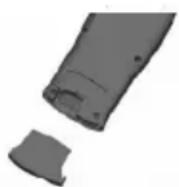
- Slide the RUIM card cover back onto the phone until it latches. Do not force.
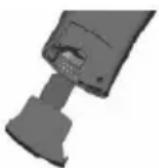
Charging the battery
Fully charge the new battery for approximately 12 hours before using the phone for the first time.
To charge the battery, connect the power adapter to the jack located at the bottom left of the phone, then connect the adapter's plug to a wall outlet.
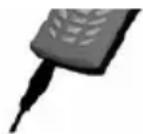
The battery icon at the top-right corner of the screen tells you whether the phone is:
- Charging (animated icon)
- Partially charged .
- Fully charged
- Low battery . Icon blinks and the phone beeps. The phone screen displays a “Low Battery” message. When the battery is completely drained the phone powers off.


Recharging the battery
You can safely recharge the battery at any time, even if it has a partial charge.
Caring for the battery
This section describes important safety information and tips for improving battery performance.
General safety guidelines
This phone contains an integrated Li-Ion battery,
- Do not attempt to open the battery compartment and dismantle, puncture, or short-circuit the battery.
- If you have not used the battery for more than a month, recharge it before using your phone.
- Avoid exposing the phone to extreme temperatures, direct sunlight, or high humidity.
- Never dispose of used batteries in or near a fire. It could lead to explosion. Check with your local regulations for proper disposal instructions.
Common causes of battery drain
The following operations drain the battery more quickly and thereby adversely affect talk and standby times:
- Playing games frequently.
- Frequent use of the backlights.
- Using data cables or accessories, such as the Hands-free headset.
- Operating when no service is available, or service is available intermittently.
• High earpiece and ringer volume settings. - Unacknowledged voicemail and text message alerts.
Getting to know your phone
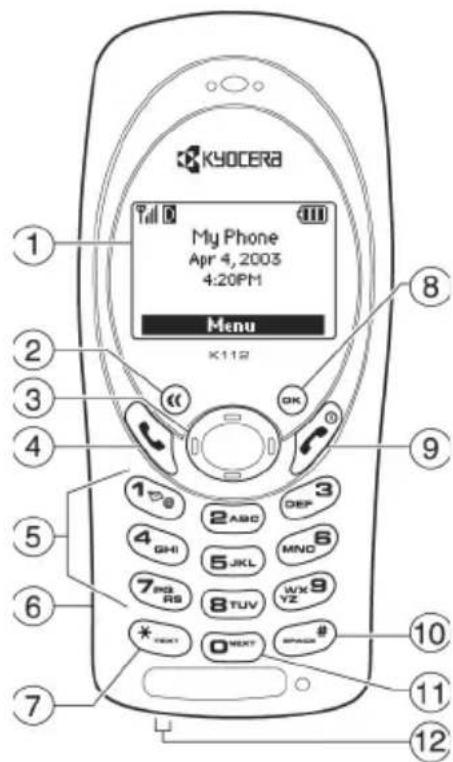
① Home screen. Press OK (item 8) to select Menu.
② << key erases the last character in text entry, returns to the previous menu, or erases characters during text entry.
③ Navigation key (four directions) scrolls through lists and positions the cursor during text entry. Also accesses shortcuts from the home screen.
④ Send/Talk key dials a number or answer a call.
⑤ Keypad for entering enter numbers, letters, or symbols.
⑥ Jack for Hands-free Headset (sold separately).
⑦ * Text key switches between upper and lower case during text entry.
⑧ OK key selects a menu item or option.
⑨ End/Power key turns the phone on or off, ends a call, or returns you to the home screen.
⑩ # Space key inserts a space during text entry.
⑪ 0 Next key cycles through word choices during EZText entry.
⑫ Jack for AC adapter (included).
Warning: Inserting an accessory into the incorrect jack will damage the phone.
Performing basic functions
| To... From the home screen... | |
| Turn on the phone | Press [4257] |
| Turn off the phone | Press and hold [AHWA] approximately 3 seconds. |
| Make a call | Enter the number using the alphanumeric keypad and press [AATO] |
| End a call | Press [63AO] |
| Answer a call | Press  . . |
| Verify Own Number | Select Menu → Phone Info. |
| Access voicemail | Press and hold and follow the system prompts. |
| Lock the keypad | Press and hold . |
| Unlock the keypad | Press 1 2 3 |
| Access the Contacts list | Press right. |
| Access Recent Calls list | Press left. |
Using the menus
The contents of the main menu are as follows:
| Settings | Contacts | Recent Calls | Messages | Extra |
| Silence All | Find | Missed Calls | Voice Mail | Games |
| Auto Key Guard | View All | Incoming Calls | InBox | Stop Watch |
| Sound | Business | Outgoing Calls | Create Message | Alarm |
| Display | Personal | Preformatted Messages | Scheduler | |
| Alert | Add New | Outbox | Calculator | |
| Call Timers | Speed Dial List | Erase Messages | ||
| Security | Message Settings | Phone Info | ||
| Accessories | Your phone number | |||
| Sys/Network |
To use menus:
- Press tMenu.select
- Press to select a menu item or soft key.
- Press left or right to see menus.
- Press up or down to view menu items.
- Press right or left to access soft keys.
- Press ◆ to go up a menu level.
-
Press to return to the home screen.
-
In this guide, the use of an arrow tells you to select an option from the menu. For example, Menu Settings means select Menu, then select the Settings option.
- The instructions in this guide assume that your menu appears in icons. To change your menu display so that it appears as a list select
Menu → Settings → Display → Menu Format → Small Icons.
Understanding screen icons
These icons may appear on your phone's screen.


The alarm is set.
The phone is operating in analog mode.
The phone is operating in CDMA digital mode.
Battery power indicator. The more black bars, the greater the charge.
The phone is receiving a signal. You can make and receive calls. The more the bars, the stronger the signal.
A call is in progress.
A call is in progress with voice privacy activated.
The phone is locked.
You have a text message, voicemail or page.
No service is available.
The phone is roaming outside of its home service area.
The phone vibrates or lights up instead of ringing.


w ^3

You have one or more voicemails.
Indicates a contact is labeled personal.
Indicates a contact is labeled business.
Icon for Web page.
Indicates a contact's address.
2 MAKING AND RECEIVING CALLS
Making a call
- Make sure you are in an area where the signal can be received. Look for the Symbol on the home screen. The more bars you see in this symbol, the stronger the reception. If there are no bars, try to move to where the reception is better. In some cases, this can be as simple as changing the direction you are facing.
The phone goes into power save mode when it is left idle for 5 minutes. If you see the message "POWER SAVE" on the screen, press any key to return to the idle screen.
-
Enter the phone number.
-
Press to dial the number.
-
Press to end the call.
Redialing a number
To redial the last number called, press twice.
Calling a saved number
If you have already saved a phone number, you can use the All Contacts list to find it quickly.
- Press right when on the home screen. This brings up a list of all saved contacts.
- Scroll down the list, find the contact you want, and press to dial the number.
- If you have already allocated a speed dial number for the contact, press the corresponding speed dial number to dial. For more information, refer to “Setting up speed dialing” on page 9
Answering a call
When you receive a call, the phone rings, vibrates, and/or lights up, and an animated phone icon appears. The number of the caller also appears if it is not restricted. If the number is stored in your Contacts directory, the contact name appears.
- Press to answer the call.
- Select Silence to mute the ringer or stop the vibration when there is an incoming call.
- Select Hold to put the caller on hold.
- Press or Voice Mail to send the call to the voicemail.
- Select Network Forward to forward the incoming call to another number, which you defined under Sys/Network.
Setting keys to answer calls
- Select Menu → Settings → Accessories → Any Key Answer.
- Select On and press to set. All incoming calls can now be answered by pressing any key except and
Answering calls hands-Free
If your phone is attached to an accessory such as a hands-free headset (sold separately), you can set it to answer an incoming call after 2, 5 or 10 seconds.
- Select Menu → Settings → Accessories → Headset Autoanswer.
- Select Off, 2 seconds, 5 seconds or 10 seconds.
- Press OK.
Dealing with missed calls
When you have missed a call, “Missed” appears on your screen. This message remains, unless the caller leaves a voicemail.
- Press or to clear the screen.
- To view the caller's number or name, press left to access the Recent Calls list and select Missed Calls.
- If the caller left a voicemail message, select View and then Call. If you have not yet set up your voicemail, the caller cannot leave a message. See “Setting up voicemail” on page 10.
Setting missed call alerts
You can set the alert to beep when you have missed a call.
- Select Menu → Settings → Alert → Missed Call.
- Select Enable.
- Press OK.
Viewing recent call details
Details on the last 10 calls you have missed, made or received are stored in Recent Calls. You can get details on the caller's name and phone number, along with the time and length of the call.
-
Select Menu → Recent Calls.
-
Select Missed Calls, Incoming Calls or Outgoing Calls.
- Press OK.
- Select a phone entry.
- Select an available option from the list.
— Call Number dials the phone number.
– Time shows the time and duration of call.
— View Number displays the phone number.
- Edit Number edits the phone number.
- Delete Entry deletes the number from the list.
- Send SMS Message sends messages from the phone number.
- Save New saves the number to your contacts list.
- Save To Existingadds the phone number to the an existing contact.
Erase the recent calls list
You can erase all calls listed in your Recent Calls menu.
- Select Menu → Settings → Security.
- Enter your four-digit PIN code and press OK
- Select Erase All Recent Call List.
A message appears: "Erase All Recent Call List?"
- Select Yes to erase all.
Setting up speed dialing
Speed dialing allows you to quickly dial a stored phone number by entering a one- or two-digit speed dialing location.
- From the home screen, press right to get to your contacts list.
- Locate the contact you want to add speed dialing to and press OK
- Highlight the phone number and press OK.
- Scroll to Add to Speed Dial and press OK
- Select an empty speed dial location to assign to the phone number (location "1" is reserved for your voicemail number).
- Press The message "Contact Added" confirms the speed dial location.
To speed dial
From the home screen, enter the one- or two-digit speed dial number and press
Setting up voicemail
Before your phone can accept voicemail messages, you must set up a password and record a personal greeting. When you have set up your voicemail, all unanswered calls to your phone are automatically transferred to your voicemail, even if your phone is in use or turned off.
Note: Check with your service provider if you have problems setting up voicemail.
- From the home screen, press and hold Ⓘ
- Enter your passcode which you obtain from your service provider.
- Follow the system prompts to create a password and record a greeting.
Changing the default voicemail number
- Select Menu → Messages → Message Settings.
- Highlight Voice Mail Number and press OK
- Highlight Edit and press OK
- Enter the voicemail number.
- Press twice to confirm.
Checking voicemail messages
When a voice message is received, your screen displays text similar to “New Message 1 Voicemail.” This text remains for about five minutes. After that the 📧 appears.
- To retrieve your voicemail, press and hold (default speed dial number), or the voicemail number you created, to call your voicemail number.
Silencing an incoming call
- To mute the ringer or stop the vibration when there is an incoming call, select Silence. This action silences the current call only. The next call will ring as normal.
Adjusting the volume during a call
- To adjust the earpiece volume during a call, press up or down.
Tracking your calls
Your phone has three timers that count the duration of the calls you have made and receive.
Outgoing Calls
This timer displays the number of outgoing calls you have placed, and their duration. You can reset this timer.
- Select Menu → Settings → Call Timers → Outgoing Calls.
- Select Reset. Calls are reset to 0.
Incoming Calls
This timer displays the number of incoming calls you have received, and their duration. You can reset this timer.
- Select Menu → Settings → Call Timers → Incoming Calls.
- Select Reset. Calls are reset to 0.
All Calls
This timer displays the number and duration of all incoming and outgoing calls You cannot reset this timer.
- Select Menu → Settings → Call Timers → All Calls.
Calling emergency numbers
Regardless of your three-digit emergency code (911, 111, 999, 000, etc.), your phone will operate as described below.
You can call your emergency code even if your account is restricted. However, when you call, your phone enters Emergency mode, which you must exit to place other calls.
To exit Emergency mode
When you have completed the emergency call, press do select Exit. Then press again to confirm your choice. The phone returns to Standby mode and you are ready to make and receive regular calls.
Setting the roaming option
You can set the phone to not roam at all or to switch between digital and analog modes.
- Select Menu → Settings → Sys/Network → Roaming Opt
-
Select an option:
-
No Roaming causes the phone to access calls only in the service provider area.
-
Automatic automatically switches the phone between digital and analog modes.
-
Press OK.
3 ENTERING LETTERS, NUMBERS, AND SYMBOLS
This table gives general instructions for entering letters, numbers, and symbols in Contacts and Messages. For more detailed information on using text entry modes, see page 14.
| To... Do this... | |
| Enter a letter In Multitap | mode, press the appropriate alphanumeric key until the letter you want appears on the display. |
| Enter a number In Numbers | mode, press the number key once. |
| Enter a symbol | In Symbols mode, enter the number corresponding to the symbol you want. |
| Enter a space Press . | |
| Erase a character Press . | |
| Erase all characters Press and hold . | |
| Move cursor right or left Press right and left. | |
| Change modes | Select the current input mode and press OK. Select an input mode. |
| Capitalize the next letter | In Multitap mode, press Text each time you want to capitalize. In EZText mode, after entering text. press Text until the capitalization you want appears. |
| Capitalize every letter | In Multitap mode, press Text until the input mode displays MULTITAP. In EZText mode, after entering text, press until the capitalization you want appears. |
| Capitalize the first letter of each word | In Multitap mode, press Text until the input mode displays Multitap. In EZText mode, after entering text, press Text until the capitalization you want appears. |
Understanding text entry modes
There are four modes available to you when entering text, numbers, of symbols:
- Multitap mode
- Numbers mode
- EZText mode
- Symbols mode
Note: The mode you start in depends on the task you are doing. For example, when entering a phone number in the Contacts menu, the default text mode is Numbers. When entering a name for a contact, the default text mode is EZText
Entering words letter by letter
- Press the appropriate alphanumeric key once to display the first letter that appears on the keypad, twice for the second letter, and so on.
- Wait for the cursor to move right before you enter the next letter.
Entering words quickly
When you press a series of keys using eZText, it checks the built-in dictionary for common words and predict the word you are trying to spell.
- For each letter of the word you wish to spell, press the appropriate alphanumeric key once. For example, to enter the word "any" press the alphanumeric keys 2 → 6 → 9
- If the word suggested by EZText does not match what you want, press up or down to look at other word matches.
- When you see the word you want, press ⑩ accept it.
Entering symbols
While entering text, you can also enter symbols.
- Press then press right to highlight the current text mode.
- Select Symbols.
- You will be presented with a list of symbols.
$$ \begin{array}{l} - \quad . @ ^ {\prime} (\quad) _ {-}!? * # \% “: \ + < > = / \backslash \& , ^ {\prime} [ ] ^ {\wedge}; \end{array} $$
- Press the number corresponding to the symbol of your choice.
Entering numbers
• In Numbers mode, press a number key once.
- In Multitap mode, press and hold a number key until the number appears on the screen.
- In EZText mode, press and hold a number key until the number appears on the screen.
Changing input modes
To enter characters that belong to a mode other than the one you're in, you'll need to change modes. For example, to enter numbers in an email address while in Multitap mode:
- Press OK.
- Press right to highlight the current mode
- Select Numbers.
- Enter the number, and then change back to Multitap mode to complete the address.
Switching text cases
Three settings are available in the Multitap mode. To change settings for upper and lower case input while in Multitap mode:
- Press while in Multitap mode.
-
Continue pressing until your desired input case is displayed. For example,
-
MULTITAP inputs all characters as uppercase
– multitap inputs all characters in lowercase - Multitap inputs only the first character in uppercase.
Entering special characters
If your phone is set to a language other than English, use the following key references to enter accented characters.
Portuguese
| 2abc | AÀÁÂBCÇ2 |
| 3def | DEÈÉÊF3 |
| 4ghi | GHIÍ4 |
| 5mno | MNOÒÓÔÕ6 |
| 8túv | TUÜÚV8 |
Spanish
| abc | AÁBC2 |
| def | DEÉF3 |
| ghi | GHIÍ4 |
| mno | MNÑOÓ6 |
| túv | TUÜÚV8 |
4 S TORING CONTACTS
The Contacts menu of your phone is like a set of phone index cards for you to store information about a person or a company. Your phone can hold, on average, about 200 phone numbers. Each name, e-mail address, mailing address or web address entry can contain up to 256 characters. The minimum length of RUIM phone number is 10 digits, the maximum is 32 digits.
Saving a new contact
- From the home screen, enter the phone number you wish to save.
- Press OK to Newelect
- Enter the name of the contact. To learn how to enter letters, see page 13.
- Press twice to save the number.
-
Press to select options:
-
Add New to add a new phone number.
— Edit Name to edit the name of the contact.
— Classify Contact to classify the contact as Personal or Business.
– Erase Contact to erase the new contact. -
After adding options, scroll to the contact's number and press ☐ the following options:
– Number Type to classify the number
- Edit to change the number
- Erase to delete the number
- Add Speed Dial to add a speed dial location to the contact.
Adding pauses to a phone number
When you save the phone number of an automated service, you may include a pause where you need to select an option or enter a password. You can enter multiple pauses in a phone number. A Pause will cause the phone to stop dialing until you select the Release key.
- Enter the first portion of the phone number.
- Scroll ☐ rigPause and press .OK The letter P appears next to the last digit of your phone entry.
-
Enter the remaining numbers and add more pauses where needed.
-
To save the number, press right or left to select New to add the number as a new contact or To Existing to add the number to an existing contact. Follow the prompts.
Saving addresses and web pages
To save a phone number, email address, street address, or Web page URL, follow these steps.
- Select Menu → Contacts → Add New.
- Highlight Phone, Email, Address, or Web Page.
- Press OK.
- Enter the information. To learn how to enter letters, “Entering Letters, Numbers, and Symbols” on page 13
- Press twice to go to the next screen.
- Enter a contact name.
- Press twice to Save.
Erasing a contact
- Select Menu → Contacts.
- Select View All or Find to locate the contact you wish to edit.
-
Scroll to the contact you wish to edit or erase and press OK
-
Select Options.
- Select Erase Contact and press OK
- Press OK to YesselContact Deleted" appears on the screen.
Editing a contact name
- Select Menu → Contacts.
- Select View All or Find to locate the contact you wish to edit.
- Scroll to the contact you wish to edit and press OK.
- Select Options.
- Select Edit Name and press OK
- Press and hold to erase the existing name.
- Enter the new name and press twice. "Contact Saved" appears on the screen.
Editing a phone number
- Select Menu → Contacts.
- Select View All or Find to locate the contact you want to edit.
- Highlight the contact to edit and press .OK
-
Press down to highlight the phone number to edit and press . OK
-
Highlight Edit and press OK
- Follow the prompts.
- Press when finished.
Classifying a contact
You can classify a contact as business or personal.
- Select Menu → Contacts.
- Select View All or Find to locate the contact you want to edit.
- Highlight the contact to edit and press .OK
- Press OK to Optichst
- Highlight Classify Contact and press .OK
- Select Business or Personal and press OK
Assigning the contact number type
- Select Menu → Contacts.
- Select View All or Find to locate the contact you want to edit.
- Highlight the contact to edit and press OK
- Press down to highlight the phone number to edit and press .OK
- Highlight Number Type and press OK
- Select the type of number: Work, Home, Mobile, or Pager and press OK
Shortcut to your contacts list
From the home screen, press right to view the All Contacts list. Highlight the contact you wish to call and press to dial the number.
5 SENDING AND RECEIVING TEXT MESSAGES
This chapter describes how to send, receive, and erase text messages from your phone.
Important: The features and menus described in this chapter may vary depending on services available in your area. In addition, usage charges may apply to each message. For clarification on these issues, check with your service provider.
Sending text messages
Check with your service provider to find out if you are able to send text messages from your phone. You can only send text messages to phones that are capable of receiving them.
Sending a new text message
-
Select Menu → Messages → Create Message.
-
Enter the number -or- select the number from your contacts list by pressing at the text entry screen, scrolling to Contacts, and pressing again. Select the number you want and press OK
-
Select Continue to enter your message. To learn how to enter letters, “Entering Letters, Numbers, and Symbols” on page 13.
- When you have completed the message, select Continue and press to Send.
Sending a pre-written message
Your Kyocera K112 comes with a set of commonly used messages, such as “Call me”, “Emergency”, “Need directions.”
- Select Menu → Messages → Preformatted Message.
- Scroll through the list of messages and press OK.
- Enter the phone number manually or select from the All Contacts list and press to continue.
- Edit the contact when prompted.
- Select Send or Save. If you select Save, your message is placed in your Outbox.
Sending a saved message
You can reuse a message you have stored in your Outbox. The Outbox contains all sent messages, messages for which send attempts have been made as well as messages with failed send attempts.
- Select Menu → Messages → Outbox.
- Scroll through the list of messages and press OK to select the message you wish to send.
- Select an option from the list:
— Done to go back to previous screen
- Erase the message
- Send the message
- Forward the message to another recipient by entering another phone number.
- Edit the message. Press when you finish editing the message.
-
Press OK to continue.
-
Press again to Send.
If you cannot send messages
You may not be able to send or receive messages if your phone's memory is nearly full, or if digital service is not available during that time. To free up memory, erase old messages. See “Erasing messages” on page 21.
Receiving incoming calls while creating messages
- If you don't wish to answer the call, select
- To answer the call, press . The message you were working on will be lost. You will need to re-write your message again.

Viewing the OutBox
You can check the status of messages you have sent as long as they have been saved to the OutBox.
- Select Menu → Messages → OutBox.
- Scroll through the list of messages.
- Press to read the message.
Retrieving text messages
- Select Menu → Messages → Inbox.
- Scroll to the message you want to read. The icon to the left should be flashing.
- Press to open and read the message. The screen autoscrolls page by page unless you press left or right.
Erasing messages
It is a good idea to erase old messages, as messages take up memory in your phone.
You have the option of erasing text messages as you send or read them, erasing them one-at-a-time from the OutBox or InBox, erasing them all at once, or erasing them automatically.
Erasing single messages
- Select Menu → Messages.
- Scroll down to select the type of text message you want to erase (InBox, or OutBox).
- Press to select the message to erase.
- Select Erase to erase the message. A notification appears: "Erase this message?"
- Select Yes to erase the message.
Auto Erase Inbox
Use this setting to have messages automatically erased when memory is low.
- Select Menu → Messages → Message Settings → Auto Erase Inbox.
- Select Enable.
- Press OK.
Erasing all messages
- Select Menu → Messages → Erase Messages.
-
Select an option from the list:
-
No returns you to the previous screen
- Entire Inbox deletes all messages in the inbox. If selected, the prompt, “Entire Inbox?” appears. Select Yes.
- Entire Outbox deletes all messages stored in the outbox. If selected, the prompt “Entire Outbox?” appears. Select Yes.
- Old Inbox deletes all messages in the old inbox. If selected, the prompt “Erase all old Inbox messages?” appears. Select Yes.
Setting message alerts
You can choose how you want be alerted of incoming voicemail, pages, or text messages.
- Select Menu → Messages → Message Settings → Message Alert.
-
Select an option from the list:
-
None no alert
— Vibrate Once sets the phone to vibrate once when you receive a message -
Vibrate & Remind sets the phone to vibrate once when a new message is received and then every minute until message is acknowledged.
- Beep Once sets the phone to beep once when you receive a message
-
Beep & Remind sets the phone to beep once when a new message is received and then every minute until message is acknowledged.
-
Press OK.
CUSTOMIZING YOUR PHONE
The contents of the Settings menu are as follows.
Silence All
Auto Key Guard
Sound
Volume
Alert Type
Ringer Type
Key Beep
Key Tone Length
Display
Backlighting
Banner
Language
Contrast
Menu Format
Time Format
Screensaver
Alert
Missed Call
Roaming
Service
Minute Alert
Call Timers
Outgoing Calls
Incoming Calls
All Calls
Security
Erase all Contacts
Erase All Recent Calls
Phone Reset
PIN Change
Accessories
Ext Power Backlight
Headset Ringing
Headset Autoanswer
Any Key Answer
Sys / Network
Roaming Opt
Setting your phone to vibrate
You can set your phone to vibrate or to vibrate and then ring when you receive an incoming call.
-
Select Menu → Settings → Sound → Alert Type.
-
Highlight an option:
- Vibration causes the phone to vibrate for the duration of the incoming call alert.
- Vibe+Ringer causes the phone to vibrate for the first 10 seconds and then ring for the remainder of the incoming call alert.
- Press

Locking your keypad
You can lock the keypad to protect the phone from accidental key presses.
- To lock the keypad from the home screen, press and hold
- To unlock the keypad, press ① ② ③ For advance setting of the keypad lock, do the following:
- Select Menu → Settings → Auto Key Guard.
-
Select an option from the list:
-
On immediately locks the keypad.
- Off disables keyguard.
- 30 Sec locks the keypad after 30 seconds of inactivity.
- 2 mins locks the keypad after 2 minutes of inactivity.
- 5 mins locks the keypad after 5 minutes of inactivity.
Adjusting volume
You can adjust the volume of the ringer, earpiece and the key beeps.
-
Select Menu → Settings → Sound → Volume.
-
Select Ringer, Earpiece or Key Beep.
- Press up or down to adjust the volume.
- Press to set the volume level.
Setting the incoming call alert
You can choose the type of alert you receive for incoming calls.
Select Menu → Settings → Sound → Alert Type.
-
Select an option from the list:
-
Off sets the phone to mute during an incoming call alert.
- Ringer sets the phone to ring during an incoming call alert.
- Vibration sets the phone to vibrate for the duration of the incoming call alert.
- Vibe+Ringer sets the phone to vibrate for the first 10 seconds and then ring for the remainder of the incoming call alertS.
Choosing a different ringer
Your Kyocera K112 has 15 ringers you can choose from for your incoming calls.
-
Select Menu → Settings → Sound → Ringer Type.
-
Scroll down the list to hear the different rings tones.
- Press to select a ringer from the list.
Changing the key beep sound
The key beep is the sound made whe you press the keys on the keypad. You can change the sound to tones or clicks.
- Select Menu → Settings → Sound → Key Beep.
-
Select an option:
-
Tones emits a beep when a key is pressed.
- Clicks emits a clicking sound when a key is pressed.
Changing the key beep length
You can change the duration of the tones the phone makes when you press the keys.
- Select Menu → Settings → Sound → Key Tone Length .
-
Select an option:
-
Normal emits a short, fixed length DTMF tone.
— Long emits a longer DTMF tone.
Personalizing the screen
Adjusting the backlighting
Your screen lights up while you are in a call or when you press a key on the keypad. However, you can change when and how backlighting lights up.
- Select Menu → Settings → Display → Backlighting
-
Select an option from the list:
-
Off turns backlighting off.
- 10s turns backlighting on for 10 seconds after your last keypress.
- 30s turns backlighting on for 10 seconds after your last keypress.
- 10s in call turns backlighting on for 10 seconds after your last keypress.
-
30s in call turns backlighting on for 10 seconds after your last keypress.
-
Press to confirm your choice.
Note: Keeping backlighting on during a call drains the battery more quickly and reduces talk and standby times.
Changing your banner
The banner is the personal label for your phone. It appears on the home screen above the time and date. The banner can be up to 14 characters long.
- Select Menu → Settings → Display → Banner.
- Press OK to Ediselect
- Press to clear the screen.
- Enter your new text.
- Press OK twice to select Save.
Choosing a different language
Your phone may support languages in addition to English.
- Select Menu → Settings → Display → Language.
- Scroll to highlight a language.
- Press OK.
Changing the display contrast
- Select Menu → Settings → Display → Contrast.
- Press right or left to adjust the contrast.
Choosing a different time format
- Select Menu → Settings → Display → Time Format.
- Select AM/PM or 24 HR.
- Press OK.
Changing the main menu view
You can change the appearance of the menus you see when you select Menu from the home screen.
- Select Menu → Settings → Display → Menu Format, then the option you want:
Large Icons Small Icons
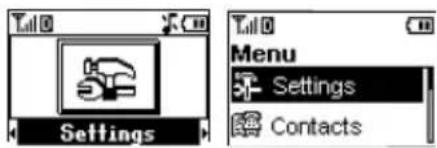
Note: When using Small Icons you must press up or down to scroll through menus.
Screen Saver
- Select Menu → Settings → Display → Screensaver.
-
Select Type to access the available screensavers.
-
Scroll to highlight a screensaver and press to select it.
- Select Timeout to set the time you want the screensaver to display after the phone is in idle mode: 30 seconds, 2 minutes, or 5 minutes.
- Press OK.
- Press to return to the home screen.
Setting call alerts
You can choose to Enable or Disable alert tones.
- Select Menu → Settings → Alert.
-
Select an option from the list, press and select Enable.
-
Missed Call sets the phone to emit an alert tone when there is a missed call.
- Roaming sets the phone to emit an alert tone when the roaming state changes.
— Service sets the phone to emit an alert tone when the phone registers itself to a service or lost the connection with a service. - Minute Alert sets the phone to emit an alert tone every 10 seconds before the end of a minute during a call.
To disable any of these alerts, select the option and then Disabled.
Creating a secure environment
This section describes all the features involved in securing your phone and preventing access to personal information. All security features are shielded by a four-digit lock code. The lock code is typically 0000 or the last 4 digits of your phone number.
Changing your PIN code
- Select Menu → Settings → Security
- Enter your four-digit PIN code and press OK
- Scroll to Pin Change and press OK
- Enter your new PIN code and press .The confirmation message "Pin Changed" appears.
Erasing all contacts
You can erase all contacts from the Contacts directory.
- Select Menu → Settings → Security.
- Enter your four-digit lock code and press OK
- Scroll to Erase All Contacts and press OK
- The message "Erase All contacts?" appears.
- Select Yes to erase all contacts, or No to cancel.
Resetting your phone
- Select Menu → Settings → Security.
- Enter your four-digit PIN code and press OK
- Select Phone Reset.
- The message "Restore Factory Default?" appears.
- Select Yes to restore factory default.
Note: Your 4-digit PIN code, Recent Calls List, Contacts directory, Inbox and Outbox contents, memos, and service programming are not adjusted when you reset your phone.
Setting alerts for your headset
When a headset (sold separately) is attached to the phone, you can set alert sounds to originate from the headset.
- Select Menu → Settings → Accessories → Headset Ringing.
- Select On to have alerts originating from the headset.
Setting headset autoanswer
When a headset (sold separately) is attached to the phone, you can set the headset to autoanswer when there is an incoming call.
- Select Menu → Settings → Accessories → Headset Autoanswer.
- Select the option to turn the autoanswer Off, or have it answer after 2 seconds, 5 seconds, or 10 seconds.
- Press OK.
Setting power backlighting
You can set backlighting to remain on when an external power source, such as the AC adapter, is used with the phone.
Note: Power backlighting may not be available with some accessories. Check with your service provider.
- Select Menu → Settings → Accessories → Ext Power Backlight.
- Select On to keep backlighting on. Note: The battery charges more slowly when power backlighting is on.
7 PLAYING GAMES AND USING TOOLS
The Extra menu offers two games, Blackjack ^TM and Video Poker ^TM ; and several tools that include a stopwatch, an alarm, a scheduler, and a calculator.
BlackJack™
Blackjack ^™ is a card game where the player attempts to beat the dealer by obtaining a sum of card values that is equal to or less than 21 so that his total is higher than the dealer's.
Notes: The default cash value is \5000 and the bet amount is \20.
The dealer's cards appear on the upper row; your cards appear on the lower row.
- Select Menu → Extra → Games → Blackjack.
- Press to enter. A greeting screen appears, followed by the rules of the game.
- Press OK to continue.
- Select Continue to return to your most recent game, or New to start a new game.
- Select Deal to start the game immediately.
- Select Bet to change the bet amount.
- Select Hit to draw more cards. The resulting card values appear on the extreme right (maximum number of cards is 5).
- Select Double to double the bet amount.
-
Select Stand if you don't want to draw more cards.
-
To continue with this game, selectDeal. The dealer will draw more cards if necessary and a result screen will appear to tell you if you have won, lose or nothing lost, nothing won
Video Poker™
In Video Poker™ you are dealt five cards. You may keep some or all of them, or throw them all away. For each card you throw away, you get another to replace it. The object of the game is for you to create a five-card winning hand.
- Select Menu → Extra → Games → Video Poker.
- Press to enter. A greeting appears, followed by the rules of the game.
-
Press OK to continue.
-
Select Continue to return to your most recent game, or New to start a new game.
-
Select Deal to start the game immediately
- Select Bet to change your bet amount.
- Select Payout to learn the payout amounts of Royal Flush, Full House, Pair of Jacks, Straight Flush, Four of a kind, etc.
- Select Continue if you do not wish to change your cards. A result screen appears to tell you if you have won or lost the game.
-
Select Discard to change your cards, then press the numeric keys corresponding to the numbers shown above the cards you wish to discard.
-
Select Continue to display the result screen.
-
Select Deal to continue with the game.
Stop Watch
- Select Menu → Extra → Stopwatch.
- Select Start to have the stopwatch begin counting.
- Select Stop to stop counting.
- Select Reset to set the counter back to zero.
Alarm
Use the alarm to set an alert for a specific time. The alert occurs only if the phone is on.
Digital service is required to access this menu item.
- Select Menu → Extra → Alarm → Set.
- Press up or down to select an hour and minutes.
-
Press left and right to switch between hours, minutes, and am/pm.
– Enter numbers using the phone keypad. -
When time is set, press and select Once, Daily, or Weekdays.
-
Press OK.
- When the alarm sounds, select Off to turn off the alarm or Snooze to silence the alarm for 10 minutes.
Scheduler
The Scheduler allows you to schedule events, such as meetings or appointments, and keep track of special occasions, such as birthdays or wedding anniversaries.
Digital service is required to access this menu item.
Adding an event
To find the day of the event.
-
Select Menu → Extra → Scheduler
-
For a day in the current month, select View Day. Press right or left to scroll through days.
-
For a day in a different month, select View Month. Press 📊 or down to scroll through months, and left or right to scroll through days.
-
Press to confirm the day and weeks.
- Select Menu → Extra → Scheduler → Add Event and press OK
- Enter event name. For help on entering text, see page 13.
- Press twice when you are done entering the letters.
-
Select Next to set the event Start time, Duration, and Alarm frequency.
-
Press up or down to set alarm fields.
-
Press left or right to move between fields.
-
Press twice when you are done.
-
Select Next to add a Note.
-
Press twice when you are done
Viewing, editing, or erasing an event
- Select Menu → Extra → Scheduler.
- Select View Day or View Month to find the event you want to view, edit, or erase.
- Press up, down, left, or right to highlight an event and press to select it.
- Press right and press to select Edit, Erase, or New. Follow the prompts.
- Press to return to the home screen or to return to scheduler options.
Calculator
Use the calculator for basic mathematical calculations.
- Select Menu → Extra → Calculator.
- Use the keypad to enter numbers.
- Press left and right to scroll through the operators. Press to select them.
= equal + add x multiply
÷ divide - subtract . decimal point
C Clear all numbers entered and display a zero.
MR Display the value currently stored in memory.
M+ Add the displayed digit to the value stored in memory.
MC Clear the value currently stored in memory.
± Change the sign of the displayed number.
Clear one function or one digit from the screen and return the calculator to digit entry mode. Hold down to clear all of the digits and operations and display a zero.
Exit the calculator and return to home screen.
8 G ETTING HELP
Customer support
Your service provider's customer support department may be accessible directly from your phone when you dial a number such as *611 (check with your service provider). They can answer questions about your phone, phone bill, call coverage area, and specific features available to you, such as call forwarding or voicemail.
For questions about the phone features, refer to the materials provided with your phone, or visit www.kyocera-wireless.com.
For additional questions, you may contact the Kyocera Wireless Corp. Customer Care Center in any of the following ways:
• Web site: www.kyocera-wireless.com
- Email: phone-help@kyocera-wireless.com
Before requesting support, please try to reproduce and isolate the problem. When you contact the Customer Care Center, be ready to provide the following information:
• The name of your service provider.
- The actual error message or problem you are experiencing.
- The steps you took to reproduce the problem.
- The phone's electronic serial number (ESN). To find the ESN:
a. Remove the RUIM card cover.
b. Locate the white label on the back of the phone. Your phone's 11-digit ESN begins with "D" and is located on the label.
INDEX
Numerics
911 calls, 11
A
alarm clock, 30
alerts
forheadsets,28
for messages, 21
for missed calls, 8
AutoText, 19
B
backlighting
adjusting, 25
lights, 25
banner, 26
battery, 1
charging, 1
drain, 2
icons, 1
safety guidelines, 2
C
calling emergency numbers, 11
calls
making and answering, 4, 7
missed, 8
recent calls list, 8
setting alerts, 8
speed dialing, 9
contacts
add new, 16
calling, 7
classifying, 17
editing, 17
erasing, 17
finding, 18
shortcut to, 18
contrast, 26
D
display contrast, 26
E
emergency
911 calls, 11
making calls after dialing
911, 11
erasing
all contacts, 9, 27
text messages, 21
external devices
hands-free car kit, 8
F
finding a saved phone number, 18
G
games
blackjack, 29
video poker, 29
H
hands-free car kit
answering using voice, 8
hands-free headset
and phone ringer, 28
jack, 3
help
email, 33
phone number, 33
website, 33
what to have ready, 33
|
icons, 6
K
key beep
adjusting volume, 24
length, 25
tones or clicks, 25
L
language, 26
lights power backlighting, 28
M
memory saving, 21
menu view, 26
messages see voicemail or text messages
missed calls, 8
N
number mode, 14
0
OutBox, 20
P
phone numbers editing, 17 entering pauses, 16 saving, 16
power backlighting, 28
R
redialing a number, 7 resetting the phone, v ringers for different calls, 27 setting, 24 roaming, 12
RUIM card inserting, 1
s
saved phone numbers editing, 17
scheduler, 30 screen contrast, 26
screen icons, 6 security, 27
silencing all sounds, 24
speed dialing, 9 symbol mode, 14
T
technical support, 33
text entry changing text modes, 15 EZText, 14
letter by letter, 14
multitap mode, 14
number mode, 14 quick entry, 14
special characters, 15
symbol mode, 14
understanding, 14
text messages crasing, 21 pre-written (AutoText), 19 retrieving, 20 sending new, 19
sending saved, 20 viewing the outbox, 20 text modes
eZiText mode, 14
normal text mode, 14
number mode, 14
special characters, 15
symbol mode, 14
time format, 26
tools
alarm, 30
calculator, 31
scheduler, 30
stopwatch, 30
V
vibrate
setting phone to, 23
silence all, 24
voicemail
accessing, 10
setting up, 4, 10
volume
adjusting during a call, 10
earpiece, 24
key beep, 24
ringer, 24
- User Guide for the Kyocera K112 phone
- FCC/IC Notice
- THIS PHONE MODEL MEETS THE GOVERNMENT'S REQUIREMENTS FOR EXPOSURE TO RADIO WAVES.
- Caution
- Warning
- Optimize your phone's performance
- Air bags
- Medical devices
- Potentially unsafe areas
- Use with care
- Keep phone dry
- Resetting the phone
- Qualified service
- Accessories
- Radio Frequency (RF) energy
- E911 Mandates
- Contents
- Getting Started....1
- Making and Receiving Calls....7
- Entering Letters, Numbers, and Symbols. 13
- Storing Contacts .... 16
- Sending and Receiving Text Messages .. 19
- Customizing Your Phone 23
- Playing Games and Using Tools.....29
- Getting Help....33
- Index 34
- G ETTING STARTED
- Inserting your RUIM card
- Charging the battery
- Recharging the battery
- Caring for the battery
- General safety guidelines
- Common causes of battery drain
- Getting to know your phone
- Performing basic functions
- Using the menus
- Understanding screen icons
- MAKING AND RECEIVING CALLS
- Making a call
- Redialing a number
- Calling a saved number
- Answering a call
- Setting keys to answer calls
- Answering calls hands-Free
- Dealing with missed calls
- Setting missed call alerts
- Viewing recent call details
- Erase the recent calls list
- Setting up speed dialing
- To speed dial
- Setting up voicemail
- Changing the default voicemail number
- Checking voicemail messages
- Silencing an incoming call
- Adjusting the volume during a call
- Tracking your calls
- Outgoing Calls
- Incoming Calls
- All Calls
- Calling emergency numbers
- To exit Emergency mode
- Setting the roaming option
- ENTERING LETTERS, NUMBERS, AND SYMBOLS
- Understanding text entry modes
- Entering words letter by letter
- Entering words quickly
- Entering symbols
- Entering numbers
- Changing input modes
- Switching text cases
- Entering special characters
- S TORING CONTACTS
- Saving a new contact
- Adding pauses to a phone number
- Saving addresses and web pages
- Erasing a contact
- Editing a contact name
- Editing a phone number
- Classifying a contact
- Assigning the contact number type
- Shortcut to your contacts list
- SENDING AND RECEIVING TEXT MESSAGES
- Sending text messages
- Sending a new text message
- Sending a pre-written message
- Sending a saved message
- If you cannot send messages
- Receiving incoming calls while creating messages
- Viewing the OutBox
- Retrieving text messages
- Erasing messages
- Erasing single messages
- Auto Erase Inbox
- Erasing all messages
- Setting message alerts
- CUSTOMIZING YOUR PHONE
- Silence All
- Auto Key Guard
- Sound
- Display
- Alert
- Call Timers
- Security
- Sys / Network
- Setting your phone to vibrate
- Locking your keypad
- Adjusting volume
- Setting the incoming call alert
- Choosing a different ringer
- Changing the key beep sound
- Changing the key beep length
- Personalizing the screen
- Adjusting the backlighting
- Changing your banner
- Choosing a different language
- Changing the display contrast
- Choosing a different time format
- Changing the main menu view
- Screen Saver
- Setting call alerts
- Creating a secure environment
- Changing your PIN code
- Erasing all contacts
- Resetting your phone
- Setting alerts for your headset
- Setting headset autoanswer
- Setting power backlighting
- PLAYING GAMES AND USING TOOLS
- BlackJack™
- Video Poker™
- Stop Watch
- Alarm
- Scheduler
- Adding an event
- Viewing, editing, or erasing an event
- Calculator
- G ETTING HELP
- Customer support
- INDEX
- Numerics
- A
- B
- C
- D
- E
- F
- G
- H
- |
- K
- L
- M
- N
- 0
- P
- R
- s
- T
- V
Brand : KYOCERA
Model : K112
Category : Smartphone