Soho - Smartphone KYOCERA - Free user manual and instructions
Find the device manual for free Soho KYOCERA in PDF.


| Product Type | Smartphone |
| Brand | Kyocera |
| Model | Soho |
| Operating System | Android (likely version 10 or later) |
| Display | 5.0 inch TFT LCD, 720x1280 pixels |
| Processor | Quad-core 1.3 GHz |
| RAM | 2 GB |
| Internal Storage | 16 GB |
| Battery | 2500 mAh, removable |
| Rear Camera | 8 MP with autofocus and LED flash |
| Front Camera | 5 MP |
| Dimensions | 142 x 72 x 10.5 mm |
| Weight | 155 g |
| Network | 4G LTE, 3G, 2G |
| Wi-Fi | 802.11 b/g/n |
| Bluetooth | 4.2 |
| GPS | Yes, with A-GPS |
| SIM | Single Nano-SIM |
| Charging Port | Micro USB |
| Headphone Jack | 3.5 mm |
| Sensors | Accelerometer, proximity |
| Water Resistance | IP55 (dust and water spray resistant) |
Frequently Asked Questions - Soho KYOCERA
User questions about Soho KYOCERA
0 question about this device. Answer the ones you know or ask your own.
Ask a new question about this device
Download the instructions for your Smartphone in PDF format for free! Find your manual Soho - KYOCERA and take your electronic device back in hand. On this page are published all the documents necessary for the use of your device. Soho by KYOCERA.
USER MANUAL Soho KYOCERA

user guide
User Guide for the Kyocera SoHo Phone
This manual is based on the production version of the Kyocera SoHo phone. Software changes may have occurred after this printing. Kyocera reserves the right to make changes in technical and product specifications without prior notice. The products and equipment described in this documentation are manufactured under license from QUALCOMM Incorporated under one or more of the following U.S. patents:
| 4,901,307 | 5,056,109 | 5,099,204 | 5,101,501 | 5,103,459 |
| 5,107,225 | 5,109,390 | 5,193,094 | 5,228,054 | 5,257,283 |
| 5,265,119 | 5,267,261 | 5,267,262 | 5,280,472 | 5,283,536 |
| 5,289,527 | 5,307,405 | 5,309,474 | 5,337,338 | 5,339,046 |
| 5,341,456 | 5,383,219 | 5,392,287 | 5,396,516 | D356,560 |
| 5,408,697 | 5,414,728 | 5,414,796 | 5,416,797 | 5,426,392 |
| 5,437,055 | D361,065 | 5,442,322 | 5,442,627 | 5,452,473 |
| 5,461,639 | 5,469,115 | 5,469,471 | 5,471,497 | 5,475,870 |
| 5,479,475 | 5,483,696 | 5,485,486 | 5,487,175 | 5,490,165 |
| 5,497,395 | 5,499,280 | 5,504,773 | 5,506,865 | 5,509,015 |
| 5,509,035 | 5,511,067 | 5,511,073 | 5,513,176 | 5,515,177 |
| 5,517,323 | 5,519,761 | 5,528,593 | 5,530,928 | 5,533,011 |
| 5,535,239 | 5,539,531 | 5,544,196 | 5,544,223 | 5,546,459 |
| 5,548,812 | 5,559,881 | 5,559,865 | 5,561,618 | 5,564,083 |
| 5,566,000 | 5,566,206 | 5,566,357 | 5,568,483 | 5,574,773 |
| 5,574,987 | D375,740 | 5,576,662 | 5,577,022 | 5,577,265 |
| D375,937 | 5,588,043 | D376,804 | 5,589,756 | 5,590,069 |
| 5,590,406 | 5,590,408 | 5,592,548 | 5,594,718 | 5,596,570 |
| 5,600,754 | 5,602,834 | 5,602,833 | 5,603,096 | 5,604,459 |
| 5,604,730 | 5,608,722 | 5,614,806 | 5,617,060 | 5,621,752 |
| 5,621,784 | 5,621,853 | 5,625,876 | 5,627,857 | 5,629,955 |
| 5,629,975 | 5,638,412 | 5,640,414 | 5,642,398 | 5,644,591 |
| 5,644,596 | 5,646,991 | 5,652,814 | 5,654,979 | 5,655,220 |
| 5,657,420 | 5,659,569 | 5,663,807 | 5,666,122 | 5,673,259 |
| 5,675,581 | 5,675,644 | 5,680,395 | 5,687,229 | D386,186 |
| 5,689,557 | 5,691,974 | 5,692,006 | 5,696,468 | 5,697,055 |
| 5,703,902 | 5,704,001 | 5,708,448 | 5,710,521 | 5,710,758 |
| 5,710,768 | 5,710,784 | 5,715,236 | 5,715,526 | 5,722,044 |
| 5,722,053 | 5,722,061 | 5,722,063 | 5,724,385 | 5,727,123 |
| 5,729,540 | 5,732,134 | 5,732,341 | 5,734,716 | 5,737,687 |
| 5,737,708 | 5,742,734 | D393,856 | 5,748,104 | 5,751,725 |
| 5,751,761 | 5,751,901 | 5,754,533 | 5,754,542 | 5,754,733 |
| 5,757,767 | 5,757,858 | 5,758,266 | 5,761,204 | 5,764,687 |
| 5,774,496 | 5,777,990 | 5,778,024 | 5,778,338 | 5,781,543 |
| 5,781,856 | 5,781,867 | 5,784,406 | 5,784,532 | 5,790,589 |
| 5,790,632 | 5,793,338 | D397,110 | 5,799,005 | 5,799,254 |
| 5,802,105 | 5,805,648 | 5,805,843 | 5,812,036 | 5,812,094 |
| 5,812,097 | 5,812,538 | 5,812,607 | 5,812,651 | 5,812,938 |
| 5,818,871 | 5,822,318 | 5,825,253 | 5,828,348 | 5,828,661 |
| 5,835,065 | 5,835,847 | 5,839,052 | 5,841,806 | 5,842,124 |
| 5,844,784 | 5,844,885 | 5,844,899 | 5,844,985 | 5,848,063 |
| 5,848,099 | 5,850,612 | 5,852,421 | 5,854,565 | 5,854,786 |
| 5,857,147 | 5,859,612 | 5,859,838 | 5,859,840 | 5,861,844 |
5,862,471 5,862,474 5,864,760 5,864,763 5,867,527 5,867,763 5,870,427 5,870,431 5,870,674 5,872,481 5,872,774 5,872,775 5,872,823 5,877,942 5,878,036 5,870,631 5,881,053 5,881,368 5,884,157 5,884,193 5,884,196 5,892,178 5,892,758 5,892,774 5,892,816 5,892,916 5,893,035 D407,701 5,898,920 5,903,554 5,903,862 D409,561 5,907,167 5,909,434 5,910,752 5,911,128 5,912,882 D410,893 5,914,950 5,915,235 5,917,708 5,917,811 5,917,812 5,917,837 5,920,284 D411,823 5,923,650 5,923,705 5,926,143 5,926,470 5,926,500 5,926,786 5,930,230 5,930,692 Other patents pending.
The Kyocera Wireless Corp. ("KWC") products described in this manual may include copyrighted KWC and third party software stored in semiconductor memories or other media. Laws in the United States and other countries preserve for KWC and third party software providers certain exclusive rights for copyrighted software, such as the exclusive rights to distribute or reproduce the copyrighted software. Accordingly, any copyrighted software contained in the KWC products may not be modified, reverse engineered, distributed or reproduced in any manner not permitted by law. Furthermore, the purchase of the KWC products shall not be deemed to grant either directly or by implication, estoppel, or otherwise, any license under the copyrights, patents or patent applications of KWC or any third party software provider, except for the normal, non-exclusive royalty-free license to use that arises by operation of law in the sale of a product.
Kyocera is a registered trademark of Kyocera Corporation. Doodler, and Race 21 are trademarks of Kyocera Wireless Corp. Tetris is a registered trademark of Elorg Company LLC. QUALCOMM is a registered trademark of QUALCOMM, Inc. Openwave is a trademark of Openwave Systems Incorporated. eZiText is a registered trademark of Zi Corporation. All other trademarks are the property of their respective owners.
Copyright © 2004 Kyocera Wireless Corp. All rights reserved.
Ringer Tones Copyright © 2000-2002 Kyocera Wireless Corp.
82-K5867-1EN, Rev. 002
FCC/IC Notice
This device complies with part 15 of the FCC rules. Operation is subject to the following two conditions: (1) This device may not cause harmful interference, and (2) this device must accept any interference received, including interference that may cause undesired operation. To maintain compliance with FCC RF exposure guidelines, if you wear a handset on your body, use the Kyocera Wireless Corp. (KWC) supplied and approved case CV90-L8181-01 and holster CV90-L8180-01.
Other accessories used with this device for body-worn operations must not contain any metallic components and must provide at least 25 mm separation distance including the antenna and the user's body.
THIS MODEL PHONE MEETS THE GOVERNMENT'S REQUIREMENTS FOR EXPOSURE TO RADIO WAVES.
Your wireless phone is a radio transmitter and receiver. It is designed and manufactured not to exceed the emission limits for exposure to radio frequency (RF) energy set by the Federal Communications Commission of the U.S.
Government. These limits are part of comprehensive guidelines and establish permitted levels of RF energy for the general population. The guidelines are based on standards that were developed by independent scientific organizations through periodic and thorough evaluation of scientific studies. The standards include a substantial safety margin designed to assure the safety of all persons, regardless of age and health.
The exposure standard for wireless mobile phones employs a unit of measurement known as the Specific Absorption Rate, or SAR. The SAR limit set by the FCC is 1.6 W/kg.* Tests for SAR are conducted using standard operating positions specified by the FCC with the phone transmitting at its highest certified power level in all tested frequency bands.
Although the SAR is determined at the highest certified power level, the actual SAR level of the phone while operating can be well below the maximum value. This is because the phone is designed to operate at multiple power levels so as to use only the power required to reach the network.
In general, the closer you are to a wireless base station antenna, the lower the power output.
Before a phone model is available for sale to the public, it must be tested and certified to the FCC that it does not exceed the limit established by the government-adopted requirement for safe exposure.
The tests are performed in positions and locations (e.g., at the ear and worn on the body) as required by the FCC for each model. The highest SAR values for this model phone are:
AMP mode: Head: 0.990mW/g; Body-worn: 0.681mW/g
CDMA Cell: Head: 0.998mW/g; Body-worn: 0.652mW/g
CDMA PCS: Head: 0.758mW/g; Body-worn: 0.547mW/g
(Body-worn measurements differ among phone models, depending upon availability of accessories and FCC requirements. The body-worn SAR values provided above were obtained by using Kyocera Wireless Corp. [KWC] supplied and approved case CV90-L8181-01 and holster CV90-L8180-01.
While there may be differences between the SAR levels of various phones and at various positions, they all meet the government requirement for safe exposure.
The FCC has granted an Equipment Authorization for this model phone with all reported SAR levels evaluated as in compliance with the FCC RF emission guidelines. SAR information on this model phone is on file with the FCC and can be found under the Display Grant section http://www.fcc.gov/oet/fccid after searching on the FCC ID: OVFKWC-KX1.
Additional information on SAR can be found on the Cellular Telecommunications and Internet Association (CTIA) web-site at http://www.wow-com.com.
* In the United States and Canada, the SAR limit for mobile phones used by the public is 1.6 watts/kg (W/kg) averaged over one gram of tissue. The standard incorporates a substantial margin of safety to give additional protection for the public and to account for any variations in measurements.
Caution
The user is cautioned that changes or modifications not expressly approved by the party responsible for compliance could void the warranty and user's authority to operate the equipment.
Optimize your phone's performance
Use the guidelines on page 1 to learn how to optimize the performance and life of your phone and battery.
Air bags
If you have an air bag, DO NOT place installed or portable phone equipment or other objects over the air bag or in the air bag deployment area. If equipment is not properly installed, you and your passengers risk serious injury.
Medical devices
Pacemakers—Warning to pacemaker wearers:
Wireless phones, when in the 'on' position, have been shown to interfere with pacemakers. The phone should be kept at least six (6) inches away from the pacemaker to reduce risk.
The Health Industry Manufacturers Association and the wireless technology research community recommend that you follow these guidelines to minimize the potential for interference.
• Always keep the phone at least six inches (15 centimeters) away from your pacemaker when the phone is turned on.
- Do not carry your phone near your heart.
- Use the ear opposite the pacemaker.
- If you have any reason to suspect that interference is taking place, turn off your phone immediately.
Hearing aids—Some digital wireless phones may interfere with hearing aids. In the event of such interference, you may want to consult your service provider or call the customer service line to discuss alternatives.
Other medical devices—If you use any other personal medical device, consult the manufacturer of the device to determine if it is adequately shielded from external RF energy. Your physician may be able to help you obtain this information.
In health care facilities—Turn your phone off in health care facilities when instructed. Hospitals and health care facilities may be using equipment that is sensitive to external RF energy.
Potentially unsafe areas
Posted facilities—Turn your phone off in any facility when posted notices require you to do so.
Aircraft—FCC regulations prohibit using your phone on a plane that is in the air. Turn your phone off or switch it to Airplane Mode before boarding aircraft.
Vehicles—RF signals may affect improperly installed or inadequately shielded electronic systems in motor vehicles. Check with the manufacturer of the device to determine if it is adequately shielded from external RF energy. Your physician may be able to help you obtain this information.
Blasting areas—Turn off your phone where blasting is in progress. Observe restrictions, and follow any regulations or rules.
Potentially explosive atmospheres—Turn off your phone when you are in any area with a potentially explosive atmosphere. Obey all signs and instructions. Sparks in such areas could cause an explosion or fire, resulting in bodily injury or death.
Areas with a potentially explosive atmosphere are often, but not always, clearly marked. They include:
- fueling areas such as gas stations
• below deck on boats - transfer or storage facilities for fuel or chemicals
- vehicles using liquefied petroleum gas, such as propane or butane
- areas where the air contains chemicals or particles such as grain, dust, or metal powders
- any other area where you would normally be advised to turn off your vehicle engine
Use with care
Use only in normal position (to ear). Avoid dropping, hitting, bending, or sitting on the phone.
Keep phone dry
If the phone gets wet, turn the power off immediately and contact your dealer. Water damage may not be covered under warranty.
Resetting the phone
If the screen seems frozen and the keypad does not respond to keypresses, reset the phone by completing the following steps:
-
Remove the battery door.
-
Remove and replace the battery.
If the problem persists, return the phone to the dealer for service.
Accessories
Use only Kyocera-approved accessories with Kyocera phones. Use of any unauthorized accessories may be dangerous and will invalidate the phone warranty if said accessories cause damage or a defect to the phone.
To shop online for phone accessories, visit www.kyocera-wireless.com/store.
To order by phone, call (800) 349-4188
(U.S.A. only) or (858) 882-1410.
Radio Frequency (RF) energy
Your telephone is a radio transmitter and receiver. When it is on, it receives and sends out RF energy. Your service provider's network controls the power of the RF signal. This power level can range from 0.006 to 0.6 watts.
In August 1996, the U.S. Federal Communications Commission (FCC) adopted RF exposure guidelines with safety levels for hand-held wireless phones. These guidelines are consistent with the safety standards previously set by both U.S. and international standards bodies in the following reports:
• ANSI C95.1 (American National Standards Institute, 1992)
• NCRP Report 86 (National Council on Radiation Protection and Measurements, 1986)
• ICNIRP (International Commission on Non-Ionizing Radiation Protection, 1996)
Your phone complies with the standards set by these reports and the FCC guidelines.
E911 mandates
Where service is available, this handset complies with the Phase I and Phase II E911 Mandates issued by the FCC.
Battery and charger specifications
| Charger Input Output | ||
| CV90-60858-01 100 | 240 VAC / 50 / 60 Hz 4.5 V 1.5 A | |
| CV90-60859-01 120 | VAC / 60Hz 5.2 V 400 mA | |
| Standard Battery | ||
| 3.7V / 810mAh | ||
| Extended Battery | ||
| 3.7V / 1300mAh | ||

093 453 037
Kyocera Wireless Corp.
10300 Campus Point Drive, San Diego, CA 92121
U.S.A.
Visit us at www.kyocera-wireless.com
To purchase accessories, visit
www.kyocera-wireless.com/store
CONTENTS
1 Getting Started....1
Installing the battery....1
Changing the flip cover 2
Getting to know your phone .... 3
2 Making and Answering Calls .....7
Making a call 7
Using the speakerphone 8
Speed dialing 9
Setting up voicemail 10
Silencing an incoming call 11
Calling emergency services ..... 11
Setting roaming alerts and ringers ..... 12
Controlling network roaming 12
3 Storing Contacts .... 14
Creating a new contact ..... 14
Editing or erasing a contact. 14
Editing a phone number ..... 15
Finding contact information ..... 15
4 Entering Text, Numbers, and Symbols 17
5 Sending and Receiving
Text Messages .... 20
Sending text messages. 20
Retrieving text messages ..... 23
Customizing message settings ..... 24
6 Using Voice Recognition ..... 26
Setting up voice dialing 26
Calling using voice tags 26
Calling using digit dialing 27
Training voice recognition 28
7 Customizing Your Phone .....29
Silencing all sounds 30
Choosing ringers....30
Setting sounds for your phone 31
Adjusting volume 31
Setting message alerts.... 32
Using shortcuts. 32
Personalizing the screen. 33
Creating a secure environment ..... 35
Network settings 37
Data Settings. 37
Setting position location 38
8 Using Media Gallery 39
Accessing files 39
Creating free space 40
9 Tools & Games....41
Voice Memo 41
Scheduler 41
Alarm Clock 42
Tip Calculator.... 42
Calculator. 42
Timer 43
Stopwatch. 43
Games 43
Race 21 44
10 Connecting to the Internet ..... 47
Using the Web Browser.... 47
11 Getting Help 49
Index 51
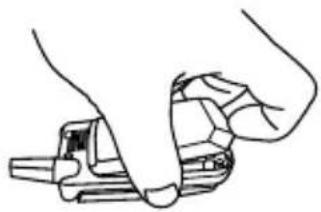
Installing the battery
Your phone comes with a removable lithium ion (LiIon) battery. Hold the phone with the back facing you.
-
Toward the bottom of the phone there is a recess to aid you in opening the battery door. Use your fingernail to pull the battery door away.
-
Place the battery in the phone casing with the metal contacts toward the bottom of the phone.
-
Place the battery door tabs in the openings near the top of the phone.
-
Press the battery door until it clicks into place.
natural_image
Line drawing of a hand gripping a mechanical component (no text or symbols)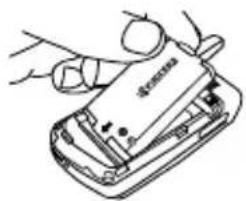
natural_image
Line drawing of a hand inserting a card into a mobile phone (no text or symbols visible)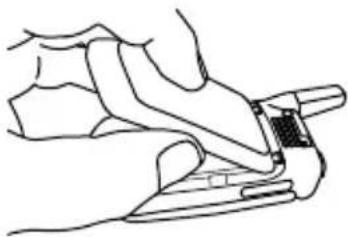
natural_image
Line drawing of a hand holding a tool or device (no text or symbols present)Charging the battery
You must have at least a partial charge in the battery to make or receive calls. Fully charge the battery before using the phone.
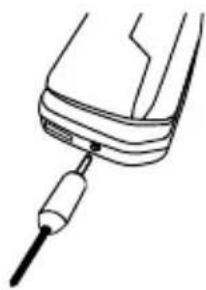
To charge the battery, connect the AC adapter to the jack on the bottom of the phone, then plug the adapter into a wall outlet.
The battery icon in the upper-right corner of the screen tells you whether the phone is:
natural_image
Line drawing of a handheld electronic device with a screwdriver inserted (no text or symbols)- Charging (the icon is animated)
- Partially charged
- Fully charged
Recharging the battery
You can safely recharge the battery at any time, even if it has a partial charge.
Caring for the battery
General safety guidelines
- Do not take apart, puncture, or short-circuit the battery.
-
If you have not used the battery for more than a month, recharge it before using your phone.
-
Avoid exposing the battery to extreme temperatures, direct sunlight, or high humidity.
- Never dispose of any battery in or near a fire – it could explode.
Common causes of battery drain
- Playing games or using the Web.
- Keeping backlighting on.
- Operating in analog ( )A.ode. Your phone switches between modes to find the best signal. To set your phone to operate in a single mode, select Menu → Settings → Network → Digital/Analog.
- Operating in digital mode when far away from a base station or cell site.
• Using data cables or accessories.
- Operating when no service is available, or service is available intermittently.
• High earpiece and ringer volume settings.
- Repeating sound, vibration or lighted alerts.
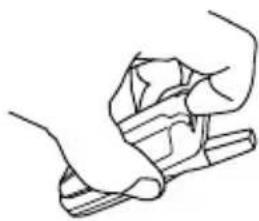
Changing the flip cover
Your SoHo phone has a removable flip cover. To remove the flip cover and replace it with a new one:
-
Hold the phone with the closed flip facing towards you and the antenna facing up.
-
On the top of the phone there is a recess to aid you in removing the flip cover. Use your fingernail to pull the flip cover off.
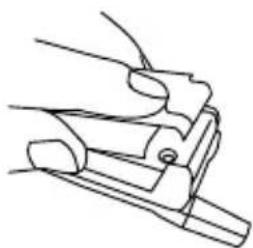
natural_image
Line drawing of a hand holding a tool or object (no text or symbols)- Replace by positioning the cover on the phone and pushing it on.
natural_image
Line drawing of a hand gripping a mechanical clamp or bracket (no text or symbols)Getting to know your phone
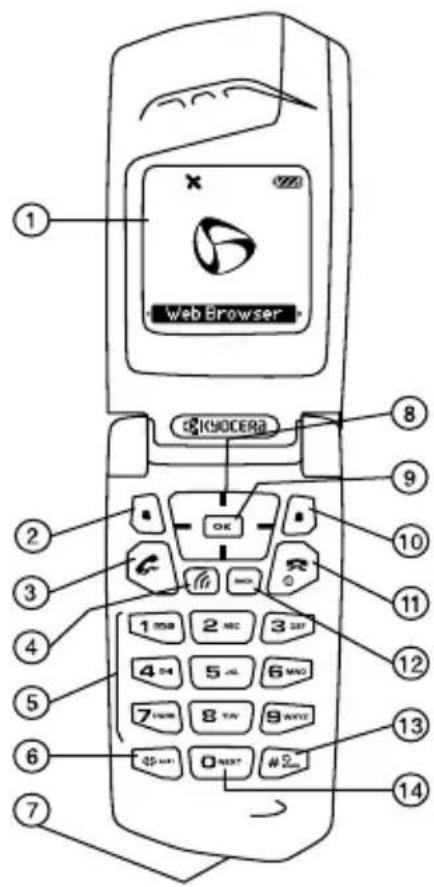
① Home screen.
② Left softkey accesses menus and functions.
③ Send/Talk key starts or answers calls.
④ Speakerphone key activates the speakerphone.
⑤ Keypad for entering numbers, letters, or symbols.
⑥ * Shift key changes the text mode in text entry.
⑦ Jacks for AC adapter (included)*.
⑧ Navigation key positions cursor during text entry. Scrolls through list.
⑨ OK key selects a menu item or option.
⑩ Right softkey to access Contacts and other menu options.
⑪ End/Power key turns the phone on and off. Ends a call.
⑫ Back key erases characters in text entry. Returns to previous screen.
⑬ # Space key enters a space during text entry. Activates Silent mode.
⑭ 0 Next key cycles through word choices during text entry.
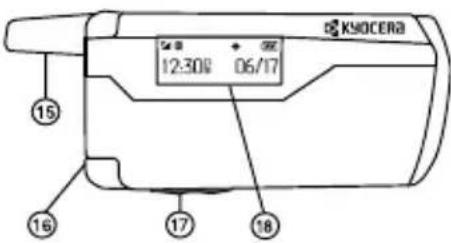
15 Antenna.
⑯ Jack for hands-free headset and data cable (sold separately)*.
⑰ Volume key to raise or lower speaker volume.
18 External screen displays time, caller ID, signal and battery strength.
Note: Depending on your phone model, the orientation of your phone's external screen may be horizontal or vertical.
*Warning: Inserting an accessory into the incorrect jack will damage the phone.
Using Menus
The contents of the main menu are as follows:
| Call History | Messages | Settings | Tools & Games | Web Browser |
| All Calls | New Text Msg | Silent Mode | Tetris® | Connects to Internet |
| Incoming Calls | Voicemail | Sounds | Race 21TM | Phone Info |
| Outgoing Calls | InBox | Display | DoodlerTM | Phone number |
| Missed Calls | Browser Alerts* | Convenience | Voice Memo | Software Version |
| Erase Call Lists | OutBox* | Voice Features | Scheduler | PRL Version |
| Recent Calls Timer | Saved | Messaging | Alarm Clock | Factory Config |
| All Calls Timer | Drafts | Security | Tip Calculator | ESN |
| Contacts | Msg Settings | Network | Calculator | SID |
| View All | Group Lists* | Accessories | Timer | Browser Info |
| Add New | Erase Messages | Stopwatch | Icon Key | |
| Find Name | Media Gallery | |||
| Add Voice Dial | Images | |||
| Speed Dial List | Sounds | |||
| Voice Dial List | ||||
| Business List | ||||
| Personal List | ||||
| Information |
*Not available on all phones, check with your service provider.
- Press to select Menu.
- Press to select Contacts.
- Press left, right, up, or down to view menus and options*.
- Press to select a menu item.
- Press to-back up a menu level.
- Press to return to the home screen.
In this guide, an arrow → tells you to select an option from a menu. For example, Menu → Settings means select Menu, then select the Settings option.
* To change the way the menus appear, select Menu → Settings → Display → Main Menu View, then select Graphic, or List and press OK. See “Choosing a menu view” on page 33 for details.
Performing basic functions
| To... From the home screen... | |
| Turn the phone on | Press  . wait until the phone chimes. . wait until the phone chimes. |
| Turn the phone off | Press    (12G5T) beeps. (12G5T) beeps. |
| Make a call | Enter the number, and press |
| End a call | Press  |
| Answer a call | Press  |
| Access voicemail | Press    he system prompts. he system prompts. |
| Verify your phone number | Select  . .  e Info. e Info. |
| Silence the ringer on an incoming call | Press  to to  er.-or- er.-or-   Press Press  to answer. to answer. |
| Activate voice dialing | Press  e and e and  w the prompts (see page 26). w the prompts (see page 26). |
| Launch the browser | Press   |
| Record a voice memo | Press   . . |
| Access call history list | Press   |
Understanding screen icons
These icons may appear on your phone's home screen and the external LCD.

The phone is operating in IS2000 (1X) digital mode.

The phone is operating in IS95 digital mode.

The phone is operating in Analog (FM) mode.

The phone is receiving a signal. You can make and receive calls. Fewer bars indicate a weaker signal.

A call is in progress.

The phone is not receiving a signal. You cannot make or receive calls.

The phone is roaming outside of its home service area.

You have a voice message.

The battery is fully charged. The more black bars, the greater the charge.

The alarm clock is set.

The phone is in privacy mode or is accessing a secure Web site.

High-speed (3G) data service is available and active on your phone. Check with your service provider for availability.

(blinking) The phone is sending high-speed data.

(blinking) The phone is receiving high-speed data.

High-speed data service is available, but the phone is dormant.

The phone is at the home screen. To access Menu, press

The phone is at the home screen. To access Contacts, press

The phone is set to light up instead of ring.

The phone is set to vibrate or to vibrate and then ring.

Position location is set to your service provider and to emergency services.

Position location is set to emergency services only.
2 MAKING AND ANSWERING CALLS
Making a call
Make sure you are in an area where a signal can be received. Look for _0 the home screen.
Note: The more bars you see in this symbol, the stronger the signal. If there are no bars, move to where the signal strength is better.
-
Open the flip and enter the phone number.
-
Press

- Press to end the call or close the flip.
Redialing a number
To redial the last number called, received, or missed, press three times. If you see or hear a message prompting you to speak a name, press

two more times.
Calling a saved number
If you have already saved a phone number, you can use the Contacts list to find it quickly.
- Press to select Contacts.
- Scroll down the list to find the contact you want to call.
- Highlight the name and press to dial the number.
Answering calls
When a call comes in and the flip is closed, the phone rings and the phone number of the caller appears on the external screen. If the number is stored in your Contacts directory, the contact name also appears.
When a call comes in and the flip is open, the phone rings and an animated phone icon appears on then screen. The phone number of the caller also appears if it is not restricted. If the number is stored in your Contacts directory, the contact name appears.
To answer the call:
- Open the flip.
- Press to answer the incoming call
-or- - Press to answer the incoming call and turn on the speakerphone.
To silence or ignore the call
When an incoming call is received, you can choose to do one of the following:
- If the flip is closed, press down to silence the ringer.
- If the flip is open, to silence an incoming call, press . Then press to answer the call.
- If the flip is open, select Options and then Ignore Call to immediately send the caller to voicemail. Missed Call appears on your screen until the caller leaves a message.
Note: In the absence of voicemail, this feature drops the call.
Answering calls using the flip
You can set the phone to answer immediately when you open the flip. This feature does not apply to incoming data/fax calls.
- Select Menu → Settings → Convenience → Open to Answer.
- Select Enabled to set the phone to answer when you open the flip.
Select Disabled to have the phone continue ringing when you open the flip.
Adjusting the volume during a call
- To adjust the earpiece volume during a call, press up or down.
Using the speakerphone
Your Kyocera SoHo phone has a built-in speakerphone that you can use during a call when the flip is open. This function works only for the current call. Once the call is ended, the speakerphone turns off and earpiece volume returns to normal.
Turn on the speakerphone
You may turn on the speakerphone only when the flip is open.
- During an incoming call alert, press to answer the call and turn on the speakerphone simultaneously.
- Once the speakerphone is turned on, "Speaker is ON" displays on the screen.

Turn off the speakerphone
- Press to turn off the speakerphone. The message “Speaker is OFF” appears.
Dealing with missed calls
When you have missed a call, “Missed Call” appears on your screen unless the caller leaves a voicemail.
- To clear the screen, open the flip and press to select OK.
- To view details of the call, press to select Calls. Highlight the missed call number and press to select Details.
- To return the call, highlight Missed Calls, then press

Setting missed call alerts
You can set an alert to beep every five minutes after you have missed a call.
- Select Menu → Settings → Sounds → Missed Call Alert → Enabled.
Viewing recent call details
Details on the last 60 calls you made, received, or missed are stored in the Call History list and are identified by the following icons:

Outgoing call Incoming call

Missed call (flashing)
Viewing recent calls
- Select Menu → Call History.
-
Select a list: All Calls, Incoming Calls, Outgoing Calls, or Missed Calls.
-
Select a recent call item.
-
Press to select Options.
-
Save adds the phone number to the Contacts list.
- Add to adds the phone number to a saved contact.
- Send Msg allows you to send a text message to the phone number.
- Prepend adds an area code to the number if you plan to save the number as a contact.
Note: If the phone number has been classified as “secret,” you must enter your four-digit lock code to view or edit it. For information on the lock code, see “Changing your lock code” on page 35. To classify a phone number as secret, see “Creating a new contact” on page 14.
Calling recent calls
Flip open
- Press down.
- Highlight the number you want to call.
- Press .
Erasing recent calls
- Select Menu → Call History → Erase CallLists.
- Select an option: All Calls, Incoming Calls, Outgoing Calls, or Missed Calls.
- Press ☐ to select Yes.
Speed dialing
Speed dialing allows you to quickly dial a stored phone number by entering a one- or two-digit speed dialing location number and pressing
Note: Before you can use speed dialing, you must save a phone number as a contact and assign a speed dial location to it. Refer to “Creating a new contact” on page 14 to create a new contact, or “Editing or erasing a contact” on page 14 to add speed dial to an existing contact.
Using speed dialing
To call a contact that has a speed dial location:
- From the home screen, enter the one- or two-digit speed dialing location and press
1-Touch dialing
1-Touch dialing is the fastest way to speed dial a contact that has a speed dial location.
Note: You must (1) enable 1-Touch dialing on your phone and (2) have a speed dial location assigned to a contact. See “1-Touch dialing” on this page.
Enabling 1-Touch dialing
- Select Menu → Settings → Convenience → 1-Touch Dialing → Enabled.
- Press . OK
Using 1-Touch dialing
To call a contact that has a speed dial location:
- From the home screen, press and hold the speed dialing number. If it is a two-digit number, press the first digit briefly, then press and hold the second digit. For example, if the speed dialing location is 15, press briefly, then press and hold . 5
Setting up voicemail
Before your phone can receive voicemail messages, you must set up a password and record a personal greeting with your service provider. When you have set up your voicemail, all unanswered calls to your phone are automatically transferred to voicemail, even if your phone is in use or turned off.
- From the home screen, press and hold
- Press at the message.

- Follow the system prompts to create a password and record a greeting.
Note: If you are having trouble accessing your voicemail, contact your service provider.
Checking voicemail messages
When a voice message is received, your screen displays “New Messages” along with the symbol at the top of your screen. The symbol flashes if the message is urgent.
If you see "New Messages" with the flip open
- Press ☐ to select Call, which initiates a call to your voicemail number.
- Follow the prompts to retrieve the message.
To clear the screen without checking messages:
- Press to select Ignore.
If you see only the symbol
- Press and hold to initiate a call to your voicemail number.
- Follow the prompts to retrieve the message.
- You can set the phone to beep or vibrate every five minutes to remind you that you have voicemail. See “Setting message alerts” on page 32.
Silencing an incoming call
- To silence an incoming call quickly, press Then press to answer the call.

This action silences the current call only. The next call will ring as normal.
Calling emergency services
Note: Regardless of your 3-digit emergency code (911, 111, 999, 000, etc.), your phone operates as described below.
- Dial your 3-digit emergency code and press
You can call the code even if your phone is locked or your account is restricted. When you call, your phone enters Emergency mode. This enables the emergency service exclusive access to your phone to call you back, if necessary. To make or receive regular calls after dialing the code, you must exit this mode.
To exit Emergency mode
When you have completed the emergency call:
-
Press to select Exit.
-
Press again to confirm your choice.
Note: To determine who has access to your location, see “Setting position location” on page 38.
Tracking calls
You can track the number and duration of calls made and received on your phone.
-
Select Menu → Call History.
-
Select a timer:
- Recent Calls Timer—Tracks all calls you have made and received since you last reset this timer. To reset this timer to zero, press ☐ to select Reset.
- All Calls Timer—Tracks all calls you have made and received. This timer cannot be reset.
Timing your calls
You can set your phone to beep 10 seconds before each minute passes when you are on a call.
- S e Menu Settings Sounds Minute Alert Enabled.
Receiving data or faxes
Your phone may be able to receive certain data or faxes, depending on the system sending the information. For more information, see page 37.
Setting roaming alerts and ringers
Setting an alert for roaming
You may use this setting if you want the phone to alert you when you roam outside of your home service area.
-
Select Menu → Settings → Network → Roam/Svc Alert.
-
Select an option and press . OK
- When no svc alerts you with three tones decreasing in pitch when service is lost and three tones increasing in pitch when service is acquired again.
- On roam change alerts you with two decreasing tones when roaming service is acquired and three increasing tones when home area service is acquired again.
- On any change alerts you with three increasing tones if there is a change in roaming service or three decreasing tones if the phone loses service.
Setting the roam ringer
You can set a ringer to indicate when an incoming call will be subject to roaming charges.
- Select Menu → Settings → Sounds → Roam Ringer.
- Highlight Enabled to hear the ringer.
- Press to set.
Setting Call Guard to avoid roming calls
You can set the phone to warn you before you answer or place a call while roaming.
- S e Menu Settings Convenience Call Guard Call prompt.
- The phone now emits a distinctive roam ring to indicate when you are roaming during calls.
- To accept or place a call while roaming, you must press .1==
Note: This functionality is disabled when the phone is in emergency mode.
Controlling network roaming
Specifying digital or analog mode
Depending on services available from your service provider, you may set the phone to either digital or analog mode. This is useful if you are in an area that borders on digital service and the automatic feature is causing the phone to keep switching between modes.
- Select Menu → Settings → Network → Digital/Analog.
- Select an option and press . OK
- Automatic automatically switches the phone between digital and analog.
- Analog only sets the phone to work in analog mode only.
- Analog call forces a call into analog mode for the duration of the next call.
- Digital only sets the phone to work in digital mode only.
Turning roaming on or off
This setting allows you to control the phone's roaming feature by specifying which signals the phone will accept.
-
Select Menu → Settings → Network → Roam Option.
-
Select an option and press . OK
- Automatic (recommended setting) accepts any system the phone service provides.
- No roaming prevents you from making or receiving calls outside of your home service area.
Note: If your phone has more than one setting for Automatic, contact you service provider to determine which one to use.
3 S TORING CONTACTS
Use your phone's Contacts directory to store information about a person or company. Your phone can hold, on average, about 200 phone numbers.
Creating a new contact
-
From the home screen, enter the phone number you want to save, including the area code.
Note: To save a contact without entering a phone number, selectMenu → Contacts → Add New, select an option, and skip to step 3. -
Select Save.
-
Enter a name for the contact. If you need to learn how to enter letters, see page 17.
-
Select Options to add a symbol, smiley, picture, ringer and to classify the contact.
-
Press down once to move to the number field.
-
Select Options to add information to the contact's number.
— Number Type to designate a number as Work, Home, Mobile, Pager, or Fax.
- Add Speed Dial to assign a speed dial number to your phone number.
- Add Voice Dial allows you to add a voice tag to your added phone number.
- Secret hides the number from view in the contacts list and other areas of the phone.
- Primary Number assigns phone number as primary number for contact.
– Time Pause stops dialing for two seconds, then continues to dial. -
Hard Pause stops dialing until you select Release.
-
Select Save when done.
Adding a code or extension
When you save the phone number of an automated service, you may include a pause where your phone would stop dialing; for example, where you would wait to dial an extension.
-
Enter the first portion of the phone number.
-
Select Options.
-
Select a type of pause:
Time Pause Hard Pause
-
Enter the remaining numbers.
-
Select Save and follow the prompts.
Editing or erasing a contact
To make changes to a contact, take these steps.
- Select Menu → Contacts.
- Select View All or Find Name to find the contact you want to edit.
- Highlight the contact to edit and press

- Select Options.
- Highlight an option and press to select it: Assign Ringer, Unassign Ringer, Assign Picture, Unassign Picture, Edit Name, Erase Contact, or Classify Contact.
Editing a phone number
- Select Menu → Contacts.
- Select View All or Find Name to find the contact you want to edit.
- Highlight the contact to edit and press . OK
- Press down to highlight the phone number you want to edit.
- Select Options.
-
Highlight an option for the phone number and press :OK
-
Send Text Msg—Send a text message to the phone number you selected.
- Add Speed Dial—Assign or remove the location you use to speed dial the number.
- Edit Type—Assign a type: work, home, mobile, pager, or fax. The type icon appears next to the phone number in the Contacts list.
— View Number—See the phone number you selected. - Erase Number—Erase the number from the contact.
-
Edit Number—Change the phone number.
-
Prepend—Move the cursor to the beginning of the number so you can add the area code.
- Secret—Make the number secret so that it will not appear on the screen until the lock code is entered. Secret numbers can be called without a lock code. (For more information, see “Restricting calls” on page 36.)
– Primary Number—Make this number the first one that shows up when you open the contact. - Add Voice Dial—Speak the name of the contact person for this number so that you can dial it using voice recognition (VR). For more information, see page 26.
— Erase Voice Dial—Erase the voice dial name associated with the number. -
Edit Voice Dial—Record a new voice dial name.
-
Enter the new information and follow the prompts.
- Select Save, if necessary.
Finding contact information
To find a phone number or contact, you can (1) check the frequent contacts list, (2) search the Contacts directory, or (3) use Fast Find.
Checking the Frequent List
From the home screen, select Contacts. The last 15 of your most frequently called contacts appear when the Frequent List is enabled. Scroll past the double line for an alphabetical list of all contacts.
To enable the Frequent List setting
- S e Menu e→Settings → Convenience → Frequent List → Enabled.
Searching the Contacts directory
- Select Contacts for a list of all contacts. To quickly get down the list, enter the first letter of the contact. The menu skips to that letter of the alphabet. -or-
- Select Menu → Contacts.
-
Select a search method:
-
View All—List all saved contacts.
— Find Name—Locate a specific name. Enter part of the contact name, then selectFind.
— Speed Dial List, Voice Dial List, Business List, or Personal List—Select a contact from a list. -
Scroll down until you find the name you want, then press OK.
-
To call the contact, highlight the number and press
- To display contact information, press OK.
Setting Fast Find
With Fast Find, you press one or two keys to view close matches of the number you are looking for.
- From the home screen, select Menu → Settings → Convenience → Fast Find → Enabled.
Using Fast Find
-
From the home screen, press the keys corresponding to the letters of the name you want to find. A matching contact or speed dial entry appears. Press - down to scroll through matching entries.
-
Highlight the name you want, then press to call the number.

4 ENTERING TEXT, NUMBERS, AND SYMBOLS
You can enter letters, numbers, and symbols in contacts, text messages, and your banner.
Understanding text entry screens
The current text entry mode (and capitalization setting, when applicable) are indicated by icons.
text entry mode
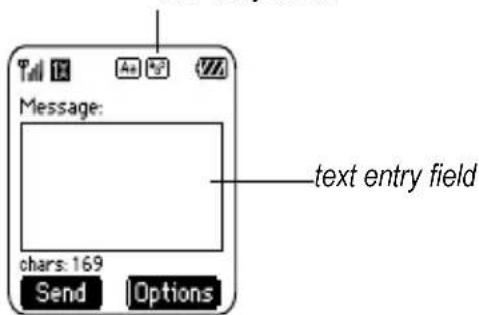
Text entry modes
There are five text entry modes:
A Case change
1_2^3 Numbers only
a_bc Normal alpha
eZi Rapid Entry
&?! Add Symbol
Note: The mode you start in depends on the task you are doing. For example, when entering a phone number, you're in number mode. When entering a name for a contact, you're in normal text mode.
1_2^3 Entering numbers
- To enter a number while in mode, press a number key once.
- To enter a number while in abc modezi press and hold a number key until the number appears on the screen.
a_bc Entering words letter by letter
Use normal alpha to enter letters.
- Press a key once for the first letter, twice for the second letter, and so on. If your phone is set to Spanish, French, or Portuguese, accented letters are available.
- Wait for the cursor to move right and enter the next letter.
eZi Entering words quickly
When you press a series of keys using eZi mode, eZi checks its dictionary of common words and guesses at the word you are trying to spell.
- For each letter of the word you want, press the key once. For example, to enter the word "any" press: 2 ABC → 6 MHz → 9 MHz.
- If the word doesn't match what you want, press to look at other word matches.
- When you see the word you want, press

&?! Entering symbols
While entering text, you can enter symbols by pressing until you see the symbol you want. Using this method, you have access to the following symbols:
. & @, 1 : ?
To access the full set of symbols:
- Select Options.
- Select Add Symbol.
- Press down to view the list of symbols.
- Press the number key corresponding to the symbol you want.
Switching default text entry modes
You can change the default text entry mode when creating a text message. This setting applies only to the message body screen, not the “To” screen.
- Select Menu → Messages → Msg Settings → Default Text.
- Select Normal Alpha or Rapid Mode.
Changing modes
Sometimes you need to change modes. For example, to enter numbers in an email address while in a mode, you must change to 123 mode, enter the numbers, and then change back to a mode to complete the address.
To change text entry modes, you can either:
- Press and hold until the icon for the mode you want appears.
-0r-
• S e Options, then the mode.
Capitalization settings
You can change capitalization at any time while entering text. Simply press to choose upper or lower case while in Normal Alpha mode.
Quick reference to text entry
This table gives general instructions for entering letters, numbers, and symbols.
| To... Do this... | |
| Enter a letter | Use a mode and press a key until you see the letter you want. For more information, see page 17. |
| Enter a number | Use 1 mode and press a key once to enter its number. For more options, see page 17. |
| Enter a symbol | Press until you find the symbol you want. See page 18. |
| Enter a space | Press |
| Erase a character | Press |
| Erase all characters | Press and hold |
| Move the cursor right or left | Press right or left. |
| Move the cursor up or down | Press up or down. |
| Change text entry modes | Press and hold |
| Capitalize any letter | In a mode, press . Choose . A |
| Lowercase any letter | In a mode, press . Choose . a |
| Select soft options on the screen | Press the appropriate key, or |
5 SENDING AND RECEIVING TEXT MESSAGES
This chapter describes how to send, receive, and erase text messages from your phone. For information on voicemail messages, see page 10.
Important: The features and menus described in this chapter may vary depending on services available in your area. In addition, usage charges may apply to each message. For details, check with your service provider.
Sending text messages
You can only send text messages to phones that are capable of receiving them, or to email addresses.
Creating a text message
- Select Menu → Messages → New Text Msg.
-
Select an address to enter the recipient's phone number or email address:
-
Select a saved number from the Recent List or Contacts List, or select a Group Lists you have created. For more about group lists, see page 24.
-
Enter a New Address manually. (To learn how to enter text, see page 17.)
-
To add another recipient to this message, choose a method:
- Press to select Options. Then select Recent List, Contacts, or Group Lists.
- Or -
- Enter a space or comma after the first number. Then enter another recipient manually.
Note: You can send a message to up to 10 contacts at once. The messages will be sent one at a time, once to each addressee.
- When you are done entering addresses, select Next.
- Enter the message. To learn how to enter text, see page 17.
- To add smileys, select Options → Insert → Add Smiley.
Setting sending options
When you are ready to send a message, you have several options for how and when you want the message to be received.
- Once you have completed the message, press ☐ to select Options.
-
Scroll down to select:
-
Add Address—Return to the “To” screen to add another recipient without losing the message text. Enter the new address, then select Next to return to the message entry screen.
-
Save Message—Save the message in your Drafts folder. This prevents the message from being deleted if you have activated AutoErase, and enables you to send the message to others.
-
Save Quick Text—Save the message you have just entered as a prewritten message, then return to the message entry screen so you can send the message.
-
Settings — Highlight Settings. Press .OK Choose from the following:
-
Msg Receipt—Request notification when the message has been received.
- Set Priority—Label the message as “Urgent.”
- Callback Number—Include a callback number with the message to let the recipient know at what number they can call you back. SelectYes to include your own number, orEdit to enter a different callback number.
-
Send Later—Schedule when to send the message.
-
When you have finished setting options, press to return to the message window.
- Press to select Send.
Adding a signature
The signature you create does not display in the message creation screen; however, the signature is included at the end of all outgoing messages and is counted as characters in your messages.
To create a signature:
- Select Menu → Settings → Messaging → Signature.
- Enter your signature in the text field.
- Select OK to save the setting.
If you cannot send messages
You may not be able to send or receive messages if your phone's memory is nearly full, or if digital service is not available at the time. To free up memory, erase old messages. See “Erasing messages” on page 24.
Understanding appended messages
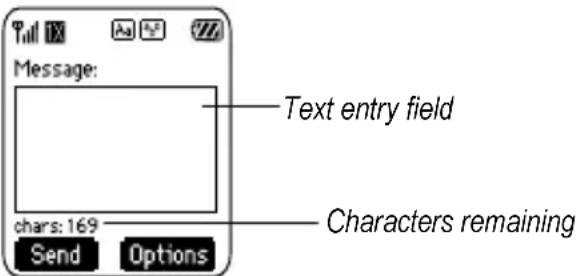
If you go over the character limit for a single message, the phone may automatically append an empty segment to your message to make space.
Important: Your service provider will charge you for each message segment.
When you start a message, the maximum character limit (“169” in the example) appears below the text entry field. This number counts down as you enter characters, until it reaches 0. If you continue to enter text after this counter reaches 0, a message segment may be appended. When you reach the message size limit you are prompted to edit the message or alerted that the message is being appended.
Receiving incoming calls while creating messages
- If you don't wish to answer the call, select Options → Ignore Call. The phone returns to the message screen.
- To answer the call, press .Your message is saved to the Saved folder. To return to the message, select Menu → Messages → Drafts and select Resume.
Viewing the OutBox
You can check the status of messages you have sent as long as they have been saved to the OutBox.
To set the Outbox
The Outbox default is set to disabled to conserve memory. If you want to save your sent messages:
- Select Menu → Messages → Msg Settings → Save to Outbox.
- Select Enabled to save all sent messages to the Outbox.
- Sell ePrompt to alert you to choose whether or not to save your message.
To view the OutBox
- Select Menu → Messages → OutBox.
- Press up or down through the list of messages. One of the following symbols appears next to each message:
☒ The message is pending and will be sent when possible. You can cancel delivery of the message.
The scheduled message will be sent at the scheduled time. You cannot cancel delivery of the message.
✗ The message cannot be sent because service is not available. An alert appears on your phone if the message cannot be sent.
√ The scheduled message has been sent and will be delivered as scheduled. You cannot cancel delivery of the message.
√ The message has been received by the recipient you specified.
The message has been received and opened by the recipient you specified. (This symbol may not be available. Check with your service provider.)
The message has been sent to more than one recipient.
☐ The message has never been sent, or has not been sent since it was last modified. You can cancel delivery of the message.
Retrieving text messages
When a text message is received, your screen displays “New Messages”, along with the symbol at the top of your screen. The symbol flashes if the message is urgent.
If you see the "New Messages" note
You can choose to:
• View the message—Press 📄.
- Ignore the message—Press 📄.
Note: If you receive a new message while you are reading a message, the one you are reading will be replaced by the new one. You can find the older message in the InBox:
Select Menu → Messages → InBox.
If you see the symbol
If the symbol is flashing, the message is urgent.
- Select Menu → Messages → InBox.
A list of all your received messages appears.
New, unread messages appear in bold.
⚠ indicates an “Urgent” message.
- Press up or down to scroll through the list of messages.
- Press to read a message.
Reading the message
The options available to you may vary. Check with your service provider.
Note: Sounds embedded in text messages will not play if the phone is set to Silence All mode.
- If the text message is long, press down to view the entire message.
-
When you are finished, you can Reply to the sender, Play the sound embedded in the message, Erase the message, Save the message to your Saved folder, or set additional Options for the message:
-
View Sender information.
- Forward the message.
- Reply with Copy to reply to the message with a copy of the original attached.
- Save Object(s), such as sound or pictures, from the message. (This option is available if the incoming message includes a graphic or sound.)
- Save Contact to save the sender's phone number or email address in your Contacts list.
-
Save as AutoText to save the text from the message as AutoText, which you can insert into other messages. Graphics and sound will not be saved as part of AutoText. (For more about AutoText, see page 25.)
-
Select Done.
Note: The ☒ symbol indicates that a graphic did not come through. It may be too large or incorrectly formatted.
Setting message alerts
You can set your phone to alert you of incoming text messages or pages. For more information, see “Setting message alerts” on page 32.
Erasing messages
Your phone is designed to store 99 text messages and pages. It is a good idea to erase old messages, as messages take up memory in your phone.
You have the option of erasing text messages and pages as you send or read them, erasing them one at a time from the list in the OutBox or InBox, or erasing them all at once.
Erasing single messages
- Select Menu → Messages.
- Press down to the type of text message you want to erase: InBox, OutBox, or Saved.
- Press . OK
- Highlight the message to erase and press . OK
- Select Options.
- Select Erase to erase the message. A notification appears: "Erase this message?"
- Select Yes to erase the message.
Note: You can erase a scheduled message from the OutBox, but you cannot cancel delivery of the message.
Erasing all messages
- Select Menu → Messages → Erase Messages.
- Select a folder to erase all messages from: InBox, OutBox, Saved Folder, or Drafts Folder. To erase messages from all folders, select All Messages.
- A message appears: "Erase all messages?" Select Yes to erase messages or No to cancel.
Erasing messages automatically
Use this setting to have old messages automatically erased from the InBox when memory is low.
- Select Menu → Messages → Msg Settings → Auto-Erase.
- Highlight Old InBox Msgs and press .ok Older messages will now be erased as new messages are received.
- To disable this setting select Menu → Messages → Msg Settings → Auto-Erase → Disabled.
Customizing message settings
To make messaging easier, you can customize settings for sending and receiving messages.
Creating group lists
You can create and save a list of multiple recipients. Your SoHo phone stores five group lists with up to 10 recipients per list.
- Select Menu → Messages → Group Lists → Create New.
- Enter a name for the list. For help entering text, see page 17.
- Press to select Next.
- To enter the first phone number or email address, select an option:
- Recent List to select numbers from your Recent List.
- New Address to enter the phone number or email address manually.
- Contacts List to select numbers from your phone book.
- Select Options to select the next number.
- Select Recent List or Contacts then the contact to add.
- When finished, select Done.
- To send a message to your new group, see "Sending text messages" on page 20.
Creating and editing prewritten messages (QuickText)
Your phone comes with prewritten (QuickText) messages, such as “Please call me,” which you can insert into the body of a text message. You can edit these messages and create new ones. Your phone will store up to 40 QuickText messages, with up to 100 characters per message.
-
Select Menu → Messages → Msg Settings → Edit QuickText
-
To create a new pre-written message, select New Msg.
-0r-
To edit an existing pre-written message, highlight the message and selectEdit.
- Enter or edit the text and press to select Done. For help entering text, see page 17.
Voice recognition allows you to make and answer calls by speaking commands into the phone's microphone.
Note: You cannot use voice recognition to end a call; you must press when the flip is open.
Setting up voice dialing
To make or receive calls using voice dialing, contacts must be saved with associated voice tags.
Creating a voice tag for a contact
- Select Menu → Contacts → Add Voice Dial.
- Follow the voice prompts to record a name for the contact.
-
Highlight an option:
-
Add new—Save a new contact to go with the voice tag.
- Add to existing—Add the voice tag to a saved contact.
Viewing entries with voice tags
- Select Menu → Contacts → Voice Dial List. A list of all contacts with assigned voice tags appears.
Editing a voice tag
-
Select Menu → Contacts → Voice Dial List.
-
Highlight the contact you want to edit, and press OK to select it.
- Highlight the phone number, select Options.
- Select Add Voice Dial, Erase Voice Dial, or Edit Voice Dial
- Follow the prompts.
Calling using voice tags
- If you haven't already done so, record a voice tag for the person you wish to call.
- From the home screen, press . The phone responds: "Say a name."
- Say the name of the person you want to call.
- If the name you said matches a contact in the Voice Dial List, the phone responds: "Calling (Name)." Remain silent to make the call, or say No to cancel.
Note: If the phone finds multiple voice tags that sound like the name you said, you will be asked to verify which name you want to call. SayYes when you hear the correct name. SayNo when you hear an incorrect name.
- When you are finished with the call, press You cannot end the call with a voice command.
Erasing all voice tags
To erase all voice name dial recordings in your phone:
-
Select Menu → Settings → Voice Features → Erase Voice Dial.
-
Select Yes.
Calling using digit dialing
When using digit dialing, you speak digits to dial a phone number.
Note: You cannot speak a string of digits. You must speak one digit at a time and wait for the prompt.
- From the home screen, press . The phone responds: "Say a name or say Dial."
- Say Dial. The phone responds: "Speak a digit."
- Speak the first digit of the phone number you want to call. Once the phone repeats the digit, you can speak the next digit.
If you pause, the phone prompts you with the following five options. After the prompt, speak an option.
- S Clear to erase the digit last entered. The phone responds: "Digit cleared." To clear the entire phone number, say "Clear" again. When the phone prompts you with "Clear entire phone number?", say "Yes" to clear or "No" to cancel.
- S Call to dial the number.
-
S a y Verify to cause phone to repeat the set of digits that you input.
-
S Cancel to exit voice recognizer and return to the home screen.
- Speak a digit to enter the next digit. Once the phone repeats the digit, you can speak the next digit or pause to hear the prompt.
Using voice features with accessories
You can use voice commands to make a phone call or to answer the phone only if your phone is connected to an accessory such as a hands-free car kit or headset (both sold separately).
Note: The following features apply only to the installed hands-free car kit unless noted.
To shop for these accessories, visit www.kyocera-wireless.com/store or call 800 349-4188 (U.S.A. only) or 858 882-1410.
Waking up the phone
If your phone is connected to a professionally installed Kyocera hands-free car kit, you can use a voice command to activate the phone to make a phone call.
To activate the Voice Wake-up setting:
- S e Menu Settings Voice Features Voice Wake-Up With accessory.
To wake up the phone:
- Say "Wake Up" and listen for a tone.
- Say "Wake Up" again until you hear two tones.
If the phone does not recognize your “Wake up” command, see “Training voice recognition” on page 28.
Answering the phone
You can set the hands-free car kit to either (1) answer automatically or (2) answer using a voice command.
Answering automatically
You can set your phone to answer automatically.
- Select Menu → Settings → Accessories → Auto-Answer → After 5 seconds.
Answering using voice commands
If Auto-Answer is turned off, you can use a voice command to answer an incoming call using the Kyocera hands-free car kit.
- S e Menu e→Settings → Accessories → Auto-Answer → Disabled.
To activate the Voice Answer setting:
- Select Menu → Settings → Voice Features → Voice Answer.
- Highlight Enabled, then press OK.
- Select Menu → Settings → Silent Mode → Normal Sounds, then press .OK
To answer a call:
When you receive an incoming call, the phone responds: “Incoming call, answer?” or “Incoming roam call, answer?” If the caller is recognized as a saved contact entry, then the phone says “Incoming call from (Name), answer?”
• S Yes or press any key except
Ignoring an incoming call
To ignore an incoming call, do one of the following:
- S a y No and press to silence the alert.
- Remain silent. The voice alert repeats twice and the phone rings once, then returns to the home screen.
Training voice recognition
If your phone is having trouble recognizing your voice, you can train it with the commandsYes, No, and Wake up.
-
Select Menu → Settings → Voice Features.
-
Select Voice Training.
-
Read the message and press 🔒 to select OK and continue.Cancel returns you to the previous screen.
-
Select Train All or the item you want to train.
-
Follow the prompts for each word until training is complete.
The contents of the Settings menu are as follows.
Silent Mode
Vibrate Only
Vibe then Ring
Lights Only
Normal Sounds
Sounds
Ringer Volume
Ringer Type
Business Ringer
Personal Ringer
Roam Ringer
Flip Open
Flipl Closed
Pwr On/Off Sound
Key Volume
Key Length
Missed Call Alert
Smart Sound
Minute Alert
Earpiece Volume
Spkrphone Volume
Display
My Banner
My Ticker
Main Menu View
Color Themes
Wallpaper
Screen Saver
Backlighting
Auto-Hyphen
Language
Time/Date Format
Contrast
Convenience
Open to Answer
Fast Find
Frequent List
Hold Call
1-Touch Dialing
Web Prompt
Call Guard
Voice Features
Add Voice Dial
Erase Voice Dial
Voice Training
Voice Wake-Up
Voice Answer
Expert Mode
Messaging
Alerts
Signature
Edit QuickText
Callback Number
Msg Receipt
Save to OutBox
Auto-Erase
Default Text
Voicemail Number
Security
Lock Phone
Limit Calls
New Lock Code
Erase Contacts
Emergency Numbers
Network
Data/Fax Calls
Privacy Alert*
Set Phone Line*
Roam/Svc Alert
Roam Option*
Digital/Analog*
Location
Accessories
Pwr Backlighting
Headset Ringing
Auto-Answer
Com Port Speed
TTY Device
*Not available on all phones. Check with your service provider.
Silencing all sounds
Your phone is set to make sounds when you receive calls, press keys, navigate through menus, and receive alerts (such as new messages).
You can silence all sounds and set the phone to vibrate or light up when you receive calls and alerts.
Setting the phone to vibrate or light up
-
Select Menu → Settings → Silent Mode.
-
Choose an option and press : OK
-
Vibrate Only—Causes the phone to vibrate for the duration of the incoming call or other alert. 📐 appears.
- Vibrate then Ring—Causes the phone to vibrate for the first 10 seconds and then ring for the remainder of the incoming call alert. 📋 appears.
- Lights Only—Causes the phone to light up for the duration of the incoming call or other alert. Appears.
-
Normal Sounds—Causes the phone to ring for the incoming call or alert (in effect, returns phone to a non-silent mode).
-
Press to return to the home screen.
Note: The phone will ring when it is attached to an external power source (such as a charger), even if all sounds have been silenced.
Choosing ringers
Your Kyocera SoHo phone has 25 ringers you can choose to use for incoming calls.
- Select Menu → Settings → Sounds → Ringer Type.
- Scroll down the list to hear the different rings.
- Press to select a ringer from the list.
Note: Downloaded ringers are added to the end of the standard list of ringers.
Assigning business and personal ringers
You can assign ringers to contacts classified as business or personal in your Contacts directory.
Note: To classify a contact as Business or Personal, see page 14.
- Select Menu → Settings → Sounds.
- Highlight Business Ringer or Personal Ringer and press OK.
- Select a ringer and press . OK
Importing ringers
You can download additional ringers to your phone using the Kyocera Phone Desktop software and Ringster, if available (sold separately). To purchase this software and other accessories, visit www.kyocera-wireless.com/store.
Setting sounds for your phone
You can set your phone to sound tones when you open and close the flip, and when you turn the phone on and off. Sounds will not occur during an incoming call, if you are in a call, or if a headset or car kit is attached to your phone.
Set sound when flip opens
- Select Menu → Settings → Sounds → Flip Open.
- Scroll through the list to hear the sounds.
- Select a sound and press to save.
Set sound when flip closes
- Select Menu → Settings → Sounds → Flip Closed.
- Scroll through the list to hear the sounds.
- Select a sound and press to save.
Set sound when phone powers on or off
- Select Menu → Settings → Sounds → Pwr On/Off Sound.
- Select Enabled. To deselect this sound, select Disabled.
Adjusting volume
You can adjust the earpiece, speakerphone, and ringer volume as well as key tones.
Adjusting the earpiece volume
To adjust the earpiece volume manually during a call, press the key up or down
To set the earpiece volume:
- Select Menu → Settings → Sounds → Earpiece Volume.
- Press right to increase the volume, or left to decrease the volume.
- Press ☐ to select Save.
Adjusting the ringer volume
- Select Menu → Settings → Sounds → Ringer Volume.
- Press right to increase the volume, or left to decrease the volume.
- Press ☐ to select Save.
Adjusting speakerphone volume
- Select Menu → Settings → Sounds → Spkrphone Volume.
- Press right to increase the volume, or left to decrease the volume.
- Press ☐ to select Save.
Adjusting key tone volume
You can change the volume of the tones the phone makes when you press the keys.
-
Select Menu → Settings → Sounds → Key Volume.
-
Press right to increase the volume, or left to decrease the volume.
- Press to select Save.
Setting key length
You can change duration of the tones the phone makes when you press the keys.
- Select Menu → Settings → Sounds → Key Length.
- Choose Normal or Long.
- Press . OK
Setting message alerts
You can choose how you want be alerted of incoming voicemail, pages, or text messages.
- Select Menu → Settings → Messaging → Alerts.
- Select the type of alert: Message Alert, Page Alert, or Voicemail Alert.
-
Press to select an option:
-
Vibrate, Beep, HiYa!, Rock!, Happy!, sets the phone to alert you once when a new message is received.
- Vibrate & Remind, Beep & Remind, HiYa! & Remind, Rock! & Remind, Happy! & Remind sets the phone to notify you once when a new message is received and then notify you again every five minutes. To stop a reminder alert, press to select Ignore.
- Disabled—Turn off message alerts.
Using shortcuts
Your Kyocera SoHo phone comes with four shortcuts when in standby mode (flip open).
| Press up Access your custom menu | |
| Press down Access | Call History |
| Press left Launch Web browser | |
| Press right Record | voice memo |
Creating a custom menu
You can create a custom menu that contains your favorite features. After you set up your menu, simply press and hold up to access it.
- Press and hold up to launch Custom Menu.
- Highlight Manage List and press OK.
- Scroll through the available options.
- Press to select or deselect options. You may select more than one feature. Items appear in alphabetical order in the menu.
- Highlight Save changes and press OK.
Updating your custom menu
- Press and hold up to launch Custom Menu.
- Press OK to select Manage List.
- Press to select or deselect options.
- Highlight Save changes and press OK.
Creating a shortcut to frequent contacts
By default, your phone lists your entire contacts list when you select Contacts. You can also set the phone to show a list of your most frequent contacts.
- Select Menu → Settings → Convenience → Frequent List.
- Select Enabled to include the list or Disabled to remove it.
Using the Frequent Contacts shortcut
- From the home screen, press to select Contacts. Your 15 most frequently called contacts appear at the top of the list, followed by your complete contact list.
Choosing a different language
Your phone may display alternative languages.
- Select Menu → Settings → Display → Language.
- Select a language, and press . OK
Personalizing the screen
Changing your banner
The banner is the personal label for your phone. It appears on the home screen above the time and date. The banner can be up to 14 characters long.
- Select Menu → Settings → Display → My Banner:
- Press to select Edit.
-
Press to clear the screen.
-
Enter your new text.
- Press to select Save.
Changing your ticker
The ticker is the scrolling banner text that is visible on the external display when the phone is inactive. The ticker can be up to 50 characters long.
- Select Menu → Settings → Display → My Ticker.
- Press ☐ to select Options.
- Select Edit.
- Enter you new text.
- Press to select Save.
Choosing a menu view
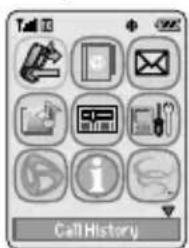
Two menu views are available:
- Select Menu → Settings → Display → Main Menu View, then the option you want:
- Graphic displays graphical icon view of menu items.
- List displays menu items in text format.
Graphic
List
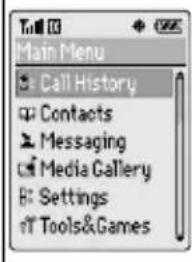
-
Press up or down to scroll menu views.
-
Press to return to the home screen. The next time you select Menu, you will see the menu view you selected.
Adjusting the backlighting
Your screen lights up while you are in a call or when you press a key on the keypad. However, you can set the length of time that bright backlighting remains on.
- Select Menu → Settings → Display → Backlighting → Duration.
-
Select an option from the list:
-
7 seconds, 15 seconds, or 30 seconds—Turn backlighting on for 7, 15, or 30 seconds after your last keypress.
- 7 sec. & in call, 15 sec. & in call, or 30 sec. & in call—Turn backlighting on for the duration of a call, and for 7, 15, or 30 seconds after your last keypress.
Note: These settings drain the battery more quickly and reduce talk and standby times.
Using Power Save Mode
You can conserve battery life by activating Power Save mode to dim the backlight set in the procedure above. The backlighting appears for the selected duration but is less bright than with Power Save off.
- S e Menu Settings Display Backlighting Pwr Save Mode On.
Setting power backlighting
You can set backlighting to remain on when an external power source, such as the AC adapter, is used with the phone.
Note: Power backlighting may not be available with the optional desktop charger or other accessories.
- Select Menu → Settings → Accessories → Pwr Backlight.
- Select Always On to keep backlighting on. Note: The battery charges more slowly when power backlighting is on.
Changing the display contrast
- Select Menu → Settings → Display → Contrast.
- Press left or right to adjust the contrast.
- Press ☐ to select Save.
Setting numbers to auto-hyphenate
Auto-hyphenation, when enabled, automatically inserts hyphens into your phone numbers to be consistent with the U.S. dialing plan.
For example, 1-222-333-4444.
- S e Menu Settings Display Auto-Hyphen Enabled.
Selecting a screen saver
Screen savers appear on the home screen when the flip is open and are activated 10 seconds after the last keypress. Incoming calls and alerts override screen savers.
- Select Menu → Settings → Display → Screen Saver.
- Highlight a screen saver and press .The image displays.
- Press to assign the screen saver.
- Press to return to the home screen and wait 10 seconds to view the screen saver you chose.
Note: Downloaded screen savers are added to the end of the list.
Selecting wallpaper
Wallpaper appears on the home screen.
- Select Menu → Settings → Display → Wallpaper.
- Highlight a wallpaper design and press . OK
- Select Assign to save your selection.
- Press to return to the home screen.
Selecting a color theme
You can select a color theme for the display background of your phone.
-
Select Menu → Settings → Display → Color Themes.
-
Scroll through the options to view the color themes.
- Highlight a color theme from the list and press OK
- Press to return to the home screen.
Choosing a different time/date format
- Select Menu → Settings → Display → Time/Date Format.
- Highlight the option you want.
- Press to save the setting.
Creating a secure environment
This section describes all the features involved in securing your phone and preventing access to personal information. All security features are shielded by a four-digit lock code.
Changing your lock code
The lock code is typically 0000 or the last 4 digits of your phone number.
- Select Menu → Settings → Security.
- Enter your four-digit lock code.
- Select New Lock Code. A message appears: "Change Code?"
- Press ☐ to select Yes and enter a new four-digit code.
- Enter your new lock code again.
Locking your phone
When your phone is locked, you can call only emergency numbers or your service provider number. You can still receive incoming calls.
- Select Menu → Settings → Security.
- Enter your four-digit lock code.
- Select Lock Phone.
-
Highlight an option:
-
Never does not lock the phone.
- On power up locks the phone every time you turn it on.
-
Now locks the phone immediately.
-
Press . OK
Unlocking the phone
- From the home screen, press to select Unlock.
- Enter your four-digit lock code.
Designating emergency numbers
The emergency numbers feature allows you to specify three personal phone numbers that can be called when the phone is locked.
- Select Menu → Settings → Security.
- Enter your four-digit lock code.
- Select Emergency Numbers.
-
Select an Unassigned slot.
-
Enter the phone number, including the area code. Do not enter 1 before the area code.
- Press ☐ to select Done.
Notes:
- You can view these numbers only when they're being entered for the first time.
- You cannot edit these numbers.
- To make a call to an emergency number from a locked phone, you must dial the number (including area code) exactly as it was stored in Emergency Numbers.
Restricting calls
You can restrict the calls that can be made from your phone to emergency numbers, your contacts, and service provider numbers.
- Select Menu → Settings → Security.
- Enter your four-digit lock code.
- Select Limit Calls.
-
Choose an option:
-
No Limit limits no calls.
- Limit Outgoing calls only. Incoming calls can still be received and answered.
– Limit All calls, both incoming and outgoing.
Erasing all contacts
You can erase all entries from your Contacts directory.
- Select Menu → Settings → Security.
-
Enter your four-digit lock code.
-
Select Erase Contacts.
- Select Yes to erase all contacts. A message appears: "Erase ALL Contacts?"
- Press ☐ to select Yes to erase all contacts.
Network settings
Switching between phone lines
Your phone can have two service accounts, or phone lines, associated with it. Each phone line has its own phone number.
When you are using one line, you cannot receive calls from the other. It would be as if the phone were “off” for that number. Your voicemail, however, will still take messages. All contacts and settings are shared for both lines.
Note: You must first establish a second phone line with your service provider. Once established, a second phone number becomes available in the menu for selection:
- Select Menu → Settings → Network → Set Phone Line.
- Select one of the two lines and press . OK
Data Settings
Setting Com port speed
The Com Speed sets the data rate at which your phone connects to a laptop or PC.
- Select Menu → Settings → Accessories → Com Port Speed.
- Select the speed. The options are: 19.2 kbps, 115.2 kbps (default), 230.4 kbps.
Note: There may be a higher charge for making calls using high-speed data in areas where 1X service is available. Check with your service provider for details.
Setting the phone to receive data or faxes
Your phone may be able to receive certain data or faxes, depending on the system sending the information. You cannot receive voice calls while the phone is in data/fax mode. To receive data or faxes, you must connect the phone to a laptop or PC and switch the phone from voice mode to data/fax mode.
Note: To purchase a cable call (800) 349-4188 (U.S.A. only), (858) 882-1410, or visit www.kyocera-wireless.com/store.
- Connect the phone to the laptop or PC.
- Set the Com speed.
-
Select Menu → Settings → Network → Data/Fax Calls.
-
Press to select an option:
– Voice only—Allow only voice calls.
- Fax, next call or Data, next call—Set the phone to fax mode or data mode for the next incoming call or the next 10 minutes.
- Data, until off—Force the phone into data mode until the phone is turned off.
Note: You cannot receive voice calls while the phone is in data/fax mode.
Connecting to a TTY/TDD device
You can connect the phone to a TTY device for the hearing impaired. Note: Enable TTY only when using the phone with a TTY device.
- Connect the TTY device to the phone.
- E your keypad.
- Press ☐ to select the TTY option.
- Press to clear the message.
- Press down to highlight an option.
- Press . OK
Note: TTY/TDD service may not be available. Check with your service provider for more information.
Setting position location
This setting allows you to share your location information with network services other than emergency services (911, 111, 999, 000, etc.), in markets where service has been implemented.
Note: This feature works only when your phone is in digital mode. You do not have the option of turning off the locator to emergency services.
- Select Menu → Settings → Network → Location.
- At the message prompt, press ☐ to select OK and continue.
-
Select 911 Only or Location On.
-
911 Only (default) shares your position information only with emergency services when you call your 3-digit emergency code (911, 000, 111, etc.).
- Location On shares your position information with your service provider's network, in addition to emergency services.
The media gallery stores and displays all the image and sound files in the phone.
Accessing files
- Select Menu → Media Gallery.
- Select an option:
- Images displays a list of categories that contain preloaded, downloaded, saved, or created files such as wallpaper, screen savers, or caller IDs.
- Sounds displays a list of categories that contain saved or downloaded sounds such as ringers and voice memos.
Browsing images
The images menu allows you to assign your files to various applications.
- Select Menu → Media Gallery → Images.
- Use to highlight the menu item you want:
– Saved Images displays images you have saved.
– Wallpapers displays wallpaper selections.
– Screen Savers displays available screensavers.
- Caller IDs displays pictures and images that can be assigned to saved contacts.
– Doodles displays files created with Doodler.
-
Select OK to display the files in that menu.
-
Select Options.
Note: Options vary according to menu selection. Choose from the following options:
- Erase the image.
- Set As Default sets as default setting.
- Assign an image as a caller ID, wallpaper or screen saver.
– Rename an image.
– Details gives you the file size of the image. -
Erase All erases all images stored (images must not be locked).
-
Select or when done.
Browsing sounds
The sounds menu allows you to view and listen to all sound files stored on the phone.
- Select Menu → Media Gallery → Sounds.
- Use to highlight the menu item you want:
- Saved Sounds contains sounds saved on your phone.
- Ringers contains ringers saved on your phone.
-
Voice Memos contains voice memos you made to yourself.
-
Select OK to display the files in that menu.
-
Select Options. Choose from the following options:
- Erase the sounds.
- Assign a sound as a ringer.
- Rename a ringer.
– Details gives you the file size of the sound.
– Erase All erases all sounds stored.
5. Select Close when done.
Creating free space
If your phone does not have enough memory to store a file, a dialog displays and asks you if you want to create space.
- S e Yes to display the file browser (categories) with the memory needed and available memory.
- S e No to return to the previous screen and no files are saved or downloaded.
The actions are limited to the following:
- Erase the selected file (you cannot erase locked files).
— Done re-attempts the download or save.
Voice Memo
The Voice Memo tool allows you to record and play back audio memos.
Recording a voice memo
-
Select Menu → Tools & Games → Voice Memo → Record New. -or- Press and hold -right.
-
Say your memo and press to select Stop.
-
Select Save to save your memo.
Note: If an incoming call is received while you're recording a memo, the memo is saved and the incoming call screen displays.
Playing or reviewing a memo
-
Select Menu → Tools & Games → Voice Memo → Recorded Memos.
-
Highlight the memo to review and press to select Play.
-
Press the corresponding key to perform the following memo functions:
Press to select Play

Press to select Stop

Press to select Pause

Naming a saved voice memo
- Select Menu → Tools & Games → Voice Memo → Recorded Memos.
- Highlight the memo and select Options.
- Select Rename. Enter a name for the memo.
- Select Save.
- Press to return to the home screen.
Erasing a saved voice memo
- Select Menu → Tools & Games → Voice Memo → Recorded Memos.
- Highlight the memo and select Options.
- Select Erase. The prompt "Erase file?" appears.
- Select Yes or No.
1:2 Scheduler
The Scheduler allows you to schedule events and set reminder alerts.
Creating an event
- Select Menu → Tools & Games → Scheduler.
- Press down to select Add Event and press OK.
- Enter a name for the event. For help entering text, see page 17.
-
Select Next.
-
Enter the time, length, and alarm for event.
-
Press up or down to select date, hour, minutes, and timing of alarm.
-
Press left or right to move between fields.
-
Select Next, enter a note if required.
- Select Done.
Viewing, editing, or erasing an event
- Select Menu → Tools & Games → Scheduler.
- Select View Day or View Month to find the event you want to view, edit, or erase.
- Press up, down, left, or right to highlight an event and press to select it.
- Select Edit or Options. Follow the prompts.
- Press to return to the home screen or to return to scheduler options.

Alarm Clock
Use the Alarm Clock to set an alert for a specific time. The alert occurs only if the phone is on.
- Select Menu → Tools & Games → Alarm Clock
-
Select Set.
-
Press up or down to select an hour and minutes.
- Press left or right to switch between hours, minutes, and a.m./p.m.
-
Use the phone keypad to enter numbers.
-
Press ☐ to select Done and save the setting.
- When the alarm rings, select Off to turn off the alarm or Snooze to silence the alarm for 10 minutes.

Tip Calculator
The Tip Calculator helps you calculate how much tip to include on a bill.
- Select Menu → Tools & Games → Tip Calculator.
- Enter the amount of your bill.
- Select Next.
- Select the amount you want to include as a tip (10%, 15%, 18%, 20%, Other) and press OK. Your total bill appears, including tip.
- To split the bill, press ☐ to select Split.
- Press ☐ to clear the default of 2 guests.
- Enter the number of guests and press ☐ to select Next. The amount each guest pays is calculated.
- Select Done.

Calculator
Use the calculator for basic mathematical equations.
- Select Menu → Tools & Games → Calculator.
- Use the keypad to enter numbers.
- Use to select mathematical operations.
Navigation:
Left x (multiply) Up + (add)
- Press to calculate the result.
Example: Enter 5, press ☐ left to select X, enter
2, then press to obtain the result of 10.
-
Press to return to the home screen.
-
Press to clear the screen.
Options
M+ Adds displayed digit to the value stored in memory.
MR Displays currently stored value on screen.
MC Clears value currently stored in memory.

Timer
This timer counts down for a specified amount of time. It beeps when that amount of time has elapsed.
- Select Menu → Tools & Games → Timer.
- Select Set.
-
Press up or down to set the hours, minutes, and seconds. To move the cursor, press left or right.
-
Select Start and begin the countdown.
Select Stop to pause the countdown.
Select Reset to clear the timer.
- Press to silence the alarm.

Stopwatch
- Select Menu → Tools & Games → Stopwatch.
- Select Start to begin counting.
- Select Stop to stop counting.
- Select Reset to clear the counter.
- Press to return to the home screen.
Games
The games in this section may not be available on your phone. Check with your service provider for availability.
If you receive an incoming call alert while you are playing Tetris ^TM or Race 21 ^TM , the game is paused and exited. You can return to play once the call alert ends. Games do not remain paused if the phone is turned off or loses power.

Tetris
The goal of this game is to guide the falling blocks down the screen to create a solid horizontal row at the bottom. The game ends when the new block cannot enter the play field because the area is occupied by another block or obstacle.
- Select Menu → Tools & Games → Tetris.
- Press at the splash screen.
- Highlight an option and press to select it.
New Game—Initiates game play. To pause the game, press -You return to the menu where you can Continue Game or choose from other available options.
Resume Saved—Returns you to the game you were last playing.
Scoreboards—Displays the top five scores for the different game variations.
Settings—Choose from Game Type, Music, Next Piece, Hold Queue, Ghost Piece, Rotation Type, Sound Effects and Starting Level.
Navigation: Use the following keys to guide the blocks down the screen:
To: Use:
| Rotate Counterclockwise | |
| Rotate clockwise | |
| Move left or left |
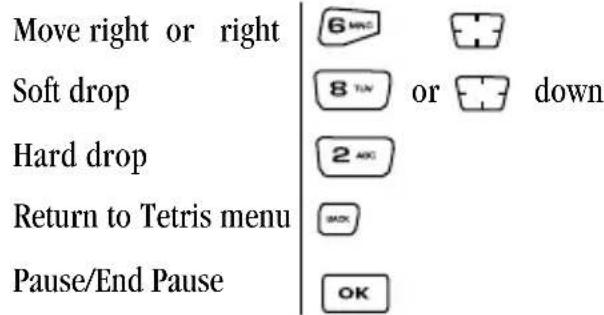

Race 21
This game is a timed variation of Black Jack. Each game comprises three 90-second rounds. To score points, add cards in each of the four columns, trying to reach but not exceed 21 in each column within during the course of the game.
- Select Menu → Tools & Games → Race 21.
- Press OK at the splash screen.
- Select New Game. The first card to be placed is shown at the top left of the screen. Press a key to add a card to the row as follows:

Add cards to the first row

Add cards to the second row

Add cards to the third row

Add cards to the fourth row
Shortcut: Press left or right to choose arrows at the bottom of the screen. Then press to add cards to corresponding rows.
Note: Each time you place a card, a new card appears for placement.
- Continue placing cards until you are satisfied with your selections.
- You can pause or end the game at any time by pressing
- You lose points each time you exceed 21 in a column.
- S e Skip toskip one card per round.
-
Press to select to get your score and advance to the next round
-
Select an option and press to select it.
- New Game—Initiates game play. To pause the game, press From here you can choose Resume, New or Quit.
- Resume Game—Returns you to the game you were last playing.
- Scoreboard—Provides you with the top five scores.
- Music—Choose when you hear music with this game. Select from Music Always, Sound Effects, Instructions, Credits, During Title, or No Music.
- Press to end all games.
Doodler
You can create and save graphics on your phone.
-
Select Menu → Tools & Games → Doodler.
-
Press at the splash screen.
-
Select New Doodle to open the drawing screen The cursor is located in the middle of the screen.
-
Select Options to choose the Tools, Lines, or Shape you want to use.
-
Use keys 1–9 or to move the cursor around the screen as indicated.
-
When finished, select Options → Save. The image is saved to My Pictures.
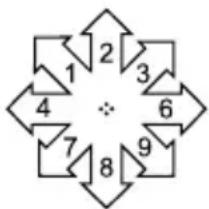
flowchart
graph TD
    A["1"] --> B["2"]
    B --> C["3"]
    C --> D["4"]
    D --> E["5"]
    E --> F["6"]
    F --> G["7"]
    G --> H["8"]
    H --> I["9"]
    I --> A
    style A fill:#f9f,stroke:#333
    style B fill:#f9f,stroke:#333
    style C fill:#f9f,stroke:#333
    style D fill:#f9f,stroke:#333
    style E fill:#f9f,stroke:#333
    style F fill:#f9f,stroke:#333
    style G fill:#f9f,stroke:#333
    style H fill:#f9f,stroke:#333
    style I fill:#f9f,stroke:#333
To move cursor away from drawing:
-
Select Options → Tools.
-
Select, then Done.
-
Press a number key to move the cursor.
To erase part of drawing:
-
Select Options → Tools.
-
Select, then Done.
-
Press a number key to move the eraser.
To Navigate: Use the following keys to doodle.
| To: Use: | |
| Select Options | |
| Clear screen | |
| Shortcut to Tools | |
| Draw, erase, or move cursor/shape UP | up |
| Draw, erase, or move cursor/shape DOWN | do |
| Draw, erase, or move cursor/shape LEFT | left |
| Draw, erase, or move cursor/shape RIGHT | right |
| Return cursor to center | 5 |
| Previous screen |
Saving a doodle
It is a good idea to save the doodle while you are working on it. If you receive a call while creating an unsaved doodle, it will be lost.
• S e Options → Save and press .OK
The image will be saved in Menu → Media Gallery → Images → Doodles.
Resuming a doodle
To return to another saved doodle:
- S e Menu → Tools & Games → Doodler → Resume Doodle.
Note: You can also go to Menu → Media Gallery → Images → Doodles.
w n
You can use your phone to browse the Internet if you have obtained phone Internet services from your service provider and if over-the-air Internet access is available in your area.
Note: You cannot receive incoming calls while you are using the Web Browser.
Starting the Web Browser
- Select Menu → Web Browser.
-or-
Press and hold -left to launch the browser.
A message about airtime fees appears every time you start the browser.
To cancel the message, see “Changing the Web prompt” on page 48.
For more information about how airtime is charged, contact your service provider.
- Press to continue.
If this is the first time you have connected to the Internet, a message informs you that security is not yet enabled for your Web Browser.
- Press OK to select Yes to enable security.
When you are connected, a browser home page appears. It has a list of bookmarks and some Web menu options at the bottom of the screen.
- A appears in a secure session.
- An underline and an arrow indicate that there is more text. Press - down to view more text. Press to return to the previous screen.
- To choose a site, highlight it and press OK to select Go.
- When you have finished using the Internet, press to exit the browser.
Using the Web menu options
The following options may appear on your screen:
- Home returns you to the main Web Browser window, or home page.
- Mark Site saves the current location as a bookmark for easy access.
- Bookmarks displays a list of your saved Web sites.
- Setup gives you options for changing how information is displayed.
– Show URL displays the entire URL.
- About Openwave displays information about your Web Browser version.
- Encryption should not be used unless you are instructed to do so by your service provider.
- UP.Link selects a different browser server. You can use this option if you have more than one Web Browser account.
- Restart restarts the Web Browser.
Searching for a Web site
How you search for a Web site depends on your service provider. For more information, contact your service provider.
Going to a bookmarked site
- Select Menu → Web Browser. If you see a message prompt, press to continue.
- From your Web home page, select Bookmarks. A list of bookmarks appears.
- Enter the number corresponding to the bookmark you want and press .OK
Checking Net alerts
Alerts received from a Web site are sent to your Net Alerts inbox.
-
Select Menu → Messages → Net Alerts. This action launches the browser inbox.
-
Press to accept browser fees.
-
Select an alert and follow the prompts.
Changing the Web prompt
- Select Menu → Settings → Convenience → Web Prompt.
-
Highlight an option and press to select it:
-
At Start confirms that airtime fees will be applied when you use the browser.
- At End verifies you want to exit the browser.
- Both prompts you when you start the browser and exit the browser.
- No Prompts does not use any prompts.
11 GETTING HELP
Customer support
Your service provider's customer support department may be accessible directly from your phone when you dial a number such as *611 (check with your service provider). They can answer questions about your phone, phone bill, call coverage area, and specific features available to you, such as call forwarding or voicemail.
For questions about the phone features, refer to the materials provided with your phone, or visit www.kyocera-wireless.com.
For additional questions, you may contact the Kyocera Wireless Corp. Customer Care Center in any of the following ways:
• Web www.skybocera@wireless.com
- Email: phone-help@kyocera-wireless.com
- Phone: 1-800-349-4478 (U.S. and Canada) or 1-858-882-1401. Customer support phone numbers are also available in the following countries.
Argentina: 0-800-666-0052
Australia: 800-507-000
Brazil: 0-800-55-2362
Chile: 800-43-1212
Colombia: 01-800-700-1546
India: Toll free:1-600-121214
Toll: 0124-284-5000
Mexico: 001-866-650-5103
New Zealand: 0-800-990-100
Panama: 001-800-201-1984
Peru: 0-800-51-934
Puerto Rico: 1-866-664-6443
Venezuela: 0-800-100-2640
Before requesting support, please try to reproduce and isolate the problem. When you contact the Customer Care Center, be ready to provide the following information:
- The name of your service provider.
- The actual error message or problem you are experiencing.
- The steps you took to reproduce the problem.
- The phone's electronic serial number (ESN).
- To locate the ESN select Menu → Phone Info and scroll down to ESN: for the 11-digit number.
Qualified service
If the problem with your phone persists, return the phone with all accessories and packaging to the dealer for qualified service.
Phone accessories
To shop for SoHo phone accessories, visit www.kyocera-wireless.com/store. You may also call us at (800) 349-4188 (U.S.A. only) or (858) 882-1410.
Become a product evaluator
To participate in the testing and evaluation of Kyocera Wireless Corp. products, including cellular or PCS phones, visit beta.kyocera-wireless.com.
INDEX
Numerics
1-touch dialing, 10
A
alarm clock, 6, 42
alerts
for messages, 32
for missed calls, 8
analog mode, 6
auto text, 21, 25
auto-hyphenation, 34
B
banner, 33
battery, 1
blocking outgoing calls, 36
C
calculator, 42
call counters, 11
callback number, 21
calls
answering, 7
missed, 8
redialing, 7
color themes, 35
com port speed, 37
contacts directory, 14
contrast, 34
countdown timer, 43
custom menu
creating, 32
updating, 32
D
data/fax setup, 11, 37
digital mode, 6
display contrast, 34
doodler, 45
E
emergency calls,
emergency mode, 11
exit emergency mode, 11
position location, 6, 38
erasing
contact entries, 36
text messages, 24
F
fast find, 16
fax mode, 37
finding contact information, 15
flip
answering calls, 8
frequent contacts, 16
G
games
doodler, 45
race 21, 44
tetris, 44
H
hands-free car kit
answering using voice, 28
purchasing, v, 50
hands-free headset
purchasing, v, 50
hard pause, 14
|
icons, 6
inbox, 23
L
language, 33
lights
lights-only mode, 6, 30
limiting calls out, 36
lock code, 35
locking
phone, 36
M
memory, saving, 24
menu view, 33
N
number mode, 17
0
outbox, 22
P
phone numbers
editing, 15
verifying your own, 5
phone, unlocking, 36
position location, 6, 38
prepend, 9, 15
R
race 21, 44
recent call icons, 9
resetting the phone, v
ringers
choosing types, 30
for roaming calls, 12
silencing, 5
volume, 31
roaming, 6
alerts, 12
controlling, 12
ringer, 12
S
saved phone numbers editing, 15
scheduler, 41
screen contrast, 34
screen icons, 6, 17, 22, 30
screen savers, 35
secret contacts, 9
security, 35
silent mode, 6, 30
speakerphone
turning off, 8
turning on, 8
stopwatch, 43
symbol mode, 18
T
technical support, 49
tetris, 44
text entry, 17
quick reference, 19
text messages, 20
ticker, 33
time format, 35
timer, 43
timing calls, 11
Tip Calculator, 42
TTY/TDD, 38
U
unlocking the phone, 36
V
vibrate, 6, 30
voice answer, 28
voice dialing, 26
voice memo
erasing, 41
naming, 41
recording, 41
voicemail, 10
setting up, 5
volume
earpiece, 8, 31
key beep, 31
ringer, 31
W
wallpaper, 35
web browser, 47

KYOCERA
Kyocera Wireless Corp.
10300 Campus Point Drive
San Diego, California 92121 USA
www.kyocera-wireless.com
82-K5867-1EN, Rev. 002