
50PA6520 - Television LG - Free user manual and instructions
Find the device manual for free 50PA6520 LG in PDF.


| Product Type | Television |
| Brand | LG |
| Model | 50PA6520 |
| Screen Size (Diagonal) | 50 inches |
| Display Technology | Plasma |
| Resolution | 1920 x 1080 (Full HD) |
| Aspect Ratio | 16:9 |
| Dimensions without Stand (W x H x D) | 45.3 x 27.4 x 2.0 inches (1150 x 696 x 50 mm) |
| Dimensions with Stand (W x H x D) | 45.3 x 30.7 x 10.6 inches (1150 x 780 x 270 mm) |
| Weight without Stand | 49.6 lbs (22.5 kg) |
| Weight with Stand | 51.8 lbs (23.5 kg) |
| Power Consumption (Typical) | 250 W |
| Standby Power Consumption | Less than 1 W |
| Input Voltage | AC 100-240V, 50/60Hz |
| Digital TV Tuner | ATSC / NTSC (Analog) |
| Connectivity | HDMI (3), USB (2), Component Video, Composite Video, RF Input, Ethernet, Optical Audio Output |
| Audio Output | 2 x 10W Speakers |
| Key Features | Intelligent Sensor, Picture Wizard, Clear Voice II, 24p Real Cinema |
| Cleaning Instructions | Use a soft, dry cloth. Do not use liquid or chemical cleaners. |
| Safety Precautions | Do not block ventilation openings. Do not expose to rain or moisture. Use only with the specified stand or wall mount. |
| Repair & Spare Parts | Use only LG-authorized parts. Repairs must be performed by qualified service personnel. |
| General Information | User manual available for download in PDF. Refer to manual for full specifications and setup instructions. |
Frequently Asked Questions - 50PA6520 LG
User questions about 50PA6520 LG
0 question about this device. Answer the ones you know or ask your own.
Ask a new question about this device
Download the instructions for your Television in PDF format for free! Find your manual 50PA6520 - LG and take your electronic device back in hand. On this page are published all the documents necessary for the use of your device. 50PA6520 by LG.
USER MANUAL 50PA6520 LG
User's Guide Specification
| Creator Adviser Approver | |||
| In charger | SI Kim | HJ Shin | JO Kim |
| DD/MM/YY | 17/01/12 | 17/01/12 | 17/01/12 |
- Model Description
| Model | 42PA4500-ZF/50PA6500-ZA | Brand | LG | Part number |
| Suffix | RU_DR Product name 42PA4500 | 50PA6500 | MFL67099987(1204-REV02) |
- Printing Specification
| 1. Trim Size (Format) : 182 mm x 257 mm | |
| 2. Printing ColorsCover : 1 COLOR (BLACK)Inside : 1 COLOR (BLACK) | |
| 3. Stock (Paper)• Cover : Uncoated paper, 백상지 60 g/m2• Inside : Uncoated paper, 백상지 60 g/m2 | |
| 4. Printing Method : Off-set | |
| 5. Bindery : Saddle Stitch | |
| 6. Language : English/Russian/Kazakh/Ukrainian (4) | |
| 7. Number of pages : 88 | |
| NOTES | “This part contain Eco-hazardous substances (Pb, Cd, Hg, Cr6+, PBB, PBDE, etc.) within LG standard level, Details should be followed Eco-SCM management standard[LG(56)-A-2524].Especially, Part should be followed and controlled the following specification.(1)Eco-hazardous substances test report should be submittedwhen Part certification test and First Mass Production.(2) Especially, Don’t use or contain lead(Pb) and cadmium(Cd) in ink. |
- Special Instructions
| (1) Origin Notification | |
| * LGEIN : Printed in Indonesia | * LGEWA : Printed in U.K. |
| * LGESP : Printed in Brazil | * LGEMX : Printed in Mexico |
| * LGEND : Printed in China | * LGEIL : Printed in India |
| * LGEMA : Printed in Poland | |
- Changes
| 14 | ||||
| 13 | ||||
| 12 | ||||
| 11 | ||||
| 10 | ||||
| 9 | ||||
| 8 | ||||
| 7 | ||||
| 6 | ||||
| 5 | ||||
| 4 | ||||
| 3 | ||||
| 2 | 02/04/12 Kim SI EKPC30 | 0231 Manual Revision For Added Models. | ||
| 1 | 19/01/12 Kim SI EKPC10 | 0274 Manual Revision for quality improvement | ||
| Rev.No. | DD/MM/YY | Creator | ECO Number | Change description |
Pagination sheet
| Front Cover (EN) P/No. | 2 .... 21 | Blank | ||||
| Front Cover (RU) | 2 .... 21 | Blank | ||||
| Front Cover (KA) | 2 .... 21 | Blank | ||||
| Front Cover (UK) | 2 .... 21 | Back Cover (EN) |
OWNER'S MANUAL
PLASMA TV
Please read this manual carefully before operating your set and retain it for future reference.
PA45**
PA49**
PA55**
PA65**
P/NO : MFL67099987 (1204-REV02)
Printed in Korea
- Please read these safety precautions carefully before using the product.
- In this manual, the illustration may be somewhat different from your product because it is just example to help the instruction.


WARNING
- If you ignore the warning message, you may be seriously injured or there is a possibility of accident or death.

CAUTION
- If you ignore the caution message, you may be slightly injured or the product may be damaged.
PRECAUTION IN INSTALLING THE PRODUCT

WARNING

Keep away from heat sources like electrical heaters.
- Electrical shock, fire, malfunction or deformation may occur.

Do not use the product in damp place such as a bathroom or any place where it is likely to get wet.
- This may cause a fire or could give an electric shock.

If you can smell smoke or other odours or hear a strange sound unplug the power cord and contact the service center.
- If you continue to use without taking proper measures, electrical shock or fire can occur.

CAUTION

Install the product on a flat and stable place that has no risk of dropping the product.
- If the product is dropped, you may be injured or the product may be broken.

Keep the product away from direct sunlight. - The product can be damaged.

Do not place the product in a built-in installation such as bookcase or rack.
- Ventilation required.
ELECTRICAL POWER RELATED PRECAUTIONS

WARNING

Make sure to connect the power cable to a properly earthed outlet.
- You may be electrocuted or injured.

Do not touch the power plug with wet hands. Additionally, it the cord pin is wet or covered with dust, dry the power plug completely or wipe dust off. - You may be electrocuted due to excess moisture.

Never touch this product or antenna during a thunder or lighting storm. - You may be electrocuted.

Do not insert a conductor (like a metal chopstick) into one end of the power cable while the other end is connected to the input terminal on the wall. Additionally, do not touch the power cable right after plugging into the wall input terminal. You may be electrocuted.

CAUTION
Protect the power cord from physical or mechanical abuse, such as being twisted, kinked, pinched, closed in a door, or walked upon. Pay particular attention to plugs, wall outlets, and the point where the cord exits the appliance.

As long as this unit is connected to the AC wall outlet, it is not disconnected from the AC power source even if you turn off this unit by SWITCH.
PRECAUTIONS WHEN MOVING THE PRODUCT

WARNING
Make sure to turn off the product. Make sure to remove all cables before moving the product. - You may be electrocuted or the product can be damaged.


CAUTION
Do not impact the product when moving it. - You may be electrocuted or the product can be damaged.
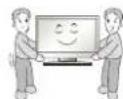
Make the panel face forward and hold it with both hands to move.
- If you drop the product, the damaged product can cause electric shock or fire. Contact your nearest service center for repair.
PRECAUTIONS WHEN USING THE PRODUCT

WARNING
Do not disassemble, repair or modify the product at your own discretion.
- Fire or electric shock accident can occur. - Contact the service center for check, calibration or repair.
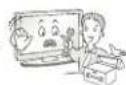
To reduce the risk of fire or electric shock, do not expose this apparatus to rain or moisture.
Apparatus shall not be exposed to dripping or splashing and no objects filled with liquids, such as vases, shall be placed on the apparatus.

Refer all servicing to qualified service personnel. Servicing is required when the apparatus has been damaged in any way, such as power supply cord or plug is damaged, liquid has been spilled or objects have fallen into the apparatus, the apparatus has been exposed to rain or moisture, does not operate normally, or has been dropped.

IMPORTANT INFORMATION TO PREVENT "IMAGE BURN / BURN-IN" ON YOUR TELEVISION SCREEN
- When a fixed image (e.g. logos, screen menus, video game, computer display or teletext pages) is displayed on the television for an extended period it can become permanently imprinted on the screen. This phenomenon is known as "image burn" or "burn-in". Image burn is not covered under the manufacturer's warranty.
- In order to prevent image burn, avoid displaying a fixed image on your television's screen for a prolonged period (2 or more hours for LCD, 1 or more hours for Plasma).
- Image burn can also occur on the letterboxed areas of your television if you use the 4:3 aspect ratio setting for an extended period.
TABLE OF CONTENTS
3 TABLE OF CONTENTS
4 INSTALLATION PROCEDURE
4 ASSEMBLING AND PREPARING
4 Unpacking
8 Separate purchase
8 Parts and buttons
11 Lifting and moving the TV
12 Setting up the TV
12 - Attaching the stand
14 - Tidying cables
15 - Mounting on a table
16 - Mounting on a wall
16 ADDITIONAL INFORMATION
17 REMOTE CONTROL
18 WATCHING TV
18 Connecting an antenna
18 Turning the TV on for the first time
19 MAKING CONNECTIONS
19 Connecting your Unit
19 OPEN SOURCE SOFTWARE NOTICE
20 WEIGHT
20 TROUBLESHOOTING
INSTALLATION PROCEDURE
1 Open the package and make sure all the accessories are included.
2 Attach the stand to the TV set.
3 Connect an external device to the TV set.
ASSEMBLING AND PREPARING
Unpacking
Check your product box for the following items. If there are any missing accessories, contact the local dealer where you purchased your product. The illustrations in this manual may differ from the actual product and item. Only 42/50PA45**, 50/60PA55**, 50/60PA65**

Remote control, Batteries (AAA)

Owner's manual, CD manual

Cable Holder

M5 x 16 M4 x 30
Screw for assembly

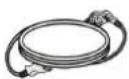
Power Cord Holder Power Cord

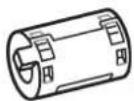
Protection Cover Ferrite core
(Depending on model)

Polishing cloth
(Depending on model)
Gently wipe the spots on the cabinet with the polishing cloth.

Stand Body Stand Base Isolator

1
(Depending on model)
Only 42/50PA49**

Remote control, Batteries (AAA)

M5 x 16 M4 x 30 Screw for assem

Protection Cover Ferrite core

Cable Holder Eye-bolt, Wall bracket Polishing cloth
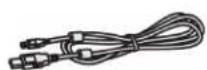
Charging Cable Tip

Touch Pen Dongle (AN-TD200)

Stand Body Isolator

Owner's manual, CD manual

Power Cord Holder D-sub 15 pin signal cable

(Depending on model)


The number of tip may differ depending on the model.

Cradle Stand Base
(Depending on model)
Pentouch Caution Guidelines

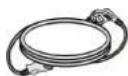
Power Cord
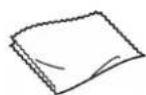
(Depending on model) Gently wipe the spots on the cabinet with the polishing cloth.

Touch Pen (AN-TP300) The number of touch pen may differ depending on the model.

1 Antenna Isolator Installation Guide
- Use this to install TV in a place where there is a voltage difference between GND of power and GND of antenna signal.
- If there is a voltage difference between GND of power and GND of antenna signal, the antenna contact might be heated and excessive heat might cause an accident.
- You can improve the safety when watching TV by efficiently removing power voltage from TV antenna. Avoid disconnecting the antenna Isolator after installation.
• Exterior of antenna isolator:

- Connection method :
- Connect Plug 1 with a signal cable.
- Connect Plug 2 with ANT input end on the back of TV.

flowchart
graph LR
    A["RF-Coaxial Wire Isolator"] --> B["Antenna/Cable In"]
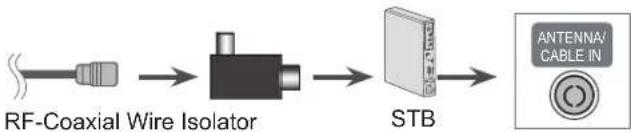
flowchart
graph LR
    A["RF-Coaxial Wire Isolator"] --> B["STB"]
    B --> C["Antenna Cable In"]
"Equipment connected to the protective earthing of the building installation through the mains connection or through other equipment with a connection to protective earthing - and to a cable distribution system using coaxial cable, may in some circumstances create a fire hazard.
Connection to a cable distribution system has therefore to be provided through a device providing electrical isolation below a certain frequency range (galvanic isolator, see EN 60728-11)"
When applying the RF Isolator, a slight loss of signal sensitivity can occur.
NOTE
- The items supplied with your product may vary depending on the model.
- Product specifications or contents of this manual may be changed without prior notice due to upgrade of product functions.
How to use the ferrite core
1 Use the ferrite core to reduce the electromagnetic interference in the PC audio cable. Wind the PC audio cable on the ferrite core thrice. Place the ferrite core close to the TV.
[to an External device]

[Figure 1]
[to the TV]

(Gray)
[Cross Section of Ferrite Core]
2 Use the ferrite core to reduce the electromagnetic interference in the power cable. Wind the power cable on the ferrite core once. Place the ferrite core close to the TV and a wall plug.
[to a wall plug]

[Figure 2]
[to the TV]

(Black)
[Cross Section of Ferrite Core]
3 Use the ferrite core to reduce the electromagnetic interference in the component Y, Pb, Pr, L, R cable. Wind the component Y, Pb, Pr, L, R cable on the ferrite core once. Place the ferrite core close to the TV.
[to an External device]

[Figure 3]
[to the TV]

(Black)
[Cross Section of Ferrite Core]
4 Use the ferrite core to reduce the electromagnetic interference in the LAN cable. Wind the LAN cable thrice on the ferrite core. Place the ferrite core close to the TV and an External device.
[to the TV]

natural_image
Pure mechanical assembly diagram showing three connected components labeled BAA (no text or symbols beyond label)[Figure 4]
[to an External device]

[Cross Section of Ferrite Core]
- If there is one ferrite core, follow as shown in Figure 1.
- If there are three ferrite cores, follow as shown in Figures 1 and 2.
- If there are four ferrite cores, follow as shown in Figures 1, 2 and 3.
- If there is LAN port, additionally follow as shown in Figure 4.
- For an optimal connection, HDMI cables and USB vices should have bezels less than 10 mm thick and 18 mm width. Use an extension cable that supports USB 2.0 if the USB cable or USB memory stick does not fit into your TV's USB port.

*A 10 mm *B 18 mm

CAUTION
- Do not use any pirated items to ensure the safety and product life span.
- Any damages or injuries by using pirated items are not covered by the warranty.
Separate purchase
Separate purchase items can be changed or modified for quality improvement without any notification. Contact your dealer for buying these items.
This device only works with compatible LG Plasma TV.

AN-TP300
Touch Pen, Cradle
The number of touch pen and cradle may differ depending on the model.
| Compatibility | 42/50PA45** 50 | 60PA55** 50/60 | PA65** 42/50PA49** | |
| AN-TP300Touch Pen, Cradle | • |
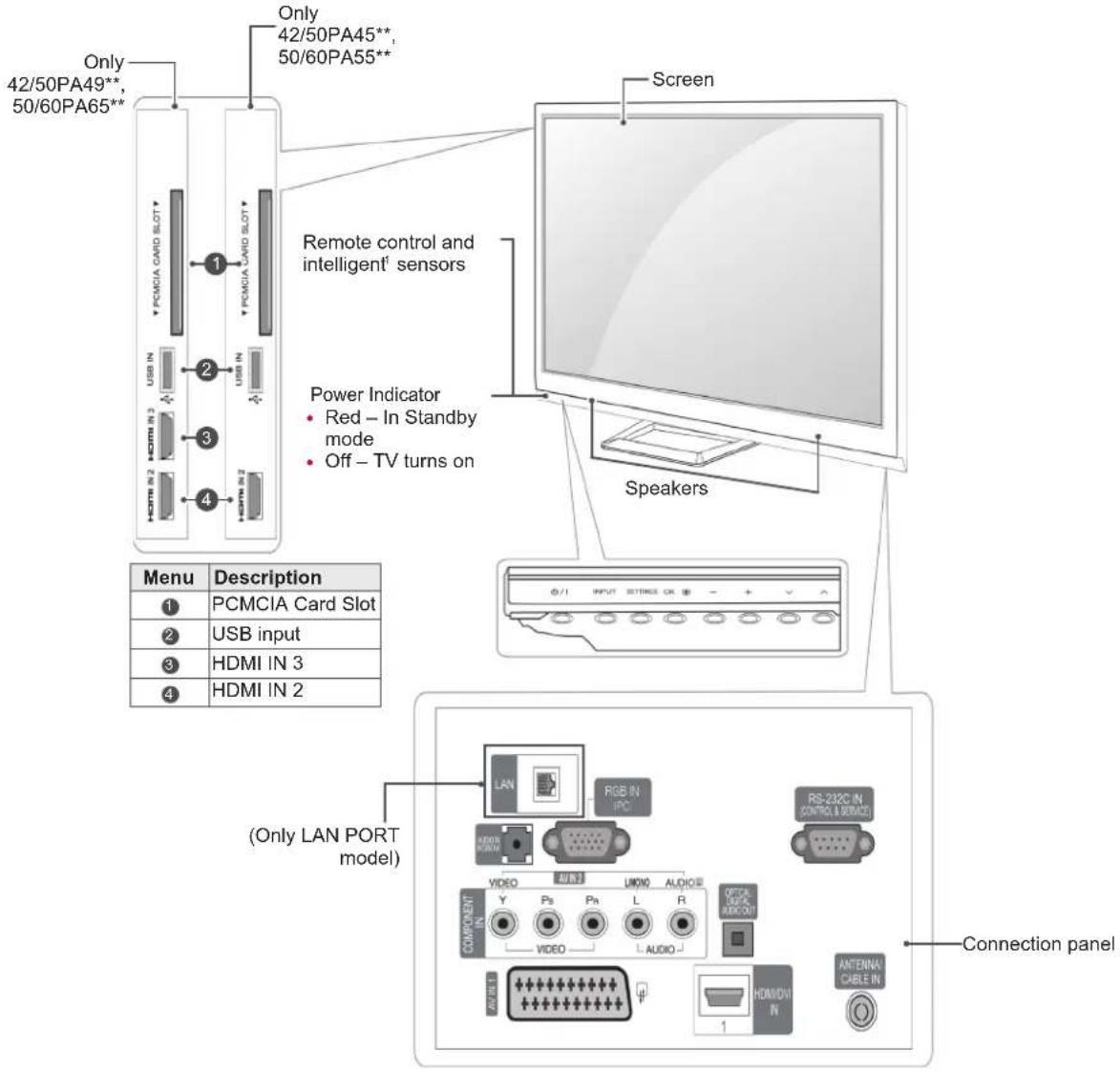
Parts and buttons

NOTE
• TV can be placed in standby mode in order to reduce the power consumption. And TV should be turned off if it will not be watched for some time, as this will reduce energy consumption.
- The energy consumed during use can be significantly reduced if the level of brightness of the picture is reduced, and this will reduce the overall running cost.

CAUTION
- Do not step on the glass stand or subject it to any impact. It may break, causing possible injury from fragments of glass, or the TV may fall.
- Do not drag the TV. The floor or the product may be damaged.
- Some models have a thin film attached on to the screen and this must not be removed.
Only 42/50PA45**-ZA\~F, 42/50PA49**-ZA\~F, 50/60PA55**-ZA\~F, 50/60PA65**-ZA\~F
• Image shown may differ from your TV.
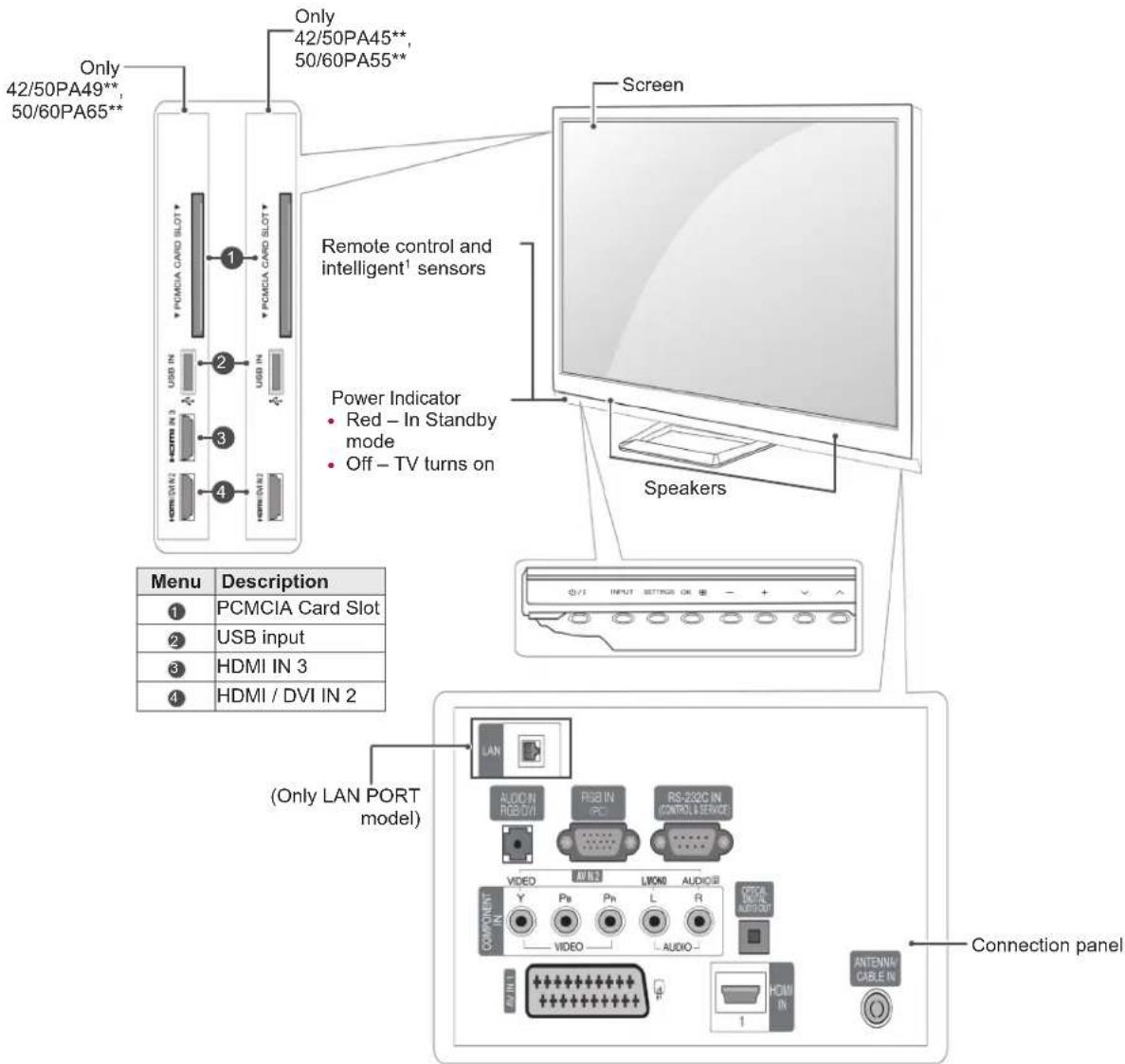
| Button Description | |
| ∅/I | Turns the power on or off |
| INPUT | Changes the input source |
| SETTINGS | Accesses the main menus, or saves your input and exits the menus |
| OK∅ | Selects the highlighted menu option or confirms an input |
| - + | Adjusts the volume level |
| √ ^ | Scrolls through the saved programmes |
1 Intelligent sensor - Adjusts the image quality corresponding to the surrounding environment.
Only 42/50PA45**-ZG\~M, 42/50PA49**-ZG\~M, 50/60PA55**-ZG\~M, 50/60PA65**-ZG\~M
• Image shown may differ from your TV.
| Button Description | |
| ∅/I | Turns the power on or off |
| INPUT | Changes the input source |
| SETTINGS | Accesses the main menus, or saves your input and exits the menus |
| OK∅ | Selects the highlighted menu option or confirms an input |
| - + | Adjusts the volume level |
| √ ^ | Scrolls through the saved programmes |
1 Intelligent sensor - Adjusts the image quality corresponding to the surrounding environment.
Lifting and moving the TV
When moving or lifting the TV, read the following to prevent the TV from being scratched or damaged and for safe transportation regardless of its type and size.

CAUTION
- Avoid touching the screen at all times, as this may result in damage on the screen or some of the pixels used to create images.
- It is recommended to move the TV in the box or packing material that the TV originally came in.
- Before moving or lifting the TV, disconnect the power cord and all cables.
- When holding the TV, the screen should face away from you to prevent the screen from scratches.

- Hold the top and bottom of the TV frame firmly. Make sure not to hold the transparent part, speaker, or speaker grill area.
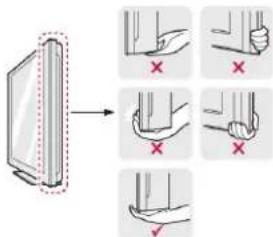
- When transporting a large TV, there should be at least 2 people.
- When transporting the TV by hand, hold the TV as shown in the following illustration.

natural_image
Silhouette of two people holding a large rectangular device with monitor and tower (no text or symbols)- When transporting the TV, do not expose the TV to jolts or excessive vibration.
- When transporting the TV, keep the TV upright, never turn the TV on its side or tilt towards the left or right.
Setting up the TV
• Image shown may differ from your TV.
Put your TV on a pedestal stand and mount the TV on a table or wall.
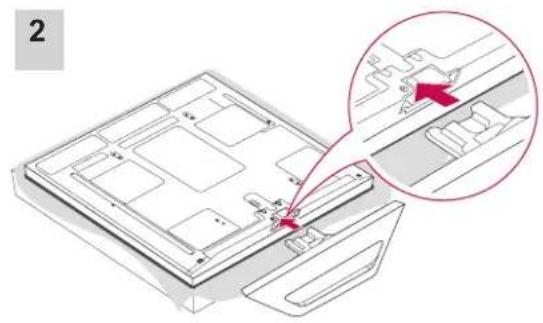
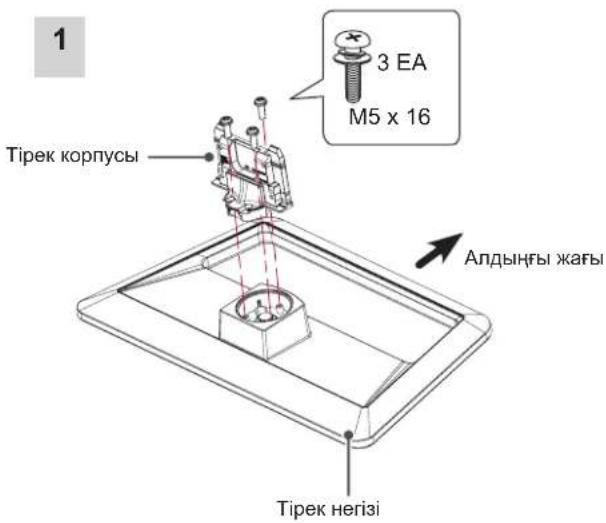
Attaching the stand
If you are not mounting the TV to a wall, use the following instructions to attach the stand.
Only 42/50PA45**, 42/50PA49**, 50/60PA55**, 50/60PA65**

natural_image
Technical diagram of a device with internal components and a magnified inset showing a highlighted section (no text or symbols)
CAUTION
- When attaching the stand to the TV set, place the screen facing down on a cushioned table or flat surface to protect the screen from scratches.
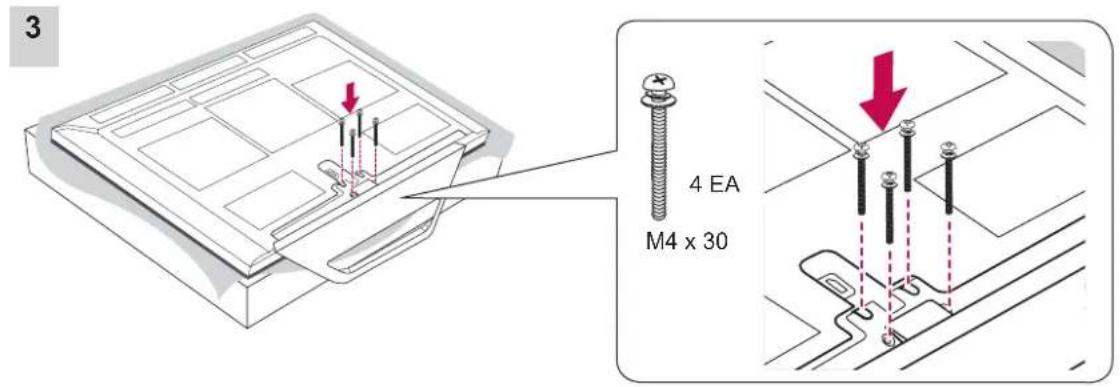

CAUTION
- Tighten the screws firmly to prevent the TV from tilting forward. Do not over tighten.
To detach the stand,
1

CAUTION
- When attaching the stand to the TV set, place the screen facing down on a cushioned table or flat surface to protect the screen from scratches.


NOTE
- This will protect the opening from accumulating dust and dirt.
- When installing the wall mounting bracket, use the Protection cover.
3


CAUTION
- Tighten the screws firmly to prevent the TV from tilting forward. Do not over tighten.
Tidying cables
• Image shown may differ from your TV.
1 Install the Power Cord Holder and Power Cord. It will help prevent the power cable from being removed by accident.

natural_image
Diagram showing a mechanical assembly with a magnified inset of a bracket detail (no text or symbols)Power Cord Holder
2 Gather and bind the cables with the Cable Holder.

natural_image
Diagram showing a cable or cable connector inserted into a device panel, with an inset close-up highlighting the cable (no text or symbols present)Cable Holder

CAUTION
- Do not move the TV by holding the Cable Holder & Power Cord Holder, as the Cable Holders may break, and injuries and damage to the TV may occur.
Mounting on a table
• Image shown may differ from your TV.
1 Lift and tilt the TV into its upright position on a table.
- Leave a 10 cm (minimum) space from the wall for proper ventilation.

2 Connect the power cord to a wall outlet.

CAUTION
- Do not place the TV near or on sources of heat, as this may result in fire or other damage.

NOTE
- Swivel 20 degrees to the left or right and adjust the angle of the TV to suit your view.


CAUTION
- When adjusting the angle of the product, watch out for your fingers.
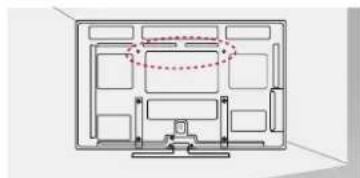
Securing the TV to a wall (Depending on model)
• Image shown may differ from your TV.
natural_image
Architectural floor plan diagram showing room layout and ceiling connections (no text or labels)
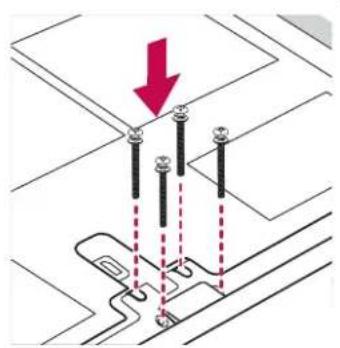
1 Insert and tighten the eye-bolts, or TV brackets and bolts on the back of the TV.
- If there are bolts inserted at the eye-bolts position, remove the bolts first.
2 Mount the wall brackets with the bolts to the wall.
Match the location of the wall bracket and the eye-bolts on the rear of the TV.
3 Connect the eye-bolts and wall brackets tightly with a sturdy rope.
Make sure to keep the rope horizontal with the flat surface.

CAUTION
• Make sure that children do not climb on or hang on the TV.

NOTE
- Use a platform or cabinet that is strong and large enough to support the TV securely.
Mounting on a wall
Attach a wall mount bracket at the rear of the TV carefully and install the wall mount bracket on a solid wall perpendicular to the floor. When you attach the TV to other building materials, please contact qualified personnel.
LG recommends that wall mounting be performed by a qualified professional installer.

Make sure to use screws and wall mount bracket that meet the VESA standard. Standard dimensions for the wall mount kits are described in the following table.
Separate purchase(Wall Mounting Bracket)
| Model 42/50PA45** | 42/50PA49**50PA55**50PA65** | 60PA55**60PA65** |
| VESA (A x B) 400 x 400 600 x 400 | ||
| Standard screw M6 | M8 | |
| Number of screws 4 | 4 | |
| Wall mount bracket | PSW400B,PSW400BG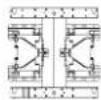 | PSW600B,PSW600BG |


CAUTION
- Disconnect the power first, and then move or install the TV. Otherwise electric shock may occur.
- If you install the TV on a ceiling or slanted wall, it may fall and result in injury. Use an authorized LG wall mount bracket and contact the local dealer or qualified personnel.
- Do not over tighten the screws as this may cause damage to the TV and void your warranty.
- Use the screws and wall mount bracket that meet the VESA standard. Any damages or injuries by misuse or using an improper accessory are not covered by the warranty.

NOTE
- Use the screws that are listed on the VESA standard screw specifications.
- The wall mount kit includes an installation manual and necessary parts.
- The length of screws may differ depending on the wall mount. Make sure to use the proper length.
- For more information, refer to the manual supplied with the wall mount bracket.
ADDITIONAL INFORMATION
Viewing the owner's manual
The owner's manual in PDF file format is supplied on the enclosed CD. Install the Adobe Acrobat Reader to view the owner's manual on your PC.
1 Insert the supplied CD. The web page appears automatically.
2 Click Owner's Manual on the web page.
3 View the owner's manual.

NOTE
If the web page does not appear automatically, access My computer and then click LG and index.htm to view the owner's manual.
REMOTE CONTROL
The descriptions in this manual are based on the buttons on the remote control. Please read this manual carefully and use the TV correctly.
To replace batteries, open the battery cover, replace batteries (1.5 V AAA) matching + and - ends to the label inside the compartment, and close the battery cover. Be sure to point the remote control to the remote control sensor on the TV.
To remove the batteries, perform the installation actions in reverse.


CAUTION
- Do not mix old and new batteries, as this may damage the remote control.
• Image shown may differ from your TV.
| (POWER) | Turns the TV on or off. |
| ENERGY SAVING Adjusts the brightness of the screen to reduce energy consumption . | |
| INPUT Changes the input source; Turns the TV on . | |
| TV/RAD Selects Radio, TV and DTV programme. | |
| Number buttons Enters numbers. | |
| LIST Accesses the saved programme list. | |
| Q.VIEW Returns to the previously viewed programme. | |
| + - Adjusts the volume level. | |
| FAV Accesses your favourite programme list. | |
| MUTE Mutes all sounds. | |
| P ∧ ∨ (P + - ) | Scrolls through the saved programmes. |
| PAGE Moves to the previous or next screen. | |
| GUIDE Shows programme guide. | |
| SETTINGS | Accesses the main menus, or saves your input and exit the menus. |
| Q. MENU | Accesses the quick menus. |
| Navigation buttons (up/down/left/right) | Scrolls through menus or options. |
| OK | Selects menus or options and confirms your input. |
| → | Returns to the previous level. |
| INFO | Views the information of the current programme and screen. |
| EXIT | Clears all on-screen displays and return to TV viewing. |
| Coloured buttons | These buttons are used for teletext (on TELETEXT models only), Programme edit. |
| TELETEXT BUTTONS | These buttons are used for teletext. For further details, see the 'Teletext' section. |
| SUBTITLE | Recalls your preferred subtitle in digital mode. |
| Control buttons (■, ▶, || ◀◀, ▶▶) | Controls the MY MEDIA menus, or the SIMPLINK compatible devices (USB,SIMPLINK). |
| SIMPLINK (Depending on model) | Accesses the AV devices connected with the HDMI cable through HDMI-CEC. Opens the SIMPLINK menu. |
| AD | Switches the Audio Description On or Off. |
| RATIO Resizes an image. | |
| AV MODE (Depending on model) | Selects an AV mode |
WATCHING TV
Connecting an antenna
Connect an antenna to watch TV while referring to the following.
To prevent damage do not connect to the mains outlet until all connections are made between the devices.
Connect the TV to a wall antenna socket with an RF cable (75 Ω).
NOTE
- For optimum picture quality, adjust antenna direction.
- In poor signal areas, to achieve better picture quality it may be necessary to install a signal amplifier to the antenna.
- If the image quality is poor with an antenna connected, aim the antenna to the correct direction.
- An antenna cable and converter are not supplied.
Turning the TV on for the first time
When you turn the TV on for the first time, the Initial setting screen appears. Select a language and customize the basic settings.
1 Connect the power cord to a power outlet.
2 In Standby mode, press ⬇(POWER) to turn the TV on.
The Initial setting screen appears if you turn the TV on for the first time.
NOTE
- You can also access Factory Reset by accessing OPTION in the main menus.
3 Follow the on-screen instructions to customize your TV settings according to your preferences.

flowchart
graph TD
    A["Language"] --> B["Mode Setting"]
    B --> C["Country"]
    C --> D["Set Password"]
    D --> E["Time Zone"]
    E --> F["Network Setting"]
    F --> G["Auto Tuning"]

    H["Selects a language to display."] --> I["Selects Home Use for the home environment."]
    I --> J["Selects a country to display. (Depending on model)"]
    J --> K["Set the password. (When France or Italy is selected for Country)"]
    K --> L["Selects the time zone and daylight saving. (When Russia is selected for Country)"]
    L --> M["(If there is LAN port) selects Network Setting to display."]
    M --> N["Scans and saves"]
NOTE
- For those countries without confirmed DTV broadcasting standards, some DTV features might not work, depending on the DTV broadcasting environment.
- When France is selected for Country, password is not '0', '0', '0', '0' but '1', '2', '3', '4'.
- To display images in the best quality for your home environment, select Home Use.
- Store Demo is suitable for the retail environment.
- If you select Store Demo, any customized settings will switch back to the default settings of Store Demo in 5 minutes.
4 When the basic settings are complete, press OK.
NOTE
- If you do not complete the Initial setting, it will appear whenever the TV turns on.
- Disconnect the power cord from the power outlet when you do not use the TV for a long period of time.
5 To turn the TV off, press ⏻(POWER).
MAKING CONNECTIONS
Connect various external devices to the TV and switch input modes to select an external device. For more information of external device's connection, refer to the manual provided with each device.
Available external devices are: HD receivers, DVD players, VCRs, audio systems, USB storage devices, PC, gaming devices, and other external devices.

NOTE
- If you record a TV programme on a DVD recorder or VCR, make sure to connect the TV signal input cable to the TV through a DVD recorder or VCR. For more information on recording, refer to the manual provided with the connected device.
- The external device connection may differ from the model.
- Connect external devices to the TV regardless of the order of the TV port.
Connecting your Unit
Image shown may differ from your TV
To connect additional equipment, see the External equipment Setup section in CD Manual.

flowchart
graph TD
    A["Power Cord"] --> B["Component 1"]
    B --> C["DVD/STB back"]
    C --> D["USB IN"]
    D --> E["or"]
    E --> F["Antenna Connection"]
    G["VCR Connection"] --> H["Component 2"]
    H --> I["AVOCIN RERON1"]
    H --> J["RGB IN PC"]
    H --> K["RS-232C IN CONTROL & SERVICE"]
    H --> L["VIDEO"]
    L --> M["VIDEO"]
    L --> N["L"]
    L --> O["R"]
    H --> P["ANTenna Cable IN"]
    P --> Q["Analog cable"]
    Q --> R["Analog cable in"]
    R --> S["Analog cable in"]
    S --> T["Analog cable in"]
    T --> U["Analog cable in"]
    U --> V["Analog cable in"]
OPEN SOURCE SOFTWARE NOTICE
To obtain the source code under GPL, LGPL, MPL and other open source licenses, that is contained in this product, please visit http://opensource.lge.com.
In addition to the source code, all referred license terms, warranty disclaimers and copyright notices are available for download.
LG Electronics will also provide open source code to you on CD-ROM for a charge covering the cost of performing such distribution (such as the cost of media, shipping and handling) upon email request to opensource@lge.com. This offer is valid for three (3) years from the date on which you purchased the product.
WEIGHT
| MODELS | 42PA45** 42PA49** | ||
| 42PA4500-ZF / 42PA450T-ZF42PA4500-ZM / 42PA450T-ZM42PA4510-ZA / 42PA451T-ZA42PA4510-ZG / 42PA451T-ZG42PA4520-ZC / 42PA452T-ZC42PA4520-ZJ / 42PA452T-ZJ | 42PA4900-ZE / 42PA490T-ZE42PA4900-ZL / 42PA490T-ZL | ||
| Weight With stand 20.6 kg 20.6 kg | |||
| Without stand 19.0 kg 19.0 kg | |||
| MODELS | 50PA45** 50PA49** | ||
| 50PA4500-ZF / 50PA450T-ZF50PA4500-ZM / 50PA450T-ZM50PA4510-ZA / 50PA451T-ZA50PA4510-ZG / 50PA451T-ZG50PA4520-ZC / 50PA452T-ZC50PA4520-ZJ / 50PA452T-ZJ | 50PA4900-ZE / 50PA490T-ZE50PA4900-ZG / 50PA490T-ZG50PA4900-ZL / 50PA490T-ZL | ||
| Weight With stand 28.2 kg 28.2 kg | |||
| Without stand 25.8 kg 25.8 kg | |||
| MODELS | 50PA55** 50PA65** | ||
| 50PA5500-ZB / 50PA550T-ZB50PA5500-ZH / 50PA550T-ZH | 50PA6500-ZA / 50PA650T-ZA50PA6500-ZG / 50PA650T-ZG50PA6520-ZF / 50PA652T-ZF50PA6520-ZM / 50PA652T-ZM | ||
| Weight With stand 28.8 kg 28.8 kg | |||
| Without stand 26.4 kg 26.4 kg | |||
| MODELS | 60PA55** 60PA65** | ||
| 60PA5500-ZB / 60PA550T-ZB60PA5500-ZH / 60PA550T-ZH | 60PA6500-ZA / 60PA650T-ZA60PA6500-ZG / 60PA650T-ZG | ||
| Weight With stand 40.6 kg 40.6 kg | |||
| Without stand 36.4 kg 36.4 kg | |||
Product specifications shown above may be changed without prior notice due to upgrade of product functions.
TROUBLESHOOTING
General
| Problem Solution | |
| Cannot control the TV with the remote control. | Check the remote control sensor on the product and try again.Check if there is any obstacle between the product and the remote control.Check if the batteries are still working and properly installed (to , to). |
| No image display and no sound is produced. | Check if the product is turned on.Check if the power cord is connected to a wall outlet.Check if there is a problem in the wall outlet by connecting other products. |
| Image appears slowly when the TV turns on. | The image is muted during the product startup process. This is normal. If the image does not appear in a few minutes, unplug the TV for 30 seconds and try again. If the image still does not appear, contact the authorized service center in your local area. |
| Cannot connect external devices. | Refer to the “Connection overview” and connect an external device. |
| The TV turns off suddenly. | Check the power control settings. The power supply may be interrupted.Check if the Auto sleep feature is activated in the Time settings.Refer to the “Sleep Timer”.If there is no signal while the TV is on, the TV will turn off automatically after 15 minutes of inactivity. |
Audio
| Problem Solution | |
| No sound is produced while images are displaying. | Press △ or - button.Check if the sound is muted by pressing MUTE.Scroll to other channels. There may a problem with the broadcast.Check if the audio cables are connected properly. |
| One of the speakers produce noises or does not produce sound. | A change in ambient humidity or temperature may result in an unusual noise when the product turns on or off.There is no problem with your product. |
Video
| Problem Solution | |
| An image displays in black and white or the colour quality is poor. | Adjust the colour setting in the PICTURE menu.Keep a sufficient distance between this product and other electronic products.Scroll to other channels. There may a problem with the broadcast. |
| Horizontal or vertical bars appears or images blur | Check if there are local interferences such as an electrical appliance or power to |
| Lines or streaks appear on images | Check the antenna or aim the antenna to the proper direction. |
| Afterimages (ghosts) appear when the product turns off | Pixels may have been damaged from a fixed image displayed for a long time (image burn). Use a screen saver to prevent the pixel damage on the screen. |
| The power is on but the screen appears extremely dark. | Adjust the brightness and contrast in the PICTURE menu. |
| “No Signal” appears on the screen. | Check if the signal cable is connected between the TV and products properly.Check the selected input source by pressing INPUT. |
| The display offset is wrong. | Adjust the position setting in the PICTURE menu.Check if the video card solution and frequency are supported by the product. If the frequency is out of range, set to the recommended solution using the display settings on the external device. |
| Thin lines appear in the background of the screen. | Check the video cable connections. |
| Horizontal noises appear or characters blur. | Adjust the Phase setting in the PICTURE menu. Refer to the “SCREEN”. |
| The reception on some channels is poor | Scroll to other channels. There may a problem with the broadcast.The station signal may be weak. Aim the antenna to the proper direction.Check if there is local interference such as an electrical appliance or power tool. |
Pentouch
| Problem Solution | |
| The touch pen does not work. | Check that you used the remote control to enter Pentouch mode.Check that the Pentouch dongle is connected to the computer and the red LED iPress theon the touch pen to check that it is powered on.Check that the touch pen is paired for use. (The touch pen is correctly paired if the LED is on once when you press the Touch Home button on the touch pen.)Set the computer screen to display only on the TV. |
| The TV screen doesn't look normal when using Pentouch. | A Check that the computer is correctly connected to the TV.A Check that you are using the optimal solution.Set the aspect ratio on the TV to Just Scan. |
| The touch pen is touched on wrong positions. | Set the computer screen to display only on the TV.If the point you touch on the TV screen using the touch pen and the point indicated as touched on the computer screen do not match when the computer and the TV are connected by a PC signal (RGB) cable, use the TV remote control to select [Home] → [PICTURE] → [SCREEN] (RGB), then select [Auto Configure] to adjust the screen. |
| The touch pen movement is not smooth. | Check whether the computer and the TV are too far from each other. Check whether there are too many obstructions between the computer and the TV.A Check whether many other applications are running on the computer. (Please avoid running other applications while using the Pentouch program.) |


natural_image
Silhouette of two people holding a large rectangular device with monitor and tower (no text or symbols)natural_image
Technical diagram of a device with a magnified inset showing internal components (no text or symbols)
ПРЕДОСТЕРЕЖЕНИЕ
natural_image
Technical line drawing of a mechanical component with internal structure and a red arrow indicating direction (no text or symbols)
M4 × 30
natural_image
Diagram showing a mechanical assembly with three vertical rods and a red downward arrow indicating force or direction (no text or symbols present)
ПРЕДОСТЕРЕЖЕНИЕ
natural_image
Diagram showing a cable or connector assembly with a magnified inset highlighting the internal structure (no text or symbols present)natural_image
Diagram showing a cable connector inserted into a device frame, with an inset close-up of the cable being inserted (no text or symbols present)фиксатором кабеля

ПРЕДОСТЕРЕЖЕНИЕ
natural_image
Architectural floor plan diagram showing room layout and structural elements (no text or labels)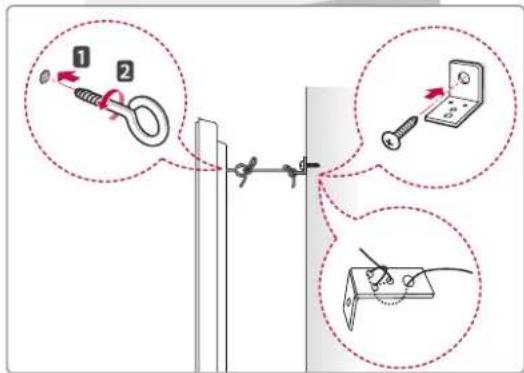
1

ПРОСМОТР ПРОГРАММЫ
Tek 42/50PA45**, 50/60PA55**, 50/60PA65**
Tek 42/50PA45**-ZA\~F, 42/50PA49**-ZA\~F, 50/60PA55**-ZA\~F, 50/60PA65**-ZA\~F
natural_image
Silhouette of two people holding a large rectangular device with monitor and tower (no text or symbols)Tek 42/50PA45**, 42/50PA49**, 50/60PA55**, 50/60PA65**
касака
natural_image
3D diagram of a mechanical component with internal compartments and a red arrow indicating a feature (no text or symbols)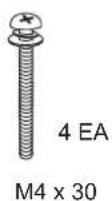


ECKEPTY
natural_image
Technical line drawing of a mechanical assembly with a magnified inset showing a close-up detail (no text or symbols)Кабель устағышы
ECKEPTY
natural_image
Architectural floor plan diagram showing room layout and structural elements (no text or labels)
flowchart
graph LR
    A["Antenna"] --> B["Cable"]
    B --> C["Antenna/Cable In"]
natural_image
Silhouette of two people exchanging a large screen with computer monitors (no text or symbols)natural_image
Technical diagram of a mechanical assembly with a highlighted section showing internal components (no text or symbols)! УВАГА
natural_image
Technical line drawing of a mechanical assembly with a magnified inset showing a bracket detail (no text or symbols)natural_image
Diagram showing a cable clamp inserted into a device panel, with a magnified inset illustrating the cable being inserted (no text or symbols present)Please contact LG First.
If you have any inquiries or comments,
please contact LG customer information centre.
An extended Owner's Manual that contains information on the advanced features of these LG TV sets is located on the CD-ROM provided in an electronic version.
To read these files, you will need to use a Personal Computer (PC) equipped with a CD-ROM drive.
Record the model number and serial number of the TV.
Refer to the label on the back cover and quote this information to your dealer when requiring any service.
Model :
Serial No.:

Digital Video
Broadcasting
LG Customer Information Centre
| Country | Service Country | Service | LG |
| Österreich | 0 810 144 131 09 | Nederland | |
| Belgie/Luxemburg | 32 15 200255 | Norge | 800 187 40 |
| Polska | 801 54 54 54 | ||
| България | 07001 5454 808 | Portugal | |
| Česká Rep. | 810 555 810 031 | Romania | |
| Danmark | 8088 5758 085 | Silvensko | |
| Suomi | 0800 0 54 54 9 | Spain | |
| France | 3220 dites LG ou tapez 54 | Sverige | 0770 54 54 54 |
| Deutschland | 01803 11 54 11 | Schweiz | 0848 543 543 |
| Еллáða | 801 11 200 900 | United Kingdom | 0844 847 5454 |
| Magyarország | 06 40 54 54 54 | Россия | 8 800 200 7676 |
| Éire | 0818 27 6955 | Эстония | 800 9990 |
| Italia | 199600099 | Украина | 0 800 303 000 |
| Беларусь | 8 820 0071 1111 | Казахстан | 2255 |
| Латвия | 8 0003 271 | Узбекистан | 800 0071 0005 |
| Литва | 8 800 30 800 | Кыргызстан |
www.lg.com
- User's Guide Specification
- Pagination sheet
- OWNER'S MANUAL
- PLASMA TV
- PRECAUTION IN INSTALLING THE PRODUCT
- WARNING
- CAUTION
- ELECTRICAL POWER RELATED PRECAUTIONS
- PRECAUTIONS WHEN MOVING THE PRODUCT
- PRECAUTIONS WHEN USING THE PRODUCT
- IMPORTANT INFORMATION TO PREVENT "IMAGE BURN / BURN-IN" ON YOUR TELEVISION SCREEN
- TABLE OF CONTENTS
- TABLE OF CONTENTS
- INSTALLATION PROCEDURE
- ASSEMBLING AND PREPARING
- ADDITIONAL INFORMATION
- REMOTE CONTROL
- WATCHING TV
- MAKING CONNECTIONS
- OPEN SOURCE SOFTWARE NOTICE
- WEIGHT
- TROUBLESHOOTING
- INSTALLATION PROCEDURE
- ASSEMBLING AND PREPARING
- Unpacking
- Antenna Isolator Installation Guide
- • Exterior of antenna isolator:
- NOTE
- How to use the ferrite core
- Separate purchase
- AN-TP300
- Parts and buttons
- Lifting and moving the TV
- Setting up the TV
- Attaching the stand
- Tidying cables
- Mounting on a table
- Mounting on a wall
- ADDITIONAL INFORMATION
- REMOTE CONTROL
- WATCHING TV
- Connecting an antenna
- Turning the TV on for the first time
- MAKING CONNECTIONS
- Connecting your Unit
- OPEN SOURCE SOFTWARE NOTICE
- TROUBLESHOOTING
- ПРЕДОСТЕРЕЖЕНИЕ
- ПРОСМОТР ПРОГРАММЫ
- ECKEPTY
- ! УВАГА
Brand : LG
Model : 50PA6520
Category : Television