
V765 - Keyboard Viper - Free user manual and instructions
Find the device manual for free V765 Viper in PDF.


| Product Type | Mechanical Gaming Keyboard |
| Brand | Viper |
| Model | V765 |
| Interface | USB Type-A |
| Switch Type | Mechanical (Blue/Red) |
| Key Layout | Full-size (104 keys) |
| Backlighting | RGB per-key backlighting |
| Polling Rate | 1000 Hz |
| Cable Length | 1.8 m |
| Dimensions | 440 x 130 x 35 mm |
| Weight | 1.1 kg |
| Material | Aluminum top plate, ABS keycaps |
| Compatibility | Windows, macOS, Linux |
| Power Supply | USB bus powered (5V, 500mA) |
| Maintenance | Clean with soft, dry cloth. Avoid liquids. |
| Safety | Keep away from water and extreme temperatures. Unplug before cleaning. |
| Spare Parts | Replaceable keycaps (available separately) |
| Repairability | Switch replacement requires soldering; professional assistance recommended. |
| Warranty | 2 years |
| Included Items | Keyboard, user manual |
Frequently Asked Questions - V765 Viper
User questions about V765 Viper
0 question about this device. Answer the ones you know or ask your own.
Ask a new question about this device
Download the instructions for your Keyboard in PDF format for free! Find your manual V765 - Viper and take your electronic device back in hand. On this page are published all the documents necessary for the use of your device. V765 by Viper.
USER MANUAL V765 Viper
natural_image
3D rendering of a black computer keyboard with glowing keys and a colorful keyboard overlay (no text or symbols visible)Thank you for purchasing the Viper V765 RGB mechanical gaming keyboard. The V765 uses Kailh White Box Switches for a tactile clicky feel and durability. The keyboard also features N-key rollover and anti-ghosting for an optimal gaming experience. Onboard memory allows you to create and save 5 specific lighting profiles. The onboard controls allow you to manage the LED Reaction Management system that allows you to switch between various lighting patterns, and control various multimedia functions.
The Viper software allows you to custom color each key up to 16.8 million LED colors, and program up to 103 keys with macros. The Viper software also allows you to create and save a multitude of custom profiles for specific game play and easily switch between them.
The V765 is built with a durable aluminum chassis and a magnetic detachable palm rest for comfort. Backed by Patriot's customer service and two year warranty the V765 is compatible with nearly every Windows® operating system, including Windows® 10, and Mac® OS X, or higher.
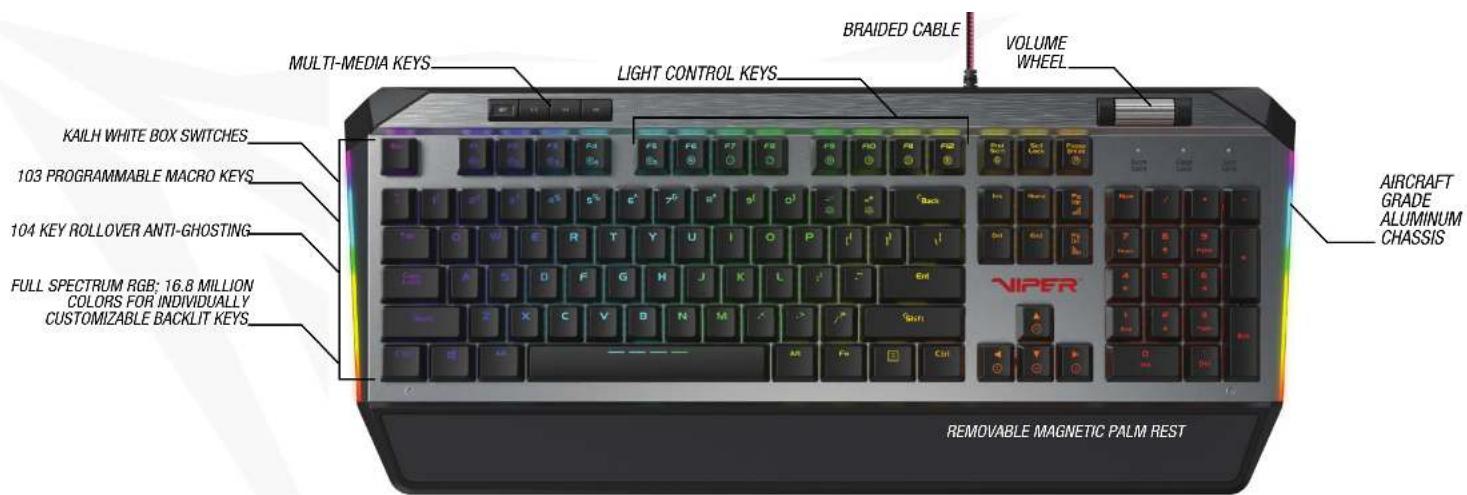

KAILH WHITE BOX SWITCHES

WATER AND DUST RESISTANT
AL ^13 AIRCRAFT GRADE ALUMINUM CHASSIS
FEATURES & TECHNICAL SPECIFICATIONS
• Full Spectrum RGB
• Full size 104 key layout
- Removable magnetic palm rest
• N-key rollover, anti-ghosting
• Dedicated multi-media keys
- Scroll wheel for volume control, mute
- Aircraft grade aluminum chassis
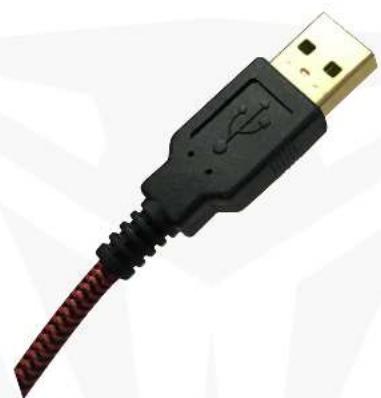
• 1.8m braided cord
• Fully customizable with Viper Software
PACKAGE CONTENTS
• Viper V765 gaming keyboard
- Detachable magnetic palm rest
- Keycap remover
- Quick start guide
• Viper sticker
natural_image
Close-up of a black USB connector with gold connectors and a red cord (no text or symbols visible)
natural_image
Red shopping bag with a white downward arrow symbol (no text or labels)INSTALLATION
HARDWARE INSTALLATION
Connect the keyboard to an available USB port. Wait 5-10 seconds for the keyboard to be recognized by the computer.
SOFTWARE INSTALLATION
Please download the keyboard software from the product page at viper.patriotmemory.com to change light effects, create and manage macros, manage profiles, adjust latency, response and more.
Once downloaded, double-click on the software to start the installation. Follow the onscreen instructions to finish the process.

![Esc F1 F2 F3 F4 F5 F6 F7 F8 F9 F10 F11 F12 Print Son Scroll Lock Pause Break Num Lock Caps Lock Solt Lock Tab Q W E R T Y U I O P [ ] - Ins Home Pc Up - Dvl End Pg On Intu 7 Home 8 ↑ 9 PgUp + Caps Lock A S D F G H J K L : - Ent 4 ← 5 — 6 → Shift Z X C V B N M :< > / Shift 1 End 2 ↓ 3 PgOn Ent Ctrl Alt Alt Ctrl](/content/2026/05/1054162/images/410d463dba8da1c4fc33cfa945ae696db3eb4f21f35cfc43916a6a98ff8d406f.jpg)
MULTI-MEDIA KEYS
A

B
natural_image
Pure diagram of a rectangular container with horizontal lines inside, no text or symbols presentVOLUME WHEEL
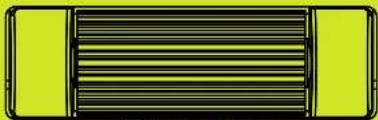
Move wheel up and down
to adjust volume. Press
volume wheel to mute
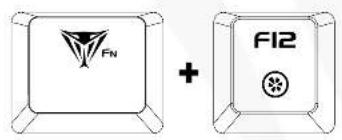
Record and Save custom key configurations
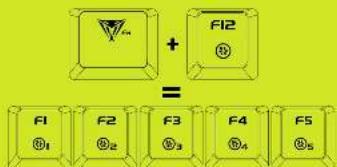
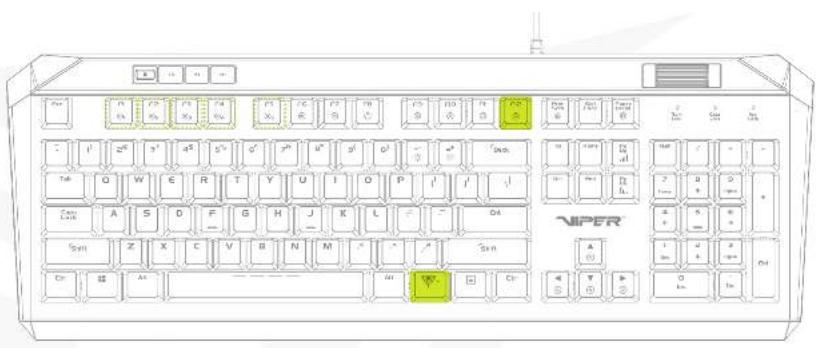
Pressing FN+F12 -key causes F1-F5 to enter a blinking state in preparation to record a custom key configuration. Once in this blinking state, select any of the F1-F5 keys to assign a configuration.

Pressing any key in record mode will change the color of the key and pressing it again will cycle through preset colors.
Do this until keyboard is customized to preference.
i.e: if keys WASD were selected, WASD will be illuminated, indicating that these keys were recorded and assigned to the selected "F" key

When Recording is complete, press FN+F12 to save your customized configuration.
Repeat the previous steps as needed to complete the recording of other customized configurations
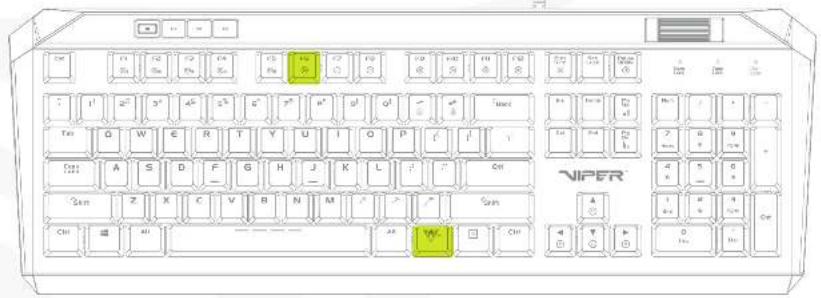
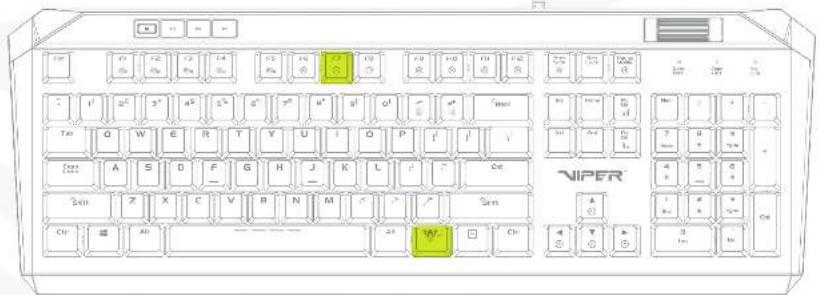
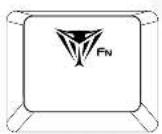
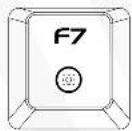
Press FN+F6 to continuously alternate between modes
SPOTLIGHT MODE
Keys light up on both sides of the keyboard, meet in the middle and then return

FN+PgUp
Increases Speed of Radar Mode
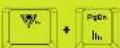
FN+PgDn
Decreases Speed of Radar Mode


FN+(-/+)
Increases/Decreases Brightness
RADAR MODE
Lighting travels along the edge of the keyboard covering a section of the keys at a time

FN+PgUp
Increases Speed of Radar Mode
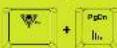
FN+PgDn
Decreases Speed of Radar Mode


FN+ Any Arrow Key Alternates the direction of the radar clockwise or counter clockwise
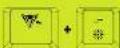

FN+(-/+1)
Increases/Decreases Brightness
WAVES MODE
Color spectrum moves from one end of the keyboard to the other

FN+PgUp
Increases Speed of Wave Mode
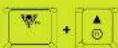
FN+UpArrow
Increases Speed of Wave Mode
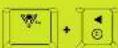
FN+UpArrow
Increases Speed of Wave Mode
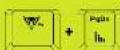
FN+PgDn
Decreases Speed of Wave Mode
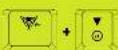
FN+DownArrow
Decreases Speed of Wave Mode
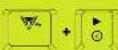
FN+DownArrow
Decreases Speed of Wave Mode
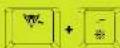
FN+ (-/+)
Increases/Decreases Brightness
RIPPLE MODE
RIPPLE MODE
When pressing any key, the lighting will be spread in all directions; displaying a "ripple" effects

FN+PgUp
Increases Speed of Ripple Mode
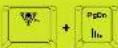
FN+PgDn
Decreases Speed of Ripple Mode
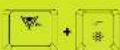

FN+(-/+)
Increases/Decreases Brightness
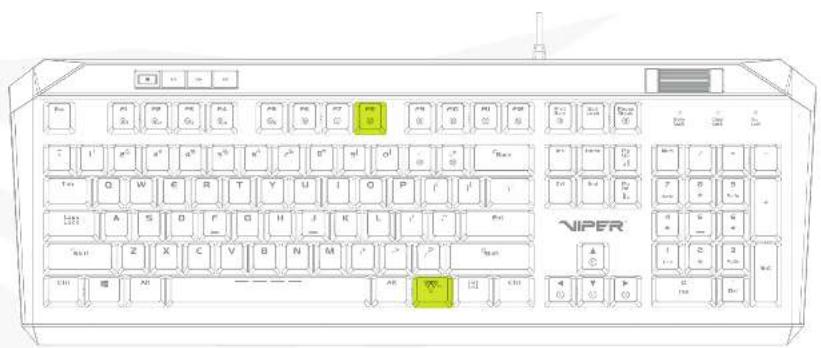
VORTEX/SIDEWINDER MODES
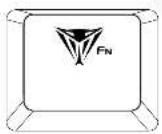
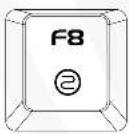
Press FN+F8 to continuously alternate between modes
VORTEX MODE
Entire keyboard lights up one key at a time from the top-left towards the center of the keyboard and then becomes unlit in the reverse of the pattern
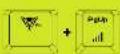
FN+PoUp
Increases Speed of Vortex Mode
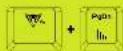
FN+PqDn
Decreases Speed of Vortex Mode


FN+ (-/+ )
Increases/Decreases Brightness
SIDEWINDER MODE
Lighting effect starts at the top and winds to side to side until it hits the bottom row

FN+PoUp
Increases Speed of Sidewinder Mode
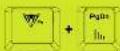
FN+PgDn
Decreases Speed of Sidewinder Mode


FN+ (-/+)
Increases/Decreases Brightness
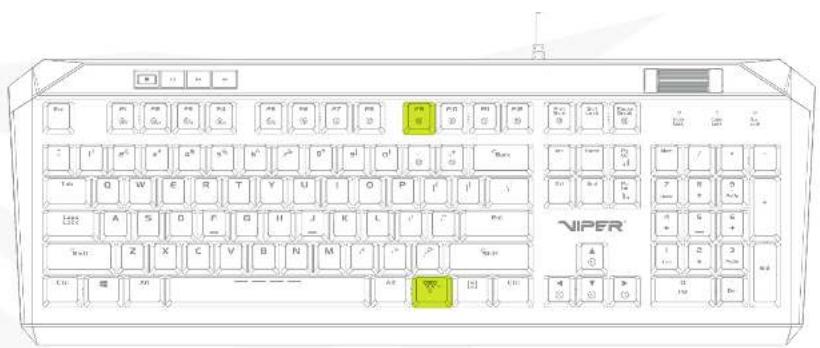
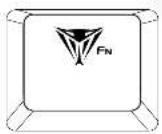
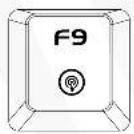
RAINDROP/REACTIVE MODES
Press FN+F9 to continuously alternate between modes
RAINDROP MODE
Keys are randomly lit resembling the pattern of rainfall
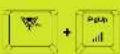
FN+PoUp
Increases Speed of Vortex Mode
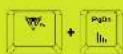
FN+PqDn
Decreases Speed of Vortex Mode


FN+ (-/+ )
Increases/Decreases Brightness
REACTIVE MODE
When pressing any key, the key will light up and fade
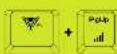
FN+PoUp
Increases Fading Speed of Reactive Mode
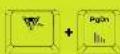
FN+PdDn
Decreases Fading Speed of Reactive Mode
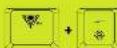

FN+ (-/+ )
Increases/Decreases Brightness
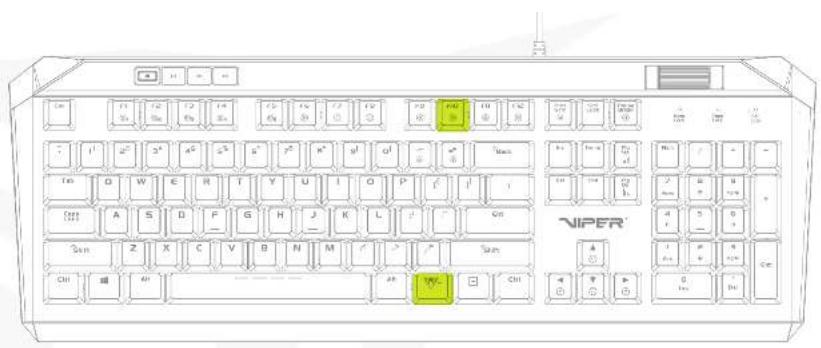
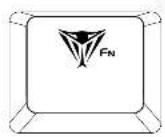
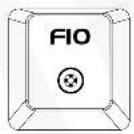
BREATHE
Press FN+F10 to continuously alternate between modes
BREATHE MODE
Selected color brightens and then fades

FN+PgUp
Increases Speed of Breathe Mode
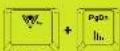
FN+PgDn
Decreases Speed of Breathe Mode
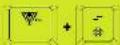

FN+(-/+
Increases/Decreases Brightness
STATIC/SPECTRUM
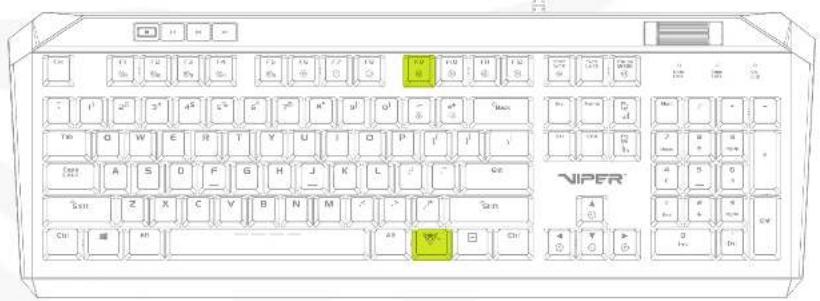
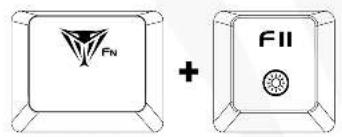
Press FN+F11 to continuously alternate between modes
STATIC MODE
All keys are illuminated with one specific color

SPECTRUM MODE
Keys cycles through colors of the rainbow

FN+PgUp
Increases Alternating Speed of Spectrum Mode
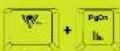
FN+PgDn
Decreases Fading Speed of Spectrum Mode
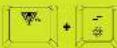

FN+ (-/+)
Increases/Decreases Brightness

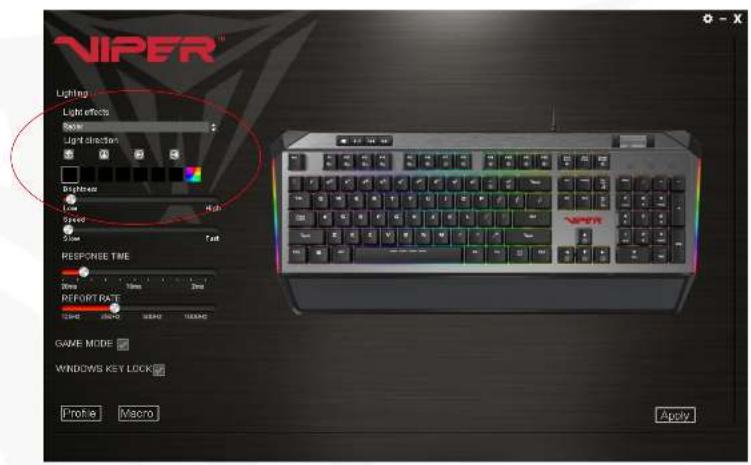
LIGHTING EFFECTS
Keyboard light effects
The V765's light effects can be set from the Viper software by selecting the effect from the drop down menu. Color selection, brightness, speed, and pattern direction can all be set, depending on the light effect, from the software. Click on Apply in the bottom right corner of the software to save settings.
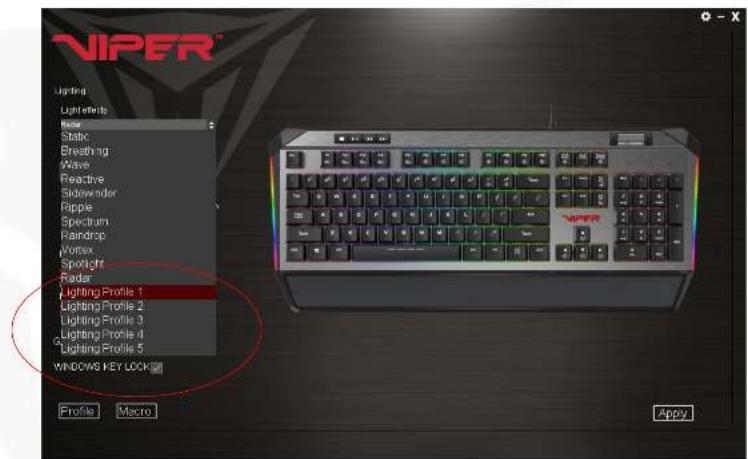
CUSTOM LIGHTING PROFILES
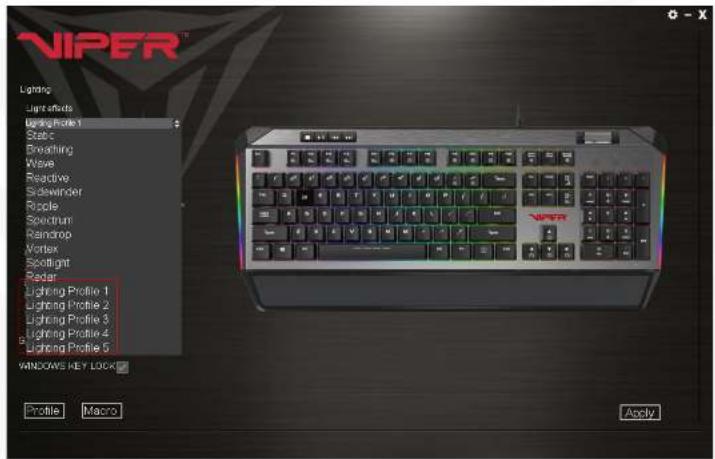
You may create custom lighting profiles by selecting one of the five Lighting Profiles from the drop down menu in Light Effects.
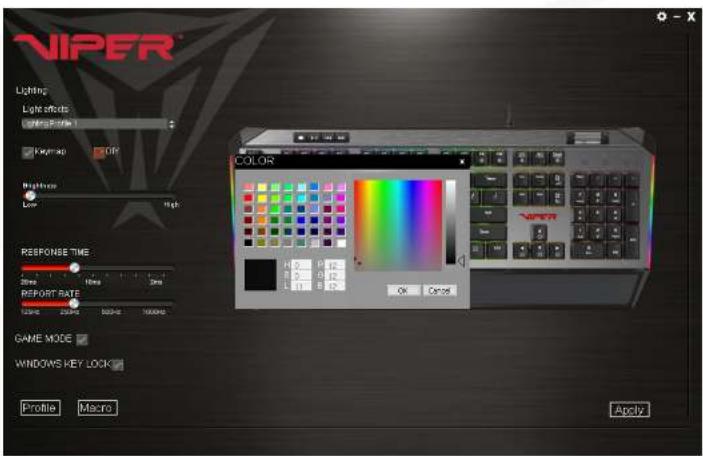
Check the box next to DIY to access custom color mode.
Select a key or select a group of keys and choose a color from the color pallet. Click OK, and then Apply to change and save the key colors.
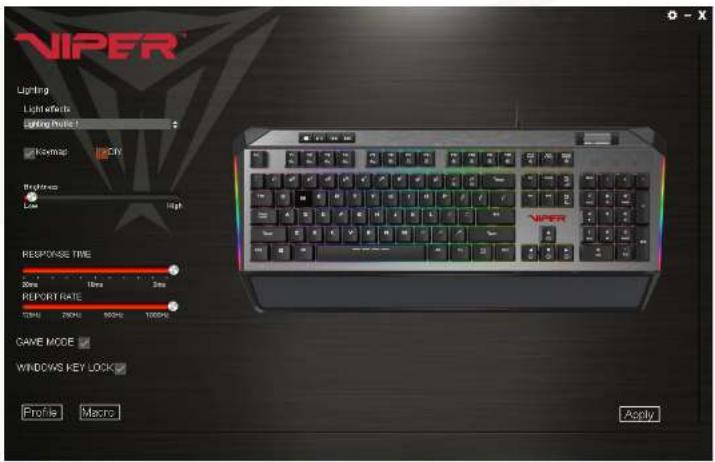
Response Time and Report Rate
You may adjust the response time and report rate for the keyboard from the main menu. A lower response time will decrease reaction time, and a higher report rate also decreases reaction time.
MACROS
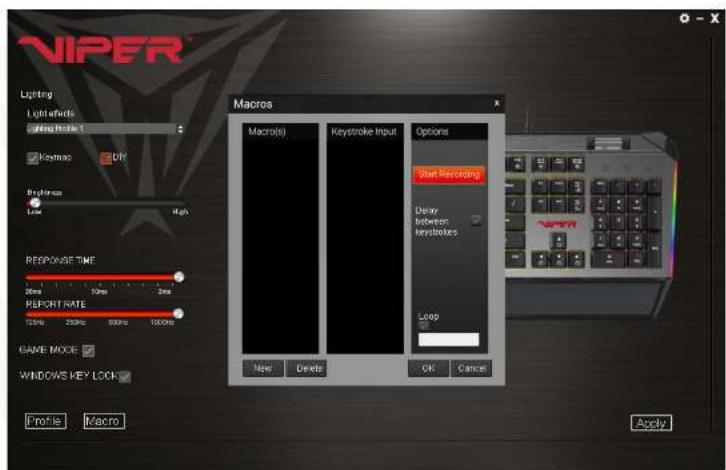
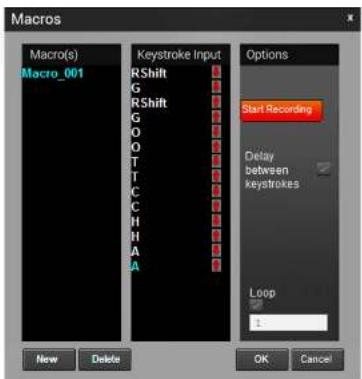
You may create and save 32 different macro scripts, of 47 characters in length that can be assigned to any key (except the Windows® key) of the keyboard.
Creating a Macro
Click on the Macros button from the main menu to open the macro editor.
Click New to create a new macro. Double click on the macro to rename it. Click Start Recording to create your macro script. You may create scripts up to 47 characters long.
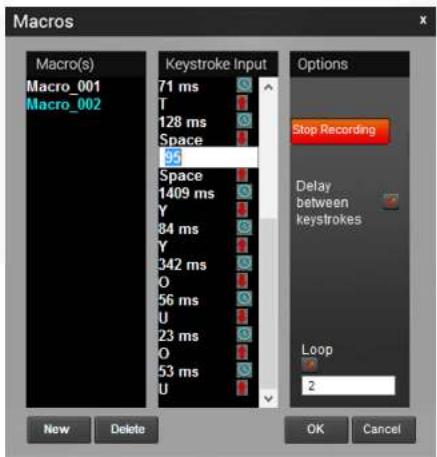
Delay between keystrokes – You may add delays between script keystrokes by checking the box next to Delay between keystrokes. Once you stop recording, you may edit delay time manually by double clicking on it.
Loop - By checking the box under Loop, you may assign the number of times a macro script runs when you press macro key.
Saving a Macro
Once you have recorded a macro script, click OK to save and exit the macro editor.
Deleting a Macro
Open the macro editor, and select a macro from the macro list and click Delete.
KEY ASSIGNMENTS
Select a Lighting Profile and check the box on Keymap. This gives you access to the SELECTED KEY menu.
You may assign specific functions to each key through the SELECTED KEY menu.
- Single/Combine
- Macro
- Basic
- Advance
SINGLE/COMBINE
This allows you to change the output value of a single key or combine two output values into a single keystroke.
Click a key you wish to change the value of or combine two values into (except for the Windows® key).
Click the Single/Combine tab from the SELECTED KEY menu.
Change the value of the keystroke in the single row or combine two values in the combine row.
Click Save, enable GAME MODE, click Apply.
To restore original function disable GAME MODE, and click Apply.
MACRO
This allows you to assign macro scripts you have created and saved to specific keys.
Click a key you wish to assign a macro to on the keyboard image (except for the Windows® key).
Click on the Macro tab from the SELECTED KEY menu and choose the macro you wish to assign from the list.
Click Save, enable GAME MODE, click Apply.
To restore original function disable GAME MODE, and click Apply.
BASIC
This allows you to assign various Windows® functions to various keys making them hot keys, including opening multi-media functions, internet browser, file access, and more.
Click a key you wish to assign a basic function to on the keyboard image (except for the Windows® key).
Click on the Basic tab from the SELECTED KEY menu and choose the function you wish to assign from the list.
Click Save, enable GAME MODE, click Apply.
To restore original function disable GAME MODE, and click Apply.
CREATING AND SAVING USER PROFILES
The Profiles function allows you to set up and save custom settings for different games, keyboard appearance, or performance, and access them easily.
You may create and save as many different user profiles as your hard disk space availability will allow. You will need one of the "Lighting Profile" buttons under the Lighting Effect menu to create and save specific user profiles. You may choose any one of the five "Lighting Profile" buttons for creating and saving user profiles.
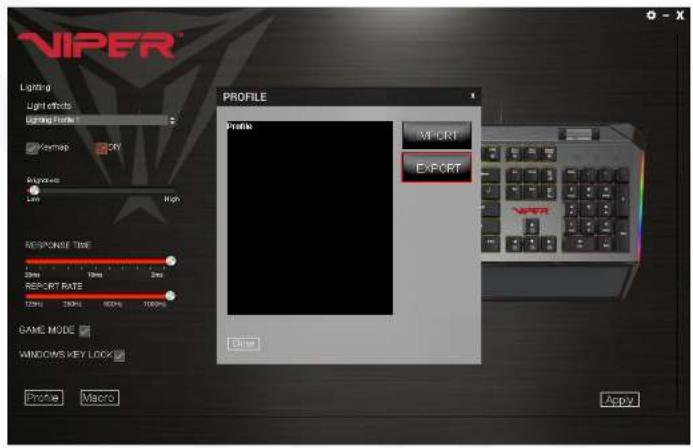
To create a user profile, follow the steps outlined above to custom color keys, and select and assign macro scripts. You may also adjust the report rate or response times to your preference. Click Apply to save them to the keyboard's memory.
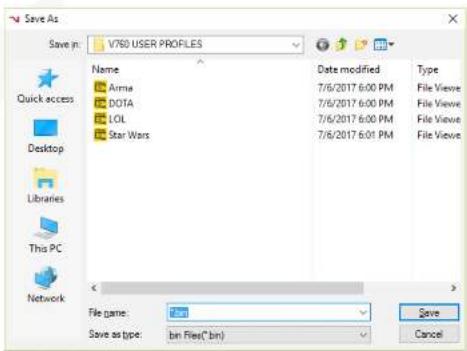
To save a user profile, click on the Profiles button in the lower left corner, then click on the EXPORT button to access a folder you create on your PC's storage device.
Name the profile and Save.
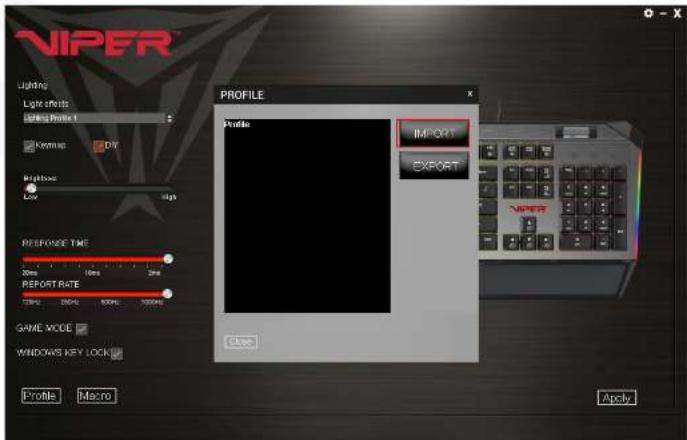
To load a saved profile to the keyboard, simply click on Profiles in the lower left corner, and click IMPORT.
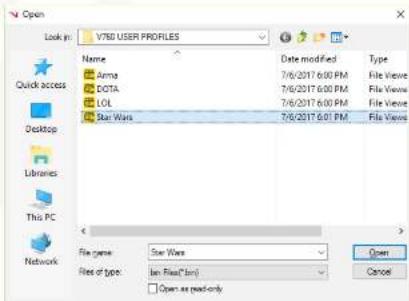
Double click on the profile you wish to load from your user profile folder and hit Open.
Once the selected profile has loaded onto the PROFILE window of the IMPORT/EXPORT screen, hit Apply. The profile is now loaded onto the keyboard memory.

natural_image
Abstract black and yellow geometric logo design on a bright yellow background (no text or symbols)GENERAL SETTINGS
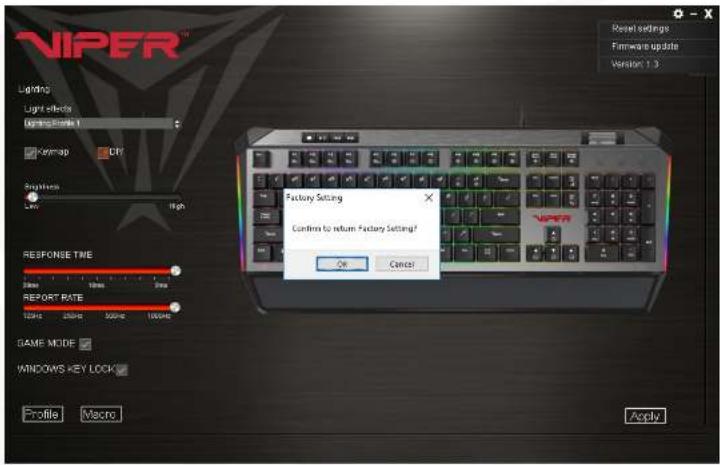
WINDOWS KEY LOCK
You may disable the Windows® key during game play by checking the box next to WINDOWS KEY LOCK, and then clicking Apply.
FACTORY RESET
To reset the keyboard to factory default settings, click on the setting icon in the upper right corner and then click Reset settings. The software will prompt you accordingly.
FCC and Legal:
This equipment has been tested and found to comply with the limits for a Class B digital device, pursuant to Part 15 of the FCC Rules. These limits are designed to provide reasonable protection against harmful interference in a residential installation. This equipment generates uses and can radiate radio frequency energy and, if not installed and used in accordance with the instructions, may cause harmful interference to radio communications.
However, there is no guarantee that interference will not occur in a particular installation. If this equipment does cause harmful interference to radio or television reception, which can be determined by turning the equipment off and on, the user is encouraged to try to correct the interference by one of the following measures:
- Reorient or relocate the receiving antenna.
- Increase the separation between the equipment and receiver.
- Connect the equipment into an outlet on a circuit different from that to which the receiver is connected.
- Consult the dealer or an experienced radio/TV technician for help.
FCC NOTICE:
This device complies with Part 15 of the FCC Rules. Operation is subject to the following two conditions:
1) This device may not cause harmful interference, and 2) This device must accept any interference received, including interference that may cause undesired operation.
FCC CAUTION:
- Any changes or modifications not expressly approved by the party responsible for compliance could void the user's authority to operate this equipment.
- This device and its antenna(s) must not be co-located or operating in conjunction with any other antenna or transmitter.

natural_image
Abstract red geometric logo on a yellow-green background (no text or symbols)VIPER GAMING
RoHS
COMPLIANT
FC
CE



The "P" logo is a Registered Trademark of Patriot Memory, LLC



- FEATURES & TECHNICAL SPECIFICATIONS
- PACKAGE CONTENTS
- INSTALLATION
- HARDWARE INSTALLATION
- SOFTWARE INSTALLATION
- MULTI-MEDIA KEYS
- Record and Save custom key configurations
- Press FN+F6 to continuously alternate between modes
- SPOTLIGHT MODE
- RADAR MODE
- WAVES MODE
- RIPPLE MODE
- VORTEX/SIDEWINDER MODES
- Press FN+F8 to continuously alternate between modes
- VORTEX MODE
- SIDEWINDER MODE
- RAINDROP/REACTIVE MODES
- Press FN+F9 to continuously alternate between modes
- RAINDROP MODE
- REACTIVE MODE
- BREATHE
- Press FN+F10 to continuously alternate between modes
- BREATHE MODE
- STATIC/SPECTRUM
- Press FN+F11 to continuously alternate between modes
- STATIC MODE
- SPECTRUM MODE
- LIGHTING EFFECTS
- CUSTOM LIGHTING PROFILES
- Response Time and Report Rate
- MACROS
- Creating a Macro
- Saving a Macro
- Deleting a Macro
- KEY ASSIGNMENTS
- SINGLE/COMBINE
- MACRO
- BASIC
- CREATING AND SAVING USER PROFILES
- GENERAL SETTINGS
- WINDOWS KEY LOCK
- FACTORY RESET
- FCC and Legal:
- FCC NOTICE:
- FCC CAUTION:
Brand : Viper
Model : V765
Category : Keyboard