
V730 - Keyboard Viper - Free user manual and instructions
Find the device manual for free V730 Viper in PDF.


| Product Type | Mechanical Gaming Keyboard |
| Model | V730 |
| Brand | Viper |
| Switch Type | Kailh Brown Mechanical Switches |
| Key Rollover | N-Key Rollover with Anti-Ghosting |
| Backlighting | LED Backlit with 5 Custom Profiles |
| Lighting Effects | Wave, Radar, Ribbon, Ripple, Sidewinder, Reactive, Breathe, Static |
| Lighting Effect Buttons | 6 (FN+F6 to F11) |
| Multimedia Keys | 8 (FN+1 to FN+8) |
| Chassis Material | Aircraft Grade Aluminum |
| Palm Rest | Integrated Wide Palm Rest |
| Adjustable Legs | Yes |
| Connection | USB |
| Dimensions | Approx. 440 x 150 x 30 mm |
| Weight | Approx. 1.2 kg |
| Power | USB Powered |
| Compatibility | Windows, Mac (USB HID) |
| Lighting Speed Control | FN+Page Up / FN+Page Down |
| Brightness Control | FN++ / FN+- (0% to 100%) |
| Factory Reset | Hold FN+Pause for 3 seconds |
| Package Contents | Keyboard, Quick Start Guide, Viper Sticker |
| Certifications | FCC, CE, RoHS |
| Warranty | Limited manufacturer warranty (check packaging) |
Frequently Asked Questions - V730 Viper
User questions about V730 Viper
0 question about this device. Answer the ones you know or ask your own.
Ask a new question about this device
Download the instructions for your Keyboard in PDF format for free! Find your manual V730 - Viper and take your electronic device back in hand. On this page are published all the documents necessary for the use of your device. V730 by Viper.
USER MANUAL V730 Viper
natural_image
Black and red computer keyboard with glossy finish, no visible text or symbols on the keys or background (pure technical illustration)
USER MANUAL

INTRODUCTION
natural_image
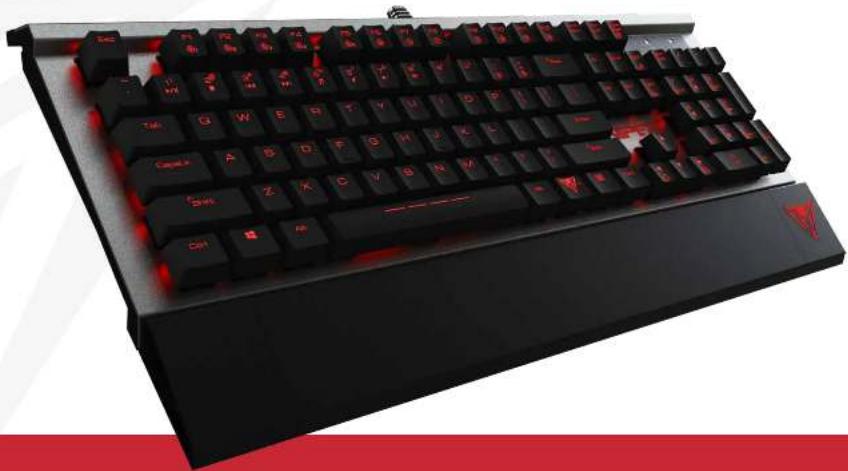
Black computer keyboard with red LED lights and a white checkered button, no visible text or symbols on the keys themselves.Thank you for purchasing the Viper V730 gaming keyboard. This keyboard is equipped with mechanical Kailh Brown switches for a smooth linear feel and quiet operation. This keyboard features N-key rollover, anti-ghosting, multi-media keys, six LED lighting effects buttons, and onboard controls to set up five custom lighting profiles.
The aircraft grade aluminum chassis gives the V730 a durable, solid platform to handle everything thrown its way. The adjustable legs and wide integrated palm rest are designed for user comfort during long hours of game play.

FEATURES & TECHNICAL SPECIFICATIONS
• 100% mechanical Kailh Brown switches
• N-key rollover & anti-ghosting
• LED backlit keys
- 5 lighting profiles
• 6 LED lighting effects buttons
• 8 multimedia control keys
• Aircraft grade aluminum chassis
PACKAGE CONTENTS
• Viper V730 gaming keyboard
- Quick start guide
• Viper sticker

natural_image
Abstract geometric logo design with white triangular shapes on red background (no text or symbols)HARDWARE INSTALLATION

natural_image
Close-up of two USB connectors with black and gold color scheme, coiled with a red cord (no text or symbols visible)INSTALLATION
HARDWARE INSTALLATION
Connect the keyboard to your computer's USB port. Wait 5-10 seconds for the keyboard to be recognized by the computer.

natural_image
Abstract geometric logo design with white triangular shapes on red background (no text or symbols)KEYBOARD SHORTCUTS

MULTI-MEDIA KEYS


FN+1 PLAY/PAUSE


FN+2 STOP


FN+3 PREVIOUS TRACK


FN+4 NEXT TRACK


FN+5 PLAYER ON


FN+6 MUTE


FN+7 VOLUME DOWN


FN+8 VOLUME UP

natural_image
Abstract geometric logo design with white triangular shapes on red background (no text or symbols)
Record and Save custom LED Profiles

Pressing FN+F12 key causes F1-F5 to enter a blinking state in preparation to record a custom key configuration. Once in this blinking state, select any of the F1-F5 keys to assign a configuration.

Pressing any key in recording mode will illuminate it, making it part of your customized lighting profile.
i.e: if keys WASD were selected, WASD will be illuminated, indicating that these keys were recorded and assigned to the selected "F" key.

When Recording is complete, press FN+F12 again to save your customized profiles.
Repeat the previous steps as needed to complete the recording of other customized profiles.
Press FN+F1 through F5 key to activate the custom profile desired.

natural_image
Abstract red and white geometric logo design with no text or symbolsLIGHTING EFFECTS


RADAR/WAVE MODES
Press FN+F6 -Continuously to alternate between modes
WAVE MODE
A wave of light travels across the keyboard from left to right. To change the direction of the wave, press FN+left arrow key. The wave will travel from right to left. Press the FN+right arrow key to change the direction of the wave to left to right again.

FN+LEFT
Wave will travel from right to left

FN+RIGHT
Change the direction of the wave to left to right
RADAR MODE
Holding the FN and pressing the F6 twice will change the wave pattern to a radar pattern. FN+left arrow key will move the radar pattern in an counter clockwise direction and pressing the FN+right arrow key will move the radar pattern in a clockwise direction.

FN+LEFT
Move the radar pattern counter clockwise direction.

FN+RIGHT
Move the radar pattern in a clockwise direction
+


RIBBON MODE
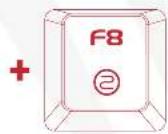
Press FN+F7 -Continuously to alternate between modes
RIBBON MODE WITHOUT BACKLIGHTING
A ribbon of light will flow towards the two sides of the keyboard from the center, without backlighting.

FM+F7
Flow towards the two side
(TWICE) RIBBON MODE WITHOUT BACKLIGHTING
Holding the FN key and pressing F7 twice will add backlighting to the entire keyboard with the ribbon of light.

FX+F7 (twice)
will add backlighting to the entire keyboard


RIPPLE MODE
RIPPLE MODE
When pressing any key, the lighting will be spread in all directions; displaying a ripple effect.

FN+PgUp
Increases Speed of Ripple Mode

FN+PgDn
Decreases Speed of Ripple Mode


SIDEWINDER MODES
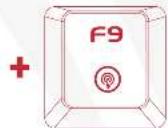
Press FN+F9 -Continuously to alternate between modes
SIDEWINDER MODE
The lighting pattern starts at the top left and spirals toward the center row.


FN+PgUp
increases Speed of Sidewinder Mode
FN+PgDn
Decreases Speed of Sidewinder Mode


RAINDROP/REACTIVE MODES
Press FN+F10 -Continuously to alternate between modes
REACTIVE MODE
When pressing any key, the key will light up and then fade.

FN+PgUp Increases Fading Speed of Reactive Mode

FN+PpDn Decreases Fading Speed of Reactive Mode

BREATHE/STATIC MODES
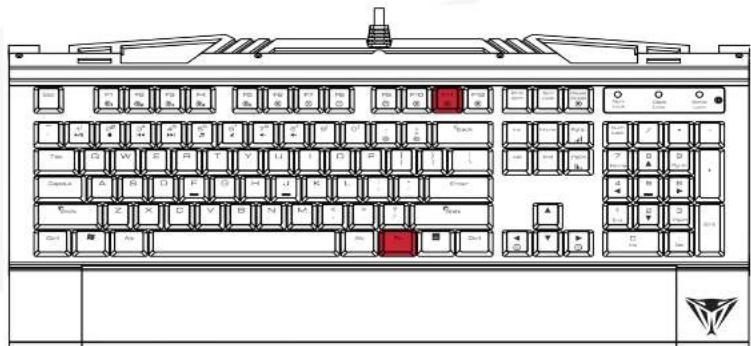
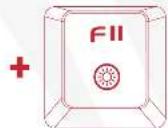
Press FN+F11 -Continuously to alternate between modes
BREATHE MODE
The entire keyboard brightens then fades.

FN+PgUp
Increases Speed of Breathe Mode

FN+PqDn
Decreases Speed of Breathe Mode
(TWICE) STATIC MODE
Holding FN and pressing F11 twice will illuminate the entire keyboard.

natural_image
Abstract geometric logo design with white triangular shapes on red background (no text or symbols)SPEED AND BRIGHTNESS


SPEED/BRIGHTNESS MODES
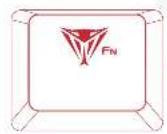
Press FN+PG -Continuously to alternate between modes
SPEED
Press FN+Page Up to increase the speed of the lighting patterns, and press FN+Page Down to decrease the speed of the lighting patterns.

FN+PgUp
Increases Speed of Light

FN+PgDn
Decreases Speed of
light
BRIGHTNESS
Press FN++ to increase brightness of LEDs and press FN+- to decrease the brightness, from 100% to off.





FACTORY RESET
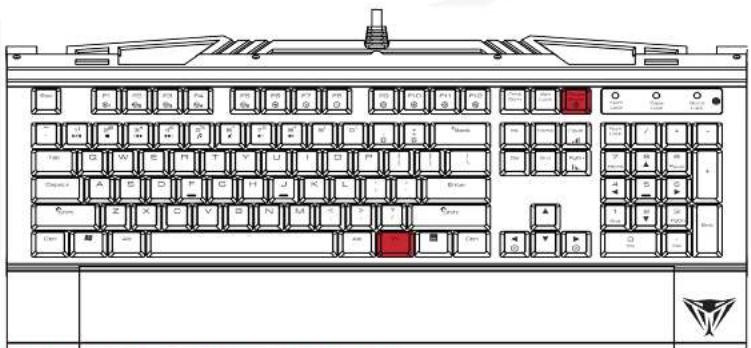
Press FN+Pause -Continuously to alternate between modes
RESET
Pressing FN+Pause Break for 3 seconds will reset the keyboard to its factory default settings.

FN+Pause
When pressing FN+Pause it will break for 3 second and rest the keyboard
FCC and Legal:
This equipment has been tested and found to comply with the limits for a Class B digital device, pursuant to Part 15 of the FCC Rules. These limits are designed to provide reasonable protection against harmful interference in a residential installation. This equipment generates uses and can radiate radio frequency energy and, if not installed and used in accordance with the instructions, may cause harmful interference to radio communications.
However, there is no guarantee that interference will not occur in a particular installation. If this equipment does cause harmful interference to radio or television reception, which can be determined by turning the equipment off and on, the user is encouraged to try to correct the interference by one of the following measures:
- Reorient or relocate the receiving antenna.
- Increase the separation between the equipment and receiver.
- Connect the equipment into an outlet on a circuit different from that to which the receiver is connected.
- Consult the dealer or an experienced radio/TV technician for help.
FCC NOTICE:
This device complies with Part 15 of the FCC Rules. Operation is subject to the following two conditions:
1) This device may not cause harmful interference, and 2) This device must accept any interference received, including interference that may cause undesired operation.
FCC CAUTION:
• Any changes or modifications not expressly approved by the party responsible for compliance could void the user's authority to operate this equipment.
• This device and its antenna(s) must not be co-located or operating in conjunction with any other antenna or transmitter.

RoHS COMPLIANT
FC
CE



The "P" Logo is a Registered Trademark of Patriot Memory, LLC



- USER MANUAL
- INTRODUCTION
- FEATURES & TECHNICAL SPECIFICATIONS
- PACKAGE CONTENTS
- HARDWARE INSTALLATION
- INSTALLATION
- KEYBOARD SHORTCUTS
- MULTI-MEDIA KEYS
- LIGHTING EFFECTS
- RADAR/WAVE MODES
- WAVE MODE
- RADAR MODE
- RIBBON MODE
- RIBBON MODE WITHOUT BACKLIGHTING
- (TWICE) RIBBON MODE WITHOUT BACKLIGHTING
- RIPPLE MODE
- SIDEWINDER MODES
- SIDEWINDER MODE
- RAINDROP/REACTIVE MODES
- REACTIVE MODE
- BREATHE/STATIC MODES
- BREATHE MODE
- (TWICE) STATIC MODE
- SPEED AND BRIGHTNESS
- SPEED/BRIGHTNESS MODES
- SPEED
- BRIGHTNESS
- FACTORY RESET
- RESET
- FCC and Legal:
- FCC NOTICE:
- FCC CAUTION:
- RoHS COMPLIANT
- FC
- CE
Brand : Viper
Model : V730
Category : Keyboard