
L-MS30 - Home Theater ONKYO - Free user manual and instructions
Find the device manual for free L-MS30 ONKYO in PDF.


| Product Type | Home Theater System (DVD Receiver + 5.1ch Speaker System) |
| Model | L-MS30 |
| Brand | Onkyo |
| Components | DVD Receiver DR-L30, Satellite Speakers SKM-L30 (x4), Center Speaker SKC-L30, Powered Subwoofer SKW-L30 |
| Amplifier Power Output | 5 × 50 W/ch at 8 Ω (JEITA) |
| Audio Decoding | DTS, Dolby Digital, Dolby Pro Logic II |
| Playable Discs | DVD-Video, Video CD, Audio CD, CD-R/RW (MP3, JPEG) |
| Tuner | FM/AM with 40 presets |
| Speaker Impedance | 8 ohms |
| Subwoofer Output | 150 W dynamic, 20 cm cone |
| Dimensions (W × H × D) | Receiver: 435 × 78 × 383 mm; Satellite: 101 × 169 × 136 mm; Center: 264 × 95.5 × 136 mm; Subwoofer: 236 × 435 × 405 mm |
| Weight | Receiver: 5.1 kg; Satellite: 1.2 kg each; Center: 2.0 kg; Subwoofer: 12.7 kg |
| Power Supply | AC 220–230 V, 50/60 Hz; Receiver: 80 W, Subwoofer: 75 W, Standby: 1.7 W |
| Frequency Response | Receiver: 4 Hz – 44 kHz (DVD), 4 Hz – 20 kHz (CD); Speakers: 70 Hz – 35 kHz; Subwoofer: 30 – 150 Hz |
| Remote Control | Included (RC-546M) with batteries |
| Laser Class | Class 1 |
| Ventilation Requirement | 20 cm free space at top/sides, 10 cm at rear |
| Memory Backup | Built-in, no batteries required (several weeks) |
| Color-Coded Terminals | Yes, for easy speaker connection |
| Accessories Included | Remote, batteries, FM/AM antennas, video cable, audio cable, speaker cables, cork stoppers, wall-mount fittings |
Frequently Asked Questions - L-MS30 ONKYO
User questions about L-MS30 ONKYO
0 question about this device. Answer the ones you know or ask your own.
Ask a new question about this device
Download the instructions for your Home Theater in PDF format for free! Find your manual L-MS30 - ONKYO and take your electronic device back in hand. On this page are published all the documents necessary for the use of your device. L-MS30 by ONKYO.
USER MANUAL L-MS30 ONKYO
The L-MS30 consists of:
DVD Receiver DR-L30
5.1ch Speaker System HTP-L30
• Satellite Speaker SKM-L30
• Center Speaker SKC-L30
- Powered Subwoofer SKW-L30
Contents
Getting Started 6
Facilities and Connections 12
Function Setup 27
Basic Operations 32
Advanced Operations 47
Others 61
Thank you for purchasing the Onkyo DVD Theater System.
Please read this manual thoroughly before making connections and turning on the power.
Following the instructions in this manual will enable you to obtain optimum performance and listening enjoyment from your new DVD Theater System.
Please retain this manual for future reference.
WARNING:
TO REDUCE THE RISK OF FIRE OR ELECTRIC SHOCK, DO NOT EXPOSE THIS APPARATUS TO RAIN OR MOISTURE.
CAUTION:
TO REDUCE THE RISK OF ELECTRIC SHOCK, DO NOT REMOVE COVER (OR BACK). NO USER-SERVICEABLE PARTS INSIDE. REFER SERVICING TO QUALIFIED SERVICE PERSONNEL.

WARNING RISK OF ELECTRIC SHOCK DO NOT OPEN
AVIS RISQUE DE CHOC ELECTRIQUE NE PAS OUVRIR


The lightning flash with arrowhead symbol, within an equilateral triangle, is intended to alert the user to the presence of uninsulated “dangerous voltage” within the product’s enclosure that may be of sufficient magnitude to constitute a risk of electric shock to persons.

The exclamation point within an equilateral triangle is intended to alert the user to the presence of important operating and maintenance (servicing) instructions in the literature accompanying the appliance.
Important Safety Instructions
- Read these instructions.
- Keep these instructions.
- Heed all warnings.
- Follow all instructions.
- Do not use this apparatus near water.
- Clean only with dry cloth.
- Do not block any ventilation openings. Install in accordance with the manufacturer's instructions.
- Do not install near any heat sources such as radiators, heat registers, stoves, or other apparatus (including amplifiers) that produce heat.
- Do not defeat the safety purpose of the polarized or grounding-type plug. A polarized plug has two blades with one wider than the other. A grounding type plug has two blades and a third grounding prong. The wide blade or the third prong are provided for your safety. If the provided plug does not fit into your outlet, consult an electrician for replacement of the obsolete outlet.
- Protect the power cord from being walked on or pinched particularly at plugs, convenience receptacles, and the point where they exit from the apparatus.
- Only use attachments/accessories specified by the manufacturer.
- Use only with the cart, stand, tripod, bracket, or table specified by the manufacturer, or sold with the apparatus. When a cart is used, use caution when moving the cart/apparatus combination to avoid injury from tip-over.
- Unplug this apparatus during lightning storms or when unused for long periods of time.
-
Refer all servicing to qualified service personnel. Servicing is required when the apparatus has been damaged in any way, such as power-supply cord or plug is damaged, liquid has been spilled or objects have fallen into the apparatus, the apparatus has been exposed to rain or moisture, does not operate normally, or has been dropped.
-
Damage Requiring Service
Unplug the apparatus form the wall outlet and refer servicing to qualified service personnel under the following conditions:
A. When the power-supply cord or plug is damaged,
B. If liquid has been spilled, or objects have fallen into the apparatus,
C. If the apparatus has been exposed to rain or water,
D. If the apparatus does not operate normally by following the operating instructions. Adjust only those controls that are covered by the operating instructions as an improper adjustment of other controls may result in damage and will often require extensive work by a qualified technician to restore the apparatus to its normal operation,
E. If the apparatus has been dropped or damaged in any way, and
F. When the apparatus exhibits a distinct change in performance this indicates a need for service. - Object and Liquid Entry
Never push objects of any kind into the apparatus through openings as they may touch dangerous voltage points or short-out parts that could result in a fire or electric shock.
The apparatus shall not be exposed to dripping or splashing and no objects filled with liquids, such as vases shall be placed on the apparatus.
Don't put candles or other burning objects on top of this unit. - Batteries
Always consider the environmental issues and follow local regulations when disposing of batteries. - If you install the apparatus in a built-in installation, such as a bookcase or rack, ensure that there is adequate ventilation. Leave 20 cm (8") of free space at the top and sides and 10 cm (4") at the rear. The rear edge of the shelf or board above the apparatus shall be set 10 cm (4") away from the rear panel or wall, creating a flue-like gap for warm air to escape.
Precautions
DANGER:
VISIBLE LASER AND INVISIBLE RADIATION WHEN OPEN AND INTERLOCK FAILED OR DEFEATED. DO NOT STARE INTO BEAM.
CAUTION:
THIS PRODUCT UTILIZES A LASER. USE OF CONTROLS OR ADJUSTMENTS OR PERFORMANCE OF PROCEDURES OTHER THAN THOSE SPECIFIED HEREIN MAY RESULT IN HAZARDOUS RADIATION EXPOSURE.
This unit contains a semiconductor laser system and is classified as a "CLASS 1 LASER PRODUCT". So, to use this model properly, read this Instruction Manual carefully. In case of any trouble, please contact the store where you purchased the unit. To prevent being exposed to the laser beam, do not try to open the enclosure.
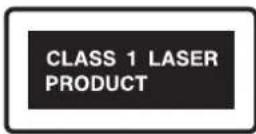
This label on the rear panel states that:
-
This unit is a CLASS I LASER PRODUCT and employs a laser inside the cabinet.
-
To prevent the laser from being exposed, do not remove the cover. Refer servicing to qualified personnel.
1. Regional Restriction Codes (Region Number)
Regional restriction codes are built into DVD receivers and DVD videos for each sales region. If the regional code of the DVD receiver does not match one of the regional codes on the DVD video, playback is not possible. The regional number can be found on the rear panel of the DVD receiver. (e.g. For Region 1)
2. About This Manual
This manual explains the basic procedures for operating the DVD receiver. Some DVD videos do not support the full potential of the DVD technology. Your DVD receiver may therefore not respond to all operating commands. Refer to instruction notes on discs.
A "mark may appear on the TV screen during operation. It means that the operation is not permitted by the DVD receiver or the disc.
3. Recording Copyright
Recording of copyrighted material for other than personal use is illegal without permission of the copyright holder.
4. AC FUSE
The fuse is located inside the chassis and is not user-serviceable. If power does not come on, contact your Onkyo authorized service center.
5. Power
WARNING
BEFORE PLUGGING IN THE UNIT FOR THE FIRST TIME, READ THE FOLLOWING SECTION CAREFULLY. The voltage of the available power supply differs according to country or region. Be sure that the power supply voltage of the area where the unit will be used meets the required voltage (e.g., AC 120V 60 Hz) written on the rear panel.
6. Do not touch the unit with wet hands
Do not handle the unit or power cord when your hands are wet or damp. If water or any other liquid enters the case, take the unit to an authorized service center for inspection.
7. Location of the unit
- Place the unit in a well-ventilated location. Take special care to provide plenty of ventilation on all sides of the unit especially when it is placed in an audio rack. If ventilation is blocked, the unit may overheat and malfunction.
- Do not expose the unit to direct sunlight or heating units as the unit's internal temperature may rise and shorten the life of the pickup.
- Avoid damp and dusty places and places directly affected by vibrations from the speakers. In particular, avoid placing the unit on or above one of the speakers.
- Be sure the unit is placed in a horizontal position. Never place it on its side or on a slanted surface as it may malfunction.
- When you place the unit near a TV, radio, or VCR, the playback picture may become poor and the sound may be distorted. In this case, place the unit away from the TV, radio, or VCR.
8. Care
From time to time you should wipe the front and rear panels and the cabinet with a soft cloth. For heavier dirt, dampen a soft cloth in a weak solution of mild detergent and water, wring it out dry, and wipe off the dirt. Following this, dry immediately with a clean cloth.
Do not use rough material, thinners, alcohol or other chemical solvents or cloths since these could damage the finish or remove the panel lettering.
9. Notes on Handling
When shipping the unit, use the original shipping carton and packing materials. For maximum protection, repack the unit as it was originally packed at the factory.
- Do not use volatile liquids, such as insect spray, near the unit. Do not leave rubber or plastic products in contact with the unit for a long time. They will leave marks on the finish.
- The top and rear panels of the unit may become warm after a long period of use. This is not a malfunction.
- When the unit is not in use, be sure to remove the disc and turn off the power.
- If you do not use the unit for a long period, the unit may not function properly in the future. Turn on and use the unit occasionally.
10. To Obtain a Clear Picture
The unit is a high technology, precision device. If the optical pick-up lens and disc drive parts are dirty or worn down, the picture quality becomes poor. To obtain a clear picture, we recommend regular inspection and maintenance (cleaning or parts replacement) every 1,000 hours of use depending on the operating environment. For details, contact your nearest dealer.
11. Notes on Moisture Condensation
Moisture condensation damages the unit. Please read the following carefully.
• What is moisture condensation?
Moisture condensation occurs, for example, when you pour a cold drink into a glass on a warm day. Drops of water form on the outside of the glass. In the same way, moisture may condense on the optical pick-up lens inside the unit, one of the most crucial internal parts of the unit.
- Moisture condensation occurs in the following cases.
- When you bring the unit directly from a cold place to a warm place.
- When you use the unit in a room where you just turned on the heater, or a place where the cold wind from the air conditioner directly hits the unit.
- In summer, when you use the unit in a hot and humid place just after you move the unit from an air conditioned room. - When you use the unit in a humid place.
- Do not use the unit when moisture condensation may occur.
If you use the unit in such a situation, it may damage discs and internal parts. Remove the disc, connect the power cord of the unit to the wall outlet, turn on the unit, and leave it for two or three hours. After a few hours, the unit will have warmed up and evaporated any moisture. Keep the unit connected to the wall outlet and moisture condensation will seldom occur.
Table of Contents
Important Safety Instructions / Precautions / Table of Contents ....2
Getting Started
Features 6
Notes on Copyright
Supplied Accessories....7
Supplied Accessories / How to use the supplied cork stoppers
Preparing the Remote Controller....9
Inserting the Batteries / Pointing the remote controller in the right direction
Notes on Discs....10
Playable Discs / About Video CDs / MP3/JPEG compatibility information / Handling Discs /
Cleaning Discs / Storing Discs / Differences in Disc Composition
Facilities and Connections
Control Position and Names....12
Front Panel / Display / Rear Panel / Remote Controller / Subwoofer
Connecting Your AV Components ....16
Before making any connections / AV cables & connectors / Connecting to a TV /
Connecting a Video Device / Connecting a VCR for Recording
Connecting Speakers ....21
The wall-mount fittings / Connecting the front (left and right), center, and surround speakers /
Connecting the subwoofer (SKW-L30)/ Standard speaker placement and speaker functions
Connecting the Antenna....24
Connecting the Indoor FM Antenna / Connecting the AM Loop Antenna /
Connecting an Outdoor FM Antenna / Connecting an Outdoor AM Antenna
Connecting the Power/Turning on the DVD receiver....26
Function Setup
Customizing Function Settings 27
To set the TV system / Setting Steps / General Setup / Audio setup / Preferences
Basic Operations
Basic Operation 32
Adjusting the Volume / Muting the Sound / Playing the connected source
Speaker Setup....33
Adjusting Each Speaker's Relative Volume Balance - Test Tone / Setting the Distance From the Listening Position to Each Speaker/ Level setting using a music source
Playing DVDs (Basic Playback)....36
Playing DVDs / Resuming playback from where you stopped / Stopping playback / To display the top menu / To display the menu / Locating a title using the title menu / Locating a specific chapter consecutively / Locating a specific title and chapter by entering the numbers / Searching
Playing VCDs/CDs (Basic Playback)....39
Playing Video CDs, CDs / Playback without using the menu playback function / Searching / Locating a specific track consecutively / Stopping Playback and Switching Power Off / Locating a specific track directly
Playing MP3/JPEG Files (Basic Playback) 41
Playing back MP3/JPEG / Selects the files to be played back directly / Rotating a picture (JPEG files only)
Listening to the Radio 43
Tuning Manually / Presetting Radio Stations
Enjoying the Sound Effects 45
Selecting Surround Mode / Checking the Sound System of the Playing Source / Adjusting the Sound
Advanced Operations
Playing DVDs (Various Playback) 47
Repeating a Title or Chapter / Repeating a Specific Segment / Viewing a still frame / Viewing slow playback / Using Bookmarks / Changing the Camera Angle / Selecting a Subtitle / Selecting a Playback Audio Setting / Viewing information
Playing VCDs/CDs (Various Playbacks)....52
Repeating a Track / Repeating a Specific Segment / Using Bookmarks / Using IntroScan function / Viewing a still frame / Viewing slow playback / Selecting Sound Channels on Video CDs / Random play / Setting Tracks in a Favorite Order / Viewing information
Playing a MP3/JPEG (Various playbacks)....59
MP3/JPEG program playback / MP3/JPEG Repeat Play / MP3/JPEG Random play
Others
DVD Menu Language Code List 61
Troubleshooting 62
Specifications 65
DVD receiver (DR-L30) / Speaker system (HTP-L30)
Features
■ DR-L30 – Integrated Receiver/DVD Player
Receiver Section
• 5 × 50 W/Channel at 8 Ω, (JEITA)
• DTS ^1 , Dolby ^2 Digital, Dolby Pro Logic II Decoding
• A-Form-Auto Format Sensing
• Linear PCM 96 kHz/24-bit D/A Converters
• Built-in 64-bit DSP Processor
• Color-Coded Speaker Terminals
DVD/CD Player Section
• MP3 CD/CD/VCD/CD-R/RW/JPEG CD Playback
• 2-Mode Search Function (Title/Track)
• Random Playback (VCD, CD Only)
- Set Up Menu Audio Language
- Set Up Menu Subtitle Language
• Multi-Aspect Ratio (16:9, 4:3)
*1 "DTS" and "DTS Digital Surround" are trademarks of Digital Theater Systems, Inc.
*2 Manufactured under license from Dolby Laboratories. "Dolby", "Pro Logic" and the double-D symbol are trademarks of Dolby Laboratories.
Notes on Copyright
It is forbidden by law to copy, broadcast, show, broadcast on cable, play in public, and rent copyrighted material without permission. DVD videos are copy protected, and any recordings made from these discs will be distorted.
This product incorporates copyright protection technology that is protected by U.S. patents and other intellectual property rights. Use of this copyright protection technology must be authorized by Macrovision, and is intended for home and other limited viewing uses only unless otherwise authorized by Macrovision. Reverse engineering or disassembly is prohibited.
■ HTP-L30 – Speaker Package
SKM-L30
2-Way Bass Reflex Satellite Speakers
- 8 cm Cone Woofer
• 2 cm Balanced-dome Tweeter
• 8 Ω Impedance
• Color-Coded Speaker Terminals and Speaker Cable Included
SKC-L30
2-Way Bass Reflex Center Speaker
- 8 cm Cone Woofer × 2
• 2 cm Balanced Dome Tweeter
• 8 Ω Impedance
• Color-Coded Speaker Terminals and Speaker Cable Included
SKW-L30 Subwoofer
• Built-in 150 Watt Subwoofer
- 20 cm Cone Woofer
• Auto Standby/On Switch
Memory Preservation
This unit does not require memory preservation batteries. A built-in memory power backup system preserves the contents of memory during power failures and even when the power cord is unplugged. The power cord must be plugged in order to charge the backups system. The memory preservation period after the unit has been turned off varies depending on climate and placement of the unit. On average, memory contents are protected over a period of a few weeks after the time the unit has been turned off. This period is shorter when the unit is exposed to a very humid climate.
Supplied Accessories
Supplied Accessories
Make sure your box contains everything listed below.
If any pieces are missing, contact your nearest Onkyo service.
The number of accessories is indicated in brackets.
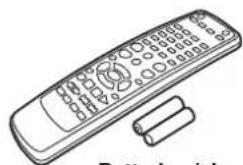
Remote controller (RC-546M) [1]
natural_image
Line drawing of a remote control with buttons and a detached cylindrical object (no text or symbols)Batteries (size AAA/R03) [2]
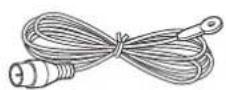
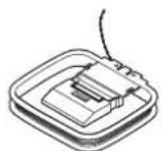
Indoor FM antenna [1] AM loop antenna [1]
Video connection cable [1] (For Composite Video)
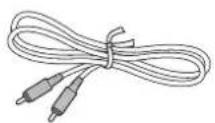
Audio connection cable [1] (For Subwoofer)
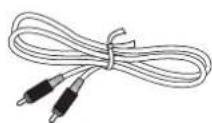
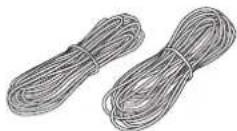
Speaker cables [5]
3 m cable
(For Center Speaker)
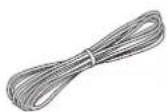
(Green)
4.5 m cable (For Front Speakers)
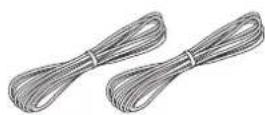
(White)
(Red)
9.0 m cable
(For Surround Speakers)
(Blue)
(Gray)
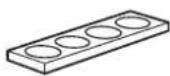
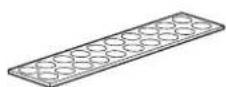
Cork stoppers [4] (For the subwoofer
Cork stoppers [20] (For the speakers)
Wall-mount fitting [6] Screws [6]


Supplied Accessories
How to use the supplied cork stoppers
■ Using cork stoppers with the subwoofer (SKW-L30)
We recommend using the provided cork stoppers to achieve the best possible sound from your speaker. The cork stoppers prevent the speaker from moving, providing a more stable setup.
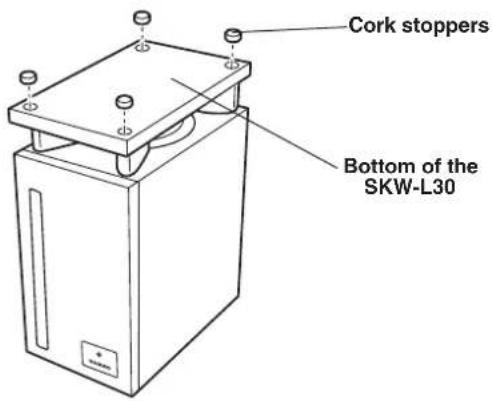
When mounting the speaker on the wall
Stack up two of the provided cork stoppers and attach them in the two places indicated.
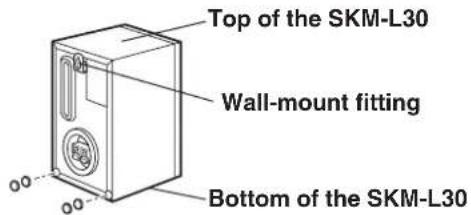
■ Using cork stoppers with the center speaker (SKC-L30) and satellite speakers (SKM-L30)
We recommend using the provided cork stoppers to achieve the best possible sound from your speakers. The cork stoppers prevent the speakers from moving, providing a more stable setup.
Note
Before mounting the satellite speakers on the wall, make sure you read the instructions provided with the wall-mount fittings.
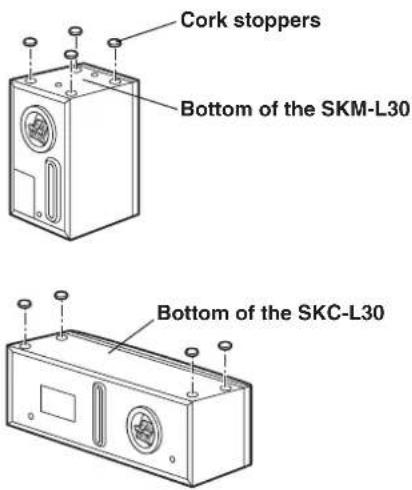
Preparing the Remote Controller
Inserting the Batteries Pointing the remote controller in the
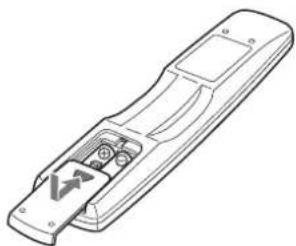
① Detach the battery cover.
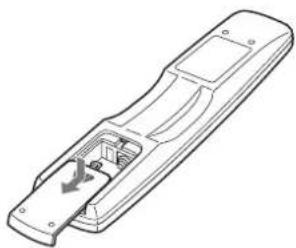
natural_image
Line drawing of a remote control casing with internal components and a directional arrow (no text or symbols)② Insert the two size AAA/R03 batteries.
Be sure to match the + and - ends of the batteries with the diagram inside the battery compartment.
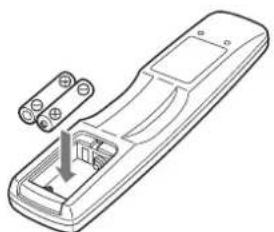
natural_image
Line drawing of a remote control casing with a handle and connector (no text or symbols)③ Attach the battery cover.
natural_image
Line drawing of a remote control device with buttons and a warning symbol (no text or labels)Notes
- Do not mix new batteries with old batteries or different kinds of batteries.
- To avoid corrosion, remove the batteries if the remote controller is not to be used for a long time.
- Remove dead batteries immediately to avoid damage from corrosion. If the remote controller does not operate smoothly, replace both batteries at the same time.
- The life of the batteries supplied is about six months but this varies depending on usage.
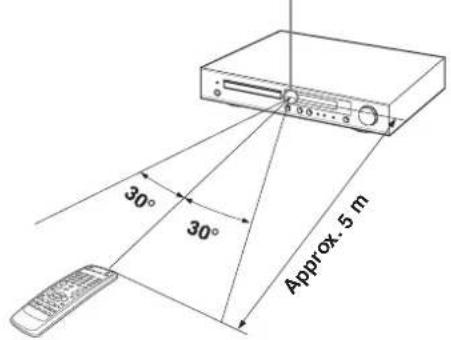
ote controller in the right direction
Point the remote controller toward the remote control sensor.
Remote control sensor
Notes
- Place the unit away from strong light such as direct sunlight or inverted fluorescent light which can prevent proper operation of the remote controller.
- Using another remote controller of the same type in the same room or using the unit near equipment which uses infrared rays may cause operational interference.
- Do not put any object such as a book on the remote controller. The buttons of the remote controller may be pressed by mistake and drain the batteries.
- Make sure the audio rack doors do not have colored glass. Placing the unit behind such doors may prevent proper remote controller operation.
- If there is any obstacle between the remote controller and the remote control sensor, the remote controller will not operate.
Notes on Discs
playable Discs
This DVD receiver can playback the following discs.
| Disc Mark | ||
| DVD Videos |  | |
| VIDEO CDs |  |  |
| Audio CDs |  | |
| CD-Rs*1 |  |  |
| CD-RWs*1 |  |  |
*1 This unit can play CD-R and CD-RW discs recorded in CD Audio or Video CD format, with MP3 audio files or with JPEG image files. However, there may be some discs that cannot be played back with this unit. The causes of this impossibility include incompletion of disc finalization and the recording characteristics of the recorder as well as the properties, damage or stain of the disc in use and stain or condensation on the pickup lens of this unit. For details, please refer to the instruction manual of the recorder.
- You cannot playback discs other than those listed above.
- This unit can play SVCDs, but some functions will not work.
- This unit can play DVD-R, DVD+R, DVD-RW, and DVD+RW discs, but depending on the recording unit, the disc manufacturer, etc., playback sometimes may not be possible.
• This player cannot play back any of the following discs.
-DVD AUDIO discs
-DVD-ROM discs
-DVD-RAM discs
-SACD discs
-CD-ROM discs (Except MP3 and JPEG discs [ISO 9660 level 1])
-VSD discs
-CDV discs (Only the audio part can be reproduced.)
-CD-G/CD-EG/CD-EXTRA discs (Only the audio can be reproduced.)
- Photo CD discs (Never attempt to play them.)
- This DVD receiver uses the PAL/NTSC color system, and cannot playback DVD videos recorded in any other color system (SECAM, etc.).
- Avoid using heart-shaped or octagonal discs. Playing irregularly shaped discs may damage the internal mechanism of the DVD receiver.


Discs with shapes such as these cannot be played.
- Do not use discs that have residue from adhesive tape, rental discs that have peeling labels, or discs that have custom labels or stickers. Otherwise, you may not be able to eject the discs or the DVD receiver may become inoperative.
About playing copy-controlled CDs
Some audio CDs feature copy protection that doesn't conform to the official CD standard. Since these are nonstandard discs, they may not play properly in the DR-L30.
About Video CDs
This DVD Player supports Video CDs equipped with the PBC (Version 2.0) function. (PBC is the abbreviation of Playback Control.) You can enjoy two playback variations depending on the type of disc.
- Video CD not equipped with PBC function (Version 1.1) Sound and movies can be played on this DVD Player in the same way as an audio CD.
- Video CD equipped with PBC function (Version 2.0) In addition to operation of the VIDEO CD not equipped with the PBC function, you can enjoy playback with interactive software and search function using the menu displayed on the TV screen (Menu Playback). Some of the functions described in this Instruction Manual may not work with some discs.
MP3/JPEG compatibility information
■ MP3/JPEG media that can be played back with this equipment
Usable media: CD-ROM, CD-R, CD-RW Usable formats: ISO9660 level 1 (excluding expanded formats) Files that can be played back: MP3 files and JPEG files
■ Creating media for playing back on this equipment
Compressing MP3
Please set up the transfer bit rate setting for the compression software when compressing MP3 files as follow.
MP3 Files: 128kbps recommended (32kbps-320kbps)
- This unit is compatible with 32 kHz, 44.1 kHz (recommended) and 48 kHz sampling frequencies.
• This unit is compatible with ID3-TAG Ver. 1.
• DIGITAL output of MP3 data is done not as MP3 data, but as PCM data.
Naming folders and files
Single-byte characters between A and Z, single-byte numerals between 0 and 9, and the single-byte underscore(_) can be displayed. Ensure that the "mp3" (MP3 files) or "jpg" (JPEG files) extension log is attached to all file names.
- Never add the "mp3" extension log to any files other than MP3 files. If the "mp3" extension log is added to any files other than MP3 files, the equipment will assume that they can be played back, and this will produce loud noises in the speakers, resulting in damage of adverse effects.
- Never add the "jpg" extension log to any files other than JPEG files. If the "jpg" extension log is added to any files other than JPEG, the unit will not operate normally.
Confirming media and files
Check to ascertain that MP3 files can be played back correctly on the personal computer in use prior to saving them onto the media. Check to ensure that the saved file can be played back normally.
- It is not possible to confirm that files can be played back correctly while they are being saved onto the media.
When saving files onto media
Ensure that the session is closed or finalized when data has been written on media. There are cases where media on which the session has not be closed or finalized will not be played back correctly with this equipment.
- There are cases where the folder names and file names will not be displayed correctly depending on the software used to save them.
- Do not store files or folders other than MP3 or JPEG on media to be played back with this equipment.
- It is recommended that ten or less sessions are stored when recording MP3 files onto a media.
- In case of a multi session disc, some time may be required until playback begins.
- There are cases where playback is not possible when MP3/JPEG files (CD-ROM) and music CD information (CD-DA) are saved on the same media.
Handling Discs
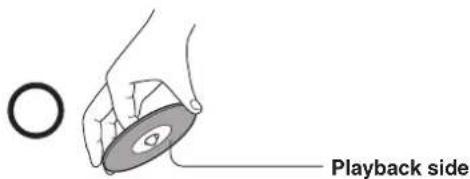
- Do not touch the playback side of the disc.
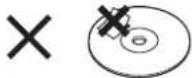
- Do not attach paper or tape to discs.
Cleaning Discs
- Fingerprints and dust on the disc cause picture and sound deterioration. Wipe the disc from the center outwards with a soft cloth. Always keep the disc clean.
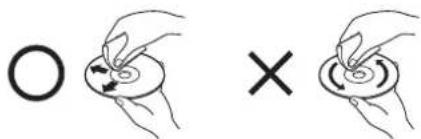
- If you cannot wipe off the dust with a soft cloth, wipe the disc lightly with a slightly moistened soft cloth and finish with a dry cloth.
- Do not use any type of solvent such as thinner, benzine, commercially available cleaners or antistatic spray for vinyl LPs. It may damage the disc.
Storing Discs
- Do not store discs in a place subject to direct sunlight or near heat sources.
- Do not store discs in places subject to moisture and dust such as a bathroom or near a humidifier.
- Store discs vertically in a case. Stacking or placing objects on discs outside of their case may cause warping.
Differences in Disc Composition
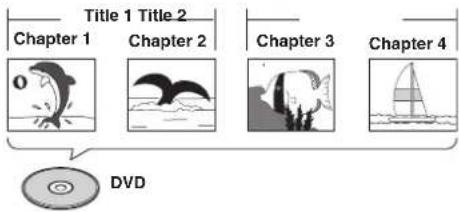
DVD
All discs are divided up into smaller, more manageable sections so that you can find specific content more easily. DVDs are divided into one or more titles. Each title may be further divided into several chapters. Occasionally, a chapter may contain index points, effectively dividing the chapter up into several parts.
flowchart
graph TD
    A["Title 1 Title 2"] --> B["Chapter 1"]
    A --> C["Chapter 2"]
    D["DVD"] --> E["Chapter 3"]
    D --> F["Chapter 4"]
■ Video CD/CD
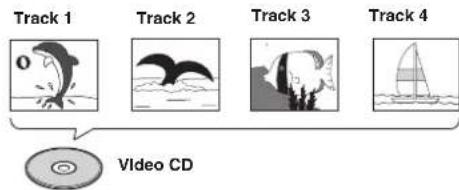
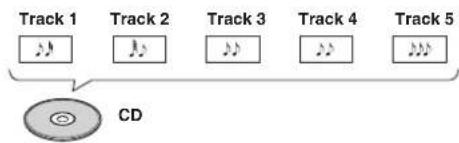
Video CDs and CDs are divided into a number of tracks. In rare cases, a track may contain a number of index points, effectively dividing the track up into several parts.
MP3/JPEG
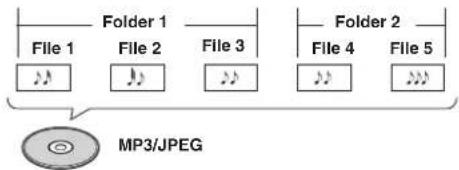
MP3 (MPEG1 Audio Layer 3) is a compressed audio file format. JPEG is a format for saving image files, such as those containing digital photographs or illustrations. Tracks within folders are automatically numbered T_001, T_002, etc.

natural_image
Pure geometric lines and crosshair symbols without any text or labels
natural_image
Pure geometric diagram with intersecting lines and shapes, no text or symbols presentControl Position and Names
Front Panel
For operational instructions, see the page indicated in brackets [ ].
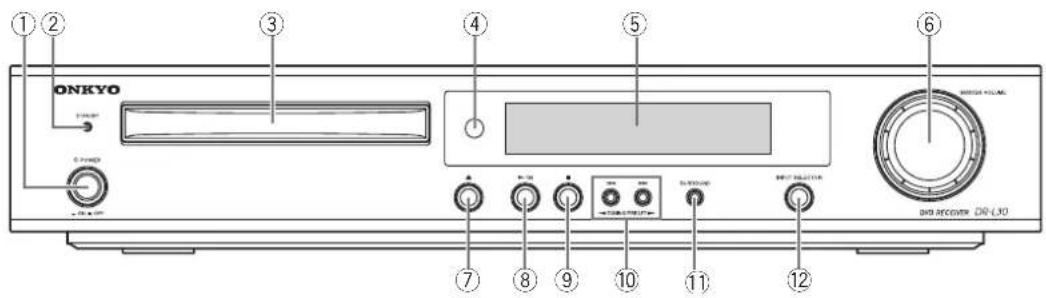
① POWER switch [26–27]
When POWER switch is pressed to ON, the DVD receiver turns on.
② STANDBY indicator [26]
③ Disc tray [36]
When loading a disc, place discs in the disc tray with the label side facing up.
④ Remote control sensor [9]
Point the remote control toward the remote sensor to operate the DVD receiver.
⑤ Display
⑥ MASTER VOLUME control [32]
The MASTER VOLUME dial is used to control the volume level.
⑦ ▲ button [36, 39, 40]
Press to open and close the disc tray.
⑧ ▶/II button [36-37, 39]
Press to start playback. Press again to pause playback, then once more to resume playback.
⑨ ■ button [37, 40, 41]
Press to stop playback. Pressing once enables playback to resume from a point shortly before the location where it was stopped. Pressing twice causes the disc to return to the beginning of the disc when playback starts again.
⑩ |◀◀/▶▶, TUNING/PRESET ◀/▶ buttons [38, 40, 43]
Press to go back or advance to previous chapters/tracks. Also, use these buttons to change the tuner frequency.
⑪ SURROUND button [27, 46]
Press to select a surround mode.
⑫ INPUT SELECTOR [32, 43]
Press to select the input source other than DVD.
Display
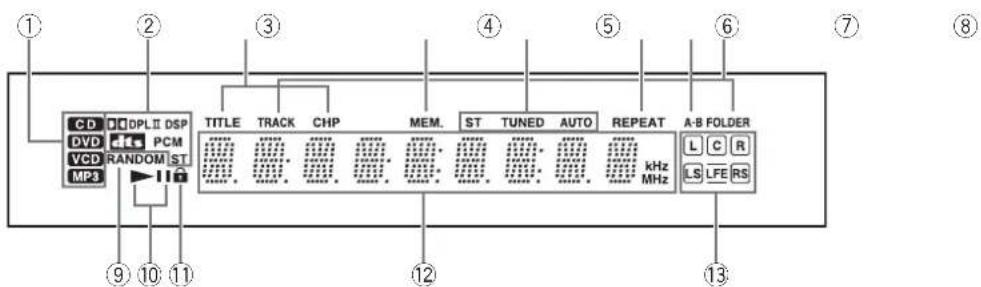
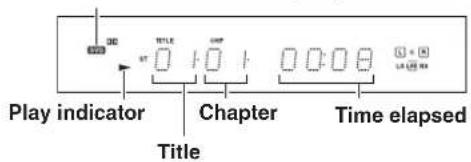
① Disc indicator [36]
Indicates the type of current disc that is loaded.
② Source/Listening mode indicators
One of the source indicators lights to show the format of the current source.
③ TITLE, CHP (Chapter) indicators [47]
Indicate display mode of the current title or chapter of DVD.
④ MEM. (Memory) indicator [44, 56]
⑤ ST (Stereo), TUNED, AUTO indicators [43]
Indicate the reception mode.
⑥ REPEAT indicator [47, 52, 60]
Illuminates during repeat playback.
⑦ A-B indicator [47, 52]
⑧ FOLDER/TRACK indicator [60]
⑨ RANDOM indicator [56, 60]
⑩ ▶/II indicators [36]
Lights up in play or pause mode.
⑪ Parental Lock indicator [31]
⑫ Multipurpose display
⑬ Input/Speaker indicator [33–34, 46]
Rear Panel
For operational instructions, see the page indicated in brackets [ ].
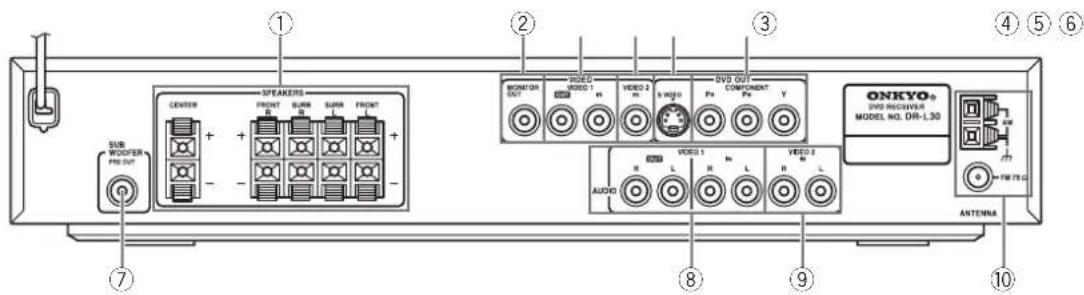
Shapes of jacks vary depending on the area where they are purchased.
① FRONT SPEAKERS, CENTER SPEAKER and SURROUND SPEAKERS terminals [22]
These terminals are for connecting to the front and surround speakers (SKS-L30) and center speaker (SKC-L30).
② MONITOR OUT jack [17]
Connect a video cable to this jack and to the Video Input jack on your TV.
③ VIDEO1 (VIDEO IN/OUT) jacks [20]
The IN jack is for connecting to the Audio Output jack on your video device, while the OUT jack is for connecting to the Audio Input jack.
④ VIDEO2 (VIDEO IN) jacks [20]
This jack is for connecting to the Audio Output jack on your video device.
⑤ DVD OUT (S VIDEO jack) [18]
If your TV has a S-Video jack, you can connect an S-Video cable to your TV and to your DVD Player for improved video quality.
⑥ DVD OUT (COMPONENT) jack [19]
If your TV has component inputs, you can connect a component video cable to your TV and to your DVD Player for ideal video quality. If you connect a TV that is compatible with a Progressive scan signal, you can enjoy both Interlaced and Progressive scan.
⑦ SUBWOOFER PRE OUT jack [23]
This jack is for connecting to the subwoofer (SKW-L30).
⑧ VIDEO1 IN/VIDEO (AUDIO IN/OUT) jacks [20]
The IN jack is for connecting to the Video Output jack on your video device, while the OUT jack is for connecting to the Video Input jack.
⑨ VIDEO2 IN (AUDIO IN) jacks [20]
This jack is for connecting to the Video Output jack on your video device.
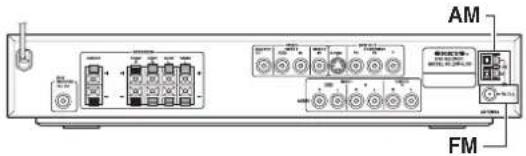
⑩ ANTENNA terminals [24, 25]
These terminals are for connecting the FM antenna and AM antenna.
Control Position and Names
Remote Controller
For operational instructions, see the page indicated in brackets [ ].
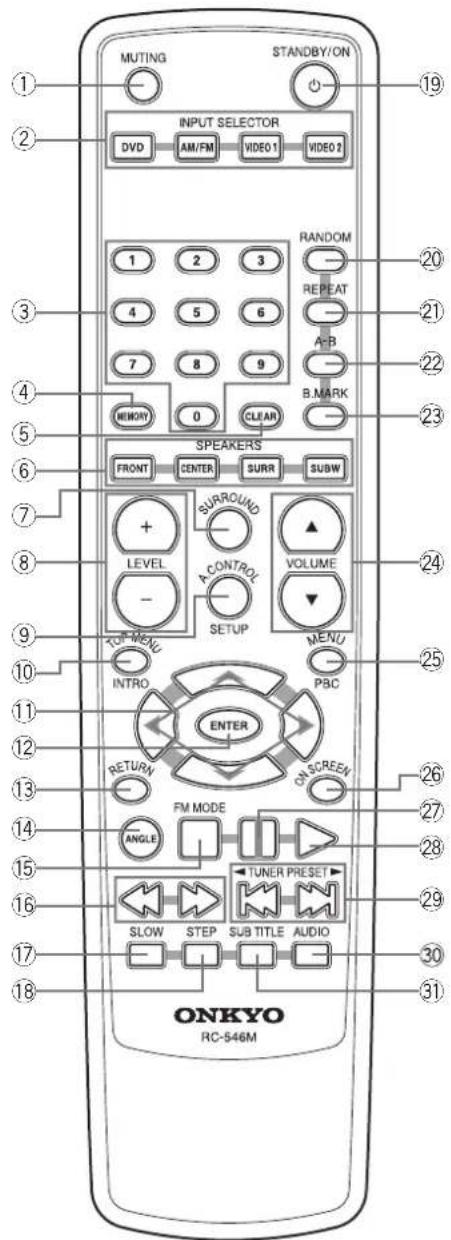
① MUTING button [32]
Activates the mute function.
② INPUT SELECTOR buttons (DVD/AM/FM/VIDEO1/VIDEO2) [32, 35, 43]
Press to select the input source.
③ Numeric buttons (1-9, 0) [38, 40, 42, 44]
Use to perform direct title/folder and track searches, and to input numerical values.
④ MEMORY button [44, 56]
You can program tracks to play back in desired order. When AM or FM is selected, use to preset radio stations.
⑤ CLEAR button [58, 59]
⑥ SPEAKERS buttons [35]
Selects a speaker for changing the speaker output level.
⑦ SURROUND button [46]
Press to select the sound mode.
⑧ LEVEL +/- buttons [33-35]
Press to adjust the value.
⑨ A.CONTROL/SET UP button [33–34, 46]
Press to change the acoustic mode.
Press and hold down during speaker set up.
⑩ TOP MENU/INTRO button [37, 54]
Press to call up the top menu programmed on the DVD. Depending on the DVD, the top menu may be identical to the DVD menu.
Press and hold down this button when using the Intro Scan function.
⑪ Cursors (◄/►/▲/▼) [27-28, 37, 41-42, 48-49, 53, 56-60]
Use to move through the options on menu screens.
⑫ ENTER button [27-28, 37-38, 40-42, 48, 53-54, 57-59]
Press to choose a selected item or function.
Press to select various camera angles on a disc.
⑮ ■/FM MODE button [37, 40–41, 43, 56, 59–60]
Press to stop playback (DVD). Pressing once enables playback to resume from a point shortly before the location where it was stopped. Pressing twice causes the disc to return to the beginning of the disc when playback starts again.
For FM input, press to switch between FM Stereo auto and mono.
⑯ ◀◀/▶▶ buttons [38, 40, 42, 43]
During playback of DVD and Video CD, press ▶▶ to perform fast forward scanning or ◀◀ to perform fast reverse scanning of DVD and Video CD. When a CD or MP3 is loaded, audio scanning is performed. When AM or FM is selected, press for tuning.
⑰ SLOW button [48, 55]
Press to play slow playback.
⑱ STEP button [48, 55]
Press during playback to view still frame.
⑲ STANDBY/ON button [26, 40]
Use to toggle standby on and off.
⑳ RANDOM button [56, 60]
Press to activate random playback.
②1 REPEAT button [41, 47, 52, 56–57, 60]
Use to set the repeat mode.
②2 A-B button [47, 52]
Press at the beginning and end of the section you want to repeat or to mark a location you want to return to.
②3 B.MARK button [48–49, 53]
Use to set the Book Mark function.
⑳ VOLUME ▲/▼ buttons [32]
For adjusting the volume.
⑳ MENU/PBC button [27, 37, 39]
Use to display or close the DVD menu. When a Video CD is loaded, press to turn on and off the PBC function.
②6 ON SCREEN button [51, 58]
Press to display information about the disc set in the unit.
⑳ II button [36, 39]
Press to pause disc playback.
⑳ button [35–37, 39]
Press to start or resume playback.
⑲ buttons/ TUNER PRESET [38, 40, 41, 43–44]
During playback of DVD, CD and Video CD, press ◀◀◀ to go back to a previous chapter/track and ▶▶◀ to advance to the next chapter/track. When AM or FM is selected, press to select preset channels.
③0 AUDIO button [50, 55]
Press to select various audio languages on a disc. When playing a VCD, press to select the audio channel.
③1 SUBTITLE button [27, 50]
Press to select various subtitle language on a disc.
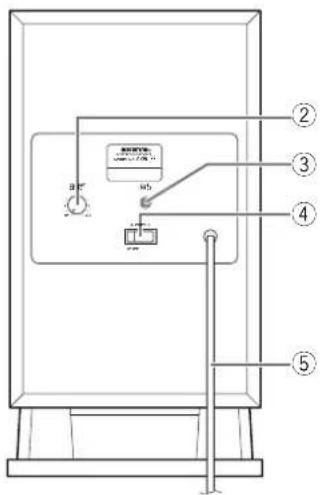
Subwoofer
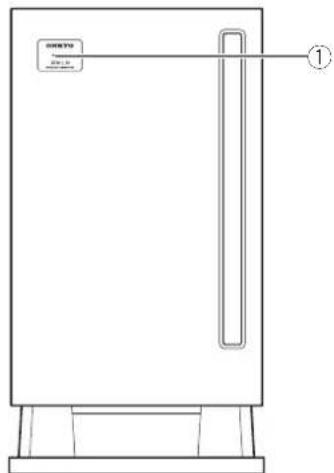
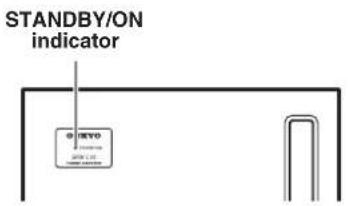
① STANDBY/ON indicator [26]
Red: The unit is in standby mode Green: The unit is in operation
② OUTPUT LEVEL knob
Use this knob to adjust the output level of subwoofer.
③ LINE INPUT jack
Connect this jack to subwoofer pre out of DR-L30.
④ POWER switch (ON/OFF) [26]
Press this switch to the ON position to turn on the power. Press it to the OFF position to turn off the power.
⑤ POWER cord
Connecting Your AV Components
Before making any connections
- Read the manuals supplied with your AV components.
- Don't connect the power cord until you've completed all audio and video connections.
■ RCA/phono AV Connection Color Coding
RCA/phono AV connections are usually color coded: red, white, and yellow. Use red plugs to connect right-channel audio inputs and outputs (typically labeled "R"). Use white plugs to connect left-channel audio inputs and outputs (typically labeled "L"). Further, use yellow plugs to connect composite video inputs and outputs.

- Push the plugs in all the way to make a good connection.
• To prevent interference, keep audio and video cables away from power cords and speaker cables.
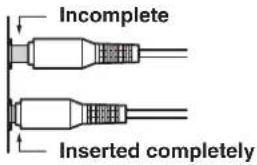
AV cables & connectors
Video
| Component video | Component video separates the luminance (Y) and color difference signals ( P_R , P_B ), providing the best picture quality. Some TV manufacturers label their component video inputs differently. | ||
| S-Video | S VIDEO | S-Video provides better picture quality than composite video. | |
| Composite video | VIDEO | Composite video can be found on virtually all TVs, VCRs, and video equipment. |
Audio
| Analog | RCA/phono analog audio connectors can be found on virtually all AV components. |
Before Connecting
Connect the DVD receiver to the TV or AV component directly. If you connect the DVD receiver to a VCR, TV/VCR combination, or video selector, the playback picture may be distorted as DVD Video images are copy protected.
Connecting to a TV
This player has 3 kinds of video output jacks.
• Video jack connection: Use the supplied Video Connection Cable to connect.
- S-Video jack connection: For higher quality video than video jack connection.
- Component jack connection: For higher quality video than S-video jack connection.
■ If your TV has Video Input connector
Using the video connection cable (supplied), make video connection from the MONITOR OUT jack to the corresponding video input jack on the TV.
When using this type of connection, select S-VIDEO for the VIDEO OUTPUT setting (page 30).
The video signal input from VIDEO1 and VIDEO2 jacks is output from MONITOR OUT jack only.
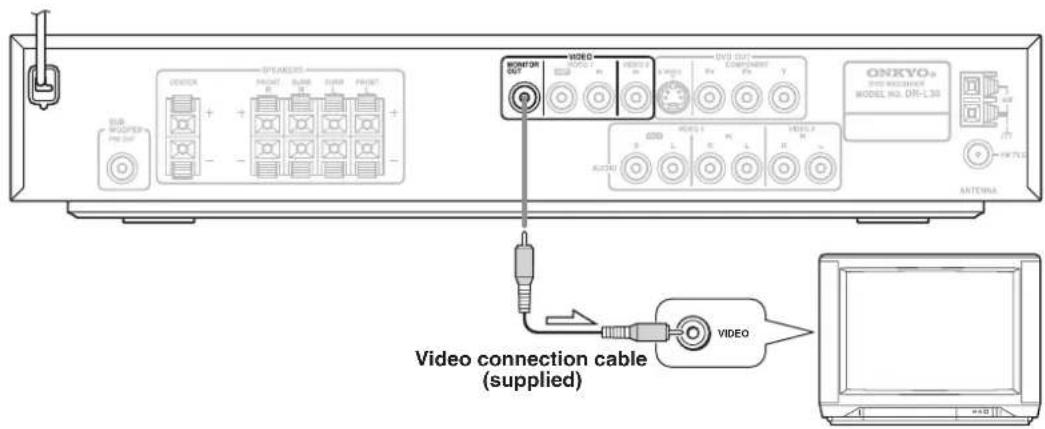
When using this type of connection, make sure Progressive Output is not set to ON (page 19). If Progressive Output is set to ON, the picture will not appear on the TV screen.
Connecting Your AV Components
■ If your TV has S-Video Input connector
If the TV or monitor has an S-video input, making this type of video connection will produce improved picture quality. Using an S-video cable (sold separately), connect the DVD OUT jack to the corresponding S-video input jack on the TV.
When using this type of connection, set the VIDEO OUTPUT setting to S-VIDEO (page 30).
The video signal input from VIDEO1 and VIDEO2 jacks is not output from DVD OUT S VIDEO jack.
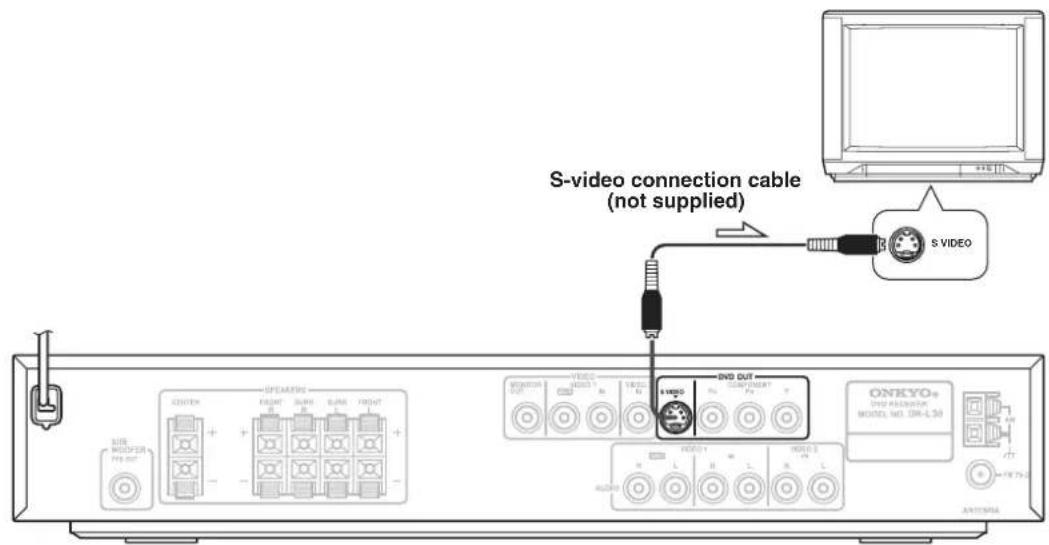
Note
When using this type of connection, make sure Progressive Output is not set to ON (page 19). If Progressive Output is set to ON, the picture will not appear on the TV screen.
■ If your TV has Component Input connector
If the TV or monitor has component video inputs, making this type of video connection will produce ideal picture quality for the presentation of DVD-Video. Using a component video cable (sold separately), connect the DVD OUT COMPONENT jacks to the corresponding component video input jacks on the TV.
Actual labels for component video inputs may vary depending on the TV manufacturer. (e.g., Y, R-Y, B-Y or Y, C_B , C_R )
In some TVs or monitors, the color levels of the playback picture may be reduced slightly or the tint may change. In such a case, adjust the TV or monitor for optimum performance.
This connection is necessary to use progressive function.
To view Progressive scan video, you need a TV with Progressive scan capability. Please check your TV's manual.
Notes
- When using this type of connection, set the VIDEO OUTPUT setting to COMPONENT (page 30).
- If the connected TV supports the progressive function, Progressive Output is available for selection.
- The DVD Player can output NTSC or PAL format video depending on the setting on page 27. Make sure your TV supports the disc's video format.
• Progressive scan can only works with NTSC format discs.
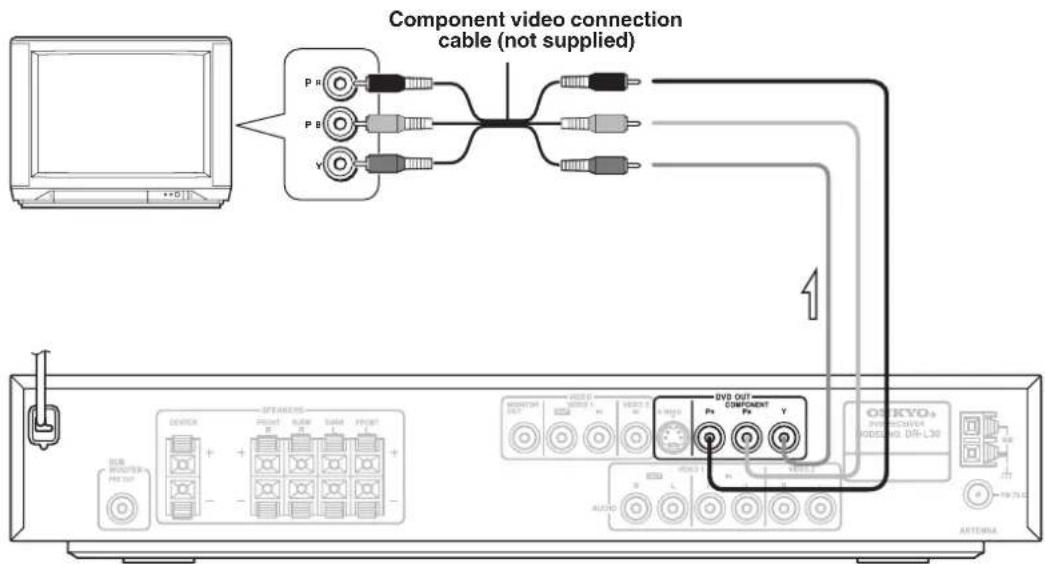
Tip
When the TV has a COMPONENT terminal, the DVD image will be played back with higher picture quality in case of COMPOSITE connection. Connect the COMPOSITE video cable also in this case.
Select the scanning method (Progressive/Interlace) of the Component Video output using the button on the front panel.
While pressing the SURROUND button on this unit, press and hold the ■ button for 5 or more seconds. Each time the button is held down, the setting changes as follows:

SURROUND


ON: When progressive scanning is unavailable with certain discs, the scanning method is switched automatically to interlaced scanning. When the scanning method is changed, the scanning status will be displayed for a few seconds.
OFF: Scanning method is fixed at interlaced scanning.
Connecting Your AV Components
Connecting a Video Device
Video Connections
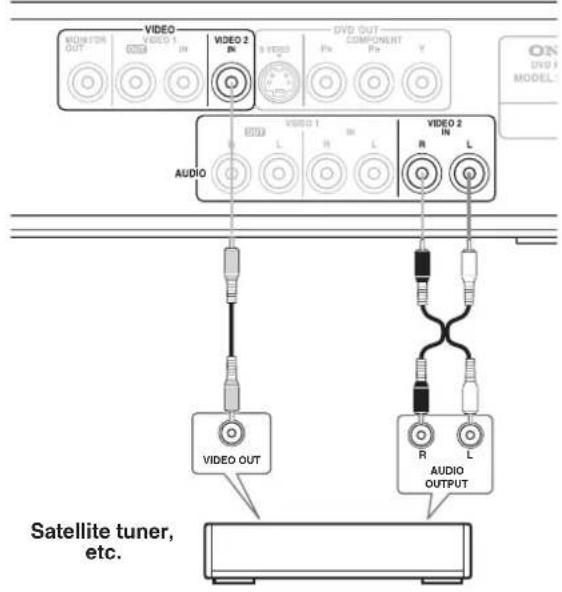
Use a composite video cable to connect the DR-L30's VIDEO VIDEO 2 IN to a composite video output on your satellite tuner, etc., as shown. Your TV must also be connected via composite video.
■ Audio Connections
Use an RCA/phono audio cable to connect the DR-L30's L/R VIDEO 2 IN connectors to the analog audio outputs on your satellite tuner, etc. as shown.
Connecting a VCR for Recording
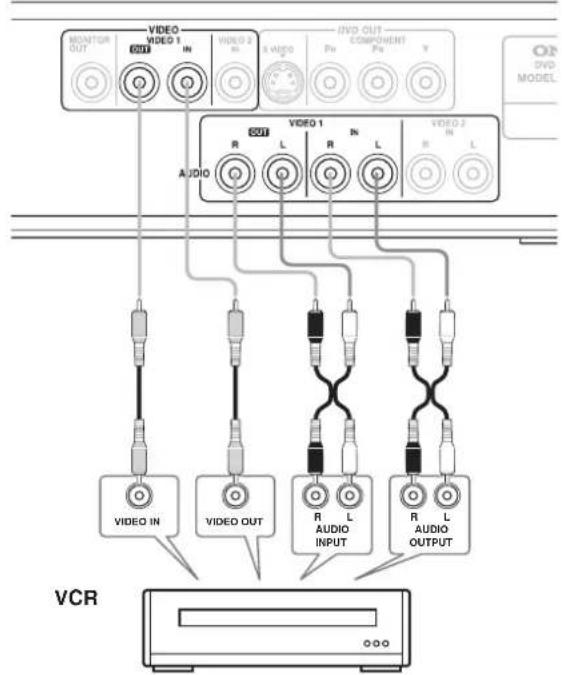
Use a composite video cable to connect the DR-L30's VIDEO 1 VIDEO OUT to a composite video input on your VCR, use another composite video cable to connect the DR-L30's VIDEO 1 VIDEO IN to a composite video output on your VCR as shown. Use an RCA/phono audio cable to connect the DR-L30's L/R VIDEO 1 AUDIO OUT connectors to the analog audio inputs on your VCR, use another RCA/phono audio cable to connect the DR-L30's VIDEO 1 AUDIO IN connectors to the analog audio outputs on your VCR as shown.
flowchart
graph TD
    A["VIDEO OUT"] --> B["MONITOR OUT"]
    A --> C["VIDEO 1 IN"]
    A --> D["VIDEO 2 IN"]
    E["VIDEO 1"] --> F["VIDEO OUT"]
    E --> G["VIDEO 2 IN"]
    E --> H["VIDEO 1 L"]
    E --> I["VIDEO 2 L"]
    J["VIDEO IN"] --> K["VCR"]
    K --> L["O-0-O"]
    M["VIDEO OUTPUT"] --> N["R L AUDIO INPUT"]
    M --> O["R L AUDIO OUTPUT"]
Notes
- The DR-L30 must be turned on (not Standby) in order to record.
- When you record signal from VIDEO AUDIO OUT jack on the unit, change the mode SURROUND to STEREO.
Connecting Speakers
The wall-mount fittings
Attaching the fitting
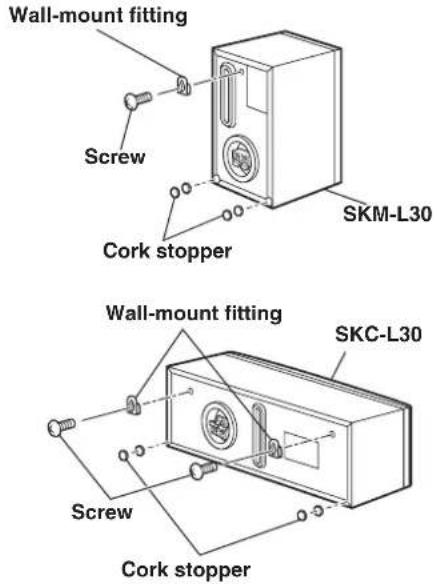
Using the screws provided, attach the fittings to the rear of the speaker cabinet. You can secure the speakers so they do not move by stacking up two of the provided satellite speaker cork stoppers and attaching them as indicated in the illustration. Attach the fittings in two places on the center speaker (SKC-L30) and one place on the satellite speaker (SKM-L30).
Note
When mounting speakers on the wall, be sure to check the strength of the wall before mounting. The weight the screws are able to support differs depending on the material used for the wall and the position of the wall supports. Make sure you use sturdy, long screws with a head diameter of no more than 10 mm and a shaft diameter of no more than 4 mm. (If you are unsure about which screws to use, ask a shop assistant for advise.)

Connecting Speakers
Connecting the front (left and right), center, and surround speakers
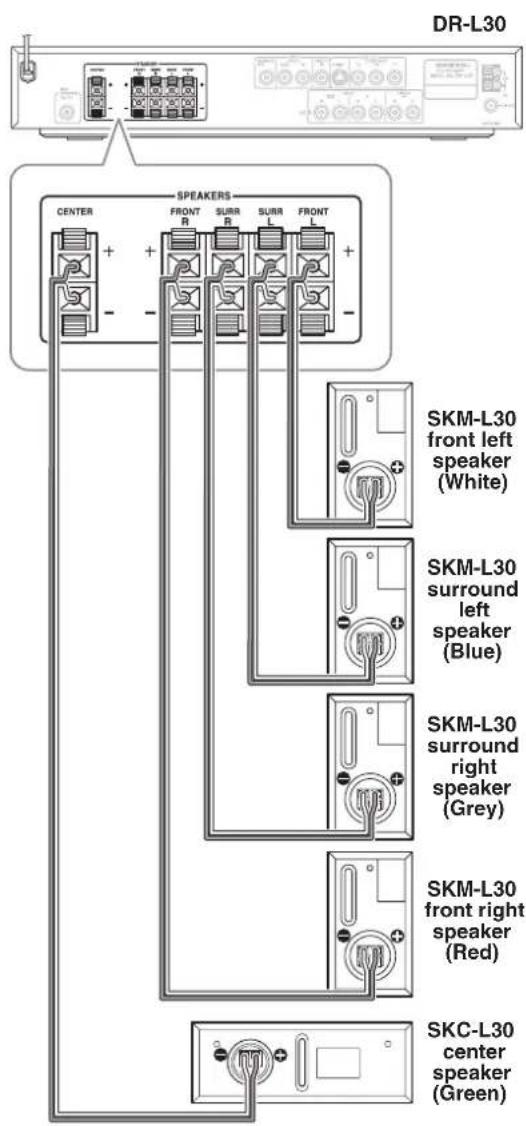
Use SKC-L30 for the center speaker, and SKM-L30 for the front (left and right) and surround speakers.
■ Making connections to the speaker terminals
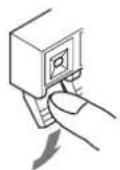
1 Press and hold the lever.
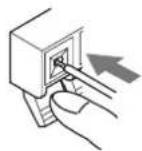
2 Insert the exposed wires on the end of the cable.
3 Release the lever.
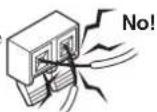
Caution
To prevent damage to the circuitry, never allow the positive (+) and negative (−) or left (L) and right (R) speaker wires to touch.
Notes
- The terminals on the speakers and subwoofer (+ and -) are given different colors for ease of identification. Attach the speaker cables to terminals of the same color.
- Connect the colored side of the provided speaker cables to the plus (+) speaker terminals.
- If you accidentally connect the wrong cable (+ or -) to a speaker terminal or the wrong cable to either the left or right speakers, the speakers will output unnatural sound.
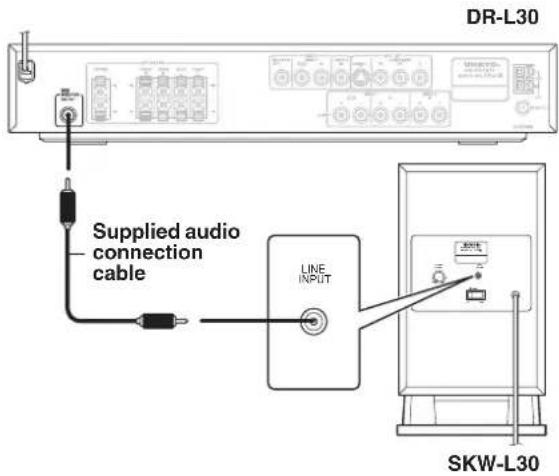
Connecting the subwoofer (SKW-L30)
Connect the SUB WOOFER PREOUT jack on the DR-L30 to the subwoofer rear panel using the supplied audio connection cable as shown in the diagram below.
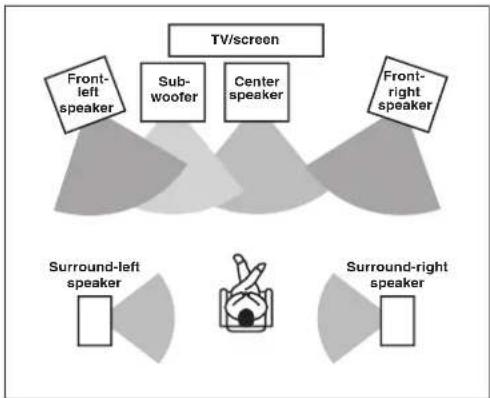
Center speaker (SKC-L30)
This speaker should be placed as close to the screen as possible facing the listener. The center speaker reproduces a richer sound image by enhancing the perception of the sound's source and movement. When viewing movies, this speaker is used to reproduce dialog.
Front left and right speakers (SKM-L30)
Place these speakers facing the listener so that:
• They are at the same, or nearly the same, height as the center speaker.
- They are positioned facing toward the listening position and the listener's ears. Ideally, the speakers should be placed symmetrically to the right and left.
Surround speakers (SKM-L30)
Place these speakers to the side or rear of the listener. The surround speakers reproduce 3-dimensional sound motion, background sound effects, and help create the sensation of being in the middle of the action.
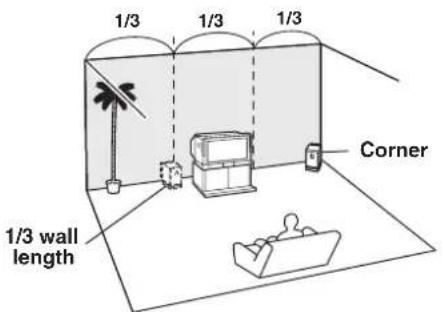
Subwoofer (SKW-L30)
The volume and quality of the bass output from your subwoofer will depend on its position, the shape of your listening room, and your listening position. In general, a good bass sound can be obtained by installing the subwoofer in a front corner, or at one-third the width of the wall, as shown.
Standard speaker placement and speaker functions
Speaker placement varies depending on the size of the room and the wall coverings used in the room. The following describes a sample layout for standard speaker placement and the functions of the various speakers.
Even if you do not connect the speakers according to the illustration below, you can set the amount of time it takes for sound to be delivered from the various speakers by performing the procedure in "Setting the Distance from the Listening Position to Each speaker" (see page 34) to experience the best possible Surround sound. You can also adjust the volume of each speaker as desired (see page 35). (Do this after you have completed all connections.)
flowchart
graph TD
    A["TV/screen"] --> B["Front-left speaker"]
    A --> C["Subwoofer"]
    A --> D["Center speaker"]
    A --> E["Front-right speaker"]
    F["Surround-left speaker"] --> G["Speaker Icon"]
    H["Surround-right speaker"] --> I["Speaker Icon"]
Note
When placing the satellite speakers, do not place them on the edge of a surface, such as a table or rack. If the speaker falls, you may be injured.
Connecting the Antenna
This chapter explains how to connect the supplied indoor FM antenna and AM loop antenna, and how to connect commercially available outdoor FM and AM antennas.
Connecting the Indoor FM Antenna
The supplied indoor FM antenna is for indoor use only.
1 Attach the FM antenna, as shown.
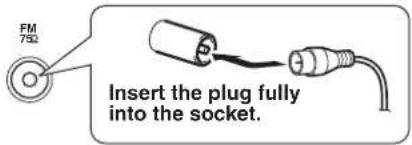
Once your DR-L30 is ready for use, you'll need to tune into an FM radio station and adjust the position of the FM antenna to achieve the best possible reception.
2 Use thumbtacks or something similar to fix the FM antenna into position.
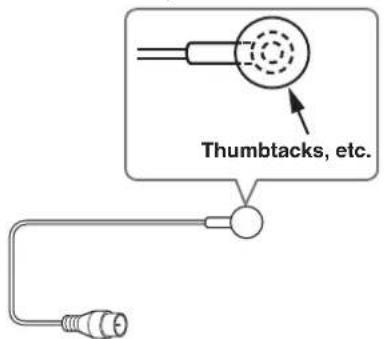
Caution Be careful that you don't injure yourself when using thumbtacks.
If you cannot achieve good reception with the supplied indoor FM antenna, try a commercially available outdoor FM antenna instead (see page 25).
Connecting the AM Loop Antenna
The supplied indoor AM loop antenna is for indoor use only.
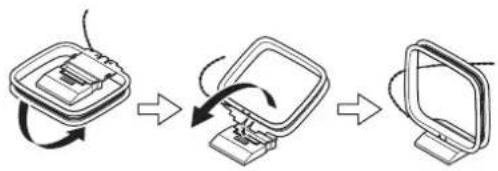
1 Assemble the AM loop antenna, inserting the tabs into the base, as shown.
flowchart
graph TD
    A["Start with monitor icon"] --> B["Step 1: Rotation arrow"]
    B --> C["Step 2: Rotation arrow"]
    C --> D["Step 3: Rotation arrow"]
2 Connect both wires of the AM loop antenna to the AM push terminals, as shown.
(The antenna's wires are not polarity sensitive, so they can be connected either way around.)
Make sure that the wires are attached securely and that the push terminals are gripping the bare wires, not the insulation.
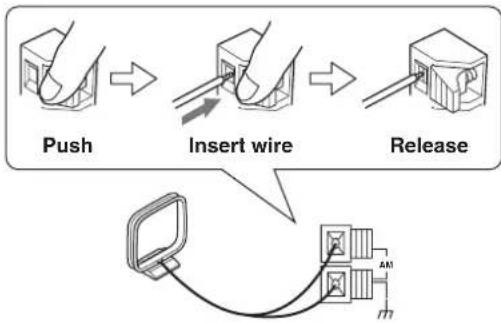
flowchart
graph TD
    A["Push"] --> B["Insert wire"]
    B --> C["Release"]
    D["Device"] --> E["Connection"]
Once your DR-L30 is ready for use, you'll need to tune into an AM radio station and adjust the position of the AM antenna to achieve the best possible reception. Keep the antenna as far away as possible from your DR-L30, TV, speaker cables, and power cords.
If you cannot achieve good reception with the supplied indoor AM loop antenna, try using it with a commercially available outdoor AM antenna (see page 25).
Connecting an Outdoor FM Antenna
If you cannot achieve good reception with the supplied indoor FM antenna, try a commercially available outdoor FM antenna instead.
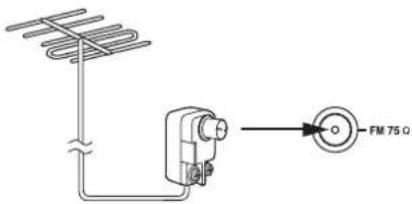
Notes
- Outdoor FM antennas work best outside, but usable results can sometimes be obtained when installed in an attic or loft.
- For best results, install the outdoor FM antenna well away for tall buildings, preferably with a clear line of sight to your local FM transmitter.
- Outdoor antenna should be located away from possible noise sources, such as neon signs, busy roads, etc.
- For safety reasons, outdoor antenna should be situated well away from power lines and other high-voltage equipment.
Using the 75/300-ohm Antenna Adapter
The 75/300-ohm Antenna Adapter is not supplied with DR-L30. The 75/300-ohm antenna adapter can be used to connect an FM antenna using either 75-ohm coaxial cable or 300-ohm twin-core flat cable.
■ Connecting 300-ohm Flat Cable
1 Using a screwdriver, loosen the two screws on the adapter, wrap the bare wires around the screws, and then retighten them, as shown.
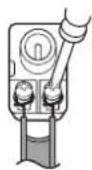
2 Plug the adapter into the 75Ω socket.
■ Connecting 75-ohm Coaxial Cable
1 Strip and prepare the 75 ohm coaxial cable, as shown.
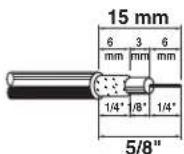
2 Using your fingernails or a small screwdriver, lever the adapter's tabs outward and remove the cover, as shown.
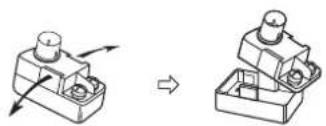
natural_image
Diagram showing a mechanical component before and after assembly, with no visible text or symbols3 Move the small wire inside the adapter from position A to position B, as shown.
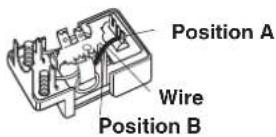
4 Insert the central conductor (1), as shown, and use a small pair of pliers to clamp the shielding and outer insulation sections of the cable (2), as shown.
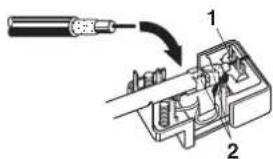
Make sure the shielding is not touching the central conductor.
5 Refit the adapter's cover, and then plug the adapter into the 75Ω socket.
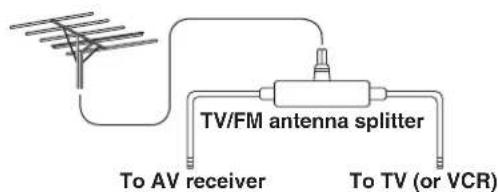
■ Using a TV/FM Antenna Splitter
It's best not to use the same antenna for both FM and TV reception, as this can cause interference problems. If circumstances demand it, use a TV/FM antenna splitter, as shown.
Connecting an Outdoor AM Antenna
If good reception cannot be achieved using the supplied AM loop antenna, an outdoor AM antenna can be used in addition to the loop antenna, as shown.
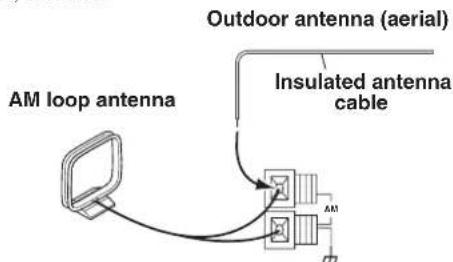
Outdoor AM antennas work best when installed outside horizontally, but good results can sometimes be obtained indoors by mounting horizontally above a window. Note that the AM loop antenna should be left connected.
Connecting the Power/Turning on the DVD receiver
Before connecting
- Make sure that all the connections from pages 17 to 25 are complete (the connection to the TV is required).
- Turning on the DVD receiver may cause a momentary power surge, which might interfere with other electrical equipment such as computers. If this happens, use a wall outlet on a different circuit.
- The DR-L30 is shipped with the POWER in the ON position (— ON). When the power cord is plugged in for the first time, the DR-L30 will automatically turn on.
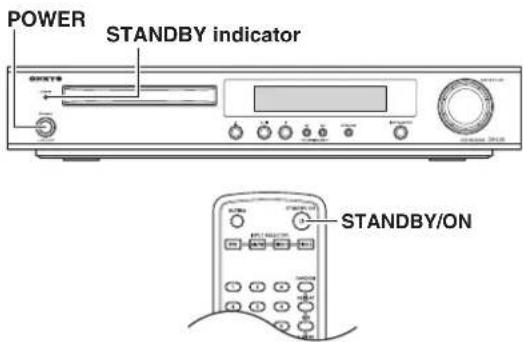
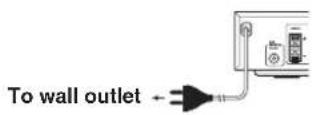
1 Connect the power cord to a wall outlet.
2 Press POWER on the DVD receiver turn on the DVD receiver.
3 The display on the DVD receiver's front panel light.
- To put the DVD receiver in the standby mode, press STANDBY/ON on the remote controller. Be sure to set the volume to minimum before putting the DVD receiver in the standby mode for the next use to avoid sudden loud sound reproduction.
- While in the STANDBY mode, the DVD receiver can receive signals from the remote controller. Setting the STANDBY/ON button on the remote controller to set the DVD receiver to standby does not turn off the power completely.
■ Turning on the subwoofer (SKW-L30)
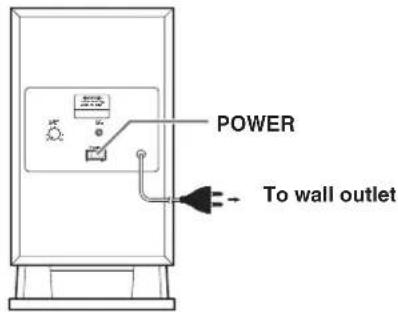
1 Connect the power cord to a wall outlet.
2 Press POWER to the ON position.
The indicator changes from red to green when the subwoofer receives a signal.
Customizing Function Settings
To set the TV system
1 Set the POWER on the main unit to the ON position.
After the power is switched ON, there is a delay of about 3 seconds before the display is lit.
2 Set TV Format according to the connected TV type.
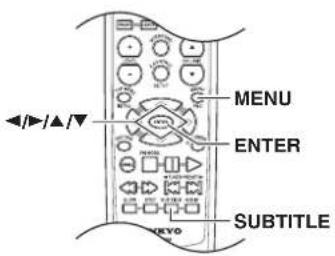
While no disc is inserted, hold the SURROUND button on the main unit depressed and keep pressing the SUBTITLE button on the remote control. Each time these buttons are being held down, the setting changes as follows.
SURROUND

SUB TITLE

Main unit Remote controller

MULTI (NTSC/PAL switchable)
NTSC
PAL
When you insert a DVD Video, Video CD, or audio CD, the various functions of the DVD receiver will be set (reset) according to the SETUP MENU.
You can customize this setting menu according to your preference.
Setting Steps
1 Press MENU during stop mode.

The SETUP MENU appears.
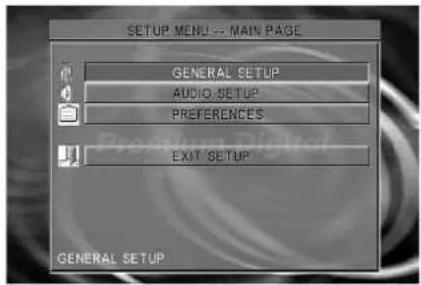
2 Press ▲/▼ to select a category, then press ENTER.
Remove the disc to customize the PREFERENCES settings.
Customizing Function Settings
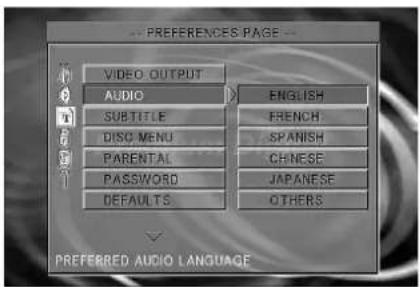
3 Press ▲/▼ to select the item, then press ▶.
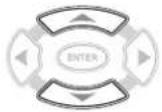
4 Press ▲/▼ to select the setting, then press ENTER.
To move the cursor to the item column, press ◀.
5 Further steps may be needed depending on the item or setting. Follow the steps described in the explanation of each item starting from page 29.
To return to the MAIN PAGE
Press ◀/▶, ▲/▼ to select the main page, then press ENTER or press RETURN.
To clear the setting menu
Press ▲/▼, then select "EXIT SETUP" or press MENU.
Note
When a TV screen is not displayed, the "TV system" setting may not be suitable for your TV (see page 27).
General Setup
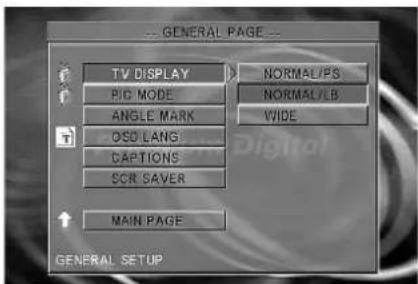
TV DISPLAY
• NORMAL/PS (Pan Scan)
Select when a 4:3 TV is connected. Displays pictures cropped to fill your TV screen. Either or both sides of the picture are cut off. This function is only available when using a disc that supports Pan Scan.
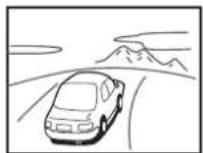
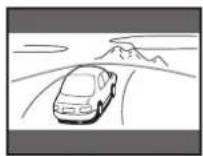
• NORMAL/LB (Letter Box)
Select when a 4:3 TV is connected. Displays wide screen images with masking bars above and below the picture.
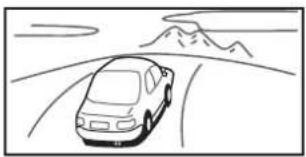
• WIDE
Select when a 16:9 wide TV is connected.
natural_image
Line drawing of a car driving on a curved road with mountains in the background (no text or symbols)Notes
- The displayable picture size is preset on each DVD video. Therefore, the playback picture of some DVD videos may not conform to the picture size you select.
- When you play a DVD video recorded in the 4:3 picture size only, the playback picture always appears in the 4:3 picture size regardless of the TV shape setting.
- If you select WIDE and you own a 4:3 TV set, the DVD playback picture will be horizontally distorted during playback. Images will appear to be horizontally compressed. Make sure the TV shape conforms to the actual TV in use.
PIC MODE
This adjusts the screen quality according to the material being played back.
• AUTO
The picture quality is adjusted automatically.
• FILM
Choose this setting to reproduce the picture quality of film material.
• VIDEO
Choose this setting to reproduce the picture quality of video material.
• SMART
Choose this setting to reproduce progressive and interlaced materials with limited motion.
• SSMART
Choose this setting to reproduce progressive and interlaced materials with motion (motion adaptive deinterlacing).
ANGLE MARK
• ON
When a picture recorded in different angles is played back, is displayed on the screen.
• OFF
is not displayed on the screen. ( is displayed when the camera angle is changed.)
OSD LANG
Select the On-Screen Display language.
• ENGLISH
• CHINESE
CAPTIONS (NTSC only)
Some DVD videos contain special subtitles, an enhancement of closed captions for hearing impaired persons. The DVD Player automatically displays these special subtitles by setting this item to ON.
• ON
The extended subtitles are displayed automatically.
• OFF
The extended subtitles are not displayed.
SCR SAVER (Screen Saver)
If you pause a picture for a long time, the screen saver automatically operates by setting this item to ON.
• ON
The screen saver is enabled.
• OFF
The screen saver is disabled.

natural_image
Pure geometric diagram with intersecting lines and a central crosshair (no text or symbols)Customizing Function Settings
Audio setup Preferences
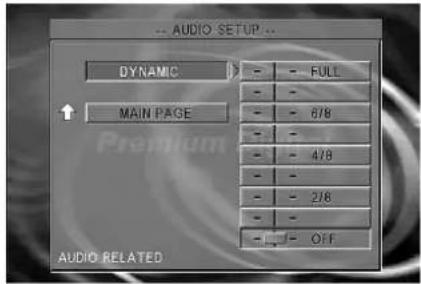
DYNAMIC
At the time of Dolby digital DVD playback, the difference of the maximum volume and the minimum volume are compressed. Adjustment is possible in 8 steps, and the range is largest (compression ratio 0) at the time of "FULL" and smallest (large compression ratio) at the time of "OFF". Reduce the dynamic range so that even low-level audio can be identifiable without increasing the overall listening volume.
• OFF
Full dynamic range is maintained.
• 1/8 - FULL (8 steps)
Dynamic range is reduced.
Notes
- This function works only during playback of Dolby Digital recorded discs.
- The level of Dynamic Range Reduction may differ depending on the DVD.
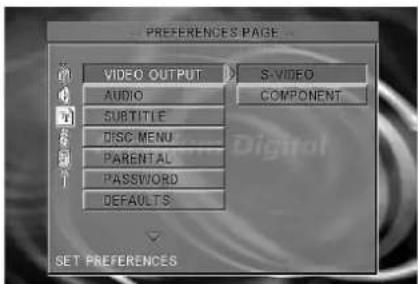
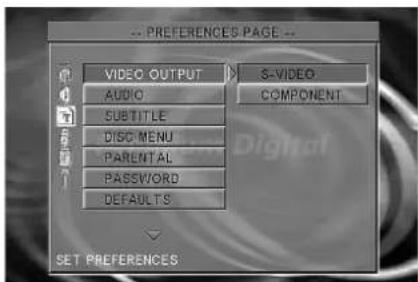
VIDEO OUTPUT
This setting is only available when a DVD video image is being output by this unit. Choose S-VIDEO in case of connection to the S-VIDEO jacks on the rear, choose COMPONENT in case of connection to the COMPONENT jack. Signals are only output to the selected jacks.
• S - V I D E O
Choose when the TV is connected to this unit's S-VIDEO OUT jack. The video signal is output from the S-VIDEO OUT jack instead of from the COMPONENT OUT jack.
- COMPONENT
Choose when the TV is connected to this unit's COMPONENT OUT jack. The video signal is output from the COMPONENT OUT jack instead of from the S-VIDEO OUT jack.
AUDIO
Select the audio language.
• ENGLISH
• FRENCH
• SPANISH
• CHINESE
• JAPANESE
• OTHERS
To select other language
-
Select OTHERS and press the ENTER button.
-
Input a 4-digit code by pressing the numeric buttons on the remote controller (DVD Menu Language Code List, page 61).
-
Press the ENTER button.
Note
Depending on the disc, a language recorded on the disc may be given priority and selected automatically when the disc is loaded regardless of the setting.
SUBTITLE
Select the subtitle language.
• ENGLISH
• FRENCH
• SPANISH
- CHINESE
• JAPANESE
• OTHERS
• OFF
To disable subtitles.
To select other language
-
Select OTHERS and press the ENTER button.
-
Input a 4-digit code by pressing the numeric buttons on the remote controller (DVD Menu Language Code List, page 61).
-
Press the ENTER button.
Notes
- Some DVD-Video may be set to display subtitles in a different language than you selected. A prior subtitle language may be programmed on the disc.
- Some DVD-Video allow you to change subtitle selections only via the disc menu. If this is the case, press MENU and choose the appropriate subtitle language from the selection on the disc menu.
DISC MENU
Select the disc menu language.
• ENGLISH
• FRENCH
• SPANISH
• CHINESE
• JAPANESE
• OTHERS
To select other language
-
Select OTHERS and press the ENTER button.
-
Input a 4-digit code by pressing the numeric buttons on the remote controller (DVD Menu Language Code List, page 61).
-
Press the ENTER button.
Note
Some DVD-Video may not include your pre-selected language. In this case, the DVD player automatically displays disc menus consistent with the disc's initial language setting.
PARENTAL
DVD videos equipped with the parental lock function are rated according to their content. The content allowed by a parental lock level and the way a DVD video can be controlled may vary from disc to disc. For example, some discs allow you to edit out violent scenes unsuitable for children and replace them with more suitable scenes, or lock out playback of the disc altogether.
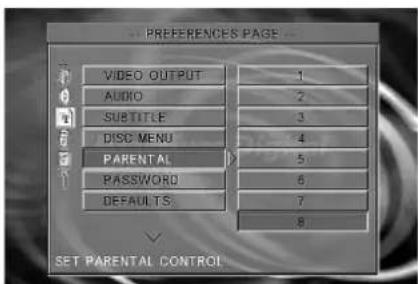
• 1 Select when you want to play back only DVD for children. (Reproduction of adult-oriented or public-oriented is forbidden.)
• 2-7 Select when you want to play back only DVD for children and public. (Reproduction of adult-oriented DVD material is forbidden.)
• 8 Select when you want play back all DVD.
To change the parental lock level
-
Select the parental lock level, then press ENTER.
-
Press the numeric buttons to enter 4-digit number, then press ENTER. (When you enter a wrong password, press RETURN to return to the main page.)
Note
DVD videos may or may not respond to the parental lock settings. This is not a defect in the DVD player. Make sure this function works with your DVD videos.
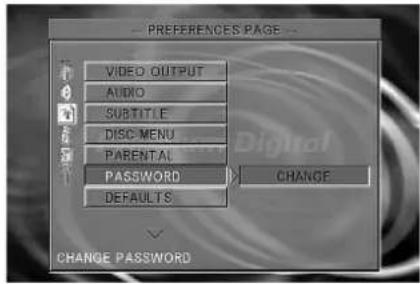
PASSWORD
- CHANGE
The password for PARENTAL is changed.

natural_image
Simple geometric diagram with a central crosshair and concentric circles on a gray background (no text or symbols)To change the password
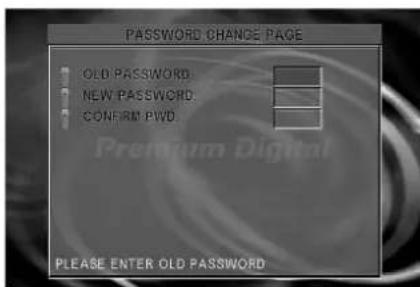
- Press the numeric buttons to enter old password, then press ENTER.
- Press the numeric buttons to create a new 4-digit password, then press ENTER.
- Press the numeric buttons to enter the new password, then press ENTER.
Notes
- The password is set to "0000" by initial setting.
- Be sure not to forget your password.
- You cannot change the password without the current password.
- If you forget your password, reset this unit (see page 64).
DEFAULTS
- RESET
Resets all settings other than PASSWORD to the factory settings.
Basic Operation
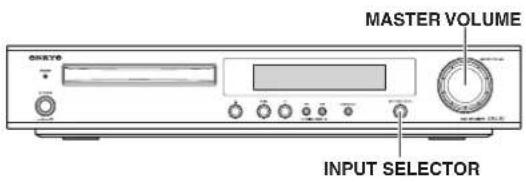
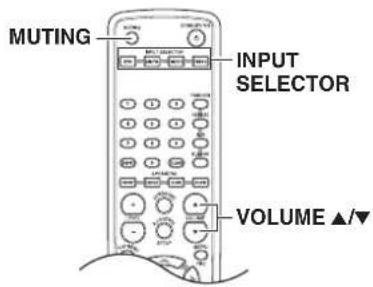
Adjusting the Volume
The volume of the front left and right, center, surround left and right, and sub woofer speakers will be adjusted at the same time. Volume setting are as follows: Min, 01, 02 ... 68, 69, Max. When headphones are connected, you can adjust the volume of the sound through the headphones.
■ Operating with the remote controller
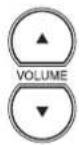
Press VOLUME ▲/▼.
■ Operating with the unit
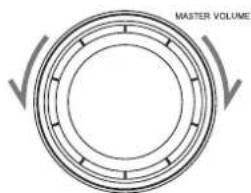
Turn MASTER VOLUME clockwise to increase the volume, or counter-clockwise (anti-clockwise) to decrease the volume.
Main unit
Muting the Sound
Press MUTING.

To restore the sound, press MUTING again.
Tip
If you turn off the unit during muting, and turn it on again, the sound will be restored.
The sound is cancelled when the volume is controlled.
Playing the connected source
1 Press INPUT SELECTOR (DVD/AM/FM/VIDEO1/VIDEO2) on the remote controller or INPUT SELECTOR on the unit to select one of the following input sources:
INPUT SELECTOR

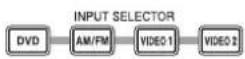
Main unit Remote controller
• DVD
- AM/FM (You can only switch between AM and FM using the AM/FM button on the remote controller.)
• VIDEO1
• VIDEO2
The selected input source appears in the multipurpose display. Also the input source indicator is lit in the display until the DVD receiver is switched to another input source.
L' I D E O 1 =
2 Start playing the selected source.
Speaker Setup
Adjust each speaker's relative volume balance so that the volumes of all speakers' test tones sound equal at the listening position.
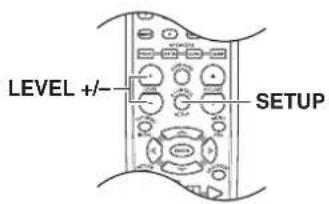
Adjusting Each Speaker's Relative Volume Balance - Test Tone
Initial setting is 0 dB for all speakers.
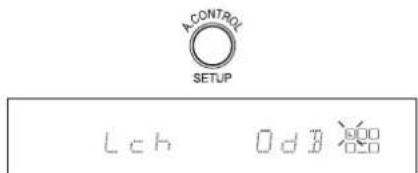
1 Press SETUP for more than 3 seconds.

Lch 0d8
The test tone is played back from the front Left speaker. Adjust the MASTER VOLUME so that it is slightly loud and fix it there.
2 Press LEVEL +/- to control the speaker level.
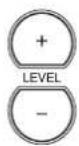
Lch +2d8 000
The speakers will be switched as follows in intervals of about 2 seconds.
$$ \rightarrow L \rightarrow C \rightarrow R \rightarrow R S \rightarrow L S - $$
Adjust the volume with the LEVEL +/- buttons while the indicator is flashing so that the volume from all speakers except the subwoofer (SW) appears the same. Level adjustments possible in the range from -10 dB to +10 dB. After all speakers have been adjusted, operate the Delay time setting (see page 34).
Notes
- As the subwoofer (SW) has a special playback band, normal adjustment is not possible with the test tone. Please adjust the subwoofer while listening to actual music (see page 35).
- Make sure you adjust the test tone volume by Test Tone before playing back discs.

natural_image
Simple geometric diagram with a crosshair and concentric circles above a solid gray rectangle (no text or symbols)Speaker Setup
Before starting the procedure below, measure the distances from each speaker to the listening position.
For pair speakers such as front left and right speakers, the distance from the listening position to one speaker should be the same as the distance to the other.
In the procedure below, select the values which approximate the actual distances.
The front speakers (L/R) can be adjusted between 12 m and 0.9 m. The range which can be set for the center speaker (C) and the surround speakers (LS/RS) duffers according to the setting for the front speakers. A longer distance than for the front speakers can not be set.
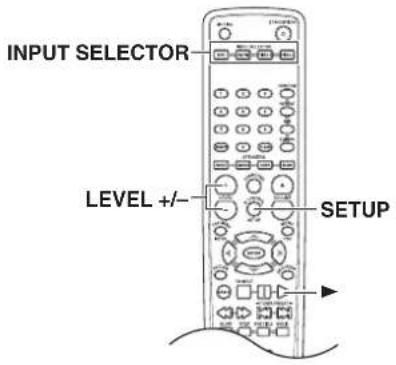
Setting the Distance From the Listening Position to Each Speaker
1 Press SETUP for 3 or more seconds.
Return to the original display is made when no operation is performed for about 5 seconds.
2 Press SETUP.
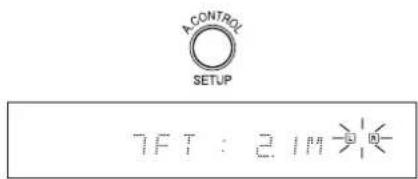
3 Press LEVEL +/- to select the speaker distance.
BFT:24m
4 Press SETUP.
The process advances to center speaker adjustment when the SETUP button is pressed.

BFT:24M
5 Press LEVEL +/- to select the speaker distance.
Repeat step 3 and step 4 in the same way to adjust the surround speakers.
6 Press SETUP to finish speaker setting.
Level setting using a music source
A music source can be used for speaker level setting and subwoofer level setting.
1 Press ▶ to play back a disc.

2 Select the speaker.
Speaker level adjustment can be performed by pressing the buttons FRONT, CENTER, SURR, and SUBW.
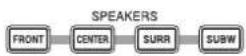
FRONT: Front speakers
Switching is done as follows each time the button is pressed.
L ch (Left speaker) R ch (Right speaker)
CENTER: Center speaker
SURR: Surround speakers
Switching is done as follows each time the switch is pressed.
LS ch (Left surround speaker) RS ch (Right surround speaker)
SUBW: Subwoofer
Note
When the surround mode is set to STEREO, the speaker levels for center and surround speakers cannot be adjusted.
3 Press LEVEL +/- to set the speaker level.
The speaker level can be changed in the range from -10 dB to +10 dB.
Playing DVDs (Basic Playback)
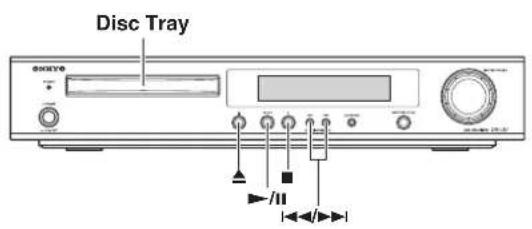
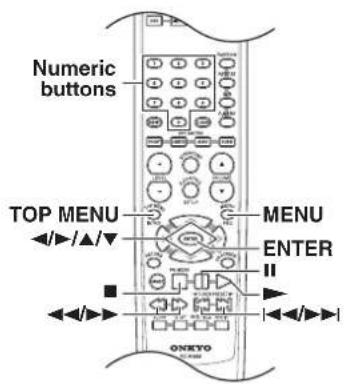
Playing DVDs
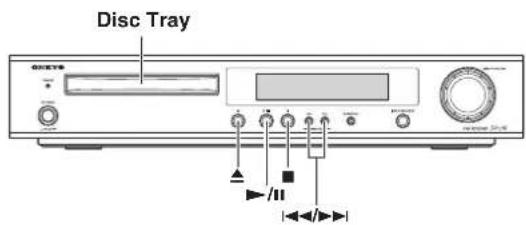
1 Press ▲.
The disc tray comes out.

Main unit
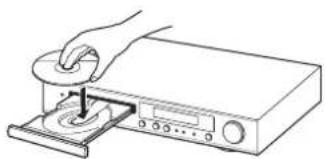
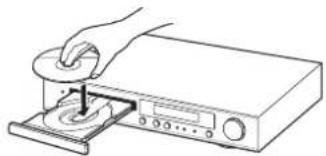
2 Load a disc
Load a disc with the label side facing up, using the disc tray guide to align the disc.
natural_image
Illustration of a hand inserting a CD into a device (no text or symbols visible)3 Start playback.

Main unit Remote controller
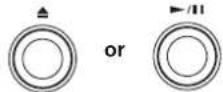
- When ▶/II (or ▶ on the remote controller) or ▲ is pressed while the tray is open, the tray automatically closes and playback begins.
- Depending on the disc, a menu may be displayed.
- To pause playback, press ▶/Ⅱ (or Ⅱ on the remote controller). To resume playback, press ▶/Ⅱ (or ▶ on the remote controller).
Inserted disc indicator (DVD)
Notes
- Do not move the DVD receiver during playback. Doing so may damage the disc.
- Use ▲ on the DVD receiver to open and close the disc tray. Do not touch the disc tray while it is moving. Doing so may cause the DVD receiver to malfunction.
- Do not press down on the disc tray or put any objects other than playable discs on the disc tray. Doing so may cause the DVD receiver to malfunction.
- In many instances, a menu screen appears when playback of a movie is complete. Prolonged display of an on-screen menu may damage your television set, permanently etching that image onto its screen. To avoid this, be sure to press ■ once the movie is complete.
Resuming playback from where you stopped
Use the resume feature to restart playback from the point that the disc was stopped last.
1 Press ■ once.
The stop position is memorized.


Main unit Remote controller
- Pressing ■ twice causes the disc to return to the beginning when ▶ is pressed again.
2 Press ▶.
Playback starts from the resume position.


Main unit Remote controller
Note
The actual restart position may be slightly before or after the resume position.
Stopping playback
Press ■ twice.


Main unit Remote controller
To display the top menu
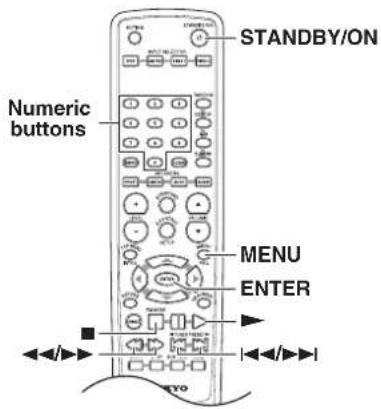
Press TOP MENU.

Remote controller
If TOP MENU doesn't work, try MENU. Some discs do not include a menu.
About top menu
A DVD video or Video CD with the PBC (Playback Control) function (see "About Video CDs" on page 10) may let you locate a title/chapter/track using the menu. If any menu appears on the TV screen during DVD video playback, press ◀/▶/▲/▼ to select the item or setting, then press ENTER to confirm.
To display the menu
Press MENU.

Remote controller
If MENU doesn't work, try TOP MENU. Some discs do not include a menu.
About menu
A DVD video may include more than one language and more than one sound system. In many instances, such DVD videos let you choose the language (e.g. disc menu language/audio language/subtitle language), sound system, and so on using the menu. If any menu appears on the TV screen during DVD video playback, press ◀/▶/▲/▼ to select the item or setting, then press ENTER to confirm.
Locating a title using the title menu
If a DVD video contains a top menu, you can locate a specific title using the top menu function.
1 Press TOP MENU. (Depending on the DVD video, press MENU.)

The title menu appears on the TV screen.
2 Press ◀/▶/▲/▼ to select the title you want.
If the titles in the title menu are assigned a number, you can also directly locate a specific title using the numeric buttons.
3 Press ENTER or ▶.


Note
The instructions above describe basic procedures which may vary depending on the contents of the DVD video. If different instructions appear on the TV screen, follow those instructions.
Playing DVDs (Basic Playback)
Locating a specific chapter consecutively
You can locate consecutive chapters or tracks.
Press |◀◀/▶▶| (repeatedly) to select the chapter you wish to start playing
Press once to start playback from the beginning of the current chapter.
Press ▶▶ repeatedly to select the former chapters in reverse order. Press ▶▶I repeatedly to select the next chapter in order.
Notes
- Some discs may not respond to this procedure.
• Some titles may not display chapter numbers.
Locating a specific title and chapter by entering the numbers
1 Select the desired title No. Press the numeric buttons as shown below.
(Example) To select track No. 23: 2 | 3
TITLE 01/05 CHAPTER 001/002
To select a chapter, press ▶, then use the numeric buttons to select the desired chapter.
TITLE 01/05 CHAPTER 001/002
2 Press ENTER.
ENTER
Searching
During playback, press the ◀◀ or ▶▶ button.

◀◀: To search backward (FR) ▶▶: To search forward (FF)
• Each press switches the searching speed.
FF 2 × (▶ button) or FR 2 × (◀ button)
FF 4 × (▶ button) or FR 4 × (◀ button)
FF 8 × (▶ button) or FR 8 × (◀ button)
FF 16 × (▶ button) or FR 16 × (◀ button)
Normal playback
- Press the ▶ button at any time to resume normal playback.
Playing VCDs/CDs (Basic Playback)
■ About the and marks in the pages related to disc operation
VCD means the function or title is related to Video CD operation.
CD means the function or title is related to CD operation.
VCD CD
Playing Video CDs, CDs
1 Press ▲.
The disc tray comes out.

Main unit
2 Load a disc
Load a disc with the label side facing up, using the disc tray guide to align the disc
natural_image
Illustration of a hand inserting a CD into a device (no text or symbols visible)3 Start playback.

Main unit Remote controller
- When ▶/II (or ▶ on the remote controller) or ▲ is pressed while the tray is open, the tray automatically closes and playback begins.
- To pause playback, press ▶/□ (or □ on the remote controller). To resume playback, press ▶/□ (or ▶ on the remote controller).
Notes
- Do not move the DVD receiver during playback. Doing so may damage the disc.
- Use ▲ on the DVD receiver to open and close the disc tray. Do not touch the disc tray while it is moving. Doing so may cause the DVD receiver to malfunction.
- Do not press down on the disc tray or put any objects other than playable discs on the disc tray. Doing so may cause the DVD receiver to malfunction.
- In many instances, a menu screen appears when playback of a movie is complete. Prolonged display of an on-screen menu may damage your television set, permanently etching that image onto its screen. To avoid this, be sure to press ■ once the movie is complete.
VCD
Playback without using the menu playback function
During VCD playback or stop mode, press the MENU (PBC) button on the remote control unit.

Remote controller
- For the track numbers, refer to the disc jacket or other material.
- PBC off mode: Without using menu playback function.
To return to menu playback
Press the MENU (PBC) button again.
Note
Playback will stop when PBC is switched on or off during playback.

natural_image
Simple geometric diagram with a crosshair and concentric circles above a solid gray rectangle (no text or symbols)Playing VCDs/CDs (Basic Playback)
VCD CD
Searching
During playback, press the ◀◀ or ▶▶ button.

◀◀: To search backward (FR) ▶▶: To search forward (FF)
• Each press switches the searching speed.
FF 2 × (▶ button) or FR 2 × (◀◀ button) FF 4 × (▶ button) or FR 4 × (◀◀ button) FF 8 × (▶ button) or FR 8 × (◀◀ button) FF 16 × (▶ button) or FR 16 × (◀◀ button) Normal playback
- Press the ▶ button at any time to resume normal playback.
VCD CD
Locating a specific track consecutively
You can locate consecutive tracks.
Press |◀◀/▶▶| (repeatedly) to select the track you wish to start playing
Press ◄ once to start playback from the beginning of the current chapter or track.
Press ◀ repeatedly within second to select the former tracks in reverse order.
Press ▶▶▶ repeatedly to select the next track in order.
Note
- Some discs may not respond to this procedure.
- Pressing ◀◀◀/▶▶ may display a menu during Video CD playback.
VCD CD
Stopping Playback and Switching Power Off
1 Press ■.
Playback stops.

Main unit Remote controller

2 Press ▲.
The disc tray comes out.

Main unit
3 Remove the disc.
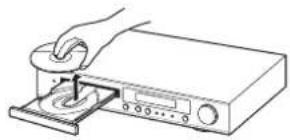
natural_image
Line drawing of a hand inserting a CD into a device (no text or symbols)4 Press STANDBY/ON.
The disc tray goes back in.

Remote controller
VCD CD
Locating a specific track directly
Select the desired track No.
1 Press the numeric buttons as shown below
(Example) To select track No. 23: 2 3
2 Press ENTER

Note PBC on mode of VCD, the Selecting a Track function may not work (page 39).
Playing MP3/JPEG Files (Basic Playback)
The DVD receiver can play back MP3/JPEG files recorded on CD-R or CD-RW.
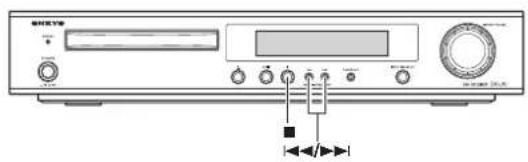
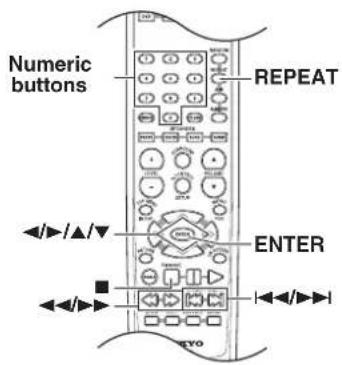
Playing back MP3/JPEG
- It is not possible to play back folders and files that exceed the maximum limitations of the media.
- A certain amount of time is required for the player to confirm the media on which MP3/JPEG files have been recorded before playback will commence.
■ Playback
1 Playback starts when an MP3 or JPEG disc is set.
For JPEG discs:
Slide show starts. Press ■ to display the NAVI screen. Thumbnails may be displayed depending on the type of disc that is set.
2 During stop mode, press REPEAT on the remote controller to select the play mode.

Each press switches the play mode.
FOLDER
Playback the folder that is selected.
DISC
Playback all files on the disc.
FOLDER REPEAT:
Repeat the folder that is selected.
DISC REPEAT
Repeat all files on the disc.
REPEAT ONE
Repeat the file that is selected.
ROOT Folder
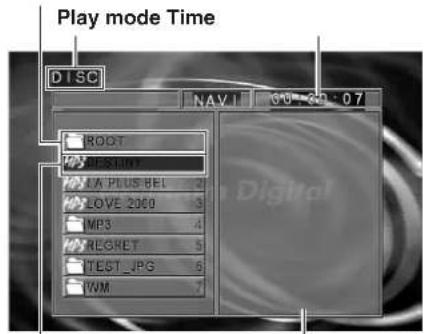
Selected file Program window
3 Press ▲/▼ on the remote controller to select the desired file, then press ENTER to start playback.
When JPEG files are displayed, the display is switched automatically from one file to the next. The switching speed differs according to the file size.
4 To stop playback, press ■.

■ Skipping files
During playback, press ◀◀◀ or ▶▶▶.
Main unit Remote controller

To skip backward

To skip forward
Note
When the play mode is FOLDER, FOLDER REPEAT or REPEAT ONE, skipping to outside the folder being played is not possible.
Playing MP3/JPEG Files (Basic Playback)
■ Searching (only for MP3 files)
During playback, press the ◀◀ or ▶▶ button.

Each press switches the searching speed.
| FF 2 × (▶▶ button) or FR 2 × (◀◀ button) |
| FF 4 × (▶▶ button) or FR 4 × (◀◀ button) |
| FF 6 × (▶▶ button) or FR 6 × (◀◀ button) |
| FF 8 × (▶▶ button) or FR 8 × (◀◀ button) |
| Normal playback |
Selects the files to be played back directly
Press the numeric buttons on the remote controller to enter the desired file number or folder number.
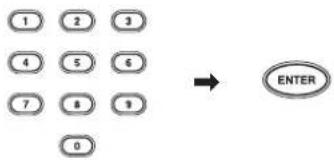
flowchart
graph TD
    A["1"] --> B["2"]
    B --> C["3"]
    D["4"] --> E["5"]
    E --> F["6"]
    G["7"] --> H["8"]
    H --> I["9"]
    J["0"] --> K["ENTER"]
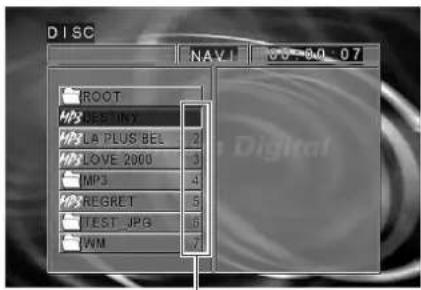
File numbers and folder numbers.
(Example)
To select track No. 23: 2 [3]
- When a folder is selected, the contents of the selected folder will be displayed.
- When a file is selected, playback of the selected file will start.
Note
For selection of a number, refer to the file numbers on the NAVI screen.
The file numbers shown on the display of the main unit differ from the file numbers entered directly with the numeric buttons, as the numbers for each folder are displayed.
Rotating a picture (JPEG files only)
It is possible to rotating a picture.
During JPEG file playback, press ◀/▶/▲/▼ on the remote controller.
Switching as shown below is done when the cursor buttons are pressed.
▶ button: 90° rotation in clockwise direction
◀ button: 90° rotation in counterclockwise direction
▲ button: Vertical mirror image
▼ button: Horizontal mirror image
Listening to the Radio
There are two ways to select radio stations:
- Manual tuning
- Presetting radio stations then selecting the preset channels
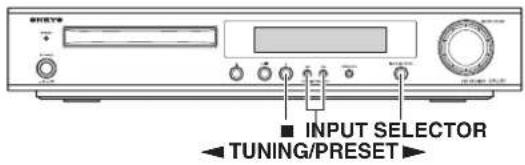
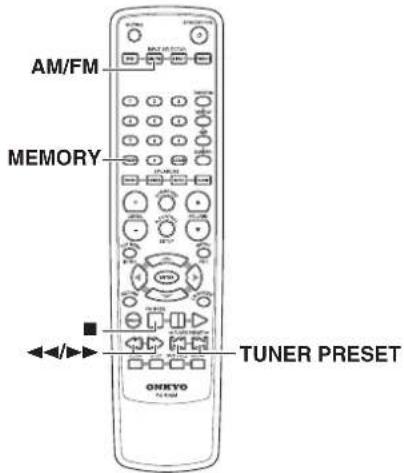
Tuning Manually
1 Select the TUNER input.
INPUT SELECTOR


Main unit Remote controller
2 Select the broadcast band.

Remote controller
Each press changes the band.

3 Select a tuning mode. (FM only)

Remote controller
Each press switches the mode.
→ AUTO (Auto mode)
MONO (Monaural mode)
When the ◀◀/▶▶ buttons are pressed in AUTO mode, a station will be tuned in automatically and tuning will stop. Stereo reception will be made automatically when a stereo broadcast with sufficient signal strength is received.
4 Select a station.
"AUTO" mode (auto tuning) (FM only)
Main unit

Remote controller
Press the ◀◀/▶▶ button on the remote controller or press and hold the ◀◀/▶▶ button on the main unit to receive the next tuned station automatically.
"MONO" mode (manual tuning)
Main unit

Remote controller
When the ◀◀/▶▶ button is pressed and held continuously on the remote controller, the frequency changes continuously. When the button is released, the frequency stops changing. Each time the ◀◀/▶▶ button is pressed, the frequency changes one step.
When the TUNING/PRESET button is pressed and held continuously on the main unit, the frequency changes continuously. When the button is released, the frequency stops changing and the selected frequency blinks. Each time the TUNING/PRESET button is pressed while it is lit, the frequency changes one step.
Use the manual tuning mode when reception is noisy due to weak reception. (In the manual mode, stereo broadcasts are received in monaural.)
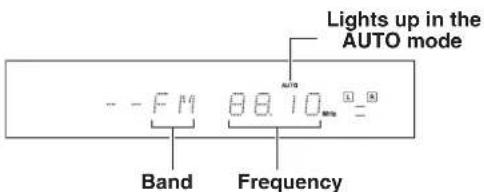

natural_image
Simple geometric diagram with a crosshair and concentric circles above a solid gray rectangle (no text or symbols)Listening to the Radio
Presetting Radio Stations
You can preset up to 40 Random stations.
1 Tune in the radio station you wish to preset (see page 43).
2 Press MEMORY.
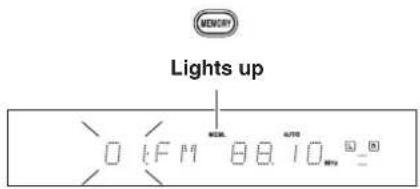
3 Select desired preset.
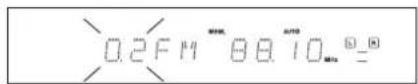
In case of input with the numeric buttons, a preset number will be decided simply by input of a 2-digit number without pressing the MEMORY button.
4 Press MEMORY.
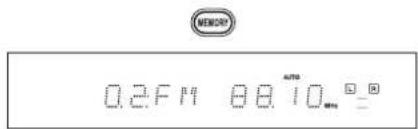
5 Select a station.
Main unit
Remote controller
Press the |◀◀/▶▶| buttons or numeric buttons to select a preset station.
Enjoying the Sound Effects
The surround sound of the DVD receiver enables you to enjoy the presence of a movie theater or concert hall in your room.
Before using any sound effect, make sure the configurations for Adjusting Each Speaker's Relative Volume Balance - Test Tone and Setting the Distance From the Listening Position to Each Speaker have been set (see pages 33-34).
Following are the sound systems the DVD receiver can reproduce.
■ DOLBY DIGITAL Surround and DTS (Digital Theater System) Surround
This 5.1 channel digital surround format enables you to individually play five full-range (20Hz-20kHz) channels (front left and right, center, and two surround channels) plus an LFE (Low Frequency Effect) channel for low-range effect sound. It will create a realistic sound like that heard in theaters and concert halls.
DOLBY DIGITAL Surround
Dolby Digital is compressed digital data with a maximum of 5.1-channel surround sound.
This source signal comes from DVDs that have the □ and therefore recorded for 5.1-channel output.
DTS Surround
DTS (Digital Theater System) is compressed digital data with a maximum 5.1-channel surround output that allows for an extremely high-quality sound.
Notes on DTS Surround
- If you play a DTS Surround encoded disc with the DVD receiver, or a DTS encoded disc using a digitally connected player, you may hear a noise for a short while until the DTS decoder of the DVD receiver recognizes the DTS encoded signal and starts operating. This is not a malfunction.
- If you play a DTS Surround source in fast reverse or fast forward, pause, or skip a chapter or track, noise may be heard. This is not a malfunction.
- Even when playback of the DTS Surround source stops and the DTS signal transmission ends, the DVD receiver remains in DTS mode and the DTS indicator remains lit. This is to prevent noise when you pause, fast forward, fast reverse, or skip a chapter or track of the playback source. Therefore, if the source switches from the DTS signal to a PCM (2 channel digital stereo) signal suddenly, the PCM signal may not be played. In such a case, stop playback for about three seconds, then resume playback.
■ DOLBY PRO LOGIC II Surround
Opposed to Dolby Pro Logic, which had four channels (front, left, center, and surround) recorded into two channels with matrix processing and then played back in four channels, Dolby Pro LogicII uses a feedback logic circuit to have 5.1-channel surround audio (Dolby Surround, etc.) matrix-encoded into two channels and then played back in its original 5.1-channel form. Dolby Pro Logic II provides a Movie mode designed for playing movies and a Music mode designed for listening to music. In the Movie mode, the surround channels, which used to provide monaural output over only a narrow frequency range, now provide complete stereo output over the full frequency range. The result is movie viewing with a realistic feel of movement. The Music mode uses the surround channels to provide a natural soundfield that cannot be provided with normal stereo output. This mode can be used with VHS and DVD videos with the DOLBY SURROUND mark and certain television programs. The Music mode can be used with music compact discs and other stereo sources.
natural_image
Simple geometric diagram with a crosshair and shaded rectangle (no text or symbols)
Enjoying the Sound Effects
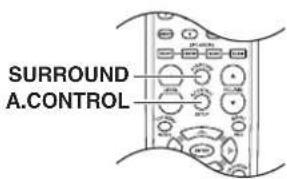
Selecting Surround Mode
Press SURROUND.


Main unit

Remote controller
Each press switches the modes as shown below.
(At the time of PCM source or Dolby Digital 2ch source)
→ DOLBY PL II MOVIE
(At the time of DTS source)
→ DTS
STEREO
When playing a source encoded in Dolby Digital or DTS, the surround mode is set to "Dolby Digital/DTS" automatically.
Note
Don't change the listening mode while recording with a VCR.
Tip
The Input/Speaker indicator becomes an input indicator at time of DOLBY DIGITAL and DTS source and a speaker indicator at all other times.
L 10
[Unreadable]
■ Description of Dolby Pro Logic II: Music mode
Panorama mode
Expands the image of front-channel stereo to the surround speakers to create a sound environment that fills your surroundings. (To change the Panorama mode, press SETUP button at the time of Dolby Pro Logic II Music mode. Display the PANO R OFF or ON, then press the LEVEL +/- buttons to select ON or OFF.)
Dimension
This controls the balance between the Front and Rear in 2 steps on the front and 2 steps on the rear. Set this parameter to one of the Front steps if the surround effect is too strong, or to one of the Back steps if it is too weak. (To change the Dimension, press SETUP button twice at the time of Dolby Pro Logic II Music mode. Display the DIMEN 0 (or other value), then press the LEVEL +/- buttons to select F-2, F-3, R-2 or R-3.)
Center Width
The center channel signal can be divided and distributed to the Front L/R channels.
The adjustment for distributing the center channel signal to the front channels can be applied in eight steps from 0 to 7. Use this adjustment when the center image seems to be too strong. (To change the Center Width, press SETUP button 3 times at the time of Dolby Pro Logic II Music mode. Display the C WIDTH 3 (or other value), then press the LEVEL +/- buttons to select 0 \~ 7.)
Checking the Sound System of the Playing Source
The DVD receiver will automatically detect the sound system when DOLBY DIGITAL Surround (DOFPS Surround ( ), or PCM/MP3 DIGITAL (2 channel digital stereo) is played back. The corresponding sound system indicator lights in the DVD receiver's display.
| Surround mode | Source | ||||
| DISC INPUT | |||||
| Dolby Digital 5.1ch | Dolby Digital 2ch | DTS | VCD/ CD | Analog/ PCM source | |
| Dolby Digital | ○ | ||||
| DTS | ○ | ||||
| PL II | ○ | ○ | ○ | ||
| STEREO | ○ | ○ | ○ | ○ | ○ |
Adjusting the Sound
Press A.CONTROL.

Each press of the button changes the acoustic mode as follows: A CTRL 1 → A CTRL 2 → OFF → A CTRL 1
Playing DVDs (Various Playback)
You can play a specific title, chapter, or segment repeatedly (Title repeat, chapter repeat, A-B repeat).
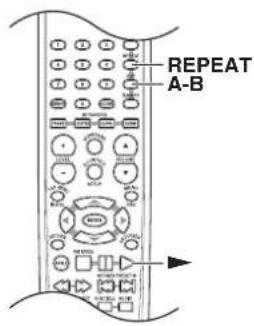
Repeating a Title or Chapter
1 Select the title or chapter, you want to repeat (see page 37).
2 Press REPEAT.

Each time you press REPEAT, the repeat mode changes as follows.
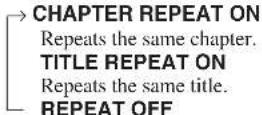
Resumes normal playback.
When the repeat mode is on, the REPEAT indicator illuminates. And also, the CHP indicator blink when the mode is CHAPTER REPEAT ON, and the TITLE indicator blinks when the mode is TITLE REPEAT ON.
Notes
- Some discs may not permit repeat operation.
- The menu is switched off when no operation is performed for about 2 seconds.
Repeating a Specific Segment
You can play a specific segment repeatedly (A-B repeat).
1 Press A-B at the beginning of the segment (point A) you want to play repeatedly.

"SET A" appears on the TV screen and the point A is set.
2 Press A-B again at the end of the segment (point B).

"SET B" appears on the TV screen and the point B is set. The DVD receiver automatically returns to the point A and starts repeat playback of the selected segment (A-B).
To resume normal playback
Press A-B repeatedly until "CANCELLED" appears on the TV screen.
Notes
- Some discs may not permit A-B repeat operation.
• The subtitle between point A and point B may not appear. - The menu is switched off when no operation is performed for about 2 seconds.
Playing DVDs (Various Playback)
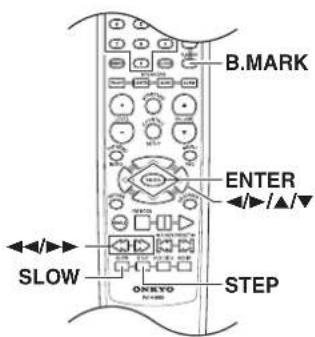
The video images on DVD can be viewed as a still frame, played back at slow speeds and even advanced frame by frame.
Viewing a still frame
Press STEP.

Tips
• Each time you press STEP (or ▶), the picture advances one frame.
• Each time you press ◀◀, the picture advances one frame in the reverse direction.
- To return to normal playback, press the ▶ button.
Viewing slow playback
Press SLOW.

Tips
• Each time you press SLOW (or ▶), the motion speed switches.
• Each time you press ◀◀, the motion speed switches in the reverse direction.
• To return to normal playback, press the ▶ button.
$$ \boxed {\begin{array}{l}\rightarrow 1 / 4 \leftrightarrow 1 / 8 \leftrightarrow 1 / 1 6 \leftrightarrow \text { Normal playback }\end{array}} $$
Using Bookmarks
The bookmark feature lets you mark a point on the disc that you can go to quickly. You can store up to 14 bookmarks.
Create the bookmark
1 During playback, press B.MARK on the remote controller.
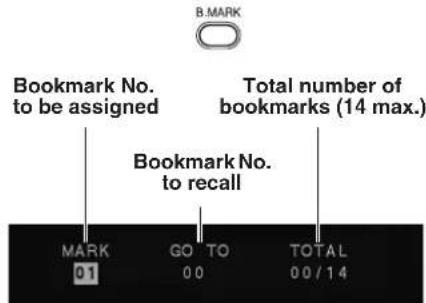
2 Press ▲/▼ on the remote controller to select desired bookmark number.
3 When you reach the scene you want to mark, press ENTER.
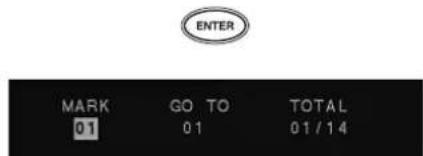
- Up to 14 bookmarks can be applied in the same way for one disc.
- When the ENTER button is pressed at a previously marked bookmark, that mark will be changed to the new point.
Recalling a bookmarked scene
1 During playback, press B.MARK on the remote controller.

2 Press ▶ button on the remote controller to recalling a bookmark number.
Set the cursor to this position.
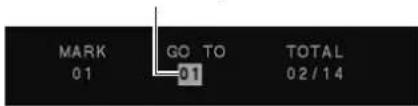
3 Press ▲/▼ on the remote controller to select the bookmark number you want to activate, then press ENTER.
Notes
- If all 14 bookmarks are in use, you can still mark new scenes, but the previous bookmarks will be erased.
- Depending on the disc, the bookmark function may not work.
- PBC on mode of VCD, the bookmark function does not work.
Playing DVDs (Various Playback)
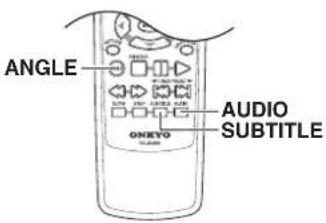
Changing the Camera Angle
You can select a preferred camera angle to watch a scene.
Press ANGLE repeatedly to select the camera angle while playing a scene recorded with multiple angles.

Each time you press ANGLE, the camera angle changes.
Notes
- The display is switched off when no operation is performed for about 2 second.
- To cancel the angle icon on the TV screen, set the "ANGLE MARK" to "OFF" (see page 29).
Selecting a Subtitle
You can display subtitles on the TV screen and select a subtitle language from those included on the DVD video.
Press SUBTITLE repeatedly to select the subtitle during playback.

Each time you press SUBTITLE, the subtitle changes.
Notes
- The display is switched off when no operation is performed for about 2 seconds.
- During some scenes, the subtitles may not appear immediately after you change the subtitle language.
- Some DVD videos are set to display subtitles automatically, and you cannot turn them off even if you set the subtitle function to off.
Selecting a Playback Audio Setting
You can select a preferred audio language and sound system.
You can select the preferred audio language and sound system as a set from those included on the DVD video.
This function lets you temporarily change the audio language which you selected in the PREFERENCES (see page 30), and choose the sound system if the DVD video is recorded in more than one sound format.
Press AUDIO repeatedly to select the playback audio setting.

Each time you press AUDIO, the language and audio recording system set changes.
Notes
- Some discs allow you to change audio selections only by using the disc menu. If this is the case, press MENU and choose the appropriate language from the selections in the disc menu.
- Some discs may have only one audio language and sound recording system set and you cannot change this selection.
- The display is switched off when no operation is performed for about 2 seconds.
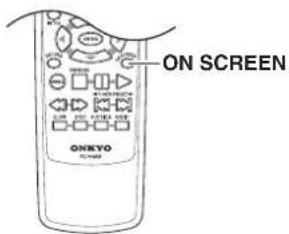
Viewing information
You can view information about a disc on the TV screen.
Press ON SCREEN.

Each time you press ON SCREEN, the on-screen display on the TV screen changes as follows.
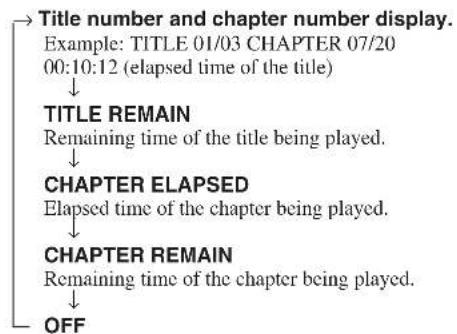
flowchart
graph TD
    A["Title number and chapter number display."] --> B["Example: TITLE 01/03 CHAPTER 07/20\n00:10:12 (elapsed time of the title)"]
    B --> C["TITLE REMAIN\nRemaining time of the title being played."]
    C --> D["CHAPTER ELAPSED\nElapsed time of the chapter being played."]
    D --> E["CHAPTER REMAIN\nRemaining time of the chapter being played."]
    E --> F["OFF"]
Notes
- Some DVD videos may not display the chapter number or elapsed time.
- The displayed time information cannot be changed in pause mode.
- The displayed information cannot be changed while a menu or the top menu is displayed.
Playing VCDs/CDs (Various Playbacks)
You can play a specific title, chapter, track, or segment repeatedly (Title repeat, chapter/track repeat, A-B repeat).
VCD CD
Repeating a Track
1 Select the track you want to repeat (see page 40).
2 Press REPEAT.
Each time you press REPEAT, the repeat mode changes as follows.

→ REPEAT-ONE (Repeats the same track.) REPEAT-ALL (Repeats the entire disc.) REPEAT OFF (Resumes normal playback.)
Notes
- Some discs may not permit repeat operation.
- The repeat operation will be canceled when you turn off the DVD receiver.
- When PBC function is on, repeat play is not possible.
VCD CD
Repeating a Specific Segment
You can play a specific segment repeatedly (A-B repeat).
1 Press A-B at the beginning of the segment (point A) you want to play repeatedly.

"SET A" appears on the TV screen and the point A is set.
2 Press A-B again at the end of the segment (point B).

"SET B" appears on the TV screen and the point B is set. The DVD Player automatically returns to the point A and starts repeat playback of the selected segment (A-B).
To resume normal playback
Press A-B repeatedly until "CANCELLED" appears on the TV screen.
Notes
- Some discs may not permit A-B repeat operation.
• The subtitle between point A and point B may not appear. - The A-B repeat operation will be canceled when you turn off the DVD receiver.
VCD CD
Using Bookmarks
The bookmark feature lets you mark a point on the disc that you can go to quickly. You can store up to 14 bookmarks.
Create the bookmark
1 During playback, press B.MARK on the remote controller.
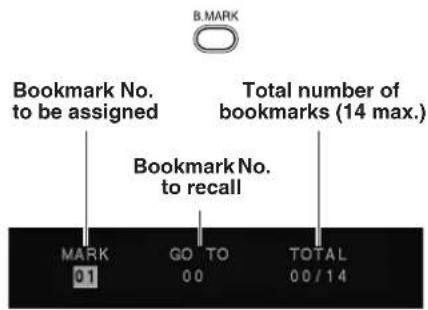
2 Press ▲/▼ on the remote controller to select desired bookmark number.
3 When you reach the scene you want to mark, press ENTER.


- Up to 14 bookmarks can be applied in the same way for one disc.
- When the ENTER button is pressed at a previously marked bookmark, that mark will be changed to the new point.
Recalling a bookmarked scene
1 During playback, press the B.MARK button on the remote controller.

2 Press ▶ on the remote controller to recalling a bookmark number.
Set the cursor to this position.
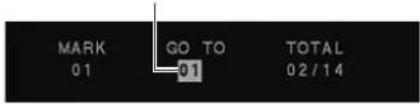
3 Press ▲/▼ to select the bookmark number you want to activate, then press ENTER.
Notes
- If all 14 bookmarks are in use, you can still mark new scenes, but the previous bookmarks will be erased.
- Depending on the disc, the Bookmark function may not work.
- PBC on mode of VCD, the Bookmark function does not work.

Playing VCDs/CDs (Various Playbacks)
VCD CD
Using IntroScan function
CD IntroScan playback
It is possible to play back approx. 10 seconds of the beginning of each track.
1 During stop mode, press the INTRO button on the remote controller.

2 Press the "1" button on the remote controller to select INTRO, then press the ENTER button.

• The first 10 seconds of each track play.
• After IntroScan goes through all of the tracks, it stops.
- When the ENTER button or the INTRO button is pressed during IntroScan of a track, the unit will return to normal playback starting with that track.
IntroScan ends when 2 (EXIT) is selected.
VCD IntroScan playback
The VCD IntroScan function has three modes.
1 INTRO: The first approx. 8 seconds of each track will be played one after another.
2 DISC: The beginning of each of the first nine tracks of the disc will be played back sequentially and displayed on the screen. When |◀◀/▶▶| button is pressed, the next nine screens will be played back and displayed.
3 TRACK: The selected track will be played back with the screen display divided into nine parts.
1 During stop mode, press INTRO on the remote controller.

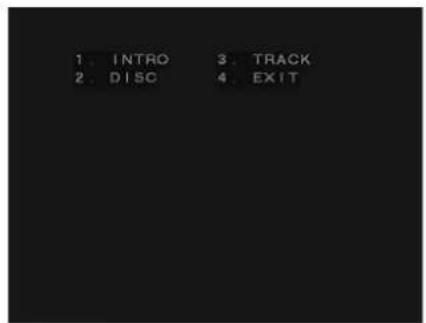
2 Select 1 (INTRO), 2 (DISC), or 3 (TRACK) with the numeric buttons of the remote control and press ENTER.

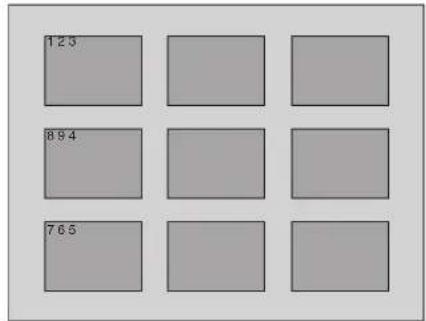
When "DISC" or "TRACK" is selected, the screen is divided into nine segments for displaying pictures.
The next nine pictures (nine tracks) will be displayed when the skip up (▶▶) button is pressed. When the number of one of the pictures is selected with the numeric buttons, playback will start from that picture.
PBC on mode of VCD, the IntroScan function does not work.
The video images on Video CD can be viewed as a still frame, played back at slow speeds and even advanced frame by frame.
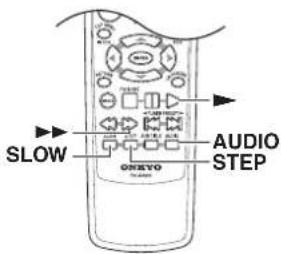
VCD
Viewing a still frame
Press STEP.

Tips
• Each time you press STEP (or ▶▶), the picture advances one frame.
- To return to normal playback, press the ▶ button.
VCD
Viewing slow playback
Press SLOW.

Tips
• Each time you press SLOW (or ▶), the motion speed switches.
→ 1/4 ↔ 1/8 ↔ 1/16 ↔ Normal playback ←
• To return to normal playback, press the ▶ button.
VCD
Selecting Sound Channels on Video CDs
Video CD may have left and right sound channels which contain sounds or languages on each channel. You can switch these two channels to hear a preferred sound or language.
During playback, press AUDIO (repeatedly) to select the sound channel.

Each time you press AUDIO, the sound channel changes.
LEFT
The left channel is heard from both speakers
↓
RIGHT
The right channel is heard from both speakers
↓
STEREO
Both the left and right channels are heard
Playing VCDs/CDs (Various Playbacks)
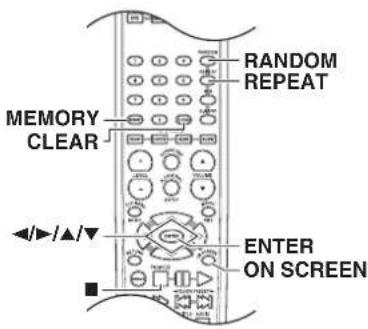

Random play
The tracks of the disc are played in random order.
1 During stop mode, press RANDOM.
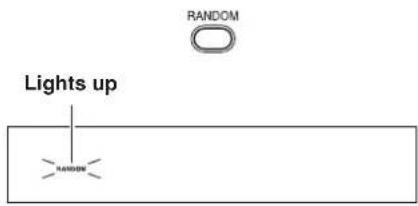
2 Each time you press RANDOM, random play would be on and off.
Note
The menu is switched off when no operation is performed for about 2 seconds.
■ To cancel random play
1 Press ■ to stop playback.

2 Press RANDOM to cancel random playback.

■ To repeat random play
During random playback, press REPEAT.

Each press the button switches the mode.
→ REPEAT ONE REPEAT ALL REPEAT OFF
Notes
• After all tracks of a disc have been played in random order, playback will stop.
- When playing a DVD, the Random mode does not work.
- When switching to RANDOM mode with a VCD in PBC ON mode, the PBC mode will become OFF.

Setting Tracks in a Favorite Order
You can listen to the desired tracks of the current CD or VCD in any desired order.
Program Edit
1 During stop mode, press MEMORY.

Program edit screen appears.
Track No.
![TRACK 01 [11] PROGRAM LIST ADD DELETE PLAY CLEAR SET TRACK VALUE Number of tracks corded on the disc Program list](/content/2026/05/1052985/images/59b0cedbe29f81a0bdff466478996961fd512be3916cd2e5b7f5dd9f52ba4e67.jpg)
2 Select specific track by pressing ▲/▼.
3 Select "ADD" icon on the screen to register selected value onto PROGRAM LIST, then press the ENTER button.
4 You can select maximum 21 values by repeating step 2 - 3.
5 Select "PLAY" icon on the screen. then press ENTER to start program play.
To repeat program play
During program playback, press the REPEAT button on the remote controller.
Each press the button switches the mode.
→ REPEAT ONE REPEAT ALL REPEAT OFF
Notes
"ADD" icon : Add value onto "PROGRAM LIST"
"DELETE" icon : Delete value from "PROGRAM LIST"
"INSERT" icon : Insert value in "PROGRAM LIST"
"PLAY" icon : Play program play
“CLEAR” icon : When this icon is selected and the ENTER button is pressed, the entire contents of the PROGRAM LIST will be deleted, and the Program edit screen also will disappear.
- MP3/JPEG discs can not be programmed with this program mode. (MP3/JPEG program playback page 59)
- The unit stops when the ■ button is pressed. To restart program playback, press the MEMORY button, display the program screen, select the "PLAY" icon, and press the ENTER button.
Insert track
During stop mode, press the MEMORY button on the remote controller.
The program edit screen appears.
1 Select specific track to insert by pressing ▲/▼.
![TRACK 01 [11] PROGRAM LIST INSERT DELETE PLAY CLEAR 05 03 08 11 01 03 04 SET TRACK VALUE](/content/2026/05/1052985/images/8109c550d9d33f3a645bc33f57dd0bf70085898a7e33bc98a69205c01298011d.jpg)
2 Move the cursor with ▶ to the "PROGRAM LIST" and select the column to be added with ▲/▼. (The color of the column where the cursor is located will change.)
flowchart
graph TD
    A["ENTER"] --> B["ENTER"]
    style A fill:#f9f,stroke:#333
    style B fill:#bbf,stroke:#333
![TRACK 01 [11] PROGRAM LIST INSERT 05 DELETE 03 PLAY 08 CLEAR 11 01 03 04 Prennt Digit SELECT PROGRAM LIST](/content/2026/05/1052985/images/1c0f19097302fbea6f0362b886ca5743d65048ddb720aed1566c0782ef80545c.jpg)

Playing VCDs/CDs (Various Playbacks)
3 Press ◀, use ▲/▼ to move the cursors to the "INSERT" icon, and press ENTER.
flowchart
graph LR
    A["ENTER"] --> B["ENTER"]
    B --> C["ENTER"]
![TRACK 01 [11] PROGRAM LIST INSERT 05 DELETE 03 PLAY 08 CLEAR 01 11 01 03 Prenni Dig INSERT ITEM TO THE LIST](/content/2026/05/1052985/images/51250fb85469faee64a730198df3c78bfc6cf4d6d4e3ba477968711992e336b4.jpg)
The new track will be inserted after (below) the selected column.
Delete Program
During stop mode, press the MEMORY button on the remote controller
1 Move the cursor with ▶ to the "PROGRAM LIST" and select the column to be deleted with ▲/▼. (The color of the column where the cursor is located will change.)
flowchart
graph LR
    A["Circular Layout"] --> B["Rectangular Layout"]
    style A fill:#f9f,stroke:#333
    style B fill:#bbf,stroke:#333
![TRACK 01 [11] INSERT 05 DELETE 03 PLAY 08 CLEAR 01 11 01 03 Prennt Big SELECT PROGRAM LIST](/content/2026/05/1052985/images/e95ca6fb451b355ab98f20465c20915670643d10b9752e84395cc049ef8d1e51.jpg)
2 Press ◀, use ▲/▼ to move the cursor to the "DELETE" icon, and press ENTER.
flowchart
graph LR
    A["ENTER"] --> B["ENTER"]
    B --> C["ENTER"]
![TRACK 01 [11] PROGRAM LIST INSERT DELETE PLAY CLEAR 05 03 08 11 01 03 04 1 TRACK DELETE](/content/2026/05/1052985/images/0358e68e47fa4a063715403aded0530ef281f29897e11147edaadd13b8dea7a2.jpg)
The selected value is deleted.
Note
PBC on mode of VCD, the Program play function does not work.
Release Program Play
In following case, Program play would be released.
- When you open and close tray.
- When you turn power off and on.
- Press the CLEAR button during display of the Program edit screen.
VCD CD
Viewing information
You can view information about a disc on the TV screen.
Press ON SCREEN.

Each time you press ON SCREEN, the on-screen display on the TV screen changes as follows.
At the time of CD/VCD playback
→ SINGLE ELAPSED
Elapsed time of the track being played.
(Example) 22:23 TRACK 05/15
SINGLE REMAIN
Remaining time of the track being played.
TOTAL ELAPSED*
Elapsed time of the disc being played.
TOTAL REMAIN*
Remaining time of the disc being played.
OFF
Items marked by * are not displayed in PBC mode for VCDs.
Playing a MP3/JPEG (Various playbacks)
MP3/JPEG program playback
You can listen to the desired files of the current MP3/JPEG disc in any desired order.
Program Edit
1 During stop mode, press MEMORY.

2 Press ▲/▼ to select the file, then press ENTER.
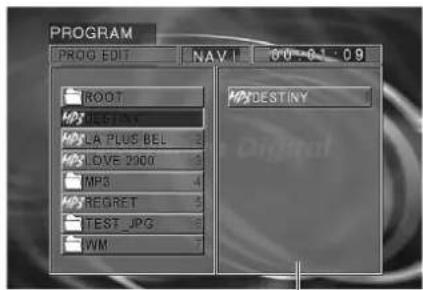
Program window
• The selected file go to program window.
- You can select a maximum of about 100 files by repeating step 2. However, note that the maximum number of programmable files depending on the number of files and folders in the MP3/JPEG disc and on the total number of characters used in the file and folder names.
Delete Program
During program edit mode, press ▲/▼ in the program window, select the file to be deleted, and press CLEAR.
• After the ■ button has been pressed and the program has been confirmed, the program no longer can be changed.
3 Press ■ and confirm the program.

PROG END is displayed.
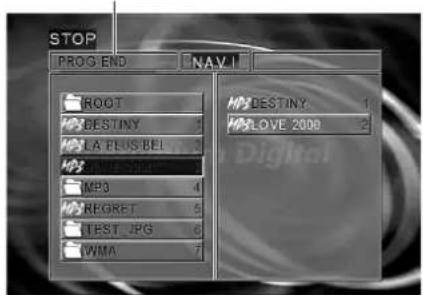
• After the ■ button has been pressed and the program has been confirmed, the program no longer can be changed.
4 Press ▶ to start program playback.
- Confirm that the cursor is at the position of a "file" and press the ▶ button. Playback is not possible when the cursor is at the position of a "folder".
Tips
All programs can be canceled by pressing the MEMORY button during stop in program mode. All programs also can be canceled by opening the disc tray.
Note
Program repeat play is not available with MP3 discs.

Playing a MP3/JPEG (Various playbacks)
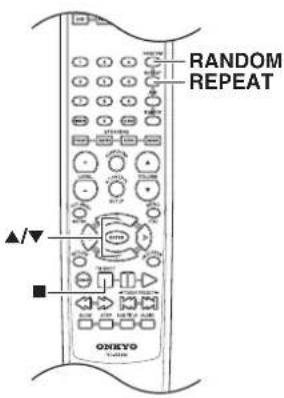
MP3/JPEG Repeat Play
Perform operation in REPEAT mode always under observation of the NAVI screen.
Desired folders or discs can be played back repeatedly.
1 During stop mode, press REPEAT.
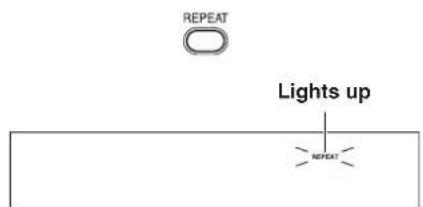
Each press REPEAT the play mode.
FOLDER : Playback the folder that is selected.
DISC : Playback all files on the disc.
FOLDER REPEAT : Repeat the folder that is selected.
DISC REPEAT : Repeat the disc that is played.
→ REPEAT ONE : Repeat the file that is selected.
When repeat mode is selected, the REPEAT indicator illuminates. Further, the FOLDER indicator illuminates when the mode is set to FOLDER REPEAT and the TRACK indicator blinks when the mode is set to REPEAT ONE.
2 Press ▲/▼ to select desired file, then press ENTER or ▶ to start playback.
Note
Do not select DISC REPEAT when files other than MP3 and JPEG have been recorded on the disc.
MP3/JPEG Random play
The files of a folder are played in random order.
- "RANDOM ON": The fils of a folder being played will be selected in random order for playback.
1 During stop mode, press RANDOM.
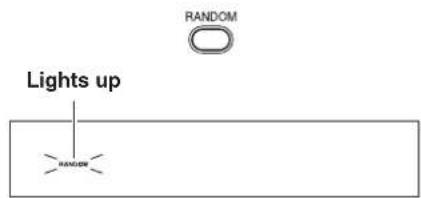
Each time you press RANDOM button on the remote controller, random play would be on and off.
2 Select a file in the folder to be played, press ▶, and start random playback.
In case of RANDOM ON mode, playback will stop after all files in the folder have been played back once.
To cancel random play
1 Press ■ to stop playback.

2 Press RANDOM to cancel random playback.

To random repeat play
During stop mode, press the RANDOM button, then press the REPEAT button on the remote controller.
- In case of RANDOM REP mode, all files in the folder will be played back repeatedly. It is also possible that the same file will be played back twice in a row.
To cancel random repeat play
Press the ■ button to stop random repeat playback, then press the REPEAT or RANDOM button.
DVD Menu Language Code List
Code No. Language
| 1027 Afar | |
| 1028 Abkhazian | |
| 1032 Afrikaans | |
| 1039 | Amharic |
| 1044 Arabic | |
| 1045 Assamese | |
| 1051 Aymara | |
| 1052 Azerbaijani | |
| 1053 Bashkir | |
| 1057 Byelorussian | |
| 1059 Bulgarian | |
| 1060 Bihari | |
| 1069 Bislama | |
| 1066 Bengali; Bangla | |
| 1067 Tibetan | |
| 1070 Breton | |
| 1079 Catalan | |
| 1093 Corsican | |
| 1097 Czech | |
| 1103 Welsh | |
| 1105 Danish | |
| 1109 German | |
| 1130 Bhutani | |
| 1142 Greek | |
| 1144 English | |
| 1145 Esperanto | |
| 1149 Spanish | |
| 1150 Estonian | |
| 1151 Basque | |
| 1157 Persian | |
| 1165 Finnish | |
| 1166 Fiji | |
| 1171 Faeroese | |
| 1174 French | |
| 1181 Frisian | |
| 1183 Irish | |
| 1186 Scots Gaelic | |
| 1194 Galician | |
| 1196 Guarani | |
| 1203 Gujarati | |
| 1209 Hausa | |
| 1217 Hindi | |
| 1226 Croatian | |
| 1229 Hungarian | |
| 1233 Armenian | |
| 1235 Interlingua |
Code No. Language
| 1239 Interlingue |
| 1245 Inupiak |
| 1248 Indonesian |
| 1253 Icelandic |
| 1254 Italian |
| 1257 Hebrew |
| 1261 Japanese |
| 1269 Yiddish |
| 1283 Javanese |
| 1287 Georgian |
| 1297 Kazakh |
| 1298 Greenlandic |
| 1299 Cambodian |
| 1300 Kannada |
| 1301 Korean |
| 1305 Kashmiri |
| 1307 Kurdish |
| 1311 Kirghiz |
| 1313 Latin |
| 1326 Lingala |
| 1327 Laothian |
| 1332 Lithuanian |
| 1334 “Latvian, Lettish” |
| 1345 Malagasy |
| 1347 Maori |
| 1349 Macedonian |
| 1350 Malayalam |
| 1352 Mongolian |
| 1353 Moldavian |
| 1356 Marathi |
| 1357 Malay |
| 1358 Maltese |
| 1363 Burmese |
| 1365 Nauru |
| 1369 Nepali |
| 1376 Dutch |
| 1379 Norwegian |
| 1393 Occitan |
| 1403 (Afan) Oromo |
| 1408 Oriya |
| 1417 Punjabi |
| 1428 Polish |
| 1435 “Pashto, Pushto” |
| 1436 Portuguese |
| 1463 Quechua |
| 1481 Rhaeto-Romance |
Code No. Language
| 1482 Kirundi | |
| 1483 Romanian | |
| 1489 Russian | |
| 1491 Kinyarwanda | |
| 1495 | Sanskrit |
| 1498 Sindhi | |
| 1501 Sangro | |
| 1502 Serbo-Croatian | |
| 1503 Shinghalese | |
| 1505 Slovak | |
| 1506 Slovenian | |
| 1507 Samoan | |
| 1508 Shona | |
| 1509 Somali | |
| 1511 Albanian | |
| 1512 Serbian | |
| 1513 Siswati | |
| 1514 Sesotho | |
| 1515 Sundanese | |
| 1516 Swedish | |
| 1517 Swahili | |
| 1521 Tamil | |
| 1525 Tegulu | |
| 1527 Tajik | |
| 1528 Thai | |
| 1529 Tigrinya | |
| 1531 Turkmen | |
| 1532 Tagalog | |
| 1534 Setswana | |
| 1535 Tonga | |
| 1538 Turkish | |
| 1539 Tsonga | |
| 1540 Tatar | |
| 1543 Twi | |
| 1557 Ukrainian | |
| 1564 Urdu | |
| 1572 Uzbek | |
| 1581 Vietnamese | |
| 1587 Volapuk | |
| 1613 Wolof | |
| 1632 Xhosa | |
| 1665 Yoruba | |
| 1684 Chinese | |
| 1697 Zulu | |
Troubleshooting
Check the following guide for the possible cause of a problem before contacting service. Refer also to the respective instruction manuals of the connected components and TV.
Restoring the Default settings To reset the DR-L30 to its factory default settings. If the main unit is set to standby, press and hold both SURROUND and ▶▶ on the main unit for 2 seconds or longer.
Because the unit contains a microcomputer to provide advanced functions, it may malfunction due to external noise or static electricity. If this happens, press the POWER switch on the unit and then press it again after about five seconds.
Speakers
| Symptoms Causes Remedies Pages | |||
| Sound is not produced. • The speaker cords are disconnected.• MUTING is enabled. | • Connect properly referring to “Connecting Speakers”.• Turn off MUTING. | 2132 | |
| Sound is not produced from the left or right speakers. | • The speaker cords are disconnected. | • Connect properly referring to “Connecting Speakers”. | 21 |
| Radio stations cannot be received. | • The antennas have not been connected.• A proper broadcasting band has not been selected.• The frequency of the station to be received is not tuned. | • Connect antennas.• Select a band.• Tune to the frequency of the desired station. | 24–254343 |
| Noise interferes. • Car ignition noise.• Influence of an electric appliance.• A TV set is installed near the system. | • Install the outdoor antenna in an apart position from the road.• Switch the suspected electric appliance OFF.• Install the TV or the system at an increased distance between them. | 25–– | |
| A station has been preset but it cannot be received by pressing the |◄◄/►►| button. | • The frequency of the preset station is not tunable.• The preset memory has been cleared because the power cord has been unplugged for a long period. | • Preset stations with tunable frequencies.• Preset stations again. | 4444 |
| No sound from the surround speakers. | • The surround mode is STEREO. | • Select Surround with the SURR button. | 46 |
Main unit
| Symptoms Causes Remedies Pages | |||
| Playback does not start when the ▶/11 button is pressed. | There is no disc in the DVD receiver.There are no signals recorded on the side of the disc being played. | Load a disc and press the ▶/11 button.Turn the disc over and properly place it on the disc tray. | 3636 |
| Playback starts but no image/sound is seen heard. | The TV is not turned on.The connection cords are not properly connected. | Turn on the TV.Properly reconnect the connection cords. | -17-23 |
| The picture is disrupted when the image is fast forwarded or fast reversed. | The picture is slightly disrupted during fast forward and fast reverse operations. | This is not a malfunction. - | |
| No sound is heard. • The audio output cords are not properly connected.The player is in a special playback mode. | Properly connect the audio cords.P r e s ▶/11 button to resume normal playback mode. | 20- | |
| The picture does not look good or the picture/sound quality is poor. | A nearby device is generating noise.The disc is dirty.The disc is damaged.There is condensation on the optical lens. | Separate this unit as far as possible from the device you think is generating the noise.Refer to the “Cleaning Discs” section and wipe dirt from the disc.Use a new disc.Refer to the “Notes on Moisture Condensation” section and evaporate the condensation. | -11-3 |
| It takes a while for the disc to start playing. | Time is required for the unit to detect the disc type and size and for the rotation of the motor to stabilize. This is not a malfunction. | Approximately 10 to 20 seconds are required for a disc to start playing, although the time differs depending on the disc. | - |
| The tray opens automatically. | The disc is not placed horizontally. • Properly place the disc on the tray. 36 | ||
| The top and bottom of the screen cannot be seen, or the screen becomes black-and-white. | The video format of the disc being played does not match that of the connected TV monitor. | Refer to the “To set the TV system” section, and use a disc with the appropriate video format for your TV or a TV with the appropriate video format for the disc. | 27, 29 |
| The subtitle is not displayed. | The DVD disc being played does not contain the recording of subtitles.The subtitle mode is set to off. | The subtitle cannot be displayed when the DVD disc being played does not contain the recording of subtitles.Press the SUBTITLE button to switch on the subtitle mode. | -50 |
| The voice (or subtitle) language cannot be changed. | The DVD disc being played does not contain the recording of more than one audio (or subtitle) language. | The voice (or subtitle) language cannot be changed when the DVD disc being played does not contain the recording of more than one voice (or subtitle) language. | - |
| The viewing angle cannot be changed. | The DVD disc being played does not contain the recording of more than one angle.You are attempting to switch the angle in a DVD section where more than one angle is not recorded. | The viewing angle cannot be changed when the DVD disc being played does not contain the recording of more than one angle.More than one viewing angle may be recorded only in limited sections in a disc. | -- |
| Playback will not start even after a title is selected. | A viewing restriction (PARENTAL) has been set for the disc. | Check the viewing restriction level (PARENTAL) setting. | 31 |

Troubleshooting
| Symptoms Causes Remedies Pages | |||
| The parental level cannot be changed. | You have forgotten the password. Set the initial setup to the factory setup with the following procedure.While in stop mode, press and hold both SURROUND on the main unit and TOP MENU on the remote controller for 2 seconds or longer.Press STANDBY/ON to set this unit in standby mode.ORPress the MENU button on the remote controller to enter SETUP MENU.Select the PREFERENCE, then press the ENTER button.Select DEFAULTS, press the ▶ button to select RESET.Press the numeric keys as shown below. Press 1, 3, 9, 7, then press the ENTER button.Press STANDBY/ON to set this unit in standby mode.The password set at the time of shipping from the factory is “0000”. | 31 | |
| The voice or subtitle language selected in the initial setting is not played. | The DVD disc being played does not contain the recording of the selected voice or subtitle language.The initial playback language is specified by the DVD disc.The DVD specifications provide for selection at the menu screen. | Use a DVD disc containing the recording of the selected voice or subtitle language.Press SUBTITLE or the AUDIO button on the remote controller and select the language.Select at the menu screen of the disc. | -50- |
| Menu screen messages are not shown in the desired language. | The menu language function is not set to desired language. | Select disc menu language. 31 | |
| A VCD cannot be played using menus. | The VCD disc being played is not compatible with PBC. | Menu playback is available only with VCD discs recorded with PBC. | - |
| The STANDBY indicator flashes red on the main unit. | The speaker connection is abnormal. Check the speaker connection.Check the speaker connection. If this does not help, contact your dealer for service. | 21- |
Remote controller
| Symptoms Causes Remedies Pages | ||
| Remote control operation is not possible. | Batteries are exhausted.The remote control is too far away from the system, the controlling angle is deviated or there is an obstacle in between. | Replace with new batteries.Operate the unit inside the remote controllable range. |
Others
| Symptoms Causes Remedies Pages | |||
| The inhibition icon 📁s displayed and remote control is not possible. | • Playback is restricted intentionally by the software producer. | • The operation is inhibited. Please try another operation. | - |
Specifications
DVD receiver (DR-L30)
■ Amplifier section
| Power Output All channel 50 watts per channel min. | |
| RMS. into 8 ohms two channel driven, 1,000 Hz(One channel driven at center) | |
| THD (Total Harmonic Distortion) 10 % at rated power | 0.2 % at 1 watt output |
| Damping Factor 40 at 8 ohms | |
| Input Sensitivity and Impedance LINE (VIDEO 1, VIDEO 2) 450 mV/50 kohms | |
| Output Level and Impedance REC OUT (VIDEO 1) 200 mV, 2.2 kohmsPREOUT (SUBWOOFER) 700 mV, 470 ohms | |
| Frequency Response 100 to 20,000 Hz: +/-3 dB | |
| S/N Ratio 100 dB (0.5 V INPUT LINE) | |
| Speaker Impedance 8 Ω | |
| Input Sensitivity /Output Level and Impedance | 1.0 Vp-p/75 Ω (Component and S-Video Y)0.7 Vp-p/75 Ω (Component PB/CB, PR/CR)0.286 Vp-p/75 Ω (S-Video C)1.0 Vp-p/75 Ω (Composite) |
| Component Video Frequency Response 5 Hz - 50 MHz | |
| Video input | Composite: 2 (VIDEO 1, VIDEO 2) |
| Video output | Component Video: 1 (DVD)S Video: 1 (DVD)Composite: 2 (MONITOR, VIDEO 1) |
| Audio inputs | 2 (VIDEO 1, VIDEO 2) |
| Audio outputs | 2 (VIDEO 1) |
| Speaker Outputs | Front L/R, Center, Surround L/R |
| ■ Tuner section | |
| Tuning Frequency Range | FM: 87.50 to 108.00 MHz (50 kHz steps)AM: 531 to 1602 kHz (9 kHz steps) |
| Usable Sensitivity | FM: Mono 11.2 dBf, 1.0 μV (75 ohms IHF)0.9 μV (75 ohms DIN)Stereo 17.2 dBf, 2.0 μV (75 ohms IHF)23 μV (75 ohms DIN)AM: 30 μV |
| S/N Ratio FM: Mono 73 dB, IHF | Stereo 67 dB, IHFAM: 40 dB |
| THD | FM: Mono 0.5 %Stereo 1 %AM: 1.2 % |
Specifications
■ DVD section
| Signal System PAL/MULTINTSC | |
| Video Output level/Impedance | 1.0 Vp-p/75 Ω (Component and S-Video Y)0.7 Vp-p/75 Ω (Component PB/CB, PR/CR)0.286 Vp-p/75 Ω (S-Video C)1.0 Vp-p/75 Ω (Composite) |
| Component Video Frequency Response 5 Hz – 50 MHz | |
| Frequency Response (DVD Linear Sound) 4 Hz – 44 kHz (96 kHz)4 Hz – 20 kHz (48 kHz) | |
| Frequency Response (Audio CD) 4 Hz – 20 kHz (44.1 kHz) | |
| S/N Ratio 100 dB | |
| Audio Dynamic Range 93 dB | |
| THD (Total Harmonic Distortion) 0.025 % | |
| Wow and Flutter Below threshold of measurability | |
| Operating Conditions Temperature 5 °C – 35 °C | |
| Disc Compatibility DVD-Video, Video CD, Audio CD, | CD-R/CD-RW (MP3, JPEG)(Discs that have not been properly finalized may only be partially playable or not playable at all) |
General
| Power Supply | AC 220 – 230 volts, 50/60 Hz |
| Power Consumption | 80 W |
| Stand-by Power Consumption 1.7 W | |
| Dimensions (W × H × D) | 435 × 78 × 383 (mm) |
| Weight | 5.1kg |
Speaker system (HTP-L30)
■ Subwoofer SKW-L30
| Type | Bass-reflex with built-in power amplifierUse For superbass-range reproduction |
| Frequency response | 30 – 150 Hz |
| Dynamic output power | 150 W |
| Sensitivity | LINE 220 mV |
| Input impedance | LINE 15 kohms |
| Speaker | 20-cm woofer |
| Cabinet capacity | 25 L |
| Power supply | AC 220 – 230 volts, 50/60 Hz |
| Power consumption | 75 W |
| Dimensions (W × H × D) | 236 × 435 × 405 mm |
| Weight | 12.7 kg |
| Others | Auto standby on/off |
■ Satellite speakers SKM-L30
Type 2 way bass reflex
Frequency response 70 Hz - 35 kHz
Maximum input power 60 W
Crossover frequency 6 kHz
Output sound pressure level 80 dB/W/m
Impedance 8 ohms
Speaker 8-cm woofer
2-cm tweeter
Cabinet capacity 1.2 L
Dimensions (W × H × D)
101 × 169 × 136 ~mm
Weight 1.2 kg
Others Magnetic shielding
■ Center speaker SKC-L30
Type 2 way bass reflex
Frequency response 70 Hz - 35 kHz
Maximum input power 60 W
Crossover frequency 6 kHz
Output sound pressure level 83 dB/W/m
Impedance 8 ohms
Speaker 8-cm woofer × 2
2-cm tweeter
Cabinet capacity 1.9 L
Dimensions (W × H × D)
264×95.5×136mm
Weight 2.0 kg
Others Magnetic shielding
The above specifications and features are subject to change without notice.
ONKYO CORPORATION
Sales & Product Planning Div.: 2-1, Nisshin-cho, Neyagawa-shi, OSAKA 572-8540, JAPAN Tel: 072-831-8111 Fax: 072-831-8124
- Contents
- WARNING:
- CAUTION:
- WARNING RISK OF ELECTRIC SHOCK DO NOT OPEN
- AVIS RISQUE DE CHOC ELECTRIQUE NE PAS OUVRIR
- Important Safety Instructions
- Precautions
- DANGER:
- Regional Restriction Codes (Region Number)
- About This Manual
- Recording Copyright
- AC FUSE
- Power
- WARNING
- Do not touch the unit with wet hands
- Location of the unit
- Care
- Notes on Handling
- To Obtain a Clear Picture
- Notes on Moisture Condensation
- • What is moisture condensation?
- - Moisture condensation occurs in the following cases.
- - Do not use the unit when moisture condensation may occur.
- Table of Contents
- Getting Started
- Facilities and Connections
- Function Setup
- Basic Operations
- Advanced Operations
- Others
- Features
- ■ DR-L30 – Integrated Receiver/DVD Player
- Receiver Section
- DVD/CD Player Section
- Notes on Copyright
- ■ HTP-L30 – Speaker Package
- SKM-L30
- 2-Way Bass Reflex Satellite Speakers
- SKC-L30
- 2-Way Bass Reflex Center Speaker
- SKW-L30 Subwoofer
- Memory Preservation
- Supplied Accessories
- How to use the supplied cork stoppers
- ■ Using cork stoppers with the subwoofer (SKW-L30)
- When mounting the speaker on the wall
- ■ Using cork stoppers with the center speaker (SKC-L30) and satellite speakers (SKM-L30)
- Note
- Preparing the Remote Controller
- Inserting the Batteries Pointing the remote controller in the
- Notes
- ote controller in the right direction
- Notes on Discs
- playable Discs
- About playing copy-controlled CDs
- About Video CDs
- MP3/JPEG compatibility information
- ■ MP3/JPEG media that can be played back with this equipment
- ■ Creating media for playing back on this equipment
- Compressing MP3
- Naming folders and files
- Confirming media and files
- When saving files onto media
- Handling Discs
- Cleaning Discs
- Storing Discs
- Differences in Disc Composition
- DVD
- ■ Video CD/CD
- MP3/JPEG
- Control Position and Names
- Front Panel
- Display
- Rear Panel
- Remote Controller
- Subwoofer
- Connecting Your AV Components
- Before making any connections
- ■ RCA/phono AV Connection Color Coding
- AV cables & connectors
- Before Connecting
- Connecting to a TV
- ■ If your TV has Video Input connector
- ■ If your TV has S-Video Input connector
- ■ If your TV has Component Input connector
- Tip
- Select the scanning method (Progressive/Interlace) of the Component Video output using the button on the front panel.
- Connecting a Video Device
- Video Connections
- ■ Audio Connections
- Connecting a VCR for Recording
- Connecting Speakers
- The wall-mount fittings
- Attaching the fitting
- Connecting the front (left and right), center, and surround speakers
- ■ Making connections to the speaker terminals
- Caution
- Connecting the subwoofer (SKW-L30)
- Center speaker (SKC-L30)
- Front left and right speakers (SKM-L30)
- Surround speakers (SKM-L30)
- Subwoofer (SKW-L30)
- Standard speaker placement and speaker functions
- Connecting the Antenna
- Connecting the Indoor FM Antenna
- Attach the FM antenna, as shown.
- Use thumbtacks or something similar to fix the FM antenna into position.
- Connecting the AM Loop Antenna
- Assemble the AM loop antenna, inserting the tabs into the base, as shown.
- Connect both wires of the AM loop antenna to the AM push terminals, as shown.
- Connecting an Outdoor FM Antenna
- Using the 75/300-ohm Antenna Adapter
- ■ Connecting 300-ohm Flat Cable
- ■ Connecting 75-ohm Coaxial Cable
- ■ Using a TV/FM Antenna Splitter
- Connecting an Outdoor AM Antenna
- Connecting the Power/Turning on the DVD receiver
- Customizing Function Settings
- To set the TV system
- Set the POWER on the main unit to the ON position.
- Set TV Format according to the connected TV type.
- Setting Steps
- Press MENU during stop mode.
- Press ▲/▼ to select a category, then press ENTER.
- Press ▲/▼ to select the item, then press ▶.
- Press ▲/▼ to select the setting, then press ENTER.
- Further steps may be needed depending on the item or setting. Follow the steps described in the explanation of each item starting from page 29.
- To return to the MAIN PAGE
- To clear the setting menu
- General Setup
- TV DISPLAY
- • NORMAL/PS (Pan Scan)
- • NORMAL/LB (Letter Box)
- • WIDE
- PIC MODE
- This adjusts the screen quality according to the material being played back.
- • AUTO
- • FILM
- • VIDEO
- • SMART
- • SSMART
- ANGLE MARK
- • ON
- • OFF
- OSD LANG
- • ENGLISH
- • CHINESE
- CAPTIONS (NTSC only)
- SCR SAVER (Screen Saver)
- Audio setup Preferences
- DYNAMIC
- VIDEO OUTPUT
- AUDIO
- SUBTITLE
- To select other language
- DISC MENU
- PARENTAL
- To change the parental lock level
- PASSWORD
- - CHANGE
- To change the password
- DEFAULTS
- - RESET
- Basic Operation
- Adjusting the Volume
- ■ Operating with the remote controller
- ■ Operating with the unit
- Muting the Sound
- Playing the connected source
- Speaker Setup
- Adjusting Each Speaker's Relative Volume Balance - Test Tone
- Press SETUP for more than 3 seconds.
- Press LEVEL +/- to control the speaker level.
- Setting the Distance From the Listening Position to Each Speaker
- Level setting using a music source
- Playing DVDs (Basic Playback)
- Playing DVDs
- Press ▲.
- Load a disc
- Start playback.
- Resuming playback from where you stopped
- Press ■ once.
- Main unit Remote controller
- Press ▶.
- Stopping playback
- To display the top menu
- About top menu
- To display the menu
- About menu
- Locating a title using the title menu
- Locating a specific chapter consecutively
- Locating a specific title and chapter by entering the numbers
- Searching
- Playing VCDs/CDs (Basic Playback)
- ■ About the and marks in the pages related to disc operation
- Playing Video CDs, CDs
- Playback without using the menu playback function
- During VCD playback or stop mode, press the MENU (PBC) button on the remote control unit.
- To return to menu playback
- Press the MENU (PBC) button again.
- Locating a specific track consecutively
- Stopping Playback and Switching Power Off
- Locating a specific track directly
- Playing MP3/JPEG Files (Basic Playback)
- Playing back MP3/JPEG
- ■ Playback
- Playback starts when an MP3 or JPEG disc is set.
- During stop mode, press REPEAT on the remote controller to select the play mode.
- Press ▲/▼ on the remote controller to select the desired file, then press ENTER to start playback.
- To stop playback, press ■.
- ■ Skipping files
- ■ Searching (only for MP3 files)
- Selects the files to be played back directly
- Rotating a picture (JPEG files only)
- Listening to the Radio
- There are two ways to select radio stations:
- Tuning Manually
- Select the TUNER input.
- Select the broadcast band.
- Select a tuning mode. (FM only)
- Select a station.
- "MONO" mode (manual tuning)
- Presetting Radio Stations
- Enjoying the Sound Effects
- ■ DOLBY DIGITAL Surround and DTS (Digital Theater System) Surround
- DOLBY DIGITAL Surround
- DTS Surround
- Notes on DTS Surround
- ■ DOLBY PRO LOGIC II Surround
- Selecting Surround Mode
- ■ Description of Dolby Pro Logic II: Music mode
- Panorama mode
- Dimension
- Center Width
- Checking the Sound System of the Playing Source
- Adjusting the Sound
- Playing DVDs (Various Playback)
- Repeating a Title or Chapter
- Repeating a Specific Segment
- Viewing a still frame
- Tips
- Viewing slow playback
- Using Bookmarks
- Create the bookmark
- Recalling a bookmarked scene
- Changing the Camera Angle
- Selecting a Subtitle
- Selecting a Playback Audio Setting
- Viewing information
- Press ON SCREEN.
- Playing VCDs/CDs (Various Playbacks)
- Repeating a Track
- To resume normal playback
- Using IntroScan function
- CD IntroScan playback
- VCD IntroScan playback
- Press STEP.
- Press SLOW.
- Selecting Sound Channels on Video CDs
- During playback, press AUDIO (repeatedly) to select the sound channel.
- LEFT
- RIGHT
- STEREO
- Random play
- ■ To cancel random play
- ■ To repeat random play
- Setting Tracks in a Favorite Order
- Program Edit
- To repeat program play
- Insert track
- Delete Program
- Release Program Play
- Playing a MP3/JPEG (Various playbacks)
- MP3/JPEG program playback
- MP3/JPEG Repeat Play
- During stop mode, press REPEAT.
- Press ▲/▼ to select desired file, then press ENTER or ▶ to start playback.
- MP3/JPEG Random play
- During stop mode, press RANDOM.
- Select a file in the folder to be played, press ▶, and start random playback.
- To cancel random play
- Press ■ to stop playback.
- Press RANDOM to cancel random playback.
- To random repeat play
- To cancel random repeat play
- DVD Menu Language Code List
- Troubleshooting
- Specifications
- DVD receiver (DR-L30)
- Speaker system (HTP-L30)
- ■ Satellite speakers SKM-L30
- ■ Center speaker SKC-L30
- ONKYO CORPORATION
Brand : ONKYO
Model : L-MS30
Category : Home Theater