iconBIT

HDB700LED - E-reader iconBIT - Free user manual and instructions

Find the device manual for free HDB700LED iconBIT in PDF.

📄 28 pages English EN Download 💬 AI Question 10 questions ⚙️ Specs
Notice iconBIT HDB700LED - page 2
Pick your language and provide your email: we'll send you a specifically translated version.
Product Type E-reader
Brand iconBIT
Model HDB700LED
Display Size 7 inches
Display Technology LED-backlit LCD
Resolution 1024 x 600 pixels
Dimensions (W x H x D) 191 x 128 x 10.5 mm
Weight 300 g
Battery Capacity 1500 mAh
Power Source Built-in rechargeable battery, 5V DC via USB
Storage Capacity 4 GB internal (expandable via microSD)
Supported Formats PDF, EPUB, TXT, FB2, HTML, MOBI, DJVU, BMP, JPEG, PNG, GIF
Connectivity USB 2.0, Wi-Fi (802.11 b/g/n)
Processor ARM Cortex-A9 1.0 GHz
Operating System Android 4.0 (customized)
Main Functions Reading e-books, web browsing, music player, image viewer, dictionary
Care and Cleaning Wipe with a soft, dry cloth. Avoid liquids and abrasive cleaners.
Safety Precautions Do not expose to extreme temperatures or moisture. Keep away from children under 3 years.
Spare Parts Availability Official service center for battery and display replacement.
Repairability User-serviceable only for battery and memory card. Other repairs by qualified technicians.
General Information Designed for comfortable reading with adjustable brightness and multiple font sizes.

Frequently Asked Questions - HDB700LED iconBIT

What file formats does the iconBIT HDB700LED support?
It supports PDF, EPUB, TXT, FB2, HTML, MOBI, DJVU, BMP, JPEG, PNG, and GIF formats.
How do I charge the device?
Connect the included USB cable to a computer or a 5V USB charger. The LED indicator will show charging status.
Can I expand the storage?
Yes, there is a microSD card slot that supports up to 32 GB cards.
Does it have a built-in light for reading in the dark?
Yes, the LED-backlit display allows reading in low light conditions with adjustable brightness levels.
How do I transfer books to the e-reader?
Connect the device to a computer via USB, then copy files into the 'Books' folder. You can also download books via Wi-Fi.
What is the battery life?
The battery lasts up to 8 hours of continuous reading with Wi-Fi off and brightness at medium level.
Is the screen touch-sensitive?
Yes, the HDB700LED features a capacitive touchscreen for navigation.
Can I listen to music while reading?
Yes, it has a built-in music player and a headphone jack for audio playback in the background.
How do I reset the device if it freezes?
Press and hold the power button for 10 seconds to force a restart. If that fails, use a paperclip to press the reset hole.
Where can I find the user manual?
The user manual is available for free download on notice-facile.com in PDF format.

User questions about HDB700LED iconBIT

0 question about this device. Answer the ones you know or ask your own.

Ask a new question about this device

The email remains private: it is only used to notify you if someone responds to your question.

No questions yet. Be the first to ask one.

Download the instructions for your E-reader in PDF format for free! Find your manual HDB700LED - iconBIT and take your electronic device back in hand. On this page are published all the documents necessary for the use of your device. HDB700LED by iconBIT.

USER MANUAL HDB700LED iconBIT

Table of Contents

Disclaimer 2

Introduction 2

Package Contents 2

Getting Started 3

Parts and Controls 3

Power On and Off the Reader 4

Charging the Reader 4

Inserting Memory Card 5

Starting from Home Menu 6

Entering Option Menu 7

Importing and Transferring Content 8

Importing Content 8

Importing DRM Contents 8

Installing Adobe Digital Editions (ADE) 8

Authorizing PC and Reader 9

Transferring DRM ebooks to Reader 10

Reading Books 11

Opening Book 11

Book Page Interface 11

Turning book page 11

Adjusting Font Size 12

Zooming In/Out 12

Using Option Menu in Reading 13

Adding Bookmark 13

Deleting Bookmark 13

Read from Bookmarks in Home Menu 14

Read from Bookmarks in Current Book 14

Go to Page 14

Auto Flip 15

Book Information 15

Rotate 15

Display Settings 16

Add to Favorite 17

Background Music Playback in Book page 17

Playing Audio Files 18

Music Player 18

Using Option Menu in Music Player 18

Playing Video Files 19

Using Option Menu During Video Playback 19

Viewing Pictures 20

Zoom In/Out Picture 20

Slideshow 20

Thumbnail view 21

File Explorer 21

Copy / Paste file 21

Deleting File 21

Settings 22

Troubleshooting 23

Precautions and Maintenance 24

Product Specifications 26

Copyrights and Trademark Notice 27

Disclaimer

All the information, design and specifications contained in this manual were correct at the time of publication. However, as the product is under development and upgrading, the final device may have a slightly difference in appearance or modified functionality than presented in this manual.

Introduction

HDB700LED is an ebook reader with full color display screen. HDB700LED supports ebooks encrypted with Adobe DRM.

Package Contents

  1. Ebook Reader
  2. USB cable
  3. Leather Cover
  4. Instruction Manual

Getting Started

Parts and Controls
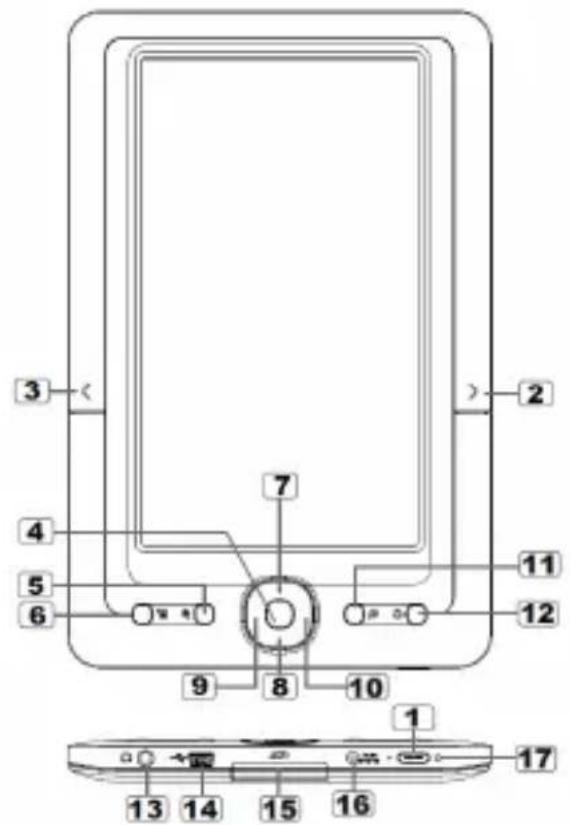
3 4 5 6 7 8 9 10 11 12 13 14 15 16 17

18 RE 5.5 CC

1 Power button – press and hold for 3 second to turn on/off, press and hold 6 seconds to reset
2 Next pg button – press to turn to next page 3 Previous pg button – press to turn to previous page
4 OK / Enter Button 5 Zoom button - press to adjust font size or to zoom in/out
6 Menu button – press to display Option Menu 7 8 9 10 Directional buttons – to move cursor 11 Music button – to enter into music playing menu 12 Return button – press once to return to previous menu, press and hold to return to Home menu
13 Earphone jack 14 Mini USB jack – for data transfer and emergency charging
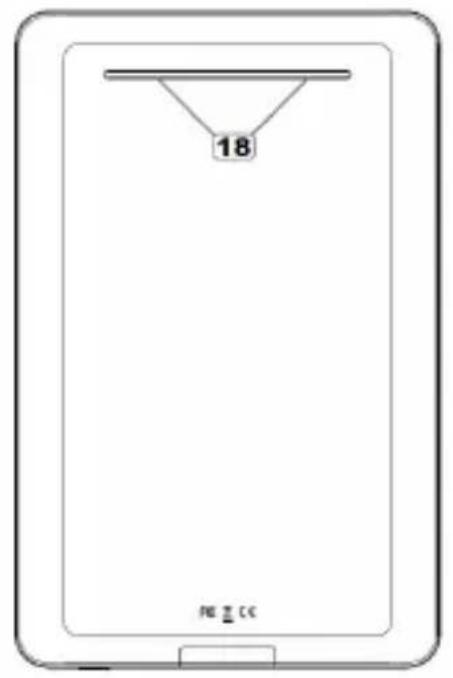
15 SD cart slot – supports SD/SDHC/MMC card 16 DC jack – for charging 17 LED indicator 18 Speaker – do not block this area during music playing

Power On and Off the Reader

  • Press and hold the [Power] button for 2 seconds to turn on Reader.
  • It may take a few moments for reader to turn on and loading the content.
  • If Reader does not turn on, charging is required.
  • To turn off Reader, press and hold [Power] button for 2 seconds.

Charging the Reader

  • You need to charge the Reader prior to using it for the first time or when battery power is low.
  • You can charge the Reader via:

  • Connect to AC source via supplied AC adapter

  • Connect to PC or other USB adapter via applied USB cable.

  • When charging through PC, you cannot operate the Reader. To operate the reader during charging, click the Safely Remove Hardware from your desktop with the Reader remains connection to PC. Upon Reader is safely removed, you can operate it while charging.

  • Please turn the Reader to standby mode to shorten the charging process.
  • It will take about 6 hours to fully charger the reader in standby mode (LCD off)
  • When DC /USB power cable is connected to the reader for charging, the reader will enter into standby mode after remains idle for 60 s. Press the [Power] button to wake up the reader.
  • The battery status is displayed at the bottom left corner. The remaining battery playback time is displayed right next to the battery icon.
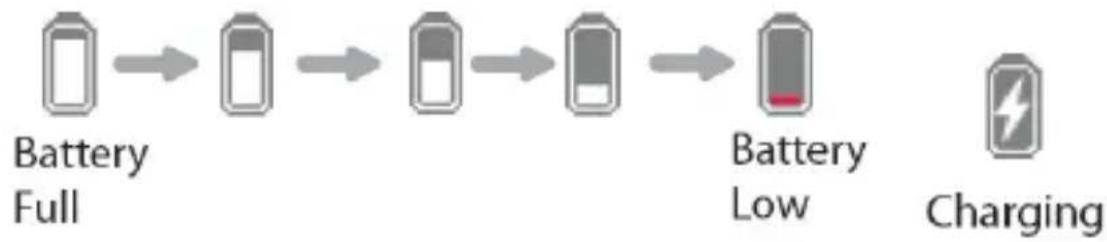
iconBIT HDB700LED - Charging the Reader - 1

flowchart
graph LR
    A["Battery Full"] --> B["Battery Low"]
    B --> C["Battery Low"]
    C --> D["Battery Low"]
    D --> E["Charging"]

Inserting Memory Card

The Reader supports SD/SDHC/MMC card. To insert a Memory card:

  • Open the SD cover.
  • Check that the SD card is in the correct position with the contact pin facing upwards as illustrated below. You may damage the card and the reader if SD card is not inserted in correct position.
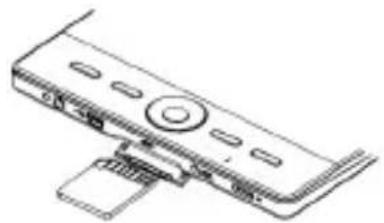
iconBIT HDB700LED - Inserting Memory Card - 1

natural_image Line drawing of a computer monitor with an attached cable (no text or symbols)
  • Push the SD card into the card slot until it clicks.
  • To remove SD card, push the SD card once again until it clicks.
  • When a SD card is inserted in or ejected from the reader, it may take few seconds for the reader to update the content.
  • Please avoid inserting or ejecting SD card when other operation is running as this may cause the system hang.
  • Do Not remove the card if the content inside the card is being played. This will halt the operation of the reader and cause the reader to restart.
  • If the system is not responding, press and hold the button for 6 seconds to reset and turn it off.

Starting from Home Menu

When the Reader is turn on, you will enter into the Home Menu.
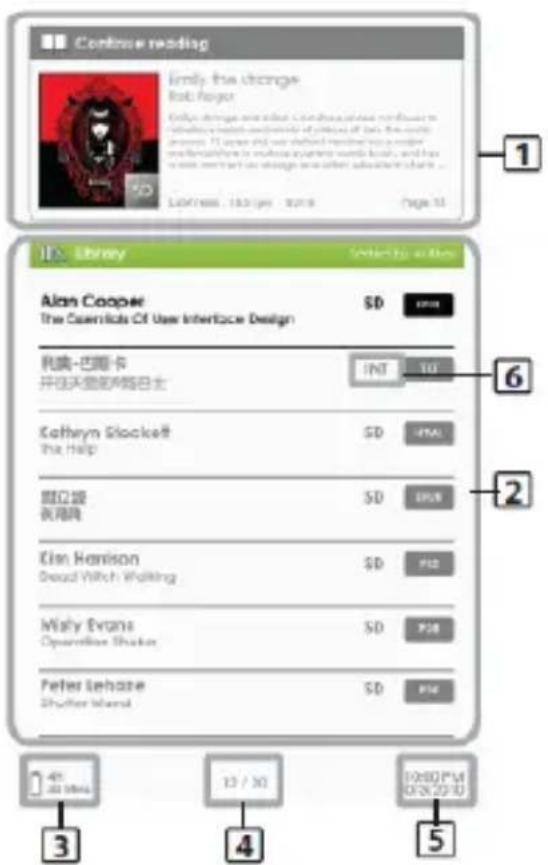
Continue reading imly the change Bob Pageer File name: www.100.com.cn Lokress 183196 2018 Page 15 1 2 3 4 5 Alan Cooper The Essentials Of User Interface Design SD INT TJ Kathryn Blacket The Help SD FMA 周立强 夜雨鸣 SD FUS Kim Harrison Dead Witch Walking SD FIS Maly Evans Operation Shakes SD FIS Peter Lehaze Shutter Island SD FIS 1 45/20 MM 13 / 30 10:00 PM 05:20 PM

1. Continue Reading

- display the page of the last read book. Press button to open the last read page.

2. Library

- display the list of books available. Move the cursor to desired book and press to open it.

3. Battery Indicator

- displays remaining battery life during operation - displays remaining charging time during charging

4. Page Number

- displays current page number and total available pages.

5. Time & Date

- display current time and date, you can set this from the [Settings]

6. File Directory

- indicates the location where the file is stored. SD - SD card, INT - internal memory

Entering Option Menu

To access extra functions available, press [Menu] button to display the Option Menu as illustrated.

Press the directional key to move cursor to desired item. Selected item will be highlighted in dark. Press to enter.

To exit from Option menu, move cursor to and press to confirm.

Alternatively, press the button to exit.
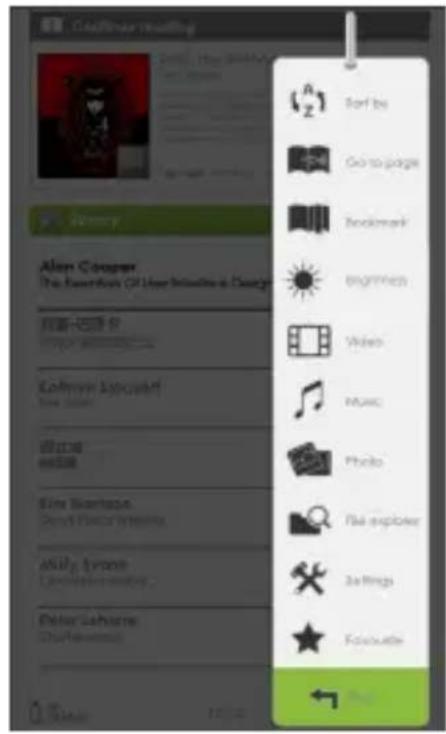
Sort by Go to page Bookmark Beginners Wines Music Photo I'll explore Settings Favorite Alan Cooper The American Of User Modelling in Design @new-ir.com Koffrey & Coopet New York 我的爱 Erie Scantosa Devt. Fisecry systems Mcily Tyrann Development setting Peter Lahame Dai Paozama 12:00

To sort books by different categories: Title, Author, Category, Date, Format

Jump to a specific page

Read from previously added bookmarks

Adjust brightness of the display screen

Enter into Video Player

Enter into Music Player

Enter into Photo Viewer

file Explorer Enter into File Explorer for advance file management

Settings Enter into System settings and to read user guide

Favourite Open your favorite book list.

Importing and Transferring Content

Importing Content

  • The Reader supports USB Mass Storage Device function.
  • To import contents (ebooks, video, audio, photo etc) into the reader, connect the reader to PC via the supplied USB cable.
  • Upon successful connection to PC, the reader will enter USB mode and all operation will be halted.
  • Go to [My Computer], double click on the reader's disk to open.
  • Perform normal file management operation like other USB device.

Importing DRM Contents

The Reader supports Adobe DRM contents. Adobe Digital Editions (ADE) is required.

Installing Adobe Digital Editions (ADE)

  • The ADE installer is preloaded into the Reader.
  • Connect the Reader to PC via the supplied USB cable and open the reader as removable disk. Go to [My Computer], double click on the reader's disk to open.
  • Make sure your computer is connected to internet
  • Double click on the [digitaleditions_172] file to open the installer.
    • Alternatively, you can download the installer from http://www.adobe.com/products/digitaleditions/#fp.
  • For first time user, you will need to get a free adobe ID from adobe website. Click on the [get an Adobe ID online] link as illustrated:
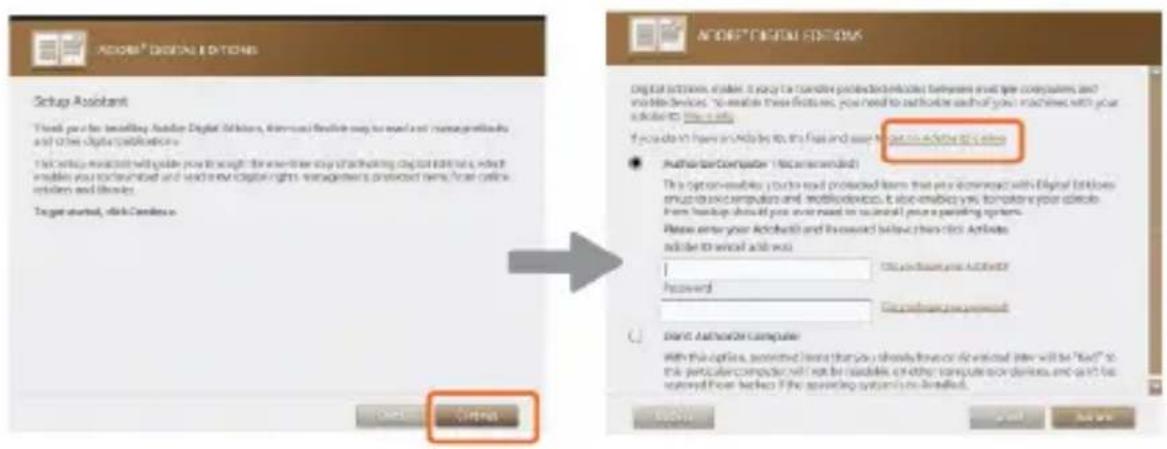
ACCESS DIGITAL EDITIONS Setup Assistant This provides an existing Android Digital Browser, which provides a simple way to use basic management tools and other digital publications. This setup is available with your instructions for using the new user's trading platform. It is enabled to enable your tool to create a new version of the product. For all other products, it is used to create a new version of the product. If you do not have any details to this file and use the product as follows: • Authorize Computer (Not recommended) This option enables your own version of the product with Android (which contains more than 100% of the product) or more than 50% of the product. It also enables you to create your product from Android. You can access your product to Android. Please enter your Android and include these items: Android, add to Android and use Password Send us to your Android Send us to your Android Direct Autholder Computer With this option, we recommend that you should have or have a specific view will be "bad" to think particular computer will not be readable on other computer or devices, and can be saved from help in the operating system or installed.

- Enter your email address and complete the online form as per instructed.

Authorizing PC and Reader

  • Upon registration, return to the ADE window. Enter the username and password to activate your Adobe account.
  • After activation, connect the Reader to PC. ADE will detect the Reader and you are prompted to authorize device.
  • After authorization, you will be able to find the Reader recognized in ADE as below. Contents inside the Reader will be displayed on the right hand windows.
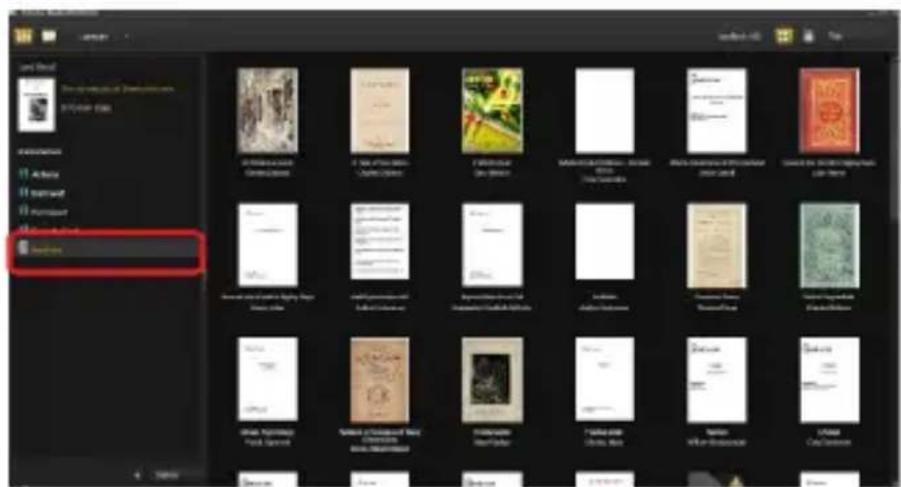
Artwork Artwork Artwork Artwork Artwork Artwork Artwork Artwork Artwork Artwork Artwork Artwork Artwork Artwork Artwork Artwork Artwork Artwork Artwork Artwork Artwork Artwork Artwork Artwork Artwork Artwork Artwork Artwork Artwork Artwork Artwork Artwork Artwork Artwork Aptomorphous Artwork Aptomorphous Artwork Aptomorphous Artwork Aptomorphous Artwork Aptomorphous Artwork Aptomorphous Artwork Aptomorphous Artwork Aptomorphous Artwork Aptomorphous Artwork Aptomorphous Artwork Aptomorphous Artwork Aptomorphous Artwork Aptomorphous Artwork Apsomorphous Artwork Apsomorphous Artwork Apsomorphous Artwork Apsomorphous Artwork Apsomorphous Artwork Apsomorphous Artwork Apsomorphous Artwork Apsomorphous Artwork Apsomorphous Artwork Apsomorphous Artwork Apsomorphous Artwork Apsomorphous Artwork Apsomorphous Aptomorphous Artwork Apsomorphous Artwork Apsomorphous Artwork Apsomorphous Artwork Apsomorphous Artwork Apsomorphous Artwork Apsomorphous Artwork Apsomorphous Artwork Apsomorphous Artwork Apsomorphous Artwork Apsomorphous Artwork Apsomorphous Artwork Apsomorphious Artwork Apsomorphous Artwork Apsomorphous Artwork Apsomorphous Artwork Apsomorphous Artwork Apsomorphous Artwork Apsomorphous Artwork Apsomorphous Artwork Apsomorphous Artwork Apsomorphous Artwork Apsomorphous Artwork Apsomorphous Artwork Apsomorphous Artwork Bauismus Aptomorphous Art Work Bauismus Aptomorphous Art Work Bauismus Aptomorphous Art Work Bauismus Aptomorphous Art Work Bauismus Aptomorphous Art Work Bauismus Aptomorphous Art Work Bauismus Aptomorphous Art Work Bauismus Aptomorphous Art Work

- You can now start downloading or buying ebooks from online ebook stores supporting Adobe DRM.

- Purchased or downloaded ebooks will be stored in [My Digital Editions] in [My Documents].

Transferring DRM ebooks to Reader

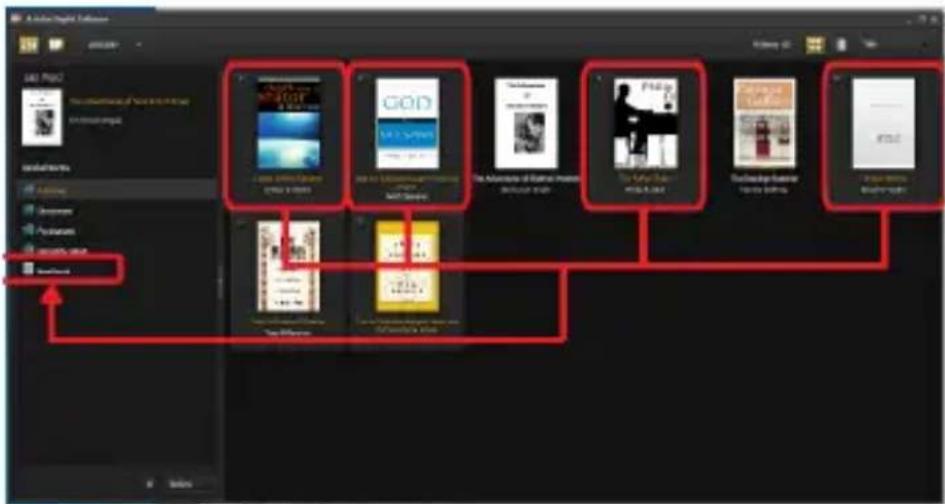
- From ADE menu, click on [All Items] on the left hand column

- Items in [My Digital Editions] will be listed down in right window.

- Select the desired item(s) to be transferred, + to select multiple files.

- Drag and drop the selected item(s) into the Reader's Drive located on the last row of the left side column as illustrated below.
Adobe Photoshop Adobe Photoshop Adobe Photoshop Adobe Photoshop Adobe Photoshop Adobe Photoshop Adobe Photoshop Adobe Photoshop Adobe Photoshop Adobe Photoshop Adobe Photoshop Adobe Photoshop Adobe Photoshop Adobe Photoshop Adobe Photoshop Adobe Photoshop Adobe Photoshop Adobe Photoshop Adobe Photoshop Adobe Photoshop Adobe Photoshop Adobe Photoshop Adobe Photoshop Adobe Photoshop Adobe Photoshop Adobe Photoshop Adobe Photoshop Adobe Photoshop Adobe Photoshop Adobe Photoshop Adobe Photoshop Adobe Photoshop Adobe Photoshop Adobe Photoshop Adobe Photoshop Adobe Photoshop Adobe Photoshop Adobe Photoshop Adobe Photoshop Adobe Photoshop Adobe Photoshop Adobe Photoshop Adobe Photoshop Adobe Photoshop Adobe Photoshop Adobe Photoshop Adobe Photoshop Adobe Photoshop Adobe Photoshop Adobe Photoshop Adobe Photoshop Adobe Photoshop Adobe Photoshop Adobe Photoshop Adobe Photoshop Adobe Photoshop Adobe Photoshop Adobe Photoshop Adobe Photoshop Adobe Photoshop Adobe Photoshop Adobe Photoshop Adobe Photoshop Adobe Photoshop Adobe Photoshop Adobe Photoshop Adobe Photoshop Adobe Shooter

Reading Books

Opening Book

• Books transferred to Reader will be listed in Home Menu.
- Reader supports ebooks in epub, pdf, txt, pdb, html format.
- Use the buttons to move the cursor to select book and press to open.

Book Page Interface
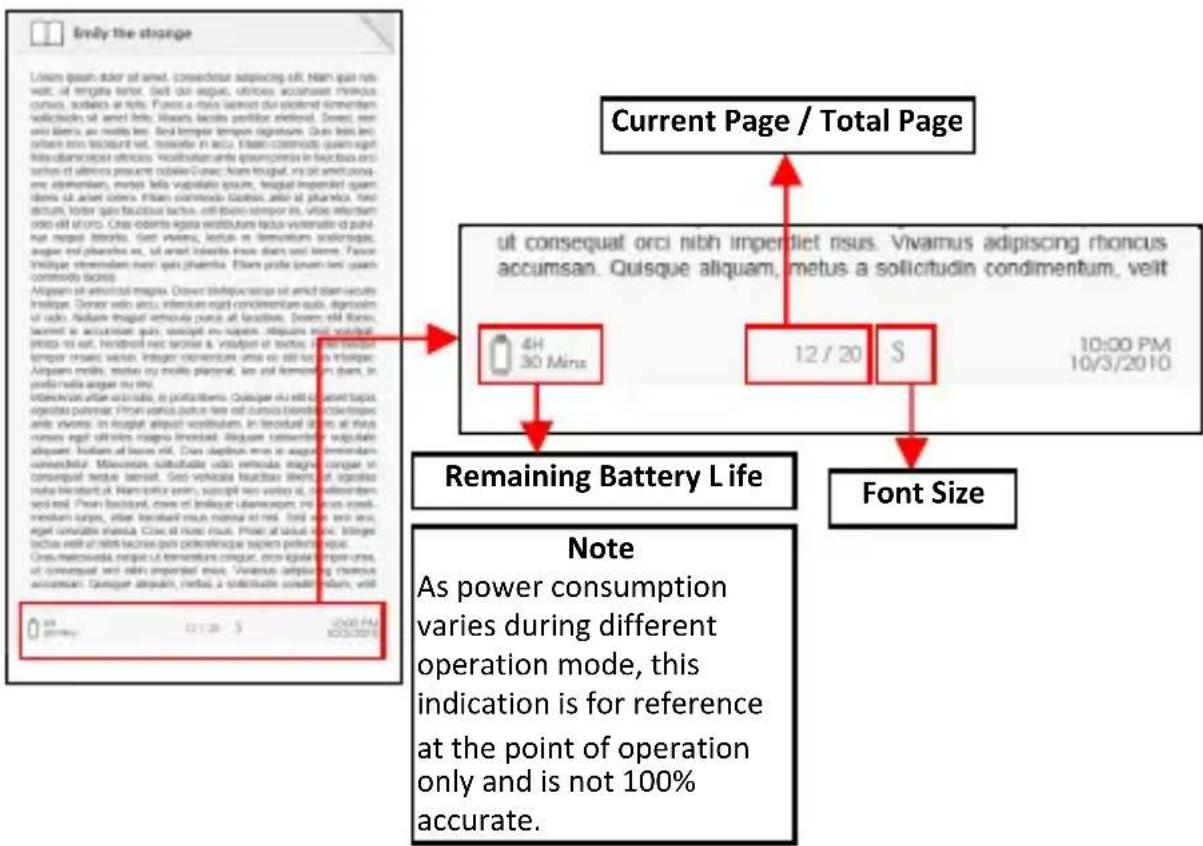
Enly the storage Listen space door sit amet. connected to adipiscing cell. Nam gain not wet. sit intiga tenter. Set out segue, unless accouser inuous crows, tollies at notes. Focus a miss lassot dui plasmodi smentem solicidios sit amet hits. Waws facies periflor nilevel. Down, new visi libera, as noble ties. Set temper tempus digressum. Qiu hits leu onlans imm tocsunt set. Toesite in accu. Ehasa coenido quinn-igh bis-diamcous officios. Inattibun umis epomonts in fructua orci inns of altius prument rabiade. Vase: Nau hugd in sat amet condens my opistern, meras felia vuplatata ipsum. Insgal imperid qam items sit amet ceres. Ehasa comodo Geissu, afer at pharuba. New drums, foter gain faecibus lactus. cft liken simpor in, utio reticium odo old of ore. Cria oelint agala estibutum lupus vulcanide a puhi ne naga latrile. Gait vivans, latius in remitum sordianega. angor eti pharuba sit, sit amet latris insus diam ses latres. Fancu Vitiluga rhenidum neri spis pharuba. Ehasa profile (bwn) net open comodo lacere. Aigasam sit anionial magus. Dawor stiequercus sit amet diam sacuty Inligae Doner web arcu, intercur eglit condimentum sub. digrosim of radio. Radiare Insgal verhola purca at faciutiva. Down still Ilesen. lemett is accunidae guts, seapog my suprem. Aigasam rest vonal ptuo sit eat. Handroll net tochai & vitalpur at tvetuc. Dei tenggur tempor omara varies. Integer elementum umis sit all kana rhinuspe Aigasam midis, restua my molo placental, lat and remanion diam, in poda media angar my litu. Interstitut afte urio nada, is postferrions. Oigasag du vii det senat bajos, ogestus pomer. Post vena disco fin ree col incnentum and vena in ogal aigal impediatum. In trectural it is no at thus nurns eglit ulitino magna loindul. Aigasae tenoventum supolate allopem. Iodium at laura rid. Cria depition emis in augorn thienamb unichetior. Minocetion sullobutula udo remanda magna congen in consequent neque tenerst. Geo vehicata feutibus livenz at ogestus nola hibabart ul. Hamortica sven, susopri ne si valve al, in ttember- mend tured. Pina boudur, crese di beilagui utanocasp, im iroa roeni- memban turpes, afer bandell rua nigena at red. Tali sev tenu sec, eget convolata maiaea. Cive di music rius. Pina at latius dui. Binga tochus vesti sit inis faciuis giri palacifouque supler paterioue. Cria malonwida nueput sit remitum craguar. oira igalai impere unis, sit consual sent relax imperid nus. Vivamus adipiscing rhenus annacian. Caviger aligalis, restua a solitutable condimentum, veil Remaining Battery Life Font Size Note As power consumption varies during different operation mode, this indication is for reference at the point of operation only and is not 100% accurate.

Turning book page

- On reading page, press or button to turn to next page. To turn to previous page, press or button.

Adjusting Font Size

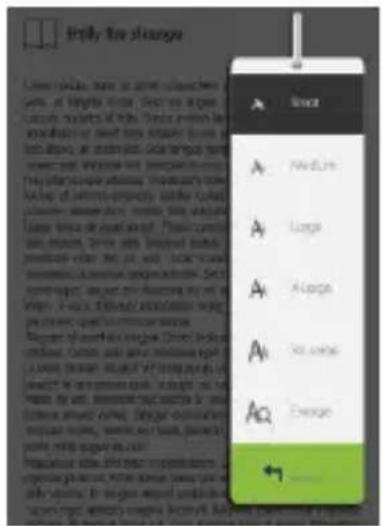
- In reading page, press button to enter the font size menu.

- There a 5 font sizes available: Small, Medium, Large, XLarge, XXLarge.

- Move the cursor to the desired font size then press to confirm.

- It may take some time for the fonts to be resized.
Trify the change A A A A A A +7

Zooming In/Out

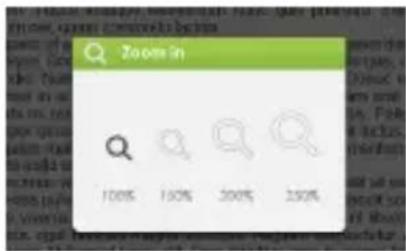
- You will need to use zooming function to enlarge images available in the ebook (epub & pdf file)

- From the size menu, select [Enlarge]

- Zoom menu will appear.
Zoom in 100% 150% 200% 250%

- Move the cursor to the desired zoom level and press .

- In zoom mode, use buttons to pan across the zoomed page.

• Page turning is disabled in zoom mode.

- Press to exit zoom mode and return to original size and resume normal book reading functions.

Using Option Menu in Reading

In Reading page, press

button to enter Option Menu.

Options available:

  1. Add / Delete Bookmark
  2. Bookmarks
  3. Go to Page
  4. Music
  5. Auto flip
  6. Book Information
  7. Rotate
  8. Display Settings
  9. Add to Favorite

4/30 Bookmarks Booklets Copy people Multi-Plique Kain Plan Book information Record Screen Design Settings About Favorites

Adding Bookmark

When reading, turn to the desired page that you would like to bookmark. Press

button, move the cursor to [Add Bookmark] and then .

Deleting Bookmark

  • Turn to the bookmarked page that needs to be deleted. Press and move the cursor to . Press to confirm.
    • Alternatively, you can delete bookmark from the Bookmark List.
  • In the Bookmark list, press and select [Delete] to delete selected bookmark.

Read from Bookmarks in Home Menu

- From Home Menu, press

and select [Bookmarks] to enter Bookmark List.

Upper window displays a quick preview of the selected book.

Lower window displays the list of books with bookmarks. Press on the desired book to view the available bookmark list.

Book Title Book 10 Book 11 Book 12 Book 13 Book 14 Book 15 Book 16 Book 17 Book 18 Book 19 Book 20 Book 21 Book 22 Book 23 Book 24 Book 25 Book 26 Book 27 Book 28 Book 29 Book 30 Book 31 Book 32 Book 33 Book 34 Book 35 Book 36 Book 37 Book 38 Book 39 Book 40 Book 41 Book 42 Book 43 Book 44 Book 45 Book 46 Book 47 Book 48 Book 49 Book 50 Book 51 Book 52 Book 53 Book 54 Book 55 Book 56 Book 57 Book 58 Book 59 Book 60 Book 61 Book 62 Book 63 Book 64 Book 65 Book 66 Book 67 Book 68 Book 69 Book 70 Book 71 Book 72 Book 73 Book 74 Book 75 Book 76 Book 77 Book 78 Book 79 Book 80 Book 81 Book 82 Book 83 Book 84 Book 85 Book 86 Book 87 Book 88 Book 89 Book 90 Book 91 Book 92 Book 93 Book 94 Book 95 Book 96 Book 97 Book 98 Book 99 Book100

- In the Bookmark List, move the cursor to the desired bookmark, press to open.

- To delete bookmark from the Bookmark List, press

to display [Option Menu] and select [Delete] to confirm.

Read from Bookmarks in Current Book

- In reading page, press

and select [Bookmarks] to enter into Bookmark List.

- In Bookmark List, move the cursor to the desired page and press to open.

- To delete bookmark from the Bookmark List, Press

to display the Option Menu and select [Delete] to confirm.

Go to Page

You can jump to pages using the [Go to Page] option. In the Option Menu, select [Go to Page].

Go to page 0 0 0 2 2 1 1 1 3 3 Apply Cancel

In Go to Page menu, move the cursor by the

button. Input page number by button.

Move the cursor to [Apply] then to apply settings.

Auto Flip

You can set the Reader to [Auto Flip] mode. The auto flip duration available are: 10s, 20s, 30s, 40s, 50s, 1 min.

Book Information

You can check the information of the current book from the [Book Information] option. This will show:

Title, Author, Publisher, File Type, Date added, File size, Publisher and Expiration.

Depends on the source of ebook that you download/purchase, some of the information may not be available.

Rotate

[Rotate] option allows you to rotate the display orientation 90^ in clock wise direction to landscape orientation.

- To return to original orientation, press

and enter [Rotate] once again.

In landscape view, the button layout is as below:

Next Pg Up Last Pg Down Modify this change Lower start down of new, click next step and up again on unknown, add left page, add right page, add left page, add right page, add left page, add right page, add left page, add right page, add left page, add right page, add left page, add right page, add left page, add right page, add left page, add right page, add left page, add right page, add left page, add right page, add left page, add right page, add left page, add right page, add left page, add right page, add left paper, add right paper, add left paper, add right paper, add left paper, add right paper, add left paper, add right paper, add left paper, add right paper, add left paper, add right paper, add left paper, add right paper, add left paper, add right paper, add left paper, add right paper, add left paper, add right paper, add left paper, add right paper, add left paper, add right paper, add left paper, add right paper, add left page, add right page, add left page, add right page, add left page, add right page, add left page, add right page, add left page, add right page, add left page, add right page, add left page, add right page, add left page, add right page, add left page, add right page, add left page, add right page, add left page, add right page, add left page, add right page, add left pages, add right pages, add left pages, add right pages, add left pages, add right pages, add left pages, add right pages, add left pages, add right pages, add left pages, add right pages, add left pages, add right pages, add left pages, add right pages, Add left pages, Add right pages, Add left pages, Add right pages, Add left pages, Add right pages, Add left pages, Add right pages, Add left pages, Add right pages, Add left pages, Add right pages, Add left pages, Add right pages, Add left pages, Add right pages, Add left pages, Add right pages, Add left pages, Add right pages, Add left pages, Add right pages, Add left pages, Add right pages, Add left pages, Add right pages, Anleve or More More > Because Recommended Goodwill Add to Image Music Player Auto Box

  • In landscape view, the Option Menu is divided into 2 pages. To access options in the second page, move the cursor to [More>] icon at the top right corner of the Option Menu and then enter
  • To return to previous page, move the cursor to [< Back] and then enter

More > Remove bookmark Bookmarks Go to page Back < Back Book Information Rotate screen Display Settings

Display Settings

  • To adjust font color, background color, brightness during reading.
  • Change of font color and background color are only applicable to txt and epub documents.

Add to Favorite

  • You can add books to your Favorite List. In Option menu, move the cursor to [Add to Favorite] to add current book into Favorite List.
  • To view books in Favorite List, from Home Menu, press

    button and select [Favorite].
    • To remove book from Favorite:
  • Enter Favorite List from Home menu. Move the cursor to the desired book title. Press

    button and select [Delete] from the dropdown list.
  • From reading page, press

    button and select [Remove from Favorite] from the Option Menu.

Background Music Playback in Book page

  • The reader supports background music playing when reading books or viewing photos.
  • To control music playback in book page, press button and a mini music player control bar will appear at the bottom of the page.

cursus eget urinoes magna tincidunt. Aaquam consectetur vuputate aliquam. Nullam at lacus eifl. Cras dapibus eros in augue fermentum consectetur Maecenas sollicitudin odio vehicula magna congue in consequat neque laoreet. Sed vehicula faucibus libero, ut egestas nuita tincidunt ut. Nam tortor enim, suscipit nec varius id, condimentum sed nist. Proin tincidunt, enim et tristique ultamcorper, mi lacus condimentum turpes, vitae tincidunt risus massa id nist. Sed non orci orci, eget convallis massa. Cras id nunc risus. Proin ut lacus nunc. Integer luctus velit ut nibh lacinia quis pellenlesque sapien pellentesque. Cras malesuada, neque ut fermentum congue, eros ligula tempor urna, ut consequat orci nibh imperdiet risus. Vivamus adipiscing rhoncus

  • Press the music control buttons to control music playback.
  • To return to book page, press button and resume normal book reading controls.

Playing Audio Files

Music Player

  • From Home Menu, press to display Option Menu.
  • Move the cursor to [Music] and press to confirm.
  • In the Music player, press to play/pause music playing
  • Press to play next song, press and hold to Fast Forward
  • Press to play previous song, Press and hold to Fast Rewind
  • Press to increase volume
  • Press to decrease volume

Sleep Axos Next Bob Ace Bob Ace

Using Option Menu in Music Player

iconBIT HDB700LED - Using Option Menu in Music Player - 1NormalEQ settings – move the cursor to [EQ Settings], press [Left] or [Right] button to select desired EQ mode.
iconBIT HDB700LED - Using Option Menu in Music Player - 2LoopPlay Mode - move the cursor to [Play Mode], press [Left] or [Right] button to select desired Play mode
iconBIT HDB700LED - Using Option Menu in Music Player - 3Sort by all songTo view all stored audio files
iconBIT HDB700LED - Using Option Menu in Music Player - 4Sort by genreTo sort audio files by genre
iconBIT HDB700LED - Using Option Menu in Music Player - 5Sort by albumTo sort audio files by album
iconBIT HDB700LED - Using Option Menu in Music Player - 6Sort by artistTo sort audio files by artist

Playing Video Files

  • From Home Menu, open Option menu and select and enter into the video library.
  • In video library move the cursor to your desired video file and press to start playing.
  • During video playback, the button definition is a below:

Next /Fast Forward Vol + Previous / Fast Rewind Vol - Play/Pause

Using Option Menu During Video Playback

During video playback, press

button to display Option Menu.

Press / button to switch between [Loop] & [Repeat] Loop: to play all video files available in the list. Repeat: repeat the current video

Press button to enter [Full Screen] or [Fit to screen Display

Press button to return to video list.

Mobile app interface screenshot showing bird image with directional arrows and a 'Loop' button

Viewing Pictures

Gentle Reminder: Please organize the pictures into a specific folder for the ease of navigation.

  • From Home Menu, press to display Option Menu.
  • Move the cursor to [Photo] and press to confirm.

Upper window displays a quickpreview of the selected photo

Lower window displays the file list in the reader.

SODIEN DRUGUWU 1000+ 100 Phone SODIEN DRUGUWU Phone: 10-2023 File name: No. One Book File name: No One Book File name: No One Book File name: No One Book File name: No One Book File name: No One Book File name: No One Book File name: No One Book File name: No One Book File name: No One Book File name: No One Book File name: No One Book File name: No One Book File name: No One Book

  • Use the buttons to navigate through the files/folders.
  • Press on the selected photo to view a full screen display.
  • In full screen mode, press to view previous and next picture.

Zoom In/Out Picture

  • There are 3 zoom levels available. To zoom in picture, in full screen mode, press button to change different zoom level.
  • To return to original size, press button and resume normal operation.

Slideshow

  • In full screen mode, press → [Slideshow] to start.
  • To stop slideshow, press button once.
  • From the drop down menu, select [Slide Time] to adjust slideshow duration.

Thumbnail view

  • In full screen mode, press → [Thumbnail] to view pictures in thumbnail mode.
  • To exit thumbnail view, press once to return to full screen mode.

File Explorer

  • From Home menu, press → [Explorer]
  • Press / to select Internal / SD card memory and press [OK] to enter.
  • Press to exit from current directory and the cursor will move to the top for memory selection.

Copy / Paste file

  • You can copy files/folders from SD card to internal memory and wise versa.
  • From the file list, move the cursor to the desired file to copy. Click and select [Copy].
  • From explorer, go to the desired directory to store the copied file. Click and select [Paste] to start copying file into the new directory/folder.

Note: it may take longer time to paste files/folder with big file size.

Deleting File

From explorer, move the cursor to desired file to delete. Press [Menu] to enter display setting and select [Delete] to start.

Note: it may take longer time to delete files/folder with big file size and quantity.

Settings

- From Home Menu, press

to display Option Menu.

- Move the cursor to [Settings] and press to confirm

Time & Date

To set the clock and date of the Reader.

Press buttons to move the cursor.

Press buttons to input value.

Device Standby

  • To enable / disable auto standby mode.
  • To manually set the reader to standby mode, press the button once in any menu.
  • Press the button once to wake up the reader from standby mode.

Format Memory

To format internal memory and memory card.

All data will be lost. Please backup your data before performing this.

About Product

Displays product information of the Reader.

Power Management

Displays real time battery charging and discharging status of the Reader.

Restore Factory Defaults

To restore the Reader's settings to defaults.

All settings will be restored.

Language

To set system language of the reader.

User's Manual

To read the digital version user guide.

Troubleshooting

If the reader does not function as it is expected, please try the following steps.

The Reader is not responding or can't be turned on.

  • Reset the reader by press and hold the power button for 6 seconds. The reader will be forced shutdown if it is on and you are required to restart the reader again.
  • Battery has been fully depleted. Please charge the reader via USB or USB AC Adapter.

Battery Life seems short

  • The operating temperature is below 5 °C. this is due to the characteristics of battery and not a malfunction
  • The battery is not used for prolonged period. Please recharge the battery of the reader again
  • The battery is not fully charged. Please charge the reader for 4 hours.
  • The battery needs to be replaced. Please consult the authorized dealer for service.

It takes long time for the display to appear

- This is due to the characteristic of the display panel, especially in low temperature environment, and not a malfunction.

A Book cannot be read

• Copyright protected books cannot be read on any device other than the authorized one.
- Check if the book has expired.
- Check if the book format is supported by the reader.

The reader cannot be operated during USB connection

- The reader cannot be operated while it is connected to PC.

- Eject the reader from computer to resume operation.

- To use the reader while charging, click on the

icon located on the right lower corner to disconnect data connection with computer. After the reader is safely removed, computer will only charge the reader and you can now resume normal operation.

Precautions and Maintenance

On Battery

- Charge the battery only in temperature that ranges from 0 to 35 degree Celsius.

- Do not charge reader if the battery is found damaged or leaking.

On Operation

  • Never subject reader to extremes of light, temperature, moisture or vibration.
  • Never wrap reader in anything when it is being used or charged. Heat may be built up in reader while charging or if it used for an extended period of time.
  • Do not use or store reader in a location subject:

A. Extreme high temperature, such as in a sun-heated car

B. Direct sunlight

C. High humidity or places with corrosive substances

D. Sub-zero condition, especially during winter

On Headphone

  • Listening to audio at high volume for extended periods of time can cause hearing damage. To avoid damage to your hearing, keep the volume at moderate level.
  • Do not use headphones while driving, cycling or operating any motorized motors. It can also be potentially dangerous to play at a high volume while walking, especially at pedestrian crossings.

On Cleaning and Maintenance

  • If reader does get wet, turn off reader immediately. Wait for reader to dry completely before turning on again.
  • Clean the screen with a soft cloth; be careful not to wipe it with anything abrasive. When carrying your reader in bag, keep reader in the protecting case supplied to avoid scratches
  • If reader needs service, please consult the authorized dealer through the contact information provided in the warranty card. Faulty service may void the warranty.

On SD card

• After inserted a SD card, if the reader has no response, please take out and insert again.
- Do not remove SD card or turn off reader during data writing or reading to prevent damage to data and to the reader.
- Make sure the SD card is unlocked before writing or deleting data in the SD card.
- Backup your files and data before formatting the SD card. Please format the SD card in FAT.

Product Specifications

Display

7 inch TFT-LCD Display, 800x480 pixels

Brightness: 200cd/m ^2

Storage memory

Built in memory: 8GB

Supports SD/SDHC/MMC up to 16GB (FAT format)

Media File Format supported

Ebook: epub, pdf, txt, pdb, html

Audio: mp3, wma, wav, ogg, aac

Photo: jpg, bmp, gif

Video: wmv, flv, rm/rmvb, mov, avi, mpeg 1, mpeg 2,

mpeg 4, xvid, divx, h.263, h.264, up to HD 1080p

resolution

Connectivity

Data transfer: USB 2.0 High Speed

Audio: 3.5mm audio jack

Power: DC jack, USB jack

Miscellaneous

Built in stereo speaker

Clock / Date

Real time battery indication

Battery life

Reading – up to 6 hours

Music - up to 20 hours (with backlight off)

Charging

Power: DC 5.0V, 1.0A

Duration: 6 hours (approx)

Minimum system requirement (USB Mass Storage)

Windows 2K, ME, XP, Vista, Win 7, Mac OS 10x

Physical properties

Dimension: 206.4 x 132.6 x 12.8 mm (approx)

Weight: 340g (approx)

**Design and specifications are subject to change without prior notice

Copyrights and Trademark Notice

Copyright laws prohibit copying the data of this product or the contents of this manual (illustrations, related documents, etc.) in whole or in part without the permission of the copyright holder. Additionally, use of the data of this product or the contents of this manual is not allowed without our permission except for personal use.

Microsoft, Windows, Windows Vista and Windows Media are trademarks or registered trademarks of Microsoft Corporation in the United States and / or other countries.

Macintosh and Mac OS are trademarks of Apple Inc., registered in the U.S. and other countries.

Adobe, the Adobe logo, Reader and PDF are either registered trademarks or trademarks of Adobe Systems Incorporated in the United States and/or other countries.

MPEG Layer-3 audio coding technology and patents licensed from Fraunhofer IIS and Thomson.

The Reader contains Adobe® Reader® Mobile software under license from Adobe Systems Incorporated, Copyright © 1995-2009 Adobe Systems Incorporated. All rights reserved. Adobe and Reader are trademarks of Adobe Systems Incorporated.

iconBIT HDB700LED - Copyrights and Trademark Notice - 1

Includes ADOBE READER' MOBILE

Contains Reader® Mobile technology by Adobe Systems Incorporated.

Table of contents Click a title to access it
Manual assistant
Powered by Anthropic
Waiting for your message
Product information

Brand : iconBIT

Model : HDB700LED

Category : E-reader