
XD290HDMI - Media player iconBIT - Free user manual and instructions
Find the device manual for free XD290HDMI iconBIT in PDF.


| Product Type | Media Player |
| Brand | iconBIT |
| Model | XD290HDMI |
| Dimensions (approx.) | 12.4 x 8.5 x 2.5 cm |
| Weight (approx.) | 150 g |
| Power Supply | 5V DC via USB (adapter included) |
| Video Output | HDMI up to 1080p |
| Audio Output | HDMI, stereo analog (3.5 mm) |
| USB Ports | 1 x USB 2.0 host |
| Memory Card Slot | SD/SDHC/MMC |
| Supported Video Formats | MPEG-1/2/4, AVI, MKV, MOV, WMV, DivX, XviD |
| Supported Audio Formats | MP3, WMA, AAC, OGG, FLAC, WAV |
| Supported Image Formats | JPEG, BMP, PNG, GIF |
| File System Support | FAT32, NTFS, exFAT |
| Network Features | Not available (offline playback) |
| Remote Control | Infrared remote included |
| Cleaning | Wipe with dry soft cloth; avoid liquids |
| Safety | Keep away from moisture and heat; use only supplied adapter |
| Spare Parts & Repairability | No user-serviceable parts; contact support for repairs |
| Manual Language | English |
Frequently Asked Questions - XD290HDMI iconBIT
User questions about XD290HDMI iconBIT
0 question about this device. Answer the ones you know or ask your own.
Ask a new question about this device
Download the instructions for your Media player in PDF format for free! Find your manual XD290HDMI - iconBIT and take your electronic device back in hand. On this page are published all the documents necessary for the use of your device. XD290HDMI by iconBIT.
USER MANUAL XD290HDMI iconBIT
1. Introduction....3
1.1 General Information....3
1.2 Key Features....3
1.3 Packing List .... 3
1.4 Safety instructions....4
2. About the player....6
2.1 Remote Control 6
2.2 Front Panel 7
2.3 Back Panel....7
2.4 Connection ....7
2.4.1 Power connection....7
2.4.2 Connect to Computer ....8
2.4.3 TV connection 8
2.4.4 USB Mass Storage Device Connection 9
2.5 Player usage 9
3. Main Functions....9
3.1 Setup Menu 9
3.1.1 Changing System Settings .... 10
3.1.2 Changing Audio Settings....11
3.1.3 Changing Video Settings 11
3.1.4 Miscellaneous....12
3.2 Playback....13
3.2.1 Movie Library Options....13
3.2.2 Movie Playback Options .... 13
3.3 Playlist management....14
3.4 Copy Function 15
3.4.1 Copy under File Manager ....15
3.4.2 Copy button....15
4. Appendices 16
4.1 Specifications....16
4.2 Warranty Information....16
4.3 GNU General Public License ("GPL")......17
4.4 Copyrights and Trademarks 20
1. Introduction.
1.1 General Information
Dear Customer!
Thank you for choosing the iconBIT device. We hope that you will be satisfied by using our device for home entertainment. The iconBIT multimedia HD-player allows playing high-quality digital video, audio and photo from different sources on an analogue TV, HDTV (TV supporting high-definition video), home theater and other devices.
1.2 Key Features
This iconBIT Multimedia HD-player has the following functions:
Audio/Video outputs
• HDMI V1.3 for high-definition video and digital audio
• Composite video and stereo audio for analog audio-visual connection
- Adjustable video output resolution (NTSC, PAL, 480p, 576p, 720p, 1080i, 1080p)
Multimedia Playback
• Supports major audio, video and image file formats (1080p HD video decoding)
• Movie format: AVI/MKV/TS/MPG/MP4/MOV/VOB/ISO/IFO/DAT/WMV/RM/RMVB
• Music format: MP3/OGG/WMA/WAV/FLAC
• Photo format: HD JPEG/BMP/PNG
Interfaces Support
• USB 2.0 HOST port (for external USB storage devices)
• USB 3.0 Device port (compatible to USB 2.0)
- SD card slot
File Copy
• Supports copying & moving files among USB and internal HDD.
Note: All the information contained in this manual was correct at the time of publication. However, as our engineers are always updating and improving the product, your device's software may have a slightly different appearance or modified functionality than presented in this manual.
1.3 Packing List
| Part Quantity | |
| Multimedia player 1 | |
| Remote Control 1 | |
| A/V cable 1 | |
| AC/DC adaptor 1 | |
| User manual (printed) | 1 |
Note: The actual contents in the package might be different from the packing list in this manual.
1.4 Safety instructions
Please read the safety instructions carefully prior to using the device. Keep the instructions in an easily accessible location for further use.
Warning signs
 |  |  |
| The lightning flash with arrowhead symbol, within an equilateral triangle, is intended to alert the user to the presence of uninsulated dangerous voltage within the product's enclosure the may be of sufficient magnitude to constitute a risk of electric shock to persons. | ALERT: To reduce the risk of electric shock, do not remove the back cover. No user serviceable parts inside. Refer servicing to qualified service personnel. | The exclamation point within an equilateral triangle, is intended to alert the user to the presence of important and maintenance (servicing) instructions in the literature accompanying the appliance. |
Precautions concerning power supply:
- Do not plug many devices into one electric socket. This may lead to an overcharge, combustion or electrical trauma.
- Do not touch the plug with wet hands. This may lead to electrical trauma, short circuiting and combustion.
- When connecting an electric cable, make sure that the cable is protected from damaging and is not being subject to any tension.
- It is essential to use the recommended power unit type with characteristics that comply with the specification.
- If you are not planning to use the media player for a long time, you should disconnect it from the power system in terms of safety and energy saving. Keep in mind, that even being in standby mode the device consumes electric energy.
- You should not connect the device to the power system immediately after bringing it from a cold surrounding to a warm one. Unpack the device and leave it in the warm environment for 2 to 3 hours to let the condensate evaporate from the inner parts of the device.
Effect of radio interference and magnetic field:
- In case of absence of adequate screening virtually any electronic device becomes subject to radio interference. In some conditions the radio interferences may affect the operation of the media player.
- The iconBIT media player is designed in compliance with the FCC/CE standard, as well as the following statements:
a. This player does not produce any harmful interference or emission;
b. When placed close to a source of strong radio interference the player may not be able to function properly.
- Do not locate the device close to sources of strong magnetic fields. Such field may damage data on your hard disk. In such case we will not be responsible for integrity of data on your hard disk.
Installation precautions:
- The device is designed for indoor usage. Do not expose it to direct sunlight; do not locate it next to any heat sources, heaters, radiators or refrigerating equipment. The operational temperature should be within the range of +5°C to +35°C.
- Protect the device from getting wet as this may lead to combustion or electrical trauma.
- Do not place any containers with liquid on top or next to the player.
- Do not use the device in high humidity, e.g. in a bathroom or a swimming pool.
- When installing the device in an enclosed space, make sure there is enough space for the device to cool via heat emission. Do not cover vent holes of the device, so that sufficient amounts of air could enter the device body.
- Do not place the device on an uneven or unsteady surface. Do not drop the device and protect it from other objects getting dropped onto it.
Comments on the use of the remote control (RC):
-Point the RC directly at the infrared receiver of the device. Otherwise the RC may not function properly.
-Handle the RC with care. In case of loss of RC, contact the service centre to order a new one. A large portion of functions of the device is accessible only via the RC.
Operation precautions:
- Other devices and associated equipment should be connected via audio and video cables only when the devices are switched off.
- Do not use the device during thunder to prevent breakdown.
- Do not use the player together with any devices, which it does not support – this may lead to player breakdown.
- Do not push the player buttons to hard.
- When disconnecting the device from PC USB hub, always use the "Safely Remove Hardware" functionality to prevent data loss.
Using hard disk drive (HDD) - precautions:
- If the device can be provided with an internal HDD for data storage, the device should not be exposed to severe external impact. This may lead to HDD or player outage.
- Make sure the HDD has cooled down prior to extracting it. The heat emitted by the HDD may burn the skin.
- The manufacturer is not responsible for loss of personal or any other confidential information stored on your HDD resulting from physical impact, electric shock, voltage jumps, formatting etc.
- We recommend periodic backup copying to prevent data loss.
- In case of HDD productivity slowdown or other problems we recommend performing a check for bad sectors on the HDD and complete defragmentation.
Maintenance:
- When cleaning the device, always unplug the power cable. Use a soft cotton tissue or similar, that does not produce electrostatic charge.
- Never use gasoline or any other dissolvent for cleaning the player, as they might damage the device.
- In case of severe dirtying wet wipes for computers may be used.
Comments on equipment repairs:
- It is forbidden for users to modify the design of the device. Do not disassemble the player. In case of device breakdown due to self-performed repairs or modification, no warranty service will be provided.
- Should any malfunction appear, the device must be taken to an authorized service centre, where personnel will perform diagnostics and repair.

Do not dispose the device. The product is recyclable. Utilization requirements should be met. In some countries utilization of electronic devices is in the scope of specialized guidelines; please refer to relevant local organizations for additional information.
2. About the player
2.1 Remote Control

- Power
- Up
- Home
- OK
- Left
- Menu
- Info 8. Play/Pause
- VOL+ 10. FR
- VOL- 12. FF
- Mute 14. Zoom
- Next 16. Prev
- Stop 18. Down
- Edit 20. Right
- Return
| No. | Button Function | |
| 1 | Power | Press to enter standby mode or wake up. |
| 2 | Up | Navigational button. Press the arrow buttons to select menu options. |
| 3 | Home | Press to enter the home screen. |
| 4 | OK | Press OK button to confirm. |
| 5 | LEFT | Navigational button. Press the arrow buttons to select menu options. |
| 6 | Menu | Press to enable the option menu, where you can change the review mode of file manager and media library;Press to display or hide the option menu during playback. |
| 7 | Info | Press during playback, an onscreen display appears showing track number and time elapsed/remaining. |
| 8 | Play/ Pause | Press to begin/pause playback. |
| 9 | VOL+ | Press to increase the volume. |
| 10 | FR | Press to fast rewind the current playback. Press repeatedly to select speeds. |
| 11 | VOL- | Press to decrease the volume. |
| 12 | FF | Press to fast forward the current playback. Press repeatedly to select speeds. |
| 13 | Mute | Press to mute audio output, and press again to resume. |
| 14 | Zoom | Press to zoom the image (photo or video). |
| 15 | Next | Press to view the next file / page down. |
| 16 | Prev | Press to view the previous file / page up. |
| 17 | Stop | Press to stop playback. |
| 18 | DOWN | Navigational button. Press the arrow buttons to select menu options. |
| 19 | Edit | Press to enter file editing menu in file manager. Press to enter file selecting menu in media library. |
| 20 | RIGHT | Navigational button. Press the arrow buttons to select menu options. |
| 21 | RETURN | Press to return to the previous screen while navigating menus. |
2.2 Front Panel

- POWER button
- Copy button
- Memory Card slot
- Status indicator
- USB HOST port
2.3 Back Panel

- DC-IN jack
- A/V OUT jack
- HDMI connector
- USB3.0 DEVICE port
2.4 Connection
2.4.1 Power connection
The player's power voltage: DC 5V.

natural_image
Diagram showing connection between a wall socket, a plug, and an remote control unit (no text or symbols present)2.4.2 Connect to Computer
(1) Plug in the connector of the USB 3.0 cable to this player's USB DEVICE port;
(2) Plug in the rectangular connector of the USB 3.0 cable to computer.

natural_image
Illustration of a desktop computer connected to a USB cable and an external network device (no text or symbols present)Connect the player to the USB3.0 port of the PC, You can get faster transmission speed.
2.4.3 TV connection
2.4.3.1 A/V OUT
(1) Follow the picture and plug in the A/V connector to the player's A/V OUT jack; (2) Follow the picture and plug in the 3 color connector to the TV's A/V IN jack.

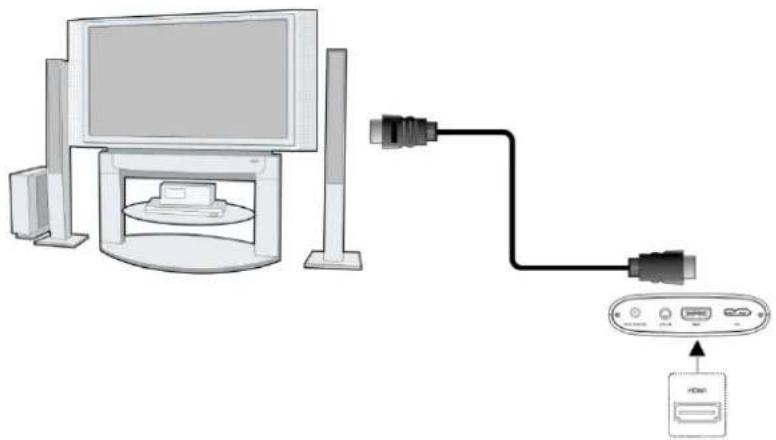
2.4.3.2 HDMI OUT
(1) Follow the picture and plug one connector on your HDMI cable to the player's HDMI connector; (2) Follow the picture and plug the other connector on your HDMI cable to the TV's HDMI connector.
natural_image
Diagram showing a computer monitor connected to an HDV via cable, with no visible text or symbolsHDMI cable is not included.
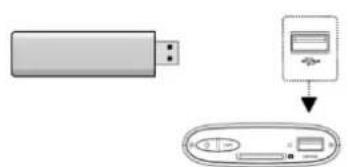
2.4.4 USB Mass Storage Device Connection
(1) Make sure the player is powered on;
(2) Plug in the USB stick or USB HDD etc. to one of the USB host ports of this player.

2.5 Player usage
On / Off
Power On
After connecting the DC IN jack and press the power button on the remote control, the player will soon enter the home screen, and the power indicator will turn blue.
Power Off
Press the power button on the remote control, the player will soon enter standby mode, and the power indicator will turn red. Then unplug the power cord to cut off the power supply.
3. Main Functions
3.1 Setup Menu
The Setup menu allows you to personalize and configure the preferences for your player. To select a Setup option:
- Select the Setup icon on the home screen.
- Use the Left/Right navigational buttons to select an option, and then press OK.
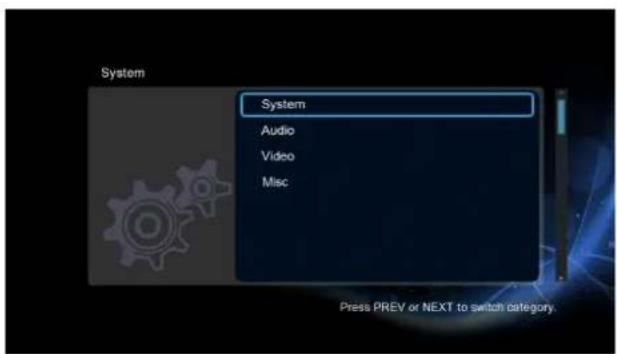
There are four setup options, including System, Audio, Video and MISC. Use the Up/Down navigational buttons to select a menu. Press OK to confirm. Press Return to cancel and display the previous menu screen.
3.1.1 Changing System Settings
Use this menu to configure system settings.

Menu Language
- Select to choose the OSD (On-Screen Display) language.
Change system font
- Select to change system font.
Create a folder named "Resource" in the root directory of your USB or HDD, rename your font as 'font.ttf' and then copy it to the folder.
Change Desktop
- Select to change the desktop.
Create a folder named "Resource" in the root directory of your USB or HDD, rename your photo as 'desktop.png' and then copy it to the folder.
Text Encoding
- Select to set the text encoding option (subtitle display).
Screen Saver
- Select to turn on/off screen saver.
Mini KBD Language
- Select to change the language of the mini keyboard.
Scan storage
- Select to set the scan mode of media library.
Resume Play
- Select to turn on/off resume playback (auto-bookmarking) feature for movies.
Format
- Select to format your external HDD.
Restore Default
- Select to restore factory defaults.
Note: HDD format will remove all data stored on the hard disk drive. Please take care and backup your data in advance!
3.1.2 Changing Audio Settings
Use this menu to configure audio settings

Night Mode
- Choose among Off / On / Comfort. If the option is turned on, the audio output volume will be decreased to make you more comfortable.
HDMI Output
- Choose among LPCM, RAW.
Note: In raw mode, Dolby TrueHD, Dolby Digital Plus, Dolby Digital, DTS sound can be by passed to the HDMI TV or Digital amplifier.
Due to the bandwidth requirement, Dolby TrueHD and Dolby Digital Plus sound only can be by passed though HDMI cable, also the TV system must up to 720p or above.
3.1.3 Changing Video Settings
Use this menu to configure video settings.

Aspect Ratio
- Pan Scan 4:3: Display a wide picture on the entire screen and cuts off the redundant portions. Select when a standard 4:3 TV is connected.
- Letter Box 4:3: Display a wide picture with two black borders on the top and bottom of 4:3 screen. Select when a standard 4:3 TV is connected.
- 16:9: Compress the image to convert the whole image. Select when a 16:9 TV is connected.
- 16:10: Select when a 16:10 TV is connected.
TV SYSTEM
- Select to adjust video output resolution.
Digital Noise Reduction
- Select to turn on/off digital noise reduction.
1080p 24Hz
- Choose this option to enable or disable 1080P 24HZ support. A TV set with 1080P 24HZ (24P) mode is needed.
3.1.4 Miscellaneous
Use this menu to adjust miscellaneous settings.

Version Info
- This tab shows you information about the software installed and about the material components of your player.
USB Upgrade
- Select to update the firmware via a USB stick.
Method 1 :
Enter Setup → Misc → USB Upgrade
Select to update the firmware via a USB stick.
1) Copy 'install.img' to the root directory of a USB stick, and connect it to the USB HOST port of the player.
2) Press OK to confirm.
Method 2 :
Step 1. Copy 'install.img' to the root directory of a USB stick, and connect it to the USB HOST port of the player.
Step 2. Press and hold the power / standby button on the front panel, and do not loosen.
Step 3. Plug the power cable into the DC IN jack, wait for about 5 seconds or more, and then loosen your finger on the power / standby button. Firmware installation will start.
3.2 Playback
Enter into movie/photo/music/files manager interface, only supported files will be displayed. Please refer to Appendixes in chapter '4.1 Specifications' for more details about the supported files.

3.2.1 Movie Library Options
In movie library, press Menu button to display the option menu, you can get following functions though the option menu.

Quick-Search
- Choose the Search option in the option menu, you can search for a media file by filter media library to locate the specific media file.
Review Mode
- Choose a review mode among Thumbnails, List, Preview from option menu.
Sorting Mode
- Choose to sorting by Name, Size, Most Viewed or Recently Added from option menu.
3.2.2 Movie Playback Options
During movie playback, press Menu button to display or hide the option menu at the bottom of the screen.

Except select audio track, subtitle, repeat mode, you also can get following functions though the Option menu during video playback.
DVD Menu
- Select to return to the navigation menu during DVD IFO or ISO playback.
GOTO
- Select to jump to a specific point on a title. Specify the point using Title, Chapter and Time.
Video Setting
- Select to adjust the value of Brightness, Contrast, Saturation and Hue.
3.3 Playlist management
In the music/photo library, select music/photo files then press EDIT, and then save them to playlist/album.

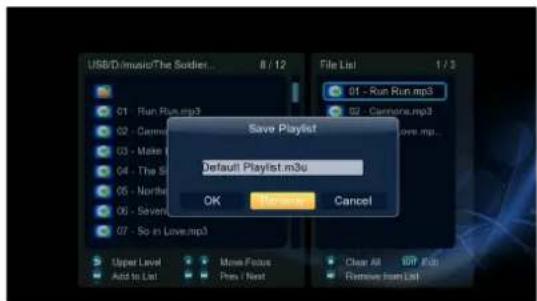
Then enter music library/photo library press MENU button and choose Playlists/album to show your music playlists/photo playlists.

3.4 Copy Function
3.4.1 Copy under File Manager
Press Edit button to enter file editing menu, choose Copy and follow the prompt on screen to finish the process. If you want to select more files and folders, please choose Multiple Select to enter the file selecting menu.

3.4.2 Copy button
If the player is working with an internal HDD and USB HDD or USB Flash Disk, then press the copy button of the front panel. You could copy the files of mobile HDD or USB Flash Disk to the internal HDD.
4. Appendices
4.1 Specifications
| I/O INTERFACES SUPPORTED | 2.5” SATA HDD/USB 3.0 Device port (compatible to USB 2.0 )/AV jack/HDMI V1.3 interface/DC-IN 5V 2.4A |
| FILE SYSTEM SUPPORTED | FAT32/NTFS |
| CONTENT FORMATS SUPPORTED | Movie--AVI/MKV/TS/MPG/MP4/MOV/VOB/ISO/IFO/DAT/WMV/RM/RMVB, resolution up to 720p/1080i/1080p;Music--MP3/OGG/WMA/WAV/FLAC;Photo--HD JPEG/BMP/PNG. |
| VIDEO CODECS SUPPORTED | MPEG-1/HD MPEG-2/HD MPEG-4 SP/ASP/AVC (H.264)/WMV9 (VC-1)/RealNetworks (RM/RMVB) 8/9/10, up to 720p. |
| AUDIO CODECS SUPPORTED | MP2/3, OGG Vorbis, WMA Standard (DRM, and Advanced Profile not supported), PCM, LPCM, RA, DTS, Dolby Digital, Dolby Digital Plus, Dolby TrueHD) |
| SUBTITLE FORMATS SUPPORTED | SRT, SMI, SSA,SUB, IDX+SUB |
4.2 Warranty Information
Obtaining Service
iconBIT values your business and always attempts to provide you the very best of service. If this Product requires maintenance, either contact the dealer from whom you originally purchased the Product or visit our product support Web site at www.iconbit.com. Your original box and packaging materials should be kept for storing or shipping your iconBIT product. iconBIT shall have no liability for lost data regardless of the cause, recovery of lost data, or data contained in any Product placed in its possession.
Limited Warranty
iconBIT warrants that the Product, in the course of its normal use, will for the term defined below, be free from defects in material and workmanship and will conform to specification therefore. The term of your limited warranty is 1 (one) year. The term of your limited warranty period shall commence on the purchase date appearing on your purchase receipt. Subject to the limitations specified below, your sole and exclusive warranty shall be, during the period of warranty specified above and at iconBIT's option, the repair or replacement of the Product.
Warranty does not cover:
- Acts of nature, such as fire, static discharge.
- Damage from unauthorized repair, alteration or accident.
- Damage from misuse or neglect.
- A unit that has been modified or incorporated into other products or is used for institutional or other commercial purposes.
- Loss of customer's software, firmware, information, or memory data.
- Improper handling or installation.
- The serial number of the product is defaced or missing.
The foregoing limited warranty is iconBIT's sole warranty and is applicable only to products sold as new. The remedies provided herein are in lieu of a) any and all other remedies and warranties, whether expressed, implied or statutory, including but not limited to, any implied warranty of merchantability or fitness for a particular purpose, and b) any and all obligations and liabilities of iconBIT for damages including, but not limited to accidental,
consequential, or special damages, or any financial loss, lost profits or expenses, or lost data arising out of or in connection with the purchase, use, or performance of the Product, even if iconBIT has been advised of the possibility of such damages.
4.3 GNU General Public License ("GPL")
Firmware incorporated into this product may include third party copyrighted software licensed under the GPL ("GPL Software"). The Free Software is copyrighted by Free Software Foundation, Inc. and the program is licensed "As is" without warranty of any kind.
You may re-use, re-distribute, and modify the GPL Software. Users are free to download the base source code of the iconBIT players at the following Address: www.iconbit.com. The source code can be sent to your address via mail for a charge of actual expense executed. Please contact us at support@iconbit.com.
GNU GENERAL PUBLIC LICENSE
Version 2, June 1991
Copyright (C) 1989, 1991 Free Software Foundation, Inc.
51 Franklin Street, Fifth Floor, Boston, MA 02110-1301, USA
Everyone is permitted to copy and distribute verbatim copies
of this license document, but changing it is not allowed.
Preamble
The licenses for most software are designed to take away your freedom to share and change it. By contrast, the GNU General Public License is intended to guarantee your freedom to share and change free software--to make sure the software is free for all its users. This General Public License applies to most of the Free Software Foundation's software and to any other program whose authors commit to using it. (Some other Free Software Foundation software is covered by the GNU Lesser General Public License instead.) You can apply it to your programs, too.
When we speak of free software, we are referring to freedom, not price. Our General Public Licenses are designed to make sure that you have the freedom to distribute copies of free software (and charge for this service if you wish), that you receive source code or can get it if you want it, that you can change the software or use pieces of it in new free programs; and that you know you can do these things.
To protect your rights, we need to make restrictions that forbid anyone to deny you these rights or to ask you to surrender the rights. These restrictions translate to certain responsibilities for you if you distribute copies of the software, or if you modify it.
For example, if you distribute copies of such a program, whether gratis or for a fee, you must give the recipients all the rights that you have. You must make sure that they, too, receive or can get the source code. And you must show them these terms so they know their rights.
We protect your rights with two steps: (1) copyright the software, and (2) offer you this license which gives you legal permission to copy, distribute and/or modify the software.
Also, for each author's protection and ours, we want to make certain that everyone understands that there is no warranty for this free software. If the software is modified by someone else and passed on, we want its recipients to know that what they have is not the original, so that any problems introduced by others will not reflect on the original authors' reputations.
Finally, any free program is threatened constantly by software patents. We wish to avoid the danger that redistributors of a free program will individually obtain patent licenses, in effect making the program proprietary. To prevent this, we have made it clear that any patent must be licensed for everyone's free use or not licensed at all.
The precise terms and conditions for copying, distribution and modification follow.
TERMS AND CONDITIONS FOR COPYING, DISTRIBUTION AND MODIFICATION
- This License applies to any program or other work which contains a notice placed by the copyright holder saying it may be distributed under the terms of this General Public License. The "Program", below, refers to any such program or work, and a "work based on the Program" means either the Program or any derivative work under copyright law: that is to say, a work containing the Program or a portion of it, either verbatim or with modifications and/or translated into another language. (Hereinafter, translation is included without limitation in the term "modification".) Each licensee is addressed as "you".
Activities other than copying, distribution and modification are not covered by this License; they are outside its scope. The act of running the Program is not restricted, and the output from the Program is covered only if its contents constitute a work based on the Program (independent of having been made by running the Program). Whether that is true depends on what the Program does.
- You may copy and distribute verbatim copies of the Program's source code as you receive it, in any medium, provided that you conspicuously and appropriately publish on each copy an appropriate copyright notice and disclaimer of warranty; keep intact all the notices that refer to this License and to the absence of any warranty; and give any other recipients of the Program a copy of this License along with the Program.
You may charge a fee for the physical act of transferring a copy, and you may at your option offer warranty protection in exchange for a fee.
- You may modify your copy or copies of the Program or any portion of it, thus forming a work based on the Program, and copy and distribute such modifications or work under the terms of Section 1 above, provided that you also meet all of these conditions:
a) You must cause the modified files to carry prominent notices stating that you changed the files and the date of any change.
b) You must cause any work that you distribute or publish, that in whole or in part contains or is derived from the Program or any part thereof, to be licensed as a whole at no charge to all third parties under the terms of this License.
c) If the modified program normally reads commands interactively when run, you must cause it, when started running for such interactive use in the most ordinary way, to print or display an announcement including an appropriate copyright notice and a notice that there is no warranty (or else, saying that you provide a warranty) and that users may redistribute the program under these conditions, and telling the user how to view a copy of this License. (Exception: if the Program itself is interactive but does not normally print such an announcement, your work based on the Program is not required to print an announcement.)
These requirements apply to the modified work as a whole. If identifiable sections of that work are not derived from the Program, and can be reasonably considered independent and separate works in themselves, then this License, and its terms, do not apply to those sections when you distribute them as separate works. But when you distribute the same sections as part of a whole which is a work based on the Program, the distribution of the whole must be on the terms of this License, whose permissions for other licensees extend to the entire whole, and thus to each and every part regardless of who wrote it.
Thus, it is not the intent of this section to claim rights or contest your rights to work written entirely by you; rather, the intent is to exercise the right to control the distribution of derivative or collective works based on the Program.
In addition, mere aggregation of another work not based on the Program with the Program (or with a work based on the Program) on a volume of a storage or distribution medium does not bring the other work under the scope of this License.
- You may copy and distribute the Program (or a work based on it, under Section 2) in object code or executable form under the terms of Sections 1 and 2 above provided that you also do one of the following:
a) Accompany it with the complete corresponding machine-readable source code, which must be distributed under the terms of Sections 1 and 2 above on a medium customarily used for software interchange; or,
b) Accompany it with a written offer, valid for at least three years, to give any third party, for a charge no more than your cost of physically performing source distribution, a complete machine-readable copy of the corresponding source code, to be distributed under the terms of Sections 1 and 2 above on a medium customarily used for software interchange; or,
c) Accompany it with the information you received as to the offer to distribute corresponding source code. (This alternative is allowed only for noncommercial distribution and only if you received the program in object code or executable form with such an offer, in accord with Subsection b above.)
The source code for a work means the preferred form of the work for making modifications to it. For an executable work, complete source code means all the source code for all modules it contains, plus any associated interface definition files, plus the scripts used to control compilation and installation of the executable. However, as a special exception, the source code distributed need not include anything that is normally distributed (in either source or binary form) with the major components (compiler, kernel, and so on) of the operating system on which the executable runs, unless that component itself accompanies the executable.
If distribution of executable or object code is made by offering access to copy from a designated place, then offering equivalent access to copy the source code from the same place counts as distribution of the source code, even though third parties are not compelled to copy the source along with the object code.
-
You may not copy, modify, sublicense, or distribute the Program except as expressly provided under this License. Any attempt otherwise to copy, modify, sublicense or distribute the Program is void, and will automatically terminate your rights under this License. However, parties who have received copies, or rights, from you under this License will not have their licenses terminated so long as such parties remain in full compliance.
-
You are not required to accept this License, since you have not signed it. However, nothing else grants you permission to modify or distribute the Program or its derivative works. These actions are prohibited by law if you do not accept this License. Therefore, by modifying or distributing the Program (or any work based on the Program), you indicate your acceptance of this License to do so, and all its terms and conditions for copying, distributing or modifying the Program or works based on it.
-
Each time you redistribute the Program (or any work based on the Program), the recipient automatically receives a license from the original licensor to copy, distribute or modify the Program subject to these terms and conditions. You may not impose any further restrictions on the recipients' exercise of the rights granted herein. You are not responsible for enforcing compliance by third parties to this License.
-
If, as a consequence of a court judgment or allegation of patent infringement or for any other reason (not limited to patent issues), conditions are imposed on you (whether by court order, agreement or otherwise) that contradict the conditions of this License, they do not excuse you from the conditions of this License. If you cannot distribute so as to satisfy simultaneously your obligations under this License and any other pertinent obligations, then as a consequence you may not distribute the Program at all. For example, if a patent license would not permit royalty-free redistribution of the Program by all those who receive copies directly or indirectly through you, then the only way you could satisfy both it and this License would be to refrain entirely from distribution of the Program.
If any portion of this section is held invalid or unenforceable under any particular circumstance, the balance of the section is intended to apply and the section as a whole is intended to apply in other circumstances.
It is not the purpose of this section to induce you to infringe any patents or other property right claims or to contest validity of any such claims; this section has the sole purpose of protecting the integrity of the free software distribution system, which is implemented by public license practices. Many people have made generous contributions to the wide range of software distributed through that system in reliance on consistent application of that system; it is up to the author/donor to decide if he or she is willing to distribute software through any other system and a licensee cannot impose that choice.
This section is intended to make thoroughly clear what is believed to be a consequence of the rest of this License.
-
If the distribution and/or use of the Program is restricted in certain countries either by patents or by copyrighted interfaces, the original copyright holder who places the Program under this License may add an explicit geographical distribution limitation excluding those countries, so that distribution is permitted only in or among countries not thus excluded. In such case, this License incorporates the limitation as if written in the body of this License.
-
The Free Software Foundation may publish revised and/or new versions of the General Public License from time to time. Such new versions will be similar in spirit to the present version, but may differ in detail to address new problems or concerns.
Each version is given a distinguishing version number. If the Program specifies a version number of this License which applies to it and "any later version", you have the option of following the terms and conditions either of that version or of any later version published by the Free Software Foundation. If the Program does not specify a version number of this License, you may choose any version ever published by the Free Software Foundation.
- If you wish to incorporate parts of the Program into other free programs whose distribution conditions are different, write to the author to ask for permission. For software which is copyrighted by the Free Software Foundation, write to the Free Software Foundation; we sometimes make exceptions for this. Our decision will be guided by the two goals of preserving the free status of all derivatives of our free software and of promoting the sharing and reuse of software generally.
NO WARRANTY
-
BECAUSE THE PROGRAM IS LICENSED FREE OF CHARGE, THERE IS NO WARRANTY FOR THE PROGRAM, TO THE EXTENT PERMITTED BY APPLICABLE LAW. EXCEPT WHEN OTHERWISE STATED IN WRITING THE COPYRIGHT HOLDERS AND/OR OTHER PARTIES PROVIDE THE PROGRAM "AS IS" WITHOUT WARRANTY OF ANY KIND, EITHER EXPRESSED OR IMPLIED, INCLUDING, BUT NOT LIMITED TO, THE IMPLIED WARRANTIES OF MERCHANTABILITY AND FITNESS FOR A PARTICULAR PURPOSE. THE ENTIRE RISK AS TO THE QUALITY AND PERFORMANCE OF THE PROGRAM IS WITH YOU. SHOULD THE PROGRAM PROVE DEFECTIVE, YOU ASSUME THE COST OF ALL NECESSARY SERVICING, REPAIR OR CORRECTION.
-
IN NO EVENT UNLESS REQUIRED BY APPLICABLE LAW OR AGREED TO IN WRITING WILL ANY COPYRIGHT HOLDER, OR ANY OTHER PARTY WHO MAY MODIFY AND/OR REDISTRIBUTE THE PROGRAM AS PERMITTED ABOVE, BE LIABLE TO YOU FOR DAMAGES, INCLUDING ANY GENERAL, SPECIAL, INCIDENTAL OR CONSEQUENTIAL DAMAGES ARISING OUT OF THE USE OR INABILITY TO USE THE PROGRAM (INCLUDING BUT NOT LIMITED TO LOSS OF DATA OR DATA BEING RENDERED INACCURATE OR LOSSES SUSTAINED BY YOU OR THIRD PARTIES OR A FAILURE OF THE PROGRAM TO OPERATE WITH ANY OTHER PROGRAMS), EVEN IF SUCH HOLDER OR OTHER PARTY HAS BEEN ADVISED OF THE POSSIBILITY OF SUCH DAMAGES.
END OF TERMS AND CONDITIONS
4.4 Copyrights and Trademarks
Trademarks
Microsoft and Windows are registered trademarks of Microsoft Corporation.
All other trademarks are property of their respective holders.


2.0+Digital Out
Manufactured under license under U.S. Patent
's:5,451,942; 5,956,674; 5,974,380; 5,978,762;
6,487,535 & other U.S. and worldwide patents issued & pending. DTS and DTS 2.0 + Digital Out are
registered trademarks and the DTS logos and Symbol are trademarks of DTS, Inc. © 1996-2008 DTS, Inc.
All Rights Reserved



HIGH-DEFINITION MULTIMEDIA INTERFACE
Manufactured under license from Dolby Laboratories. Dolby and the double-D symbol are trademarks of Dolby Laboratories.
HDMI, the HDMI logo and High-Definition Multimedia Interface are trademarks or registered trademarks of HDMI Licensing LLC.
Copyrights
All rights reserved. No part of this manual may be reproduced, or transmitted in any form or by any means, whether by electronically or mechanically, without the express written permission from the copyright holder. Copyrighted materials, such as software, music files, or movies, are protected by local law, and may not be illegally copied or used without permission from the copyright owner.
Information furnished by iconBIT is believed to be accurate and reliable; however, no responsibility is assumed by iconBIT for its use nor for any infringement of patents or other rights of third parties which may result from its use. iconBIT reserves the right to change specifications at any time without notice.
iconBIT - trademark of iconBIT Limited.
© 2011 iconBIT Limited. All rights reserved.
iconBIT Limited.
Suite 1604-5, Wilson House, 19-27 Wyndham Street, Central, Hong Kong.
Phone: (852) 2523 2167, Fax: (852) 2810 1957
www.iconbit.com


- Introduction....3
- About the player....6
- Player usage 9
- Main Functions....9
- Playback....13
- Playlist management....14
- Appendices 16
- Introduction.
- General Information
- Dear Customer!
- Key Features
- Audio/Video outputs
- Multimedia Playback
- Interfaces Support
- File Copy
- Packing List
- Safety instructions
- Precautions concerning power supply:
- Effect of radio interference and magnetic field:
- Installation precautions:
- Comments on the use of the remote control (RC):
- Operation precautions:
- Using hard disk drive (HDD) - precautions:
- Maintenance:
- Comments on equipment repairs:
- About the player
- Remote Control
- Front Panel
- Back Panel
- Connection
- Power connection
- Connect to Computer
- TV connection
- A/V OUT
- HDMI OUT
- USB Mass Storage Device Connection
- Player usage
- On / Off
- Power On
- Power Off
- Main Functions
- Setup Menu
- Changing System Settings
- Menu Language
- Change system font
- Change Desktop
- Text Encoding
- Screen Saver
- Mini KBD Language
- Scan storage
- Resume Play
- Format
- Restore Default
- Changing Audio Settings
- Night Mode
- HDMI Output
- Changing Video Settings
- Aspect Ratio
- TV SYSTEM
- Digital Noise Reduction
- 1080p 24Hz
- Miscellaneous
- Version Info
- USB Upgrade
- Method 1 :
- Enter Setup → Misc → USB Upgrade
- Method 2 :
- Playback
- Movie Library Options
- Quick-Search
- Review Mode
- Sorting Mode
- Movie Playback Options
- DVD Menu
- GOTO
- Video Setting
- Playlist management
- Copy Function
- Copy under File Manager
- Copy button
- Appendices
- Specifications
- Warranty Information
- Obtaining Service
- Limited Warranty
- Warranty does not cover:
- GNU General Public License ("GPL")
- GNU GENERAL PUBLIC LICENSE
- Preamble
- TERMS AND CONDITIONS FOR COPYING, DISTRIBUTION AND MODIFICATION
- NO WARRANTY
- Copyrights and Trademarks
- Trademarks
- 's:5,451,942; 5,956,674; 5,974,380; 5,978,762;
- Copyrights
Brand : iconBIT
Model : XD290HDMI
Category : Media player