DT-EWTS - Thermostat Heatmiser - Free user manual and instructions
Find the device manual for free DT-EWTS Heatmiser in PDF.


User questions about DT-EWTS Heatmiser
0 question about this device. Answer the ones you know or ask your own.
Ask a new question about this device
Download the instructions for your Thermostat in PDF format for free! Find your manual DT-EWTS - Heatmiser and take your electronic device back in hand. On this page are published all the documents necessary for the use of your device. DT-EWTS by Heatmiser.
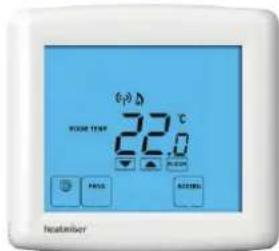
USER MANUAL DT-EWTS Heatmiser
text_image
(p) A ROOM TEMP 22.0 °C FLOOR PROG SCREEN heatmiser
Table Of Contents
| Product Image | 1 | Temperature Control | 13 |
| Table of Contents | 2 | Frost Protection | 14 |
| What is a Room Thermostat? | 3-4 | Heating ON/OFF | 15 |
| Installation Procedure | 5-6 | Optional Features Explained | 16-17 |
| LCD Display | 7-8 | Adjusting the Optional Settings | 18 |
| Pairing the Thermostat | 9-10 | Optional Settings - Features Table | 19 |
| Temperature Display | 11 | Re-calibrating the Thermostat | 20 |
| Clean Screen | 12 | Factory Reset | 20 |
| Locking the Keypad | 12 | Recharging the Batteries | 21-22 |
? What is a Room Thermostat?
A room thermostat simply switches the heating system on and off as necessary.
It works by sensing the air temperature, switching on the heating when the air temperature falls below the thermostat setting, and switching it off once this set temperature has been reached.
Setting a room thermostat to a higher temperature will not make the room heat up any faster. How quickly the room heats up, depends on the design & size of the heating system.
Similarly reducing the temperature setting does not affect how quickly the room cools down. Setting a room thermostat to a lower temperature will result in the room being controlled at a lower temperature, and saves energy.
The way to set and use your room thermostat is to find the lowest temperature settings that you are comfortable with, and then leave it alone to do its job.
The best way to do this is to set the room thermostat to a low temperature – say 18°C, and then turn it up by 1°C each day until you are comfortable with the temperature. You won't have to adjust the thermostat further.
Any adjustment above this setting will waste energy and cost you more money.
Room thermostats need a free flow of air to sense the temperature, so they must not be covered by curtains or blocked by furniture. Nearby electric fires, televisions, wall or table lamps may also prevent the thermostat from working properly.
This model DT-EWTS thermostat has been specifically designed to operate with electric underfloor heating systems.
Please read the instructions fully to understand all of the features of this DT-EWTS thermostat.

Installation Procedure

Do
Mount the thermostat at eye level.
Read the instructions fully so you get the best from our product.

Don't
Do not push hard on the LCD screen as this may cause irreparable damage.
Do not install near to a direct heat source as this will affect functionality.
If using the desk stand, ensure the thermostat is away from heat sources.
Wall Mounting:
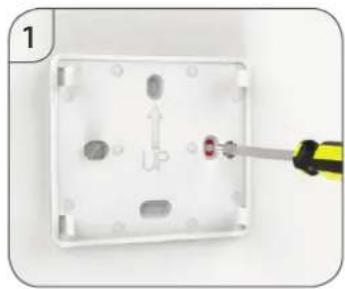
Step 1
Fix the wall plate to the wall.
Step 2
Push the thermostat onto the wall plate.
Desk Stand:
Step A
Remove the thermostat from the wall plate.
Step B
Release the desk stand.
natural_image
Close-up of a screwdriver inserted into a white electrical socket with a red screw, showing mounting holes and wiring (no text or symbols visible)
natural_image
White electronic device with a green arrow pointing to its front panel (no visible text or symbols)
natural_image
White wireless router device with green directional arrow indicating left-side signal (no text or symbols on device body)
natural_image
White electronic device with a screen and stand, labeled 'B' in the corner (no visible text or symbols on the device itself)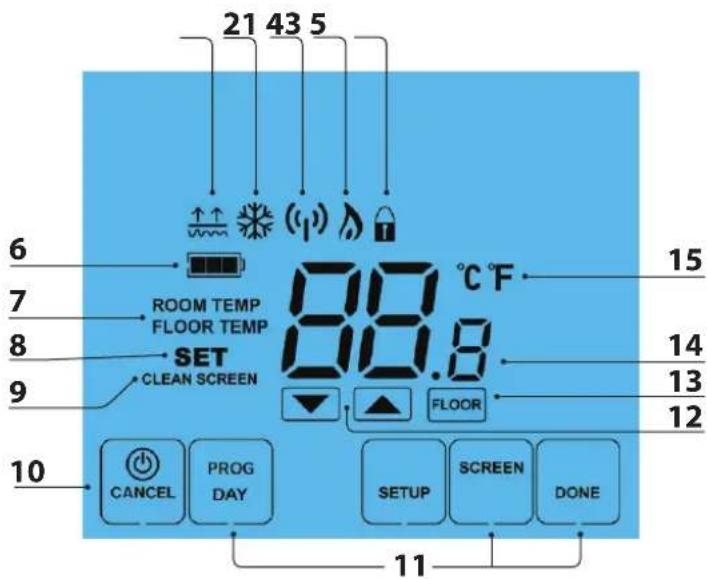
text_image
21 43 5 6 7 ROOM TEMP FLOOR TEMP 8 SET 9 CLEAN SCREEN 10 CANCEL PROG DAY 11 SETUP SCREEN DONE 12 FLOOR 13 14 15LCD
LCD Display
- Floor Temp Achieved Icon - Displayed when the floor set point temperature is reached.
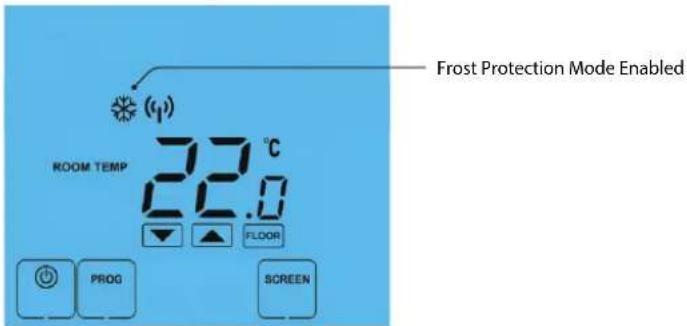
- Frost Icon - Displayed when the thermostat is in frost protection mode.
- RF Icon - Flashes when the thermostat communicates with the receiver.
- Flame Icon - Displayed when the thermostat is calling for heat.
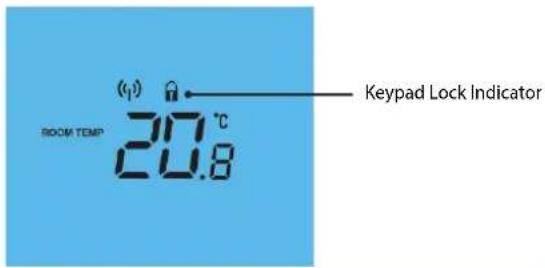
- Keypad Lock Icon - Displayed when the keypad is locked.
- Battery Icon - Indicates current battery charge level.
- Room/Floor Temp - Indicates the current temperature sensor mode.
- Set - Indicates when changes are being made to programs or temperature set points.
- Clean Screen - Freezes screen temporarily to enable cleaning.
- Power: Single press to enable/disable frost protection or press and hold to turn off display. Cancel: used to exit setup/program operations.
- Setup/Programming Keys - Used to navigate setup options.
- Up/Down Keys - Increase of decrease values shown on bottom digit group.
- View Floor Temperature Key - Used to change display to show floor temperature.
- Current Temp - Indicates the current sensor temperature.
- Units of Temperature - Degrees Celsius or Fahrenheit.

Pairing the Thermostat
To pair the thermostat with the RC2-WTS receiver, follow these steps.
On the receiver;
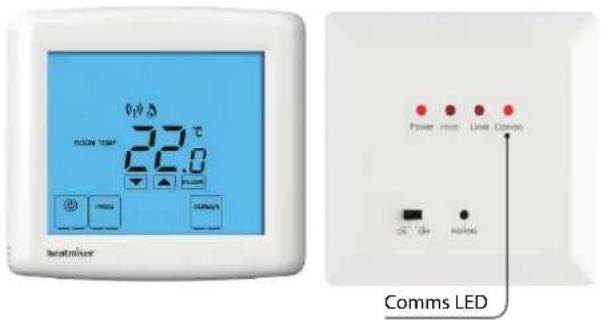
Press the Pair button once.
The Communication LED will light up.
On the thermostat;
- Press PROG and then SETUP
• At the top of the LCD, you will see 01.
• Use the Up key to select 05 and enter the pairing function .... - In the centre of the LCD, you will see 01. This is the channel address.
The default setting of 01 can be used in most cases, but should be changed when a conflict is detected with other RF devices.
• Use the Up/Down keys to enter the address .... - Press SETUP to Pair the thermostat and receiver ....SETUP
Note: You must finish pairing the thermostat before the communication LED goes out.

Pair Successful
The Comms LED on the receiver should flash and then go out to indicate the pair is successful. The thermostat will display the communication icon.

Pair Fail
If the Comms LED does not flash there is a problem with the RF signal and you should reduce the distance between the thermostat and receiver. Where possible ensure there are no metal objects blocking the signal. The LED will automatically go out after 1 minute.
text_image
LOOM TEM 22.0 Power Host Unit Comms Comms LED
Temperature Display
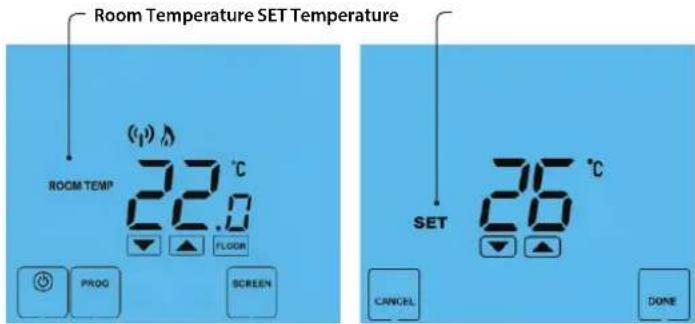
The temperature display information is driven by two different inputs; the sensor measurement and the target temperature you have set.
text_image
Room Temperature SET Temperature ROOM TEMP 22.0 °C FLOOR PROG SCREEN SET 26 °C CANCEL DONEThis is the current room temperature. This is the temperature you are trying to achieve in your home.
When the thermostat is in air and floor sensing mode, the thermostat will display a FLOOR key. Pressing this allows you to view the current floor temperature. Pressing FLOOR again will return the thermostat to the room temperature display.

Clean Screen
Pressing SCREEN will disable all keys, providing you 15 seconds to wipe the screen clean before the keys are re-activated.

Locking the Keypad
The thermostat has a keypad lock facility.
• To activate the lock press the bottom right corner of the display and hold for 10s.
- When activated, you will see the Keypad Lock symbol.
• To cancel, press the bottom right corner of the display again for 10 secs.

text_image
ROOM TEMP (1) 20.8 °C Keypad Lock Indicator
Temperature Control
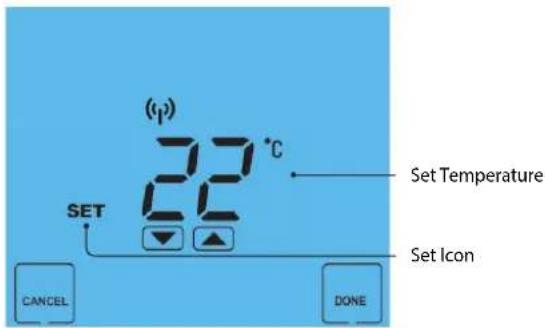
The ▼▲ keys under the temperature display allow you to adjust the set temperature.
When you press either of these keys, you will see the temperature and the word SET appear on screen.
Select the desired temperature and press DONE to confirm and exit.
text_image
(p) 22 °C SET SET Temperature SET Icon CANCEL DONE
Frost Mode
Pressing the ☑ key once will place the thermostat in frost protect mode. In this mode, the thermostat will display the frost icon and will only turn the heating on should the room temperature drop below the set frost temperature (see page 16). Should the heating be turned on whilst in frost mode, the flame symbol will be displayed.
To cancel the frost protect mode, press the Ⓗ key once.
text_image
Frost Protection Mode Enabled ROOM TEMP 22.0 °C FLOOR PROG SCREEN
Heating On/Off
The heating is indicated ON when the flame icon is displayed.
When the flame icon is absent, there is no requirement for heating to achieve the set temperature but the thermostat remains active.
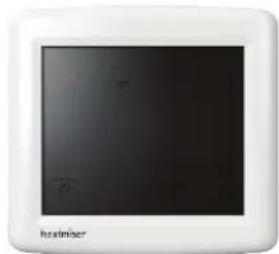
To turn the thermostat OFF completely, press and hold the Power key ..... The display and heating output will be turned off completely.
To turn the thermostat back ON, press the Power key once ....
Thermostat completely OFF
text_image
HeadmiserThermostat powered ON
text_image
6p 22℃ 22.0 HEATSINKER
Optional Features Explained
THE FOLLOWING SETTINGS ARE OPTIONAL AND IN MOST CASES NEED NOT BE ADJUSTED
Feature 01 - Temperature Format: This function allows you to select between °C or °F.
Feature 02 - Switching Differential: This function allows you to increase the switching differential of the thermostat. The default is 1°C which means the thermostat will switch the heating on 1°C below the set temperature and will turn it off when the set temperature is achieved. With a 2°C differential, the heating will switch on 2°C below the set temperature and will switch off when the set temperature is achieved.
Feature 03 - Frost Protect Temperature: This is the temperature maintained when the thermostat is in frost mode. The range is 07 - 17^ . The default is 12^ and is suitable for most applications.
Feature 04 – Output Delay: To prevent rapid switching, an output delay can be entered. This can be set from 00 - 15 minutes. The default is 00 which means there is no delay.
Feature 05 – Pairing Function: Allows the thermostat to be paired with the receiver.

Optional Features Explained
Feature 06 - Fail Safe: If enabled, the thermostat will send a signal to the receiver every 20 minutes. Should the receiver fail to receive the signal from the thermostat, the receiver will activate the output for 20% of the time. This is to protect the system against a loss of wireless signal or in case the thermostat battery fails whilst you are away.
Feature 07 - Floor Limit Temperature: This thermostat uses the floor limiting sensor connected to the receiver to protect the floor surface from overheating. The floor limit is set from the thermostat but stored in the receiver. Should the RF link fail, the receiver will limit the floor from overheating. The limit can be adjusted from 20 - 45^

Adjusting the Optional Settings
To adjust the optional settings, follow these steps.
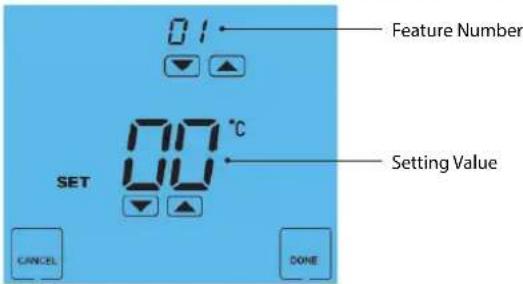
- Press PROG ......
- Press SETUP .... [SETUP]
text_image
01 Feature Number 00 °C Setting Value SET CANCEL DONE- Use the Up/Down keys at the top of the screen to select the feature number (shown on page 19) and then use the Up/Down keys in the center to adjust the setting ....
- Press DONE to confirm settings and exit ..........DONE

Optional Settings - Feature Table
FEATURE
DESCRIPTION
| 01 | Temperature Format |
| 02 | Switching Differential |
| 03 | Frost Protection Temperature |
| 04 | Output Delay |
| 05 | Pairing |
| 06 | Fail Safe |
| 07 | Floor Limit Temperature |
SETTING
| 00 = °C |
| 01 = °F |
| (°C = Default) |
| 0.5° - 3.0°C (1.0°C = Default) |
| 07° - 17°C (12°C = Default) |
| 00 - 15 Minutes (00 = Default) |
| Used to pair with the receiver |
| 00 = Disabled |
| 01 = Enabled |
| (00 = Default) |
| 20° - 45°C (28°C = Default) |

Re-calibrating the Thermostat
If you need to re-calibrate the thermostat, follow these steps.
The thermostat has a reset function to restore all settings to their factory defaults.
To perform a factory reset, follow these steps.
- Turn the thermostat OFF by pressing and holding the Power key.
Press and hold the bottom left corner of the LCD for 10 seconds ....
• All of the screen icons will appear for 2 seconds and then disappear. - Press the Power key once to turn the thermostat back on ....

Battery Recharging
The thermostat is equipped with a rechargeable battery.
The battery can provide power for up to 6 months before recharging is required in normal operating conditions.
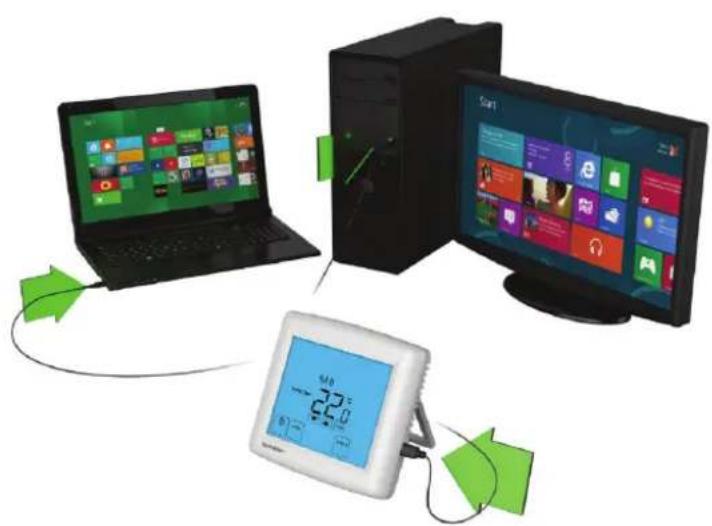
To recharge the battery you need to connect the thermostat to a power source.
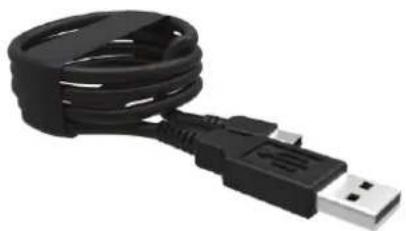
A mini USB to USB lead is supplied with the thermostat so you can recharge from the USB port on your laptop or PC.
natural_image
Close-up of a black USB cable with a small connector (no text or symbols visible)Part ref: USB-02
natural_image
Illustration of a smart home system with a laptop, desktop computer, and connected devices (no text or symbols visible)
text_image
heatmiser® PRODUCT INSTALLATION GUIDEHeating Professionals:
Request a copy of our product installation guide containing detailed technical specifications for our complete product range: www.heatmiser.com/guide
Want More Information?
Call our support team on: +44 (0)1254 669090
Or view technical specifications directly on our website: www.heatmiser.com

natural_image
Abstract orange line drawing on white background (no text or symbols)
natural_image
Orange question mark icon inside a rounded square (no text or symbols)PDF FAQ
23 Wireless Series

Follow us on: twitter
Twitter: heatmiseruk

Find us on: facebook®
Facebook: facebook.com/thermostats