VP-427X - Switch Kramer - Free user manual and instructions
Find the device manual for free VP-427X Kramer in PDF.


| Product Type | Presentation Switcher / Matrix Switcher |
| Model | VP-427X |
| Brand | Kramer |
| Video Inputs | 4x HDMI, 2x VGA, 2x Component, 4x Composite |
| Video Outputs | 2x HDMI, 1x VGA, 1x Composite |
| Audio Support | Analog stereo, digital audio via HDMI |
| Control Interface | RS-232, IR, Ethernet (TCP/IP), front panel buttons |
| Switching Type | Seamless with fade/slide effects |
| Scaling | Built-in scaler up to 1080p |
| Power Supply | 100-240V AC, 50/60Hz, 30W max |
| Dimensions (WxDxH) | 19 x 7.5 x 1.75 inches (483 x 190 x 44 mm) |
| Weight | 2.5 kg (5.5 lbs) |
| Rack Mountable | Yes, 1U |
| Operating Temperature | 0°C to 40°C (32°F to 104°F) |
| Storage Temperature | -20°C to 60°C (-4°F to 140°F) |
| Humidity | 10% to 90% non-condensing |
| Included Accessories | Power cord, IR remote, rack ears, user manual |
| Maintenance | Keep dry; clean with soft cloth; avoid solvents |
| Safety | Use only provided power adapter; do not block vents |
| Spare Parts | Contact Kramer support for power supply, fan, etc. |
| Repairability | Professional service only; no user-serviceable parts inside |
Frequently Asked Questions - VP-427X Kramer
User questions about VP-427X Kramer
0 question about this device. Answer the ones you know or ask your own.
Ask a new question about this device
Download the instructions for your Switch in PDF format for free! Find your manual VP-427X - Kramer and take your electronic device back in hand. On this page are published all the documents necessary for the use of your device. VP-427X by Kramer.
USER MANUAL VP-427X Kramer
4K HDBT/HDMI Receiver Scaler Switcher


Contents
Introduction 1
Getting Started 1
Overview 2
Typical Applications 3
Defining VP-427X 4
Mounting VP-427X 6
Connecting the 4K HDBT/HDMI Receiver Scaler Switcher 7
Connecting the Output to a Balanced/Unbalanced Stereo Audio Acceptor 8
Connecting to VP-427X via RS-232 8
Wiring RJ-45 Connectors 9
Operating and Controlling VP-427X 10
Principles of Operation 10
Operating and Controlling the Device 10
Using the OSD Menu 11
Controlling VP-427X via the RS-232 Port 19
Upgrading Firmware
USB Firmware Upgrade (USB Format FAT32) 20
Technical Specifications 21
Default Communication Parameters 23
Protocol 3000 for VP-427X
Understanding Protocol 3000 24
Protocol 3000 Commands 25
Result and Error Codes 32
Introduction
Welcome to Kramer Electronics! Since 1981, Kramer Electronics has been providing a world of unique, creative, and affordable solutions to the vast range of problems that confront the video, audio, presentation, and broadcasting professional on a daily basis. In recent years, we have redesigned and upgraded most of our line, making the best even better!
Getting Started
We recommend that you:
- Unpack the equipment carefully and save the original box and packaging materials for possible future shipment.
- Review the contents of this user manual.

Go to www.kramerav.com/downloads/VP-427X or www.kramerav.com/downloads/VP-427X to check for up-to-date user manuals, application programs, and to check if firmware upgrades are available (where appropriate).
Achieving Best Performance
- Use only good quality connection cables (we recommend Kramer high-performance, high-resolution cables) to avoid interference, deterioration in signal quality due to poor matching, and elevated noise levels (often associated with low quality cables).
- Do not secure the cables in tight bundles or roll the slack into tight coils.
- Avoid interference from neighboring electrical appliances that may adversely influence signal quality.
- Position your Kramer VP-427X away from moisture, excessive sunlight and dust.
Safety Instructions

Caution:
- This equipment is to be used only inside a building. It may only be connected to other equipment that is installed inside a building.
- For products with relay terminals and GPI\O ports, please refer to the permitted rating for an external connection, located next to the terminal or in the User Manual.
- There are no operator serviceable parts inside the unit.

Warning:
- Use only the power cord that is supplied with the unit.
- To ensure continuous risk protection, replace fuses only according to the rating specified on the product label which is located on the bottom of the unit.
Recycling Kramer Products
The Waste Electrical and Electronic Equipment (WEEE) Directive 2002/96/EC aims to reduce the amount of WEEE sent for disposal to landfill or incineration by requiring it to be collected and recycled. To comply with the WEEE Directive, Kramer Electronics has made arrangements with the European Advanced Recycling Network (EARN) and will cover any costs of treatment, recycling and recovery of waste Kramer Electronics branded equipment on arrival at the EARN facility. For details of Kramer's recycling arrangements in your particular country go to our recycling pages at www.kramerav.com/il/quality/environment.
Overview
Congratulations on purchasing your Kramer VP-427X 4K HDBT/HDMI Receiver Scaler Switcher.
VP-427X is a high-performance auto-switcher receiver with integrated scaler for 4K HDMI™ over long-reach HDBaseT, with a local HDMI input and an HDMI output. VP-427X receives the HDBaseT signal from a compatible transmitter, converts it to an HDMI signal and up- or down-scales the picture to any resolution up to 4K@60Hz (4:4:4) set by the user or automatically matching the resolution of the display connected to the HDMI output.
Exceptional Quality
- Auto Switcher Ease of Use — Automatically plays the switched source signal on the connected display according to user—configured preferences, such as auto-scan or last-connected input. When the user manually switches, by pressing a button, the auto switching is overridden.
- Fast and clean AV Switching — Clean and instantaneous switching between inputs, with smooth, fade-through-black, uninterrupted transitions between presented content on the display, greatly enhancing end-users presentation experience.
- High–Performance Scaling Experience — Built-in ProcAmp high-resolution scaling technology for optimal up or down image scaling and video signal auto-adjustment with output-connected display capabilities to gain end-users valuable high presentation experience.
- HDMI Signal Switching — HDCP 2.2 compliant, supporting deep color, x.v.Color™, CEC, lip sync, HDMI uncompressed audio channels, Dolby TrueHD, DTS–HD, 2K, 4K, and 3D as specified in HDMI 2.0.
- I–EDIDPro™ Kramer Intelligent EDID Processing™ — Intelligent EDID handling, processing, locking and pass-through algorithm ensures plug & play operation for HDMI source and display systems.
Advanced and User-friendly Operation
- Display On/Off Operation — Meeting presentation is simplified by automatically turning ON/OFF a CEC-enabled display when the presentation source is plugged in / unplugged.
- Convenient Unit Control and Configuration Options — Local control via front panel
source switching buttons and OSD menu. Distance control via RS-232 serial commands transmitted by a PC, touch screen system or other serial controller.
- Easy, Cost-effective Maintenance — Local firmware upgrade via USB connector.
- Easy and Elegant Installation — Compact MegaTOOLS™ fan-less enclosure for dropped-ceiling mounting, or side-by-side mounting of 2 units in a 1U rack space with the recommended rack adapter
Flexible Connectivity
- Wired and Wireless Auto Switcher — When the receiver is connected to a wireless connectivity device such as Kramer VIA, can automatically select between a wired source at the transmitter or the wireless source at the receiver.
- High Performance Standard Extension — Professional HDBaseT extension for providing long-reach signals over twisted-pair copper infrastructures. VP-427X is a standard receiver that can be connected to any market-available HDBaseT-compliant extension product. For optimum extension reach and performance, use recommended Kramer cables.
- Audio De-embedding — The digital audio signal passing—through to the HDMI output, is de-embedded, converted to an analog signal and sent to the stereo balanced analog audio output. This enables playing the audio on a locally connected professional audio system (such as DSP) and speakers, in parallel to playing it on the speakers connected to the AV acceptor device (such as TVs with speakers).
- Bidirectional RS–232 Extension — Serial interface data flows in both directions, allowing data transmission and device control.
Typical Applications
VP-427X is ideal for the following typical applications:
• Classrooms and lecture halls
- Meeting rooms
- Training facilities
• Collaborative classrooms
- Any space where BYOD support is required
Defining VP-427X
This section defines VP-427X.
flowchart
graph TD
    A["PROG"] --> B["SELECT"]
    B --> C["HDBT"]
    C --> D["HDMI"]
    E["INPUTS"] --> C
    F["4K HDBT/HDMI Receiver/Scaler"] --> A
    G["5"] --> H["MENU"]
    H --> I["ENTER"]
    I --> J["RESET TO XGA"]
    J --> K["FREEZE"]
    K --> L["LINK"]
    L --> M["ON"]
    M --> N["0"]
    N --> O["0"]
    O --> P["0"]
    P --> Q["0"]
    Q --> R["0"]
    R --> S["0"]
    S --> T["0"]
    T --> U["0"]
    U --> V["0"]
    V --> W["0"]
    W --> X["0"]
    X --> Y["0"]
    Y --> Z["0"]
    Z --> AA["0"]
    AA --> AB["0"]
    AB --> AC["0"]
    AC --> AD["0"]
    AD --> AE["0"]
    AE --> AF["0"]
    AF --> AG["0"]
    AG --> AH["0"]
    AH --> AI["0"]
    AI --> AJ["0"]
    AJ --> AK["0"]
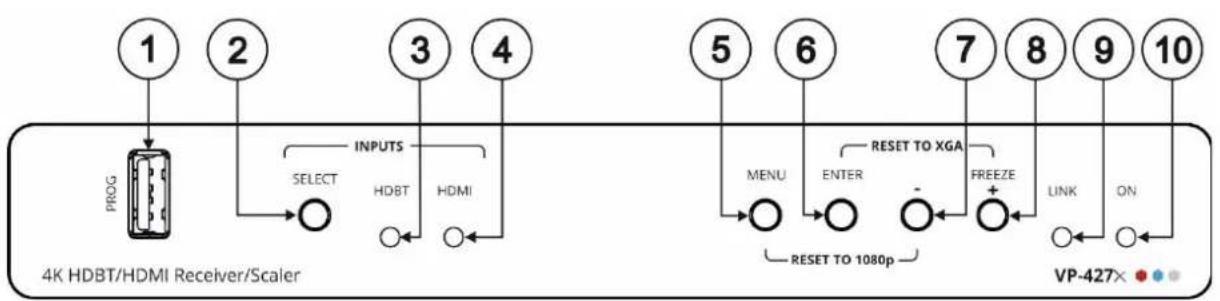
Figure 1: VP-427X 4K HDBT/HDMI Receiver Scaler Switcher Front Panel
| # | Feature | Function | |
| 1 | PROG USB Connector | Connect to a USB stick to perform firmware upgrades. | |
| 2 | INPUTS | SELECT Button | Press to select the input (HDBT or HDMI). |
| 3 | HDBT LED | Lights blue when the HDBT input is selected. | |
| 4 | HDMI LED | Lights blue when the HDMI input is selected. | |
| 5 | MENU Button | Press to enter/exit the on-screen display (OSD) menu. Press together with the – button to reset the output to 1080p resolution. | |
| 6 | ENTER Button | In OSD, press to choose the highlighted menu item. Press together with the FREEZE/+ button to reset the output to XGA resolution (1024x768). | |
| 7 | – | In OSD, press to move back through menus or decrement parameter values. | |
| 8 | FREEZE/+ Button | In OSD, press to move forward through menus or increment parameter values. When not in OSD, press to freeze the display. | |
| 9 | LINK LED | Lights blue when a link is established with the transmitter. | |
| 10 | ON LED | Lights green when device is powered. | |
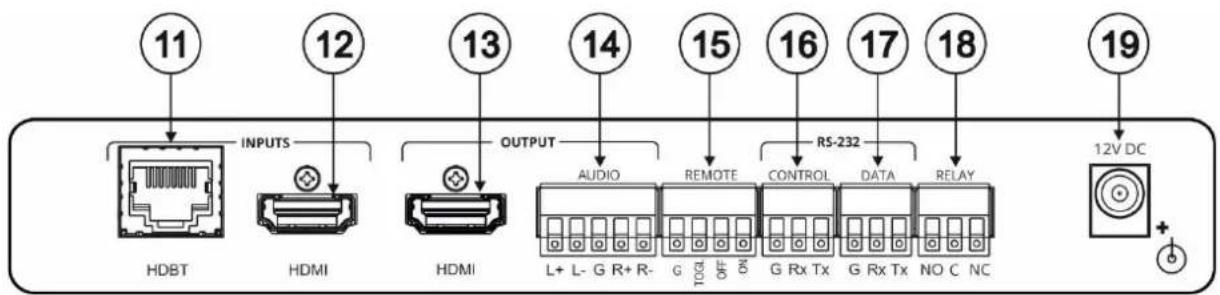
Figure 2: VP-427X 4K HDBT/HDMI Receiver Scaler Switcher Rear Panell
| # | Feature | Function | |
| 11 | INPUTS | HDBT RJ-45 Connector | Connect to a transmitter (for example, the Kramer TP-580T). |
| 12 | HDMI Connector | Connect to an HDMI source (for example, kramer VIA GO2). | |
| 13 | OUTPUT | HDMI Connector | Connect to an HDMI acceptor. |
| 14 | AUDIO 5-pin Terminal Block Connector | Connect to a balanced stereo audio acceptor. | |
| 15 | REMOTE Contact-Closure 4-pin Terminal Block Connector | Connect to contact closure switches, an occupancy sensor and/or toggle switches (contact between the desired pin and GND pin), to turn the display on or off (see Connecting the Remote-Control Switches on page 11). | |
| 16 | RS-232 | CONTROL 3-pin Terminal Block Connector | Connect to a serial controller or PC to control device. |
| 17 | DATA 3-pin Terminal Block Connector | Connect to a serially controller or serially controlled device for connectivity to the extended RS-232 port. | |
| 18 | RELAY 3-pin Terminal Block Connector | Relay contact pins: normally open (NO), normally closed NC and common (C). Connect to a device to be controlled by a relay (for example, a motorized projection screen). | |
| 19 | 12V DC Connector | Connect to the supplied power adapter. | |
Mounting VP-427X
This section provides instructions for mounting VP-427X. Before installing, verify that the environment is within the recommended range:

- Operation temperature – 0° to 40°C (32 to 104°F).
- Storage temperature -40^ to +70^ (-40 to +158^ ).
- Humidity – 10% to 90%, RHL non-condensing.

Caution:
- Mount VP-427X before connecting any cables or power.

Warning:
- Ensure that the environment (e.g., maximum ambient temperature & air flow) is compatible for the device.
- Avoid uneven mechanical loading.
- Appropriate consideration of equipment nameplate ratings should be used for avoiding overloading of the circuits.
- Reliable earthing of rack-mounted equipment should be maintained.
- Maximum mounting height for the device is 2 meters.
Mount VP-427X in a rack
- Use the recommended rack adapter (see www.kramerav.com/product/VP-427X).
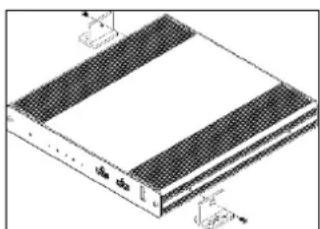
Mount VP-427X on a surface using one of the following methods:
- Attach the rubber feet and place the unit on a flat surface.
- Fasten a bracket (included) on each side of the unit and attach it to a flat surface (see www.kramerav.com/downloads/VP-427X).
natural_image
Isometric diagram of a rectangular electronic device with a grid-patterned top surface and two small arrows pointing to the sides (no text or symbols)Connecting the 4K HDBT/HDMI Receiver Scaler Switcher

Always switch off the power to each device before connecting it to your VP-427X. After connecting your VP-427X, connect its power and then switch on the power to each device.
flowchart
graph TD
    A["12V DC"] --> B["OUTPUT"]
    B --> C["RS-232"]
    C --> D["Audio"]
    D --> E["Active Speakers"]
    D --> F["Remote Buttons"]
    D --> G["Relay"]
    G --> H["Projector Screen"]
    H --> I["TP-580Txr"]
    I --> J["BYOD Laptop"]
    K["HDMI"] --> L["VIA GO"]
    M["HDMI"] --> N["Projector"]
    O["OUTPUT"] --> P["L+ L- G R+ R-"]
    Q["RS-232"] --> R["Audio"]
    S["OUTPUT"] --> T["REMOTE"]
    U["OUTPUT"] --> V["RELAY"]
    W["OUTPUT"] --> X["HDBT"]
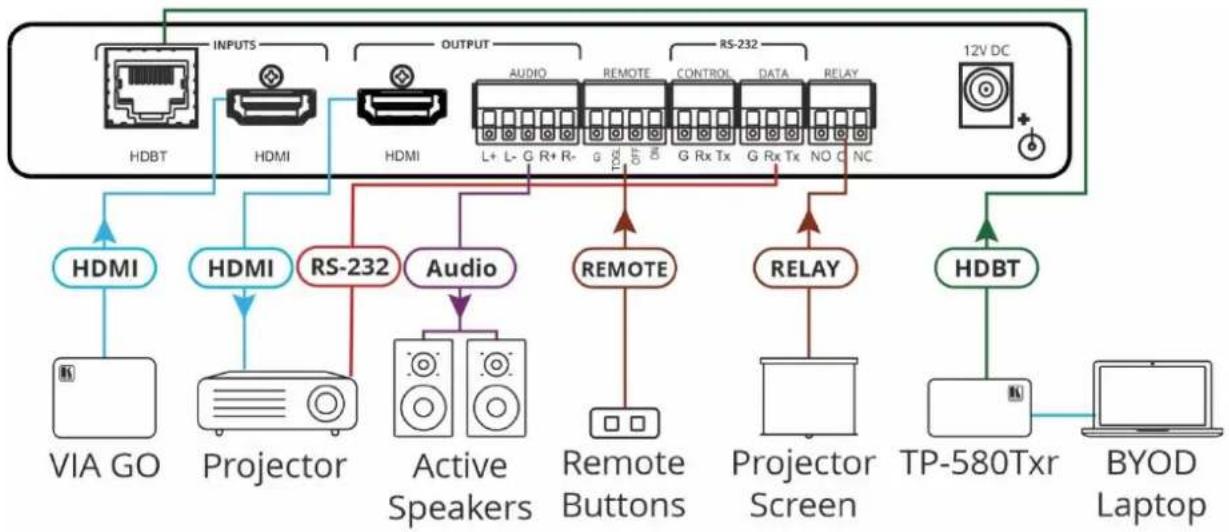
Figure 3: Connecting to VP-427X
To connect VP-427X as illustrated in the example in Figure 3:
- Connect an HDBT transmitter (for example, Kramer TP-780T) to the INPUT HDBT RJ-45 port ⑩ on the rear panel. The transmitter is connected to a BYOD laptop.
- Connect an HDMI source (for example, Kramer VIA GO ^4 ) to the HDMI INPUT connector ⑫
- Connect the HDMI OUT connector ⑬ to an HDMI Acceptor (for example, a projector).
- Connect the AUDIO OUT 5-pin terminal block connector ⓣ a balanced stereo audio acceptor (for example, Kramer Tavor 5-O active speakers).
- Connect the serially-controlled projector to the RS-232 DATA 3-pin terminal block connector for control via RS-232 from the HDBT transmitter.
- Connect the REMOTE 4-pin terminal block connector 15 to remote buttons.
- Connect the RELAY 3-pin terminal block connector 18 a projector screen
- Connect the power adapter to the VP-427X and plug the adaptor to the mains electricity (not shown in Figure 3).
Connecting the Output to a Balanced/Unbalanced Stereo Audio Acceptor
The following are the pinouts for connecting the output to a balanced or unbalanced stereo audio acceptor:
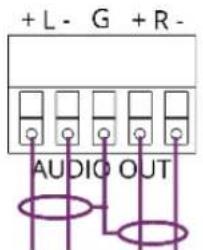
Figure 4: Connecting to a Balanced Stereo Audio Acceptor
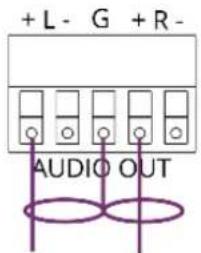
Figure 5: Connecting to an Unbalanced Stereo Audio Acceptor
Connecting to VP-427X via RS-232
You can connect to VP-427X via an RS-232 connection ⑬ using, for example, a PC.
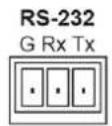
VP-427X features an RS-232 3-pin terminal block connector to extend RS-232 signals via VP-427X transmitter and receiver.
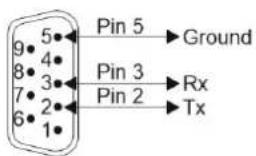
Connect the RS-232 terminal block on the rear panel of VP-427X to a device, as follows:
From the RS-232 9-pin D-sub serial port connect:
• Pin 2 to the TX pin on the VP-427X RS-232 terminal block
• Pin 3 to the RX pin on the VP-427X RS-232 terminal block
• Pin 5 to the G pin on the VP-427X RS-232 terminal block
RS-232 Device VP-427X
Wiring RJ-45 Connectors
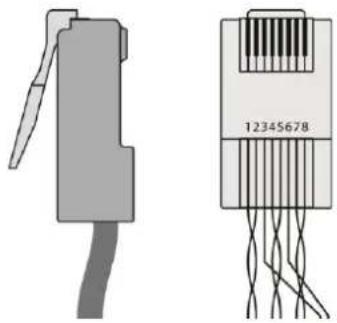
This section defines the HDBT pinout, using a straight pin-to-pin cable with RJ-45 connectors.

It is recommended that the cable ground shielding be connected/soldered to the connector shield.
| EIA /TIA 568B | |
| PIN | Wire Color |
| 1 | Orange / White |
| 2 | Orange |
| 3 | Green / White |
| 4 | Blue |
| 5 | Blue / White |
| 6 | Green |
| 7 | Brown / White |
| 8 | Brown |
natural_image
Diagram of two electronic connectors with visible internal structure (no text or symbols)Operating and Controlling
VP-427X
Principles of Operation
Flexible Auto Switching Policy
Set the switching policy to:
- Manual – Select an input manually and switching occurs whether a live signal is present on the input or not.
- Auto – Auto Switching selection is performed according to either the Last Connected or the Auto Scan policy.
See Setting Switching Mode on page 17.
OSD Configuration & Operation
Convenient OSD (On Screen Display) menus for easy configuration and switcher operation.
See Using the OSD Menu on page 11.
Auto Display On/Off via CEC
Auto display shut-down and wake-up, via HDMI CEC communication, for energy expenses savings.
See Defining CEC on page 17.
Operating and Controlling the Device
Operate and control VP-427X by:
• Using the Front Panel Buttons on page 10.
- Connecting the Remote-Control Switches on page 11.
Using the Front Panel Buttons
Use VP-427X front panel buttons enable performing the following actions:
- Pressing the INPUT ^2 to cycle through and select an input.
- Using the MENU, ENTER (when in the OSD menu), + and – buttons to control the device (see Using the OSD Menu on page 11).
-
Pressing MENU ⑤ and - ⑦ to reset the resolution to 1080p.
-
Pressing ENTER ⑥ and + ⑧ to reset the resolution to XGA.
- Pressing FREEZE to freeze the image.
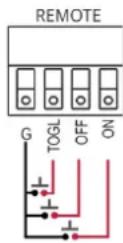
Connecting the Remote-Control Switches
Control the display status via remote control switches
Momentarily connect the desired pin to the GND pin to select an input:
| Pin Name | Function |
| TOGL | One button toggles between display on and display off (instead of using two separate buttons for on and off). Alternatively, using the VP-427X OSD, configure turning the display on and off according to whether a switch is open or closed, for example, using an occupancy sensor |
| OFF | Turn off the display (via CEC). |
| ON | Turn on the display (via CEC). |
Using the OSD Menu
VP-427X enables controlling and defining the device parameters via the OSD, using the front panel MENU buttons.
To enter and use the OSD menu buttons:
- Press MENU.
-
Press:
-
ENTER to accept changes and to change the menu settings.
- Arrow buttons to move through the OSD menu, which is displayed on the video output.
- EXIT to exit the menu.

The default OSD timeout is set to 10 seconds.
OSD Values Table

Default values appear in bold in the following table.
| Mode | Function | |||
| PICTURE | CONTRAST | Set the contrast (0~60) (30) | ||
| BRIGHTNESS | Set the brightness (0~60) (30) | |||
| FINETUNE | Connector | Function | Parameter | |
| HDBT/HDMI | HUE | 0~60 (30) | ||
| SATURATION | 0~60 (30) | |||
| SHARPNESS | 0~63 (0) | |||
| NOISE REDUCTION | OFF, LOW, MIDDLE, HIGH, AUTO | |||
| COLOR | Set the red, green, and blue shades 0 to 1023 (512) | |||
| INPUT | SOURCE | Select the source: HDBT, HDMI | ||
| OUTPUT | SIZE | Select the size of display: OVER SCAN, FULL, BEST FIT, PAN SCAN, LETTER BOX, UNDER 2, UNDER 1, FOLLOW IN | ||
| RESOLUTION | Select the output resolution from the menu (Default, NATIVE) | |||
| 640x480 @60Hz | 800x600 @60Hz | 1024x768 @60Hz | ||
| 1280x768 @60Hz | 1280x800 @60Hz | 1280x1024 @60Hz | ||
| 1360x768 @60Hz | 1400x1050 @60Hz | 1440x900 @60Hz | ||
| 1600x1200 @60Hz | 1680x1050 @60Hz | 1920x1200 @60Hz RB | ||
| 2560x1600 @60Hz RB | 1920x1080 @60Hz | 1280x720 @60Hz | ||
| 2048x1080 @50Hz | 2048x1080 @60Hz | 2560x1440 @60Hz RB | ||
| 3440x1440 @30Hz | 3440x1440 @60Hz | 720x480P @60Hz | ||
| 720x576P @50Hz | 1280x72P @50Hz | 1280x720P @60Hz | ||
| 1920x1080P @24Hz | 1920x1080P @25Hz | 1920x1080P @30Hz | ||
| 1920x1080P @50Hz | 1920x1080P @60Hz | 2560x1080P @50Hz | ||
| 2560x1080P @60Hz | 3840x2160P @24Hz | 3840x2160P @25Hz | ||
| 3840x2160P @30Hz | 3840x2160P @50Hz | 3840x2160P @60Hz | ||
| Native | ||||
| AUDIO | DELAY | OFF,40ms, 110ms, 150ms (40ms) | ||
| OUTPUT VOLUME | Value 0 ~ 100, (80 = 0db) | |||
| OSD | OFF by default. Set the OSD parameters: H-POSITION; V-POSITION; TIMER 5~60 seconds, OFF (20sec); TRANSPARENCY; DISPLAY (INFO/ON/OFF). | |||
| ADVANCED | HDCP ON HDBT INPUT | ON/OFF | ||
| HDCP ON HDMI INPUT | ON/OFF | |||
| HDCP(OUT) | FOLLOW INPUT/FOLLOW OUTPUT | |||
| AUTO SYNC OFF | DISABLE/SLOW/FAST | |||
| AUTO SWITCH | OFF/AUTO SCAN/LAST CONNECTED | |||
| FREEZE | FREEZE + MUTE / ONLY FREEZE / ONLY MUTE | |||
| EDID MANAGE | Port | EDID Value | ||
| HDBT EDID | Def. 1080P | |||
| Def. 4K2K(3G) | ||||
| Def. 4K2K(3G-4:2:0) | ||||
| USER1 | ||||
| USER2 | ||||
| OUTPUT | ||||
| HDMI EDID | Def. 1080P | |||
| Def. 4K2K(3G) | ||||
| Def. 4K2K(3G-4:2:0) | ||||
| Def. 4K2K(6G) | ||||
| USER1 | ||||
| USER2 | ||||
| OUTPUT | ||||
| EDID UPLOAD | USER EDID UPLOAD | |||
| TOGGLE PIN | EDGE /ON /OFF / INPUT SELECT | |||
| RELAY | ON/OFF | |||
| OUTPUT CEC BYPASS | ON/OFF | |||
| INFORMATION | Displays the source, the input and output resolution, and the software version. | |||
| FACTORY | Reset to factory default parameters (resolution is set to Native). | |||
| EXIT | Select to exit the menu. | |||
Use the OSD menu to perform the following operations:
• OSD Values Table on page 11.
• Adjusting Image Parameters on page 14.
• Selecting an Input Signal on page 14.
• Setting Output Parameters on page 15.
• Setting Audio Parameters on page 15.
• Setting OSD Parameters on page 15.
• Managing EDID via OSD on page 15.
- Setting HDCP on page 16.
• Setting Sleep Mode on page 16.
• Setting Switching Mode on page 17.
• Defining FREEZE Button Operation Mode on page 17.
- Defining CEC on page 17.
- Configuring TOGGLE Pin Behavior on page 18.
• Viewing Device Information on page 18.
• Performing a Reset on page 18.
Adjusting Image Parameters
VP-427X enables adjusting the image parameters such as contrast, brightness and so on.
To adjust the image parameters:
- On the front panel press MENU. The menu appears.
- Click Picture and define the image parameters according to the information in the OSD Values table (see OSD Values Table on page 11).
Image parameters are adjusted.
Selecting an Input Signal
Select the VP-427X input source via the OSD menu.
To set the input source:
- On the front panel press MENU. The menu appears.
- Click Input and select the Source: HDBT (default) or HDMI.
An input signal is selected.
Setting Output Parameters
VP-427X enables setting output parameters such as the size of the image and output resolution via the OSD MENU buttons.
To set the output parameters:
- On the front panel press MENU. The menu appears.
- Click Output and define the output parameters according to the information in the table.
Image size and output resolution are defined.
Setting Audio Parameters
VP-427X enables defining the audio delay time and output volume.
To set the audio:
- On the front panel press MENU. The menu appears.
- Click Audio and define the following:
- Set the audio delay time (lip sync) to off, 40ms (default), 110ms or 150ms.
- Set the AUDIO OUT output volume (default is 80 = 0dB).
Audio parameters are defined.
Setting OSD Parameters
VP-427X enables adjusting OSD parameters for your convenience via the OSD MENU buttons.
To set the OSD parameters:
- On the front panel press MENU. The menu appears.
- Click OSD and define the OSD parameters according to the information in the OSD Values table (see OSD Values Table on page 11).
OSD parameters are set.
Managing EDID via OSD
VP-427X enables managing the EDID via the OSD MENU buttons.
Uploading the EDID
To upload EDID:
- On the front panel press MENU. The menu appears.
- Click Advanced and select EDID Manage. Select the parameters according to the information in the OSD Values table (see OSD Values Table on page 11).
The selected EDID is sent to the input.
Uploading EDID from an External File
To select the EDID from an external file:
- Save an EDID file via the EDID webpage.
- On the front panel press MENU. The OSD menu appears.
- Click Advanced and select EDID Manage.
- Select an HDMI input and then select File.
The external EDID file (as stored via the EDID embedded page) is stored.
An external EDID file is sent to a selected input.
Setting HDCP
VP-427X enables setting the HDCP on the inputs and on the output via the front panel MENU buttons.
To set the HDCP on the inputs and output:
- On the front panel press MENU. The menu appears.
- Click Advanced and define the HDCP parameters according to the information in the OSD Values table (see OSD Values Table on page 11).
HDCP is set on the input/output.
Setting Sleep Mode
Auto Sync Off turns off the output after a period of not detecting a valid video signal on the input(s) until a valid input is again detected or any keypad button is pressed.
VP-427X enables configuring the Auto Sync Off delay time when a connected display enters sleep mode.
To set Auto Sync Off:
- On the front panel press MENU. The menu appears.
- Click Advanced and select Auto Sync Off.
- Define Auto Sync Off according to the information in the following table:
| Menu Item | Function |
| Off (default) | Leave the outputs active always. |
| Fast | Disable the outputs after ~ 10 seconds of no input detection. |
| Slow | Disable the outputs after ~ 2 minutes of no input detection. |
| Immediate | Disable the outputs immediately. |
Sleep mode is defined.
Setting Switching Mode
VP-427X enables configuring for automatic switching of the input source upon signal loss or when a source is plugged in.
To set the switching mode:
- On the front panel press MENU. The menu appears.
- Click Advanced and select Auto Switching.
- Select the switching mode according to the information in the following table:
| Menu Item | Function |
| Off | For manual switching. |
| Auto Scan | Scans for a valid input when no signal is found on the selected input. |
| Last Connect | Automatically switches to the last connected input and reverts to the previously selected input after that input is lost. |
Switching mode is defined.
Defining FREEZE Button Operation Mode
VP-427X enables defining the function of the FREEZE front panel button ⑧.
To define the FREEZE button operation mode:
- On the front panel press MENU. The menu appears.
- Click Advanced and select Freeze.
- Set freeze mode according to the information in the following table:
| Menu Item | Function |
| Freeze + Mute | Freeze the image and mute the audio output. |
| Only Mute | Mute the audio output. |
| Only Freeze | Freeze the image. |
When pressed, FREEZE button functions as defined.
Defining CEC
VP-427X can be configured to automatically send CEC on/off commands to the connected display (default) or to pass CEC commands from the connected source to the connected display.
To set the CEC (Consumer Electronic Control) functionality:
- On the front panel press MENU. The menu appears.
- Click Advanced and select Output CEC Bypass.
- Select:
- Off – Automatically send CEC commands to shut down the output display after a timeout period when no input signal is found and to power up the display when the input returns.
- On – Pass CEC commands from the source to the display.
CEC functionality is defined.
Configuring TOGGLE Pin Behavior
VP-427X enables defining the function of the REMOTE pin ⑮ on the rear panel.
To configure the TOGGLE pin (see Connecting the Remote-Control Switches on page 11):
- On the front panel press MENU. The menu appears.
- Click Advanced and select Toggle Pin.
- Select the TOGGLE pin configuration:
- Edge = (toggle on/off).
- Input Select.
GND=Off / Hi=On
GND=On / Hi=Off
■ Hi=Off
Viewing Device Information
Device information includes the selected source, the input and output resolutions, and the software version.
To view the information:
- On the front panel press MENU. The menu appears.
- Click INFO and view the input resolution, output resolution and software version.
Information is displayed.
Performing a Reset
VP-427X enables performing either a soft reset or a full reset via the front panel MENU buttons.
To reset the device:
- On the front panel press MENU. The menu appears.
- Click Factory and select either Reset (full reset) or a Soft Reset (reset device information excluding Ethernet parameters), then click Yes. Wait for completion of factory reset (resolution is set to Native).
Device is reset.
Controlling VP-427X via the RS-232 Port
Connect the RS-232 port to a system controller to control the VP-427X.
To control VP-427X via RS-232:
- Connect a controlling system to the RS-232 CONTROL port (see Connecting to VP-427X via RS-232 on page 8).
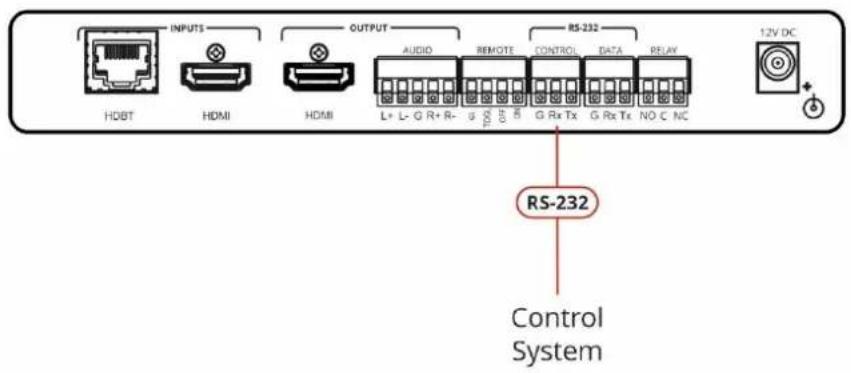
Figure 6: Local Scaler Control
RS-232 port is used to control the VP-427X.
Upgrading Firmware
Upgrade the firmware in any of the following ways:
- Connecting the device to your PC and using Kramer K-UPLOAD software.
- Via PROG USB port ① (see USB Firmware Upgrade (USB Format FAT32) on page 20).
USB Firmware Upgrade (USB Format FAT32)
To update the firmware via PROG USB port:
- Save VP_427X bin. file (for example, VP_427X_all_V*.bin) in USB flash driver and plug into PROG USB port.
- Press and hold MENU+ENTER buttons for about 3 seconds until both HDBT/HDMI INPUT LEDs blink.
- Continue holding buttons until both LEDs are lit consistently (this could take up to 60 seconds).
- Set the unit to factory reset (MENU>FACTORY>RESET ALL).
- Power off and remove the USB flash driver.

If the device is in USB mode but can't read the firmware file or if the USB flash driver is not connected, it reboots automatically after 10 seconds and exits the USB mode.

If the power drops during firmware upgrade, it automatically starts upgrading once the power is back.
If the power drops in the early stages of firmware upgrade, you need to start firmware upgrade again.
Technical Specifications
| Inputs | HDBaseT | On an RJ-45 female connector |
| HDMI | On a female HDMI connector | |
| Outputs | HDMI | On a female HDMI connector |
| Balanced Analog Stereo Audio | On a 5-pin terminal block connector | |
| Ports | 1 Control RS-232 | On a 3-pin terminal block connector for device control |
| 1 Data RS-232 | On a 3-pin terminal block connector for serial extension | |
| 3 Remote Contact-Closure | On a 4 pin terminal block connector | |
| 1 Relay | On a 3-pin terminal block connector | |
| 1 Program USB | On a USB-A connector for firmware upgrade | |
| Video | Max. Data rate | 18Gbps |
| Max. Resolution | 4K @60Hz (4:4:4) | |
| Max Frame Latency | 2 | |
| Content Protection | HDCP 2.2, 1.4 | |
| Max Inputs Switching Time | 2.5sec (constant output sync) | |
| Output Resolutions | 640x480@60Hz, 800x600@60Hz, 1024x768@60Hz, 1280x768@60Hz, 1280x800@60Hz, 1280x1024@60Hz, 1360x768@60Hz, 1400x1050@60Hz, 1440x900@60Hz, 1600x1200@60Hz, 1680x1050@60Hz, 1920x1200@60Hz RB, 2560x1600@60Hz RB, 1920x1080@60Hz, 1280x720@60Hz, 2048x1080@50/60Hz, 2560x1440@60Hz RB, 720x480p@60Hz, 720x576p@50Hz, 1280x720p@50/60Hz, 1920x1080p@24/25/30/50/60Hz, 2560x1080p@50/60Hz, 2K@24/25/30/50/60Hz, 4K@24/25/30/50/60Hz | |
| Compliance | 4K60, CEC, xvYCC color per HDMI 2.0 | |
| Extension Line | Reach | 4K@60Hz (4:2:0): 40m (130ft)1080p@60Hz: 70m (230ft) |
| Max Data Rate | 10Gbps | |
| Max. Resolution | 4K @60Hz (4:2:0) | |
| Compliance | HDBaseT 1.0 | |
| Audio | Output Impedance | 500Ω |
| S/N Ratio | >95dB (A-Weighted) | |
| THD+Noise | <0.003% @1kHz at 1Vpp | |
| Crosstalk | <-94dB @1kHz | |
| Output coupling | DC | |
| Maximum Output Level | 14dBu | |
| Extended RS-232 | Baud Rate | 300 to 115200 |
| Control RS-232 | Baud Rate | 115200 baud |
| Power | Source | 2A/12V |
| Consumption | 1A | |
| Enclosure | Size | MegaTOOLS® |
| Type | Aluminum | |
| Cooling | Convection Ventilation | |
| Operating Temperature | 0° to +40°C (32° to 104°F) | |
| Environmental Conditions | Storage Temperature | -40° to +70°C (-40° to 158°F) |
| Humidity | 10% to 90%, RHL non-condensing | |
| Regulatory Compliance | Safety | CE, FCC |
| Environmental | RoHs, WEEE | |
| General | Net Dimensions (W, D, H) | 18.8cm x 14.5cm x 2.54cm (7.4" x 5.7" x 1") |
| Shipping Dimensions (W, D, H) | 35.1cm x 21.2cm x 7.2cm (13.8" x 8.4" x 2.8") | |
| Net Weight | 0.9kg (2.0lbs) approx. | |
| Shipping Weight | 1.1kg (2.4lbs) approx. | |
| Accessories | Included | Power cord and adapter |
| Specifications are subject to change without notice at www.kramerav.com | ||
Default Communication Parameters
RS-232
| Baud Rate: | 115,200 |
| Data Bits: | 8 |
| Stop Bits: | 1 |
| Parity: | None |
| Command Format: | ASCII |
| Example (Route video HDBT INPUT to HDMI OUTPUT): | #ROUTE_1,1,1 |
Ethernet
| To reset the IP settings to the factory reset values go to: Menu->Setup -> Factory Reset-> press Enter to confirm | |
| IP Address: | 192.168.1.39 |
| Subnet mask: | 255.255.0.0 |
| Default gateway: | 192.168.0.1 |
| TCP Port #: | 5000 |
| UDP Port #: | 50000 |
| Default username: | Admin |
| Default password: | Admin |
Factory Reset
| OSD | Go to: Menu > Factory > select either Reset (full reset) or a Soft Reset (reset device information excluding Ethernet parameters). |
| Front panel buttons | Press the Reset to XGA/1080p Button while plugging the power to reset the machine. |
| Embedded web pages | Device Settings > Soft Factory Reset. |
Protocol 3000 for VP-427X
Kramer devices can be operated using Kramer Protocol 3000 commands sent via serial or Ethernet ports.
Understanding Protocol 3000
Protocol 3000 commands are a sequence of ASCII letters, structured according to the following.
- Command format:
| Prefix | Command Name | Constant (Space) | Parameter(s) | Suffix |
| # | Command | _ | Parameter |
- Feedback format:
| Prefix | Device ID | Constant | Command Name | Parameter(s) | Suffix |
| ~ | nn | @ | Command | Parameter |
- Command parameters – Multiple parameters must be separated by a comma (,). In addition, multiple parameters can be grouped as a single parameter using brackets ([ and ]).
- Command chain separator character – Multiple commands can be chained in the same string. Each command is delimited by a pipe character (|).
- Parameters attributes – Parameters may contain multiple attributes. Attributes are indicated with pointy brackets (<...>) and must be separated by a period (.).
The command framing varies according to how you interface with VP-427X. The following figure displays how the # command is framed using terminal communication software (such as Hercules):
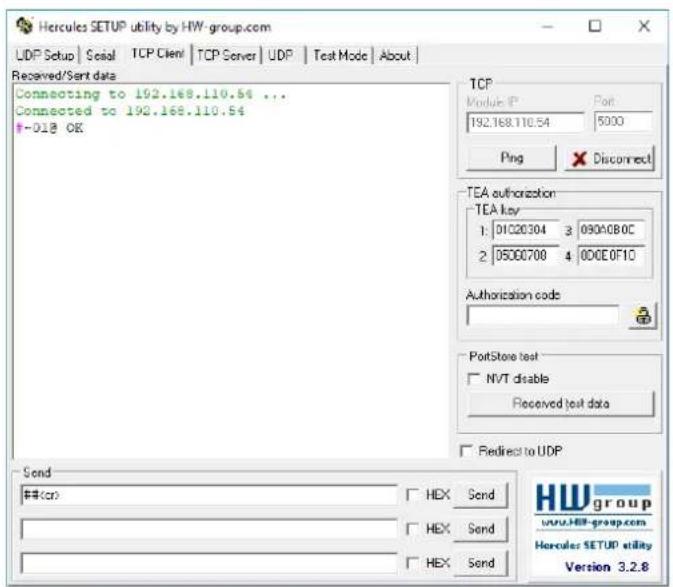
Protocol 3000 Commands
| Function | Description | Syntax | Parameters/Attributes | Example |
| # | Protocol handshaking.1 Validates the Protocol 3000 connection and gets the machine number.Step-in master products use this command to identify the availability of a device. | COMMAND#FEEDBACK~nn@_ok | ||
| AUD-LVL | Set volume level. | COMMAND#AUD-LVL_io_mode,io_index,vol_levelFEEDBACK~nn@AUD-LVL_io_mode,io_index,vol_level | io_mode - Input/Output1 - Outputio_index - Number that indicates the specific input or output port:1 - AUDIO OUTPUTvol_level - Volume level 0 to 100;++ (increase current value by 1);-- (decrease current value by 1) | Set AUDIO OUTPUT level to 50:#AUD-LVL_1,1,50 |
| AUD-LVL? | Get volume level. | COMMAND#AUD-LVL?_io_mode,io_indexFEEDBACK~nn@AUD-LVL_io_mode,io_index,vol_level | io_mode - Input/Output1 - Outputio_index - Number that indicates the specific input or output port:1 - AUDIO OUTPUTvol_level - Volume level 0 to 100 | Get AUDIO OUT 1 level#AUD-LVL?_1,1 |
| AV-SW-MODE | Set input auto switch mode (per output). | COMMAND#AV-SW-MODE_layer_type,out_index,connection_modeFEEDBACK~nn@AV-SW-MODE_layer_type,out_irdax,connection_modeLF> | layer_type - Number that indicates the signal type:1 - Videoout_index - Number that indicates the specific output:1 - HDMI OUTPUTconnection_mode - Connection mode0 - manual1 - auto scan2 - last connected | Set input auto switch mode (per output) for audio 1 to manual:#AV-SW-MODE_1,1,0 |
| AV-SW-MODE? | Get input auto switch mode (per output). | COMMAND#AV-SW-MODE?_layer_type,out_indexFEEDBACK~nn@AV-SW-MODE_layer_type,out_index,connection_modeLF> | layer_type - Number that indicates the signal type:1 - Videoout_index - Number that indicates the specific output:1 - HDMI OUTPUTconnection_mode - Connection mode0 - manual1 - auto scan2 - last connected | Get the input audio switch mode for HDBT Out:#AV-SW-MODE?_1,1 |
| BUILD-DATE? | Get device build date. | COMMAND#BUILD-DATE?FEEDBACK~nn@BUILD-DATE_date,time | date - Format: YYYY/MM/DD whereYYYY = YearMM = MonthDD = Daytime - Format: hh:mm:ss wherehh = hoursmm = minutesss = seconds | Get the device build date:#BUILD-DATE? |
| CEC | Set display to ON/OFF | COMMAND#CEC_stateFEEDBACK~nn@CEC_state | state - CEC state0 - Off1 - On | Set display to OFF via CEC:#CEC-ON |
| CEC-PASS | Set CEC device bypass. | COMMAND#CEC-PASS_stateFEEDBACK~nn@CEC-PASS_state | state - CEC state0 - Off1 - On | Bypass device:#CEC-PASS_ |
| CPEDID | Copy EDID data from the output to the input EEPROM.1 Destination bitmap size depends on device properties (for 64 inputs it is a 64-bit word).Example: bitmap 0x0013 means inputs 1,2 and 5 are loaded with the new EDID.In certain products Safe_mode is an optional parameter.See the HELP command for its availability. | COMMAND#CPEDID_edid_io,src_id,edid_io,dest_bitrapor#CPEDID_edid_io,src_id,edid_io,dest_bitrap,safe_nodeFEEDBACK~nn@CPEDID_edid_io,src_id,edid_io,dest_bitrap<LF>~nn@CPEDID_edid_io,src_id,edid_io,dest_bitrap,safe_mode<LF> | edid_io- EDID source type (usually output)1 - Output src_id - Number of chosen source stage1=Def. 1080P2=Def. 4K2K(3G)3=Def. 4K2K(3G-4:2:0)4=USER15=USER26=OUTPUT7= Def. 4K2K(6G) – for HDMI only (not relevant for HDBT)edid_io- EDID destination type (usually input)0 - Input dest_ bitmap - Bitmap representing destination IDs.Format: XXXX...X, where X is hex digit. The binary form of every hex digit represents corresponding destinations.0 - indicates that EDID data is not copied to this destination.1 - indicates that EDID data is copied to this destination.safe_mode - Safe mode0 - device accepts the EDID as is without trying to adjust1 - device tries to adjust the EDID (default value if no parameter is sent) | Copy the EDID data from USER1 to the Input:#CPEDID_1,4,5,3x01<CR>Copy the EDID data from the default EDID source to the Input:#CPEDID_1,1,0,3x01<CR> |
| DISPLAY? | Get output HPD status. | COMMAND#DISPLAY?_out_indexFEEDBACK~nn@DISPLAY_out_index,status<LF> | out_index - Number that indicates the specific output:1 - HDMI OUTPUTstatus - HPD status according to signal validation0 - Signal or sink is not valid1 - Signal or sink is valid2 - Sink and EDID is valid | Get the output HPD status of HDMI OUTPUT:#DISPLAY?_1<CR> |
| FCT-SN | Set serial number. | COMMAND#FCT-SN_serial_numFEEDBACK~nn@FCT-SN_serial_num<LF> | serial_num - 14 decimal digits | Set serial number:#FCT-SN_19763840581123<CR> |
| HDCP-MOD | Set HDCP mode.1 Set HDCP working mode on the device input:HDCP supported - HDCP_ON [default].HDCP not supported - HDCP OFF.HDCP support changes following detected sink - MIRROR OUTPUT.When you define 3 as the mode, the HDCP status is defined according to the connected output in the following priority: OUT 1, OUT 2. If the connected display on OUT 2 supports HDCP, but OUT 1 does not, then HDCP is defined as not supported. If OUT 1 is not connected, then HDCP is defined by OUT 2. | COMMAND#HDCP-MOD_in_index,rodcFEEDBACK~nn@HDCP-MOD_in_index,mode<LF> | in_index - Number that indicates the specific input:1 - HDBT INPUT1 - HDMI INPUTmode - HDCP mode:0 - HDCP Off1 - HDCP On | Set the input HDCP-MODE of HDBT INPUT to Off:#HDCP-MOD_1,5<CR> |
| HDCP-MOD? | Get HDCP mode.1 Set HDCP working mode on the device input:HDCP supported - HDCP_ON [default].HDCP not supported - HDCP OFF.HDCP support changes following detected sink - MIRROR OUTPUT. | COMMAND#HDCP-MOD?_ir_indexFEEDBACK~nn@HDCP-MOD_in_index,mode<LF> | in_index - Number that indicates the specific input:1 - HDBT INPUT2 - HDMI INPUTmode - HDCP mode:0 - HDCP Off1 - HDCP On | Get the input HDCP-MODE of HDMI INPUT:#HDCP-MOD?_2<CR> |
| Function | Description | Syntax | Parameters/Attributes | Example | |
| HELP | Get command list or help for specific command. | COMMAND#HELP#HELP_cmd_nameFEEDBACK1.Multi-line:~nn@Device_cmd_name,_cmd_name<CR>To get help for command use:HELP(COMMAND_NAME)~nn@HELP_cmd_name:description<LR>USAGE:usage | cmd_name – Name of a specific command | Get the command list:#HELPTo get help for AV-SW-TIMEOUT:HELP_av-sw-timeout | |
| MODEL? | Get device model.1This command identifies equipment connected to VP-427X and notifies of identity changes to the connected equipment. The Matrix saves this data in memory to answer REMOTE-INFO requests. | COMMAND#MODEL?_FEEDBACK~nn@MODEL_model_name<CR> | model_name – String of up to 19 printable ASCII chars | Get the device model:#MODEL?_ | |
| MUTE | Set audio mute. | COMMAND#MUTE_out_index,mute_modeFEEDBACK~nn@MUTE_out_index,rute_mode<CR>LF> | out_index – Number that indicates the specific output:1 – AUDIO OUTPUTmute_mode – On/Off0 – Off1 – On | Set AUDIO OUTPUT to mute:#MUTE_1,1 | |
| MUTE? | Get audio mute. | COMMAND#MUTE?_out_indexFEEDBACK~nn@MUTE_out_index,rute_mode<CR>LF> | out_index – Number that indicates the specific output:1 – AUDIO OUTPUTmute_mode – On/Off0 – Off1 – On | Get mute status of AUDIO OUTPUT#MUTE_1? | |
| PROT-VER? | Get device protocol version. | COMMAND#PROT-VER?_FEEDBACK~nn@PROT-VER_3000:version<CR>LF> | version – XX.XX where X is a decimal digit | Get the device protocol version:#PROT-VER?_ | |
| RELAY-STATE | Set relay state. | COMMAND#RELAY-STATE_relay_id,stateFEEDBACK~nn@RELAY-STATE_relay_id,state<CR>LF> | relay_id – Relay number 1state – Relay state0 – (open)1 – (close) | Set relay to closed:#RELAY-STATE_1,- | |
| RELAY-STATE? | Get relay state. | COMMAND#RELAY-STATE?_relay_idFEEDBACK~nn@RELAY-STATE_relay_id,relay_state<CR>LF> | relay_id – Relay number 1relay_state – Relay state0 – (open)1 – (close) | Get relay state:#RELAY-STATE?_ | |
| RESET | Reset device.1To avoid locking the port due to a USB bug in Windows, disconnect USB connections immediately after running this command. If the port was locked, disconnect and reconnect the cable to reopen the port. | COMMAND#RESETFEEDBACK~nn@RESET_ok | layer_type Layer Enumeration1 – Videoout_index (both selections are identical)1 – HDMI OUTPUT* – ALLin_index – Source id1 – HDBT INPUT2 – HDMI INPUT | Reset the device:#RESET | |
| ROUTE | Set layer routing.1This command replaces all other routing commands. | COMMAND#ROUTE_layer_type,out_index,in_indexFEEDBACK~nn@ROUTE_layer_type,out_index<CR>LF> | layer_type Layer Enumeration1 – Videout_index (both selections are identical)1 – HDMI OUTPUT* – ALLin_index – Source id1 – HDBT INPUT2 – HDMI INPUT | Route video HDBT INPUT to HDMI OUTPUT:#ROUTE_1,1,1 | |
| ROUTE? | Get layer routing.1This command replaces all other routing commands. | COMMAND#ROUTE?_layer_type,out_indexFEEDBACK~nn@ROUTE_layer_type,out_index,in_index<CR>LF> | layer_type Layer Enumeration1 – Videout_index (both selections are identical)1 – HDMI OUTPUT* – ALLin_index – Source id1 – HDBT INPUT2 – HDMI INPUT | Get the layer routing:#ROUTE?_ 1,* | |
| SCLR-AS | Set auto-sync features.1Sets the auto sync features for the selected scaler. | COMMAND#SCLR-AS_scaler_index,sync_speedFEEDBACK~nn@SCLR-AS_scaler_index,sync_speed<CR>LF> | scaler_index – Scaler Number:1 – Scaler1sync_speed – 0, 1 or 20 – off1 – fast2 – slow | Set auto-sync feature to fast:#SCLR-AS_1,1 | |
| SCLR-AS? | Get auto-sync features.1Gets the auto sync features for the selected scaler. | COMMAND#SCLR-AS?_scalern_indexFEEDBACK~nn@SCLR-AS_scaler_index,sync_speed<CR>LF> | scaler_index – Scaler Number:1 – Scaler1sync_speed – 0, 1 or 20 – off1 – fast2 – slow | Get auto-sync features:#SCLR-AS?_1 |
| Function | Description | Syntax | Parameters/Attributes | Example |
| SCLR-AUDIO-DELAY | Set the scaler audio delay.1 Sets the audio delay for the selected audio output. | COMMAND#SCLR-AUDIO-DELAY_scaler_index,delayFEEDBACK~nn@SCLR-AUDIO-DELAY_scaler_index,delay | scaler_index - Audio output number1 - Scaler1delay -0 - Off1 - 40ms2 - 110ms3 - 150ms | Set the scaler audio delay 40ms:#SCLR-AUDIO-DELAY_1,1 |
| SCLR-AUDIO-DELAY? | Get the scaler audio delay.1 Gets the audio delay for the selected audio output. | COMMAND#SCLR-AUDIO-DELAY?_scale_indexFEEDBACK~nn@SCLR-AUDIO-DELAY._scale_index,delay | scaler_index - Audio output number1 - Scaler1delay -0 - Off1 - 40ms2 - 110ms3 - 150ms | Get the scaler audio delay:#SCLR-AUDIO-DELAY?_1<CR> |
| SIGNAL? | Get input signal status. | COMMAND#SIGNAL?_in_indexFEEDBACK~nn@SIGNAL_ir_index,status | in_index - Number that indicates the specific input:1 - HDBT INPUT2 - HDMI INPUTstatus - Signal status according to signal validation:0 - Signal or sink is not valid (Off)1 - Signal or sink is valid (On) | Get the input signal lock status of HDBT INPUT 1:#SIGNAL?_1<CR> |
| SN? | Get device serial number. | COMMAND#SN?FEEDBACK~nn@SN_serial_num | serial_num - 14 decimal digits, factory assigned | Get the device serial number:#SN? |
| VERSION? | Get firmware version number. | COMMAND#VERSION?FEEDBACK~nn@VERSION_firmware_version | firmware version - XX.XX.XXXX where the digit groups are: major.minor.build version | Get the device firmware version number:#VERSION? |
| VFRZ | Set freeze on selected output. | COMMAND#VFRZ_out_index,freeze_flagFEEDBACK~nn@VFRZ_out_index,freeze_flag | out_index - Number that indicates the specific output:1 - HDMI OUTPUTfreeze_flag - On/Off0 - Off1 - On | Set freeze on HDMI OUTPUT:#VFRZ_1,1 |
| VFRZ? | Get output freeze status. | COMMAND#VFRZ_out_indexFEEDBACK~nn@VFRZ_out_index,freeze_flag | out_index - Number that indicates the specific output:1 - HDMI OUTPUTfreeze_flag - On/Off0 - Off1 - On | Get output freeze status:#VFRZ_1 |
| VID-RES | Set output resolution.# "Set" command with is_native=ON sets native resolution on selected output (resolution index sent = 0). Device sends as answer actual VIC ID of native resolution.To use "custom resolutions" (entries 100-105 In View Modes), define them using the DEF-RES command. | COMMAND#VID-RES_io_mode,io_index,is_native,resolutionFEEDBACK~nn@VID-RES_io_mode,io_index,is native,resolution | io_mode - Input/Output1 - Outputio_index - Number that indicates the specific output port:1 - HDMI OUTPUTis_native - Native resolution flag1 - Onresolution - Resolution index0 = Native1 = 640x480@602 = 800x600@603 = 1024x768@604 = 1280x768@605 = 1280x800@606 = 1280x1024@607 = 1360x768@608 = 1400x1050@609 = 1440x900@6010 = 1600x1200@6011 = 1680x1050@6012 = 1920x1200@60 RB13 = 2560x1600@60 RB14 = 1920x1080@6015 = 1280x720@6016 = 2048x1080@5017 = 2048x1080@6018 = 2560x1440@60 RB19 = 3440x1440@3020 = 3440x1440@6021 = 720x480P@6022 = 720x576P@5023 = 1280x720P@5024 = 1280x720P@6025 = 1920x1080P@2426 = 1920x1080P@2527 = 1920x1080P@3028 = 1920x1080P@5029 = 1920x1080P@6030 = 2560x1080P@5031 = 2560x1080P@6032 = 3840x2160P@2433 = 3840x2160P@2534 = 3840x2160P@3035 = 3840x2160P@5036 = 3840x2160P@60 | Set HDMI OUTPUT resolution to 1440x900:#VID-RES_1,1,1,9<CR> |
| VID-RES? | Get output resolution.1 "Get" command with is_native=ON returns native resolution VIC, with is_native=OFF returns current resolution.To use "custom resolutions" (entries 100-105 In View Modes), define them using the DEF-RES command. | COMMAND#VID-RES?_io_mode,io_index,is_nativeFEEDBACK~nn@VID-RES?_io_mode,io_index,is_native,resolutionL> | io_mode – Input/Output1 – Outputio_index – Number that indicates the specific output port:1 – HDMI OUTPUTis_native – Native resolution flag1 – Onresolution – Resolution index0 = Native1=640x480@602=800x600@603=1024x768@604=1280x768@605=1280x800@606=1280x1024@607=1360x768@608=1400x1050@609=1440x900@6010=1600x1200@6011=1680x1050@6012=1920x1200@60 RB13=2560x1600@60 RB14=1920x1080@6015=1280x720@6016=2048x1080@5017=2048x1080@6018=2560x1440@60 RB19=3440x1440@3020=3440x1440@6021=720x480P@6022=720x576P@5023=1280x720P@5024=1280x720P@6025=1920x1080P@2426=1920x1080P@2527=1920x1080P@3028=1920x1080P@5029=1920x1080P@6030=2560x1080P@5031=2560x1080P@6032=3840x2160P@2433=3840x2160P@2534=3840x2160P@3035=3840x2160P@5036=3840x2160P@60 | Set output resolution:#VID-RES?_1,1,, |
| VMUTE | Set enable/disable video on output.1 Video mute parameter 2 (blank picture) is not supported. | COMMAND#VMUTE_out_index,flagFEEDBACK~nn@VMUTE_out_index,flag | out_index – Number that indicates the specific output:1 – HDMI OUTPUTflag – Video Mute0 – Video disabled, +5V low1 – Video enabled, +5V high2 – Blank picture, +5V high | Disable the video output on HDMI OUTPUT:#VMUTE_1,, |
| VMUTE? | Get video on output status.1 Video mute parameter 2 (blank picture) is not supported. | COMMAND#VMUTE?_out_indexFEEDBACK~nn@VMUTE_out_index,flag | out_index – Number that indicates the specific output:1 – HDMI OUTPUTflag – Video Mute0 – Video disabled, +5V low1 – Video enabled, +5V high2 – Blank picture, +5V high | Get video on HDMI OUTPUT status:#VMUTE?_1 |
| X-AUD-LVL | Set audio level of a specific signal.1 This is an Extended Protocol 3000 command. | COMMAND#X-AUD-LVL,.port_format,.,audio_level,FFEEDBACK~nn@X-AUD-LVL,.port_format,.,audio_level | The following attributes comprise the signal ID:- Direction of the port:o OUT – Output- Type of signal on the port:o ANALOG_AUDIO:- The port number as printed on the front or rear panel:1-Signal ID attribute:o AUDIO- Indicates a specific channel number when there are multiple channels of the same typeaudio_level – Audio level (range between 0 to +100) | Set the AUDIO OUT level to 10:#X-AUD-LVLout.analog_audio.1.audio.1,10 |
| X-AUD-LVL? | Get audio level of a specific signal.1 This is an Extended Protocol 3000 command. | COMMAND#X-AUD-LVL?,. | The following attributes comprise the signal ID:-Direction of the port:OUT-Output-Type of signal on the port:ANALOG AUDIO-The port number as printed on the front or rear panel:1-Signal ID attribute:AUDIO-Indicates a specific channel number when there are multiple channels of the same typeaudio_level-Audio level (range between 0 to +100) | Get the audio level of a specific signal:#X-AUD-LVL?_out.analog_audio.l.audio.l |
| FEEDBACK~nn@X-AUD-LVL,.,audio_level | ||||
| X-ROUTE | Send routing command to matrix.1 It is recommended to use the command#SIGNALS-LIST to get the list of all signal IDs available in the system and which can be used in this command.Video 1 is the default port in this command and is implied even if not written:#X-ROUTE_out.sdi.5,i n.sdi.1is interpreted as:#X-ROUTE_out.sdi.5.v idco.1,in.sdi.1.v idco.1This is an Extended Protocol 3000 command. | COMMAND#X-ROUTE,.,FEEDBACK~nn@X-ROUTE,.,FEEDBACK~nn@X-ROUTE,.,FEEDBACK~nn@X-ROUTE,.,FEEDBACK~nn@X-ROUTE,.,FEEDBACK~nn@X-ROUTE,.,FEEDBACK~nn@X-ROUTE,.,FEEDBACK~nn@X-ROUTE,.,FEEDBACK~nn@X-ROUTE,.,FEEDBACK~nn@X-ROUTE,.,FEEDBACK~nn@xOUTs HDMI OUTPUT for the input:1-HDBT INPUTFor the output:1-HDBT INPUT2-HDMI INPUT-Type of signal on the port:HDMI HDBT-Type of signal on the port:HDMI HDBT-Type of signal on the port:HDMI HDBT-Type of signal on the port:HDMI HDBT-Type of signal on the port:HDMI HDBT-Type of signal on the port:HDMI HDBT-Type of signal on the port:HDMI HDBT-Type of signal on the port:HDMI HDBT-Type of signal on the port:1-Indicates a specific channel number when there are multiple channels of the same type:1 | The following attributes comprise the signal ID:-Direction of the port:IN-InputOUT-Output-Type of signal on the port:HDMIO HDBT-The port number as printed on the front or rear panel:For the output:1-HDMI OUTPUTFor the input:1-HDBT INPUT2-HDMI INPUT-Type of signal on the port:VIDEO-Type of signal on the port:VIDEO-Type of signal on the port:HDMI HDBT-Type of signal on the port:HDMI HDBT-Type of signal on the port:HDMI HDBT-Type of signal on the port:HDMI HDBT-Type of signal on the port:HDMI HDBT-Type of signal on the port:HDMI HDBT-Type of signal on the port:HDMI HDBT-Type of signal on the port: | Route HDMI INPUT to HDMI OUTPUT:#X-ROUTE_out.hdni.1.v video.1,in.hdri.2.vide.1 |
| X-ROUTE? | Get routing status.1 It is recommended to use the command#SIGNALS-LIST to get the list of all signal IDs available in the system and which can be used in this command.VIDEO.1 are the defaultandin this command and are implied even if not written:#X-ROUTE_out.sdi.5,i n.sdi.1is interpreted as:#X-ROUTE_out.sdi.5.v ideo.1,in.sdi.1.v ideo.1This is an Extended Protocol 3000 command. | COMMAND#X-ROUTE?,.FEEDBACK~nn@X-ROUTE,.FEEDBACK~nn@X-ROUTE,.FEEDBACK~nn@X-ROUTE,.FEEDBACK~nn@X-ROUTE,.FEEDBACK~nn@X-ROUTE,.FEEDBACK~nn@X-ROUTE,.FEEDBACK~nn@X-ROUTE,.FEEDBACK~nn@X-ROUTE,.FEEDBACK~nn@X-ROUTE,.FEEDBACK~nn@X-ROUTE,.FEEDBACK~nn@X- ROUTs HDMI OUTPUT for the output:1-HDMI OUTPUTFor the input:1-HDBT INPUT2-HDMI INPUT-Type of signal on the port:HDMI HDBT-Type of signal on the port:HDMI HDBT-Type of signal on the port:HDMI HDBT-Type of signal on the port:HDMI HDBT-Type of signal on the port:HDMI HDBT-Type of signal on the port:HDMI HDBT-Type of signal on the port:HDMI HDRBTS HDMI OUTPUT for the output:1-HDMI OUTPUTFor the input:1-HDBT INPUT2-HDMI INPUT-Type of signal on the port:HDMI HDBT-Type of signal on the port:HDMI HDBT-Type of signal on the port:HDMI HDBT-Type of signal on the port:HDMI HDBT-Type of signal on the port:HDMI HDBT-Type of signal on the port:HDMI HDRBTS HDMI OUTPUT for the output:1-HDMI OUTPUTFor the input:1-HDBT INPUT2 -HDMI INPUT-Type of signal on the port:HDMI HDBT-Type of signal on the port:HDMI HDBT-Type of signal on the port:HDMI HDBT-Type of signal on the port:HDMI HDBT-Type of signal on the port:HDMI HDBT-Type of signal on the port:HDMI HDBT-Type of signal on the port:HDMI HDBT-Type of signal on the ports:HDMI HDBT-Type of signal on the ports:HDMI HDBT-Type of signal on the ports:HDMI HDBT-Type of signal on the ports:HDMI HDBT-Type of signal on the ports:HDMI HDBT-Type of signal on the ports:HDMI HDBT-Type of signal on the ports:HDMI HDBT-Type of signal on the ports:HDMI HDBT-Typeof signal on the ports:HDMI HDBT-Type of signal on the ports:HDMI HDBT-Type of signal on the ports:HDMI HDBT-Type of signal on the ports:HDMI HDBT-Type of signal on the ports:HDMI HDBT-Type of signal on the ports:HDMI HDBT-Type of signal on the ports:HDMI HDBT-Type of signal on the ports:HDMI HDRBTS HDMI OUTPUT for the output:1-HDMI OUTPUTFor the input:1-HDBT INPUT2-HDMI INPUT-Type of signal on the port:HDMI HDBT-Type of signal on the ports:HDMI HDBT-Type of signal on the ports:HDMI HDBT-Type of signal on the ports:HDMI HDBT-Type of signal on the ports:HDMI HDBT-Type of signal on the ports:HDMI HDBT-Type of signal on the ports:HDMI HDBT-Type of signal on the ports: | ||
| X-SIGNAL? | Get input signal status.1 This is an Extended Protocol 3000 command. | COMMAND#X-SIGNAL?..FEEDBACK~nn@X-SIGNAL..,Status | The following attributes comprise the signal ID:- Direction of the port:○ IN - Input- Type of signal on the port:○ HDMI◇ HDBT- The port number as printed on the front or rear panel:1 - HDBT INPUT2 - HDMI INPUT- Signal ID attribute:○ VIDEO- Indicates a specific channel number when there are multiple channels of the same type: 1status - Input Signal Status0 - No signal1 - There is a signal | #X-SIGNAL?in.hdbt.1. video. |
Result and Error Codes
Syntax
In case of an error, the device responds with an error message. The error message syntax:
- \~NN@ERR XXX
– when general error, no specific command - \~NN@CMD ERR XXX
– for specific command - NN – machine number of device, default = 01
- XXX - error code
Error Codes
| Error Name | Error Code | Description |
| P3K_NO_ERROR | 0 | No error |
| ERR_PROTOCOL_SYNTAX | 1 | Protocol syntax |
| ERR_COMMAND_NOT_AVAILABLE | 2 | Command not available |
| ERR_PARAMETER_OUT_OF_RANGE | 3 | Parameter out of range |
| ERR_UNAUTHORIZED_ACCESS | 4 | Unauthorized access |
| ERR_INTERNAL_FW_ERROR | 5 | Internal FW error |
| ERR_BUSY | 6 | Protocol busy |
| ERR_WRONG_CRC | 7 | Wrong CRC |
| ERR_TIMEDOUT | 8 | Timeout |
| ERR_RESERVED | 9 | (Reserved) |
| ERR_FW_NOT_ENOUGH_SPACE | 10 | Not enough space for data (firmware, FPGA...) |
| ERR_FS_NOT_ENOUGH_SPACE | 11 | Not enough space – file system |
| ERR_FS_FILE_NOT_EXISTS | 12 | File does not exist |
| ERR_FS_FILE_CANT_CREATED | 13 | File can't be created |
| ERR_FS_FILE_CANT_OPEN | 14 | File can't open |
| ERR_FEATURE_NOT_SUPPORTED | 15 | Feature is not supported |
| ERR_RESERVED_2 | 16 | (Reserved) |
| ERR_RESERVED_3 | 17 | (Reserved) |
| ERR_RESERVED_4 | 18 | (Reserved) |
| ERR_RESERVED_5 | 19 | (Reserved) |
| ERR_RESERVED_6 | 20 | (Reserved) |
| ERR_PACKET_CRC | 21 | Packet CRC error |
| ERR_PACKET_MISSED | 22 | Packet number isn't expected (missing packet) |
| ERR_PACKET_SIZE | 23 | Packet size is wrong |
| ERR_RESERVED_7 | 24 | (Reserved) |
| ERR_RESERVED_8 | 25 | (Reserved) |
| ERR_RESERVED_9 | 26 | (Reserved) |
| ERR_RESERVED_10 | 27 | (Reserved) |
| ERR_RESERVED_11 | 28 | (Reserved) |
| ERR_RESERVED_12 | 29 | (Reserved) |
| ERR_EDID_CORRUPTED | 30 | EDID corrupted |
| ERR_NON_LISTED | 31 | Device specific errors |
| ERR_SAME_CRC | 32 | File has the same CRC – not changed |
| ERR_WRONG_MODE | 33 | Wrong operation mode |
| ERR_NOT_CONFIGURED | 34 | Device/chip was not initialized |
The warranty obligations of Kramer Electronics Inc. ("Kramer Electronics") for this product are limited to the terms set forth below:
What is Covered
This limited warranty covers defects in materials and workmanship in this product.
What is Not Covered
This limited warranty does not cover any damage, deterioration or malfunction resulting from any alteration, modification, improper or unreasonable use or maintenance, misuse, abuse, accident, neglect, exposure to excess moisture, fire, improper packing and shipping (such claims must be presented to the carrier), lightning, power surges, or other acts of nature. This limited warranty does not cover any damage, deterioration or malfunction resulting from the installation or removal of this product from any installation, any unauthorized tampering with this product, any repairs attempted by anyone unauthorized by Kramer Electronics to make such repairs, or any other cause which does not relate directly to a defect in materials and/or workmanship of this product. This limited warranty does not cover cartons, equipment enclosures, cables or accessories used in conjunction with this product.
Without limiting any other exclusion herein, Kramer Electronics does not warrant that the product covered hereby, including, without limitation, the technology and/or integrated circuit(s) included in the product, will not become obsolete or that such items are or will remain compatible with any other product or technology with which the product may be used.
How Long this Coverage Lasts
The standard limited warranty for Kramer products is seven (7) years from the date of original purchase, with the following exceptions:
- All Kramer VIA hardware products are covered by a standard three (3) year warranty for the VIA hardware and a standard three (3) year warranty for firmware and software updates; all Kramer VIA accessories, adapters, tags, and dongles are covered by a standard one (1) year warranty.
- Kramer fiber optic cables, adapter-size fiber optic extenders, pluggable optical modules, active cables, cable retractors, ring mounted adapters, portable power chargers, Kramer speakers, and Kramer touch panels are covered by a standard one (1) year warranty. Kramer 7-inch touch panels purchased on or after April 1st, 2020 are covered by a standard two (2) year warranty.
- All Kramer Calibre products, all Kramer Minicom digital signage products, all HighSecLabs products, all streaming, and all wireless products are covered by a standard three (3) year warranty.
- All Sierra Video MultiViewers are covered by a standard five (5) year warranty.
- Sierra switchers & control panels are covered by a standard seven (7) year warranty (excluding power supplies and fans that are covered for three (3) years).
- K-Touch software is covered by a standard one (1) year warranty for software updates.
- All Kramer passive cables are covered by a lifetime warranty.
Who is Covered
Only the original purchaser of this product is covered under this limited warranty. This limited warranty is not transferable to subsequent purchasers or owners of this product.
What Kramer Electronics Will Do
Kramer Electronics will, at its sole option, provide one of the following three remedies to whatever extent it shall deem necessary to satisfy a proper claim under this limited warranty:
- Elect to repair or facilitate the repair of any defective parts within a reasonable period of time, free of any charge for the necessary parts and labor to complete the repair and restore this product to its proper operating condition. Kramer Electronics will also pay the shipping costs necessary to return this product once the repair is complete.
- Replace this product with a direct replacement or with a similar product deemed by Kramer Electronics to perform substantially the same function as the original product. If a direct or similar replacement product is supplied, the original product's end warranty date remains unchanged and is transferred to the replacement product.
- Issue a refund of the original purchase price less depreciation to be determined based on the age of the product at the time remedy is sought under this limited warranty.
What Kramer Electronics Will Not Do Under This Limited Warranty
If this product is returned to Kramer Electronics or the authorized dealer from which it was purchased or any other party authorized to repair Kramer Electronics products, this product must be insured during shipment, with the insurance and shipping charges prepaid by you. If this product is returned uninsured, you assume all risks of loss or damage during shipment. Kramer Electronics will not be responsible for any costs related to the removal or re-installation of this product from or into any installation. Kramer Electronics will not be responsible for any costs related to any setting up this product, any adjustment of user controls or any programming required for a specific installation of this product.
How to Obtain a Remedy Under This Limited Warranty
To obtain a remedy under this limited warranty, you must contact either the authorized Kramer Electronics reseller from whom you purchased this product or the Kramer Electronics office nearest you. For a list of authorized Kramer Electronics resellers and/or Kramer Electronics authorized service providers, visit our web site at www.kramerav.com or contact the Kramer Electronics office nearest you.
In order to pursue any remedy under this limited warranty, you must possess an original, dated receipt as proof of purchase from an authorized Kramer Electronics reseller. If this product is returned under this limited warranty, a return authorization number, obtained from Kramer Electronics, will be required (RMA number).
You may also be directed to an authorized reseller or a person authorized by Kramer Electronics to repair the product.
If it is decided that this product should be returned directly to Kramer Electronics, this product should be properly packed, preferably in the original carton, for shipping. Cartons not bearing a return authorization number will be refused.
Limitation of Liability
THE MAXIMUM LIABILITY OF KRAMER ELECTRONICS UNDER THIS LIMITED WARRANTY SHALL NOT EXCEED THE ACTUAL PURCHASE PRICE PAID FOR THE PRODUCT. TO THE MAXIMUM EXTENT PERMITTED BY LAW, KRAMER ELECTRONICS IS NOT RESPONSIBLE FOR DIRECT, SPECIAL, INCIDENTAL OR CONSEQUENTIAL DAMAGES RESULTING FROM ANY BREACH OF WARRANTY OR CONDITION, OR UNDER ANY OTHER LEGAL THEORY. Some countries, districts or states do not allow the exclusion or limitation of relief, special, incidental, consequential or indirect damages, or the limitation of liability to specified amounts, so the above limitations or exclusions may not apply to you.
Exclusive Remedy
TO THE MAXIMUM EXTENT PERMITTED BY LAW, THIS LIMITED WARRANTY AND THE REMEDIES SET FORTH ABOVE ARE EXCLUSIVE AND IN LIEU OF ALL OTHER WARRANTIES, REMEDIES AND CONDITIONS, WHETHER ORAL OR WRITTEN, EXPRESS OR IMPLIED. TO THE MAXIMUM EXTENT PERMITTED BY LAW, KRAMER ELECTRONICS SPECIFICALLY DISCLAIMS ANY AND ALL IMPLIED WARRANTIES, INCLUDING, WITHOUT LIMITATION, WARRANTIES OF MERCHANTABILITY AND FITNESS FOR A PARTICULAR PURPOSE. IF KRAMER ELECTRONICS CANNOT LAWFULLY DISCLAIM OR EXCLUDE IMPLIED WARRANTIES UNDER APPLICABLE LAW, THEN ALL IMPLIED WARRANTIES COVERING THIS PRODUCT, INCLUDING WARRANTIES OF MERCHANTABILITY AND FITNESS FOR A PARTICULAR PURPOSE, SHALL APPLY TO THIS PRODUCT AS PROVIDED UNDER APPLICABLE LAW. IF ANY PRODUCT TO WHICH THIS LIMITED WARRANTY APPLIES IS A "CONSUMER PRODUCT" UNDER THE MAGNUSON-MOSS WARRANTY ACT (15 U.S.C.A. §2301, ET SEQ.) OR OTHER APPLICABLE LAW, THE FOREGOING DISCLAIMER OF IMPLIED WARRANTIES SHALL NOT APPLY TO YOU, AND ALL IMPLIED WARRANTIES ON THIS PRODUCT, INCLUDING WARRANTIES OF MERCHANTABILITY AND FITNESS FOR THE PARTICULAR PURPOSE, SHALL APPLY AS PROVIDED UNDER APPLICABLE LAW.
Other Conditions
This limited warranty gives you specific legal rights, and you may have other rights which vary from country to country or state to state. This limited warranty is void if (i) the label bearing the serial number of this product has been removed or defaced, (ii) the product is not distributed by Kramer Electronics or (iii) this product is not purchased from an authorized Kramer Electronics reseller. If you are unsure whether a reseller is an authorized Kramer Electronics reseller, visit our web site at www.kramerav.com or contact a Kramer Electronics office from the list at the end of this document. Your rights under this limited warranty are not diminished if you do not complete and return the product registration form or complete and submit the online product registration form. Kramer Electronics thanks you for purchasing a Kramer Electronics product. We hope it will give you years of satisfaction.

HDMI™
HIGH-DEFINITION MULTIMEDIA INTERFACE

P/N: 2900-301615

Rev:


SAFETY WARNING
Disconnect the unit from the power supply before opening and servicing
For the latest information on our products and a list of Kramer distributors, visit our website where updates to this user manual may be found.
We welcome your questions, comments, and feedback.
The terms HDMI, HDMI High-Definition Multimedia Interface, and the HDMI Logo are trademarks or registered trademarks of HDMI Licensing Administrator, Inc. All brand names, product names, and trademarks are the property of their respective owners.