N50 - Server LUXMAN - Free user manual and instructions
Find the device manual for free N50 LUXMAN in PDF.


User questions about N50 LUXMAN
0 question about this device. Answer the ones you know or ask your own.
Ask a new question about this device
Download the instructions for your Server in PDF format for free! Find your manual N50 - LUXMAN and take your electronic device back in hand. On this page are published all the documents necessary for the use of your device. N50 by LUXMAN.
USER MANUAL N50 LUXMAN
Digital Music Library
N1 EX/N10/N50/N100 Series
User Manual
This user manual uses sample screenshots captured on firmware version 4.30. Depending on the firmware version that is installed on your Digital Music Library, functions described and screenshots contained in the user manual may appear differently, so functions on your product may not work as described in the user manual. Always update the firmware to the latest version. The version of the firmware installed will show up during startup, or you can check it by opening the main menu and scrolling to the "System Update" option.
For the procedure of updating the firmware to the latest version, refer to the "Updating the Firmware" section in chapter 4.
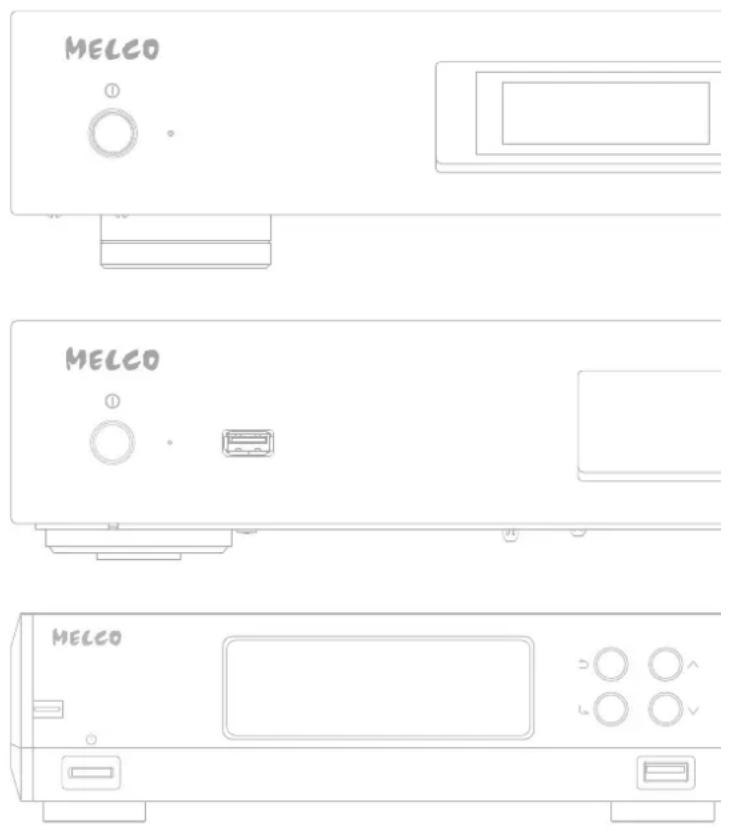
Please make sure to read this user manual before using and follow the procedures. If you have any inquiries about the product, contact us via the website on the warranty statement. Do not discard any included documents, the warranty statement, or the packing box.
35021899-06
November 2021
Table Of Contents
Chapter 1 Notice....5
N1 EX/N50....5
Regulatory Compliance Information....5
Warning Symbols and Graphical Icons on the Product 6
Safety Precautions....6
N10/N100....7
Regulatory Compliance Information....7
Warning Symbols and Graphical Icons on the Product 8
Safety Precautions....8
Chapter 2 Getting Started ......9
Summary of User Manual 9
Chapter 3 Basic Usage....10
Diagrams.... 10
N1 EX/N50....10
N10/N100....13
Display 16
Home Screen 16
Menu 18
Dialog....18
Streaming Screen....18
Remotely Operating the Digital Music Library....20
Importing Music Files 21
Importing from USB Drives....21
Importing from a Music CD 22
Importing Files from a Computer 24
Confirming Imported Files 28
Downloading Music Files from Streaming Sites 29
Adding Accounts....30
Enabling or Disabling Periodic Downloads 32
Deleting Accounts....33
Playing Music Files on a Network Audio Player....35
Streaming Imported Music Files....35
Playing Music Files on USB-DAC Devices 36
Playing Music Files on the Digital Music Library or a USB Drive......36
Playing a CD Using an Optical Drive....38
Operation While Playing Music Files ....38
Configuring the Mode for Managing USB-DAC Using Controller App 39
Changing the DSD Playback Mode....42
Backing Up and Restoring 44
Backup Operations 44
Backing Up Data 44
Restoring Data 46
Deleting the Imported Music Files....49
Deleting All Files 49
Deleting Each File One by One....49
Chapter 4 Advanced Usage....50
Using a USB Drive as an Expansion Drive....50
Connecting a USB Drive as an Expansion Drive ....50
Importing Music Files to an Expansion Drive ....50
Streaming Music Files from Expansion Drives ....51
Disconnecting an Expansion Drive....51
Connecting a Network Audio Player Without Connecting to the Internet 51
Changing the RAID Mode on the N1 EX/N50 53
Formatting Drives 55
Formatting Internal Drives....55
Formatting Connected USB Drives....57
Erasing Data on the Digital Music Library Completely .... 59
Changing the IP Address 60
Changing the Friendly Name (Hostname)......62
Configuring the Date and Time....63
Changing the Time Zone 65
Configuring Display and LED Settings 66
Changing the Display Brightness 66
Changing the Power LED Brightness on the N1 EX/N50......67
Turning Off the Rear-Side LED on the N1 EX/N50 68
Configuring Automatic Power-Off....69
Changing the Display Language....71
Updating the Firmware....71
Updating via the Network....71
Updating from the USB Device....72
Checking for Updates Automatically ....73
Restoring Factory Defaults....75
MELCO Intelligent Music Library....76
SongKong for Melco Lite Music Tagger....76
MinimServer 2....77
Chapter 5 Appendix ...... 78
Menu List 78
Status....78
Browse Songs/Play Songs 78
Backup 78
Settings....79
Dismount USB Drive 83
Always use USB 1 as Expansion....83
System Update....83
Language....83
Support....83
Error Codes 84
Default Settings 85
N1 EX/N50
Regulatory Compliance Information
For Customers in the United States
This equipment has been tested and found to comply with the limits for a Class B digital device, pursuant to Part 15 of the FCC Rules. These limits are designed to provide reasonable protection against harmful interference in a residential installation. This equipment generates, uses and can radiate radio frequency energy and, if not installed and used in accordance with the instructions, may cause harmful interference to radio communications. However, there is no guarantee that interference will not occur in a particular installation. If this equipment does cause harmful interference to radio or television reception, which can be determined by turning the equipment off and on, the user is encouraged to try to correct the interference by one or more of the following measures:
- Reorient or relocate the receiving antenna.
- Increase the separation between the equipment and receiver.
- Connect the equipment into an outlet on a circuit different from that to which the receiver is connected.
- Consult the dealer or an experienced radio/TV technician for help.
This device complies with Part 15 of the FCC Rules. Operation is subject to the following two conditions: (1) this device may not cause harmful interference, and (2) this device must accept any interference received, including interference that may cause undesired operation.
Proposition 65
WARNING:
This product and its components contain chemicals known to the State of California to cause cancer and birth defects, or reproductive harm. Wash hands after handling.
For Customers in Europe and the United Kingdom
Environmental Information

- The equipment that you have purchased has required the extraction and use of natural resources for its production.
- The equipment may contain hazardous substances that could impact health and the environment.
- In order to prevent the dissemination of those substances into the environment, and to relieve pressure on natural resources, we encourage you to seek out an appropriate take-back program. Take-back programs will reuse or recycle materials of any end-of-life equipment in a responsible way.
- Products with the crossed-out wheeled-bin symbol above should not be recycled. Instead, seek out a take-back program as mentioned.
- If you need more information on the collection, reuse, and recycling of our end-of-life products, please contact your local or regional waste administration.
Warning Symbols and Graphical Icons on the Product
Warning symbols are used on the product for safety operation and prevention of injury to you and damage to the unit. The following explains the meanings of symbols used on the product.
 WARNING WARNING | Indicates a potentially hazardous situation, which could result in death or serious injury if not careful. |
 CAUTION CAUTION | Indicates a potentially hazardous situation, which could result in minor or moderate injury if not careful. |
 | Alternating current |
 | Direct current |
| ⊖⊖⊖ | Polarity of DC connector |
| [SDYH] | This symbol indicates danger of hazardous high voltage. |
Safety Precautions
Before using your device, basic safety instructions should always be followed.
(1) Read these instructions.
(2) Keep these instructions.
(3) Heed all warnings and follow all instructions.
(4) The socket-outlet shall be installed near the equipment and shall be easily accessible.
(5) Only use the cables and accessories that are included in the package. Don't use other accessories or cables unless specifically instructed to in the documentation. Also, do not use USB cables that are 3 meters or longer to connect USB devices.
(6) The device can only be used in a fixed location, such as a telecommunication center or a dedicated computer room. When you install the device, ensure that the protective earthing connection of the socket-outlet is verified by a technician.
Translation to Norwegian:
Translation to Swedish:
(7) Caution: Do not remove the cover.
N10/N100
Regulatory Compliance Information
For Customers in the United States
This equipment has been tested and found to comply with the limits for a Class B digital device, pursuant to Part 15 of the FCC Rules. These limits are designed to provide reasonable protection against harmful interference in a residential installation. This equipment generates, uses and can radiate radio frequency energy and, if not installed and used in accordance with the instructions, may cause harmful interference to radio communications. However, there is no guarantee that interference will not occur in a particular installation. If this equipment does cause harmful interference to radio or television reception, which can be determined by turning the equipment off and on, the user is encouraged to try to correct the interference by one or more of the following measures:
- Reorient or relocate the receiving antenna.
- Increase the separation between the equipment and receiver.
- Connect the equipment into an outlet on a circuit different from that to which the receiver is connected.
- Consult the dealer or an experienced radio/TV technician for help.
This device complies with Part 15 of the FCC Rules. Operation is subject to the following two conditions: (1) this device may not cause harmful interference, and (2) this device must accept any interference received, including interference that may cause undesired operation.
Proposition 65
WARNING:
This product and its components contain chemicals known to the State of California to cause cancer and birth defects, or reproductive harm. Wash hands after handling.
For Customers in Canada
CAN ICES-3 (B)/NMB-3 (B)
For Customers in Europe and the United Kingdom
Environmental Information

- The equipment that you have purchased has required the extraction and use of natural resources for its production.
- The equipment may contain hazardous substances that could impact health and the environment.
- In order to prevent the dissemination of those substances into the environment, and to relieve pressure on natural resources, we encourage you to seek out an appropriate take-back program. Take-back programs will reuse or recycle materials of any end-of-life equipment in a responsible way.
- Products with the crossed-out wheeled-bin symbol above should not be recycled. Instead, seek out a take-back program as mentioned.
- If you need more information on the collection, reuse, and recycling of our end-of-life products, please contact your local or regional waste administration.
ErP Lot 7
The chart below lists detailed information on the AC adapter included with your N100 for compliance with "Commission Regulation (EU) 2019/1782, ecodesign requirements for external power supplies pursuant to Directive 2009/125/EC of the European Parliament and of the Council". The "x" at the end of the AC adapter's model name represents a variable alphabetic character between D and Z.
| DA-48T12-Z067x | Product manufacturer's name MELCO Syncrets Inc. | |
| Commercial registration number 0100-01-175158 | ||
| Address | 3-6-8, Yushima, Bunkyo-ku, Tokyo, 113-0034, Japan | |
| Input voltage 100–240 V | ||
| Input AC frequency 50–60 Hz | ||
| Output voltage 12.0 V | ||
| Output current 4.0 A | ||
| Output power 48.0 W | ||
| Average active efficiency 89.2% | ||
| Efficiency at low load (10%) 86.5% | ||
| No-load power consumption 0.08 W | ||
Warning Symbols and Graphical Icons on the Product
Warning symbols are used on the product for safety operation and prevention of injury to you and damage to the unit. The following explains the meanings of symbols used on the product.
 | Indicates a potentially hazardous situation, which could result in death or serious injury if not careful. |
 | Indicates a potentially hazardous situation, which could result in minor or moderate injury if not careful. |
 | Alternating current |
| Direct current | |
 | Polarity of DC connector |
Safety Precautions
Before using your device, basic safety instructions should always be followed.
(1) Read these instructions.
(2) Keep these instructions.
(3) Heed all warnings and follow all instructions.
(4) The socket-outlet shall be installed near the equipment and shall be easily accessible.
(5) Only use the cables and accessories that are included in the package. Don't use other accessories or cables unless specifically instructed to in the documentation. Also, do not use USB cables that are 3 meters or longer to connect USB devices.
Chapter 2 Getting Started
Summary of User Manual
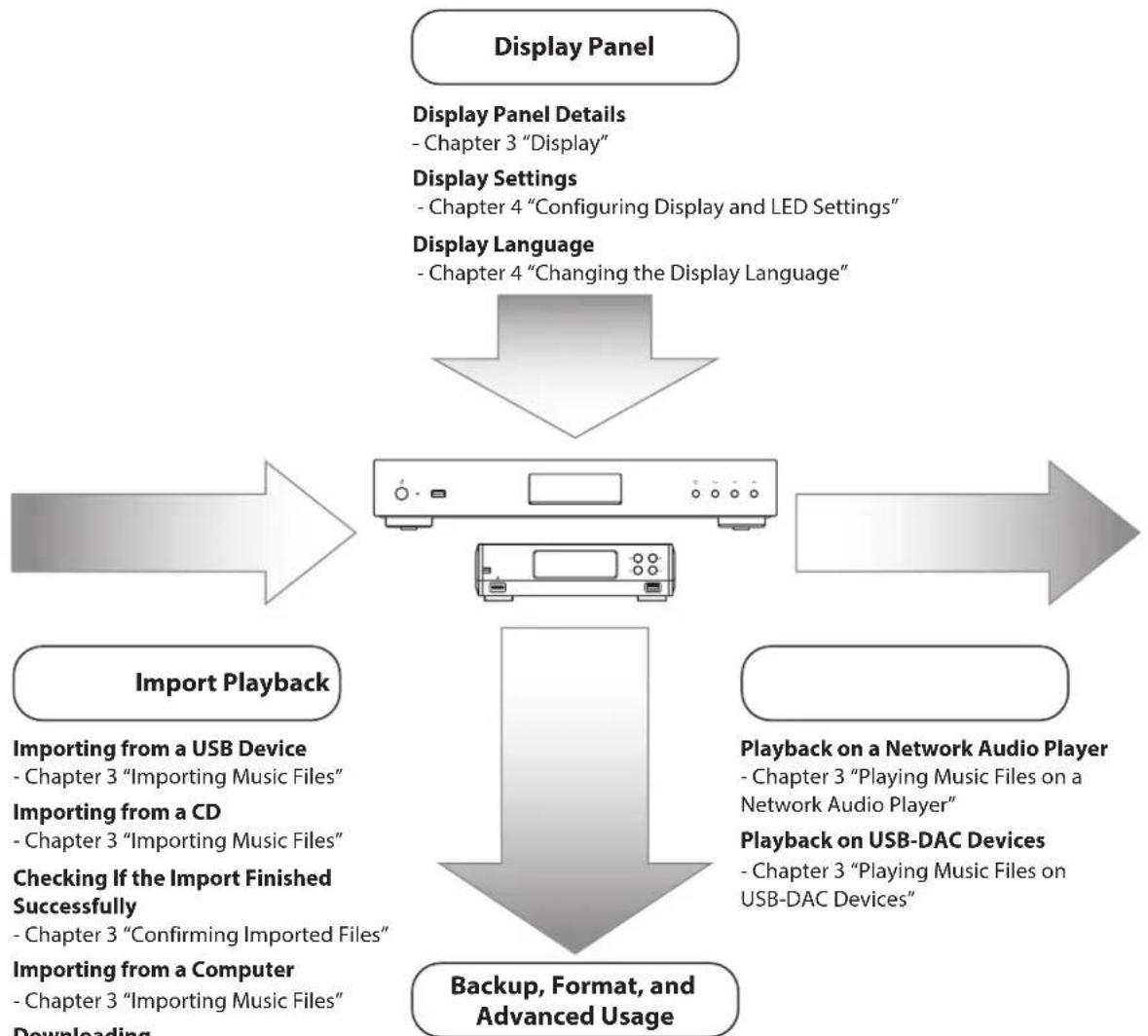
flowchart
graph TD
    A["Display Panel"] --> B["Display Panel Details"]
    B --> C["Display Settings"]
    C --> D["Display Language"]
    D --> E["Import Playback"]
    E --> F["Playback on a Network Audio Player"]
    F --> G["Playback on USB-DAC Devices"]
    G --> H["Backup, Format, and Advanced Usage"]

    subgraph Legend
        A --> A1["Display Panel Details"]
        A --> A2["Display Settings"]
        A --> A3["Display Language"]
        A --> A4["Import Playback"]
        A --> A5["Playback on a Network Audio Player"]
        A --> A6["Playback on USB-DAC Devices"]
    end

    style A fill:#f9f,stroke:#333
    style B fill:#ccf,stroke:#333
    style C fill:#cfc,stroke:#333
    style D fill:#fcc,stroke:#333
    style E fill:#ffc,stroke:#333
    style F fill:#fcc,stroke:#333
    style G fill:#fcc,stroke:#333
    style H fill:#fcc,stroke:#333
Backing Up Music Files and Settings
- Chapter 3 "Backing Up and Restoring"
Deleting Imported Files
- Chapter 3 "Deleting the Imported Music Files"
Drive Settings and Formatting
- Chapter 4 "Changing the RAID Mode on the N1 EX/N50", "Formatting Drives"
Changing the IP Address and Hostname
- Chapter 4 "Changing the IP Address", "Changing the Friendly Name (Hostname)"
Date, Time, and Time Zone Settings
- Chapter 4 "Configuring the Date and Time", "Changing the Time Zone"
Firmware Update - Chapter 4 "Updating the Firmware"
Chapter 3 Basic Usage
Diagrams
N1 EX/N50
N1A EX/N50
N1Z EX
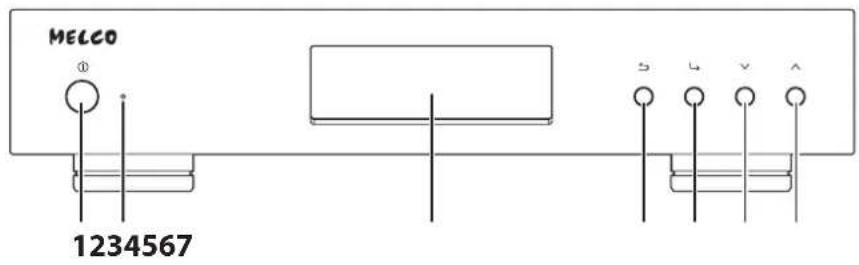
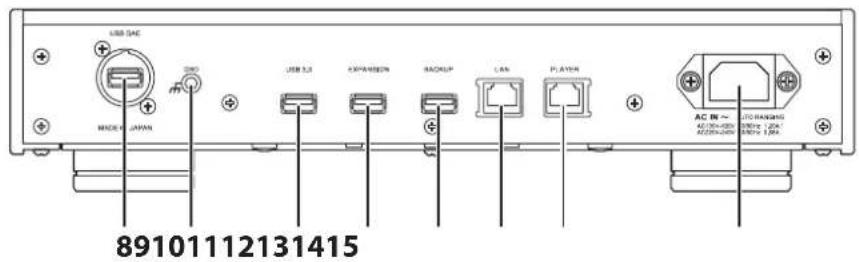
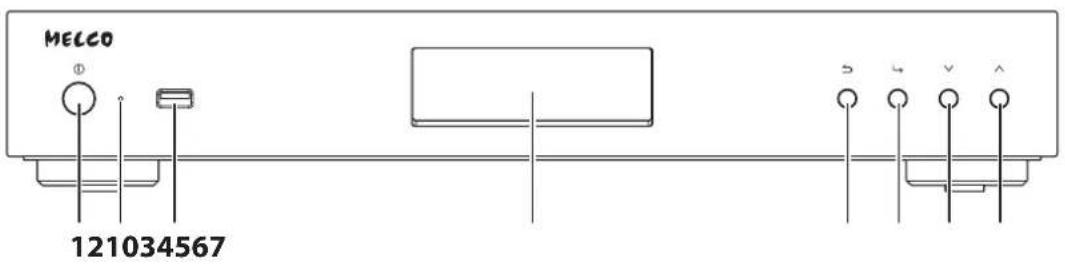
1 Power Button (♪)
Press to turn the power on and off.
2 Power LED
While the N1 EX/N50 is powered on, the LED will glow blue. It will extinguish when powering off.
Note: The brightness of the power LED can be changed from Settings - Display - Power LED Brightness.
3 Display
Displays the device's status and settings menu. In case of an error, displays the error code and message.
Note: The brightness of the display panel can be changed from Settings - Display - Brightness. If the display brightness is set to Dark Mode, the display panel will be turned off.
4 Back Button (5)
Press this button to return the menu to the previous screen. If you press and hold this button for 2 seconds while at the home screen, the display panel will be turned off.
5 Menu/Enter Button (→)
Press to make a selection on the display panel.
6 Down Button (V)
Press this button to scroll down.
To initialize settings, press the power button while holding down this button.
7 Up Button (^
Press this button to scroll up.
8 USB Port for USB-DAC
Use this port to connect a USB-DAC device.
9 Ground Port (π)
Use this port to connect a grounding cable (sold separately).
Chapter 3 Basic Usage
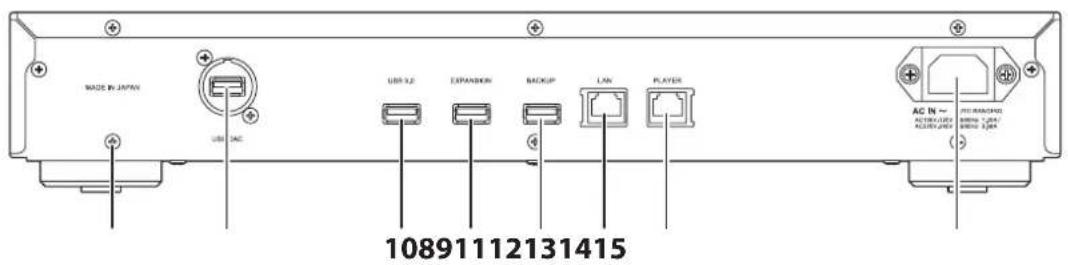
10 USB 3.0 Port\*
Connect a compatible USB hard drive or optical drive for music playback, or a USB flash drive for updating the firmware.
11 USB Port for Expansion USB Drive\*
Connect a compatible USB hard drive to expand the N1 EX/N50's storage capacity.
12 USB Port for Backup USB Drive\*
Connect a compatible USB hard drive to back up or restore the data or settings of the N1 EX/N50.
13 Ethernet Port for Router or Hub\*\*
Use an Ethernet cable to connect a wireless router, hub, or switch on your network to this port. Then you will be able to access the N1 EX/N50 from computers and mobile devices on your network.
14 Ethernet Port for Player\*\*
This is a dedicated port for Network Audio Players. Use an Ethernet cable to connect a Network Audio Player or AV receiver directly to this port.
Note: If your Network Audio Player is directly connected to the Player port, it will not be visible on the network when the N1 EX/N50 is powered off. If this is an issue, connect your Network Audio Player to the router or switch instead.
15 Power Connector
Use the included power cable.
*Only the first partition of a connected USB drive is mounted. Additional partitions are not recognized. To utilize the capacity of the whole drive, connect the USB device to the Expansion or Backup port; navigate to Settings - Drive, select Format USB Drive, then select Erase All Data to format all partitions. Please note that all data currently on the drive will be deleted with this operation.
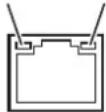
**When the Ethernet cable is connected to the network, the link LED will glow. The act LED shows network activity. To extinguish both LEDs, navigate to Settings - Network - Rear Side LED and set it to "Off".
LINK ACT
N10
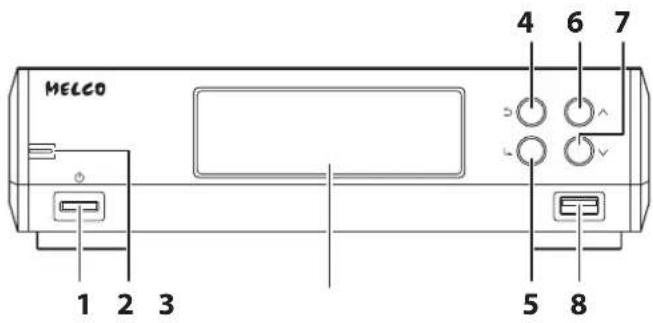
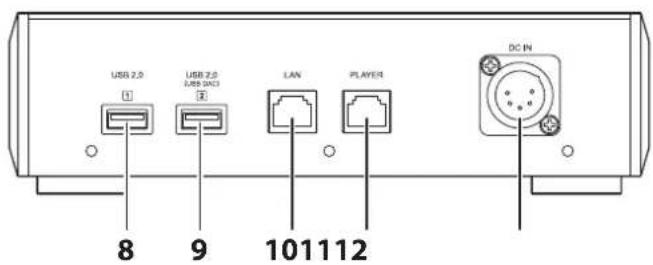
N100
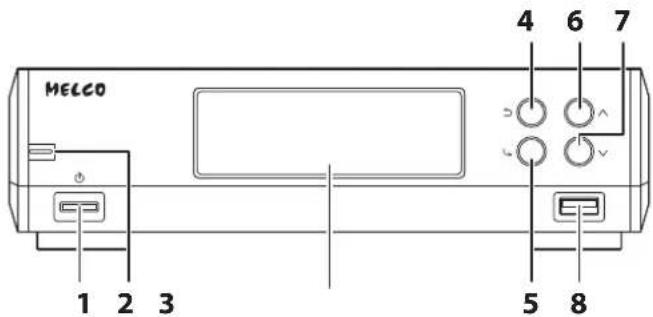
1 Power Button (💡)
Press to turn the power on and off.
2 Power LED
While the N10/N100 is powered on, the LED will glow blue. It will extinguish when powering off.
3 Display
Displays the device's status and settings menu. In case of an error, displays the error code and message.
Note: The brightness of the display panel can be changed from Settings - Display - Brightness. If the display brightness is set to Dark Mode, the display panel will be turned off.
4 Back Button (D)
Press this button to return the menu to the previous screen. If you press and hold this button for 2 seconds while at the home screen, the display panel will be turned off.
5 Menu/Enter Button (L)
Press to make a selection on the display panel.
6 Up Button (∧)
Press this button to scroll up.
7 Down Button (V)
Press this button to scroll down.
To initialize settings, press the power button while holding down this button.
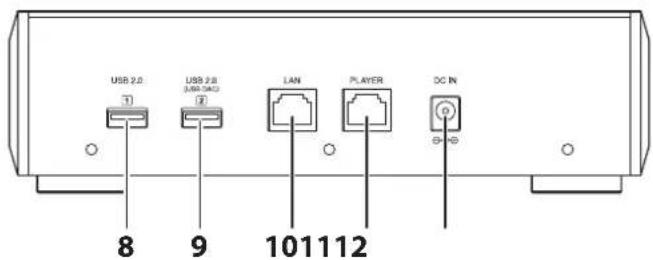
8 USB 2.0 Port
Connect a compatible USB hard drive or optical drive for music playback, or a USB flash drive for updating the firmware.
Note: Only the first partition of a connected USB drive is mounted. Additional partitions are not recognized. To utilize the capacity of the whole drive, connect the USB device, then navigate to Settings - Drive; select Format USB Drive, then select Erase All Data to format all partitions. Please note that all data currently on the drive will be deleted with this operation.
9 USB 2.0 Port for USB-DAC
Use this port to connect a USB-DAC device.
10 Ethernet Port for Router or Hub
Use an Ethernet cable to connect a wireless router, hub, or switch on your network to this port. Then you will be able to access the N10/N100 from computers and mobile devices on your network.
11 Ethernet Port for Player
This is a dedicated port for Network Audio Players. Use an Ethernet cable to connect a Network Audio Player or AV receiver directly to this port.
Note: If your Network Audio Player is directly connected to the Player port, it will not be visible on the network when the N10/N100 is powered off. If this is an issue, connect your Network Audio Player to the router or switch instead.
12 DC Power Connector
Use the included power cable.
Power Unit for N10
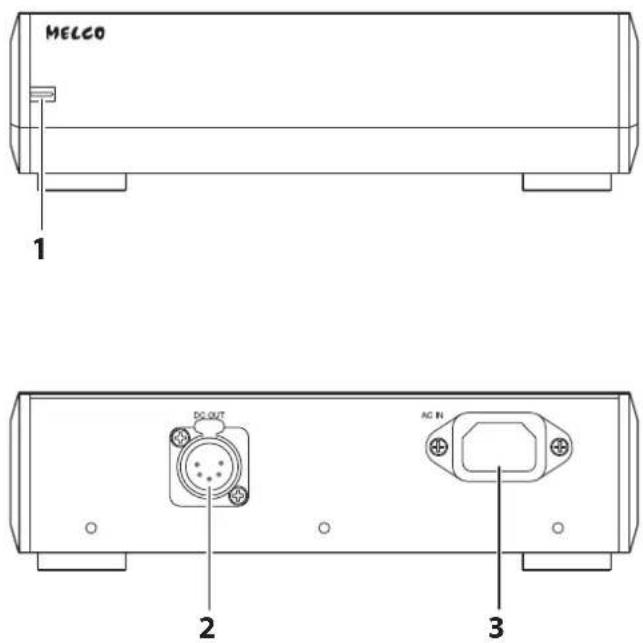
1 Power LED
While the main unit and the power unit are both powered on, the LED will glow light blue. While the main unit is powered off and the power unit is in standby, the LED will glow red.
2 DC Power Connector
Use the included 5-pin DC cable to connect the main unit.
3 AC Power Connector
Use the included power cable.
Display
Home Screen
Turn on the Digital Music Library. After it boots, the home screen will be displayed.
Notes:
- Refer to the "Remotely Operating the Digital Music Library" section in chapter 3 to remotely operate the Digital Music Library using a web browser on a mobile device or a computer.
- The display will automatically turn off about 30 minutes after stopping any Digital Music Library operations. To turn the display back on, push any button on the Digital Music Library other than the power button. The display will not automatically turn off while the Digital Music Library is in any of the following situations:
- Connected to a Network Audio Player that is powered on.
- Connected to a USB-DAC that is powered on.
- Being accessed from a computer.
- Accessing a media server.
N1 EX/N50 N10/N100
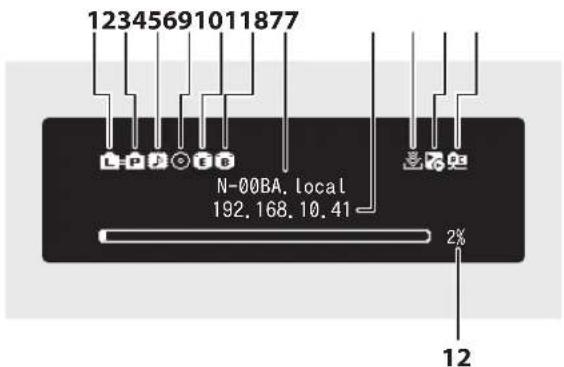
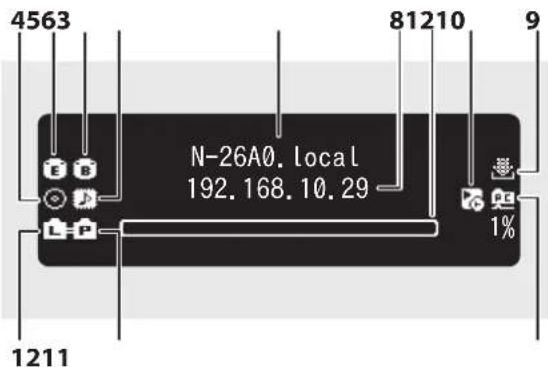
The home screen displays the following information:
| Number | Item | Description |
| 1 | Status of Connected Router or Hub | : Displays when a router or switch that is connected to the Digital Music Library's LAN port is on. : Displays when no Ethernet cable is connected to the LAN port or a router or switch is off. |
| 2 | Status of Connected Player | : Displays when the Player port is configured to bridged mode and a connected Network Audio Player is on. : Displays when the Player port is configured to isolated mode and a connected Network Audio Player is on. : Displays when no Ethernet cable is not connected to the Player port or a connected Network Audio Player is off. When the Player port is disabled by the settings, the icon will disappear. |
| 3 | Markerless DSD Compatibility for USB-DAC | : Displays when a USB-DAC that is compatible with Markerless DSD is connected. : Displays when a USB-DAC that is not compatible with Markerless DSD is connected. |
| 4 | Optical Drive Indicator | : Displays if an optical drive is connected. The icon will be extinguished if no optical drives are connected. |
| Number Item Description | ||
| 5 Expansion Drive Indicator | : Displays when a USB drive is connected to the Expansion port of the N1 EX/N50, or when a USB drive is connected to the N10/N100 and "Mount and Scan" is selected as an action for the drive. : Displays when "Mount and Scan" is selected as an action for the USB drive that is connected to the front port on the N1A EX/N50. : Displays when USB drives are connected to the front and Expansion ports on the N1A EX/N50.On the N1 EX/N50, the icon will blink while the device searches for music files. When the icon stops blinking, playback is ready. | |
| 6 Backup Drive Indicator | : Displays when a USB drive is connected to the Backup port on the N1 EX/N50, or when a USB drive is connected to the N10/N100 or the front USB port on the N1A EX/N50 and "Backup or Restore" is selected as an action for the drive. | |
| 7 Friendly Name (Hostname) | Displays the friendly name (hostname) of the Digital Music Library. The friendly name is used when accessing the Digital Music Library from an app or computer. | |
| 8 IP Address | Displays the IP address. The IP address is used when accessing the Digital Music Library from a computer. If no IP address is displayed, the Player port is set to isolated mode. | |
| 9 Status of | Downloader | : Displays when an account was added and periodic downloads is enabled. : Displays when an account was added but periodic downloads is disabled. : Displays when an error occurs and downloading fails. |
| 10 | Controller Settings | The icon will appear when a USB-DAC is connected. : Displays when controller mode is configured to "Hybrid Mode". : Displays when controller mode is configured to "UPnP/DLNA compatible Mode". : Displays when controller mode is configured to "Playlist Mode". : Displays when controller mode is configured to "Roon Ready Mode". |
| 11 File Sharing Indicator | : Displays when file sharing is enabled. | |
| 12 Usage Capacity of Internal Drive | Displays the used capacity of the internal drive in the Digital Music Library, using a bar chart and a percentage (%). | |
Menu
Press the Menu/Enter button while the home screen is displayed.
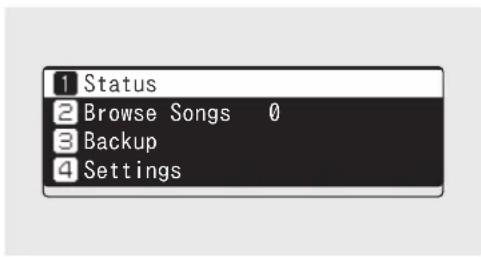
Move the cursor by pressing the Up button or the Down button, then press the Menu/Enter button to make a selection.
Dialog
When confirming an operation, the dialog screen will be displayed.
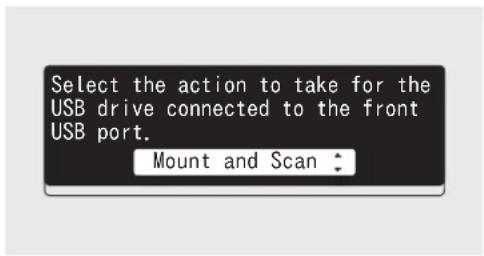
Move the cursor by pressing the Up button or the Down button, then press the Menu/Enter button to make a selection.
Streaming Screen
When the Digital Music Library starts streaming music files, the display panel will show music information for the streaming files.
Notes:
- If the music file is playing from a computer, the music information will not be displayed on the display panel.
- Depending on the streaming player, file format, or file tag information, music information may not always be displayed properly on the display panel.
Streaming to a Network Audio Player
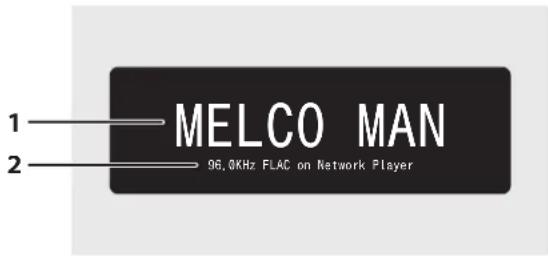
The display panel displays the following information:
| Number Item Description | ||
| 1 Title Display the title of the music file. | ||
| 2 | Player Information and Music File Information | Displays the sampling rate, file format, and the player information during file playback. |
Streaming to a USB-DAC
Selecting a Music File on the USB-DAC
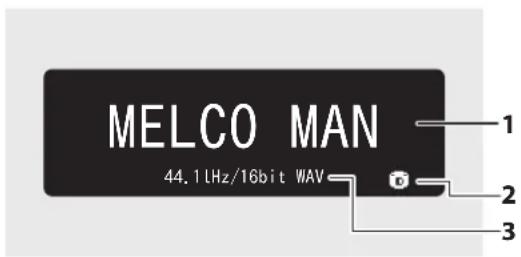
Selecting a Music File Using Buttons on the Digital Music Library
Selecting a CD Track Using Buttons on the Digital Music Library
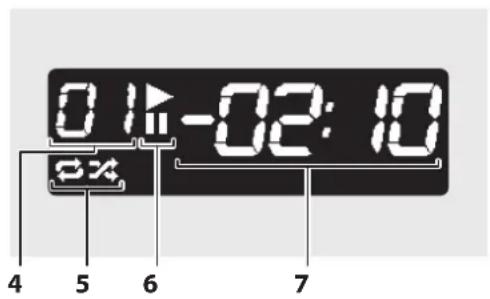
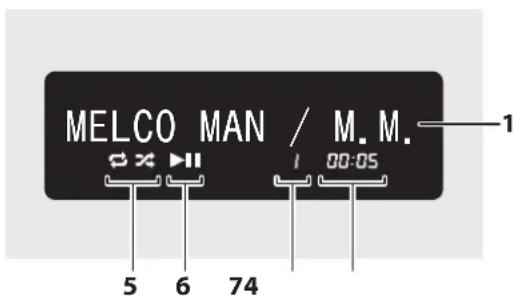
The display panel displays the following information:
| Number Item Description | ||
| 1 Title Display the title of the music file. | ||
| 2 Music File Source | : Displays when streaming music files over the Digital Music Library or USB drives.: Displays when streaming music files on the network. | |
| 3 Music File Information Displays the format and sampling rate of the music file. | ||
| 4 Track Number | Displays the number of the track currently playing. Regardless of how many music files are available, only the last two digits of the track number will be displayed. For example, if track 121 is playing, this will show “21”. | |
| 5 Repeat/Shuffle | : Repeats playback of all music files while this is displayed.: Shuffles playback of all music files while this is displayed. You can switch between repeat or shuffle by pressing the Up button while playback is suspended. | |
| 6 Playback/Suspension | : Appears while playing a music file.: Appears while playback is suspended. | |
| 7 | Remaining Time/Song Time Passed | You can switch the display option by pressing the Down button while playback is suspended. |
Remotely Operating the Digital Music Library
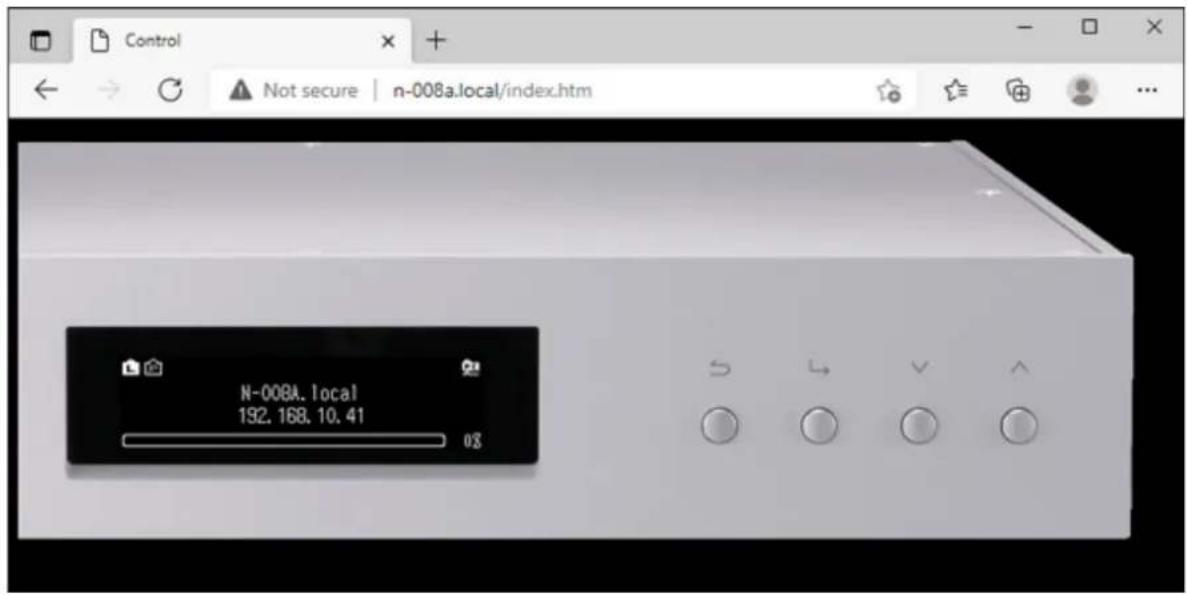
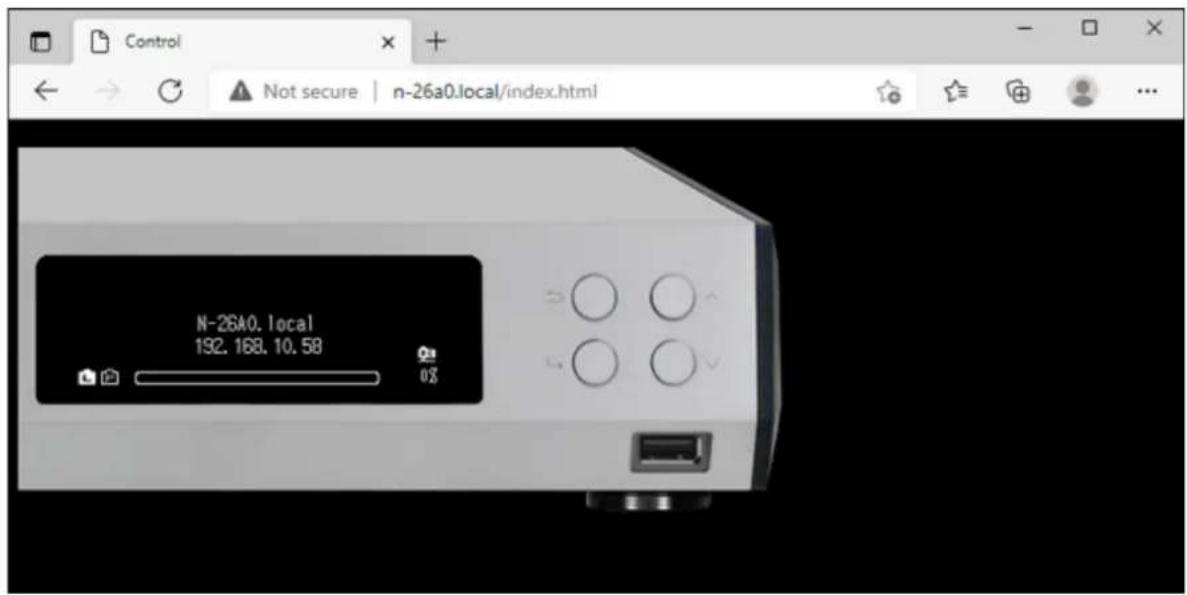
To remotely operate the Digital Music Library using a web browser, navigate to Support - WebRemote, then select "On". After setting "WebRemote" to "On", enter either the Digital Music Library's IP address or friendly name (hostname) into the browser's address bar and press the Enter key. The page below will then open. You can now operate the Digital Music Library remotely by clicking or tapping the buttons on the web page. As the display changes on the web browser, the Digital Music Library's display will change accordingly to match. You can still manually operate the Digital Music Library using its physical buttons while WebRemote is enabled.
While "WebRemote" is enabled, the "Network", "Drive", and "Initialize Settings" options will not appear on the "Settings" page to ensure that no one but you can change or utilize these settings. To display these settings, disable "WebRemote".
Please note that not all features of the Digital Music Library will be available from a web browser.
N1 EX/N50
N10/N100
Notes:
- To easily access the Digital Music Library via a web browser for remote operation, we recommend creating a browser bookmark or a shortcut on the home screen. On a mobile device, opening the shortcut allows you to remotely operate the Digital Music Library in full screen.
- If the Digital Music Library's IP address changes, you will not be able to remotely operate the Digital Music Library through the bookmark or the home screen shortcut. In such a case, access the Digital Music Library through the web browser via its new IP address and create the bookmark or shortcut again. To keep using the same bookmark or shortcut, we recommend setting a static IP address for the Digital Music Library. Refer to the "Changing the IP Address" section in chapter 4 for the procedure to configure a static IP address for the Digital Music Library.
- When you click or tap the Digital Music Library's display on the web browser, the display will be in full screen. Click or tap the screen again to exit the full screen display.
Importing Music Files
Music files can be imported from a USB drive or a CD to the Digital Music Library.
Importing from USB Drives
To import music files from a connected USB drive, follow the procedure below.
1 Connect the USB drive that contains music files to the USB 3.0 port on the N1 EX/N50, or the USB 2.0 port on the N10/N100.
Notes:
- Use only the compatible USB drives listed on melco-audio.com.
- Connect only USB drives formatted using NTFS, FAT32, HFS Plus, or exFAT.
2 When the USB drive is connected to the rear USB 3.0 port on the N1 EX/N50, the following screen will be displayed. Press the Menu/Enter button.
Import from rear USB drive?
OK
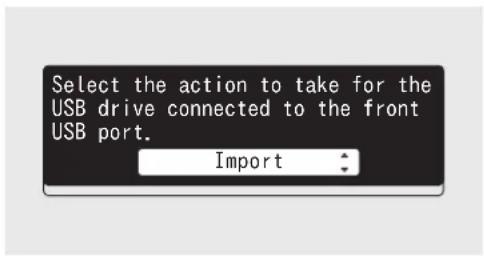
When the USB drive is connected to the front USB port on the N1A EX/N50, or the USB 2.0 port on the N10/N100, the following screen will be displayed. Press the Up/Down buttons and select "Import", then press the Menu/Enter button.
Select the action to take for the USB drive connected to the front USB port.
Import
3 Wait until music importing is finished.
4 Press the Menu/Enter button.
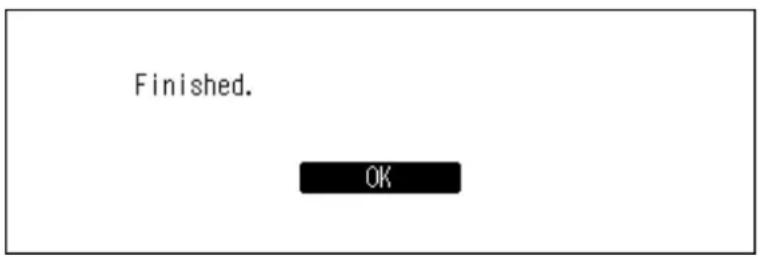
5 Disconnect the USB drive.
Notes:
- If a filename or folder name starts with a period (.), the file or folder cannot be imported.
- If the Back button is pressed while importing, the import process will be cancelled after the Digital Music Library finishes importing the current file. If the imported file size is large, the cancellation process may take a few minutes to finish.
Import Destination Details
Imported music files will be stored in the "import" folder. There are two options to store the imported data in the Digital Music Library. To change these options, navigate to Settings > Import from USB Drive and select "Into One Folder" or "Into Folders by Date".

- Into One Folder: If you select this option, data will be imported into the "all" folder within the "import" folder. With this option, only files with changes will be imported to the Digital Music Library. Files with no changes from the previous import session will not be imported.
- Into Folders by Date: If you select this option, a folder that contains the import date in the folder name will be created within the "import" folder and all imported files will be stored in that folder. Even if the same data is included in the USB drive, it will be copied to the Digital Music Library.
Importing from a Music CD
To import tracks from a music CD, follow the procedure below.
Notes:
- Importing tracks from a music CD requires an optical drive (not included). Use only the compatible optical drives listed on melco-audio.com. Depending on the manufacture date, circumstances, and specifications of a connected optical drive, it may not work even if the optical drive is listed as a compatible device.
- You can save the imported music files to the expansion drive. For more information about this setting, refer to the "Importing Music Files to an Expansion Drive" section in chapter 4.
1 Connect an optical drive to the N1 EX/N50, or the USB 2.0 port on the N10/N100.
2 Insert a music CD into the optical drive to import its tracks.
3 If the USB-DAC device is connected to the Digital Music Library, the following screen will be displayed. Press the Up/Down buttons and select "Import", then press the Menu/Enter button.
Import music from CD, or play it now?
Import :
4 When the CD is detected, the Digital Music Library will try to get the album information automatically. When the display changes from getting the music album information, press the Menu/Enter button.
If the Digital Music Library is connected to the Internet, music tracks will be imported using the acquired album information.
If multiple titles are found, select the appropriate album title on the displayed window. Once you have selected the album title, you can return to the previous window and select it again by pressing the Back button. The album title with the "symbol" will contain the cover art.
If the Digital Music Library is not connected to the Internet, or if the CD information is not available from the online music database, the album name and music title information will not be acquired. In such a case, the import date will be used as the album name and the track number as the filename.
Note: If the Digital Music Library cannot get the music album information while connected to the Internet, check your device's security settings or security software to make sure that the Digital Music Library has permission to access the Internet.
5 Check the imported tracks using the Up/Down buttons and press the Menu/Enter button.
Import from CD?
2019/09/12 15:04/Unknown Artist
- Track 01
OK
□
6 The import process will start. The album title, artist, title of the music file, and format information will be displayed.
2019/10/10 16:39 / Unknown Artist
- Track 01
/8
WAV
148
After importing finishes, the disc tray of the optical drive will open automatically.
7 Press the Menu/Enter button.
Finished. Insert another CD for importing.
To import tracks from another CD, repeat the process from step 2 above. If you have finished importing, press the Down button or the Back button.
Import Destination Details
Imported tracks will be stored in the "import_CD" folder. If importing from a non-music CD, the imported data will be stored in the "import" folder, not the "import_CD" folder.
Imported tracks can be moved, copied, and shared on a network, but the cover art file (folder.jpg) cannot be viewed by another device or copied to another location outside the "Internal" folder. If you want to move or copy the "import_CD" folder to another device and it contains a cover art file, remove the file first.
To stop acquiring the cover art files when importing music file, navigate to Settings > USB-CD Drive > Gracenote Coverart and select "Off".
File Format of Imported Music Files
When importing music files from a CD, they will be saved as WAV files by default. They can be changed to FLAC files, and FLAC compression levels are changeable as well. Available compression levels are described in the "Menu List" section in chapter 5.
Changing the Cover Art
The cover art file (folder.jpg) is stored in the "import_CD" folder. To change the cover art, replace the current cover art file with a new one. If the old cover art is displayed from a controller app, refresh the content on the controller app to apply any changes. If the old cover art is still displayed, rescan the music database by navigating to Settings > Music Database > Rescan Songs and Playlists on the Digital Music Library.
Importing Files from a Computer
To import music files from a computer, follow the procedure below.
Windows
1 From "Network" of Windows Explorer, click the Digital Music Library's IP address or friendly name (hostname). If you cannot find it, enter "\" and the Digital Music Library's IP address or friendly name (hostname) into the address bar of Windows Explorer, then press the Enter key.
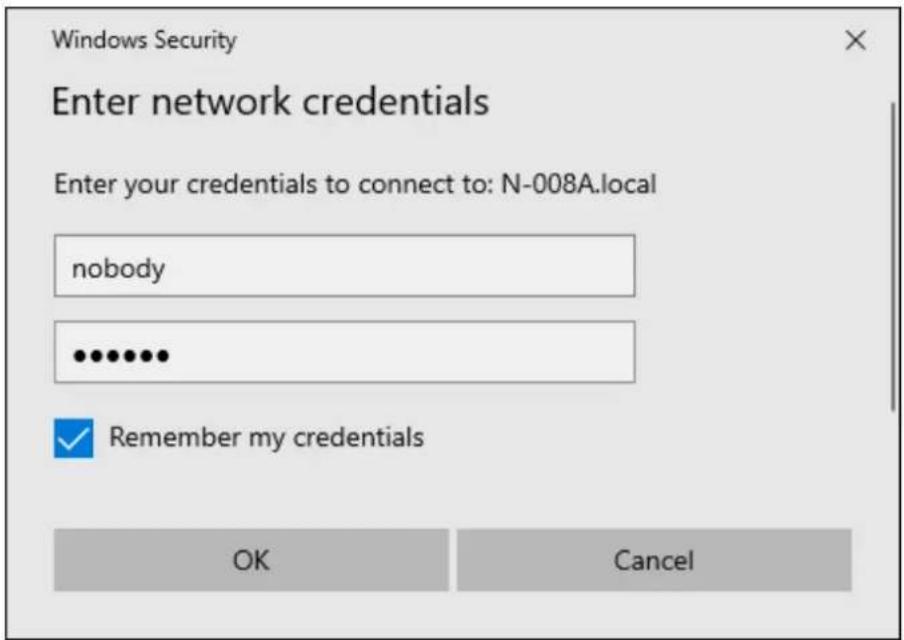
2 If the credential window appears on a Windows computer, enter "nobody" for both the username and password, then click OK.
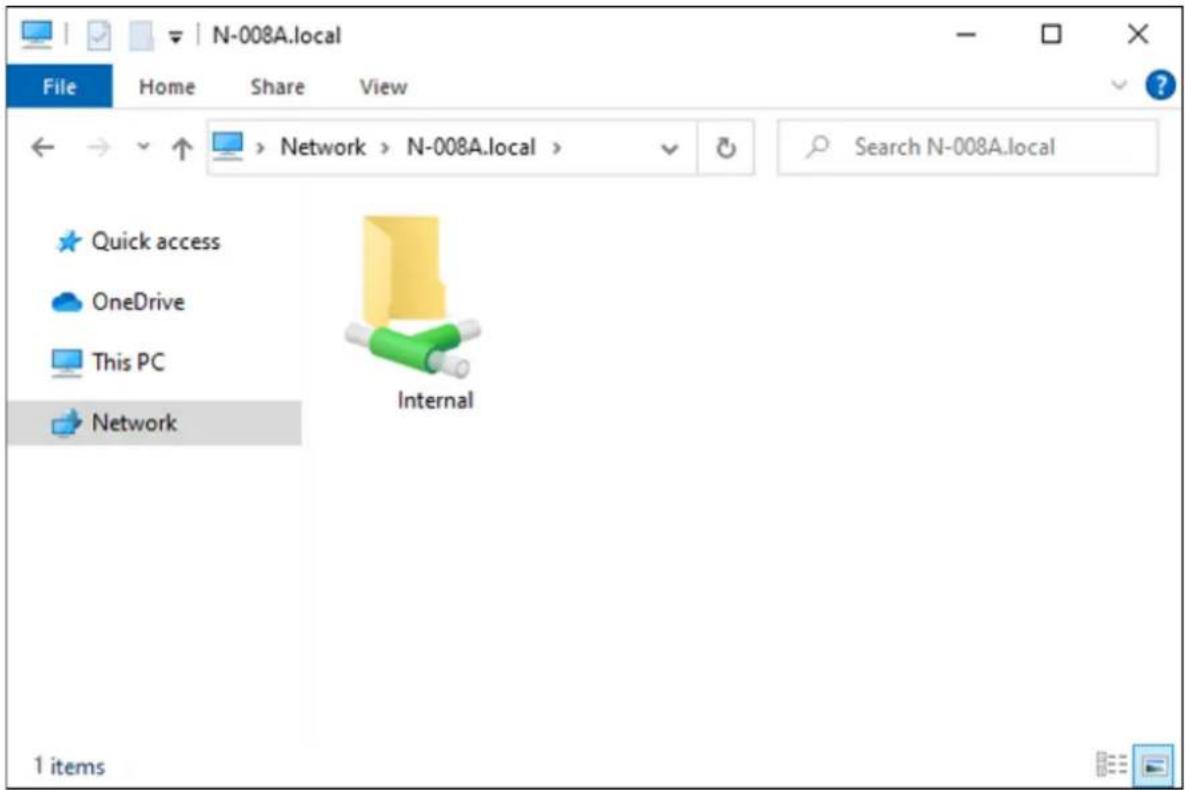
3 The shared folders on the Digital Music Library will be displayed. Double-click the "Internal" folder. If no folders are displayed, wait for about 30 seconds and try it from step 1 again.
Chapter 3 Basic Usage
4 Copy music files into the displayed folder.
macOS
1 Open Finder and click Go > Connect to Server.
2 Enter "smb://" and the Digital Music Library's IP address or friendly name, then click Connect.
3 Click Connect.
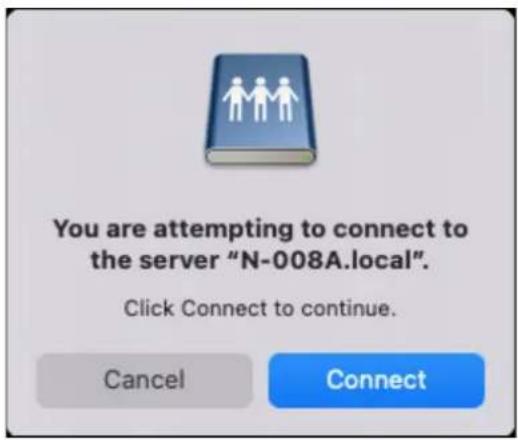
4 Enter "nobody" for both the username and password, then click Connect.
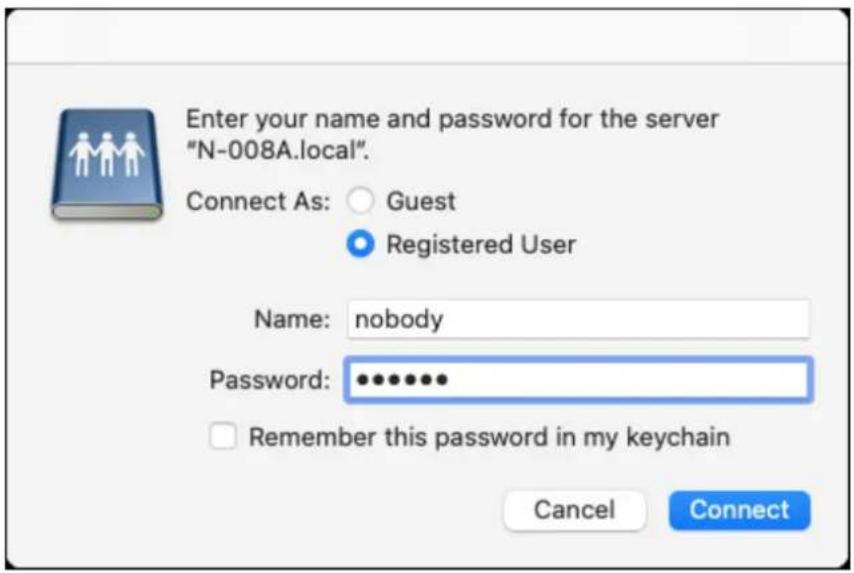
5 The shared folders on the Digital Music Library will be displayed. Select the "Internal" folder, and click OK. If no folders are displayed, wait for about 30 seconds and try it from step 1 again.
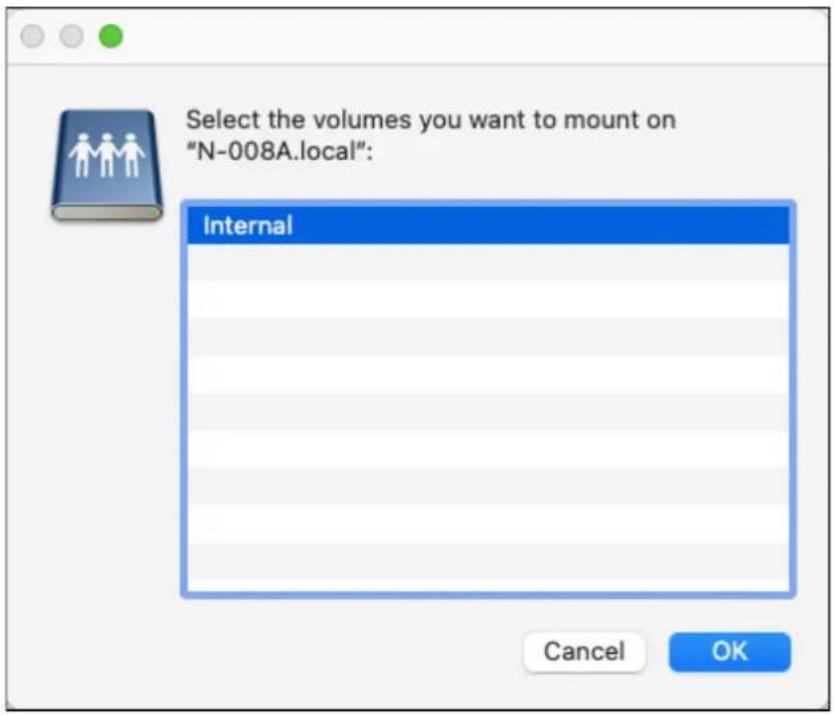
6 Copy music files into the displayed folder.
Note: Even when you close the shared folder, from the next time on you can open it from the sidebar of Finder.
If Unable to Access from a Computer
If the file sharing status icon (refer to item number 11 in the "Home Screen" section) is not displayed on the home screen, enable the file sharing service. To enable the file sharing service, follow the procedure below.
1 Press the Menu/Enter button to display the menu list at the home screen.
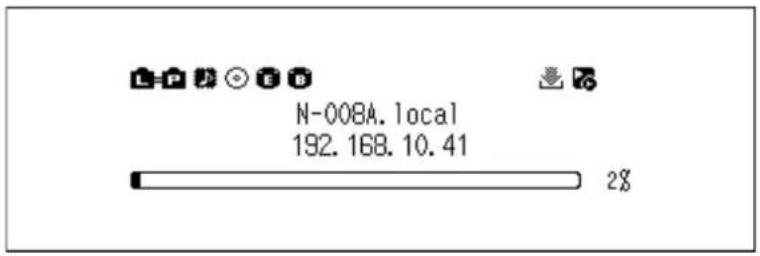
Note: The screenshot above shows the N1 EX/N50.
2 Press the Up/Down buttons and select "Settings", then press the Menu/Enter button.
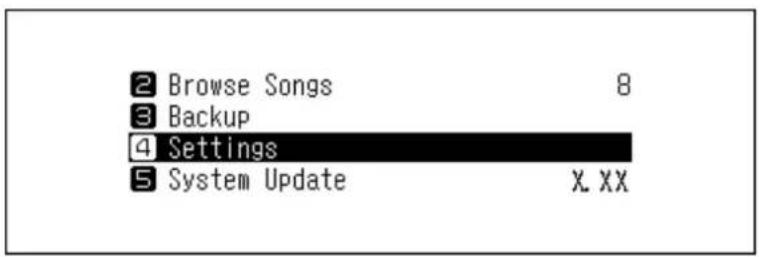
Chapter 3 Basic Usage
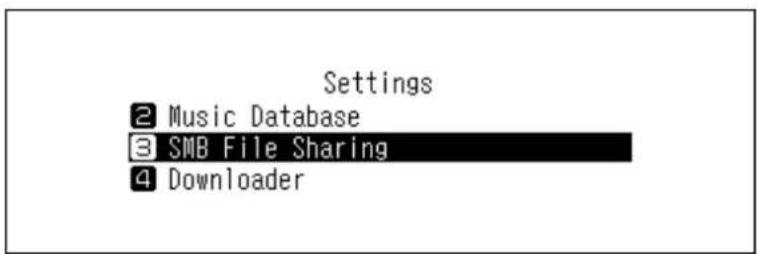
3 Press the Up/Down buttons and select "SMB File Sharing", then press the Menu/Enter button.
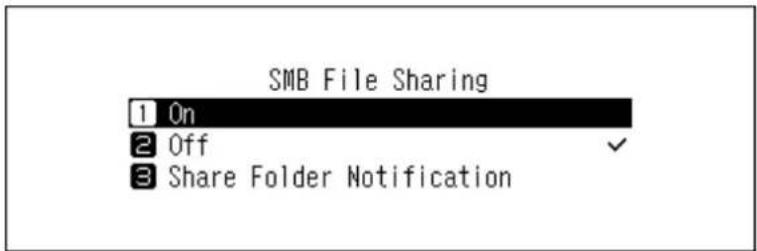
4 Press the Up/Down buttons and select "On", then press the Menu/Enter button.
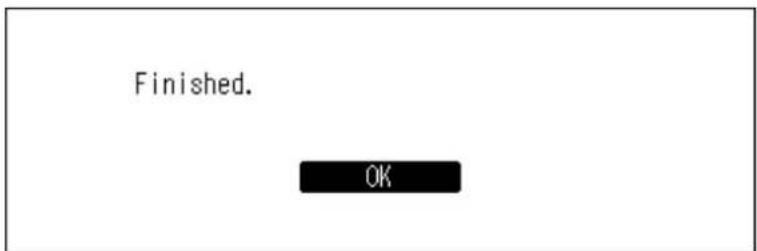
5 Press the Menu/Enter button.
Confirming Imported Files
Imported files can be accessed from mobile devices or computers that are connected to the same router as the Digital Music Library. Follow the appropriate procedure below.
Using Mobile Devices
You can confirm the imported files using a UPnP/DLNA-compatible app.
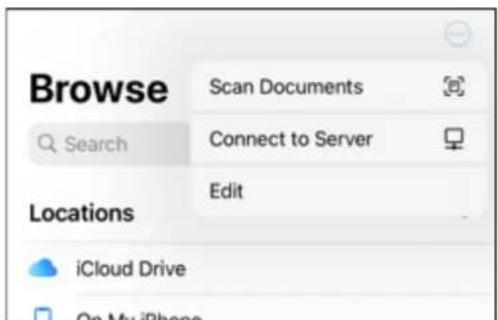
If using an iPad or iPhone, you can also confirm the imported files by opening the shared folder from the "Files" app by following the procedure below.
1 Open the "Files" app.
2 Tap >Connect to Server.
Chapter 3 Basic Usage
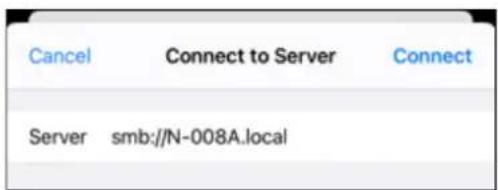
3 Enter "smb://" and the Digital Music Library's IP address or friendly name, then tap Connect.
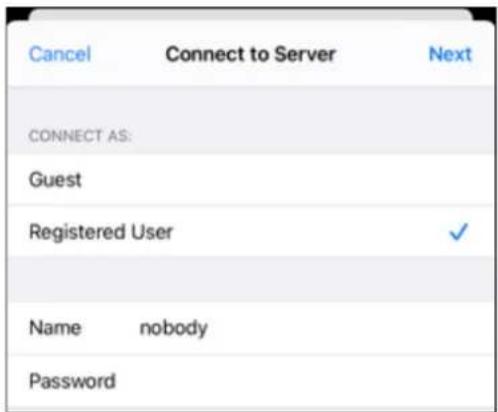
4 Enter "nobody" for both the username and password, then tap Next.
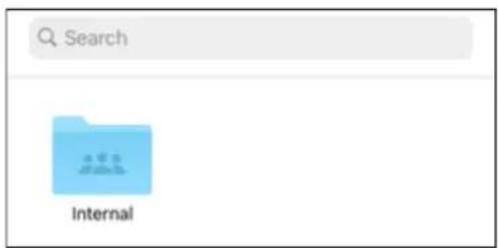
5 The shared folders on the Digital Music Library will be displayed. Tap the "Internal" folder. If no folders are displayed, wait for about 30 seconds and try it from step 2 again.
Note: Even when you close the shared folder, from the next time on you can open it from "Browse".
Using Computers
To confirm imported music files using a computer, follow steps 1–3 from the "Importing Files from a Computer" section above to open the shared folder. If the imported files are displayed, importing was finished properly.
Downloading Music Files from Streaming Sites
Downloader can download music files from streaming sites automatically. Once you purchase the music files from a mobile device or computer, the Digital Music Library can download the files from the streaming site, even if you're not at home.
Supported streaming sites are listed below:
• HIGHRESAUDIO
• Qobuz
• OTOTOY *
- e-onkyo music
• mora
*These streaming sites are available only in Japan. "e-onkyo music" is not the same as "Onkyo Music", which is no longer in service.
Notes:
- Create an account on one of the streaming sites above before using downloader. Also, make sure the Digital Music Library is connected to the Internet. You can verify if the Digital Music Library is connected to the Internet from Status > Network > LAN.
• To use this function, the time settings should be acquired from the NTP server automatically. - Do not move the folder under the "download" folder that contains the account name in its folder name to another folder. If the folder is moved, the Digital Music Library may download the same music files again.
Adding Accounts
To add an account from a streaming site to the Digital Music Library, follow the procedure below.
1 Create an account on the streaming site.
2 Press the Menu/Enter button to display the menu list at the home screen.
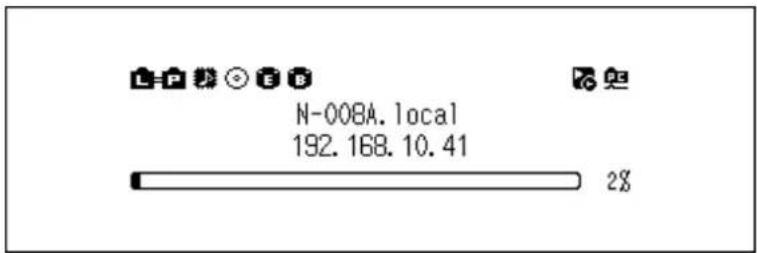
Note: The screenshot above shows the N1 EX/N50.
3 Press the Up/Down buttons and select "Settings", then press the Menu/Enter button.
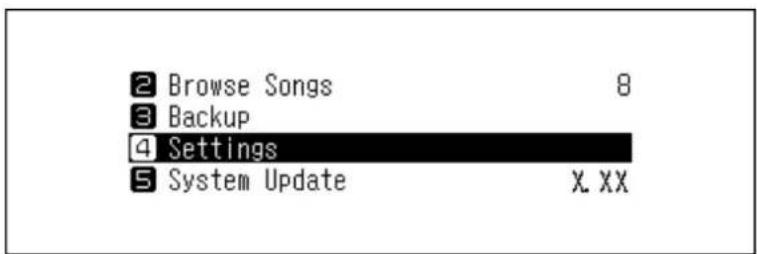
4 Press the Up/Down buttons and select "Downloader", then press the Menu/Enter button.
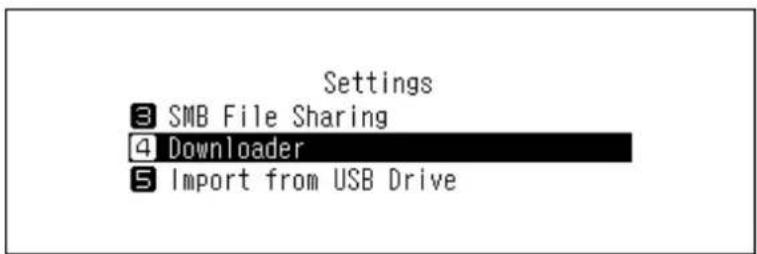
5 Press the Up/Down buttons and select "Account Settings", then press the Menu/Enter button.
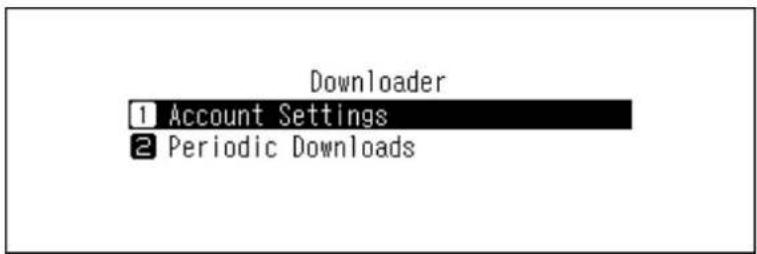
6 Press the Up/Down buttons and select "Add/Edit Account", then press the Menu/Enter button.
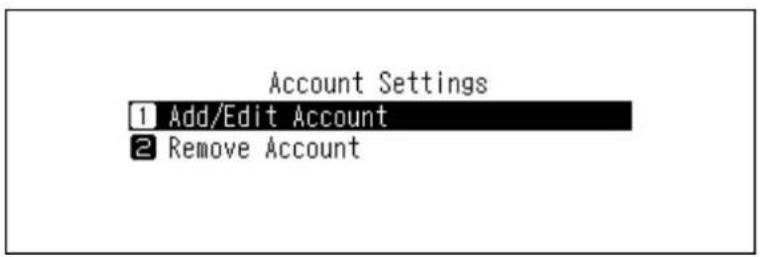
7 Press the Up/Down buttons and select "Add Account", then press the Menu/Enter button.
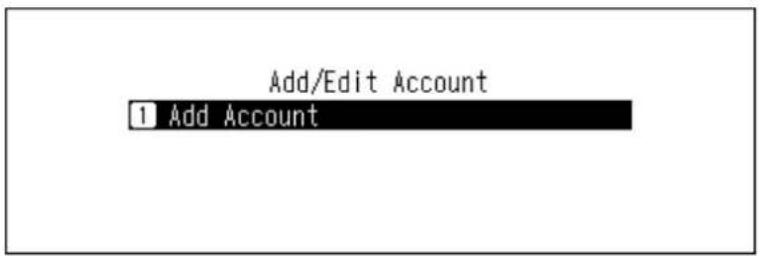
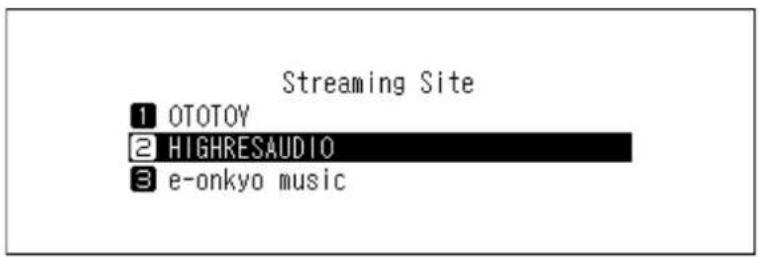
8 Press the Up/Down buttons and select the streaming site to add an account, then press the Menu/Enter button.
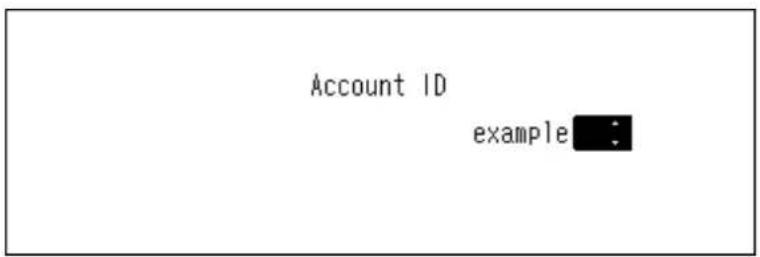
9 Press the Up/Down buttons and enter the account ID, then press the Menu/Enter button.
Note: When you add your Qobuz account to the Digital Music Library, the account ID and password may not be required if you have previously used the same account ID and password for another Digital Music Library function.
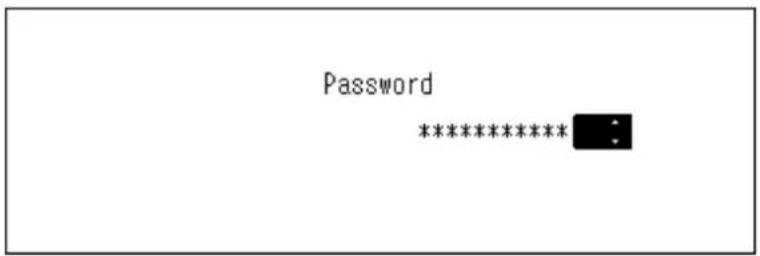
10 Press the Up/Down buttons and enter the account password, then press the Menu/Enter button.
11 When the credentials are authenticated, the following message will be displayed. Press the Menu/Enter button.
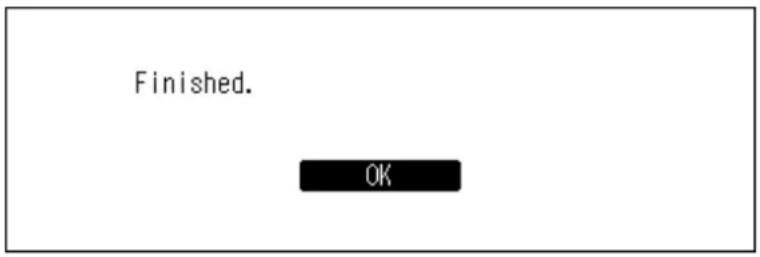
After an account has been added, periodic downloads will be automatically enabled.
Note: If you want to download files immediately, navigate to Settings > Downloader > Periodic Downloads. Make sure "On" is selected, then press the Menu/Enter button.
Enabling or Disabling Periodic Downloads
After adding an account of a streaming site to the Digital Music Library, the downloader will check the streaming site periodically for the purchased files. To disable this periodic check, follow the procedure below.
1 Press the Menu/Enter button to display the menu list at the home screen.
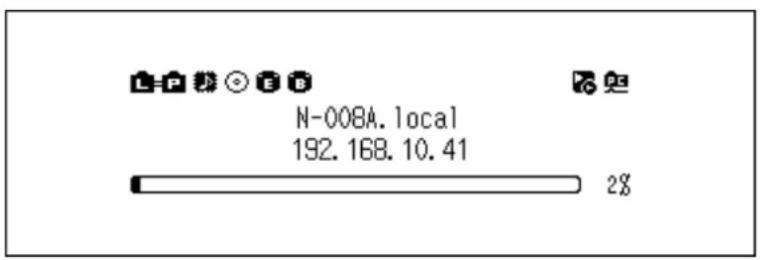
Note: The screenshot above shows the N1 EX/N50.
2 Press the Up/Down buttons and select "Settings", then press the Menu/Enter button.
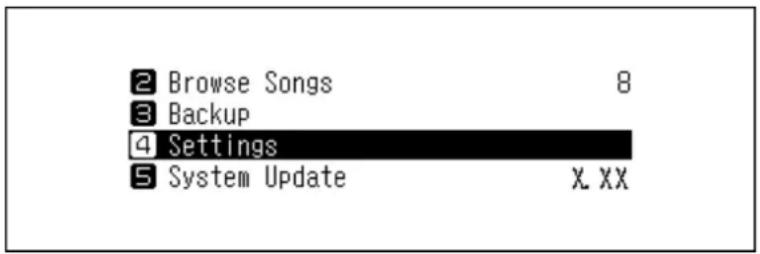
3 Press the Up/Down buttons and select "Downloader", then press the Menu/Enter button.
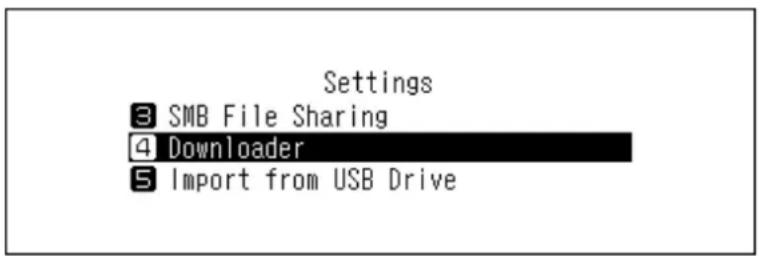
4 Press the Up/Down buttons and select "Periodic Downloads", then press the Menu/Enter button.
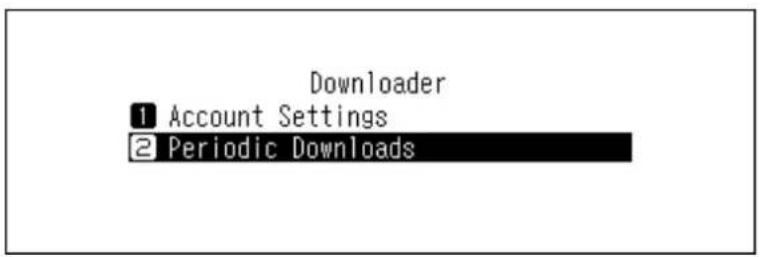
5 Press the Up/Down buttons and select either "Off" or "On", then press the Menu/Enter button.
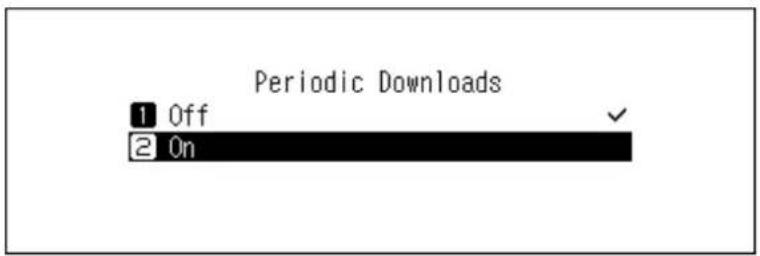
6 Press the Menu/Enter button.
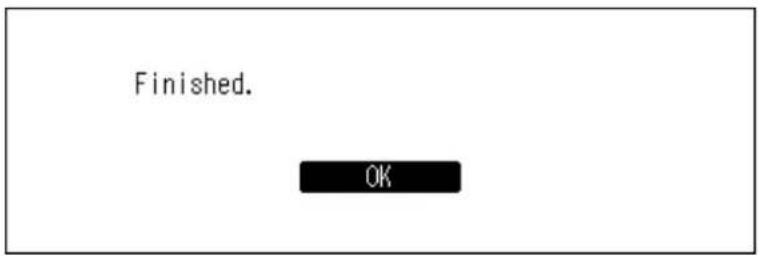
Deleting Accounts
To delete an existing account from the Digital Music Library, follow the procedure below.
1 Press the Menu/Enter button to display the menu list at the home screen.
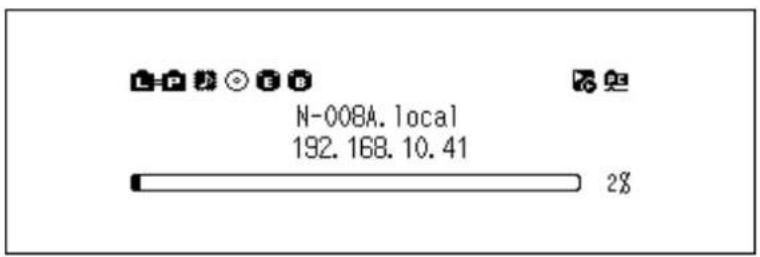
Note: The screenshot above shows the N1 EX/N50.
2 Press the Up/Down buttons and select "Settings", then press the Menu/Enter button.
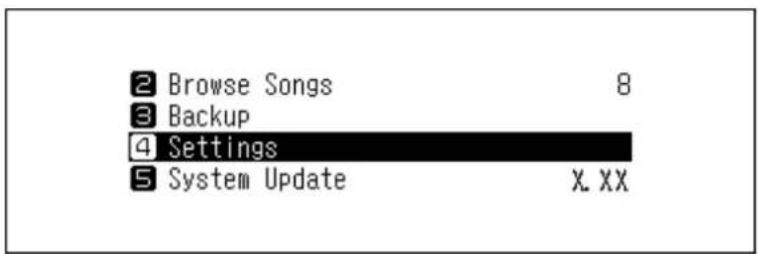
3 Press the Up/Down buttons and select "Downloader", then press the Menu/Enter button.
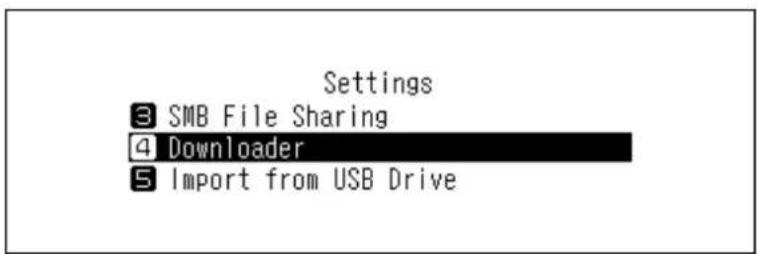
4 Press the Up/Down buttons and select "Account Settings", then press the Menu/Enter button.
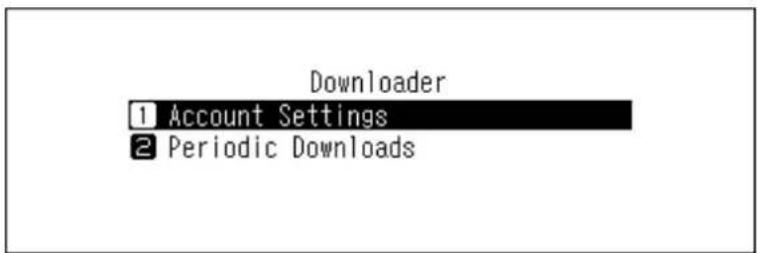
5 Press the Up/Down buttons and select "Remove Account", then press the Menu/Enter button.
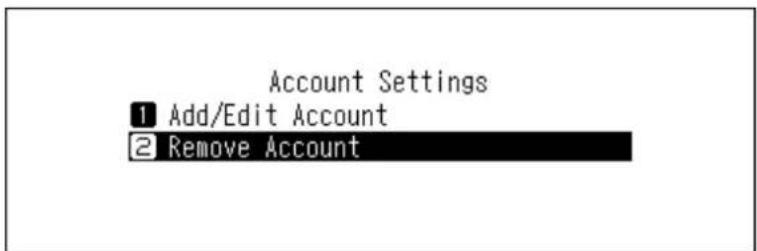
6 Press the Up/Down buttons and select the account to be deleted, then press the Menu/Enter button.
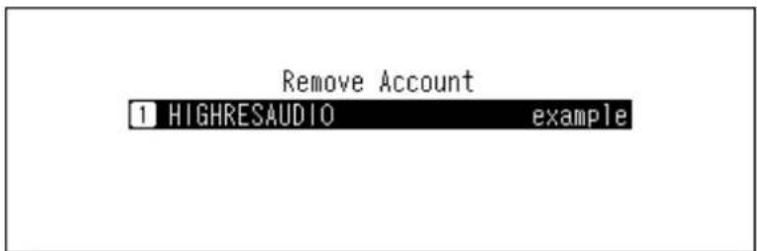
7 Press the Up/Down buttons and select "OK", then press the Menu/Enter button.
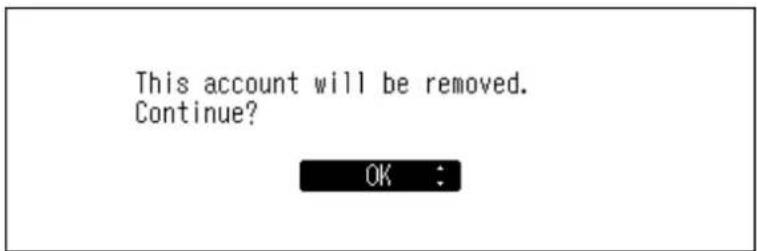
8 Press the Menu/Enter button.
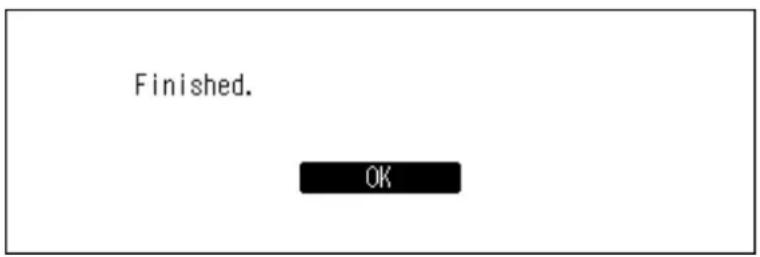
Note: If you remove all accounts with periodic downloads enabled, it will be disabled automatically.
Playing Music Files on a Network Audio Player
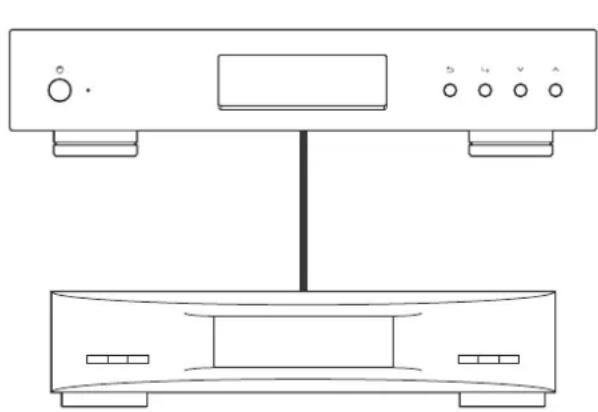
Imported music files can be played using the Network Audio Player. The procedure to play music files is different depending on the Network Audio Player, so refer to your Network Audio Player's manual for more detailed information on how to play music.
Note: You can play music files from an expansion drive on you Network Audio Player. For more information about this setting, refer to the "Streaming Music Files from Expansion Drives" section in chapter 4.
Digital Music Library
natural_image
Line drawing of a TV setup with front panel, screen, and backboard (no text or symbols)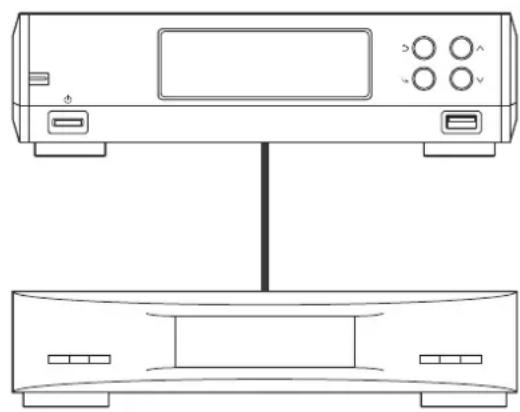
natural_image
Line drawing of a TV setup with front panel and backboard (no text or symbols)Network Audio Player
Streaming Imported Music Files
The Digital Music Library supports streaming of files with the extensions below.
Supported File Types for Streaming
| Extensions | mp3, wma, wav, lpcm, pcm, ogg, m4a, mp4, 3gp, flac, m3u, mpa, aac, apl, ac3, aif, aiff, mp2, mp1, dsf, dff |
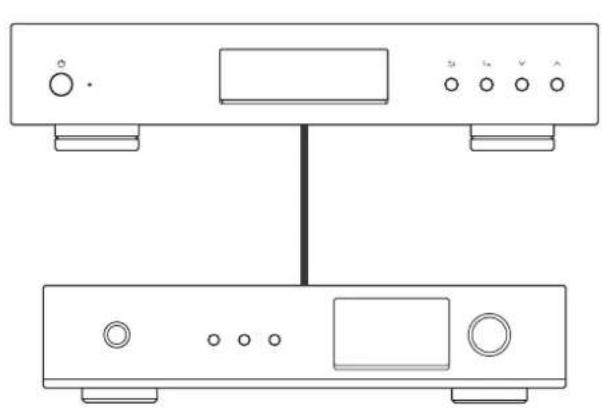
Playing Music Files on USB-DAC Devices
The Digital Music Library supports USB-DAC, short for "USB digital-to-analog converter". If using buttons on the unit or a mobile device with a controller app installed, you can directly connect a USB-DAC to the Digital Music Library to stream music and enjoy high-quality sound without using a computer.
Digital Music Library
natural_image
Line drawing of a dual-chamber electronic device with ports and indicator lights (no text or symbols)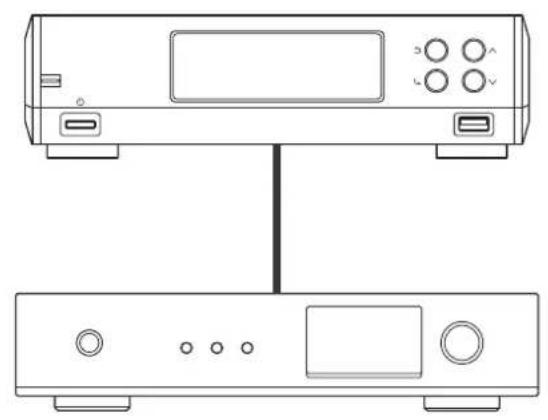
natural_image
Line drawing of a front-mounted electronic device with ports and a central indicator (no text or symbols)USB-DAC
Playing Music Files on the Digital Music Library or a USB Drive
To stream music files on the Digital Music Library or a USB drive to a USB-DAC, use buttons on the unit or a controller app on the mobile device. For more detailed information about how to use controller apps, refer to the apps' user guides.
If the media server app is set to "TwonkyServer", you can play music files using buttons on the Digital Music Library using the procedure below.
Note: To check the setting of the media server app, navigate to Settings > Music Database > Media Server App.
1 Connect a USB-DAC device to the USB-DAC port.
2 Press the Menu/Enter button to display the menu list at the home screen.
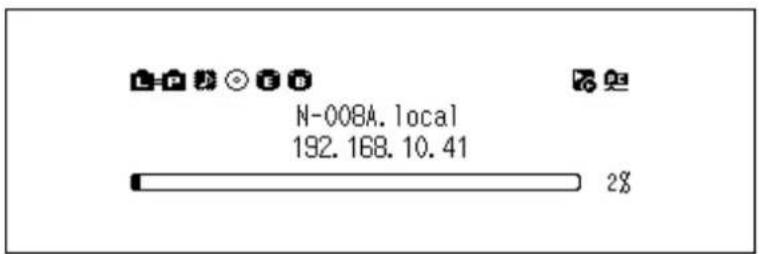
Note: The screenshot above shows the N1 EX/N50.
3 Press the Up/Down buttons and select "Play Songs", then press the Menu/Enter button.
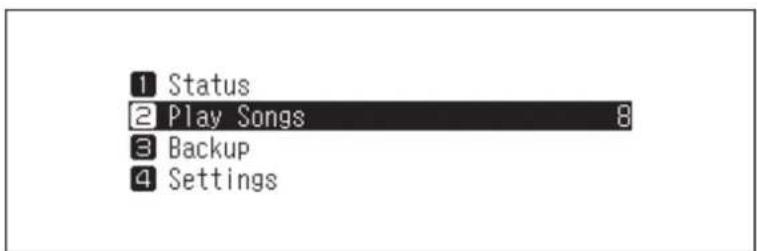
Note: If the media server app is set to "TwonkyServer", a number will be shown to the right of "Play Songs". This is the number of available music files to play.
4 Press the Up/Down buttons and select the category, then press the Menu/Enter button.
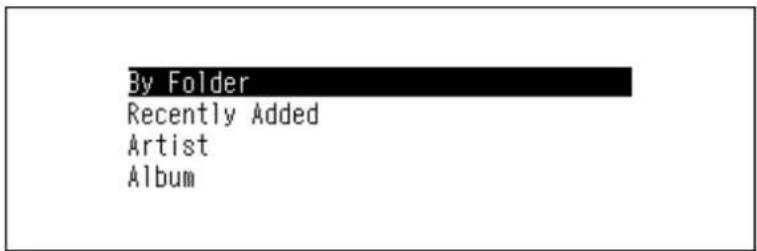
5 Press the Up/Down buttons and select the music file to play, then press the Menu/Enter button.
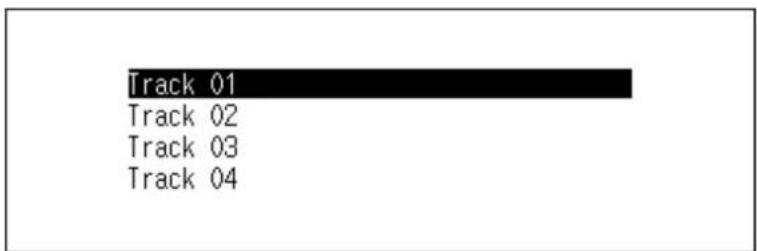
6 Press the Menu/Enter button.
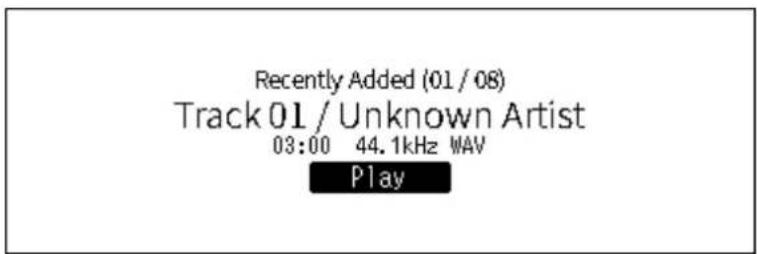
The Digital Music Library's USB-DAC supports streaming for the following file types and sampling rates.
Supported File Types
| File Types Extensions | |
| FLAC .flac | |
| ALAC (Apple Lossless)/AAC .m4a | |
| AIFF .aiff, .aif | |
| WAV .wav | |
| DSDIFF .dff | |
| DSF .dsf |
Supported Sampling Rates
• PCM: 44.1 kHz, 48 kHz, 88.2 kHz, 96 kHz, 176.4 kHz, 192 kHz, 352.8 kHz, 384 kHz, 705.6 kHz, 768 kHz
• DSD: 2.8 MHz, 5.6 MHz, 11.3 MHz, 22.6 MHz
Playing a CD Using an Optical Drive
CD Transport will allow you to play music tracks from the optical drive that is connected to the Digital Music Library using USB-DAC. To play music tracks using an optical drive, follow the procedure below.
1 Connect a USB-DAC device to the USB-DAC port and an optical drive to the USB 3.0 port on the N1 EX/N50, or the USB 2.0 port on the N10/N100.
2 Insert a music CD into the optical drive. The following screen will be displayed. Press the Up/Down buttons to select "Play", then press the Menu/Enter button. The CD will start playing.
Import music from CD, or play it now?
Play :
Notes:
- To play another music CD, stop the current CD and remove it from the drive, then repeat step 2.
- Do not disconnect the optical drives or USB-DAC while playing music tracks.
- While playing music tracks using CD Transport, the music files on the Digital Music Library cannot be played by another Network Audio Player.
Operation While Playing Music Files
You can use the following operations using buttons on the Digital Music Library while playing or suspending music files.
Playing
| Back button Stop playback. | |
| Menu/Enter button Suspend or resume playback. | |
| Up button Play the previous track on the album. | |
| Down button Play the next track on the album. | |
| Up button - press and hold Force stop playback while tracks are played using a controller app. | |
Suspending
| Up button | Switch to repeat and shuffle. When the button is pressed once, playback will switch to repeat. When the button is pressed twice, playback will switch to shuffle. When the button is pressed three times, playback will switch to both repeat and shuffle. When the button is pressed four times, playback will revert to normal. |
| Down button | The display panel will switch to the time passed on a song or the remaining time of a song. |
Configuring the Mode for Managing USB-DAC Using Controller App
By default, "Hybrid Mode" is selected and it supports many types of controller apps. However, depending on the controller app you are using, we recommend changing the controller settings to one of the following modes. It will optimize communication between the Digital Music Library and the controller app.
The controller app by Roon Labs LLC will not work until the controller settings is changed to "Roon Ready Mode".
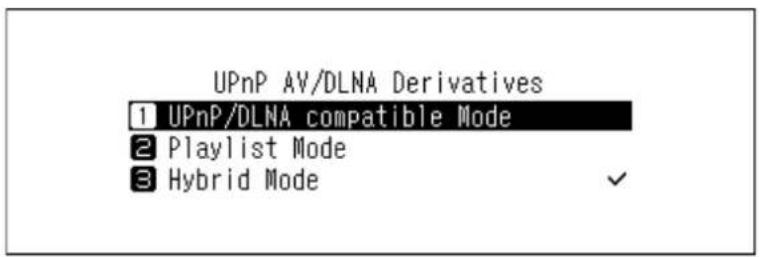
UPnP AV/DLNA Derivatives
- UPnP/DLNA compatible Mode: Select when your controller app is UPnP/DLNA-compatible.
- Playlist Mode: Select when your controller app is OpenHome-compatible.
- Hybrid Mode: This mode supports both UPnP/DLNA-compatible apps and OpenHome-compatible apps.
Roon Ready Mode
Select when your controller app is by Roon Labs LLC.
Note: If the selected controller mode does not support the controller app, the Digital Music Library may not appear as a player on the app.
To change the controller settings, follow the procedure below.
Changing to UPnP/DLNA compatible Mode or Playlist Mode
1 Press the Menu/Enter button to display the menu list at the home screen.
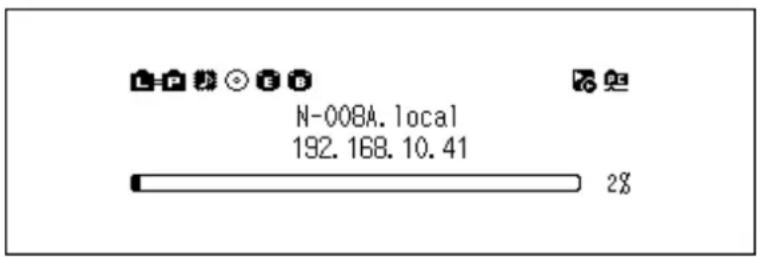
Note: The screenshot above shows the N1 EX/N50.
2 Press the Up/Down buttons and select "Settings", then press the Menu/Enter button.
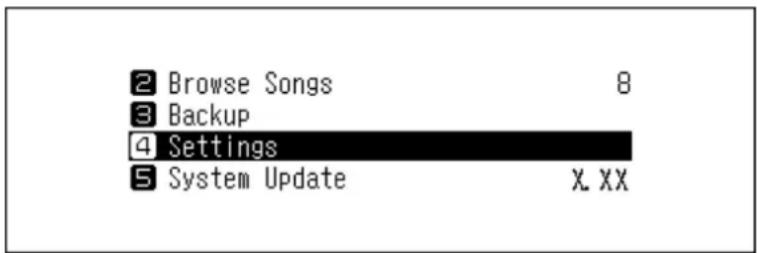
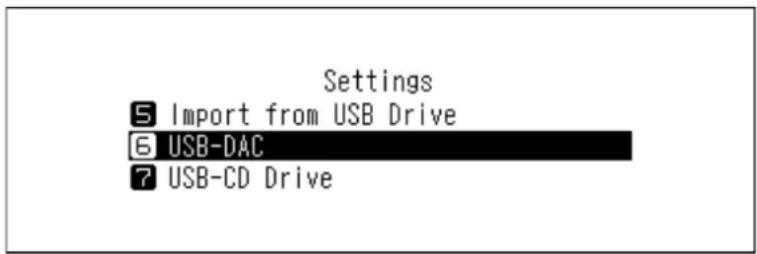
3 Press the Up/Down buttons and select "USB-DAC", then press the Menu/Enter button.
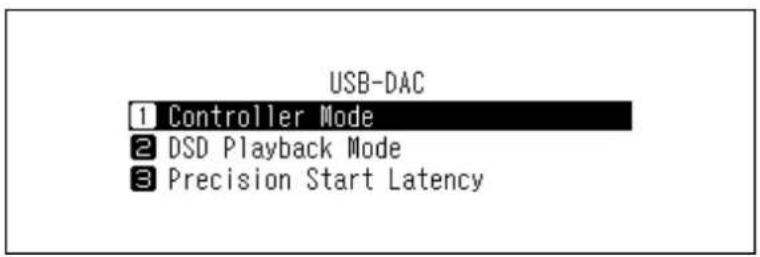
4 Press the Up/Down buttons and select "Controller Mode", then press the Menu/Enter button.
5 Press the Up/Down buttons and select "UPnP AV/DLNA Derivatives", then press the Menu/Enter button.
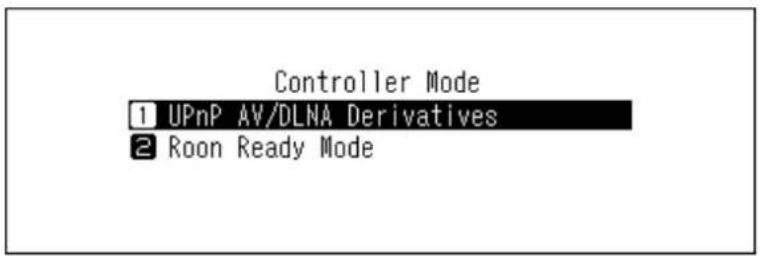
6 Press the Up/Down buttons and select either "UPnP/DLNA compatible Mode" or "Playlist Mode", then press the Menu/Enter button.
7 If the following message appears, press the Menu/Enter button.
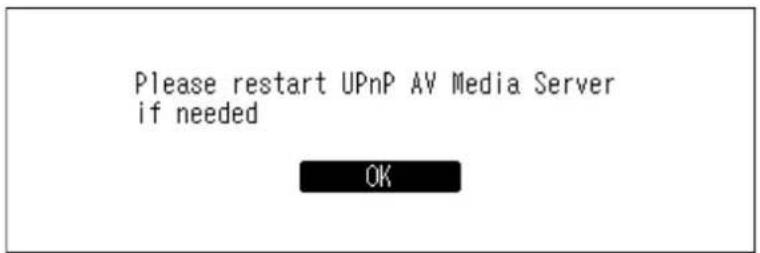
Note: This message appears when the media server app is disabled. We recommend enabling the media server app. To enable it after this procedure, navigate to Settings > Music Database, and select "TwonkyServer" or "MinimServer".
8 Press the Menu/Enter button.
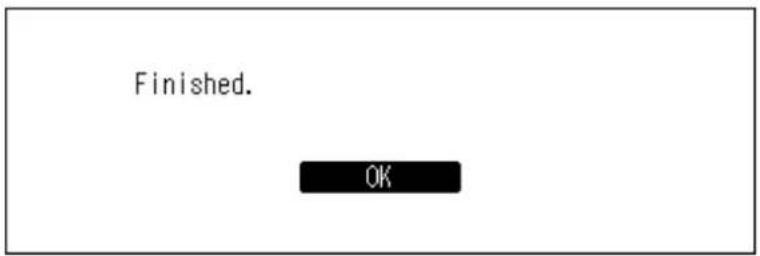
The controller mode will be changed.
Changing to Roon Ready Mode
1 Press the Menu/Enter button to display the menu list at the home screen.
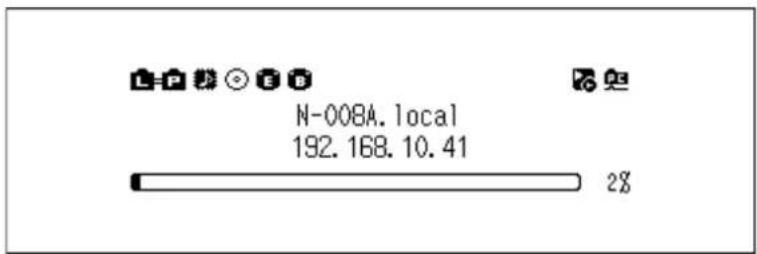
Note: The screenshot above shows the N1 EX/N50.
2 Press the Up/Down buttons and select "Settings", then press the Menu/Enter button.
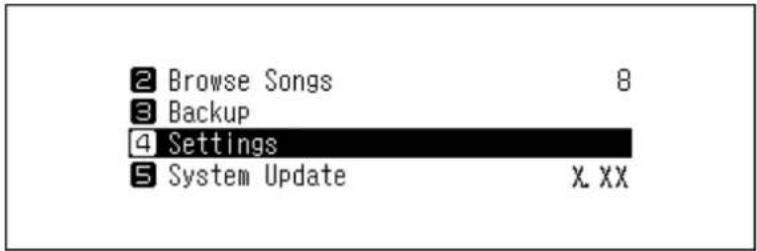
3 Press the Up/Down buttons and select "USB-DAC", then press the Menu/Enter button.
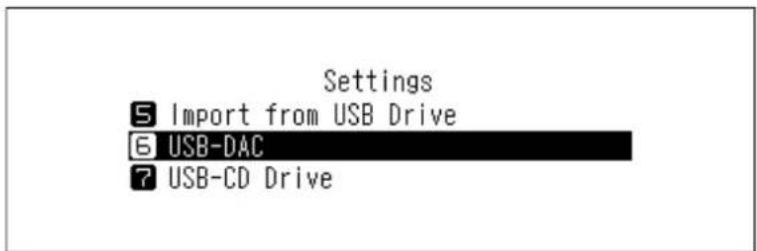
4 Press the Up/Down buttons and select "Controller Mode", then press the Menu/Enter button.
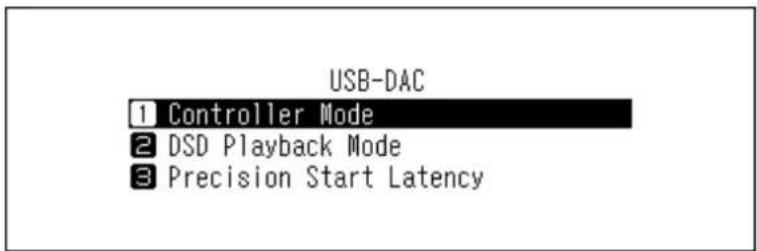
5 Press the Up/Down buttons and select "Roon Ready Mode", then press the Menu/Enter button.
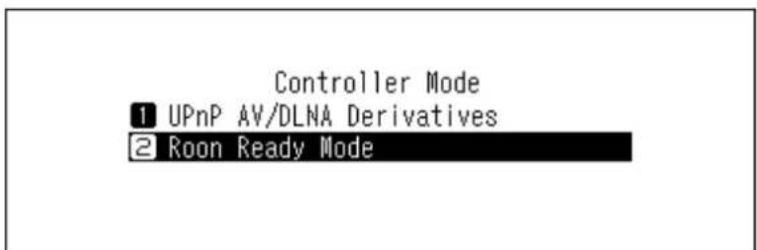
6 If the following message appears, press the Menu/Enter button. The media server app will be disabled.
Turn off the UPnP AV Media Server.
Note: If you press the Back button, the media server app will not be disabled. While "Roon Ready Mode" is selected, the media server app will not be used for playback while using USB-DAC. Therefore, we recommend selecting "OK" to disable the media server.
7 Press the Menu/Enter button.
Finished.
The controller mode will be changed.
Changing the DSD Playback Mode
The Digital Music Library supports three different playback modes for DSD files (.dsf, .dff). You can select from the following modes:
- Standard: The default and recommended playback mode. If a connected USB-DAC supports Melco Markerless DSD, the DSD file will be played by the Markerless DSD playback; otherwise, the DSD file will be played by DSD over PCM.
- DSD over PCM Priority Mode: This mode applies DSD over PCM even if a connected USB-DAC supports Markerless DSD playback. Except for this aspect, this mode is the same as standard mode.
- PCM Mode: This mode will convert DSD files to PCM files. If connecting a USB-DAC that only supports playing PCM files, selecting this mode is recommended. Except for this behavior, this mode is the same as standard mode.
To configure USB-DAC on your Digital Music Library, follow the procedure below.
1 Press the Menu/Enter button to display the menu list at the home screen.
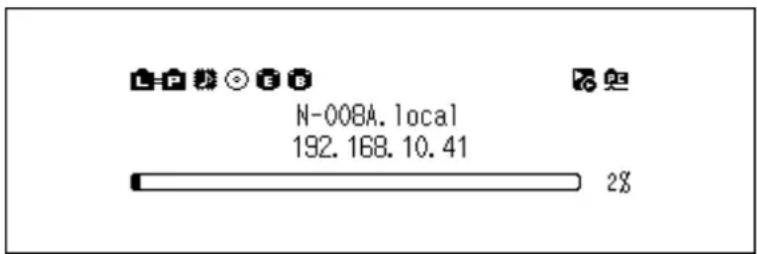
Note: The screenshot above shows the N1 EX/N50.
2 Press the Up/Down buttons and select "Settings", then press the Menu/Enter button.
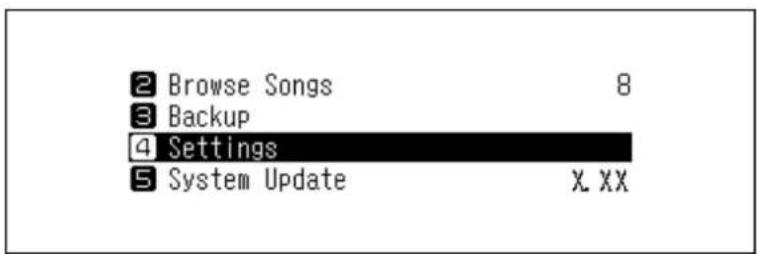
3 Press the Up/Down buttons and select "USB-DAC", then press the Menu/Enter button.
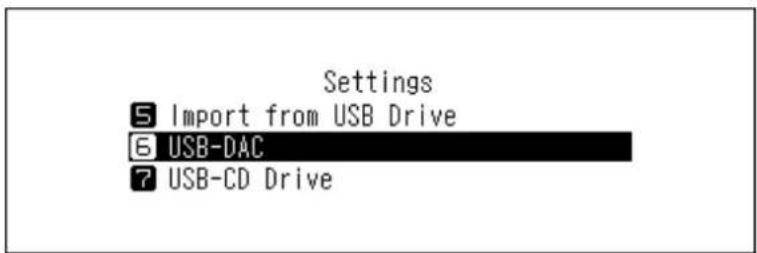
4 Press the Up/Down buttons and select "DSD Playback Mode", then press the Menu/Enter button.
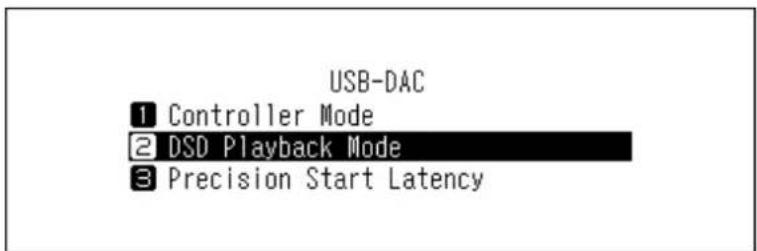
5 Press the Up/Down buttons and select the playback mode, then press the Menu/Enter button.
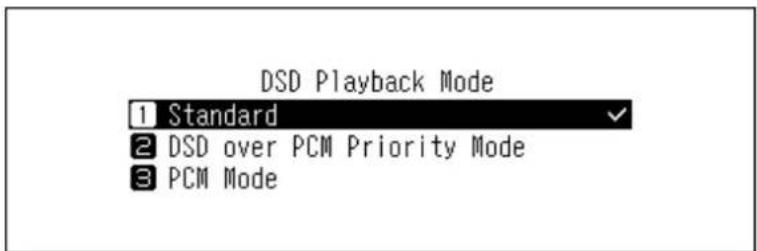
6 Press the Menu/Enter button.
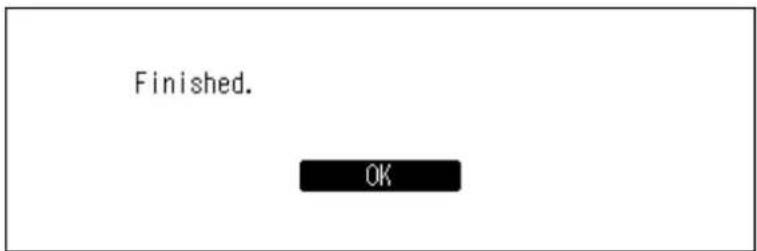
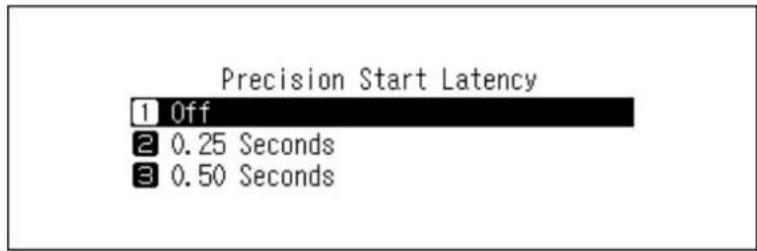
Note: By default, a gap time of 3 seconds will be added to the first track of the playlist because the beginning of a music file does not count as initial playback if the sampling rate has changed between music files or if playing DSD files on some USB-DAC devices. A 3-second gap time is the longest possible gap time. If you want to start the next music file faster, navigate to Settings >USB-DAC > Precision Start Latency and set a shorter gap time.
Backing Up and Restoring
Backup Operations
With this operation, both music files and settings are backed up. Backed up music files can be restored if the files are deleted.
Backup operations will vary depending on the file system of the connected USB drive. Differences between backup modes are below:
| File System Mode Files Affected | ||
| NTFS | Differential backup | Only files with different sizes and times since the previous backup will be saved. If the file content and location (path) remain the same since the previous backup job, these files will not be backed up. If the file location changes, that file will be backed up even if the contents have not changed. |
| HFS Plus without Journaling | ||
| FAT32 | Full backup All files will be backed up. | |
| exFAT | ||
Notes:
- Use only the compatible USB drives listed on melco-audio.com.
- The data will be kept even if the USB drive already contains the backup data in it and a backup job runs.
- To use differential backup for FAT32- or exFAT-formatted USB drives, format it using the Digital Music Library. All data will be erased and the file system will change to NTFS after formatting.
- The Digital Music Library can format the connected USB drive into a backup drive, and we recommend using the Digital Music Library to format the drive instead of a computer. Refer to the "Formatting Drives" section in chapter 4 to format the connected USB drive. Formatting should be done before using the USB drive as the backup drive. If there are files on the USB drive, formatting will erase all data on it.
- Before backing up imported music files, make sure the date and time is configured correctly from Settings > Date and Time. Date and time settings will be used to create differential backups, or to maintain version control between multiple backups.
Backing Up Data
To back up imported music files, follow the procedure below.
1 Connect the USB drive to the Backup port on the N1 EX/N50, or the USB 2.0 port on the N10/N100. If you connect the USB drive that contains the Digital Music Library's backup data, you can also use it for differential backups.
When the USB drive is connected to the front USB port on the N1A EX/N50, or the USB 2.0 port on the N10/N100, the following screen will be displayed. Press the Up/Down buttons and select "Backup or Restore", then press the Menu/Enter button.
If "Finished." is displayed, press the Menu/Enter button.
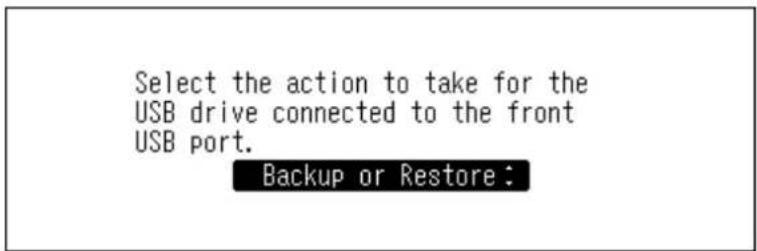
2 Press the Menu/Enter button to display the menu list at the home screen.
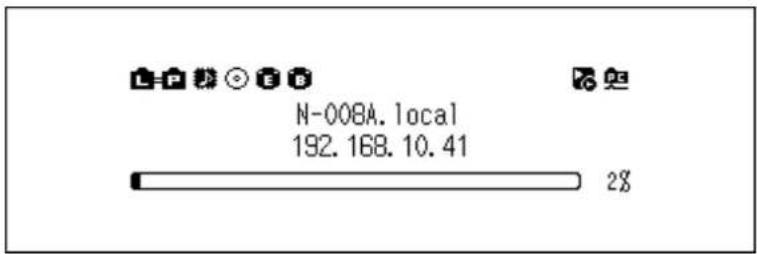
Note: The screenshot above shows the N1 EX/N50.
3 Press the Up/Down buttons and select "Backup", then press the Menu/Enter button.
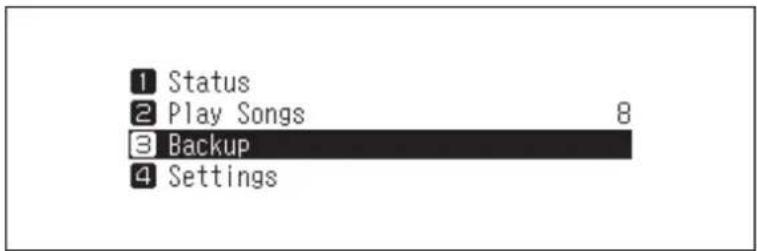
4 Press the Up/Down buttons and select "Start Backup", then press the Menu/Enter button.
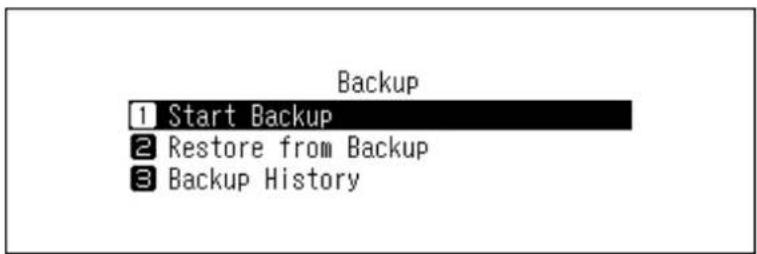
Notes:
- If the following message is displayed, the full backup will run if you press the Menu/Enter button. If you want to run a differential backup, press the Back button to stop the backup process.
The USB drive does not support differential backup.
OK
- If the following message is displayed, press the Menu/Enter button to go back to the previous screen and configure the date and time correctly from Settings > Date and Time.
Set the correct datetime before backup.
(Error 013)
OK
5 Press the Menu/Enter button.
Finished.
OK
6 Disconnect the USB drive.
Note: Backed up data will be saved in the following folder:
".Anas.bak" - MAC address - backup date and time - "disk1"
Normally, a folder that contains a period in its name is treated as a hidden folder. Hidden folders cannot be displayed unless a specific setting on a computer is changed. To access the ".Anas.bak" folder from a computer, change its hidden folder settings beforehand.
Restoring Data
To restore the backup data, follow the procedure below.
Restoring from backup will delete all current data on the Digital Music Library. If needed, back up any data before continuing.
1 Connect the backup drive that contains the backup data to the Backup port on the N1 EX/N50, or the USB 2.0 port on the N10/N100.
When the USB drive is connected to the front USB port on the N1A EX/N50, or the USB 2.0 port on the N10/N100, the following screen will be displayed. Press the Up/Down buttons and select "Backup or Restore", then press the Menu/Enter button.
If "Finished." is displayed, press the Menu/Enter button.
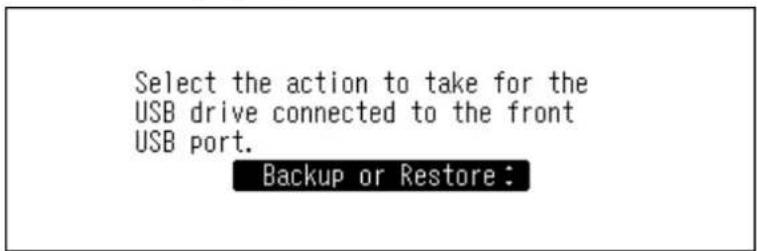
2 Press the Menu/Enter button to display the menu list at the home screen.
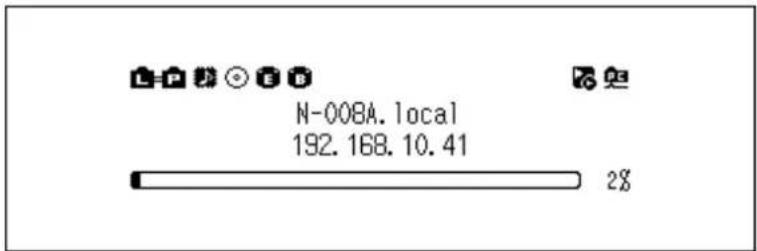
Note: The screenshot above shows the N1 EX/N50.
3 Press the Up/Down buttons and select "Backup", then press the Menu/Enter button.
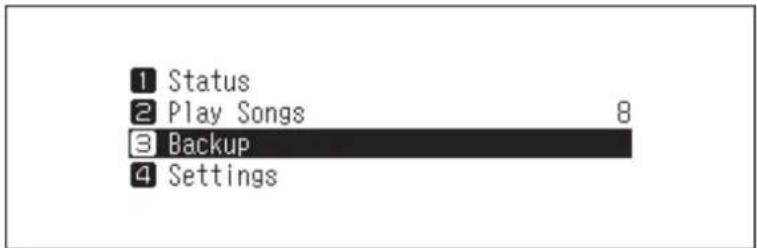
4 Press the Up/Down buttons and select "Restore from Backup", then press the Menu/Enter button.
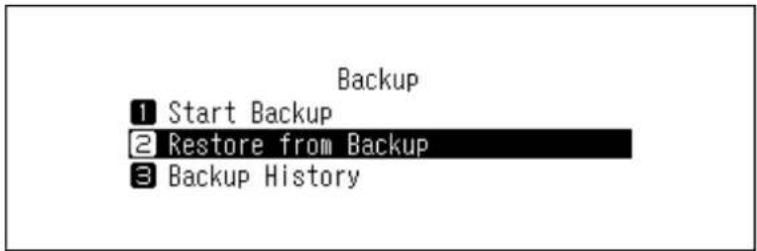
Note: To display the backup history, navigate to Backup > Backup History.
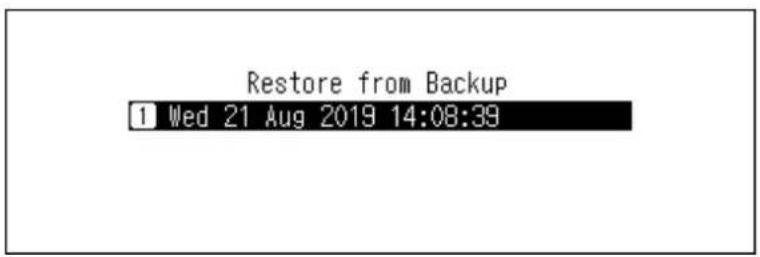
5 Press the Up/Down buttons and select the date of backup, then press the Menu/Enter button.
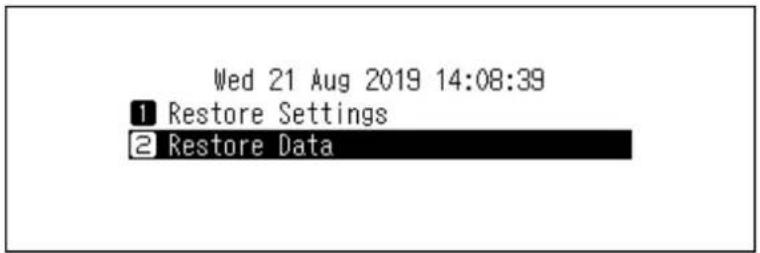
6 Press the Up/Down buttons and select "Restore Data", then press the Menu/Enter button. If selecting "Restore Settings", settings other than the hostname can also be restored from the backup settings.
7 Make sure that all files on the drive can be erased before proceeding. To continue formatting, press the Up/Down buttons and select "OK", then press the Menu/Enter button.
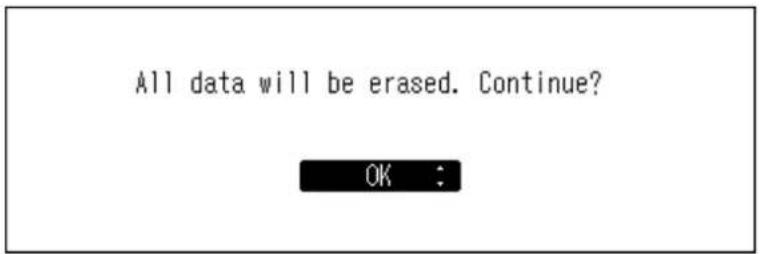
8 Press the Menu/Enter button.
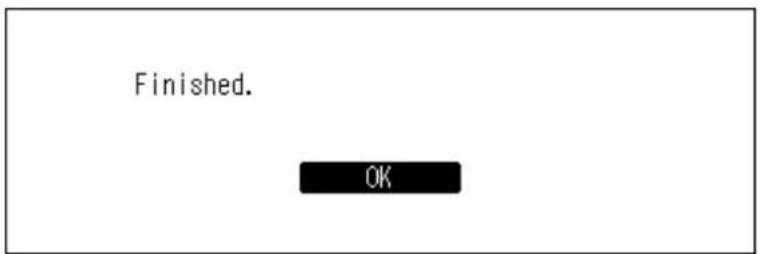
9 Press the Menu/Enter button.
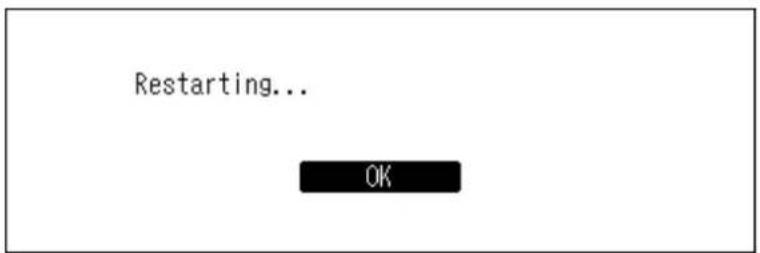
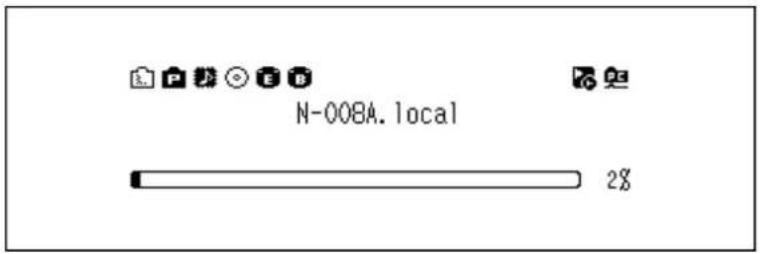
10 The Digital Music Library will restart. Wait until the home screen is displayed.
11 When the home screen is displayed, disconnect the USB drive.
Deleting the Imported Music Files
There are two ways to delete the imported music files. Follow either procedure below.
Deleting All Files
Format the drive, referring the "Formatting Drives" section in chapter 4. Formatting will delete all data on the drive. If needed, back up any data before continuing.
Deleting Each File One by One
Open the Digital Music Library shared folder from the computer, referring to the "Confirming Imported Files" section above, and delete each file one by one.
Using a USB Drive as an Expansion Drive
The following operations will be available by connecting a USB drive as an expansion drive, by referring to the procedure within the "Connecting a USB Drive as an Expansion Drive" section below.
- Importing music files to an expansion drive.
For more information about this operation, refer to the "Importing Music Files to an Expansion Drive" section below. - Playing music files from an expansion drive on your Network Audio Player.
For more information about this operation, refer to the "Streaming Music Files from Expansion Drives" section below.
Notes:
- Use only the compatible USB drives listed on melco-audio.com.
- The expansion drive will appear as the "Expansion" folder on a network.
Connecting a USB Drive as an Expansion Drive
If using the N1 EX/N50, connect a USB drive to the Expansion port.
If using the N10/N100, connect a USB drive to the rear USB 2.0 port, and select "Mount and Scan" as the action for the drive.
Select the action to take for the USB drive connected to the rear USB[1] port.
Mount and Scan :
E will appear when the USB drive is connected to the Digital Music Library as an expansion drive.
Notes:
- The rear USB 2.0 port of the N10/N100 can be set as the Expansion port. By setting the USB port as the Expansion port, the USB drive connected to the USB port will be automatically recognized as an expansion drive. To set the USB port as the Expansion port, after connecting a USB drive as an expansion drive, press the Menu/Enter button on the home screen and select "Always use USB 1 as Expansion". For more information about this setting, refer to the "Always use USB 1 as Expansion" section in chapter 5.
- The Digital Music Library will rescan the music database when the expansion drive is connected to the Digital Music Library. Due to this scanning, the music files on the expansion drive are listed on the Network Audio Player.
Importing Music Files to an Expansion Drive
To import music files to an expansion drive, connect an expansion drive by referring to the "Connecting a USB Drive as an Expansion Drive" section, and navigate to Settings > USB-CD Drive, then select Expansion Drive.
Connect only one expansion drive when configuring this setting. If multiple expansion drives are connected, remove all expansion drives first, including the drive on which you want to store imported data, and then re-insert an expansion drive.
Notes:
- If importing from a non-music CD, the imported data will be stored in the Digital Music Library, not in the expansion drive.
- With this setting, the cover art files will not be acquired when importing music files.
- This setting will not affect all expansion drives. You will need to configure this setting for each expansion drive you connect if you want to store imported data on them.
Streaming Music Files from Expansion Drives
Even if music files are not imported from the USB drive, your Network Audio Player can play music files from the expansion drive. Connect an expansion drive to the Digital Music Library by referring to the "Connecting a USB Drive as an Expansion Drive" section.
From the controller app for the Network Audio Player, select folder view from the index tree, then open the "Expansion" folder of the Digital Music Library. You can then select music files in the "Expansion" folder for playback. If the "Expansion" folder cannot be found, rescan the music database by navigating to Settings > Music Database > Rescan Songs and Playlists on the Digital Music Library.
Disconnecting an Expansion Drive
If you want to disconnect the expansion drive while the Digital Music Library is on, press the Menu/Enter button on the home screen and select "Dismount USB Drive" to dismount the expansion drive. The menu name will vary depending on which USB port you have inserted the expansion drive into.
Connecting a Network Audio Player Without Connecting to the Internet
To connect a Network Audio Player to the Digital Music Library without connecting to the Internet, set the Digital Music Library to isolated mode. If using this mode, you won't be able to be control the Digital Music Library using the app. For playback, use the Network Audio Player's display panel and remote controller to select a music file. If you cannot operate a Network Audio Player, it will not be able to select a music file.
To configure isolated mode, follow the procedure below.
Note: Give the Digital Music Library plenty of space for airflow. Do not stack it with other devices that may give off heat.
N1 EX/N50 (Rear) Network Audio Player

N10/N100 (Rear) Network Audio Player

1 Connect the Digital Music Library's Player port and a Network Audio Player with the provided Ethernet cable. Do not connect the Ethernet cable to the Ethernet port for a router or hub.
2 Turn on the Network Audio Player.
3 Press the Menu/Enter button to display the menu list at the home screen.
Note: The screenshot above shows the N1 EX/N50.
4 Press the Up/Down buttons and select "Settings", then press the Menu/Enter button.
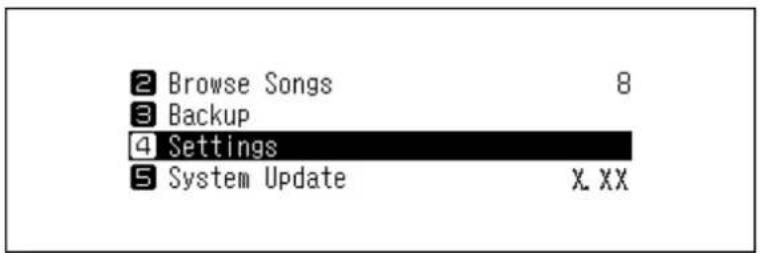
5 Press the Up/Down buttons and select "Network", then press the Menu/Enter button.
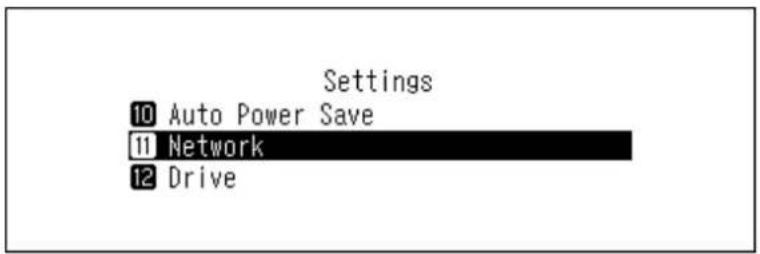
6 Press the Up/Down buttons and select "Player Port", then press the Menu/Enter button.
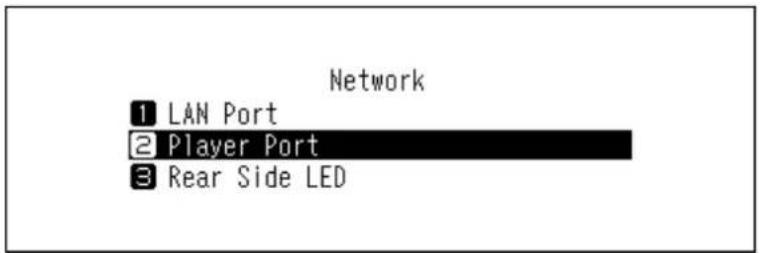
7 Press the Up/Down buttons and select "Isolated Mode", then press the Menu/Enter button.
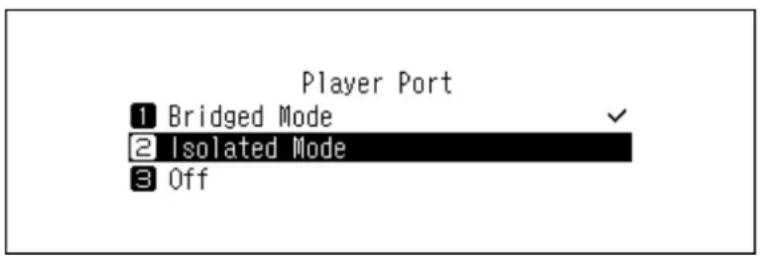
8 Press the Menu/Enter button.
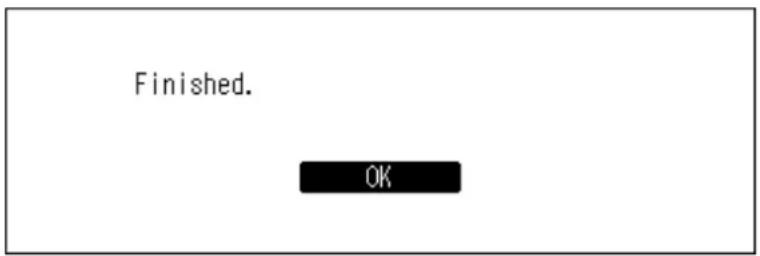
Note: To connect the Digital Music Library and the Network Audio Player to the network via the router or hub, use network mode instead. Select "Bridged Mode" at step 7 above to use network mode.
Changing the RAID Mode on the N1 EX/N50
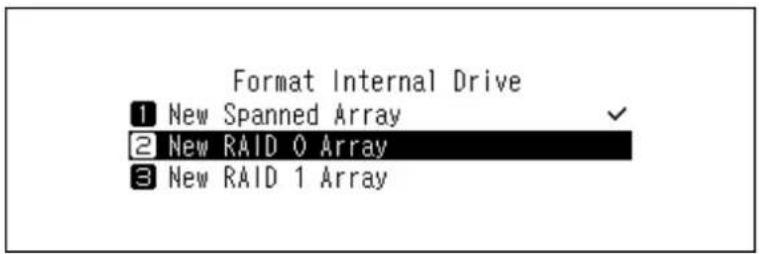
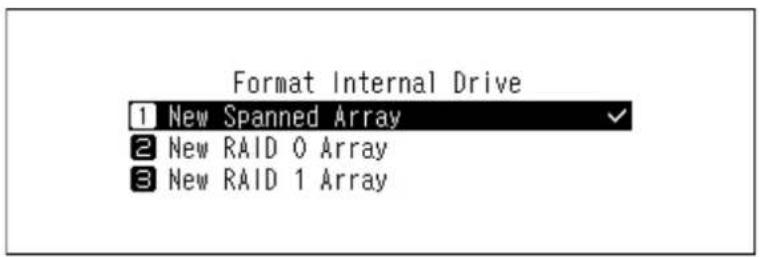
The N1 EX models with two internal drives, and the N50 are configured with a RAID array by default. To change the RAID mode from the default, follow the procedure below. Changing the RAID mode will delete all data on the drive. If needed, back up any data before continuing.
Spanned
Combines two drives in the N1 EX/N50 into a single array. The usable drive space is the total space of all drives in the array. Data is written to the first drive, then the second drive once the first drive becomes full. If a single drive in the array fails, then all data on the array is lost.
RAID 0
Combines two drives in the N1 EX/N50 into a single array. The usable drive space is the total space of all drives in the array. This simple RAID mode offers faster performance than a spanned array. If a single drive in the array fails, then all data on the array is lost. Amongst the two available RAID modes, RAID 0 does not offer any redundancy. If secure data storage is critical, using RAID 0 is not recommended.
RAID 1
Combines two drives in the N1 EX/N50 into a mirrored array. The usable drive space on the array is the capacity of a single drive. Identical data is written to each drive. If a drive is damaged, data can be recovered by replacing the damaged drive. As long as one drive in the array remains undamaged, all data on the array can be recovered.
1 Press the Menu/Enter button to display the menu list at the home screen.
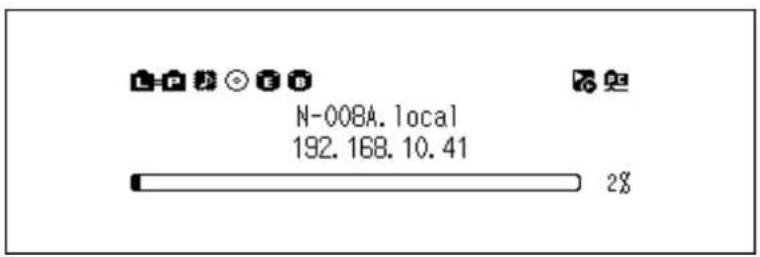
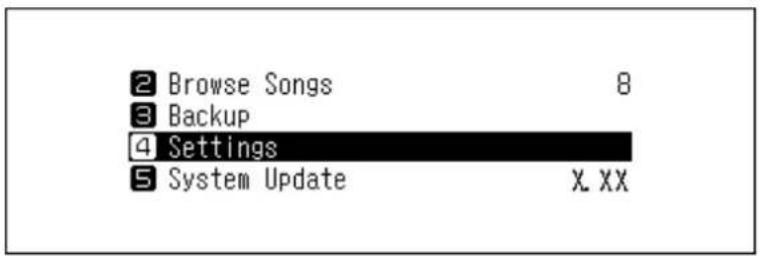
2 Press the Up/Down buttons and select "Settings", then press the Menu/Enter button.
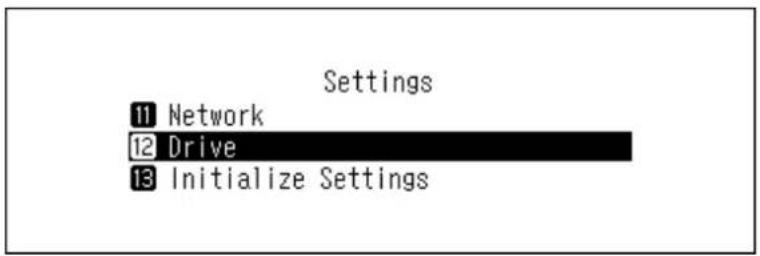
3 Press the Up/Down buttons and select "Drive", then press the Menu/Enter button.
4 Press the Up/Down buttons and select "Format Internal Drive", then press the Menu/Enter button.
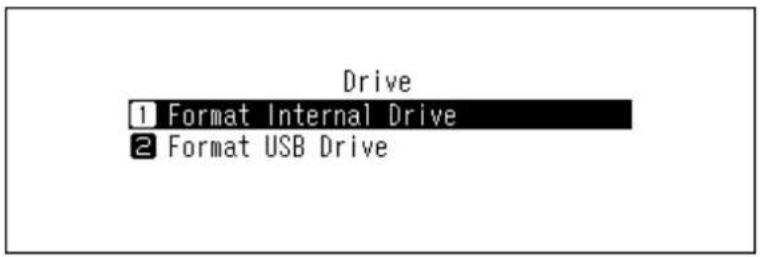
5 Press the Up/Down buttons and select the RAID mode to configure, then press the Menu/Enter button.
Chapter 4 Advanced Usage
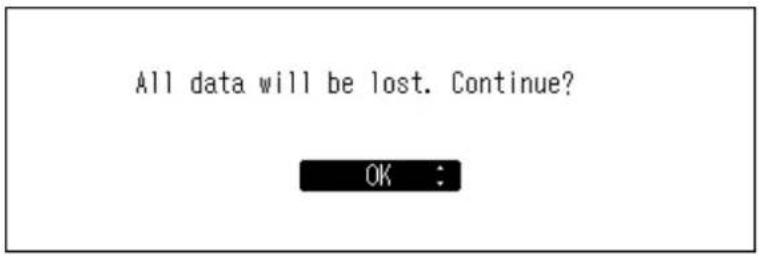
6 Make sure that all files on the drive can be erased before proceeding. To continue changing the RAID mode, press the Up/Down buttons and select "OK", then press the Menu/Enter button.
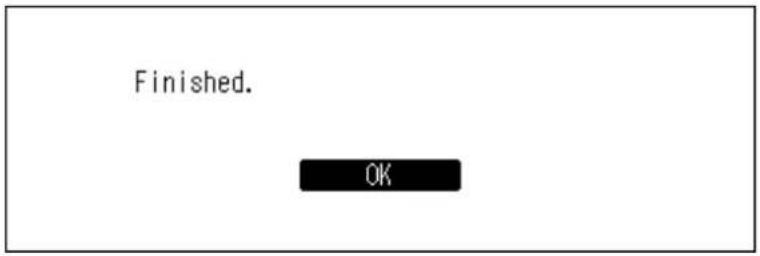
7 Press the Menu/Enter button.
Formatting Drives
To format internal drives in the Digital Music Library or connected USB drives, follow the procedure below. Formatting will delete all data on the drive. If needed, back up any data before continuing.
Formatting Internal Drives
1 Press the Menu/Enter button to display the menu list at the home screen.
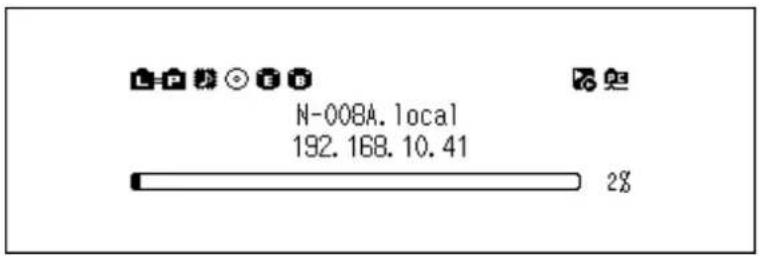
Note: The screenshot above shows the N1 EX/N50.
2 Press the Up/Down buttons and select "Settings", then press the Menu/Enter button.
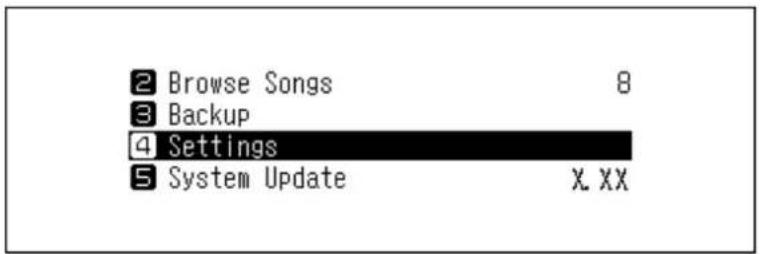
3 Press the Up/Down buttons and select "Drive", then press the Menu/Enter button.
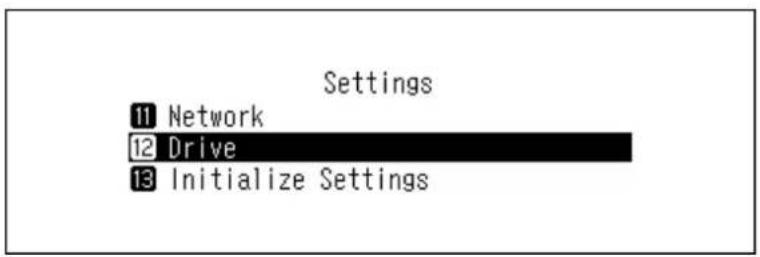
4 Press the Up/Down buttons and select "Format Internal Drive", then press the Menu/Enter button.
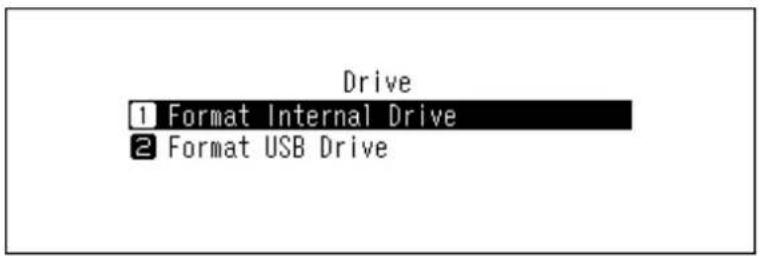
5 If using the N1 EX models with two internal drives or the N50, press the Up/Down buttons and select the current RAID mode, then press the Menu/Enter button.
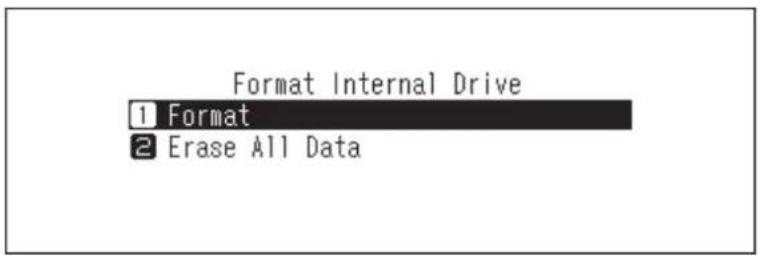
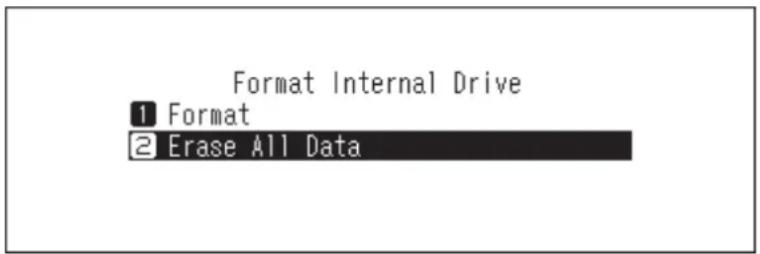
If using the N1 EX models with an internal drives or the N10/100, press the Up/Down buttons and select "Format", then press the Menu/Enter button.
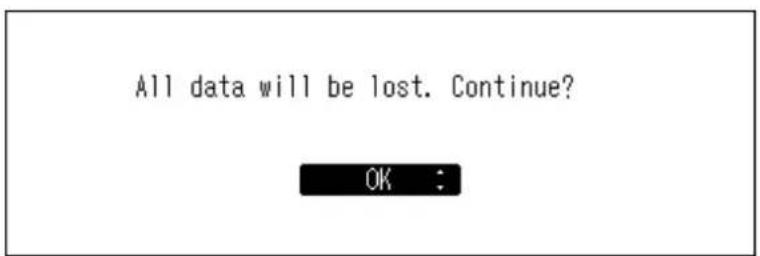
6 Make sure that all files on the drive can be erased before proceeding. To continue formatting, press the Up/Down buttons and select "OK", then press the Menu/Enter button.
7 Press the Menu/Enter button.
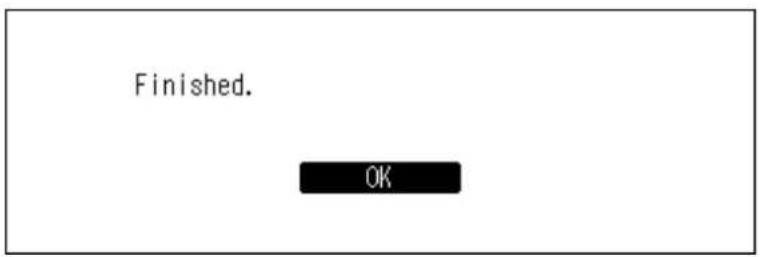
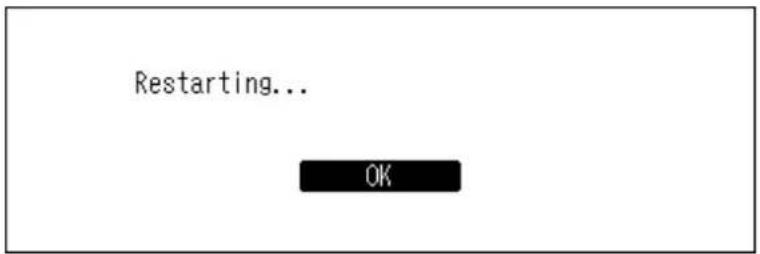
Note: If the screen below is displayed, press the Menu/Enter button. The Digital Music Library will restart. Wait until the home screen is displayed.
Formatting Connected USB Drives
This will format the USB drive to NTFS. Be aware that a USB drive formatted to NTFS will become read-only when connected to a macOS device.
Note: Connect only one USB drive at a time when formatting it.
1 Press the Menu/Enter button to display the menu list at the home screen.
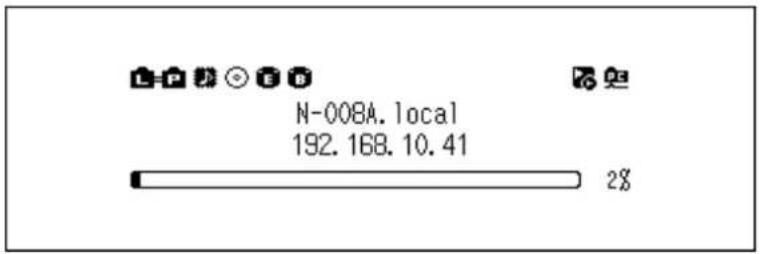
Note: The screenshot above shows the N1 EX/N50.
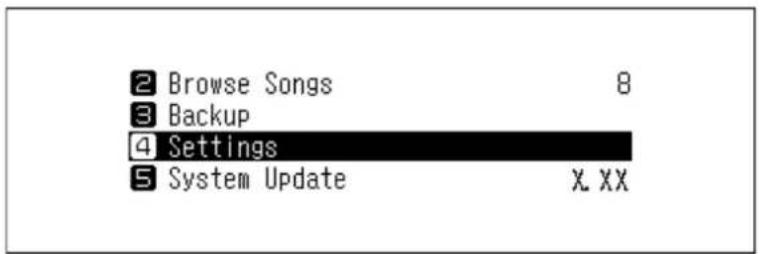
2 Press the Up/Down buttons and select "Settings", then press the Menu/Enter button.
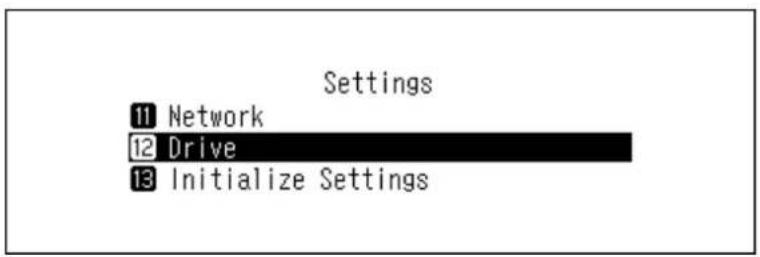
3 Press the Up/Down buttons and select "Drive", then press the Menu/Enter button.
4 Press the Up/Down buttons and select "Format USB Drive", then press the Menu/Enter button.
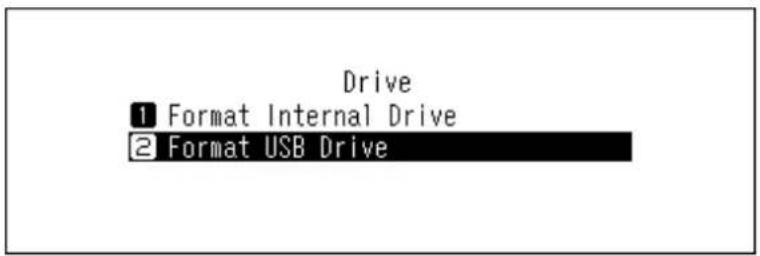
5 Press the Up/Down buttons and select "Format", then press the Menu/Enter button.
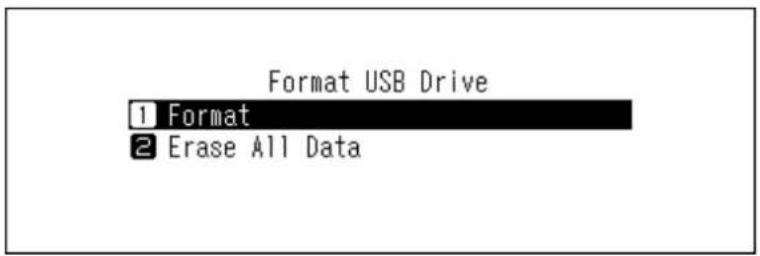
Note: If multiple USB drives are connected to the Digital Music Library and an error message is displayed when formatting a drive, disconnect the drives other than the drive you want to format, and try again.
6 Make sure that all files on the drive can be erased before proceeding. To continue formatting, press the Up/Down buttons and select "OK", then press the Menu/Enter button.
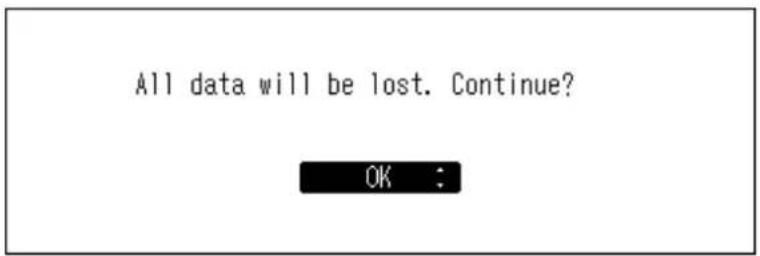
Note: The screenshot above shows the N1 EX/N50. On the N10/N100, "All USB drive data will be lost. Continue?" will be displayed.
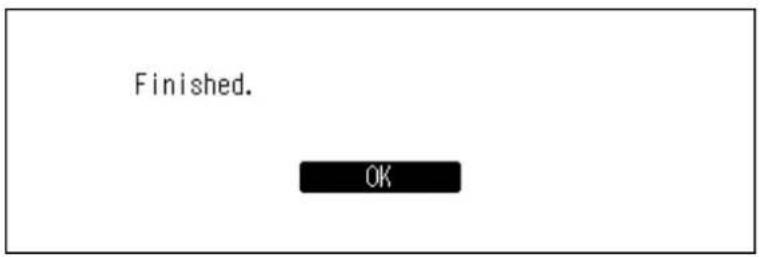
7 Press the Menu/Enter button.
Erasing Data on the Digital Music Library Completely
Under some circumstances, data from formatted drives can be recovered. The drive erasure process mentioned in this section does a much more thorough job of erasing data by removing all data from a drive in a way that makes it nearly impossible to recover with current tools. After completing the procedure, all data on the drive will be completely erased.
This section explains the procedure for erasing data on the internal drive as an example.
Note: This erasure process may take several days to complete. Make sure the Digital Music Library is powered on during the process. Other functions will become unavailable while the erasure process is running.
Typically, follow the procedure in the "Formatting Internal Drives" section above to delete all data on a drive. This procedure below is not recommended for typical use.
1 Press the Menu/Enter button to display the menu list at the home screen.
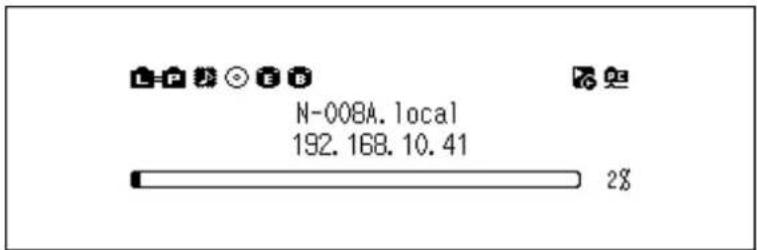
Note: The screenshot above shows the N1 EX/N50.
2 Press the Up/Down buttons and select "Settings", then press the Menu/Enter button.
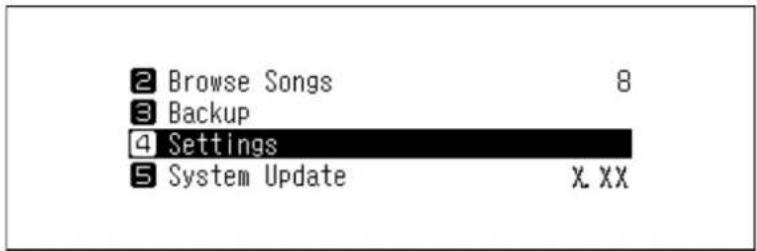
3 Press the Up/Down buttons and select "Drive", then press the Menu/Enter button.
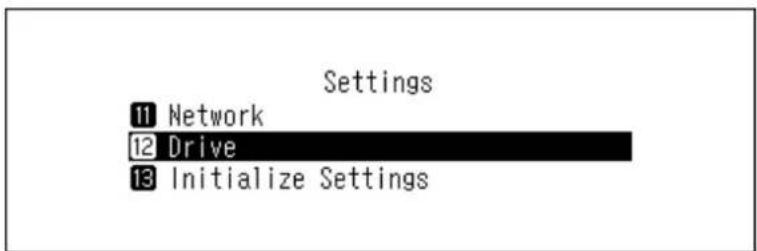
4 Press the Up/Down buttons and select "Format Internal Drive", then press the Menu/Enter button.
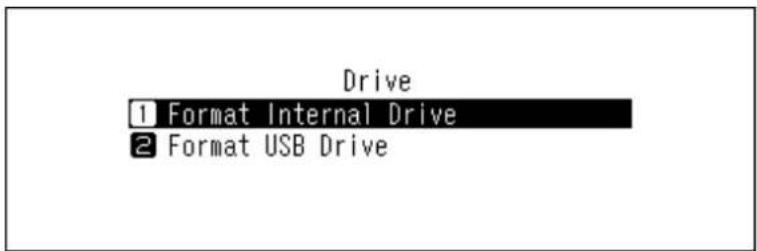
5 Press the Up/Down buttons and select "Erase All Data", then press the Menu/Enter button.
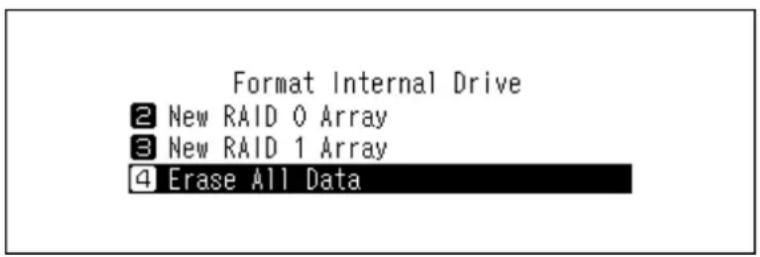
Note: For the N1 EX models with an internal drives and the N10/100, the screen below will be displayed instead.
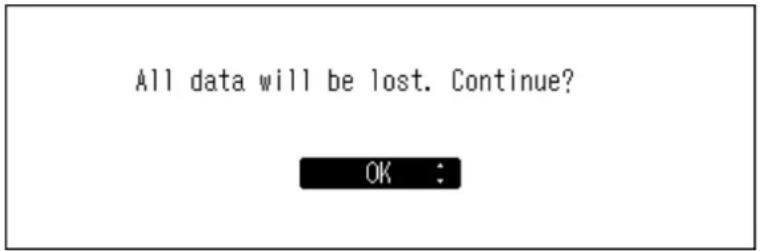
6 Make sure that all files on the drive can be erased before proceeding. To continue formatting, press the Up/Down buttons and select "OK", then press the Menu/Enter button.
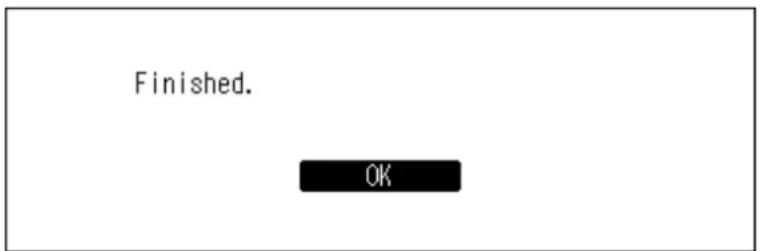
7 Press the Menu/Enter button.
Changing the IP Address
To change the IP address of the Digital Music Library, follow the procedure below. After the procedure is finished, the Digital Music Library will automatically restart and stop any importing or playback operations. We recommend finishing any file importing or playback before changing the Digital Music Library's IP address.
1 Press the Menu/Enter button to display the menu list at the home screen.
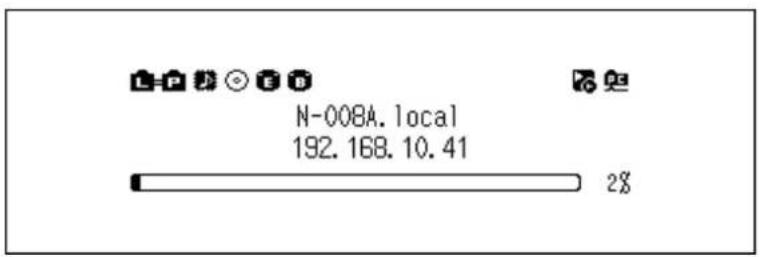
Note: The screenshot above shows the N1 EX/N50.
2 Press the Up/Down buttons and select "Settings", then press the Menu/Enter button.
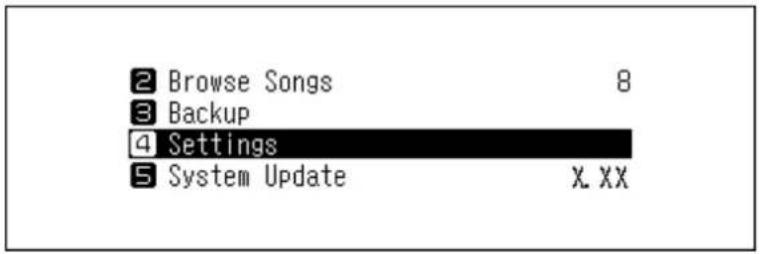
3 Press the Up/Down buttons and select "Network", then press the Menu/Enter button.
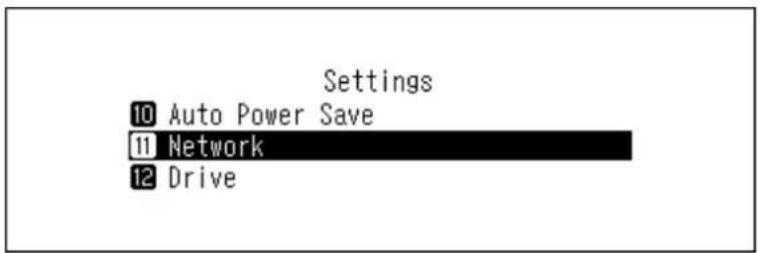
4 Press the Up/Down buttons and select "LAN Port", then press the Menu/Enter button.
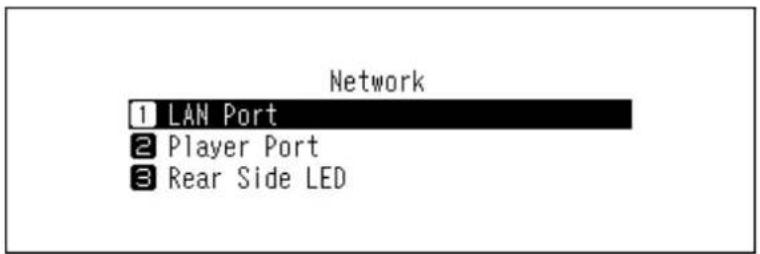
5 Press the Up/Down buttons and select whether to automatically acquire the IP address from the DHCP server or configure a fixed IP address, then press the Menu/Enter button.
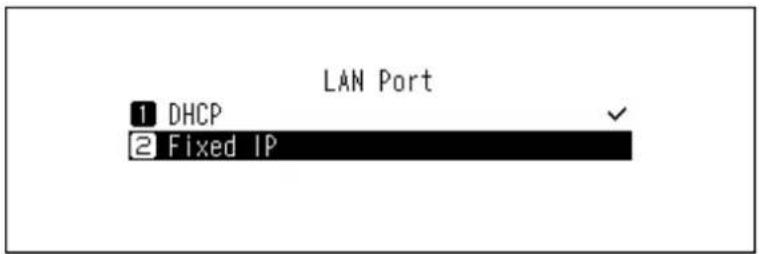
6 Press the Menu/Enter button.
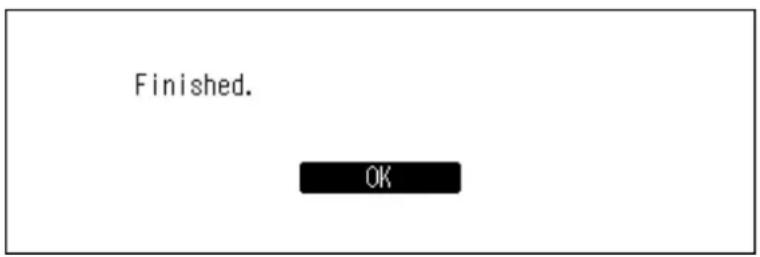
Notes:
- To obtain the IP address from the DHCP server automatically, the DHCP server on the router should also be enabled.
- If "Fixed IP" is selected, enter the desired IP address, subnet mask, default gateway, and DNS server in the displayed screen.
Changing the Friendly Name (Hostname)
To change the friendly name of the Digital Music Library, follow the procedure below. After the procedure is finished, the Digital Music Library needs to be restarted, as well as having any current import or playback operations stopped. We recommend finishing any file importing or playback before changing the friendly name.
1 Press the Menu/Enter button to display the menu list at the home screen.
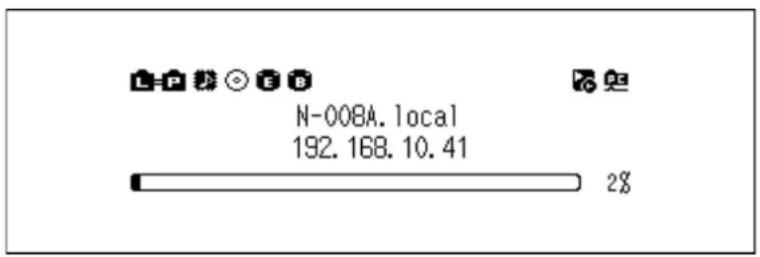
Note: The screenshot above shows the N1 EX/N50.
2 Press the Up/Down buttons and select "Settings", then press the Menu/Enter button.
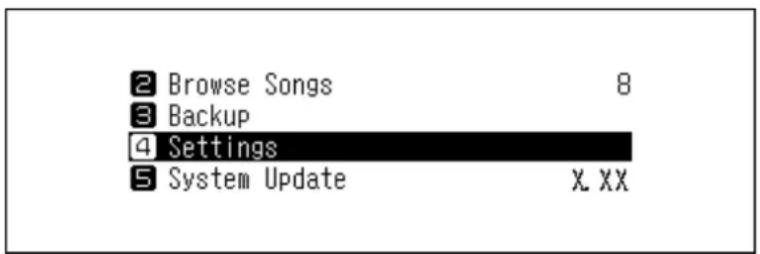
3 Press the Up/Down buttons and select "Network", then press the Menu/Enter button.
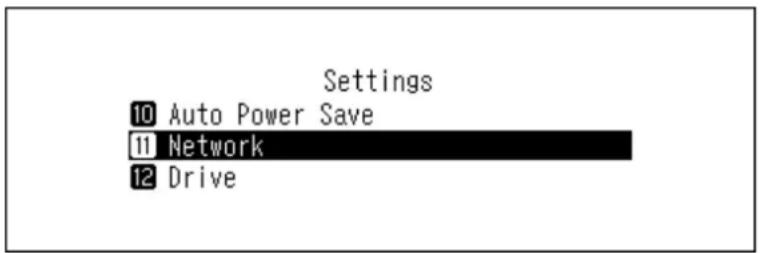
4 Press the Up/Down buttons and select "Friendly Name", then press the Menu/Enter button.
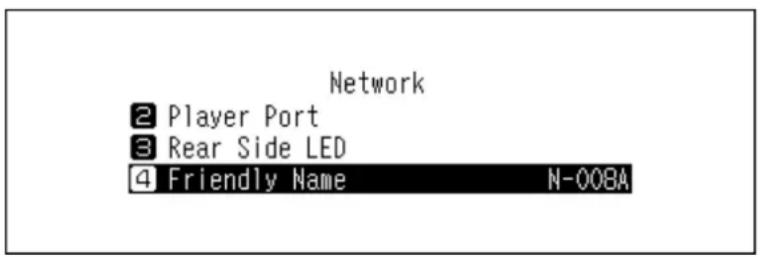
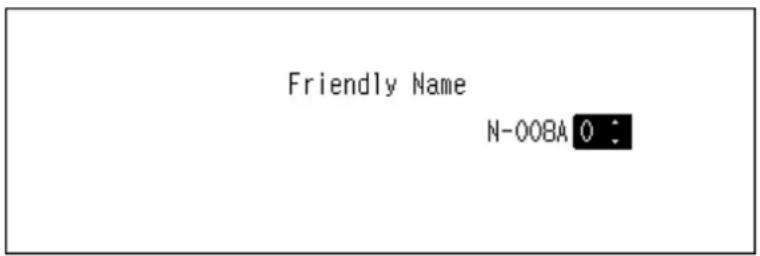
5 Press the Up/Down buttons and enter the new friendly name, then press the Menu/Enter button.
6 Press the Menu/Enter button.
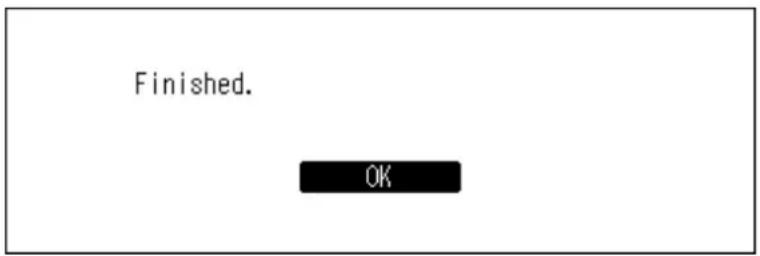
7 Press the Menu/Enter button.
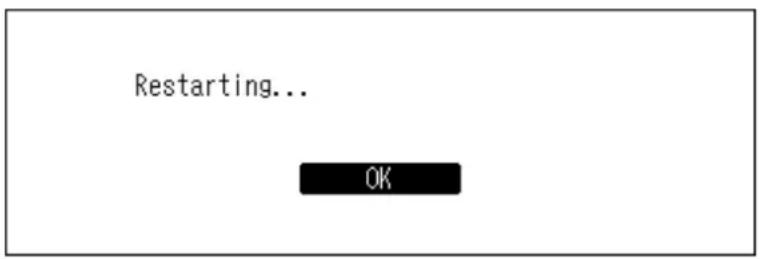
8 The Digital Music Library will restart. Wait until the home screen is displayed.
Notes:
- Friendly name may contain 0–9, A–Z, and hyphens (-).
- When you press the Back button, the entered characters are deleted from the right side. To change the friendly name, press the Back button and delete all characters except for the first, then enter the new friendly name.
- When you press the Menu/Enter button, the entered character is saved and another character can be selected. Press the Menu/Enter button twice to stop configuring the friendly name.
- If you delete all the characters, the display will go back to the previous screen.
Configuring the Date and Time
To configure the time settings, follow the procedure below.
Note: To use features that require an Internet connection such as downloading files from the streaming sites, configure the time settings so that they are automatically acquired from the NTP server.
1 Press the Menu/Enter button to display the menu list at the home screen.
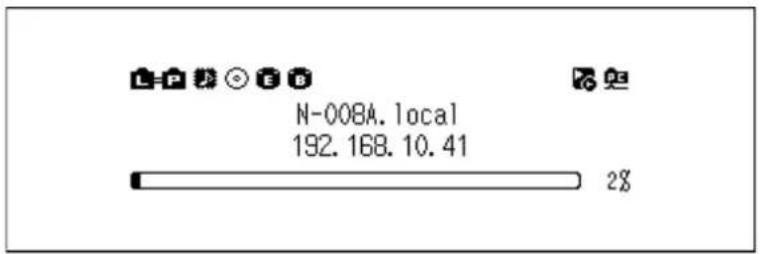
Note: The screenshot above shows the N1 EX/N50.
2 Press the Up/Down buttons and select "Settings", then press the Menu/Enter button.
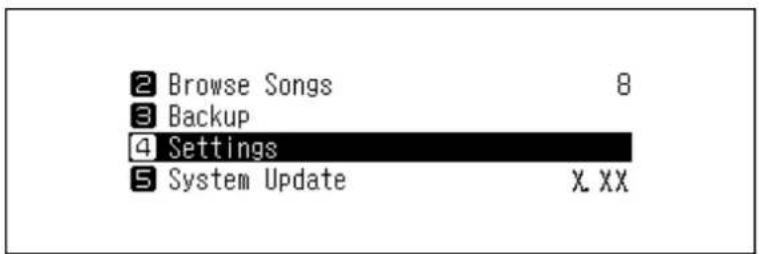
3 Press the Up/Down buttons and select "Date and Time", then press the Menu/Enter button.
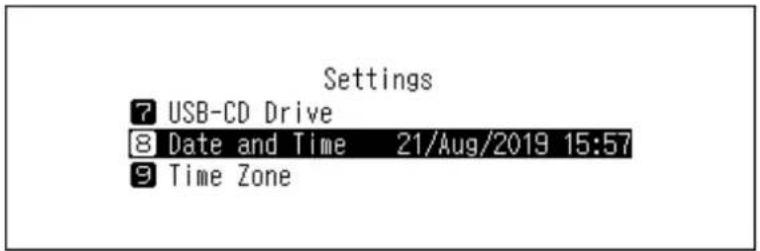
4 Press the Up/Down buttons and select whether to automatically acquire time settings from the NTP server or manually configure them, then press the Menu/Enter button.
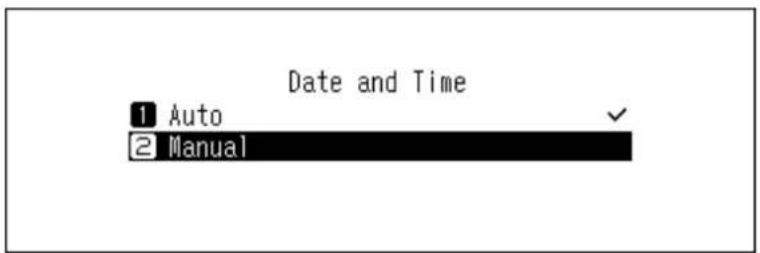
Note: To configure the time settings so that they are acquired from the NTP server, the Digital Music Library should be able to connect the Internet.
5 If you have selected "Manual" from the previous step, press the Up/Down buttons and configure the date and time, then press the Menu/Enter button.
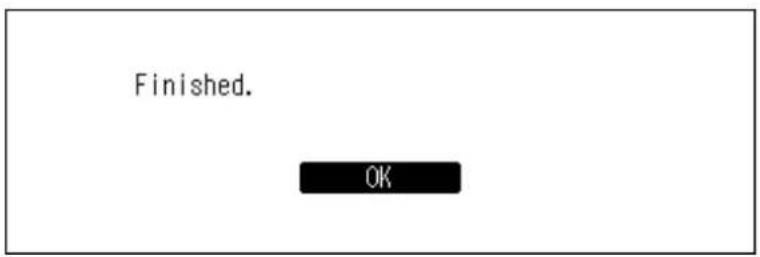
6 Press the Menu/Enter button.
Changing the Time Zone
1 Press the Menu/Enter button to display the menu list at the home screen.
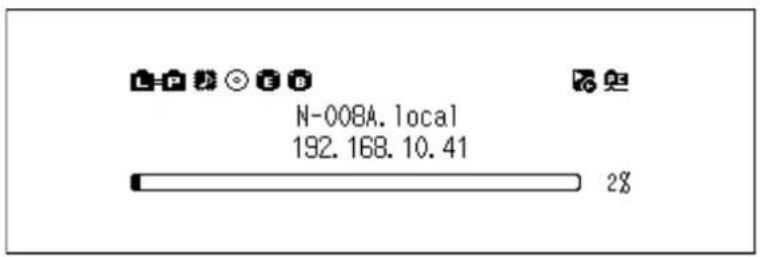
Note: The screenshot above shows the N1 EX/N50.
2 Press the Up/Down buttons and select "Settings", then press the Menu/Enter button.
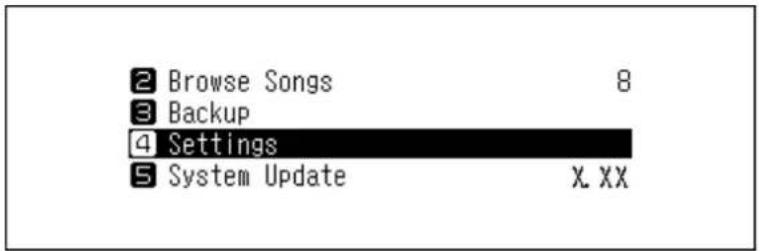
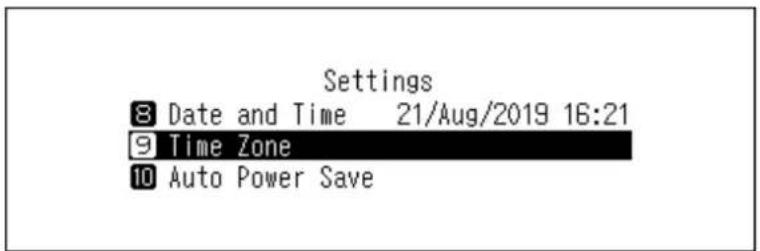
3 Press the Up/Down buttons and select "Time Zone", then press the Menu/Enter button.
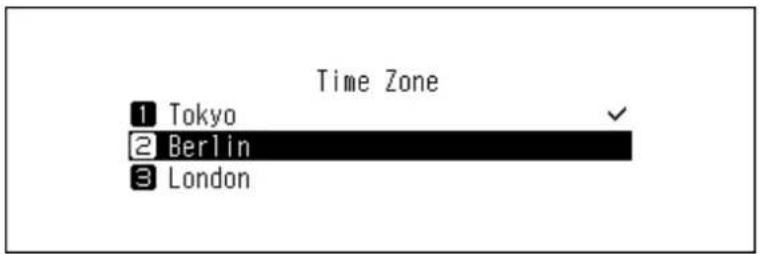
4 Press the Up/Down buttons and select the time zone to configure, then press the Menu/Enter button.
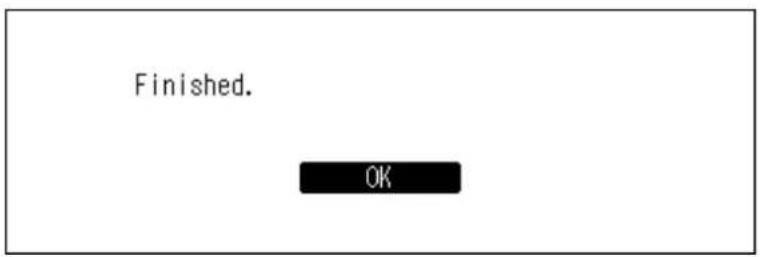
5 Press the Menu/Enter button.
Configuring Display and LED Settings
Changing the Display Brightness
1 Press the Menu/Enter button to display the menu list at the home screen.
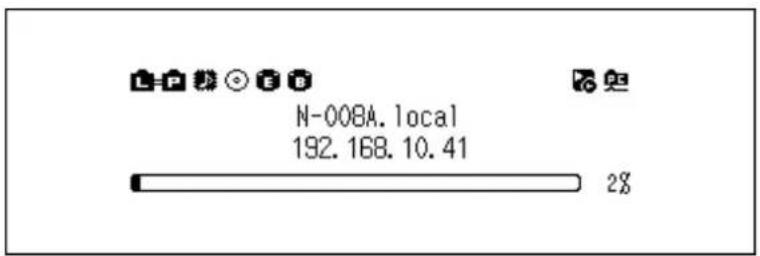
Note: The screenshot above shows the N1 EX/N50.
2 Press the Up/Down buttons and select "Settings", then press the Menu/Enter button.
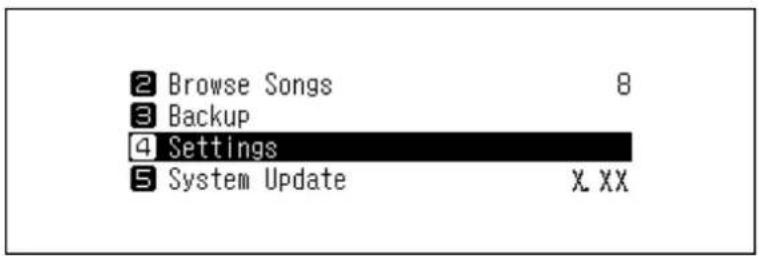
3 Press the Up/Down buttons and select "Display", then press the Menu/Enter button.
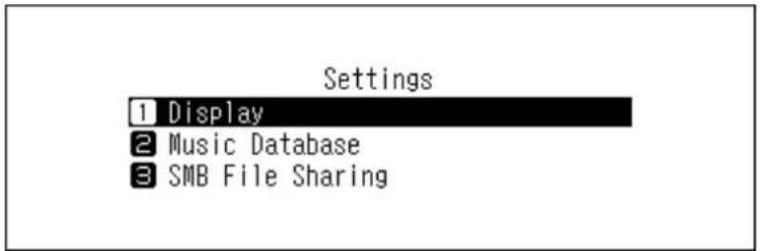
4 Press the Up/Down buttons and select "Brightness", then press the Menu/Enter button.
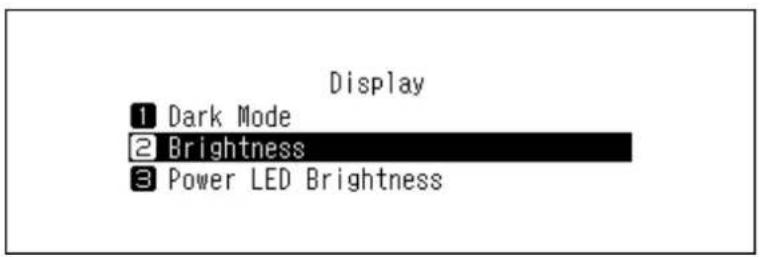
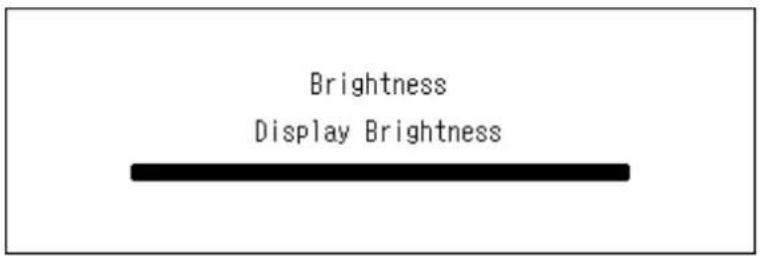
5 Press the Up/Down buttons and change the brightness, then press the Menu/Enter button.
Changing the Power LED Brightness on the N1 EX/N50
1 Press the Menu/Enter button to display the menu list at the home screen.
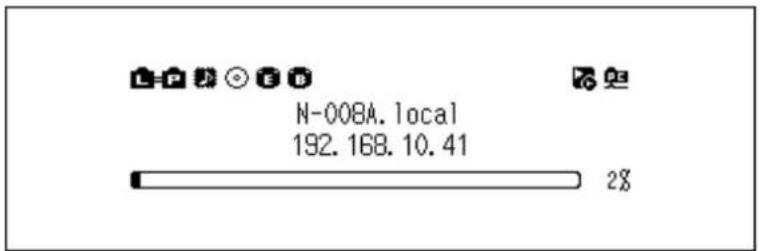
2 Press the Up/Down buttons and select "Settings", then press the Menu/Enter button.
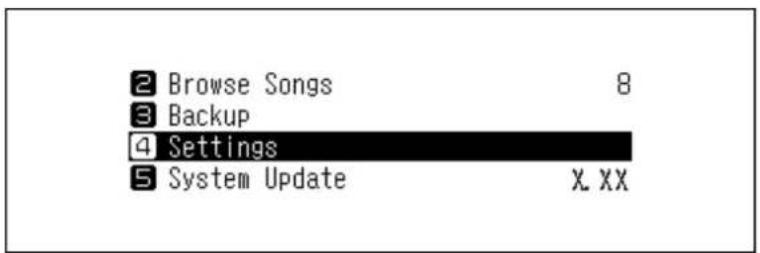
3 Press the Up/Down buttons and select "Display", then press the Menu/Enter button.
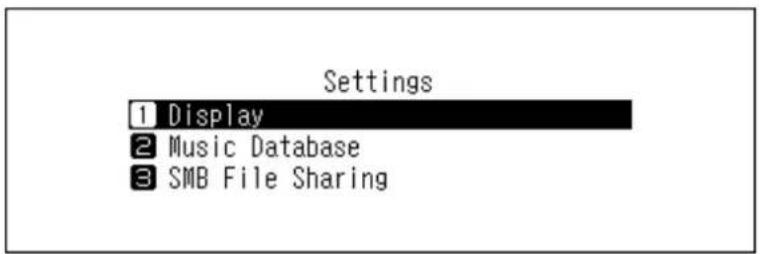
4 Press the Up/Down buttons and select "Power LED Brightness", then press the Menu/Enter button.
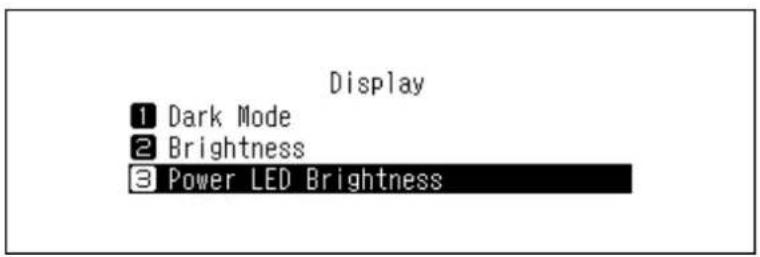
5 Press the Up/Down buttons and select either "Bright" or "Dim", then press the Menu/Enter button.
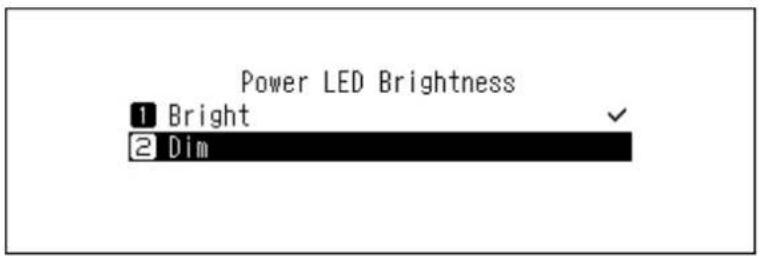
6 Press the Menu/Enter button.
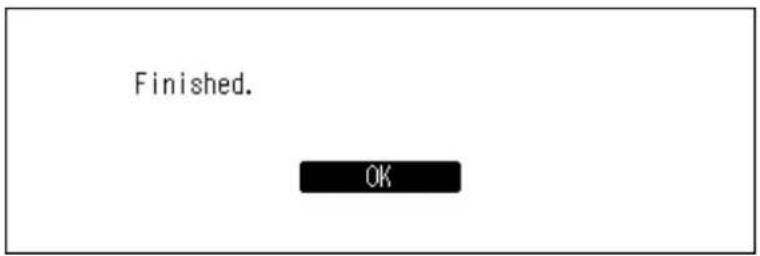
Turning Off the Rear-Side LED on the N1 EX/N50
The rear-side LED is located at the back of the N1 EX/N50, near the LAN and Player ports. The LED shows the network activity, so you will not be able to check for network activity if the rear-side LED is turned off. Verify any network activity by checking that the N1 EX/N50 is connected to the network properly beforehand.
1 Press the Menu/Enter button to display the menu list at the home screen.
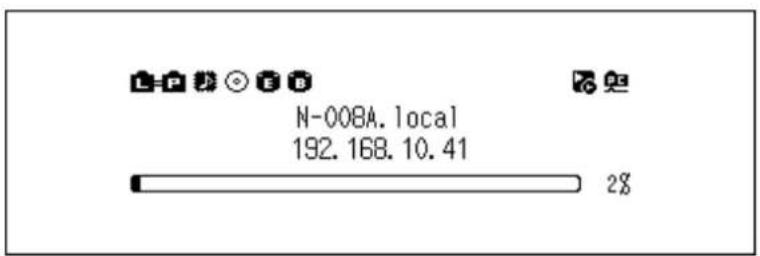
2 Press the Up/Down buttons and select "Settings", then press the Menu/Enter button.
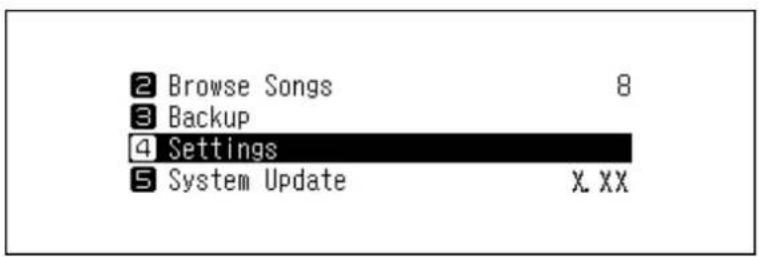
3 Press the Up/Down buttons and select "Network", then press the Menu/Enter button.
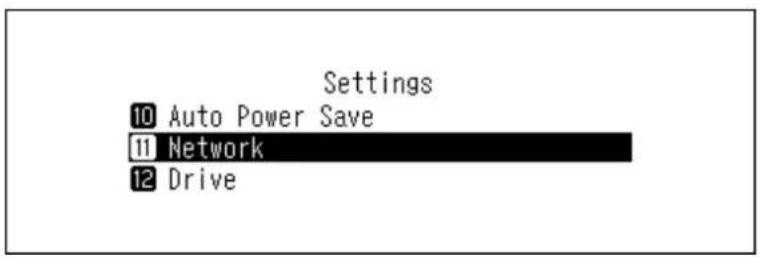
4 Press the Up/Down buttons and select "Rear Side LED", then press the Menu/Enter button.
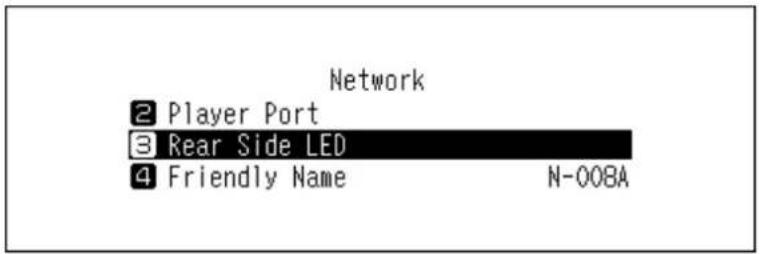
5 Press the Up/Down buttons and select "Off", then press the Menu/Enter button.
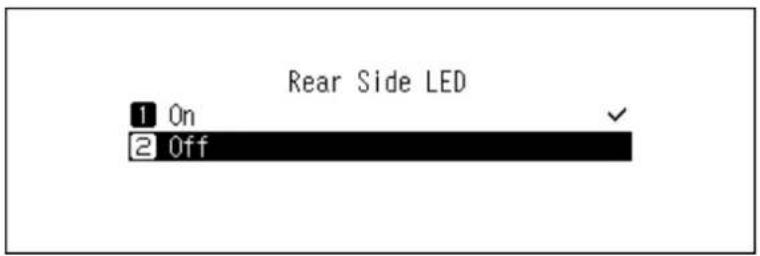
6 Press the Menu/Enter button.
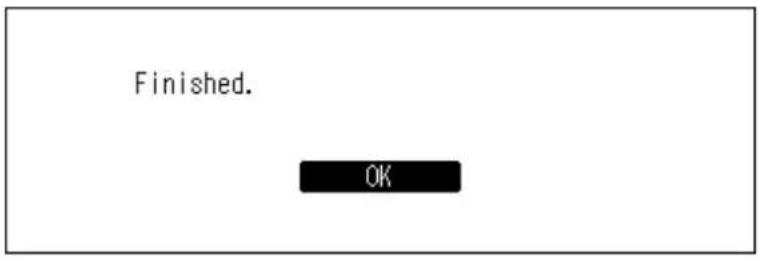
Configuring Automatic Power-Off
If auto power save is enabled, the Digital Music Library will automatically power off after music stops playing and a specific amount of time passes. To change the time settings for auto power save or to disable the feature, follow the procedure below. Auto power save will not shut off the Digital Music Library while the unit is in any of the following situations:
- Connected to a Network Audio Player that is powered on.
- Connected to a USB-DAC that is powered on.
- Being accessed from a computer.
- Accessing a media server.
1 Press the Menu/Enter button to display the menu list at the home screen.
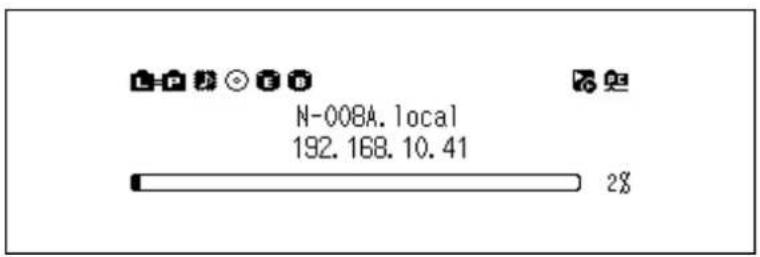
Note: The screenshot above shows the N1 EX/N50.
2 Press the Up/Down buttons and select "Settings", then press the Menu/Enter button.
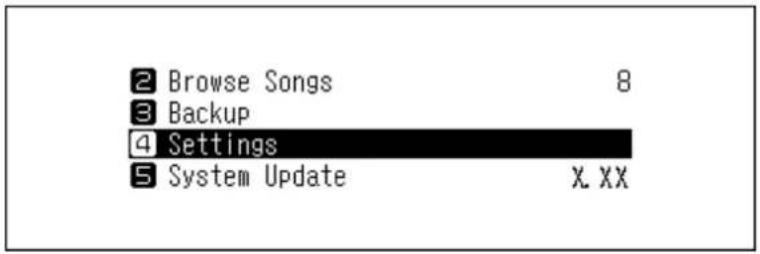
3 Press the Up/Down buttons and select "Auto Power Save", then press the Menu/Enter button.
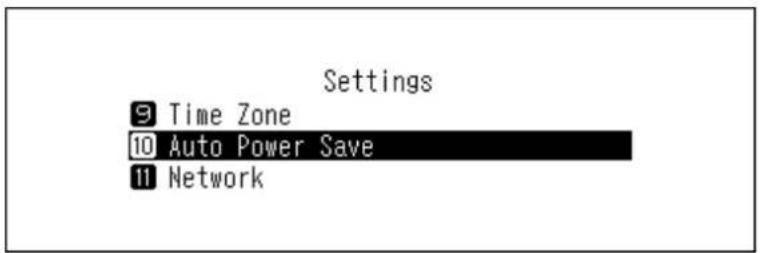
4 Press the Up/Down buttons and select the desired time setting, then press the Menu/Enter button.
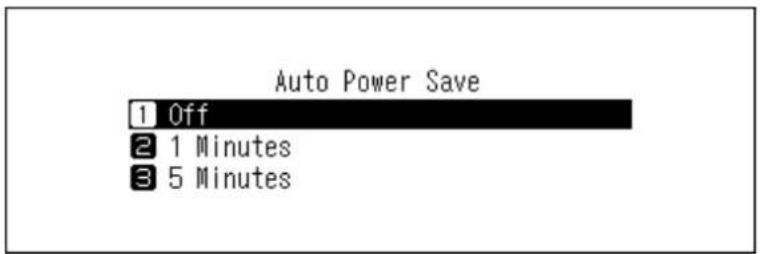
5 Press the Menu/Enter button.
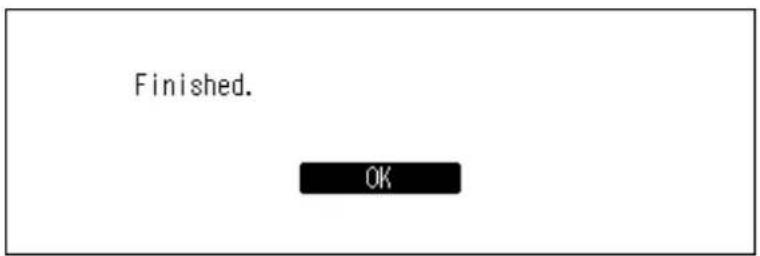
If the Digital Music Library is powered off by auto power save, the power button will not automatically revert to the off position. To turn the Digital Music Library on, press the power button to return it to the off position, and then press it again to power on the Digital Music Library.
Changing the Display Language
To change the display language, follow the procedure below. After completing the procedure, the Digital Music Library will stop any file playback. We recommend finishing any file playback before changing the display language.
1 Press the Menu/Enter button to display the menu list at the home screen.
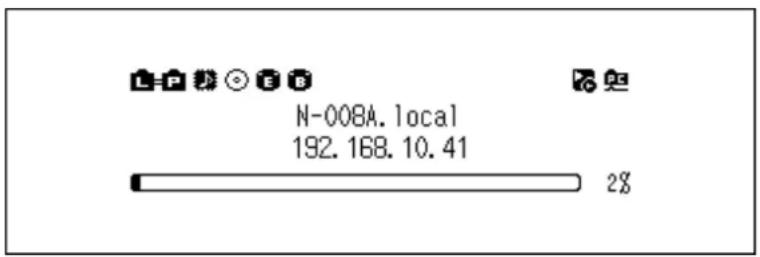
Note: The screenshot above shows the N1 EX/N50.
2 Press the Up/Down buttons and select "Language", then press the Menu/Enter button.
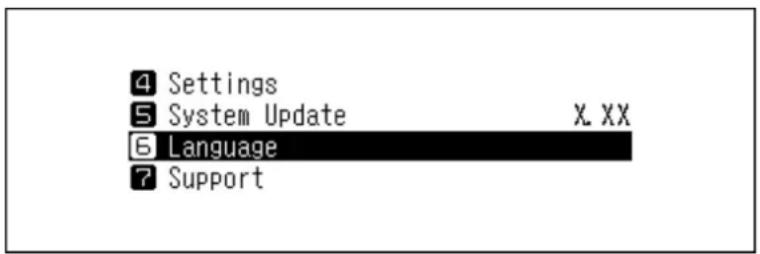
3 Press the Up/Down buttons and select the display language, then press the Menu/Enter button.
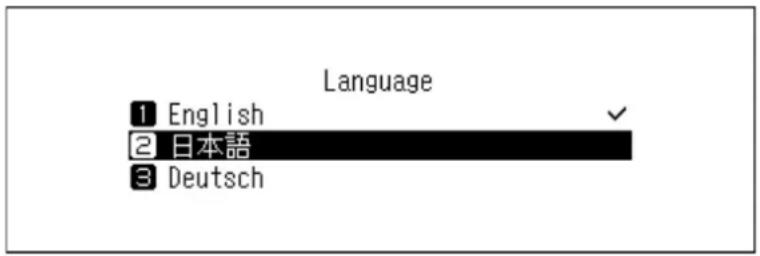
Updating the Firmware
To update the Digital Music Library's firmware version to the latest one, follow the procedure below.
Updating via the Network
Note: To update the firmware via the network, the Digital Music Library should be connected to the Internet. If the Digital Music Library is in isolated mode, use another Ethernet cable and connect it to the LAN port and the router.
1 Press the Menu/Enter button to display the menu list at the home screen.
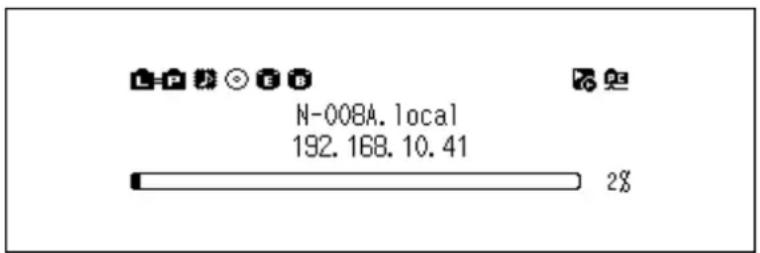
Note: The screenshot above shows the N1 EX/N50.
2 Press the Up/Down buttons and select "System Update", then press the Menu/Enter button.
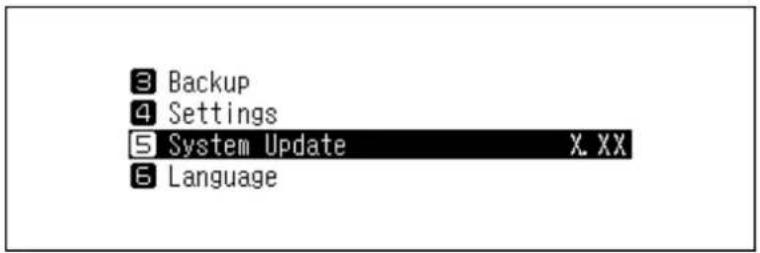
3 Press the Up/Down buttons and select "Internet", then press the Menu/Enter button.
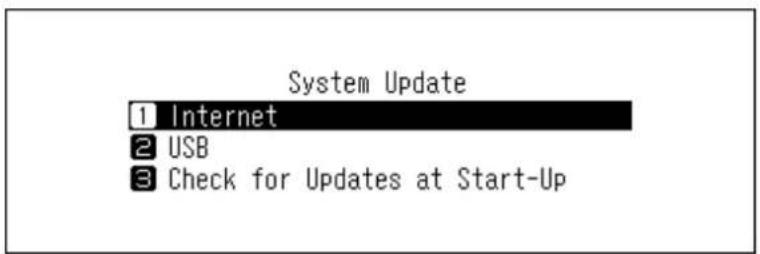
4 Press the Menu/Enter button.
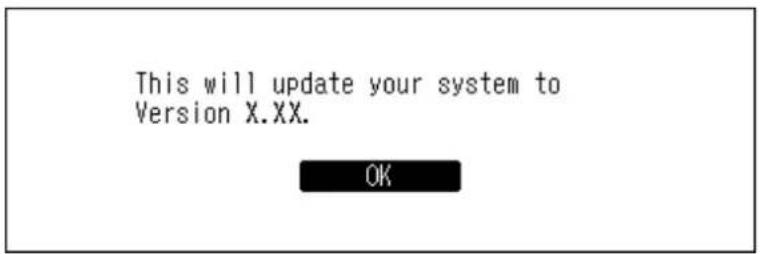
5 The Digital Music Library will restart. Wait until the home screen is displayed.
Updating from the USB Device
1 Download the latest firmware from melco-audio.com.
2 Extract the downloaded file and copy the "melco_musiclibrary_updater.bin" file from the extracted folder to the USB drive (root directory).
3 Connect the USB drive to the USB 3.0 port on the N1 EX/N50, or the front USB 2.0 port on the N10/N100. When the USB drive is connected to the front USB port on the Digital Music Library and the following screen is displayed, press the Back button.
Note: On the N10/N100, USB ports other than the front USB 2.0 cannot be used to update the firmware.
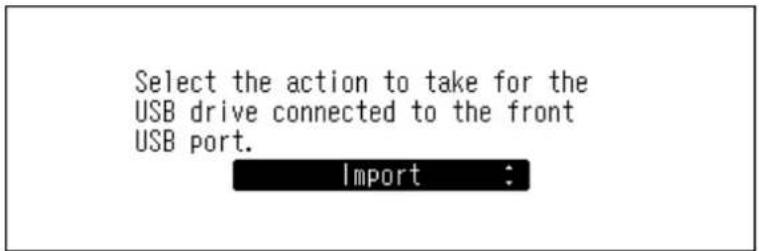
4 Press the Menu/Enter button to display the menu list at the home screen.
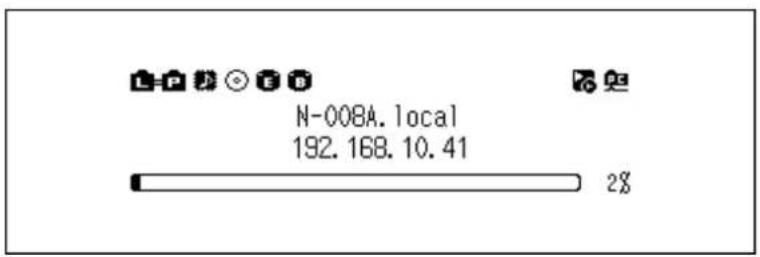
Note: The screenshot above shows the N1 EX/N50.
5 Press the Up/Down buttons and select "System Update", then press the Menu/Enter button.
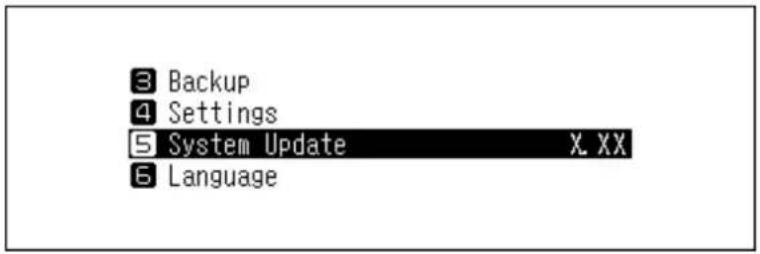
6 Press the Up/Down buttons and select "USB", then press the Menu/Enter button.
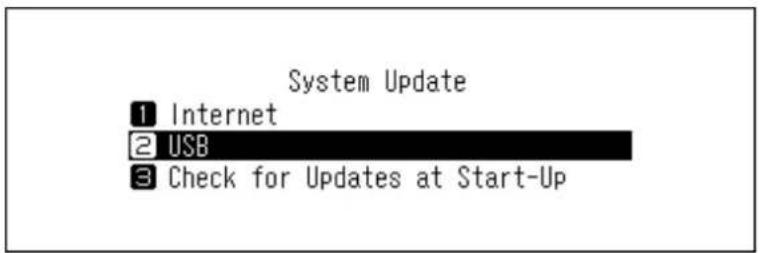
7 Press the Menu/Enter button.
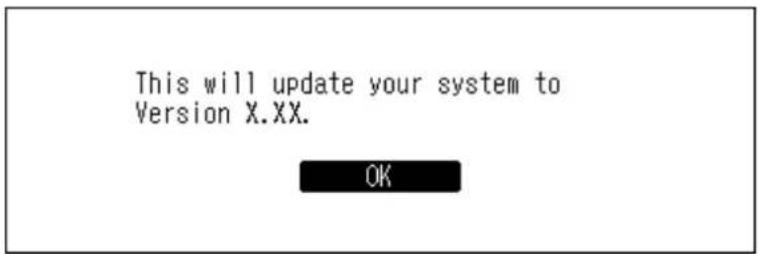
8 The Digital Music Library will restart. Wait until the home screen is displayed.
9 When the home screen is displayed, disconnect the USB drive.
Checking for Updates Automatically
The Digital Music Library can be configured to automatically check if newer firmware has been released when it starts up. If new firmware is detected, you can continue to update the firmware. It is enabled by default. To disable checking for firmware releases automatically, follow the procedure below.
1 Press the Menu/Enter button to display the menu list at the home screen.
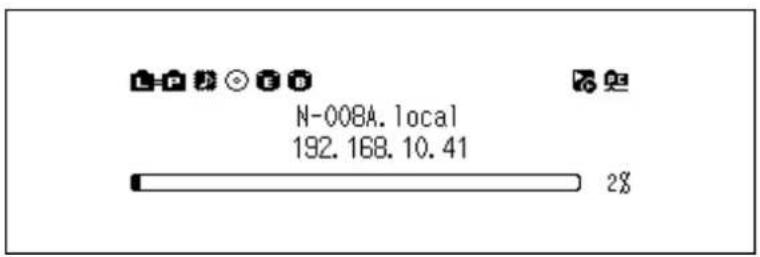
Note: The screenshot above shows the N1 EX/N50.
2 Press the Up/Down buttons and select "System Update", then press the Menu/Enter button.
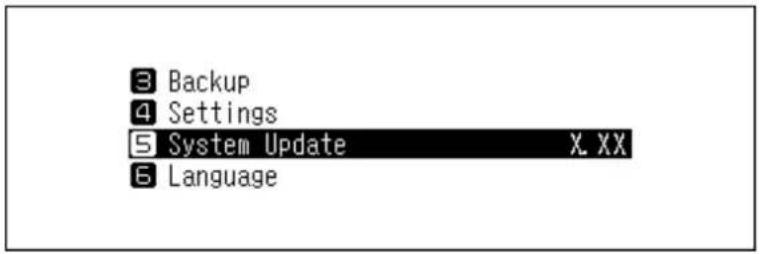
3 Press the Up/Down buttons and select "Check for Updates at Start-Up", then press the Menu/Enter button.
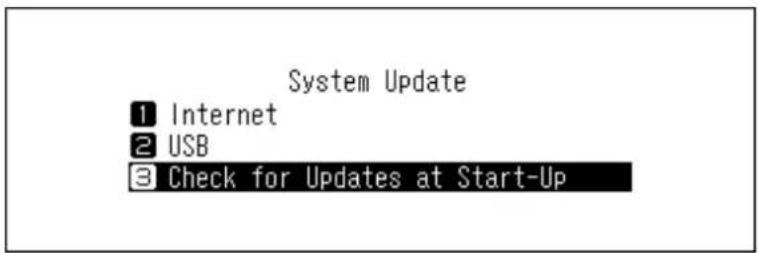
4 Press the Up/Down buttons and select "No", then press the Menu/Enter button.
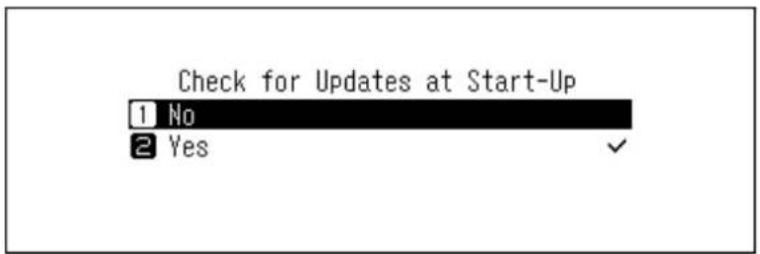
5 Press the Menu/Enter button.
Restoring Factory Defaults
To initialize the Digital Music Library to its factory default settings, follow the procedure below. The operation above only initializes the settings. Data will not be affected.
1 Turn off the Digital Music Library.
2 Turn on the Digital Music Library while pressing and holding the Down button. After the "MELCO" logo disappears, let go of the Down button.
3 The message, "All settings will be initialized. Continue?" will be displayed. If using the N1 EX/N50, press the Menu/Enter button. If using the N10/N100, press the Up/Down buttons and select "OK", then press the Menu/Enter button.
4 Press the Menu/Enter button.
5 If the screen below is displayed, press the Menu/Enter button.
6 The Digital Music Library will restart. Wait until the home screen is displayed.
7 After the restart process is completed, press the Up/Down buttons and set the display language and time zone, then press the Menu/Enter button.
If you navigate to Settings > Initialize Settings on the display panel, you can initialize the settings by selecting "OK", then pressing the Menu/Enter button.
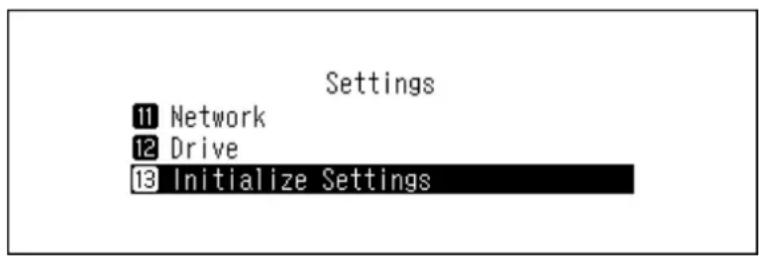
MELCO Intelligent Music Library
The Digital Music Library now supports apps that allow you to build your personal intelligent music library. These apps provide richer metadata for your files, and introduce smarter methods to browse your collection with minimal effort. You can install these apps directly onto the Digital Music Library.
SongKong is an application that scans your music collection and adds detailed information to each file as tags. MinimServer is an application that scans and organizes your music collection by utilizing embedded tags on each file.
SongKong for Melco Lite Music Tagger
SongKong is an intelligent music tagger app designed to help you easily organize and manage your digital music collection. By assigning comprehensive tags to each music file, you can resolve common issues such as missing album cover art, duplicate tracks, or unnamed songs. This app allows you to catalogue and organize your music the way you want. By default, the Lite version of SongKong for Melco will be installed. This version of SongKong is provided and supported by JThink. To access the full application, you will need to purchase a Melco license. For more information on full features and purchasing a license, please visit http://songkongformelco.net.
How to Install
1 From the main menu, navigate to Settings > Music Database > SongKong.
2 Select "Install SongKong".
3 The latest available application version will be displayed. Select "OK".
4 Wait a few minutes for installation to finish. When the display shows that SongKong has been successfully installed, select "OK".
5 If you now select "Configure SongKong", you can see the URL that you should use to control SongKong. Enter the URL into the web browser of any device on your network.
How to Update
The SongKong application can be updated independently of the Digital Music Library firmware.
1 From the main menu, navigate to Settings > Music Database > SongKong.
2 Select "Version Check".
3 The display will show either there are no updates or that a recent update is available. If this is the case, select "OK".
4 Wait a few minutes for installation to finish. When the display shows that SongKong update has been successfully installed, select "OK".
5 If you now select "Configure SongKong", you can see the URL that you should use to control SongKong. Enter the URL into the web browser of any device on your network.
How to Operate
You can operate SongKong using a web browser. Enter “(Digital Music Library's IP Address):4567” into your web browser to explore through SongKong’s dedicated web user interface.
MinimServer 2
MinimServer is a UPnP media server application that offers an "intelligent browsing" mechanism so you can easily browse through your music collection using granulated searches. MinimServer is provided and supported by MinimWorld. For more detailed information on its features, visit minimserver.com/minimserver2/melco.
How to Install
1 From the main menu, navigate to Settings > Music Database > Media Server App.
2 Select "MinimServer".
3 The version of MinimServer to be installed will be shown.
4 Select "OK" to download and install MinimServer.
5 Once MinimServer is installed, it will stop TwonkyServer and then perform a full scan of your music library. This scan might take some time.
6 When the scan has finished, MinimServer will appear in your UPnP control app.
7 You can use your UPnP control app to browse your library and select music for playback.
How to Update
The MinimServer application can be updated independently of the Digital Music Library firmware.
1 From the main menu, navigate to Settings > Music Database > Version Check.
2 If there is a newer version of MinimServer available, it will be shown.
3 Select "OK" to download and install the new version.
How to Operate
You can rescan your collection or select index trees from the Digital Music Library the same way you would for TwonkyServer.
You can operate MinimServer using a web browser. Enter "(Digital Music Library's IP Address):9790" into your web browser to explore MinimServer's dedicated web user interface. For Windows and Mac, the MinimWatch application also can be used for server maintenance and configuration. Please visit minimserver.com/minimserver2/melco for details.
Menu List
From the front display panel, the following options are available.
Status
| Internal Drives | Displays the total capacity, used capacity, and usage percentage of the internal drives. |
| USB Drives | Displays the total capacity, used capacity, and usage percentage of the connected drives. |
| Songs Displays the number of imported music files. | |
| Music Database | If the media server app is set to “TwonkyServer”, “Scan finished.” will be displayed after scanning the music database.If the media server app is set to “MinimServer”, the current status of the MinimServer, such as “Starting”, “Running”, will be displayed. |
| Date and Time Displays the current time and date. | |
| Network | LAN: Displays the network settings of the LAN port labelled “LAN”, such as IP address, MAC address, link speed, and the Internet connection status.Player: Displays the network settings of the LAN port labelled “PLAYER”, such as IP address, MAC address, and link speed. |
| System Software Displays the version of the firmware installed on the Digital Music Library. | |
| Media Server Displays the current version of the media server. | |
| Downloader | Displays whether downloader is enabled. When downloader is enabled, it will show either the account of a streaming site or the connection status between the streaming site and the Digital Music Library unit. |
Browse Songs/Play Songs
Displays music lists that have been imported to the Digital Music Library, or are currently on a drive connected to either the N1 EX/N50's Expansion port or front USB port or the N10/N100's USB 2.0 port. When you connect a USB-DAC device to the Digital Music Library, the menu will change to "Play Songs". After selecting a music file and then "Play", you can play the music file on a USB-DAC.
If the media server app is set to "TwonkyServer", the number of available music files to play on a USB-DAC will be displayed to the right of the menu.
Backup
| Start Backup | Backs up music files on the Digital Music Library to the backup drive that is connected to the Backup port on the N1 EX/N50, the front USB port on the N1A EX/N50, or the USB 2.0 port on the N10/N100. |
| Restore from Backup | Restore Settings: Restores the settings from the USB drive.Restore Data: Restores the backup music files on the USB drive to the Digital Music Library. |
| Backup History Displays the backup history of any previous backups. | |
Settings
Display
| Dark Mode | Turns off the display panel. You can also turn off the display panel from the home screen by pressing and holding the Back button for two seconds. While the display panel is off, press any button on the front to relight the display. |
| Brightness Changes the brightness | of the display panel. |
| Power LED Brightness* | Changes the brightness of the power LED at the front. |
*This setting is only available on the N1 EX/N50.
Music Database
Select the media server app, then configure its settings. The displayed options will differ depending on the app you selected. Refer to the chart below for more information.
Note: For more details about MinimServer and SongKong, refer to the "MELCO Intelligent Music Library" section.
If Using TwonkyServer (Default)
| Media Server App | TwonkyServer: Check for the latest version of TwonkyServer.MinimServer: You can change the media server app to MinimServer. If the MinimServer app isn't already installed, "Install MinimServer" will be displayed. Execute it to install MinimServer. After the app is installed, the "Install MinimServer" option will no longer appear. |
| Rescan Songs and Playlists | Rescans the music database of the imported music files. If the music files are not listed properly on the Network Audio Player, update the music database. |
| Tree Indexes | Customizes navigation trees.Standard: This is the default setting when shipped.Indexed Mode: This is the best option for when there are many files on the Digital Music Library or playing music files via mobile devices or a USB-DAC device using the front panel of the Digital Music Library. Artist, album, and composer information will be hidden.Standard + Indexes: All index folders and all artist, album, and composer information will be displayed. |
| Integrate Duplicate Files | If enabled, and files that have the same title, artist, size, and format information are found, these files are considered to be the same file so only one file will appear on the file list. If disabled, even files that are considered exactly the same will appear on the file list, so you may see multiple files with the same song title. |
| Clear and Rebuild Database Rebuilds the music database of the imported music files. | |
| SongKong | Execute "Install SongKong" to install SongKong music tagger. After installing, the settings below will be displayed here.SongKong Service: Enable or disable SongKong.Configure SongKong: The URL of the configuration page for SongKong will be displayed. Access the URL to configure the SongKong app's settings.Version Check: Displays the current version of SongKong. Select it to check for the latest updates. |
If Using MinimServer
| Media Server App | TwonkyServer: You can change the media server app to TwonkyServer.MinimServer: Check for the latest version of MinimServer. |
| Rescan Songs and Playlists | Rescans the music database of the imported music files. After importing new music files, select this to update the music database. If the music database is not updated using this option, newly-imported music files will not be added to the music database, and will not be listed on the Network Audio Player. |
| Tree Indexes | Customizes navigation trees.For Classical Music: The indexes will be optimized for classical music."Conductor" and "Ensemble" folders will be displayed.For Jazz Music: The indexes will be optimized for jazz music. A "Performer" folder will be displayed.For Rock/Pop Music: This setting is for rock or pop music.Default/Generic: This is the default setting when shipped. |
| Configure MinimServer | The URL for the configuration page for MinimServer will be displayed. Access the URL to configure the MinimServer app's settings. |
| Version Check | Displays the current version of MinimServer. Select it to check for the latest updates. |
| SongKong | Execute "Install SongKong" to install SongKong music tagger. After installing, the settings below will be displayed here.SongKong Service: Enable or disable SongKong.Configure SongKong: The URL of the configuration page for SongKong will be displayed. Access the URL to configure the SongKong app's settings.Version Check: Displays the current version of SongKong. Select it to check for the latest updates. |
SMB File Sharing
| On | Shares all music files on the Digital Music Library with the network. For files in the “import_CD” folder, tracks can be shared but not the cover art file (folder.jpg). |
| Off | If disabled, the Digital Music Library will become invisible from other devices on the network and music files on the Digital Music Library cannot be accessed by another device. |
| Share Folder Notification | If you select “Off”, the Digital Music Library will become invisible on “Network” of Windows Explorer. |
Downloader
Enable or disable periodic downloads, and add or remove a streaming site account for downloading music files.
| Account Settings | Adds, edits, or removes a streaming site account for the downloader.Currently, the Digital Music Library supports accounts from HIGHRESAUDIO, Qobuz, OTOTOY, e-onkyo music, and mora. After adding the account, music files purchased at the streaming site will be downloaded to the Digital Music Library automatically. |
| Periodic Downloads Enables or disables periodic downloads. | |
Import from USB Drive
Configure whether to create a folder that contains the import date in the folder name when importing.
| Into One Folder | Imports all updated files to the “all” folder within the “import” folder on the Digital Music Library. If a file has no updated information, that file will not be imported. |
| Into Folders by Date | Creates a folder within the “import” folder to store the imported files from the connected USB drive. The folder name will contain the import date. Imported files may contain duplicates in the Digital Music Library if the same files are on the USB drive. |
USB-DAC
Configure settings to convert DSD files using a USB-DAC.
| Controller Mode Configures the mode to stream music using controller apps. | |
| DSD Playback Mode | Configures the playback mode if playing DSD files on the Digital Music Library using a USB-DAC.If playing DSD files without converting them, select “Standard”. This mode will select the playback mode between Markerless DSD playback or DoP (DSD over PCM) playback for the DSD files automatically. Use this mode normally. If you prefer the DoP playback, select “DSD over PCM Priority Mode”. If the connected USB-DAC only supports PCM, select “PCM Mode”. |
| Precision Start Latency | Configures a gap time that precedes a playlist track. This also solves an issue that occurs with specific USB-DAC devices. |
USB-CD Drive
Configure settings to import music files from a music CD using an optical drive.
| CD-DA Import File Format | Selects import file formats from either “FLAC” or “WAV”. If you select “FLAC”, configure the compression level used when importing music files as well. Available compression levels are below.No Compression: The music files will not be compressed during importing.Low Compression: Compression time is less than standard compression. The resulting file quality corresponds to FLAC 0.Standard Compression: Compression time is not as long and the size remains average. This is the same as common FLAC file format. The resulting file quality corresponds to FLAC 5.High Compression: Compression time is longer but the resulting file size is smaller. The resulting file quality corresponds to FLAC 8. |
| Maximum Read Count | Configures the number of times a CD will be read when inserted into the Digital Music Library. |
| Advanced Drive Optimization | Configures the read sample offset correction values between “-2000” to “+2000”. This value will vary depending on what type of CD drive you use. It is configured to “±0” by default. This doesn’t need to be changed normally. |
| Gracenote Coverart Configures whether to acquire the cover art files when importing music files. | |
| Expansion Drive | This menu appears when connecting an expansion drive. If this menu is selected, music files will be saved directly onto the expansion drive when they are imported. You can configure the expansion drive by referring to the“Importing Music Files to an Expansion Drive” section in chapter 4.This setting does not affect subsequent expansion drives. If you want to save the imported music files onto another expansion drive, you will need to configure the drive once it is connected by following the same procedure above. |
Date and Time
Configure the time settings of the Digital Music Library.
| Auto Configures the time settings acquired from the NTP server via the Internet. |
| Manual Configures the time settings manually. |
Time Zone
Configure the time zone for date and time settings.
Auto Power Save
Configure whether to shut down the Digital Music Library automatically if the music stops playing and a specific amount of time passes. You can select from 1 minute, 5 minutes, 15 minutes, and 20 minutes. Alternatively, select "Off" to disable this feature.
Notes:
- The Digital Music Library will not be powered down while playing music.
- If the Digital Music Library is accessed from a Network Audio Player or computer, it will not be powered down even after the specified time passes.
Network
| LAN Port | Configures whether to automatically acquire the IP address from a DHCP server or enter it manually. If “Fixed IP” is selected, enter the IP address, subnet mask, default gateway, and DNS server. |
| Player Port | Selects “Bridged Mode” if the Digital Music Library’s LAN port is connected to the router.If connecting the Network Audio Player to the Digital Music Library without connecting it to the Internet, select “Isolated Mode”. If you select “Off”, the Player port will be disabled. |
| Rear Side LED* | Configure whether to turn off the rear LAN and Player port LEDs. |
| Friendly Name Changes the friendly | name (hostname) of the Digital Music Library. |
*This setting is only available on the N1 EX/N50.
Drive
| Format Internal Drive | Formats the internal drives of the Digital Music Library. When formatting drives on the N1 EX models with two internal drives and the N50, you can change the current RAID mode to a spanned, RAID 0, or RAID 1 array.If you select “Erase All Data”, all data on the drives will be completely erased.Data removed this way will be nearly impossible to recover with current tools. |
| Format USB Drive | Formats the USB drive.If you select “Erase All Data”, all data on the drives will be completely erased.Data removed this way will be nearly impossible to recover with current tools. |
Initialize Settings
Restores the Digital Music Library settings to the factory default.
Dismount USB Drive
Select this menu before disconnecting an expansion drive. This menu will show which USB port an expansion drive is connected to (either front or rear), and allows you to disconnect an expansion drive while the Digital Music Library is on.
Always use USB [1]([2]) as Expansion
This menu appears when connecting an expansion drive. Select this menu to set the rear USB 2.0 port as the Expansion port. By setting the USB port as the Expansion port, the USB drive connected to the USB port will be automatically recognized as an expansion drive.
Notes:
- Only one of the rear USB 2.0 ports of the N10/N100 can be set as the Expansion port at one time.
- To disable this setting, set the other rear USB 2.0 port as the Expansion port. By setting the other rear USB 2.0 port as the Expansion port, the rear USB 2.0 port set as the Expansion port first will become the default setting.
• To disable the settings for both rear USB 2.0 ports, initialize the Digital Music Library to its factory default settings.
System Update
| Internet | Updates the Digital Music Library's firmware to the latest version via the Internet. Refer to the “Updating via the Network” section in chapter 4 for the procedure to update the firmware. |
| USB | Updates the Digital Music Library's firmware to the latest version using a USB device that contains the firmware file. Refer to the “Updating from the USB Device” section in chapter 4 for the procedure to update the firmware. |
| Check for Updates at Start-Up | Enables or disables checking for a new firmware release when turning on the Digital Music Library. |
Language
| English Changes the display language to English. | |
| 日本語 | Changes the display language to Japanese. |
| Deutsch Changes the display language to German. | |
| Français Changes the display language to French. | |
| 簡体中文 | Changes the display language to Simplified Chinese. |
| 繁體中文 | Changes the display language to Traditional Chinese. |
Support
This menu is used for user assistance.
| Web Service Availability Displays the connection availability for services that will require the Internet. | |
| PC-incompatible characters | If invalid characters are used for the names of files and folders, they will be automatically changed to underscores (_). |
| WebRemote | WebRemote allows you to remotely operate the Digital Music Library from a web browser with the exception of formatting drives. To enable WebRemote, select “On”, then enter the Digital Music Library’s IP address into the address bar of a web browser and press the Enter key. |
| Internal Drive Check | Checks the file system being used for the internal drive of the Digital Music Library. |
| Create Archive | Analyzes the Digital Music Library’s operating environment and archives the data to a file with the “.sendme” file extension. The archived file will be saved into the shared folder on the Digital Music Library. In the event that you contact us for support, we may ask you to submit your archived file for diagnostic purposes.We recommend not creating archives during playback. |
Error Codes
If any of the following error codes are displayed on the Digital Music Library's display panel, try the respective corrective actions.
| Error Corrective Actions | |
| 010-012No backup found. | Make sure the USB drive that contains backup data is connected to the Backup port on the N1 EX/N50, or the USB 2.0 port on the N10/N100. |
| 020Friendly name is too short. | The friendly name has not been configured. Enter the friendly name. The friendly name should be between 1-15 characters. |
| 021Friendly name is too long. | The entered friendly name must not exceed 15 characters. |
| 030Not enough space on drive. | Delete extra files on the copy target drive. |
| 031Some files not copied. | Files on the copy source drive may be corrupted. |
| 033I/O error. | The connected USB drive may be malfunctioning. Connect it to a computer and run a drive check. |
| 034Could not erase data. | The drive to be formatted may be malfunctioning. |
| 040, 041Updater not found. | Make sure the Digital Music Library is connected to the Internet or the updater is saved on the connected USB drive. |
| 042-044Update error. | The updater file may be corrupted. Try the update again, or download a new updater file frommelco-audio.com. |
| 094No response from NTP server. | Put the Digital Music Library on a network that can access the Internet. |
| 101Could not mount drive. | The USB drive may be malfunctioning or the drive format is not supported. |
| 102Could not dismount drive. | The USB drive is possibly being accessed at this time. |
| 103Could not format drive. | The formatted USB drive may be malfunctioning. |
| 104Could not form partition. | The drive may be malfunctioning or is not supported. |
| 110Internal drive not found. | Try restarting the Digital Music Library. If the message is still displayed, contact our technical support for assistance. |
| 111Usable internal drive not found. | If using the N1 EX/N50, run “Try to repair” that will be displayed with this error message. If using the N10/N100, try restarting. If the message is still displayed, contact our technical support for assistance. |
| 112Internal drive not found. | Try restarting the Digital Music Library. If the message is still displayed, contact our technical support for assistance. |
| 113Internal drive 1 not found. | |
| 114Internal drive 2 not found.* | |
| 120USB drive not found. | The connected USB drive may be malfunctioning. Try another USB drive. |
| 121USB drive not mounted. | |
| 122Only one USB drive can be initialized.Remove 2nd/3rd USB drive first.** | Make sure only one USB drive is connected to the N10/N100 at a time when formatting drives. |
| 130No expansion drive available.* | Make sure the USB drive that contains backup data is connected to the Expansion port. |
| 140No backup drive found. | Make sure the backup drive that contains backup data is connected to the Backup port on the N1 EX/N50, or the USB 2.0 port on the N10/N100. |
| 141Backup drive not mounted. | |
| 150Could not create RAID.* | If this message appears, contact our technical support for assistance frommelco-audio.com. |
| 151Could not rebuild RAID.* | |
| 153Could not rebuild system.* | |
| 154Could not rebuild data.* | |
| 200No accounts found. | Add an account. |
| 203Could not connect to the site. | Put the Digital Music Library on a network that can access the Internet. |
| 204Authentication error. | Make sure that the username and password are correct. |
*This error code is only displayed on the N1 EX/N50.
**This error code is only displayed on the N10/N100.
Default Settings
| Display Brightest | |
| SMB File Sharing On | |
| Power LED Brightness* | Bright |
| Rear Side LED* | On |
| Periodic Downloads Off | |
| Import from USB Drive Into One Folder | |
| Controller Mode Hybrid Mode | |
| DSD Playback Mode Standard | |
| Precision Start Latency 3 seconds | |
| CD-DA Import File Format WAV | |
| Maximum Read Count 1 | |
| Advanced Drive Optimization ±0 | |
| Auto Power Save | 15 minutesNote: This setting may be configured to “Off” for some units. |
| LAN Port DHCP | |
| Player Port Bridged Mode | |
| Friendly Name N-XXXX (“XXXX” is the last four digits of the MAC address) | |
| Check for Updates at Start-Up Yes | |
*This setting is only available on the N1 EX/N50.