MIL-SM800P - Network switch Milan - Free user manual and instructions
Find the device manual for free MIL-SM800P Milan in PDF.


| Product Type | Network Switch |
| Brand | Milan |
| Model | MIL-SM800P |
| Number of Ports | 8 |
| Port Speed | 10/100/1000 Mbps |
| PoE Support | Yes (IEEE 802.3af/at) |
| Switching Capacity | 16 Gbps |
| MAC Address Table | 8K entries |
| VLAN Support | Yes (802.1Q) |
| Advanced Features | QoS, IGMP Snooping, Port Mirroring |
| LED Indicators | Power, Link/Activity, PoE |
| Mounting Type | Desktop / Rackmount (19-inch kit included) |
| Operating Temperature | 0°C to 40°C |
| Operating Humidity | 10% to 90% non-condensing |
| Power Supply | Internal, 100-240V AC |
| Power Consumption | Max 120W (PoE budget 100W) |
| Dimensions (WxDxH) | 280 x 180 x 44 mm |
| Weight | 2.2 kg |
| Certifications | CE, FCC, RoHS |
| Warranty | 2 years |
| Included Accessories | Power cord, rackmount brackets, user manual |
| Maintenance | Clean with dry cloth, avoid liquids |
| Safety | Disconnect power before servicing |
| Spare Parts | Power supply unit available separately |
Frequently Asked Questions - MIL-SM800P Milan
User questions about MIL-SM800P Milan
0 question about this device. Answer the ones you know or ask your own.
Ask a new question about this device
Download the instructions for your Network switch in PDF format for free! Find your manual MIL-SM800P - Milan and take your electronic device back in hand. On this page are published all the documents necessary for the use of your device. MIL-SM800P by Milan.
USER MANUAL MIL-SM800P Milan
Managed 8 & 9 Port Switches
MIL-SM801P
Eight 10/100BASE-TX Ethernet ports
Plus One 100BASE-FX port
MIL-SM801G
Eight 10/100BASE-TX Ethernet ports
Plus One 1000BASE-SX port
MIL-SM800P
Eight 10/100BASE-TX Ethernet ports
text_image
MILAN TECHNOLOGY Power 12 2 3 4 5 6 7 8 9 10 11 12 13 14 15 16 17 18 19 20 21 22 23 24 25 26 27 28 29 30 MIL-SM801P Managed 2 port ISO TEMAS-CE + TEMAS-CE Switch Auto MSCIWDCXUSER GUIDE
Regulatory Approval
FCC Class A
- UL 1950
- CSA C22.2 No. 950
- EN60950
- CE
- EN55022 Class A
EN55024
Canadian EMI Notice
This Class A digital apparatus meets all the requirements of the Canadian Interference-Causing Equipment Regulations.
Products with the CE Marking comply with both the EMC Directive (89/336/EEC) and the Low Voltage Directive (73/23/EEC) issued by the Commission of the European Community Compliance with these directives imply conformity to the following European Norms:
- EN55022 (CISPR 22) - Radio Frequency Interference
- EN61000-X - Electromagnetic Immunity
- EN60950 (IEC950) - Product Safety
Five-Year Limited Warranty
MiLAN Technology warrants to the original consumer or purchaser that each of it's products, and all components thereof, will be free from defects in material and/or workmanship for a period of five years from the original factory shipment date. Any warranty hereunder is extended to the original consumer or purchaser and is not assignable. MiLAN Technology makes no express or implied warranties including, but not limited to, any implied warranty of merchantability or fitness for a particular purpose, except as expressly set forth in this warranty. In no event shall MiLAN Technology be liable for incidental or consequential damages, costs, or expenses arising out of or in connection with the performance of the product delivered hereunder. MiLAN Technology will in no case cover damages arising out of the product being used in a negligent fashion or manner.
Trademarks
The MiLAN logo and MiLAN Technology trademarks are registered trademarks of MiLAN Technology in the United States and/or other countries.
To Contact MiLAN Technology
For prompt response when calling for service information, have the following information ready:
- Product serial number and revision
- Date of purchase
- Vendor or place of purchase
You can reach MiLAN Technology technical support at:
E-mail: support@milan.com
Telephone: +1.408.744.2751
Fax: +1.408.744.2771
MiLAN Technology
1329 Moffett Park Drive
Sunnyvale, CA 94089
United States of America
Telephone: +1.408.744.2775
Fax: +1.408.744.2793
http://www.milan.com
info@milan.com
Table of Contents
1. Introduction
Features
Intelligent Management Features
Package Contents
Management Methods
Console and Telnet Management
Web-based Management
SNMP Network Management
2. Hardware Description
Front Panel
LED Indicators
Rear Panel
Desktop Installation
3. Network Application
Desktop Application
Segment Application
4. Network Configuration
Connecting a Terminal or PC to the Console Port
Console - Menu
4-1. Main Menu
4-2. Status and Counters
4-2-1. Port Status
4-2-2. Port Counters
4-2-3. System Information
4-3. Switch Static Configuration
4-3-1. Administration Configuration
4-3-1-1. Device Information
4-3-1-2. IP Configuration
4-3-1-3. Change Username
4-3-1-4. Change Password
4-3-2. Port / Trunk Configuration
4-3-3. Port Mirroring Configuration
4-3-4. VLAN Configuration
4-3-4-1. VLAN Configuration
4-3-4-2. Create a VLAN Group
4-3-4-3. Edit / Delete a VLAN Group
4-3-5. Priority Configuration
4-3-6. MAC Address Configuration
4-3-6-1. Static MAC Address
4-3-7. Misc. Configuration
4-3-7-1. Port Security
4-3-7-2. MAC Age Interval
4-3-7-3. Broadcast Storm Filtering
4-3-7-4. Max Bridge Transmit Delay Bound
4-4. Protocol Related Configuration
4-4-1. STP
4-4-1-1. STP Enable
4-4-1-2. System Configuration
4-4-1-3. STP Port Configuration
4-4-2. SNMP
4-4-2-1. System Options
4-4-2-2. Community Strings
4-4-2-3. Trap Managers
4-4-3. GVRP
4-4-4. LACP
4-4-4-1. Aggregator Setting
4-4-4-2. State Activity
4-4-4-3. LACP Status
4-5. Switch Reboot
4-6. Xmodem Upgrade
5. Web-Based Management
Web Management
5-1. Web Management Home Overview
5-2. Port Status
5-3. Port Statistics
5-4. Administrator
5-4-1. IP Address
5-4-2. Switch Settings
5-4-2-1. Basic
5-4-2-2. Advanced
5-4-3. Console Port Information
5-4-4. Port Controls
5-4-5. Trunking
5-4-5-1. Aggregator Setting
5-4-5-2. Aggregator Information
5-4-5-3. State Activity
5-4-6. Filter Database
5-4-6-1. IGMP Snooping
5-4-6-2. Static MAC Address
5-4-6-3. Port Security
5-4-7. VLAN Configuration
5-4-7-1. Basic
5-4-7-2. Port VID
5-4-8. Set Spanning Tree
5-4-9. Port Mirroring
5-4-10. SNMP
5-4-11. Security Manager
5-4-12. TFTP Update Firmware
5-4-13. Configuration Backup
5-4-13-1. TFTP Restore Configuration
5-4-13-2. TFTP Backup Configuration
5-4-14. Reset System
5-4-15. Reboot
6. Technical Specifications
7. Troubleshooting
Incorrect connections
Diagnostic LED Indicators
1. Introduction
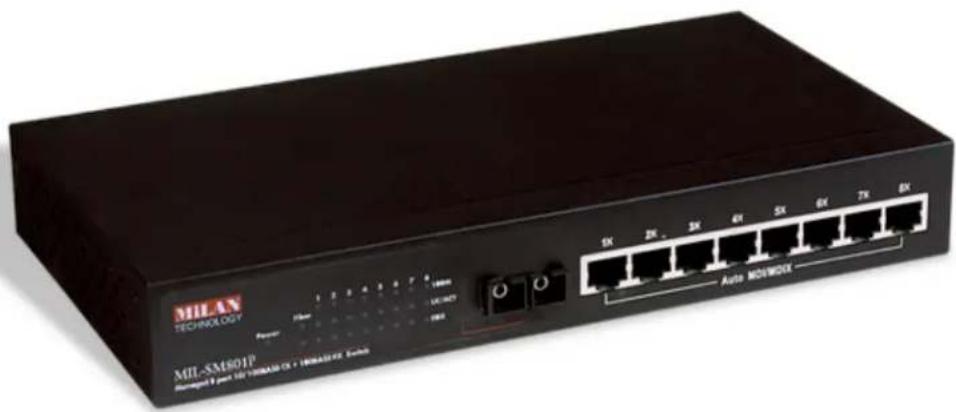
The MIL-SM801P, MIL-SM801G and MIL-SM800P managed series of compact desktop switches are ideal solutions for network users. They provide wire-speed, Fast Ethernet switching providing high-performance data transfer. The switches feature a store-and-forward architecture with auto-learning of source addresses with an 8K-entry MAC address table.

natural_image
Black wireless network device labeled 'MIL-SMSR1P' with ports and power connections (no readable text beyond branding)Figure 1-1. The MIL-SM801P switch
The switches provide 8 switched auto-sensing 10/100 Mbps RJ-45 Ethernet ports. The MIL-SM801P provides one additional 100BASE-FX fiber port and the MIL-SM801G provides one additional 1000BASE-SX Gigabit Ethernet port. The switch automatically detects the speed of the device attached allowing use of both 10 and 100Mbps devices. In addition, each RJ-45 port supports Auto MDI/MDIX.
There are 4 types of fiber connectors available on the MIL-SM801P switch. These fiber connectors include SC, MT-RJ, and VF-45 in multi-mode and SC in single-mode. The fiber port can be used to connect to remote sites up to 220 meters using multi-mode or 15 kilometers with SC single-mode.
With built-in Web-based Management, managing and configuring the switch is simplified. The Web Browser may be used to configure and manage the network, from cabinet level management to port level control and monitoring. Use of a mouse replaces typing of command strings. The switch can also be managed via Telnet, Console, or SNMP Management.
Features
■ Conforms to IEEE 802.3, 802.3u, and 802.3x Ethernet Standards
■ Eight auto-sensing 10/100Mbps Ethernet RJ-45 ports
■ Automatic MDI/MDIX crossover for each 10BASE-T/100BASE-TX port
One Fixed 100Mbps Fiber port SC/SC single-mode, MT-RJ, VF-45 connector for MIL-SM801P series only
One Fixed 1000Mbps Gigabit Ethernet port for MIL-SM801G series only
One Console port on the rear for switch software configuration
- Half-duplex mode for back pressure and flow control for full-duplex
■ Store-and-forward switching architecture
■ Automatic address learning
■ Static MAC table for a secured network
■ 8K-entry MAC address table
■ 2Mbit memory buffer sharing
■ Non-blocking full wire speed performance
■ LED-indicators for Power, 100M, LK/ACT, FD/COL
■ 10-inch design for desktop or rackmount
Intelligent Management Features
■ Web-based management
■ SNMP network management
■ Console and Telnet management
■ IEEE 802.1Q VLAN Tag, up to 4094 VLAN groups
- IEEE 802.1ad Port Trunking and IEEE 802.3 ad LACP supported
■ IEEE 802.1d Spanning Tree
■ MIB II ( RFC1213 ) supported
■ IP Multi-cast, IGMP Snooping
■ Quality of Service (QoS)
■ Port Mirroring
■ Broadcast Filtering
■ Static MAC Address support
■ Port Security
GVRP
Package Contents
Unpack the contents of the package and verify them against the checklist below.
■ MIL-SM801P, MIL-SM801G or MIL-SM800P switch
■ Power Cord
■ Four Rubber Feet
■ RS-232 console cable
■ User Guide
■ Warranty Card
If any item is missing or damaged, please contact your local dealer for service.
Management Methods
The MIL-SM801P, MIL-SM801G and MIL-SM800P switch series support the following management methods:
■ Console and Telnet Management
■ Web-based Management
■ SNMP Network Management
Console and Telnet Management
Console Management is done through the RS-232 Console Port. Managing the switch in this method requires a direct connection between PC and the switch. Telnet management requires a network connection. The default IP address is 192.168.1.77 with a subnet mask of 255.255.255.0. This default address can be used to login and change the configuration using Telnet.
Web-based Management
The switch provides an embedded HTML web server residing in flash memory. It offers advanced management features and allows users to manage the switch from anywhere on the network through a standard browser such as Microsoft Internet Explorer or Netscape.
SNMP Network Management
SNMP (Simple Network Management Protocol) provides a means to monitor and control network device, and to manage configurations, statistic collection, performance, and security.
2.
Hardware Description
Front Panel
RJ-45 Ports (Auto MDI/MDIX): Eight 10/100 auto-sensing for 10BASE-T or 100BASE-TX connections.

text_image
MILAN TECHNOLOGY Power 100M LACAST FOX MIL-SM1500P Managed & port 10/188A66-TX Switch 1X 2X 3X 4X 5X 6X 7X 8X Auto MDI/MDIXFigure 2-1. Front Panel for MIL-SM800P
100BASE-FX Fiber Port: There are 4 types of fiber connectors available for the MIL-SM801P. The distance for multi-mode fiber cabling can be up to 2 kilometers. However, the distance for SC single-mode fiber port is 60 kilometers.

text_image
MILAN TECHNOLOGY Power I/O I/O I/O I/O MIL-SM1801P Managed 0 port - 10*356/ARE-EX - 10*456/ARE-7X System 1X 2X 3X 4X 5X 6X 7X 8X Auto MDI/MDIXFigure 2-2. Front Panel for MIL-SM801P
1000BASE-SX Gigabit Ethernet Port: There is one 1000Mbps Gigabit Ethernet port available for the MIL-SM801G.

text_image
MILAN TECHNOLOGY Power Port 1 X 2 X 3 X 4 X 5 X 6 X 7 X 8 X MIL-SM1801G Managed 3 port: 16*98/48X TX - 98/48X /X System Auto MDI/MDIXFigure 2-3. Front Panel for MIL-SM801G
LED Indicators
text_image
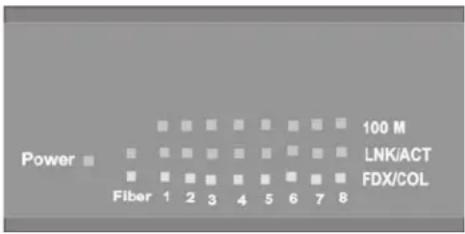
Power Fiber 1 2 3 4 5 6 7 8 100 M LNK/ACT FDX/COLFigure 2-4. LED Indicators
There are three LED-Indicators (100M, LNK/ACT, FDX/COL) for each RJ-45 port. The following table provides descriptions of the LED statuses and meaning. They provide a real-time indication of systems operation status.
| LED Status Color Description | ||
| Power On Green Power On | ||
| 100M | On Green | The port is operating at the speed of 100Mbps. |
| Off | The port is operating at the speed of 10Mbps. | |
| LNK / ACT | On Green | The port is successfully connecting with a device. |
| Blinks Green | The port is receiving or transmitting data. | |
| Off No device attached. | ||
| FDX / COL | On Orange | The port is operating in full-duplex mode. |
| Blinks Orange | Collision of Packets is occurring on the port. | |
| Off | Half-duplex mode or no device attached. | |
Table 2-1. The description of LED Indicators
Rear Panel
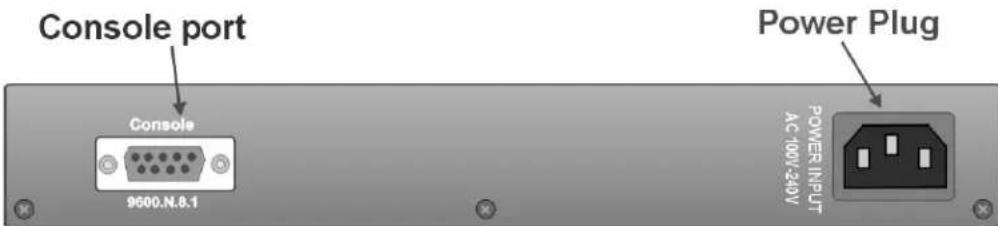
The Console port and 3-pronged power plug are located at the Rear Panel of the MIL-SM801P, MIL-SM801G and MIL-SM800P switches as shown in Figure 2-5. The switches will work with AC in the range 100-240V AC, 50-60Hz.
text_image
Console port Console 9600.N.8.1 Power Plug AC 100V-240V POWER INPUTFigure 2-5. The Rear Panel of the switch
Console Port: Console management can be done through the Console Port. It requires a direct connection between the switch and an end station (PC) via a RS-232 cable.
Desktop Installation
Set the switch on a sufficiently large flat space with a power outlet nearby. The surface where you put your switch should be clean, smooth, level, and sturdy. Provide enough clearance around the switch to allow attachment of cables, power cord and air circulation.
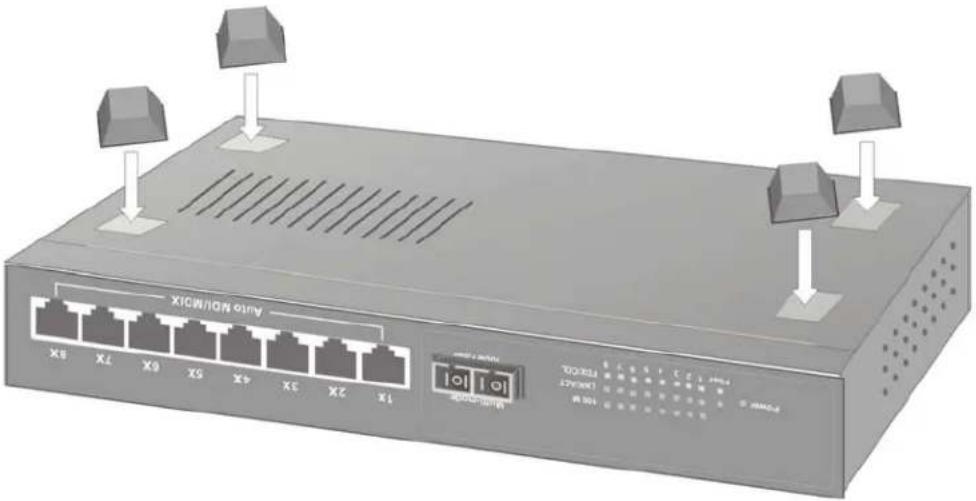
Attaching Rubber Feet
A. Make sure the mounting surface on the bottom of the switch is grease and dust free.
B. Remove adhesive backing from the rubber feet.
C. Apply the rubber feet to each corner on the bottom of the switch. These footpads can protect the switch from shock and vibration.
text_image
Auto NOV/MIX 1X 2X 3X 4X 5X 6X 7X 8X POWER: 100W 1.2.1 1:5:7 FTR/CD3 100W 1.2.1 1:5:7 FTR/CD3Figure 2-6. Attaching Rubber Feet to each corner on the bottom of the switch
Power On
Connect the power cord to the power socket on the rear panel of the switch. Connect the other end of the cord to an appropriate power outlet. Check the power indicator on the front panel to see if power is properly supplied. The internal power supply works with AC in the voltage range 100-240VAC, frequency 50\~60Hz. Country specific power cords are available for the unit.
3.
Network Application
Desktop Application
The switch can be used as a standalone switch connecting personal computers, servers, or print servers directly connecting to form small workgroups.

text_image
Server Printer serverFigure 3-1. Desktop Application
Segment Application
For enterprise networks where large data broadcasts are constantly processed, this switch is suitable for individual department users to connect to the corporate backbone.
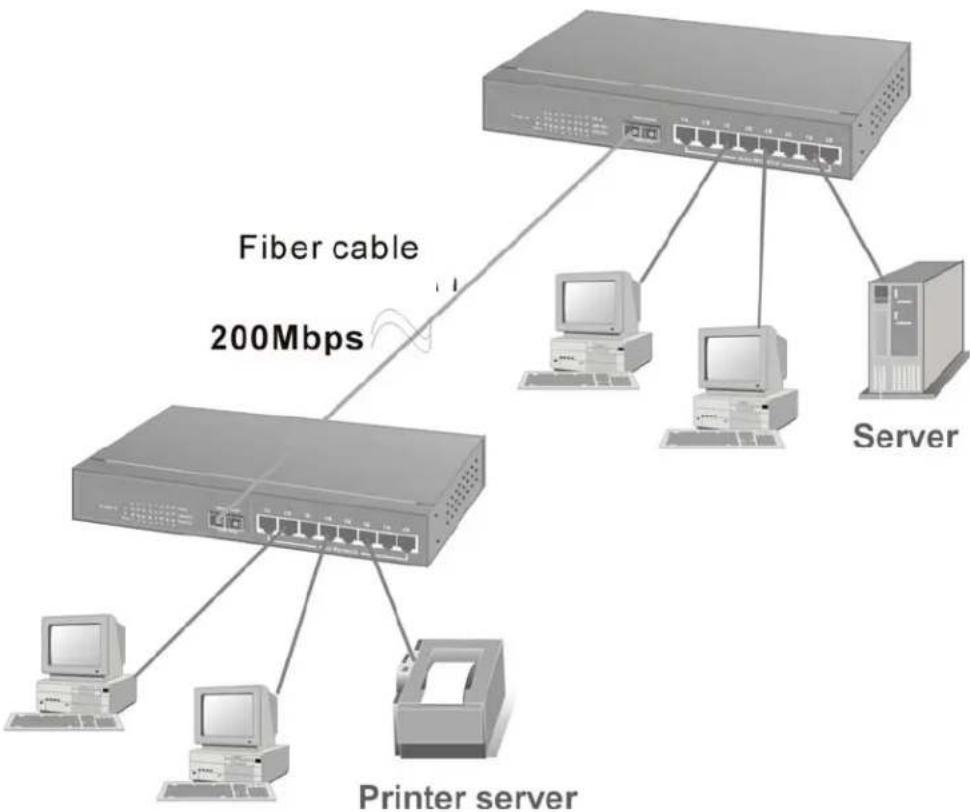
Figure 3-2. Fiber port on MIL-SM801P switch extends the distance between workgroups
4.
Network Configuration
Connecting a Terminal or PC to the Console Port
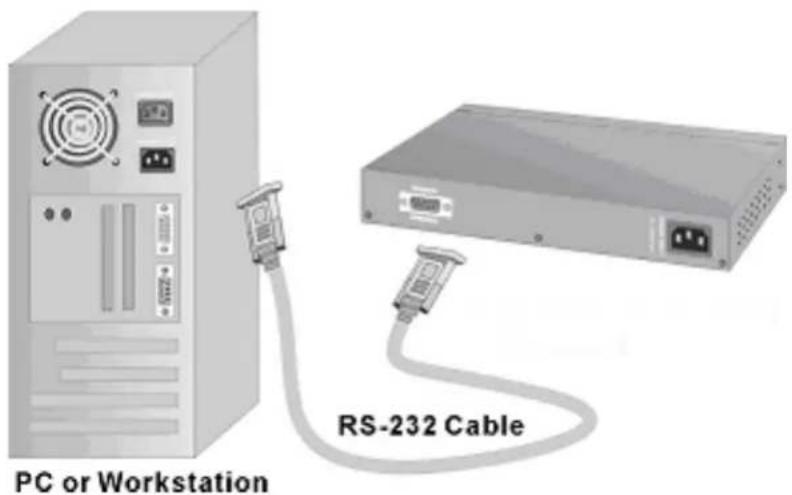
Console management involves the administration of the switch via a direct connection to the RS-232 console port. This port is a female DB-9 connector. From the main menu of the console program, the user has access to manage the functions of the switch.
text_image
PC or Workstation RS-232 CableFigure 4-1. Connecting the switch to a terminal via RS-232 cable
Use the supplied RS-232 cable to connect a terminal or PC to the console port. The terminal or PC to be connected must support the terminal emulation program.
After the connection between switch and PC is finished, turn on the PC and run a terminal emulation program or HyperTerminal to match the following default characteristics of the console port:
Baud Rate: 9600 bps
Data Bits: 8
Parity: none
Stop Bit: 1
Control flow: None

text_image
COM2 Properties Port Settings Bits per second: 9600 Data bits: 8 Parity: None Stop bits: 1 Flow control: None Advanced... Restore Defaults OK Cancel ApplyFigure 4-2. The settings of communication parameters
After you have finished parameter settings, press the "Enter" Key and the Main Menu of console management appears.
Console – Menu
- The switch also provides a serial interface to manage and monitor the switch. The user can follow the Console Port Information provided by the web to use the Windows HyperTerminal program to link the switch.
- Type the user name and password to login. The default user name is "root"; the default password is "root".
- The timeout on the console port is 60 seconds. If no action is taken on the console screen for one minute, the program reverts back to the logon screen and a new login is necessary in order to continue.
- The switch is shipped with a default IP address of 192.168.1.77. The default subnet mask is 255.255.255.0.
4-1 Main Menu
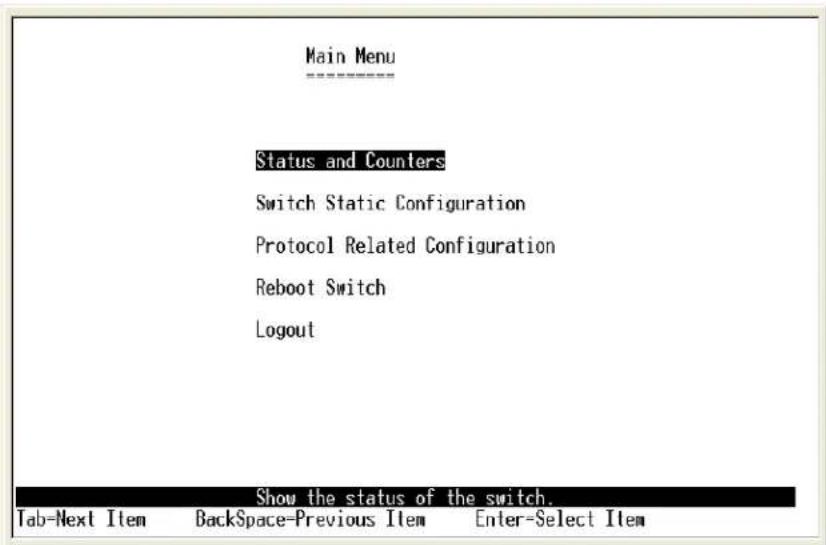
There are five items for selection as follows:
text_image
Main Menu Status and Counters Switch Static Configuration Protocol Related Configuration Reboot Switch Logout Show the status of the switch. Tab=Next Item BackSpace=Previous Item Enter=Select ItemStatus and Counters: Shows the status of the switch.
Switch Static Configuration: Menus to configure the switch.
Protocol Related Configuration: Configures protocol features.
Reboot switch: Restarts the system or resets switch to default configuration.
Logout: Exits the menu line program.
The control keys listed below are provided in all menus:
Tab: Moves the cursor to next item.
Backspace: Moves the cursor to previous item.
Enter: Selects item.
Space: Toggles selected item to next option.
Edit: Configures all items. When finished, pressing ESC returns to the action menu line.
4-2. Status and Counters
text_image
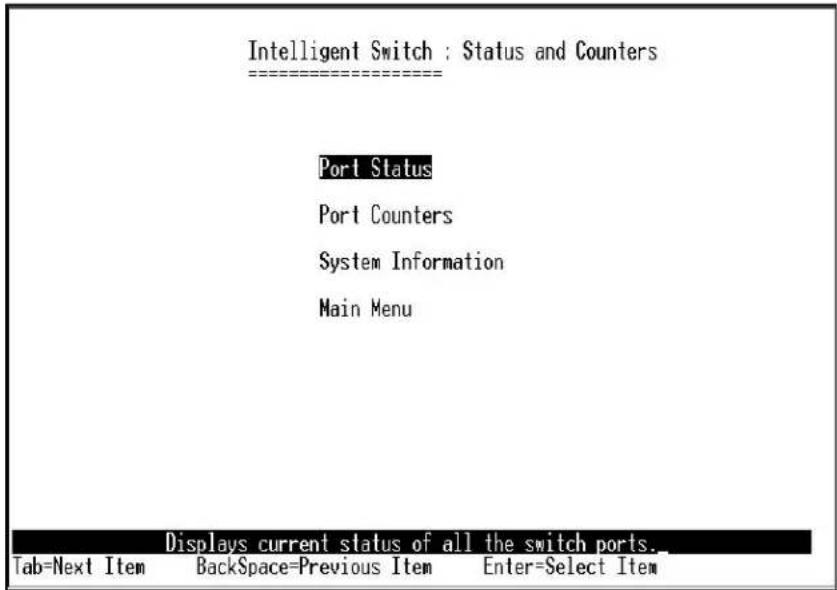
Intelligent Switch : Status and Counters Port Status Port Counters System Information Main Menu Displays current status of all the switch ports. Tab=Next Item BackSpace=Previous Item Enter=Select ItemPress the Tab or Backspace key to choose action menu, and then press Enter key to select item.
4-2-1. Port Status
Type: Displays the port type of either 10/100TX or Fiber
Enabled: A port that is enabled will be displayed as "Yes". A port that is disabled will be displayed as "No".
Status: Displays the port's link. "Down" the port has no link, and "Up" the port has a link with the remote device.
Mode: Displays the port speed and duplex mode.
FlowCtrl: Displays the flow control for the port as being either on or off.

text_image
Intelligent Switch : Port Status Port Type Enabled Status Mode FlowCtrl 1. 10/100TX No Down 100 Full On 2. 10/100TX No Down 100 Full On 3. 10/100TX No Down 100 Full On 4. 10/100TX No Down 100 Full On 5. 10/100TX No Down 100 Full On 6. 10/100TX No Down 100 Full On 7. 10/100TX No Down 100 Full On 8. 10/100TX No Down 100 Full On actions->Actions->
Press the Tab or Backspace key to choose action menu, and then press the Enter key to select item.
4-2-2. Port Counters
The following information provides a view of the current data packet information of the unit. The screen is not automatically updated. To see updated statistics, exit the menu and re-enter.
SM801P Managed Switch : Port Counters
| Port | TxGoodPkt | TxBadPkt | RxGoodPkt | RxBadPkt | TxAbort | Collision |
| 1. | 0 | 0 | 0 | 0 | 0 | 0 |
| 2. | 0 | 0 | 0 | 0 | 0 | 0 |
| 3. | 0 | 0 | 0 | 0 | 0 | 0 |
| 4. | 0 | 0 | 0 | 0 | 0 | 0 |
| 5. | 27069 | 0 | 31420 | 0 | 0 | 0 |
| 6. | 0 | 0 | 0 | 0 | 0 | 0 |
| 7. | 0 | 0 | 0 | 0 | 0 | 0 |
| 8. | 0 | 0 | 0 | 0 | 0 | 0 |
| 9. | 0 | 0 | 0 | 0 | 0 | 0_ |
| actions-> | <Quit> | <Reset All> |
| Configure the action menu. | ||
| Tab=Next Item | BackSpace=Previous Item | Quit=Previous menu Enter=Select Item |
Actions->
Press the Tab or Backspace key to choose action menu, and then press Enter key to select item
4-2-3. System Information
System Description: Displays the name of device type.
MAC Address: The unique hardware address.
Firmware Version: Displays the switch's firmware version.
Hardware Version: Displays the switch's hardware version.
Default config value version: Rebooting the switch to defaults will load the version of software that is originally shipped with the switch.
4-3. Switch Static Configuration
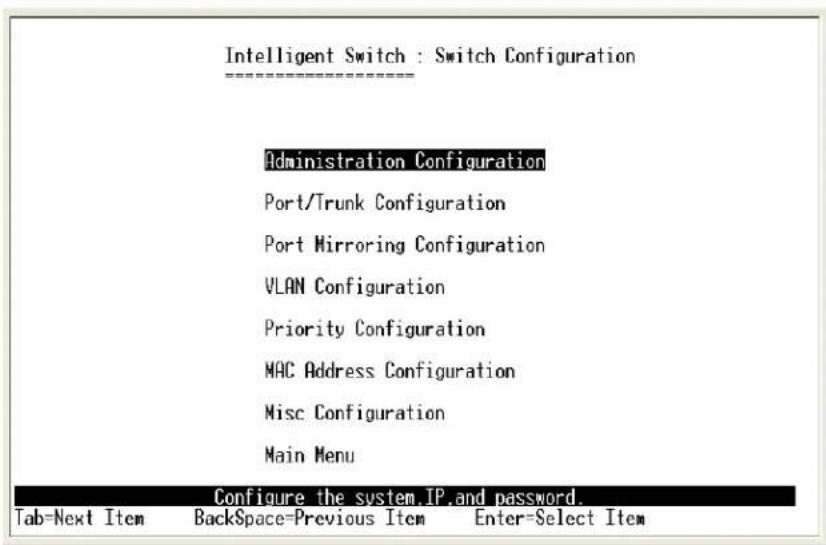
text_image
Intelligent Switch : Switch Configuration Administration Configuration Port/Trunk Configuration Port Mirroring Configuration VLAN Configuration Priority Configuration MAC Address Configuration Misc Configuration Main Menu Configure the system.IP.and password. Tab=Next Item BackSpace=Previous Item Enter=Select ItemPress the Tab or Backspace key to choose action menu, and then press the Enter key to select item
4-3-1. Administration Configuration
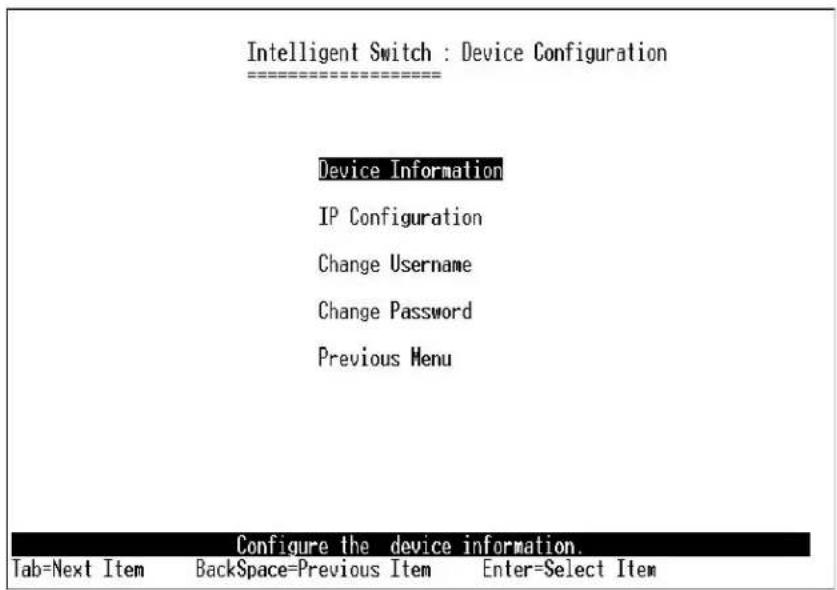
text_image
Intelligent Switch : Device Configuration Device Information IP Configuration Change Username Change Password Previous Menu Configure the device information. Tab=Next Item BackSpace=Previous Item Enter=Select Item4-3-1-1. Device Information

text_image
SM801P Managed Switch : Device Information ==================== Device Name : Device Content : Device Location : Device Description : MiLAN SM801P Intelligent Switch actions->Device Name: 10 characters can be used to give the switch a unique name in order to distinguish it on the network. After configuration this name will show at the top of each menu screen.
Device Content: 32 characters can be used to describe devices attached.
Device Location: 32 characters can be used to give a location of the switch.
Device Description: 32 characters can be used to describe the switch.
Actions->
4-3-1-2. IP Configuration
This menu enables the user to change the default settings of the IP address, subnet mask and gateway. Rebooting the switch is necessary to have the configuration change take affect.

text_image
SM801P Managed Switch : IP Configuration IP Address : 192.168.1.77 Subnet Mask : 255.255.255.0 Gateway : 192.168.1.6 actions->Note: Always reboot the switch after finishing a new configuration.
Actions->
4-3-1-3. Change Username
Use this page to change the User Name.
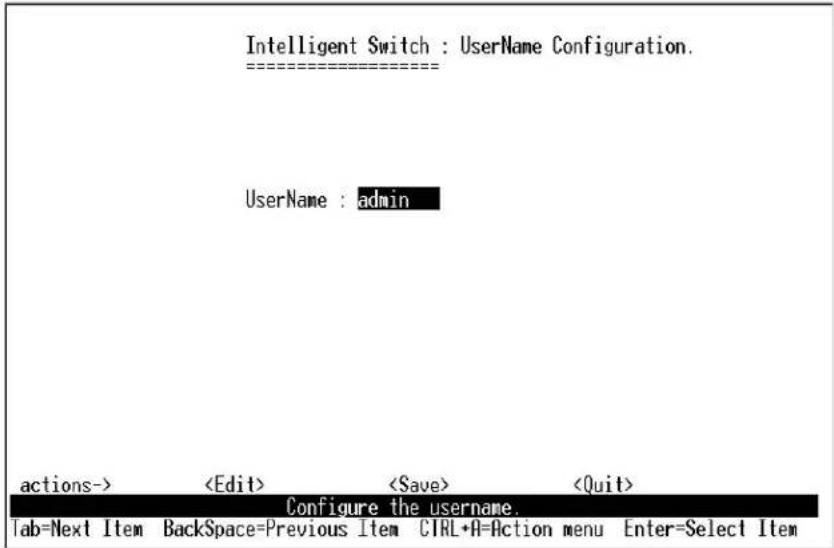
text_image
Intelligent Switch : UserName Configuration. ==================== UserName : admin actions->4-3-1-4. Change Password
Use this screen to change the user management password.

text_image
Intelligent Switch : Password Configuration Old Password:*** new password:*** enter again :*** password changed successfully!press any key to return! Esc=Previous menu4-3-2. Port / Trunk Configuration
The menu provides per port configuration for speed and duplex as well as port trunking. Use the Space key to select the option preferred for each item.
- Enabled: User can disable or enable the port.
- Auto Negotiate: User can set auto-negotiation to be enabled or disabled. The default is that auto-negotiation is enabled.
- Speed/Duplex Config: User can set the port speed to be 100Mbps or 10Mbps on ports 1 through 8. The port 9 fiber port is fixed at 100Mbps for the MIL-SM801P model series. The port 9 fiber port for the MIL-SM801G models is fixed at 1000Mbps. All ports can be set for full-duplex or half-duplex mode.
- Flow Control: User can set the flow control function to be on or off. The default is that flow control is enabled.
- Group: User can set trunk groups for port 1 through port 8. There are four possible trunk groups.

text_image
Intelligent Switch : Port Configuration ==================== Port Type Enabled Auto Speed/Duplex Flow Group Negotiate Config Control 1. 10/100TX Yes Enabled 100 Full On Trk1 2. 10/100TX Yes Enabled 100 Full On Trk1 3. 10/100TX Yes Enabled 100 Full On Trk2 4. 10/100TX Yes Enabled 100 Full On Trk2 5. 10/100TX Yes Enabled 100 Full On 6. 10/100TX Yes Enabled 100 Full On 7. 10/100TX Yes Enabled 100 Full On 8. 10/100TX Yes Enabled 100 Full On actions->Actions->
4-3-3. Port Mirroring Configuration
Port mirroring is a method for monitoring traffic in switched networks. Traffic through ports can be monitored by one specific port. The traffic being received or transmitted by the monitored ports will be duplicated into the monitoring port.
Press the Space key to change the configuration of an item.
- Analysis State: Select YES or NO to enable the port-mirroring function.
- Mirroring Port: The port to which all traffic to be mirrored will be sent.
- Source Port: The port(s) you want to monitor. All monitored port traffic will be copied to the monitoring port. You can select a maximum of 8 ports to monitor in the switch. User can choose to monitor RX frames only or TX frames only or both RX and TX frames at the Action command line.
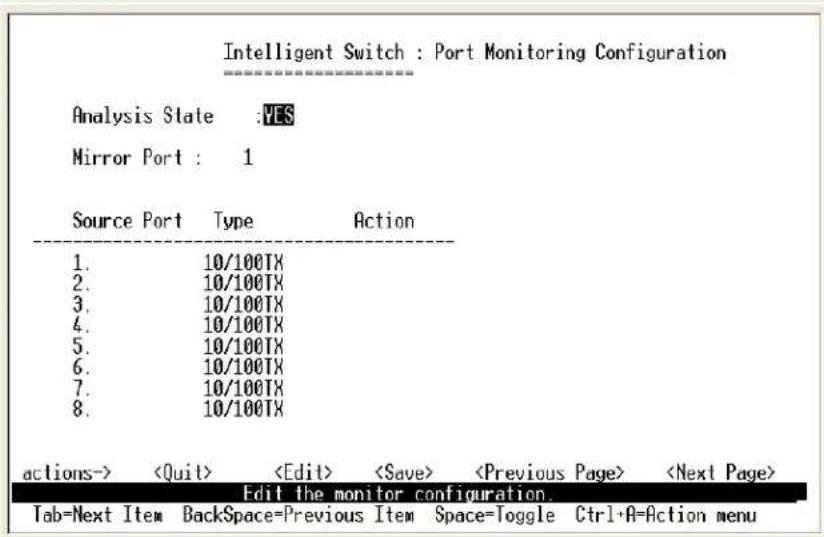
text_image
Intelligent Switch : Port Monitoring Configuration Analysis State :YES Mirror Port : 1 Source Port Type Action 1. 10/100TX 2. 10/100TX 3. 10/100TX 4. 10/100TX 5. 10/100TX 6. 10/100TX 7. 10/100TX 8. 10/100TX actions->Actions->
4-3-4. VLAN Configuration

text_image
Intelligent Switch : VLAN Configuration ==================== VLAN Configure Create a VLAN Group Edit/Delete a VLAN Group Previous Menu Configure the VLAN PVOID and Ingress Rule. Tab-Next Item BackSpace-Previous Item Quit-Previous menu Enter-Select ItemAll ports are automatically placed in VLAN 1, the default VLAN. To create new VLANs, use the Create a VLAN Group menu and add a VLAN. Make sure when you enter a VLAN name you do not leave spaces. For example VLAN2 is correct; VLAN 2 will give an error. The VLAN name can be any 15 alphanumeric characters. Special characters are not allowed.
4-3-4-1. VLAN Configuration
Choose a VLAN
In the VLAN Configure menu select the type of VLAN you want to configure: No VLAN (default), Port Based, 802.1Q, or 802.1Q with GVRP. Save the configuration. There are 4 different options for VLANs to choose from using the space bar: Disabled, Port Based, 802.1Q and 802.1Q with GVRP.
Port Based VLANs
These VLANs only apply to this switch. The VLANs can be overlapping, meaning that any port can belong to more than one VLAN. One configuration that is common for port based VLANs is to have all the ports on the switch on separate VLANs except for the port that has the server connected. The port connected to the server belongs to all the VLANs. This enables security between ports but allows all ports access to the server. Up to 256 different port based VLANs may be configured.

text_image
MIL-SM801P Switch : VLAN Support Configuraton VLAN Mode :PortBased actions->Port Based VLANs
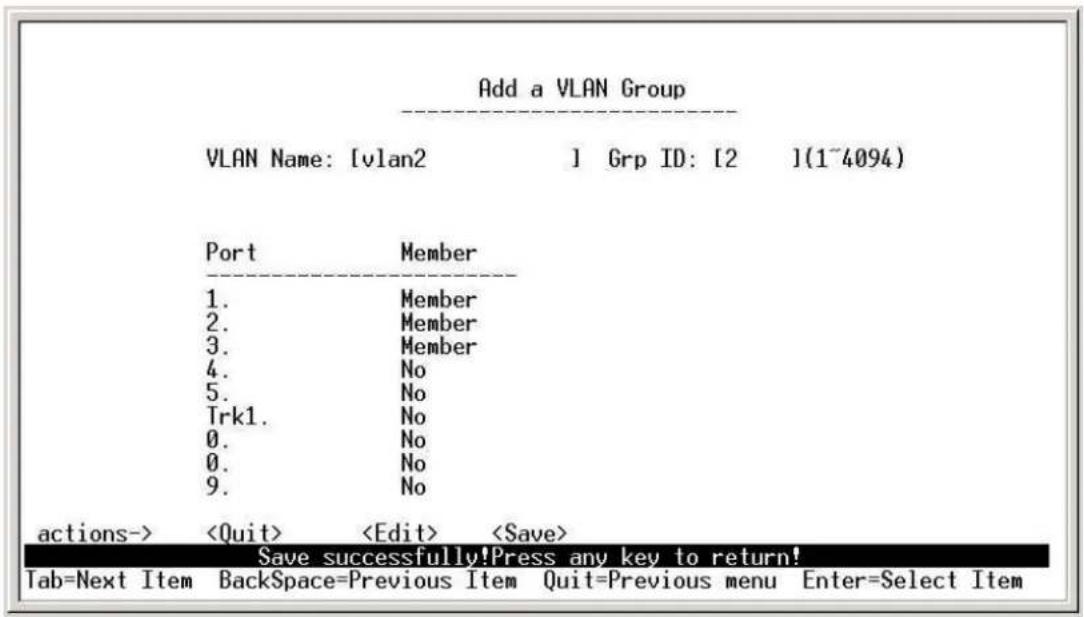
To configure a new VLAN, select Edit and then use the tab key to select items you want to configure. The space bar allows you to select the different options. In the following configuration, ports 6, 7, and 8 are trunked.
text_image
Add a VLAN Group VLAN Name: [vlan2 ] Grp ID: [2 ](1~4094) Port Member 1. Member 2. Member 3. Member 4. No 5. No Trk1. No 0. No 0. No 9. No actions->After adding a VLAN group, the configuration option Edit a VLAN Group will allow you to change the membership by adding or deleting ports.

text_image
Edit an VLAN Group VLAN Name: [vlan2 ] Grp ID: [2 ](1~4094) Port Member 1. Member 2. Member 3. Member 4. No 5. No Trk1. No 0. No 0. No 9. No actions->IEEE802.1Q VLANs
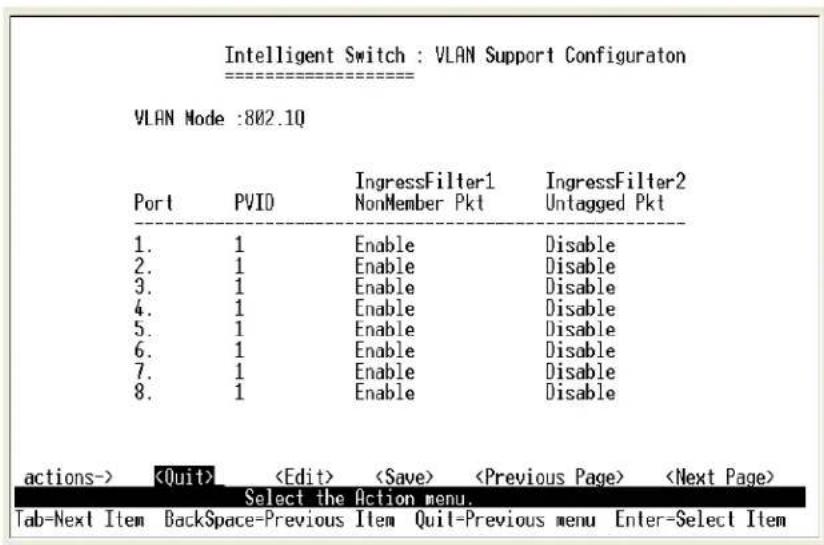
If IEEE802.1Q VLANs is selected, all the ports will belong to the default VLAN 1.

text_image
MIL-SM801P Switch : VLAN Support Configuraton ==================== VLAN Mode :802.1Q Port PVID IngressFilter1 IngressFilter2 NanMember Pkt Untagged Pkt 1. 1 Enable Disable 2. 1 Enable Disable 3. 1 Enable Disable 4. 1 Enable Disable 5. 1 Enable Disable 6. 1 Enable Disable 7. 1 Enable Disable 8. 1 Enable Disable 9. 1 Enable Disable actions->If more than one VLAN is necessary, the additional VLANs may be created.
PVID (Port VID): Set the port VLAN ID that will be assigned to untagged traffic on a given port. This feature is useful for accommodating devices that you want to participate in the VLAN, but don't support tagging. Only one untagged VLAN is allowed per port. Other VLANs need to be tagged.
Ingress Filter 1: If this is set, the port will only forward packets with VID (VLAN ID) matching this port's configured VID. Press the Space key to choose forward or drop the frame with the VID not matching this port's configured VID.
Ingress Filter 2: Drop untagged frame. Press the Space key to choose drop or forward the untagged frame.
text_image
Intelligent Switch : VLAN Support Configuraton VLAN Mode :802.1Q Port PVID IngressFilter1 IngressFilter2 NonMember Pkt Untagged Pkt 1. 1 Enable Disable 2. 1 Enable Disable 3. 1 Enable Disable 4. 1 Enable Disable 5. 1 Enable Disable 6. 1 Enable Disable 7. 1 Enable Disable 8. 1 Enable Disable actions->4-3-4-2. Create a VLAN Group
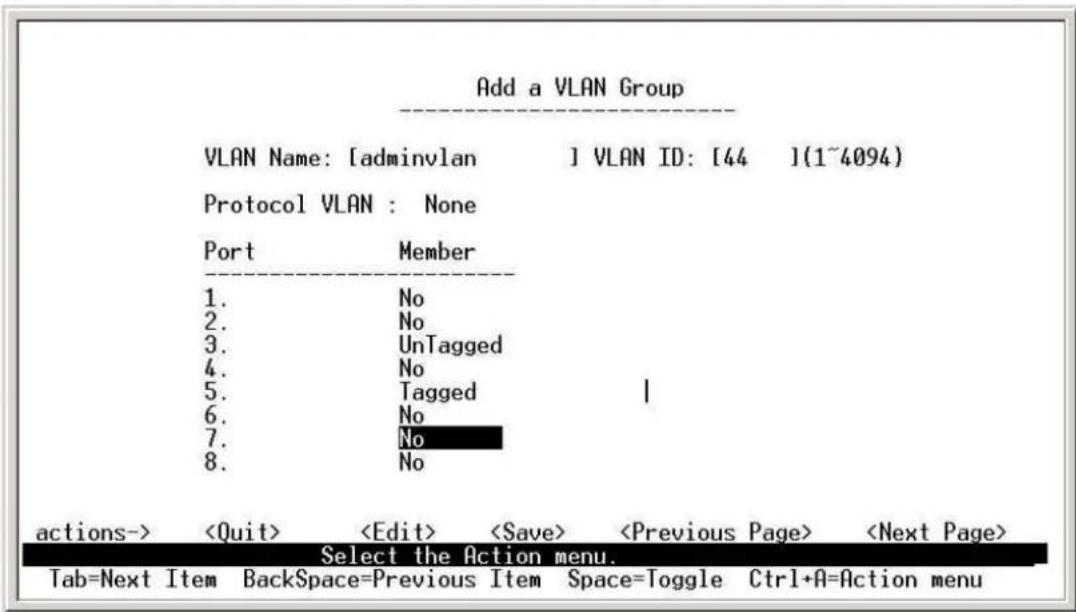
To create a VLAN and add tagged /untagged member ports to it:
- VLAN Name: Type a name for the new VLAN using 15 alphanumeric characters and no spaces.
- VLAN ID: Type a VID (between 2\~4094). The default is 1.
- Protocol VLAN: Press the Space key to choose protocol type. When set, this acts as a packet filter on the port by restricting packets on the port of only the selected protocol type.
- Member: Press the Space key to choose VLAN membership. There are three selections:
UnTagged: the member port is an untagged port.
Tagged: the member port is a tagged port.
No: The port is not a member of this VLAN group.
- Save the configuration.
text_image
Add a VLAN Group VLAN Name: [adminvlan ] VLAN ID: [44 ](1~4094) Protocol VLAN : None Port Member 1. No 2. No 3. UnTagged 4. No 5. Tagged | 6. No 7. No 8. No actions->Actions->
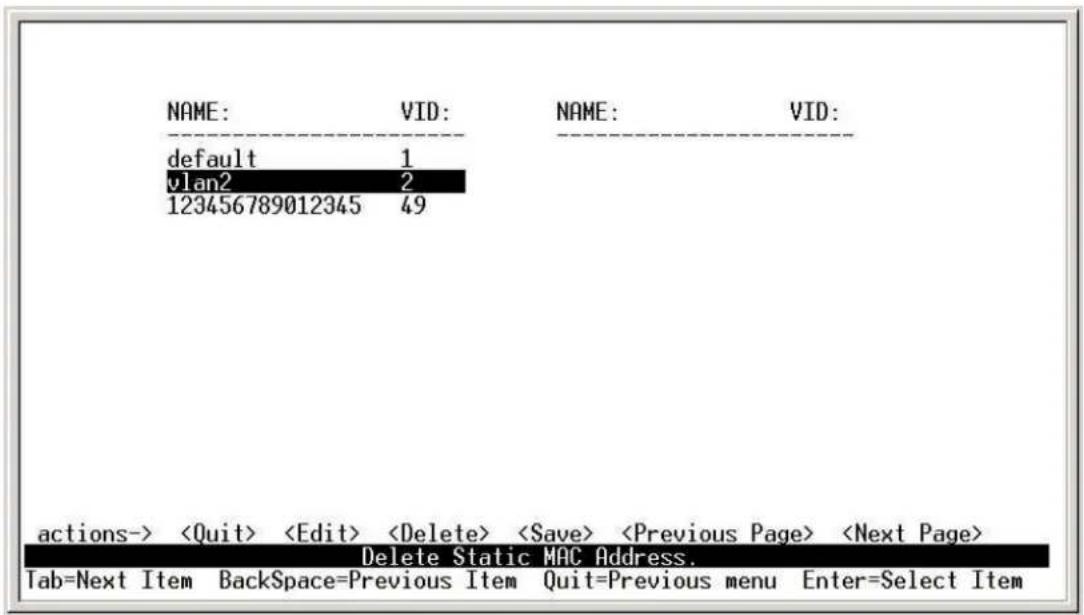
4-3-4-3. Edit / Delete a VLAN Group
text_image
NAME: VID: NAME: VID: default 1 plan2 2 123456789012345 49 actions->Use this menu to edit or delete a VLAN group.
Choose
text_image
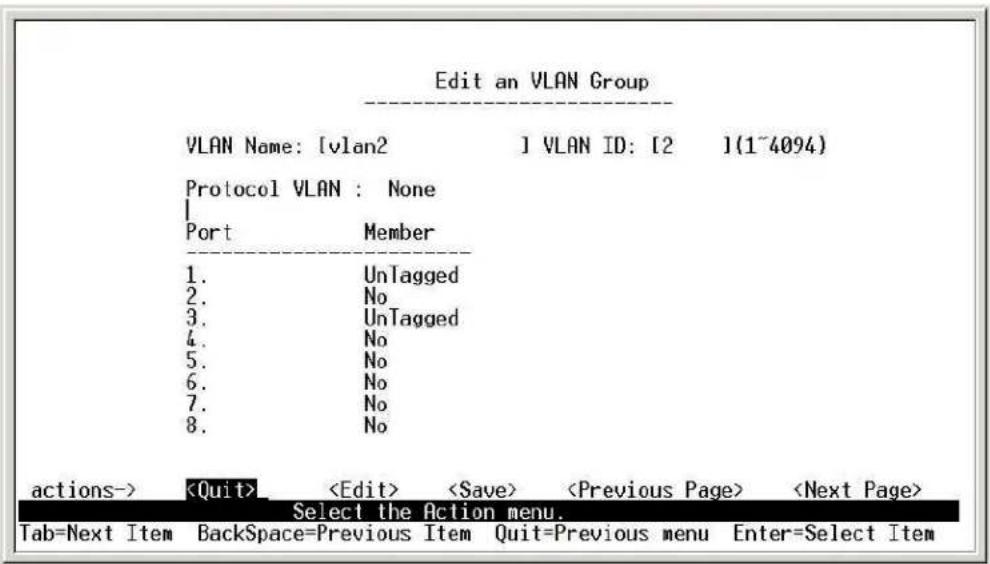
Edit an VLAN Group VLAN Name: [vlan2 ] VLAN ID: [2 ](1~4094) Protocol VLAN : None Port Member 1. UnTagged 2. No 3. UnTagged 4. No 5. No 6. No 7. No 8. No actions->When editing the chosen VLAN, the user can change the protocol VLAN or a member port. A new protocol can be configured and the ports can be changed to tagged or untagged or deleted as member ports from this VLAN. In edit mode the VLAN Name and VLAN ID are read-only and cannot be modified. After editing or deleting a VLAN, press the
4-3-5. Priority Configuration
-
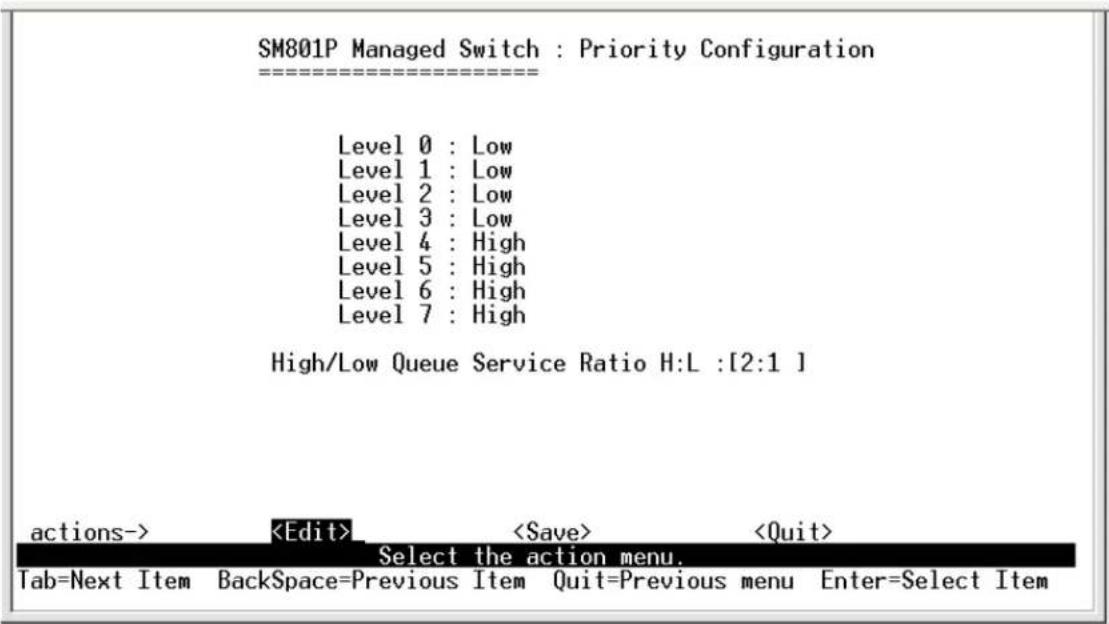
There are eight (0\~7) priority levels that can be mapped as high or low priority queues.
-
High/Low Queue Service Ratio (High:Low) : User can select the ratio of high priority packets to low priority packets.
text_image
SM801P Managed Switch : Priority Configuration ==================== Level 0 : Low Level 1 : Low Level 2 : Low Level 3 : Low Level 4 : High Level 5 : High Level 6 : High Level 7 : High High/Low Queue Service Ratio H:L :[2:1 ] actions->Actions->
First In First Out: The sequence of packets sent depends upon the arrival order.
High - Low: The high priority packets are sent before the low priority packets.
Ratio: Select the preference given to packets in the switch's high-priority queue. These options represent the number of high priority packets sent before one low priority packet is sent. For example, 2 High : 1 Low means that the switch sends 2 high priority packets before sending 1 low priority packet.
4-3-6.MAC Address Configuration
4-3-6-1. Static MAC Address
When you add a static MAC address, it remains in the switch's address table regardless of whether or not the device is physically connected to the switch. This saves the switch from having to re-learn a device's MAC address when the device is disconnected or powered off and then becomes active again.
The menu shows the current configured static MAC addresses. The user can add, modify or delete a static MAC address. Once added, the MAC address will be listed on this page.

text_image
Intelligent Switch : Static MAC Address Configuration MAC Address Port Num VLAN ID MAC Address Port Num VLAN ID 0000864769FB 1 2 000086470906 3 2 actions->Add static MAC address
- Press the
key. Then press the key on this menu to add a static MAC address. - Enter the MAC address to and from which the port should permanently forward traffic.
- In the Port Num field, enter the port number for the device.
- The VLAN ID field is not available if the switch is configured for port based VLANs. If tag-based (802.1Q) VLANs are configured, the static addresses are associated with individual VLANs. The user must add the VID to be associated with the MAC address.
- Press ESC to go back to the action menu line, and then select
to save all configured values.
Note: If you change VLAN types from IEEE to port based, all your static MAC addresses will be deleted.

text_image
Intelligent Switch : Edit Static MAC Address ==================== MAC Address :0000864769FB Port Num :1 VLAN ID :2 actions->Edit static MAC address
- Press the
key to modify a static MAC address. - Use the tab key to choose the MAC address that you want to modify and then press enter.
- Press the
key to modify all the items. - Press ESC to go back to the action menu line, and then select
to save all configured values.
Delete static MAC address
- Press the
key to delete a static MAC address. - Choose the MAC address that you want to delete and then press enter.
- After deleting a static MAC address, you must
to complete the deletion.
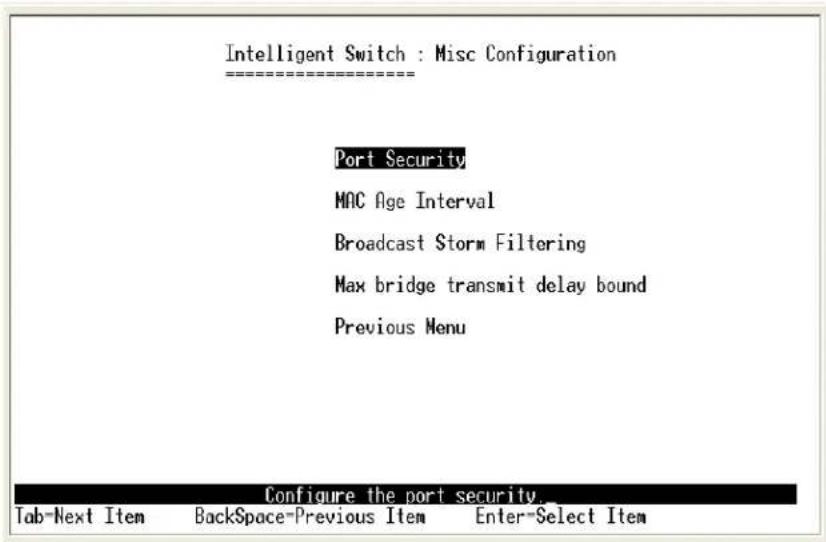
4-3-7.Misc.Configuration
text_image
Intelligent Switch : Misc Configuration Port Security MAC Age Interval Broadcast Storm Filtering Max bridge transmit delay bound Previous Menu Configure the port security. Tab-Next Item BackSpace-Previous Item Enter-Select Item4-3-7-1. Port Security
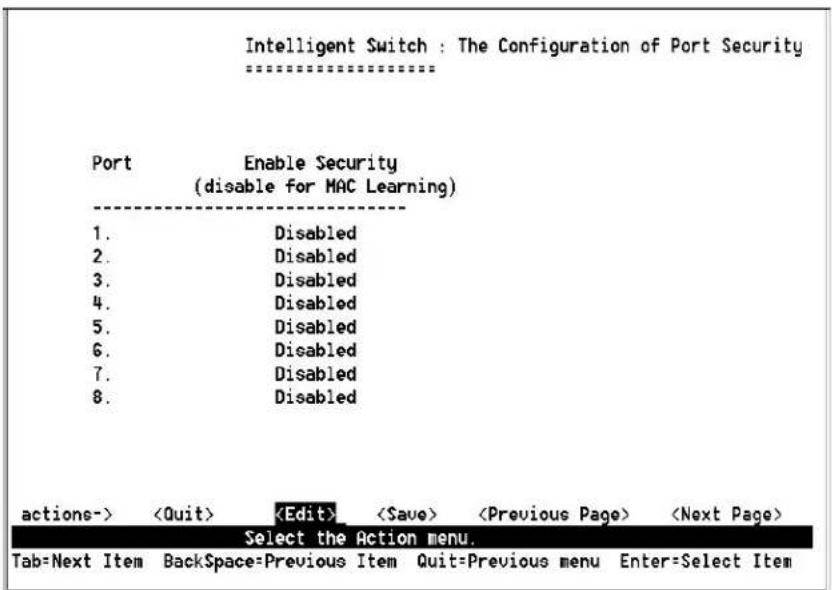
A port set in security mode will be “locked” and be without address learning. Only the incoming packets with the source MAC address already existing in the address table can be forwarded. With port security, users can disable a port from learning new MAC addresses. The user may then return to the static MAC addresses menu to define a list of MAC addresses that can access the secured port.
text_image
Intelligent Switch : The Configuration of Port Security Port Enable Security (disable for MAC Learning) 1. Disabled 2. Disabled 3. Disabled 4. Disabled 5. Disabled 6. Disabled 7. Disabled 8. Disabled actions->- Press
to enable or disable the port security. - Press the Space key to choose enable or disable.
- Press ESC to return to the action menu line, and then select
to save all configured values.
4-3-7-2.MAC Age Interval
To configure a different MAC Age Interval, type the number of seconds that an inactive MAC address remains in the switch's address table before it is deleted. Once the address is removed from the table, a device will have to send out broadcast packets to be relearned by the switch and have its address put in the table. The valid range is 300 to 765 seconds. Default is 300 seconds or 5 minutes.

text_image
Intelligent Switch : The Configuration of Aging Time ==================== MAC Age Interval (sec) [300 ] : 300 (300~765) actions->Actions->
4-3-7-3. Broadcast Storm Filtering
Broadcast storm filtering is used to limit the amount of broadcast traffic on the network. An excessive amount of broadcast traffic can inhibit data packets from timely delivery.
The valid threshold values are 5%, 10%, 15%, 20%, 25% and NO. If the broadcast traffic is greater than the configured value, broadcast packets will be dropped. The default is NO. The default is set so that no broadcast packets are ever dropped no matter how many broadcast packets there are on the network.
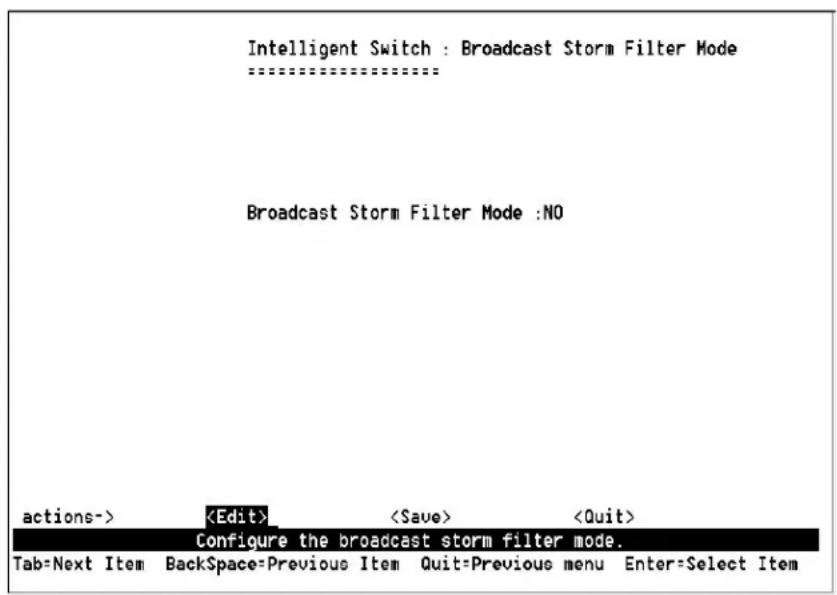
text_image
Intelligent Switch : Broadcast Storm Filter Mode ==================== Broadcast Storm Filter Mode :NO actions->Actions->
4-3-7-4.Max Bridge Transmit Delay Bound
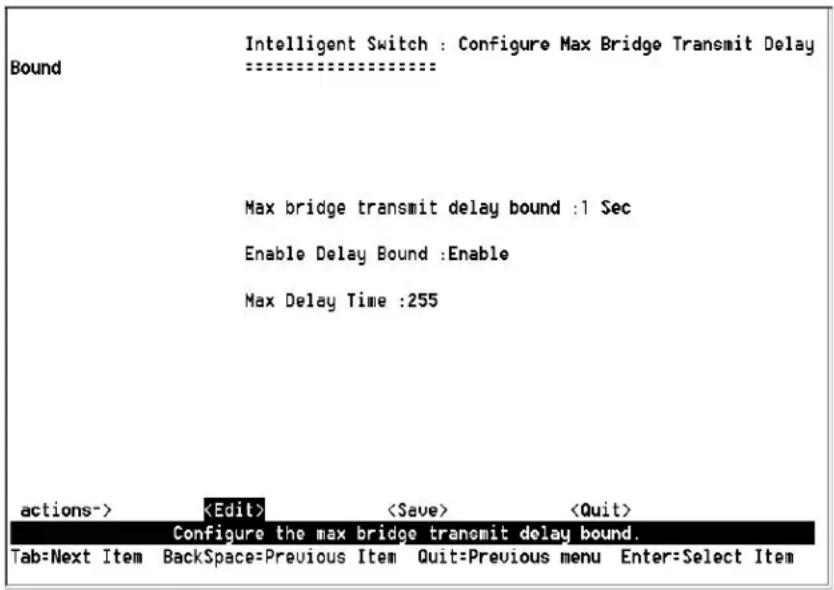
Max bridge transmit delay bound: Limits the packets queuing time in the switch. If enabled, the packets exceeding the queuing time will be dropped. Press the Space key to set the time. The valid values are 1sec, 2sec, 4sec and Off. Default is OFF. This setting does not depend on what values are set in the "Priority Configuration" menu.
Enable Delay Bound: If this parameter is enabled, the “Max bridge transmit delay bound” must also be configured. This item allows you to limit the queuing time of low priority packets in the switch. When the low priority packets exceed the “Max Delay Time” they will be transmitted. Press the Space key to enable or disable this function. By default the Enable Delay Bound is set OFF.
Max Delay Time: Sets the time that low priority packets are queued in the switch. The valid range is 1\~255 ms. Since the default is OFF, the Max Delay Time is 0. This item must be set if “Enable Delay Bound” is configured.
NOTE: "Max bridge transit delay bound control" must be enabled before Max Delay Bound is enabled.
text_image
Intelligent Switch : Configure Max Bridge Transmit Delay Bound Max bridge transmit delay bound :1 Sec Enable Delay Bound :Enable Max Delay Time :255 actions->Actions->
4-4.Protocol Related Configuration 4-4-1.STP

text_image
Intelligent Switch : Spanning Tree Protocol ==================== STP Enable System Configuration Perport Configuration Previous Menu Enabled or disabled the Spanning Tree Protocol.. Tab=Next Item BackSpace=Previous Item Enter=Select Item4-4-1-1.STP Enable
This page enables or disables the Spanning Tree function. Press the Space key to select Enabled or Disabled.
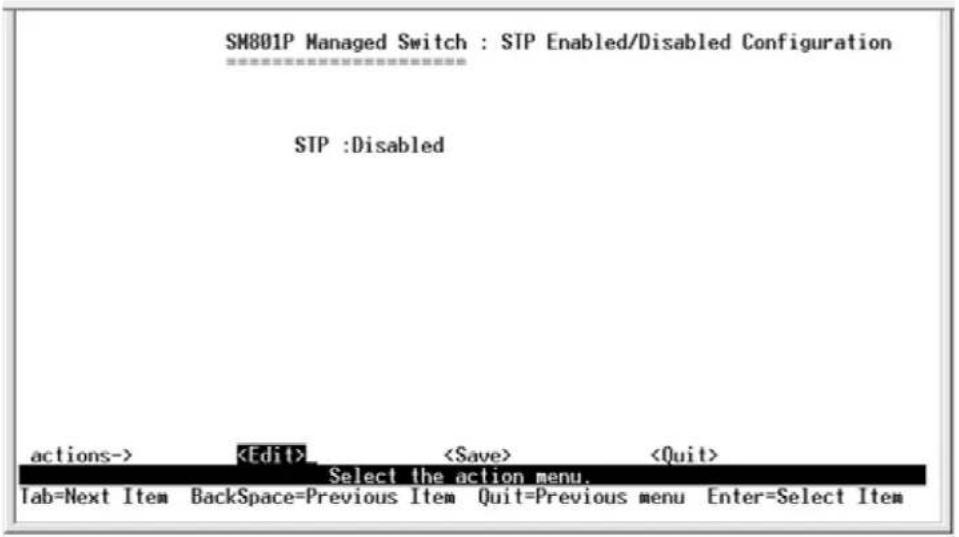
text_image
SM801P Managed Switch : STP Enabled/Disabled Configuration ==================== STP :Disabled actions->4-4-1-2. System Configuration
text_image
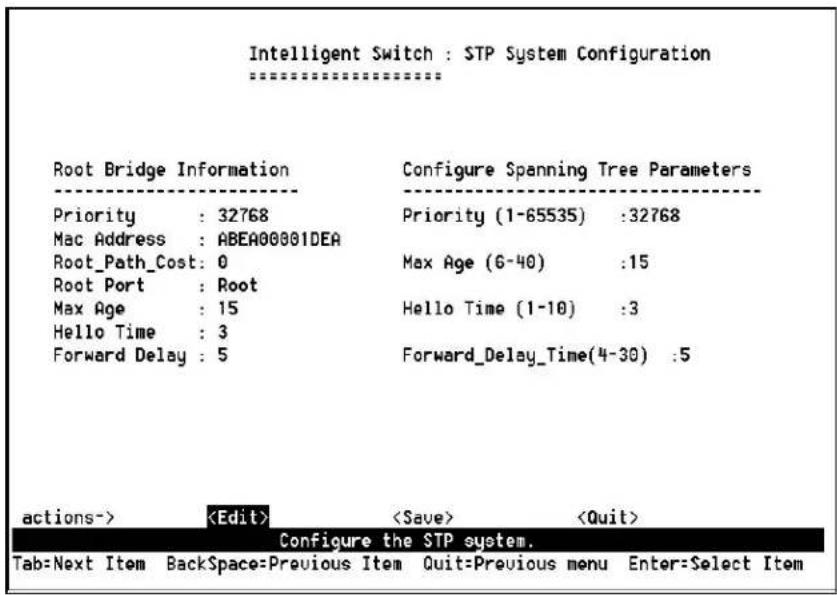
Intelligent Switch : STP System Configuration ==================== Root Bridge Information Configure Spanning Tree Parameters Priority : 32768 Priority (1-65535) :32768 Mac Address : ABEA00001DEA Root_Path_Cost: 0 Max Age (6-40) :15 Root Port : Root Max Age : 15 Hello Time (1-10) :3 Hello Time : 3 Forward Delay : 5 Forward_Delay_Time(4-30) :5 actions->The data on the left is for display only. The parameters on the right can be configured with new values.
Priority: The value used to identify the root bridge. The bridge with the lowest value has the highest priority and is selected as the root. Enter a number 1 through 65535.
Max Age value is the number of seconds a bridge waits without receiving Spanning-Tree Protocol configuration messages before attempting a reconfiguration. Enter a number 6 through 40.
Hello Time value is the number of seconds between the transmission of Spanning-Tree Protocol configuration messages. Enter a number 1 through 10.
Forward Delay Time is the number of seconds a port waits before changing from its Spanning-Tree Protocol learning and listening states to the forwarding state. Enter a number 4 through 30.
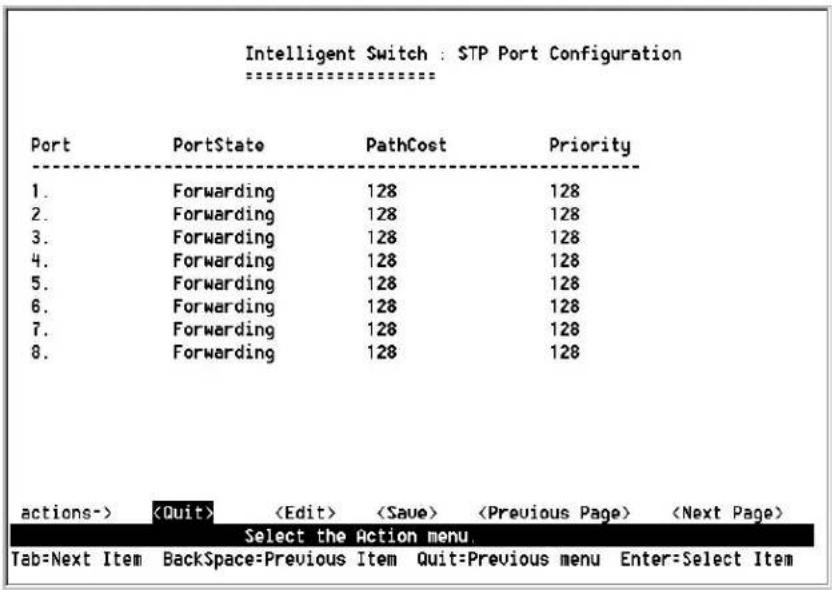
4-4-1-3.STP Port Configuration
text_image
Intelligent Switch : STP Port Configuration ==================== Port PortState PathCost Priority 1. Forwarding 128 128 2. Forwarding 128 128 3. Forwarding 128 128 4. Forwarding 128 128 5. Forwarding 128 128 6. Forwarding 128 128 7. Forwarding 128 128 8. Forwarding 128 128 actions->- PortState: Port spanning tree status.
- PathCost: Specifies the path cost of the port that the switch uses to determine which ports are the forwarding ports. If you change the value, you need to restart the switch for the value change to take effect.
- Priority: Specifies the path cost of the port that the switch uses to determine which ports are the forwarding ports. The lowest number is picked as the forwarding port. The range is 1-65535 and the default value is based on IEEE802.1D standard. The values should be in the range: 10Mb/s = 50 - 600 100Mb/s = 10 - 60 .
If you change the value, you must reboot the switch to save the value change.
4-4-2.SNMP
Any Network Management station running the Simple Network Management Protocol (SNMP) can manage the switch provided that the Management Information Base (MIB) is installed. SNMP is a protocol that governs the transfer of information between management and agent. The switch supports SNMP V1.
Use this menu to define management stations as trap managers and to enter SNMP community strings. Users can also define a name, location, and contact person for the switch.

text_image
Intelligent Switch : SNMP Configuration System Options Community Strings Trap Managers Previous Menu Configure the system information. Tab=Next Item BackSpace=Previous Item Enter=Select Item4-4-2-1. System Options

text_image
Intelligent Switch : System Options Configuration ==================== System Name : System Contact : System Location : actions->Press
- System Name: Enter a name to be used to identify the switch.
- System Contact: Enter the name of the contact person or organization.
- System Location: Enter the location of the switch.
4-4-2-2.Community Strings
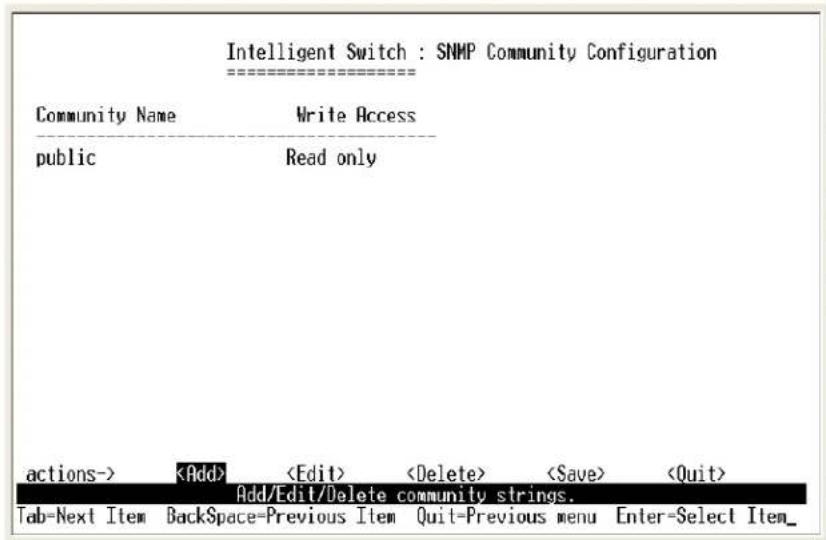
Community strings serve as passwords and can be entered as one of the following:
- Read only: Enables requests accompanied by this string to display MIB-object information.
- Read Write: Enables requests accompanied by this string to display MIB-object information and to set MIB objects.
text_image
Intelligent Switch : SNMP Community Configuration Community Name Write Access public Read only actions->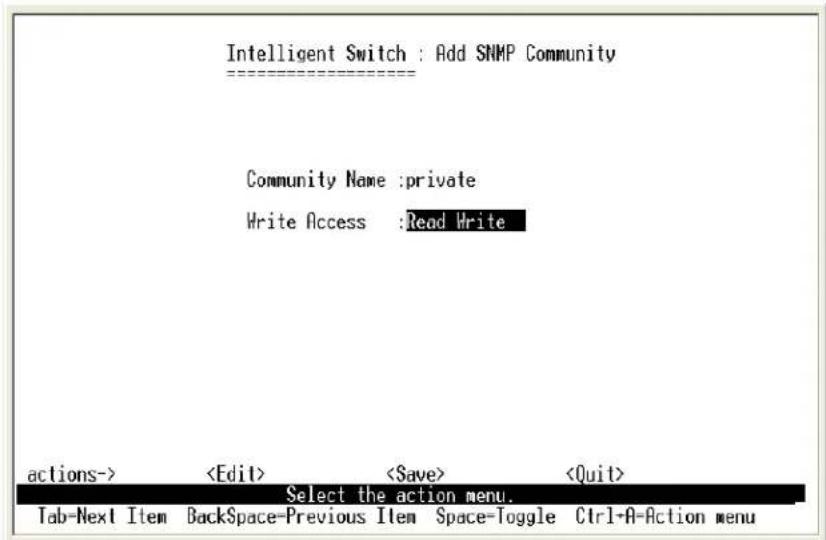
text_image
Intelligent Switch : Add SNMP Community Community Name :private Write Access :Read Write actions->Actions->
4-4-2-3. Trap Managers
A trap manager is a management station that receives traps. System alerts are generated by the switch. If no trap manager is defined, no traps are issued. Create a trap manager by entering the IP address of the station and a community name.

text_image
Intelligent Switch : Trap Managers Configuration IP Community Name actions->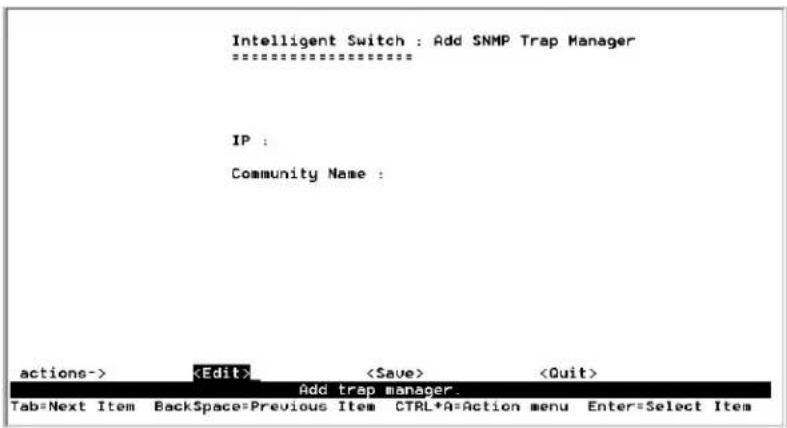
text_image
Intelligent Switch : Add SNMP Trap Manager IP : Community Name : actions->Actions->
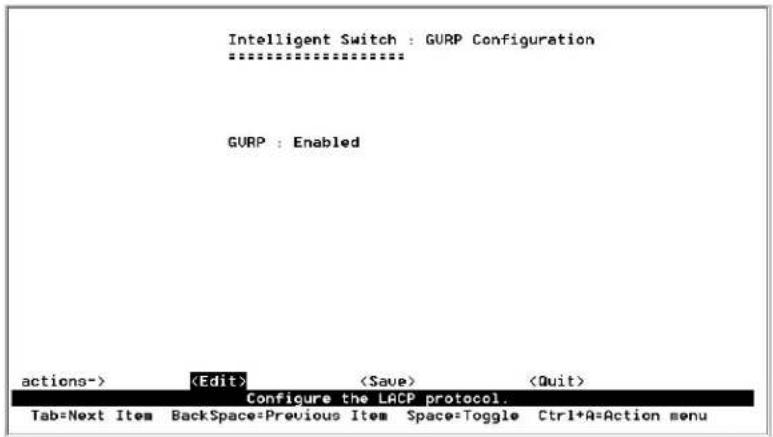
4-4-3.GVRP
Use the GVRP Configuration screen to enable or disable GVRP (GARP VLAN Registration Protocol) support.
Press the Space key to choose Enabled or Disabled.
text_image
Intelligent Switch : GURP Configuration ================...... GURP : Enabled actions->Actions->
4-4-4.LACP

text_image
Intelligent Switch : LACP Configuration -aggregator Setting State Activity LACP Status Previous Menu LACP setting. Tab=Next Item BackSpace=Previous Item Enter=Select Item4-4-4-1.Aggregator Setting
- Group: Displays the trunk group ID.
NOTE: Before setting LACP support, you must first set the trunk group using the Port / Trunk Configuration screen.
- LACP: Press the Space key to enable or disable the LACP (Link Aggregation Control Protocol) support. If enabled, the group is an LACP static trunking group. If disabled, the group is a local static trunking group.
- LACP Work Port Num: The maximum number of ports that can be aggregated at the same time. If the group is an LACP static trunking group, the exceed ports are in standby mode and able to aggregate if the work ports fail. If the group is a local static trunking group, the number must be the same as group ports.

text_image
Intelligent Switch : LACP Group Configuration ==================== Group LACP LACP Work Port Num Trk1. Disabled 3 actions->Actions->
4-4-4-2.State Activity
Active: The port automatically sends LACP protocol packets.
Passive: The port does not automatically send LACP protocol packets and responds only if it receives LACP protocol packets from the opposite device.

text_image
Intelligent Switch : LACP Port State Active Configuration Port State Activity 1 Passive 2 Passive 3 Passive 4 Passive 5 Passive 6 Passive 7 Passive 8 Passive actions->Actions->
4-4-4-3.LACP Status
When setting a trunking group, the relationship status information may be seen on the LACP Group Status screen.

text_image
Intelligent Switch : LACP Group Status ==================== Static Trunking Group Group Key : 1 Port_No : 1 2 3 actions->Actions->
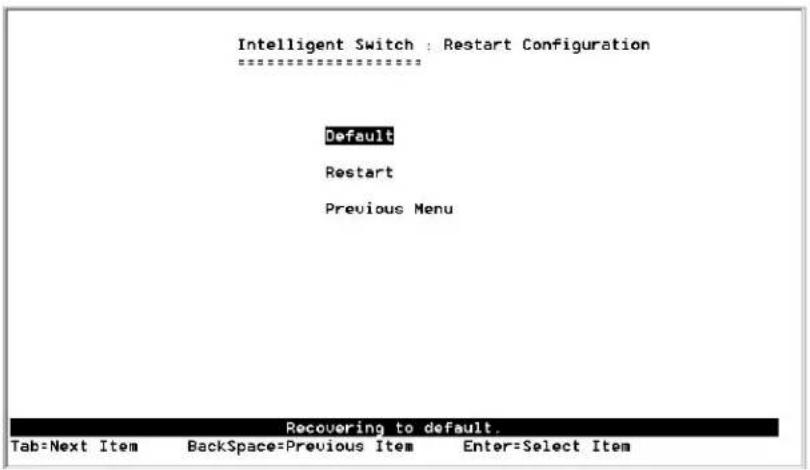
4-5.Switch Reboot
Default: Resets the switch to the factory defaults. The software version that the switch will be reset to can be found on the "System Information" menu under the main menu "Status and Counters".
Restart: Reboots the switch to enable items that have been configured.
text_image
Intelligent Switch : Restart Configuration ==================== Default Restart Previous Menu Recovering to default. Tab=Next Item BackSpace=Previous Item Enter=Select Item4-6. Xmodem Upgrade
- First, modify the baud rate of the terminal to 57600bps. Then connect to the switch.
- Press the X key to start upgrading for Xmodem.

text_image
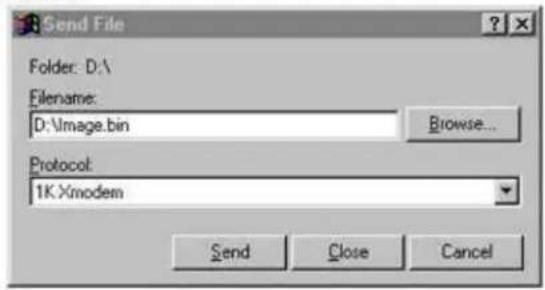
$$$ Switch LOADER Checksum O.K !!! $$$ Press X key to start Xmodem receiver: Key = 58 $$$ Download IMAGE through console(1K Xmodem;baudrate=57600bps) $$$ Start Xmodem Receiver: COM1 Properties Port Settings Bits per second: 57600 Data bits: 8 Parity: None Stop bits: 1 Flow control: None Advanced... Restore Defaults Disconnected ANSI 9600 B-N-1 OK Cancel Save- Select "send file" under the "transfer" menu from menu bar.
- Press the "browse" button to select the path.
- Select the "1K Xmodem" of protocol and press the "Send" button.
$$$ Switch LOADER Checksum O.K !!!
$$$ Press X key to start Xmodem receiver: Key = 58
$$$ Download IMAGE through console(1K Xmodem; baudrate=57600bps)
$$$ Start Xmodem Receiver:
text_image
Send File Folder: D:\ Filename: D:\Image.bin Browse... Protocol: 1K Xmodem Send Close Cancel- After successfully upgrading to the new firmware, change the baud rate back to the default 9600bps.
5.
Web-Based Management
This section introduces the configuration and functions of the web-based management of MIL-SM801P, MIL-SM801G and MIL-SM800P switch series. The managed switch series provides an embedded HTML website residing in flash memory. This feature allows users to manage the switch from anywhere on the network through a standard web browser.
NOTE: The web management function will have unexpected displays using Win2000 with Service Pack2 when the IE is below version 5.5.
Web Management
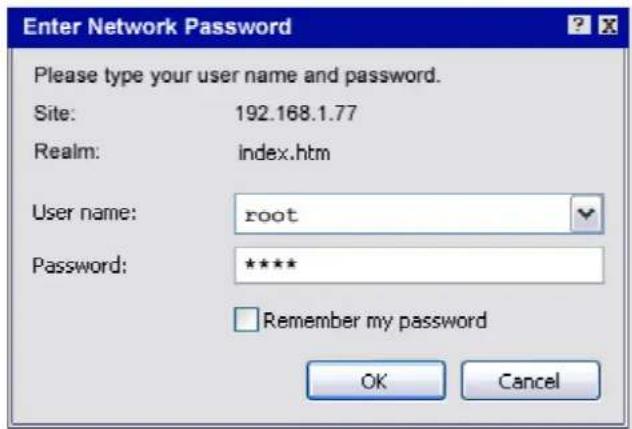
Web Management enables a web browser to manage and monitor the switch. The default TCP/IP values are listed below. Use the console port if you need to change the IP address in order to use the web browser.
IP Address: 192.168.1.77
Subnet Mask: 255.255.255.0
Default Gateway:192.168.1.6
User Name: root
Password: root
Enter the TCP address in the web browser - http://192.168.1.77 and type the user name and password as shown above.
text_image
Enter Network Password Please type your user name and password. Site: 192.168.1.77 Realm: index.htm User name: root Password: ***** Remember my password OK Cancel5-1. Web Management Home Overview
text_image
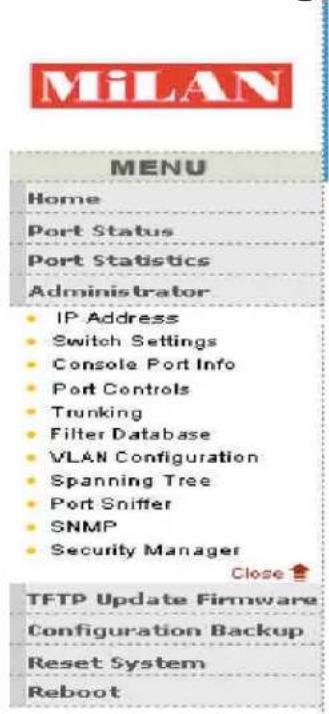
MiLAN MENU Home Port Status Port Statistics Administrator IP Address Switch Settings Console Port Info Port Controls Trunking Filter Database VLAN Configuration Spanning Tree Port Sniffer SNMP Security Manager Close ↑ TFTP Update Firmware Configuration Backup Reset System Reboot1. Home Page.
text_image
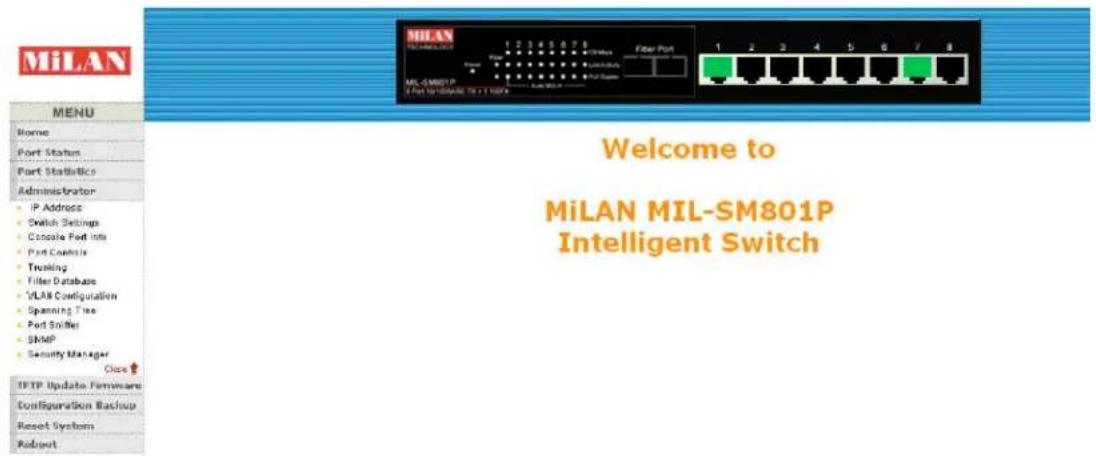
MiLAN MILAN TECHNOLOGIES 1 2 3 4 5 6 7 8 Filter Port 1 2 3 4 5 6 7 8 MIL-SM801P If Port Up/Down/Down To + 1 NOK/A Welcome to MiLAN MIL-SM801P Intelligent Switch MENU Home Port Status Port Statistics Administrator IP Address Switch Settings Cscale Port Info Port Control Trusting Filter Database VLAN Configuration Spanning Tree Port Sniffer SIMP Security Manager Close ↑ FTP Update Firmware Configuration Backup Reset System Robust5-2. Port Status
1. Port status
State: Displays port status as off or on depending on user setting. "Unlink" means the port is offline or "off".
Link Status: Down is "No Link", Up is "Link".
Auto Negotiation: Indicates if the port is in auto negotiation mode.
Speed status: Displays 100Mbps or 10Mbps speed. Ports 1 - 8 are 10/100Mbps. Port 9 may be 100Mbps or 1000Mbps.
Duplex status: Displays full-duplex or half-duplex mode.
Flow control: Displays flow control status as enabled or disabled.
Config: Displays the state of user settings.
Actual: Displays the negotiation status.
Port Status
The following information provides a view of the current status of the unit.
| Port Num | State | Link Status | Auto Negotiation | Speed Status | Duplex Status | Flow Control | |||||
| Config | Actual | Config | Actual | Config | Actual | Config | Actual | Config | Actual | ||
| 1 | On | On | Up | Auto | Auto | 100 | 100 | Full | Full | On | On |
| 2 | On | Off | Down | Auto | Auto | 100 | 100 | Full | Full | On | On |
| 3 | Off | Off | Down | Off | Off | 10 | 10 | Half | Half | On | On |
| 4 | Off | Off | Down | Auto | Auto | 100 | 100 | Half | Full | Off | Off |
| 5 | On | Off | Down | Auto | Auto | 100 | 100 | Full | Full | On | On |
| 6 | On | Off | Down | Auto | Auto | 100 | 100 | Full | Full | On | On |
| 7 | On | On | Up | Auto | Auto | 100 | 100 | Full | Full | On | On |
| 8 | On | Off | Down | Auto | Auto | 100 | 100 | Full | Full | On | On |
| 9 | On | Off | Down | Off | Off | 100 | 100 | Full | Full | On | On |
5-3. Port Statistics
The following information provides a view of the current status of the unit.

text_image
MiLAN TECHNOLOG 1 2 3 4 5 6 7 8 Fiber Port 1 2 3 4 5 6 7 8 MIL-SMNGTP E Port UP-CHANGE (N+1 GPT) Port Statistics The following information provides a view of the current status of the unit. Port State Link TxGoodPkt TxBadPkt RxGoodPkt RxBadPkt TxAbort Collision 1 Off Down 0 0 0 0 0 0 2 Off Down 0 0 0 0 0 0 3 Off Down 0 0 0 0 0 0 4 Off Down 0 0 0 0 0 0 5 On Up 28123 0 32588 0 0 0 6 Off Down 0 0 0 0 0 0 7 Off Down 0 0 0 0 0 0 8 Off Down 0 0 0 0 0 0 9 Off Down 0 0 0 0 0 0 TFIP Update Firmware Configuration Backup Reset System Reboot ResetA single port counter as follows:
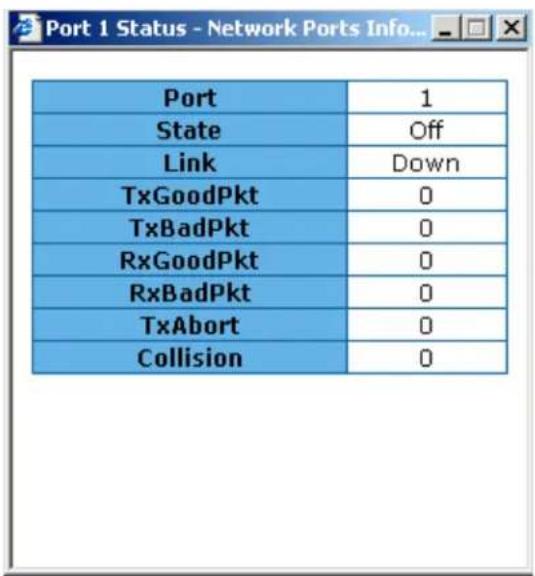
text_image
Port 1 State Off Link Down TxGoodPkt 0 TxBadPkt 0 RxGoodPkt 0 RxBadPkt 0 TxAbort 0 Collision 05-4.Administrator
The management functions include IP address, switch settings, console port information, port controls, link aggregation, filter database, VLAN configuration, spanning tree, port mirroring, SNMP, security manager, TFTP update firmware, configuration backup, system reset, and reboot.
5-4-1. IP Address
The IP Settings can be changed by filling in new values and clicking on the apply button. The switch must be reset for the new IP address to take effect. Default IP address is 192.168.1.77.
Set IP Addresses
| IP Address | 172.16.15.200 |
| Subnet_Mask | 255.255.252.0 |
| Gateway | 172.16.12.1 |

5-4-2. Switch Settings
5-4-2-1.Basic
- Description: Displays the name of device type.
- MAC Address: Displays unique hardware address assigned by the manufacturer.
- Firmware Version: Displays the switch's downloaded firmware version.
- Hardware Version: Displays the switch's hardware version.
- Default config value version: Rebooting the switch to defaults will load this version of software, which is the version originally shipped with the switch.
5-4-2-2.Advanced
1. Miscellaneous Settings:
Switch Settings

text_image
Basic Advanced Enter the settings, then click Submit to apply the changes on this page. ✓ MAC Table Address Entry Age-Out Time: 300 seconds Bridge Transmit Delay Bound: OFF Broadcast Storm Filter Mode: OFF Priority Queue Service: ○ First Come First Served ○ All High before Low ● WRR High weight: 2 Low weight: 1 □ Enable Delay Bound Max Delay Time: 0 ms QoS Policy: High Priority Levels □ Level0 □ Level1 □ Level2 □ Level3 ✓ Level4 ✓ Level5 ✓ Level6 ✓ Level7MAC Address Age-out Time: Type the number of seconds that an inactive MAC address remains in the switch's address table. The valid range is 300\~765 seconds. Default is 300 seconds.
Max bridge transit delay bound control: Limits the packets queuing time in the switch. If enabled, the packets that exceed the time limit in the queue will be dropped. The valid values are 1 sec, 2 sec, 4 sec and off (no limit). Default is 1 second.
Broadcast Storm Filter: The threshold is the percentage of the port's total bandwidth used by broadcast traffic. When the threshold is reached, broadcast traffic is dropped. To configure broadcast storm control, first enable it and then set the upper threshold for each individual port. When broadcast traffic for a port rises above the threshold set, broadcast storm control becomes active. The valid threshold value are 5%, 10%, 15%, 20%, 25% and off.
2. Priority Queue Service settings:
First Come First Service: The sequence of packets sent is dependent on the order of arrival. The first packets in the queue are transmitted before any other packets.
All High before Low: The high priority packets are sent before the low priority packets.
Weighted Round Robin: This option enables the user to choose a ratio of the number of high priority packets sent before one low priority packet is sent. For example, 2:1 (2 High : 1 Low) will have the switch send 2 high priority packets before sending 1 low priority packet.
Enable Delay Bound: Limits the low priority packets queuing time in the switch. Default Max Delay Time is 255ms. If the low priority packet exceeds the Max Delay Time, it will be sent. The valid range is 1\~255 ms.
NOTE: Make sure the "Max bridge transit delay bound control" is enabled before enabling Delay Bound. The Enable Delay Bound only works under "Max bridge transit delay bound control is enabled".
QoS Policy: High Priority Levels: 0\~7 priority level can map to a high or low queue. When the VLAN Tag number of a frame is mapped as a high priority level, the frame always has a high priority. In this example, the QoS policy applies to the switch, not for a single port.
text_image
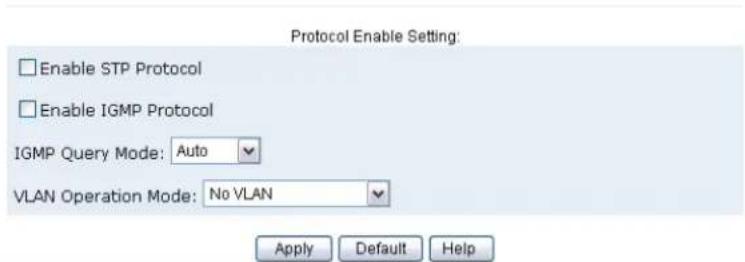
Protocol Enable Setting: Enable STP Protocol Enable IGMP Protocol IGMP Query Mode: Auto VLAN Operation Mode: No VLAN Apply Default Help3. Protocol Enable Setting:
Enable Spanning Tree Protocol: Enables STP. The recommended default is enabled.
Enable Internet Group Multicast Protocol: Enables IGMP protocol.
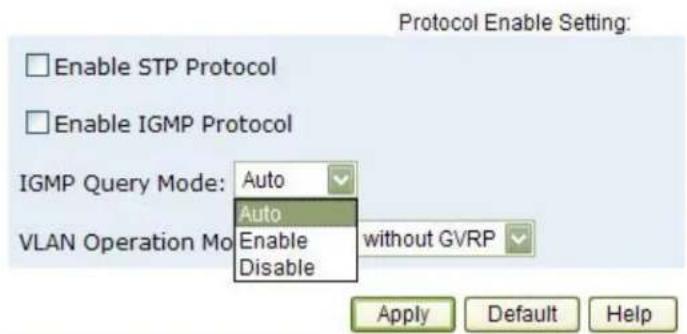
IGMP Query Mode: Recognizes different queries from clients or servers to decide which Query will be the first priority. The three modes are:
- Auto Mode: Chooses the switch that has the smallest IP address to be set for the IGMP Query mode.
- Enable Mode: Enables the switch to be the IGMP Queryer.
- Disable Mode: Disables all other switches from being the IGMP Queryer.
text_image
Protocol Enable Setting: Enable STP Protocol Enable IGMP Protocol IGMP Query Mode: Auto Auto Enable Disable VLAN Operation Mo without GVRP Apply Default Help4. VLAN Operation Mode:
No VLAN
802.1Q(Tag VLAN) without GVRP VLAN mode
802.1Q(Tag VLAN) with GVRP VLAN mode (Default)
Port Based
4. IGMP Theory of Operation
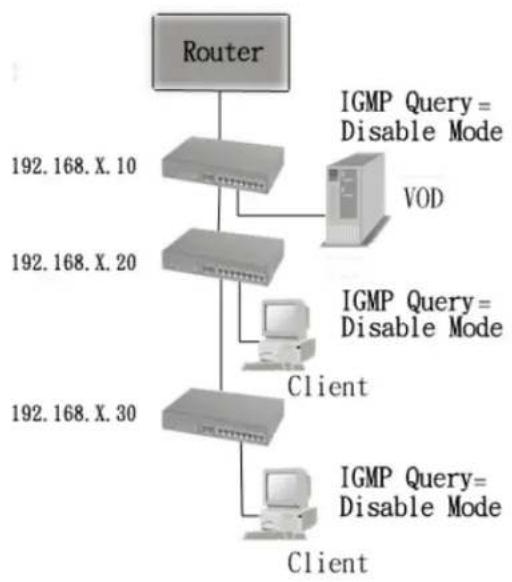
The following three topologies detail how IGMP Query works and to be configured within a network:
- Auto mode needs to be enabled when the router's IP address is smaller than other switches in the subnet.

flowchart
graph TD
    A["192.168.X.10"] --> B["VOD"]
    C["192.168.X.20"] --> B
    D["192.168.X.30"] --> E["Client"]
    F["192.168.X.30"] --> G["Client"]
    H["IGMP Query = Auto Mode"] --> B
    I["IGMP Query = Auto Mode"] --> E
    J["IGMP Query = Auto Mode"] --> G
- IGMP needs to be enabled when the router's IP address is not smaller than other switches in the subnet. This Router supports IGMP protocol, but IGMP has to be enabled, and the Router has to be the Queryer.
flowchart
graph TD
    A["Router"] --> B["192.168.X. 10"]
    A --> C["192.168.X. 20"]
    A --> D["192.168.X. 30"]
    B --> E["IGMP Query = Disable Mode"]
    C --> F["IGMP Query = Disable Mode"]
    D --> G["IGMP Query = Disable Mode"]
    E --> H["VOD"]
    F --> I["Client"]
    G --> J["Client"]
- The following topology must be set when the IP address of the switch is not the smallest in the subnet. The network will cause a multi-cast storm from the IGMP client report if it is in Auto mode. All switches must be in disable mode when the VOD server is configured for IGMP Queryer.

flowchart
graph TD
    A["192.168.X.10"] --> B["IGMP Query=Disable Mode"]
    C["192.168.X.20"] --> D["IGMP Query=Enable Mode"]
    E["192.168.X.30"] --> F["IGMP Query=Disable Mode"]
    B --> G["Client"]
    D --> H["VOD"]
    F --> I["Client"]
Note: It is suggested that the VOD server switch have the smallest IP address.
All of the switches must be in disable mode when the VOD server is configured for IGMP Queryer.
GVRP (GARP VLAN Registration Protocol)
GVRP allows automatic VLAN configuration between the switch and nodes. A GVRP request can be sent using the VID of a VLAN defined on the switch when the switch is connected to a device with GVRP enabled. The switch will automatically add that device to the existing VLAN.
5-4-3. Console Port Information
The Windows HyperTerminal program can be used to link the switch with the console port. In order to change any of these parameters, you must be connected to the console port.
The menu allows changing of port configurations.
State: User can disable or enable this port. If disabled, there is no network communication through this port.
Auto Negotiation: User can set port duplex and port speed to use auto negotiation.
Speed setting: User can set 100Mbps or 10Mbps speed (Port1\~Port8)
Duplex setting: User can set port to use full-duplex or half-duplex.
Flow control setting: User can set flow control function to be enabled or disabled.
Port Controls
| Port | State | Auto Negotiation | Speed | Duplex | Flow Control |
| 1▲234 | Enable | Disable | 10 | Half | Enable |
Port Status
The following information provides a view of the current status of the unit.
| Port Num | State | Link Status | Auto Negotiation | Speed Status | Duplex Status | Flow Control | |||||
| Config | Actual | Config | Actual | Config | Actual | Config | Actual | Config | Actual | ||
| 1 | On | On | Up | Auto | Auto | 100 | 100 | Full | Full | On | On |
| 2 | On | Off | Down | Auto | Auto | 100 | 100 | Full | Full | On | On |
| 3 | Off | Off | Down | Off | Off | 10 | 10 | Half | Half | On | On |
| 4 | Off | Off | Down | Auto | Auto | 100 | 100 | Half | Full | Off | Off |
| 5 | On | Off | Down | Auto | Auto | 100 | 100 | Full | Full | On | On |
| 6 | On | Off | Down | Auto | Auto | 100 | 100 | Full | Full | On | On |
| 7 | On | On | Up | Auto | Auto | 100 | 100 | Full | Full | On | On |
| 8 | On | Off | Down | Auto | Auto | 100 | 100 | Full | Full | On | On |
| 9 | On | Off | Down | Off | Off | 100 | 100 | Full | Full | On | On |
5-4-5. Trunking
Trunking provides a standardized means for exchanging information between Partner Systems on a link to allow their Link Aggregation Control instances to reach agreement on the identity of the Link Aggregation Group to which the link belongs, move the link to that Link Aggregation Group, and enable its transmission and reception functions in an orderly manner. Link aggregation allows grouping of up to eight consecutive ports into a single dedicated connection. This feature can expand bandwidth to a device on the network. LACP operation requires full-duplex mode. For more detailed information refer to IEEE 802.3ad.
If there are two trunk groups A and B, and B group is enabled LACP, then it will act as a redundant link (Backup group for Trunk group A). If trunk group A fails, Group B will be it's backup.
5-4-5-1. Aggregator Setting
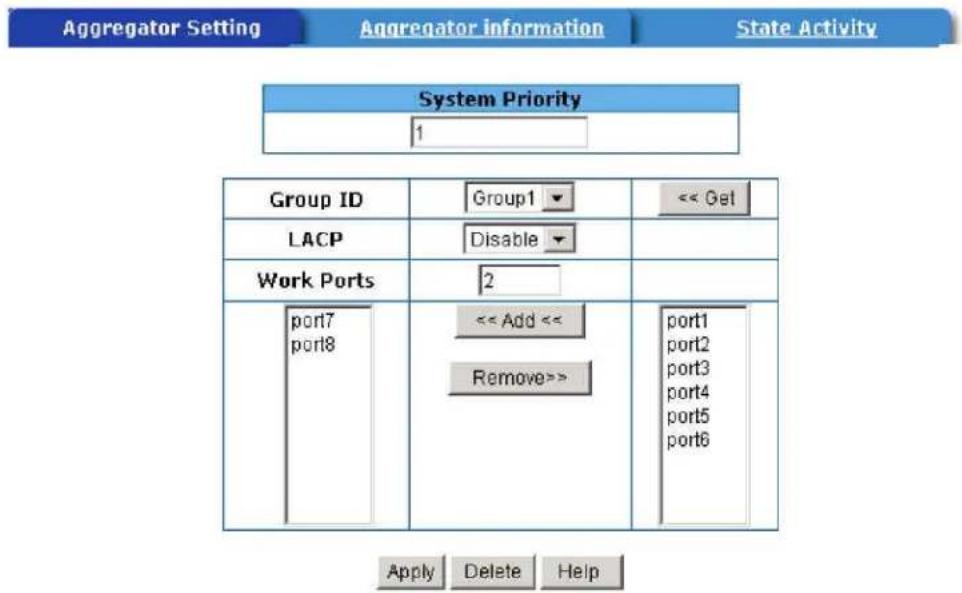
System Priority: A value used to identify the active LACP. The switch with the lowest value has the highest priority and is selected as the active LACP.
text_image
Aggregator Setting Aggregator information State Activity System Priority 1 Group ID Group1 << Get LACP Disable Work Ports 2 port7 << Add << port8 Remove>> port1 port2 port3 port4 port5 port6 Apply Delete Help- Group ID: To create a trunk across two or more ports, choose the "Group ID" and click "Get".
- LACP: If enabled, the group supports LACP. If disabled, the group is a local static trunking group between two switches. All ports support LACP dynamic trunking group. If connecting to another device that also supports LACP, the LACP dynamic trunking group will be created automatically.
- Work ports: Defines the maximum number of ports that can be aggregated at the same time. If the group is an LACP static trunking group, the exceed ports is standby and able to aggregate if work ports fail. If the group is a local static trunking group, the number must be the same as group ports.
- Select the ports to join the trunking group.
- If LACP is enabled, you can configure LACP Active/Passive status for each port.
- Click Apply.
5-4-5-2. Aggregator Information
The LACP Aggregator relation information is displayed as shown.
Aggregator Setting
Aggregator information
State Activity
The following information provides a view of LACP current status.
| Static Trunking Group | |
| Group Key | 1 |
| Port_No | 78 |
5-4-5-3. State Activity
Active (select): The active port automatically sends LACP protocol packets. Passive (no select): The passive port does not automatically send LACP protocol packets, but responds only if it receives LACP protocol packets from the other device.
A link having either two active LACP ports or one active port can perform dynamic LACP trunking. A link that has two passive LACP ports will not perform dynamic LACP trunking because both ports are waiting for an LACP protocol packet from the opposite device.
If the port has active LACP's, and you select the trunking port, the active status will be created automatically.
Trunking
Aggregator Setting
Aggregator information
State Activity
| Port | LACP State Activity | Port | LACP State Activity |
| 1 | □ Status | 5 | □ Status |
| 2 | □ Status | 6 | □ Status |
| 3 | □ Status | 7 | N/A |
| 4 | □ Status | 8 | N/A |
5-4-6. Filter Database 5-4-6-1. IGMP Snooping

text_image
MiLAN MILAN TECHNOLOGY 1 2 3 4 5 6 7 8 Filter Port ML-SMOTP Enter I/O/IE/GND/IE/GND/IE/GND/IE/GND/IE/GND/IE/GND/IE/GND/IE/GND/IE/GND/IE/GND/IE/GND/IE/GND/IE/GND/IE/GND/IE/GND/IE/GND/IE/GND/IE/GND/IE/GND/IE/GND/IE/GND/IE/GND/IE/GND/IE/GND/IE/GND/IE/GN Forwarding and Filtering IGMP Snooping Static MAC Addresses Port Security MAC Filtering IP_Address ________ VID ________ MemberPort TTTP Update Firmware Configuration Backup Reset System RobootThe switch supports IP multicasting. You can enable IGMP via the web management's configuration screen. In addition, you can view difference multicast groups, VIDs and member ports, and IP multicast addresses that range from 224.0.0.0 through 239.255.255.255.
The Internet Group Management Protocol (IGMP) is an internal protocol of the Internet Protocol (IP) suite. IP manages multicast traffic by using switches, routers, and hosts that support IGMP. Enabling IGMP allows the ports to detect IGMP queries and report packets and manage IP multicast traffic through the switch. IGMP has three fundamental types of message as follows:
| Message | Description |
| Query | A message sent from the queryer (IGMP router or switch) asking for a response from each host belonging to the multicast group. |
| Report | A message sent by a host to the queryer to indicate that the host wants to be or is a member of a given group indicated in the report message. |
| Leave Group | A message sent by a host to the queryer to indicate that the host has quit a specific multicast group. |
5-4-6-2. Static MAC Address
Forwarding and Filtering
IGMP Snooping
Static MAC Addresses
Port Security
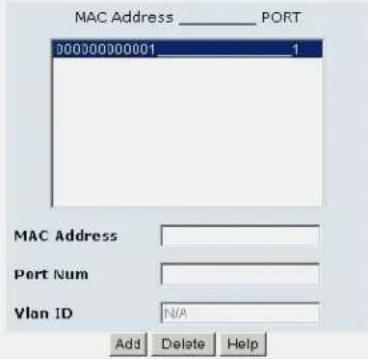
Static addresses currently defined on the switch are listed below. Click Add to add a new static entry to the address table.
text_image
MAC Address PORT 000300300001 1 MAC Address Port Num Vlan ID N/A Add Delete HelpWhen a static MAC address is added, it remains in the switch's address table, regardless of whether or not the device is physically connected to the switch. This saves the switch from having to re-learn a device's MAC address when the device is disconnected or powered-off.
To add a static MAC address:
- Click on Administrator on the main menu.
- Click on Filter Database.
- Click Static MAC Addresses. In the MAC address box, enter the MAC address to and from which the port should permanently forward traffic, regardless of the device's network activity.
- In the Port Number box, select a port number.
- If tag-based (IEEE 802.1Q) VLANs are set up on the switch, static addresses are associated with individual VLANs. Type the VID (tag-based VLANs) to associate with the MAC address.
- Click Add.
5-4-6-3. Port Security
A port in security mode will be “locked” with address learning blocked. Only the incoming packets with SMAC already existing in the address table can be forwarded normally. The user can disable the port from learning any new MAC addresses, then use the static MAC addresses screen to define a list of MAC addresses that can use the secure port. Enter the settings, and then click Submit to apply the changes on this page.
Forwarding and Filtering
| Port | Enable Security(disable for MAC Learning) | Port | Enable Security(disable for MAC Learning) |
| 1 | ☑ | 6 | ☐ |
| 2 | ☑ | 7 | ☐ |
| 3 | ☐ | 8 | ☐ |
| 4 | ☐ | 9 | ☐ |
| 5 | ☐ | ||
5-4-7. VLAN Configuration
A Virtual LAN (VLAN) is a logical network grouping that limits the broadcast domain. It allows you to isolate network traffic so only members of the VLAN receive traffic from the same VLAN members. Basically, creating a VLAN from a switch is logically equivalent to reconnecting a group of network devices to another Layer 2 switch. However, all the network devices are still plugged into the same switch physically.
The MIL-SM801P, MIL-SM801G, and MIL-SM800P switch series support port-based and protocol-based VLANs. In the default configuration, VLAN support is enabled and all ports on the switch belong to the default VLAN. VID is 1.
NOTE: The default VLAN can't be deleted.
Support Port-based VLANs (IEEE 802.1Q VLAN)
The IEEE 802.1Q specification is the standard for Port-based Tagging. Therefore, it is possible to create a VLAN across devices from different switch suppliers. IEEE 802.1Q VLAN uses a technique to insert a “tag” into the Ethernet frames. The tag contains a VLAN Identifier (VID) that indicates the VLAN numbers.
Support Protocol-based VLAN
In order for an end station to send packets to different VLANs, it has to be either capable of tagging the packets it sends with VLAN tags OR be attached to a VLAN-aware bridge. The VLAN-aware bridge must be capable of classifying and tagging the packet with different VLAN ID. The classification and tagging of the packets is based on default PVID and other information about the packet, such as the protocol.
5-4-7-1. Basic
VLAN Configuration
By default, there are no VLANs set for the switch. In order to configure any of the different types of VLANs, VLANs need to be enabled in the switch using Settings/Advanced/Protocol Enable Settings/VLAN Operational Mode. The following are the choices offered:
No VLAN
802.1Q without GVRP
802.1Q with GVRP
Port Based
Port Based VLANs
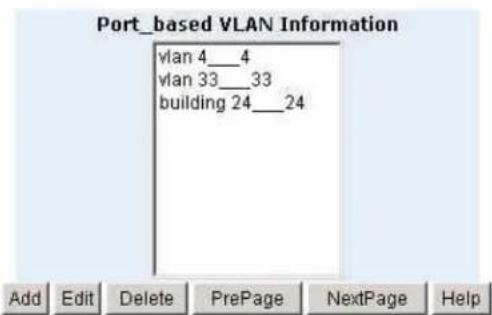
This screen shows the current Port Based VLANs configured. To configure new VLANs click the Add button. You can also delete configured VLANs using this screen. To edit a VLAN (change the ports) highlight the VLAN name and then click Edit. There can be up to 256 different port based VLANs configured.
VLAN
text_image
Port_based VLAN Information vlan 4__4 vlan 33__33 building 24__24 Add Edit Delete PrePage NextPage HelpWhen adding a VLAN this screen allows the configuration of the VLAN. The configuration includes the number of ports, the text name and the Group ID that will belong to the specific VLAN. These VLANs only apply to this switch. The VLANs can be overlapping, meaning that any port can belong to more than one VLAN. One configuration that is common for port based VLANs is to have all the ports on the switch on separate VLANs except for the port that has the server connected to it. This port is then shared by all the VLANs. This enables security between ports, but allows all ports access to the server.
text_image
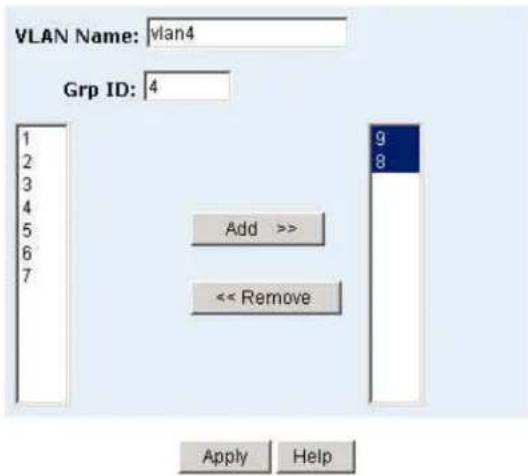
VLAN Name: vlan4 Grp ID: 4 1 2 3 4 5 6 7 Add >> << Remove 9 8 Apply HelpCreate a VLAN and add tagged member ports.
- From the main menu, click Administrator -- VLAN configuration.
- Click Add.
- Type a name for the new VLAN.
- Type a VID (between 2-4094). The default is 1.
- From the Available ports box, select ports to add to the switch and click Add.
- Click Apply.
5-4-7-2. Port VID
Configure port VID settings
From the main Tag-based (IEEE 802.1Q) VLAN page, click Port VID Settings.
Port VID (PVID)
Used for setting the Port VLAN ID that will be assigned to untagged traffic on a given port. For example, if port 9's Default PVID is 100, all untagged packets on port 9 will belong to VLAN 100. The default setting for all ports is VID 1.
This feature is useful for accommodating devices that you want to participate in the VLAN but that don't support tagging. Only one untagged VLAN is allowed per port.
VLAN
| Basic | Port VID | ||||||
| Assign a Port VLAN ID (1~4094) for untagged traffic on each port, then click Submit to apply the changes on this page. | |||||||
| No. | PVID | Ingress Filtering 1 | Ingress Filtering 2 | No. | PVID | Ingress Filtering 1 | Ingress Filtering 2 |
| 1 | 1 | Enable | Disable | 6 | 1 | Enable | Disable |
| 2 | 1 | Enable | Disable | 7 | 1 | Enable | Disable |
| 3 | 1 | Enable | Disable | 8 | 1 | Enable | Disable |
| 4 | 1 | Enable | Disable | 9 | 1 | Enable | Disable |
| 5 | 1 | Enable | Disable | ||||
| Ingress Filtering Rule 1(Forward only packets with VID matching this port's configured VID)Ingress Filtering Rule 2(Drop Untagged Frame)Apply Default Help | |||||||
Ingress Filtering
Ingress filtering lets frames belonging to a specific VLAN be forwarded if the port belongs to that VLAN. The frames are dropped if not. The switch's two ingress filtering rules are:
Ingress Filtering Rule 1: Forwards only packets with VID matching this port's configured VID. By default, only packets with this VID are forwarded.
Ingress Filtering Rule 2: Drop Untagged Frame. By default all untagged frames are forwarded.
5-4-8. Set Spanning Tree
The Spanning-Tree Protocol (STP) is a standardized method (IEEE 802.1D) for avoiding loops in switched networks. When STP is enabled it ensures that only one path at a time is active between any two nodes on the network.
Spanning-Tree Protocol can be enabled using web management's switch setting advanced item, and selecting enable Spanning-Tree protocol. By default, spanning tree is disabled on the switch.
Set Spanning Tree
Configure Spanning Tree Parameters
| Priority (1-65535) | 32768 |
| Max Age (6-40) | 15 |
| Hello Time (1-10) | 3 |
| Forward_Delay_Time(4-30) | 5 |
Apply
Description
Priority
The priority value used to identify the root bridge can be changed. The bridge with the lowest value has the highest priority and is selected as the root. Enter a number 1 through 65535.
Max Age
Max Age value is the number of seconds a bridge waits without receiving Spanning-Tree Protocol configuration messages before attempting a reconfiguration. It can be changed from 6 seconds through 40 seconds.
Hello Time
The Hello Time value is the number of seconds between the transmission of Spanning-Tree Protocol configuration messages. It can be modified. 1 second through 10 seconds are permissible values.
Forward Delay time
You can change Forward Delay Time, which is the number of seconds a port waits before changing from its Spanning-Tree Protocol learning and listening states to the forwarding state. Enter a number 4 through 30.
Information about the current spanning tree status is displayed in this table.
| STP Port Status | |||
| PortNum | PathCost | Priority | PortState |
| 1 | 10 | 128 | FORWARDING |
| 2 | 10 | 128 | FORWARDING |
| 3 | 10 | 128 | FORWARDING |
| 4 | 10 | 128 | FORWARDING |
| 5 | 10 | 128 | FORWARDING |
| 6 | 10 | 128 | FORWARDING |
| 7 | 10 | 128 | FORWARDING |
| 8 | 10 | 128 | FORWARDING |
| 9 | 10 | 128 | FORWARDING |
The priority and path cost can be configured for each port. Click the Apply button to modify the configuration.

text_image
Configure Spanning Tree Port Parameters Port Number Priority (0 - 255; Default 128) Path Cost (1 - 65535; Default 10) 1 2 3 4 5 128 10 Apply Help| Description |
| Port PriorityA change to the Port Priority affects which port will be the root port. The lowest number has the highest priority. The range is 0-255 and the default setting for all ports is 128. If you change the value, you must reboot the switch. |
| Path CostPath Cost specifies the path cost of the port that the switch uses to determine which ports are the forwarding ports. The lowest number becomes the forwarding port. The range is 1-65535 and the default value is based on IEEE802.1D10Mb/s = 50-600 100Mb/s = 10-60If you change the value, you must reboot the switch. |
5-4-9. Port Mirroring
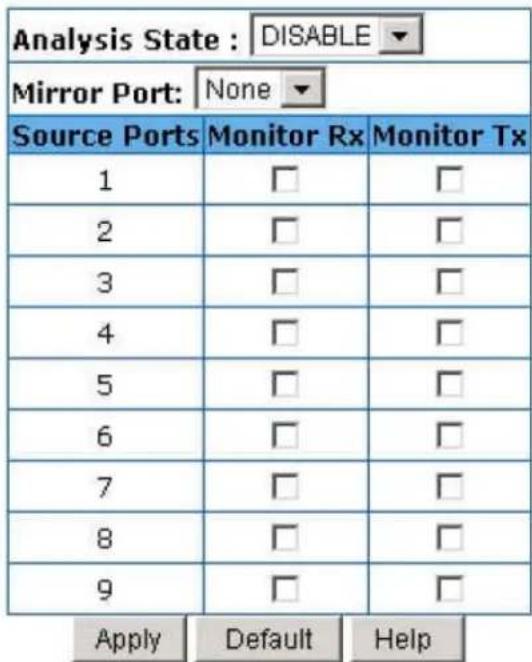
The Port Mirroring feature can monitor traffic in switched networks. Traffic transmitted or received on monitored ports (source ports) will be duplicated to a destination port or mirror port.
Port Sniffer
text_image
Analysis State : DISABLE Mirror Port: None Source Ports Monitor Rx Monitor Tx 1 □ □ 2 □ □ 3 □ □ 4 □ □ 5 □ □ 6 □ □ 7 □ □ 8 □ □ 9 □ □ Apply Default HelpAnalysis State: Enables or disables the port mirroring function.
Mirror Ports: The ports you want to mirror. All source port traffic will be copied to a mirror port. You can select a maximum of 8 source ports in the switch. If you want to disable the function, you must select monitor port to none.
Monitor Rx: Monitors received frames from the port.
Monitor Tx: Monitors transmitted frames from the port.
5-4-10. SNMP
SNMP is a protocol that governs the transfer of information between management and agent. The switch supports SNMP V1. Any Network Management station running the Simple Network Management Protocol (SNMP) can manage the switch provided that the Management Information Base (MIB) is installed.
Use this menu to define management stations as trap managers and to enter SNMP community strings. Users can also define community strings for a name, location, and contact person for the switch.
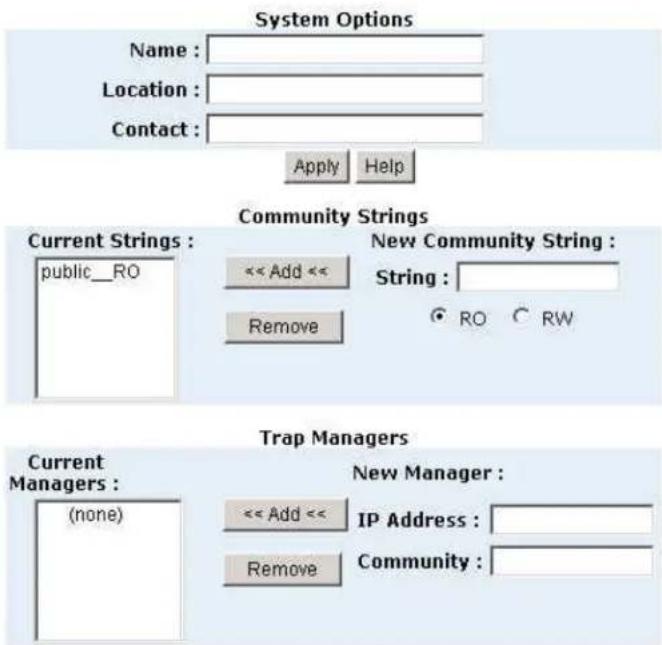
- System Options – The length of each can be 26 characters.
Name: Enter a name to be used for the switch.
Location: Enter the location of the switch.
Contact: Enter the name of a person or organization.
SNMP Management
text_image
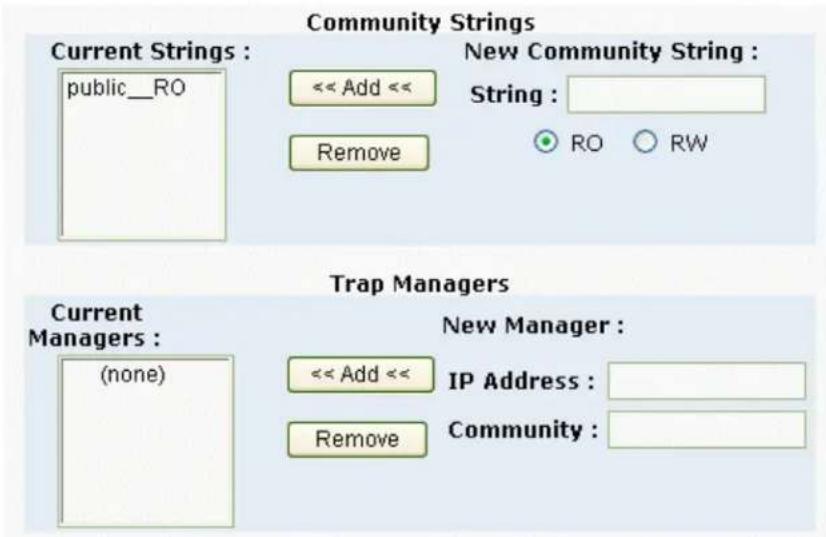
System Options Name : Location : Contact : Apply Help Community Strings Current Strings : public__RO << Add << Remove New Community String : String : ● RO ● RW Trap Managers Current Managers : (none) New Manager : << Add << Remove IP Address : Community :- Community strings serve as passwords and can be entered as one of the following:
Read only: Enables requests accompanied by this string to display MIB-object information.
Read write: Enables requests accompanied by this string to display MIB-object information and to set MIB objects.
3. Trap Manager
A trap manager is a management station that receives traps. Traps are the system alerts generated by the switch. If no trap manager is defined, no traps are issued. Create a trap manager by entering the IP address of the station and a community string.
text_image
Community Strings Current Strings : public__RO << Add << New Community String : String : Remove ● RO ○ RW Trap Managers Current Managers : (none) << Add << New Manager : IP Address : Remove Community :5-4-11. Security Manager
The user can change the user name and password to keep the switch secure. The default user name and password are below.
User Name: root
Password: root
Security Manager

text_image
User Name: root Assign/Change password: **** Reconfirm password: **** Apply5-4-12. TFTP Update Firmware
The following menu options provide some system control functions to allow a user to update firmware and remotely boot the switch system:
- Executing TFTP software
- Copy firmware update version image.bin to TFTP software directory.
- In web management select Administrator—TFTP update firmware.
- Download new image.bin file. In web management, press
.
TFTP Download New Image
| TFTP Server IP Address | 192.168.1.78 |
| Firmware File Name | image.bin |
Apply Help
5-4-13. Configuration Backup
5-4-13-1. TFTP Restore Configuration
Use this screen to set TFTP server address. You can restore EEPROM value from here, but you must put the image back in the TFTP server. The switch will download back flash image.
TFTP Configuration
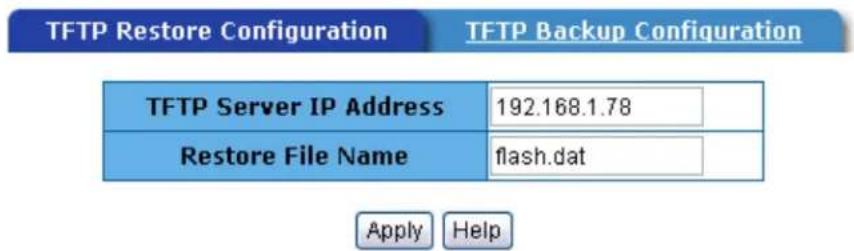
text_image
TFTP Restore Configuration TFTP Backup Configuration TFTP Server IP Address 192.168.1.78 Restore File Name flash.dat Apply Help5-4-13-2. TFTP Backup Configuration
Use this screen to set the TFTP server IP address. You can save current EEPROM value from here, then go to the TFTP Restore Configuration screen to restore the EEPROM value.
TFTP Configuration

text_image
TFTP Restore Configuration TFTP Backup Configuration TFTP Server IP Address 192.168.1.78 Backup File Name flash.dat Apply Help5-4-14. Reset System
Reset switch to default configuration. The default value is shown below:
Reset System
Reset Switch to Default Configuration
reset
5-4-15. Reboot
Reboot the switch in software reset.
Reboot Switch System
reboot
Help
6.
Technical Specifications
This section provides the specifications of MIL-SM800P, MIL-SM801P, and MIL-SM801G switch series.
Specifications
| Standards Compliance | IEEE 802.3 10BASE-T Ethernet, IEEE 802.3u 100BASE-TX/FX Fast Ethernet ANSI/IEEE 802.3 Auto-negotiation |
| Protocol | CSMA/CD |
| Max Forwarding and Max Filtering Rate | 14,880 pps per Ethernet port, 148,800 pps per Fast Ethernet port 1,488,000 pps per Gigabit Ethernet port |
| LED Indicators | Per Port: (10/100 UTP) : 100M, LK/ACT, FD/COL (3 LEDs) Fiber Port: [ MIL-SM801P/G switch series only ] LK/ACT, FD/COL (2 LEDs) Fiber Port: [ MIL-SM801G switch series only ] LK/ACT (1 LED) Per Unit: Power |
| Copper Network Cables | 10BASE-T: 2-pair UTP/STP Cat. 3, 4, 5 cable EIA/TIA-568 100-ohm (100m) 100BASE-TX: 2-pair UTP/STP Cat. 5 cable EIA/TIA-568 100-ohm (100m) |
| Fiber Link Max. Distance | SC, ST, MT-RJ, VF-45 Multi-mode: Half-duplex: 412m, Full-duplex: 2Km SC Single-mode: Half-duplex: 412m, Full-duplex: 15Km SC Multi-mode Gigabit: Full-duplex: 220m |
| Dimensions | 250mm x 132mm x 37mm (L x W x H) |
| Weight | MIL-SM800P switch: 1060 gMIL-SM801P/G switch series: 1080 ±20 g |
| Storage Temp. | -40°C to 70°C (-40°F to 158°F) |
| Operational Temp. | 0°C to 45°C (32°F to 113°F) |
| Operational Humidity | 10% to 90% (Non-condensing) |
| External Power | 100-240V AC, 50-60Hz |
| Power Consumption | MIL-SM800P switch: 15 Watts (Max)MIL-SM801P/G switch series: 17 Watts (Max) |
| EMI | FCC Class A, CE Mark |
| Safety | UL, cUL |
7.
Troubleshooting
This section is intended to help you solve some common problems encountered while using the MIL-SM801P, MIL-SMS801G, and MIL-SM800P switch series.
Incorrect connections
■ Faulty or loose cables
Look for loose or obviously faulty connections. If they appear to be OK, make sure the connections are snug. If that does not correct the problem, try different cables.
■ Non-standard cables
Non-standard and miswired cables may cause numerous network collisions and other network problems. This can seriously impair network performance. A category 5 cable tester is a recommended tool for every network installation.
■ Improper Network Topologies
It is important to make sure that you have a valid network topology. Common topology faults include excessive cable length and too many repeaters or hubs between end nodes. In addition, you should make sure that your network topology contains no data path loops. Between any two ends nodes, there should be only one active cabling path at any time. Data path loops will cause broadcast storms that will severely impact your network performance.
Diagnostic LED Indicators
The switch can be easily monitored through panel indicators to assist in identifying problems.
If the power indicator does turn on when the power cord is plugged in, you may have a problem with power outlet or power cord. However, if the switch powers off after running for awhile, check for loose power connections, power losses or surges at power outlet. If you still cannot resolve the problem, contact your local dealer for assistance.
Cabling
RJ-45 ports: Use unshielded twisted-pair (UTP) or shielded twisted-pair (STP) cable for RJ-45 connections: 100Ω Category 3, 4 or 5 cable for 10Mbps connections or 100Ω Category 5 cable for 100Mbps connections. Be sure that the length of any twisted-pair connection does not exceed 100 meters (328 feet).
100BASE-FX fiber port: Multi-mode fiber connector types must use 50/125 or 62.5/125 m multi-mode fiber cable. Two devices may be connected over a 2 kilometer distance. Single-mode fiber connector types must use 9/125 m single-mode fiber cable. Two devices may be connected over a15 to 60 kilometer distance in full duplex operation in single-mode.
1000BASE-SX fiber port: Multi-mode fiber connector types must use 50/125 m multi-mode fiber cable for 500 meters or 62.5/125 m multi-mode fiber cable for 220 meters. Two devices may be connected over 220m to 500m distances.