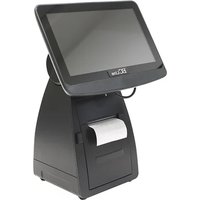
EC-AM-102-80 - Cash register EC Line - Free user manual and instructions
Find the device manual for free EC-AM-102-80 EC Line in PDF.


| Product Type | Cash Register |
| Brand | EC Line |
| Model | EC-AM-102-80 |
| Display | 2-line LCD (operator and customer) |
| Printer | Thermal receipt printer (80mm paper width) |
| Keyboard | Programmable alphanumeric keys |
| Memory | Up to 2000 PLUs, 100 departments |
| Tax Calculation | 4 tax rates (programmable) |
| Functions | Sales, returns, discounts, subtotal, cash/credit payment, reports (X, Z) |
| Connectivity | USB port, optional Ethernet (LAN) |
| Power Supply | AC adapter (input 100-240V, output 9V DC) |
| Dimensions (approx.) | 300 x 200 x 150 mm (W x D x H) |
| Weight (approx.) | 2.0 kg |
| Language Support | Multiple languages (EN, FR, ES, DE, etc.) |
| Warranty | 1 year (check local regulations) |
| Cleaning | Wipe exterior with dry or slightly damp cloth; do not use solvents |
| Spare Parts | Thermal paper rolls, printer head, AC adapter (order from EC Line) |
| Repairability | Designed for easy access to printer and main board; service manual available |
Frequently Asked Questions - EC-AM-102-80 EC Line
User questions about EC-AM-102-80 EC Line
0 question about this device. Answer the ones you know or ask your own.
Ask a new question about this device
Download the instructions for your Cash register in PDF format for free! Find your manual EC-AM-102-80 - EC Line and take your electronic device back in hand. On this page are published all the documents necessary for the use of your device. EC-AM-102-80 by EC Line.
USER MANUAL EC-AM-102-80 EC Line
EC-AM-102-80
Android POS Terminal
User's Manual

natural_image
Line drawing of a portable electronic device with front panel and side-mounted base (no text or symbols)1. Unpacking and Checking
Check the following items in the package, if any of these items is missing, please contact your dealer

natural_image
Line drawing of a desktop computer tower with monitor and tower stand (no text or symbols)(1) EC-AM-102-80 (2) User manual


natural_image
Line drawing of a rectangular device with a connector and cable, no text or symbols present(3) Power adapter

natural_image
Line drawing of a coiled electrical plug with two terminal connectors (no text or symbols)(4) Power cable

(5) Paper roll

(6) CD disk
Introduction
Read the instructions carefully and thoroughly and save them for later reference. The unauthorized operation may lead to error or accident. Follow all the warnings and instructions in the manual as well as marked on the product. Whenever problem exists, power off and unplug the terminal and contact the authorized reseller / distributor.
About this manual / Safety statement:
This manual is for EC-AM-102-80 Android POS terminal series, all contents have been validated and reviewed. EC-AM-102 complies with GB4943.1-2011; GB9254-2008
Warranty
Device must be opened by authorized person or qualified technical engineer. If the product does not operate normally when the operating instructions are followed. Adjust only those controls that are covered by the operating instructions since importer adjustment of other controls may result in damage and will often require extensive work by a qualified technician to restore the product to normal operation.
** The content of this manual is subject to change without prior notice.
Caution

-
Avoid radio interference
-
Use genuine accessories or spare parts. Use improper spare part may cause damage or malfunction.
-
The power cord of this product is come with ground connection. Make sure the voltage of the electricity is correctly match our power supply.
-
Keep the product, power supply and paper roll in a dry or cool environment. It should never be placed near or over a radiator or heat origin, and should avoid of direct sunshine.
-
Make sure the connection of the cable are connected correctly to the interfaces.
-
Keep your communication device and the integrated printer in the WAN environment, don't connect it to unknown or unrecognized network.
-
The product should use horizontally
-
Unplug this product from the power outlet before cleaning. Do not use liquid or aerosol cleaners. Use a damp cloth for cleaning.
-
Slots and openings on the cabinet and the back or bottom are provided for air ventilation. To ensure reliable operation of the product and to protect it from overheating, do not block or cover these openings. The openings should never be blocked by placing the product on a bed, sofa, rug or other similar surface. This product should never be placed near or over a radiator or heater. This product should not be placed in a built-in installation or kiosk stand unless proper ventilation is provided.
-
This product should never be placed near or over a radiator or heat origin, and should avoid of direct sunshine.
-
Do not locate this product where the cord will be walked on. When the cord or the plug is mangled, please stop using and get a new one replaced. Make sure the old one is far away from the printer, so it can avoid someone who does not know the inside story getting damage.
-
Do not use in locations subject to high humidity or dust levels. Excessive humidity and dust may cause equipment damage or fire.
-
Never push objects of any kind into this product through cabinet slots as they may touch dangerous voltage dots or short out parts.
-
Make sure to turn off the power of the printer whenever repair.
-
Unplug this product from the power outlet and leave servicing to qualified service personnel under the following conditions:
-
When the power cord or plug is damaged or frayed. a) If liquid has been spilled into the product. b) If the product has been exposed to rain or water. c) Power cable is damaged d) Strongly impact
2. Button and Interface

Indicator and buttons

| Indicator and button | Description |
| Power indicator | Shows power status. Blue light when power is on |
| Error indicator | Red light flash when errors occurs |
| Paper out indicator | Red light flash when out of paper |
| Feed button | Paper feed |
| Switch ON-OFF | On/off button for printer |
| Cover-open button | Open the cover of the printer to change paper roll |
| Power button | On/off switch of terminal |
| Back button | Return to previous menu |
Host control button


| Interface Description | Description Description |
| Power | Power input |
| Ethernet interface | 100M LAN, RJ-45 module connectorRJ11interface, Dual 12V connector cash drawer |
| Serial port | RS232, D-SUB 9 PIN |
| USB | Support USB V2.0/1.1 |
| DK port | RJ11interface, Dual 12V connector cash drawer |
| OTG | For system adjusting |
| Integrated printer interface | Reserved for built-in printer |
DK Interface

Warnings
This interface is only for cash drawer, do not connect with mobile phone or any other device, otherwise will be damaged.
The voltage of the cash drawer should be 12V.
The DK interface is a standard RJ-11, 6 pins socket, output DC 12V / 1A.
Below is the pin assignment:

654321
RJ-11
| PIN No.PIN | No.PIN SigRin No.PIN | No.PIFloVo.PIN No. |
| 1 | Ground | Null |
| 2 | Cash drawer drive 1 | Output |
| 3 | Cash drawer switch | Input |
| 4 | +12V | Output |
| 5 | Cash drawer drive 2 | Output |
| 6 | Ground | Null |
3. Paper loading
- Press the cover-open button, open the cover of the printer

natural_image
Line drawing of a computer monitor with a hand pointing to the internal structure (no text or symbols)- Load paper roll into the printer, pull out the paper roll till it pass gap sensor, complete paper loading.

natural_image
Line drawing of a computer monitor with an open access mechanism and red arrows indicating ports (no text or symbols)- Carefully close the cover.

natural_image
Line drawing of a desktop computer with a monitor and tower (no text or symbols)4. Power Cable Connection

natural_image
Line drawing of a portable electronic device with a flat top and side panel (no text or symbols)- Open the back cover and insert the power cord according to diagram ② Close the back cover.

Note!
① Before the power cord is connected, ensure that it is not at the energized state.
② Before operation, ensure that the machine is placed on a horizontal surface to prevent drop of the device.
① Dismantle the back cover according to arrow direction.
② Insert the power cord(Insert with the plug interface surface inwards and ensue that the power cord is inserted tightly without looseness).
③ Before operation, check whether the printer switch is at the switch-on state.

5. Troubleshooting

| Can not start device, power indicator off. |
| 1. Check whether power socket works.2. Check whether power cable plugs tightly. |
| Printer keeps beeping, fail to print. |
| 1. Check whether the cover of printer is closed correctly.2. Check whether the paper is out.3. Check whether the LED is still on. |
| No noise, the printer can not print. |
| 1. Check whether the printer cover is opened. |
| Receipt is printed unclearly. |
| 1. Turn off the power, clean up the print head with medical alcohol. |
6. Maintenance
- To prolong the life of the terminal, make sure that it is well away from heaters, other sources of extreme heat, sunlight; and the surrounding area is clean, dry, and free of dust.
- The device should never be placed near or over a radiator or electromagnetic.
- The device should use under a stable power voltage connection with an independent power supply.
- Do not shake or kick the device.
- Do not remove or install any integrated device that is not approved from the manufacturer. Do not relocate the device frequency.
- Remove the dirt of the case with clean and soft cloth. Do not use any chemical detergent.
- Turn off the power immediately whenever problem occurs. Do not maintain and disassemble the units, contact the authorized person for service.
- Check the cable connection to make sure they are connected correctly.
- Disconnect the power when the terminal is not going to use for a period of time.
Manufacturer: EC LINE
Thank you very much for using EC Line product For service, please contact service@ecline.com.hk
www.eclinepos.com
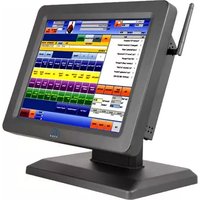


Brand : EC Line
Model : EC-AM-102-80
Category : Cash register