
MultiSync LT80 - Video projector NEC - Free user manual and instructions
Find the device manual for free MultiSync LT80 NEC in PDF.


| Product type | DLP video projector |
| Brand | NEC |
| Model | MultiSync LT80 |
| Native resolution | XGA (1024 x 768) |
| Brightness | 2000 ANSI lumens |
| Contrast | 2000:1 |
| Lamp life | Approx. 3000 hours (normal mode) |
| Dimensions (W x D x H) | 260 x 175 x 70 mm |
| Weight | 2.9 kg |
| Power supply | 100-240 V AC, 50/60 Hz |
| Power consumption | 250 W (standby: 0.5 W) |
| Video inputs | VGA, S-Video, Composite, Component |
| Audio inputs | 3.5 mm jack |
| Key features | Keystone correction, digital zoom, auto standby |
| Maintenance and cleaning | Clean the air filter every 500 hours; use a dry cloth for the optics |
| Security | Kensington lock, automatic shutdown on overheating |
| Spare parts and repairability | Replacement lamp available; repairability score N/A |
| General information | Indoor use only; do not expose to rain or moisture |
Frequently Asked Questions - MultiSync LT80 NEC
User questions about MultiSync LT80 NEC
0 question about this device. Answer the ones you know or ask your own.
Ask a new question about this device
Download the instructions for your Video projector in PDF format for free! Find your manual MultiSync LT80 - NEC and take your electronic device back in hand. On this page are published all the documents necessary for the use of your device. MultiSync LT80 by NEC.
USER MANUAL MultiSync LT80 NEC
Part No. 78409061 Printed in Japan
losca, lllnois 60143-1248
1250 N. Arlington Heights Road, Suite 500
NEC Technologies, Inc.
DEC
Ultra-Portable Projector
Ultra-Portable Projector
MultiSync® LT 80™
Projector User's Manual

IMPORTANT INFORMATION
Precautions
Please read this manual carefully before using your NEC MultiSync LT80 Projector and keep the manual handy for future reference.
Your serial number is located beneath the main power switch on the back of your MultiSync LT80. Record it here:
CAUTION
LASER RADIATION- DO NOT STARE INTO BEAM

WAVE LENGTH: 670 nm MAX. OUTPUT: 1 mW CLASS II LASER PRODUCT
WARNING
TO PREVENT FIRE OR SHOCK, DO NOT EXPOSE THIS UNIT TO RAIN OR MOISTURE. DO NOT USE THIS UNIT'S GROUNDED PLUG WITH AN EXTENSION CORD OR IN AN OUTLET UNLESS ALL THREE PRONGS CAN BE FULLY INSERTED. DO NOT OPEN THE CABINET. THERE ARE HIGH-VOLTAGE COMPONENTS INSIDE. ALL SERVICING MUST BE DONE BY QUALIFIED NEC SERVICE PERSONNEL.
DOC Compliance Notice
This Class A digital apparatus meets all requirements of the Canadian Interference-Causing Equipment Regulations.
CAUTION
TO PREVENT SHOCK, DO NOT OPEN THE CABI-NET. NO USER-SERVICEABLE PARTS INSIDE. REFER SERVICING TO QUALIFIED NEC SERVICE PERSONNEL.

This symbol warns the user that uninsulated voltage within the unit may be sufficient to cause electrical shock. Therefore, it is dangerous to make any kind of contact with any part inside of the unit.

This symbol alerts the user that important information concerning the operation and maintenance of this unit has been provided. The information should be read carefully to avoid problems.
RF Interference
WARNING
The Federal Communications Commission does not allow any modifications or changes to the unit EXCEPT those specified by NEC Technologies in this manual. Failure to comply with this government regulation could void your right to operate this equipment.
This equipment has been tested and found to comply with the limits for a Class A digital device, pursuant to Part 15 of the FCC Rules. These limits are designed to provide reasonable protection against harmful interference in a commercial installation. This equipment generates, uses and can radiate radio frequency energy and, if not installed and used in accordance with the instructions, may cause harmful interference to radio communications. Operation of this equipment in a residential area is likely to cause harmful interference in which case the user will be required to correct the interference at their own expense.
Important Safeguards
These safety instructions are to ensure the long life of your projector and to prevent fire and shock. Please read them carefully and heed all warnings.
Installation
- For best results, use your projector in a darkened room.
- Place the projector on a flat, level surface in a dry area away from dust and moisture.
- Do not place your projector in direct sunlight, near heaters or heat radiating appliances.
- Exposure to direct sunlight, smoke or steam can harm internal components.
- Handle your projector carefully. Dropping or jarring can damage internal components.
-
Do not place heavy objects on top of the projector.
-
If installing the projector on the ceiling:
a. The ceiling must be strong enough to support the projector and the installation must be in accordance with any local building codes.
b. The projector must be installed by qualified NEC service personnel.
Power Supply
- The projector is designed to operate on a power supply of 100-120 or 220-240 V 50/60 Hz AC. Ensure that your power supply fits this requirement before attempting to use your projector.
- Handle the power cable carefully and avoid excessive bending. A damaged cord can cause electric shock or fire.
- If the projector is not to be used for an extended period of time, disconnect the plug from the power outlet.
Cleaning
- Unplug the projector before cleaning.
- Clean the cabinet periodically with a damp cloth. If heavily soiled, use a mild detergent. Never use strong detergents or solvents such as alcohol or thinner.
- Use a blower or lens paper to clean the lens, and be careful not to scratch or mar the lens.
Lamp Replacement
- Be sure to replace the lamp when the Status light comes on. If you continue to use the lamp after 1000 hours of use, the lamp bulb may shatter, and pieces of glass may be scattered in the lamp case. Do not touch them as the pieces of glass may cause injury. If this happens, contact your NEC dealer for lamp replacement.
- Allow a minimum of ONE minute to elapse between turning the lamp off and on. High voltage is applied to the lamp immediately when the power is turned on. Therefore turning the power off and quickly back on may shorten the life of your lamp and result in damage to your projector.
Fire and Shock Precautions
- Ensure that there is sufficient ventilation and that vents are unobstructed to prevent the build-up of heat inside your projector. Allow at least 3 inches (10cm) of space between your projector and a wall.
- Prevent foreign objects such as paper clips and bits of paper from falling into your projector. Do not attempt to retrieve any objects that might fall into your projector. Do not insert any metal objects such as a wire or screwdriver into your project. If something should fall into your projector, disconnect it immediately and have the object removed by a qualified NEC service person.
-
Do not place any liquids on top of your projector.
-
Do not look into the lens while the projector is on. Serious damage to your eyes could result.
- Do not look into the laser pointer while it is on and do not point the laser beam at another person. Serious injury could result.

ATTENTION
RISQUE D'ELECTROCUTION NE PAS OUVRIR
ATTENTION
RAYONNEMENT LASER NE PAS REGARDER DANS LE FAISCEAU

LONGUEUR D'ONDE: 670 nm MAX. SORTIE: 1 mW APPREIL A LASER DE CLASSE 2

NEC MultiSync® Projector Products
NEC Technologies, Inc. (hereafter NECTECH) warrants this product to be free from defects in material and workmanship under the following terms.
HOW LONG IS THE WARRANTY?
Parts and labor are warranted for (2) two years from the date of the first customer purchase. The lamp is warranted for 1000 hours of operating time or six months, whichever comes first.
WHO IS PROTECTED?
This warranty may be enforced only by the first purchaser.
WHAT IS COVERED AND WHAT IS NOT COVERED
Except as specified below, this warranty covers all defects in material or workmanship in this product. The following are not covered by the warranty:
-
Any product which is not distributed in the U.S.A., Canada and Mexico by NECTECH or which is not purchased in the U.S.A., Canada or Mexico from an authorized NECTECH dealer. If you are uncertain as to whether a dealer is authorized, please contact NECTECH at 800-836-0655.
-
Costs of initial technical adjustments (set-up), including adjustment of user controls. These costs are the responsibility of the NECTECH dealer from whom the product was purchased.
-
Payment of shipping charges.
HOW YOU CAN GET WARRANTY SERVICE
-
To obtain service on your product, consult the dealer from whom you purchased the product.
-
Whenever warranty service is required, the original dated invoice (or a copy) must be presented as proof of warranty coverage. Please be prepared to describe or demonstrate the problem to your dealer.
-
For the name of the nearest NECTECH authorized service center, call NECTECH at 800-836-0655.
LIMITATION OF IMPLIED WARRANTIES
ALL IMPLIED WARRANTIES, INCLUDING WARRANTIES OF MERCHANTABILITY AND FITNESS FOR A PARTICULAR PURPOSE, ARE LIMITED IN DURATION TO THE LENGTH OF THIS WARRANTY.
EXCLUSION OF DAMAGES
NECTECH'S LIABILITY FOR ANY DEFECTIVE PRODUCT IS LIMITED TO THE REPAIR OR REPLACEMENT OF THE PRODUCT AT OUR OPTION. NECTECH SHALL NOT BE LIABLE FOR:
-
Any product on which the serial number has been defaced, modified or removed.
-
Damage, deterioration or malfunction resulting from:
a. Accident, misuse, abuse, neglect, fire, water, lightning or other acts of nature, unauthorized product modification, or failure to follow instructions supplied with the product.
b. Repair or attempted repair by anyone not authorized by NECTECH.
c. Any shipment of the product (claims must be presented to the carrier).
d. Removal or installation of the product.
e. Any other cause which does not relate to a product defect.
- Cartons, carrying cases, batteries, external cabinets, magnetic tapes, or any accessories used in connection with the product.
WHAT WE WILL PAY FOR AND WHAT WE WILL NOT PAY FOR
We will pay labor and material expenses for covered items. But we will not pay for the following:
-
Removal or installation charges.
-
DAMAGE TO OTHER PROPERTY CAUSED BY ANY DEFECTS IN THIS PRODUCT, DAMAGES BASED UPON INCONVENIENCE, LOSS OF USE OF THE PRODUCT, LOSS OF TIME, COMMERCIAL LOSS; OR
-
ANY OTHER DAMAGES, WHETHER INCIDENTAL, CONSEQUENTIAL OR OTHERWISE. SOME STATES DO NOT ALLOW LIMITATIONS ON HOW LONG AN IMPLIED WARRANTY LASTS AND/OR DO NOT ALLOW THE EXCLUSION OR LIMITATION OF INCIDENTAL OR CONSEQUENTIAL DAMAGES, SO THE ABOVE LIMITATIONS AND EXCLUSIONS MAY NOT APPLY TO YOU.
HOW STATE LAW RELATES TO THE WARRANTY
This warranty gives you specific legal rights, and you may also have other rights which vary from state to state.
FOR MORE INFORMATION, TELEPHONE 800-366-5213
NEC TECHNOLOGIES, INC.
1250 N. Arlington Heights Road, Suite 500
Itasca, Illinois 60143-1248
NOTE: All products returned to NECTECH for service MUST have prior approval. To get approval, call NEC Technologies at 800-836-0655.
TABLE OF CONTENTS
1. Introduction
Introduction To The MultiSync LT80 Projector 13
How Do You Get Started? 15
What's In The Box? 15
Getting To Know Your MultiSync LT80 Projector 17
Front Features 17
Rear/ Left Side Features 18
Top Features 19
Terminal Panel Features 21
Remote Control Features 25
2. Installation
Setting Up Your MultiSync LT80 Projector 29
Selecting A Location 30
Using A Tabletop Or Cart 31
Moving The Projector 33
Using The Ceiling Mount 35
Ceiling Installation 35
Wiring Diagram 37-38
Connecting Your PC Or Macintosh Computer 39
Connecting Your Document Camera 45
Connecting Your VCR, DVD Player Or Laser Disc Player 45
Connecting An External Monitor 46
Connecting Your Remote Mouse Receiver 47
3. Operation
General Controls 49
Using The Menus 51
Menu Descriptions & Functions 53
Source Menu (Source Icons) 53
Image Adjust Menu(Sound And Picture Control Icons) 55
Power Menu(Projector Control Icons) 59
Settings Menu(Maintenance Icons) 61
4. Maintenance
Replacing The Lamp 63
Remote Control Battery Installation 65
Operating Range 66
5. Troubleshooting
Status Light Messages....71
Common Problems & Solutions....73
6. Specifications
Optical 75
Electrical 76
Mechanical 76
D-Sub Pin Assignments 79
Timing Chart 81
PC Control Command Reference 83
Cable Connection 87
INTRODUCTION1
This section introduces you to your new MultiSync LT80 Projector, provides a list of materials that comes with your projector and describes the features and controls.
Congratulations On Your Purchase Of The MultiSync LT80 Projector
The MultiSync LT80 is one of the very best projectors available today. The MultiSync LT80 enables you to project precise images up to 300 inches across (measured diagonally) from your PC or Macintosh computer (desktop or notebook), VCR, document camera, or even a laser disc player.
You can use the projector on a tabletop or cart, you can permanently mount it on a ceiling*, or you can use MultiSync LT80 Projector to project images from behind the screen. You can use the remote control with the remote mouse receiver to operate the mouse on your PC or Mac.
Features you'll enjoy :
- Battery powered remote control operates all functions of projector, can be used to control computer operation and has a built in laser pointer.
* Installing the MultiSync LT80 Projector on the ceiling must be done by authorized NEC technicians. Consult your NEC dealer for more information.
- Projector is compatible with VGA, SVGA and XGA using NEC's AccuBlend Intelligent Pixel Blending Technology.
Note: Composite video standards are as follows:
NTSC: U.S. TV standard for video in U.S. and Canada.
PAL: TV standard used in western Europe
SECAM: TV standard used in France and Eastern Europe
NTSC4.43: TV standard used in Middle East countries
- Brightness rating of 600 ANSI lumens allows you to make presentations with the lights on.
- The LT80 enables projection of high resolution images from computers, VCRs, DVD players, laser disk players and document cameras.
- Crisp, colorful and clear images projected for your presentations.
- Screen image remains square when projecting to the line of vision.
How Do You Get Started?
The fastest way to get started is to take your time and do everything right the first time. Take a few minutes now to watch the introductory video and review the manual. This may save you hours later on. At the beginning of each section of the manual you'll find an overview. If the section doesn't apply, you can skip it.
What's In The Box?
Make sure your box contains everything listed. If any pieces are missing, contact your dealer. Please save the original box and packing materials if you ever need to ship your MultiSync LT80 Projector.
• NEC MultiSync LT80 Projector
- Carrying Case
- Remote Control With Built-In Laser Pointer
- Remote Control Case
- Remote Mouse Receiver
- Signal Cable
(15-Pin Mini D-Sub To 15-Pin Mini D-Sub Connector)
• Mouse Adapters for IBM PS/2 and Mac
- Serial Cable
• Monitor Adapter for Macintosh
- Power Cable
- Two AA Batteries
- Introductory Video
- User's Manual
- Registration Card
- Quick Start Guide
Remote control

natural_image
Line drawing of a remote control device with buttons and dials (no text or symbols)Remote control case
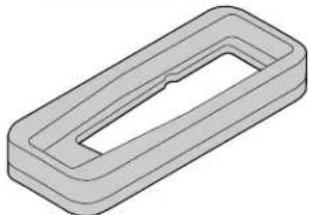
natural_image
3D rendering of a rectangular mechanical part with a recessed cutout (no text or symbols)Remote mouse receiver

Mouse adapter (For IBM PS/2)
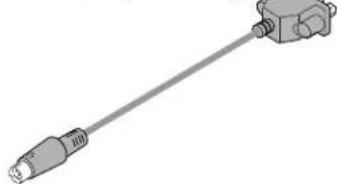
natural_image
Pure electrical connector diagram without any text or symbolsMouse adapter (For Macintosh)
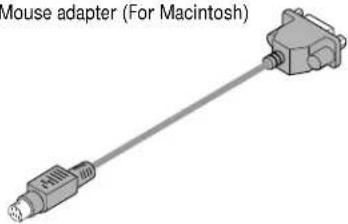
natural_image
3D rendering of a mouse adapter (For Macintosh) with no text or symbols on the component itselfBatteries (AA × 2)
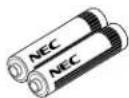
Monitor adapter for Macintosh

Power cable

natural_image
Illustration of a coiled electrical power plug with terminal connectors (no text or symbols)Signal cable
(15-Pin Mini D-Sub To 15-Pin Mini

natural_image
Illustration of a D-Sub connector with coiled cable and connector (no text or symbols on the diagram itself)Serial cable Carrying case

natural_image
Illustration of a U8822222222222222222222222222222222222222222222222222222222222222222222222222222222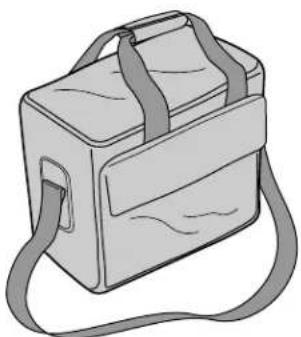
natural_image
Illustration of a simple beige backpack with straps and a strap, no text or symbols present.Introductory video
natural_image
Isometric illustration of a rectangular electronic device with two internal compartments and a central slot (no text or symbols)User's manual
Registration card

Quick Start Guide
Getting To Know Your MultiSync LT80 Projector
Front Features

Rear Features
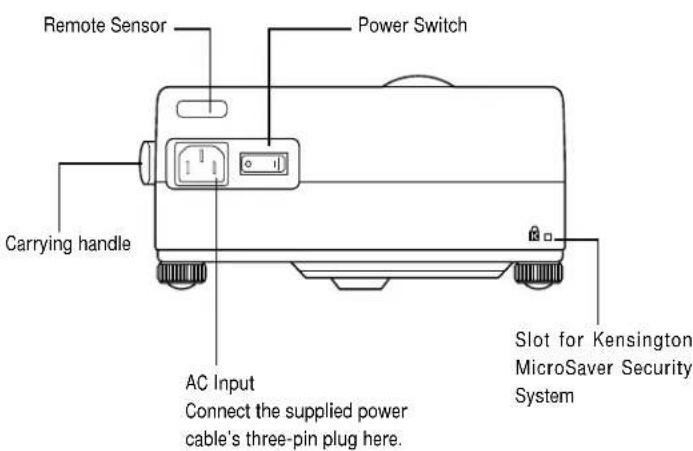
Left Side Features
Top Features
1 Power Button
Use this button to turn the power on and off when Main Power Switch is on and the projector is on standby. (When this button is pressed and held for at least two seconds, the “Display Mute” mode will be canceled.)
2 Menu Button
Displays the on- screen menu.
3 Select Button
After you press the "Menu" button, use this button to select the menu icon of the item you wish to adjust.
4 Enter Button
Executes your menu selection.
5 (+) (-) Adjust Button
Use these buttons while you're in the Image Adjust mode to change the level of a selected menu item. These buttons are also used to set an item in the Power or Settings menus.
6 Power Indicator
When the projector is switched On, the green LED blinks for about one minute, then lights up.
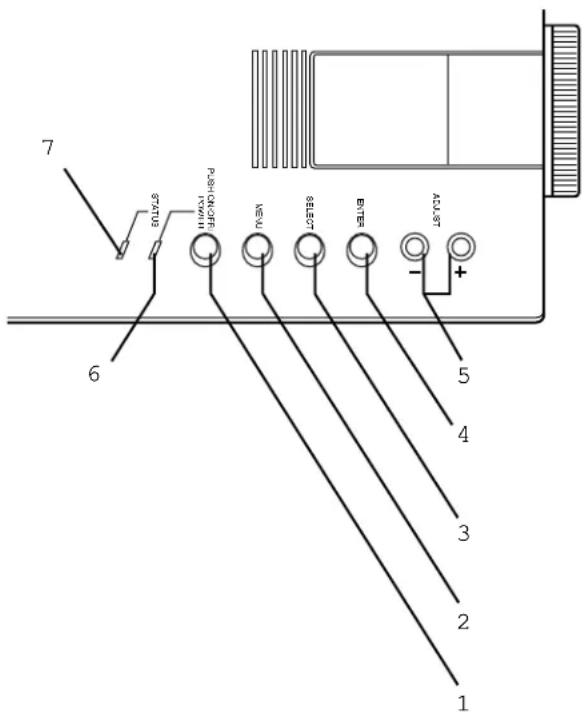
If the main power is on and you switch it off by pressing POWER OFF on the remote control or the POWER button on the projector, the green LED blinks for one minute, then lights up and the projector goes on standby.
* The projector will not accept operation instructions for the one minute during which the LED is blinking during switching on or off as described above.
7 Status Indicator
When this is lit red continually, it's warning you that the projection lamp has exceed 1000 hours of service. After this light appears, it is advisable to replace the projection lamp as soon as possible.(See page 63.)
When the operating time of the lamp exceeds 1000 hours, the STATUS indicator is lit red continually. In addition the message "LAMP USAGE XX HOURS" appears continually when the on-screen menu is not displayed.
If this light blinks red rapidly, it indicates that the lamp house is not attached properly; if the light blinks slowly it means the projector's internal temperature is too hot to operate safely. See the Status Light Messages on page 71 for more details.
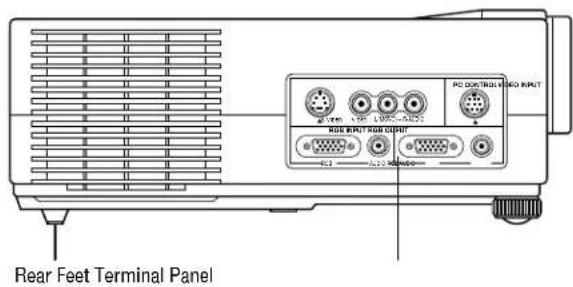
Terminal Panel Features
This panel is located in the side and is where you connect your cables.
1 Video Input
Connect a VCR, laser disk player, or document camera here to project video.
Left Channel/Mono Audio Input Jack
This is your left channel audio input for stereo sound coming from video equipment or audio system. This also serves as your monaural audio input.
Right Channel Audio Input Jack
This is your right channel audio input for stereo sound.
S-Video Input
Here is where you connect S-Video input from an external source like a VCR.
2 PC Control Port
Use this port to connect your PC to control the MultiSync LT80 Projector. This enables you to use your PC and serial communication protocol to control the projector. If you are writing your own program, command reference are on pages 83 to 86.
3 RGB Input Connector (Mini D-Sub 15 pin)
Connect your PC or other RGB equipment such as IBM or compatible computers. Use the signal cable that's supplied to connect to a PC.
RGB Audio Input Mini Jack
This is where you connect RGB audio output from a computer or another RGB source.
NOTE: S-Video provides more vivid color and higher resolution than the traditional composite video format.

4 RGB Output Connector (Mini D-Sub 15 pin)
You can use this connector to loop your computer image to an external monitor from the RGB input source.
Even if VIDEO is selected, the video image input to the RGB INPUT terminal is output.
Audio Output Mini Jack
You can use this jack to loop your audio to an external monitor from the VIDEO audio input or RGB audio input source.
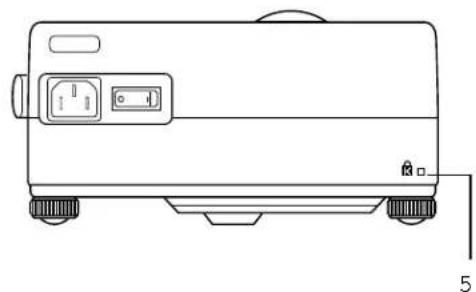
5 Built-in Security Slot (
This security slot supports the MicroSaver® Security System.
MicroSaver ^® is a registered trademark of Kensington Microwave Inc. The logo ☑s trademarked and owned by Kensington Microwave Inc.

natural_image
Line drawing of a portable electronic device with wheels and control panel (no text or symbols)Remote Control Features
You can use your wireless remote control to operate your MultiSync LT80 Projector. With the remote mouse receiver connected to your computer, you can also use the projector's remote control to operate your computer. (See pages 47 and 48 to connect the remote mouse receiver to your computer.)
NOTE: If you are using a Macintosh computer, you can click either the right or left button to activate the mouse.
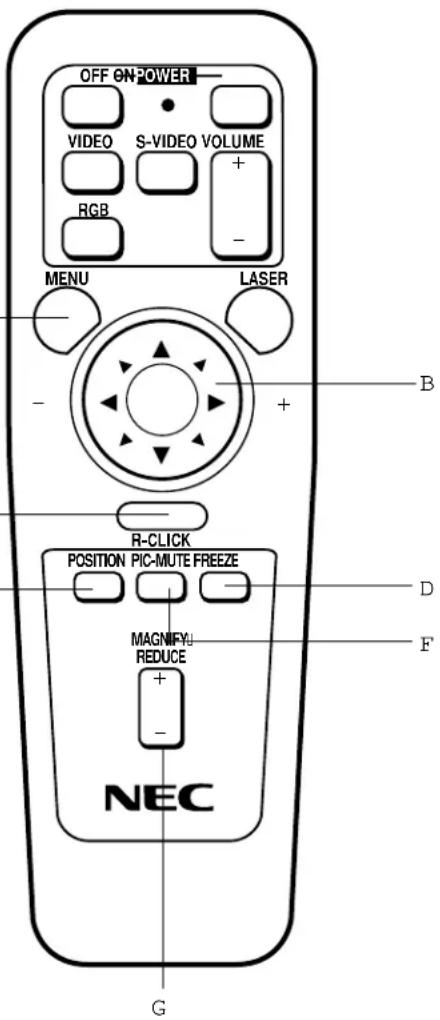
1 Left Click Button
Use this button to enter your menu selection. It works the same as the "Enter" button on the cabinet.
2 Laser Pointer
Beams a laser light when "Laser" button is pressed.
3 Infrared Transmitter
Direct the remote control toward the remote sensor on the projector cabinet or the remote mouse receiver.
4 LED
Flashes when any button is pressed.
5 Power On And Off
If your main power switch is turned on, you can use these buttons to turn your MultiSync LT80 Projector on and off.
6 Video Button
Press to select an NTSC, PAL, SECAM or NTSC4.43 compatible video source from a VCR, DVD player, laser disc player or document camera.
7 Volume Buttons
Press (+) to increase the volume and (−) to decrease it.
8 S-Video Button
Press to select an S-Video source from a VCR or other S-Video source.
9 RGB Button
Press to select a video source from a computer connected to your RGB port.
0 Laser Button
Press and hold this button to activate the laser pointer. When lit, you can use the laser to draw your audience's attention to a red dot that you can place on any object within 30 feet (10 m).

A Menu Button
Use this button to call up the On-Screen Menu so you can adjust and set the image. After you press this button, it will light up. During this time you can use the mouse pointer and right/left click buttons to make menu selections. If no buttons are pressed within 10 seconds the menu turns off.
B Mouse Pointer Buttons
Works as a mouse for your computer. This button is also used to adjust screen position. Push (+) or (−) to select the submenu you want to adjust.
C Right Click Button
Press this button to exit "Menus" or "Position."
D Freeze Button
This button will freeze a picture. Press again to resume motion.
E Position Button
When image is magnified, press this button to activate the mouse. This allows you to select the portion of the image displayed on screen. Position button will remain lit for 10 seconds or until right click button is pushed.
NOTE: When you are adjusting Position, the Mouse Pointer button is used to move the picture.
F Picture Mute Button
This button turns off the image for a short period of time. Press again to restore the image.
G Magnify/Reduce Button
Use the (+) or (−) button to adjust the image size up to 400%.
NOTE: You cannot use Menu and Position at the same time.
Remote Control Precautions
- Do not look into the laser pointer while it is on.
- Do not point the laser beam at a person.
- Handle the remote control carefully.
- If the remote control gets wet, wipe it dry immediately.
- Avoid excessive heat and humidity.
- If you will not be using the remote control for a long time, remove the batteries.
- Do not mix new and old or different types of batteries.
INSTALLATION2
This section describes how to set up your MultiSync LT80 projector and how to connect video and audio sources.
Setting Up Your MultiSync LT80 Projector
Your MultiSync LT80 Projector is simple to set up and use. But before you get started, you must first:
- Determine the image size
- Set up a screen or select a non-glossy white wall onto which you can project your image.
Carrying The Projector Always carry your projector by the handle. Ensure that the power cord and any other cables connecting to video sources are disconnected before moving the projector. When moving the projector or when it is not in use, cover the lens with the lens cap.

natural_image
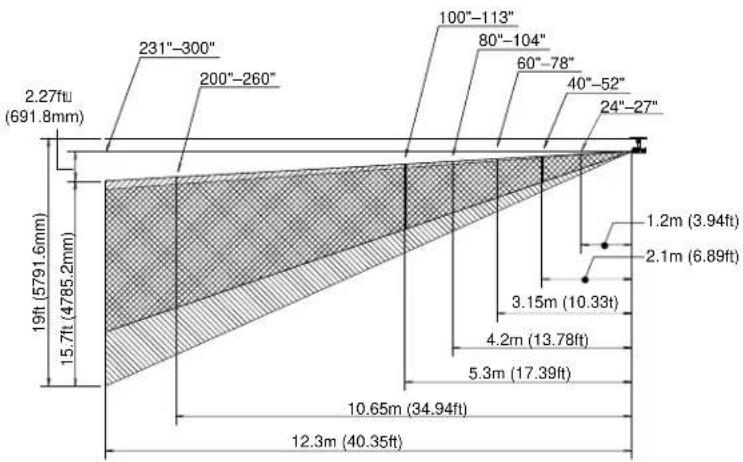
Line drawing of a projector with front panel and side button (no text or symbols)Selecting A Location The further your projector is from the screen or wall, the larger the image. The minimum size the image can be is approximately 24" (0.61 m) measured diagonally when the projector is roughly 4 feet (1.2 m) from the wall or screen. The largest the image can be is 300" (7.6 m) when the projector is about 40.35 feet (12.3 m) from the wall or screen.
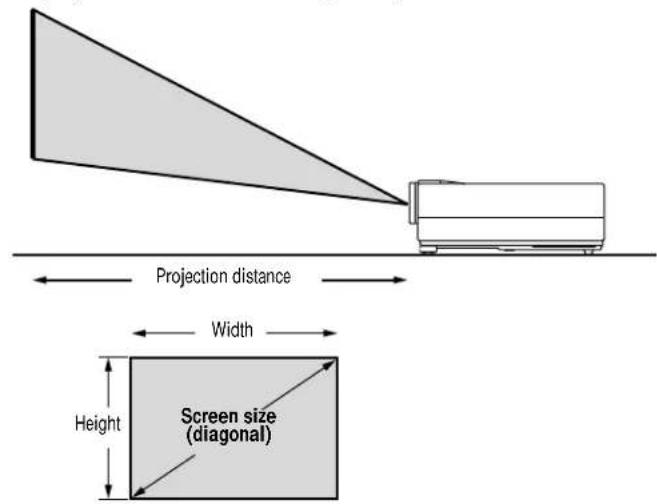
Projection Distance and Image Size

line
| Projection Distance (m) | Diagonal Image Size (inch) | | ----------------------- | -------------------------- | | 0.0 | 24" | | 6.89 | 27" | | 10.33 | 24" | | 13.78 | 27" | | 17.39 | 24" | | 34.94 | 27" | | 40.35 | 24" | | 12.3 | 27" | | 30.0 | 24" | | 6.89 | 27" | | 10.33 | 24" | | 13.78 | 27" | | 17.39 | 24" | | 34.94 | 27" | | 40.35 | 24" | | 10.65 | 27" | | 13.15 | 24" | | 16.65 | 27" | | 21.15 | 24" | | 24.2 | 27" | | 28.2 | 24" | | 32.2 | 27" | | 36.2 | 24" | | 40.2 | 27" | | 44.2 | 24" | | 48.2 | 27" | | 52.2 | 24" | | 56.2 | 27" | | 60.2 | 24" | | 64.2 | 27" | | 68.2 | 24" | | 72.2 | 27" | | 76.2 | 24" | | 80.2 | 27" | | 84.2 | 24" | | 88.2 | 27" | | 92.2 | 24" | | 96.2 | 27" | | 100.2 | 24" | | 104.2 | 27" | | 108.2 | 24" | | 112.2 | 27" | | 116.2 | 24" | | 120.2 | 27" | | 124.2 | 24" | | 128.2 | 27" | | 132.2 | 24" | | 136.2 | 27" | | 140.2 | 24" | | 144.2 | 27" | | 148.2 | 24" | | 152.2 | 27" | | 156.2 | 24" | | 160.2 | 27" | | 164.2 | 24" | | 168.2 | 27" | | 172.2 | 24" | | 176.2 | 27" | | 180.2 | 24" | | 184.2 | 27" | | 188.2 | 24" | | 192.2 | 27" | | 196.2 | 24" | | 200.2 | 27" | | 204.2 | 24" | | 208.2 | 27" | | Note: The actual values are not provided in the code snippet, so they are represented as placeholders (e.g., 'WIDE' or 'TELE'). The actual values would be the numbers inside the 'WIDE' region.Using A Tabletop Or Cart
-
Place your projector on a flat level surface at the optimal distance from the screen or wall so you realize the size image you want. (Avoid having bright room lighting or sun light directly on the screen or wall where you'll be projecting the image.)
-
Connect the power cable, remove the lens cap and turn the projector on. (If no input signal is available, the projector will display a background image.)
-
Ensure that the projector is square to the screen.
-
Move the projector left or right to center the image horizontally on the screen. (A)
-
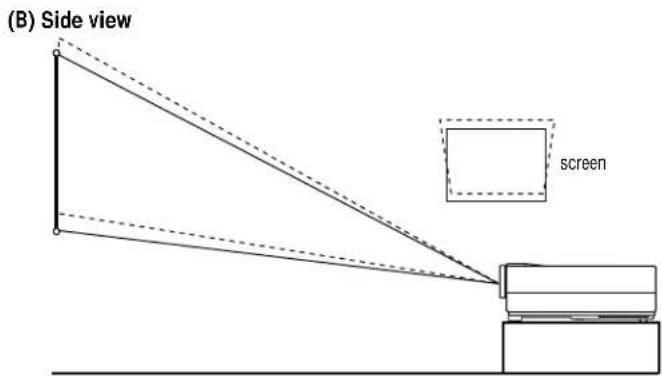
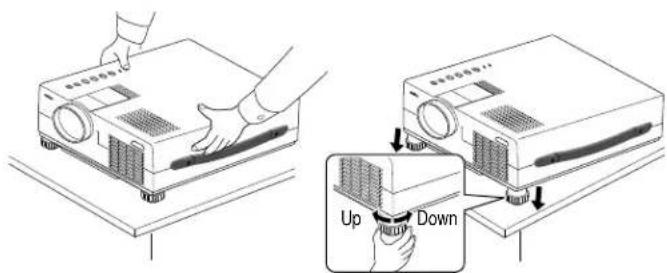
To center the image vertically (B). (There is approximately 5.5 degrees of up and down angle adjustment using the adjustable front feet.)
-
Fine tune the image's vertical position by adjusting the front feet of the projector.
Adjustment method
A. Start with the adjustable feet screwed in the locked position. B. Screw down the feet until proper angle is reached.
Note: Adjust feet so that lens surface is parallel to the screen. If you use the projector with the screen tilted, the picture will be distorted.
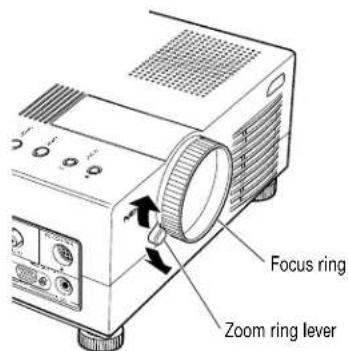
- Adjust the size of the image using the zoom ring lever on the lens.
Note: The set up angle of the projector should not exceed 15 degrees, otherwise lamp life could decrease dramatically.

Moving the projector
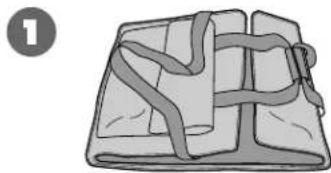
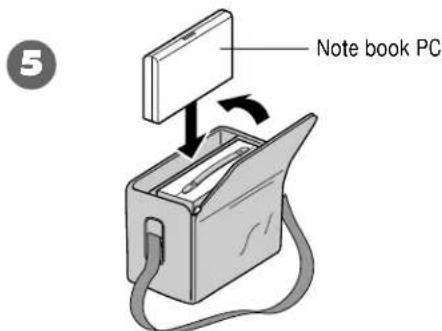
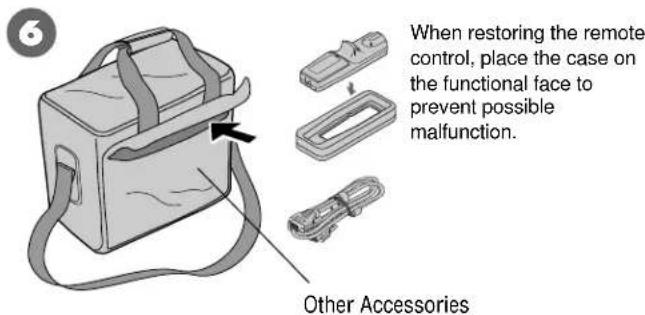
When moving the projector, use the carrying case that came with it. How to store the projector in the carrying case
- Remove any accessories.
- Unfold carrying case.
- Put the projector in the large compartment of the case.
-
Zip up the sides of the case.
-
Place notebook computer into carrying case.
- Store remote control and other accessories in front porch.
* Carry projector carefully. Bumping projector may cause damage.
natural_image
Illustration of a folded fabric or bag with visible straps and folds (no text or symbols)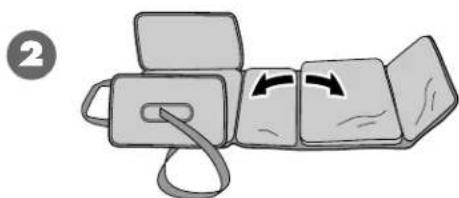
natural_image
Illustration of a folded notebook with a scroll and two arrows indicating movement (no text or symbols)
WARNING
- Only use your projector on a solid, level surface. If the projector falls to the ground, you can be injured and the projector severely damaged.
- Do not use the projector where temperatures vary greatly. The projector must be used at temperatures between 41^ (5°C) and 95^ (35°C).
- Do not expose the projector to moisture, dust, or smoke. This will harm the screen image.
- Ensure that you have adequate ventilation around your projector so heat can dissipate. Do not cover the vents on the bottom or the side of the projector.
Ceiling Installation
Installing your MultiSync LT80 Projector on the ceiling must be done by a qualified technician. Contact your NEC dealer for more information.
Do not attempt to install the projector yourself.
NOTE : Distances may vary ±5%.
If your projector is mounted on the ceiling and your image is upside down, use the "Menu" and "Select" buttons on your projector cabinet or (▲) (▼) buttons on your remote control to correct the orientation. (See page 60.)
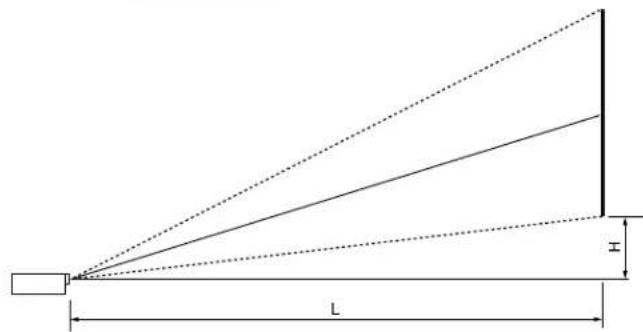
Projection distance and screen size examples
• Horizontal projection position Lens centered left to right
• Vertical projection position
| Screen size | Projection distance L ft. | Dimension H inch | |
| Inches Wide (W) Tele (T) Both W & T | |||
| 24 3.94ft (1.20m) 2.76" (7.0cm) | |||
| 40 5.25 ft (1.60m) 6.89ft (2.10m) 4.8" (12.2cm) | |||
| 60 7.87 ft (2.40m) 10.33ft (3.15m) 6.93" (17.6cm) | |||
| 80 | 10.66ft (3.25m) | 13.78ft (4.20m) 9.37" (23.8cm) | |
| 100 | 13.3ft (4.05m) | 17.39ft (5.30m) | 11.46" (29.1cm) |
| 200 | 26.9ft (8.20m) 34.94ft (10.65) | 23.58" (59.9cm) | |
| 300 | 40.35ft (12.30m) | —— | 35.08" (89.1cm) |
Wiring Diagram

flowchart
graph TD
    A["Document Camera"] --> B["VCR or Laser Disk Player"]
    B --> C["Signal cable (supplied)<br>To mini D-Sub 15-pin connector on the Projector."]
    C --> D["IBM VGA or Compatibles Macintosh or Compatibles (desk top type)"]
    D --> E["Monitor adapter for Macintosh (supplied)"]
    E --> F["Mac ADB adapter (supplied)"]
    G["To AC power output"] --> B
    H["PS/2 mouse adapter (supplied)"] --> D
Remote Mouse Receiver Remote Mouse Receiver
Remote Control Guideline
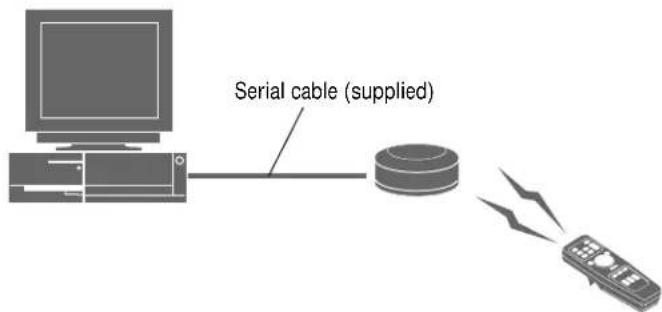
- Plug the serial cable with the remote mouse receiver into your computer's mouse port and restart your computer to gain remote mouse control.
- When using the remote control's built-in infrared mouse on a laptop computer, the laptop's mouse, trackball or trackpad will be disabled. Disconnect the infrared receiver and restart your computer to regain trackball or trackpad mouse control.
- If the screen goes blank while using your remote control, it may be the result of the computer's screen-saver or power management software. If you accidentally hit the OFF button on the remote control, wait one full minute and then press the ON button to resume.
Connecting Your PC Or Macintosh Computer
Connecting your PC or Macintosh computer to your MultiSync LT80 Projector will enable you to project your computer's screen image for an impressive presentation. All of these following display standards are supported:
| VGA 640×480 for graphics VGA 640×400 for graphics |
| VGA 640×350 for graphics VGA 720×400 for text |
| VGA 720×350 for text SVGA 800×600 |
| Macintosh at 640×480 Macintosh at 832×624 |
To connect to a PC, Macintosh or computer equipped with an SVGA/VGA adapter or compatible graphics adapter, simply:
- Turn off the power to your projector and computer.
- If your PC does not support SVGA/VGA you will need to install an SVGA/VGA graphics board. Consult your computer's owner's manual for your SVGA/VGA configuration. If you need to install a new board, see the manual that comes with your new graphics board for installation instructions.
- Use the signal cable that's supplied to connect your PC or Macintosh computer to the projector. For Macintosh, use the supplied monitor adapter to connect to your computer's video port.
- Turn on the projector and the computer.
- If the projector goes blank after a period of inactivity, it may be caused by a screen saver installed on the computer you've connected to the projector.
When using a Macintosh with the LT80, set the DIP switch of the supplied monitor adapter according to your resolution. After setting, restart your Macintosh.
See the following pages for setting of the DIP switch.
- When using with a Macintosh, VGA/SVGA (800× 600) is recommended if your Macintosh supports this mode.
- When using with a Macintosh PowerBook, output may not be set to 800×600 unless “mirroring” is off on your PowerBook. Refer to owner’s manual supplied with your Macintosh computer for mirroring.
NOTE: A Video Adapter cable manufactured by Apple Computer is needed for a PowerBook which does not have a mini D-Sub 15-pin connector.
Settings for Macintosh adapter
| Macintosh models applied | Setting Mode (Fixed resolution) | Setting required to be selected resolution on Mac after restarting. |
| Desktop type and PowerBook with 800×600 LCD panel | 16” fixed mode (output is 832×624) | Set to VGA/SVGA (800×600) |
| PowerBook with 640×480 LCD panel | 13” fixed mode (output is 640×480) | Set to 17” multi-scan mode (640×480) |
| Desktop type with AccuBlend | 19” fixed mode (output is 1024×768) | Set to 17” multi-scan mode (1024×768) |
Settings for Monitor Mode
| Monitor size\Number of DIP switch | S1 | S2 S3 | S4 | S5 | S6 | S7 | S8 | |
| 15” multi-scan mode /16”–13” | ON | ON | ||||||
| 17” multi-scan mode /19”–13” | ON | ON | ||||||
| 19” multi-scan mode /21”–13” | ON | ON | ||||||
| 13” fixed mode /640×480 | ON | |||||||
| VGA/SVGA mode | ON | |||||||
| 16” fixed mode /832×624 | ON | |||||||
| 19” fixed mode /1024×768 | ON |
NOTE: For setting other than display modes supported by your Macintosh and LT80, using of the DIP switch may bounce a image slightly or may display nothing. If this happens, set the DIP switch to the 13" fixed mode and then restart your Macintosh. After that, restore to a displayable mode and then restart the Macintosh again.
Make sure that LT80 and your Macintosh are connected with the monitor adapter and the supplied signal cable (mini D-Sub 15-pin connector) and then restart your Macintosh.
Examples of DIP switch setting
13" fixed mode

17" multi-scan mode
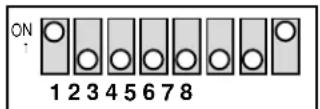
VGA/SVGA mode
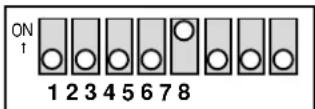
NOTE: Refer to your computer's owner's manual for more information about your computer's video output requirements and any special identification or configuring your projector's image and monitor may require.
Changing Video Resolutions
Depending on your computer's graphic capability, you may be able to select one of several resolutions. Generally a computer- either a PC or Macintosh- with 1 meg. of memory will run:
640×480 at 16.7 million colors (24 bit Truecolor)
800×600 at 65 thousand colors.
1024×768 at 256 colors.
As the resolution increases, the number of colors you can run decreases. With 2 meg. of memory a computer will run:
640×480 at 16.7 million colors (24 bit Truecolor).
800×600 at 16.7 million colors (24 bit Truecolor).
1024×768 at 65 thousand colors.
1280×1024 at 256 colors.
Windows 95
There are two methods you can use to change your resolution.
Method 1
- Move your cursor to the background image and click.
- In the "Properties" menu, select "Settings."
- Change your resolution and click "OK."
Macintosh
- Under the Apple menu, select "Control Panels" and open "Monitors."
- Click and open "Options."
- Select your new resolution and click "OK."
If you have an NEC monitor connected to your Macintosh, you may have a "DPI-On-The-Fly" extension that enables you to change your resolution directly. The "DPI-On-The-Fly" icon is under your Apple menu.
- You may be asked to reboot for the changes to take affect, or you'll get a message that "Windows is about to resize your display." When asked if you want to keep your settings, select "Yes."
Method 2
- Click on your "My Computer" icon.
- Open "Control Panel" and select "Display."
- Change your resolution and click "OK." after the new resolution is selected.
- You may be asked to reboot for the changes to take affect, or you'll get a message that "Windows is about to resize your display." When asked if you want to keep your settings, select "Yes."
Windows 3.1
- Click on the "Main" icon and open "Control Panel."
- Select "Change System Settings" and click on "Option."
- Choose "Change Display Settings."
- Select the resolution you want.
- Choose the current drive or another.
- Restart Windows for the changes to take affect.
Connecting Your Document Camera
You can connect your MultiSync LT80 Projector to a document camera. To do so, simply:
- Turn off the power to your projector and document camera.
- Use a standard video cable to connect your document camera to the Video input on your projector.
- Turn on the projector and the document camera.
NOTE: Refer to your document camera's owner's manual for more information about your camera's video output requirements.
Connecting Your VCR, DVD Player Or Laser Disc Player
Use common RCA cables (not provided) to connect your VCR or laser disc player to your MultiSync LT80 Projector. To make these connections, simply:
- Turn off the power to your projector and VCR, DVD player or laser disc player.
- Connect one end of your RCA cable to the video output connector on the back of your VCR, DVD player or laser disc player, connect the other end to the Video input on your projector. Use standard RCA audio patch cords to connect the audio from your VCR, DVD player or laser disc player to your projector (if your VCR, DVD player or laser disc player has this capability). Be careful to keep your right and left channel connections correct for stereo sound.
- Turn on the projector and the VCR, DVD player or laser disc player.
NOTE: Refer to your VCR, DVD player or laser disc player owner's manual for more information about your equipment's video output requirements.
Connecting An External Monitor
You can connect a separate, external monitor to your projector to simultaneously view on a monitor the image you're projecting. To do so:
- Turn off the power to your projector and computer, document camera or video source.
- Use a 15-pin cable to connect your monitor to the RGB OUT connector on your LT80 projector.
- Turn on the projector and the computer, document camera or video source.
Connecting Your Remote Mouse Receiver
The remote mouse receiver enables you to operate your computer's mouse functions from the NEC MultiSync LT80 remote control. It is a great convenience for clicking through your computer-generated presentations.
To connect the remote mouse receiver:
-
Turn off your computer.
-
For PCs: Remove your current mouse and connect the serial cable from the remote mouse receiver to your PC's mouse port. (Use the 6-pin adapter for connecting to a PS/2 computer.)
For Macintosh: Remove your current mouse from your computer, attach the Macintosh adapter to the remote mouse receiver's serial cable, and connect the receiver to your mouse port.
- When the remote mouse receiver is installed, it will disable your regular mouse, disconnect the remote mouse receiver and restart your computer.


■ The Remote Mouse Receiver as a mouse for your computer
OPERATION3
This section describes how to select a computer or video source and how to adjust the picture and sound.
General Controls Before you turn on your MultiSync LT80 Projector, ensure that the computer or video source is turned on and that your lens cap is removed.
- Turn On The Projector The main power switch is on the back panel of the MultiSync LT80 Projector. By turning this switch on, the projector will go into its standby mode and the power light will glow amber. Only after you press the "On" button on the remote control or projector cabinet will the power light turn to green and the projector become ready to use.
NOTE: To turn the projector on and off with just the back panel switch, use the menu and enable the "auto start" feature. (See page 59.)
- Select The Computer Or Video Source Press the "Video" (VCR, DVD player, document camera, or laser disc player), "S-video", or "RGB" (computer) button on the remote control to display the image. Or press the "Menu" button on the cabinet and use the icons to select your video source: "Video", "S-Video", or "RGB".
- Adjust The Image Size Adjust the size of the screen with the zoom ring lever on the projector.
- Focus Adjust the focus with the focus ring on the projector.
- Turning Off The Projector First press the "off" button on the remote control or the projector cabinet. The power light will glow amber. Then turn off the main power switch on the back panel. The power light will go out.
IMPORTANT:
- The projector should be unplugged if it will not to be used for an extended period.
- To turn off the image briefly (five minutes or less), use the "Picture Mute" button instead of turning the projector off and on.
- The projector will display a black, or blue image if no input signal is present.
- Do not turn the projector off and then immediately back on. The projector needs to cool for a minute before it can be restarted.
Using The Menus
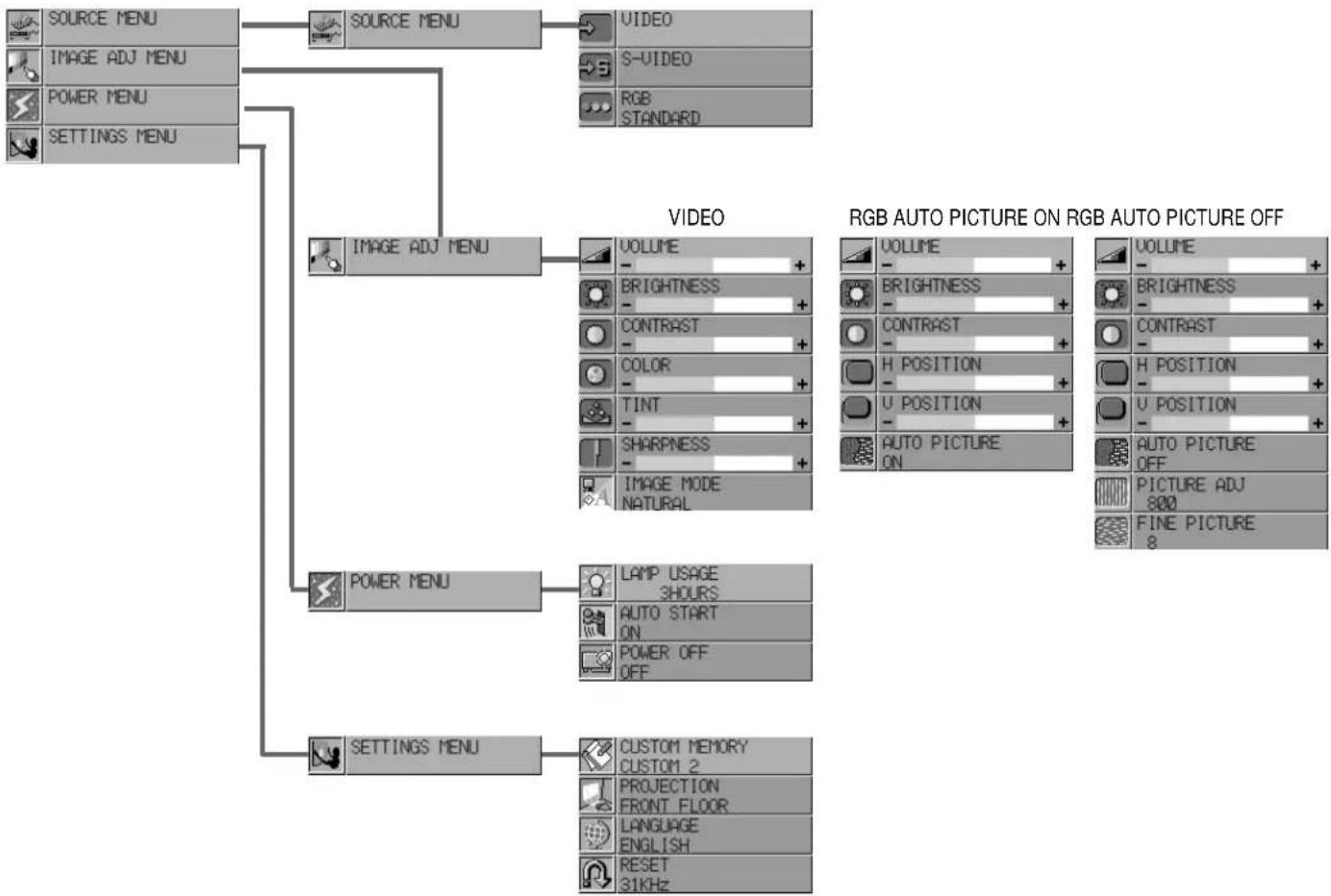
- Press the "Menu" button on the remote control or projector cabinet to display the Main Menu.
- Press the "Select" button on the projector cabinet or (▲) (▼) buttons on your remote control to highlight the menu for the item you want to adjust.
- Press the "Enter" button on the projector cabinet or the "Left Click" button on the remote control to select a submenu or item.
- Adjust the level or turn the selected item "on" or "off" by using the "Adjust" (+) or (−) buttons on the remote control or cabinet. The on-screen gauge will display your changes. The (+) button is "on" and (−) is "off".
- The change is stored until you adjust it again.
- Repeat steps 2-5 to adjust an additional item, or press "Right-Click" on your remote control to quit the menu display.
flowchart
graph TD
    A["SOURCE MENU"] --> B["SOURCE MENU"]
    B --> C["VIDEO"]
    B --> D["S-VIDEO"]
    B --> E["RGB STANDARD"]
    A --> F["IMAGE ADJ MENU"]
    A --> G["POWER MENU"]
    A --> H["SETTINGS MENU"]
    F --> I["IMAGE ADJ MENU"]
    F --> J["POWER MENU"]
    F --> K["SETTINGS MENU"]
    I --> L["VOLUME - +"]
    I --> M["BRIGHTNESS - +"]
    I --> N["CONTRAST - +"]
    I --> O["COLOR - +"]
    I --> P["TINT - +"]
    I --> Q["SHARPNESS - +"]
    I --> R["IMAGE MODE NATURAL"]
    J --> S["VOLUME - +"]
    J --> T["BRIGHTNESS - +"]
    J --> U["CONTRAST - +"]
    J --> V["H POSITION - +"]
    J --> W["U POSITION - +"]
    J --> X["AUTO PICTURE ON"]
    K --> Y["LAMP USAGE 3HOURS"]
    K --> Z["AUTO START ON"]
    K --> AA["POWER OFF OFF"]
    K --> AB["CUSTOM MEMORY CUSTOM 2"]
    K --> AC["PROJECTION FRONT FLOOR"]
    K --> AD["LANGUAGE ENGLISH"]
    K --> AE["RESET 31KHz"]
Menu Descriptions & Functions
Source Menu


Enables you to select a video source such as a VCR, DVD player, laser disk player, computer or document camera depending on what is connected to your inputs. Press the "Select" button on the projector cabinet or (▲) (▼) buttons on your remote control to highlight the menu for the item you want to adjust
Video
Selects device connected to your video input (VCR, document camera, laser disk player or DVD player).
S-Video
Selects device connected to S-Video input (Laser disk player, S-VHS VCR or DVD player).
RGB
Selects computer connected to your RGB input. Use the "Adjust" (+) or (−) buttons to select a standard* or one of six** custom settings you can create and store. Press the "Enter" button on the cabinet or the "Left Click" button on the remote control to save your selection.
NOTE: If a previously saved custom memory location is used with a new or different input signal it may not sync up, producing a distorted image, or no image at all. If so, follow the instructions below:
1) Disconnect the signal cable so that there is no input signal. In this condition the on-screen message will be displayed.
2) Select RGB standard from the source menu.
3) Connect the signal cable again.
NOTE:
* Standard is normally used and it can be user changed and automatically recalled.
** "Custom 6" is read only. This feature is useful when an SVGA image (800 ×600) is displayed with a notebook computer supported by XGA (1024×768).
Image Adjustment Menu

Provides access to controls for your image and sound. Use the "Select" button on the projector cabinet or (▲) (▼) buttons on your remote control to highlight the menu for the item you want to adjust.
The volume, brightness, contrast, color, tint, sharpness and Image Mode controls are available for Video or S-Video sources.
The volume, brightness, contrast, horizontal position, vertical position and auto picture controls are available for RGB source.

Volume
Use the "Adjust" (+) or (−) buttons to adjust the volume.
Brightness
Use the "Adjust" (+) or (−) buttons to adjust the brightness.
Contrast
Use the "Adjust" (+) or (−) buttons to adjust the contrast.
Color\*
Use the "Adjust" (+) or (−) buttons to adjust the color.
Tint\*
Use the "Adjust" (+) or (−) buttons to adjust the tint.
Sharpness\*
Use the "Adjust" (+) or (−) buttons to adjust the sharpness.
Image Mode\*
Use the “Adjust” (+) or (−) buttons to choose “Normal” for a regular picture “Natural” for true color reproduction, or “Document Camera” for a document camera or other low APL picture.
NOTE:
1) Flicker may appear on a freeze-frame picture with a Video or S-Video source. If this happens, select the Document Camera mode using the Image mode icon on the Image Adjustment Menu, and then adjust the contrast and other items for an optimal image.
2) A frame may freeze for a brief period of time when a video is played back in fast-forward or fast-rewind with a Video or S-Video source. If this happens, select the Natural mode (for cinema) using the Image Mode icon on the Image Adjustment Menu.

Horizontal Position\*\*
Use the "Adjust" (+) button to move the image right; (−) to move it left.
Vertical Position\*\*
Use the "Adjust" (+) button to move the image up; (−) to move it down.
Auto Picture\*\*
Use the “Adjust” (+) button to turn this feature on so “Picture” and “Fine Picture” adjustments are made automatically. Use the “Adjust” (−) button to turn this feature off so you can make “Picture and Fine Picture” adjustments manually.
Picture Adjustment \*\*(when AUTO PICTURE is off)
Use this icon with the “Fine Picture Adjustment” to fine tune the computer image or to remove any vertical banding that might appear. This function adjusts the clock frequencies to eliminate the vertical banding in the image. Press the “Adjust” (+) and (−) buttons until the banding disappears. This adjustment may be necessary when you connect your computer for the first time. This adjustment is made automatically when the Auto Picture is turned on.
Fine Picture \*\* (when AUTO PICTURE is off)
Use this icon to adjust the clock phase or to reduce video noise, dot interference or cross talk. (This is evident when part of your image appears to be shimmering.) Use the “Adjust” (+) and (−) buttons to adjust the image. Use the Fine Adjustment only after the Picture Adjustment is complete. This adjustment is made automatically when the Auto Picture is turned on.
NOTE:
Color, Tint, Sharpness and Image Mode controls will not work with an RGB source. The Tint control will not work with a PAL or SECAM source.
★★ Horizontal and Vertical position controls, and Picture, Fine Picture and Auto Picture adjustments will not work with a Video or S-Video source.
Power Menu

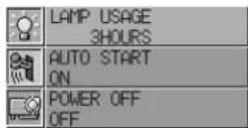
Provides access to Lamp Usage information and the Auto Start and Power Management features. Use the “Select” button on the projector cabinet or (▲) (▼) buttons on your remote control to access a submenu. Then press “Adjust” (+) or (−) to choose a specific option.
Lamp Usage
This tells you how long the lamp has been in operation. It is recommended that you replace a lamp after 1000 hours of service. After you install a new lamp, select this icon and press and hold the "Power On" button on the remote control for ten seconds to reset the lamp clock back to zero.
NOTE: The projector will turn off and go into stand by mode after 1100 hours of service. If this happens, press the "Power Off" button on the remote control for ten seconds to reset the lamp clock back to zero. Do this only after replacing the lamp.
Auto Start
Turns the projector on automatically when the main power switch is turned on. This eliminates the need to always use the "Power" button on the remote control or projector cabinet. Press (+) to turn this feature on and (−) to turn it off.
Power Management
When “Power Off” is on and there is no RGB video input for five minutes or more, the projector will automatically turn itself off. Press the (+) to turn this feature on and (−) to turn it off. This feature does not work with Video or S-Video sources.
Settings Menu

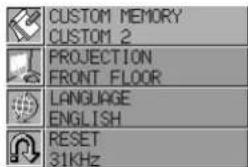
Enables you to set preferences and other operating options. Use the "Select" button on the projector cabinet or (▲) (▼) buttons on your remote control to access the submenu you want.
Custom Memory
This enables you to save your current settings for an RGB source in one of five memories, Custom 1-5.
To change the STANDARD settings, proceed as follows:
- Connect your computer to the MultSync LT80.
- Select the "STANDARD" in RGB source.
-
Adjust the horizontal/vertical position, Picture, and Fine Picture adjustments.
-
Select the Custom Memory icon.
-
Press the "Adjust" (+) or (−) buttons to choose a memory location, then press "Enter" on the cabinet or the "Left Click" on your remote control to save the new settings.
If you do not want to change the STANDARD settings, first select the Custom Memory icon, then do the same as step 5.
Projection
This reorients your image for your type of projection. Press the “Adjust” (+) or (−) button until it is correct. Press “Enter” on the cabinet or the “Left Click” on your remote control to save your change. The options are: front floor projection, rear ceiling projection, rear floor projection, and front ceiling projection.
Language
Use the “Adjust” (+) or (−) to choose one of six languages for on-screen instructions. Press “Enter” on the cabinet or the “Left Click” on your remote control to save your change. The options are: English, German, French, Italian, Spanish and Swedish.
Reset
Changes all adjustments to the factory preset levels for each source individually. To activate, you must hold down the “Adjust” (+) button on the cabinet or remote control for at least two seconds. The adjustments that will be reset are horizontal and vertical control, picture and fine picture adjustment (for the current source only), brightness, contrast, color, tint, and sharpness.
When custom setting is selected, reset changes all adjustments to the factory preset levels of the current input signal for selected custom memory location. This will not return to your previous custom setting and will delete your saved settings from custom memory.
MAINTENANCE4
This section describes the simple maintenance procedures you should follow to replace the lamp and replace the batteries in the remote control.
Replacing The Lamp
After your lamp has been operating for 1000 hours or longer, the "status" light in the cabinet will turn red. Even though the lamp may still be working, replace it at 1000 hours to maintain optimal projector performance.

CAUTION
- DO NOT TOUCH THE LAMP immediately after it has been used. It will be extremely hot. Allow at least one hour for the lamp to cool before handling.
- DO NOT REMOVE ANY SCREWS except the lamp cover set screw and two lamp case screws. You could receive an electric shock.
- Turn off the main power to the projector and disconnect the power cord. Allow at least one hour for the lamp to cool.
- The projector will turn off and go into stand by mode after 1100 hours of service. If this happens, be sure to replace the lamp. If you continue to use the lamp after 1000 hours of use, the lamp bulb may shatter, and pieces of glass may be scattered in the lamp case. Do not touch them as the pieces of glass may cause injury. If this happens, contact your NEC dealer for lamp replacement.
natural_image
Technical line drawing of a device casing with mounting points and a labeled step 'Step 3' (no text or symbols on the diagram itself)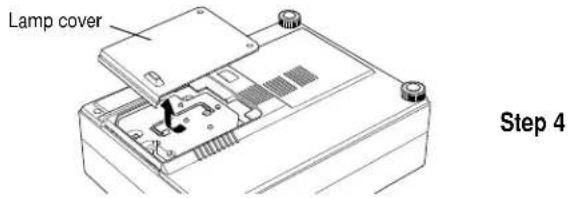

Lamp replacement procedure
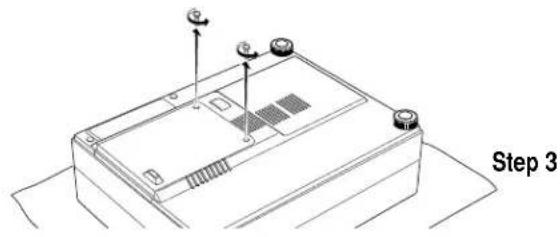
- Switch off the main power and unplug the power cord.
- Turn the main unit so that the bottom is up.
- Remove the lamp cover fastening screws.
- Slide the lamp cover in the direction of the arrow and remove it.
⚠ CAUTION: Do not use a lamp other than the NEC replacement lamp. Order this from your NEC dealer using your projector's model number.
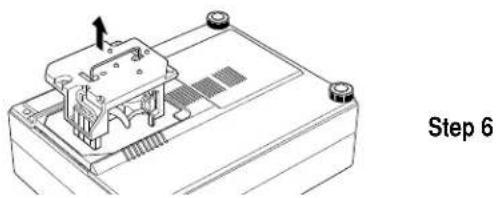
- Remove the three screws for the lamp housing. (There is an interlock on the lamp housing to prevent the risk of electrical shock. Do not attempt to circumvent this interlock.)
- Holding the handle, pull the lamp housing forward and take it off.
- Install the new lamp housing and fasten with the three screws.
- Fasten the three screws for the lamp housing.
- Install the lamp cover back in its original position and fasten with the fastening screw.
- Reset the lamp time. Select the lamp usage time menu, then press the ON button on the remote controller and hold it down for at least ten seconds.
NOTE: If resetting the lamp clock back to zero after 1100 hours of service, press the "Power Off" (not "Power On") button on the remote control for ten seconds.
natural_image
Technical line drawing of a battery pack with an internal component and mounting holes (no text or symbols)

natural_image
Line drawing of a battery casing with three terminals and a slot, labeled 'Step 9' (no text or symbols on the diagram itself)Remote Control Battery Installation
- Press firmly and slide the battery cover off.
- Remove both old batteries and install new ones (AA). Ensure that you have the batteries' polarity (+/-) aligned correctly.
- Slip the cover back over the batteries until it snaps into place.
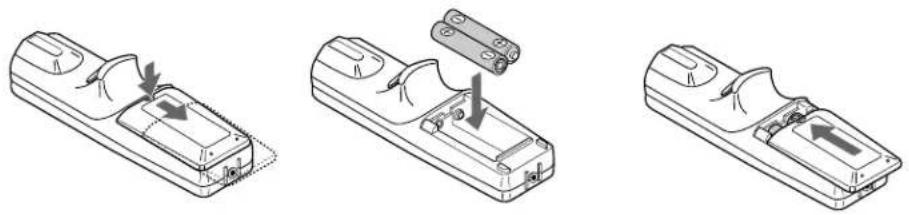
natural_image
Three technical line drawings of a remote control device with arrows indicating movement or change (no text or symbols present)Operating Range
Range of 30^ up/down/left/right and a distance of 7 meters from the remote sensor.
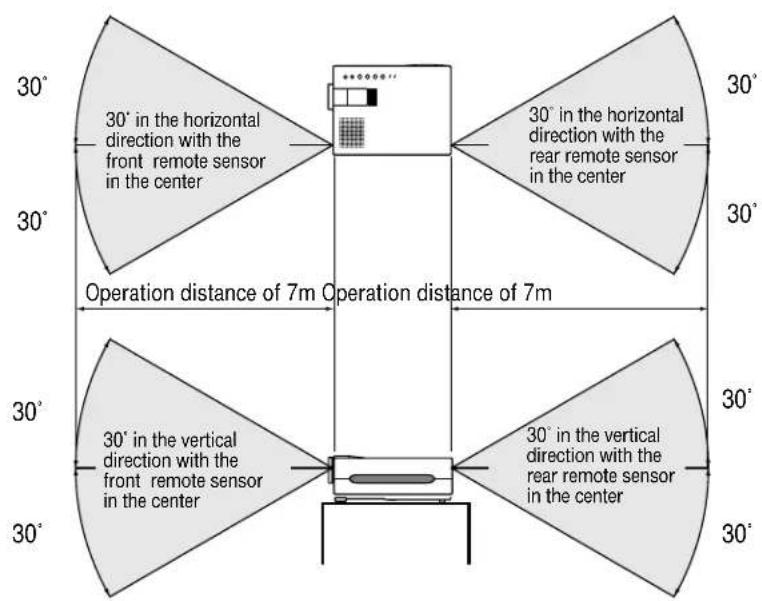
natural_image
Technical line drawing of a battery pack with a labeled section 'Etape 6' (no other text or symbols)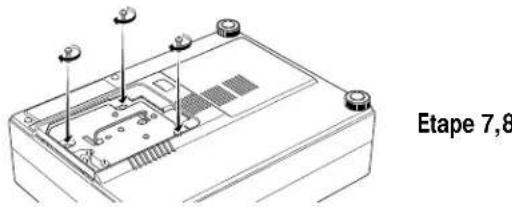

natural_image
Three-step diagram showing a remote control device with battery and cable assembly (no text or symbols)TROUBLESHOOTINGS
This section helps you resolve problems you may encounter while setting up or using your MultiSync LT80 Projector.
Status Light Messages
| Condition | Status |
| OFF | ■ Normal |
| On Continually | ■ The projector lamp has exceeded 1000 hours of operation and should be replaced. |
| Blinking very rapidly(On and off in a cycle of 1 sec.) | ■ The lamp housing is not correctly installed. Install it correctly. |
| Blinking rapidly(On and off in a cycle of 4 sec.) | • The temperature protector has been triggered. If the room temperature is high, move the projector to a cooler location. If the temperature inside the projector is high, check the cooling fan ventilation hole and the ventilation hole on the bottom of the projector. If any of the holes are blocked, remove whatever is blocking them.• The temperature protector has been triggered. If you switch the main Power switch Off, then immediately switch it On again, sometimes the power does not come on. If this happens, wait one minute, then switch the power On again. |
| Blinking Slowly(On and off in a cycle of 8 sec.) | ■ The cooling fan has stopped. Contact your NEC dealer for service. |
| Blinking very slowly(On and off in a cycle of 12 sec.) | ■ The lamp is not turned on.• The projector was turned off and back on too quickly. Turn off the projector, wait one minute, then turn the projector back on. Or the lamp is burnt out. |
Common Problems & Solutions
| Problem | Check These Items |
| Does not turn on | · Check that the cord is plugged in and that the power switch on the back panel is on.· Ensure that the lamp cover and lamp housing are installed correctly. (See page 63.)· Check the status light to see if the projector has overheated or the lamp usage exceeds 1100 hours. |
| No picture | · Use the menu icons to select your source (Video, S-Video or RGB). (See pages 53 and 54.)· Ensure your cables are connected properly.· Use icons to adjust the brightness and contrast.· Remove the lens cap.· Is the POWER indicator blinking?· Reset the settings or adjustments to factory preset levels using the RESET icon on the Settings Menu. |
| Image isn’t square to the screen | · Reposition the projector to improve its angle to the screen. |
| Picture is blurred | · Adjust the focus. (See page 50.)· Reposition the projector to improve its angle to the screen.· Ensure that the distance between the projector and screen is within the adjustment range of the lens. |
| Problem | Check These Items |
| Image is scrolling vertically, horizontally or both | Use icons to select the source you want to input.Make sure the recalled Custom Memory supports the current input signal. |
| Remote control does not work | Install new batteries. (See page 65.)Make sure there are no obstacles between you and the projector.Stand within 23 feet (7m) of the projector. |
| Status indicator is lit or blinking | See the Status Light message chart on pages 71 and 72. |
| Cross color in RGB mode | If “Auto Picture” is off, turn it on. If “Auto Picture” is on, turn it off and balance the image with the Picture Adjustment icon and Fine Picture Adjustment icon. |
To Contact Your NEC Service Representative, Call 1-800-836-0655
This section provides technical information about the MultiSync LT80 Projector's performance.
Optical
DMD ^TM
Single Chip Digital Micromirror Device(DMD™), 800-600 dots
Lens Manual zoom, manual focus
F 2.44 f=26-30 mm
Lamp Metal halide lamp 270 W
Image Size 610-7620 mm (24-300 inches) diagonal
Projection Distance 1.2 - 12.3m
Light Output 600 ANSI lumens (normally white)
Contrast Ratio Greater than 200 : 1
Color Temperature 6000 Kelvin
Electrical
Inputs Video (NTSC / PAL / SECAM / NTSC 4.43)
Color Reproduction Full color, 16.7 million colors simultaneously.
Horizontal Resolution NTSC 550, PAL 350, SECAM 350, NTSC4.43 350 TV lines
RGB 800 dots horizontal, 600 dots vertical
Power Requirement 100 - 120 / 220 - 240 VAC, 50 / 60 Hz
Input Current 6.25 A
Mechanical
| Dimensions | 9.8" (W)×4.8" (H)×12.8" (D) |
| 24.8 cm (W)×12.2 cm (H)×32.5 cm (D) |
Net Weight 9.9 lbs / 4.5 kg
Operational Temperatures Projector: 41° – 95°F (5° to 35°C), 30 – 85% humidity
Remote control: 32° – 140°F (0° to 60°C)
Remote mouse receiver: 32° – 140°F (0° to 60°C)
Regulations UL Approved (UL 1950, CSA 950)
Meets DOC Canada requirements
Meets FCC Class A requirements
Digital Light Processing, DLP, Digital Micromirror
Device and DMD are trademarks of Texas Instruments.
Cabinet Dimensions
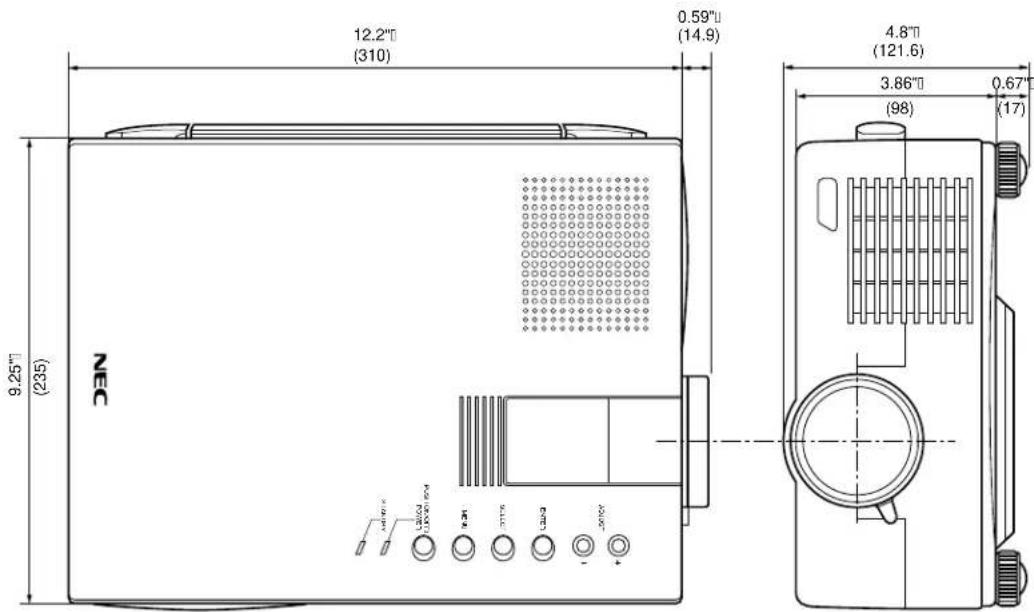

Unit : inch (mm)
D-Sub Pin Assignments
Pin No. Signal to be connected
1 Red
2 Green
3 Blue
4 GND
5 GND
6 Red GND
7 Green GND
8 Blue GND
9 No Connection
10 Digital GND
11 GND
12 No Connection
13 Horizontal Sync
14 Vertical Sync
15 No Connection
Incompatible signals are marked with on "N" and hatched. # 1024x768 and 832x624 images are compressed into 800x600.
PC Control Command Reference
Command Codes
No. Function Code Data Description
01 Video 03H No Same as remote
02 RGB1 04H No Same as remote
03 S-VIDEO C6H No Same as remote
04 Power On 08H No Same as remote (See NOTE on page 88.)
05 Power Off 14H No Same as remote
06 Picture Mute 47H No Same as remote
07 Audio Mute 45H No
08 Onscreen Mute 11H No
09 Reset 43H No (Resets immediately after returning ACK)
10 D Up DEH No Same as remote
11 D Down DFH No Same as remote
12 D Right DCH No Same as remote
13 D Left DDH No Same as remote
14 D Right Up 21H No Same as remote
15 D Left Up 22H No Same as remote
16 D Right Down 23H No Same as remote
17 D Left Down 24H No Same as remote
18 Freeze 91H No Same as remote
19 Front Floor 33H No
20 Front Ceiling 34H No
21 Rear Floor 35H No
22 Rear Ceiling 36H No
23 Auto Start On 19H No
24 Auto Start Off 1AH No
25 Auto Picture On 1BH No
26 Auto Picture Off 1CH No
Command Codes (continued)
No. Function Code Data Description
27 Image mode Doc Cam 1DH No
28 Image mode Normal 1EH No
29 Image mode Natural 1FH No
30 Power Management On 15H No
31 Power Management Off 16H No
32 Digital Zoom W 89H No
33 Digital Zoom T 8AH No
34 Brightness 60H Yes 0 to 63
35 Contrast 62H Yes 0 to 63
36 Color 64H Yes 0 to 63
37 Tint 66H Yes -32 to +31(E0 to 1F)
38 Sharpness 68H Yes 0 to 3
39 Audio Volume 6AH Yes 0 to 63
40 Picture Adj 70H Yes 768 to 1279(2 byte Code)
41 Fine Picture 6EH Yes 0 to 31
42 H Position 72H Yes -64 to +63(C0 to 3F)
43 V Position 74H Yes -32 to +31 (E0 to 1F)
44 Lamp Reset 27H No
45 Language Select 3DH Yes 00:English, 01:German, 02:French, 03:Italian, 04:Spanish,
05:Swedish, 06: Japanese
Cable Connection
Communication Protocol
Baud rate: 9600 bps
Data length: 8 bits
Parity: No parity
Stop bit: One bit
X on/off: None
Communications Full duplex procedure:
If the CPU of the projector has received the data correctly, it returns an ACK(C5H). If the received data is not correct, the CPU returns a NAK(CAH), then the following status:
Receiving success: C5
Receiving failure: CA Err
Err 01: Command Error (command not supported)
Err 02: Checksum Error
Err 03: Busy (command not acceptable)
Err 04: Parameter Error (parameter data abnormal)
NOTE: If failing in powering-on, the CPU returns the following NAKs:
CA Err 1
Err 1 8X (Apply the corresponding bit.)
Bit 0: Lamp housing is not attached correctly
Bit 1: Fan stoppage
Bit 2: Overheated
Bit 3: Lamp lighting failure

- MultiSync® LT 80™
- IMPORTANT INFORMATION
- Precautions
- CAUTION
- WARNING
- DOC Compliance Notice
- RF Interference
- Important Safeguards
- Installation
- Power Supply
- Cleaning
- Lamp Replacement
- Fire and Shock Precautions
- ATTENTION
- NEC MultiSync® Projector Products
- HOW LONG IS THE WARRANTY?
- WHO IS PROTECTED?
- WHAT IS COVERED AND WHAT IS NOT COVERED
- HOW YOU CAN GET WARRANTY SERVICE
- LIMITATION OF IMPLIED WARRANTIES
- EXCLUSION OF DAMAGES
- WHAT WE WILL PAY FOR AND WHAT WE WILL NOT PAY FOR
- HOW STATE LAW RELATES TO THE WARRANTY
- TABLE OF CONTENTS
- Introduction
- Installation
- Operation
- Maintenance
- Troubleshooting
- Specifications
- INTRODUCTION1
- Congratulations On Your Purchase Of The MultiSync LT80 Projector
- Features you'll enjoy :
- How Do You Get Started?
- What's In The Box?
- Getting To Know Your MultiSync LT80 Projector
- Top Features
- Power Button
- Menu Button
- Select Button
- Enter Button
- (+) (-) Adjust Button
- Power Indicator
- Status Indicator
- Terminal Panel Features
- Video Input
- Left Channel/Mono Audio Input Jack
- Right Channel Audio Input Jack
- S-Video Input
- PC Control Port
- RGB Input Connector (Mini D-Sub 15 pin)
- RGB Audio Input Mini Jack
- RGB Output Connector (Mini D-Sub 15 pin)
- Audio Output Mini Jack
- Built-in Security Slot (
- Remote Control Features
- Left Click Button
- Laser Pointer
- Infrared Transmitter
- LED
- Power On And Off
- Video Button
- Volume Buttons
- S-Video Button
- RGB Button
- Laser Button
- A Menu Button
- B Mouse Pointer Buttons
- C Right Click Button
- D Freeze Button
- E Position Button
- F Picture Mute Button
- G Magnify/Reduce Button
- Remote Control Precautions
- INSTALLATION2
- Setting Up Your MultiSync LT80 Projector
- Using A Tabletop Or Cart
- Adjustment method
- Moving the projector
- Ceiling Installation
- Projection distance and screen size examples
- Remote Control Guideline
- Connecting Your PC Or Macintosh Computer
- Examples of DIP switch setting
- Changing Video Resolutions
- Windows 95
- Macintosh
- Windows 3.1
- Connecting Your Document Camera
- Connecting Your VCR, DVD Player Or Laser Disc Player
- Connecting An External Monitor
- Connecting Your Remote Mouse Receiver
- ■ The Remote Mouse Receiver as a mouse for your computer
- OPERATION3
- IMPORTANT:
- Using The Menus
- Menu Descriptions & Functions
- Source Menu
- Video
- S-Video
- RGB
- NOTE:
- Image Adjustment Menu
- Volume
- Brightness
- Contrast
- Color\*
- Tint\*
- Sharpness\*
- Image Mode\*
- Horizontal Position\*\*
- Vertical Position\*\*
- Auto Picture\*\*
- Picture Adjustment \*\*(when AUTO PICTURE is off)
- Fine Picture \*\* (when AUTO PICTURE is off)
- Power Menu
- Lamp Usage
- Auto Start
- Power Management
- Settings Menu
- Custom Memory
- Projection
- Language
- Reset
- MAINTENANCE4
- Replacing The Lamp
- Lamp replacement procedure
- Remote Control Battery Installation
- Operating Range
- TROUBLESHOOTINGS
- Optical
- Electrical
- D-Sub Pin Assignments
- PC Control Command Reference
- Command Codes
- Command Codes (continued)
- No. Function Code Data Description
- Cable Connection
- Communication Protocol
- CA Err 1
Brand : NEC
Model : MultiSync LT80
Category : Video projector