JHD1630 - Radio JENSEN - Free user manual and instructions
Find the device manual for free JHD1630 JENSEN in PDF.


| Product Type | Car Radio |
| Brand | Jensen |
| Model | JHD1630 |
| Dimensions | 188 x 58 x 178 mm (Standard Single DIN) |
| Weight | 0.6 kg |
| Power Supply | 12 V DC (Negative Ground) |
| Maximum Power Output | 4 x 50 Watts |
| Audio Features | AM/FM Tuner, CD Player, USB, AUX Input, Bluetooth |
| Display | LCD with Adjustable Color |
| Equalizer | Preset EQ Modes (Rock, Pop, Classic, etc.) |
| Remote Control | Included |
| Safety | Fuse Protection (10A) |
| Maintenance | Clean with soft dry cloth; avoid liquids |
| Spare Parts | Contact Jensen Customer Support |
| Repairability | Not user-serviceable; refer to qualified technician |
| Warranty | 1 Year Limited Warranty |
Frequently Asked Questions - JHD1630 JENSEN
User questions about JHD1630 JENSEN
0 question about this device. Answer the ones you know or ask your own.
Ask a new question about this device
Download the instructions for your Radio in PDF format for free! Find your manual JHD1630 - JENSEN and take your electronic device back in hand. On this page are published all the documents necessary for the use of your device. JHD1630 by JENSEN.
USER MANUAL JHD1630 JENSEN
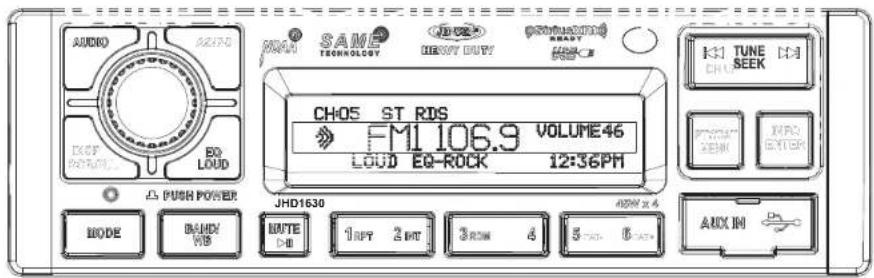
AM/FM/RBDS/WB/USB/iPod/AUX-IN/SiriusXM Ready Heavy Duty Radio
Installation and Operation Manual
text_image
AUDIO 02770 SANE TECHNOLOGY DEAVY DUTY POTATOING READY HRS-CB CH05 ST RDS FM1 106.9 VOLUME46 LOAD EQ-ROCK 12:36PM JHD1630 MODE DAVY WB ROUTE D: 1ppt 2 ppt 3ROM 4 5-TAD 6 AUX IN
iPhone, iPod, iPod classic, iPod nano, iPod shuffle, and iPod touch are trademarks of Apple Inc., registered in the U.S. and other countries.

JHD1630
CONTENTS
Introduction.... 1
Safety Information 2
Installation.... 3
Wiring 4
Basic Operation 5
Tuner Operation....8
Satellite Radio Operation 10
MP3/WMA Operation.... 13
iPod ^ Operation 14
Care and Maintenance.... 15
Troubleshooting.... 15
Specifications 16
Copyrights and Trademarks
"Made for iPod" and "Made for iPhone" mean that an electronic accessory has been designed to connect specifically to iPod or iPhone respectively, and has been certified by the developer to meet Apple performance standards. Apple is not responsible for the operation of this device or its compliance with safety and regulatory standards. Please note that the use of this accessory with iPod or iPhone may affect wireless performance.
Sirius, XM and all related marks and logos are trademarks of Sirius XM Radio Inc. and its subsidiaries. Visit www.siriusxm.com/xmlineup for updates. All programming/channel lineup/XM service subject to change or preemption. All other marks and logos are the property of their respective owners. All rights reserved.
INTRODUCTION
System Features
Features of the Jensen JHD1630 mobile audio system include:
• Full Dot Matrix LCD
• AM/FM US/EURO Tuner with 30 Presets (12 AM, 18 FM)
• RBDS (Radio Broadcast Data Service) with PTY Search
• SiriusXM Radio Ready
• Made for iPod ^® and iPhone ^® (USB Interface)
• Weatherband Tuner with SAME Technology
• M u t e
• USB Playback of MP3 and WMA files
- Pre-set Equalizer - 5 settings (User, Flat, Pop, Classical, Rock)
• Electronic Bass, Treble, Balance and Fader Controls
• Output Power 45W x 4
• Clock 12/24 Hour Selectable
• Public Announcement (PA) Feature with Optional Microphone (sold separately)
• IR Wireless Remote Control Ready (sold separately)
• 2-Channel Pre-amp Line Level Outputs
• 2-Wire Power with Non-Volatile Memory and Clock/Time Support
• Auxiliary Audio Input (Front 3.5mm Stereo Jack, Rear RCA)
Content List
• Jensen Heavy Duty Radio
- Hardware Kit
• Installation Manual
• Quick reference Guide
HARDWARE KIT CONTENTS
FLANGE NUTS
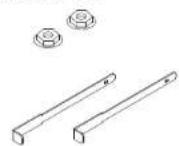
DIN SLEEVE
REMOVAL TOOL
text_image
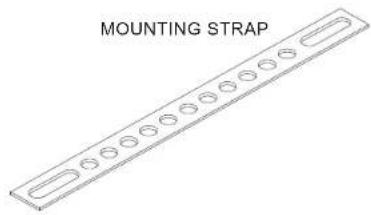
MOUNTING STRAP
MOUNTING SCREW

MOUNTING BUSHING

JHD1630
SAFETY INFORMATION
When Driving
Keep the volume level low enough to be aware of the road and traffic conditions.
When Washing Your Vehicle
Do not expose the product to water or excessive moisture. Moisture can cause electrical shorts, fire or other damage.
When Parked
Parking in direct sunlight can produce very high temperatures inside your vehicle. Give the interior a chance to cool down before starting playback.
Use the Proper Power Supply
This product is designed to operate with a 12 volt DC negative ground battery system.
WARNING:
• TO REDUCE THE RISK OF FIRE OR ELECTRIC SHOCK, DO NOT EXPOSE THIS EQUIPMENT TO RAIN OR MOISTURE.
• TO REDUCE THE RISK OF FIRE OR ELECTRIC SHOCK AND ANNOYING INTERFERENCE, USE ONLY THE RECOMMENDED ACCESSORIES.
INSTALLATION
This unit is designed for installation in vehicle cabs with an existing 1-DIN radio opening. In many cases, a special installation kit will be required to mount the radio to the dashboard. See the dealer where the radio was purchased for kit availability. Always check the kit application before purchasing to make sure the kit works with your vehicle.
Before You Begin
1. Disconnect Battery
Before you begin, always disconnect the battery negative terminal.
- Remove Transport Screws
Important Notes
- Before final installation, test the wiring connections to make sure the unit is connected properly and the system works.
- Use only the parts included with the unit to ensure proper installation. The use of unauthorized parts can cause malfunctions.
- Consult with your nearest dealer if installation requires the drilling of holes or other modifications to your vehicle.
• Install the unit where it does not interfere with driving and cannot injure passengers during a sudden or emergency stop. - If the installation angle exceeds 30^ from horizontal, the unit might not give optimum performance.
- Avoid installing the unit where it will be subject to high temperatures from direct sunlight, hot air, or from a heater, or subject to excessive dust, dirt or vibration.
DIN Front Mount
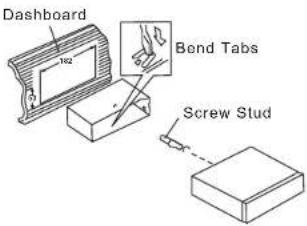
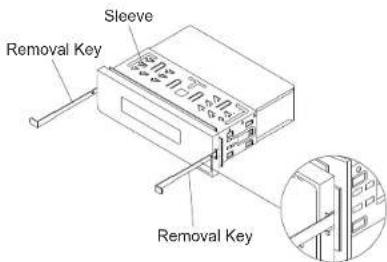
- Slide the mounting sleeve off of the chassis if it has not already been removed. If it is locked into position, use the removal keys (supplied) to disengage it. The removal keys are depicted in "Removing the Unit" on page 3.
- Check the dashboard opening size by sliding the mounting sleeve into it. If the opening is not large enough, carefully cut or file as necessary until the sleeve easily slides into the opening. Do not force the sleeve into the opening or cause it to bend or bow. Check that there will be sufficient space behind the dashboard for the radio
- Locate the series of bend tabs along the top, bottom and sides of the mounting sleeve. With the sleeve fully inserted into the dashboard opening, bend as many of the tabs outward as necessary to firmly secure the sleeve to the dashboard.
- Place the radio in front of the dashboard opening so the wiring can be brought through the mounting sleeve.
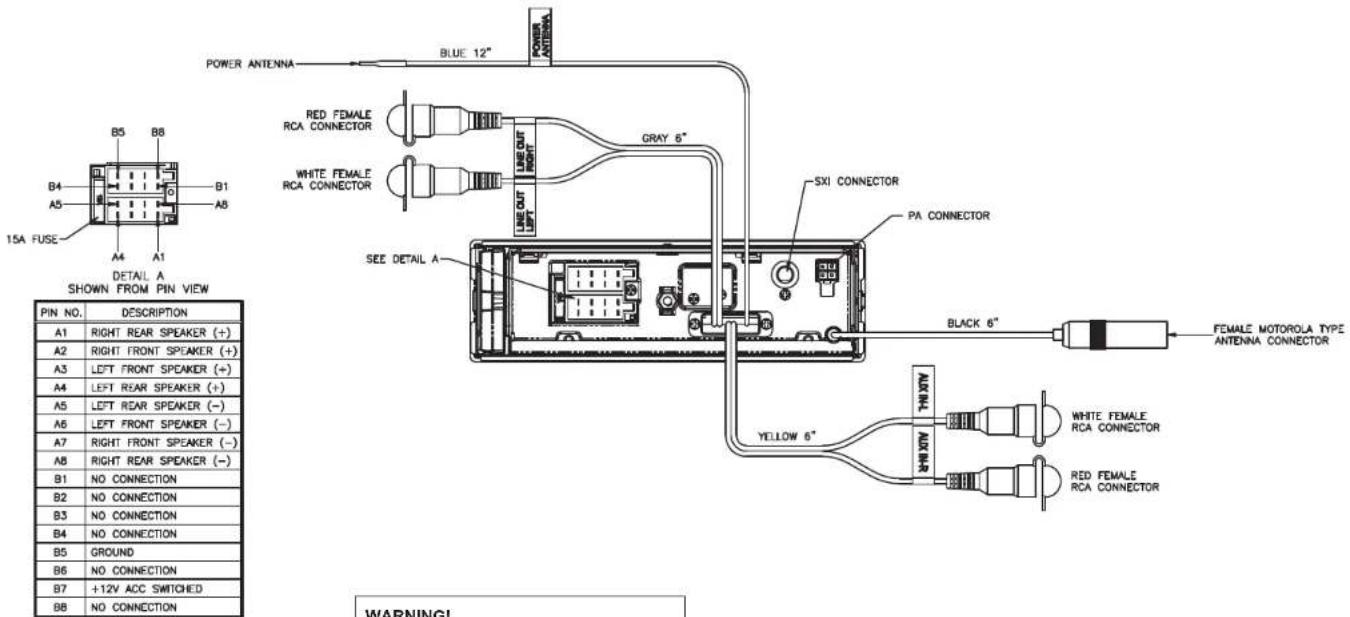
- Follow the wiring diagram carefully and make certain all connections are secure and insulated with crimp connectors or electrical tape to ensure proper operation.
- After completing the wiring connections, turn the unit on to confirm operation (vehicle accessory switch must be on). If the unit does not operate, recheck all wiring until the
text_image
Dashboard 162 Bend Tabs Screw Studproblem is corrected. Once proper operation is achieved, turn the accessory switch off and proceed with final mounting of the chassis.
-
Carefully slide the radio into the mounting sleeve making sure it is right-side-up until it is fully seated and the spring clips lock it into place.
-
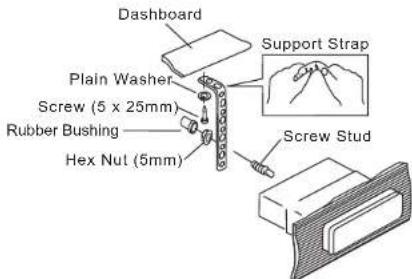
Attach one end of the
perforated support strap
(supplied) to the screw
stud on the rear of the
chassis using the hex nut
provided. Fasten the
other end of the
perforated strap to a
secure part of the
dashboard either above
or below the radio using
the screw and plain
washer provided. Bend
the strap, as necessary,
to position it. Some
vehicle installations
provide cavity for rear
text_image
Dashboard Plain Washer Screw (5 x 25mm) Rubber Bushing Hex Nut (5mm) Support Strap Screw Studsupport. In these applications, place the rubber bushing over the screw stud and insert the radio.
CAUTION: The perforated rear support strap or rear rubber mounting bushing must
be used in the installation of the radio. Installation without either may result in damage to the radio or the mounting surface and void the manufacturer's warranty.
- Test radio operation by referring to the operating instructions for the unit.
Removing the Unit
To remove the radio after installation, remove the plastic end caps, insert the removal keys straight back until they click, and then pull the radio out. If removal keys are inserted at an angle, they will not lock properly to release the unit.
Reconnect Battery
When wiring is complete, reconnect the battery negative terminal.
text_image
Sleeve Removal Key Removal KeyWIRING
text_image
POWER ANTIENNA BLUE 12" POWER ANTIENNA B5 B8 B4 B1 A5 A6 15A FUSE A4 A1 DETAIL A SHOWN FROM PIN VIEW PIN NO. DESCRIPTION A1 RIGHT REAR SPEAKER (+) A2 RIGHT FRONT SPEAKER (+) A3 LEFT FRONT SPEAKER (+) A4 LEFT REAR SPEAKER (+) A5 LEFT REAR SPEAKER (−) A6 LEFT FRONT SPEAKER (−) A7 RIGHT FRONT SPEAKER (−) A8 RIGHT REAR SPEAKER (−) B1 NO CONNECTION B2 NO CONNECTION B3 NO CONNECTION B4 NO CONNECTION B5 GROUND B6 NO CONNECTION B7 +12V ACC SWITCHED B8 NO CONNECTION RED FEMALE RCA CONNECTOR WHITE FEMALE RCA CONNECTOR LINE OUT RIGHT LINE OUT LEFT GRAY 6" SEE DETAIL A SXI CONNECTOR PA CONNECTOR BLACK 6" YELLOW 6" FEMALE MOTOROLA TYPE ANTIENNA CONNECTOR WHITE FEMALE RCA CONNECTOR RED FEMALE RCA CONNECTOR WARNING!WARNING!
Do not connect the +12VDC ACC switched wire to the battery. This wire MUST be connected to the Accessory/Ignition wire or a +12 volts switched power source.
BASIC OPERATION
text_image
AUDIO 14 21 18 19 CH05 ST RDS FMI 105.9 VOLUME 46 LOAD EQ-RDCK L2X36PH MAIN POWER MODE IN INPUT INPUT 1UT 2UT 3OUT 5 S 8 AUXIC B 4 15 11 17 8 6 5 7 9 10 2 13Power On/Off
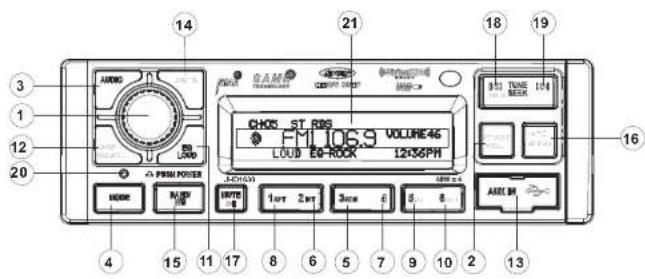
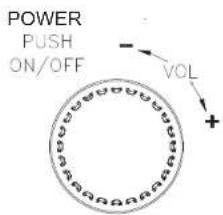
Press the rotary encoder POWER button (1) to turn the unit on or off. The unit will resume at the last mode selected (Tuner, Auxiliary, etc.).
text_image
POWER PUSH ON/OFF - VOL +Volume Control
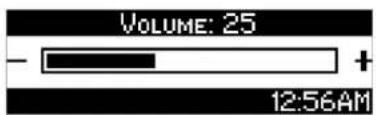
To increase the volume, turn the rotary encoder (1) to the right. To decrease the volume, turn the rotary encoder to the left. While adjusting the volume, the LCD displays a bar graph and numerical representation of the level.
text_image
VOLUME: 25 - + 12:56AMThe maximum volume setting is 40.
Mute
Press the MUTE button (17) to mute the audio output. Press MUTE again to restore the audio output to the previous level.
Mode
Press the MODE button (4) to select a different mode of operation, as indicated on the display panel. Available modes include the following: Tuner (AM/FM) > SXM (SiriusXM) > iPod or USB > Auxiliary. Tuner is the default source when a prior source is no longer available.
NOTE: iPod/USB or SiriusXM (SXM) mode will be skipped if the module is not installed.
NOTE: SiriusXM (SXM) mode will be skipped when the Region menu option is set to "EURO".
Reset
The reset button should be activated for the following reasons:
- initial installation of the unit when all wiring is completed
• function buttons do not operate
- error symbol on the display
Use a ball point pen or thin metal object to press the RESET button (20). This may be necessary should the unit display an error code.
Audio Menu
Press the AUDIO button (3) to access the audio menu. You can navigate through the audio menu items by pressing the AUDIO button repeatedly. Once the desired menu item appears on the display, adjust that option by turning the rotary encoder (1) within 5 seconds. The unit will automatically exit the audio menu after five seconds of inactivity. The following menu items can be adjusted.
Bass Level
Use the rotary encoder (1) to adjust the Bass level range from "-6" to "+6".
Treble Level
Use the rotary encoder (1) to adjust the Treble level range from "-6" to "+6".
Balance
Adjusting Balance controls the relative level between the left and right speakers in each pair. Use the rotary encoder (1) to adjust the Balance between the left and right speakers from "Left 12" to "Right 12".
Fader
Adjusting Fade controls the relative level between the front and rear speaker pairs. Use the rotary encoder (1) to adjust the Fader between the rear and front speakers from "Rear 12" to "Front 12".

JHD1630
System Menu
- Press and hold the PTY/CAT/MENU button (2) for more than 2 seconds to enter the system menu. The first menu item, "Key Beep", will appear on the display.
- Press the TUNE/SEEK |<< / >>| (18, 19) button repeatedly to navigate the system menu.
- Press the INFO/ENTER button (16) to select the desired item.
- Press the INFO/ENTER button again to adjust the selected menu item.
The following items can be adjusted:
- Key Beep (On / Off): Turn the audible beep On/Off (heard when functions/buttons are selected).
• LCD Backlight (1-10): Adjust LCD brightness.
• LCD Contrast (1-10): Adjust LCD contrast.
- Tuning Region (USA / EURO): Set frequency spacing for various regions.
• Power-Off Clock (Off, 1-10)
- Clock Format (12Hour / 24Hour): Select 12 or 24 hour display mode.
- Set Clock (HH : MM):
- Press the INFO/ENTER button (16) to view the clock set screen.
- Press the INFO/ENTER button to move to the next digit.
- Press the TUNE/SEEK |<< / >>| (18, 19) buttons to adjust the selected digit.
- Rear Aux Enable (On / Off): Turn on to allow the use of auxiliary audio input at the rear of the radio chassis.
- Preset-Only Tuning (On / Off):
- SiriusXM Settings Menu (only appears when SiriusXM tuner is connected and in SiriusXM mode)
• Clock Autoset (On / Off)
• Time Zone1 (Atlantic / Eastern / Central / Mountain / Pacific / Alaska
• Daylight Saving Time (Yes / No)
- Set Lock Code:
- Locked Channels: List of Channels (Locked / Unlocked)
- SXi Firmware Version
- Weather Alert Configuration
- Min Alert Level (All / None / Wamings / Watches)
- Auto-On Enable (Yes / No): Select "Enabled" to turn on the radio when NOAA alerts are issued. This function only works when the +12V switched is on.
- Alert Volume (Select Volume Level 0-40)
- Clear SAME Codes
• SAME Code 1:
• SAME Code 2:
• SAME Code 3:
• SAME Code 4:
• SAME Code 5:
• SAME Code 6:
• SAME Code 7:
- Battery Alarm (Off / On)
• Battery Auto-Off (Off / On)
- Reset System Defaults
Equalizer
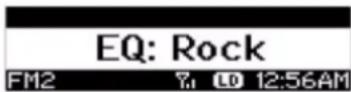
Press the EQ/LOUD button (11) to choose one of the following pre-defined bass and treble curves: USER > FLAT > POP > CLASSICAL > ROCK.
Loudness
Press and hold the EQ/LOUD button (11) to toggle loudness on/off. When listening to music at low volumes, this feature will boost the bass and treble ranges to compensate for the characteristics of human hearing.
Auxiliary Input
To access an auxiliary device:
- Connect the portable audio player to either the AUX IN on the front panel (13) or at the rear of the unit.
- Press the MODE button (4) to select "Auxiliary" mode. The rear AUX IN audio source will play by default until a device is inserted into the front jack.
- Press MODE again to cancel "Auxiliary" mode and go to the next mode.
NOTE: The front AUX IN jack will override the rear auxiliary audio inputs.
PA Operation (microphone sold separately)
- Connect the PA Microphone with a 4-PIN connector to the 4-PIN socket on the rear of the unit.
- The unit will automatically switch to PA mode when the Mic switch is pushed "ON".
- The PA output level can be adjusted using the rotary volume encoder (1).
- With radio power off, the radio will wake up when PA mic is keyed to make an announcement. Please note that it will take a few seconds before the radio "wakes up" and PA is active. Radio will return to the off state when the PA mic is released.
Liquid Crystal Display (LCD)
The current frequency and activated functions are shown on the LCD panel (21).
NOTE: LCD panels may take longer to respond when subjected to cold temperatures for an extended period of time. In addition, the visibility of the characters on the LCD may decrease slightly. The LCD display will return to normal when the temperature increases to a normal range.
Setting the Clock
To set the clock to display the current time, turn the vehicle ignition on and turn the radio on. Enter the system menu and adjust the clock by selecting the "Set Clock" menu item.
- Press the INFO/ENTER button (16) to view the clock set screen.
- Press the INFO/ENTER button to move to the next digit.
- Press the TUNE/SEEK |<< / >>| (18, 19) buttons to adjust the selected digit.
When no adjustment is made for five seconds, the time will become set and normal operation will resume.
Scroll
When the information is too long to be displayed on the LCD, press the DISP/SCROLL button (12) to view the entire title. The information will scroll twice and then return to abbreviated text.

JHD1630
TUNER OPERATION
text_image
14 21 18 19 3 1 12 20 AUDIO S AMI TUE ST RDS FMI 106.9 VOLUME 46 LOUD EQ-ROCK 12/06/PH PWM POWER 3-DI 500V MODE RUTY INLET 1 port 2 port 3 port E AUX B AIR CLK 4 15 11 17 8 6 5 7 9 10 2 13Select a Band
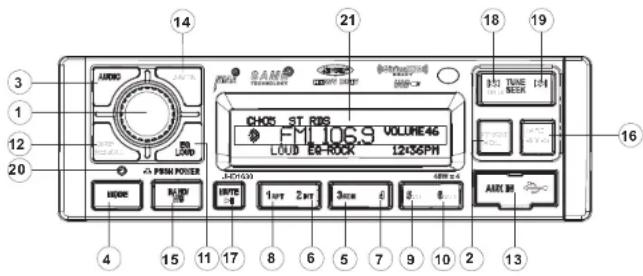
Press the BAND/WB button (15) to change between three FM bands and two AM bands. Press and hold the BAND/WB button to access the Weatherband (WB).
Manual Tuning
Press the TUNE/SEEK >>| or |<< buttons (19, 18) to seek stations up/down step by step.
Auto Seek Tuning
Press and hold the TUNE/SEEK >>| or |<< buttons (19, 18) to automatically seek the next or previous strong station.
NOTE: Seek tuning is not available for weather band channels. Use the up or down tuning buttons to manually select any of the seven available weather band channels.
Preset Stations
Six numbered preset buttons store and recall stations for each band.
Store a Station
Select a band (if needed), then select a station. Press and hold a preset button (5-10) for two seconds. The preset number will appear on the LCD.
Recall a Station
Select a band (if needed). Press a preset button (5-10) to select the corresponding stored station.
NOTE: Preset buttons are pre-assigned frequencies in weather band mode.
Automatically Store / Preset Scan (AS/PS)
Automatically Store
Select an AM or FM band. Press and hold the AS/PS button (14) for more than 2 seconds to automatically select 18 strong stations (12 for AM). "Storing Presets" appears on the screen and the new stations replace any stations already stored.
Preset Scan
Select a band. Press AS/PS (14) to scan stations stored in the current band. The unit will pause for 5 seconds at each preset station. Press AS/PS again to stop scanning when the desired station is reached.
RBDS Operation
This unit is equipped to display RBDS (Radio Broadcast Data Service) information when broadcast by the radio station.
NOTE: Radio stations broadcasting RBDS may not be available in your listening area.
In FM radio mode, press the PTY/CAT/MENU button (2) to list the following Program Type (PTY) options: ANY / News / Information / Sports / Talk / Rock / Classic Rock / Adult Hits / Soft Rock / Top 40 / Country / Oldies / Soft / Nostalgia / Jazz / Classical / Rhythm and Blues / Soft Rhythm & Blues / Foreign Language / Religious Music / Religious Talk / Personality / Public / College / Weather / Emergency Test / EMERGENCY!
To search for stations in a PTY category:
-
Press the PTY/CAT/MENU button (2) to view the current PTY category.
-
Press the TUNE/SEEK >>| or |<< buttons (19, 18) to move through the list of available categories and select the program type you wish to search.
-
After selecting the desired PTY, press the INFO/ENTER button (16) to search the band for broadcasts of this type. "PTY Search" is displayed while the tuner is searching.
NOTE: Performing a PTY search on "ANY" will Seek Tune and stop on any station broadcasting RBDS, regardless of the program type.
Weather Band Operation
What is the NOAA Weather Radio/Weatheradio Canada?
NOAA (National Oceanic and Atmospheric Administration) is a nationwide system that broadcasts local weather emergency information 24 hours a day via the National Weather Service (NWS) network. The U.S. network has more than 530 stations covering the 50 states as well as the adjacent costal waters, Puerto Rico, the U.S. Virgin Islands and the U.S. Pacific Territories. Each local area has its own transmitting station and there are a total of seven broadcasting frequencies used. A similar system is available in Canada under the Weatheradio Canada service administered by Environment Canada.
Tuning to Weatherband
Press and hold the BAND/WB button (15) to access the Weatherband. The indication "WB" will appear on the display panel, along with the current number and channel indication: "WB-1", "WB-2", "WB-3", "WB-4", "WB-5", "WB-6" or "WB-7". The seven frequencies are shown in the following table:
Table 1: WB Frequencies
| Frequency (MHz) Preset | |
| 162.400 2 | |
| 162.425 4 | |
| 162.450 5 | |
| 162.475 3 | |
| 162.500 6 | |
| 162.525 - | |
| 162.550 1 | |
The above table also shows which preset button will access the frequency. Note that one frequency cannot be accessed using a preset button. The frequency can only be reached using the tuning controls.
Use the TUNE/SEEK >>| or |<< buttons (19, 18) or the preset buttons to tune to each of the seven channels until you find the weatherband station broadcasting in your area.
How many stations can I expect to receive?
Since the broadcasts are local weather and information, the transmission power is usually very low (much less than standard AM or FM stations) so you will usually receive only one station unless you are on the edge of two or more broadcast signals. The most you will receive will be two or three, and that is rare.
Is it possible I won't receive any stations?
Depending on where you are located, there is a possibility you will receive only a very weak signal or none at all. Also, similar to AM and FM signals, weatherband signals are subject to surrounding conditions, weather, obstructions of the signal by hills or mountains, etc.
NOAA Weather Alert
The Weather Alert function adds an additional level of user safety by automatically switching from any of the available function modes to weather band for a minimum of 60 seconds if a NOAA warning tone (1050 Hz) is received/detected. If no additional warning tone is received for 60 seconds, the unit will switch back to the last known function mode. See "System Menu" on page 6 to learn how to turn the WB Alert feature on.
SAME Decoding and Filtering
Specific Area Message Encoding (SAME) data is also broadcast prior to alert broadcasts. SAME data contains information about the geographic region affected by the alert, the type of alert, and its effective time. The geographic region included in the SAME data is called the Geographical Area code and has the form PSSCCC where "P" represents a portion of the county, "SS" is a two-digit state, territory, or offshore marine area identifier and "CCC" identifies the county, province, or major metropolitan area within the state. This unit can be configured through the system setting menu with up to seven Geographical Area codes to limit the automatic tuning or power on functions described above.
SAME data also includes the type of alert being broadcast. This unit can be configured through the System Setting Menu to limit the automatic tuning or power on functions based on the type of alert.
SAME is activated by programming a 6 digit code - called a FIPS code - Into your radio. The FIPS code or Federal Information Processing System code is a six digit code that identifies the states and counties (or parishes) in the United States. The first digit identifies the county subdivision. The next two digits identify the state or territory, and the last three identify the county. The FIPS code for your area can be found by calling the NWS toll free number or visiting the web site.
The phone number is 1-888-NWS-SAME (1-888-697-7263) Upon calling, an automated system will prompt you to enter your state and county. When you confirm the information, the system will provide your six digit FIPS code.
The web site is: www.nws.noaa.gov/mwr/indexmw.htm. Upon selecting your state from the chart, you will see a listing of all the counties in that state. For each county there is a listing of the SAME# (FIPS code), the location of the transmitter, the WB frequency, the call sign, the transmitter power and miscellaneous remarks.
NOTE: Because broadcast areas overlap you may want to set more than one S.A.M.E. location. If you live near the border between counties, you may want to receive alerts from more than one tower.
Your radio is capable of being programmed with up to 7 different FIPS location codes. The default code has been programmed at the factory - 000000 - to respond to all messages within your area.

JHD1630
NOTE: SiriusXM is available in the US for subscribers with addresses in the continental US and is available In Canada for subscribers with a Canadian address. Required subscription plus compatible SiriusXM tuner and antenna are required and sold separately. To subscribe to SiriusXM on the internet, visit siriusxm.com, or call 888-539-7474. Have your SiriusXM ID ready (SiriusXM ID is located on the back of the SiriusXM tuner or by tuning to Channel 0). SiriusXM programming is subject to change. Visit siriusxm.com for the most complete and up-to-date channel lineup and product information. "SiriusXM" and the SiriusXM dog logo and related marks are trademarks of Sirius Satellite Radio Inc. All rights reserved.
Switching to SiriusXM
(Requires optional SiriusXM tuner)
Press the MODE button (4) to change the mode to SiriusXM radio mode.
Accessing your SiriusXM RADIO ID
To display your SiriusXM radio ID, use the TUNE/SEEK |<< button to tune to channel "000". The screen will display "Radio ID" with the ID displayed in the middle of the LCD screen. The SiriusXM radio ID is 8 characters long.
Selecting a Band
In SiriusXM mode, press the BAND/WB button (15) to access the SiriusXM user-preset channel groups in the following order: SXM1, SXM2, SXM3.
Category Tuning
- Press the PTY/CAT/MENU button (2) to access Category mode.
- While in category mode, press 5/CAT- OR 6/CAT+ buttons (9, 10) to choose a category.
- Press the TUNE/SEEK |<< / >>| buttons (18, 19) to navigate channels in that category. (The current channel number within the chosen category will always be the default first channel tuned.)
- Press the INFO/ENTER button (16) to select the desired channel.
Channel Up/Down Tuning
Press the TUNE/SEEK |<< / >>| buttons (18, 19) to search for a channel. Press and hold the TUNE/SEEK buttons to fast search.
Direct Tuning Mode
- Press and hold the INFO/ENTER button (16) to enter direct tuning mode.
- Press TUNE/SEEK |<< / >>| buttons (18, 19) to change the first of three digits for the desired channel in the direct entry screen.
- Press the INFO/ENTER button to confirm the entered digit and move to the second digit field.
- Press TUNE/SEEK |<< / >>| buttons to select the second digit.
- Press the INFO/ENTER button to confirm the entered digit and move to the third digit field.
- Press TUNE/SEEK |<< / >>| buttons to select the third digit.
- Press the INFO/ENTER button to confirm the three digit channel and tune to the selected channel.
Storing Preset Channels
The preset buttons (5-10) can be used to store 6 channels, allowing convenient access to your favorite channels.
Programming Channels
- Select the channel you want to store in memory.
- Press and hold a preset button (5-10) until the corresponding preset button number appears.
- Repeat steps 1 and 2 to program additional channels.
Preset Recall
Press one of the six preset buttons (5-10) to directly select a preset channel stored in the current band.
Preset Scan
Press AS/PS button (14) to scan stations stored in all three user-preset channel groups (SXM1, SXM2 and SXM3). The unit will pause for 10 seconds at each preset station.
Preset Tuning
In Preset Tuning Mode, you can use the TUNE/SEEK [<< / >>] buttons (18, 19) to access all 18 preset stations in sequential order. Access preset tuning mode through the system menu. Set Preset-Only Tuning to "ON."
Alternate Display Mode
Press the DISP/SCROLL button (12) to change the display information between single and dual line text display. In dual line mode, both artist and title are available for viewing.
Press and hold the DISP/SCROLL button to scroll the Artist/Song Title information.
While in category tuning list mode, press the DISP/SCROLL button in sequence to change the display information from Channel Name, Artist, and Song Title.
Advisory Messages Reported by the SiriusXM Vehicle Tuner
Table 2: SiriusXM Advisory Messages
| On-Screen Display A | Advisory Message Cause | Explanation/Solution | |
| Check Antena Check Antenna The radio has detected a fault with the SiriusXM antenna. The antenna cable is either disconnected or damaged. | · Verify that the antenna cable is connected to the SiriusXM Connect Vehicle Tuner.· Inspect the antenna cable for damage and kinks. Replace the antenna if the cable is damaged. | ||
| Check Tuner Check Tuner · The radio is having difficulty communicating with the SiriusXM Connect Vehicle Tuner.· The tuner may be disconnected or damaged. | · Verify that the SiriusXM Connect Vehicle Tuner cable is securely connected to the radio SiriusXM mating connector/cable.· If the problem persists, disconnect and reconnect the tuner and then contact your dealer. | ||
| No Signal | No Signal | The SiriusXM Connect Vehicle Tuner is having difficulty receiving the SiriusXM satellite signal. | · Verify that your vehicle is outdoors with a clear view of the southern sky.· Verify that the SiriusXM magnetic mount antenna is mounted on a metal surface on the outside the vehicle.· Move the SiriusXM antenna away from any obstructions.· Inspect the antenna cable for damage and kinks. Replace the antenna if the cable is damaged.· If the problem persists, disconnect and reconnect the tuner and then contact your dealer. |
| Scrolling "Subscription Updated" - press any key to continue* | Subscription Updated The radio has detected a change in your SiriusXM subscription status. | · Press Enter to clear the message.· No further action is required.· Visit www.siriusxm.com or call 1-866-635-2349 if you have questions about your subscription. | |
| Chan Unavailable | Channel Not Available | The channel that you have requested is not a valid SiriusXM channel or the channel that you were listening to is no longer available. You may also see this message briefly when first connecting a new SiriusXM Connect Vehicle tuner. Visit www.siriusxm.com for more information about the SiriusXM channel lineup. | |
| Ch Unsubscribed | Channel Not Subscribed | The channel that you have requested is not included in your SiriusXM subscription package or the channel that you were listening to is no longer included in your SiriusXM subscription package. | Visit www.siriusxm.com or call 1-866-635-2349 if you have questions about your subscription package or would like to subscribe to this channel. |
| Channel Locked | Channel Locked | The channel that you have requested is Locked by the radio Parental Control feature. | See the section on Parental Control, page 45 for more information on the Parental Control feature and how to access locked channels. |
| "Enter Code?" followed by *** | Enter Lock Code | User prompted to enter the lock/ unlock code. | Enter the four digit code to play the audio. |

JHD1630
Satellite Signal Strength
The display will indicate satellite reception strength as shown below.
| SignalStrength | StrengthDisplay |
| NoSignal | X |
| Weak | . |
| Good | . |
| Excellent | . |
Channel Lock
Access Channel Lock through the System Menu under the "SiriusXM" menu. See "System Menu" on page 6.
- Select "Set Lock Code" and press the INFO/ENTER button (16).
- Enter the default lock code of "0000". To set the lock code:
a. Press the TUNE/SEEK |<< / >>| (18, 19) buttons to enter the first digit of the default code.
b. Press the INFO/ENTER button to move to the next digit.
c. Repeat above steps to enter all 4 digits of the default code.
d. Press the TUNE/SEEK |<< / >>| (18, 19) buttons to enter the first digit of the new code.
e. Press the INFO/ENTER button to move to the next digit.
f. Repeat above steps to enter all 4 digits.
g. Repeat above steps to confirm the new code.
- After setting a new four digit code, you can lock channels by entering the "Locked Channels" menu.
- Upon entering the Locked Channels list, you will be prompted to enter your four digit code.
a. Press the TUNE/SEEK |<< / >>| (18, 19) buttons to enter the first digit.
b. Press the INFO/ENTER button to move to the next digit.
c. Repeat above steps to enter all 4 digits.
-
After entering the code, you can navigate the list using the TUNE/SEEK |<< / >>| buttons to highlight the channels.
-
Press the INFO/ENTER button (16) to Lock (indicated by a 📋 icon) or Unlock (💡) the selected channel.
MP3/WMA OPERATION
text_image
AUDIO 14 21 18 19 CHOS ST RDS FMI105.9 VOLUME46 LOAD EQ-RDCK L2X56PH 3/3 TUBE 1d1 SECK 16 AUXIC B 4 15 11 17 8 6 5 7 9 10 2 13 12 11 10 3 20 PWM POWER MODE BL/BL/BL HOTEN 1/UT 2/UT 3/CM E S B SNDDigital File Playback
If the user inserts a data disc or connects a USB mass storage device, the radio automatically powers on, if necessary, and switches to digital file playback mode and selects that physical media. The bottom left corner of the LCD displays the name of the source. Changing modes or turning off the radio pauses playback.
Playback shall resume exactly where paused when returning to digital file playback mode.
Inserting a USB Device
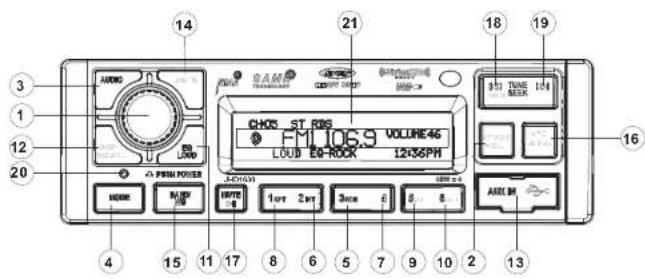
The USB connector (22) is located on the right side of the front panel, behind a protective rubber cover. Pull gently to lower the rubber cover and reveal the USB slot. Insert a USB device to switch to USB mode and begin playback.
Controlling File Playback
Selecting Tracks
Press the TUNE/SEEK >>| (19) or TUNE/SEEK |<< button (18) to advance to the next track/file. The selected track number will appear on the display. Press and hold the TUNE/SEEK >>| or |<< button to fast forward or fast reverse. Playback begins when the button is released.
Play/Pause Disc
Press the MUTE/>|| button (17) to suspend playback. "Pause" is displayed on the screen. Press the MUTE/>|| button again to resume play.
Previewing Tracks
Press the 2/INT button (6) to play the first 10 seconds of each track in the current folder sequentially. Press 2/INT again to stop Intro Scan and resume normal play at the current track.
Repeat Play
Press the 1/RPT button (8) during disc play to repeat the current track. Press 1/RPT again to stop repeat play.
Random Play
Press the 3/RDM button (5) during disc play to play all tracks in the current folder in random, shuffled order.
Press 3/RDM again to stop random play.
Folder Navigation (MP3 Only)
- Press the PTY/CAT/MENU button (2) to view a list of all songs in the current folder.
- Press the >>| / UP (19) and |<< / DN (18) buttons to navigate the list.
- Press the INFO/ENTER button (16) to play the highlighted song or view files in the selected folder. Continue pressing INFO/ENTER until the desired file is selected.
- Press the PTY/CAT/MENU button again to navigate up through the file structure. The unit will automatically exit the folder navigation menu after 5 seconds of inactivity.
MP3 Specifications
Notes on MP3 Playback
- Any directory that does not include an MP3 file is skipped.
• Maximum number of folders: 512 (including skipped directories)
• Maximum number of folder levels: 12
• Maximum number of MP3 files: 999
• Maximum number of characters for MP3 file name and folder name: 32
• Sampling frequency: 16KHz, 22.05KHz, 24KHz, 32KHz, 44.1KHz, 48KHz
• Bit rates: maximum 384 Kbps
• Maximum number of Characters of ID3 Tag:
• ID3 Tag version 1.0: 32
• ID3 Tag version 2.x: 32
File Playing Order
Files will be continually played sequentially within the current folder. To play songs in another folder, press the PTY/CAT/MENU button (2) twice to move up a folder level. Press the >>| / UP (19) and |<< / DN (18) buttons to navigate the list and then press the INFO/ENTER button (16) to access the selected song or folder.
You may be able to set the order in which MP3/WMA are to be played by writing them onto a medium such as a CD-R with their file names beginning with play sequence numbers such as "01" to "99".
iPod® OPERATION
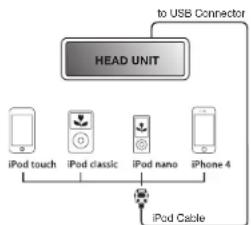
This unit is equipped with an iPod ^® ready function that will allow you to control your iPod (if compatible) using the control panel buttons. This unit is made for the following iPod models:
- iPod nano 5G
- iPod nano 6G
- iPod classic
- iPhone4
- iPhone4S
- iPod touch 3G
- iPod touch 4G
NOTE: Earlier model iPod's are not supported because they do not implement the required control protocol. Also, the iPod Shuffle is not supported because it does not utilize the 30-pin Apple iPod Connector. These unsupported iPod models may be connected to the radio using one of the Auxiliary Inputs.
Accessing iPod Mode
Connect a supported iPod or iPhone to the front panel USB connector. The iPod icon illuminates in the bottom left corner of the LCD whenever an iPod or iPhone is attached to the USB connector. Music playback begins automatically.
To enter iPod mode from any other source, press the MODE button (4) until "iPod" appears on the display. If the user connects an iPod containing no songs, the radio will display a message stating "No Songs" when it enters iPod mode.
Turning the iPod On/Off
The iPod power turns on automatically when an iPod is connected to the front panel USB connector, as long as the vehicle ignition is turned on. You can turn the iPod off by disconnecting it or by turning the ignition off. When the ignition is turned off, the iPod will pause and then enter sleep mode after 2 minutes. While the iPod is connected, the power cannot be turned on or
flowchart
graph TD
    A["HEAD UNIT"] --> B["to USB Connector"]
    B --> C["iPod touch"]
    B --> D["iPod classic"]
    B --> E["iPod nano"]
    B --> F["iPhone 4"]
    C --> G["iPod Cable"]
    D --> G
    E --> G
    F --> G
Controlling Playback
Pausing Playback
During playback, press the MUTE/>| button (17) to pause the iPod player. "Pause" will appear on the LCD. Press MUTE/>| again to resume playback.
Repeat Play
During playback, press the 1/RPT button (8) to repeat the current song. "RPT" will appear on the LCD. Press 1/RPT again to stop repeat playback.
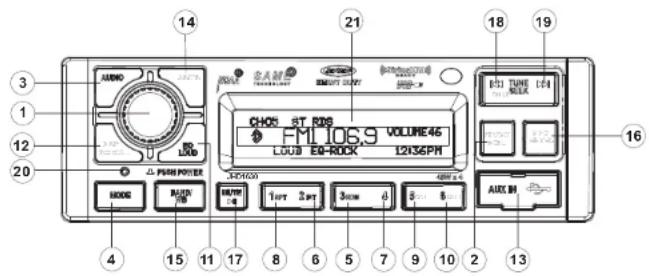
During playback, press the 3/RDM button (5) to play all songs in the current category in random order. Random play will begin once the current song has finished playing. "RDM" will appear on the LCD. Press 3/RDM again to stop random playback.
Selecting Tracks
During playback, press the TUNE/SEEK |<< / >>| buttons (18, 19) to play the previous or next track in the current category. Press the TUNE/SEEK |<< button (18) once to play the song from the start position or press TUNE/SEEK |<< twice to play the previous track. Pressing the TUNE/SEEK |<< button (18) during the first 2 seconds of a track will play the previous track. After 2 seconds, this action returns to the beginning of the current track.
Press and hold the TUNE/SEEK |<< / >>| button (18, 19) to fast reverse/forward the song.
NOTE: If you press and hold the TUNE/SEEK |<</>| button to change the current song to the previous/next song, you will exit fast reverse/forward mode.
Playlist Search
Press the PTY/CAT/MENU button (2) to access Playlist selection mode. While in Category mode, press the TUNE/SEEK [<</>>] buttons (18, 19) to choose file search by Playlist, Artist, Album, Genre, Song, Audiobook or Podcast. Press the INFO/ENTER button (16) to select the search mode. Use the TUNE/SEEK [<</>>] buttons to search the available files on the iPod. Press the INFO/ENTER button to play the selected song or file.
Alternate Display Mode
Press the DISP/SCROLL button (12) to change the display information between single and double line text display.
CARE AND MAINTENANCE
- Keep the product dry. If it does get wet, wipe it dry immediately. Liquids might contain minerals that can corrode the electronic circuits.
- Keep the product away from dust and dirt, which can cause premature wear of parts.
- Handle the product gently and carefully. Dropping it can damage circuit boards and cases, and can cause the product to work improperly.
- Wipe the product with a dampened cloth occasionally to keep it looking new. Do not use harsh chemicals, cleaning solvents, or strong detergents to clean the product.
- Use and store the product only in normal temperature environments. High temperature can shorten the life of electronic devices, damage batteries, and distort or melt plastic parts.
Ignition
The most common source of noise in reception is the ignition system. This is a result of the radio being placed close to the ignition system (engine). This type of noise can be easily detected because it will vary in intensity of pitch with the speed of the engine.
Usually, the ignition noise can be suppressed considerably by using a radio suppression type high voltage ignition wire and suppressor resistor in the ignition system. (Most vehicles employ this wire and resistor but it may be necessary to check them for correct operation.) Another method of suppression is the use of additional noise suppressors. These can be obtained from most professional mobile electronics retailers.
Interference
Radio reception in a moving environment is very different from reception in a stationary environment (home). It is very important to understand the difference. AM reception will deteriorate when passing under a bridge or when passing under high voltage lines. Although AM is subject to environmental noise, it has the ability to receive at great distance. This is because broadcasting signals follow the curvature of the earth and are reflected back by the upper atmosphere.
TROUBLESHOOTING
| Symptom Cause | Solution | |
| No power The vehicle's accessory switch is not on | If the power supply is properly connected to the vehicle's accessory terminal, switch the ignition key to "ACC" or "Run" | |
| No sound Volume is too low or system is muted | Adjust volume to audible level | |
| The operation keys do not work | The built-in microcomputer is not operating properly due to noise | Press the RESET button |
| Cannot tune to radio station, auto-seek does not work | The antenna cable is not connected | Check antenna cable |
| The signals are too weak Select a station manually | ||
| Cannot receive SiriusXM signal | Antenna Error Make sure the antenna connector is firmly and securely plugged into the SiriusXM tuner. If the message persists, most likely the antenna cable or antenna element has been damages. Replace the antenna as necessary. | |
SPECIFICATIONS
| FM Radio | |
| Frequency Coverage (USA) | 87.5 to 107.9 MHz |
| Frequency Coverage (Europe) | 87.5 to 108 MHz |
| Sensitivity (S/N=30dB) | 2.2μV |
| Stereo Separation | >25 dB |
| AM/MW | |
| Frequency Range (USA) | 530-1710 kHz |
| Frequency Range (Europe) | 522-1620 kHz |
| Sensitivity (S/N=20dB) | 17 dB |
| General | |
| Operating Voltage | DC 12 Volts |
| Grounding System | Negative Ground |
| Speaker Impedance | 4-8 ohms per channel |
| Tone Controls: | |
| Bass (at 100 Hz) | ±10 dB |
| Treble (at 10 kHz) | ±10 dB |
| Power Output | 45W x 4 |
| Idle/Standby Current | 0A |
| Current Drain | 10 Ampere Max |
| Dimensions | 175 (W) x 175 (D) x 50 (H) |
FCC Notes
WARNING! Changes or modifications to this unit not expressly approved by the party responsible for compliance could void the user's authority to operate the equipment.
NOTE: This equipment has been tested and found to comply with the limits for a Class B digital device, pursuant to Part 15 of the FCC Rules. These limits are designed to provide reasonable protection against harmful interference in a residential installation.
This equipment generates, uses and can radiate radio frequency energy and, if not installed and used in accordance with the instructions, may cause harmful interference to radio communications.
However, there is no guarantee that interference will not occur in a particular installation. If this equipment does cause harmful interference to radio or television reception, which can be determined by turning the equipment off and on, the user is encouraged to try to correct the interference by one or more of the following measures:
• Reorient or relocate the receiving antenna.
- Increase the separation between the equipment and receiver.
- Connect the equipment into an outlet on a circuit different from that to which the receiver is connected.
- Consult the dealer or an experienced radio/TV technician for help.
ASA electronics THE MOBILE ELECTRONICS COMPANY SINCE 1977
ASA Electronics Corporation
www.asaelectronics.com
www.jensenheavyduty.com
©2012 ASA Electronics Corporation
v.100512