
HRJ248 - VCR JVC - Free user manual and instructions
Find the device manual for free HRJ248 JVC in PDF.


| Product Type | VHS VCR (Monaural model) |
| Video Format | VHS PAL standard |
| Recording System | Rotary two-head helical scan |
| Signal-to-Noise Ratio | 45 dB |
| Horizontal Resolution | 250 lines |
| Audio Frequency Range (Normal) | 70 Hz – 10,000 Hz |
| Tuner System | Frequency synthesized |
| Channel Coverage | VHF 47–89, 104–300, 302–470 MHz; UHF 470–862 MHz |
| Aerial Output | UHF channels 22–69 (adjustable) |
| Power Supply | AC 220–240 V~, 50/60 Hz |
| Power Consumption | 20 W |
| Dimensions (W x H x D) | 400 x 94 x 340 mm |
| Weight | 4.3 kg |
| Memory Backup Time | Approx. 3 minutes |
| Maximum Recording Time | 240 minutes (SP) with E-240 cassette |
| Special Features | B.E.S.T. Picture System, SHOWVIEW timer, Auto Set Up, Instant ReView, Index Search, Repeat Playback, NTSC playback |
| Input/Output Connectors | ANT. IN, AV1 IN/OUT (21-pin SCART), AV2 IN/DECODER (21-pin SCART), RF OUT, AUDIO OUT (RCA, 2 channels – HR-J648E/EH only) |
| Accessories Included | RF cable, infrared remote control unit, 2 x R6/AA batteries |
| Head Cleaning | Recommended: contact JVC dealer if picture is blurred or interrupted |
| Moisture Condensation Protection | Allow recorder to warm up for a few hours if moved from cold to warm environment |
Frequently Asked Questions - HRJ248 JVC
User questions about HRJ248 JVC
0 question about this device. Answer the ones you know or ask your own.
Ask a new question about this device
Download the instructions for your VCR in PDF format for free! Find your manual HRJ248 - JVC and take your electronic device back in hand. On this page are published all the documents necessary for the use of your device. HRJ248 by JVC.
USER MANUAL HRJ248 JVC
HR-J648EH (Hi-Fi) HR-J648E (Hi-Fi) HR-J448E (Monaural) HR-J248E (Monaural)
The recorder illustrations appearing in this instruction manual are of the HR-J648E.
SHOWVIEW Hi-Fi VHS PAL
INSTRUCTIONS
CONTENTS
SAFETY FIRST 2
Safety Precautions 2
Recording Features 21
TIMER RECORDING 24
SHOWVIEW Timer Recording..... 24
Regular Timer Programming ..... 26
EDITING 30
Edit To Or From Another Video Recorder 30
Edit From A Camcorder ...... 32
SYSTEM CONNECTIONS 33
Connecting/Using A Decoder ... 33
TUNER SET 34
CLOCK SET 39
QUESTIONS AND ANSWERS 41
TROUBLESHOOTING 42
INDEX 44
SPECIFICATIONS 47
Safety Precautions
The rating plate and the safety caution are on the rear of the unit.
WARNING: TO PREVENT FIRE OR SHOCK HAZARD, DO NOT EXPOSE THIS UNIT TO RAIN OR MOISTURE.
CAUTION
■ When you are not using the recorder for a long period of time, it is recommended that you disconnect the power cord from the mains outlet.
■ Dangerous voltage inside. Refer internal servicing to qualified service personnel. To prevent electric shock or fire hazard, remove the power cord from the mains outlet prior to connecting or disconnecting any signal lead or aerial.
WARNING
There are two different types of SECAM colour systems: SECAM-L, used in FRANCE (also called SECAM-West), and SECAM-B, used in Eastern European countries (also called SECAM-East).
- This recorder can also receive SECAM-B colour television signals for recording and playback.
- Recordings made of SECAM-B television signals produce monochrome pictures if played back on a video recorder of SECAM-L standard, or do not produce normal colour pictures if played back on a PAL video recorder with SECAM-B system incorporated (even if the TV set is SECAM-compatible).
- SECAM-L prerecorded cassettes or recordings made with a SECAM-L video recorder produce monochrome pictures when played back with this recorder.
- This recorder cannot be used for the SECAM-L standard. Use a SECAM-L recorder to record SECAM-L signals.
For Italy:
"It is declared that this product, brand JVC, conforms to the Ministry Decree n. 548 of 28 Aug.'95 published in the Official Gazette of the Italian Republic n. 301 of 28 Dec.'95"

HQ
SHOWVIEW
■ Only cassettes marked "VHS" can be used with this videorecorder.
■ HQ VHS is compatible with existing VHS equipment.
■ SHOWVIEW is a registered trademark of Gemstar Development Corporation. The SHOWVIEW system is manufactured under licence from Gemstar Development Corporation.
IMPORTANT
■ Please read the various precautions on this page before installing or operating the recorder.
■ It should be noted that it may be unlawful to re-record pre-recorded tapes, records, or discs without the consent of the owner of copyright in the sound or video recording, broadcast or cable programme and in any literary, dramatic, musical, or artistic work embodied therein.
The STANDBY/ON ⏻ button does not completely shut off mains power from the unit, but switches operating current on and off. " 🔊 " shows electrical power standby and " I " shows ON.
To HR-J648E/J648EH/J448E Owners:
Video tapes recorded with this video recorder in the LP (Long Play) mode cannot be played back on a single-speed video recorder.
Failure to heed the following precautions may result in damage to the recorder, remote control or video cassette.
1. DO NOT place the recorder ...
... in an environment prone to extreme temperatures or humidity.
... in direct sunlight.
... in a dusty environment.
... in an environment where strong magnetic fields are generated.
... on a surface that is unstable or subject to vibration.
2. DO NOT block the recorder's ventilation openings.
3. DO NOT place heavy objects on the recorder or remote control.
4. DO NOT place anything which might spill on top of the recorder or remote control.
5. AVOID violent shocks to the recorder during transport.
MOISTURE CONDENSATION
Moisture in the air will condense on the recorder when you move it from a cold place to a warm place, or under extremely humid conditions—just as water droplets form in the surface of a glass filled with cold liquid. Moisture condensation on the head drum will cause damage to the tape. In conditions where condensation may occur, keep the recorder turned on for a few hours to let the moisture dry.
ABOUT HEAD CLEANING
Accumulation of dirt and other particles on the video heads may cause the playback picture to become blurred or interrupted. Be sure to contact your nearest JVC dealer if such troubles occur.
Basic Connections
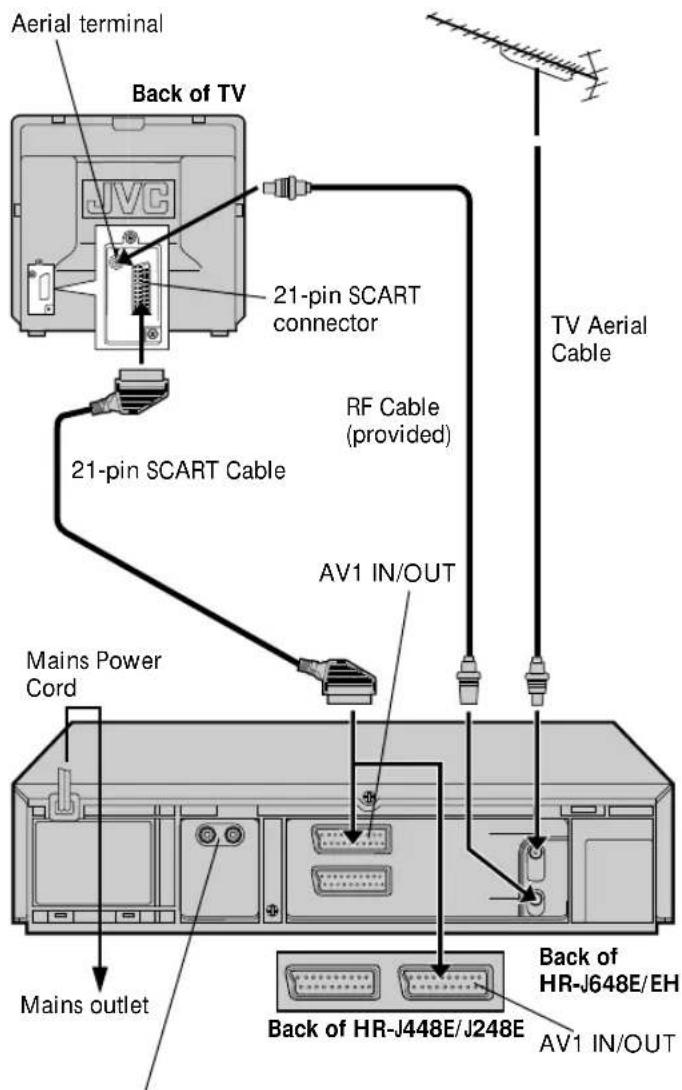
AUDIO OUT(put) connectors (HR-J648E/EH only) For connection to the audio input connectors on a Hi-Fi stereo system
It's essential that your video recorder be properly connected. Follow these steps carefully. THESE STEPS MUST BE COMPLETED BEFORE ANY VIDEO OPERATION CAN BE PERFORMED.
1 2
CHECK CONTENTS
Make sure the package contains all of the accessories listed in "Specifications" (pg. 47).
2
SITUATE RECORDER
Place the recorder on a stable, horizontal surface.
3
The connection method you use depends on the type of TV you have.
RF CONNECTION
- To Connect To A TV With NO AV Input Terminals . . .
a- Disconnect the TV aerial cable from the TV.
b- Connect the TV aerial cable to the ANT. IN jack on the rear panel of the recorder.
c- Connect the provided RF cable between the RF OUT jack on the rear panel of the recorder and the TV's aerial terminal.
Before operating the recorder, make sure the TV's channel is set to the VIDEO channel (pg. 8).
AV CONNECTION
- To Connect To A TV With AV Input Terminals ...
a- Connect the aerial, recorder and TV as per "RF CONNECTION".
b- Connect an optional SCART cable between the AV1 IN/OUT socket on the rear panel of the recorder and the TV's 21-pin SCART connector
Before operating the recorder, make sure the TV is set to the VIDEO (or AV) mode.
Plug the end of the mains power cord into a mains outlet.
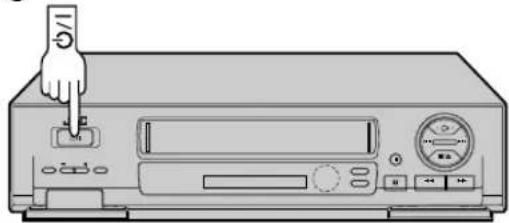
After you plug the mains power cord into a mains outlet, the Country Set display appears on the TV screen and/or on the recorder's front display panel when the ⏻/1 button on the recorder/remote control is pressed for the first time to power on the recorder; go to page 4 to perform Auto Set Up.
Auto Set Up
Auto Channel Set/ Auto Clock Set/ Auto Guide Program Number Set
International Telephone Country Code
| SUOMI | :358 | SUISSE | :41 |
| PORTUGAL | :351 | ITALIA | :39 |
| DEUTSCHLAND | :49 | ESPAÑA | :34 |
| NORGE | :47 | BELGIUM | :32 |
| SVERIGE | :46 | NEDERLAND | :31 |
| DANMARK | :45 | GREECE | :30 |
| ÖSTERREICH | :43 | OTHERS | :- - |
ATTENTION
Once you have performed Auto Set Up, even if the recorder's memory backup has expired, all the stored stations and their Guide Program numbers remain in the recorder's memory and the recorder will not perform Auto Set Up again. You only need to set the clock. (C) pg. 39)
If you have moved to a different area, perform each setting as required.
- Tuner setting ☐ pg. 34
- Clock setting 17 pg. 39
● SHOWVIEW Guide Program number setting ☐ pg. 10
If a new station starts broadcasting in your area, perform both tuner setting (17 pg. 34) and SHOWVIEW Guide Program number setting (17 pg. 10).
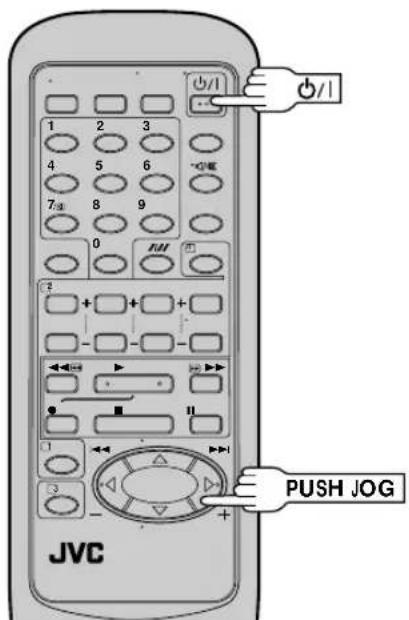
When the ⏻/1 button on the recorder/remote control is pressed for the first time to power on the recorder after you plug the mains power cord into a mains outlet, the Country Set display will appear on the TV screen and the recorder's front display panel. By simply selecting your country*, the Auto Set Up function sets the tuner channels, clock and Guide Program numbers automatically.
* If you live in Belgium or Switzerland, you also need to select the language you use.
You can refer to the front display panel and/or the on-screen display to perform this procedure.
Before starting, make sure of the following:
- The TV aerial cable should be connected to the recorder.
- The recorder's mains power cord should be connected to a mains outlet. ☐ pg. 3
- If you want to use the on-screen display, the TV should be set to its AV mode (with AV connection ☐ pg. 3) or UHF channel 36 (with RF connection ☐ pg. 3).
1
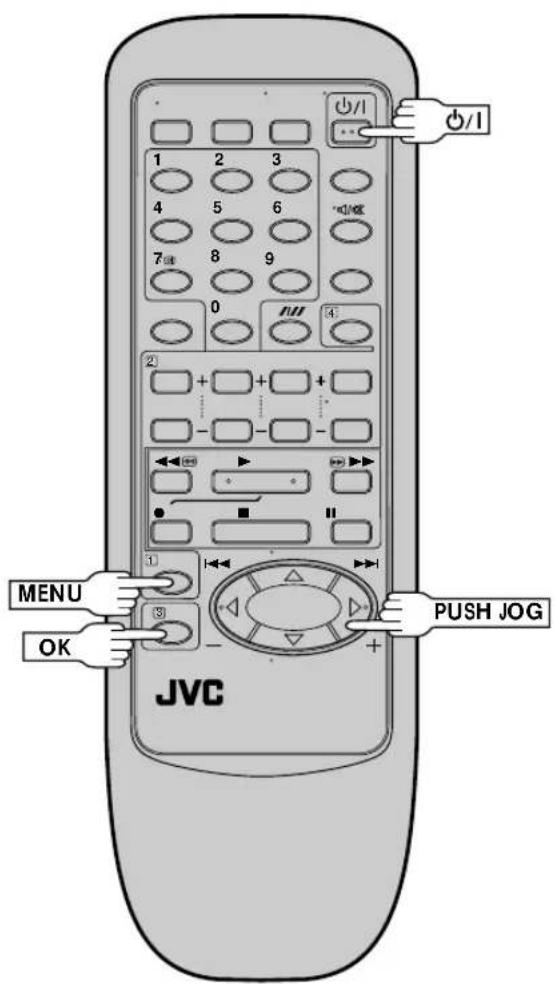
Press ⬇/1 on the recorder or remote control. The Country Set display appears on the front display panel and/or on the screen.
![SUOMI SUISSE PORTUGAL ITALIA DEUTSCHLAND ESPAÑA NORGE BELGIUM SVERIGE NEDERLAND DANMARK GREECE OSTERREICH OTHERS [▲▼] → OK [MENU] : EXIT](/content/2026/05/1036638/images/7ac07af99741d08c18aceb51e83ae040a30554777a02e825f7e8cec70db02fac.jpg)

NOTE:
If you have connected your TV to the recorder with RF connection and the on-screen display appearing on UHF channel 36 looks distorted, perform this procedure referring to the front display panel.
2
SELECT COUNTRY
If you are referring to the front display panel
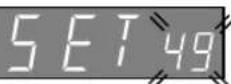
Press PUSH JOG△▽ to select your international telephone country code of your country referring to the chart in the left column.
- If you have selected a country code other than 32 (BELGIUM) or 41 (SUISSE), go to step 4.
- If you have selected 32 (BELGIUM) or 41 (SUISSE), go to step 3.
(Ex.) DEUTSCHLAND is selected
If you are referring to the on-screen display
Press PUSH JOG△▽ to move the highlight bar
(pointer) to your country's name.
- If you have selected a country other than BELGIUM or SUISSE, go to step 4.
- If you have selected BELGIUM or SUISSE, go to step 3.
![SUOMI SUISSE PORTUGAL ITALIA DEUTSCHLAND ESPANA NORGE BELGIUM SVERIGE NEDERLAND DANMARK GREECE ÖSTERREICH OTHERS [▲▼] → OK [MENU] : EXIT](/content/2026/05/1036638/images/7eec687a9cc00380a8415eaa45b1a521de78e9bf2a272508c1a0820f9ca60b54.jpg)
(Ex.) DEUTSCHLAND is selected.
Language Code
Auto Set Up results appear on the front display panel
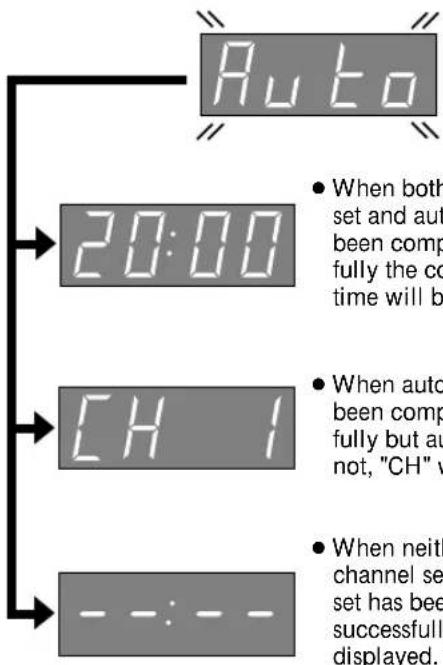
- If Auto Set Up is completed, go to page 6.
3
SELECT LANGUAGE
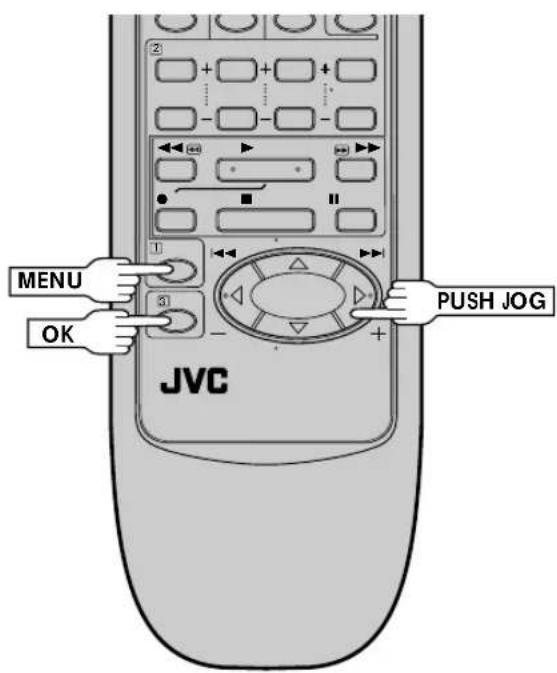
Press OK. the Language Set display appears on the front display panel and/or on the screen.
If you are referring to the front display panel
Press PUSH JOG△▽ to select your language code referring to the chart in the left column.
(Ex.) DEUTSCH is selected for SUISSE
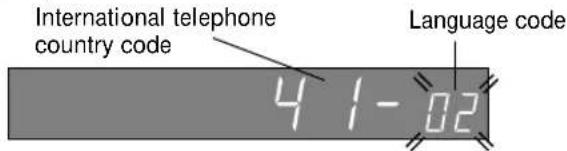
If you are referring to the on-screen display
Press PUSH JOG△▽ to move the highlight bar (pointer) to the language of your choice.
![DANSK SUOMI NORSK SVENSKA NEDERLANDS CASTELLANO ITALIANO FRANCAIS T DEUTSCH ENGLISH [▲▼] → ⒸOK [MENU] : ENDE](/content/2026/05/1036638/images/37e83ee41a87125a9b649ca5b1942d7796f1b1a1fecfcdb2fb07234a614550ca.jpg)
(Ex.) DEUTSCH is selected
4
PERFORM AUTO SET UP
Press OK.
"Auto" appears on the display panel and blinks; do NOT press any button on the recorder or remote control until the display panel shows the current time or "CH1" or "--:--". (Refer to box on lower left of page.)
● Auto channel set function takes place first; it assigns automatically all receivable stations in your area.
- Auto clock set function sets the clock automatically by reading the clock setting data from a station transmitting a PDC signal while auto channel set is being performed.
- During auto channel set, the recorder recognizes each station name of the detected stations and stores them in the recorder's memory, then automatically sets SHOWVIEW assigned Guide Program number for those stations according to the broadcast area.
NOTE:
In the area where no TV station transmits a PDC signal, the recorder can perform neither auto clock set nor auto Guide Program number set.
NOTES:
- If you are using the on-screen display, the AUTO SET screen will appear after pressing OK in step 4. As Auto Set Up progresses, the "■" mark on the screen moves from left to right.
- If there is a power cut, or if you press out MENU while Auto Set Up is in progress, Auto Set Up will be interrupted; be sure to
turn off the recorder power once and try again from step 1.
![AUTO SET PLEASE WAIT 0----+----+----+ [MENU] : EXIT Beginning End](/content/2026/05/1036638/images/b2c113ccb90852e63cda2b0957981dc06cf7d93898313a9ffb82c0a545a4716c.jpg)
If both auto channel set and auto clock set have been performed successfully:
1 Perform "Video Channel Set" on page 8.
2 Turn on the TV and select its VIDEO channel or AV mode, then make sure that all necessary stations have been stored in the recorder's memory by using the TV PROG. button(s).
- If station names (ID — 17 pg. 38) have also been stored in the recorder's memory, the station name will be displayed at the top left corner of the screen for about 5 seconds when the recorder is tuned to a different station.
- If you want to set the tuner manually such as to add or skip channels, to change channel positions, or to set or change station names, see pages 36 – 37.
3 Perform "SHOWVIEW Setup" on page 10 to check if the Guide Program numbers have been set correctly.
If auto channel set has succeeded but auto clock set has not:
1 Perform "Video Channel Set" on page 8.
2 Turn on the TV and select its VIDEO channel or AV mode, then make sure that all necessary stations have been stored in the recorder's memory by using the TV PROG. button(s).
- If station names (ID — 17 pg. 38) have also been stored in the recorder's memory, the station name will be displayed at the top left corner of the screen for about 5 seconds when the recorder is tuned to a different station.
- If you want to set the tuner manually such as to add or skip channels, to change channel positions, or to set or change station names, see pages 36 – 37.
3 Perform "Clock Set" on page 39, then "SHOWVIEW Setup" on page 10 to check if the Guide Program numbers have been set correctly.
If both auto channel set and auto clock set have failed:
1 Make sure the TV aerial cable is connected properly to the recorder and turn off the recorder power once, then turn the recorder power back on again.
- The Country Set display appears on the front display panel and/or on the screen; perform steps 2 and 4 on pages 4 – 5 again.
IMPORTANT
- Depending on the reception conditions, the station names may not be stored correctly, and auto Guide Program Number Set may not work properly. If the Guide Program numbers are not set properly, SHOWVIEW timer recording (TFT pg. 24) will not work correctly; be sure to check if the Guide Program numbers have been set correctly (TFT pg.10, "SHOWVIEW Setup").
- Since your video recorder memorizes all detected stations even if the reception condition is poor, some of those stored stations may produce a noisy picture. To delete those stations, "Delete A Channel" on page 36.
INFORMATION
Language for the on-screen display
Auto Set Up also selects the language automatically for the on-screen display depending on the Country setting you have made in step 2 on page 4 (unless you have selected BELGIUM or SUISSE), as shown below.
| SUOMI | → | SUOMI | SVERIGE | → | SVENSKA | ESPAÑA | → | CASTELLANO |
| PORTUGAL | → | ENGLISH | DANMARK | → | DANSK | NEDERLAND | → | NEDERLANDS |
| DEUTSCHLAND | → | DEUTSCH | ÖSTERREICH | → | DEUTSCH | GREECE | → | ENGLISH |
| NORGE | → | NORSK | ITALIA | → | ITALIANO | OTHERS | → | ENGLISH |
If you want to change the language setting manually, "Language" on page 7.
Just Clock
Your recorder is equipped with the Just Clock function which provides accurate time keeping through automatic adjustments at regular intervals, by reading data from a PDC signal. If you want to take advantage of this function, simply set it to "ON". ☐ "Just Clock" on page 39.
Language
- Be sure to set your Video Channel before performing Language setting (☐ pg. 8).
- Turn on the TV and select the VIDEO channel (or AV mode).
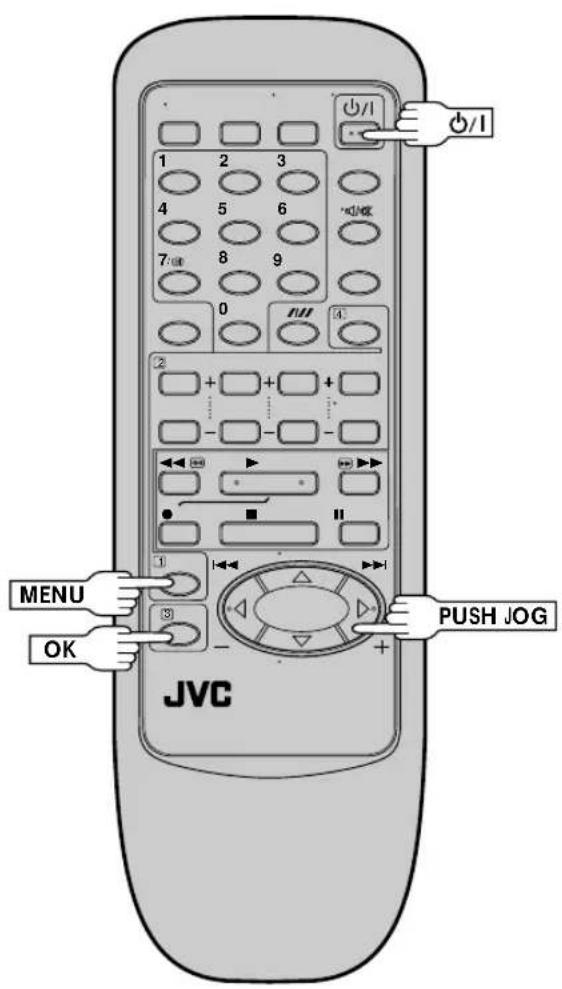
This recorder offers you the choice to view on-screen messages in 10 different languages. Though Auto Set Up selects the language automatically (17 pg. 6), you can change the language setting manually using this procedure as required.
1
ACCESS COUNTRY SET SCREEN
Press PUSH JOG△▽ to move the highlight bar (pointer) to "AUTO CH SET", then press OK.
![MAIN MENU MODE SET AUTO CH SET MANUAL CH SET GUIDE PROG SET CLOCK SET [▲▼] → OK [MENU] : EXIT](/content/2026/05/1036638/images/badfb43a08c59ec23549c22b6cdecc7b55f5143ad1e0d2d45a7fefcea39ebb2f.jpg)
4
SELECT COUNTRY
Press PUSH JOG△▽ to move the highlight bar (pointer) to your country's name, then press OK. The Language Set screen appears.
![SUOMI SUISSE PORTUGAL ITALIA DEUTSCHLAND ESPAÑA NORGE BELGIUM SVERIGE NEDERLAND DANMARK GREECE ÖSTERREICH OTHERS [▲▼] → OK [MENU] : EXIT](/content/2026/05/1036638/images/0a8fa786a44f15739d5e5269d0f300f75d41d2a0e44c52727a2760cef03d78f0.jpg)
5
SELECT LANGUAGE
Press PUSH JOG△▽ to move the highlight bar (pointer) to the language of your choice.
- You do not have to press OK; pressing OK starts Auto Channel Set.
![DANSK SUOMI NORSK SVENSKA NEDERLANDS CASTELLANO ITALIANO FRANCAIS DEUTSCH ENGLISH [▲▼] → ⚗ [MENU] : EXIT](/content/2026/05/1036638/images/1d948ee7d99bfe1c5b6f45345abd9c653178fb2d1db4188d2dfaeef73b98e58a.jpg)
6
RETURN TO NORMAL SCREEN
Press MENU.
Video Channel Set
Video Channel (RF Output Channel) is the channel on which your TV receives picture and sound signals from the video recorder through the RF cable.
TEST SIGNAL

The channel on which the screen to the left appear clearly in step 2 is your Video Channel.
To view picture signals from the video recorder, set your TV to the Video Channel.
If you have connected the video recorder to your TV via the provided RF cable only (RF connection) – Go to "With RF Connection" below.
If you have connected the video recorder to your TV via both the provided RF cable and a 21-pin SCART cable (AV connection) – Go to "With AV Connection" on next page.
IMPORTANT:
Before performing the following steps, make sure the recorder's power is off and there is no cassette inserted in the recorder.
With RF Connection
1
ACCESS VIDEO CHANNEL SET MODE
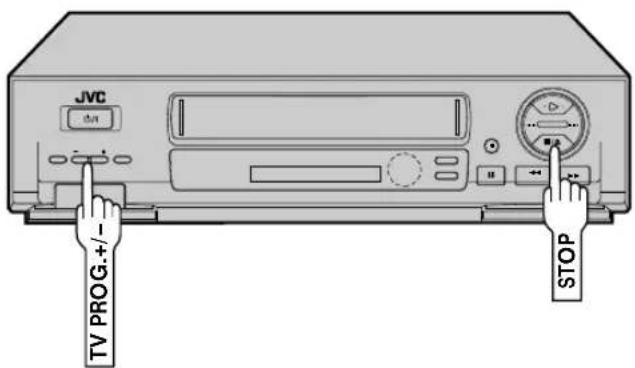
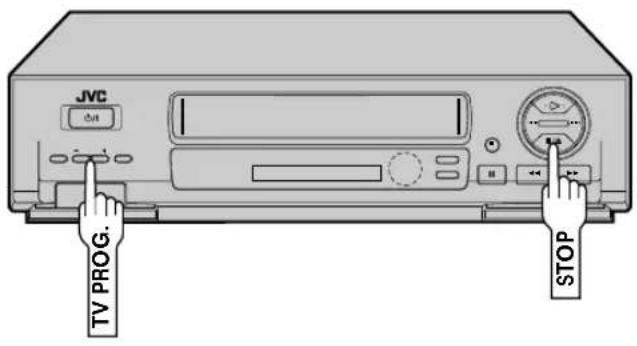
Hold down STOP on the recorder until the display panel shows the following.

2
SET VIDEO CHANNEL
Set your TV to UHF channel 36.
- If the two vertical white bars appear clearly on the screen as shown in the illustration at bottom left, go to step 3.
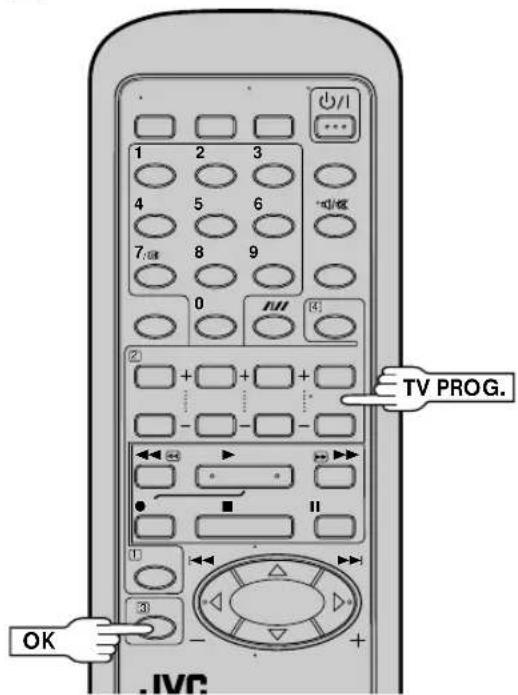
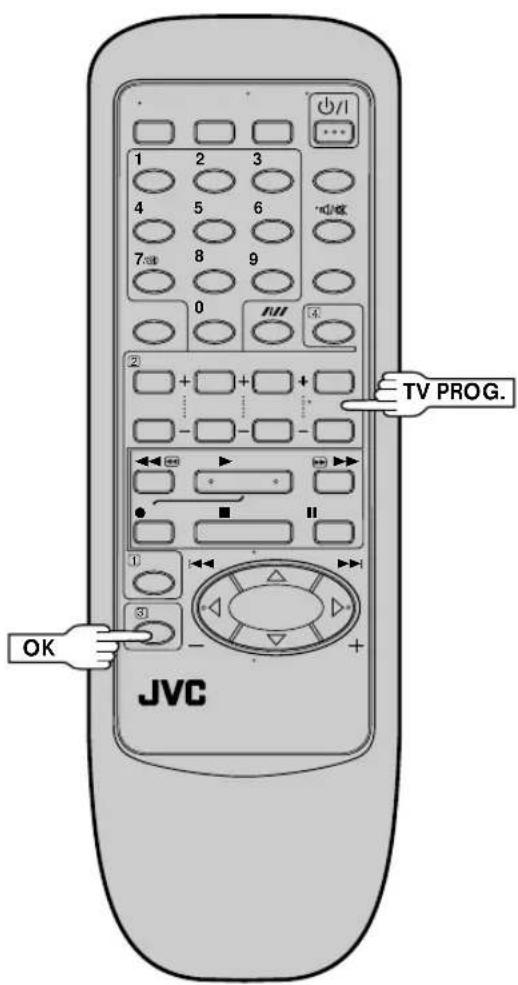
- If the two vertical white bars do not appear clearly, press TV PROG.+ or – to set the video recorder to a vacant channel between 22 and 69 which is not occupied by any local station in your area.
(Ex.) If channel 50 is available in your area

Then set your TV to UHF channel 50 and check if the two vertical white bars appear clearly on the screen; if so, go to step 3. If not, re-set the video recorder to another vacant channel and try again.
NOTES:
- If you set the video recorder to a channel which is occupied by a local station or has neighbouring channels that are occupied by local stations, the picture reception quality will be affected and some interference noise will appear on the TV screen. Be sure to select a vacant channel which has no broadcast on neighbouring channels.
- If you cannot obtain the two vertical white bars clearly with any channel between 22 and 69, consult your JVC dealer.
3
EXIT VIDEO CHANNEL SET MODE
Press OK.
IMPORTANT:
Before performing the following steps, make sure the recorder's power is off and there is no cassette inserted in the recorder.
With AV Connection
1
ACCESS VIDEO CHANNEL SET MODE
Hold down STOP on the recorder until the display panel shows the following.

2
SET VIDEO CHANNEL
Press TV PROG. – until the display panel shows "_OUT--".

- Now the video channel is set to off.
EXIT VIDEO CHANNEL SET MODE
Press OK.
3
To view picture signals from the video recorder, set your TV to its AV mode.
SHOW VIEW Setup
Turn on the TV and select the VIDEO channel (or AV mode).
With SHOWVIEW, timer programming is greatly simplified because each TV programme has a corresponding code number which your recorder is able to recognise.
NOTE:
"Guide Program (GUIDE PROG) Number" refers to the assigned TV station numbers, according to broadcast area, for SHOW VIEW timer recording.
IMPORTANT
Perform the following procedure after Auto Set Up on page 4 and/or the channel setting steps on pages 34 – 37, and after the Clock Set procedure on page 39.
After setting the Guide Program Numbers, the station names and channel positions may be incorrect if you stored or skipped channels. In this case, re-perform Guide Program Number setting.
Guide Program Number Set
1
MAKE LIST OF STORED STATION NAMES AND CHANNEL POSITIONS
| Ex. Channel position Station name | |
| 1 ARD | |
| 2 ZDF | |
| 3 WDR | |
2
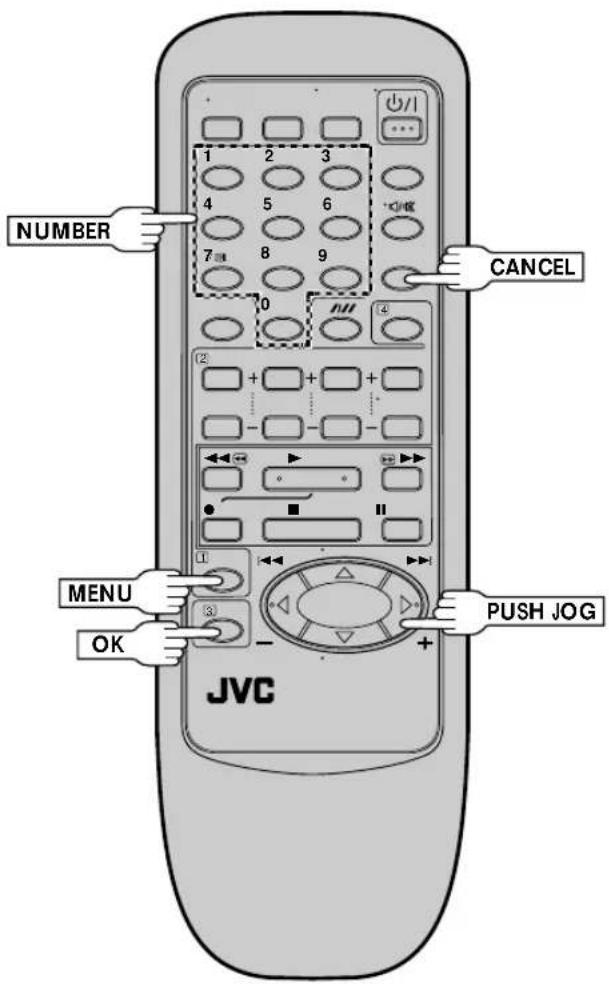
ACCESS MAIN MENU SCREEN
Press MENU twice.
3
ACCESS GUIDE PROG SET SCREEN
Press PUSH JOG △▽ to move the highlight bar (pointer) to "GUIDE PROG SET", then press OK. The Guide Prog. Set screen appears.
![MAIN MENU MODE SET AUTO CH SET MANUAL CH SET GUIDE PROG SET CLOCK SET [▲▼] → OK [MENU] : EXIT](/content/2026/05/1036638/images/72cb04769d969502024274ab7d3b0814a3a6501ff0192ee77317466d6348a036.jpg)
![GUIDE PROG SET GUIDE PROG TV PROG 1 1 OK : AUTO SET BY SHOWVIEW [▶]: MANUAL SET [▲▼] : ? [MENU] : EXIT](/content/2026/05/1036638/images/e6e7b70c9bf7e8b4f8abc285fa99238c8f2288adc2255ef5d7260a4aac03d319.jpg)
ENTER SHOW VIEW NUMBER
Press OK, and a cursor appears above "GUIDE PROG". Then, using the NUMBER keys, input the SHOWVIEW number (found in most TV listings) of a program scheduled to be broadcast on each station on the list from step 1, starting at the top. If you enter the wrong number, press CANCEL to backspace and input the correct number.
![GUIDE PROG SET 1 2 3 4 5 GUIDE PROG TV PROG 1 1 [0-9] → OK [MENU] : EXIT](/content/2026/05/1036638/images/e8ac91e33f86ce95ea8aa2223d66967e127bcd7a868f1b5712f620edf0891a0e.jpg)
When entering a SHOWVIEW number for ZDF
CONFIRM CHANNEL POSITION NUMBER
Press OK and the display under "TV PROG" begins blinking.
If the blinking number under "TV PROG" agrees with the channel position ...
... press OK. If the numbers do not agree ...
![GUIDE PROG SET GUIDE PROG TV PROG 2 2 [▲▼] → OK [MENU] : EXIT](/content/2026/05/1036638/images/d0984e76520ea28e660100e3c6c7f89e56c36fcf65e3ebbd61a38869bfcee9ee.jpg)
... input the channel position using PUSH JOG△▽ or the NUMBER keys, then press OK.
- If you input the SHOWVIEW number of a program that has already aired, "ERROR" appears on screen for a few seconds. Input the correct SHOWVIEW number.
- Repeat steps 4 and 5 as necessary.
CLOSE MENU
Press MENU and selection is complete.
If you already know the Guide Program number for a station . . .
1- After step 3, press PUSH JOG ▷
- The GUIDE PROG number begins blinking.
2- Enter the Guide Program number using the NUMBER keys
or PUSH JOG△▽, then press PUSH JOG ▷.
● The TV PROG number begins blinking.
3- Enter the channel position using the NUMBER keys or PUSH JOG△▽, then press PUSH JOG◀.
- Repeat 2 and 3 as necessary.
4- Press MENU.
When Using A Satellite Tuner
![graph TD A["Satellite Tuner"] --> B["Ex. 1"] C["Satellite Tuner and Decoder"] --> D["Ex. 2"] E["Back of HR-J448E/EH"] --> F["Aerial or Cable"] G["TV Receiver"] --> H["Back of HR-J448E/J248E"] I["AV2 IN/DECODER"] --> J["Satellite Antenna"] style A fill:#f9f,stroke:#333 style C fill:#f9f,stroke:#333 s…](/content/2026/05/1036638/images/4cea71bb1e3e4c1e64392b3044ad890083e2296b9713bbeeef48809ec86e22ab.jpg)
Preparation
1- Connect the satellite tuner to the AV2 IN/DECODER connector on the rear of your recorder.
2- Set "AV2 SELECT" to "AV2" (pg. 30).
To Record Satellite Broadcasts ...
1- Select the appropriate channel on the satellite tuner.
2- Press NUMBER key "0" to set your recorder's input mode to "AUX2".
3- Start recording (pg. 17, steps 3 - 6).
To Record Satellite Broadcasts Using SHOWVIEW Timer Recording ...
1- Perform Guide Program Number setting.
- In step 5 in the left column, press NUMBER key "0" to set "TV PROG" to "AUX2".
2- Perform SHOWVIEW Timer Recording (pg. 24).
To Record Satellite Broadcasts Using Regular Timer Recording . . .
1- In step 6 on page 27, press TV PROG. +/- to set the channel position to "AUX2".
NOTE:
When timer-recording a satellite programme, first set the satellite tuner to the appropriate channel before the selected programme begins and then set the satellite tuner's timer. If your satellite tuner does not have a timer, leave it switched on.
Basic Playback
Turn on the TV and select the VIDEO channel (or AV mode).
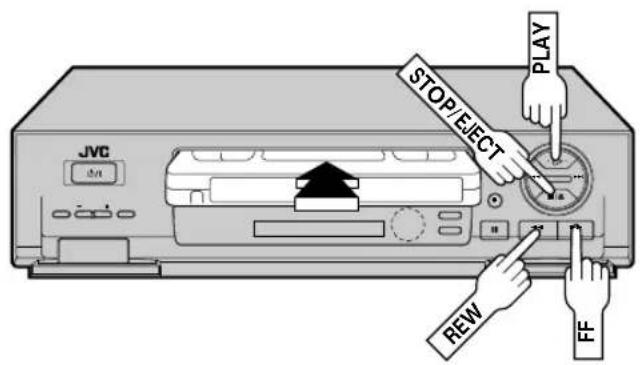
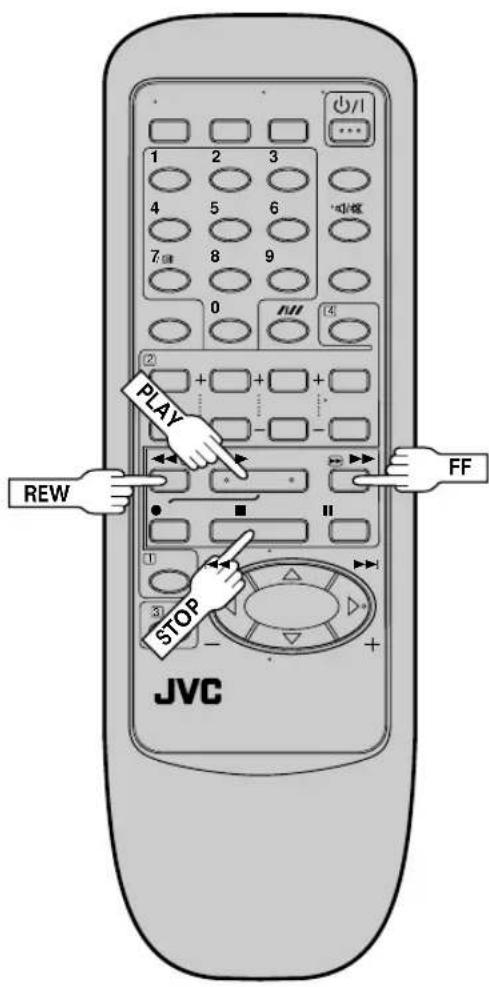
The easiest, most basic operation possible with your video recorder is tape playback. Already-recorded signals on a video tape are read by your video recorder and displayed on your TV just like a TV programme.
1
LOAD A CASSETTE
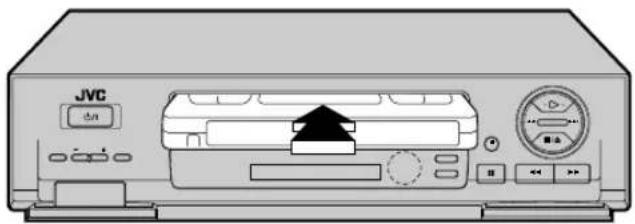
Make sure the window side is up, the rear label side is facing you and the arrow on the front of the cassette is point toward the recorder. Don't apply too much pressure when inserting.
- The recorder power comes on automatically and the counter is reset to 0:00:00.
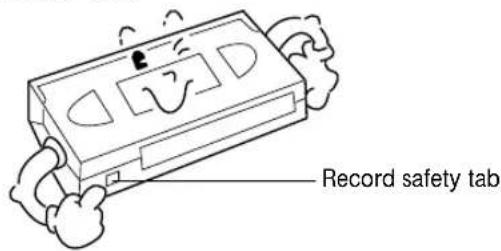
- If the record safety tab has been removed, playback begins automatically.
FIND PROGRAMME START POINT
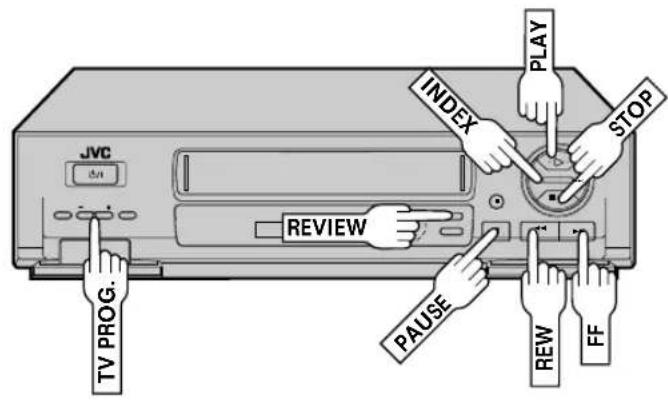
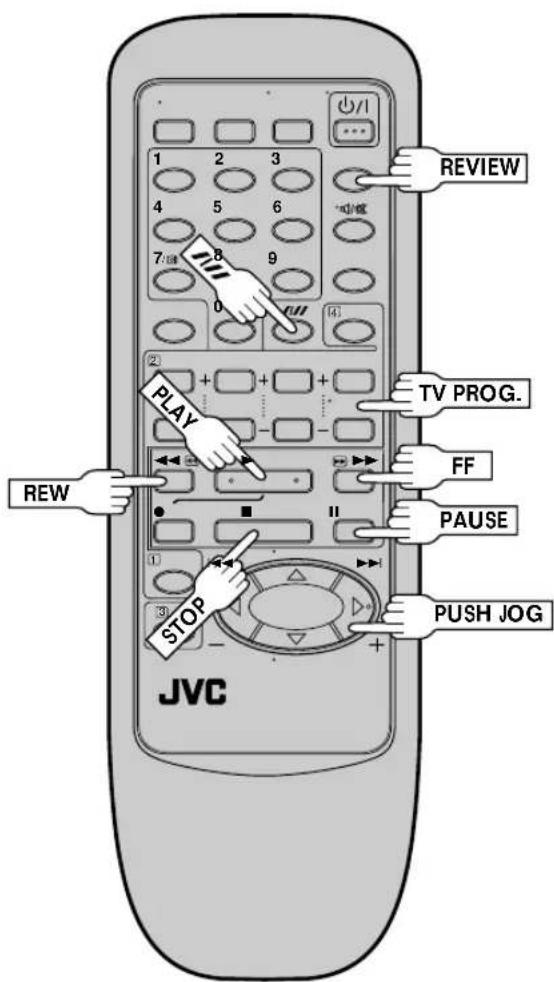
If the tape is advanced past the start point, press REW. To go forward, press FF.
2
START PLAYBACK
3
Press PLAY. "BEST" appears blinking in the recorder's display panel during automatic tracking. (pg. 18)
4
STOP PLAYBACK
Press STOP on the remote or STOP/EJECT on the recorder's front panel. Then press STOP/EJECT to remove the cassette.
Usable cassettes
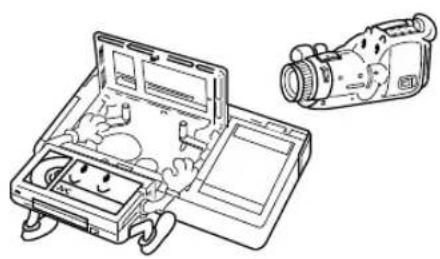
- Compact VHS camcorder recordings can be played on this video recorder. Simply place the recorded cassette into a VHS Cassette Adapter and it can be used just like any full-sized VHS cassette.
- This video recorder can record on regular VHS and Super VHS cassettes. However, it will record and play back regular VHS signals only. It is not possible to play back a recorded Super VHS tape.
Playback Features
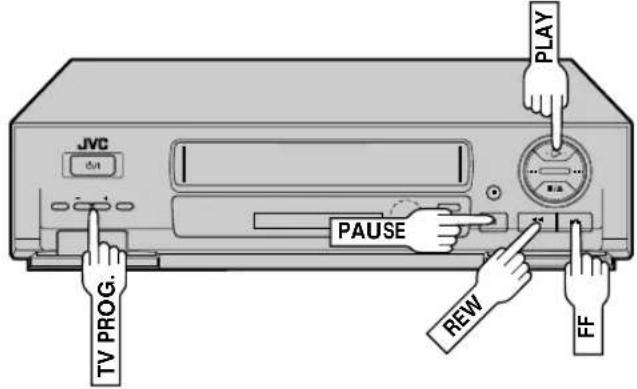
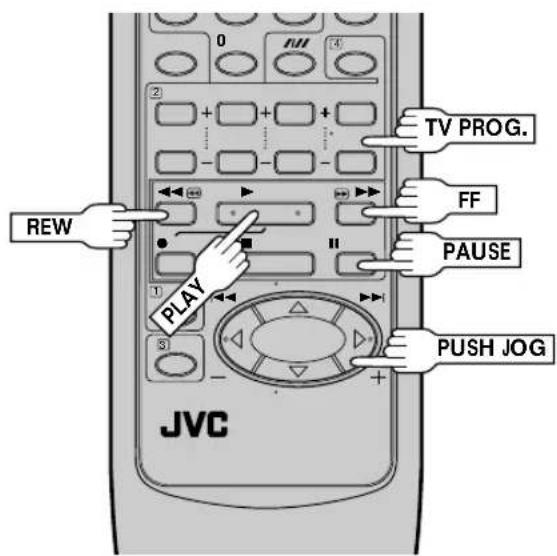
Variable-Speed Search

ACTIVATE VARIABLE-SPEED SEARCH
During playback, press PUSH JOG◀ or ▷.
- The more times you press, the faster the playback picture moves.
- To decrease speed, press the button for the opposite direction.
To resume normal playback, press PLAY.
NOTE:
In the search, still, or frame by frame playback mode, the picture may be distorted, and there may be a loss of colour.
Take advantage of special functions possible with the recorder's controls or the remote control.
High-Speed Search

ACTIVATE HIGH-SPEED SEARCH
During playback or still, press FF for forward high-speed search, or REW for reverse high-speed search.
To resume normal playback, press PLAY.
NOTES:
- For short searches, press and hold FF or REW for over 2 seconds. When released, normal playback resumes.
- In the search, still, or frame by frame playback mode, the picture may be distorted, and there may be a loss of colour.
Still Picture/ Frame-By-Frame Playback

PAUSE DURING PLAYBACK
Press PAUSE. If there is vertical jitter, use the TV PROG. buttons to correct the picture.
ACTIVATE FRAME-BY-FRAME PLAYBACK

Press PAUSE.
OR
Press PUSH JOG◀ or ▷.
To resume normal playback, press PLAY.
Slow Motion

During still picture, press and hold PAUSE for 2 seconds, then release. Press and release again to return to still picture.
OR
During still picture, press and hold PUSH JOG ◀ or ▷. Release to return to still picture.
To resume normal playback, press PLAY.
Manual Tracking
Your video recorder is equipped with automatic tracking control. During playback, you can override this and adjust the tracking manually by pressing the TV PROG. buttons.

1
OVERRIDE AUTOMATIC TRACKING
Press SP/LP ( )/on the remote to engage manual tracking.
2
ADJUST TRACKING MANUALLY
Press TV PROG. + or - to adjust tracking.
3
RETURN TO AUTOMATIC TRACKING
Press SP/LP ( ) on the remote to re-engage automatic tracking.
NOTE:
When a new tape is inserted, the recorder enters the automatic tracking mode automatically.
NTSC Playback
Your video recorder is equipped with NTSC circuitry that can play back NTSC tapes.
1
LOAD A CASSETTE
Insert a cassette recorded in NTSC.
2
START PLAYBACK
Press PLAY.
- "NTSC" appears on the screen for about 5 seconds.
- Some TVs shrink the picture vertically and place black bars at the top and bottom of the screen. This is not a malfunction on the part of either the video recorder or the TV.
- The picture may roll up and down. This can be corrected using the V-HOLD control found on some TVs. (This cannot be corrected if the TV does not have a V-HOLD control.)
- The counter and tape remaining time readings will be incorrect.
- During search, still, or frame-by-frame playback, the picture will be distorted, and there may be a loss of colour.
- Depending on the type of TV, the top and bottom portions of superimposed displays may be cut off during NTSC playback.
Index Search
Your recorder automatically marks index codes at the beginning of each recording. This function gives you quick access to any one of 9 index codes in either direction.
NOTE:
Before starting, make sure the recorder is in the Stop mode.
1
ACTIVATE INDEX SEARCH
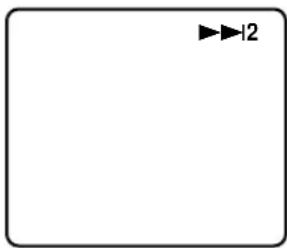
Press PUSH JOG◀ or ▷ (I◀◀ or ▶▶▶) on the remote control or INDEX ◀◀◀ or ▶▶▶▶▶▶▶▶▶▶▶▶▶▶▶▶▶▶▶▶▶▶▶▶▶▶▶▶▶▶▶▶▶▶▶▶▶▶▶▶▶▶▶▶▶▶▶▶▶▶▶▶▶▶▶▶▶▶▶▶▶▶▶▶▶▶▶▶▶▶▶▶▶▶▶▶▶▶▶▶▶▶▶▶▶▶▶▶▶▶▶▶▶▶▶▶▶▶▶▶▶>
- To access index codes 2 through 9, press PUSH JOG ◀ or ▷ or INDEX ◀◀◀ or ▶▶▶I repeatedly until the correct index number is displayed.
Ex.: To locate the beginning of B from the current position, press PUSH JOG◀ or INDEX ◀◀◀ twice. To locate the beginning of D from the current position, press PUSH JOG▶ or INDEX ▶▶▶ once.
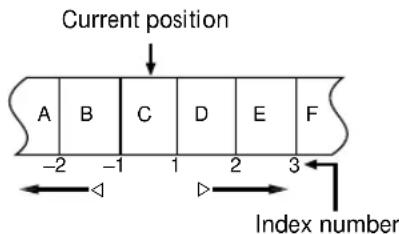
- When the specified index code is located, playback begins automatically.
Instant ReView
Simply by pressing a single button, the recorder power comes on, rewinds, and begins playback of the last timer-recorded programme. If you have several programmes recorded, you can easily access any of them.
NOTE:
Before starting, make sure that the recorder is off and that the Timer mode is disengaged.
1
ACTIVATE INSTANT REVIEW
Press REVIEW. The recorder power comes on and the recorder searches for the index code indicating the start of the last timer-recorded programme. Once it's found, playback begins automatically. The front display panel tells you how many programmes have been recorded. If you have, for example, 3 programmes, "REVIEW" and "3" appear and blink. To watch the first of the 3 programmes, press REVIEW three times. The recorder searches and begins playback automatically. You can access a programme as far as 9 index codes away from the current tape position.
NOTE:
Instant ReView is not possible while the recorder is in the Timer mode.
Repeat Playback
Your video recorder can automatically play back the whole tape 20 times repeatedly.

1
START PLAYBACK
Press PLAY.
2
ACTIVATE REPEAT PLAYBACK
Press PLAY and hold for over 5 seconds, then release.
- The Play indicator (▷) on the display panel blinks slowly.
- The tape plays 20 times automatically, and then stops.
3
STOP PLAYBACK
Press STOP at any time to stop playback.
NOTE:
Pressing PLAY, REW, FF or PAUSE also stops Repeat Playback.
Information On Colour System
You can also record SECAM signals, or play back a MESECAM tape on this recorder. When a MESECAM tape is played back, "MESECAM" appears on the screen for about 5 seconds. MESECAM is the designation for tapes with SECAM signals that have been recorded on a MESECAM-compatible PAL video recorder.
Tape Position Indicator
The tape position indicator appears on screen when, from the Stop mode, you press FF, REW or perform an Index Search. The position of “■” in relation to “0” (beginning) or “+” (end) shows you where you are on the tape.
"O.S.D." (pg. 20) must be set to "ON", or the indicator will not appear.
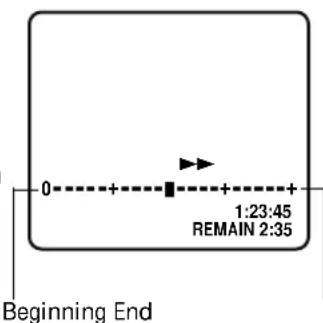
NOTE:
Depending on the type of tape used, there may be times when the indication is not correct.
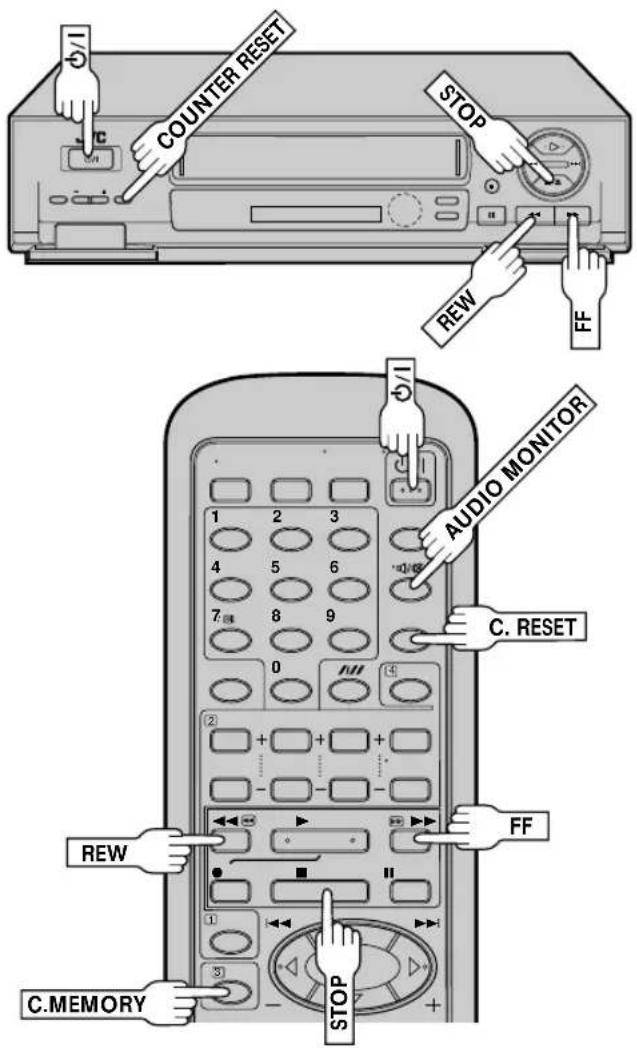
Next Function Memory
You can set your recorder's power to go off automatically after the tape is fully rewound. Before starting, make sure the recorder is in the Stop mode.
For Automatic Power Off After Tape Rewind . . .
... press REW, then press ⬇within 2 seconds.
NOTE:
If you want the power to be turned off automatically when the counter reads "0:00:00" (instead of at the beginning of the tape), press C.MEMORY so that the "M" mark appears before pressing REW.
Counter Memory
Returns to the counter reading of "0:00:00" to conveniently find a specific place on the tape automatically.

SET COUNTER MEMORY
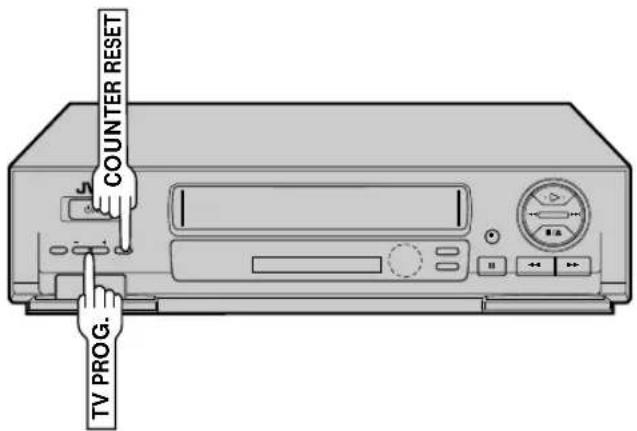
Press C. (COUNTER) RESET during playback at a point you wish to locate later. The counter reads "0:00:00". Then press C.MEMORY, and "M" appears in front of the counter digits.
ACTIVATE COUNTER MEMORY
When you wish to return to the designated point, press STOP and then REW or FF.
- The tape rewinds or fast-forwards and stops at about 0:00:00 automatically.
- To cancel Counter Memory, press C.MEMORY again.
Soundtrack Selection (HR-J648E/ EH only)
Your video recorder is capable of recording three soundtracks (HI-FI L, HI-FI R and NORM) and will play back the one you select.
During Playback
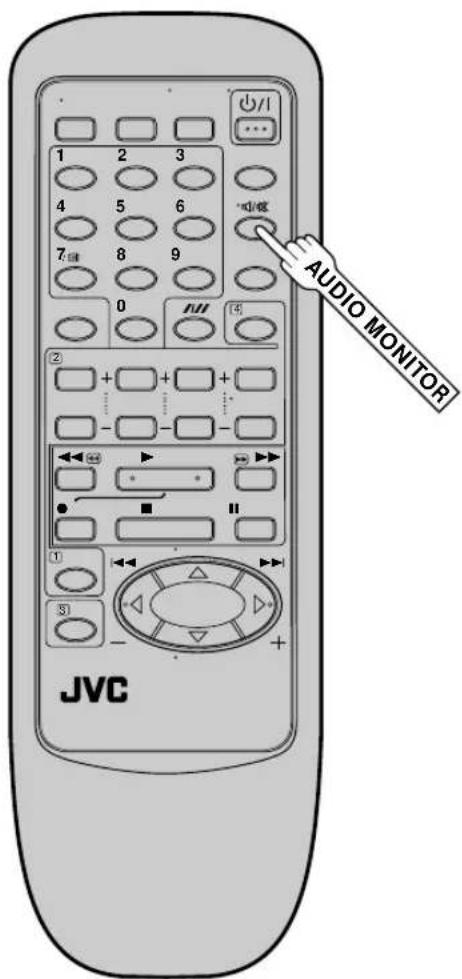
Pressing AUDIO MONITOR on the remote control changes the soundtrack being played back as follows:
- "L + R" should normally be selected. In this mode, Hi-Fi stereo tapes are played back in stereo, and the normal audio track is played back automatically for tapes with only normal audio.
- For instructions on recording stereo and bilingual programmes, refer to page 22.
- "O.S.D." must be set to "ON" or the on-screen displays will not appear (☐ pg. 20).
Basic Recording
Turn on the TV and select the VIDEO channel (or AV mode).
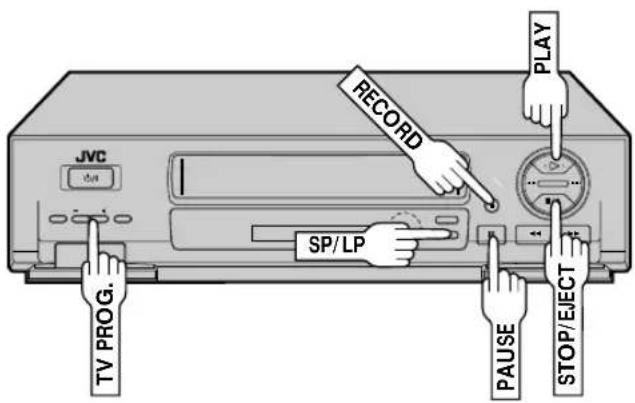
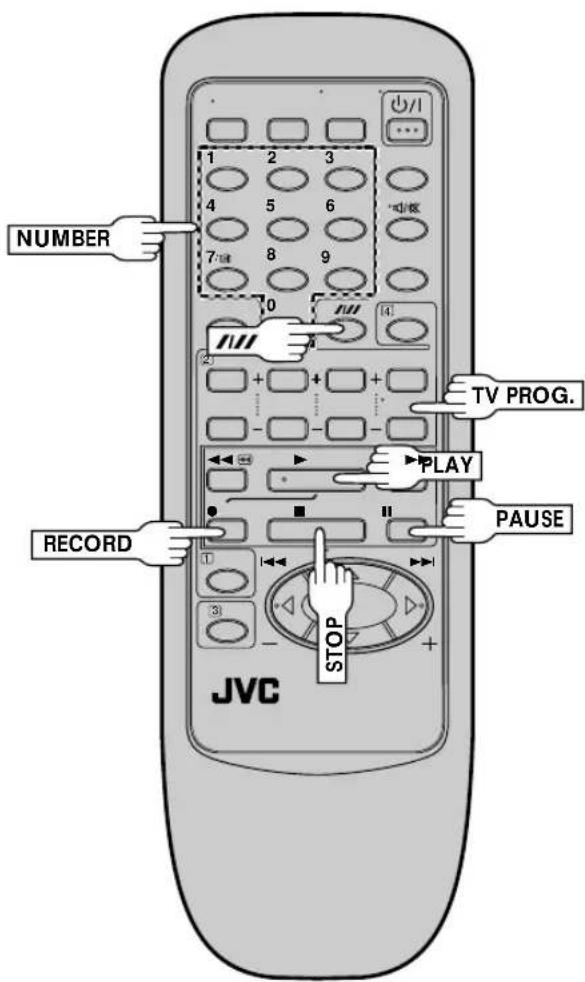
TV signals being received by the recorder's built-in tuner can be recorded onto a video tape. You can "capture" a TV programme using your video recorder.
1
LOAD A CASSETTE
Insert a cassette with the record safety tab intact.
- The counter is reset to 0:00:00 and the recorder power comes on automatically.
2
CHOOSE A PROGRAMME
Press TV PROG. +/- or the NUMBER keys to select the channel you wish to record.
3
SET TAPE SPEED (HR-J648E/J648EH/J448E ONLY)
Press SP/LP (7.0) check the SP/LP indicator on the recorder display panel to confirm the selected tape speed.
4
START RECORDING
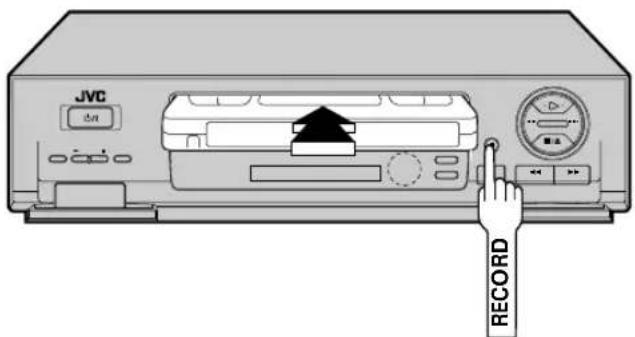
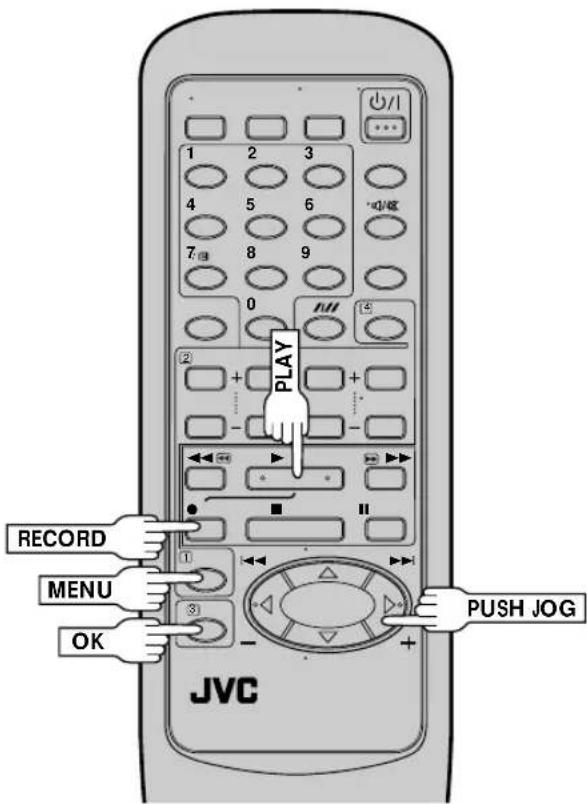
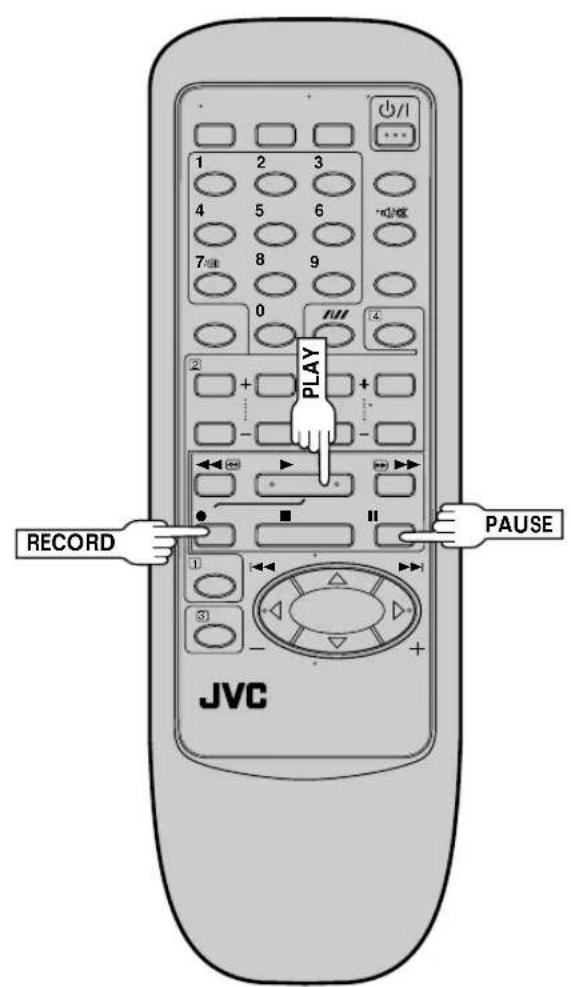
Press and hold RECORD and PLAY on the remote control, or press RECORD on the recorder.
With HR-J648E/J648EH/J448E:
B.E.S.T. takes place at the beginning of both the first SP and the first LP recording after inserting the cassette (pg. 18).
With HR-J248E:
B.E.S.T. takes place at the beginning of the first recording after inserting the cassette (pg. 18).
5
PAUSE/ RESUME RECORDING
Press PAUSE. Press PLAY to resume recording.
6
STOP RECORDING
Press STOP on the remote control or STOP/EJECT on the recorder. Then press STOP/EJECT to remove the cassette.
Accidental erasure prevention
- To prevent accidental recording on a recorded cassette, remove its safety tab. To record on it later, cover the hole with adhesive tape.
B.E.S.T. Picture System
Turn on the TV and select the VIDEO channel (or AV mode).
Display Panel Indication

As the tape check progresses, the “—” marks on the display panel increase upward. Once the "BEST" indicator starts blinking, the check is complete.
The B.E.S.T. (Biconditional Equalised Signal Tracking) system checks the condition of the tape in use during recording and playback, and compensates to provide the highest-possible recording and playback pictures. The default setting for both recording and playback is "ON".
Recording
1
LOAD A CASSETTE
Insert a cassette with the record safety tab intact.
● The recorder power comes on automatically.
ACCESS MAIN MENU SCREEN
Press MENU twice.
2
ACCESS MODE SET SCREEN
3
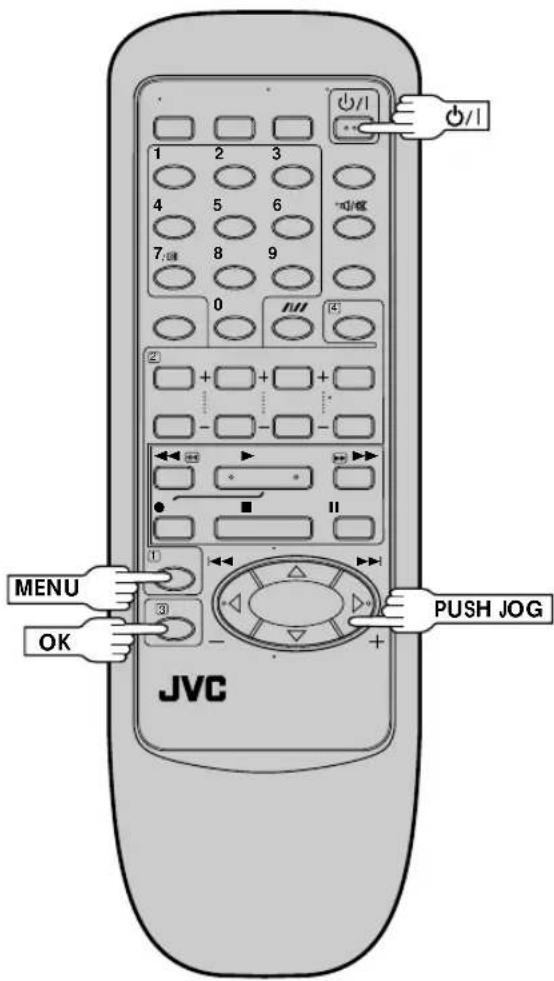
Move the highlight bar (pointer) to "MODE SET" by pressing PUSH JOG △▽, then press OK.
MAIN MENU
MODE SET
AUTO CH SET
MANUAL CH SET
GUIDE PROG SET
CLOCK SET
[▲▼] → OK
4
CONFIRM B.E.S.T. STATUS
The default setting is "ON". If this is the case, go to step 5. If not, press PUSH JOG ▽ to move the highlight bar (pointer) to "B.E.S.T.", then press PUSH JOG ▶ to set to "ON".
MODE SET
AUTO TIMER : OFF
O.S.D. :ON
B.E.S.T. :ON
AV2 SELECT : AV2
[▲▼] → [▶]: ON/OFF
MENU : EXIT
5
RETURN TO NORMAL SCREEN
Press MENU.
6
START RECORDING
Press and hold RECORD and PLAY on the remote, or press RECORD on the recorder.
- The recorder spends approximately 7 seconds assessing the condition of the tape, then begins recording.
- When the "BEST" indicator begins blinking, that means adjustment is complete.
- Pressing the recorder's RECORD button while "BEST" is displayed does not start Instant Timer Recording (17 pg. 23).
NOTES:
- With HR-J648E/J648EH/J448E:
The B.E.S.T. system works for both SP and LP modes only after a tape has been inserted and the Record mode is first initiated. It does not work during recording.
With HR-J248E:
The B.E.S.T. system works only after a tape has been inserted and the Record mode is first initiated. It does not work during recording.
- In the case of timer recording, the B.E.S.T. system works before recording is initiated.
- Once the cassette is ejected, the B.E.S.T. data is cancelled. The next time the cassette is used for recording, B.E.S.T. is reperformed.
ATTENTION:
Since the B.E.S.T. system works before recording actually starts, there is a delay of approximately 7 seconds after
RECORD and PLAY on the remote are pressed, or RECORD
on the recorder is pressed. To make sure you record the desired scene or programme in its entirety, first perform the following steps:
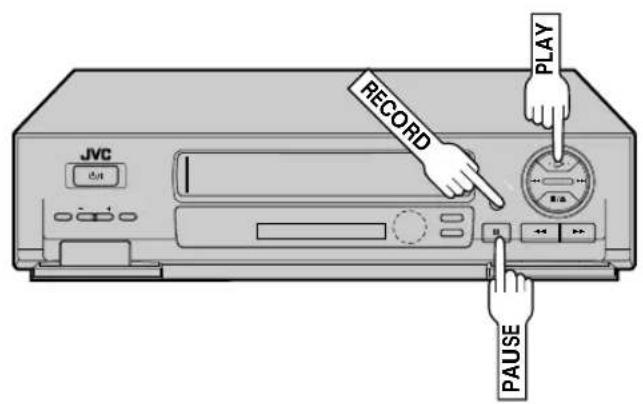
1) Press and hold PAUSE and RECORD to engage the RECORD PAUSE mode.
- The recorder then automatically checks the condition of the tape and, after approximately 7 seconds, re-enters RECORD PAUSE.
2) Press PLAY to start recording.
- If you want to bypass the B.E.S.T. system and begin recording immediately, set "B.E.S.T." to "OFF" in step 4 on page 18.
Playback
The recorder assesses the quality of the tape once you initiate playback.
When watching a tape recorded with "B.E.S.T." set to "ON", it is recommended that you leave B.E.S.T. on during playback as well.
1
START PLAYBACK
Press PLAY.
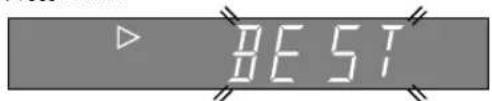
- The recorder adjusts the playback picture quality based on the quality of the tape in use.
- B.E.S.T. is active during Auto Tracking. "BEST" appears blinking on the recorder's display panel.
NOTES:
- When watching a rental tape or one recorded on another video recorder, or when using this recorder as the player for editing, set B.E.S.T. to your preference by performing steps 2 through 5 on page 18.
- "BEST" only appears at the beginning of automatic tracking. Even though it doesn't appear after that, the B.E.S.T. function is operative.
On-Screen Displays
Turn on the TV and select the VIDEO channel (or AV mode).
You can choose whether or not to have various operational indicators appear on screen, by setting this function ON or OFF. Messages appear in the selected language (0-7 pg. 6 or 7).
1
ACCESS MODE SET SCREEN
Move the highlight bar (pointer) to "MODE SET" by pressing PUSH JOG △▽, then press OK.
3
ENABLE/ DISABLE ON-SCREEN DISPLAY
4
The default setting is "ON", so if you want on-screen displays, leave the setting as it is and go to step 5. If you don't want the displays to appear, press PUSH JOG △▽ to move the highlight bar (pointer) to "O.S.D." and press PUSH JOG ▷ to set "O.S.D." to "OFF".
![MODE SET AUTO TIMER : OFF O. S. D. : ON B. E. S. T. : ON AV2 SELECT : AV2 [▲▼] → [▶] : ON/OFF [MENU] : EXIT](/content/2026/05/1036638/images/68d713101dcee8781577e0eb2aab7b27ffe21c8b79c29af90d2d5770b6962570.jpg)
5
RETURN TO NORMAL
Press MENU.
NOTES:
- When you use this recorder as the player for editing, be sure to set "O.S.D." to "OFF." before starting.
- During playback, the operation mode indicators may be disturbed depending on the type of tape being used.
The superimposed indication on the TV screen tells you what the recorder is doing.
![13 3 1 PR. 12 ABCD 21:00 24. 12. 97 - WARNING- TIMER RECORDING TO START SOON [CANCEL] ST 0 HI FI NORM SP NTSC 4 8 M -1 : 23 : 45 REMAIN 1 : 00 10 12](/content/2026/05/1036638/images/0ba0ac2f70d0034f1e7bb3ede8917f2a97c858aec0d633696f22542de7c293c2.jpg)
1- Operation mode indicators
2- Channel position number and station name/Aux. indicator (AUX1 or AUX2)
3- Cassette loaded mark
4- Tape speed SP/LP/EP (EP is for NTSC playback only) (HR-J648E/EH, J448E only)
5- Clock display
6- Current day/month/year
7- Type of Broadcast (pg. 22) (HR-J648E/EH only)
8- Tape direction
9- Tape position indicator (pg. 15)
10- Counter display (including Counter Memory indicator)
11-Audio mode display (pg. 16) (HR-J648E/EH only)
12- Tape remaining time indicator (pg. 21)
13- Timer warning display (pg. 29)
14- NTSC/MESECAM display (pg. 15)
Recording Features
Record One Programme While Watching Another
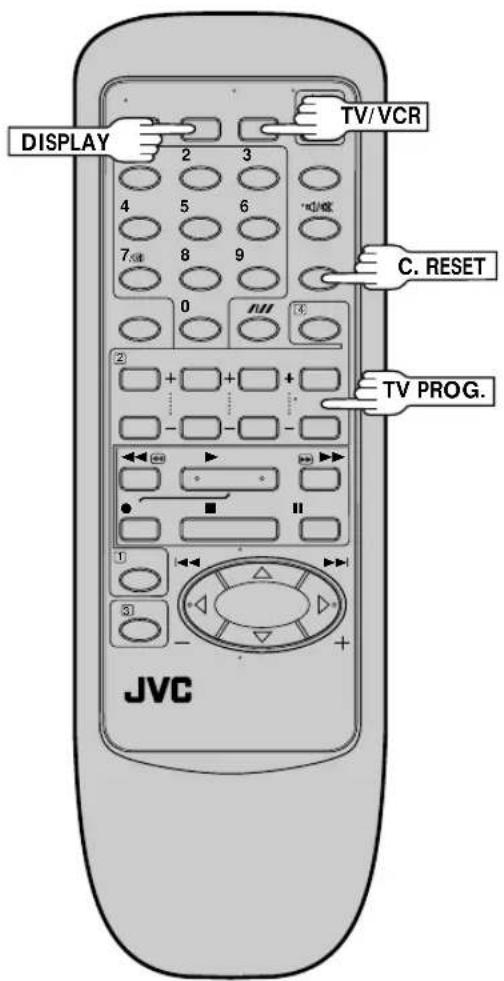
If your recorder is connected to the TV via AV connection, . . . . . press TV/VCR. The recorder's VCR indicator and the TV broadcast being recorded disappear.
1
SELECT CHANNEL TO WATCH
Once recording is in progress, all you need to do is to set the channel controls on the TV for the station you wish to view.
- The programme selected with the TV's channel controls appears on the TV screen while the one selected with the recorder's TV PROG. buttons is recorded on the tape.
- If a decoder is connected to the recorder (I→ pg. 33), you can select a scrambled channel as well with the TV channel controls.
Elapsed Recording Time Indication
You can check the exact time of a recording.
1
SET COUNTER DISPLAY
Press DISPLAY until a counter reading appears on the dispay panel.
2
RESET COUNTER
Press C.(COUNTER) RESET before starting recording or playback.
- The counter is reset to "0:00:00" and shows the exact elapsed time as the tape runs.
Tape Remaining Time
1
DISPLAY REMAINING TIME
Press DISPLAY until the time remaining on the tape appears.
- By pressing the DISPLAY button, you can change the display to show the counter reading, channel position*, clock time or tape remaining time. * channel position is not displayed during playback.
NOTE:
Depending on the type of tape used, there may be times when the tape remaining time reading may not appear right away, or is not correct. "---" may sometimes appear, or the display may blink on occasion.
Receiving Stereo And Bilin- gual Programmes (HR-J648E/ EH only)
Your recorder is equipped with a Sound-Multiplex decoder (A2) and, if you own the HR-J648EH, a Digital stereo sound decoder (NICAM) as well, making reception of stereo and bilingual broadcasts possible.
When the channel is changed, the type of broadcast being received will be displayed on the TV screen for a few seconds.
| Type of Broadcast Being Received | On-screen Display |
| A2 Stereo STA2 Bilingual BILRegular Monaural (none)*NICAM Stereo ST NICAM*NICAM Bilingual BIL NICAM*NICAM Monaural NICAM |
*Available with HR-J648EH only.
- To listen to a stereo programme, press AUDIO MONITOR until "HIFI L ➕ ➕" appears on the TV screen.
- To listen to a bilingual programme, press AUDIO MONITOR until either "HIFI L [for "HIFI R] appears on the TV screen (as required).
- To listen to the Standard (regular monaural) audio while receiving a NICAM broadcast, press AUDIO MONITOR until "NORM" appears on the TV screen. (HR-J648EH only)
NOTE:
"O.S.D." must be set to "ON" or the on-screen displays will not appear (17 pg. 20).
To Record Stereo And Bilin- gual Programmes (A2) (HR-J648E/ EH only)
- Stereo programmes are automatically recorded in stereo on the Hi-Fi audio track (with the normal audio track recording mixed L and R channel sound).
- Bilingual programmes are automatically recorded in bilingual on the Hi-Fi audio track. The main soundtrack will be recorded on the normal audio track.
NOTES:
- If the quality of stereo sound being received is poor, the broadcast will be received in monaural with better quality.
- Before playing back a programme recorded in stereo, or a bilingual programme, refer to "Soundtrack Selection" (1 page 16).
To Record NICAM Stereo And Bilingual Programmes (HR-J648EH only)
- The NICAM audio programme will be recorded on the Hi-Fi audio track, and the Standard audio programme on the normal audio track.
Instant Timer Recording (ITR)
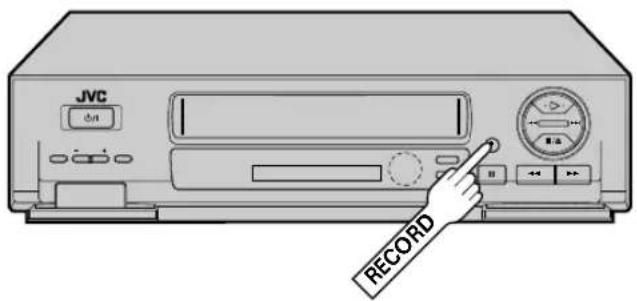
This easy method lets you record for from 30 minutes to 6 hours (selectable in 30-min. increments), and shuts the recorder off after recording is finished.
1
2
3
Press RECORD on the recorder.
START RECORDING
NOTE:
You can only perform ITR using the RECORD button on the recorder's front panel.
SHOW VIEW Timer Recording
Before performing SHOWVIEW timer recording:
- Be sure to read "SHOWVIEW Setup" (pg. 10).
- Insert a cassette with the safety tab in place. The recorder will come on automatically.
- Turn on the TV and select the VIDEO channel (or AV mode).
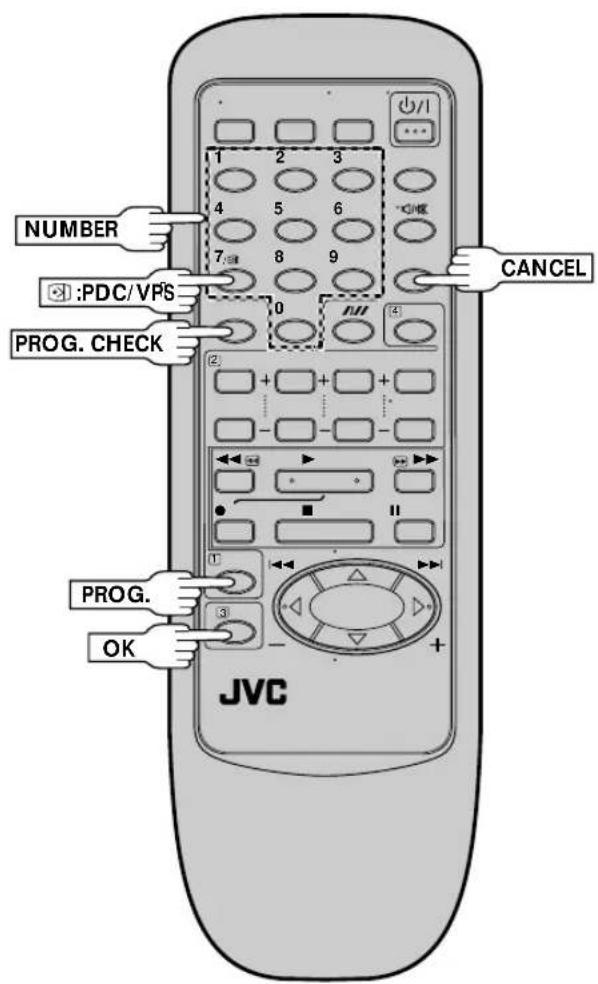
1
ACCESS TIMER PROGRAMMING SCREEN
Press PROG.
TIMER PROGRAMMING
[0 - 9] : SHOWVIEW [+/-] : EXPRESS PROGRAMMING MENU : MAIN MENU
The front display panel looks like this:

2
ENTER SHOWVIEW NUMBER
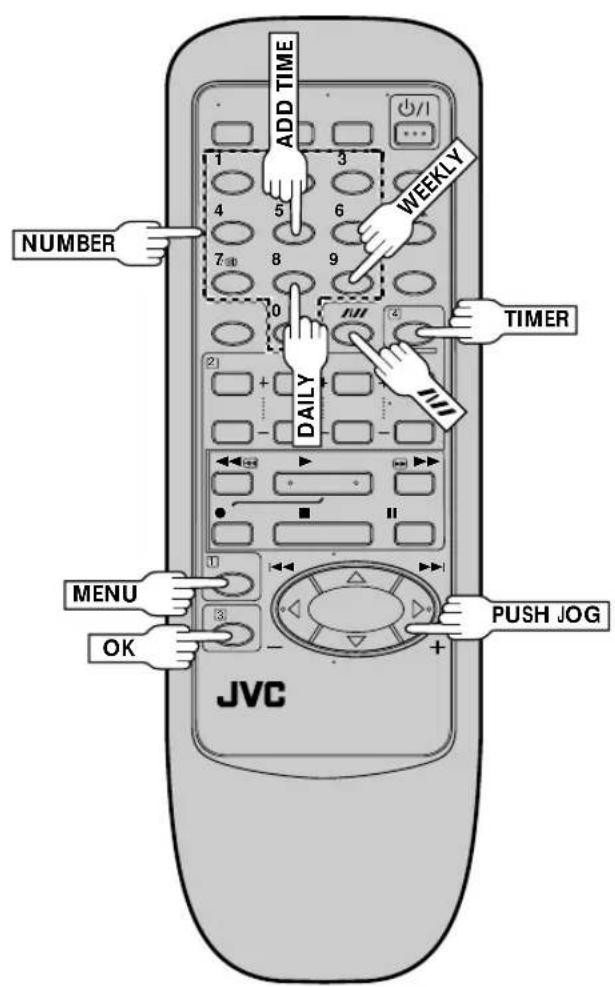
Press the NUMBER keys to enter the SHOWVIEW number of a programme you wish to record.
- If you make a mistake, press CANCEL to backspace and then input the correct number.
The SHOWVIEW number MENU : EXIT you enter appears on the front display panel:
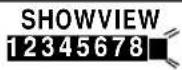
[0 - 9] → OK [CANCEL] : DELETE MENU : EXIT
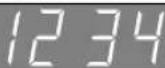
The display panel can only show 4 digits at a time.
3
ACCESS SHOWVIEW PROGRAM SCREEN
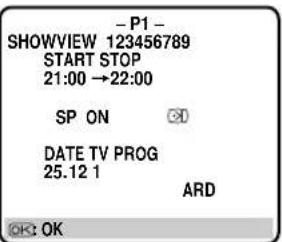
Press OK, and the SHOWVIEW Program screen appears (if you're just starting out, "P1" appears).
The display panel shows the programme start time. Pressing PROG. CHECK changes the display to the programme stop time, then the date and channel position.

IMPORTANT
Be sure to confirm the setting of PDC/VPS recording.
- If "ON" is displayed on the screen or "is lit on the display panel, PDC/VPS is set to ON.
-
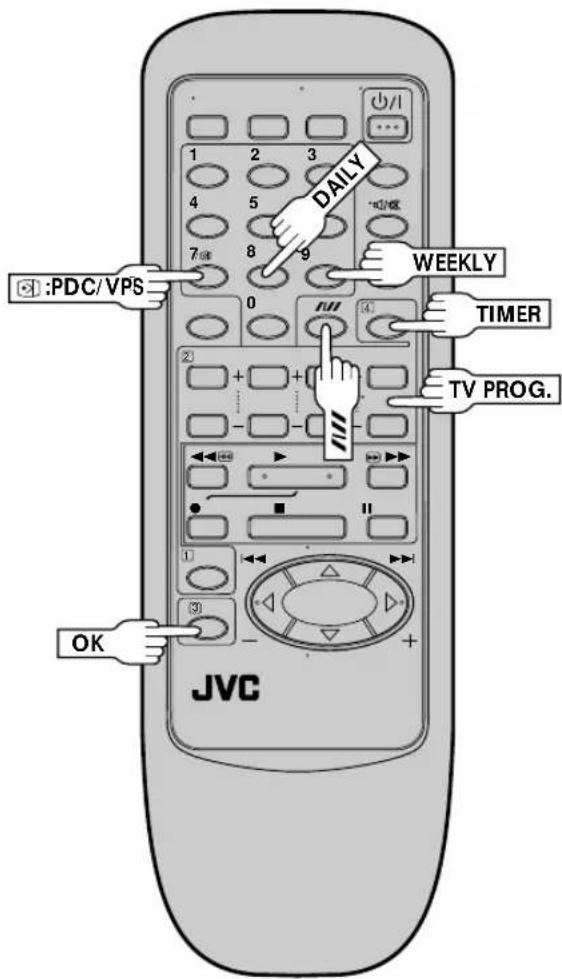
If "OFF" is displayed on the screen or "is not lit on the display panel, PDC/VPS is set to OFF. To change the setting, press : PDC/VPS (NUMBER key "7").
"PDC/VPS Recording" on page 29. -
Make sure the channel position number you wish to record is displayed; if not, see "SHOWVIEW Setup" on page 10 and set the Guide Program number for that SHOWVIEW number correctly.
- If the number you entered is invalid, "ERROR" appears on the screen and "Err" appears on the display panel. Press CANCEL to backspace and input a valid SHOWVIEW number.
- If "ERROR=GUIDE PROG" appears on the screen, see "ATTENTION – Regarding Guide Program Number Set" on page 25.
Satellite Tuner Users
To timer-record a satellite broadcast using SHOWVIEW, perform steps 1 – 6 and, before the selected programme begins, select the appropriate channel on the satellite tuner. Then set the tuner's timer. If your satellite tuner doesn't have a timer, leave the unit's power switched on.
4
SET TAPE SPEED (HR-J648E/J648EH/J448E ONLY)
Press SP/LP (Y) set the tape speed.
5
RETURN TO NORMAL SCREEN Press OK.
- Repeat steps 1–5 for each additional programme.
6
ENGAGE RECORDER'S TIMER MODE
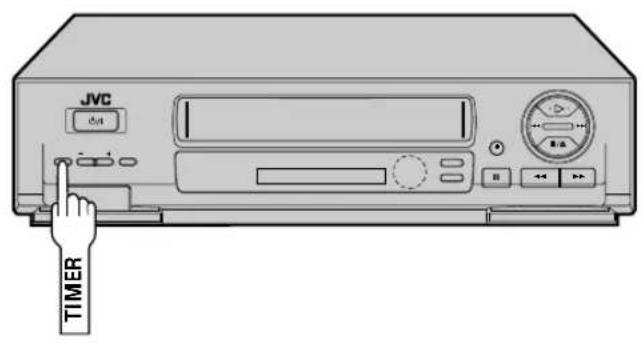
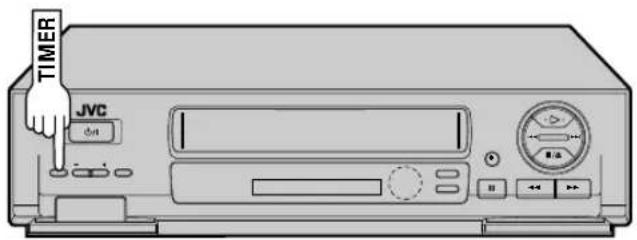
Press TIMER. The recorder turns off automatically.
NOTE:
To Delay The Stop Time
... press ADD TIME (NUMBER Key "5") after pressing OK in step 3. Each time you press, the Stop time is delayed by 5 minutes (meaning that 5 minutes of recording time is added). You can easily compensate for anticipated programme schedule delays this way.
To Timer-Record Weekly Or Daily Serials . . .
... after pressing OK in step 3, press WEEKLY (NUMBER key "9") for weekly serials or DAILY (NUMBER key "8") for daily serials (Monday–Friday). Either "WEEKLY" or "DAILY" appears on the screen. Pressing the button again makes the corresponding indication disappear.
You can programme this recorder to timer-record as many as 8 programmes. If you try to programme the recorder to record a ninth, "PROGRAM FULL" appears on screen and "FULL" appears on the front display panel. To record the extra programme, you must first cancel any unnecessary programmes (≡ pg. 28).
ATTENTION
Regarding Guide Program Number Set
"ERROR=GUIDE PROG" appears after performing step 3 on the previous page if the Guide Program number for the SHOWVIEW number you entered has not been set.
- If the recorder is in the stop or rewind or fast-forward mode, the following screen will appear with "--" under "TV PROG" blinking.
- Press the NUMBER keys or PUSH JOG △▽ to input the channel position number you recorder receives that station on, then press OK.
![GUIDE PROG SET GUIDE PROG TV PROG 2 -- [▲▼] → OK [MENU] : EXIT](/content/2026/05/1036638/images/25d07daf8bf7e3d7ce5170c155779a72c3a1c500a171624d97ad28ab8e6745ca.jpg)
(Ex.) To timer-record a ZDF programme with SHOWVIEW
* If your recorder receives ZDF on the channel position 2, press OK after entering "2".
- Press MENU, then try again from step 1.
- If the recorder is in a mode other than the above mentioned modes, press MENU first and input the correct Guide Program number for that SHOWVIEW number (LFP pg. 10, "SHOWVIEW Setup"), then try again from step 1.
Regular Timer Programming
Remember, the clock must be set before you can programme the timer (L37 pg. 39).
Before performing the following steps:
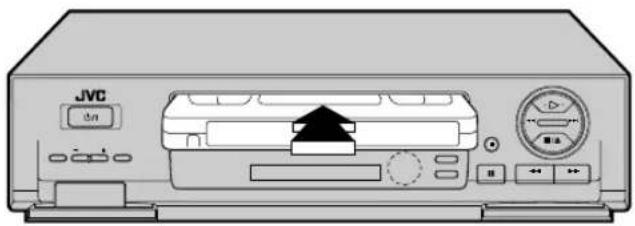
- Insert a cassette with the safety tab in place. The recorder will come on automatically.
- Turn on the TV and select the VIDEO channel (or AV mode).
If you don't know the SHOWVIEW number for the programme you wish to record, use the following procedure to set your recorder to timer-record the programme.
1 2
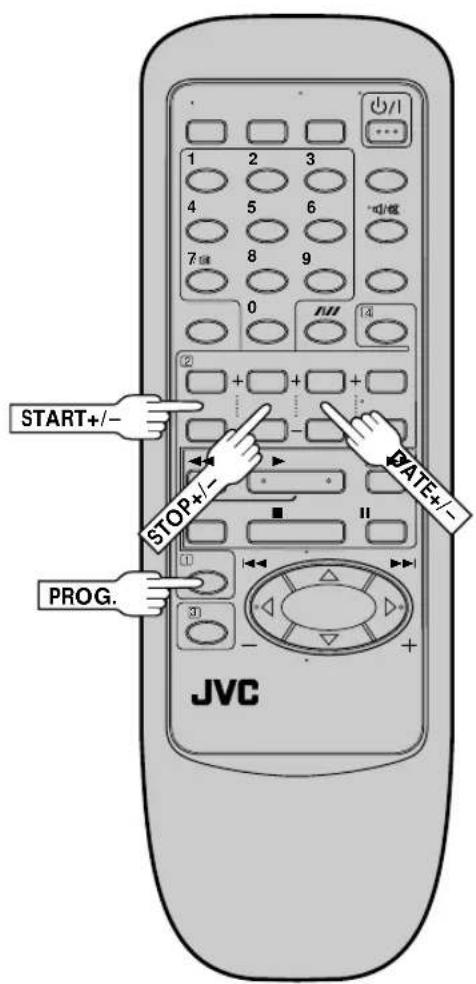
ACCESS TIMER PROGRAMMING SCREEN Press PROG.
2
ACCESS PROGRAMME SCREEN
Press START +/-. (If you're just starting out, "P1" appears.)
![- P1 - START STOP SP ON DATE TV PROG 25.12 [+/-] → [OK] [MENU] : EXIT](/content/2026/05/1036638/images/f1e6772e8492fe3826e8cb956061c4cbbc3bb05c0d1e10be09d0e37515b8c2ad.jpg)
3
The front display panel looks like this:

ENTER PROGRAMME START TIME
Press START +/- to enter the time you want recording to start.
- Press and hold START +/- to move in 30-minute increments, or press and release repeatedly to move 1 minute at a time.
![- P1 - START STOP 21:00 SP ON DATE TV PROG 25.12 [+/-] → [OK] [MENU] : EXIT](/content/2026/05/1036638/images/597b2b8dbf992457d8fcff4dc2015219a016d94410a4f606cb5282bc3ee573e9.jpg)
The front display panel looks like this:

4 5
ENTER PROGRAMME STOP TIME
Press STOP +/- to enter the time you want recording to stop.
ENTER PROGRAMME DATE
Press DATE +/-. (The current date appears on screen. The date you enter appears in its place.)
6
ENTER CHANNEL POSITION
Press TV PROG. +/-
![- P1 - START STOP 21:00 2:0 SP ON DATE TV PROG 25.12 ARD 1 [+/-] → OK [MENU] : EXIT](/content/2026/05/1036638/images/ebf54ba2ba2a1fccd71e9b8a8cfa6dda4527d8d0d4b2adfa1af7bca3bfb8f669.jpg)

IMPORTANT
Be sure to confirm the setting of PDC/VPS recording.
- If "ON" is displayed on the screen or " "lit on the display panel, PDC/VPS is set to ON.
- If "OFF" is displayed on the screen or " not lit on the display panel, PDC/VPS is set to OFF. To change the setting, press : PDC/VPS
(NUMBER key "7").
"PDC/VPS Recording" on page 29.
SET TAPE SPEED (HR-J648E/J648EH/J448E ONLY)
Press SP/LP ( ) set the tape speed.
7
8
RETURN TO NORMAL SCREEN
After confirming all information is correct, press OK and the normal screen appears.
- Repeat steps 1–8 for each additional programme.
9
ENGAGE RECORDER'S TIMER MODE
Press TIMER. The recorder turns off automatically.
To Timer-Record Weekly Or Daily Serials . . .
... anytime during steps 2 through 8, press WEEKLY (NUMBER key "9") for weekly serials or DAILY (NUMBER key "8") for daily serials (Monday–Friday). Either "WEEKLY" or "DAILY" appears on the screen. Pressing the button again makes the corresponding indication disappear.
NOTES:
- To timer-record a satellite broadcast through a satellite tuner connected to the AV2 IN/DECODER connector on the back of the recorder, in step 6 above, set "TV PROG" to "AUX2" by pressing TV PROG. +/- Before the selected programme begins, select the appropriate channel on the satellite tuner, then set the tuner's timer. If your satellite tuner doesn't have a timer, leave the unit's power switched on.
- You can programme this recorder to timer-record as many as 8 programmes. If you try to programme the recorder to record a ninth, "PROGRAM FULL" appears on screen and "FULL" appears on the front display panel. To record the extra programme, you must first cancel any unnecessary programmes ( ☐ pg. 28).
Check And Cancel Programmes
1
ACCESS PROGRAMME DISPLAY AND/ OR SCREEN
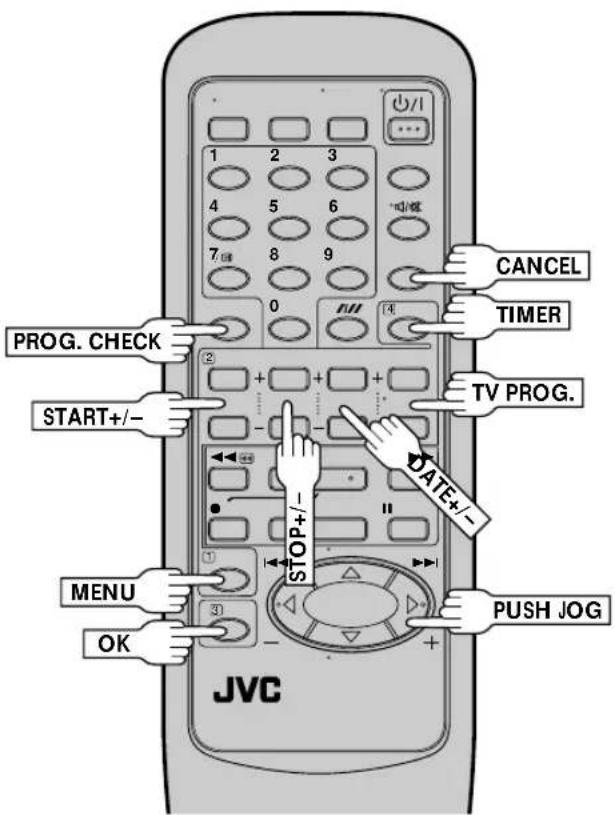
Press PROG. CHECK.
- The display panel shows the programme start time. Pressing OK changes the display to the programme stop time, then the date and channel position.
- If the recorder is turned on and the TV is set to its VIDEO channel or AV mode, you can check program information on screen as well.
- Each time you press PROG. CHECK, the next programme's information appears.
If All Information Is Correct...
... programming is completed.
If You Wish To Revise Data...
... with the recorder's power turned on, go to step 2.
If You Wish To Cancel A Program . . .
... with the recorder's power turned on, press CANCEL. All information you input is deleted.
2
REVISE PROGRAMME INFORMATION
Input the appropriate data using the START +/-, STOP +/-, DATE +/- and TV PROG. +/- buttons on the remote control.
Auto Timer
When the Auto Timer is set to ON the timer is automatically engaged when the recorder power is turned off and automatically disengaged when the recorder is powered back on.
1
ACCESS MAIN MENU SCREEN
Press MENU twice.
2
ACCESS MODE SET SCREEN
Press PUSH JOG △▽ to move the highlight bar (pointer) to "MODE SET", then press OK.
MAIN MENU
MODE SET
AUTO CH SET
MANUAL CH SET
GUIDE PROG SET
CLOCK SET
[▲▼] → [OK]
MENU : EXIT
3
SELECT MODE
Press PUSH JOG ▷ to select either "ON" or "OFF".
MODE SET
AUTO TIMER : OFF
O.S.D. :ON
B.E.S.T.:ON
AV2 SELECT : AV2
[▲▼] → [▶]: ON/OFF
MENU : EXIT
4
RETURN TO NORMAL SCREEN
Press MENU.
NOTE:
For safety, when Auto timer is set to "OFF", all other recorder functions are disabled while the Timer mode is engaged. To disengage the timer, press TIMER.
Timer Warning
If you have programmed your recorder to timer-record a programme or a series of programmes, a warning appears on screen to tell you that the recording is to start in 5 minutes.
NOTES:
- The warning only appears if you're not in the Timer mode at that time.
- If this recorder is being used as the player for tape dubbing, the warning screen is recorded on the tape in the other video recorder.
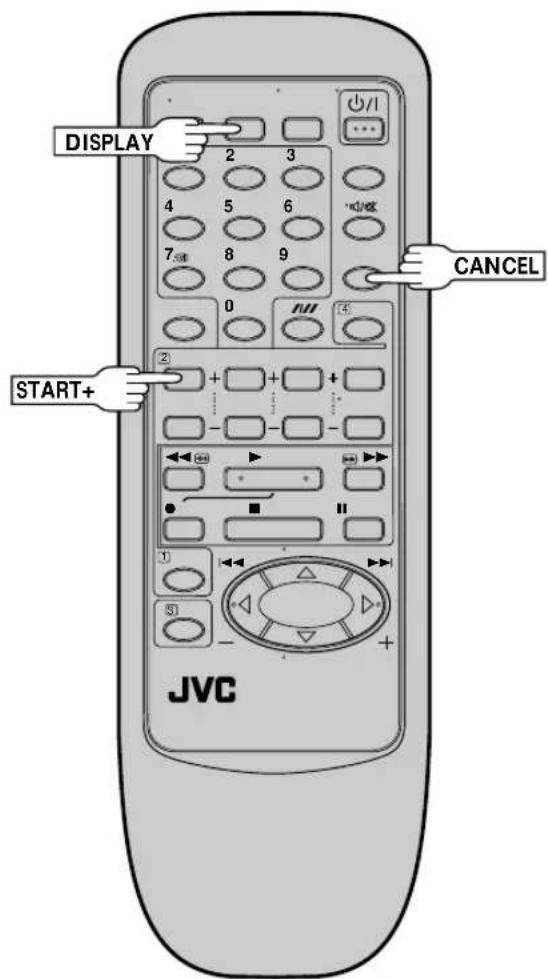
The warning blinks for the entire 5 minutes leading up to the start of timer recording. To clear the display, press CANCEL.
![- WARNING- TIMER RECORDING TO START SOON [CANCEL]](/content/2026/05/1036638/images/e50fc9768290337e35cf3883ad3d030a2d68babffa0997bad1ae9c8e16755218.jpg)
PDC/ VPS Recording
Now available from some TV stations, PDC (Programme Delivery Control) and VPS (Video Programme System) are service designed to assure safe, accurate timer recording. With this system, special code signals are transmitted together with the audio/video signals. These code signals control your video recorder and have precedence over advertised times you preset in the timer. This means that your recorder will start and stop recording when the preset TV programmes actually start and end — even if the broadcast time of a preset TV programme is changed.
NOTES:
- When you manually enter programmes (regular timer programming), set the start time (PDC or VPS time) exactly as advertised in the TV listing. A different time than advertised will result in no recording.
- PDC/VPS recording is also possible when a satellite tuner or a cable system is connected to the AV2 IN/DECODER connector on your recorder.
- PDC/VPS recording is also possible via the AV1 IN/OUT connector and the front panel connectors.
How to check if the station being received transmits a PDC/VPS signal
1 Press DISPLAY until the channel position appears on the display panel.
2 Hold down START + for about 5 seconds.
● " 🔑 appears blinking on the display panel.
If a PDC/VPS signal is detected from the station, " 🔑 will stop blinking.
If no PDC/VPS signal is detected from the station, " will blink at a slower rate.
3 Press DISPLAY or START + again to return to normal display.
Edit To Or From Another Video Recorder
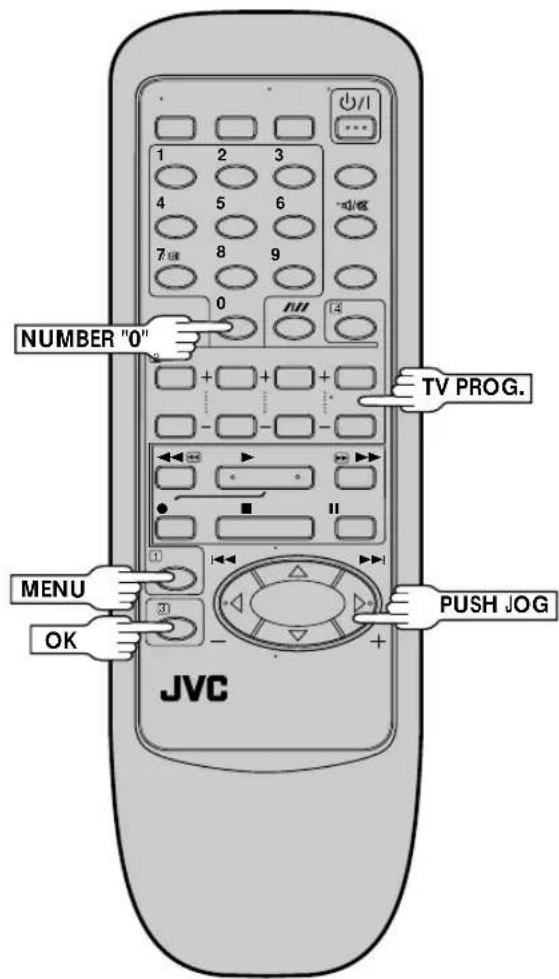
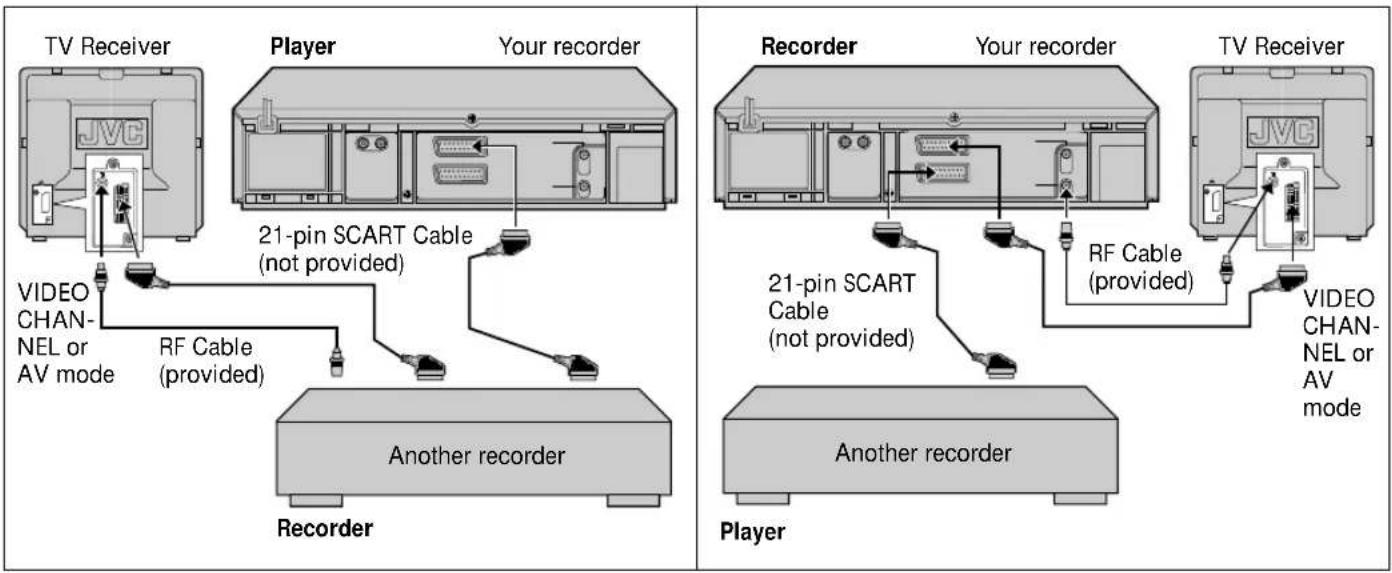
You can use your video recorder as the source player or the recording deck.
1
MAKE CONNECTIONS
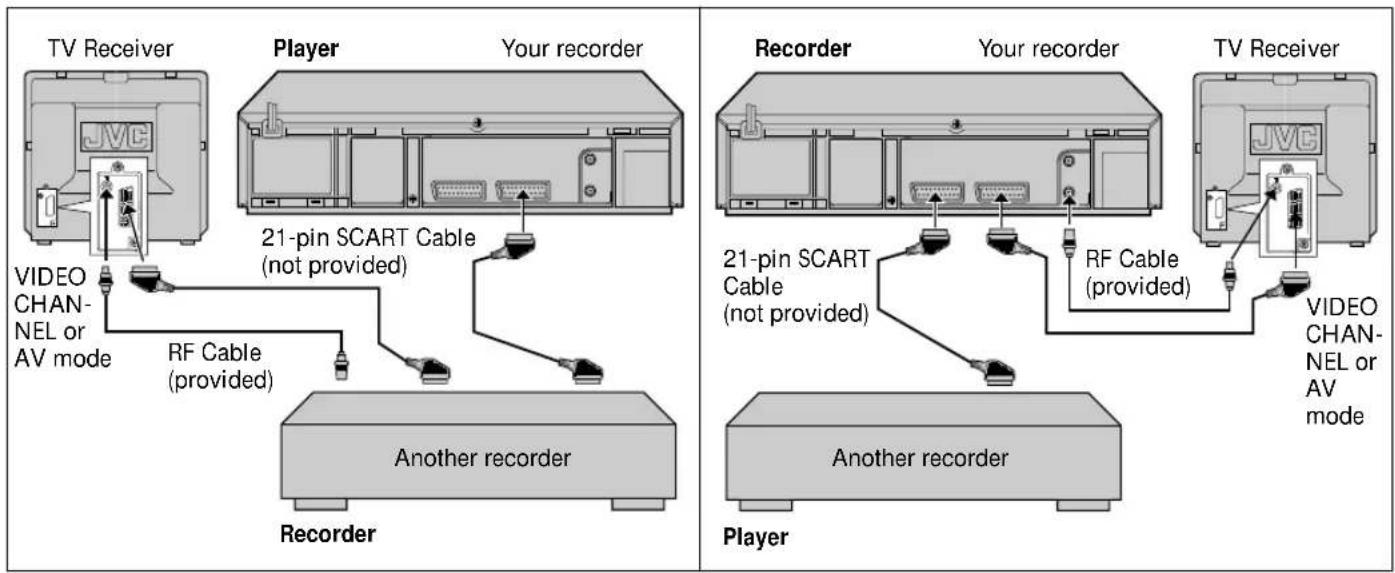
Connect the player's 21-pin SCART connector to the recorder's 21-pin SCART connector as illustrated on page 33.
When Using Your Video Recorder As The Source Player ...
... connect its AV1 IN/OUT connector to the recording deck.
When Using Your Video Recorder As The Recording Deck...
connect its AV2 IN/DECODER or AV1 IN/OUT connector to the source player.
2
SET RECORDING DECK'S INPUT MODE
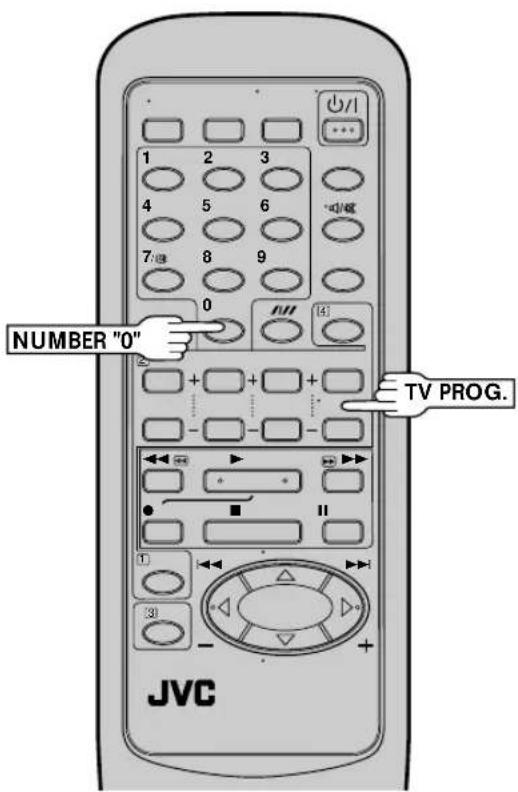
Set to AUX. With this video recorder, press NUMBER key "0" and/or TV PROG. to select depending on the connector being used — "AU-1" for the AV1 IN/OUT connector, or "AU-2" for the AV2 IN/DECODER connector.
- When using the AV2 IN/DECODER connector, make sure "AV2 SELECT" is set to "AV2" (see below).
3
START SOURCE PLAYER
Engage its Play mode.
4
START RECORDING DECK
Engage its Record mode.
NOTE:
All necessary cables can be obtained from your dealer.
AV2 SELECT Setting
1 Press MENU twice to access the Main Menu screen.
2 Press PUSH JOG △▽ to move the highlight bar (pointer) to "MODE SET", then press OK.
3 Press PUSH JOG △▽ to move the highlight bar (pointer) to "AV2 SELECT".
4 Press PUSH JOG ▷ to move the highlight bar (pointer) to your choice:
a-AV2 : To use this recorder as the recording deck with the player connected to the AV2 IN/DECODER connector.
b-DECODER : To use a decoder connected to the AV2 IN/DECODER connector.
5 Press MENU to return to normal screen.
- If you have a decoder, be sure to set "AV2 SELECT" back to "DECODER" after editing.
- If you're not using a decoder, leave "AV2 SELECT" set to "AV2".
- The default setting is "AV2"; if the recorder's memory backup has expired due to a power cut or because the AC was removed from the recorder, "AV2" will be automatically selected when the power is restored to the recorder. If you are using a decoder, be sure to set "AV2 SELECT" back to "DECODER".
![MODE SET AUTO TIMER :OFF O. S. D. : ON B. E. S. T. : ON [AV2 SELECT :AV2] [▲▼] → [▶] : AV2/DECODER [MENU] : EXIT](/content/2026/05/1036638/images/9ffe239f6cd06019bd4aaeb2d2ae6655281983a433b0aa8850e4539e008c2e1c.jpg)
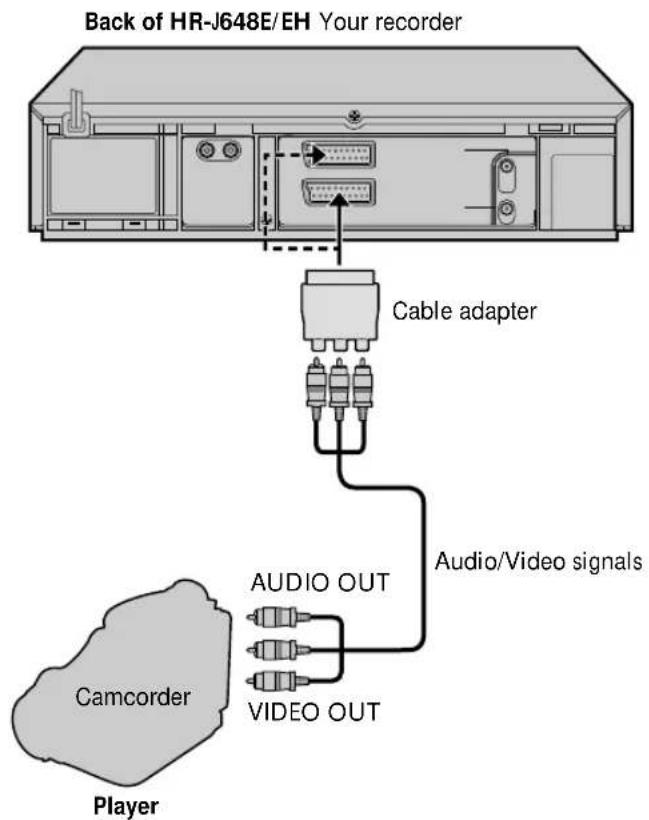
HR-J648E/ EH
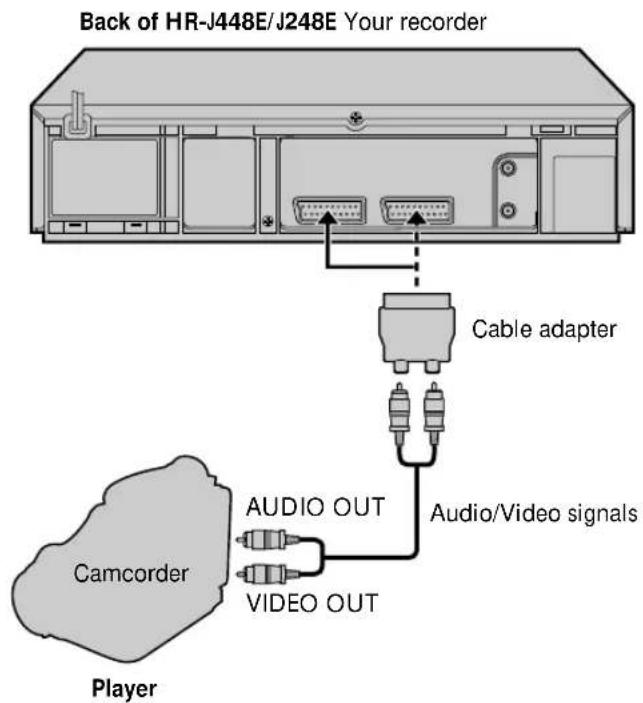
HR-J448E/ J248E
Edit From A Camcorder
You can use a camcorder as the source player and your video recorder as the recorder.
1
MAKE CONNECTIONS
Connect the camcorder's AUDIO/VIDEO OUT connectors to the recorder's AUDIO/VIDEO input connectors.
2
SET RECORDER'S INPUT MODE
Press NUMBER key "0" and/or TV PROG. to select depending on the connector being used — "AU-1" for the AV1 IN/OUT connector, or "AU-2" for the AV2 IN/DECODER connector.
- When using the AV2 IN/DECODER connector, make sure "AV2 SELECT" is set to "AV2" (pg. 30).
3
START CAMCORDER
Engage its Play mode.
4
START RECORDER
Engage its Record mode.
Connecting/ Using A Decoder
![graph TD A["TV Receiver"] --> B["RF Cable (provided)"] B --> C["TV Aerial Cable"] C --> D["Back of HR-J648E/EH"] D --> E["Back of HR-J448E/J248E"] E --> F["Satellite Tuner"] F --> G["Satellite antenna"] H["AV1 IN/OUT"] --> I["AV2 IN/DECODER"] I --> J["Satellite Tuner"] K["Decoder"] --> L["Satellite…](/content/2026/05/1036638/images/51565b6e1eecd93280c4a8567b83c45e04ef18aa3f55e2d3039963646645c79b.jpg)
The AV2 IN/DECODER connector can be used as an input terminal for an external decoder (descrambler). Simply connect a decoder and you can enjoy the variety of programming that is available through scrambled channels.
1 2 3
SELECT INPUT MODE
Set "AV2 SELECT" to "DECODER". (pg. 30)
CONNECT DECODER
Connect your recorder's AV2 IN/DECODER connector to the decoder's Euroconnector using a 21-pin SCART cable.
SET TUNER
Perform the procedure as described in "When Receiving A Scrambled Broadcast" on page 36.
NOTE:
When Connecting A Satellite Tuner ...
... if you don't have a decoder connect the satellite tuner directly to the video recorder's AV2 IN/DECODER connector. ... if you have a decoder, first connect the decoder to the decoder input of the satellite tuner, then connect the satellite tuner's output to the recorder's AV2 IN/DECODER connector. Refer to the instruction book for the satellite tuner and decoder. ... set "AV2 SELECT" to "AV2". (pg. 30) ... to view a programme via the satellite tuner, select AU 2 mode by pressing NUMBER keys and/or TV PROG. so that "AU-2" appears on the display panel.
Turn on the TV and select the VIDEO channel (or AV mode).
IMPORTANT
Perform the following steps only if auto channel set has not been set correctly by Auto Set Up function (17 pg. 4) or if you have moved to a different area or if a new station starts broadcasting in your area.
Your recorder needs to memorise all necessary stations in channel positions in order to record TV programmes. Auto Channel Set automatically assigns all receivable stations in your area so that you can call them up with the TV PROG. buttons without going through any vacant channels.
Auto Channel Set
![TURN ON THE RECORDER Press ⏻/l ACCESS MAIN MENU SCREEN Press MENU twice. ACCESS COUNTRY SET SCREEN Press PUSH JOG△▽ to move the highlight bar (pointer) to "AUTO CH SET", then press OK. MAIN MENU MODE SET AUTO CH SET MANUAL CH SET GUIDE PROG SET CLOCK SET [▲▼] → OK [MENU] : EXIT SELECT COUNTRY Press…](/content/2026/05/1036638/images/c0402f95670a7c813a3e158fffe15ecfed26521589b449741e93440d706e0d1a.jpg)
IMPORTANT
- Depending on the reception conditions, the station names may not be stored correctly, and auto Guide Program Number Set may not work properly. If the Guide Program numbers are not set properly, SHOWVIEW timer recording (Z pg. 24) will not work correctly; be sure to check if the Guide Program numbers have been set correctly (Z pg.10, "SHOWVIEW Setup").
- Since your video recorder memorizes all detected stations even if the reception condition is poor, some of those stored stations may produce a noisy picture. To delete those stations, Z "Delete A Channel" on page 36.
5
PERFORM AUTO CHANNEL SET
Press PUSH JOG△▽ to move the highlight bar (pointer) to the language of your choice, then press OK to initiate Auto Channel Set.
![DANSK SUOMI NORSK SVENSKA NEDERLANDS CASTELLANO ITALIANO FRANCAIS DEUTSCH ENGLISH [▼] → Ⓧ [MENU] : EXIT](/content/2026/05/1036638/images/e362939d691955f0a9f4cccf6ff168f91b1143df2b1f2af30aac7cd4fba6f260.jpg)
- The Auto Set screen appears, and remains on screen while the recorder searches for receivable stations. As Auto Channel Set progresses, the
"■" mark on the screen moves from left to right. Wait until the screen as shown in step 6 appears.
![AUTO SET PLEASE WAIT 0 + [MENU] : EXIT Beginning End](/content/2026/05/1036638/images/2205ea90141d68178c40d86b4f42710feb4535fede3d4ed088eb37f3f0b921dd.jpg)
6
The stations your recorder located appear on a Confirmation screen — channel positions (PR), channels (CH) and station names (ID-Z pg. 38). To view the next page of the listing, press PUSH
JOG△▽◀ ▷. The blueback screen and the program currently being broadcast by blinking station appear alte
![PR CH ID PR CH ID 01 25 ARD 08 C26 E-SP 02 C08 SKY1 09 55 WEST 03 10 ZDF 10 C24 SAT1 04 C65 RAI1 11 C23 OSF 05 C31 BBC1 12 C25 ESPN 06 C32 BBC2 13 C37 CNN 07 C33 3SAT 14 C35 [▲▼▲▼] → ⬆: EDIT → [CANCEL] : DELETE [MENU] : EXIT](/content/2026/05/1036638/images/fc4c6d78f876ceeb828b0da508029075242fced19dfdc39ef4119c0f792ded56.jpg)
C: Cable
- The stations located in the selected country appear at the top of the list.
- The Guide Program numbers will also be set automatically during Auto Channel Set.
7
RETURN TO NORMAL SCREEN
Press MENU.
- Depending on the reception conditions, the stations may not be stored in order, and the station names may not be stored correctly.
- Using the Confirmation screen, you can skip or add channel positions, enter station names and perform other operations. Refer to pages 36 – 37 for the procedures.
- For information on scrambled broadcasts, refer to page 36.
NOTE:
Fine tuning is performed automatically during Auto Channel Set. If you want to perform it manually, refer to page 37.
Storing Channels Manually
Store channels that were not stored during Auto Set Up (LFP pg. 4) or Auto Channel Set (LFP pg. 34).
ACCESS MAIN MENU
Press MENU twice.
ACCESS CONFIRMATION SCREEN
Press PUSH JOG△▽ to move the highlight bar (pointer) to "MANUAL CH SET", then press OK. The Confirmation screen appears.
SELECT POSITION
Press PUSH JOG△▽ ◀▷ until an open position in which you want to store a channel begins blinking, then press OK. The Manual Ch. Set screen appears.
INPUT CHANNEL
The number "01" appears blinking beneath "CH". Press the NUMBER keys to input the channel number you want to store.
- For fine tuning adjustment, press PUSH JOG ▷ until the item beneath "CH" begins blinking, then press PUSH JOG△▽. While tuning, "F+" or "F-" appears.
- If necessary, to change the band between CH(regular) and CC(cable), press PUSH JOG ◀ ▷ until CH or CC is blinking, then press PUSH JOG △ ▽ to select the band.
- When storing a channel that sends scrambled broadcasts, press PUSH JOG ▷ until "OFF" (Decoder setting) blinks, then press PUSH JOG △▽ to set "DECODER" to "ON" ("OFF" is the default setting).
ENTER NEW CHANNEL INFORMATION
Press OK and the Confirmation screen appears.
- Repeat steps 3 through 5 as necessary.
CLOSE CONFIRMATION SCREEN Press MENU.
- To input the station name, see page 37.
- To change positions, see "Change Station Channel Position" (at right).
When Receiving A Scrambled Broadcast
Make sure that "AV2 SELECT" is set to "DECODER" (17 pg. 30).
1- Perform steps 1 and 2 above.
2- Press PUSH JOG △▽◀▷ to select the position of the channel broadcasting the scrambled programmes, then press OK three times.
3- Press PUSH JOG ▷ until "OFF (Decoder setting)" begins blinking, and set it to "ON" by pressing PUSH JOG△▽.
4- Press OK to access the Confirmation screen.
- Repeat steps 2 – 4 for each additional channel.
5- Press MENU.
Perform steps 1 and 2 of the previous procedure to access the Confirmation screen before continuing.
Delete A Channel
SELECT ITEM
Press PUSH JOG△▽◀ ▷ until the item you want to delete begins blinking.
DELETE CHANNEL
Press CANCEL.
- The item directly beneath the cancelled one moves up one line.
- Repeat steps 1 and 2 as necessary.
CLOSE CONFIRMATION SCREEN
Press MENU.
Change Station Channel Position
SELECT ITEM
Press PUSH JOG△▽◀ ▷until the item you want to move begins blinking. Then press OK and the station name (ID) and its channel (CH) number begin blinking.
SELECT NEW POSITION
Press PUSH JOG△▽◀ ▷ to move the station to the new channel position, then press OK.
Example: If you moved the station in position 3 to position 7, the stations originally in positions 4–7 each move up one space.
- Repeat steps 1 and 2 as necessary.
CLOSE CONFIRMATION SCREEN
Press MENU.
Perform steps 1 and 2 of "Storing Channels Manually" on page 36 to access the Confirmation screen before continuing.
Set Stations (A)
1
SELECT ITEM
Press PUSH JOG△▽◀ ▷ until the item you want begins blinking. Then press OK twice and the station's name (ID) begins blinking.
2
SELECT NEW STATION
Press PUSH JOG△▽ until the new station's name (ID) you want to store begins blinking. Registered station names (17 pg. 38) appear as you press PUSH JOG△▽.
3
SWITCH STATIONS
Press OK.
- Repeat steps 1 through 3 as necessary.
4
CLOSE CONFIRMATION SCREEN
Press MENU.
Set Stations (B)
NOTE:
First perform step 1 of the above procedure.
2
SELECT STATION NAME CHARACTER
Press PUSH JOG ▷ and the first letter of the station name begins blinking.
3
ENTER NEW CHARACTER
Press PUSH JOG△▽ to cycle through the characters (A-Z, 0-9, -, *, +, — (space)) and stop when the desired one is indicated, then press PUSH JOG ▷ to enter. Enter the remaining characters the same way (maximum of 4).
After entering all characters, press OK.
- Repeat steps 1 through 3 as necessary.
- If you make a mistake, press PUSH JOG ◀ until the incorrect character begins blinking. Then enter the correct character by pressing PUSH JOG △▽ .
CLOSE CONFIRMATION SCREEN
Press MENU.
4
Fine-Tuning Channels Already Stored
1
SELECT CHANNEL TO FINE-TUNE
Press PUSH JOG△▽◀▷ until the channel you want to tune begins blinking.
2
ACCESS MANUAL CH. SET SCREEN
Press OK three times. The Manual Ch. Set screen appears.
3
PERFORM TUNING
Press PUSH JOG△▽ until the picture is its clearest. Then press OK.
● The Confirmation screen appears.
- Repeat steps 1 through 3 as necessary.
CLOSE CONFIRMATION SCREEN
Press MENU.
TV Station And ID List
| ID* STATION NAME | |
| 1000 TV10003SAT 3SATADLT ADULTANT3 ANTENA3ARD ARDARTE ARTEBBC BBC GROUPBBC1 BBC1BBC2 BBC2BR3 BAYERN3C+ CANAL PLUSC1 PORTUGUSESCAN5 CANALE5CH4 CHANNEL4CH5 CHANNEL5CHLD CHILDCCINE CINEMACLUB TELECLUBCMT CMTCNN CNNCSUR ANDALUCIADISC DISCOVERYDRDRS DRSDSF DSFETB1 ETB1ETB2 ETB2EURO EURONEWSEUSP EUROSPORTSFEMMFILMFNET FILMNETFR2FR3GALAHR3INFOITA1ITA7ITVJSTV JSTVKA2KAB1 KABEL1KAN2LOCA LOCALM6MBCMCM MCMMDRMOVEMTV MTVMTV3 MTV3N3N-TV N-TVNBC NBC SUPERNDR3 NDR3NED1NED2NED3NEWSNICK NICKELODEONNRK NRKNRK2 NRK2ODE ODEONORF1 | DR TVFEMMANFILMFrance2France3GALAVISIONHESSEN3INFO-KANALITALIA1ITALIA7ITVKA2KANAL2M6MBRMDRMOVIENORD3NED1NED2NED3ORF1 |
| ID* STATION NAME | |
| ORF2 | ORF2 |
| ORF3 | ORF3 |
| OWL3 | OWL3 |
| PREM PREMIERE | |
| PRO7 PRO7 | |
| RAI1 RAI1 | |
| RAI2 RAI2 | |
| RAI3 RAI3 | |
| RET4 RETE4 | |
| 21 | TELE21 |
| RTBF | RTBF1 or 2 |
| RTL | RTL |
| RTL2 RTL2 | |
| RTL4 RTL4 | |
| RTL5 RTL5 | |
| RTP RTP | |
| S4 | SCHWEIZ4 |
| SAT1 SAT1 | |
| SBS | SBS |
| SHOW | SHOW |
| SIC | SOCIEDADE |
| SKY | SKY CHANNEL |
| SKYN | SKY NEWS |
| SPRT | SPORT |
| SRTL | SUPER RTL |
| STAR | STAR-TV |
| SVT1 | SVT1 |
| SVT2 | SVT2 |
| SW3 SUEDWEST3 | |
| TCC TCC | |
| TELE TELE | |
| TEL5 TELE5 | |
| TF1 | TF1 |
| TM3 TM3 | |
| TMC TELEMONTECARLO | |
| TNT TNT INT | |
| TRT | TRT INT |
| TSI | TSI |
| TSR | TSR |
| TV1 BRTN TV1 | |
| TV2 BRTN TV2 | |
| TV3 TV3 | |
| TV4 TV4 | |
| TV5 TV5 | |
| TV6 TV6 | |
| TVE1 | TVE1 |
| TVE2 | TVE2 |
| TVG TV GALICIA | |
| TVI | TV INDEPENDENT |
| TVN TV NORGE | |
| VCR | VIDEO |
| VERO | VERONICA |
| VH-1 VH-1 | |
| VIVA VIVA | |
| VIV2 | VIVA2 |
| VMTV | VIDEO MUSIC |
| VOX VOX | |
| VT4 VT4 | |
| VTM VTM | |
| WDR1 | West1 |
| WDR3 | West3 |
| YLE1 | YLE1 |
| YLE2 | YLE2 |
| ZDF ZDF | |
| ZTV | ZTV |
* The "ID" abbreviation is what is shown on-screen in lieu of the station name. The "ID" abbreviation is listed in the Confirmation screen and is displayed on the TV screen when the recorder is tuned to a different station.
Turn on the TV and select the VIDEO channel (or AV mode).
IMPORTANT
Perform the following steps only if auto clock set has not been set correctly by Auto Set Up function (☐ pg. 4) or Auto Channel Set (☐ pg. 34) or if the recorder's memory backup has expired.
If you performed Auto Set Up or Auto Channel Set without ever having set the clock previously, the recorder's built-in clock is also set automatically. The Auto and Manual clock setting procedures are necessary when . . .
- a power outage of more than 3 minutes occurs.
– the tuner has been set manually.
– the user desires to set the clock slightly ahead of the actual time. - the clock was not set even after Auto Set Up or Auto Channel Set was performed.
Whether you perform Auto or Manual clock setting, you can use the convenient Just Clock function.
Just Clock
The Just Clock function provides accurate time keeping through automatic adjustments at regular intervals, by reading data from a PDC signal.
The Just Clock option appears in the Clock Set and Auto Clock screens, and can be set "ON" or "OFF" (the default setting is "OFF"). Press OK until the Just Clock setting begins blinking, then press PUSH JOG△▽ to change the setting.
IMPORTANT: If you turn off Just Clock, the accuracy of your recorder's built-in clock may be reduced, which could adversely effect timer recording. We recommend you to keep Just Clock on. In cases where the clock setting data from a PDC signal is incorrect, however, you are advised to keep Just Clock set to "OFF".
Both Auto and Manual clock setting procedures begin from step 4.
Preparation
1 2 3
ACCESS CLOCK SET SCREEN
Move the highlight bar (pointer) to "CLOCK SET" by pressing PUSH JOG △▽, then press OK. The Clock Set screen appears.
![MAIN MENU MODE SET AUTO CH SET MANUAL CH SET GUIDE PROG SET CLOCK SET [▲▼] → OK [MENU] : EXIT](/content/2026/05/1036638/images/b8453599ef7ff43729a6f7eae785e795220ee8bd5fb65d200f40aa057e8cdc33.jpg)
![CLOCK SET TIME DATE YEAR 0:00 01.01 00 JUST CLOCK : OFF TV PR. : 1 [▶] : AUTO CLOCK [▲▼] → OK [MENU] : EXIT](/content/2026/05/1036638/images/200287445c8963b3a97f5726f22cae27fae9af2de0416cf01fa7a18c638db525.jpg)
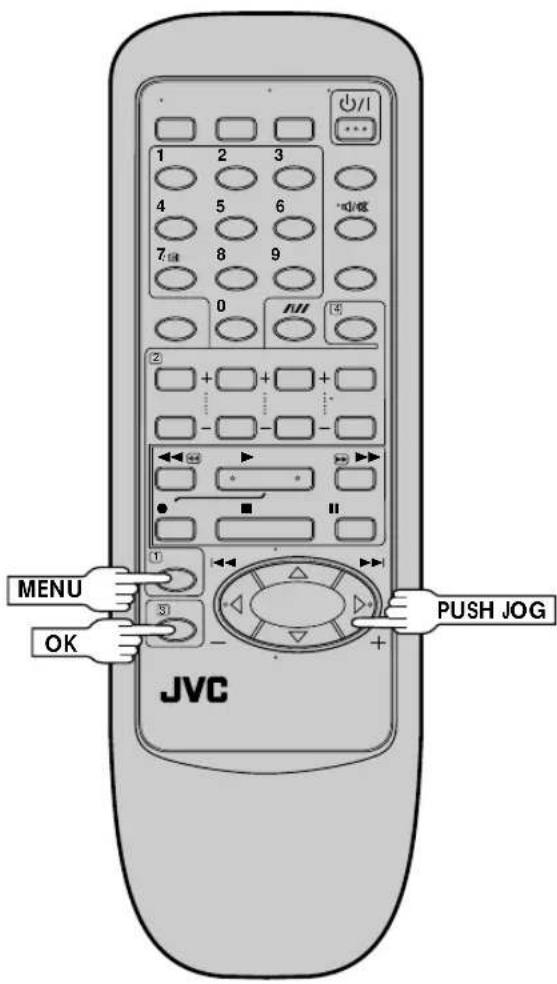
NOTES:
- Auto Clock and Just Clock require a PDC signal, and will not operate with a VPS signal.
- Just Clock (when set to "ON") enables adjustment of the recorder's built-in clock every hour on the hour, except for 23:00, 0:00, 1:00 and 2:00.
- Just Clock is not effective when . . .
- the recorder's power is on (unless the recorder is tuned to the same channel position selected in the Clock Set screen).
– the recorder is in the Timer mode. - a difference of more than 3 minutes exists between the built-in clock's time and the actual time.
- If Just Clock is set to "ON", the recorder's clock is automatically adjusted at the start/end of Summer Time.
- Auto clock setting and Just Clock may not function properly depending on the reception condition.
- During Manual clock setting, if the day and month data are invalid (such as 31st April), the month digits are cleared automatically and the day digits begin blinking. Input the correct data.
- If, in step 4 of the Manual clock setting procedure, the year digits are automatically cleared and the day digits begin blinking, it is possible that you have input 29th February for a non-leap year. Input the correct data.
Auto Clock Set
4
SET CLOCK AUTOMATICALLY
At the Clock Set screen, press PUSH JOG ▷The Auto Clock screen appears and clock setting begins.
- If "TV PR." isn't set to the channel position on which Auto Clock data is received, "ERROR" appears, and then the
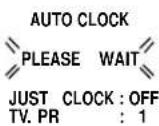
screen from step 3 reappears. To set "TV PR.", press OK to place the pointer next to it, then cycle through the numbers by pressing PUSH JOG△▽ until the number representing the channel position in which the station transmitting clock setting data is stored appears.
5
RETURN TO NORMAL SCREEN
Once clock setting is completed, press MENU to return to the normal screen.
Manual Clock Set
4
SET DATE AND TIME
Press PUSH JOG△▽ to set the hour, then press OK. The "minutes" display begins blinking. Repeat the procedure to set the minutes, day, month and year.
5
SET JUST CLOCK
The default setting is "OFF". Set as desired by pressing PUSH JOG△▽, then press OK.
- If you set to "OFF", you can disregard the next step as you won't be able to receive regular clock adjustments.
6
SET CLOCK DATA SOURCE CHANNEL POSITION
The recorder is preset to receive clock setting and adjustment data from channel position 1. Press PUSH JOG△▽ to set the channel position to the number representing the station transmitting clock setting data, then press OK.
7
Q. What happens if the end of the tape is reached during playback or search?
A. The tape is automatically rewound to the beginning.
Q. Can the video recorder indefinitely remain in the still mode?
A. No. It stops automatically after 5 minutes to protect the heads.
Q. During search, slow, still and frame-by-frame playback, I can't hear any audio. What's the problem?
A. This is normal.
Q. When returning from multi-speed search to normal playback, the picture is disturbed. Should I be concerned about this?
A. No, it is normal.
Q. Noise bars appear during multi-speed search. What's the problem?
A. This is normal.
Q. Other than preventing further recording, what effect does removing the Record Safety tab have?
A. It disables marking of index codes.
Q. Sometimes, during Index Search, the video recorder can't find the programme I want to see. Why not?
A. There may be index codes too close together.
RECORDING
Q. When I pause and then resume a recording, the end of the recording before the pause is overlapped by the beginning of the continuation of recording. Why does this happen?
A. This is normal. It reduces distortion at the pause and resume points.
Q. Can the video recorder indefinitely remain in the Record-Pause mode?
A. No. The video recorder goes to its Stop mode automatically after 5 minutes to protect the heads.
Q. What happens if the tape runs out during recording?
A. The video recorder automatically rewinds it to the beginning.
TIMER RECORDING
Q. "○" and "+" remain lit on the display panel is there a problem?
A. No. This is a normal condition for a timer recording in progress.
Q. Can I program the timer while I'm watching a tape or a TV broadcast?
A. You won't see the picture as it is replaced by the on-screen menu, but the audio from the program or tape you're viewing can be heard.
ATTENTION:
This recorder contains microcomputers. External electronic noise or interference could cause malfunctioning. In such cases, switch the recorder off and unplug the mains power cord. Then plug it in again and turn the recorder on. Take out the cassette. After checking the cassette, operate the unit as usual.
Before requesting service for a problem, use this chart and see if you can repair the trouble yourself. Small problems are often easily corrected, and this can save you the trouble of sending your video recorder off for repair.
POWER
| SYMPTOM | POSSIBLE CAUSE | CORRECTIVE ACTION |
| 1. No power is applied to the recorder. | ● The mains power cord is disconnected. | Connect the mains power cord. |
| 2. The clock is functioning properly, but the recorder cannot be powered. | ● “⊖” is displayed on the display panel with Auto Timer set to "OFF". | Press the TIMER button to turn the “⊖” indicator off. |
TAPE TRANSPORT
| SYMPTOM | POSSIBLE CAUSE | CORRECTIVE ACTION |
| 1. The tape does not run during recording. | “☐” is displayed on the display panel. | Press PLAY to turn the “☐” indicator off. |
| 2. The tape stops during rewind or fast-forward. | “M” is displayed on the display panel. | Press C.MEMORY to deactivate the Counter Memory function and turn the “M” indicator off. |
| 3. The tape will not rewind or fast-forward. | The tape is already fully rewound or fast-forwarded. | Check the cassette. |
PLAYBACK
| SYMPTOM | POSSIBLE CAUSE | CORRECTIVE ACTION |
| 1. The playback picture does not appear while the tape is running. | If you're using the RF OUT connection...the TV receiver's channel selector is not set to the VIDEO channel...the recorder's VIDEO channel has not been correctly set.If you're using the AV connection, the TV receiver is not set to the AV mode. | If you are using the RF OUT connection...set the TV receiver to the VIDEO channel. (pg. 8)...Perform "Video Channel Set"(pg. 8)If you are using the AV connection, set the TV to its AV mode. |
| 2. Noise appears during visual search. | This is normal. | |
| 3. Noise appears during normal playback. | The automatic tracking mode is engaged. | Try manual tracking. (pg. 14) |
| 4. Noise appears during slow-motion playback. | The automatic tracking mode is engaged. | Try manual tracking. (pg. 14) |
| 5. Noise appears during still play-back. | Press TV PROG.+ or – a few times to remove the noise bars from the screen. | |
| 6. (HR-J648E/EH only) Breaks are noticeable in Hi-Fi soundtrack | Automatic tracking is engaged. | Engage and adjust tracking manually. (pg. 14) |
| 7. The playback picture is blurred or interrupted while TV broadcasts are clear. | The video heads may be dirty. | Consult your JVC dealer. |
RECORDING
| SYMPTOM | POSSIBLE CAUSE | CORRECTIVE ACTION |
| 1. Recording cannot be started. | There is no cassette loaded, or the cassette loaded has had its Record Safety tab removed. | Insert a cassette, or using adhesive tape, reseal the slot where the tab was removed. |
| 2. TV broadcasts cannot be recorded. | “AU” has been selected as the input mode. | Set to the desired channel. |
| 3. Tape-to-tape editing is not possible. | The source (another video recorder, camcorder) has not been properly connected.All necessary power switches have not been turned on.The input mode is not correct. | Confirm that the source is properly connected.Confirm that all units’ power switches are turned on.Set the input mode to “AU”. |
| 4. Camcorder recording is not possible. | ● The camcorder has not been properly connected.● The input mode is not correct. | Confirm that the camcorder is properly connected.Set the input mode to “AU”. |
TIMER RECORDING
| SYMPTOM | POSSIBLE CAUSE | CORRECTIVE ACTION |
| 1. Timer recording won't work. | The clock and/or the timer have been set incorrectly.The timer is not engaged. | Re-perform the clock and/or timer settings.Press TIMER and confirm that “⊖” is displayed on the display panel. |
| 2. On-screen timer programming is not possible. | Timer recording is in progress. | Timer programming can't be performed while a timer recording is in progress. Wait until it finishes. |
| 3. “⊖” and “○○” on the display panel won't stop blinking. | The timer is engaged but there's no cassette loaded. | Load a cassette with the Record Safety tab intact, or cover the hole using adhesive tape. |
| 4. The cassette is automatically ejected, and “⊖” and “○○” on the display panel won't stop blinking. | The loaded cassette has had its Record Safety tab removed. | Remove the cassette and cover the hole with adhesive tape, or insert a cassette with the Record Safety tab intact. |
| 5. “⊖” blinks for 10 seconds and the Timer mode is disengaged. | TIMER has been pressed when there are no programs in memory, or the timer record information has been programmed incorrectly. | Check the programmed data and re-program as necessary, then press TIMER again. |
| 6. The cassette is automatically ejected, the power shuts off and “⊖” and “○○” won't stop blinking. | The end of the tape was reached during timer recording. | The programme may not have been recorded in its entirety. Next time make sure you have enough time on the tape to record the entire programme. |
| 7. SHOW VIEW does not timer-record properly. | The recorder's channel positions have been set incorrectly. | Refer to "Guide Program Number Set" and re-perform the procedure (1-7 pg. 10). |
OTHER PROBLEMS
| SYMPTOM | POSSIBLE CAUSE | CORRECTIVE ACTION |
| 1. Whistling or howling is heard from the TV during camcorder recording. | The camcorder's microphone is too close to the TV.The TV's volume is too high. | Position the camcorder so its microphone is away from the TV.Turn the TV's volume down. |
| 2. When scanning channels, some of them are skipped over. | Those channels have been designated to be skipped. | If you need the skipped channels, restore them (17 pg. 36). |
| 3. The channel cannot be changed. | Recording is in progress. | Press PAUSE to pause the recording, change channels, then press PLAY to resume recording. |
| 4. Channel settings that were made manually seem to have changed or disappeared. | After the manual settings were made, Auto Channel Set was performed. | Perform manual setting again. |
| 5. No channels are stored in the recorder's memory. | The TV aerial cable was not connected to the recorder when Auto Set Up was performed. | Connect the TV aerial cable to the recorder properly and turn off the recorder power once, then turn the recorder power back on again. The recorder will try Auto Set Up again (17 pg. 4). |
FRONT VIEW
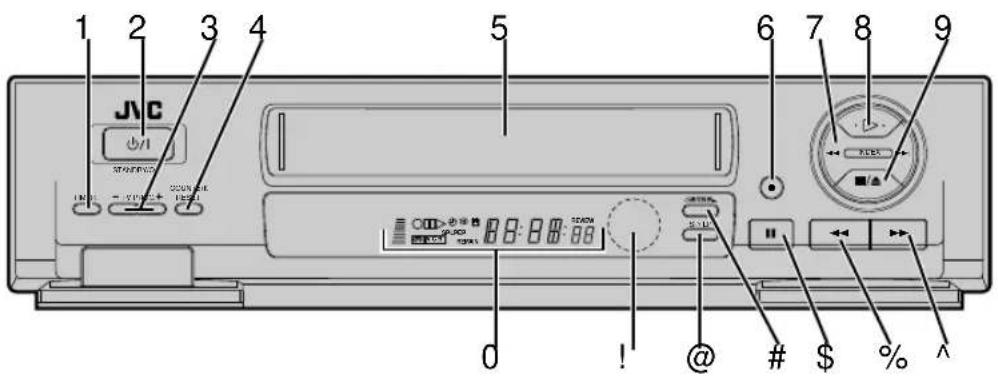
1 TIMER Button ☐ pg. 25, 27
2 STANDBY/ON 📋/1 Button 📋 pg. 4
3 TV PROG. +/- Buttons pg. 17
4 COUNTER RESET Button ☐ pg. 21
5 Cassette Loading Slot
6 RECORD Button ☐ pg. 17
7 INDEX Button ☐ pg. 15
8 PLAY Button ☐ pg. 12
9 STOP/EJECT Button 17 pg. 12
0 Display Panel 17 pg. 45
! Infrared Beam Receiving Window
@SP/LP Button ☐ pg. 17 (HR-J648E/J648EH/J448E)
DISPLAY Button ☐ pg. 21 (HR-J248E)
REVIEW Button ☐ pg. 15
\$ PAUSE Button ☐ pg. 13
%Rewind [REW] Button 📋 pg. 12
^ Fast Forward [FF] Button ☐ pg. 12
REAR VIEW [J648E/ EH]
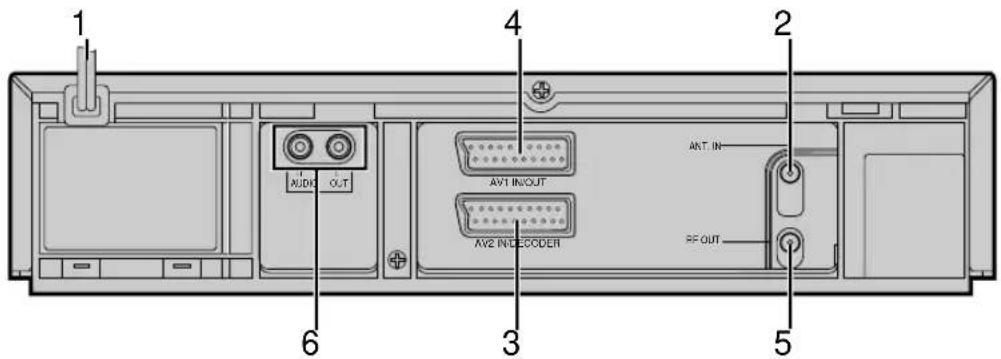
REAR VIEW [J448E/ J248E]
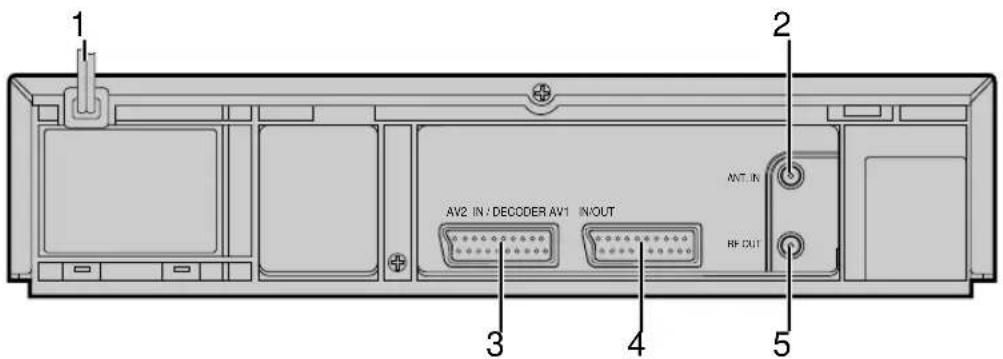
1 Mains Power Cord 📄 pg. 3
2 ANT. IN Connector ☐ pg. 3
3 AV2 IN/DECODER Connector pg. 30, 33
4 AV1 IN/OUT Connector pg. 3, 30
5 RF OUT Connector ☐ pg. 3
6 AUDIO OUT (L/R) Connectors 17 pg. 3 (HR-J648E/EH only)
DISPLAY PANEL
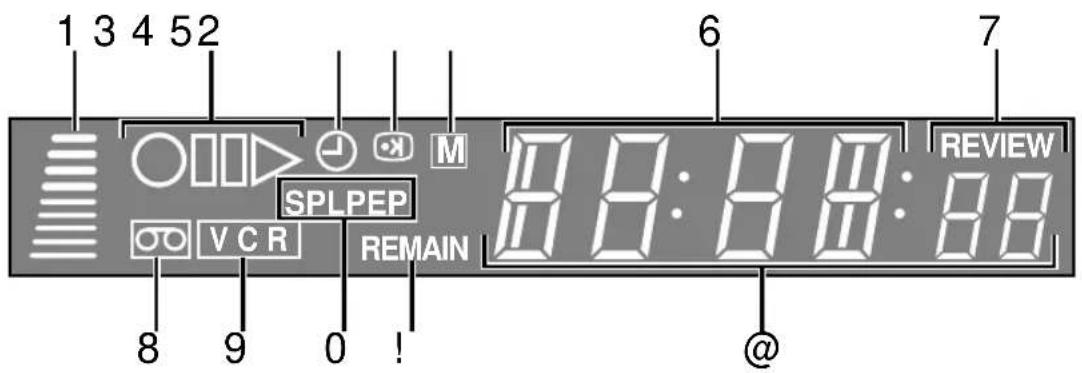
1 B.E.S.T. Picture System Display ☐ pg. 18
2 Symbolic Mode Indicators
| PLAY:FF/REW VARIABLESHUTTLE SEARCH: | ▷ | STILL:SLOW: | □□ ▷ |
| RECORD: | ○ | ||
| RECORD PAUSE: | ○□□ |
3 "Timer" Indicator 13 pg. 25, 27
4 PDC/VPS Indicator 13 pg. 29
5 Counter Memory Indicator ☐ pg. 16
6 Channel*/Mode Display pg. 17 *Channel position 1 will be displayed as "CH 1". Clock Display pg. 5, 39
7 Instant REVIEW Indicator ☐ pg. 15
8 "Cassette Loaded" Mark
9 VCR Indicator 17 pg. 21
0 Tape Speed Indicators 📋 pg. 17
! Tape Remaining Time Indicator ☐ pg. 21
@Counter/Remain Display 17 pg. 21
REMOTE CONTROL
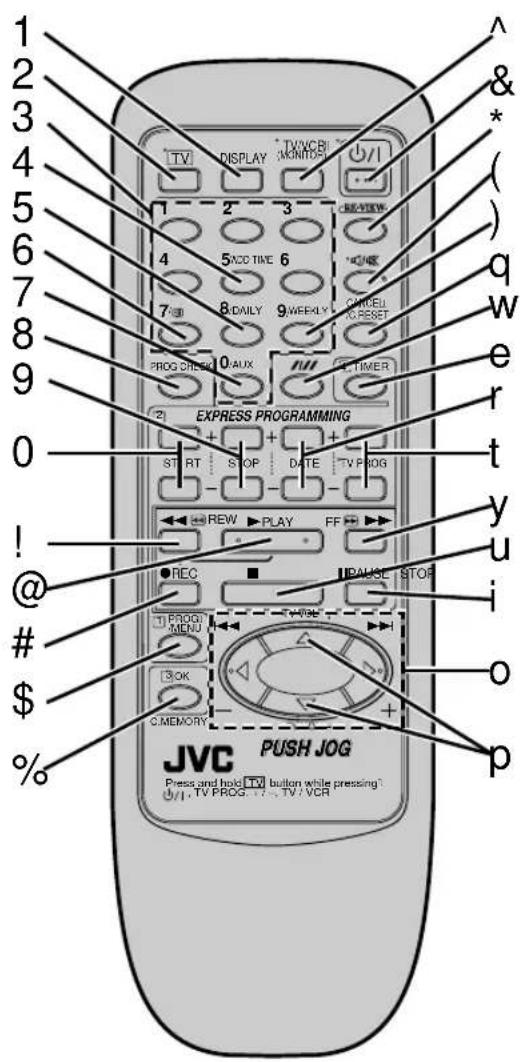
1 DISPLAY Button ☐ pg. 21
2 TV Button (See below)
3 NUMBER Keys ☐ pg. 17, 24
4 ADD TIME Button ☐ pg. 25
5 DAILY Button ☐ pg. 25, 27
6 (PDC/VPS) Button pg. 24, 27
7 AUX Button ☐ pg. 30
8 PROG. CHECK Button ☐ pg. 28
9 STOP +/- Button 17 pg. 26
0 START +/- Button 17 pg. 26
! Rewind [REW] Button ☐ pg. 12
@Play Button ☐ pg. 12
Record Button ☐ pg. 17
\$ PROG./MENU Button ☐ pg. 7, 24
%OK Button 13 pg. 7
C. MEMORY Button ☐ pg. 16
^ TV/VCR Button ☐ pg. 21
& STANDBY/ON ⏻/1 Button 📄 pg. 4
* REVIEW Button ☐ pg. 15
( AUDIO MONITOR Button ☐ pg. 16
TV Mute) Button (See below)
) WEEKLY Button ☐ pg. 25, 27
q CANCEL Button ☐ pg. 11
C. RESET Button ☐ pg. 21
w SP/LP Button 17 pg. 17
Auto Tracking Button ☐ pg. 14
e TIMER Button ☐ pg. 25, 27
r DATE +/- Button 17 pg. 26
t TV PROG. +/- Button ☐ pg. 17
y Fast Forward [FF] Button ☐ pg. 12
u Stop Button 12 pg. 12
i Pause Button 17 pg. 13
o PUSH JOG △▽ ◀ ▷Button 📋 pg. 7
PUSH JOG ◀ ▷ Button 📋 pg. 13, 15
p TV VOL △▽ Button (See below)
Installing Batteries
1 Open the battery compartment cover.
2 Insert 2 "R6"-size batteries (provided) in the correct directions.
3 Replace the cover.
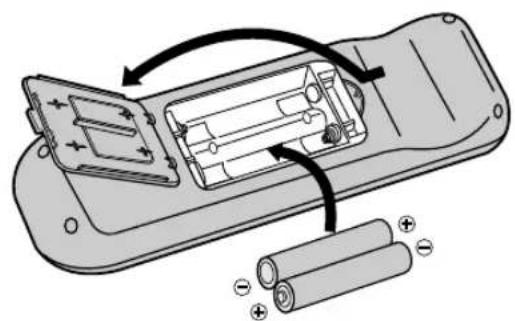
How To Use
The remote control can operate most of your video recorder's functions, as well as basic functions of JVC TV sets. (See below)
- Point the remote control toward the sensor window.
- The maximum operating distance of the remote control is about 8 m.
Operating JVC TVs
To operate your TV, while holding down TV, press the corresponding button: STANDBY/ON ⏻/I, TV/VCR, TV PROG. +/-, ⏻/✗ (TV Mute). TV VOL. +/- can be used without holding down TV.
NOTES:
- Depending on the type of JVC TV, there may be cases where some or all functions cannot be operated using the remote control.
- If the remote control doesn't work properly, remove its batteries, wait a short time, replace the batteries and then try again.
GENERAL
Power requirement : AC 220 - 240 V\~, 50/60 Hz
Power consumption : 24 W (HR-J648E/EH)
: 20 W (HR-J448E/J248E)
Temperature
Operating : 5°C to 40°C
Storage: -20°C to 60°C
Operating position : Horizontal only
Dimensions (WxHxD) : 400 x 94 x 340 mm
Weight : 4.3 kg
Format : VHS PAL standard
Maximum recording time
(SP): 240 min. with E-240 video
cassette
(LP) [HR-J648E/J648EH/J448E only]
: 480 min. with E-240 video
cassette
VIDEO/AUDIO
Signal system : PAL-type colour signal and
CCIR monochrome
signal,625 lines
50 fields
Recording system : DA4 (Double Azimuth) head
helical scan system (HR-
J648E/EH, J448E)
Rotary two-head helical scan
system (HR-J248E)
Signal-to-noise ratio : 45 dB
Horizontal resolution : 250 lines
Frequency range
: 70 Hz to 10,000 Hz (Normal audio)
20 Hz to 20,000 Hz (Hi-Fi
audio) (HR-J648E/EH only)
Input/Output
: Frequency synthesized tuner
Channel coverage
: VHF 47-89/104-300/
302-470MHz
UHF 470-862MHz
Aerial output
: UHF channels 22 – 69
(Adjustable)
Memory backup time
: Approx. 3 min.
ACCESSORIES
Provided accessories
: RF cable,
Infrared remote control unit,
"R6" battery x 2
Specifications shown are for SP mode unless otherwise specified.
E.& O.E. Design and specifications subject to change without notice.
Auto Set Up – referring to the display panel
The Auto Set Up function sets the tuner channels, clock and Guide Program numbers automatically.
■ The TV aerial cable is connected to the ANT.IN jack on the rear panel of the video recorder.
■ The video recorder's mains power cord is connected to a mains outlet.
■ The video recorder is turned off.
■ Load batteries into the remote control.
1 Press ⏻/l (recorder/remote).

2 Press PUSH JOG △▽ (remote) to select the international telephone country code.
(Ex.) DEUTSCHLAND is selected.

- If you have selected a country code other than 32 (BELGIUM) or 41 (SUISSE), go to step 3.
- If you have selected 32 (BELGIUM) or 41 (SUISSE), press OK (remote) and select the language code by pressing PUSH JOG △▽ (remote), then go to step 3.
(Ex.) FRANCAIS is selected for BELGIUM

3 Press OK (remote). Do NOT press any button on the video recorder or remote control until the current time appears.

- If "CH1" or "--":—" appears on the display panel, see page 5 of the instructions.
* Once you have performed Auto Set Up, even if the recorder's memory backup has expired, the recorder will not perform Auto Set Up again.
FOR MORE INFORMATION SEE INSTRUCTIONS/P4
JVC
VICTOR COMPANY OF JAPAN, LIMITED
- HR-J648EH (HI-FI) HR-J648E (HI-FI) HR-J448E (MONAURAL) HR-J248E (MONAURAL)
- CONTENTS
- SAFETY FIRST
- TIMER RECORDING
- EDITING
- SYSTEM CONNECTIONS
- TUNER SET
- CLOCK SET
- QUESTIONS AND ANSWERS
- TROUBLESHOOTING
- INDEX
- SPECIFICATIONS
- SAFETY PRECAUTIONS
- WARNING: TO PREVENT FIRE OR SHOCK HAZARD, DO NOT EXPOSE THIS UNIT TO RAIN OR MOISTURE
- CAUTION
- WARNING
- FOR ITALY
- IMPORTANT
- TO HR-J648E/J648EH/J448E OWNERS
- FAILURE TO HEED THE FOLLOWING PRECAUTIONS MAY RESULT IN DAMAGE TO THE RECORDER, REMOTE CONTROL OR VIDEO CASSETTE
- DO NOT PLACE THE RECORDER
- DO NOT BLOCK THE RECORDER'S VENTILATION OPENINGS
- DO NOT PLACE HEAVY OBJECTS ON THE RECORDER OR REMOTE CONTROL
- DO NOT PLACE ANYTHING WHICH MIGHT SPILL ON TOP OF THE RECORDER OR REMOTE CONTROL
- AVOID VIOLENT SHOCKS TO THE RECORDER DURING TRANSPORT
- MOISTURE CONDENSATION
- ABOUT HEAD CLEANING
- BASIC CONNECTIONS
- CHECK CONTENTS
- SITUATE RECORDER
- RF CONNECTION
- AV CONNECTION
- AUTO SET UP
- AUTO CHANNEL SET/ AUTO CLOCK SET/ AUTO GUIDE PROGRAM NUMBER SET
- ATTENTION
- NOTE
- SELECT COUNTRY
- IF YOU ARE REFERRING TO THE FRONT DISPLAY PANEL
- IF YOU ARE REFERRING TO THE ON-SCREEN DISPLAY
- LANGUAGE CODE
- AUTO SET UP RESULTS APPEAR ON THE FRONT DISPLAY PANEL
- SELECT LANGUAGE
- PERFORM AUTO SET UP
- NOTES
- IF BOTH AUTO CHANNEL SET AND AUTO CLOCK SET HAVE BEEN PERFORMED SUCCESSFULLY
- IF AUTO CHANNEL SET HAS SUCCEEDED BUT AUTO CLOCK SET HAS NOT
- IF BOTH AUTO CHANNEL SET AND AUTO CLOCK SET HAVE FAILED
- INFORMATION
- LANGUAGE FOR THE ON-SCREEN DISPLAY
- JUST CLOCK
- LANGUAGE
- ACCESS COUNTRY SET SCREEN
- RETURN TO NORMAL SCREEN
- VIDEO CHANNEL SET
- WITH RF CONNECTION
- ACCESS VIDEO CHANNEL SET MODE
- SET VIDEO CHANNEL
- EXIT VIDEO CHANNEL SET MODE
- WITH AV CONNECTION
- SHOW VIEW SETUP
- GUIDE PROGRAM NUMBER SET
- ENTER SHOW VIEW NUMBER
- CONFIRM CHANNEL POSITION NUMBER
- CLOSE MENU
- WHEN USING A SATELLITE TUNER
- PREPARATION
- TO RECORD SATELLITE BROADCASTS USING SHOWVIEW TIMER RECORDING
- TO RECORD SATELLITE BROADCASTS USING REGULAR TIMER RECORDING
- BASIC PLAYBACK
- LOAD A CASSETTE
- FIND PROGRAMME START POINT
- START PLAYBACK
- STOP PLAYBACK
- PLAYBACK FEATURES
- VARIABLE-SPEED SEARCH
- ACTIVATE VARIABLE-SPEED SEARCH
- HIGH-SPEED SEARCH
- ACTIVATE HIGH-SPEED SEARCH
- STILL PICTURE/ FRAME-BY-FRAME PLAYBACK
- PAUSE DURING PLAYBACK
- ACTIVATE FRAME-BY-FRAME PLAYBACK
- SLOW MOTION
- MANUAL TRACKING
- OVERRIDE AUTOMATIC TRACKING
- ADJUST TRACKING MANUALLY
- RETURN TO AUTOMATIC TRACKING
- NTSC PLAYBACK
- INDEX SEARCH
- ACTIVATE INDEX SEARCH
- INSTANT REVIEW
- ACTIVATE INSTANT REVIEW
- REPEAT PLAYBACK
- ACTIVATE REPEAT PLAYBACK
- INFORMATION ON COLOUR SYSTEM
- TAPE POSITION INDICATOR
- NEXT FUNCTION MEMORY
- COUNTER MEMORY
- SET COUNTER MEMORY
- ACTIVATE COUNTER MEMORY
- SOUNDTRACK SELECTION (HR-J648E/ EH ONLY)
- DURING PLAYBACK
- BASIC RECORDING
- CHOOSE A PROGRAMME
- SET TAPE SPEED (HR-J648E/J648EH/J448E ONLY)
- START RECORDING
- PAUSE/ RESUME RECORDING
- STOP RECORDING
- ACCIDENTAL ERASURE PREVENTION
- B.E.S.T. PICTURE SYSTEM
- RECORDING
- ACCESS MAIN MENU SCREEN
- ACCESS MODE SET SCREEN
- CONFIRM B.E.S.T. STATUS
- WITH HR-J248E
- PLAYBACK
- ON-SCREEN DISPLAYS
- ENABLE/ DISABLE ON-SCREEN DISPLAY
- RETURN TO NORMAL
- RECORDING FEATURES
- RECORD ONE PROGRAMME WHILE WATCHING ANOTHER
- SELECT CHANNEL TO WATCH
- ELAPSED RECORDING TIME INDICATION
- SET COUNTER DISPLAY
- RESET COUNTER
- TAPE REMAINING TIME
- DISPLAY REMAINING TIME
- RECEIVING STEREO AND BILIN- GUAL PROGRAMMES (HR-J648E/ EH ONLY)
- TO RECORD STEREO AND BILIN- GUAL PROGRAMMES (A2) (HR-J648E/ EH ONLY)
- TO RECORD NICAM STEREO AND BILINGUAL PROGRAMMES (HR-J648EH ONLY)
- INSTANT TIMER RECORDING (ITR)
- SHOW VIEW TIMER RECORDING
- ACCESS TIMER PROGRAMMING SCREEN
- ENTER SHOWVIEW NUMBER
- ACCESS SHOWVIEW PROGRAM SCREEN
- SATELLITE TUNER USERS
- RETURN TO NORMAL SCREEN PRESS OK
- ENGAGE RECORDER'S TIMER MODE
- REGARDING GUIDE PROGRAM NUMBER SET
- REGULAR TIMER PROGRAMMING
- ENTER CHANNEL POSITION
- CHECK AND CANCEL PROGRAMMES
- ACCESS PROGRAMME DISPLAY AND/ OR SCREEN
- REVISE PROGRAMME INFORMATION
- AUTO TIMER
- SELECT MODE
- TIMER WARNING
- PDC/ VPS RECORDING
- HOW TO CHECK IF THE STATION BEING RECEIVED TRANSMITS A PDC/VPS SIGNAL
- EDIT TO OR FROM ANOTHER VIDEO RECORDER
- MAKE CONNECTIONS
- SET RECORDING DECK'S INPUT MODE
- START SOURCE PLAYER
- START RECORDING DECK
- AV2 SELECT SETTING
- EDIT FROM A CAMCORDER
- SET RECORDER'S INPUT MODE
- START CAMCORDER
- START RECORDER
- CONNECTING/ USING A DECODER
- SELECT INPUT MODE
- CONNECT DECODER
- SET TUNER
- AUTO CHANNEL SET
- PERFORM AUTO CHANNEL SET
- PRESS MENU
- STORING CHANNELS MANUALLY
- ACCESS MAIN MENU
- ACCESS CONFIRMATION SCREEN
- SELECT POSITION
- INPUT CHANNEL
- ENTER NEW CHANNEL INFORMATION
- CLOSE CONFIRMATION SCREEN PRESS MENU
- DELETE A CHANNEL
- SELECT ITEM
- DELETE CHANNEL
- CLOSE CONFIRMATION SCREEN
- CHANGE STATION CHANNEL POSITION
- SELECT NEW POSITION
- SET STATIONS (A)
- SELECT NEW STATION
- SWITCH STATIONS
- SET STATIONS (B)
- SELECT STATION NAME CHARACTER
- ENTER NEW CHARACTER
- FINE-TUNING CHANNELS ALREADY STORED
- SELECT CHANNEL TO FINE-TUNE
- ACCESS MANUAL CH. SET SCREEN
- PERFORM TUNING
- ACCESS CLOCK SET SCREEN
- AUTO CLOCK SET
- SET CLOCK AUTOMATICALLY
- MANUAL CLOCK SET
- SET DATE AND TIME
- SET JUST CLOCK
- SET CLOCK DATA SOURCE CHANNEL POSITION
- FRONT VIEW
- REVIEW BUTTON ☐ PG
- REAR VIEW [J648E/ EH]
- REAR VIEW [J448E/ J248E]
- DISPLAY PANEL
- REMOTE CONTROL
- RECORD BUTTON ☐ PG
- INSTALLING BATTERIES
- HOW TO USE
- OPERATING JVC TVS
- GENERAL
- VIDEO/AUDIO
- ACCESSORIES
- AUTO SET UP – REFERRING TO THE DISPLAY PANEL
Brand : JVC
Model : HRJ248
Category : VCR