
HR-V206E - VCR JVC - Free user manual and instructions
Find the device manual for free HR-V206E JVC in PDF.


| Product Type | VHS Video Cassette Recorder (VCR) |
| Model | HR-V206E |
| Brand | JVC |
| Video Heads | 4-head helical scan system |
| Recording Formats | VHS, VHS HQ |
| Playback Formats | VHS, VHS HQ |
| Recording Modes | SP, LP, EP (SLP) |
| Inputs | 2x RCA (composite), 1x S-Video, 1x RF in |
| Outputs | 1x RCA (composite), 1x S-Video, 1x RF out |
| Front Panel | Play, Record, Rewind, Fast Forward, Stop, Eject, Power, Tracking, Timer |
| Remote Control | Infrared remote with full functionality |
| Timer Recording | Up to 8 programs, VCR Plus+ compatible |
| Dimensions (W x H x D) | 435 x 96 x 280 mm (17.1 x 3.8 x 11.0 inches) |
| Weight | 3.5 kg (7.7 lbs) |
| Power Supply | AC 220-240 V, 50 Hz |
| Power Consumption | 30 W (typical) |
| Head Cleaning | Automatic head cleaning system; manual cleaning recommended every 500 hours of use |
| Tape Speed | SP (23.39 mm/s), LP (11.70 mm/s), EP/SLP (5.85 mm/s) |
| Audio | Monaural audio (Hi-Fi stereo optional on some models, but standard mono for this model) |
| Safety Certifications | UL, CSA, CE, FCC |
Frequently Asked Questions - HR-V206E JVC
User questions about HR-V206E JVC
0 question about this device. Answer the ones you know or ask your own.
Ask a new question about this device
Download the instructions for your VCR in PDF format for free! Find your manual HR-V206E - JVC and take your electronic device back in hand. On this page are published all the documents necessary for the use of your device. HR-V206E by JVC.
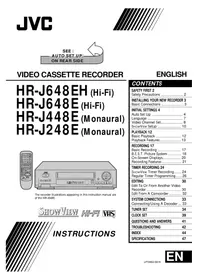
USER MANUAL HR-V206E JVC
LPT0811-001A Printed in Indonesia
COPYRIGHT © 2003 VICTOR COMPANY OF JAPAN, LTD. 0203-AH-CR-LG


SAFETY FIRST....1
Buttons, Connectors and Indicators 3
Front Panel.... 3
Rear Panel....3
Remote control.... 3
On-screen display 4
Main Menu 4
Basic Connections.... 5
Initial Settings....6
Video Channel Set.... 6
Language Set 7
Clock Set....7
Tuner Set....7
Playback 10
Recording....11
Timer Recording.... 12
SHOWVIEW® Timer Programming 12
Timer Programming.... 13
Checking, canceling or changing programme settings ..... 13
Editing 14
Editing with another video recorder or a camcorder ..... 14
System Connections 15
Connecting to a satellite receiver.... 15
Connecting/Using a decoder 15
Connecting/Using a stereo system
(HR-V505/V506/V507E only) 15
Subsidiary Settings 15
Child Lock.... 15
Specifications.... 16
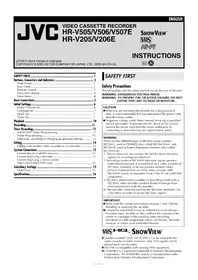
SAFETY FIRST
Safety Precautions
The rating plate and the safety caution are on the rear of the unit.
WARNING: TO PREVENT FIRE OR SHOCK HAZARD, DO NOT EXPOSE THIS UNIT TO RAIN OR MOISTURE.
CAUTION
■When you are not using the recorder for a long period of time, it is recommended that you disconnect the power cord from the mains outlet. ■Dangerous voltage inside. Refer internal servicing to qualified service personnel. To prevent electric shock or fire hazard, remove the power cord from the mains outlet prior to connecting or disconnecting any signal lead or aerial.
WARNING
There are two different types of SECAM colour systems: SECAM-L, used in FRANCE (also called SECAM-West), and SECAM-B, used in Eastern European countries (also called SECAM-East).
- This recorder can also receive SECAM-B colour television signals for recording and playback.
- Recordings made of SECAM-B television signals produce monochrome pictures if played back on a video recorder of SECAM-L standard, or do not produce normal colour pictures if played back on a PAL video recorder with SECAM-B system incorporated (even if the TV set is SECAM-compatible).
- SECAM-L prerecorded cassettes or recordings made with a SECAM-L video recorder produce monochrome pictures when played back with this recorder.
- This recorder cannot be used for the SECAM-L standard. Use a SECAM-L recorder to record SECAM-L signals.
IMPORTANT
Please read the various precautions on pages 1 and 2 before installing or operating the recorder. It should be noted that it may be unlawful to re-record pre-recorded tapes, records, or discs without the consent of the owner of copyright in the sound or video recording, broadcast or cable programme and in any literary, dramatic, musical, or artistic work embodied therein.
VHS HQ SHOWVIEW®
- Cassettes marked "VHS" (or "S-VHS") can be used with this video cassette recorder, however, only VHS signals can be played back and recorded. ●HQ VHS is compatible with existing VHS equipment. ●SHOWVIEW is a registered trademark of Gemstar Development Corporation. The SHOWVIEW system is manufactured under licence from Gemstar Development Corporation.
For Italy:
"It is declared that this product, brand JVC, conforms to the Ministry Decree n. 548 of 28 Aug.'95 published in the Official Gazette of the Italian Republic n. 301 of 28 Dec.'95"
The STANDBY/ON ⏻/1 button does not completely shut off mains power from the unit, but switches operating current on and off. "⏻" shows electrical power standby and " | " shows ON.
For HR-V505/V506/V507E owners:
Video tapes recorded with this video recorder in the LP (Long Play) mode cannot be played back on a single-speed video recorder.
For HR-V205/V206E owners:
Video tapes recorded with another recorder in the LP (Long Play) mode cannot be played back on this video recorder.
When the equipment is installed in a cabinet or a shelf, make sure that it has sufficient space on all sides to allow for ventilation (10 cm or more on both sides, on top and at the rear).
When discarding batteries, environmental problems must be considered and the local rules or laws governing the disposal of these batteries must be followed strictly.
Failure to heed the following precautions may result in damage to the recorder, remote control or video cassette.
- DO NOT place the recorder ...
... in an environment prone to extreme temperatures or humidity.
... in direct sunlight.
... in a dusty environment.
... in an environment where strong magnetic fields are generated.
... on a surface that is unstable or subject to vibration.
- DO NOT block the recorder's ventilation openings or holes. (If the ventilation openings or holes are blocked by a newspaper or cloth, etc., the heat may not be able to get out.)
- DO NOT place heavy objects on the recorder or remote control.
- DO NOT place anything which might spill on top of the recorder or remote control. (If water or liquid is allowed to enter this equipment, fire or electric shock may be caused.)
- DO NOT expose the apparatus to dripping or splashing.
- DO NOT use this equipment in a bathroom or places with water. Also DO NOT place any containers filled with water or liquids (such as cosmetics or medicines, flower vases, potted plants, cups, etc.) on top of this unit.
- DO NOT place any naked flame sources, such as lighted candles, on the apparatus.
- AVOID violent shocks to the recorder during transport.
MOISTURE CONDENSATION
Moisture in the air will condense on the recorder when you move it from a cold place to a warm place, or under extremely humid conditions—just as water droplets form on the surface of a glass filled with cold liquid. Moisture condensation on the head drum will cause damage to the tape. In conditions where condensation may occur, keep the recorder's power turned on for a few hours to let the moisture dry.
How to use the remote control
Before use, insert the Lithium battery (CR 2032) in the correct directions as indicated back of the remote control. The remote control can operate most of your recorder's functions, as well as basic functions of JVC TV sets.
- Point the remote control toward the receiving window on the recorder.
●The maximum operating distance of the remote control is about 7.5 m.
●To operate your JVC TV, press the corresponding button: TV ⏻/1, TV +→, TV PR +/-, TV △+/- (TV Volume).
NOTE:
If the remote control does not work properly, remove its batteries, wait for a few seconds, replace the batteries and then try again.
Video heads cleaning
Accumulation of dirt and other particles on the video heads may cause the playback picture to become blurred or interrupted. Be sure to contact your nearest JVC dealer if such troubles occur.
Usable cassettes
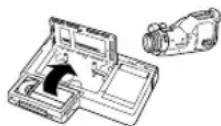
- Compact VHS camcorder recordings can be played on this recorder. Simply place the recorded cassette into a VHS Cassette Adapter and it can be used just like any full-sized VHS cassette.
- This recorder can record on regular VHS and Super VHS cassettes. However, it will record and play back regular VHS signals only. It is not possible to play back a recorded Super VHS cassette.
ATTENTION:
To mobile phone users:
Using a mobile phone in the vicinity of the recorder may cause picture vibration on the TV screen or change the screen to a blue back display.
On placing the recorder:
Some TVs or other appliances generates strong magnetic fields. Do not place such appliance on top of the recorder as it may cause picture disturbance.
Buttons, Connectors and Indicators
Front Panel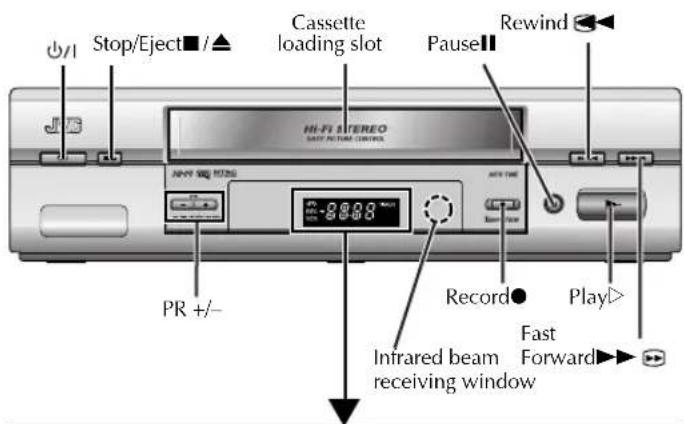
Display panel
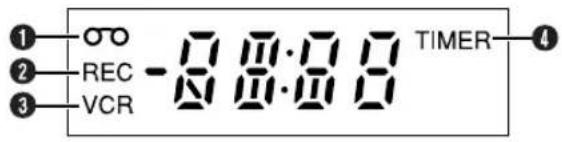
①Tape-in Indicator ②REC Indicator ③VCR Indicator ④Timer Indicator
Rear Panel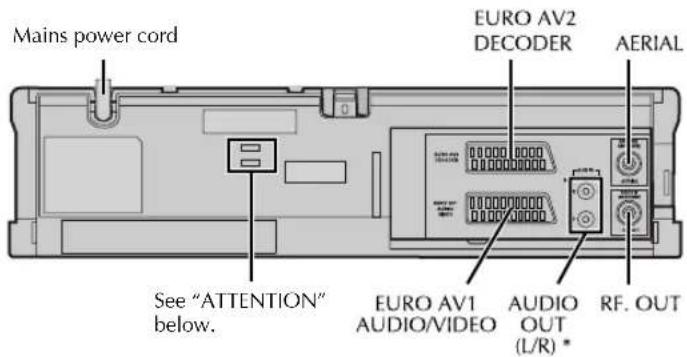
* HR-V505/V506/V507E only
ATTENTION:
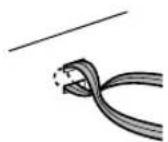
Do not drop the tying band for fixing the main power cord into the inside of the recorder. It may cause a malfunction.
Remote control![TV V/1 TV V/CR Number keys 0000 Easy Power off ←▲ Child Lock Rewind ←← Play► Record●[ITR] Stop■ TV PR+/- MENU JVC TV V/CR SHOWVIEW 1 2 3 4 °5 6 7 8 9 0000 0 AV 30 SEC 30 SEC SP/LP (////) Fast Forward PauseII Δ▽ [PR+/-] TV PR PR PR ▼ TV △+/- OK OK ◀](/content/2026/05/1036636/images/33c635d5cd3ad40e58c00a81c00d3a84709ca5031ca0371ce4c6e5b3e19b4d20.jpg)
About ⏻/1 Button
When you press ⏻/1 on the recorder and remote control while the recorder is turned on, each button works differently. On the recorder
When you press ⏻/I, the recorder is turned off completely. On the remote control
When you press ⏻/1, the recorder enters the standby mode. The clock display will be auto dimmer. To turn off the recorder completely, press ⏻/1 on the recorder.
On-screen display
If you press Ⓞ (OK) on the remote control when "OSD" is set to "ON" (15 5), you can see the current recorder status on the screen. The indications except the clock or time counter disappears in about 5 seconds. To clear the on-screen display completely, press OK) again.
The indications are not recorded even if the recorder is in the recording mode.
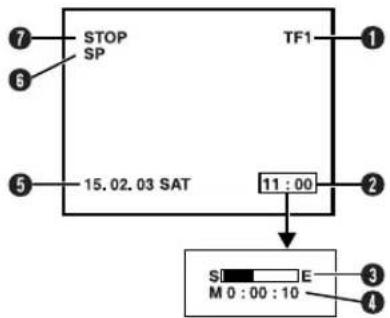
① Channel and auxiliary input ②Clock* ③ Tape position* 4 Time counter* ⑤ Current day/month/year 6 Tape speed ⑦ Recorder operation mode
| On-screen display | Description |
| PLAY appears when you playback. | |
| REW | appears during rewinding, or blinks during rewinding with Rewind Power Off function.(17 10) |
| FF appears during fast-forwarding. | |
| EJECT appears when you eject the cassette. | |
| STOP appears when you stop playback or recording. | |
| RECORD appears during recording. | |
| RECP appears in the record pause mode. | |
| SAFE | appears when the recorder enters in child lock mode, or any buttons on the recorder are pressed during child lock mode. (17 15) |
* Each time you press Ⓞ (OK), the display shows clock or tape position and time counter alternatively.
Main Menu
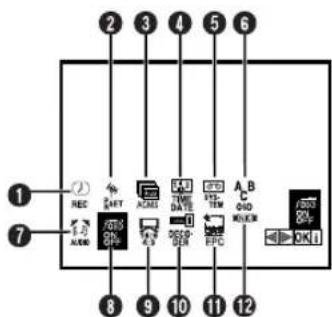
You can perform various operations or change various mode settings on the Main Menu Screen.
●Turn on the recorder and the TV, and set your TV to its AV mode or video channel. - The procedure shows how to set "OSD" to "ON".
1 Access Main Menu screen
Press MENU. Press ◀ ▷ to select the icon "OSD", then press OK.
- If you select the icon ① to ④, follow the each setting procedure.
- If you select the icon ⑤ to ⑫, go to step ②.
2 Change setting
Press △▽ to set to "ON", then press ◀ or ▷.
3 Return to normal screen
Press MENU.
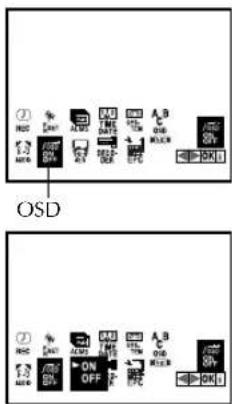
*The default setting is bold in the following table.
| Icon Description | |
| 1REC[03H0][HXTX] | Select this icon to timer-record the programme.(1→13) |
| 2PR SET[YAYT]PSET | Select this icon to perform Manual Channel Set.(1→8,9) |
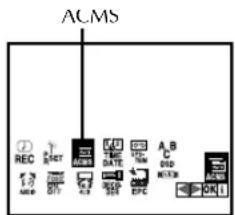
| 3ACMS[HCTO]ACMS | Select this icon to perform Auto Channel Set.(1→7) Auto Channel Set automatically assigns all receivable stations in your area. |
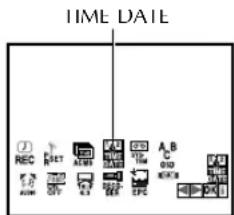
4TIMEDATE  | Select this icon to set clock manually.(1→7) |
| 5 SYSTEM[G43K][HOTB] | AUTO / PAL / MESECAMYou can play back PAL, NTSC and MESECAM tapes, or record PAL and SECAM* signals on this recorder. Select the appropriate colour system.* SECAM signals will be recorded as MESECAM on this recorder; MESECAM is the designation for tapes with SECAM signals that have been recorded on a MESECAM-compatible PAL video cassette recorder.AUTO: Normally select this. The appropriate colour system is selected automatically depending on the playback or recording signals. If “AUTO” does not work correctly, set the following mode manually.PAL: To record PAL signals, or playback a PAL.MESECAM: To record SECAM signals, or play back a MESECAM tape.NOTES:About NTSC PlaybackSome TVs shrink the picture vertically and place black bars at the top and bottom of the screen, or cut off the top and bottom portions of superimposed displays. This is not a malfunction.The picture may roll up and down. This can be corrected if your TV has the V-HOLD control function.The counter and tape remaining time readings will be incorrect.During search, still, or frame-by-frame playback, the picture will be distorted, and there may be a loss of colour. |
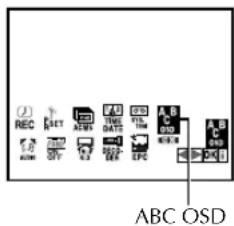
6ABC OSD | Select this icon to set the language. You can select among 7 languages. (1377) |
| 7AUDIO STEREO [V7CY] | HERO / LEFT / RIGHT / MONO(HR-V505/V506/V507E only)Your recorder is capable of recording four soundtracks (STEREO, LEFT, RIGHT and MONO) and plays back the one you select.STEREO: For Hi-Fi stereo tapesLEFT: For main audio of Bilingual tapesRIGHT: For sub audio of Bilingual tapesMONO: For audio-dubbed tapes |
8OSD ON / OFF | When this function is set to “ON”, various recorder status information (on-screen display) appears on the screen.NOTE:When you use the recorder as the source player for editing a tape, be sure to set this function to “OFF”. Otherwise, the recorder status information will be recorded on the edited tape. |
916:9/4:3 AUTO | TO / 16:9 / 4:3You can select the aspect ratio of your TV.AUTO: Normally select this. You can play back the 16:9 and 4:3 screen-programme as they are.16:9: You can play back the programme with the 16:9 screen format.4:3: You can play back the programme with the 4:3 screen format.NOTE:Set your TV to its AV mode if the picture is cut off on the screen when you play back the programme with the 16:9 screen format. |
10DECODER ON / OFF | ON / OFFSet “DECODER” to “ON” when you use a decoder connected to the EURO AV2 DECODER connector. |
11EPC OFF / SOFT / SHARP | This function helps you to adjust the playback picture quality according to your preference.OFF: Picture quality is not adjusted.SOFT: Reduces image coarseness when viewing overplayed tapes containing much noise.SHARP: Clearer, sharper-edged picture when viewing images with much flat, same-coloured surfaces such as cartoons.NOTE:You can perform EPC setting only during playback. |
| 12NIC AUTO / OFF[NIC] | OFF(HR-V505/V506/V507E only)Select the appropriate mode. Refer to page 11.AUTO: The recorder detect NICAM broadcasts automatically.OFF: The recorder does not detect NICAM broadcasts. |
Basic Connections
1 Check contents
Make sure the package contains all of the accessories listed in "Specifications" (13 16).
2 Situate recorder
Place the recorder on a stable, horizontal surface.
3 Connect recorder to TV
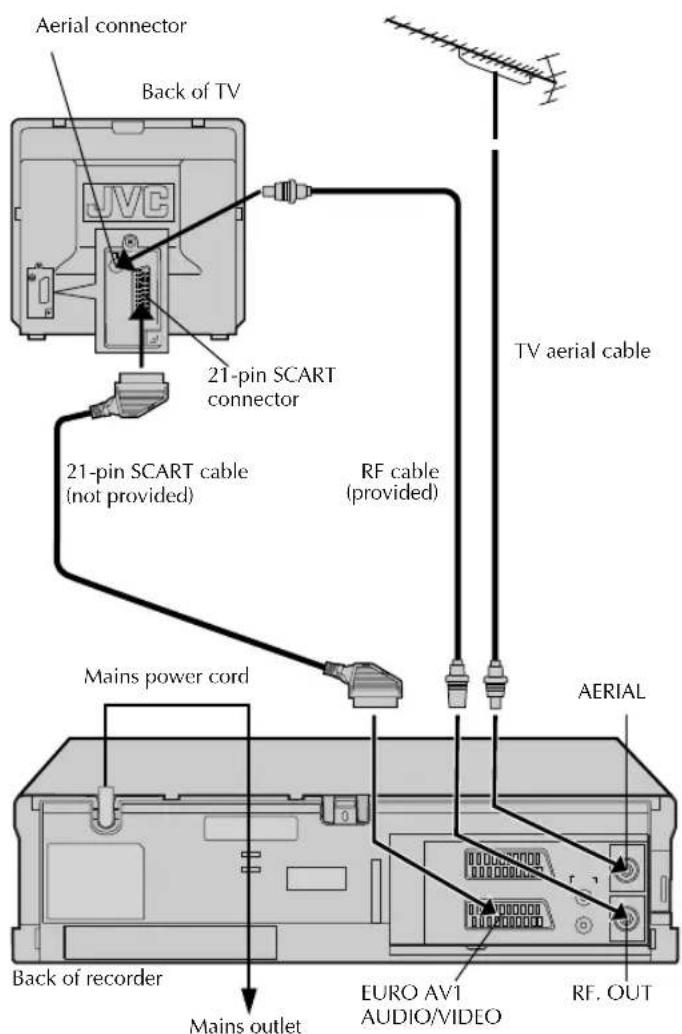
RF Connection
1 Disconnect the TV aerial cable from the TV. 2 Connect the TV aerial cable to the AERIAL connector on the rear of the recorder. 3 Connect the provided RF cable between the RF OUT connector on the rear of the recorder and the TV's aerial connector.
AV Connection
If your TV is equipped with a 21-pin SCART connector, perform AV connection to improve picture quality during tape playback.
1 Connect the aerial, recorder and TV as shown in the illustration. 2 Connect an optional 21-pin SCART cable between the EURO AV1 AUDIO/VIDEO connector on the rear of the recorder and the TV's 21-pin SCART connector.
4 Perform Plug&Play setup
The TV should be set to its AV mode (with AV connection 5) or UHF channel 36 (with RF connection 5).
Plug the mains power cord into a mains outlet. Turn on the recorder. The Country Set screen appears.
Press ◀ to select your country, then press OK. The clock and tuner channels will be set automatically. The time and date can be set automatically by the clock setting data transmitted from one of the regular TV broadcast channels.
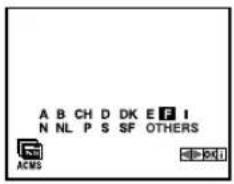
NOTE:
If you have connected your TV to the recorder with RF connection and the on-screen display appearing on UHF channel 36 looks distorted, perform "Video Channel Set" on the right column.
A : Austria I : Italy
B : Belgium N : Norway
CH : Switzerland NL : Netherlands
D : Germany P : Portugal
| DK | : Denmark S | : Sweden | |
| E | : Spain | SF | : Finland |
| F | : France | OTHERS | : Other countries |
- When Plug&Play is completed, the Confirmation screen appears.
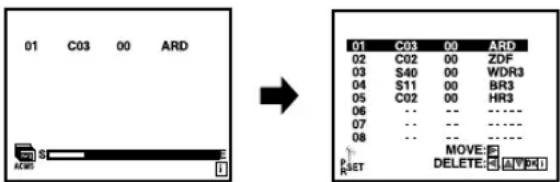
![01 C03 00 ARD 02 C02 00 ZDF 03 S40 00 WDR3 04 S11 00 BR3 05 C02 00 HR3 06 ... ... ... 07 ... ... ... 08 ... ... ... MOVE: DELETE: [SET] SET](/content/2026/05/1036636/images/f83c3f91882a6e72da056bf5ed0f512b3a93ab3bfb2eb9e30fb3477bd150c859.jpg)
5 Return to normal screen
Press MENU.
Initial Settings
Video Channel Set
Video channel (RF output channel) is the channel on which your TV receives picture and sound signals from the recorder through the RF cable.
Perform the following steps only if interference appears in the TV picture after you have moved to a different area or a new station has started broadcasting in your area, or if you change the connection from RF connection to AV connection, or vice versa.
If you have connected the recorder to your TV via the AV connection, set the video channel to off.
If you have connected the recorder to your TV via the RF connection, set the correct video channel.
Turn on the recorder and TV.
1 Set the channel on TV
Select the vacant position 36 on your TV.
2 Access Video Channel Set mode
Press ⏻/l on the remote control to enter the standby mode. Press and hold PR+ or - on the recorder for more than 3 seconds.
3 Set video channel
With AV connection
Press PR + or - to set the video channel to "OFF". Then press ⏻/1.
With RF connection
Press PR + or - to set the video channel to a vacant position between 22 and 68 which is not occupied by any local station in your area. Then press ⏻/1.
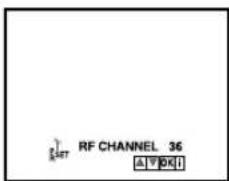
With AV connection
To view picture signals from the recorder, set your TV to its AV mode.
With RF connection
To view picture signals from the recorder, set your TV to the video channel.
Language Set
You can change the language setting manually as required.
Turn on the recorder and the TV, and set your TV to its AV mode or video channel.
1 Access Main Menu screen
Press MENU. Press ◀ ▷ to select the icon "ABC OSD", then press OK.
2 Select language
Press ▲▼ to select the desired language.
English
German
French
Italian
Spanish
Dutch
Portuguese
3 Return to normal screen
Press MENU.
Clock Set
Perform clock setting only if the clock has not been set correctly by the Plug&Play setting.
Turn on the recorder and the TV, and set your TV to its AV mode or video channel.
1 Access Main Menu screen, then Clock Set screen
Press MENU. Press ◀ ▷ to select the icon "TIME DATE", then press OK.
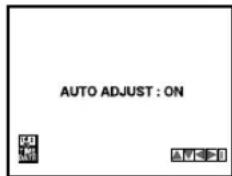
2 Set "AUTO ADJUST" mode.
Set to "ON" or "OFF" by pressing ▲/▼, then press OK. Normally, set "AUTO ADJUST" to "ON".
NOTE:
Auto Adjust may not function properly depending on the reception condition.
3 Set time, date and year
Press ▲/▼ until the desired setting appears, then press ▶.
OR
Press the appropriate number keys for each setting.
- Input "0" before any single number entries.
4 Start clock
Press MENU.
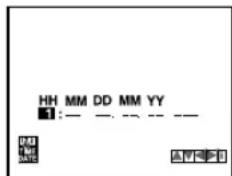
HH: Hour MM: Minute DD: Day MM: Month YY: Year
Tuner Set
Perform the following steps only if the tuner has not been set correctly by Plug&Play, or if you have moved to a different area, or if a new station starts broadcasting in your area.
The recorder needs to memorise all necessary stations in channel positions in order to record TV programmes. Auto Channel Set automatically assigns all receivable stations in your area.
Turn on the recorder and the TV, and set your TV to its AV mode or video channel.
Auto Channel Set
1 Access Main Menu screen, then Auto Channel Set screen
Press MENU. Press ◀ ▷ to select the icon "ACMS", then press OK. The Country Set screen appears.
2 Select your country
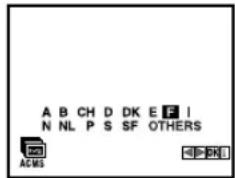
Press ◀ ▷ to select your country.
A : Austria
B : Belgium
CH : Switzerland
D : Germany
DK : Denmark
E : Spain
F : France
I : Italy
N : Norway
NL : Netherlands
P: Portugal
S: Sweden
SF: Finland
OTHERS: Other countries
3 Perform Auto Channel Set
Press OK.
- When Auto Channel Set is completed, the Confirmation screen appears.
4 Return to normal screen
Press MENU.
NOTES:
- Depending on reception conditions, the stations may not be stored in order, and the station names may not be stored correctly.
- To delete stations with poor reception condition, refer to "Deleting a channel" (8).
Manual Channel Set
Store channels that were not stored during Plug&Play or Auto Channel Set.
1 Access Main Menu screen, then Manual Channel Set screen
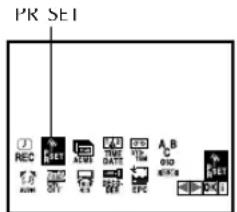
Press MENU. Press ◀ ▷ to select the icon "PR SET", then press OK.
The Manual Channel Set screen of the channel position currently received appears.
2 Access Confirmation screen
Press MENU.
3 Select position
Press ▲▼ to select the open channel position, then press OK.
4 Select band
Press ◀▶ to select C (regular) or S (cable).
5 Input channel
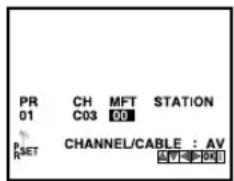
Press the number keys or ▲▼ to input the channel number you want to store. Input "0" before any single number entries.
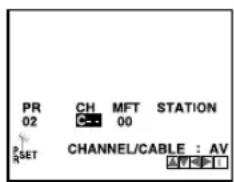
- For fine tuning adjustment, press ▶ to select "MFT" setting, then press ▲▼ to perform fine tuning.
- To input the registered station name, press ▶ to select "STATION" setting, then press OK. Press ▲▼ until the desired station name appears.
6 Store new channel
Press MENU. The Confirmation screen appears.
- Repeat steps 3 - 6 as necessary.
7 Return to normal screen
Press MENU.
Deleting a channel
1 Access Main Menu screen, then Manual Channel Set screen
Press MENU. Press ◀ ▷ to select the icon "PR SET", then press OK.
●The Manual Channel Set screen of the channel position currently received appears.
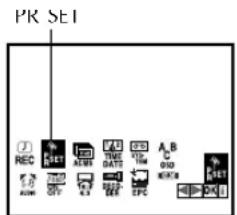
2 Access Confirmation screen
Press MENU.
3 Select position
Press ▲▼ to select the channel you want to delete.
4 Delete channel
Press ◀. The channel directly beneath the cancelled one moves up one line.
- Repeat steps 3 - 4 as necessary.
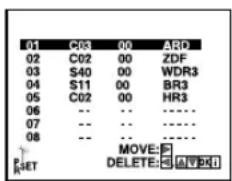
5 Return to normal screen
Press MENU.
Changing station channel positions
1 Access Main Menu screen, then Manual Channel Set screen
Press MENU. Press ◀ ▷ to select the icon "PR SET", then press OK.
●The Manual Channel Set screen of the channel position currently received appears.
2 Access Confirmation screen
Press MENU.
3 Select position
Press ▲▼ to select the station you want to move, then press ▶.
4 Select new position
Press ▲▼ to move the station to the new position, then press OK. Example: If you moved the station in position 4 to position 2, the stations originally in positions 2 and 3 each move down one space.
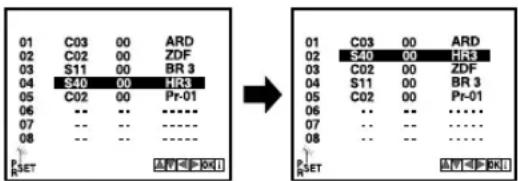
- Repeat steps 3 - 4 as necessary.
5 Return to normal screen
Press MENU.
Changing station name (A)
1 Access Main Menu screen, then Manual Channel Set screen
Press MENU. Press ◀ ▷ to select the icon "PR SET", then press OK.
●The Manual Channel Set screen of the channel position currently received appears.
2 Access Confirmation screen
Press MENU.
3 Select position
Press △▽ to select the channel, then press OK.
4 Select station name
Press ▷ to select "STATION" setting, then press OK. Press △▽ until the desired station name appears, then press OK.
5 Check setting
Press MENU. The Confirmation screen appears.
- Repeat steps 3 - 5 as necessary.
6 Return to normal screen
Press MENU.
Changing station name (B)
1 Access Main Menu screen, then Manual Channel Set screen
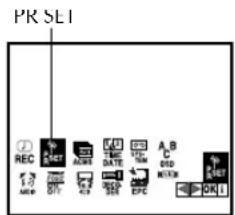
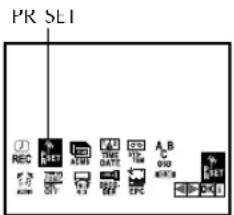
Press MENU. Press ◀ ▷ to select the icon "PR SET", then press OK.
●The Manual Channel Set screen of the channel position currently received appears.
2 Access Confirmation screen
Press MENU.
3 Select position
Press ▲▼ to select the channel, then press OK.
4 Select character for station name
Press ▷ to select "STATION" setting, then press OK. Press ▷ until the first letter of the station name begins blinking.
5 Enter new character
Press ▲▼ to cycle through the characters, then press ▶. Enter the remaining characters the same way (maximum of 5). After entering all characters, press OK.
- The characters available for the station name are A–Z, 0–9, +, -, . (period), — (space).
- If you make a mistake, press ◀ until the incorrect character begins blinking. Then enter the correct character by pressing ▲▼.
6 Check setting
Press MENU. The Confirmation screen appears.
7 Return to normal screen
Press MENU.
Fine-tuning channels
1 Access Main Menu screen, then Manual Channel Set screen
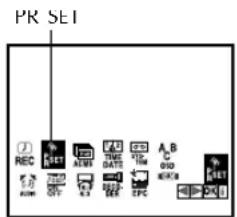
Press MENU. Press ◀ ▷ to select the icon "PR SET", then press OK.
●The Manual Channel Set screen of the channel position currently received appears.
2 Access Confirmation screen
Press MENU.
3 Select position
Press △▽ to select the channel you want to tune, then press OK.
4 Perform tuning
Press ◀▷ to select "MFT" setting, then press △▽ until the picture is its clearest.
- Repeat steps 3 - 4 as necessary.
5 Return to normal screen
Press MENU twice.
TV station and ID list
| STATION* | STATION NAME STATION* | STATION NAME | |
| 3SAT | 3SAT | RAI2 | RAI2 |
| ANT | ANTENA | RAI3 | RAI3 |
| ARD | ARD | RETE1 | RETE1 |
| ARTE | ARTE | RETE4 | RETE4 |
| B1 | BERLIN1 | RIKIS | Rikisutvarpid-Sjonvarp (Iceland) |
| BBC1 | BBC1 | ||
| BBC2 | BBC2 | RTBF1 | RTBF1 |
| BR3 | BAYERN3 | RTBF2 | RTBF2 |
| BRTN | BRTN TV1 (Belgium) | RTL | RTL |
| CANAL | CANAL PLUS | RTL2 | RTL2 |
| CAN5 | CANALE5 | RTL4 | RTL4 |
| CNN | CNN | RTL5 | RTL5 |
| DR1 | DR1 | SAT.1 | SAT1 |
| DR2 | DR2 | SF1 | SF1 |
| DSF | DSF | SFB | SFB |
| EURO | EURONEWS | SPORT | SPORT |
| FILMN | FILM | SR6 | SR6 |
| FR2 | France2 | SVT | SVT |
| FR3 | France3 | SVT1 | SVT1 |
| HR3 | HESSEN3 | SVT2 | SVT2 |
| HRT | HRT (Croatia) | SVT4 | SVT4 (Sweden) |
| ITA-1 | ITALIA1 | SWF3 | SWF3 |
| KABEL | KABEL1 | TEL21 | TELE21 |
| M6 | M6 | TELE5 | TELE5 |
| MDR3 | MDR3 | TF1 | TF1 |
| MTV | MTV | TMC | TELEMONTECARLO |
| MTV3 | MTV3 | TNT | TNT INT |
| N3 | NORD3 | TRT | TRT INT |
| N-TV | N-TV | TSI | TSI |
| NDR3 | NDR3 | TSR | TSR |
| NED1 | NED1 | TV1 | BRTN TV1 |
| NED2 | NED2 | TV2 | TV2 |
| NED3 | NED3 | TV3 | TV3 |
| NET2 | Network 2 (Ireland) | TV5 | TV5 |
| NELON | NICKELODEON | TVE | TVE (Spain TVE 1/2) |
| NRK | NRK | TVE1 | TVE1 |
| ORB3 | ORB3 | VIVA | VIVA |
| ORF1 | ORF1 | VOX | VOX |
| ORF2 | ORF2 | VTM | VTM |
| ORF3 | ORF3 | WDR3 | West3 |
| PREM. | PREMIERE | YLE1 | YLE1 |
| PRO7 | PRO7 | YLE2 | YLE2 |
| RAI1 | RAI1 | ZDF | ZDF |
* The "STATION" abbreviation is what is shown on-screen in lieu of the station name. The "STATION" abbreviation is listed in the Confirmation screen and is displayed on the screen when the recorder is tuned to a different station.
Playback
Basic Playback
Turn on the TV and select the AV mode or video channel.
1 Load a cassette
Make sure the window side is up, the rear label side is facing you and the arrow on the front of the cassette is pointing towards the recorder.
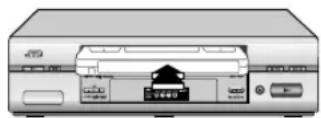
- Do not apply too much pressure when inserting. ●The recorder turns on, and the counter is reset, automatically.
- If the cassette's record safety tab has been removed, playback begins automatically.
2 Start playback
Press ▶.
- If the tape reaches its end during playback, the recorder stops playback, rewinds the tape and ejects the cassette, then enters the standby mode automatically.
During playback
Stop playback
Press ■ on the remote control.
OR Press ■/▲ on the recorder.
Pause playback and view still picture
Press II.
●The recorder enters Pause mode after moving 2 or 3 frames. - If there is vertical jitter, use the PR+/- to correct the picture. - Press ▶ to resume normal playback. - Still picture playback stops automatically after about 5 minutes to protect the heads.
Pause and Frame-by-Frame playback
Press || to pause, then press || repeatedly.
- Press ▶ to resume normal playback.
Slow-motion
HR-V505/V506/V507E
During still picture, press ▷ to start forward slow motion playback. If you press ■, still picture resumes.
HR-V205/V206E
During playback or still, press and hold Ⅱ for 2 seconds, then release it. Press ▶ or Ⅱ again to resume playback or still picture.
- Slow motion playback stops automatically after about 30 seconds to protect the heads, then normal playback resumes.
High-Speed Search
Press ◀◀ or ▶▶.
- Press ▶ to resume normal playback.
- High-speed search stops automatically after about 3 minutes to protect the heads, then normal playback resumes.
Variable Speed Search (HR-V505/V506/V507E only)
Press ◀ or ▷ repeatedly.
- Press ▶ to resume normal playback.
- Each time you press ◀ or ▷, the playback speed changes. To decrease the speed during picture search, press the opposite direction button repeatedly.
- If there is vertical jitter, use the PR+/- to correct the picture.
ATTENTION:
In the search, still, slow-motion or frame-by-frame playback mode,
●the picture will be distorted
●the noise bars will appear
●there will be a loss of color with an LP-recorded tape (HR-V505/V506/V507E only)
Variable Speed Search (HR-V505/V506/V507E only)
| Reverse search2 steps | Reverse play | Forward slow motion1 step | Normal play | Forward search2 steps |
When the tape is not running
Rewind/fast-forward at high speed
Press ◀◀ or ▶▶.
- If you press and hold ◀◀ or ▶▶ during rewinding or fast-forwarding, you can see the picture on the screen. Releasing it cancels the picture search and resumes rewinding and fast-forwarding.
Eject the cassette
Press ▲.
OR Press ■/▲ on the recorder.
- You can also eject the cassette when the recorder is in standby mode.
Turn off the recorder
Press ⏻/l on the remote control. The recorder enters standby mode.
OR Press ⏻/l on the recorder. The recorder turns off.
Playback Features
Adjusting tracking condition
Automatic tracking adjustment
When a new cassette is loaded, the recorder enters automatic tracking mode.
Manual tracking adjustment
If automatic tracking cannot eliminate noises well during playback, adjust the tracking manually.
Press and hold PR + or - to eliminate the noises.
Selecting Soundtrack (HR-V505/V506/V507E only)
Your recorder is capable of recording four soundtracks (STEREO, LEFT, RIGHT and MONO) and plays back the one you select. Set "AUDIO" to the appropriate mode. (5)
NOTE:
Set "OSD" to "ON" to display the indications on the screen. (5)
Rewind Power Off
When the tape is not running, press ◀◀, then press ⏻/l. "REW" blinks on the screen. The recorder enters the standby mode automatically after rewinding the tape.
Ez (Easy) Power Off
During playback, press ▶. The recorder stops playback, rewinds the tape and ejects the cassette, then enters the standby mode automatically.
Skipping unwanted portions
— Skip Search
Press 30 SEC once to 6 times during playback. Each press initiates a 30-second period of high-speed playback (up to 3 minutes). When the specified portion of the tape is skipped, normal playback resumes automatically. To return to normal playback during Skip Search, press ▶.
Recording
Accidental erasure prevention
To prevent accidental recording on a recorded cassette, remove its record safety tab. To record on it later, cover the hole with adhesive tape.
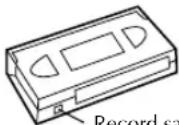
Record safety tab
Basic Recording
Turn on the TV and select the AV mode or video channel.
1 Load a cassette
Make sure the record safety tab is intact. If not, cover the hole with adhesive tape before inserting the cassette.
●The recorder turns on, and the counter is reset, automatically.
2 Select recording channel
Press PR+/- or the number keys.
- You can select channel in the stop mode or recording pause mode.
3 Set tape speed (HR-V505/V506/V507E only)
Press SP/LP (///). The current setting for the tape speed appears on the screen for about 3 seconds. Press SP/LP (///) again to change the setting while tape speed is displayed.
4 Start recording
Press ●.
- If the tape reaches its end during recording, the recorder stops recording, rewinds the tape and ejects the cassette, then enters the standby mode automatically.
During recording
Pause recording
Press II.
- Press II to resume recording. ●You can select a channel in the recording pause mode. ●There will be a loss of color, or the picture will be distorted where the channel is changed.
Stop recording
Press ■ on the remote control.
OR Press ■/▲ on the recorder.
Recording Features
Tape Position/Time Counter
Press OK repeatedly to display the tape position and time counter on the screen. To reset the time counter, press 0000.
NOTES:
- Set "OSD" to "ON" to display the indications on the screen. (15 5)
- Depending on the type of tape used, the tape position may not appear right away.
Memory Stop Facility
The recorder stops automatically when rewinding the tape and the counter reaches "M 0:00:00". If you set the counter to "M 0:00:00" before the playback or recording, you can easily access the pre-selected position by using the time counter.
1 Press OK repeatedly to display the counter on the screen. 2 Press 0000 to reset the counter before playback or recording. 3 Start playback or recording.
4 Press ◀◀ after playback or recording. The tape rewinds and stops automatically when the counter reaches "M 0:00:00".
Watching one programme while recording another
If your recorder is connected to the TV via the AV connection, press TV/VCR.
Once recording is in progress, all you need to do is to set the channel controls on the TV for the station you wish to view. The programme selected with the TV's channel controls appears on the screen while the one selected with the PR+/- is recorded on the tape.
- If a decoder is connected to the recorder, you can select a scrambled channel as well with the TV channel controls.
Specifying recording length — Instant Timer Recording (ITR)
During recording, press ● (ITR) repeatedly until the desired recording length appears on the screen.
●Each time you press the button, recording length increases in 30-minute intervals (up to 9 hours). ●The recorder enters the standby mode after recording is finished. - To cancel an ITR, press ■ on the remote control or ■/▲ on the recorder.
Receiving stereo and bilingual programmes (HR-V505/V506/V507E only)
Your recorder is equipped with a Sound-Multiplex decoder (A2) and a Digital stereo sound decoder (NICAM) as well, making reception of stereo and bilingual broadcasts possible.
- To listen to a stereo programme, set "AUDIO" to "STEREO". (15)
- To listen to a bilingual programme, set "AUDIO" to "LEFT" or "RIGHT". (5)
- To listen to the standard (regular monaural) audio while receiving a NICAM broadcast, set "AUDIO" to "MONO". (5)
NOTE:
Set "OSD" to "ON" to display the indications on the screen. (5)
To record stereo and bilingual programmes (A2)
- Stereo programmes are automatically recorded in stereo on the Hi-Fi audio track (with the normal audio track recording mixed L and R channel sound). Bilingual programmes are automatically recorded in bilingual on the Hi-Fi audio track. The main soundtrack is recorded on the normal audio track.
To record NICAM stereo and bilingual programmes
The NICAM audio programme is recorded on the Hi-Fi audio track, and the standard audio programme on the normal audio track.
NOTES:
- Set "NIC" to "AUTO". (☐ 5)
- If the quality of stereo sound being received is poor, the broadcast may be received in monaural with better quality.
- Before playing back a programme recorded in stereo, or a bilingual programme, set "AUDIO" to the appropriate mode. (5)
Timer Recording
Up to 7 timer recording programmes within a month can be made.
Before starting:
- Set the clock properly. ( 7)
- Set "SYSTEM" to the appropriate mode. (☐ 4)
●Load a cassette with the record safety tab intact.
NOTES:
- If all the 7 programmes have already been set, "PROGRAM FULL" appears on the screen.
- If there is a conflict in the timer schedule and one programme overlaps with another, the programme starting earlier will be recorded. If the start times are the same, the programme made most recently will be recorded.
- If you wish to stop timer recording which has already started, press ⏻/1.
●After timer recording is completed, the recorder enters the standby mode automatically.
- If the tape reaches its end during timer recordings, the recorder stops recording, rewinds the tape and ejects the cassette, then enters the standby mode automatically.
- You can programme the timer recording while a regular recording is in progress; the menu screens will not be recorded.
SHOWVIEW® Timer Programming
The SHOWVIEW numbers are the numbers next to the programme in most TV listing.
1 Press SHOWVIEW to access the SHOWVIEW number screen.
- Press ▲▼ to select "ONCE" (once), "DAILY" (Monday–Friday) or "WEEKLY" (weekly serials).
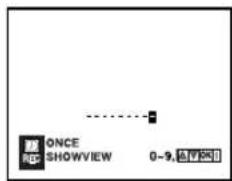
2 Press the appropriate number keys to input the SHOWVIEW number, then press OK. The program list appears.
- If the number you entered is invalid, "PLEASE CHECK" appears on the screen. Input a valid SHOWVIEW number, then press OK.
- If the number you entered is invalid, press ◀, then input a valid SHOWVIEW number.
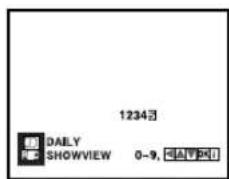
3 Check the settings.
- If “- -” is displayed on the channel position, press ◀ ▷ to select “- -”, then press the number keys or ▲▼ to select the channel position you want to record manually. This channel position is registered to the recorder.
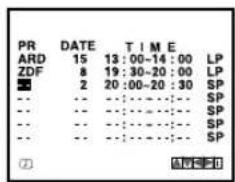
- To change the channel position, press ◀▷ to select the "PR" setting, then press the number keys or △▽ to select the channel position you want to record manually.
- To change the date, press ◀▷ to select the "DATE" setting, then press the appropriate number keys or △▽.
- To change the daily or weekly serials, press ◀▷ to select the "DATE" setting, then press OK. Press ◀▷, then press OK.
- To change the stop time, press ◀▷ to select the stop time. Press the appropriate number keys or △▽.
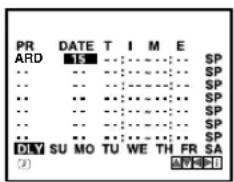
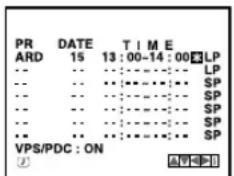
- To set VPS/PDC, press ◀▷ to select the space between the stop time and the tape speed, then press △▽. If you set "VPS/PDC" to "ON", "*" appears.
- "VPS/PDC Recording" on page 13. ●HR-V505/V506/V507E only
To set the tape speed (SP/LP/IP), press ◀▷ to select the tape speed, then press △▽.
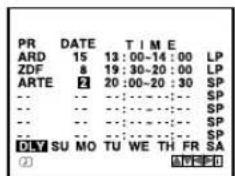
"Intelligent LP Recording (HR-V505/V506/V507E only)" on page 13.
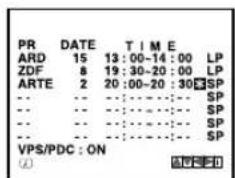
4 Press MENU. Press MENU again to return to normal screen.
5 Press ⏻/l. The recorder enters timer standby mode. The timer indicator and standby/record indicator light on the display panel.
- If a cassette has not loaded when the recorder enters the timer standby mode, the timer indicator blinks on the display panel.
To timer-record a satellite broadcast using the SHOWVIEW system:
1 Perform steps 1 - 5. In step 3, set the channel position to "AV2". 2 Set the satellite receiver to the appropriate channel before the selected programme begins. 3 Leave the satellite receiver's power on.
Timer Programming
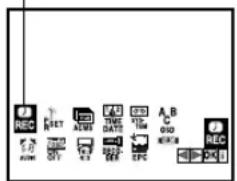
1 Press MENU. Press ◀▶ to select the icon "REC", then press OK. The programme list appears. 2 Press OK. 3 Press the appropriate number keys to set the channel, date, start time and stop time. Input "0" before any single number entries. - To time-record daily (Monday–Friday) or weekly serials, press ◀▷ to select the "DATE" setting, then press OK. Press ◀▷, then press OK. - To set VPS/PDC, press ◀▷ to select the space between the stop time and the tape speed, then press △▽. If you set "VPS/PDC" to "ON", "*" appears. - "VPS/PDC Recording" below. ●HR-V505/V506/V507E only
To set the tape speed (SP/LP/IP), press ◀ ▷ to select the tape speed, then press △▽.
“Intelligent LP Recording (HR-V505/V506/V507E only)” on the right column.
4 Press MENU. Press MENU again to return to normal screen.
5 Press ⏻/l. The recorder enters timer standby mode. The timer indicator and standby/record indicator light on the display panel.
- If a cassette has not loaded when the recorder enters the timer standby mode, the timer indicator blinks on the display panel.
To timer-record a satellite broadcast using Timer Programming:
1 Perform steps 1 - 5. In step 3, set the channel position to "AV2". 2 Set the satellite receiver to the appropriate channel before the selected programme begins. 3 Leave the satellite receiver's power on.
VPS/PDC Recording
Now available from some TV stations, PDC (Programme Delivery Control) and VPS (Video Programme System) are services designed to assure safe, accurate timer recording. With this system, your recorder will start and stop recording when the preset TV programmes actually start and end — even if the broadcast time of a preset TV programme is changed.
NOTES:
● PDC recording is not possible in Central and Eastern Europe. - It is not possible to set the tape speed to "IP" with "VPS/PDC" set to "ON". - When you use Timer Programming, set the start time (VPS or PDC time) exactly as advertised in the TV listing.
REC
Intelligent LP Recording (HR-V505/V506/V507E only)
When you set the tape speed to "IP", the recorder automatically switches to LP mode to allow complete recording if there is not enough tape to record the entire programme while timer-recording in SP mode.
For example, recording a programme of 210 minutes in length onto a 180-minute tape.
Approximately 150 minutes Approximately 60 minutes
| SP mode LP mode |
Total 210 minutes
NOTES:
- If you have programmed the recorder to timer-record 2 or more programmes, do not use this function, but change the tape speed manually during timer programming.
- There may be some noise and sound disturbance where the tape speed switches from SP to LP mode on the tape.
- This function is not available during ITR (Instant Timer Recording), and will not work properly with any tapes longer than E-180 or with some tapes of shorter lengths.
- It is not possible to set the tape speed to "IP" with "VPS/PDC" set to "ON".
Checking, canceling or changing programme settings
1 Disengage timer recording standby mode
Press ⏻/l.
2 Access Main Menu screen
Press MENU. Press ◀ ▷ to select the icon "REC", then press OK. The programme list appears.
REC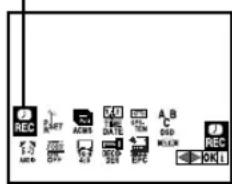
3 Cancel or change programme setting
To cancel a programme, press ▲▼ to select the programme you want to delete, then press ◀.
To change a programme, press ▲▼ to select the programme, then press OK.
Press ◀ ▷ to select the item you want to
change, then press the number keys or ▲▼ to change the settings. After confirming all information is correct, press MENU.
4 Return to normal screen
Press MENU.
5 Re-engage timer recording standby mode
Press ⏻/1. The recorder enters timer standby mode. The timer indicator and standby/record indicator light on the display panel.
Editing
Editing with another video recorder or a camcorder
You can use your recorder as the source player or the recording deck. You can use a camcorder as the source player and your recorder as the recording deck. Refer also to the other components' instruction manuals for connection and its operations.
Connection with another video recorder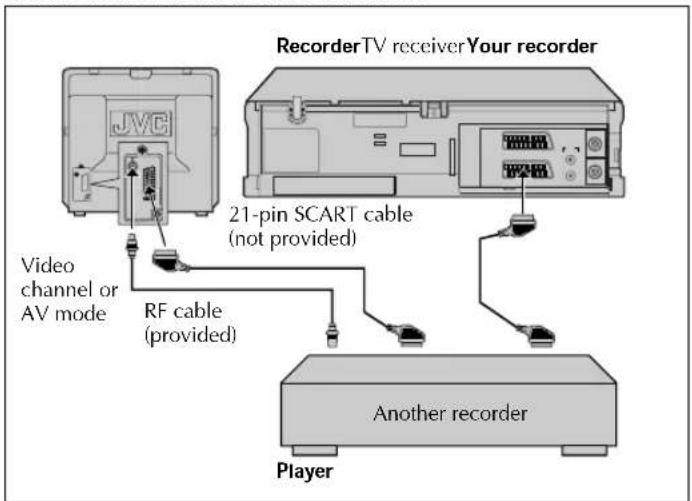
Connection with a camcorder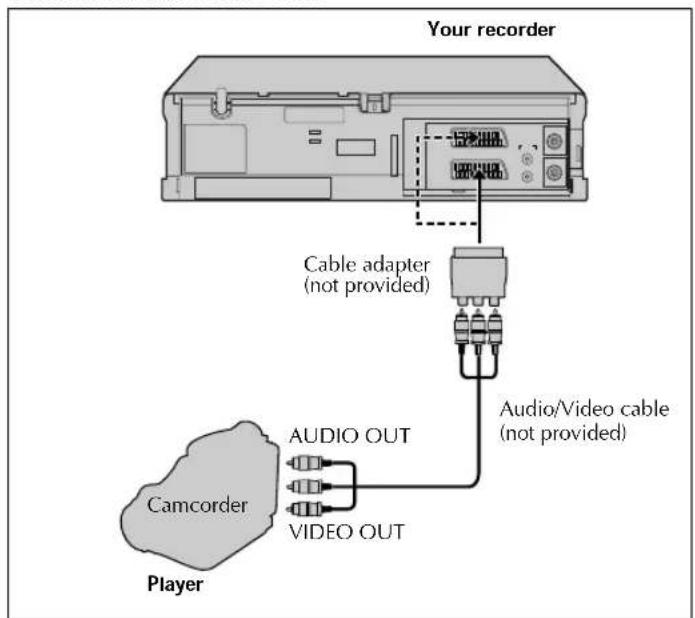
1 Make connections
Connection with another video recorder
Connect EURO AV1 AUDIO/VIDEO or EURO AV2 DECODER connector to another video recorder.
Connection with a camcorder
Connect the camcorder's AUDIO/VIDEO OUT connectors to the recorder's EURO AV1 AUDIO/VIDEO or EURO AV2 DECODER connector via a cable adapter.
2 Load cassettes
Insert the playback cassette into the source player and the cassette to be recorded on into the recording deck.
3 Select input mode on recording deck
Select the correct external input on the recording deck. On this recorder, press AV and/or PR+/-.
Select "AV1" for the EURO AV1 AUDIO/VIDEO connector, or "AV2" for the EURO AV2 DECODER connector.
4 Select edit mode
Select the appropriate edit mode for the components if such a mode is equipped.
5 Start playback
Engage the Play mode of the source player.
6 Start recording
Engage the Record mode of the recording deck.
System Connections Subsidiary Settings
Connecting to a satellite receiver
Connect the decoder to the satellite receiver's connector if you have a decoder, EURO AV1 AUDIO/VIDEO connector to TV's connector, and EURO AV2 DECODER connector to the satellite receiver's connector. Then connect the satellite receiver and TV.
- To record a programme via the satellite receiver, set the input mode to "AV2" by pressing AV and/or PR+/-.
- To receive a scrambled broadcast, descramble the signal with the decoder.
- For details, refer to the instruction manual for the satellite receiver and decoder.
Connecting/Using a decoder
You can enjoy the variety of programming that is available through scrambled channels.
1 Set "DECODER" to "ON". (☐ 5)
2 Connect the recorder's EURO AV2 DECODER connector to the decoder's 21-pin SCART connector using a 21-pin SCART cable.
Connecting/Using a stereo system (HR-V505/V506/V507E only)
You can listen to the soundtrack through your stereo system. Connect the AUDIO OUT L and R connectors on the recorder to the AUX IN or TAPE MONITOR connectors on your stereo system's receiver or amplifier.
- When listening to sound through the connected stereo system, turn the TV's volume down completely.
Child Lock
You can disable the recorder's operations. While the recorder is turned on, press 🔒. "SAFE" appears on the screen.
To release the child lock, press on the remote control until the "OFF" blinks on the display panel.
- If any buttons on the recorder are pressed, "SAFE" appears on the screen and blinks on the display panel.
NOTES:
- When the child lock function is in use, keep the remote control out of the children's reach.
- Timer recording programs will be performed even if the child lock function activated.
Specifications
GENERAL
| Power : 200 V – 240 V | ~ , 50 Hz/60 Hz |
| Power consumption | |
| Power on : Approx. 12 W | |
| Standby mode : 3.0 W | |
| Video Head system | |
| HR-V505/V506/ : DA4 (Double Azimuth) head helical V507E scan system | |
| HR-V205/V206E : Rotary two-head helical scan system | |
| Tape speed | |
| (SP) : 23.39 mm/sec | |
| (LP)* : 11.69 mm/sec | |
| * HR-V505/V506/V507E only | |
| Tape format : Tape width 1/2" (12.7 mm high density VHS tape) | |
| Maximum recording time | |
| (SP) : 240 min. with E-240 video cassette | |
| (LP)* : 480 min. with E-240 video cassette | |
| * HR-V505/V506/V507E only | |
| Rewind time : Approx. 180 sec. with E-180 cassette | |
| Dimensions (W x H x D) : 360 mm x 94.5 mm x 270 mm | |
| Weight : 4.0 kg | |
| Operating temperature : 5°C to 35°C | |
| Operating humidity : Less than 80 % | |
| Timer : 24 hours display type | |
VIDEO
| Signal system : PAL-type colour signal and CCIR monochrome signal, 625 lines 50 fields | |
| Recording Format | : PAL/MESECAM |
| RF reception | : PAL (B/G)/SECAM (B/G) |
| RF OUT | : PAL G |
| RF modulator : UHF channels 22 – 68 (Adjustable) | |
| Input level | : VIDEO IN (SCART type)1.0 Vp-p, 75 ohm, unbalanced |
| Output level : VIDEO OUT (SCART type)1.0 Vp-p, 75 ohm, unbalanced | |
| Signal-to-noise ratio | : More than 43 dBm |
AUDIO
| Input level | : AUDIO IN (SCART type) -6.0 dBm, more than 10 kΩ |
| Output level | |
| HR-V505/V506/ V507E | : AUDIO OUT (SCART, RCA type) -6.0 dBm, less than 1 kΩ |
| HR-V205/V206E | : AUDIO OUT (SCART type) -6.0 dBm, less than 1 kΩ |
| Audio track | |
| HR-V505/V506/ V507E | : Mono track and Hi-Fi track |
| HR-V205/V206E | : Mono track |
| Audio frequency response | |
| Normal audio | : 100 Hz to 10,000 Hz (-6/+3 dBm) |
| Hi-Fi audio* | : 20 Hz to 20,000 Hz (-3/+3 dBm) |
| * HR-V505/V506/V507E only | |
| Audio signal to noise ratio [HR-V505/V506/V507E only] | |
| Hi-Fi audio | : More than 70 dB (JIS A filter) |
| Audio dynamic range [HR-V505/V506/V507E only] | |
| Hi-Fi audio | : More than 85 dB (JIS A filter) |
ACCESSORIES
| Provided accessories | : RF cable,Infrared remote control unit,"CR 2032" battery x 1 |
Specifications shown are for SP mode unless specified otherwise. E. & O.E. Design and specifications subject to change without notice.
- SAFETY FIRST
- BUTTONS, CONNECTORS AND INDICATORS
- BASIC CONNECTIONS
- INITIAL SETTINGS
- PLAYBACK
- RECORDING
- TIMER RECORDING
- EDITING
- SYSTEM CONNECTIONS
- SUBSIDIARY SETTINGS
- SPECIFICATIONS
- SAFETY PRECAUTIONS
- CAUTION
- WARNING
- IMPORTANT
- VHS HQ SHOWVIEW®
- FOR ITALY
- FOR HR-V505/V506/V507E OWNERS
- FOR HR-V205/V206E OWNERS
- FAILURE TO HEED THE FOLLOWING PRECAUTIONS MAY RESULT IN DAMAGE TO THE RECORDER, REMOTE CONTROL OR VIDEO CASSETTE
- MOISTURE CONDENSATION
- HOW TO USE THE REMOTE CONTROL
- NOTE
- VIDEO HEADS CLEANING
- USABLE CASSETTES
- ATTENTION
- TO MOBILE PHONE USERS
- ON PLACING THE RECORDER
- ABOUT ⏻/1 BUTTON
- ON-SCREEN DISPLAY
- MAIN MENU
- ACCESS MAIN MENU SCREEN
- CHANGE SETTING
- RETURN TO NORMAL SCREEN
- CHECK CONTENTS
- SITUATE RECORDER
- CONNECT RECORDER TO TV
- RF CONNECTION
- AV CONNECTION
- PERFORM PLUG&PLAY SETUP
- VIDEO CHANNEL SET
- SET THE CHANNEL ON TV
- ACCESS VIDEO CHANNEL SET MODE
- SET VIDEO CHANNEL
- WITH AV CONNECTION
- WITH RF CONNECTION
- LANGUAGE SET
- SELECT LANGUAGE
- CLOCK SET
- ACCESS MAIN MENU SCREEN, THEN CLOCK SET SCREEN
- SET "AUTO ADJUST" MODE
- SET TIME, DATE AND YEAR
- OR
- START CLOCK
- TUNER SET
- AUTO CHANNEL SET
- ACCESS MAIN MENU SCREEN, THEN AUTO CHANNEL SET SCREEN
- SELECT YOUR COUNTRY
- PERFORM AUTO CHANNEL SET
- NOTES
- MANUAL CHANNEL SET
- ACCESS MAIN MENU SCREEN, THEN MANUAL CHANNEL SET SCREEN
- ACCESS CONFIRMATION SCREEN
- SELECT POSITION
- SELECT BAND
- INPUT CHANNEL
- STORE NEW CHANNEL
- DELETING A CHANNEL
- DELETE CHANNEL
- CHANGING STATION CHANNEL POSITIONS
- SELECT NEW POSITION
- CHANGING STATION NAME (A)
- SELECT STATION NAME
- CHECK SETTING
- CHANGING STATION NAME (B)
- SELECT CHARACTER FOR STATION NAME
- ENTER NEW CHARACTER
- FINE-TUNING CHANNELS
- PERFORM TUNING
- BASIC PLAYBACK
- LOAD A CASSETTE
- START PLAYBACK
- DURING PLAYBACK
- STOP PLAYBACK
- PAUSE PLAYBACK AND VIEW STILL PICTURE
- PAUSE AND FRAME-BY-FRAME PLAYBACK
- SLOW-MOTION
- HR-V505/V506/V507E
- HR-V205/V206E
- HIGH-SPEED SEARCH
- VARIABLE SPEED SEARCH (HR-V505/V506/V507E ONLY)
- WHEN THE TAPE IS NOT RUNNING
- REWIND/FAST-FORWARD AT HIGH SPEED
- EJECT THE CASSETTE
- TURN OFF THE RECORDER
- PLAYBACK FEATURES
- ADJUSTING TRACKING CONDITION
- AUTOMATIC TRACKING ADJUSTMENT
- MANUAL TRACKING ADJUSTMENT
- SELECTING SOUNDTRACK (HR-V505/V506/V507E ONLY)
- REWIND POWER OFF
- EZ (EASY) POWER OFF
- SKIPPING UNWANTED PORTIONS
- SKIP SEARCH
- ACCIDENTAL ERASURE PREVENTION
- BASIC RECORDING
- SELECT RECORDING CHANNEL
- SET TAPE SPEED (HR-V505/V506/V507E ONLY)
- START RECORDING
- DURING RECORDING
- PAUSE RECORDING
- STOP RECORDING
- RECORDING FEATURES
- TAPE POSITION/TIME COUNTER
- MEMORY STOP FACILITY
- WATCHING ONE PROGRAMME WHILE RECORDING ANOTHER
- SPECIFYING RECORDING LENGTH — INSTANT TIMER RECORDING (ITR)
- RECEIVING STEREO AND BILINGUAL PROGRAMMES (HR-V505/V506/V507E ONLY)
- TO RECORD STEREO AND BILINGUAL PROGRAMMES (A2)
- TO RECORD NICAM STEREO AND BILINGUAL PROGRAMMES
- BEFORE STARTING
- SHOWVIEW® TIMER PROGRAMMING
- TIMER PROGRAMMING
- VPS/PDC RECORDING
- INTELLIGENT LP RECORDING (HR-V505/V506/V507E ONLY)
- CHECKING, CANCELING OR CHANGING PROGRAMME SETTINGS
- DISENGAGE TIMER RECORDING STANDBY MODE
- CANCEL OR CHANGE PROGRAMME SETTING
- RE-ENGAGE TIMER RECORDING STANDBY MODE
- EDITING WITH ANOTHER VIDEO RECORDER OR A CAMCORDER
- MAKE CONNECTIONS
- CONNECTION WITH ANOTHER VIDEO RECORDER
- CONNECTION WITH A CAMCORDER
- LOAD CASSETTES
- SELECT INPUT MODE ON RECORDING DECK
- SELECT EDIT MODE
- SYSTEM CONNECTIONS SUBSIDIARY SETTINGS
- CONNECTING TO A SATELLITE RECEIVER
- CONNECTING/USING A DECODER
- CONNECTING/USING A STEREO SYSTEM (HR-V505/V506/V507E ONLY)
- CHILD LOCK
Brand : JVC
Model : HR-V206E
Category : VCR