ManualGo.com
 MEX-BT4000U - Car stereo SONY - Free user manual and instructions
Find the device manual for free MEX-BT4000U SONY in PDF.


Download the instructions for your Car stereo in PDF format for free! Find your manual MEX-BT4000U - SONY and take your electronic device back in hand. On this page are published all the documents necessary for the use of your device. MEX-BT4000U by SONY.
USER MANUAL MEX-BT4000U SONY
IT Gebruiksaanwijzing
NL Be sure to install this unit in the dashboard of the car for safety. For installation and connections, see the supplied installation/connections manual.
This label is located on the bottom of the chassis. The nameplate indicating operating voltage, etc., is located on the bottom of the chassis.
Hereby, Sony Corp., declares that this MEX-BT4000U is in compliance with the essential requirements and other relevant provisions of Directive 1999/5/EC. For details, please access the following URL: http://www.compliance.sony.de/ Italy: Use of the RLAN network is governed: – with respect to private use, by the Legislative Decree of 1.8.2003, no. 259 (“Code of Electronic Communications”). In particular Article 104 indicates when the prior obtainment of a general authorization is required and Art. 105 indicates when free use is permitted; – with respect to the supply to the public of the RLAN access to telecom networks and services, by the Ministerial Decree 28.5.2003, as amended, and Art. 25 (general authorization for electronic communications networks and services) of the Code of electronic communications.
Norway: Use of this radio equipment is not allowed in the geographical area within a radius of 20 km from the centre of Ny-Alesund, Svalbard.
Notice for customers: the following information is only applicable to equipment sold in countries applying EU Directives The manufacturer of this product is Sony Corporation, 1-7-1 Konan Minato-ku Tokyo, 108-0075 Japan. The Authorized Representative for EMC and product safety is Sony Deutschland GmbH, Hedelfinger Strasse 61, 70327 Stuttgart, Germany. For any service or guarantee matters please refer to the addresses given in separate service or guarantee documents.
Disposal of Old Electrical & Electronic Equipment (Applicable in the European Union and other European countries with separate collection systems) This symbol on the product or on its packaging indicates that this product shall not be treated as household waste. Instead it shall be handed over to the applicable collection point for the recycling of electrical and electronic equipment. By ensuring this product is disposed of correctly, you will help prevent potential negative consequences for the environment and human health, which could otherwise be caused by inappropriate waste handling of this product. The recycling of materials will help to conserve natural resources. For more detailed information about recycling of this product, please contact your local Civic Office, your household waste disposal service or the shop where you purchased the product. Applicable accessory: Remote commander
Disposal of waste batteries (applicable in the European Union and other European countries with separate collection systems) This symbol on the battery or on the packaging indicates that the battery provided with this product shall not be treated as household waste. On certain batteries this symbol might be used in combination with a chemical symbol. The chemical symbols for mercury (Hg) or lead (Pb) are added if the battery contains more than 0.0005% mercury or 0.004% lead. By ensuring these batteries are disposed of correctly, you will help prevent potentially negative consequences for the environment and human health which could otherwise be caused by inappropriate waste handling of the battery. The recycling of the materials will help to conserve natural resources. In case of products that for safety, performance or data integrity reasons require a permanent connection with an incorporated battery, this battery should be replaced by qualified service staff only. To ensure that the battery will be treated properly, hand over the product at end-of-life to the applicable collection point for the recycling of electrical and electronic equipment. For all other batteries, please view the section on how to remove the battery from the product safely. Hand the battery over to the applicable collection point for the recycling of waste batteries. For more detailed information about recycling of this product or battery, please contact your local Civic Office, your household waste disposal service or the shop where you purchased the product.
Windows Media is either a registered trademark or trademark of Microsoft Corporation in the United States and/or other countries.
This product contains technology subject to certain intellectual property rights of Microsoft. Use or distribution of this technology outside of this product is prohibited without the appropriate license(s) from Microsoft. iPhone, iPod, iPod classic, iPod nano, and iPod touch are trademarks of Apple Inc., registered in the U.S. and other countries. MPEG Layer-3 audio coding technology and patents licensed from Fraunhofer IIS and Thomson. Note on the lithium battery Do not expose the battery to excessive heat such as direct sunlight, fire or the like. Warning if your car’s ignition has no ACC position Be sure to set the Auto Off function (page 32). The unit will shut off completely and automatically in the set time after the unit is turned off, which prevents battery drain. If you do not set the Auto Off function, press and hold until the display disappears each time you turn the ignition off.
The Bluetooth word mark and logos are owned by the Bluetooth SIG, Inc. and any use of such marks by Sony Corporation is under license. Other trademarks and trade names are those of their respective owners.
ZAPPIN and Quick-BrowZer are trademarks of Sony Corporation.
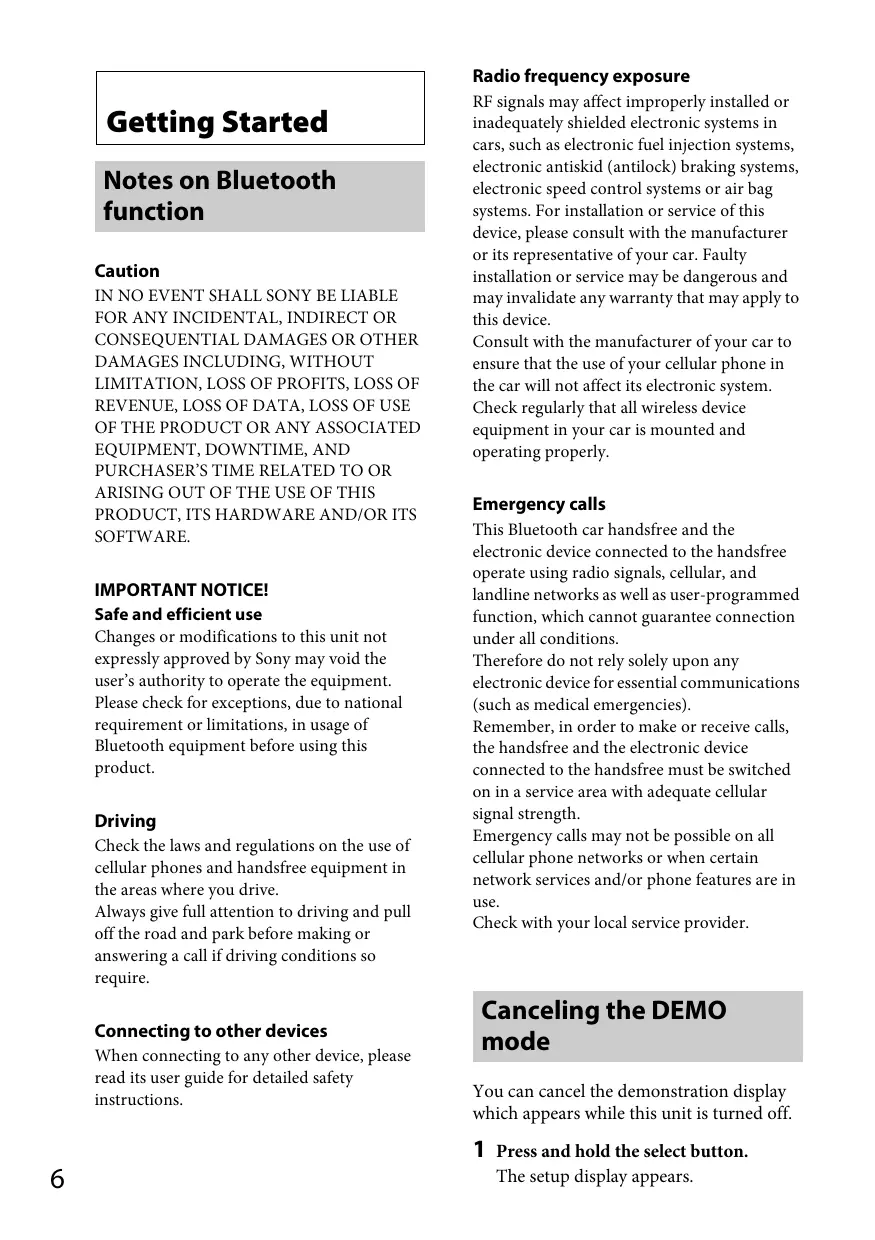
Radio frequency exposure
Getting Started Notes on Bluetooth function Caution IN NO EVENT SHALL SONY BE LIABLE FOR ANY INCIDENTAL, INDIRECT OR CONSEQUENTIAL DAMAGES OR OTHER DAMAGES INCLUDING, WITHOUT LIMITATION, LOSS OF PROFITS, LOSS OF REVENUE, LOSS OF DATA, LOSS OF USE OF THE PRODUCT OR ANY ASSOCIATED EQUIPMENT, DOWNTIME, AND PURCHASER’S TIME RELATED TO OR ARISING OUT OF THE USE OF THIS PRODUCT, ITS HARDWARE AND/OR ITS SOFTWARE.
IMPORTANT NOTICE! Safe and efficient use Changes or modifications to this unit not expressly approved by Sony may void the user’s authority to operate the equipment. Please check for exceptions, due to national requirement or limitations, in usage of Bluetooth equipment before using this product.
Driving Check the laws and regulations on the use of cellular phones and handsfree equipment in the areas where you drive. Always give full attention to driving and pull off the road and park before making or answering a call if driving conditions so require.
Connecting to other devices When connecting to any other device, please read its user guide for detailed safety instructions.
RF signals may affect improperly installed or inadequately shielded electronic systems in cars, such as electronic fuel injection systems, electronic antiskid (antilock) braking systems, electronic speed control systems or air bag systems. For installation or service of this device, please consult with the manufacturer or its representative of your car. Faulty installation or service may be dangerous and may invalidate any warranty that may apply to this device. Consult with the manufacturer of your car to ensure that the use of your cellular phone in the car will not affect its electronic system. Check regularly that all wireless device equipment in your car is mounted and operating properly.
Emergency calls This Bluetooth car handsfree and the electronic device connected to the handsfree operate using radio signals, cellular, and landline networks as well as user-programmed function, which cannot guarantee connection under all conditions. Therefore do not rely solely upon any electronic device for essential communications (such as medical emergencies). Remember, in order to make or receive calls, the handsfree and the electronic device connected to the handsfree must be switched on in a service area with adequate cellular signal strength. Emergency calls may not be possible on all cellular phone networks or when certain network services and/or phone features are in use. Check with your local service provider.
Canceling the DEMO mode You can cancel the demonstration display which appears while this unit is turned off.
Press and hold the select button. The setup display appears.
Rotate the control dial until “DEMO” appears, then press it.
Rotate the control dial to select “DEMO-OFF,” then press it. The setting is complete.
Press (BACK). The display returns to normal reception/ play mode.
Setting the clock The clock uses a 24-hour digital indication.
Press and hold the select button. The setup display appears.
Rotate the control dial until “CLOCKADJ” appears, then press it. The hour indication flashes.
Rotate the control dial to set the hour and minute. To move the digital indication, press –/+.
Press the front panel release button , then remove the panel by pulling it towards you.
Caution alarm If you turn the ignition switch to the OFF position without detaching the front panel, the caution alarm will sound for a few seconds. The alarm will only sound if the built-in amplifier is used. Note
After setting the minute, press the select button. The setup is complete and the clock starts.
Do not subject the front panel to heat/high temperature or moisture. Avoid leaving it in a parked car or on a dashboard/rear tray.
Attaching the front panel Engage part of the front panel with part of the unit, as illustrated, and push the left side into position until it clicks.
To display the clock, press .
Detaching the front panel You can detach the front panel of this unit to prevent theft.
Press and hold . The unit is turned off.
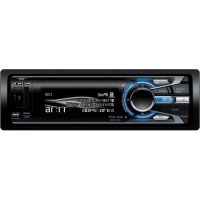
Location of controls Main unit
This section contains instructions on the location of controls and basic operations. SOURCE/OFF button Press to turn on the power/change the source (Radio/CD/USB/AUX/ Bluetooth audio/Bluetooth phone). Press and hold for 1 second to turn off the power. Press and hold for more than 2 seconds to turn off the power and the display disappears. SEEK +/– buttons Radio: To tune in stations automatically (press); find a station manually (press and hold). CD/USB: To skip a track (press); skip tracks continuously (press, then press again within about 1 second and hold); reverse/fast-forward a track (press and hold). Bluetooth Audio*2: To skip a track (press); reverse/fastforward a track (press and hold).
CALL button page 21 To enter the call menu (press); switch the Bluetooth signal (press and hold more than 2 seconds). Control dial/select/ (handsfree) button page 24, 25, 29, 32 To adjust volume (rotate); select items (press and rotate); receive/end a call (press). Disc slot Insert the disc (label side up), and playback starts. Display window (eject) button To eject the disc. USB connector page 14, 15
(BACK)/MODE button page 11, 16, 26 To return to the previous display. Radio: To select the radio band (FM/MW/ LW).
USB (iPod): To enter/cancel the passenger control (press and hold). Bluetooth phone: To activate/deactivate the appropriate device (this unit/cellular phone). Front panel release button page 7 Receptor for the remote commander
(BROWSE) button page 17 CD/USB: To enter the Quick-BrowZer™ mode.
AF (Alternative Frequencies)/ TA (Traffic Announcement)/ PTY (Program Type) button page 12 To set AF and TA (press); select PTY (press and hold) in RDS. Number buttons Radio: page 11 To receive stored stations (press); store stations (press and hold). CD/USB: /: ALBUM / (during MP3/ WMA/AAC playback) To skip an album (press); skip albums continuously (press and hold). : REP*1 page 16 : SHUF page 16 : ZAP page 18 : PAUSE To pause playback. Press again to resume playback. Bluetooth Audio*2: /: ALBUM / : REP*1 page 28 : SHUF page 28 : PAUSE To pause playback. Press again to resume playback. Bluetooth phone: page 25, 27 To call a stored phone number (press); to store a phone number as a preset (press and hold) (in the call menu).
: MIC (during a call) page 25, 26 To set the MIC gain (press); to select Echo Canceller/Noise Canceller mode (press and hold). DSPL (display)/SCRL (scroll) button page 11, 13, 14, 15, 23, 27 To change display items (press); scroll a display item (press and hold). AUX input jack page 33 *1 This button has a tactile dot. *2 When a Bluetooth audio device (supports AVRCP of Bluetooth technology) is connected. Depending on the device, certain operations may not be available. Note If the unit is turned off and the display disappears, the unit cannot be operated with the remote commander unless on the unit is pressed, or a disc is inserted to activate the unit first.
RM-X231 Remote commander
ENTER button To apply a setting; receive a call; end a call. PTY (Program Type) button VOL (volume) +*/– button CALL button To enter the call menu. MODE button Radio: To select the radio band (FM/MW/ LW). USB (iPod): To enter/cancel the passenger control (press and hold). Bluetooth phone: To activate/deactivate the appropriate device (this unit/cellular phone). SOUND/MENU button To enter sound setting (press); enter the setup menu (press and hold).
Remove the insulation film before use.
OFF button To turn off the power; stop the source; reject a call.
(+)/ (–) buttons To control CD/USB/Bluetooth audio device, the same as / (ALBUM /) on the unit. Setup, sound setting, etc., can be operated by . DSPL (display)/SCRL (scroll) button
()/ () buttons To control Radio/CD/USB/Bluetooth audio, the same as –/+ on the unit. Setup, sound setting, etc., can be operated by .
Number buttons To pause playback (press (PAUSE)). Radio: To receive stored stations (press); store stations (press and hold) (FM/MW/ LW). Bluetooth phone: To call a stored phone number (press); to store a phone number as a preset (press and hold) (in the call menu).
* This button has a tactile dot.
SOURCE button To turn on the power; change the source (Radio/CD/USB/AUX/ Bluetooth audio/Bluetooth phone).
Radio Storing and receiving stations Caution When tuning in stations while driving, use Best Tuning Memory (BTM) to prevent an accident.
Select the band, then press +/– to search for the station. Scanning stops when the unit receives a station. Repeat this procedure until the desired station is received. Tip
If you know the frequency of the station you want to listen to, press and hold +/– to locate the approximate frequency, then press +/– repeatedly to fine adjust to the desired frequency (manual tuning).
Storing automatically — BTM 1
Press repeatedly until “TUNER” appears. To change the band, press repeatedly. You can select from FM1, FM2, FM3, MW or LW. Press and hold the select button. The setup display appears. Rotate the control dial until “BTM” appears, then press it. The unit stores stations in order of frequency on the number buttons.
While receiving the station that you want to store, press and hold a number button ( to ) until “MEM” appears.
Receiving the stored stations 1
Select the band, then press a number button ( to ).
RDS FM stations with Radio Data System (RDS) service send inaudible digital information along with the regular radio program signal. Notes • Depending on the country/region, not all RDS functions may be available. • RDS will not work if the signal strength is too weak, or if the station you are tuned to is not transmitting RDS data.
Changing display items Press .
Setting AF (Alternative Frequencies) and TA (Traffic Announcement) AF continuously retunes the station to the strongest signal in a network, and TA provides current traffic information or traffic programs (TP) if received.
Press repeatedly until the desired setting appears.
activate AF and deactivate TA.
activate TA and deactivate AF.
Local Link function (UK only) This function enables you to select other local stations in the area, even if they are not stored on your number buttons.
activate both AF and TA.
deactivate both AF and TA.
During FM reception, press a number button ( to ) on which a local station is stored.
Within 5 seconds, press again a number button of the local station. Repeat this procedure until the local station is received.
Storing RDS stations with the AF and TA setting You can preset RDS stations along with the AF/TA setting. If you use the BTM function, only RDS stations are stored with the same AF/TA setting. If you preset manually, you can preset both RDS and non-RDS stations with an AF/TA setting for each.
Set AF/TA, then store the station with BTM or manually.
Receiving emergency announcements With AF or TA on, emergency announcements will automatically interrupt the currently selected source. Tip If you adjust the volume level during a traffic announcement, that level will be stored into memory for subsequent traffic announcements, independently from the regular volume level.
Staying with one regional program — REGIONAL When the AF function is on: this unit’s factory setting restricts reception to a specific region, so you will not be switched to another regional station with a stronger frequency. If you leave this regional program’s reception area, set “REG-OFF” in setup during FM reception (page 32).
Note This function does not work in the UK and some other areas.
Selecting PTY (Program Type) Use PTY to display or search for a desired program type.
Press and hold (PTY) during FM reception. The current program type name appears if the station is transmitting PTY data.
Rotate the control dial until the desired program type appears, then press it. The unit starts to search for a station broadcasting the selected program type.
Type of programs NEWS (News), AFFAIRS (Current Affairs), INFO (Information), SPORT (Sports), EDUCATE (Education), DRAMA (Drama), CULTURE (Culture), SCIENCE (Science), VARIED (Varied), POP M (Pop Music), ROCK M (Rock Music), EASY M (M.O.R. Music), LIGHT M (Light classical), CLASSICS (Serious classical), OTHER M (Other Music), WEATHER (Weather), FINANCE (Finance), CHILDREN (Children’s program), SOCIAL A (Social Affairs), RELIGION (Religion), PHONE IN (Phone In), TRAVEL (Travel), LEISURE (Leisure), JAZZ (Jazz Music), COUNTRY (Country Music), NATION M (National Music), OLDIES (Oldies Music), FOLK M (Folk Music), DOCUMENT (Documentary)
Setting CT (Clock Time) The CT data from the RDS transmission sets the clock.
CD Playing a disc This unit can play CD-DA (also containing CD TEXT) and CD-R/CD-RW (MP3/ WMA/AAC files (page 34)).
Insert the disc (label side up). Playback starts automatically.
To eject the disc, press . Note When ejecting/inserting a disc, keep any USB devices disconnected to avoid damage to the disc.
Changing display items Press . Displayed items may differ depending on the disc type, recording format and settings.
Set “CT-ON” in setup (page 32).
Note The CT function may not work properly even though an RDS station is being received.
USB devices • MSC (Mass Storage Class)-type USB devices compliant with the USB standard can be used. • Corresponding codec is MP3 (.mp3), WMA (.wma), AAC (.m4a) and AAC (.mp4). • Backup of data to a USB device is recommended. For details on the compatibility of your USB device, visit the support site on the back cover. Note Connect the USB device after starting the engine. Depending on the USB device, malfunction or damage may occur if it is connected before starting the engine.
Playing back a USB device 1
Open the USB cover, then connect the USB device to the USB connector with its USB cable (not supplied).
Playback starts. If a USB device is already connected, to start playback, press repeatedly until “USB” appears. To stop playback, press and hold for 1 second. To remove the USB device, stop the USB playback, then remove the USB device.
• Do not use USB devices so large or heavy that they may fall down due to vibration, or cause a loose connection. • Do not detach the front panel during playback of the USB device, otherwise USB data may be damaged.
Changing display items Press . Displayed items may differ depending on the USB device, recording format and settings. Notes • The maximum number of displayable data is as follows. – folders (albums): 128 – files (tracks) per folder: 500 • It may take time for playback to begin, depending on the amount of recorded data. • DRM (Digital Rights Management) files may not be played. • During playback or fast-forward/reverse of a VBR (Variable Bit Rate) MP3/WMA/AAC file, elapsed playing time may not display accurately. • Playback of the following MP3/WMA/AAC files is not supported. – lossless compression – copyright-protected
iPod In these Operating Instructions, “iPod” is used as a general reference for the iPod functions on the iPod and iPhone, unless otherwise specified by the text or illustrations. For details on the compatibility of your iPod, see “About iPod” (page 35) or visit the support site on the back cover.
Playing back an iPod Before connecting the iPod, turn down the volume of the unit.
Open the USB cover, then connect the iPod to the USB connector with a USB connection cable for iPod (not supplied)*. * RC-100IP USB connection cable for iPod is recommended.
Caution for iPhone When you connect an iPhone via USB, telephone volume is controlled by the iPhone itself. In order to avoid sudden loud sound after a call, do not increase the volume on the unit during a telephone call. Note Do not detach the front panel during playback of the iPod, otherwise data may be damaged. Tip The iPod is recharged while the unit is turned on.
Resuming mode When the iPod is connected to the dock connector, playback starts in the mode set by the iPod. In this mode, the following buttons do not function. – (REP) – (SHUF) Changing display items Press . Note Some letters stored in iPod may not be displayed correctly.
Skipping albums, podcasts, genres, playlists and artists The tracks on the iPod start playing automatically from the point last played. If an iPod is already connected, to start playback press repeatedly until “USB” appears. (“IPD” appears in the display when iPod is recognized.)
Press / (ALBUM / ) [press once for each skip]
Press and hold / (ALBUM /) [hold to desired point]
Press and hold for 1 second to stop playback. To remove the iPod, stop iPod playback, then remove the iPod.
Operating an iPod directly — Passenger control You can operate an iPod directly even when it is connected to the dock connector.
During playback, press and hold . “MODE IPOD” appears and you will be able to operate the iPod directly.
To exit the passenger control, press and hold . “MODE AUDIO” will appear and direct operation of the iPod will not be possible. Note The volume can be adjusted only by the unit.
Searching and playing tracks Playing tracks in various modes You can listen to tracks repeatedly (repeat play) or in random order (shuffle play). Available play modes differ depending on the selected sound source.
During playback, press (REP) or (SHUF) repeatedly until the desired play mode appears. Playback in the selected play mode may take time to start.
playlist repeatedly.
track in normal order (Normal play).
OFF Shuffle play Select
album in random order.
disc in random order.
SHUF PODCAST*1 podcast in random order. artist in random order.
SHUF PLAYLIST* playlist in random order. 1
device in random order.
track in normal order (Normal play).
Searching by skip items — Jump mode When many items are in a category, you can search for a desired item quickly.
Press + in Quick-BrowZer mode. The item name will appear.
Rotate the control dial to select the item near the one desired. The list is skipped in steps of 10% of the total number of items in the list.
Press the select button. The display returns to the QuickBrowZer mode and the selected item appears.
Rotate the control dial to select the desired item and press it. Playback starts if the selected item is a track.
*1 iPod only *2 CD only *3 USB and iPod only
Searching a track by name — Quick-BrowZer™ You can search for a track in a CD or USB device easily by category.
Press (BROWSE)*. The unit enters the Quick-BrowZer mode, and the list of search categories appears. When the track list appears, press (BACK) repeatedly until the desired search category appears. * During USB playback, press (BROWSE) for more than 2 seconds to directly return to the beginning of the category list.
Rotate the control dial to select the desired search category, then press it to confirm.
Repeat step 2 until the desired track is selected. Playback starts.
To cancel Jump mode, press –.
Searching by alphabetical order — Alphabet search When an iPod is connected to the unit, you can search for a desired item alphabetically.
Press + in Quick-BrowZer mode.
Rotate the control dial to select the first letter of the desired item, then press it. A list of items beginning with the selected letter appears in alphabetical order.
Rotate the control dial to select the desired item, then press it. Playback starts if the selected item is a track.
Note When entering the Quick-BrowZer mode, the repeat/shuffle setting is cancelled.
To cancel Alphabet search, press (BACK) or –. Notes • In Alphabet search, a symbol or article (a/an/ the) before the selected letter of the item is excluded. • Depending on the search item you select, only Jump mode may be available. • Alphabet search may take some time, depending on the amount of tracks.
Searching a track by listening to track passages — ZAPPIN™ By playing back short track passages in a CD or USB device in sequence, you can search for a track you want to listen to. ZAPPIN mode is suitable for searching for a track in shuffle or shuffle repeat mode.
Press (ZAP) during playback. Playback starts from a passage of the next track. You can select the playback time (page 32). Track
pressed. The part of each track to play back in ZAPPIN mode.
Press the select button or (ZAP) when a track you want to listen is played back. The track that you select returns to normal play mode from the beginning. Pressing (BACK) will also play back the chosen track. Tips
• Press +/– in ZAPPIN mode to skip a track. • Press / (ALBUM /) in ZAPPIN mode to skip an album.
Changing the illumination Changing the color of display and buttons — Dynamic Color Illuminator Dynamic Color Illuminator allows you to change the color of the display and buttons on the main unit to match the car’s interior. You can select from 12 preset colors, customized color and 5 preset patterns. Preset colors: RED, AMBER, M_AMBER, YELLOW, WHITE, L_GREEN, GREEN, L_BLUE, SKY BLUE, BLUE, PURPLE, PINK. Preset patterns: RAINBOW, OCEAN, SUNSET, FOREST, RANDOM.
Press and hold the select button. The setup display appears.
Rotate the control dial until “COLOR” appears, then press it.
Rotate the control dial to select the desired preset color or pattern, then press it.
Note If the control dial is rotated rapidly, the color of the display and the buttons may change too quickly.
Customizing the display and button color — Custom Color You can register a customized color for the display and buttons.
Press and hold the select button. The setup display appears.
Rotate the control dial until “CUSTOM-C” appears, then press it.
Rotate the control dial until “BASE” appears, then press it. You can select a preset color as a basis for further customizing. When you select “BASE,” the customized color is overwritten.
Advanced color setting Changing the color with sound synchronization — Sound Synchronization When you select a preset pattern, sound synchronization becomes effective.
Press and hold the select button. The setup display appears.
Rotate the control dial until “SND SYNC” appears, then press it.
Rotate the control dial to select “SYNC-ON,” then press it. Press
Rotate the control dial to select from “RGB RED,” “RGB GRN,” or “RGB BLUE,” then press it.
Rotate the control dial to adjust the color range, then press it. Adjustable color range: “0” – “32.” You cannot set “0” for all color ranges.
Changing DAY/NIGHT color mode You can set a different color for DAY/ NIGHT mode according to the dimmer setting.
You can display the menu more clearly (White) without concern for color setting.
Press and hold the select button. The setup display appears.
Rotate the control dial until “WHT MENU” appears, then press it.
Rotate the control dial to select “WHITE-ON,” then press it.
To cancel White Menu, select “OFF” in step 3.
*1 For details on DIMMER, see page 32. *2 Available only when the illumination control lead is connected.
Select “DAYNIGHT” in step 2. Select “DAY” or “NIGHT.” Customize the preset channel from step 2 to 5.
Start up effect — Start White In the Start White setting, when you press , the display and buttons on the main unit turn white once, then change to the customized color.
Press and hold the select button. The setup display appears.
Rotate the control dial until “STARTWHT” appears, then press it.
Rotate the control dial to select “WHITE-ON,” then press it.
To cancel Start White, select “OFF” in step 3.
Connecting Bluetooth devices Bluetooth operations The Bluetooth function allows for handsfree calling and music streaming via this unit. To use the Bluetooth function, the following procedure is necessary. Pairing When connecting Bluetooth devices for the first time, mutual registration is required. This is called “pairing.” Registration is required only for the first time, as this unit and the other devices will recognize each other automatically thereafter. Connection To use the device after pairing is made, start the connection. Sometimes pairing allows for connection automatically. Handsfree calling/Music streaming You can talk handsfree and listen to music when the connection is made. If pairing is not possible, your device may not be compatible with this unit. For details on compatible devices, visit the support site on the back cover.
Installing the microphone To capture your voice during handsfree calling, you need to install the microphone (supplied). For details on how to connect the microphone, refer to the supplied “Installation/Connections” guide.
Operating the Bluetooth functions 1
Press . The call menu appears.
Rotate the control dial until the desired item appears, then press it.
Press (BACK)*. The source returns to the Bluetooth phone.
* For SET PAIRING, REDIAL, VOICE DIAL and SET BT SIGNL settings, step 3 is not necessary.
The following items can be set:
SET PAIRING (page 21) PHONEBOOK (page 24, 26)
Pairing The Bluetooth device (cellular phone, audio device, etc.) and this unit need to be “paired” before use between each other via the Bluetooth function.
Tips • For details on pairing for a Bluetooth device, refer to the operating instructions supplied with the device. • You can pair up to 9 Bluetooth devices with this unit.
Place the Bluetooth device within 1 m (3 ft) of this unit.
Press and rotate the control dial until “SET PAIRING” appears, then press it. The unit enters pairing standby mode.
Set the Bluetooth device to search for this unit. A list of detected devices appears in the display of the device to be connected. This unit is displayed as “Sony Automotive” on the device to be connected.
If passkey* input is required in the display of the device to be connected, input “0000.”
AUTO ANSWER Sets this unit to answer an incoming call automatically: “OFF”-“1 (about 3 seconds)”-“2 (about 10 seconds).” DEVICE DEL (Device Delete) (page 26) SET BT SIGNL (Set Bluetooth Signal) (page 22, 23) * Depending on the cellular phone, this unit’s ringtone may be output even if set to “2 (cellular phone).”
If the device supports Bluetooth version 2.1, passkey input is not required. * Passkey may be called “passcode,” “PIN code,” “PIN number” or “Password,” etc., depending on the device.
Input passkey “0000”
This unit and the Bluetooth device memorize each other’s information, and when pairing is made, stays lit. The unit is ready for connection to the device.
Tip Connection between this unit and the Bluetooth device may be automatic, depending on the device.
Cancelling pairing Perform step 2 to cancel the pairing mode after this unit and the Bluetooth device are paired.
Connection To use the device after pairing is made, start the connection. Sometimes pairing allows for connection automatically. If pairing has already been achieved, start operation from here.
Note If “ ” continues to flash, the Bluetooth device may not be compatible with this unit. For details on compatible devices, visit the support site on the back cover.
Select this unit on the Bluetooth device to be connected. “ ” or “ ” appears when the connection is made.
Notes • While connecting to a Bluetooth device, this unit cannot be detected from another device. To enable detection, enter the pairing mode and search for this unit from another device. • It may take time to search or connect. • Depending on the device, the confirmation display of the connection appears before inputting the passkey. • The time limit for inputting the passkey differs depending on the device. If the time expires, perform the pairing procedure from the beginning again. • This unit cannot be connected to a device that supports only HSP (Head Set Profile).
Connecting a cellular phone 1
Press and rotate the control dial until “SET BT SIGNL” appears, then press it. “ ” lights up when Bluetooth signal is activated.
Note When the Bluetooth signal for this unit is already ON, selecting “SET BT SIGNL” deactivates the Bluetooth signal. Tip You can also output the Bluetooth signal from this unit by pressing and holding on this unit more than two seconds.
Turn on the cellular phone and activate the Bluetooth signal. Connect to this unit using the cellular phone. “ ” appears when the connection is made. If you select the Bluetooth Phone source after the connection is made, the network name and the connected cellular phone name appear in the display.
Tip With Bluetooth signal on: when the ignition is turned to on, this unit reconnects automatically to the last-connected cellular phone. But automatic connection also depends on the cellular phone’s specification. If automatic connection is not made, connect manually.
Connecting an audio device 1
Press and rotate the control dial until “SET BT SIGNL” appears, then press it. “ ” lights up when Bluetooth signal is activated.
Turn on the audio device and activate the Bluetooth signal.
Connect to this unit using the audio device. “ ” appears when the connection is made.
Icons in the display: Signal strength status of connected cellular phone.* Remaining battery status of connected cellular phone.* * Turns off without handsfree connection. Differs in the case of a cellular phone.
Changing display items Press . Connecting the last-connected cellular phone from this unit
Make sure the Bluetooth signal of the cellular phone is activated.
Press repeatedly until “BT PHONE” appears.
“ ” flashes while the connection is being made, then stays lit while connected. Notes • Some cellular phones require permission to access their phonebook data during handsfree connection to this unit. Obtain permission via the cellular phone. • While streaming Bluetooth audio, you cannot connect from this unit to the cellular phone. Connect from the cellular phone to this unit instead. A connecting noise may be heard over playback sound.
Connecting the last-connected audio device from this unit
Make sure the Bluetooth signal of the audio device is activated.
Press repeatedly until “BT AUDIO” appears.
“ ” flashes while the connection is being made, then stays lit while connected.
Handsfree calling Once the unit is connected to the cellular phone, you can make/receive handsfree calls by operating this unit.
Calling from the phonebook You can make a call from the phonebook in this unit (internal phonebook) or the cellular phone*. For details on how to transfer the phonebook data of a cellular phone into this unit, see “Internal phonebook” (page 26). * To access the cellular phone’s phonebook from this unit, the cellular phone must support PBAP (Phone Book Access Profile).
Before handsfree calling, check the following: Make sure that “ ” and “ ” appear in the display. If “ ” and “ ” do not appear, perform the connection procedure (page 22). If you cannot connect this unit and the cellular phone via the Bluetooth function, perform the pairing procedure (page 21).
Press and rotate the control dial until “PHONEBOOK” appears, then press it. The phonebook which has priority appears. The default setting is the cellular phone (“CEL”).
Rotate the control dial to select an initial from the initial list, and then press it.
Rotate the control dial to select a name from the name list, and then press it.
Rotate the control dial to select a number from the number list, and then press it. The phone call starts.
When receiving a call, a ringtone is output from your car speakers or the connected cellular phone. The caller’s name or phone number appear in the display.
Press (handsfree) when a call is received with a ringtone. The phone call starts.
Note Depending on the cellular phone, contacts displayed on the unit may differ from the phonebook of the cellular phone.
Note Depending on the cellular phone, the caller’s name may appear.
Rejecting a call Press and hold for 1 second. Ending a call Press (handsfree) again.
Changing the phonebook priority
Press and rotate the control dial until “PH BOOK SEL” appears, then press it.
Select “CEL (cellular phone)” or “HU (this unit)” to set the priority.
Note on phonebook data Prior to disposal or changing ownership of your car with this unit still installed, be sure to initialize all the Bluetooth related settings in this unit to prevent possible unauthorized access (page 28).
Disconnecting the power supply lead will also erase all the phonebook data.
Calling by preset number
Calling from the call history
You can store up to 6 contacts in the preset dial. For details on how to store, see “Preset dial” (page 26).
You can access to the call history stored in this unit or the cellular phone, and make a call. This unit stores up to 20 calls in the call history.
Press and rotate the control dial until “RECENT CALL” appears, then press it. The call history list of this unit or the cellular phone (set with “PH BOOK SEL”) appears.
Press (handsfree). The phone call starts.
Rotate the control dial to select a name or phone number from the call history, then press it. The phone call starts.
Note The call history in this unit may not change even if the respective cellular phone’s call history is deleted.
Calling by phone number input 1 2
Press and rotate the control dial until “DIAL NUMBER” appears, then press it. Rotate the control dial to enter the phone number, and lastly select “ ” (space), then press the (handsfree) button*. The phone call starts. * To move the digital indication, press –/+.
Note “_” appears instead of “#” on the display.
Press a number button ( to ) to select the contact you want to call.
Press and rotate the control dial until “REDIAL” appears, then press it. The phone call starts.
Operations during a call Presetting the volume of the ringtone and talker’s voice You can preset the volume level of the ringtone and talker’s voice. To adjust the ringtone volume: Rotate the control dial while receiving a call. Ringtone volume can be adjusted. To adjust the talker’s voice volume: Rotate the control dial during a call. The talker’s voice volume can be adjusted. Note If the Bluetooth Phone source is selected, rotating the control dial will only adjust the talker’s volume.
Mic gain adjustment You can adjust the volume for the other party. Press (MIC) to adjust the volume levels (“MIC-LOW,” “MIC-MID,” “MICHI”).
“RECEIVING” appears during transfer, then “COMPLETE” appears in the display of this unit when transfer is finished.
EC/NC Mode (Echo Canceller/Noise Canceller Mode) You can reduce echo and noise. Press and hold (MIC) to set to “EC/ NC-1” or “EC/NC-2.” Call transfer In order to activate/deactivate the appropriate device (this unit/cellular phone). Press or use your cellular phone.
Updating an internal phonebook Follow step 1 to 3 above. Deleting a contact
Select a name in the internal phonebook or the call history that you want to delete, then press it. For details on how to access the name list in the internal phonebook, see page 24.
Rotate the control dial until “DEL CONTACT” appears, then press it.
Rotate the control dial to select “DELETEYES”, then press it. “COMPLETE” appears when it is deleted.
Notes • For details on cellular phone operation, refer to your cellular phone manual. • Depending on the cellular phone, handsfree connection may be cut off when call transfer is attempted.
Internal phonebook You can transfer the phonebook data of a cellular phone into this unit. This unit can store data of up to 5 cellular phones, 1,000 contacts. You can only access to the internal phonebook of the cellular phone that is currently connected to this unit. Notes • Confirm that the cellular phone and this unit are connected via the Bluetooth function. • Confirm that “HU” is selected in “PH BOOK SEL” in the call menu beforehand (page 24). • For details on how to transfer the phonebook data from the cellular phone, refer to your cellular phone manual.
Press and rotate the control dial until “PHONEBOOK” appears, then press it. Rotate the control dial until “ADD CONTACT” appears, then press it. “WAITING” appears in the display of this unit. Operate your cellular phone to transfer the phonebook data.
To delete all the contacts in the internal phonebook or the call history, select “DELETE ALL” in step 2 above. Deleting a device information You can delete any of the stored internal phonebooks and the call histories.
Press and rotate the control dial until “DEVICE DEL” appears, then press it.
Select the phonebook of the device you want to delete.
Rotate the control dial to select “DELETEYES”, then press it. “COMPLETE” appears when it is deleted.
Preset dial Contacts (up to 6) in the phonebook can be stored in the preset dial.
Select a phone number that you want to store in the preset dial, from the phonebook, call history* or by inputting the phone number directly. The phone number appears in the display of this unit.
* For the call history, you can also select from the caller name. In this case, the caller name appears in the display of this unit.
Press and hold a number button ( to ) to select the preset number to store until “MEM” appears. The contact is stored in the selected preset number.
If you receive a new SMS message, the SMS indicator flashes.
If there are any unread SMS messages, the SMS indicator stays lit.
Voice dial activation You can activate voice dialing with a cellular phone connected to this unit by saying the voice tag stored on the cellular phone, then make a call.
Press and rotate the control dial until “VOICE DIAL” appears, then press it.
Say the voice tag stored on the cellular phone. Your voice is recognized, and the call is made.
Notes • Check that the unit and cellular phone are connected beforehand. • Store a voice tag on your cellular phone beforehand. • If you activate voice dialing with a cellular phone connected to this unit, this function may not always work in some cases. • Voice dialing may not work in some situations, depending on the effectiveness of the cellular phone’s recognition function. For details, see the support site on the back cover. Tip Store voice tags while seated in the car, via this unit with “BT PHONE” source selected.
SMS indicator While connecting a cellular phone to this unit, the SMS indicator informs you of any incoming or unread SMS messages.
Note Function of the SMS indicator may depend on the cellular phone.
Music streaming Listening to music from an audio device You can listen to music from an audio device on this unit if the audio device supports A2DP (Advanced Audio Distribution Profile) of Bluetooth technology.
Turn down the volume on this unit.
Operate the audio device to start playback.
Adjust the volume on this unit.
Press repeatedly until “BT AUDIO” appears.
Changing display items Press .
Adjusting the volume level The volume level is adjustable for any difference between the unit and the Bluetooth audio device.
Start playback of the Bluetooth audio device at a moderate volume.
Set your usual listening volume on the unit. Press the select button. Rotate the control dial until “BTA VOL” appears, and rotate the volume control dial to adjust the input level (“+18dB” – “0dB” – “– 8dB”).
Operating an audio device with this unit You can perform the following operations on this unit if the audio device supports AVRCP (Audio Video Remote Control Profile) of Bluetooth technology. (The operation differs depending on the audio device.) To
Press / (ALBUM /) [press once for each album]
Press (PAUSE)*2 on this unit.
Press (PAUSE)*2 on this unit.
Press –/+ (/ ) [press once for each track]
Reverse/ Fast-forward
Press and hold –/+ (/) [hold to desired point]
*1 Press repeatedly until the desired setting appears. *2 Depending on the device, it may be necessary to press twice.
Notes • Depending on the audio device, information, such as title, track number/time, playback status, etc., may not be displayed on this unit. The information is displayed during Bluetooth audio playback only. • Even if the source is changed on this unit, playback of the audio device does not stop.
Operations other than the above should be performed on the audio device.
Initializing Bluetooth Settings You can initialize all the Bluetooth related settings (pairing information, phonebook, call history, preset number, device information, etc.) from this unit.
Press and hold for 1 second to turn off the power.
Press and hold the select button. The menu list appears.
Rotate the control dial to select “BT INIT,” then press it. The confirmation appears.
Rotate the control dial to select “INITYES,” then press it. “INITIAL” flashes while initializing the Bluetooth settings; “COMPLETE” appears when initializing has finished.
Note When disposing of this unit, preset numbers should be deleted with “BT INIT.”
Sound Settings and Setup Menu Changing the sound settings Adjusting the sound characteristics 1
During reception/playback, press the select button.
Rotate the control dial until the desired menu item appears, then press it.
Rotate the control dial to select the setting, then press it.
SW LEVEL (Subwoofer Level)*2 Adjusts the subwoofer volume level: “+10 dB” – “0 dB” – “–10 dB.” (“ATT” is displayed at the lowest setting.) AUX VOL (AUX Volume level)*3 Adjusts the volume level for each connected auxiliary equipment: “+18 dB” – “0 dB” – “–8 dB.” This setting negates the need to adjust the volume level between sources. BTA VOL (Bluetooth Audio Volume Level)*4 (page 28) *1 Hidden when “SET POSITION” is set to “OFF.” *2 When the audio output is set to “SUB-OUT” (page 32). *3 When AUX source is activated (page 33). *4 When Bluetooth audio source is activated.
The following items can be set: EQ7 PRESET (page 29) EQ7 SETTING (page 30) POSITION SET POSITION (Listening Position setting) (page 30) ADJ POSITION (Listening Position adjustment)*1 (page 31) SET SW POS (Subwoofer Position setting)*1*2 (page 31) BALANCE Adjusts the sound balance: “RIGHT-15” – “CENTER” – “LEFT-15.” FADER Adjusts the relative level: “FRONT-15” – “CENTER” – “REAR-15.” DM+ (page 31) RB ENH (Rear Bass Enhancer) (page 31)
Enjoying sophisticated sound functions — Advanced Sound Engine Advanced Sound Engine creates an ideal incar sound field with digital signal processing.
Selecting the sound quality — EQ7 Preset You can select an equalizer curve from 7 equalizer curves (XPLOD, VOCAL, EDGE, CRUISE, SPACE, GRAVITY, CUSTOM or OFF).
During reception/playback, press the select button.
Rotate the control dial until “EQ7 PRESET” appears, then press it.
Rotate the control dial until the desired equalizer curve appears, then press it. Press
Setting the equalizer curve. Rotate the control dial to select the frequency range, then press it.
To cancel the equalizer curve, select “OFF” in step 3.
BAND1: 63 Hz BAND2: 160 Hz BAND3: 400 Hz BAND4: 1 kHz BAND5: 2.5 kHz BAND6: 6.3 kHz BAND7: 16.0 kHz
Tip The equalizer curve setting can be memorized for each source.
Rotate the control dial to adjust the volume level, then press it. The volume level is adjustable in 1 dB steps, from -6 dB to +6 dB.
Customizing the equalizer curve — EQ7 Setting “CUSTOM” of EQ7 allows you to make your own equalizer settings.
Select a source, then press the select button.
Rotate the control dial until “EQ7 SETTING” appears, then press it.
Rotate the control dial until “BASE” appears, then press it. You can select an equalizer curve as a basis for further customizing.
Rotate the control dial to select the equalizer curve, then press it.
Repeat steps and to adjust other frequency ranges.
Press (BACK) twice. The equalizer curve is stored in “CUSTOM.”
Optimizing sound by Time Alignment — Listening Position The unit can simulate a natural sound field by delaying the sound output from each speaker to suit your position. The options for “POSITION” are indicated below. FRONT L (): Front left FRONT R (): Front right FRONT (): Center front ALL (): In the center of your car OFF: No position set
You can also set the approximate subwoofer position from your listening position if: – the audio output is set to “SUB-OUT” (page 32). – the listening position is set to other than “OFF.” The options for “SET SW POS” are indicated below. NEAR (): Near NORMAL (): Normal FAR (): Far
During reception/playback, press the select button.
Rotate the control dial until “SET POSITION” appears, then press it.
Rotate the control dial to select from “FRONT L,” “FRONT R,” “FRONT” or “ALL,” then press it.
Rotate the control dial until “SET SW POS” appears, then press it.
Rotate the control dial to select the subwoofer position from “NEAR,” “NORMAL” or “FAR,” then press it.
To cancel the listening position, select “OFF” in step 3.
Adjusting the listening position You can fine-tune the listening position setting.
DM+ Advanced DM+ Advanced improves digitally compressed sound by restoring high frequencies lost in the compression process.
During playback, press the select button.
Rotate the control dial until “DM+” appears, then press it.
Rotate the control dial to select “ON,” then press it.
Tip The DM+ setting can be memorized for each source.
Using rear speakers as a subwoofer — Rear Bass Enhancer Rear Bass Enhancer enhances the bass sound by applying a low pass filter setting (page 33) to the rear speakers. This function allows the rear speakers to work as a subwoofer if one is not connected.
During reception/playback, press the select button.
Rotate the control dial until “RB ENH” appears, then press it.
During reception/playback, press the select button.
Rotate the control dial to select from “1,” “2” or “3,” then press it.
Rotate the control dial until “ADJ POSITION” appears, then press it.
Rotate the control dial to adjust the listening position, then press it. Adjustable range: “+3” – “CENTER” – “–3.”
Adjusting setup items 1
Press and hold the select button. The setup display appears.
Rotate the control dial until the desired item appears, then press it.
Rotate the control dial to select the setting, then press it.* The setting is complete.
* For CLOCK-ADJ and BTM settings, step 4 is not necessary. And for BT SIGNL and PAIRING settings, step 3 and 4 are not necessary.
The following items can be set depending on the source and setting:
DIMMER Changes the display brightness. – “AT”: to dim the display automatically when you turn lights on. (Available only when the illumination control lead is connected.) – “ON”: to dim the display. – “OFF”: deactivate the dimmer.
COLOR (Preset Color) Selects the preset color of the display and buttons on the main unit (page 18). CUSTOM-C (Custom Color) Selects a preset color as a basis for further customizing (page 19).
CLOCK-ADJ (Clock Adjust) (page 7)
SND SYNC (Sound Synchronization) Selects the color with sound synchronization: “ON,” “OFF.”
CT (Clock Time) Activates the CT function: “ON,” “OFF” (page 13).
WHT MENU (White Menu) Sets the effect when the source is switched: “ON,” “OFF.”
BEEP Activates the beep sound: “ON,” “OFF.”
START-WHT (Start White) Sets the start up color: “ON,” “OFF.”
CAUT ALM (Caution Alarm)*1 Activates the caution alarm: “ON,” “OFF” (page 7).
AUTO SCR (Auto Scroll) Scrolls long items automatically: “ON,” “OFF.”
AUX-A (AUX Audio)*1 Activates the AUX source display: “ON,” “OFF” (page 33).
REGIONAL*2 Restricts reception to a specific region: “ON,” “OFF” (page 12).
AUTO OFF Shuts off automatically after a desired time when the unit is turned off: “NO,” “30S (Seconds),” “30M (Minutes),” “60M (Minutes).”
ZAP TIME (Zappin Time) Selects the playback time for the ZAPPIN function.
REAR/SUB*1 Switches the audio output: “REAROUT” (power amplifier), “SUB-OUT” (subwoofer).
DEMO (Demonstration) Activates the demonstration: “ON,” “OFF.”
– “Z.TIME-1 (about 6 seconds),” “Z.TIME-2 (about 15 seconds),” “Z.TIME-3 (about 30 seconds).”
ZAP BEEP (Zappin Beep) Applies a beep sound between track passages: “ON,” “OFF.”
LPF FREQ (Low Pass Filter Frequency)*3 Selects the subwoofer cut-off frequency: “50Hz,” “60Hz,” “80Hz,” “100Hz,” “120Hz.” LPF SLOP (Low Pass Filter Slope)*3 Selects the LPF slope: “1,” “2,” “3.” SW PHASE (Subwoofer Phase)*4 Selects the subwoofer phase: “NORM,” “REV.” HPF FREQ (High Pass Filter Frequency) Selects the front/rear speaker cut-off frequency: “OFF,” “50Hz,” “60Hz,” “80Hz,” “100Hz,” “120Hz.” HPF SLOP (High Pass Filter Slope) Selects the HPF slope (effective only when HPF FREQ is set to other than “OFF”): “1,” “2,” “3.”
Using optional equipment Auxiliary audio equipment By connecting an optional portable audio device to the AUX input jack (stereo mini jack) on the unit and then simply selecting the source, you can listen on your car speakers. Connecting a portable audio device
LOUDNESS (Dynamic Loudness) Reinforces bass and treble for clear sound at low volume levels: “ON,” “OFF.”
Turn off the portable audio device. Turn down the volume on the unit. Connect the portable audio device to the unit with a connecting cord (not supplied)*. * Be sure to use a straight type plug.
ALO (Automatic Level Optimizer) Adjusts the playback volume level of all playback sources to the optimum level: “ON,” “OFF.” BTM (Best Tuning Memory) (page 11) BT INIT (Bluetooth Initialize)*1 (page 28) BT SIGNL (Bluetooth Signal) Turns the Bluetooth signal on/off. PAIRING Turns the pairing mode on/off. Memorizes the information between this unit and the Bluetooth device. *1 When the unit is turned off. *2 When FM is received. *3 When the audio output is set to “SUB-OUT” or Rear Bass Enhancer is set to other than “OFF.” *4 When the audio output is set to “SUB-OUT.”
Adjusting the volume level Be sure to adjust the volume for each connected audio device before playback.
Turn down the volume on the unit.
Start playback of the portable audio device at a moderate volume.
Set your usual listening volume on the unit.
Press repeatedly until “AUX” appears.
Adjust the input level (page 29).
• Discs that this unit CANNOT play
Additional Information Precautions • Cool off the unit beforehand if your car has been parked in direct sunlight. • Do not leave the front panel or audio devices brought in inside the car, or it may cause malfunction due to high temperature in direct sunlight. • Power antenna (aerial) extends automatically.
Moisture condensation Should moisture condensation occur inside the unit, remove the disc and wait for about an hour for it to dry out; otherwise the unit will not operate properly.
To maintain high sound quality Do not splash liquid onto the unit or discs.
Notes on discs • Do not expose discs to direct sunlight or heat sources such as hot air ducts, nor leave it in a car parked in direct sunlight. • Before playing, wipe the discs with a cleaning cloth from the center out. Do not use solvents such as benzine, thinner, commercially available cleaners. • This unit is designed to play back discs that conform to the Compact Disc (CD) standard. DualDiscs and some of the music discs encoded with copyright protection technologies do not conform to the Compact Disc (CD) standard, therefore, these discs may not be playable by this unit.
– Discs with labels, stickers, or sticky tape or paper attached. Doing so may cause a malfunction, or may ruin the disc. – Discs with non-standard shapes (e.g., heart, square, star). Attempting to do so may damage the unit. – 8 cm (3 1/4 in) discs.
Notes on CD-R/CD-RW discs • The maximum number of: (CD-R/CD-RW only) – folders (albums): 150 (including root folder) – files (tracks) and folders: 300 (may less than 300 if folder/file names contain many characters) – displayable characters for a folder/file name: 32 (Joliet)/64 (Romeo)
• If the multi-session disc begins with a CDDA session, it is recognized as a CD-DA disc, and other sessions are not played back. • Discs that this unit CANNOT play – CD-R/CD-RW of poor recording quality. – CD-R/CD-RW recorded with an incompatible recording device. – CD-R/CD-RW which is finalized incorrectly. – CD-R/CD-RW other than those recorded in music CD format or MP3 format conforming to ISO9660 Level 1/Level 2, Joliet/Romeo or multi-session.
Playback order of MP3/WMA/ AAC files
MP3/WMA/AAC Folder (album) MP3/WMA/ AAC file (track)
About iPod • You can connect to the following iPod models. Update your iPod devices to the latest software before use. Made for – iPod touch (4th generation) – iPod touch (3rd generation) – iPod touch (2nd generation) – iPod touch (1st generation) – iPod classic – iPod with video* – iPod nano (6th generation) – iPod nano (5th generation) – iPod nano (4th generation) – iPod nano (3rd generation) – iPod nano (2nd generation) – iPod nano (1st generation)* – iPhone 4 – iPhone 3GS – iPhone 3G – iPhone * Passenger control is not available for iPod nano (1st generation) or iPod with video.
• “Made for iPod,” and “Made for iPhone” mean that an electronic accessory has been designed to connect specifically to iPod or iPhone, respectively, and has been certified by the developer to meet Apple performance standards. Apple is not responsible for the operation of this device or its compliance with safety and regulatory standards. Please note that the use of this accessory with iPod or iPhone may affect wireless performance.
About Bluetooth function What is Bluetooth technology? • Bluetooth wireless technology is a shortrange wireless technology that enables wireless data communication between digital devices, such as a cellular phone and a headset. Bluetooth wireless technology operates within a range of about 10 m (about 33 feet). Connecting two devices is common, but some devices can be connected to multiple devices at the same time.
• You do not need to use a cable for connection since Bluetooth technology is a wireless technology, neither is it necessary for the devices to face one another, such is the case with infrared technology. For example, you can use such a device in a bag or pocket. • Bluetooth technology is an international standard supported by millions of companies all over the world, and employed by various companies worldwide.
On Bluetooth communication • Bluetooth wireless technology operates within a range of about 10 m. Maximum communication range may vary depending on obstacles (person, metal, wall, etc.) or electromagnetic environment. • The following conditions may affect the sensitivity of Bluetooth communication. – There is an obstacle such as a person, metal, or wall between this unit and Bluetooth device. – A device using 2.4 GHz frequency, such as a wireless LAN device, cordless telephone, or microwave oven, is in use near this unit.
• Because Bluetooth devices and wireless LAN (IEEE802.11b/g) use the same frequency, microwave interference may occur and result in communication speed deterioration, noise, or invalid connection if this unit is used near a wireless LAN device. In such as case, perform the following. – Use this unit at least 10 m away from the wireless LAN device. – If this unit is used within 10 m of a wireless LAN device, turn off the wireless LAN device. – Install this unit and Bluetooth device as near to each other as possible.
• Microwaves emitting from a Bluetooth device may affect the operation of electronic medical devices. Turn off this unit and other Bluetooth devices in the following locations, as it may cause an accident. – where inflammable gas is present, in a hospital, train, airplane, or petrol station – near automatic doors or a fire alarm
• This unit supports security capabilities that comply with the Bluetooth standard to provide a secure connection when the Bluetooth wireless technology is used, but security may not be enough depending on the setting. Be careful when communicating using Bluetooth wireless technology. • We do not take any responsibility for the leakage of information during Bluetooth communication. • Connection with all Bluetooth devices cannot be guaranteed. – A device featuring Bluetooth function is required to conform to the Bluetooth standard specified by Bluetooth SIG, and be authenticated. – Even if the connected device conforms to the above mentioned Bluetooth standard, some devices may not be connected or work correctly, depending on the features or specifications of the device. – While talking on the phone hands free, noise may occur, depending on the device or communication environment.
• Depending on the device to be connected, it may require some time to start communication.
Others • Using the Bluetooth device may not function on cellular phones, depending on radio wave conditions and location where the equipment is being used. • If you experience discomfort after using the Bluetooth device, stop using the Bluetooth device immediately. Should any problem persist, consult your nearest Sony dealer. If you have any questions or problems concerning your unit that are not covered in this manual, consult your nearest Sony dealer.
Maintenance Replacing the lithium battery of the remote commander When the battery becomes weak, the range of the remote commander becomes shorter. Replace the battery with a new CR2025 lithium battery. Use of any other battery may present a risk of fire or explosion. + side up
Notes on the lithium battery • Keep the lithium battery out of the reach of children. Should the battery be swallowed, immediately consult a doctor. • Wipe the battery with a dry cloth to assure a good contact. • Be sure to observe the correct polarity when installing the battery. • Do not hold the battery with metallic tweezers, otherwise a short-circuit may occur.
WARNING Battery may explode if mistreated. Do not recharge, disassemble, or dispose of in fire. Cleaning the connectors The unit may not function properly if the connectors between the unit and the front panel are not clean. In order to prevent this, detach the front panel (page 7) and clean the connectors with a cotton swab. Do not apply too much force. Otherwise, the connectors may be damaged.
Notes • For safety, turn off the ignition before cleaning the connectors, and remove the key from the ignition switch. • Never touch the connectors directly with your fingers or with any metal device.
Specifications Tuner section FM Tuning range: 87.5 – 108.0 MHz Antenna (aerial) terminal: External antenna (aerial) connector Intermediate frequency: 25 kHz Usable sensitivity: 8 dBf Selectivity: 75 dB at 400 kHz Signal-to-noise ratio: 80 dB (stereo) Separation: 50 dB at 1 kHz Frequency response: 20 – 15,000 Hz
MW/LW Tuning range: MW: 531 – 1,602 kHz LW: 153 – 279 kHz Antenna (aerial) terminal: External antenna (aerial) connector Intermediate frequency: 9,124.5 kHz or 9,115.5 kHz/4.5 kHz
Sensitivity: MW: 26 μV, LW: 45 μV CD Player section Signal-to-noise ratio: 120 dB Frequency response: 10 – 20,000 Hz Wow and flutter: Below measurable limit
USB Player section Interface: USB (Full-speed)
Maximum current: 1 A Wireless Communication Communication System: Bluetooth Standard version 2.1 + EDR Output: Bluetooth Standard Power Class 2 (Max. +4 dBm) Maximum communication range: Line of sight approx. 10 m (33 ft)*1 Frequency band: 2.4 GHz band (2.4000 – 2.4835 GHz) Modulation method: FHSS Compatible Bluetooth Profiles*2:
A2DP (Advanced Audio Distribution Profile) 1.2 AVRCP (Audio Video Remote Control Profile) 1.3 HFP (Handsfree Profile) 1.5 PBAP (Phone Book Access Profile) OPP (Object Push Profile)
*1 The actual range will vary depending on factors such as obstacles between devices, magnetic fields around a microwave oven, static electricity, reception sensitivity, antenna (aerial)’s performance, operating system, software application, etc. *2 Bluetooth standard profiles indicate the purpose of Bluetooth communication between devices.
Power amplifier section Output: Speaker outputs Speaker impedance: 4 – 8 ohms Maximum power output: 52 W × 4 (at 4 ohms)
General Outputs: Audio outputs terminal (front, rear/sub switchable) Power antenna (aerial) relay control terminal Power amplifier control terminal Inputs: Telephone ATT control terminal Remote controller input terminal Antenna (aerial) input terminal MIC input terminal AUX input jack (stereo mini jack) USB signal input connector Power requirements: 12 V DC car battery (negative ground (earth)) Dimensions: Approx. 178 × 50 × 179 mm (7 1/8 × 2 × 7 1/8 in) (w/h/d) Mounting dimensions: Approx. 182 × 53 × 162 mm (7 1/4 × 2 1/8 × 6 1/2 in) (w/h/d) Mass: Approx. 1.2 kg (2 lb 11 oz) Supplied accessories: Remote commander: RM-X231 Microphone Parts for installation and connections (1 set) Optional accessories/equipment:
USB connection cable for iPod: RC-100IP Your dealer may not handle some of the above listed accessories. Please ask the dealer for detailed information. Design and specifications are subject to change without notice.
Troubleshooting The following checklist will help you remedy problems you may encounter with your unit. Before going through the checklist below, check the connection and operating procedures. For details on using the fuse and removing the unit from the dashboard, refer to the installation/connections manual supplied with this unit. If the problem is not solved, visit the support site on the back cover.
General No power is being supplied to the unit. Check the connection or fuse. If the unit is turned off and the display disappears, the unit cannot be operated with the remote commander. – Turn on the unit. The power antenna (aerial) does not extend. The power antenna (aerial) does not have a relay box. No sound. The ATT function is activated, or the Telephone ATT function (when the interface cable of a car telephone is connected to the ATT lead) is activated. The position of the fader control “FADER” is not set for a 2-speaker system. No beep sound. The beep sound is cancelled (page 32). An optional power amplifier is connected and you are not using the built-in amplifier. The contents of the memory have been erased. The power supply lead or battery has been disconnected or not connected properly.
Stored stations and correct time are erased. The fuse has blown. Makes noise when the position of the ignition is switched. The leads are not matched correctly with the car’s accessory power connector.
During playback or reception, demonstration mode starts. If no operation is performed for 5 minutes with “DEMO-ON” set, demonstration mode starts. – Set “DEMO-OFF” (page 32). The display disappears from/does not appear in the display window. The dimmer is set to “DIM-ON” (page 32). The display disappears if you press and hold . – Press on the unit until the display appears. The connectors are dirty (page 36). The Auto Off function does not operate. The unit is turned on. The Auto Off function activates after turning off the unit. – Turn off the unit.
Radio reception Stations cannot be received. The sound is hampered by noises. The connection is not correct. – Connect a power antenna (aerial) control lead (blue) or accessory power supply lead (red) to the power supply lead of a car’s antenna (aerial) booster (only when your car has a built-in radio antenna (aerial) in the rear/side glass). – Check the connection of the car antenna (aerial). – If the auto antenna (aerial) will not go up, check the connection of the power antenna (aerial) control lead. Preset tuning is not possible. Store the correct frequency in the memory. The broadcast signal is too weak. Automatic tuning is not possible. The broadcast signal is too weak. – Perform manual tuning.
RDS The SEEK starts after a few seconds of listening. The station is non-TP or has weak signal. – Deactivate TA (page 11).
No traffic announcements. Activate TA (page 11). The station does not broadcast any traffic announcements despite being TP. – Tune in another station. PTY displays “- - - - - - - -.” The current station is not an RDS station. RDS data has not been received. The station does not specify the program type. Program service name flashes. There is no alternative frequency for the current station. – Press +/– while the program service name is flashing. “PI SEEK” appears and the unit starts searching for another frequency with the same PI (Program Identification) data.
– Press and hold (SCRL). The sound skips. Installation is not correct. – Install the unit at an angle of less than 45° in a sturdy part of the car. Defective or dirty disc.
USB playback You cannot play back items via a USB hub. This unit cannot recognize USB devices via a USB hub. Cannot play back items. A USB device does not work. – Reconnect it. A USB device takes longer to play back. The USB device contains files with a complicated tree structure.
CD playback The disc cannot be loaded. Another disc is already loaded. The disc has been forcibly inserted upside down or in the wrong way. The disc does not play back. Defective or dirty disc. The CD-Rs/CD-RWs are not for audio use (page 34). MP3/WMA/AAC files cannot be played back. The disc is incompatible with the MP3/WMA/ AAC format and version. For details on playable discs and formats, visit the support site. MP3/WMA/AAC files take longer to play back than others. The following discs take a longer time to start playback. – a disc recorded with a complicated tree structure. – a disc recorded in Multi Session. – a disc to which data can be added. The display items do not scroll. For discs with very many characters, those may not scroll. “AUTO SCR” is set to “OFF.” – Set “A.SCRL-ON” (page 32).
The sound is intermittent. The sound may be intermittent at a high-bitrate of more than 320 kbps.
Bluetooth function The connecting device cannot detect this unit. Before the pairing is made, set this unit to pairing standby mode. While connected to a Bluetooth device, this unit cannot be detected from another device. – Disconnect the current connection and search for this unit from another device. When the device pairing is made, set the Bluetooth signal output to on (page 22, 23, 33). Connection is not possible. The connection is controlled from one side (this unit or Bluetooth device), but not both. – Connect to this unit from a Bluetooth device or vice versa. Check the pairing and connection procedures in the manual of the other device, etc., and perform the operation again. The name of the detected device does not appear. Depending on the status of the other device, it may not be possible to obtain the name.
No ringtone. Adjust the volume by rotating the control dial while receiving a call. Depending on the connecting device, the ringtone may not be sent properly. – Set “RINGTONE” to “1” (page 21). The talker’s voice volume is low. Adjust the volume level. A call partner says that the volume is too low or high. Adjust the volume accordingly using mic gain adjustment (page 25). Echo or noise occurs in phone call conversations. Lower the volume. Set EC/NC Mode to “EC/NC-1” or “EC/NC-2” (page 26). If the ambient noise other than the phone call sound is loud, try reducing this noise. E.g.: If a window is open and road noise, etc., is loud, shut the window. If an air conditioner is loud, lower the air conditioner. The phone is not connected. When Bluetooth audio is played, the phone is not connected even if you press (handsfree). – Connect from the phone. The phone sound quality is poor. Phone sound quality depends on reception conditions of cellular phone. – Move your car to a place where you can enhance the cellular phone’s signal if the reception is poor. The volume of the connected audio device is low (high). Volume level will differ depending on the audio device. – Adjust the volume of the connected audio device or this unit. No sound is heard from the Bluetooth audio device. The audio device is paused. – Cancel pause of the audio device.
The sound skips during playback of a Bluetooth audio device. Reduce the distance between the unit and the Bluetooth audio device. If the Bluetooth audio device is stored in a case which interrupts the signal, remove the audio device from the case during use. Several Bluetooth devices or other devices which emit radio waves are in use nearby. – Turn off the other devices. – Increase the distance from the other devices. The playback sound stops momentarily when the connection between this unit and the cellular phone is being made. This is not a malfunction. The connected Bluetooth audio device cannot be controlled. Check that the connected Bluetooth audio device supports AVRCP. Some functions do not work. Check if the connecting device supports the functions in question. The name of the other party does not appear when a call is received. The calling phone is not set to send the phone number. A call is answered unintentionally. The connecting phone is set to answer a call automatically. “AUTO ANSWER” of this unit is set to “ANS-1” or “ANS-2” (page 21). Pairing failed due to time out. Depending on the connecting device, the time limit for pairing may be short. – Try completing the pairing within the time. Bluetooth function cannot operate. Turn off the unit by pressing for more than 2 seconds, then turn the unit on again. No sound is output from the car speakers during handsfree call. If the sound is output from the cellular phone, set the cellular phone to output the sound from the car speakers.
The phonebook data stored in this unit does not appear. The other Bluetooth device is connected to this unit via the Bluetooth function. – Connect a cellular phone whose phonebook data has been transferred to this unit (page 24).
Error displays/Messages BT BUSY (Bluetooth Busy) The phonebook and the call history of the cellular phone are not accessible from this unit. – Wait for a while, and then try again. CHECKING The unit is confirming the connection of a USB device. – Wait until confirming the connection is finished. DEVICE FULL There are 5 devices already stored in the internal phonebook. – Delete one of them, then try to add the other cellular phone’s data (page 26). EMPTY The call history is empty. The phonebook is empty. ERROR The disc is dirty or inserted upside down. – Clean or insert the disc correctly. A blank disc has been inserted. The disc cannot play due to a problem. – Insert another disc. USB device was not automatically recognized. – Reconnect it again. Press to remove the disc. BT Initialize failed. Phonebook access failed. Phonebook content was changed while accessing the cellular phone. – Access the phonebook in the cellular phone again. FAILURE The connection of speakers/amplifiers is incorrect.
– See the installation/connections manual of this model to check the connection. HUB NO SUPRT (Hubs Not Supported) USB hub is not supported on this unit. MEM FAILURE (Memory Failure) This unit failed to store the contact in the preset dial. – Make sure that the number you intend to store is correct (page 26). MEMORY BUSY This unit is storing data. – Wait until storing has finished. MEMORY FULL 1,000 contacts have been stored. – The internal phonebook can store a maximum of 1,000 contacts. NO AF (No Alternative Frequencies) There is no alternative frequency for the current station. – Press +/– while the program service name is flashing. The unit starts searching for another frequency with the same PI (Program Identification) data (“PI SEEK” appears). NO DEV (No Device) USB is selected as source without a USB device connected. A USB device or a USB cable has been disconnected during playback. – Be sure to connect a USB device and USB cable. Bluetooth audio source is selected without a Bluetooth audio device connected. A Bluetooth audio device has been disconnected during a call. – Be sure to connect a Bluetooth audio device. Bluetooth phone source is selected without a cellular phone connected. A cellular phone has been disconnected during a call. – Be sure to connect a cellular phone. NO INFO (No Information) Network name and cellular phone name are not received with cellular phone connected. NO MUSIC The disc or USB device does not contain a music file.
– Insert a music CD in this unit. – Connect a USB device with a music file in it. NO NAME A disc/album/artist/track name is not written in the track.
WITHHELD Phone number is hidden by caller.
NO PHONEBOOK There is no phonebook in this unit. – Transfer phonebook data to this unit.
“ ” or “ ” During reverse or fast-forward, you have reached the beginning or the end of the disc and you cannot go any further.
NOT FOUND There is no item beginning with the selected letter in Alphabet search.
“ ” The character cannot be displayed with the unit.
NO TP (No Traffic Programs) The unit will continue searching for available TP stations.
If these solutions do not help improve the situation, consult your nearest Sony dealer. If you take the unit to be repaired because of CD playback trouble, bring the disc that was used at the time the problem began.
OFFSET There may be an internal malfunction. – Check the connection. If the error indication remains in the display, consult your nearest Sony dealer. OVERLOAD USB device is overloaded. – Disconnect the USB device, then change the source by pressing . – Indicates that the USB device is out of order, or an unsupported device is connected. P (preset number) EMPTY The preset dial is empty. PUSH EJT (Push Eject) The disc cannot be ejected. – Press (eject). READ The unit is reading all track and album information on the disc. – Wait until reading is complete and playback starts automatically. Depending on the disc structure, it may take more than a minute. UNKNOWN Name or phone number cannot be displayed when browsing phonebook or call history. USB NO SUPRT (USB Not Supported) The connected USB device is not supported.
– For details on the compatibility of your USB device, visit the support site.
USB-speler Interface: USB (Full-speed)
www.sony-europe.com/myproducts