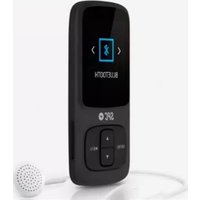
8578N - Mp3 player SPC - Free user manual and instructions
Find the device manual for free 8578N SPC in PDF.


| Product Type | Portable MP3 Player |
| Brand | SPC |
| Model | 8578N |
| Approximate Dimensions (H x W x D) | 90 mm x 40 mm x 12 mm |
| Weight | 35 g |
| Power Source | Built-in rechargeable lithium-ion battery |
| Battery Capacity | 200 mAh |
| Charging Time | 1-2 hours via USB |
| Playback Time | Up to 10 hours (audio) |
| Storage Capacity | 8 GB internal (expandable via microSD up to 32 GB) |
| Audio Formats Supported | MP3, WMA, WAV, APE, FLAC |
| Display | 1.8-inch TFT color LCD |
| FM Radio | Yes, with preset stations |
| Voice Recording | Yes, built-in microphone |
| Audio Output | 3.5 mm stereo headphone jack |
| Connectivity | USB 2.0 for charging and data transfer |
| Equalizer Settings | Multiple presets (Rock, Pop, Jazz, Classic, etc.) |
| Additional Features | Folder navigation, playlist support, ID3 tag display, repeat/shuffle playback |
| Included Accessories | USB cable, earphones, user manual |
| Care and Cleaning | Wipe with a dry soft cloth; avoid moisture, extreme temperatures, and dropping |
| Safety Precautions | Do not disassemble, expose to heat, or immerse in liquid. Use only supplied charger. |
| Repairability and Spare Parts | Non-user-serviceable. Contact SPC support for battery replacement or repairs. |
| Country of Origin | China |
| Manual Language | English (also available in other languages via request) |
Frequently Asked Questions - 8578N SPC
User questions about 8578N SPC
0 question about this device. Answer the ones you know or ask your own.
Ask a new question about this device
Download the instructions for your Mp3 player in PDF format for free! Find your manual 8578N - SPC and take your electronic device back in hand. On this page are published all the documents necessary for the use of your device. 8578N by SPC.
USER MANUAL 8578N SPC
natural_image
Silhouette of a rocket inside a white circular background (no text or symbols)MP4 Player
Pure Sound Bluetooth
Copyright © 2015 SPC
www.spc-universe.com
This guide includes all the information to make the most out of your SPC PURE SOUND BLUETOOTH.
GET AN SPC ACCOUNT
Free advantages just one click away.
Before going on reading this manual, we strongly recommend you visiting www.spc-universe.com, SO YOU CAN CREATE AN SPC ACCOUNT AND REGISTER YOUR PRODUCT.
By doing this, you will be able to get into SPC universe: an exclusive club where our clients can get incredible offers and discounts and also upgrade or renew their products.
Moreover, having an account means free access to SPC services: tablet and smartphone apps, technical support...
This is SPC. A universe in technology.
BOX CONTENTS
■ Music player
■ High-quality stereo earphones
■ USB cable to connect the player with the PC and charge the battery
User guide
Warranty sheet
FEATURES
■ 1.8 inch 128 x 160 TFT screen
Bluetooth
Support:
■ Built-in microphone for long time recording
■ Support FM Radio with 30 presets
■ Calendar, stopwatch and alarm
■ Standard and random playing
■ Different modes of equalizer
■ Support micro-SD card
■ Support multilanguages
Battery life up to 6,5h (MP3 files), up to 5,5h (AMV files) and up to 4h (Radio FM).
■ Compatible OS: Windows 8 / XP / Vista / 7, MAC, Linux.
Lithium Battery
■ Dimmensions: 84 x 40 x 10 mm. Weight: 26,5g.
■ Short press, to access to a menu.
■ Long press, to exit to a superior menu / back.
2.▶/
■ Short press, Play – Pause.
■ Long press, Power On-Off.
3.
■ Short press, previous and moving up.
■ Long press, fast forward playing.
4.
■ Short press, next and moving down.
■ Long press, fast backward playing.
5. VOL+
■ Short press, increase volume.
■ Long press, lock/unlock key.
6.VOL—
■ Short press, decrease volume, come back to the previous menu.
■ Long press, Mute/Unmute radio.
7.
Earphone jack.
8.MIC
■ Built-in microphone.
9.
USB socket.
10.
■ Micro-SD jack.
BATTERY CHARGING
The player has an internal battery. You have to charge it before starting to use it:
A USB cable is supplied with the player. With the computer turned on, connect one end of the cable to your computer's USB port and the other end to the player's connector (9).
The battery will start charging. Charge the battery for 3-4 hours to ensure a maximum usage time and to lengthen its useful life.
NOTE: To charge the player correctly, connect the USB cable directly to your computer's USB port (not via a hub).
CONNECTION TO THE COMPUTER
Connect the player to a computer that uses the Windows 8 / XP / VISTA / 7; Linux, MAC Operating System. The computer will automatically recognise the device.
Once the computer has detected the player, it will operate like a portable disk. Therefore, file transfer will be carried out in the same way as with any other storage device (for example, selecting and dropping files to the unit, or copying and pasting files in the unit).
NOTE: Separate the files in different folders so that the unit can manage the information better. If you decide to create sub-folders, the units is only able to show 8 levels of sub-folders (folders inside other folders).
To format the unit (in case you need it), in "My PC", right click on the storage drive created by the unit. Then click on the "Format..." option. Select the FAT32 file system and click "Start".
To disconnect it, double click on the small icon displayed on the bottom right-hand part task bar, and extract the formatted unit using the icon “Safely remove hardware”, select the unit and click on “Stop” option.
NOTE: Do not disconnect the player during the data copying or deleting process as this could cause the unit to malfunction and damage the software. Do it using the icon of the bottom right-hand task bar. Do not copy files or folders with file names too long or strange characters, because it may cause a wrong performance of the device. If so, change the name of the files or folders.
NOTE: You can format the device coming into "Set" and selecting the option "Format device".
UNIT OPERATION
Turn the player on by holding down on ▶(2).
First time you access, you will see a menu with different languages. Use the keys ▲ (3) and ▼ (4) to choose the one you want, and press ▶/○ (2) to confirm. After system is started, the player will show the menus in the selected language.
Turn the player off by holding down on ▶(2).
PLAYING AUDIO FILES
- Press ▲(3) and ▼(4) to select the “Music” option in the main menu and then press ▶(2) to confirm.
- You will see now the sub-menu. Choose the option you desire: All songs, Artists, Albums, Genres, etc., and press ▶// (2) to confirm.
■ With ▲ (3) and ▼ (4) choose a song and press ▶/⏻ (2) to confirm. If you want to pause the playing for some seconds, press ▶(2).
If during a song playing you press the MENU key (1). you will access to the sub-menu from where you can access different configuration options. Move up and down with ▲ (3) and ▼ (4) keys, and press ▶///⏻ (2) to confirm.
- To access the file and folder browser from the music playing function, press the (1), to come back to the main menu. Go to "Folder view" and press (2) to confirm. If a micro-SD card is inserted, then the following options will appear: "Local folder" or "Card folder".
- Choose the folder with ▲ (3) and ▼ (4) keys, and press ▶∥/⏻ (2) to confirm. If there are some folders and you desire to come back to the previous one, press VOL—(6). Press the ▶∥/⏻ key (2) to enter the folder or for the file to start to play.
■ To turn the volume up or down, press the VOL + (5) y VOL - (6) respectively.
If you want to go back to the previous song, press (3) and to skip to the next song, press (4).
■ Finally, to rewind or fast forward, hold down ▲ (3) y ▼ (4) respectively.
- To exit the “Music” or any other function, hold down MENU key (1). To exit the menus and submenus, press the key (6).
PLAYING VIDEO FILES
To correctly play videos in the player it is NECESSARY to previously pass the original videos through the video converter (you can download it from the web).
From the main menu, press ▲ (3) and ▼ (4) to select the "Video" option and then press ▶∥/⏻ (2) to confirm.
RECORD
This device has an integrated microphone that will allow you to record voice or sound in a short distance.
From the main menu, press ▲ (3) and ▼ (4) keys to select the "Recordings" option and then press ▶||/⏻ (2) to confirm.
Press ▶(2) key to start with the recording. You can see the name of the file, recording time and spare time (according to the available memory).
If you need to make a pause press ▶(2) key, to re-start press ▶(2) key again.
Press and hold (1) key to stop the recording. The file will be saved automatically in the "RECORD" folder.
RADIO
From the main menu, press ▲(3) and ▲(4) to select the "FM Radio" option and then press ▶∥/⏻ (2) to confirm.
Auto search: From FM radio screen, using ▲ (3) and ▼ (4) keys, , search “Auto Tune” option and press ▶∥/⏻ (2) to confirm. The preset stations will be stored automatically.
When you are listening to the radio and want to change to other station press and hold (3) and (4).
NOTE: There are 30 memories available
PICTURES
From the main menu, press ▲ (3) and ▼ (4) keys to select the “Pictures” option and then press ▶∥/∅ (2) to confirm.
Select a file and press (2) for playing.
NOTE: It is recommended not to put files that the device does not support. If you access to the explorer from the menu “Pictures” only picture files are displayed.
BLUETOOTH
This function allows a wireless transmission with different devices through a wireless link. For this, select the Bluetooth function from the main menu.
Activate Bluetooth:
Select the "Bluetooth Status" option and then "Enable Bluetooth" option.
Search device:
- Select Search “Bluetooth Search” option. And, do the same with the device you want to pair.
■ When the other device is recognised, its identification will be shown in the screen of your watch.
Connect devices:
If during searching the devices have already paired, select “Bluetooth Device List” option. And, select the device that you want to connect.
- Select the “Bluetooth Devices Connected” option and after some seconds, both devices will be connected.
Disconnect devices:
- Select “Bluetooth Device List” option. And, select the device that you want to disconnect.
- Select the “Bluetooth disconnected” option and after some seconds, will be disconnected.
Deactivate Bluetooth:
- Select the "Bluetooth Status" option and then "Disable Bluetooth" option.
NOTE: Before pair a new device, it is compulsory to unpair the previous device.
SETTINGS
Play mode: Playing music from, Repeat and Shuffle modes.
Sound settings: Equalizer, Volume limit and Key tone.
Sleep timer: Set sleep timer and Automatic shut down.
Display settings: Brightness and Backlight timer.
Date and time: Set the date and time.
Slideshow settings: Time per slide, Repeat and Shuffle modes.
Language: Selection of the desired language.
Information: Information of the device, Disk space, File type supported.
Format device: Delete of all information stored in memory.
Factory settings: Reset the player to original from factory.
Copyright © 2015 SPC
www.spc-universe.com
The information that this guide contains cannot be transmitted, played or distributed in any case without the written authorization of SPC.
COMERCIAL BRANDNAMES
SPC is a registered brandname of Telecom y Novatecno S.A.
NOTE: SPC reserves the right to modify the information of this guide in any moment. All the information and recommendations that we can find here do not guarantee anything.
BEM-VINDO!
Copyright © 2015 SPC
www.spc-universe.com
Marca/Brand/Marca: SPC
Denominación comercial/Commercial Name/Nome comercial: 8578A, 8578N
NORMAS APLICADAS/APPLICABLE NORMS/NORMAS APLICÁVEIS
EN 55013:2001+A1:2003+A2:2006
EN 55020:2007+A11:2011
EN 62479: 2010
EN 300 328 (v1.7.1): 2006
EN 301 489-1 (v1.9.2): 2011
EN 301 489-17 (v2.2.1):2012
EN 60950-1: 2006+A11: 2009+A1:2010+A12:2011
FUNCIONALIDADES/FEATURES/CARACTERÍSTICAS
Director General/General Manager/Diretor-geral
Esta declaración de conformidad está de acuerdo con la Directiva Europea 1999/5/CE. This declaration of conformity is in compliance with the European Directive 1999/5/CE. Esta declaração de conformidade respeita as normas da Diretiva Europeia 1999/5/CE.
- Pure Sound Bluetooth
- GET AN SPC ACCOUNT
- BOX CONTENTS
- FEATURES
- 2.▶/
- 3.
- 4.
- VOL+
- 6.VOL—
- 7.
- 8.MIC
- 9.
- 10.
- BATTERY CHARGING
- CONNECTION TO THE COMPUTER
- UNIT OPERATION
- PLAYING AUDIO FILES
- PLAYING VIDEO FILES
- RECORD
- RADIO
- PICTURES
- BLUETOOTH
- Activate Bluetooth:
- Search device:
- Connect devices:
- Disconnect devices:
- Deactivate Bluetooth:
- SETTINGS
- COMERCIAL BRANDNAMES
- BEM-VINDO!
- www.spc-universe.com
- FUNCIONALIDADES/FEATURES/CARACTERÍSTICAS
Brand : SPC
Model : 8578N
Category : Mp3 player